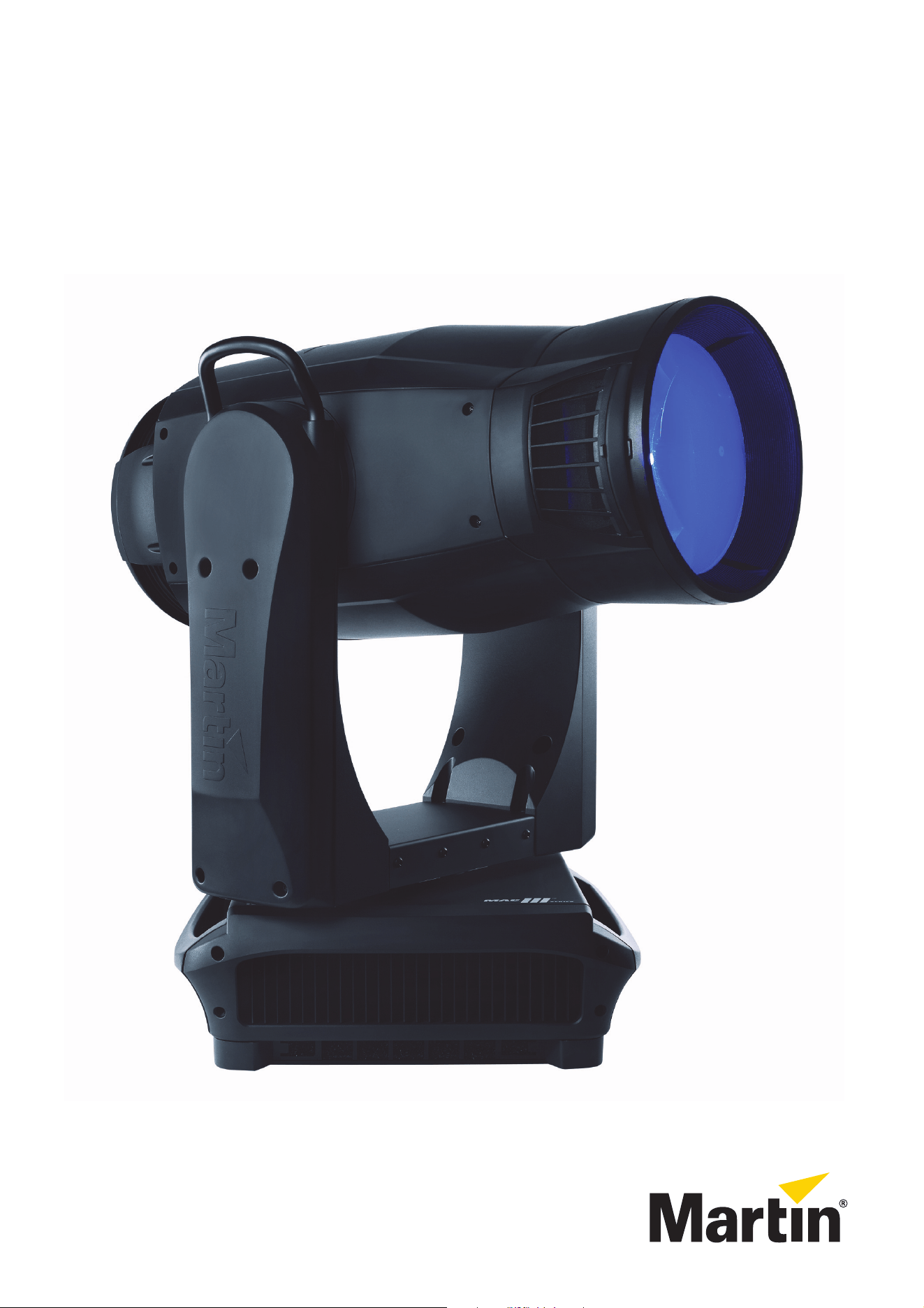
MAC III™ Wash
USER MANUAL
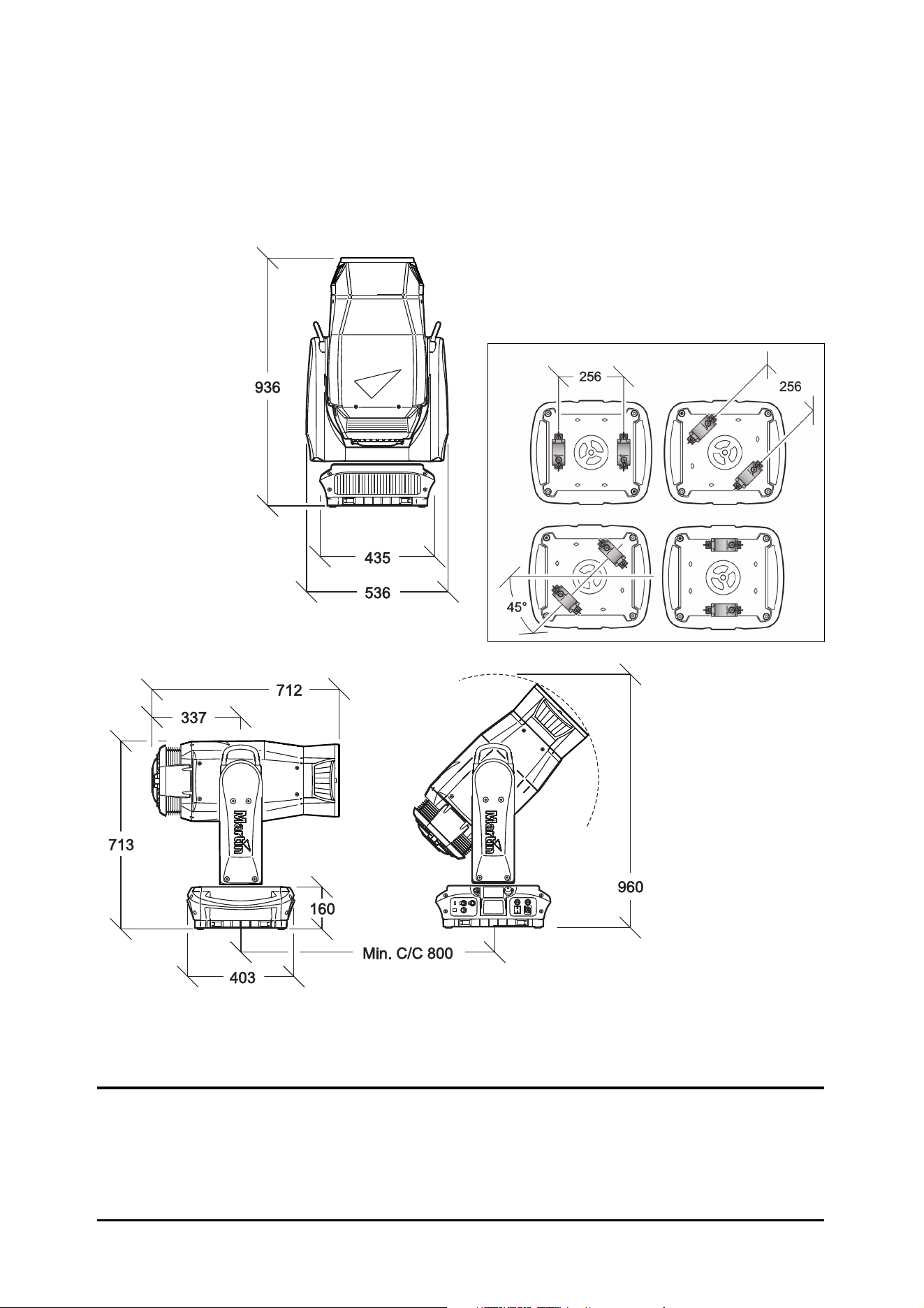
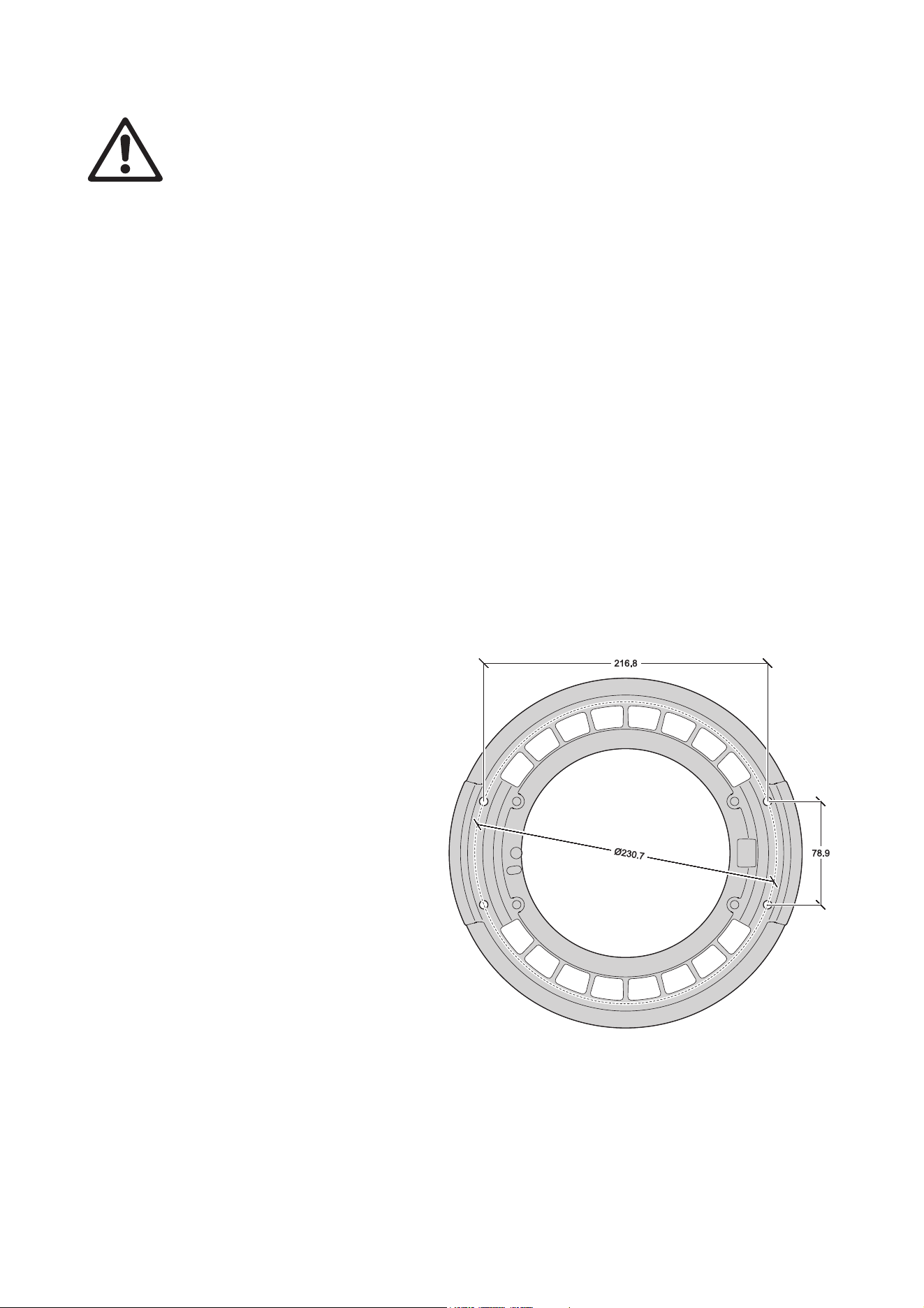
Dimensions
All measurements are expressed in millimeters
The minimum center-to-center
distance can be reduced if pan and
limits are set via the control menus
© 2012 Martin Professional A/S. Information subject to change without notice. Martin Professional A/S and all affiliated companies
disclaim liability for any injury, damage, direct or indirect loss, consequential or economic loss or any other loss occasioned by the
use of, inability to use or reliance on the information contained in this manual. The Martin logo, the Martin name and all other trade-
marks in this document pertaining to services or products by Martin Professional A/S or its affiliates and subsidiaries are trademarks
owned or licensed by Martin Professional A/S or its affiliates or subsidiaries.
P/N 35000266, Rev. C

Contents
Safety Information. . . . . . . . . . . . . . . . . . . . . . . . . . . . . . . . . . . . . . . . . . . . . . . . . . . . . . . . . . . . . . . . . . 5
Introduction . . . . . . . . . . . . . . . . . . . . . . . . . . . . . . . . . . . . . . . . . . . . . . . . . . . . . . . . . . . . . . . . . . . . . . . . 7
Unpacking . . . . . . . . . . . . . . . . . . . . . . . . . . . . . . . . . . . . . . . . . . . . . . . . . . . . . . . . . . . . . . . . . . . . . . . . 7
Using for the first time . . . . . . . . . . . . . . . . . . . . . . . . . . . . . . . . . . . . . . . . . . . . . . . . . . . . . . . . . . . . . . . 7
Packing . . . . . . . . . . . . . . . . . . . . . . . . . . . . . . . . . . . . . . . . . . . . . . . . . . . . . . . . . . . . . . . . . . . . . . . . . . 7
AC power . . . . . . . . . . . . . . . . . . . . . . . . . . . . . . . . . . . . . . . . . . . . . . . . . . . . . . . . . . . . . . . . . . . . . . . . . . 8
Power connection . . . . . . . . . . . . . . . . . . . . . . . . . . . . . . . . . . . . . . . . . . . . . . . . . . . . . . . . . . . . . . . . . . 8
Applying power . . . . . . . . . . . . . . . . . . . . . . . . . . . . . . . . . . . . . . . . . . . . . . . . . . . . . . . . . . . . . . . . . . . . 9
Lamp . . . . . . . . . . . . . . . . . . . . . . . . . . . . . . . . . . . . . . . . . . . . . . . . . . . . . . . . . . . . . . . . . . . . . . . . . . . . . 10
About the discharge lamp . . . . . . . . . . . . . . . . . . . . . . . . . . . . . . . . . . . . . . . . . . . . . . . . . . . . . . . . . . . 10
Lamp replacement . . . . . . . . . . . . . . . . . . . . . . . . . . . . . . . . . . . . . . . . . . . . . . . . . . . . . . . . . . . . . . . . . 10
DMX data link. . . . . . . . . . . . . . . . . . . . . . . . . . . . . . . . . . . . . . . . . . . . . . . . . . . . . . . . . . . . . . . . . . . . . 12
Physical installation . . . . . . . . . . . . . . . . . . . . . . . . . . . . . . . . . . . . . . . . . . . . . . . . . . . . . . . . . . . . . . . 13
Control panel operations. . . . . . . . . . . . . . . . . . . . . . . . . . . . . . . . . . . . . . . . . . . . . . . . . . . . . . . . . . . 15
Setup Wizard . . . . . . . . . . . . . . . . . . . . . . . . . . . . . . . . . . . . . . . . . . . . . . . . . . . . . . . . . . . . . . . . . . . . . 16
DMX address. . . . . . . . . . . . . . . . . . . . . . . . . . . . . . . . . . . . . . . . . . . . . . . . . . . . . . . . . . . . . . . . . . . . . 16
Fixture ID . . . . . . . . . . . . . . . . . . . . . . . . . . . . . . . . . . . . . . . . . . . . . . . . . . . . . . . . . . . . . . . . . . . . . . . . 17
Personality – tailoring performance . . . . . . . . . . . . . . . . . . . . . . . . . . . . . . . . . . . . . . . . . . . . . . . . . . . . 17
Factory settings . . . . . . . . . . . . . . . . . . . . . . . . . . . . . . . . . . . . . . . . . . . . . . . . . . . . . . . . . . . . . . . . . . . 19
Fixture information readouts . . . . . . . . . . . . . . . . . . . . . . . . . . . . . . . . . . . . . . . . . . . . . . . . . . . . . . . . . 20
DMX signal monitoring. . . . . . . . . . . . . . . . . . . . . . . . . . . . . . . . . . . . . . . . . . . . . . . . . . . . . . . . . . . . . . 20
Test sequence . . . . . . . . . . . . . . . . . . . . . . . . . . . . . . . . . . . . . . . . . . . . . . . . . . . . . . . . . . . . . . . . . . . . 21
Manual control . . . . . . . . . . . . . . . . . . . . . . . . . . . . . . . . . . . . . . . . . . . . . . . . . . . . . . . . . . . . . . . . . . . . 21
Service. . . . . . . . . . . . . . . . . . . . . . . . . . . . . . . . . . . . . . . . . . . . . . . . . . . . . . . . . . . . . . . . . . . . . . . . . . 21
Adjusting settings via DMX . . . . . . . . . . . . . . . . . . . . . . . . . . . . . . . . . . . . . . . . . . . . . . . . . . . . . . . . 22
Resetting . . . . . . . . . . . . . . . . . . . . . . . . . . . . . . . . . . . . . . . . . . . . . . . . . . . . . . . . . . . . . . . . . . . . . . . . 22
Lamp on / off . . . . . . . . . . . . . . . . . . . . . . . . . . . . . . . . . . . . . . . . . . . . . . . . . . . . . . . . . . . . . . . . . . . . . 22
Adjusting lamp power . . . . . . . . . . . . . . . . . . . . . . . . . . . . . . . . . . . . . . . . . . . . . . . . . . . . . . . . . . . . . . 22
Illuminating the display . . . . . . . . . . . . . . . . . . . . . . . . . . . . . . . . . . . . . . . . . . . . . . . . . . . . . . . . . . . . . 22
Control menu setting overrides . . . . . . . . . . . . . . . . . . . . . . . . . . . . . . . . . . . . . . . . . . . . . . . . . . . . . . . 22
Effects. . . . . . . . . . . . . . . . . . . . . . . . . . . . . . . . . . . . . . . . . . . . . . . . . . . . . . . . . . . . . . . . . . . . . . . . . . . . 24
Shutter and strobe effects . . . . . . . . . . . . . . . . . . . . . . . . . . . . . . . . . . . . . . . . . . . . . . . . . . . . . . . . . . . 24
Dimming. . . . . . . . . . . . . . . . . . . . . . . . . . . . . . . . . . . . . . . . . . . . . . . . . . . . . . . . . . . . . . . . . . . . . . . . . 24
Cyan, Magenta, Yellow and CTO . . . . . . . . . . . . . . . . . . . . . . . . . . . . . . . . . . . . . . . . . . . . . . . . . . . . . 24
Color wheel . . . . . . . . . . . . . . . . . . . . . . . . . . . . . . . . . . . . . . . . . . . . . . . . . . . . . . . . . . . . . . . . . . . . . . 24
Internal barndoors . . . . . . . . . . . . . . . . . . . . . . . . . . . . . . . . . . . . . . . . . . . . . . . . . . . . . . . . . . . . . . . . . 25
Iris . . . . . . . . . . . . . . . . . . . . . . . . . . . . . . . . . . . . . . . . . . . . . . . . . . . . . . . . . . . . . . . . . . . . . . . . . . . . . 25
Focus and zoom . . . . . . . . . . . . . . . . . . . . . . . . . . . . . . . . . . . . . . . . . . . . . . . . . . . . . . . . . . . . . . . . . . 25
Pan and tilt. . . . . . . . . . . . . . . . . . . . . . . . . . . . . . . . . . . . . . . . . . . . . . . . . . . . . . . . . . . . . . . . . . . . . . . 25
Followspot mode . . . . . . . . . . . . . . . . . . . . . . . . . . . . . . . . . . . . . . . . . . . . . . . . . . . . . . . . . . . . . . . . . . 25
RDM . . . . . . . . . . . . . . . . . . . . . . . . . . . . . . . . . . . . . . . . . . . . . . . . . . . . . . . . . . . . . . . . . . . . . . . . . . . . . 27
Service and maintenance. . . . . . . . . . . . . . . . . . . . . . . . . . . . . . . . . . . . . . . . . . . . . . . . . . . . . . . . . . 31
Tilt lock. . . . . . . . . . . . . . . . . . . . . . . . . . . . . . . . . . . . . . . . . . . . . . . . . . . . . . . . . . . . . . . . . . . . . . . . . . 31
Service utilities. . . . . . . . . . . . . . . . . . . . . . . . . . . . . . . . . . . . . . . . . . . . . . . . . . . . . . . . . . . . . . . . . . . . 31
Event log . . . . . . . . . . . . . . . . . . . . . . . . . . . . . . . . . . . . . . . . . . . . . . . . . . . . . . . . . . . . . . . . . . . . . . . . 32
Calibration . . . . . . . . . . . . . . . . . . . . . . . . . . . . . . . . . . . . . . . . . . . . . . . . . . . . . . . . . . . . . . . . . . . . . . . 35
Software installation. . . . . . . . . . . . . . . . . . . . . . . . . . . . . . . . . . . . . . . . . . . . . . . . . . . . . . . . . . . . . . . . 36
Cleaning. . . . . . . . . . . . . . . . . . . . . . . . . . . . . . . . . . . . . . . . . . . . . . . . . . . . . . . . . . . . . . . . . . . . . . . . . 37
Lubrication . . . . . . . . . . . . . . . . . . . . . . . . . . . . . . . . . . . . . . . . . . . . . . . . . . . . . . . . . . . . . . . . . . . . . . . 39
Replacing a color filter . . . . . . . . . . . . . . . . . . . . . . . . . . . . . . . . . . . . . . . . . . . . . . . . . . . . . . . . . . . . . . 39
MAC III Wash DMX protocol . . . . . . . . . . . . . . . . . . . . . . . . . . . . . . . . . . . . . . . . . . . . . . . . . . . . . . . 41
Control panel menus . . . . . . . . . . . . . . . . . . . . . . . . . . . . . . . . . . . . . . . . . . . . . . . . . . . . . . . . . . . . . . 45
Service and display messages. . . . . . . . . . . . . . . . . . . . . . . . . . . . . . . . . . . . . . . . . . . . . . . . . . . . . 50
Troubleshooting . . . . . . . . . . . . . . . . . . . . . . . . . . . . . . . . . . . . . . . . . . . . . . . . . . . . . . . . . . . . . . . . . . 55
Specifications . . . . . . . . . . . . . . . . . . . . . . . . . . . . . . . . . . . . . . . . . . . . . . . . . . . . . . . . . . . . . . . . . . . . . 56
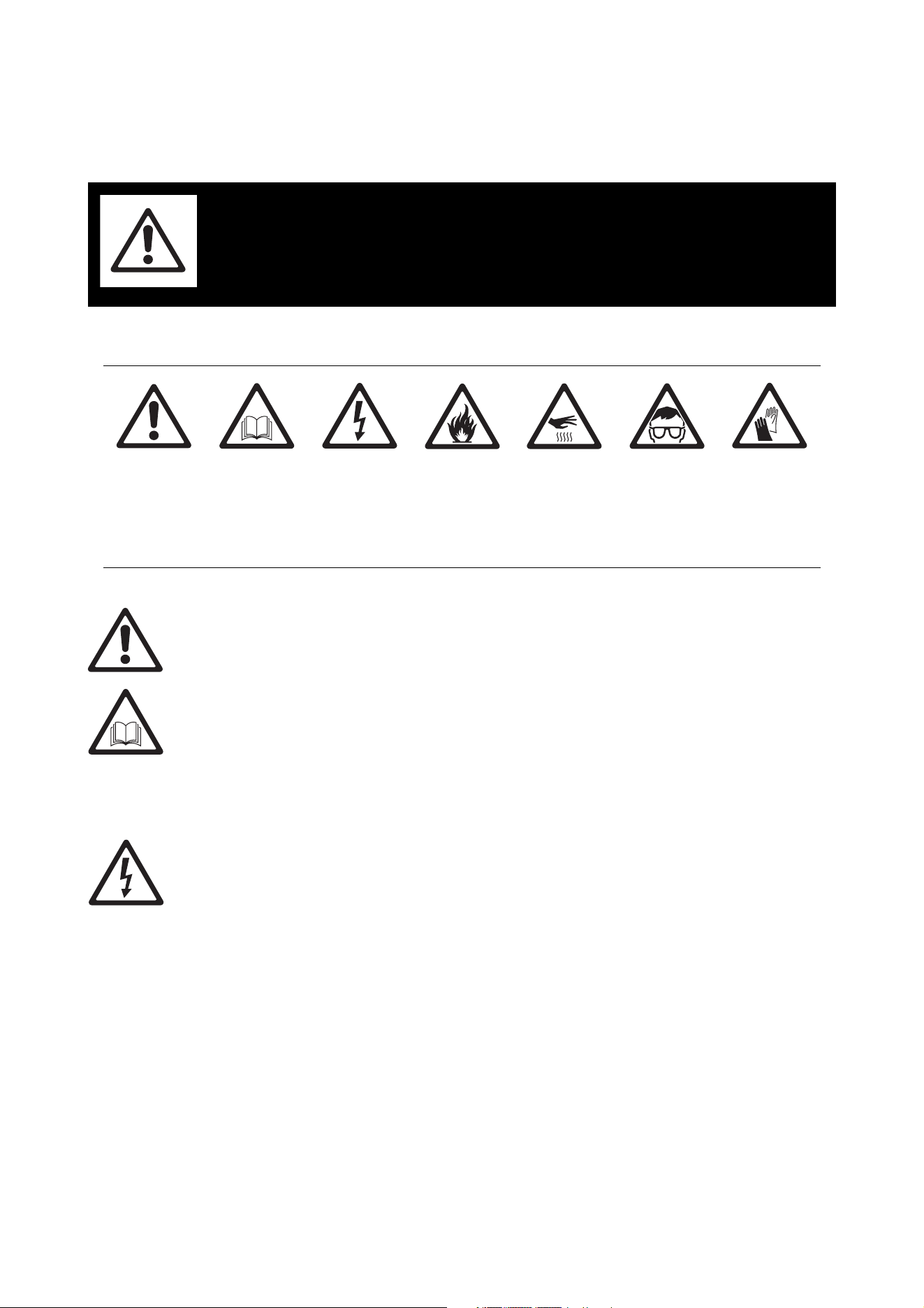
Safety Information
The following symbols are used to identify important safety information on the product and in this manual:
Warning! Risk Group 3 (high risk) product according to EN 62471. Do not view the light output with
optical instruments or any device that may concentrate the beam.
This product is for professional use only. It is not for household use.
This product presents risks of severe injury or death due to fire and burn hazards, electric shock, lamp
explosion and falls.
Read this manual before installing, powering or servicing the fixture, follow the safety precautions listed
below and observe all warnings in this manual and printed on the fixture.
If you have questions about how to operate the fixture safely, please contact your Martin supplier or call the
Martin 24-hour service hotline on +45 8740 0000, or in the USA on 1-888-tech-180.
PROTECTION FROM ELECTRIC SHOCK
• Disconnect the fixture from AC power before removing or installing any cover or part – including the lamp
– and when not in use.
• Ensure that the fixture is electrically connected to ground (earth).
• Use only a source of AC power that complies with local building and electrical codes and has both
overload and ground-fault (earth-fault) protection.
• Use only a power input cable that is rated 20 A, hard usage type and heat-resistant to 90° C (194° F)
minimum. The cable must have three conductors and an outer diameter of 5 - 15 mm (0.2 - 0.6 in.). In
North America the cable must be 12 AWG minimum conductor size, SJT or better. In the EU the cable
must be 2.5 mm², HAR compliant.
• Do not attempt to bypass a thermostatic switch or fuse. Replace defective fuses only if authorized by
Martin™ and with Martin™ service documentation for the product. Replace fuses with the same type and
rating only.
• Before using the fixture, check that all power distribution equipment and cables are in perfect condition
and rated for the current requirements of all connected devices.
• Isolate the fixture from power immediately if the power cable or power plug are in any way damaged,
defective or wet, or if they show signs of overheating.
• Do not expose the fixture to rain or moisture.
• Refer any service operation not described in this manual to an authorized Martin Service partner.
WARNING!
Read the safety precautions in this section before
installing, powering, operating or servicing this
product.
DANGER!
Safety hazard.
Risk of severe
injury or death.
DANGER!
Refer to
manual before
installing,
powering or
servicing.
DANGER!
Hazardous
voltage. Risk of
severe or lethal
electric shock.
Warning!
Fire hazard.
Warning!
Burn hazard.
Hot surface. Do
not touch.
Warning!
Risk of eye
injury. Safety
glasses must
be worn.
Warning!
Risk of hand
injury. Safety
gloves must be
worn.
Safety Information 5
LAMP SAFETY
• Prolonged exposure to an unshielded discharge lamp can cause eye and skin burns. Do not stare directly
into the light output. Never look at an exposed lamp while it is lit.
• Do not operate the fixture with missing or damaged covers, shields, lenses or ultraviolet screens.
• A hot discharge lamp is under pressure and can explode without warning. Allow the fixture to cool for at
least 2 hours 45 minutes and protect yourself with safety glasses and gloves before handling a lamp or
servicing the fixture internals.
• Replace the lamp immediately if it becomes visually deformed, damaged or in any way defective
• Monitor hours of lamp use and lamp intensity and replace the lamp when it reaches the limit of its service
life as specified in this manual or by the lamp manufacturer.
• Install only an approved lamp.
• If the quartz envelope of a discharge lamp is broken, the lamp releases a small quantity of mercury and
other toxic gases. If a discharge lamp explodes in a confined area, evacuate the area and ventilate it
thoroughly. Wear nitrite gloves when handling a broken discharge lamp. Treat broken or used discharge
lamps as hazardous waste and send to a specialist for disposal.
PROTECTION FROM BURNS AND FIRE
• The exterior of the fixture becomes very hot – up to 170° C (338° F) – during use. Avoid contact by
persons and materials. Allow the fixture to cool for at least 2 hours 45 minutes before handling.
• Keep all combustible materials (e.g. fabric, wood, paper) at least 0.2 m (8 in.) away from the fixture. Keep
flammable materials well away from the fixture.
• Provide a minimum clearance of 0.1 m (4 in.) around fans and air vents.
• Do not illuminate surfaces within 2.5 m (100 in.) of the fixture.
• Position or shade the head so that the lens does not face the sun at any time during daylight hours. The
lens can focus the sun's rays inside the fixture, creating a potential fire hazard.
• Do not operate the fixture if the ambient temperature (Ta) exceeds 40° C (104° F).
• Do not modify the fixture in any way not described in this manual or install other than genuine Martin
parts. Do not stick filters, masks or other materials onto any lens or other optical component. Use only
Martin-approved accessories to mask or modify the light beam.
PROTECTION FROM INJURY DUE TO FALLS
• Do not lift or carry the fixture alone.
• Use two evenly spaced clamps to suspend the fixture from rigging structures. Do not use only one clamp.
• When clamping the fixture to a truss or other supporting structure at any other angle than with the yoke
hanging vertically downwards, use two half-coupler clamps. Do not use G-clamps, quick-trigger clamps or
any other type of clamp that does not completely encircle the supporting structure when fastened.
• When suspending the fixture, ensure that the supporting structure and all hardware used can hold at least
10 times the weight of all devices suspended from them.
• Do not use the handles in the base or the handles on the top of the yoke for hoisting or secondary
attachment.
• Install as described in this manual a secondary attachment such as a safety cable that is approved by an
official body such as TÜV as a safety attachment for the weight of all the fixtures it secures. The safety
cable must comply with EN 60598-2-17 Section 17.6.6 and be capable of bearing a static suspended load
ten times the weight of the fixture.
• Check that all external covers and rigging hardware are securely fastened.
• Block access below the work area and work from a stable platform whenever installing, servicing or
moving the fixture.

6 MAC III Wash user manual
Introduction
Thank you for selecting the Martin™ MAC III Wash™. This moving-head washlight features:
• CMY color mixing plus color wheel
• Variable CTO
• Internal barndoors with continuously variable opening and 110° rotation
• 1:4 linear zoom with no lumen drop or internal lens changes
• Fresnel lens
• Optional PC lens
• Full-range mechanical dimmer with four dimming curve options, plus mechanical shutter
•Iris
• 1500 watt high-output discharge lamp with semi-hot restrike (< 90 seconds)
• Backlit graphic display and battery power (mains power not required for fixture setup)
• 540° of pan and 268° of tilt with user-settable pan/tilt limits
• Electronic “flicker-free” ballast and auto-sensing switch-mode power supply.
For the latest firmware updates, documentation, and other information about this and all Martin Professional
products, please visit the Martin website at http://www.martin.com
Comments or suggestions regarding this document may be e-mailed to service@martin.dk or posted to:
Technical Documentation, Martin Professional A/S, Olof Palmes Allé 18, DK-8200 Aarhus N, Denmark.
Unpacking
The MAC III Wash is packaged in either a cardboard box or a flightcase that is designed to protect the
product during shipment. The following items are included:
• 1500 W discharge lamp (installed)
• 2 omega brackets for clamp attachment
• This user manual
Using for the first time
Before applying power to the fixture:
• Carefully review the safety information starting on page 4.
• Prepare a power cable (see “Power connection” on page 7).
• Check that the tilt lock is released (see “Tilt lock” on page 30).
• Check that the base is fastened securely so that the torque reaction when the head is panned does not
cause the fixture to move.
When powered up, check lamp alignment as described on page 10.
Packing
Important! Release the tilt lock before repacking in the flightcase.
The tilt lock must be released during transportation in the MAC III flightcase.
AC power 7
AC power
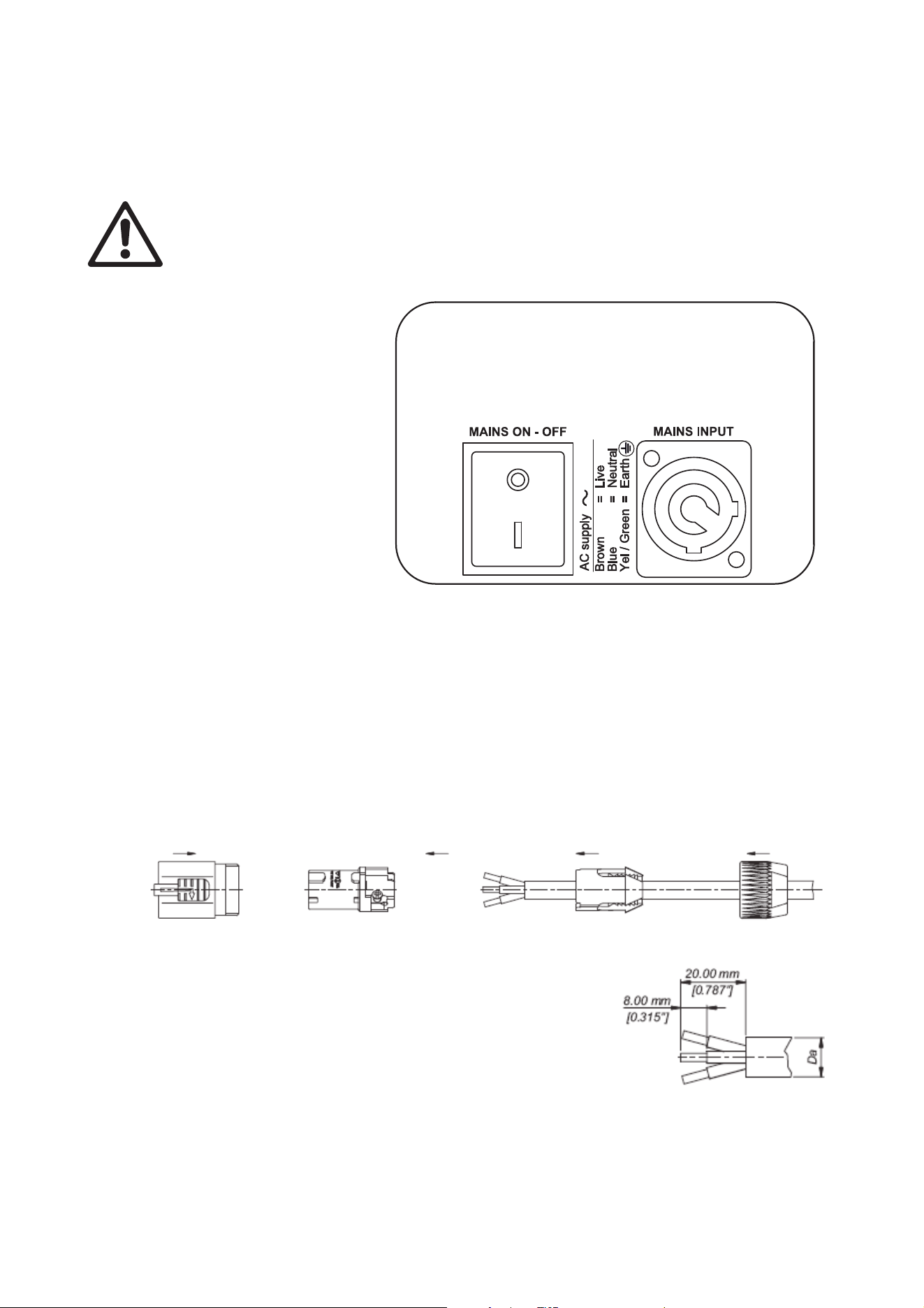
Warning! For protection from electric shock, the fixture must be grounded (earthed). The AC mains
supply must be protected against overload with a fuse or circuit breaker and provide ground-fault
(earth-fault) protection.
The MAC III Wash features an
auto-sensing switch-mode
power supply that
automatically adapts to
200-240 V (nominal) AC power
at 50 or 60 Hz. It is protected
by fuses inside the fixture that
may only be replaced by
service technicians authorized
by Martin™ with Martin™
service documentation for the
MAC III Wash.
Power connection
Important! Connect the MAC III Wash
directly to AC power. Do not
connect it to a dimmer
system; doing so may
damage the fixture.
The MAC III Wash requires a power input cable with a Neutrik PowerCon NAC3FCA cable connector for AC
mains power input. The cable must meet the requirements listed under “Protection from electric shock” on
page 4.
Martin™ can supply either a suitable 3 m (9.8 ft.) power cable with PowerCon input connector installed or
the PowerCon input connector without a cable (see “Accessories” on page 56).
If you need to install a PowerCon connector on the power cable, see the next section.
Installing a power input connector
To install a Neutrik PowerCon NAC3FCA input connector on a power
cable, see illustrations above and right:
1. Slide the bushing over the cable.
2. Slide the white chuck over cables with a diameter (D
a
) of 5 - 10 mm
(0.2 - 0.4 in.), or the black chuck over cables with a diameter of 10 -
15 mm (0.4 - 0.6 in.).
3. Prepare the end of the cable by stripping 20 mm (0.8 in.) of the
cable’s outer jacket.
- Disconnect
from mains before servicing.
- Déconnecter du secteur avant entretien.
Figure 2: Power on/off switch and input connector
Chuck BushingHousing Insert
Cable end
8 MAC III Wash user manual
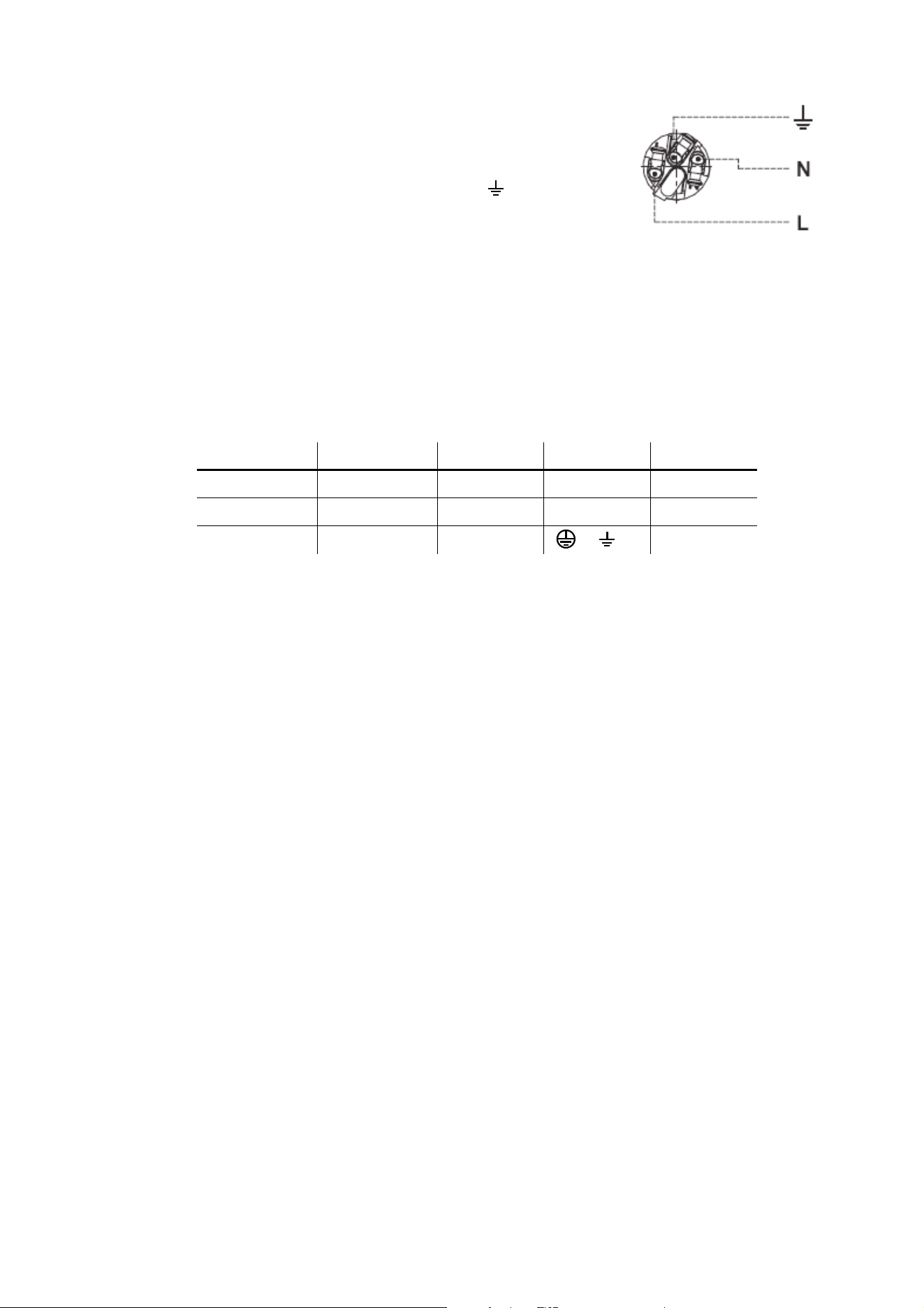
4. Strip 8 mm (1/3 in.) of insulation from the end of each wire.
5. Use a small flathead screwdriver to fasten the wires into the
connector terminals in the insert as follows:
• live wire into the terminal marked L
• neutral wire into the terminal marked N
• ground (earth) wire into the terminal marked .
6. Line up the raised key in the insert with the keyway in the housing,
then push the insert and chuck into the housing.
7. Fasten the bushing to the housing using a wrench, applying a
torque of 2.5 Nm (1.8 lb.-ft).
Illustrations used by kind permission of Neutrik AG
Installing a cord cap (mains plug)
If you install a cord cap (mains plug) on the power cable to allow connection to power outlets, install a
grounding-type (earthed) plug, following the plug manufacturer’s instructions. Table 1 shows some possible
mains power pin and wire color identification schemes; if pins are not clearly identified, or if you have any
doubts about proper installation, consult a qualified electrician.
Applying power
To apply power, first check that the tilt lock is released and that a power input cable is connected, then set
the power switch on the base (see Figure 2) to the “I” position.
Wire color (USA) Wire color (EU) Pin Symbol Screw (US)
black brown live L yellow or brass
white blue neutral N silver
green yellow/green ground (earth) or green
Table 1: Cord cap connections
Terminals
Lamp 9
Lamp
About the discharge lamp
The MAC III Wash is designed for use with an Osram Lok-it HTI 1500W/60/P50 - 7mm lamp. This highly
efficient single-ended discharge source provides a color temperature of 6000 K, a color rendering index
greater than 90, an average service life of 750 hours and semi-hot restrike, meaning that a hot lamp is ready
to strike again after 90 seconds.
Lamp power is automatically reduced to approximately 800 W after 10 seconds when the fixture is blacked
out in order to reduce cooling fan activity and power consumption. The lamp returns to 1500 W as soon as
the dimmer and/or shutter are opened.
Warning! Installing any other lamp may create a safety hazard or damage the fixture!
To reduce the risk of explosion, replace the lamp when it reaches the limit of its average service life, i.e.
when usage reaches 750 hours. Never exceed the lamp’s average service life by more than 10%. To read
lamp hours in the fixture’s display, refer to the section on lamp hours readouts on page 19. Replace the lamp
immediately if it is deformed or in any way defective.
For maximum service life, avoid powering the lamp off until it has warmed up for at least 5 minutes.
Lamp replacement
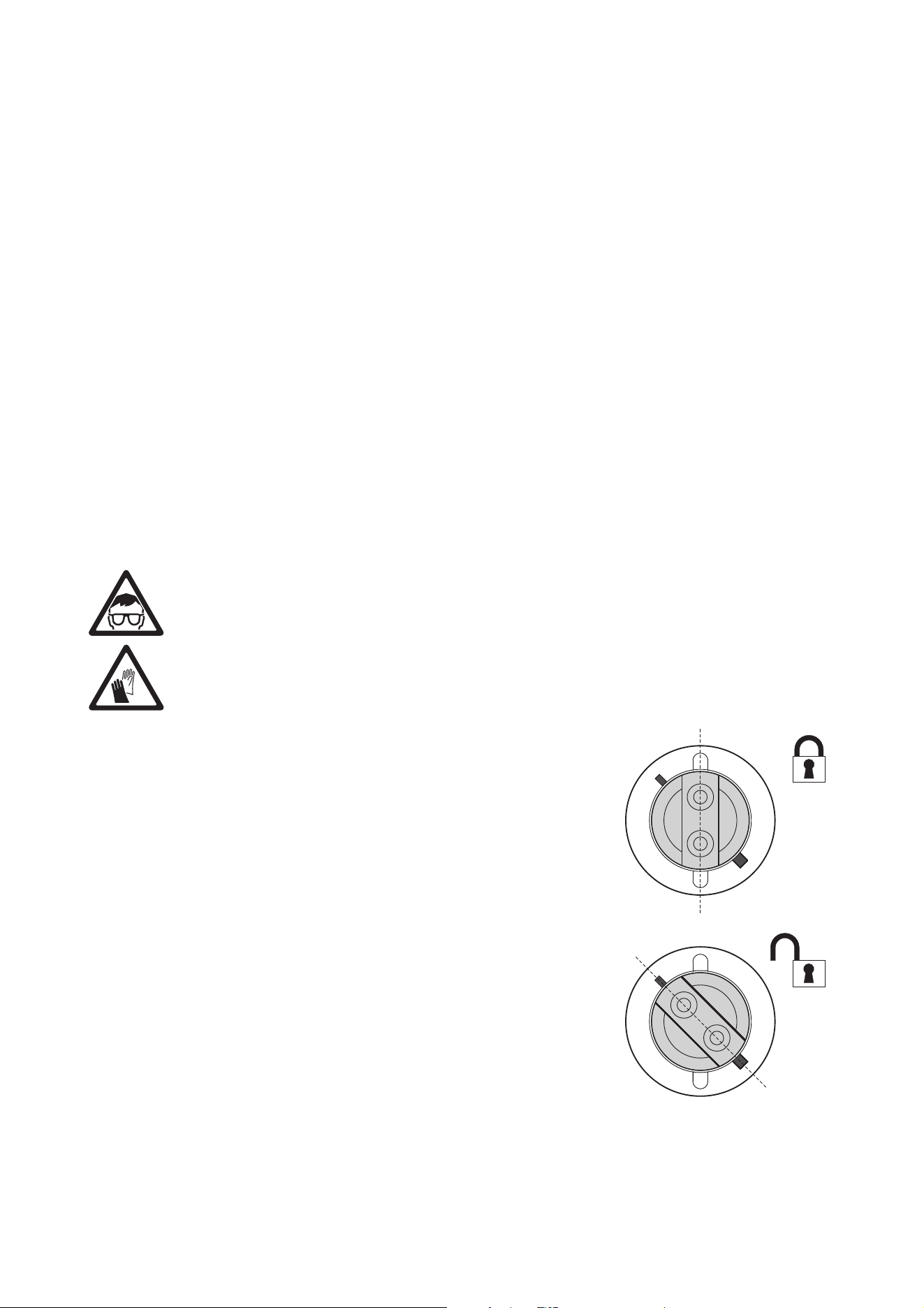
Warning! Wear safety glasses and gloves when handling lamps. The clear lamp bulb is integral with
the ceramic lamp base. Do not try to separate the bulb from the base.
Important! The lamp can be a stiff fit in its holder. Twist the lamp base a full 45° clockwise when
installing to ensure that the lamp contacts are fully engaged.
Replacement lamps are available from your Martin dealer requesting P/N 97010348.
The clear bulb must be perfectly clean. Do not touch it with your fingers. Clean the lamp with an alcohol
wipe and polish it with a dry cloth before installing, particularly if you accidentally touch the bulb.
To replace the lamp:
1. Disconnect the fixture from power and allow it to cool for at
least 2 hours 45 minutes.
2. Lock the head.
3. Release the screw on the lamp access cover and open the
cover.
4. Grasp the ceramic lamp base, twist it 45° counterclockwise
and withdraw the lamp from the fixture as shown in Figure 2.
5. The lamp base has two metal contacts, one narrow and one
wide, that fit into corresponding narrow and wide slots in the
lampholder. Line up the contacts on the replacement lamp’s
base with the corresponding slots in the lampholder, slide
the lamp into the fixture so that the contacts are fully
engaged in the slots, and then twist the lamp base a full 45°
clockwise until it locks into position with a noticeable click.
The lamp is a stiff fit and trying to strike a lamp that is not
correctly installed can cause damage that is not covered by
the product warranty, so ensure that the lamp is correctly
locked into position.
6. Close the lamp access cover and tighten the screw to
secure the cover before reapplying power.
7. After installing a new lamp, reset the lamp hour counter (see
the section on lamp hours readouts on page 19).
Figure 2: Lamp removal / refitting
10 MAC III Wash user manual
Lamp adjustment
Warning! Adjust the lamp with the fixture cool. The fixture may become hot during adjustment, so
wear heat-resistant safety gloves.
As well as being undesirable for aesthetic reasons, a significant hot-spot in the beam will focus extra heat
onto optical components and may cause damage that is not covered by the product warranty.
After fitting a new lamp, adjustment may be required to obtain an even beam.
To adjust the lamp:
1. If the fixture has been in use, allow it to cool for at least 2 hours 45 minutes to avoid the danger of burns,
and wear heat-resistant safety gloves.
2. Apply power, allow the fixture to reset, then set
zoom to narrow, turn on the lamp and open the
mechanical shutter.
3. Aim the fixture at an even surface and make
sure no further commands can be sent by
DMX.
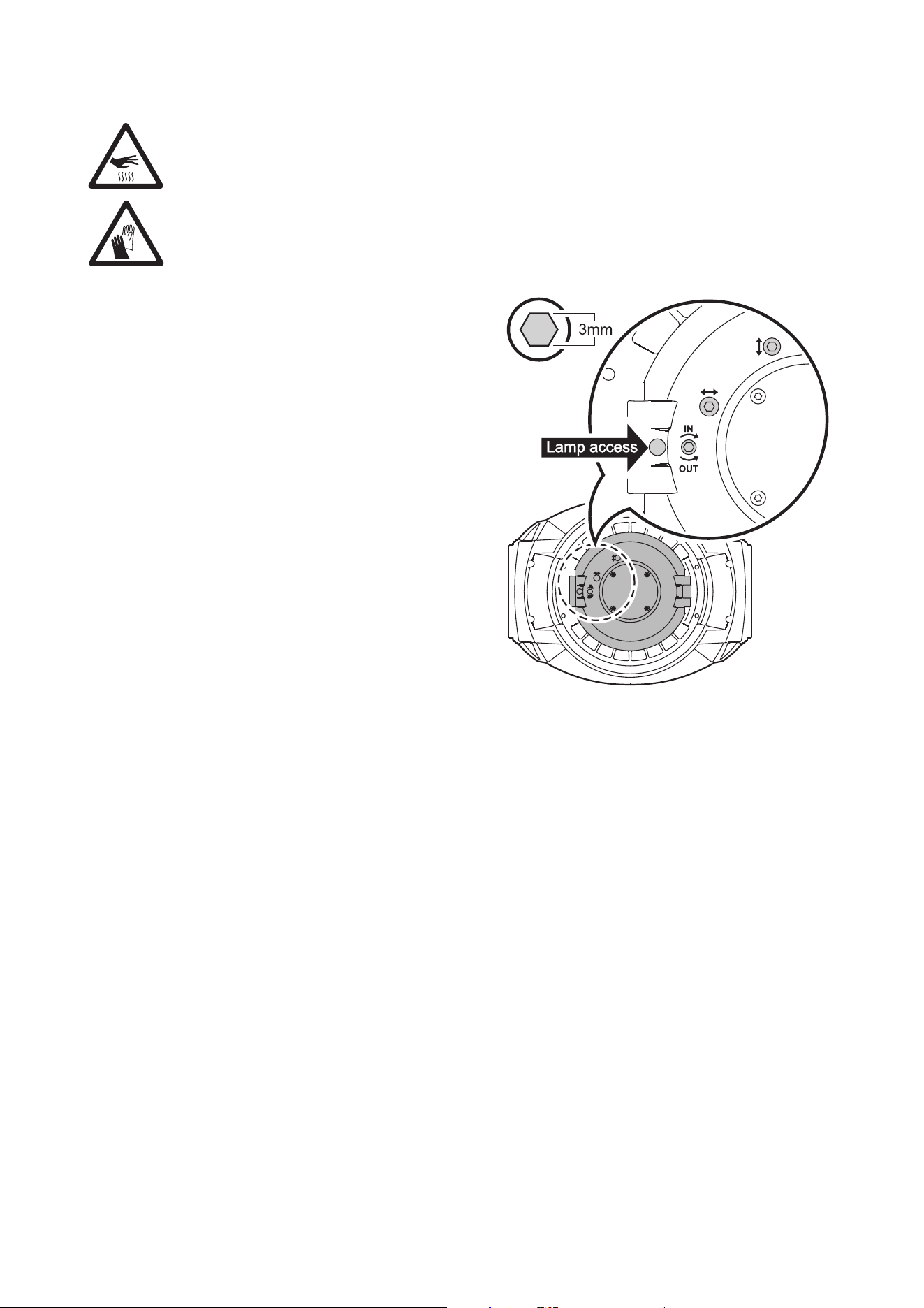
4. See Figure 3. Screw the three lamp adjustment
screws in or out to obtain the most even beam.
Figure 3: Lamp adjustment screws

DMX data link 11
DMX data link
The MAC III Wash has 5-pin locking XLR sockets for DMX and RDM input and output. The default pin-out on
both sockets is:
• pin 1 to shield
• pin 2 to DMX and RDM data 1 cold (-)
• pin 3 to DMX and RDM data 1 hot (+)
Pins 4 and 5 are not used by the fixture but are bridged between input and output sockets. These pins can
therefore be used as a pass-through connection for an additional data signal if required.
Tips for reliable data transmission
• Use shielded twisted-pair cable designed for RS-485 devices: standard microphone cable cannot transmit
control data reliably over long runs. 24 AWG cable is suitable for runs up to 300 meters (1000 ft). Heavier
gauge cable and/or an amplifier is recommended for longer runs.
• To split the serial link into branches, use a splitter such as the Martin 4-Channel Opto-Isolated RS-485
Splitter/Amplifier.
• Do not overload the link. Up to 32 devices may be connected on a serial link.
• Install a DMX termination plug on the last fixture on the link.
To connect the data link
1. Connect the DMX data output from the controller to the MAC III Wash’s data input (male XLR) socket.
2. Run the data link from the MAC III Wash’s data output (female XLR) socket to the data input of the next
fixture.
3. Terminate the data link by connecting a 120 Ohm, 0.25 Watt resistor between the data 1 hot (+) and cold
(-) conductors (and between data 2 hot and cold if used) at the data output of the last fixture on the link.
If a splitter is used, terminate each branch of the link.
12 MAC III Wash user manual
Physical installation
Warning! The MAC III Wash has a powerful pan motor. The torque reaction when the head is panned
suddenly can cause the base to move if the fixture is standing unsecured on a surface. Do not apply
power to the MAC III Wash unless the base is securely fastened to a surface or to rigging hardware.
Warning! Use 2 clamps to rig the fixture. Do not hang the fixture from only one clamp. Lock each
clamp with both 1/4-turn fasteners. Fasteners are locked only when turned fully clockwise.
Warning! When suspending the fixture above ground level, secure it against failure of primary
attachments by attaching a safety wire that is approved as a safety attachment for the weight of the
fixture to the attachment point in the base. Do not use the carrying handles for secondary
attachment.
Warning! When clamping the fixture to a truss or other structure at any other angle than with the
yoke hanging vertically downwards, use two clamps of half-coupler type. Do not use any type of
clamp that does not completely encircle the structure when fastened.
Warning! Position or shade the head so that the lens does not face the sun at any time, even for a
few seconds, during daylight hours. The MAC III Wash’s lens can focus the sun's rays inside the
fixture, creating a potential fire hazard and causing internal damage.
Important! Do not point the output from other lighting fixtures at the MAC III Wash from a distance of
less than 3 m (10 ft.), as intense illumination can damage the display.
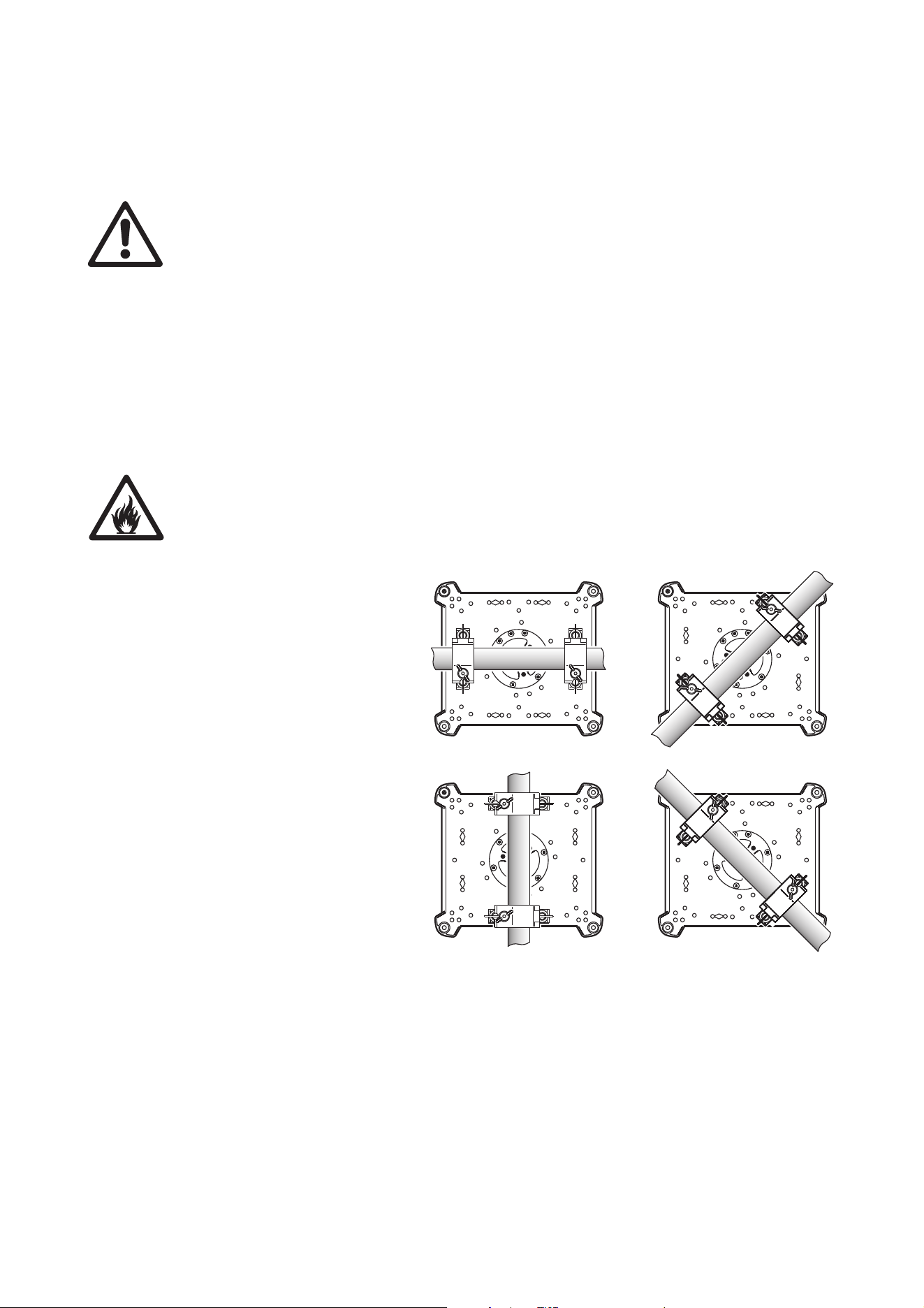
The MAC III Wash can be fastened to
a surface such as a stage or clamped
to a truss in any orientation. Clamps
must be half-coupler type (see Figure
5) unless the fixture is installed with
the yoke hanging vertically
downwards. The mounting points allow
the clamp brackets to be fastened
parallel, perpendicular or at 45° to the
front, as shown Figure 4.
Pan and tilt range can be limited via
the control panel to allow fixtures to be
installed close to each other or to
obstacles with no risk of collision (see
PAN/TILT SETTINGS on page 16).
Clamping the fixture on a
truss
1. Check that the rigging clamps are
undamaged and can bear at least
10 times the weight of the fixture.
Check that the structure can bear
at least 10 times the weight of all
installed fixtures, clamps, cables,
auxiliary equipment, etc.
Figure 4: Clamp bracket positions
Physical installation 13
2. Bolt each clamp securely to a
clamp bracket with an M12 bolt
(minimum grade 8.8) and lock nut.
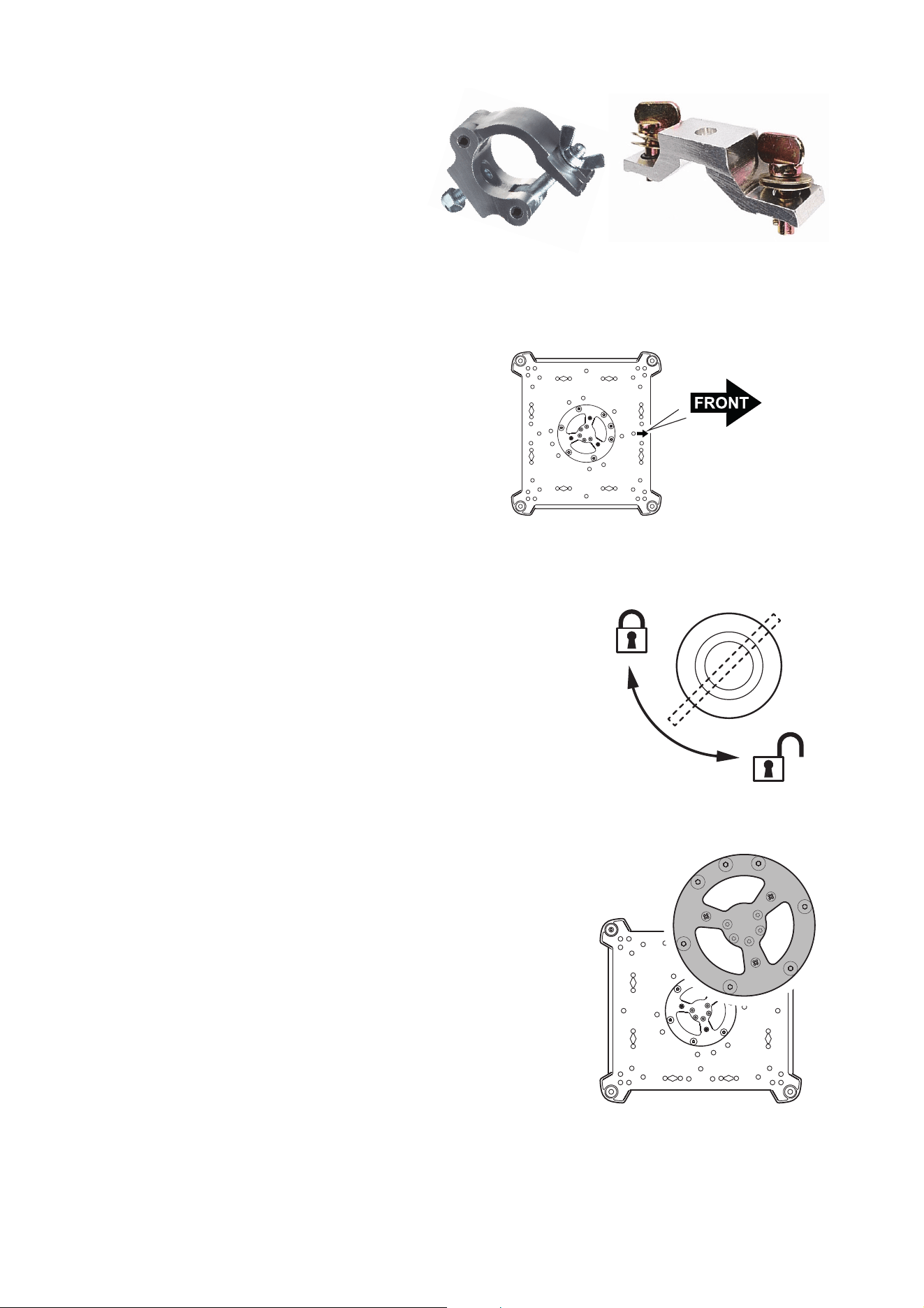
3. See Figure 6. Note the position of
the arrows on the bottom of the base
that indicate the front of the fixture.
4. Align a clamp with 2 mounting points in the base. See
Figure 7. Insert the fasteners into the base and turn both
levers a full 90° clockwise to lock. Install the second clamp.
5. Block access under the work area. Working from a stable
platform, hang the fixture on the truss with the arrows
marked FRONT printed on the base of the fixture facing
towards the area to be illuminated. Tighten the rigging
clamps.
6. See Figure 8. Install a safety wire that is approved as a
safety attachment for the weight of the fixture by looping it
through the safety attachment wheel on the bottom of the
base.
7. Check that the tilt lock is released. Check that there are no
combustible materials within 0.2 m (8 in.) or surfaces to be
illuminated within 2.5 m (100 in.) of the fixture, and that there
are no flammable materials nearby.
8. Check that there is no possibility of heads or yokes colliding
with other fixtures. Note that pan and tilt range on the MAC III
Wash can be restricted by setting minimum and maximum
limits via the control menus. This feature allows fixtures to be
installed closer together or closer to obstacles.
9. Check that other lighting fixtures cannot project light at the
MAC III Wash from a distance of less than 3 m (10 ft.), as
intense illumination can damage the MAC III Wash’s display.
Figure 5: Martin rigging hardware
Half-coupler Omega clamp
rigging clamp attachment bracket
Figure 6: Front of fixture
90°
Figure 7: Locking 1/4-turn fasteners
Figure 8: Safety cable attachment
point
14 MAC III Wash user manual
Control panel operations
You can configure individual fixture settings such as the MAC III Wash’s DMX address, read out data,
execute service and view the event log using the fixture’s backlit graphic display and control panel. The
control menu overview starting on page 44 gives a complete list in table form of the menus and commands
available.
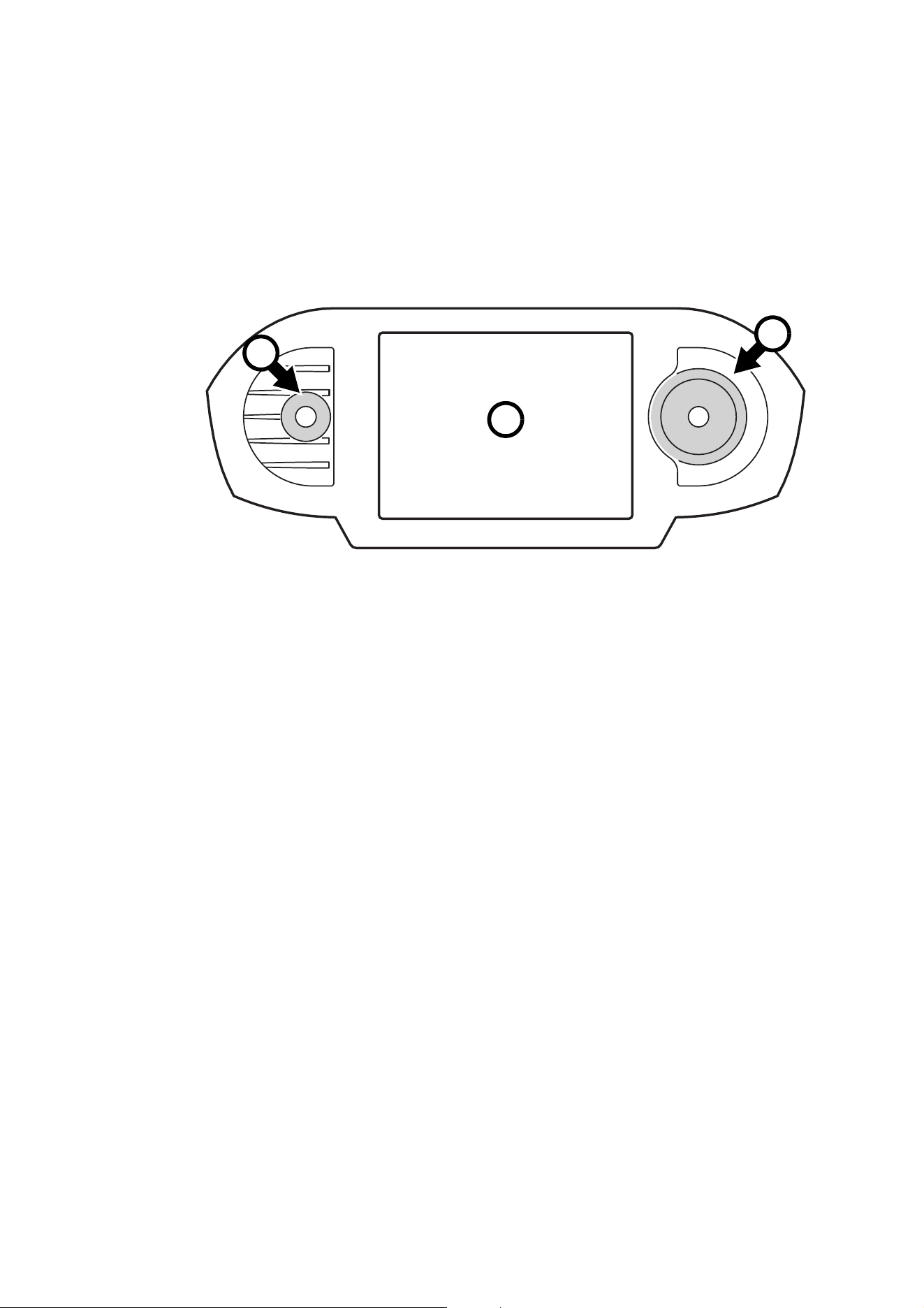
After a pause while the fixture boots and resets, the DMX address and any status messages (see page 49)
appear in the graphic display A when the MAC III Wash is powered on.
Using the control panel
Click (i.e. press once) the jog wheel B once to enter the menus. Rotate the jog wheel to scroll up and down
menus and click the jog wheel once to make a selection. Rotating the jog wheel faster gives high-speed
scrolling.
Once you have made a selection, either click the jog wheel to save it or press the Escape button C to
cancel. If you save the selection, Saving... is displayed for 1 second. If you cancel, the menu returns to the
previously saved value. Press the Escape button to step backwards through the menus.
The jog wheel and Escape button continue to function while the Saving... message is displayed.
Status LED on jog wheel
An LED in the center of the jog wheel indicates fixture status depending on the color displayed and DMX
status depending on whether the LED flashes or lights constantly:
• GREEN: All fixture parameters normal.
• AMBER: Warning active (service interval exceeded, for example). If ERROR MODE in the control menus
is set to Normal, the warning message will be shown in the display. If ERROR MODE is set to Silent, the
display must be activated with the jog wheel to display the warning message.
• RED: Error detected. If ERROR MODE is set to Normal, the error message will be shown in the display. If
ERROR MODE is set to Silent, the display must be activated with the jog wheel to display the error
message.
• FLASHING: No DMX signal detected.
• LIGHTS CONSTANTLY: Valid DMX signal detected.
If an error has been detected and the LED is red when the fixture is powered off, the LED will continue to
flash red slowly. This feature allows easy identification of fixtures that require service intervention even if
fixtures are disconnected from power.
Martin flightcases for the MAC III Wash contain a small window through which the status LED is visible.
C
B
Figure 9: Display and control panel
A

Control panel operations 15
Battery power
The display and control panel are powered by the MAC III Wash’s onboard battery. This gives access to the
most important functions in the control panel – including DMX addressing – when the fixture is not
connected to AC power.
To activate the display when the fixture is not connected to power, press the Escape button. The display
extinguishes after 10 seconds with no jog wheel activity and the control panel is de-activated after 1 minute
with no jog wheel activity. Press the Escape button again to re-activate.
Mains power indicator
When the fixture is connected to AC mains power, a ‘battery recharging’ icon appears in the display. When
the battery is fully charged, the battery icon is replaced a mains plug icon.
Status indicators in display
The status indicators on the right of the display have the following functions:
• LAMP lights green when the lamp is powered.
• ETHERNET lights green when the MAC III Wash is correctly connected to an Ethernet network (at the
moment there is no provision for direct connection to Ethernet).
• DMX lights green when the MAC III Wash is receiving a valid DMX signal.
• PAN /TILT lights yellow when pan/tilt limits have been activated (see page 16) and lights orange when
Followspot mode is enabled (see “Followspot mode” on page 24).
Shortcuts pop-up
If you hold the Escape button pressed in for 2 - 3 seconds, a pop-up window with shortcuts to important
commands appears. Select a command and click the jog wheel to activate, or press Escape to cancel.
• RESET resets the whole fixture
• LAMP ON/OFF strikes or douses the lamp.
• ROTATE DISPLAY rotates the MAC III Wash display.
• FOLLOWSPOT MODE calls up the followspot menu.
• EVENT LOG calls up the event log menu.
Settings stored permanently
The following settings are stored permanently in the fixture memory and are not affected by powering the
MAC III Wash off and on or by updating the firmware:
• DMX address
• Fixture ID
• All personality settings (pan/tilt and pan/tilt limit, linked zoom/focus, lamp cooling, fan clean mode,
dimming curve, DMX lamp off, DMX reset, parameter shortcuts, all display settings, error mode)
• Factory settings
• Fixture info (resettable power-on, lamp-on, lamp strikes, and air filter counters)
• All Service settings (adjust, calibration, firmware)
These settings can be returned to factory defaults using the control menus or via DMX.
Setup Wizard
The SETUP WIZARD menu gives quick access to the most frequently required items in the control menus.
DMX address
The DMX address, also known as the start channel, is the first channel used to receive instructions from the
controller. For independent control, each fixture must be assigned its own control channels. If you give two
MAC III Washs the same address, they will behave identically. Address sharing can be useful for diagnostic
purposes and symmetrical control, particularly when combined with the inverse pan and tilt options.
The DMX address range is limited: it is impossible to set the DMX address so high that you are left without
enough control channels for the fixture in the 512 channels available in one DMX universe.

16 MAC III Wash user manual
DMX address setting
To set the fixture’s DMX address:
1. Press the jog wheel to enter the main menu.
2. Rotate the jog wheel to scroll down to DMX ADDRESS, then click the jog button. Rotate the jog wheel to
scroll to the desired address and click the jog button to save.
3. Press the Escape button to step back to the main menu.
Fixture ID
The MAC III Wash lets you set a four-digit ID number to ease identification of the fixtures in an installation.
When a fixture is powered on for the first time, it displays its DMX address by default. As soon as you set an
ID number other than 0000 in FIXTURE ID, the MAC III Wash will display this ID number by default.
To let you distinguish easily between ID numbers and DMX addresses, the ID number is always displayed
with four digits and DMX address is displayed with between one and three digits.
Personality – tailoring performance
The MAC III Wash provides several options that let you optimize the fixture for different applications in the
PERSONALITY menu:
• The PAN/TILT SETTINGS menu gives three options:
- PAN/TILT CONTROL lets you swap and/or invert pan and tilt and activate the pan and tilt limits you
define in PAN & TILT LIMIT SETTINGS (see below).
- MOVE ON RESET lets you choose if you want pan and tilt to move when the fixture resets or not. Pan
and tilt movement can be a useful visual sign that fixtures in a rig are powering up and resetting.
- PAN & TILT LIMIT SETTINGS lets you define minimum and maximum limits for both pan and tilt
angles, making it possible to install fixtures close to obstacles such as other fixtures with no risk of
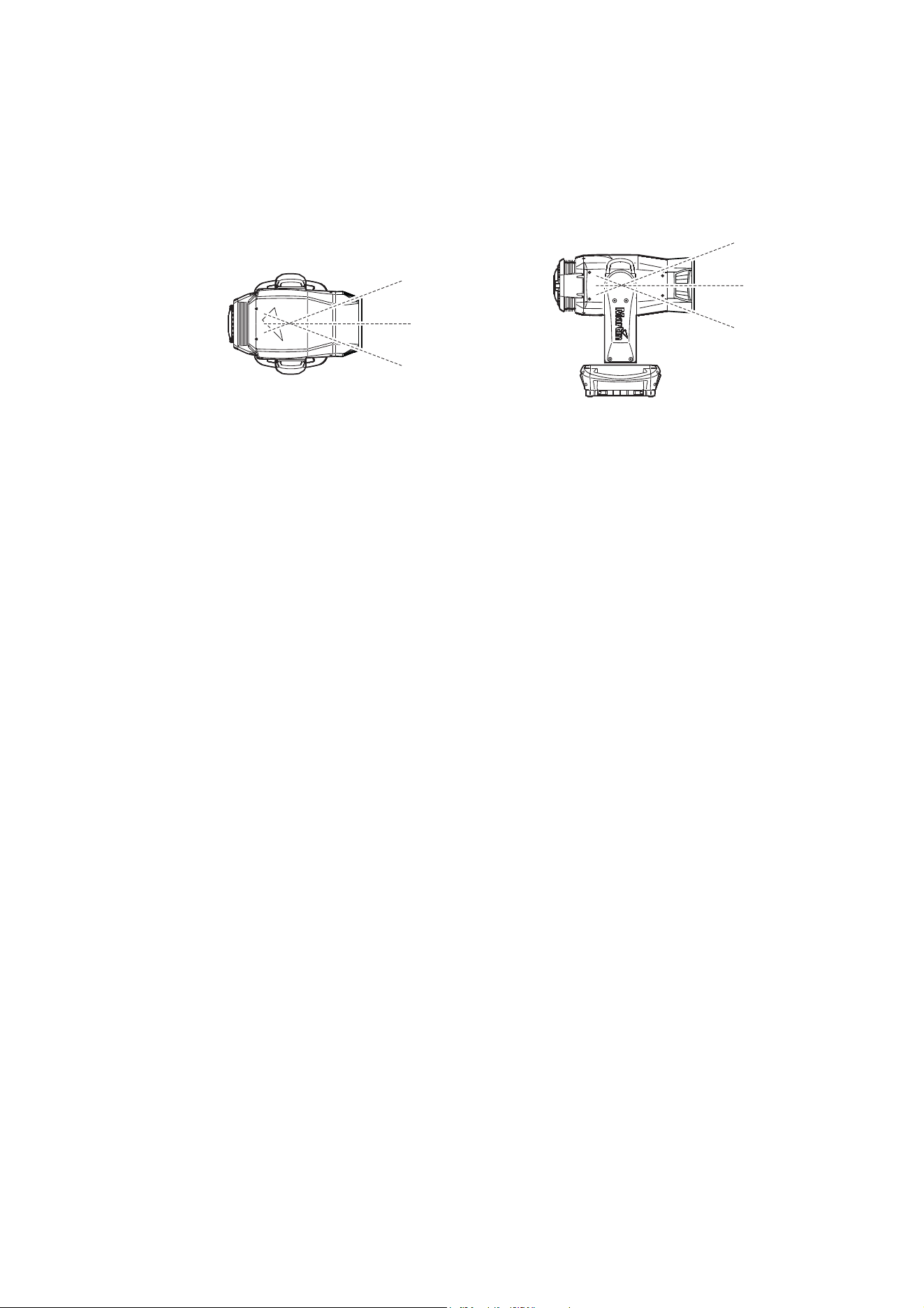
collision. Settings are based on the following principles:
Pan range for pan limit purposes runs from 0° to 360° clockwise as seen looking at the fixture from
the bottom of the base towards the yoke, as if the fixture was hanging downwards underneath you.
Tilt range is +134° and -134° either side of 0°, which is the head straight up position with the front
glass pointed directly away from the base.
The light beam points fully forward (the front of the fixture is indicated by the arrows printed under the
base) when pan is set to 90° or 450° and tilt is set to +90°.
Selecting Inside keeps pan and tilt inside the limits you set – i.e. angles define a ‘safe zone’.
Selecting Outside keeps pan and tilt outside the limits you set – i.e. angles define a ‘no-go zone’.
Limits are not activated until the head is panned and tilted into its safe zone or out of its no-go zone.
When pan/tilt limits are active, the PAN/TILT light at the bottom right of the display lights yellow.
Control panel operations 17
See Figure 10. To limit pan so that it stays inside a safe zone 20° either side of fully forward and limit tilt so
that it stays inside a safe zone 18° either side of fully forward, for example:
1. Set PAN MINIMUM to 70°.
2. Set PAN MAXIMUM to 110°.
3. Set TILT MINIMUM to +72°.
4. Set TILT MAXIMUM to +108°.
5. Set P/T LIMIT AREA to Inside.
Important! Regardless of the pan and tilt limits you set, when you power the fixture off, the head will sink under
gravity to the nearest rest position (e.g. with the lens pointing vertically downwards if the fixture is
hanging in a rig, or to one side if the fixture is standing fastened to a horizontal surface). When you
power the fixture on, the head will not move until the fixture receives a pan or tilt command. When a
command is received, if the head’s rest position is outside its pan/tilt limits, the head will move
slowly until it is within its limits. This feature reduces the risk of damage caused by a collision.
Pan and tilt limits can quickly be returned to the factory default setting (all limits at 0°, pan/tilt limits disabled)
by setting DEFAULT LIMIT SETTINGS to On and clicking with the jog wheel to confirm.
• SPEED SETTINGS lets you set PAN & TILT SPEED to Normal, Fast (optimized for speed) or Slow
(optimized for smooth movement – useful in long-throw applications). Likewise, you can set EFFECT
SPEED to Normal, Fast or Slow. You can also set effect speed to Follow P/T speed, in which effects will
always use whatever speed is set for pan and tilt.
• The FANS menu gives the following cooling fan options:
- FAN CLEAN gives three options for automatically clearing dirt from fans:
Off sets fans to normal operation with no fan cleaning function.
Auto sets fans to normal operation, but if a fan error is detected, the fan that has reported an error
speeds up to 100% for a short period and then returns to normal operation. If the fan error is still
detected after three attempts at cleaning, the fan returns to normal operation but continues to report a
fan error. This feature works independently for each of the fans. Attempts at cleaning are reset to zero
if the fixture is reset or if FAN CLEAN MODE is updated.
Forced sets all fans to 100% speed until another FAN CLEAN MODE setting is selected.
This feature does not eliminate the need to inspect and clean cooling fans at regular intervals (see
“Cleaning” on page 36).
-
FAN MODE allows you to set fans to Always on or Follow lamp off mode, in which fan operation is
disabled when the lamp is powered off.
Figure 10: Pan/Tilt limit settings
+72°
+90°
+108°
Tilt safe zone
Inside, min. +72°, max. +108°
Pan safe zone
Inside, min. +70°, max. +110°
Safe zone
+70°
+90°
+110°
Safe zone

18 MAC III Wash user manual
• DIMMING CURVE provides four dimming options (see Figure 11):
- Optically linear – the increase in light intensity appears to be linear as DMX value is increased.
- VRMS linear (S-curve) – light intensity control is finer at low levels and high levels and coarser at
medium levels. This curve emulates the RMS voltage dimming characteristics of an incandescent lamp
such as the tungsten halogen lamp of the Martin™ MAC TW1™.
- Square law – light intensity control is finer at low levels and coarser at high levels.
- Inverse square law – light intensity control is coarser at low levels and finer at high levels.
• FOCUS TRACKING sets focus to automatically self-adjust when you use the zoom effect (see
“Zoom/focus linking” on page 24).
• FOLLOWSPOT MODE enables pan, tilt, or pan and tilt movement to be unlocked so that the head of the
fixture can be directed by hand using a user-supplied handle (see “Followspot mode” on page 24). In
followspot mode the motors can be applied as a brake to pan, tilt, or both pan and tilt movement to prevent
head movement when the fixture is not “manned”; in this case DMX or menu-based control over pan and
tilt is still disabled.
• AUTOMATIC LAMP ON gives three lamp strike options:
- When set to Off, the lamp remains off until a “lamp on” command is received via DMX.
- When set to On, the lamp strikes automatically after the fixture is powered on.
- When set to DMX, the lamp strikes automatically when the fixture begins to receive DMX data, and
lamp power is shut down 15 minutes after the fixture stops receiving DMX data. Automatic lamp strikes
are staggered to prevent all lamps from striking at once. The delay is determined by the fixture address.
No matter what the AUTOMATIC LAMP ON setting is, the lamp can be struck by sending a lamp on
command via DMX on channel 21.
• DMX LAMP OFF and DMX RESET define whether the lamp can be powered off, or whether fixture or
individual effects can be reset by sending a DMX command on channel 21. If either of these settings are
set to Off, you can override this setting and cut lamp power or reset effects by applying a special
combination of DMX values (see “MAC III Wash DMX protocol” on page 40).
• PARAMETER SHORTCUTS determines whether the color wheel takes the shortest path between two
positions (shortcuts enabled), crossing the open position if necessary, or always avoid the open position
(shortcuts disabled).
• DISPLAY determines whether the display remains on permanently, or goes into sleep mode 2, 5 or 10
minutes after the last movement of the jog wheel or Escape button.
• DISPLAY INTENSITY lets you define the brightness of the backlit graphic display. Select Auto for
automatic adjustment to match the ambient light level, or manually set the intensity to a level from 0% to
100%.
• DISPLAY ROTATION lets you rotate the display manually through 0°, 90°, 180° or 270° so that it can be
read easily no matter how the fixture is oriented. If set to Auto, the MAC III Wash senses its orientation
and rotates the display automatically.
• ERROR MODE enables or disables error warnings. If set to
Normal, the display is activated and lights up
if the fixture needs to report an error. If set to Silent with LED, the fixture does not light the display with
error warnings but error messages can still be read when the display is activated manually. In both
Normal and Silent with LED modes, the status LED in the jog wheel lights amber to indicate a warning
and red to indicate an error.
Factory settings
FACTORY SETTINGS lets you restore the fixture’s default setup options. Effect calibration is not affected,
so any effects that have been re-calibrated will not be returned to factory calibration settings.
Output
DMX %DMX %DMX %DMX %
Output
Output
Output
Optically linear VRMS linear Square law Inverse square law
Figure 11: Dimming curve options

Control panel operations 19
Fixture information readouts
The following fixture information can be called up in the display:
• FIRMWARE VERSION displays the currently installed fixture software version.
• POWER ON TIME provides two counters:
- The TOTAL POWER ON counter is not user-resettable and displays total hours powered on since
manufacture.
- The RESETTABLE POWER ON counter is user-resettable and displays the number of hours the fixture
has been powered on since the counter was last reset.
• LAMP ON TIME provides two counters and a user-settable lamp lifetime warning:
- The TOTAL LAMP ON counter is not user-resettable and displays total hours the lamp has been
powered on since manufacture.
- The RESETTABLE LAMP ON counter is user-resettable and displays the number of hours the lamp
has been powered on since the counter was last reset.
- SET TIME ALERT lets you define the number of hours before an LTIM lamp lifetime service warning
appears in the display.
• LAMP STRIKES provides two counters:
- The TOTAL LAMP STRIKES counter is not user-resettable and displays the total number of lamp
strikes since manufacture.
- The RESETTABLE LAMP STRIKES counter is user-resettable and displays the number of lamp strikes
since the counter was last reset.
• AIR FILTERS provides an alert feature for service interventions:
- The RESETTABLE AIR FILTER counter displays the total number of hours the fixture has been
powered on since the alert timer was last cleared.
- SET TIME ALERT lets you set the number of hours from 1 to 750 you want the fixture to be powered on
before a service alert appears in the display. If you set this figure to 0, the time alert is disabled.
- CLEAR RESETTABLE AIR FILTER lets you reset the resettable air filter counter to zero after
completing service work.
• MAC ID displays the fixture’s factory-set MAC (Media Access Control) address.
• SERIAL NUMBER displays the fixture’s factory serial number.
• RDM UID displays the fixture’s factory-set unique ID for identification in RDM systems.
• FAN SPEED provides separate status readouts from the fixture’s cooling fans.
• TEMPERATURE provides a fixture temperature status readout.
• POWER UNIT provides the following readouts:
- MAINS VOLTAGE displays a mains power voltage readout measured at the fixture’s mains power input.
- LAMP VOLTAGE, LAMP CURRENT and LAMP WATTAGE display readouts measured at the fixture’s
lamp terminals.
-
LAMP STATE gives a lamp status readout.
- IGNITER STATE gives an igniter (starter) lamp status readout.
- INTENSITY indicates current lamp intensity.
• EVENT LOG VIEWER lets you view event logs in the fixture’s display panel. See “Event log” on page 31.
DMX signal monitoring
The MAC III Wash provides data on the DMX signal it is receiving in the DMX LIVE menu. This information
can be useful for troubleshooting control problems.
RATE displays the DMX refresh rate in packets per second. Values lower than 10 or higher than 44 may
result in erratic performance, especially when using tracking control.
QUALITY displays the quality of the received DMX data as a percentage of packets received. Values much
below 100 indicate interference, poor connections, or other problems with the serial data link that are the
most common cause of control problems.
START CODE displays the DMX start code. Packets with a start code other than 0 may cause irregular
performance.
The remaining options under DMX LIVE display the DMX values in a range from 0 - 255 that are being
received on each channel.

20 MAC III Wash user manual
Test sequence
TEST SEQUENCE activates effects in sequence, allowing you to test them quickly without a DMX
controller:
ACTION lets you start, pause, and stop the sequence.
REPEAT sets the current test to repeat when finished.
Status readouts for the current test sequence are displayed below the ACTION and REPEAT commands.
Manual control
The MANUAL CONTROL menu lets you reset the fixture, strike or douse the lamp, apply effects and move
pan and tilt manually.
Service
The SERVICE menu is covered under “Service and maintenance” on page 30.

Adjusting settings via DMX 21
Adjusting settings via DMX
Certain fixture settings and parameters can be adjusted from the DMX controller onDMX channels 20 and
21.
Commands sent via DMX override any settings entered in the fixture’s onboard control menus. However, to
reset the fixture, reset individual effects or cut power to the lamp via DMX if DMX Reset or DMX Lamp Off
are disabled in the control menus, certain conditions must be met (see the notes in the DMX Protocol table
in this manual).
Note also that a lamp off command sent by DMX must be applied for 5 seconds before it executes.
These requirements are a safeguard to help you avoid resetting the fixture or powering the lamp off
accidentally.
Resetting
Either the entire fixture or individual effects can be reset to their initial positions. Resetting individual effects
can allow on-the-fly recovery if an effect loses its correct position, for example, without having to reset the
entire fixture.
Lamp on / off
The lamp can be struck and doused from the DMX controller.
A peak of electric current that is many times the operating current is drawn for a fraction of a second when
striking a discharge lamp. Striking many lamps at once may cause a voltage drop large enough to prevent
lamps from striking or draw enough current to trip electronic circuit breakers. If sending lamp-on commands
to multiple fixtures, program a sequence that strikes lamps one at a time.
Adjusting lamp power
If full light output is not required, the power supplied to the lamp by the ballast can be reduced. Reducing
lamp power reduces heat output and therefore reduces noise from the cooling fans. It also reduces power
consumption, and it helps reduce the gradual fall in output that occurs over the lifetime of a discharge lamp.
Lamp power can be to set to 1500 W (full power), 1200 W, 1100 W, 1000 W or 900 W via DMX using the
ballast output control commands available on channel 21.
If the shutter and/or dimmer are closed for longer than 10 seconds, lamp power is automatically switched to
900 W. When the shutter is opened again, the lamp returns to full power.
Illuminating the display
The fixture’s display panel can be brought out of sleep mode with a DMX command. This makes it possible
to read the fixture’s DMX address while the fixture is installed in the rig.
After being illuminated in this way, the display will return to sleep mode according to the setting entered in
the onboard control menus.
Control menu setting overrides
The following fixture settings can be adjusted via DMX, overriding the settings entered in the onboard
control menus. See under “Control panel operations” on page 14 for details of these parameters.
• Dimming curve
• Parameter shortcuts
• Zoom/focus linking
• Pan/tilt limits
• Calibration offsets
22 MAC III Wash user manual
Defining calibration offsets via DMX
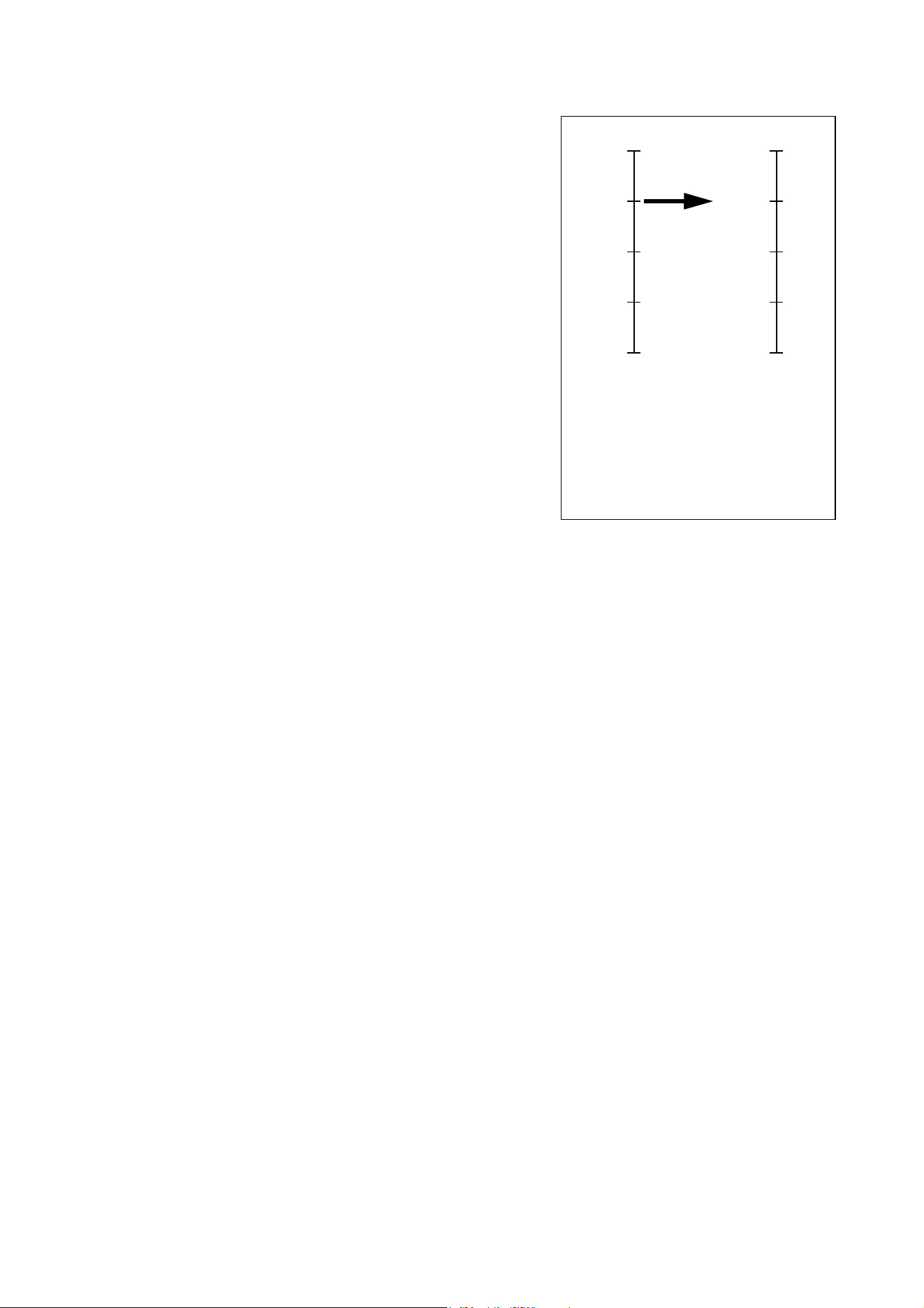
The ”Fixture adjustments/calibration (menu override)”
DMX channel allows effect offsets to be adjusted and
stored in the fixture from the DMX controller.
To adjust an effect offset:
1. Set the effect to a DMX value from 0 to 255 on its own
DMX channel (for example, set Cyan to 192 on channel
4).
2. Send a ‘Store’ command for the effect on the Fixture
Adjustment/Calibration channel.
The MAC III Wash now reads the value on the effect
channel (192 for Cyan in the example above), translates it
to an adjustment value of between -5% and +5% as shown
in Figure 12 (+2.5% Cyan adjustment in the example
above) and stores that offset in memory.
See ”Fixture adjustments/calibration (menu override)” on
page 43 for details of the offsets that can be adjusted
using this method.
Effect offsets stored in memory are not affected by
powering the fixture off and on or by updating the fixture
software. To return all offsets to their factory defaults, send
a DMX value from 245 to 249 on the ”Fixture
adjustments/calibration (menu override)” channel 21 or
apply LOAD FACTORY SETTINGS in the FACTORY
SETTINGS menu in the fixture’s control panel.
255
192
128
64
0
+5%
+2.5%
0
-2.5%
-5%
Effect channel
value
Adjustment
value
Figure 12: Offset adjustment values
Effects 23
Effects
This section gives details of the effects that can be controlled via DMX. See “MAC III Wash DMX protocol”
on page 40 for details of the channels used to control them.
Where fine control is available, the main control channel sets the first 8 bits (the most significant byte or
MSB), and the fine channels set the second 8 bits (the least significant byte or LSB) of the 16-bit control
byte. In other words, the fine channel works within the position set by the coarse channel.
Shutter and strobe effects
The MAC III Wash’s mechanical shutter provides regular or random strobe and pulse effects with variable
speed from 2 Hz to 10 Hz approximately.
To ensure total blackout, the mechanical dimmer also deploys if the shutter is closed for more than 5
seconds.
Dimming
The MAC III Wash’s mechanical dimmer provides smooth, high-resolution 100 percent fading. 16-bit fine
control of the dimmer is available.
To ensure total blackout, the mechanical shutter also deploys by default if the dimmer is reduced to 0% for
more than 5 seconds (this function can be disabled under
SHUTTER BLACKOUT in the PERSONALITY control
menu).
Cyan, Magenta, Yellow and CTO
The amount of cyan, magenta, yellow and CTO (color temperature control orange) applied to the MAC III
Wash’s light output can be varied from zero to 100%. Color temperature can be varied from 6000 - 3200 K.
Color wheel
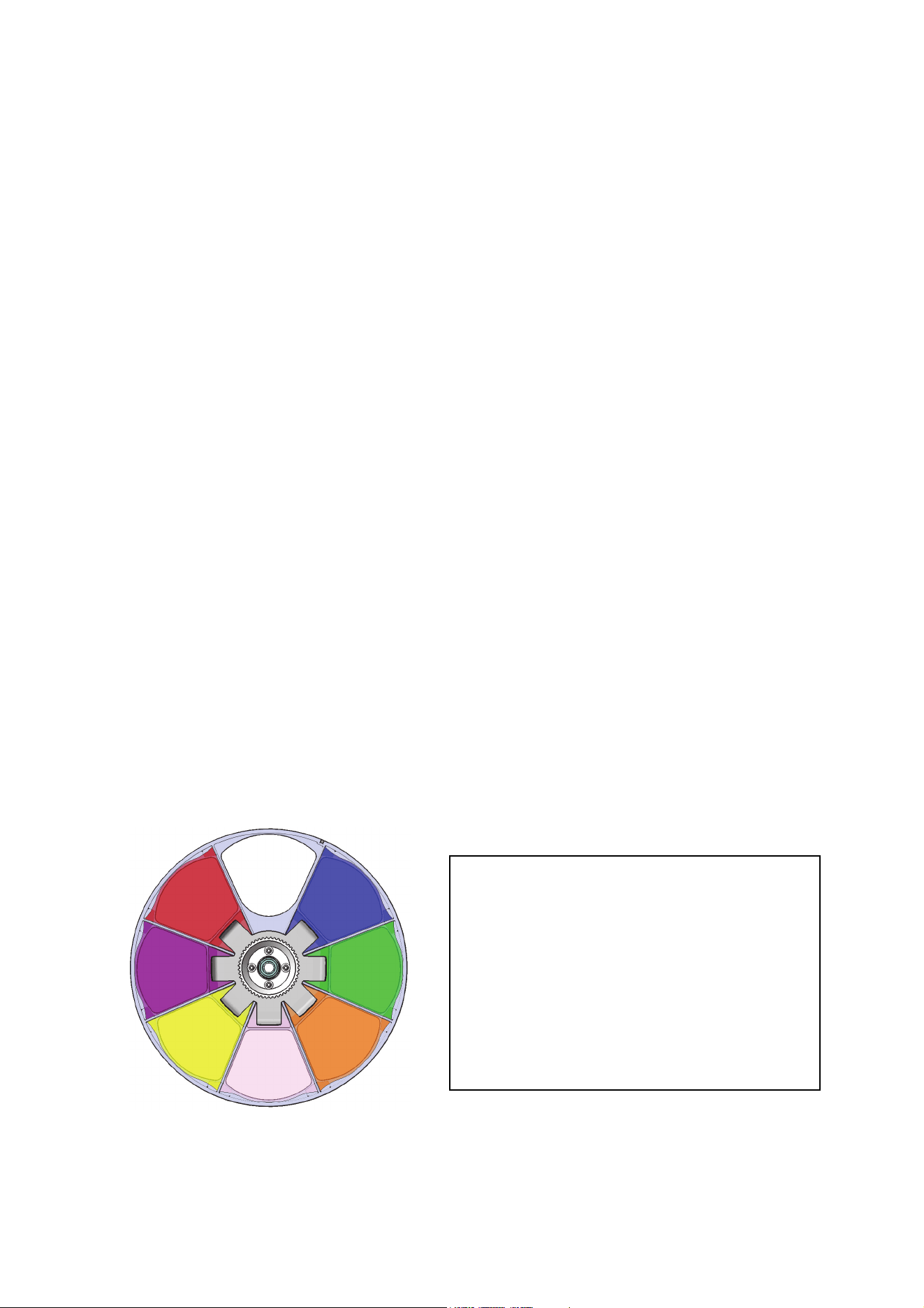
The MAC III Wash features a color wheel with 7 interchangeable dichroic color filters and an open position.
Color filters can be applied as split colors or in full-color steps. The color wheel can also be scrolled
continuously, applying the color filters in sequence with control of color wheel speed and direction. Color
filters can also be applied at random at fast, medium or slow speed.
Figure 13: Color wheel
1
2
3
4
5
6
7
Wheel seen from
lamp side
Color filters
1. Blue 101 - P/N 46404500
2. Green 203 - P/N 46404510
3. Orange 311 - P/N 46404520
4. NB half minus green - P/N 46404541
5. Yellow 610 - P/N 46404530
6. Deep blue (Congo) - P/N 46404550
7. Red 310 - P/N 46404560
8. Open

24 MAC III Wash user manual
The MAC III Wash and MAC III AirFX use the same color wheel, but the wheel is installed facing in opposite
directions in the two fixtures. The fixture firmware takes this difference into account so that color filter
selection via DMX is identical in the two fixtures.
Internal barndoors
The internal barndoors in the MAC III Wash comprise a twin-blade system with independent control of each
blade. The entire barndoor assembly can be rotated through 110°. The width of the aperture obtained with
the barndoors can be modified using the iris. Using barndoors opening and rotation in combination with the
iris gives full control of beam shape and angle.
Frost effect
The MAC III Wash has a frost effect that can be faded in and out of the beam, softening the projection.
Iris
The iris can be set to a static diameter, or regular and random pulsing effects can be set with variable
speed.
Focus and zoom
The focus lens focuses the beam from approximately 2 meters (6.5 feet) to infinity.
The separate zoom lens varies the focused beam angle from approximately 11.5° to 55° with the standard
lens installed.
Zoom/focus linking
Focus can be linked to zoom so that it automatically adjusts to match changes in zoom angle.
Linked zoom/focus works within 3 distance ranges:
• Near (5 - 10 meters)
• Medium (10 - 20 meters)
• Far (20 meters - infinity)
To link zoom and focus, select a distance range using the Fixture Control/Settings DMX channel or FOCUS
TRACKING in the PERSONALITY menu in the control panel. Then adjust focus to obtain the required
degree of sharpness. Linking is now enabled and focus will auto-adjust.
Pan and tilt
16-bit pan and tilt control is available on channels 17 plus 18 (pan) and 19 plus 20 (tilt).
Maximum and minimum pan and tilt limits can be set using the control panel (see “Personality – tailoring
performance” on page 16) and via DMX.
Followspot mode
The MAC III Wash features a followspot mode in which the fixture ignores any pan, tilt, or pan and tilt
commands sent via DMX or the control menu, releasing the head for use as a followspot.
In followspot mode, the pan and/or tilt motors can be engaged or disengaged using commands in the
control menu. If motors are engaged, they act as a brake to pan, tilt, or both pan and tilt movement to
prevent the head from moving when it is not being held in place, but DMX or menu-based control over pan
and tilt is still disabled (see “Personality – tailoring performance” on page 16 and “Control panel menus” on
page 44).
Followspot handles can be custom-made by the user to suit the user’s own preferences and requirements.
Effects 25
Followspot handles safety precautions
Warning! It is the user’s responsibility to ensure that the followspot handles and any mounting
brackets are safe and that the fixture is kept in followspot mode at all times while handles are
installed to avoid collision between the followspot handles and the yoke.
Warning! Intermediate brackets for permanent mounting on the back of the MAC III Wash head must
be constructed so that they will not touch the yoke at any point in the head’s tilt range!
Warning! Screws used to fasten any item to the rear of the head may only be fastened into the holes
(arrowed in Figure 14) provided in the rear head cover. Do not attempt to fasten any item to the rear
of the head by any other method. Screws must not protrude more than 15 mm (0.6 inches) into the
rear head cover, or there is a danger that they may damage electrical insulation inside the head and
create a risk of serious or lethal electric shock for the operator.
Warning! Followspot handles must be thermally insulated so that it is impossible for the operator to
suffer discomfort or a burn injury.
Followspot handles use and construction
The MAC III Wash’s rear head cover is a magnesium alloy casting. Magnesium alloy is prone to galvanic
corrosion when steel screws are fastened into it and has a relatively low resistance to mechanical wear on
threads. Self-tapping screws fastened into magnesium alloy should be left there permanently.
If you are going to switch between using the MAC III Wash as a manually-controlled followspot and as a
DMX-controlled moving head from time to time, you will need to install and remove followspot handles. In
this case, we recommend that you fabricate two intermediate mounting brackets in a suitable material for
repeated installation and removal of screws, fasten the brackets permanently to the rear head cover, and
use these brackets as mounting points for the followspot handles.
If followspot handles are going to be installed permanently, there is no need for intermediate brackets.
The design of the brackets and followspot handles is left up to the user to match user requirements, but the
following points must be noted:
• Intermediate mounting brackets must be as light as possible in order to minimize the effect of their extra
weight on the balance of the head. It may be best to make them in aluminium.
• Four holes (arrowed in Figure 14) are
provided in the fixture’s rear head cover
for fastening followspot handle
mounting brackets. Use regular M6
machine screws for attachment but
ensure that screws are the correct
length: the portion of the screw that
goes into the rear head cover must have
a length of between 12 mm (0.47 in.)
and 15 mm (0.6 in.).
• The rear head cover becomes very hot.
Ensure that handles are insulated well
enough to avoid discomfort or burn
injuries for the followspot operator.
• A handle must only be fitted after
followspot mode is enabled and tilt is
performed manually. Always remove
any handle that is fitted before
disengaging followspot mode.
Besides being constructed so that they
will not foul the yoke at any point in the tilt
range, mounting brackets must match the
dimensions shown in Figure 14.
Dimensions in Figure 14 are shown in
millimeters:
• 216.8 mm = 8.53 in.
• 230.7 mm = 9.08 in.
• 78.9 mm = 3.11 in.
Figure 14: Dimensions for followspot handles

26 MAC III Wash user manual
RDM
The MAC III Wash can communicate using RDM (Remote Device Management) in accordance with ESTA’s
American National Standard E1.20.
RDM is a bi-directional communications protocol for use in DMX512 control systems, it is the open standard
for DMX512 device configuration and status monitoring.
The RDM protocol allows data packets to be inserted into a DMX512 data stream without adversely
affecting existing non-RDM equipment. The RDM protocol allows a console or dedicated RDM controller to
send commands to and receive messages from specific fixtures.
RDM ID
Each MAC III Wash has an RDM UID that makes it uniquely addressable. This can be found in the control
panel menus under FIXTURE INFORMATION. RDM UID shows the fixture’s factory-set unique ID for
identification in RDM systems.
RDM communication
The MAC III Wash will respond to:
1. ”MAC III Wash supported standard commands” (see page 27).
2. ”MAC III Wash supported manufacturer specific commands” (see page 28).
RDM 27
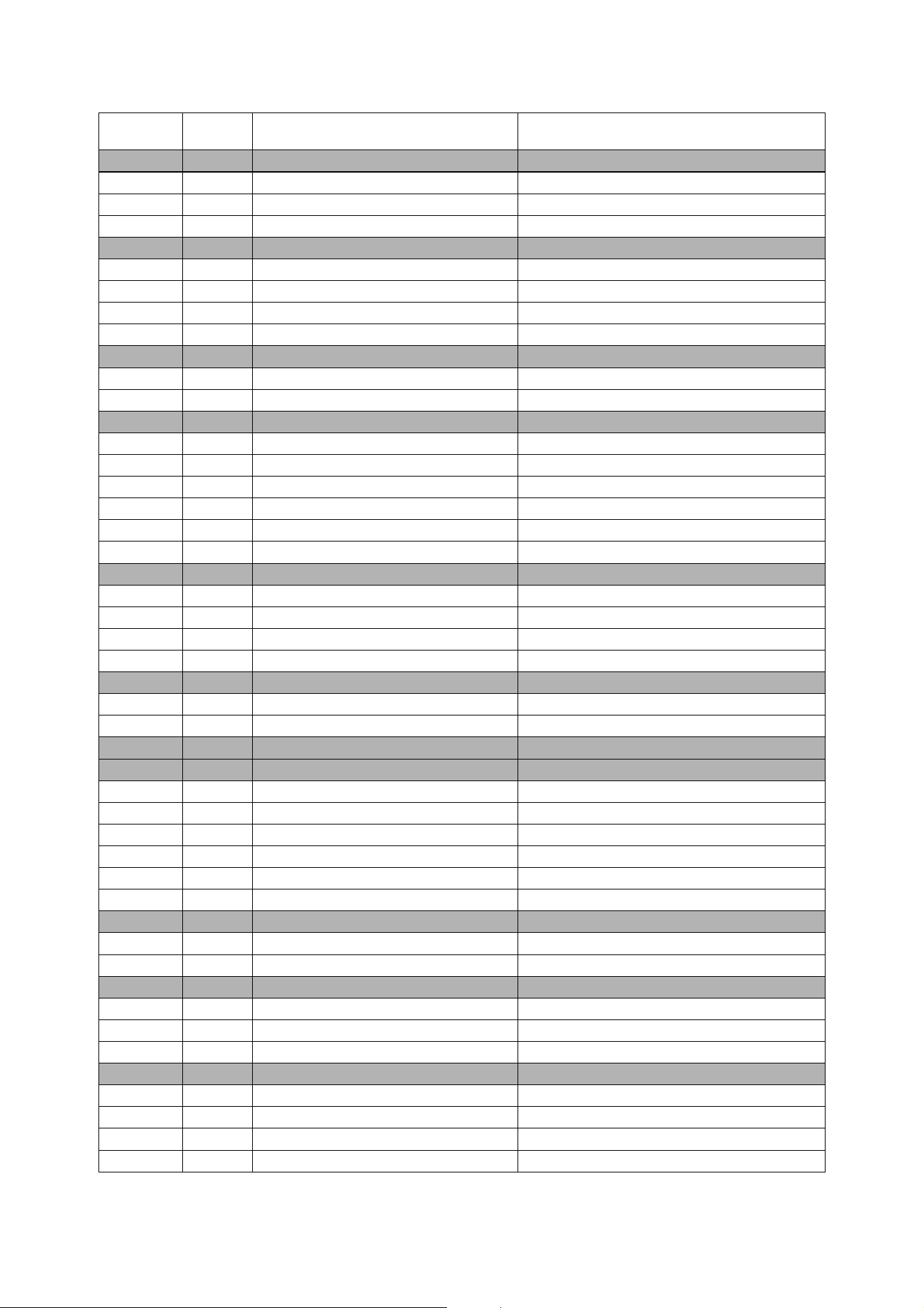
MAC III Wash supported standard commands
GET
allowed
SET
allowed RDM parameter ID’s (slot 21-22) Notes
Category – Network Management
DISC_UNIQUE_BRANCH
DISC_MUTE
DISC_UN_MUTE
Category - Status Collection
QUEUED_MESSAGE
STATUS_MESSAGES
STATUS_ID_DESCRIPTION
CLEAR_STATUS_ID
Category - RDM Information
SUPPORTED_PARAMETERS
PARAMETER_DESCRIPTION
Category – Product Information
DEVICE_INFO
DEVICE_MODEL_DESCRIPTION
MANUFACTURER_LABEL
DEVICE_LABEL
FACTORY_DEFAULTS
SOFTWARE_VERSION_LABEL
Category - DMX512 Setup
DMX_PERSONALITY
DMX_PERSONALITY_DESCRIPTION
DMX_START_ADDRESS
SLOT_DESCRIPTION
Category – Sensors See “RDM accessible onboard sensors” on page 28
SENSOR_DEFINITION
SENSOR_VALUE
Category – Dimmer Settings Reserved for future use
Category – Power/Lamp Settings
DEVICE_HOURS
LAMP_HOURS
LAMP_STRIKES
LAMP_STATE
LAMP_ON_MODE
DEVICE_POWER_CYCLES
Category - Display Settings
DISPLAY_INVERT
DISPLAY_LEVEL
Category – Configuration
PAN_INVERT
TILT_INVERT
PAN _T ILT _SWAP
Category – Control
IDENTIFY_DEVICE
RESET_DEVICE
PERFORM_SELFTEST
SELF_TEST_DESCRIPTION
28 MAC III Wash user manual
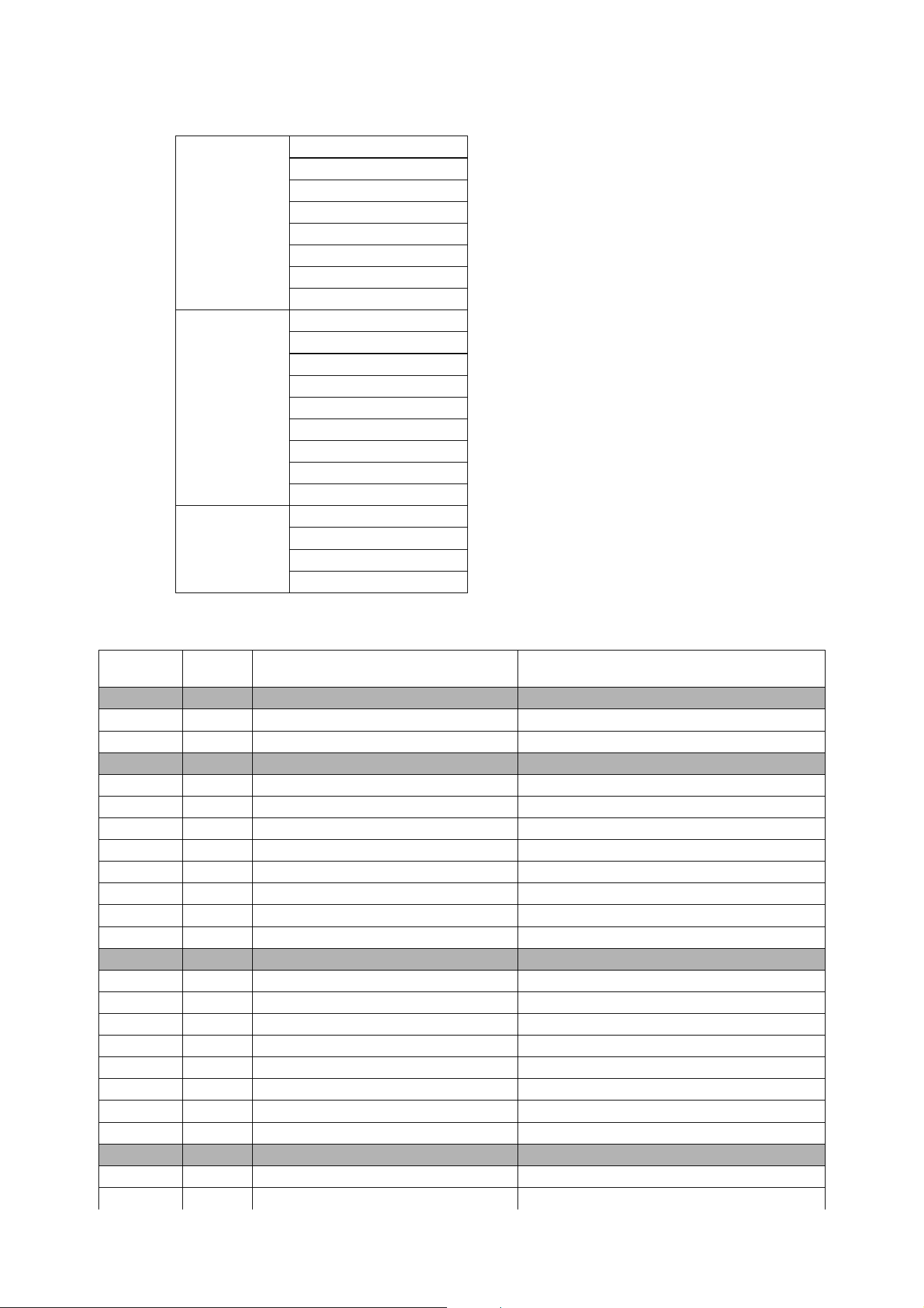
RDM accessible onboard sensors
The following onboard sensors are RDM accessible:
MAC III Wash supported manufacturer specific commands
FAN SPEED
LAMP R FAN
LAMP L FAN
BOTTOM FAN
CMY FAN
TOP FAN
MAINBOARD FAN
POWER FAN 1
POWER FAN 2
TEMPERATURE
UI PCB
CHARGER PCB
BATTERY
FAN PCB
CMY PCB
ZOOM FOCUS PCB
PAN /TILT PCB
POWER UNIT PCB
POWER UNIT CAPACITOR
POWER UNIT
MAINS VOLTAGE
LAMP VOLTAGE
LAMP CURRENT
LAMP WATTAGE
GET
allowed
SET
allowed RDM parameter ID’s (slot 21-22) Notes
Category – DMX protocol settings
DMX_LAMP_OFF
DMX_RESET
Fixture behavioral settings
EFFECT_SPEED
EFFECT_SHORTCUTS
LAMP_HOUR_WARNING_HOURS Data range is 0 - 750 hours
AIR_FILTER_HOUR Data range is 0 - 750 hours
AIR_FILTER _HOUR_WARNING_HOURS Data range is 0 - 750 hours
DIMMER_CURVE
FOCUS_TRACKING
DISPLAY_AUTO_OFF
Fixture pan/tilt settings
PAN_TILT_SPEED
PAN_TILT_MOVE_ON_RESET
PAN_TILT_LIMITATION
PAN_LIMITATION_MINIMUM
PAN _L IM ITAT ION _M AXI MU M
TILT_LIMITATION_MINIMUM
TILT_LIMITATION_MAXIMUM
PAN_TILT_LIMITATION_AREA
Fixture followspot settings
FOLLOW_SPOT_MODE
FOLLOW_SPOT_MODE_LOCK_TOGGLE

RDM 29
FOLLOW_SPOT_MODE _LOCK_PAN
FOLLOW_SPOT_MODE _LOCK_TILT
Fixture cooling settings
LAMP_COOLING
FAN_CLEAN
FAN_MODE
Fixture other settings
SERIAL_NUMBER
LICENSE_KEY
EVENT_LOG_USER_EVENT_TRIGGER
30 MAC III Wash user manual
Service and maintenance
Warning! Disconnect the fixture from power and allow to cool for 2 hours 45 minutes before
removing any cover.
Important! Excessive dust, smoke fluid, and particulate buildup degrades performance, causes
overheating and will damage the fixture. Damage caused by inadequate maintenance is not covered
by the warranty.
This section lists service and maintenance operations that may be carried out by the user. Refer any
operation that is not described here to a qualified Martin technician.
The MAC III Wash requires routine cleaning. The schedule depends heavily on the operating environment.
It is essential to follow the cleaning guidelines given later in this section.
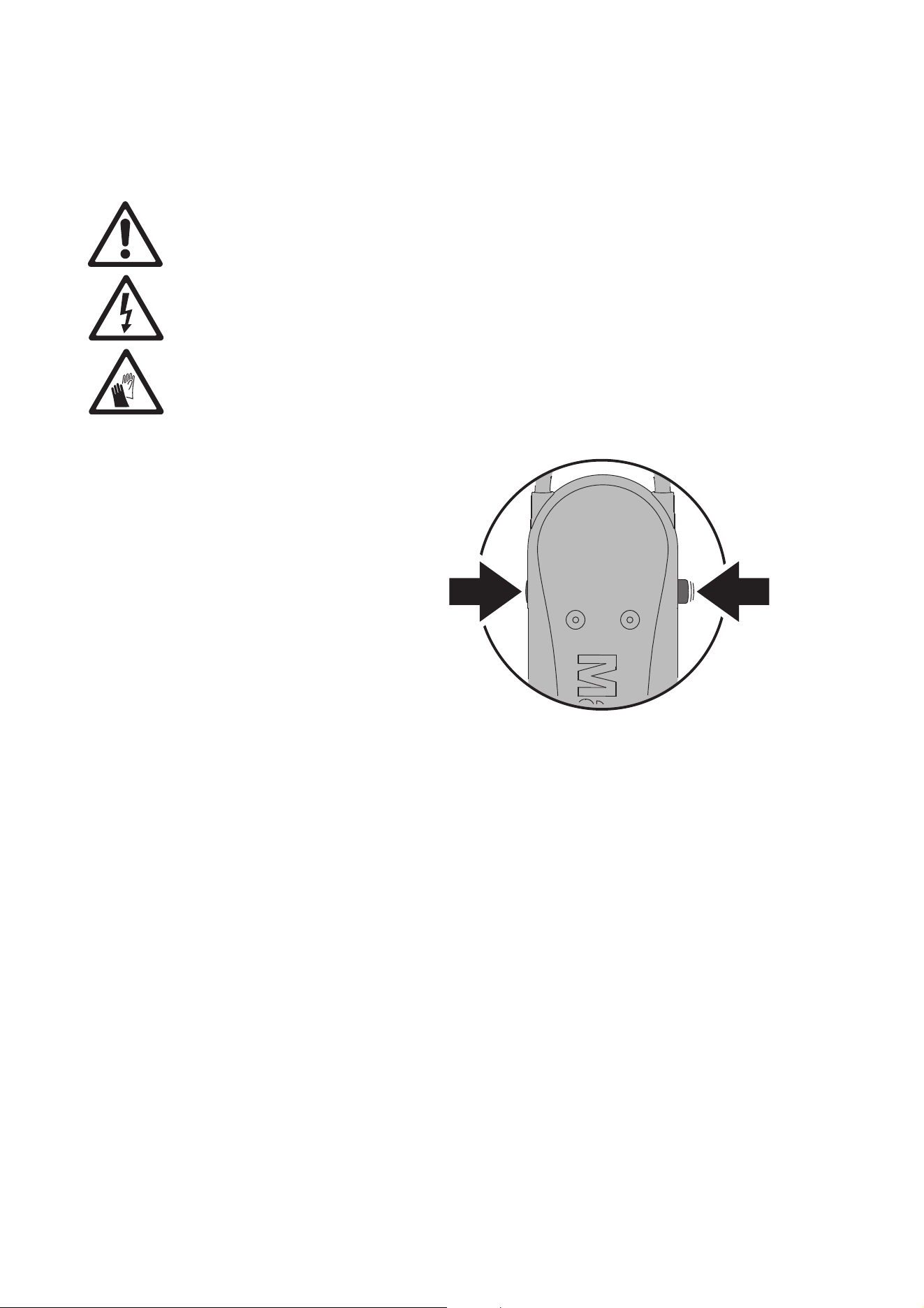
Tilt lock
Important! Release the tilt lock before
operating the fixture.
The tilt position of the head can
be locked at various angles for
service. Push the lock in
towards the yoke in one
direction to lock the head and
back in from the other side to
unlock the head.
There is no pan lock on the
MAC III Wash.
Important! Release the tilt lock before
packing the fixture in the
flightcase.
Service utilities
The SERVICE menu in the main menu provides utilities for technicians rigging or servicing the fixture:
• PAN/TILT FEEDBACK lets you disable feedback to the fixture software from the pan, tilt and effects
positioning systems. If feedback is set to On and a pan, tilt or effect position error is detected, the shutter
closes and the effect resets. This feature can be disabled by setting feedback to Off.
The Off setting is not saved when the fixture is powered off, and the system will be re-enabled the next
time the fixture starts. If a pan/tilt position error occurs and the system cannot correct pan/tilt position
within 10 seconds, feedback is automatically disabled.
• ADJUST is for use at the factory and by authorized Martin Service technicians only. This menu allows
dimmer, shutter, pan and tilt positions to be adjusted after replacement of components, etc. To adjust the
default positions of all the MAC III Wash’s effects, use the CALIBRATION menu instead.
Important! Do not enter the ADJUST menu without service documentation from Martin.
• CALIBRATION sets effects to their factory default positions or lets you set new default positions for
calibration purposes. See ”Calibration” later in this chapter for full details.
• UPDATE FIRMWARE, updates the firmware (fixture software). For a detailed guide to updating the
firmware, see ”Software installation” later in this chapter.
• EVENT LOG gives access to the fixture’s log. See next section.
Figure 15: Tilt lock

Service and maintenance 31
Event log
The MAC III Wash monitors performance, any errors or warnings, temperatures, etc. and stores data in an
ongoing service event log that can be viewed in the fixture’s display or downloaded to a USB memory
device and viewed on a PC.
Power cycle reports are created automatically each time the fixture is powered up. The fixture stores up to
25 power cycle reports in memory. If the memory is full, the oldest report is deleted each time a new report
is generated.
A power cycle report lists three types of data:
General data, settings displays fixture information and lists current settings.
Events is only displayed if any warnings, errors or changes in settings occur, and lists these with the
amount of time that has passed since they occurred.
Dynamic content displays technical data for the fixture that is intended to help troubleshooting. It is only
displayed if warnings or errors are listed in the Events section. Dynamic content is updated automatically
with current data — and the old data is saved to the event log — every 15 minutes for up to 10 hours. The
oldest data is then replaced by new data. If an error or warning occurs, data is updated immediately.
Dynamic content can also be updated manually. This can be useful if a fixture does not behave as expected,
for example, but the fixture is not showing an error or a warning. the user can check that the DMX start code
is zero to eliminate poor data transmission as a possible cause of the problem. To renew the dynamic
content in the current power cycle report with the current data:
•select SERVICE
→ EVENT LOG → EVENT LOG TRIGGER in the control panel, or
• send the RDM command EVENT_LOG_USER_EVENT_TRIGGER.
To delete all previous power cycle reports in the event log from memory, select SERVICE → EVENT LOG →
Clean Event Log in the control panel.
Viewing the event log in the fixture’s display panel
To view the event log in the fixture’s display panel, select FIXTURE INFORMATION → EVENT LOG
VIEWER in the control panel.
The EVENT LOG VIEWER displays all the power cycle reports in memory and supplementary information
about any event you scroll to. Use the jog wheel to scroll through the power cycle reports. As you scroll and
highlight each event, details of the event are shown at the bottom of the display:
• TIME gives the time after power up that the event occurred.
• DESCRIPTION gives type of event.
• VALUE gives either the value of a new personality setting (e.g. On/Off) or the long description of an error
code (e.g. FOER = focus error).
Viewing power cycle reports on a PC
To view the current and most recent power cycle reports on a PC:
1. Insert a USB memory device in the fixture’s USB port to open the USB device pop-up window.
2. Select Download Event Log and wait for the log file to be saved to the USB device.
3. Remove the USB memory device, and carry out this procedure with other fixtures if required.
4. Connect the USB memory device to a PC. Logs are stored in the root directory of the memory device in
a folder called EVENT LOGS MAC III SERIES using the naming convention LOG MACIII
XXXXXXXXXX.xml (where XXXXXXXXXX is the serial number of the fixture). The XML files can be
viewed using any web browser that supports XSLT 1.0 such as Internet Explorer 6, Firefox 3, Google
Chrome 1, Opera 9, Apple Safari 3 or later versions.
5. Double-click on the event log to open it in your web browser.
1. General data, settings 2. Events 3. Dynamic Content
General Information
Personality Settings
Adjust Settings
Calibration Settings
Fixture Information
Module Information
PCB Information
Errors, warnings, changes in
settings
Fan speeds
Temperatures
Other data
32 MAC III Wash user manual
Event log structure when viewed in a web browser
The effects in the example screenshots below may differ slightly from the effects in the MAC III Wash.
The title Power Cycle is displayed in red if that power cycle report includes an error.
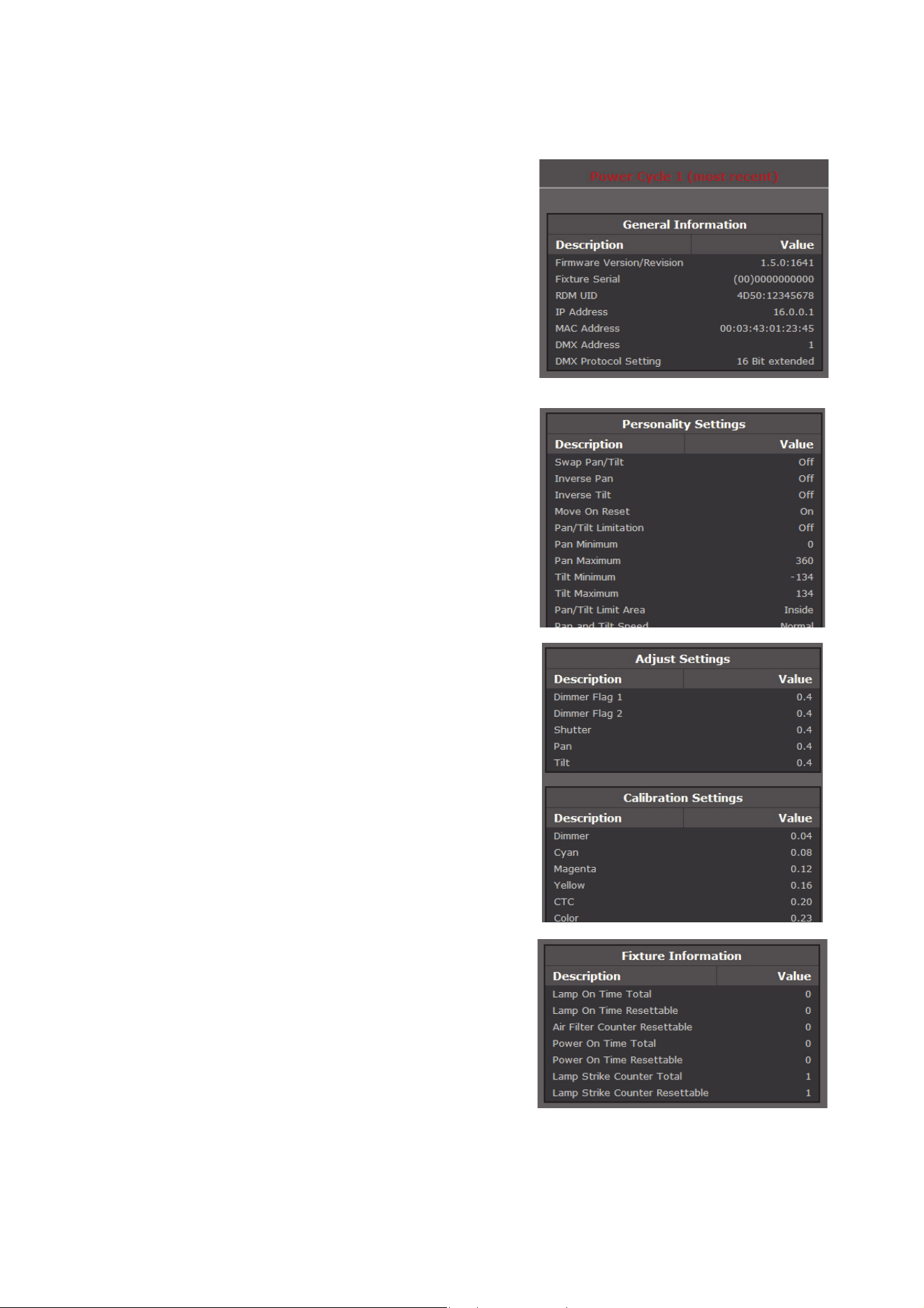
Event log XML files are divided into boxes:
• General information lists the most important
information held by the fixture.
• Personality Settings lists the fixture’s settings at
power up.
• Adjustment Settings displays the fixture’s factory
adjustment settings at power up. These settings
should only be changed by Martin Service or its
authorized agents.
• Calibration Settings displays the fixture’s calibration
settings at power up. These settings can be changed
by the user (see ”Calibration” on page 34).
• Fixture Information displays data from the fixture’s
timers when it was last powered up.
Service and maintenance 33
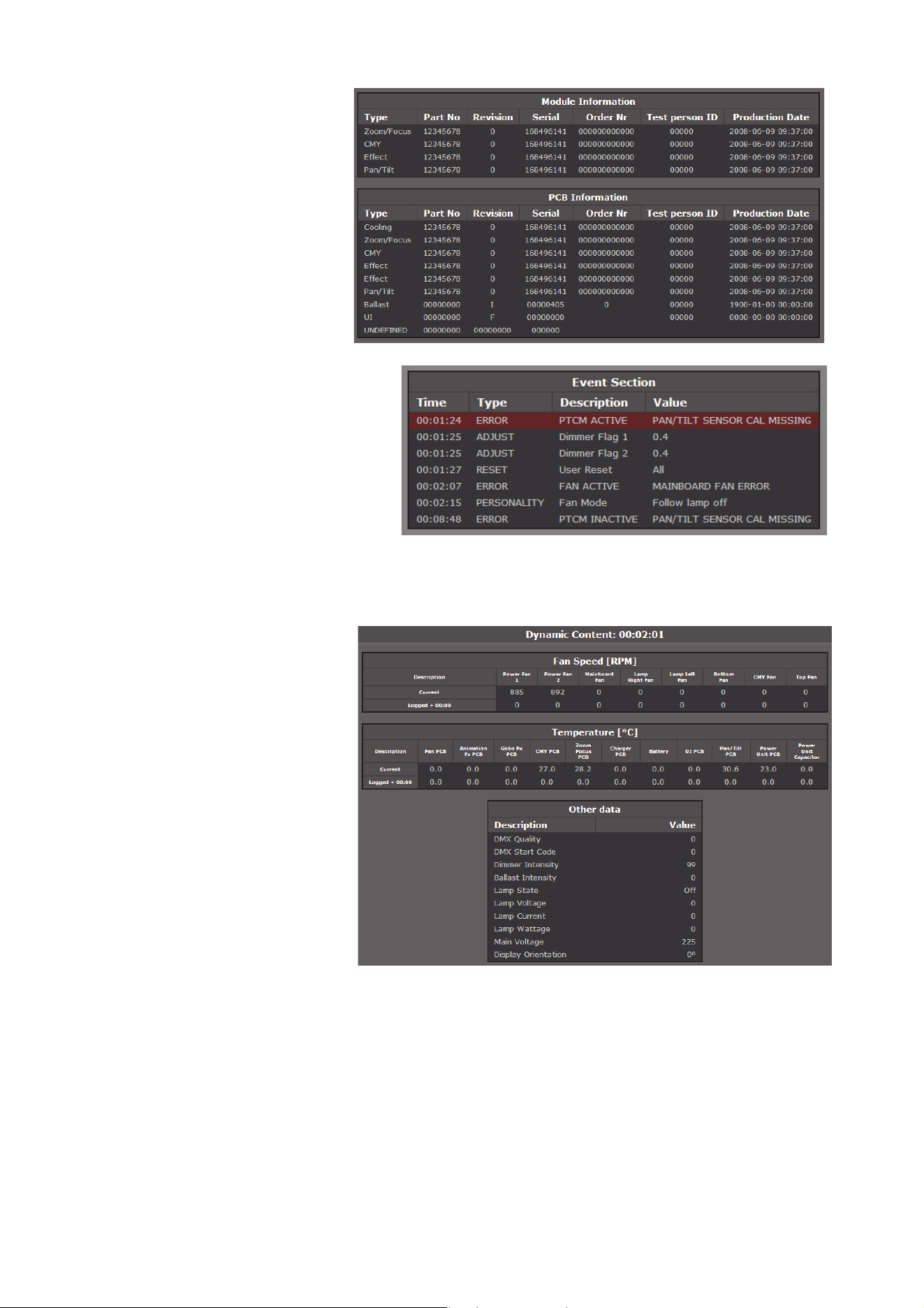
• Module Information
displays data from the
fixture’s effects
modules.
• PCB information
displays data from the
fixture’s PCBs.
• The Event Section
lists all the errors, warnings
and setting changes carried out
by the user since the last power
cycle in the event log. The
Time column on the left of the
box displays the amount of time
between the fixture powering
up and the event. Thus, in the
example on the right, a main
PCB fan error occurred 2
minutes and 7 seconds after
power up and the pan/tilt sensor was not calibrated (warning was listed as ACTIVE) 1 minute and 24
seconds after power up but was calibrated (warning was listed as INACTIVE) 8 minutes and 48 seconds
after power up.
• Dynamic Content
displays the speed of
the fixture’s fans, fixture
temperatures and other
data:
- current data (in the
example on the right,
two minutes and one
second after power
up).
- previously logged data
(captured at
15-minute intervals
over a total of up to 10
hours, most recent
data at the top — see
following example
showing time).
The example below in the Dynamic Content section, shows temperature data for the different sensors
in the fixture. In the example, the fixture was powered on 3 hours and 15 minutes before the current
temperature data was logged. Temperature change over time at 15 minute intervals can be followed in
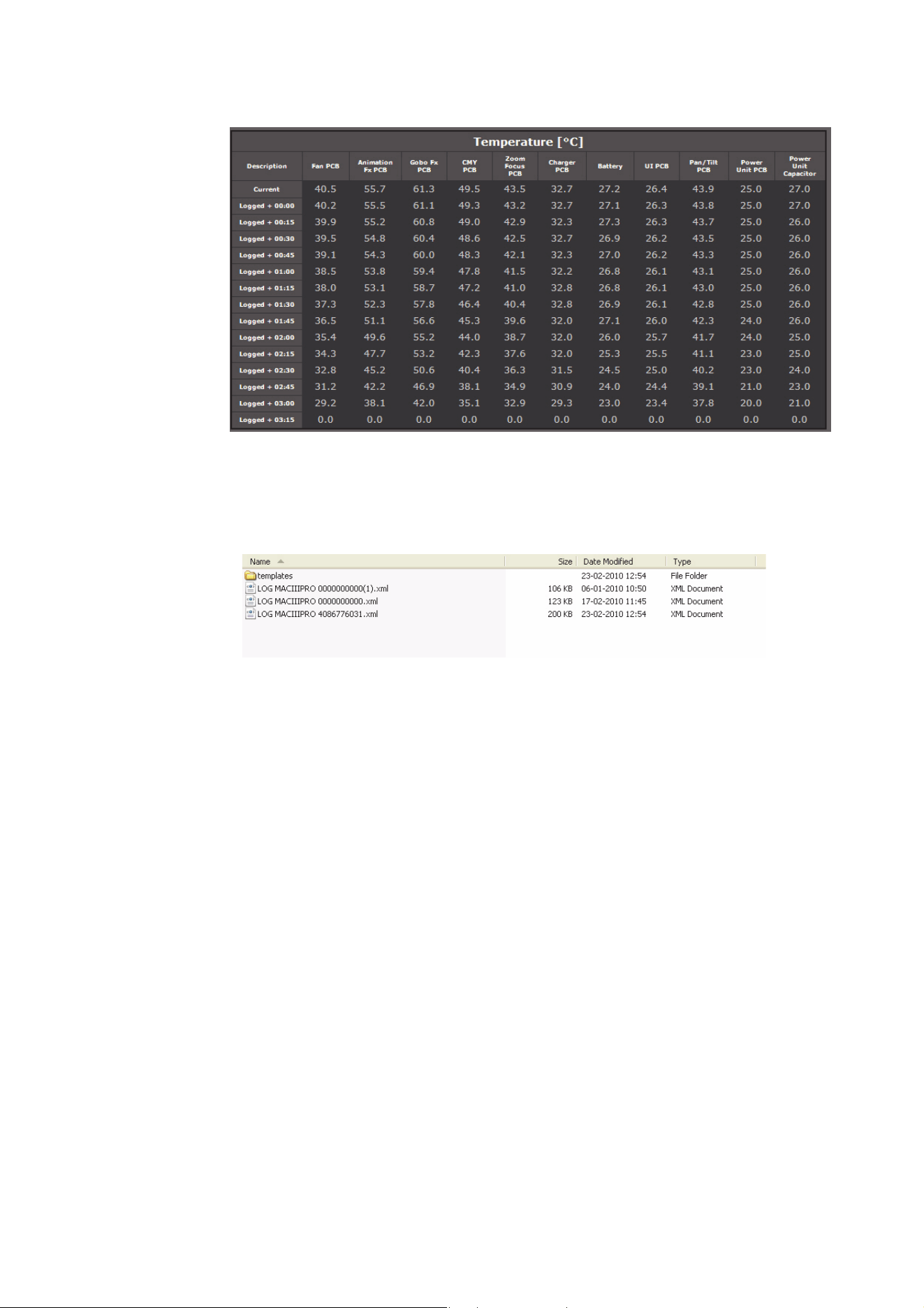
34 MAC III Wash user manual
the table. If you wish, it can also be copied and pasted into spreadsheet software such as Microsoft
Excel.
Handling XML log files
The XML event log files can be archived and e-mailed, but you must include the folder templates and its
contents MACIII_EventLog.css and MACIII_EventLog.xsl in the same folder as the XML files so that web
browsers can view the event logs correctly:
Zipping the EVENT LOGS MAC III SERIES folder before storing or sending should ensure that the nested
templates folder is correctly included.
Calibration
The CALIBRATION and ADJUSTMENT menus let you define offsets in software that are relative to the
mechanical reset or home positions. This allows you to fine-tune optical alignment and achieve uniform
performance between fixtures. Fixtures are calibrated at the factory, and further calibration will normally only
be necessary if fixtures have been subjected to abnormal shocks during transport or if normal wear and tear
has affected alignment after an extended period of use.
Calibrating pan and tilt sensors
When you select PAN/TILT SENSOR CALIBRATION, a display message appears asking you to move pan
and tilt to their end stop positions. To calibrate pan and tilt:
1. Move pan to its end stop position by rotating the yoke clockwise (as seen from above the head looking
down at the base) to maximum pan.
2. Move tilt to its end stop by tilting the head to its maximum angle with the front glass pointing away from
the display panel.
3. Press the jog wheel to register the positions. The fixture will display Saving...
Warning! As soon as you exit pan/tilt sensor calibration, the head will move to its original position.
4. Make sure that you are ready for the head to move, then press the Escape button to exit pan/tilt sensor
calibration. The head will now pan and tilt back to where it was before you entered calibration mode.
Calibrating effects
Calibration can be carried out via DMX (see “Defining calibration offsets via DMX” on page 22) but the
easiest approach is probably to set multiple fixtures to the same position (e.g. dimmer open 1%) and then
calibrate each fixture using its onboard control panel while comparing its light output with a reference fixture.

Service and maintenance 35
The calibration range available for each effect varies but is approx 5%. After selecting a calibration value,
click on the jog wheel to set the effect to that value.
Loading and storing default calibration offsets
LOAD DEFAULTS? lets you load the factory default calibration offsets stored in memory.
SAVE FACTORY DEFAULT? lets you overwrite the factory default calibration offsets stored in memory with
any new offsets you have defined. Overwriting is permanent, so once you have saved new factory default
offsets, LOAD DEFAULTS? will reload the new offsets.
Software installation
The currently installed firmware (fixture software) version can be viewed under FIXTURE INFORMATION in
the main menu. Firmware updates are available from the Martin website and can be installed using either of
two methods:
• a USB memory device loaded with ‘bank’ files and inserted in the MAC III Wash’s USB port, or
• a Windows PC loaded with ‘MU3’ files and running the Martin Uploader application, connected to the
MAC III Wash’s data input socket via a Martin Universal USB/DMX™ or a Martin DABS1™ hardware
interface.
Module firmware updating
Calibration data is stored in the relevant modules wherever possible so that a module will stay calibrated if is
removed from the fixture or installed in another fixture. If firmware is updated, a red spot next to the battery
icon in the display blinks while data in the modules is being updated. This can take up to a minute. Do not
switch the fixture off while the spot is blinking, or firmware will be corrupted.
Installing using a USB memory device
The following are required in order to install firmware using a USB memory device:
• The MAC III AirFX/Wash firmware ‘bank’ update file, available for download from the Product Support
area of the Martin website at http://www.martin.com.
• A USB memory storage device (e.g. USB stick) with the update file copied from a PC into the memory
device’s root directory.
To install the firmware:
1. Download the firmware ‘bank’ from the MAC III Wash support page on the Martin website at
www.martin.com, read the firmware release notes carefully to check for any instructions or warnings,
and copy the ‘bank’ to the root directory of a USB memory stick.
2. Disconnect the data link from the MAC III Wash.
3. Insert the USB stick in the MAC III Wash’s USB host socket. The fixture should recognize the USB stick,
illuminate the display panel and show the UPDATE FIRMWARE window in the display. Alternatively,
scroll to the UPDATE FIRMWARE menu under SERVICE in the control panel.
4. Select BANK. Scroll up and down to see the firmware versions present on the USB stick and in the
fixture’s internal memory. LOCATION indicates whether the firmware is located on the USB stick or in
internal memory.
5. If you scroll to a firmware version on the USB stick and click the jog wheel, the firmware is downloaded
to internal memory (where it will be available for future firmware updates), validated, unpacked and
installed, and the fixture will restart using the new firmware.
6. Remove the USB stick. The newly-installed firmware version will now be displayed in the FIXTURE
INFORMATION menu.
7. Reconnect the data link.
Zoom-focus linking is reset to default (medium distance) when new firmware is uploaded. Other fixture
information and settings are unaffected.
Forced upload
The fixture can be forced to automatically upload a firmware file from a USB stick if the Escape button is
held down during power up. We recommend that only one firmware update file is located in the memory
device’s root directory, but in the event that several versions are available, the fixture will upload the file with
the most recent firmware version.
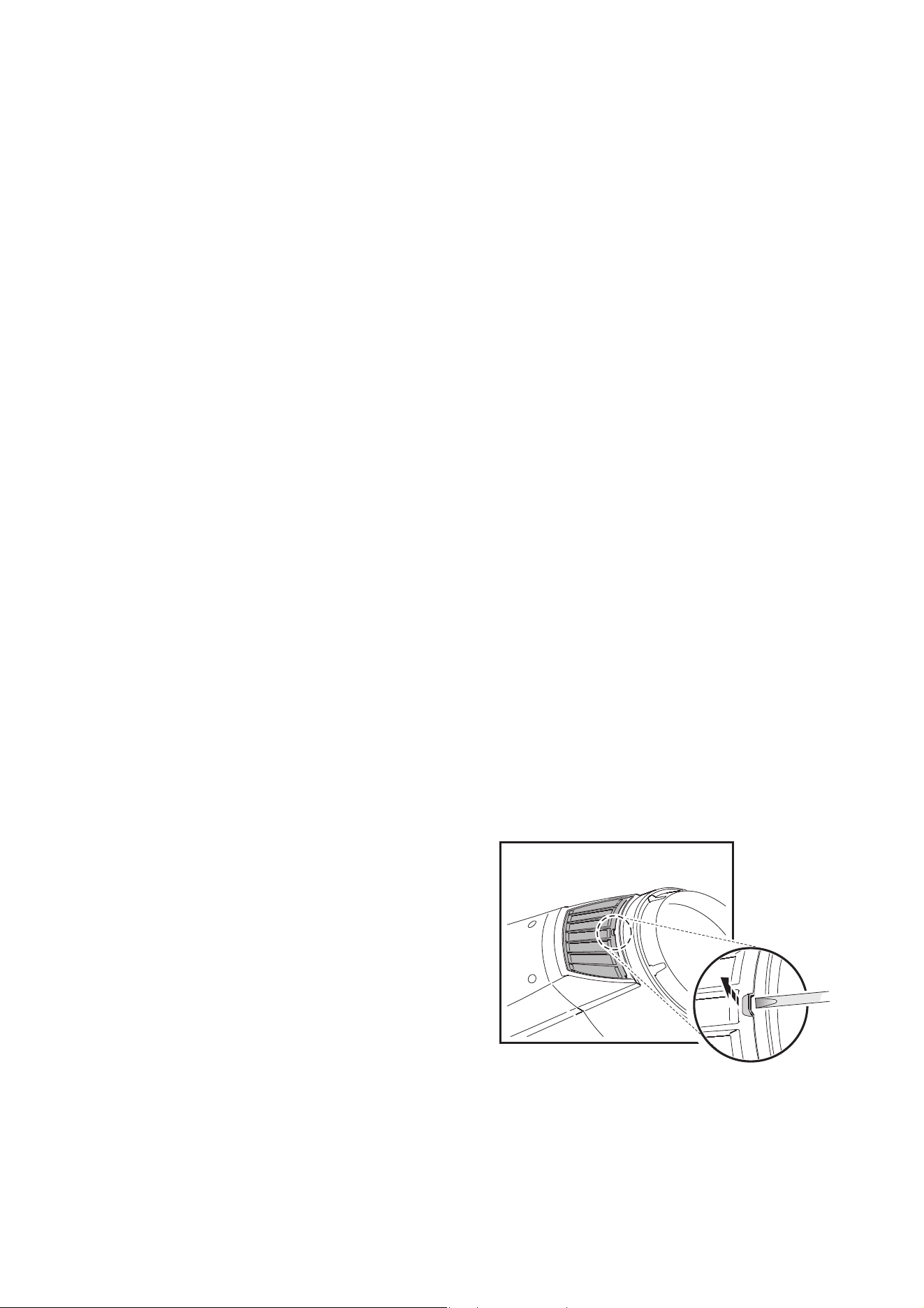
36 MAC III Wash user manual
Installing using a PC and hardware interface
The following are required in order to install firmware using a PC and hardware interface:
• The MAC III AirFX/Wash firmware ‘MU3’ update file, available for download from the Product Support
area of the Martin website at http://www.martin.com.
• A Windows PC running the latest version of the Martin Uploader™ application (also available for
download free of charge from www.martin.com) and loaded with the firmware update file.
• A USB/DMX hardware interface device such as the Martin USB Duo™ or Martin DABS1™.
To install the MAC III firmware:
1. Download the firmware ‘.MU3’ file from the MAC III Wash support page on the Martin website at
www.martin.com to the PC.
2. Read the firmware release notes carefully to check for any instructions or warnings.
3. Follow the instructions for an auto upload/upload via DMX in the Martin Uploader application help files
and supplied with the hardware interface.
Cleaning
Regular cleaning is very important for fixture life and performance. Buildup of dust, dirt, smoke particles, fog
fluid residues, etc. degrades the fixture’s light output and cooling ability.
Cleaning schedules for lighting fixtures vary greatly depending on the operating environment. It is therefore
impossible to specify precise cleaning intervals for the MAC III Wash. Cooling fans suck in airborne dust and
smoke particles, and in extreme cases fixtures may require cleaning after surprisingly few hours of
operation. Environmental factors that may result in a need for frequent cleaning include:
• Use of smoke or fog machines.
• High airflow rates (near air conditioning vents, for example).
• Presence of cigarette smoke.
• Airborne dust (from stage effects, building structures and fittings or the natural environment at outdoor
events, for example).
If one or more of these factors is present, inspect fixtures within their first 25 hours of operation to see
whether cleaning is necessary. Check again at frequent intervals. This procedure will allow you to assess
cleaning requirements in your particular situation. If in doubt, consult your Martin dealer about a suitable
maintenance schedule.
Use care when cleaning optical components and work in a clean, well lit area. The coated surfaces are
fragile and easily scratched. Do not use solvents that can damage plastic or painted surfaces.
Cleaning and replacing the air filters
The item AIR FILTERS in the FIXTURE INFORMATION menu is intended to be used to monitor intervals
between air filter cleaning, although this counter can be used to monitor any aspect of the fixture.
When air filters require cleaning:
1. Disconnect the fixture from power and allow
the components to cool for 2 hours 45
minutes.
2. See Figure 16. On each side of the head, use
a flat-bladed screwdriver to lever the front
edge of each filter holder slightly away from
the head, then slide the screwdriver across to
each corner and gently lever each corner
free. Pull the filter holders forwards to unclip
and remove them.
Figure 16: Removing head air filters
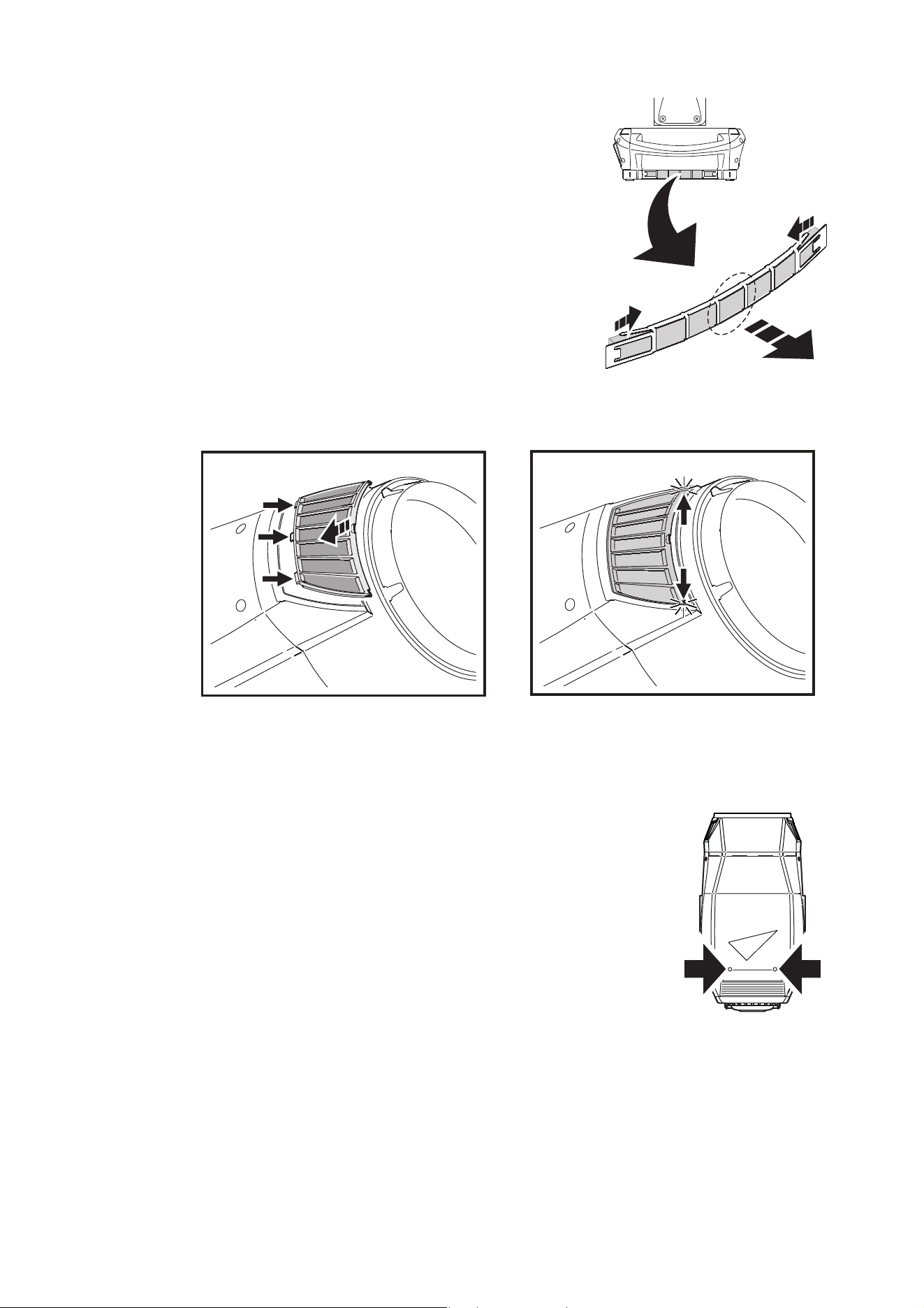
Service and maintenance 37
3. See Figure 17. On each side of the base, pinch the air filter
holders in from the sides as illustrated, then pull the center of
the holders outwards to unclip and remove them.
4. Clean the air filter elements. If they are saturated with smoke
fluid, soak them in warm, soapy water and blot dry. If the filters
cannot be cleaned completely or are not in perfect condition,
replace them with new items.
5. Pinch the base filter holders in from the side and engage the
ends of the filter holders their slots to clip them back into
position.
6. See Figure 18. Engage the three tabs in the head filter
holders in their slots in the head, pinch the foremost corners
of the filter holder together slightly and press them into the
head to clip them back into position.
7. Check that all filter holders are correctly installed so that there
is an airtight seal around all their edges.
Cleaning the fixture
To clean the head:
1. Power the lamp off, allow components to cool for 2 hours 45 minutes and
disconnect the fixture from power.
2. Remove both head covers by loosening their quarter-turn retaining screws
(see Figure 19).
3. Vacuum or gently blow away dust and loose particles inside the head with
compressed air.
4. Carefully clean the optical components. Remove smoke and other residues
with cotton swabs or unscented tissues moistened with isopropyl alcohol. A
commercial glass cleaner may be used, but residues must be removed with
distilled water. Clean with a slow circular motion from center to edge. Dry
with a clean, soft and lint-free cloth or compressed air. Remove stuck
particles with an unscented tissue or cotton swab moistened with glass
cleaner or distilled water. Do not rub the surface: lift the particles off with a
soft repeated press.
5. Remove dust from fans and air vents with a soft brush, cotton swab, vacuum,
or compressed air.
6. Reinstall the head covers.
Figure 17: Base air filters
Figure 18: Reinstalling head air filters
Figure 19: Head
cover screws
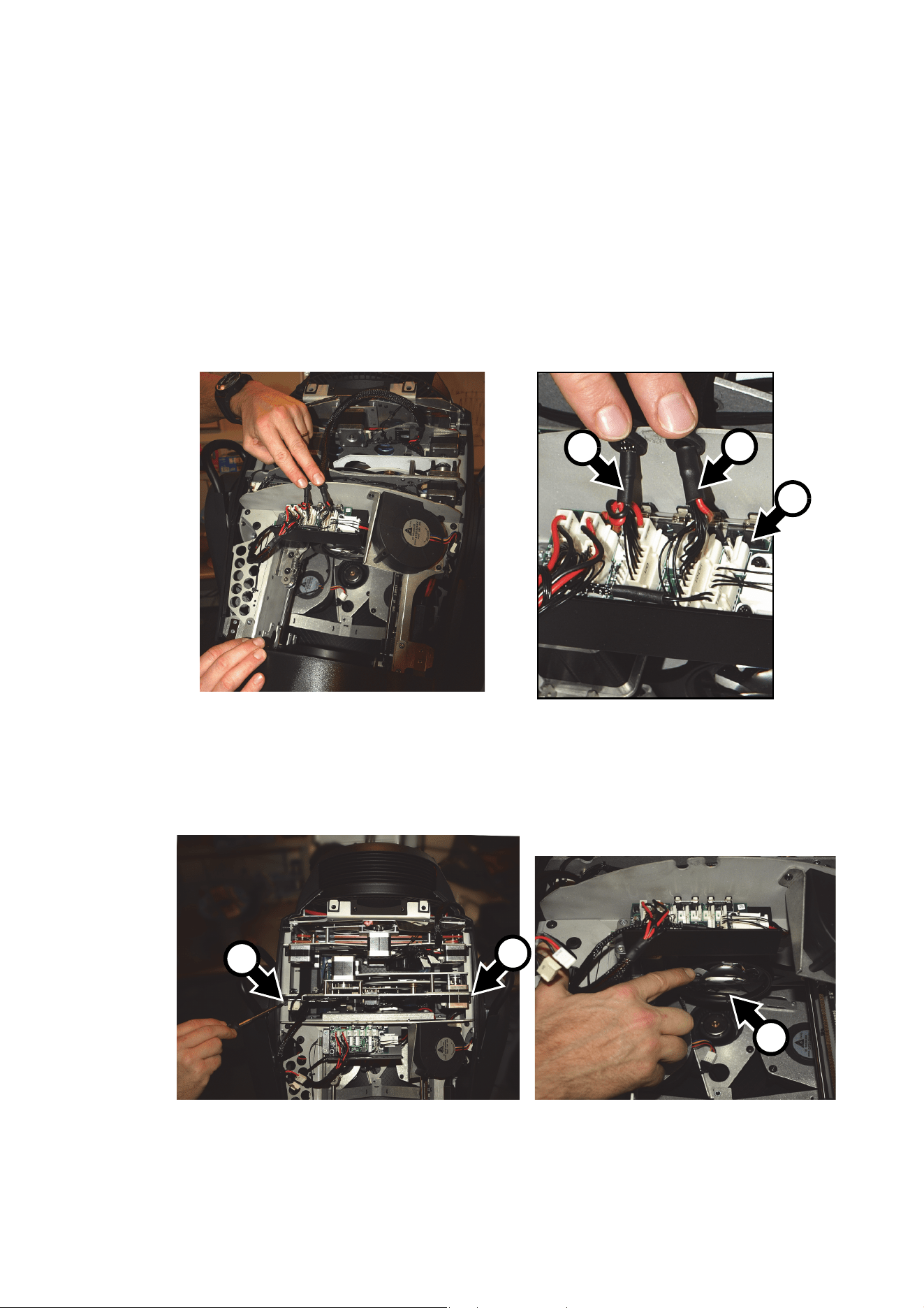
38 MAC III Wash user manual
Lubrication
The MAC III Wash does not require lubrication under normal circumstances. The slides for the zoom and
focus lens cars are lubricated with a long-lasting teflon-based grease that can be reapplied by a Martin
service partner if necessary.
Replacing a color filter
Note: Wear cotton gloves while handling color filters and use only genuine Martin filters.
1. Power the lamp off and allow the fixture to cool for 2 hours 45 minutes. Disconnect the fixture from
power.
2. The top of the head is above the text on the lamp cover with the text facing the right way up. Lock the
head in a convenient position for access to the top of the head.
3. Remove the two retaining screws (see Figure 19) from the top cover and lift it away from the head. Let
the cover hang on its safety wire or unclip the safety wire and remove the cover completely.
4. See Figure 20. Lift the two effect module wiresets A out of their cutouts in the head chassis. Note the
positions of the three color mixing connectors (DC = PL 14, Fan = PL4, I/O = PL19) and two internal
barndoors connectors (DC = PL15, I/O = PL5) on the PCB B in the head, then unplug the connectors.
5. See Figure 21. Remove the two Torx 20 effects module retaining screws C and slide the focus car D fully
towards the front of the fixture.
Figure 20: Effects module connectors
A
A
B
Figure 21: Effects module retaining screws and focus car
C
C
D
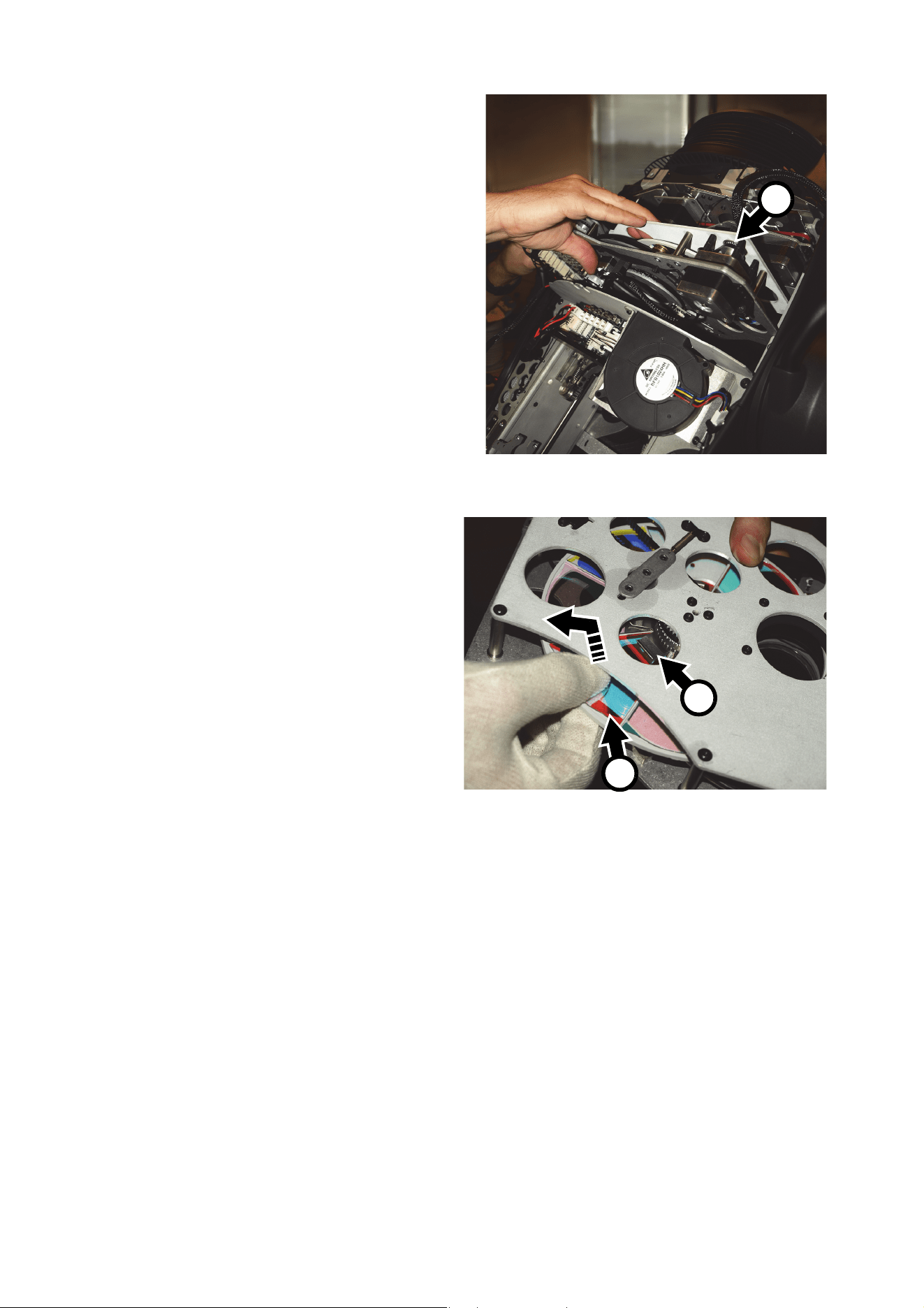
Service and maintenance 39
6. See Figure 22. Lift the effects module E
out of the head. Place it on a flat surface.
7. See Figure 23. Rotate the color
wheel until the filter that you want to
change is accessible. Lift the outer
edge of the filter F up from the color
wheel slightly to release it, then pull it
out of its retaining spring G and out of
the color wheel.
8. To insert a filter, slide it into the color
wheel so that it clips under its
retaining spring G and engage the
filter’s outer edge F in the lip on the
edge of the color wheel.
9. If no further service work is to be
carried out, reinstall the module,
connectors, and the top cover with its
safety wire, then release the tilt lock
before applying power.
Figure 22: Removing effects module
E
Figure 23: Color filter removal
G
F

40 MAC III Wash user manual
MAC III Wash DMX protocol
Firmware version 1.1.0
DMX
channel
DMX
value
Percent Function
Fade
type
Default
value
1
0 - 19
20 - 49
50 - 64
65 - 69
70 - 84
85 - 89
90 - 104
105 - 109
110 - 124
125 - 129
130 - 144
145 - 149
150 - 164
165 - 169
170 - 184
185 - 189
190 - 204
205 - 209
210 - 224
225 - 229
230 - 244
245 - 255
0 - 7
8 - 19
20 - 25
26 - 27
28 - 33
34 - 35
36 - 41
42 - 43
44 - 49
50 - 51
52 - 57
58 - 59
60 - 65
66 - 67
68 - 73
74 - 75
76 - 81
82 - 83
84 - 89
90 - 91
92 - 97
98 - 100
Strobe/shutter
Shutter closed (lamp switches to 800 watt mode after shutter is closed for 10
seconds)
Shutter open
Strobe, fast → slow
Shutter open
Opening pulse, fast → slow
Shutter open
Closing pulse, fast → slow
Shutter open
Random strobe, fast → slow
Shutter open
Random opening pulse, fast → slow
Shutter open
Random closing pulse, fast → slow
Shutter open
Burst pulse, fast → slow
Shutter open
Random burst pulse, fast → slow
Shutter open
Electronic sine wave strobe, fast → slow
Shutter open
Electronic burst strobe, fast → slow
Shutter open
Snap 30
2
0 - 65535 0 - 100
Dimmer fade (MSB + LSB)
Closed → open
Fade 0
3
4
0 - 255
0
1 - 127
128 - 254
255
0 - 100
0
1 - 50
51 - 99
100
Cyan
White → full cyan
Cyan range in random CMY color
when random CMY selected on channel 9
Normal (full range)
Minimum cyan setting (127 = full cyan)
Maximum cyan setting (128 = no cyan)
Normal (full range)
Fade 0
5
0 - 255
0
1 - 127
128 - 254
255
0 - 100
0
1 - 50
51 - 99
100
Magenta
White → full magenta
Magenta range in random CMY color
when random CMY selected on channel 9
Normal (full range)
Minimum magenta setting (127 = full magenta)
Maximum magenta setting (128 = no magenta)
Normal (full range)
Fade 0
6
0 - 255
0
1 - 127
128 - 254
255
0 - 100
0
1 - 50
51 - 99
100
Yellow
White → full yellow
Yellow range in random CMY color
when random CMY selected on channel 9
Normal (full range)
Minimum yellow setting (127 = full yellow)
Maximum yellow setting (128 = no yellow)
Normal (full range)
Fade 0
7
0 - 255 0 - 100
CTO
Open (6000 K) → warm (3200 K)
Fade 0
Table 2: MAC III Wash DMX Protocol

MAC III Wash DMX protocol 41
8
0
1 - 19
20
21 - 39
40
41 - 59
60
61 - 79
80
81 - 99
100
101 - 119
120
121 - 139
140
141 - 159
160
161 - 164
165 - 168
169 - 172
173 - 176
177 - 180
181 - 184
185 - 188
189 - 192
193 - 214
215 - 221
222 - 243
244 - 247
248 - 251
252 - 255
0
1 - 7
8
9 - 15
16
17 - 23
24
25 - 31
32
33 - 39
40
41 - 47
48
49 - 55
56
57 - 63
64
65 - 66
67 - 68
69 - 70
71 - 72
73 - 74
75 - 76
77 - 78
79 - 80
81 - 86
87 - 88
89 - 94
95 - 96
97 - 98
99 - 100
Color Wheel
Continuous Scroll
Open
Open → Slot 1 - Blue
Slot 1
Slot 1 → Slot 2 - Green
Slot 2
Slot 2 → Slot 3 - Orange
Slot 3
Slot 3 → Slot 4 - Minus green
Slot 4
Slot 4 → Slot 5 - Yellow
Slot 5
Slot 5 → Slot 6 - Deep blue (Congo)
Slot 6
Slot 6 → Slot 7 - Red
Slot 7
Slot 7 → Open
Open
Stepped Scroll (snap to full color positions)
Slot 7 - Red
Slot 6 - Deep blue (Congo)
Slot 5 - Yellow
Slot 4 - Minus green
Slot 3 - Orange
Slot 2 - Green
Slot 1 - Blue
Open
Continuous Rotation
CW, Fast → Slow
Stop (This will stop wherever the wheel is at the time)
CCW, Slow → Fast
Random color
Fast
Medium
Slow
Snap 0
9
0 - 18
19 - 57
58 - 83
84 - 109
110 - 135
136 - 255
0 - 6
7 - 22
23 - 32
33 - 42
43 - 52
53 - 100
Color shake/ random CMY
No function (Note: use DMX value 005 - 010 when setting calibration values
on channel 21)
Color wheel: fast narrow shake → slow wide shake, around currently
selected color
Random CMY: set min./ max. CMY range limits on channels 4 - 6
Fast
Medium
Slow
No function
Snap 0
10
0 - 199
200 - 215
216 - 229
230 - 243
244 - 249
250 - 255
0 - 77
78 - 84
85 - 89
90 - 94
95 - 97
98 - 100
Iris
Open → closed
Closed
Opening pulse, fast → slow
Closing pulse, fast → slow
Random opening pulse, fast → slow
Random closing pulse, fast → slow
Fade 0
11
0 - 255 0 - 100
Internal barndoor 1
Out → in
Fade 0
12
0 - 255 0 - 100
Internal barndoor 2
Out → in
Fade 0
13
0 - 22
23
24 - 230
231
232 - 255
0 - 9
9
9 - 90
90
91 - 100
Internal barndoors rotation
-10° → -1°
0° (vertical)
+1° → +89°
+90° (horizontal)
+91° → +100°
Fade 23
DMX
channel
DMX
value
Percent Function
Fade
type
Default
value
Table 2: MAC III Wash DMX Protocol

42 MAC III Wash user manual
14
0 - 255 0 - 100
Focus
Infinity → near
Fade 128
15
0 - 255 0 - 100
Zoom
Flood → spot
Fade 128
16
0 - 65535 0 - 100
Pan (MSB + LSB)
Left → right
Fade 32768
17
18
0 - 65535 0 - 100
Tilt (MSB + LSB)
Left → right
Fade 32768
19
20
0 - 9
10 - 14
15 - 19
20 - 24
25 - 29
30 - 34
35 - 39
40 - 44
45 - 49
50 - 54
55 - 59
60 - 64
65 - 69
70 - 74
75 - 79
80 - 84
85 - 89
90 - 94
95 - 99
100 - 139
140 - 144
145 - 149
150 - 154
155 - 159
160 - 194
195 - 199
200 - 204
205 - 209
210 - 214
215 - 219
220 - 234
235 - 239
240 - 244
245 - 255
0 - 4
4 - 5
6 - 7
8 - 9
10 - 11
12 - 13
14 - 15
16 - 17
18 - 19
20 - 21
21 - 23
23 - 25
26 - 27
27 - 29
29 - 31
31 - 33
34 - 35
35 - 37
37 - 39
39 - 54
55 - 56
57 - 58
59 - 60
61 - 62
63 - 76
76 - 78
78 - 80
80 - 82
82 - 84
84 - 86
86 - 91
92 - 93
94 - 95
96 - 100
Fixture control/settings
No function
Reset entire fixture
(1)
Reset dimmer and shutter only
(1)
Reset CMYC and color wheel only
(1)
Reset internal barndoors only
(1)
Reset zoom and focus only
(1)
Reset pan and tilt only
(1)
No function
Lamp on
Lamp off
(1, 2)
No function (Note: this value is used for managing pan/tilt limits and storing
calibration values on channel 21)
Dimmer curve = Optically linear
(menu override, unaffected by power off/on)
(2)
Dimmer curve = Square law
(menu override, factory default setting, unaffected by power off/on)
(2)
Dimmer curve = Inverse square law
(menu override, unaffected by power off/on)
(2)
Dimmer curve = S-curve
(menu override, unaffected by power off/on)
(2)
No function
Pan & tilt speed = Normal (menu override, but returns to control menu
setting after power off/on)
(2)
Pan & tilt speed = Fast (menu override, but returns to control menu setting
after power off/on)
(2)
Pan & tilt speed = Slow (menu override, but returns to control menu setting
after power off/on)
(2)
No function
Parameter shortcuts = On
(menu override, stays at factory default setting On after power off/on)
(2)
Parameter shortcuts = Off
(menu override, but returns to factory default setting On after power
off/on)
(2)
No function
Disable zoom/focus linking
(2)
No function
Ballast output set to 100% (default setting)
Ballast output reduced, set to 90%
Ballast output reduced, set to 80%
Ballast output reduced, set to 70%
Ballast output reduced, set to 60%
No function
Illuminate display on fixture
(2)
Turn off display on fixture
No function
(1)
If DMX Reset or DMX Lamp Off are disabled in the control menus, a full
or partial reset command or a lamp off command can be executed only if
Slot 1 is selected on the color wheel (DMX value 20 on channel 8)
(2)
Value must be held for 5 seconds to activate
Snap 0
DMX
channel
DMX
value
Percent Function
Fade
type
Default
value
Table 2: MAC III Wash DMX Protocol

MAC III Wash DMX protocol 43
MSB = Most significant byte
LSB = Least significant byte
21
0 - 39
40 - 44
45 - 49
50 - 54
55 - 59
60 - 64
65 - 69
70 - 74
75 - 79
80 - 84
85 - 89
90 - 94
95 - 99
100 - 104
105 - 109
110 - 114
115 - 124
125 - 129
130 - 134
135 - 139
140 - 144
145 - 149
150 - 154
155 - 209
210 - 214
215 - 219
220 - 224
225 - 229
230 - 234
235 - 239
240 - 244
245 - 249
250 - 255
0 - 15
16 - 17
18 - 19
20 - 21
21 - 23
23 - 25
25 - 27
27 - 29
29 - 31
31 - 33
33 - 35
35 - 37
37 - 39
39 - 41
41 - 43
43 - 45
45 - 48
49 - 50
51 - 52
53 - 54
55 - 56
57 - 58
59 - 60
61 - 82
82 - 84
84 - 86
86 - 88
88 - 89
90 - 91
92 - 93
94 - 95
96 - 97
98 - 100
Fixture adjustments/calibration (menu override)
No function
Enable pan/tilt limitation
(4)
No function
Disable pan/tilt limitation
(4)
No function
Set pan/tilt limit: head must stay inside defined limits (create safe zone)
(4)
No function
Set pan/tilt limit: head must stay outside defined limits (create no-go
zone)
(4)
No function
Store current pan position as lower pan limit
(4)
Store current pan position as upper pan limit
(4)
No function
Store current tilt position as lower tilt limit
(4)
Store current tilt position as upper tilt limit
(4)
No function
Reset pan and tilt limits
(3)
No function
Store dimmer calibration
(4)
Store cyan calibration
(4)
Store magenta calibration
(4)
Store yellow calibration
(4)
Store CTC calibration
(4)
Store CMYC calibration
(4)
No function
Store barndoors calibration
(4)
Store iris calibration
(4)
Store focus calibration
(4)
Store zoom calibration
(4)
Store pan calibration
(4)
Store tilt calibration
(4)
No function
Reset all calibrations to factory default
(4)
No function
(3)
To activate:
• Value must be held for 5 seconds
• The CMY channels 4, 5 and 6 must all be set to DMX value 232
• The focus channel 14 must be set to DMX value 030.
(4)
To activate:
• Value must be held for 5 seconds
• Shake and Random CMY channel 9 must be set to DMX value 005 -
010
• Fixture control channel 20 must be set to DMX value 055 - 059.
Snap 0
DMX
channel
DMX
value
Percent Function
Fade
type
Default
value
Table 2: MAC III Wash DMX Protocol

44 MAC III Wash user manual
Control panel menus
Firmware version 1.1.0
Commands marked * are not available when fixture is running on battery power
Menu level 1 Menu level 2 Menu level 3 Menu level 4 Notes (Default settings in bold print)
SETUP WIZARD
Gives quick access to most frequently-used menus: FACTORY SETTINGS, DMX ADDRESS, PROTOCOL
SET, FIXTURE ID plus most frequently-used PERSONALITY settings: PAN/TILT SETTINGS, SPEED
SETTINGS, FANS, DIMMING CURVE, AUTOMATIC LAMP ON, DISPLAY. See table below for details of
these settings.
DMX ADDRESS 1 – 492
DMX address (new fixtures are supplied
with address set to 1)
FIXTURE ID 0000 – 9999 User-settable fixture ID number
PERSONALITY
PAN/TILT
SETTINGS
SWAP
Map DMX pan control to tilt channel and
vice versa
PAN INVERT Reverse DMX pan control: right → left
TILT INVERT Reverse DMX tilt control: down → up
MOVE ON RESET
Enable/disable pan/tilt movement when
fixture resets. Default = On
PAN & TILT
LIMIT SETTINGS
P/T LIMITATION Enable pan and tilt range limits
PAN MINIMUM Set minimum pan angle (0° – 360°)
PAN MAXIMUM Set maximum pan angle (360° – 0°)
TILT MINIMUM Set minimum tilt angle (-134° – 134°)
TILT MAXIMUM Set maximum tilt angle (134° – -134°)
P/T LIMIT AREA
Set pan/tilt to stay inside safe zone or stay
outside no-go zone (Inside/Outside)
DEFAULT LIMIT
SETTINGS?
Reset all pan and tilt limit settings to
factory defaults.
SPEED
SETTINGS
PAN & TILT
SPEED
Normal Normal speed pan and tilt
Fast Optimize pan/tilt movement for speed
Slow
Optimize pan/tilt movement for
smoothness
EFFECT SPEED
Follow P/T speed
Effects speed follows the speed setting
applied to pan and tilt via DMX or in
control menu
Normal Normal effects speed
Fast Optimize effects movement for speed
Slow
Optimize effects movement for
smoothness
Table 3: Control menus

Control panel menus 45
PERSONALITY
(continued)
FANS
FAN CLEAN
Off Sets all cooling fans to no cleaning
Auto
Fan cleaning mode activated
automatically if fan error reported
Forced Sets all cooling fans to run at 100%
FAN MODE
Always on Cooling fans operate constantly
Follow lamp off
Cooling fans stop when lamp is powered
off
DIMMING
CURVE
Optical linear Optically linear dimming curve
S-Curve / VRMS linear
S-curve (fixture emulates incandescent
lamp voltage linear RMS dimming curve)
Square law Square law dimming curve
Inv.sq.law Inverse square law dimming curve
FOCUS
TRACKING
Off Disables zoom focus linking
Near
Enables zoom focus linking, optimized for
short-throw projection (5 - 10 m)
Medium
Enables zoom focus linking, optimized
for medium-throw projection (10 - 20 m)
Far
Enables zoom focus linking, optimized for
long-throw projection (20+ m)
FOLLOWSPOT
MODE
FOLLOWSPOT
MODE
Off / On
Enables/disables followspot mode. In
followspot mode, DMX control of pan and
tilt is disabled so that the head can be
moved using a followspot handle.
LOCK/UNLOCK
PAN & TILT
Engages or disengages both the pan and
tilt motors acting as a brake on head
movement. DMX control over pan is still
disabled and this command is only
available when followspot mode is on.
LOCK PAN Off / On
Engages (ON) the pan motor to act as a
brake on head movement, or disengages
(OFF) it so that the head can be freely
panned using a followspot handle. DMX
control over pan is still disabled and this
command is only available when
followspot mode is on.
LOCK TILT Off / On
Engages (ON) the tilt motor to act as a
brake on head movement, or disengages
(OFF) it so that the head can be freely
tilted using a followspot handle. DMX
control over tilt is still disabled and this
command is only available when
followspot mode is on.
AUTOMATIC
LAMP ON
Off Automatic lamp striking disabled
On
Lamp strikes automatically within 90
seconds of fixture being powered on
DMX
Lamp strikes automatically when the
fixture receives a DMX signal
DMX LAMP OFF
Off
Lamp cannot be powered off via DMX (can
be overridden: see DMX protocol)
On Lamp can be powered off via DMX
DMX RESET
Off
Fixture cannot be reset via DMX (can be
overridden: see DMX protocol)
On
Fixture can be reset via DMX
Menu level 1 Menu level 2 Menu level 3 Menu level 4 Notes (Default settings in bold print)
Table 3: Control menus

46 MAC III Wash user manual
PERSONALITY
(continued)
PARAMETER
SHORTCUTS
Off
Effects avoid open positions during effects
changes
On
Effects take shortest route during
changes, crossing open positions if
necessary.
SHUTTER
BLACKOUT
On
Shutter closes after 5 seconds when
intensity is dimmed to 0%
Off
Shutter operation is independent of
intensity
DISPLAY
On Display permanently on
2 min.
Display goes into sleep mode 2 minutes
after last key press
5 min.
Display goes into sleep mode 5 minutes
after last key press
10 min.
Display goes into sleep mode 10 minutes
after last key press
DISPLAY
INTENSITY
Auto Display auto-adjusts to ambient light level
1 - 100% Manually set display intensity
DISPLAY
ROTATION
0° / 90° / 180° / 270° / Auto
Rotate display manually or set to
auto-rotate to match fixture orientation
ERROR MODE
Normal
Enable error messages and warnings in
display
Silent with LED
Disable error messages and warnings in
display (the LED in the jog wheel will still
light to indicate fixture status if an error
has been detected or the fixture has a
warning)
FACTORY
SETTINGS
LOAD FACTORY SETTINGS
Return all settings (except calibrations) to
factory defaults
Menu level 1 Menu level 2 Menu level 3 Menu level 4 Notes (Default settings in bold print)
Table 3: Control menus

Control panel menus 47
FIXTURE
INFORMATION
FIRMWARE
VERSION
Vxx.xx.xx Fixture software version
POWER ON TIME
TOTAL POWER ON
Display hours fixture has been powered on
since manufacture (not user-resettable)
RESETTABLE POWER ON
Display hours fixture has been powered on
since last counter reset (user-resettable)
CLEAR RESETTABLE POWER ON
Reset RESETTABLE POWER ON counter
to zero.
LAMP ON TIME
TOTAL LAMP ON
Display hours of lamp use since
manufacture
(not user-resettable)
RESETTABLE LAMP ON
Display hours of lamp use since last
counter reset (user-resettable)
CLEAR RESETTABLE LAMP ON
Reset RESETTABLE LAMP ON counter
to zero.
SET TIME ALERT
Set number of hours before LTIM lamp
lifetime warning message is displayed.
LAMP STRIKES
TOTAL LAMP STRIKES
Display number of times lamp has been
struck since manufacture (not
user-resettable)
RESETTABLE LAMP STRIKES
Display number of times lamp has been
struck since last counter reset
(user-resettable)
CLEAR RESETTABLE LAMP STRIKES
Reset RESETTABLE LAMP STRIKES
counter to zero.
AIR FILTERS
RESETTABLE AIR FILTER
Display hours fixture has been powered on
since timer was last cleared.
SET TIME ALERT Set alert timer from 0 - 750 hours.
CLEAR RESETTABLE AIR FILTER Resets AIR FILTER timer to zero.
MAC ID xx.xx.xx.xx.xx.xx Fixture’s MAC address
SERIAL NUMBER (xx)xxxxxxxxxxxx Fixture’s serial number
RDM UID 0x4D50.xxxxxxxx Fixture’s unique RDM ID
FAN SPEED* Displays speed in RPM of all cooling fans
TEMPERATURE*
Displays temperature in °C of all PCBs and
of ballast capacitor
POWER UNIT
Displays voltage at mains power input,
voltage, current and wattage at lamp
terminals, lamp status, igniter status and
lamp intensity.
EVENT LOG VIEWER Views fixture event log
DMX LIVE*
RATE
DMX transmission speed in packets per
second
QUALITY Percent of packets received
START CODE Value of the DMX start code
STROBE/SHUTTER → FIXTURE ADJUSTMENTS
DMX value (0 - 255) received on each
channel
TEST
SEQUENCE*
ACTION Start / Stop / Pause Run test sequence of all functions
REPEAT On / Off Enable auto-repeat of test sequence
STATUS → DURATION
Scene status information for test sequence
MANUAL
CONTROL*
RESET ACTION Click jog wheel to reset fixture
LAMP ON/OFF ACTION Manually strike/douse lamp
STROBE/SHUTTER → TILT Set each effect manually.
Menu level 1 Menu level 2 Menu level 3 Menu level 4 Notes (Default settings in bold print)
Table 3: Control menus

48 MAC III Wash user manual
SERVICE
PAN/TILT
FEEDBACK*
On
Enable pan/tilt position feedback
systems
Off Disable pan/tilt position feedback
ADJUST*
PAN/TILT
SENSOR
CALIBRATION
PAN/TILT AT
END STOP
Move pan and tilt to end stops following
instructions in the display, then execute to
calibrate pan and tilt sensors
CMY MODULE DIMMER
For use by qualified service technicians –
see Martin service documentation before
entering this menu
EFFECT MODULE SHUTTER
PAN/TILT
MODULE
PAN
TILT
CALIBRATION*
DIMMER ... TILT
Set individual effects to calibration
positions (approx. +/- 5% offset available)
LOAD DEFAULTS? Load factory default calibration settings
SAVE FACTORY DEFAULT?
Replace factory default calibration settings
with current calibration settings
UPDATE
FIRMWARE
UPDATE
Update fixture firmware from bank shown
in display
BANK Firmware bank version
LOCATION Location of firmware bank
EVENT LOG
EVENT LOG TRIGGER Triggers generation of event log
CLEAN EVENT LOG Clears event log and any current errors
Menu level 1 Menu level 2 Menu level 3 Menu level 4 Notes (Default settings in bold print)
Table 3: Control menus

Service and display messages 49
Service and display messages
The MAC III Wash gives service and maintenance information by displaying a large 3- or 4-character short
code and a smaller full-text message in the display. The short code is visible at a distance, allowing easier
reading with the fixture still in the rig, for example, while the full-text message gives more detailed
information.
Warning messages
Warning messages indicate that either:
• problems might appear in the future if no action is taken, or
• the user needs to pay special attention to a function or procedure when working with the fixture.
The MAC III Wash communicates warnings as follows:
• Warning codes are shown continuously in the display and disappear when the user reacts to the warning.
• If more than one warning is detected, all warnings are displayed in sequence.
• If the display is inactive, the status LED in the center of the jog wheel flashes orange to indicate that there
is a warning. Activating the display will show the warning.
The MAC III Wash can display the warning messages listed in Table 4 on page 50.
Error messages
Error messages indicate that there is a serious problem. The MAC III Wash communicates errors as follows:
• Error messages flash in the display.
• If more than one error is detected, the fixture flashes all errors three times each.
• Errors are shown in the display regardless of display status: they override an inactive display and any
other information that the display might be showing.
• If an error is present, the status LED in the center of the jog wheel flashes red.
The MAC III Wash can display the error messages listed in Table 5 on page 51.

50 MAC III Wash user manual
Warning messages
* Adjustment should only be carried out by a qualified service technician with Martin™ service
documentation.
** High temperature warnings are canceled as soon as temperature returns to normal. If temperature
reaches cutoff level, the warning is replaced by a cutoff error message.
Short code Full-text message
AIRS CHECK AIR FILTERS
The timer available in the SERVICE menu has reached the point for which the alarm was set.
BANK BANK NO ACCESS
Error unpacking firmware bank during/after software upload. Fixture will continue to operate on
existing firmware. Warning message is cleared by a successful software upload or at the next
power off/on cycle.
BATM BATTERY MODE
Switched to battery power source with limited functionality. Plug in power cable to restore full
function operation.
BDNA BARNDOOR NOT ADJUSTED
No barndoor adjustment data in EEPROM. Internal barndoors may be incorrectly adjusted*.
BT W BASE TEMP HIGH
At least one base PCB indicates temperature within 10% of maximum**.
DINA DIMMER NOT ADJUSTED
No dimmer adjustment data in EEPROM. Dimmer may be incorrectly adjusted*.
EEPR EEPROM INVALID
No connection or EEPROM data invalid.
FTNA FROST NOT ADJUSTED
No frost adjustment data in EEPROM. Frost filter may be incorrectly adjusted*.
FUSB USB UPLOAD
The fixture has been started in forced USB upload mode (the Escape button was held during
power up).
HOT LAMP HOT
Lamp strike fails. Pan and tilt are disabled temporarily to reduce the risk of falling fragments if the
lamp has exploded. Fixture will try to restrike lamp three times ar 20 second intervals. If lamp still
refuses to strike after three attempts, an LAER (Lamp Error) message is displayed.
HT W HEAD TEMP HIGH
One or more of the PCB's in the head is within 10% of maximum**.
INLK INVALID LICENSE KEY
Invalid license key entered. Warning is displayed and it is impossible to enter a license key for 10
seconds.
LTIM LAMP LIFETIME
Lamp life is within 10% of limit set in LAMP ON TIME → SET TIME ALERT in the control panel
menu or via RDM.
MALW MAINS LOW
Mains voltage is below acceptable level. The lamp may not be able to strike (if impossible to strike,
MALE error appears).
PAN A PAN NOT ADJUSTED
No pan adjustment data in EEPROM. Pan may be incorrectly adjusted*.
SHNA SHUTTER NOT ADJUSTED
No shutter adjustment data in EEPROM. Shutter may be incorrectly adjusted*.
TINA TILT NOT ADJUSTED
No tilt adjustment data in EEPROM. Tilt may be incorrectly adjusted*.
YT W YOKE TEMP HIGH
One or more of the PCB's in the yoke is within 10% of maximum**.
Table 4: Warning messages

Service and display messages 51
Error messages
Short code Full-text message
BDER BARNDOOR RESET ERROR
Internal barndoor error detected during reset.
BOTV BOOT NOT VALID
Decentralized firmware in a module cannot be replaced or does not match bank. FIxture firmware
bank must be replaced.
BRER BARNDOOR ROTATION ERROR
A barndoor rotation error has been detected.
BTCO BASE TMP CUTOFF
At least one base PCB temperature sensor has reported temperature above the maximum for more
than 5 minutes. A fan may be defective or the ambient temperature may be too high.
BTSE BASE TMP SEN ERR
A temperature sensor in the base is not communicating normally. Fans are set to full speed until the
error is rectified.
C1ER COLORWHEEL 1 ERROR
CDCM CAL DATA CMY
Unable to read/write data to external EEPROM board (calibrate data) on CMY module.
CDEF CAL DATA EFFECT
Unable to read/write data to external EEPROM board (calibrate data) on Effect module.
CDPT CAL DATA P/T
Unable to read/write data to external EEPROM board (calibrate data) on Yoke.
CDZF CAL DATA Z/F
Unable to read/write data to external EEPROM board (calibrate data) on Zoom/Focus module. Bad
connection or defective components.
CECH COM ERR CHARGER
I2C communication between main controller and charger failed.
CECM COM ERR CMY
CAN communication between main controller and CMY driver failed.
CECO COM ERR COOLING
CAN communication between main controller and cooling driver failed.
CEEF COM ERR EFFECT
CAN communication between main controller and effects driver failed.
CEPT COM ERR P/T
CAN communication between main controller and pan/tilt driver failed.
CEPU COM ERR PU
I2C communication between main controller and ballast failed.
CEUI COM ERR UI
User interface communication failure.
CEZF COM ERR Z/F
CAN communication between main controller and zoom/focus driver failed.
COLD FIXTURE COLD
The fixture is too cold for some effects to function normally. Effects are disabled until temperature is
normal. Leave power applied to warm up fixture.
CTER CTC ERROR
CTC position indexing system error. Fixture will work normally but CTC flags may lose position and
hit mechanical stop.
CYER CYAN ERROR
Cyan position indexing system error. Fixture will work normally but cyan flags may lose position and
hit mechanical stop.
DIER DIMMER ERROR
Dimmer position indexing system error. Fixture will work normally but dimmer may lose position and
hit mechanical stop.
DROP DEVICE DROPPED
The fixture has been dropped and may have suffered damage.
EEDF EEPROM WRITE ERR
No valid EEPROM in a CAN module. Writing default data to EEPROM based on CAN address.
EEDF EEPROM CHARGER
Writing default data to charger EEPROM based on its CAN address.
EEDF EEPROM Z7F
Writing default data to zoom/focus module EEPROM based on its CAN address.
Table 5: Error messages

52 MAC III Wash user manual
EEDF EEPROM PAN/TILT
Writing default data to pan/tilt EEPROM based on its CAN address.
EEDF EEPROM EFFECT
Writing default data to effect EEPROM based on its CAN address.
EEDF EEPROM CMY
Writing default data to CMY EEPROM based on its CAN address.
EFSM FAILSAFE MODE
Module error detected during self-check at startup. Service intervention required. Fixture control
possibly disabled, depending on nature of error.
FAN LAMP R FAN ERR
Right-side lamp fan error.
FAN LAMP L FAN ERR
Left-side lamp fan error.
FAN BOTTOM FAN ERR
FAN CMY FAN ERR
FAN TOP FAN ERR
FAN BASE FAN ERR
FAN PU L FAN ERR
Left-side ballast fan error.
FAN PU R FAN ERR
Right-side ballast fan error.
FAN IRIS FAN ERR
FBEP PAN FBACK ERROR
Pan feedback error: unable to correct pan position.
FBET TILT FBACK ERROR
Tilt feedback error: unable to correct tilt position.
FOER FOCUS ERROR
Zoom position indexing system error. Fixture will work normally but zoom may lose position and hit
mechanical stop.
HTCO HEAD TMP CUT OFF
One or more of the PCB's in the head has reported a temperature above the permitted maximum for
more than 5 minutes. Lamp shut down. A fan may be defective or the ambient temperature may be
too high.
HTSE HEAD TMP SEN ERR
A head temperature sensor is not communicating normally. Fans set to full speed.
IRER IRIS ERROR
Iris position indexing system error. Fixture will work normally but iris may lose position and hit
mechanical stop.
LAER LAMP ERROR
Lamp sensing circuit is not detecting light at power on or has detected sudden loss of light. Lamp is
defective or has exploded, is missing, or cannot strike. Pan and tilt are locked. DMX control is
disabled. Fixture cannot be reset by DMX.
LFER LEFT FROST ERROR
Left-side frost position indexing system error. Fixture will work normally but frost filter may lose
position and hit mechanical stop.
LSER LIGHT SENSOR
Light sensor circuit error. Sensor is detecting light but a lamp on command has not been given.
LTCO LAMP TMP CUT OFF
A lamp temperature sensor has reported a temperature above the permitted maximum for more
than 5 minutes. Lamp shut down. A fan may be defective or the ambient temperature may be too
high.
LTSE LAMP TMP SEN ERR
A lamp temperature sensor is not communicating normally. Fans set to full speed.
MAER MAGENTA ERROR
Magenta position indexing system error. Fixture will work normally but magenta flags may lose
position and hit mechanical stop.
MALE MAINS LOW
Input voltage on electronic ballast is too low. It may be impossible to strike lamp.
OPER ONBOARD PROG ERR
Onboard programming function error.
PAE R PAN E RROR
Pan alignment circuit error.
Short code Full-text message
Table 5: Error messages

Service and display messages 53
PSER PAN SENSOR ERROR
Unable to detect pan position sensor calibration data.
PTCM P/T SENSOR CAL
Unable to detect pan/tilt sensor calibration data.
PTCO PU TMP CUTOFF
Ballast shut down because temperature is too high (thermal cutoff).
PTSE PU TMP SEN ERR
A ballast temperature sensor is not communicating normally. Fans set to full speed.
RFER RIGHT FROST ERROR
Right-side frost position indexing system error. Fixture will work normally but frost filter may lose
position and hit mechanical stop.
SHER SHORT ERROR
Short circuit error.
SHUE SHUTTER ERROR
Shutter position indexing system error. Fixture will work normally but shutter may lose position and
hit mechanical stop.
SLER SAFETY LOOP ERROR
Lamp safety loop circuit activated: lamp access hatch is open or lamp thermal cutoff activated.
SSTO SYSTEM STATE TIMEOUT
Failure to communicate with module during self-check at startup. Service intervention required.
Fixture control possibly disabled, depending on nature of error.
TIER TILT ERROR
Tilt alignment circuit error.
TSER TILT SENSOR ERROR
Unable to detect tilt position sensor calibration data.
UECH UPL ERR CHARGER
Could not upload new firmware to charger module.
UECM UPL ERR CMY
Could not upload new firmware to CMY module.
UECO UPL ERR COOLING
Could not upload new firmware to cooling module.
UEEF UPL ERR EFFECT
Could not upload new firmware to effects module.
UEPT UPL ERR PAN/TILT
Could not upload new firmware to pan/tilt module.
UEPU UPL ERR PU
Could not upload new firmware to ballast module.
UEUI UPL ERR UI
Could not upload new firmware to user interface module.
UEZF UPL ERR Z/F
Could not upload new firmware to zoom/focus module.
UPLD DMX UPLOAD ERROR
An error occurred during a firmware upload via the DMX data input. Check cabling and connections,
and then restart.
YEER YELLOW ERROR
Yellow position indexing system error. Fixture will work normally but yellow flags may lose position
and hit mechanical stop.
YTCO YOKE TMP CUT OFF
A yoke temperature sensor has reported a temperature above the permitted maximum for more
than 5 minutes. Lamp shut down. A fan may be defective or the ambient temperature may be too
high.
YTSE YOKE TMP SEN ERR
A yoke temperature sensor is not communicating normally. Fans set to full speed.
ZOER ZOOM ERROR
Zoom position indexing system error. Fixture will work normally but zoom may lose position and hit
mechanical stop.
Short code Full-text message
Table 5: Error messages

54 MAC III Wash user manual
Troubleshooting
Problem Probable cause(s) Remedy
One or more of the fixtures is
completely dead.
No power to fixture.
Check that power is switched on and cables are
plugged in.
Primary fuse blown.
Isolate fixture from power. See Martin™ service
documentation for the fixture or contact Martin™ for
service.
Secondary fuse(s) blown.
Isolate fixture from power. See Martin™ service
documentation for the fixture or contact Martin™ for
service.
Fixtures reset correctly but
respond erratically or not at all
to the controller.
Bad data link.
Inspect connections and cables. Correct poor
connections. Repair or replace damaged cables.
Data link not terminated.
Insert DMX termination plug in data output socket
of the last MAC III Wash on the data link.
Incorrect addressing of fixtures. Check fixture address and protocol settings.
One of the fixtures is defective and disturbs
data transmission on the link.
Unplug the XLR in and out connectors and connect
them directly together to bypass one fixture at a
time until normal operation is regained. Have the
fixture serviced by a qualified technician.
Time out error after fixture reset. Effect requires mechanical adjustment. Contact Martin technician for service.
Mechanical effect loses
position.
Mechanical train requires cleaning,
adjustment, or lubrication.
Contact Martin technician for service.
No light and lamp error
message displayed.
Lamp blown Disconnect fixture and replace lamp.
Lamp not installed Disconnect fixture and install lamp.
Lamp access door safety switch open
Verify that lamp access door is fully seated and
locked in place.
Lamp cuts out intermittently. Fixture is too hot.
Allow fixture to cool.
Clean fixture.
Reduce ambient temperature.
Table 6: Troubleshooting

Specifications 55
Specifications
Physical
Length . . . . . . . . . . . . . . . . . . . . . . . . . . . . . . . . . . . . . . . . . . . . . . . . . . . . . . . . . . . . . . . 712 mm (28.0 in.)
Width . . . . . . . . . . . . . . . . . . . . . . . . . . . . . . . . . . . . . . . . . . . . . . . . . . . . . . . . . . . . . . . . 536 mm (21.1 in.)
Height (head straight up) . . . . . . . . . . . . . . . . . . . . . . . . . . . . . . . . . . . . . . . . . . . . . . . . . 936 mm (36.9 in.)
Weight . . . . . . . . . . . . . . . . . . . . . . . . . . . . . . . . . . . . . . . . . . . . . . . . . . . . . . . . . . . . . . 53.5 kg (117.9 lbs.)
Lamp
Type . . . . . . . . . . . . . . . . . . . . . . . . . . . . . . . . . . . . . . . . . . . . . . . . . . . . . . . . . . . . . . . . . 1500 W discharge
Color temperature . . . . . . . . . . . . . . . . . . . . . . . . . . . . . . . . . . . . . . . . . . . . . . . . . . . . . . . . . . . . . . . 6000 K
CRI (Color rendering index). . . . . . . . . . . . . . . . . . . . . . . . . . . . . . . . . . . . . . . . . . . . . . . . . . . . . . . . . . .>85
Average lifetime . . . . . . . . . . . . . . . . . . . . . . . . . . . . . . . . . . . . . . . . . . . . . . . . . . . . . . . . . . . . . . .750 hours
Hot restrike . . . . . . . . . . . . . . . . . . . . . . . . . . . . . . . . . . . . . . . . . . . . . . . . . . .Semi-hot (under 90 seconds)
Socket:. . . . . . . . . . . . . . . . . . . . . . . . . . . . . . . . . . . . . . . . . . . . . . . . . . . . . . . . . . . . . . . . . . . . . . . . PGJ50
Ballast . . . . . . . . . . . . . . . . . . . . . . . . . . . . . . . . . . . . . . . . . . . . . . . . . . . . . . . . . . . . . . . . . . . . . . Electronic
Dynamic Effects
Color mixing. . . . . . . . . . . . . . . . . . . . . . . . . . . . . . . . . . . . . . . . . . . CMY, independently variable 0 - 100%
Color temperature control . . . . . . . . . . . . . . . . . . . . . . . . . . . . . . . . . . . . . . . . CTO, variable 6000 - 3200 K
Color wheel . . . . . . . . . . . . . . . . . . . . . . . . . . . . . . . . . . 7 interchangeable dichroic filters + open, indexing,
continuous rotation, random color
Internal barndoors . . . . . . . . . . . . .Twin-blade system, independent blade control with continuous opening
and 110° rotation, can be used in combination with iris
Iris . . . . . . . . . . . . . . . . . . . . . . . . . . . . . . . . . . . . . . . . . . . . . Continuously variable 0 - 100%, pulse effects
Mechanical dimmer . . . . . . . . . . . . . . . . . . . . . . . . . . . . . . . . . . . . . . . . . . . Continuously variable 0 - 100%
Mechanical shutter. . . . . . . . . . . . . . . . . . . . . . . . . . . . Strobe and pulse effects, instant open and blackout
Focus . . . . . . . . . . . . . . . . . . . . . . . . . . . . . . . . . . . . . . . . . . . . . . . . . . . . . . . . . . . . 2 m (approx.) to infinity
Zoom . . . . . . . . . . . . . . . . . . . . . . . . . . . . . . . . . . . . . . . . . . . . . . . . . . . . . . . . . . . . . . . . . . . . . . . Motorized
Pan. . . . . . . . . . . . . . . . . . . . . . . . . . . . . . . . . . . . . . . . . . . . . . . . . . . . . . . . . . . . . . . . . . . . . . . . . . . . . 540°
Tilt . . . . . . . . . . . . . . . . . . . . . . . . . . . . . . . . . . . . . . . . . . . . . . . . . . . . . . . . . . . . . . . . . . . . . . . . . . . . . 268°
Position correction system . . . . . . . . . . . . . . . . . . . . . . . . . . . . . . . . . . . . . . . . Absolute position monitoring
Control and programming
DMX channels . . . . . . . . . . . . . . . . . . . . . . . . . . . . . . . . . . . . . . . . . . . . . . . . . . . . . . . . . . . . . . . . . . . . . .21
Setting and addressing . . . . . . . . . . . . . . . . . . . . . . . . . . . . . . . . Control panel with backlit graphic display
16-bit control . . . . . . . . . . . . . . . . . . . . . . . . . . . . . . . . . . . . . . . . . . . . . . . . . . . . . . . . .Dimmer, pan and tilt
DMX compliance . . . . . . . . . . . . . . . . . . . . . . . . . . . . . . . . . . . . . . . . . . . . . . . . . . . . . . . USITT DMX512-A
RDM compliance . . . . . . . . . . . . . . . . . . . . . . . . . . . . . . . . . . . . . . . . . . . . . . . . . . . . . . . ANSI/ESTA E1.20
Receiver. . . . . . . . . . . . . . . . . . . . . . . . . . . . . . . . . . . . . . . . . . . . . . . . . . . . . . . . . . . Opto-isolated RS-485
Firmware update . . . . . . . . . . . . . . . . . . . . . . . . . . . USB memory device or USB/DMX hardware interface
Service utilities
Fixture identification. . . . . . . . . . . . . . . . . . . . . . . . . . . . . . . . . . . . . . . . Four-digit user-settable ID number
Construction
Color . . . . . . . . . . . . . . . . . . . . . . . . . . . . . . . . . . . . . . . . . . . . . . . . . . . . . . . . . . . . . . . . . . . . . . . . . . Black
Housing . . . . . . . . . . . . . . . . . . . . . . . . . . . . . . . Magnesium alloy, UV-resistant fiber-reinforced composite
Reflector . . . . . . . . . . . . . . . . . . . . . . . . . . . . . . . . . . . . . . . . . . . . . . . . . . . . . . . . . . . . . . . Glass, cold light
Protection rating. . . . . . . . . . . . . . . . . . . . . . . . . . . . . . . . . . . . . . . . . . . . . . . . . . . . . . . . . . . . . . . . . . . IP20
Installation
Mounting points . . . . . . . . . . . . . . . . . . . . . . . . . . . . . . . . . . . . . . . . . . . . . . . . . . . 2 pairs of 1/4-turn locks
Orientation . . . . . . . . . . . . . . . . . . . . . . . . . . . . . . . . . . . . . . . . . . . . . . . . . . . . . . . . . . . . . . . . . . . . . . Any
Minimum distance from illuminated surface . . . . . . . . . . . . . . . . . . . . . . . . . . . . . . . . . . . . . 2.5 m (100 in.)
Minimum distance from combustible materials . . . . . . . . . . . . . . . . . . . . . . . . . . . . . . . . . . . . . 0.2 m (8 in.)

56 MAC III Wash user manual
Connections
AC power input . . . . . . . . . . . . . . . . . . . . . . . . . . . . . . . . . . . . . . . . . . . . . . . . . . . . . . . . Neutrik PowerCon
DMX and RDM data in/out. . . . . . . . . . . . . . . . . . . . . . . . . . . . . . . . . . . . . . . . . . . . . . . . .5-pin locking XLR
Ethernet (Artnet II compatible, ACN-ready) . . . . . . . . . . . Neutrik RJ-45 socket (accepts Neutrik EtherCon
. . . . . . . . . . . . . . . . . . . . . . . . . . . . . . . . .connectors in housing)
USB devices (including USB memory storage) . . . . . . . . . . . . . . . . . . . . . . . . . . . . . . . . . USB host socket
Future USB options . . . . . . . . . . . . . . . . . . . . . . . . . . . . . . . . . . . . . . . . . . . . . . . . . . . . .USB device socket
Electrical
AC power . . . . . . . . . . . . . . . . . . . . . . . . . . . . . . . . . . . . . . . . . . . . . . . . . . . . 200-240 V nominal, 50/60 Hz
Power supply unit. . . . . . . . . . . . . . . . . . . . . . . . . . . . . . . . . . . . . . . . . Auto-ranging electronic switch-mode
Typical power and current
200 V, 50 Hz. . . . . . . . . . . . . . . . . . . . . . . . . . . . . . . . . . . . . . . . . . . . . . . . . . . . . . 1801 W, 9.0 A, PF 0.996
200 V, 60 Hz. . . . . . . . . . . . . . . . . . . . . . . . . . . . . . . . . . . . . . . . . . . . . . . . . . . . . . 1805 W, 9.1 A, PF 0.995
208 V, 60 Hz. . . . . . . . . . . . . . . . . . . . . . . . . . . . . . . . . . . . . . . . . . . . . . . . . . . . . . 1802 W, 8.8 A, PF 0.994
220 V, 50 Hz. . . . . . . . . . . . . . . . . . . . . . . . . . . . . . . . . . . . . . . . . . . . . . . . . . . . . . 1788 W, 8.2 A, PF 0.994
230 V, 50 Hz. . . . . . . . . . . . . . . . . . . . . . . . . . . . . . . . . . . . . . . . . . . . . . . . . . . . . . 1783 W, 7.8 A, PF 0.993
240 V, 50 Hz. . . . . . . . . . . . . . . . . . . . . . . . . . . . . . . . . . . . . . . . . . . . . . . . . . . . . . 1779 W, 7.5 A, PF 0.989
240 V, 60 Hz. . . . . . . . . . . . . . . . . . . . . . . . . . . . . . . . . . . . . . . . . . . . . . . . . . . . . . 1786 W, 7.5 A, PF 0.987
Measurements made at nominal voltage. Allow for a deviation of +/- 10%.
PF = power factor
Thermal
Maximum ambient temperature (T
a
) . . . . . . . . . . . . . . . . . . . . . . . . . . . . . . . . . . . . . . . . . . . 40° C (104° F)
Maximum surface temperature, steady state, T
a
= 40° C . . . . . . . . . . . . . . . . . . . . . . . . . . 170° C (338° F)
Cooling. . . . . . . . . . . . . . . . . . . . . . . . . . . . . . . . . . . . Filtered forced air (temperature-regulated, low noise)
Total heat dissipation (calculated, +/- 10% at 200 V, 60 Hz) . . . . . . . . . . . . . . . . . . . . . . . . . . 6160 BTU/hr
Approvals
EU EMC . . . . . . . . . . . . . . . . . . . . . . . . . . . . . . . .EN 55 103-1, EN 55 015, EN 61 547
EU safety . . . . . . . . . . . . . . . . . . . . . . . . . . . . . . . . . . . . . . . . . . . . . . . .EN 60598-2-17
US safety (pending) . . . . . . . . . . . . . . . . . . . . . . . . . . . . . . . . . . . . . . . . ANSI/UL 1573
Canadian safety (pending). . . . . . . . . . . . . . . . . . . . . CSA-E60598-1, CSA-E598-2-17
Included items
Osram Lok-it HTI 1500W/60/P50 - 7mm discharge lamp (installed) . . . . . . . . . . . . . . . . . . . P/N 97010348
2 omega clamp attachment brackets with quarter-turn fasteners . . . . . . . . . . . . . . . . . . 2 x P/N 91602001
User manual . . . . . . . . . . . . . . . . . . . . . . . . . . . . . . . . . . . . . . . . . . . . . . . . . . . . . . . . . . . . . P/N 35000265
Accessories
Power cable, AWG12, SJT, with Neutrik PowerCon NAC3FCA input connector, 3 m . . . . . . P/N 11541503
Neutrik PowerCon NAC3FCA power input connector, cable mount, blue . . . . . . . . . . . . . . . P/N 05342804
Half-coupler clamp. . . . . . . . . . . . . . . . . . . . . . . . . . . . . . . . . . . . . . . . . . . . . . . . . . . . . . . . . P/N 91602005
G-clamp (suspension with yoke vertically downwards only) . . . . . . . . . . . . . . . . . . . . . . . . . P/N 91602003
Quick-trigger clamp (suspension with yoke vertically downwards only). . . . . . . . . . . . . . . . . P/N 91602007
Omega clamp attachment bracket with 1/4-turn fasteners . . . . . . . . . . . . . . . . . . . . . . . . . . P/N 91602001
T-shaped omega clamp attachment bracket with 1/4-turn fasteners . . . . . . . . . . . . . . . . . . . P/N 91602008
Swing-wing truss mounting plate with half-couplers . . . . . . . . . . . . . . . . . . . . . . . . . . . . . . . P/N 91602010
Super Truss 20.5" mounting plate with half-couplers. . . . . . . . . . . . . . . . . . . . . . . . . . . . . . . P/N 91602014
Safety wire, 70 kg SWL . . . . . . . . . . . . . . . . . . . . . . . . . . . . . . . . . . . . . . . . . . . . . . . . . . . . . P/N 91604004
Flightcase for 1 x MAC III. . . . . . . . . . . . . . . . . . . . . . . . . . . . . . . . . . . . . . . . . . . . . . . . . . . . P/N 91510080
Spare parts
Base air filter, short . . . . . . . . . . . . . . . . . . . . . . . . . . . . . . . . . . . . . . . . . . . . . . . . . . . . . . . . P/N 20800220
Base air filter, long . . . . . . . . . . . . . . . . . . . . . . . . . . . . . . . . . . . . . . . . . . . . . . . . . . . . . . . . . P/N 20800230
Head air filter . . . . . . . . . . . . . . . . . . . . . . . . . . . . . . . . . . . . . . . . . . . . . . . . . . . . . . . . . . . . . P/N 20800240
Related Items
Martin USB Duo™ DMX Interface Box . . . . . . . . . . . . . . . . . . . . . . . . . . . . . . . . . . . . . . . . . P/N 90703010
Martin RDM 5.5 Splitter™ . . . . . . . . . . . . . . . . . . . . . . . . . . . . . . . . . . . . . . . . . . . . . . . . . . . P/N 90758150
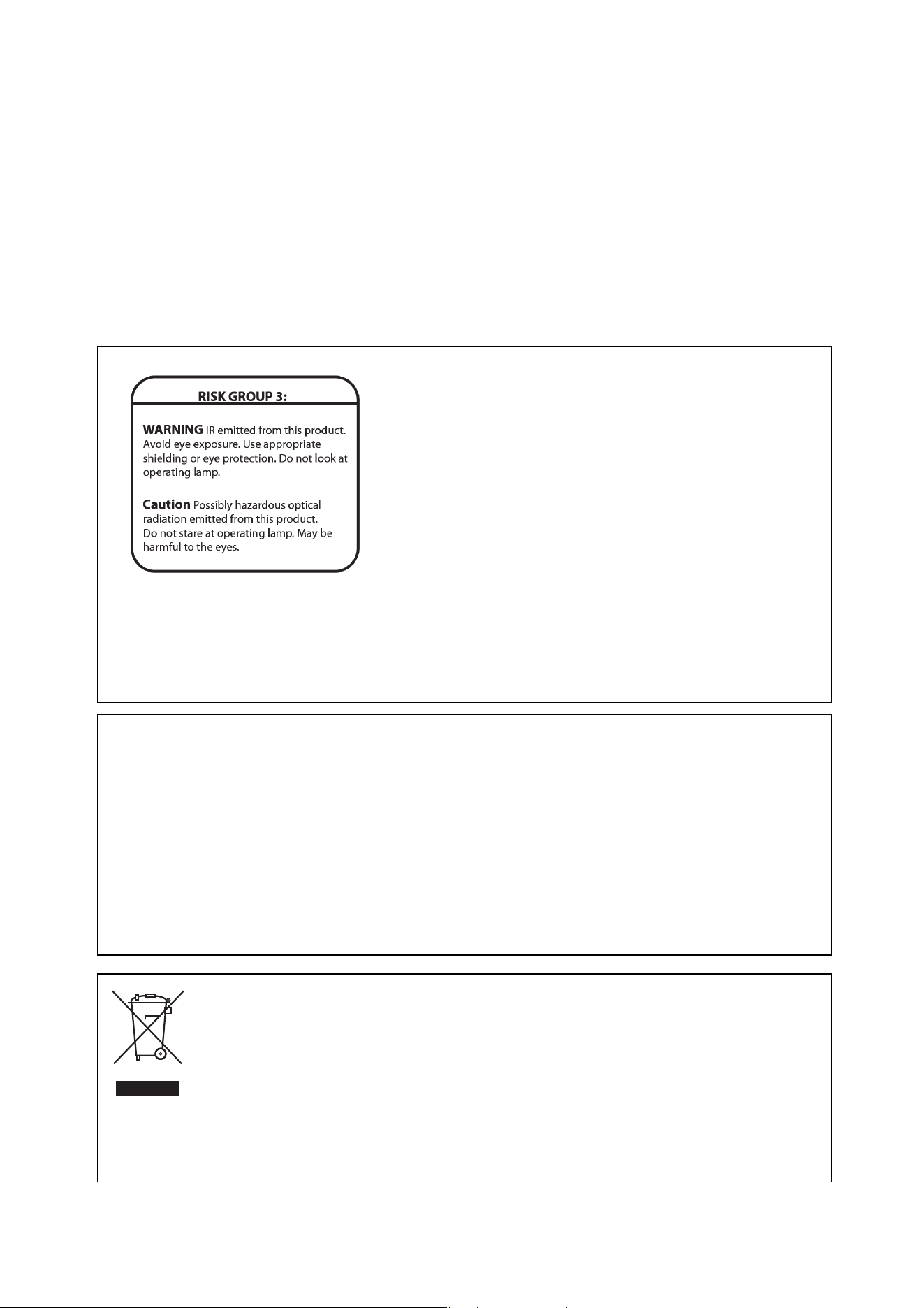
Specifications 57
Ordering information
MAC III Wash in cardboard packing case . . . . . . . . . . . . . . . . . . . . . . . . . . . . . . . . . . . . . . . P/N 90206520
MAC III Wash in flightcase . . . . . . . . . . . . . . . . . . . . . . . . . . . . . . . . . . . . . . . . . . . . . . . . . . P/N 90206530
Specifications subject to change without notice. For the latest product specifications including
photometric data, see www.martin.com
Disposing of this product
Martin™ products are supplied in compliance with Directive 2002/96/EC of the European Parliament and of the
Council of the European Union on WEEE (Waste Electrical and Electronic Equipment), as amended by Directive
2003/108/EC, where applicable.
Help preserve the environment! Ensure that this product is recycled at the end of its life. Your supplier can give
details of local arrangements for the disposal of Martin products.
This product contains two batteries. Ensure that they are disposed of responsibly by an authorized recycling or
waste disposal center at the end of their life. Where applicable, Martin participates in schemes whose aim is to
ensure that local recycling and/or waste disposal centers accept batteries from Martin products.
Intellectual Property Rights
MAC III™ products are covered by one or more of these patents: CN100567808; CN101430070; CN101430073; CN101430075;
CN101430080; CN101435554; CZ17567U; DE60009334.4; EP1234197; EP1747399; EP2117284; US6241366; US6601973;
US6687063; US6971770; US7222997; US7498756; US7559676; US7654693; US7703948; US7789525; US7789533;
US7789543; US7905630; US7942535; US7954981; US7990673,
and/or one or more of these patent applications: CN101430074; CN101430076; CN102155731; CN201080025103.3;
CN2010800394588; DKPA201270221; EP10815017.8; EP10815018.6; EP2058589; EP2091302; EP2103864; EP2112431;
EP2113714; EP2133626; EP2136136; EP2146141; EP2326150; EP2443381; US13/378,184; US13/394,924; US13/394,939;
WO2011/029448; WO2011/029449; WO2011/085732,
and/or one or more of these designs: CN300993074; CN301014852; CN301022860; CN301063459; EU000918891;
USD612532S; USD614344; USD618377S; USD638573S,
and/or one or more other intellectual property rights, including one or more intellectual property rights listed on www.martin.com/ipr
Photobiological Safety Warning
The label shown on the left is displayed on this product. If it becomes difficult or
impossible to read, it must be replaced using the illustration on the left to
reproduce a new label.
FCC Compliance
This device complies with Part 15 of the FCC Rules. Operation is subject to the
following two conditions: (1) This device may not cause harmful interference,
and (2) this device must accept any interference received, including
interference that may cause undesired operation.
Canadian Interference-Causing Equipment Regulations -
Règlement sur le Matériel Brouilleur du Canada
This Class A digital apparatus meets all requirements of the Canadian
Interference-Causing Equipment Regulations.
Cet appareil numérique de la classe A respecte toutes les exigences du
Règlement sur le Matériel Brouilleur du Canada.

58 MAC III Wash user manual


www.martin.com • Olof Palmes Allé 18 • 8200 Aarhus N • Denmark
Tel: +45 8740 0000 • Fax +45 8740 0010