User Manual
VE019
Model No.
Need Help? Contact Us!
Call us at +1(855)400-3853 ( Monday-Friday 9:00am-5:00pm PST ),
if you have any questions.
iveise.com
Scan the QR code and search VE019
to get the video.
Tutorial Video
Content
01
At a Glance
10
How to Lock / Unlock
02
App Guide
03
Step 1: Register Your Account
04
Step 2: Pair Your Lock
09
App Unlock / Lock
22
FAQ
19
Programming Guide 13
Definitions
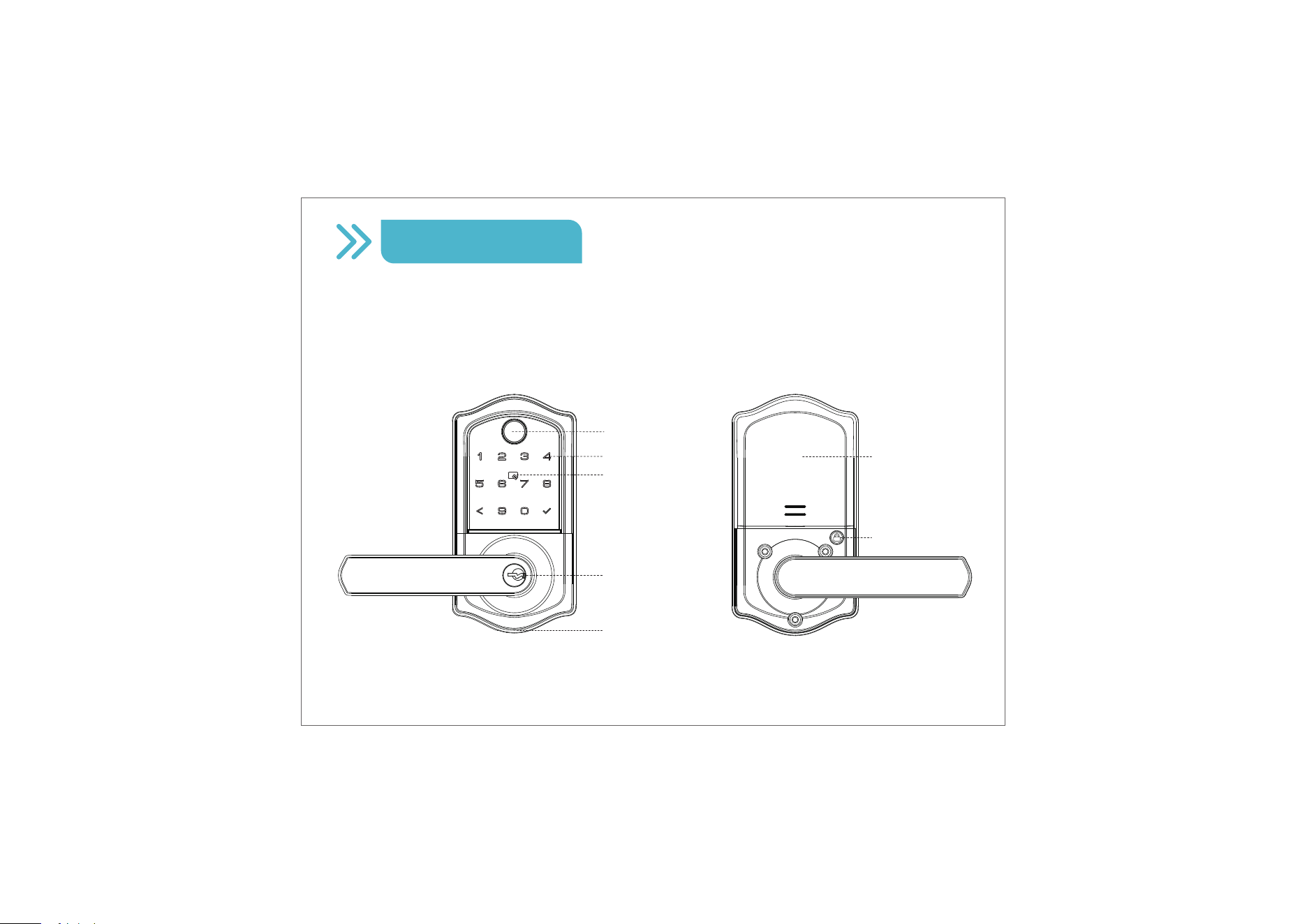
Exterior Assembly Interior Assembly
At a Glance
01
Battery Cover
Lock Button
Keypad
Fingerprint
User Card
Touch Area
Keyhole
Emergency
Power Port
Call us at +1(855)400-3853,
if you have any questions.
Scan the QR code
Search
VE019
iveise.com
02
App Guide
Before Pairing
If you have changed the default Master Code (12345678) on the lock, please enter
your new Master Code when pairing.
If you have not changed the default Master Code, please follow the instructions in
the App to change it after pairing is completed.
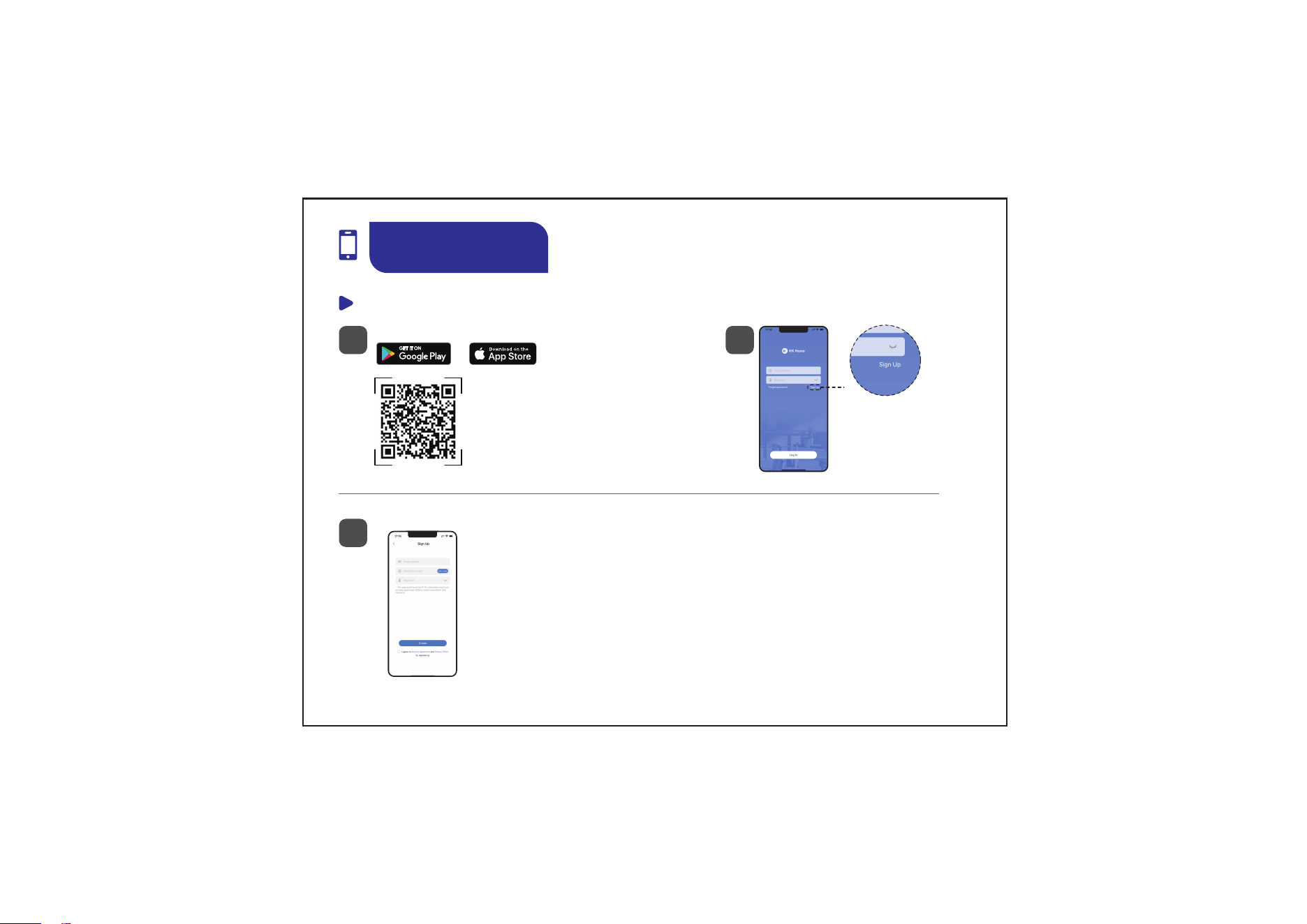
Step 1: Register Your Account
Complete the register information and tap “Get Code”,
you will receive a Verification code in the mailbox you
entered to Create.
2
Tap on “Sign Up”
3
Scan the QR code to
download “KK Home” App
1
Search and download “KK Home” in
or
App Guide
03
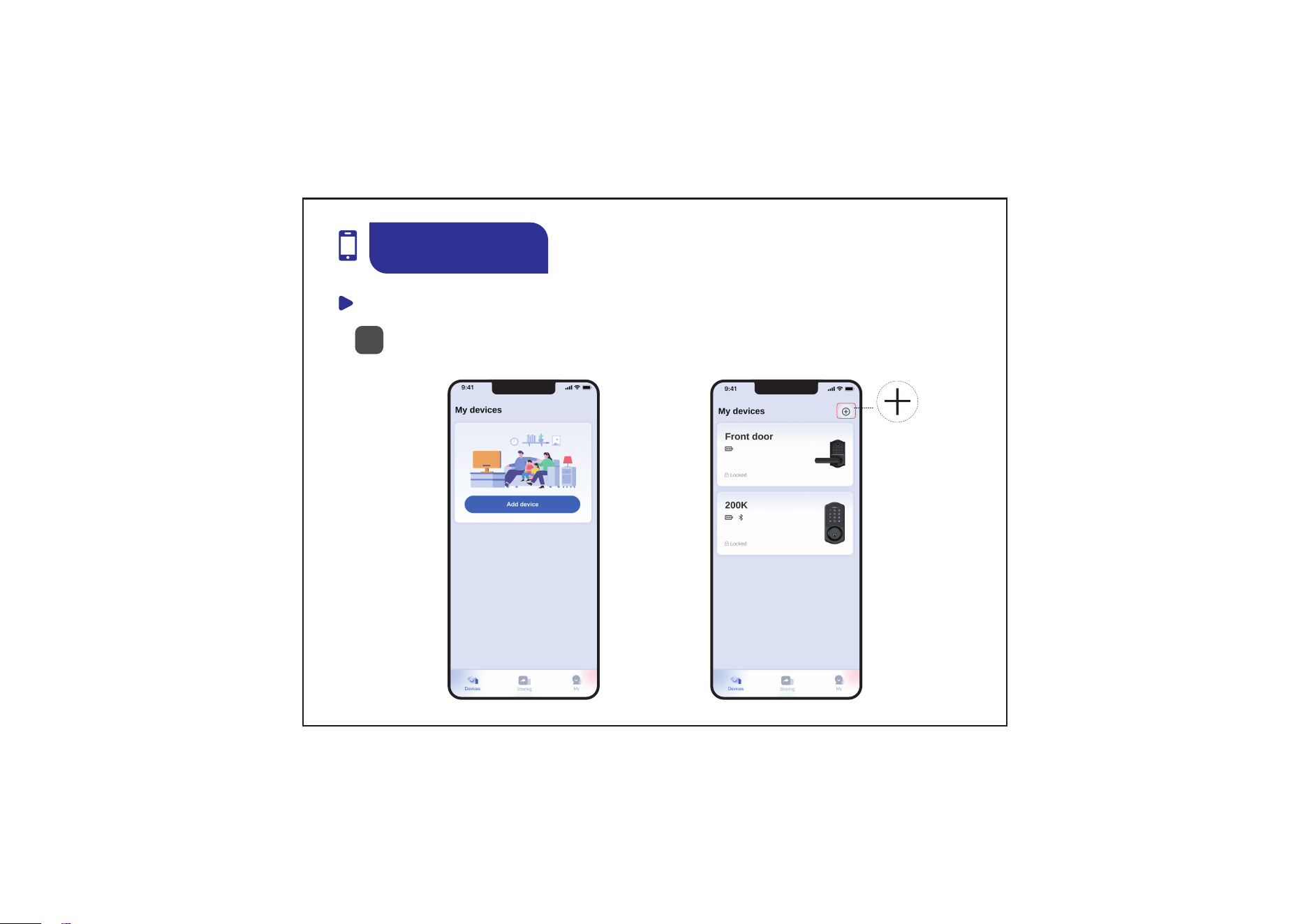
Step 2: Pair Your Lock
1
App Guide
04
Bring your phone close to the lock, enable Location and Bluetooth permissions,
then click "Add device" or "+".
or
Step 2: Pair Your Lock
2
App Guide
05
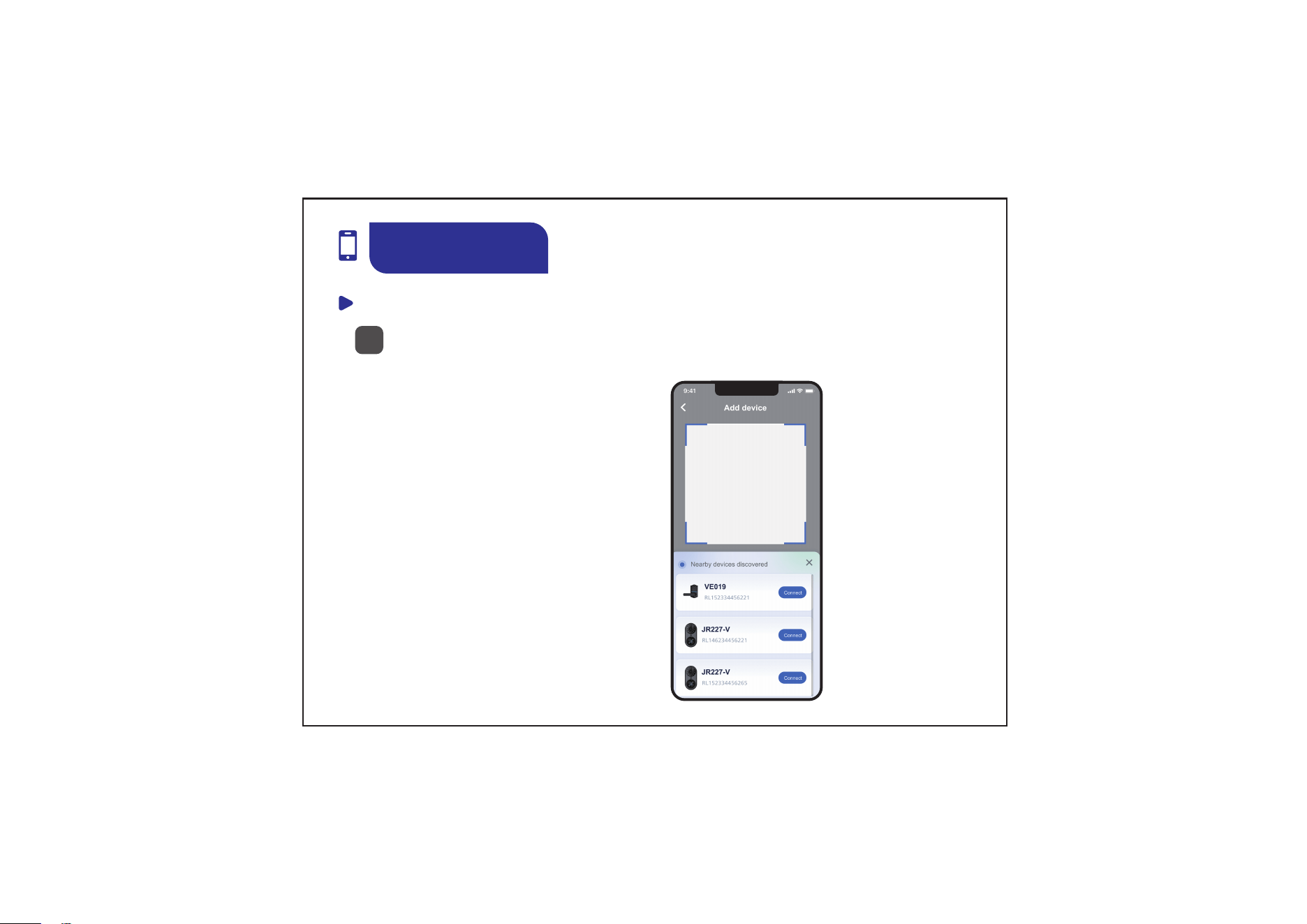
Add device by searching nearby devices or scanning QR code
Option 1, search devices automatically
Option 2, scan QR code or enter ESN manually
Step 2: Pair Your Lock
3
App Guide
06
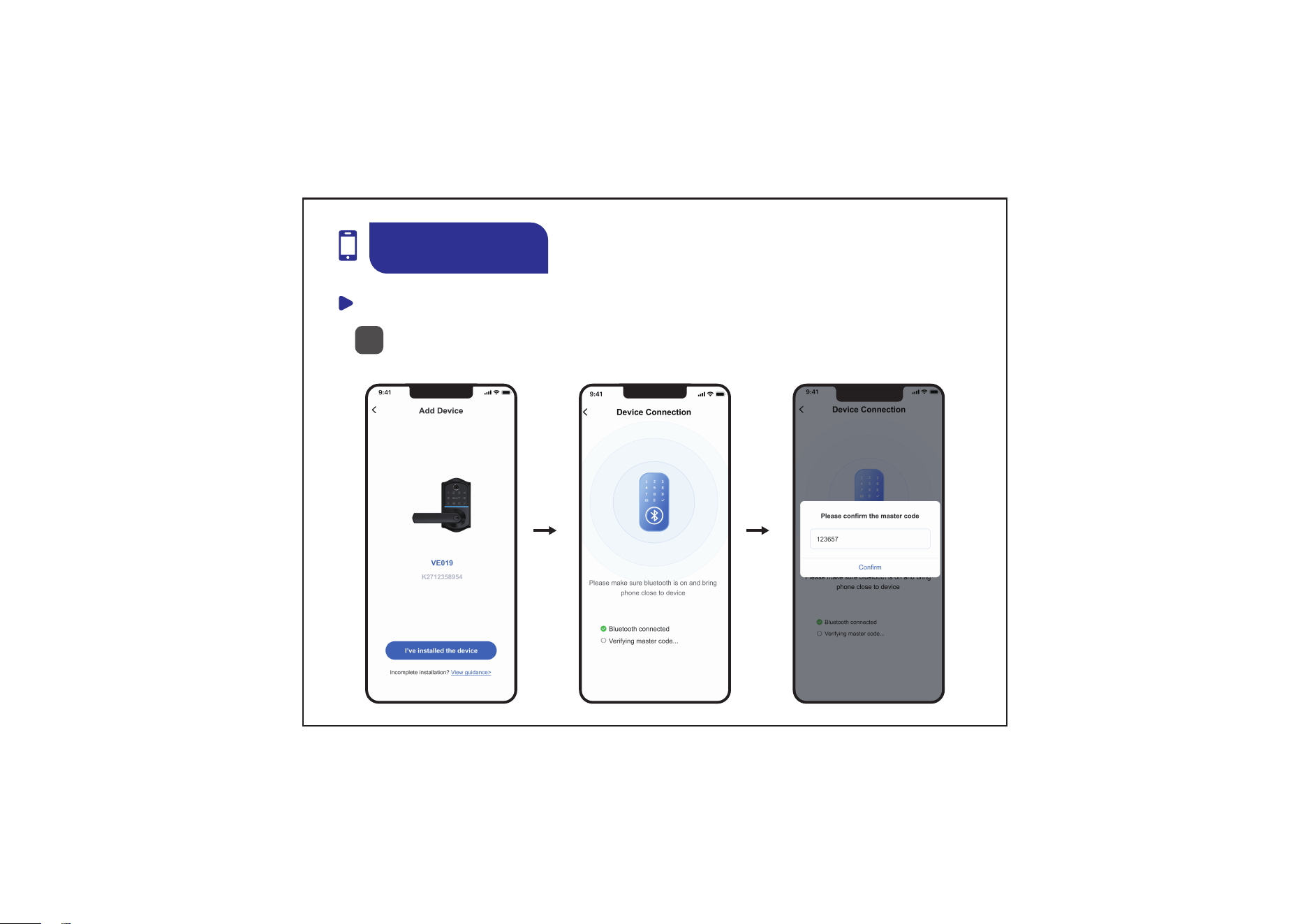
If you have changed the default
Master Code on the lock, please
enter your new Master Code.
Click on your device to start pairing
Step 2: Pair Your Lock
4
App Guide
07
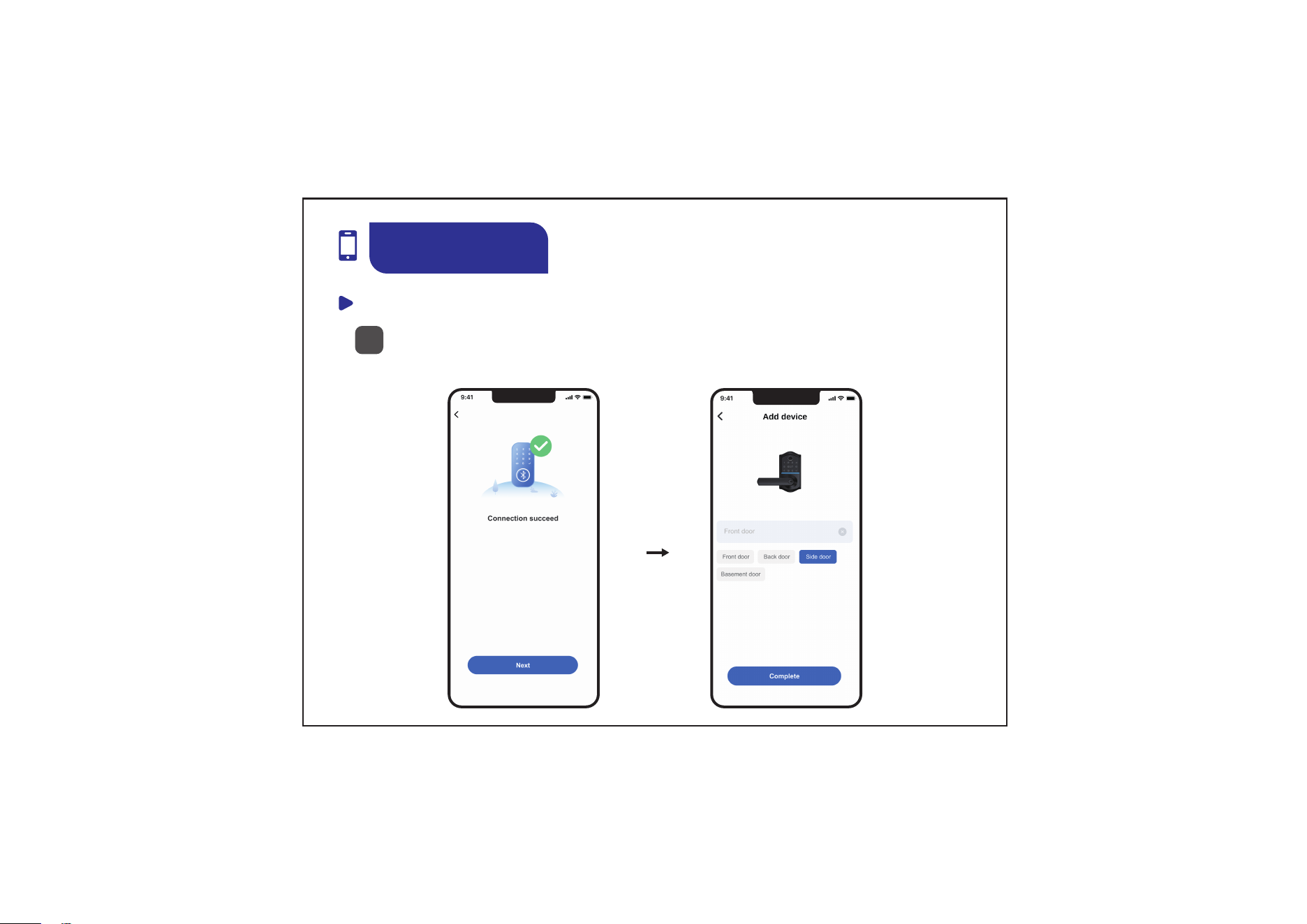
Pairing successfully, name your lock and complete
Step 2: Pair Your Lock
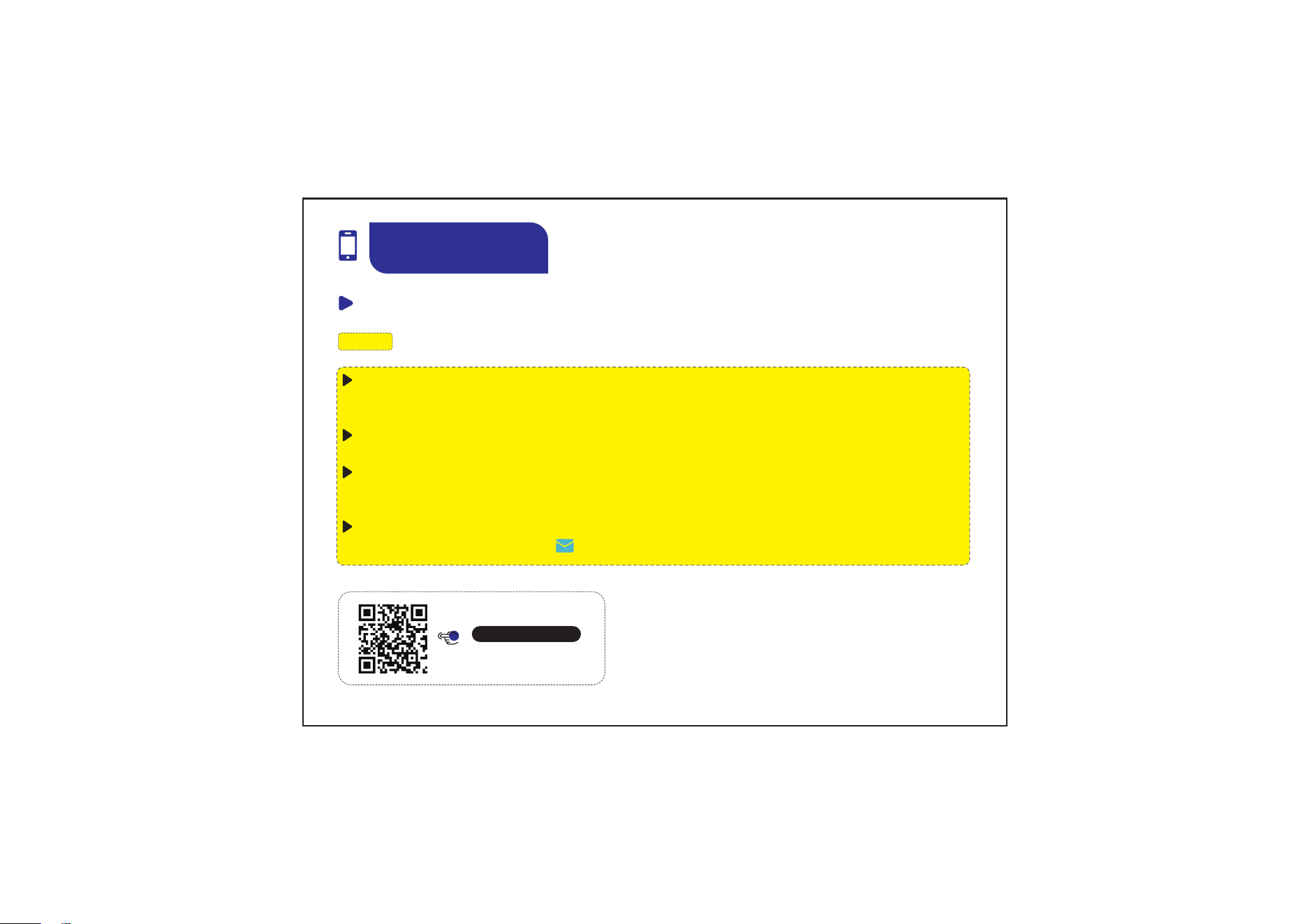
NOTE: If the lock is not found in the list, please review the following tips.
Scan the QR code
Search
VE019
App Guide
08
Perform a resetting on the lock, test if the default Master Code (12345678) works to
unlock.
Make sure both Location and Bluetooth are enabled.
During the pairing, please wake up the Keypad screen by using your palm and keep
the screen always on.
Call us at
+1(855)400-3853
(Monday-Friday 9:00am-5:00pm PST),
if you have any questions.
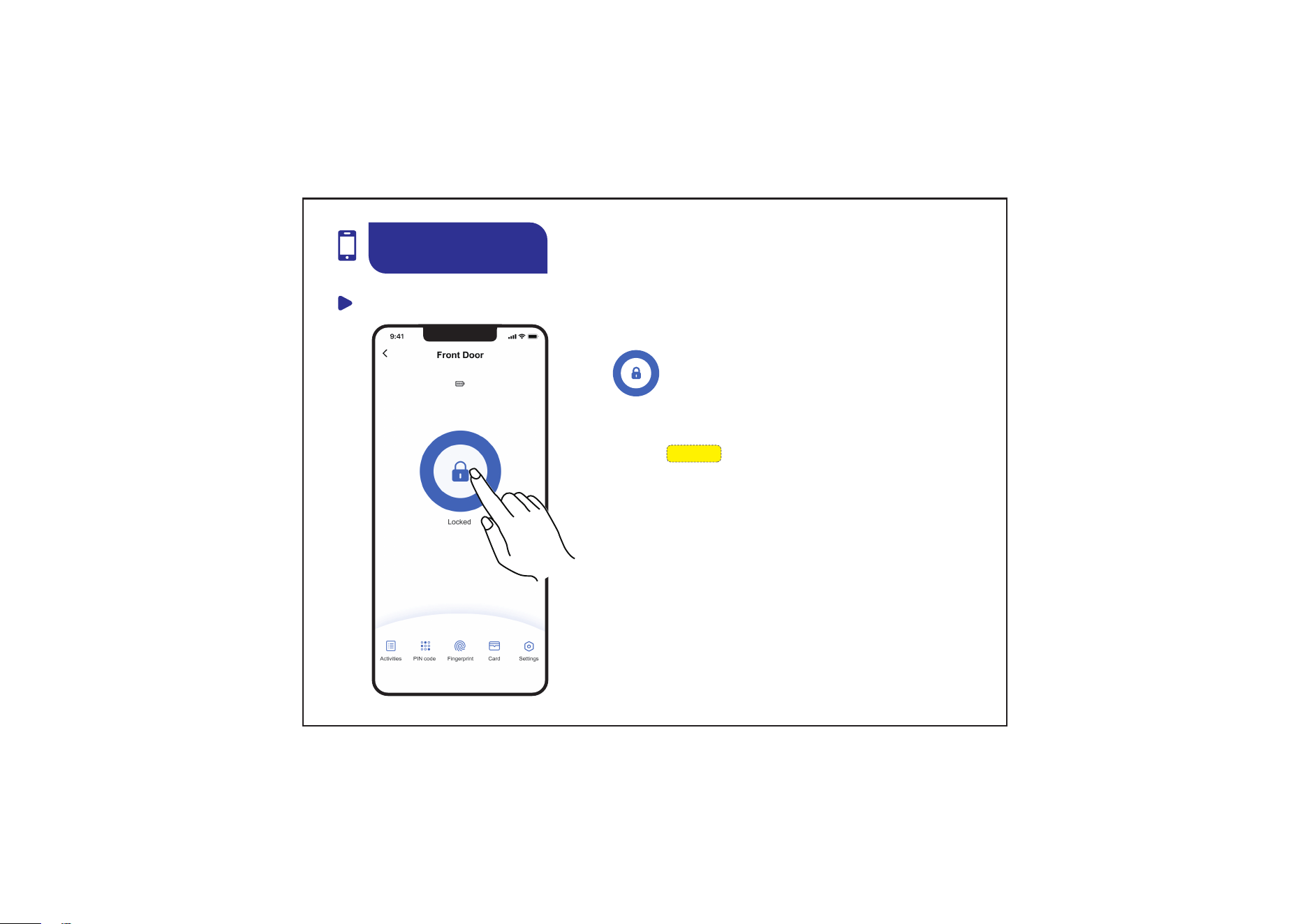
App Unlock / Lock
1
App Guide
09
NOTE:
App unlock and lock only works when
you are in the Bluetooth range of the
lock.
Tap the icon once to unlock
or lock
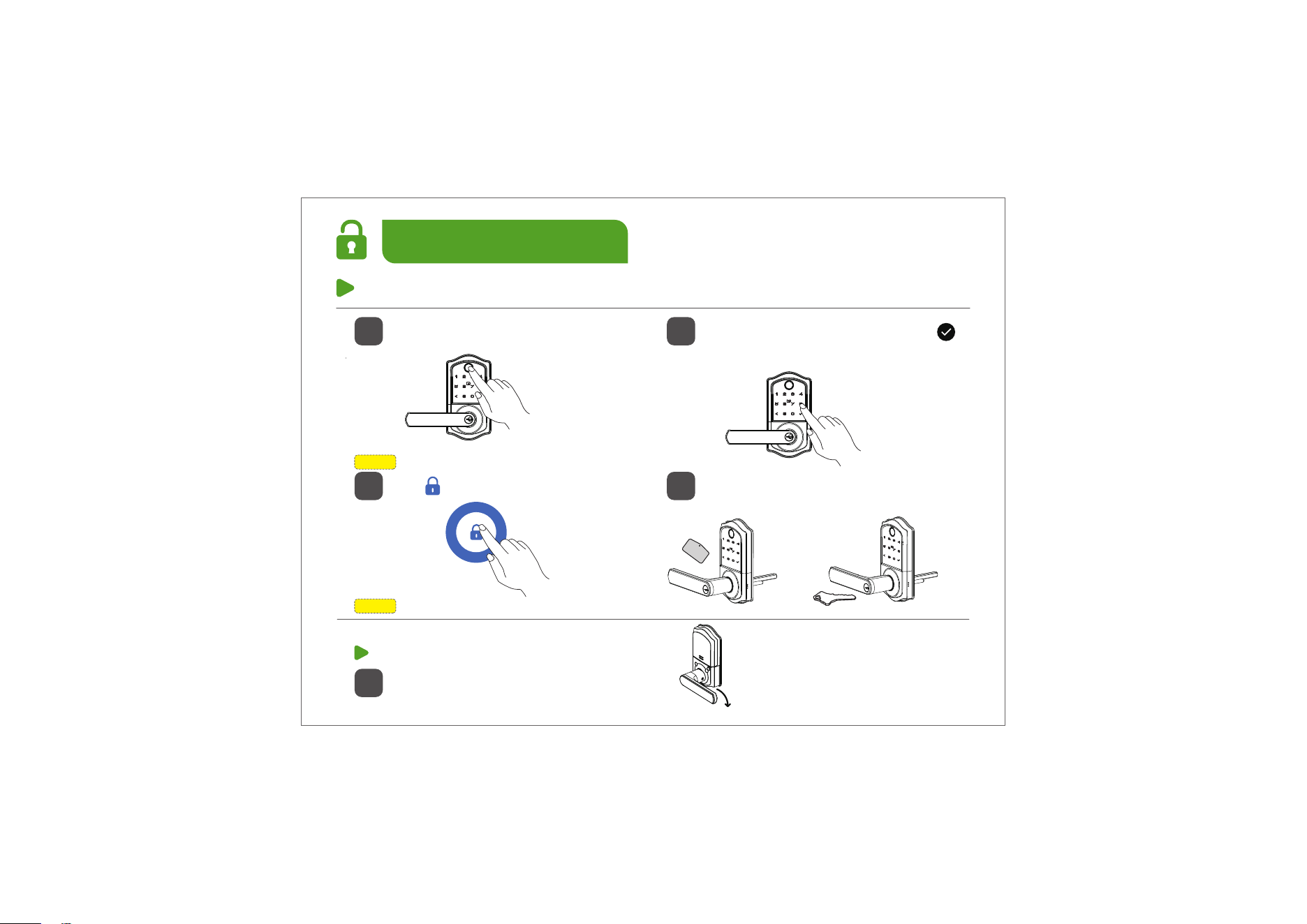
How to Unlock
1. Unlock from outside.
10
NOTE: It requires to pair the lock with KK Home first.
NOTE: It requires to add your fingerprint first.
1
1
Press down the handle to unlock
2
Swipe the User Card or use the
Mechanical Key
3
4
2. Unlock from inside.
Enter Master / User Code, press
Use your Fingerprint
Tap once in KK Home App
or
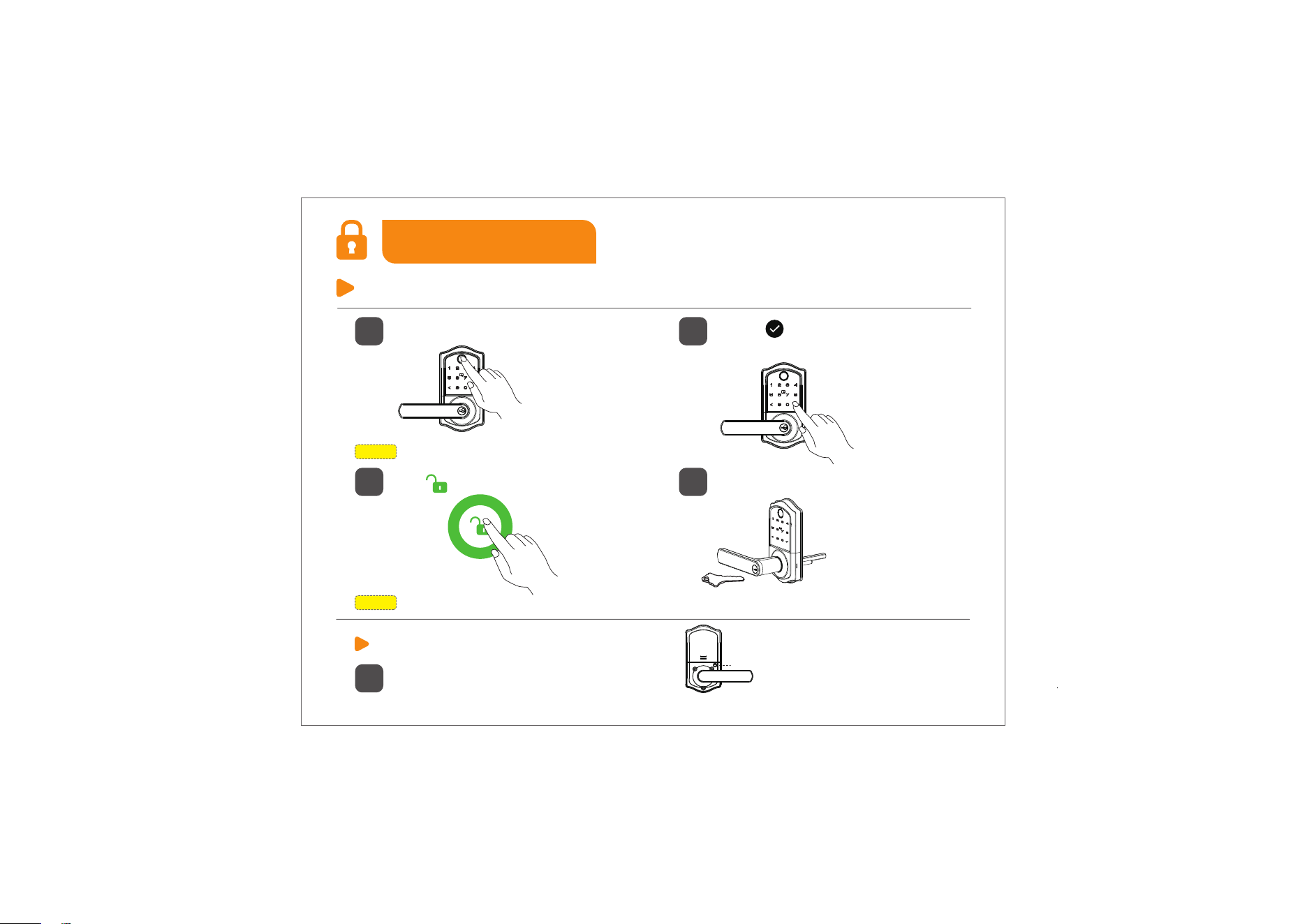
How to Lock
1. Lock from outside.
11
NOTE: It requires to pair the lock with KK Home first.
NOTE: It requires to add your fingerprint first.
1
Touch once or press any
button for 2 seconds
2
Use the Mechanical Key
4
Tap once in KK Home App
3
Use your Fingerprint
2. Lock from inside.
Press the Lock Button once to lock
1
Lock Button
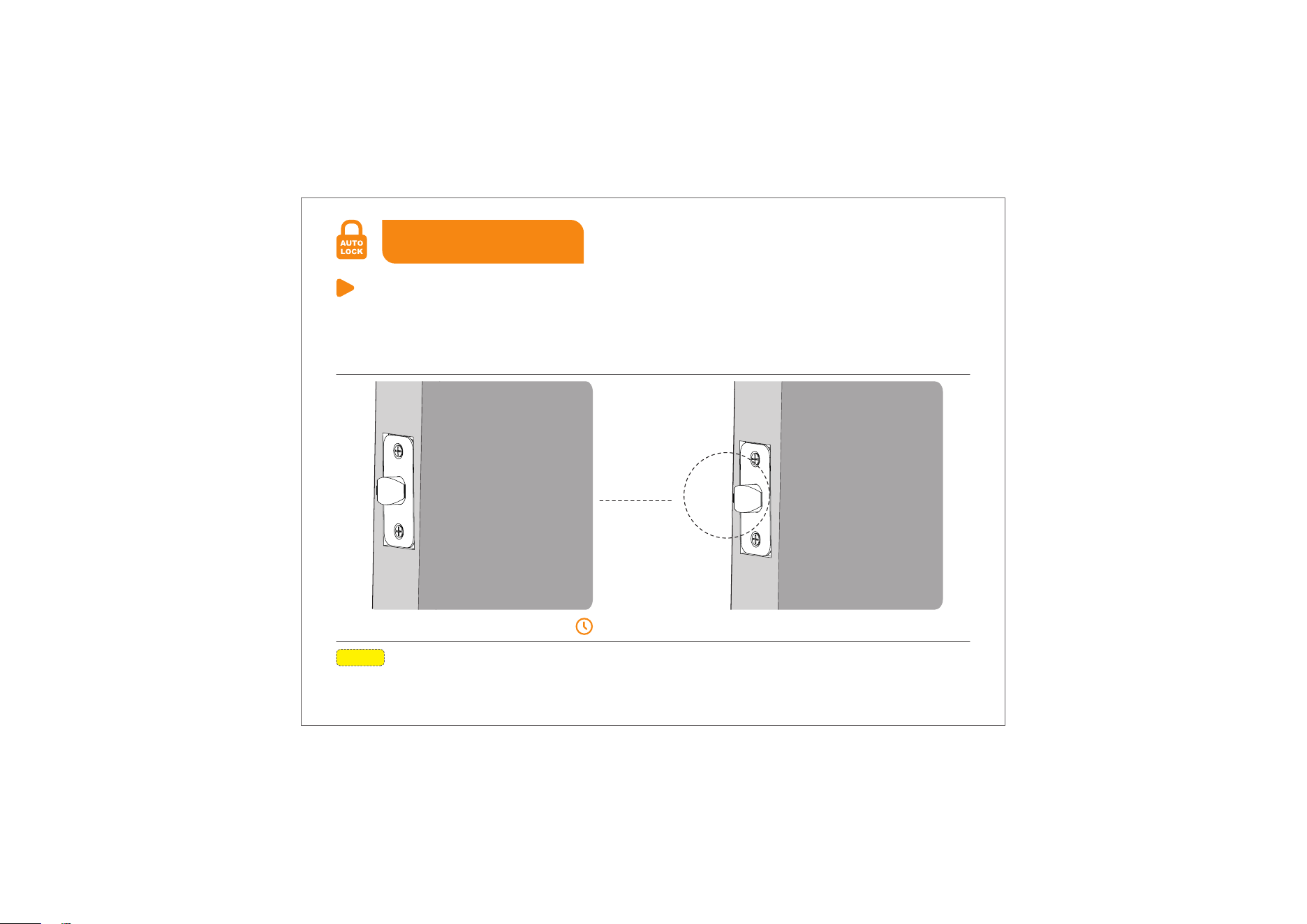
NOTE: Auto Lock is enabled by default. The lock doesn’t have a built-in door sensor, if the Auto Lock
is enabled, it will lock automatically whether your door is closed or open.
30 seconds later
Auto Lock
In Auto Lock mode, your smart lock will automatically lock the door after
30 seconds.
You can customize the Auto Lock delay to 10–99 seconds on the lock or
10–180 seconds via KK Home App.
12
Auto Lock
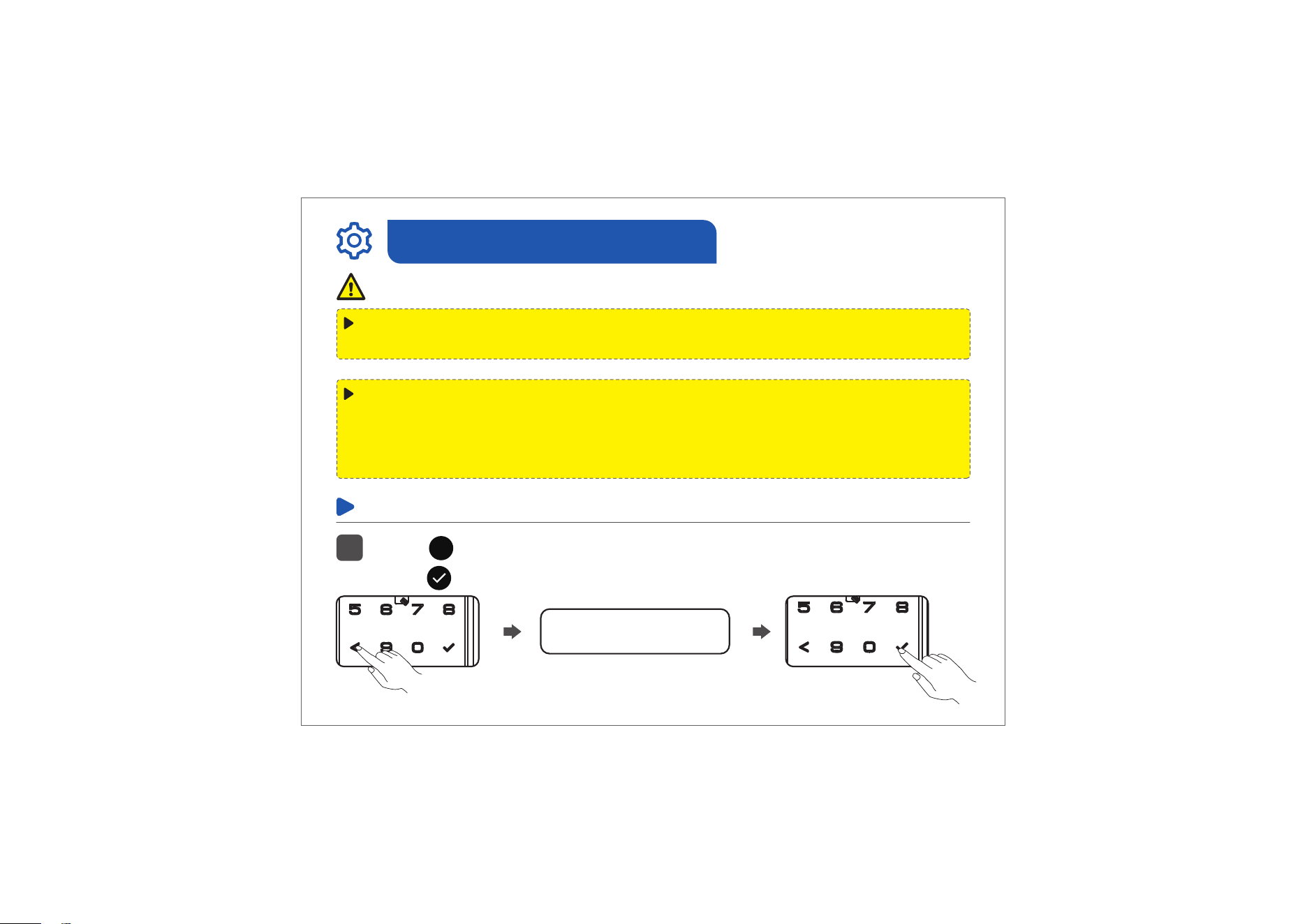
Programming Guide
Change Master Code
Press twice, then enter the Default Master Code (12345678),
press once.
1
Default Master Code
x2
x1
13
<
Important:
The default Master Code is 12345678. It’s required to change a new
Master Code of your own before programming the lock.
If you are not going to use KK Home App, you can program the lock
manually on the lock by following the Programming Guide.
The Master / User Code you program on the lock can be synchronized to
KK Home App, so you can view the code record in KK Home App.
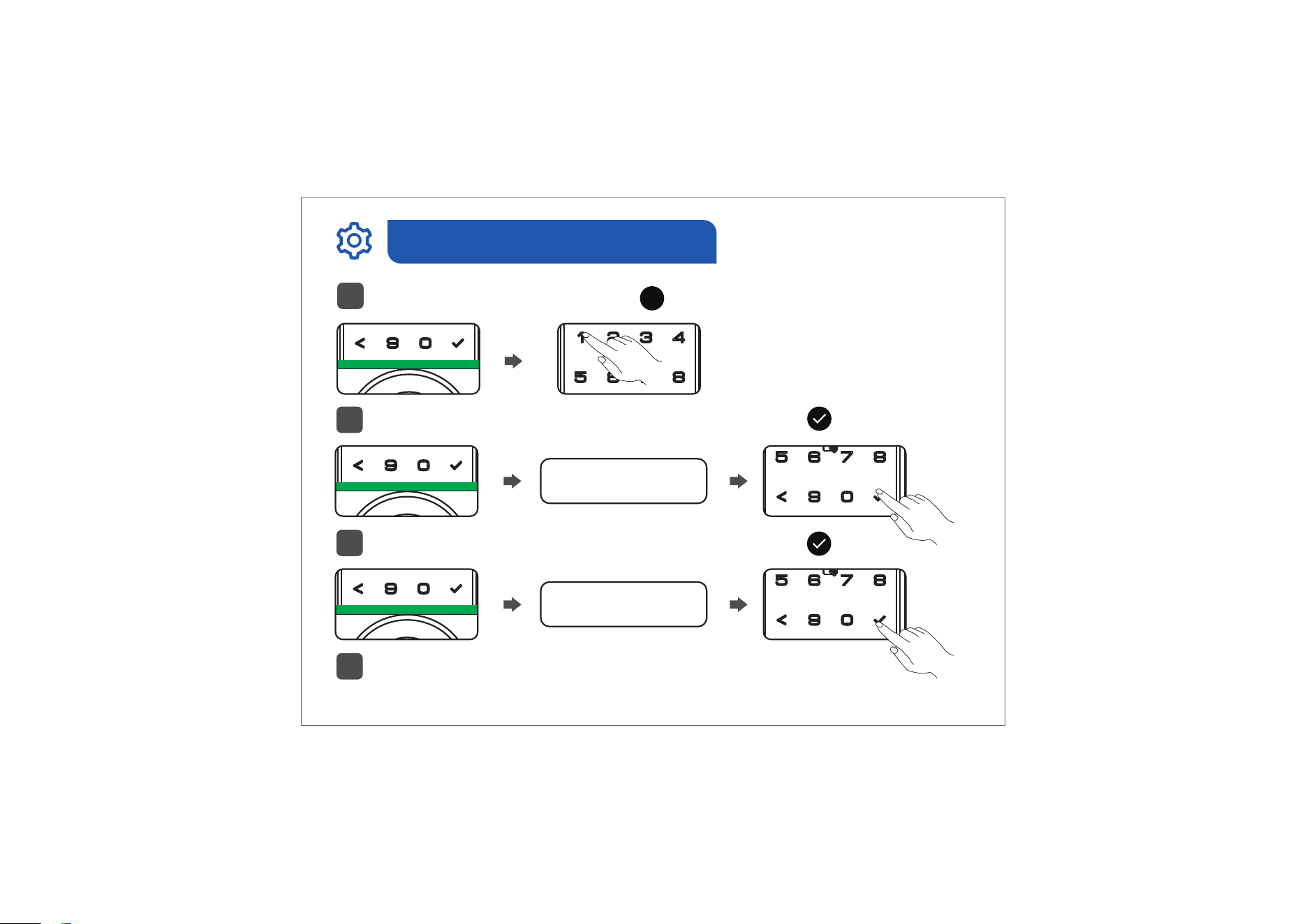
x1
x1
When green light flashes, press on the Keypad.
2
Then enter your New Master Code, and then press .
3
New Master Code
New Master Code
Enter your New Master Code again, and then press .
4
Congratulations on completing this programming when the
green indicator light flashes!
5
Programming Guide
14
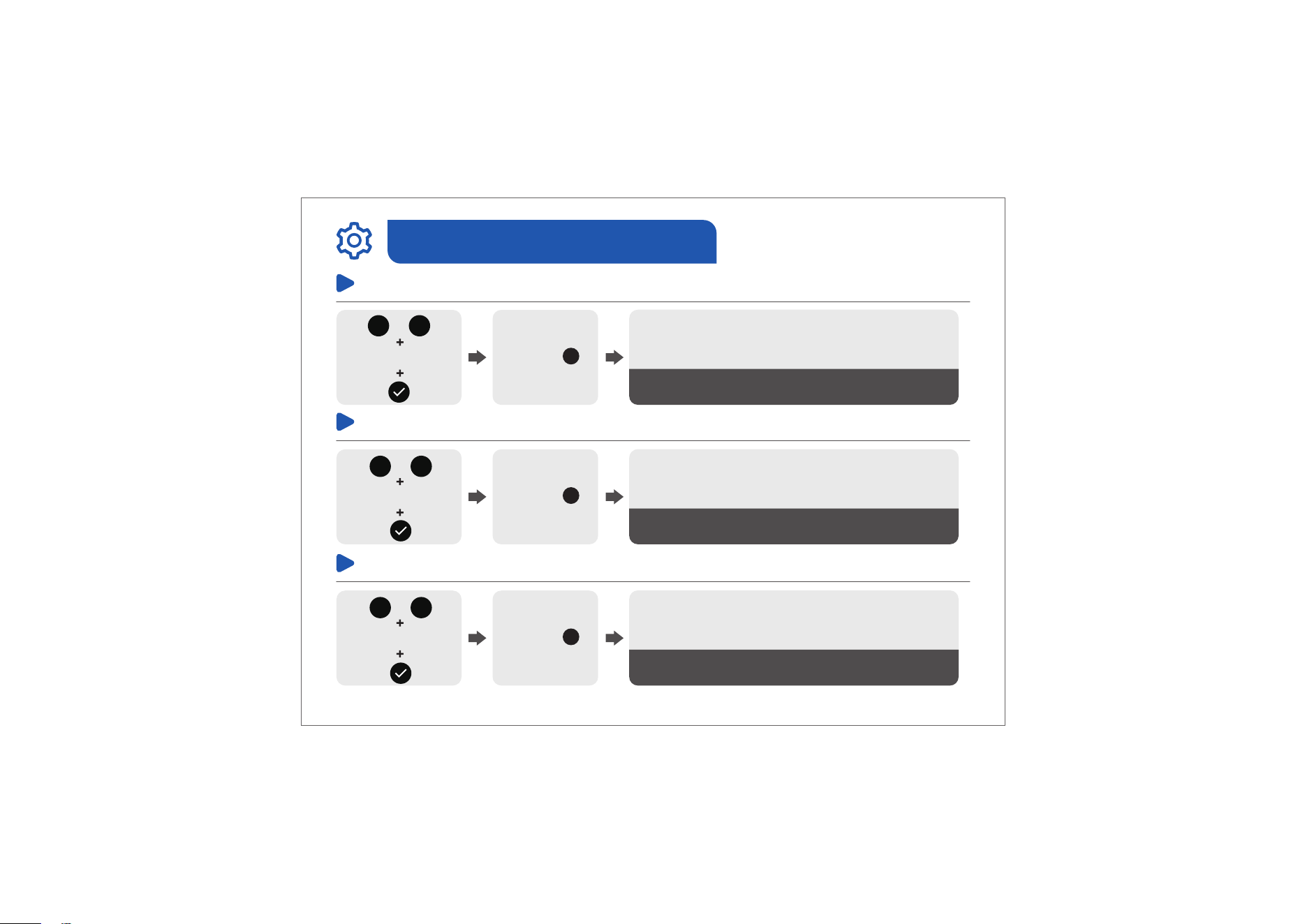
1
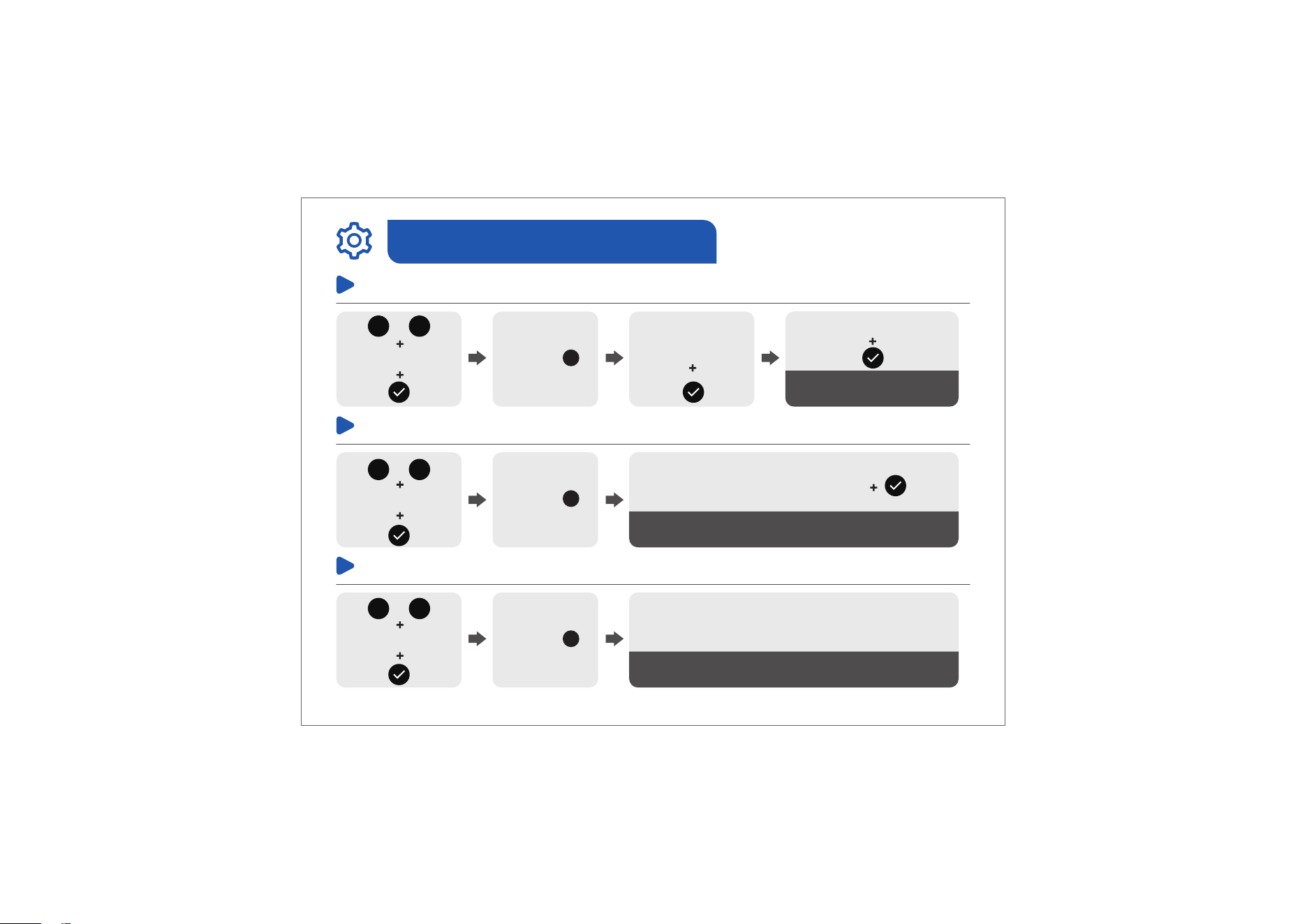
Delete User Code
Press
3
Succeed
Green light flashes
Master Code
Add User Code
Master Code
New
User Code
Press
2
New User Code
Succeed
Green light flashes
Programming Guide
15
Unwanted User Code
<
<
Scan Fingerprint 8 times
(Each time succeed along with a short beep)
Succeed
Green light flashes
Add Fingerprint
Master Code Press
4
<
<
<
<
Programming Guide
16
Scan Unwanted Fingerprint Once
Succeed
Green light flashes
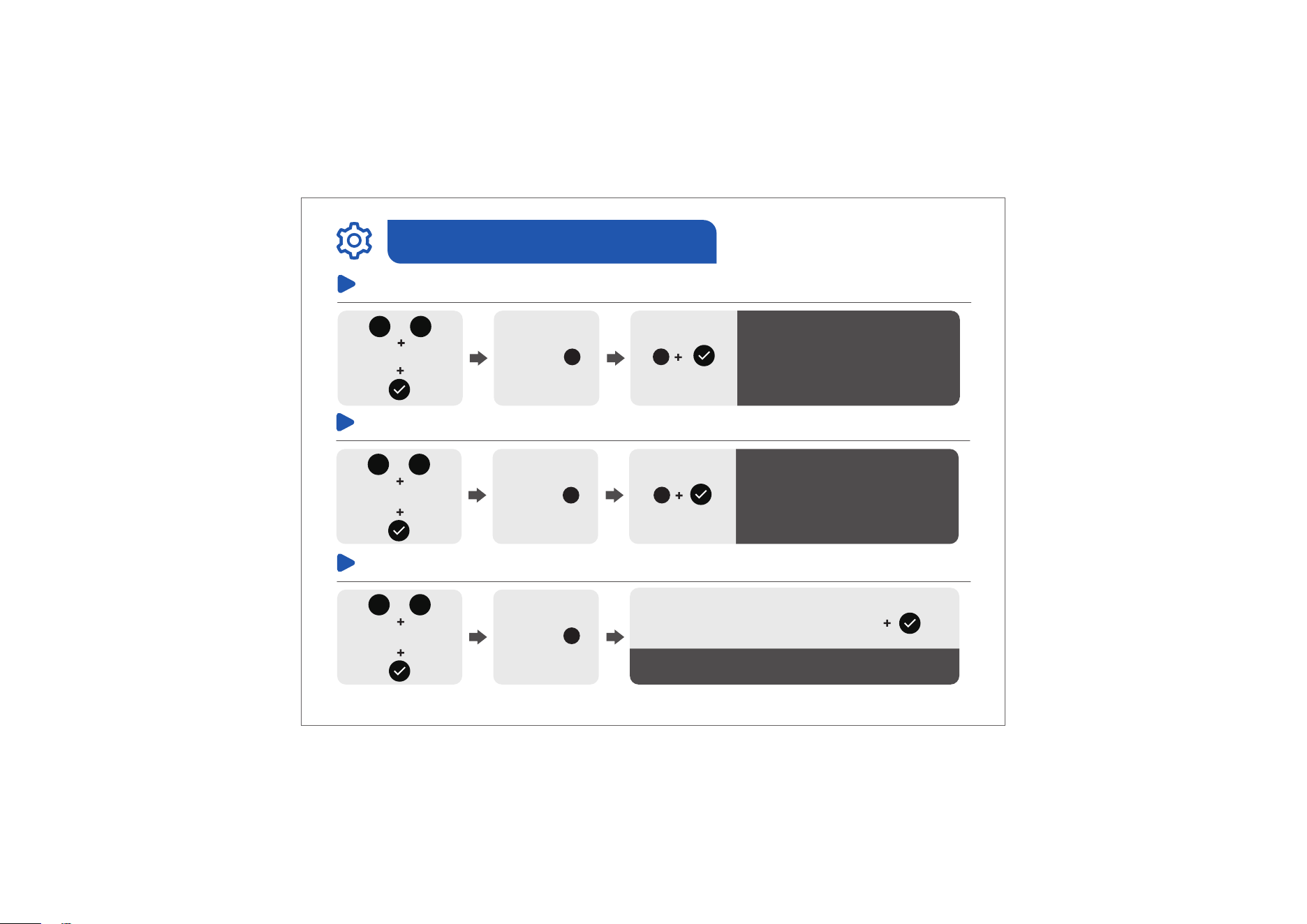
Delete Fingerprint
Press
5
Master Code
<
<
Delete User Card
Succeed
Green light flashes
Scan User Card
Add User Card
Press
6
Master Code
<
<
Succeed
Green light flashes
Scan Unwanted Card
Press
7
Master Code
<
<
Succeed
Green light flashes
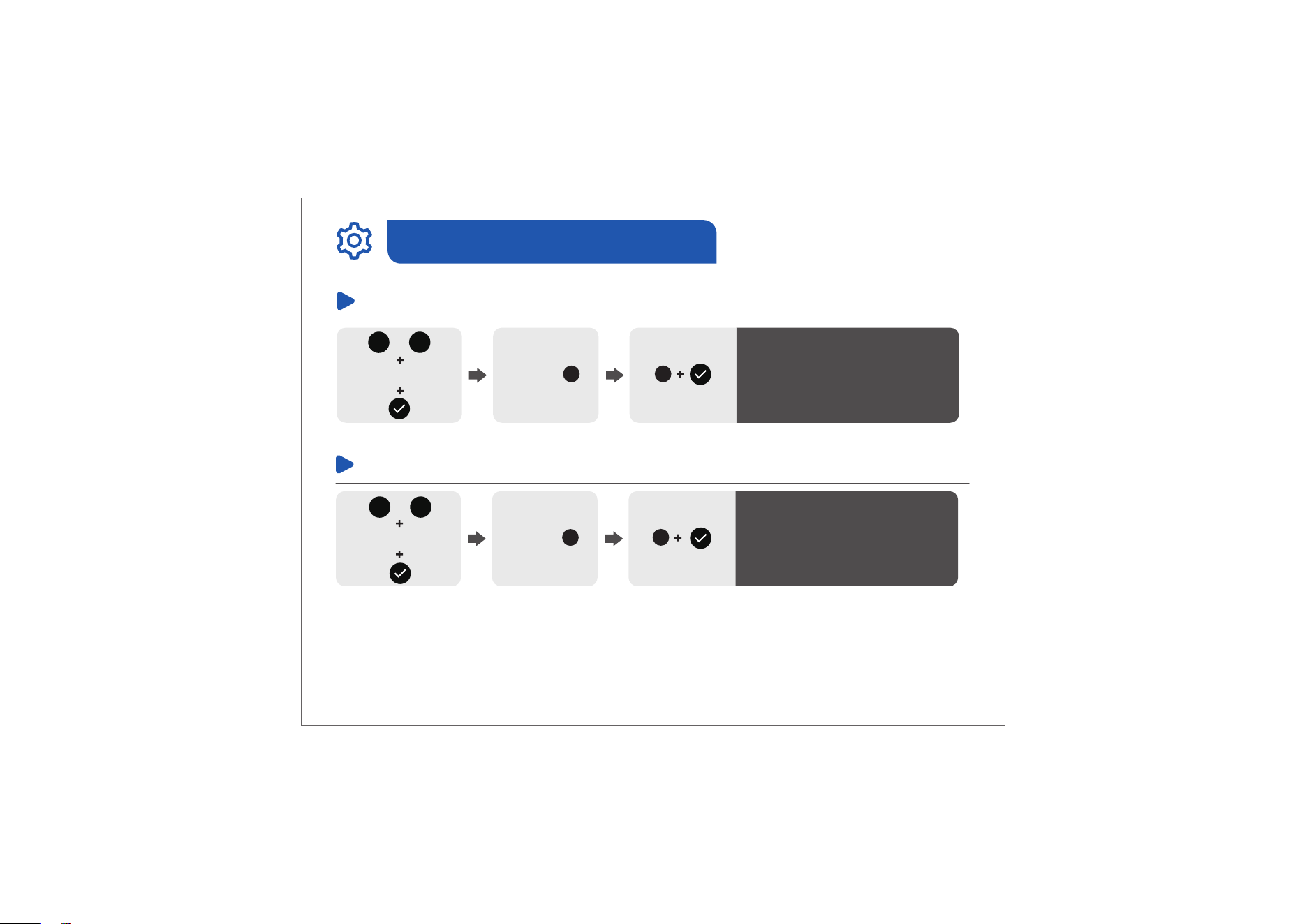
Enable Auto Lock
Press
9
Master Code
Programming Guide
Succeed
Green light flashes
Disable Auto Lock
Master Code Press
9
17
1
<
<
2
<
<
Succeed
Green light flashes
Set Auto Lock Time
Press
0
Master Code
Enter New Duration Time
(10s-99s)
<
<
Succeed
Green light flashes
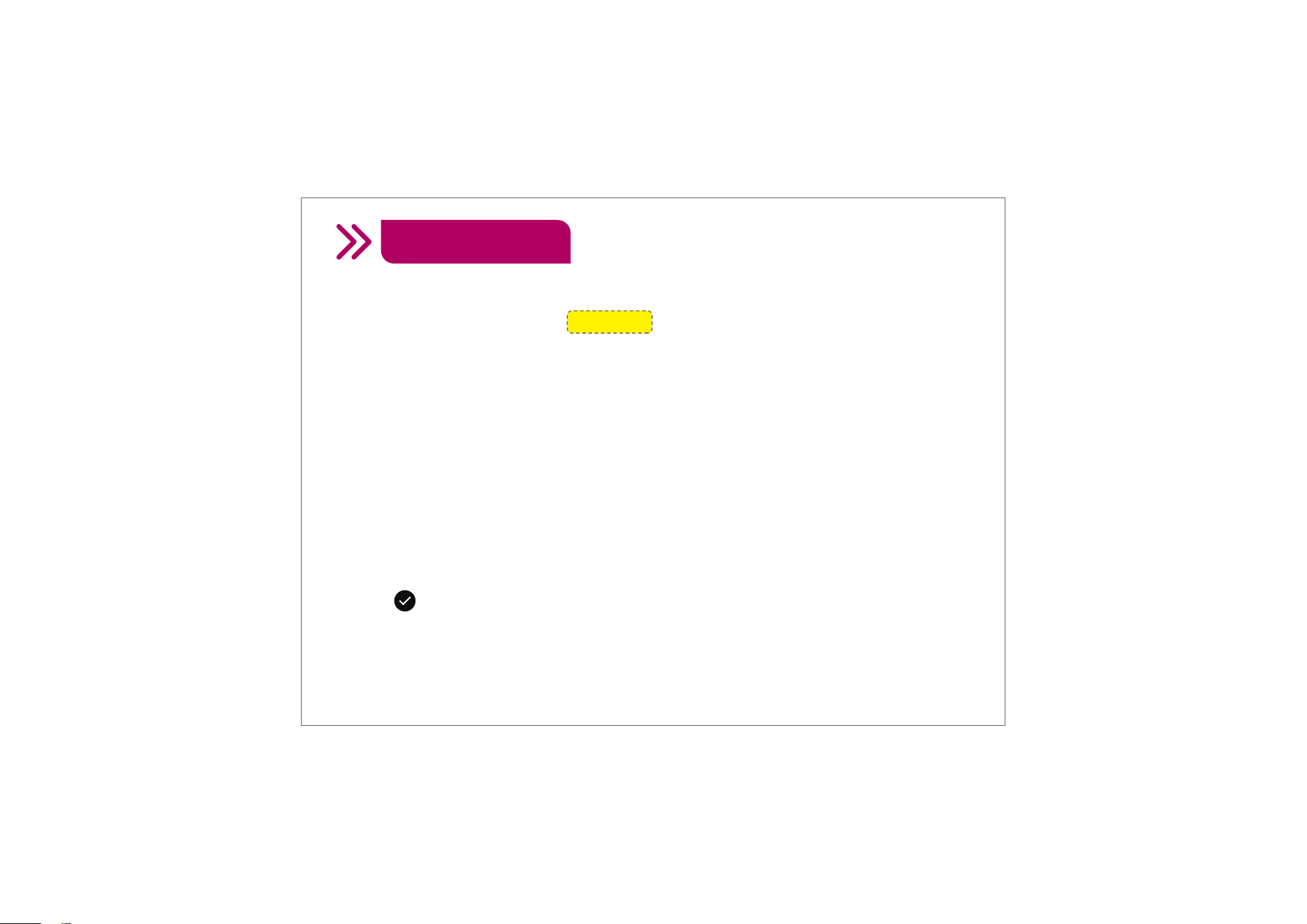
Enable Silent Mode
Press
8
Master Code
Programming Guide
Succeed
Green light flashes
Disable Silent Mode
Press
8
Master Code
18
2
<
<
1
<
<
• Master Code
The default Master Code is 12345678. Before programming, it requires to
change the default Master Code to a new one.
Property owner & manager should keep this information confidential.
• Auto Lock
In Auto Lock mode, your smart lock will automatically lock the door after 30
seconds.
Auto Lock is enabled by default. You can customize the Auto Lock delay to
10–99 seconds on the lock or 10–180 seconds via KK Home App.
• One-touch Lock
Touch once on the Keypad to lock from outside.
Press and hold any button on the Keypad for 2 seconds to lock from
outside.
Definitions
19
• Wrong Entry Limit
After 10 times unsuccessful attempts at entering an invalid access (including
Passcode, Card or Fingerprint), the device will shut down for 3 minutes.
• Silent Mode
The beep sounds when pressing Keypad can be muted. But you will still hear
low battery and system alerts.
Definitions
20
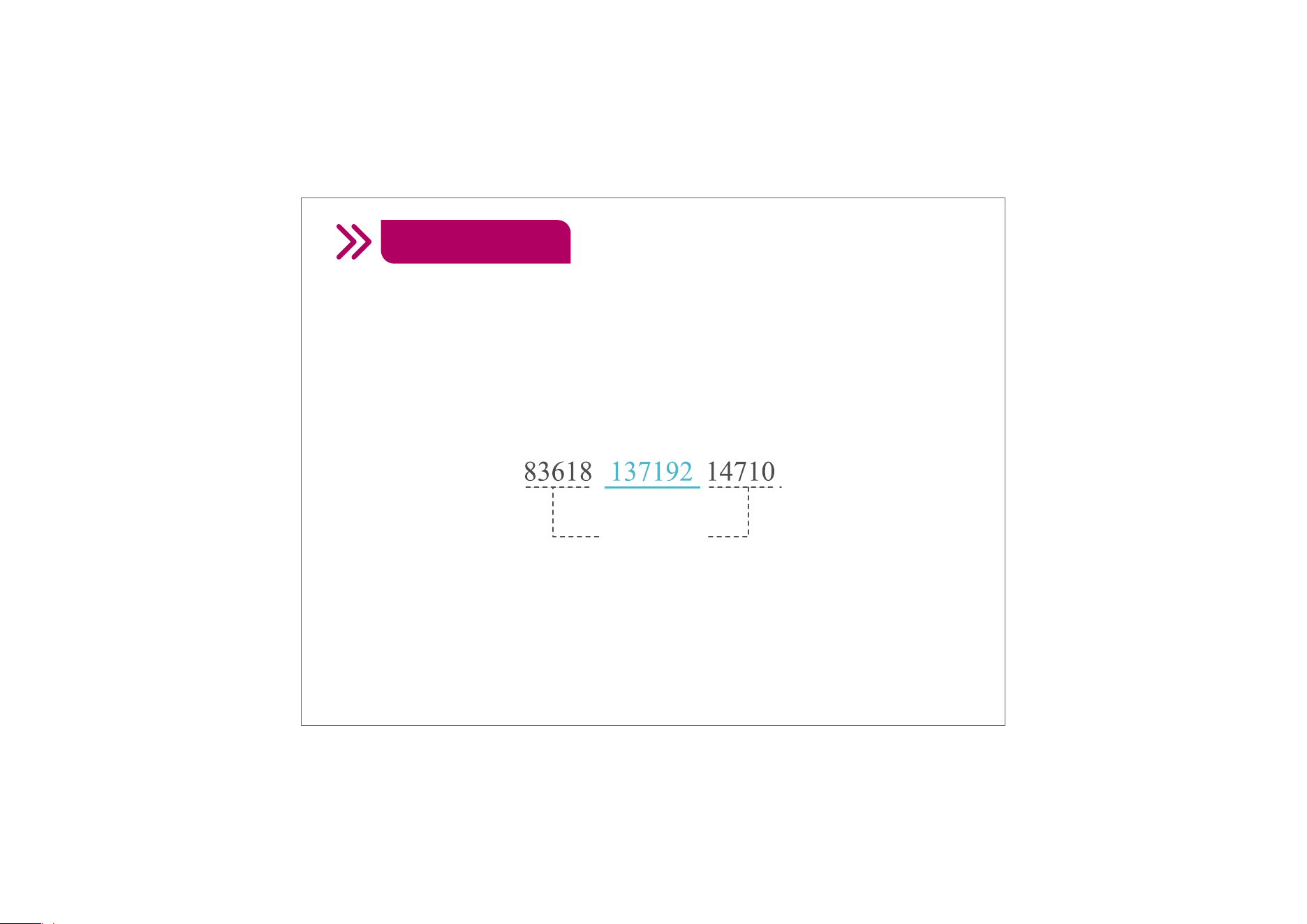
• Anti-peeping Passcode
Entering random numbers before or after correct passcode will also unlock
the door, which can prevent the passcode being exposed.
The length of anti-peeping passcode should be within 16 digits.
PASSCODE
RANDOM DIGITS
Definitions
21
FAQ
• Why am I unable to check the latest
records in the App?
When you are beyond the Bluetooth range of the lock
or the Veise gateway G1 is not connected, the records
of code and User Card unlocking are not in the list
timely. When you are within the Bluetooth range of the
lock or the Veise gateway G1 is connected, refresh
your records.
How to edit, delete, or create
custom codes remotely?
Editing, deleting, or creating custom codes requires
the Veise gateway G1 (sold separately) or you are
within the Bluetooth range of the lock.
Can I add multiple locks to one
account?
Yes, it is able to add multiple locks in KK Home App.
Can I add a lock to two accounts?
No, you can't add locks to two accounts, but you can
share your access to the other account. Please do as
follows:
22
1. Open KK Home App and navigate to User.
2. Select Add user.
3. Choose the device you want to share.
4. Opt for sharing as Family (full permissions)
or Guest (limited permissions).
5. Share with a specific user via Email or an
invitation code (the user must be registered in
KK Home App).
Why I failed to lock / unlock in
KK Home App?
Please check if the door lock installation is
correct and confirm whether the key and
password set on the door lock can unlock the
door properly. If everything is confirmed to be
correct and all mentioned methods can
unlock the door, but the App still cannot
unlock it, please confirm your Bluetooth lock:
Turn on your Bluetooth and grant the App
Bluetooth permission. Make sure you are
within the Bluetooth connection range (within
9.84ft) to operate the App for unlocking and
locking the door.
FAQ
23
How to change the email address
in KK Home App?
We regret to inform you that KK Home App
currently does not support email address changes.
How to connect with Alexa?
To enable your Alexa features, please make sure
that the Veise gateway G1 is connected. Then,
follow the steps below:
1. Make sure your devices are connected properly.
2. Navigate to "My" → "The Third Party Voice
Services" → "Alexa" icon in KK Home App.
3. Select "Agree and link" to initiate the linking
process. Follow the prompts to link your account
and Skill in Alexa App.
4. Locate your device on the Alexa "Home" page
or under "Devices." Click on the settings icon in
the top right corner. In the settings, enable "Unlock
by App" and "Unlock by voice." Create your voice
code as prompted. Once configured, your device
is ready for Alexa control.
How to add Google Assistant
to KK Home App?
To enable your Google Assistant features,
please make sure that the Veise gateway G1
is connected. Then, follow the steps below:
1. Open KK Home App > My > Works with.
2. Click 'Google Assistant' > Click 'Agree and
link'.
(Note: You need to download 'Google Home'
App in advance and redirect to 'Google
Home' App for authorization)
3. Sign in your Google account. If not signed
in, create a Google account.
4. Discover KK Home devices in Google
Home App and add them to the correspond-
ing Home.
5. Back to KK Home App, view the link
status: linked with Google Assistant.
6. Control KK Home devices via Google
Assistant.
Need Help? Contact Us!
If you have any questions, please contact us at
[email protected] iveise.com
(Monday-Friday 9:00am-5:00pm PST)
+1(855)400-3853
If you have your order ID, videos or images of your problem
(if necessary) ready before contacting Customer Support,
we will solve your problem faster and better.
V2.0