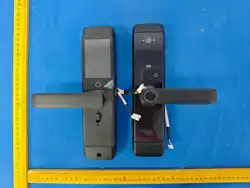
Door Lock
Product Instructions
Door Lock ‒ Basic Model
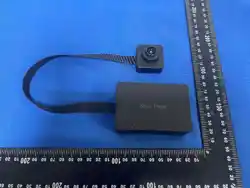
Door Lock ‒ Peephole camera Model
Door Lock ‒ Face Recognition Model
Product Technical Specifications
Permission-based differentiation
Permission-based differentiation
Type-C port
Fingerprint needs to be enrolled 5 times
(please enroll from multiple angles).
Real-time display
of the outside view
Rechargeable polymer
lithium-ion battery
Please refer to the model
forcorresponding unlocking
functions.
Admin Count
User Count
Fingerprint Capacity
Display Screen
Power Supply
Virtual Password Length
Low Voltage Alarm
Operating Voltage
Emergency Power Supply
Operating Temperature
Operating Humidity
10
190
50
4 × AA batteries
≤16
4.8V ±0.2V
6V
5V
-25℃~60℃
20%~90%RH
Fingerprint
Password
IC Card
Mechanical Key
Unlocking
Methods
Temporary
Password
Fingerprint
Password
IC Card
Mechanical Key
Remote unlocking
via Wi-Fi
Temporary
Password
Fingerprint
Password
IC Card
Mechanical Key
Remote unlocking
via Wi-Fi
Face Recognition
Palm vein
Temporary
Password
10
190
50
3.5-inch
Lithium battery
≤16
6.8V ±0.2V
6~8.4V
5V
-25℃~60℃
20%~90%RH
10
190
50
3.5-inch
Lithium battery
≤16
6.8V ±0.2V
6~8.4V
5V
-25℃~60℃
20%~90%RH
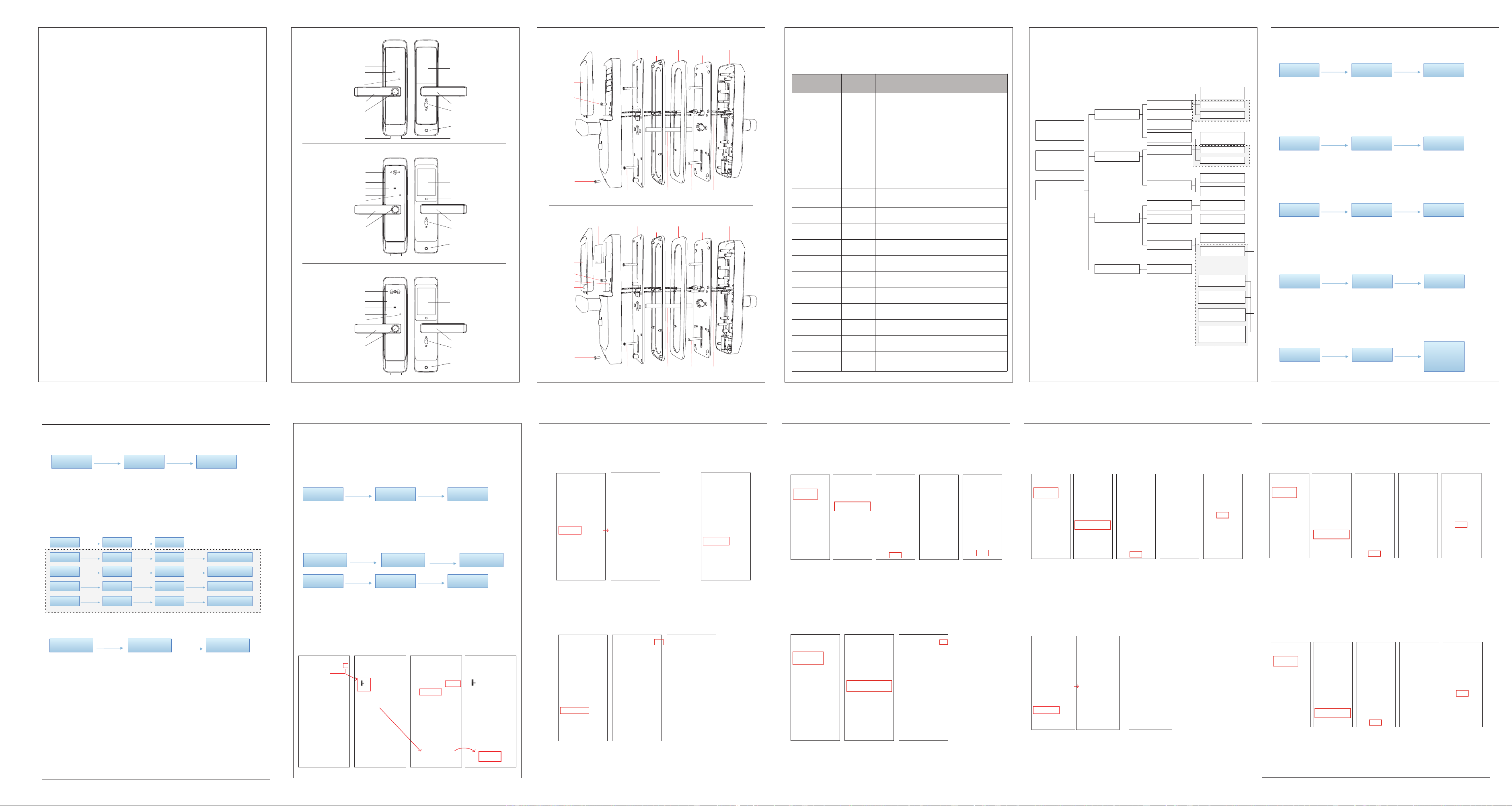
Menu Operation
1. The content within the dashed box applies only to
the operation of face recognition model functions.
[ Face Model Operations * ]
1.R10 Series ‒ available in three models: Basic, Peephole Camera, and Face Recognition.
Note: Functions marked with [*] are available only on the face recognition model.
Menu Structure
The content within the
dashed box is exclusive to
the face recognition model.
Functions Basic Model
Peephole
Camera
Model
Face
Recognition
Model
Detailed Description
123
456
789
*
0
#
123
456
789
*
0
#
123
456
789
*
0
#
Peephole camera
3.5" screen
Battery compartment
Power button
Key Pad
Card Swiping Area
Back Key
Installation screws A
3.5" screen
Rear lock
Front lock
Reset
Installation screws A
Lithium battery Rear mounting plate
Rear rubber pad Front mounting plate
Front rubber pad
Rear lock
Front lockRear mounting plate
Rear rubber pad Front mounting plate
Front rubber pad
Connection cableInstallation screws B Square rod Mounting studs
Connection cableInstallation screws B Square rod Mounting studs
Installation Diagram for Door Lock ‒ Peephole camera / Face Recognition Model
Installation Diagram for Door Lock ‒ Basic Model
Power button
Installation screws A
Battery cover
Reset
Installation screws A
Thank you for choosing our smart door lock.
Please read the instructions carefully before use, thank you!
Doorbell /Confirm Button
Fingerprint Sensor
Front Handle
Key Socket
Emergency Charging Port
Key Pad
Card Swiping Area
Back Key
Doorbell /Confirm Button
Fingerprint Sensor
Front Handle
Emergency Charging Port
Back Handle
Deadbolt Switch
Mounting Screw Holes
Back Handle
Deadbolt Switch
Mounting Screw Holes
Face and palm vein recognition
3.5" screen
Power button
Key Pad
Card Swiping Area
Back Key
Doorbell /Confirm Button
Fingerprint Sensor
Front Handle
Emergency Charging Port
Back Handle
Deadbolt Switch
Mounting Screw Holes
Key Socket
Key Socket
Supports dummy password entry ‒ you may
enter any extra digits before and after the
actual password for enhanced privacy.
When the voltage is below 6.8V, a "Low
Battery" notification is triggered during
door unlocking.
Enter the
management menu
After waking up the
keyboard, enter the *# key
to enter the settings menu
The system prompts you
to enter administrator
information
If no administrator
information has been
registered, the lock can be
opened using any
fingerprint or the initial
password 123456#.
1. Administrator settings
1. Add an administrator
2. Delete the administrator
1. Add a normal user
2. Delete ordinary users
1. Delete a single user
2. Delete all users
1. Low 2. Medium
3. High 4. Silent
1. Single unlocking
2. Combination unlocking
1. Volume settings
2. Unlock mode
3. Other settings
Press # to confirm
2. General user settings
3. System Settings
Enter the management menu
4. Restore factory settings
3.Network Configuration
1. Time Settings
2. Face Settings
1. Add any fingerprint,
password, or card
3. Add palm print
2. Add face
1. Motion Detection
Enable/Disable
4. Loitering/Dwell Alarm
(adjustable from 5s to 30s,
step 5s)
3. Identification Prompt
Enable/Disable
2. Detection Distance Setting
(Near/Medium/Far)
1. Add any fingerprint,
password, or card
3. Add palm print
2. Add face
3. Add common user operations
1. Add an administrator
1. After entering the configuration mode, input the fingerprint, password, or card [Face Recognition
and Palm vein * ] you want to register; the system will automatically assign a key number.
2. The first set of keys is the administrator password, and the system default serial number is "001";
3. The effective number of digital passwords is 6 - 8 digits;
4. Enter fingerprints 5 times in a row, passwords 2 times in a row, and card once;
5. After successful entry, you can continue to enter other "Administrator" keys. To return, press the
"*" key.
1. Add an administrator
2. Delete administrator operation
1. Enter the number and press the "#" key to confirm, for example: "001" + "#"
2. To ensure the normal operation of the system, the currently verified administrator information
cannot be deleted;
3. After other numbers are deleted by the administrator, the system will automatically replace their
numbers when they are entered again.
Set the administrator
Set the administrator
2.Delete the
administrator
4. Delete single/all user operations
1. Delete Single User: Enter the corresponding number followed by the "#" key to confirm and
delete the user information. For example: "011" + "#". Delete All Users: Press "#" to confirm, and all
regular users will be deleted.
2. After a user is deleted, if the same user is registered again, the system will automatically reassign
the previous number.
(This setting can only be used to delete regular users and cannot delete administrative users.)
2. Ordinary user settings
1. Delete a single user
2. Delete administrator
5. Volume settings
1. Select the corresponding volume level as needed
1 Low volume
2 Medium volume
3 High volume
4 Quiet
Enter the
management menu
Enter the
management menu
Enter the
management menu
Enter the
management menu
Press the "2" key Press the "1" key
Press the "1" key Press the "2" key
Press the "1" key Press the "1" key
Press the "3" key
Press the "2" key
Press the "1" key
1. After entering the configuration operation, enter the fingerprint, password or card [Face
Recognition and Palm vein * ] to be entered, and the system wil automaically assion Key serial
number,
2. The effective number of digital passwords is 6-8 digits.
3. Enter fingerprints 5 times in a row, passwords 2 times in a row, and card once.
4. After successful enty, you can continue to enter other "user" keys. lf you do not want to enter any
more, please press the "*" key to return.
2. For general
user settings
1. Add users
Enter the
management menu
3. System Settings
6. Unlock mode setting
1. On this page, press "1" to select single unlocking mode, and press "2" to select
combination unlocking mode.
2. Combination unlocking requires at least two regular user passwords.
1 Single unlock
2 Combination unloc
Enter the
management menu
Press the "3" key
3.Network Configuration
Set the administrator
Enter the
management menu
Press the "1" key Press the "3" key
3.Network Configuration
Set the administrator
Enter the
management menu
Press the "1" key Press the "3" key
Press the "2" key
7. Other settings
1. Please first enter the management menu, then press 3 to enter system settings, and then
proceed according to the operations below and the voice prompts.
Note: The content within the dashed box applies only to the operation of face recognition model functions.
3. System Settings
press the "3" key
3. Others Settings 1. time setting
Press the "1" key
3. System Settings
press the "3" key
3. Others Settings 2. Face setting
Press the "2" key
1. Motion Detection Enable/Disable
Press the "1" key
3. System Settings
press the "3" key
3. Others Settings 2. Face setting
Press the "2" key
2. Detection Distance Setting
(Near/Medium/Far)
Press the "2" key
3. System Settings
press the "3" key
3. Others Settings 2. Face setting
Press the "2" key
3. Identification Prompt
Enable/Disable
Press the "3" key
3. System Settings
press the "3" key
3. Others Settings 2. Face setting
Press the "2" key
4. Loitering/Dwell Alarm
(adjustable from 5s to 30s, step 5s)
Press the "4" key
8. Restore factory settings
1. After restoring to factory settings, all data will be cleared, but the language selection and
automatic lock function will remain.It will not be reset and will continue to run according to
the previous settings.
9. Important Notes for the Deadlock Switch
1. When the deadlock switch is turned on, regular users cannot unlock the door, while
administrator users retain unlocking access.
Enter the
management menu
press the "4" key
4. Restore
factory settings
Press the "#" key
to confirm
Enter the
management menu
press the "4" key
4. Restore
factory settings
Press the "#" key
to confirm
3. System Settings
Search for “Smart Life” in App
Store and other major app
stores, or scan the following
QR code to download the
Smart Life app.
APP Download
Network Connection Tutorial
Smart Life APP Mobile Operations
1. Initial Network Connection
After powering on the device, access the management menu. Press 1 followed by 3 to enter the
network configuration interface. Then open the Tuya APP on your mobile device to complete the
network setup. Note: Only one device can be connected to the smart lock simultaneously.
For non-initial network setup, first perform a factory reset on the lock before configuring the network:
2.1 Access the management menu 2.2 Press 4 followed by # to confirm factory reset
2.3 Then re-access the management menu 2.4 Press 1 then 3 to enter network configuration
Open the Tuya APP on your mobile to complete network setup.
Connect your phone to a 2.4GHz Wi-Fi network, turn on Bluetooth, and follow the steps above to
enter network configuration on the lock.
1. Open the Smart Life APP → Tap "+" on the top-right corner → Select Add Device
2. Choose your device type; 3. Select WIFI and enter password;
4. Tap Complete to finish
2. Reconnection Procedure
Album/Log Video Surveilance
Temporary Passcode
System Settings
Member Management Add Password
Add Fingerprint
The fingerprint needs to be scanned five times.
The fingerprint needs to
be scanned five times.
Add Door Card
Add Face recognition
Add palm print
Temporary Passcodes support scheduled
activation/deactivation, recurring timeframes (e.g.,
by day of the week), and configurable usage limits.
10. Always-open mode selection operation
1. After unlocking, enter “5#”. The voice will announce “Always open mode,” which
activates the always-open mode. After a normal unlock using a password, fingerprint, or
IC card, the always-open mode will be exited.

FCC Warning
This device complies with part 15 of the FCC rules. Operation is subject to the following two
conditions: (1) this device may not cause harmful interference, and (2) this device must accept
any inte rference received, including interference that may cause undesired operation.
Changes or modifications not expressly approved by the party responsible for compliance could
void the user's authority to operate the equipment.
NOTE: This equipment has been tested and found to comply with the limits for a Class B digital
device, pursuant to part 15 of the FCC Rules. These limits are designed to provide reasonable
protection against harmful interference in a residential installation. This equipment generates
uses and can radiate radio frequency energy and, if not installed and used in accordance with the
instructions, may cause harmful interference to radio communications. However, there is no
guarantee that interference will not occur in a particular installation. If this equipment does
cause harmful interferenceto radio or television reception, which can be determined by turning
the equipment off and on, the user is encouraged to try to correct the interference by one or
more of the following measures:
-Reorient or relocate the receiving antenna.
•Increase the separation between the equipment and receiver.
•Connect the equipment into an outlet on a circuit different from that to which the receiver is
connected.
•Consult the dealer or an experienced radio/TV technician for help.
Radiation Exposure Statement
This equipment complies with FCC radiation exposure limits set forth for an uncontrolled
environment. This equipment should be installed and operated with minimum distance 20cm
between the radiator and your body.