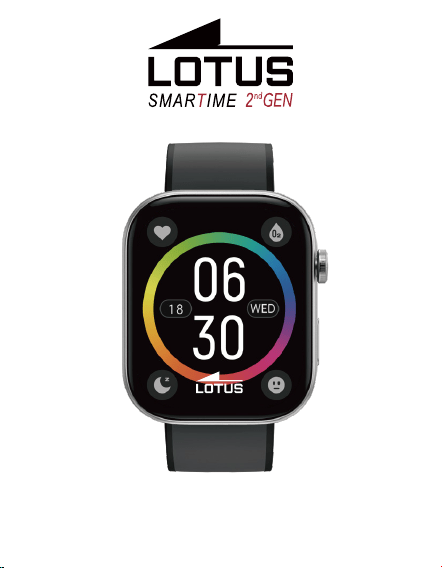
50213 , 50214
Manual
Introduzione
Getting started
(1) Open the package and check its content.
(2) Delivery content: 1) 50213, 50214/1, 50214/2 smart watch
(with built-in lithium battery); 2) user manual; 3) original
charging cable.
(3) Charge the watch to activate and turn it on before first
use. To charge, simply connect the magnetic charging cable
to the charging contacts located on the back of the watch.
(4) Search for "Lotus Smartime 2nd GEN" on the App Store,
Google Play or scan the QR code to download and install the app.
(5) Log in to the app and set your personal information, as
well as your step and weight goals.
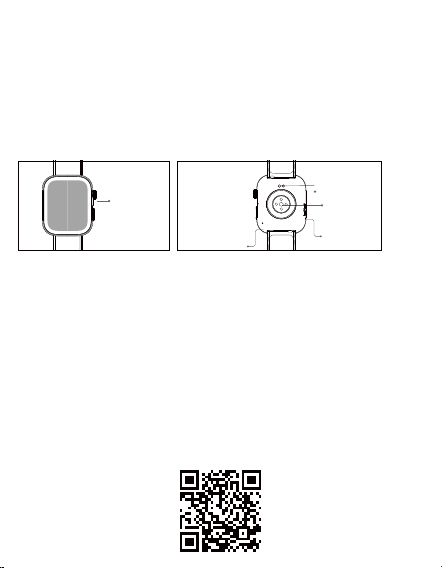
Magnetic
charging
contacts
Heart rate
sensor
Speaker
Microphone
Function
button
creen display area
Function button
Heart rate sensor
Microphone
Speaker
Front side
Back side

Health
(6) On the "Device" interface, tap the "+" icon in the
upperright corner, your phone starts searching. From the
device list found, choose your smart watch name to pair
with.You may also link the device directly by scanning the
device’s QR code using the scan function.
a) Watch
1. The watch will automatically record your data.
2. You can manually measure your heart rate,blood
pressure, SpO2, and stress on the bracelet, moreover, it can
monitor your heart rate and sleep throughout the day. You
can manually operate it or set it to automatically monitor
your health all the time.
3. To start an exercise:
4. Start the sports App on the bracelet, click an ICON of
sports type and set the goal, then start to exercise.allenarti.
b) App
1. Start "Lotus Smartime 2nd GEN", enable the Bluetooth
feature, and grant the GPS positioning permission;
2. Light up the bracelet screen and bring it close to your
phone;
3. Click "Bind Device" on the App, and select the bracelet
model in the search results to bind;
4. Fill in your information and set your step goal on the App
to complete the binding.
3. Button operation: 50213, 50214/1, 50214/2 has two
physical buttons; the upper button supports "rotate", "short
press" and "long press";upper button rotate: in more than one
screen display pages can be rotated and scrolled; Short press
on the upper button:
2. Screen operation: 50213, 50214/1, 50214/2 has a full touch
screen, which supports operations including short tap, swipe
left/right and swipe up/down.
Basic Operations
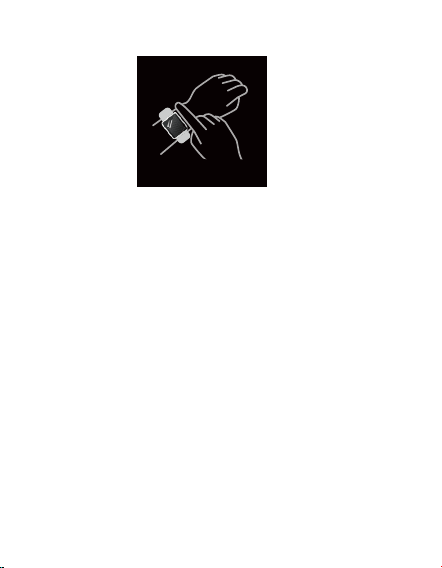
1. Wear the watch correctly: ensure that your watch is at
least one finger above your wrist bone and that the sensor
on the back touches your skin.
1) enter or exit to enter the application list;
2) short press to pause in the sport; long press on the upper
button: 1) long press for 8 seconds to restart the device; 2)
long press on the button to end the sport in the sport; lower
button supports short press: 2 levels of interface and
itssub-pages, short press on the lower button to return to
the dial.
the Lotus Smartime 2nd GEN App watch face settings. You can
also customize the watch face on the App. More watch faces
are available for download from the "Watch Face Market".
Function Description
2. Application list
You can switchbetween them manually on the watch or on
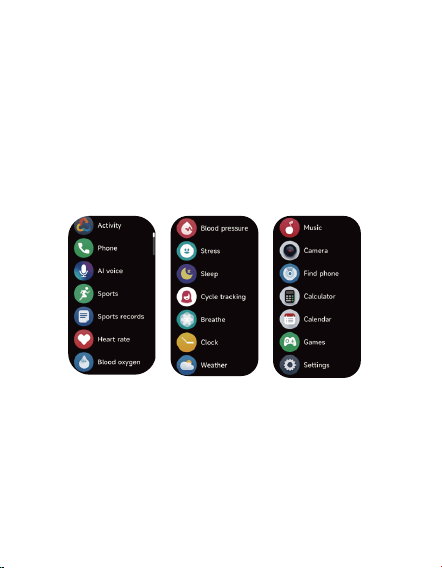
When the watch face interface is displayed, short press the
physical button to access the application list, which is
displayed respectively from top to bottom: Activity,Phone,AI
voice,Sports,Sports records,Heart rate,Blood oxygen,Blood
pressure,Stress,Sleep,Cycle tracking Breathe,Clock,Weath-
er,Music,Camera,Findphone,Calculator,Calen-
dar,Games,Settings.
1. Dial
2.1 Activity
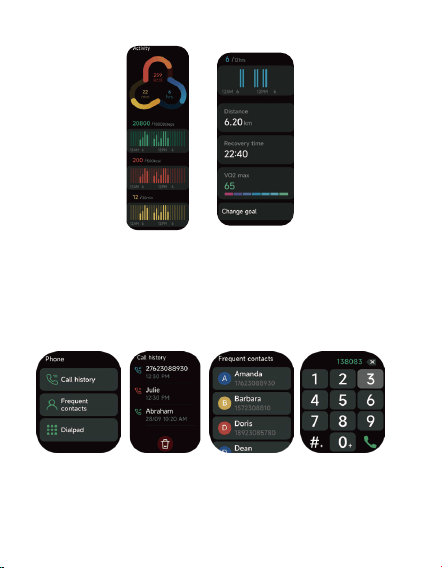
The watch can collect and display: Exercise/Activity/Walking
data and goals of the day, histogram of Exercise/Activi-
ty/Walking data per hour throughout the day, Steps and
Distance of the day, Recovery Time and Maximal Oxygen
Uptake for the latest Exercise, Daily Goal Setting, etc.
2.2 Phone
1. You can add up to 10 frequent contacts to your watch
through the app, then call these contacts on your watch.
2. You can view recent call history on your watch and call
the numbers displayed in the call history.
3. You can make calls through the watch’s dialer
2.3 AI voice
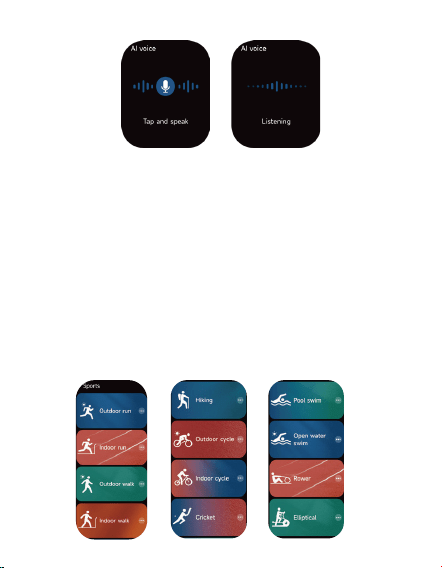
Control your phone’s built-in voice assistants, such as Siri
and Google Assistant, by inputting voice commands on
the watch.
2.4 Sports
a) Up to 12 exercise types can be displayed by default:
Outdoor run , Indoor run , Outdoor walk , Indoor walk , Hiking ,
Outdoor cycle , Indoor cycle , Cricket , Pool swim , Open water
swim , Rower, Elliptical. On the Lotus Smartime 2nd GEN App,
you can add or delete the exercise types or change their order
displayed on the watch. There are a total of 100 exercise types
to choose from on the App.
b) 50213, 50214/1, 50214/2 supports intelligent exercise
recognition. It can recognize whether the user is
running/walking. It supports automatically pausing an
exercise or reminding when an exercise ends. This feature can
be turned on/off on the App.
c) 50213, 50214/1, 50214/2 summary of exercise contains
various exercise data, which can be checked on the Lotus
Smartime 2nd GEN App.
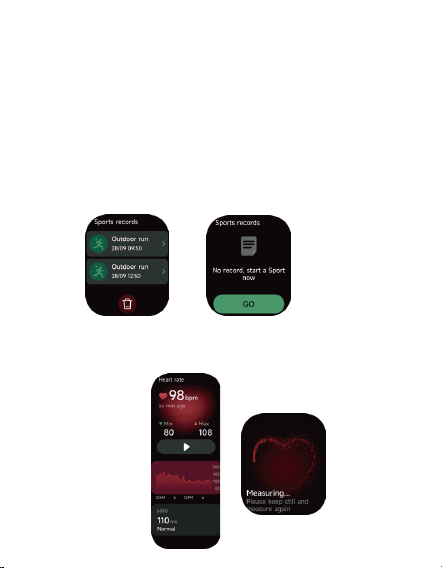
d) You can view your recent exercise records on the
watch, including detailed data about your exercise; you
can also view the exercise records on the App.
2.6 Heart rate
2.5 Sports records
Record the data of each exercise and view the exercise
records at any time
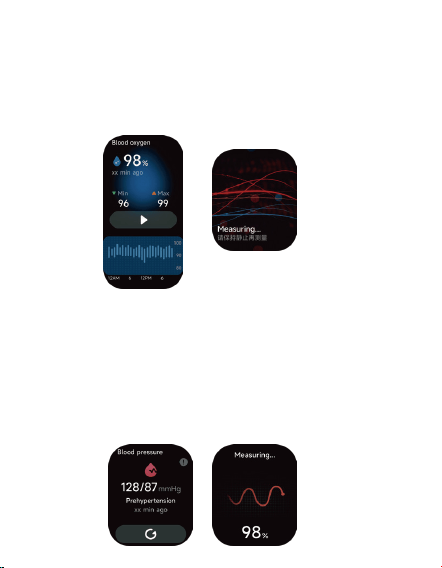
1. You can manually measure the heart rate on the watch. In
the APP settings, you can turn on/off the intelligent
around-the-clock monitoring of the heart rate, or view the
heart data.
2. Each time heart rate is measured, keep your arm and wrist
still and wait patiently until the measurement finishes.
2.7 Blood oxygen
1.You can manually measure blood oxygen on the watch.
In addition, the watch supports automatic
around-the-clock blood oxygen monitoring. In the App
settings, you can turn on/off this function, or view the
blood oxygen data.
2.Each time blood oxygen is measured, keep your arm and
wrist still and wait patiently until the measurement
finishes.
2.8 Blood pressure
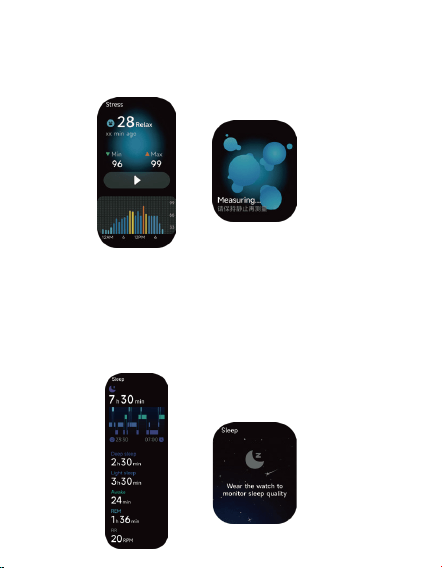
1. You can manually measure blood pressure on the watch.
2. Each time blood pressure is measured, keep your arm and
wrist still and wait patiently until the measurement finishes.
2.9 Stress
1. You can manually measure stress on the watch. In
addition, the watch supports automatic around-the-clock
stress monitoring. In the APP settings, you can turn on/off
this function, or view the stress data.
2. Each time stress is measured, keep your arm and wrist still
and wait patiently until the measurement finishes.
2.10 Sleep
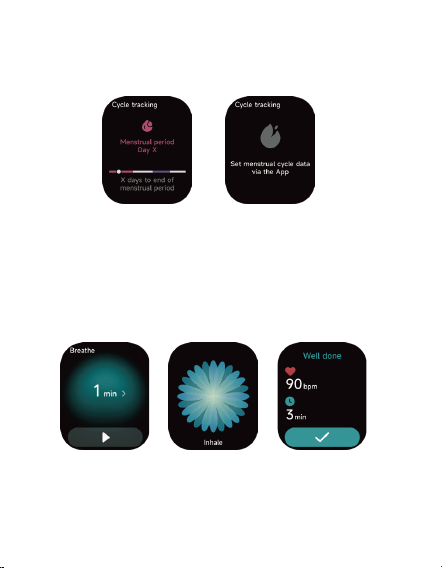
You can view the most recent sleep record and sleep
status at each stage.
2.11 Cycle tracking
After opening Women’s Health on the App, the watch will
display the cycle tracking function options, and set the
cycle length, reminder time and other options, and the
time will be reminded periodically
2.12 Breathe
1. Enter the Relax App and choose the duration;
2. Click to start, then follow the vibration frequency and
animation instructions to adjust your breathing and it will
help you relax.
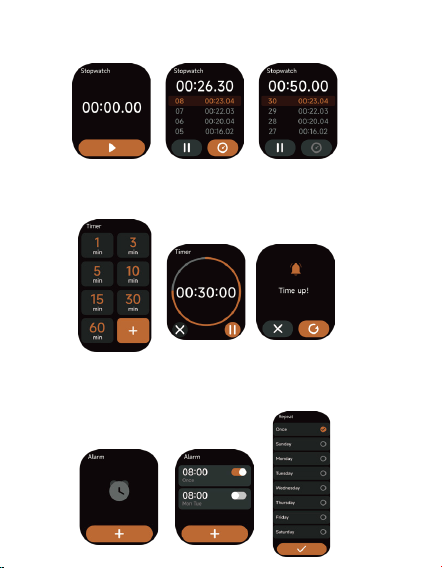
2.13 Clock
Stopwatch
Use the watch as a stopwatch. The stopwatch has a “Lap”
function.
Timer
You can set a timer with a preset duration on the watch,
and the timer will remind you when the timer expires; you
can customize the timer time
Alarm
1. The watch can be set to add, delete, turn on/off the
alarm; you can also set the alarm to the watch through the
App; you can also set the label you need in the alarm to
identify the alarm
2. You can set the alarm delay time and times in the APP to
decide how long you want to delay and how many times to
delay
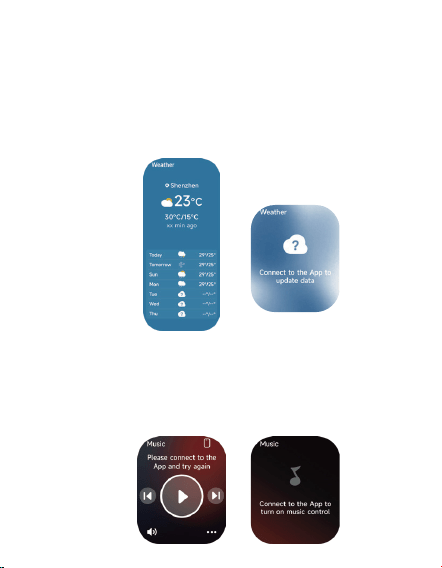
2.14 Weather
Supports seven days weather viewing, you can view
today’s "current weather, highest and lowest weather
values" and the "highest and lowest weather values" for
the next six days
2.15 Music
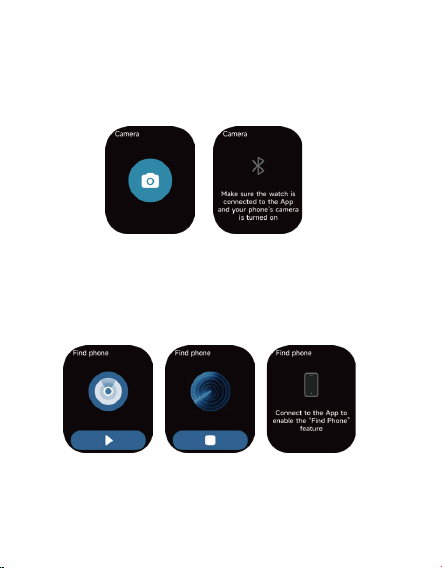
1. When the watch is connected to the App, you can control
the mobile music player to perform the functions of "next,
previous", "play\pause" and "volume increase and decrease".
2. This function can be displayed\hide in the App settings
2.16 Camera
When the watch is connected to the App, you can manually
turn on the phone's system camera to control taking photos.
2.17 Fine Phone
1. When the watch is connected to the App, you can make
your phone ring
2. Click the icon to end the ringing
3. This function can be displayed\hide in the App settings
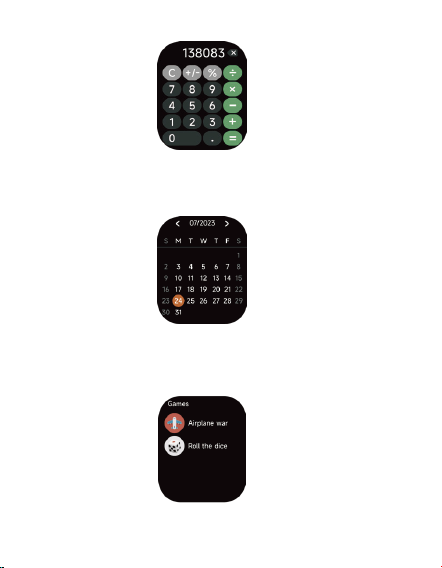
2.18 Calculator
Calculator allows for simple calculations
2.19 Calendar
Quickly view past and future calendar situations
2.20 Games
Casual puzzle games that take you to experience a
different life
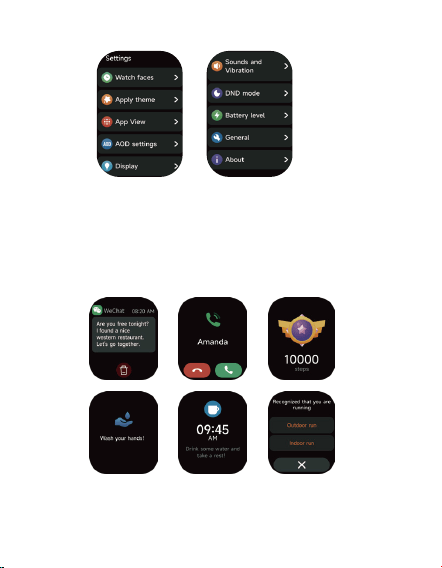
3. Settings
1. You can set the display of the watch
2. You can also set the sounds and vibration,DND mode,
3. You can also restart the watch, restore factory settings, and
view watch information
4. Reminder module
The watch supports multiple reminder modes, including
message reminder, incoming call reminder, drinking
reminder, exercise goal reminder, exercise center rate
warning reminder, etc.

FCC Requirement
Any changes or modifications not expressly approved by the
party responsible for compliance could void the user’s authority
to operate the equipment. This device complies with Part 15 of
the FCC Rules. Operation is subject to the following two
conditions:
(1) this device may not cause harmful interference, and
(2) this device must accept any interference received, including
interference that may cause undesired operation.
Note: This equipment has been tested and found to comply with
the limits for a Class B digital device, pursuant to Part 15 of the
FCC Rules. These limits are designed to provide reasonable
protectio against harmful interference in a residential
installation. This equipment generates, uses, and can radiate
radio frequency energy, and if not installed and used in
accordance with the instructions, may cause harmful
interference to radio communications. However, there is no
guarantee that interference will not occur in a particular
installation. If this equipment does cause harmful interference to
radio or television reception, which can be determined by turning
the equipment off and on, the user is encouraged to try to correct
the interference by one or more of the following measures:
– Reorient or relocate the receiving antenna.
– Increase the separation between the equipment and receiver.
– Connect the equipment into an outlet on a circuit different from
that to which the receiver isconnected.
– Consult the dealer or an experienced radio/TV technician for
help.