
1
DOGTRA
GPS FENCE
Owner's Manual
Please read this manual thoroughly
before operating the DOGTRA GPS FENCE.

2
WARNING
Please read all safety and product information below before using your
Dogtra product. Failure to follow these safety instructions could result
in injury to you, your dog and others, or it could result in damage to your
Dogtra product or other property.
PRODUCT SAFETY
GPS Product
Like all products using GPS technology, your Dogtra GPS Fence’s accuracy
may vary depending on where you use the product. The GPS Fence operates
using GPS signals and requires a clear view of the sky to receive coordination
data from satellites. Areas with trees, hedges, hills, mountains, cliffs, air traffic,
buildings, structures, vehicles, or other obstructions may affect the accuracy
of your GPS Fence. Prepare and verify your GPS Fence (see below) before
using the product.
Minimum 3/4 Acres Area Needed - For Outdoor Use Only
GPS Fence requires a minimum 3/4 acres to operate properly and is for
outdoor use only. Do not use GPS Fence indoors. If the device is used
indoors, it may misinterpret the location of your dog potentially resulting in
unintended corrections. To prevent this, always remove the GPS Fence collar
from your dog when entering an indoor space.
Virtual Boundary
GPS Fence is a virtual training device and not a physical fence and cannot
replace such fences. Take extra precautions and do not place the virtual
boundary of your GPS Fence immediately beside a road, highway, or other
hazard. For example, allow at least 10-15 feet of space between the virtual
boundary and any road or highway, in case your dog crosses the boundary.
GPS Fence Preparation and Verification
Before using the GPS Fence with your dog or after changing GPS Fence
settings, do the following: (i) check that the collar power is on and that your
battery is sufficiently charged, (ii) confirm the Bluetooth connection between
the GPS Fence app and collar, (iii) activate all available GPS fence lines –
including the warning zone, primary fence, and backup fences – to provide
the maximum number of reminders to your dog that it is entering the GPS
fence area, (iv) walk the perimeter of your activated GPS fence lines to verify
that the virtual lines are unobstructed and active in the areas that you have
selected, and (v) train your dog how to respond to collar stimulations if your
dog enters the GPS fence area.
IMPORTANT SAFETY AND PRODUCT
INFORMATION
3
Collar Fit and Use
Take care: properly fit the collar on to your dog, reposition the collar’s contact
points every few hours, and do not use the collar for more than 6 to 8 hours
at a time. Routinely check the collar’s contact point areas on your dog to
confirm proper fit and skin condition. Failure to do so may result in skin
irritation or sores on your dog. See collar fitting instructions in the manual.
Aggressive Dogs
Do not use GPS Fence with aggressive dogs as such dogs may react
adversely, cross the virtual boundary, and/or cause injury to people or
other dogs or animals. Seek the assistance of a dog training specialist or
veterinarian when dealing with aggressive dogs.
Children
Dogtra products are not toys. Adult supervision and close attention are
necessary when Dogtra products are used by or near children.
PRODUCT INFORMATION
Handling and Repair
Dogtra products can be damaged or malfunction if dropped, especially on
hard surfaces, or otherwise improperly handled. Do not use a damaged or
malfunctioning product as it may cause injury or property damage. If your
product is damaged or malfunctions, contact Dogtra to obtain service before
using the product.
Electrical Product
Your Dogtra product contains electrical components and batteries. The power
plug and cord are not waterproof and should be protected from rain or other
moisture using an outdoor outlet cover. Do not use or keep your product near
heat or flammable sources. Such use or storage may damage your product
and/or cause fire, explosion, injury, or property damage.
FLAG TRAINING GUIDE HERE
IMPORTANT – Train Your Dog How To Respond to GPS Fence
Dogtra products may be used with a variety of training methods that
provide clear and consistent messages to your dog. Before using GPS Fence,
train your dog how to respond if it enters the GPS Fence area and receives
stimulation from the collar. Train your dog to not enter the GPS Fence area, or
if does enter, train your dog to return and not pass beyond the virtual fence
lines. Visual tools such as flags may be helpful when training your dog. For
training tips, reference our Flag Training Guide here:

4
Medical Device Interference
Dogtra products contain electrical and magnetic components that emit low
level electromagnetic waves and radio frequencies. These electromagnetic
waves or radio frequencies may interfere with pacemakers, defibrillators,
or other medical devices. Consult your physician or medical device maker
before using your medical device around a Dogtra product. If you think that
your Dogtra product is interfering with your pacemaker, defibrillator, or other
medical device, stop using the Dogtra product.
Unauthorized Use
Dogtra products should be used only to train, educate, monitor, or track dogs.
Dogtra products are not intended for use in any other manner nor are they
intended for use with other animals or with humans.
Battery
Your Dogtra product contains batteries. Take care when removing and
installing batteries as your fingers may get caught. Dispose of batteries
as provided by your local regulations. Do not disassemble, crush, heat, or
otherwise alter the battery as it may cause fire, injury or property damage.
Charging
Only charge your Dogtra product with its accompanying Dogtra charger. Do
not attempt to charge your product in any other manner or in temperatures
less than 32°F (0°C) or over 113°F (45°C) as it may cause fire, explosion, injury,
and/or property damage. If you notice damage to your product, its charger,
or battery, obtain service from Dogtra before charging the product. Do not
use more than one splitter cable with a single battery charger.

5
PACKAGE CONTENTS
...............................................................................
MAIN FEATURES
........................................................................................
OVERVIEW
...................................................................................................
ABOUT THE DOGTRA GPS FENCE
.......................................................
HOW TO USE THE DOGTRA GPS FENCE(COLLAR)
TURNING THE GPS FENCE ON/OFF
..................................................
INDICATOR LIGHT
..................................................................................
FLAG TRAINING GUIDE
..........................................................................
GETTING STARTED
....................................................................................
COLLAR FITTING
.......................................................................................
FINDING THE RIGHT STIMULATION
.....................................................
KEY FEATURES OF THE GPS FENCE APP
SETTINGS
.................................................................................................
1) ABOUT SETTINGS
.............................................................................
2) PAIRING AN ADDITIONAL COLLAR TO A PHONE
.................
3) DELETE PAIRED GPS FENCE COLLAR
........................................
*UPDATE FENCE DATA TO CONNECTED COLLAR
......................
FENCE
.........................................................................................................
1) ABOUT THE DOGTRA GPS FENCE
...............................................
2) ADD OUTER FENCE
........................................................................
3) EDIT WARNING ZONE WIDTH
......................................................
4) EDIT BACKUP FENCE RANGE
......................................................
5) ADD INNER FENCE
..........................................................................
6) DELETE OUTER FENCE
..................................................................
7) DELETE INNER FENCE
....................................................................
CONTENTS
7
7
8
9
12
12
13
14
15
16
17
17
18
19
19
20
20
22
24
24
25
25
26
1.
2.
1.
2.

6
3.
4.
HISTORY
.....................................................................................................
1) ABOUT HISTORY
...............................................................................
2) HISTORY LIST
....................................................................................
3) DETAIL HISTORY
..............................................................................
HELP
..........................................................................................................
CHARGING THE BATTERY
.......................................................................
TROUBLESHOOTING GUIDE
...................................................................
FCC/ISED WARNING STATEMENT
.........................................................
DOGTRA EXTENDED PRODUCT WARRANTY
...................................
26
26
26
27
27
28
29
30
31
7
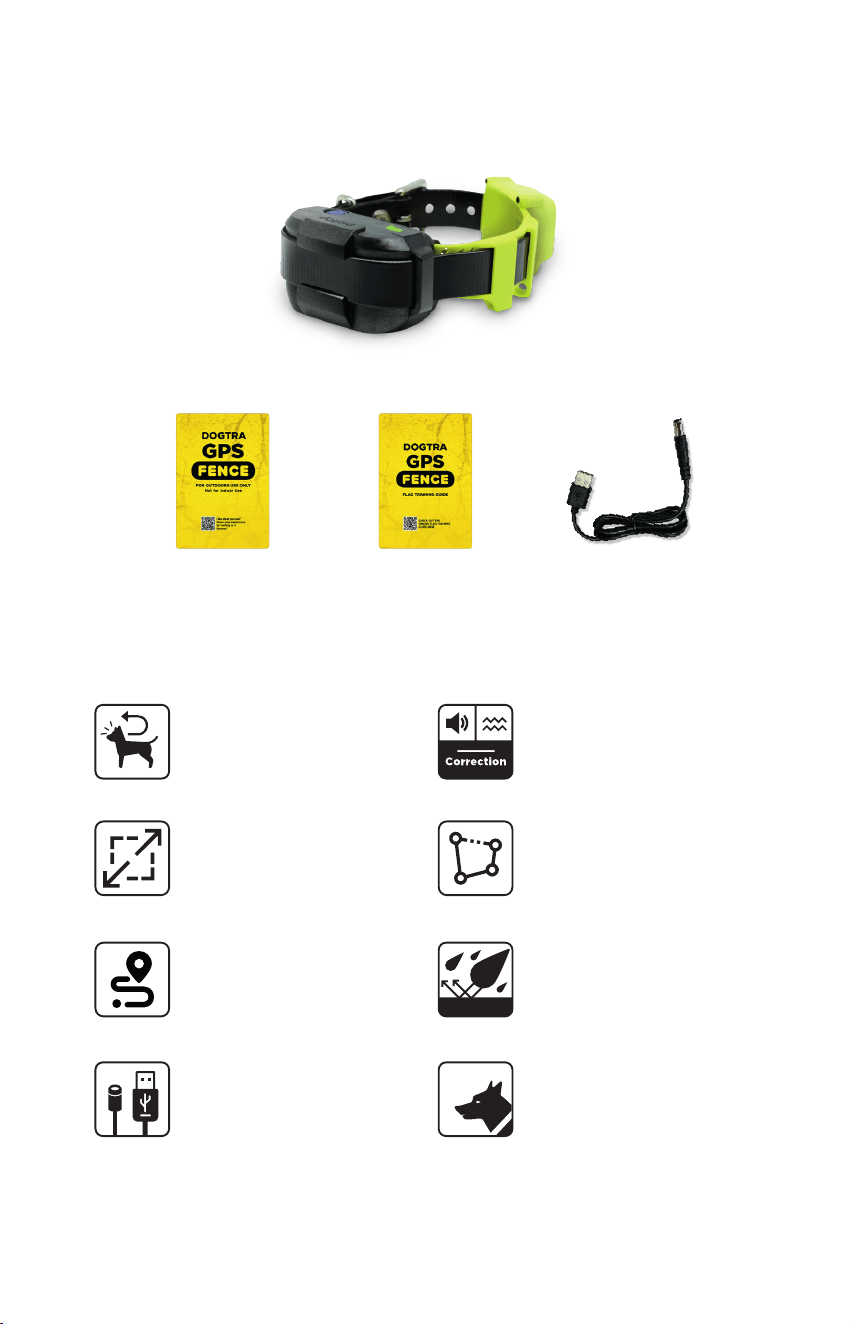
PACKAGE CONTENTS
Battery Charger
MAIN FEATURES
Repeat
‘Come Home’
Sequences
Preventive Warnings:
Tone or Vibration or
correction
Customizable Virtual
Fence
¾ Acres & Larger
Coverage
IPX9K
IPX9K Waterproof
5mm/USB Cable
For Dogs as
Small as 10 lbs.
Movement Activity
History
Quick Manual Flag Training Guide
GPS FENCE Collar
10 lbs
8
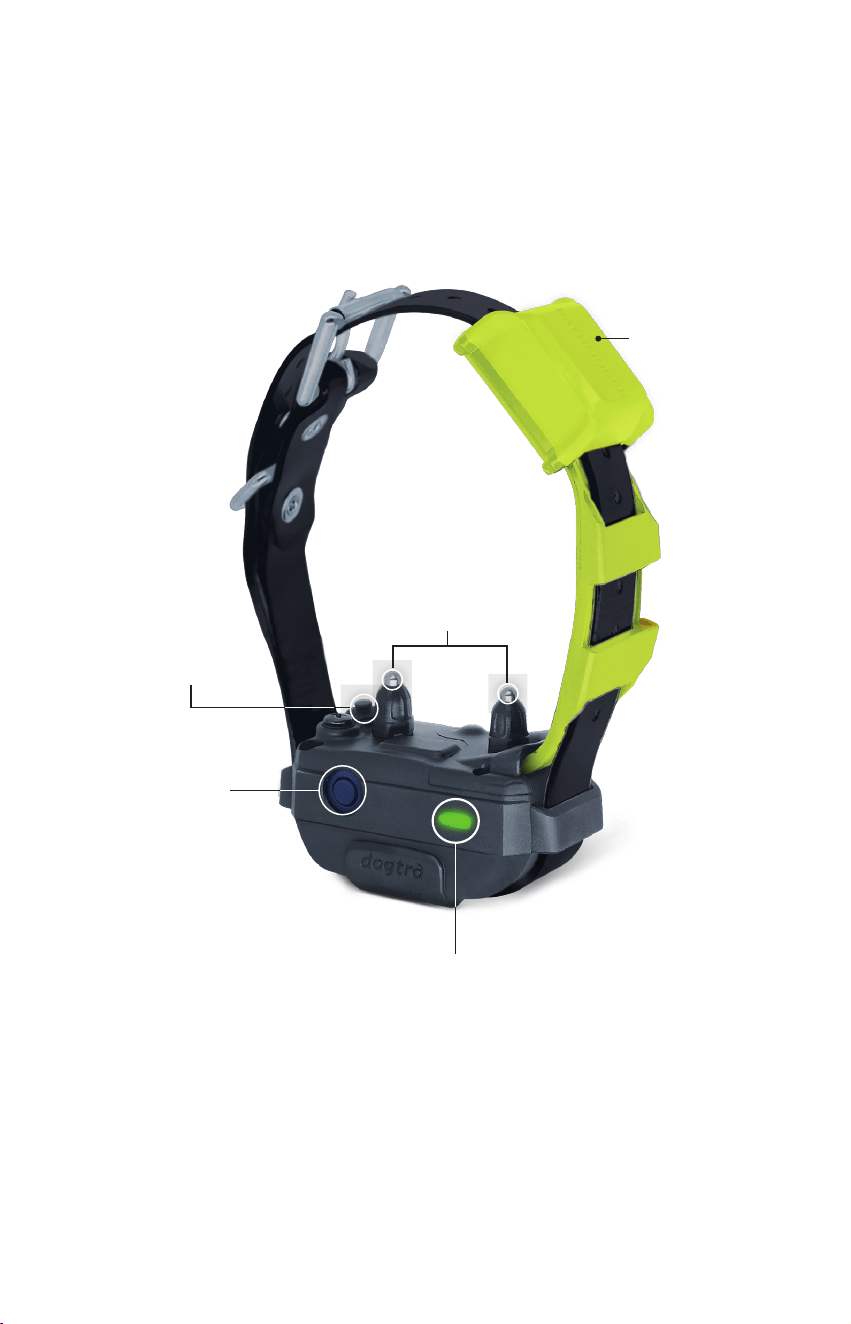
OVERVIEW
GPS FENCE(Collar)
LED Indicator light
Battery Charging
Port
Power Button
Contact
Points
GPS Antenna
9
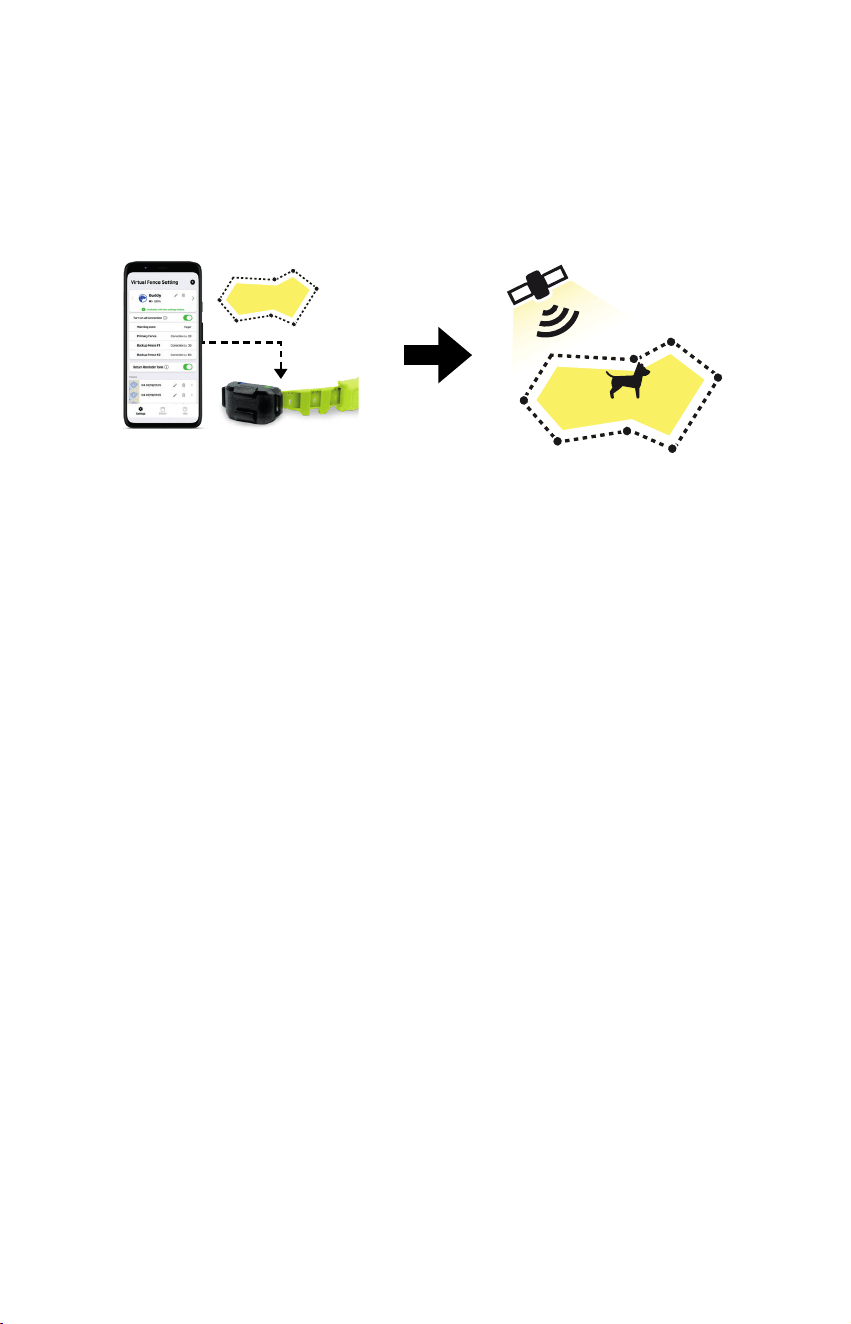
ABOUT THE DOGTRA GPS FENCE
GPS (Global Positioning System) is a location tracking system that uses
satellites to help determine your exact position. This device uses GPS to
create a virtual boundary (called a Geo-Fence) and helps keep your dog safe
by applying correction to the collar if they go beyond the fence perimeter.
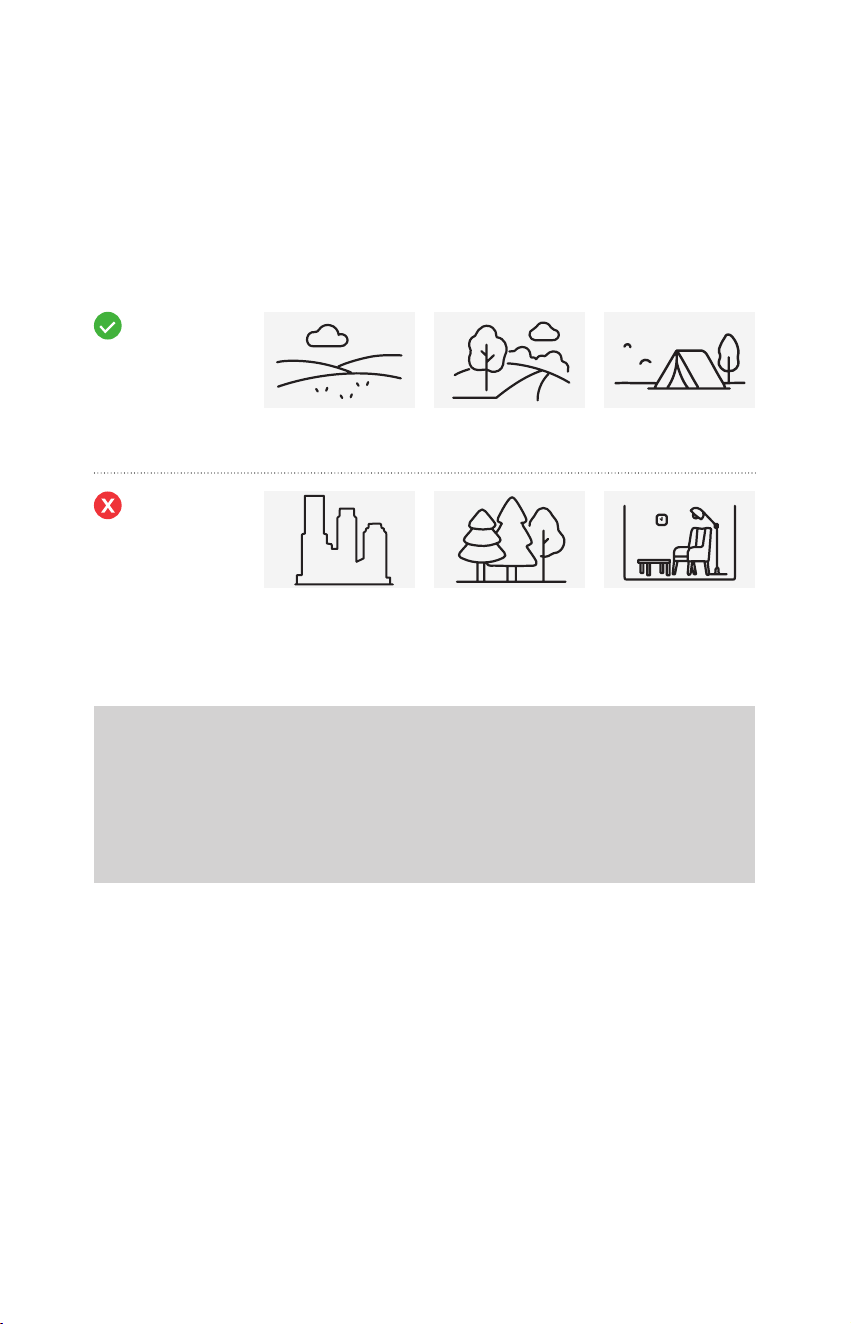
For the GPS to work well, we recommend using the collar in open, outdoor
spaces such as:
• Wide open fields
Areas with no tall buildings or trees are ideal for strong GPS signals.
• Parks or walking trails outside the city
Open parks or paths with some tree cover but no tall buildings work well for
accurate fence setup.
• Farms or countryside homes
Natural surroundings allow for a wider and more reliable GPS range.
• Campgrounds or outdoor lodges
You can temporarily set a virtual fence around these open areas to let your
dog roam freely.
RECOMMENDED ENVIRONMENTS
10
RECOMMENDED
Wide open fields
Crowded Urban
Areas with tall
buildings
Parks or walking
trails
Dense forest
Campgrounds or
outdoor lodges
Indoors
Note
The Dogtra GPS Fence operates using GPS signals and requires a clear
view of the sky to receive coordination data from satellites. If the device
is used indoors, it may misinterpret the location as being outside the safe
zone, potentially resulting in unintended corrections. To prevent this,
always remove the collar from your dog when entering an indoor space.
AVOID
• Crowded urban areas with tall buildings (over 3 stories) can interfere with
GPS signals.
• The device does not work indoors.
• Dense forests or areas near large bodies of water may also reduce GPS
accuracy.
ENVIRONMENTS TO AVOID
11
Set the virtual fence line which should be at least 10 meters away from the
location where you want to set the virtual fence up.
Do not place the Virtual fence boundary over water. If necessary, turn off the
All Correction Setting in those areas.
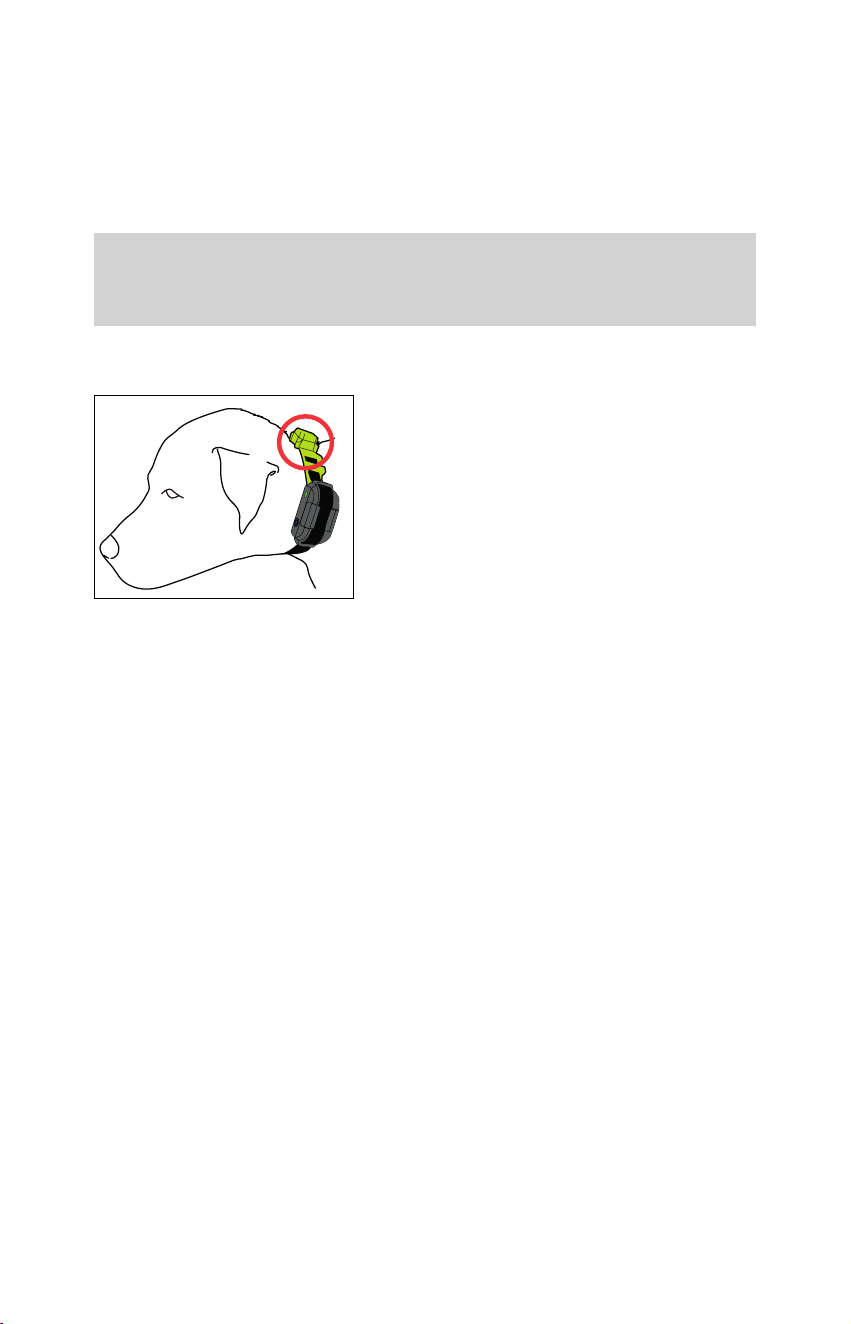
When you put the collar on your dog, make
sure the GPS antenna faces upward, toward
the sky.
This ensures that the collar receives the
strongest GPS signal for accurate tracking.
CREATE A VIRTUAL FENCE
PUTTING ON THE COLLAR
Note
The map view on your phone may have slight errors compared to real-
world locations.
12
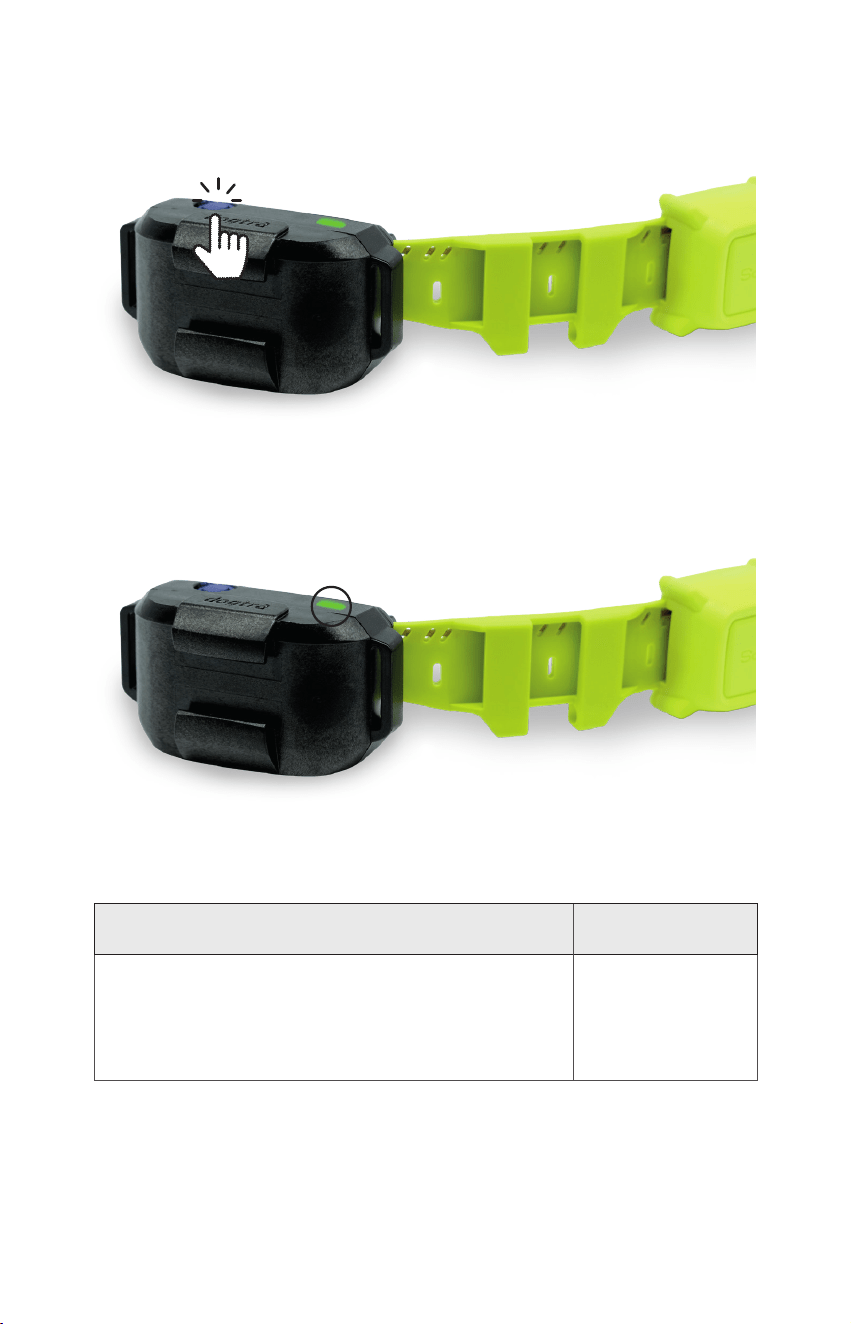
1. TURNING THE GPS FENCE ON/OFF
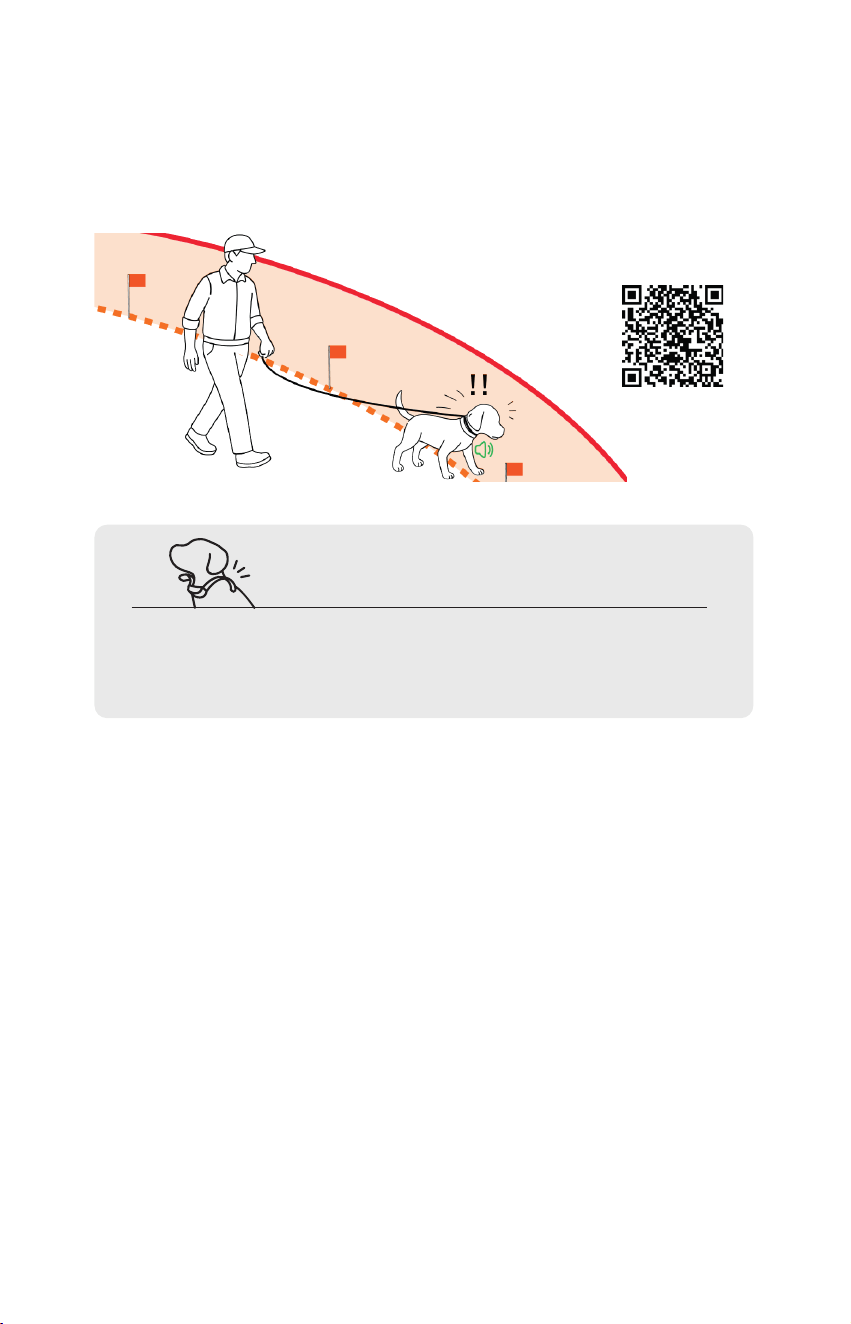
2. INDICATOR LIGHT
HOW TO USE THE DOGTRA GPS FENCE(COLLAR)
Press and hold on/off button to turn on the collar.
LED color indicates battery level, while blinking indicates GPS signal and
stimulation activity. If no GPS signal is detected, the LED will remain red
regardless of battery status.
LED blinking speed: GPS signal status
LED color: Battery life
status
• Blinking every 2 seconds*: Fixed strong GPS signal
• Steady light (in red): No GPS signal
* Blinking color will vary based on battery life status
51 - 100% : Green
21 - 50% : Orange
0 - 20% : Red
13
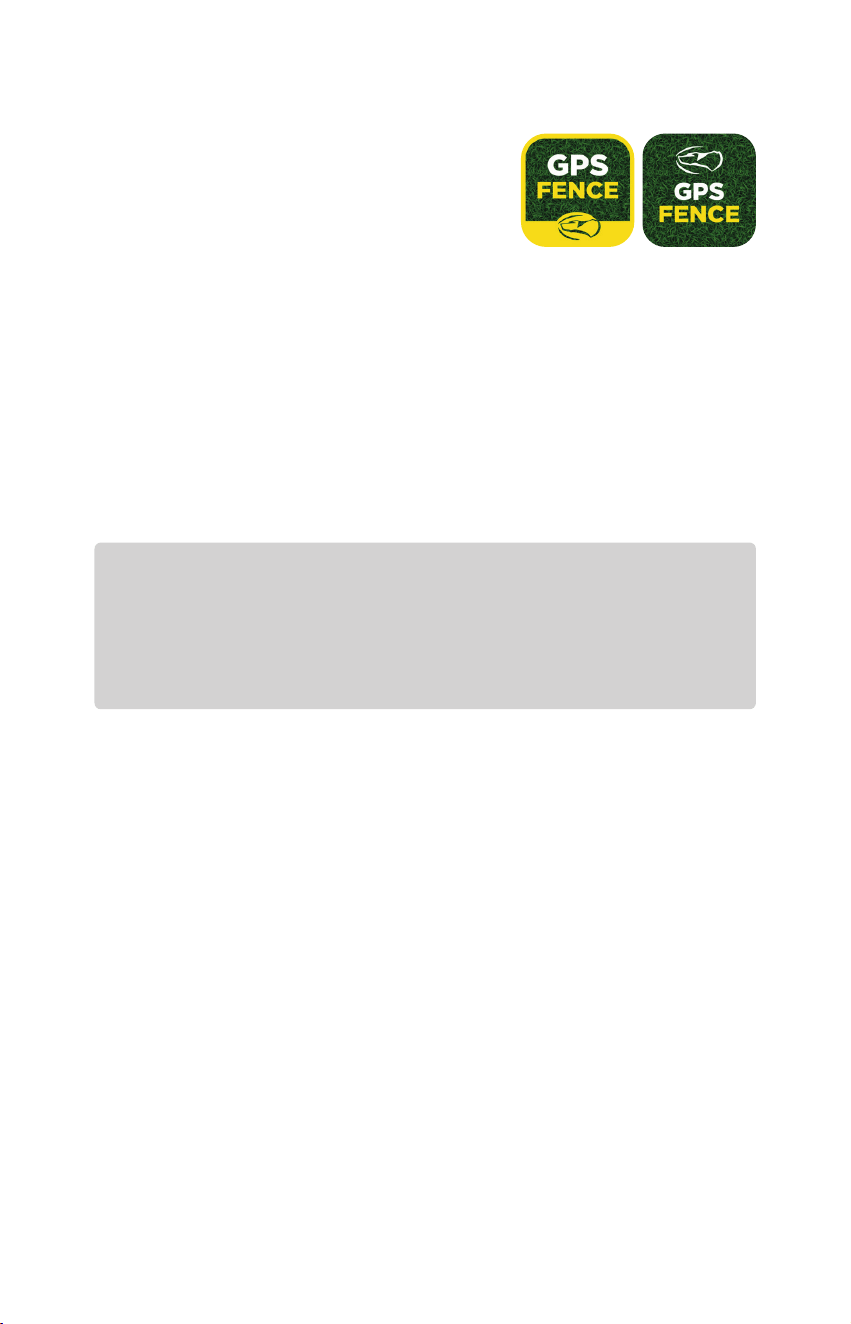
FLAG TRAINING REQUIRED
*Flags sold separately
For effective containment of your dog with The Dogtra GPS Fence Product,
we strongly recommend reviewing the ‘Flag training guide’ to practice with
your dog(s). This online content is also available on the GPS FENCE app.
Click on the QR
to Start training
Walls and roofs can block the GPS signal, which may cause unintended
corrections. We recommend not using a dog door to prevent dogs from
entering indoors while wearing the collar.
MAKE SURE TO REMOVE THE COLLAR
BEFORE ENTERING INDOOR SPACES.
14
Note
In order for the Dogtra GPS Fence collar to work, you must 1) pair it with the app,
2) create the Virtual Fence, 3) Sync the Virtual Fence information with each paired
collar. Once these steps are completed, the collar will function without needing to
stay connected to the app.
Important: Make sure the collar is powered on before leaving your dog outside!
GETTING STARTED (WITH APP)
App Store Play Store
To download the app:
1) Go to the Apple app store or Google play
store on your phone.
2) Search for “DOGTRA GPS FENCE” app.
3) Download the app on your phone.
The app is currently compatible with:
1) Bluetooth 5.0 and above. Check the version with the phone manufacturer.
2) iOS: 14and above, iPhone 8 and above
3) Android: 7.0 and above
Please make sure to create virtual fence(s) before you start putting the GPS
FENCE collar on your dog - Fence data will sync automatically with paired
collar(s).
GPS FENCE app is not required to operate.
15
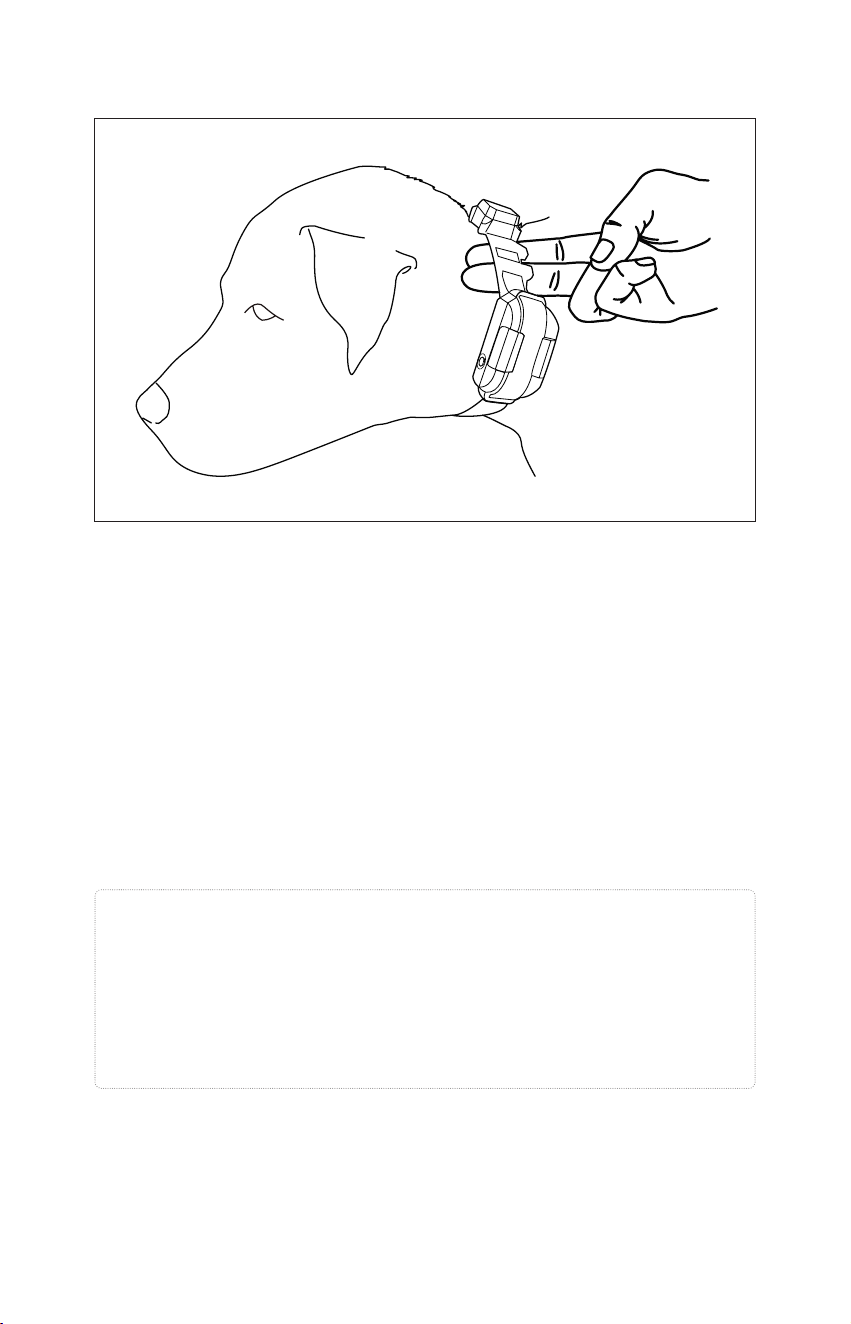
Proper Fit
Fit the receiver on either side of the dog’s windpipe so that the contact
points press firmly against the dog’s skin. You should be able to fit two
fingers underneath the collar strap. Make sure the GPS antenna is placed
around the back of the dog’s neck to face the sky.
Improper Fit
A loose fit can allow the receiver to move around on the dog’s neck and
cause irritation. If the receiver is too loose, the contact will be inconsistent
and cause inconsistent correction. Avoid positioning the GPS antenna
towards the front of the dog’s neck, where it may face the ground and
weaken GPS signal and accuracy.
COLLAR FITTING
GPS Antenna
▼
Attention!
While Dogtra uses medical grade stainless steel contact points and anti-
microbial plastic to protect the dog’s skin, leaving the receiver in the
same location for an extended period of time can cause skin irritation
due to the sensitivity from the contact points. Reposition the receiver
every few hours to move the contact points and remove the receiver
after 8 hours of use. Check for skin irritation each time you use the unit.
16
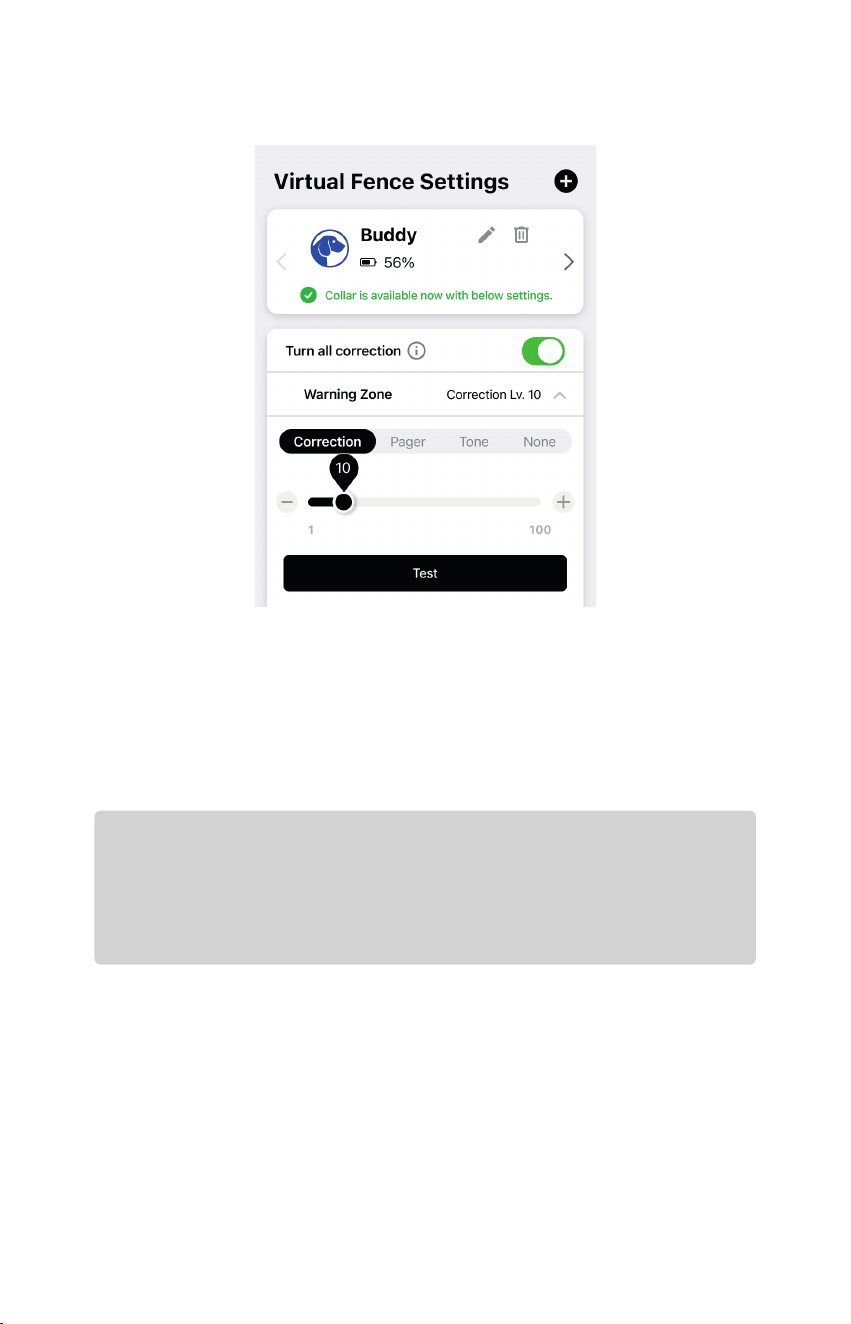
• Open the GPS Fence app to the Settings tab and Open any Corrections
and select ‘Correction’.
• The correction levels are from 1 (lowest) to 100 (highest).
• Always start at the lowest level of stimulation and work your way up.
• The appropriate level can be found when your dog responds to the
stimulation with a mild reaction, such as a tensing of the neck muscles.
FINDING THE RIGHT STIMULATION
Note
Every dog has a different tolerance and reaction to the stimulation.
Please look at your dog’s reaction to find the right level of stimulation.
The stimulation level may vary depending on the situation and distractions. A
distracted dog will require a higher level of stimulation compared to when there is
no distraction.
17
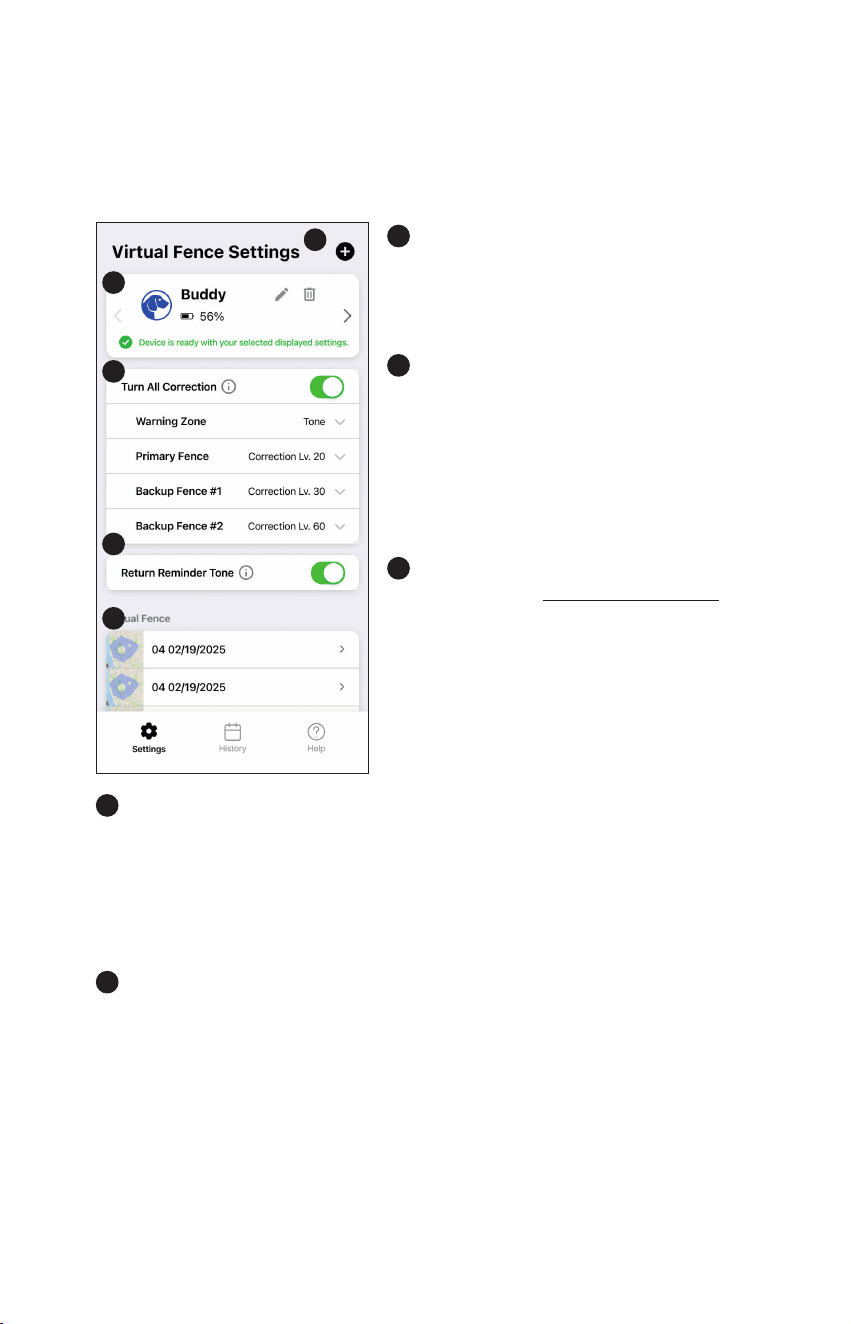
1
Add Button
Adds GPS FENCE Collar or Virtual
Fence to the app (up to 3 Collars and
30 Virtual Fences can be added).
2
Collar Information
Displays registered collar details such as
name, connection status (GPS, battery
life), and whether updates have been
applied. You can change or delete a
collar’s profile by pressing on each icon
on the right side of the screen.
3
Set the correction method according to
each situation
(see 2 - 1 About Fence)
.
Correction : Up to 5 seconds of
continuous stimulation
Pager vibration : Up to 5 seconds
vibration
Tone : 5-second beep
(audible nearby only)
None : No correction
Return Reminder Tone
If the dog passes the Primary Fence perimeter even after 5 seconds of
correction, and continues to move away from the Safe Zone, an alarm
Tone will sound to assist the dog to return towards the Safe Zone. (Return
Reminder Tone will turn off if the dog enters another Primary Fence
perimeter)
Virtual Fence
Displays registered Virtual fences. When the GPS collar is connected with
the App, you can change the name and delete the fence on the right side
of each fence list, and you can edit the fence by pressing the arrow.
1
2
3
4
5
1. SETTINGS
KEY FEATURES OF THE GPS FENCE APP
1) About Settings
4
5
18
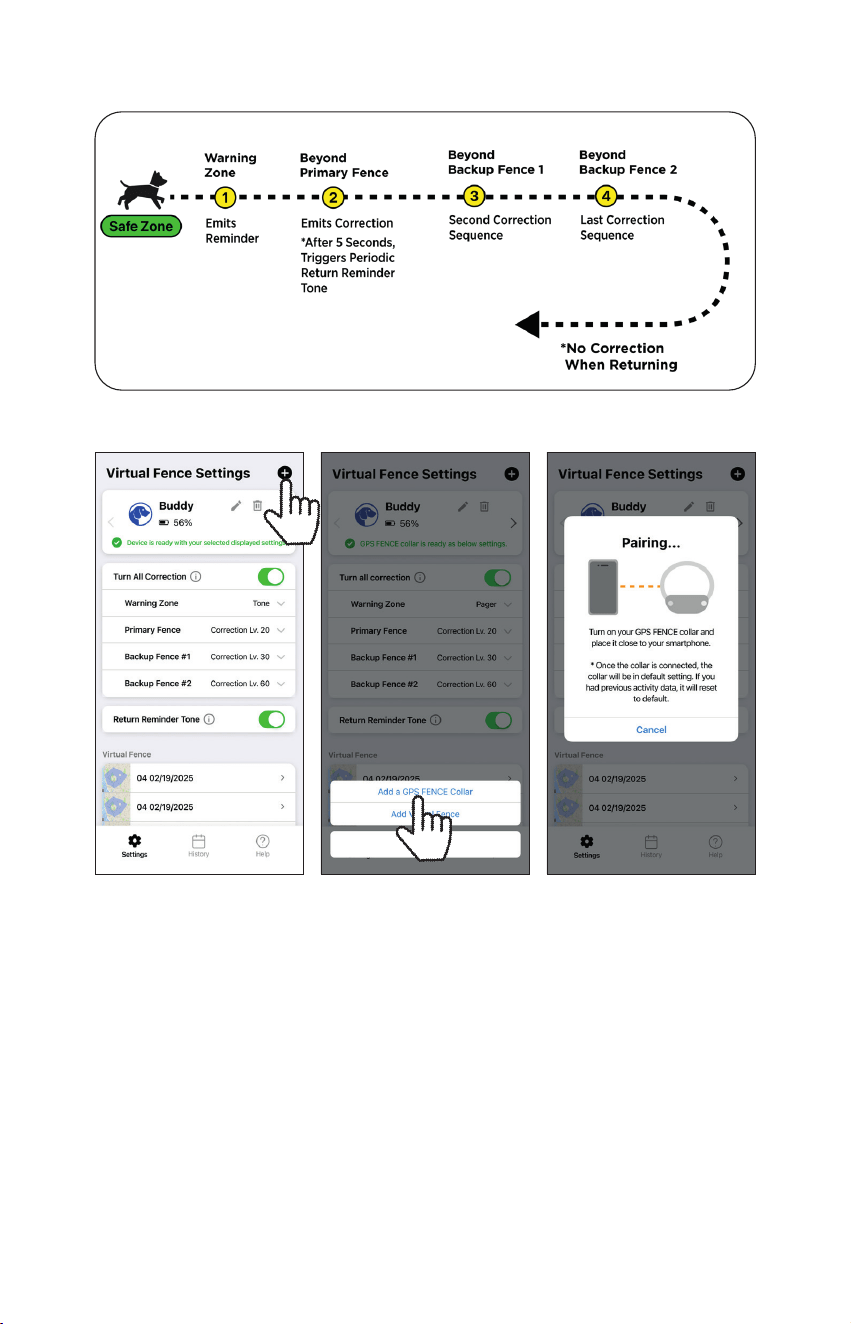
Press the ‘Add’ button on the top right of the Settings page and select ‘Add
collar’ once the pairing pop-up shows on the app. Up to 3 collars can be
registered.
- Maintain a distance of within 30 feet from the smartphone.
- Check if the collar is on.
- Check if the collar is already connected to another smart device.
How the ‘Come Home’ sequence works
2) Pairing an additional collar to a phone
19
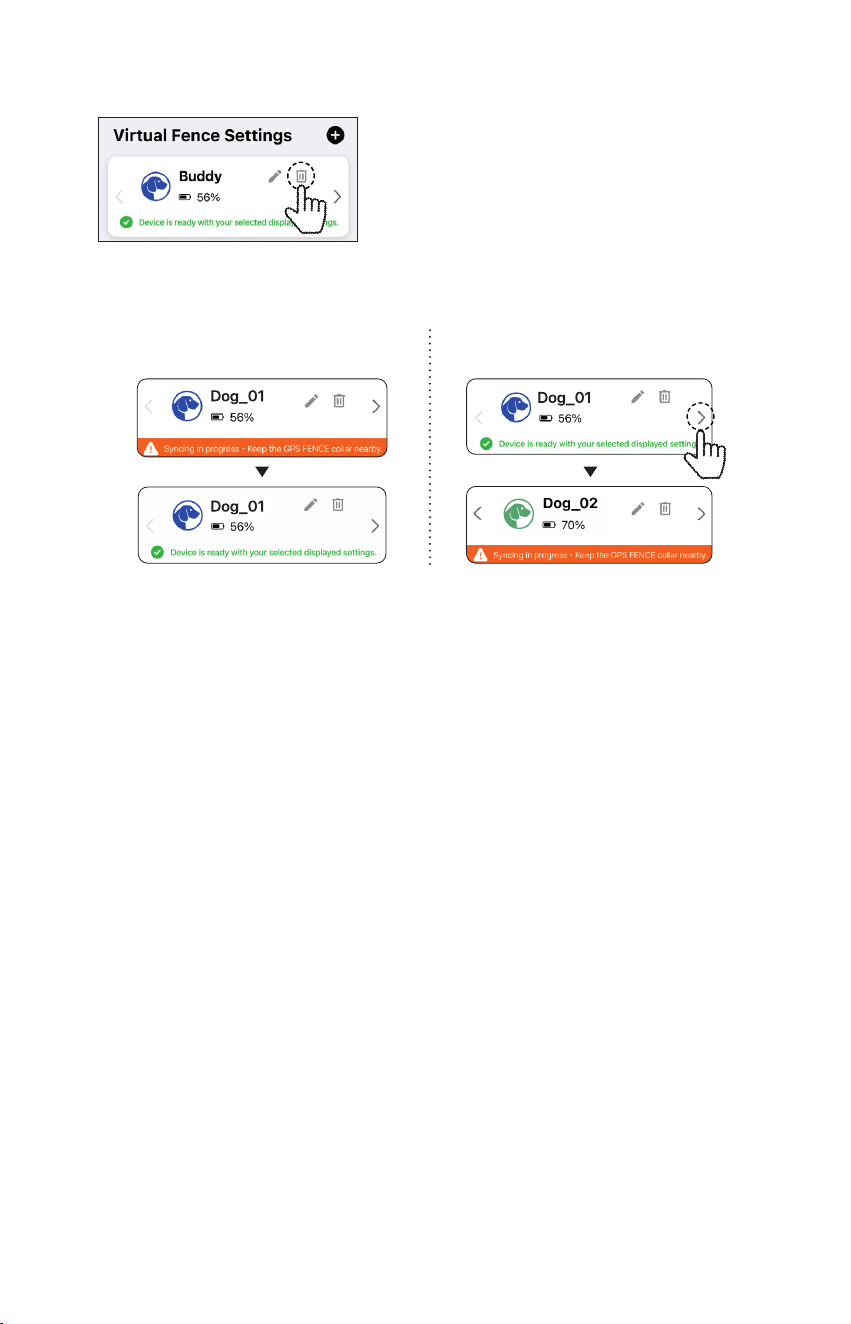
Press the Delete icon in the GPS Fence
Collar Settings Page.(This will also erase the
previous history on this GPS FENCE collar.)
3) Delete paired GPS FENCE COLLAR
* Update Fence data to connected collar
1. On the Settings page, any paired collar will automatically update the Virtual
Fence information.
2. Update each paired collar individually by swiping through the collar windows.
3. Keep the collar and smartphone close during updates (2–3 seconds per collar).
Collars that are not currently connected will retain the most recent fence
information before being modified or deleted. In this case, the collar’s status
message will display an update request message, and the Virtual fence list
will display ‘Need to update’.
1. Automatic Updating (2~3sec) 2. Update additional collar
20
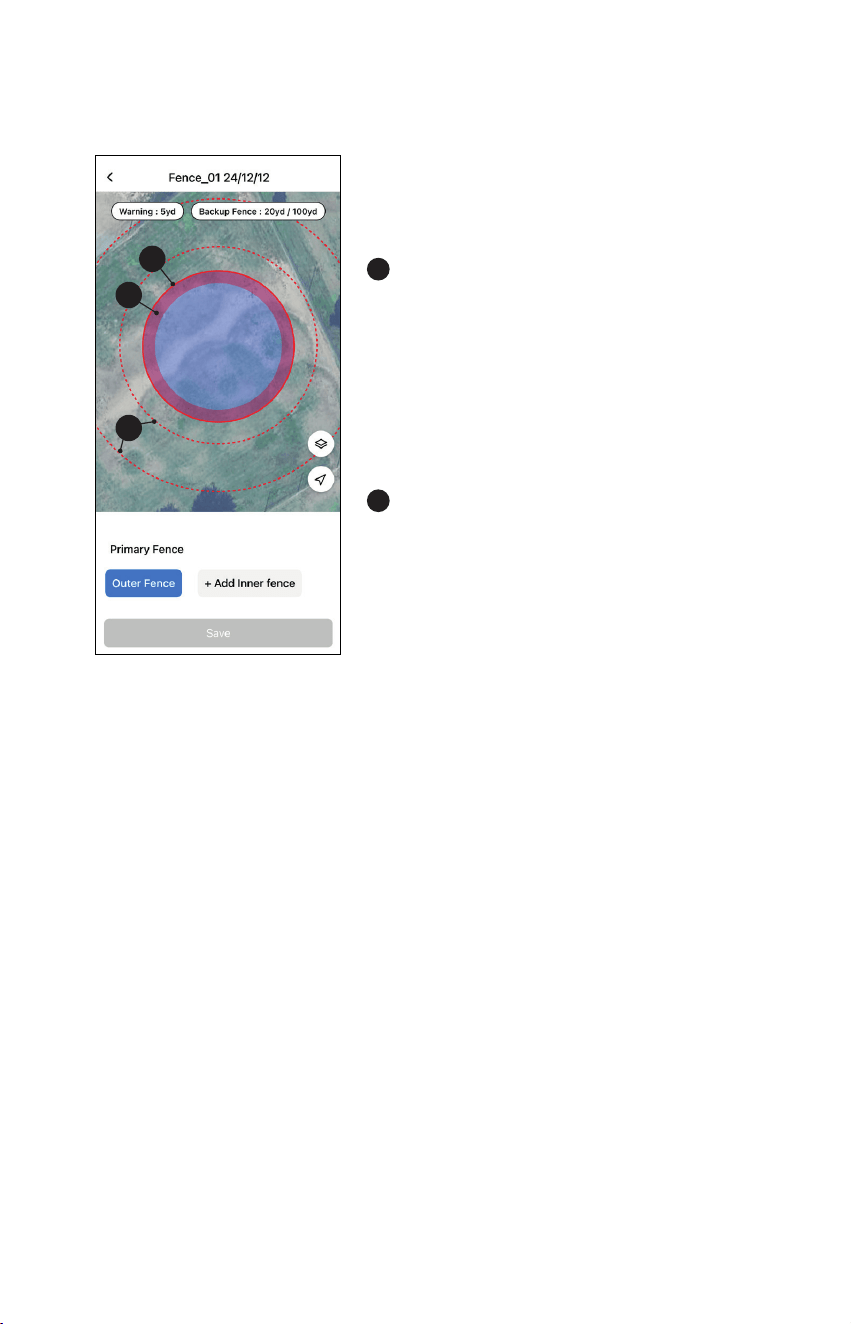
2. Fence
1
2
3
If your dog leaves the Safe Zone and crosses
the red lines (the Virtual Fence), it will get 5
seconds of correction based on your settings.
1
Primary Fence
There are two types of Primary
Fences:The Outer Fence is your main
Virtual Fence that creates the Safe Zone.
The Inner Fence is used to block off
area(s) within the Outer Fence.
*Up to 30 Primary Fences can be added.
(Including Inner Fence)
2
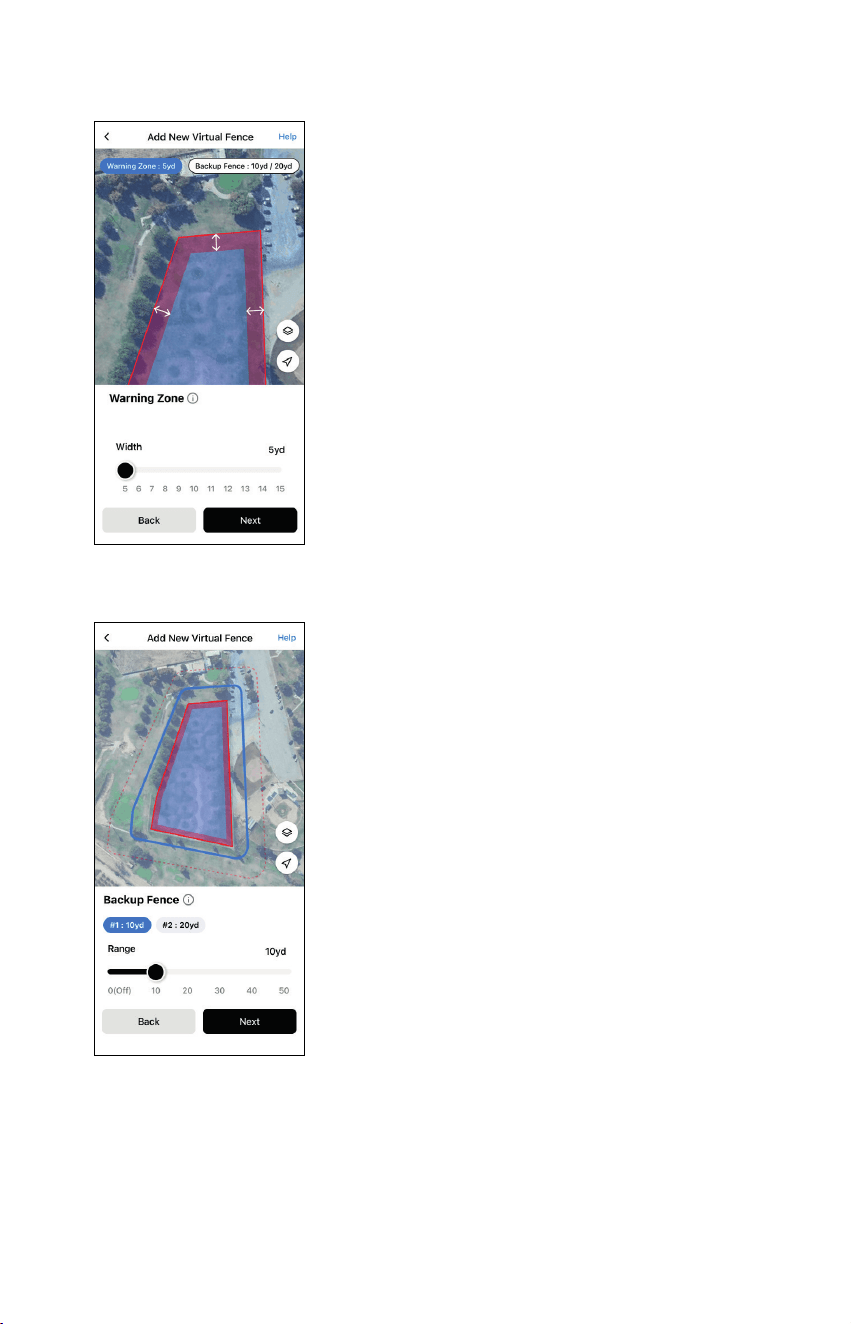
Warning Zone
The Warning Zone is the space 5–15 yards
before the Primary Fence. When your
dog enters this area, the collar gives a
correction based on your settings. By
default, it uses vibration.
1) About the Dogtra GPS Fence
21
3
Backup Fences
Backup Fences are 2 additional Virtual Fence perimeters beyond the
Primary Fence’s Outer Fence perimeter, marked as dashed lines outside
the Primary Fence. You can set up the distance between each Backup
Fence and Primary Fence, and each correction type per Virtual Fence on
the settings page.
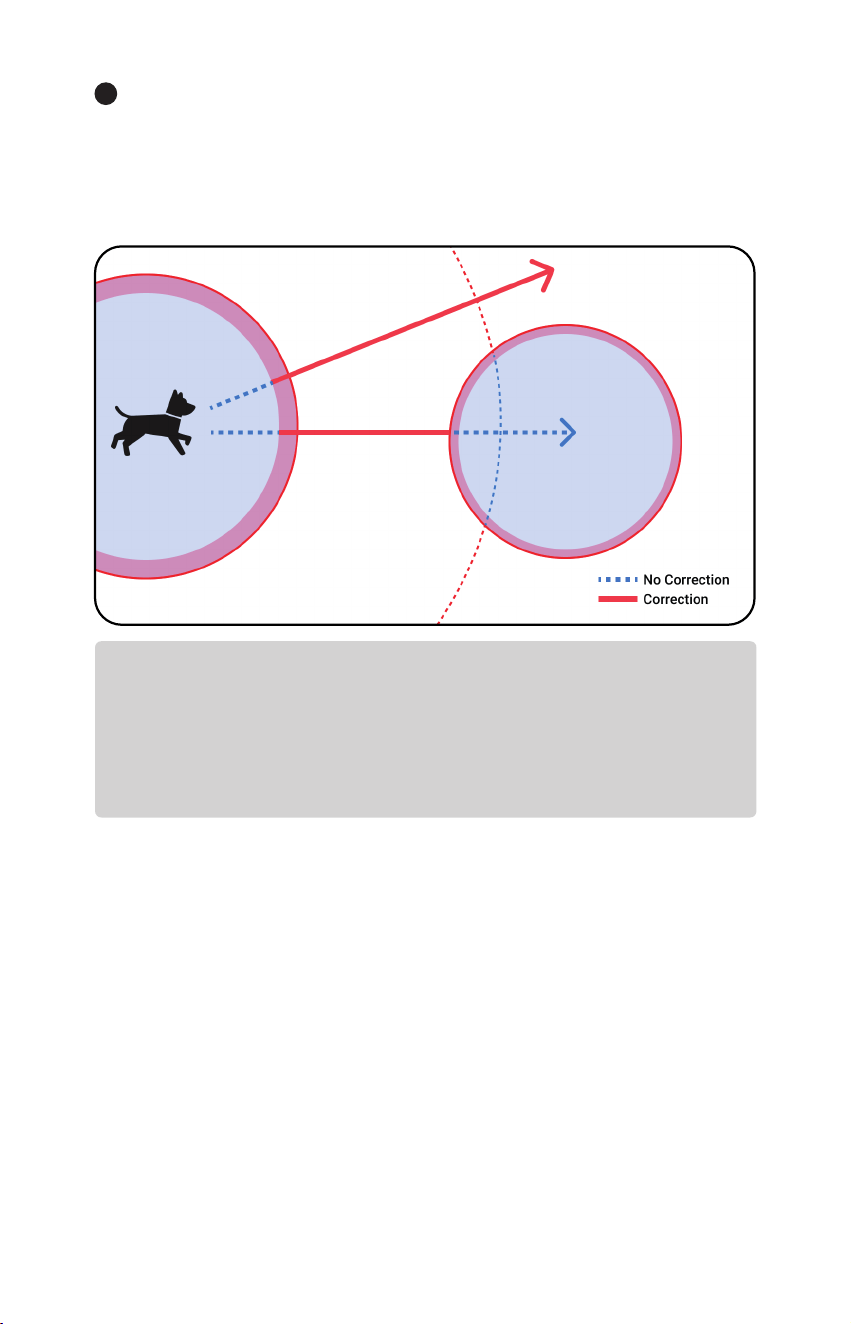
Note
While the Primary Fence areas cannot overlap with each other, the Backup Fence
perimeter can overlap another Primary Fence’s area.
If the dog manages to pass through the perimeter despite the correction and
enters into another Primary Fence’s safe zone, the correction will not apply at the
perimeter of another Primary Fence, and the Return Reminder tone will turn off.
22
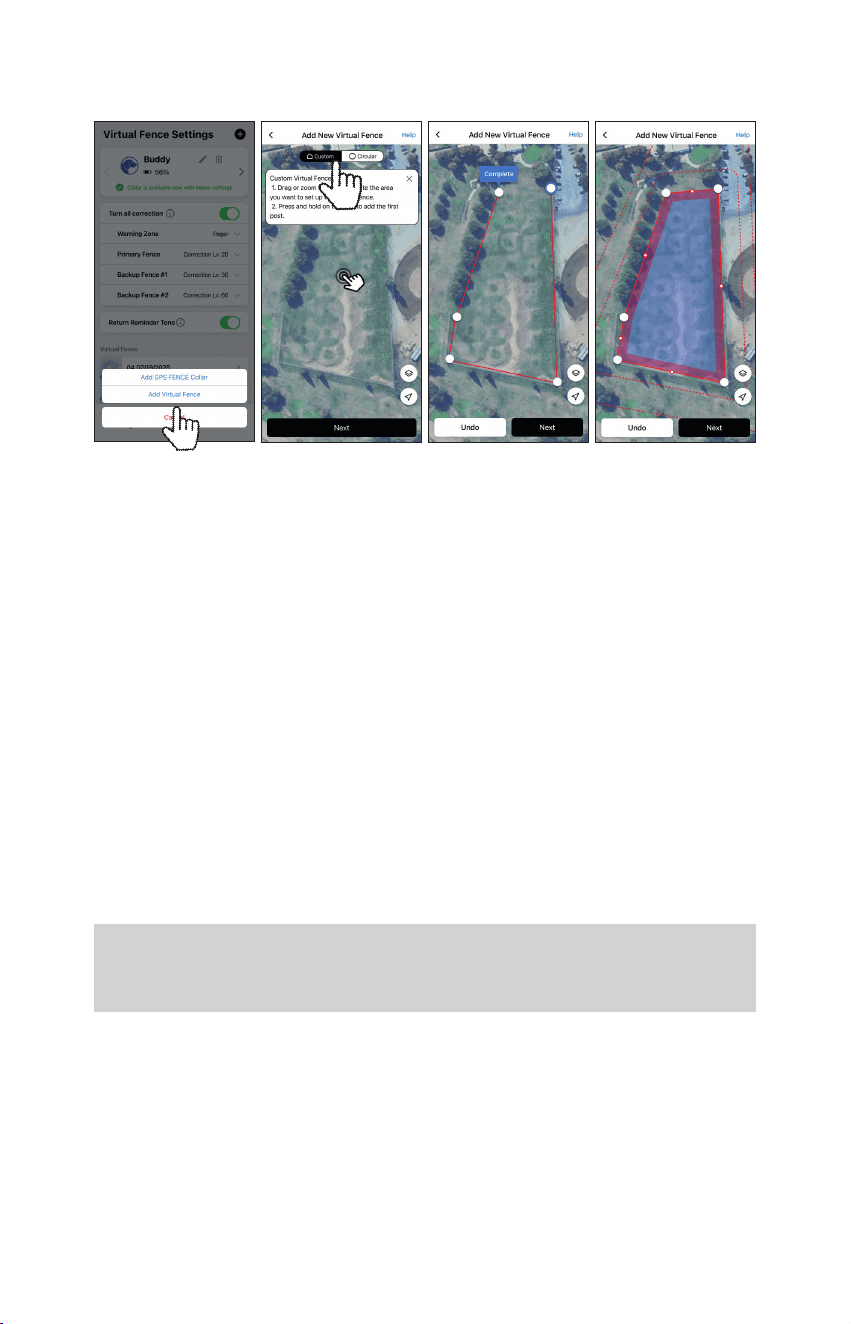
2) Add Outer Fence
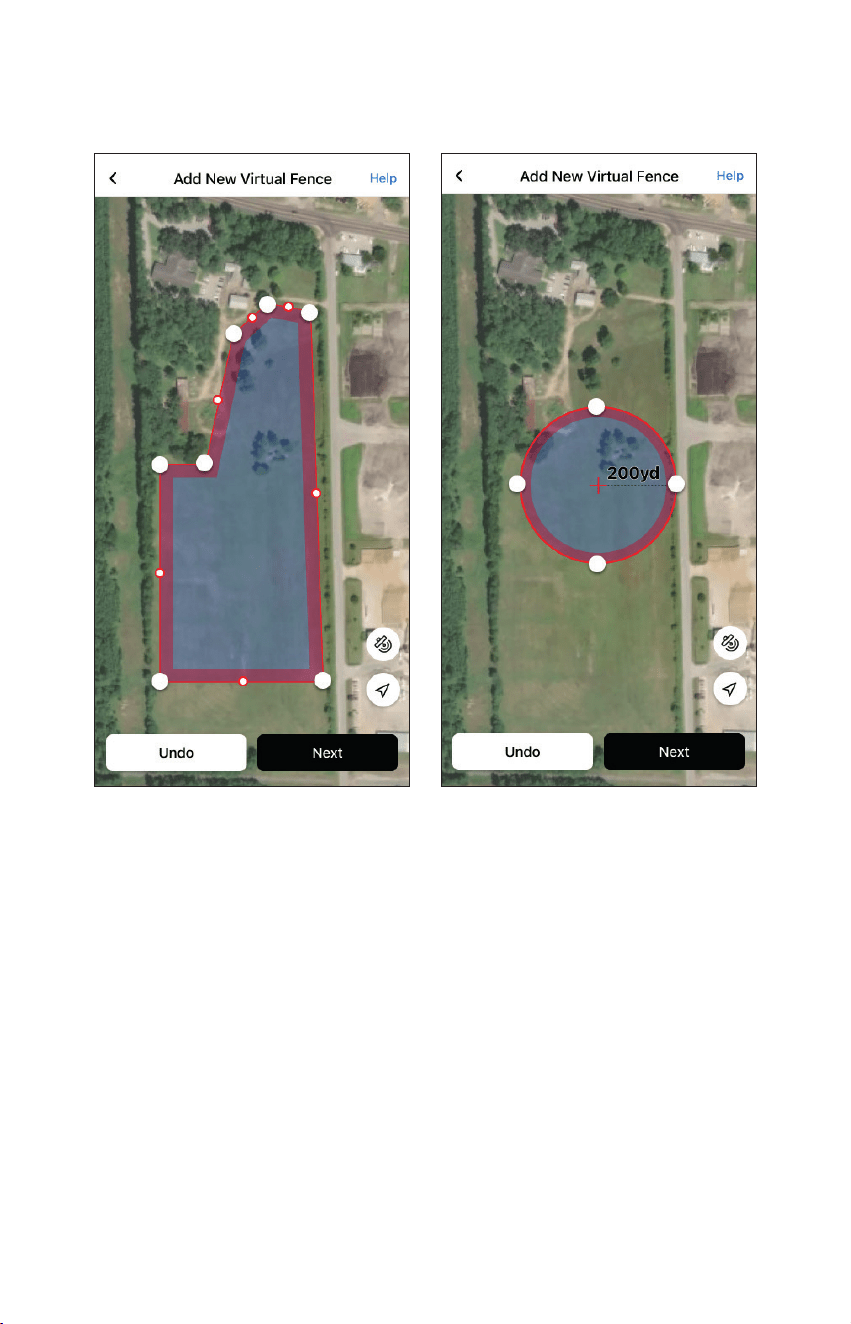
1. On the settings page, press the Add button and select Add Virtual Fence.
2. Select a Custom or Circular fence shape and place the map where you want
to add the Virtual Fence.
3. Custom Fence: Press on the map to add posts to create a fence of the
desired shape. You can add up to 25 posts and press the starting point of
the post to complete the fence shape.
Circular fence: Drag post to resize the fence. The maximum diameter of the
circular fence is 2.5 miles, and the minimum diameter is 13 yards.
4. Adjust the range of the Warning Zone, Backup Fence 1, and Backup Fence
2 at the top of the map and press the Save button below.
5. Once you save the Virtual Fence perimeter, go to the Settings tab in order
to automatically update the Virtual Fence information to each paired collar.
Note
Make sure that the fence boundary does not overlap or come close to a building
that can enter the interior.
23
Virtual Fence type
Custom shape
Add up to 25 posts to generate
custom shaped perimeter
Circular shape
The maximum diameter is 2.5 miles, and
the minimum diameter is 13 yards.
24
3) Edit Warning Zone
4) Edit Backup Fence range
1. Press the Backup Fence button at the top of the
fence screen.
2. Select the backup fence you want to change,
adjust the range with the slider at the bottom,
and press the Save button below
Backup Fence Range
#1: 10~50 yards / #2: 20~300 yards (The interval
between backup fences must be at least 10 yards.)
1. Press the Warning Zone button at the top of the
fence page.
2. Adjust the range with the slider at the bottom
and press the Save button.
25
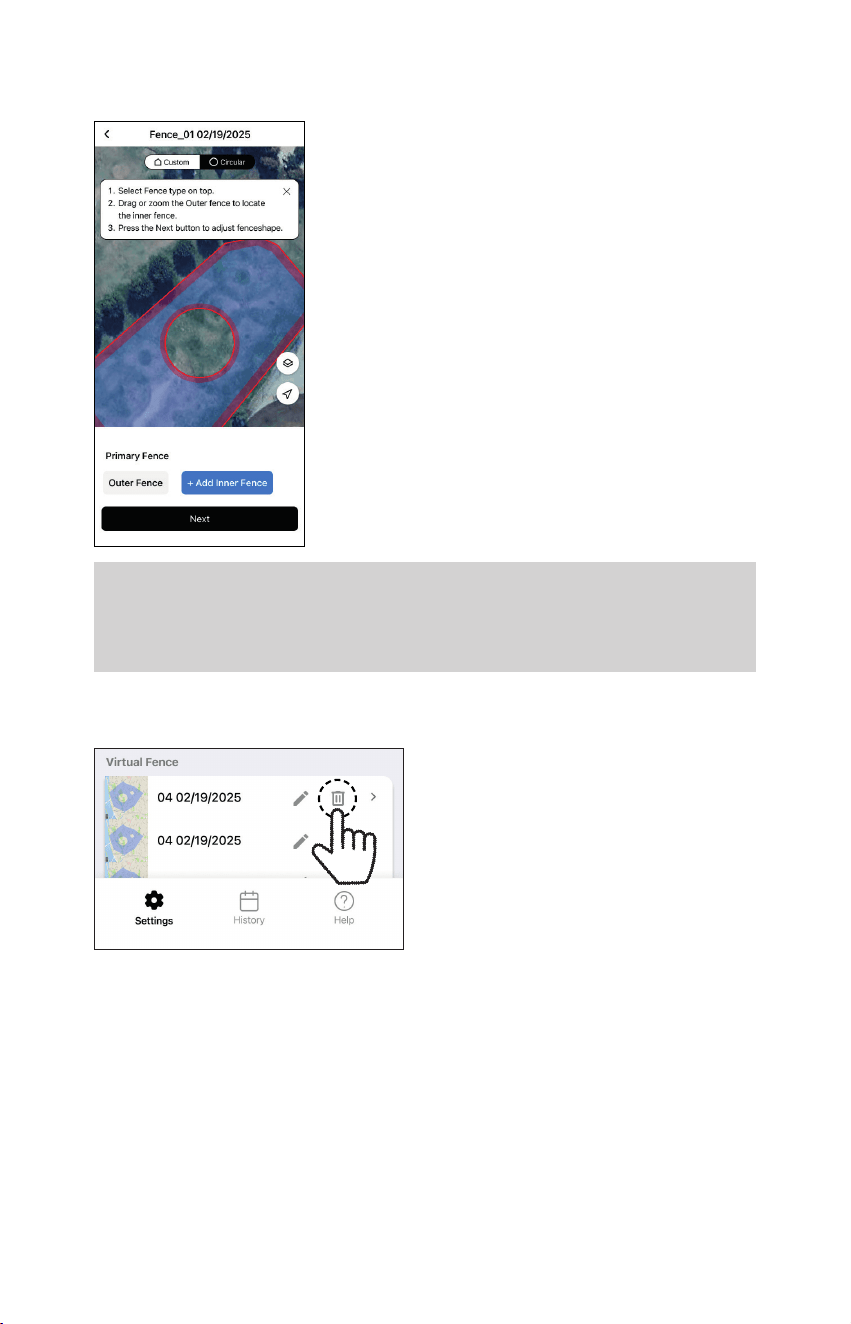
5) Add Inner Fence
6) Delete Outer Fence
Press the Delete Button in Settings
Page.
*Every Inner Fence inside this Outer
Fence will be deleted as well.
1. Go to the Primary Fence where the Inner Fence
will be placed in the settings screen.
2. Select + Add Inner fence at the bottom right of
the fence screen.
3. Create an Inner Fence within the Outer fence.
Note
When creating/editing/deleting a Virtual Fence, keep the GPS FENCE collar near
your smartphone. After saving the fence, be sure to go to the Settings tab in order
to automatically update the revised Virtual Fence information to each paired collar.
26
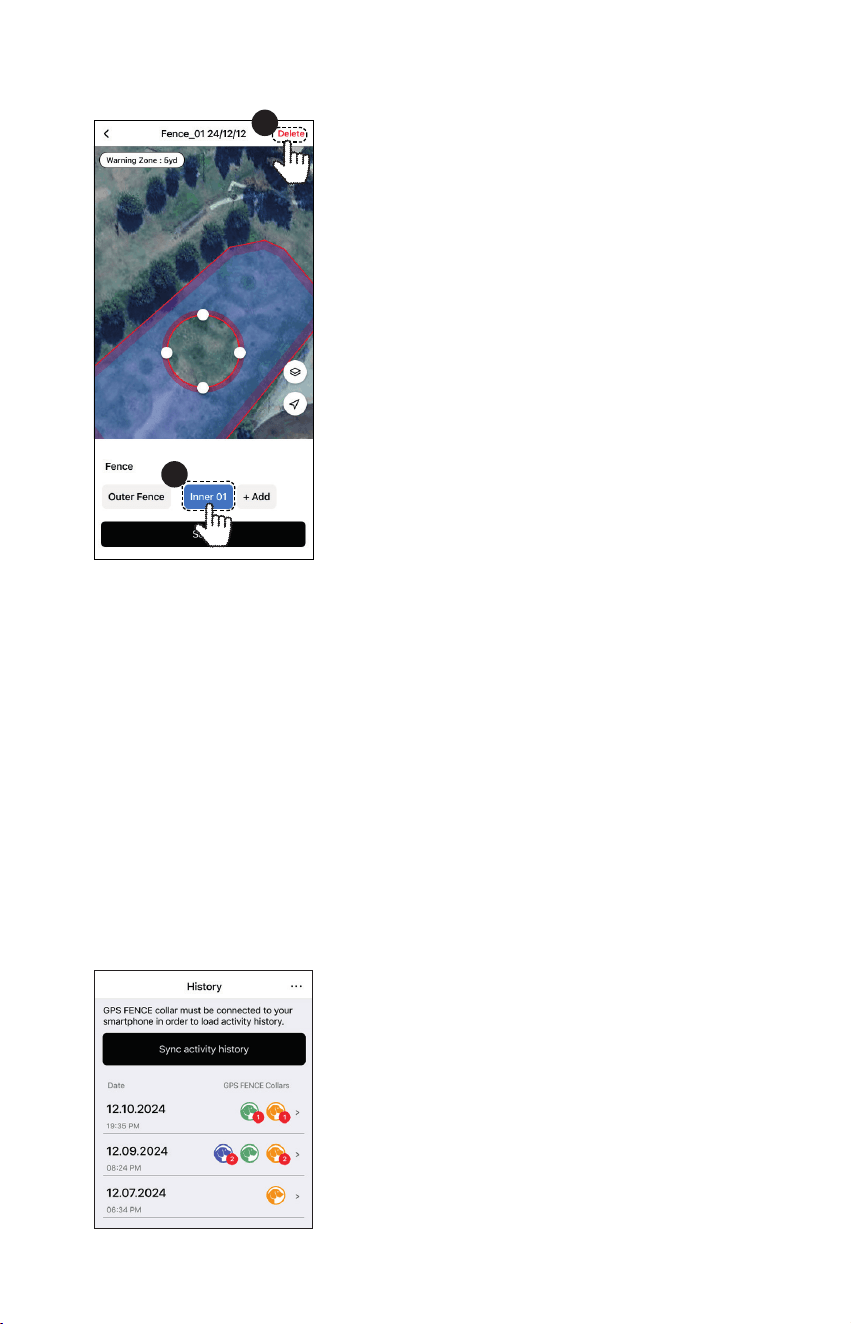
7) Delete Inner Fence
3. History
Load activity information from the connected collar to the app and check
the movement path of the collar for the last 6.2mile(10km) and the time of
leaving/returning to the fence. Activity information data is stored in the local
memory of the smart device on which the app is installed, and if the collar is
deleted from the app, history of the collar is also deleted.
1) About History
To load activity history, the connected collar must
be close to the app. Press the Load activity history
button at the top.
The left side of each list shows the creation or
update time, and the right side shows the collar
and number of escapes from the Primary Fence.
When you modify a fence and load activity history,
a new list with the modified fence is created.
2) History list
Go to the outer fence where you want to delete
the inner fence.
1. Select Inner Fence.
2. Press Delete in the upper right.
1
2
27
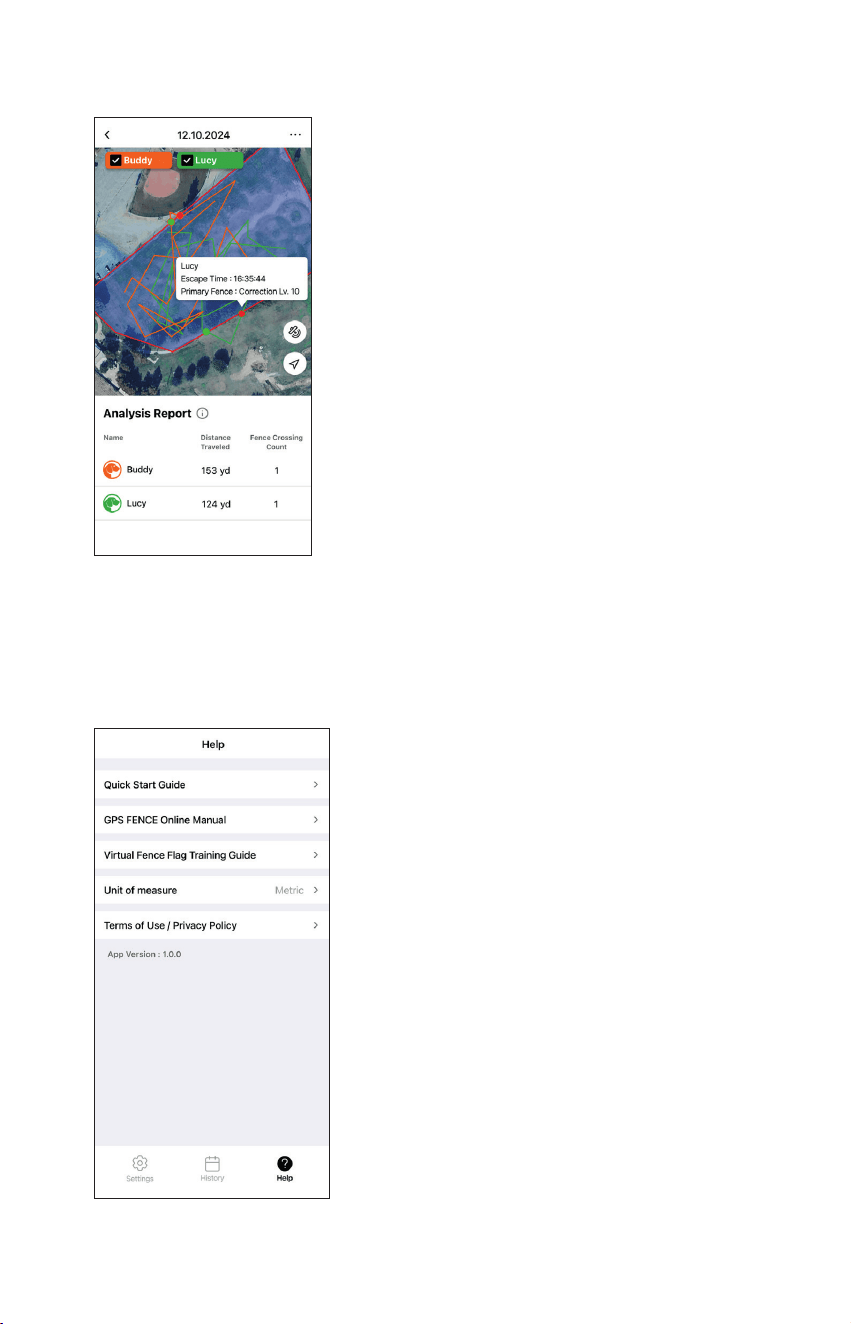
When you enter the detailed information of the
activity history, the map shows the fence and the
movement path of each collar. If you have loaded
the activity information of multiple collars, you
can check each collar at the top to show/hide the
movement path.
The path on the map is a rough representation of
the dog’s movements at 32.8ft(10m) intervals and
may differ from the dog’s actual distance traveled.
For more accurate distance traveled, please refer
to the Analysis Report.
Red points on the map are where the dog escaped
from the fence. Pressing on these points will
display the dog’s fence escape information (name,
breakaway time, correction command). Pressing
on the green points will display fence return
information. You can convert activity information
into KML data and share it externally by pressing
the icon at the top right of the screen.
4. Help
Quick Start Guide
Describes the basic contents of each tab.
GPS FENCE Online Manual
Links to the user manual for the Collar and the
App.
Virtual Fence Flag Training Guide
Guides you to train your dog to recognize the
Virtual fence.
Unit of measure
Change the units of distance displayed in the
app to meters or yards.
Terms of Use / Privacy Policy
Check Terms of Use and Privacy Policy before
use.
3) Detail history
28
Power adapters are not
included.
CHARGING THE BATTERY
The Dogtra GPS FENCE uses a lithium polymer battery. Recharge the unit if
the indicator light is red or does not come on or the system will not stay on
when any button is pressed.
NOTE 1: The unit has a partial charge when it leaves the Dogtra facility. Upon
receipt of the system, be sure to give it a full 2-hour initial charge before the
first use away from any flammable substances.
NOTE 2: When a charger is not in use, disconnect it from the power source.
Fully charge the batteries if the unit is to be stored without use for a period
of 3 months or more.
Follow the steps below to charge your system:
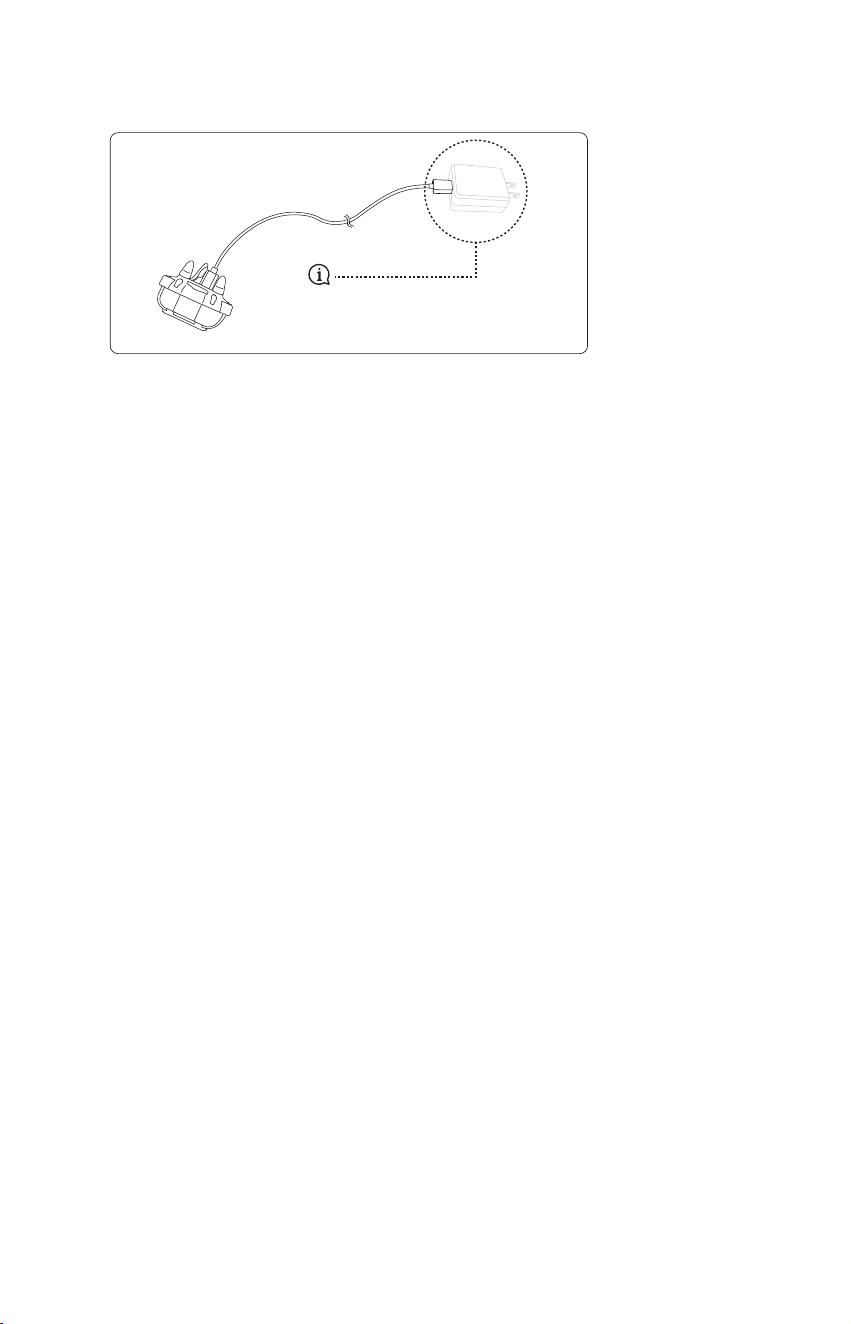
1. Locate the provided DC to USB charging cable. Open the rubber cover on
the battery charging port and insert the 5mm DC jack.
2. Plug the USB end of the cable into a USB wall charger plug. Charging
time may vary depending on the wattage of the USB power source, but
it typically takes around 3 hours or more. When charging correctly, all
indicator lights will glow red. The unit will automatically shut off during
charging, and you will need to turn it back on after it is fully charged and
unplugged from the cable.
3. The lights will stay red during the charging process and turn green once the
unit is fully charged.
4. After charging, cover the battery charging port with the rubber plug.

29
1. The dog does not respond to the stimulation.
- Make sure the system is on and the strap is tight enough so that both
contact points are touching your dog's skin.
- If the contact points are too short, you can either purchase longer contact
points or trim the hair near your dog's neck.
- Increase the level until your dog responds with a subtle head or neck
movement.
2. My dog has skin irritation.
This may be due to an improper fit or from wearing the receiver too long.
If your dog exhibits signs of skin irritation, consult with a veterinarian.
Once your dog’s skin returns to a normal condition, continue to use the
receiver and check your dog’s neck each time you use the unit.
3. The LED stays lit on red even after charging.
A red LED that stays lit means the GPS Location is not fixed. When the
collar has found the GPS Location outdoors and the LED blinks, put
the collar on your dog. If the dog is lying down or indoors the fence is
temporarily disabled (LED stays lit on red).
4. The dog is not moving, but the collar is operating - crossed the
boundary.
While indoors, the collar’s GPS error may occur. Considering the error
range, set the virtual fence wider or turn off the correction command
when staying indoors for a long period of time.
5. History is not updated.
The collar’s movement information is not an automatic update. When the
collar and app are close to each other, press the Sync button at the top of
the History page to manually download. If the FENCE COLLAR has moved
more than 3.7mile(6km) and is close to the app, it will be automatically
updated.
6. GPS FENCE collar does not work.
If the collar is not paired or it paired with another smartphone, you will
need to initiate the re-pairing process for the GPS Fence collar.
TROUBLESHOOTING GUIDE

30
FCC/ISED WARNING STATEMENT
PART 15.19
This device complies with part 15 of the FCC Rules. Operation is subject to the following
two conditions:
(1) This device may not cause harmful interference, and
(2) this device must accept any interference received, including interference that may
cause undesired operation
PART 15.21
Any changes or modifications (including the antennas) to this device that are not
expressly approved by the manufacturer may void the user’s authority to operate the
equipment under FCC rules.
PART 15.105
Note: This equipment has been tested and found to comply with the limits for a Class
B digital device, pursuant to part 15 of the FCC Rules. These limits are designed to
provide reasonable protection against harmful interference in a residential installation.
This equipment generates, uses and can radiate radio frequency energy and, if not
installed and used in accordance with the instructions, may cause harmful interference
to radio communications. However, there is no guarantee that interference will not
occur in a particular installation. If this equipment does cause harmful interference to
radio or television reception, which can be determined by turning the equipment off
and on, the user is encouraged to try to correct the interference by one or more of the
following measures:
- Reorient or relocate the receiving antenna.
- Increase the separation between the equipment and receiver.
- Connect the equipment into an outlet on a circuit different from that to which the
receiver is connected.
- Consult the dealer or an experienced radio/TV technician for help.
This device contains licence-exempt transmitter(s)/receiver(s) that comply with
Innovation, Science and Economic Development Canada’s licence-exempt RSS(s).
Operation is subject to the following two conditions:
(1) This device may not cause interference.
(2) This device must accept any interference, including interference that may cause
undesired operation of the device.
FCC and IC RF Radiation Exposure Statement: This equipment complies with FCC and
IC RF Radiation exposure limits set forth for an uncontrolled environment.
This device and its antenna must not be co-located or operating in conjunction with
any other antenna or transmitter.

31
LIMITED WARRANTY
For Dogtra Products Purchased from Dogtra Authorized Dealers
One-Year Warranty
Except as otherwise provided below, Dogtra warrants to the original retail purchaser
(“You”) that its Dogtra products shall be free of defects in materials and workmanship
for a period of one (1) year from the date of purchase (“Warranty”). The Warranty
covers the cost of repair (parts and labor) or replacement (if repair is not feasible) of
a defective Dogtra product during said one-year period. For such repaired or replaced
products, the remaining portion of the original warranty period, or ninety (90) days,
whichever is longer, shall apply. Dogtra, at its sole discretion, shall determine whether
to repair or replace a product covered by the Warranty.
Warranty Conditions
The Warranty is not transferrable and applies to your Dogtra product only if:
(1) You are the original retail purchaser of the product,
(2) You bought the product from a Dogtra authorized dealer, and
(3) You present a receipt or other proof of purchase showing a valid purchase date,
the name and address of the authorized dealer, and the purchased product
identified by model and/or serial number.
Warranty Exclusions
The Warranty does not cover damage, loss, or deterioration to your Dogtra product
caused: by misuse, neglect, abuse, or other improper handling of the product; by
failure to follow use or care instructions; by use of the product for other than its
intended purpose; by accident or natural forces such as fire or flooding; or by normal
wear and tear such as scratches to the product surface.
The Warranty also does not cover Dogtra products that: are purchased from non-
authorized dealers; are purchased outside of the United States or Canada; have been
damaged during shipment (even if Dogtra paid or arranged for shipping); have been
modified or tampered with in any manner; are opened or repaired by anyone other
than Dogtra; or have serial numbers that have been altered or defaced.
Sole Warranties
This Warranty is the only warranty offered by Dogtra for its Dogtra products. Other
than said Warranty, Dogtra makes no other representations or warranties whatsoever
regarding its products, whether oral or in any product manual, on any packaging,
on any website, or in any other written material. No dealer of Dogtra products, nor
any employee or agent of Dogtra, is authorized to make any additions, changes, or
extensions to the Warranty. Dogtra, at its sole discretion and at any time, reserves the
right to modify the Warranty.
DISCLAIMER OF OTHER WARRANTIES
THE FOREGOING WARRANTY IS PROVIDED IN LIEU OF ALL OTHER WARRANTIES,
WHETHER EXPRESS OR IMPLIED. DOGTRA DISCLAIMS ANY IMPLIED
WARRANTIES INCLUDING, BUT NOT LIMITED TO, THE IMPLIED WARRANTIES OF
MERCHANTABILITY AND FITNESS FOR A PARTICULAR PURPOSE.
DOGTRA PRODUCT WARRANTY

32
Limitation of Remedies
Dogtra’s liability is limited to the cost of repair or replacement of the Dogtra product
under Warranty. Any claim or action to enforce the Warranty must be commenced
within thirty (30) days of the Warranty’s expiration for your product. Dogtra will
not be liable for any indirect, incidental, special, consequential, or similar damages
based on breach of warranty, breach of contract, negligence, strict tort, or any
other legal theory related to Dogtra and its products. Damages that Dogtra will not
be responsible for include, but are not limited to: loss of income or profits; loss of
revenue or savings; loss of use of the product or associated products; cost of any
substitute products or services; inconvenience, downtime, or any other time; loss of
goodwill; claims of third parties including customers; and damage to property.
Legal Rights May Vary By State or Jurisdiction
The Warranty gives You specific legal rights, and You may also have other rights
which vary by state or jurisdiction. Some states or jurisdictions do not allow certain
limitations of implied warranties or of incidental or consequential damages or other
remedies, so certain of the foregoing limitations may not apply to You.
If any portion of the Warranty is held by a court to be invalid or unenforceable, the
remaining portions of the Warranty shall remain in full force and effect and shall in
no way be affected or invalidated, and the invalid or unenforceable portion shall be
modified so as to most nearly achieve the intent of the Warranty.
Product Registration
Dogtra recommends that customers register their products as soon as possible after
purchase. Product registration will facilitate any future warranty service. You may
also receive useful information and updates about your existing and future Dogtra
products. To register your product, visit www.dogtra.com/product-registration If your
product is not registered with Dogtra, You will be required to provide a receipt or
other proof purchase (as provided above) to qualify for warranty service.
How to Obtain Warranty Service
Should your Dogtra product require warranty service, please contact Customer
Service by phone or email for a warranty evaluation (see below for contact
information). Upon approval of your warranty work, Dogtra will repair or replace (at
Dogtra’s election) your product without charge for labor or parts. You are responsible
for shipping, including cost, of your product to Dogtra for warranty service. Dogtra
will handle shipping, including cost, of the repaired or replaced product back to
customers in the USA. Dogtra will not be responsible for shipping, including cost and/
or applicable taxes or fees, for products sent outside the USA. Such costs, taxes, or
fees will be borne by the customer.
Dogtra Customer Service
12322 Monarch Street, Garden Grove, CA 92841
(888) 811-9111
repair@dogtra.com
Mon – Fri, 8:00 AM to 4:30 PM (PST)
© 2025 Dogtra. All rights reserved.