K210_FLCMMK_MK870_说明书FCC版
K210_FLCMMK_MK870_说明书FCC版
V0
20240820
100g铜版纸
展开200x660mm
折后尺寸:200x110mm
四色印刷,表面过光油,
风琴折
电子工程师 结构工程师 平面工程师 审 核 人
FCC Caution:
This device complies with part 15 of the FCC Rules. Operation is subject to the following two conditions:
(1) This device may not cause harmful interference, and
(2) this device must accept any interference received, including interference that may cause undesired operation.
Any changes or modifications not expressly approved by the party responsible for compliance could void the user's authority to operate
the equipment.
NOTE: This equipment has been tested and found to comply with the limits for a Class B digital device, pursuant to Part 15 of the FCC Rules.
These limits are designed to provide reasonable protection against harmful interference in a residential installation. This equipment generates,
uses and can radiate radio frequency energy and, if not installed and used in accordance with the instructions, may cause harmful interference
to radio communications. However, there is no guarantee that interference will not occur in a particular installation.
If this equipment does cause harmful interference to radio or television reception,
which can be determined by turning the equipment o and on, the user is encouraged to try to correct the interference by one or more of the
following measures:
-- Reorient or relocate the receiving antenna.
-- Increase the separation between the equipment and receiver.
-- Connect the equipment into an outlet on a circuit dierent
from that to which the receiver is connected.
-- Consult the dealer or an experienced radio/TV technician for help.
The device has been evaluated to meet general RF exposure requirement.
The device can be used in portable exposure condition without restriction. FCC ID:2A4V8-MK870
*
*
FN
+
~
`
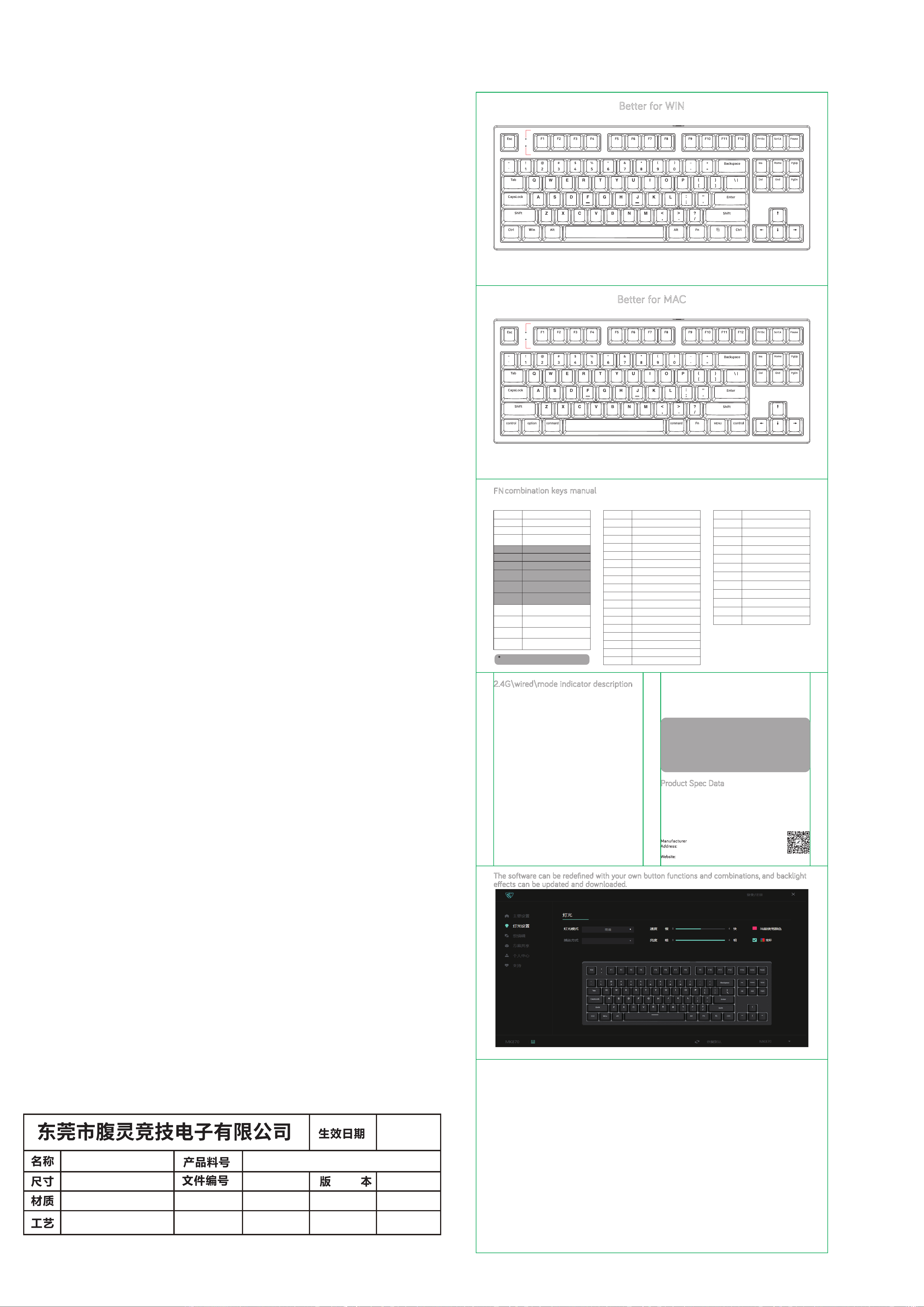
Better for WIN
MK870: 2.4G&WIRED&THREE MODE
MK870: 2.4G&WIRED&THREE MODE
The software can be redefined with your own button functions and combinations, and backlight
eects can be updated and downloaded.
Better for MAC
Tips : Quick 2.4g/wired/Bluetooth mode switching by bottom toggle switch.
*The above keycap layout is for reference only, please see the real product.
Tips : Press FN+~ combination key to switch between MAC/WIN, and indicator light will be constant light under MAC system.
*The above keycap layout is for reference only, please see the real product.
www.f l esports.com
Software ocial download website:
M
anufacturer: FL ESPORTS ELECTRONICS CO.,LTD.
A
ddress: Building B,Sizhou Industrial Zone,Shilong Town,
Dongguan City,Guangdong,China
Website:
www.fl esports.com.
FN
combination keys manual
COMMON PART
FN
+
ESC
Long press for 3 seconds to restore factory mode
Long press at least 3s to switch MAC/WIN system
FN
+
Left WIN
Lock or unlock the WIN key
FN
+
INS
Backlight mode switch
(IOS_MAC System automatically unlocked)
FN
+
DEL
Backlight color switch
FN
+
END
Go to static backlight
FN
+
UP/Down
key
Change backlight brightness, up go brighter
and down go darker
FN+Left/Right
key
Change the backlight speed, left go slow and
right go fast
FN
+
Backspace
Query the battery power under mode.
(only if the battery is powered separately)
FN
+
1
Press to switch to device 1, and press for
3S to enter the pairing
FN
+
2
Press to switch to device 2, and press for
3S to enter the pairing
FN
+
3
Press to switch to device 3, and press for
3S to enter the pairing
FN
+
4
Pressing FN combination key in 3seconds to
enter 2.4G paired receiver mode
Key Function description
Windows_Android System modelIOS_MAC System model
F1
Display brightness -
F2
Display brightness +
F3
Mission control
F4
Back to homepage
F5
Default
F6
Default
F7
PREV
F8
Play \ Pause
F9
NEXT
F10
Mute
F11
Volume down
F12
Volume up
PRT
Screen capture(Command+Shift+4)
SCR
Call Siri(Command+space)
Pause
Exit the application(Command+Q)
CTRL
control
A LT
option
WIN
Command
Key Function description
FN
+
F1
Display brightness -
FN
+
F2
Display brightness +
FN
+
F3
WIN
+
TAB ( Mission control )
FN
+
F4
WIN
+
E ( Turn on my computer )
FN
+
F5
Email
FN
+
F6
Homepage
FN
+
F7
PREV
FN
+
F8
Play \ Pause
FN
+
F9
NEXT
Key Function description
FN
+
F10
Mute
FN
+
F11
Volume down
FN
+
F12
Volume up
Ocial Website
The combination key in the gray item is not displayed in the
no backlit version!
Pull the switch to 2.4G mode, factory has paired receiver 1 to 1 ok, but if you need re-pair the dongle, press FN
+
4, and the green light of the charging indicator will flash to search the receiver. After successful connection,
the green light is on for 3s and then o. When the paired dongle cannot be found for 60s, the matching code
will be quit and charging indicator will be extinguished. The keyboard reconnection needs 10s, at the same
time the green light of charging indicator will flash slowly, and the keyboard will go to sleep when the keyboard
fails to connect back. After the reconnection is successful, the green light is on for 3s and then o. When the
keyboard is not used, the backlight will be turned o after 120s, and the keyboard will fall asleep after 10min.
2.4G\wired\mode indicator description
2.4G mode:
Pull the switch to wired mode, and the charging indicator will be red or o, which shows be charging or full
charging.
Wired mode:
When the USB cable is plugged in, it means in charging if the indicator light shows in red and it will be o after
the voltage reach 4.2V, which means the power has been fully charged. When you plug in the USB cable, it
charges whether the bottom toggle switch is on or not.
Charging mode:
When the power is less than 20%, the charging indicator will alternately flash red to prompt the user to charge.
(Note: When the battery voltage is lower than 3.1V, the keyboard will stop working directly, and can not wake up.
At this time, when the key is hit, the keyboard will only have the charging indicator flashing, and no other
response. Be sure to plug in the USB cable to charge to 3.1V above so keyboard could be waked up.)
Low power mode:
Pull the switch to mode, the combination key for connection is 1, 2 and 3. Long press FN
+
1 /2 /3 for 3s
to broadcast, short press alone to switch devices, press the combination key for 3s to enter the pairing
state, and the blue light of charging indicator will flash. After the pairing is successful, the blue light is on for 3s
and then o. When the matching device cannot be found in 60s, the pairing will be quit and charging indicator
will be extinguished. The keyboard reconnection needs 10s, at which time the blue light of charging indicator
will flash slowly, and the keyboard will go to sleep when the keyboard fails to connect back. After the reconn-
ection is successful,the blue light is on for 3s and then o. When the keyboard is not used, the backlight will be
turned o after 120s, and the keyboard will fall asleep after 10min.
mode:
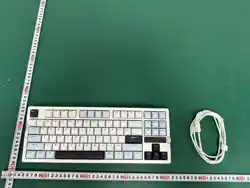
Product Type: MK870 RGB dual system three mode mechanical keyboard
Product Size:364.3mm(L)x 143.5mm(W)x 36mm(H)
Total key number: 87 keys Switch lifespan:>50 millions
Keyboard function:All keys anti-ghosting Conduction Travel:1.5mm~2.4mm
Working voltage: 5V Cable length:1.6 meters
Cable connector type:TYPE-C Keyboard connector type:USB2.0
Product Spec Data
Matters Need Attention:
1. When is broadcast, two names "5.0KB" and "3.0KB" will be displayed at the same time
if the receiver is version 4.0 or above. In this case, "5.0KB" will be preferred for connection.
When the receiver version of the device is below 4.0, only one name "3.0KB" will be
displayed. Only "3.0KB" can be selected to connect.
2. When Connecting device, pay attention to the code indicator. The device can search for the
keyboard only when the indicator is flashing quickly. If it is a slow flash state, representing the
keyboard in the state to back connect (At this point, the device cannot search for the keyboard), you
need to press the code combination one more time (FN
+
1 or 2 or 3), see the light flash to loosen,
the equipment can normal search to the keyboard.
MAC/WIN Indicator Light
Charging/2.4G or BT mode Indicator Light
MAC/WIN Indicator Light
Charging/2.4G or mode Indicator Light