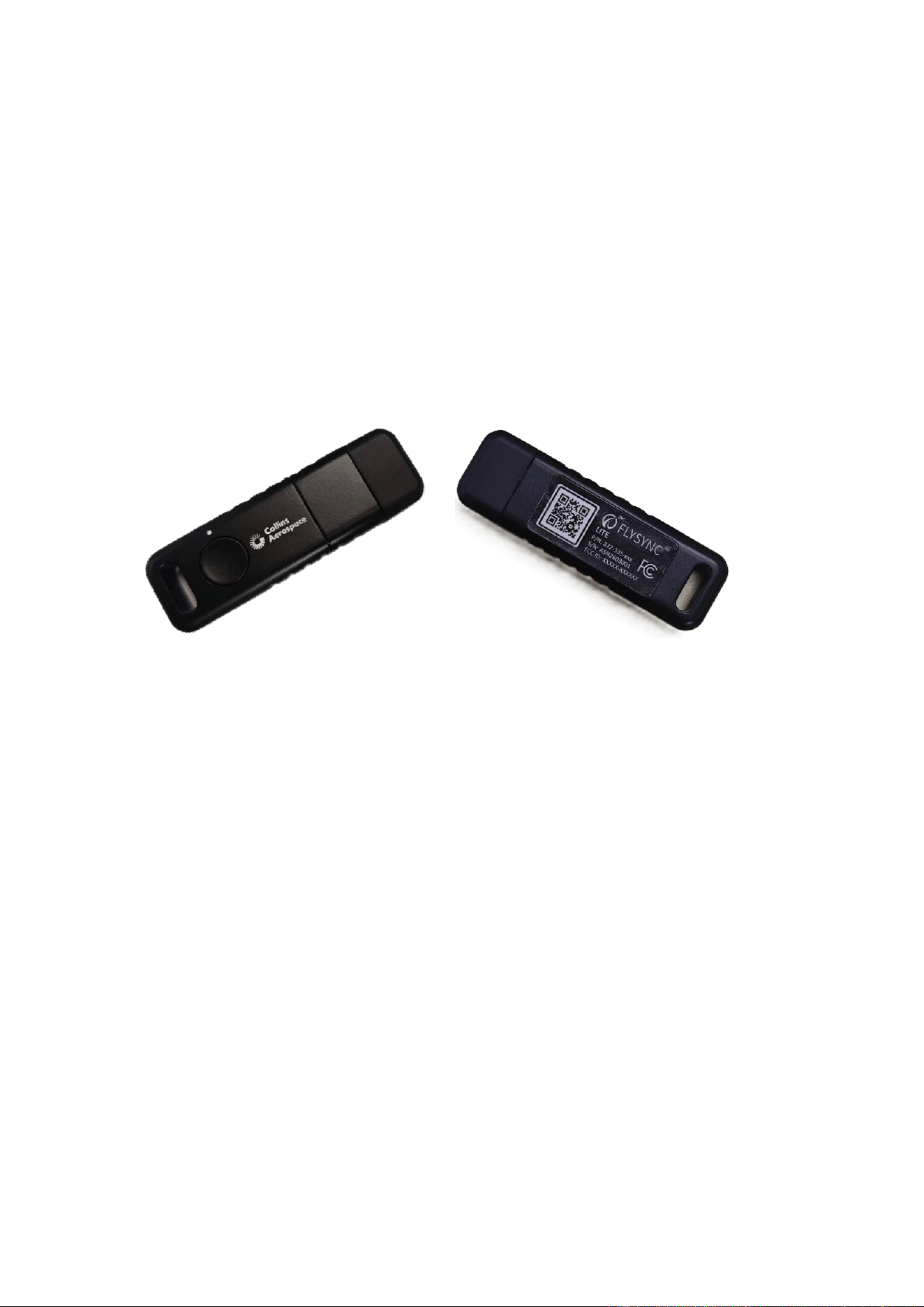
FlySync Lite USB Dongle User Manual
1. Overview
The FlySync Lite USB Dongle, launched by Collins Aerospace, is a lightweight device that
integrates USB flash drive storage and wireless data transfer capabilities, designed
specifically for Electronic Flight Bags (EFBs) and mobile office scenarios. It can function as a
standard USB flash drive for data storage, or it can transfer files from its database unit to the
EFB via its built-in Wi-Fi hotspot, eliminating the need for an external network.
2. Features
Dual-function design: Supports both USB flash drive storage mode and wireless hotspot
transmission mode.
Manual transfer mechanism: Users can choose which files to send via the accompanying
software.
USB 2.0 interface, plug and play.
802.11b/g/n wireless standard, stable transmission on the 2.4GHz band.
16GB built-in storage, meeting basic data storage and transmission needs.
USB powered, no external power supply required.
Low power consumption design, rated power consumption of only 1.5W.
Supports batch transfer between multiple devices, improving work efficiency.
WPA2 encryption, ensuring data transmission security.
IP54 protection rating, adaptable to various working environments.
FCC certified, compliant with international standards.
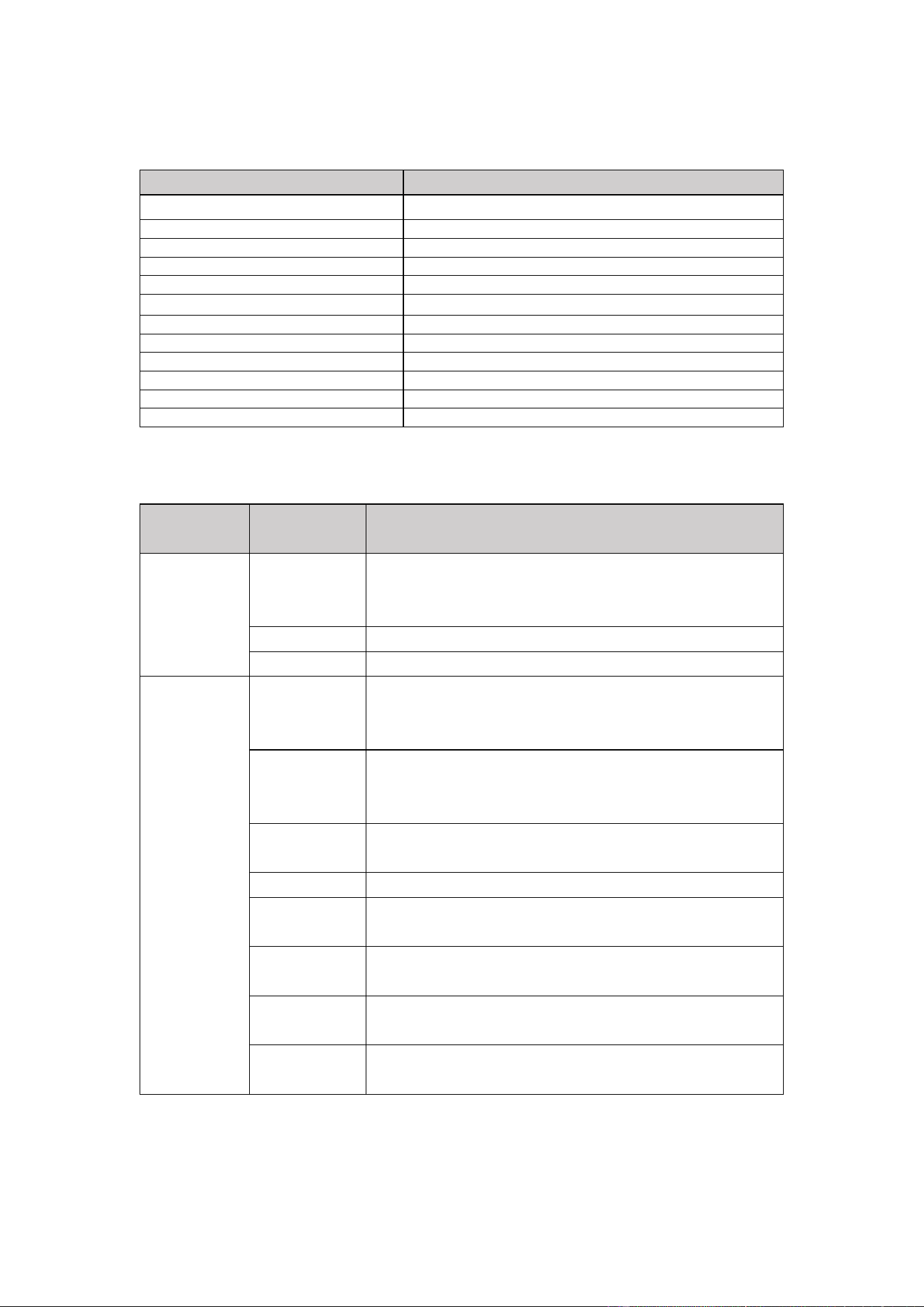
3. Hardware Specifications
Item
Parameter
Product Name
USB Dongle
Product Model
FlySync Lite
Color
Black
Shell material
ABS plastic
Storage capacity
16GB
Wireless standards
802.11b/g/n(2.4GHz)
Wireless transmission rate
802.11n up to 150 Mbps
USB interface
USB 2.0
Power supply
USB powered
Rated power consumption
1.5W
Dimension
84 × 26 × 13 mm
Weight
20g
4. Functions and performance
Functional
Classification
Item
Directions
Storage
function
USB flash drive
mode
Simply plug it into your computer and it will function as a
standard USB flash drive, supporting file read and write
operations.
File system
Supports FAT32 format
Hot-swap
Support
Transmission
function
Transmission
mode
After inserting a database cell and selecting the file using
the accompanying software, FlySync Lite automatically
creates a Wi-Fi hotspot.
Connection
method
After the Electronic Flight Bag (EFB) connects to the
FlySync Lite hotspot, it automatically receives and transfers
files.
Batch transfer
Supports multiple EFB connections to receive files
simultaneously.
Data security
Supports WPA2 encryption
Compatible
systems
PC, MAC, iOS
Transmission
distance
In open environments, it can reach 30 meters.
Automatic
synchronization
Once the file is selected, it will be automatically pushed to
all EFBs.
Supported
devices
DBU-5000, etc.
5. Usage Environment
Item
Parameter
Operating temperature
0°C to 65°C
Storage temperature
-20°C to 70°C (recommended)
Protection level
IP54 (dustproof, splashproof)
6. Packaging and Accessories
Item
content
Packaging contents
FlySync Lite × 1
User Manual × 1
Authentication information
FCC
7. Application scenarios
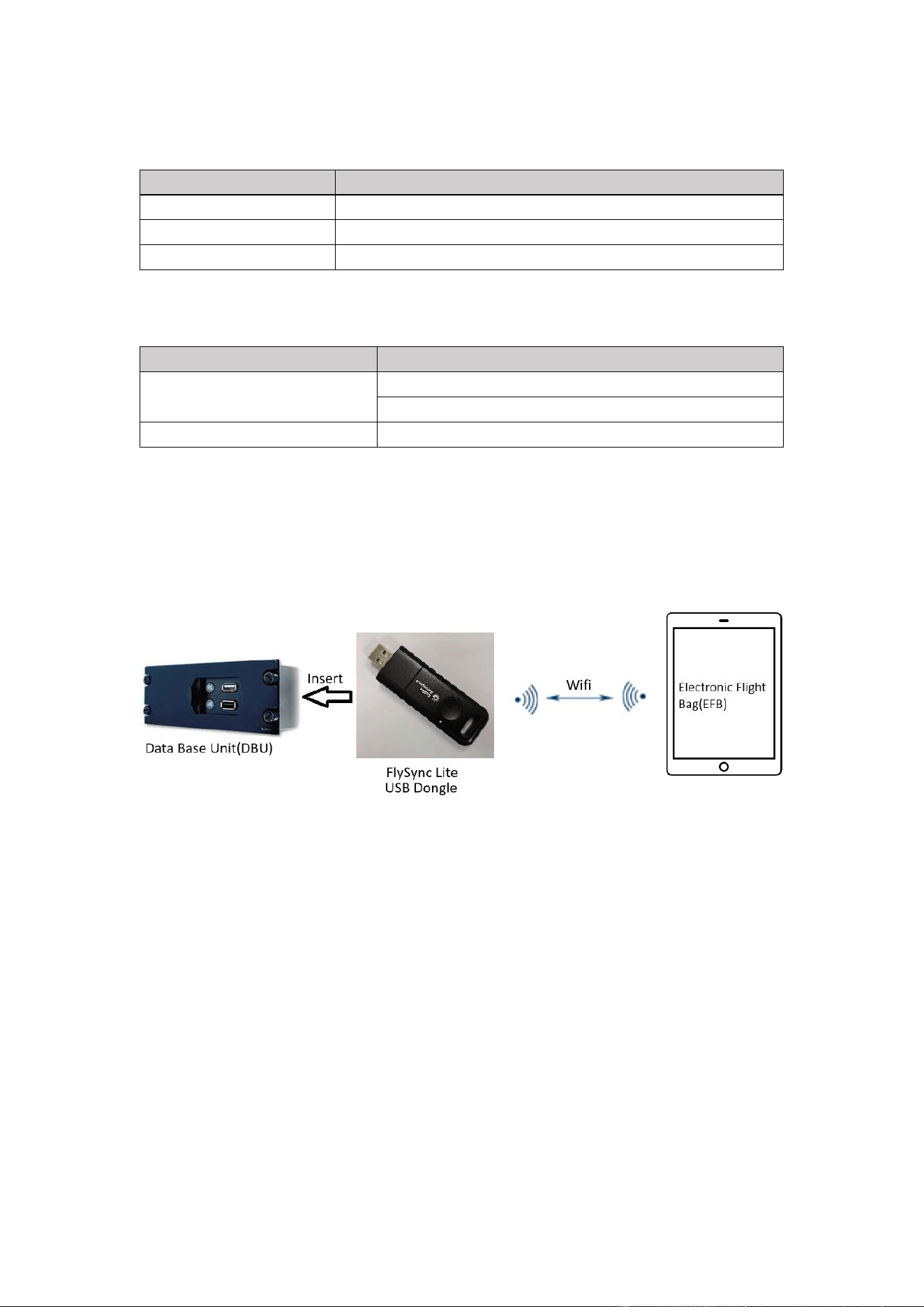
Flight data synchronization to the electronic flight bag (EFB): Rapidly distribute flight
data to the flight deck from an electronic flight bag (EFB).
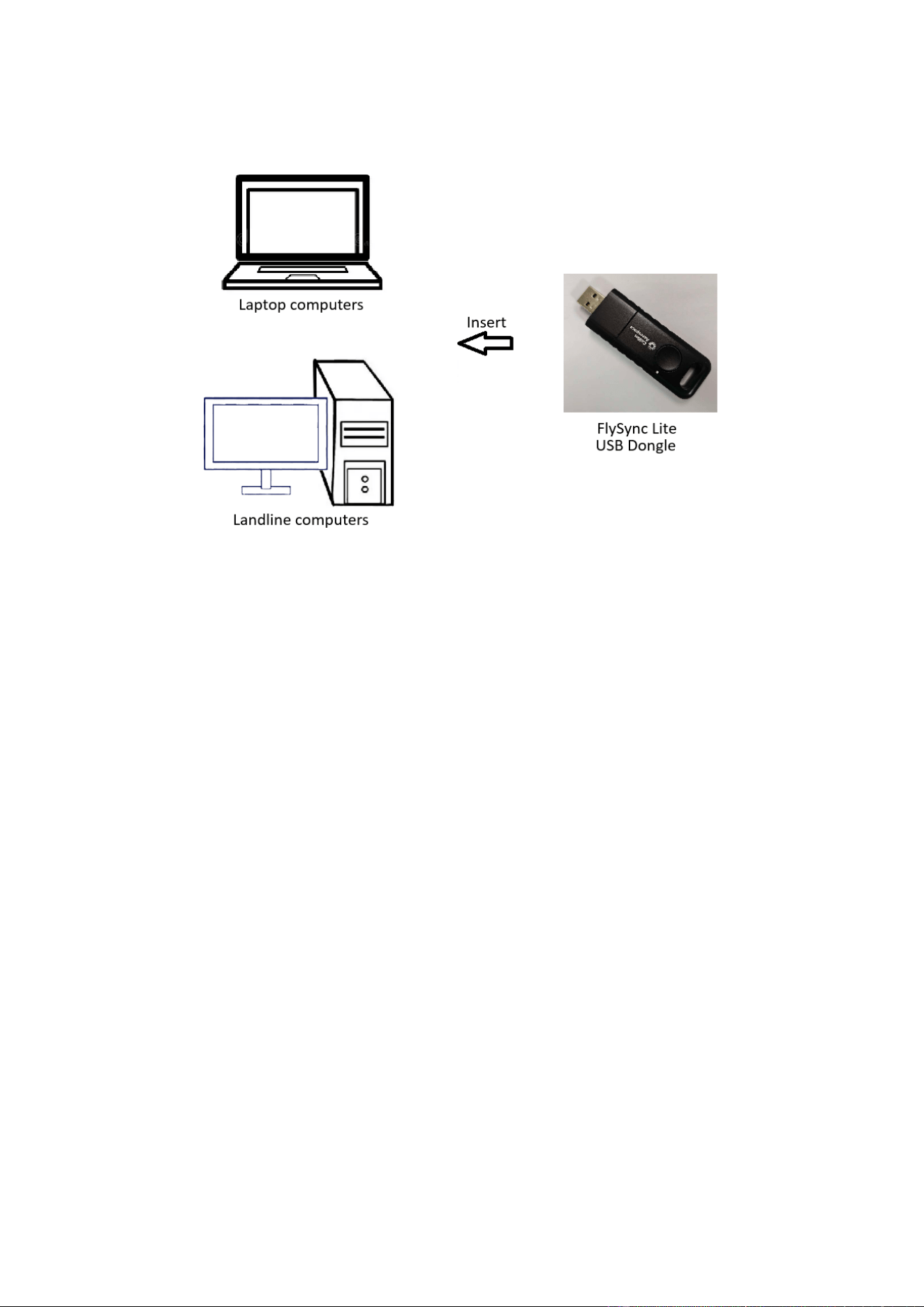
Standard USB flash drive for everyday storage
8. Operating Instructions
8.1 Wireless transmission mode
8.1.1 Sending end operations
a) Insert FlySync Lite into the USB port of the Data Base Unit.
b) Open the accompanying transfer software
c) Select the file or folder to be transferred.
d) Click "Start Transfer," and FlySync Lite will automatically create an encrypted Wi-Fi
hotspot.
8.1.2 Receiver operation:
a) Search for Wi-Fi networks on EFB
b) Connect to the Wi-Fi hotspot created by FlySync Lite (name and password can be found
on the product label).
c) After a successful connection, the file will be automatically transferred to EFB.
d) Supports simultaneous connections from multiple EFBs, with files synchronously pushed
to all receiving ends.

8.1.3 Transmission complete
a) After the transfer is complete, disconnect the Wi-Fi connection from FlySync Lite on the
EFB.
b) Unplug FlySync Lite from the Data Base Unit.
8.2 USB flash drive mode
a) Plug the FlySync Lite into the computer's USB port.
b) The system automatically recognizes it as a removable disk.
c) Files can be copied, pasted, and deleted directly.
9. Precautions
a) Do not use in environments with high temperature, high humidity, or strong
electromagnetic interference for extended periods.
b) Ensure good contact of the USB interface during use and avoid frequent plugging and
unplugging.
c) Wireless transmission distance is affected by the environment. It is recommended to keep
EFB as close as possible to FlySync Lite and avoid obstruction when using it.
d) This product does not support 5GHz band wireless networks.
e) In transmission mode, please ensure that the device has sufficient power to avoid
transmission interruption.
f) For first-time users, it is recommended to install the accompanying software for full
functionality support.
10. FCC Caution:
This device complies with part 15 of the FCC Rules. Operation is subject to the following two
conditions: (1) This device may not cause harmful interference, and (2) this device must
accept any interference received, including interference that may cause undesired operation.
Any changes or modifications not expressly approved by the party responsible for compliance
could void the user's authority to operate the equipment.
Note: This equipment has been tested and found to comply with the limits for a Class B digital
device, pursuant to part 15 of the FCC Rules. These limits are designed to provide
reasonable protection against harmful interference in a residential installation. This
equipment generates, uses and can radiate radio frequency energy and, if not installed
and used in accordance with the instructions, may cause harmful interference to radio
communications. However, there is no guarantee that interference will not occur in a
particular installation. If this equipment does cause harmful interference to radio or

television reception, which can be determined by turning the equipment off and on, the
user is encouraged to try to correct the interference by one or more of the following
measures:
- Reorient or relocate the receiving antenna.
- Increase the separation between the equipment and receiver.
- Connect the equipment into an outlet on a circuit different from that to which the
receiver is connected.
- Consult the dealer or an experienced radio/TV technician for help.
The device has been evaluated to meet general RF exposure requirement. The device
can be used in the exposure condition without restriction.The device has been
evaluated to meet general RF exposure requirement. The device can be used in the
exposure condition without restriction.
11. Contact information
For technical support or after-sales service, please contact:
Official Website:www.flysync.com
Customer service email:support@flysync.com
Service Hotline:400-xxx-xxxx