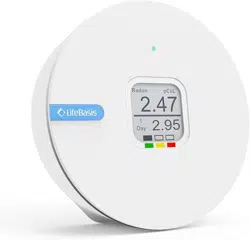
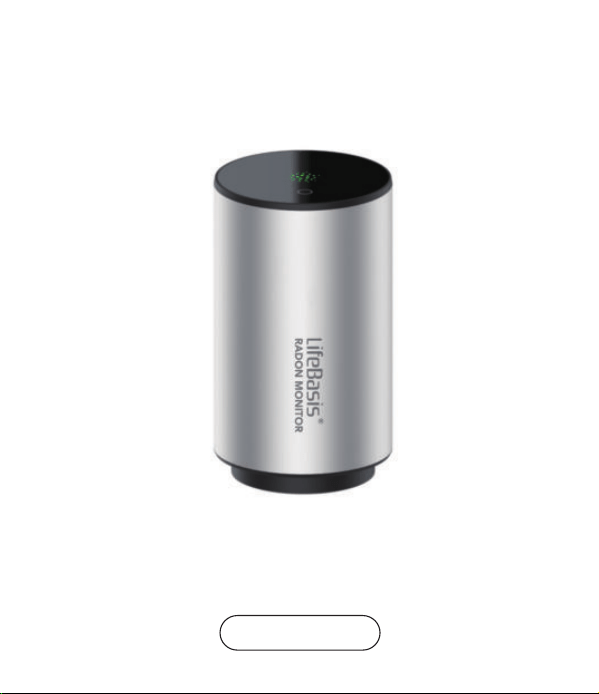
LifeBasis Intelligent Radon Monitor
Instruction Manual
RN-PRO200
Thank you very much for using this product. In order to enjoy the
service of this product, please keep and read the instruction
carefully. If you have any problems for this product, please feel free
to contact us ( [email protected]).
Our innovative radon monitor, which integrates the latest high-preci-
sion radon sensor, combined with a friendly and stable WIFI APP,
provides a simple, fast, highly accurate and affordable solution for
continuous radon monitoring.
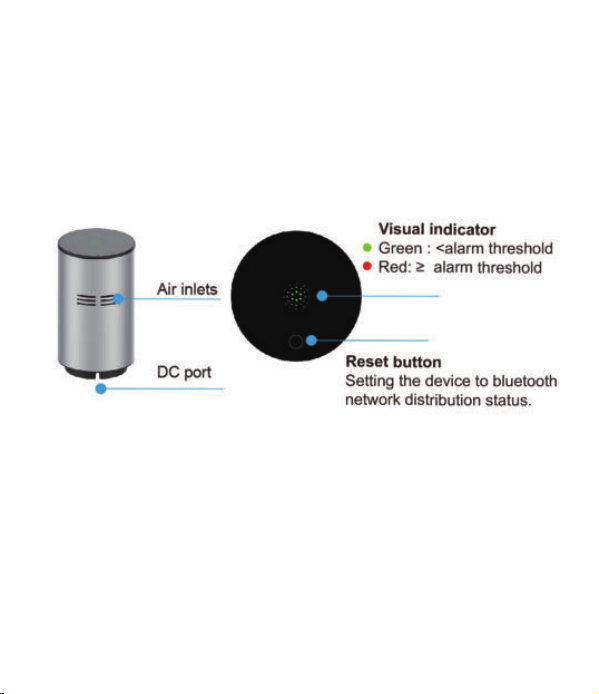
Product Description
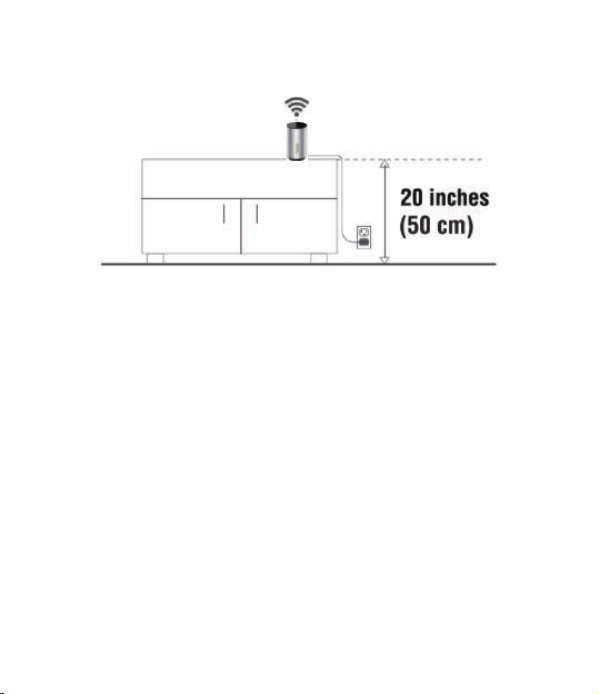
Product Placement Guidelines
1. Make sure it’s at the correct height. Place our radon monitor at
least 20inches (50cm) above the floor.
2. Don't place radon monitor close to open windows or vents, and
keep it away from high heat and high humidity.
3. Find a place with good Wi-Fi signal. Our radon monitor use a
Wi-Fi connection to the internet and send information to your
smartphone APP.
4. Vibration can cause the unit to pause the test and produce a
warning sound;
5. Re-pairing is required if the network is changed ;
6. A device can only be paired with one smartphone and one router
at the same time; a smart phone can be paired with multiple
devices (up to 200 devices) .
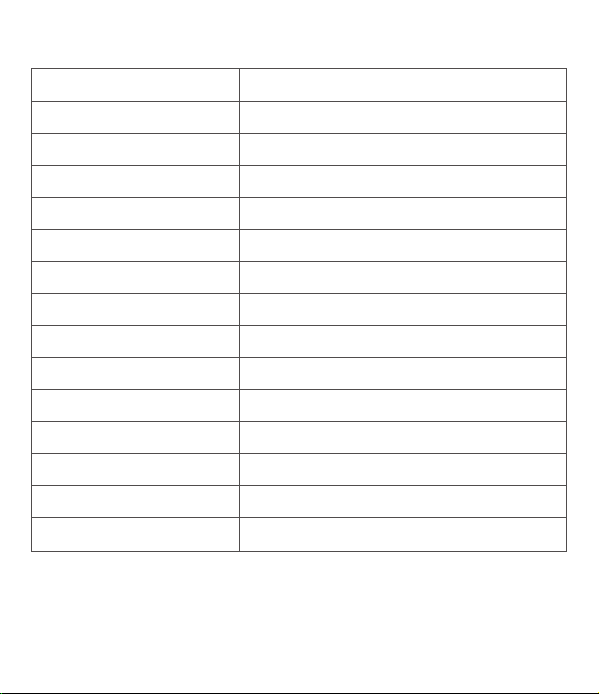
Product Technical Specifications
Product Name
Sensor Type
First Radon Result
First Highly Reliable Radon Result
Radon Date Update Interval
Radon Count Sensitivity
Measurement Range
Range of Measurement Errors
Connectivity
Radon Alarm
Radon Level Visual indicator
Power Consumption
Working Environment
Product Size & Weight
Package Size & Weight
Intelligent radon monitor
Pulsed ion chamber
About 10 min
Within 1 hour
10 min (updated the average of the previous hour)
30CPH (1hour / 1pCi/L)
0.2 ~ 99.9 pCi/L (1~3700 Bq/m³)
< 10% at 10 pCi/L (370 Bq/m³) after 10 hours
Wi-Fi
Audible alerts & Visual indicator
3-Color Led (red, orange, green)
DC 12 + 0.1V; 65mA (12V DC adapter)
Temperature 32~104°F (0~ 40°C); Humidity < 80% RH
80 mm X 140 mm , 380g
100 mm X 100 mm X 190 mm, 450g
How to Connect the Device and Use it ?
Step 1.Connect the power cable into the
device and plug the power adapter into
an AC power supply.
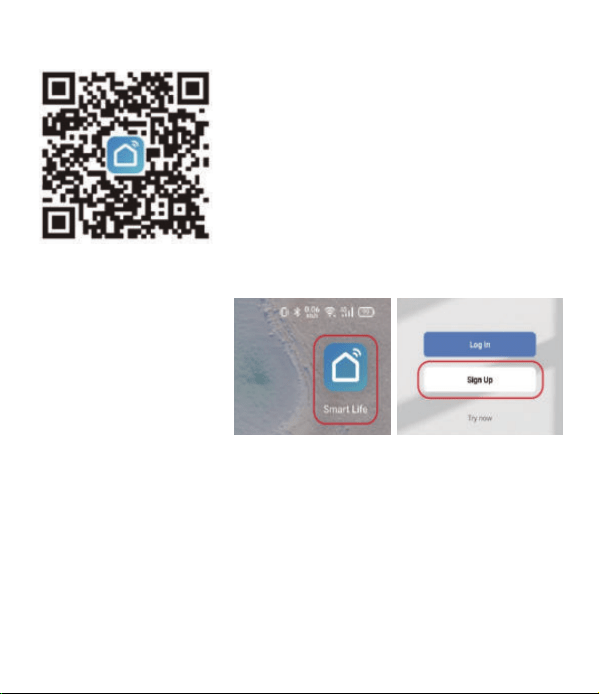
Step 2.Download and install the “Tuya”
Smart App through the Google Play
Store or Apple App Store. Or to scan QR
code ( Picture 1) to download the “Tuya”
APP.
Step 3.Then register
an account with
mobile phone
number or email and
login it.
Step 4. Press and hold the “reset” button of the device for more
than 5s, the led indicator of device flash quickly in red with a
Audible “Di”, then device start bluetooth network distribution
status.
1. It is necessary to turn on the Bluetooth function on your
mobile phone;
2. Not compatible with 5G WIFI;
NOTE:
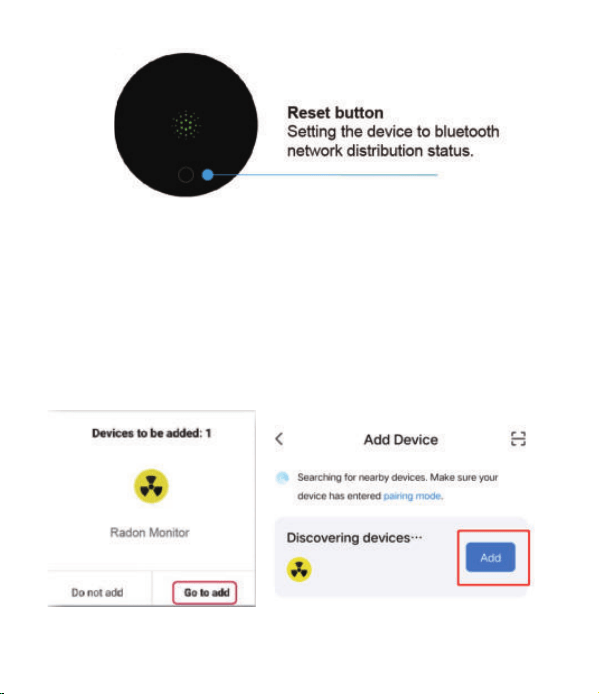
Step 5. Click on the “Add device” button or the upper right corner
“+” icon, add the device.
Step 6. At this time, the connection box will pop up,click “Go to add”
or “Add” to start pairing.
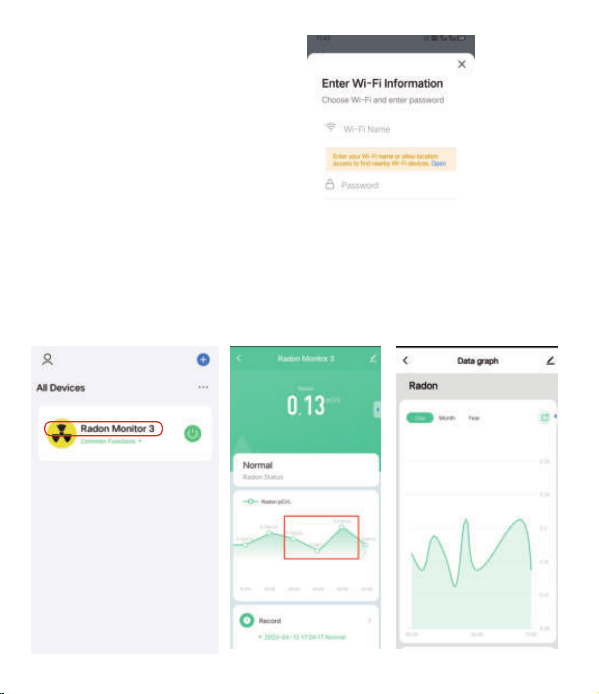
Step 8. Enter the device page (picture 1). Click the device icon, you
can jump to the data graph (picture 2); Click the data graph, you
can jump to the data logger (picture 3).
Step 7. Enter Wi-Fi name
and password for your
device to connect to Wi-Fi.
Picture 1 Picture 2 Picture 3
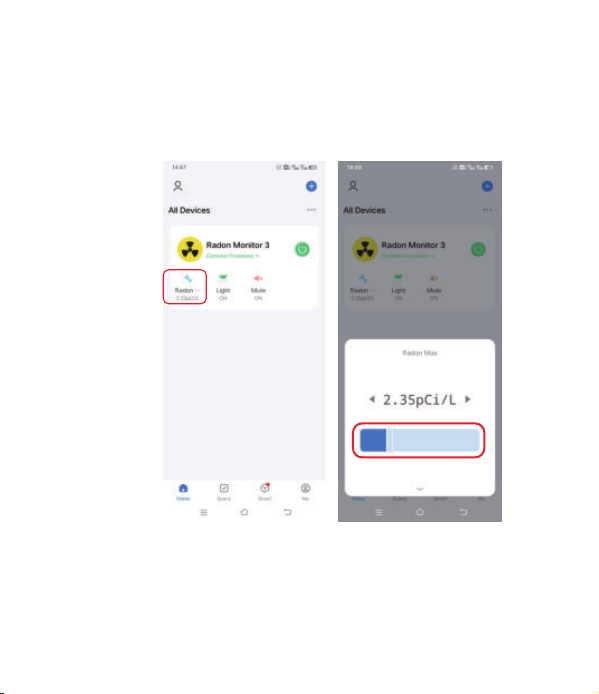
Setting Alarm Level Threshold
Setting 1:
You can set the alarm level threshold freely as following
- 2 Ways of Setting Up.
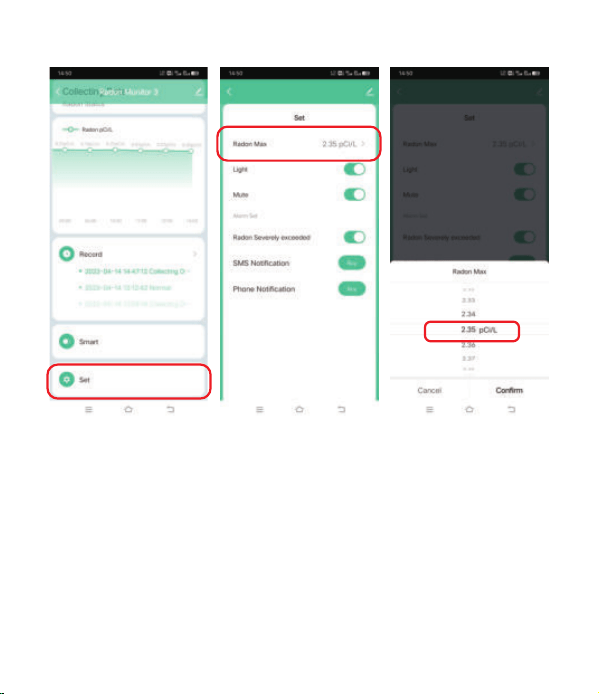
Setting 2:
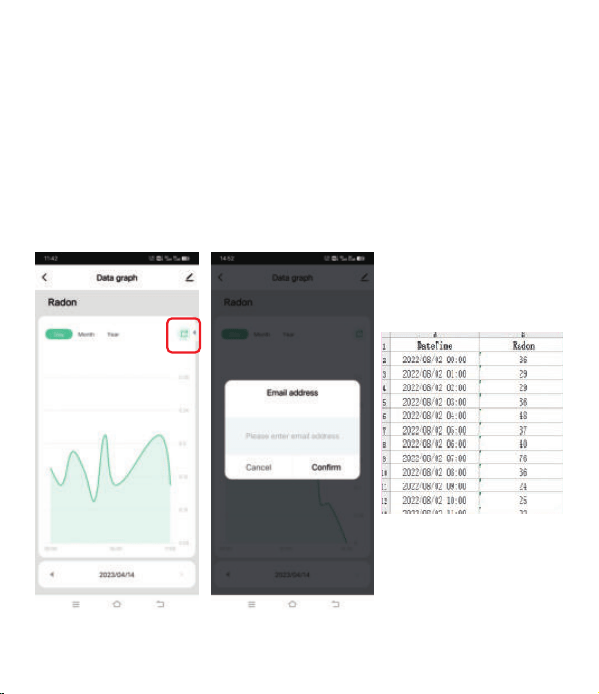
Radon Data Log, And You Can Sharing With Others
Keep track of hourly radon level by time and date of
measurement. Click on the “Sharing” icon of the upper right
(Picture 1). Then enter the Email address (Picture 2), you
will share the radon date log to this email (please download
email attachment to see graph).
Picture 1 Picture 2
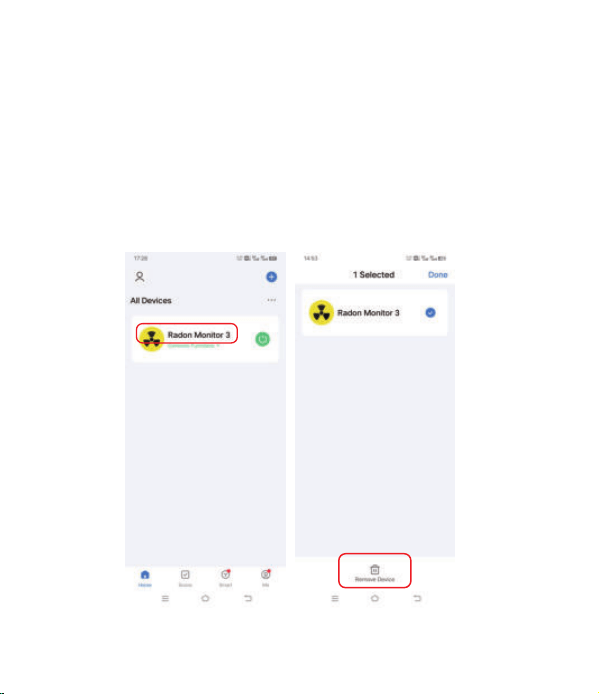
Maintenance
Press and hold the picture icon to enter the management
interface, select the device you need to reset WiFi, click
“Remove Device”, and then re-enter the pairing the status
after removing the device.
1. About the resetting WiFi.
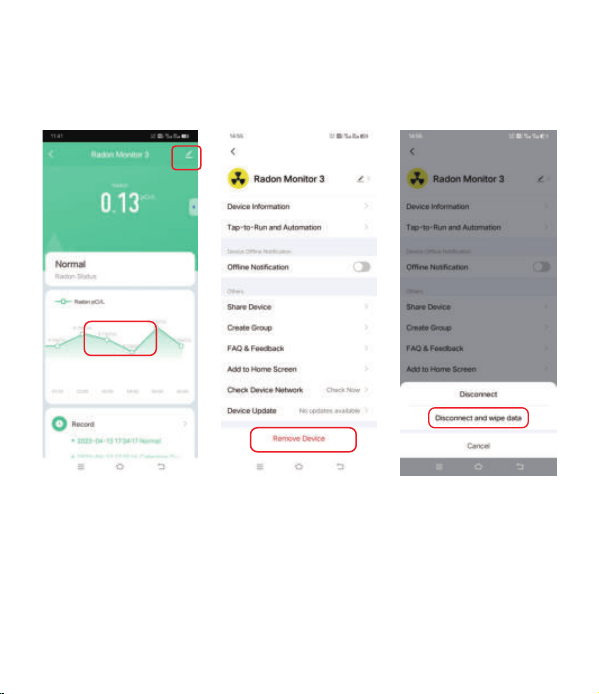
-To erase all data on your account, you need to remove your device
and add again.
2. Reset existing data
To switch off the radon monitor, please remove the power cable
from the back side.
3. Power Off
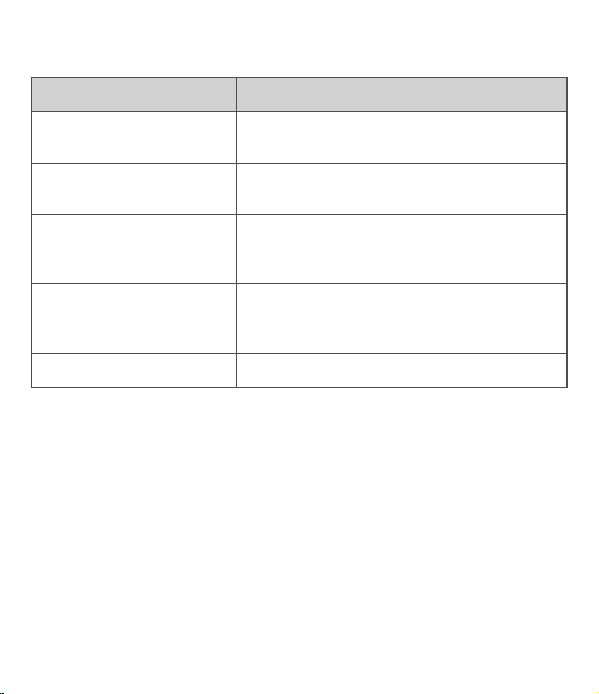
Led Light Color Guide
Package Including
1 x Radon Monitor
1 x Power Adapter
1 x Product Instruction
Flashing Green quickly
Flashing Red slowly
Always on Green
Flashing Orange
Flashing Red with audio alarm
It's before the paring state and need to be pared
with the smart phone and wireless router.
It is in the paring state and waiting for paring with
smart phone and wireless router.
WIFI pairing connection succeeded Flashing green
slowly WiFi connected and detected radon level is
normal.
It has been paired with the smart phone once,but
the current network is abnormal and network
needs to be restored or paired again.
Detected radon levels exceed thresholds.
Led Status Monitor Status