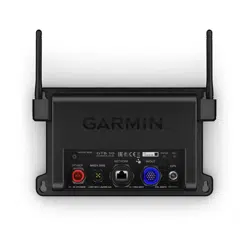

ONDECK
™
Owner’s Manual

© 2020 Garmin Ltd. or its subsidiaries
All rights reserved. Under the copyright laws, this manual may not be copied, in whole or in part, without the written consent of Garmin. Garmin reserves the right to change
or improve its products and to make changes in the content of this manual without obligation to notify any person or organization of such changes or improvements. Go to
www.garmin.com for current updates and supplemental information concerning the use of this product.
Garmin
®
, the Garmin logo, ActiveCaptain
®
, and ANT
®
are trademarks of Garmin Ltd. or its subsidiaries, registered in the USA and other countries. OnDeck
™
is a trademark of Garmin
Ltd. or its subsidiaries. These trademarks may not be used without the express permission of Garmin.
Apple
®
and Mac
®
are trademarks of Apple Inc., registered in the U.S. and other countries. Android
™
is a trademark of Google
™
Inc. NMEA 2000
®
and the NMEA 2000 logo are
registered trademarks of the National Marine Electronics Association. Wi‑Fi
®
is a registered mark of Wi-Fi Alliance Corporation. Windows
®
is a registered trademark of Microsoft
Corporation in the United States and other countries. All other trademarks and copyrights are the property of their respective owners.

Table of Contents
Getting Started................................. 1
Connecting to the OnDeck Wi‑Fi
Network....................................................1
Setting Up the OnDeck System in the
ActiveCaptain App...................................2
Activating the Cellular Subscription....... 2
Sensors............................................ 2
Sensors and Groups................................2
Monitoring Sensors................................. 3
Viewing the Sensor History.................... 4
Rearranging and Hiding Sensors............4
Configuring the Temperature Sensor.... 4
Configuring the Security Sensor.............5
Alarm Notifications.......................... 5
Setting up Alarms for Sensors............... 5
Adding Your Contact Information.......... 5
Adding Contacts...................................... 5
Snoozing and Silencing All Alarms........ 6
Alarm Notification Details...................... 6
Switches.......................................... 8
Switch Configuration.............................. 8
Controlling the Switches with a Mobile
Device...................................................... 9
Controlling the Switches with a
Chartplotter..............................................9
Customizing the Switches Screen......... 9
Switch Details........................................ 10
Tracking and Security.....................10
Tracking Your Vessel............................ 10
Turning on the Security and Location
Alarm......................................................10
Setting a Geofence................................11
Setting the Offline Alarm...................... 11
Security Sensor Details......................... 11
Troubleshooting............................. 12
STATUS LED.......................................... 12
Viewing Diagnostic Information........... 12
Resetting the Data and Settings...........12
Troubleshooting the Offline Alarm.......13
My OnDeck data seems out of date or is
not available.......................................... 13
My NMEA 2000 data is not being
updated.................................................. 13
I am not receiving alarm
notifications...........................................14
Digital switches are offline or in error
state....................................................... 14
I'm worried my OnDeck system might
discharge my battery............................ 14
The GTB 10 hub does not stay in a full-
power state, the OnDeck Wi‑Fi access
point goes away, and my chartplotter
does not automatically re-enable it..... 14
I have a security sensor, but I am not
receiving alarm notifications................ 14
I do not have a security sensor, but I
receive security sensor alarm
notifications...........................................15
I receive unexpected geofence or
security location alarm notifications... 15
A sensor is missing from the Sensors
screen.................................................... 15
The Sensors screen is showing
unneeded sensors.................................15
My bilge pump shows as always
running................................................... 15
My bilge pump never shows as running
but the history graph shows that it has
run.......................................................... 15
My vessel position is not correct on the
chart....................................................... 15
Appendix........................................ 16
Switching Vessels................................. 16
Configuring the OnDeck Wi‑Fi
Network................................................. 16
Updating the OnDeck System
Software................................................ 16
GTB 10 Specifications.......................... 17
Compatible Sensors..............................19
Table of Contents i

Getting Started
WARNING
See the Important Safety and Product Information guide in the product box for product warnings and other
important information.
NOTICE
Use of OnDeck services is subject to the Service Terms for Garmin
®
OnDeck Service Plans
(subscriptions.garmin.com/legal/TC_GARMIN_SUBSCRIPTION_SERVICES_ONDECK ).
You must subscribe to a service plan from Garmin to use OnDeck services with Garmin OnDeck products. Each
OnDeck product requires its own service plan.
NOTE: Before proceeding, the GTB 10 hub must be wired according to the Installation Instructions and
connected to an external power source.
1 Turn on the Boat-in-Use input or Shore Power sensor.
NOTE: If you do not turn on the Boat-in-Use input or Shore Power sensor, after you activate the subscription,
the OnDeck system enters standby mode and prevents configuration.
For information on connecting the Boat-in-Use input or Shore Power sensor, see the Installation Instructions
at garmin.com/manuals/OnDeck.
2 Connect to the OnDeck system Wi‑Fi
®
network (Connecting to the OnDeck Wi‑Fi Network, page1).
3 Download and install the ActiveCaptain
®
app, and follow the on-screen instructions to set up the system
(Setting Up the OnDeck System in the ActiveCaptain App, page2).
4 Activate the subscription to cellular service (Activating the Cellular Subscription, page2).
5 Configure the switches (Switch Configuration, page8).
6 Enter your owner contact information (Adding Your Contact Information, page5).
7 Add contacts (Adding Contacts, page5).
8 Set up alarms (Setting up Alarms for Sensors, page5).
Connecting to the OnDeck Wi‑Fi Network
NOTE: If the GTB 10 hub is not connected to a compatible chartplotter through the Garmin Marine Network, you
must complete these steps within 30 minutes of turning on the device. The device automatically turns off after
30 minutes of inactivity.
You must connect the mobile device running ActiveCaptain to the OnDeck Wi‑Fi network.
1 If the STATUS LED is off, press the button to turn on the GTB 10 hub.
2 If the GTB 10 hub is connected to a compatible Garmin chartplotter through the Garmin Marine Network, set
up the OnDeck Wi‑Fi network using the chartplotter.
See the chartplotter manual for more information.
3 On the mobile device, select Settings > Wi-Fi.
4 Bring the mobile device within 32m (105ft.) of the GTB 10 hub.
5 Select the Garmin network, and enter the password.
TIP: If the GTB 10 hub is not connected to a chartplotter, the default network name is Garmin and the default
password is garminmarine.
If the GTB 10 hub is connected to a chartplotter, use the network and password you set up in step 2.
After connecting to the Garmin Wi‑Fi network, you must open the ActiveCaptain app.
Getting Started 1

Setting Up the OnDeck System in the ActiveCaptain App
After you connect the mobile device to the OnDeck Wi‑Fi network, you must use the ActiveCaptain app to set up
the OnDeck system.
1 From the application store on your mobile device, install and open the ActiveCaptain app.
2 Sign in to your Garmin account.
TIP: If you do not have an account, select Create One.
When you connect the ActiveCaptain app to an unconfigured OnDeck system, you will be guided through the
steps to set up the OnDeck system features.
3 Select Continue and follow on-screen instructions to set up the system.
4 If the OnDeck system is not connected to a chartplotter, when prompted, enter a new network name and
password for the OnDeck Wi‑Fi network, and connect to the re-configured network in the Wi‑Fi settings for
the mobile device.
5 Return to the ActiveCaptain app.
6 Follow on-screen instructions to set up the system.
After setting up the system, activate the subscription to cellular service (Activating the Cellular Subscription,
page2), and complete the rest of the setup steps.
Activating the Cellular Subscription
Before using the OnDeck system, you must activate the subscription for cellular service.
1 Go to activecaptain.garmin.com/ondeckactivation.
2 Sign in to your Garmin account.
This is the same account information you use to sign in to the ActiveCaptain app.
3 Select the device.
4 Read and accept the terms and conditions.
5 Enter your billing information, and select Save.
6 Select the package, and Select > Save.
7 Enter your payment information, and select Save.
Your credit card will be billed monthly as long as your cellular subscription is active.
8 Select Activate Subscription.
Sensors
You can view information from the sensors connected to the OnDeck system.
Sensors and Groups
In the ActiveCaptain app, there are two tabs on the Sensors app screen. The Sensors tab contains all of the
sensors connected to the system. The Groups tab contains groups of sensors you can create for organization
and convenience.
2 Sensors

Creating a Group
The Groups tab contains only groups of sensors you create. Until you create your first group, there will be no
items in the Groups tab.
1 From the ActiveCaptain app, select Boat Apps > Sensors.
2 Select the Groups tab.
3 Select .
The New Group window opens.
4 In the New Group window, perform the following optional actions as they pertain to your new group:
• Enter a name for the group.
• Select a symbol to represent the group.
5 Select Add / Remove Sensors and select all of the sensors you want to add to the group.
TIP: If you have many connected sensors, you can filter the sensors by system type or category using the
drop-down menus to at the top of the sensors list.
6 Select Done to finish adding sensors, and select Done again to add the new group.
Rearranging and Deleting Sensor Groups
You can change the position of sensor groups on the Groups tab, or delete groups you no longer want.
1 From the ActiveCaptain app, select Boat Apps > Sensors, and select the Groups tab.
2 Select Edit.
TIP: You can press and hold a sensor group to start editing the Groups tab.
Icons appear on each of the sensor groups indicating that you can move or delete them.
3 Perform an action as needed to edit the Groups tab:
• To change the position of a sensor group, drag it to a new location.
• To delete a sensor, select on the left corner of the sensor.
4 Select Done to finish editing the group.
Editing a Sensor Group
You can add, remove, and adjust the position of sensors in a group, and you can edit the name and symbol that
represents the group.
1 From the ActiveCaptain app, select Boat Apps > Sensors.
2 Select the Groups tab, and select the group you want to edit.
3 Select Edit.
TIP: You can press and hold a sensor in the group to start editing the group.
Icons appear on each of the sensors indicating that you can move or delete them.
4 Perform an action to edit the group:
• To change the position of a sensor in the group, drag it to a new location.
• To remove a sensor from the group, select on the left corner of the sensor.
• To change the name or symbol of the group, or to add additional sensors, select Edit Group.
5 Select Done to finish editing the group.
Monitoring Sensors
1 From the ActiveCaptain app, select Boat Apps > Sensors, and select the Sensors tab.
2 Select a sensor to view more information
TIP: Pull the screen down to refresh the data.
Sensors 3
Viewing the Sensor History
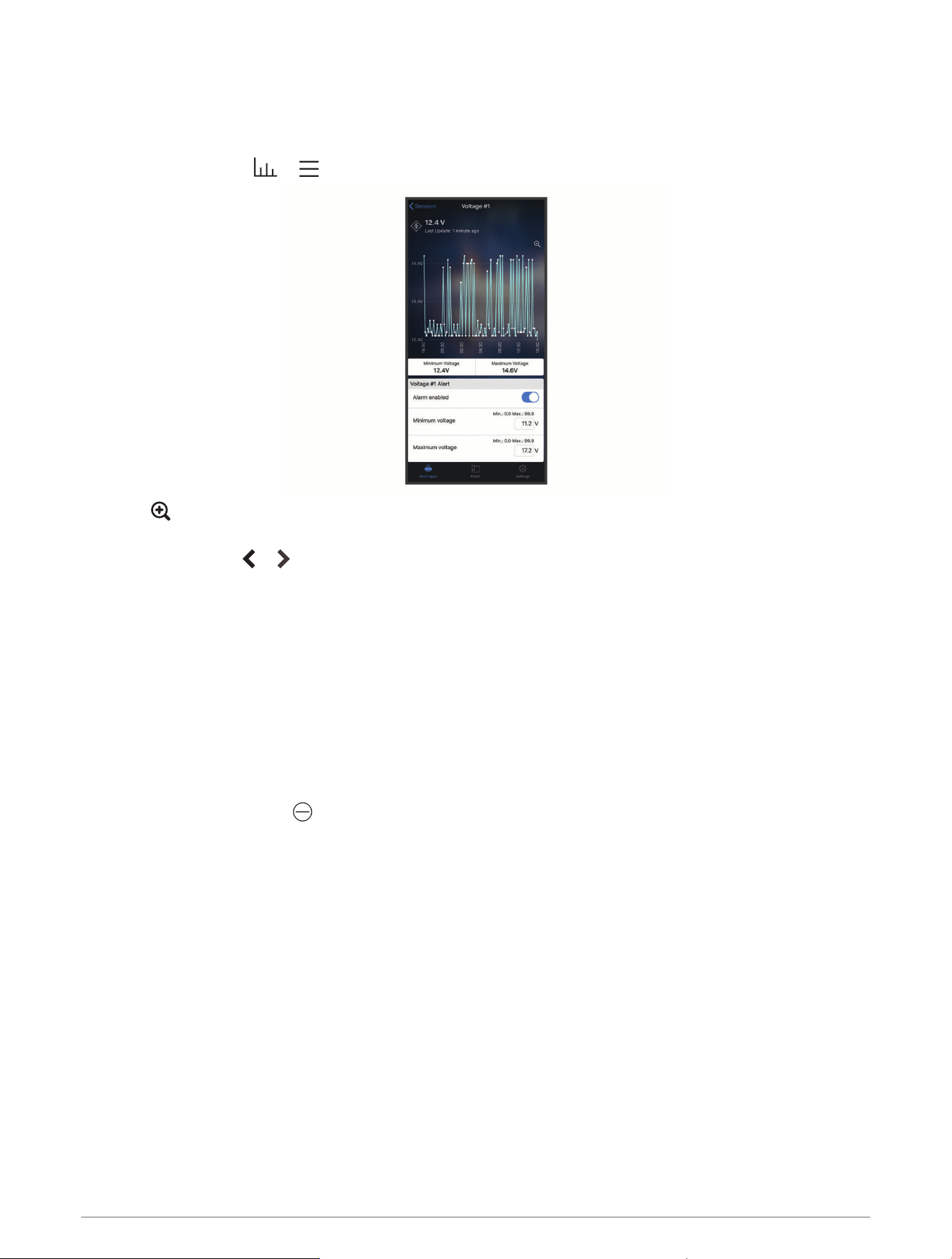
You can view historical data for certain sensors, such as the temperature sensor.
1 From the ActiveCaptain app, select Boat Apps > Sensors, and select the Sensors tab.
2 Select an item with a or icon in the corner.
3 Select or More.
4 If necessary, select a duration.
5 If necessary, select or to change the date range.
Rearranging and Hiding Sensors
You can change the order of sensors on the Sensors tab. Also, you can hide these sensors that are connected
but you do not want the GTB 10 hub to monitor.
1 From the ActiveCaptain app, select Boat Apps > Sensors, and select the Sensors tab.
2 Select Edit.
TIP: You can press and hold a sensor start editing the Sensors tab.
Icons appear on each of the sensors indicating that you can hide them.
3 Perform an action to edit the Sensors tab:
• To change the position of a sensor, drag it to a new location.
• To hide a sensor, select on the left corner of the sensor.
4 Select Done to finish editing the Sensors tab.
All hidden sensors are moved the bottom of the list and appear faded to indicate they are hidden from the
system. You can tap a hidden sensor to return it to the sensor list and make it available to the system.
Configuring the Temperature Sensor
Before you configure the temperature sensor, you must connect the mobile device with the ActiveCaptain app to
the OnDeck Wi‑Fi network.
You should have configured the sensor when you set up the system. You can change the connection status or
location, if needed.
1 From the ActiveCaptain app, select Settings > OnDeck Settings.
2 Select Sensor Location.
3 Select the location of the sensor.
4 Sensors
Configuring the Security Sensor
Before you configure the security sensor, you must connect the mobile device with the ActiveCaptain app to the
OnDeck Wi‑Fi network.
You should have configured the sensor when you set up the system. You can change the connection status, if
needed.
1 From the ActiveCaptain app, select Settings > OnDeck Settings.
2 Select Connection State > Connected.
Alarm Notifications
CAUTION
The OnDeck alarm notifications feature is supplemental and should not be relied upon as a primary method to
monitor your vessel. The functionality, reliability, and timeliness of the alarm notifications depend on a number
of factors that are beyond Garmin's control, including but not limited to cellular connectivity/reception and
device power.
You will be notified of alarms using the email and text numbers entered (Adding Contacts, page5).
By default, you receive notifications when alarm states are triggered and cleared, and those values can be
configured for each sensor (Alarm Notifications, page5).
You can snooze or silence alarms for the entire system or you can snooze alarms for individual sensors
(Snoozing and Silencing All Alarms, page6).
Setting up Alarms for Sensors
CAUTION
The OnDeck alarm notifications feature is supplemental and should not be relied upon as a primary method to
monitor your vessel. The functionality, reliability, and timeliness of the alarm notifications depend on a number
of factors that are beyond Garmin's control, including but not limited to cellular connectivity/reception and
device power.
1 From the ActiveCaptain app, select Boat Apps > Sensors.
2 Select the sensor for which you want to add an alarm.
3 Enable the alarm for the sensor.
4 For a range-based alarm, enter the values.
5 Repeat this process for more alarms and sensors as needed.
Adding Your Contact Information
As the owner of the vessel, you must enter your contact information and enable text or email alarm notifications
to receive notifications from the OnDeck system.
1 From the ActiveCaptain app, select Settings > Alarm Notification Settings.
2 Select at the top of the screen.
3 Follow the on-screen instructions to add your phone number and email address.
4 Enable the toggle switch next to your name to receive text and email messages as needed.
Adding Contacts
You can add contacts to receive notifications from your OnDeck system.
1 From the ActiveCaptain app, select Settings > Alarm Notification Settings.
2 Under the text message or email heading, select Add Additional Recipients.
3 Follow the on-screen instructions to add the contact.
4 If necessary, add additional contacts.
Alarm Notifications 5

Snoozing and Silencing All Alarms
You might want to snooze or silence all alarm notifications when you are using the boat. Silencing alarms
prevents alarm notifications from being sent to your email or text until you disable the silence. Snoozing alarms
prevents the alarm notifications from being sent until the specified time.
1 From the ActiveCaptain app, select Settings > Alarm Notification Settings.
2 Select an option:
• To silence the notifications, select Silence Notifications.
• To snooze the notifications, select Snooze Notifications, and select a date and time.
Data collected during the snooze or silence period prevents most alarms. The shore power and bilge pump
alarms will not send an alarm notification when the alarm is snoozed or silenced but do record the data
collected during the snooze and silence period.
Snoozing an Alarm for an Individual Sensor
You may want to snooze alarms for a specific sensor while continuing to receive alarms for other sensors. You
can snooze alarms for a specific sensor, but you cannot silence them. You can silence alarms only for the entire
system.
1 From the ActiveCaptain app, select the sensor for which you want to snooze alarms.
2 Select Snooze Alarm, and select a date and time.
Data collected during the snooze period prevents most alarms. The shore power and bilge pump alarms will not
send an alarm notification when the alarm is snoozed but do record the data collected during the snooze period.
Alarm Notification Details
CAUTION
The OnDeck alarm notifications feature is supplemental and should not be relied upon as a primary method to
monitor your vessel. The functionality, reliability, and timeliness of the alarm notifications depend on a number
of factors that are beyond Garmin's control, including but not limited to cellular connectivity/reception and
device power.
There are two types of alarms that determine the notification parameters and settings:
Binary state: The sensor has a single trigger for the alarm, for example online or offline.
Range-based: The sensor has a range of values that are used to trigger the alarm, for example, the battery
voltage is below 8Vdc or above 13Vdc. You must configure these range values for each sensor if you want
to receive alerts.
6 Alarm Notifications
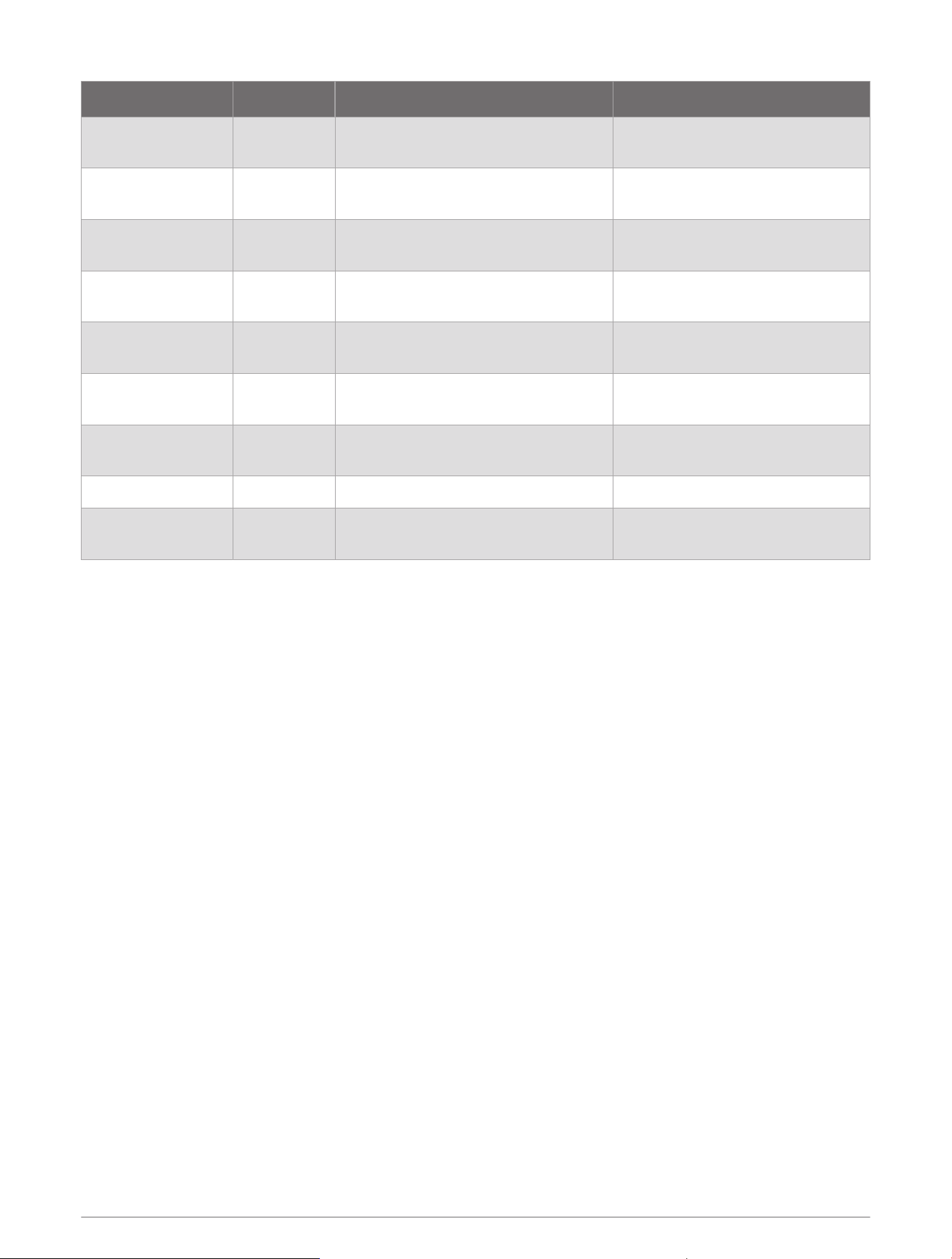
Alarm Type Trigger Clear
Battery Voltage
Alarm
Range-based
The vessel battery voltage falls below
or rises above the set range.
The vessel battery voltage returns
to the set range.
Bilge Pump Alarm Binary state The bilge pump is running
The bilge pump is no longer
running
Water Depth Alarm Range-based
The detected depth is below or above
the set range.
The depth is within the set range.
Geofence Alarm
(location)
Range-based
The vessel has traveled outside of the
set area.
The vessel has returned to the set
area.
Internal Battery Binary state
The GTB 10 device is running on
internal battery.
The GTB 10 device has recon
nected to external power.
Offline Alarm Binary state
The GTB 10 device has not reported
data for over 70 minutes.
The GTB 10 device has started
reporting data again.
Security and
Location Alarm
Binary state The security sensor is triggered.
The security sensor returns to the
armed state.
Shore Power Alarm Binary state Shore power is disconnected Shore power is reconnected
Temperature Alarm Range-based
The temperature falls below or rises
above the set range.
The temperature returns to the set
range.
Alarm Advanced Settings
To access advanced alarm settings for a sensor, from the ActiveCaptain app, select the sensor you want to
configure, and select Advanced Settings.
Occurrences: Enable this setting, and specify the values for both the number of detected triggers and the
window of time. You will receive alerts only when the alarm is triggered the set number of times within the
defined window.
NOTE: All triggers are tracked, even if an alert is not sent based on this setting.
Duration: Enable this setting, and specify the values for both the duration of detected triggers and the window
of time. You will receive alerts only when the sensor has been in the triggered state for the specified duration
within the set window.
For example, if you use this setting to notify you when your bilge pump runs for 45 minutes within 24 hours,
you receive the alert after it has run for a cumulative total of 45 minutes within 24 hours, not just when it runs
one time for 45 minutes. It may run once for 30 minutes and a few hours later for 15 minutes. At that point, it
reaches the cumulative total of 45 minutes and sends the alarm.
Remind Me: Enable this setting, and specify a length of time. You will receive a reminder alert if the alarm has
not reached a cleared state during the specified length of time.
Offline Alarm: Enable this setting, and specify a length of time. You will receive an alert if the sensor has not
reported data for the specified length of time.
Alarm Notifications 7
Switches
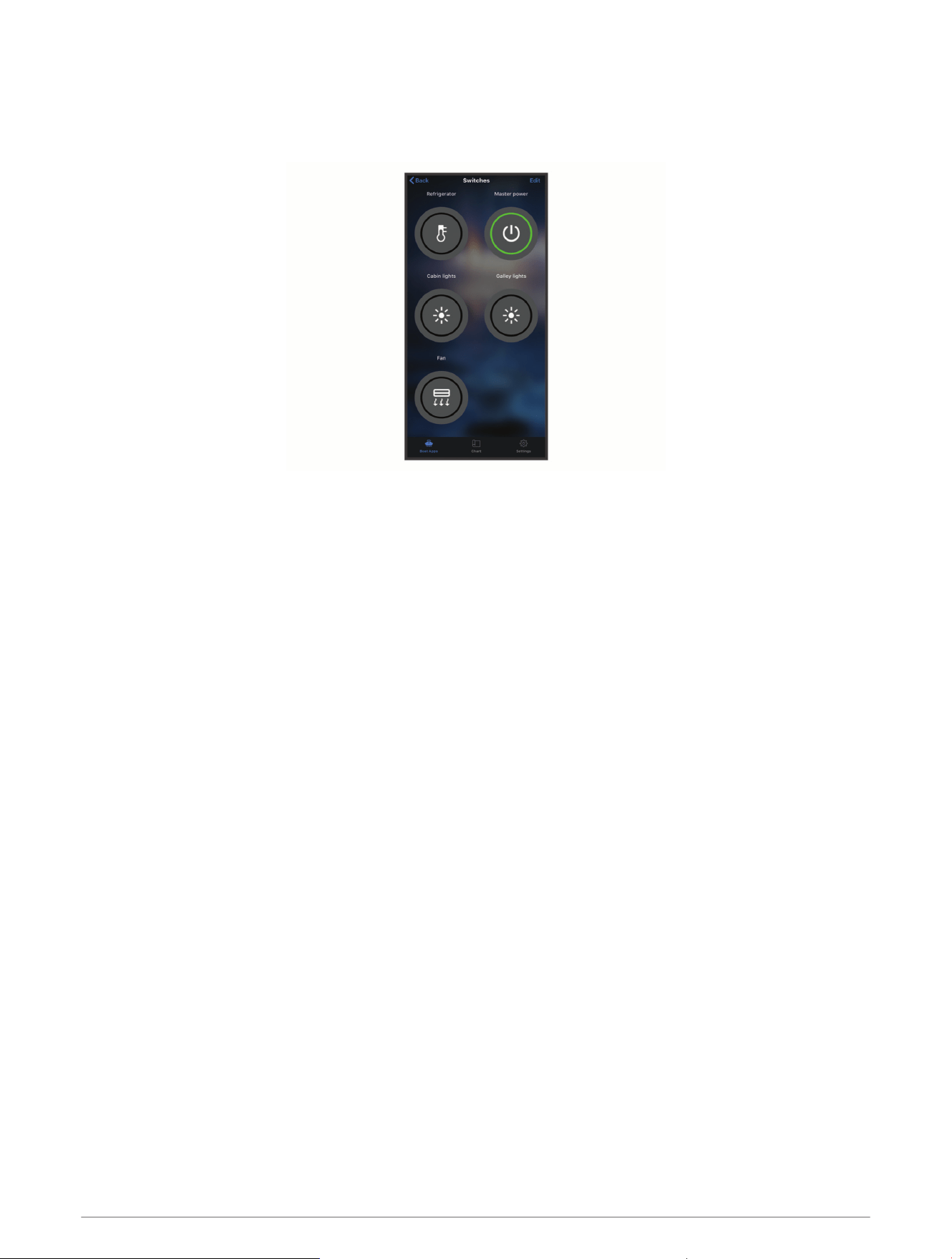
You can configure and control the switches that are connected to the OnDeck system with the ActiveCaptain
app on your mobile device or with your chartplotter.
Switch Configuration
Adding NMEA 2000
®
Digital Switches
You can connect an optional NMEA 2000 digital switching device to your vessel's NMEA 2000 network to
access additional digital switches. The digital switching device must be configured for this type of switching
before you can configure the digital switches.
NOTE: The digital switching device must be of a type that uses the NMEA 2000 PGNs for Momentary and
Latching switch control (PGN 127501 and PGN 127502).
1 If the digital switching device is not already configured for this type of switching, configure it according to
the instructions included with the device.
2 Connect the digital switching device to the NMEA 2000 network connected to the GTB 10 hub and the
chartplotter.
3 Configure the digital switches (Configuring the Switches with a Mobile Device, page8).
Configuring the Switches with a Mobile Device
Before you configure the switches, you must connect the mobile device with the ActiveCaptain app to the
internet.
You can also configure the switches with a compatible chartplotter (Configuring OnDeck Switches with a
Chartplotter, page9).
1 From the ActiveCaptain app, select Boat Apps > Switches > Edit.
2 If you are configuring switches from a new NMEA 2000 digital switching device, select the blue banner to
read and accept the user agreement.
3 Select a switch.
4 Select Switch Connected.
5 Select an icon for the switch, if necessary.
6 Enter a name for an OnDeck switch, if necessary.
You can name a NMEA 2000 digital switch using the chartplotter (Configuring NMEA 2000 Digital Switches
with a Chartplotter, page9).
7 If necessary, select a duration for a Momentary switch.
8 Select Show in Switches List.
8 Switches

Configuring OnDeck Switches with a Chartplotter
You can configure the OnDeck switches using a compatible chartplotter or using the ActiveCaptain app
(Configuring the Switches with a Mobile Device, page8).
These steps apply only to switches connected to the OnDeck hub. To use a chartplotter to configure switches
on a NMEA 2000 digital switching device, see Configuring NMEA 2000 Digital Switches with a Chartplotter,
page9.
1 From the chartplotter, select Options > Settings > My Vessel > Switching > OnDeck™ Hub.
2 Select a switch.
3 Select Switch Connected.
4 If necessary, select Edit Name, and enter a name.
Configuring NMEA 2000 Digital Switches with a Chartplotter
After connecting a NMEA 2000 digital switching device (Adding NMEA 2000
®
Digital Switches, page8), you can
use a compatible chartplotter to configure the NMEA 2000 digital switches. You can also configure them with
the ActiveCaptain app (Configuring the Switches with a Mobile Device, page8).
These steps apply only to switches connected to a NMEA 2000 digital switching device. To configure the
switches connected to the OnDeck hub, see Configuring OnDeck Switches with a Chartplotter, page9.
1 From the chartplotter, select Options > Settings > My Vessel > Switching > NMEA Standard.
2 Select a NMEA 2000 switch.
3 If necessary, for the visibility setting, select Hidden.
4 If necessary, for the time setting, select Momentary or Latching.
A Momentary switch is on only for the duration you select. A Latching switch is on until you turn it off again.
You can configure the duration for a Momentary switch with the ActiveCaptain app.
5 If necessary, select Label, and enter a label for the switch.
Controlling the Switches with a Mobile Device
Before you can control the switches with a mobile device, you must configure them (Switch Configuration,
page8).
You can also control the switches with a chartplotter (Controlling the Switches with a Chartplotter, page9).
1 From the ActiveCaptain app, select Boat Apps > Switches.
2 Select a switch to turn it on or off.
TIP: Pull the screen down to refresh the data.
Controlling the Switches with a Chartplotter
Before you can control the switches, you must configure them (Switch Configuration, page8).
You can also control the switches with a mobile device (Controlling the Switches with a Mobile Device, page9).
1 From the chartplotter, select Vessel > Switching.
2 Select a switch to turn it on or off.
Customizing the Switches Screen
1 From the ActiveCaptain app, select Boat Apps > Switches > Edit.
2 Drag the switch to a new location.
3 Tap a switch to edit the name or icon.
4 Select Done.
Switches 9

Creating Switch Groups
With the ActiveCaptain app on your mobile device, you can create switch groups for easy access.
1 From the ActiveCaptain app, select Boat Apps > Switches > Edit > New Group.
2 Enter the group name.
3 Select the switches to add to the group.
4 Select Save.
Switch Details
There might be occasions when you cannot control the switches. Switches turn off temporarily during a system
reset and software update. Switches also turn off while the OnDeck system is turned off, either because of a
user action or a low internal battery.
Switches that were turned on before the system reset, software update, or when the system was turned off, turn
on automatically when the OnDeck system turns on. Switches do not turn on automatically after a factory reset.
If your vessel's NMEA 2000 system includes a digital switching device, you may see offline or error state
messages if the digital switching device fails or is not powered or connected (Digital switches are offline or in
error state, page14).
Tracking and Security
You can view the location of the vessel and enable the security features.
Tracking Your Vessel
From the ActiveCaptain app, select Chart.
Turning on the Security and Location Alarm
CAUTION
The OnDeck alarm notifications feature is supplemental and should not be relied upon as a primary method to
monitor your vessel. The functionality, reliability, and timeliness of the alarm notifications depend on a number
of factors that are beyond Garmin's control, including but not limited to cellular connectivity/reception and
device power.
You should arm the Security and Location Alarm when you leave your vessel.
1 From the ActiveCaptain app, select Boat Apps and select the Sensors tab.
2 Select Security Sensor.
3 Under Alarms, select Security Sensor.
When the security features are armed, you will receive a notification if the security sensor is triggered.
When you return to your vessel, you should disarm the security features by selecting Security Sensor again to
turn it off.
10 Tracking and Security
Setting a Geofence
CAUTION
The OnDeck alarm notifications feature is supplemental and should not be relied upon as a primary method to
monitor your vessel. The functionality, reliability, and timeliness of the alarm notifications depend on a number
of factors that are beyond Garmin's control, including but not limited to cellular connectivity/reception and
device power.
You can enable the system to send you an alarm notification when the vessel enters or exits a specific area.
1 From the ActiveCaptain app, select Chart.
2 Select .
A window appears at the bottom of the screen.
3 In the window at the bottom of the screen, select Geofence Alarm.
4 Select an option:
• To receive a notification when the vessel enters the area, select When Entering.
• To receive a notification when the vessel leaves the area, select When Leaving.
5 Select Radius, and drag the circle to adjust the size of the area.
6 Select to save the geofence.
When the vessel's position, as reported to the server, enters or exits the geofence, you will receive an alarm
notification.
Setting the Offline Alarm
CAUTION
The OnDeck alarm notifications feature is supplemental and should not be relied upon as a primary method to
monitor your vessel. The functionality, reliability, and timeliness of the alarm notifications depend on a number
of factors that are beyond Garmin's control, including but not limited to cellular connectivity/reception and
device power.
The Offline Alarm enables the system to send you a notification when the OnDeck system has not contacted the
server for more than 70 minutes.
1 From the ActiveCaptain app, select Settings > Alarm Notification Settings.
2 Under Offline Alarm, select Alarm Enabled.
When the OnDeck system is offline, you will receive one alarm notification each day that the system is offline.
For information on troubleshooting the alarm, see Troubleshooting the Offline Alarm, page13.
Security Sensor Details
By default the security sensor is configured as Not Connected. After installing the sensor, you must configure
the sensor as Connected to view the sensor activity in the Sensors list and receive alarm notifications
(Configuring the Security Sensor, page5) .
If you have not installed and configured the security sensor, you can still enable the Security and Location Alarm
to detect vessel movement (Turning on the Security and Location Alarm, page10).
Sensor configuration Sensor state Sensor label in the Sensors list
Connected
Door or window is closed. Sensor contacts are close
together.
Deactivated
Connected
Door or window is open. Sensor contacts are not close
together.
Activated
Not Connected Not applicable Deactivated
Tracking and Security 11
Troubleshooting
STATUS LED
LED Activity Status
Solid red The device is turning on.
Flashing green The device is on and operating normally.
Flashing orange The device software is being updated.
Flashing red
The device has encountered an error and must be reset by holding the button (Restarting
the OnDeck System, page12).
Off The device is off or in standby mode.
Restarting the OnDeck System
Before you can restart the system, you need access to the GTB 10 hub.
You can restart your OnDeck system if it stops working.
Hold the button for 8 to 10 seconds.
The STATUS LED turns red and the device restarts.
The STATUS LED is off
• Press the power button to verify the device is not in standby mode.
If the STATUS LED turns red, the device was off. If the STATUS LED flashes green, the device was in standby
mode.
• Verify the GTB 10 hub has a valid external power source that has not been detected as a drained battery (I'm
worried my OnDeck system might discharge my battery, page14).
• To keep the device in a full-power state and prevent it from entering standby mode, verify the installation of
the Boat-in-Use input and Shore Power sensor.
See the Installation Instructions at garmin.com/manuals/OnDeck.
Viewing Diagnostic Information
You can view diagnostic information for troubleshooting.
1 Connect the mobile device to the OnDeck Wi‑Fi network (Connecting to the OnDeck Wi‑Fi Network, page1).
2 From the ActiveCaptain app, select Settings > OnDeck Diagnostics.
Resetting the Data and Settings
Before you can reset the data and settings, you need access to the GTB 10 hub.
You can delete your user data and reset all settings to the factory default values.
NOTE: The settings synchronized with other devices on the Garmin Marine Network will not be cleared.
1 Verify the GTB 10 hub is on and is held in a full-power state.
2 Using a slim object, such as an unbent paperclip, press and hold the recessed FACTORY RESET button.
The STATUS LED flashes green and then turns red after approximately 20 seconds.
3 After the STATUS LED turns red, release the FACTORY RESET button.
12 Troubleshooting

Troubleshooting the Offline Alarm
The OnDeck system can be offline due to a variety of reasons. You can perform these actions to help determine
why the system is offline.
• To manually refresh the data, pull the screen down from the Sensors, Switches, or Tracking & Security
screen.
• Press the power button to verify the device is turned on.
If the status LED turns red, the device was off. If the status LED flashes green, the device was in standby
mode.
• Verify the GTB 10 hub has a valid external power source that has not been detected as a drained battery (I'm
worried my OnDeck system might discharge my battery, page14).
• Verify the cellular signal is adequate (Viewing Diagnostic Information, page12).
• Verify the subscription status at activecaptain.garmin.com.
• Connect the mobile device to the OnDeck Wi‑Fi network, check the signal strength (Settings > OnDeck
Diagnostics), and verify that internet is available.
• Check that the vessel is in a location with cellular coverage. Adjust the antenna orientation and device
placement according to the Installation Instructions.
My OnDeck data seems out of date or is not available
The OnDeck hub reports data every 15 minutes while operating in full-power state and every 30 minutes while in
standby state.
• To manually refresh the data, pull the screen down from the Sensors, Switches, or Tracking & Security
screen.
The server limits how often a user can manually refresh the data. This limit does not prevent the OnDeck hub
from reporting data more frequently.
• Verify the troubleshooting items in Troubleshooting the Offline Alarm, page13.
• Verify that you are set as the owner.
• If you are connected to a chartplotter, verify that the owner name is the same in the mobile device app and
the chartplotter.
◦ From the ActiveCaptain app, select Settings > About, and verify the name under Logged in as:.
◦ From the chartplotter, select Vessel > ActiveCaptain, and verify the name next to Owner:.
If names do not match, restore the chartplotter to the default settings (Options > Settings > System > System
Information > Reset > Reset Default Settings) or reset the app (Settings > Reset App), and log in again using
the correct account.
• Connect the mobile device to the OnDeck Wi‑Fi network, and agree to the prompts to transfer your login
information.
My NMEA 2000 data is not being updated
NMEA 2000 setup most likely requires a relay to turn on theNMEA 2000 network for monitoring, unless it is
always on. See the Installation Instructions at garmin.com/manuals/OnDeck.
Troubleshooting 13

I am not receiving alarm notifications
There are several factors that might be contributing to alarm notifications. If you are not receiving notifications,
perform these actions to determine why.
NOTE: Not all alarm notifications are sent immediately. Some alarm notifications are sent after the device has
connected to the server.
• Verify that the system is uploading data. See Troubleshooting the Offline Alarm, page13 and My OnDeck data
seems out of date or is not available, page13.
• Verify that your phone number and email address were entered correctly (Adding Contacts, page5).
• Verify that the alarms are configured and enabled (Setting up Alarms for Sensors, page5).
• Verify that the alarms are not silenced or snoozed (Snoozing and Silencing All Alarms, page6).
• Verify that you are expecting the right type of alarm for your sensor (Alarm Notifications, page5).
• Verify that the advanced alarm settings are not preventing alarms you want to receive (Alarm Advanced
Settings, page7).
Digital switches are offline or in error state
There are several factors that can contribute to digital switches showing as offline or in error state.
NOTE: If you use a digital switching device, it must be of a type that uses the NMEA 2000 PGNs for Momentary
and Latching switch control (PGN 127501 and PGN 127502) and configured for this type of switching.
• Verify the digital switching device has not failed.
• Verify the digital switching device is securely connected and powered.
• Verify there is no overcurrent to the digital switching device.
• Check the instructions for the digital switching device for troubleshooting information.
I'm worried my OnDeck system might discharge my battery
The OnDeck GTB 10 hub switches to running on the internal battery when it is not in a full-power state and the
voltage of the external power input drops below 11.9Vdc for a 12Vdc system or below 23.8Vdc for a 24Vdc
system. The system type is determined by the voltage of the external power input. Less than 15V indicates a
12Vdc system and greater than 18Vdc indicates a 24Vdc system.
The OnDeck GTB 10 hub switches back to running from the external power input when the power input rises to
12.4Vdc or higher for a 12Vdc system or to 23.8Vdc or higher for a 24Vdc system.
The internal battery lasts about 48 hours under typical use.
The GTB 10 hub does not stay in a full-power state, the OnDeck Wi‑Fi access
point goes away, and my chartplotter does not automatically re-enable it
• Verify the installation of the Boat-in-Use input.
The Boat-in-Use input should be on when the chartplotter is on.
See the Installation Instructions at garmin.com/manuals/OnDeck.
I have a security sensor, but I am not receiving alarm notifications
• Connect the mobile device to the OnDeck Wi‑Fi network, and verify that the security sensor Connection State
is set to Connected.
• Verify that the security sensor is installed and connected according to the Installation Instructions at
garmin.com/manuals/OnDeck
• Verify that you are using a Garmin security sensor, not a third-party sensor.
14 Troubleshooting

I do not have a security sensor, but I receive security sensor alarm notifications
1 Connect the mobile device to the OnDeck Wi‑Fi network.
2 Select Settings > OnDeck Settings > Connection State.
3 Ensure Not Connected is selected.
I receive unexpected geofence or security location alarm notifications
• From the Tracking & Security screen, verify the location of the vessel and the geofence.
• The security location alarm surrounds the vessel's location when the alarm is enabled. To reset the location,
disable the security location alarm, and then enable it again.
• Verify the troubleshooting items in My vessel position is not correct on the chart, page15.
A sensor is missing from the Sensors screen
If a sensor or data is missing from the Sensors screen, you might need to add the item to the screen or wait for
the sensor to provide data. When a sensor has not provided data for more than 30 days, it is no longer shown on
the Sensors screen.
1 To show a sensor, from the Sensors screen, select Edit.
2 Select the sensor.
The Sensors screen is showing unneeded sensors
From the Sensors screen, select Edit, and select the sensor to hide it.
TIP: You can drag a sensor to move it.
My bilge pump shows as always running
1 Verify the operation of the bilge pump.
2 Verify the installation of the bilge input.
The bilge input should be connected to the bilge pump so that it is energized to 10 to 32Vdc when, and only
when, the pump is active. This may be the manual input wire to the pump or the output of a float switch, not
necessarily the power input to the pump.
See the Installation Instructions at garmin.com/manuals/OnDeck.
My bilge pump never shows as running but the history graph shows that it has
run
The pump only shows as running if it is on exactly at the time when the OnDeck data is collected.
To verify operation, force the pump to stay running for an extended period of time and perform a data refresh
on the mobile app.
My vessel position is not correct on the chart
• Verify the GTB 10 hub placement and orientation according to the Installation Instructions at garmin.com
/manuals/OnDeck.
Relocate the GTB 10 hub to a more suitable location, if necessary.
• Use an external GPS antenna installed in a location with a clear view of the sky, if necessary.
NOTE: If the boat is stored in a structure or with an obscured view of the sky, the GPS signal could be degraded
or lost.
Troubleshooting 15

Appendix
Switching Vessels
If you have multiple OnDeck systems on your ActiveCaptain account, you can switch between vessels to view
information about each vessel.
1 From the ActiveCaptain app, select Boat Apps > > Switch Boats.
2 Select a vessel.
Configuring the OnDeck Wi‑Fi Network
NOTE: If the GTB 10 hub is not connected to a compatible chartplotter through the Garmin Marine Network, you
must complete these steps within 30 minutes of turning on the device. The device automatically turns off after
30 minutes of inactivity.
If the GTB 10 hub is not connected to a chartplotter, you must change the Wi‑Fi password for security reasons
and to properly register the device to your account.
1 Open the ActiveCaptain app.
2 When prompted, enter a new network name and password.
If you are not prompted, you can select Settings > OnDeck Settings > Wi-Fi Name and Password.
3 Connect to the re-configured network in the Wi‑Fi settings for the mobile device.
Updating the OnDeck System Software
NOTICE
The GTB 10 hub must be held in a full-power state while the OnDeck system software update is in process.
If the external power, Boat-in-Use input, or Shore Power sensor is removed from the device during the update,
the OnDeck hub may become unusable and may need to be replaced. See the Installation Instructions at
garmin.com/manuals/OnDeck.
The OnDeck system must be connected to a Garmin chartplotter using the Garmin Marine Network to update
the OnDeck system software.
You may need to update the OnDeck system software when you install this device or add an accessory to the
system. You may use one of two methods to update the software with a connected chartplotter.
• Use the ActiveCaptain app.
• Download the update from garmin.com/support/software/marine.html using a memory card (32 GB max.)
and a computer running a Mac
®
or Windows
®
operating system.
For more information, see the chartplotter owner's manual at support.garmin.com.
16 Appendix
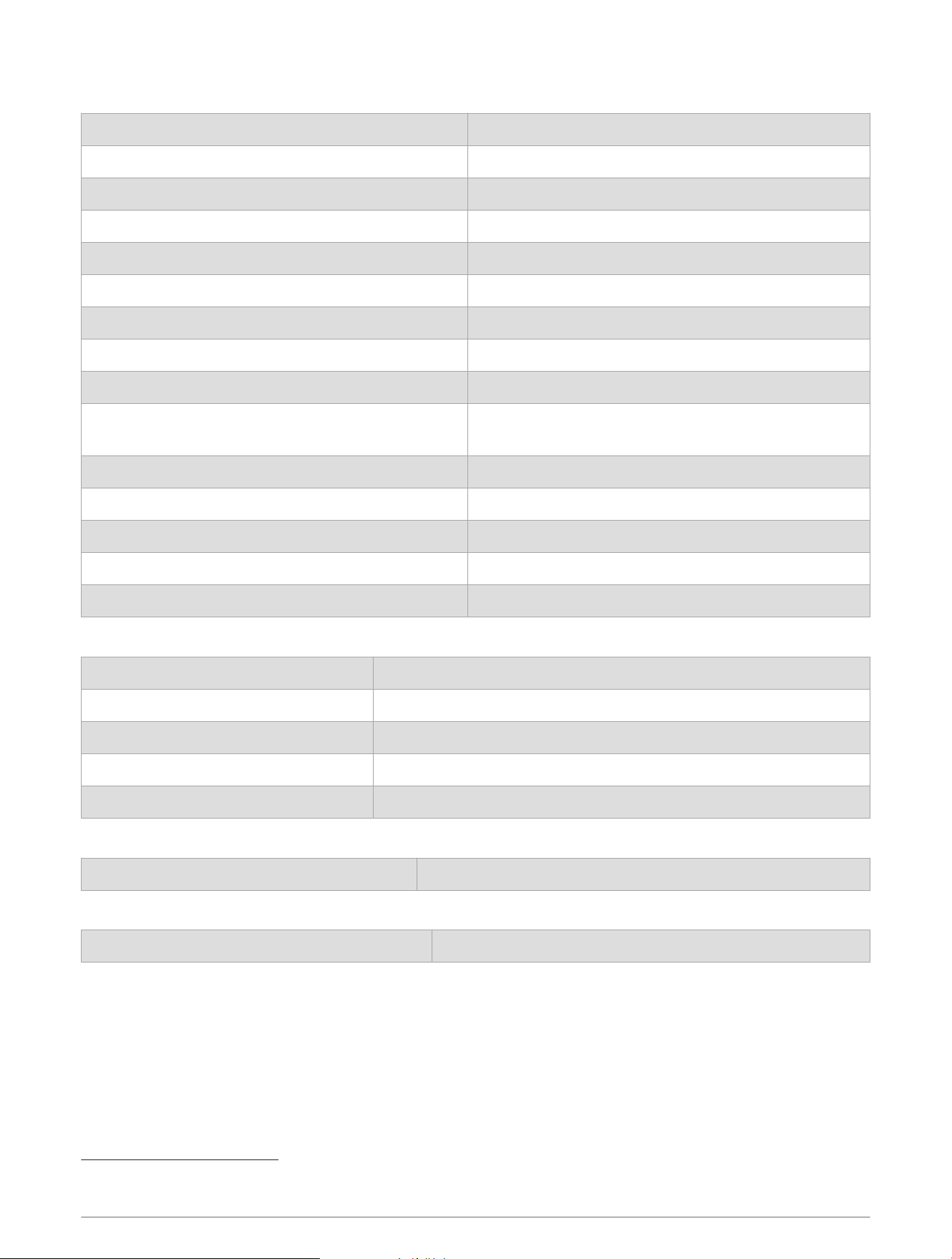
GTB 10 Specifications
Weight 0.64kg (1.4lb.)
Compass-safe distance 102mm (4in.)
Operating temperature range From -15° to 55°C (from 5° to 131°F)
Internal battery charging temperature range From 0° to 45°C (from 32° to 113°F)
Material Polycarbonate plastic
Water rating IEC 60529 IPX7
1
Fuse 7.5A, 42V fast-acting
Input voltage From 10 to 32Vdc
Max. power usage @ 10Vdc 20W
Typical current draw @ 13.2Vdc
40mA avg. (cycling standby/full-power state)
210mA avg. (full-power state)
Typical current draw in off state Up to 7mA avg.
Max. current draw @ 13.2Vdc 1.5A
NMEA 2000 LEN @ 9Vdc 2
NMEA 2000 draw 75mA max.
Backup battery life 48 hours (typical use)
Shore Power Sensor Specifications
Operating temperature range From -15° to 55°C (from 5° to 131°F)
Storage temperature range From -20° to 60°C (from -4° to 140°F)
Input voltage 100 to 240Vac
Output 5Vdc
Installation location Max. 85% humidity, non-condensing environments
Temperature Sensor Specifications
Operating temperature range From -50° to 105°C (from -58° to 221°F)
Security Sensor Specifications
Operating temperature range From -15° to 80°C (from 5° to 176°F)
1
The device withstands incidental exposure to water of up to 1m for up to 30min. For more information, go to www.garmin.com/waterrating.
Appendix 17
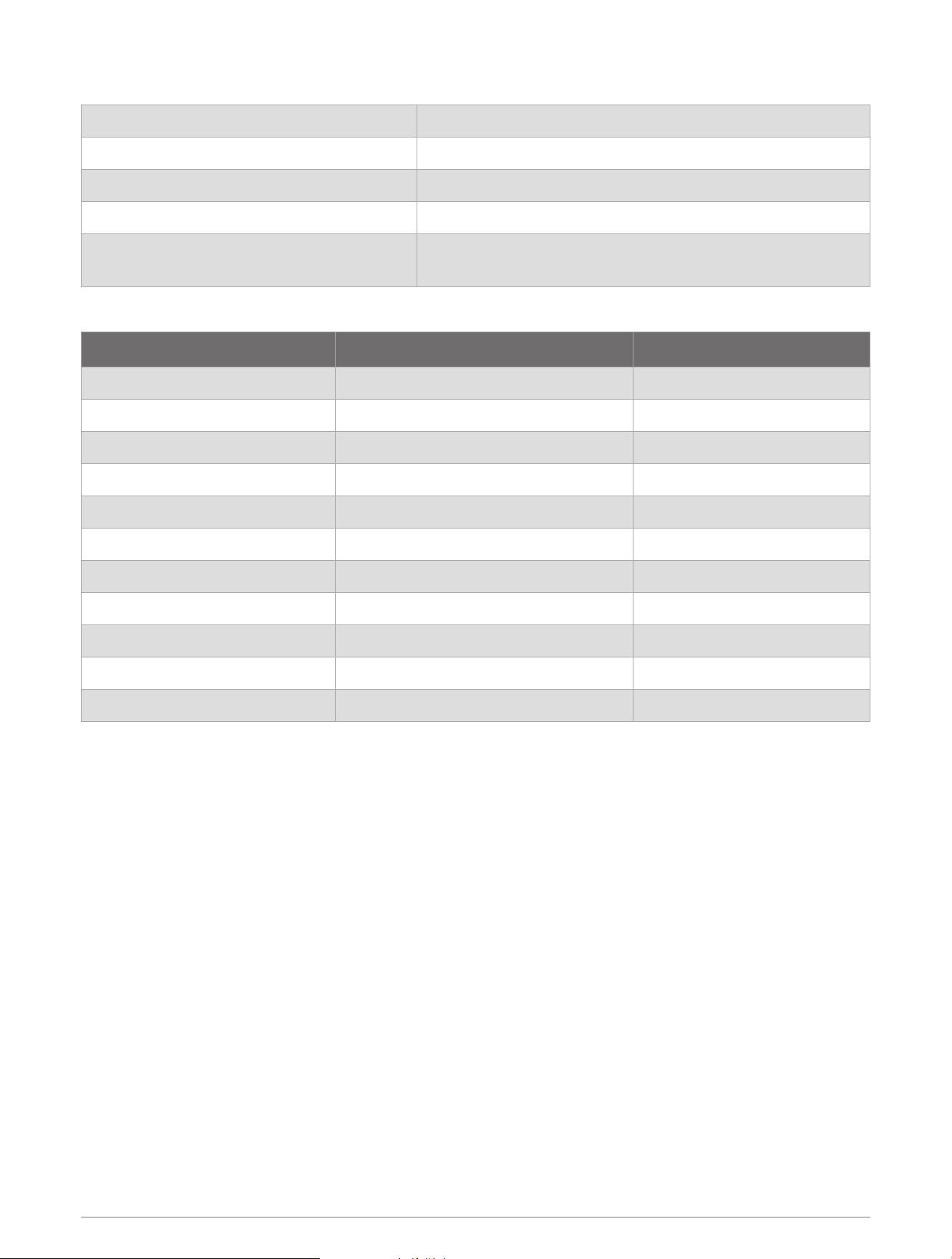
12V Relay Switch Specifications
Operating temperature range From -15° to 85°C (from 5° to 185°F)
Storage temperature range From -40° to 155°C (from -40° to 311°F)
Control voltage (coil) 7.8 to 15.6Vdc
Load power min. (contacts) 0.1A
Load power max. (contacts)
Up to 15A at 10 to 16Vdc
Up to 9A at 20 to 32Vdc
Wireless Protocols and Frequencies
Protocol Frequency range Typical power
UMTS low 824 to 915Mhz -6.4dBm
UMTS mid 1710 to 1980Mhz 20.8dBm
LTE FDD low 1 699 to 787Mhz 21.8dBm
LTE FDD low 2 814 to 862Mhz 24.1dBm
LTE FDD low 3 880 to 915Mhz 20.4dBm
LTE FDD mid 1 1710 to 1785Mhz 25.1dBm
LTE FDD mid 2 1850 to 1980Mhz 22.9dBm
LTE FDD high 2500 to 2570Mhz 18.2dBm
LTE FDD high 1 1880 to 2400Mhz 20.4dBm
LTE FDD high 2 2555 to 2655Mhz 25.5dBm
ANT
®
/Wi‑Fi 2400 to 2480Mhz 16.8dBm
18 Appendix

Compatible Sensors
Device Sensors
Bilge pump (two)
Security
Battery voltage (two)
Temperature
Shore power
GPS location
GPS course over ground
GPS speed over ground
Distance log
NMEA 2000 Sensors
Fluid level
DC voltage
Temperature
GPS location
GPS course over ground
GPS speed over ground
Vessel heading
Vessel speed through water
Wind data
Fuel flow rate
Engine hours
Engine warning indicators
NOTE: The data from NMEA 2000 sensors is not uploaded when the GTB 10 hub is running on the internal
backup battery.
Appendix 19

support.garmin.com
GUID-1A1F58AA-95F0-4800-804B-4976606478EE v6January 2025