Can’t connect? Need help?
DO NOT RETURN THIS
PRODUCT TO THE STORE
Geeni support:
support.mygeeni.com
or tap ‘Support’ for help in the Geeni app.
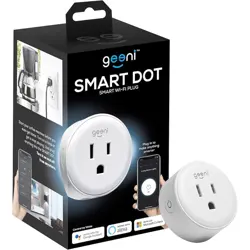
SMART WI-FI
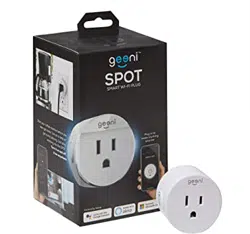
PLUG
START GUIDE

Contents
Download & Register 2-4
Plug In 5
Connect (Easy Mode) 6-7
Connect (AP Mode) 8-9
Questions, Troubleshooting, Notices 10-13
Thank you for purchasing your GEENI smart home product.
Get started using your new devices by downloading Geeni, one
convenient app that manages everything straight from your
phone or tablet. Easily connect to your home Wi-Fi and control
multiple devices from the touch of your fingertips.
13
FCC Notice:
This device complies with Part 15 of the FCC Rules. Operation is subject to the two following
conditions:
1. This device may not cause harmful interference.
2. This device must accept any interference received, including interference that may cause
undesired operation.
Note: This equipment has been tested and found to comply with the limits for a Class B digital
device, pursuant to Part 15 of the FCC Rules. These limits are designed to provide reasonable
protection against harmful interference in a residential installation.
Important Information:
Before installing, read and follow all precautions, including the following:
CAUTION: Suitable for indoor use only.
DO NOT IMMERSE IN WATER. DO NOT EXCEED RATED CAPACITY.
Support:
If you encounter any issues, please contact us at [email protected] for help. To explore
our full selection of products, visit us at: www.mygeeni.com
© 2019 Merkury Innovations • 45 Broadway 3rd FL, New York NY 10006. The illustrated
product and specifications may differ slightly from those supplied. Geeni is a trademark of
Merkury Innovations LLC. iPhone, Apple and the Apple logo are trademarks of Apple Inc.,
registered in the U.S. and other countries. App Store is a service mark of Apple Inc. Android,
Google Assistant, Google Play, and the Google Play logo are trademarks of Google Inc.
Google is a trademark of Google LLC. iOS is a registered trademark of Cisco in the U.S. and
other countries and is used under license. Amazon, Alexa and all related logos are trademarks
of Amazon.com, Inc. or its affiliates. Cortana is a registered trademark of Microsoft Corporation.
All other trademarks and trade names are those of their respective owners.
WARNING: This product contains chemicals known to the State of California to cause
cancer and birth defects or other reproductive harm.
Made in China
12
Troubleshooting
Reset the device
System Requirements
Technical Specifi cations
Cannot connect to your Wi-Fi network.
Make sure you entered the correct Wi-Fi password during the Wi-Fi
setup. Check whether there are any Internet connection problems. If the
Wi-Fi signal is too weak, reset your Wi-Fi router and try again.
To Reset plugs, press and hold the power button for 3 seconds.
- Reset one time (press and hold) to reach Easy mode
(Fast blinking blue)
- Reset two times (press and hold) to reach AP Mode
(Slow blinking blue)
• Mobile device running iOS
®
9 or higher or Android™ 5.0 or higher
• Existing Wi-Fi Network
• Input voltage: 125V
• Input frequency: 60Hz
• Max. load current: 10A
• Max. Power: 1250W
• Wi-Fi: IEEE 802.11N, 2.4GHz
(not compatible with 5GHz Wi-Fi networks)
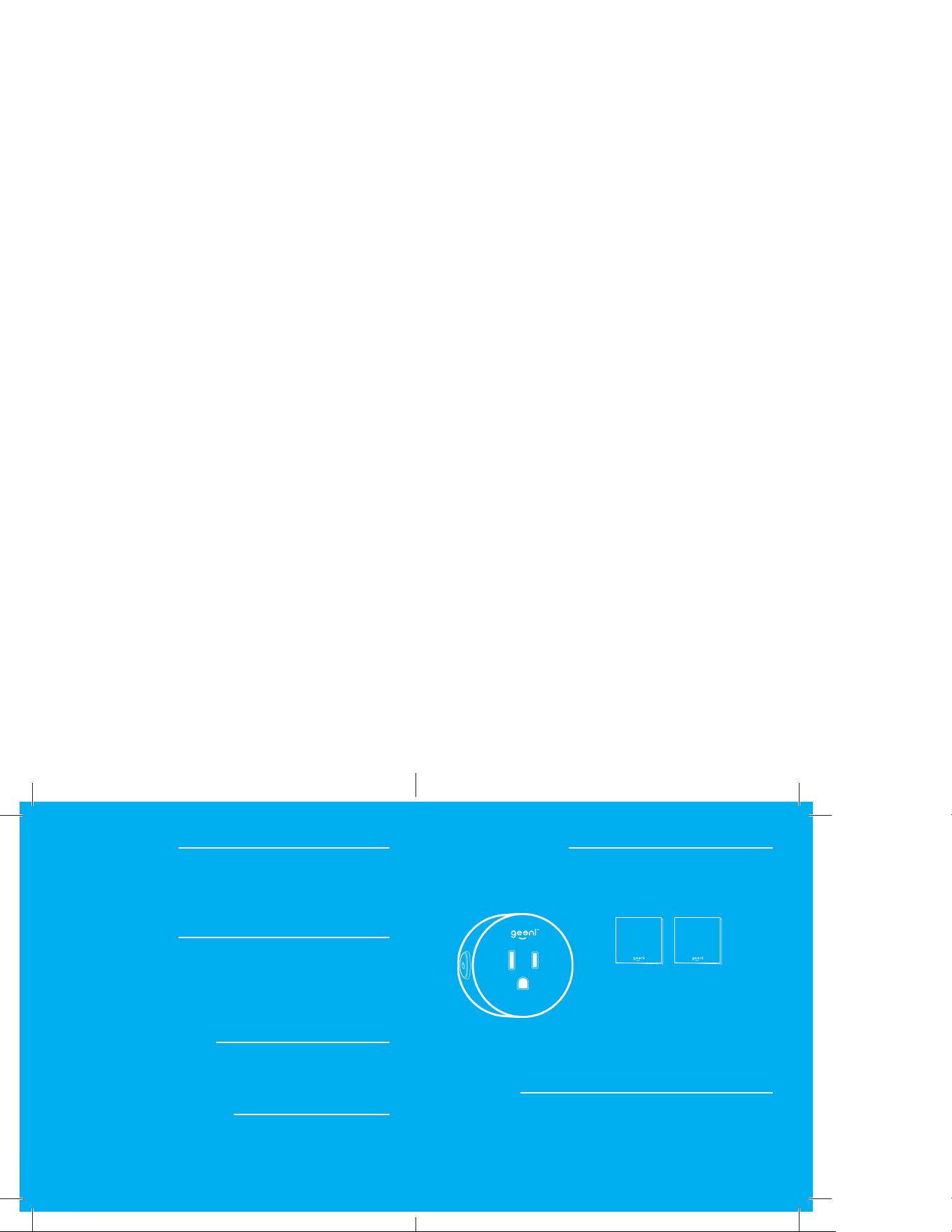
What’s in the Box
Get Ready
• Smart Wi-Fi Plug
• User Manual
• Voice Control Guide
• Know your Wi-Fi network and password
• Make sure your mobile device is running iOS
®
9 or higher
or Android™ 5.0 or higher
• Make sure you’re connecting to a 2.4GHz Wi-Fi network
(Geeni can’t connect to 5GHz networks)
SMART WI-FI
PLUG
START GUIDE
VOICE
CONTROL
GUIDE
2
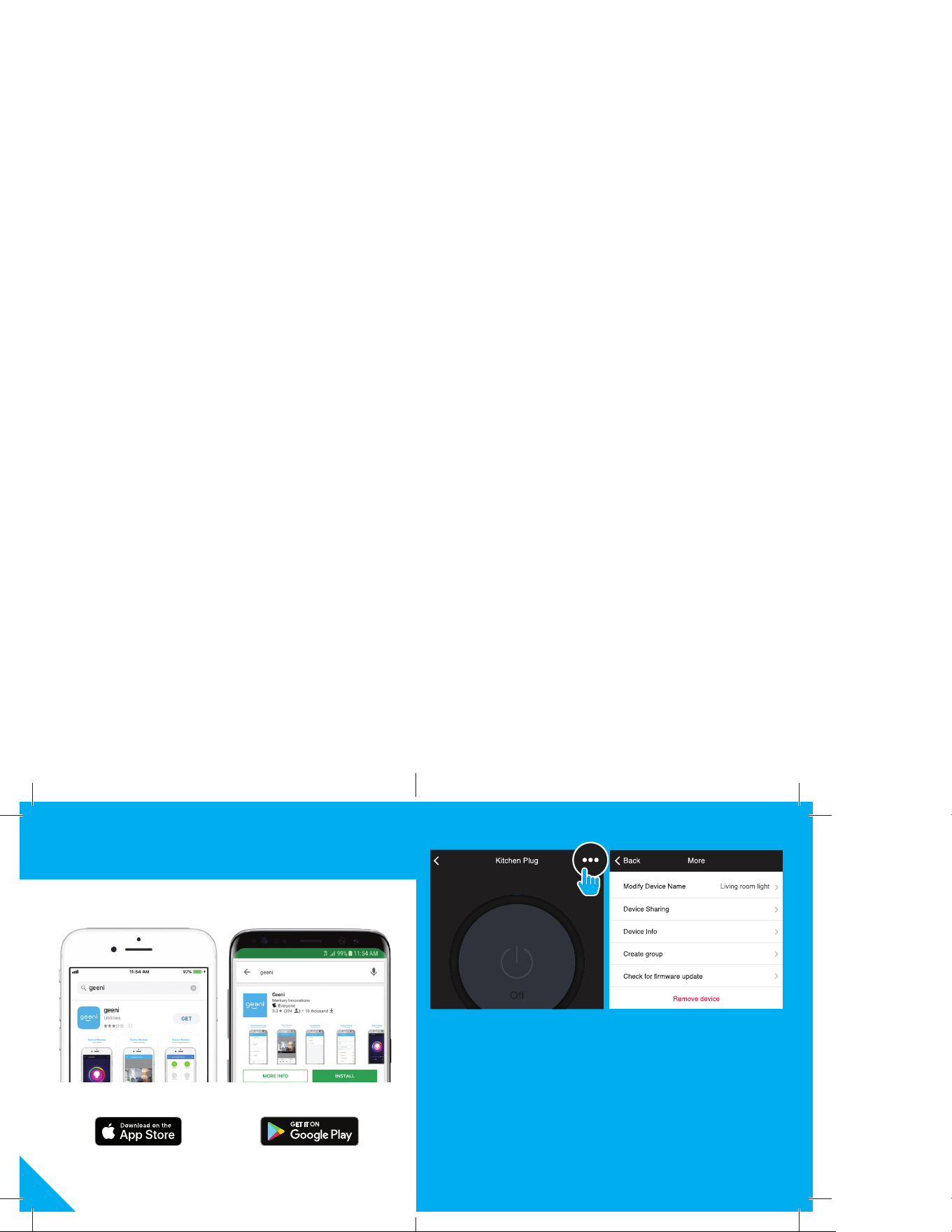
1 Download the Geeni app from App Store or Google Play.
5. The device appears offline or unreachable, what should I do?
Make sure your Wi-Fi router is online and in range.
Make sure you have the latest Geeni functionality by clicking “Check for
firmware update” in your device settings.
6. What’s the Wireless Range?
The range of your home Wi-Fi is heavily dependent on your home router
and the conditions of the room. Check with your router specifications for
exact range data.
7. If my Wi-Fi/Internet goes down, will Geeni still work?
Geeni products need to be connected to Wi-Fi in order to use them remotely.
10
Frequently Asked Questions
1. Can I share with family and friends?
Yes, you can share your plugs with family and friends who will have
access to control your bulbs, plugs, cameras, and other Geeni devices. In
the Geeni app, press the Profile button and click on the “Device Sharing”
button, and you will be able to give or revoke sharing permissions.
In order to share, the other user should already have downloaded the
Geeni app and registered a new account.
2. Can I group multiple Geeni devices together?
Yes, you can group multiple devices of the same type together, by room,
location, or however else you want. The same devices can be in multiple
groups. For example, create a group for “Bedroom” and another group for
“Entire House”, and your Bedroom lights can be included in both groups.
From your main device list, click on one of the devices you want to group,
press the “ ” button on the top right for advanced settings, and click Cre-
ate Group. You’ll then be able to choose which devices you’d like to group
together and will be able to rename them.
3. How Many Devices Can I Control?
Geeni’s app can control an unlimited amount of devices in an unlimited
amount of locations. Your router may have a limit of how many devices
can be connected to one router.
4. My Geeni device has a funny name. How do I rename it?
From your main device list, click on one of the devices you want to rename,
press the “ ” button on the top right for advanced settings, and click
Modify Device Name (or Modify Group Name, if applicable). You’ll then be
able to choose a more familiar name.
3
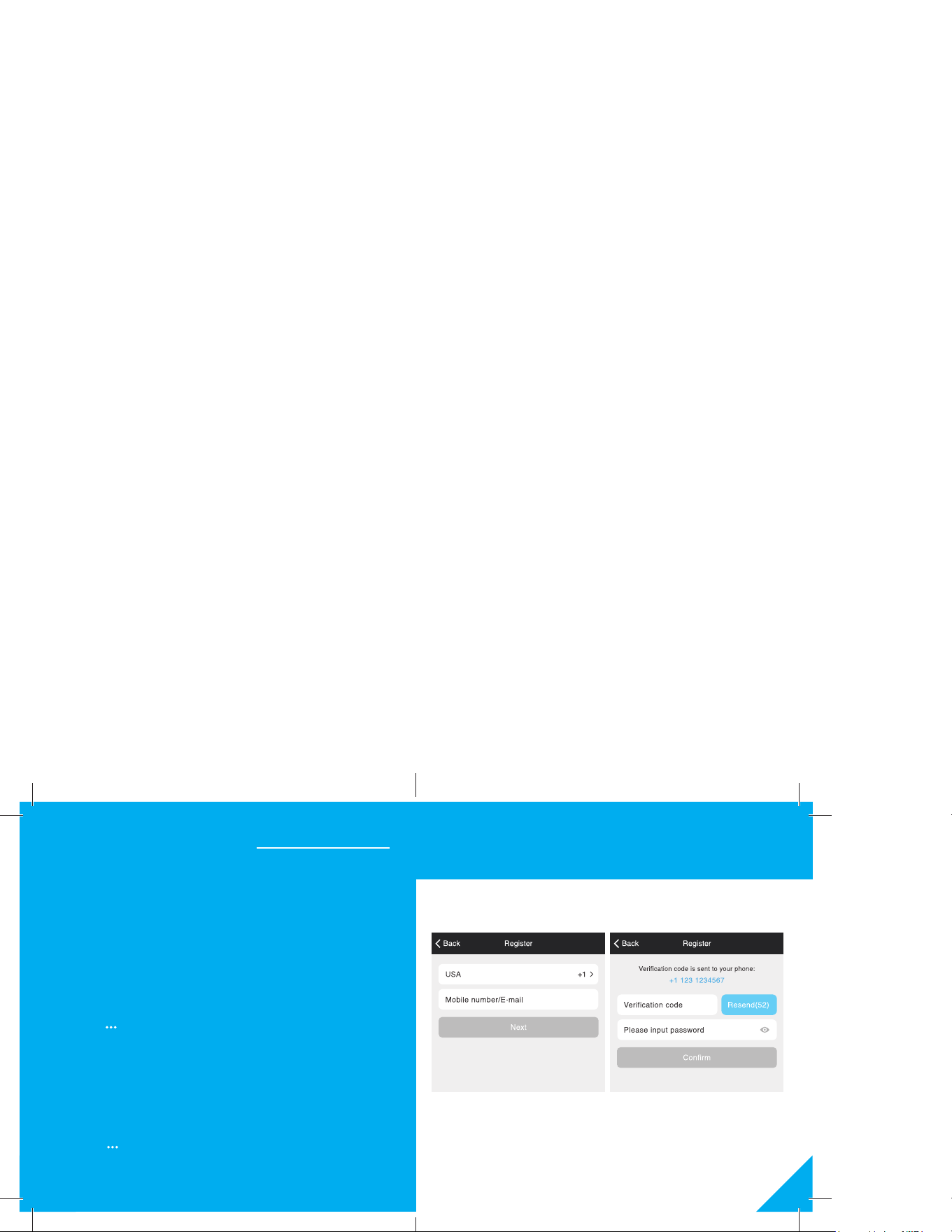
2 Register an account on your Geeni app.
STEP 1.
Enter your mobile phone number
or email address.
STEP 2.
Enter the verification code
and create a password.
4
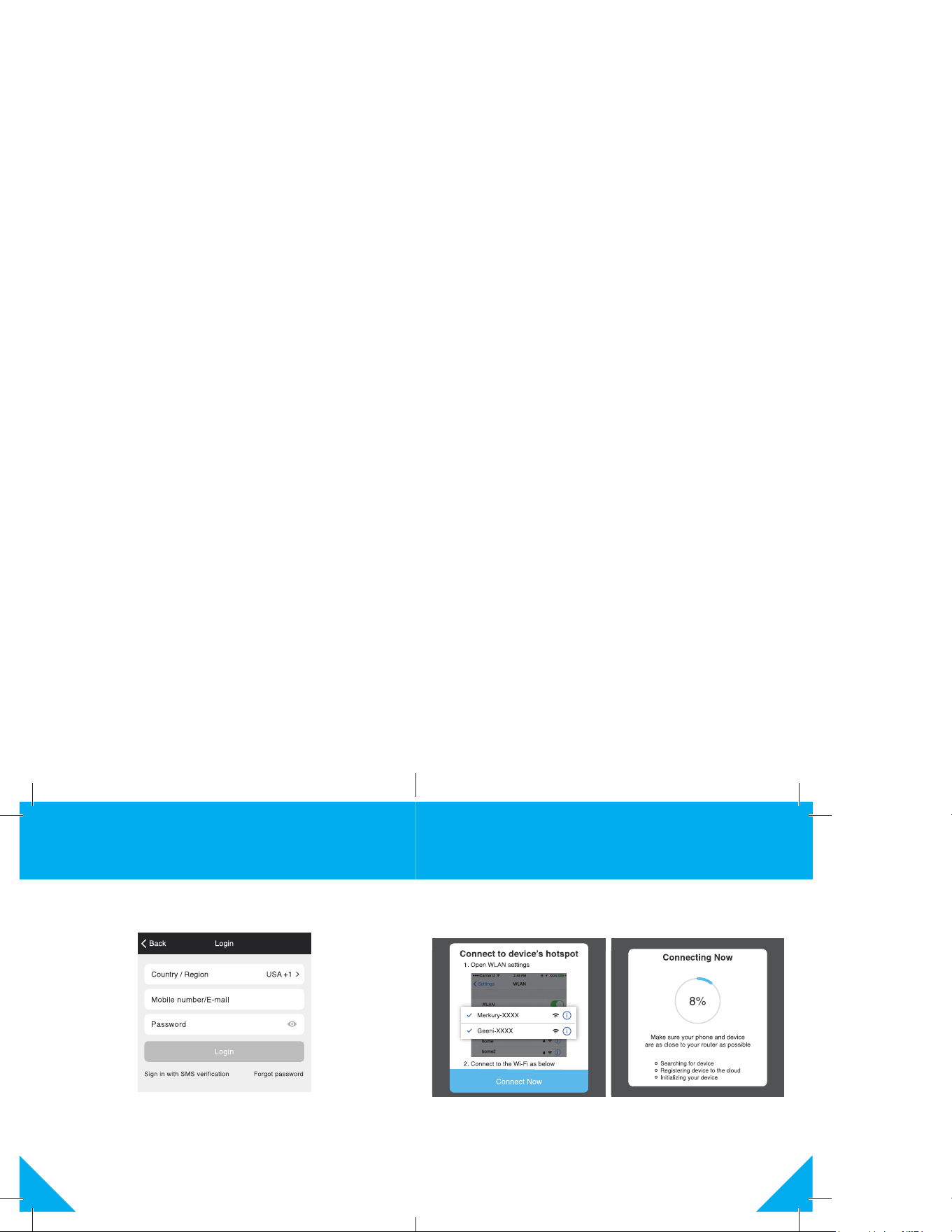
STEP 3.
Login to the App.
2 Register an account on your Geeni app.
9
STEP 4.
Follow the instructions to choose
the device from your Wi-Fi list.
STEP 5.
The device will connect.
NOTE: Geeni can’t connect to 5GHz networks.
8
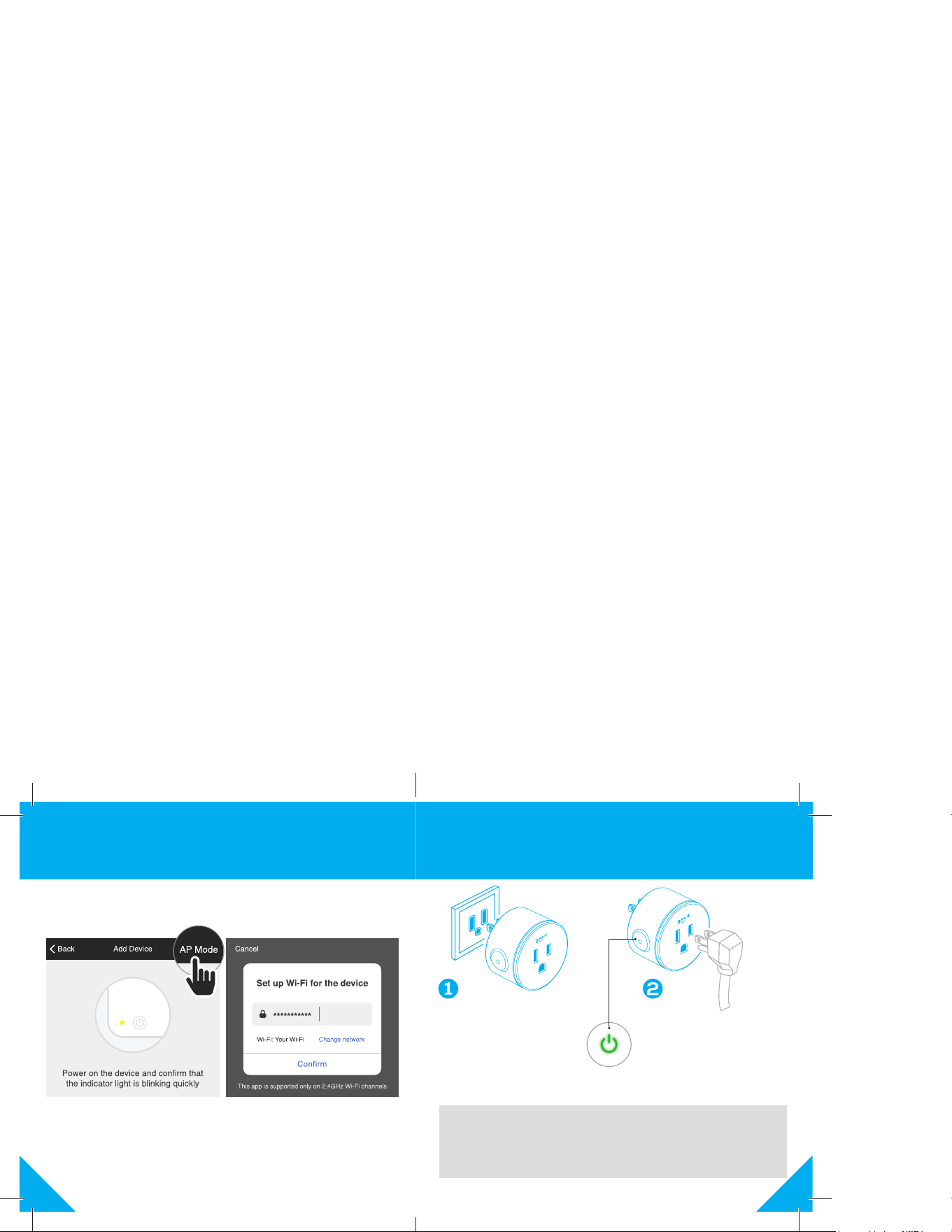
5 Add device. Method 2: Backup AP Mode.
STEP 1.
Make sure the device is in AP Mode, blinking slowly
(see reset instructions on p. 5)
STEP 2.
In the Geeni app, on the top corner
of the Devices screen, click (+).
Choose “Smart Power“.
Choose “AP Mode” in the top corner.
STEP 3.
Click Next and enter your
Wi-Fi details.
5
3 Plug In.
STEP 1
Plug the Geeni device into
the wall. Make sure the
indicator light on the device
is flashing rapidly blue,
indicating the device is ready
to connect.
STEP 2
Blinking Fast: Ready for Easy Mode
Blinking Slow: Ready for AP Mode
Solid: Device power on
How do I reset the device and what does the blinking light mean?
- Reset by pressing and holding the button for 3 seconds until the light is flashing rapidly.
- Reset one time (press and hold) to reach Easy mode (Fast blinking blue, 2x per second)
- Reset again (press and hold) to reach AP Mode (Slow blinking blue, every 3 seconds)
6
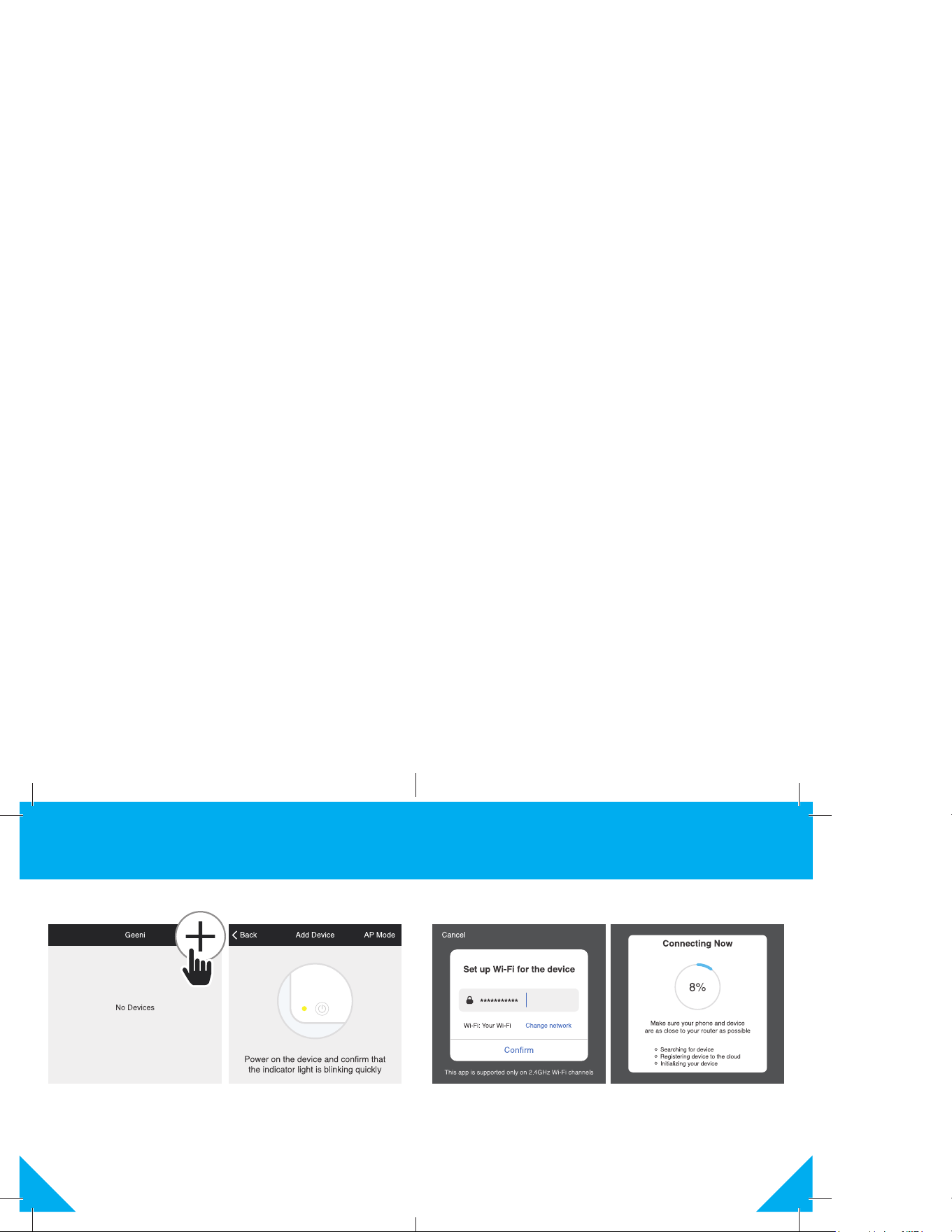
STEP 2.
In the Geeni app, on the top
corner of the Devices screen,
click (+).
Choose “Smart Power“.
STEP 3.
Make sure the indicator light on the
device is flashing rapidly blue, indicating
the device is ready to connect using Easy
Mode. If not, press and hold the Button
for 3 seconds until the indicator light is
flashing rapidly, then press “Next Step”.
4 Add device. Method 1: Easy Mode.
7
STEP 4.
Enter your Wi-Fi network and
password.
STEP 5.
The Geeni app will try to
connect your device.
NOTE: Geeni can’t connect to 5GHz networks.
*If the connection fails, try to connect using AP Mode.