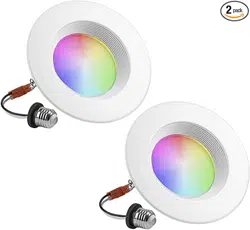

SMART WI-FI
LED LIGHT
START GUIDE
ENGLISH
Para instrucciones en español, ver
pág. 15
Contents
Download & Register 2-4
Plug In 5
Connect (Easy Mode) 6-7
Connect (AP Mode) 8-9
Questions, Troubleshooting, Notices 10-13
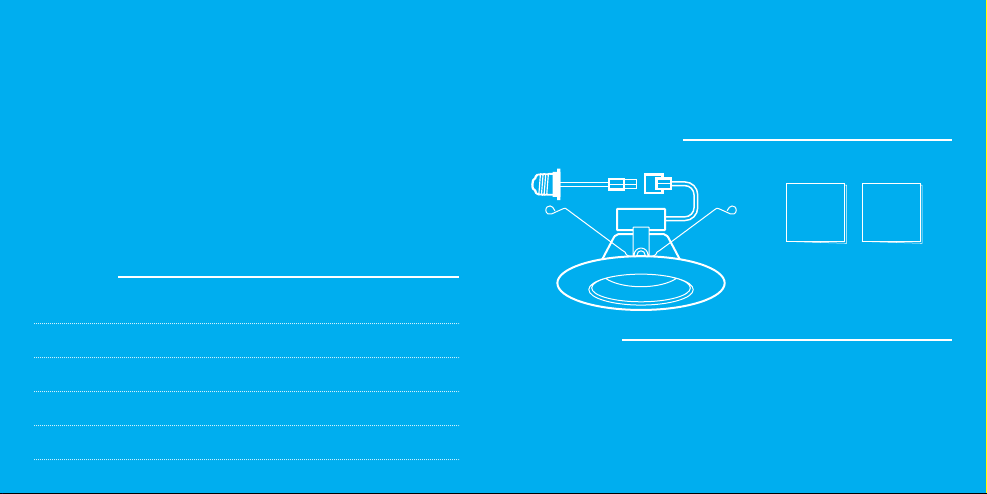
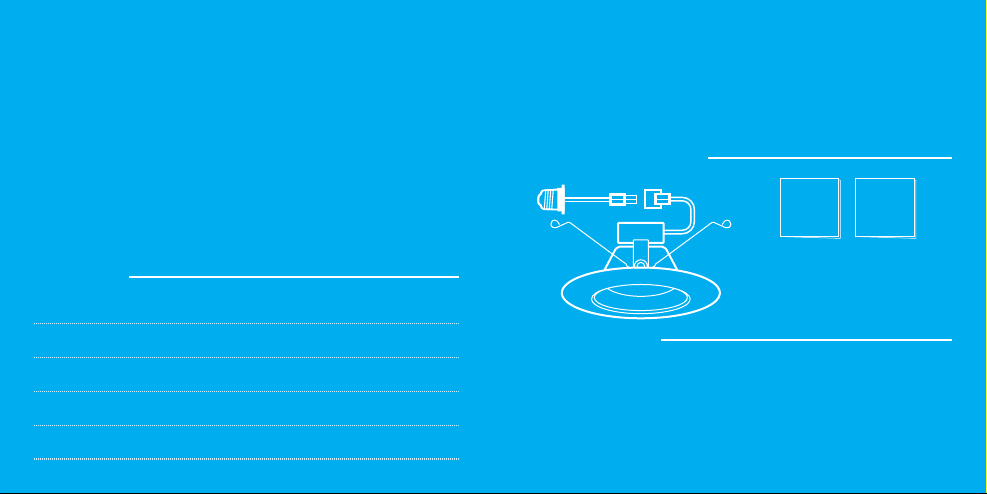
What’s in the Box
Get Ready
• Smart Wi-Fi LED Downlight
• User Manual
• Voice Control Guide
• Know your Wi-Fi network and password
• Make sure your mobile device is running iOS
®
9 or higher
or Android™ 5.0 or higher
• Make sure you’re connecting to a 2.4GHz Wi-Fi network
(Geeni can’t connect to 5GHz networks)
• Find an existing light socket (E26 shape)
SMART WI-FI
LED LIGHT
START GUIDE
VOICE
CONTROL
GUIDE
Thank you for purchasing your GEENI smart home product.
Get started using your new devices by downloading Geeni, one
convenient app that manages everything straight from your
phone or tablet. Easily connect to your home Wi-Fi and control
multiple devices from the touch of your fingertips.
CAUTION: RISK OF ELECTRIC SHOCK OR BURNS – USE IN A DRY LOCATION ONLY.
Do not install the device with wet hands or when standing on wet or damp surfaces.
Suitable for use in operating environment between -20°C and 40°C (-4°F and 104°F).
Not for use in totally enclosed luminaires. Do not use with dimmers. Please make sure
the voltage of the LED bulb is compatible with the main electricity of your country before
connecting to a bulb holder. Ensure that the base of the bulb matches the bulb holder.
This device uses a non-replaceable light source. When the light source reaches the end
of its life cycle, the device should be replaced.
32
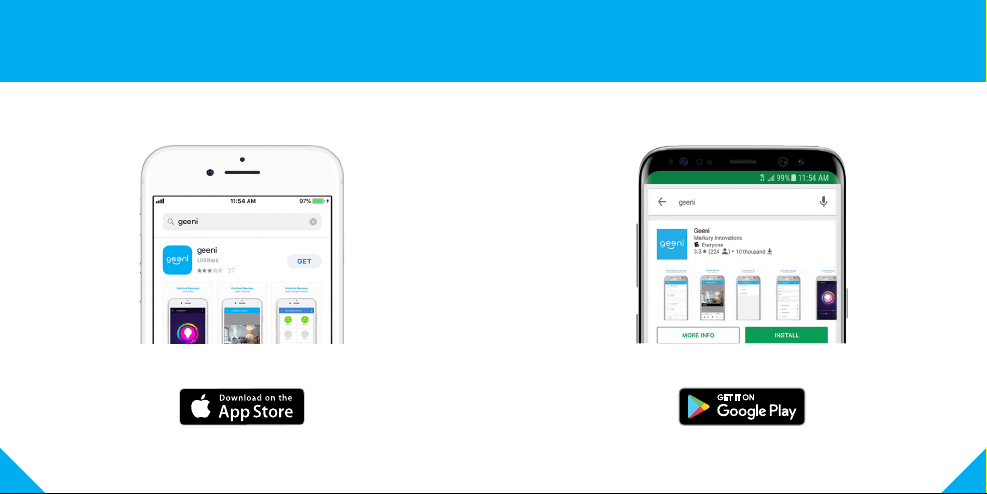
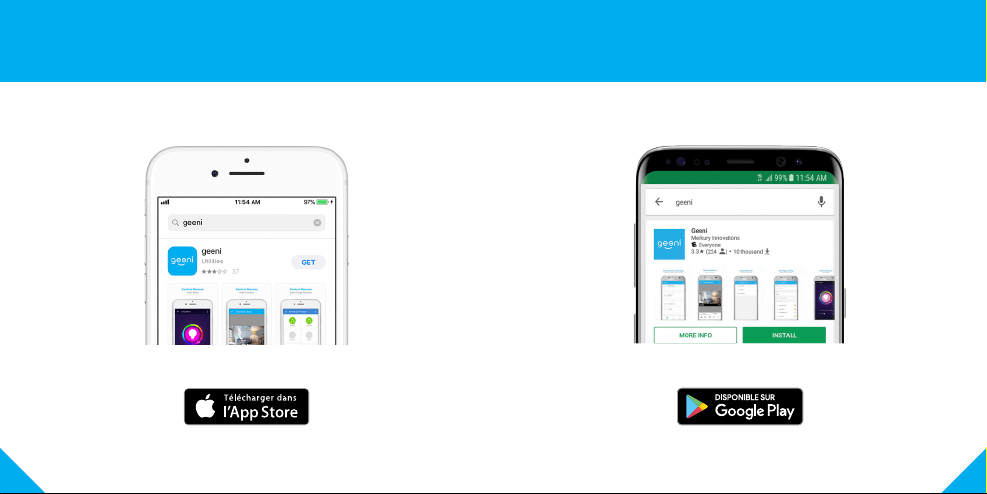
1 Download the Geeni app from App Store or Google Play.
54
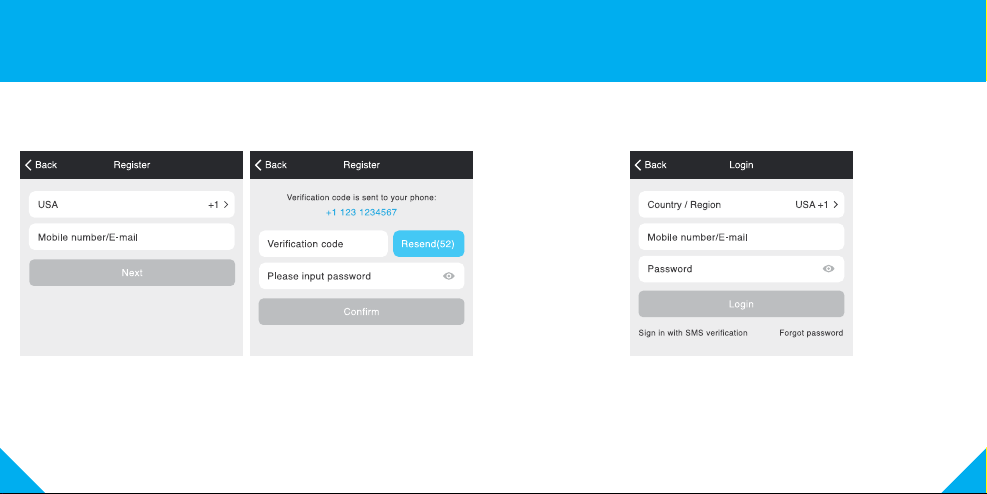
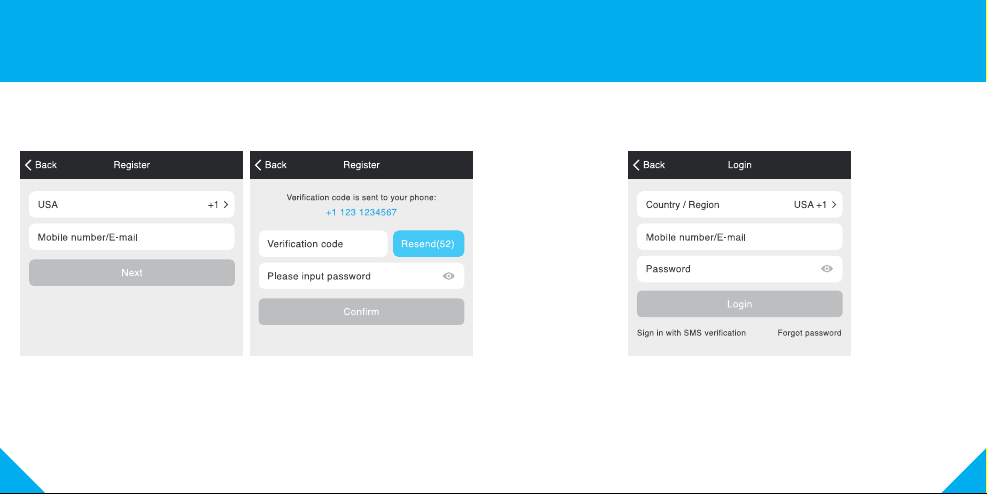
STEP 3.
Log in to the App.
2 Register an account on your Geeni app.
STEP 1.
Enter your mobile phone number
or email address.
STEP 2.
Enter the verification code
and create a password.
76
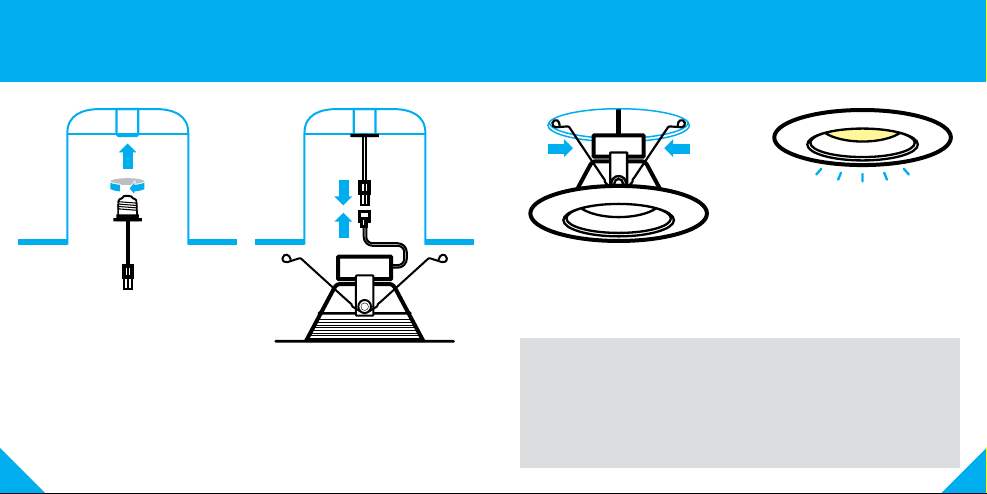
3 Plug In
How do I reset the device and what does the blinking light mean?
Reset the bulb by turning it off and on three times.
- Reset once (off and on 3 times) to reach Easy Mode, which is the
primary way the app will try to connect.
(When in Easy Mode, you’ll see the bulb flashing quickly, 2x per second)
- Reset again (off and on 3 times) to reach AP Mode, which is the Backup
Mode to help connect.
(When in AP Mode, you’ll see the bulb blinking slowly, every 3 seconds)
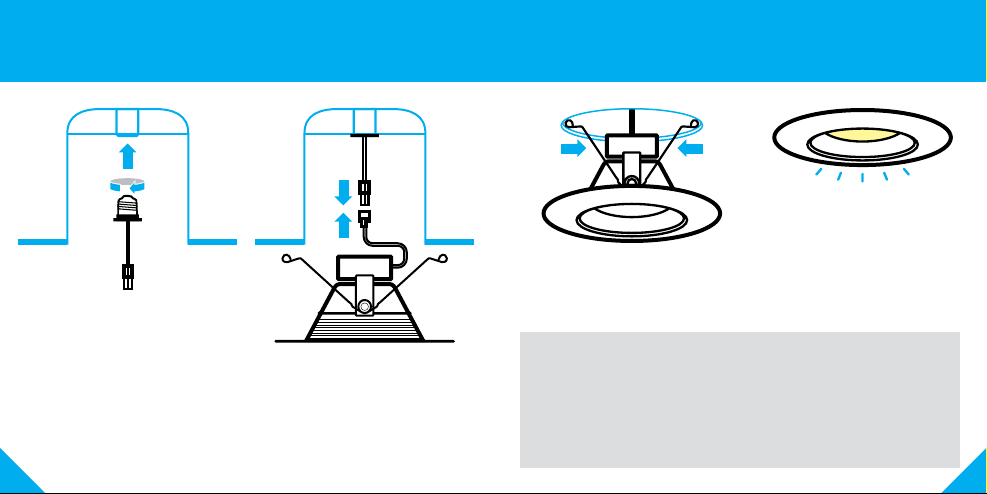
STEP 1.
Screw Edison base adapter into
recessed housing socket.
STEP 2.
Connect the terminals.
STEP 3.
Squeeze spring clips and install
downlight into recessed housing
unit, then turn on power.
STEP 4.
Downlight should be quickly
flashing 2x per second.
98
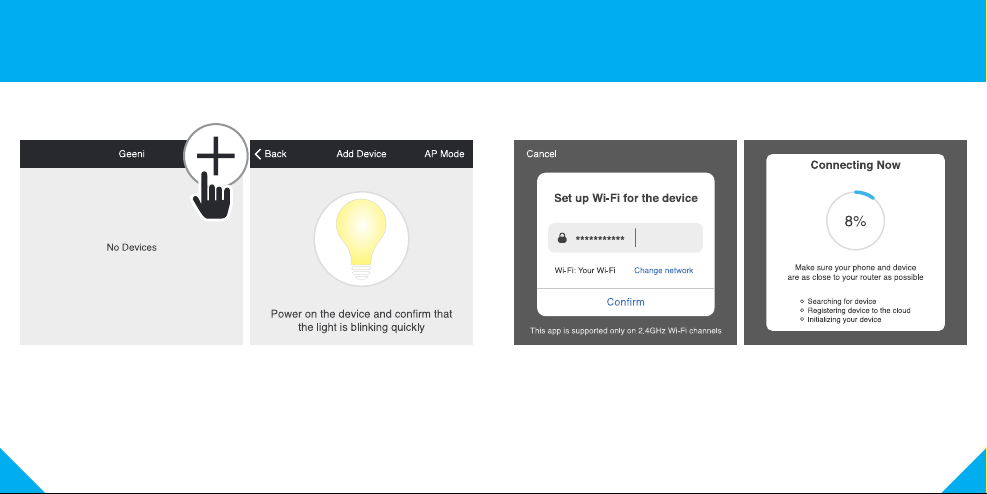
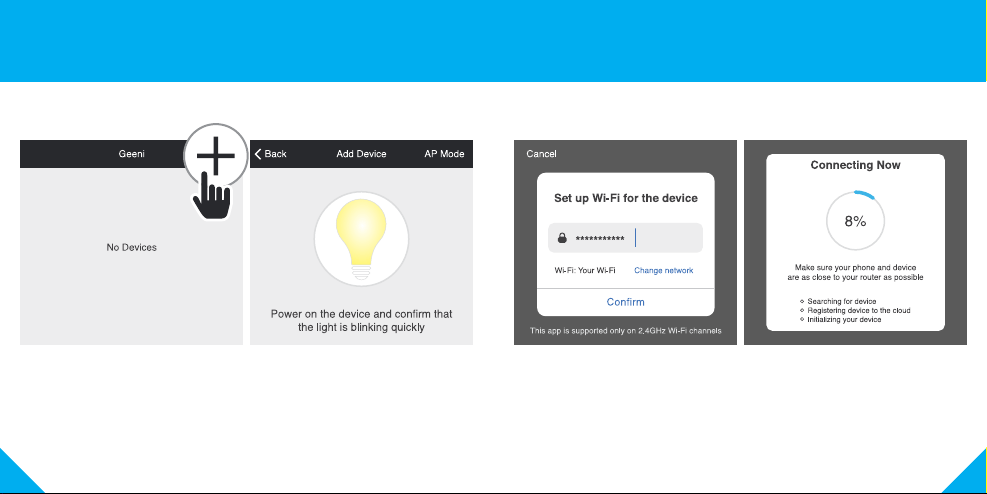
STEP 1.
In the Geeni app, on the top
corner of the Devices screen,
click (+).
STEP 2.
Make sure the light is flashing quickly,
indicating it’s ready to connect. If not,
turn the bulb off and on 3 times until
it is flashing. Press “Next Step.”
STEP 3.
Enter your Wi-Fi network and
password.
NOTE: Geeni can’t connect to 5GHz networks.
*If the connection fails, try to connect using AP Mode.
STEP 4.
The Geeni app will try to
connect your device.
4 Add device. Method 1: Easy Mode
1110
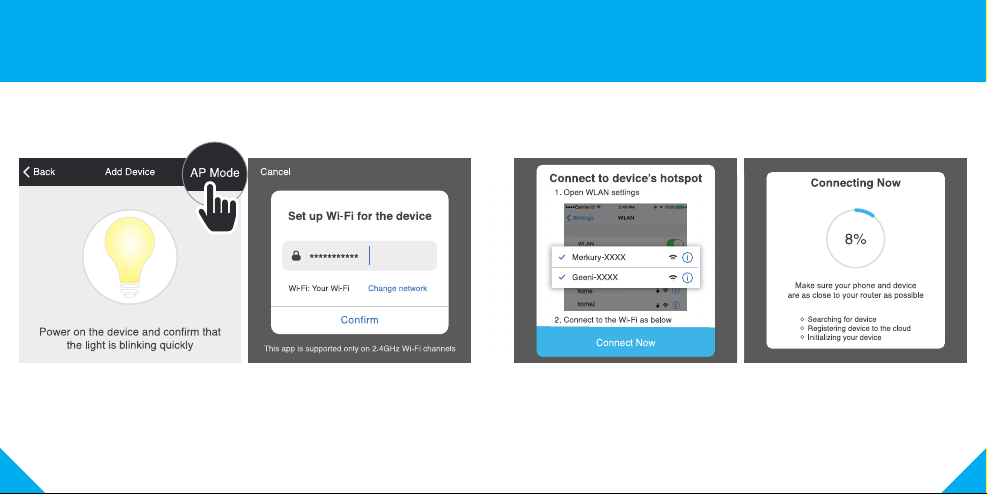
5 Add device. Method 2: Backup AP Mode
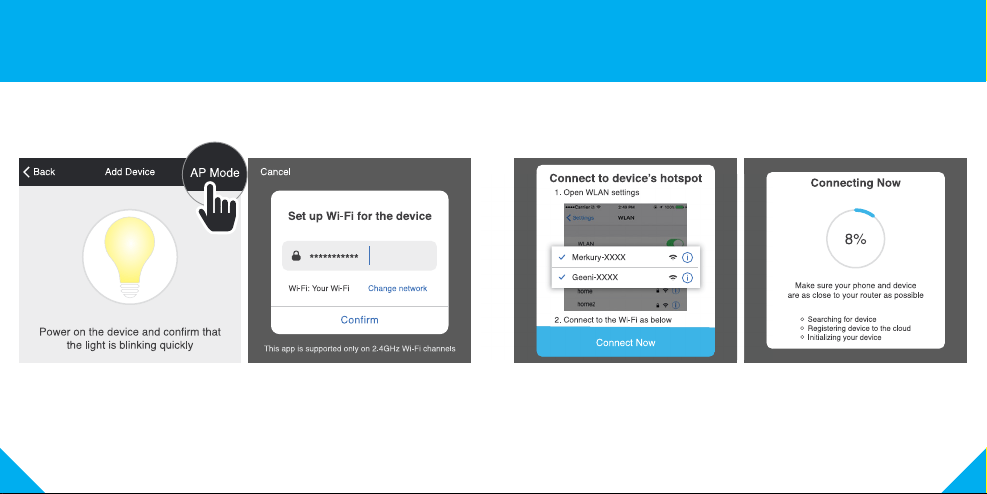
STEP 1.
Make sure the device is in AP Mode, blinking slowly
(see reset instructions on p. 5)
STEP 2.
In the Geeni app, on the top corner
of the Devices screen, click (+).
Choose “AP Mode” in the top corner.
STEP 3.
Click Next and enter your
Wi-Fi details.
STEP 4.
Follow the instructions to choose
the device from your Wi-Fi list.
STEP 5.
The device will connect.
NOTE: Geeni can’t connect to 5GHz networks.
1312
Frequently Asked Questions
1. Can I Share with Family and Friends?
Yes, you can share your bulbs with family and friends who will have
access to control your bulbs, plugs, cameras, and other Geeni devices. In
the Geeni app, press the Profile button and click on the “Device Sharing”
button, and you will be able to give or revoke sharing permissions.
In order to share, the other user should already have downloaded the
Geeni app and registered a new account.
2. Can I Group Multiple Geeni Devices Together?
Yes, you can group multiple devices of the same type together, by room,
location, or however else you want. The same devices can be in multiple
groups. (For example, create a group for “Bedroom” and another group
for “Entire House”, and your Bedroom lights can be included in both
groups). From your main device list, click on one of the devices you want
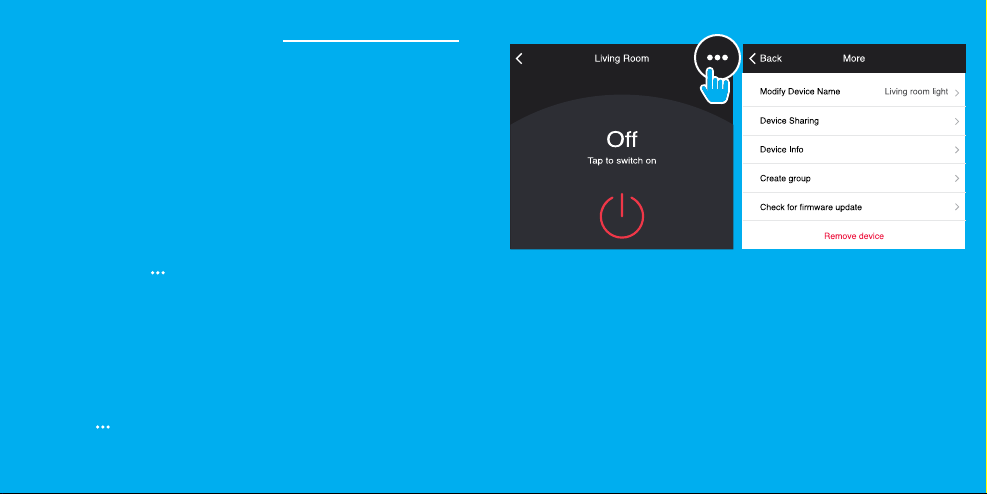
to group, press the “ ” button on the top right for advanced settings,
and click Create Group. You’ll then be able to choose which devices you’d
like to group together and will be able to rename them.
3. How Many Devices can I Control?
Geeni app can control an unlimited amount of devices in an unlimited
amount of locations. Your router may have a limit of how many devices
can be connected to one router.
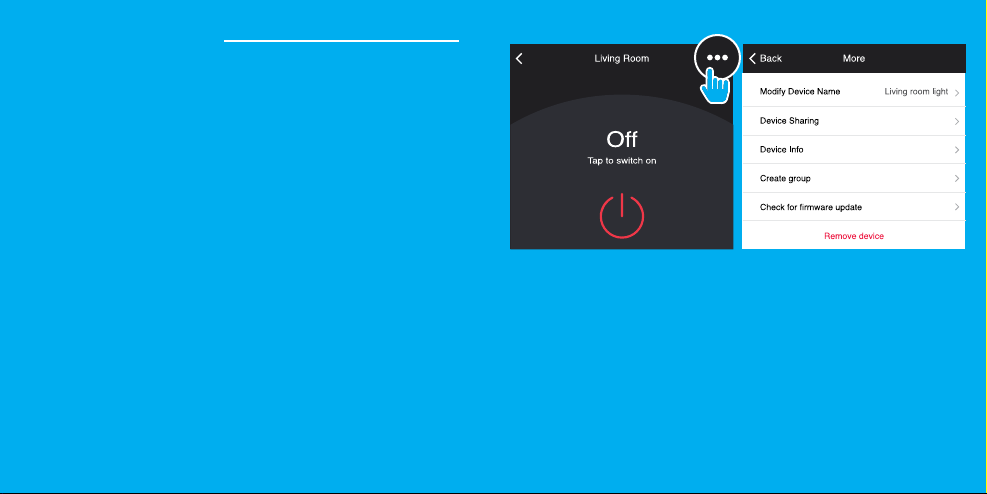
4. My Geeni Device has a Funny Name. How do I Rename it?
From your main device list, click on one of the devices you want to rename,
press the “ ” button on the top right for advanced settings, and click
Modify Device Name (or Modify Group Name, if applicable). You’ll then be
able to choose a more familiar name.
5. The Bulb Appears Offline or Unreachable, What Should I do?
Check the light switch and make sure that it’s switched ON. The light bulb
requires an “always-on” power supply to operate properly.
Make sure your Wi-Fi router is online and in range.
Make sure you have the latest Geeni functionality by clicking “Check for
firmware update” in your device settings.
6. What’s the Wireless Range?
The range of your home Wi-Fi is heavily dependent on your home router
and the conditions of the room. Check with your router specifications for
exact range data.
7. If my Wi-Fi/Internet Goes Down, Will Geeni still Work?
Geeni products need to be connected to Wi-Fi in order to use them remotely.

1514
Troubleshooting
Reset the Device
System Requirements
Technical Specications
Cannot connect to your Wi-Fi network.
Make sure you entered the correct Wi-Fi password during the Wi-Fi
setup. Check whether there are any Internet connection problems.
If the Wi-Fi signal is too weak, reset your Wi-Fi router and try again.
Reset once (off and on 3 times) to reach Easy Mode, which is the primary
way the app will try to connect. (When in Easy Mode, you’ll see the bulb
flashing quickly, 2x per second)
Reset again (off and on 3 times) to reach AP, which is the Backup Mode
to help connect.
(When in AP Mode, you’ll see the bulb blinking slowly, every 3 seconds)
• Mobile device running iOS
®
9 or higher or Android™ 5.0 or higher
• Existing Wi-Fi Network
• Existing light socket (E26 shape)
• E26 base
• 120 V, 60 Hz
• Wi-Fi: IEEE 802.11N, 2.4GHz (not compatible with 5GHz Wi-Fi networks)
FCC Notice:
This device complies with Part 15 of the FCC Rules. Operation is subject to the two following
conditions:
1. This device may not cause harmful interference.
2. This device must accept any interference received, including interference that may cause
undesired operation.
Note: This equipment has been tested and found to comply with the limits for a Class B digital
device, pursuant to Part 15 of the FCC Rules. These limits are designed to provide reasonable
protection against harmful interference in a residential installation.
Important Information:
Before installing or replacing a bulb, read and follow all precautions, including the following:
CAUTION: RISK OF ELECTRIC SHOCK OR BURNS – USE IN A DRY LOCATION ONLY.
Do not install the device with wet hands or when standing on wet or damp surfaces.
Suitable for use in operating environment between -20°C and 40°C (-4°F and 104°F).
Not for use in totally enclosed luminaires. Do not use with dimmers. Please make sure
the voltage of the LED bulb is compatible with the main electricity of your country before
connecting to a bulb holder. Ensure that the base of the bulb matches the bulb holder.
This device uses a non-replaceable light source. When the light source reaches the end
of its life cycle, the device should be replaced.
Support:
If you encounter any issues, please visit us at support.mygeeni.com for help.
To explore our full selection of products, visit us at: www.mygeeni.com
(888) 232-3143 Toll-free (English Only)
© 2019 Merkury Innovations • 45 Broadway 3rd FL, New York NY 10006.
The illustrated product and specifications may differ slightly from those supplied. Geeni is a trademark of Merkury
Innovations LLC. iPhone, Apple and the Apple logo are trademarks of Apple Inc., registered in the U.S. and other
countries. App Store is a service mark of Apple Inc. Galaxy S is a registered trademark of Samsung Electronics
Co., Ltd. Google, Google Play, and related marks and logos are trademarks of Google LLC. iOS is a registered
trademark of Cisco in the U.S. and other countries and is used under license. Amazon, Alexa and all related logos
are trademarks of Amazon.com, Inc. or its affiliates. All other trademarks and trade names are those of their
respective owners.
Made in China

LUZ LED
WI-FI INTELIGENTE
GUÍA DE INICIO
For instructions in English, see pg 1
ESPAÑOL
¿No se conecta? ¿Necesitas ayuda?
NO DEVUELVAS ESTE PRODUCTO
A LA TIENDA
Soporte de Geeni:
support@mygeeni.com
o pulsa “Soporte” en la aplicación Geeni para
obtener ayuda.
19
Contenido
Descargar y registrarse 18-20
Instalar 21
Conectarse (modo fácil) 22-23
Conectarse (modo AP) 24-25
Preguntas, Solución de problemas, Avisos 26-29
Contenido de la caja
Para comenzar
• Luz Descendente LED
Wi-Fi Inteligente
• Manual de usuario
• Guía para control por voz
• Debes saber tu red wifi y contraseña
• Verifica que tu dispositivo móvil tenga iOS
®
9 o superior o
Android™ 5.0 o superior
• Asegúrate de conectarte a una red wifi de 2,4 GHz
(Geeni no se puede conectar a redes de 5 GHz)
• Ubica una toma de luz existente (tipo E26)
LUZ LED
WI-FI INTELIGENTE
GUÍA DE INICIO
GUÍA PARA
CONTROL
POR VOZ
Gracias por comprar un producto GEENI Smart Home.
Empieza a utilizar tus nuevos dispositivos descargando Geeni,
una aplicación práctica con la que podrás administrar todo
directamente desde tu teléfono o tablet. Conéctate fácilmente
al wifi de tu casa y controla varios dispositivos desde la palma
de tu mano.
PRECAUCIÓN: RIESGO DE DESCARGAS ELÉCTRICAS O QUEMADURAS; UTILIZAR
ÚNICAMENTE EN UN LUGAR SECO. No instalar el dispositivo con las manos mojadas
o mientras esté de pie sobre superficies mojadas o húmedas. Apto para su uso en
ambientes de funcionamiento entre -20° C y 40° C (-4° F y 104° F). No debe usarse
en luminarias totalmente cerradas. No utilizar con reguladores de intensidad de luz.
Asegúrate de que el voltaje del foco LED sea compatible con el suministro eléctrico
principal de tu país antes de conectarlo a un portalámparas. Asegúrate de que la
base del foco encaje en el portalámparas. Este dispositivo utiliza una fuente de luz no
reemplazable. Cuando la fuente de luz llega al final de su ciclo de vida, el dispositivo debe
ser reemplazado
2120
1
Descarga la aplicación Geeni del App Store o Google Play.
2322
PASO 3
Inicia sesión en la aplicación.
2 Registra una cuenta en tu aplicación Geeni
PASO 1
Ingresa tu número de celular o
dirección de correo electrónico.
PASO 2
Ingresa el código de verificación y crea
una contraseña.
2524
Cómo reinicio el dispositivo y qué significa la luz parpadeante?
Reinicia el foco apagándolo y encendiéndolo tres veces.
- Reinícialo una vez (apágalo y enciéndelo 3 veces) para ingresar al Modo
Fácil, que es la forma principal en que la aplicación intentará conectarse.
(Cuando está en Modo Fácil, el foco parpadea rápidamente, 2 veces por
segundo)
- Reinícialo otra vez (apágalo y enciéndelo 3 veces) para ingresar al modo
AP, que es el modo de seguridad para facilitar la conexión. (Cuando está
en modo AP, el foco parpadea lentamente, cada 3 segundos)
3 Instalar
PASO 1
Enrosca el adaptador de base
tipo Edison en la toma de luz
empotrada.
PASO 2
Conecta los extremos.
PASO 3
Presiona los clips de resorte para
instalar la luz descendente en la toma
empotrada, luego enciende la luz.
PASO 4
La luz descendente debe
parpadear rápidamente 2
veces por segundo.
2726
PASO 1
En la aplicación Geeni, en la
esquina superior de la pantalla
Dispositivos, haz clic en (+).
PASO 2
Verifica que la luz esté parpadeando
rápidamente, lo que indica que está
lista para conectarse. Caso contrario,
apaga y enciende el foco 3 veces hasta
que empiece a parpadear. Presiona
“Siguiente paso”.
PASO 3
Ingresa la contraseña
de tu red wifi.
Nota: Geeni no se puede conectar a redes de 5 GHz.
*Si la conexión falla, intenta conectarlo usando el modo AP.
PASO 4.
La aplicación Geeni
intentará conectar el
dispositivo.
4 Añadir dispositivo. Método 1: Modo Fácil
2928
5
PASO 1
Verifica que el dispositivo esté en modo AP y parpadeando lentamente
(consulta las instrucciones de reinicio en la pág. 5)
PASO 2
En la aplicación Geeni, en la esquina
superior de la pantalla Dispositivos,
haz clic en (+). Selecciona “Modo AP”
en la esquina superior.
PASO 3
Haz clic en Siguiente e ingresa
los datos de tu wifi.
PASO 4.
Sigue las instrucciones para elegir el
dispositivo de tu lista de wifi.
PASO 5.
El dispositivo se conectará.
Añadir dispositivo.
Método 2: Modo AP de seguridad
Nota: Geeni no se puede conectar a redes de 5 GHz.
3130
Preguntas frecuentes
1. ¿Puedo compartir con familiares y amigos?
Sí, puedes compartir tus focos con familiares y amigos, quienes podrán
controlar tus focos, enchufes, cámaras y otros dispositivos Geeni. En la
aplicación Geeni, pulsa el botón Perfil y haz clic en el botón “Compartir
dispositivos”, ahí podrás dar o revocar permisos de uso compartido.
Para poder compartir, el otro usuario ya debe tener descargada la aplicación
Geeni y haber registrado una cuenta.
2. ¿Puedo agrupar varios dispositivos Geeni?
Sí, puedes agrupar varios dispositivos del mismo tipo, por habitación,
ubicación o como desees. Un mismo dispositivo puede estar en varios
grupos. (Por ejemplo, crea un grupo para “Recámara” y otro para “Toda
la casa” y podrás incluir las luces de la recámara en ambos grupos). En la
lista principal de dispositivos, haz clic en uno de los dispositivos que deseas
agrupar, presiona el botón “•••” en la esquina superior derecha para ingresar
a las configuraciones avanzadas y haz clic en Crear grupo. A continuación,
podrás elegir qué dispositivos deseas agrupar y cambiarles de nombre.
3. ¿Cuántos dispositivos puedo controlar?
La aplicación Geeni puede controlar un número ilimitado de dispositivos en
un número ilimitado de ubicaciones. Tu enrutador podría tener un límite de
cuántos dispositivos pueden estar conectados al mismo.
4. Mi dispositivo Geeni tiene un nombre extraño. ¿Cómo le
cambio de nombre?
En la lista principal de dispositivos, haz clic en el dispositivo que deseas
renombrar, presiona el botón “•••” en la parte superior derecha para ingresar
a las configuraciones avanzadas y haz clic en Modificar nombre de dispositivo
(o Modificar nombre de grupo, si corresponde). A continuación, podrás elegir
un nombre más común
5. Parece que el foco estuviera fuera de línea o de alcance, ¿qué
hago?
Comprueba que el interruptor de luz esté ENCENDIDO. El foco requiere una
fuente de poder que esté “siempre encendida” para funcionar correctamente.
Verifica que tu enrutador wifi esté en línea y dentro de alcance.
Asegúrate de tener la versión más reciente de Geeni haciendo clic en “Buscar
actualización de firmware” en la configuración de tu dispositivo.
6. ¿Cuál es el alcance inalámbrico?
El alcance del wifi de tu hogar depende en gran medida del enrutador que
tengas y las condiciones de la habitación. Consulta las especificaciones de tu
enrutador para obtener información exacta de su alcance.
7. Si mi wifi/internet falla, ¿seguirá funcionando Geeni?
Los productos Geeni deben estar conectados al wifi para poder utilizarlos de
forma remota.

3332
Solución de problemas
Reiniciar el dispositivo
No se puede conectar a la red wifi.
Asegúrate de haber ingresado la contraseña de wifi correcta durante
la configuración de wifi. Comprueba si hay algún problema de conexión
a Internet. Si la señal de wifi es muy débil, reinicia el enrutador wifi e
inténtalo nuevamente.
Reinícialo una vez (apágalo y enciéndelo 3 veces) para entrar al Modo
Fácil, que es la forma principal en que la aplicación intentará conectarse.
(Cuando está en Modo Fácil, el foco parpadea rápidamente, 2 veces por
segundo)
Reinícialo otra vez (apágalo y enciéndelo 3 veces) para entrar al Modo
AP, que es el modo de seguridad para facilitar la conexión.
(Cuando está en Modo AP, el foco parpadea lentamente, cada 3
segundos)
Aviso de la FCC:
Este dispositivo cumple con la Parte 15 de las Reglas de la FCC. Su operación está sujeta a
las dos condiciones siguientes:
Este dispositivo no puede causar interferencias perjudiciales.
Este dispositivo debe aceptar cualquier interferencia que reciba, incluyendo interferencia que
pueda causar un funcionamiento no deseado.
Nota: Este equipo ha sido probado y se ha verificado que cumple con los límites de un
dispositivo digital de clase B, de conformidad con la Parte 15 de las Reglas de la FCC. Estos
límites están diseñados para proporcionar una protección razonable contra interferencias
perjudiciales en una instalación residencial.
Información importante:
Antes de instalar o reemplazar un foco, lee y sigue todas las precauciones, incluidas las
siguientes:
PRECAUCIÓN: RIESGO DE DESCARGAS ELÉCTRICAS O QUEMADURAS; UTILIZAR
ÚNICAMENTE EN UN LUGAR SECO.
No instalar el dispositivo con las manos mojadas o mientras esté de pie sobre superficies
mojadas o húmedas.
Apto para su uso en ambientes de funcionamiento entre -20° C y 40° C (-4° F y 104° F).
No debe usarse en luminarias totalmente cerradas. No utilizar con reguladores de
intensidad de luz. Asegúrate de que el voltaje del foco LED sea compatible con el
suministro eléctrico principal de tu país antes de conectarlo a un portalámparas.
Asegúrate de que la base del foco encaje en el portalámparas.
Este dispositivo utiliza una fuente de luz no reemplazable. Cuando la fuente de luz llega
al final de su ciclo de vida, el dispositivo debe ser reemplazado
Soporte:
Si tienes algún problema, por favor, comunícate con nosotros a support@mygeeni.com
para obtener ayuda. Para explorar nuestro catálogo completo de productos, visítanos en
www.mygeeni.com
© 2019 Merkury Innovations • 45 Broadway 3rd FL, New York NY 10006.
La ilustración del producto y las especificaciones pueden diferir ligeramente del producto suministrado. Geeni es
una marca comercial de Merkury Innovations LLC. iPhone, Apple y el logotipo de Apple son marcas comerciales
de Apple Inc., registradas en los Estados Unidos y otros países. App Store es una marca de servicio de Apple Inc.
Galaxy S es una marca registrada de Samsung Electronics Co., Ltd. Google, Google Play, y las marcas y logotipos
relacionados son marcas comerciales de Google LLC. iOS es una marca registrada de Cisco en los Estados Unidos
y otros países y se utiliza bajo licencia. Amazon, Alexa y todos los logotipos relacionados son marcas comerciales
de Amazon.com, Inc. o sus filiales. Todas las demás marcas y nombres comerciales son los de sus respectivos
propietarios.
Hecho en China
Requisitos del sistema
Especicaciones técnicas
• Dispositivo móvil con iOS
®
9 o superior o Android™ 5.0 o superior
• Red wifi existente
• Toma de luz (tipo E26)
• Base tipo E26
• 120 V, 60 Hz
• Wifi: IEEE 802.11N, 2.4GHz (no compatible con redes wifi de 5GHz)
Can’t connect? Need help?
DO NOT RETURN THIS
PRODUCT TO THE STORE
Geeni support:
support.mygeeni.com
(888) 232-3143 Toll-free (English Only)
or tap ‘Support’ for help in the Geeni app.