①
Charge Hyper AI Note
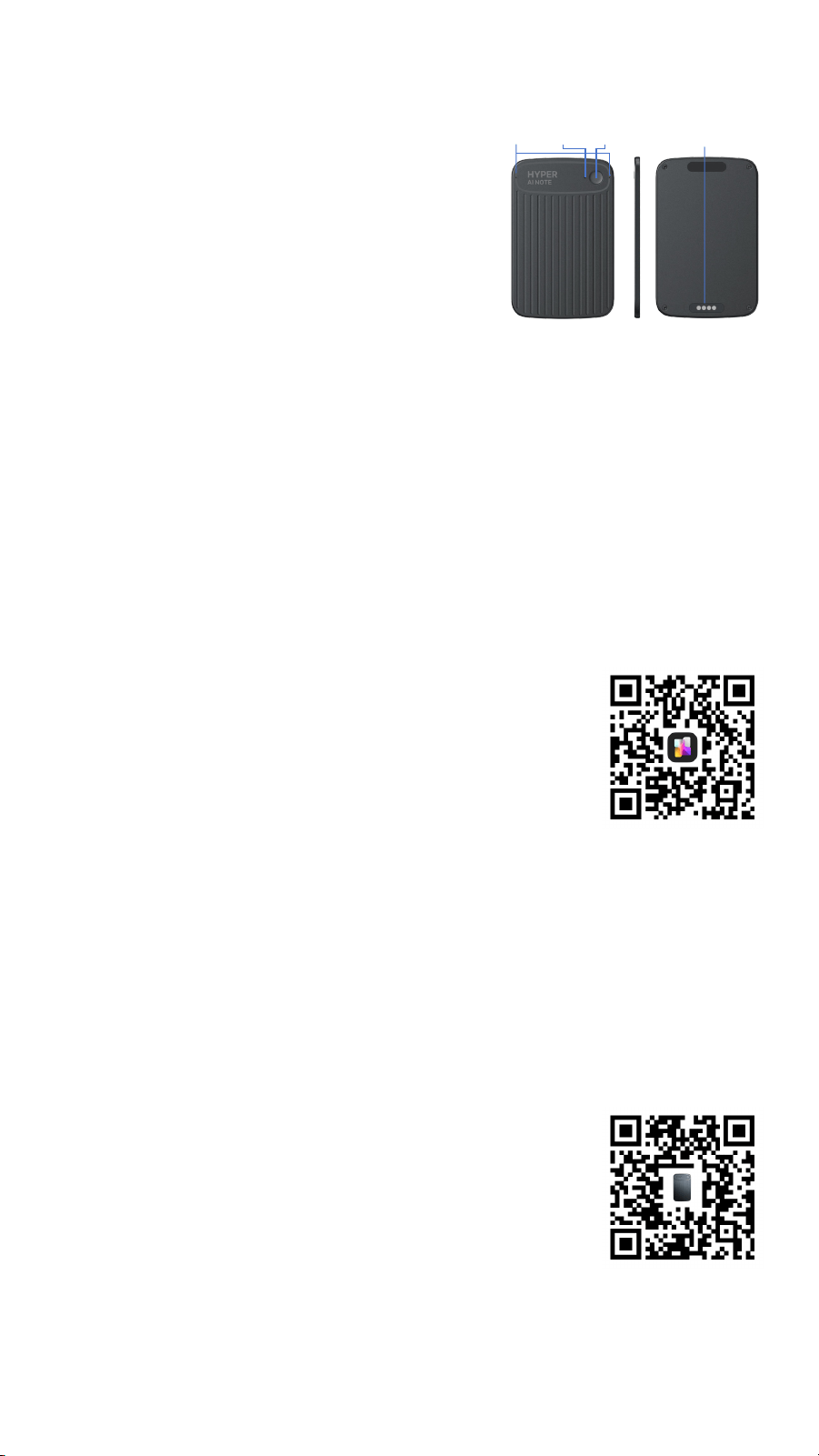
• Use the USB-C magnetic charging cable to connect to the
❹ magnetic charging port.
• LED indicator:
• Solid red → Charging
• Solid green → Fully charged
②
Power On / Power Off
•
Power On
• When the device is off, press and hold Function Button ❶ for 2 seconds.
• Device feedback:
• Vibrates for 1 second
• LED flashes bright green once
• Connection status:
• Slow flashing green → Waiting for Hyper AI App connection
• Solid blue → Connected to Hyper AI App
•
Power Off
• When the device is on, press and hold Function Button ❶ for 2 seconds.
• Device feedback:
• Vibrates for 1 second
• LED bright green then turns off
•
Auto Power Off
• The device will automatically power off after 5 minutes
if there is no recording, no Wi-Fi connection,
no button activity, or charging.
③
Download the App
• Scan the QR code to download and install the Hyper AI App. →
• After installation, register with your email, then log in.
④
Connect Hyper AI Note
• Open the app and tap
“Add Device”,
then select
Hyper AI Note
.
• Once paired, the device will
automatically reconnect when near your phone
.
⑤
Start / Stop Recording
•
Start Recording
• When the device is on, double-press Function Button ❶.
• Device feedback:
• 1 vibration (0.3 s)
• LED blue slow flashing (0.5 Hz) → Recording
•
Stop Recording
• Double-press Function Button ❶ again.
• Device feedback:
• 2 vibrations (0.3 s)
• LED solid blue → Standby mode
⑥
Sync, Transcribe and Generate AI Notes
• Open the Hyper AI App to sync recordings from Hyper AI Note to your phone.
• You can then:
• Transcribe recordings into text
• Generate structured AI notes / summaries / To-Do lists
• Share recordings, transcripts and AI notes to other apps
• Scan the QR code to view the full user guide. →
⑦
Keep Updated
• Use the Hyper AI App to manage settings and install updates when available.
⑧
Safety & Privacy
• Always comply with local laws and respect others’ privacy when recording.
Hyper AI Note
Quick Start Guide
❶Key❷LED❸Mic ❹Magnetic Charging
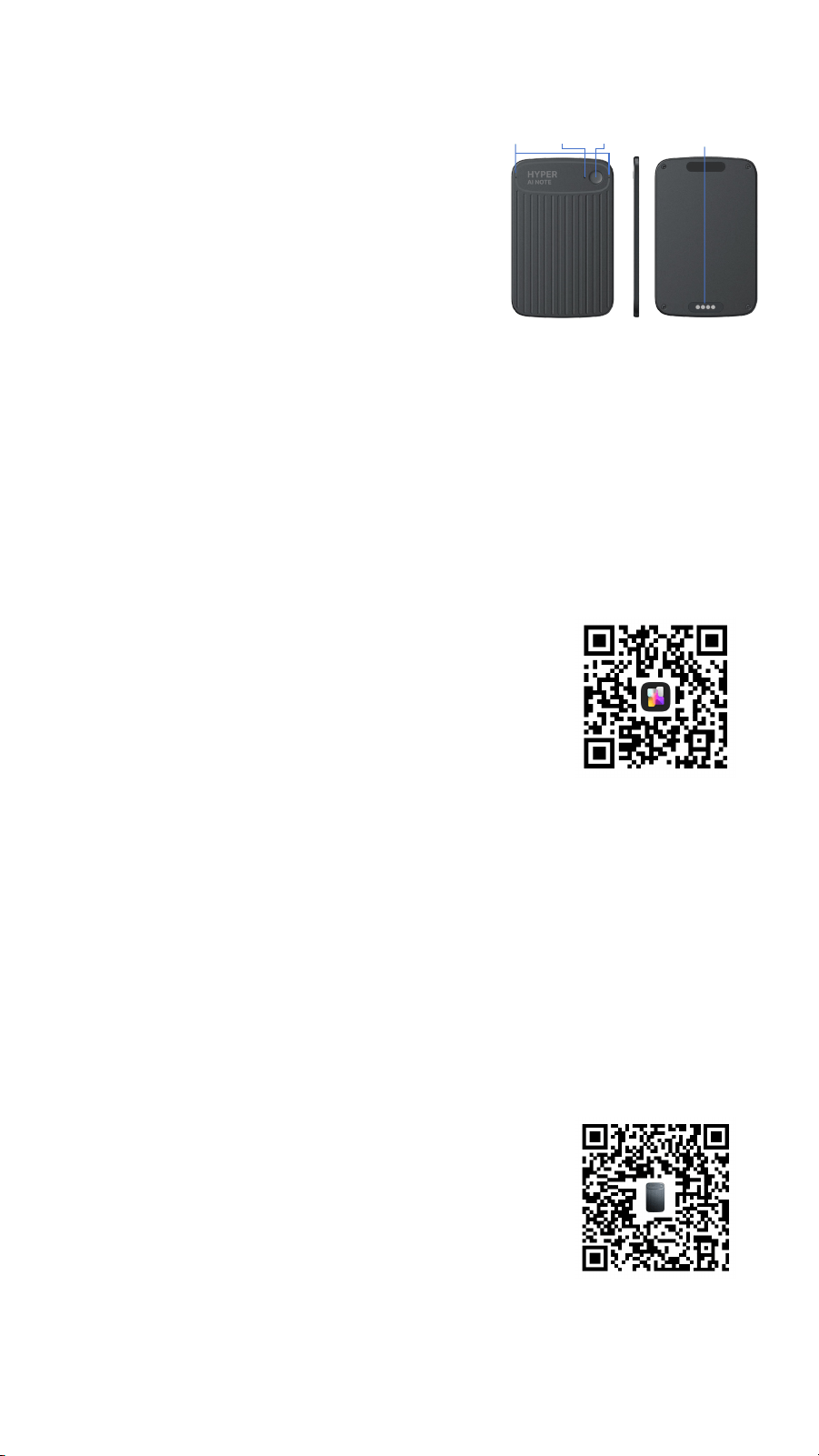
① Hyper AI Note を充電する
• USB-C 磁気充電ケーブルを使用して、
❹ 磁気充電ポートに接続して充電します。
• LEDインジケーター:
• 赤色点灯 → 充電中
• 緑色点灯 → 充電完了
② 電源オン / オフ
• 電源オン
• 電源がオフの状態で、機能ボタン❶を2秒間長押しします。
• 1秒間振動します。
• LEDが緑色で1回点灯した後、以下の状態になります:
• 緑色ゆっくり点滅 → Hyper AI App 接続待機
• 青色点灯 → Hyper AI App 接続済み
• 電源オフ
• 電源オンの状態で、機能ボタン❶を2秒間長押しします。
• 1秒間振動します。
• LEDが緑色に点灯した後、消灯します。
• 自動電源オフ
• 録音・Wi-Fi接続・ボタン操作・充電のいずれも行われていない状態が5分間続くと自
動的に電源がオフになります。
③アプリをダウンロード
• QRコードをスキャンして Hyper AI App をダウンロードし、
インストールしてください。→
• インストール後、メールアドレスで登録しログインします。
④ Hyper AI Note を接続
• アプリを開き、「デバイスを追加」をタップして Hyper AI Note を選択します。
• 一度接続すると、デバイスがスマートフォンの近くにある場合 自動的に再接続されます。
⑤ 録音の開始 / 停止
• 録音開始
• 電源オンの状態で 機能ボタン❶を2回押しします。
• 0.3秒振動(1回)。
• LED 青色ゆっくり点滅(0.5Hz) → 録音中。
• 録音停止
• 再度 機能ボタン❶を2回押しします。
• 0.3秒振動(2回)。
• LED 青色点灯 → 待機状態。
⑥ 同期・文字起こし・AIノート生成
• Hyper AI App を開き、Hyper AI Note の録音データをスマートフォンに同期します。
• 録音を文字起こしし、AIノート / 要約 / To-Doリストを生成できます。
• また、録音・文字起こし・AIノートを他のアプリへ共有することもできます。
• QRコードをスキャンすると 詳細なユーザーガイド を確認できます。 →
⑦ デバイスを最新の状態に保つ
• Hyper AI App を使用して設定を管理し、
利用可能な場合はソフトウェア更新をインストールしてください。
⑧ 安全とプライバシー
• 録音を行う際は、各地域の法律および規制を遵守し、
他者のプライバシーを尊重してください。
Hyper AI Note
クイックスタートガイド
❶Key❷LED❸Mic ❹磁気充電ポート
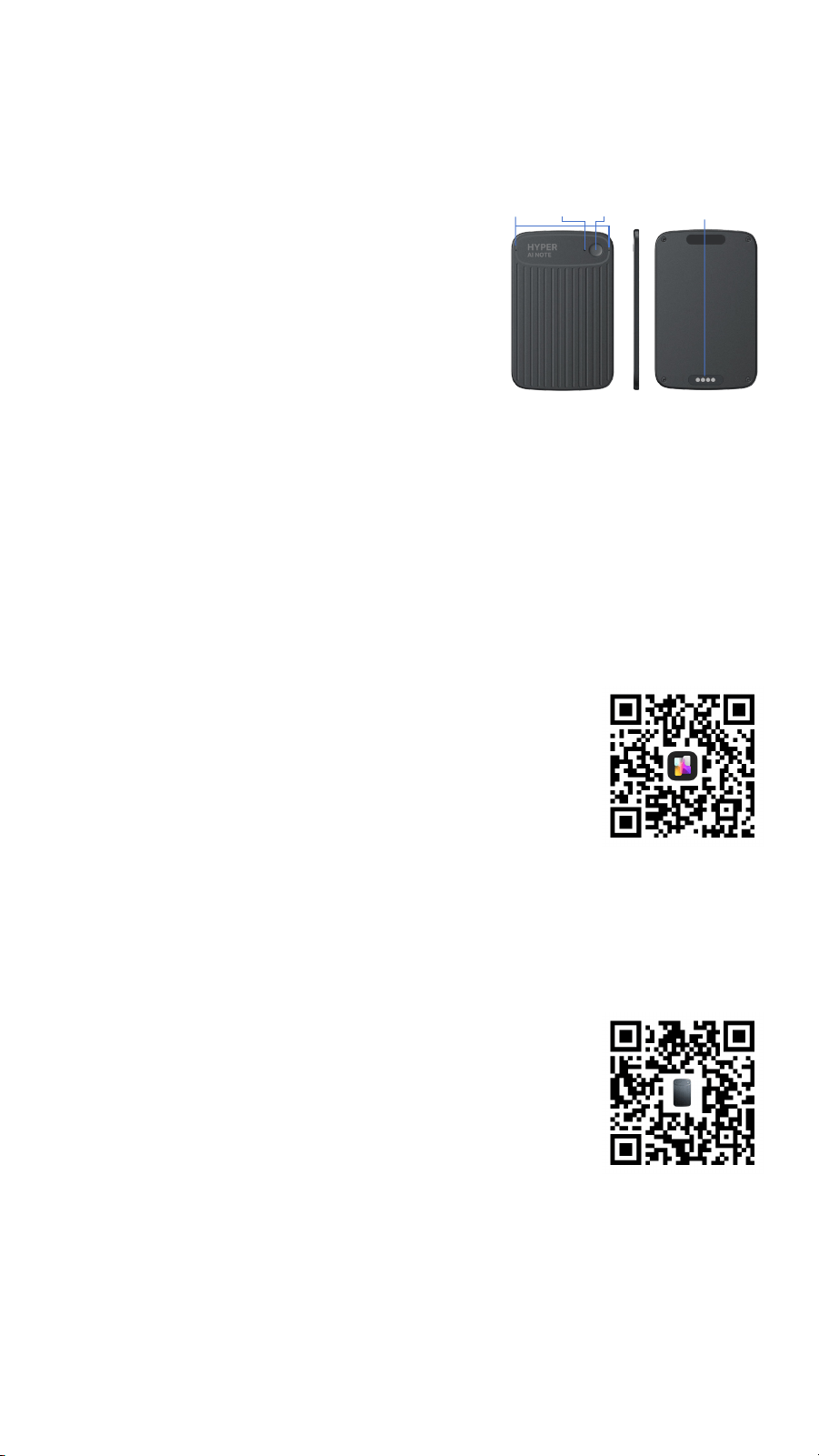
①
为
Hyper AI Note
充电
• 使用 USB-C 磁吸充电线连接 ❹ 磁吸充电口 为设备充电
• 状态❷LED
• 红灯常亮 → 正在充电
• 绿灯常亮 → 电量充满
② 开机
/
关机
• 开机
• 在关机状态下,长按功能键❶ 2 秒
• 震动 1 秒
• 状态❷LED:绿色高亮闪一下,然后
• 绿色慢闪 → 等待Hyper AI App 连接
• 蓝色常亮 → Hyper AI App已连接
• 关机
• 在开机状态下,长按功能键❶ 2 秒
• 震动 1 秒
• 状态❷LED:绿色高亮后熄灭
• 自动关机
• 在开机状态下,若 5 分钟内未录音、未连接 Wi-Fi、未按键操作、未充电,设备将自动关机
③
下载安装
App
• 扫描右侧二维码,下载并安装 Hyper AI App →
• 打开 App,使用您的 Email 注册、登录
④ 连接
Hyper AI Note
• 打开 App,点击 「添加设备」,选择 Hyper AI Note
• 连接完成后,当Note靠近手机时,将自动重新连接
⑤ 开始
/
停止录音
• 在开机状态下,双击功能键❶,开始录音
• 震动1次(0.3秒)
• 状态❷LED:蓝色慢闪(0.5Hz)→ 正在录音
• 再次双击功能键❶ ,停止录音
• 震动2次(0.3秒)
• 状态❷LED:蓝色长亮 → 进入待机状态
⑥
同步、转写并生成
AI
笔记
• 打开Hyper AI App,将Hyper AI Note的录音同步导入手机。然后您可以:
• 将录音转写为文字
• 选择模版生成 结构化 AI 笔记 / 要点 / To-Do
• 将录音、转写和 AI 笔记 分享到其他应用或平台。
• 扫描右侧二维码,查看更多详细使用说明 →
⑦
保持更新
• 使用 Hyper AI App 管理设备设置,并在可用时安装软件更新,以获得最佳体验
⑧
安全与隐私
• 在录音时,请遵守当地法律法规,并尊重他人的隐私
Hyper AI Note 智能录音卡
快速指南
❶Key❷LED❸Mic ❹磁吸充电口

FCC Warnning:
This equipment has been tested and found to comply with the limits for a Class B digital device,
pursuant to part 15 of the FCC Rules. These limits are designed to provide
reasonable
protection against harmful interference in a residential installation. This equipment generates,
uses and can radiate radio
frequency
energy
and,
if
not
installed
and
used
in
accordance
with
the
instructions,
may cause
harmful
interference
to
radio
communications.
However,
there
is
no
guarantee
that interference
will
not
occur
in
a
particular
installation.
If
this
equipment
does
cause
harmful interference to radio or television reception, which can be
determined by turning the equipment off
and
on,
the
user
is
encouraged
to
try
to
correct
the interference
by
one
or
more
of
the following measures:
•
Reorient or relocate the receiving antenna.
•
Increase the separation between the equipment and receiver.
•
Connect the equipment into an outlet on a circuit different from that to which the receiver is
connected.
• Consult the dealer or an experienced radio/TV technician for help.
Caution:
Any
changes
or
modifications
to
this
device
not
explicitly
approved
by
manufacturer
could void your authority to operate this equipment.
This
device
complies
with
part
15
of
the
FCC
Rules.
Operation
is
subject
to
the
following
two
conditions:
(1)This
device
may
not
cause
harmful
interference,
and
(2)
this
device
must
accept
any
interference received, including interference that may cause undesired operation.
This
equipment
complies
with
FCC
radiation
exposure
limits
set
forth
for
an
uncontrolled
environment.
This
equipment
should
be
installed
and
operated
with
minimum
distance
0cm
between the radiator and your body.