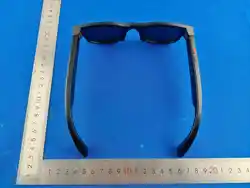

Smart Glasses
User’s Guide for Model IABGC546B v3566-01
Contact Information
Website: wwwiliveelectronics.com
Email Support: [email protected]
Email Parts: [email protected]
Phone Support: 1-888-999-4215
Warranty
For Warranty Information and the most
up-to-date version of this User’s Guide, go to:
www.iliveelectronics.com
Protect for Today
Sustain for Tomorrow
Made
Green
Specications are subject to change without notice.
Copyright © 2026 Digital Products International (DPI, Inc.)
All other trademarks appearing herein are the property
of their respective owners.
International Support
To download this User’s Guide in English, Spanish, or French, or
to get answers to frequently asked questions, visit the support
section at:
www.iliveelectronics.com
Para descargar este Manual del Usuario en Inglés, Español y
Francés, o para obtener respuestas a preguntas frecuentes, visite
la sección de apoyo en:
www.iliveelectronics.com
Pour télécharger ce guide de l’utilisateur en Anglais, Espagnol
ou Français, ou pour obtenir des réponses à des questions
fréquemment posées, consultez la rubrique d’assistance sur:
www.iliveelectronics.com
FCC WARNINGS
THIS DEVICE COMPLIES WITH PART 15 OF THE FCC RULES.
OPERATION IS SUBJECT TO THE FOLLOWING TWO CONDITIONS:
(1) THIS DEVICE MAY NOT CAUSE HARMFUL INTERFERENCE, AND
(2) THIS DEVICE MUST ACCEPT ANY INTERFERENCE RECEIVED,
INCLUDING INTERFERENCE THAT MAY CAUSE UNDESIRED
OPERATION
Any Changes or modications not expressly approved by the party responsible
for compliance could void the user’s authority to operate the equipment.
This equipment has been tested and found to comply with the limits for a
Class B digital device, pursuant to Part 15 of the FCC Rules. These limits
are designed to provide reasonable protection against harmful interference
in a residential installation. This equipment generates, uses, and can radiate
radio frequency energy and, if not installed and used in accordance with
the instructions, may cause harmful interference to radio communications.
However, there is no guarantee that interference will not occur in a particular
installation. If this equipment does cause harmful interference to radio or
television reception, which can be determined by turning the equipment o and
on, the user is encouraged to try to correct the interference by one or more of
the following measures:
• Reorient or relocate the receiving antenna.
• Increase the separation between the equipment and receiver.
• Connect the equipment into an outlet on a circuit dierent from that to
which the receiver is connected.
• Consult the dealer or an experienced radio/TV technician for help.
The device has been evaluated to meet general RF exposure requirement. The
device can be used in portable exposure condition without restriction.
ADDITIONAL WARNINGS
• WARNING: To prevent re or shock hazards, do not expose this unit to
rain or moisture.
• WARNING : Where the mains plug or appliance coupler is used as the
disconnect device, such disconnect device shall remain readily operable.
• Lithium batteries, like all rechargeable batteries, are recyclable and should
be recycled or disposed of according to state and local guidelines. They
should never be disposed of in normal household waste and they should
never be incinerated, as they might explode. Contact your local government
for disposal or recycling practices in your area.
WARNING : Risk of cancer and reproductive harm
from exposure to DEHP.
See: www.P65Warnings.ca.gov.
AI Assistant
Say “Hey Glasses” to activate the glasses voice assistant.
Conversation logs will be stored under the AI tab on the bottom
menu.
Photo analysis: Ask “what’s in front of me” and the glasses will take
a photo, analyze the image, and provide a summary.
App/Glasses Settings
Tap the My Glasses module on the app homepage to access
glasses settings.
Wear Detection starts and pauses glasses functions when putting
on and taking o the glasses, respectively.
Check for rmware updates, change recording settings, and
perform a factory reset to default settings.
Photos and Videos
Photos and videos taken on the glasses will be visible in the app
album. Tap the Photo icon on the bottom panel to access the
album. Tap Import at the top of the screen to save all app photos
and videos to your phone.
AI Translation
On the app homepage, tap AI Translate.
Select “1 to 1” to have the app listen to two speakers and provide
a text translation for each language in the conversation.
Select “Listen” for the app to provide a text translation of a
detected language into the target language.
iabcg546-3566-manual-lab.indd 1-5iabcg546-3566-manual-lab.indd 1-5 9/8/2026 1:48:21 PM9/8/2026 1:48:21 PM

DC IN
Features
• Smart Glasses with 8 megapixel camera
• Bluetooth
• UV400 sunglass lens adhesives
• Supports AI Assistant with “Hey Glasses”
• Companion App Cyan Glasses
• One-click photo, video, and audio recording
• Built-in rechargeable battery
• Magnetic charging for battery recharge
• Charging time: 2 hours
• Battery life: 6.5 hours at 50% volume, 3 hours at 100% volume
Includes
• User’s Guide
• Magnetic charging cable
• 3 pairs of sunglasses lens
• Ear hooks for focused listening
• Cleaning cloth
• Drawstring carrying bag
Overview and Controls
DC IN
Front
Button
Rear Button
Side Click Pad
Front Button
Press and hold to power on (2 seconds) or
o (5 seconds).
Press and hold for 10 seconds to reset.
Press to answer a call. Press and hold to
reject an incoming call. Press again to hang
up a call.
Press to take a photo.
Press twice to start video recording.
Press once during recording to stop.
Rear Button
When connected to BT, press once to
activate AI voice assistant.
Press twice to activate AI image recognition.
Press and hold to start audio recording.
Press once during recording to stop.
Side Click Pad
Press twice to play/pause music.
Swipe forward and back to change volume.
Press and hold to skip to next track.
Press three times to go to previous track.
Indicator Light
Indicator Light Status Meaning
Solid red light Charging
Light o Fully charged or
function ended/idle
Slowly ashing blue Bluetooth is connecting
One blue ash Taking photo
Solid blue light Audio/video recording
or le transferring
Rapid ashing blue AI assistant active
DC IN
Charging Contacts
LED Indicator Light
Attachments
Follow the Diagrams below for accessory attachment instructions.
Lenses
Volume Enhancers
Charging the Battery
Using the contact charging cable (included), connect the glasses
to the USB port of a powered-on computer or USB power adaptor
(not included) to charge.
Charge time approx. 2 hours.
Note: When the battery charge falls below 20%, data transfer to
your phone will pause. Data transfer resumes after charging.
Pairing Bluetooth Devices
1. Power on the sunglasses. A voice will announce “Bluetooth,”
when the unit is ready to pair. When pairing, remain within 3
feet of the unit.
2. Using the controls on your Bluetooth device, select
IABCG546 in Bluetooth Settings to pair. A voice will
announce “Bluetooth is connected.” If need be, refer to the
user’s manual for your specic device for more information.
3. When powered on again, the sunglasses will automatically
pair with the last paired Bluetooth device.
4. To connect to a new device, turn o the sunglasses. In
the settings of the previous Bluetooth device, forget the
IABCG546.
CyanGlasses App Download
Scan the QR code below to download the companion
CyanGlasses App. Or, search for “CyanGlasses” on the App store or
Google Play Store.
Connect to the App
1. Open the app and follow the on-screen registration prompts.
2. Tap the Home icon, then tap Connect Device.
3. Select the IABCG546
4. A tone will sound, conrming the connection.
CLEAR -
BLUE LIGHT
BLOCKING
TINTED -
SUNGLASSES
GRADUAL
GRAY
Camera Flash
iabcg546-3566-manual-lab.indd 6-10iabcg546-3566-manual-lab.indd 6-10 9/8/2026 1:48:22 PM9/8/2026 1:48:22 PM