INSIDE THE BOX
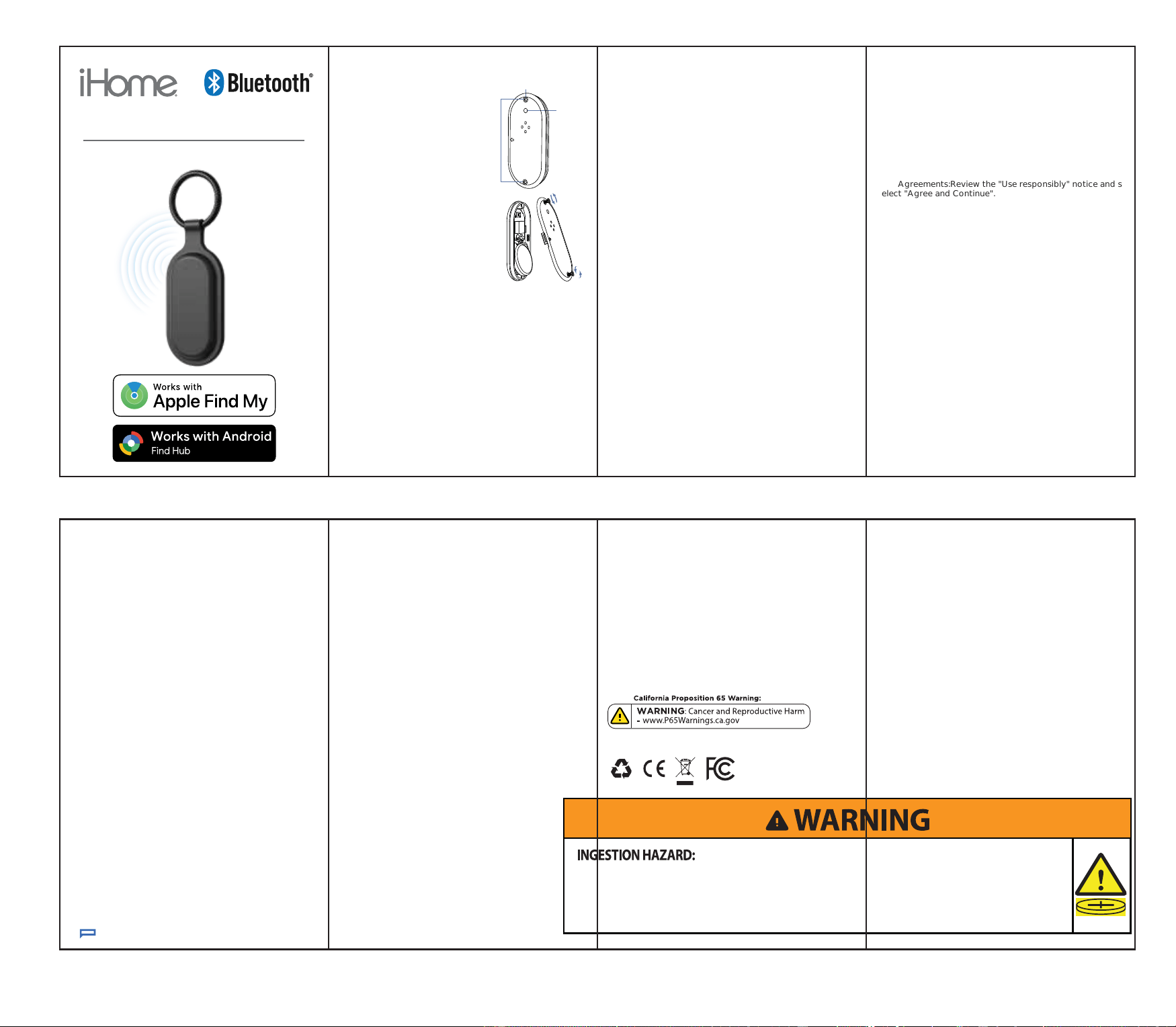
(1) iHome Duo Tag
(1) CR2032 (3V) Battery
(1) Mini Screwdriver (1) User Manual
OVERVIEW
INTRODUCTION
iHome Duo Tag Tracker,
your ultimate companion
for keeping track of the
things that matter most.
Designed for those on the
move, this premium tracker
features a sleek, durable
design with an integrated
carabiner, allowing you to
clip it to keys, backpacks, or
luggage in seconds.
OPERATION INSTRUCTIONS
1 • Power On: Press and hold the button for about 2 seconds
until you hear a single beep, then release to enter pairing
mode.
2 • Power Off: Press the power button 5 times in a row with 2
seconds intervals until you hear sound.
3 • Power On Confirmation: Double click the Power button , if
you hear a beep, it is on. If it does not beep, it is off.
4 • Factory Reset: Give the Power Button 4 quick presses to
hear the initial tone. Then, press and hold the button until you
hear a beep. Continue pressing don't let go until the second
musical chime sounds.
5 • Pairing Mode Timeout: when the device is on, and is not
paired within 10 minutes, the device will exit pairing mode and
will time out. please click the device button twice to enter into
pairing mode..
1.5 In 'Find My' app, Tap '+', then 'Add Other ltem'. As
shown in Figure 1.
1.6 Once your iHome Smart Tag is located, tap 'connect'.
As shown in Figure 2.
1.7 Enter a name and choose an emoji for your iHome
Smart Tag and tap 'Continue'. As shown in Figure 3
1.8 Find My will ask for confirmation to add your iHome
Smart Tag to your Apple ID. Tap 'Agree'.
1.9 Tap 'Finish' and your iHome Smart Tag will be set up
and ready to be used.
HOW TO PAIR FOR ANDROID USERS (FIND HUB)
FAST PAIR INSTRUCTION
2 • Bring the item close to your Android device and wait
for
the pop-up. If none appears, restart your phone. Tap
“Connect
1 • Requires Find Hub app (download on Google Play) a
nd Android 9+ , Make sure your phone’s Bluetooth and
3 • Agreements:Review the "Use responsibly" notice and s
elect "Agree and Continue".
network connection are turned on.
”
•
This product contains a button cell or coin battery.
•
DEATH or serious injury can occur if ingested.
•
A swallowed button cell or coin battery can cause Internal Chemical Burns in as little as 2 hours.
•
KEEP new and used batteries OUT OF REACH of CHILDREN.
•
Seek immediate medical attention if a battery is suspected to be swallowed or inserted inside any part of the body.
TECHNICAL PARAMETERS
Battery: CR2032 (3V)
Max. Operating Frequency: 24Mhz
Standby Static Power Consumption: 18-22uA
IMPORTANT MATTER
The iHome Duo Tag Tracker contains delicate electronic
parts, including a battery to avoid damage, loss of
function, or potential harm, please refrain from dropping,
hitting, puncturing, crushing, disassembling, exposing it
to extreme heat or liquids, or placing it in areas with a
high concentration of industrial chemicals.
MEDICAL DEVICE INTERFERENCE
iHome Duo Tag Tracker contains components and radios
that emit electromagnetic fields, as well as magnets.
These elements may potentially interfere with
pacemakers, defibrillators, or other medical devices. To
ensure safety, maintain a safe distance between your
medical device and the iHome Smart Tag. We strongly
advise consulting your physician and the manufacturer of
your medical device for information that is specific to
your situation. If you suspect that the iHome Smart Tag
is interfering with your pacemaker defibrillator or any
CHOKING HAZARD WARNING
The iHome Smart Tag, its battery compartment door, the
battery itself, and the case may pose a choking hazard or
cause injury to small children. Please keep these items
out of reach of young children.
other medical device, discontinue its use immediately.
IMPORTANT HANDLING GUIDELINES
Its normal for the iHome Duo Tag Tracker to show
discoloration with regular use. To clean it, use a soft,
dry, lint-free cloth. Avoid applying pressure with
sharp objects on the rubber seal or the battery
terminal contacts inside the device.
Do not allow moisture to enter any openings or use
aerosol sprays, solvents or abrasive materials to
clean the device.
• Install batteries correctly per polarity (+ and
-).
• Do not mix old and new batteries, different
brands or types.
• Do not heat above 60°C(140°F)
• Remove and immediately recycle or dispose
of used batteries according to local
regulations and keep away from children.
• Do NOT dispose of batteries in household
trash or incinerate.
• Even used batteries may cause severe injury
or death.
• Call a local poison control center for
treatment information.
• Non-rechargeable batteries are not to be
recharged.
• Do not force discharge, recharge,
disassemble, heat above the manufacturer’s
specified temperature rating, or incinerate.
• Remove and immediately recycle or dispose
of batteries from equipment not used for an
extended period according to local
regulations.
• Always completely secure the battery
compartment. If the battery compartment
does not close securely, stop using the
product, remove the batteries, and keep
them away from children
•
SUPPORT: 877 543 3540
FCC ID: 2BQNL-2IHPA1016
Th
is device complies with part 15 of the FCC Rules. Operation is subject to the following
two conditions: (1) This device may not cause harmful interference, and (2) this device
must accept any interference received, including interference that may cause undesired
operation.
Any changes or modifications not expressly approved by the party responsible for
compliance could void the user's authority to operate the equipment.
NOTE: This equipment has been tested and found to comply with the limits for a Class B
digital device, pursuant to Part 15 of the FCC Rules. These limits are designed to provide
reasonable protection against harmful interference in a residential installation. This
equipment generates, uses and can radiate radio frequency energy and, if not installed
and used in accordance with the instructions, may cause harmful interference to radio
communications. However, there is no guarantee that interference will not occur in a
particular installation.
If this equipment does cause harmful interference to radio or television reception,
which can be determined by turning the equipment off and on, the user is encouraged to
try to correct the interference by one or more of the following measures:
-- Reorient or relocate the receiving antenna.
-- Increase the separation between the equipment and receiver.
-- Connect the equipment into an outlet on a circuit different
from that to which the receiver is connected.
-- Consult the dealer or an experienced radio/TV technician for help.
The device has been evaluated to meet general RF exposure requirement. The device can be used in portable
exposure condition without restriction.
4 • Select "Open app" to view your
HOW TO PAIR FOR APPLE USERS (FIND MY)
1 • Open App: Launch the Find My app on your iPhone.
2 • Add Item: Navigate to the "Items" tab and tap the "+"
icon, then select "Add Item".
3 • Select "Other Items" to begin searching for your iHome
Duo Tag. Ensure that tag is in pairing mode
4 • Select "iHome Duo Tag" and connect. Once connectd,
follow the on-screen prompts to link the tag to your
Apple ID.
5 • Complete the setup to view your Tag's location on the
map.
device dashboard.
5 • Your Tag is now linked and ready for locating.
DUO TAG TRACKER
DUAL-NETWORK COMPATIBILITY
Button
Battery
compartment
screws
2026 © Lifeworks Technology Group LLC. New York, NY 10018 iHome ® is a
registered trademark of SDI Technologies Inc., used under license. iPhone is a
trademark of Apple Inc., registered in the U.S. and other countries. All other
NATIONAL BATTERY INGESTION HOTLINE NUMBER: 1-(800) 498-8666
brands and logos are trademarks of their respective companies. Made in China
The Apple Find My network provides an easy, secure way to locate compatible
personal items using the Find My app on youriPhone, iPad, Mac, or the Find
Items app on Apple Watch. To use the Apple Find My app to locate this item, the
latest version of iOS, iPadOS, or macOS is recommended. The Find Items app on
Apple Watch requires the latest version of watchOS. Use of the Works with
Apple badge means that a product has been designed to work specifically with
the technology identified in the badge and has been certified by the product
manufacturer to meet Apple Find My network product specifications and
requirements. Apple is not responsible for the operation of this device or use of
this product or its compliance with safety and regulatory standards. Apple,
Apple Find My, Apple Watch, Find My, iPhone, iPad. iPadOS, Mac, macOS and
watchOS are the trademarks of Apple Inc. IOS is a trademark or registered
trademark of Cisco in the U.S. and other countries and is used under license. The
Apple Find My network provides an easy, secure way to locate compatible
personal items using the Find My app on your iPhone, iPad, Mac, or the Find
Use of the Made for Apple badge means that an accessory has been designed to
connect specifically to the Apple product(s) identified in the badge, and has been
certified by the developer to meet Apple performance standards. Apple is not
responsible for the operation of this device or its compliance with safety and
regulatory standards. Apple, iPad, iPad Air, iPad Pro, iPhone, and Lightning are
trademarks of Apple Inc., registered in the U.S. and other countries. tvOS is a
trademark of Apple Inc.
Items app on Apple Watch.
The Bluetooth® word mark and logos are registered trademarks owned by
Bluetooth SIG, Inc., and any use of such marks by Lifeworks Technology Group
This product has been certified by Google to meet Find Hub network accessory
specifications. Google is not responsible for the operation of this product. Google
is also not responsible for ensuring that the product complies with any applicable
safety standards or other requirements. Google, Android, Google Play, Fast Pair
and Find Hub are trademarks of Google LLC.
LLC is under license.
TM
Note • The Tag can only be paired with one system (iOS
or Android) at the same time. If the tag has already been
paried with a Android device , you need to first remove it
from "Find Hub" app and reset the tag to enter pairing
mode before connecting it to an Apple device.
Note • The Tag can only be paired with one system
(Android or iOS) at the same time. If the tag has already
been paried with a Apple device , you need to first
remove it from "Find Hub" app and reset the
tag to enter pairing mode before connecting it to an
Android device.
TM