
LBP112
User's Guide
USRMA-2506-00 2018-08 en Copyright CANON INC. 2018

Contents
Important Safety Instructions ...........................................................................................................
2
Installation ............................................................................................................................................................... 3
Power Supply ............................................................................................................................................................ 5
Handling ................................................................................................................................................................... 6
Maintenance and Inspections .................................................................................................................................... 8
Consumables ............................................................................................................................................................ 9
Setting Up .......................................................................................................................................................... 13
Preparations Required Before Use ........................................................................................................................... 14
Installing Drivers .................................................................................................................................................... 15
Setting Up Print Server ............................................................................................................................................ 16
Basic Operations .......................................................................................................................................... 20
Parts and Their Functions ........................................................................................................................................ 22
Front Side .......................................................................................................................................................... 23
Back Side ........................................................................................................................................................... 25
Drawer .............................................................................................................................................................. 26
Printer Status Window ............................................................................................................................................ 27
Turning ON the Machine ......................................................................................................................................... 30
Turning OFF the Machine ..................................................................................................................................... 31
Loading Paper ......................................................................................................................................................... 32
Loading Paper in the Drawer ................................................................................................................................ 34
Loading Envelopes .............................................................................................................................................. 37
Loading Preprinted Paper .................................................................................................................................... 39
Entering Sleep Mode ............................................................................................................................................... 40
Setting Auto Shutdown ........................................................................................................................................... 41
Printing ................................................................................................................................................................ 43
Printing from a Computer ....................................................................................................................................... 44
Canceling Prints ................................................................................................................................................. 46
Checking the Printing Status ................................................................................................................................ 49
Managing the Machine ........................................................................................................................... 51
Updating the Firmware ........................................................................................................................................... 52
Maintenance ................................................................................................................................................... 54
Regular Cleaning ..................................................................................................................................................... 56
Cleaning the Exterior ........................................................................................................................................... 57
Cleaning the Fixing Assembly ............................................................................................................................... 58
Replacing the Toner Cartridge ................................................................................................................................. 59
I

Replacing the Drum Cartridge ................................................................................................................................. 64
Checking the Remaining Amount of Consumables .................................................................................................... 69
Relocating the Machine ........................................................................................................................................... 71
Vie
wing the Counter Value ...................................................................................................................................... 73
Printing Lists of Settings ......................................................................................................................................... 74
Consumables .......................................................................................................................................................... 75
Troubleshooting ........................................................................................................................................... 79
Common Problems .................................................................................................................................................. 81
Installation/Settings Problems .............................................................................................................................. 82
Printing Problems ............................................................................................................................................... 83
When You Cannot Print Properly .............................................................................................................................. 85
Printing Results Are Not Satisfactory ..................................................................................................................... 87
Paper Creases or Curls ........................................................................................................................................ 96
Paper Is Fed Incorrectly ....................................................................................................................................... 98
Countermeasures for Each Message ......................................................................................................................... 99
Clearing Paper Jams .............................................................................................................................................. 105
Paper Jams inside the Machine ........................................................................................................................... 107
When a Problem Cannot Be Solved ......................................................................................................................... 112
Appendix ........................................................................................................................................................... 114
Third Party Software ............................................................................................................................................. 115
Feature Highlights ................................................................................................................................................ 116
Going Green and Saving Money ......................................................................................................................... 117
Improving Eciency ......................................................................................................................................... 118
Specications ....................................................................................................................................................... 119
Main Unit ........................................................................................................................................................ 120
Available Paper ................................................................................................................................................ 122
Printer Functions .............................................................................................................................................. 124
System Environment ......................................................................................................................................... 125
Manuals and Their Contents .................................................................................................................................. 126
Using User's Guide ................................................................................................................................................ 127
Screen Layout of User's Guide ............................................................................................................................ 128
Viewing User's Guide ........................................................................................................................................ 131
Basic Windows Operations .................................................................................................................................... 132
Notice .................................................................................................................................................................. 140
II

Important Safety Instructions
Important Safety Instructions ................................................................................................................... 2
Installation ............................................................................................................................................................
3
Power Supply ......................................................................................................................................................... 5
Handling ................................................................................................................................................................. 6
Maintenance and Inspections .............................................................................................................................. 8
Consumables .......................................................................................................................................................... 9
Important Safety Instructions
1

Important Safety Instructions
2754-000
The content described in this chapter is for the pre
vention of damage to property and injury to users of the machine
and others. Before using this machine, read this chapter and follow the instructions to properly use this machine. Do
not perform any operations not described in this manual. Canon will not be responsible for any damages resulting
from use not described in this manual, improper use, or repair/changes not performed by Canon or a third party
authorized by Canon.
Installation(P. 3)
Power Supply(P. 5)
Handling(P. 6)
Maintenance and Inspections(P. 8)
Consumables(P. 9)
Important Safety Instructions
2
Installation
2754-001
To use this machine safely and comfortably
, carefully read the following precautions and install the machine in an
appropriate location.
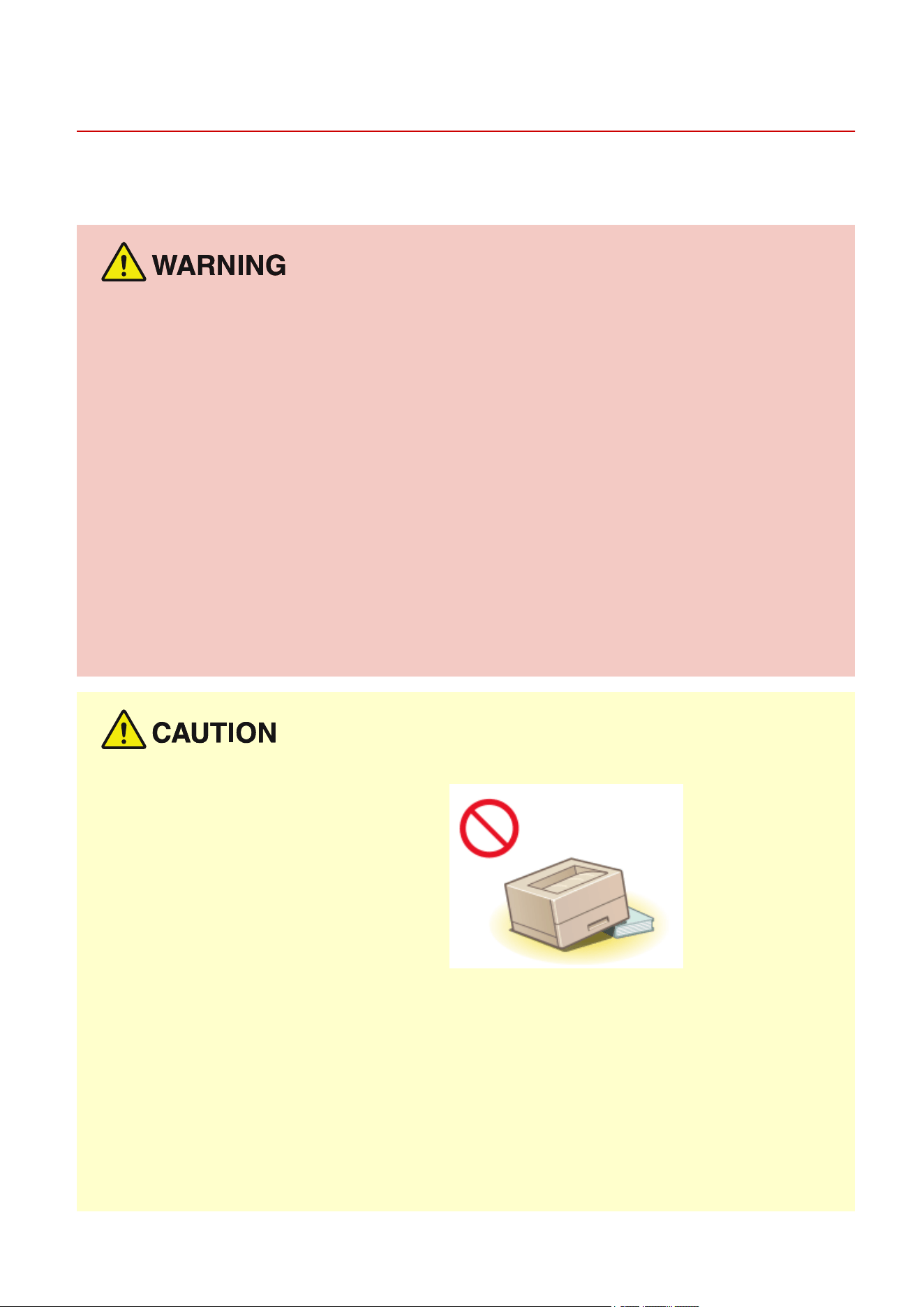
Do not install in a location that may result in a r
e or electrical shock
● A location wher
e the ventilation slots are blocked
(too close to walls, beds, sofas, rugs, or similar objects)
● A damp or dusty location
● A location exposed to direct sunlight or outdoors
● A location subject to high temperatures
● A location exposed to open ames
● Near alcohol, paint thinners or other ammable substances
Other warnings
● Do not connect unapproved cables to this machine. Doing so may result in a re or electrical shock.
● Do not place necklaces and other metal objects or containers lled with liquid on the machine. If foreign
substances come in contact with electrical parts inside the machine, it may result in a re or electrical shock.
● If any foreign substance falls into this machine, unplug the power plug from the AC power outlet and
contact your local authorized Canon dealer.
Do not install in the following locations
● The machine may drop or fall, r
esulting in injury.
- An unstable location
- A location exposed to vibrations
Other cautions
● When carrying this machine, follow the instructions in this manual. If carried impr
operly, it may fall, resulting
in injury.
● When installing this machine, be careful not to get your hands caught between the machine and the oor or
walls. Doing so may result in injury.
Avoid poorly ventilated locations
● This machine generates a slight amount of ozone and other emissions during normal use. These emissions
are not harmful to health. However, they may be noticeable during extended use or long production runs in
poorly ventilated rooms. To maintain a comfortable working environment, it is recommended that the room
Important Safety Instructions
3
where the machine operates be appropriately ventilated. Also avoid locations where people would be
exposed to emissions fr
om the machine.
Do not install in the following locations that may result in damage
● A location subject to dr
amatic changes in temper
ature or
humidity
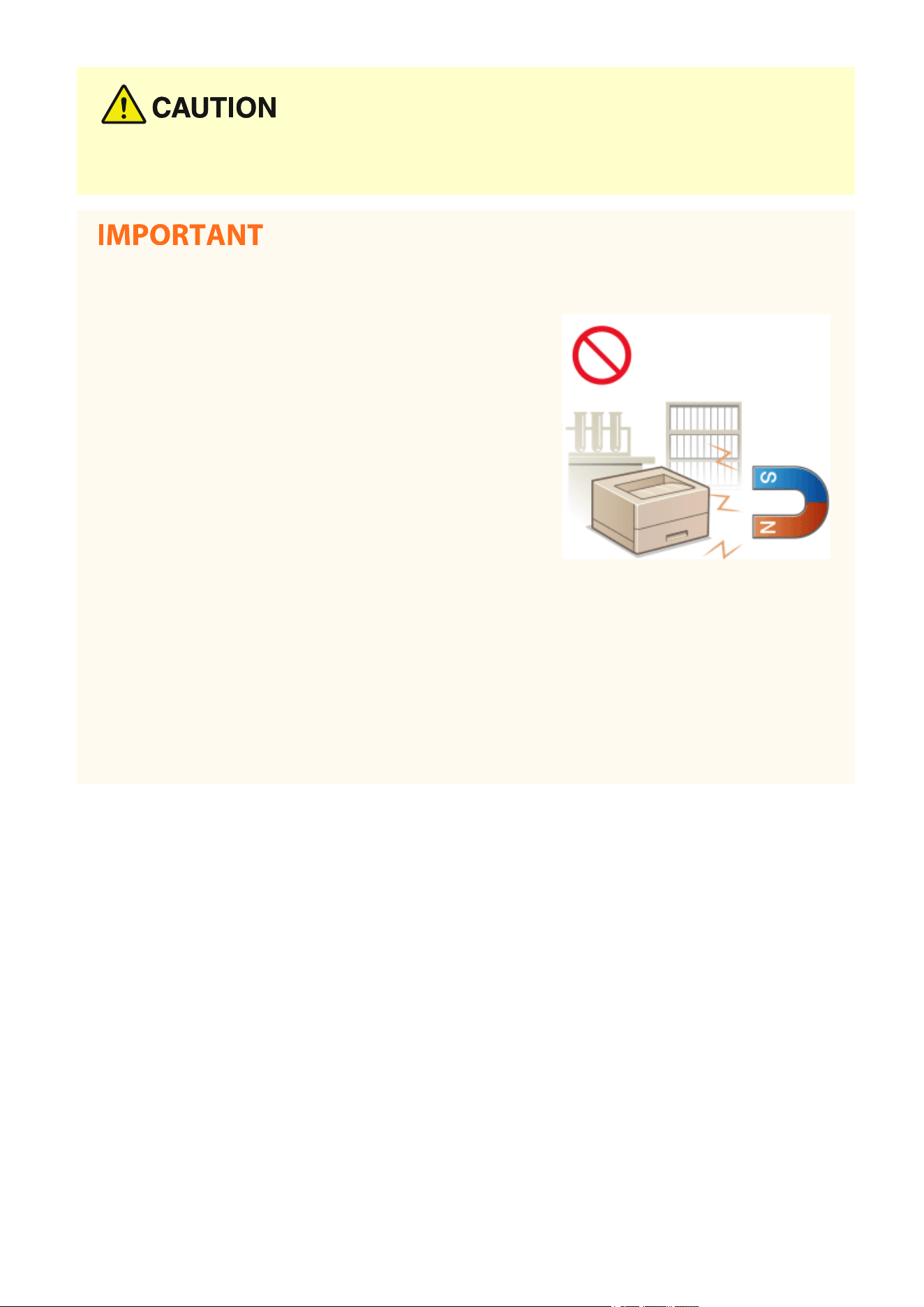
● A location near equipment that generates magnetic or
electromagnetic waves
● A laboratory or location where chemical reactions occur
● A location exposed to corrosive or toxic gases
● A location that may warp from the weight of the machine or
where the machine is liable to sink (a carpet, etc.)
Do not install in a location where condensation occurs
● Water dr
oplets (condensation) may form inside the machine when the room where the machine is installed
is heated rapidly, and when the machine is moved from a cool or dry location to a hot or humid location.
Using the machine under these conditions may result in paper jams, poor print quality, or damage to the
machine. Let the machine adjust to the ambient temperature and humidity for at least 2 hours before use.
In altitudes of above sea level 3,000 m or higher
● Machines with a hard disk may not operate properly when used at high altitudes of about 3,000 meters
above sea level, or higher.
Important Safety Instructions
4

Power Supply
2754-002
● Use only a power supply that meets the specied voltage r
equirements. Failure to do so may result in a re
or electrical shock.
● The machine must be connected to a socket-outlet with grounding connection by the provided power cord.
● Do not use power cords other than the one provided, as this may result in a re or electrical shock.
● The provided power cord is intended for use with this machine. Do not connect the power cord to other
devices.
● Do not modify, pull, forcibly bend, or perform any other act that may damage the power cord. Do not place
heavy objects on the power cord. Damaging the power cord may result in a re or electrical shock.
● Do not plug in or unplug the power plug with wet hands, as this may result in an electrical shock.
● Do not use extension cords or multi-plug power strips with the machine. Doing so may result in a re or
electrical shock.
● Do not wrap the power cord or tie it in a knot, as this may result in a re or electrical shock.
● Insert the power plug completely into the AC power outlet. Failure to do so may result in a re or electrical
shock.
● Remove the power plug completely from the AC power outlet during a thunder storm. Failure to do so may
result in a re, electrical shock, or damage to the machine.
● Install this machine near the power outlet and leave sucient space ar
ound the power plug so that it can be
unplugged easily in an emergency.
When connecting power
● Do not connect the power cor
d to an uninterruptible power source. Doing so may result in malfunction of or
damage to the machine at power failure.
● If you plug this machine into an AC power outlet with multiple sockets, do not use the remaining sockets to
connect other devices.
● Do not connect the power cord to the auxiliary AC power outlet on a computer.
Other precautions
● Electrical noise may cause this machine to malfunction or lose data.
Important Safety Instructions
5
Handling
2754-003
● Immediately unplug the power plug fr
om the AC power outlet
and contact an authorized Canon dealer if the machine makes
an unusual noise, emits an unusual smell, or emits smoke or
excessive heat. Continued use may result in a re or electrical
shock.
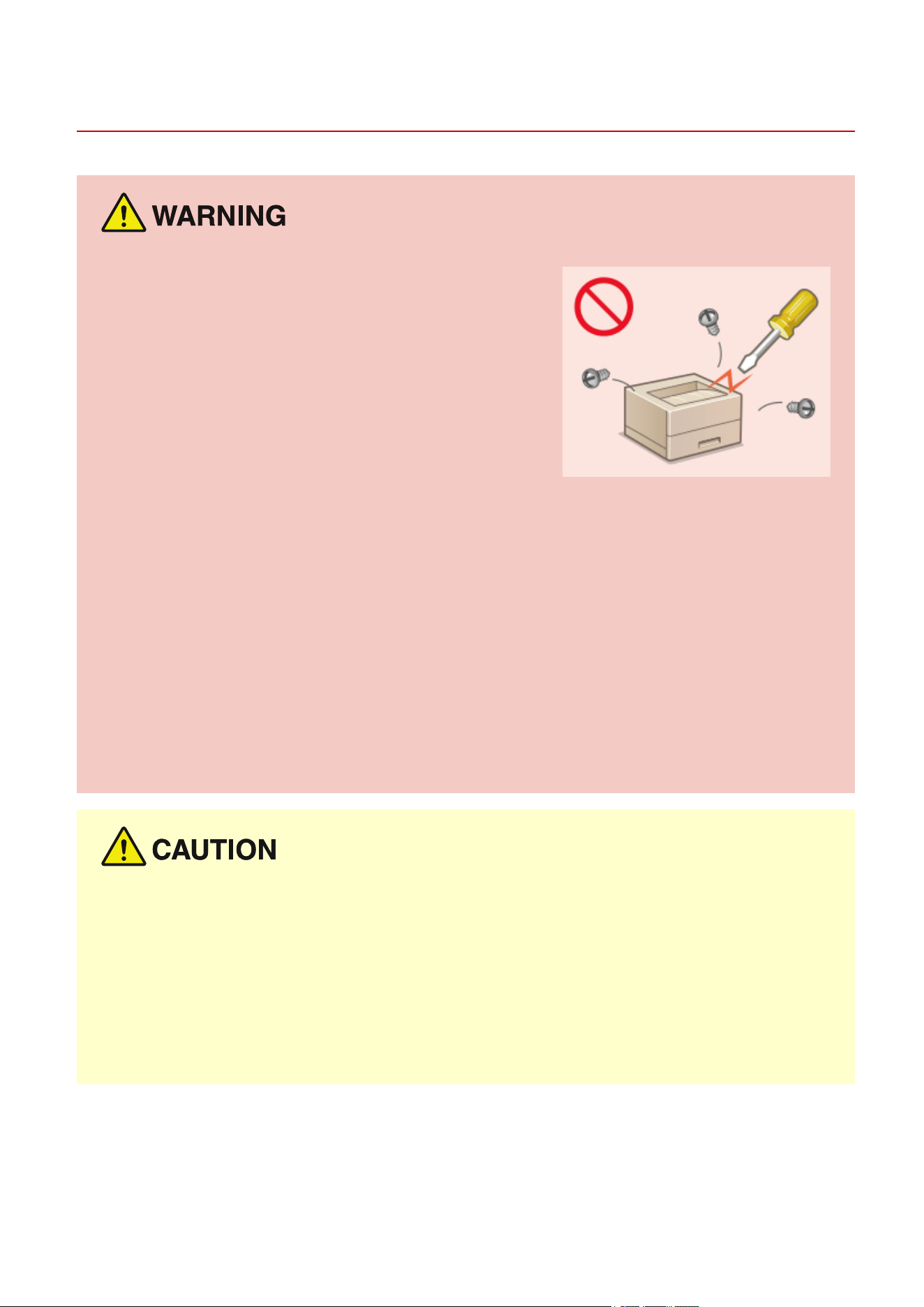
● Do not disassemble or modify this machine. There are high-
voltage and high-temperature components inside the machine
which may result in a re or electrical shock.
● Place the machine where childr
en will not come in contact with the power cord and other cables or internal
and electrical parts. Failure to do so may result in unexpected accidents.
● Do not use ammable sprays near this machine. If ammable substances come into contact with electrical
parts inside this machine, it may result in a re or electrical shock.
● When moving this machine, be sure to turn OFF the power of this machine and your computer, and then
unplug the power plug and interface cables. Failure to do so may damage the power cord or interface
cables, resulting in a re or electrical shock.
● When plugging or unplugging a USB cable when the power plug is plugged into an AC power outlet, do not
touch the metal part of the connector, as this may result in an electrical shock.
If you are using a cardiac pacemaker
● This machine generates a lo
w level magnetic ux and ultrasonic waves. If you use a cardiac pacemaker and
feel abnormalities, please move away from this machine and consult your physician immediately.
● Do not place heavy objects on this machine as they may fall, r
esulting in injury.
● For your safety, please unplug the power cord if the machine will not be used for a long period of time.
● Use caution when opening and closing covers to avoid injury to your hands.
● Keep hands and clothing away from the rollers in the output area. If the rollers catch your hands or clothing,
this may result in personal injury.
● The inside of the machine and the output slot are very hot during and immediately after use. Avoid contact
with these areas to prevent burns. Also, printed paper may be hot immediately after being output, so use
caution when handling it. Failure to do so may result in burns.
Important Safety Instructions
6
Laser beam
● If the laser beam should escape and enter your eyes, e
xposure may cause damage to your eyes.
When transporting the machine
● To pr
event damage to the machine during transport, perform the following.
- Remove the toner cartridges and the drum cartridges.
- Securely pack the machine in the original box with packing materials.
If the operating noise concerns you
● Depending on the use environment and operating mode, if the operating noise is of concern, it is
recommended that the machine be installed in a place other than the oce.
Other precautions
● Follow the caution instructions on labels and the like found on this machine.
● Avoid shaking or applying shock to this machine.
● Do not forcibly open and close doors, covers, and other parts. Doing so may result in damage to the
machine.
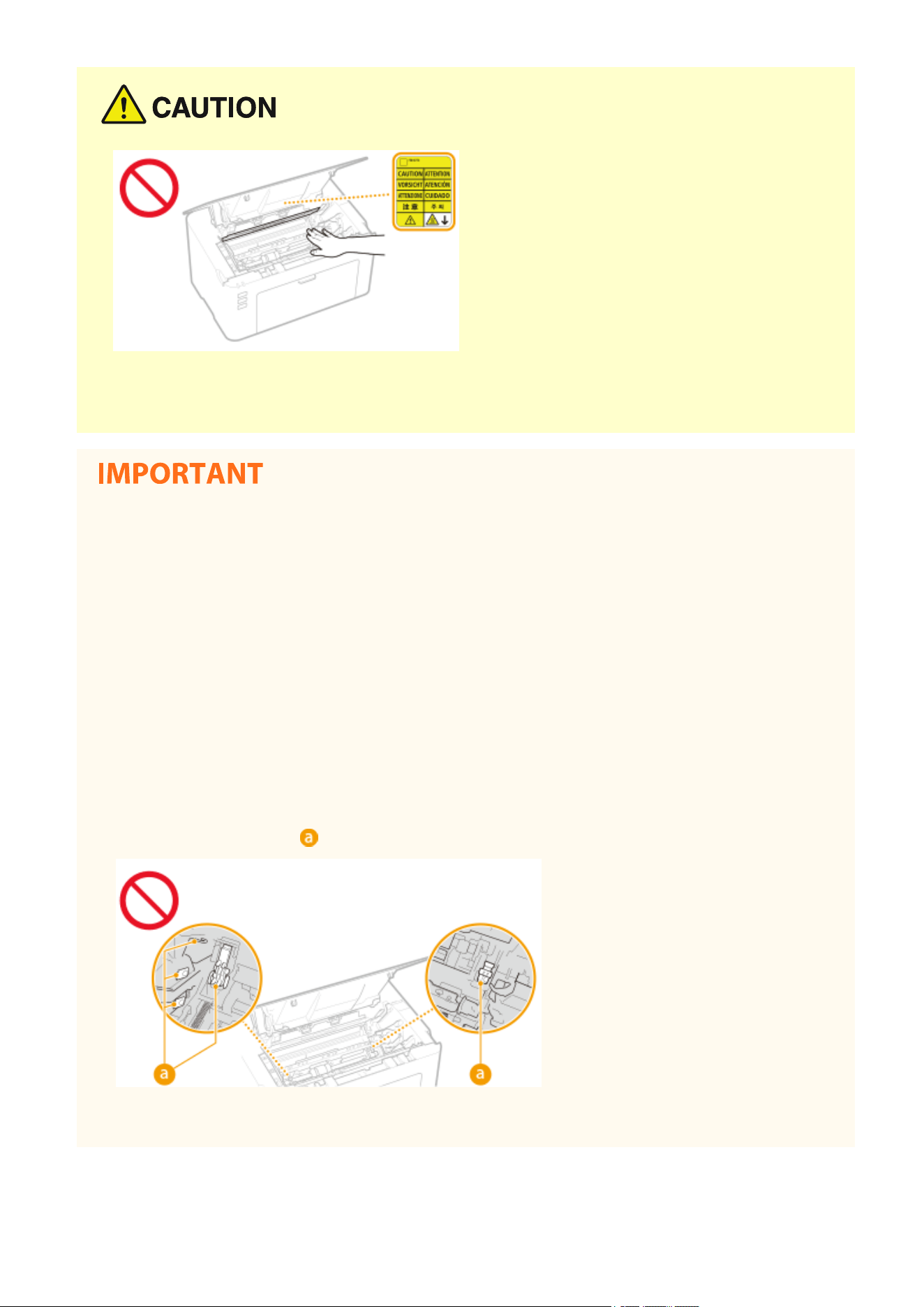
● Do not touch the contacts (
) inside the machine. Doing so may result in damage to the machine.
● T
o prevent a paper jam, do not turn OFF the power, open/close the covers, and load/unload the paper when
printing.
Important Safety Instructions
7

Maintenance and Inspections
2754-004
Clean this machine periodically. If dust accumulates, the machine may not oper
ate properly. When cleaning, be sure to
observe the following. If a problem occurs during operation, see
Troubleshooting(P. 79) . If the problem cannot
be r
esolved or you feel the machine requires an inspection, see
When a Problem Cannot Be Solved(P. 112) .
● Before cleaning, turn OFF the power and unplug the power plug from the AC power outlet. Failure to do so
may r
esult in a re or electrical shock.
● Unplug the power plug periodically and clean with a dry cloth to remove dust and grime. Accumulated dust
may absorb humidity in the air and may result in a re if it comes into contact with electricity.
● Use a damp, well wrung-out cloth to clean the machine. Dampen cleaning cloths with water only. Do not use
alcohol, benzine, paint thinner, or other ammable substances. Do not use tissue paper or paper towels. If
these substances come into contact with electrical parts inside the machine, they may generate static
electricity or result in a re or electrical shock.
● Check the power cord and plug periodically for damage. Check the machine for rust, dents, scratches,
cracks, or excessive heat generation. Use of poorly-maintained equipment may result in a re or electrical
shock.
● The inside of the machine has high-temperatur
e and high-voltage components. Touching these components
may result in burns. Do not touch any part of the machine that is not indicated in the manual.
● When loading paper or removing jammed paper, be careful not to cut your hands with the edges of the
paper.
● When removing jammed paper or replacing toner cartridges or the like, be careful not to get any toner on
your hands or clothing. If toner gets on your hands or clothing, wash them immediately with cold water.
Important Safety Instructions
8
Consumables
2754-005
● Do not dispose of used toner cartridges or the like in open ames. Also, do not stor
e toner cartridges, drum
cartridges, or paper in a location exposed to open ames. This may cause the toner to ignite, and result in
burns or re.
● If you accidentally spill or scatter toner, carefully gather the toner particles together or wipe them up with a
soft, damp cloth in a way that prevents inhalation. Never use a vacuum cleaner that does not have
safeguards against dust explosions to clean up spilled toner. Doing so may cause a malfunction in the
vacuum cleaner, or result in a dust explosion due to static discharge.
If you are using a cardiac pacemaker
● The toner cartridge generates a low level magnetic ux. If you are using a cardiac pacemaker and feel
abnormalities, please move away from the toner cartridge and consult your physician immediately.
● Use caution not to inhale any toner. If you should inhale toner, consult a physician immediately.
● Use caution so that toner does not get into your e
yes or mouth. If toner should get into your eyes or mouth,
immediately wash with cold water and consult a physician.
● Use caution so that toner does not come into contact with your skin. If it should, wash with soap and cold
water. If there is any irritation on your skin, consult a physician immediately.
● Keep the toner cartridges and other consumables out of the reach of small children. If toner is ingested,
consult a physician or poison control center immediately.
● Do not disassemble or modify the toner cartridge or the like. Doing so may cause the toner to scatter.
Handling the toner cartridge
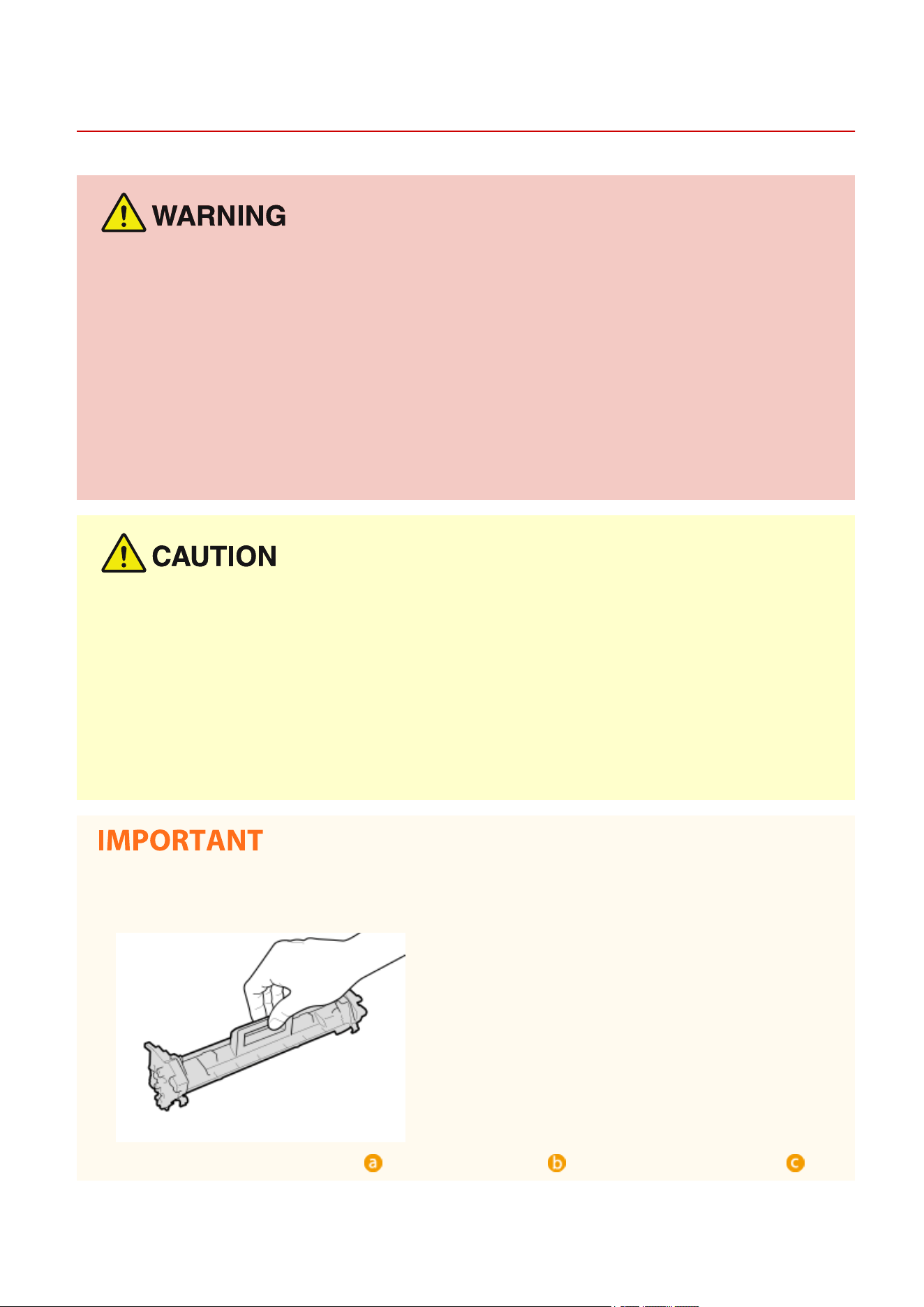
● Be sure to hold the toner cartridge using the handle.
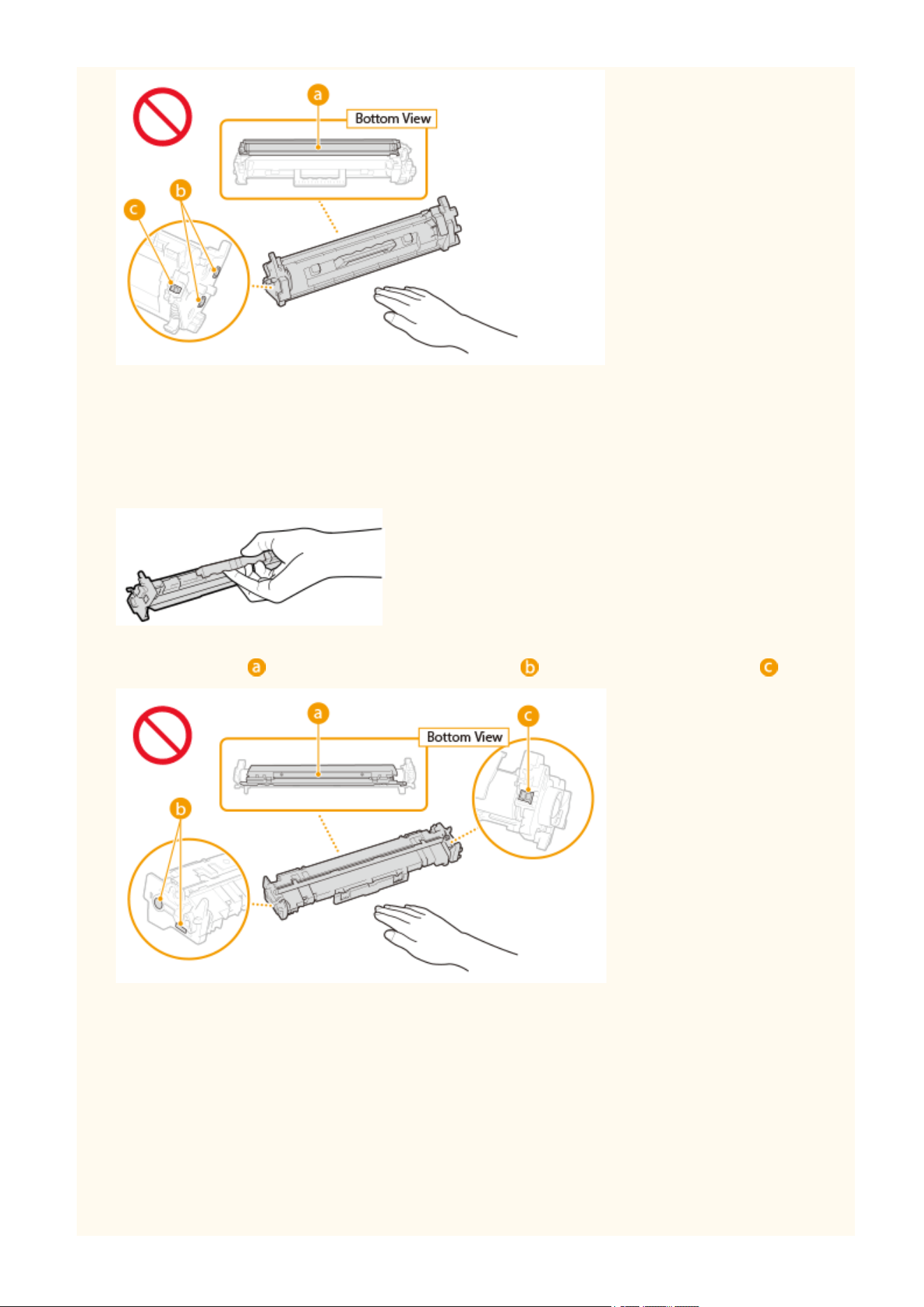
● Do not touch the toner feed section ( ), the electrical contacts ( ) or the toner cartridge memory ( ).
Important Safety Instructions
9
● Except when necessary, do not take out the toner cartridge from the packing material or from this machine.
● The toner cartridge is a magnetic pr
oduct. Do not move it close to products susceptible to magnetism
including oppy disks and disk drives. Doing so may result in data corruption.
Handling the drum cartridge
● Be sure to hold the drum cartridge using the handle.
● To avoid scratching the surface of the drum inside the machine or exposing it to light, do not open the drum
pr
otective shutter (
). Do not touch the electrical contacts ( ) or the drum cartridge memory ( ).
● Except when necessary, do not take out the drum cartridge from the packing material or from this machine.
Storing the toner cartridge or the drum cartridge
● Stor
e in the following environment to ensure safe and satisfactory use.
Storage temperature range: 0 to 35°C
Storage humidity range: 35 to 85% RH (relative humidity/no condensation)
*
● Store without opening until the toner cartridge or the drum cartridge is to be used.
● When removing the toner cartridge or the drum cartridge from this machine for storage, place the removed
toner cartridge or drum cartridge in the original packing material.
● When storing the toner cartridge, do not store it upright or upside down. The toner will solidify and may not
return to its original condition even if it is shaken.
Important Safety Instructions
10

*
Even within the storable humidity r
ange, water droplets (condensation) may develop inside the toner cartridge or the drum
cartridge if there is a difference of temperature inside and outside the toner cartridge or the drum cartridge. Condensation
will adversely affect the print quality of toner cartridges or drum cartridges.
Do not store the toner cartridge or the drum cartridge in the following locations
● Locations exposed to open ames
● Locations exposed to direct sunlight or bright light for ve minutes or more
● Locations exposed to excessive salty air
● Locations where there are corrosive gases (i.e. aerosol sprays and ammonia)
● Locations subject to high temperature and high humidity
● Locations subject to dramatic changes in temperature and humidity where condensation may easily occur
● Locations with a large amount of dust
● Locations within the reach of children
Be careful of counterfeit toner cartridges or drum cartridges
● Please be aware that there are counterfeit Canon toner cartridges or Canon drum cartridges in the
marketplace. Use of counterfeit toner cartridge or drum cartridge may result in poor print quality or
machine performance. Canon is not responsible for any malfunction, accident or damage caused by the use
of counterfeit toner cartridge or drum cartridge.
For more information, see canon.com/counterfeit.
Availability period of repairing parts, toner cartridges, drum cartridges and the like
● The repairing parts, toner cartridges, drum cartridges and the like for the machine will be available for at
least seven (7) years after production of this machine model has been discontinued.
Packing materials for the toner cartridge and the drum cartridge
● Save the packing materials for the toner cartridge and the drum cartridge. They are required when
transporting this machine.
● The packing materials may be changed in form or placement, or may be added or removed without notice.
When disposing of a used toner cartridge, drum cartridge or the like
● When discarding a toner cartridge, drum cartridge or the like, place it in the original packing material to
prevent toner from scattering from inside, and dispose of it in accordance with the applicable local
regulations.
Important Safety Instructions
11

Setting Up
Setting Up ............................................................................................................................................................. 13
Pr
eparations Required Before Use ..................................................................................................................... 14
Installing Drivers ................................................................................................................................................. 15
Setting Up Print Server ....................................................................................................................................... 16
Setting Up
12



Installing Drivers
2754-00A
Install the various drivers and associated software on your computer.
1
Mak
e the necessary preparation before proceeding with the installation.
● If the machine is supplied with a CD-ROM/DVD-ROM, insert the CD-ROM/D
VD-ROM into the drive on the
computer.
● You can download drivers and software you are going to use from the Canon website (http://
www.canon.com/).
● When new versions of drivers and software become available, they will be uploaded to the Canon website.
Y
ou can download them as necessary after checking their system requirements.
● Depending on your machine or environmental conditions, some functions may not be available.
● Some of the drivers are not supported depending on the OS. For more information about the supported
status of the latest OS, see the Canon website.
2
Proceed with the installation.
● For more information about the installation procedure, see the manuals for the drivers and software you are
going to use.
Setting Up
15
Setting Up Print Server
2754-009
With a print server, you can reduce the load on the computer that you print fr
om. The print server also makes it
possible to install the drivers on each computer over the network, which saves you the trouble of installing the drivers
on each computer by using the provided CD-ROM/DVD-ROM. To set up a computer on the network as a print server,
congure the settings for sharing the printer.
● To perform the following procedure, log in to your computer with an administrator account.
● Y
ou may be unable to install drivers over the network depending on the operating system and the bit
architecture (32-bit or 64-bit) of the print server and client computers.
● When implementing a print server in a domain environment, consult your Network Administrator.
1
Open the printer folder.
Displaying the Printer Folder(P. 132)
2
Right-click the printer driver icon for this machine and click [Printer properties] or
[Pr
operties].
3
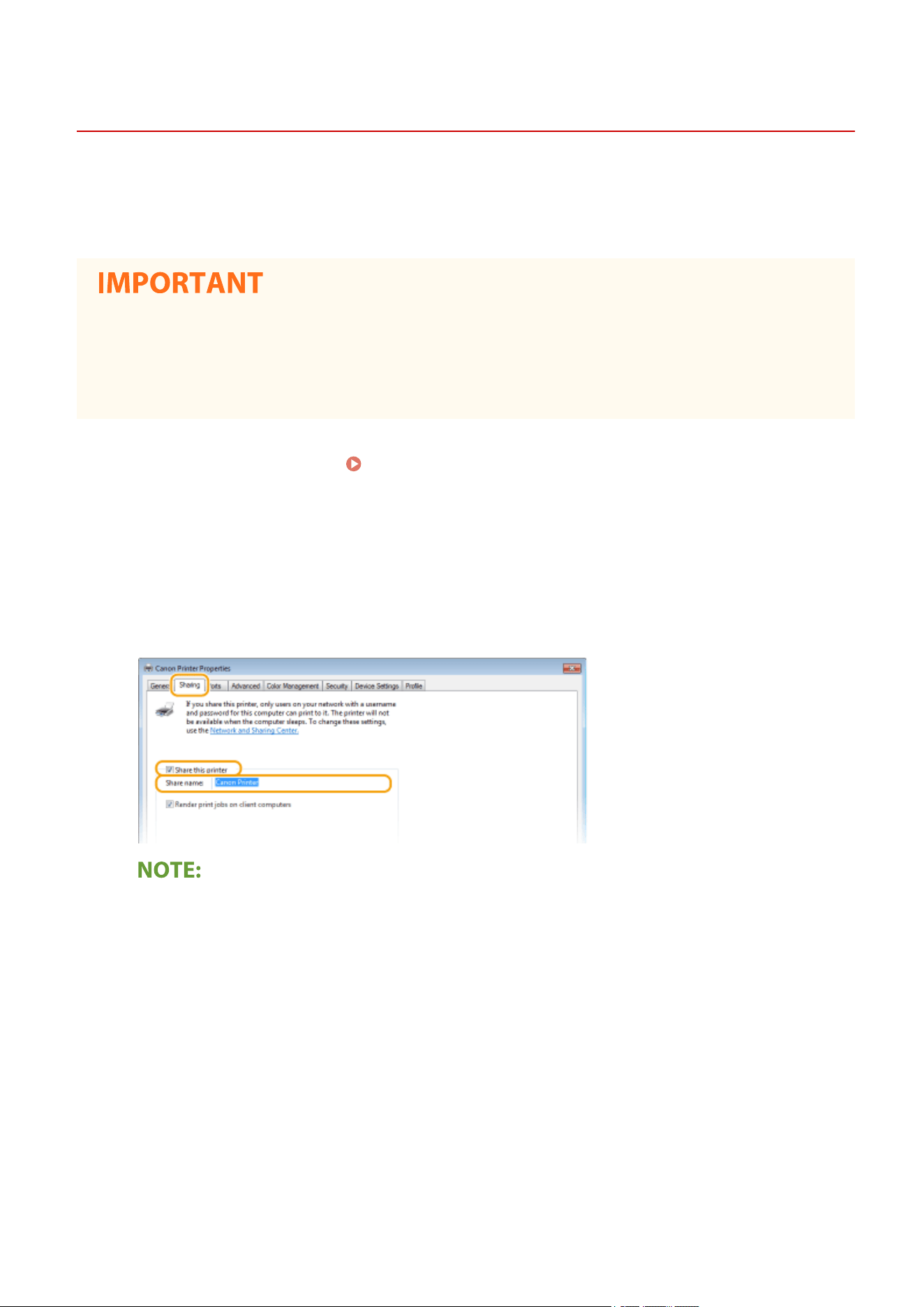
Click the [Sharing] tab, select [Shar
e this printer], and enter the share name of the
machine.
● Click the [Change Sharing Options] button if displayed.
4
Install additional drivers as necessary.
● This operation is r
equired if you want to install the drivers in other computers running a different bit
architecture via the print server.
1
Click [Additional Drivers].
2
Select the check box for the bit architecture that other computers are running, and click [OK].
Setting Up
16
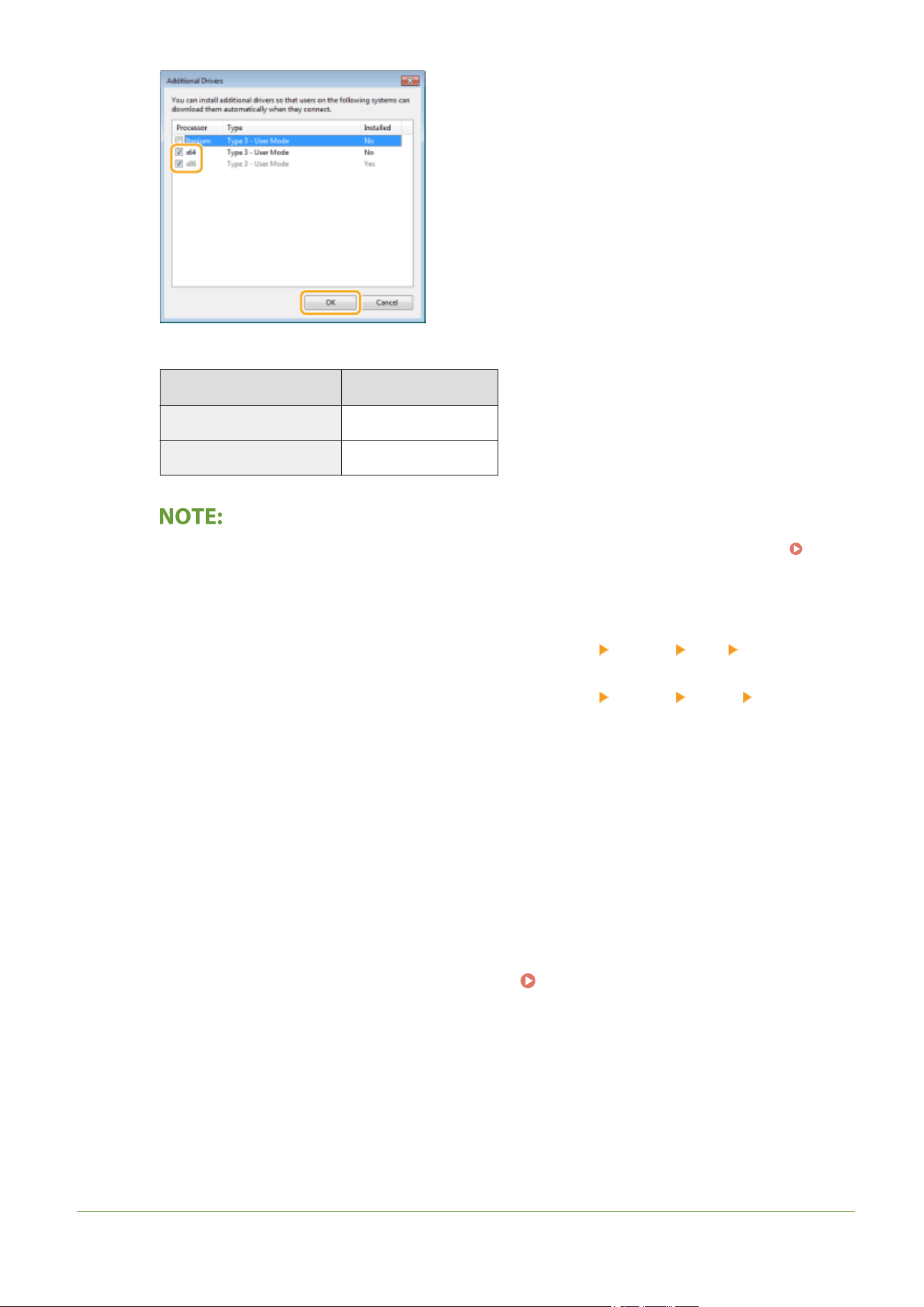
● Select additional drivers from the follo
wing, according to the operating system of the print server.
Print server Select the check box for
32-bit operating systems [x64]
64-bit operating systems [x86] under [Processor]
● If you do not know whether your Windo
ws operating system is a 32-bit or 64-bit version, see
Checking the Bit Architecture(P. 135) .
3
Insert the provided CD-ROM/DVD-ROM into the drive on the computer, click [Browse] to specify the folder
that contains the drivers, and then click [OK].
● If the print server runs a 32-bit operating system, select [UFRII] [uk_eng] [x64] [Driver] folders
on the pro
vided CD-ROM/DVD-ROM.
● If the print server runs a 64-bit operating system, select [UFRII]
[uk_eng] [32BIT] [Driver]
folders on the pro
vided CD-ROM/DVD-ROM.
4
Follow the on-screen instructions to install additional drivers.
5
Click [OK].
◼ Installing the Drivers on a Computer via the Print Server
1
Locate the shared printer in the print server.
Displaying Shared Printers in the
Print Server(P. 133
)
2
Double-click the shared printer.
3
Follow the on-screen instructions to install the drivers.
LINKS
Setting Up
17


Basic Operations
Basic Operations ...............................................................................................................................................
20
Parts and Their Functions ................................................................................................................................... 22
Front Side ....................................................................................................................................................... 23
Back Side ........................................................................................................................................................ 25
Drawer ............................................................................................................................................................ 26
Printer Status Window ........................................................................................................................................ 27
Turning ON the Machine ..................................................................................................................................... 30
Turning OFF the Machine ............................................................................................................................... 31
Loading Paper ...................................................................................................................................................... 32
Loading Paper in the Drawer .......................................................................................................................... 34
Loading Envelopes .......................................................................................................................................... 37
Loading Preprinted Paper ............................................................................................................................... 39
Entering Sleep Mode ........................................................................................................................................... 40
Setting Auto Shutdown ....................................................................................................................................... 41
Basic Operations
19
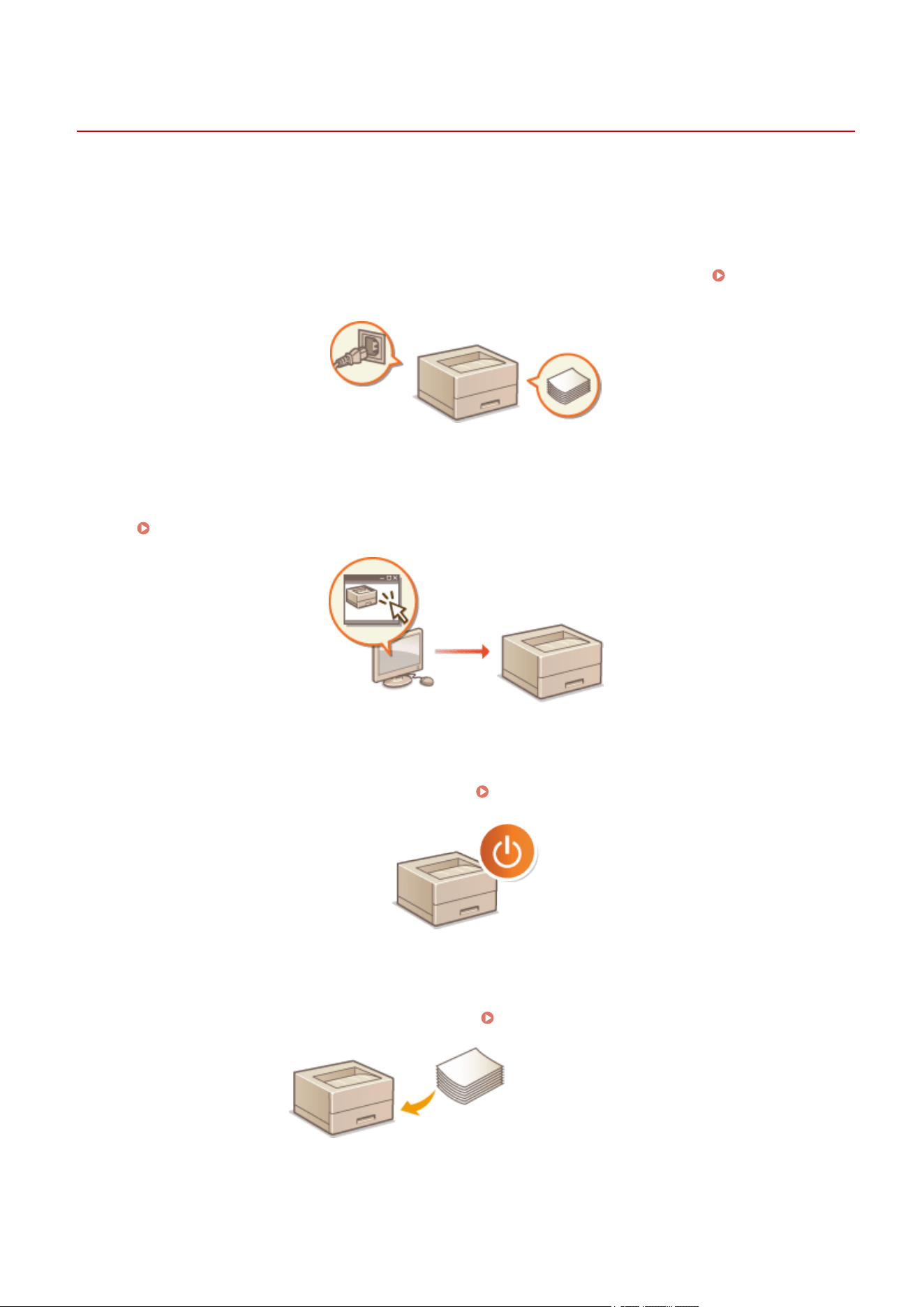
Basic Operations
2754-00C
This chapter describes the parts of the machine and basic operations, such as ho
w to load paper.
◼ Parts and Their Functions
This section describes the names and functions of the exterior and interior parts of the machine.
Parts and Their
Functions(P
. 22)
◼ Printer Status Window
This section e
xplains how to use the "Printer Status Window" utility to check the machine's status and make machine
settings.
Printer Status Window(P. 27)
◼ Turning ON the Machine
This section describes ho
w to turn the machine ON and OFF.
Turning ON the Machine(P. 30)
◼ Loading Paper
This section describes how to load the paper into the dr
awer.
Loading Paper(P. 32)
Entering Sleep Mode
Basic Operations
20


Parts and Their Functions
2754-00E
This section describes the parts of the machine (exterior, fr
ont side and back side) and how they function. In addition
to describing the parts of the machine used for such basic operations as loading paper and replacing the toner
cartridges, etc., this section also describes the functions of the keys and meaning of indications by indicators of the
machine. Read this section for tips on how to use the machine properly.
Front Side(P. 23)
Back Side(P. 25)
Drawer(P. 26)
Basic Operations
22
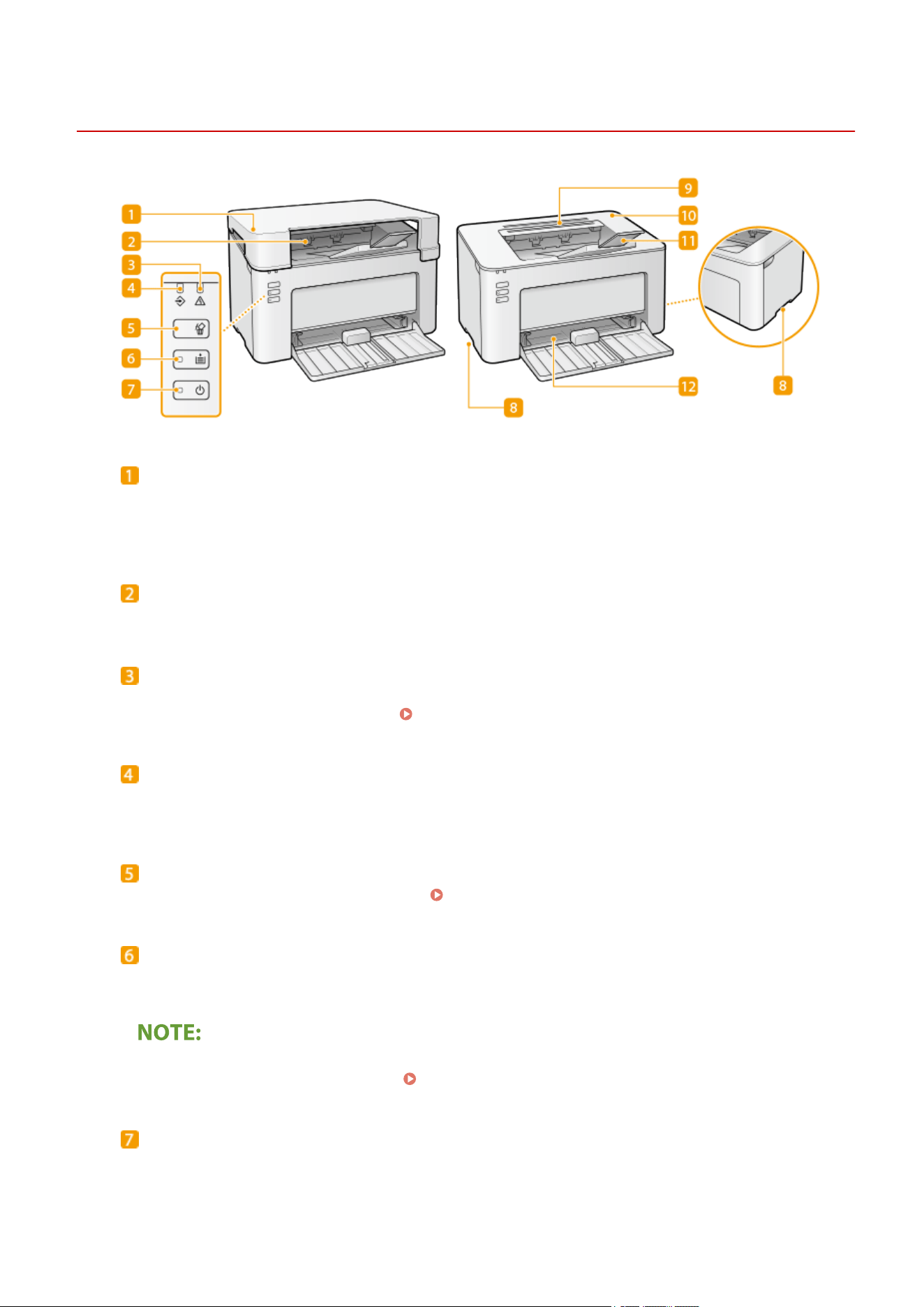
Front Side
2754-00F
Output cover
● Place the output cover whene
ver you use the machine.
● Do not place or drop heavy objects on the output cover.
Output tray
Printed paper is output to the output tray.
Alarm indicator
Lights up or ashes when a paper jam or other error occurs. Solve the pr
oblem following the message
displayed in the Printer Status Window.
Countermeasures for Each Message(P. 99)
Job indicator
Lights up when there is print data that is being printed or waiting to be printed. Flashes when a print job is
canceled.
Cancel Job key
Cancels a print job that is currently printing. Canceling Prints(P. 46)
Paper indicator/key
Flashes when the machine is out of paper, when the paper is the wrong size, and after other err
ors when the
paper needs to be checked. Reset the paper and press the key to restart printing.
You can also use the Paper key to print a list of the machine's settings (with the machine ready to print, press
the k
e
y and hold it down for 3 seconds).
Printing Lists of Settings(P. 74)
Power indicator/switch
Press the power switch to turn the power ON or OFF. Indicator lights up when the power is turned ON.
Basic Operations
23

Lift handles
Hold the lift handles when carrying the machine. Relocating the Machine(P. 71)
Ventilation slots
Air from inside the machine is vented out to cool do
wn the inside of the machine. Note that placing objects
on the ventilation slots prevents ventilation.
Toner cover
Open the toner co
ver when r
eplacing toner cartridges or drum cartridges.
Procedure for Replacing the Toner Cartridge(P. 61)
Procedure for Replacing the Drum Cartridge(P. 66)
Paper stopper
Open the paper stopper when you want to pre
vent paper from falling out of the output tray.
Drawer
Load the paper to print in this tray
.
Loading Paper in the Drawer(P. 34)
Basic Operations
24
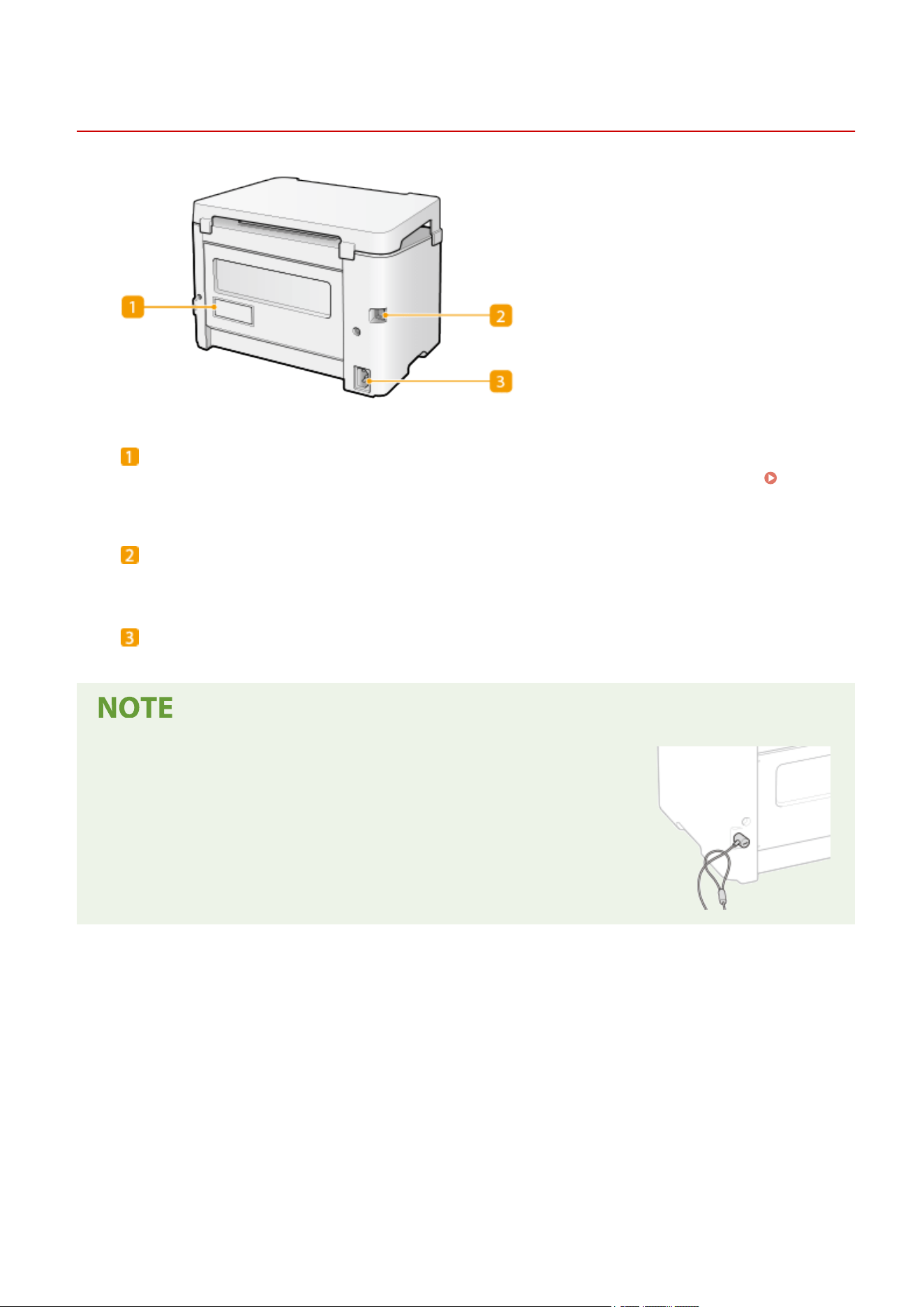
Back Side
2754-00H
Rating label
The label shows the serial number, which is needed when making inquiries about the machine. When a
Problem Cannot Be Solved
(P. 112)
USB port
Connect a USB cable when connecting the machine and a computer.
Power socket
Connect the power cor
d.
Anti-theft Security Slot
● This machine is pro
vided with a security slot, to which you can attach
security wire or equivalent.
● The hole of the security slot is 4.4 mm wide and 8.3 mm high.
● For inquiries about the security slot, contact your local authorized Canon
dealer.
Basic Operations
25

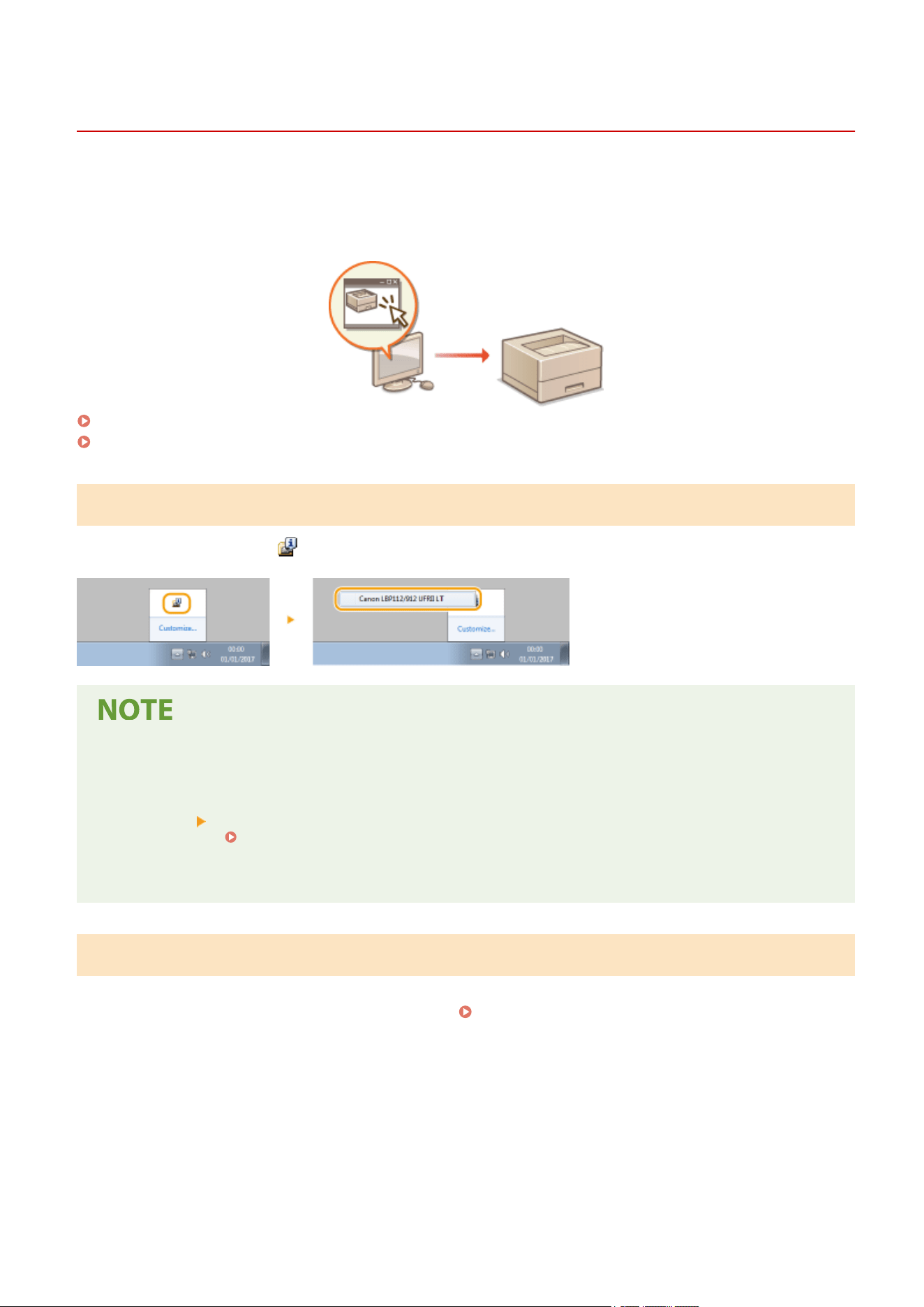
Printer Status Window
2754-00K
The Printer Status Window is a utility that allo
ws you to check the machine's status, view error information, and make
settings related to the machine, such as power saving settings. You can also use it for operations such as cancelling a
print job or printing a list of the machine's settings. The Printer Status Window utility is installed on your computer
when you install the printer driver.
Displaying the Printer Status Window(P. 27)
Parts of the Screen and Their Functions(P. 27)
Displaying the Printer Status Window
Select the machine by clicking in the system tray.
Automatic Display of the Printer Status Window
The Printer Status Window is displayed automatically when an err
or occurs during printing.
*
You can change the setting that determines when the Printer Status Window is displayed automatically. Change it with the
[Options] menu
[Preferences (Users)] or [Preferences (Administrators)] dialog box of the Printer Status Window. For
details, see the Help. [Help] menu(P. 28)
If you are using Windo
ws 8/Server 2012
Display the Printer Status Window after moving to the desktop.
Parts of the Screen and Their Functions
This section pro
vides an outline of the main screen. For detailed descriptions of the dialog boxes that can be displayed
with the controls and menus in this screen, see the Help.
[Help] menu(P. 28)
Basic Operations
27
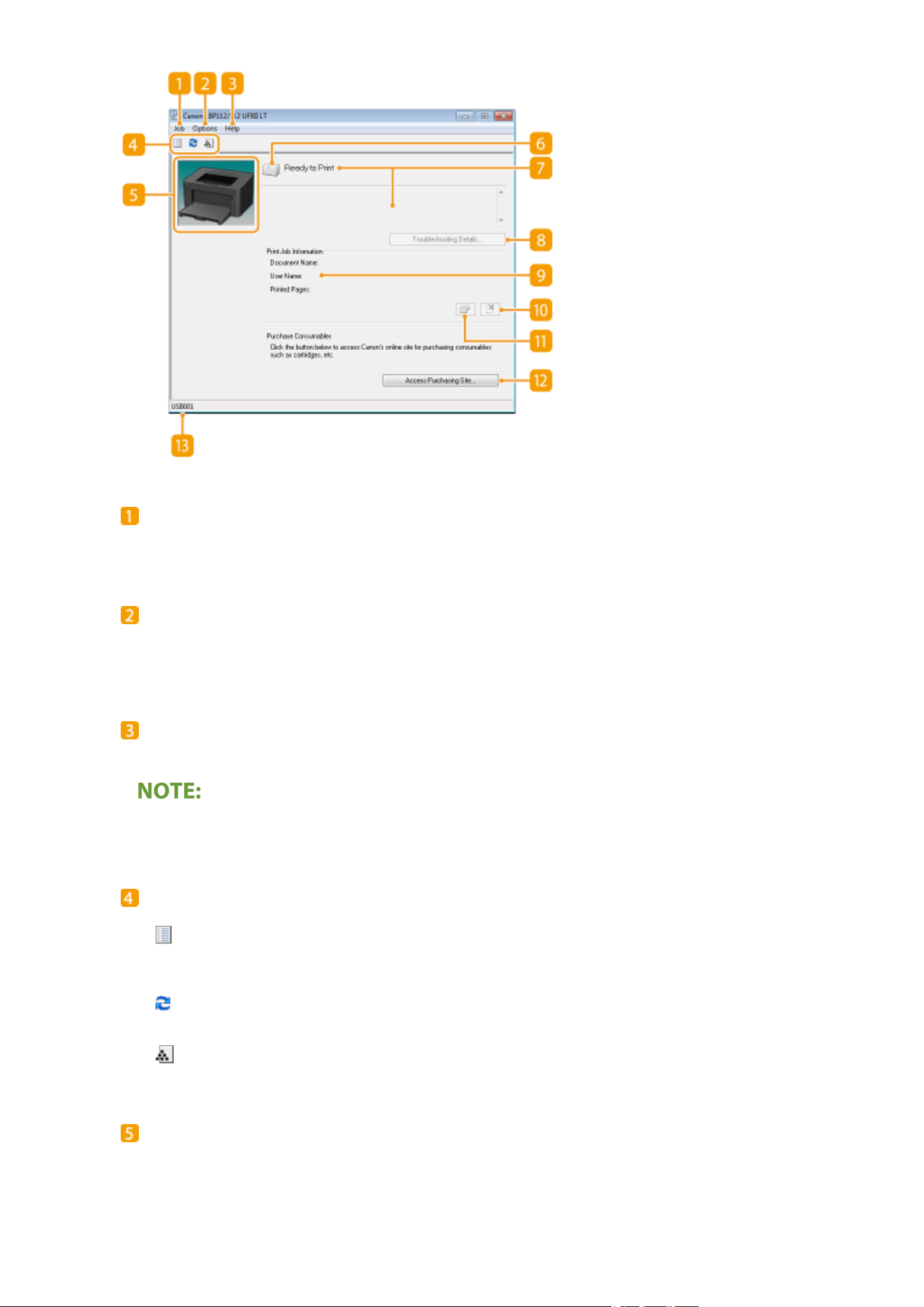
[Job] menu
Allows you to check documents that ar
e printing or waiting. You can also select documents and cancel
printing.
[Options] menu
Allows you to e
xecute maintenance functions, such as printing setting lists or cleaning the xing unit, and to
make machine settings, such as power saving settings. You can also check information such as the total
number of pages printed.
[Help] menu
Displays Help about the Printer Status Window and version information.
You can also display the Printer Status Window Help by clicking the [Help] button in the various dialog boxes.
Howe
ver, some dialog boxes do not have a [Help] button.
Toolbar
(Print Queue)
Displays the print queue, a Windows function. See the Windo
ws Help for more information about the print
queue.
(Refresh)
Refreshes the Printer Status Windo
w with the latest information.
(Consumables Information)
You can check the amount r
emaining in the toner cartridge and the drum cartridge.
Animation area
Displays animations and illustrations about the machine
's status. After an error occurs, this area may also
display a simple explanation of how to deal with the error.
Basic Operations
28

Icon
Displays an icon that indicates the machine'
s status. The normal status is
but when an error occurs, the
display changes to one of / / , depending on the message.
Message area
Displays messages about the machine'
s status. If an error or warning occurs, this area displays an
explanation beneath the error message or warning, together with information about how to deal with the
problem.
Countermeasures for Each Message(P. 99)
[Troubleshooting Details]
Displays tr
oubleshooting information for pr
oblems described by messages.
[Print Job Information]
Displays information about the document that is currently being printed.
(Cancel Job)
Cancels the printing of the document currently being printed.
(Continue/Retry)
When an error has occurr
ed, but printing can be continued, this button allows you to clear the error and
resume printing. However, if you use the Continue/Retry function to resume printing, partially printed pages
or other improper printing may occur.
[Access Purchasing Site]
If you click [Access Purchasing Site] select your country or region click [OK], a Canon Web site page is
displayed where you can nd information about pur
chasing consumables.
Status bar
Displays the connection destination (port name) of the Printer Status Window
.
Basic Operations
29
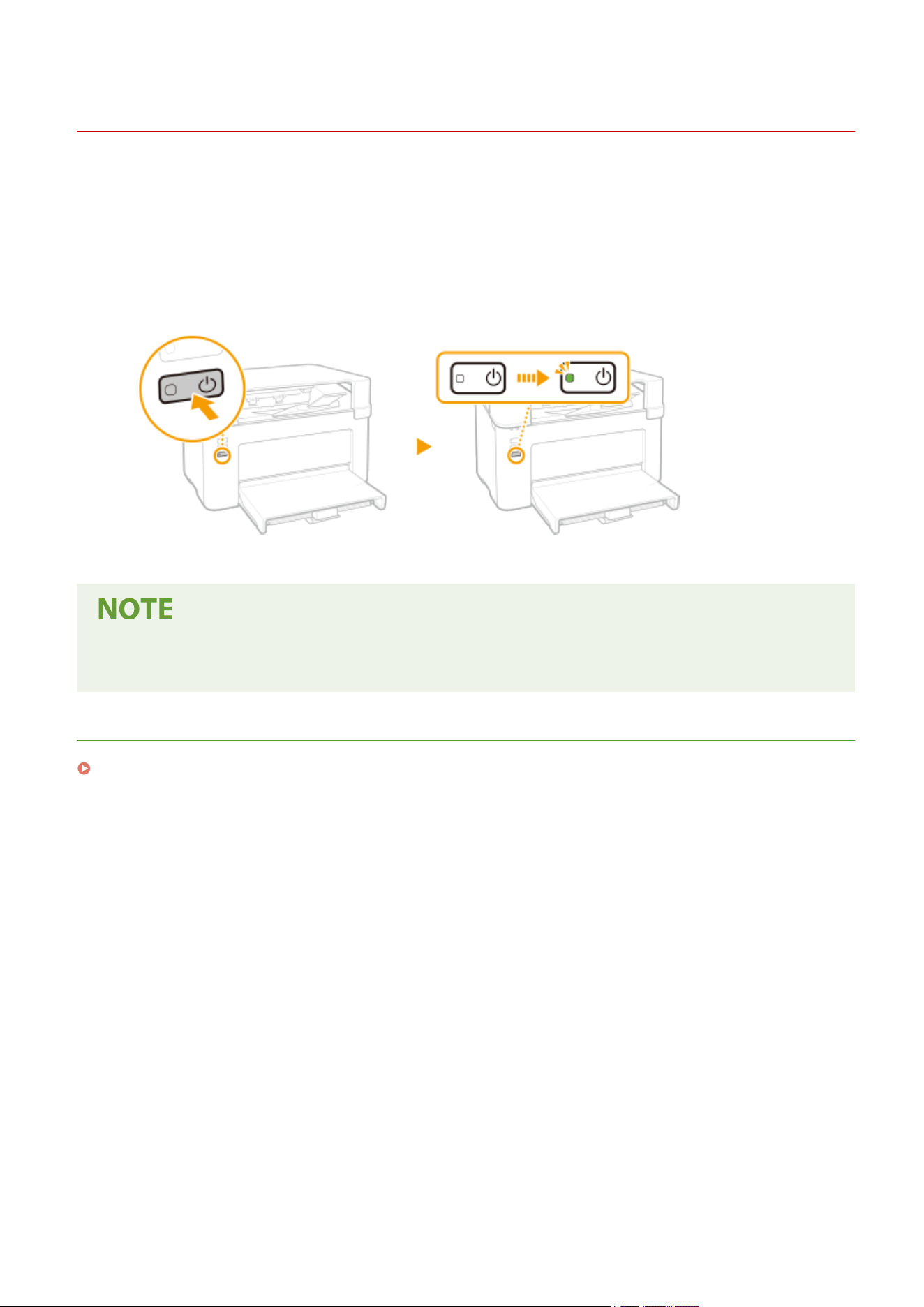
Turning ON the Machine
2754-00L
This section describes how to turn ON the machine.
1
Mak
e sure that the power plug is rmly inserted into a po
wer outlet.
2
Pr
ess the power switch.
➠ The power indicator lights and the machine is ready for printing.
● A blank sheet of paper may be output when you turn ON the power for the rst time after pur
chasing the
machine. This is not a malfunction.
LINKS
Turning OFF the Machine(P. 31)
Basic Operations
30
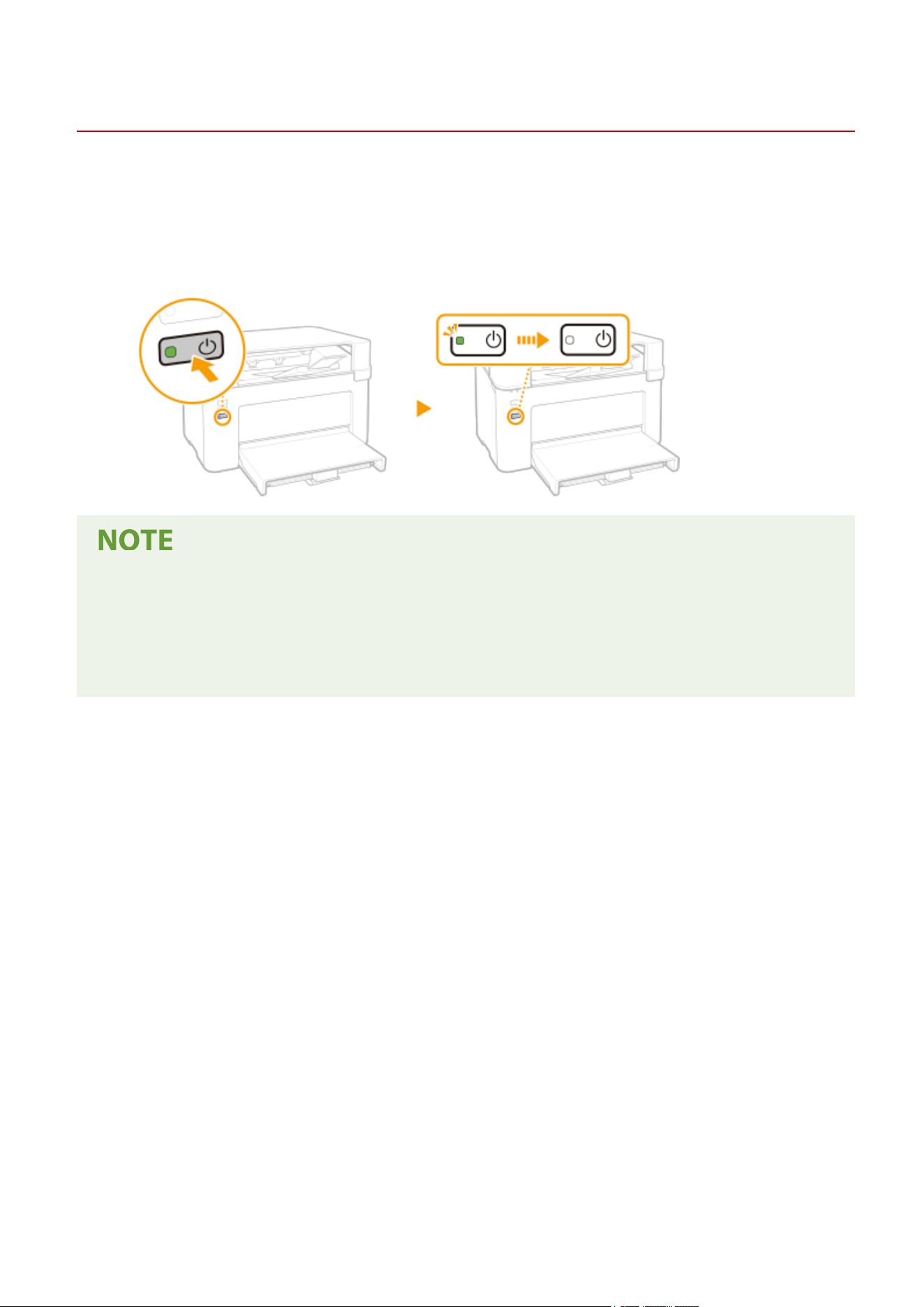
Turning OFF the Machine
2754-00R
This section describes how to turn OFF the machine.
1
Pr
ess the power switch.
● Make sure that the power indicator has gone out.
● It may take some time for the machine to completely shut do
wn. Do not unplug the power cord until the
power indicator goes out.
● To restart the machine, wait for at least 10 seconds after the machine is turned OFF.
● Even when the power is turned OFF, the machine continues to consume a small amount of power. To reduce
power consumption to zero, unplug the power plug from the AC power outlet.
Basic Operations
31
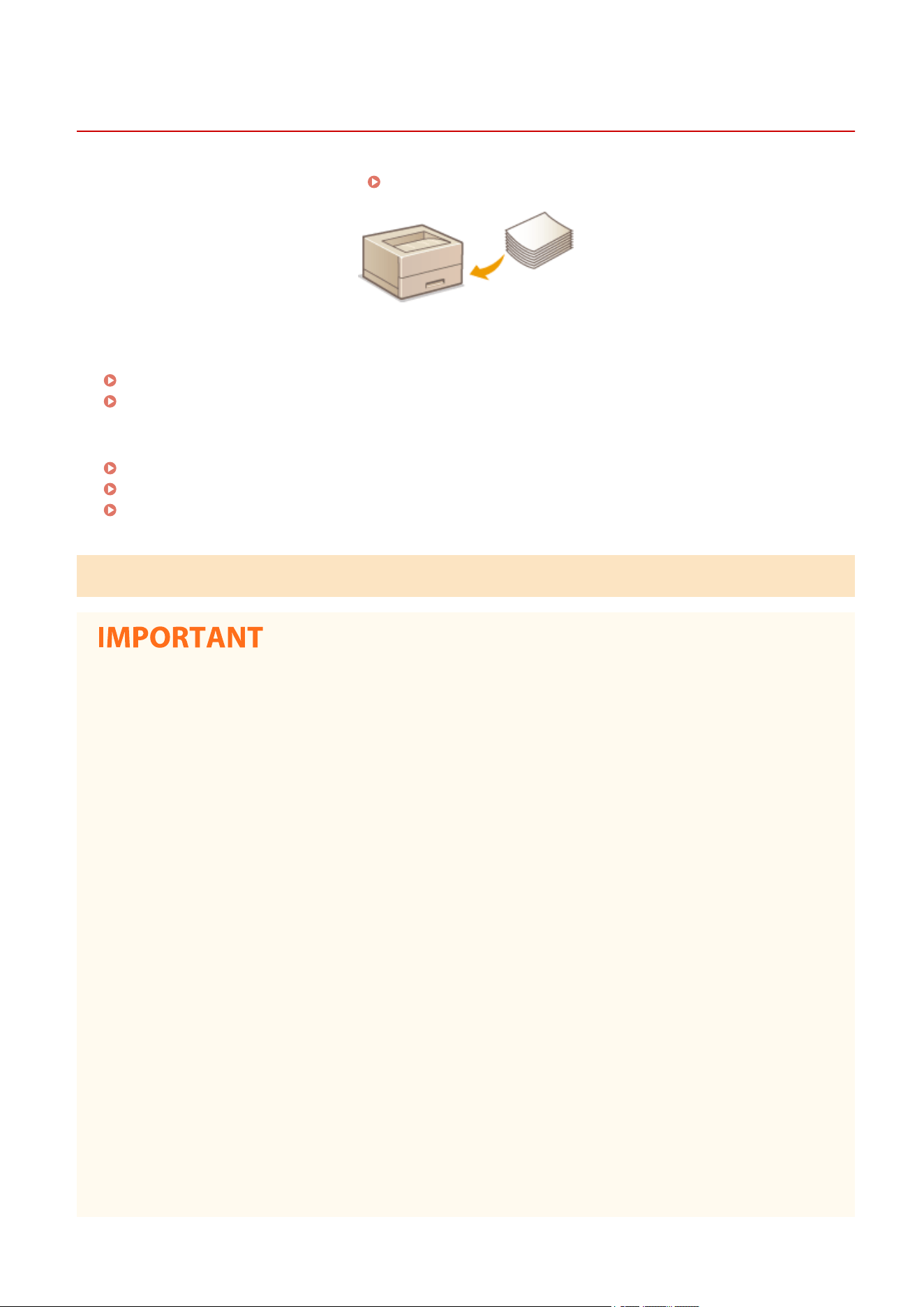
Loading Paper
2754-00S
You can load the paper into the dr
awer. See
Available Paper(P. 122) for available paper sizes and types.
About Paper
Precautions for Paper(P. 32)
Storing the Paper Printed with the Machine(P. 33)
How to Load Paper
Loading Paper in the Drawer(P. 34)
Loading Envelopes(P. 37)
Loading Preprinted Paper(P. 39)
Precautions for Paper
Do not use the following types of paper:
● A paper jam or printing error may occur.
-
Wrinkled or creased paper
- Curled or rolled paper
- Torn paper
- Damp paper
- Very thin paper
- Thin coarse paper
- Paper printed by a thermal transfer printer
- Back side of paper printed by a thermal transfer printer
- Highly textured paper
- Glossy paper
Notes on use of paper
● Only use paper that has fully acclimatized to the environment in which the machine is installed. Using paper
that has been stored under different temperature or humidity conditions may cause paper jams or result in
poor print quality.
Paper handling and storage
● It is recommended that you use paper as soon as possible after unwrapping. Paper remaining unused
should be covered with the original wrapping paper and stored on a at surface.
● Keep the paper wrapped in its original package to protect the paper from moisture or dryness.
● Do not store the paper in such a way that may cause it to curl or fold.
Basic Operations
32

● Do not store the paper vertically or do not stack too much paper.
● Do not stor
e the paper in direct sunlight, or in a place subject to high humidity, dryness, or drastic changes
in temperature or humidity.
When printing on paper that has absorbed moisture
● Steam may emit from the paper output ar
ea, or water droplets may form around the paper output area.
There is nothing unusual about any of these occurrences, which occur when the heat generated from xing
toner on the paper causes moisture in the paper to evaporate (most likely to occur at low room
temperatures).
Storing the Paper Printed with the Machine
When handling/storing the paper printed with the machine, take the follo
wing precautions.
◼ How to Store the Printed Paper
● Store on a at surface.
● Do not store together with articles made of PVC (polyvinyl chloride) such as clear folders. Toner may melt, resulting
in the paper's sticking to PVC articles.
● Take care that the paper does not get folded or creased. Toner may peel off.
● To store over a long period of time (two years or longer), store in binders or equivalent.
● When the paper is stored over a long period of time, it may become discolored and thus the print may seem to have
undergone a change of color.
● Do not store in a place where the temperature is high.
◼ Precautions When Applying Adhesive
● Always use insoluble adhesive.
● Before applying adhesive, perform a test using a printout no longer required.
● When putting adhesive-applied paper sheets one over another, make sure that the adhesive is completely dried out.
Basic Operations
33
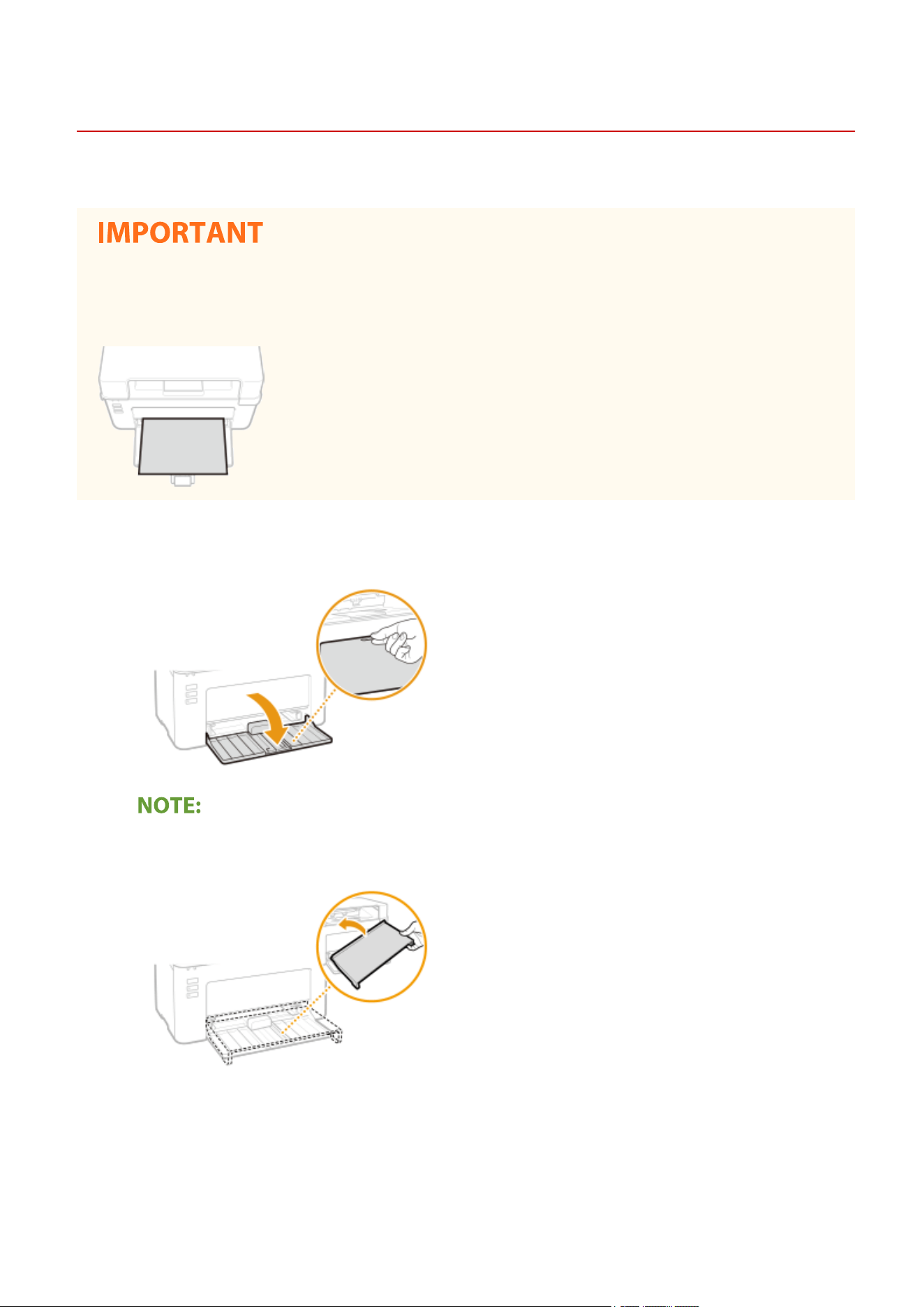
Loading Paper in the Drawer
2754-00U
Load the paper into the drawer.
Always load paper in portrait orientation
● Paper cannot be loaded in landscape orientation. Be sure to load paper in portr
ait orientation, as shown in
the illustration below.
1
Open the drawer.
When replenishing paper
When the drawer is alr
eady opened and the paper cover is covered, remove the paper cover.
2
Spread the paper guides apart.
● Slide the paper guides outward.
Basic Oper
ations
34
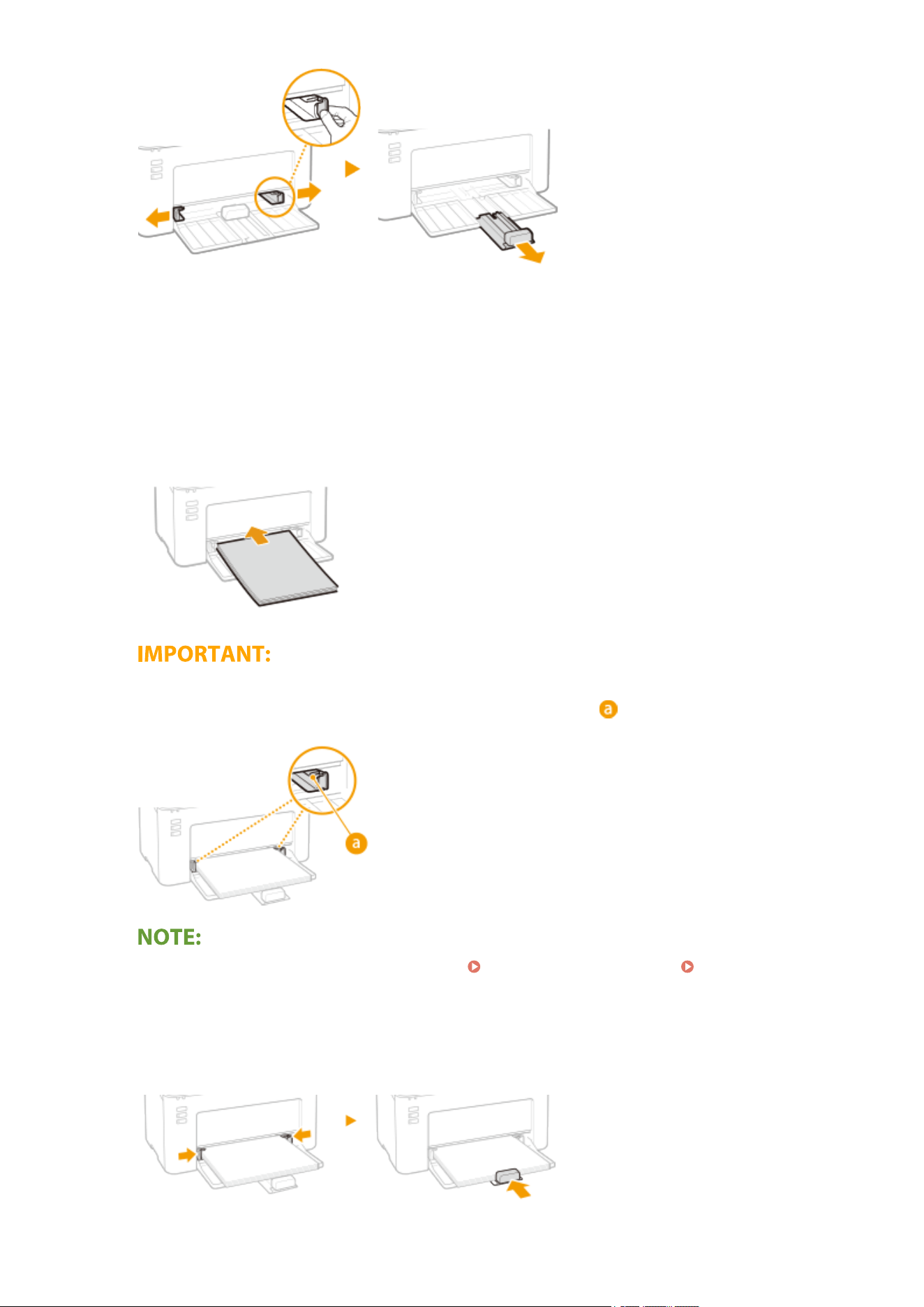
3
Load the paper and slide it all the way in, until it touches the back side.
● Load the paper in portr
ait orientation (with the short edge to
ward the machine) and the print side face up.
Paper cannot be loaded in landscape orientation.
● Before loading it, fan the paper stack well, and tap it on a at surface to align the edges.
Keep the paper stack within the load limit guides
Make sure that the paper stack does not exceed the load limit guides ( ). Loading too much paper may
cause paper jams.
When loading envelopes or preprinted paper, see Loading Envelopes(P. 37) or Loading Preprinted
Paper(P.
39) .
4
Align the paper guides against the edges of the paper.
● Align the paper guides securely against the edges of the paper.
Basic Operations
35
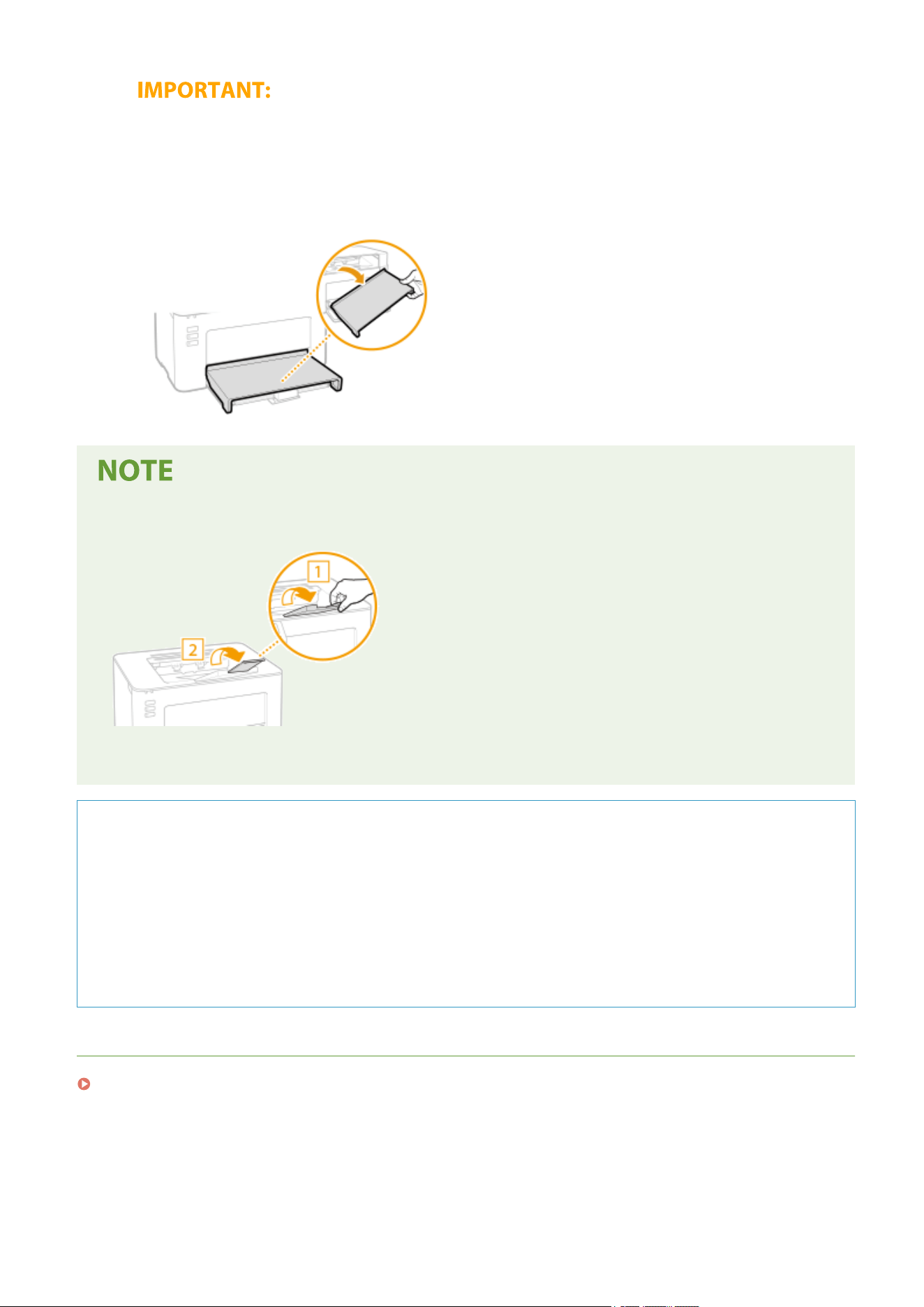
Align the paper guides securely against the paper
Paper guides that are too loose or too tight may cause misfeeds or paper jams.
5
Replace the paper co
ver.
● When performing printing, open the paper stopper in advance so that the output paper does not fall out of
the output tray
.
● After reloading paper that has run out during printing, or resetting the paper after a paper error
notication, pr
ess the Paper key to restart printing.
Printing on the Back Side of Printed Paper (Manual 2-Sided Printing)
● You can print on the back side of printed paper. Flatten any curls on the printed paper and insert it into the
dr
awer, with the side to print face up (previously printed side face down).
- Load only one sheet of paper each time you print.
- You can use only the paper printed with this machine.
- You cannot print on the side that has previously been printed on.
- If you are using A5 size paper, the reverse side may not be printed correctly.
LINKS
Available Paper(P. 122)
Basic Operations
36
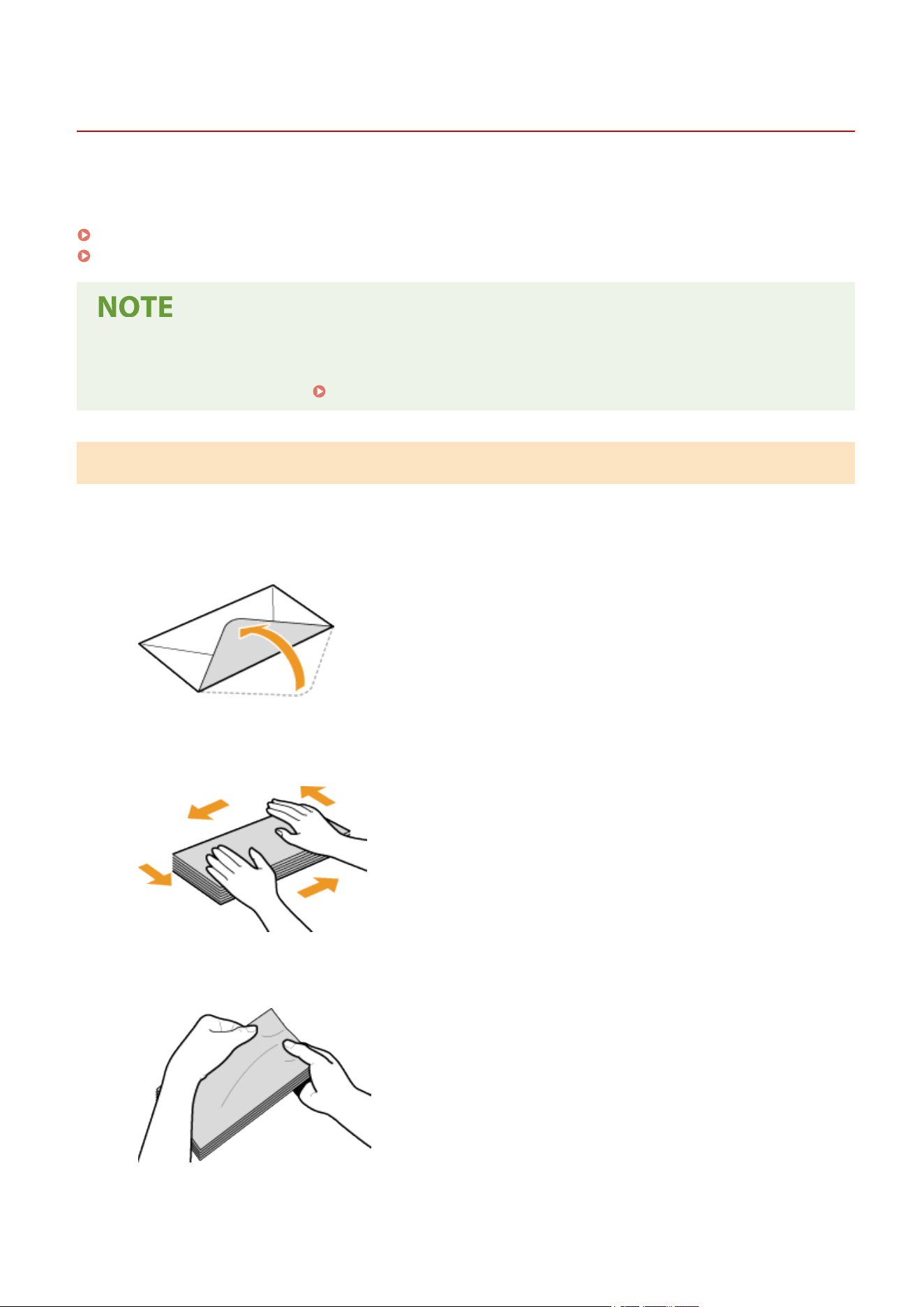
Loading Envelopes
2754-00W
Make sur
e to atten any curls on envelopes before loading them. Also pay attention to the orientation of envelopes
and which side is face up.
Before Loading Envelopes(P. 37)
Loading Envelopes in the Drawer(P. 38)
● This section describes how to load envelopes in the orientation you want, as well as pr
ocedures that you
need to complete before loading envelopes. For a description of the general procedure for loading
envelopes in the drawer, see
Loading Paper in the Drawer(P. 34) .
Before Loading Envelopes
Follow the pr
ocedure below to prepare the envelopes before loading.
1
Close the ap of each envelope.
2
Flatten them to release any remaining air, and make sure that the edges are pressed
tightly
.
3
Loosen any stiff corners of the envelopes and atten any curls.
4
Align the edges of the envelopes on a at surface.
Basic Operations
37
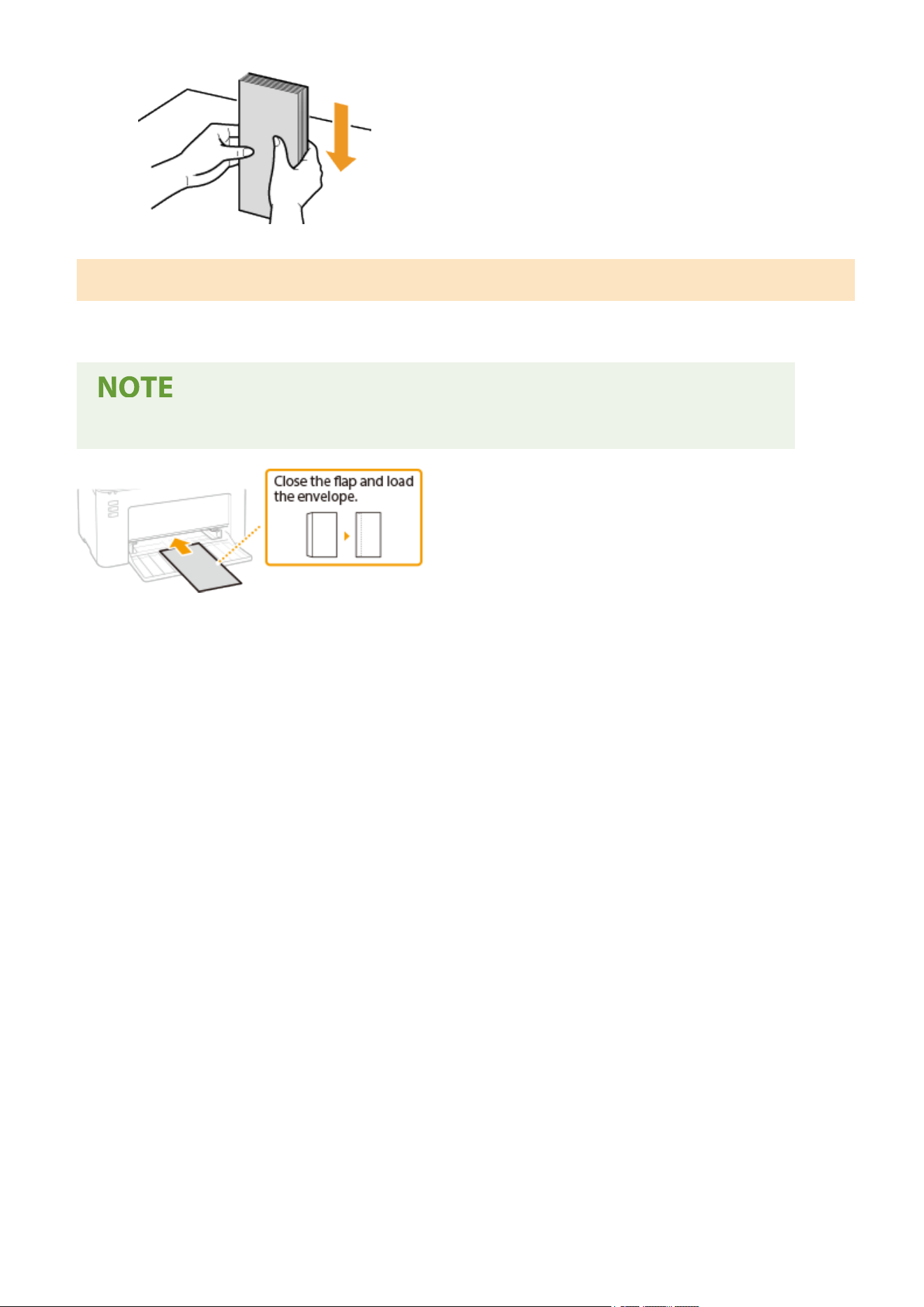
Loading Envelopes in the Drawer
Load the envelopes Monarch, No. 10 (COM10), DL, or C5 in portrait orientation (with the short edge toward the
machine), with the non-glued side (front side) face up. You cannot print on the reverse side of envelopes.
● Load the envelopes so that the edge with the ap is to
war
d the left side as shown in the illustration.
Basic Operations
38
Loading Preprinted Paper
2754-00X
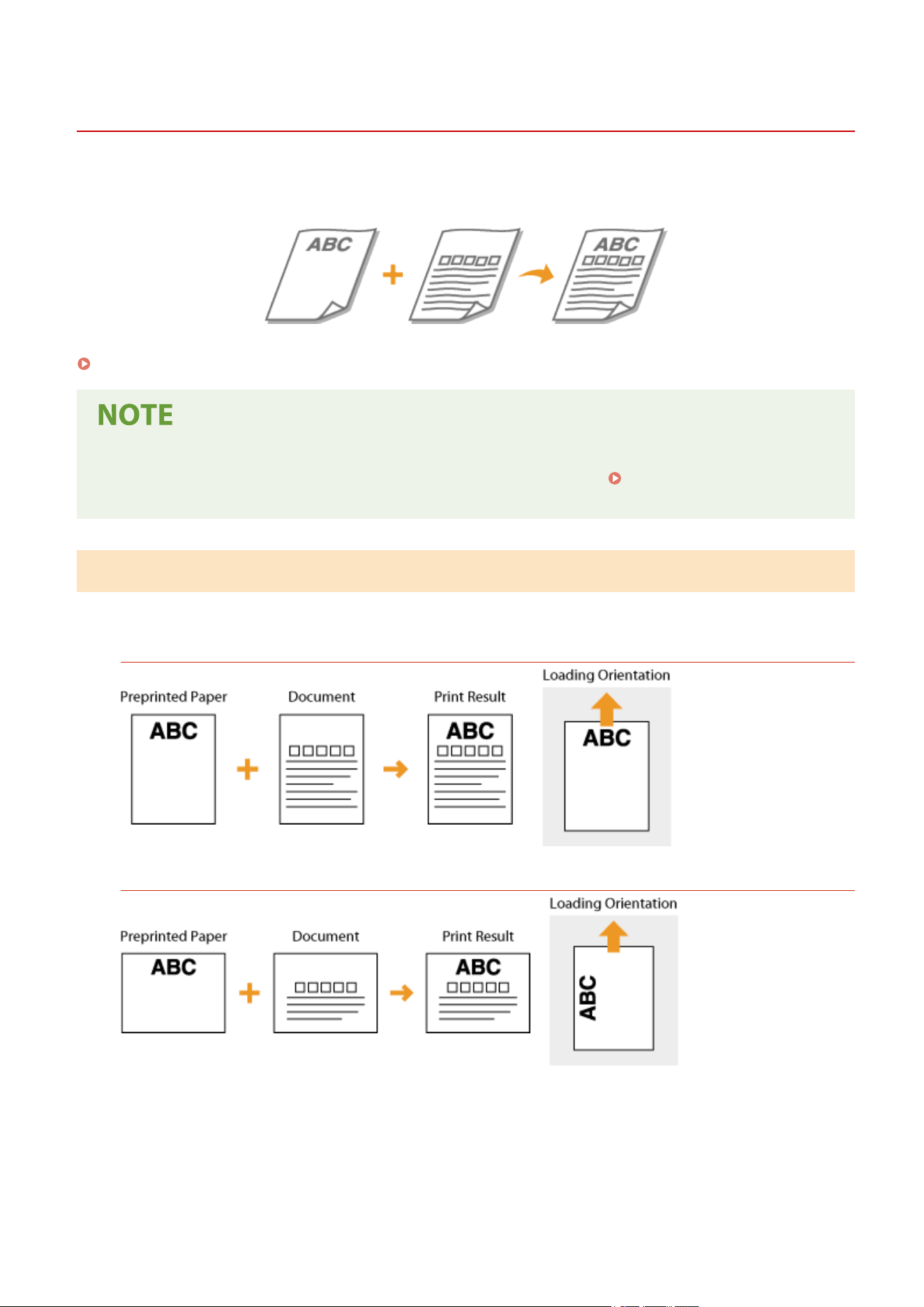
When you use paper that has been preprinted with a logo, pay attention to the orientation of the paper when loading.
Load the paper pr
operly so that printing is performed on the correct side of the paper with a logo.
Making Printouts on Paper with Logos(P. 39)
● This section mainly describes how to load pr
eprinted paper with the proper facing and orientation. For a
description of the general procedure for loading paper in the drawer, see
Loading Paper in the
Drawer(P
. 34) .
Making Printouts on Paper with Logos
Load the paper with the logo side (the side to print the document) face up.
Printing on Paper with Logos in Portr
ait Orientation
Printing on Paper with Logos in Landscape Orientation
Basic Operations
39
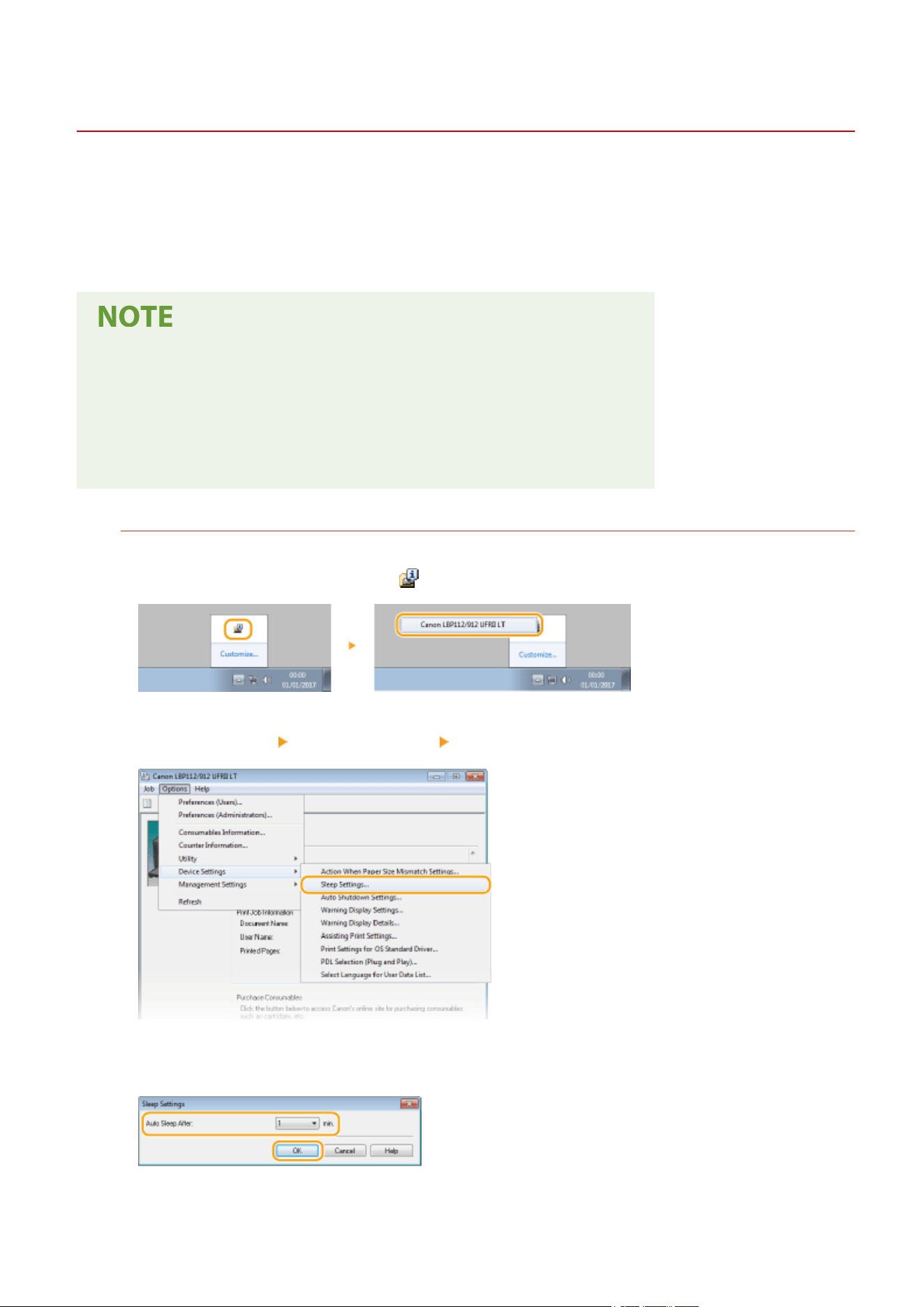
Entering Sleep Mode
2754-00Y
The sleep mode function reduces the amount of po
wer consumed by the machine by temporarily stopping some
internal operations. You can set up the machine to enter sleep mode automatically when it remains idle for a certain
length of time. The factory default setting for the amount of time that elapses before the machine enters sleep mode
is 1 minute. We recommend using the factory default setting to save the most power. If you want to change the
amount of time that elapses before the machine enters sleep mode, follow the procedure below in the Printer Status
Window.
Situations in which the machine does not enter sleep mode
● When the machine is in operation
● When the Job indicator is lit up or blinking
● When the machine is performing an oper
ation such as adjustment or cleaning
● When a paper jam occurs
Changing the Auto Sleep Time Value
1
Select the machine by clicking in the system tray.
2
Select [Options]
[Device Settings] [Sleep Settings].
3
Make sleep mode settings, and click [OK].
[ Auto Sleep After]
Specify the length of time after which the machine enters sleep mode. Y
ou can select fr
om 1 to 30 minutes.
Basic Operations
40
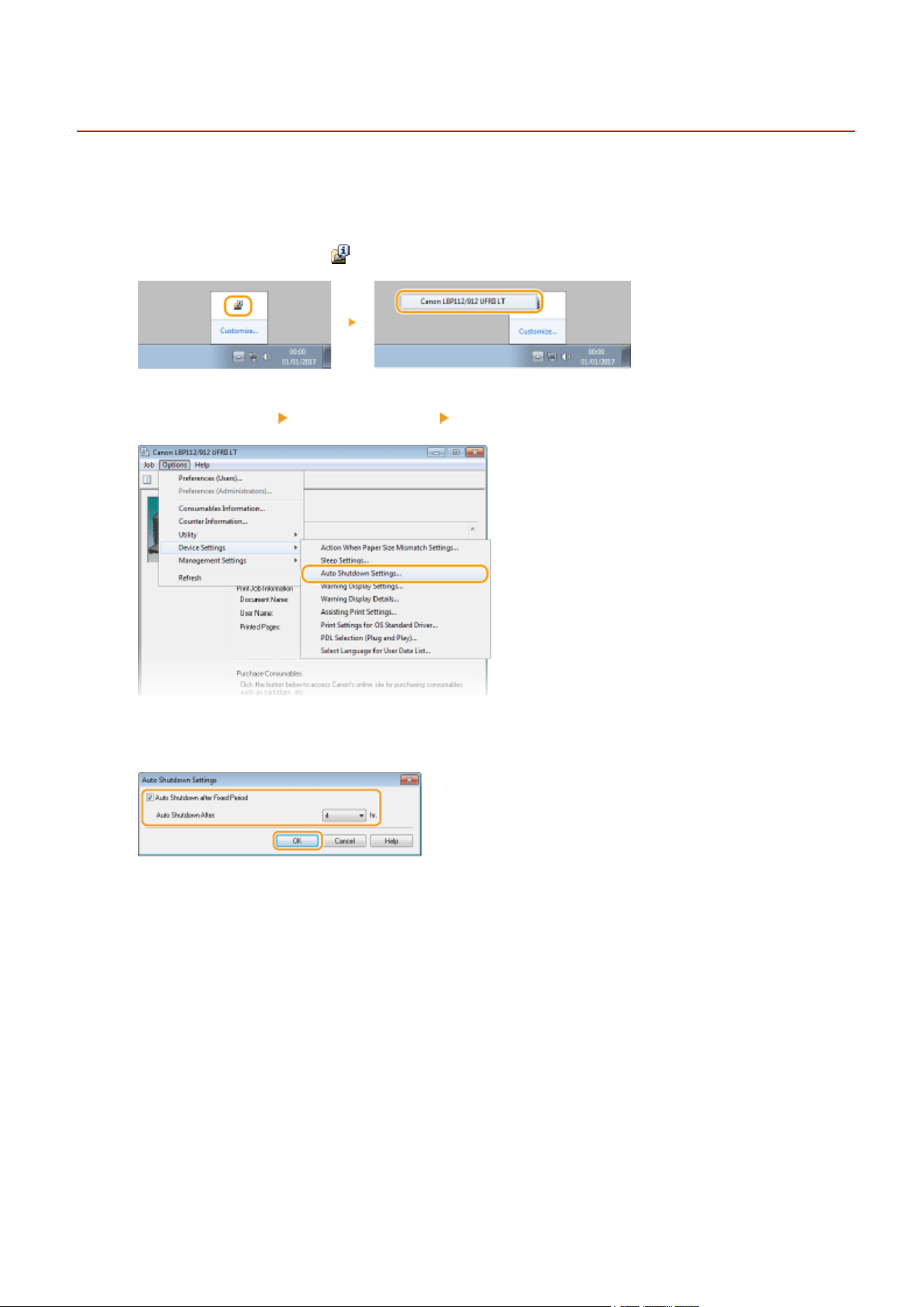
Setting Auto Shutdown
2754-010
Set a timer to automatically shut down the machine after the specied period of idle time has elapsed since the
machine enter
ed the sleep mode.
1
Select the machine by
in the system tray.
2
Select [Options] [Device Settings] [Auto Shutdown Settings].
3
Make auto shutdown settings, and click [OK].
[Auto Shutdown after Fixed Period]
Select the check box to enable auto shutdown after the time specied with [Auto Shutdown After].
[Auto Shutdown After]
Specify the length of time until the machine executes auto shutdown, starting from the time when the
machine enters sleep mode. You can select from 1 hour to 8 hours, in units of 1 hour.
Basic Operations
41

Printing
Printing .................................................................................................................................................................. 43
Printing fr
om a Computer ................................................................................................................................... 44
Canceling Prints .............................................................................................................................................. 46
Checking the Printing Status .......................................................................................................................... 49
Printing
42
Printing from a Computer
2754-012
You can print a document made with an application on your computer by using the printer driver. Ther
e are useful
settings on the printer driver, such as enlarging/reducing, that enable you to print your documents in various ways.
Before you can use this function, you need to complete some procedures, such as installing the printer driver on your
computer. For more information, see the manuals for the relevant drivers on the online manual website.
About the Printer Driver Help(P. 44)
Basic Printing Operations(P. 44)
About the Printer Driver Help
Clicking [Help] on the printer driver screen displays the Help scr
een. On this screen, you can see the detailed
descriptions that are not in the User's Guide.
Basic Printing Operations
This section describes how to print a document on your computer by using the printer driver.
Paper settings on the machine
● Normally
, it is necessary to specify the paper size and type for the paper loaded in the drawer befor
e
proceeding to printing.
1
Open a document in an application and display the print dialog box.
2
Select the printer driver for this machine, and click [Preferences] or [Properties].
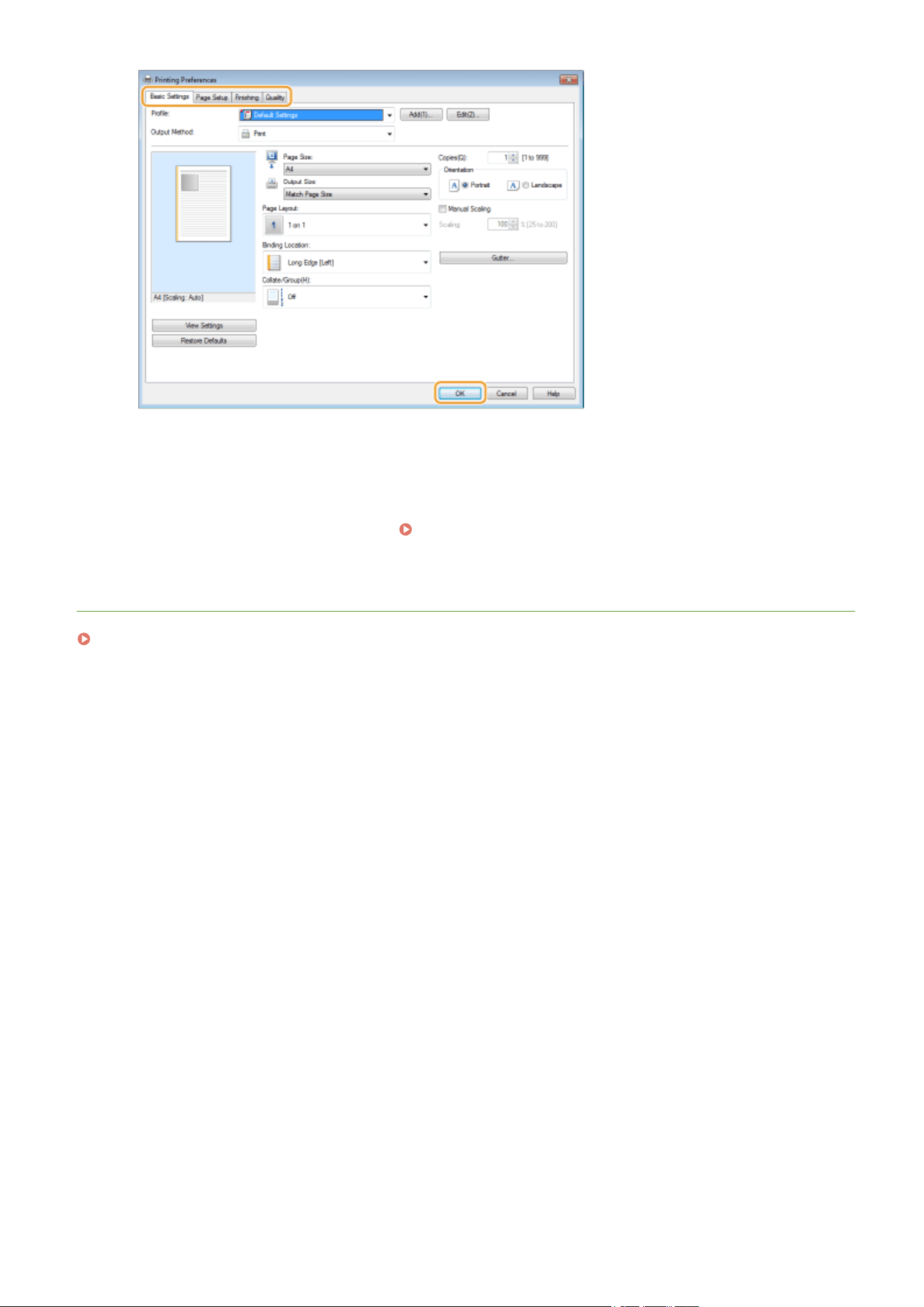
3
Specify the print settings as necessary, and click [OK].
● Switch the tab accor
ding to the settings.
Printing
44
Canceling Prints
2754-013
You can cancel printing fr
om your computer or the Cancel Job key of the machine.
From a Computer(P. 46)
From the Cancel Job key(P. 47)
From a Computer
You can cancel printing from the Printer Status Window.
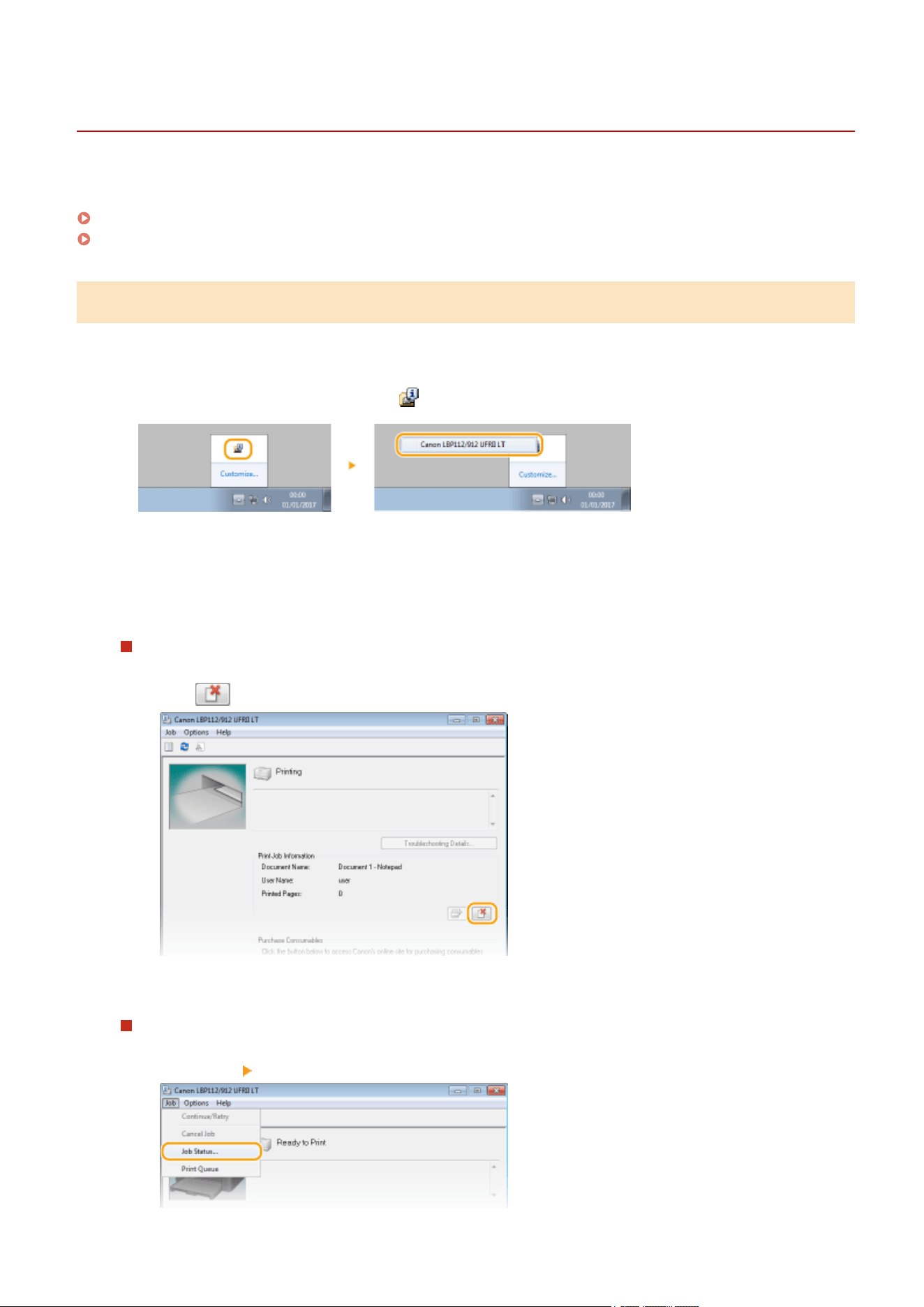
1
Select the machine by clicking
in the system tray.
➠ The Printer Status Window is displayed.
2
Cancel the print job.
To cancel a print job that is currently printing
1
Click
.
➠ Printing of the current document is canceled.
To cancel a print job that is waiting
1
Select [Job] [Job Status].
Printing
46
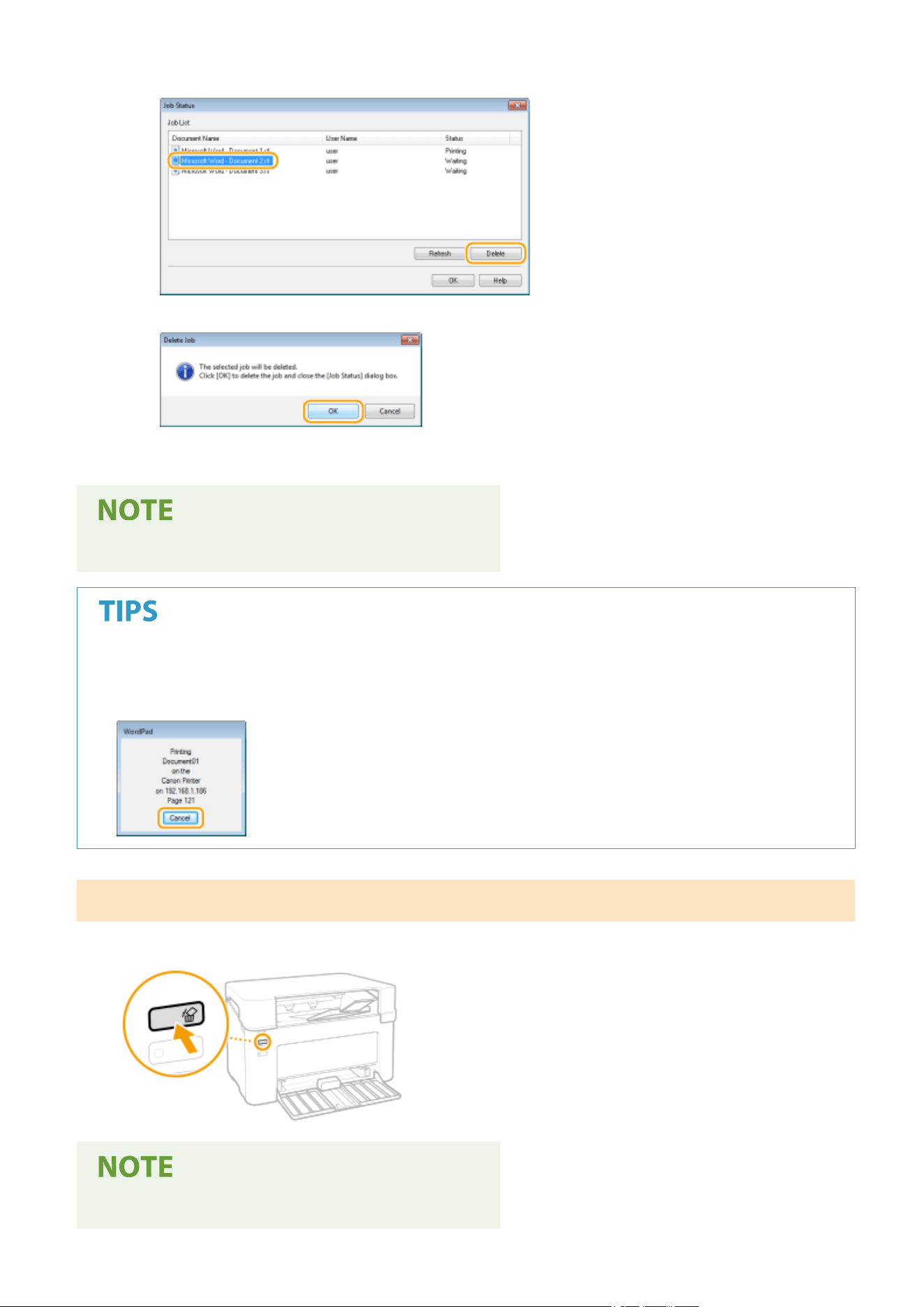
2
Select the document that you want to cancel, and click [Delete].
3
Click [OK].
➠ Printing of the selected document is canceled.
● Several pages may be output after you cancel printing.
Canceling from an application
● On some applications, a screen lik
e shown below appears. You can cancel printing by clicking [Cancel].
From the Cancel Job key
Cancel printing using the Cancel Job k
e
y.
● Several pages may be output after you cancel printing.
Printing
47

Checking the Printing Status
2754-014
You can check the curr
ent print statuses.
Useful in the Following Cases
● When your documents ar
e not printed for a long time, you may want to see the waiting list of the
documents waiting to be printed.
1
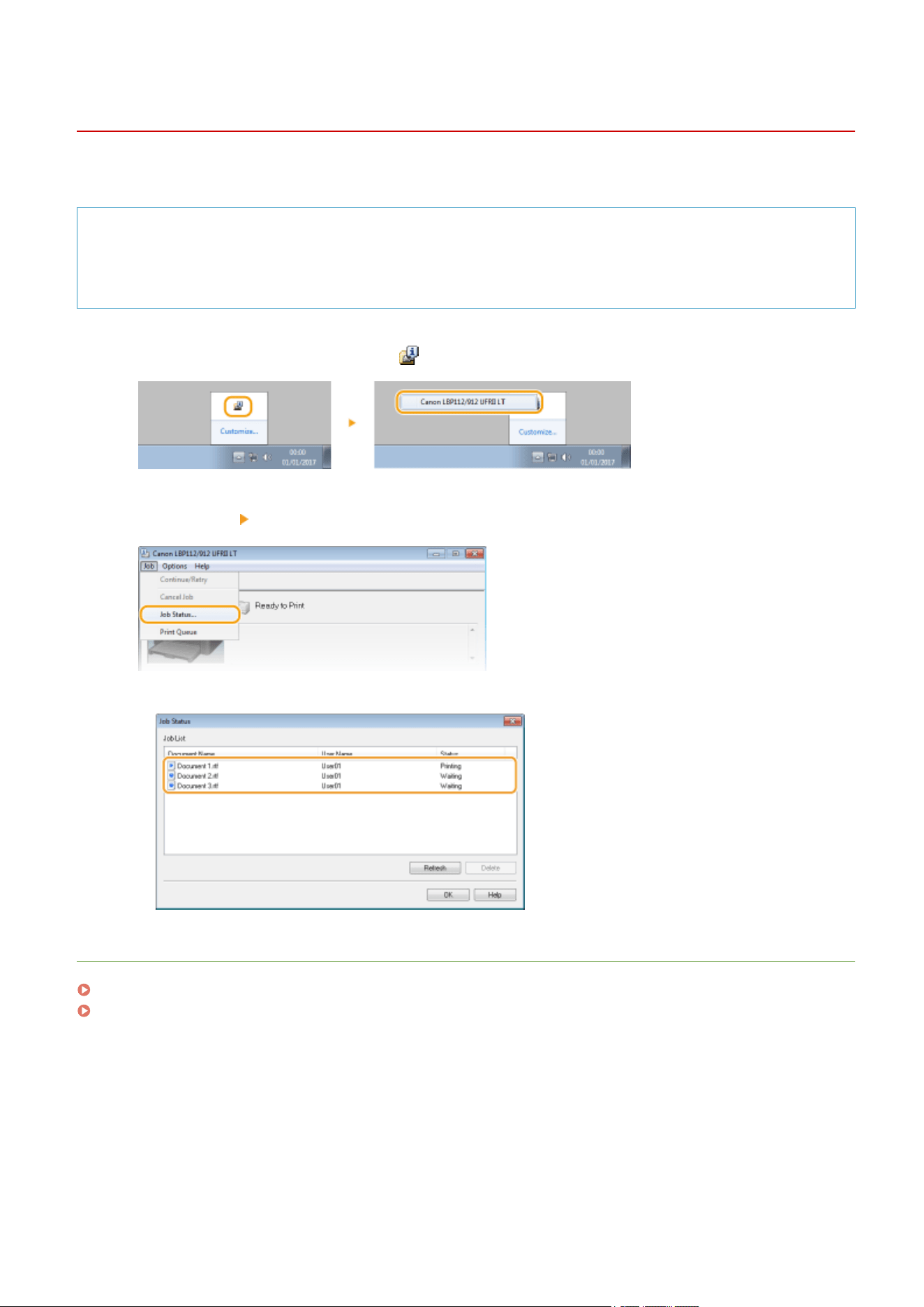
Select the machine by clicking in the system tray.
2
Select [Job] [Job Status].
➠ A list of documents appears, showing documents that ar
e being printed or waiting to be printed.
LINKS
Basic Printing Operations(P. 44)
Canceling Prints(P. 46)
Printing
49

Managing the Machine
Managing the Machine ................................................................................................................................. 51
Updating the Firmwar
e ....................................................................................................................................... 52
Managing the Machine
50


Updating the Firmware
2754-015
You can access the latest rmwar
e version on the Internet from a computer and perform the update from the
computer if the version currently installed in the machine is not the latest.
When you have downloaded the latest rmware version from the Canon website, use "User Support Tool" utility
software to update the rmware from a computer. For how to perform rmware update from a computer, see the
"User Support Tool Operation Guide" included with the rmware.
Checking the rmware
version
● You can check the rmware version on the User Data List. After completion of the rmwar
e update
operation, make sure that the update was performed correctly.
Printing Lists of Settings(P. 74)
To Put the Machine into a Firmware Update Waiting State
Display the Printer Status Window ( Displaying the Printer Status Window(P. 27) )
[Options] [Utility] [Enter/Cancel Firmware Update Mode] [OK]
Managing the Machine
52

Maintenance
Maintenance .......................................................................................................................................................
54
Regular Cleaning ................................................................................................................................................. 56
Cleaning the Exterior ...................................................................................................................................... 57
Cleaning the Fixing Assembly ......................................................................................................................... 58
Replacing the Toner Cartridge ............................................................................................................................ 59
Replacing the Drum Cartridge ............................................................................................................................ 64
Checking the Remaining Amount of Consumables ........................................................................................... 69
Relocating the Machine ...................................................................................................................................... 71
Viewing the Counter Value ................................................................................................................................. 73
Printing Lists of Settings ..................................................................................................................................... 74
Consumables ....................................................................................................................................................... 75
Maintenance
53
Maintenance
2754-016
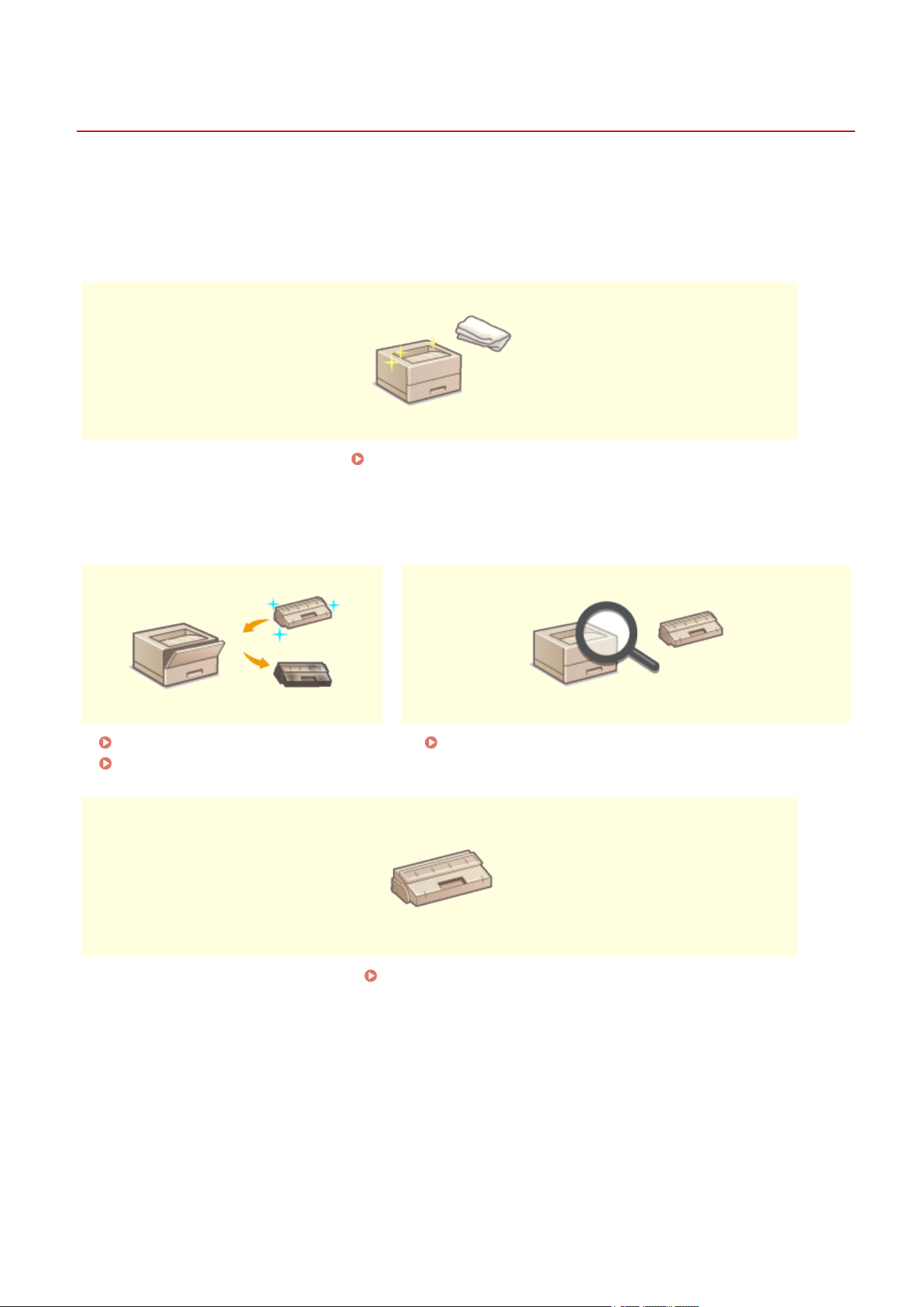
This chapter describes upkeep of the machine, including ho
w to clean the machine and adjustment of print quality.
◼ Basic Cleaning
Regular Cleaning(P. 56)
◼ Replacing Consumables
Replacing the Toner Cartridge(P. 59)
Replacing the Drum Cartridge(P. 64)
Checking the Remaining Amount of Consumables(P. 69)
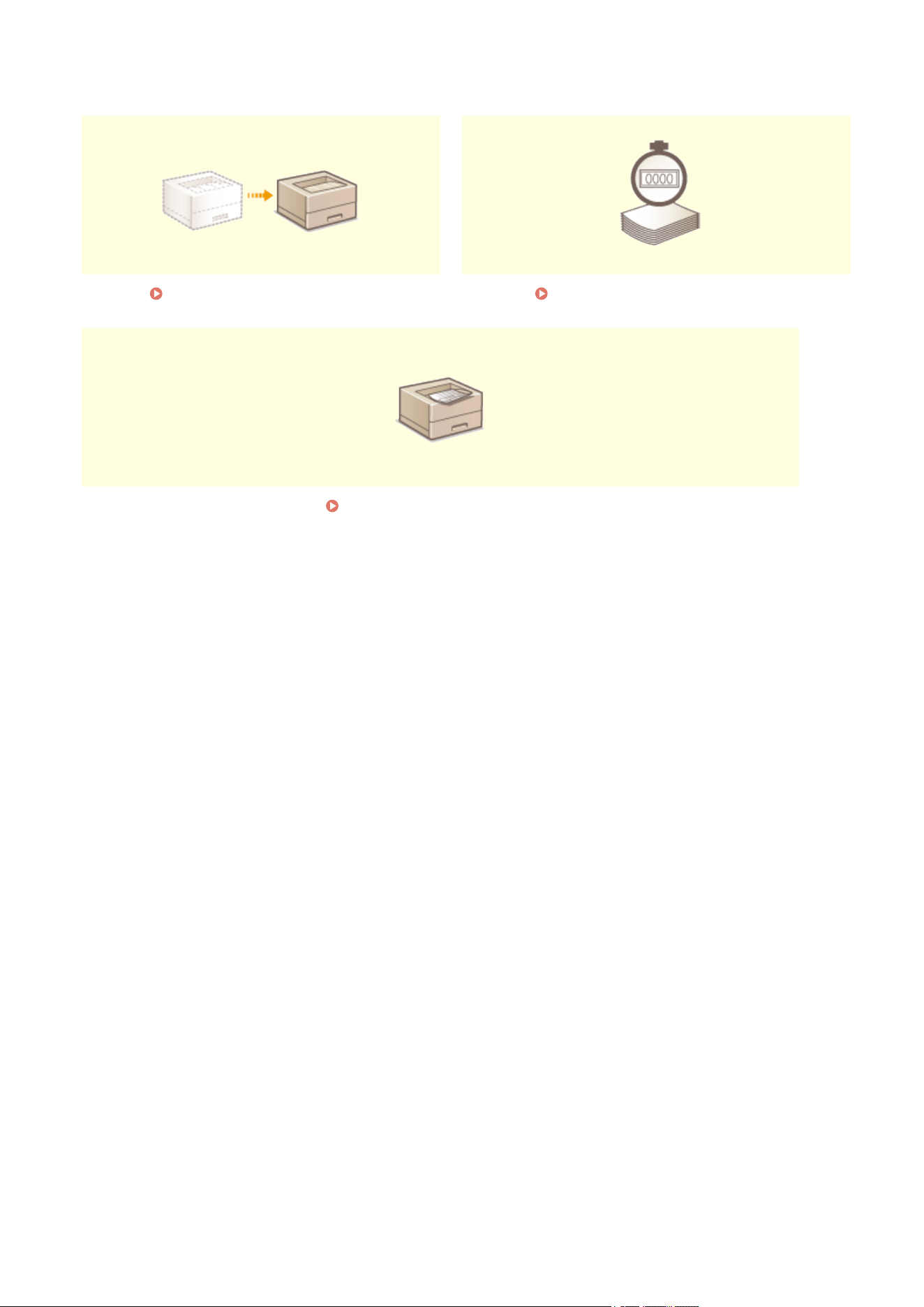
Consumables(P. 75)
Maintenance
54

Regular Cleaning
2754-017
Regularly clean the machine to pre
vent deterioration in printing quality and to ensure that you use it safely and easily.
Where to Clean
Exterior of the machine and ventilation slots
Cleaning the Exterior(P. 57)
Internal xing assembly
Cleaning the Fixing Assembly(P. 58)
Maintenance
56
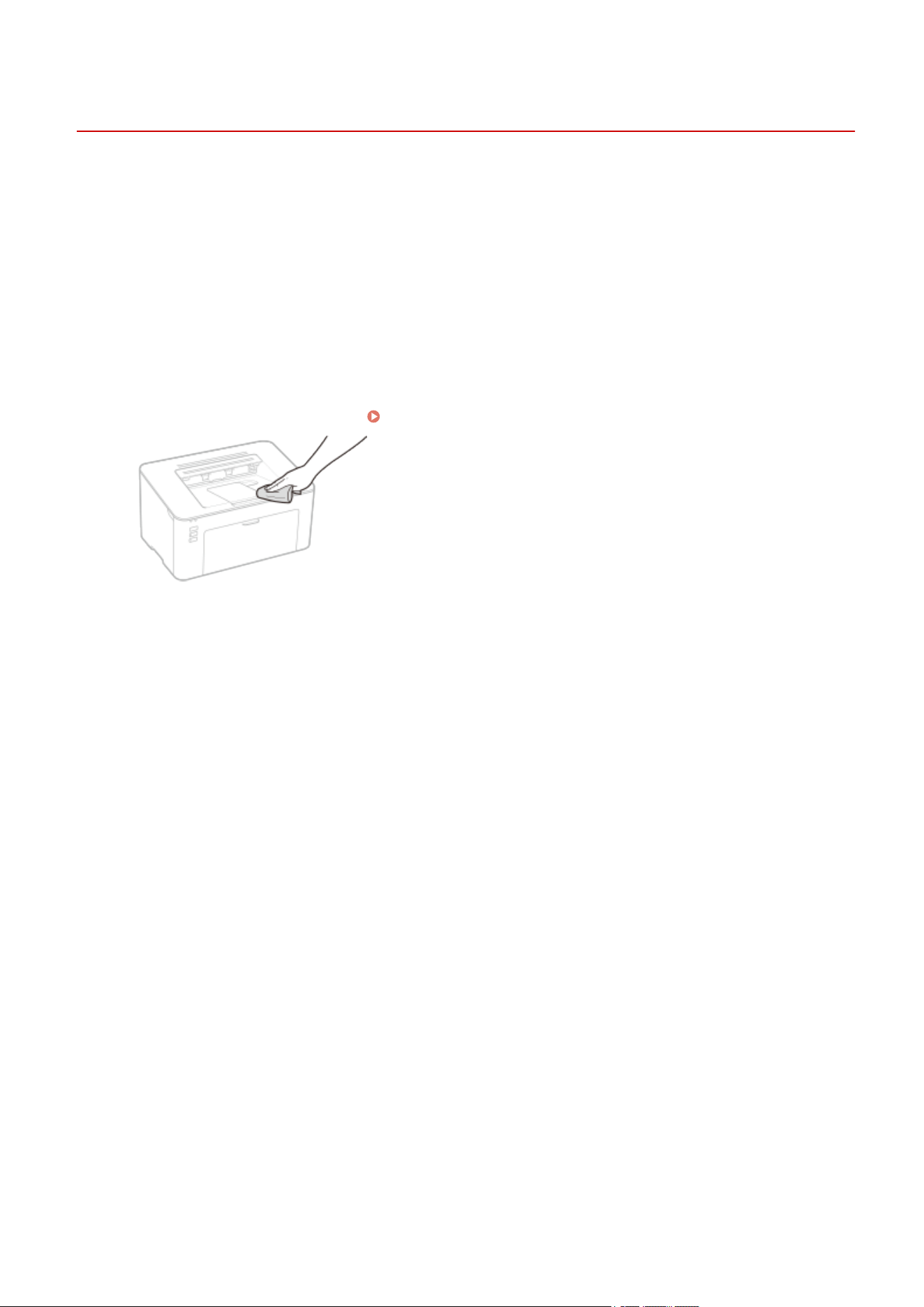
Cleaning the Exterior
2754-018
Regularly wipe the exterior of the machine, especially ar
ound the ventilation slots, to keep the machine in good
condition.
1
Turn OFF the machine, and unplug the power cord from the AC power outlet.
● When you turn OFF the machine, data that is waiting to be printed is deleted.
2
Clean the exterior of the machine and the ventilation slots.
● Use a soft, well-wrung-out cloth dampened with water or a mild deter
gent diluted with water.
● T
o locate the ventilation slots, see
Front Side(P. 23) .
3
Wait for the exterior of machine to dry completely.
4
Reconnect the power cord and turn ON the machine.
Maintenance
57
Cleaning the Fixing Assembly
2754-019
Dirt may adhere to the xing assembly inside the machine and cause black str
eaks to appear on printouts. To clean
the xing assembly, perform the following procedure. Note that you cannot clean the xing assembly when the
machine has documents waiting to be printed. To clean the xing assembly, you need plain A4 size paper. Set the
paper in the drawer before performing the following procedure.
Loading Paper(P. 32)
● Cleaning consumes the toner cartridge and the drum cartridge. Make sur
e that there is sucient amount
remaining in the toner cartridge and the drum cartridge beforehand.
Checking the Remaining Amount
of Consumables(P
. 69)
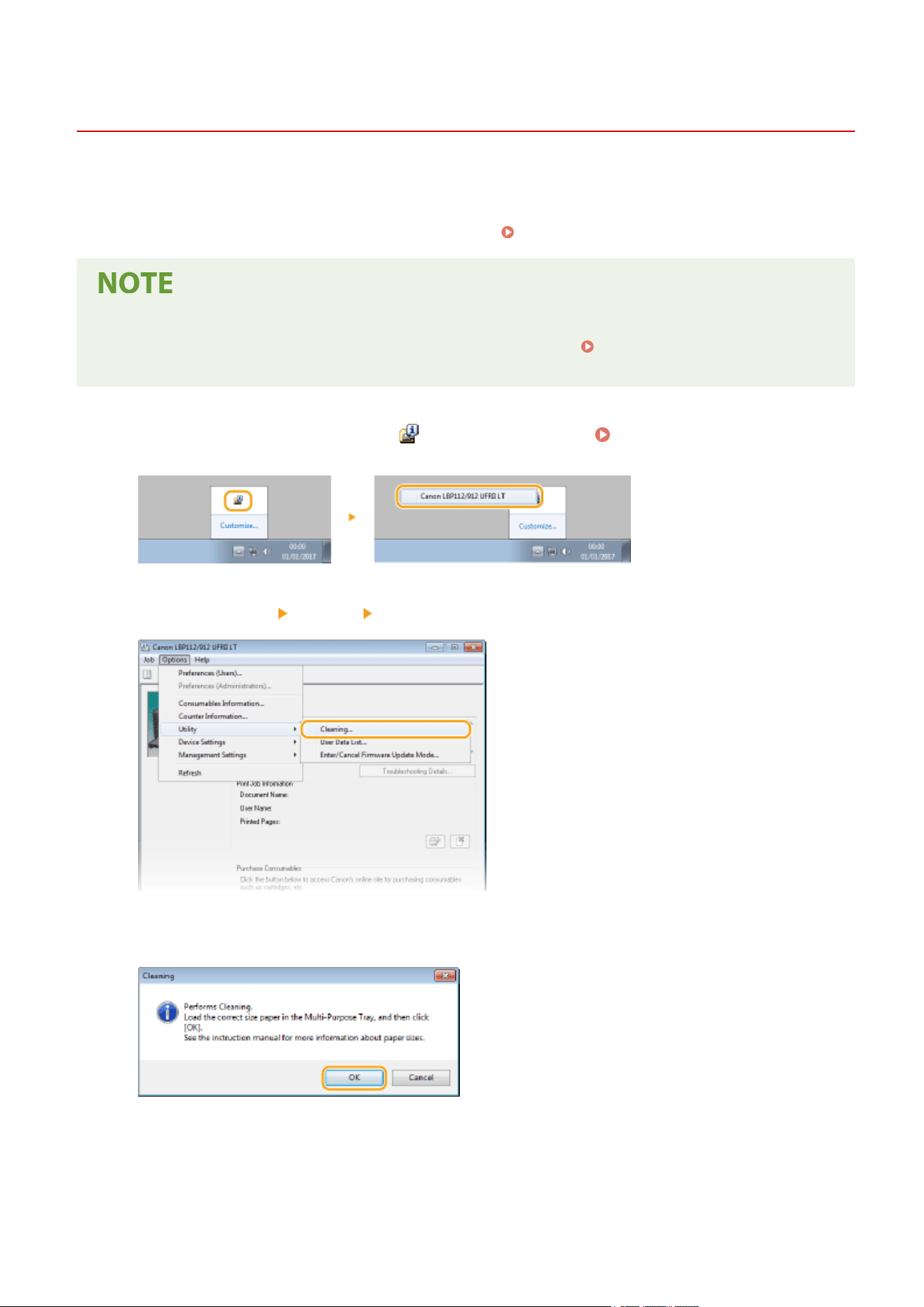
1
Select the machine by clicking
in the system tray. Displaying the Printer Status
Window(P
. 27)
2
Select [Options]
[Utility] [Cleaning].
3
Click [OK].
➠ Cleaning starts.
Maintenance
58
Replacing the Toner Cartridge
2754-01A
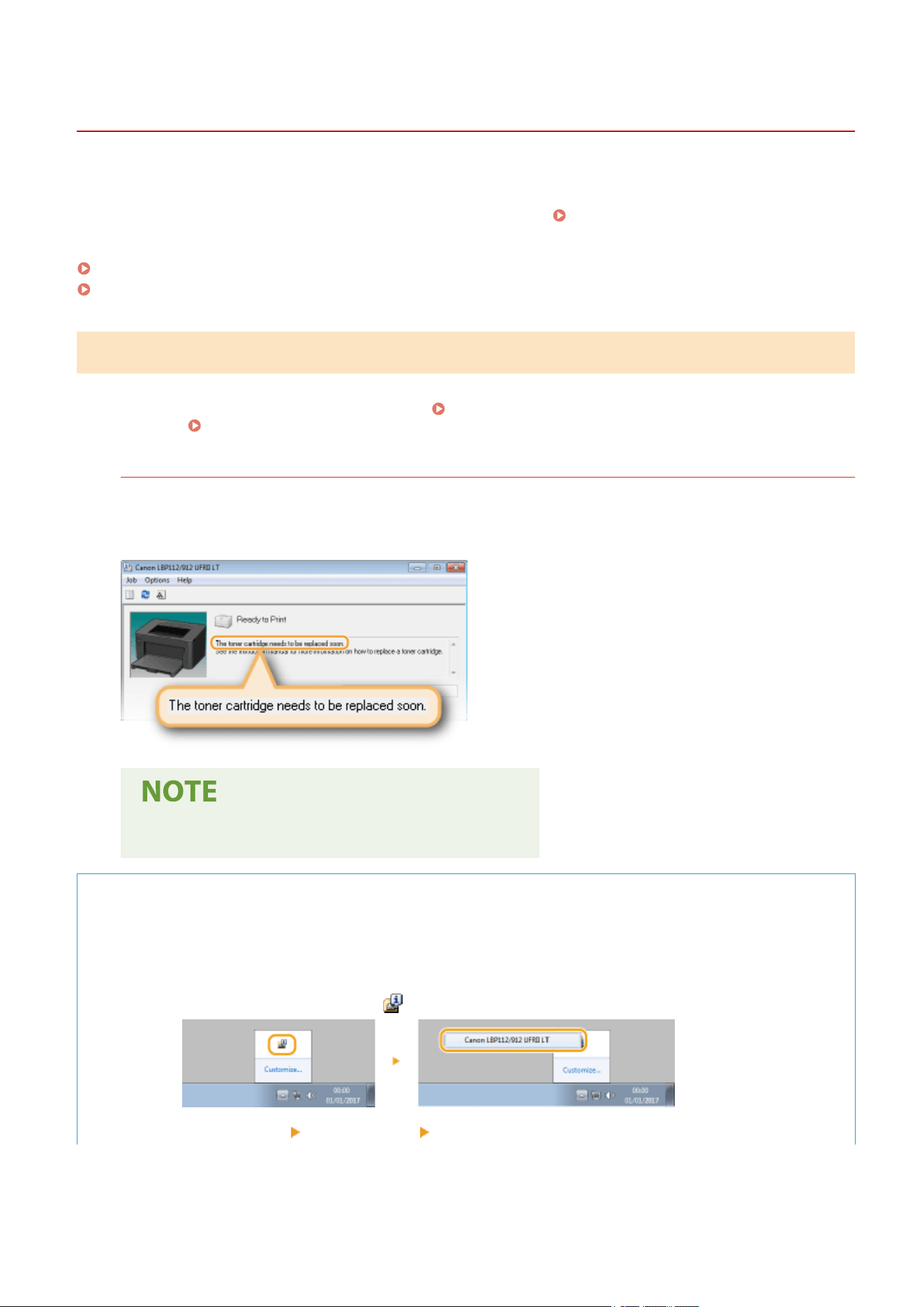
The machine displays a message in the Printer Status Window when the amount r
emaining in the toner cartridge is
low. Note that the print quality may suffer if you continue printing without resolving this issue. You can check the
amount remaining in the toner cartridges in the Printer Status Window (
Checking the Remaining Amount of
Consumables(P
. 69) ).
When a Message Appear(P. 59)
Procedure for Replacing the Toner Cartridge(P. 61)
When a Message Appear
The message that is displayed depends on the amount remaining in the toner cartridges. Depending on which
message is displayed, prepare a new toner cartridge ( Consumables(P. 75) ) or replace the curr
ent toner cartridge
with a new one (
Procedure for Replacing the Toner Cartridge(P. 61) ).
[The toner cartridge needs to be replaced soon.]
This message noties you that the toner cartridge needs to be replaced soon. Mak
e sure that you have a
replacement toner cartridge ready. Replace the toner cartridge if you see this message before you start to print
a large job.
When this message is displayed
● When printing, you can continue printing the original.
Specifying When This Message Is Displayed
You can set any value as the percentage of the amount remaining in the toner cartridge that triggers this
message.
1
Select the machine by clicking
in the system tray.
2
Select [Options]
[Device Settings] [Warning Display Details].
Maintenance
59

3
In [Toner] under [Amount Remaining in the Cartridge to Display Warning], specify the amount
remaining in the toner cartridge to display the message, then click [OK].
If you are using a toner cartridge that is not a Canon product or the amount remaining in the toner
cartridge cannot be detected correctly
, it is possible that no message will be displayed.
Disabling Message Display
You can disable display of the message [The toner cartridge needs to be replaced soon.] b
y doing
as follows: Select Printer Status Window's [Options] menu
[Device Settings] Clear the [Display
Cartridge Replacement Notice] check box in the [W
arning Display Settings] dialog box.
[The toner cartridge has reached the end of its lifetime.]
This message noties you that the toner cartridge has reached the end of its lifetime. It is r
ecommended that
you replace the toner cartridge with a new one. You can continue printing, but the print quality cannot be
guaranteed.
Maintenance
60
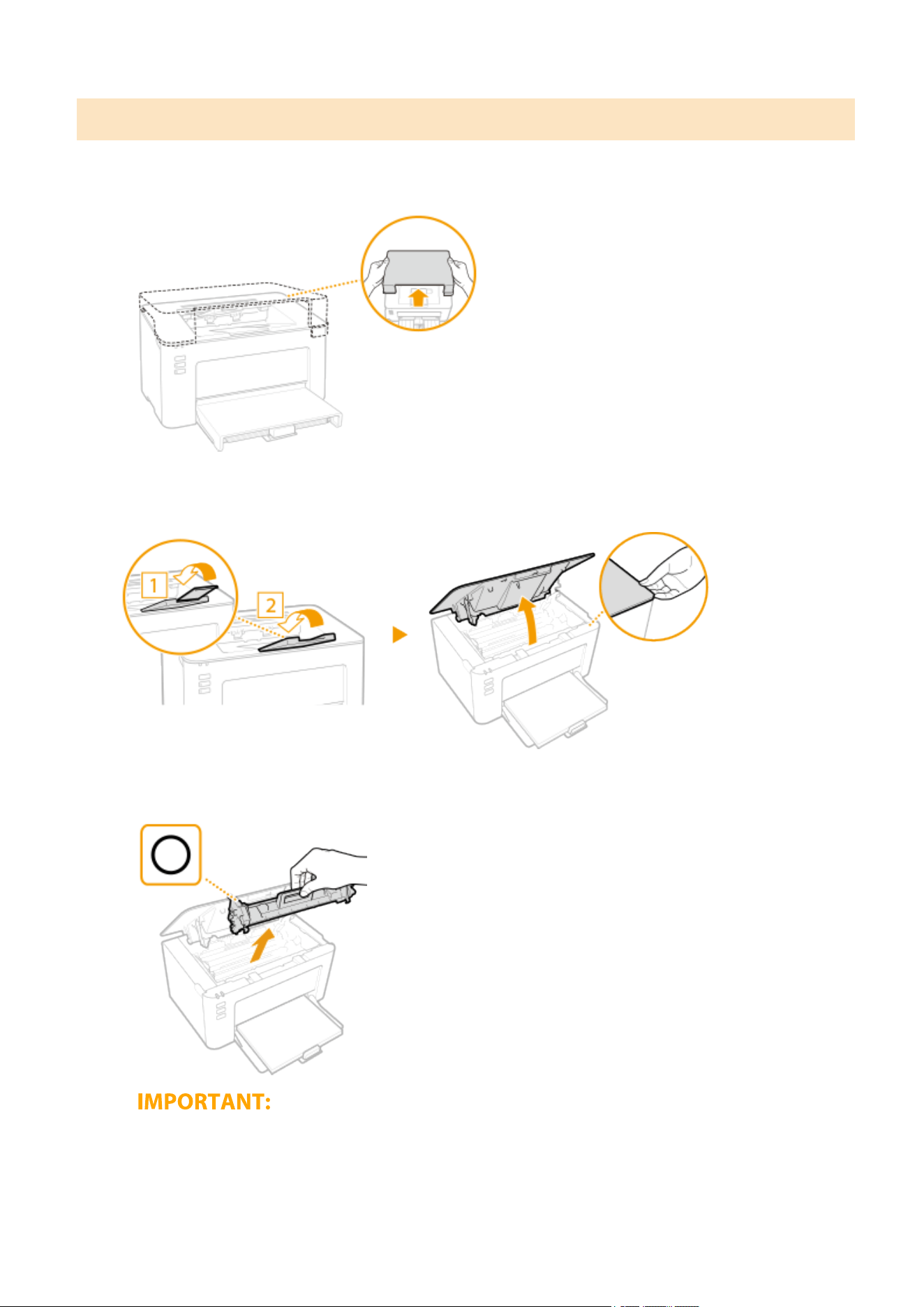
Procedure for Replacing the Toner Cartridge
1
Remove the output cover.
2
Close the paper stopper, and then open the toner cover.
3
Remove the toner cartridge.
Do not shake or tilt the toner cartridge. Also, make sure to avoid applying shocks to the toner cartridge, such
as b
y hitting it against something. Doing so may cause the toner left in the toner cartridge to leak. Remove
the toner cartridge gently at the same angle as the slot.
Maintenance
61
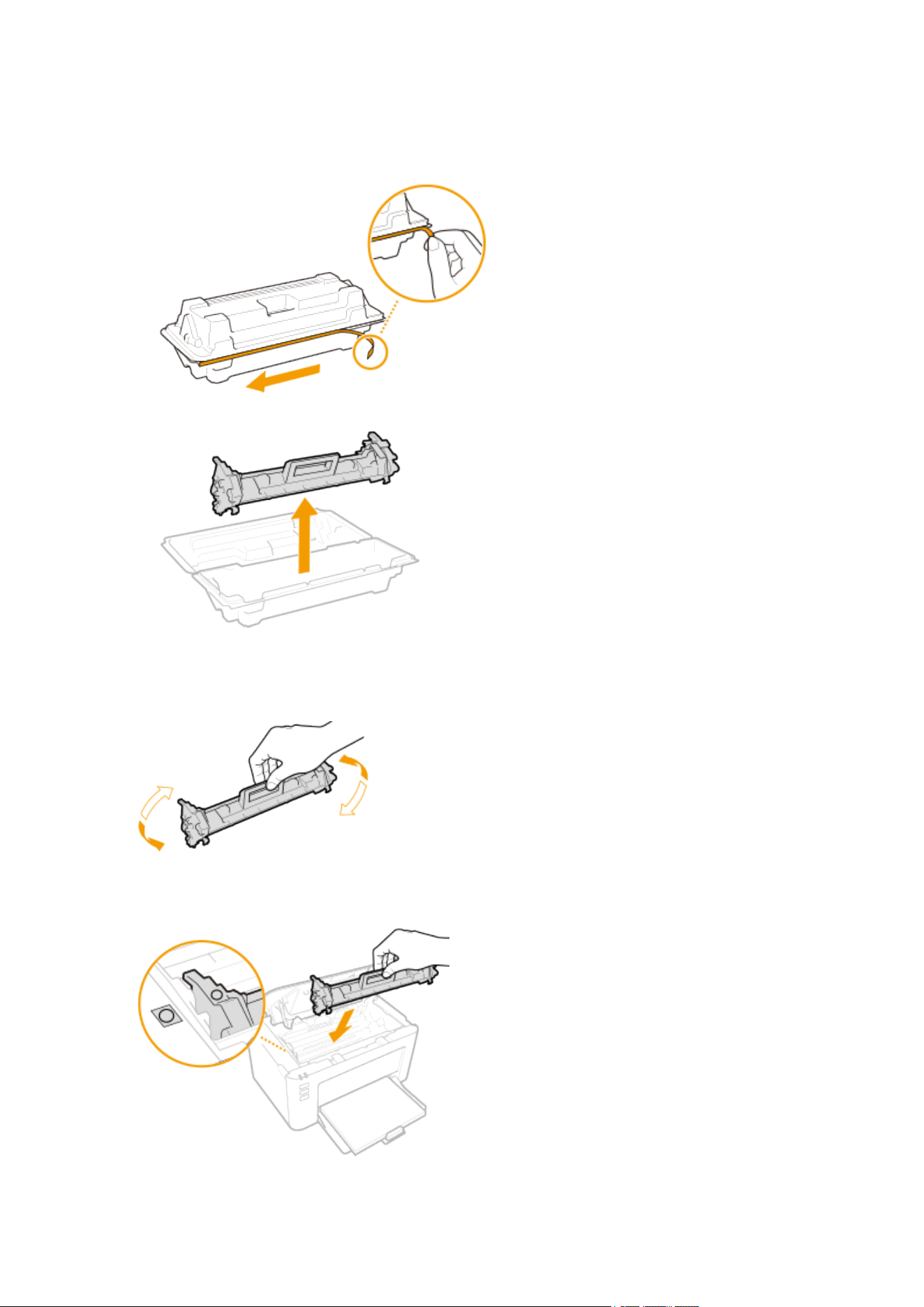
4
Remove the new toner cartridge from the protective package.
1
Pull the tab of the protective package on a at place.
2
Pull out the toner cartridge.
5
Shake the toner cartridge 5 or 6 times as shown below to evenly distribute the toner
inside the cartridge, and then place it on a at surface.
6
Replace the toner cartridge.
7
Close the toner cover.
Maintenance
62

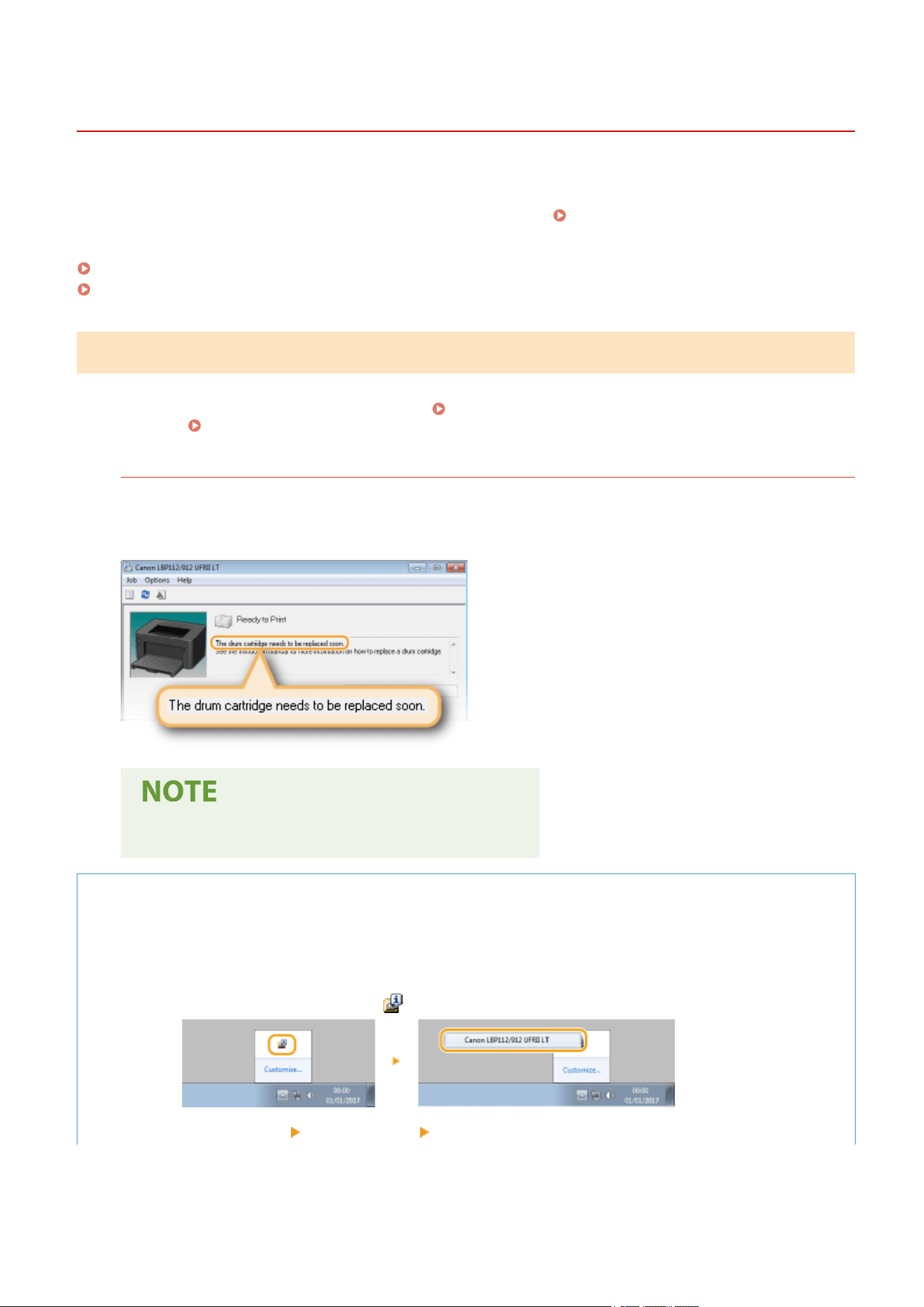
Replacing the Drum Cartridge
2754-01C
The machine displays a message in the Printer Status Window when the amount r
emaining in the drum cartridge is
low. Note that the print quality may suffer if you continue printing without resolving this issue. You can check the
amount remaining in the drum cartridges in the Printer Status Window (
Checking the Remaining Amount of
Consumables(P
. 69) ).
When a Message Appear(P. 64)
Procedure for Replacing the Drum Cartridge(P. 66)
When a Message Appear
The message that is displayed depends on the amount remaining in the drum cartridges. Depending on which
message is displayed, prepare a new drum cartridge ( Consumables(P. 75) ) or replace the curr
ent drum cartridge
with a new one (
Procedure for Replacing the Drum Cartridge(P. 66) ).
[The drum cartridge needs to be replaced soon.]
This message noties you that the drum cartridge needs to be replaced soon. Mak
e sure that you have a
replacement drum cartridge ready. Replace the drum cartridge if you see this message before you start to print
a large job.
When this message is displayed
● When printing, you can continue printing the original.
Specifying When This Message Is Displayed
You can set any value as the percentage of the amount remaining in the drum cartridge that triggers this
message.
1
Select the machine by clicking
in the system tray.
2
Select [Options]
[Device Settings] [Warning Display Details].
Maintenance
64
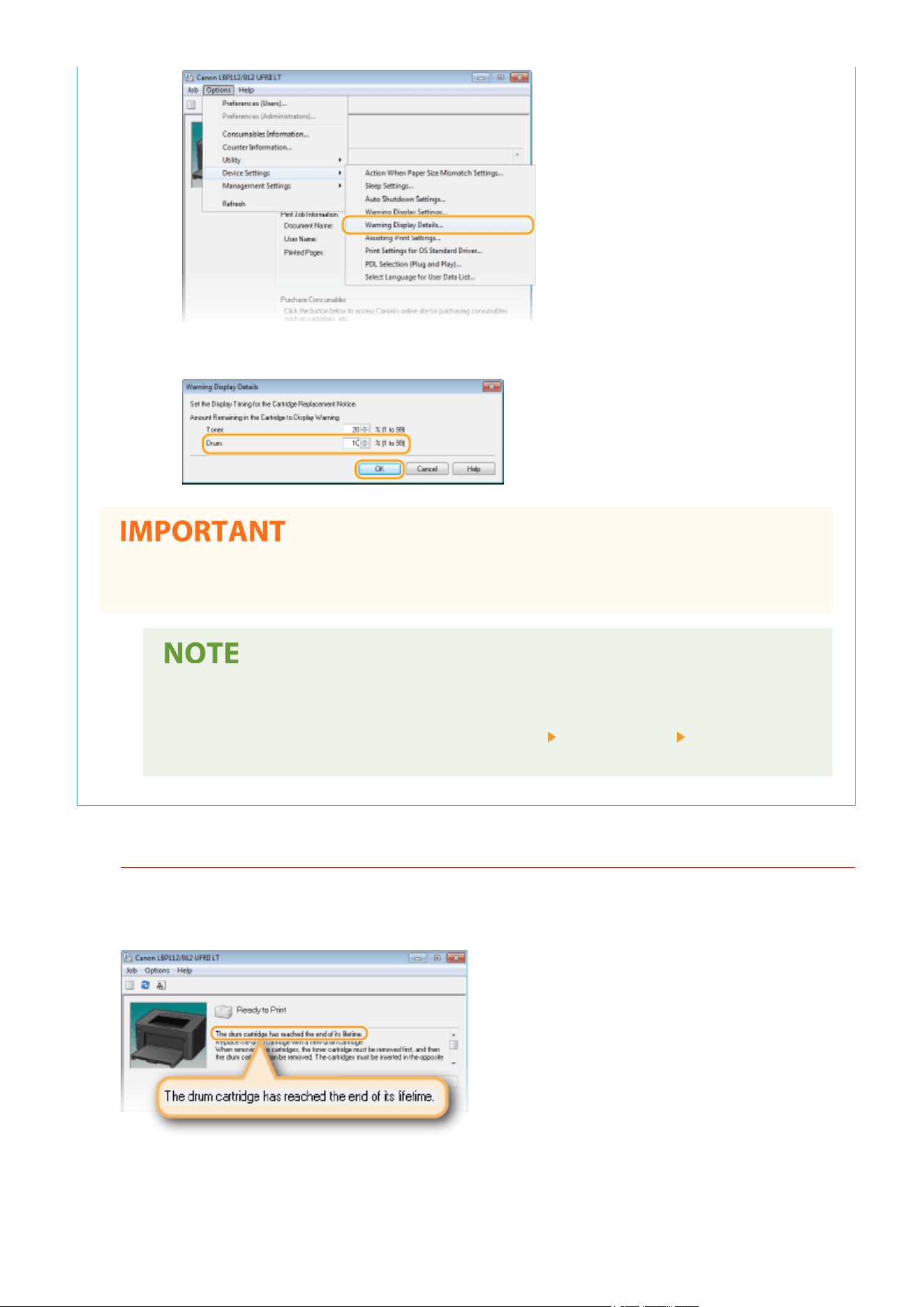
3
In [Drum] under [Amount Remaining in the Cartridge to Display Warning], specify the amount
remaining in the drum cartridge to display the message, then click [OK].
If you are using a drum cartridge that is not a Canon product or the amount remaining in the drum
cartridge cannot be detected correctly
, it is possible that no message will be displayed.
Disabling Message Display
You can disable display of the message [The drum cartridge needs to be replaced soon.] b
y doing
as follows: Select Printer Status Window's [Options] menu
[Device Settings] Clear the [Display
Cartridge Replacement Notice] check box in the [W
arning Display Settings] dialog box.
[The drum cartridge has reached the end of its lifetime.]
This message noties you that the drum cartridge has reached the end of its lifetime. It is r
ecommended that
you replace the drum cartridge with a new one. You can continue printing, but the print quality cannot be
guaranteed.
Maintenance
65
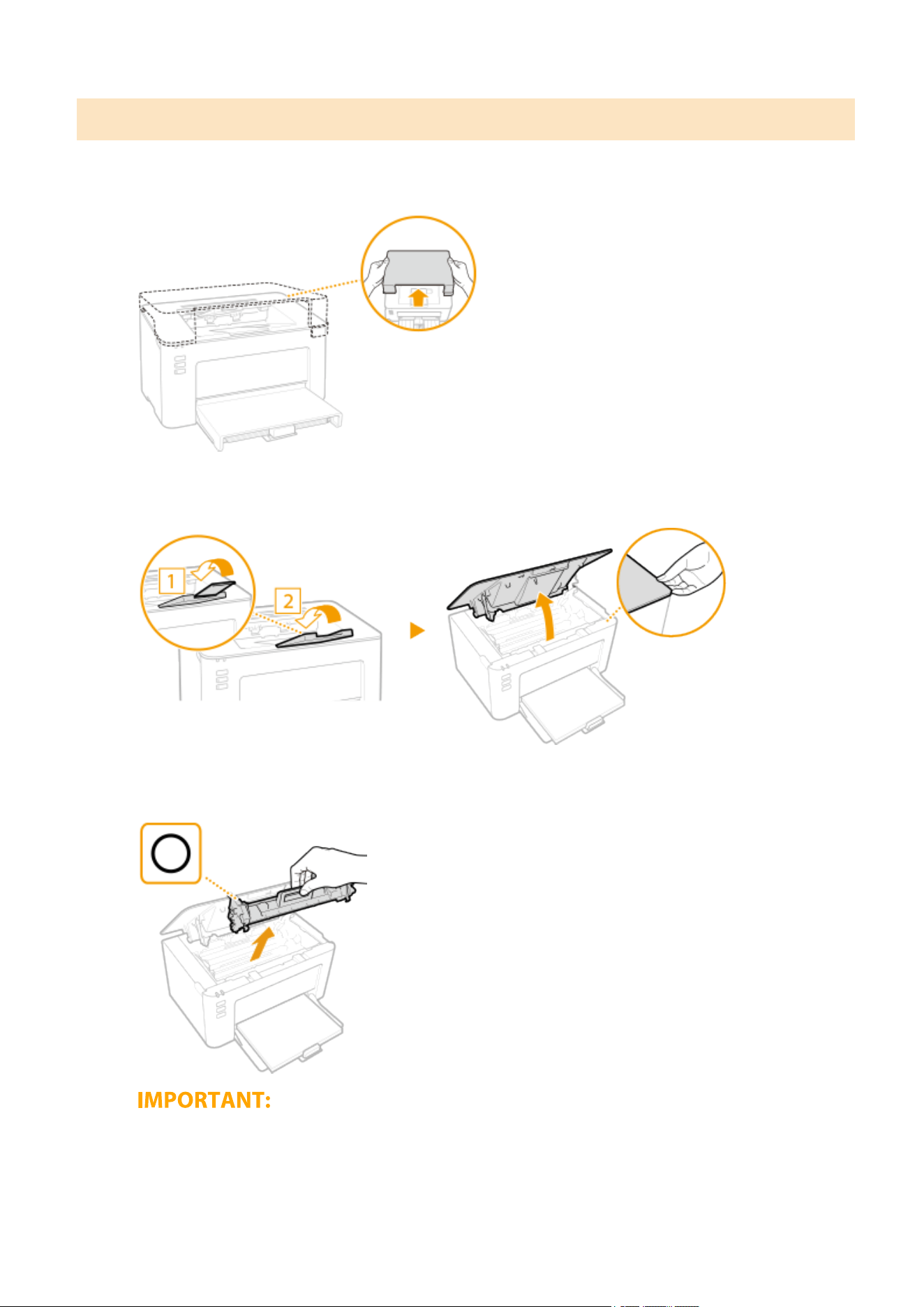
Procedure for Replacing the Drum Cartridge
1
Remove the output cover.
2
Close the paper stopper, and then open the toner cover.
3
Remove the toner cartridge.
Do not shake or tilt the toner cartridge. Also, make sure to avoid applying shocks to the toner cartridge, such
as b
y hitting it against something. Doing so may cause the toner left in the toner cartridge to leak. Remove
the toner cartridge gently at the same angle as the slot.
Maintenance
66
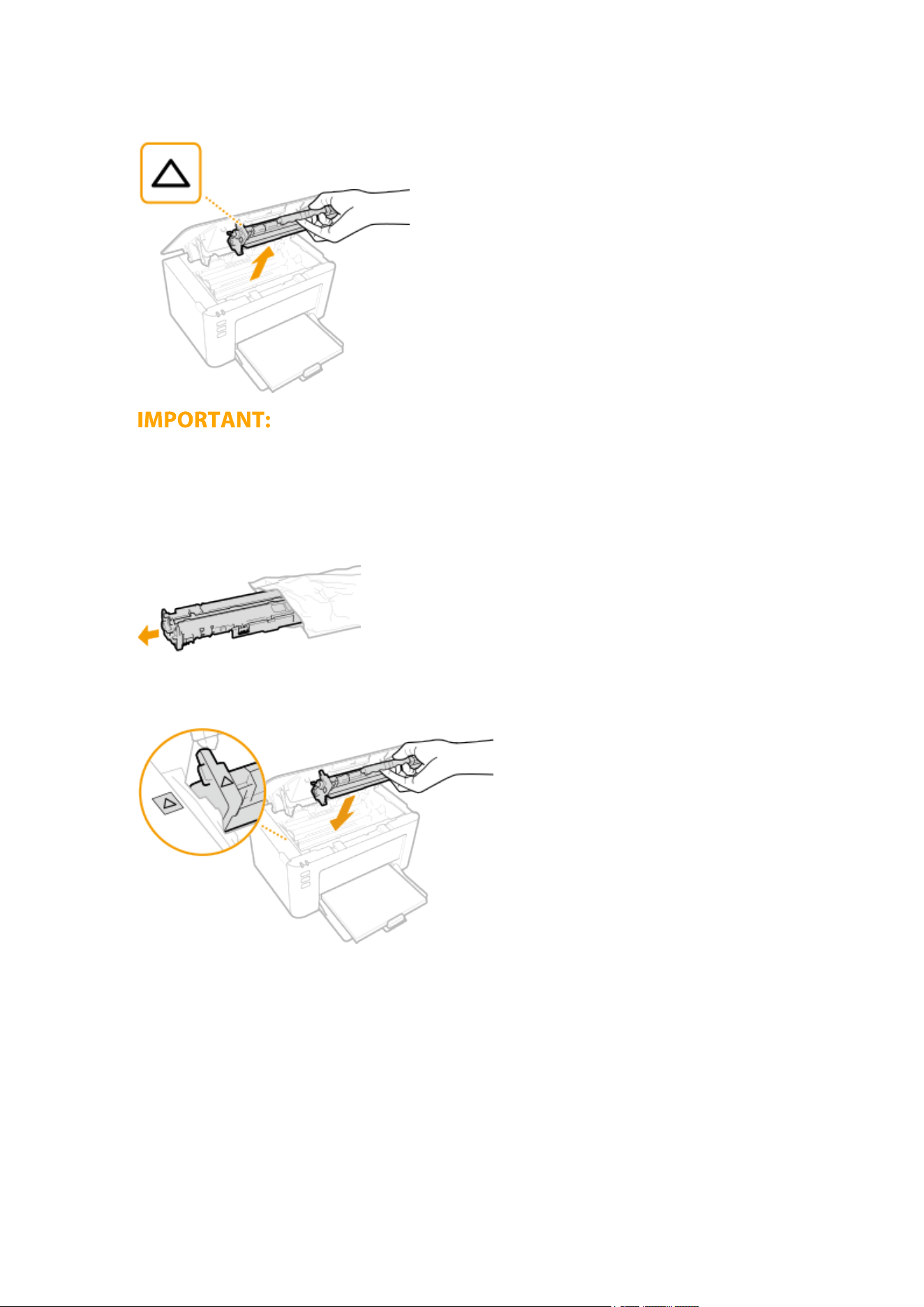
4
Remove the drum cartridge.
Do not shake or tilt the drum cartridge. Also, make sure to avoid applying shocks to the drum cartridge, such
as by hitting it against something. Doing so may cause the toner left in the drum cartridge to leak. Remove
the drum cartridge gently at the same angle as the slot.
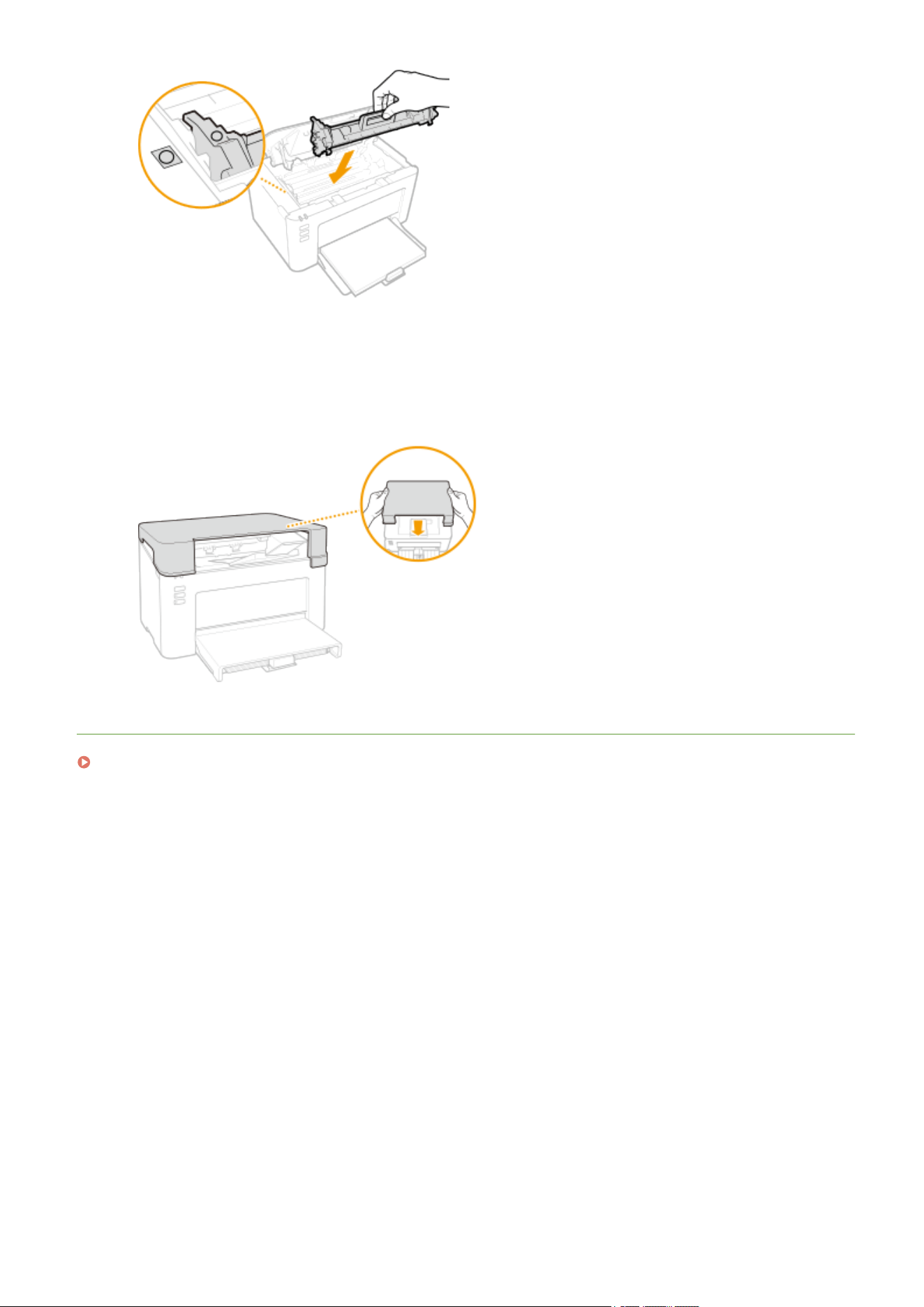
5
Remove the new drum cartridge from the protective bag.
6
Replace the drum cartridge.
7
Insert the toner cartridge.
Maintenance
67
Checking the Remaining Amount of Consumables
2754-01E
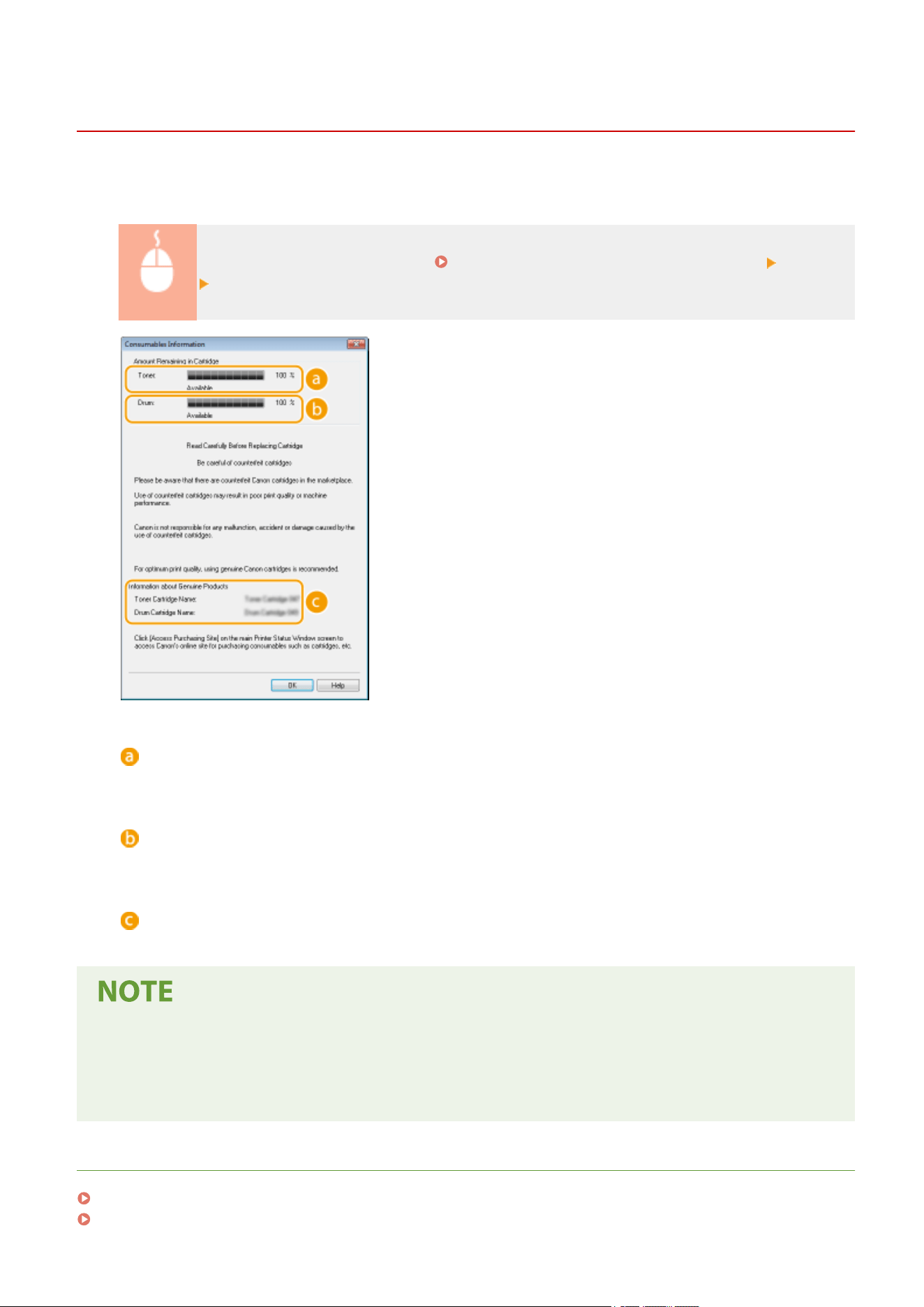
Use the procedur
e below to check the amount remaining in the toner cartridges, etc. It is particularly important to
check whether you need to have a new toner cartridge or a new drum cartridge ready before starting a large print job.
Display the Printer Status Window ( Displaying the Printer Status Window(P. 27) ) [Options]
[Consumables Information]
Amount Remaining in Toner Cartridge
Displays the amount remaining in the toner cartridges.
Amount Remaining in Drum Cartridge
Displays the amount r
emaining in the drum cartridges.
Information about Genuine Products
Displays the model numbers of the toner cartridge and the drum cartridge for the machine.
● The displayed amount remaining in the toner cartridge or the drum cartridge can be used only as a guide
and may differ fr
om the actual amount.
● Other internal parts may reach the end of their lifetime before the amount remaining in the toner cartridge
or the drum cartridge reaches its lifetime.
LINKS
Replacing the Toner Cartridge(P. 59)
Replacing the Drum Cartridge(P. 64)
Maintenance
69

Relocating the Machine
2754-01F
The machine is heavy. Mak
e sure to follow the procedure below when moving the machine to avoid injury, and also
make sure to read the safety precautions before you begin.
Important Safety Instructions(P. 2)
1
Turn OFF the machine and computer.
● When you turn OFF the machine, data that is waiting to be printed is deleted.
2
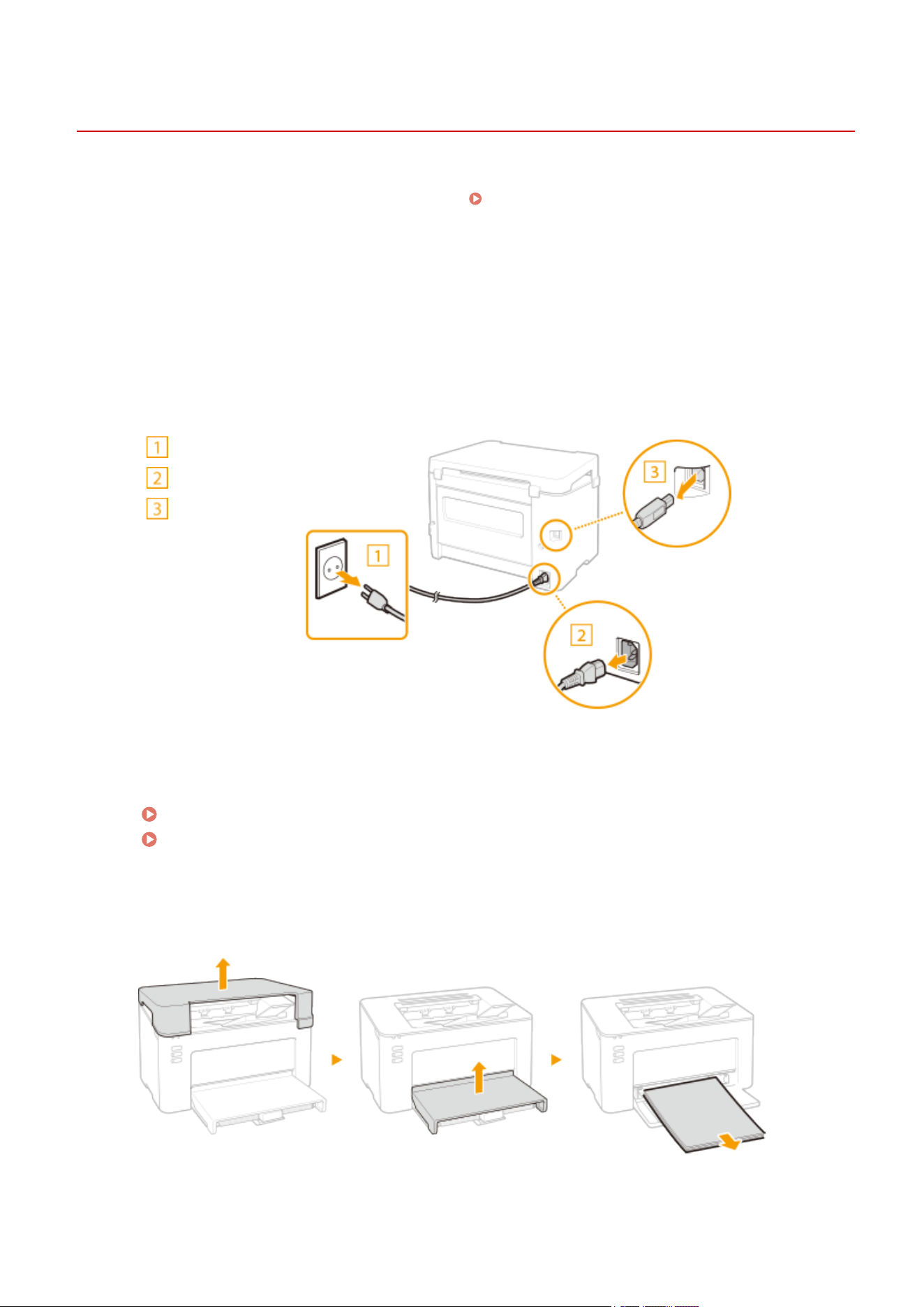
Disconnect the cables and cord from the machine in numerical order as in the
illustr
ation belo
w.
Power plug
Power cord
USB cable
3
When transporting the machine across a long distance, remove the toner cartridge
and the drum cartridge.
Procedure for Replacing the Toner Cartridge(P. 61)
Procedure for Replacing the Drum Cartridge(P. 66)
4
Remove the paper cover, output cover and any paper.
● If the paper guides are e
xtended, return them so that they t in the drawer.
Maintenance
71

5
Close the drawer, paper stopper, and all similar parts, and then move the machine to
a ne
w location.
● Check how heavy the machine is and carry it without str
aining.
Main Unit(P. 120)
Hold the lift handles, and lift up the machine.
6
Carefully place the machine at the new installation site.
● For information about how to install the machine after r
elocating it, see "Getting Started."
Manuals and
Their Contents(P
. 126)
Maintenance
72
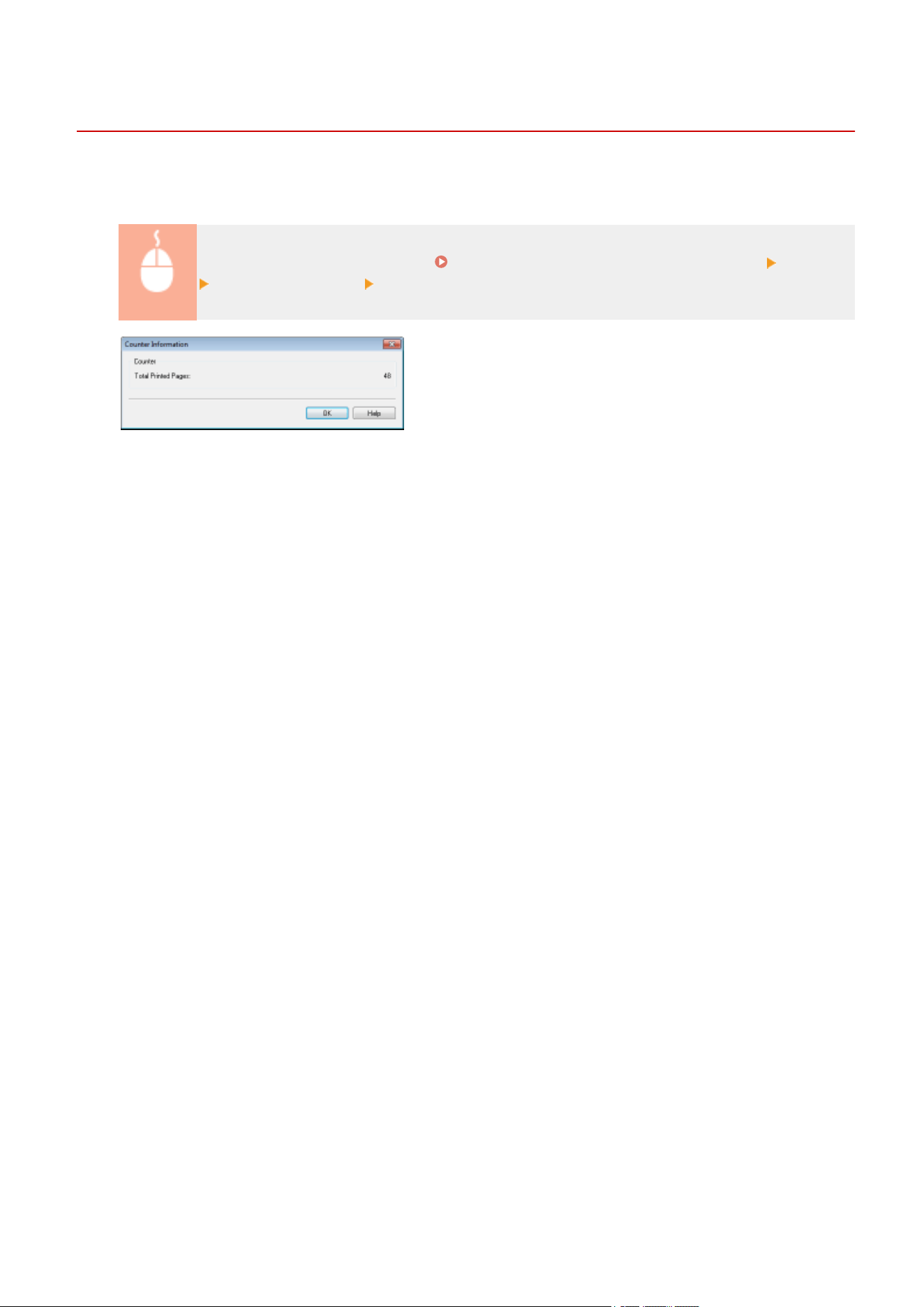
Viewing the Counter Value
2754-01H
You can check total for the number of pages used for printouts. The number of printouts includes printouts of the list
as well as printouts of data fr
om computers.
Display the Printer Status Window ( Displaying the Printer Status Window(P. 27) ) [Options]
[Counter Information] Check the number of pages printed
Maintenance
73

Printing Lists of Settings
2754-01J
You can print information and settings r
egistered in the machine as a list.
User Data List
You can check the list of the settings as well as the content that has been registered in the machine by printing a User
Data List. Before starting, load A4 size paper in the drawer. Loading Paper in the Drawer(P. 34)
Display the Printer Status Window ( Displaying the Printer Status Window(P. 27) ) [Options]
[Utility] [User Data List] [OK]
● You can also use the Paper key to print a User Data List (with the machine ready to print, press the key and
hold it do
wn for 3 seconds).
Setting the language to print in
● In the Printer Status Window's [Options] menu
[Device Settings] [Select Language for User Data List]
dialog bo
x, you can specify the language for printing a User Data List in.
Maintenance
74
Consumables
2754-01K
The following is a guide to the estimated replacement time for the consumables used in
this machine. Purchase consumables at your local authorized Canon dealer. Observe
safety and health pr
ecautions when storing and handling consumables. For optimum
print quality, using Canon genuine Toner, Cartridge and Parts is recommended.
● To handle and store consumables, observe precautions in "Getting Started" provided for this product.
● Depending on the installation envir
onment, printing paper size, or original type, you may need to replace
consumables before the end of the estimated lifetime.
◼ Toner Cartridges
Supplied Toner Cartridge
The aver
age yield and the weight of the toner cartridge that comes with the machine are shown below.
● Average yield
*
700 sheets
● Weight
Approx. 0.3 kg
Replacement Toner Cartridges
For optimum print quality
, using Canon genuine toner cartridges is recommended.
Canon Genuine Toner Cartridge Average yield and weight of toner cartridge
Canon Toner Cartridge 047
● Aver
age yield
*
1,600 sheets
● W
eight
Approx. 0.3 kg
*
The average yield is based on "ISO/IEC 19752" (the global standard related to "Method for the determination of toner
cartridge yield for monochromatic electrophotographic printers and multi-function devices that contain printer
components" issued by ISO [International Organization for Standardization]) when printing A4 size paper with the default
print density setting.
Maintenance
75
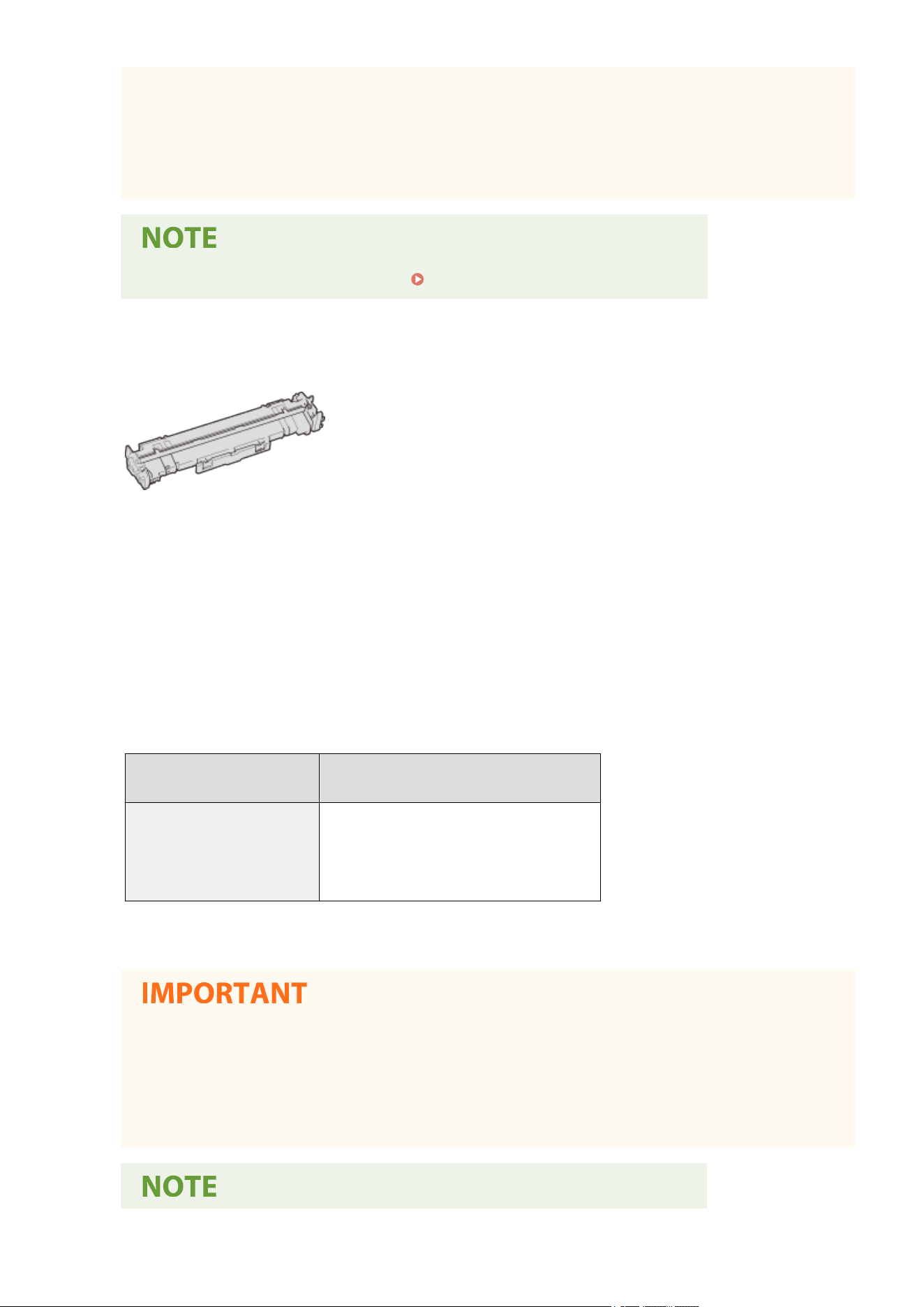
Be careful of counterfeit toner cartridges
● Please be aware that ther
e are counterfeit Canon toner cartridges in the marketplace. Use of
counterfeit toner cartridge may result in poor print quality or machine performance. Canon is not
responsible for any malfunction, accident or damage caused by the use of counterfeit toner cartridge.
For more information, see canon.com/counterfeit.
● When replacing toner cartridges, see Replacing the Toner Cartridge(P. 59) .
◼ Drum Cartridges
Supplied Drum Cartridge
The average yield and the weight of the drum cartridge that comes with the machine are sho
wn below.
● Average yield
*
12,000 sheets
● Weight
Approx. 0.2 kg
Replacement Drum Cartridges
For optimum print quality, using Canon genuine drum cartridges is r
ecommended.
Canon Genuine Drum Cartridge Average yield and weight of drum cartridge
Canon Drum Cartridge 049
● Average yield
*
12,000 sheets
● W
eight
Approx. 0.2 kg
*
The average yield is on the basis of our e
valuation criteria when printing at 2-sheet intervals (2-sheet intermittent) of plain
A4 size paper.
Be careful of counterfeit drum cartridges
● Please be aware that ther
e are counterfeit Canon drum cartridges in the marketplace. Use of
counterfeit drum cartridge may result in poor print quality or machine performance. Canon is not
responsible for any malfunction, accident or damage caused by the use of counterfeit drum cartridge.
For more information, see canon.com/counterfeit.
Maintenance
76


Troubleshooting
Troubleshooting ............................................................................................................................................... 79
Common Pr
oblems .............................................................................................................................................. 81
Installation/Settings Problems ........................................................................................................................ 82
Printing Problems ........................................................................................................................................... 83
When You Cannot Print Properly ........................................................................................................................ 85
Printing Results Are Not Satisfactory .............................................................................................................. 87
Paper Creases or Curls ................................................................................................................................... 96
Paper Is Fed Incorrectly .................................................................................................................................. 98
Countermeasures for Each Message .................................................................................................................. 99
Clearing Paper Jams .......................................................................................................................................... 105
Paper Jams inside the Machine ..................................................................................................................... 107
When a Problem Cannot Be Solved .................................................................................................................. 112
Troubleshooting
78
Troubleshooting
2754-01L
When a problem occurs, check this chapter to
nd out solutions before contacting Canon.
◼ Common Problems
This section describes how to take action when you suspect that the machine is malfunctioning.
Common
Problems(P
. 81)
◼ When You Cannot Print Properly
This section describes ho
w to take action when printing results are not satisfactory or the paper creases or curls.
When You Cannot Print Properly(P. 85)
◼ Countermeasures for Each Message
This section describes ho
w to take action when a message appears in the Printer Status Window.
Countermeasures
for Each Message(P. 99)
◼ Clearing Paper Jams
This section describes how to tak
e action when a paper is jammed.
Clearing Paper Jams(P. 105)
◼ When a Problem Cannot Be Solved
If a problem persists, see When a Problem Cannot Be Solved(P. 112) to nd out where to contact.
T
roubleshooting
79

Troubleshooting
80

Common Problems
2754-01R
If you encounter problems when using the machine, check the items in this section before contacting us. If the
pr
oblems persist, contact your local authorized Canon dealer or the Canon help line.
Check the Following
Is the machine turned ON? Is the power cord connected?
● If the machine is turned ON but does not respond, turn it OFF
, check whether the power cord is connected
correctly, and turn it back ON. For information on connecting the power cord, see Getting Started.
Manuals and Their Contents(P. 126)
Is the machine connected via a USB cable?
● Check whether the machine is connected correctly
.
Problem with the USB Connection(P. 82)
Is sleep mode activated?
● If you leave the machine unattended for a specic period of time, it enters sleep mode for power
conservation, not allo
wing you to operate it.
To cancel sleep mode, press any key other than the power switch.
Is any message displayed in the Printer Status Window?
● If a problem occurs, a message is displayed. Countermeasures for Each Message(P. 99)
If a problem persists e
ven after checking
Click the link that corresponds to the problem.
Installation/Settings Problems(P. 82)
Printing Problems(P. 83)
Troubleshooting
81

Installation/Settings Problems
2754-01S
See Common Problems(P. 81) also.
Problem with the USB Connection(P. 82)
Problem with the Print Server(P. 82)
Problem with the USB Connection
Cannot communicate.
● Change the USB cable. If you are using a long USB cable, r
eplace it with a short one.
● If you are using a USB hub, connect the machine directly to your computer using a USB cable.
Problem with the Print Server
You cannot nd the print server to connect to.
● Ar
e the print server and computer connected correctly?
● Is the print server running?
● Do you have user rights to connect to the print server? If you are not sure, contact the server administrator.
● Is [Network discovery] enabled?
Enabling [Network discovery](P. 132)
You cannot connect to a shared printer.
● On the network, does the machine appear among the printers of the print server? If it is not displayed,
contact the network or server administr
ator.
Displaying Shared Printers in the Print Server(P. 133)
Troubleshooting
82

Printing Problems
2754-01U
See Common Problems(P. 81) also.
Printing results are not satisfactory. Paper creases or curls. When You
Cannot Print Properly
(P. 85)
You cannot print.
● Can you print a Windows test page? If you can print a Windo
ws test page, there is no problem with the
machine or the printer driver. Check the print settings of your application.
Printing a Test Page in Windows(P. 134)
If you cannot print a test page, check the following accor
ding to your environment.
USB connection
● Have you selected the correct port? If there is no port to use or you are not sure, reinstall the printer
driver. When you reinstall the printer driver, the correct port is created automatically.
Checking the Printer Port(P. 136)
Installing Drivers(P. 15)
● Is bidirectional communication enabled? Enable bidirectional communication, and restart the computer.
Checking Bidirectional Communication(P. 137)
● Disable security software and other resident software.
● Connect to another USB port on the computer.
● Can you print from a USB connection to another computer? If you also cannot print from other computers,
contact your local authorized Canon dealer or the Canon help line.
Via print server
● Can you print from the print server? If you can print from the print server, check the connection between
the print server and your computer.
Problem with the Print Server(P. 82)
● Disable security software and other r
esident software.
● Reinstall the printer driver.
Installing Drivers(P. 15)
● Can you
print from other computers via the print server? If you also cannot print from other computers,
contact your local authorized Canon dealer or the Canon help line.
● Has an error occurred? Check the job status.
Checking the Printing Status(P. 49)
Printing seems to be slow.
*
● Print or delete data in memory.
*
When the free space in memory is running lo
w, the processing speed of the machine becomes slow, just as a computer
does. There is nothing abnormal.
Troubleshooting
83

It takes a long time before printing starts.
● Did you print to narro
w width paper? After you print to narrow width paper, the machine may cool itself to
maintain the print quality. As a result, it may take some time before the next job is printed. Wait until the
machine is ready to print. Printing will resume when the temperature inside the machine has fallen.
Troubleshooting
84
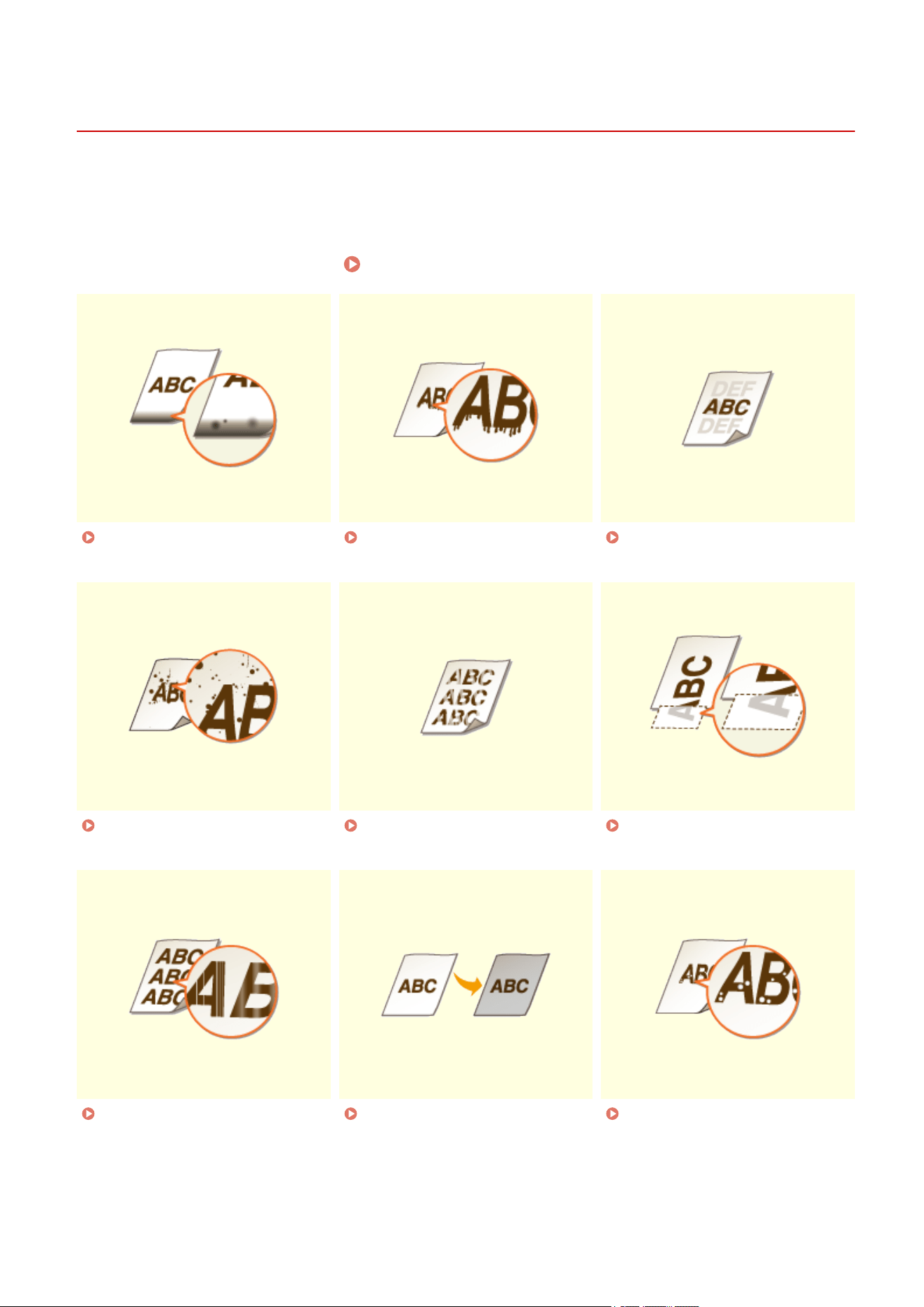
When You Cannot Print Properly
2754-01W
If printing results ar
e not satisfactory, or paper creases or curls, try the following solutions. If the problems persist,
contact your local authorized Canon dealer or the Canon help line.
◼ Problems with Image Quality
Printing Results Are Not Satisfactory(P. 87)
Smudge Marks Appear on the
Edge of Printouts(P
. 87
)
Smudges Appear on
Printouts
(P
. 87)
Afterimages Appear in Blank
Ar
eas(P
. 88)
Toner Smudges and Splatters
Appear(P
. 88)
Printouts Are Faded(P. 89) A Portion of the Page Is Not
Printed(P.
91)
Streaks Appear/Printing is
Uneven(P
. 91)
Printouts Are Entirely or
Partially Grayish
(P. 92)
White Spots Appear(P. 93)
Troubleshooting
85
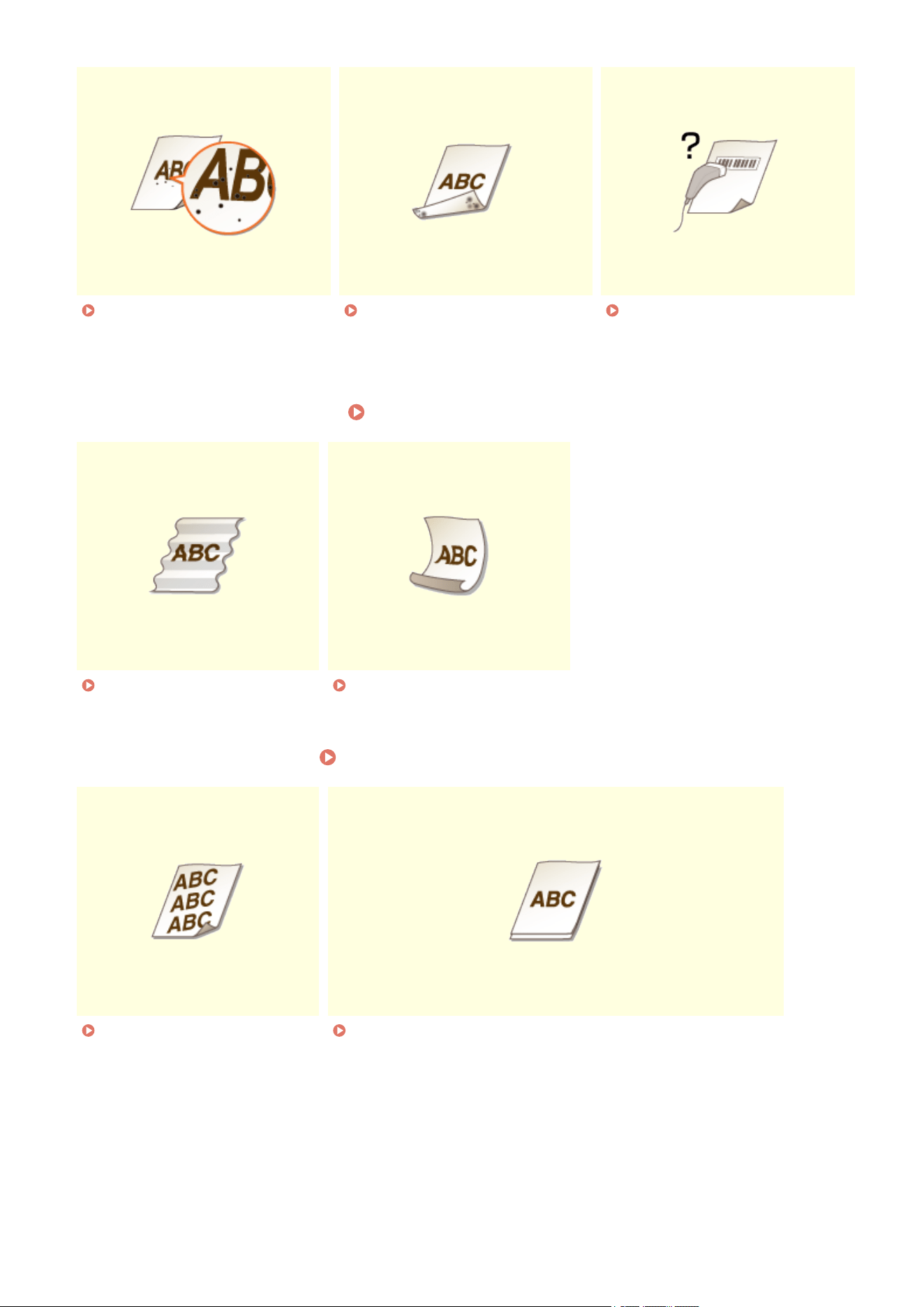
Spots Appear(P. 94) Reverse Side of Paper is
Smudged
(P
. 94)
Printed Barcode Cannot Be
Read(P
. 95)
◼ Problems with Printout Paper Paper Creases or Curls(P. 96)
Paper Creases(P. 96) Paper Curls(P. 96)
◼ Problems with Paper Feed Paper Is Fed Incorrectly(P. 98)
Printouts Are Skewed(P. 98) Paper Is Not Fed/Two or More Sheets Are Fed Together(P. 98)
Troubleshooting
86

Printing Results Are Not Satisfactory
2754-01X
Dirt inside the machine may affect printing results. Perform car
e and cleaning to the machine rst.
Regular
Cleaning(P
. 56)
Smudge Marks Appear on the Edge of Printouts
Are you using appropriate paper?
● Check the
supported paper types and replace with an appropriate type. Also, set the paper size and type
correctly.
Available Paper(P. 122)
Loading Paper(P. 32)
Do you print data without margins?
● This
symptom
occurs if a margin is set to none in the printer driver. A margin of 5 mm or less around the
edge of paper or 10 mm or less around the edge of envelopes is not printable with the machine. Make
sure to have margins around the document to print.
[Finishing] tab
[Advanced Settings] [Expand Print Region and Print] [Off]
Smudges Appear on Printouts
Are you using appropriate paper?
● Check usable paper, and replace with appr
opriate paper.
Available Paper(P. 122)
Loading Paper(P. 32)
● If using
the appropriate paper still does not solve the problem, changing the [Special Print Adjustment A]
setting in the Printer Status Window may solve the problem. [Mode 2] can improve the quality more
signicantly than [Mode 1].
Displaying the Printer Status Window(P. 27)
Troubleshooting
87

[Options] [Device Settings] [Assisting Print Settings] [Special Print Adjustment A] Select mode
Afterimages Appear in Blank Areas
Are you using appropriate paper?
● Check usable paper, and replace with appr
opriate paper.
Available Paper(P. 122)
Loading Paper(P. 32)
Is the amount remaining in the toner cartridge running low?
● Check ho
w much the amount remaining in the toner cartridge is left, and replace the toner cartridge as
necessary.
● Regardless of the amount remaining in the toner cartridge, the toner cartridge may reach the end of its
lifetime depending on the use environment or the deterioration of materials inside the toner cartridge.
Replacing the Toner Cartridge(P. 59)
Is the amount remaining in the drum cartridge running low?
● Check ho
w much the amount remaining in the drum cartridge is left, and replace the drum cartridge as
necessary.
● Regardless of the amount remaining in the drum cartridge, the drum cartridge may reach the end of its
lifetime depending on the use environment or the deterioration of materials inside the drum cartridge.
Replacing the Drum Cartridge(P. 64)
Toner Smudges and Splatters Appear
Are you using appropriate paper?
● Check usable paper, and replace with appropriate paper.
Available Paper(P. 122)
Loading Paper(P. 32)
Troubleshooting
88

● Setting [Use Special Print Adjustment U] to on in the Printer Status Window may solve the pr
oblem.
Displaying the Printer Status Window(P. 27)
[Options] [Device Settings] [Assisting Print Settings] Select the [Use Special Print Adjustment U] check
box
Are you using paper containing much paper dust or other dust particles?
● Smudges may
appear in a printout when the paper has a lot of paper dust or other dust particles. Setting
[Use Special Print Adjustment L] to on in the Printer Status Window may solve the problem.
Displaying the Printer Status Window(P. 27)
[Options] [Device Settings] [Assisting Print Settings] Select the [Use Special Print Adjustment L] check
box
Is the amount remaining in the toner cartridge running low?
● Check ho
w much the amount remaining in the toner cartridge is left, and replace the toner cartridge as
necessary.
● Regardless of the amount remaining in the toner cartridge, the toner cartridge may reach the end of its
lifetime depending on the use environment or the deterioration of materials inside the toner cartridge.
Replacing the Toner Cartridge(P. 59)
Is the amount remaining in the drum cartridge running low?
● Check ho
w much the amount remaining in the drum cartridge is left, and replace the drum cartridge as
necessary.
● Regardless of the amount remaining in the drum cartridge, the drum cartridge may reach the end of its
lifetime depending on the use environment or the deterioration of materials inside the drum cartridge.
Replacing the Drum Cartridge(P. 64)
Printouts Are Faded
Are you using appropriate paper?
● Check usable
paper, and replace with appropriate paper. Also, specify the paper size and type settings
properly.
Available Paper(P. 122)
Loading Paper(P. 32)
Are you using paper containing much paper dust?
● Using
paper containing much paper dust may result in a faded or streaky printout. Setting [Use Special
Print Adjustment G] to on in the Printer Status Window may solve the problem.
Displaying the Printer Status Window(P. 27)
Troubleshooting
89

[Options] [Device Settings] [Assisting Print Settings] Select the [Use Special Print Adjustment G] check
box
Are you using rough-surface paper?
● Printed
images may be faint when they are printed on rough-surface paper. Setting [Use Special Print
Adjustment Q] to on in the Printer Status Window may solve the problem.
Displaying the Printer Status Window(P. 27)
[Options] [Device Settings] [Assisting Print Settings] Select the [Use Special Print Adjustment Q] check
box
● Setting this to on may affect the image quality.
Are you using the machine in an environment with high humidity?
● Setting [Use Special Print Adjustment T] to on in the Printer Status Window may solve the pr
oblem.
Displaying the Printer Status Window(P. 27)
[Options] [Device Settings] [Assisting Print Settings] Select the [Use Special Print Adjustment T] check
box
● Printed images or text may be blurr
ed when you set this to on and print in a low-humidity environment.
Is the machine installed in the appropriate envir
onment?
● Install the printer in an appropriate location.
● The print quality may be faint, light or faded depending on the installation environment. Avoid placing the
machine in a location exposed to wind.
Installation(P. 3)
Relocating the Machine(P. 71)
Is the amount remaining in the toner cartridge running low?
● Check ho
w much the amount remaining in the toner cartridge is left, and replace the toner cartridge as
necessary.
● Regardless of the amount remaining in the toner cartridge, the toner cartridge may reach the end of its
lifetime depending on the use environment or the deterioration of materials inside the toner cartridge.
Replacing the Toner Cartridge(P. 59)
Is the amount remaining in the drum cartridge running low?
● Check ho
w much the amount remaining in the drum cartridge is left, and replace the drum cartridge as
necessary.
● Regardless of the amount remaining in the drum cartridge, the drum cartridge may reach the end of its
lifetime depending on the use environment or the deterioration of materials inside the drum cartridge.
Replacing the Drum Cartridge(P. 64)
Troubleshooting
90

A Portion of the Page Is Not Printed
Do you print data without margins?
● This
symptom
occurs if a margin is set to none in the printer driver. A margin of 5 mm or less around the
edge of paper or 10 mm or less around the edge of envelopes is not printable with the machine. Make
sure to have margins around the document to print.
[Finishing] tab
[Advanced Settings] [Expand Print Region and Print] [Off]
Do the paper guides align with the edges of the paper?
● If the paper guides ar
e too loose or too tight, part of a document may not be printed.
Loading Paper(P. 32)
Streaks Appear/Printing is Uneven
Are you using appropriate paper?
● Check usable paper, and replace with appr
opriate paper.
Available Paper(P. 122)
Loading Paper(P. 32)
Have you cleaned the xing unit?
● Clean the xing unit.
Cleaning the Fixing Assembly(P. 58)
Are you using rough-surface paper?
● Printed
images may be faint when they are printed on rough-surface paper. Setting [Use Special Print
Adjustment Q] to on in the Printer Status Window may solve the problem.
Displaying the Printer Status Window(P. 27)
Troubleshooting
91

[Options] [Device Settings] [Assisting Print Settings] Select the [Use Special Print Adjustment Q] check
box
● Setting this to on may affect the image quality.
Are you using the machine in an environment with high humidity?
● Change the
setting for [Use Special Print Adjustment T] in the Printer Status Window. Setting this item to
on may solve the problem.
Displaying the Printer Status Window(P. 27)
[Options] [Device Settings] [Assisting Print Settings] Select the [Use Special Print Adjustment T] check
box
● Printed images or text may be blurr
ed when you set this to on and print in a low-humidity environment.
Are you using paper containing much paper dust?
● Using
paper containing much paper dust may result in a faded or streaky printout. Setting [Use Special
Print Adjustment G] to on in the Printer Status Window may solve the problem.
Displaying the Printer Status Window(P. 27)
[Options] [Device Settings] [Assisting Print Settings] Select the [Use Special Print Adjustment G] check
box
Is the amount remaining in the toner cartridge running low?
● Check ho
w much the amount remaining in the toner cartridge is left, and replace the toner cartridge as
necessary.
● Regardless of the amount remaining in the toner cartridge, the toner cartridge may reach the end of its
lifetime depending on the use environment or the deterioration of materials inside the toner cartridge.
Replacing the Toner Cartridge(P. 59)
Is the amount remaining in the drum cartridge running low?
● Check ho
w much the amount remaining in the drum cartridge is left, and replace the drum cartridge as
necessary.
● Regardless of the amount remaining in the drum cartridge, the drum cartridge may reach the end of its
lifetime depending on the use environment or the deterioration of materials inside the drum cartridge.
Replacing the Drum Cartridge(P. 64)
Printouts Are Entirely or Partially Grayish
Troubleshooting
92

Are you using a specic type of paper?
● The printed
side may come out in grayish color for certain type of paper. Check the type of paper you are
using and try a different type.
Available Paper(P. 122)
● Setting [Use
Special Print Adjustment U] or [Use Special Print Adjustment G] to on in the Printer Status
Window may solve the problem.
Displaying the Printer Status Window(P. 27)
[Options] [Device Settings] [Assisting Print Settings] Select the [Use Special Print Adjustment U] or
[Use Special Print Adjustment G] check box
● A desirable effect may not be attained even with these settings applied.
Is the machine installed in the appropriate environment?
● Install the printer in an appropriate location.
● The
printed side may come out in grayish color depending on the installation environment. Avoid placing
the machine in a location exposed to wind.
Installation(P. 3)
Relocating the Machine(P. 71)
● Store
the toner cartridge in an appropriate location for two to three hours, then try printing again. This
may solve the problem. If the problem persists, replace the toner cartridge.
Replacing the Toner Cartridge(P. 59)
Has the drum cartridge been left in direct sunlight for a long period of time?
● Store
the drum cartridge in an appropriate location for two to three hours, then try printing again. This
may solve the problem. If the problem persists, replace the drum cartridge.
Replacing the Drum Cartridge(P. 64)
White Spots Appear
Are you using paper that has absorbed moisture?
● Replace with appr
opriate paper.
Loading Paper(P. 32)
Are you using appropriate paper?
● Check usable paper, and r
eplace with appropriate paper.
Troubleshooting
93

Available Paper(P. 122)
Loading Paper(P. 32)
Is the amount remaining in the toner cartridge running low?
● Check ho
w much the amount remaining in the toner cartridge is left, and replace the toner cartridge as
necessary.
● Regardless of the amount remaining in the toner cartridge, the toner cartridge may reach the end of its
lifetime depending on the use environment or the deterioration of materials inside the toner cartridge.
Replacing the Toner Cartridge(P. 59)
Is the amount remaining in the drum cartridge running lo
w?
● Check how much the amount remaining in the drum cartridge is left, and replace the drum cartridge as
necessary.
● Regardless of the amount remaining in the drum cartridge, the drum cartridge may reach the end of its
lifetime depending on the use environment or the deterioration of materials inside the drum cartridge.
Replacing the Drum Cartridge(P. 64)
Spots Appear
Have you cleaned the xing unit?
● Clean the xing unit.
Cleaning the Fixing Assembly(P. 58)
Reverse Side of Paper is Smudged
Have you loaded paper that is smaller than the size of the print data?
● Check to make sur
e that the paper size matches the size of the print data.
Troubleshooting
94

Have you cleaned the xing unit?
● Clean the xing unit.
Cleaning the Fixing Assembly(P. 58)
Printed Barcode Cannot Be Read
Are you trying to read a small barcode or one with thick lines?
● Enlarge the bar
code.
● Changing the [Select Line Width] setting may solve the problem.
Displaying the Printer Status Window(P. 27)
[Options] [Device Settings] [Assisting Print Settings] [Select Line Width] Select the line width
Troubleshooting
95
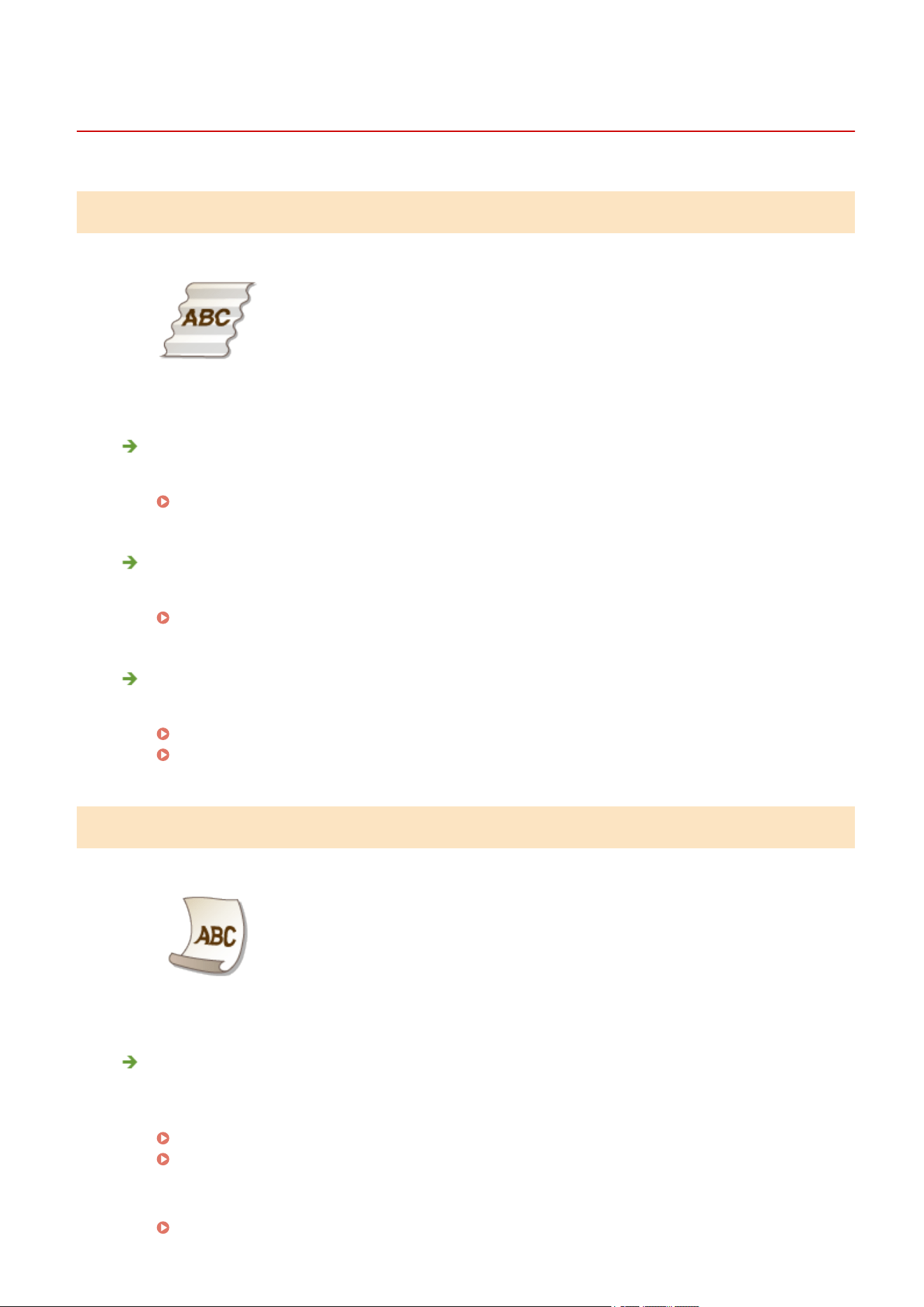
Paper Creases or Curls
2754-01Y
Paper Creases
Is paper loaded correctly?
● If paper is not loaded below the load limit line or is loaded obliquely
, it may crease.
Loading Paper(P. 32)
Are you using paper that has absorbed moisture?
● Replace with appropriate paper.
Loading Paper(P. 32)
Are you using appropriate paper?
● Check usable paper, and r
eplace with appr
opriate paper.
Available Paper(P. 122)
Loading Paper(P. 32)
Paper Curls
Are you using appropriate paper?
● Check usable
paper, and replace with appropriate paper. Also, specify the paper size and type settings
properly.
Available Paper(P. 122)
Loading Paper(P. 32)
● Change the
setting of [Paper Type] to a setting for thinner paper. For example, if the current setting is
[Plain [71-89 g/m2]], change it to [Plain L [61-70 g/m2]] or [Plain L2 [60 g/m2]].
Available Paper(P. 122)
Troubleshooting
96

● Reload the paper by changing the side to print on (fr
ont side/back side).
● In rare cases the symptom may become worse depending on the paper. If this occurs, change the side to
print on back to the pr
evious side.
Are you using paper that has absorbed moisture?
● Replace with appr
opriate paper.
Loading Paper(P. 32)
Troubleshooting
97
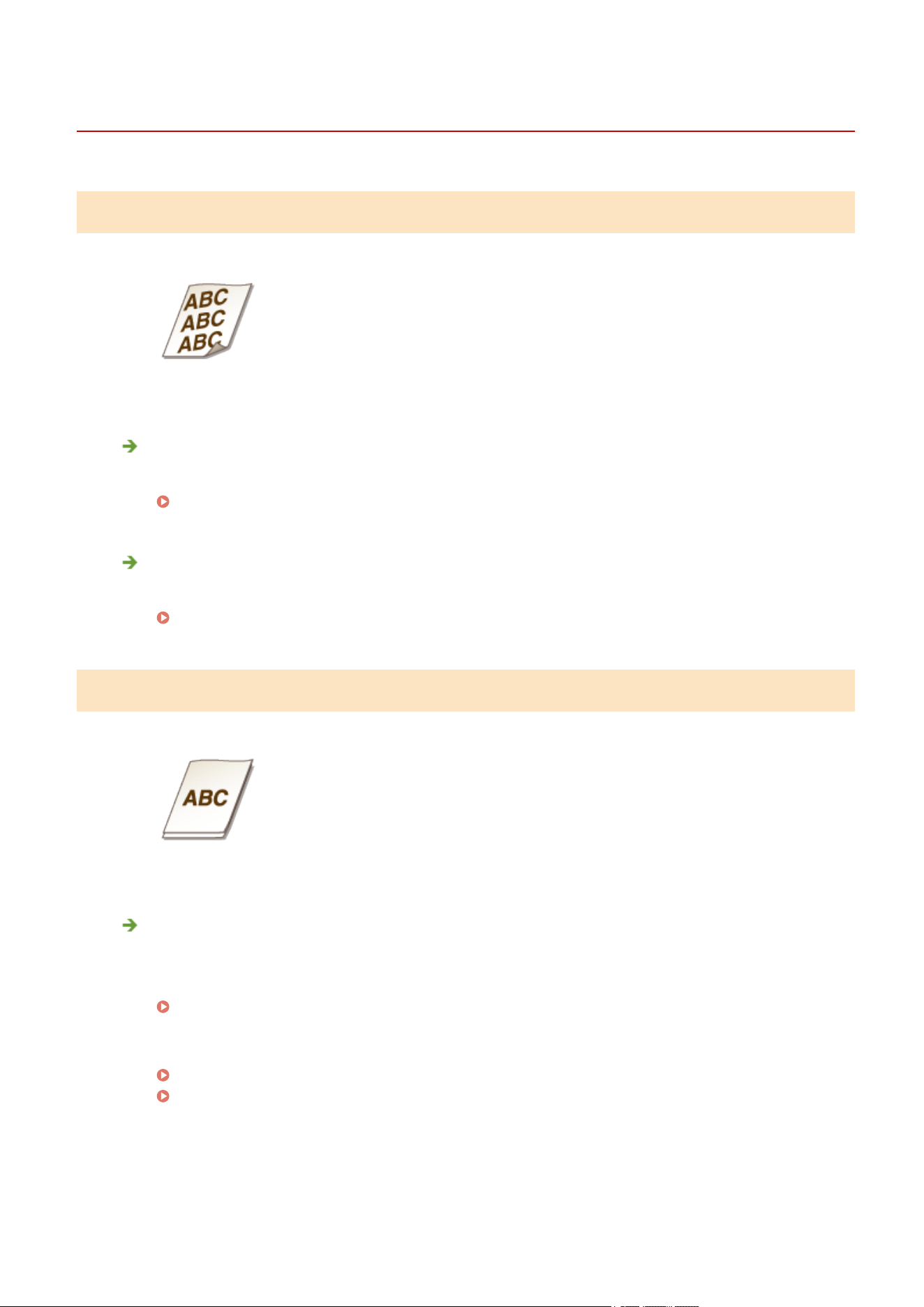
Paper Is Fed Incorrectly
2754-020
Printouts Are Skewed
Do the paper guides align with the edges of the paper?
● If the paper guides are too loose or too tight, the printouts ar
e skewed.
Loading Paper(P. 32)
Are you printing on curled envelopes?
● Uncurl the envelopes, and print again.
Loading Envelopes(P. 37)
Paper Is Not Fed/Two or More Sheets Are Fed Together
Is paper loaded correctly?
● Fan the paper stack thoroughly so that paper is not stuck together.
● Check whether paper is loaded corr
ectly.
Loading Paper(P. 32)
● Check whether
the number of sheets of paper loaded is appropriate and whether the appropriate paper is
used.
Available Paper(P. 122)
Loading Paper(P. 32)
● Check whether mixed sizes and types of paper ar
e loaded together.
● There are cases where the paper does not load properly depending on its thickness. If this occurs, reverse
the paper orientation, or ip the paper over.
Troubleshooting
98

Countermeasures for Each Message
2754-021
A message appears in the Printer Status Window when ther
e is a problem with print processing, when the machine
cannot communicate, or when some other problem prevents normal operation. Find out more information about
messages in the following list.
Cannot Communicate with Printer
In a terminal connection environment, the machine is redirected and a setting problem prevents
communication.
● If the machine has been redirected in a terminal connection environment, such as a remote desktop
application or XenAPP (MetaFrame), there may be a problem with rewall or other settings that prevents
communication with the machine. Check the communication settings of the server and client. For details,
contact your network administrator.
Cannot Communicate with Server
Your computer is not connected to the print server.
● Make the pr
oper connection between your computer and the print server.
The print server is not running.
● Start the print server.
The machine is not shared.
● Make the proper printer sharing settings. For sharing settings, see the manuals for the relevant drivers on
the online manual website.
You lack user rights to connect to the print server.
● Ask the administrator of the print server to change your user rights.
[Network discovery] is not enabled.
● Enable [Network discovery].
Enabling [Network discovery](P. 132)
Cannot Establish Communication with Drum Cartridge
The drum cartridge is not installed correctly.
● Install the drum cartridge corr
ectly
.
Replacing the Drum Cartridge(P. 64)
The drum cartridge is damaged.
● Replace the drum cartridge with a ne
w one.
Replacing the Drum Cartridge(P. 64)
Troubleshooting
99

● Even when this message is displayed, you can continue printing by clicking , though the
amount remaining in the drum cartridge cannot be displayed corr
ectly.
● Problems resulting from the use of drum cartridges that are not Canon products are not covered
under the warranty.
Cannot Establish Communication with Toner Cartridge
The toner cartridge is not installed correctly.
● Install the toner cartridge correctly
.
Replacing the Toner Cartridge(P. 59)
The toner cartridge is damaged.
● Replace the toner cartridge with a new one.
Replacing the Toner Cartridge(P. 59)
● Even when this message is displayed, you can continue printing by clicking , though the
amount remaining in the toner cartridge cannot be displayed corr
ectly.
● Problems resulting from the use of cartridges that are not Canon products are not covered under the
warranty.
Cannot Retrieve Printer Information
[Canon LBP Bidi Service] is not enabled on the computer.
● Set the state of bidirectional communication service (Canon LBP Bidi Service) to [Start].
[Canon LBP Bidi Service] is not enabled on the server.
● Set
the state of bidirectional communication service (Canon LBP Bidi Service) on the server to [Start]. For
more information, contact your server administrator.
To Enable [Canon LBP Bidi Service]
● Display [Computer Management], and perform the following pr
ocedure.
Select [Services and Applications]
[Services] Right-click [Canon LBP Bidi Service] and then click
[Start].
Check Printed Output
The paper size specied in the printer driver is different fr
om the size of the paper actually loaded.
● Load paper of the specied size, and press the Paper key on the machine.
Troubleshooting
100

Loading Paper in the Drawer(P. 34)
The job may not be printed normally.
● Y
ou can click
to
continue printing. If you continue printing and the results are not satisfactory, print
the job again.
Check Printer
The drum cartridge or the toner cartridge is not set.
● Set the drum cartridge or the toner cartridge correctly
.
Replacing the Drum Cartridge(P. 64)
Replacing the Toner Cartridge(P. 59)
There is paper fr
om a paper jam left inside the machine.
● Thoroughly check for fragments of paper that may be left inside the machine. If you nd any, remove
them. If the paper is dicult to remove, do not try to forcibly pull it out of the machine. Follow the
instructions in the manual to remove paper.
Clearing Paper Jams(P. 105)
Communication Error
The USB cable is not properly connected.
● Reconnecting the
USB cable may solve the problem. For more information, see the manuals for the
relevant drivers on the online manual website.
The machine is not turned ON.
● The power indicator does not light if the machine is not turned ON. Turn it ON. If the machine does not
respond when you press the power switch, check to make sure that the power cord is connected correctly
and then try again to turn the power ON.
Turning ON the Machine(P. 30)
Incompatible Printer
A printer other than this machine is connected.
● Make the pr
oper connection between your computer and the machine.
● If you are not sur
e on how to make a USB connection, see "Getting Started."
Manuals and Their Contents(P. 126)
Incorrect Port
The machine is connected to an unsupported port.
Troubleshooting
101
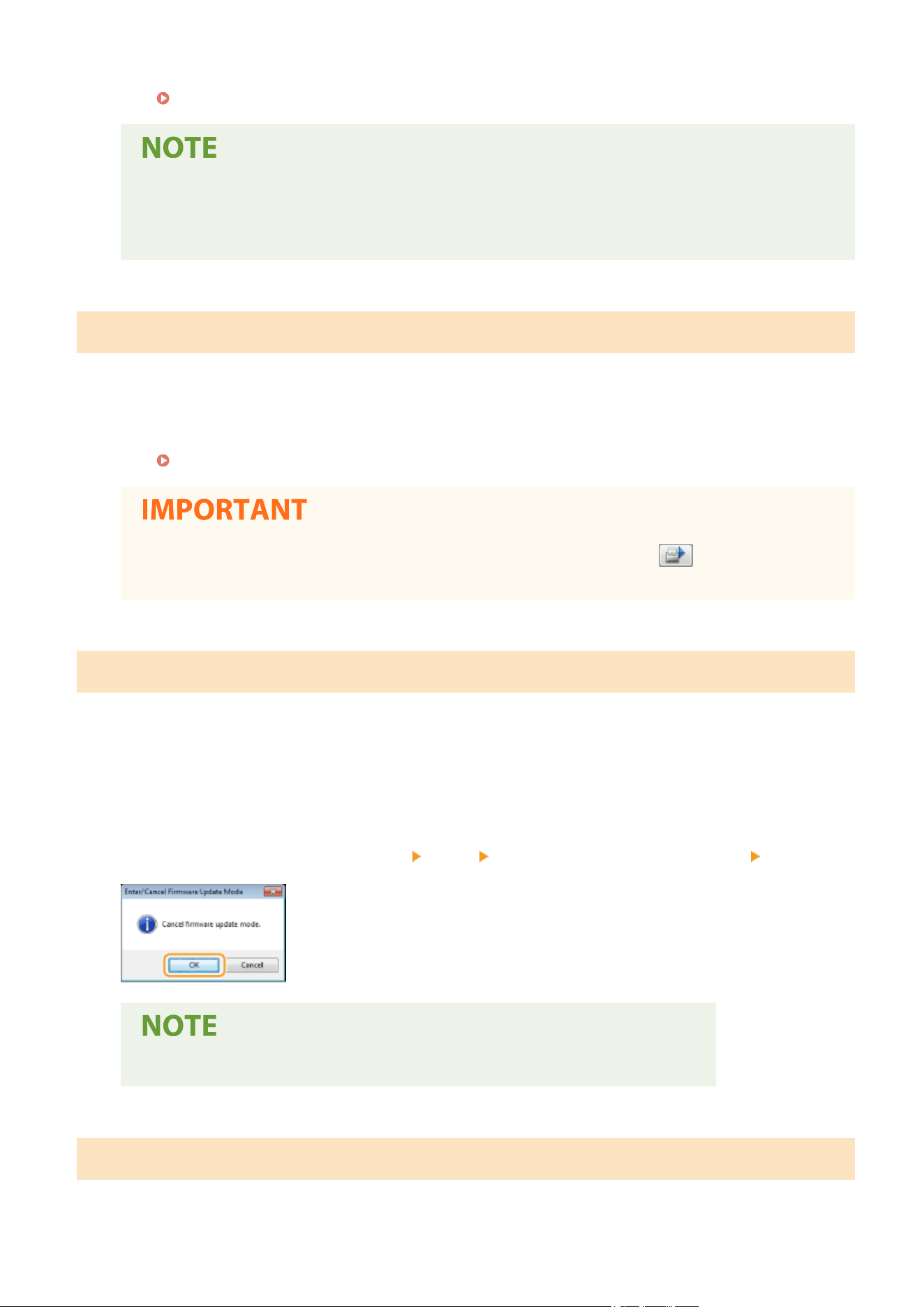
● Check the port.
Checking the Printer Port(P. 136)
If the port you need is not available
● Reinstall the printer driver. For mor
e information, see the manuals for the r
elevant drivers on the
online manual website.
Non-Canon Cartridge May Be in Use
The drum cartridge or the toner cartridge used may not be a genuine Canon product.
● Only genuine
Canon drum cartridges or toner cartridges should be used as replacement drum cartridges
or toner cartridges.
Consumables(P. 9)
● Even when this message is displayed, you can continue printing by clicking , though the print
quality may deteriorate. Doing so may also r
esult in damage to the machine.
Now in Firmware Update Mode
The machine has entered rmware update mode.
● Start up the "User Support T
ool" and update the rmware.
For details on updating the rmware, see the User Support Tool Operation Guide.
To cancel the rmware update mode
Firmware update mode can be canceled before rmware is updated.
Click [Options] in the Printer Status Window
[Utility] [Enter/Cancel Firmware Update Mode] [OK]
● Once a rmware update has started,
rmware update mode cannot be canceled.
Out of Paper
No paper is loaded in the drawer.
Troubleshooting
102

● Load the paper according to the supplementary information displayed below the message. If you loaded
paper in the dr
awer, press the Paper key on the machine.
Loading Paper in the Drawer(P. 34)
Paper Jam inside Printer
Paper jams.
● Remove the jammed paper, and print again (Printing may r
esume automatically).
Clearing Paper Jams(P. 105)
Replace Drum Cartridge
The drum cartridge has reached the end of its lifetime.
● Replacing the drum cartridge with a new one is r
ecommended.
Replacing the Drum Cartridge(P. 64)
● If is enabled, you can click it to continue printing, but the print quality may deteriorate. Doing
so may also result in damage to the machine.
Replace Toner Cartridge
The toner cartridge has reached the end of its lifetime.
● Replacing the toner cartridge with a new one is r
ecommended.
Replacing the Toner Cartridge(P. 59)
● If is enabled, you can click it to continue printing, but the print quality may deteriorate. Doing
so may also result in damage to the machine.
Toner Cover Open
The toner cover is not completely shut.
● Shut the toner cover rmly
.
Troubleshooting
103

● If the toner cover is not closed completely
, check to make sure that the cartridges have been pushed
all the way in.
Updating Firmware
The rmware is being updated.
● Printing
is not possible while the rmware is being updated. Print again after the rmware has been
updated.
Troubleshooting
104
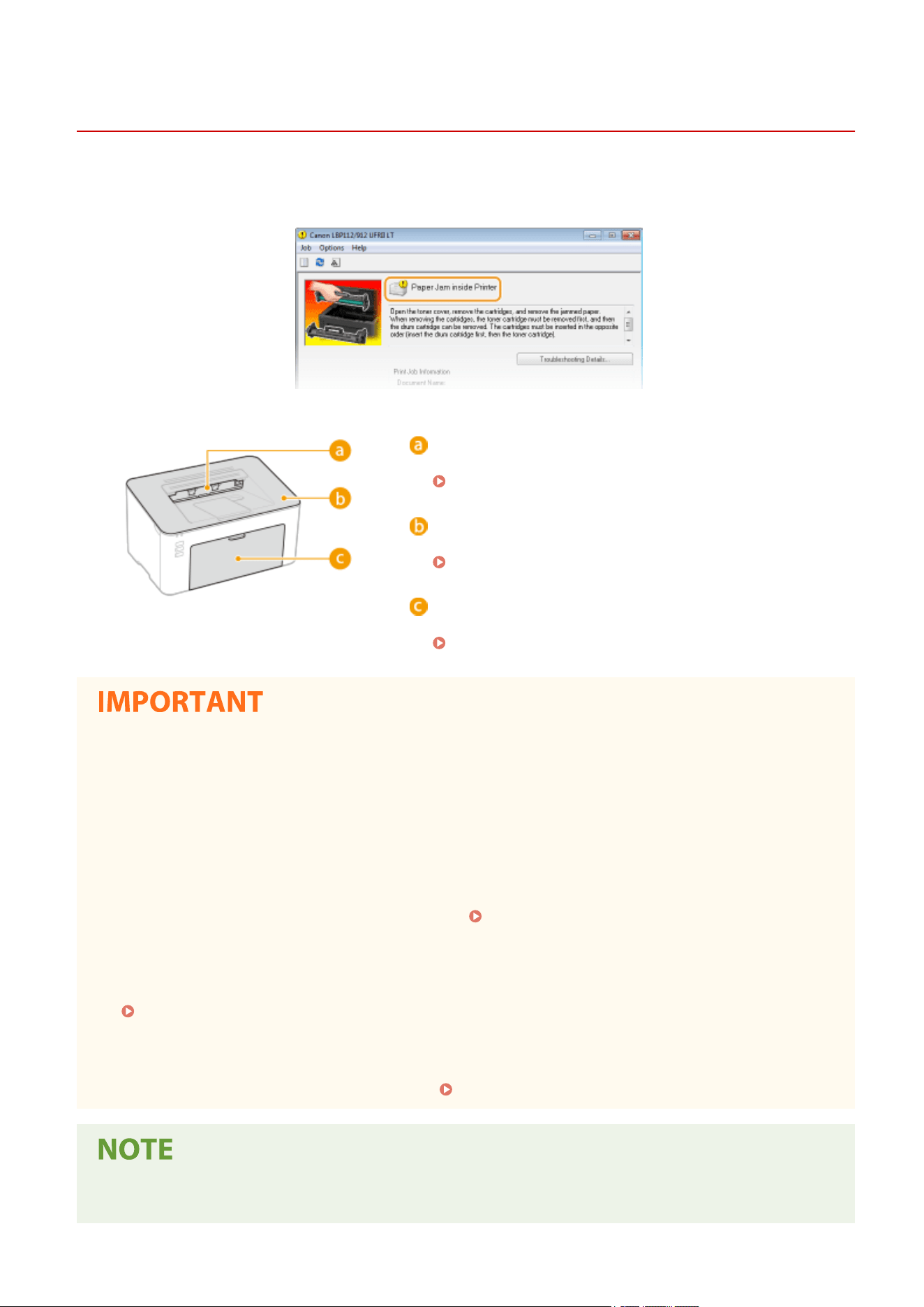
Clearing Paper Jams
2754-022
If a paper jams, [Paper Jam inside Printer] is displayed in the Printer Status Window
. If it is dicult to understand the
procedures in the Printer Status Window, see the following sections to clear jams.
Output tray
Paper Jams inside the Machine(P. 107)
Inside of the machine
Paper Jams inside the Machine(P. 107)
Drawer
Paper Jams inside the Machine(P. 107)
When removing the jammed paper, do not turn OFF the machine
● Turning OFF the machine deletes the data that is being printed.
If paper tears
● Remo
ve all the paper fragments to prevent them from becoming jammed.
If paper jams repeatedly
● Tap the paper stack on a at surface to even the edges of the paper before loading it into the machine.
● Check that the paper is appropriate for the machine.
Available Paper(P. 122)
● Check that no jammed paper fr
agments r
emain in the machine.
● If you use paper with a coarse surface, set [Paper Type] to [Rough 1 [60-104 g/m2]] or [Rough 2 [105-163 g/
m2]].
Printing from a Computer(P. 44)
Do not for
cibly r
emove the jammed paper from the machine
● Forcibly removing the paper may damage parts. If you are not able to remove the paper, contact your local
authorized Canon dealer or the Canon help line.
When a Problem Cannot Be Solved(P. 112)
● If you click [Tr
oubleshooting Details], you can display the same troubleshooting methods that are described
in this manual.
Troubleshooting
105

Troubleshooting
106
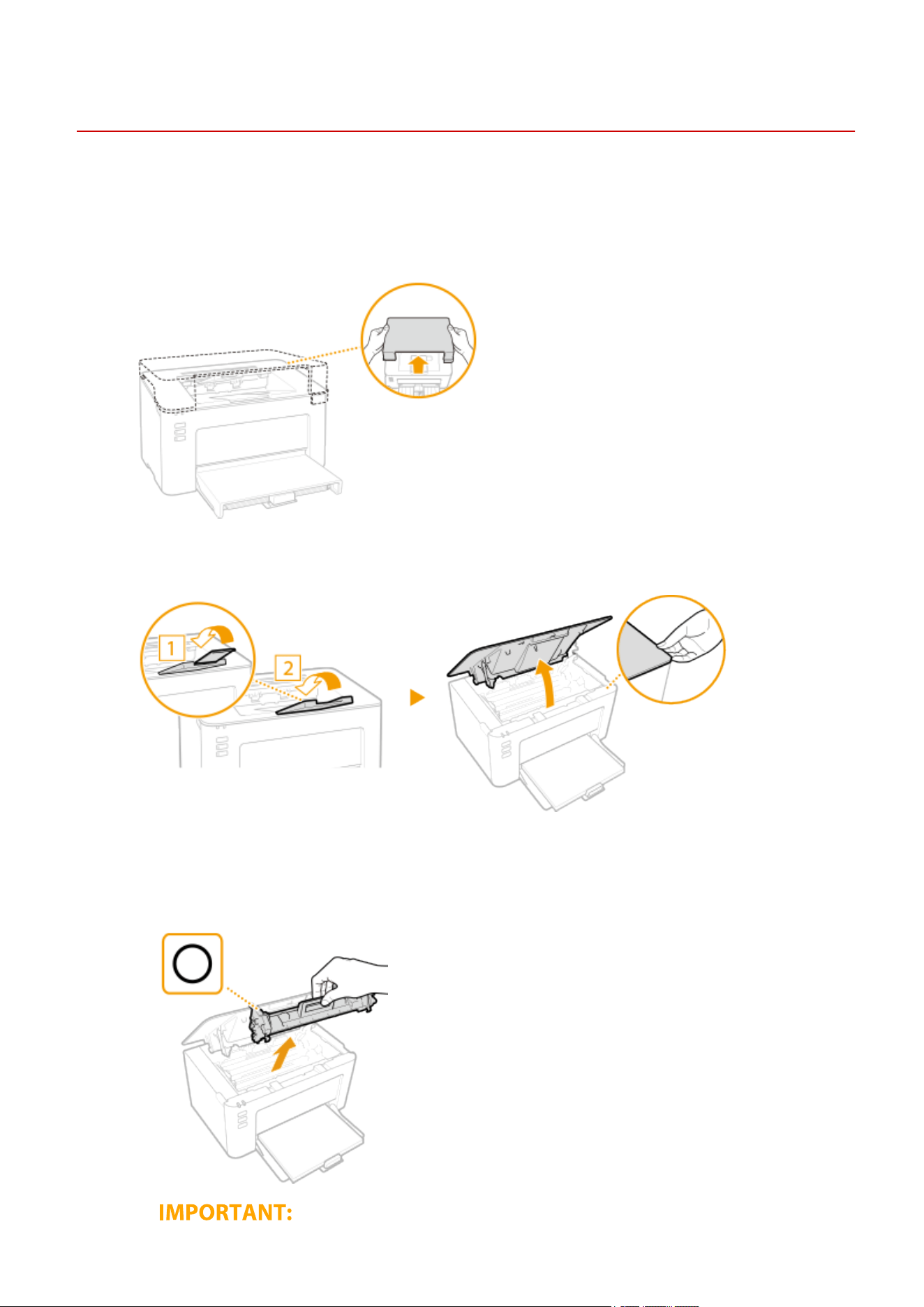
Paper Jams inside the Machine
2754-023
Remove the jammed paper accor
ding to the procedure below. Do not forcibly remove jammed paper from the
machine. If the jammed paper cannot be removed easily, proceed to the next step.
1
Remove the output cover.
2
Close the paper stopper, and then open the toner cover.
3
Remove the cartridges.
1
Remove the toner cartridge.
Troubleshooting
107
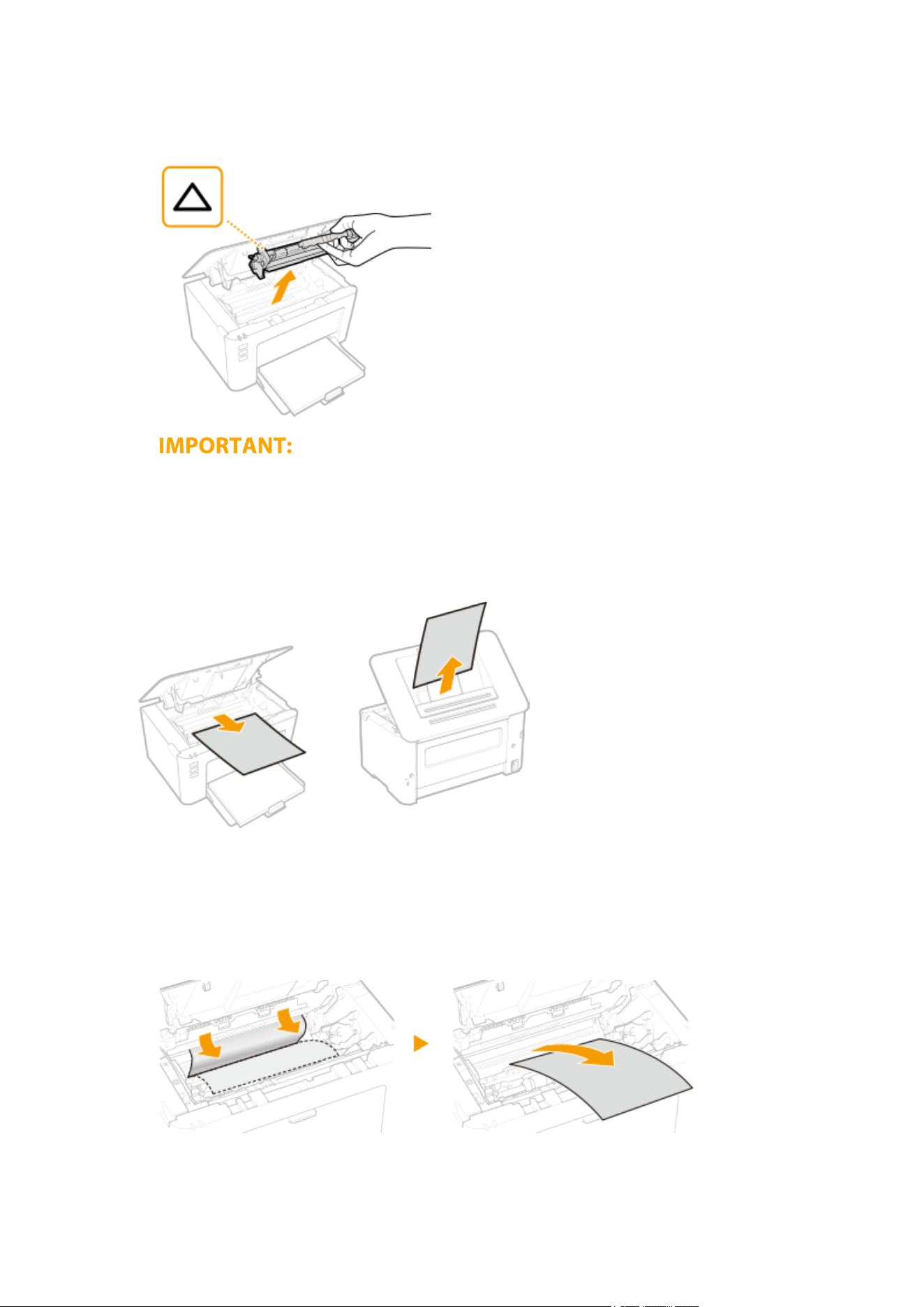
Do not shake or tilt the toner cartridge. Also, make sure to avoid applying shocks to the toner cartridge,
such as by hitting it against something. Doing so may cause the toner left in the toner cartridge to leak.
Remo
ve the toner cartridge gently at the same angle as the slot.
2
Remove the drum cartridge.
Do not shake or tilt the drum cartridge. Also, make sure to avoid applying shocks to the drum cartridge,
such as by hitting it against something. Doing so may cause the toner left in the drum cartridge to leak.
Remo
ve the drum cartridge gently at the same angle as the slot.
4
Gently pull out the paper.
5
Check whether paper is jammed inside the machine.
1
Gently pull out the paper.
● Hold both edges of the paper, pull the leading edge of the paper do
wn, and then pull it out.
6
Check whether paper is jammed in the drawer.
Troubleshooting
108
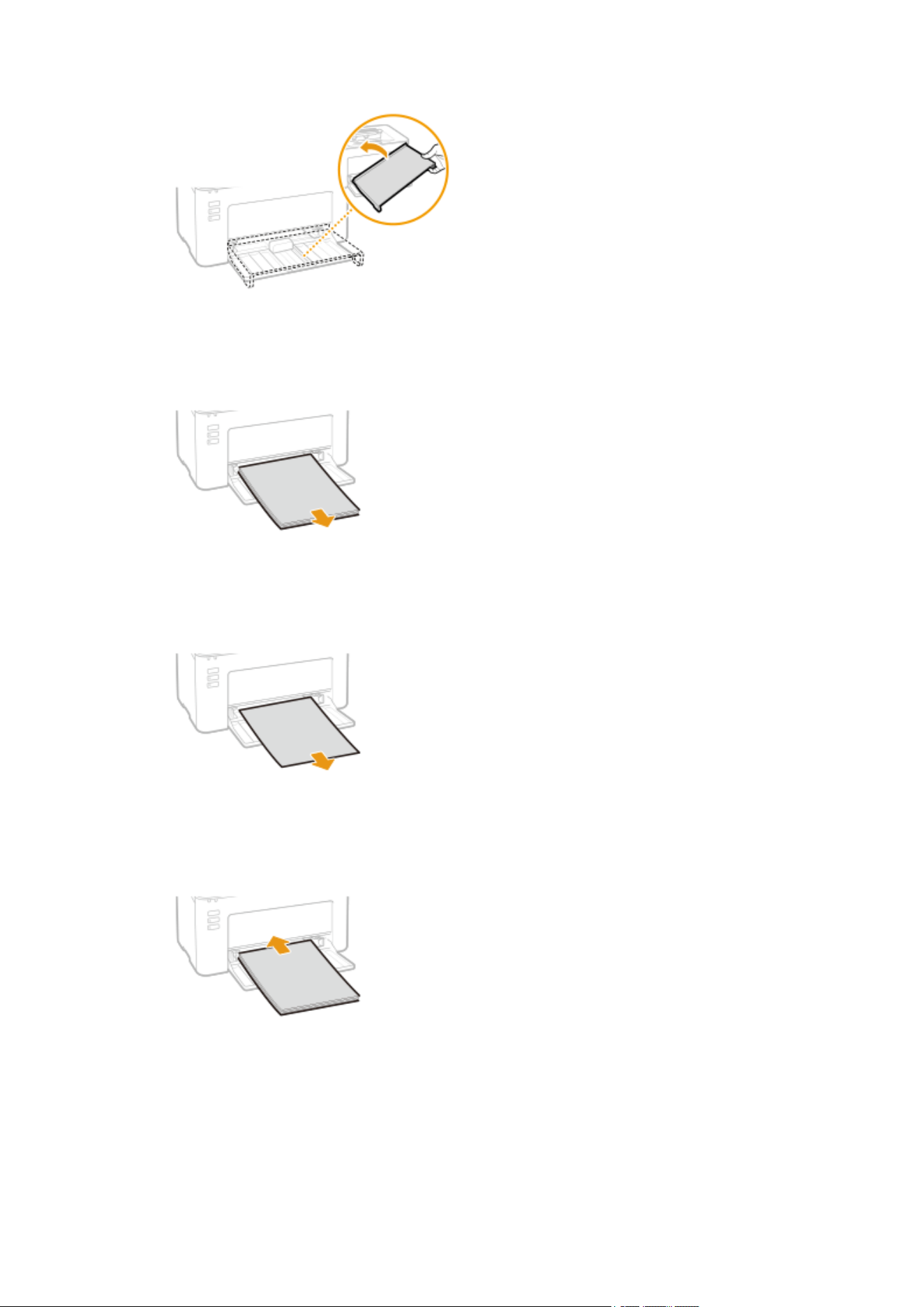
1
Remove the paper cover.
2
Remove any loaded paper.
3
Gently pull out the jammed paper.
4
Load the paper.
5
Replace the paper cover.
Troubleshooting
109
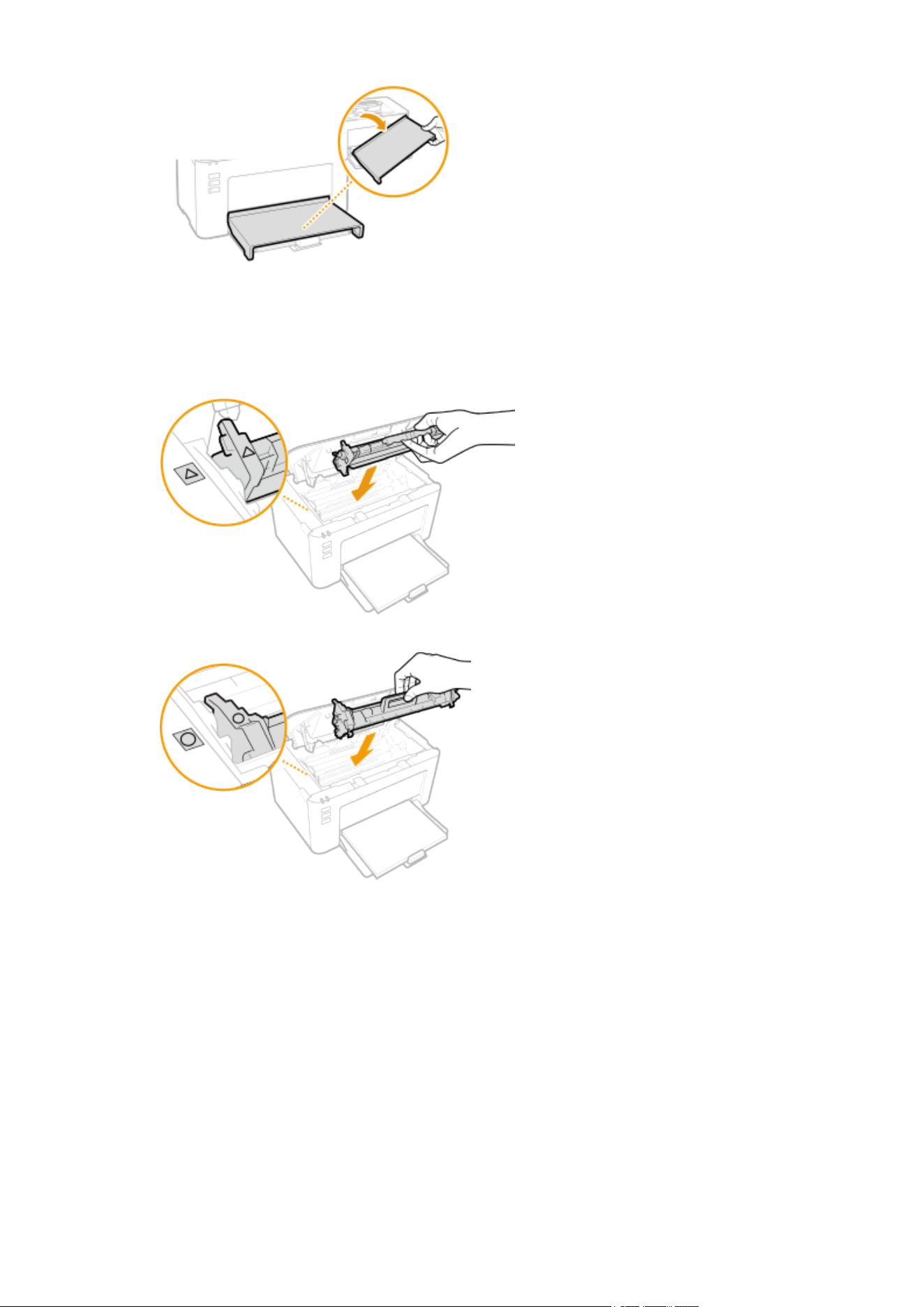
7
Insert the cartridges.
1
Insert the drum cartridge.
2
Insert the toner cartridge.
8
Close the toner cover.
➠ The paper jam message disappears, and the machine is ready to print.
9
Replace the output cover.
Troubleshooting
110

Troubleshooting
111
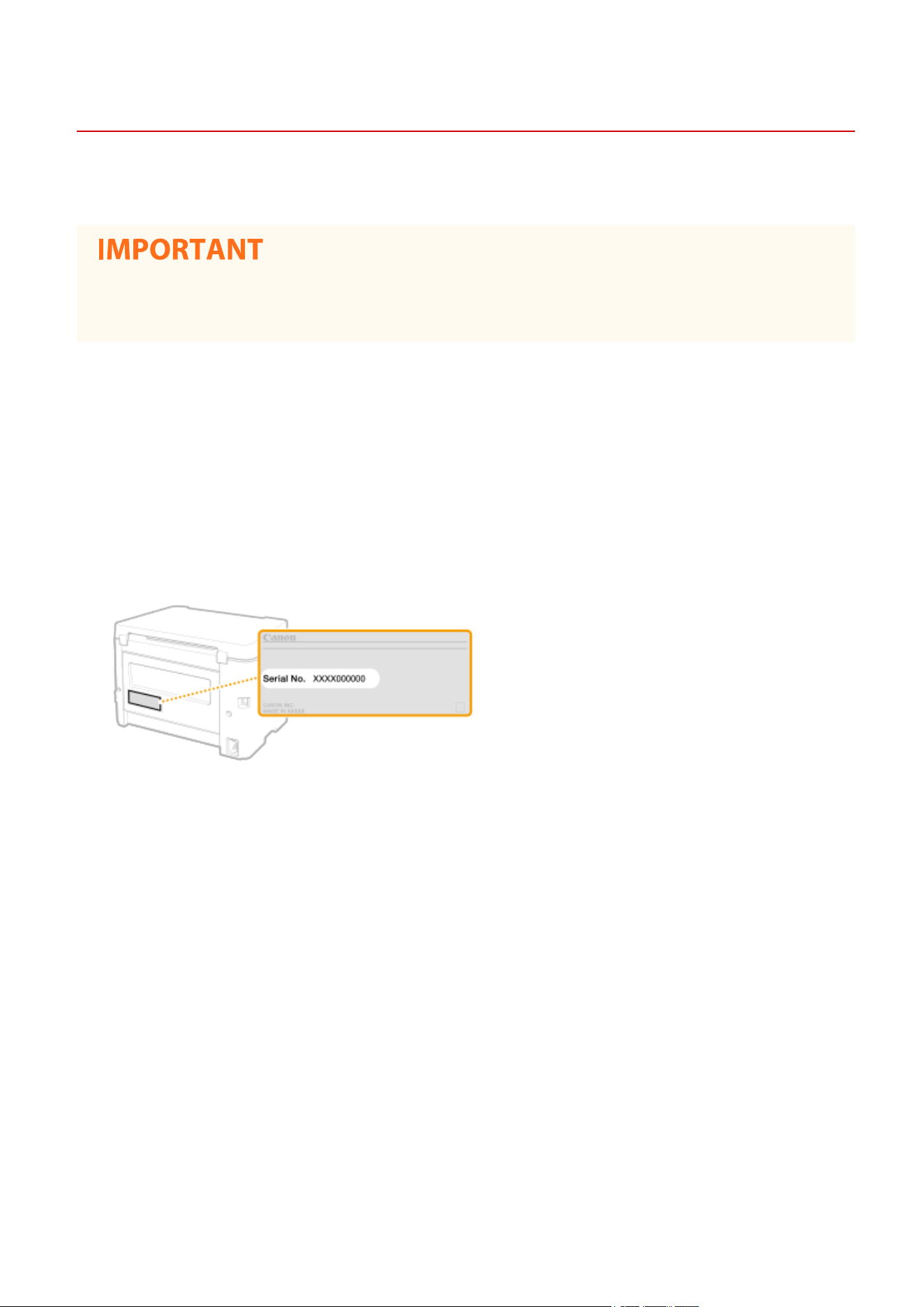
When a Problem Cannot Be Solved
2754-024
If you cannot solve a problem b
y referring to the information in this chapter, contact your local authorized Canon
dealer or the Canon help line.
Do not disassemble or repair the machine yourself
● If you disassemble or repair the machine yourself, it may not be co
vered by warranty.
◼ When Contacting Canon
When contacting us, have the follo
wing information r
eady:
● Product name (LBP112)
● Dealer where you purchased the machine
● Details about your problem (such as what you did and what happened as a result)
● Serial number (found on the label on the back side of the machine)
Troubleshooting
112

Appendix
Appendix ............................................................................................................................................................. 114
Thir
d Party Software ......................................................................................................................................... 115
Feature Highlights ............................................................................................................................................ 116
Going Green and Saving Money ................................................................................................................... 117
Improving Eciency ..................................................................................................................................... 118
Specications .................................................................................................................................................... 119
Main Unit ...................................................................................................................................................... 120
Available Paper ............................................................................................................................................. 122
Printer Functions .......................................................................................................................................... 124
System Environment .................................................................................................................................... 125
Manuals and Their Contents ............................................................................................................................. 126
Using User's Guide ............................................................................................................................................ 127
Screen Layout of User's Guide ...................................................................................................................... 128
Viewing User's Guide .................................................................................................................................... 131
Basic Windows Operations ............................................................................................................................... 132
Notice ................................................................................................................................................................. 140
Appendix
113

Appendix
2754-025
This chapter contains technical specications of this machine, instructions on how to use the User
's Guide, disclaimers,
copyright information, and other important information for customers.
◼ Machine Specications
See the following section(s) when you want to check the specications of the machine, print function, and so on.
Specications(P. 119
)
◼ Referencing the Manual of This Machine
See the rst of the following sections when you want to be sure of the kinds of the manuals describing the functions of
the machine and how to operate the machine. When you want to know how to read and use the User's Guide (this
manual), see the second section.
Manuals and Their Contents(P. 126)
Using User's Guide(P. 127)
◼ Others
See the following section(s) when you want to get useful information, and check the disclaimers and copyright
information.
Third Party Software(P. 115)
Feature Highlights(P. 116)
Basic Windows Operations(P. 132)
Notice(P. 140)
Appendix
114

Third Party Software
2754-026
For information related to thir
d-party software, click the following icon(s).
Appendix
115

Going Green and Saving Money
2754-028
There are lots of ways to cut back on paper, toner, power, and expenses.
Sleep Mode
You can save power by setting the machine to enter sleep mode automatically
whene
ver it has not been used for a while. Y
ou don't need to turn OFF the
power each time, but you can still have the machine minimize its power
consumption. This convenient function works in the background to save power
and money every day.
Entering Sleep Mode(P. 40)
Appendix
117
Improving Eciency
2754-029
Here are some simple operations that can make complicated tasks more ecient.
Make Print Settings Quickly with Intuitive Operation
You can easily specify the page layout as well as binding position, etc. intuitively on the preview image in the
printer driver. The simple click-operation allo
ws you to conveniently make settings while viewing how settings are
applied.
Printing from a Computer(P. 44)
Appendix
118

Specications
2754-02A
Specications are subject to change without notice for pr
oduct improvement or future release.
◼ Machine Specications
Main Unit(P. 120)
Available Paper(P. 122)
◼ Functional Specications
Printer Functions(P. 124)
◼ Environment T
o Use the Machine
System Environment(P. 125)
Appendix
119

Main Unit
2754-02C
● For information on paper sizes and types for this machine, see " Available Paper(P. 122) ."
Name Canon LBP112
Type Desktop
Color Supported Black and White
Resolution for Writing 600 dpi x 400 dpi (at default speed)
600 dpi x 600 dpi (at 2/3 speed)
Number of Tones 256
Acceptable Paper Stock Paper Sizes
● Max: 215.9 mm x 355.6 mm
● Min: 76.2 mm x 127.0 mm
Paper Weight
60 g/m² to 163 g/m²
Paper T
ype
Available Paper(P. 122)
Warm-Up Time
*1
After Powering ON
15.0 seconds or less
Returning from the Sleep mode
1.6 seconds or less
First Print Time
(A4)
Appr
ox. 6.5 seconds
Print Speed
*2
(A4)
22.0 sheets/minute
Paper Feeding Capacity
*3
150 sheets (80 g/m²)/150 sheets (64 g/m²)
Paper Output Capacity 100 sheets (68 g/m²)
Appendix
120

*3
Power Source AC 220 V - 240 V, 2.2 A, 50 Hz/60 Hz
Power Consumption
*1
Maximum Power Consumption
900 W or less
During Sleep Mode
Appro
x. 0.4 W (USB connection)
With the Main Power Turned OFF
0.5 W or less
Dimensions
(W x D x H)
376 mm x 253 mm x 222 mm
Weight
Main Unit
*4
Appr
o
x. 5.0 kg
Output cover
Approx. 0.4 kg
Consumables
Consumables(P. 75)
Installation Space
*5
(W x D x H)
See "Getting Started".
Manuals and Their Contents(P. 126)
Memory Capacity RAM: 128 MB
Environmental Conditions Temperature: 10°C to 30°C
Humidity: 20% to 80% RH (no condensation)
*1
May vary depending on the environment and conditions under which the machine is being used.
*2
Print speed is measur
ed based on internal testing using A4 size paper printed with 100% print ratio to original on one-
sided paper. Internal testing involved continuously printing the same one page of content on plain paper. Print speed
may vary depending on paper type, paper size or paper feeding direction.
The device may automatically pause or slow down in order to adjust printer condition such as controlling temperature of
a certain unit or limiting impact to image quality during continuous printing.
*3
May vary depending on the installation environment and paper to use.
*4
The output cover, the toner cartridge and the drum cartridge are not included.
*5
When the toner cover and the paper stopper are opened, the drawer is opened and the paper guide is pulled out.
Appendix
121

Available Paper
2754-02E
The paper types that can be used with this machine are sho
wn in the following table.
◼ Supported Paper Sizes
Paper sizes that can be loaded in the drawer is listed below.
A4 (210.0 mm x 297.0 mm)
B5 (182.0 mm x 257.0 mm)
A5 (148.0 mm x 210.0 mm)
A6 (105.0 mm x 148.0 mm)
Letter (215.9 mm x 279.4 mm)
Legal (215.9 mm x 355.6 mm)
Executive (184.1 mm x 266.7 mm)
Statement (139.7 mm x 215.9 mm)
Ocio (215.9 mm x 317.5 mm)
Ocio (Brazil) (215.9 mm x 355.0 mm)
Ocio (Mexico) (215.9 mm x 341.0 mm)
Envelope Monarch (98.4 mm x 190.5 mm)
Envelope No. 10 (COM10) (104.7 mm x 241.3 mm)
Envelope DL (110.0 mm x 220.0 mm)
Envelope C5 (162.0 mm x 229.0 mm)
Letter (Government) (203.2 mm x 266.7 mm)
Legal (Government) (203.2 mm x 330.2 mm)
Legal (India) (215.0 mm x 345.0 mm)
F4A (215.9 mm x 343.0 mm)
Foolscap (215.9 mm x 330.2 mm)
Foolscap (Australia) (206.0 mm x 338.0 mm)
3x5inch (76.2 mm x 127.0 mm)
Custom
*
*
Custom paper size of 76.2 to 215.9 mm in width and 127.0 to 355.6 mm in length can be loaded in the drawer.
◼ Supported Paper T
ypes
Chlorine-free paper can be used with this machine.
: Available
Paper Type Drawer
Plain 71 to 89 g/m²
Appendix
122
Paper Type Drawer
Plain L 61 to 70 g/m²
Plain L2 60 g/m²
Recycled 71 to 89 g/m²
Heavy 1 90 to 120 g/m²
Heavy 2 121 to 163 g/m²
Heavy 3
*1
121 to 163 g/m²
Rough 1 60 to 104 g/m²
Rough 2 105 to 163 g/m²
Labels
*2
Envelope
Envelope H
*3
Index Card 121 to 163 g/m²
*1
When using paper of 121 to 163 g/m² with [Heavy 2] specied, select this paper type if toner is not fully xed and the
printouts ar
e faded.
*2
Use A4 or Letter size only.
*3
Select this paper type if toner is not fully xed and the printouts are faded when the paper type is set to [Envelope].
Appendix
123

Printer Functions
2754-02F
Type Internal
Print Size Available Paper(P. 122)
Print Speed Same as "Print Speed" on Main Unit(P. 120)
Resolution Data Processing
600 dpi x 400 dpi, 600 dpi x 600 dpi
Page Description Language (PDL) UFR II-LT
Resident Fonts None
Interface USB
USB 1.1 Full-Speed, USB 2.0 Hi-Speed
Appendix
124

System Environment
2754-02H
System Requirements for the User's Guide Windows
● Internet Explorer 9 and later
● Micr
osoft Edge
● Firefox
● Firefox ESR
● Chrome
*
macOS
● Safari
● Firefox
● Chrome
*
Linux
● Firefox
iOS
● Safari
*
Android
● Chrome
*
*
Only when viewing manuals on the Internet
Appendix
125

Manuals and Their Contents
2754-02J
The manuals listed below ar
e included with the machine. Refer to them as necessary.
Getting Started Read this manual rst. It describes basic setup procedur
es, from removing the
packing materials to setting up the machine.
User's Guide (This Manual) This manual describes all the functions of the machine in a manual that is viewed
using a Web br
owser. You can browse information by category or enter a
keyword to search for pages on a specic topic.
Using User's Guide(P. 127)
Appendix
126

Using User's Guide
2754-02K
The User'
s Guide is a manual that can be viewed on your computer or mobile device and it describes all of the
functions of the machine. You can search from your intended use or enter a keyword to quickly nd the page you are
looking for. The section describes the screen layout of the User's Guide and how to read the Guide. You can specify
how the appearance of the User's Guide looks.
◼ Screen Layout of User's Guide
This section describes the screens conguring the User's Guide and how to use the on-screen buttons.
Screen
Layout of User'
s Guide(P. 128)
◼ Viewing User's Guide
This section describes the meaning of the marks used in the User's Guide, how the keys on the machine and the
buttons on the computer display are represented, and other matters that help you understand the information
contained in the User's Guide.
Viewing User's Guide(P. 131)
◼ Specifying How the Appear
ance of the User's Guide Looks
You can change the character size used in the User's Guide, and switch the screen layout to t to the device you use to
view the User's Guide.
● If you do not have access to Adobe Reader to vie
w the manuals in PDF format, try other pr
ograms such as
PDF Preview developed by Vivid Document Imaging Technologies.
How to Find the Topic You Are Looking for
Search the contents
● Y
ou can
nd the page you are looking for by selecting the topic from the "Contents" on the left side of the
screen.
Search by keyword
● Perform a search by entering a keyword, such as "envelope" or "toner cartridge," and the pages containing
the keyword are displayed. You can nd the page you are looking for from those results. You can also enter
phrases such as "connecting to a network." The keyword search also supports the AND Boolean to search for
multiple keywords. For the organization of the search screen and how to operate the search screen, see
Search(P. 129) .
Appendix
127
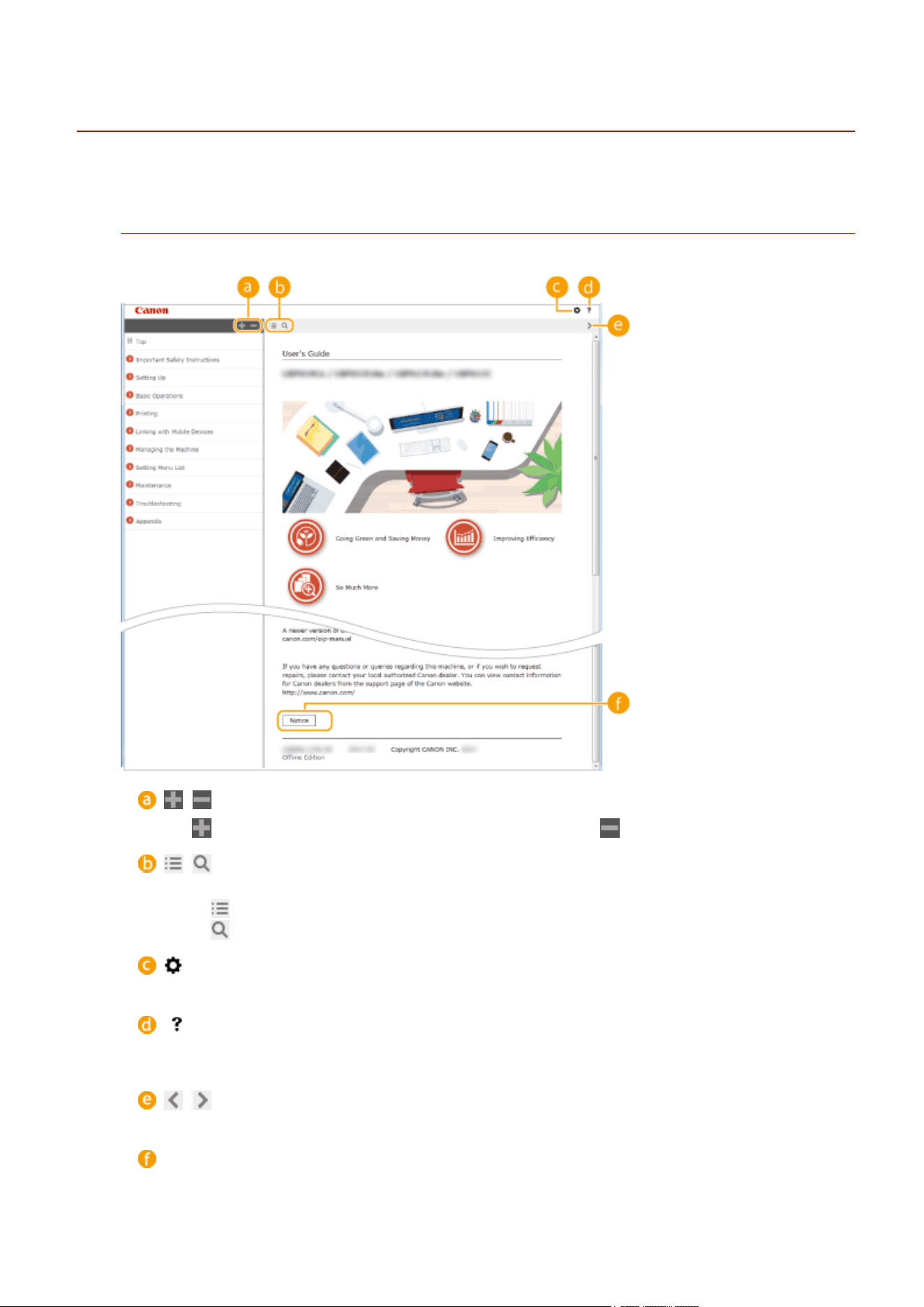
Screen Layout of User's Guide
2754-02L
The User'
s Guide is divided into different screens, and the content of each screen varies.
Top Page
Appears when User's Guide is started.
/
Click to also display all of the sections under the chapters. Click to return to the previous display.
/
Click to toggle the display between the contents and search. When the table of contents is displayed, each
click on switches between hiding and showing the display. When the search display is shown, each
click on switches between hiding and showing the display.
Click to set parameters to determine how the User's Guide is displayed, such as character size or layout.
Click to display information on how to view the User's Guide, how to perform a search, and other
information.
/
Click to display the previous or following topic.
[Notice]
Click to view important information you should kno
w when using the machine.
Appendix
128
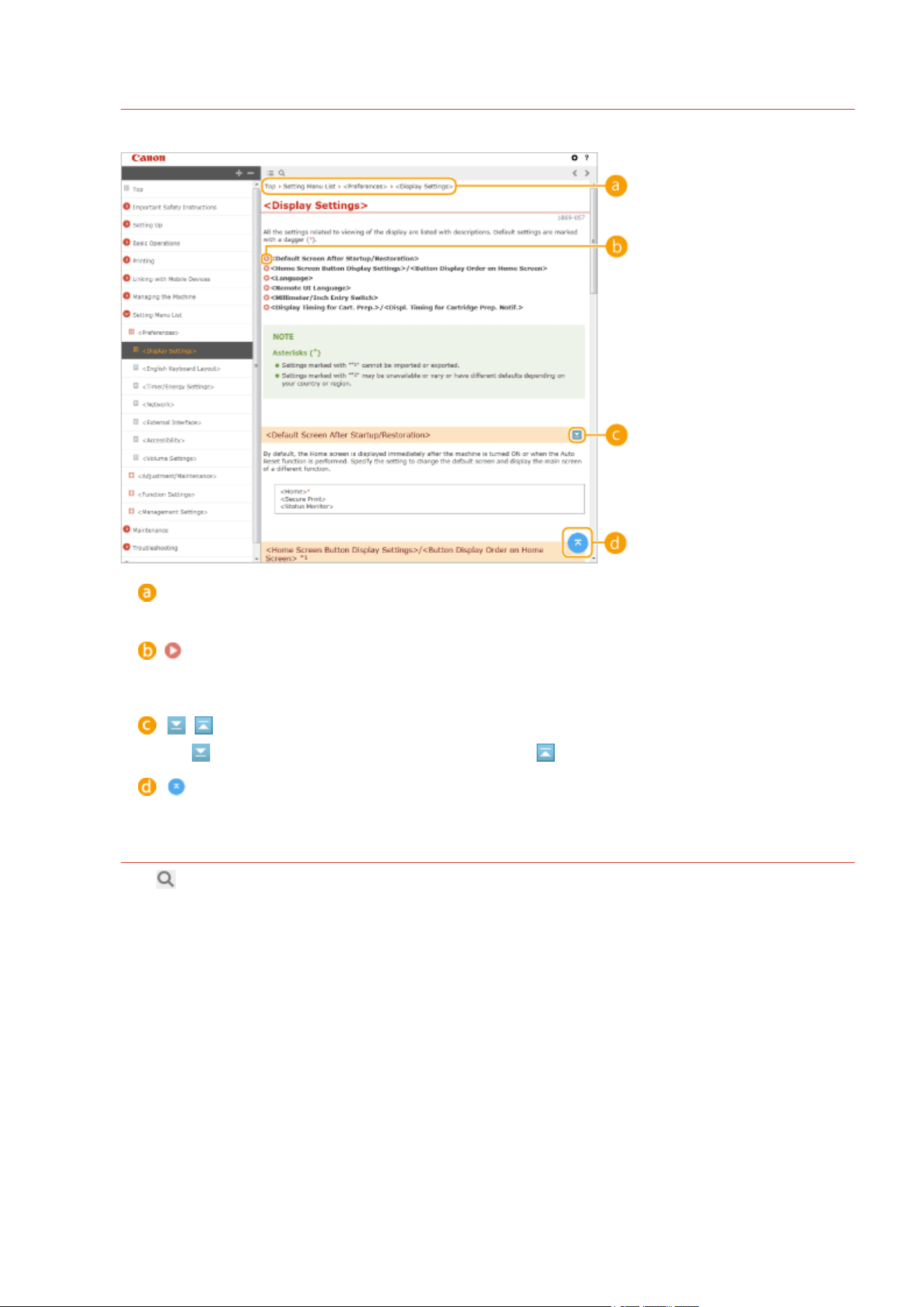
Topic Page
Contains information about how to congure and use the machine.
Navigation
See what chapter topic you are currently viewing.
Click to jump to the corresponding page. To return to the previous page, click "Back" on your Web
bro
wser.
/
Click to display the hidden detailed descriptions. Click to close the detailed descriptions.
Click to return to the page top.
Search
Click to display the search window. Contains a text box to perform a search by keyword and nd the page
you are looking for.
Appendix
129
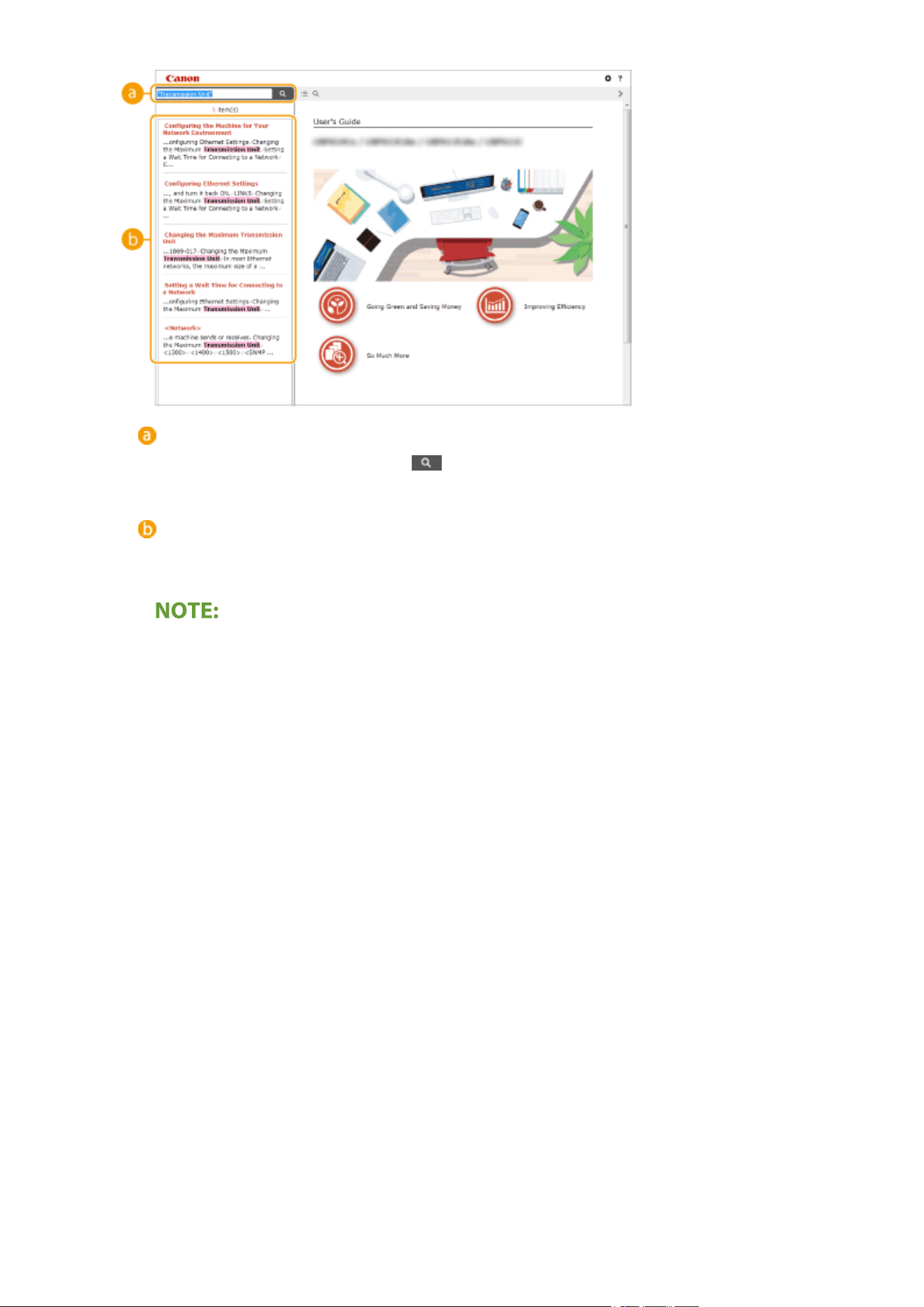
[Enter keyword(s) here]
Enter a keyword or keywords and click to display the search results. You can search for pages
containing all the ke
ywords by separating the keywords by a space (blank). Also you can only search for
pages containing an exact phrase by enclosing the keywords in double quotation marks.
Search result
Displays the sear
ch results of the pages that contain the specied keywords. From the results, locate the
page you are looking for and click the topic title of the page.
● The specied ke
yword(s) are shown in bold in the search results.
Appendix
130
Viewing User's Guide
2754-02R
This section describes the marks, buttons, screens, and other items used in the User
's Guide. The warnings and
cautions are also given in the "Important Safety Instructions" in the "Getting Started" included with the machine. See
also these instructions.
Marks
Cautions regarding safety, restrictions and cautions regarding the handling of the machine, useful tips, and
other information are indicated using the marks belo
w.
Indicates a warning concerning operations that may lead to death or injury to
persons if not performed correctly
. To use the machine safely, always pay
attention to these warnings.
Indicates a caution concerning operations that may lead to injury to persons if
not performed correctly
. To use the machine safely, always pay attention to
these cautions.
Indicates an operation that must not be performed. Read these items carefully,
and make sur
e not to perform the described operations.
Indicates operational requirements and restrictions. Be sure to read these
items carefully to oper
ate the machine correctly, and avoid damage to the
machine or property.
Indicates a clarication of an operation, or contains additional e
xplanations for
a procedure.
Indicates useful functions or tips for using the machine.
Keys and Buttons Used in this Manual
Keys on the machine and buttons on the computer display appear in the following notation:
Type Example
Keys on the machine
Cancel Job key
Power switch
Buttons and other te
xt interfaces displayed on the computer display [Preferences]
Computer Screens Used in This Manual
Depending on the model or operating system you are using, the appearance of the displays used in this manual
may slightly differ from the actual displays. Also, the appear
ance of drivers and software may differ depending
on their version.
Appendix
131
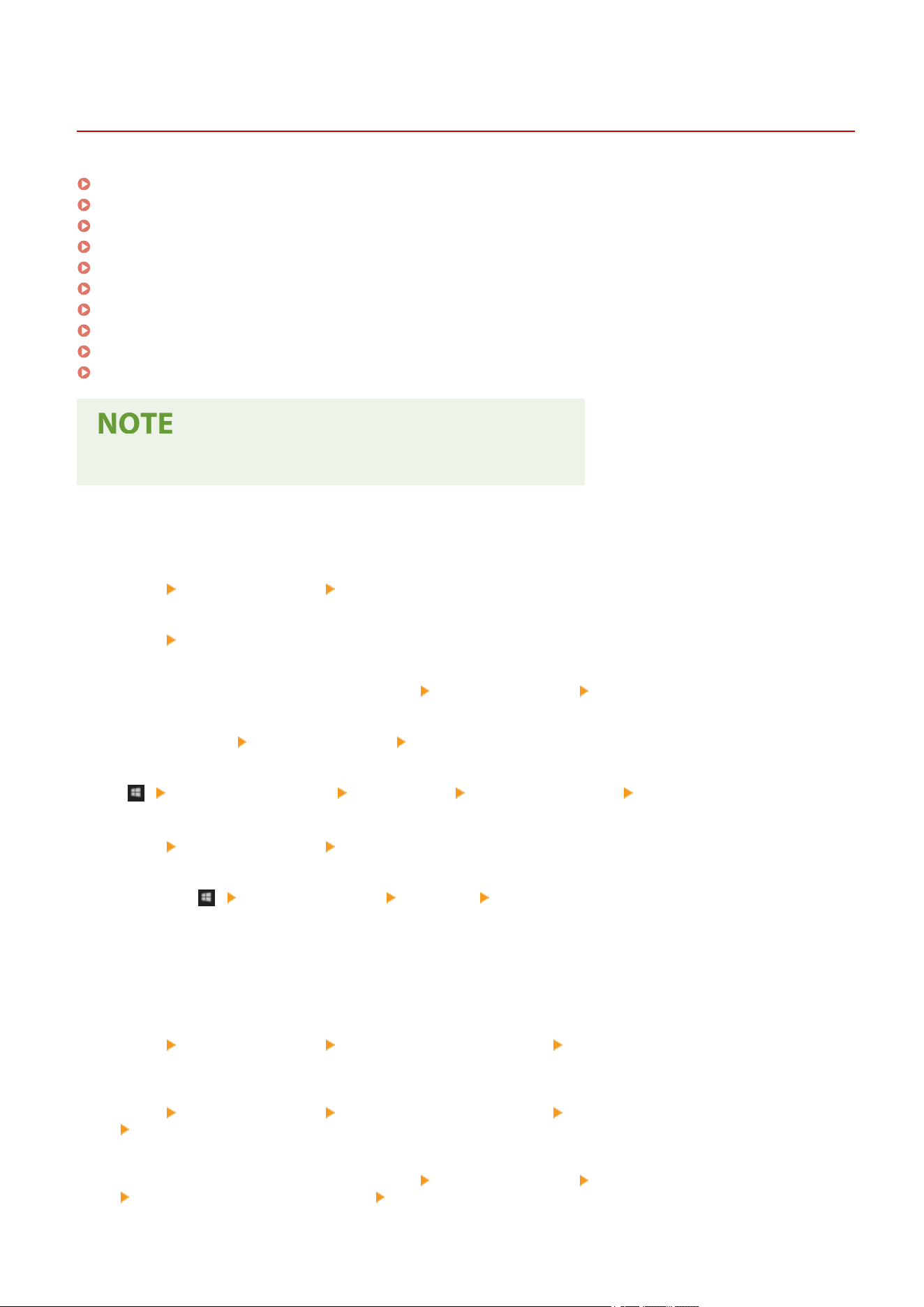
Basic Windows Operations
2754-02U
Displaying the Printer Folder(P. 132)
Enabling [Network discovery](P. 132)
Displaying Shared Printers in the Print Server(P. 133)
Displaying the [Software Programs/Manuals Setup] Screen(P. 134)
Printing a Test Page in Windows(P. 134)
Checking the Bit Architecture(P. 135)
Checking the Printer Port(P. 136)
Checking Bidirectional Communication(P. 137)
Checking the SSID to Which Your Computer is Connected(P. 138)
When Printing from the Windows Store App(P. 139)
● Depending on the computer that you use, the operation may differ.
◼ Displaying the Printer Folder
Windows Vista
[Start] select [Control Panel] [Printer].
Windows 7/Server 2008 R2
[Start] select [Devices and Printers].
Windows 8/Server 2012
Right-click the lo
wer-left corner of the screen
select [Control Panel] [View devices and printers].
Windows 8.1/Server 2012 R2
Right-click [Start] select [Control Panel] [View devices and printers].
Windows 10
[ ] select [Windows System] [Control Panel] [Hardware and Sound] [Devices and Printers].
Windows Server 2008
[Start] select [Control Panel] double-click [Printers].
Windows Server 2016
Right-click [ ] select [Control Panel] [Hardware] [Devices and Printers].
◼ Enabling [Network discovery]
Enable [Network disco
very] to view the computers on your network.
Windows Vista
[Start]
select [Control Panel] [View network status and tasks] select [Turn on network discovery] under
[Network discovery].
Windo
ws 7/Server 2008 R2
[Start]
select [Control Panel] [View network status and tasks] [Change advanced sharing settings]
select [Turn on network discovery] under [Network discovery].
Windows 8/Server 2012
Right-click the lo
wer-left corner of the screen
select [Control Panel] [View network status and tasks]
[Change advanced sharing settings] select [Turn on network discovery] under [Network discovery].
Appendix
132
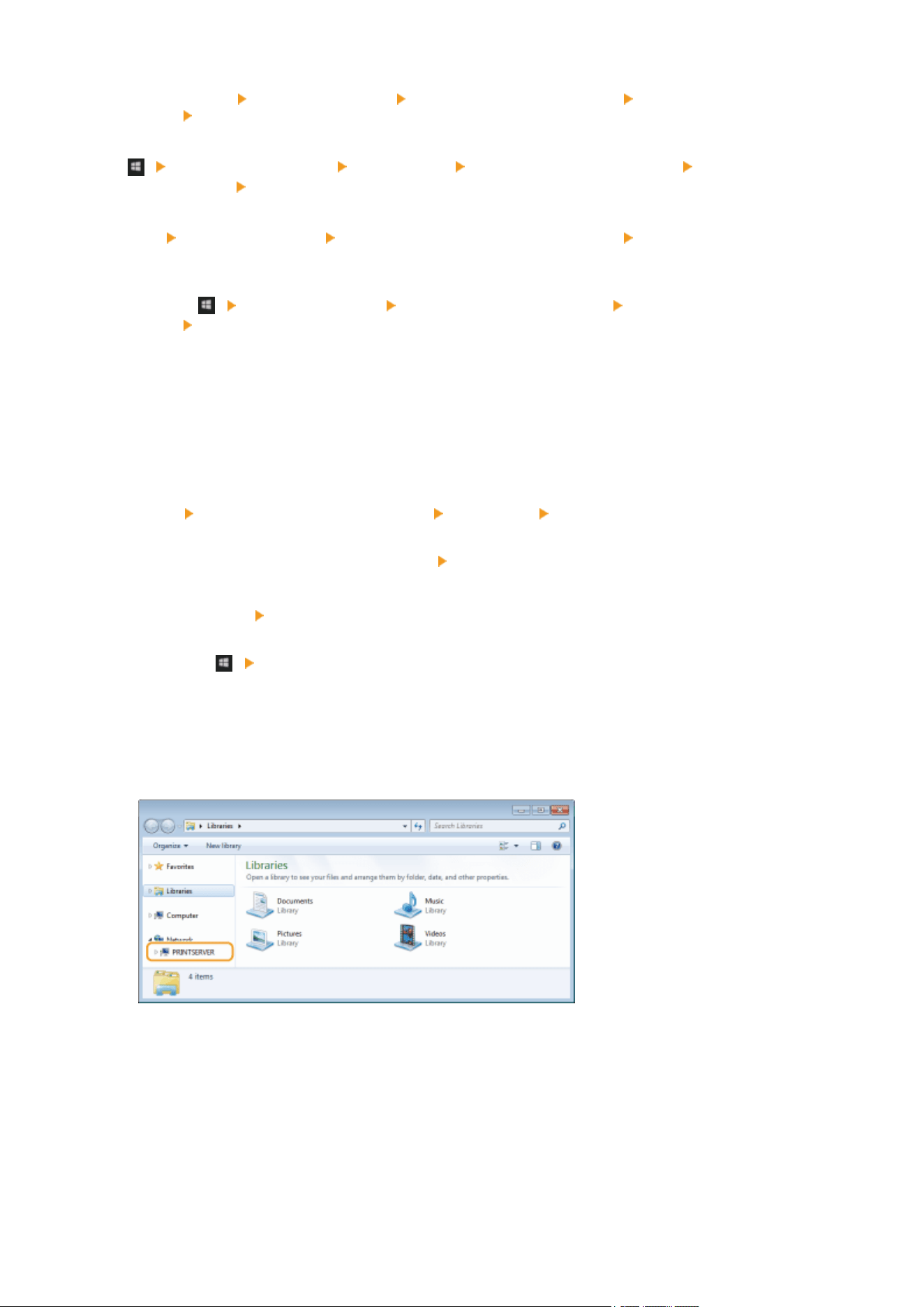
Windows 8.1/Server 2012 R2
Right-click [Start] select [Control Panel] [View network status and tasks] [Change advanced sharing
settings] select [Turn on network discovery] under [Network discovery].
Windows 10
[ ] select [Windows System] [Control Panel] [View network status and tasks] [Change advanced
sharing settings] select [Turn on network discovery] under [Network discovery].
Windows Server 2008
[Start] select [Control Panel] double-click [Network and Sharing Center] select [Turn on network
discovery] under [Network disco
very].
Windows Server 2016
Right-click [
] select [Control Panel] [View network status and tasks] [Change advanced sharing
settings] select [Turn on network discovery] under [Network discovery].
◼ Displaying Shared Printers in the Print Server
1
Open Windows Explorer.
Windows Vista/7/Server 2008
[Start]
select [All Programs] or [Programs] [Accessories] [Windows Explorer].
Windows 8/Server 2012
Right-click the lo
wer-left corner of the screen
select [File Explorer].
Windows 8.1/Server 2012 R2
Right-click [Start] select [File Explorer].
Windows 10/Server 2016
Right-click [ ] select [File Explorer].
2
Select the printer server in [Network] or [My Network Places].
● To view computers on the network, you may need to turn on network discovery or search the network for
computers.
➠ Shar
ed printers are displayed.
Appendix
133
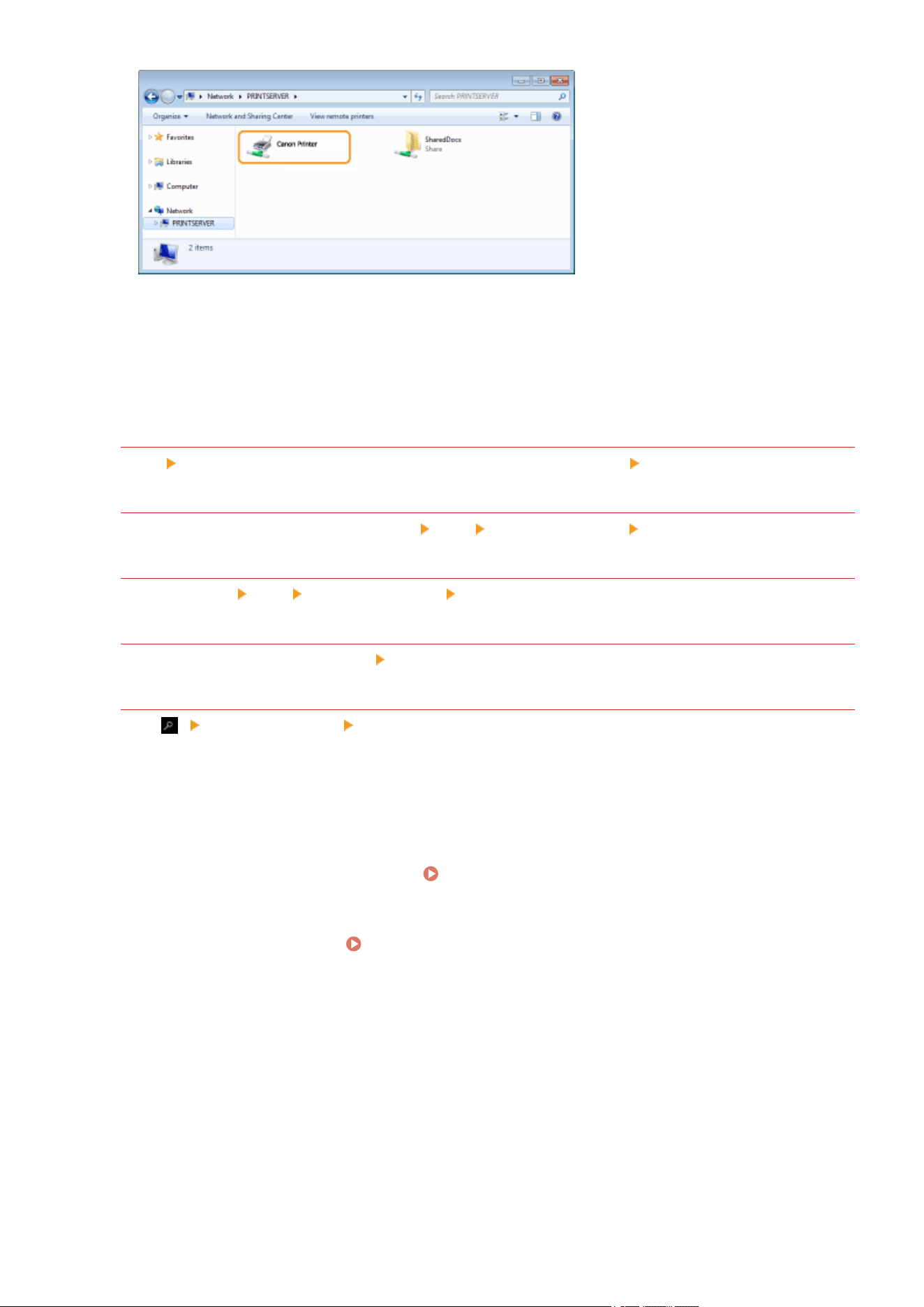
◼ Displaying the [Software Pr
ograms/Manuals Setup] Screen
If your computer does not display the [Software Programs/Manuals Setup] screen after inserting the provided CD-
ROM/DVD-ROM, follow the procedure below. The CD-ROM/DVD-ROM drive name is indicated as "D:" in this manual.
The CD-ROM/DVD-ROM drive name may differ depending on the computer you are using.
Windows Vista/7/Server 2008
[Start] enter "D:\MInst.exe" in [Search programs and les] or [Start Search] press the [ENTER] key.
Windows 8/Server 2012
Right-click the lower-left corner of the screen [Run] Enter "D:\MInst.exe" click [OK]
Windows 8.1/Server 2012 R2
Right-click [Start] [Run] Enter "D:\MInst.exe" click [OK]
Windows 10
Enter "D:\MInst.exe" in the search box click [D:\MInst.exe] displayed as the search result.
Windows Server 2016
Click [ ] enter "D:\MInst.exe" click [D:\MInst.exe] displayed as the search result.
◼ Printing a Test Page in Windo
ws
You can check whether the printer driver is operational by printing a test page in Windows.
1
Load A4 size paper in the drawer.
Loading Paper in the Drawer(P. 34)
2
Open the printer folder. Displaying the Printer Folder(P. 132)
3
Right-click the printer driver icon for this machine, and click [Printer properties] or
[Properties].
Appendix
134
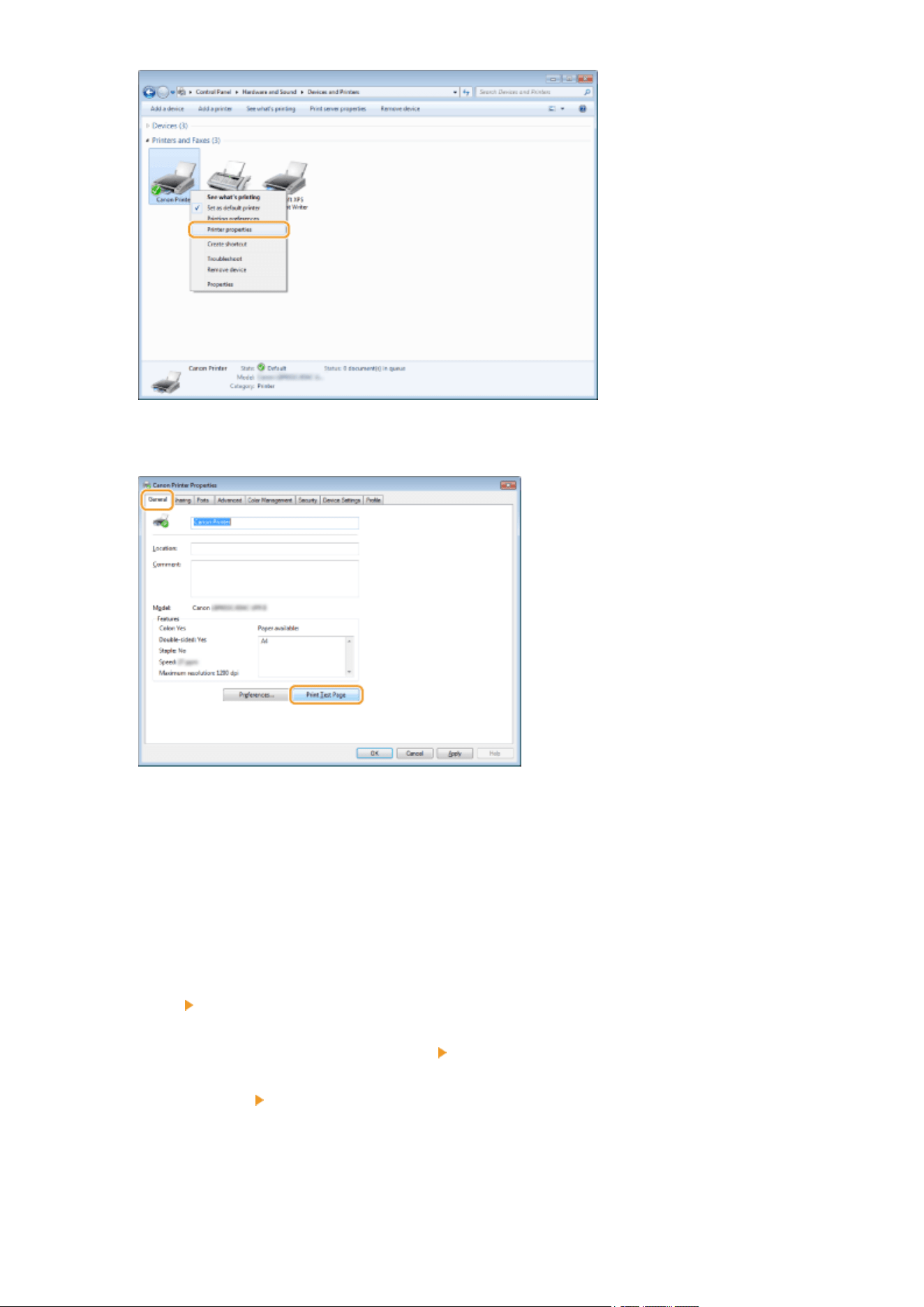
4
Click [Print Test Page] in [General] tab.
➠ The test page is printed.
◼ Checking the Bit Architectur
e
If you are not sure whether your computer is running 32-bit or 64-bit Windows follow the procedure below.
1
Display [Control Panel].
Windows Vista/7/Server 2008
[Start]
select [Control Panel].
Windows 8/Server 2012
Right-click the lo
wer-left corner of the screen
select [Control Panel].
Windows 8.1/Server 2012 R2
Right-click [Start] select [Control Panel].
Windows 10/Server 2016
Pr
oceed to step 2.
2
Display [System].
Appendix
135
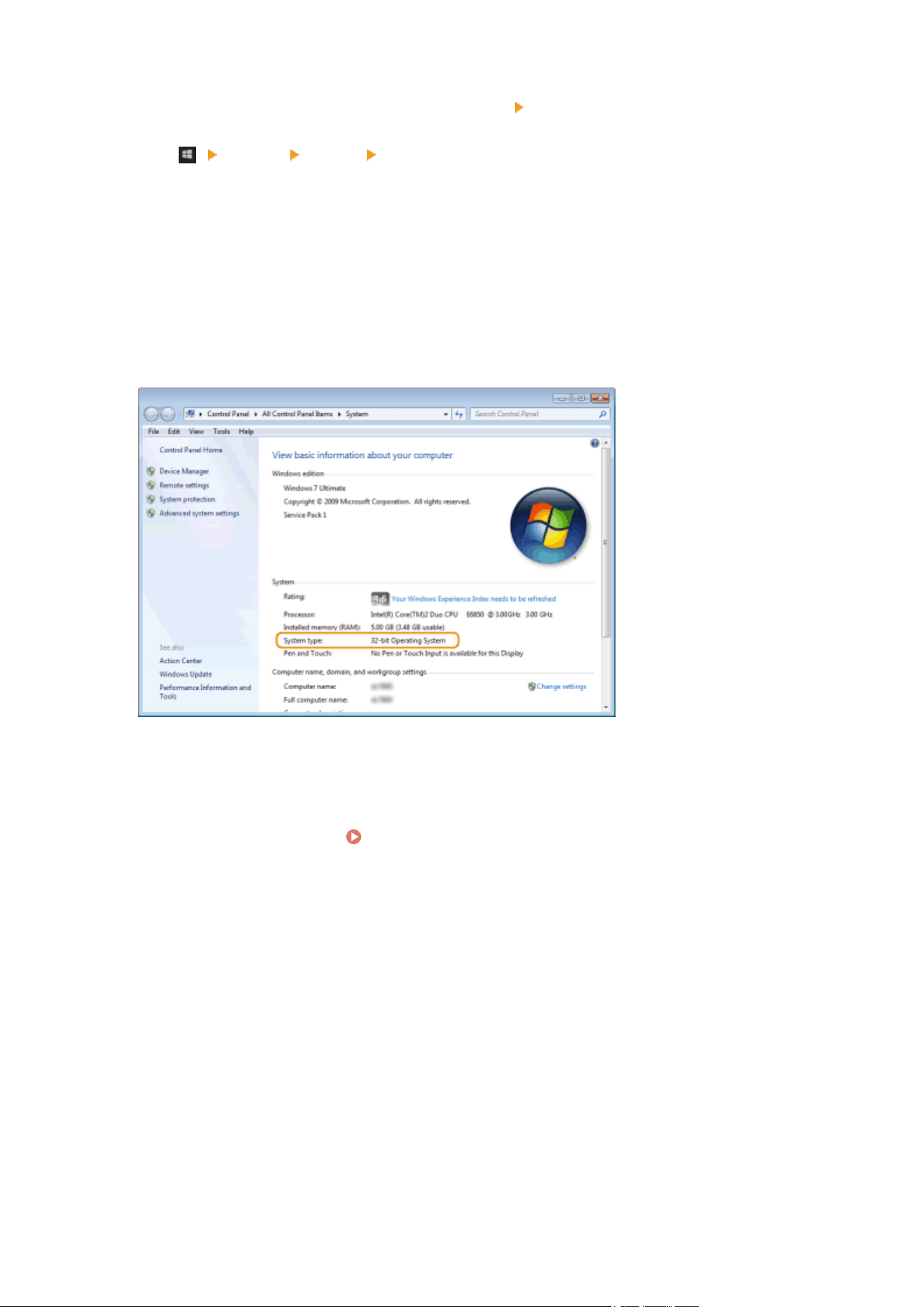
Windows Vista/7/8/Server 2008 R2/Server 2012
Click [System and Maintenance] or [System and Security] [System].
Windows 10/Server 2016
Click [ ] [Settings] [System] select [About].
Windows Server 2008
Double-click [System].
3
Check the bit ar
chitecture.
For 32-bit versions
[32-bit Operating System] is displayed.
For 64-bit versions
[64-bit Oper
ating System] is displayed.
◼ Checking the Printer Port
1
Open the printer folder. Displaying the Printer Folder(P. 132)
2
Right-click the printer driver icon for this machine, and click [Printer properties] or
[Properties].
Appendix
136
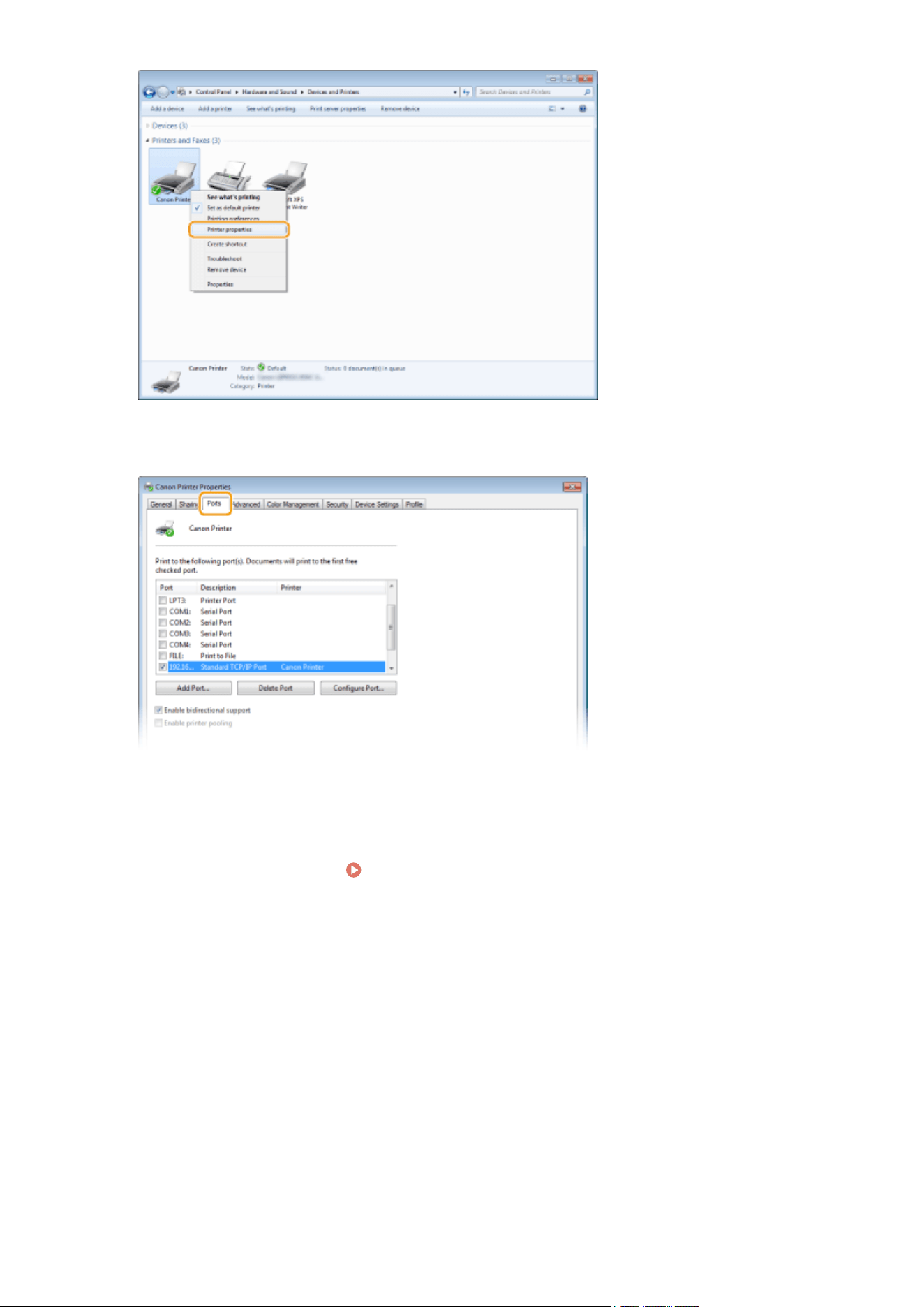
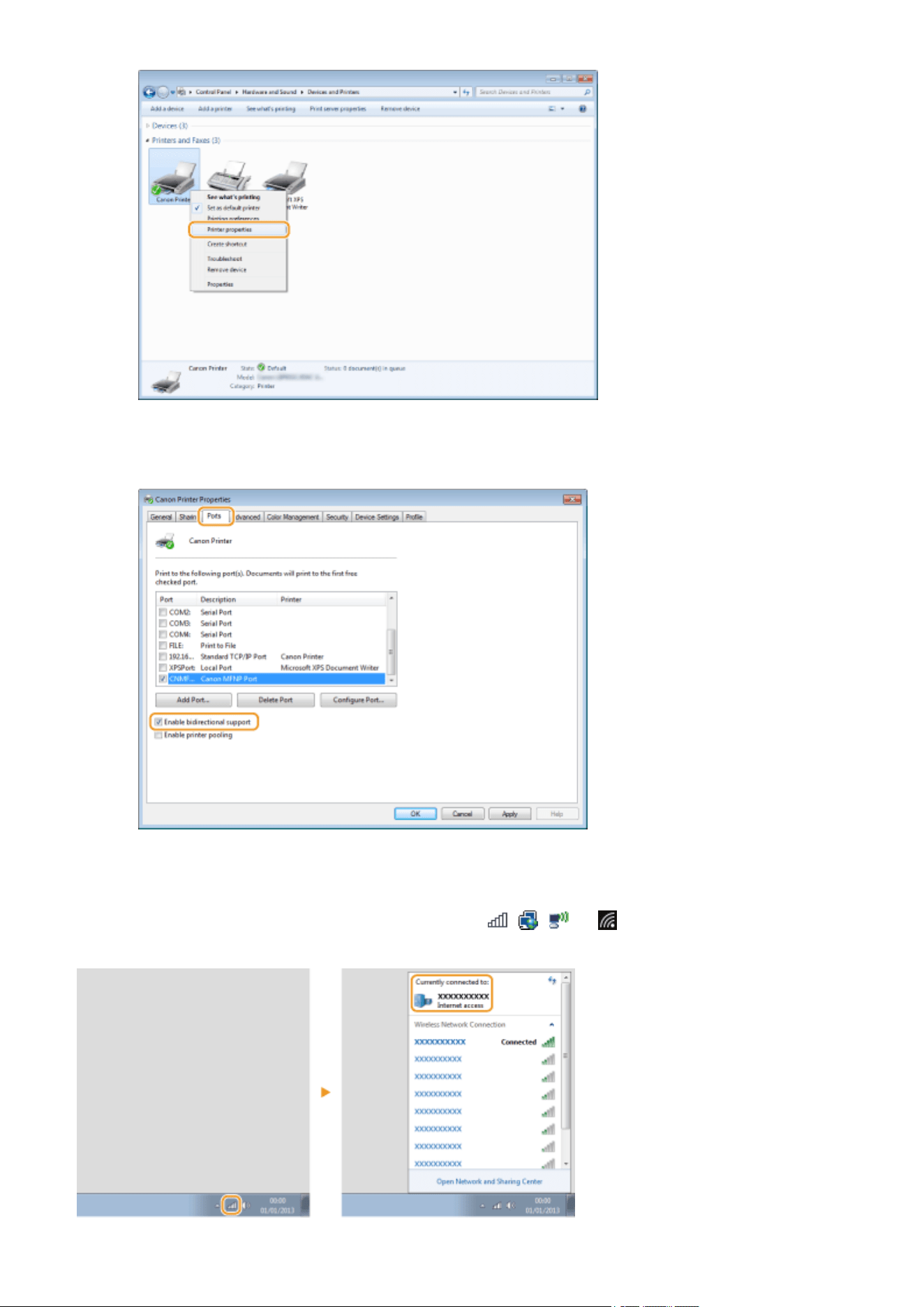
3
In the [Ports] tab, make sure that the [Enable bidirectional support] check box is
selected.
◼ Checking the SSID to Which Your Computer is Connected
If your computer is connected to a wir
eless LAN network, click
, , , or in the system tray to display the
SSID of the connected wireless LAN r
outer.
Appendix
138

◼ When Printing from the Windo
ws Store App
Windows Server 2012
Display the charms on the right side of the screen
Tap or click [Devices] The driver that you use [Print].
Windows 8.1/Server 2012 R2
Display the charms on the right side of the scr
een
Tap or click [Devices] [Print] The driver that you use
[Print].
Windows 10
T
ap or click [Print] on the application
The driver that you use [Print].
● If you print using this method, only a limited number of print settings are available.
● If the message [The printer r
equires your attention. Go to the desktop to take care of it.] is displayed,
go to the desktop and follow the instructions in the displayed dialog box. This message appears when
the machine is set to display the user name during printing and similar instances.
Appendix
139
Notice
2754-02W
◼ Product
Information required by COMMISSION REGULATION (EU) No 801/2013 amending
Regulation (EC) No 1275/2008
Power consumption of the product in networked standby if wired network ports are connected and all wireless
network ports are activated (if they are available at the same time).
Model Name Power consumption of the product in networked standby
LBP112 3.0 W or less
● The above value(s) ar
e the actual values for single machine, chosen arbitrarily, and may therefore vary from
the value of the machine in use. Optional network ports are not connected and/or activated in the
measurement.
◼ WEEE Directive
Only for European Union and EEA (Norway, Iceland and Liechtenstein)
This symbol indicates that this product is not to be disposed of with your household waste, according to the WEEE
Directive (2012/19/EU) and national legislation. This product should be handed over to a designated collection point,
e.g., on an authorized one-for-one basis when you buy a new similar product or to an authorized collection site for
recycling waste electrical and electronic equipment (EEE). Improper handling of this type of waste could have a
possible negative impact on the environment and human health due to potentially hazardous substances that are
generally associated with EEE. At the same time, your cooperation in the correct disposal of this product will contribute
to the effective usage of natural resources. For more information about where you can drop off your waste equipment
for recycling, please contact your local city oce, waste authority, approved WEEE scheme or your household waste
disposal service. For more information regarding return and recycling of WEEE products, please visit www.canon-
europe.com/weee.
◼ Environmental Information
Reducing your environmental impact while saving money
Power Consumption and Activation Time
The amount of electricity a device consumes depends on the way the device is used. This product is designed and set
in a way to allow you to reduce your electricity costs. After the last print it switches to Ready Mode. In this mode it can
print again immediately if required. If the product is not used for a time, the device switches to its Power Save Mode.
The devices consume less power (Watt) in these modes.
Appendix
140

If you wish to set a longer Activation Time or would like to completely deactivate the Power Save Mode, please
consider that this device may then only switch to a lo
wer energy level after a longer period of time or not at all.
Canon does not recommend extending the Activation Times from the optimum ones set as default.
Energy Star ®
The Energy Star
®
programme is a voluntary scheme to promote the development and purchase of energy ecient
models, which help to minimise environmental impact.
Products which meet the stringent requirements of the Energy Star
®
programme for both environmental benets and
the amount of energy consumption will carry the Energy Star
®
logo accordingly.
Paper types
This product can be used to print on both recycled and virgin paper (certied to an environmental stewardship
scheme), which complies with EN12281 or a similar quality standard. In addition it can support printing on media
down to a weight of 64g/m².
Lighter paper means less resources used and a lower environmental footprint for your printing needs.
Duplex printing (Standard duplex printing products only)
Duplex printing capability enables you to print on both sides automatically, and therefore helps to reduce the use of
valuable resources by reducing your paper consumption.
The duplex function has been auto enabled during the set up and driver installation and Canon strongly recommends
that you do not disable this function. You should continue to use the duplex function to reduce the environmental
impact of your work with this product at all times.
◼ Disclaimers
● The information in this document is subject to change without notice.
● CANON INC. MAKES NO WARRANTY OF ANY KIND WITH REGARD TO THIS MATERIAL, EITHER EXPRESS OR IMPLIED,
EXCEPT AS PROVIDED HEREIN, INCLUDING WITHOUT LIMITATION, THEREOF, WARRANTIES AS TO MARKETABILITY,
MERCHANTABILITY, FITNESS FOR A PARTICULAR PURPOSE OF USE, OR NON-INFRINGEMENT. CANON INC. SHALL
NOT BE LIABLE FOR ANY DIRECT, INCIDENTAL, OR CONSEQUENTIAL DAMAGES OF ANY NATURE, OR LOSSES OR
EXPENSES RESULTING FROM THE USE OF THIS MATERIAL.
◼ Trademarks
Adobe, Acrobat, and Reader are registered trademarks of Adobe Systems Incorporated in the United States and/or
other countries.
Apple, Mac, macOS, OS X and Safari are trademarks of Apple Inc.
Microsoft, Windows, Windows Vista, Windows Server, Internet Explorer, Word and Excel are either registered
trademarks or trademarks of Microsoft Corporation in the United States and/or other countries.
iOS is a trademark or registered trademark of Cisco in the U.S. and other countries and is used under license.
Google Chrome and Android are either registered trademarks or trademarks of Google Inc.
Portions of this software are copyright © 2007 The FreeType Project (www.freetype.org). All rights reserved.
All other product and brand names are registered trademarks, trademarks or service marks of their respective owners.
◼ Copyright
Reproduction of the contents of this document in whole or in part without prior permission is prohibited.
◼ Legal Limitations on the Usage of Your Product and the Use of Images
Using your product to scan, print or otherwise reproduce certain documents, and the use of such images as scanned,
printed or otherwise reproduced by your product, may be prohibited by law and may result in criminal and/or civil
liability. A non-exhaustive list of these documents is set forth below. This list is intended to be a guide only. If you are
uncertain about the legality of using your product to scan, print or otherwise reproduce any particular document,
and/or of the use of the images scanned, printed or otherwise reproduced, you should consult in advance with your
legal advisor for guidance.
● Paper Money
● Travelers Checks
Appendix
141

● Money Orders
● Food Stamps
● Certicates of Deposit
● Passports
● Postage Stamps (canceled or uncanceled)
● Immigr
ation Papers
● Identifying Badges or Insignias
● Internal Revenue Stamps (canceled or uncanceled)
● Selective Service or Draft Papers
● Bonds or Other Certicates of Indebtedness
● Checks or Drafts Issued by Governmental Agencies
● Stock Certicates
● Motor Vehicle Licenses and Certicates of Title
● Copyrighted Works/Works of Art without Permission of Copyright Owner
V_180517
Appendix
142

This Font Software is licensed under the SIL Open Font License,
Version 1.1.
This license is copied belo
w, and is also available with a FAQ at:
http://scripts.sil.org/OFL
-----------------------------------------------------------
SIL OPEN FONT LICENSE Version 1.1 - 26 February 2007
-----------------------------------------------------------
PREAMBLE
The goals of the Open Font License (OFL) are to stimulate worldwide
development of collaborative font projects, to support the font
creation efforts of academic and linguistic communities, and to
provide a free and open framework in which fonts may be shared and
improved in partnership with others.
The OFL allows the licensed fonts to be used, studied, modied and
redistributed freely as long as they are not sold by themselves. The
fonts, including any derivative works, can be bundled, embedded,
redistributed and/or sold with any software provided that any reserved
names are not used by derivative works. The fonts and derivatives,
however, cannot be released under any other type of license. The
requirement for fonts to remain under this license does not apply to
any document created using the fonts or their derivatives.
DEFINITIONS
"Font Software" refers to the set of les released by the Copyright
Holder(s) under this license and clearly marked as such. This may
include source les, build scripts and documentation.
"Reserved Font Name" refers to any names specied as such after the
copyright statement(s).
"Original Version" refers to the collection of Font Software
components as distributed by the Copyright Holder(s).
"Modied Version" refers to any derivative made by adding to,
deleting, or substituting -- in part or in whole -- any of the
components of the Original Version, by changing formats or by porting
the Font Software to a new environment.
"Author" refers to any designer, engineer, programmer, technical
writer or other person who contributed to the Font Software.
PERMISSION & CONDITIONS
Permission is hereby granted, free of charge, to any person obtaining
a copy of the Font Software, to use, study, copy, merge, embed,
modify, redistribute, and sell modied and unmodied copies of the
Font Software, subject to the following conditions:
SIL OPEN FONT LICENSE
143

1) Neither the Font Software nor any of its individual components, in
Original or Modied Versions, may be sold b
y itself.
2) Original or Modied Versions of the Font Software may be bundled,
redistributed and/or sold with any software, provided that each copy
contains the above copyright notice and this license. These can be
included either as stand-alone text les, human-readable headers or
in the appropriate machine-readable metadata elds within text or
binary les as long as those elds can be easily viewed by the user.
3) No Modied Version of the Font Software may use the Reserved Font
Name(s) unless explicit written permission is granted by the
corresponding Copyright Holder. This restriction only applies to the
primary font name as presented to the users.
4) The name(s) of the Copyright Holder(s) or the Author(s) of the Font
Software shall not be used to promote, endorse or advertise any
Modied Version, except to acknowledge the contribution(s) of the
Copyright Holder(s) and the Author(s) or with their explicit written
permission.
5) The Font Software, modied or unmodied, in part or in whole,
must be distributed entirely under this license, and must not be
distributed under any other license. The requirement for fonts to
remain under this license does not apply to any document created using
the Font Software.
TERMINATION
This license becomes null and void if any of the above conditions are
not met.
DISCLAIMER
THE FONT SOFTWARE IS PROVIDED "AS IS", WITHOUT WARRANTY OF ANY KIND,
EXPRESS OR IMPLIED, INCLUDING BUT NOT LIMITED TO ANY WARRANTIES OF
MERCHANTABILITY, FITNESS FOR A PARTICULAR PURPOSE AND NONINFRINGEMENT
OF COPYRIGHT, PATENT, TRADEMARK, OR OTHER RIGHT. IN NO EVENT SHALL THE
COPYRIGHT HOLDER BE LIABLE FOR ANY CLAIM, DAMAGES OR OTHER LIABILITY,
INCLUDING ANY GENERAL, SPECIAL, INDIRECT, INCIDENTAL, OR CONSEQUENTIAL
DAMAGES, WHETHER IN AN ACTION OF CONTRACT, TORT OR OTHERWISE, ARISING
FROM, OUT OF THE USE OR INABILITY TO USE THE FONT SOFTWARE OR FROM
OTHER DEALINGS IN THE FONT SOFTWARE.
SIL OPEN FONT LICENSE
144

- 1 -
The Software Subjected to the Other License Conditions
Please refer to Table of Software and respective License terms below, for more detail and corresponding
license conditions.
Table of Software
Names of Software Terms and Conditions of the
License:
See Page
OpenSSL 2

- 2 -
OpenSSL
OpenSSL License
---------------
/* ====================================================================
* Copyright (c) 1998-2011 The OpenSSL Project. All rights reserved.
*
* Redistribution and use in source and binary forms, with or without
* modification, are permitted provided that the following conditions
* are met:
*
* 1. Redistributions of source code must retain the above copyright
* notice, this list of conditions and the following disclaimer.
*
* 2. Redistributions in binary form must reproduce the above copyright
* notice, this list of conditions and the following disclaimer in
* the documentation and/or other materials provided with the
* distribution.
*
* 3. All advertising materials mentioning features or use of this
* software must display the following acknowledgment:
* "This product includes software developed by the OpenSSL Project
* for use in the OpenSSL Toolkit. (http://www.openssl.org/)"
*
* 4. The names "OpenSSL Toolkit" and "OpenSSL Project" must not be used to
* endorse or promote products derived from this software without
* prior written permission. For written permission, please contact
*
* 5. Products derived from this software may not be called "OpenSSL"
* nor may "OpenSSL" appear in their names without prior written
* permission of the OpenSSL Project.
*
* 6. Redistributions of any form whatsoever must retain the following
* acknowledgment:
* "This product includes software developed by the OpenSSL Project
* for use in the OpenSSL Toolkit (http://www.openssl.org/)"

- 3 -
*
* THIS SOFTWARE IS PROVIDED BY THE OpenSSL PROJECT ``AS IS'' AND ANY
* EXPRESSED OR IMPLIED WARRANTIES, INCLUDING, BUT NOT LIMITED TO, THE
* IMPLIED WARRANTIES OF MERCHANTABILITY AND FITNESS FOR A PARTICULAR
* PURPOSE ARE DISCLAIMED. IN NO EVENT SHALL THE OpenSSL PROJECT OR
* ITS CONTRIBUTORS BE LIABLE FOR ANY DIRECT, INDIRECT, INCIDENTAL,
* SPECIAL, EXEMPLARY, OR CONSEQUENTIAL DAMAGES (INCLUDING, BUT
* NOT LIMITED TO, PROCUREMENT OF SUBSTITUTE GOODS OR SERVICES;
* LOSS OF USE, DATA, OR PROFITS; OR BUSINESS INTERRUPTION)
* HOWEVER CAUSED AND ON ANY THEORY OF LIABILITY, WHETHER IN CONTRACT,
* STRICT LIABILITY, OR TORT (INCLUDING NEGLIGENCE OR OTHERWISE)
* ARISING IN ANY WAY OUT OF THE USE OF THIS SOFTWARE, EVEN IF ADVISED
* OF THE POSSIBILITY OF SUCH DAMAGE.
* ====================================================================
*
* This product includes cryptographic software written by Eric Young
* Hudson ([email protected]).
*
*/
Original SSLeay License
-----------------------
/* Copyright (C) 1995-1998 Eric Young ([email protected])
* All rights reserved.
*
* This package is an SSL implementation written
* by Eric Young ([email protected]).
* The implementation was written so as to conform with Netscapes SSL.
*
* This library is free for commercial and non-commercial use as long as
* the following conditions are aheared to. The following conditions
* apply to all code found in this distribution, be it the RC4, RSA,
* lhash, DES, etc., code; not just the SSL code. The SSL documentation
* included with this distribution is covered by the same copyright terms
* except that the holder is Tim Hudson (tjh@cryptsoft.com).
*

- 4 -
* Copyright remains Eric Young's, and as such any Copyright notices in
* the code are not to be removed.
* If this package is used in a product, Eric Young should be given attribution
* as the author of the parts of the library used.
* This can be in the form of a textual message at program startup or
* in documentation (online or textual) provided with the package.
*
* Redistribution and use in source and binary forms, with or without
* modification, are permitted provided that the following conditions
* are met:
* 1. Redistributions of source code must retain the copyright
* notice, this list of conditions and the following disclaimer.
* 2. Redistributions in binary form must reproduce the above copyright
* notice, this list of conditions and the following disclaimer in the
* documentation and/or other materials provided with the distribution.
* 3. All advertising materials mentioning features or use of this software
* must display the following acknowledgement:
* "This product includes cryptographic software written by
* The word 'cryptographic' can be left out if the rouines from the library
* being used are not cryptographic related :-).
* 4. If you include any Windows specific code (or a derivative thereof) from
* the apps directory (application code) you must include an acknowledgement:
*
* THIS SOFTWARE IS PROVIDED BY ERIC YOUNG ``AS IS'' AND
* ANY EXPRESS OR IMPLIED WARRANTIES, INCLUDING, BUT NOT LIMITED TO, THE
* IMPLIED WARRANTIES OF MERCHANTABILITY AND FITNESS FOR A PARTICULAR PURPOSE
* ARE DISCLAIMED. IN NO EVENT SHALL THE AUTHOR OR CONTRIBUTORS BE LIABLE
* FOR ANY DIRECT, INDIRECT, INCIDENTAL, SPECIAL, EXEMPLARY, OR CONSEQUENTIAL
* DAMAGES (INCLUDING, BUT NOT LIMITED TO, PROCUREMENT OF SUBSTITUTE GOODS
* OR SERVICES; LOSS OF USE, DATA, OR PROFITS; OR BUSINESS INTERRUPTION)
* HOWEVER CAUSED AND ON ANY THEORY OF LIABILITY, WHETHER IN CONTRACT, STRICT
* LIABILITY, OR TORT (INCLUDING NEGLIGENCE OR OTHERWISE) ARISING IN ANY WAY
* OUT OF THE USE OF THIS SOFTWARE, EVEN IF ADVISED OF THE POSSIBILITY OF
* SUCH DAMAGE.
*
* The licence and distribution terms for any publically available version or

- 5 -
* derivative of this code cannot be changed. i.e. this code cannot simply be
* copied and put under another distribution licence
* [including the GNU Public Licence.]
*/


