
English
1.lmportant Notice Before Use
Thank you for purchasing a product! Please read this manual
carefully before use to ensure correct operation.
To further improve our products, the user manual and firmware
may be updated and upgraded without prior notice.
This product saves driving videos, but malfunctions may occur.
Please check the product's working status regularly. lf a mal-
function is found, contact us for assistance as soon as possible.
LOOCi is not liable for compensation or responsibility for any
traffic accidents.
Format the memory card every 2-3 months to help maintain
stable performance of the dash cam.
The memory card is a consumable item with a limited lifespan.
If you find the memory card can no longer save videos, it is rec-
ommended to replace it. Use the AJA System Test software on
a computer to check the memory card's speed, if the write
speed is less than 10MB/s, replace the memory card.
Please use this product within the limits permitted by local
laws.
- 3 -
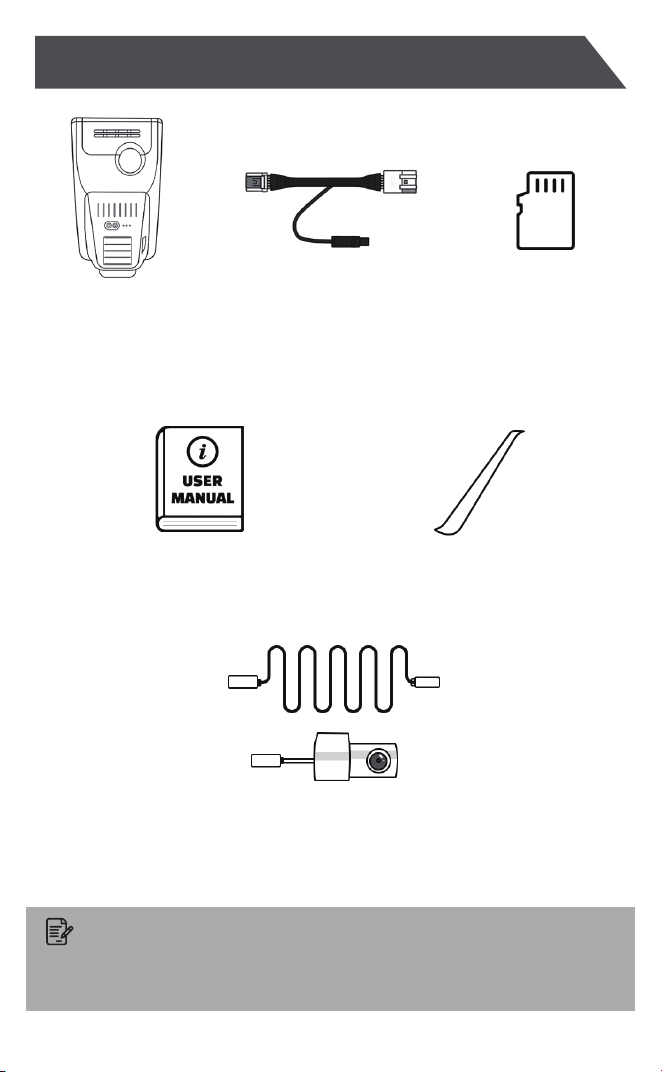
2.Package Contents:
- 4 -
(Varies by
model/version)
(Varies by
model/version)
Front Camera ×1 Power Cable ×1
(Incudes 64GB or 128GB
Micro SD card.
Supports up to 256GB)
Memory Card ×1
User Manual ×1 Plastic Pry Tool ×1
Note:
If you purchased the front camera only version, you cannot add a rear
camera separately as they have different circuit boards.
(Optional)
Rear Camera Cable & RearCamera
3.Product Overview
- 5 -
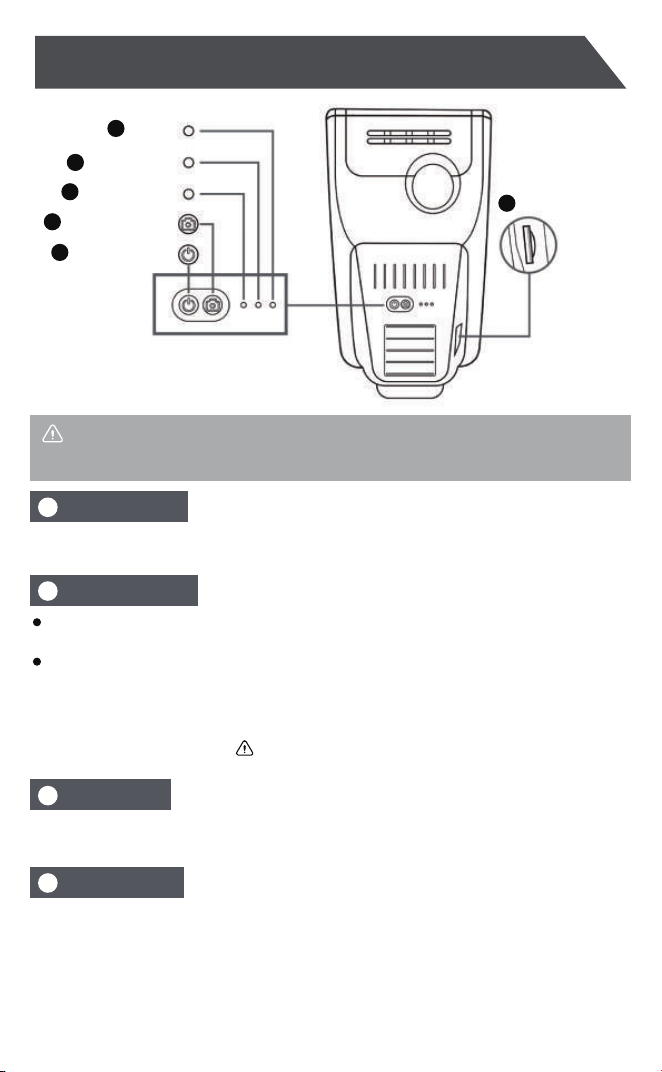
TF Card slot
6
Reset
5
LED Linght
4
Microphone
3
Camerabutton
2
Power button
1
Note:
Productimages are for reference only. Actual shape may vary bymodel.
The dash cam powers on automatically when the car starts; manual power-on is
not required, During recording, a short press pauses/resumes recording.
The dash cam can record audio. This function can be enabled or disabled in the
App settings.
Red LED slow-flashing:Normal loop recording
Red LED fast-flashing:Emergency recording
Red LED solid ON:Not recording
Blue LED solid ON:Wi-Fi works normally
Blue LED flashing:Wi-Fi startup failure or abnormality
While the dash cam is recording, quickly press the Camera Button tolock and
protect the current video clip.
Power Button
1
Camera Button
2
Microphone
3
LED Indicator
4
Press and hold the Camera Button for 10 seconds for the following functions:
Restore Default Settings
Reset Wi-Fi Name and Password to default
(Default password: 12345678)
Format Memory Card. Remove the memory card before using thisc.
function to prevent accidental deletion of all videos.
a.
b.
c.
- 6 -
lmportant Notes
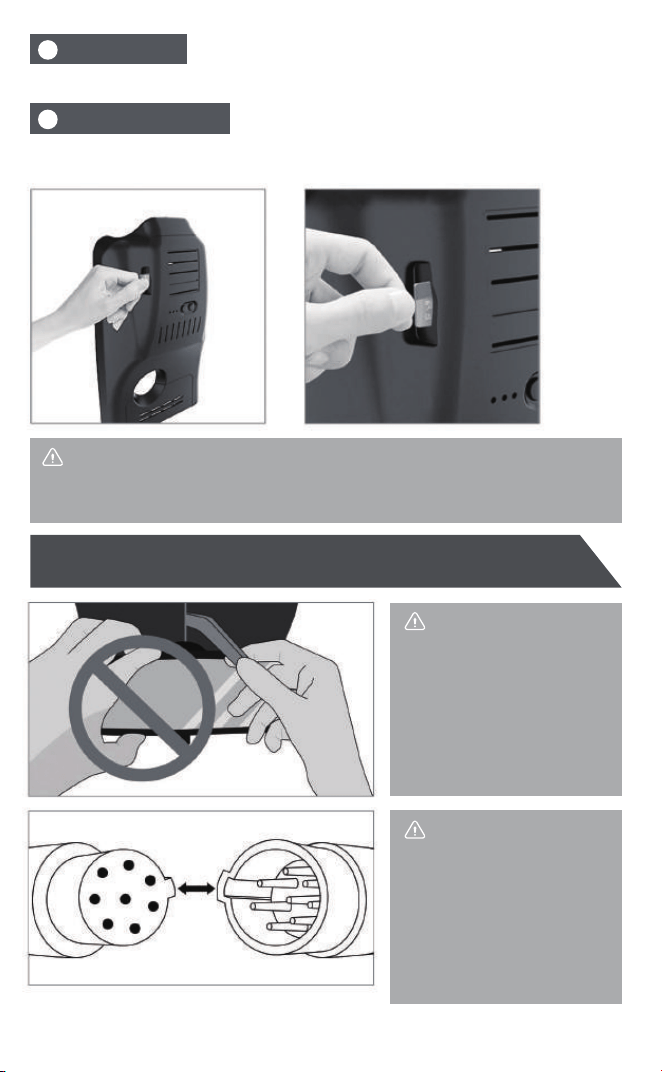
1. Correct orientation is indicated by a springy feeling when inserting.
2. Press firmly with a fingernail or plastic tool until you hear a 'click'.
Press the reset button to restart the device.
Reset Button
5
Supports Micro SD cards up to 256GB. Recommended cards: LOOCi brand,
SanDisk, Lexar, with U3 speed class.
Memory Card Slot
6
4.Installation Guide
Note
Note
When removing theoriginal
plastic cover, do not use
the rear-View mirror as
alever, as this maydamage
the wind-shield.
If the power cable has an
8-pin cylindri-cal plug, be
careful to align the Position-
ing Pin and insert it fully.
Connecting the wrong pin
may cause a short circuit;
be careful to find the correct
PositioningPin.
- 7 -
Ensure the vehicle's power/ignition is OFF during installation to prevent
potential error codes on the dashboard. lf error codes appear, reinstall the
original factory connector, turn off the vehicle, lock it, wait 10 minutes, and
then retryinstallation.
4.1 Plug-and-Play (Y-Cable)Installation
4.2 Fuse Box Hardwiring Installation
1
Please scan the QR code on the user manual cover forinstallation videos. lf
no video is available for your specific car model, please contact us at e-trade
@fuchuangauto.com.com and include your order number in the email subject.
2
We may not have installation videos for some car models. lf you encounter
any problems during installation, please do not rush to return the product.
Please contact us for support. Most issues can be resolved.
3
Due to the time difference, we aim to reply you within 24 hours. lf you don't
hear back within 48 hours, please check your spam/junk mail folder.
The Fuse Box Cable enables Parking Mode.
When parked,if an impact is detected, the dash
cam will start recording for l minute and lock the
video file.
This is an optional cable not included with the
standard package.Scan the QR code below for
detailed installation instructions.
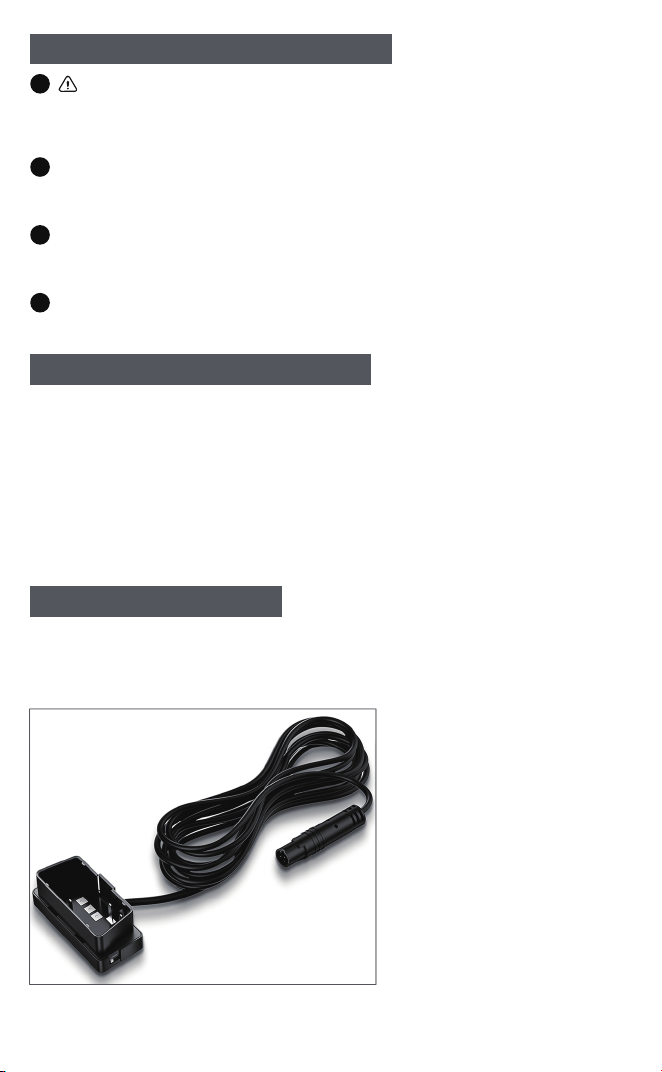
4.3 OBD Cable Installation
This is an optional cable not included with the
standard package. Scan the QR code belo
wfor detailed installation instructions.
3
- 8 -
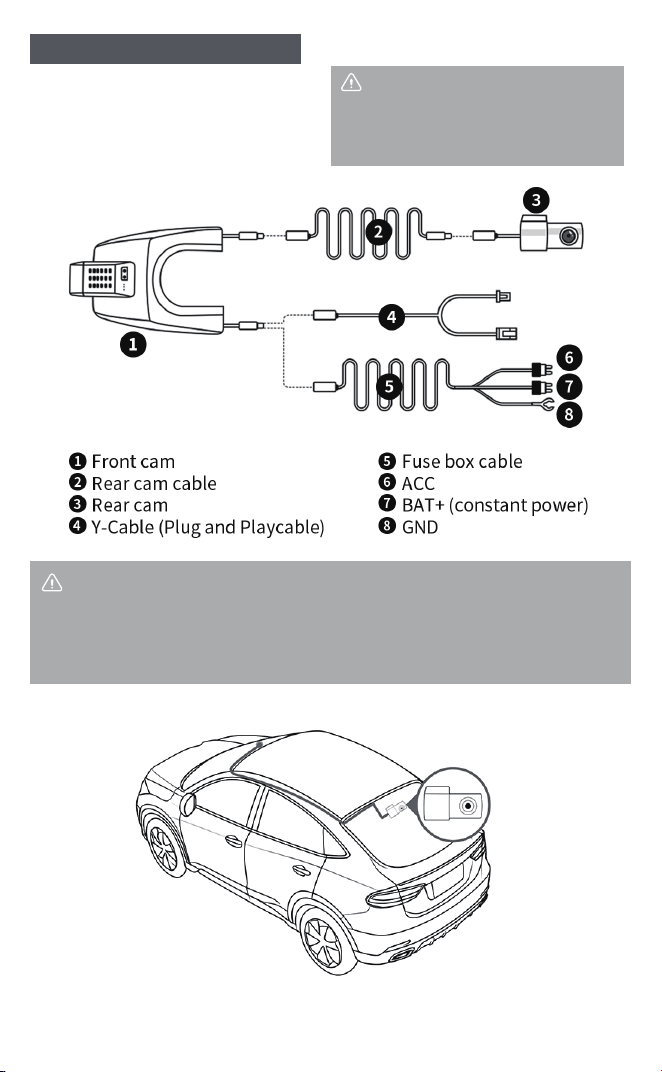
The rear camera is an optional ac-
cessory.
4.4 Rear Camera Installation
Note
The rear camera is not water-proof
and must be installedinside the
vehicle on the rearwindshield.
Note
Note: Use either connection method ④ or ⑤. The Fuse Box Cable is typi-cally
an optional accessory.
If you want to install the rear camera on the front windshield, you can connect
① and ③ directly without using ②.
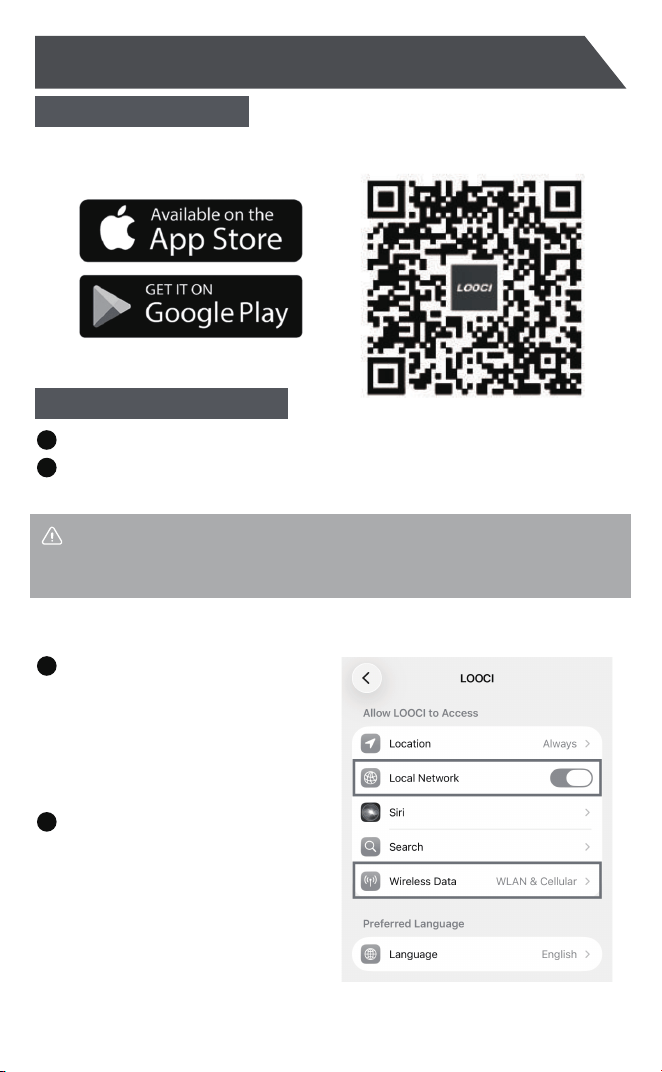
Scan the QR code with your phone to download the LOOCi App.
5.1 Download the App
5.2 Wi-Fi Connection Steps
5.Wi-Fi Connection & App
- 9 -
Start the car's engine/power. The dash cam's LED lights will turn on.1
In your phone's Wi-Fi settings, locate the network name beginning with:
"Looci-*****". Enter the default password 12345678 to connect.
2
After successful connection, your
phone may show "No lnternet
Connection."
This is normal, as the dash cam
creates a local network, not
providing internet access.
3
Open the LOOCi APP.4
Note
'x'represents random letters/numbers. The SSlD may vary by firmware. lf you
cannot find the WiFi network, please contact us.
Enter the default Wi-Fi password:12345678
- 10 -
Crucial! Troubleshooting connection failures:
If your phone is connected to CarPlay or Android Auto, please turn off
Bluetooth before connecting to the dash cam's Wi-Fi. This is because
Bluetooth will cause the phone to automatically switch to CarPlay or
Android Auto, causing the dash cam connection to fail.
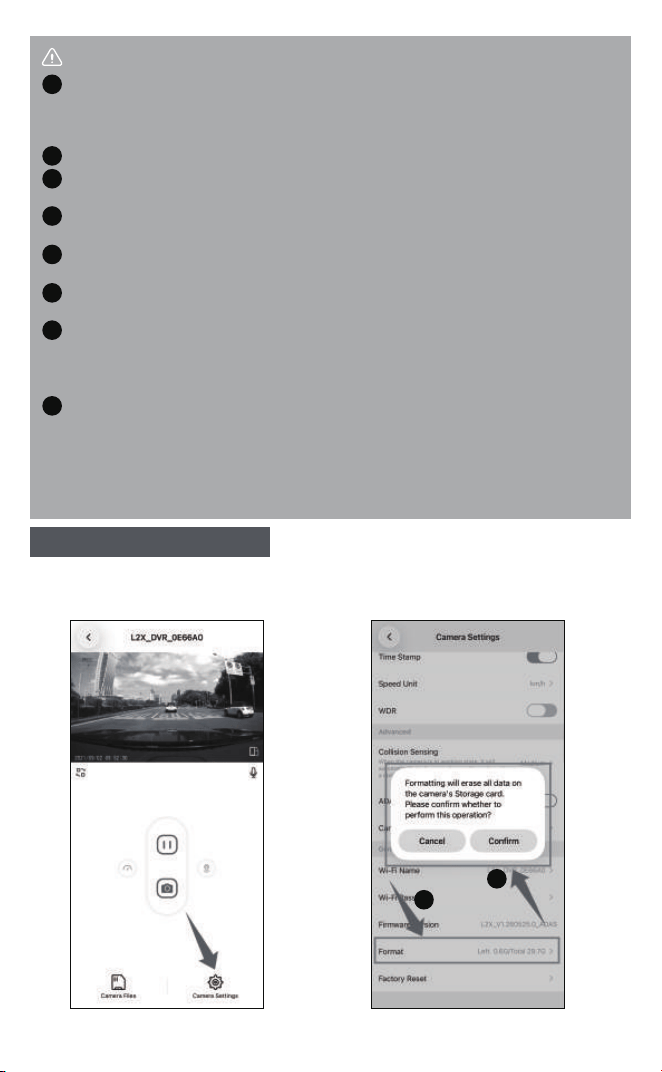
After successfully connecting to the dash cam, open the App, go to Camera
Settings, scroll down, and tap " Format SD Card".
5.3 Format Memory Card
1
lf you have a VPN enabled on your phone, turn it off before connecting.
2
iPhone Users: Grant the LOOCi App local network access: Go to Phone
Settings -> LOOCi -> Enable "Local Network" and " Wireless Data".
3
Android Users: lf prompted "No internet, keep this WLAN connected?",
please select "Keep this WLAN connected" or similar.
4
If connection still fails, 'Forget' the dash cam's Wi-Fi network on your
phone settings and reconnect by re-entering the password.
5
Press and hold the Camera Button for 10 seconds to reset the dash
cam, then try reconnecting.
6
If the rear-view camera is defective, it may result in poor rear-image
quality or failure to record rear-camera videos. Please unplug and
re-plug the rear-camera connector, reconnect to Wi-Fi, or replace the
camera.
7
If the memory card is defective, it may cause device boot-up issues,
system recording failures, lagging, frame drops and missing video files.
Please remove the memory card, then reconnect to Wi-Fi.
If problems persist, please email [email protected] for assistance
(Include order number in subject).
8
1
2
- 11 -
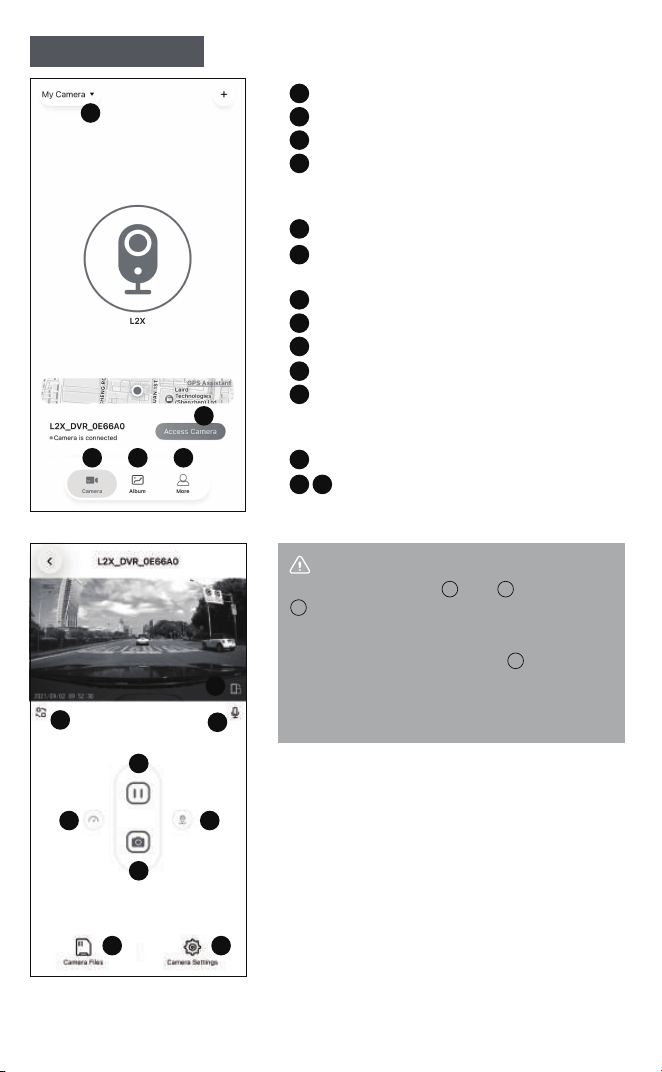
5.4 App Interface
Check Firmware
1
1
Connect to Dash Cam
2
Enter Live View Interface
3
Local Album: Stores videos manually
downloaded to your phone (Videos
are not saved here automatically).
4
App Language Settings
5
Switch Between Front/Rear Camera
View
6
Full Screen
7
Microphone On/off
8
Recording Stop/start (Default: Start)
9
Take Photo
10
Camera File (All videos on thememory
card. Requires Wi-Fi connection to
the dash cam to view)
11
Camera Settings
12
GPS (Real-time records vehicle
speed, location and driving track.)
13 14
6
7
8
9
10
11 12
13 14
2
3 4 5
Note
Difference between and ?
refers to videos manually downloaded
to your phone. You can play these videos
even after leaving the car, provided you
manually downloaded them. refers to all
videosstored on the memory card. You
need to connect the car to the camera's
Wi-Fi to view all videos.
4
4
11
11
- 12 -
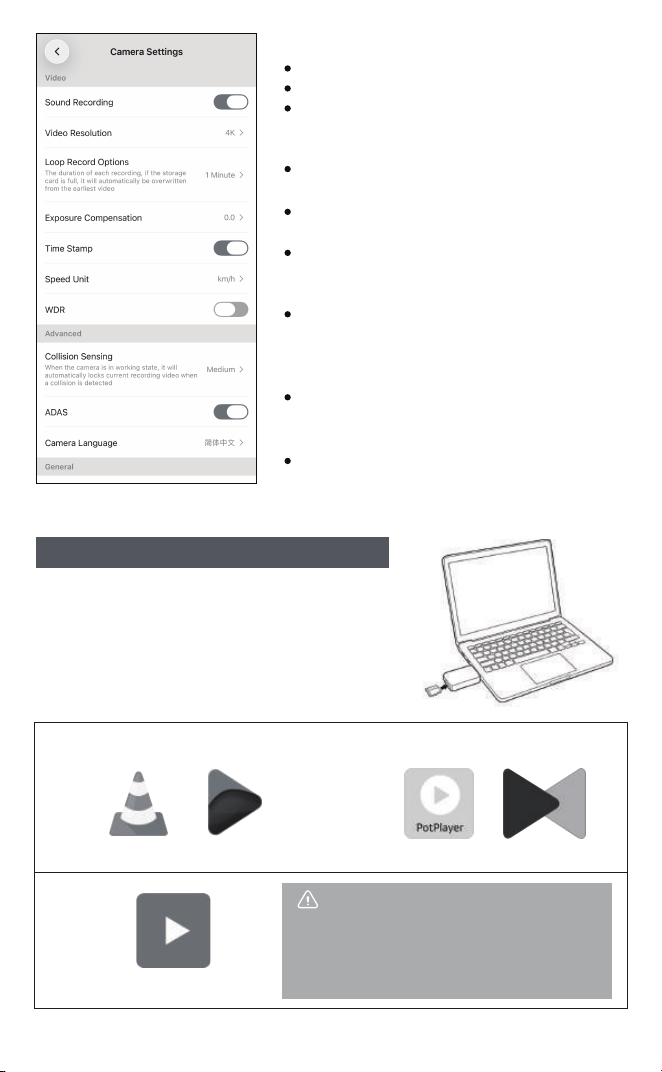
Settings Menu Options:
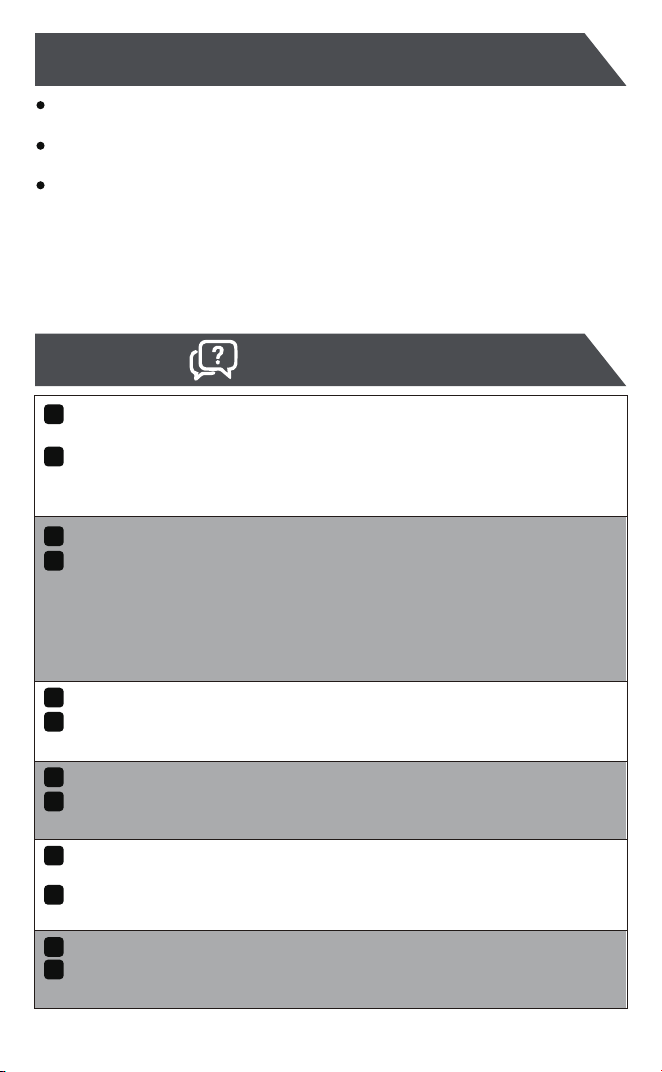
Recommendedplayers for TS format:
Mac:
Mobile:
Sound: Enable/disable audio recording.
5.5 How to Play Videos on a Computer
Note
If videos downloaded via the App won't
play in your phone's default gallery/file
manager, try using MXPlayer. lf they play
normally, MXPlayer is not needed.
Resolution: Set video resolution.
Loop record: Set the duration ofeach
video clip. l minute is recommended for
memory card stability.
Exposure Compensation:
Adjustvideo brightness.
Video Watermark(Timestamp):
Show/hide timestamp on videos.
Collision Sensing:
lmpact sensitivity while driving (Locks
video upon detection).
Parking Monitor Collision Detection:
lmpact sensitivity whileparked. Requires
hardwiring (OBD orFuse Box Cable) to
activate.
Wi-Fi name and password:
Canonly be set using numbers and English
letters.
Format SD card:
Erases all data onthe memory card. Format
every 2-3months for optimal performance.
Besides using the App, you can use the
included USB Card Reader to viewvideos
on a computer.
Somèvideos are in TS format and require
acompatible media player.
Windows:
VLC Player
MX Player
Fig Player Pot Player KM Player
7. FAQS
6.Warranty & Support
- 13 -
LOOCi offers a 12-month warranty from the date of receipt, covering
the mainunit, memory card,and accessories.
LOOCi is not liable for any traffic accidents or related compensation.
Regularlycheck the product's working status please.
lf you encounter problems, contact us via:
Please provide your order number when contacting us. We aim to reply
within 24hours. lf no response after 48 hours, check your spam folder
and resend your email.
Email:
Web:
Why does my phone show "No Internet Connection" when connected
to the dash cam's Wi-Fi?
Q
This is normal.The dash cam creates a local Wi-Fi net work for com-
munication with your phone and does not provide internet access.
The message is expected.
A
Do lneed to manually connect to the dash cam every time l drive?
Q
No.The dash cam powers on and starts recording automatically when
the car starts.
A
If I'm using CarPlay/Android Auto and my phone isn't connected to
the dash cam's Wi-Fi, will it still record?
Q
Yes. The dash cam records automatically regardless of whether your
phone is connected to its Wi-Fi.
A
What is the maximum supported memory card size?
Q
256GB. Regularlyformatting the memory card is recommended for
optimal performance.
A
What if l forget the Wi-Fi password?
The default password is 12345678.You can reset it by pressing and
holding the Camera Button for 10 seconds.
Q
A
Can l use CarPlay/Android Auto and the dash cam Wi-Fi simultaneously?
Q
No. Your phone can only connect to one Wi-Fi network at a time.
Both the dash cam and CarPlay/Android Auto use Wi-Fi. To connect
to the dashcam's app, temporarily disable Bluetooth to disconnect
from CarPlay/Android Auto. However, the dash cam records autom-
atically in the background, so you don't need to connect the app every
time you drive. lt willrecord even while you use CarPlay/Android Auto.
A
- 14 -
Do l need to update the firmware frequently?
Q
No. Firmware updates are primarily used for troubleshooting if you
encounterissues. Contact us for guidance.
A
What is Parking Mode and how do l activate it?
Q
Please visit "[email protected]/hc" and search for "Parking
mode" for detailed information.
A
How can l get a replacement if the product is out of warranty?
Q
Email [email protected] (include your order number in the
subject). We will offer a discount for a replacement purchase.
A
If I buy the front camera only version now, can l add a rear camera
later by purchasing it separately?
Q
No. The internal circuit boards are different. Upgrading requires
replacing the entire main unit.
A
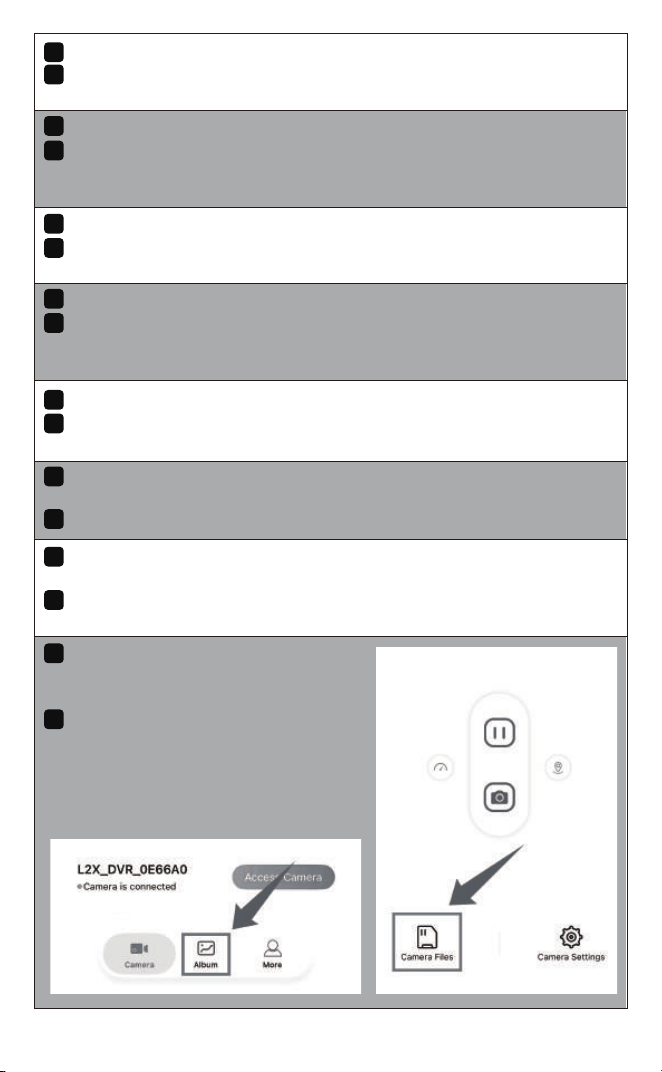
What's the difference between the
'Album' and 'Camera File' in the
App?
Q
Album: Videos manually saved to
your phone, accessible anytime.
Camera File: All videos on the
memory card, only viewable when
connected to the dash cam's Wi-Fi,
including all loop recordings.
A
If | buy the dual-channel version, can l install the front camera now
and add the rear camera later?
Q
Yes.
A
How can lmake the dash cam record 24/7?
You can purchase an OBD Cable and set it to 24H Mode for continuous
recording. However, we do not recommend prolonged use as it may
drainyour car battery.
Q
A
How long can a 64GB/128GB memory card record video?
Q
Approximately 5 hours for 64GB and 10 hours for 128GB memory
card.The dash cam uses loop recording, overwriting the oldest files
when the memory card is full.
A
- 15 -
When playing videos directly from
the 'Camera File' folder in the App,
the video freezes or buffers. ls this
normal?
Q
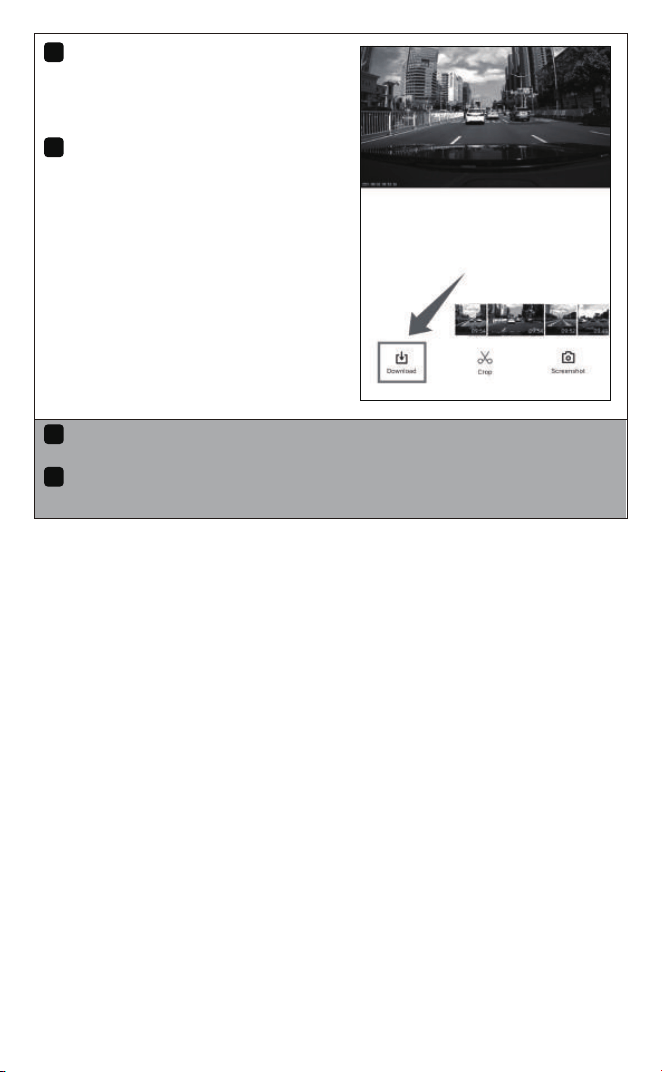
Yes, this is normal for streaming
large video files over Wi-Fi. For
smooth playback, download the
video to your phone first, then
play it from the 'Album'.
A
Why can't l play the videos on my computer after inserting the memory
card?
Q
lf the videos are in TS format, you need a compatible media player
likeVLC, PotPlayer, or Fig Player on your computer.
A

FCC Caution.
This device complies with part 15 of the FCC Rules. Operation is subject to the following two
conditions:
(1) This device may not cause harmful interference, and
(2) this device must accept any interference received, including interference that may cause
undesired operation.
Any Changes or modifications not expressly approved by the party responsible for compliance
could void the user's authority to operate the equipment.
Note: This equipment has been tested and found to comply with the limits for a Class B digital
device, pursuant to part 15 of the FCC Rules. These limits are designed to provide reasonable
protection against harmful interference in a residential installation. This equipment generates
uses and can radiate radio frequency energy and, if not installed and used in accordance with the
instructions, may cause harmful interference to radio communications. However, there is no
guarantee that interference will not occur in a particular installation. If this equipment does
cause harmful interference to radio or television reception, which can be determined by turning
the equipment off and on, the user is encouraged to try to correct the interference by one or
more of the following measures:
-Reorient or relocate the receiving antenna.
-Increase the separation between the equipment and receiver.
-Connect the equipment into an outlet on a circuit different from that to which the receiver is
connected.
-Consult the dealer or an experienced radio/TV technician for help.
FCC Radiation Exposure Statement:
This equipment complies with FCC radiation exposure limits set forth for an uncontrolled
environment. This equipment should be installed and operated with minimum distance 20 cm
between the radiator & your body.