QUICK START GUIDE
DEFENDER EMPOWER APP
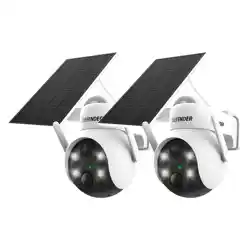
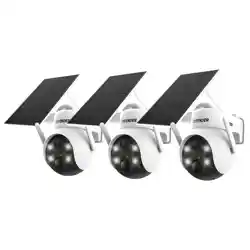
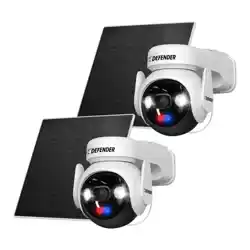
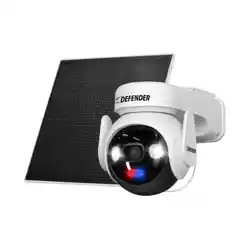
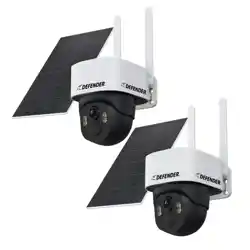
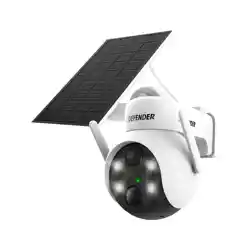
BATTERY-POWERED 4K EVERWATCH PTZ WIRELESS CAMERA

TABLE OF CONTENTS
BASIC NAVIGATION ..........................................................................................3
LOCAL RECORDING SETUP ............................................................................... 6
SHARE APP ACCESS ........................................................................................... 7
SETTING UP MOTION DETECTION .................................................................12
SURVEILLANCE AREA SETTING ......................................................................13
SETTING UP NIGHT VISION ............................................................................14
SIREN DETERRENCE SETTINGS ....................................................................... 15
SETTING UP NOTIFICATIONS .........................................................................16
PLAYBACK .......................................................................................................17
LOW BATTERY ALARM .................................................................................... 19
TWO-WAY TALK MODE ...................................................................................20
SETTING UP SITES ...........................................................................................23
3
BASIC NAVIGATION
The Defender Empower App allows you to remotely view live and pre-recorded video, save and
share footage, share App access and receive customized notications. Other App functions may
not be supported.
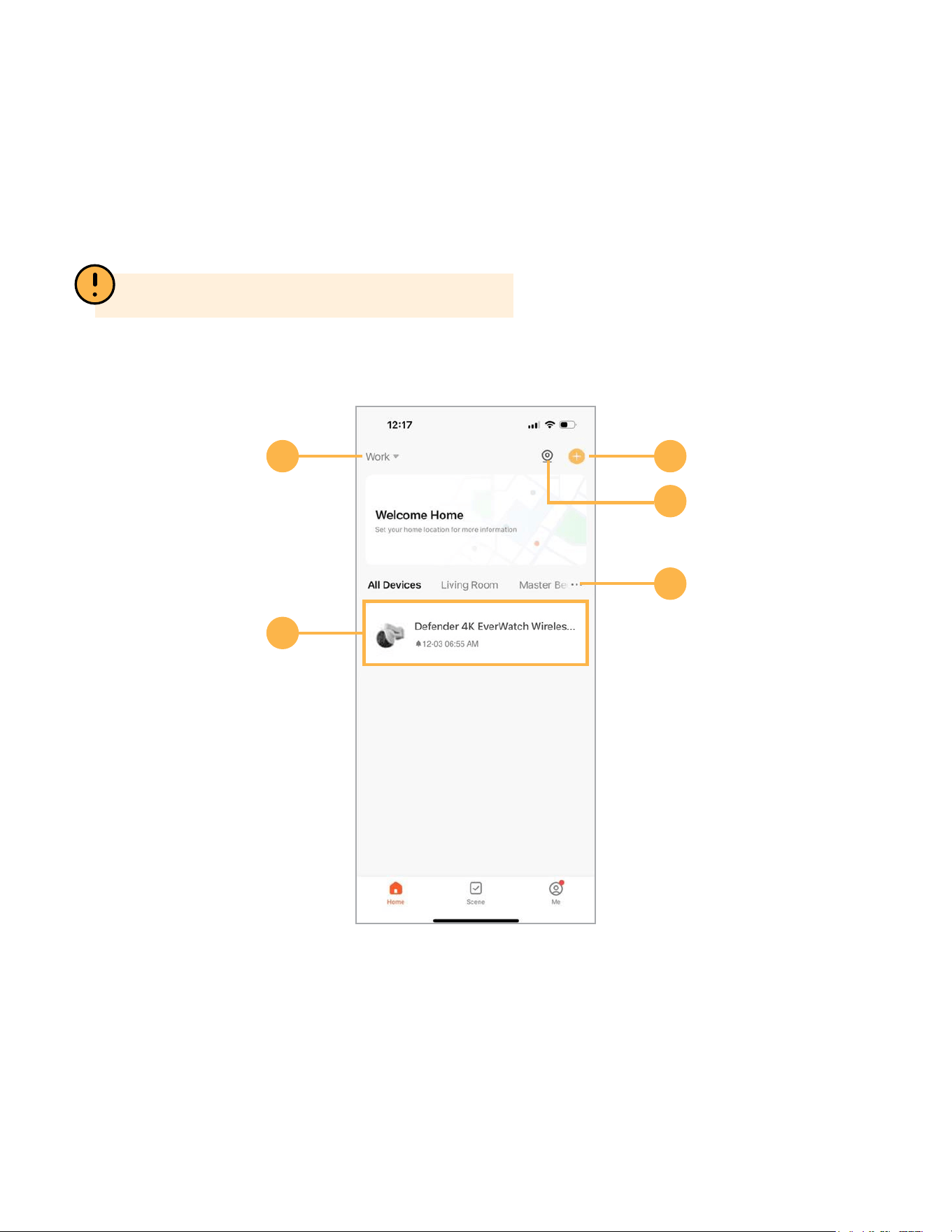
HOMEPAGE
1 3
5
4
2
1. Home Name
2. Added Devices (*Device may not be exactly as shown)
3. Add Device / Create Scene
4. Multiview (available only when two or more cameras are connected)
5. Device Management
PLEASE NOTE: Actual app screen layout may dier.
4
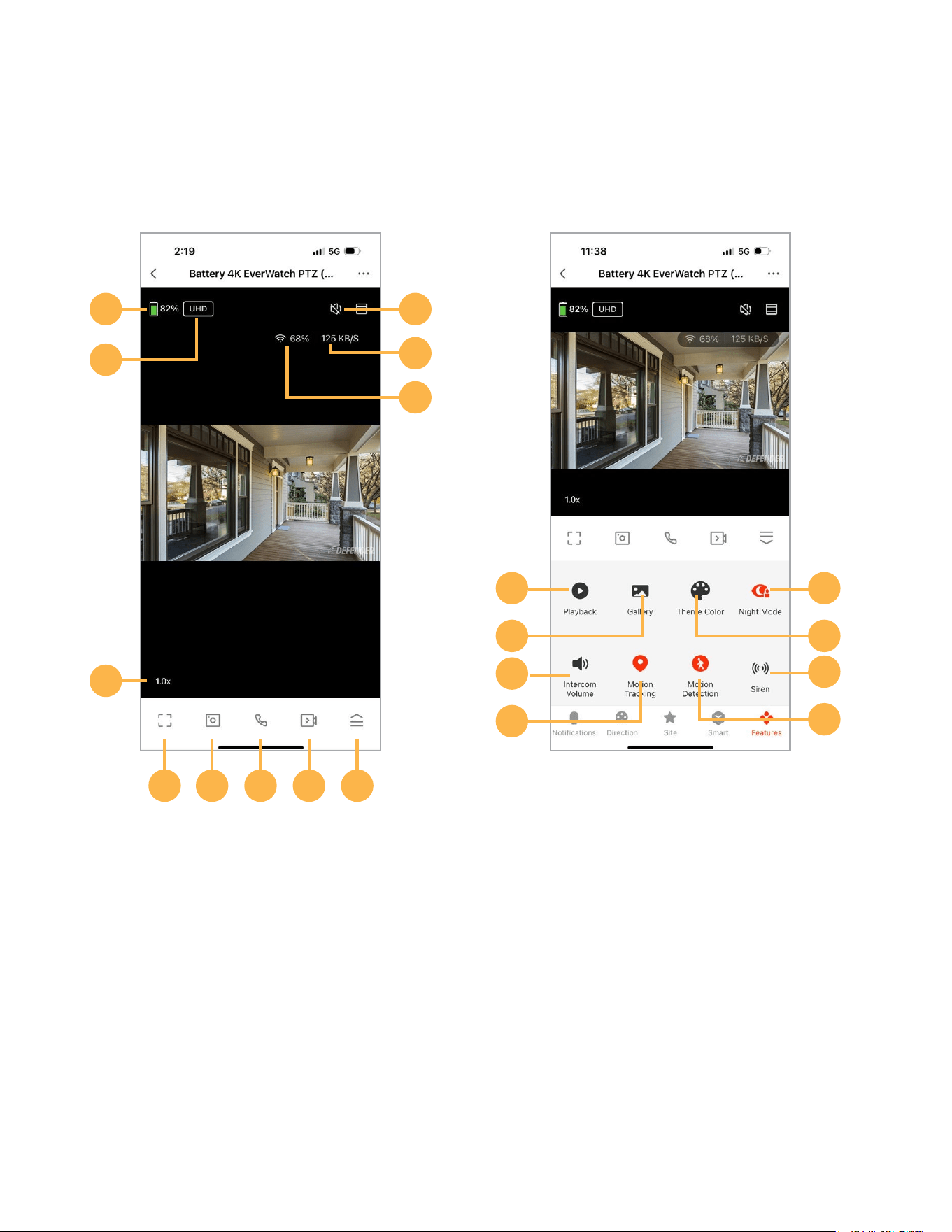
CAMERA LIVE VIEW MENU
1
6
3
2
4
5
13
15
17
19
7 8 9 10 11
1. Battery Life
2. Toggle between 4K UHD and SD
3. Audio On/O
4. Video Streaming Data Rate
5. Wi-Fi Signal Strength
6. 1.0X - Zoom up to 6X
7. Full Screen Mode
8. Snapshot
9. Two-Way Talk
10. Instant Record
11. Open Menu
12. Playback
13. Picture and Video Gallery
14. Two-Way Talk Volume
15. Enable/Disable Motion Tracking
16. Switch Between Night Vision Modes
17. Switch Between Light or Dark Mode
18. Enable/Disable Siren
19. Enable/Disable Motion Detection
12
14
16
18
5
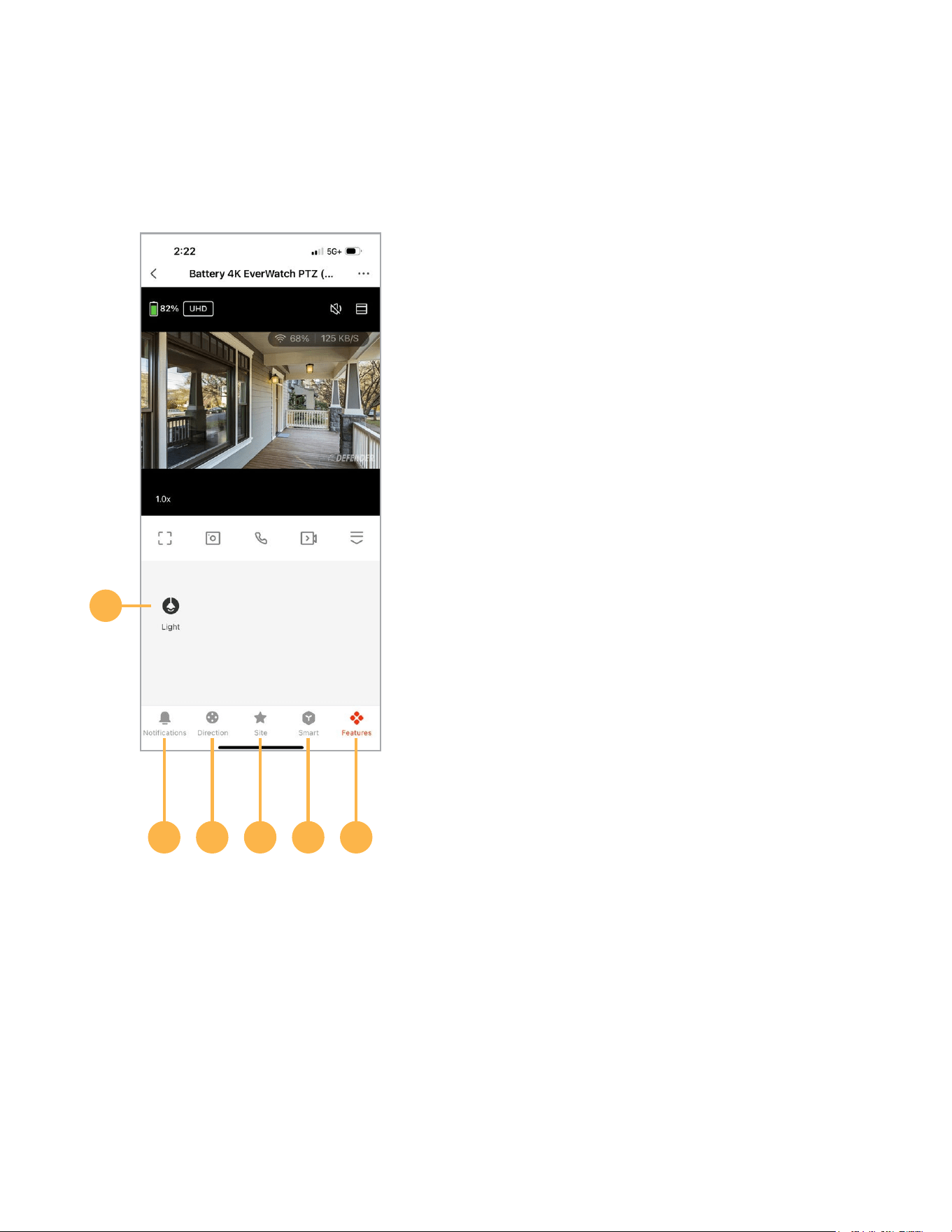
CAMERA LIVE VIEW MENU CONTINUED
21 2322 2524
20. Enable/Disable Spotlight.
21. Notications: View and playback
detection history and recordings
22. Direction: PTZ Controls
23. Site: Create saved locations for
the camera to return to
24. Smart: Create smart
automations for your device
25. Features: Control functions and
change settings
20
6
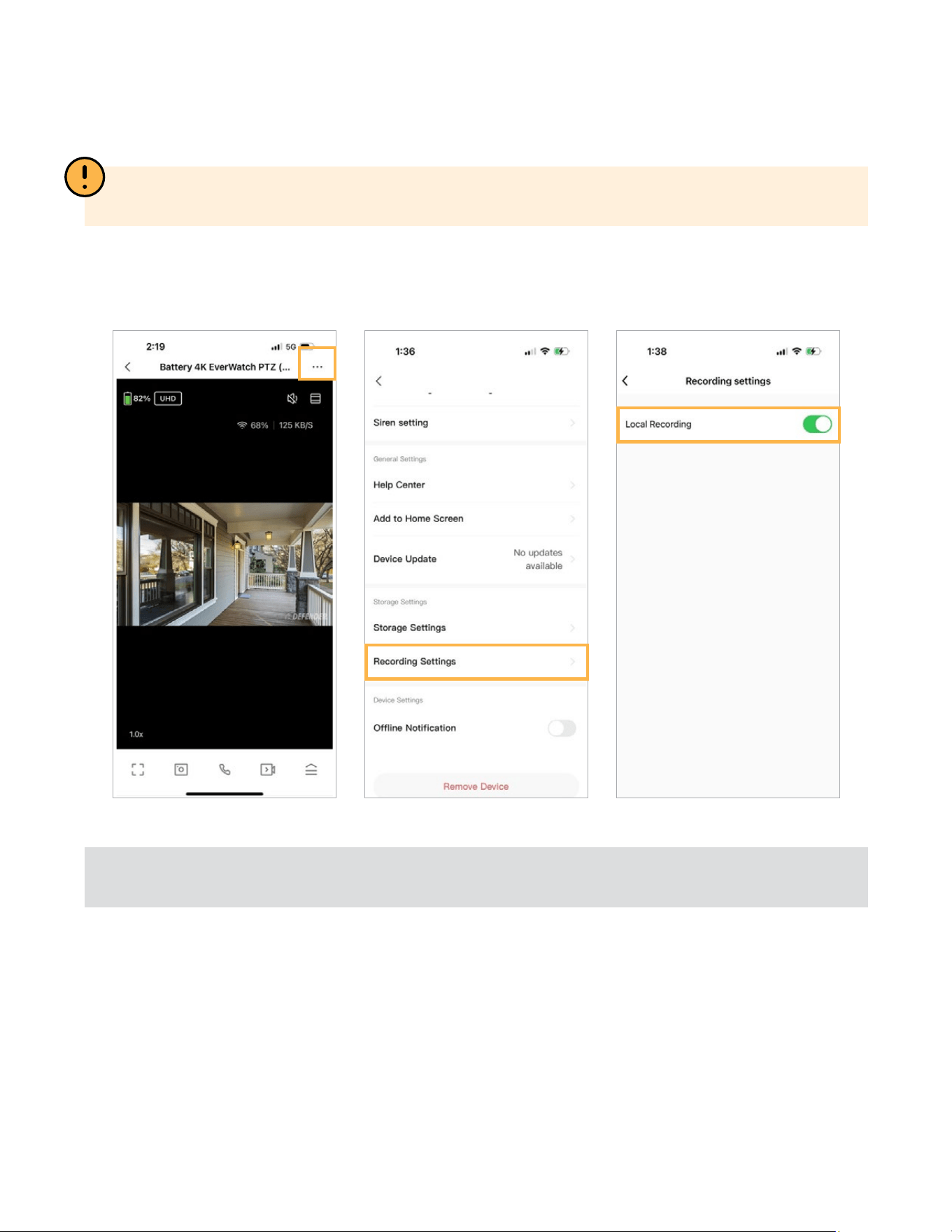
LOCAL RECORDING SETUP
To enable local recording to an SD card, from the home screen select the camera you wish to ad-
just the setting for. Next select ( · · · ) in the top right. Select Recording Settings and toggle on Local
Record.
NOTE: Continuous recording is not supported on Battery Powered 4K Everwatch in order to prolong
battery life. Recording Settings is only available when a SD card is inserted.
NOTE: Once the SD card is full, the camera will continue to record by
overwriting older footage.
7
SHARE APP ACCESS
There are two options to share App Access. Option 1- Share account access, allowing you to share all
cameras connected to the account. If you wish only to share one camera, please see option 2.
IMPORTANT: Before sharing App Access, each user will need to download the Defender Empower
App and create their own account.
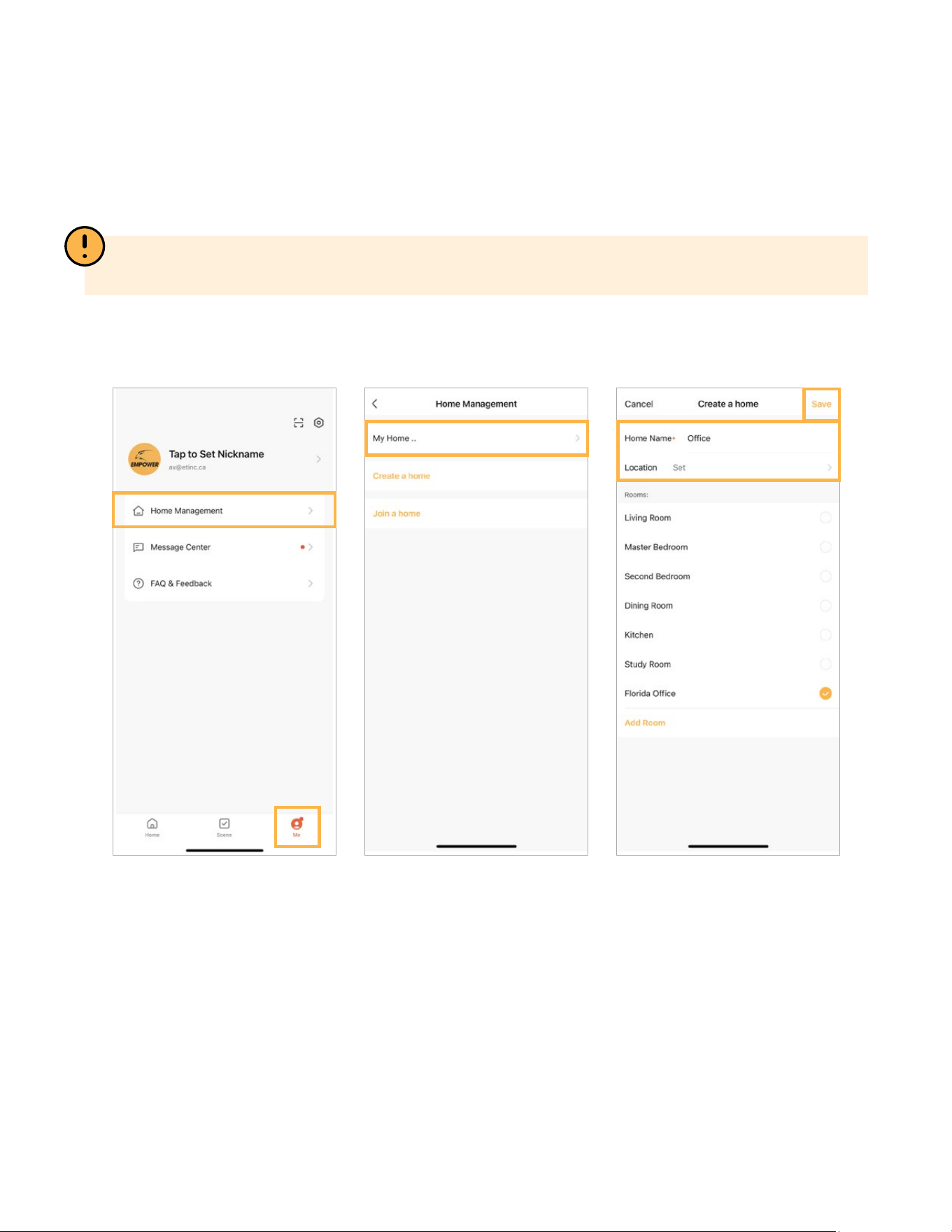
OPTION 1
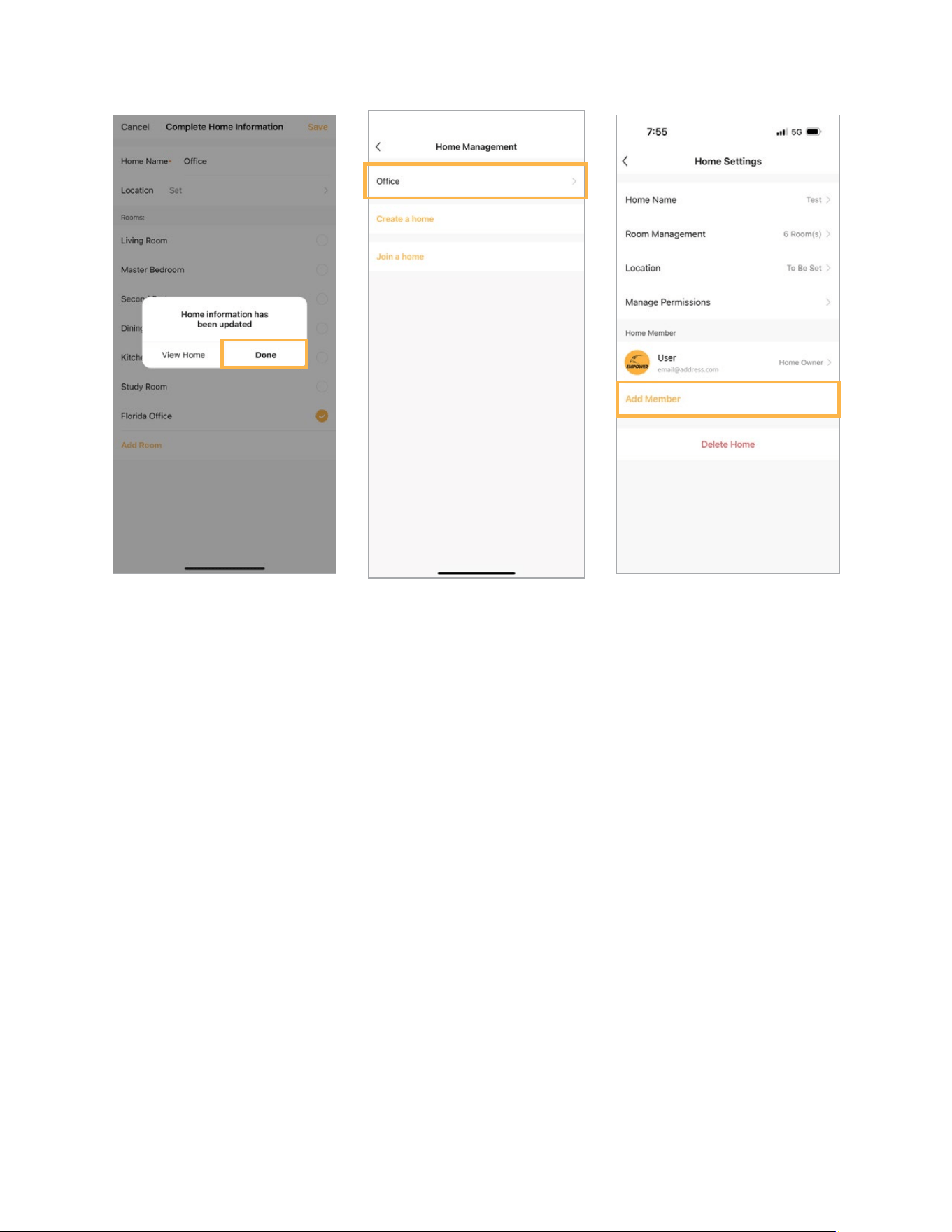
Launch your App and tap on
‘Me’ then tap
‘Home Management’.
Tap ‘My home’. Enter a Home Name and Location.
Select only one ‘Room’ location or
create a custom room by tapping
“Add Room”. Tap ‘Save’.
8
Tap ‘Done’. Tap on the device location you
would like to share.
Tap ‘Add Member’.
9
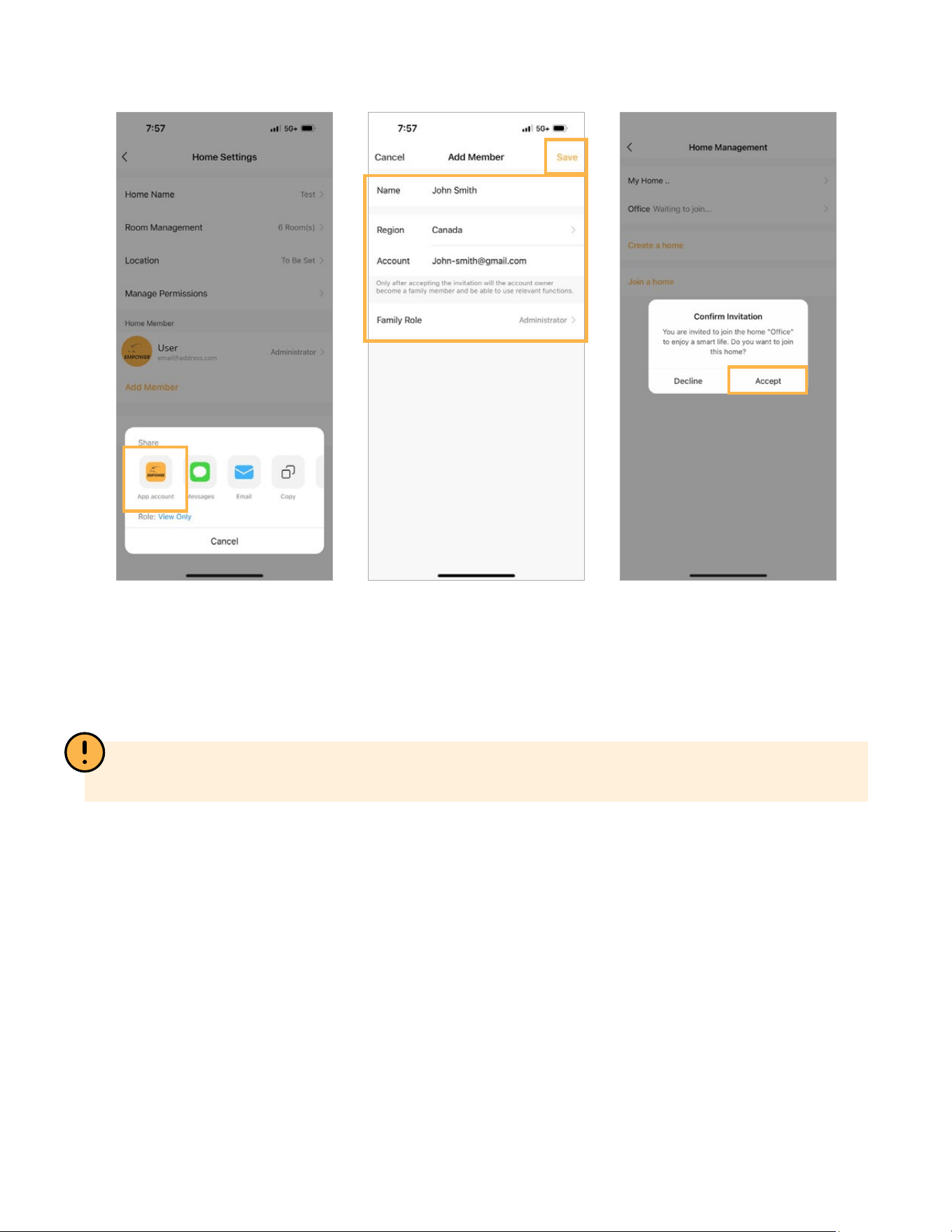
Tap the Defender Empower
App account.
Fill in the other user’s account
information to share App ac-
cess, then tap ‘Save’.
The other user is required to tap
“Accept” in their app account to
conrm the invitation.
PLEASE NOTE: If you select View Only, the user will only have access to view the camera. To allow
full access, switch to Administrator.
10
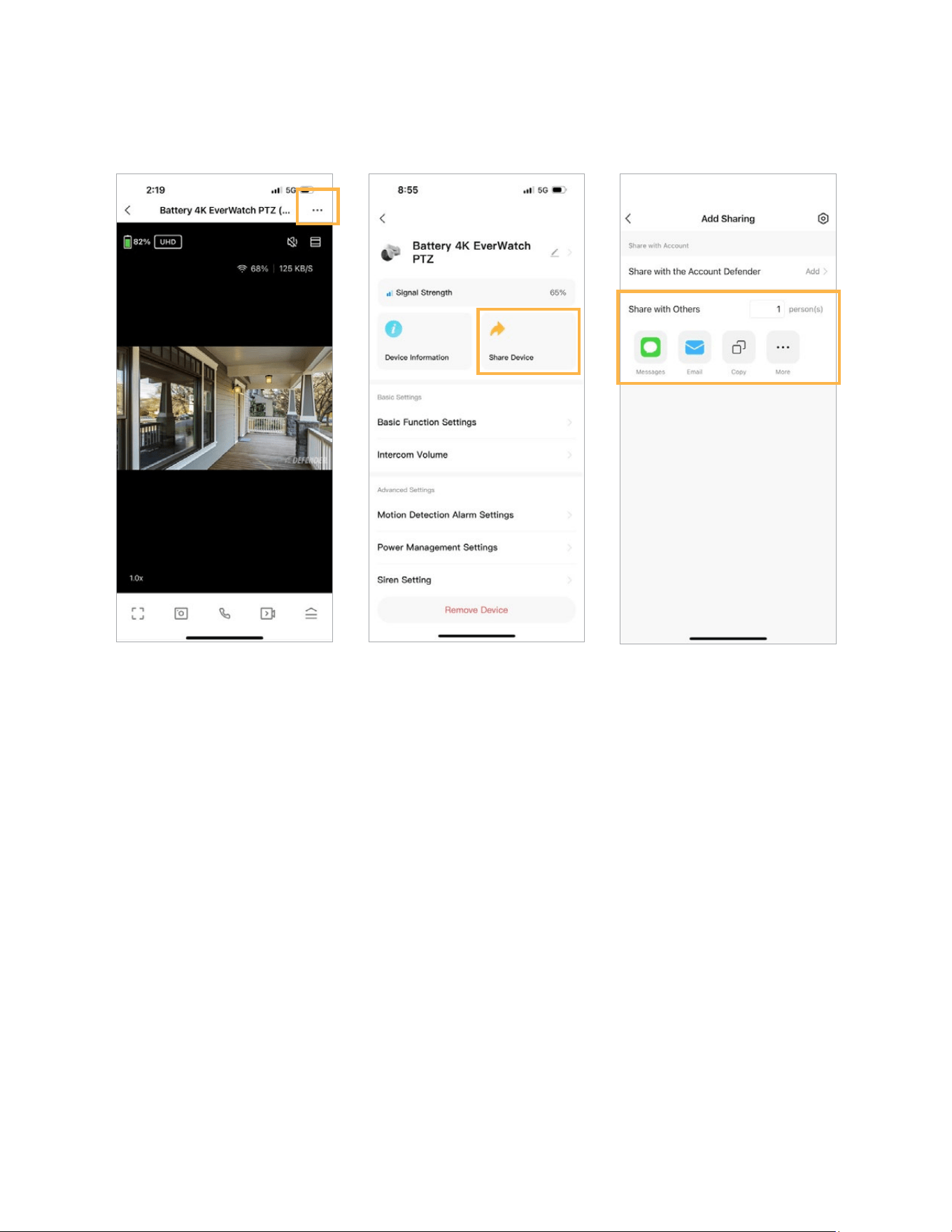
OPTION 2 - SHARE ACCESS TO ONE CAMERA ONLY.
From the live view screen, tap
the 3 dots (···).
Select Share Device. Select the method you wish to
share access, for example by
text or email.
11
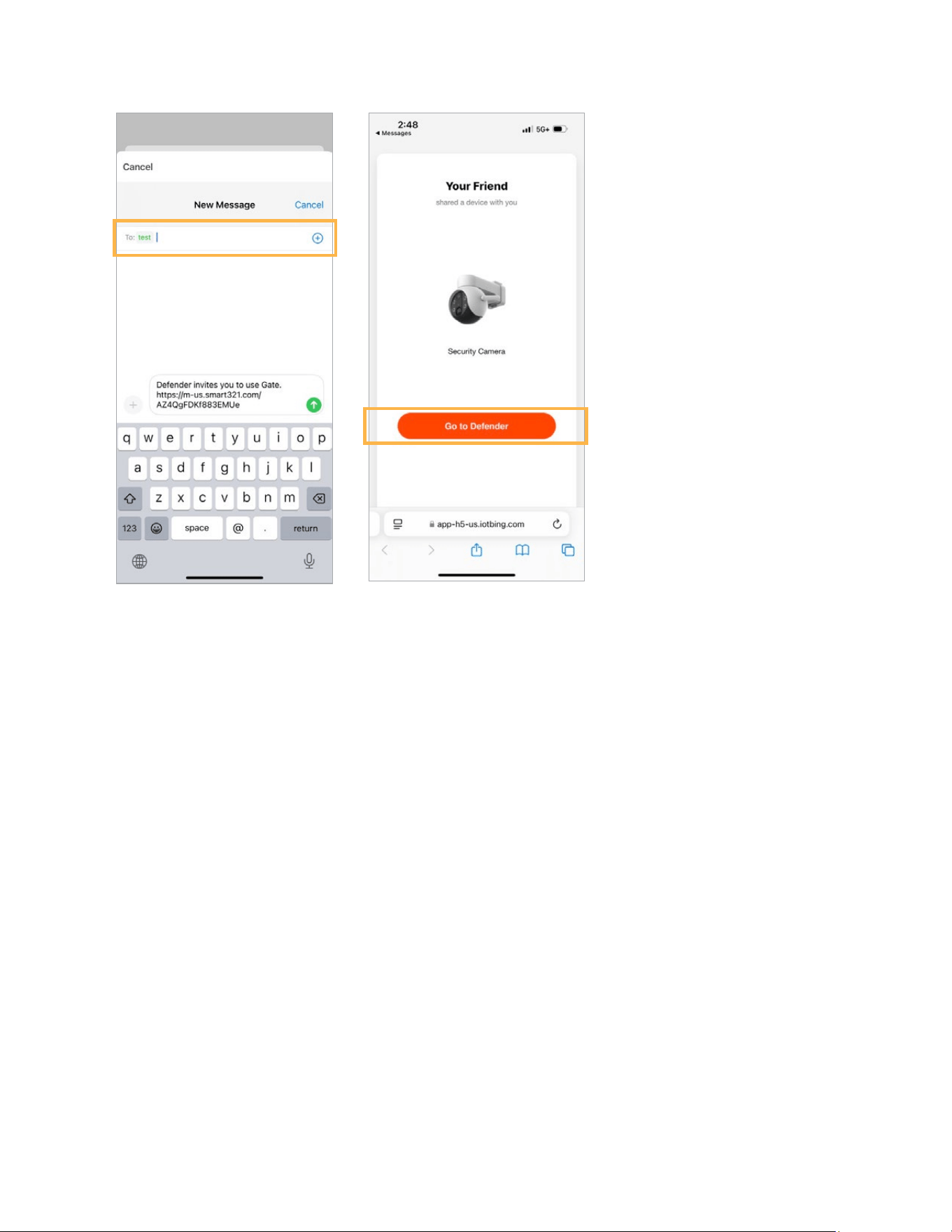
Enter the information of the
person you wish to share
access with.
The other user will get a message
with a link, and click “Go to
Defender” The other user can
now accept the share request.
12
SETTING UP MOTION DETECTION
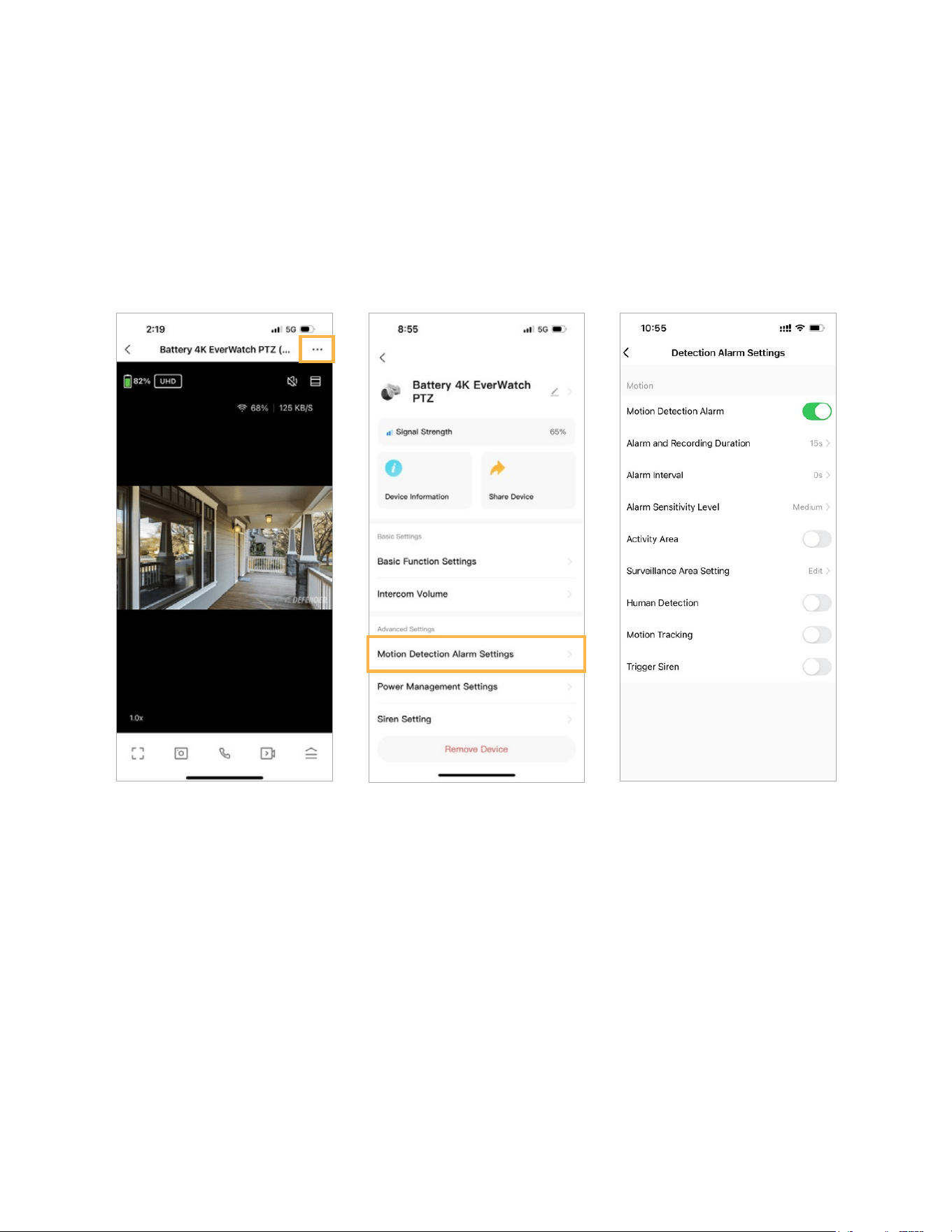
To access Detection Settings, navigate to the live view screen, tap ( · · · ), and select Motion Detection
Alarm Settings. To access detection settings, enable Motion Detection Alarm.
*Repeat for each camera.
To receive notications for all types of motion, turn o Human Detection. If Human Detection is
enabled, you will only receive alerts for human detection.
Human detection may not be 100% accurate. To minimize false notications, we recommend enabling
the Activity Area and selecting Surveillance Area Setting to customize your detection region by masking
areas to avoid any trees or larger moving objects.
If Motion Tracking and Human Detection is enabled, the camera will track human movements. If Human
Detection is disabled, the camera will track all motion.
13
SURVEILLANCE AREA SETTING
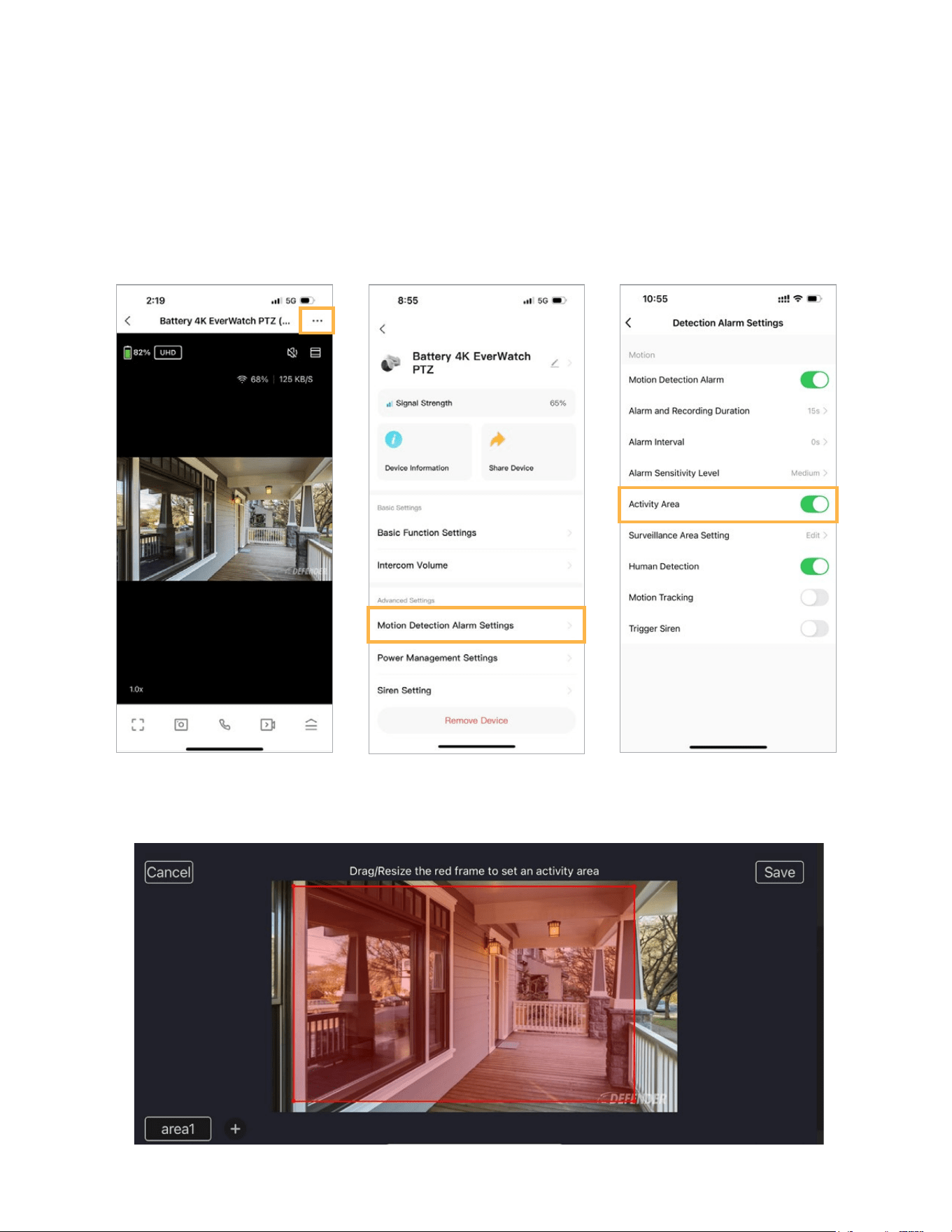
To access the Surveillance Area Setting, navigate to the live view screen, tap ( · · · ), and select Motion
Detection Alarm Settings.
Toggle on Activity Area. Select Edit.
Drag the circles to set your motion detection area. The areas highlighted will detect motion. To add
additional areas, tap the + icon. Select Save to conrm your changes.

14
SETTING UP NIGHT VISION
To access Night Vision settings, from the Live View Screen, tap and select Night Mode. Select
your preferred night vision mode.
*Repeat for
each camera.
OFF
The image will depend solely on
the ambient lighting.
INFRARED MODE
The image will be in black and
white.
COLOR LIGHT MODE
The spotlight will activate to
provide full-color night vision
when the camera is being
viewed live or when motion is
detected, triggering recording.
All recordings will be in color.
The spotlight will turn o to
conserve battery when the
camera is not being viewed live
or when no motion is detected.
15
SIREN DETERRENCE SETTINGS
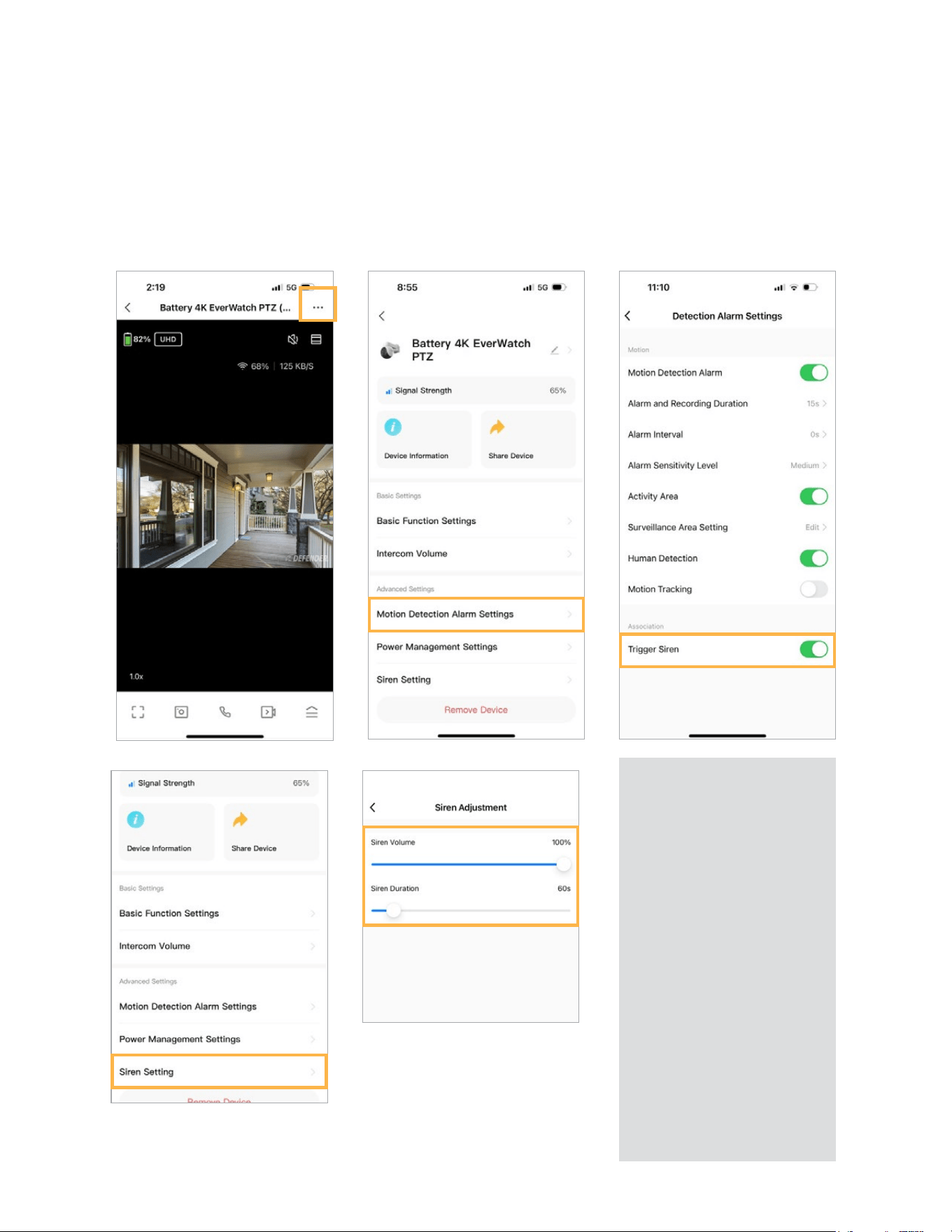
To access the Siren settings, from the home screen select the camera you wish to set a schedule for.
Select (…) in the top right and select Motion Detection Alarm Settings. Toggle on Trigger Siren for the
siren to trigger when motion is detected.
To adjust the siren duration
and volume, select back and
select Siren Adjustment. You
can customize the volume and
the length of time for the siren.
ALARM AND RECORDING DU-
RATION
Your camera will start recording
when motion is detected, and
stop recording when the Alarm
and Recording Duration time
is reached. Select your desired
duration.
ALARM INTERVAL
In order to reserve the camera
battery and to avoid receiving an
excess number of notications,
adjust the Alarm Interval to
10s, 30s, or 60s to temporarily
disable motion detection after
the camera goes to sleep at the
end of the last motion detection
session.
ALARM SENSITIVITY LEVEL
Select between Low, Medium,
and High. We recommend start-
ing with Medium.
16
SETTING UP NOTIFICATIONS
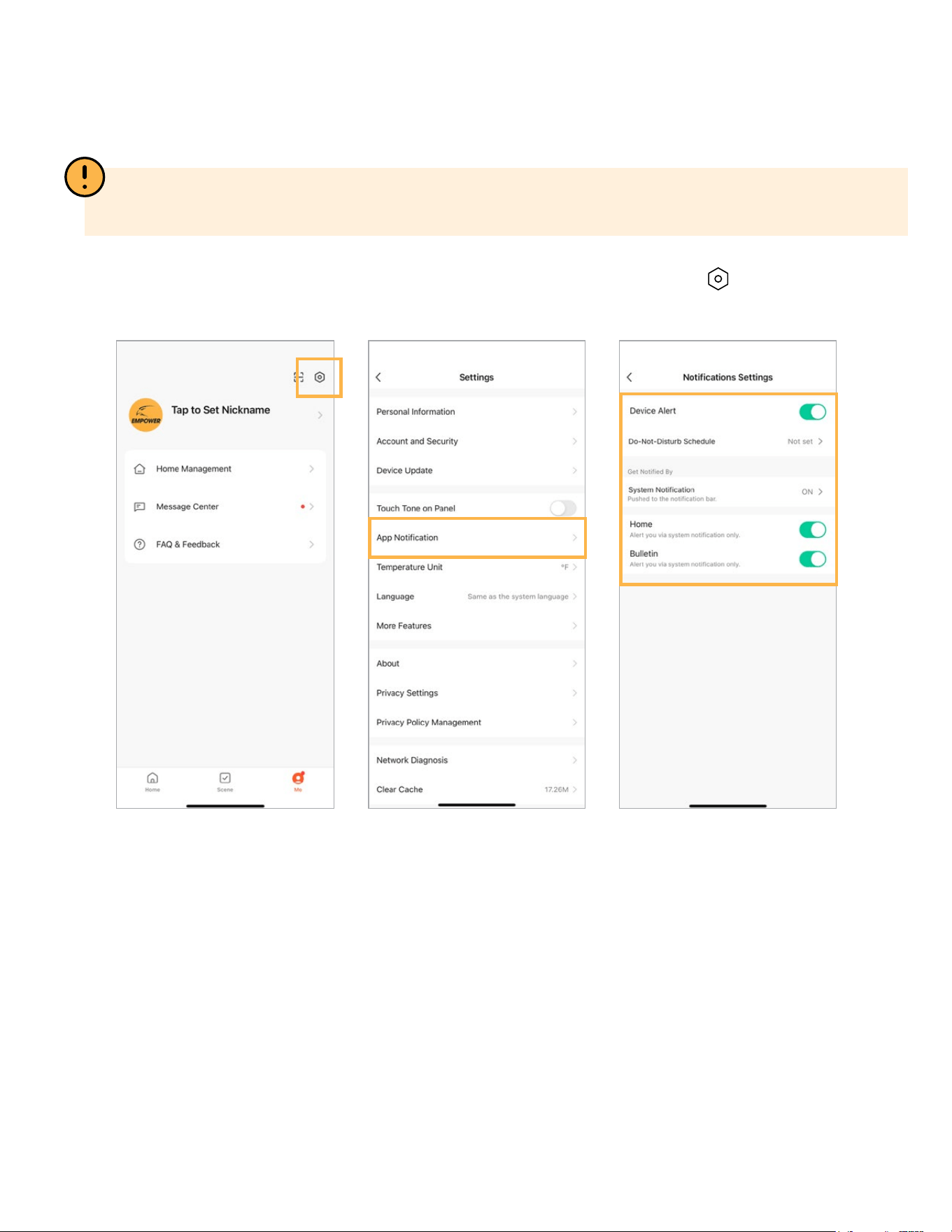
IMPORTANT: Alarm and Message Push with image notications are on by default. If this is your preferred
setting, skip this step.
To turn o Notications from the Home Screen, select Me. Select the Settings icon and select App
Notications. Select your preferred notication settings.
17
PLAYBACK
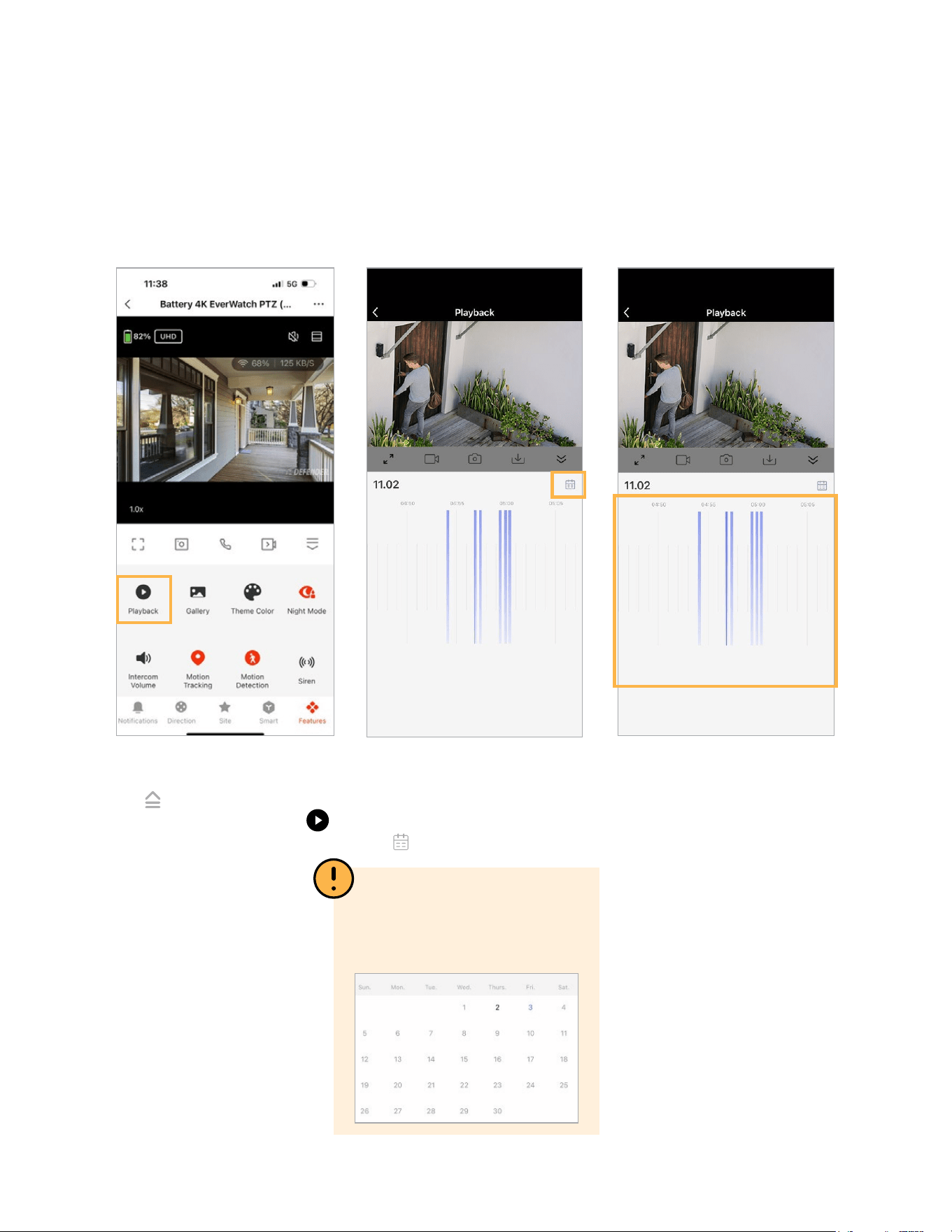
You have two ways to access recordings in the Defender Empower app, direct playback or via mo-
tion notications (See Notications section).
Step 2: From this page, select
your desired date to start
viewing recorded footage.
Tap > Select date.
PLEASE NOTE: Days with no
recording, will be greyed out.
Dates with recording will
appear black.
Step 3: Scroll left to right to
view recordings, displayed
by vertical blue lines. Pinch
to zoom in and out of your
timeline.
Step 1: On the live view page,
tap to open the control
panel menu. Tap Playback .
18
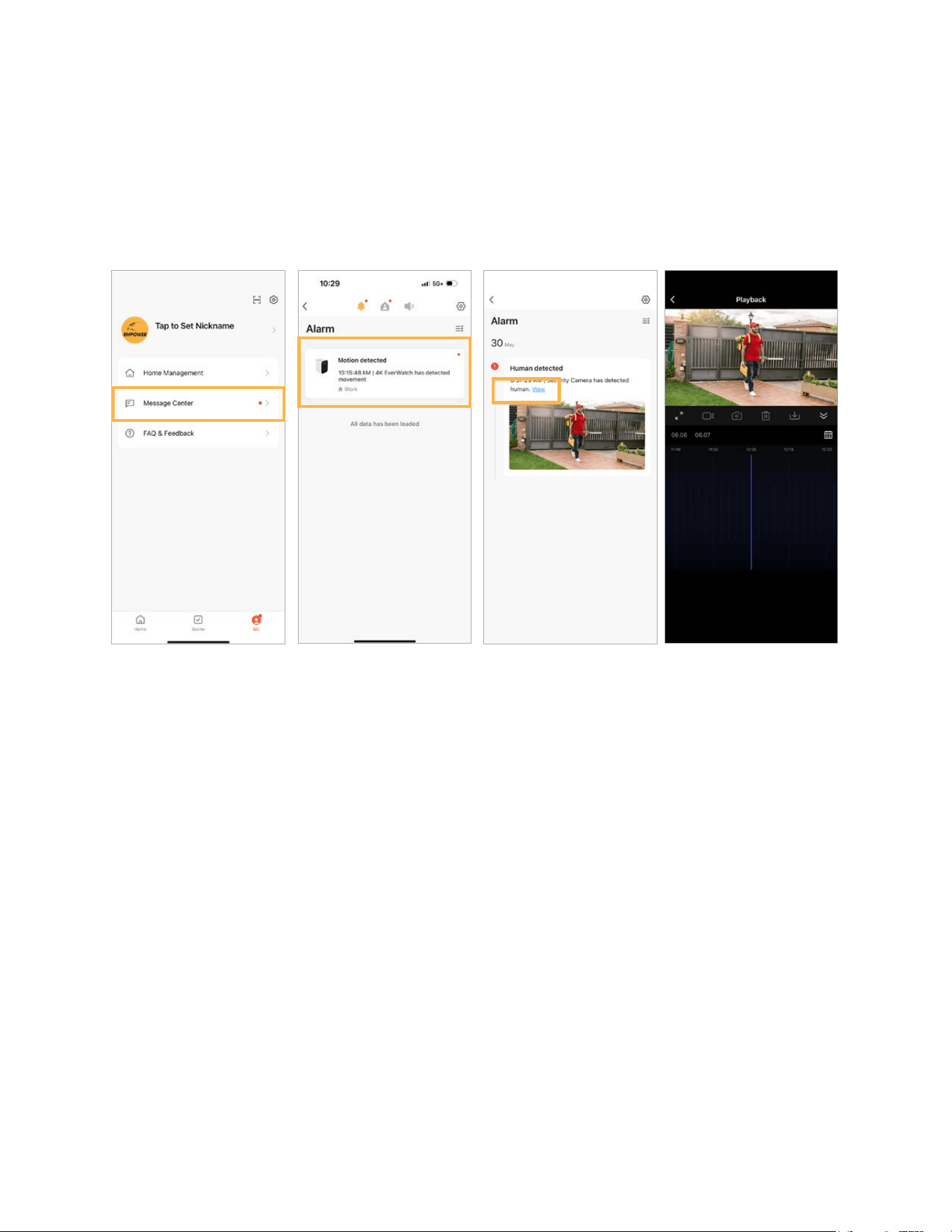
OPTION TWO:
With notications enabled, you can view your playback directly from notications. If you select a
notication from within the past 2 minutes, selecting view will display the live view of the camera.
From the live view screen, select Me, select Message Center and select the camera you wish to view
notications for. Tap view, to view the playback.
19
LOW BATTERY ALARM
For your peace of mind, we recommend setting a Low Battery Alarm in the Defender Empower App
to be reminded when your camera battery is low. To maximize the battery life of your camera, we rec-
ommend keeping your battery charged at all times by connecting to the solar panel.
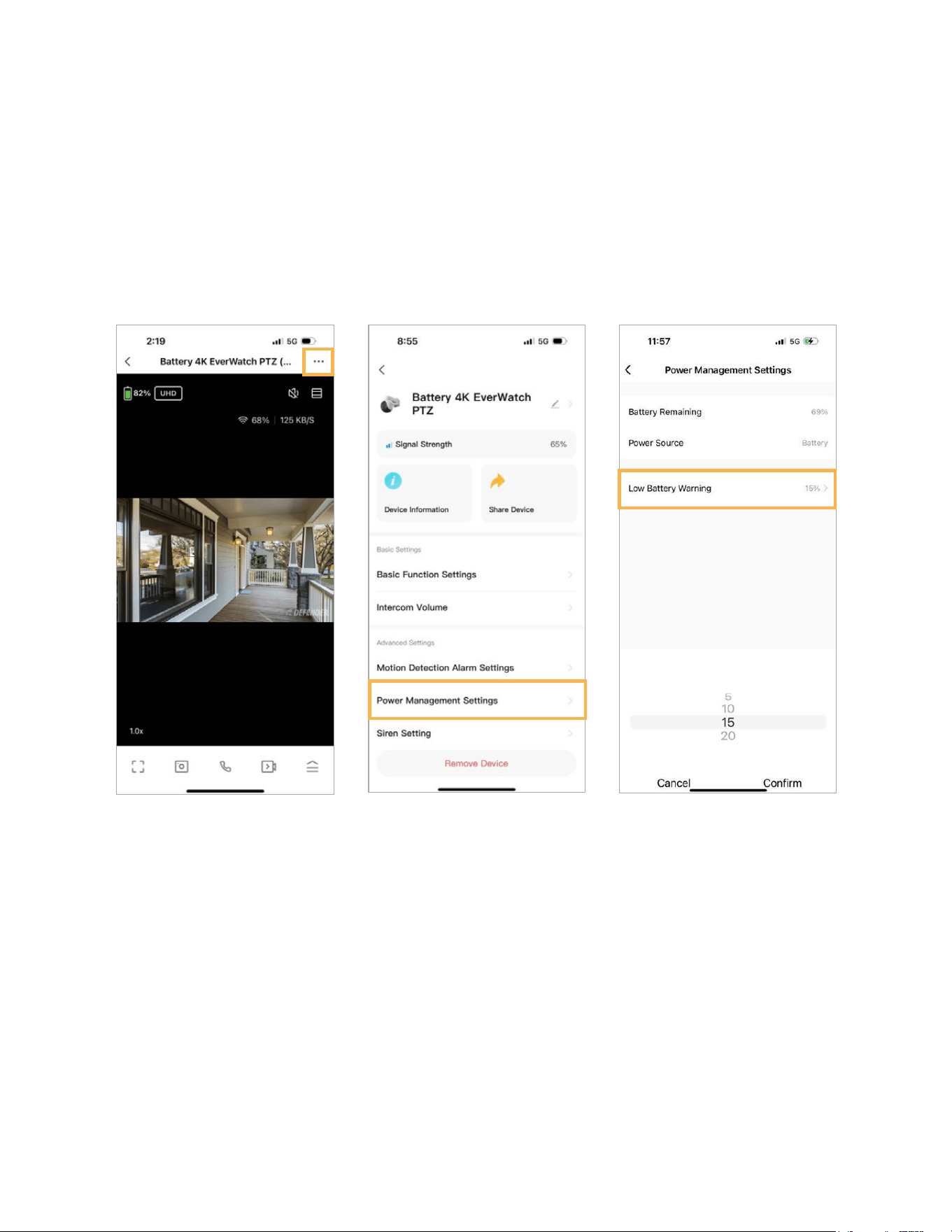
Low Battery Alarm is set to alert at 15% battery by default.
Step 1: From the live view
page, tap (···)
Step 2: Tap “Power
Management Settings”.
Step 3: Tap “Set the Low Battery
Warning”. Select what battery
life percent you wish to receive
a notication of low battery.
Tap “OK” to save.
20
TWO-WAY TALK MODE
You have two option to select between two-way and one-way talk mode.
1. Two-Way Talk (Default) – Speak and listen simultaneously. This is ideal for having conversa-
tions through the camera from the App.
2. One-Way Communication – You can either hear from the camera or speak through the camera
at any moment, but not at the same time. This mode should be used when you are using the talk
function close to your camera to avoid echoing and noise.
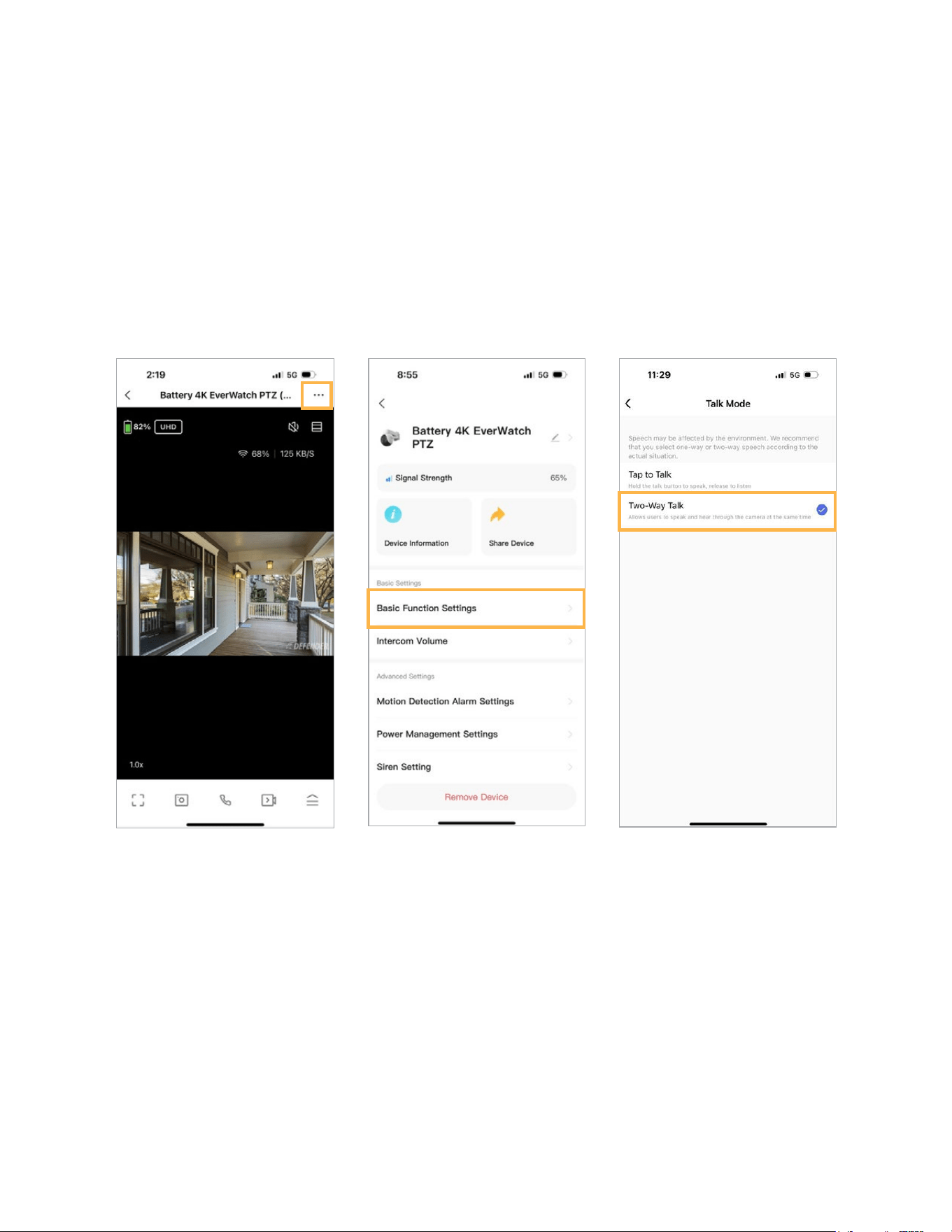
Step 1: From the live view
page, tap (···) at the top right
corner to go to settings.
Step 2: Tap “Basic Function
Settings”.
Step 3: Tap “Talk Mode” to edit.
21
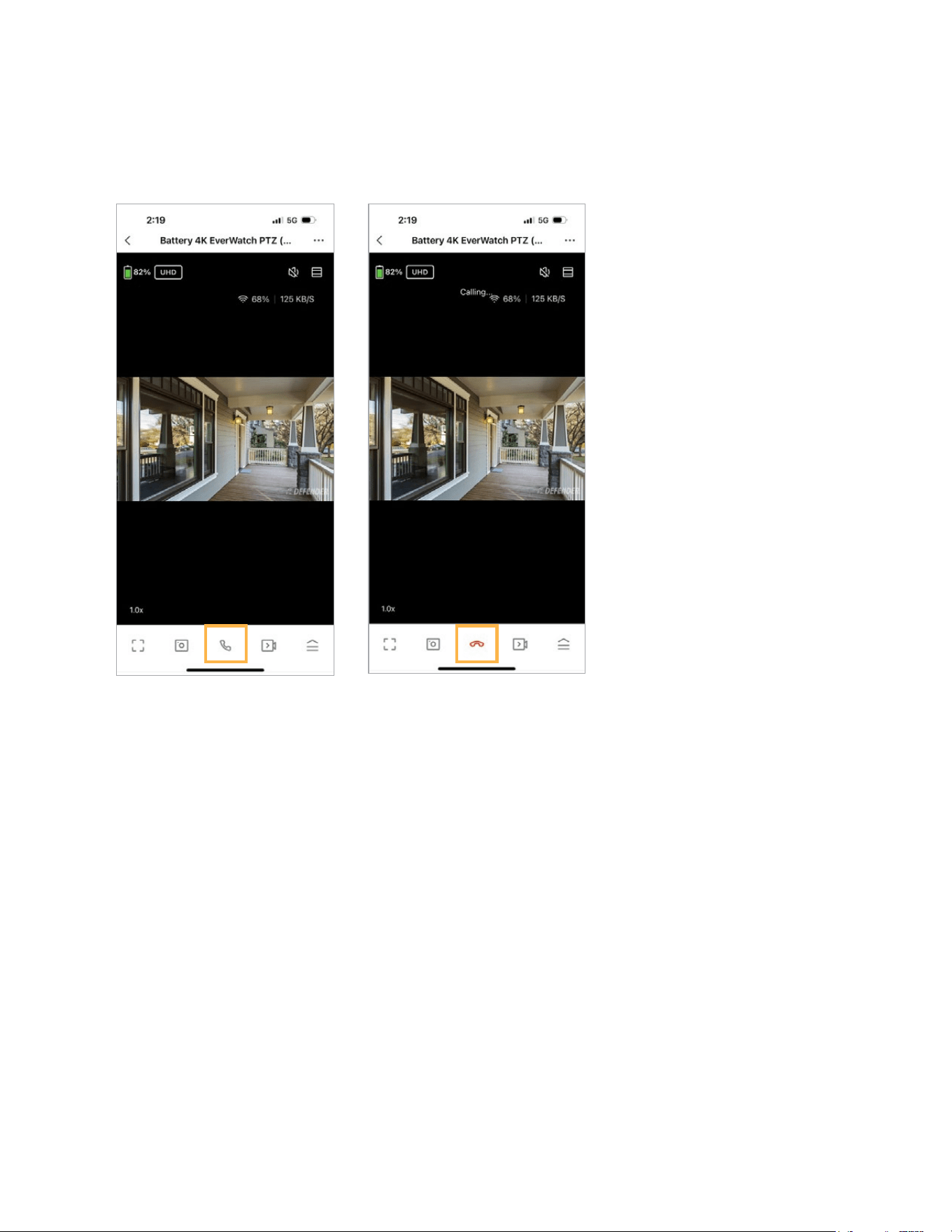
Step 1: Tap the phone icon in
live view to start two-way talk.
Step 2: Start talking when the
phone icone turns red. Tap the
phone icon again to hang up.
TWO-WAY TALK
To use Two-Way talk, select the camera you wish to communicate with.
22
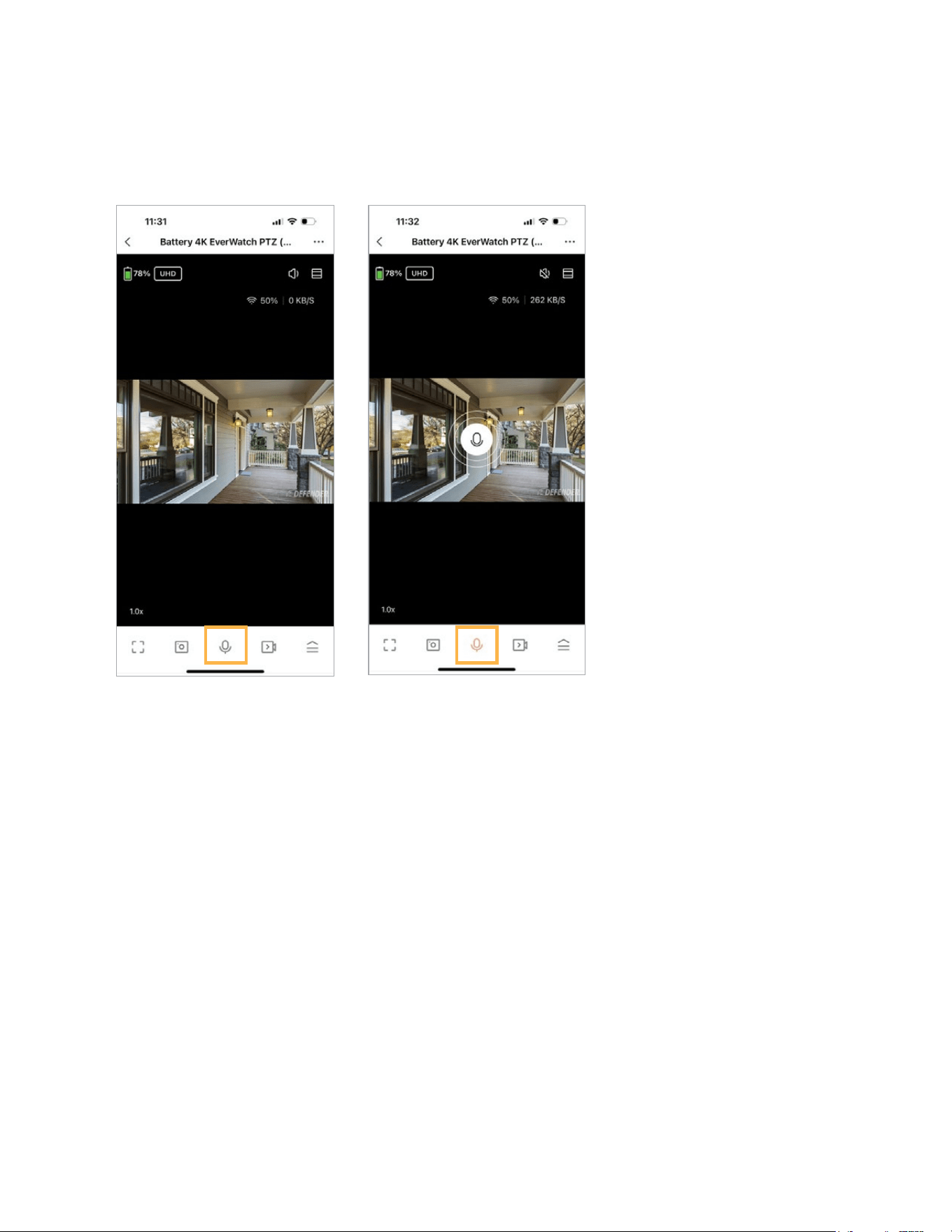
Step 1: Tap and hold the
microphone icon in live view to
activate the microphone
Step 2: Start talking when the
microphone icon appears.
Release the microphone icon
to nish talking.
ONE-WAY COMMUNICATION
Select the Camera you wish to communicate with.
23
SETTING UP SITES
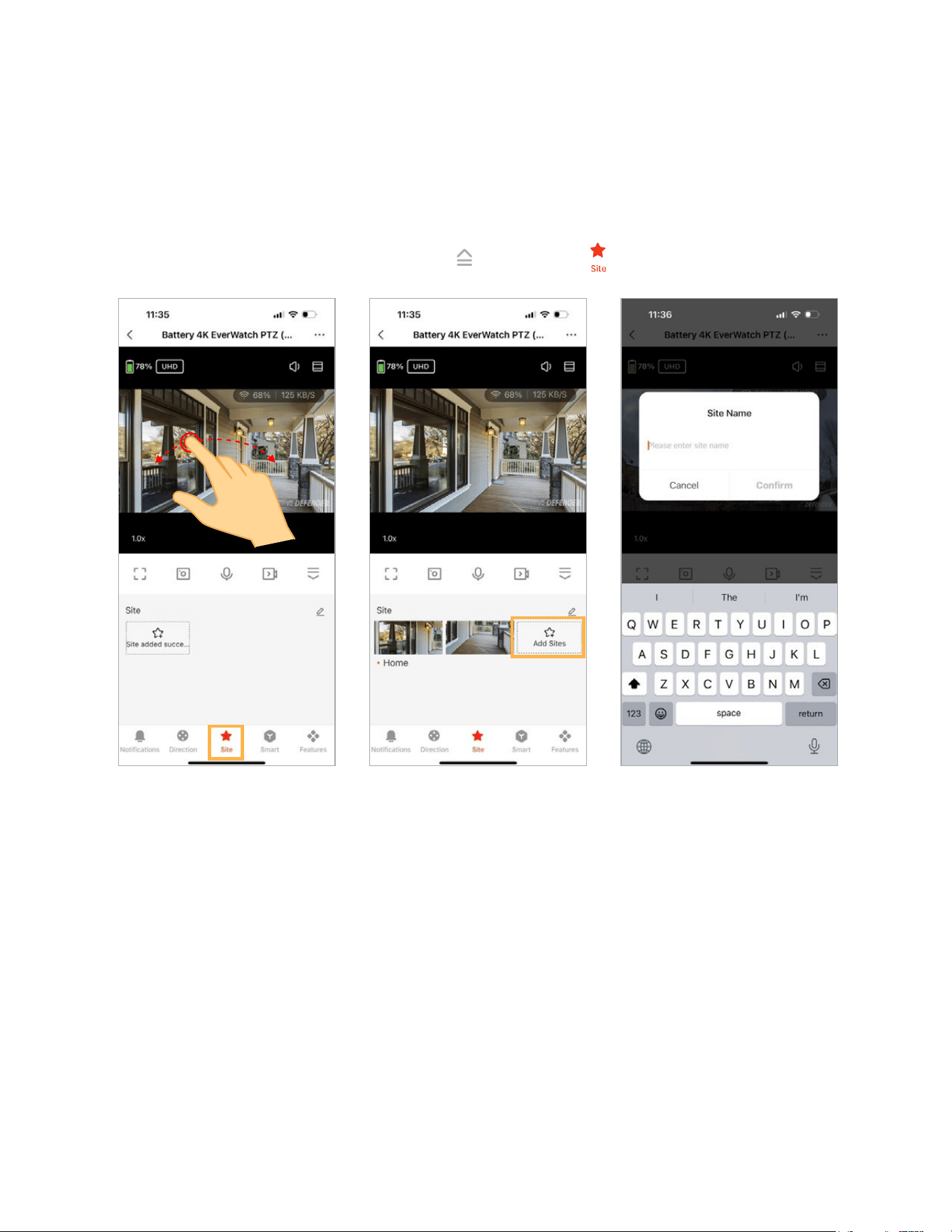
Settings a site location tells your camera where to return to once motion is no longer detected, if no
site location is set, the camera will return to the last default position before motion was detected.
From the live veiw screen, select the menu icon and select Site
Use your nger to move and
select your preferred location
by swiping up and down or
left and right.
Once you’ve positioned your
camera and your preferred
location, tap Add Sites.
Add your site name and select
Conrm to change.

DefenderCameras.com
©2025 DEFENDER®. All rights reserved. DEFENDER®, the DEFENDER® logo and other DEFENDER®
marks may be registered. All other Trademarks are the property of their respective owners.
Defender is continuously enhancing our products to bring customers the best user experience.
We reserve the right to change models, conguration, or specications without notice or liability.
Product may not be exactly as shown. DEFENDER® does not endorse any DEFENDER® products
for illegal activities. DEFENDER® is not responsible or liable in any way for any damage, vandalism,
theft or any other action that may occur while a DEFENDER® product is in use by the purchaser.
REV01 01162025