Safety and Usage Precautions
Terms of Warranty
Your hardware is covered for up to one year from the date of purchase.
This limited warranty applies solely to you, the original purchaser, and
is non-transferable to any subsequent owner, lessee, or recipient of the
product.
This warranty does not cover and we are not responsible for:
Damages resulting from misuse, abuse, accidents, fire, theft, loss, or misplacement.
Damage caused by power fluctuations, surges, or connections to improper voltage
sources.
Damage caused by viruses, malware, or malicious software.
Damage resulting from reckless, willful, or intentional conduct.
Damage due to servicing performed by unauthorized personnel.
Damage caused by improper use inconsistent with product instructions or user
manuals, including failure to perform necessary cleaning or preventive maintenance.
Damage resulting from modifications to the product or its components without prior
written approval.
Normal wear and tear, including gradual image degradation, uneven screen aging,
burn-in, or pixel failure within the product’s specified tolerances that do not
significantly impair functionality.
Software issues, including the operating system, pre-installed software, third-party
applications, or reloaded software.
Components or equipment not originally supplied with the product.
Minor imperfections that meet design specifications.External appearance damage
such as scratches, cracks, or other cosmetic issues that do not affect functionality.
Missing, altered, or defaced serial numbers.
Wireless data services provided by third-party providers.
Damage caused during transportation or improper packaging when returning the
product.
Warranty Statement
Do not use the device in environments containing combustible gases,
vapors, or dusts.
Non-professional users must not disassemble or repair the power
adapter, as there is a risk of high-voltage electric shock.
Avoid installation or operation during thunderstorms to prevent
damage caused by lightning strikes.
If overheating, smoke, or abnormal odors are detected, disconnect
the power immediately.
Do not operate the device in extreme environmental conditions such
as very cold, hot, or humid environments.
For cleaning, use a dry, soft cloth. If necessary, a surface cleaner
spray can be applied after the device is powered off, ensuring no
liquid enters the device.
Avoid dropping or throwing the device. Handle with care and do not
forcibly adjust the screen angle.
Use the device in a clean, dust-free environment. Prevent the
intrusion of small metal objects and insects into the device.
Technical Data
Android POS Terminal
The pictures are for reference only; please prioritize practicality.
User Manual
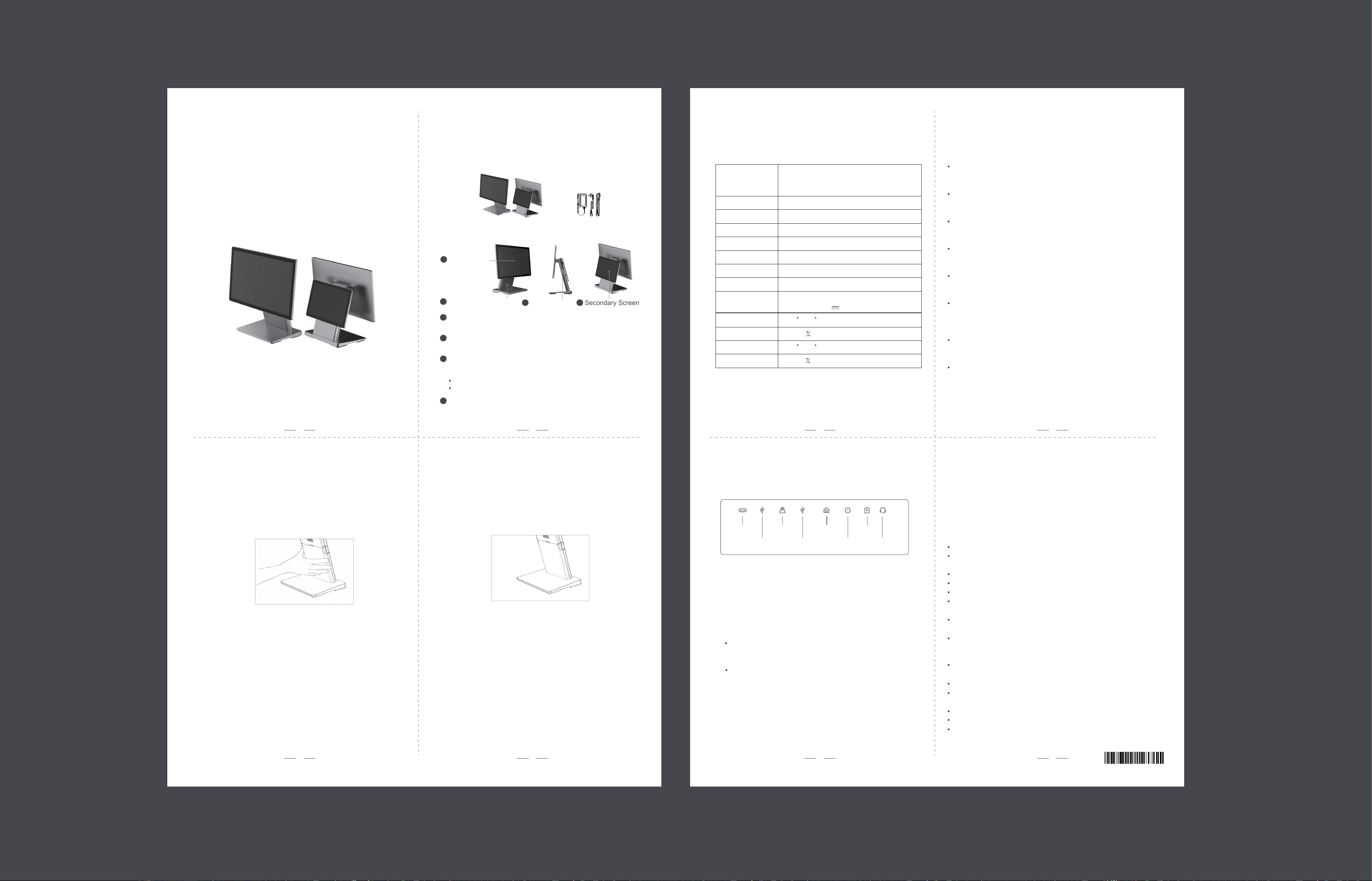
Package Content
Desktop Terminal Installation
1. Open the Cable Management Front Cover
3. Connect the Power Cord
2. Install the Cable Management Front Cover
Device
Interfaces Introduction
Please check the following parts before use:
Host Computer
Power Adapter
美团S5 Pro 、S5S Pro英文说明书(A4尺寸)
材质:A4纸,正反两面单黑打印
3 4
5 6
7 8
1 2
Startup Procedure – Single Monitor / Dual Monitors
Power Button
Main Screen
Designed for operator use.
3
4
1
2
Cable Management Bin
All types of cables can be connected and routed through this bin.
1.Press the Power Button to power on the device. The display will activate.
Upon initial boot, the startup interface will appear.
Follow the on-screen prompts to proceed with operation.
2.The device supports two methods of internet connectivity:
Wireless Connection: Select the desired wireless network from the
available options on the welcome screen. Enter the network password
when prompted to establish a connection.
Wired Connection: Connect an Ethernet cable from the network
source to the device’s network port to establish a wired connection.
When the device is off, short press the button to turn it on.
When the device is on:
Long press for 4 seconds to initiate a soft power-off.
Long press for 11 seconds to perform a hard power-off.
Secondary Screen
For display use only.
Main Screen: 15.6’’, FHD 1920*1080
Secondary Screen: 10.1”, HD 1280*800
(dual-screen model)
G + G, 10 Point Touch
Meituan OS
OS
Storage
Wi-Fi
Bluetooth
Display Parameter
Touch Screen
Speaker
Overall Size
Power Adapter
Working Temperature
Working Humidity
Storage Temperature
Storage Humidity
4GB RAM + 32GB ROM
2.4GHz/5GHz, IEEE 802.11 a/b/g/n/ac/ax
Bluetooth 5.4
3W
372*160*329mm (L*W*H)
INPUT: 100-240V~ 50/60Hz
OUTPUT: 24V 1.5A
10~90 RH
-20
C~60 C
-10
C~55 C
20~80 RH
Power
Port
Type-C Cashbox
Port
Network
EarphoneUSB*2
Electronic
Scale
USB*2
2
Cable Management Bin
1
Main Screen
Power Button
Locate the reserved handle position on the cable
management front cover. Use this handle to open the
column front cover. Alternatively, you can simply grip the
column front cover with your hand and remove it.
Insert the DC power connector of the adapter through the
bottom of the base and connect it to the power port on the
host column. Then, plug the other end of the adapter into
the mains socket.
First, install the cable Management front cover near the
bottom, then secure it by buckling it back into the other
positions along the edge.
Handle position
3
Secondary Screen
4
90101-46910

FCC warning statements:
This equipment has been tested and found to comply with the limits for a Class
B digital device, pursuant to part 15 of the FCC Rules. These limits are
designed to provide reasonable protection against harmful interference in a
residential installation. This equipment generates, uses and can radiate radio
frequency energy and, if not installed and used in accordance with the
instructions, may cause harmful interference to radio communications.
However, there is no guarantee that interference will not occur in a particular
installation. If this equipment does cause harmful interference to radio or
television reception, which can be determined by turning the equipment off and
on, the user is encouraged to try to correct the interference by one or more of
the following measures:
• Reorient or relocate the receiving antenna.
• Increase the separation between the equipment and receiver.
• Connect the equipment into an outlet on a circuit different from that to which
the receiver is connected.
• Consult the dealer or an experienced radio/TV technician for help.
Caution: Any changes or modifications to this device not explicitly approved
by manufacturer could void your authority to operate this equipment.
This device complies with part 15 of the FCC Rules. Operation is subject to the
following two conditions: (1) This device may not cause harmful interference,
and (2) this device must accept any interference received, including
interference that may cause undesired operation.
The device has been evaluated to meet general RF exposure requirement This
equipment complies with FCC radiation exposure limits set forth for an uncontrolled
environment.
This equipment should be installed and operated with minimum distance 20cm
between the radiator & your body.