

!"
#
# $
%!&' (
)%!&'
*%+
* * ,
#!#
--! (
'#* .
*/#+&0! 1
* * 11
** 1
**'2 1(
#'2%!* $
** $$
**/-'*3%4 (
**+&%00% (5

5
/6 (1
*78*79 ($
:&8';<:&'!+9 .
#/#28=7#29 ..
!)8-!9 ,
/ ,.
'+/ 5
#
'; 1
'
:&
'-7 5
! $
> !>! (
*7 15
4
Printing with ZoomBrowser EX
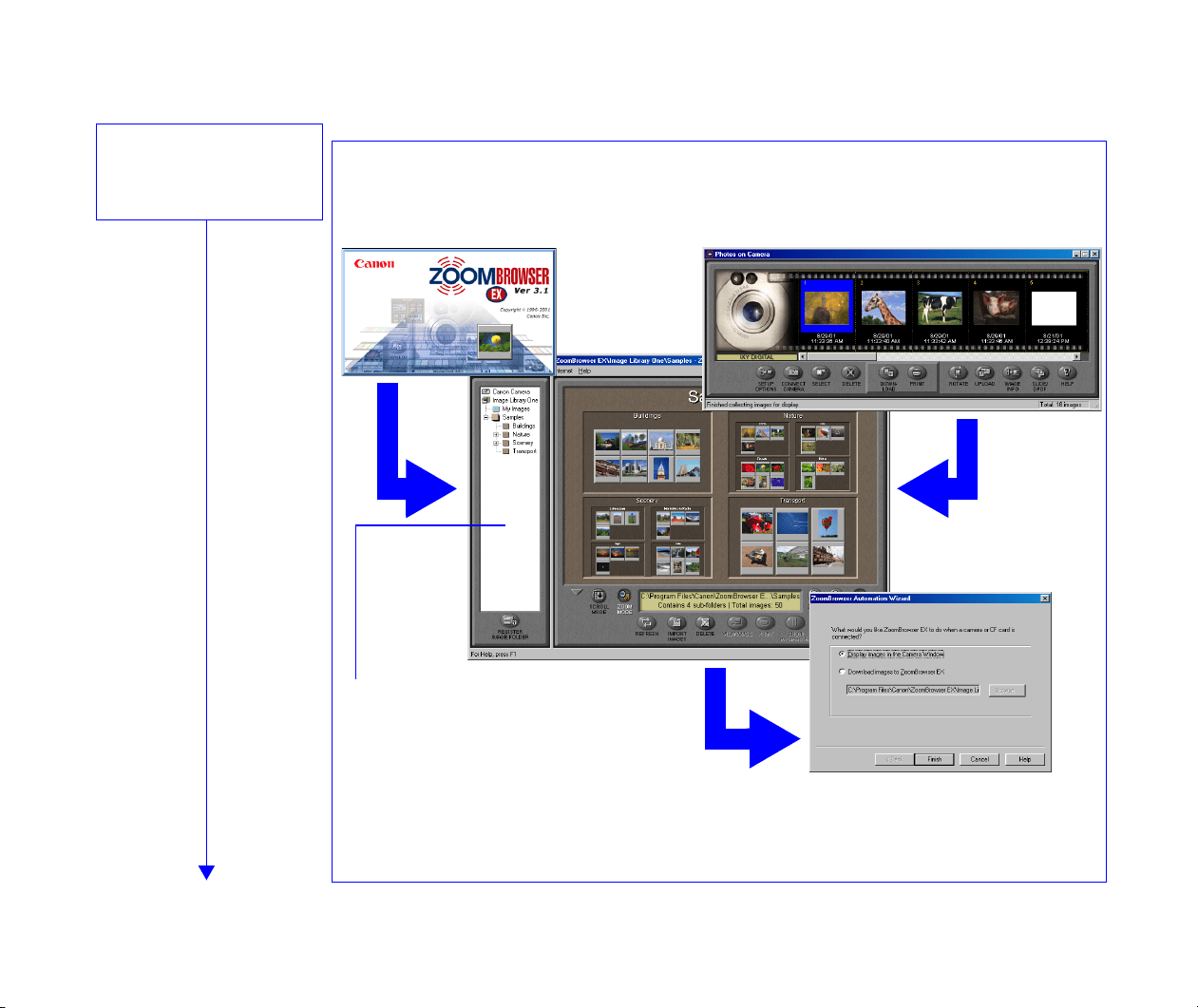
ZoomBrowser EX enables you to import image data captured with digital cameras or scanners into
a computer and produce photo-quality printouts in a quick and easy fashion. Using ZoomBrowser
EX with a Canon BJ printer and a scanner or digital camera, you can enjoy superb-quality photo
prints.
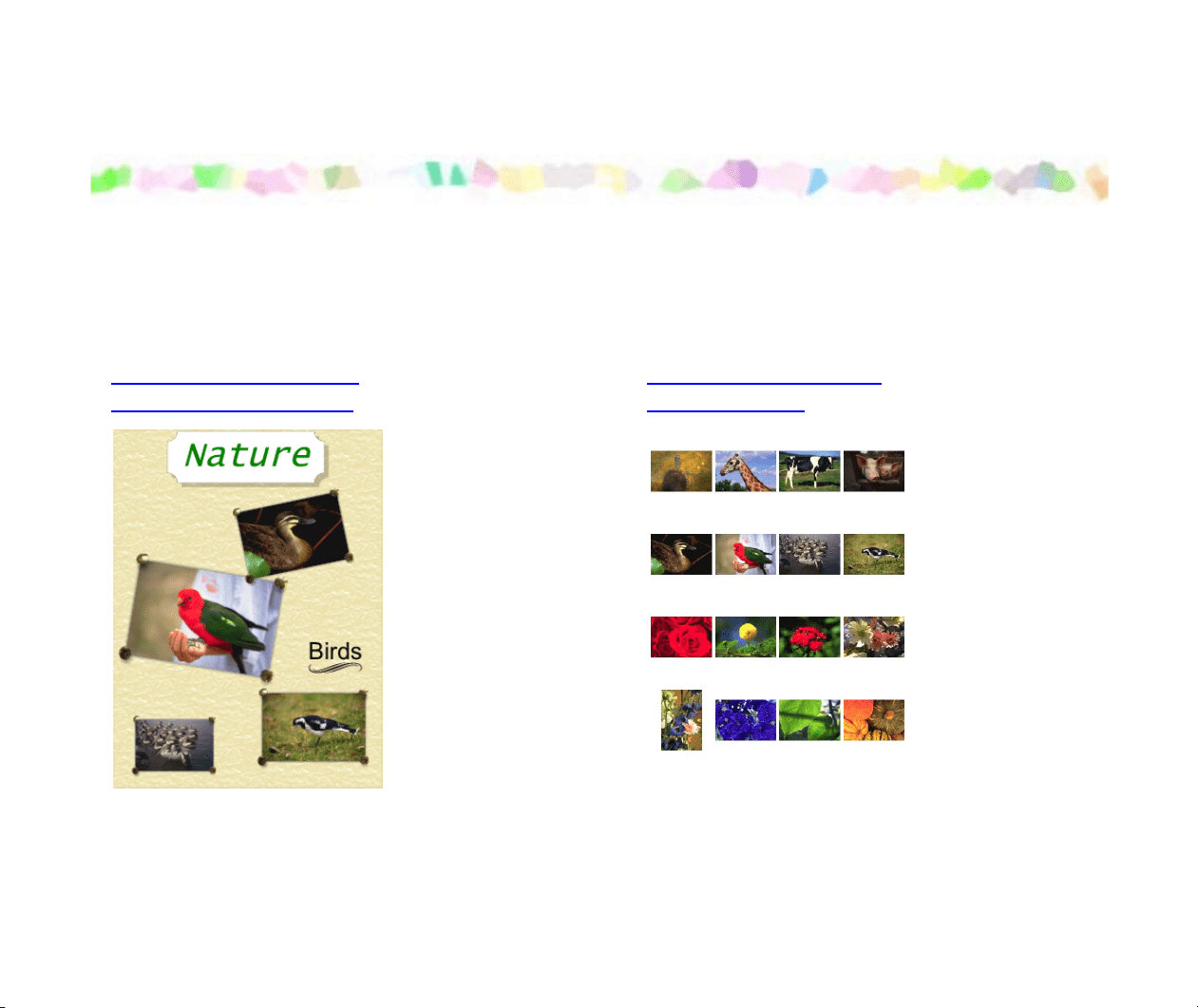
Custom Layout Printing
(Artwork/Layout Album)
Printing a Photo Index
(Index Printing)
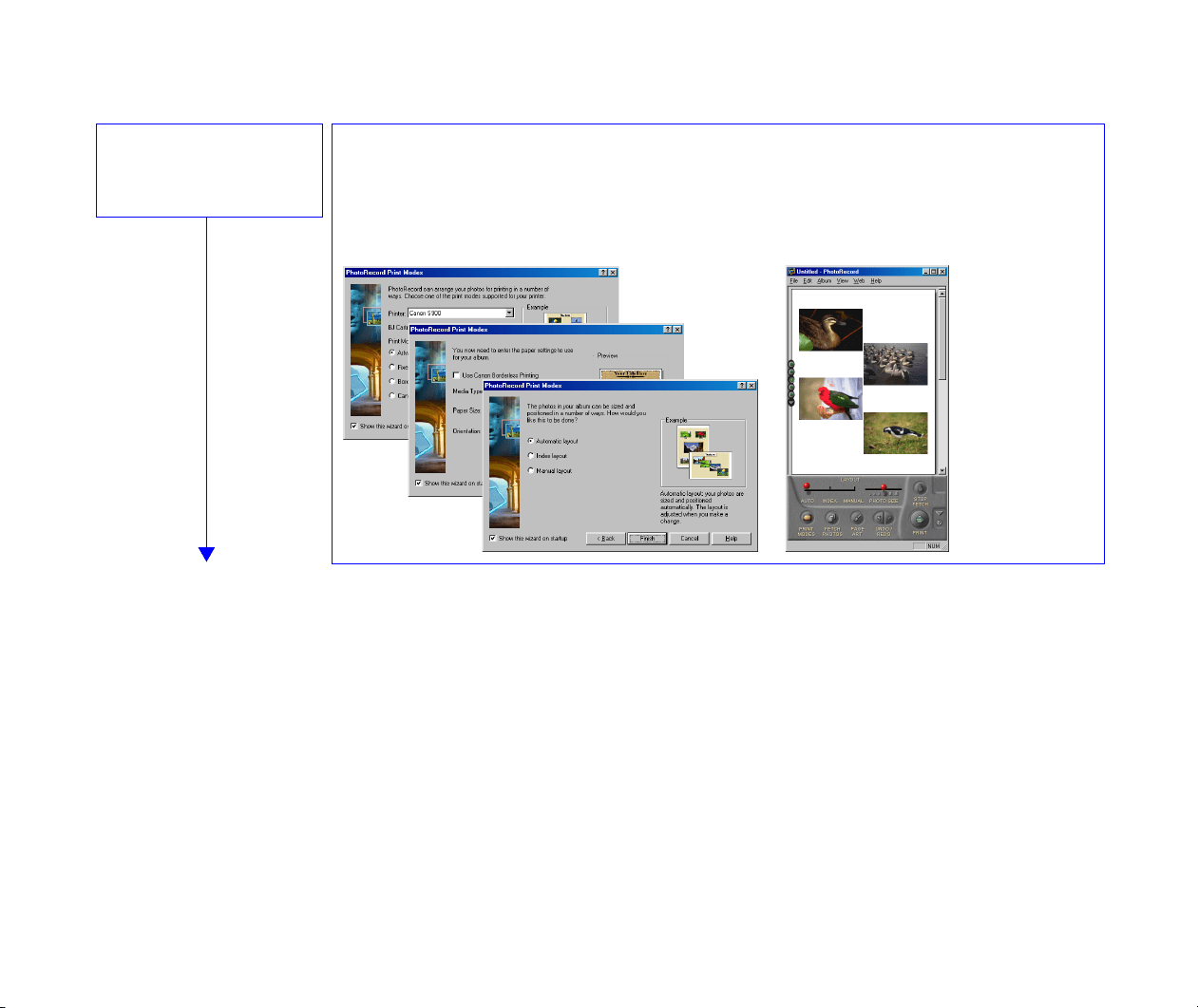
You can arrange images in a desired layout and
apply artwork including clipping, resizing, rotation,
text insertion, and ornamentation with photo
frames and background.
You can print a photo index that contains
thumbnails automatically arranged in a suita
b
layout for the selected thumbnail size (large,
medium, or small).
5
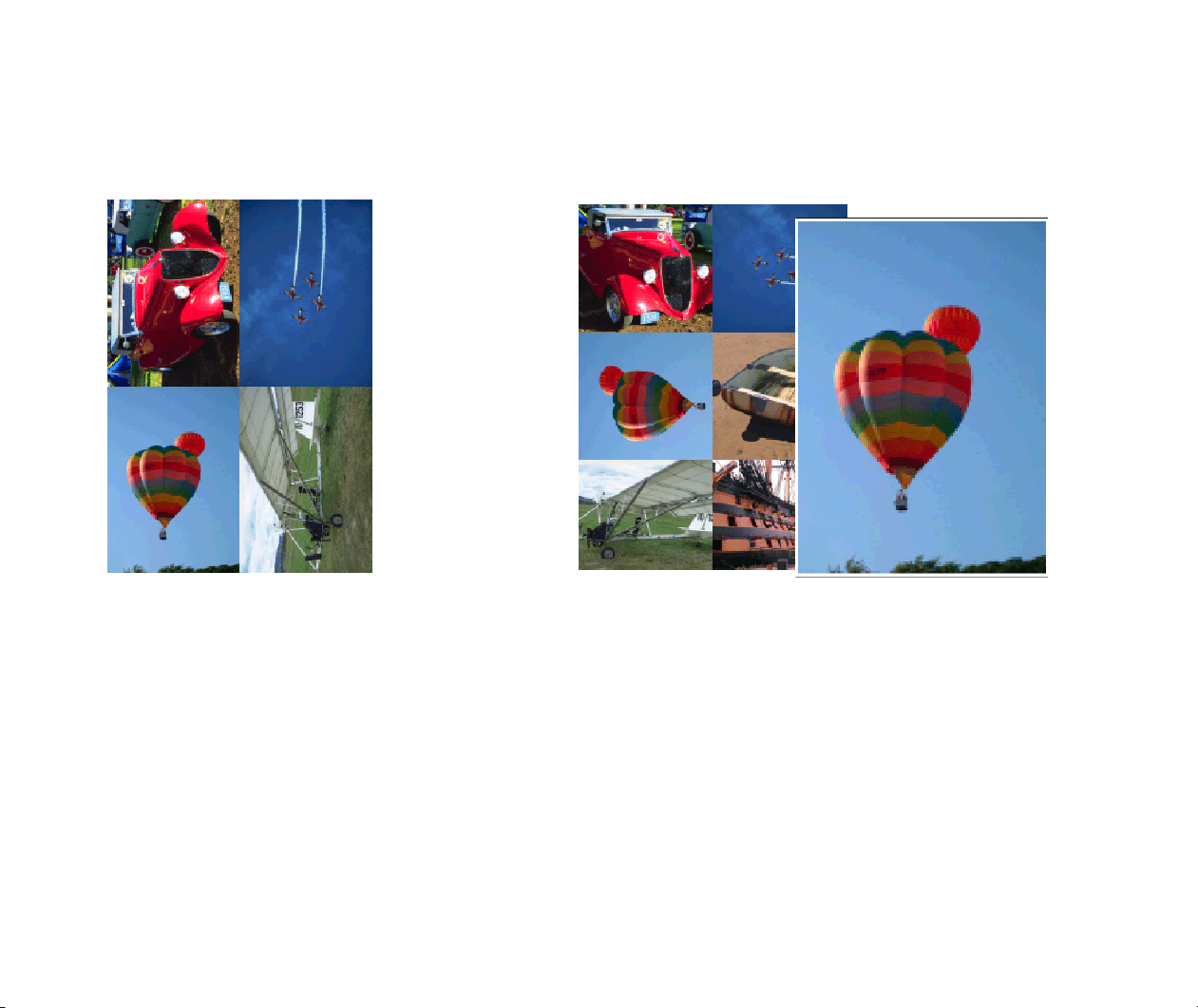
Printing in a Specified Photo Size
(Fixed Photo Size Printing)
Printing in the Borderless Printing Mode
(Tiled photo)
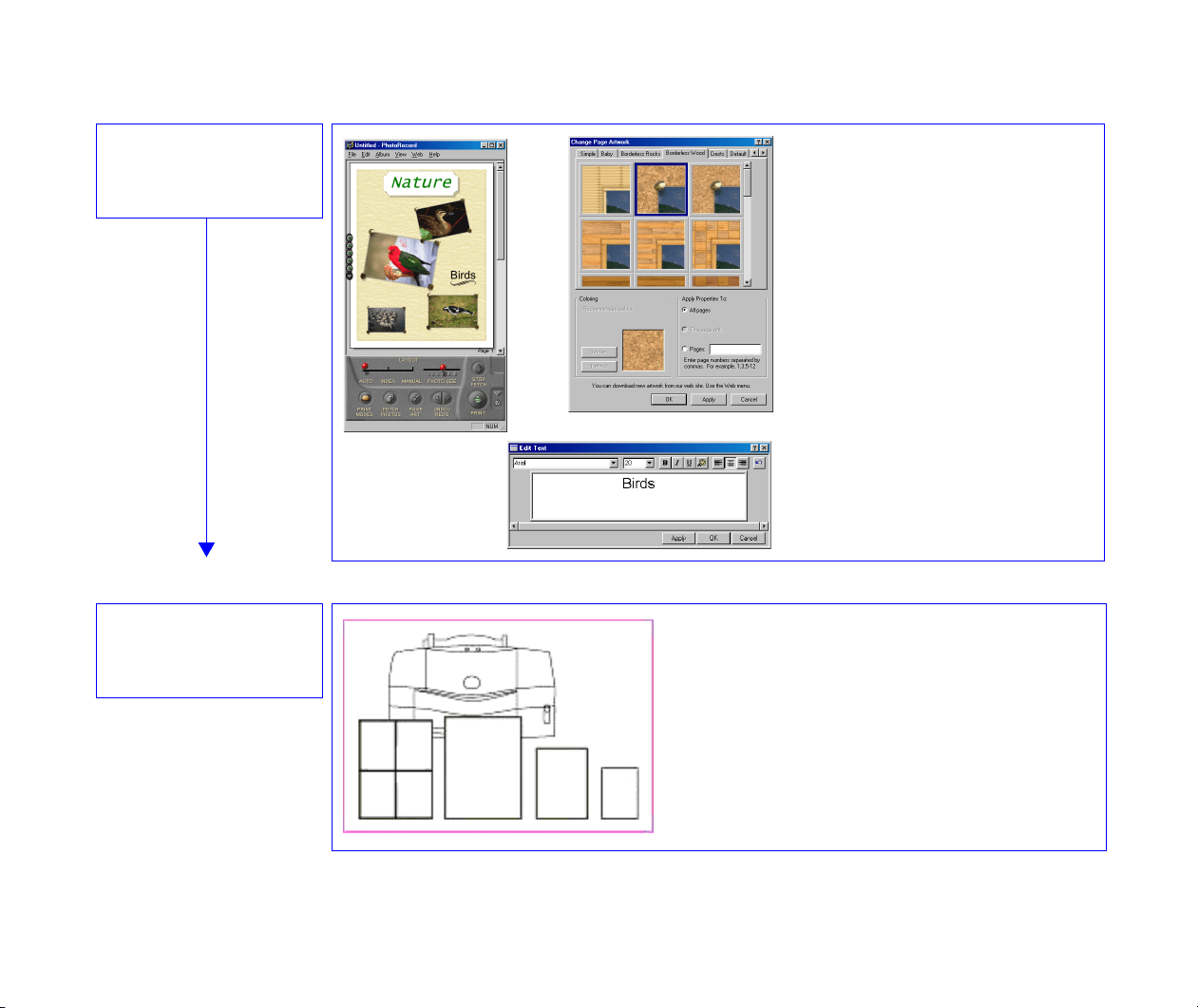
You can print images in the specified photo
size.
You can print images with no margins around each
image, so that a single image is printed borderless
along the paper edges and multiple images are
arranged like tiles with no space between them
(available with BJ printers that support the
borderless printing feature).

10
STEP 4
Applying artwork
You can apply artwork
including clipping, resizing,
adding text, and
ornamentation such as adding
photo frames or background
to the imported images.
STEP 5
Printing
The images can be printed on Canon
perforated paper (such as Photo Paper
Pro <PC-101S> or Glossy Photo Card
<FM-101>). Borderless printing is also
supported.
*Some features and paper sizes may not
be supported depending on the models of
printers.

11
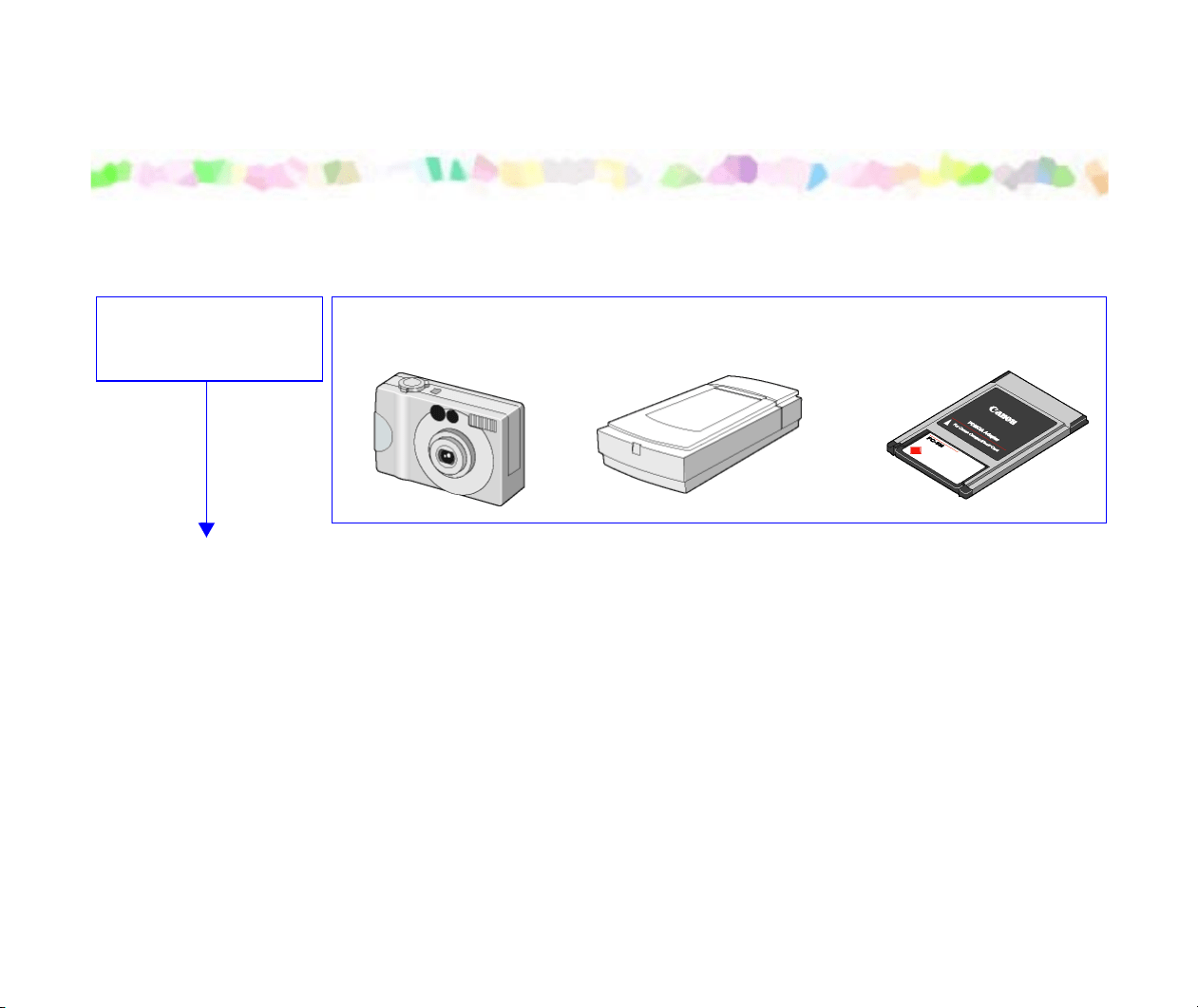
What are Canon Utilities?
Canon Utilities are the application softwares included in the BJ Solution Disk or Setup Software &
User’s Guide in the CD-ROM that comes with your BJ series printer. These utilities enable you to
display, save (import) to the computer's hard disk, edit, print the images captured using a digital
camera or scanner.
• ZoomBrowser EX
ZoomBrowser EX allows you to display a list of thumbnails (images stored in the internal memory
card), import them to your computer's hard disk, and print them in photo-quality using the BJ printer.
With ZoomBrowser EX, You can easily display, edit, and manage images stored in your computer’s
hard disk as well.
• PhotoRecord
With PhotoRecord used with ZoomBrowser EX, you can print the specified image in photo-quality
using the BJ printer. You can print automatically layouted multiple images on a single paper.
• PhotoStitch
PhotoStitch is an utility program for image merging and allows you to quickly create a panoramic
photo by mergng multiple images captured with your digital camera.
With PhotoStitch, you can merge any number of images vertically or horizontally, producing unique
posters or other photo-prints. The wide-mode merging feature is also useful when you want to
create a wide panoramic photo of a building or straight-lined object with straight lines as natural as
the original.

Starting ZoomBrowser EX
12
Starting ZoomBrowser EX
This subsection describes how to start ZoomBrowser EX.
ZoomBrowser EX supports the following image file types:
bmp Windows bitmap
crw RAW
fpx Flachpix
jpg Joint Photographic Experts Group (JPEG)
tif Tagged Image File Format (TIFF)
pcd KODAK Photo CD
wmf Windows Metafile
Starting ZoomBrowser EX
13
Steps
1
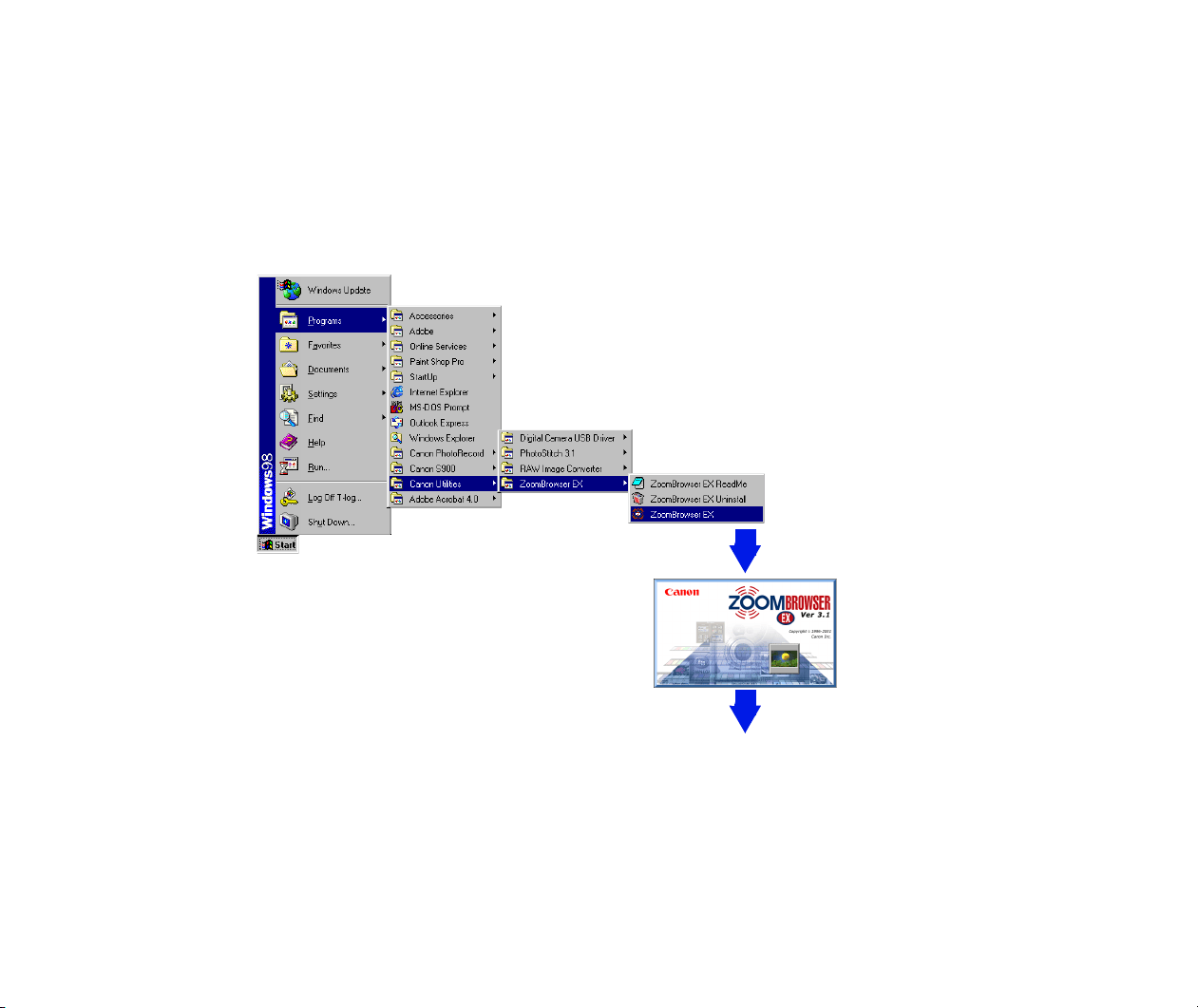
From the Start menu, select Programs, Canon Utilities, ZoomBrowser EX, and
again ZoomBrowser EX.
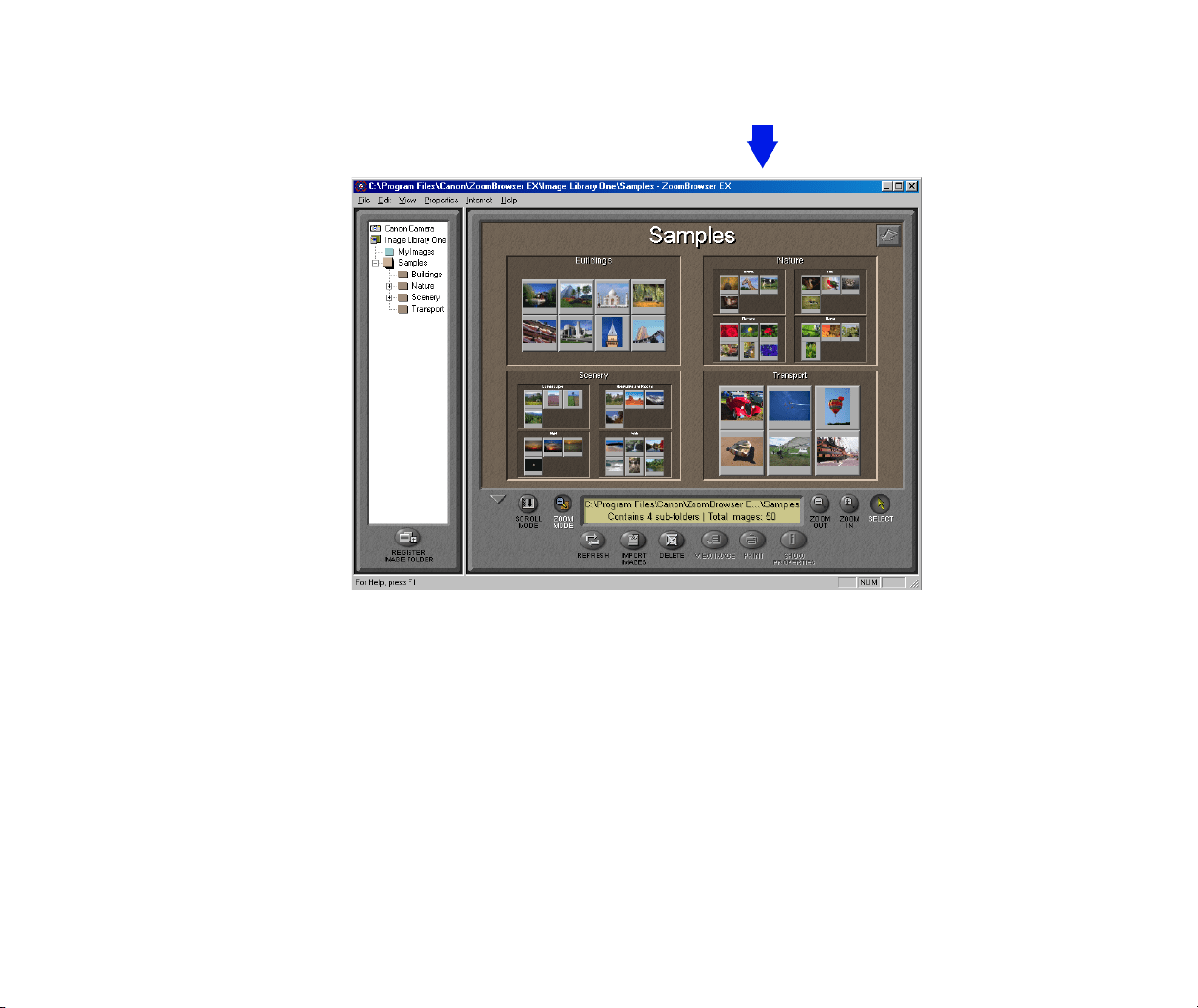
Canon ZoomBrowser EX starts and ZoomBrowser EX application window opens.
Starting ZoomBrowser EX
15
When starting ZoomBrowser EX for the First Time...
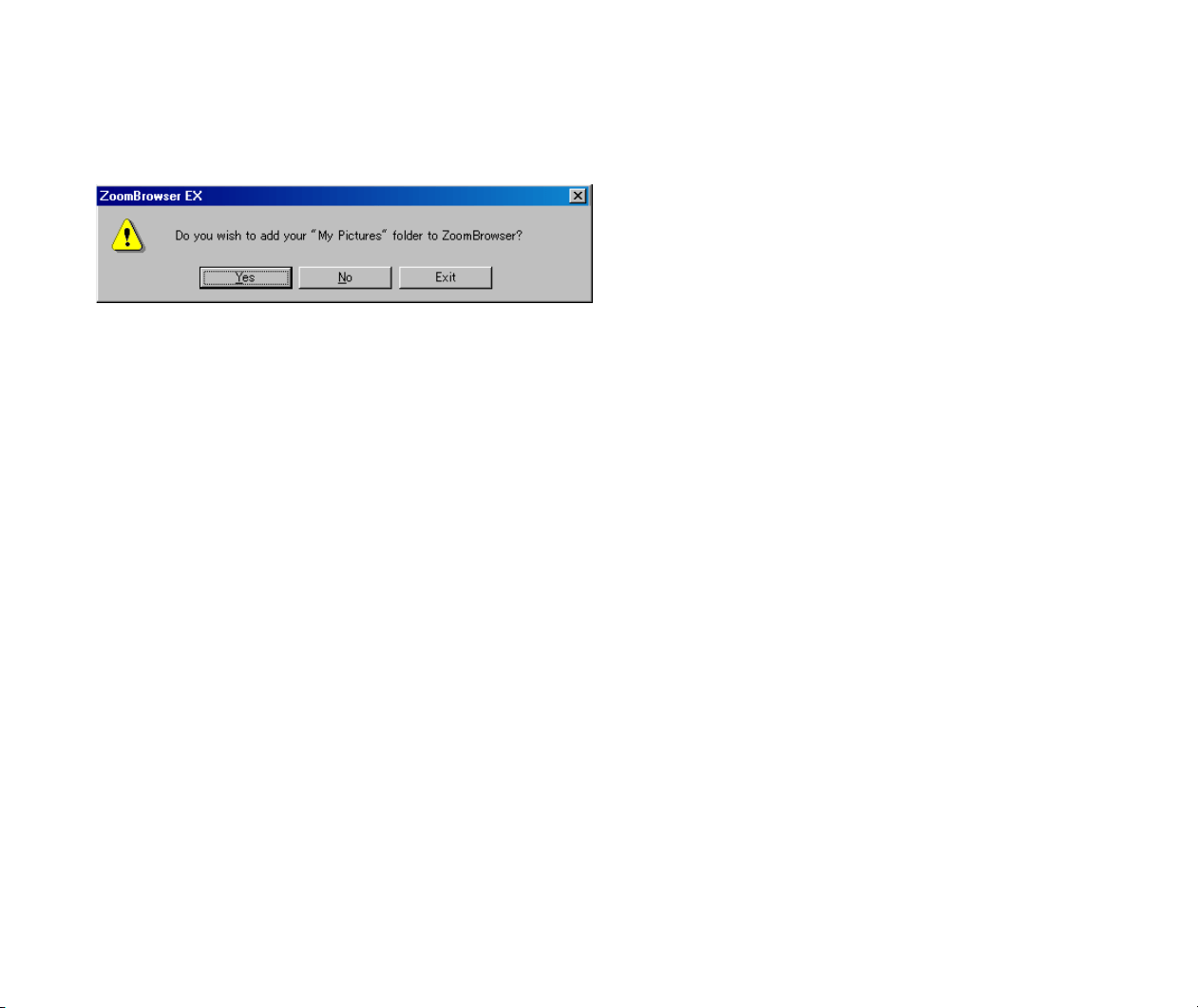
When starting ZoomBrowser EX for the first time, you will see a message window as shown below.
Click the Yes button to register the Windows folder named My Picture as an Image Folder of
ZoomBrowser EX. This folder will become an image data storage folder and images imported from
a digital camera or scanner can be stored in this folder. ZoomBrowser displays the thumbnails of
the images stored in this folder in the Browser Display Area.
Click the No button, if you do not want to register the My Picture folder to the ZoomBrowser EX.
This message appears only when the ZoomBrowser EX is started for the first time.
For more detailed information on registering Image Folders, refer to Image Database.
Creating Panoramic Photo Using PhotoStitch
16
Creating Panoramic Photo Using PhotoStitch
PhotoStitch is an easy-to-use image merger utility which enbles you to create a panoramic photo by
merging multiple photos taken with a digital camera.
Steps
1
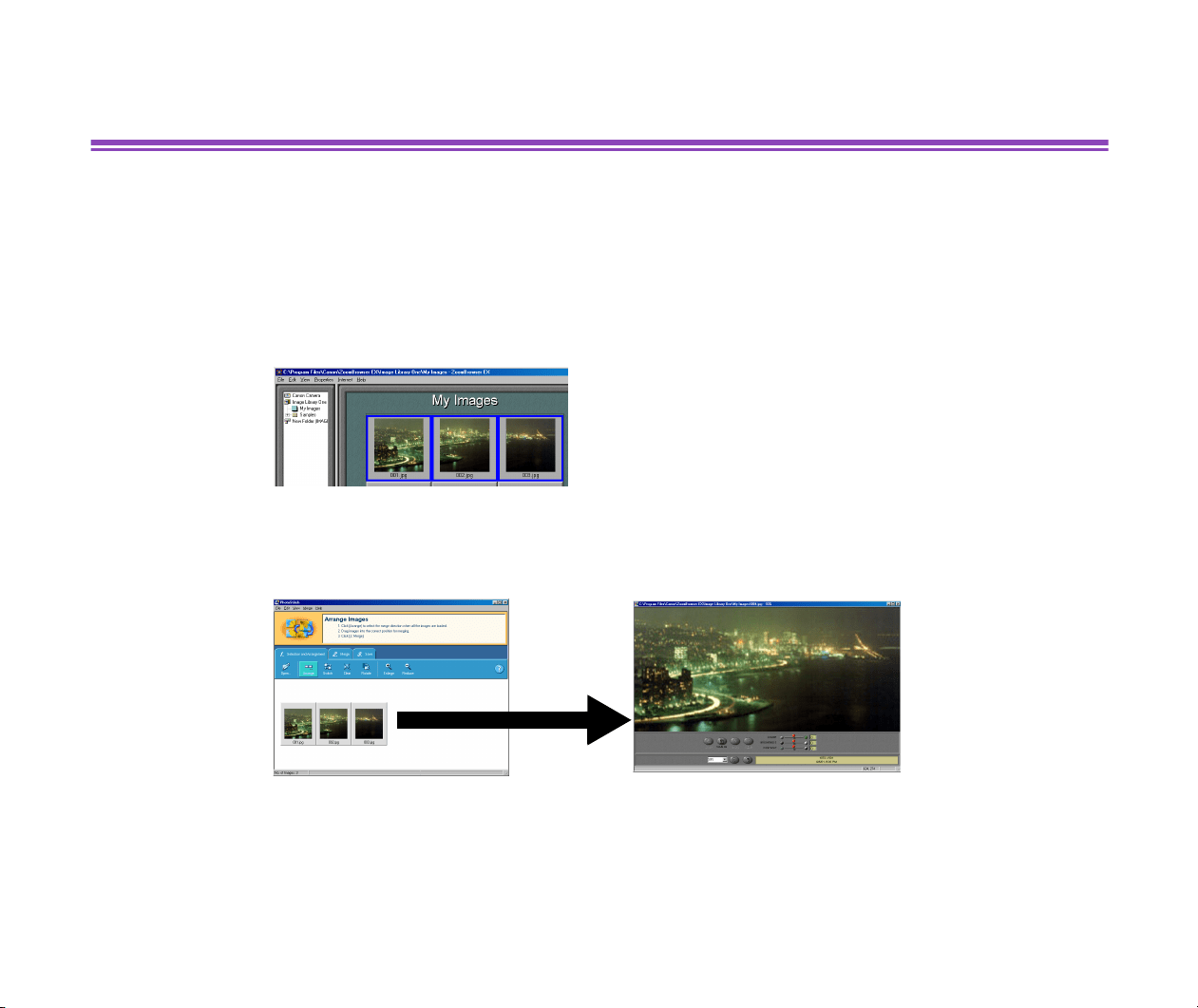
In the Browser Display Area of the ZoomBrowser EX, select multiple photo images
(thumbnails) to merge.
2
Open the Edit menu and select the PhotoStitch command.
PhotoStitch starts and loads the selected photo images.
Merge as many images as you like either horizontally or vertically by a simple operation, and create
posters and other photo-prints. Also try the wide-mode merging which shows buildings and other
straight-lined objects with straight lines as natural as the original.
For more details on the merging procedure, refer to the Help of PhotoStitch.

17
Using ZoomBrowser EX
This section describes the basic operations and the functions of the ZoomBrowser EX.
• Basic Operations in the Browser Display Area
• Changing View Mode in the Browser Display Area
• Image Database
• Processing Image Using Image Viewer
• Slide Show
• Time Tunnel
• Adding Sound to Image
• Processing Image for Sending by E-mail
• Editing Image Using Other Image Processing Programs
Basic Operations in the Browser Display Area
18
Basic Operations in the Browser Display Area
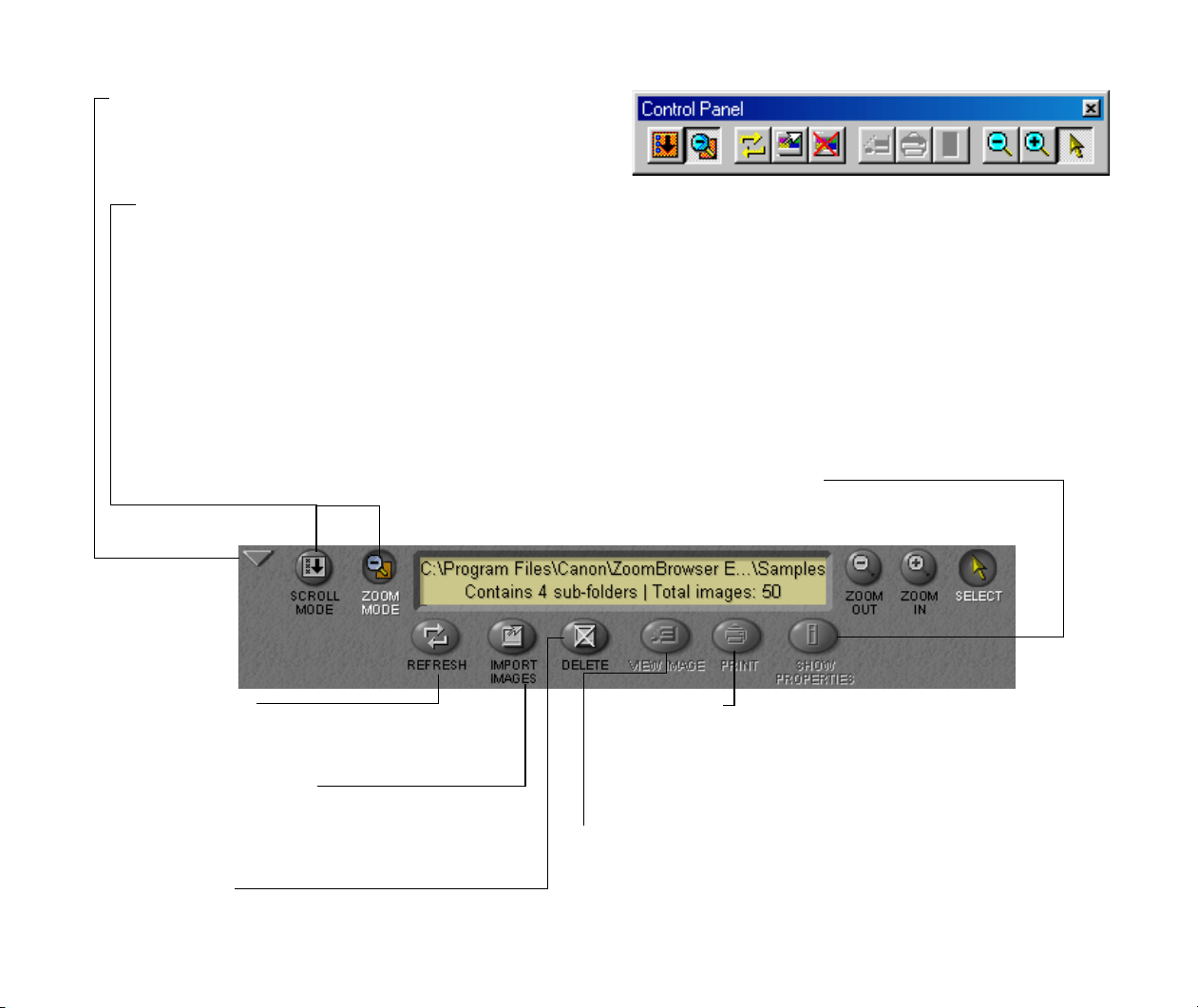
Part names and basic operations in the Browser Display Area are described in this section.
For more detailed information on working with ZoomBrowser EX, refer to the Help of ZoomBrowser
EX.
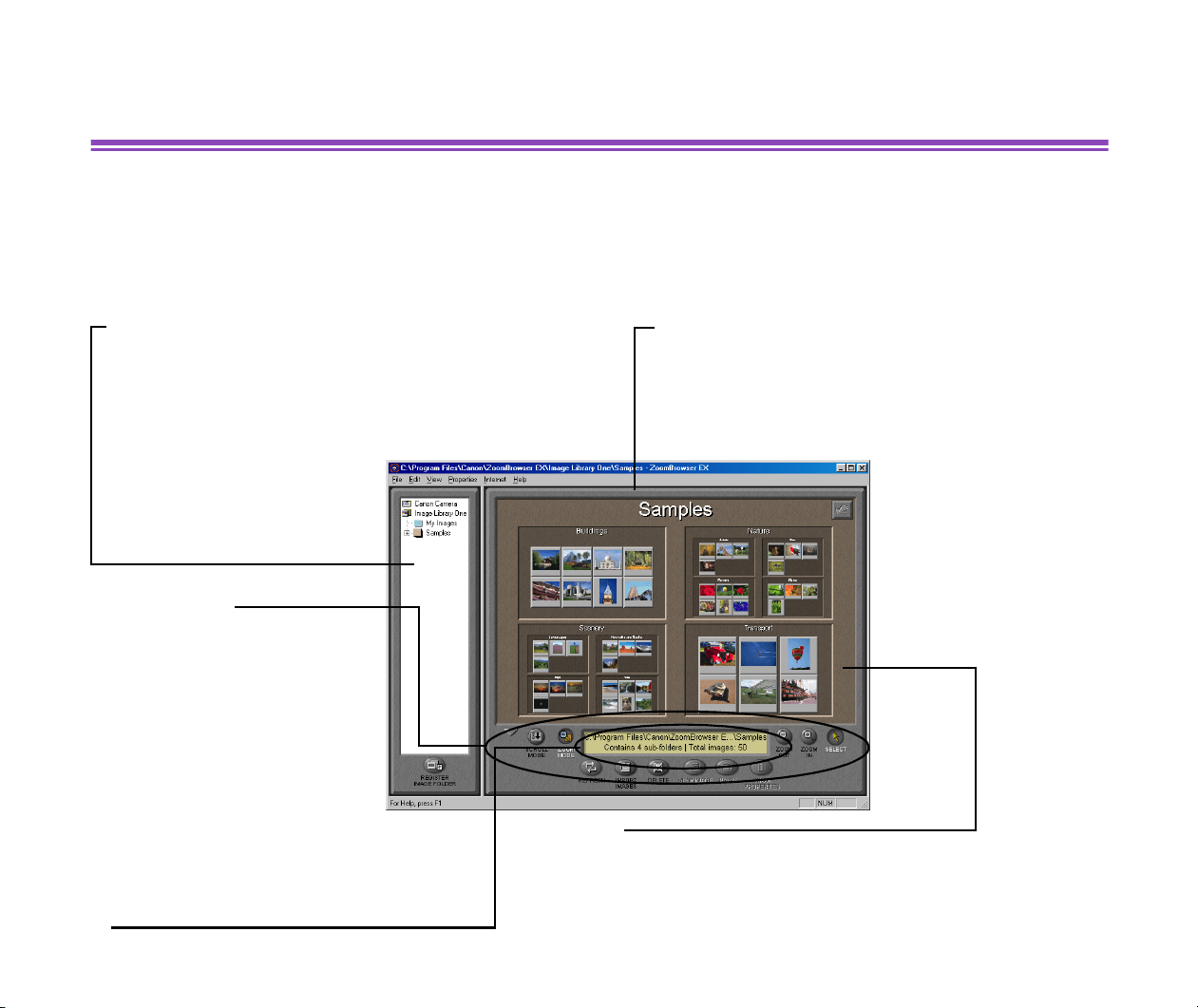
Tree View
Displays all the Image Folders and their subfolders that are
registered to ZoomBrowser EX.
When a Canon digital camera is connected to your com-
puter, double-click the Canon Camera icon, and you can
view all the photos stored in the memory card of camera in
the Camera Window.
Browser Display Area
Displays the contents of the Image Folder that is
currently selected in the Tree View. Individual
images are shown as thumbnails. You can change
the thumbnail size, the way the information is dis-
played, the viewing modes, and other settings.
Thumbnails
Reduced images of the files contained in the folder that is currently
selected in the Tree View. You can select images for processing by
clicking the thumbnails.To select two or more images, click the thumb-
nails one by one while pressing the Ctrl key.
The information screen shows the number
of subfolders and image files contained in
the current folder.
Control Panel
Control buttons are provided
here. Manage and process
images shown in the
Browser Display Area by
clicking these buttons.
Basic Operations in the Browser Display Area
19
MINIMIZE
buttons
Click this button to reduce the Control Panel into a minia-
ture window (see the figure on the right). You can mouse-
drag it anywhere on the computer screen.
View Mode
buttons
ZOOM MODE
Click the
ZOOM MODE
button on the Control Panel to enter the Zoom mode. The Zoom mode displays the
images contained in the folder currently selected in the Tree View, in the reduced form of thumbnails. If the folder
contains subfolders, the contents of the subfolders are also displayed, as thumbnails grouped under subfolder
names.
SCROLL MODE
Click the SCROLL MODE button on the Control Panel to enter the Scroll mode. The Scroll mode displays the
images and subfolders contained in the folder currently selected in the Tree View. The images are shown as
thumbnails, while the subfolders are shown as folder icons.
When in the Scroll Mode, you can zoom in on a desired folder and view its contents, by double-clicking the folder
SHOW PROPERTIES button
Click this to view the information about the image
currently selected in the Browser Display Area.
REFRESH button
Click this to refresh the display of selected images
(thumbnails) or the contents of the selected folder.
IMPORT IMAGES
button
Click this to import images from an input device
(digital camera, memory card, etc.), currently con-
nected to the computer.
PRINT button
Click this to open the Print submenu in which you can
select Layout or Index printing option. When Layout is
selected, the PhotoRecord Print Modes window opens and
the Print Modes wizard becomes ready to start.
VIEW IMAGE button
Click this to open the Image Viewer and view the selected
DELETE
button
Click this to delete the images or folders currently selected in the Browser Display Area.
Basic Operations in the Browser Display Area
20
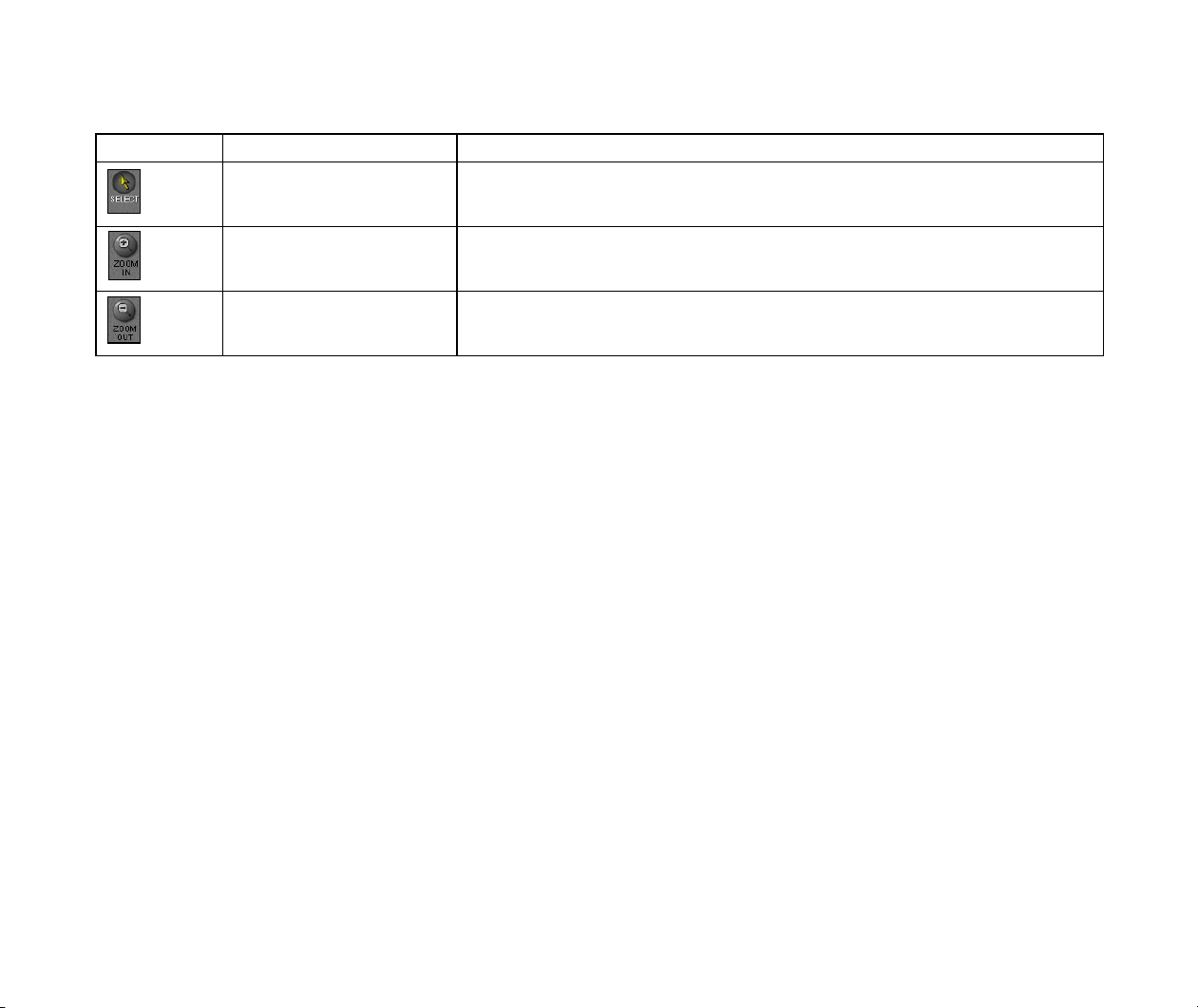
Tool switching buttons
Click these buttons to select a tool (mouse pointer) used in the Browser Display Area.
Button Name Function
SELECT
button
Turns the mouse pointer into a selection tool.Select this tool for the usual
operations in ZoomBrowser EX, for example, selecting images and folders.
ZOOM IN
button
Turns the mouse pointer into a zoom-in tool.Select this tool for zooming in
or (enlarging) the images (thumbnails) in the Browser Display Area.
ZOOM OUT
button
Turns the mouse pointer into a zoom-out tool.Select this tool for zooming
out or (reducing) the images (thumbnails) in the Browser Display Area.
Changing View Mode in the Browser Display Area
21
Changing View Mode in the Browser Display Area
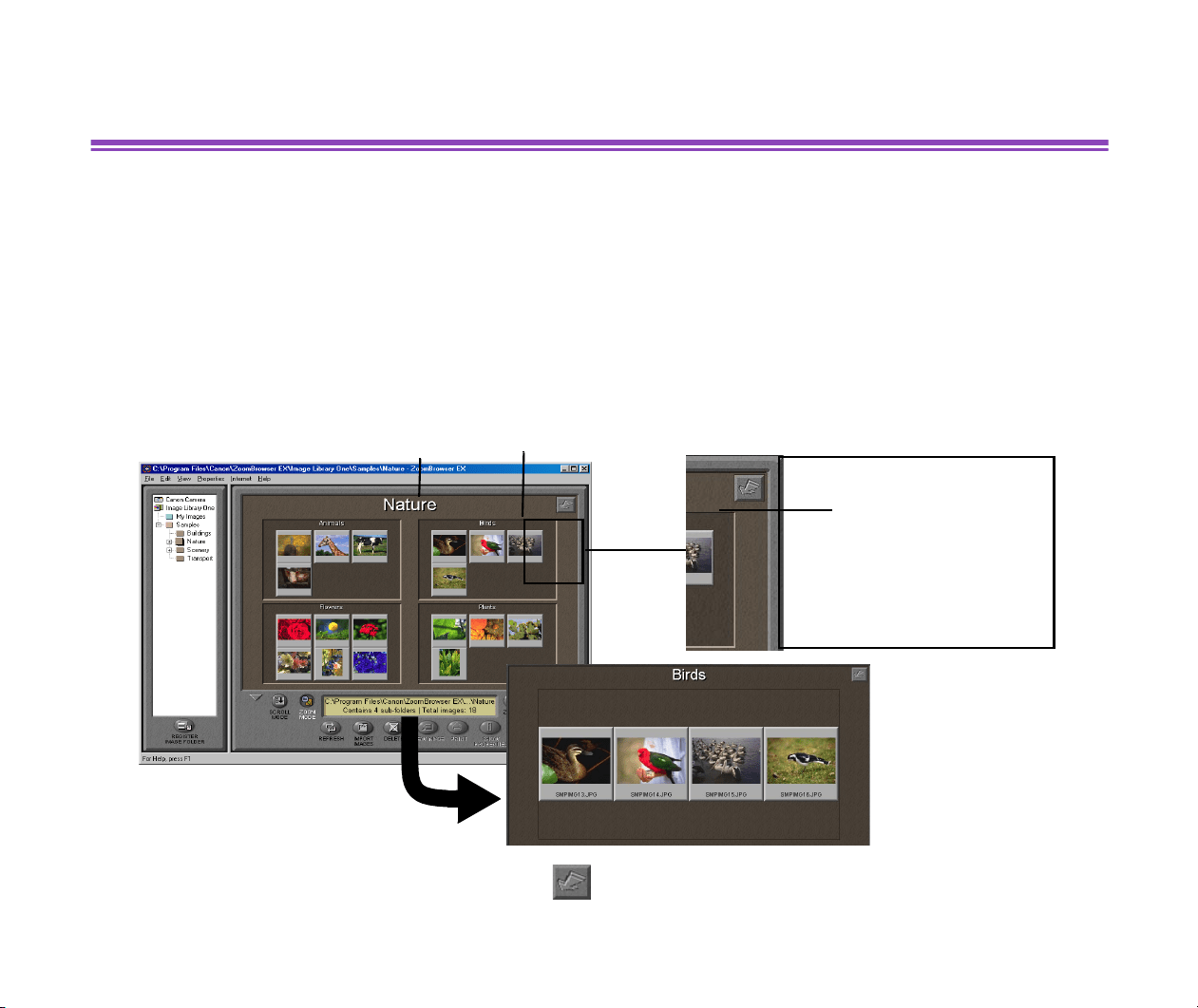
There are two View Mode buttons in the Control Panel, the SCROLL MODE button and the ZOOM
MODE button.
• Zoom Mode
Click the ZOOM MODE button on the Control Panel to enter the Zoom mode. The images contained
in the folder selected in the Tree View are displayed in the reduced form of thumbnails. If the folder
contains subfolders, the contents of the subfolders are also displayed, as thumbnails grouped under
subfolder names..
To zoom out the magnified images, click the button on the top-right corner of the Browser
Display Area.
Double-click the
subfolder back-
ground
to zoom in images.
Folder Subfolder
Changing View Mode in the Browser Display Area
22
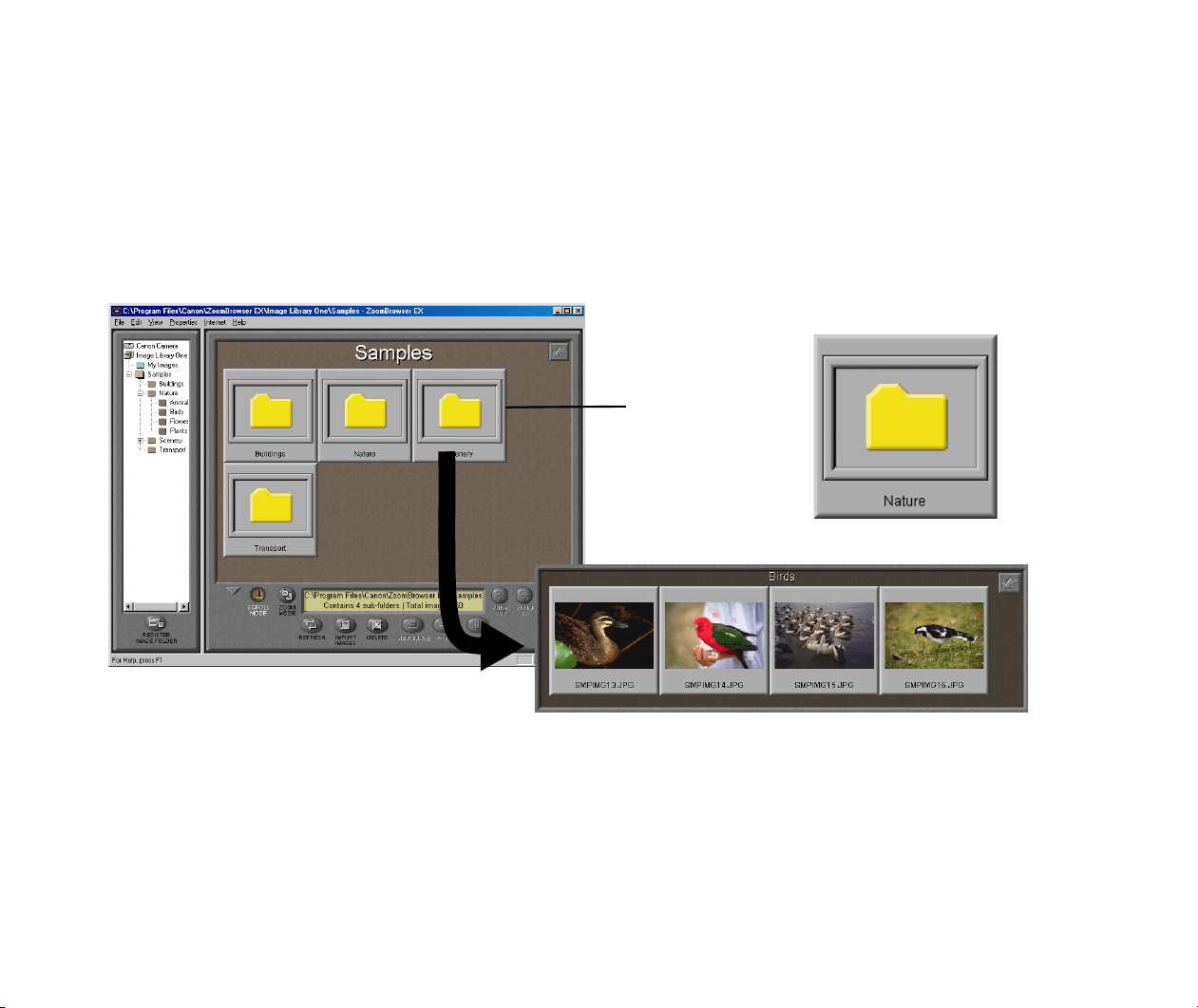
• Scroll Mode
Click the SCROLL MODE button on the Control Panel to enter the Scroll mode. The images in the
selected folder or subfolders contained in the selected folder are displayed. The images are shown
as thumbnails, while the subfolders are shown as folder icons.When in the Scroll Mode, you can
zoom in the images contained a subfolder by double-clicking the folder icon. This enlarges the view
of the folder contents until it fills the Browser Display Area.
Double-click the
folder icon to zoom
in the images con-
tained in the sub-
folder.
Changing View Mode in the Browser Display Area
23
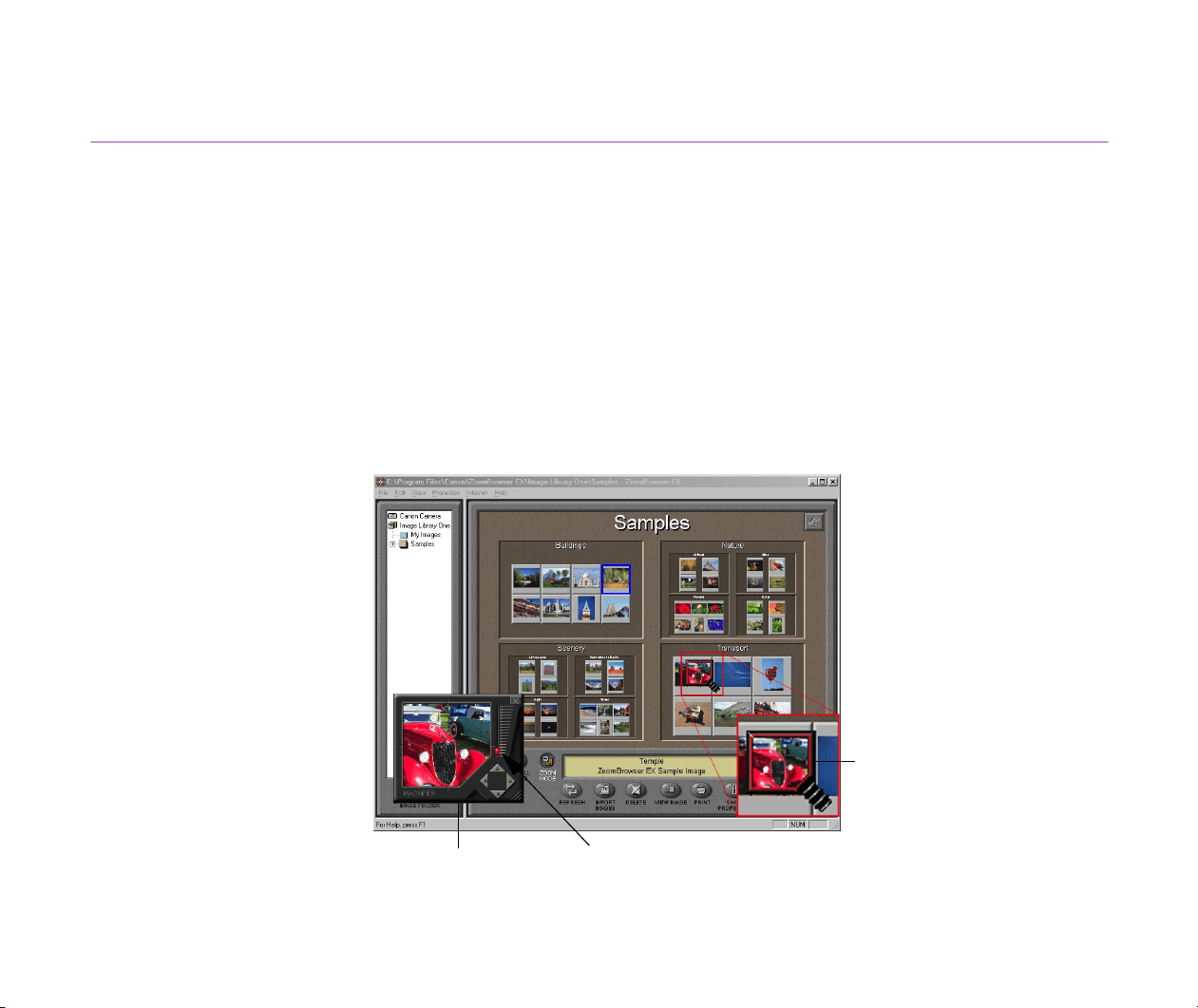
Using Magnifier glass
Some thumbnails are displayed smaller than others, depending on the folder structure. The
Magnifier is a convenient tool for viewing small thumbnails.
To use the Magnifier, select the Magnifier from the View menu.
You can move the Magnifier glass over the Browser Display Area by dragging it with the mouse.
When you want to have a closer look, point the glass to a thumbnail, and view the enlarged image in
the Magnifier window.
To return to the normal view, close the Magnifier window, by clicking the Close button on the top
right corner of the MAGNIFIER window.
MAGNIFIER window
Use the slide control to increase or decrease the magnification.
Magnifier glass

Image Database
24
Image Database
Registering Image Folders is a necessary procedure, if you have image data stored in your hard
disk folders or on removable volumes, and if you want to process, print or manage them from
ZoomBrowser EX. First register the folder / volume which you want to store the image data.
When a folder on the hard disk is registered as an Image Folder, you can save folders and images
in that Folder from the ZoomBrowser EX window. Image data imported from a memory card of
digital camera or other input devices will be saved as image files in those registered Image Folders.
Not only images imported from the attached input devices but also images already stored in the
internal hard disks can be processed, printed and managed from ZoomBrowser EX, if they are
stored in the registered Image Folders.
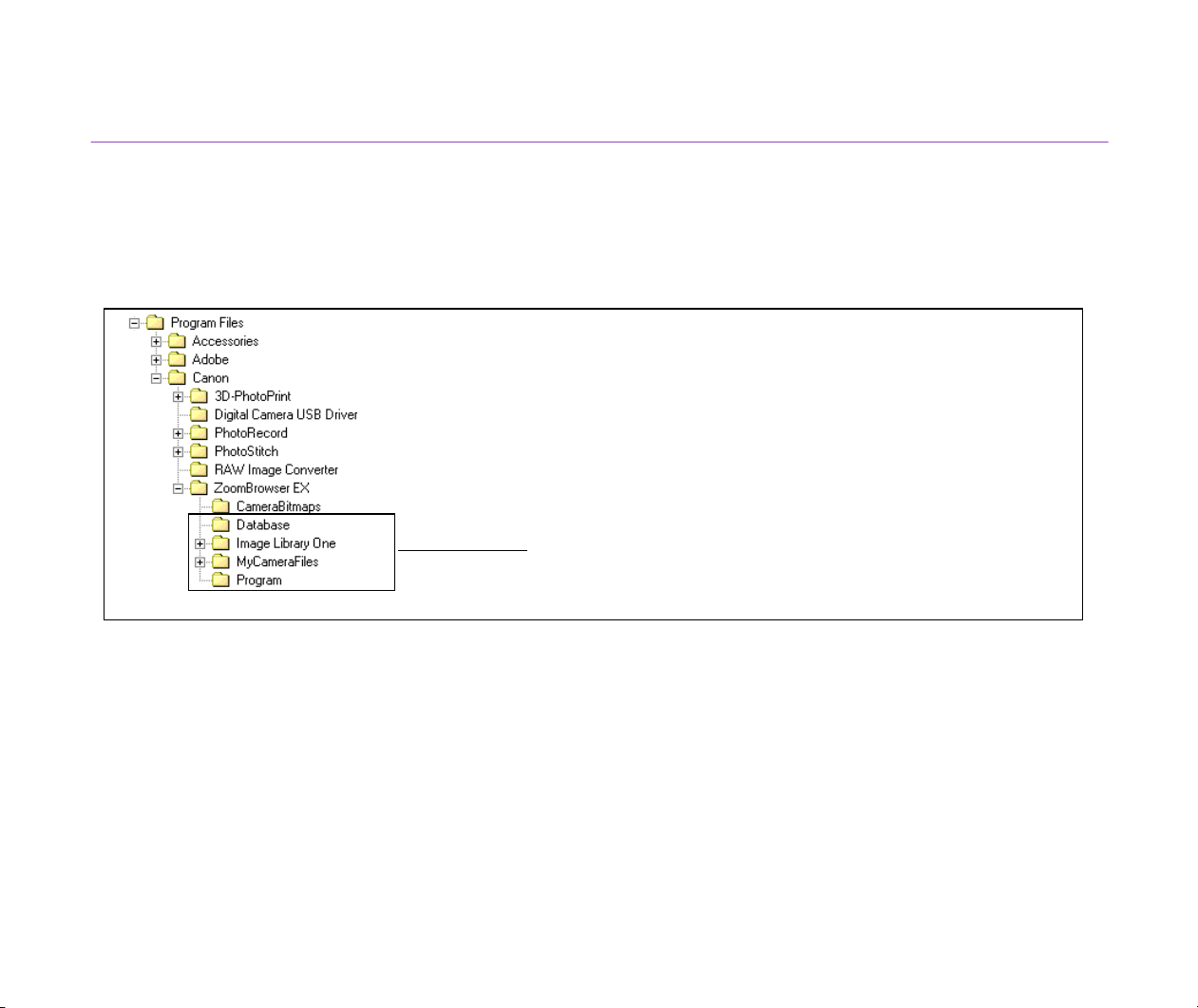
Image Database
25
Image Library One
When ZoomBrowser EX is installed in your computer, it automatically creates a default folder
named Image Library One, where it copies its sample image files.
Under this default Folder, you can create a new folder and save the imported images. You can also
create a new Image Folder besides the default one.
Folders that comprises the default Image Folder
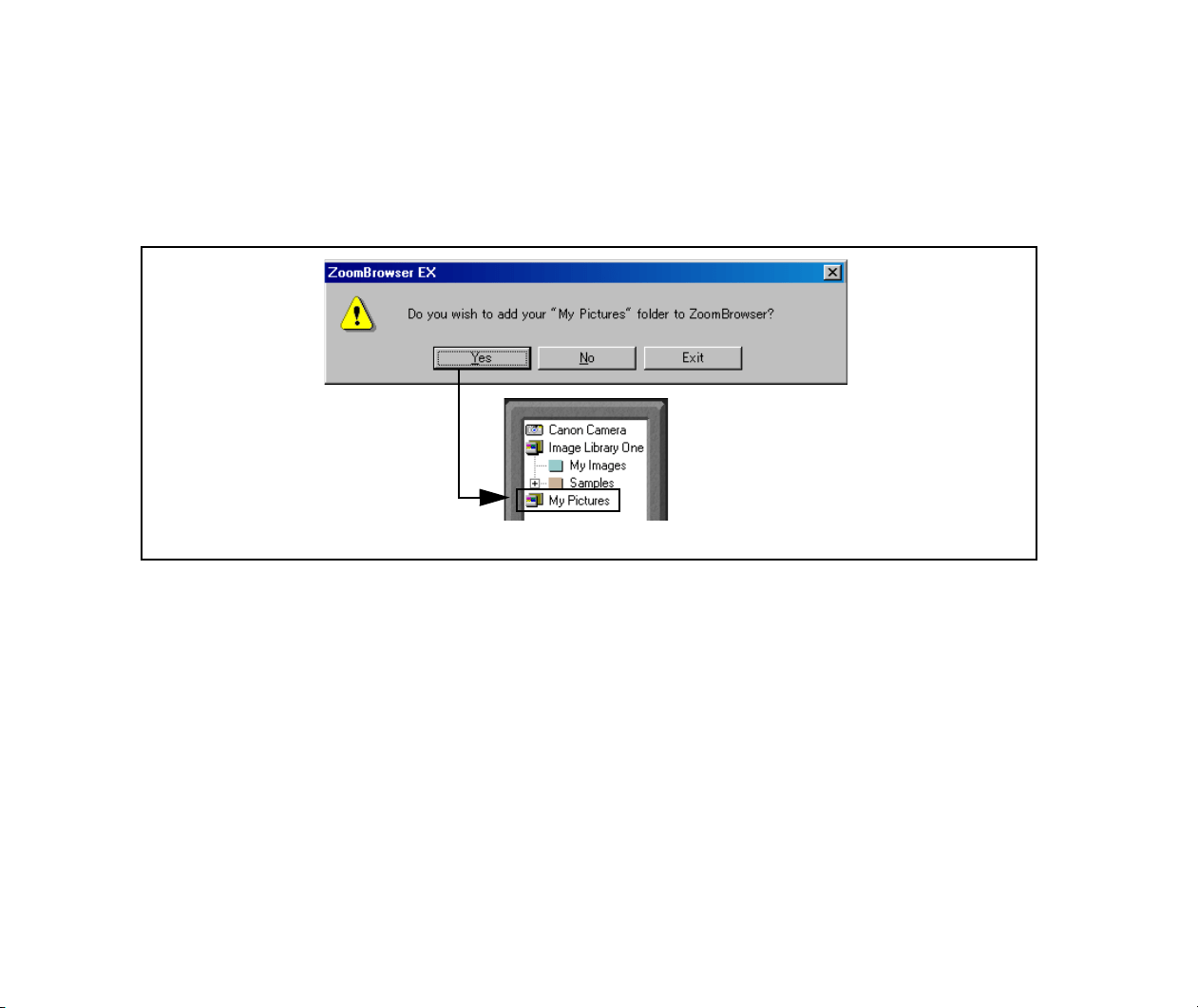
Image Database
26
Registering the My Pictures folder as an Image Folder
On starting ZoomBrowser EX for the first time, a message box appears and asks you if you want to
register the My Pictures folder to the ZoomBrowser EX. If you click Yes here, the Windows folder
named My Pictures will be registered as an Image Folder and displayed in the Tree View.
The registered Image Folder
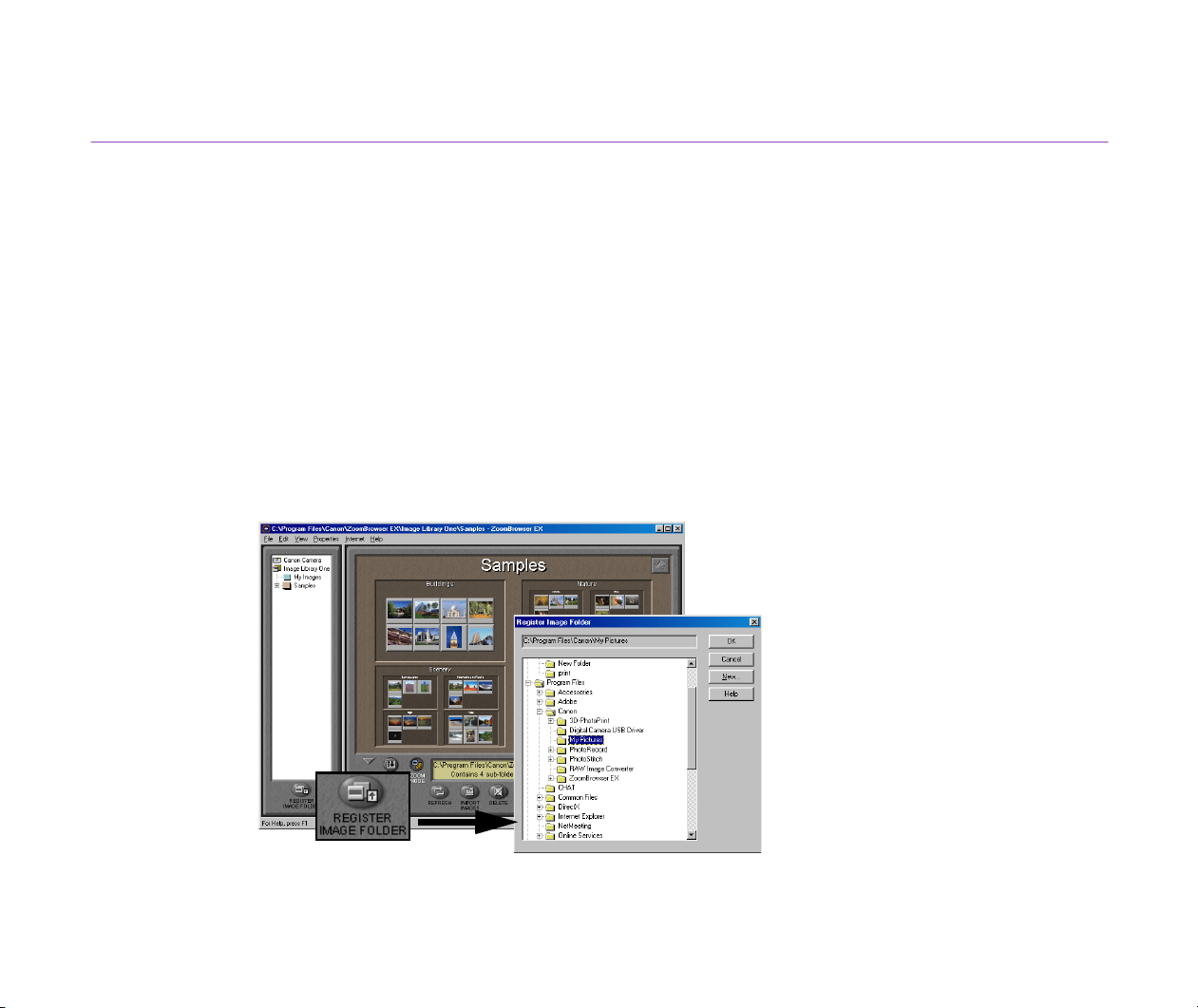
Image Database
27
Registering Folders on the Hard Disk as Image Folders
You can select folders on your hard disks and register them as new Image Folders.
To learn how to register removable volumes such as CDs, MOs and FDs, refer to the following
Registering Removable Volumes as Image Folders.
Steps
1
Start ZoomBrowser EX.
To learn how to start ZoomBrowser EX, refer to the Starting ZoomBrowser EX .
2
Click the REGISTER IMAGE FOLDER button.
The Register Image Folder dialog box appears..
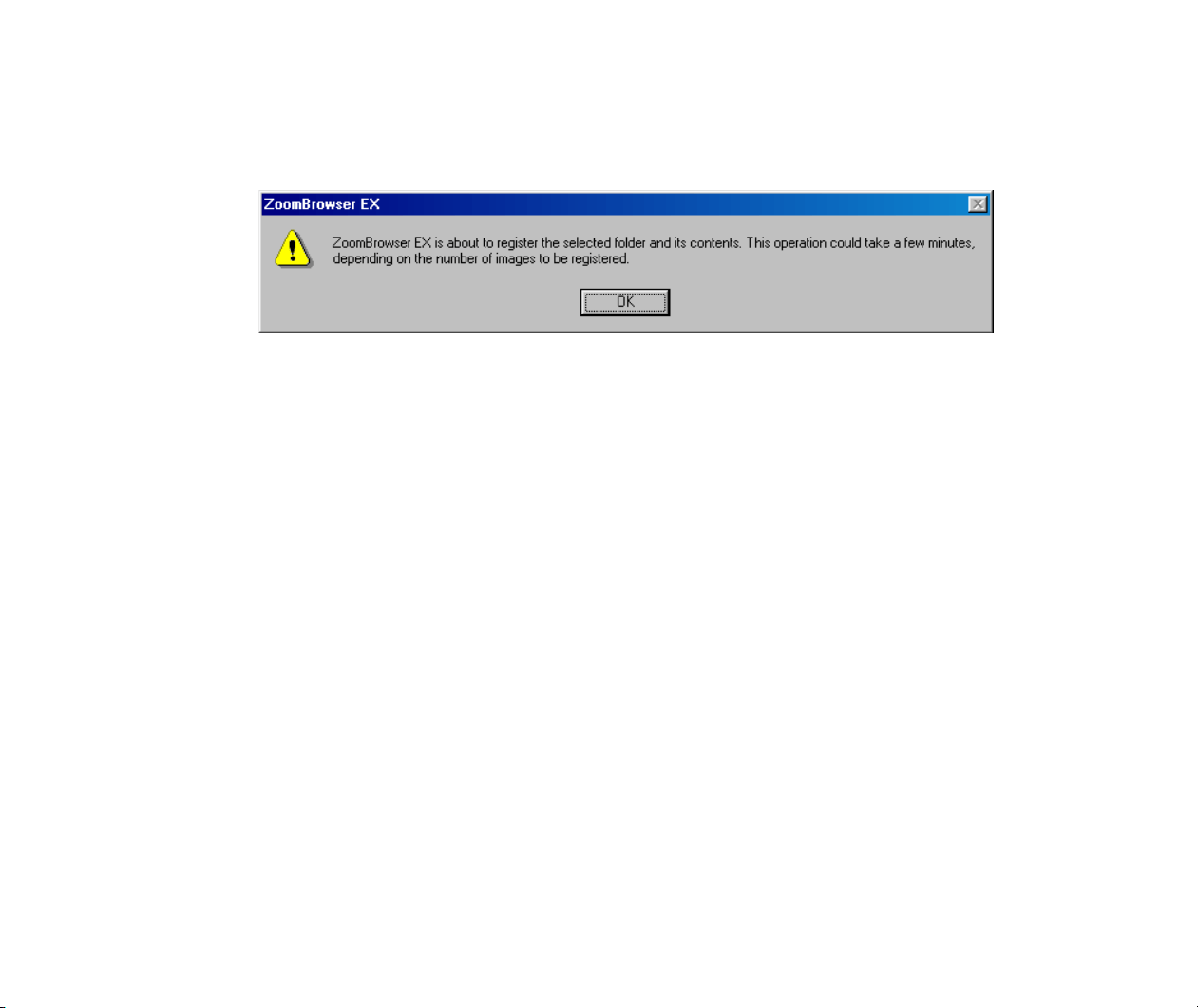
Image Database
28
3
From the Register Image Folder dialog box, select the folder which you want to
register as an Image Folder, and click the OK button.
The registration message box appears
4
Click the OK button.
The selected folder will be registered as an Image Folder.
Note
³
If the selected folder contains any subfolders or image files, the ZoomBrowser EX
database will automatically register those subfolders and image files.

Image Database
29
Registering Removable Volumes as Image Folders
You can register removable volumes such as CDs, MOs and FDs, as new Image Folders.
When a volume is registered as an Image Folder, the database acquires its file information,
including the thumbnails, file names and dates of the creation of image data. This enables you to
view and check the contents of the registered volume from the computer screen, even if the volume
itself is not loaded.
To learn how to register folders that are on your hard disks, refer to the previous Registering Folders
on the Hard Disk as Image Folders.
Steps
1
Load the removable volume which you want to register into the media drive.
Be sure to load it before starting ZoomBrowser EX.
2
Start ZoomBrowser EX.
To know how to start ZoomBrowser EX, refer to the Starting ZoomBrowser EX.
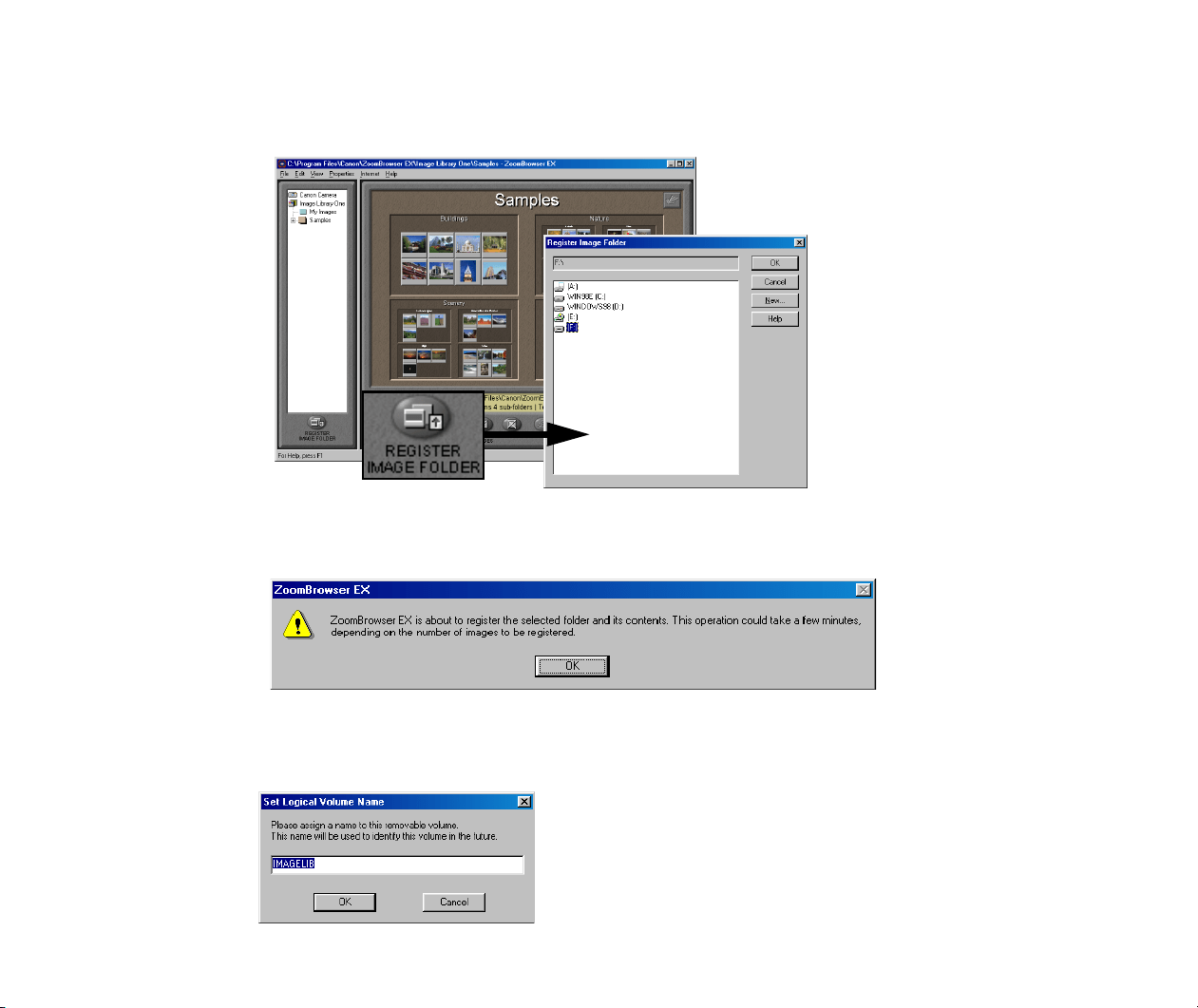
Image Database
30
3
Click the REGISTER IMAGE FOLDER button.
The Register Image Folder dialog box appears.
4
Select the removable drive, and click the OK button.
The registration message box appears.
5
Click the OK button.
The Set Logical Volume Name dialog box appears.
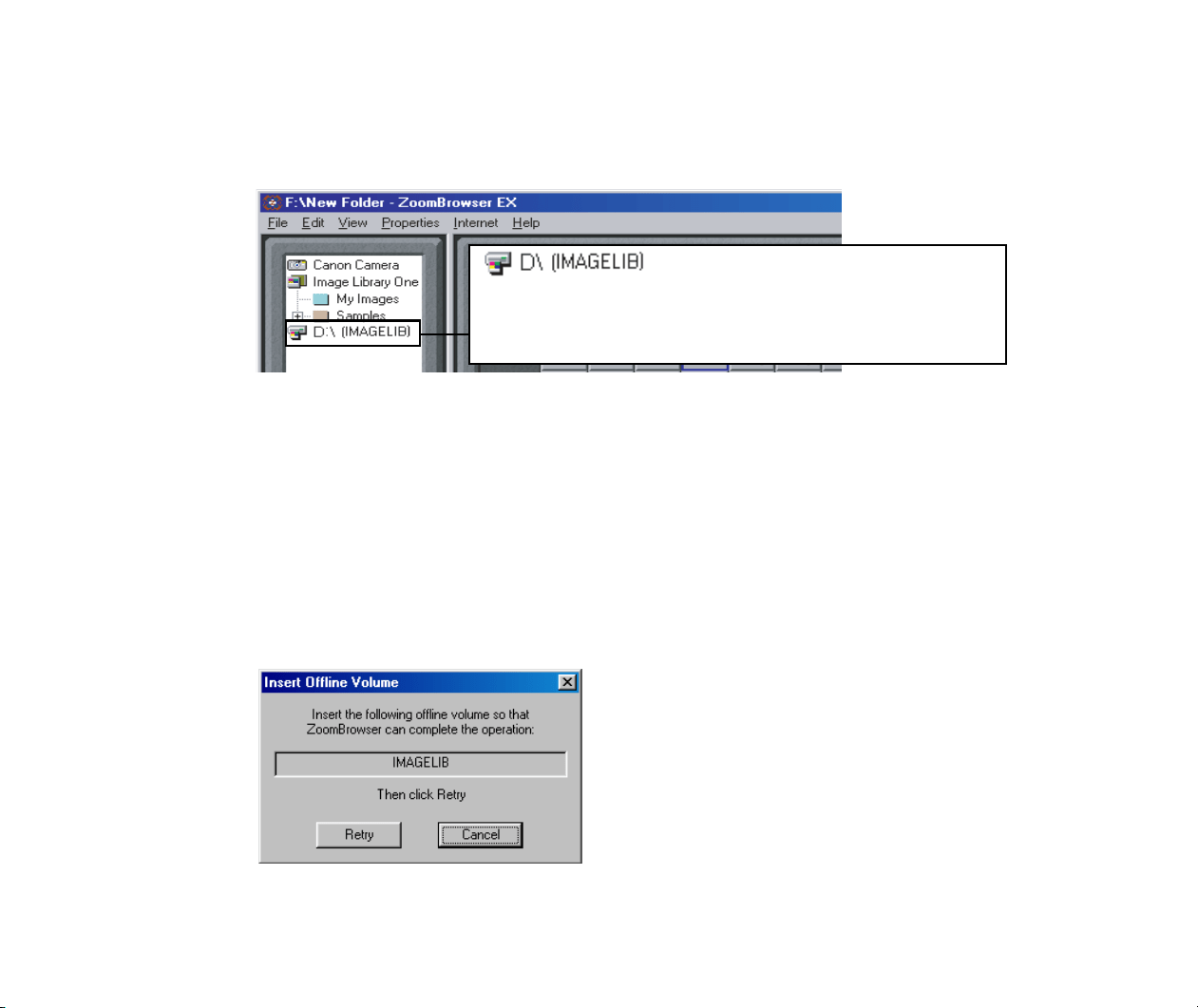
Image Database
31
6
Type in a name for the current volume, and click the OK button.
This registers the volume as an Image Folder. The database acquires information
about all the folders and image files contained in that particular volume.
Note
³
If the selected volume has already been given a volume label, the dialog box
displays that volume label as the default name. You can change it if you like, since
a removable volume name is not the same thing as a volume label.
Note
³
When working with images in a registered removable volume, for example, viewing
them in the Image Viewer, or processing or printing them, you need the volume
actually loaded onto the media drive. If you select an image and try to execute one
of these operations without loading the volume, a message window prompts you to
load it, as shown below.
The removable volume will be registered as an Image Folder
named “IMAGELIB.”
Insert the volume and click the Retry button to load the image
the ZoomBrowser EX.
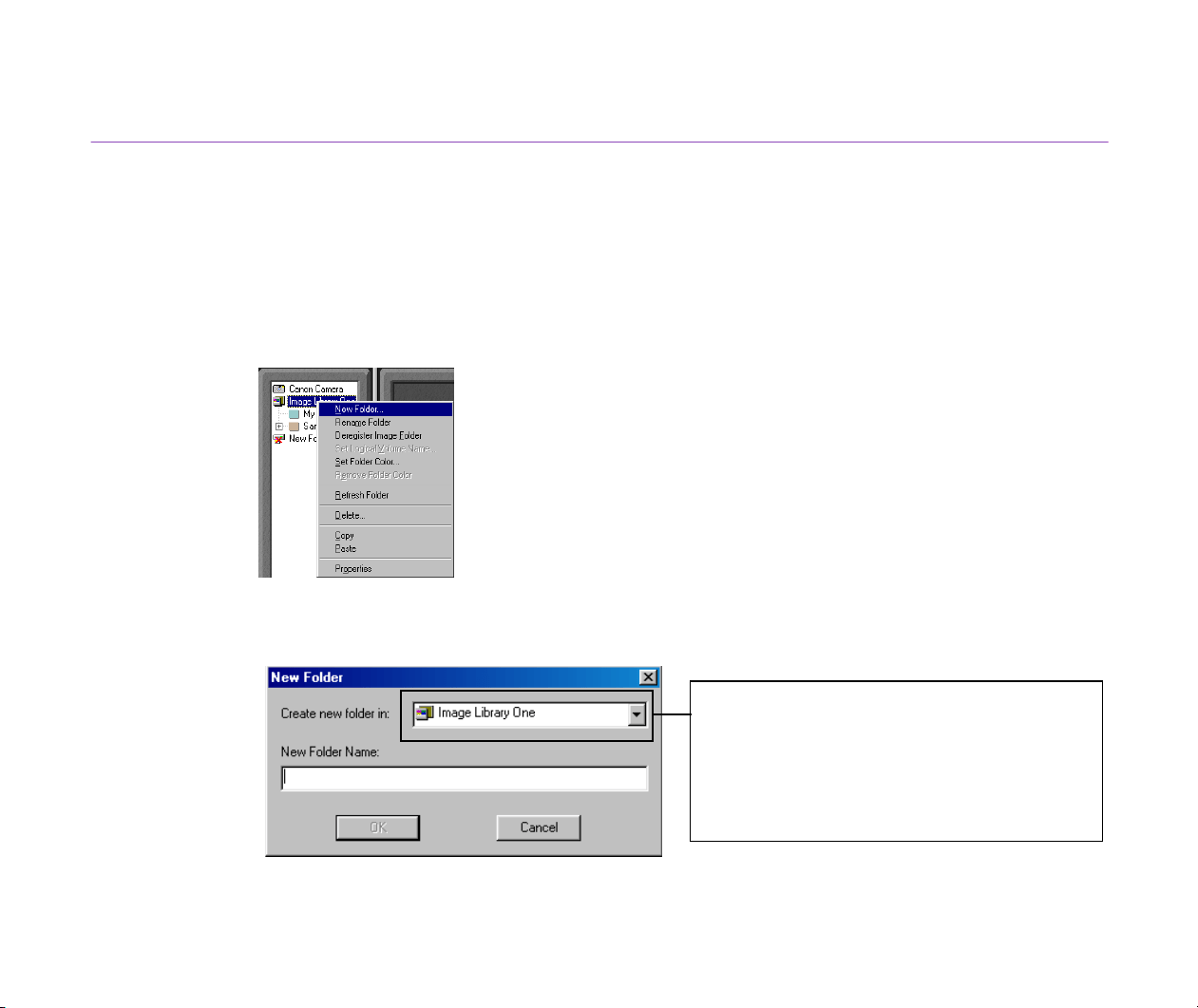
Image Database
32
Creating New Folders
You can create a new folder within a registered Image Folder or its subfolder.
Steps
1
On the Tree View, select and right-click with the mouse an Image Folder or a
subfolder within which you want to create a new folder.
The pop-up menu opens.
2
Select the New Folder from the menu.
The New Folder dialog box opens.
The selected Image Folder or subfolder is
displayed here. You can change the location of
the new folder to create by specifying a desired
folder from the Create new folder in drop-
down list.
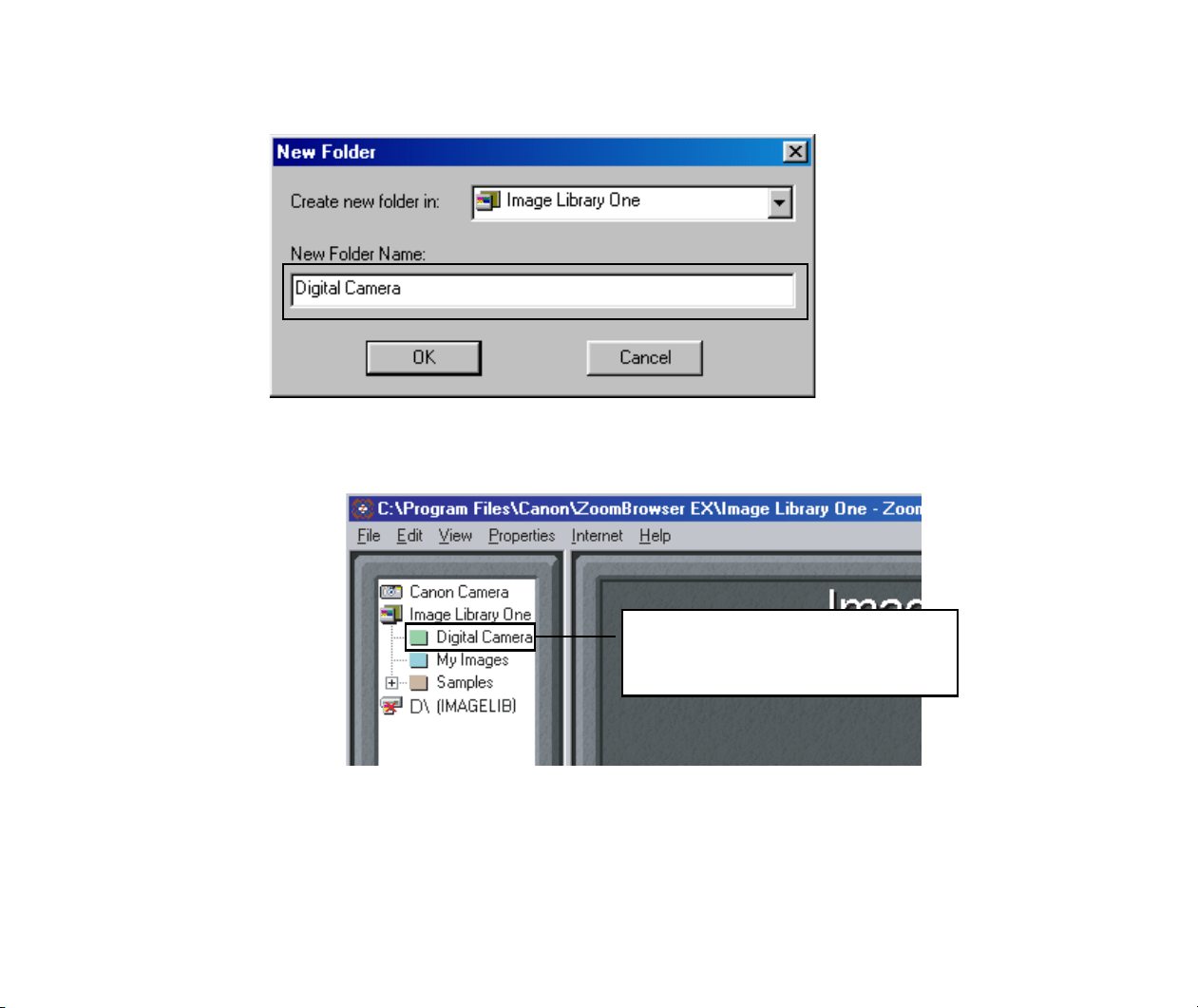
Image Database
33
3
Type in the name for a new folder.
4
Click the OK button.
The new folder will be created under the selected Image Folder or subfolder.
The new folder “Digital Camera” is
created.
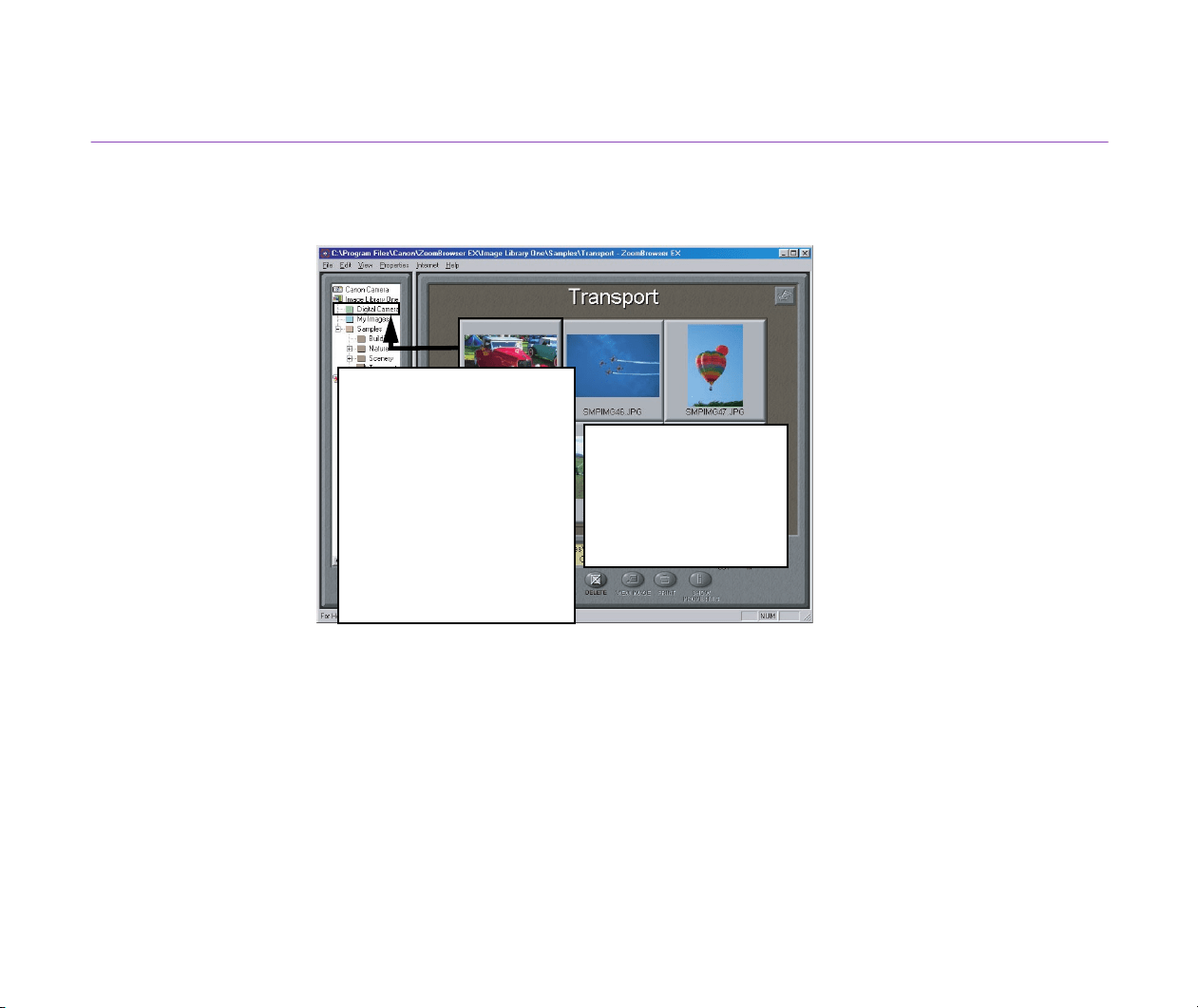
Image Database
34
Changing Location of Image Files
You can move image files to a new location, by drag-and-drop the thumbnails from the Browser
Display Area onto any folder displayed in the Tree View.
You can also move a whole folder by drag-and-drop the folder icon to a new location in the Tree
View.
To copy an image or folder to a new location, drag-and-drop it while pressing the Ctrl key.
Copy images to
another folder by drag-
and-dropping the
thumbnails while
pressing the Ctrl key.
Move an image to a new
location by drag-and-drop-
ping the thumbnail onto
the destination folder.
If you want to move multi-
ple images, select thumb-
nails while pressing he Ctrl
key, then drag-and-drop
the thumbnails onto the
destination folder.
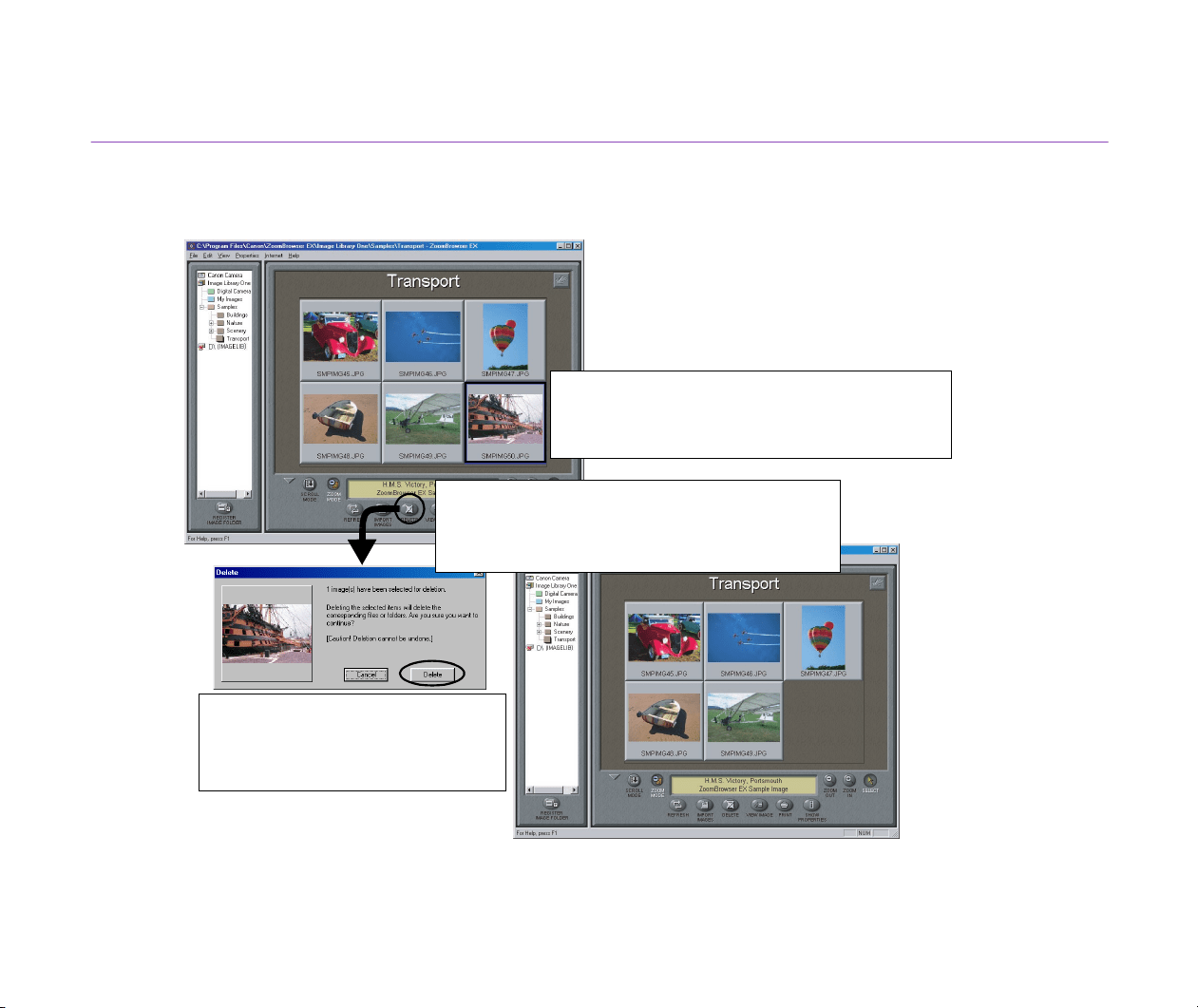
Image Database
35
Deleting Images
When an image(s) is displayed and selected in the Browser Display Area, you can delete the image
file(s) by clicking the DELETE button.
Note
³
When the Delete button is clicked, the actual image file(s) is completely deleted
from your computer's hard disk or the removable volume.
1. Select an image (thumbnail) you want to
delete.
2. Click the
DELETE
button to open the
Delete
dialog box.
3. Click the
Delete
button.
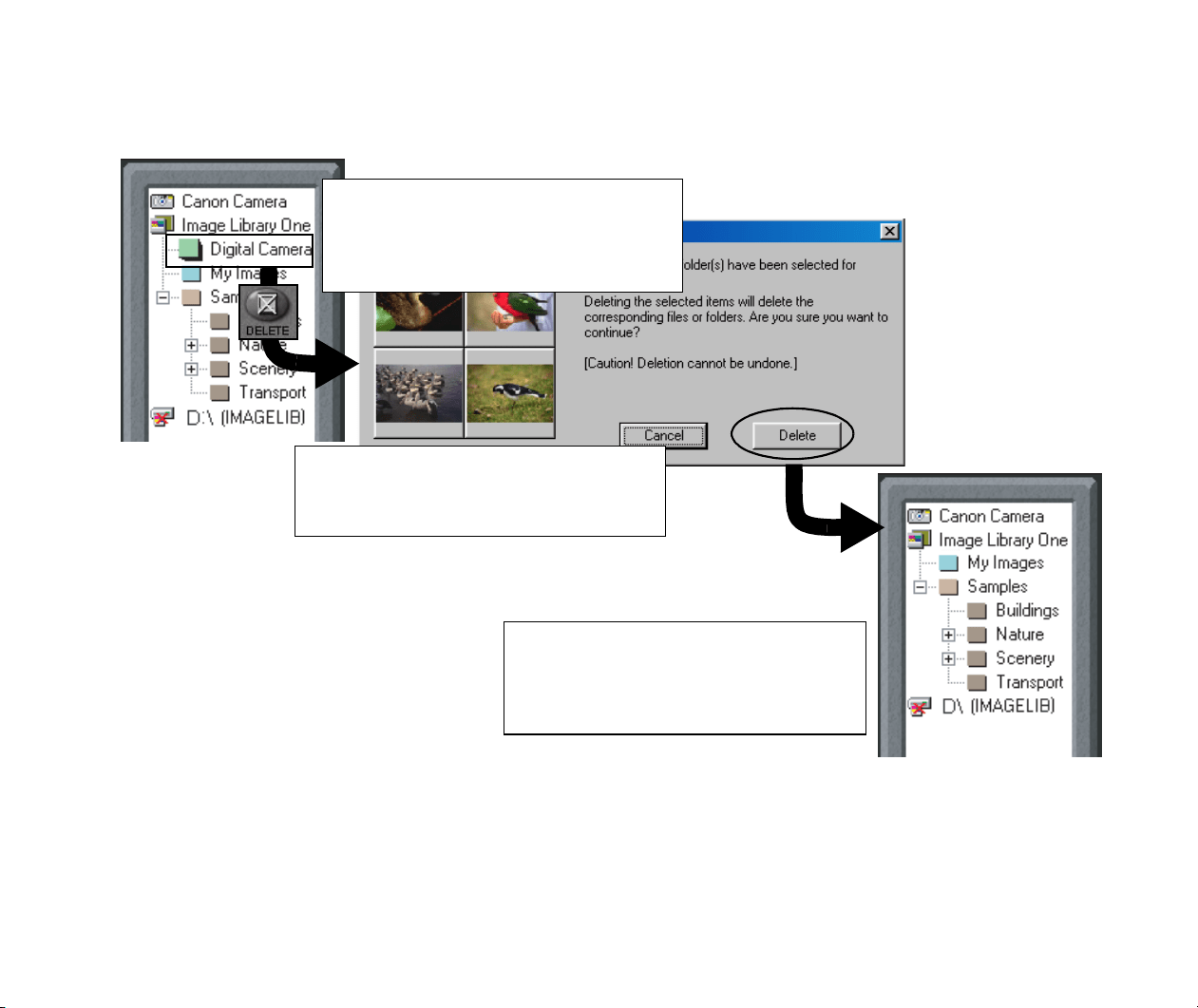
Image Database
36
You can also delete a folder from your computer, by selecting the folder icon in the Tree View and
then clicking the DELETE button.
Note
³
When the Delete button is clicked, the folder is completely deleted from your
computer's hard disk or the removable volume, not only the Image Folder (that is,
the actual folder registered as an Image Folder) but also all its subfolders.
1. In the Tree View, select the Image
Folder or the subfolder you want to
delete.
2. Click the DELETE button to open the
Delete dialog box.
3. Click the Delete button to delete the
selected Image Folder or the subfolder.

Image Database
37
Managing Image Folders Using Shortcut Menu
Select a folder or an Image Folder in the Tree View, and right-click with the mouse. This displays a
pop-up menu which offers you the option commands as listed in the table below.
Command Brief explanation of its function
New Folder
Creates a new folder under the Image Folder or subfolder selected in the Tree View.
Refer to Creating New Folders for more details.
Rename Folder
Allows you to rename the selected Image Folder or subfolder. Note that this command
is not for renaming a removable volume registered as an Image Folder.
Deregister Image Folder
Deregisters the selected Image Folder. This command does not delete any actual
image files or subfolders contained in the deregistered Image Folder. It only deletes
information on the folder registered to the ZoomBrowser EX.
Set Logical Volume
Name
Becomes selectable only when you have selected a removable volume which is regis-
tered as an Image Folder. Allows you to rename the selected volume.
Set Folder Color When a folder is selected in the Tree View, you can change the color of both the folder
icon and the background in the Browser Display Area. You can change the color of
both the Folder icon and background by double-clicking the background in the Browser
Display Area first and then change the color.
Remove Folder Color Becomes selectable only when you have selected a folder whose folder color has
been changed. Clears the current color settings and restores the default color.
Refresh Folder
Refresh the contents information (database) of the selected Image Folder or subfolder.
This command is also executed using the REFRESH button. Refer to Refreshing View
in the Browser Display Area for more details.

Image Database
38
Delete Deletes the selected Image Folder or subfolder. Care must be taken for this command
execution. Once the Delete command is executed, the actual image files and subfold-
ers are completely erased from your computer's hard disk.
This command is also executed using the
DELETE
button. Refer to Deleting Images
for more details.
Copy Copies the selected Image Folder or subfolder including its all image files and subfold-
ers.
Paste Pastes the copied Image Folder or subfolder under the selected folder in the Tree
View.
Properties
Becomes selectable only when an Image Folder is selected. Allows you to view the
properties of the folder or the removable volume registered as an Image Folder.
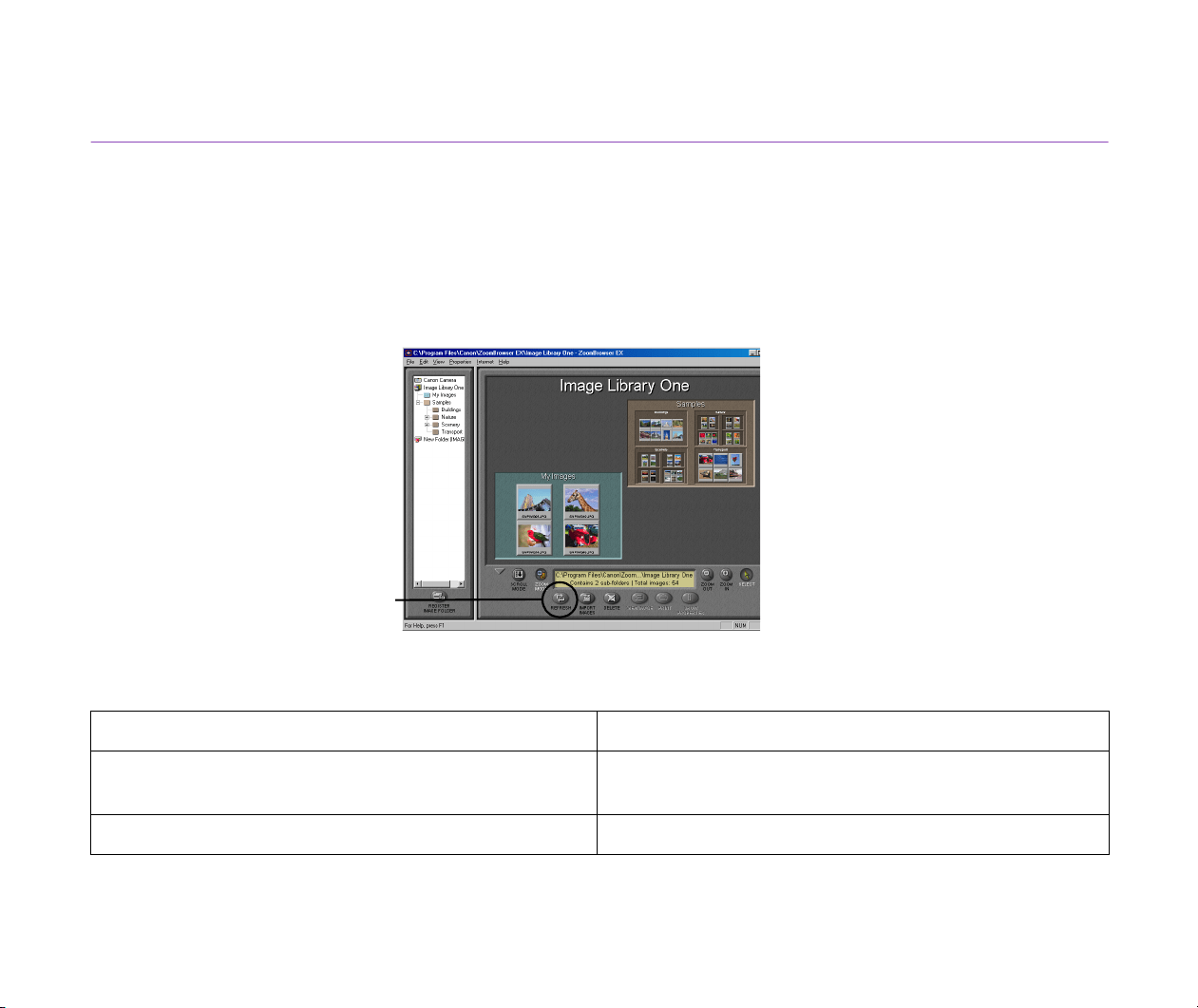
Image Database
39
Refreshing View in the Browser Display Area
If you perform file management using other file management software such as Windows Explorer,
the ZoomBrowser EX may not always reflect the updates done with other file management software
immediately.
To reflect the updates on the database, select the Image Folder or subfolder which you want to
update in the Tree View, and then click the REFRESH button.
Another way to refresh the ZoomBrowser EX database is to use the commands provided in the
View menu.
Command Information to be updated
Refresh Current Folder
Contents of the folder currently displayed in the Browser
Display Area.
Refresh Online Registered Folders Data on the whole database of ZoomBrowser EX.
REFRESH button
Processing Image Using Image Viewer
40
Processing Image Using Image Viewer
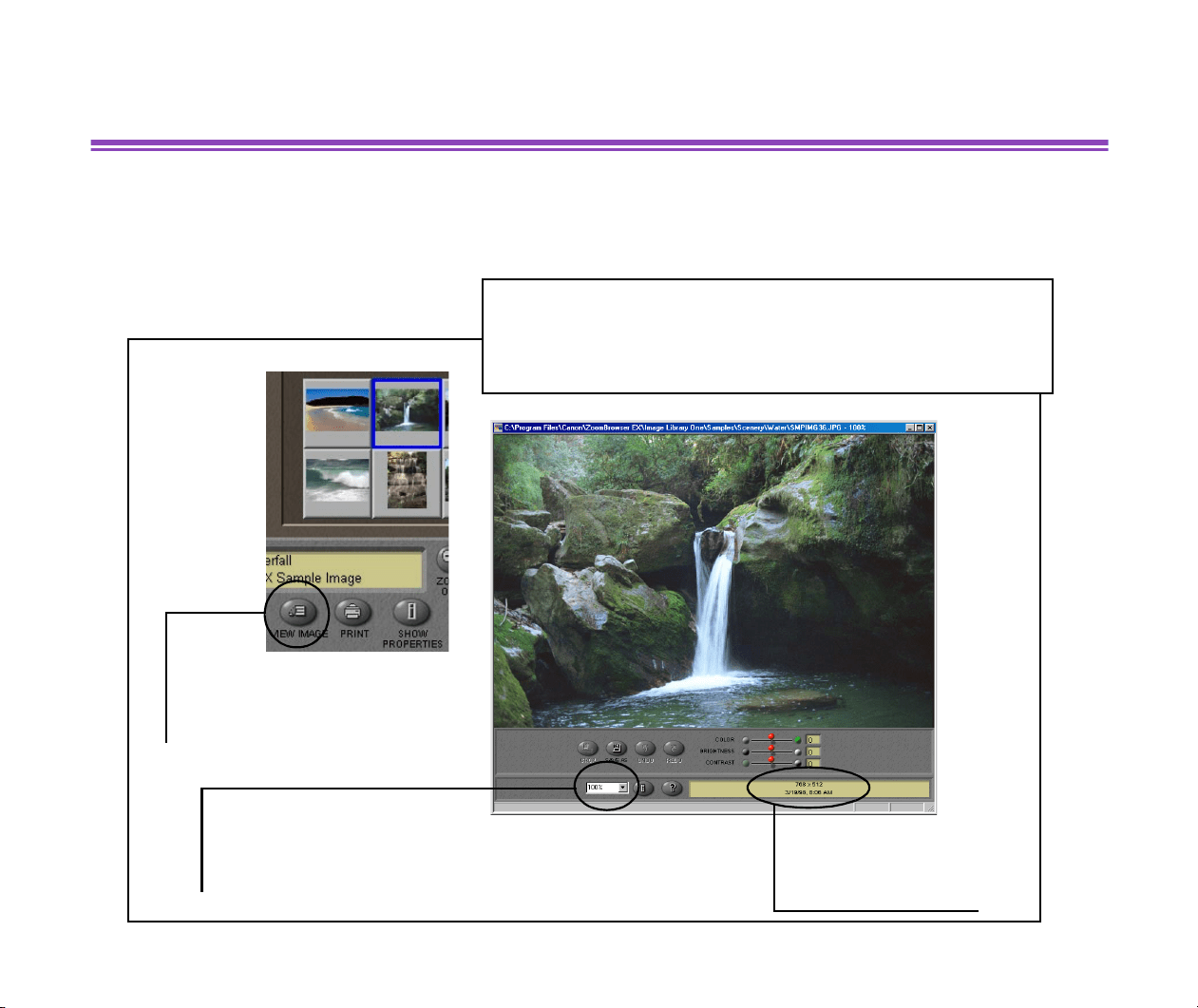
You can view the actual image of the selected thumbnail by opening the Image Viewer. First select
the desired image and then click the VIEW IMAGE button.
Double-clicking the selected thumbnail in the Browser Display
Area also opens the
Image Viewer
window.
In this window, you can crop and/or adjust colors of the image, and
save the result as a new file.
Image size, date and
time it was taken are
displayed here.
VIEW IMAGE button
Click this to open the
Image Viewer
The zoom ratio is displayed here.
Specify the desired ratio.
Processing Image Using Image Viewer
41
Cropping Image
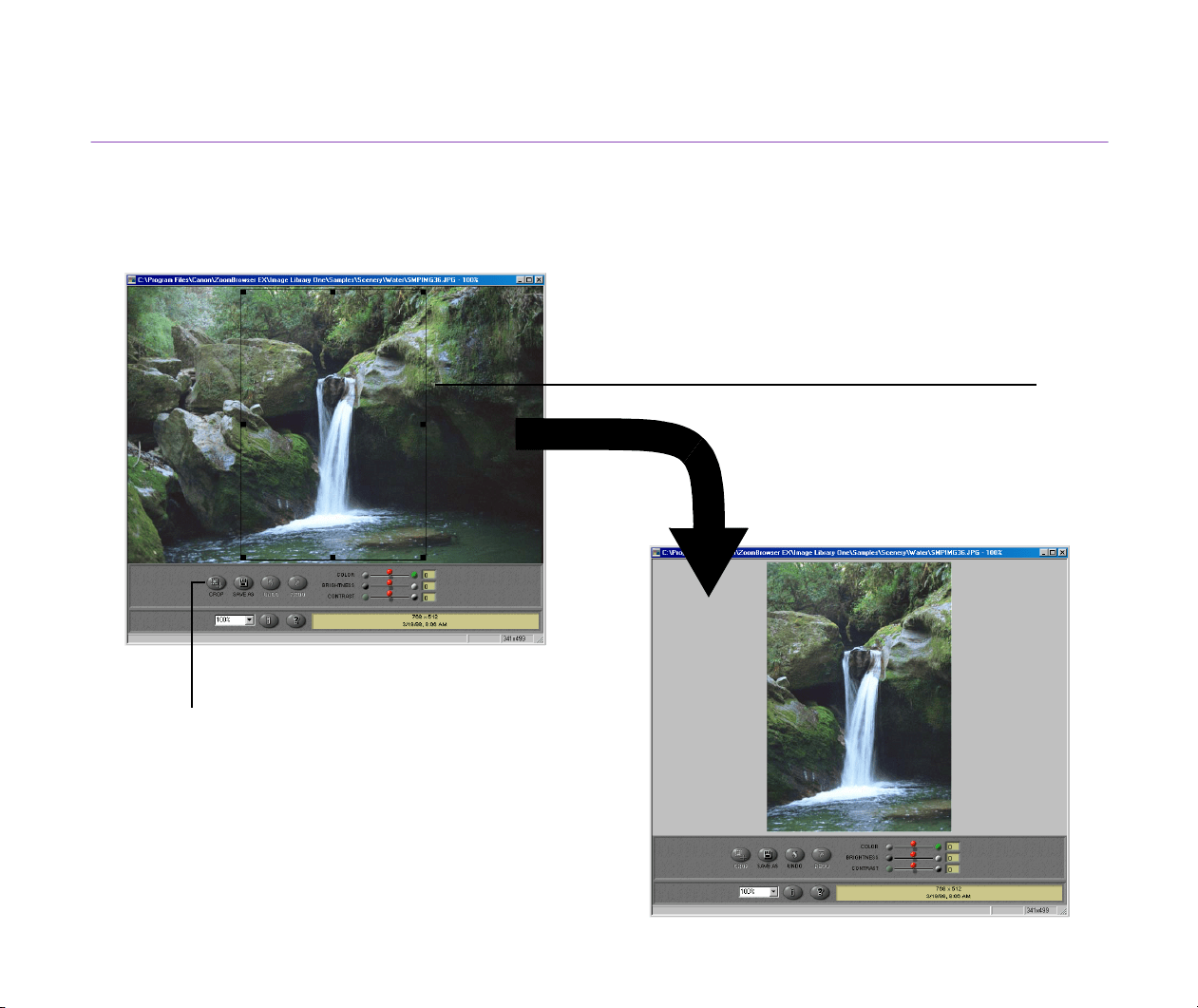
Select the portion of the image you want to keep by mouse-dragging over it, and then click the
CROP button. Areas outside the selection will be trimmed away.
Cropped area
CROP button
Click this to crop along the
trimming line.
Processing Image Using Image Viewer
42
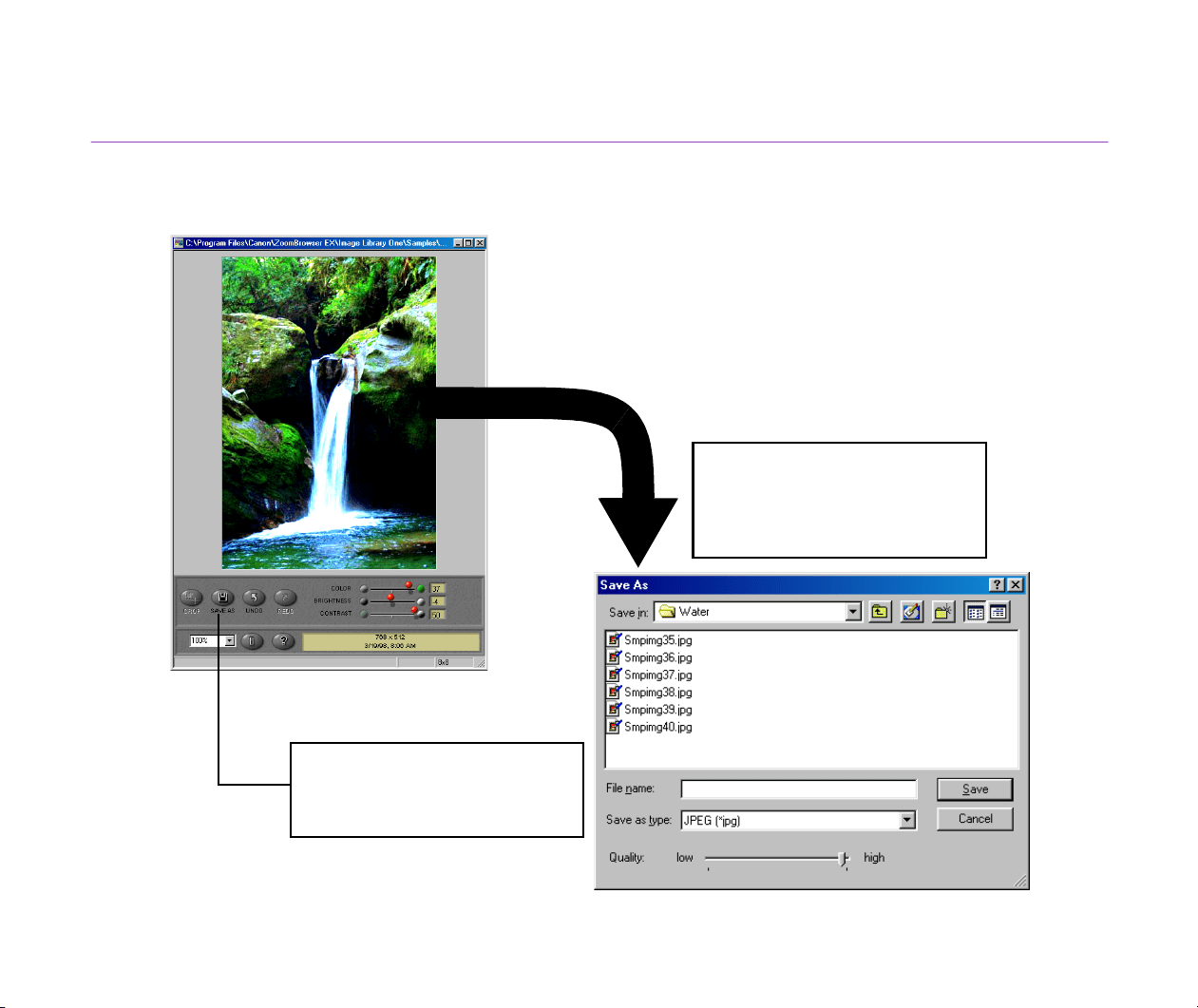
Adjusting Image Colors
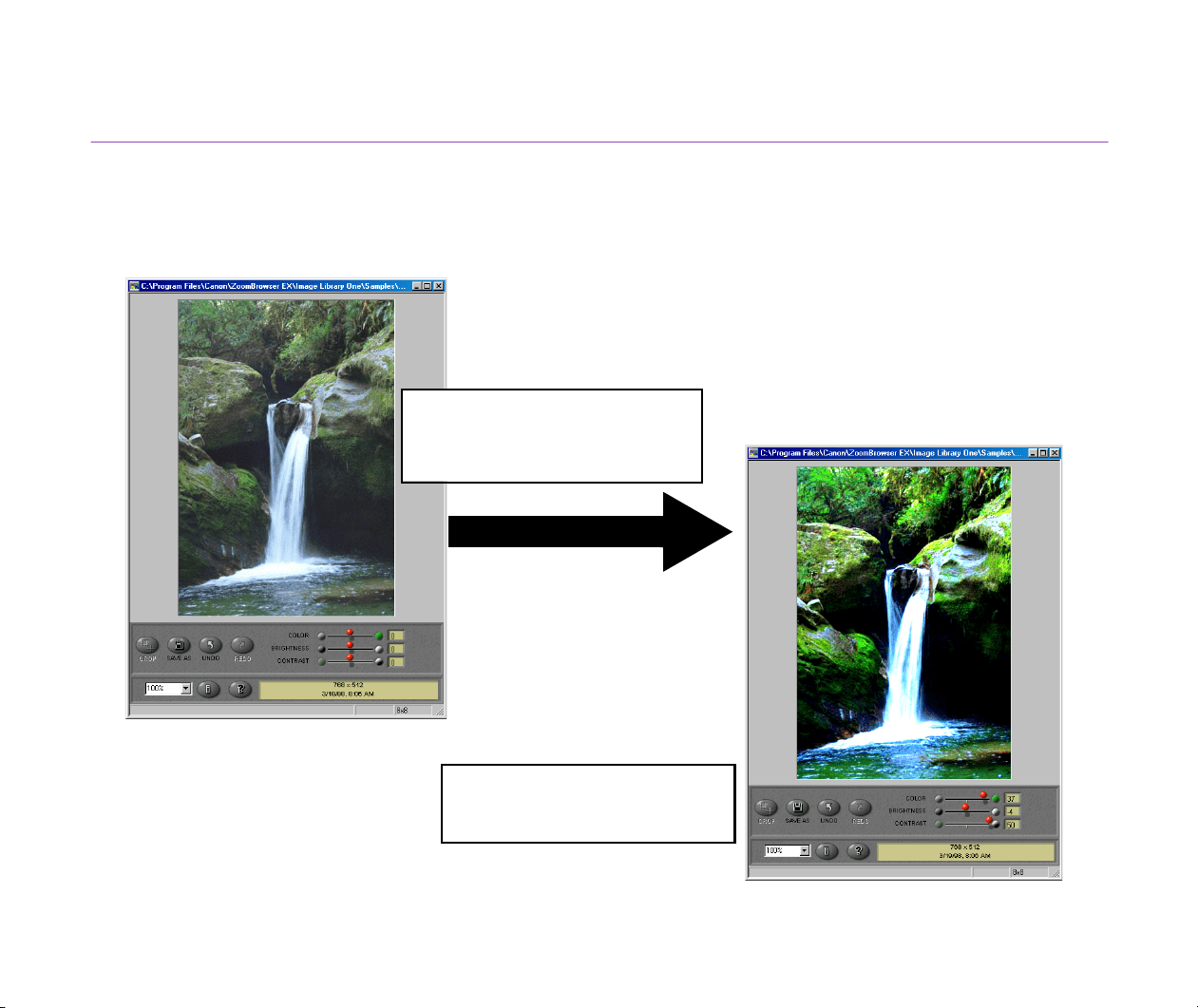
The color adjustment slider controls allow you to adjust color, brightness and contrast by dragging
them to and fro
See how color, brightness and
contrast have been adjusted.
Color adjustment slider controls
Drag them to and fro, to change
color, brightness and contrast.
Processing Image Using Image Viewer
43
Saving Image after Processing
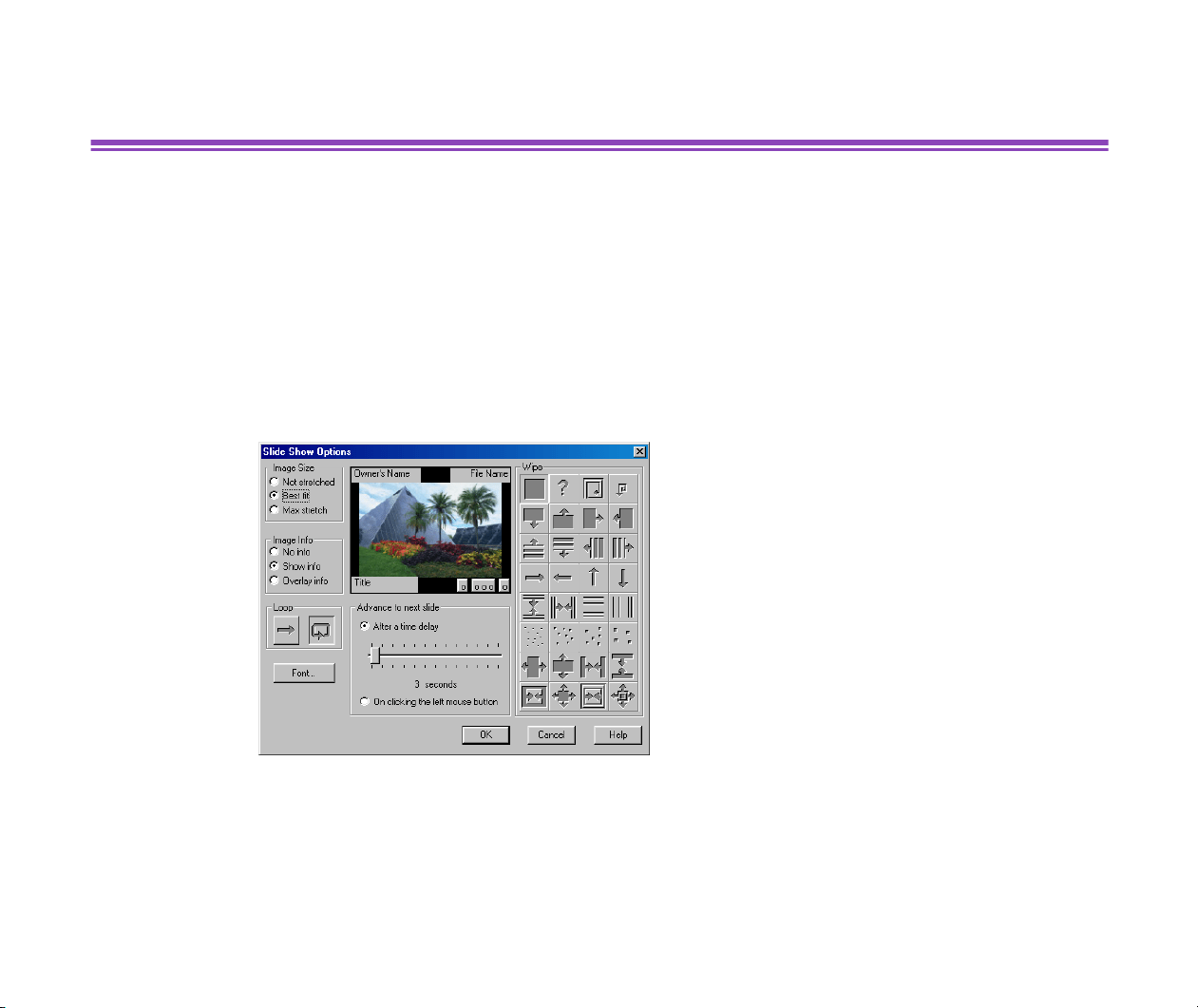
The processed image can be saved as a new file.
Type in the file name and specify
the file type, then click the Save
button. The image is saved as a
new file.
SAVE AS button
Click this to open the
Save As
dialog box.
Slide Show
44
Slide Show
This function enables you to display the images selected in the Browser Display Area as an
automated slide show. You can view them in sequence using the entire computer screen.
Steps
1
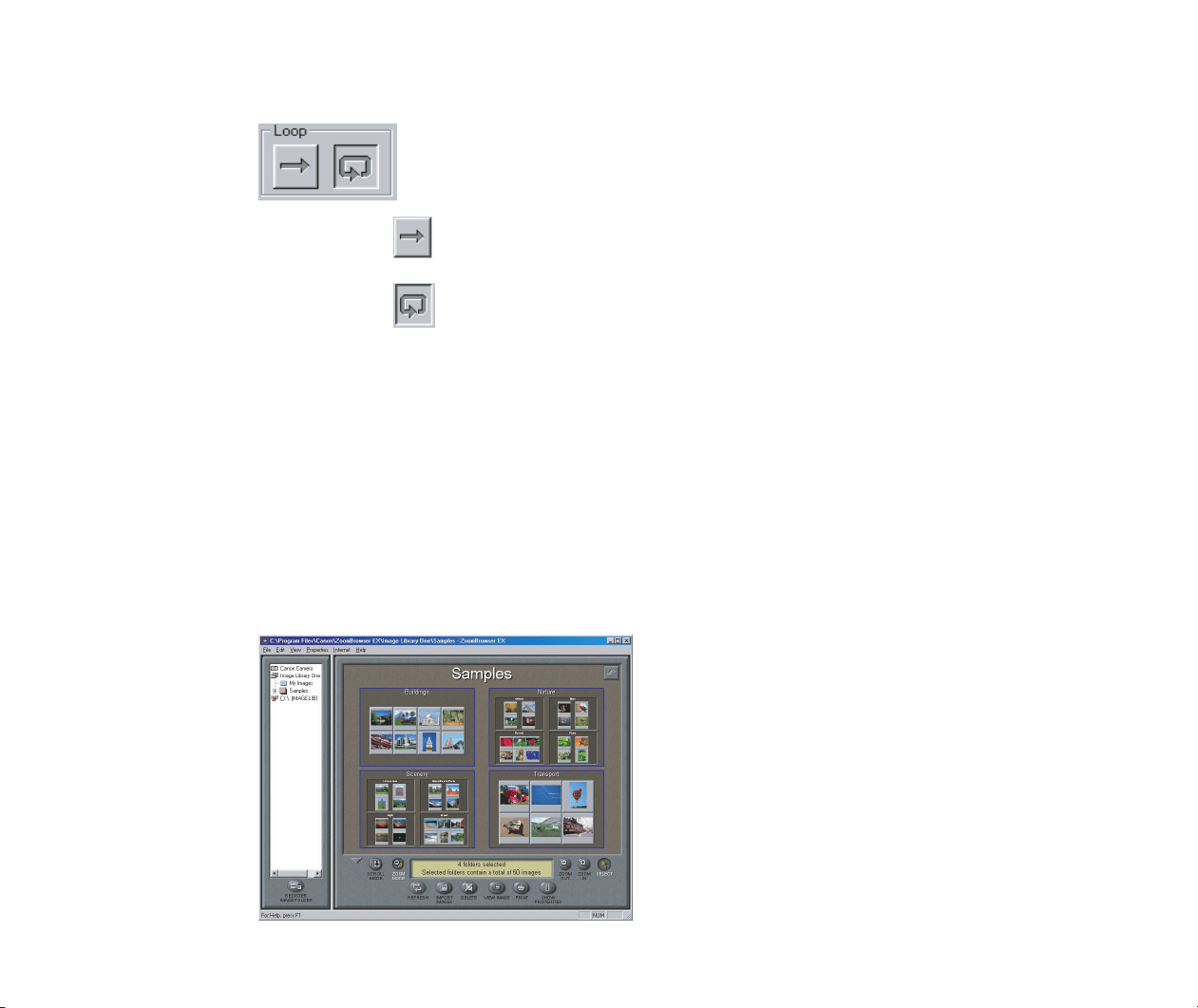
Select the Slide Show Options from the View menu.
The Slide Show Options dialog box opens to allow you to specify a set of
parameters.
2
Specify how you want to have the images displayed.
You can choose the playing mode and apply enhancing effects to the slide show.
When the After a time delay option is selected, move the slide control to specify
the interval after which the show should move on to the next picture.
Slide Show
45
3
Speciify how you want to play slide show sequentially using the Loop options.
Clicking the sets the sequential image display through to the last image. The
slide show ends and closes after the last image shown.
Clicking the sets the endless sequential image display.
To exit from this endless loop, you will have to press the Esc key or Close Slide
Show button to end and close the slide show.
For details on how to set the parameters, click the Help button in the Slide Show
Options dialog box.
4
Click the OK button.
The Slide Show Options dialog box closes and opens the Browser Display Area
again.
5
Select the images or folders you want to display in the slide show in the Browser
Display Area.
Slide Show
46
6
Select the Slide Show from the View menu.
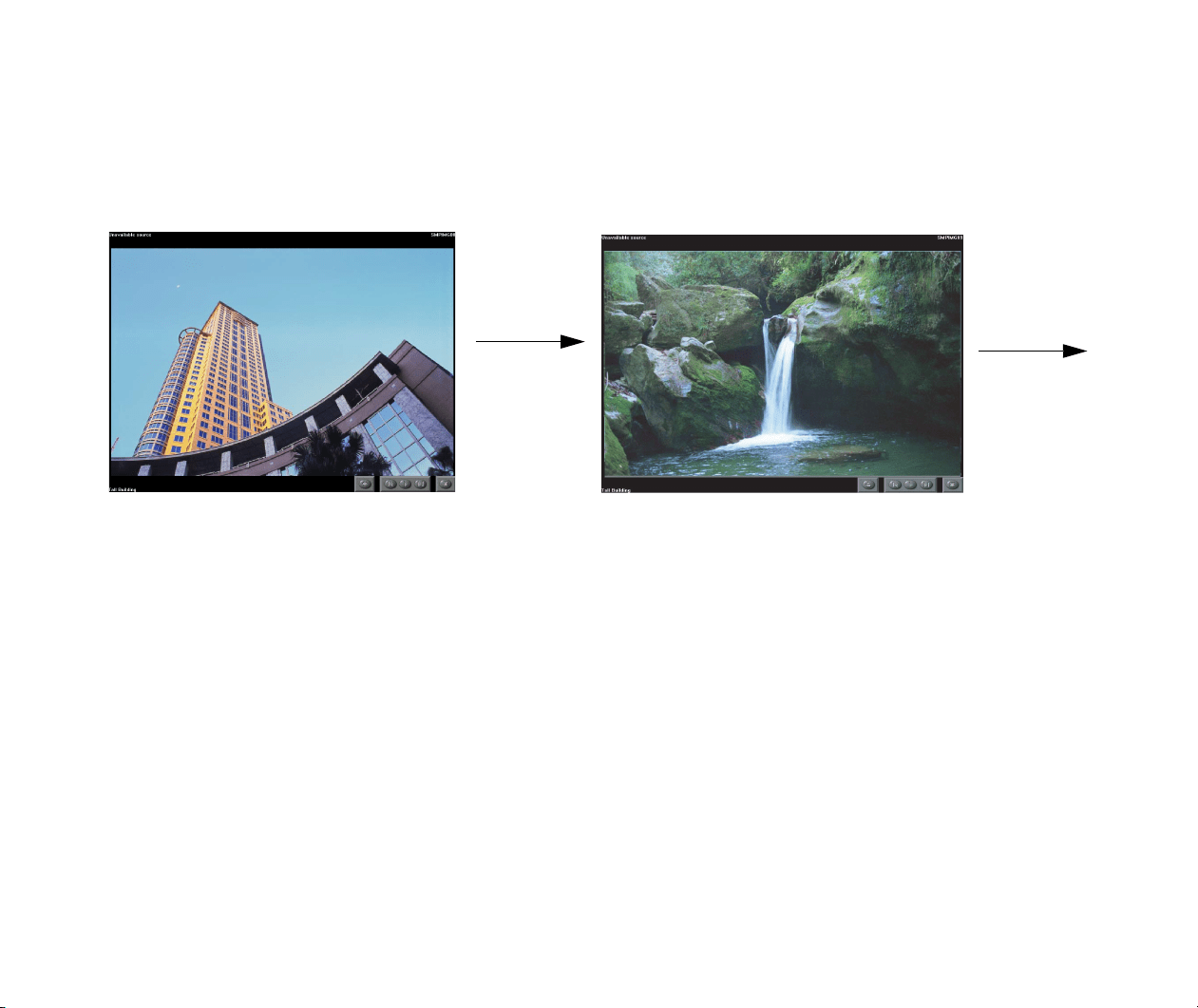
The slide show starts and selected images are displayed in sequence on the entire
computer screen according to the parameters set in the Slide Show Options
dialog box.
Slide Show
47
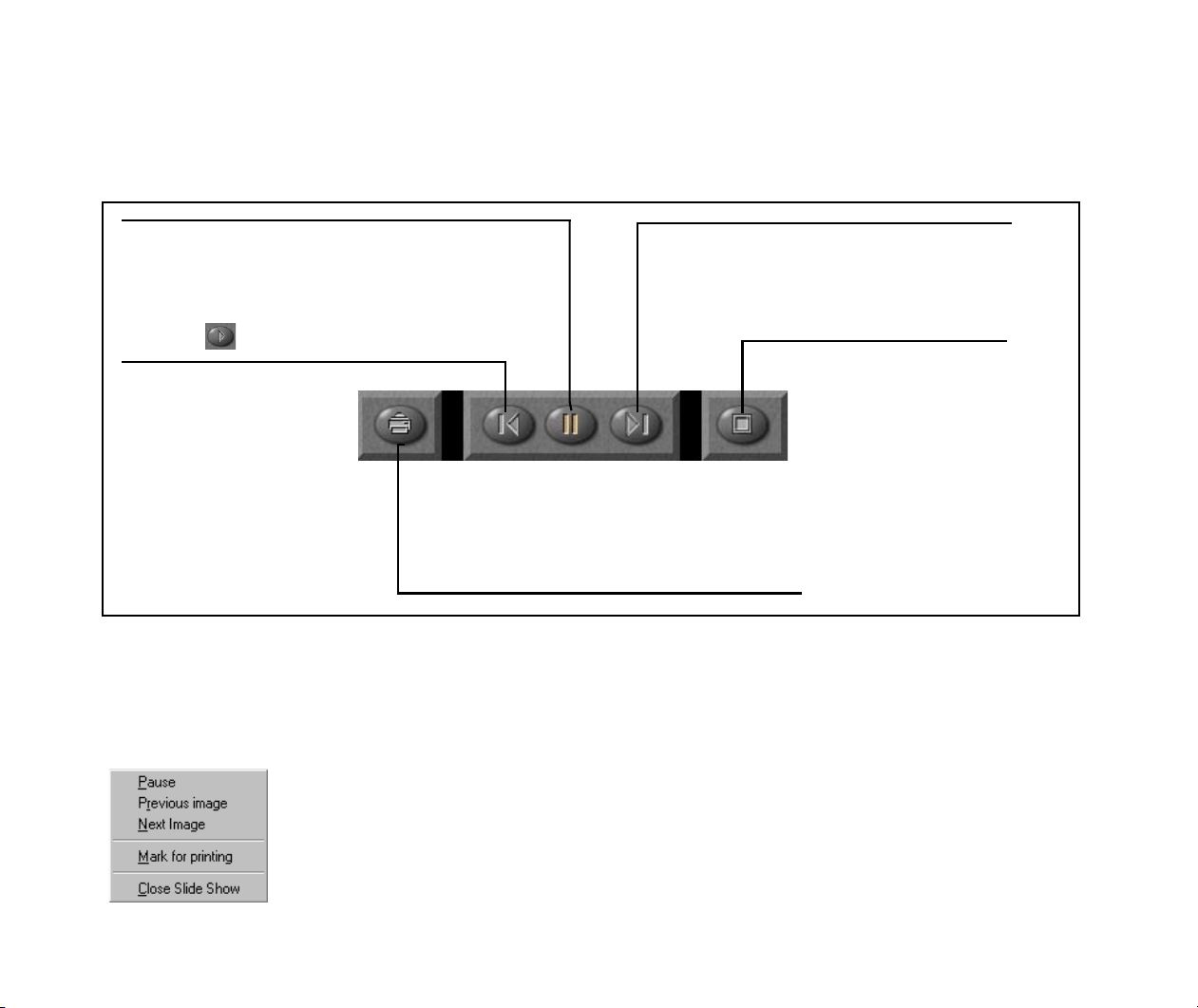
Slide Show Control Buttons
While the slide show is in progress, the control buttons are displayed on the bottom-right corner of
the screen.
When the No Info radio button is selected in the Slide Show Options dialog box, no control buttons
are shown on the screen. If this is the case, right-click with the mouse to open a pop-up menu as
shown below.
Select the corresponding option from this menu.
Pause / Replay button
Click the
Pause
button to stop the automated slide
show temporarily.
Pausing the show will turn this into the
Replay button.
Previous Image button
Displays the previous
image again.
Next Image
button
Advances the show to the next image.
Close Slide Show button
Click this to exit the slide
show.
Print button
Click this to mark the current image for printing, while a slide show is in
progress. When the show is over, PhotoRecord will automatically start and
layout the selected images for printing.
Time Tunnel
48
Time Tunnel
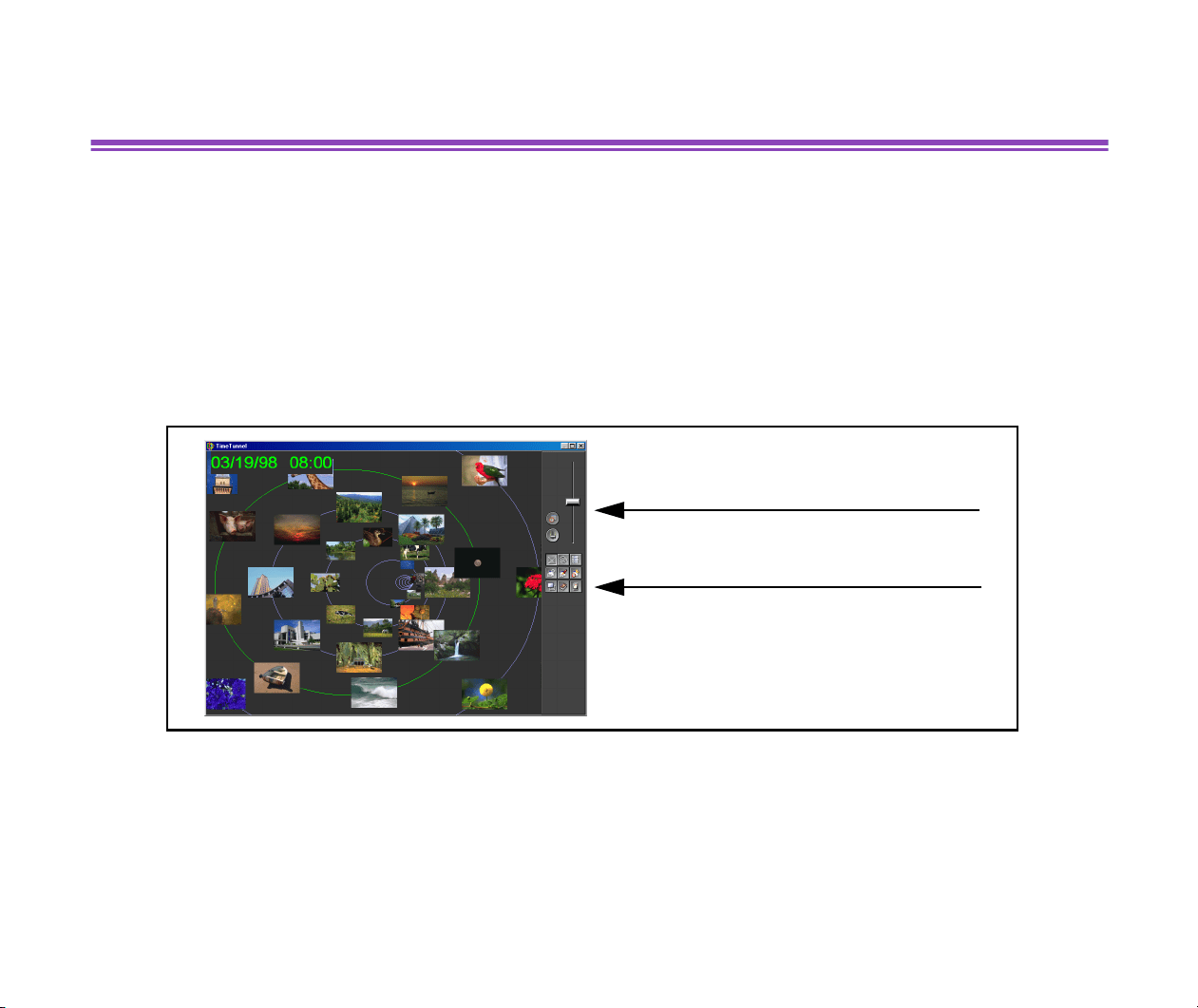
You can open the Time Tunnel window by selecting the Time Tunnel... from the View menu.
When the Time Tunnel window opens, you see a series of rings which remind you of a time tunnel.
The images in the Browser Display Area, or those contained in the selected folder, will be displayed
in the Time Tunnel, positioned along the lines of the rings automatically. The thumbnails are arrayed
in a sequential order by the date they were shot (file dates). Zoom in or out freely on the rings to
change the arrangement, by moving the slide control or by specifying the date. Choose the display
mode from among Rings, Spiral and Film by simply clicking the switch buttons. You can open the
actual image of the desired thumbnail by double-clicking on it.
The Time Tunnel offers a variety of option features, including changing the display mode and
searching through images by file date.
For details on how to set the parameters, click the Help button in the Time Tunnel window.
Note
³
The Time Tunnel can handle up to 500 images.
Drag the slide control to zoom in and out
on the Time Tunnel.
Rings, Spiral, Display Style settings, Speed
Settings, Date/Time Display Color Settings,
Open, Help and Exit buttons
Adding Sound to Image
49
Adding Sound to Image
You can associate sound with an image by using the sound feature of ZoomBrowser EX.
Steps for Recording
1
Select the image to which you want to add sound in the Browser Display Area.
Open the Properties menu and select the Add/Remove Sound.
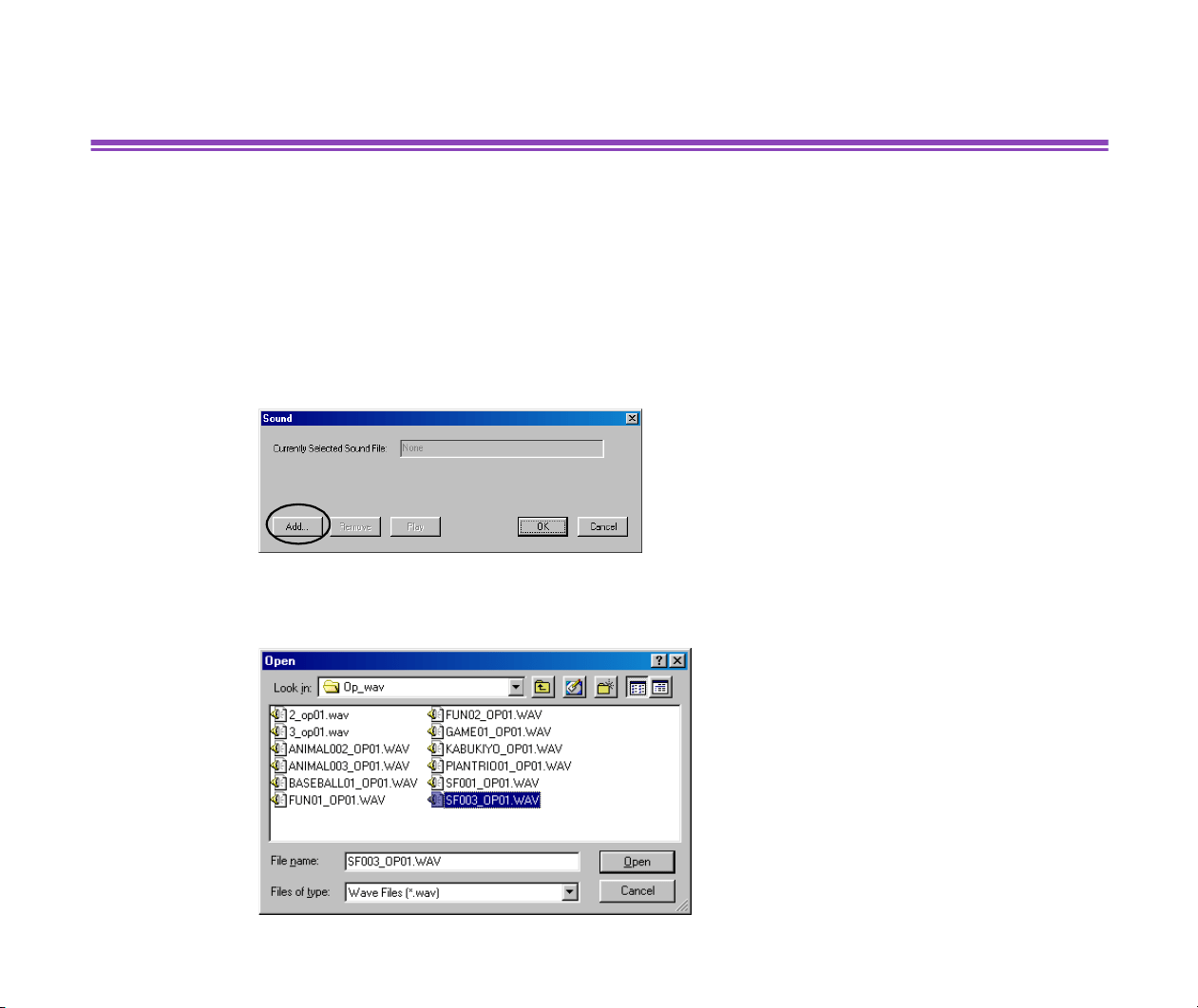
The Sound dialog box appears.
2
Click the Add button.
The Open dialog box appears.
Adding Sound to Image
50
3
Specify the sound file.
Selectable sound files are those in the WAV and the MIDI formats.
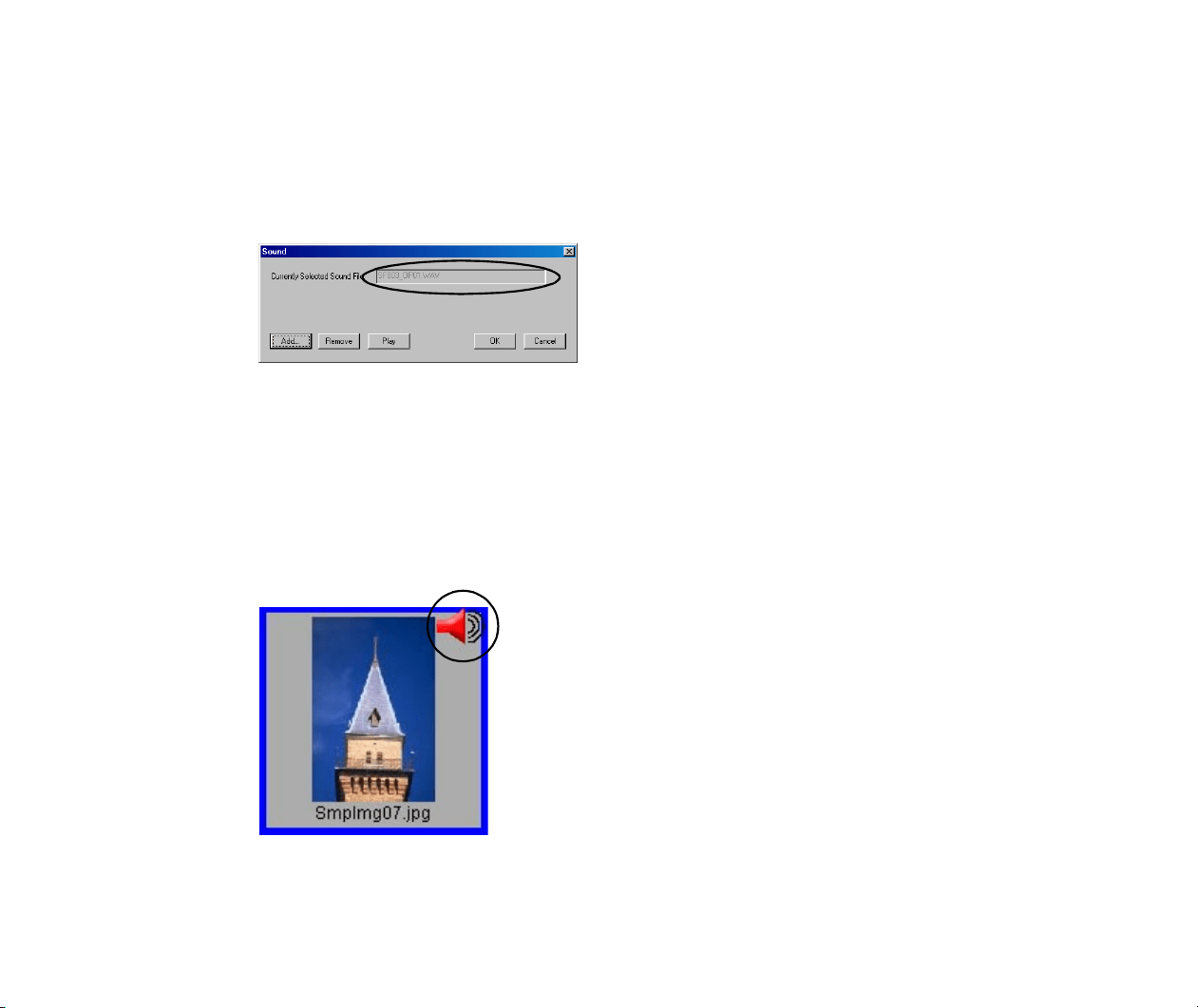
4
Click the Open button.
The name of the selected file appears in the Sound dialog box.
Click the Remove button here if you want to remove the sound file.
Click the Play button here if you want to play the sound file.
5
Click the OK button.
ZoomBrowser EX takes in the sound data.
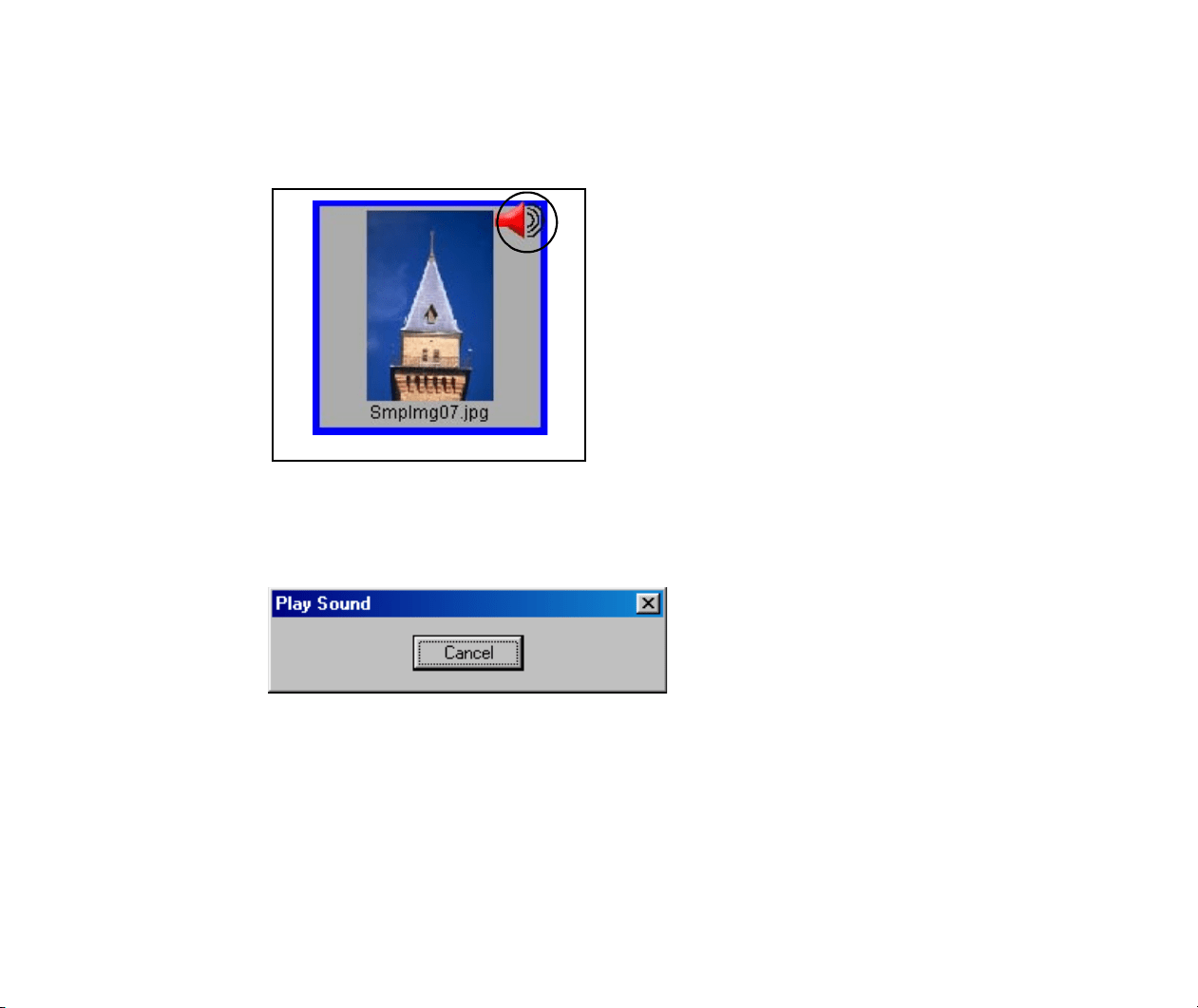
When the sound is added, the image thumbnail is marked with a sound symbol on
the top-right corner.
Adding Sound to Image
51
Steps for Playing
1
Select an image thumbnail which has a Sound symbol on the top-right corner.
2
Open the Properties menu, and select the Play Sound command.
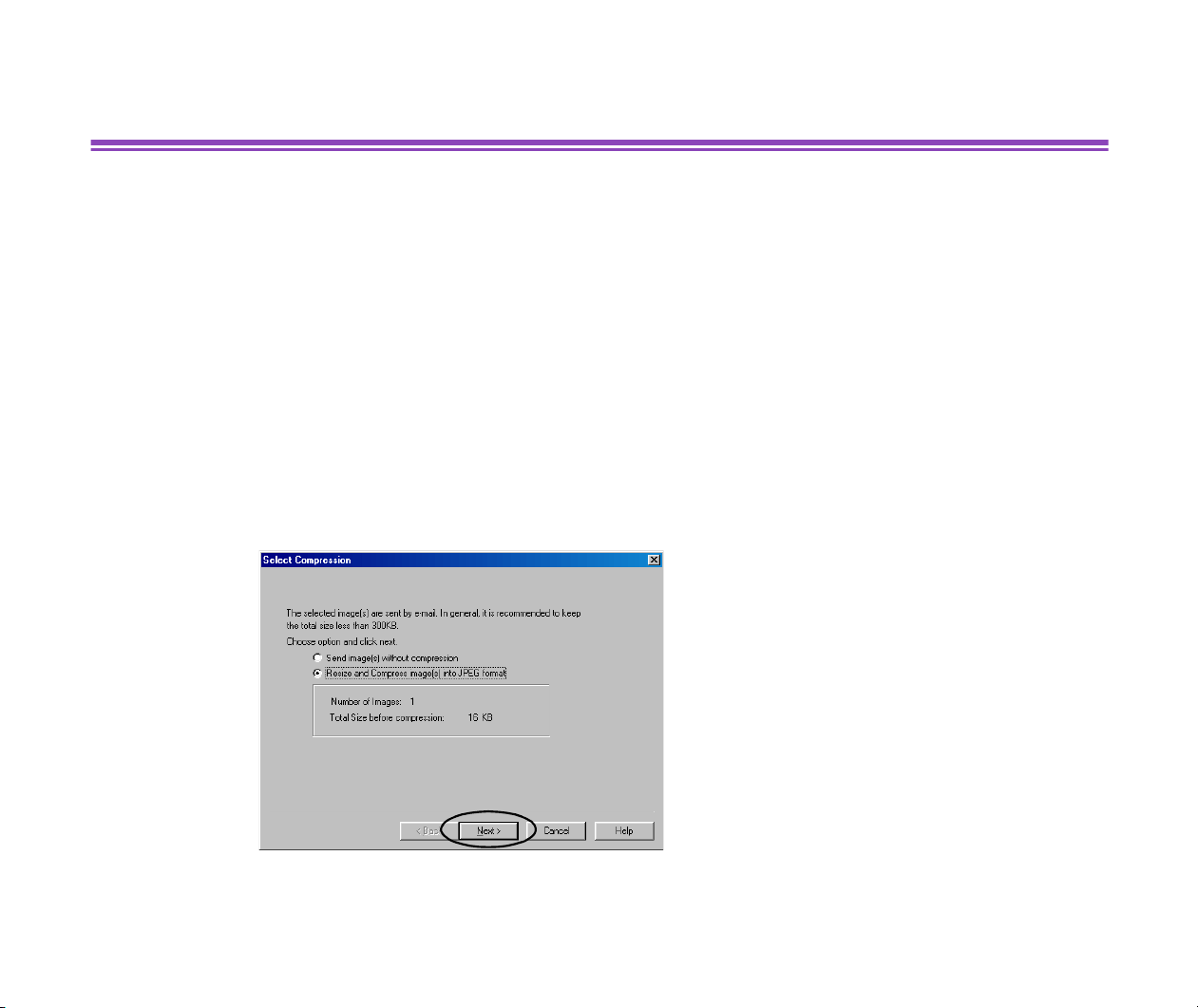
The Play Sound message box appears and starts playing the sound file.
When it has finished playing, the message box closes. Click the Cancel button to
stop playing.
Processing Image for Sending by E-mail
52
Processing Image for Sending by E-mail
It is simple and easy for you to process images and attach them to an E-mail, if you use
ZoomBrowser EX. Select the images in the Browser Display Area and follow the instructions of the
wizard.
1
Select the image or images that you want
to send in the Browser Display Area, and
then select the Send Image(s) by E-mail
from the Internet menu.
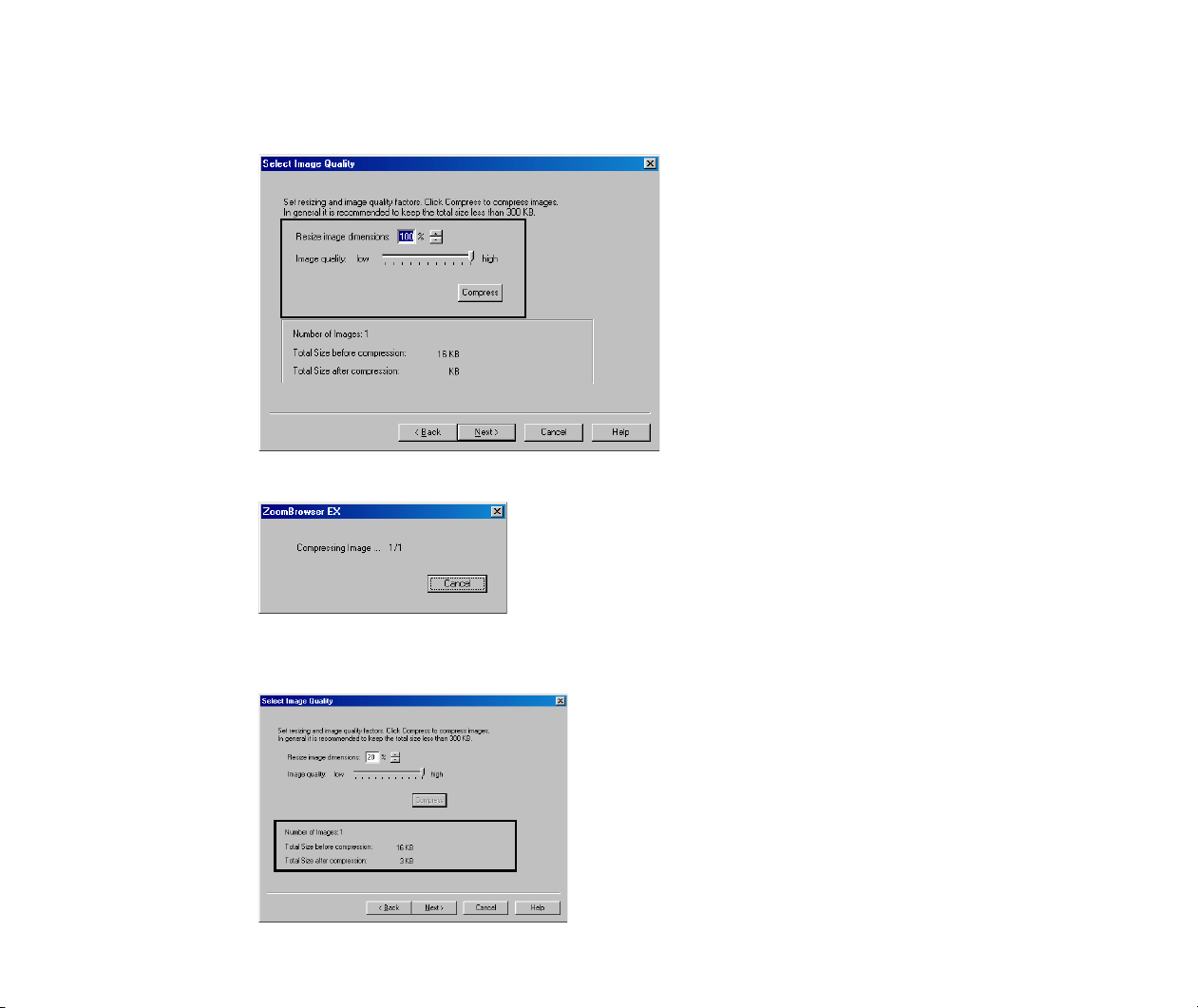
The wizard starts and the Select Compression dialog box opens.
If you select the Send image(s) without compression option here, the file will be
attached in its original size.
2
Click the Next button.
The wizard goes on to the next step.
Processing Image for Sending by E-mail
53
3
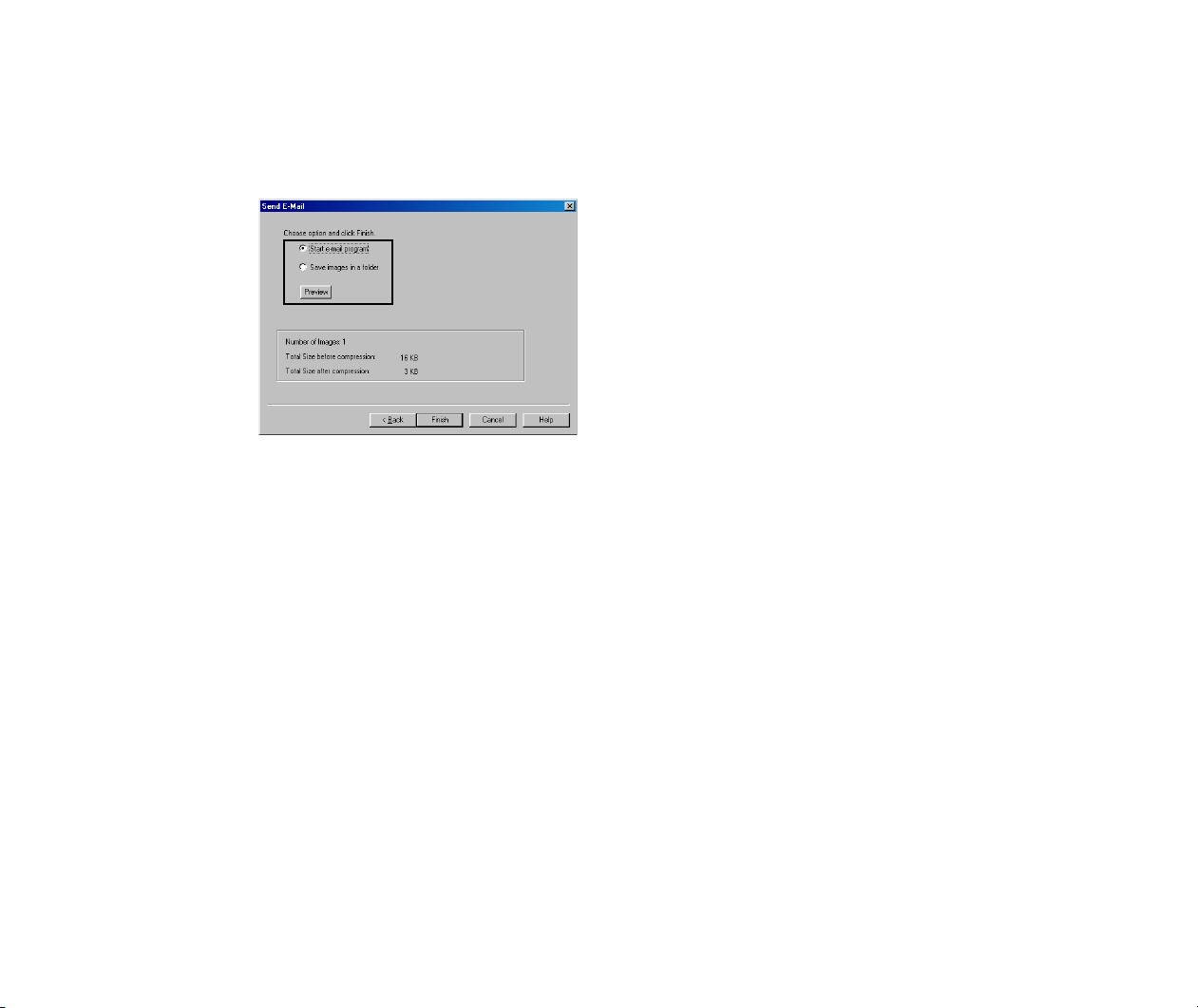
Specify the resizing ratio and the image quality, and then click the Compress
button.
The program starts compressing the image files.
The total file size after compression will be calculated and displayed in the bottom
area of the dialog box.
Processing Image for Sending by E-mail
54
4
Click the Next button.
The wizard goes on to the next step.
To check how the resized images look on the screen, click the Preview button.
5
Choose what you want to do with the compressed image files, and then click the
Finish button.
This closes the wizard and automatically creates an image file for sending with an
E-mail.
If the Start e-mail program option is selected as the next step in 5. above, your E-
mail application will automatically start when the compression is completed,
allowing you to edit an E-mail message. The images processed by ZoomBrowser
EX will be automatically attached to the E-mail.
If the Save images in a folder option is selected as the next step in 5. above, the
Select Directory dialog box will be displayed. Specify the destination folder to save
the image files and save them as new files.
For details of the operation, click the Help button in the E-mail wizard dialog box.
Editing Image Using Other Image Processing Programs
55
Editing Image Using Other Image Processing Programs
ZoomBrowser EX allows you to do more image processing through cooperation with other image
processing programs.
Opening Image Files using Other Image Processing Programs
You can specify your favorite image processing program for editing image files while using
ZoomBrowser EX. When necessary, the image editing program opens automatically and imports
the images that are selected in the Browser Display Area.
Specifying the Image Editing Program
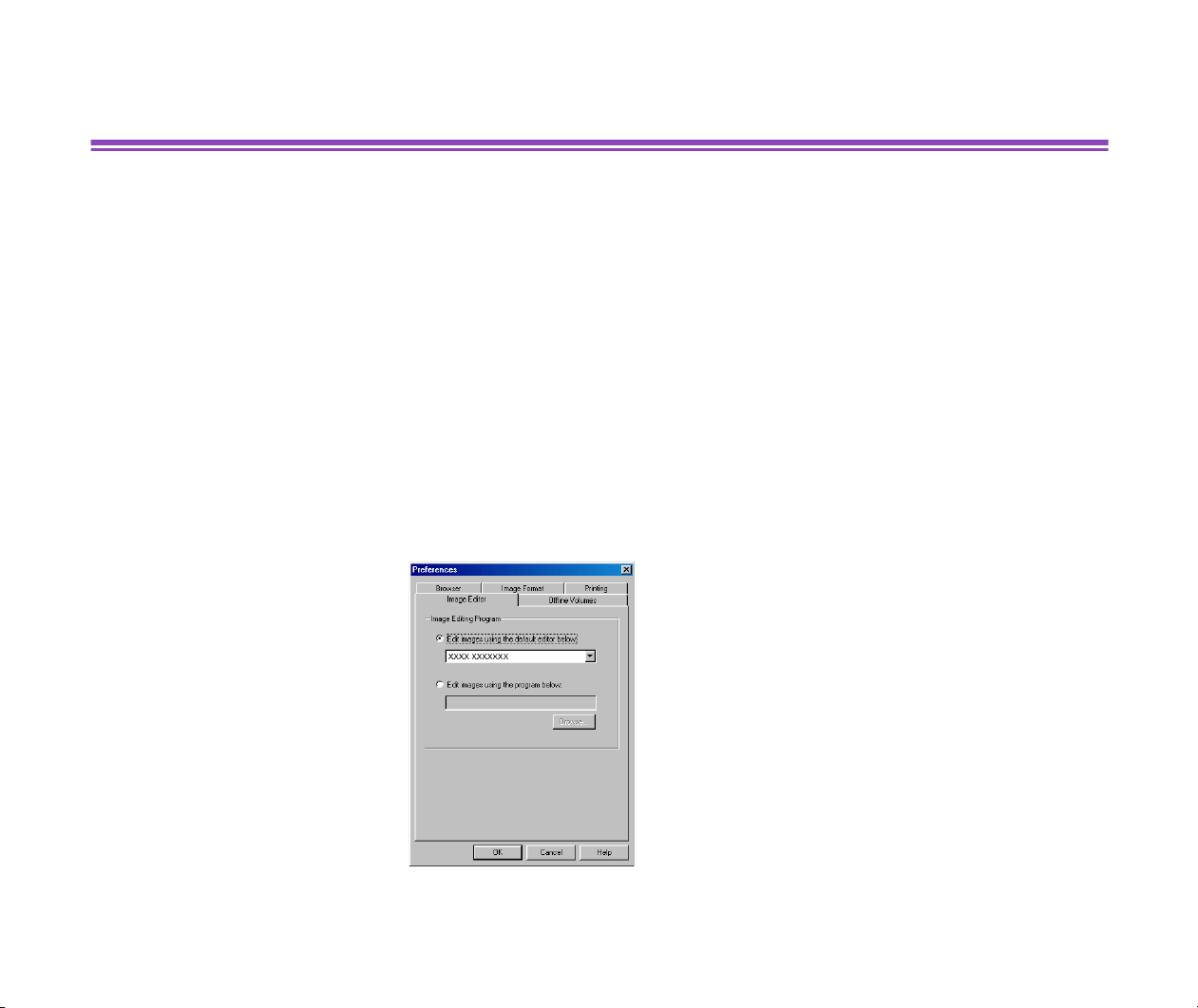
Open the File menu, and select Preferences to open the Preferences dialog box. Select the
Image Editor tab.

Editing Image Using Other Image Processing Programs
56
When you select the Edit images using the default editor below: option, open the drop-down list
and select the desired image editing program to be used as default.
When you select the Edit images using the program below: option, click the Browse button to
display the Open dialog box, and specify the desired image editing program.
Click the OK button after selected the desired image editing program.


Importing Images with the Automation Wizard
58
Importing Images with the Automation Wizard
The Automation Wizard enables you to save a sequence of actions from importing images into your
computer through printing, so that ZoomBrowser EX will automatically repeat the same action
sequence by a simple operation next time.
The Automatiln Wizard starts when you connect a Canon digital camera to your computer or insert a
memory card (Compact Flush card) into the memory card slot of a BJ printer connected to your
computer after starting ZoomBrowser EX.
The Automation Wizard also starts when you connect a non-Canon digital camera or a memory
card reader to your computer after starting ZoomBrowser EX.
Importing Images with the Automation Wizard
59
Selecting Automatic Image Downloading
When the Automation Wizard starts for the first time, the ZoomBrowser Automation Wizard dialog
box appears as shown below:
Note
³
If it is not the first time that the Automation Wizard starts, the ZoomBrowser
Automation dialog box appears, ready to start automatic image downloading
directly. See When the ZoomBrowser Automation dialog box appears for details.

Importing Images with the Automation Wizard
60
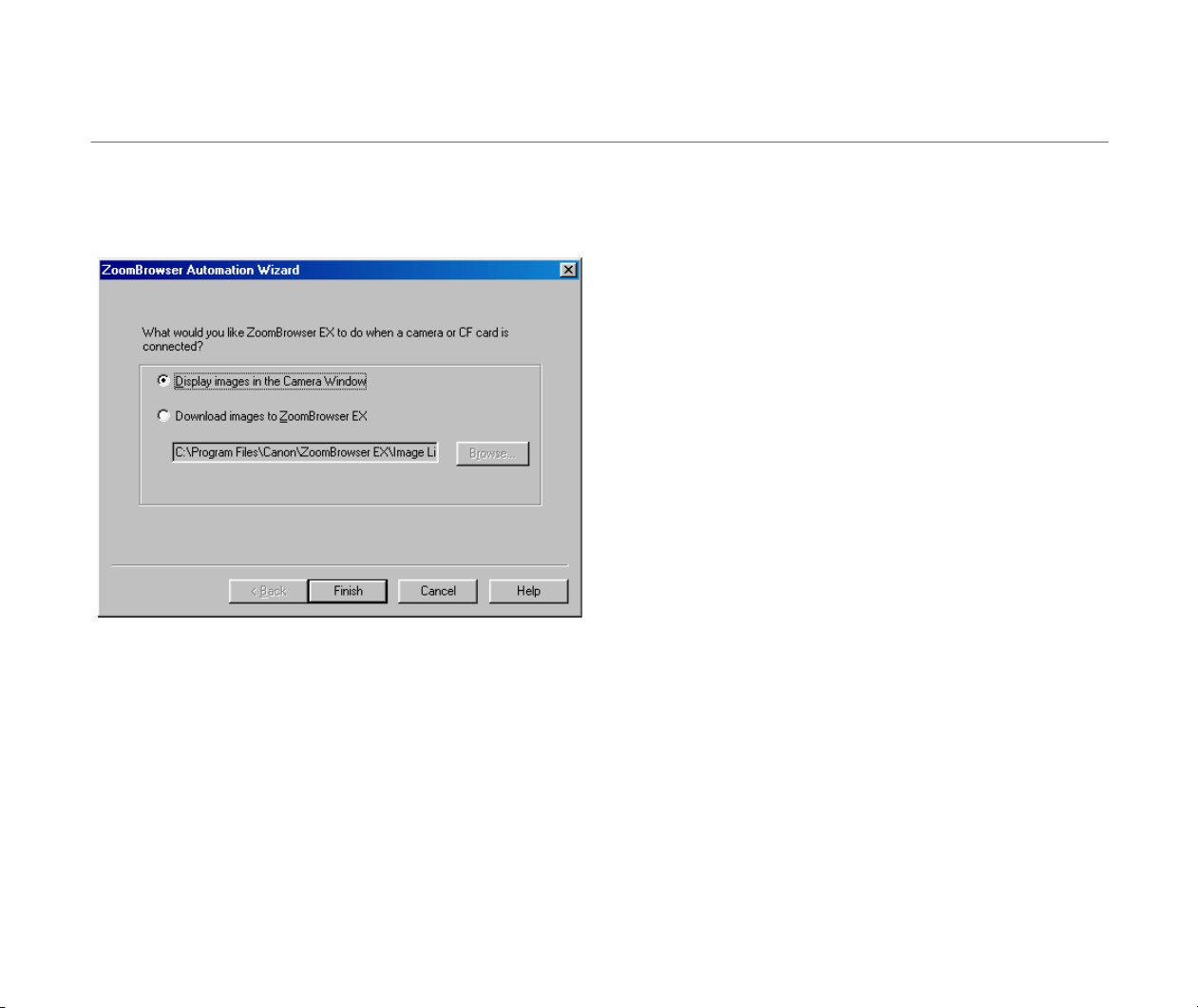
Select the automated action which you want ZoomBrowser to perform first when it detects a
connected device such as a digital camera or memory card.
The option items and their actions are as follows:
Option Action Further operation
Display images in
the Camera Window
When you click the
Finish
button to
quit the Automation Wizard, the Cam-
era Window appears to display all the
images stored in the digital camera (or
memory card).
See Importing Images Using the Cam-
era Window for the rest of the proce-
dure.
Download images to
ZoomBrowser EX
The Automation Wizard proceeds to
download images. Click the
Browse
button to select the folder where to
download the images. Automation
Wizard copies and saves the image
data to the folder specified here.
See Setting the Automation Wizard to
Download Images.
Importing Images with the Automation Wizard
61
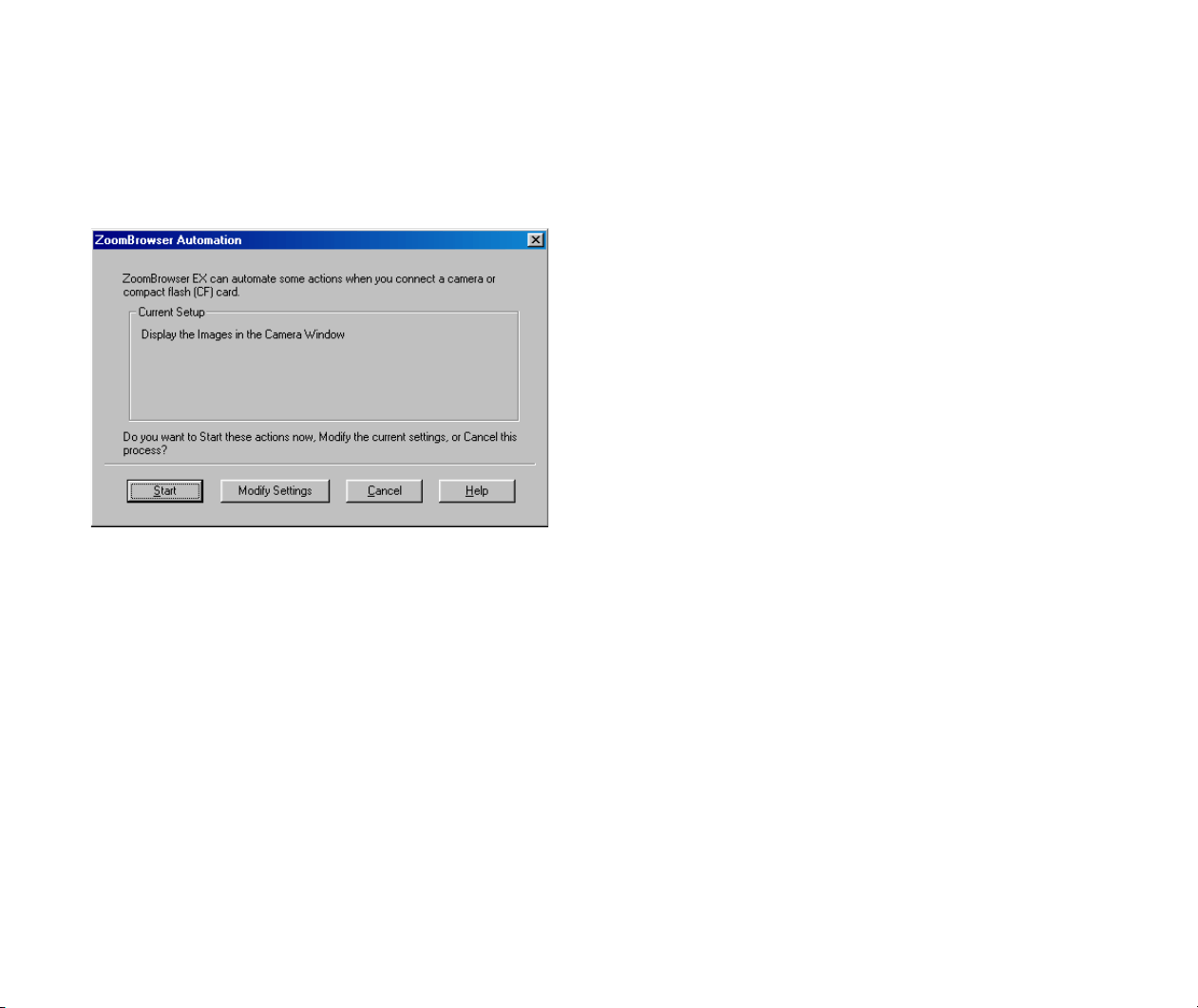
• When the ZoomBrowser Automation dialog box appears
When the ZoomBrowser Automation dialog box appears instead of the ZoomBrowser
Automation Wizard dialog box, just click the Start button to repeat the same action sequence you
have used to import images last time.
If you want to change the action sequence, click the Modify Settings button to open the
ZoomBrowser Automation Wizard dialog box and reselect the desired actions.
Click the Cancel button to quit the Automation Wizard and return to the Browser Display Area window.
Setting the Automation Wizard to Download Images
62
Setting the Automation Wizard to Download Images
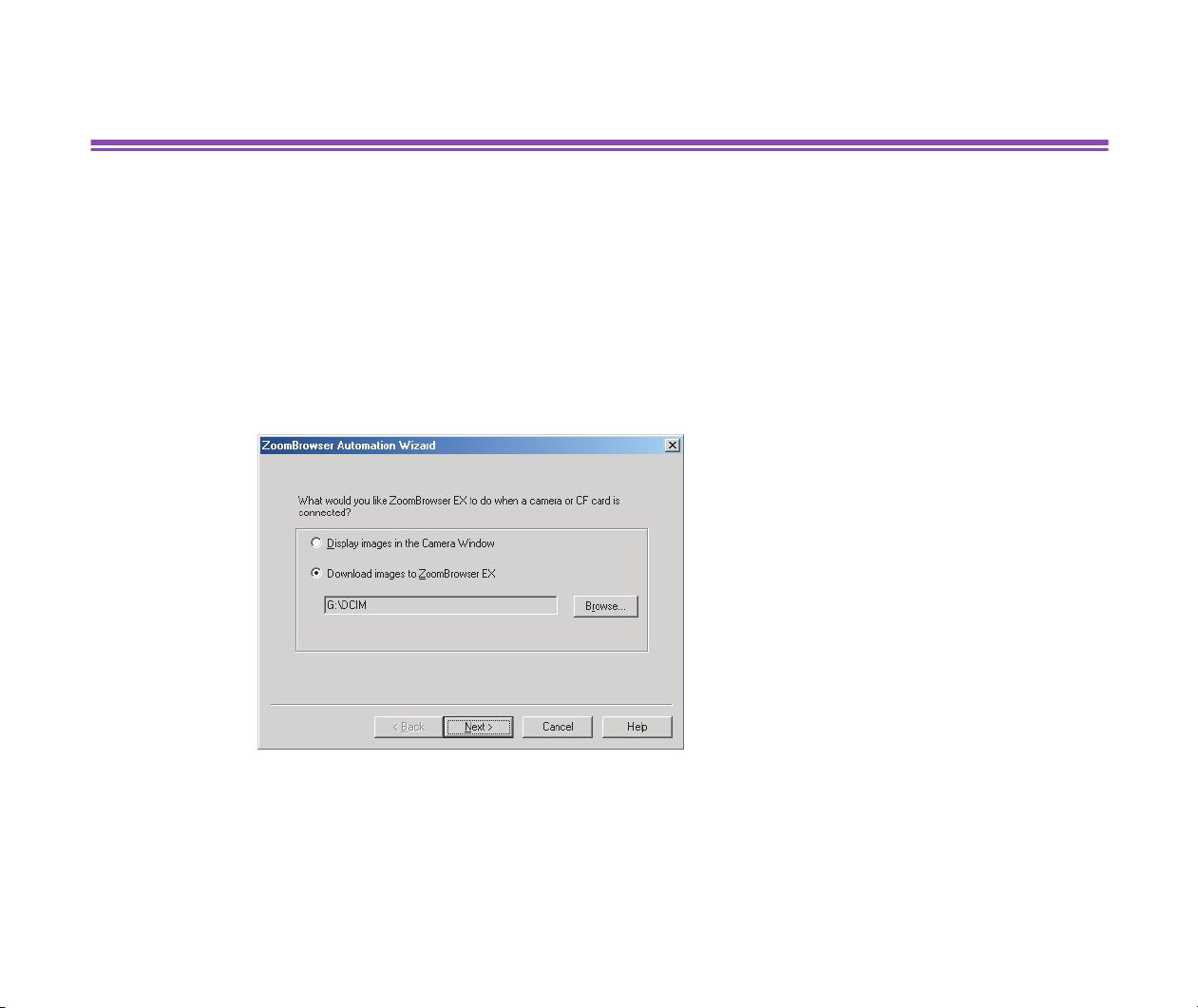
You can download images from the connected device by setting options in the ZoomBrowser
Automation Wizard dialog box. The Automation Wizard saves your settings so that it will
automatically trace the same action sequence when downloading images next time.
Steps
1
Select the Download images to ZoomBrowser EX option in the ZoomBrowser
Automation Wizard dialog box.
2
Click the Browse button to display a dialog box where you can specify a
destination folder to copy the downloaded image data.
Setting the Automation Wizard to Download Images
63
3
Specify the folder and click the Next button.
The Automation Wizard proceeds to the next screen.
Setting the Automation Wizard to Download Images
64
4
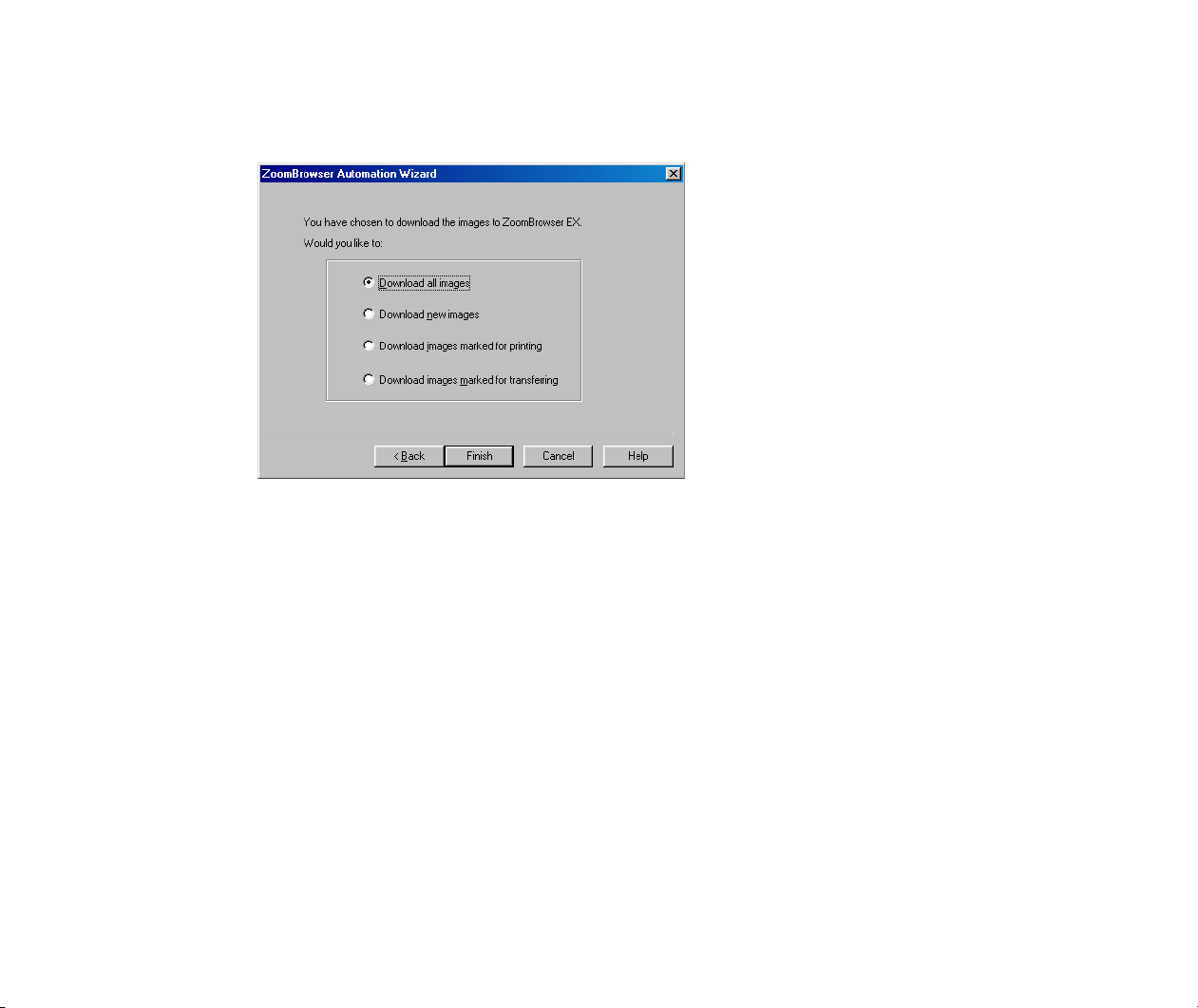
Select a category of images to download.
The image category options are listed below:
Note
³
For details on the images marked for printing or transfer, refer to the documentation
that comes with your digital camera.
5
Click the Finish button.
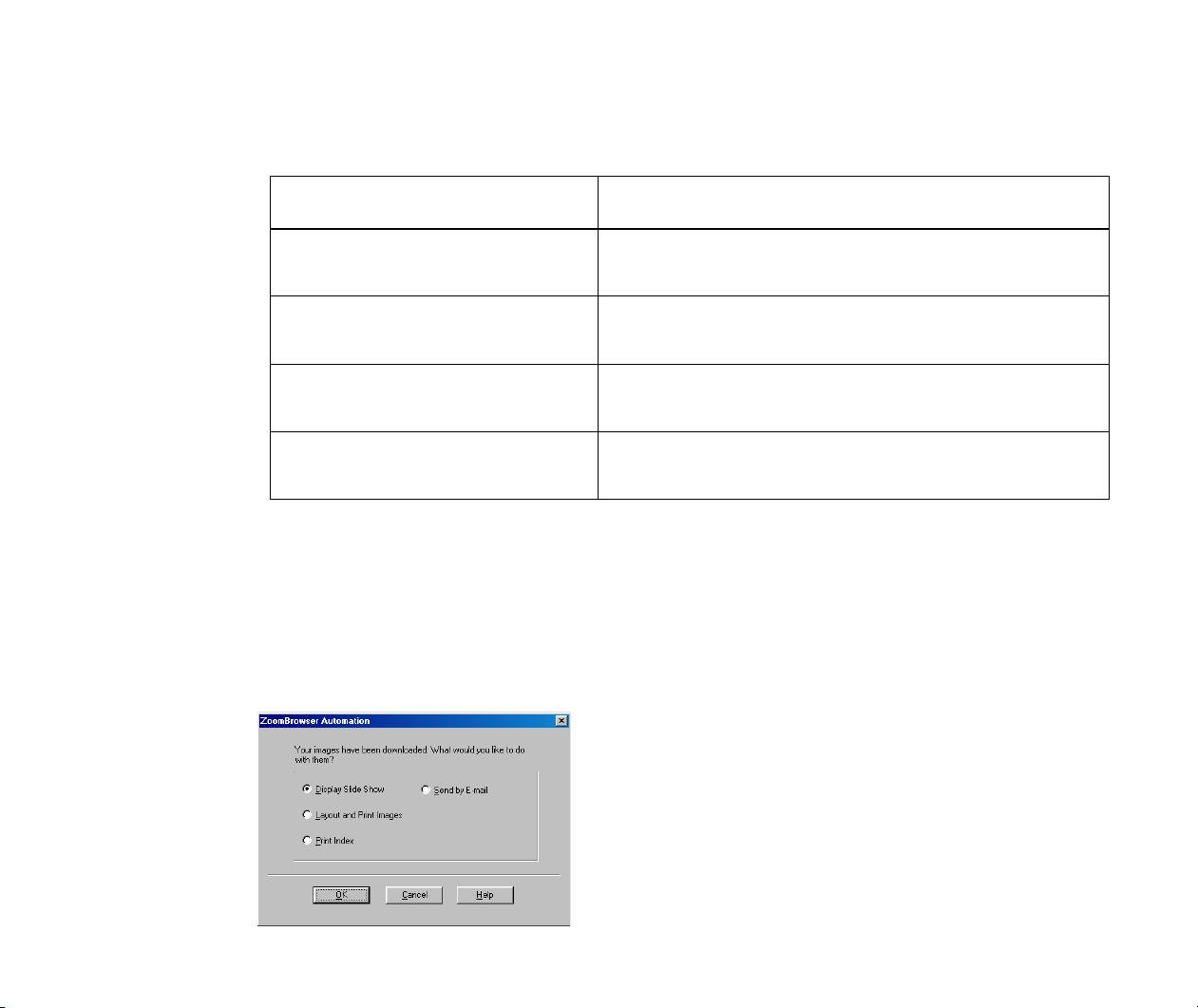
ZoomBrowser EX starts downloading the images to the computer.
When image downloading is complete, the following message appears:
Option Action
Download all images
Downloads all the images stored in the connected
digital camera or memory card.
Download new images
Downloads all the images except those already
imported to the ZoomBrowser EX.
Download images marked for
printing
Downloads the images marked for printing.
Download images marked for
transfer
Downloads the images marked for transfer.

Setting the Automation Wizard to Download Images
65
6
Select a radio button to specify the next action to do on the downloaded image
data.
The options are described below:
7
Click the OK button.
The Automation Wizard closes and the selected action starts automatically.
If you click the Cancel button, the Automation Wizard closes and ZoomBrowser EX
returns to the Browser Display Area window without performing any action.
When the Automation Wizard closes, it saves the selected settings so that it can
trace the same action sequence in the next session.
Option Action
Display Slide Show
Displays all the downloaded images in a slide show.
Layout and Print Images
Selects all the downloaded images and perform cus-
tom layout printing.
Print Index
Selects all the imported images and perform index
printing.
Send by E-mail
Processes all the downloaded images so that you
can attach them to E-mails and save them in the
specified image folder for E-mail.

Importing Images Using the Camera Window
66
Importing Images Using the Camera Window
Using the Camera Window, you can browse through all the images stored in the device connected
to your computer, so that you can select, import, and save desired images in your computer.
Steps
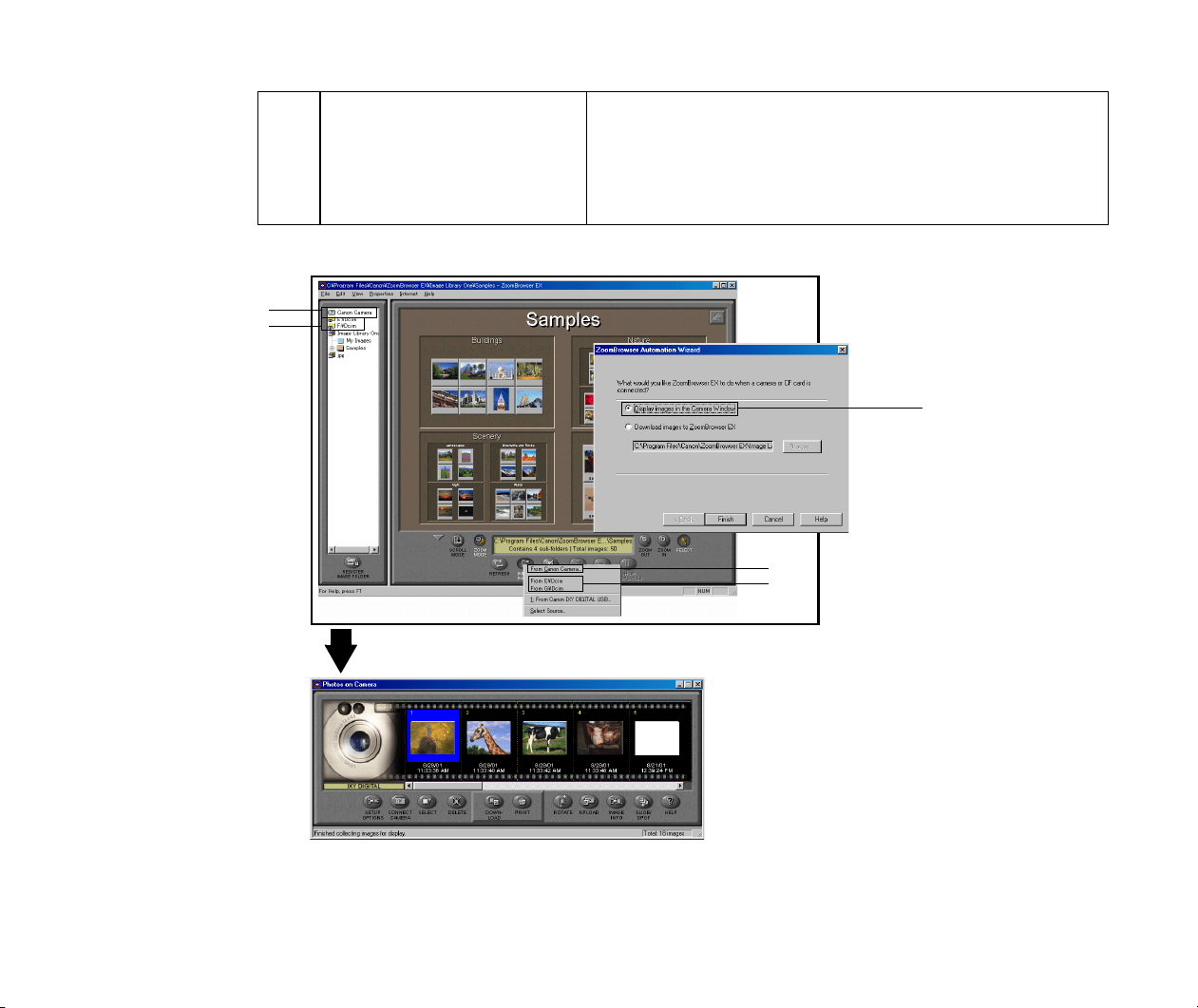
1
Open the Camera Window.
You can open the Camera Window by any one of the following operations:
Operation Data displayed in the Camera Window
(1) Select
From D:\Dcim
from
the
IMPORT IMAGES
but-
ton submenu.
All the images stored in the Dcim folders in the target drive
*The
IMPORT IMAGES
button submenu and the Tree View
show From D:\Dcim, From E:\PWSHOTO, etc. depend-
ing on data format of the memory card and the drive name
of the connected device.
*It is required that your computer have the hardware (mem-
ory card reader or PC card adapter for memory cards, etc.)
set up correctly, before importing the image data stored in
a memory card.
(2) Double-click From D:\Dcim
in the Tree View.
(3) Select
From Canon Cam-
era from the IMPORT
IMAGES button submenu.
All the images stored in the Canon digital camera con-
nected to your computer
*Ensure that the digital camera driver is installed correctly.
Note that this function is not supported by some of the
Canon digital camera products.
(4) Click the Canon Camera
icon in the Tree View.
Importing Images Using the Camera Window
67
Note
³
For more information on the Camera Window, refer to Basic Operation in the
Camera Window.
(5) Select the Display Images
in the Camera Window
option from the Zoom-
Browser Automation Wiz-
ard
dialog box.
All the images stored in the digital camera, memory card, or
any other device specified by the Automation Wizard
The Camera Window displays the thumbnails of images stored in the selected device.
(4)
(2)
(5)
(3)
(1)
Importing Images Using the Camera Window
68
2
From the Tree View, select the target folder where you want to save the image files.
Note
³
To know how to manage folders and libraries, refer to Image Database.
3
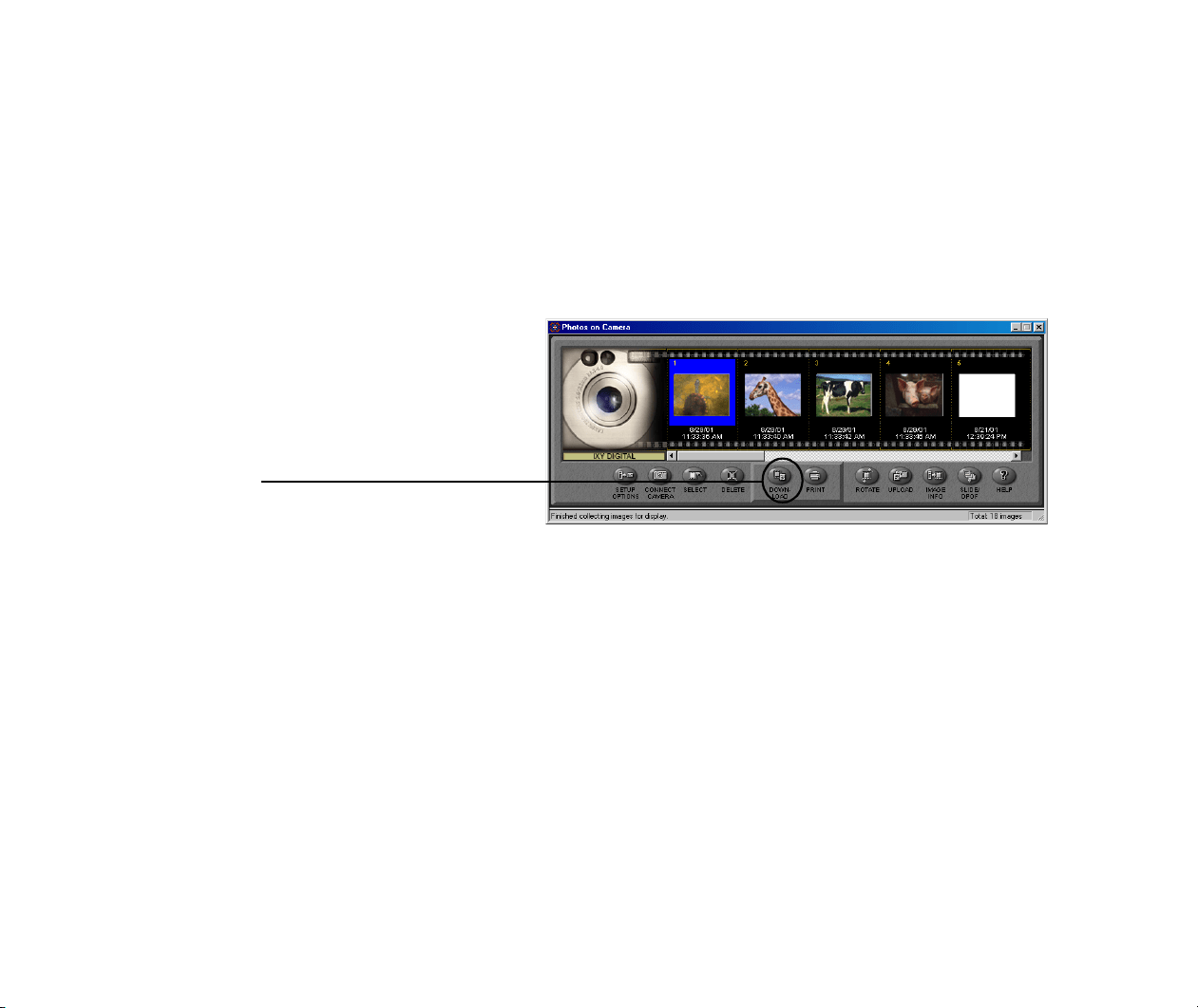
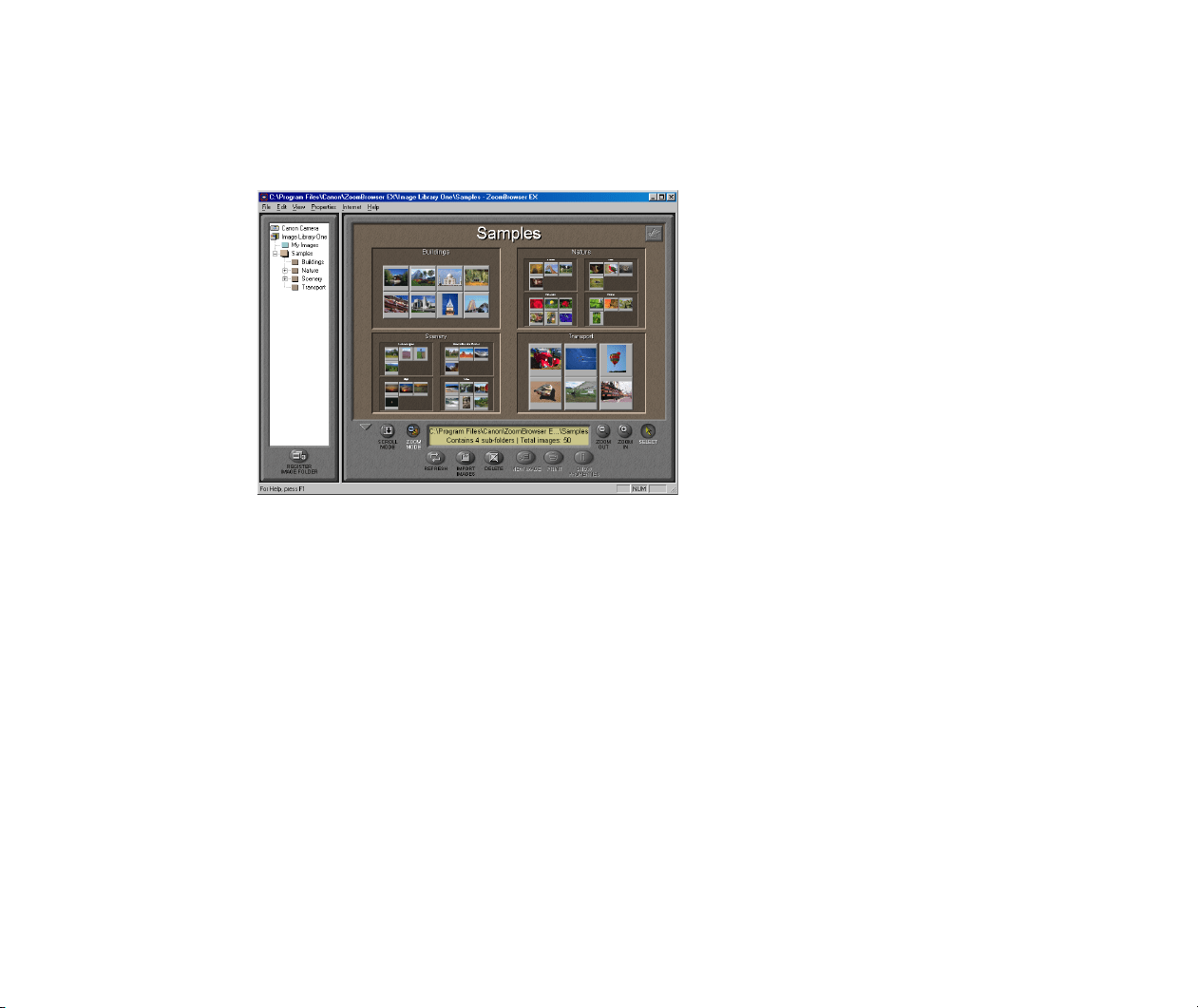
Return to the Camera Window. Click to select photos or images you want to import
to your computer.
When you select a thumbnail, the area around the selected thumbnail changes its
color.
The Camera Window displays
the thumbnails of images
contained in the selected
device.
DOWNLOAD button
Importing Images Using the Camera Window
69
4
Click the DOWNLOAD button in the Camera Window.
The selected images are saved as files in the computer. The downloaded images
are displayed in the Browser Display Area.
5
Click the Close button at the upper-right corner of the Camera Window if you want
to close the Camera Window now and disconnect the device.
If you want to continue downloading more photos or images, repeat Steps 3 and 4.

Importing Images Using the Camera Window
70
Basic Operation in the Camera Window
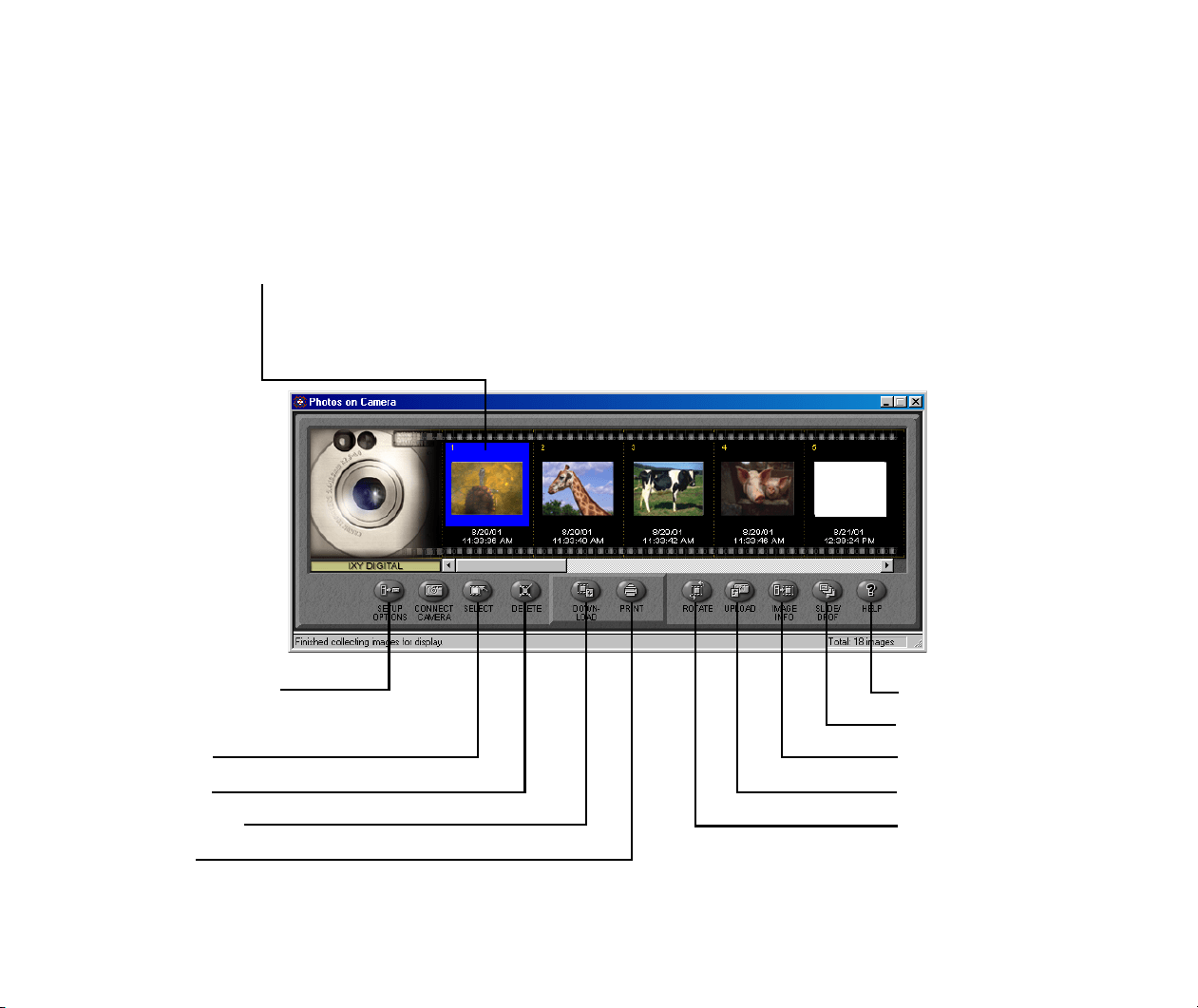
The Camera Window shows thumbnails of the photos or images contained in the device connected
to your computer, so you can browse through all the images in the device.
This subsection describes how to use the control buttons in the Camera Window.
Importing Images Using the Camera Window
71
Elements in the Camera Window
The Camera Window shows thumbnails of all the images stored in the device connected to your
computer. Each thumbnail is associated with the image file information.
The Camera Window also provides options that enable you to import and print the images.
To select an image, click its thumbnail. Blue borders mark the selected image. To select two or more
files, click the images one by one while pressing the Ctrl key.
Thumbnails
Photos or images stored in the connected device are displayed as thumbnails here. When an
image is selected, its background turns blue.
(6) PRINT
(5) DOWNLOAD
(4) DELETE
(3) SELECT
(2) CONNECT CAMERA
(1) SETUP OPTIONS
(7) ROTATE
(8) UPLOAD
(9) IMAGE INFO
(10) SLIDE/DPOF
(11) HELP
Importing Images Using the Camera Window
72
Note
³
If photos were shot in the Stitch Assist mode of Canon digital camera, they are
displayed with special marks and icons. Click the mark to start the PhotoStitch
utility and merge photos to create a panoramic image.
Device image
When ZoomBrowser EX detects
a connected device, the Camera
Window shows an image to
indicate the device type.
Memory card or non-Canon
digital camera
Canon digital camera

Importing Images Using the Camera Window
73
(1) SETUP OPTIONS
Click the SETUP OPTIONS button to display a setting menu containing the following options.
Note
³
These setup options are available only when the connected digital camera is a
Canon product. The dialog box offers somewhat different parameters depending on
the product type.
(2) CONNECT CAMERA
Click the CONNECT CAMERA button to restart the connection process. All the thumbnails are
reloaded from the camera into the computer.
Note
³
The CONNECT CAMERA function is available only when the connected digital
camera is a Canon product.
Menu option Function
Camera Settings
Displays a dialog box that allows you to confirm or change date, owner
information, and other settings for the connected camera.
Communication Settings
Displays a dialog box that allows you to change the settings for the com-
munication port to which the camera is connected.
My Camera
Displays a dialog box that allows you to change the My Camera settings
(only when a camera that supports the My Camera function is connected).
Importing Images Using the Camera Window
74
(3) SELECT
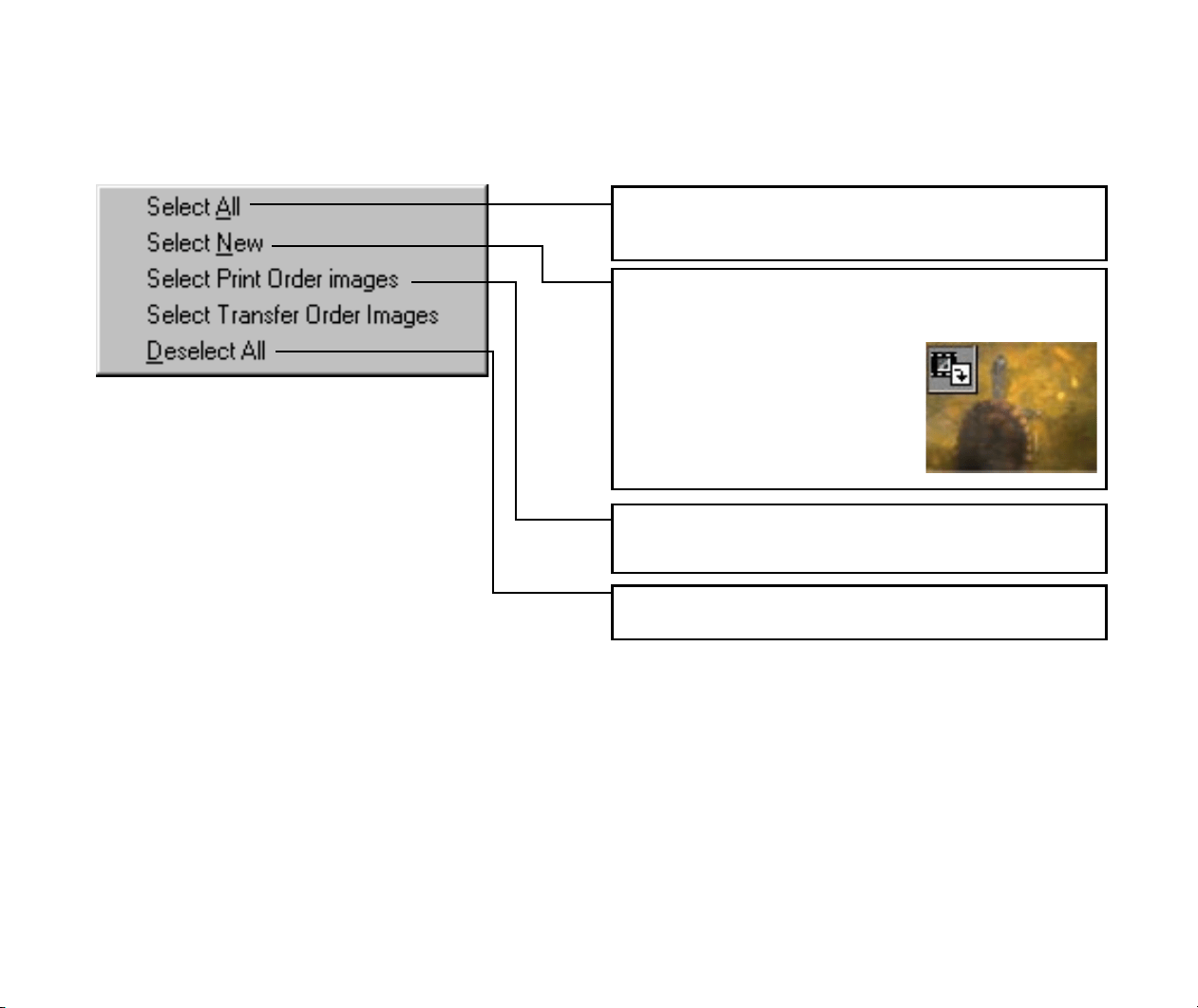
Click the SELECT button to display the selection menu as shown below:
Selects all the images currently displayed in the Camera
Window.
Selects all the images in the Camera Window except
those already imported. The mark
in the top left corner of a thumbnail,
as shown in the figure, indicates
that the image has already been
imported.
Selects all the images marked for printing in the Camera
Window.
Deselects all the images in the Camera Window.
Importing Images Using the Camera Window
75
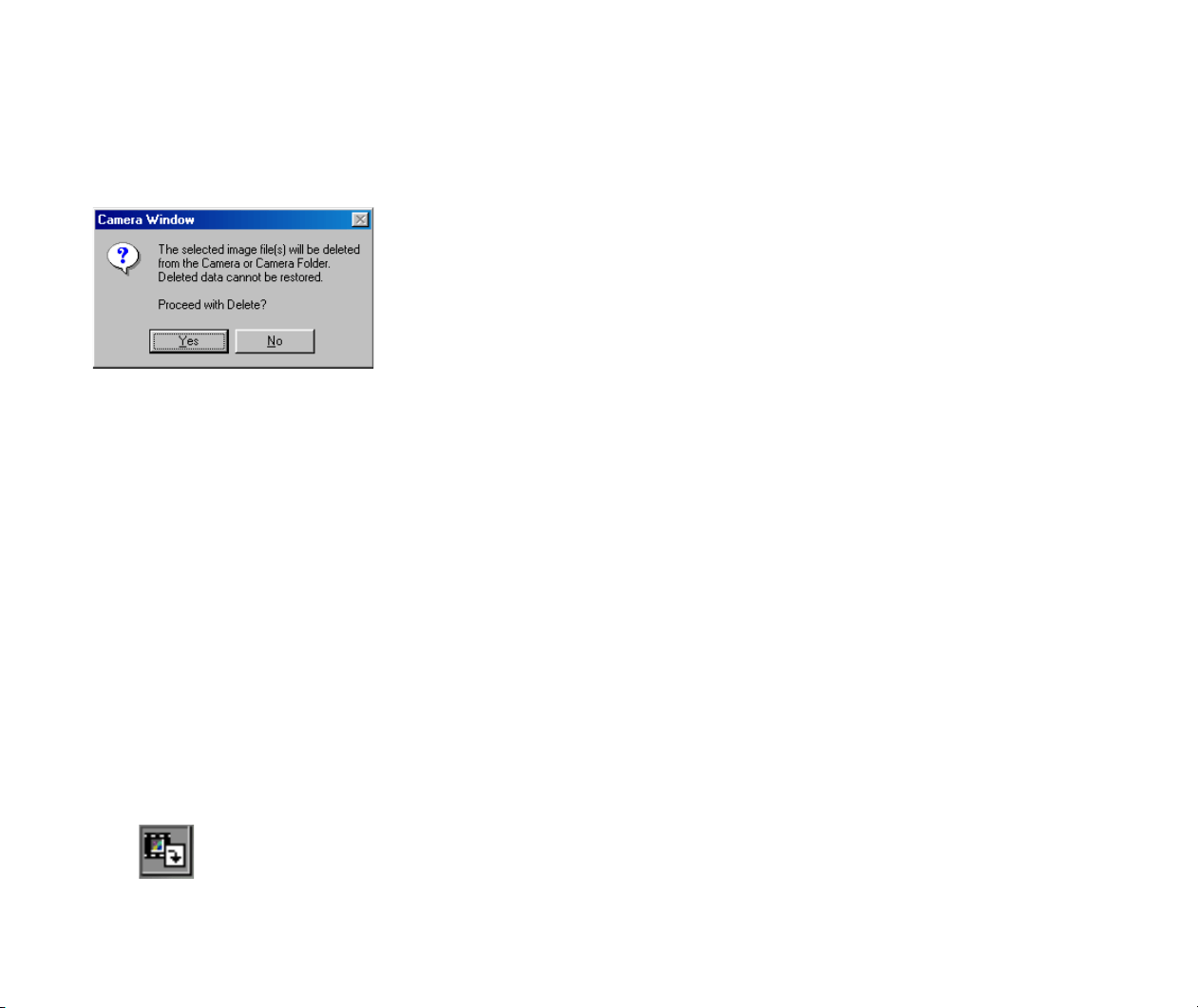
(4) DELETE
Use the DELETE button to clear the selected images completely from the device. If you select an
image or images and click the DELETE button, a message appears as shown below:
Click Yes if you want to clear the images completely from the device. If you do not want to clear
them, click No. The deleted images can not be restored.
(5) DOWNLOAD
Use the DOWNLOAD button to copy images from the connected device to the specified folder in the
Tree View of ZoomBrowser EX.
Select the images to download, and then click the DOWNLOAD button. Downloading starts and a
monitor window appears, so that you can check the progress of downloading.
When copying is finished, the monitor window closes. If you want to cancel downloading while in
progress, click the Cancel button in the monitor window.
The icon that appears at one corner of a thumbnail indicates that the corresponding image
has already been imported to your computer.
Importing Images Using the Camera Window
76
(6) PRINT
Use the PRINT button to print images by activating the PhotoRecord utility. First select the images
to print, and then click the PRINT button and select either Layout or Index from the PRINT button
pop-up submenu.
Select Layout to activate PhotoRecord. The selected photos are loaded automatically.
Select Index to display the Index Print Settings dialog box.
Note
³
For details on the printing procedure, refer to Printing from PhotoRecord.
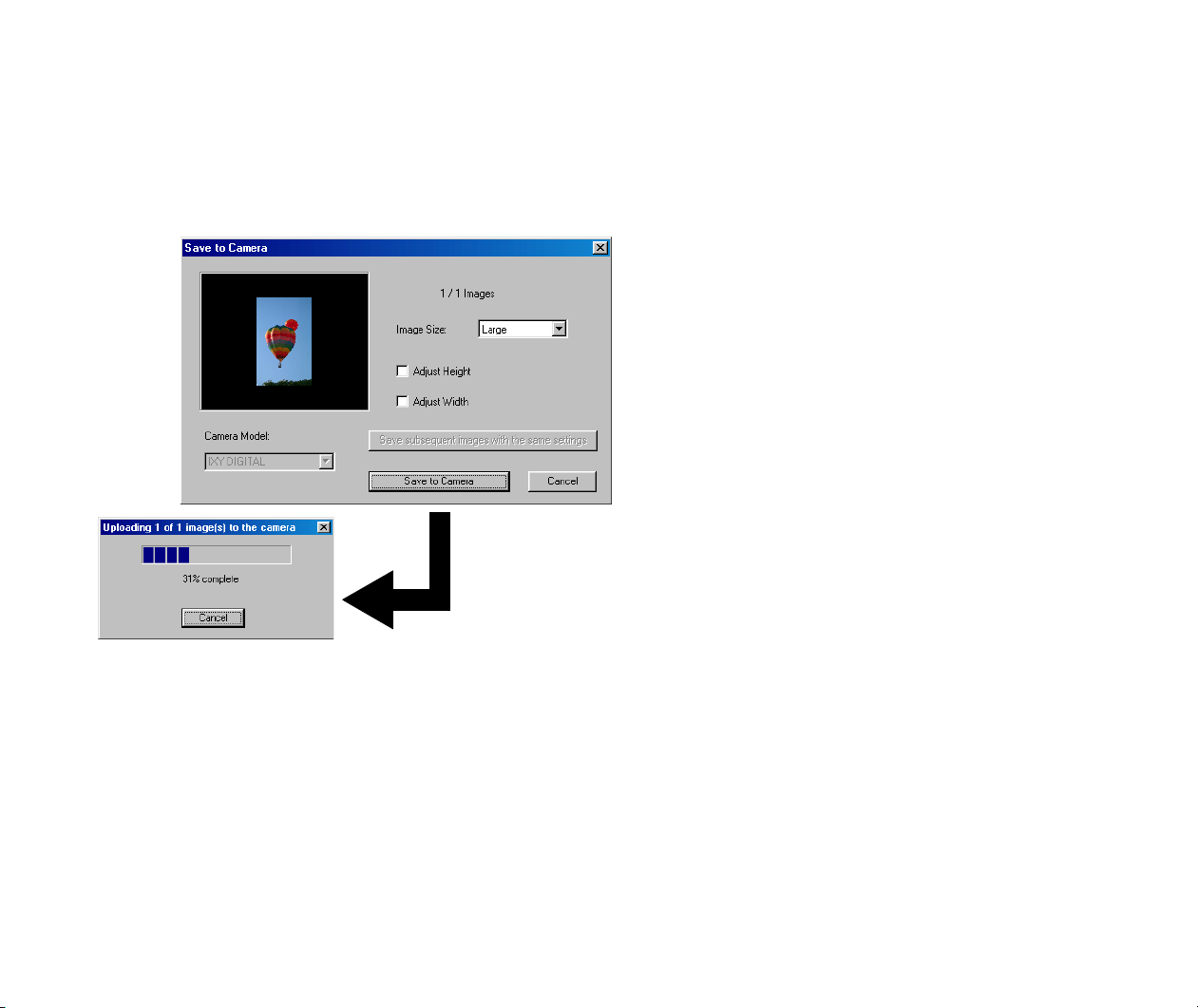
(7) ROTATE
Use the ROTATE button to rotate a thumbnail. A thumbnail is a reduced image of the actual file.
First select the thumbnail to rotate, and then click the ROTATE button. A menu opens as shown
below:
Rotating a thumbnail does not affect the actual image data, although the image is automatically
rotated when it is copied to your computer.
Rotates the selected thumbnail 90 degrees anticlockwise.
Rotates the selected thumbnail 90 degrees clockwise.
Rotates the selected thumbnail 180 degrees.
Importing Images Using the Camera Window
77
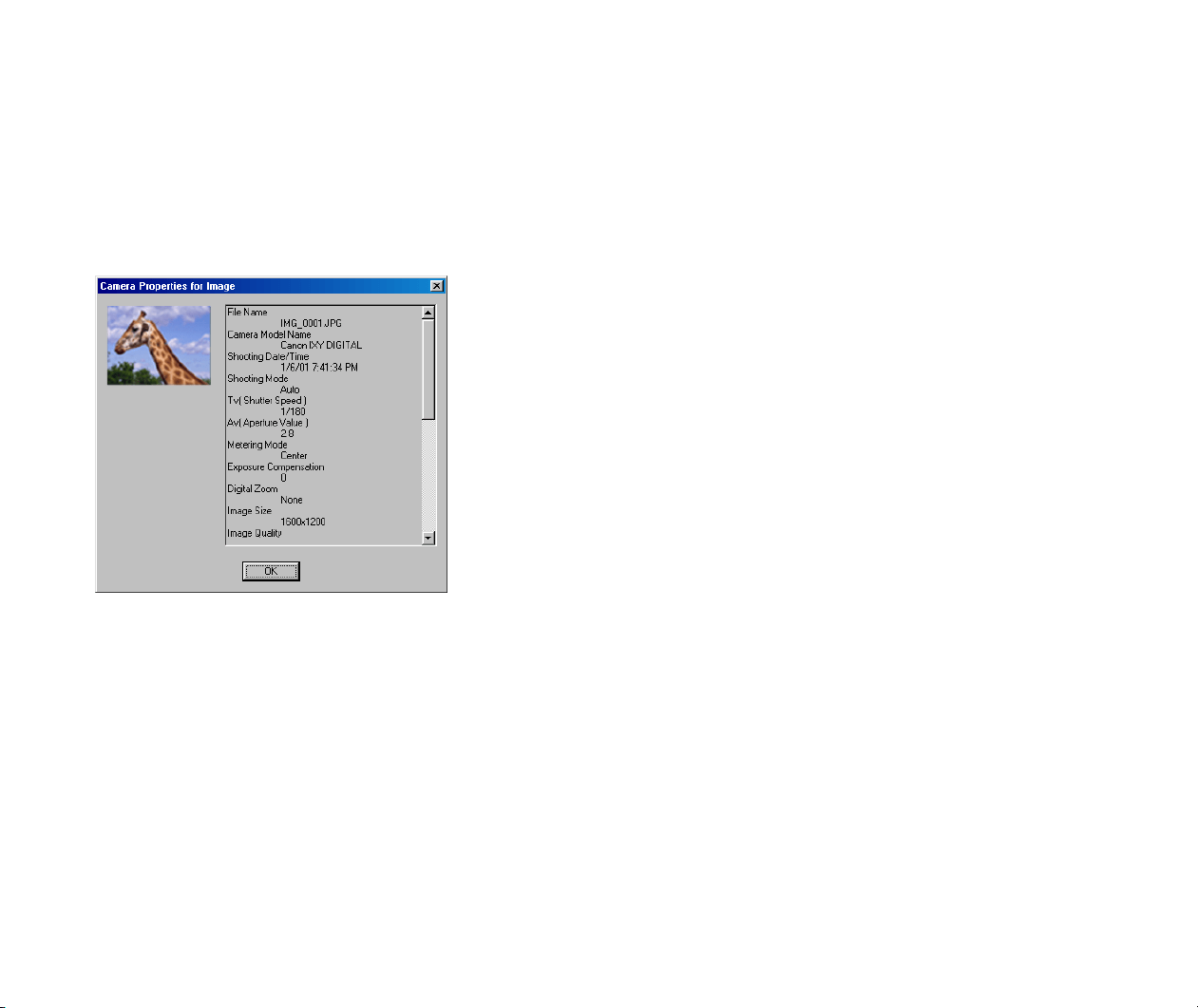
(8) UPLOAD
Use the UPLOAD button to copy images from your computer to the connected device. Click the
UPLOAD button to open a dialog box and select the images to copy to the device. When an image
or images are selected, the Save to Camera dialog box appears as shown below:
Another way of copying images to the connected device is to mouse-drag the images in the Browser
Display Area and drop them onto the thumbnail area.
Specify the image size, select the resize option, and click the
Save to Camera
button. This starts copying the selected
images to the connected device.
Importing Images Using the Camera Window
78
(9) IMAGE INFO
Use the IMAGE INFO button to view the date of shot, the EV compensation, and other information
concerning a photo.
First select a photo image, and click the IMAGE INFO button. The Camera Properties for Image
window opens as shown below:
Note
³
You can use this function only when the connected digital camera is a Canon
product.
Importing Images Using the Camera Window
79
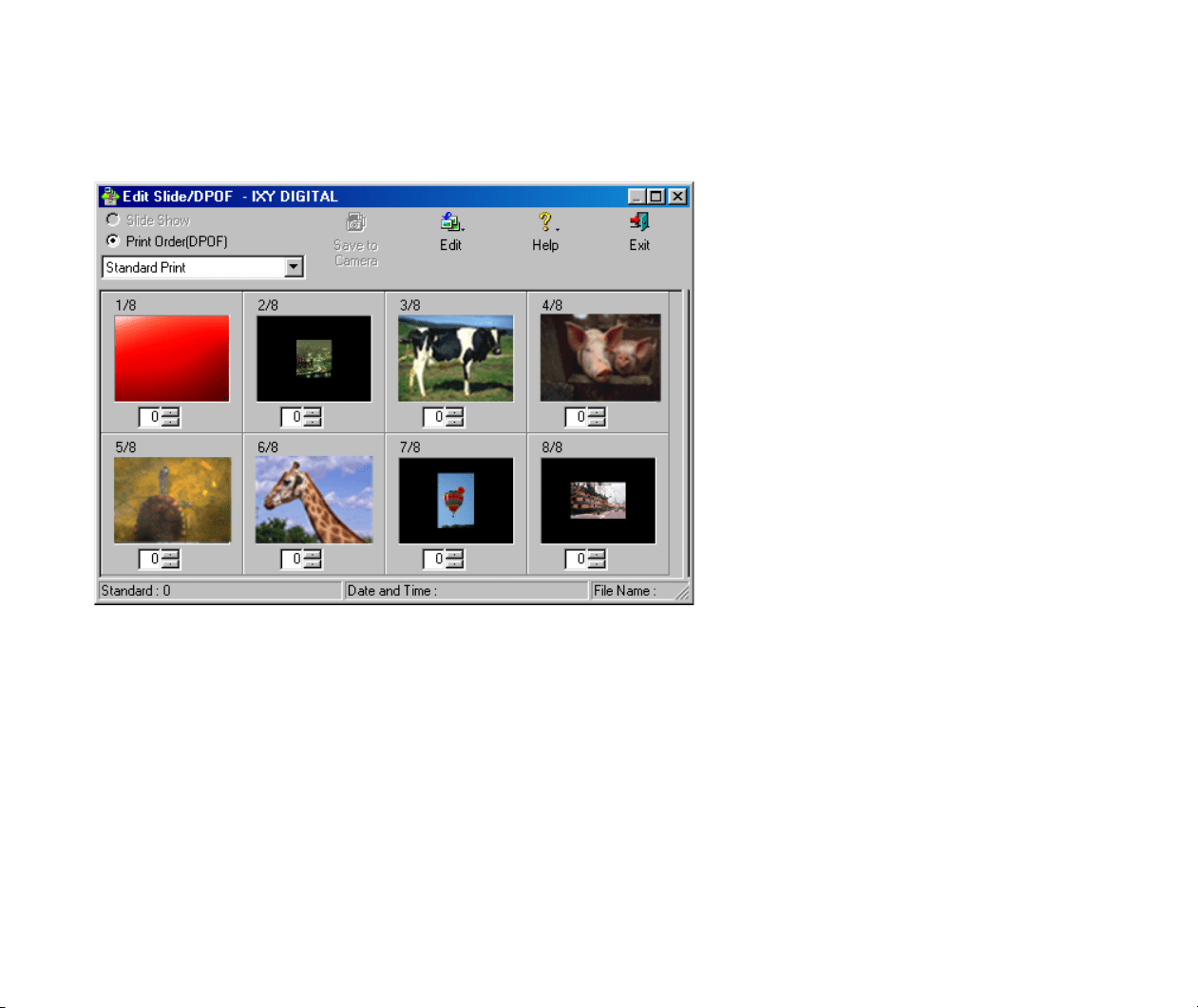
(10) SLIDE/DPOF button
Click the SLIDE/DPOF button to display the Edit Slide/DPOF window.
You can use this dialog box to edit the camera's slide shows or its DPOF print settings, and write
them onto the camera’s memory.
Note
³
You can use this function only when the connected digital camera is a Canon
product.
Importing Images Using the Camera Window
80
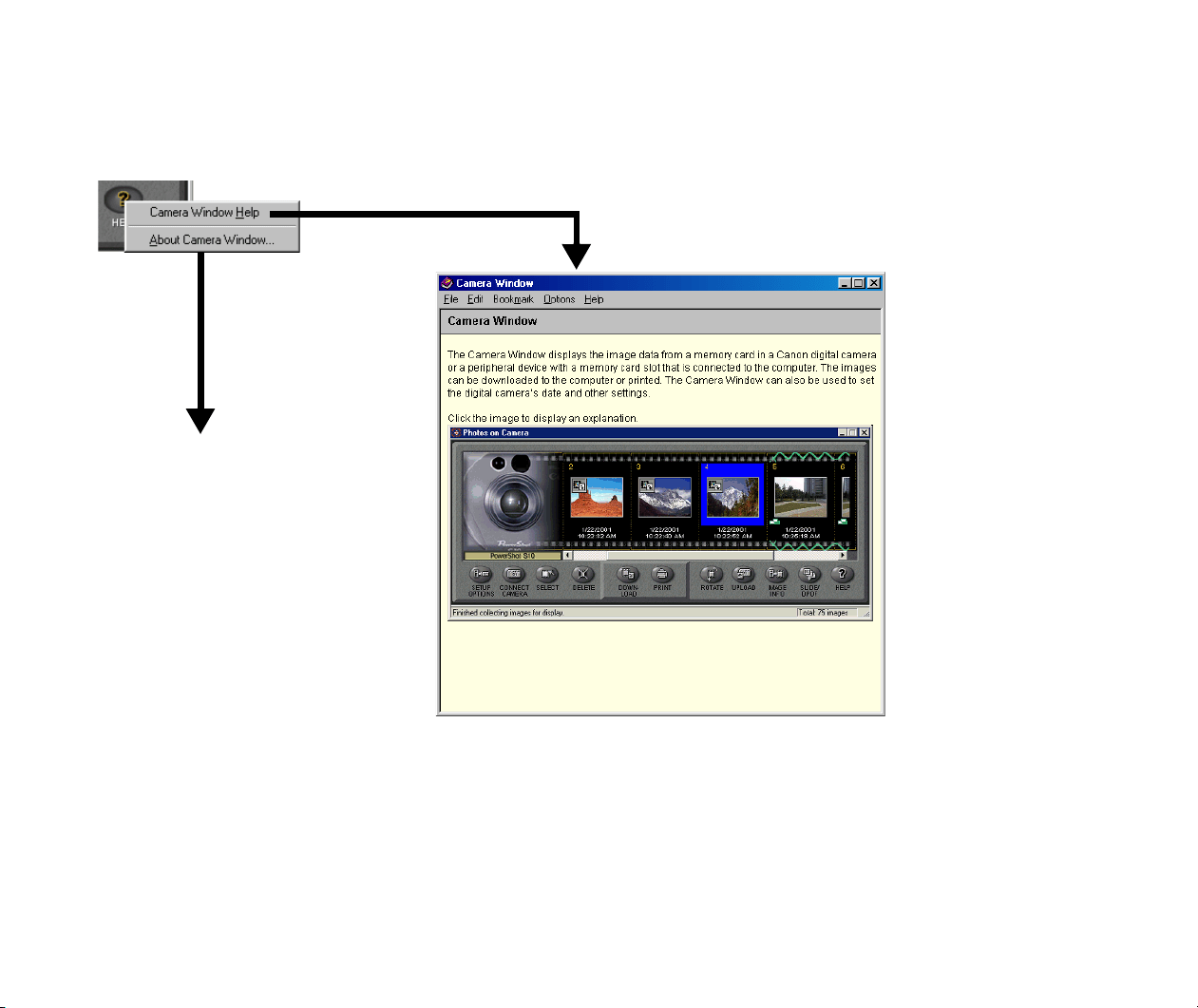
(11) HELP
Click the HELP button to display the About Camera Window or the Help for the Camera Window.
About Camera Window
that
shows product information of
the Camera Window
Importing Images from a TWAIN Device
81
Importing Images from a TWAIN Device
TWAIN is a standardized protocol for transferring image data between a computer and a digital
camera, scanner or other digital image device.
This subsection describes how to import images from a TWAIN-compliant device to your computer.
Note
³
If you use the procedure herein to import images from a Canon digital camera that
supports ZoomBrowser EX, image file information such as the date of shooting and
situation of shot is not saved in the ZoomBrowser EX’s database. Use the
procedure in Importing Images Using the Camera Window if you want to import
images with such information.
Steps
1
Connect a TWAIN-compliant device such as a digital camera or scanner to your
computer and turn on the power of the device.
Make sure that the TWAIN driver is already installed in your computer.
2
Start ZoomBrowser EX.
Refer to Starting ZoomBrowser EX for the procedure to start ZoomBrowser EX.
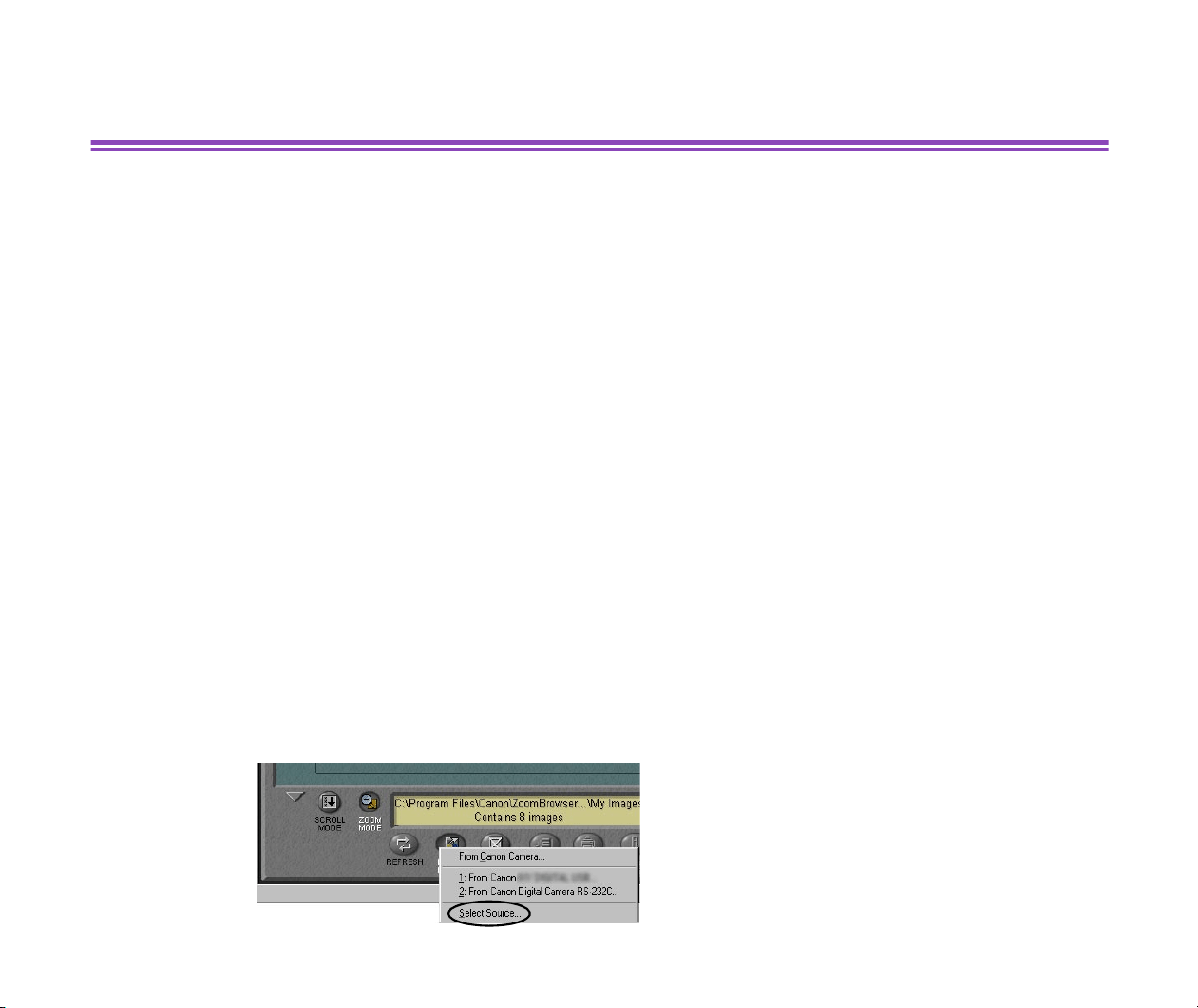
3
Click the IMPORT IMAGES button to open a pop-up submenu. Select Select
Source from the menu.
Importing Images from a TWAIN Device
82
The Select Source dialog box appears.
4
Open the list box under Select a data source, select the connected TWAIN device,
and then click the OK button.
The ZoomBrowser EX main window opens.
5
From the Tree View, select the folder where you want to save the imported image files.
Make sure that the contents of the selected folder are displayed in the Browser
Display Area.
6
Click the IMPORT IMAGES button, and then select the connected TWAIN device
from the IMPORT IMAGES pop-up submenu.
The TWAIN driver window for the selected TWAIN device opens.
7
Follow the instructions in the TWAIN driver window to import images from the
device.
8
Close the TWAIN driver window to return to the ZoomBrowser EX.
The imported images are saved in the folder currently displayed in the Browser
Display Area.
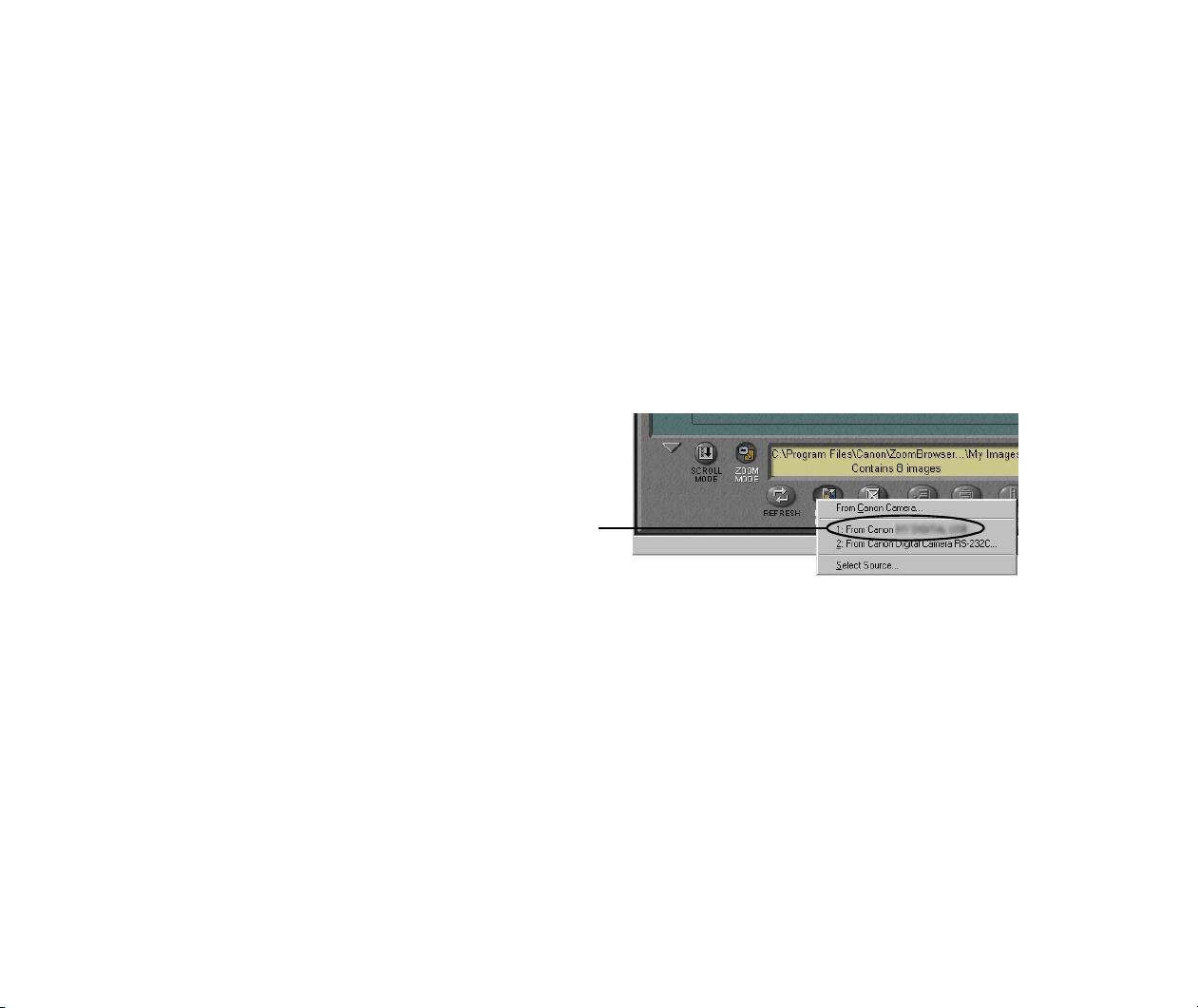
The TWAIN device selected in Step 4 is
added as an image source option to the
IMPORT IMAGES pop-up submenu.
Importing Images by Drag-and-Drop Operation
83
Importing Images by Drag-and-Drop Operation
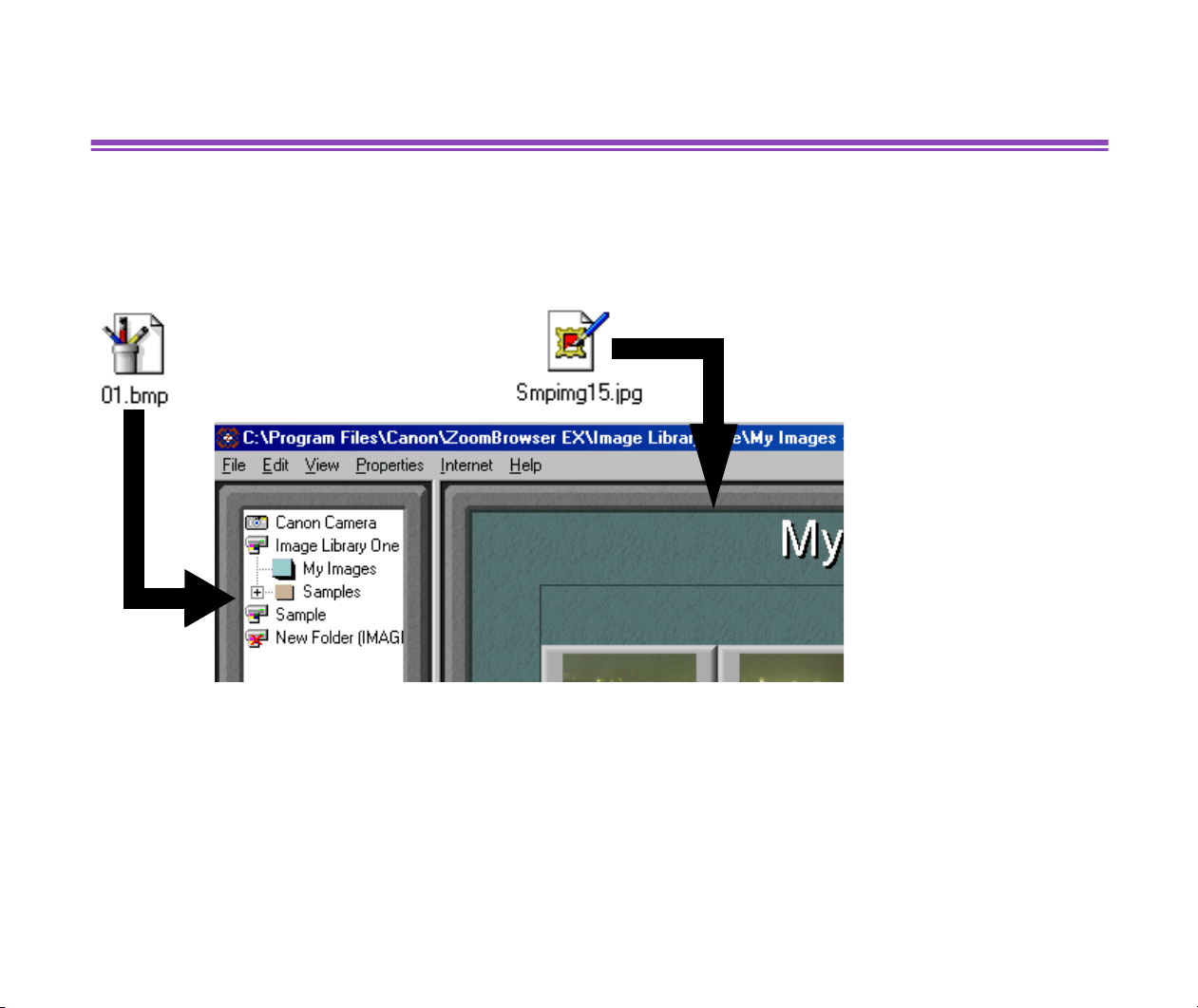
You can import images from a variety of storage media by simply drag-and-drop the file icons onto
the Browser Display Area. The files are registered in the library or folder currently displayed in the
ZoomBrowser EX window. Use this easy method of registering image files from your hard disks,
CDs, and MOs, without invoking the Register Image Folder function.
You can also drag-and-drop the icons onto the target library/folder displayed in the Tree View. Then
the files will be registered in the ZoomBrowser EX database.
Note that when the files are stored in your hard disk (drive C), the drag-and-drop operation moves
the actual files into the database. If you want to register them by copying, not moving the actual
data, drag-and-drop the icons while pressing the Ctrl key.
Note
³
To know what file types are supported by the database, refer to Starting
ZoomBrowser EX.
Drop onto the Tree View Drop onto the Browser Display
Area

Importing Images by Drag-and-Drop Operation
84
• Importing Images by Using the Windows Explorer
The libraries and folders registered in ZoomBrowser EX exist in your computer disks as actual
folders. It means that you can register new images by using the Windows Explorer. Register new
image files and folders in ZoomBrowser EX by copying them to the folders that are already
registered.
Note
³
For more information on libraries and registered folders of ZoomBrowser EX, refer
to the Image Database.
1
Activate the Windows Explorer. Select the desired item and copy/move it to a
medium or a folder that is already registered as a library or folder of ZoomBrowser
EX.
You can also copy/move two or more files and folders in a single step.
2
From the Tree View of ZoomBrowser EX, select the library or folder which contains
the newly added image data.
3
Right-click with the mouse to open the pop-up menu, and selecte Refresh Folder.
This refreshes the content information (database) of the selected library or folder,
by registering the new image data added through the Windows Explorer.

85
Printing from PhotoRecord
This section describes how to print your photos using a variety of photo-printing features of the
PhotoRecord utility. When using ZoomBrowser EX, select the photos (or folder) you want to print
from either the Browser Display Area or the Camera Window, and then click the PRINT button and
select Layout from the submenu. The PhotoRecord utility will automatically start to provide the
following functions:
• Printing a Photo Index (Index Printing)
• Custom Layout Printing (Artwork/Layout Album)
• Printing in a Specified Photo Size (Fixed Photo Size Printing)
• Printing in the Borderless Printing Mode (Tiled Photo)
• Printing on Canon Perforated Paper
• Starting Printing
Printing a Photo Index (Index Printing)
86
Printing a Photo Index (Index Printing)
One way to print a photo index is to activate PhotoRecord, select the Layout mode to set the photo
size, background, and other properties, and then output the print data. The other and easier way is
to use the PRINT button in the ZoomBrowser EX window. One click on the button starts printing
directly from ZoomBrowser EX.
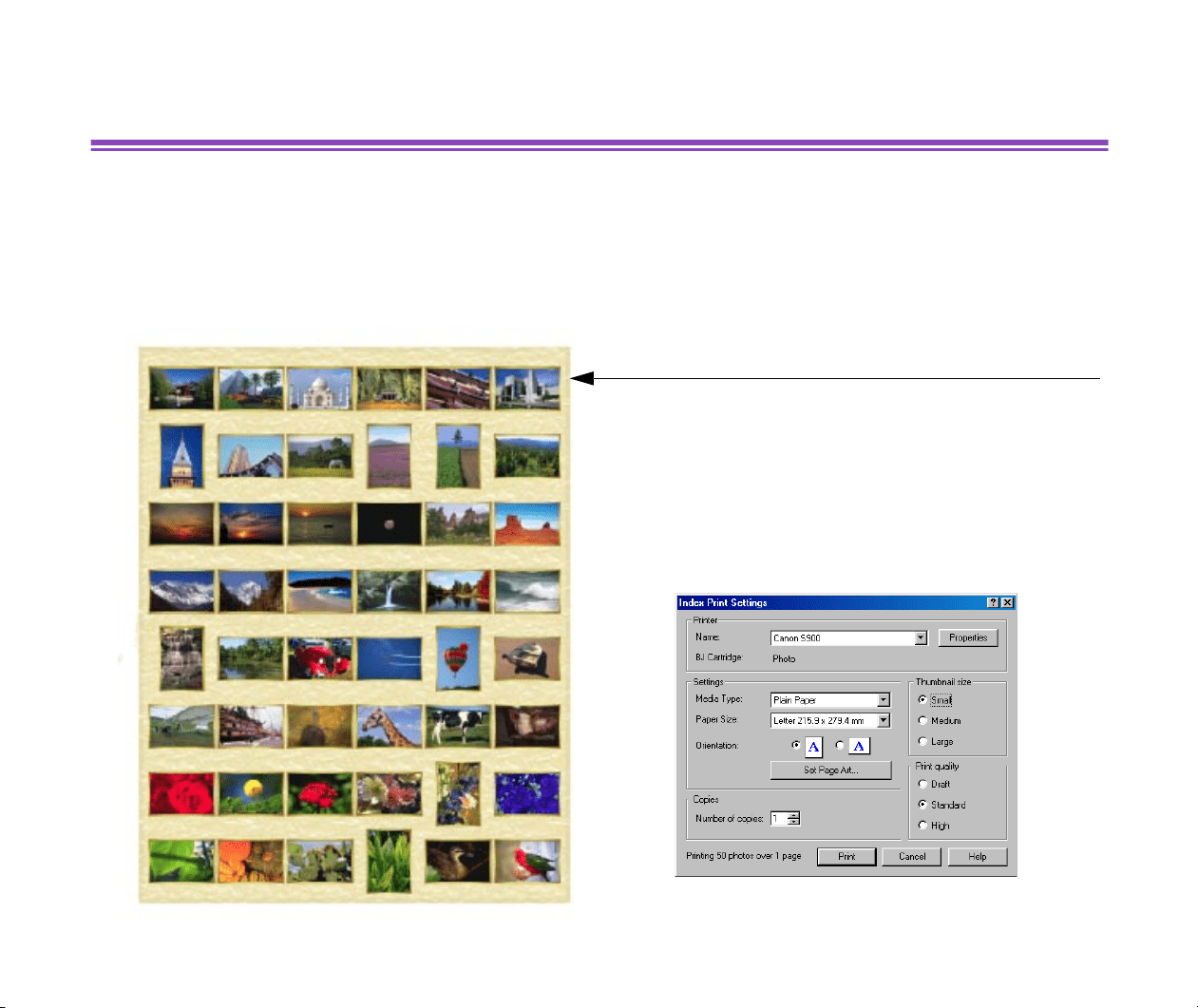
ZoomBrowser EX prints all the selected photos in an
automated layout.
If you also want to print the file names and/or dates of the
photos, open the Preferences dialog box and specify the
captions.
Printing a Photo Index (Index Printing)
87
An Easy Way to Print an Index
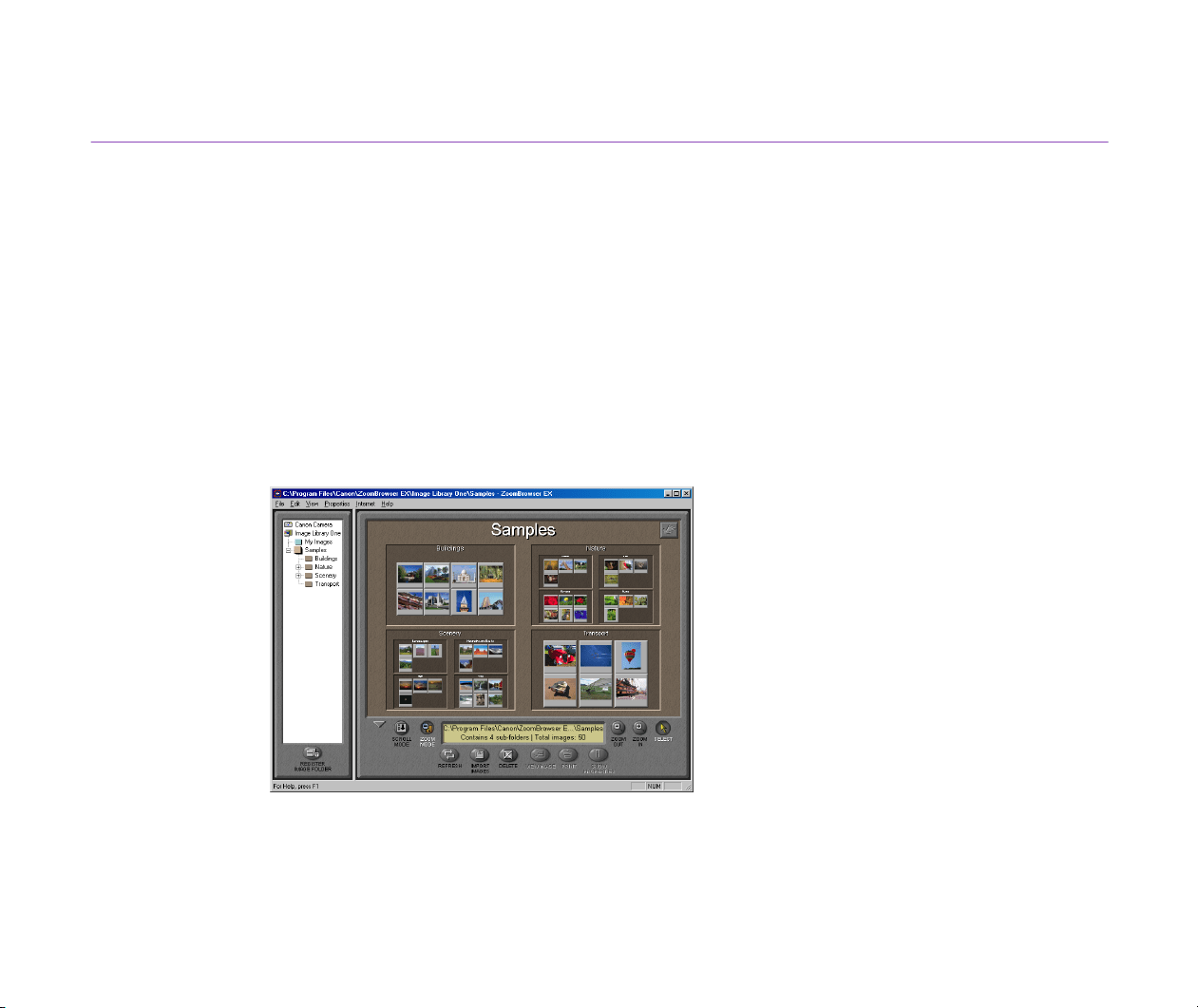
You can print a photo index directly from ZoomBrowser EX, just by clicking the PRINT button.
Steps
1
Select the photos or folders of which you want to make an index from the Browser
Display Area of ZoomBrowser EX, and then click the PRINT button to open the
pop-up submenu.
Note
³
If you want to select two or more photos, click the photo images while pressing the
Ctrl key.
Printing a Photo Index (Index Printing)
88
2
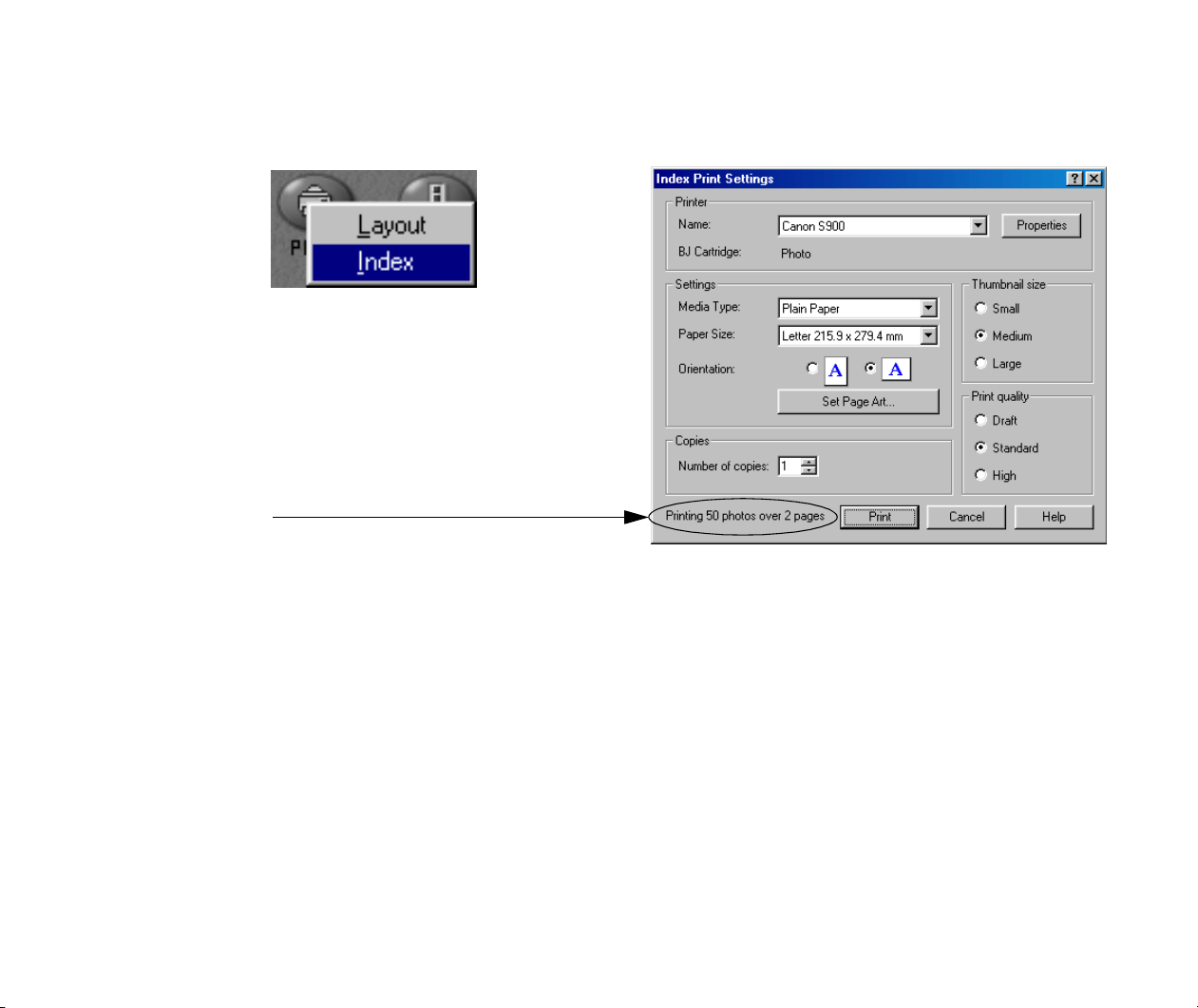
Select Index from the PRINT button pop-up submenu.
The Index Print Settings dialog box appears.
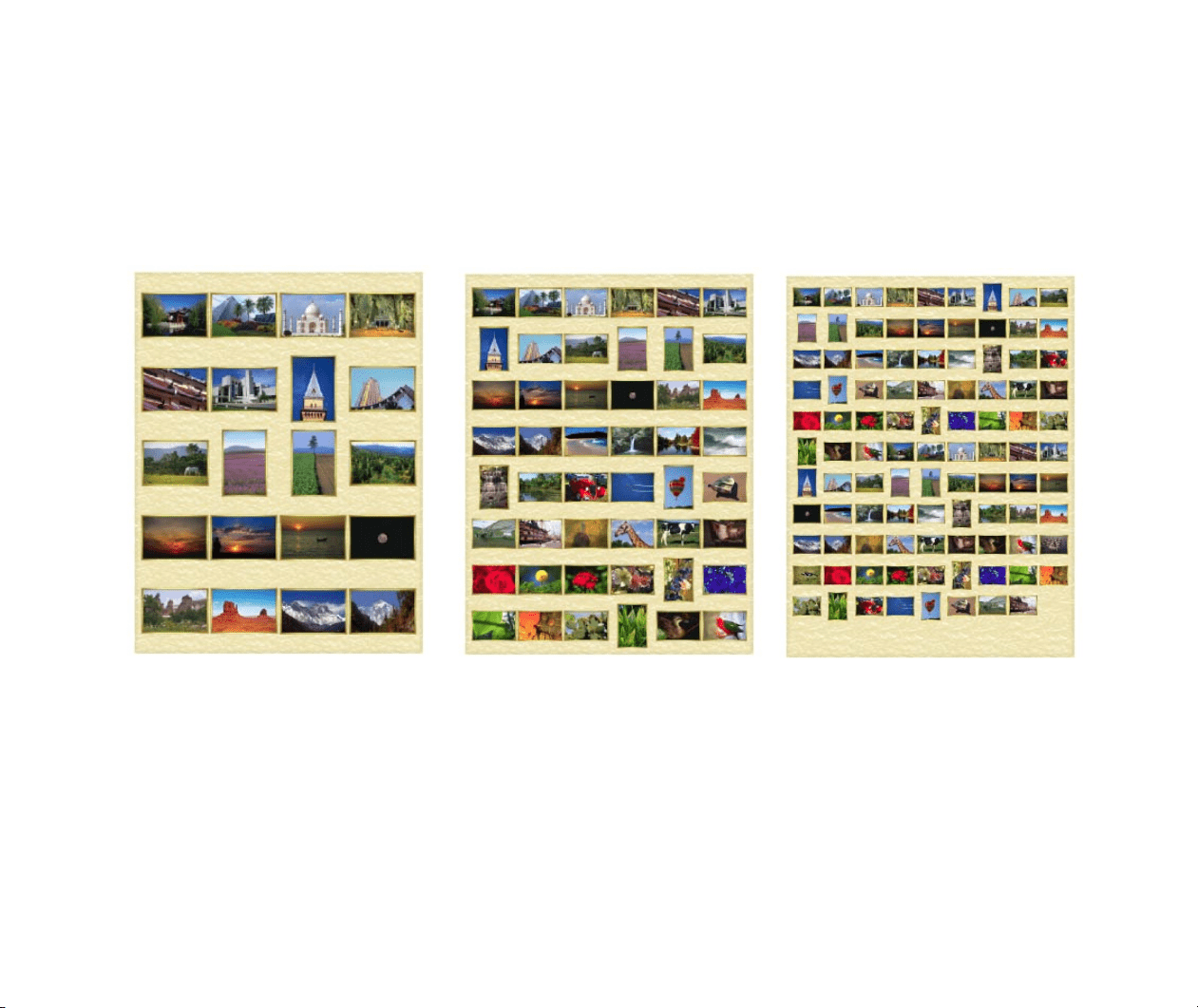
The number of pages varies depending on
the number of photos, paper settings, and
the thumbnail size.
Printing a Photo Index (Index Printing)
89
3
Specify the Thumbnail size, Media Type, Paper Size, Orientation, and Print
quality options.
You can select a thumbnail size from Small, Medium, and Large.
If you want to add a background image, click the Set Page Art button to open the
Change Page Artwork dialog box. Specify an image to go with your pages.
4
Click the OK button.
The printer starts printing.
(Large)
(
Small
)
(Medium)
Printing a Photo Index (Index Printing)
90
Previewing the Layout before Printing an Index
You can preview the page layout on the screen before printing a photo Index.
Steps
1
Select the photos of which you want to make an index from the Browser Display
Area of ZoomBrowser EX. Click the PRINT button and select Layout from the
PRINT button pop-up submenu.
PhotoRecord starts and the PhotoRecord Print Modes dialog box opens, ready to
start The Print Modes wizard.
2
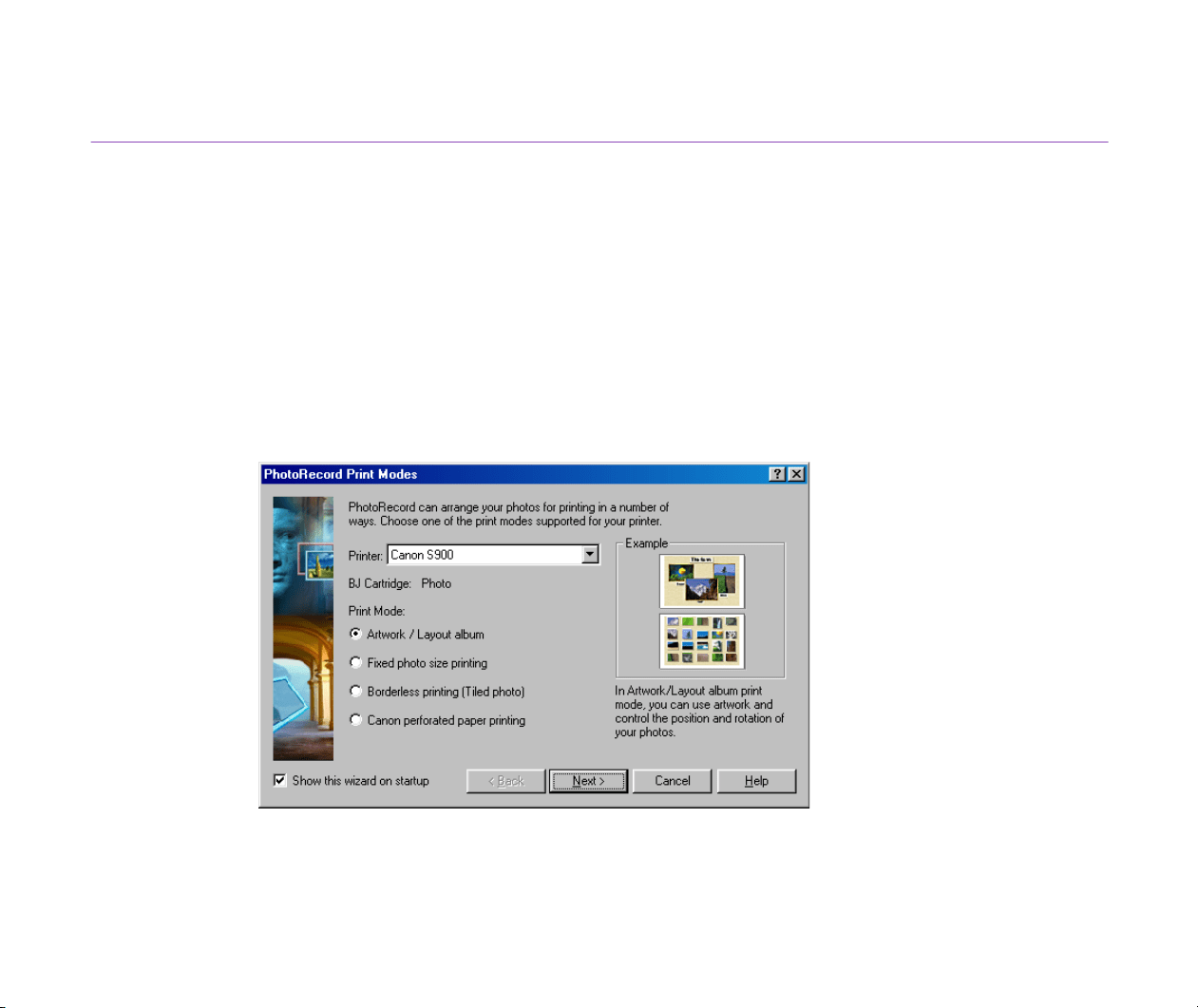
Select the desired printer. Select Artwork/Layout album from the Print Mode
options.
Printing a Photo Index (Index Printing)
91
3
Click the Next button to proceed to the next step.
4
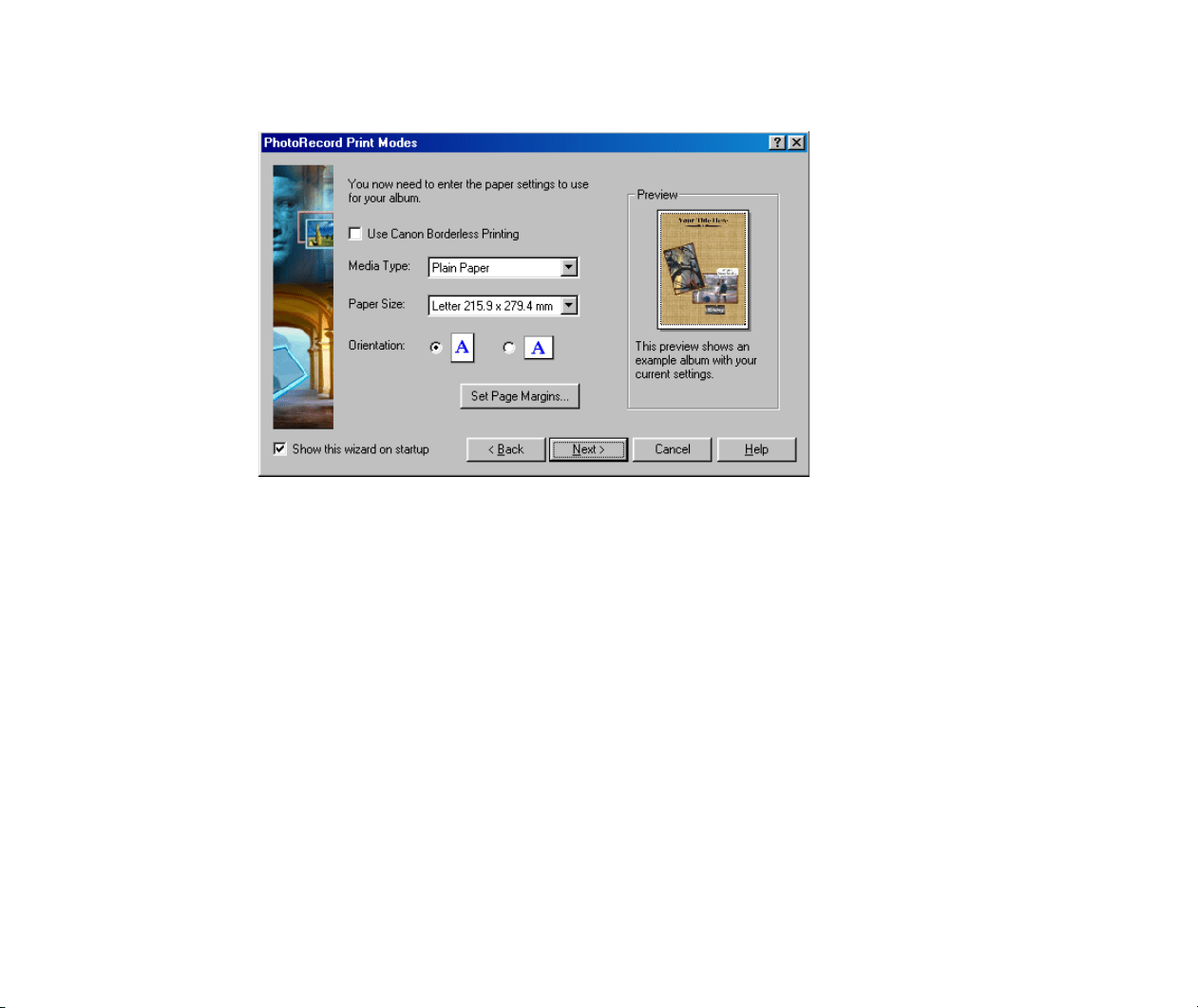
Specify Media Type, Paper Size, and Orientation.
The Preview area shows the print image in relation to the current settings.
Clicking the Set Page Margins button allows you to widen or narrow the area for
printing the image data.
5
Click the Next button to proceed to the next step.
Printing a Photo Index (Index Printing)
92
6
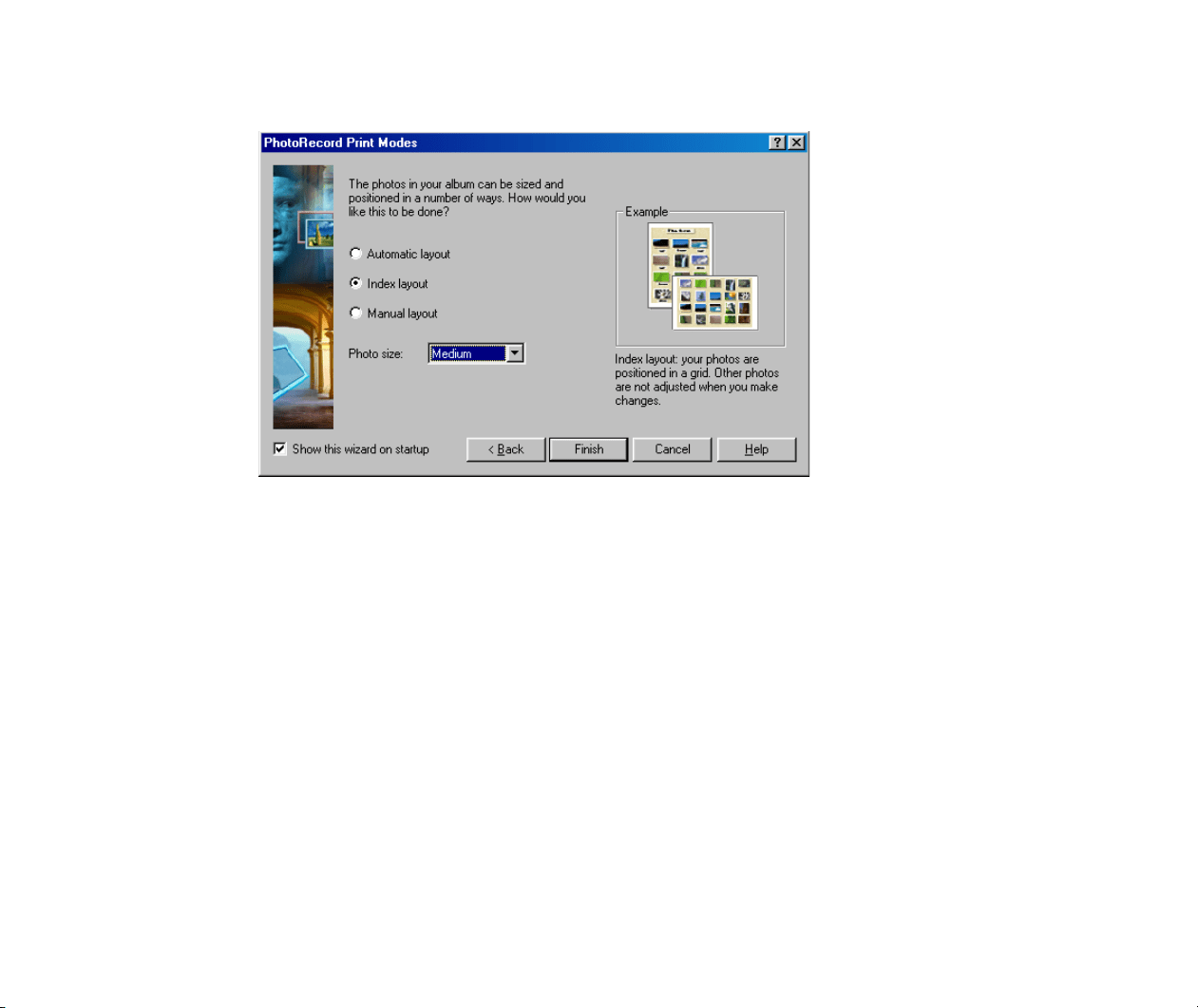
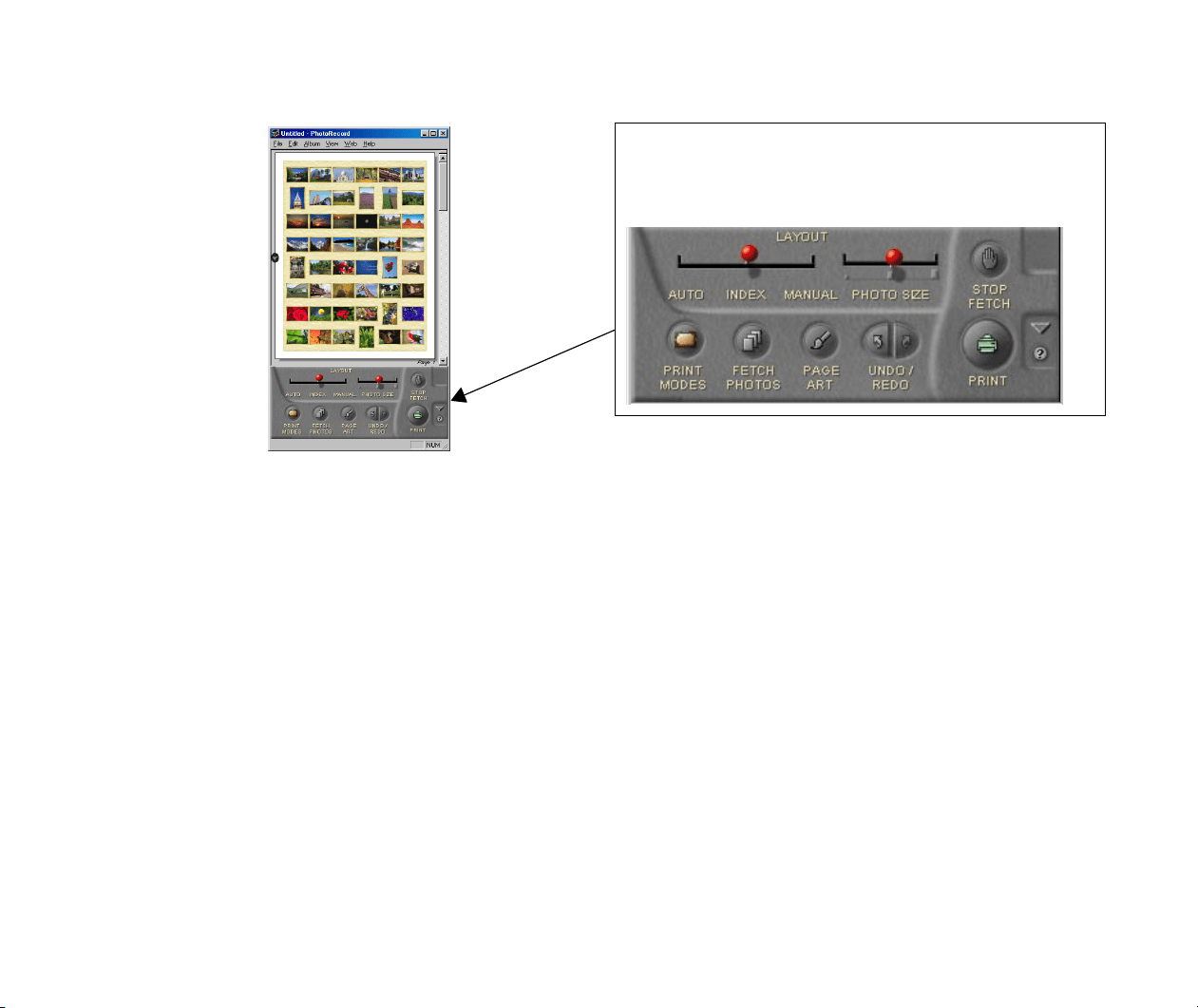
Select Index layout.
7
Select the thumbnail size from the Photo size drop-down list.
You can select from Small, Medium, and Large.
8
Click the Finish button.
The PhotoRecord window opens. It automatically positions the selected photos to
fit the current paper settings.
Printing a Photo Index (Index Printing)
93
Artwork Options
In the Artwork/Layout album mode, you can clip or resize your photos, arrange
them in a desired layout, add text, and add photo frames and background.
Starting Printing
Click the PRINT button to start printing.
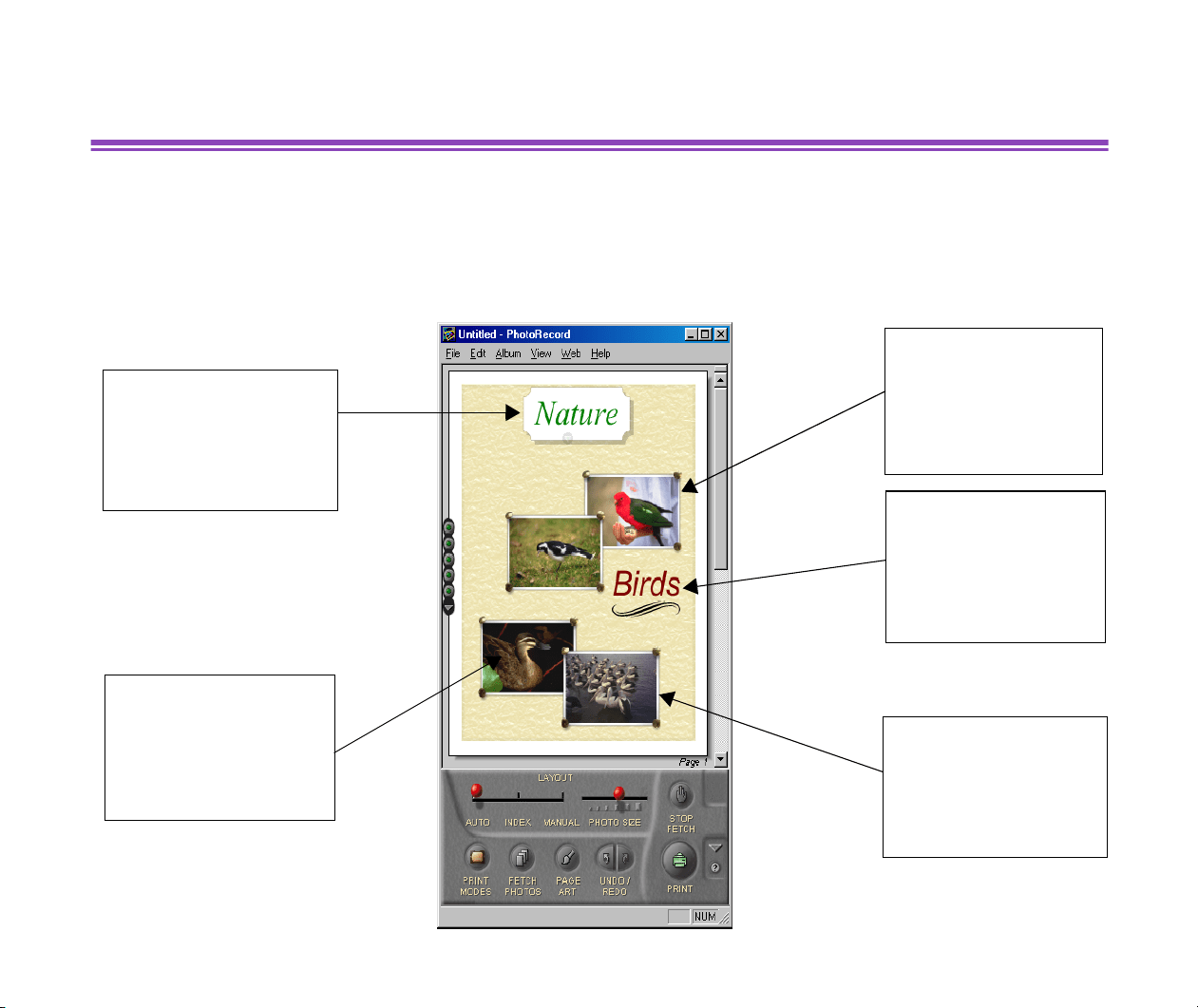
The Album Control Panel in the
PhotoRecord
window
contains the controls shown below. These controls
enable you to access various artwork options.
Custom Layout Printing (Artwork/Layout Album)
94
Custom Layout Printing (Artwork/Layout Album)
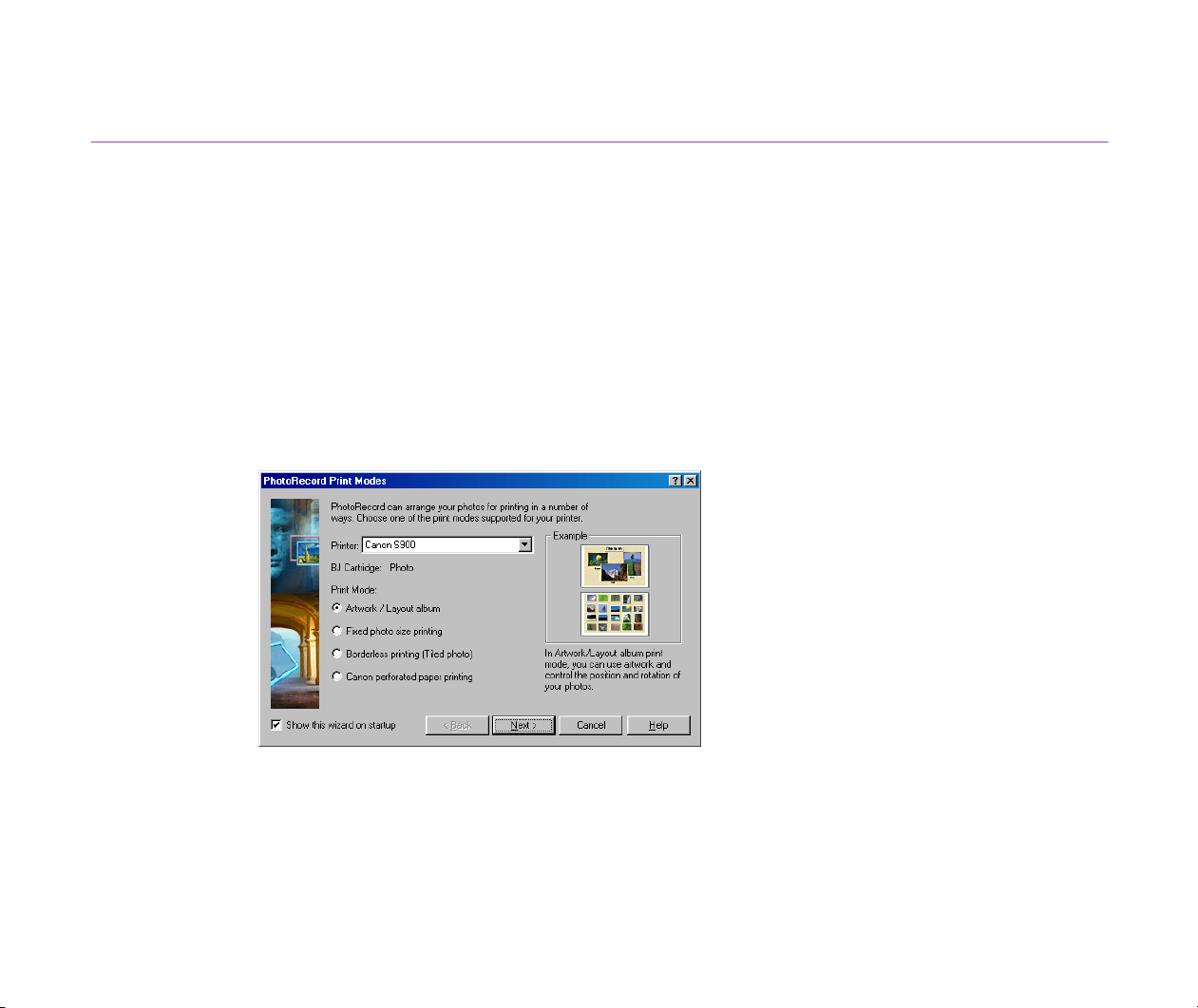
The Artwork/Layout album option allows you to arrange your photos in a desired layout and apply
a variety of artwork including clipping, resizing, rotation, text insertion, and ornamentation with photo
frames and background. See Artwork for details on the artwork features.
You can add a page
title.
See Inserting a Page Title.
You can add photo
captions.
See Adding and
Positioning Text.
You can add photo
frames and background
to make an ornamented
album.
See Page Art.
You can clip or trim a
photo.
See Clipping a Photo.
You can move, resize, or
rotate the photos for
graphic effects.
See Changing Layout.
Custom Layout Printing (Artwork/Layout Album)
95
Setting the Print Mode
Specify the size and position of each photo and arrange the photos in a desired layout.
Steps
1
Select a photo or photos to print from the Browser Display Area, click the PRINT
button, and select Layout from the PRINT button pop-up submenu.
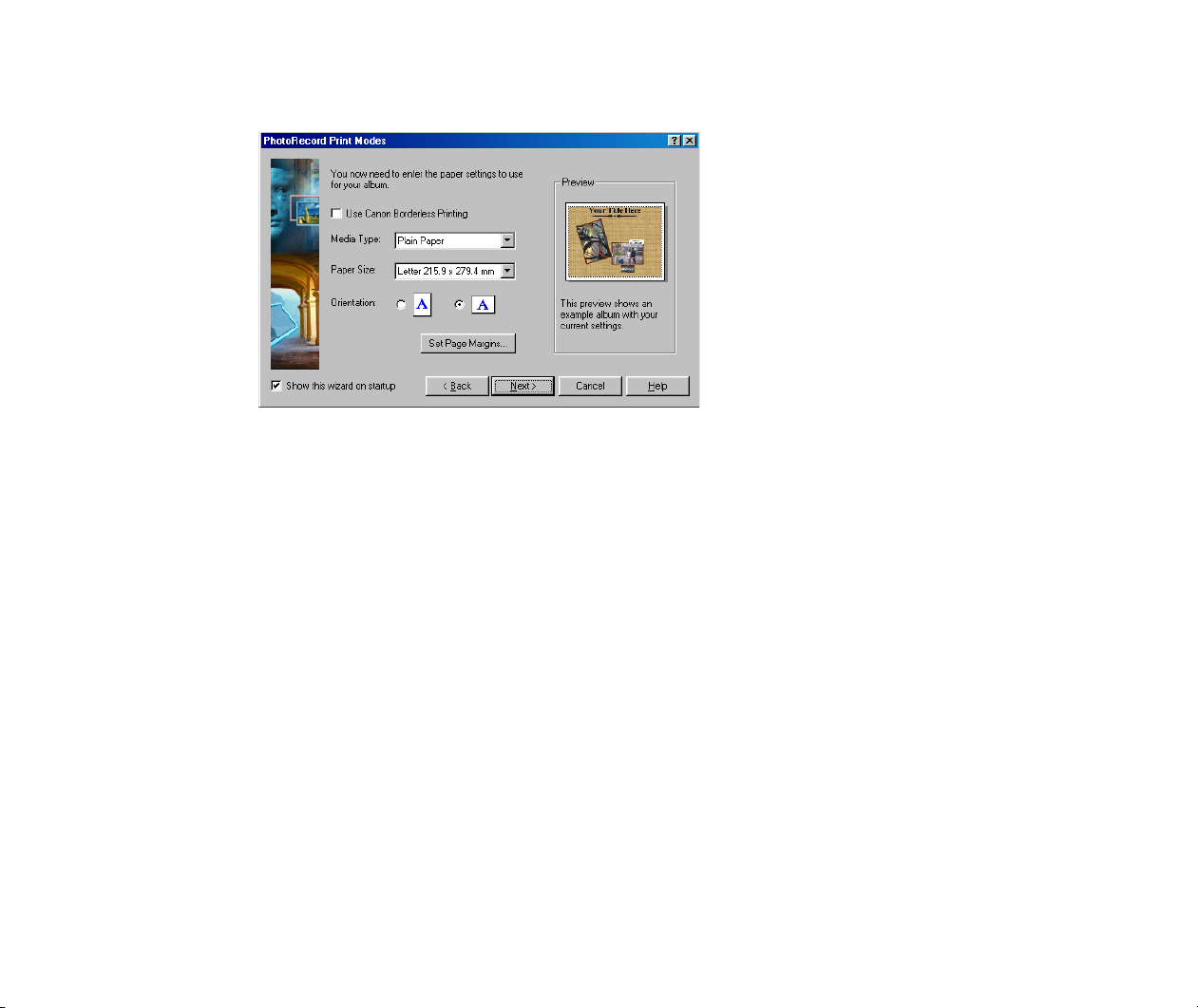
PhotoRecord starts and the PhotoRecord Print Modes window opens, ready to
start the Print Modes wizard.
The options in this window vary depending on the printer type.
2
Select the desired printer from the Printer list and select Artwork/Layout album
from the Print Mode options.
Custom Layout Printing (Artwork/Layout Album)
96
3
Click the Next button to proceed to the next step.
4
Specify Media Type, Paper Size, and Orientation.
The Preview area shows the print image in relation to the current settings.
Clicking the Set Page Margins button allows you to widen or narrow the area for
printing the album page.
You can enable the Borderless Printing function by selecting the Use Canon
Borderless Printing checkbox.
Note
³
The Use Canon Borderless Printing checkbox is available only when you are
using a printer that supports the feature.
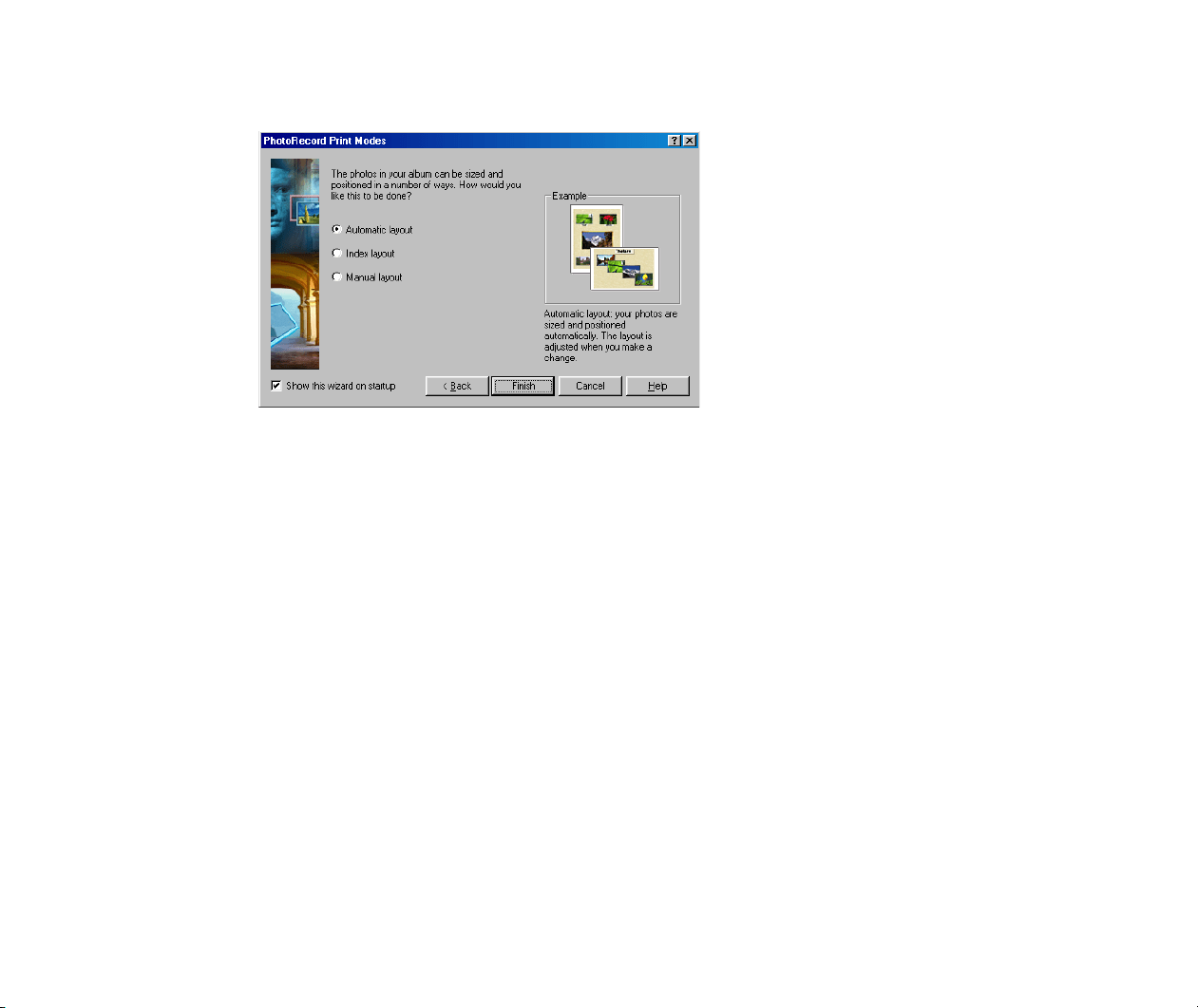
Custom Layout Printing (Artwork/Layout Album)
97
5
Click the Next button to proceed to the next step.
6
Specify how the photos should be arranged on the album page.
Select Automatic layout to have the photos automatically arranged by
PhotoRecord.
Select Index layout to use the Index Printing feature.
Select Manual layout to position the photos temporarily so that you may freely
rearrange them.
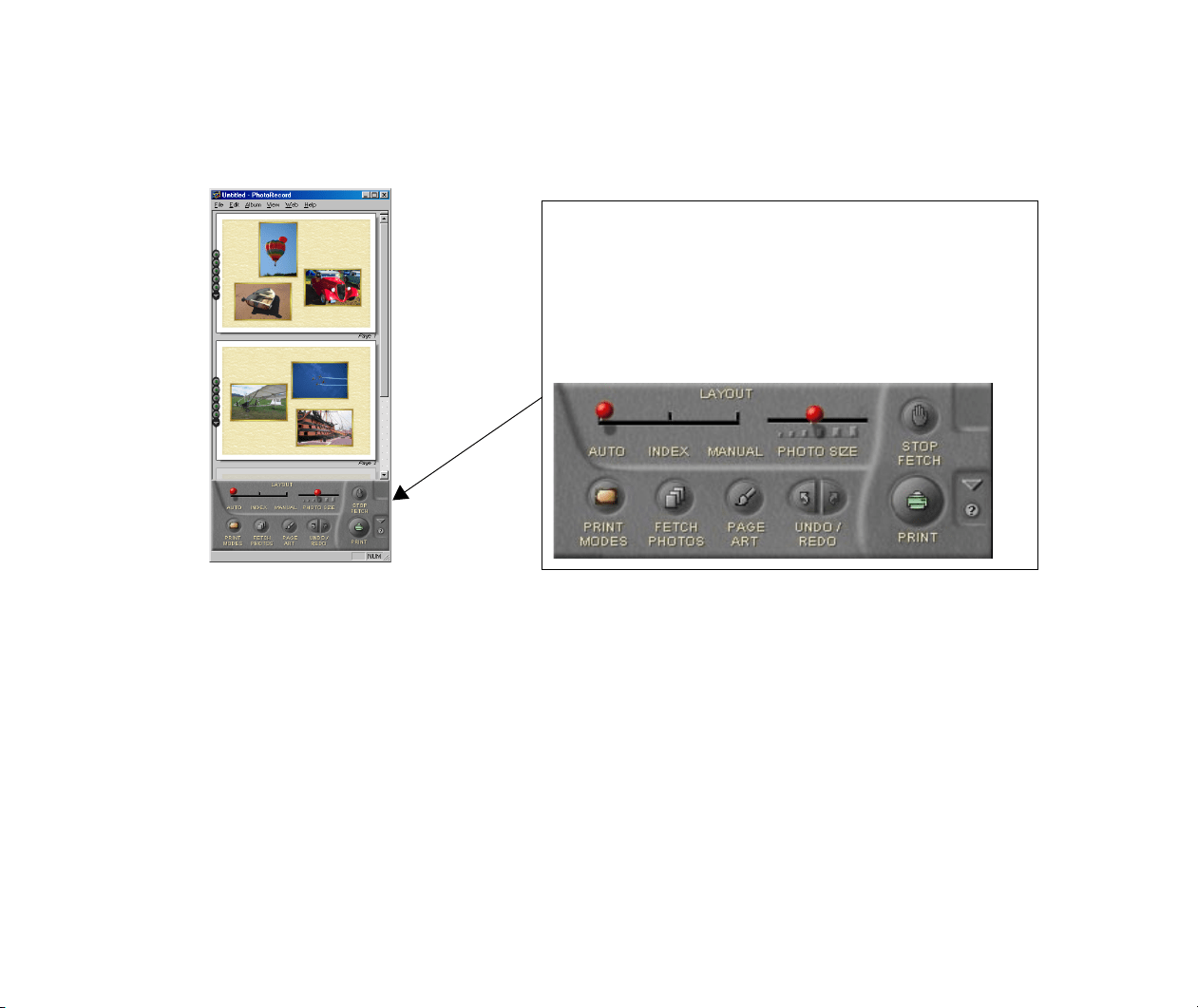
Custom Layout Printing (Artwork/Layout Album)
98
7
Click the Finish button.
The PhotoRecord window opens to display the selected photos in the new layout.
They are arranged in the most suitable way for your paper settings.
Artwork Options
In the Artwork/Layout album mode, you can clip or resize your photos, arrange
them in a desired layout, add text, and add photo frames and background.
Starting Printing
Click the PRINT button to start printing.
The Album Control Panel in the PhotoRecord window
contains the controls shown below. These controls
enable you to access various artwork options.
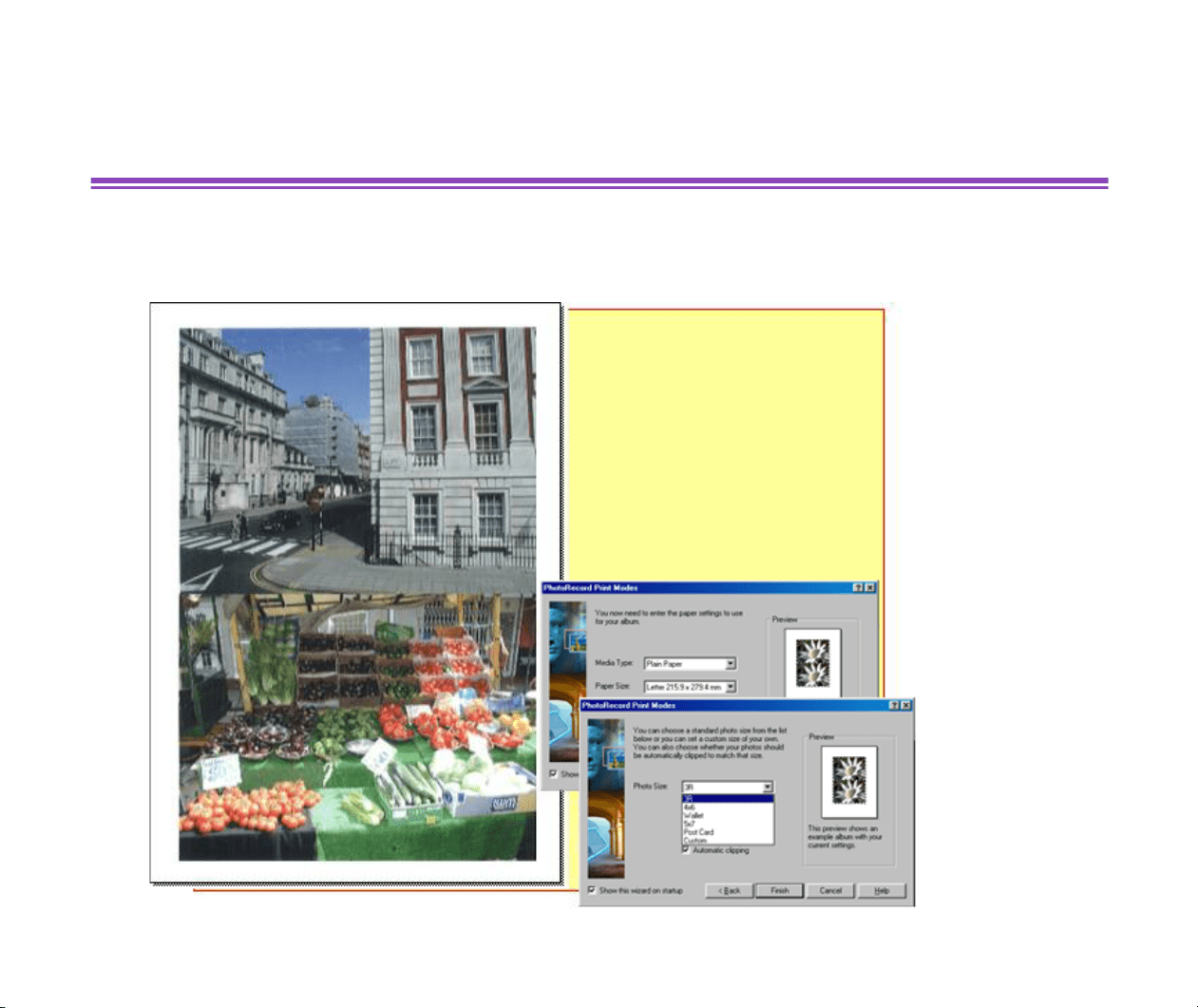
Printing in a Specified Photo Size (Fixed Photo Size Printing)
99
Printing in a Specified Photo Size
(Fixed Photo Size Printing)
The Fixed photo size printing option allows you to print all the selected photos in a specified photo
size.
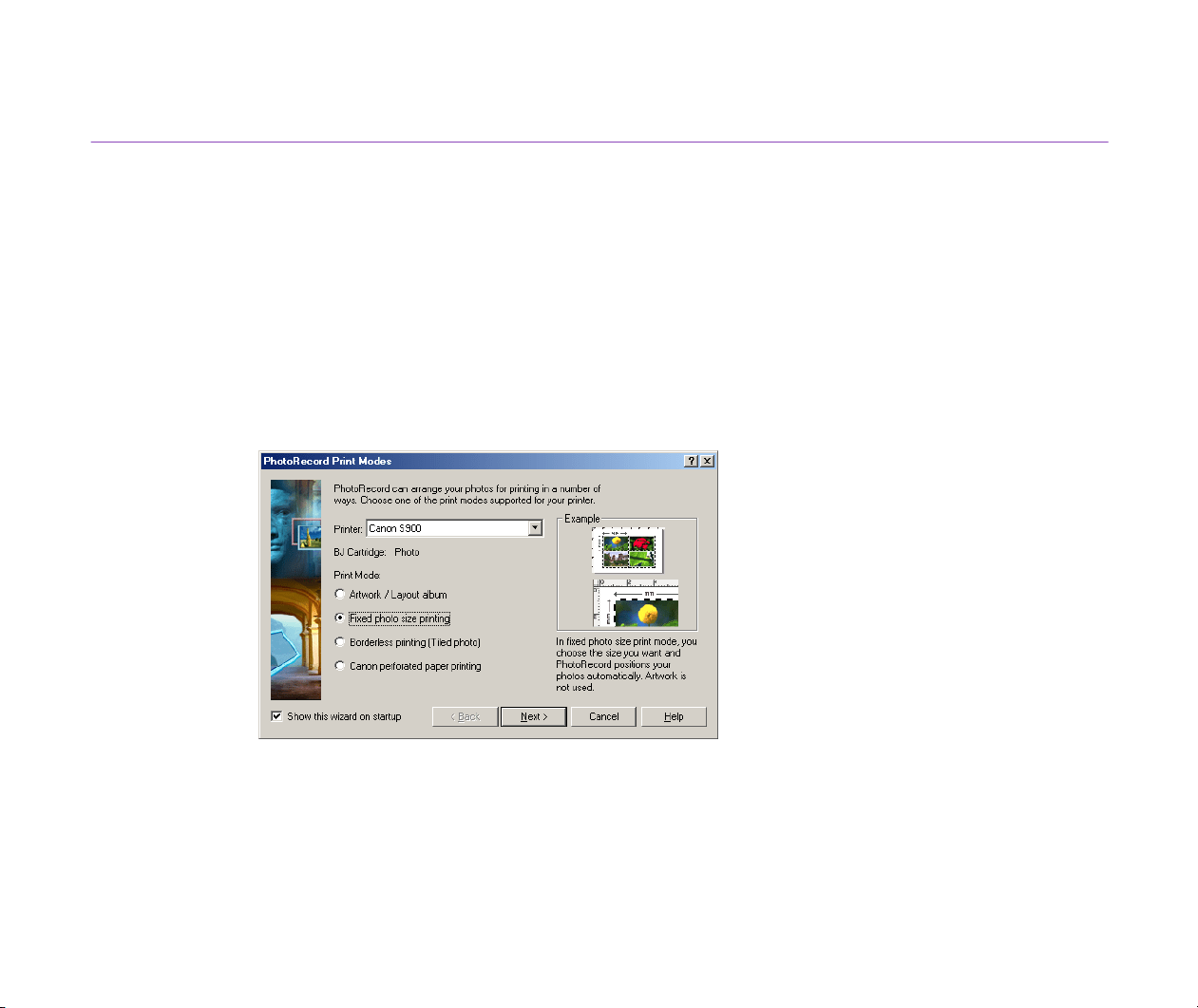
Printing in a Specified Photo Size (Fixed Photo Size Printing)
100
Setting the Print Mode
Specify the photo size you want to print your photos. PhotoRecord automatically arrange the photos
to match the setting.
Steps
1
Select a photo or photos to print from the Browser Display Area, click the PRINT
button, and select Layout from the PRINT button pop-up submenu.
PhotoRecord starts and the PhotoRecord Print Modes dialog box opens, ready to
start The Print Modes wizard.
2
Select the desired printer. Select Fixed photo size printing from the Print Mode
options.
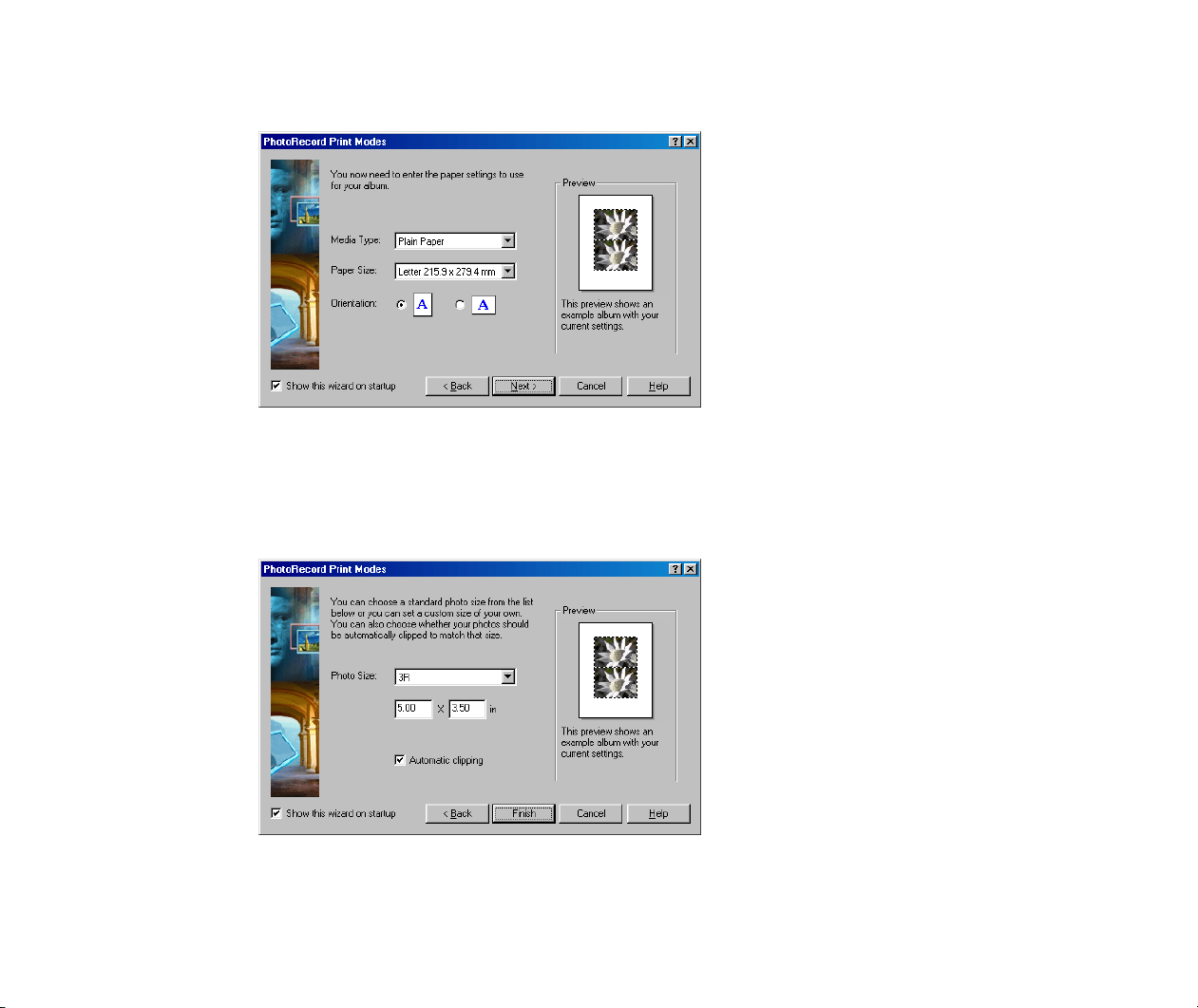
Printing in a Specified Photo Size (Fixed Photo Size Printing)
101
3
Click the Next button to proceed to the next step.
4
Specify Media Type, Paper Size, and Orientation.
The Preview area shows the print image in relation to the paper.
5
Click the Next button to proceed to the next step.
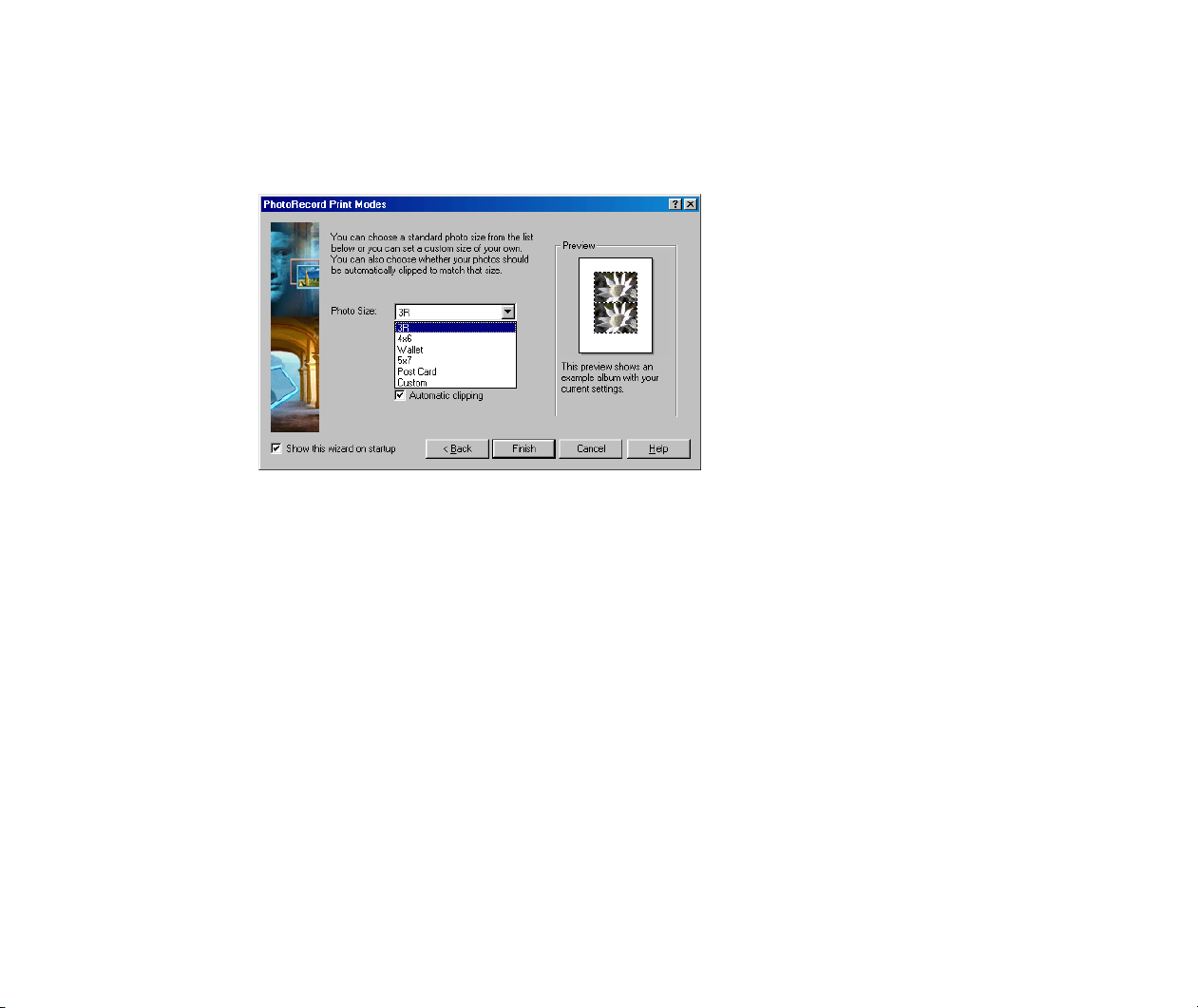
Printing in a Specified Photo Size (Fixed Photo Size Printing)
102
6
Specify the Photo Size.
If you select the Automatic clipping checkbox, PhotoRecord automatically resizes
and clips the photos to fit the specified photo size.
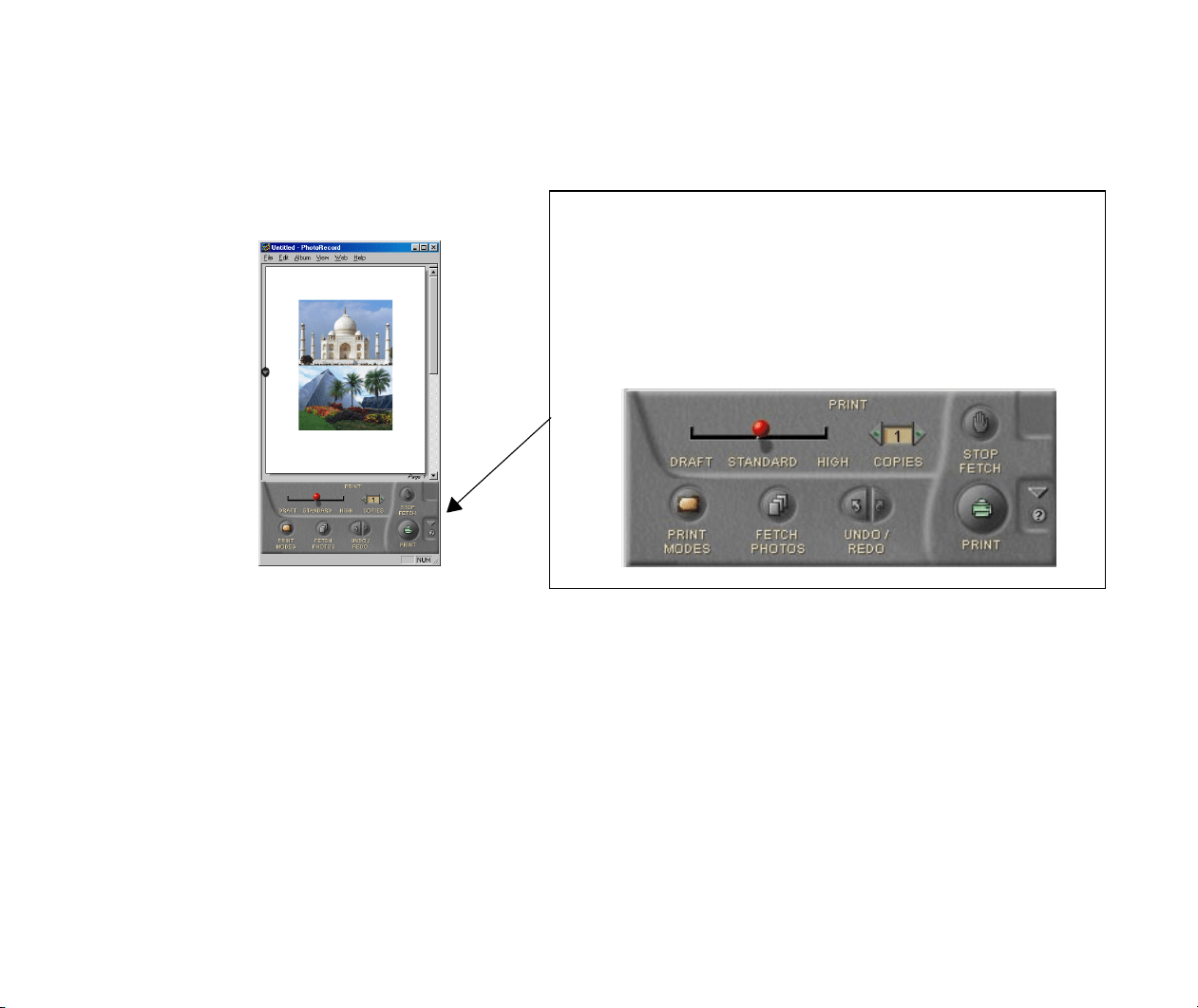
Printing in a Specified Photo Size (Fixed Photo Size Printing)
103
7
Click the Finish button.
The PhotoRecord window opens. It automatically positions the selected photos to
fit the current paper settings.
Artwork Options
In the Fixed photo size printing mode, you can only add text, clip photos, and
rotate photos (with some limitations). You cannot resize photos, change layout, or
add photo frames or background.
Starting Printing
Click the PRINT button to start printing.
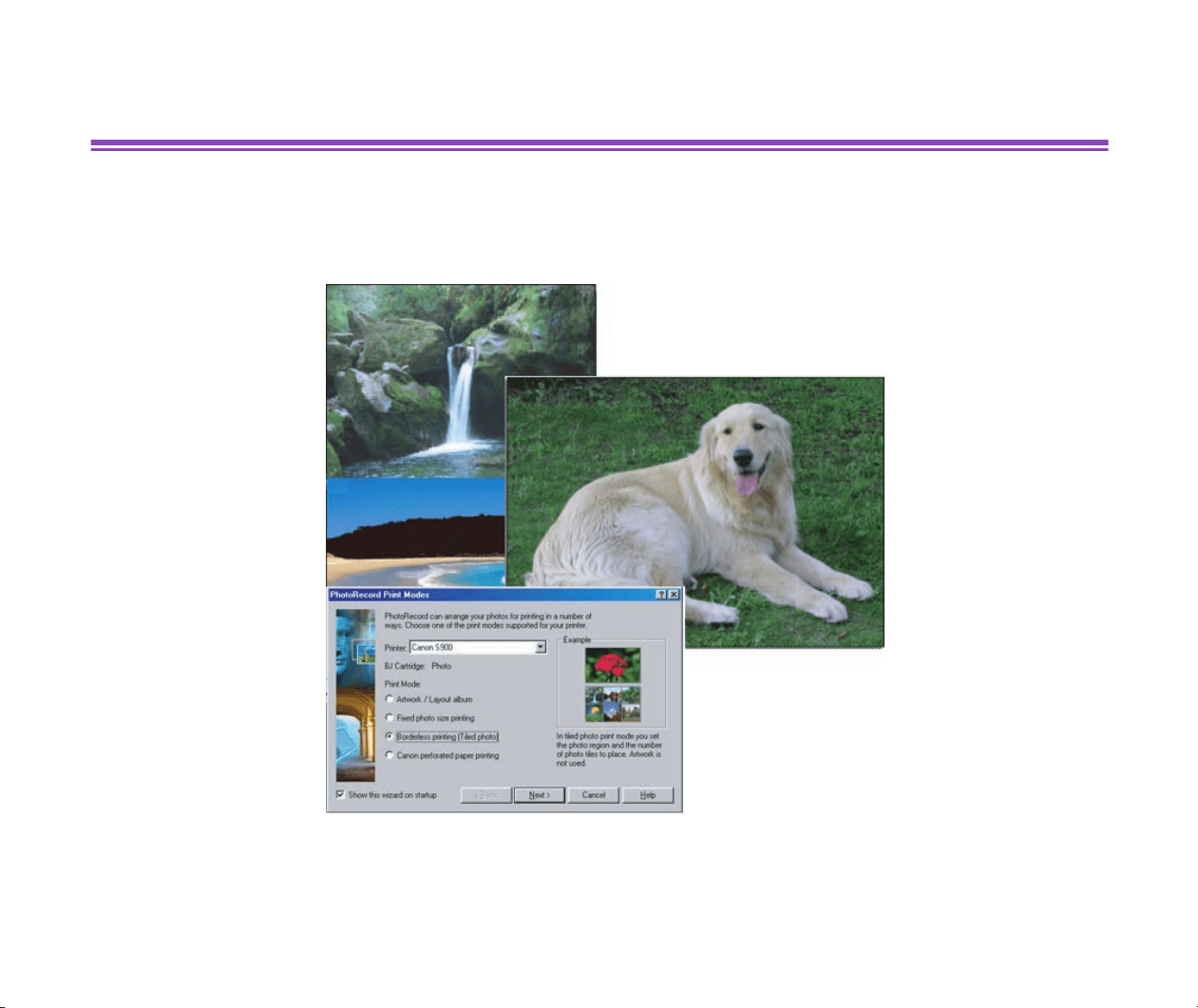
The Album Control Panel in the PhotoRecord window contains
the controls shown below.
Note that vailable artwork options are limited in the Fixed photo
size printing mode.
However, you can specify the print quality and number of copies
to print.
Printing in the Borderless Printing Mode (Tiled photo)
104
Printing in the Borderless Printing Mode (Tiled photo)
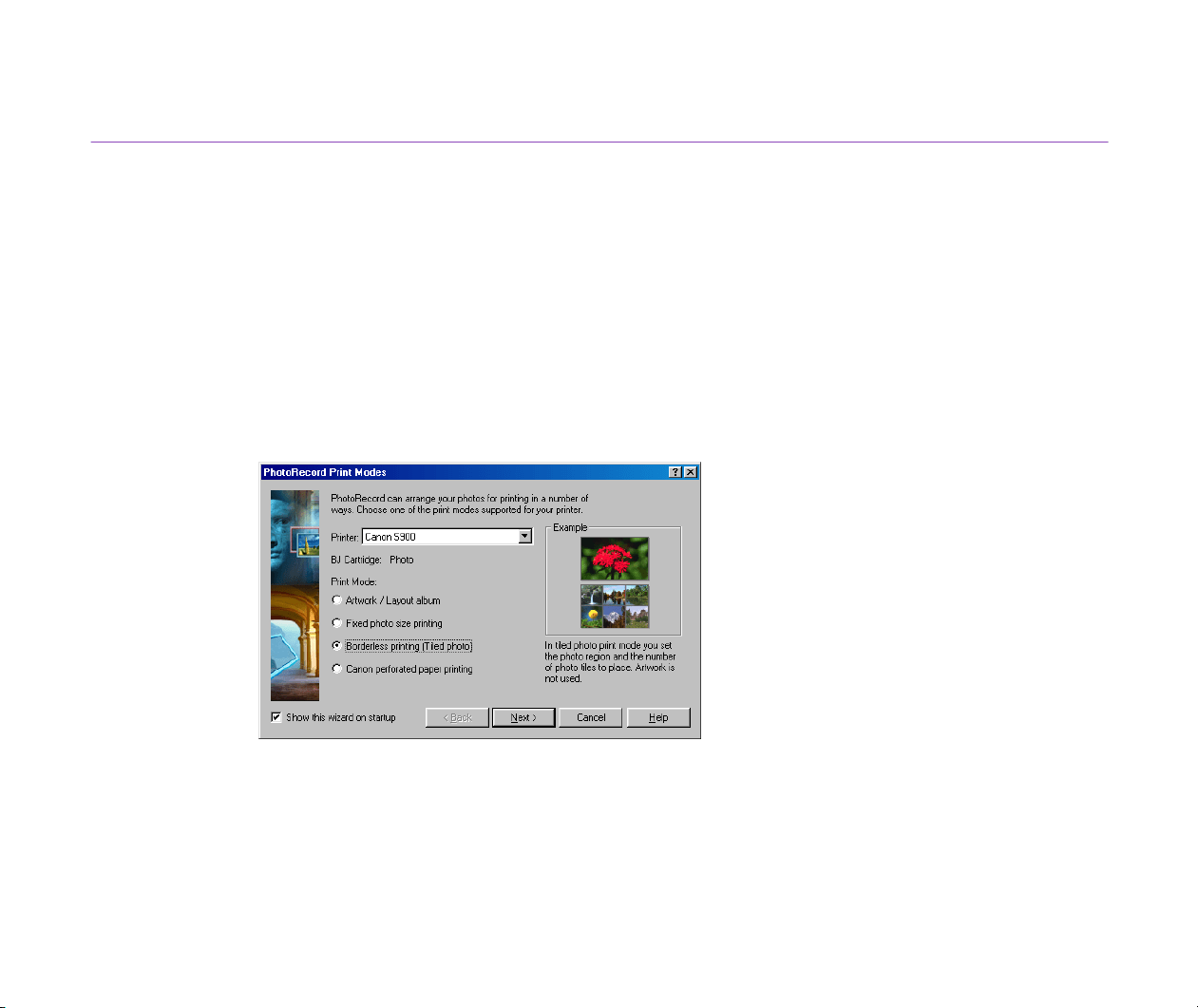
The Borderless printing (Tiled photo) option allows you to print photos with no blank margins left
around the photos. This mode requires a printer that supports borderless printing.
Printing in the Borderless Printing Mode (Tiled photo)
105
Setting the Print Mode
Select borderless printing and specify paper settings with the number of photos to be arranged as
tiles on a single page.
Steps
1
Select a photo or photos to print from the Browser Display Area. Click the PRINT
button and select Layout from the PRINT button pop-up submenu.
PhotoRecord starts and the PhotoRecord Print Modes dialog box opens, ready to
start The Print Modes wizard.
2
Select the desired printer. Select Borderless printing (Tiled photo) from the Print
Mode options.
Printing in the Borderless Printing Mode (Tiled photo)
106
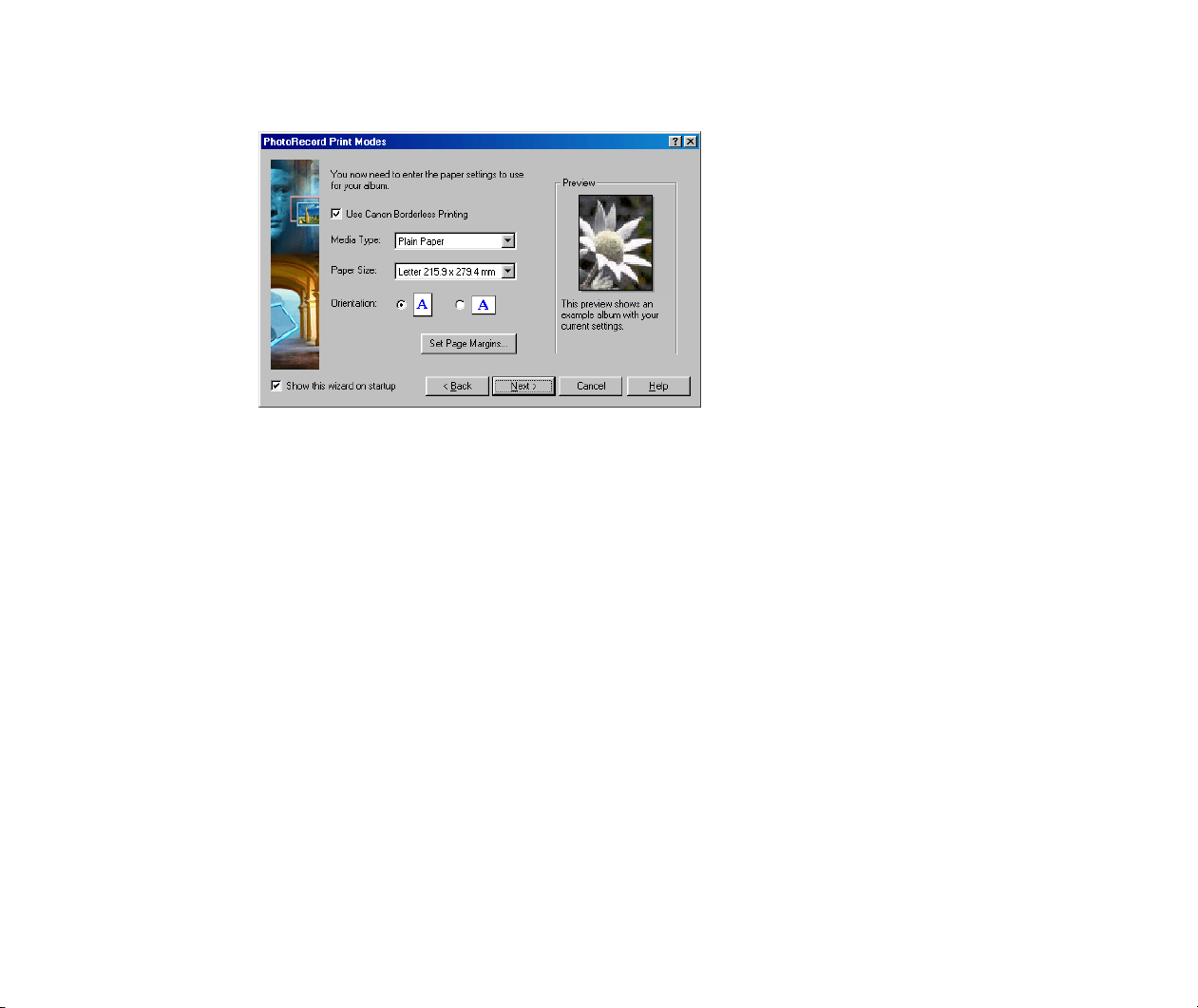
3
Click the Next button to proceed to the next step.
4
Specify Media Type, Paper Size, and Orientation.
The Preview area shows the print image in relation to the current paper setting.
Clicking the Set Page Margins button allows you to widen or narrow the area for
printing the image data.
You can enable the borderless printing feature by selecting the Use Canon
Borderless Printing checkbox.
Note
³
The Use Canon Borderless Printing checkbox is available only when you are
using a printer that supports this feature.
Printing in the Borderless Printing Mode (Tiled photo)
107
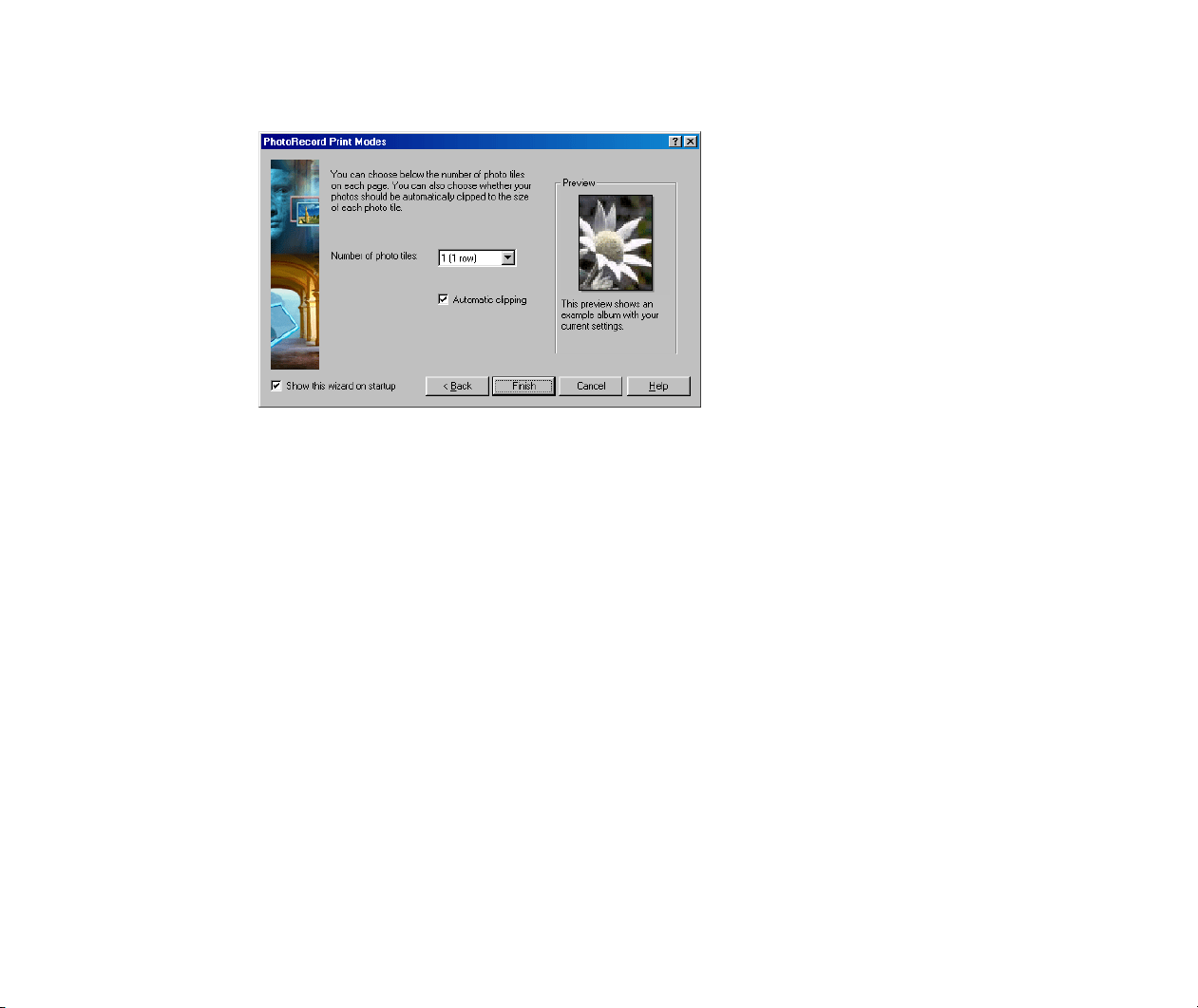
5
Click the Next button to proceed to the next step.
6
Specify the number of photo tiles you want to place on a single page.
Select 1 (1 row) when printing a single photo with no margins.
If you select the Automatic clipping checkbox, PhotoRecord automatically resizes
and clips the photos to fit the specified photo size.
Printing in the Borderless Printing Mode (Tiled photo)
108
7
Click the Finish button.
The PhotoRecord window opens. It automatically positions the selected photos to
fit the current paper settings.
Artwork Options
In the Borderless printing (Tiled photo) mode, you can only add text, clip photos,
and rotate photos (with some limitations). You cannot resize photos, change layout,
or add photo frames or background.
Starting Printing
Click the PRINT button to start printing.
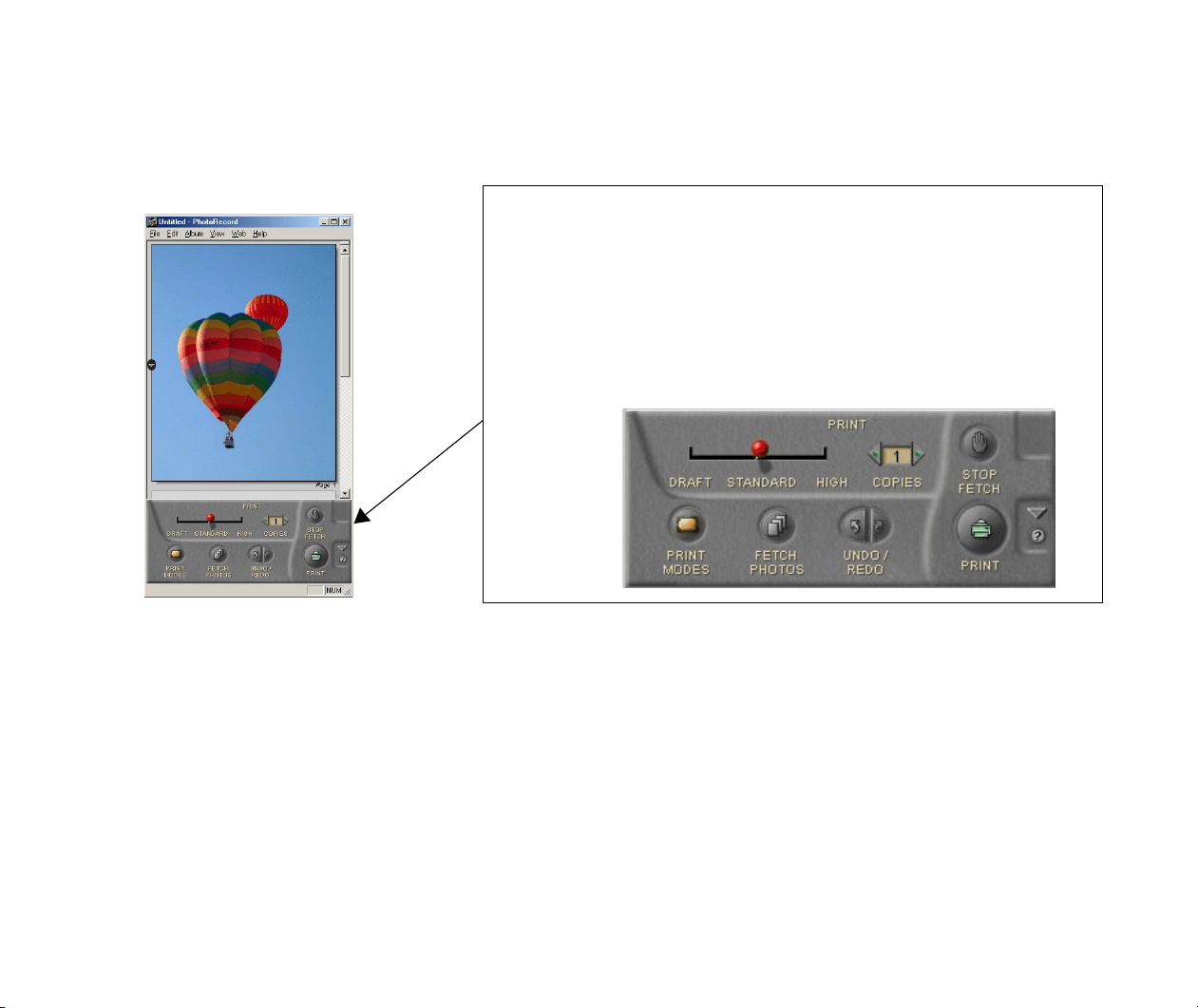
The Album Control Panel in the PhotoRecord window contains the
controls shown below.
Note that available artwork options are limited in the
Borderless
printing (Tiled photo) mode.
However, you can specify the print quality and number of copies to print.
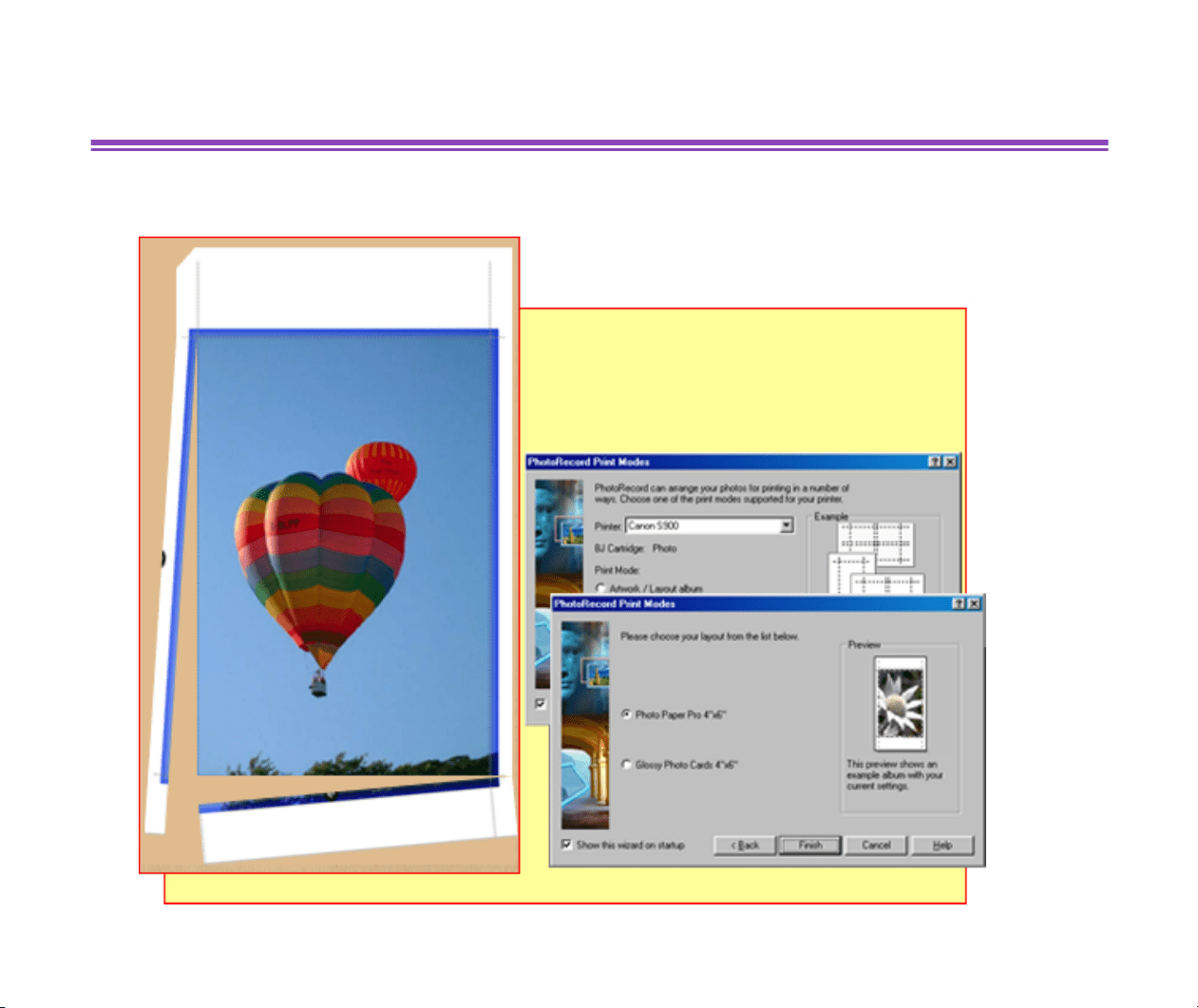
Printing on Canon Perforated Paper
109
Printing on Canon Perforated Paper
You can easily print with Canon Perforated Paper in a just-fit layout.
Printing on Canon Perforated Paper
110
Setting the Print Mode
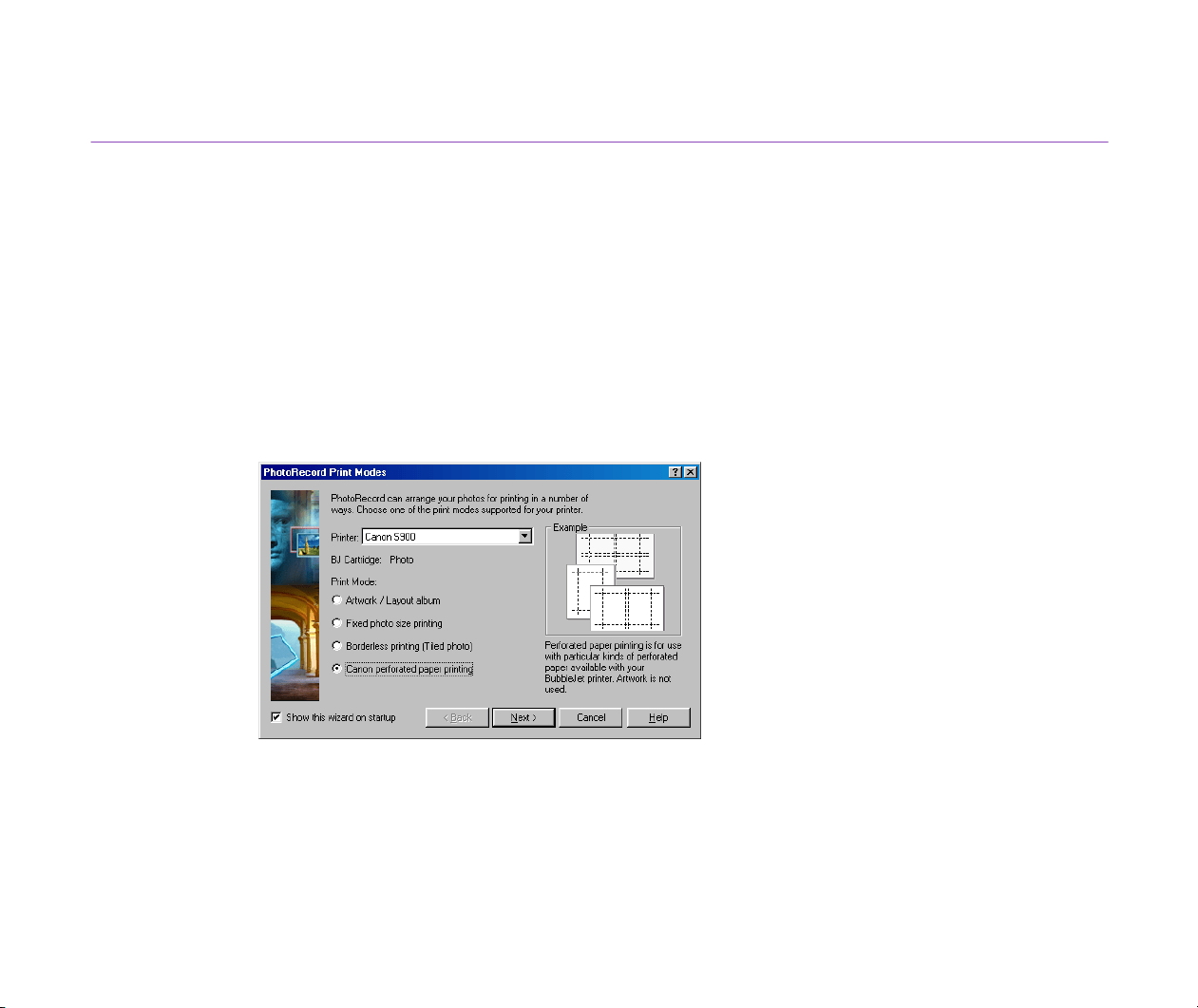
You can print your photos on Canon Perforated paper by simply selecting the paper type.
PhotoRecord automatically aligns the photos with the perforations.
Steps
1
Select a photo or photos to print from the Browser Display Area. Click the PRINT
button and select Layout from the PRINT button pop-up submenu.
The PhotoRecord starts and the PhotoRecord Print Modes dialog box opens,
ready to start The Print Modes wizard.
2
Select the desired printer. Select Canon perforated paper printing from the Print
Mode options.
Printing on Canon Perforated Paper
111
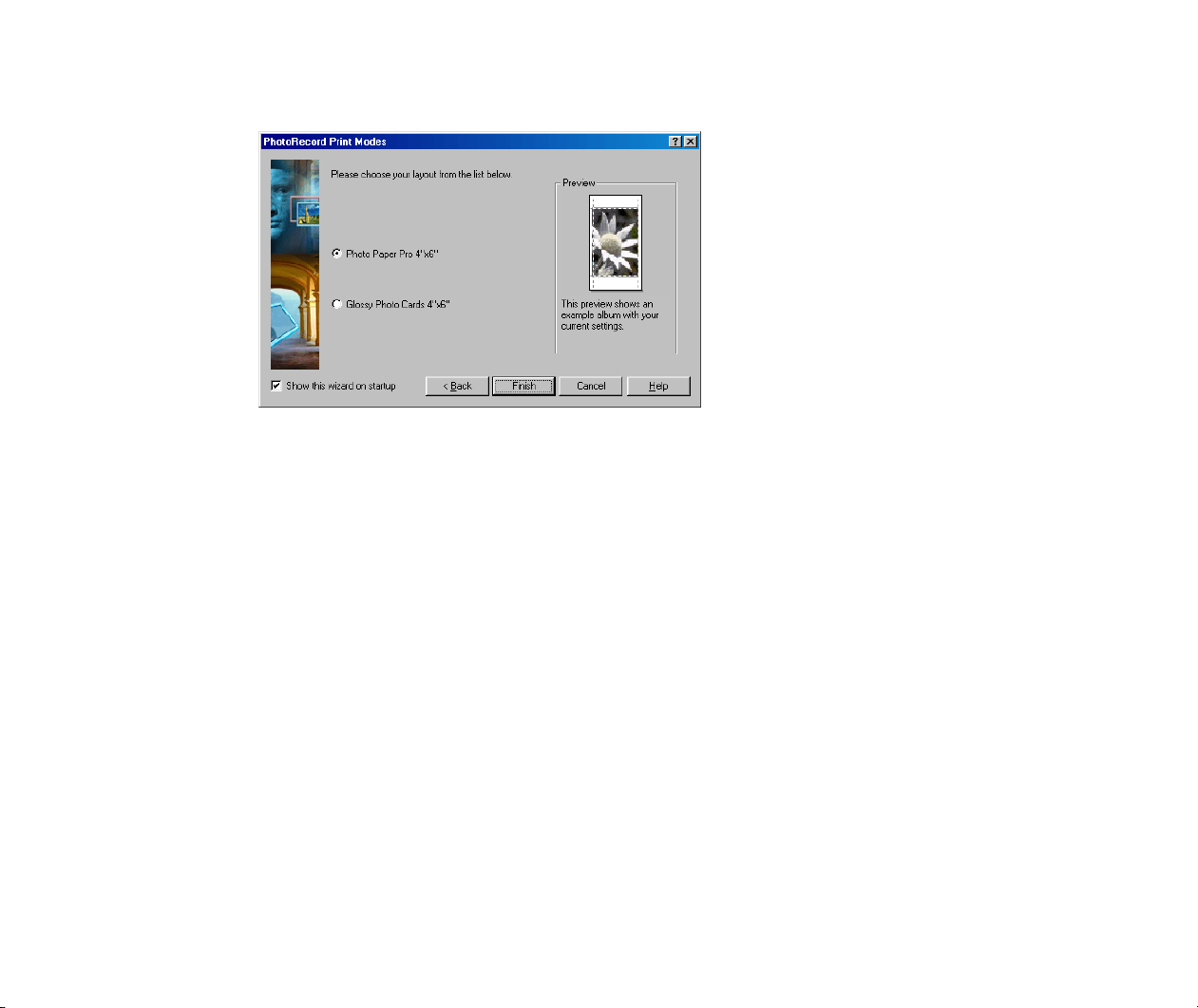
3
Click the Next button to proceed to the next step.
4
Specify the type of Canon perforated paper.
The Preview area shows how the photos are arranged under the current settings.
Printing on Canon Perforated Paper
112
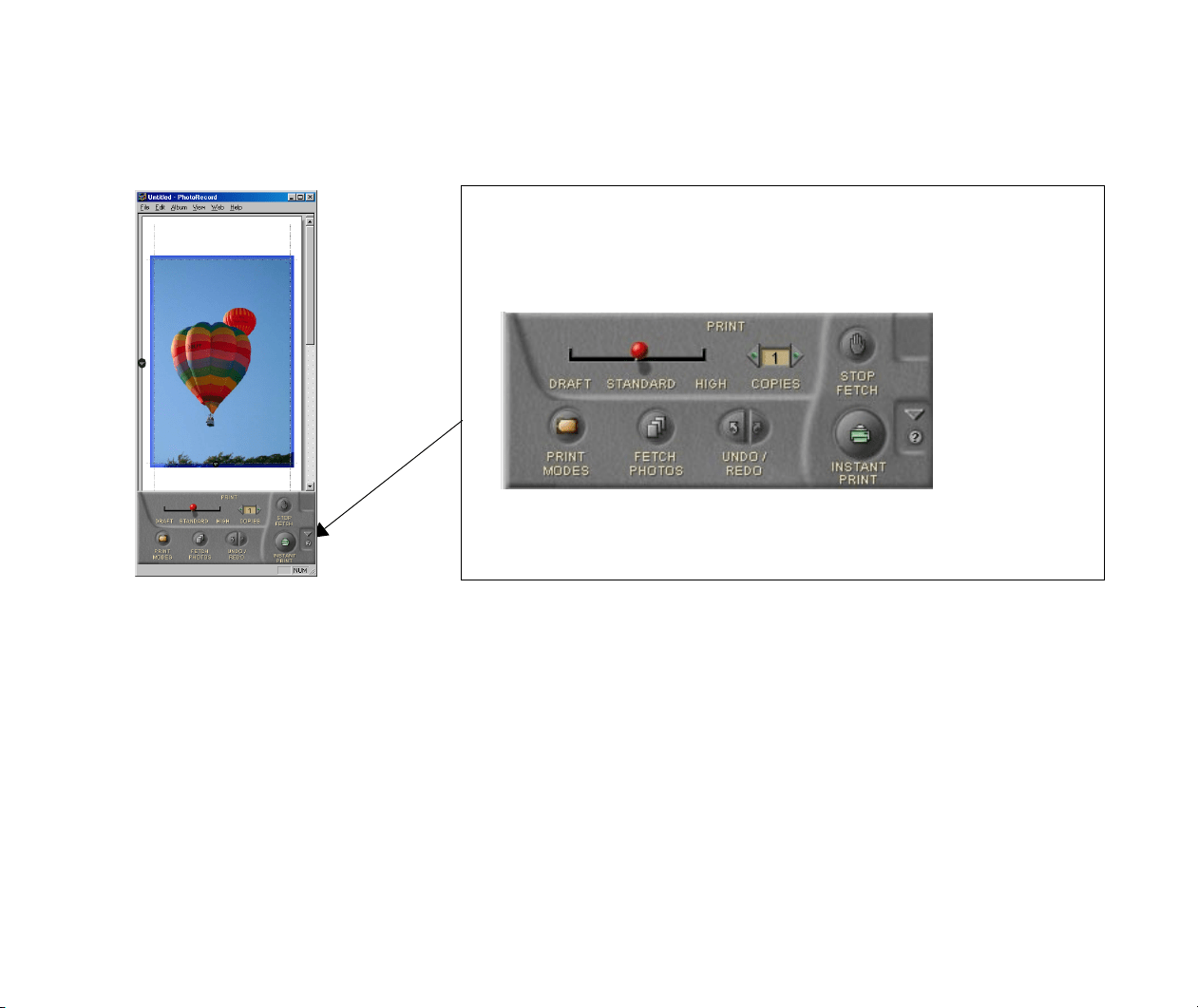
5
Click the Finish button.
The PhotoRecord window opens. It automatically positions the selected photos to
fit the current paper settings.
Artwork Options
In the Canon perforated paper printing mode, you can only add text, clip photos,
and rotate photos (with some limitations). You cannot resize photos, change layout,
or add photo frames or background.
Starting Printing
Click the PRINT button to start printing.
The Album Control Panel in the PhotoRecord window contains the controls
shown below.
Note that available artwork options are limited in the
Canon perforated
paper printing mode.
However, you can specify the print quality and number of copies to print.

About Canon perforated paper
113
About Canon perforated paper
This section briefly describes Canon perforated paper.
The photos printed on Canon perforated paper can easily be cut apart along the perforated lines.
This relatively thick, high glossy paper lets you print photo-quality images without blank portions
around them. Types of Canon perforated paper are:
Glossy Photo Card <FM-101>
Photo Paper Pro <PC-101 L>
Starting Printing
114
Starting Printing
When you have finished all necessary steps for the page layout, click the PRINT button to start
printing.
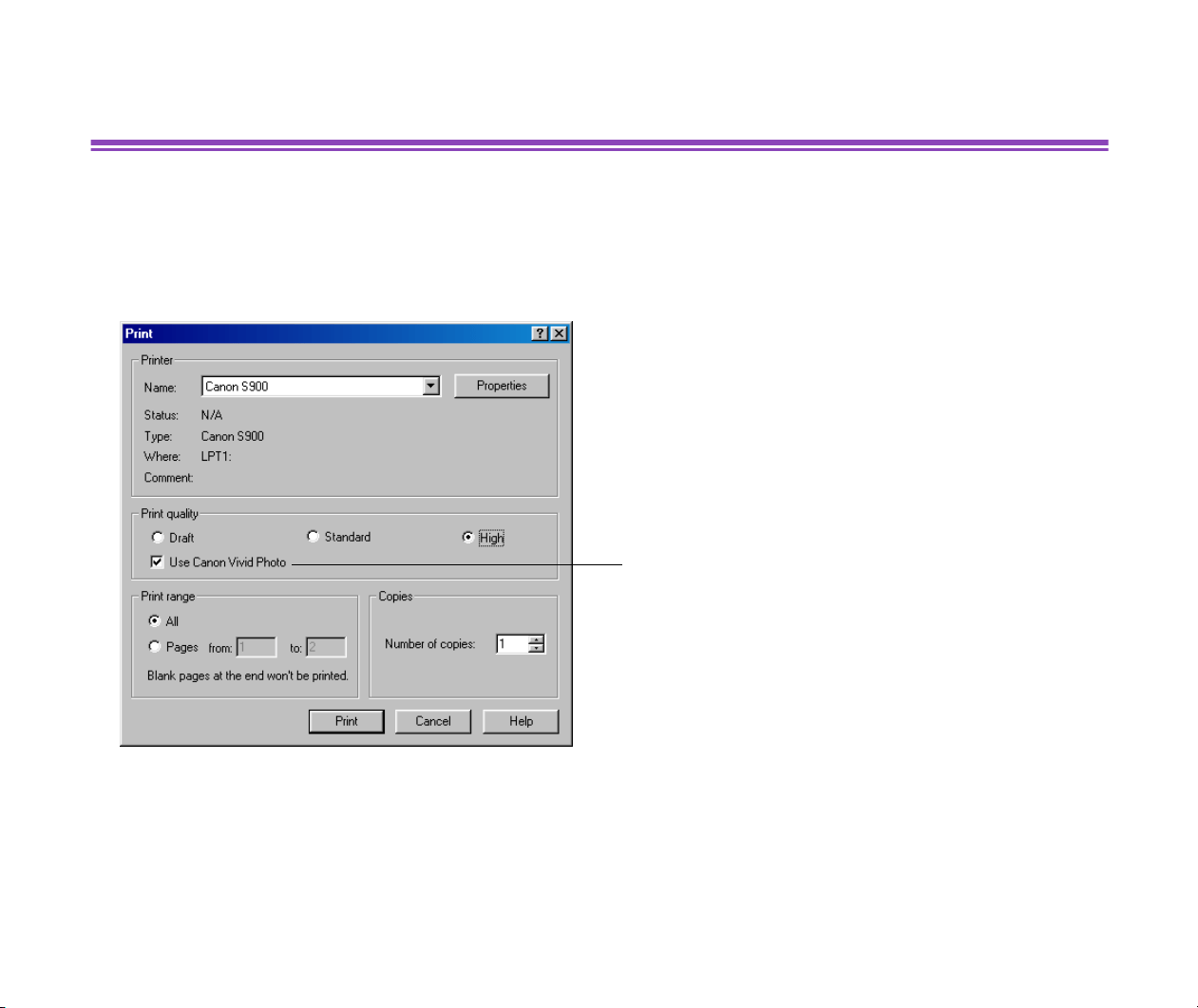
The Print dialog box appears.
Click the Print button to start printing.
Selecting the Use Canon Vivid Photo
checkbox enables the Vivid Photo Printing
feature. It will reproduce blues and greens
in compensated vivid colors.
115
Artwork
You can apply artwork to your photos placed in the PhotoRecord window. You can clip photos, add
a background and photo frames, change the layout, and insert text.
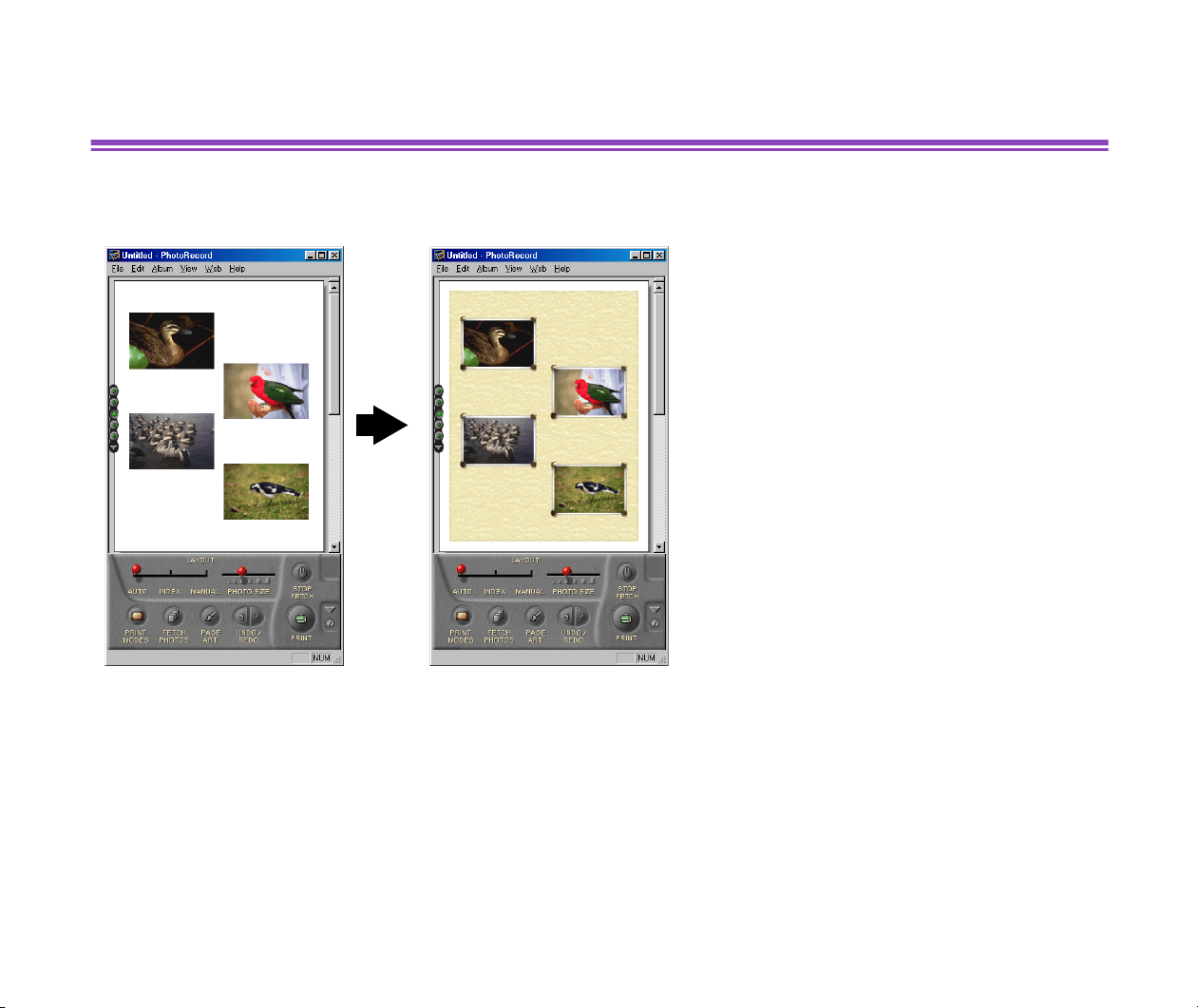
Page Art
You can add a frame to each photo or a
background to the album page.
Clipping
You can specify an area of a photo image to clip
and print. This does not affect the original photo.
116
Note
³
Some of the above edit functions may be only partly available, depending on the
Print Mode option you have selected.
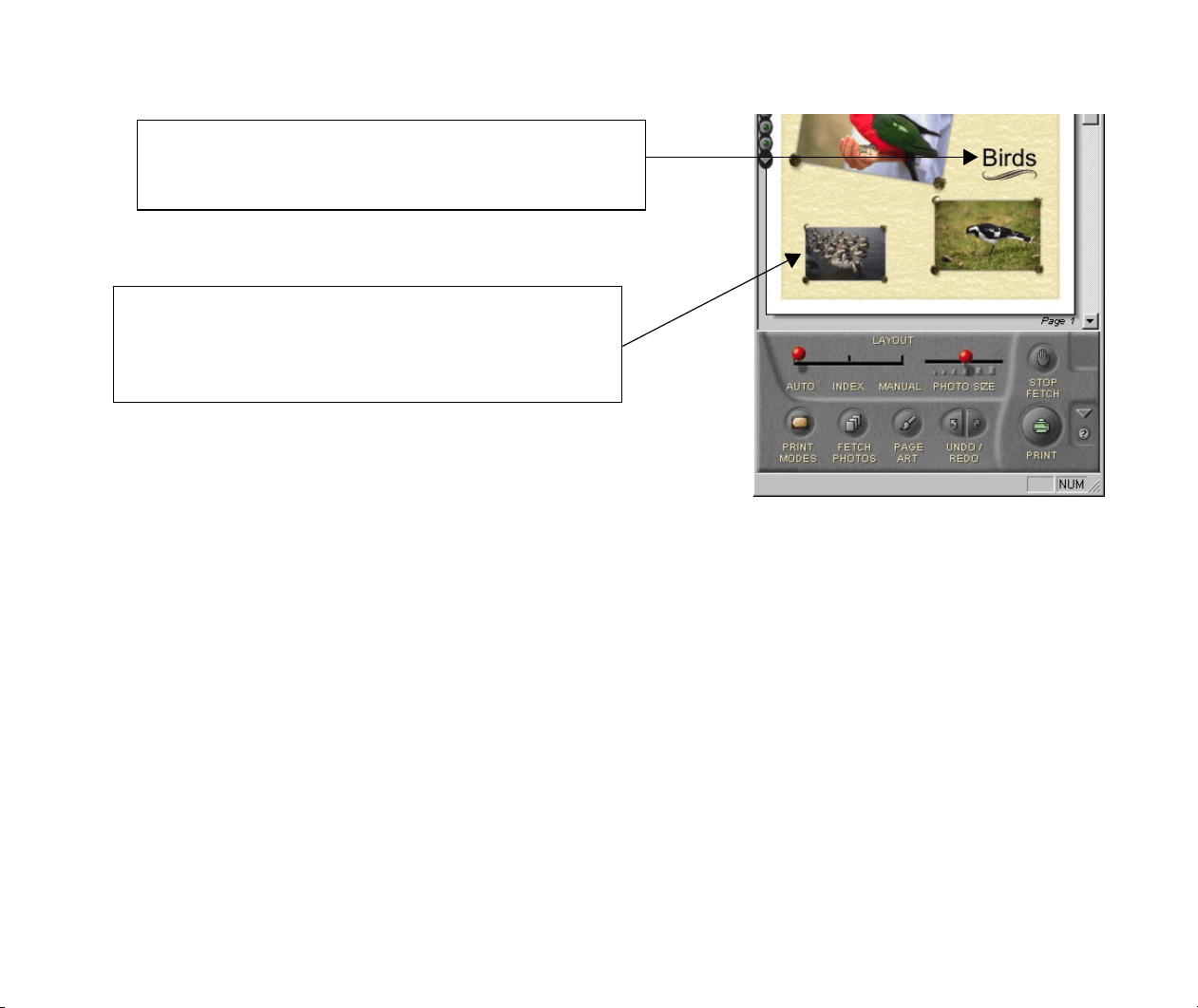
Adding text
You can insert text anywhere on your page. Use this feature
to add photo captions, page titles, and so on.
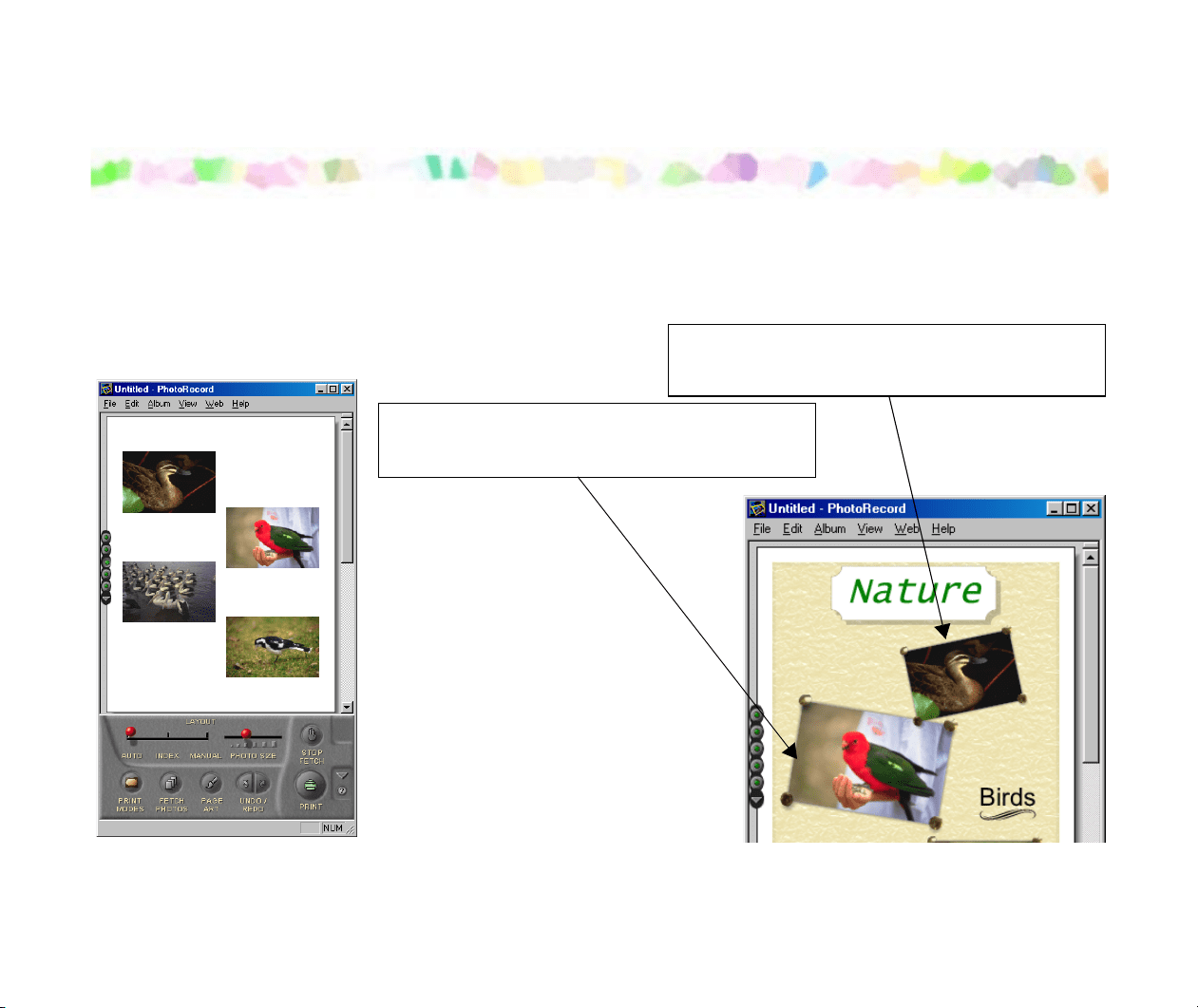
Changing layout
You can move photos anywhere on your page.
You can enlarge or reduce the photos.
You can also rotate or remove the photos.
Page Art
117
Page Art
When you are working in the Artwork/Layout album mode, you can specify a background for the
page currently displayed in the PhotoRecord window, or select frames to ornament the photos.
Page Art
118
Adding a Page Background
You can specify a background to print with your pages by a simple operation.
Steps
1
Click the PAGE ART button.
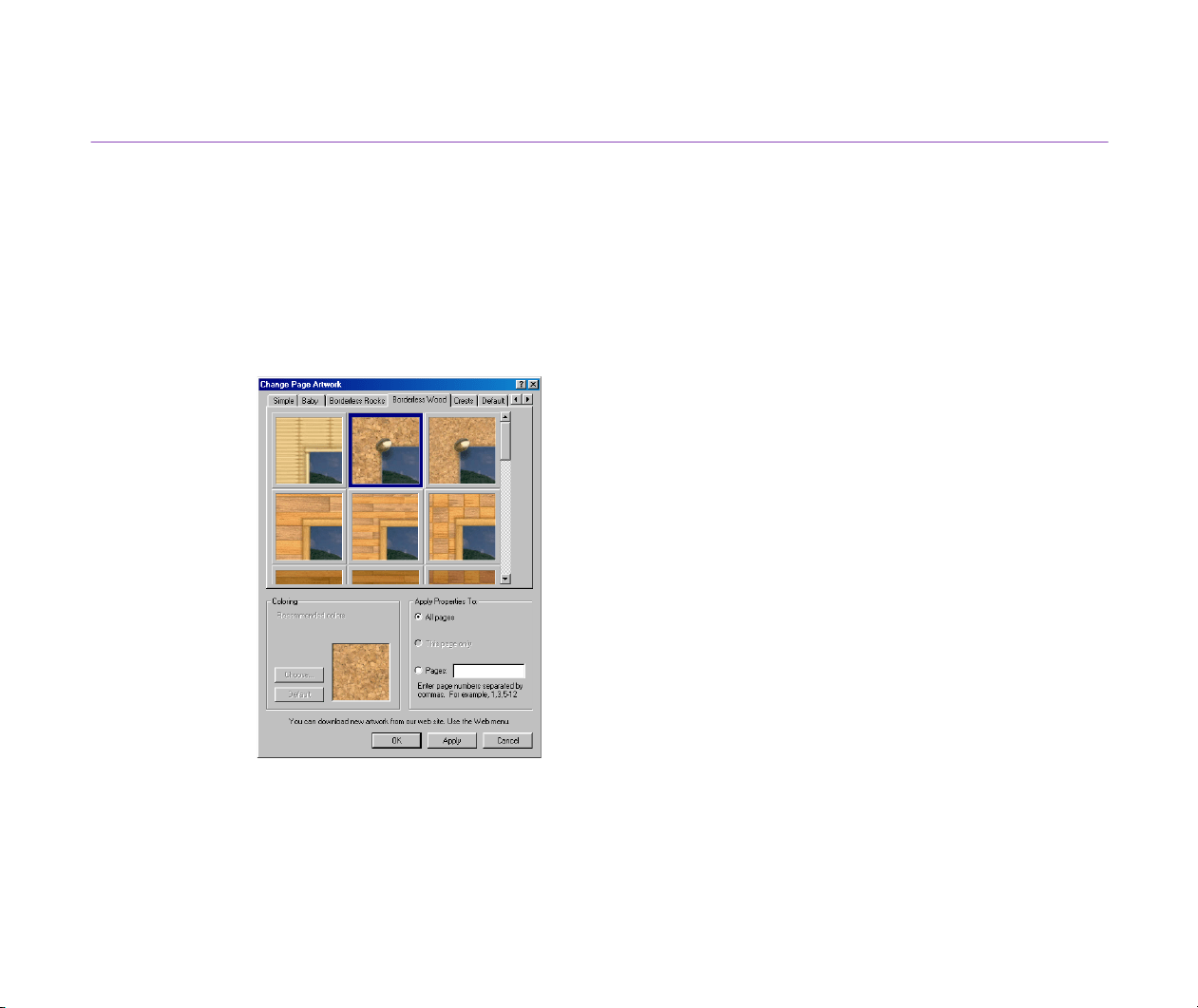
The Change Page Artwork dialog box appears.
Page Art
119
2
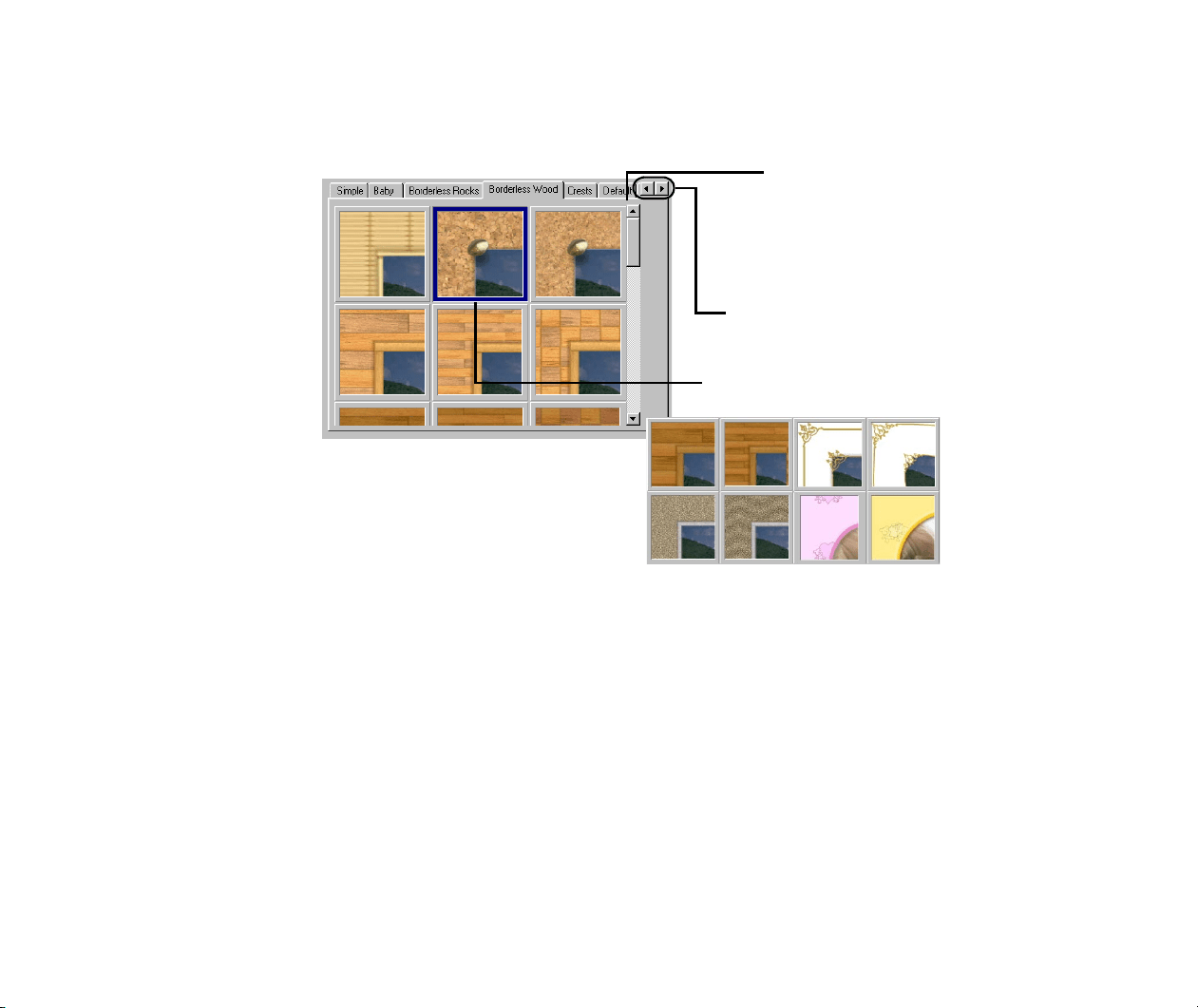
Select an artwork pattern which you want to use as a page background.
To select a pattern, select a sample panel and click on the desired sample pattern.
Samples are grouped under several tabs
according to their types. Click a tab to
select a sample panel, and select the
pattern you want to use.
These buttons allow you to scroll the tabs.
A wide variety of background patterns
are available for you.
Click on the desired sample pattern to select it.
Page Art
120
3
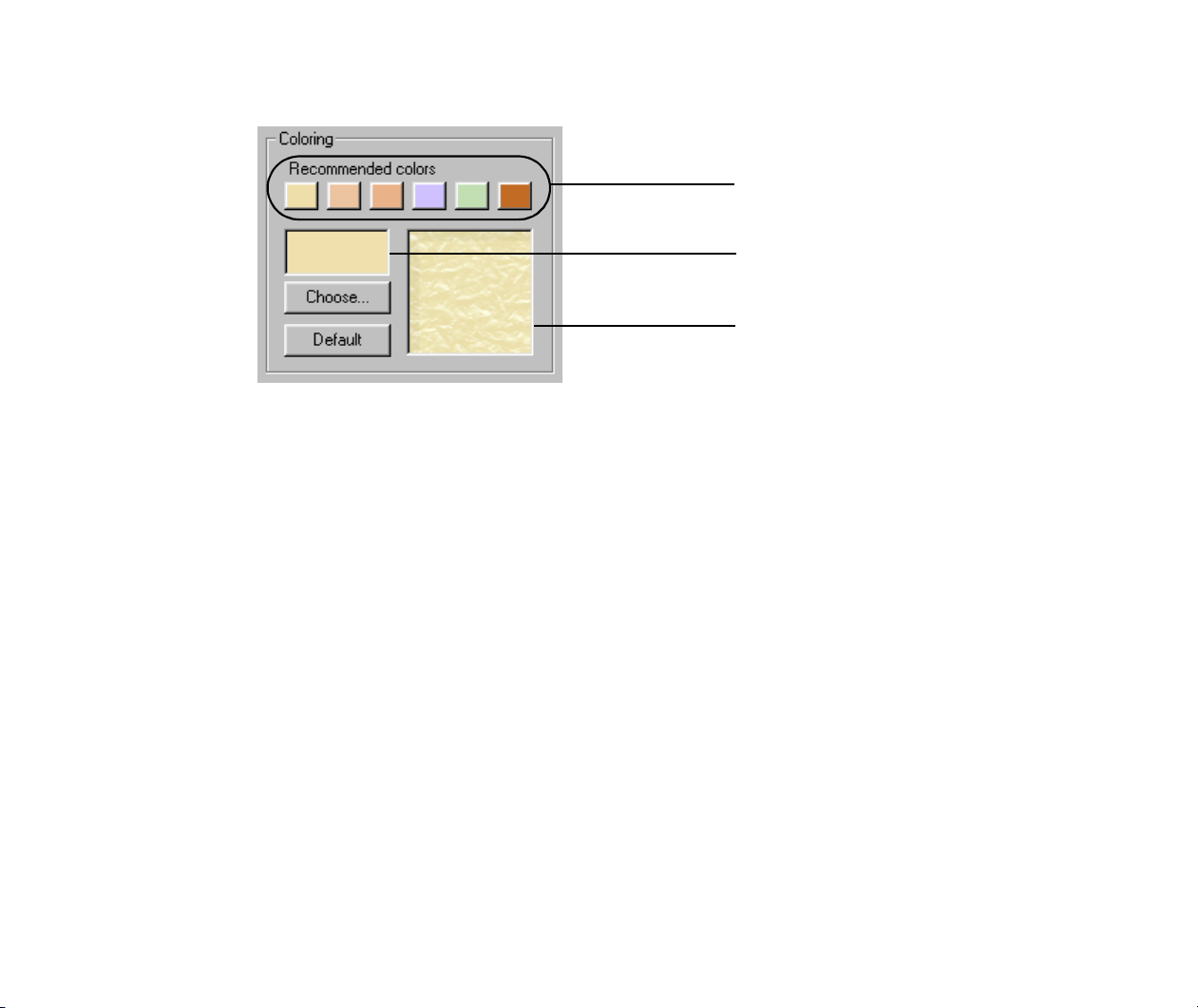
Select a color.
Click the Choose button to display the color selection window and select a new
color. Click the Default button to bring back the default color. The Coloring
function is not available for Borderless Wood, Borderless Rocks, and some other
groups of background patterns.
4
Specify to which page or pages you want to apply the selected background.
Select All pages to apply the selected background to all the pages in the
PhotoRecord window.
Select This page only to apply the selected background only to the current page.
Select Pages: and enter page numbers in the text box if you want to apply the
selected background to specific pages.
5
Click the OK button.
The Change Page Artwork dialog box closes and the selected background is
reflected in the PhotoRecord window.
If you click the Apply button, the selected background is reflected in the
PhotoRecord window without closing the Change Page Artwork dialog box.
To select a color, click the corresponding
preset button. See how the color is
reflected in the preview area.
This box shows the selected color.
Preview area
Page Art
121
Adding a Photo Frame
You can specify a frame to ornament a photo by a simple operation.
1
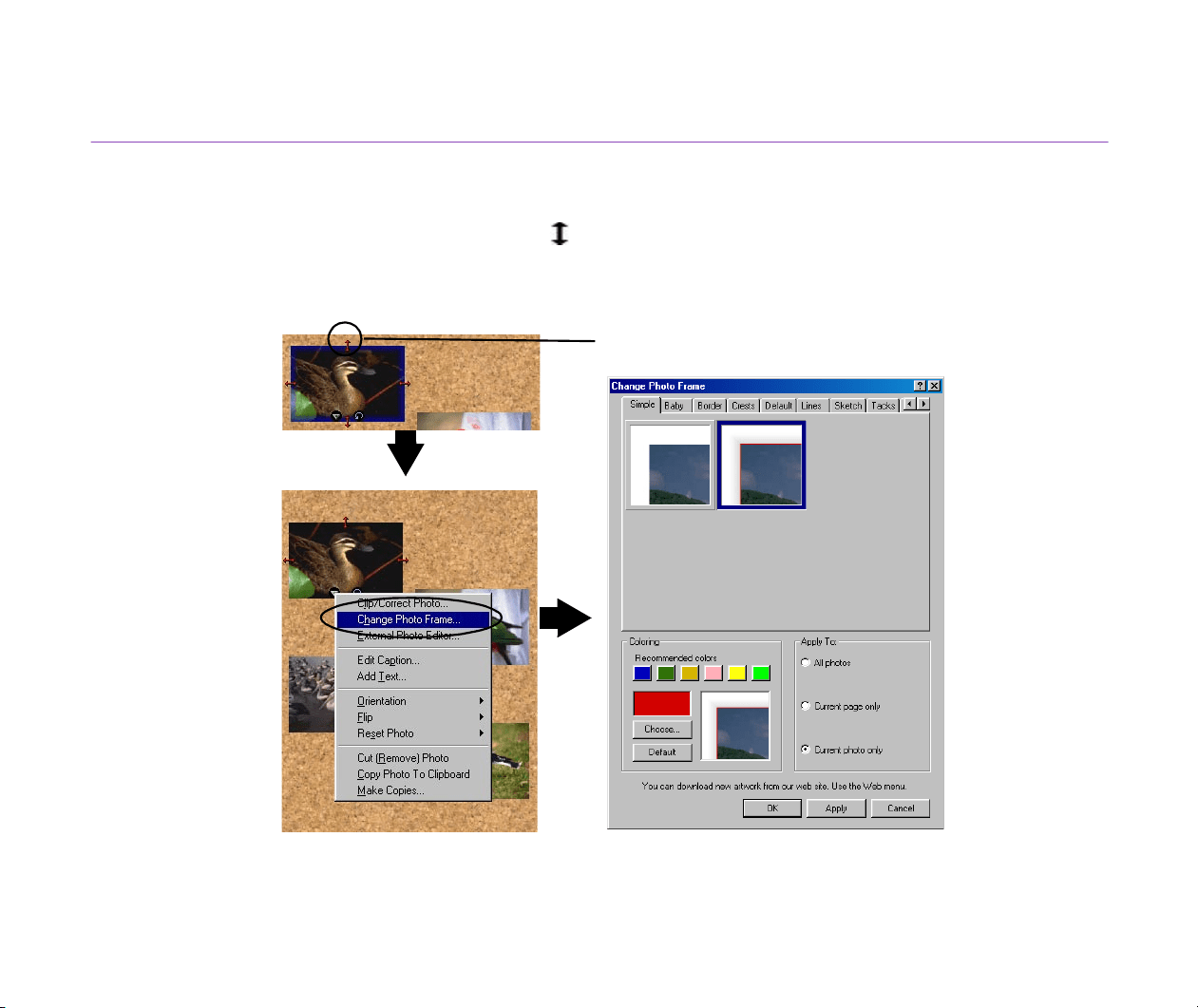
Select a photo and click the (option button) to open a pop-up menu, and then
select Change Photo Frame.
The Change Photo Frame dialog box appears.
2
Select a frame pattern which you want to use as a photo frame.
Option button
Page Art
122
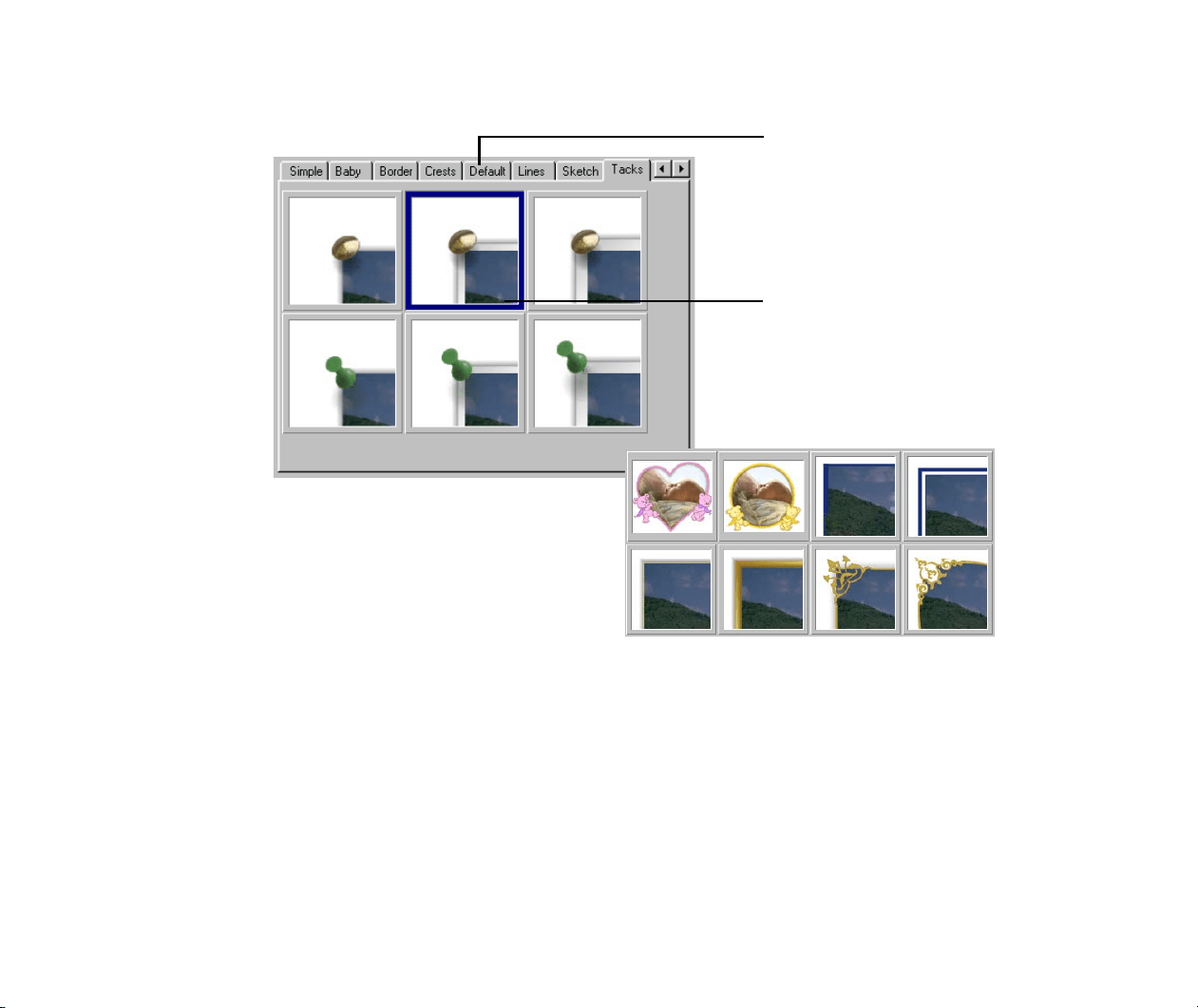
To select a pattern, select a sample panel and click on the desired sample pattern.
Samples are grouped under several tabs
according to their types. Click a tab to
select a sample panel, and select the
pattern you want to use.
Click on the desired sample pattern to
select it.
A wide variety of frame patterns are
available for you.
Page Art
123
3
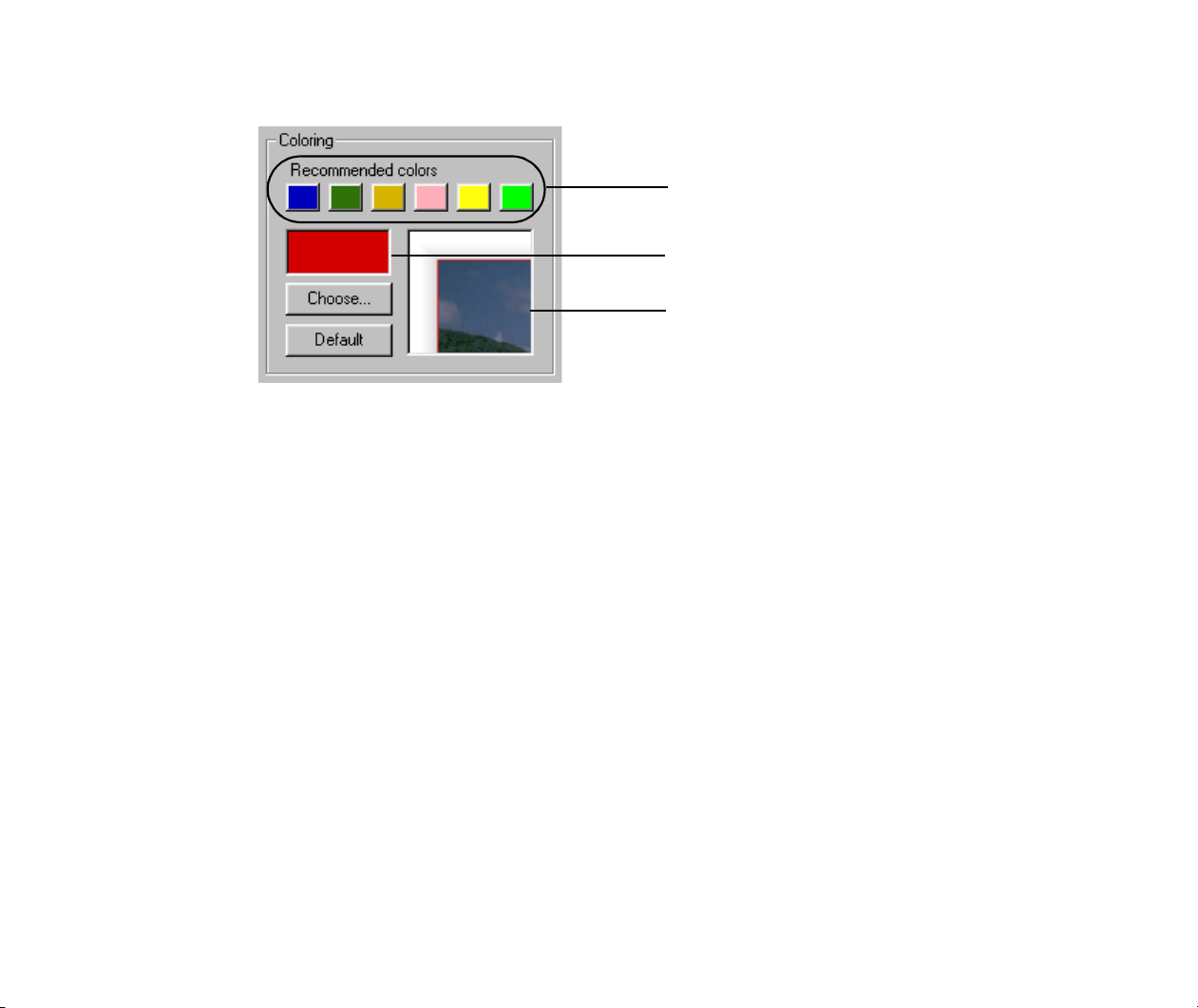
Select a color.
Click the Choose button to display the color selection window and select a new
color. Click the Default button to bring back the default color. The Coloring
function is not available for Wood, Tacks, and some other groups of frame
patterns.
4
Specify to which photos or pages you want to apply the selected frame.
Select All photos to apply the selected frame to all the photos in the PhotoRecord
window.
Select Current page only to apply the selected frame only to the photos in the
current page.
Select Current photo only to apply the selected frame only to the photo selected
in the PhotoRecord window.
5
Click the OK button.
The Change Photo Frame dialog box closes and the selected frame is reflected in
the PhotoRecord window.
If you click the Apply button, the selected frame is reflected in the PhotoRecord
window without closing the Change Photo Frame dialog box.
To select a color, click the corresponding
preset button. See how the color is
reflected in the preview area.
This box shows the selected color.
Preview area.
Changing Layout
124
Changing Layout
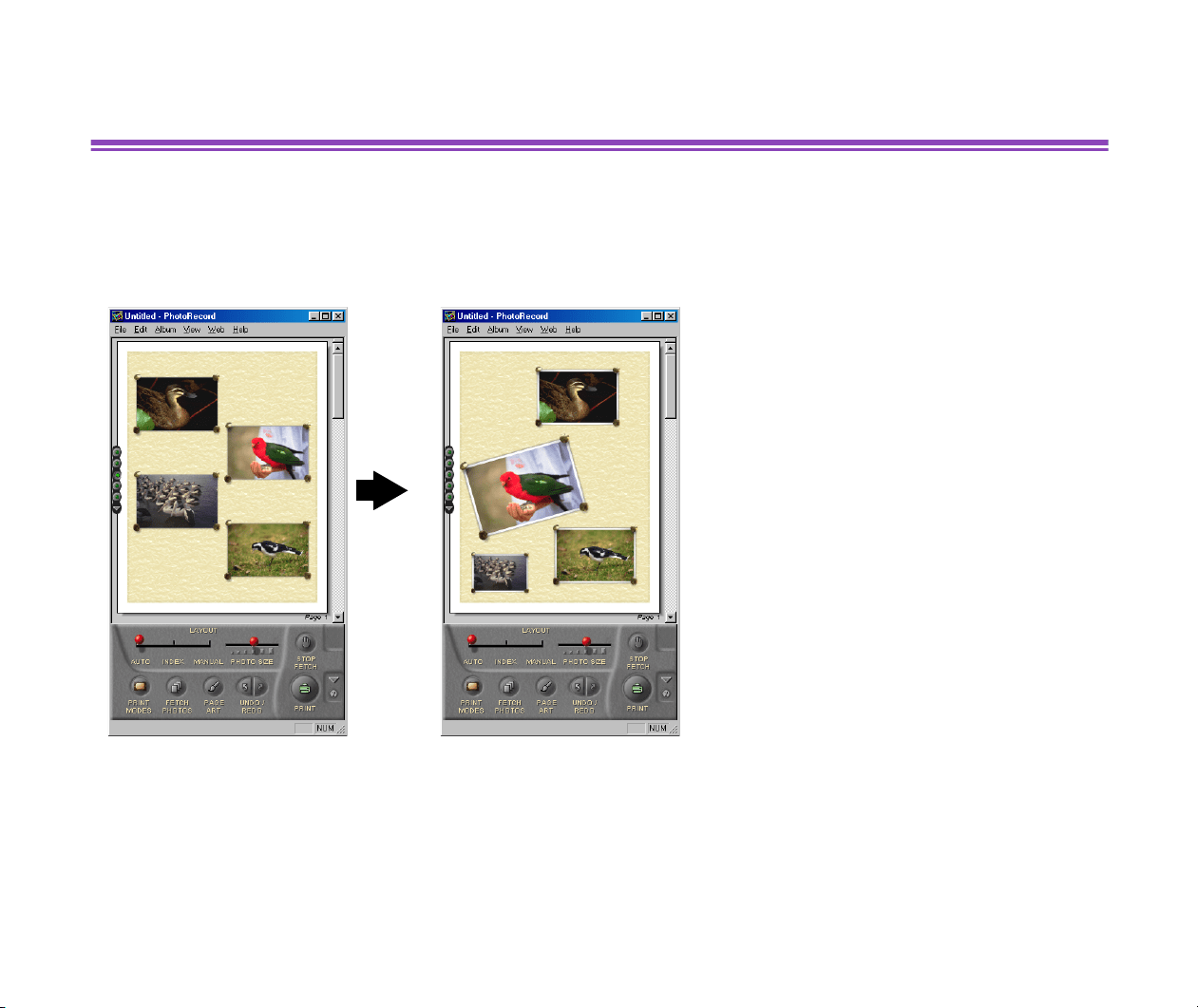
When you are working in the Artwork/Layout album mode, you can re-position the photos in the
PhotoRecord window to make up a new layout.
You can rotate or resize the photos. You can also remove the photos from the layout.
The clipping and rotating functions are also available in the other print modes, but each with some
limitations.
Processing of the photos by resizing, rotating, clipping, or removing them does not affect the original
photo image data. The result is reflected only on the print pages.
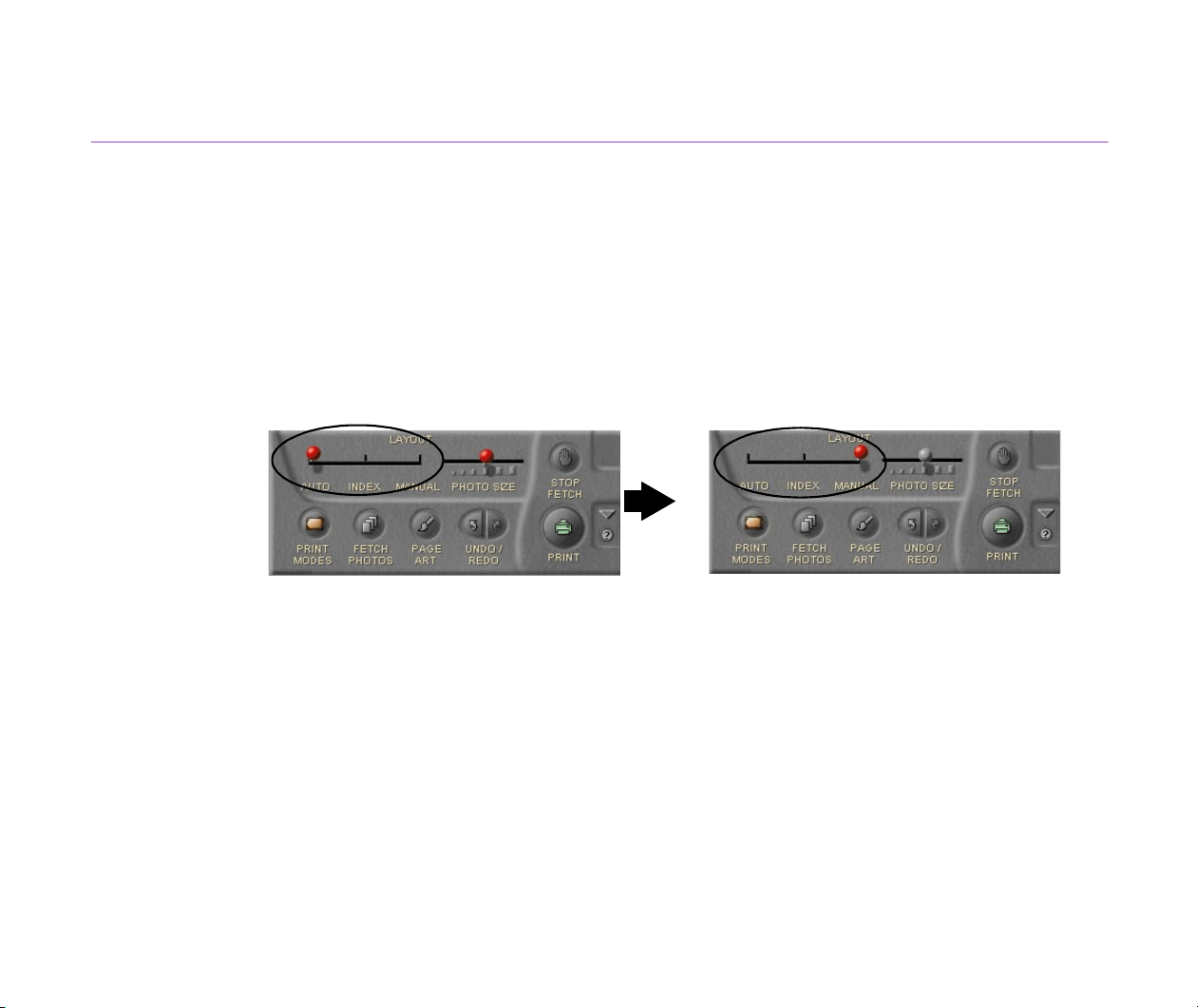
Changing Layout
125
Re-positioning the Photos
You can re-position (move) the photos within the PhotoRecord window.
If you have selected Layout from the PRINT button pop-up submenu in the Artwork/Layout album
mode, you can freely move the photos to a new position by drag-and-dropping in the window.
Steps
1
Set the LAYOUT slide switch at MANUAL.
Note
³
If the switch is set at AUTO, dragging a photo moves not only the selected photo
but also all the other photos.
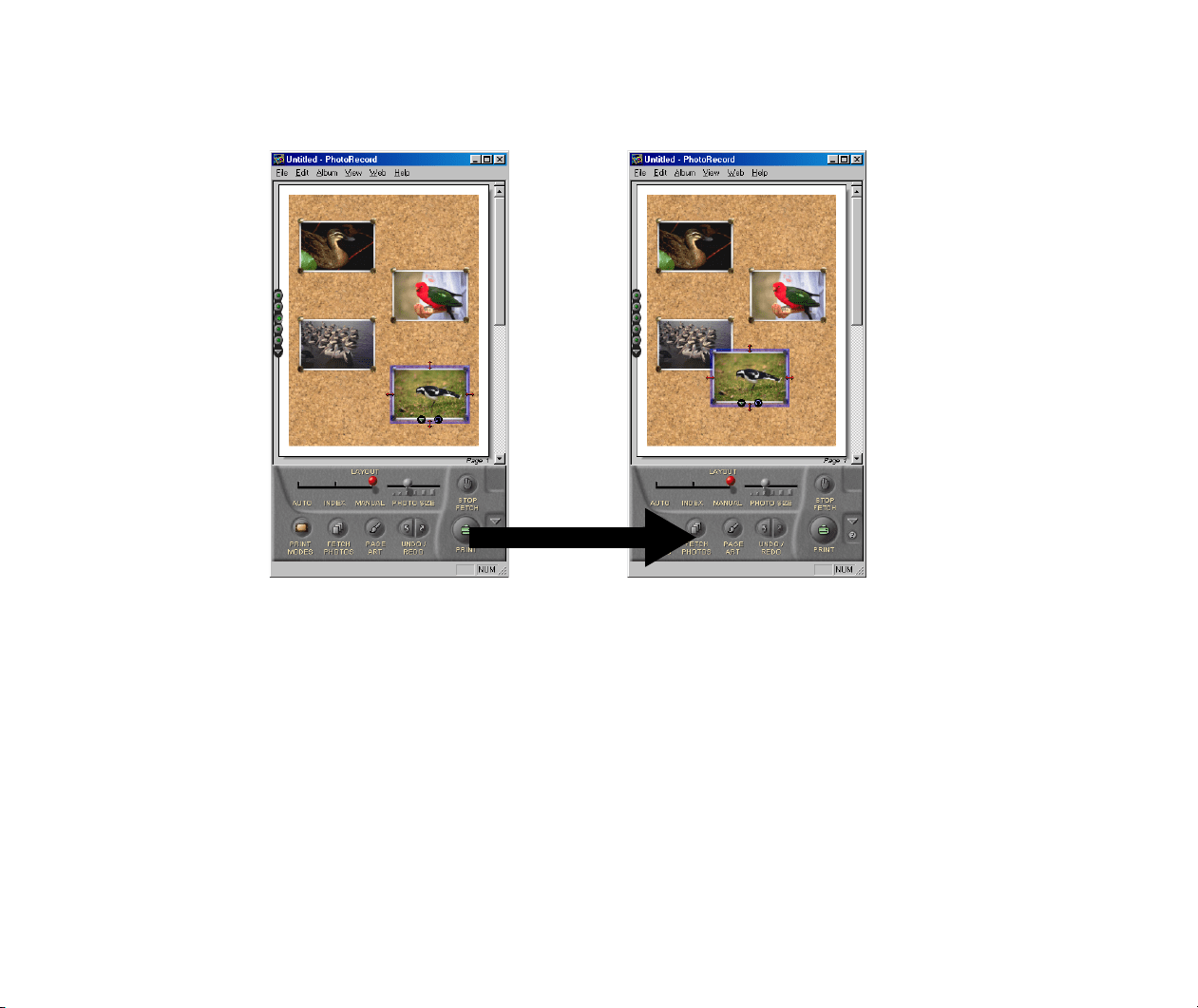
Changing Layout
126
2
Select and mouse-drag a photo wherever you want to place it.
Note
³
When the current print mode is not Artwork/Layout album (including Index
layout), the basic layout cannot be modified. You can only change the order of the
photos by mouse-dragging operation.
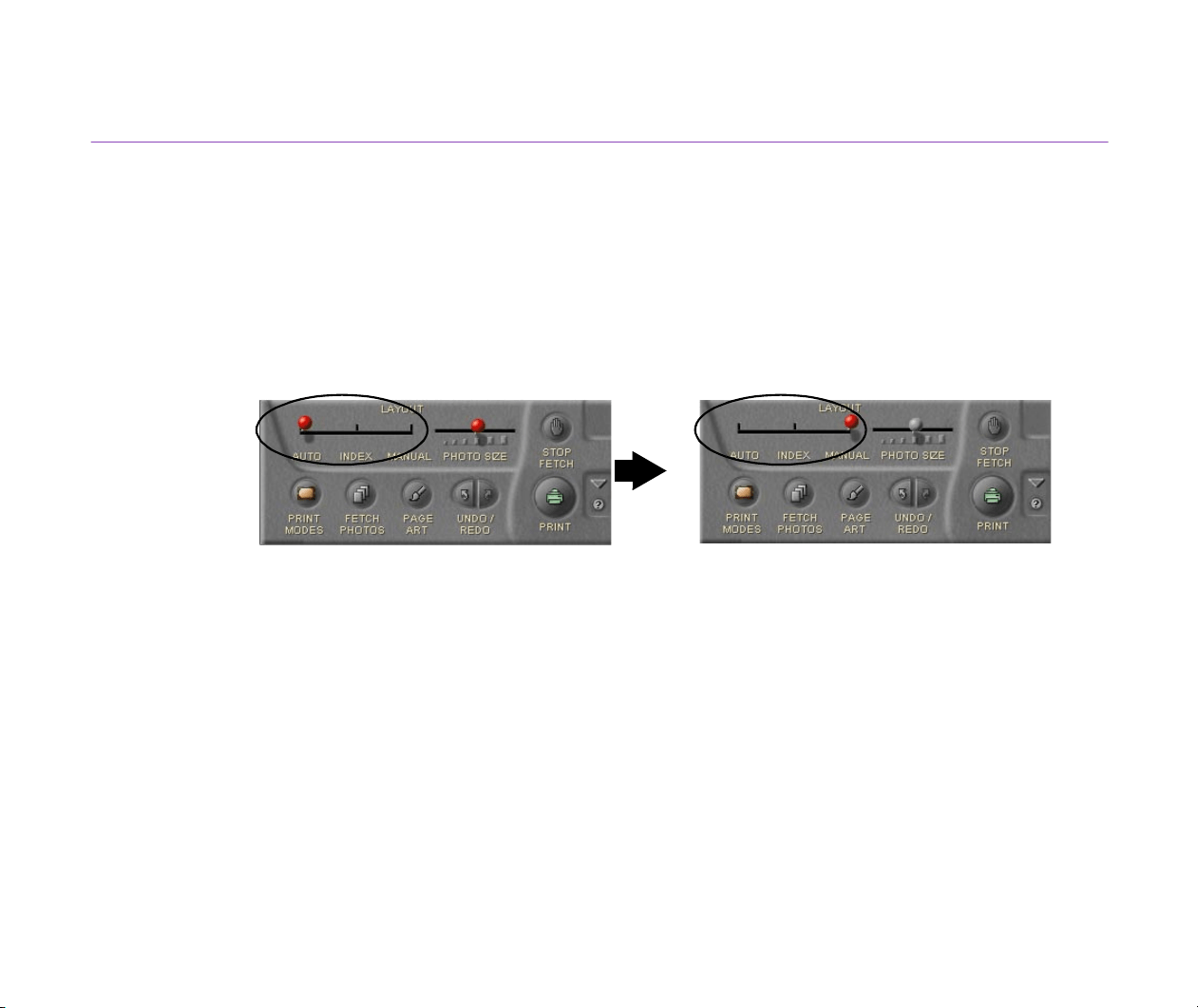
Changing Layout
127
Resizing the Photos
When you are working in the Artwork/Layout album mode, you can enlarge or reduce the photos
using the mouse-dragging technique. You cannot resize the photos when working in other print
modes.
Steps
1
Set the LAYOUT slide switch at MANUAL.
Note
³
If the switch is set at AUTO, dragging a photo resizes not only the selected photo
but also the other photos.
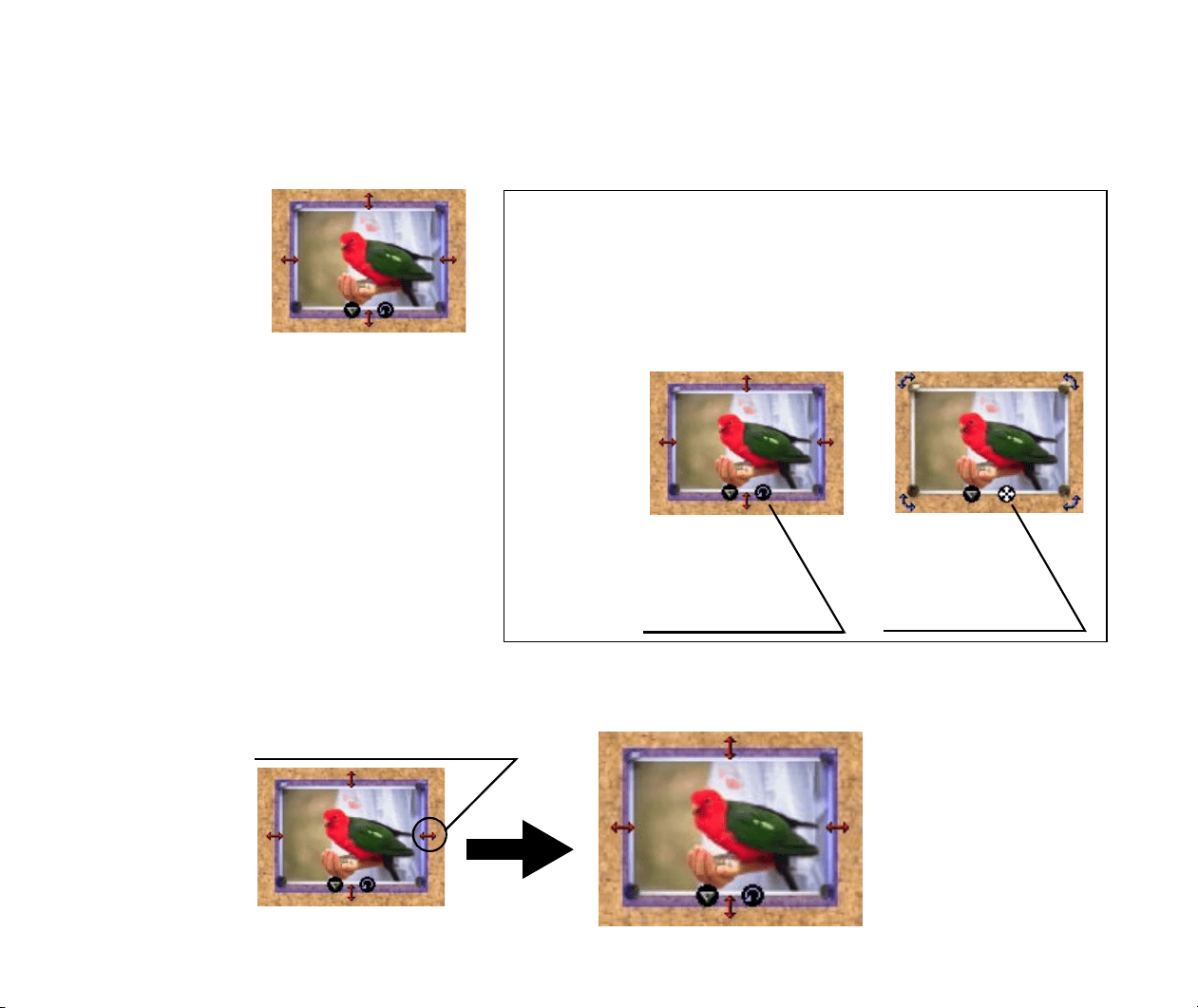
Changing Layout
128
2
Select the photo you want to resize. Make sure that the photo is in the Resize
mode.
A red arrow appears on each of the four borders.
3
Put the mouse cursor over any of the red arrows and drag until the image is
enlarged or reduced to the desired size.
Resize mode and Rotate mode
If you see a red arrow on each of the four borders of a selected photo,
the photo is in the Resize mode.
If you see a blue arrow at each of the four corners of a selected photo,
the photo is in the Rotate mode.
Resize mode Rotate mode
Click here to
select the Rotate
mode.
Click here to
select the Resize
mode.
Put the mouse cursor here and drag.
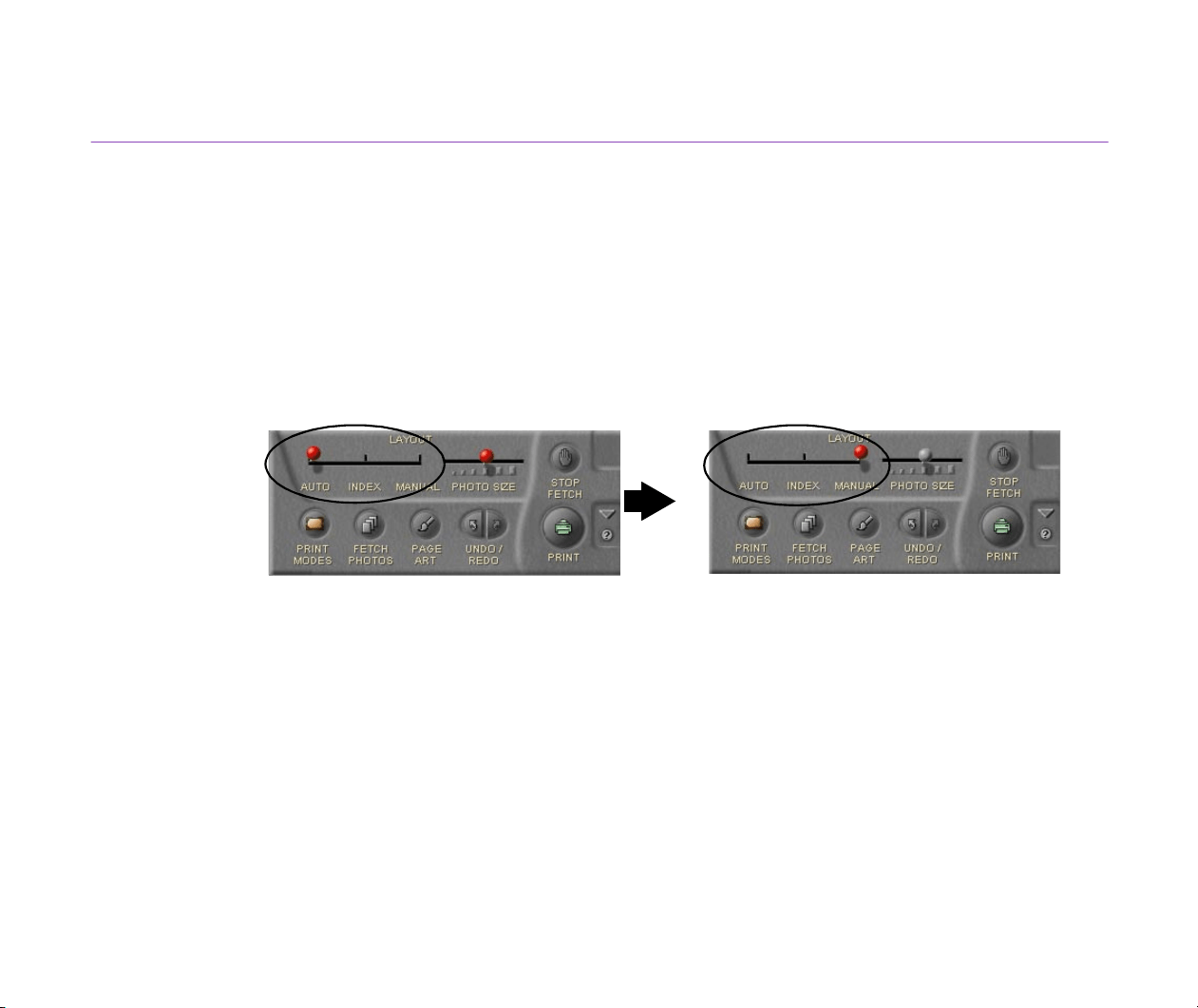
Changing Layout
129
Rotating the Photos
When you are working in the Artwork/Layout album mode, you can rotate the photos to any
desired angles using the mouse-dragging technique.
You can only specify a 180-degree rotation when working in the other print modes.
Steps
1
Set the LAYOUT slide switch at MANUAL.
Note
³
If the switch is set at AUTO, dragging a photo rotates not only the selected photo
but also all the other photos.
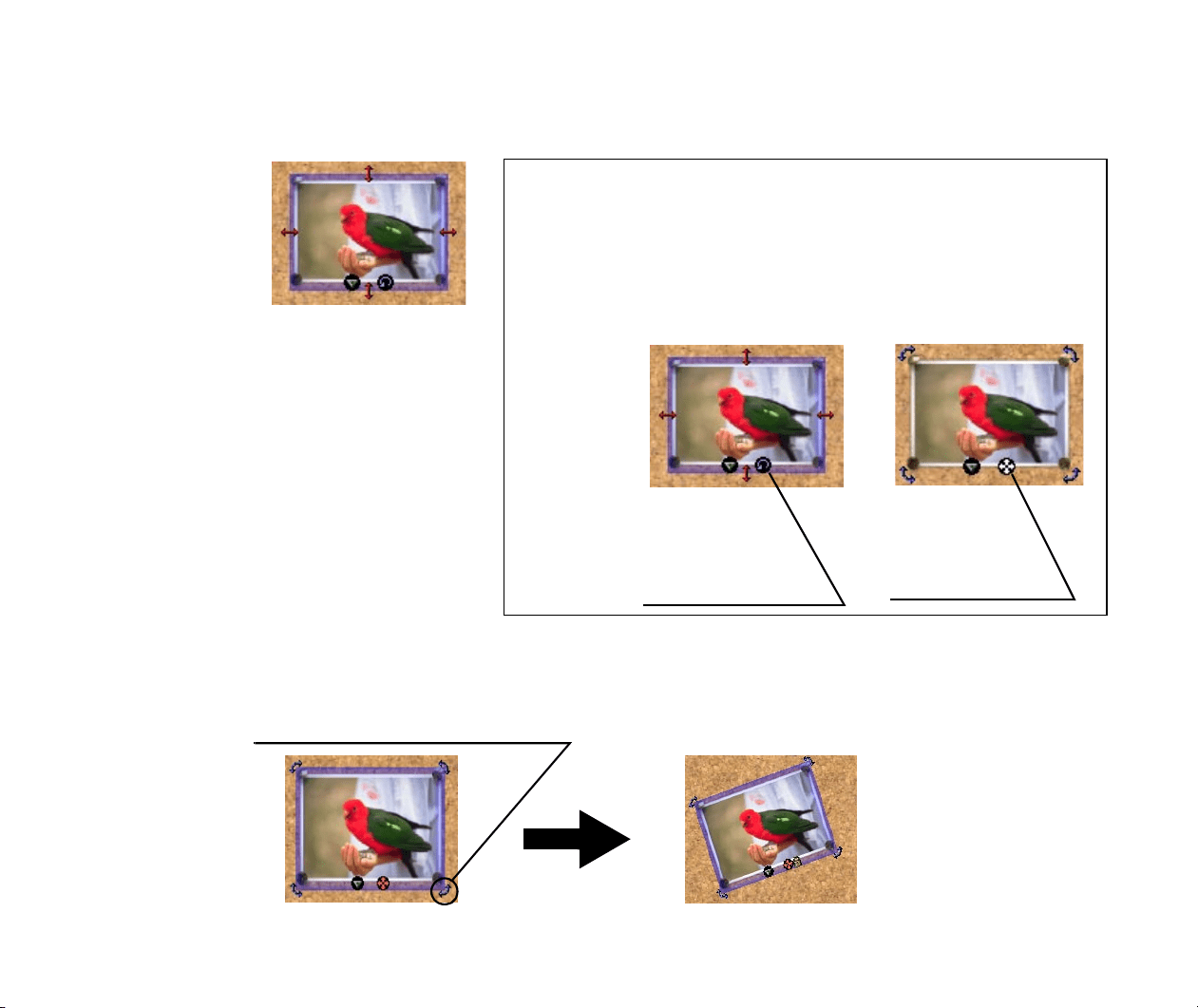
Changing Layout
130
2
Select the photo you want to rotate. Make sure that the photo is in the Rotate mode.
A blue arrow appears at each of the four corners.
3
Put the mouse cursor over any of the blue arrows and drag until the image rotates
to the desired angle.
Resize mode and Rotate mode
If you see a red arrow on each of the four borders of a selected photo,
the photo is in the Resize mode.
If you see a blue arrow at each of the four corners of a selected photo,
the photo is in the Rotate mode.
Resize mode Rotate mode
Click here to
select the Rotate
mode.
Click here to
select the Resize
mode.
Put the mouse cursor here and drag.
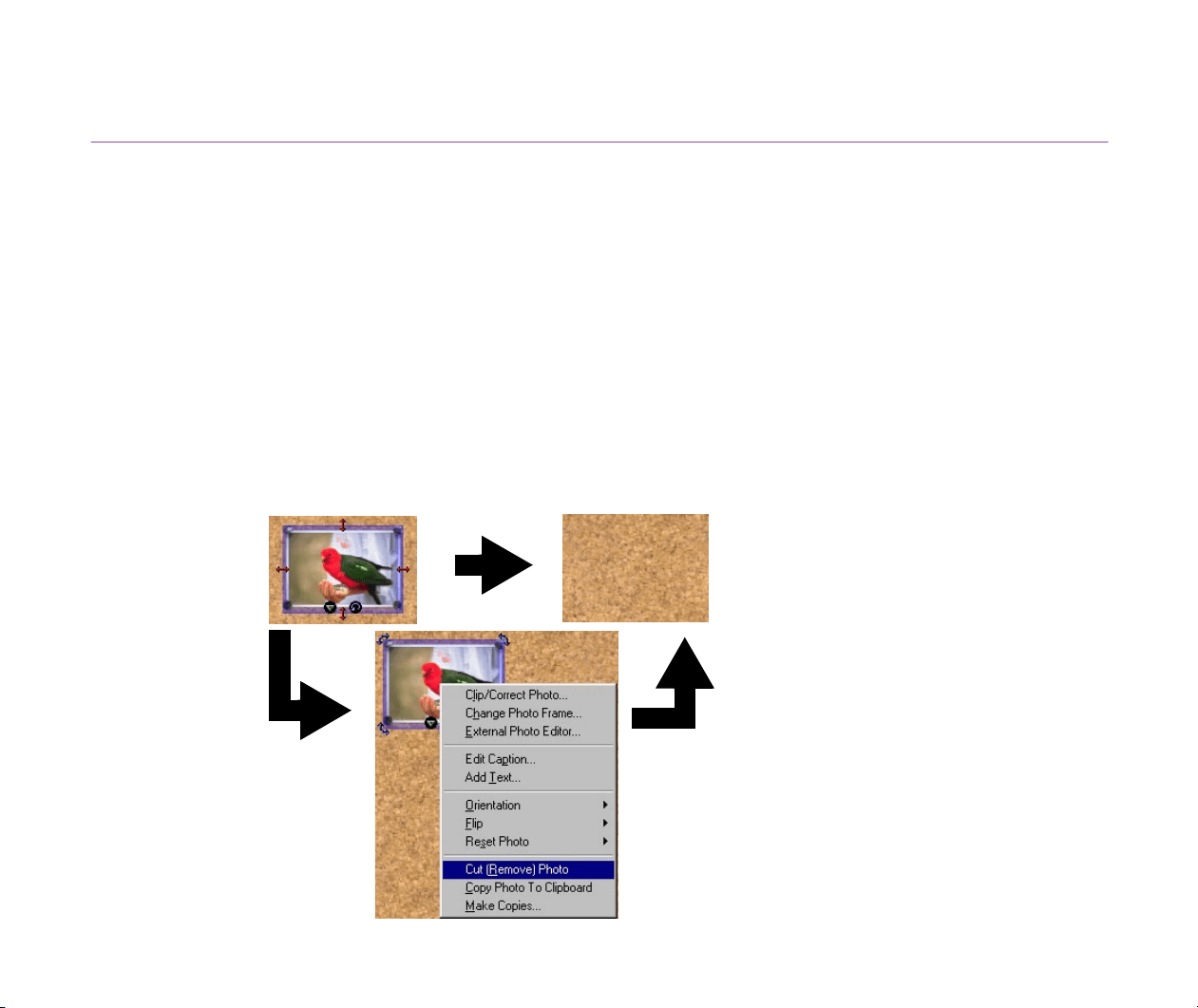
Changing Layout
131
Removing a Photo
You can remove (clear) a photo from the layout in the PhotoRecord window.
Here removing a photo means just excluding it from the print page. It does not mean deleting the
actual image file from your computer.
Steps
1
Click the option button attached to the photo you want to remove. A pop-up menu
appears.
2
From the menu, select Cut (Remove) Photo.
The selected photo is removed.
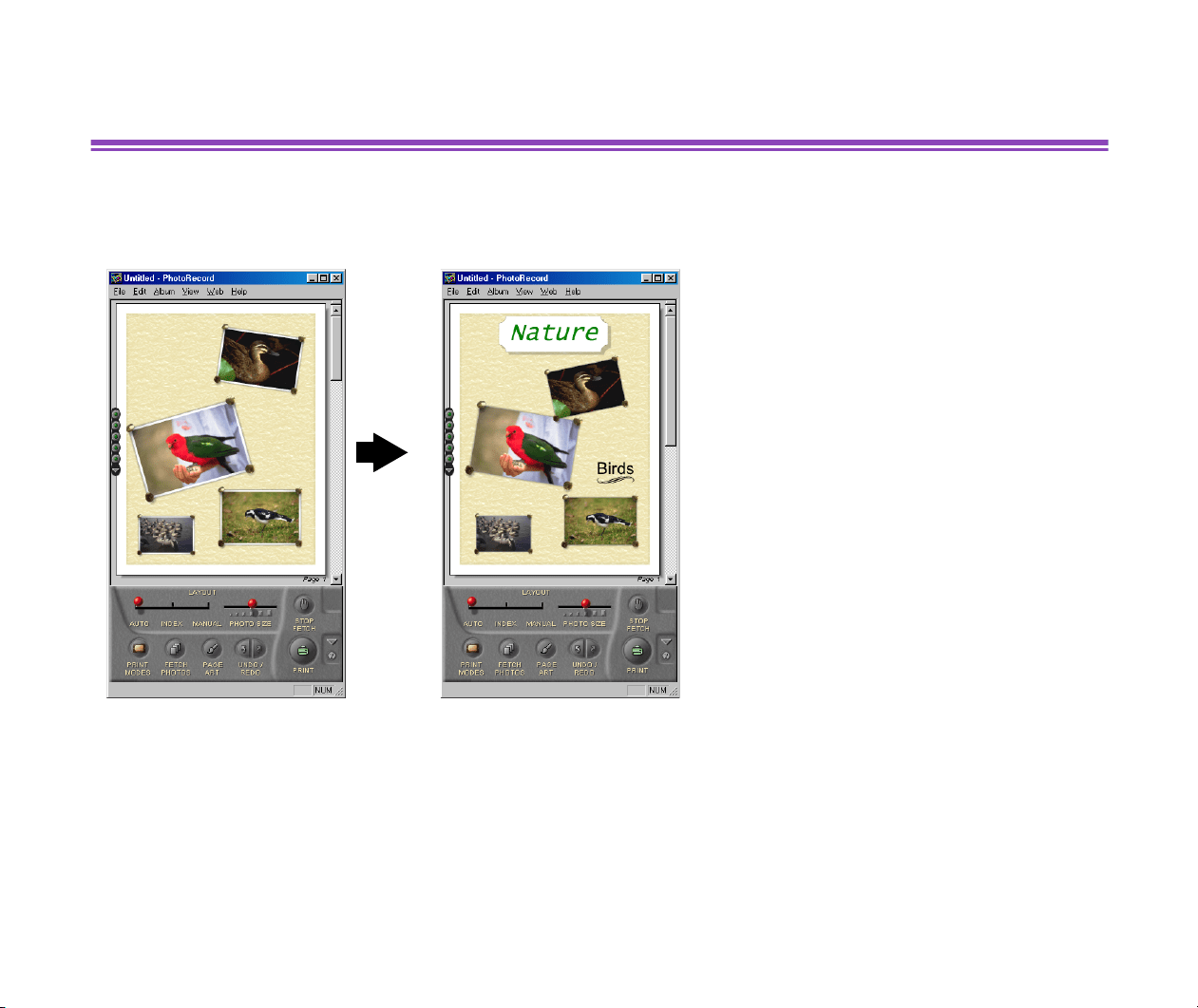
Adding Text
132
Adding Text
You can add text to your pages in the PhotoRecord window. Use this function to insert photo
captions, page titles, and so on.
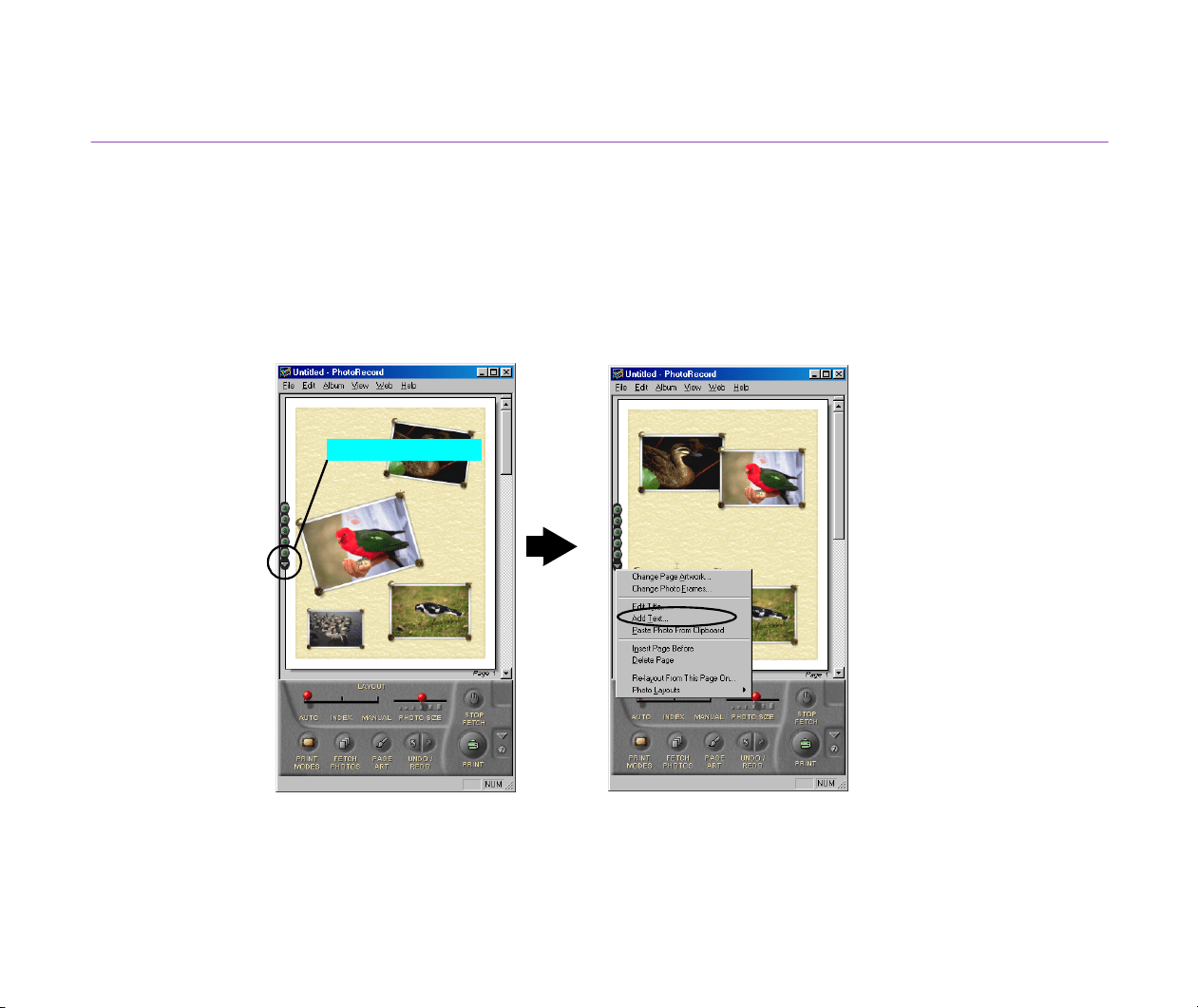
Adding Text
133
Adding and Positioning Text
You can type text in the Edit Text box to put it on your pages in the PhotoRecord window.
Steps
1
Click the option button on the left side of the current page.
Option button
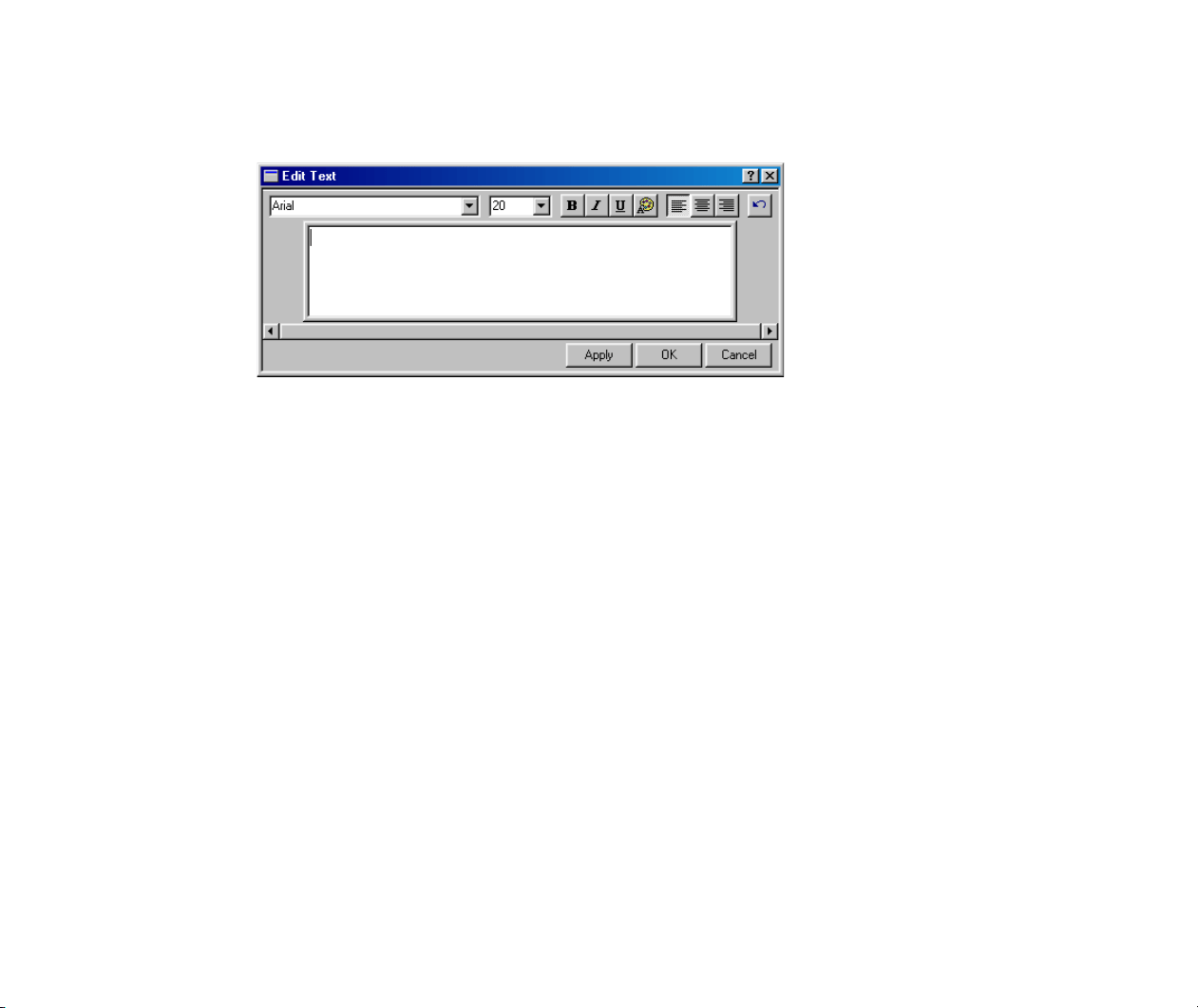
Adding Text
134
2
The option menu appears. Select Add Text from the menu.
The Edit Text dialog box appears.
There is an alternative to display the Edit Text dialog box. Make sure that no photo
is selected, then right-click within the PhotoRecord window. From the pop-up
menu, select Add Text.
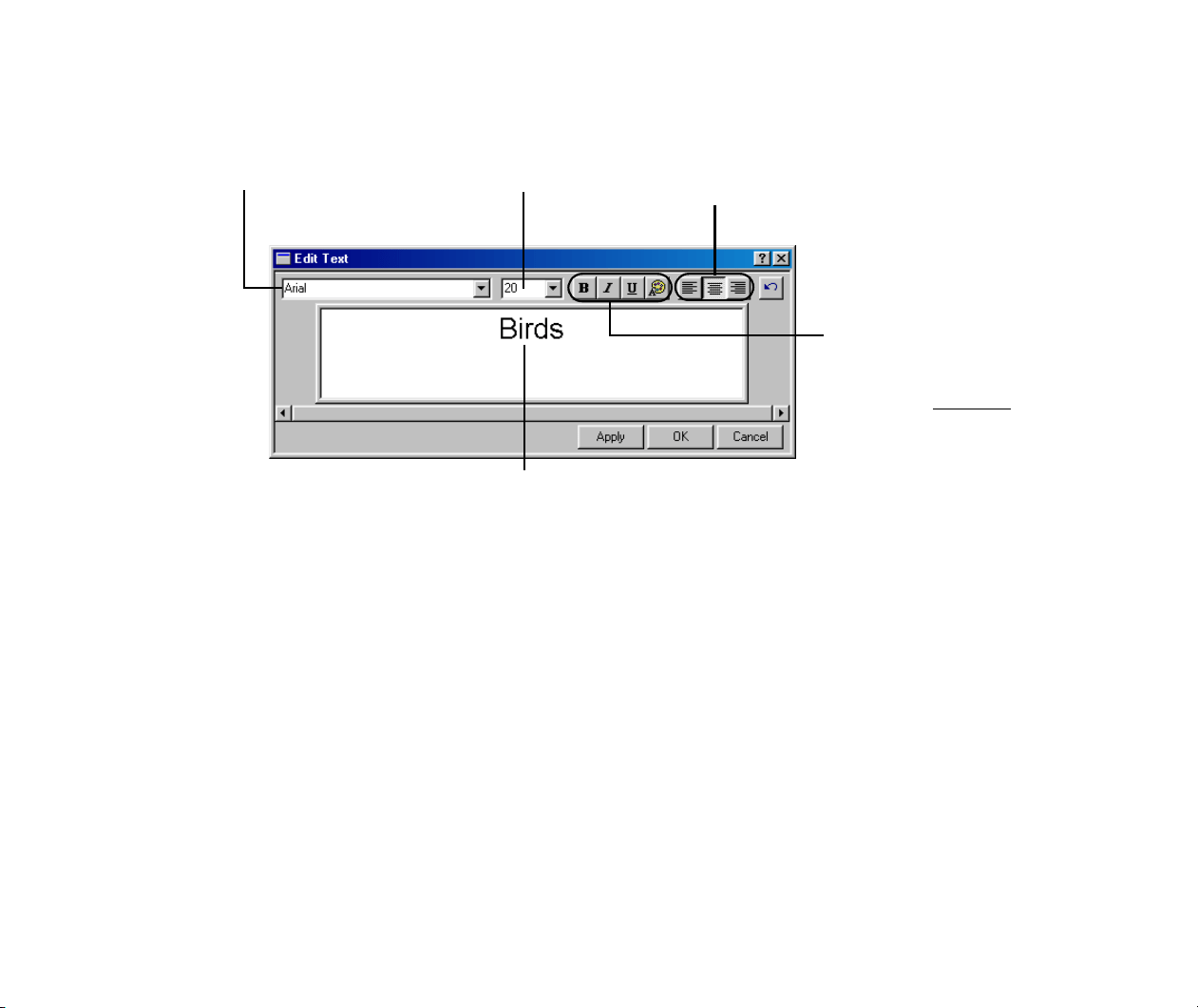
Adding Text
135
3
Type in a text string.
Specify the font.
Specify the font size.
Specify the font style.
Four font style options are
available:
bold
,
italic
, underline, and
font color (from left to right).
Specify the text alignment.
This area allows you to check the result of font name, font style, font
size, and alignment selection before they are reflected in the main
window (from left to right).
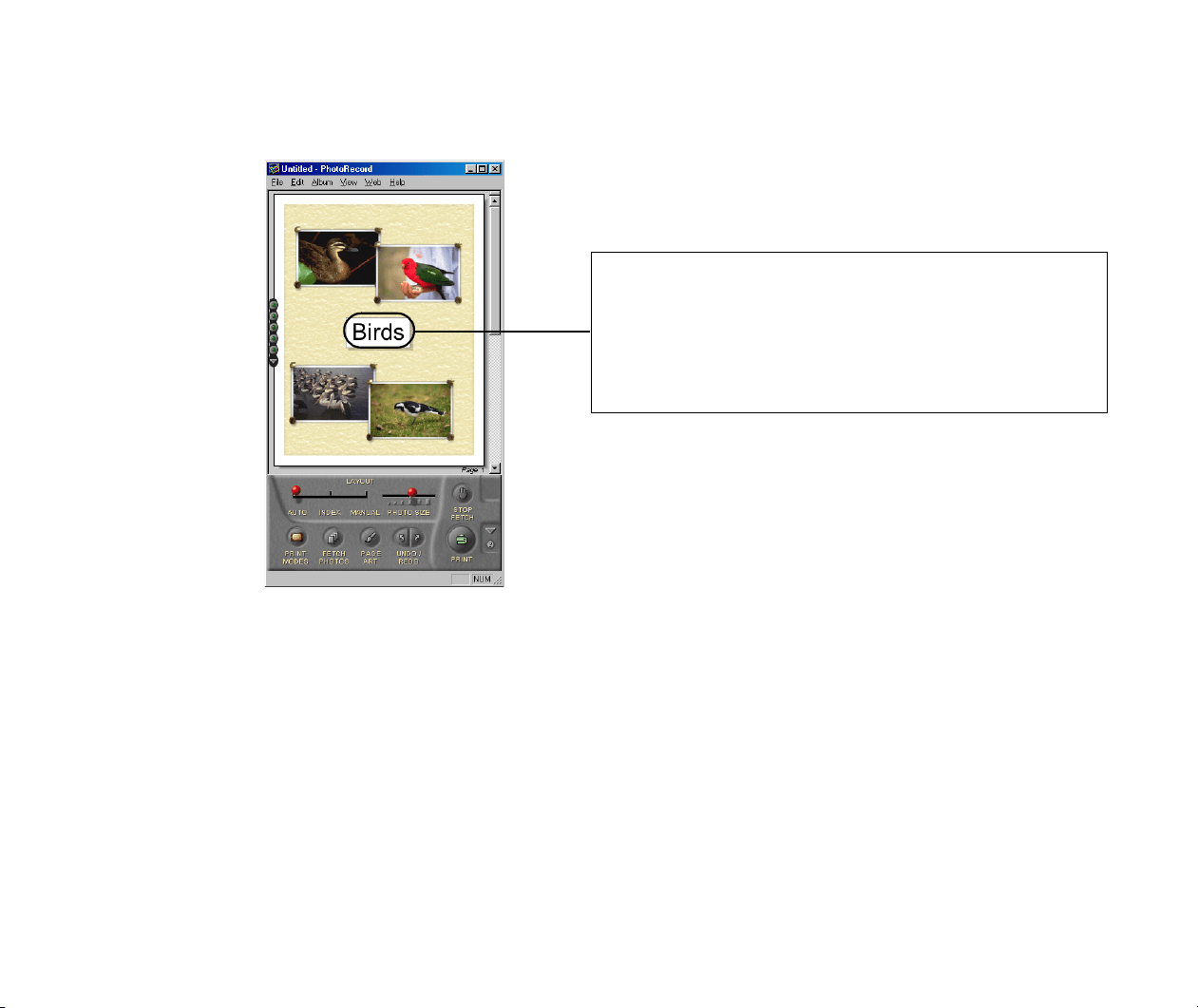
Adding Text
136
4
Click the OK button.
The typed text will appear on the current page.
You can change the ornament of each text block. You can
also move a text block wherever you want to place it, by
dragging it with the mouse.
You can always re-edit your text later, by double-clicking the
text block to re-open the Edit Text dialog box.
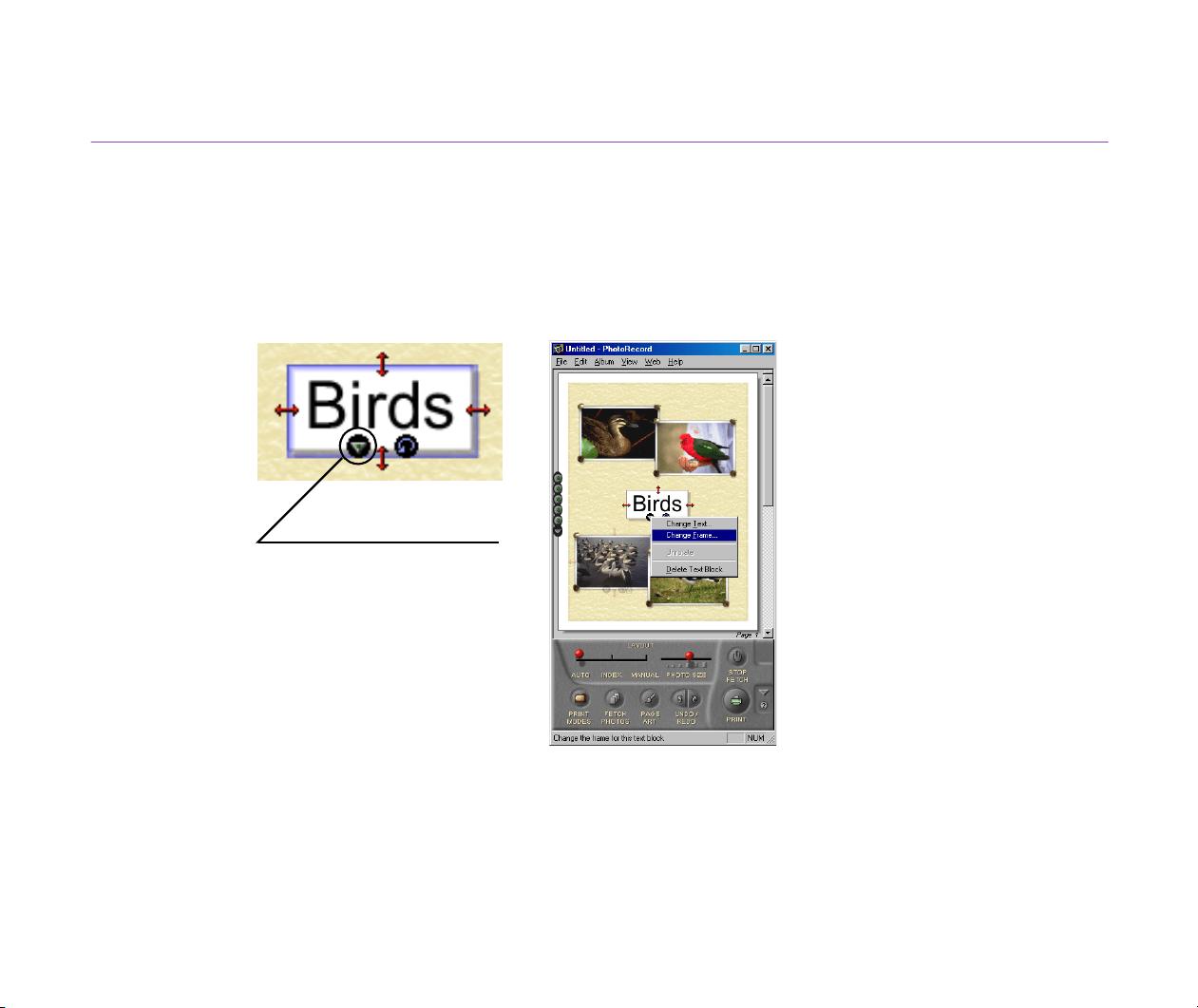
Adding Text
137
Applying Artwork to Text
You can specify ornament for each of your text.
Steps
1
Select a text block and click the option button.
Option button
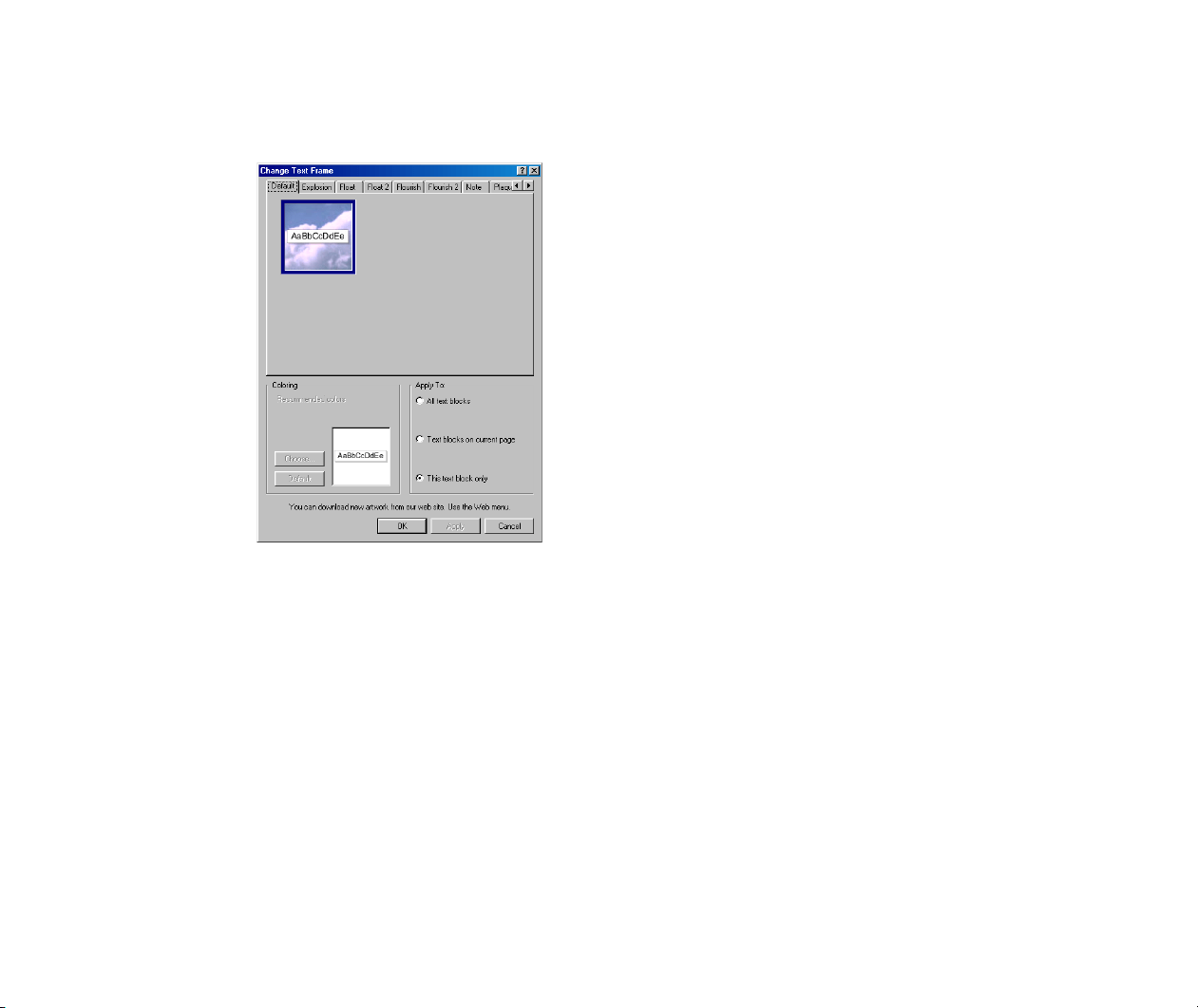
Adding Text
138
2
The option menu appears. Select Change Frame from the menu.
The Change Text Frame dialog box appears.
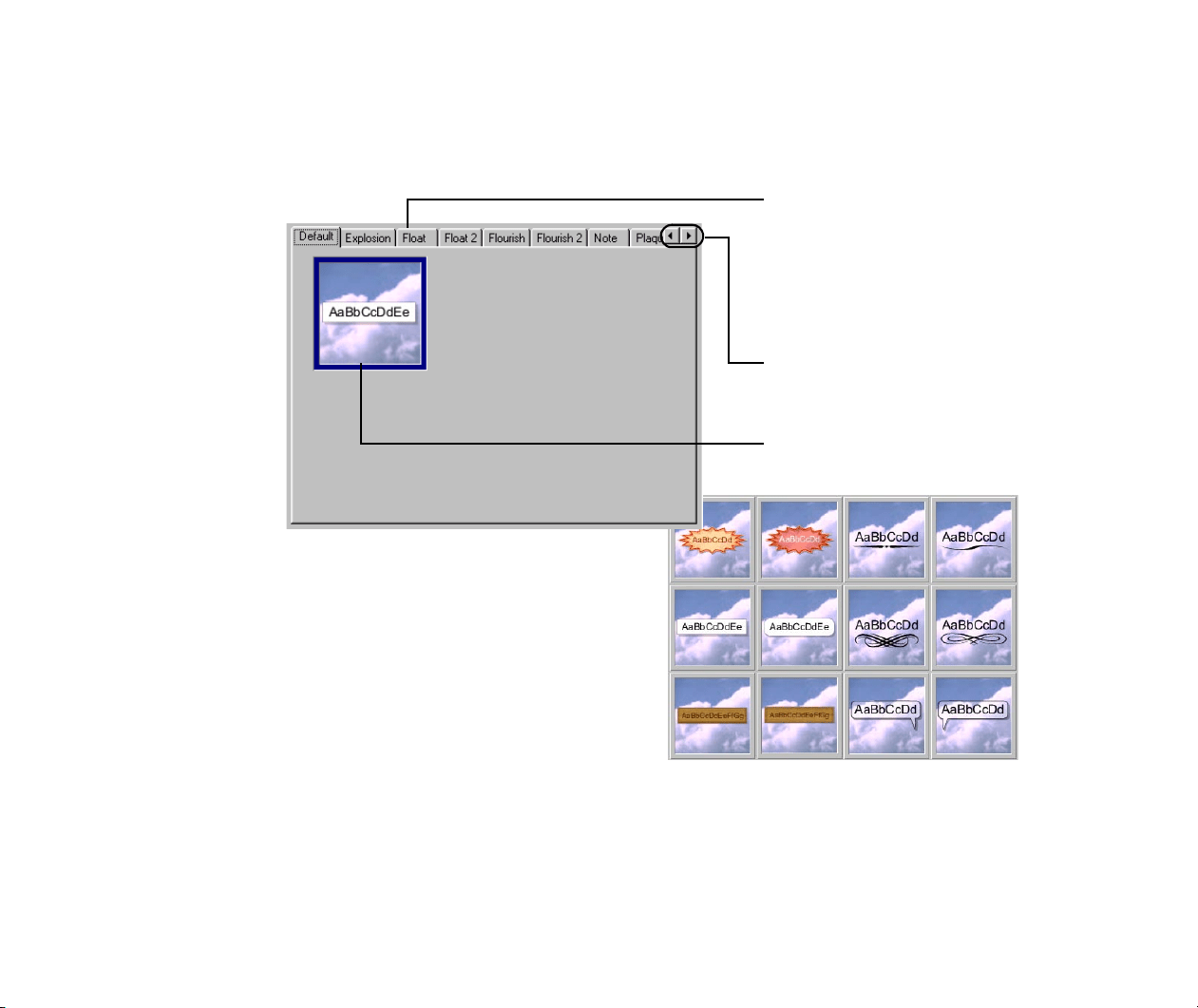
Adding Text
139
3
Select an artwork pattern you want to apply to the text block.
To select an ornament pattern, select a sample panel and click on the desired
sample pattern in the panel.
Samples are grouped under several tabs
according to their types. Click a tab to
select a sample panel and select the
desired pattern.
These buttons allow you to scroll the
tabs.
A wide variety of ornament patterns are
available.
Click on the sample pattern to select it.
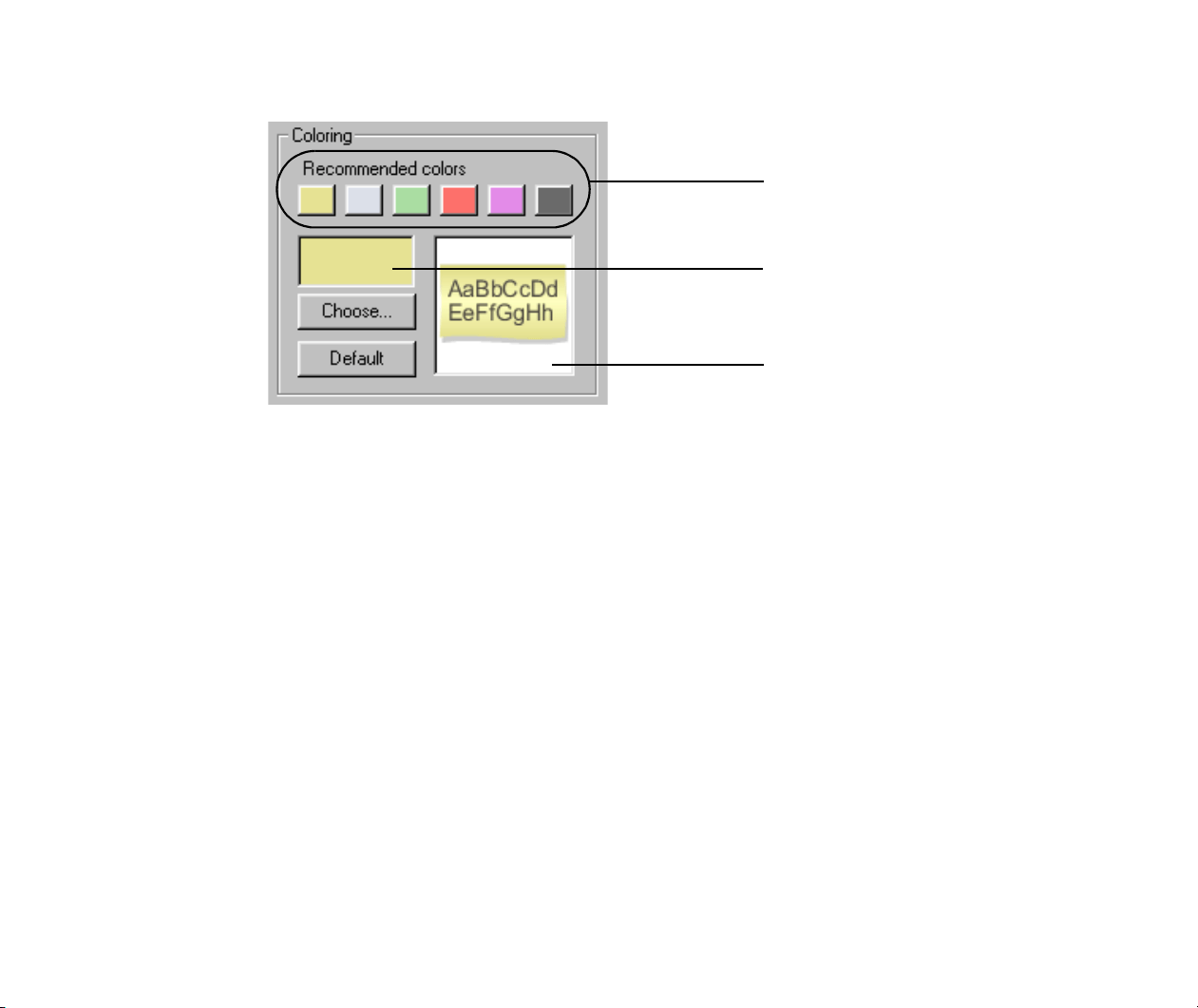
Adding Text
140
4
Select a color.
Click the Choose button to display the color selection window and select a new
color. Click the Default button to bring back the default color.
5
Specify to which text blocks you want to apply the selected ornament pattern.
Select All text blocks to apply the selected ornament pattern to all the text blocks
in the PhotoRecord window.
Select Text blocks on current page to apply the selected ornament pattern only to
the text blocks on the current page.
Select This text block only to apply the selected ornament pattern only to the text
block currently selected.
6
Click the OK button.
The Change Text Frame dialog box closes and the selected ornament pattern is
reflected in the PhotoRecord window.
If you click the Apply button, the selected ornament pattern is reflected in the
PhotoRecord window without closing the Change Text Frame dialog box.
To select a color, click the corresponding
preset button. See how the color is
reflected in the preview area.
This box shows the selected color.
Preview area.
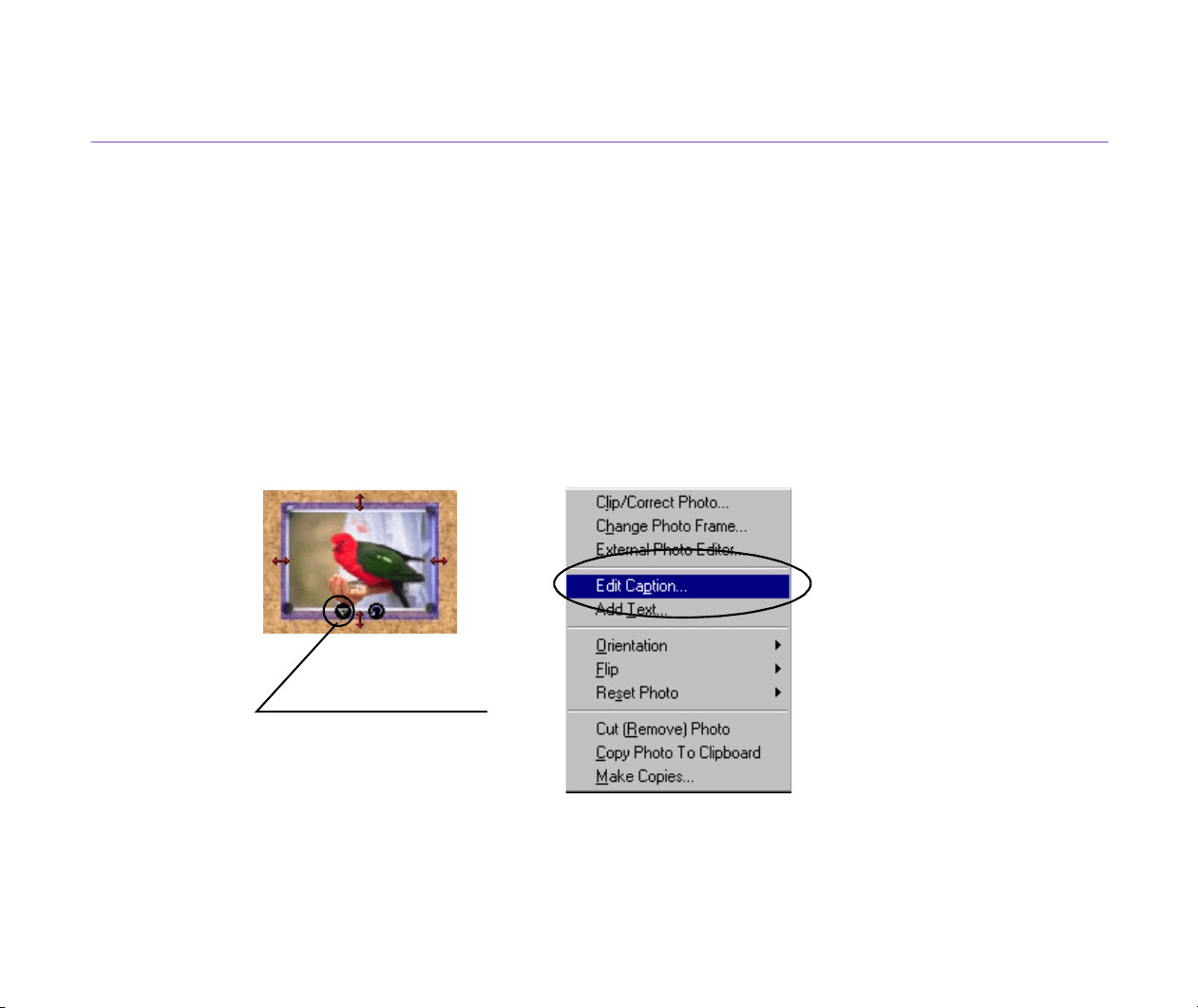
Adding Text
141
Adding a Caption to a Photo
When you are working in the Artwork/Layout album mode, the entered caption is displayed just
below the selected photo. In the other print modes, the entered caption is displayed inside one of
the corners of the selected photo. You can move the caption to another corner of the photo.
There is an automated way of printing the photo data file names and/or the date and time of
photographing as a caption. Specify captions from the Preferences dialog box of the ZoomBrowser
EX.
Steps
1
Select a photo and click the option button.
Option button
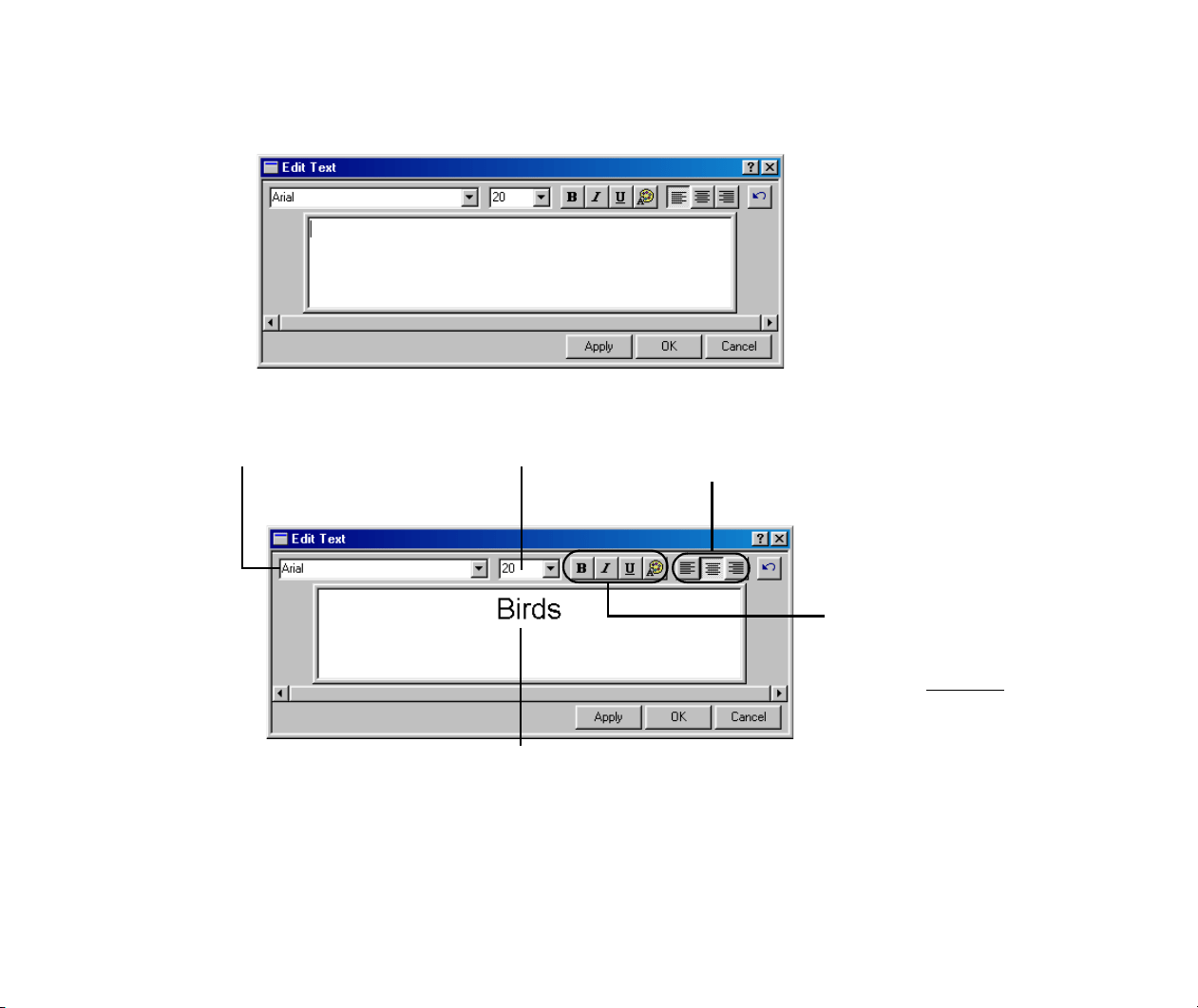
Adding Text
142
2
A pop-up menu appears. Select Edit Caption from the menu to display the Edit
Text dialog box.
3
Type in a text string.
4
Click the OK button.
The caption appears on the current page.
Specify the font. Specify the font size.
Specify the font style.
Four font style options are
available:
bold
,
italic
, underline
, and
font color (from left to right).
Specify the text alignment.
This area allows you to check the result of font name, font style, font size, and
alignment settings before they are reflected in the main window.(from left to right).
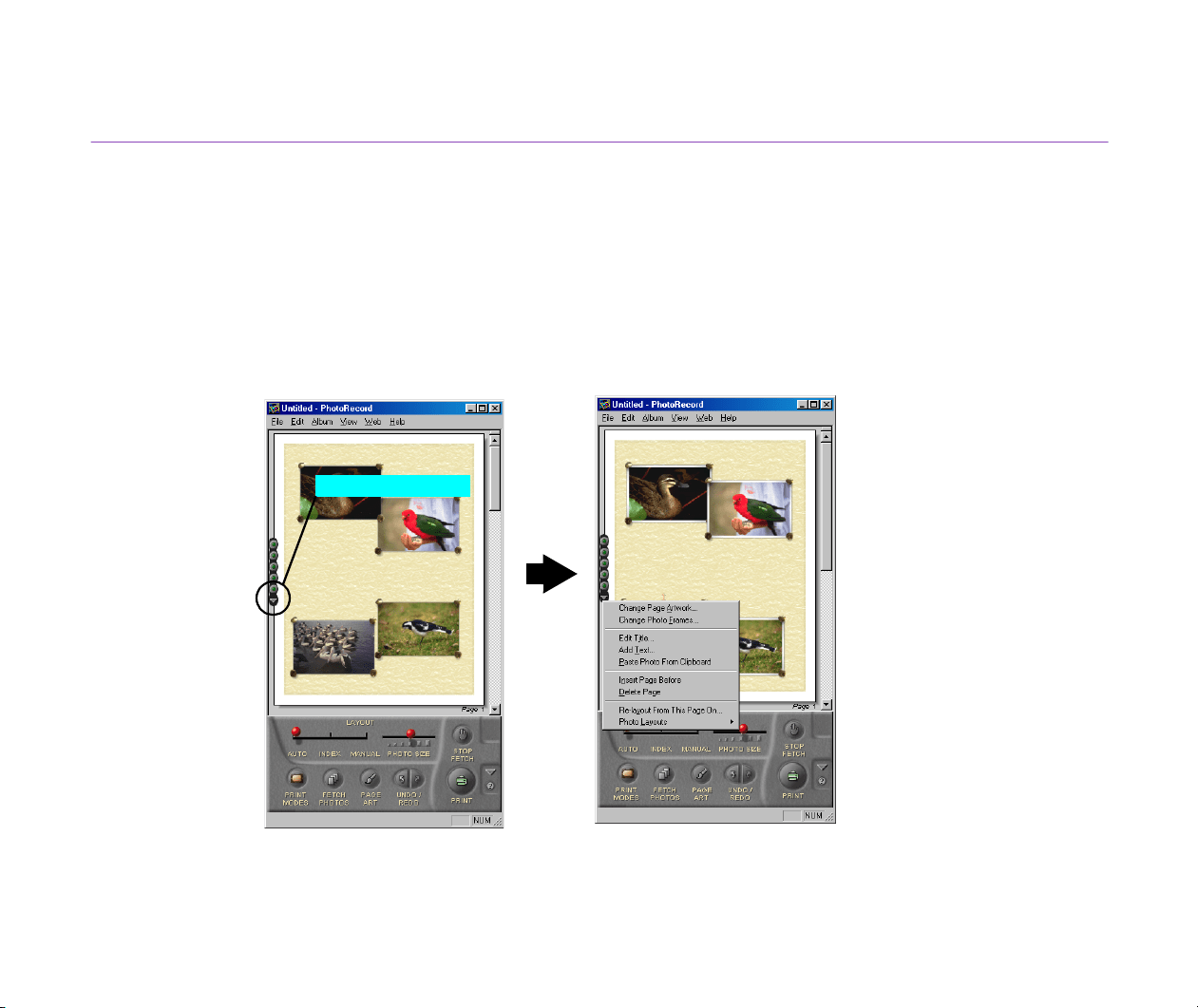
Adding Text
143
Inserting a Page Title
A page title is always inserted at the top of the printable area. You can align the text in the text block
by selecting an alignment option (align left, center text ,or align right). The text block itself does not
move from its fixed position.
Steps
1
Click the option button on the left side of the current page.
Option button
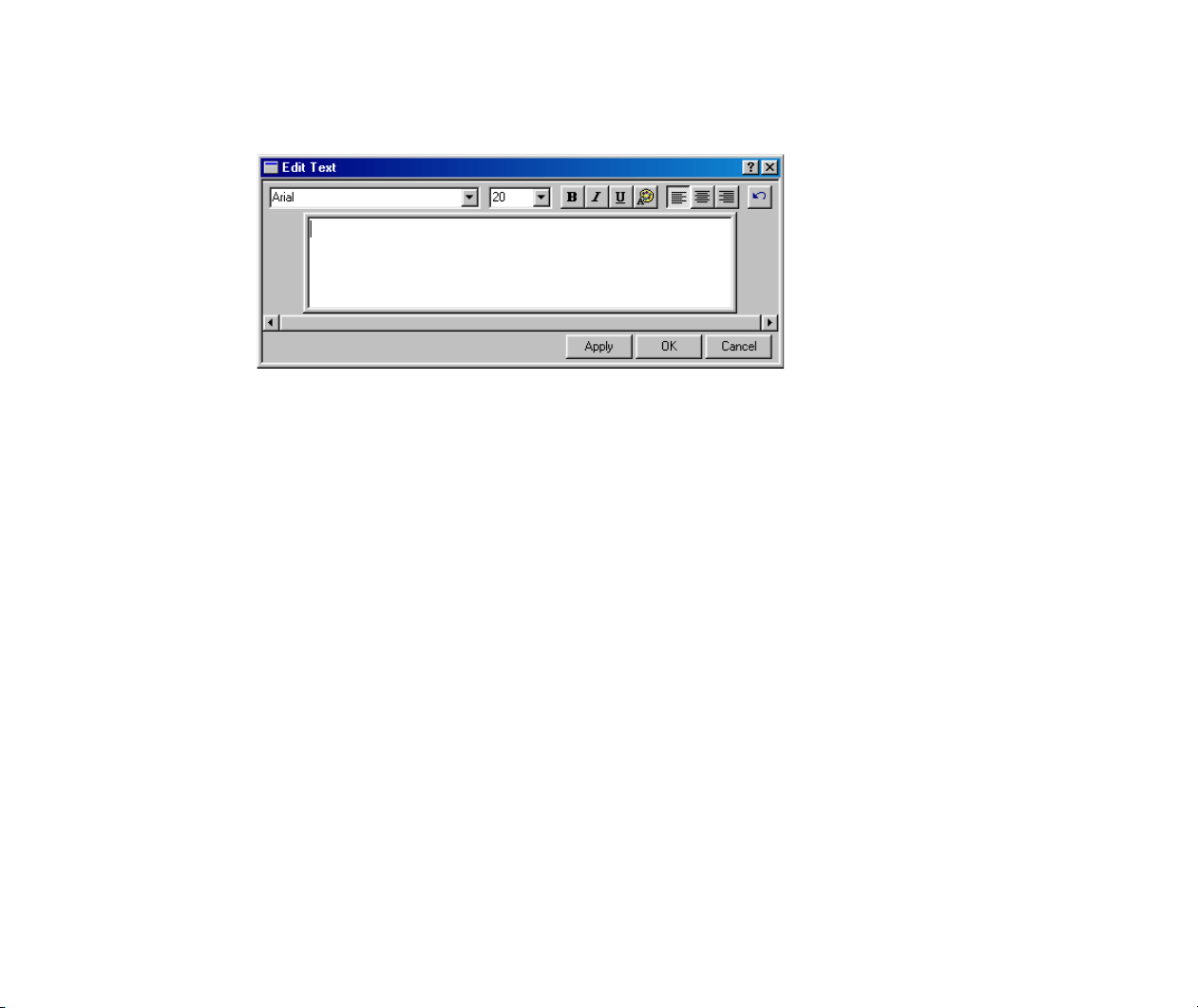
Adding Text
144
2
A pop-up menu appears. Select Edit Title from the menu to display the Edit Text
dialog box.
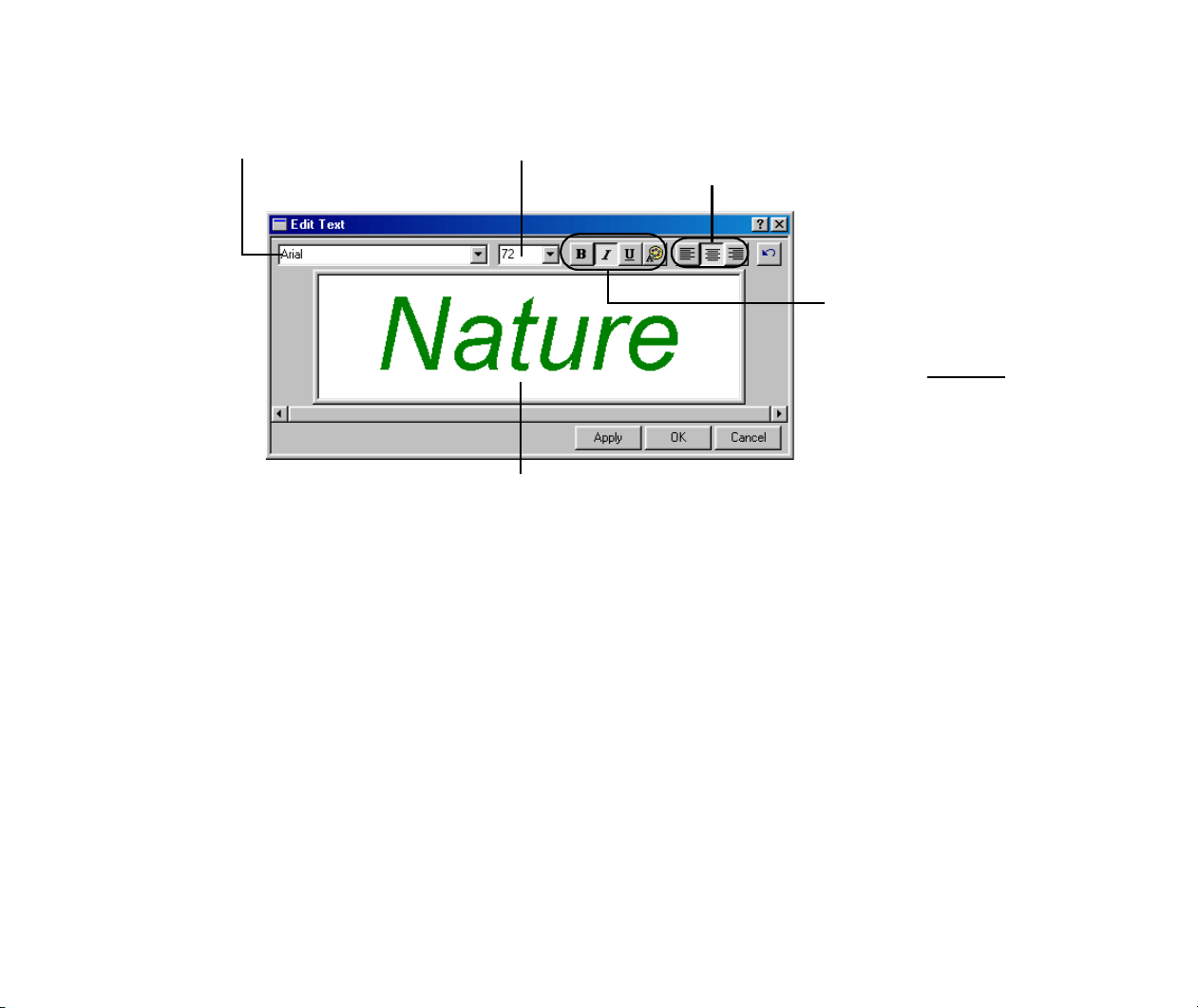
Adding Text
145
3
Type in a text string.
4
Click the OK button.
The title is displayed at the top of the printable area. You can align the text in the
text block using an alignment option (align left, center text, or align right).
You can apply artwork (ornament) to the text.
Specify the font.
Specify the font size.
Specify the font style.
Four font style options are
available:
bold, italic, underline, and
font color (from left to right).
(from left to right).
Specify the text alignment.
This area allows you to check the result of font name, font
style, font size, and alignment settings before they are
reflected in the main window.(from left to right).
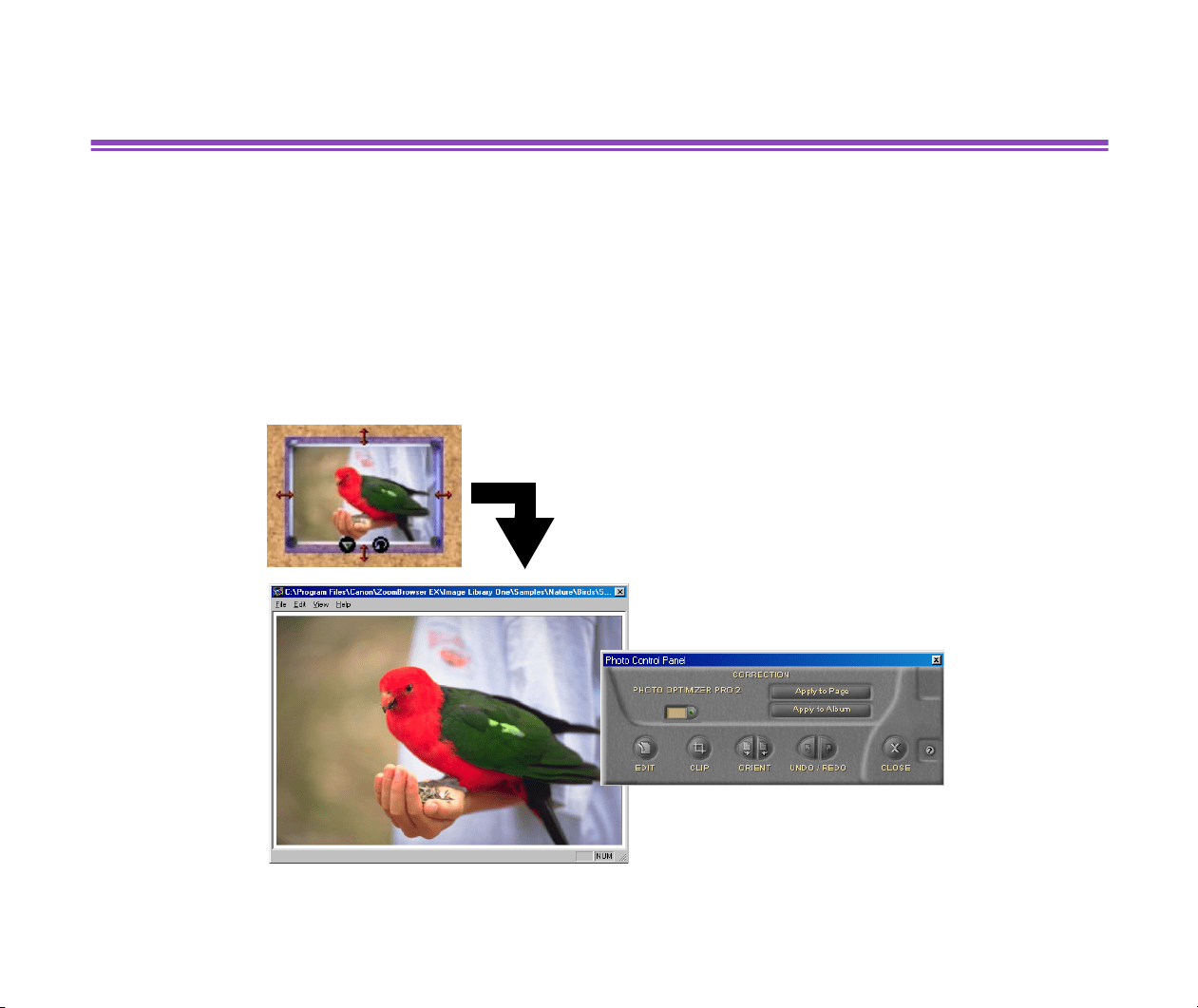
Clipping a Photo
146
Clipping a Photo
You can clip your photos displayed in the PhotoRecord window.
The photo-clipping feature allows you to print part of a photo image. It does not affect the original
photo image file.
Steps
1
In the PhotoRecord window, double-click the photo you want to clip.
The Photo Viewer window appears.
Photo Viewer
window
As an alternative, select the photo first, right-click to
open a pop-up menu, and then select Clip/Correct
Photo from the menu.
Photo Control Panel
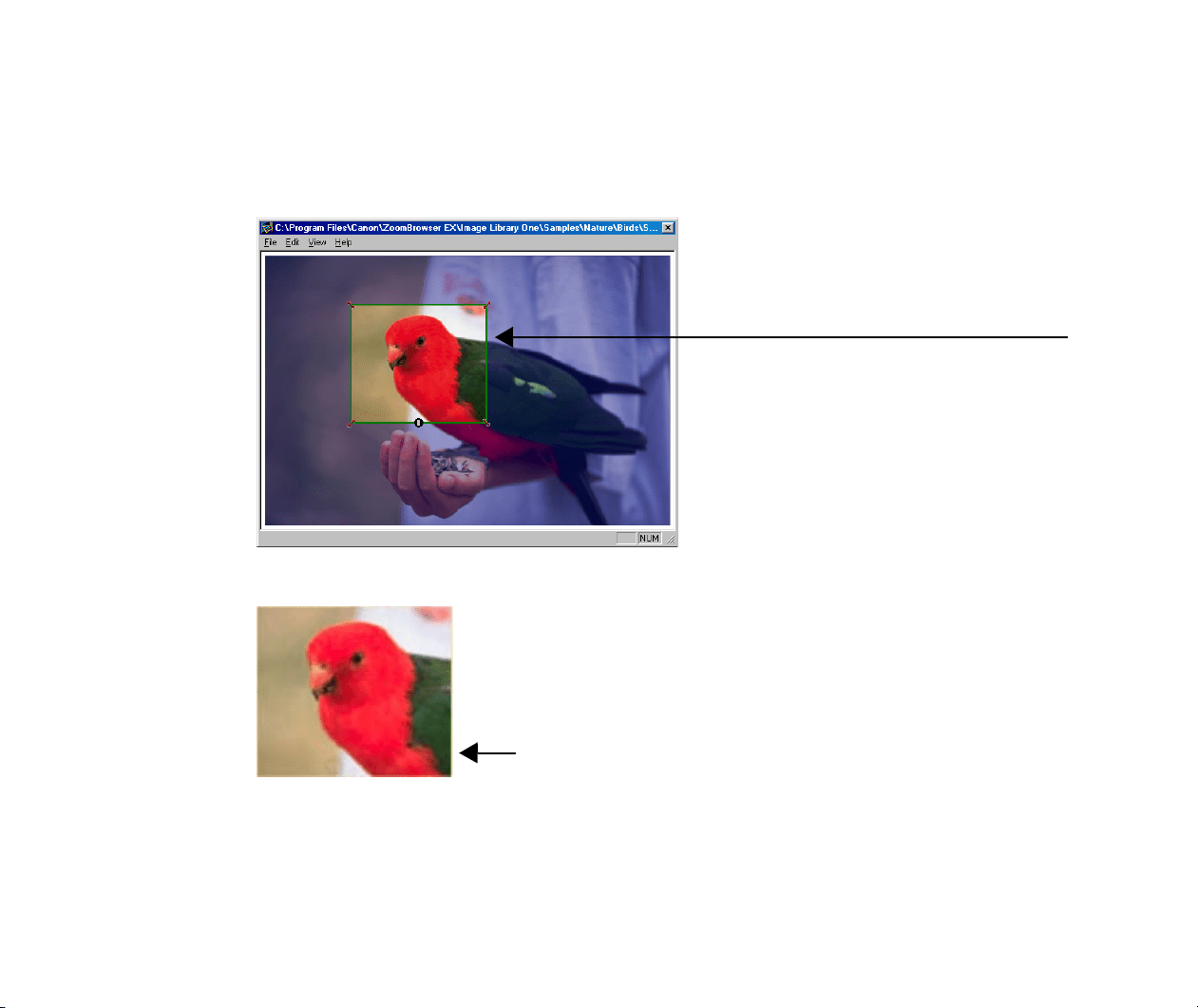
Clipping a Photo
147
2
On the Photo Control Panel, click the CLIP button to enter the Clipping mode.
Drag the clipping cursor over the Photo Viewer window until the part of the photo
image you want to print is enclosed in an outline.
To cancel the selection, click the CLIP button again.
3
Click the CLOSE button on the Photo Control Panel.
Note
³
The size of the clipped area depends upon the Artwork/Layout album mode
option you selected. When the selected mode is Fixed photo size printing,
Borderless printing (Tiled photo), or Canon perforated paper printing, the
clipped area is fixed in its height-width ratio.
Photo area to be clipped
Clipped photo

148
How to Use Online Help
The Canon BJ software provides you with Online Help information about functions and operations. It
contains a brief description of operational steps that you can read on the screen while operating the
program.
This section informs you how to use the Online Help of each BJ software program.
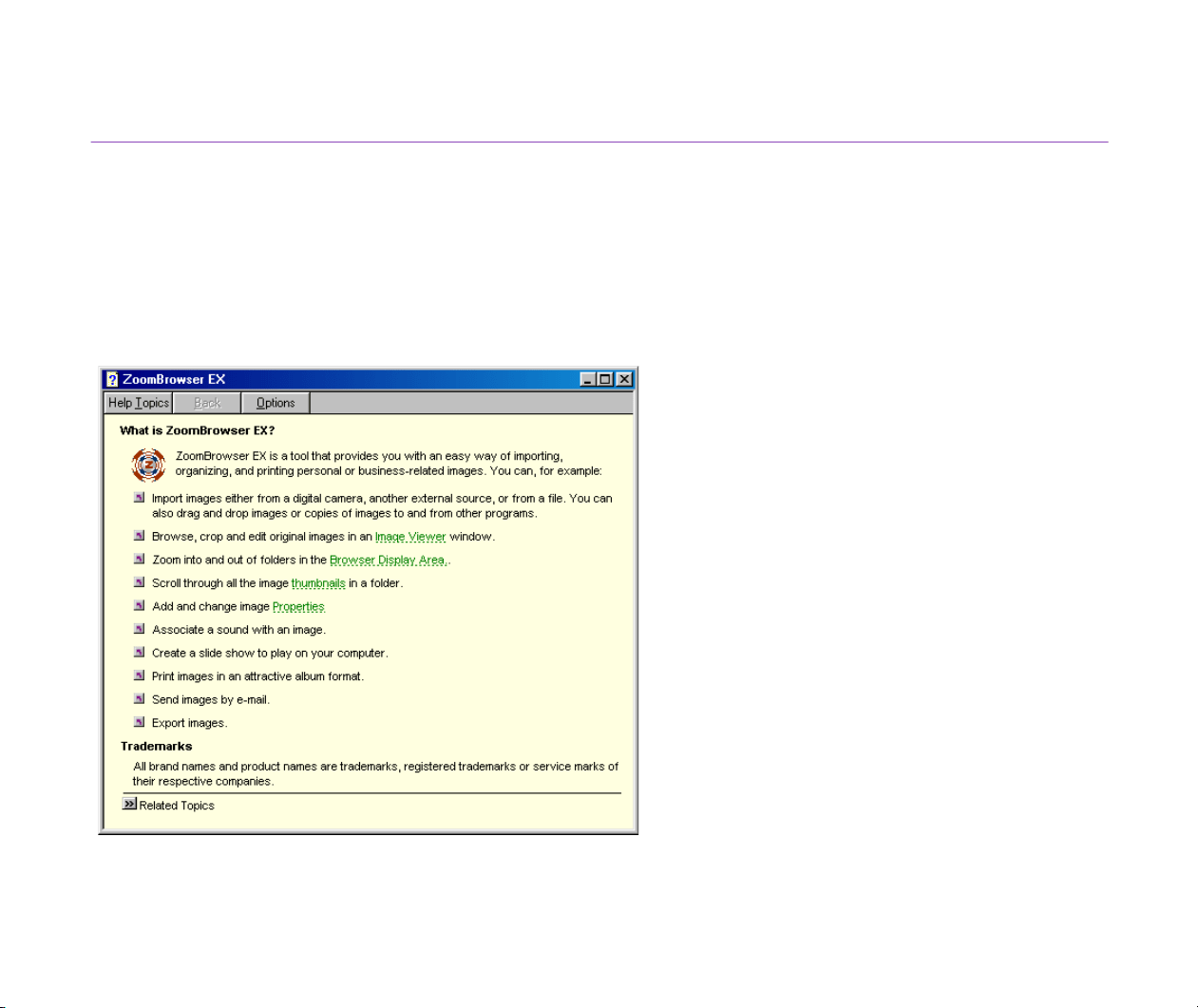
149
Online Help of ZoomBrowser EX
Two sets of Online Help are accessible from the Help menu of ZoomBrowser EX: What is
ZoomBrowser EX? and Show Quick Tips.
What is ZoomBrowser EX?
Look up explanations about major functions and operations of ZoomBrowser EX.
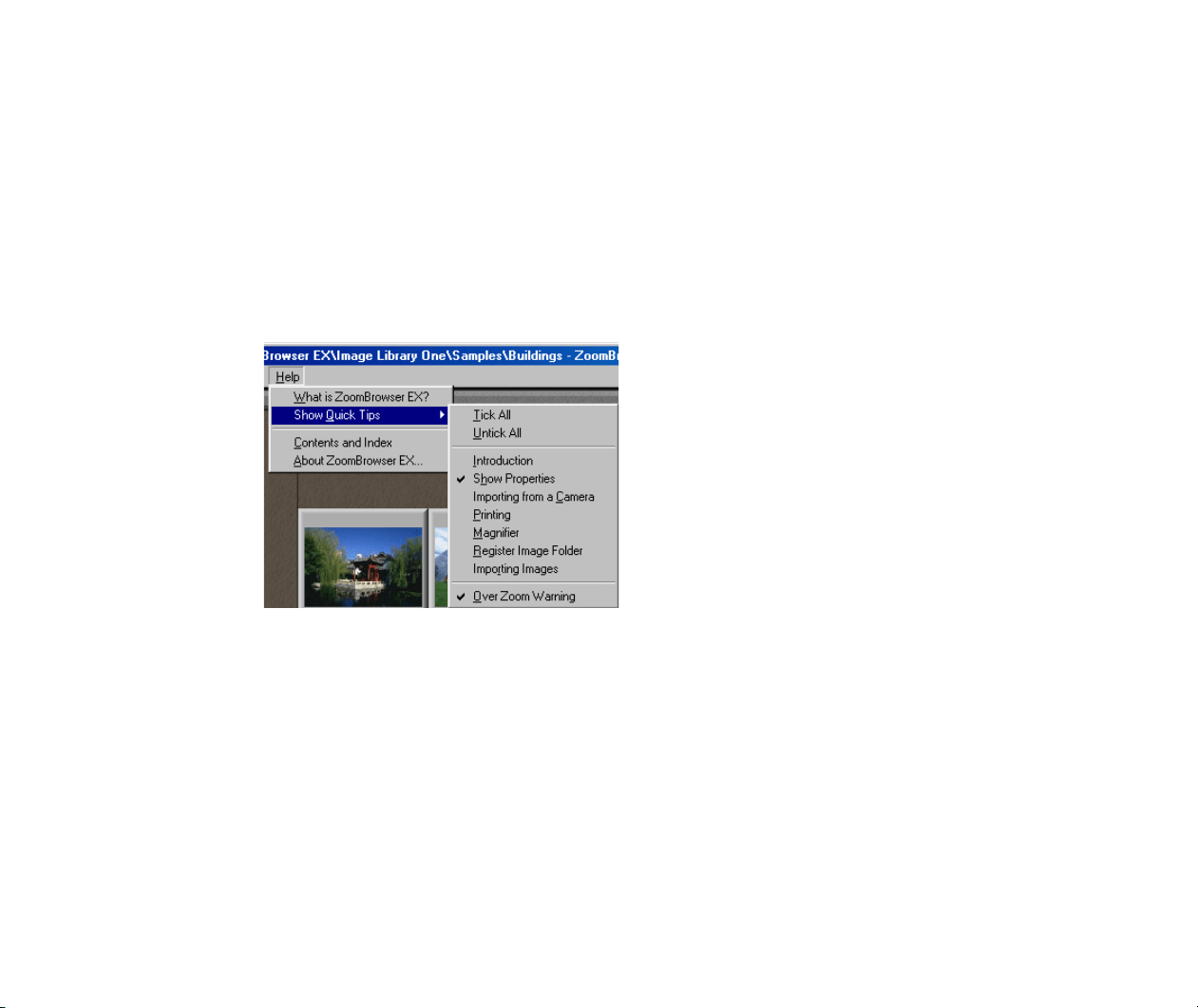
150
Show Quick Tips
You can choose whether or not to display Quick Tips at an appropriate time while working with
ZoomBrowser EX. Relevant topics are featured when using some of the major functions.
How to Use
1
Open the Help menu, and select Show Quick Tips.
2
From the submenu, select (checkmark) to display Tips you need. Quick Tips will
appear as soon as you try the checkmarked feature. Closing the Tips window
unchecks that feature and Tips will stop appearing.
You can either checkmark all or uncheck all by selecting the Tick All or Untick All
option command.
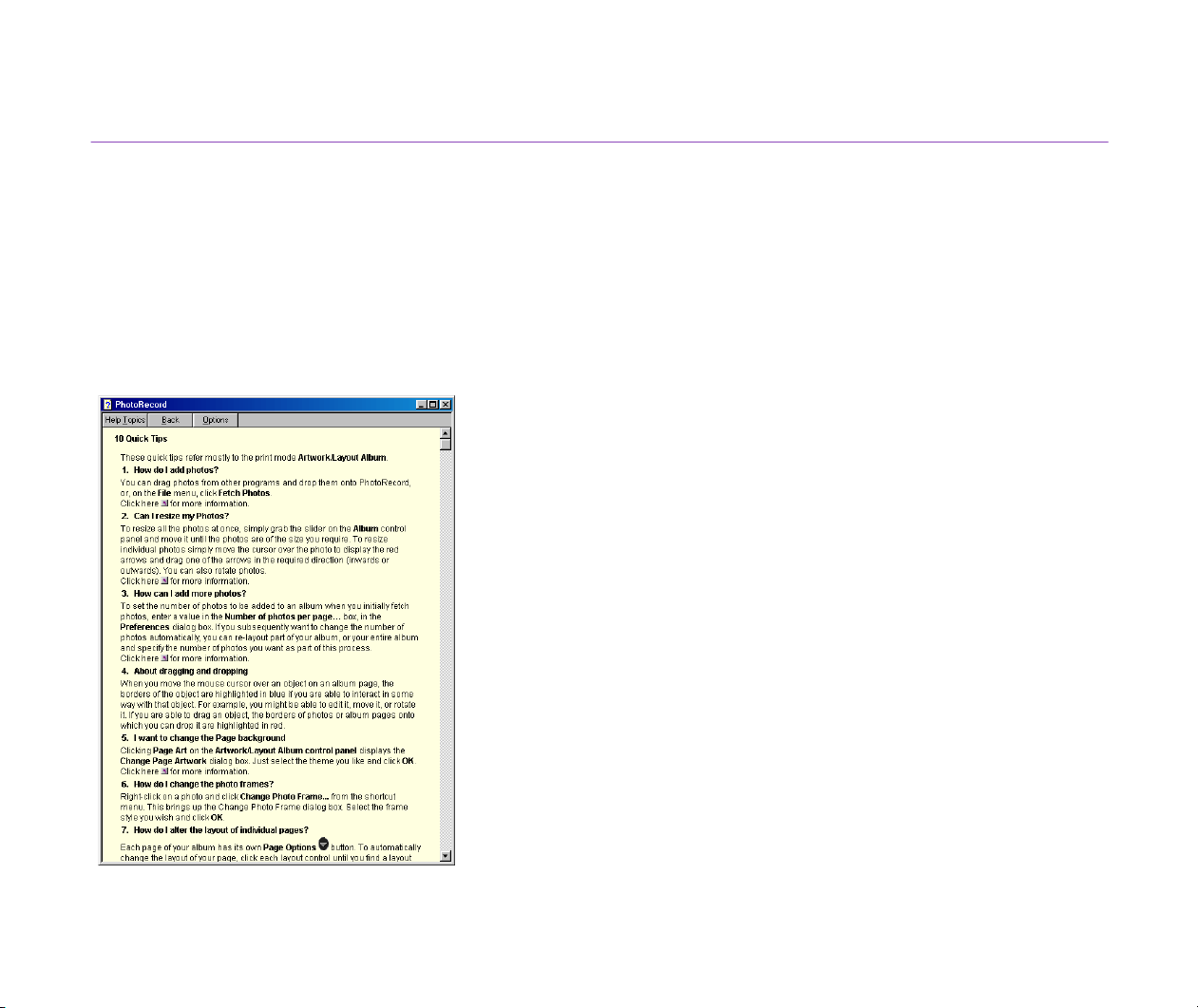
151
Online PhotoRecord Help
Two sets of Online Helps are accessible from the Help menu of PhotoRecord: Contents & Index and
What’s This?
How to Use
From the Help menu, click Contents & Index. You can look up explanations about the major
functions and operations of PhotoRecord.
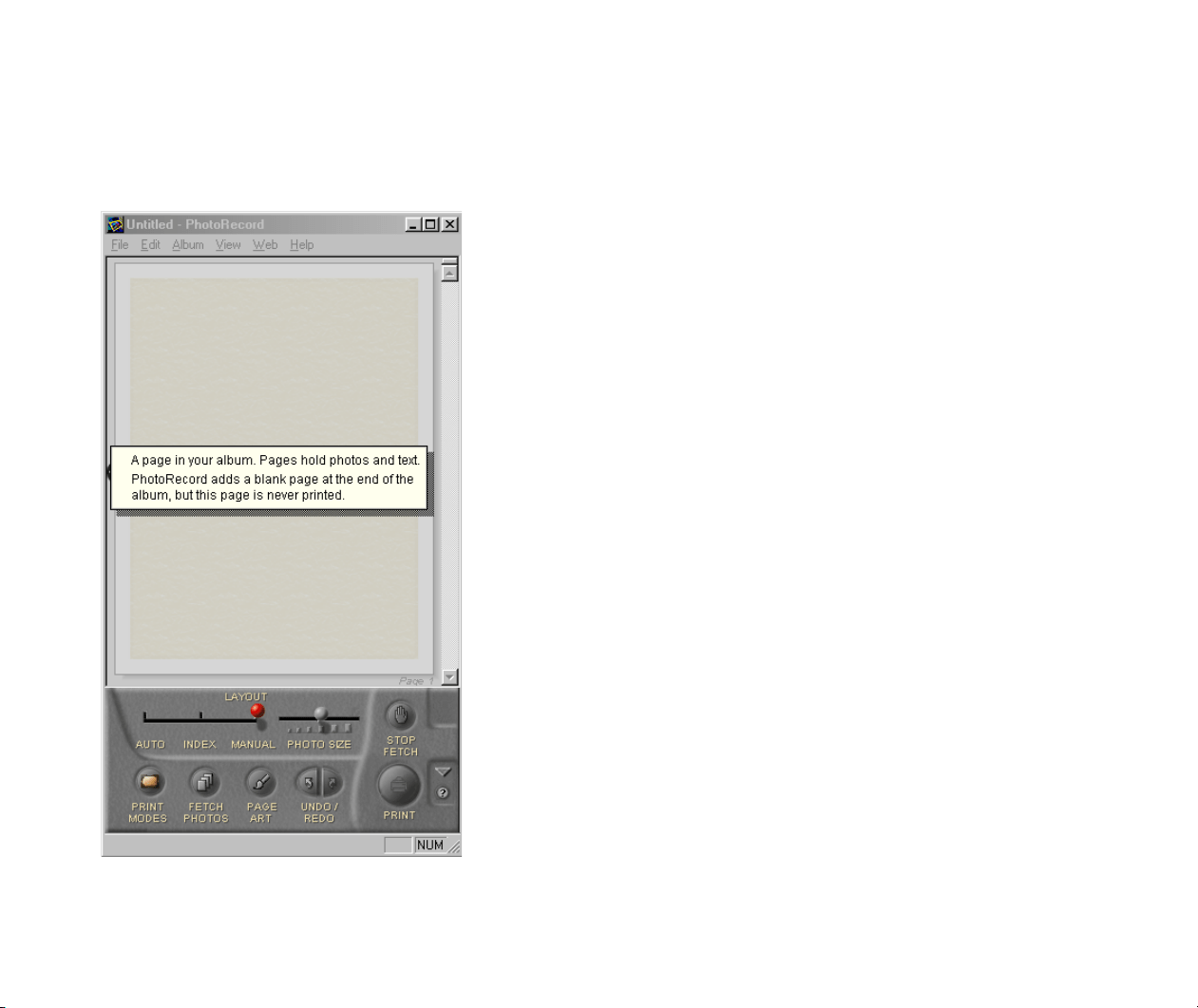
152
What’s This?
To understand what a button or an area means, select What’s This? from the Help menu. The
cursor turns into a ? mark. Point the desired object to display a brief explanation.

15
Adding Sound to Images 49
Adding text 116
Adjusting Image Colors 42
Album Control Panel 93, 98, 103, 108, 112
Applying artwork 10
Artwork 115, 137
artwork 4
Automation Wizard 58, 62
Automation wizard 8
Borderless Printing 5
Borderless Printing Mode 104
Browser Display 16
Browser Display Area 18, 23, 34, 39, 44, 52, 95
Camera Window 8, 66, 68, 70
Canon Utilities 11
captions 141
Changing Layout 124
Changing layout 116
Changing Location of Image Files 34

1
Clipping 115
Clipping a Photo 146
CONNECT CAMERA button 73
Control Panel 18, 19, 22
Creating Panoramic Photo Using PhotoStitch 16
Creating Panoramic photo Using PhotoStitch 16
Cropping Images 41
DELETE button 19, 35, 75
Deleting Images 35
digital camera 7
DOWNLOAD button 75
Editing Images from Other Application Programs 55
Editor Application 55
E-mail 52
Fixed Photo Size 99
fixed photo size printing 5
font name 135
font size 135
Headers 143
HELP button 80

11
Image Database 24
IMAGE INFO button 78
Image Library One 25
IMPORT IMAGES button 19
Importing Images 57
Importing images 8
Importing Images by Drag-and-Drop Operation 83
Importing Images from a TWAIN Device 81
Importing Images from the Camera Window 66
Importing Images with the Automation Wizard 57, 58
layout 4
Magnifier 23
memory card 8
Merging Panoramic Images by PhotoStitch 16
Online Help 148
Opening Image Files from Other Applications 55
Page Art 115, 117
Page Art Options 93, 98, 103, 108, 112
Page Background 118
page header 143

1$
Perforated Paper 109, 110
perforated paper 10, 113
Photo Control Panel 147
Photo Frame 121
photo Index 90
photo index 4, 86
Photo Size 99
Photo size 102
photo size 5
photo-clipping 146
PhotoRecord window 92, 98, 125, 146
PhotoStitch 16
Previewing the Layout before Printing an Index 90
Print an Index 87
PRINT button 19, 76
Print Mode 100, 105, 110
Printing from PhotoRecord 85
Printing the Photo Index 86
Processing Images for Sending by E-mail 52
Processing Images from Image Viewer 40
REFRESH button 19
Register Image Folder dialog box 30
Removing a Photo 131
Re-positioning the Photos 125
Resizing the Photos 127
ROTATE button 76
Rotating the Photos 129

1
Saving Images after Processing 43
scanner 7
scanning 7
Scroll Mode 19, 22
SELECT button 74
Selecting Automatic Image Downloading 59
Selecting layout 9
Set Logical Volume Name dialog box 30
Setting the Print Modes 95
Shooting 7
SHOW PROPERTIES button 19
Slide Show 44
Slide Show Control Buttons 47
SLIDE/DPOF button 79
Text block 137
Text Blocks 133
Thumbnails 18, 71
thumbnails 34
tiled photo 5
Time Tunnel 48
Tool switching buttons 20
Tree View 18, 34, 68
TWAIN 81
"
UPLOAD button 77