En
Es
Fr
Pt
Setup Guide
• After you finish reading this guide, store it in a safe
place for future reference.
• The information in this guide is subject to change
without notice.
https://oip.manual.canon/
1
Important Safety Instructions
Be sure to read these instructions before using
the machine.
3
User's Guide
This section explains all the ways this machine
can be used.
2
Setup Guide (this document)
En
Es
Fr
Pt
2
Unless otherwise stated, illustrations used in this
document are for the MF289dw.
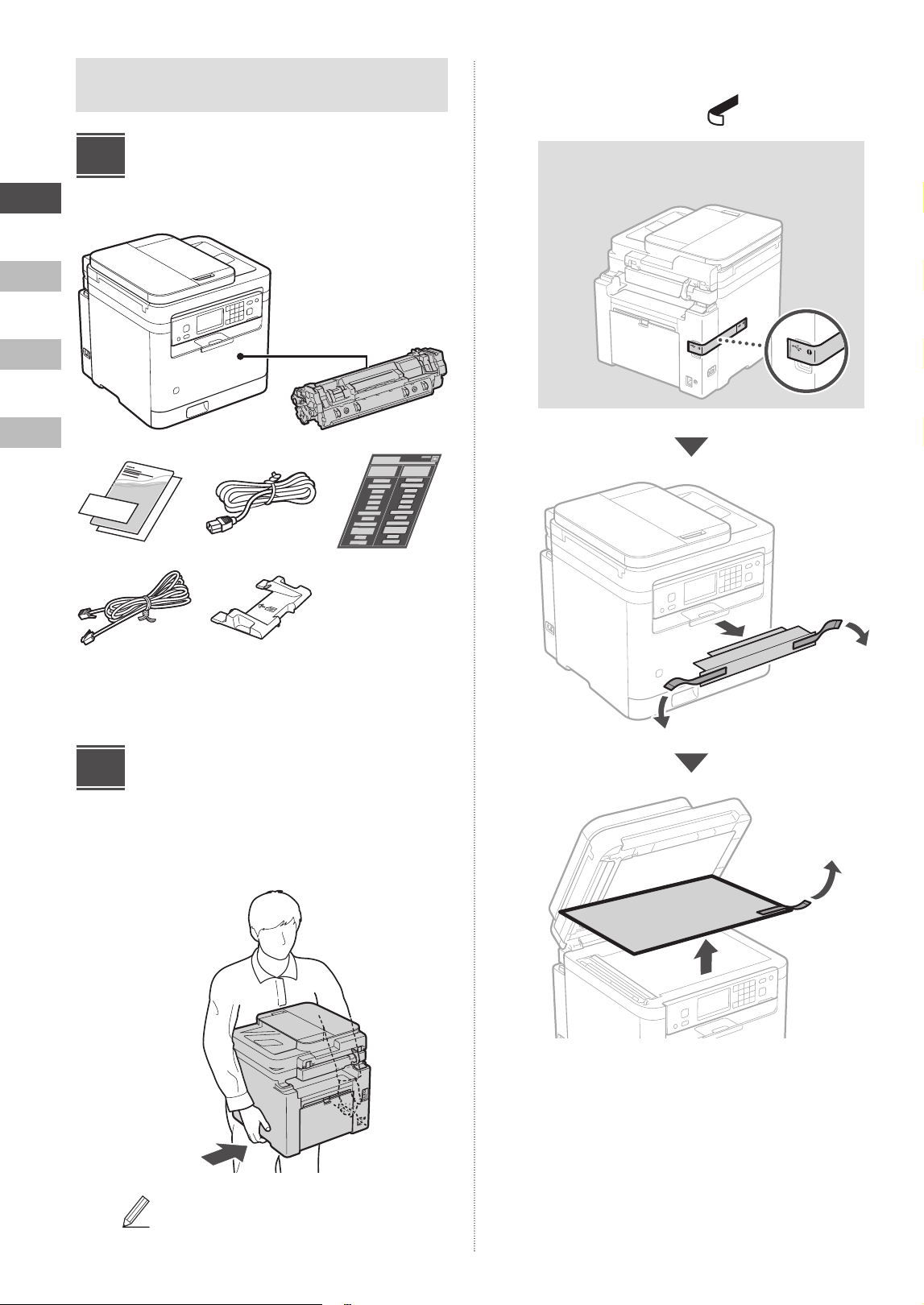
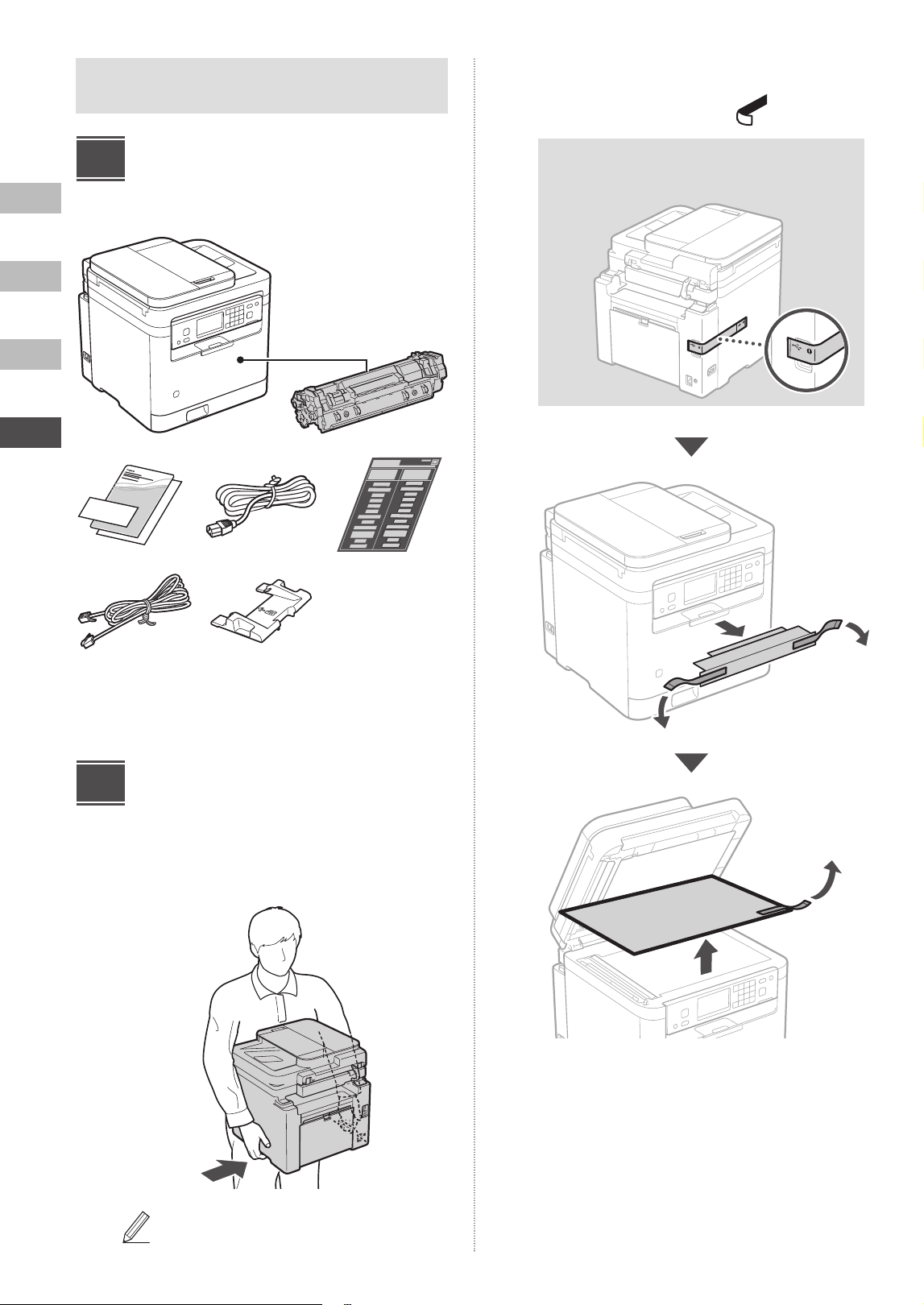
Checking the Items
Included
× 1
*
2
*
1
*
1
May not be included with some models.
*
2
Use this when scanning A6 size originals with the feeder.
Removing the Packing
Material
1. Install the machine in the location where it
will be used.
Provide a space of 4” (100 mm) or more
around the machine when installing.
2. Remove all packing material.
Remove all tapes.
Do not remove the sticker that covers the USB port
until you actually use the USB port.
Rear
1
2
En
Es
Fr
Pt
3
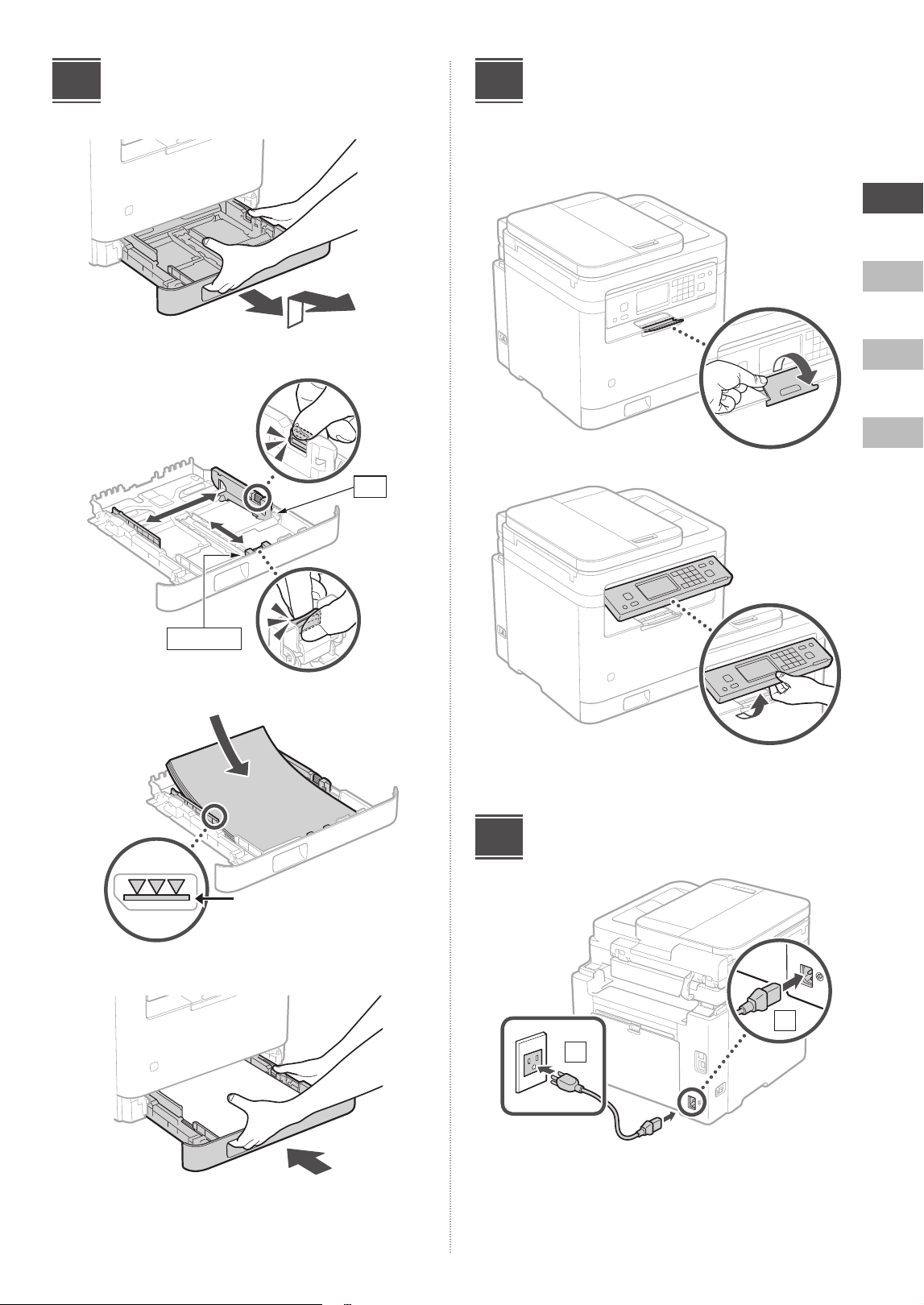
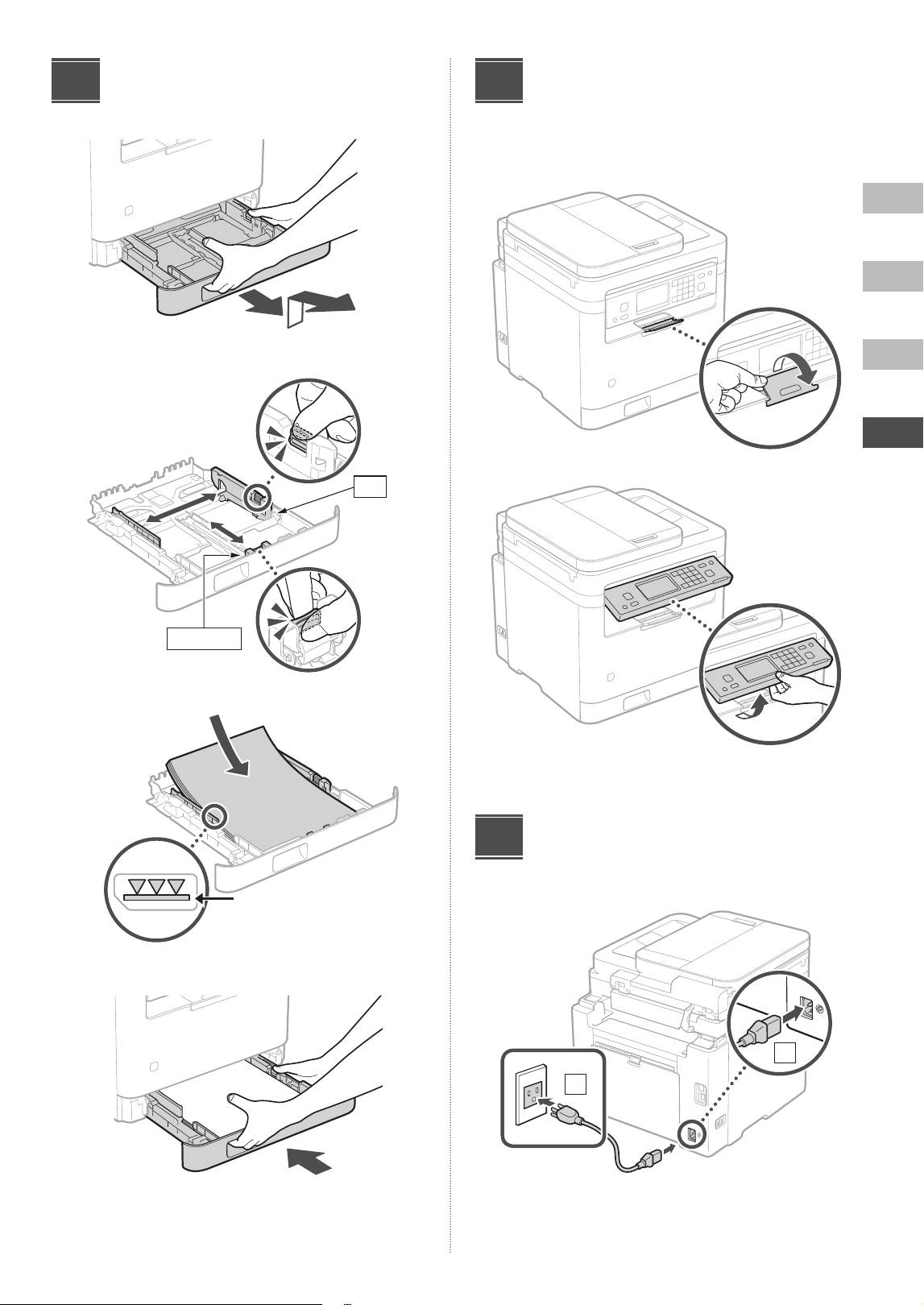
Loading Paper
1.
2.
3.
4.
3
A4
A4/LGL
Ensure that the amount of
paper loaded is not above
this line
Setting Up the Paper
Stopper and Control
Panel
1.
2.
Connecting the Power Cord
2
1
Rear
4
5
En
Es
Fr
Pt
4
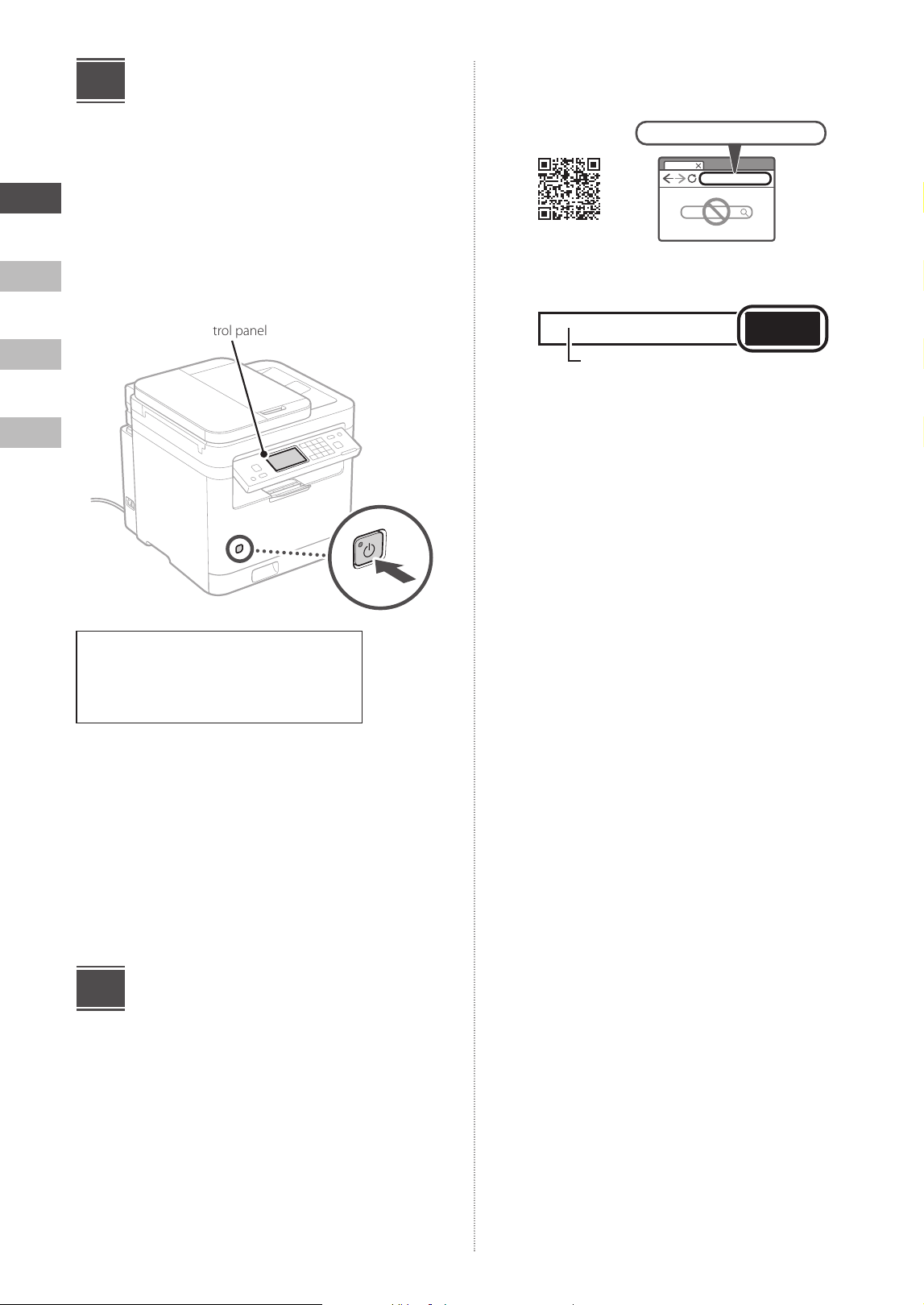
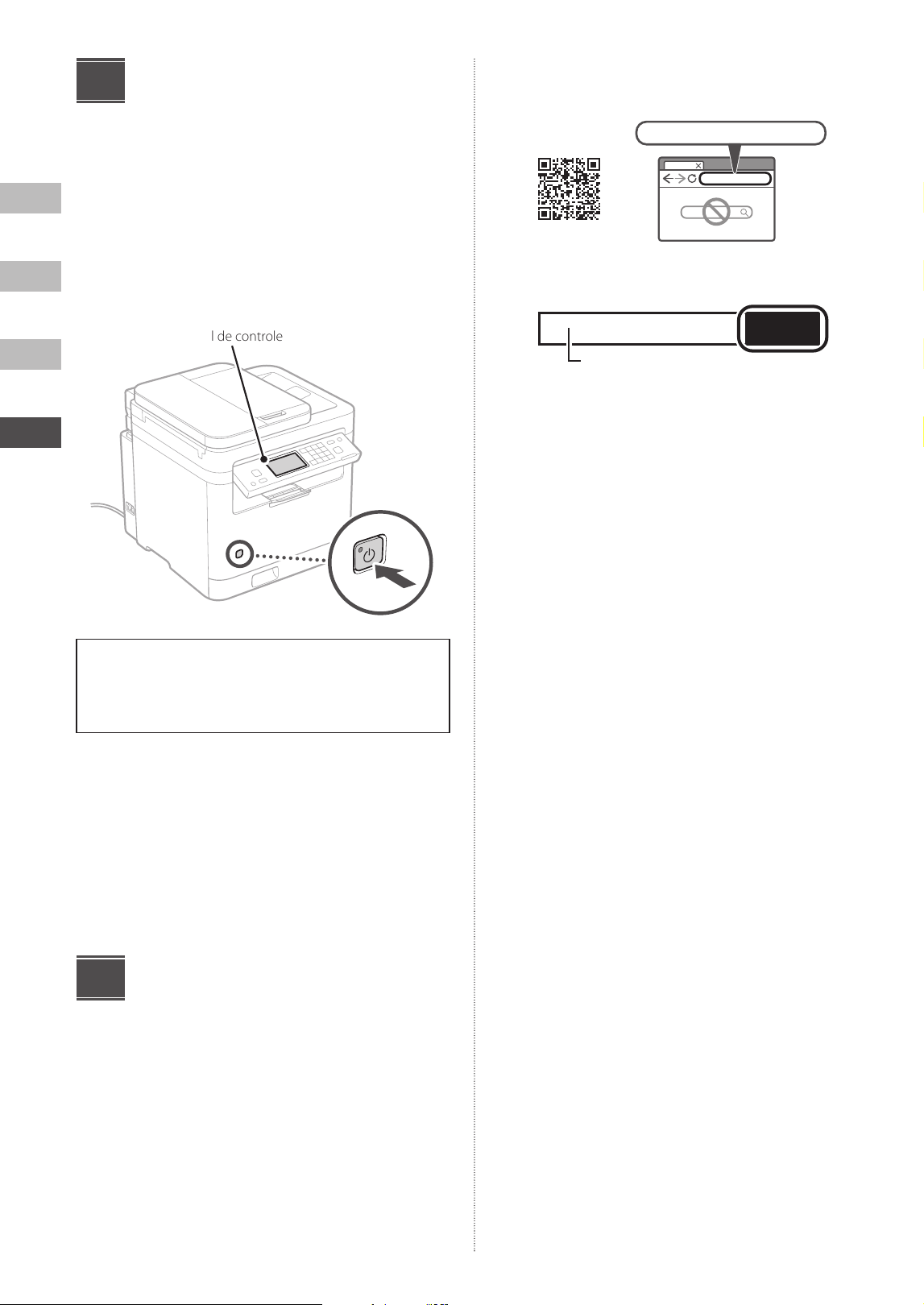
Specifying the Basic
Settings
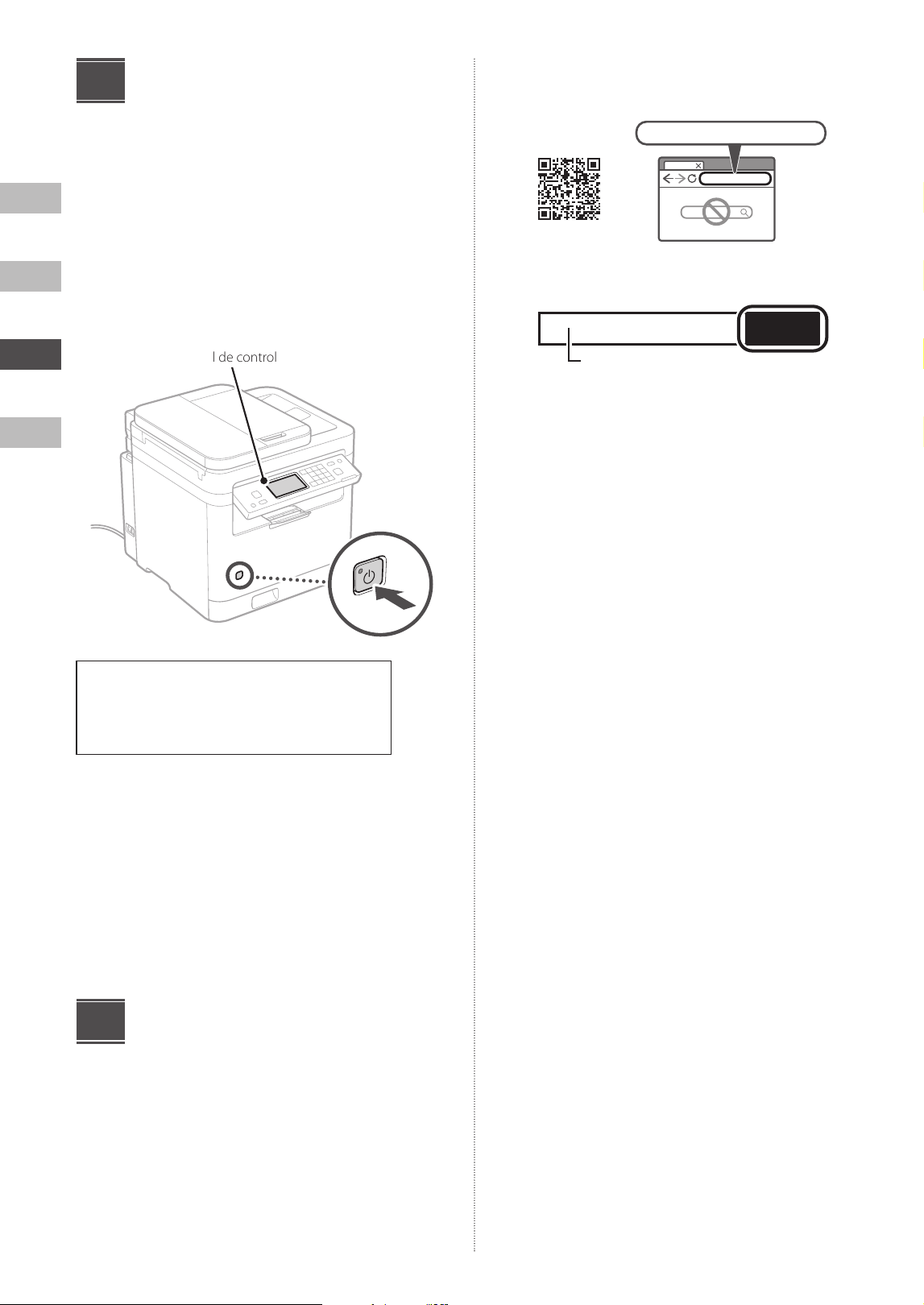
When you turn on the machine for the first time, the Setup
Guide appears on the control panel. Perform the initial
machine setup by following the on-screen instructions.
Depending on your model, the items available for selection
and the procedure for making choices may differ from
those shown in this document. Proceed as directed in the
screens shown.
Control panel
• Date and Time Settings
• Security Settings
• Network Settings
• Toner Replenishment Service Settings*
After completing the above settings, the <Software
Installation> or <Driver Install./Initial Set.> screen will
appear on the control panel. Follow the instructions on the
screen.
* This service is not available in some countries or regions. To use
this service, you must enter into an agreement beforehand.
Configurations may be needed after software and driver
installation.
Installing the Software/
Drivers
To use the print, fax, and scan functions of the machine by
connecting to a computer or smartphone, you must install
the respective drivers.
6
7
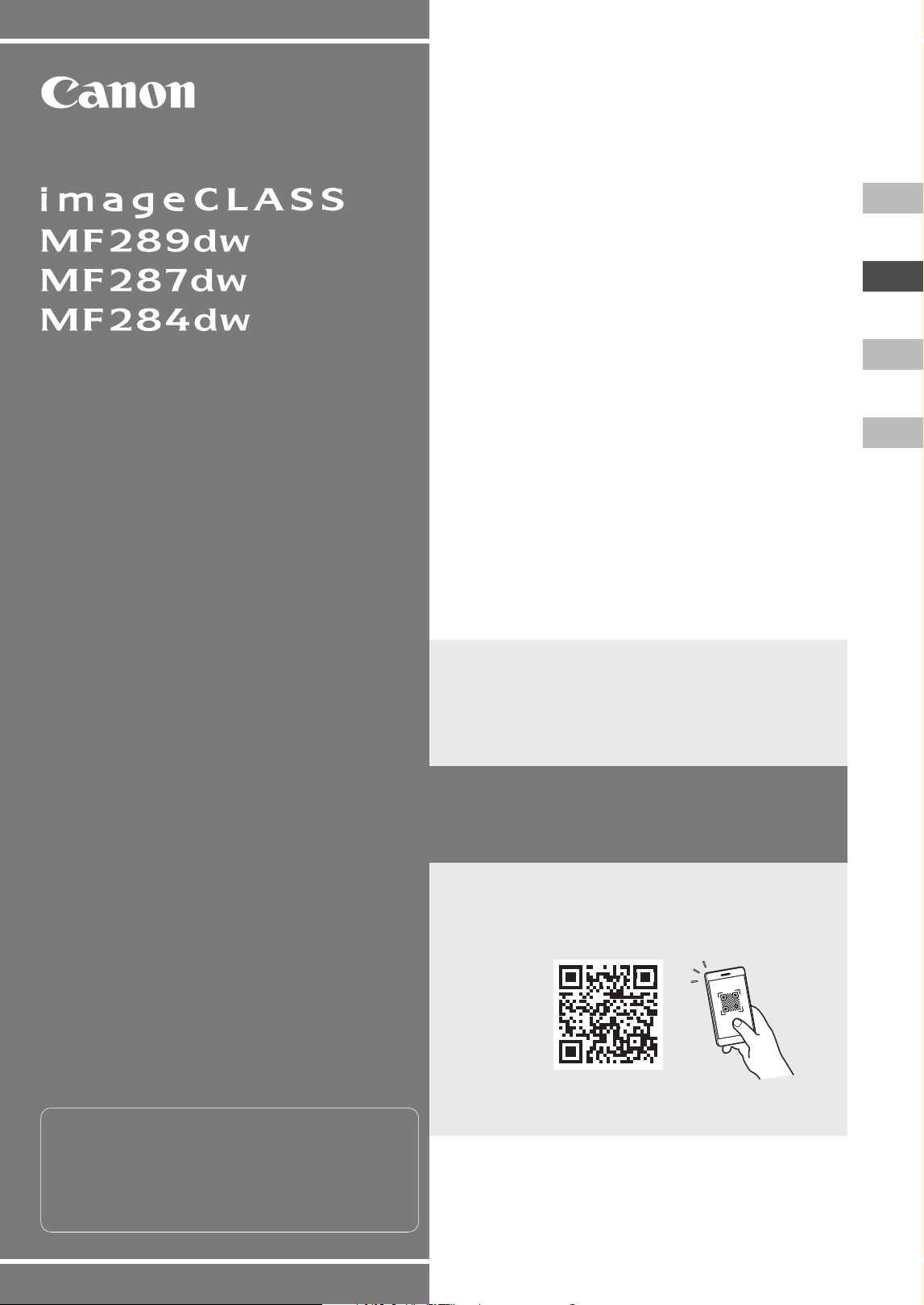
1. Open your web browser and access the
Canon website.
https://ij.start.canon/connect
2. Enter the model name and click Go.
GO
Model name
3. Continue the operations by following the
instructions on the screen.
En
Es
Fr
Pt
Guide de
configuration
• Après avoir terminé la lecture de ce guide,
conservez-le dans un endroit sûr pour pouvoir
le consulter ultérieurement.
• Les informations contenues dans ce guide sont
susceptibles d'être modifiées sans préavis.
1
Consignes de sécurité
importantes
Veillez à lire ces instructions avant d'utiliser la
machine.
2
Guide de configuration
(ce document)
https://oip.manual.canon/
3
Guide de l'utilisateur
Cette section explique toutes les façons dont
cette machine peut être utilisée.
6
En
Es
Fr
Pt
Sauf indication contraire, les illustrations utilisées
dans ce document concernent le MF289dw.
Vérification des éléments
inclus
× 1
*
2
*
1
*
1
Peut ne pas être inclus avec certains modèles.
*
2
À utiliser pour numériser des originaux au format A6 avec le
chargeur.
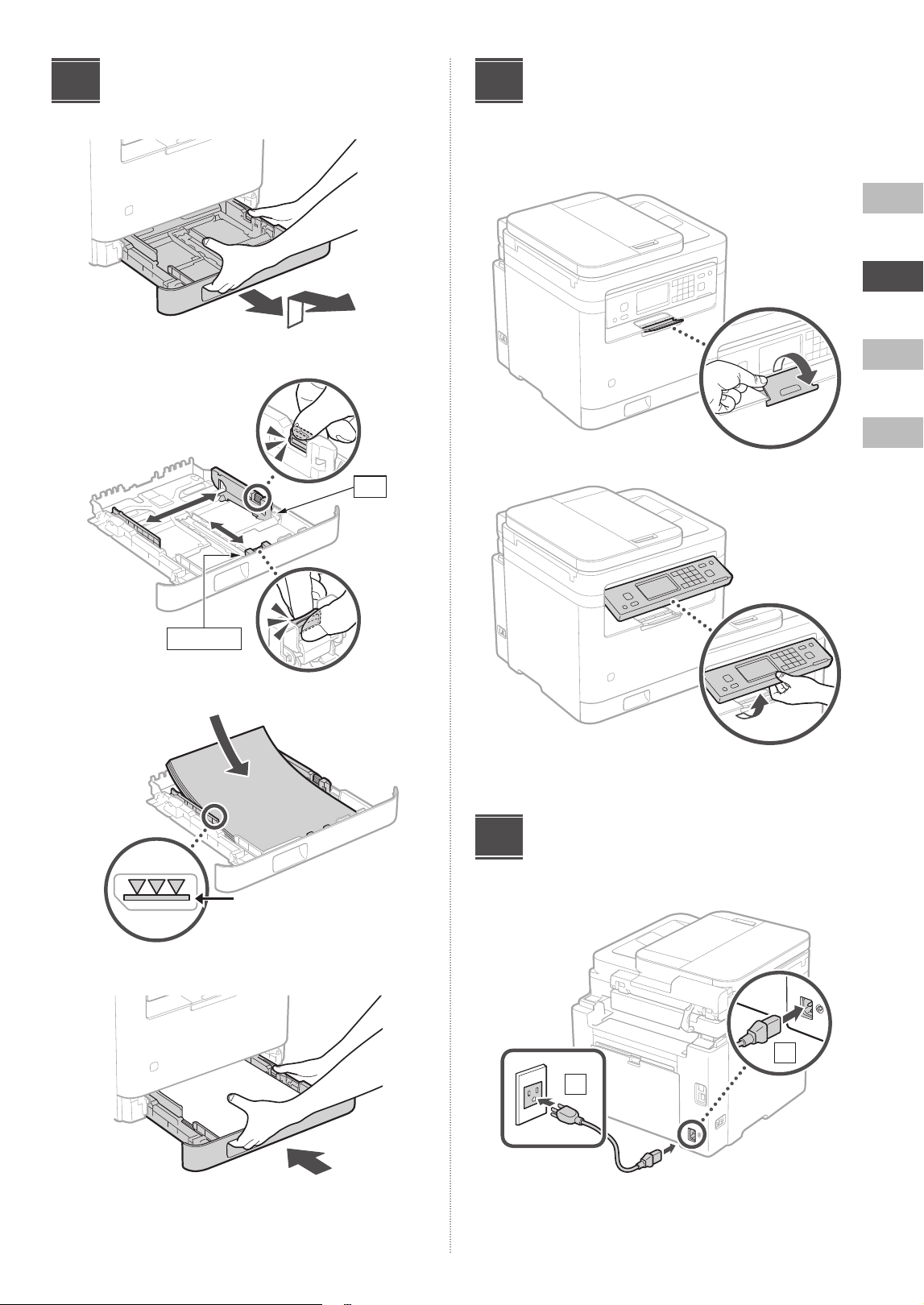
Retrait du matériel
d'emballage
1. Installez la machine à l'endroit où elle sera
utilisée.
Laissez un espace d’au moins 4” (100 mm)
autour de l’appareil lors de son installation.
2. Retirez tous les matériaux d'emballage.
Retirez tous les rubans adhésifs.
Ne retirez pas l’autocollant qui recouvre le port USB
avant d’avoir réellement utilisé ce dernier.
Arrière
1
2
En
Es
Fr
Pt
7
Chargement du papier
1.
2.
3.
4.
3
A4
A4/LGL
Assurez-vous que la quantité
de papier chargée ne
dépasse pas cette ligne
Configuration de la butée
du papier et du panneau
de commande
1.
2.
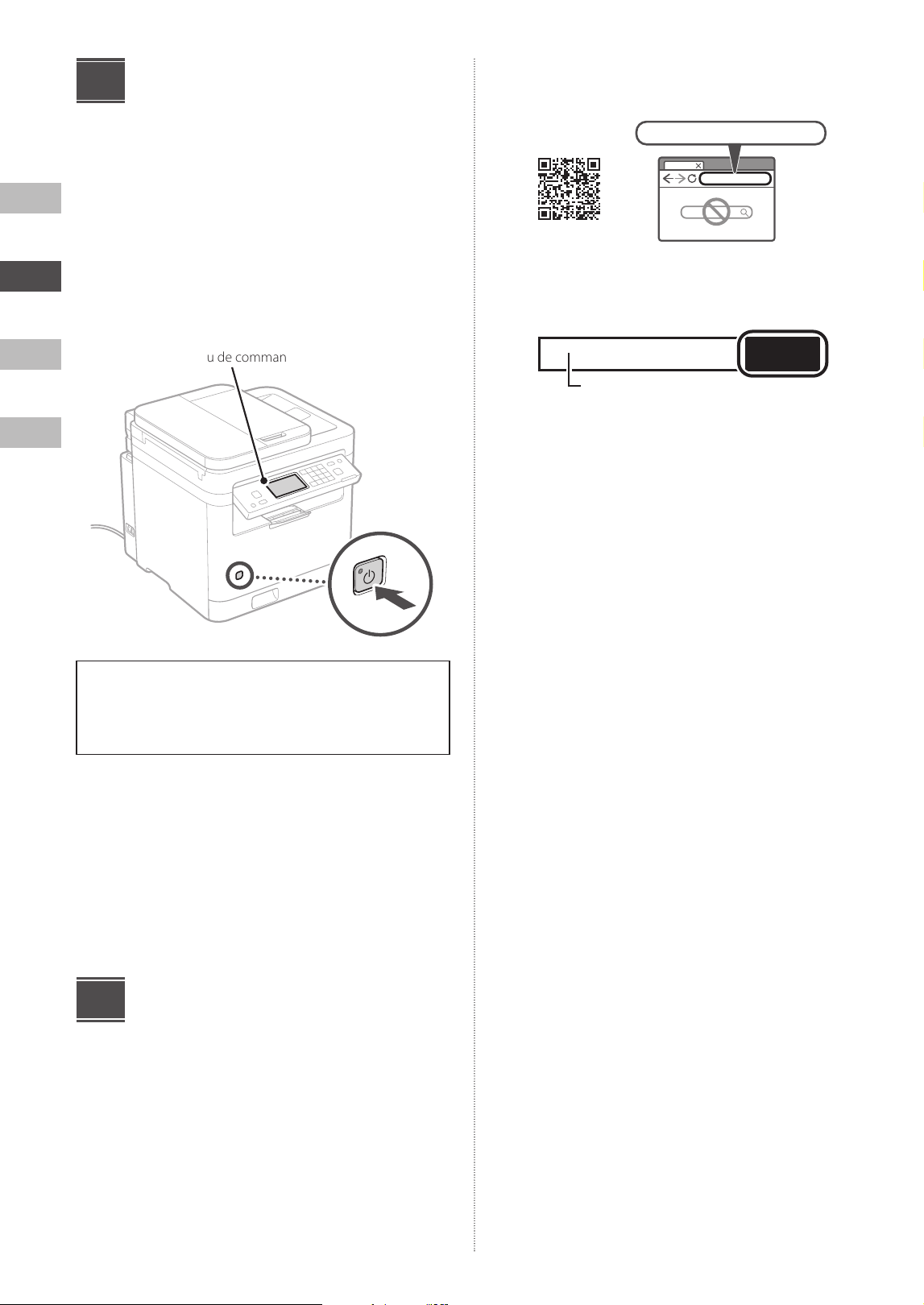
Raccordement du cordon
d'alimentation
2
1
Arrière
4
5
8
En
Es
Fr
Pt
Spécification des
paramètres de base
Lorsque vous mettez la machine sous tension pour la
première fois, le Guide de configuration s'affiche sur le
panneau de commande. Effectuez la configuration initiale
de la machine en suivant les instructions à l'écran.
En fonction de votre modèle, les éléments disponibles
pour la sélection et la procédure de choix peuvent différer
de ceux présentés dans ce document. Procédez comme
indiqué dans les écrans présentés.
Panneau de commande
• Réglage de la date et de l’heure
• Réglage de sécurité
• Réglage du réseau
• Réglage du service de réapprovisionnement du toner*
Une fois les réglages ci-dessus terminés, l’écran <Instal. du
logiciel> ou <Instal. pilote/Régl. initiaux> apparaîtra sur le
panneau de contrôle. Suivez les instructions à l’écran.
* Ce service n’est pas disponible dans certains pays ou régions.
Pour utiliser ce service, vous devez signer un contrat au
préalable. Des configurations peuvent être nécessaires après
l’installation du logiciel et du pilote.
Installation du logiciel/
pilotes
Pour utiliser les fonctions d’impression, de télécopie et de
numérisation de la machine en vous connectant à un
ordinateur ou à un smartphone, vous devez installer les
pilotes correspondants.
6
7
1. Ouvrez votre navigateur Web et accédez au
site Web de Canon.
https://ij.start.canon/connect
2. Entrez le nom du modèle et cliquez sur
Accéder.
Accéder
Nom du modèle
3. Continuez les opérations en suivant les
instructions affichées à l’écran.
En
Es
Fr
Pt
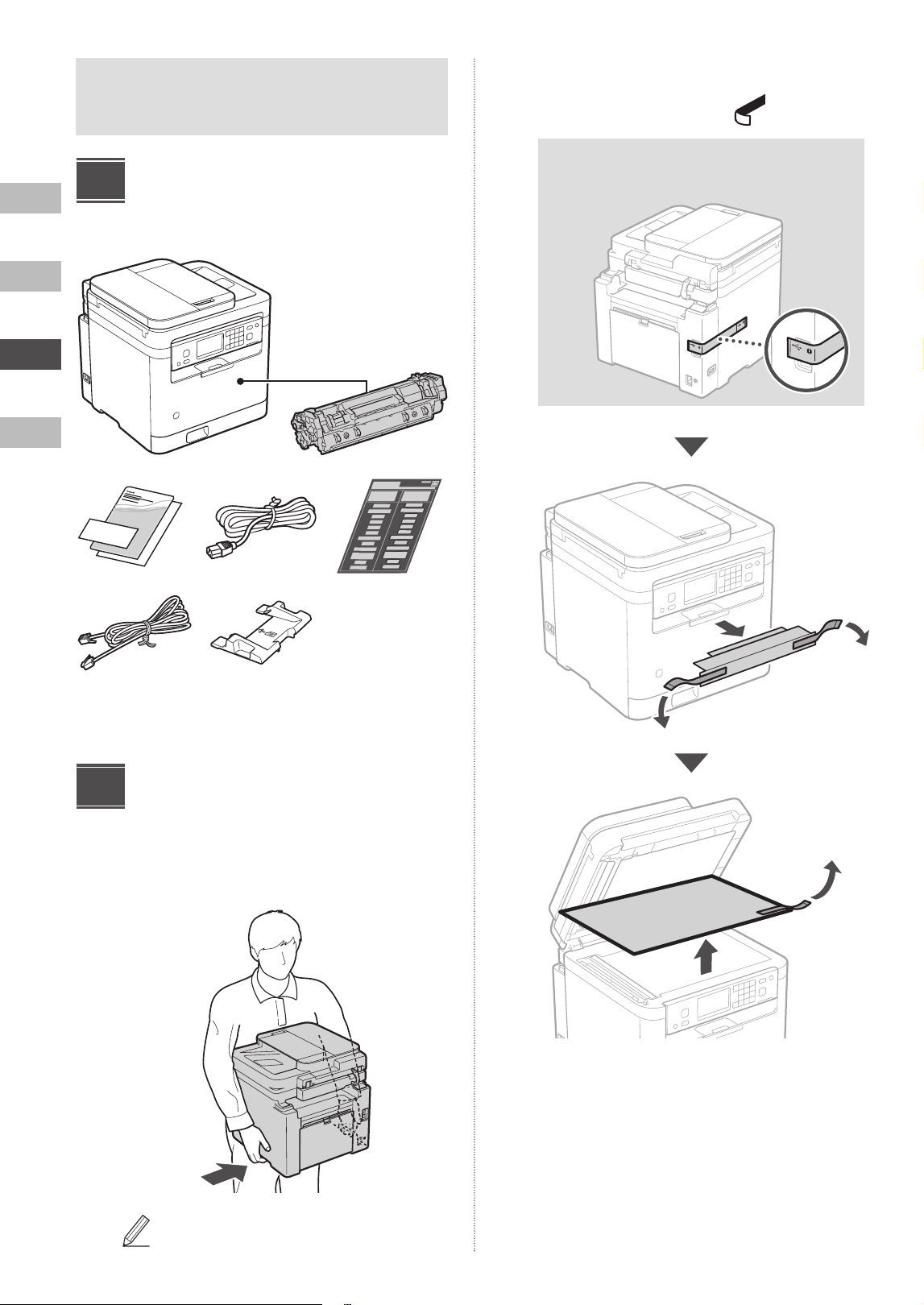
Guía de
configuración
• Después de leer esta guía, guárdela en un lugar
seguro para posteriores consultas.
• La información de esta guía está sujeta a
cambios sin previo aviso.
1
Instrucciones de seguridad
importantes
Asegúrese de leer estas instrucciones antes de
utilizar el equipo.
2
Guía de configuración
(este documento)
https://oip.manual.canon/
3
Guía de usuario
En esta sección se explican todas las formas en las
que se puede utilizar el equipo.
10
En
Es
Fr
Pt
A menos que se indique otra cosa, las ilustraciones
utilizadas en este documento son para el equipo
MF289dw.
Comprobación de los
elementos incluidos
× 1
*
2
*
1
*
1
Podría no incluirse con algunos modelos.
*
2
Utilícela cuando escanee originales de tamaño A6 con el alimentador.
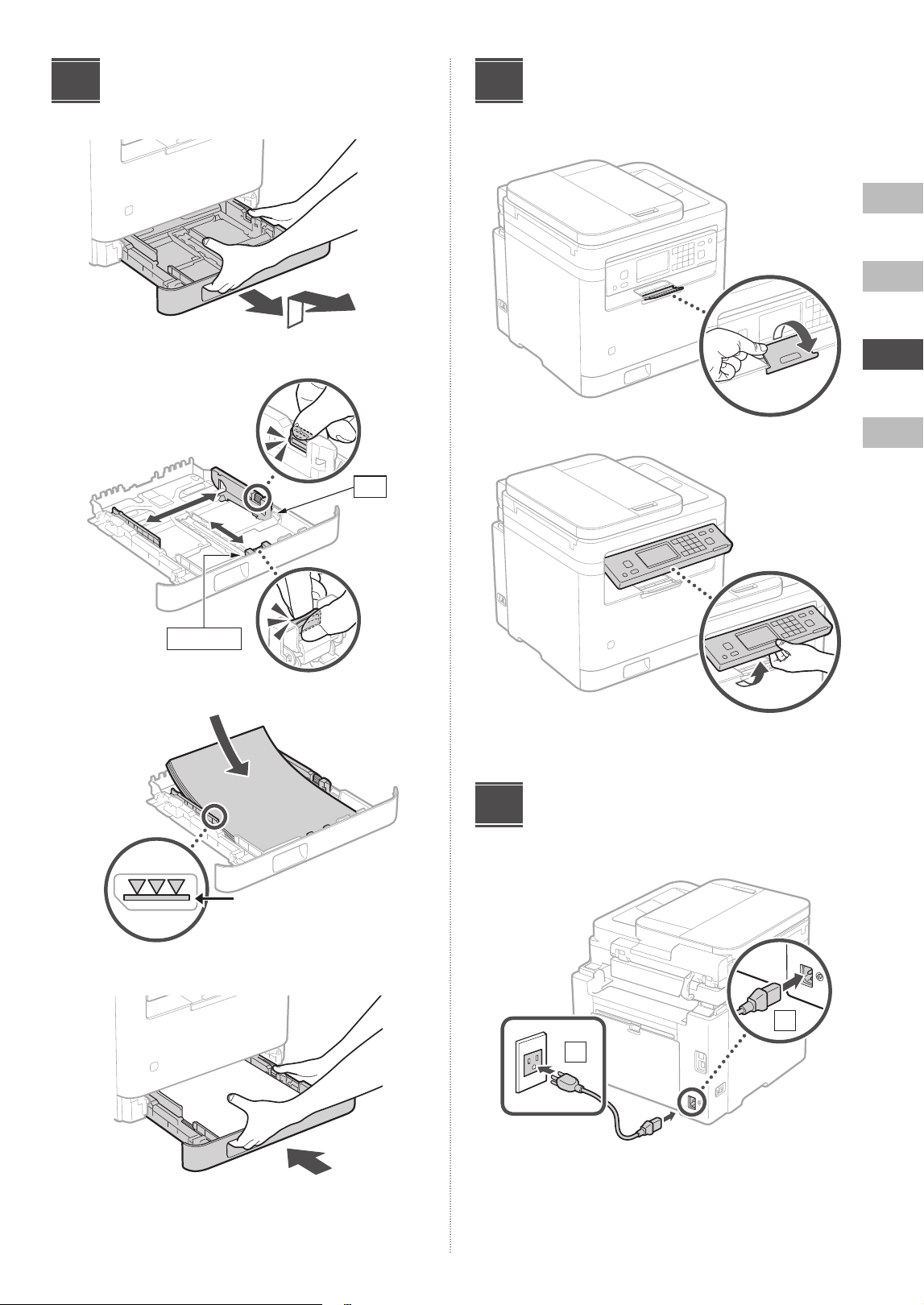
Retirada de los materiales
de embalaje
1. Instale el equipo en el lugar en el que vaya
a utilizarlo.
Deje un espacio de al menos 4” (100 mm)
en torno al equipo al instalarlo.
2. Retire todo el material de embalaje.
Quite todas las cintas.
No quite la pegatina que cubre el puerto USB hasta
que no vaya a usar realmente el puerto USB.
Parte
trasera
1
2
En
Es
Fr
Pt
11
Carga de papel
1.
2.
3.
4.
3
A4
A4/LGL
Asegúrese de que la cantidad
de papel cargado no supere
esta línea
Configuración del Tope de
papel y Panel de control
1.
2.
Conexión del cable de
alimentación
2
1
Parte
trasera
4
5
12
En
Es
Fr
Pt
Especificación de la
configuración básica
Cuando encienda el equipo por vez primera, aparecerá la
Guía de configuración en el panel de control. Lleve a cabo
la configuración inicial del equipo siguiendo las
instrucciones que aparecen en la pantalla.
Dependiendo de su modelo, los elementos disponibles
para selección y el procedimiento para realizar selecciones
podrían diferir de los mostrados en el presente documento.
Proceda según lo indicado en las pantallas mostradas.
Panel de control
• Ajustes de fecha y hora
• Ajustes de seguridad
• Ajustes de red
• Ajustes del servicio de reposición de tóner*
Una vez completados los ajustes anteriores, aparecerá la
pantalla <Instalac. del software> o <Instal. contr./opc.
iniciales> en el panel de control. Siga las instrucciones de
la pantalla.
* Este servicio no está disponible en algunos países o regiones.
Para utilizarlo, es necesario firmar un contrato con antelación.
Es posible que sea necesario realizar configuraciones tras la
instalación del software y el controlador.
Instalación del software/
los controladores
Para utilizar las funciones de impresión, fax y escáner del
equipo conectando a un ordenador o smartphone, debe
instalar los controladores respectivos.
6
7
1. Abra su navegador web y acceda al sitio
web de Canon.
https://ij.start.canon/connect
2. Introduzca el nombre del modelo y haga lr.
Ir
Nombre del modelo
3. Continúe con las operaciones siguiendo las
instrucciones de la pantalla.
En
Es
Fr
Pt
Guia de
configuração
• Após terminar de ler este guia, armazene-o em
um local seguro para referência futura.
• As informações deste guia estão sujeitas a
mudanças sem aviso prévio.
1
Instruções importantes de
segurança
Certifique-se de ler estas instruções antes de usar
a máquina.
2
Guia de configuração
(este documento)
https://oip.manual.canon/
3
Guia do usuário
Esta seção explica todas as maneiras de usar esta
máquina.
14
En
Es
Fr
Pt
Salvo indicação em contrário, as ilustrações usadas
neste documento se referem ao modelo MF289dw.
Verificação dos itens
incluídos
× 1
*
2
*
1
*
1
Pode não estar incluído em alguns modelos.
*
2
Use este tipo de bandeja ao digitalizar originais de tamanho
A6 com o alimentador.
Remoção do material de
embalagem
1. Instale a máquina no local em que será
utilizada.
Ao instalar, forneça um espaço de 4” (100 mm)
ou mais ao redor da máquina.
2. Remova todo o material de embalagem.
Remova todas as fitas.
Não remova o adesivo que cobre a porta USB até
realmente precisar usar a porta USB.
Traseira
1
2
En
Es
Fr
Pt
15
Carregando papel
1.
2.
3.
4.
3
A4
A4/LGL
Verifique se a quantidade de
papel não está acima desta
linha
Configurando o suporte
de papel e o painel de
controle
1.
2.
Conexão do cabo de
alimentação
2
1
Traseira
4
5
16
En
Es
Fr
Pt
Especificação das
configurações básicas
Ao ligar a máquina pela primeira vez, o Guia de configuração
aparecerá no painel de controle. Execute a configuração
inicial da máquina seguindo as instruções na tela.
Dependendo do modelo, os itens disponíveis para seleção
e o procedimento para fazer escolhas podem diferir
daqueles mostrados neste documento. Proceda conforme
indicado nas telas exibidas.
Painel de controle
• Configurações de data e hora
• Configurações de segurança
• Configurações de rede
• Configurações de serviço de reabastecimento de toner
*
Depois de concluir as configurações acima, a tela
<Instalação de software> ou <Instal. driver/Def. iniciais>
aparecerá no painel de controle. Siga as instruções na tela.
* Este serviço não está disponível em alguns países ou regiões.
Para usar este serviço, você precisa fazer um contrato com
antecedência. Após a instalação do software e instalação do
driver, será necessário fazer algumas configurações.
Instalação do software/
drivers
Para usar as funções de impressão, fax e digitalização da
máquina por meio de conexão a um computador ou
smartphone, você precisa instalar os respectivos drivers.
6
7
1. Abra seu navegador e acesse o site da
Canon.
https://ij.start.canon/connect
2. Digite o número do modelo e clique em lr.
Ir
Nome do modelo
3. Continue as operações seguindo as
instruções na tela.

1717
Notas

1818

1919

CANON U.S.A., INC.
One Canon Park, Melville, NY 11747, U.S.A.
Call Center: 1-800-OK-CANON
CANON MEXICANA, S. DE R.L. DE C.V.
Boulevard Manuel Avila Camacho #138 Piso 17, Col. Lomas de Chapultepec Mexico City, Mexico 11000
Call Center: 01800-710-7168
CANON INC.
30-2, Shimomaruko 3-chome, Ohta-ku, Tokyo 146-8501, Japan
CANON MARKETING JAPAN INC.
16-6, Konan 2-chome, Minato-ku, Tokyo 108-8011, Japan
CANON EUROPA N.V.
Bovenkerkerweg 59, 1185 XB Amstelveen, The Netherlands
CANON SINGAPORE PTE LTD
1 Fusionopolis Place, #14-10, Galaxis, Singapore 138522
CANON AUSTRALIA PTY LTD
Building A, The Park Estate, 5 Talavera Road, Macquarie Park, NSW 2113, Australia
CANON GLOBAL WORLDWIDE SITES
https://global.canon/
FT6-3289 (000) XXXXXXXXXX Copyright CANON INC. 2024 PRINTED IN KOREA
Imprimé en CORÉE


