QUICK START GUIDE
COMPATIBLE MODELS
FOR iOS
FOR ANDROID
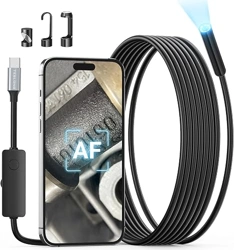
Model No.: NTC200AF
Note:
Android devices must enable OTG connection in the phone settings to run
the app normally. Some device models have OTG enabled bydefault.
These permissions are only used to establish a smooth connection. Without granting them, the app may fail to connect or display the
camera image properly. Your privacy is fully protected.
Note:
Note: Make sure the USB-C connector is firmly plugged into
your device.
Step 2
Step 1
Note
BEFORE USE
Use the inspection camera with the "Smart Endoscope" app. You candownload it from Google
Play or scan the QR code below.
Download&Install the App
The LED lights on the lens will turn on when the cable is plugged into the phone.
Ensure the borescope is in good conditionand the camera is properly
Check that the function works properly
Camera/LEDs
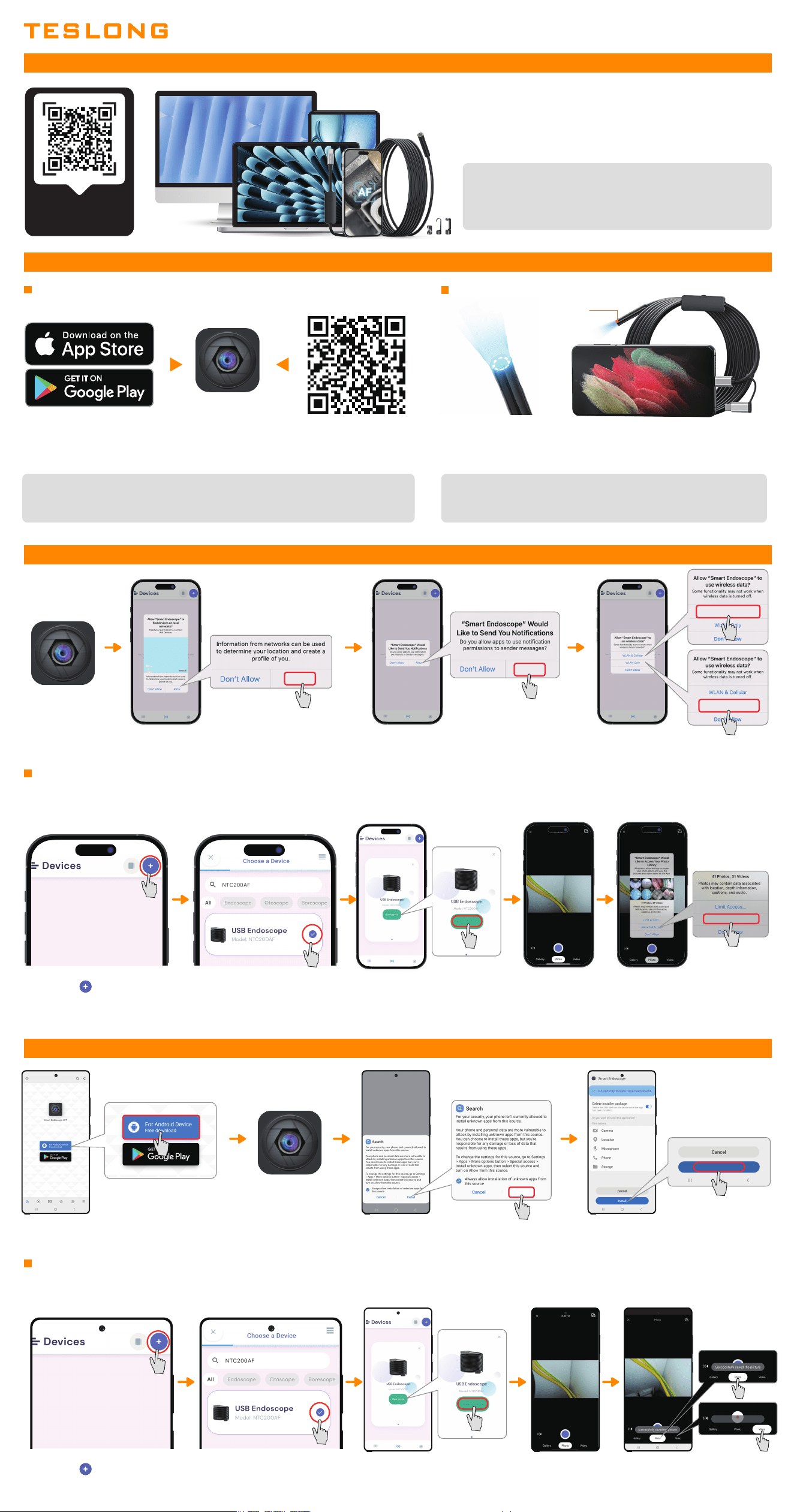
1. Open the Smart
Endoscope app.
2. Local network access–Required to detect the
device.
3. Notifications–Optional.
Smart Endoscope
Allow
Allow
4. Wireless data usage–Choose either
"WLAN & Cellular" or "WLAN Only."
WLAN Only
WLAN & Cellular
These permissions are only used to establish a smooth connection. Without granting them, the app may fail to connect or display the
camera image properly. Your privacy is fully protected.
Note
2. Open the Smart
Endoscope app.
1. Installing the "mart Endoscope" app. 3. After installing the app, grant the requested permissions to enable image display, device
connection, and media saving.
4. Click the " " button to set up
the device.
5. Click "NTC200AF" and start
using it with your mobile device.
6. Tap "Connected" to link your
device.
7. Live image will be
displayed on screen.
8. Tap the photo or video icon to
successfully save images or
recordings to your device.
Note:
To avoid connection issues, please confirm your device
supports USB-C and meets the compatibility criteria before
use.
• Compatible with iPhone 15/16 & Android Devices with Type-C Port.
• Not compatible with older iPhones/iPads with Lightning ports,
Windows PCs, and MacBooks.
Perfectly Matched for USB-C Connectivity
Scan this QR
to watch
a tutorial video.
Install
Connected
Successfully saved the video
Install
5. Click the " " button to set up
the device.
6. Click "NTC200AF" and start
using it with your mobile device.
7. Tap "Connected" to link your
device.
Connected
8. Live image will be
displayed on screen.
9. To take photos and record
videos, allow Smart Endoscope to
access photos and media on your
device.
Allow Full Access