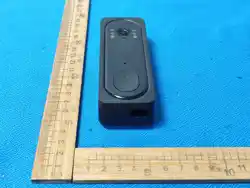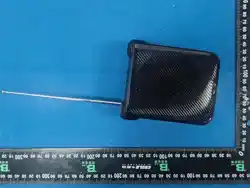

7870 Public manual
1Page 1 of 128
7870 overseas instruction manual
We are very happy that you have chosen this car navigation audio product, this
manual will systematically introduce the basic functions, use skills and matters
needing attention. Let new users know quickly, please read it before using, thank
you!
catalogue
1. Basic knowledge of the car and the machine .................................................................................2
1.1 Basic operation of gesture recognition ................................................................................ 2
1.2 Main interface and application interface............................................................................. 2
1.3 Theme color replacement .................................................................................................... 3
1.4 Main interface- -Remove the application icon .....................................................................4
2. Introduction of the main functions of the main interface ............................................................. 5
2.1 Bluetooth function ................................................................................................................5
2.2 Car Link 2.0 ............................................................................................................................8
2.3, and the recorder ................................................................................................................10
2.4, multimedia .........................................................................................................................10
2.5 Map ..................................................................................................................................... 13
2.6 Recent Use and addition of common applications ............................................................ 13
2.7 Data plug-in .........................................................................................................................14
2.8 The Application Interface ................................................................................................... 14
2.9 Travel interface................................................................................................................... 14
3、 Introduction to the main functions of the application interface .............................................15
3.1 Steering wheel learning ......................................................................................................15
3.2 Touch-screen assistant ........................................................................................................17
3.3 Document management.....................................................................................................18
3.4 Picture Preview ................................................................................................................... 19
3.5 Video playback ....................................................................................................................20
4. Relevant introduction of Settings .................................................................................................21
4.1 Wireless settings .................................................................................................................21
4.2. GPS information .................................................................................................................22
4.3.universal settings ................................................................................................................ 22
4.4 Plant Settings ...................................................................................................................... 23
4.5 Agreement setting .............................................................................................................. 24
4.6 Sound settings .....................................................................................................................24
4.7 Display the settings .............................................................................................................25
4.8 Application Settings ............................................................................................................ 25
4.9 Storage Settings .................................................................................................................. 26
4.10 Location information setting ............................................................................................ 26
4.11 Password and account setting ..........................................................................................27
4.12 and the system settings .................................................................................................... 27
7870 Public manual
2Page 1 of 128
4.13 about the car and the machine ........................................................................................ 28
1. Basic knowledge of the car and the
machine
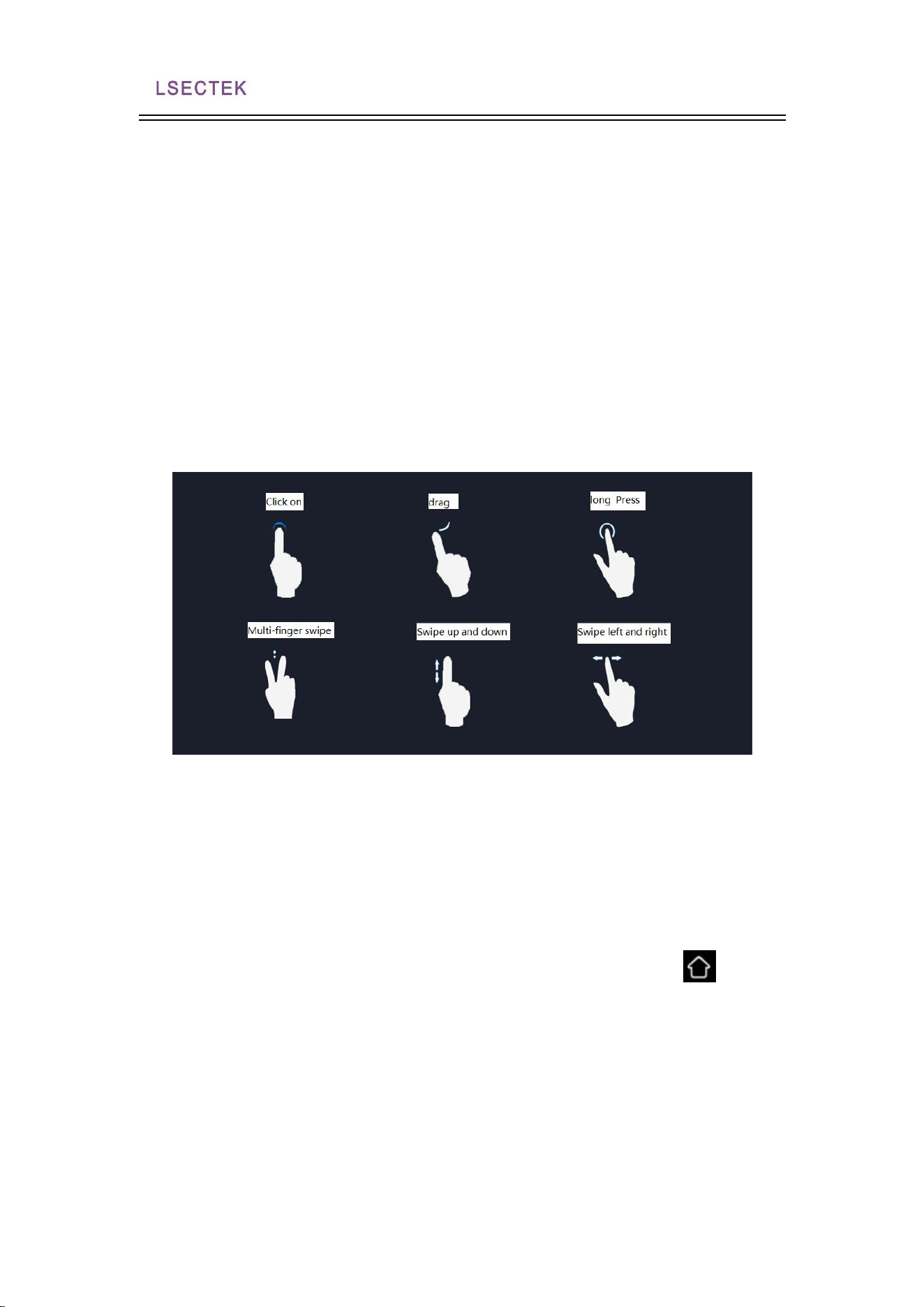
1.1 Basic operation of gesture recognition
The gestures that machines can recognize are mainly divided into short
press, long press, drag, sliding and other types. The same function has
different results under different gestures, and the user operates the
machine by touching the screen.
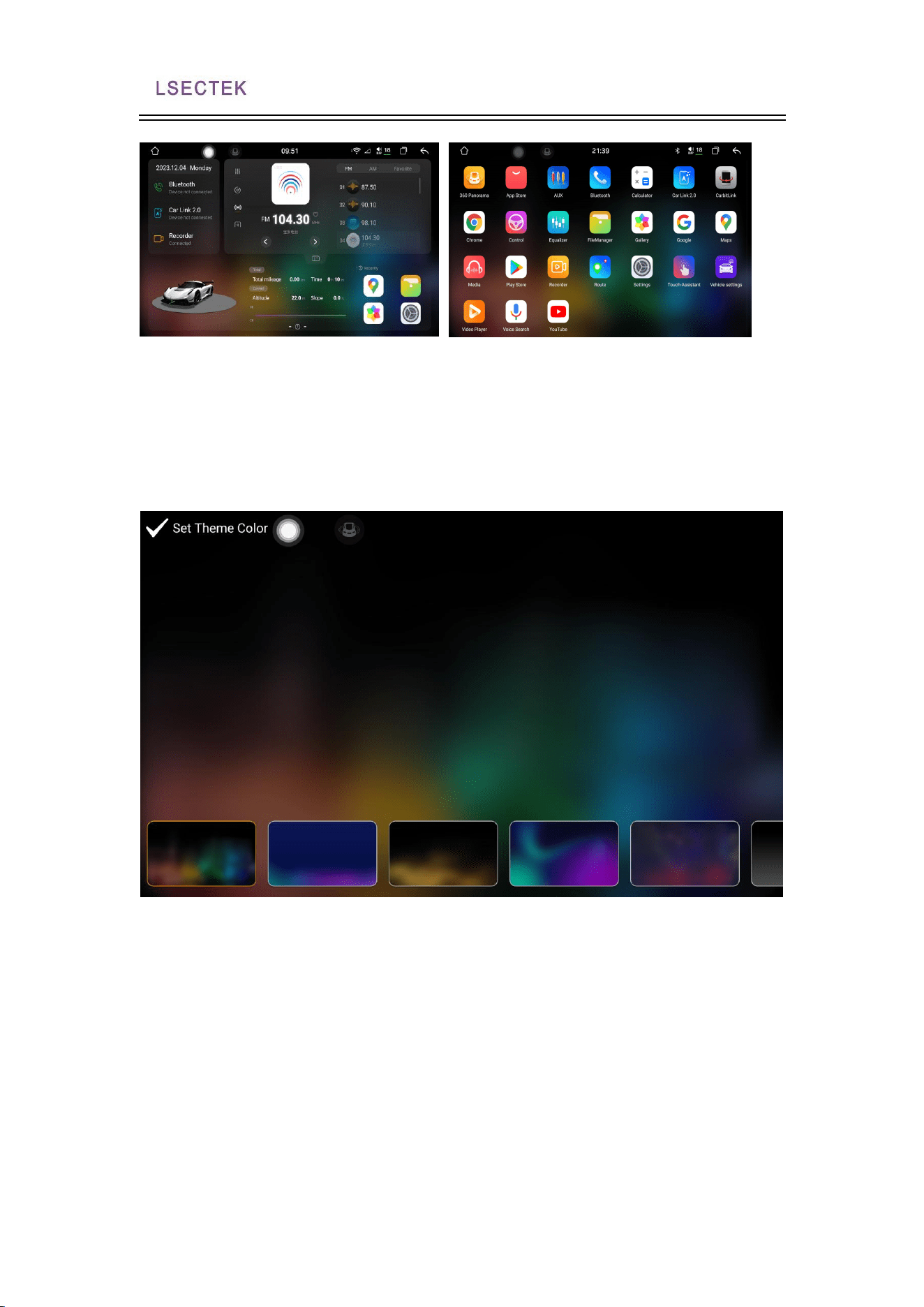
1.2 Main interface and application interface
1. After the machine is started, it jumps to the main menu page by default. This
page mainly displays the shortcut ways for the layout of some common functions.
Users can also adjust the layout of the page according to their personal preferences.
This device has a multi-page screen, and you can swipe to the left or right to switch
between each other, and click on the screen without the main screen
The icon
can return to the main interface.
2. lide left to enter the application interface.
7870 Public manual
3Page 1 of 128
1.3 Theme color replacement
Press the main interface in the blank.
7870 Public manual
4Page 1 of 128
1.4 Main interface- -Remove the application icon
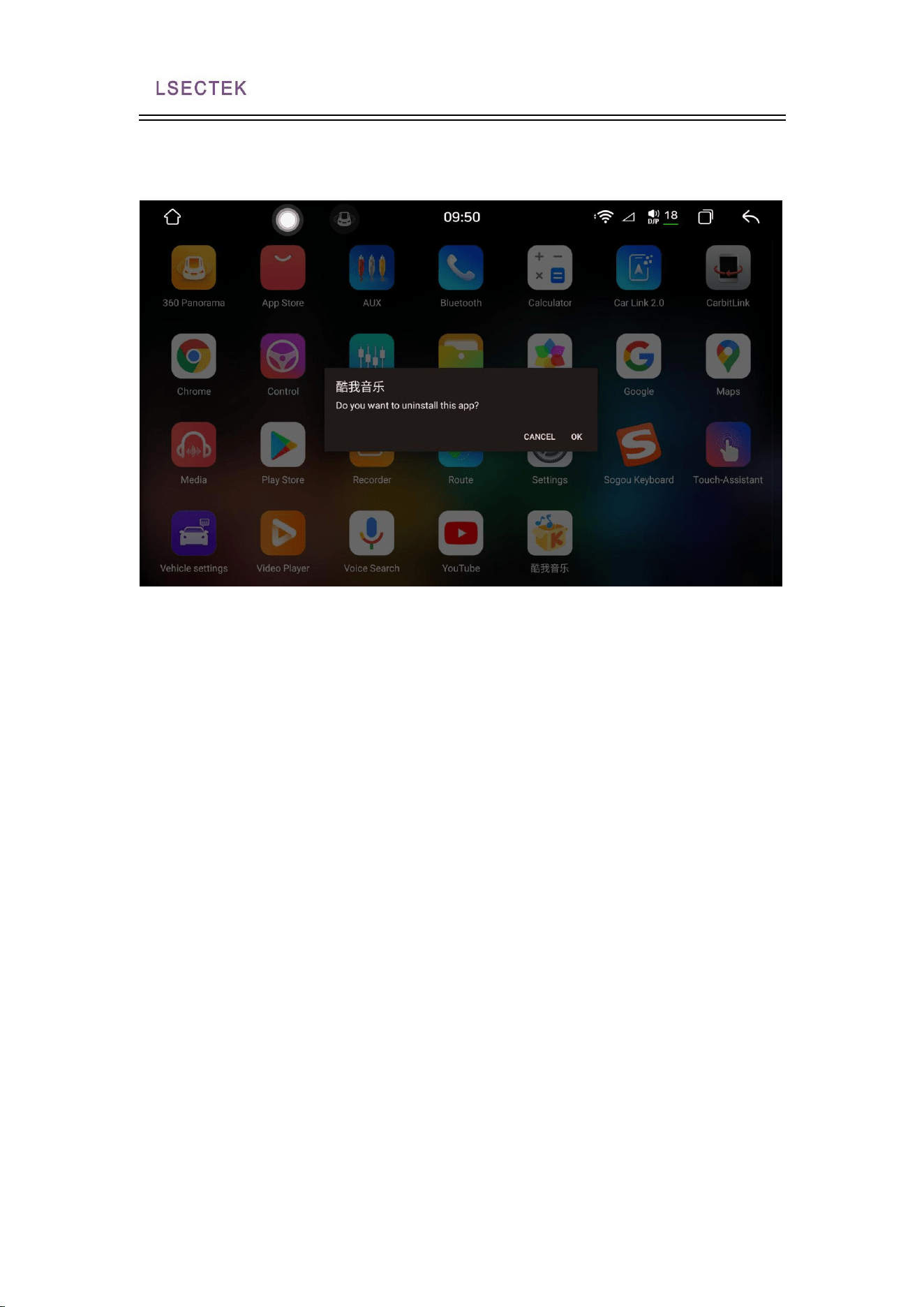
When pressing the application icon or widget on the main menu, the delete button
will pop up on the interface, and click OK to delete.
7870 Public manual
5Page 1 of 128
2. Introduction of the main functions of the
main interface
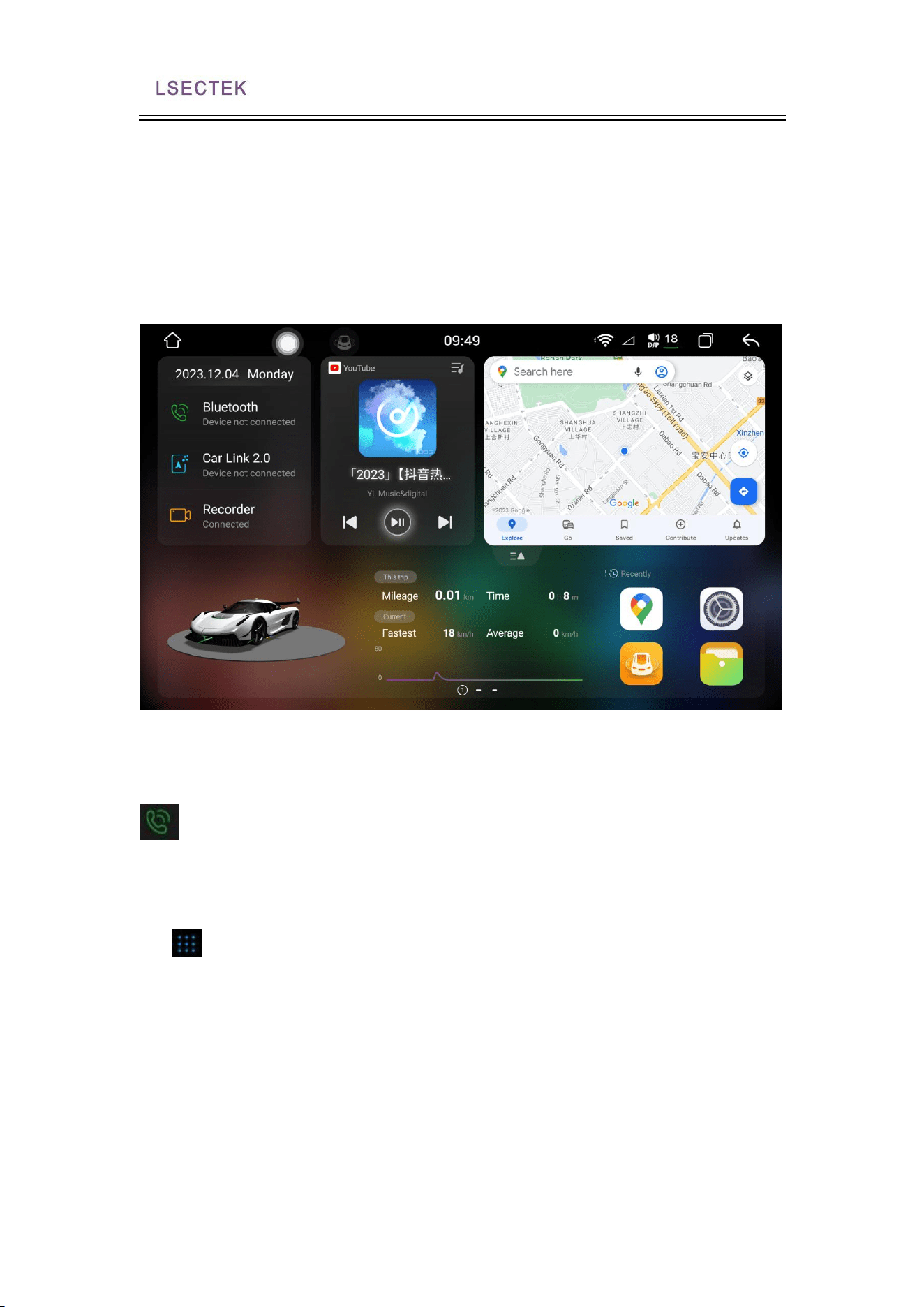
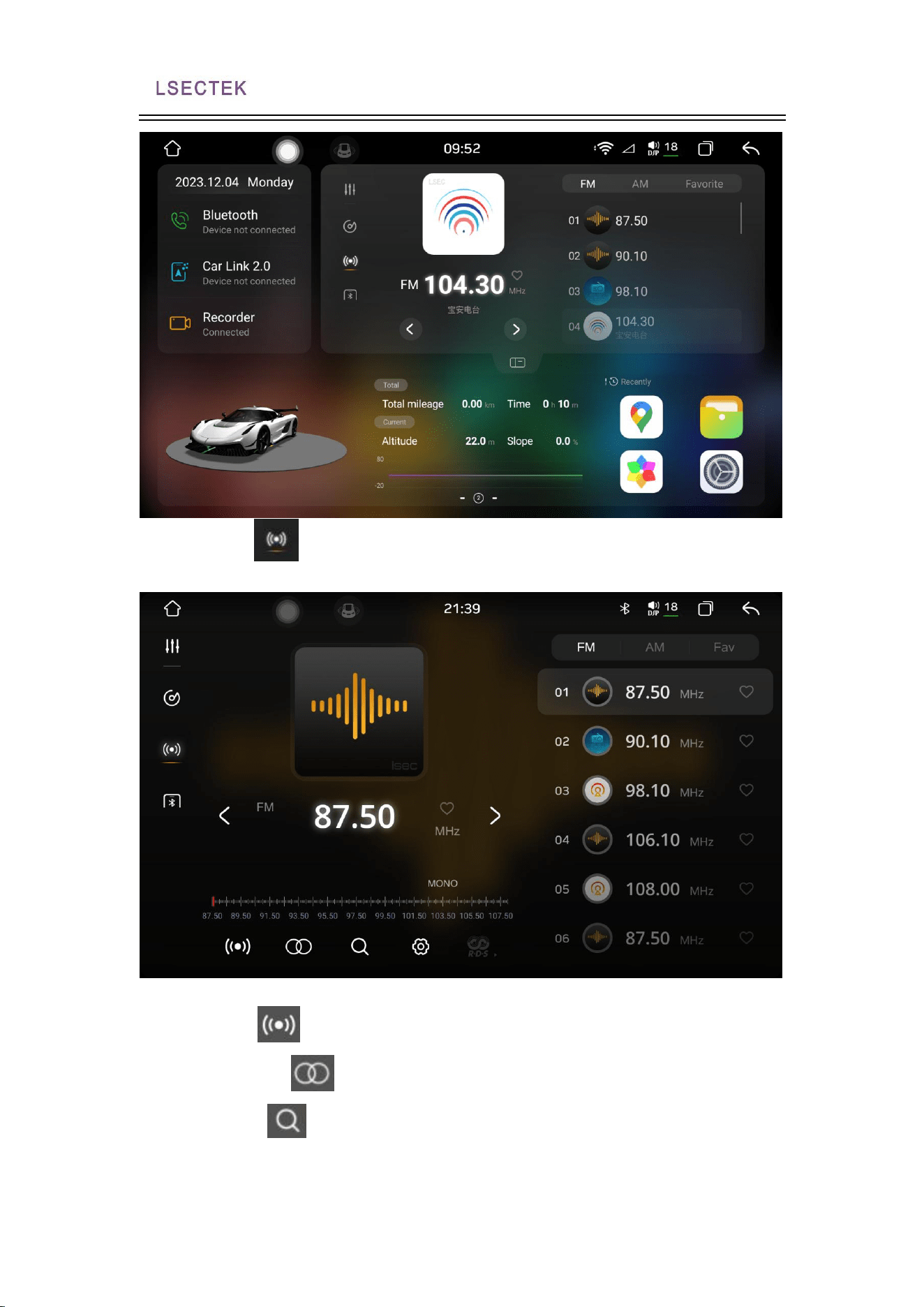
The main interface is as shown below:
2.1 Bluetooth function
Click the icon on the main interface to enter the Bluetooth interface.
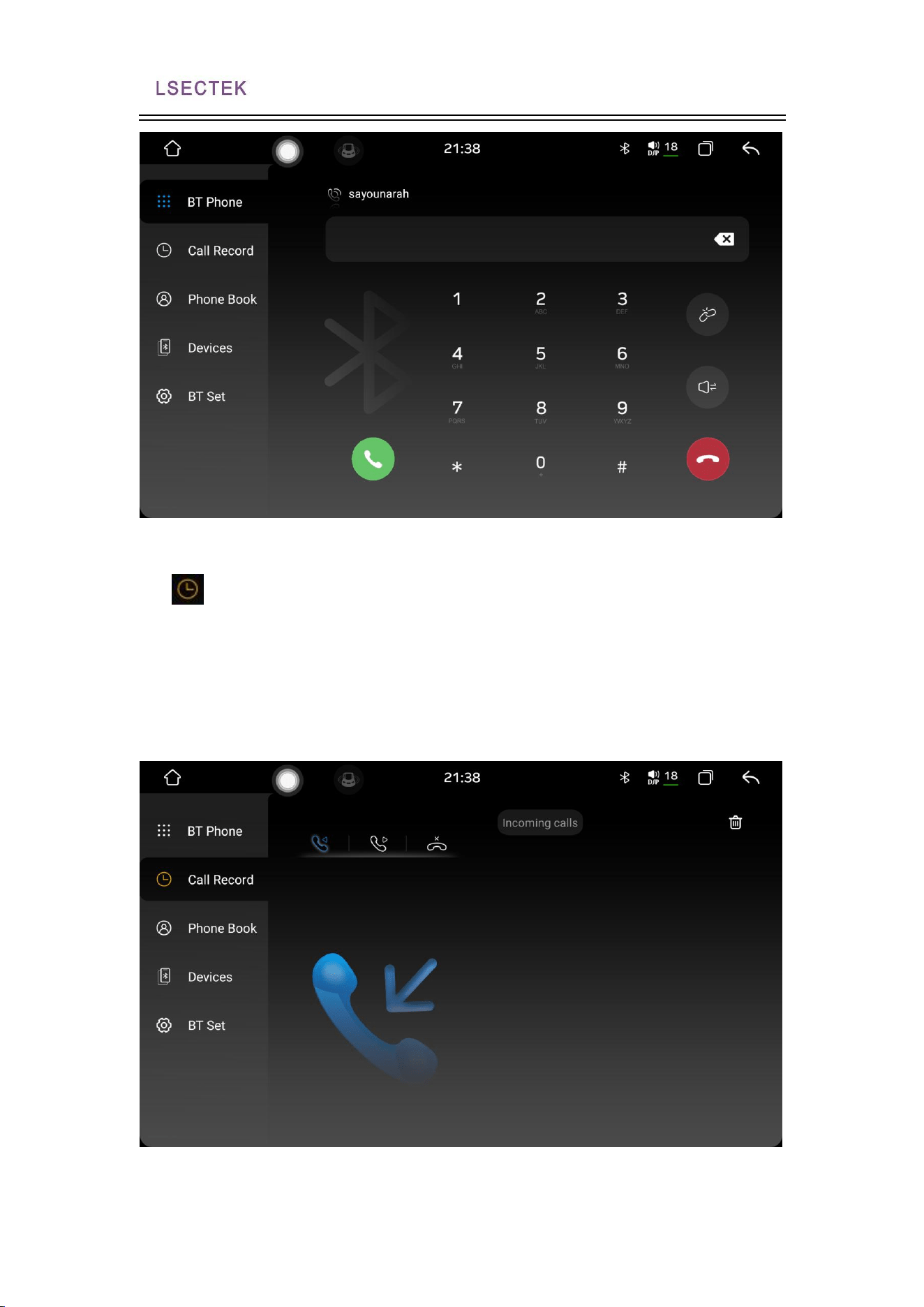
1. bluetooth telephone
Click the icon to enter the Bluetooth phone interface, the mobile phone
Bluetooth needs to be connected to the car machine before using the Bluetooth
phone function.
1. Turn on the Bluetooth function of the phone and car device respectively, and set
the phone to "visible to all".
2. Search for the Bluetooth device in the mobile phone and select the connection. At
this time, you need to enter the matching password, usually 0000. After entering the
pairing, the connection can be displayed.
3. Bluetooth phone function after successful connection.
7870 Public manual
6Page 1 of 128
2. Bluetooth call record
Click the icon on the Bluetooth interface to enter the call record interface.
All the call records during the Bluetooth connection with the mobile phone will be
displayed under the page, which can view the incoming, outgoing and missed calls,
arranged recently according to the dialing time, and can be exhaled according to the
record, or deleted.
3. Bluetooth synchronization of the mobile phone address book
7870 Public manual
7Page 1 of 128
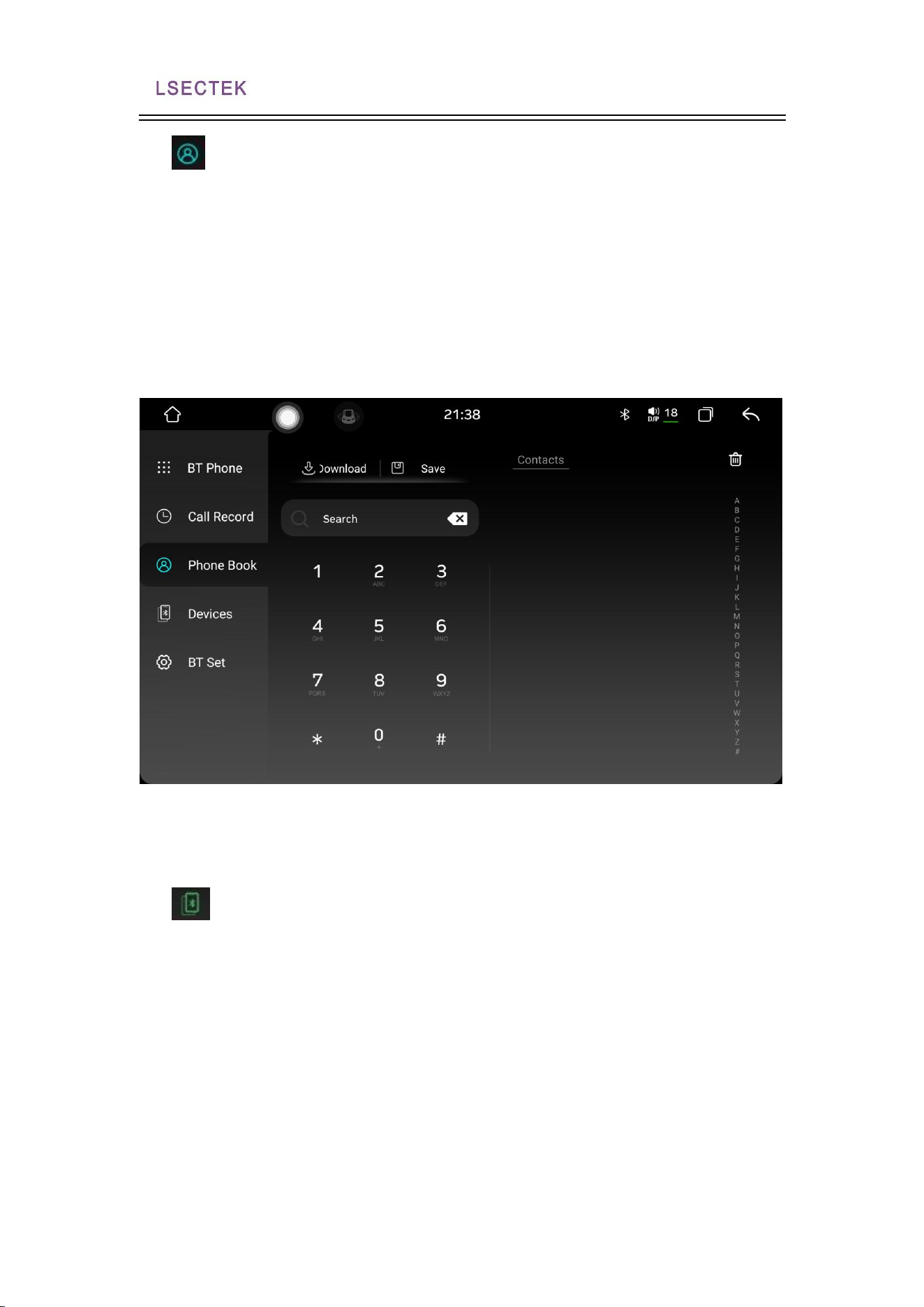
Click the icon to enter the synchronous mobile phone address book
interface, the car and machine synchronous mobile phone address book, first ensure
that the mobile phone Bluetooth and the mobile phone connection is normal, the
method is:
1. Click to download the phone book, and a prompt box will pop up on the mobile
phone to select whether to allow the car to access the mobile phone address book.
2. Wait for the car to pop up to complete the download prompt box, and then click
the save button.
3. Click Search to find the contact person in the downloaded phone book.
4. Click the Delete button to delete the contact in the phone book.
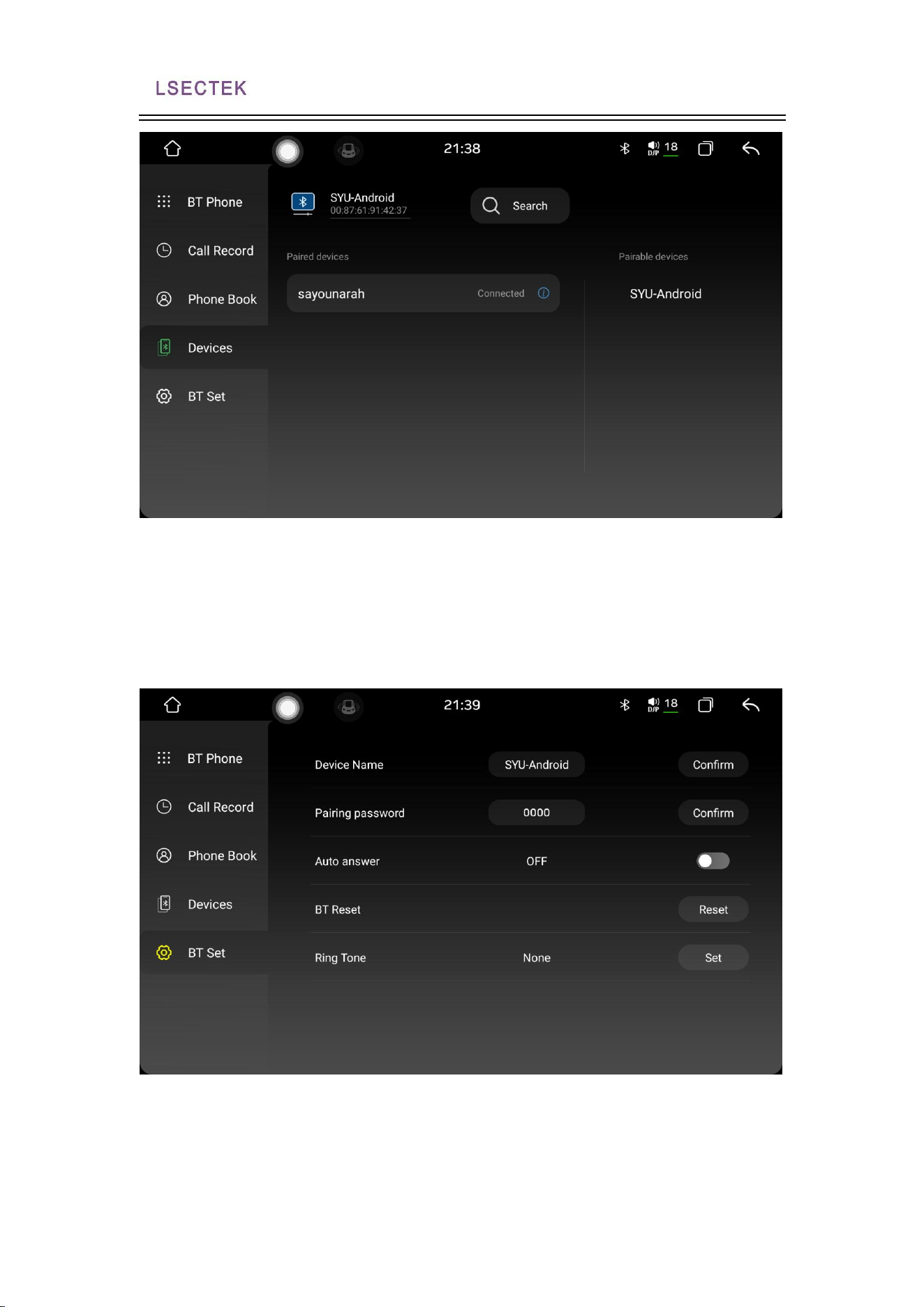
4. The Bluetooth device management interface
1. Click the icon to enter the device search interface, and then click the
search button, Bluetooth will search for all nearby Bluetooth devices, and display
them in the list, find and select the Bluetooth device you want to connect to in the
list.
2. Click the connection button to send a connection request to the selected
Bluetooth device. Enter the matching password in the selected Bluetooth device for
the unconnected device icon. If the connection icon appears, the connection is
successful.
3. Click to disconnect to disconnect the device.
4. Click Clear the device to clear the device.
7870 Public manual
8Page 1 of 128
5. Bluetooth Settings interface
The Bluetooth Settings page shows the name of the vehicle's Bluetooth and the
matching password, and the user can manually change the information. The
automatic answer function is that when there is a phone call, the car and machine
will automatically answer. All the Bluetooth information pressed by the user will
restore the factory settings.
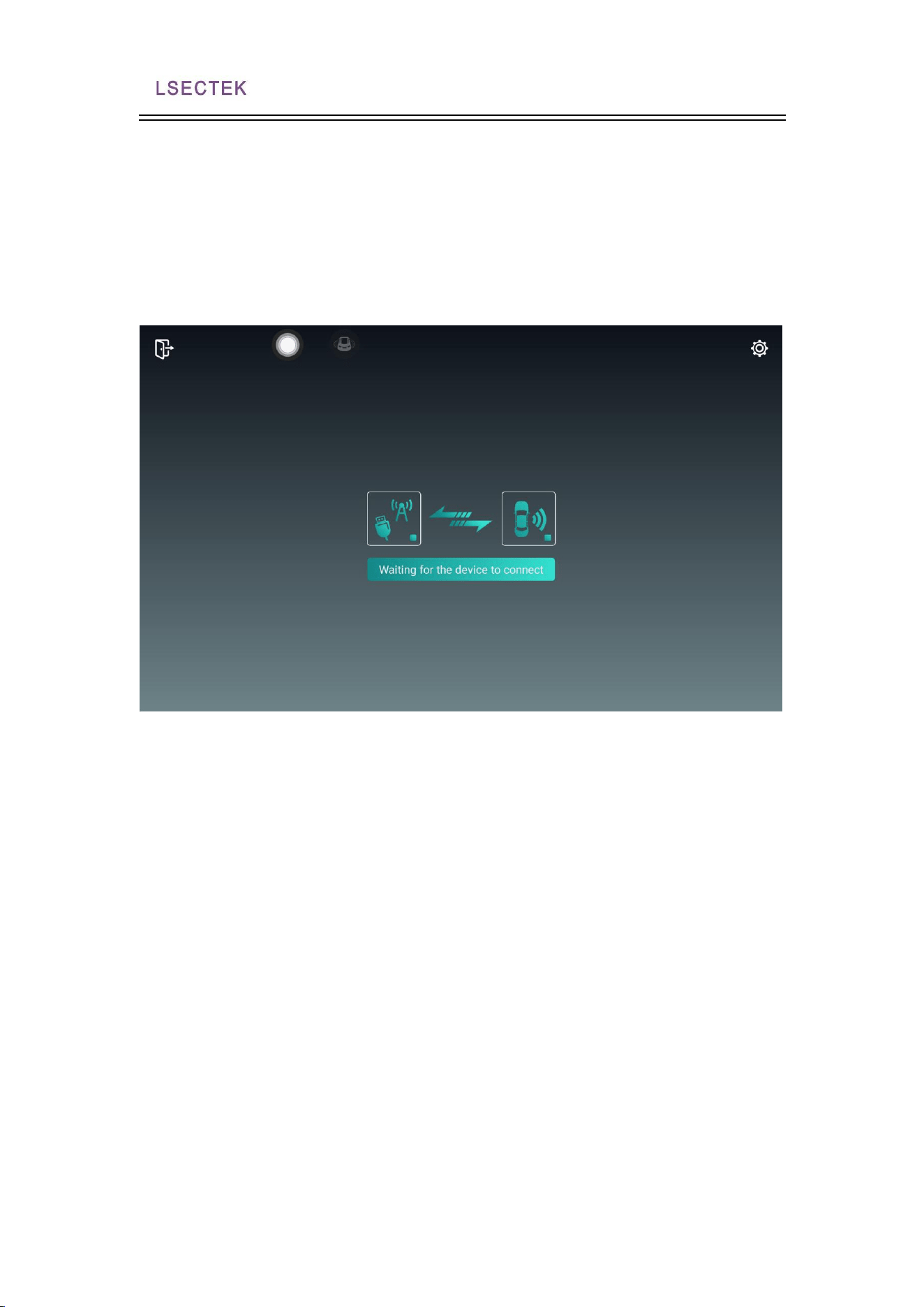
2.2 Car Link 2.0
CarPlay The system is a kind of iPhone connection that can "project" the APP
7870 Public manual
9Page 1 of 128
to the car screen, enabling the "projection" of functions such as phones, maps, music
and information. At the same time, Siri allows the driver to respond to requests
through voice commands and help the driver read messages, respond with voice
functions or call, ensuring the driver to drive the vehicle safely.
Android auto Is a Android-based in-car app from Google that can "project" the
APP in the phone to the car screen, providing basic functions such as navigation,
phone, music, and voice search. Android Auto Is essentially to call and integrate
these applications on the phone, with a unified interactive interface on the car end.
7870 Public manual
10Page 1 of 128
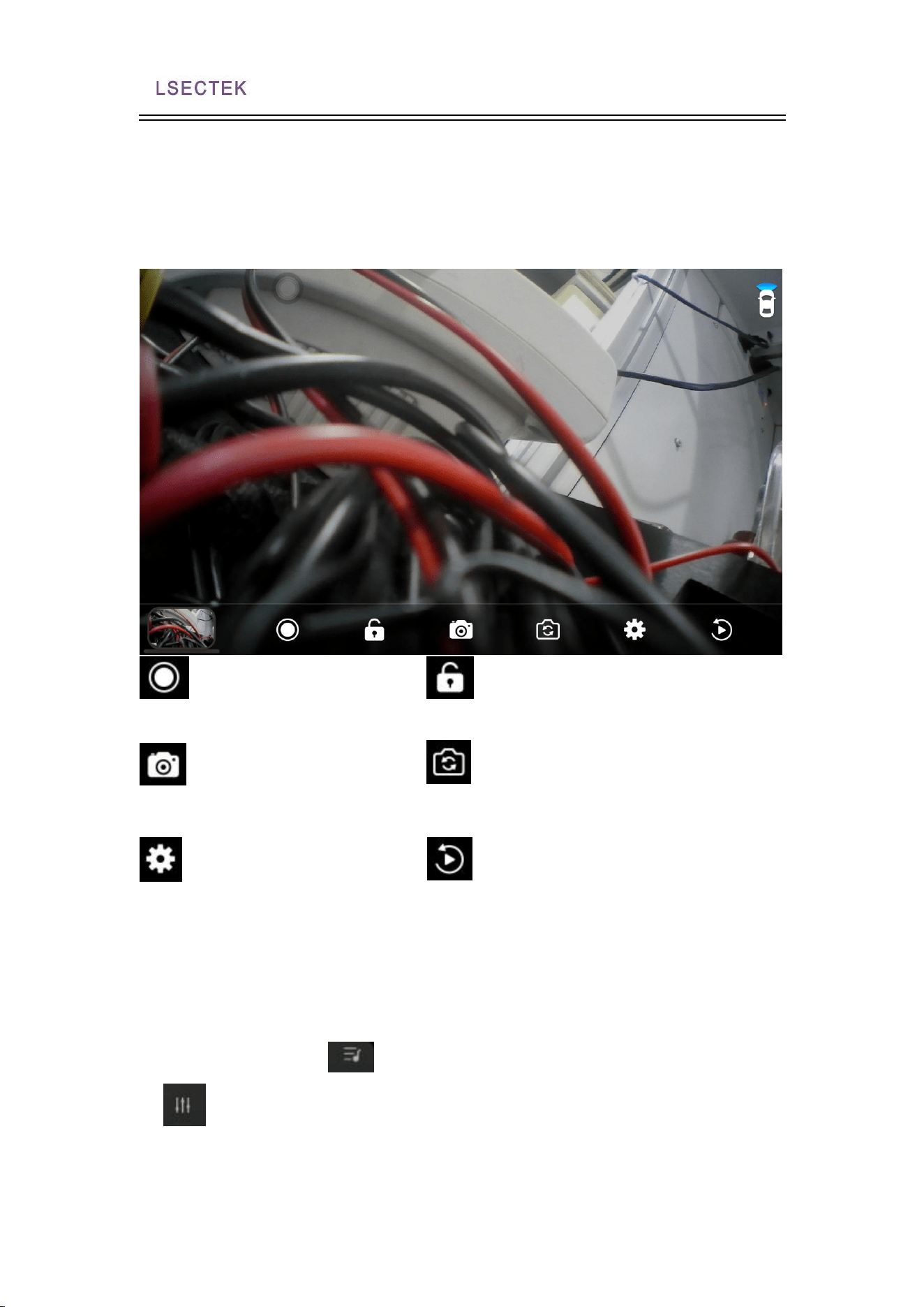
2.3 and the recorder
video recording lock
Photo front view / back view
Settings playback
2.4multimedia
Click the home page icon
to expand the multimedia small plug-in.
1.
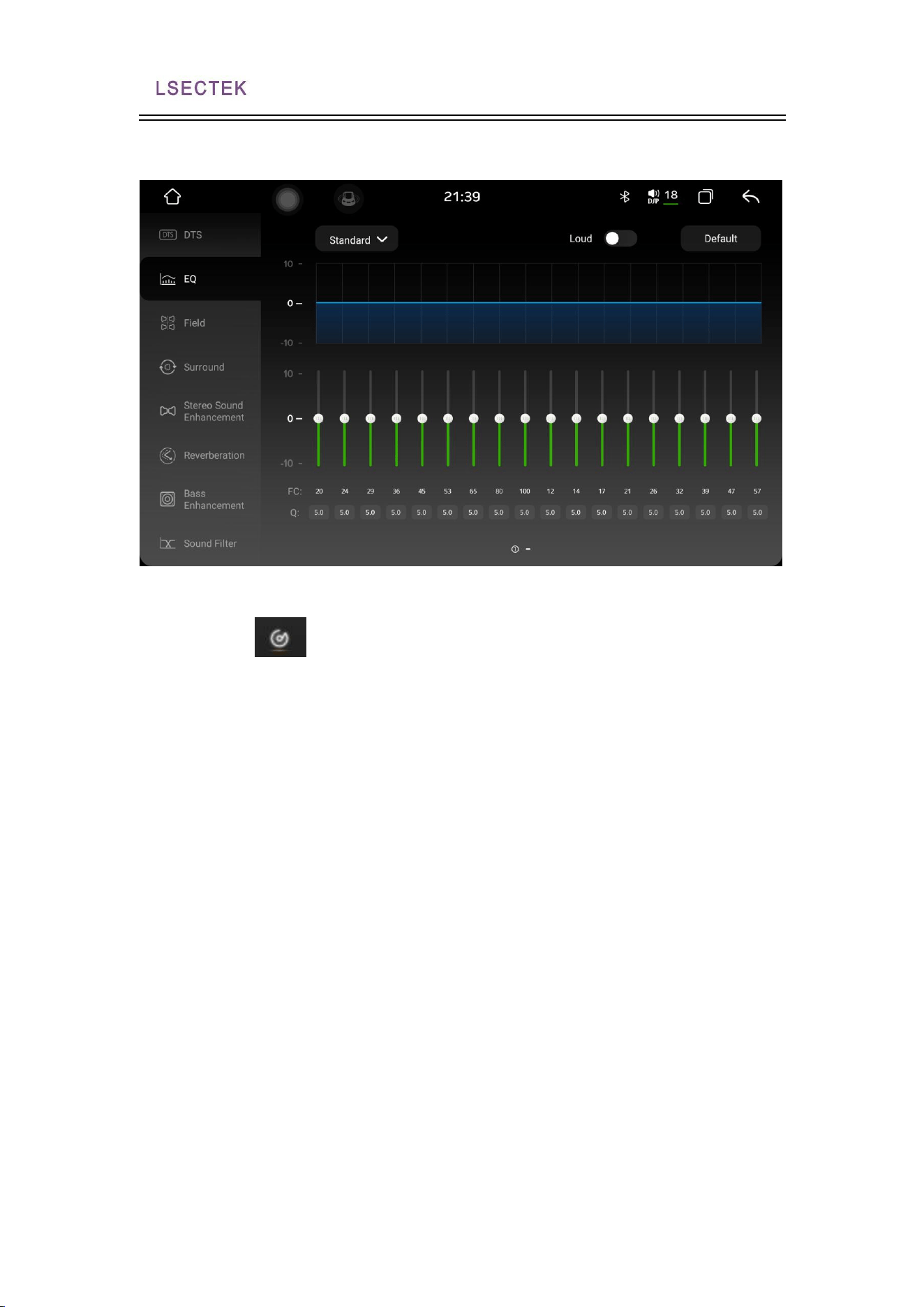
Page for the equalizer
Entering the equalizer interface, the user can click EQ, sound field Settings, space
7870 Public manual
11Page 1 of 128
effects and sound effects to enter the sound adjustment mode. The user can set the
preset sound effect or set the sound effect by manually adjusting the setting value.
2. The icon is for a music player
1. Music player- -Music playlist
Enter the main interface of the music player through the main interface or the
application icon of the application interface. If there is no play record, jump to the list
interface by default.
Song list button, click this button to display all the songs in the car machine
internal storage and external storage device.
Folder list button to display all the internal storage and external storage
devices.
Singer list button, click this button will classify the songs in the car with the
singer information.
Album list button, click this button will classify the songs in the car with the album
information.
2. Music player-play interface function brief introduction
Select the songs to be played, and click to jump to the play interface. The interface
displays some basic information about the current playing song, as well as the
common control buttons. Users can set the corresponding button to achieve the
corresponding effect, and at the same time, they can drag the progress bar of the
song to realize the fast forward and fast back function.
7870 Public manual
12Page 1 of 128
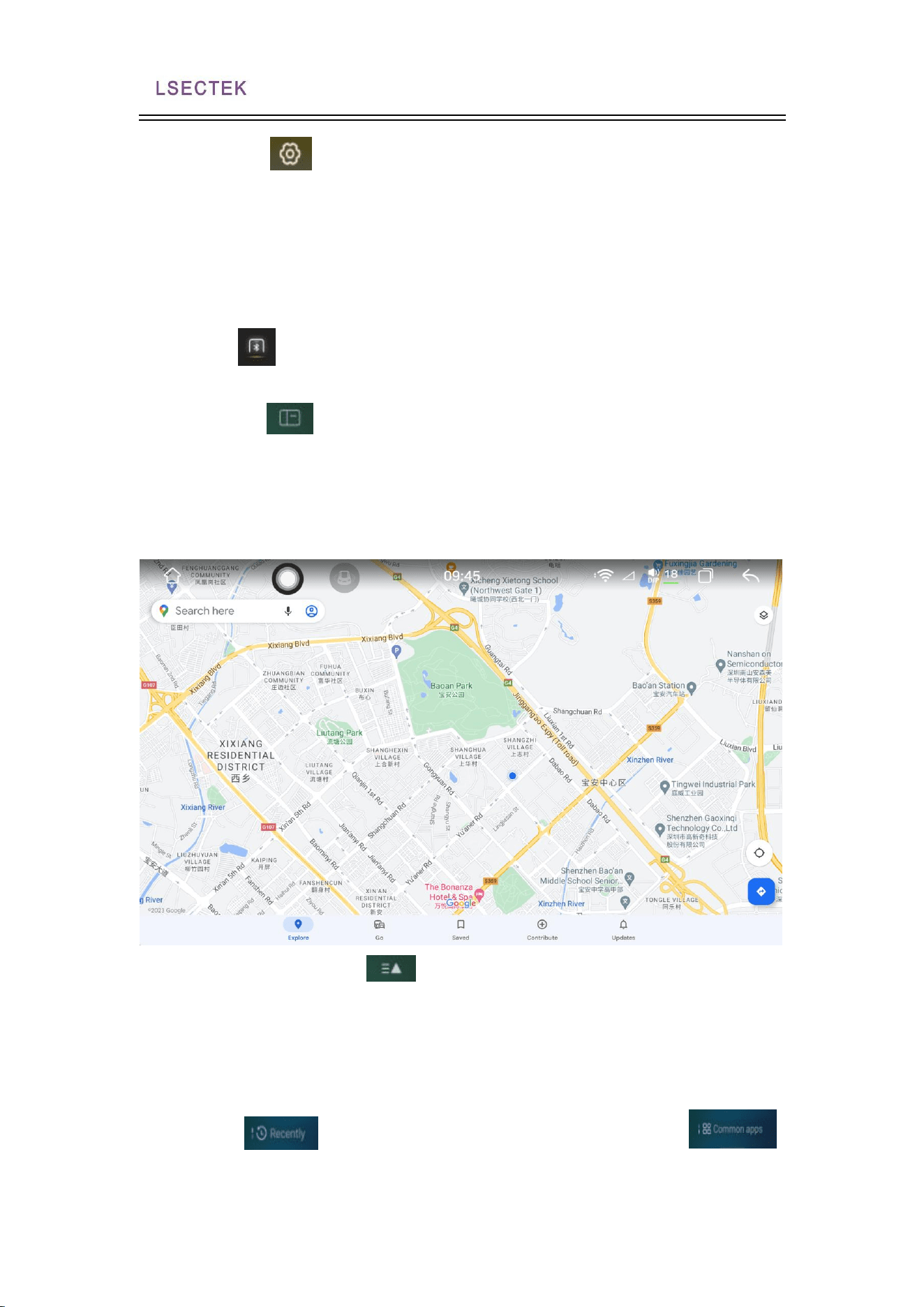
3. The icon is for the radio function
1. Click the icon to switch between the far and near range.
2. Click on the icon to switch to the stereo sound.
3. Click the icon to search for the radio station. When the button is pressed, the
radio will search out for all the radio bands.
7870 Public manual
13Page 1 of 128
4. Click the icon to enter the radio Settings interface, in the radio Settings
interface, there is a FM sensitivity adjustment, of course, the premise is in the
automatic stop stage sensitivity open conditions. With the FM sensitivity set in the
radio setting interface, or the RDS switch, or after the area change, I feel very messy,
which is not good for us to regulate the radio, we can click the default button, restore
to the default setting.
5. The icon is Bluetooth function. Click the device management to enter the
Bluetooth operation interface
6. Click the icon below to fold up the small plug-in
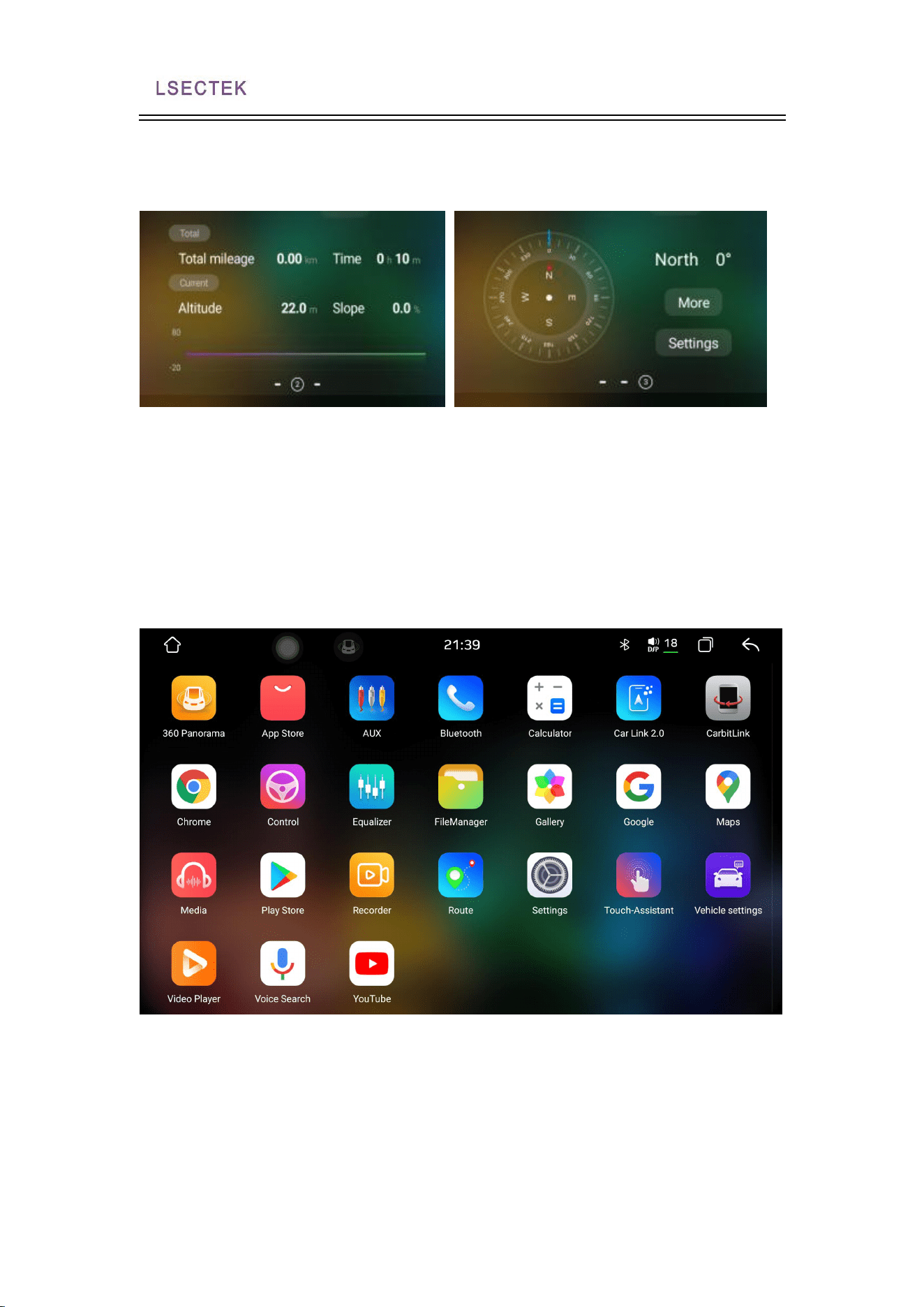
2.5 Map
Click on the upper right plugin to enter and use the navigation
You can also click on the icon to add other apps according to the user's own
preferences
2.6 Recent Use and addition of common applications
Click the icon at the bottom right of the screen to switch to ,
and add common applications according to the user's own preferences.
7870 Public manual
14Page 1 of 128
2.7 Data plug-in
There are 3 pages of data on the slide left, which can show the total mileage,
elevation, slope time, etc.
2.8 The Application Interface
Slide left to enter the application interface
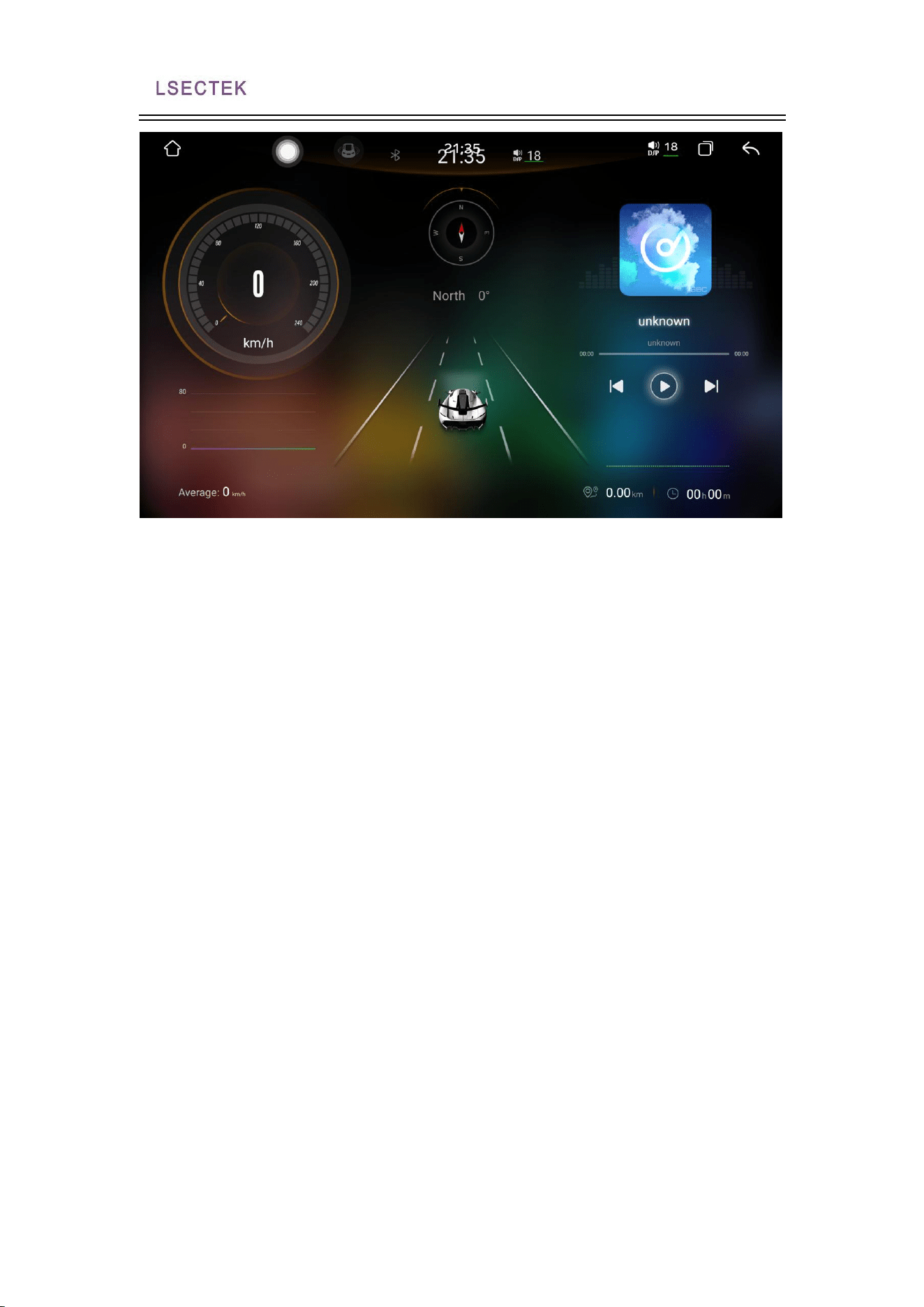
2.9 Travel interface
Slide right from the main interface to enter the travel page, which shows the
compass speed, etc
7870 Public manual
15Page 1 of 128
3、Introduction to the main functions of the
application interface
3.1 Steering wheel learning
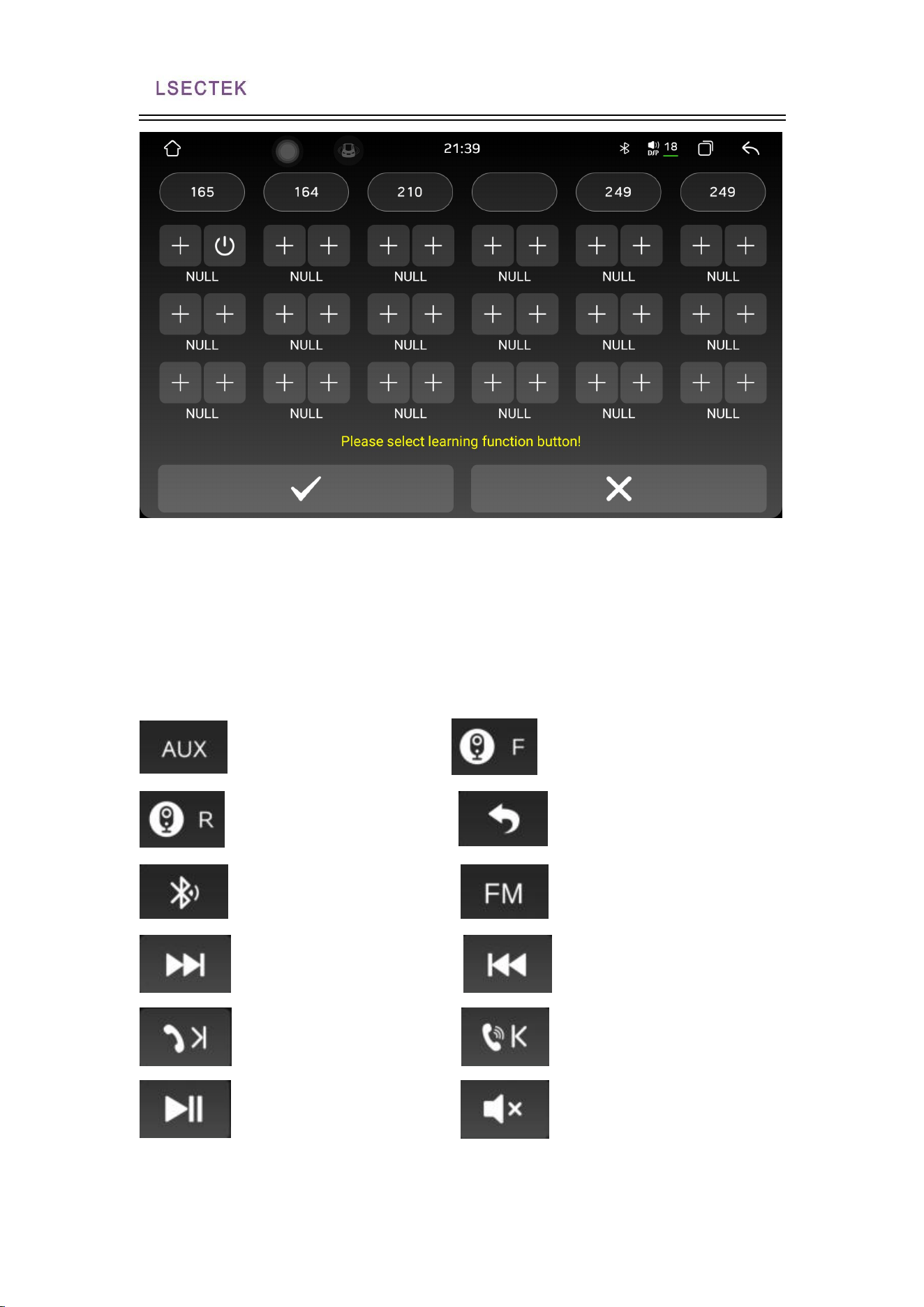
1. Steering wheel- -steering wheel button learning
For cars with steering wheel keys, if the keys support learning, you can customize
the steering wheel function. The steps are as follows:
Step 1, long hold the button on the steering wheel.
7870 Public manual
16Page 1 of 128
The second step is to select the function button to be learned on the machine until a
valid number (the number under the key indicates the resistance value of the key).
The third step is to learn the other keys in turn according to the first two steps. Click
the save button after learning (the same key can only learn one function)
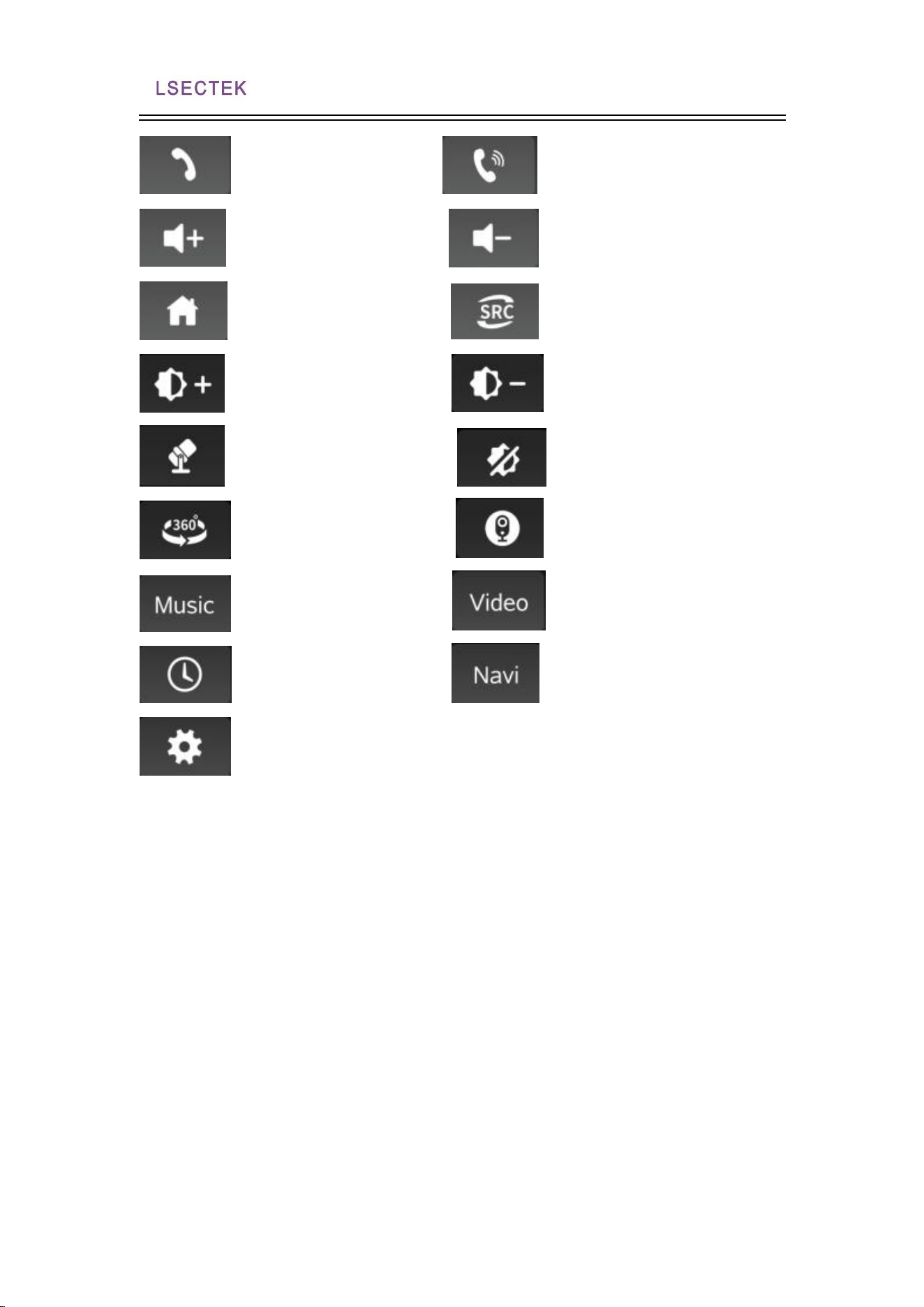
2. Steering wheel- -steering wheel button function
AUX foresight minus sight
back vision Close off the application
Bluetooth radio
Next song the last song
Bluetooth hang up / next song , Bluetooth answer / last song
Play / pause the mute loudspeaker mute
7870 Public manual
17Page 1 of 128
Bluetooth hangs up Bluetooth answers
Volume plus volume reduction
Return to the home page to apply mode switching
Brightness plus brightness reduction
Microphone and the switch screen
360 is viewed right
Right View
Music video player
Time screen saver navigation path
set up
3.2 Touch-screen assistant
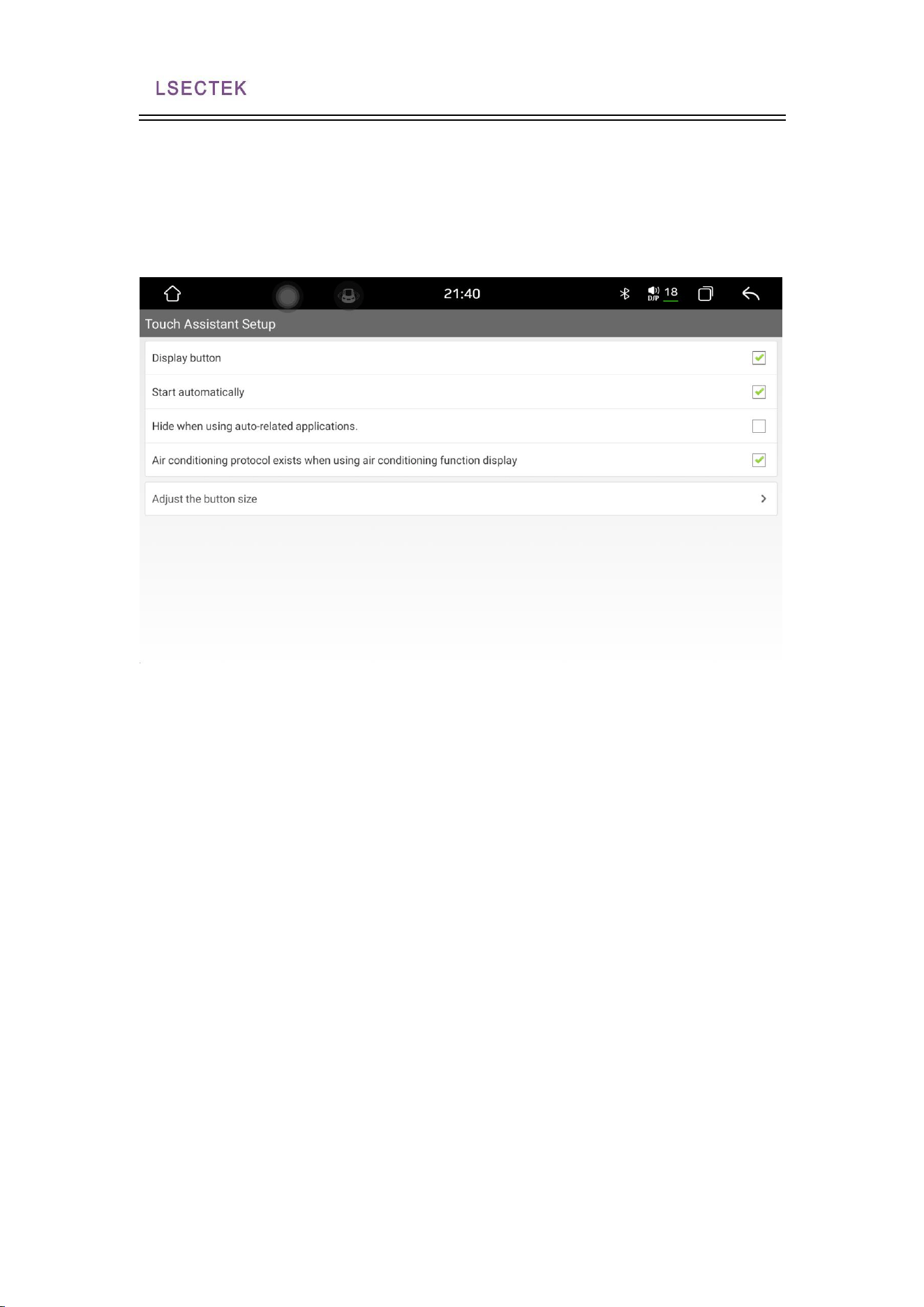
1. Show the button
The floating button in the touch screen assistant has many operational shortcuts,
through which you can easily jump the functions. If the user needs to display the
floating button, click the touch screen assistant to enter the page and set the display
button option.
2. Start up
After setting the floating button for display, the floating button will automatically
display by setting the boot option, and there is no need to enter the touch screen
assistant every time. For the video interface, navigation and other interfaces need to
hide the floating button, which can set the hidden functions when using car-related
7870 Public manual
18Page 1 of 128
applications.
3. Button size adjustment
During the use of the touch screen assistant, the button size can be set to adjust the
size of the floating button, and the user can set it according to their personal use
habits.
3.3 Document management
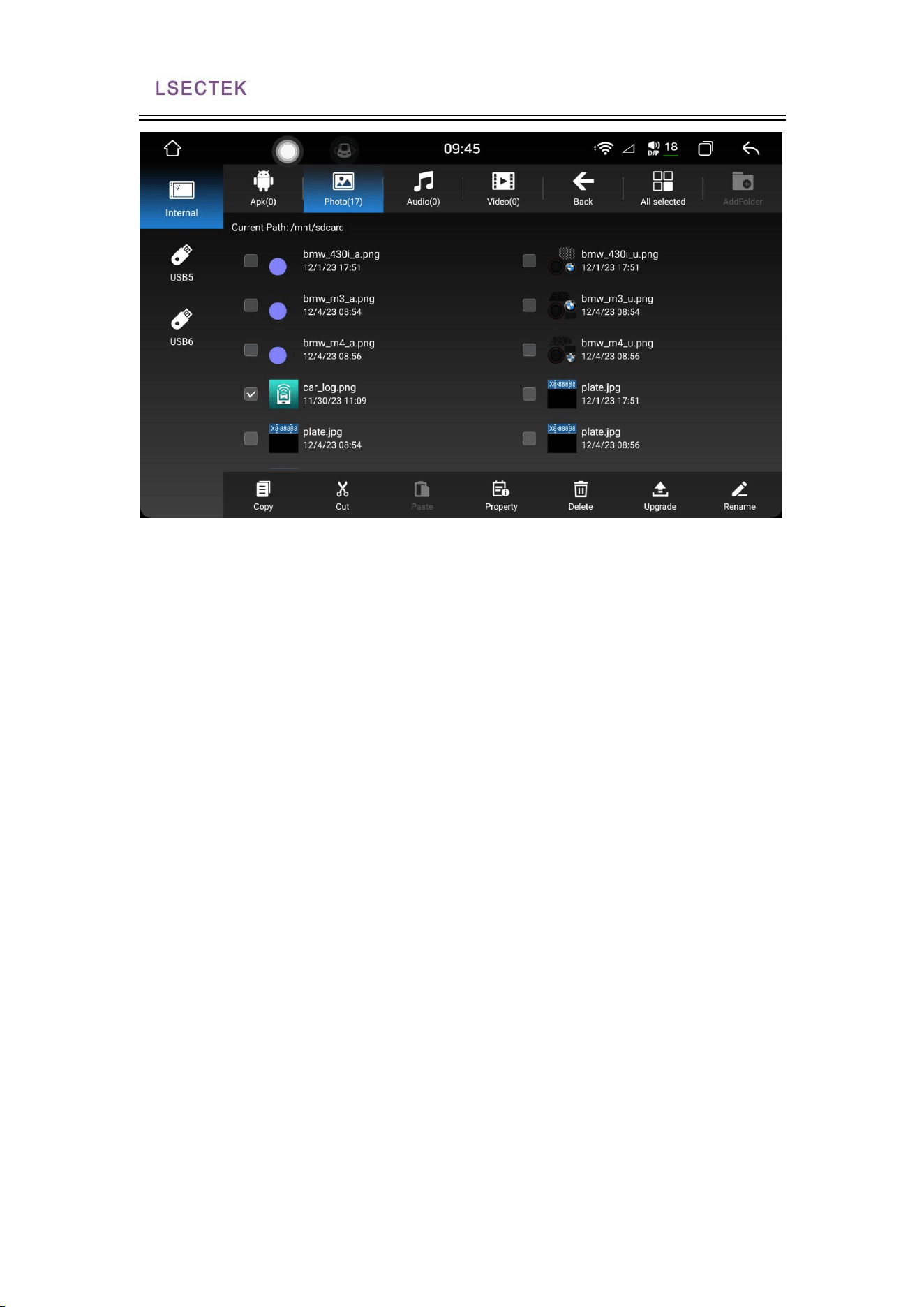
The File Manager interface
All files in the machine can be viewed and operated in the file manager, and on
the left side of the page. If you need to copy or move a file, just select the file to be
operated, and a row of operation buttons will appear at the bottom. Select the file
directory to be stored, and click the corresponding operation button.
7870 Public manual
19Page 1 of 128
3.4 Picture Preview
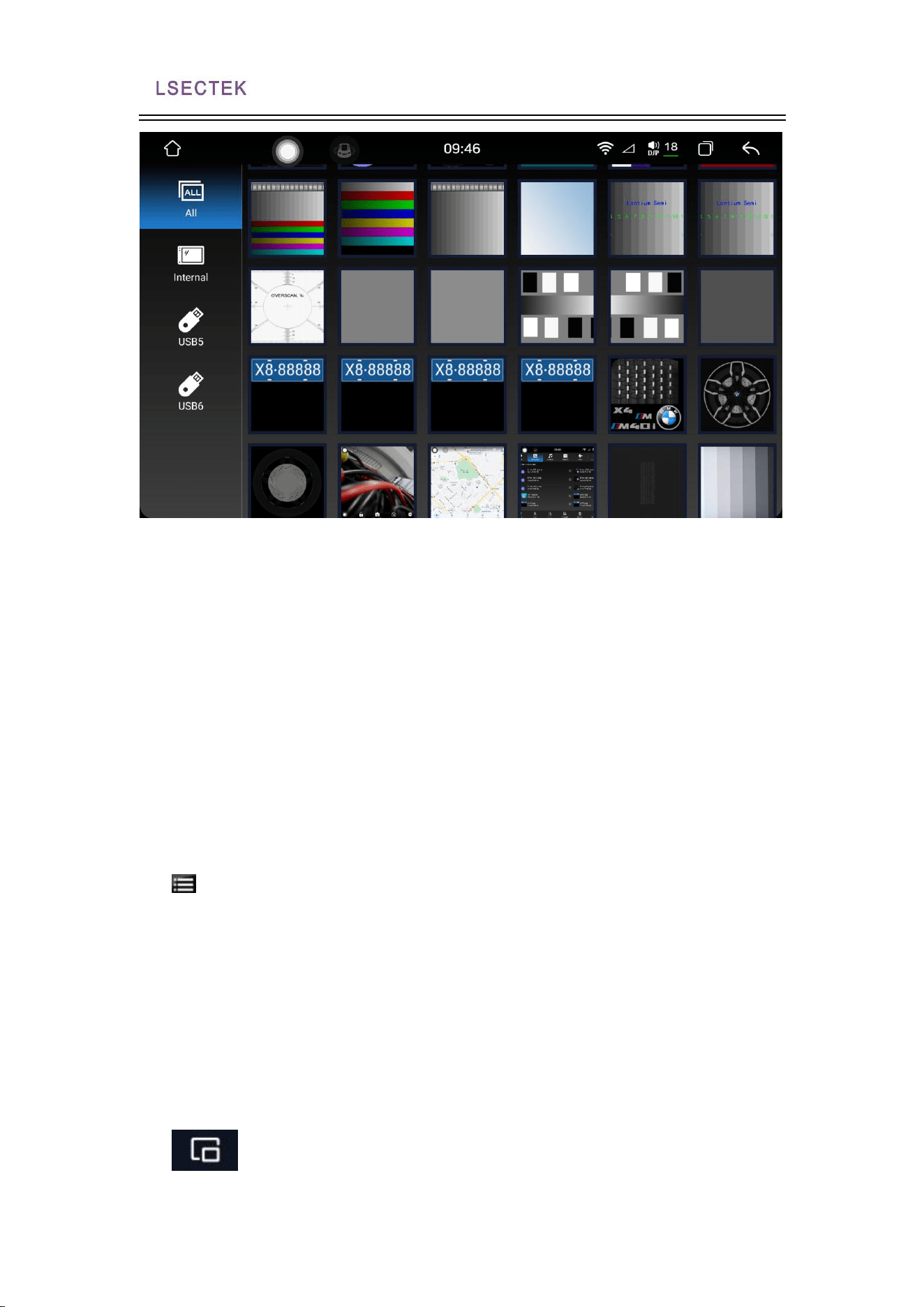
1. Picture browsing interface
Image browsing function can browse all the internal storage and external
storage on the car, and can customize the wallpaper.
2. Picture operation
Click any picture to enter the browsing mode, such as the left picture, which can
zoom in and out, long press the screen to hide the function button operation, and
support the picture with the finger movement, and gesture left and right cut function.
On the right is the key function of the picture.
7870 Public manual
20Page 1 of 128
3.5 Video playback
1. Video player- -video playback
The video player can identify all video resources from the internal storage as
well as the external storage, and supports a variety of common video formats such
as 3 gp, mp4, m4v, f4v, f 4 v, m kv, webv, webm, avi, etc. Unique and simple
operation interface, powerful decoding ability and support for HD video playback.
2. Video player- -Video list
Click to enter the video list interface, and the user can view the
corresponding video list by selecting the type of storage device on the left.
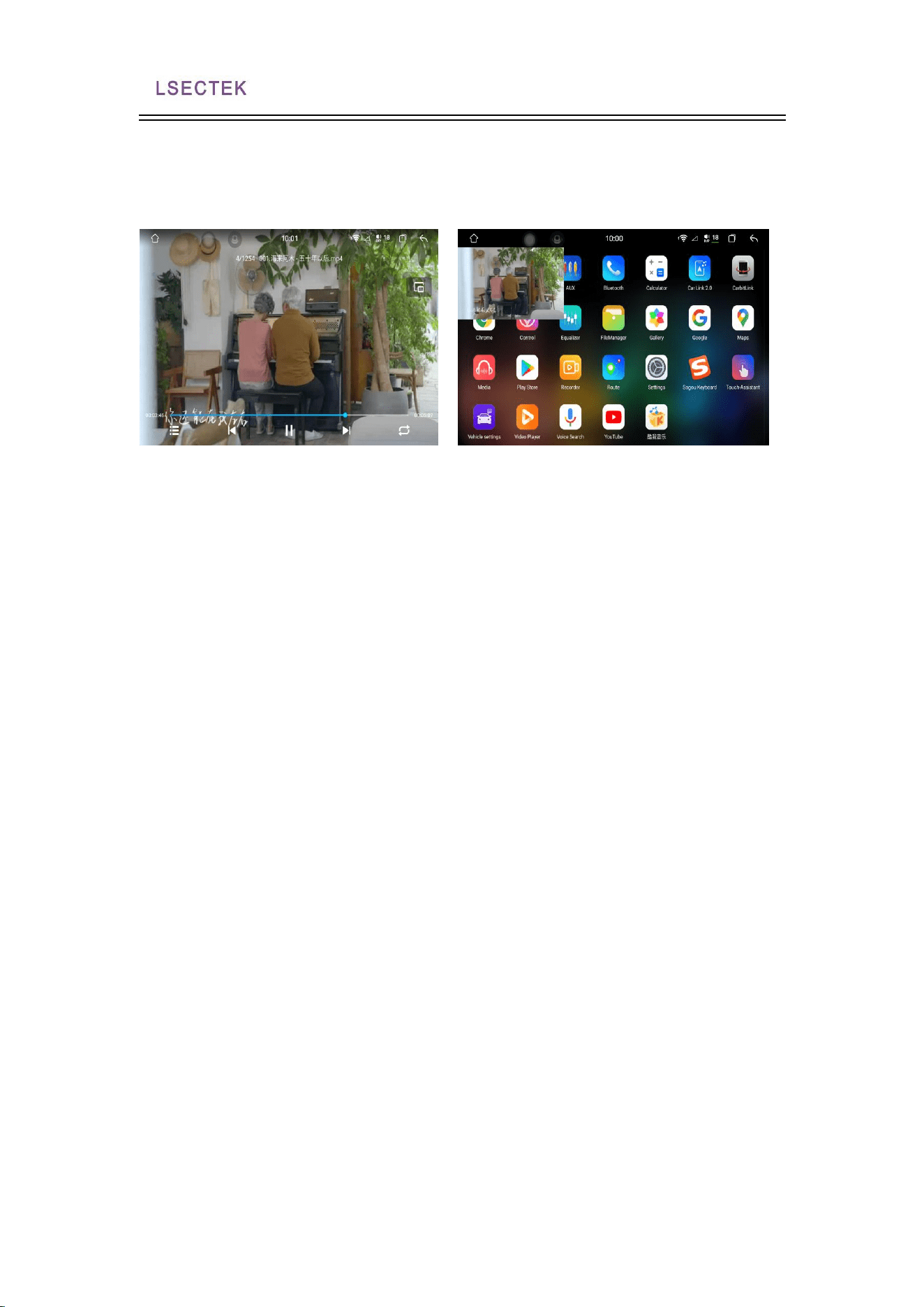
3. Video playback interface and drawing in the picture
Select the played video through the video list screen and jump to the video
play screen. The interface will display the title of the video and the playback progress,
etc. You can realize the function of fast forward and fast back by dragging the
progress bar. Touch the screen operation interface automatically hidden surface, easy
to watch the video.
Click the picture-in-picture function button, and the video playback
7870 Public manual
21Page 1 of 128
interface will be reduced and superimposed on other application interfaces. And click
the zoom and full screen button in the upper right corner of the picture to select the
size of the video. The in-picture feature helps users operate navigation and other
apps while watching videos.
4. Relevant introduction of Settings
2
1
7870 Public manual
22Page 1 of 128
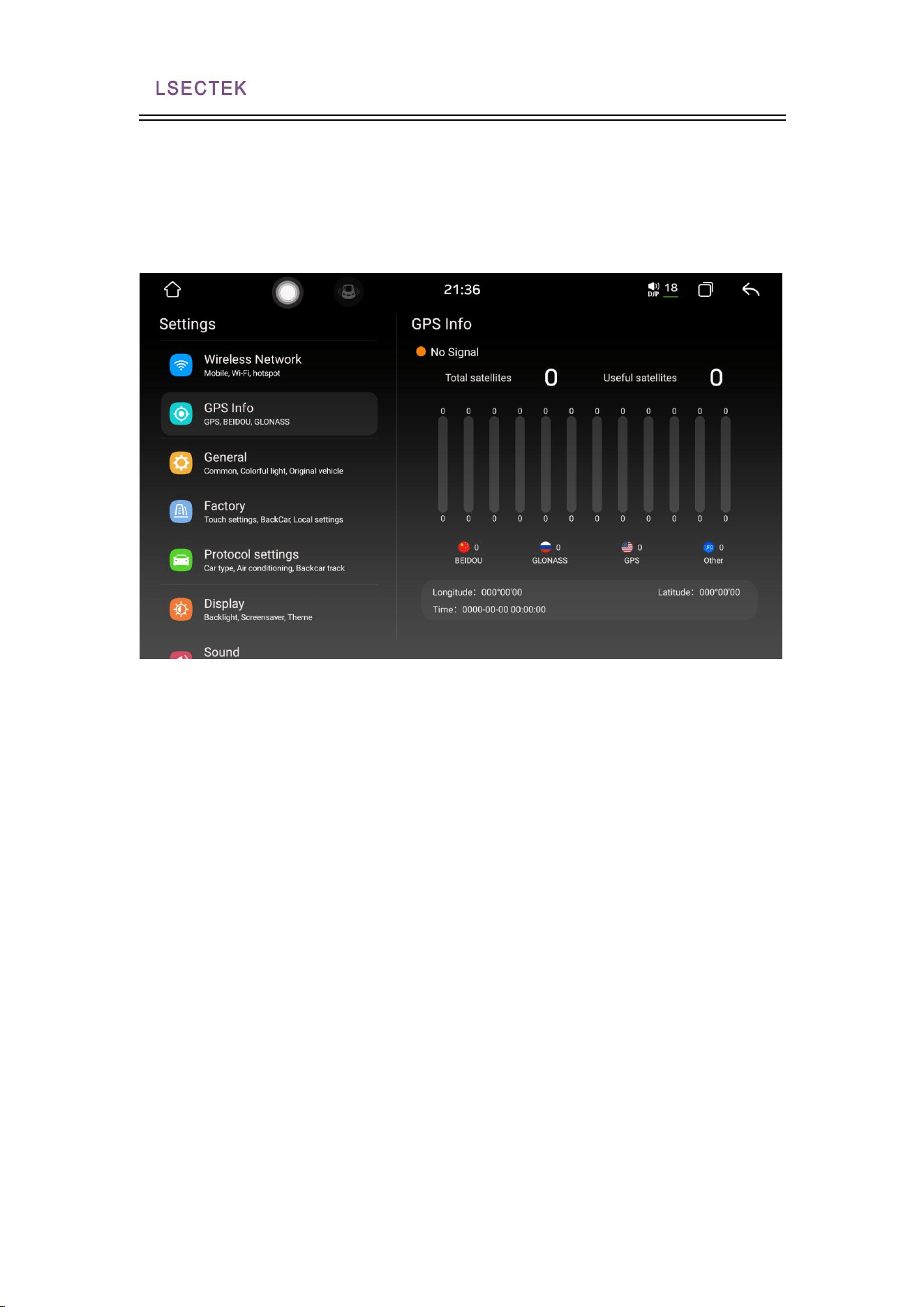
4. . GPS information
The GPS information shows the basic information of the machine positioning, and
the machine time is synchronized with the satellite time when the positioning is
successful.
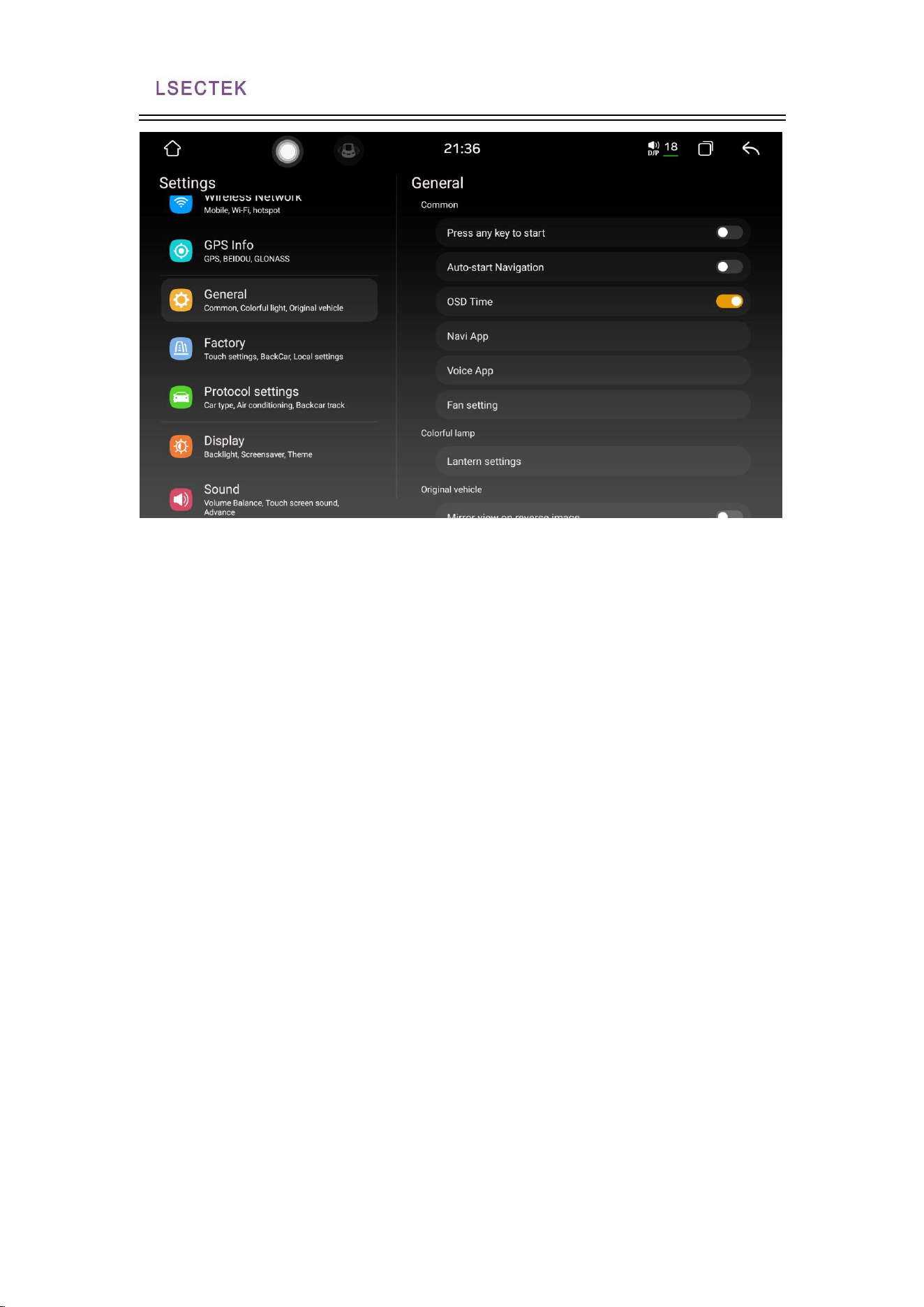
4. .universal settings
General settings can set some basic properties of the machine, and users can
configure the functions according to their personal habits.
3
7870 Public manual
23Page 1 of 128
1.Any button: click the touch screen
2.Automatic access navigation: Automatic access navigation can be set
3.Image time superposition: the time can be displayed in the image screen after
opening
4.Navigation application settings: Set the navigation map for the call
5.Voice application settings:
6.Fan Settings: You can set the manual clock or turn off the fan and automatic
constant temperature
7.Lantern setting: control the color of the key light on the screen
8.Reverse mirror image: the reverse mirror image function can be enabled
9. Steering wheel Settings: you can enter the steering wheel learning interface
10.USB Device startup: can set the usb
11. Automatic startup setting: the automatic startup application can be set up
12. Break the ACC delay power failure: the delay time of power failure can be set.
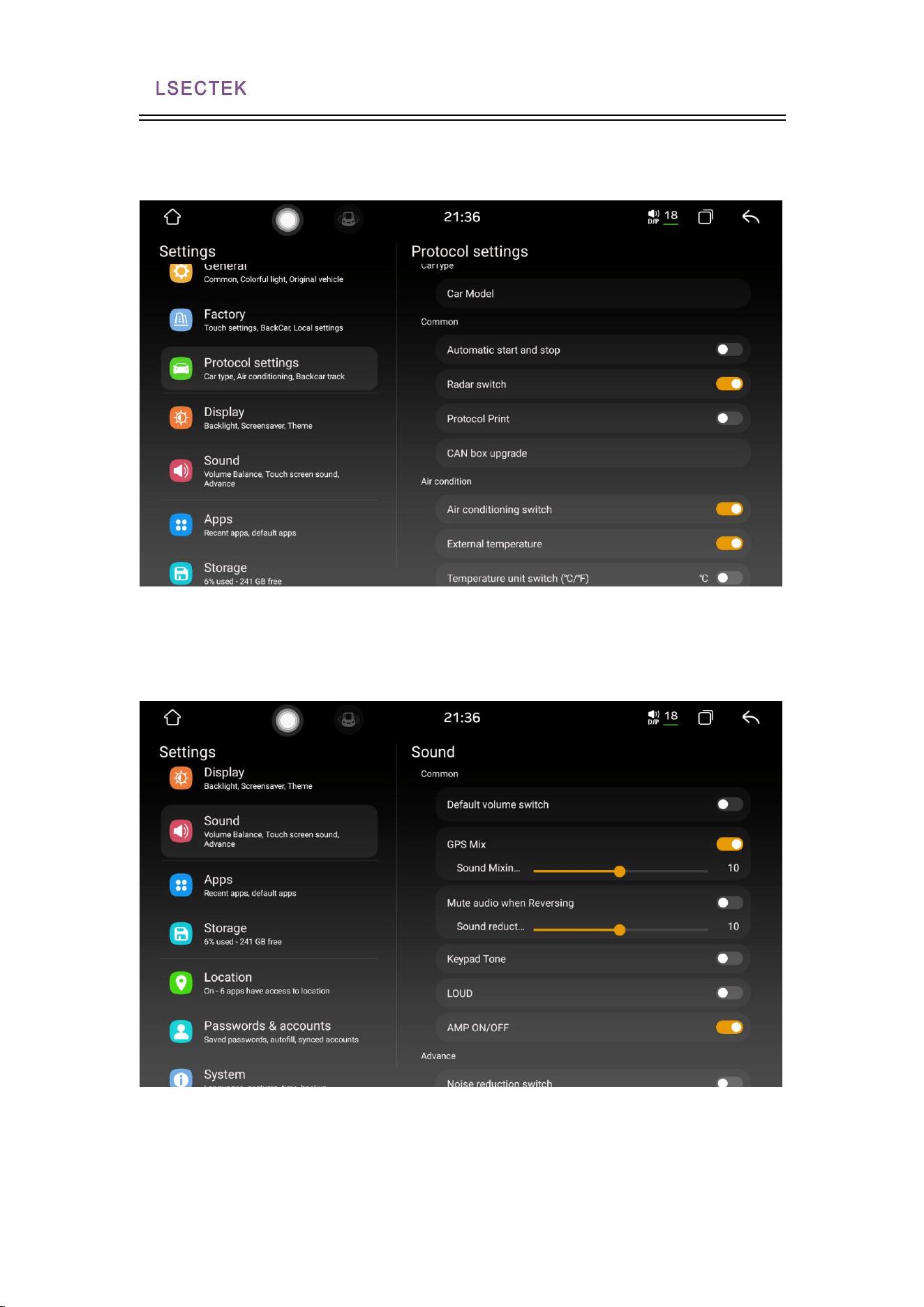
4. Plant Settings
Factory settings can be configured for the function of the machine, entering the
correct matching password, to ensure the normal operation of the machine, users
are not recommended to change the setting in non-special circumstances.
5
4
7870 Public manual
24Page 1 of 128
4. Agreement setting
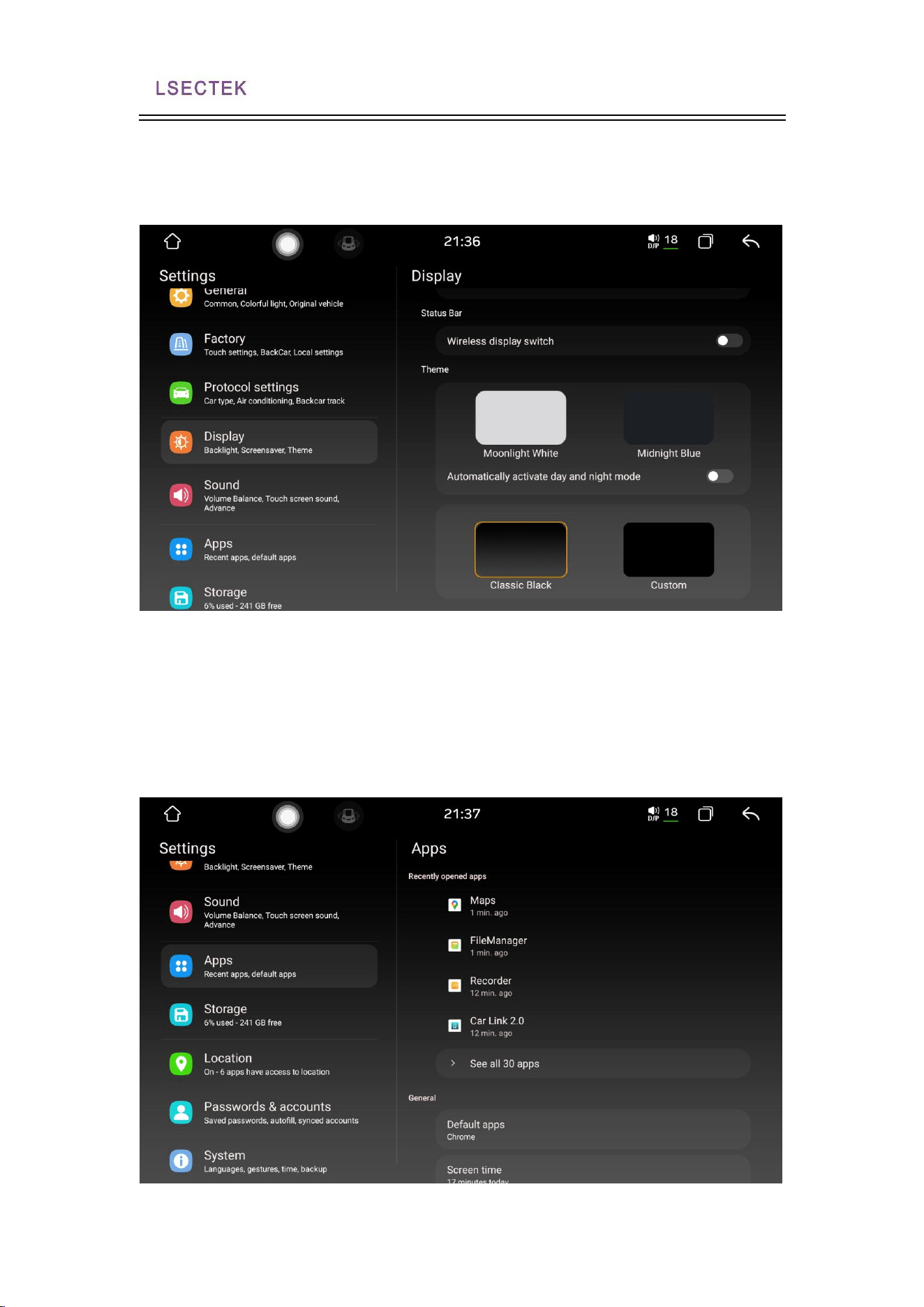
4. Sound settings
Various sound-related functions can be set according to user habits
7
6
7870 Public manual
25Page 1 of 128
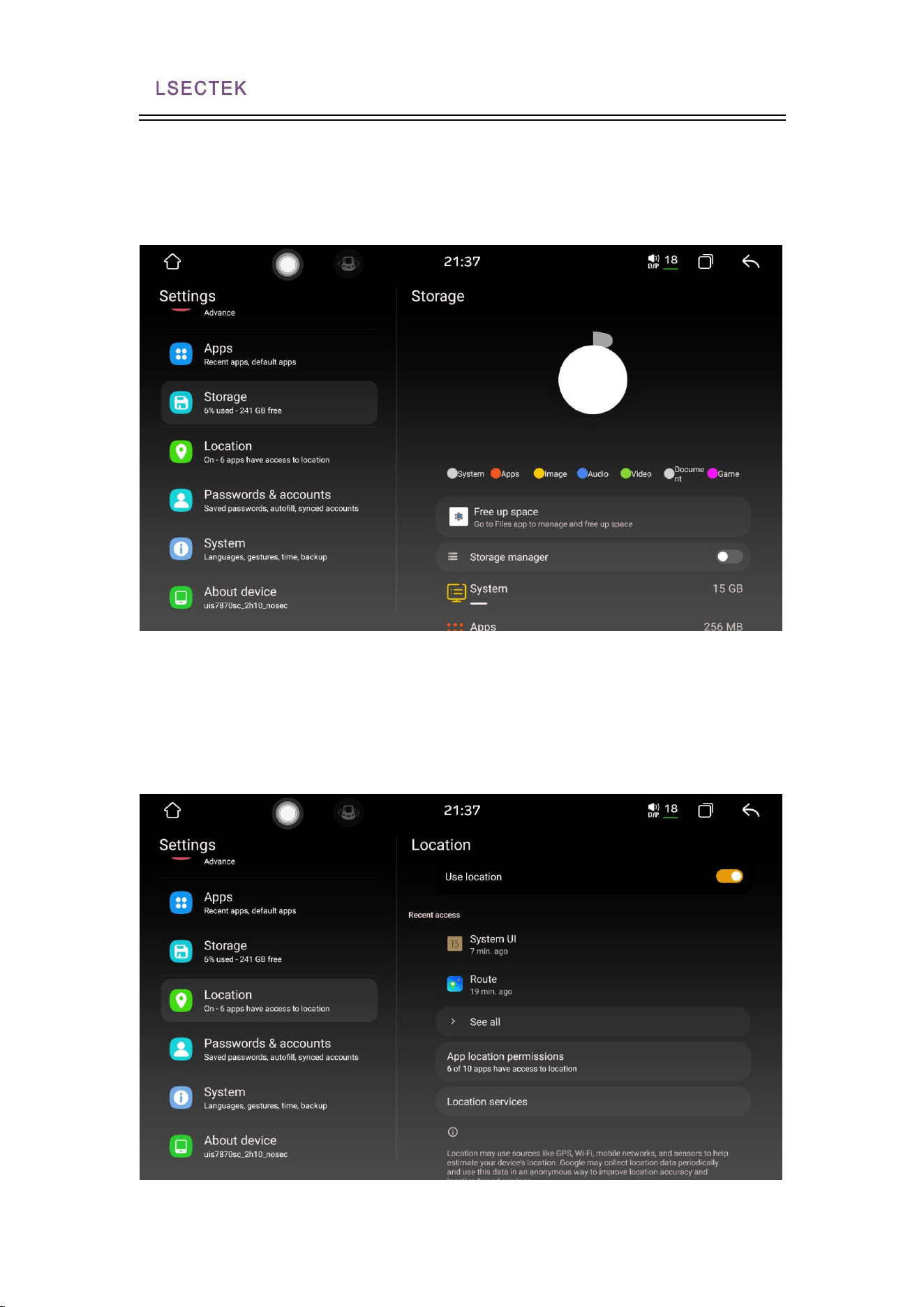
4. Display the settings
You can set backlight, customize theme and background color, adjust brightness, etc.
4. Application Settings
You can view the most recent application, device usage time, and set the default
application.
9
8
7870 Public manual
26Page 1 of 128
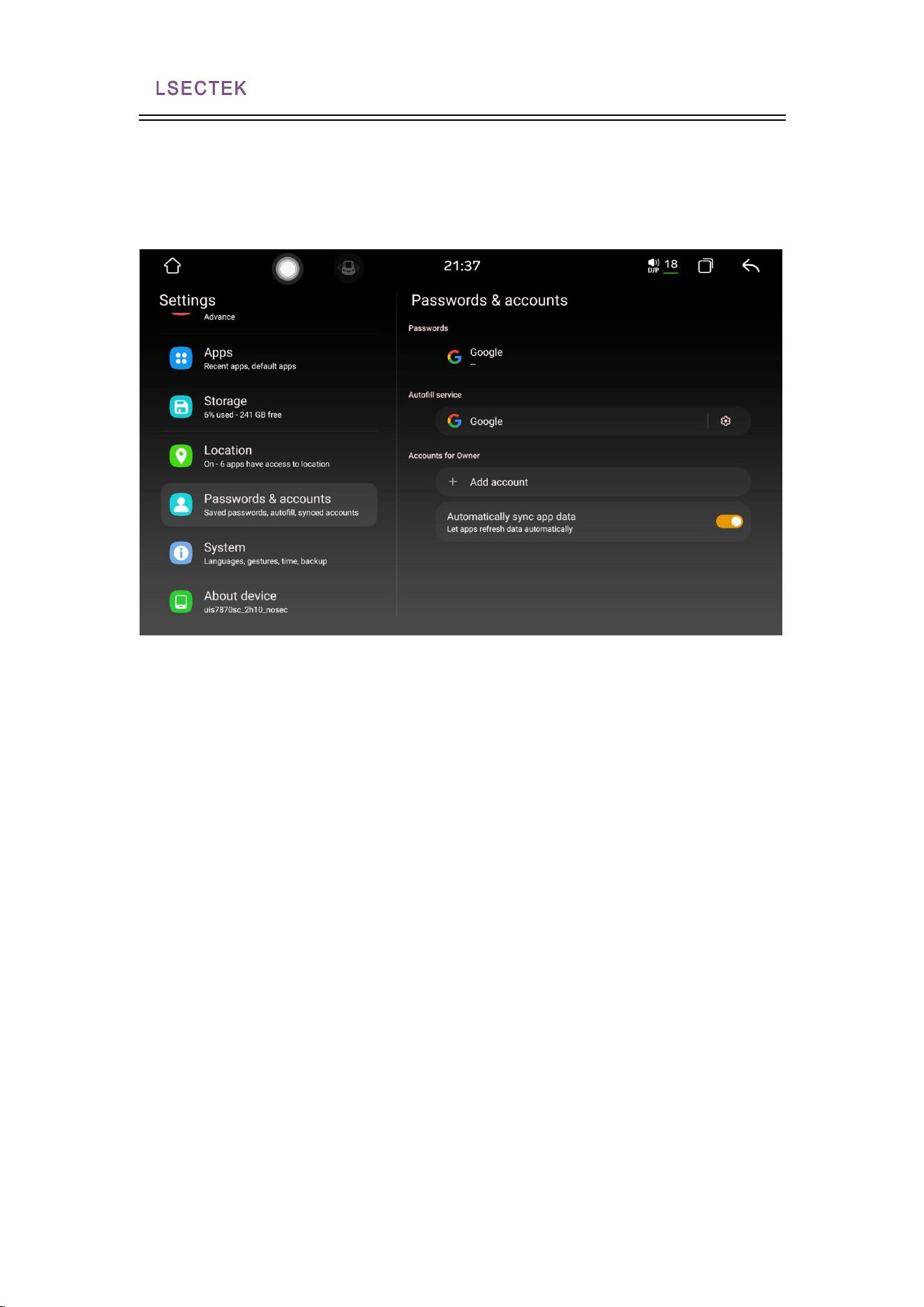
4. Storage Settings
4. Location information setting
In the location information access option, you can set the GPS satellite positioning to
get your current location information. The GPS satellite positioning function needs to
be kept regularly open to ensure the normal use of the navigation function.
11
0
7870 Public manual
27Page 1 of 128
4.1 Password and account setting
You can set up to add or remove accounts.
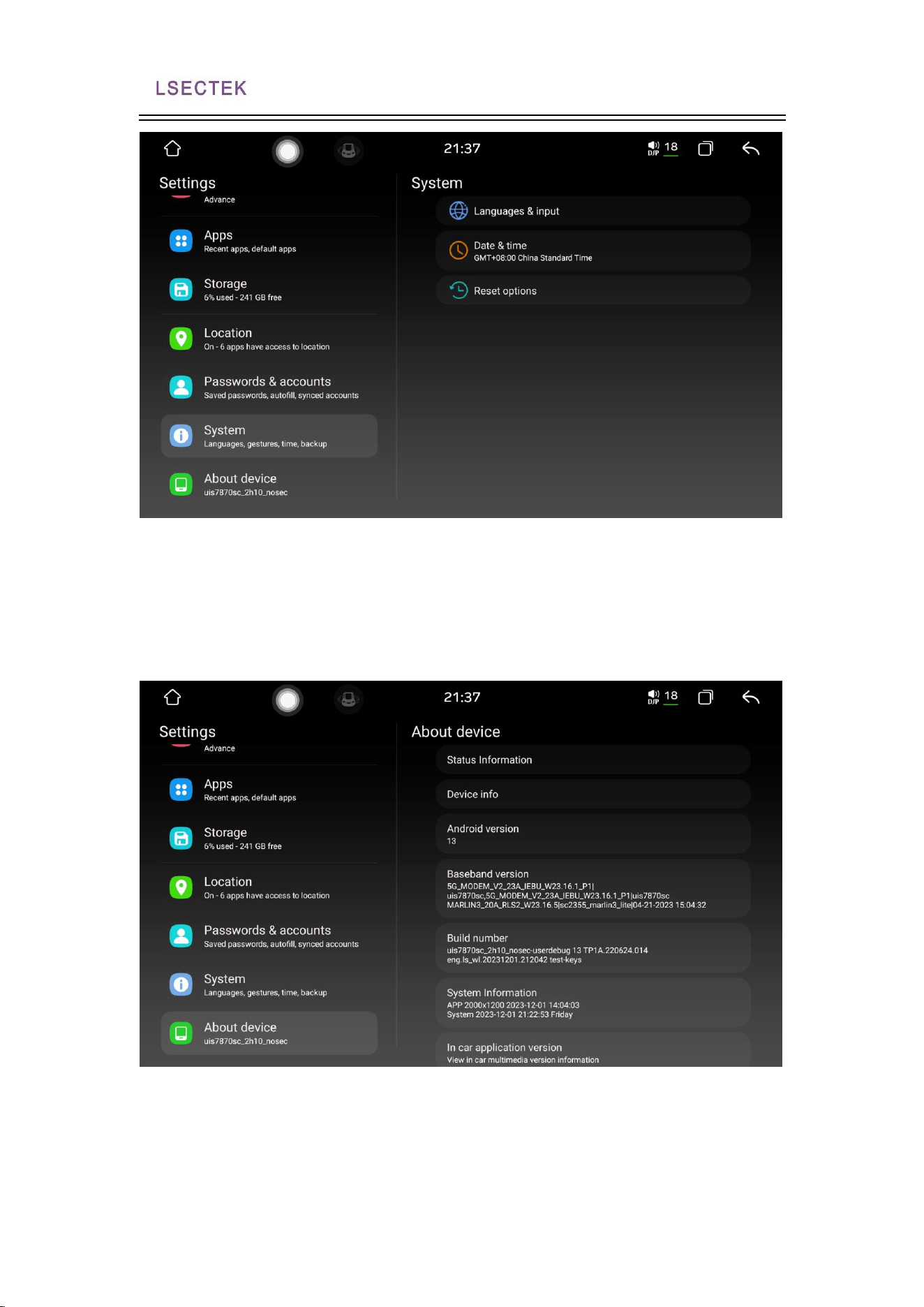
4. and the system settings
1. Language and input method: you can switch languages and add languages.
2. Date and time: Set the system time, which generally provides a time mode for the
automatic acquisition network.
12
7870 Public manual
28Page 1 of 128
4. about the car and the machine
It mainly displays the basic information about the applications, systems, and other
software in the machine

FCC Information and Copyright
This equipment has been tested and found to comply with the limits for a Class B digital device,
pursuant to part 15 of the FCC Rules.
These limits are designed to provide reasonable protection against harmful interference in a residential
installation. This equipment generates,
uses and can radiate radio frequency energy and, if not installed and used in accordance with the
instructions, may cause harmful interference
to radio communications. However, there is no guarantee that interference will not occur in a particular
installation. If this equipment does
cause harmful interference to radio or television reception, which can be determined by turning the
equipment off and on, the user is
encouraged to try to correct the interference by one or more of the following measures:
—Reorient or relocate the receiving antenna.
—Increase the separation between the equipment and receiver.
—Connect the equipment into an outlet on a circuit different from that to which the receiver is
connected.
—Consult the dealer or an experienced radio/TV technician for help.
This device complies with part 15 of the FCC Rules. Operation is subject to the
following two conditions:
(1)This device may not cause harmful interference, and
(2) this device must accept any interference received, including interference that may
cause undesired operation.
changes or modifications not expressly approved by the party responsible for compliance could
void the user's authority to operate the equipment.
This equipment complies with FCC radiation exposure limits set forth for an uncontrolled
environment .This equipment should be installed and operated with minimum distance 20cm
between the radiator& your body. This transmitter must not be co-located or operating in
conjunction with any other antenna or transmitter.