UM0009 rev 0 of 30.07.2026 1
MostCare
Up
USER MANUAL
2 UM0009 rev 0 of 30.07.2026
CONTENTS
1. INTRODUCTION .................................................................................................................................................. 5
CONNECTIONS AND INTERFACES ................................................................................................................................ 5
LIST OF SYMBOLS .................................................................................................................................................... 8
2. MONITOR AND ACCESSORIES ............................................................................................................................10
MOSTCARE
UP
TRANSDUCERS AND TRANSDUCERS CABLES .............................................................................................. 11
MOSTCARE
UP
MONITORIN CABLES .......................................................................................................................... 11
OPTIONAL ACCESSORIES ......................................................................................................................................... 12
3. SAFETY WARNINGS ...........................................................................................................................................12
ELECTRICAL SAFETY ............................................................................................................................................... 12
CONTACT WITH LIQUID OR GASEOUS SUBSTANCES ....................................................................................................... 13
CLEANING ........................................................................................................................................................... 13
POSITIONING, TRANSPORT AND OPERATIONAL CONDITIONS .......................................................................................... 14
DISPOSAL ........................................................................................................................................................... 14
OTHER WARNINGS ................................................................................................................................................ 15
4. INTENDED PURPOSE ..........................................................................................................................................15
INTENDED USE ..................................................................................................................................................... 15
INTENDED USERS .................................................................................................................................................. 15
INTENDED PATIENT POPULATION ............................................................................................................................. 15
INTENDED ENVIRONMENT OF USE ............................................................................................................................ 16
INDICATIONS FOR USE............................................................................................................................................ 16
CONTRA-INDICATION ............................................................................................................................................ 16
LIMITATION OF USE ............................................................................................................................................... 16
USAGE WARNINGS ................................................................................................................................................ 17
NORMAL USE....................................................................................................................................................... 18
FREQUENTLY USED FUNCTIONS ................................................................................................................................ 18
ESSENTIAL PERFORMANCES .................................................................................................................................... 19
RESIDUAL RISKS .................................................................................................................................................... 19
5. OPERATING PRINCIPLE AND CALCULATION METHOD ........................................................................................19
P.R.A.M. AND MOSTCARE
UP
................................................................................................................................. 19
PRAM ANALYTICAL EXPRESSION ............................................................................................................................. 19
PRAM TYPICAL HEMODYNAMIC VARIABLES ............................................................................................................... 20
5.3.1 dP/dt
max
....................................................................................................................................................... 20
6. OPERATING MODES AND CONFIGURATIONS .....................................................................................................21
PRAM MINI-INVASIVE MONITORING MODE ............................................................................................................... 21
6.1.1 Use of MostCare
Up
in Stand-alone mode .................................................................................................... 21
6.1.2 Combined use with another patient monitor .............................................................................................. 21
6.1.3 Combined use with another patient monitor and Y cable........................................................................... 22
COMBINED USE WITH AN OUTPUT MONITOR, HDMI CONNECTION ................................................................................. 22
7. VERSIONS ..........................................................................................................................................................23
MOSTCARE
UP
ENDLESS VERSION ........................................................................................................................... 23
7.1.1 Mini-invasive monitoring mode .................................................................................................................. 23
MOSTCARE
UP
ON DEMAND VERSION .................................................................................................................... 24
7.2.1 Mini-invasive/Non-Invasive 'Time-based' activation card .......................................................................... 25
7.2.2 Mini-invasive 'Use-based' activation card ................................................................................................... 25
7.2.3 Error messages connected with card usage ................................................................................................ 25
8. DIRECTIONS FOR USE ........................................................................................................................................26
SWITCHING ON AND INITIAL SETTINGS ....................................................................................................................... 26
UM0009 rev 0 of 30.07.2026 3
8.1.1 Switching on ................................................................................................................................................ 26
8.1.2 Auto test and error messages ..................................................................................................................... 27
8.1.3 Initial screen ................................................................................................................................................ 27
8.1.4 Monitoring settings ..................................................................................................................................... 28
8.1.5 Monitoring screen ....................................................................................................................................... 34
8.1.6 Custom monitoring configuration selection screen .................................................................................... 36
8.1.7 Stand-by/Switch-off .................................................................................................................................... 37
LED BUTTON AND BATTERY STATUS ......................................................................................................................... 37
9. QUICK MENUS ...................................................................................................................................................38
LATERAL POP-UP MENU ......................................................................................................................................... 40
9.1.1 Menu ........................................................................................................................................................... 41
9.1.2 Monitoring Settings .................................................................................................................................... 41
9.1.3 Alarms settings ........................................................................................................................................... 42
9.1.4 Record ......................................................................................................................................................... 43
9.1.5 Freeze .......................................................................................................................................................... 44
9.1.6 End of monitoring ....................................................................................................................................... 44
9.1.7 Standby / off / end demo ............................................................................................................................ 44
9.1.8 Save configuration ...................................................................................................................................... 45
ALARMS MENU .................................................................................................................................................... 45
9.2.1 Verification of the correct functionality of the alarm system ..................................................................... 47
9.2.2 Physiological alarms ................................................................................................................................... 47
9.2.3 Technical alarms ......................................................................................................................................... 47
9.2.4 Alarm strings and description ..................................................................................................................... 48
9.2.5 Validity of measured values during alarm condition .................................................................................. 49
CURVES .............................................................................................................................................................. 49
9.3.1 Zero ABP and Zero CVP ............................................................................................................................... 49
9.3.2 Optimise scale ............................................................................................................................................. 50
9.3.3 Min/Max ..................................................................................................................................................... 50
9.3.4 Mean value over ......................................................................................................................................... 50
9.3.5 Filter ............................................................................................................................................................ 51
9.3.6 Dicrotic adjustment ..................................................................................................................................... 51
9.3.7 Scrolling time .............................................................................................................................................. 52
MARKERS AND TRENDS .......................................................................................................................................... 52
9.4.1 Marker area ................................................................................................................................................ 53
9.4.2 Marker choice ............................................................................................................................................. 53
9.4.3 Create customized marker .......................................................................................................................... 54
9.4.4 Trend area ................................................................................................................................................... 54
9.4.5 Time window ............................................................................................................................................... 55
9.4.6 Variable selection ........................................................................................................................................ 55
9.4.7 Layout settings ............................................................................................................................................ 56
9.4.8 Optimize scale ............................................................................................................................................. 56
9.4.9 See history ................................................................................................................................................... 57
9.4.10 Do&Check ............................................................................................................................................... 57
VARIABLES .......................................................................................................................................................... 58
9.5.1 Indexing ....................................................................................................................................................... 58
9.5.2 Setting of customizable variables ............................................................................................................... 59
9.5.3 Modify variable position ............................................................................................................................. 59
9.5.4 CVP manual entry ....................................................................................................................................... 59
9.5.5 Time window for dynamic variables ........................................................................................................... 59
10. MAIN MENU .................................................................................................................................................60
LANGUAGE .......................................................................................................................................................... 60
SET-UP AND PROTECTION ....................................................................................................................................... 61
10.2.1 Update SW and Mnaufacturer & service ................................................................................................ 61
10.2.2 Diagnostics ............................................................................................................................................. 61
10.2.3 MAP calculation ...................................................................................................................................... 61
10.2.4 System admin and user profiles management ....................................................................................... 61
4 UM0009 rev 0 of 30.07.2026
BRIGHTNESS ........................................................................................................................................................ 63
UNIT OF MEASURE ................................................................................................................................................ 63
VOLUME ............................................................................................................................................................. 64
FACTORY RESET .................................................................................................................................................... 64
DATE AND TIME ................................................................................................................................................... 64
CREDIT MANAGEMENT .......................................................................................................................................... 65
DEVICE STATUS .................................................................................................................................................... 68
MANUAL ........................................................................................................................................................ 68
BATTERY ........................................................................................................................................................ 68
ETHERNET ...................................................................................................................................................... 68
10.12.1 Network settings for sending data in medical records ........................................................................... 69
10.12.2 HL7 protocol settings on MostCare
Up
..................................................................................................... 70
WIFI ............................................................................................................................................................. 71
USB STORAGE ................................................................................................................................................. 71
MONITORING DATABASE ................................................................................................................................... 72
DEMO ........................................................................................................................................................... 73
11. MAINTENANCE, REPAIRS AND TECHNICAL ASSISTANCE ................................................................................74
CLEANING AND DISINFECTION PROCEDURE FOR THE DEVICE ........................................................................................... 75
11.1.1 Cleaning procedure ................................................................................................................................. 75
11.1.2 Disinfection procedure ............................................................................................................................ 75
WASTE DISPOSAL ................................................................................................................................................. 76
TROUBLESHOOTING .............................................................................................................................................. 76
12. TECHNICAL FEATURES ...................................................................................................................................77
GENERAL FEATURES .............................................................................................................................................. 77
TECHNICAL SPECIFICATIONS .................................................................................................................................... 77
12.2.1 Environmental specifications .................................................................................................................. 77
12.2.2 Variable specifications - Blood pressure monitoring .............................................................................. 77
ELECTRICAL SPECIFICATIONS.................................................................................................................................... 78
12.3.1 Electrical safety ....................................................................................................................................... 78
12.3.2 Power supply .......................................................................................................................................... 78
12.3.3 Batteries ................................................................................................................................................. 79
12.3.4 ABP and CVP transducer specifications .................................................................................................. 79
12.3.5 External monitor specifications for Y cable (ABP) connection ................................................................ 79
12.3.6 ABP and CVP connectors specifications .................................................................................................. 80
12.3.7 IN 1, IN2, OUT connectors specifications (left side panel connector) ..................................................... 80
12.3.8 USB ......................................................................................................................................................... 81
12.3.9 LAN ......................................................................................................................................................... 81
12.3.10 WiFi ......................................................................................................................................................... 82
12.3.11 HDMI ....................................................................................................................................................... 82
12.3.12 Contactless RFID interface ...................................................................................................................... 82
MECHANICAL SPECIFICATIONS ................................................................................................................................. 82
12.4.1 MostCare
Up
............................................................................................................................................. 82
ELECTROMAGNETIC COMPATIBILITY (EMC) ............................................................................................................... 83
FEDERAL COMMUNICATIONS COMMISSION (FCC) COMPLIANCE INFORMATION ............................................................... 86
USEFUL LIFE ........................................................................................................................................................ 86
13. TRADEMARKS ...............................................................................................................................................86
14. WARRANTY ...................................................................................................................................................86
15. APPLICABILITY OF THIS MANUAL ..................................................................................................................87
16. MANUFACTURER INFORMATION ..................................................................................................................87
MANUFACTURER .................................................................................................................................................. 87
UM0009 rev 0 of 30.07.2026 5
1. INTRODUCTION
MostCare
Up
is an active portable medical hemodynamic monitoring device used to continuously survey vital
parameters related to the adult patient’s hemodynamic profile in real time.
MostCare
Up
is based on the algorithm Pressure Recording Analytical Method (PRAM), described in Section
5. PRAM is a Pulse Contour Method (PCM) which analyses the arterial pressure curve without requiring any
kind of calibration (patient data or calibrating systems).
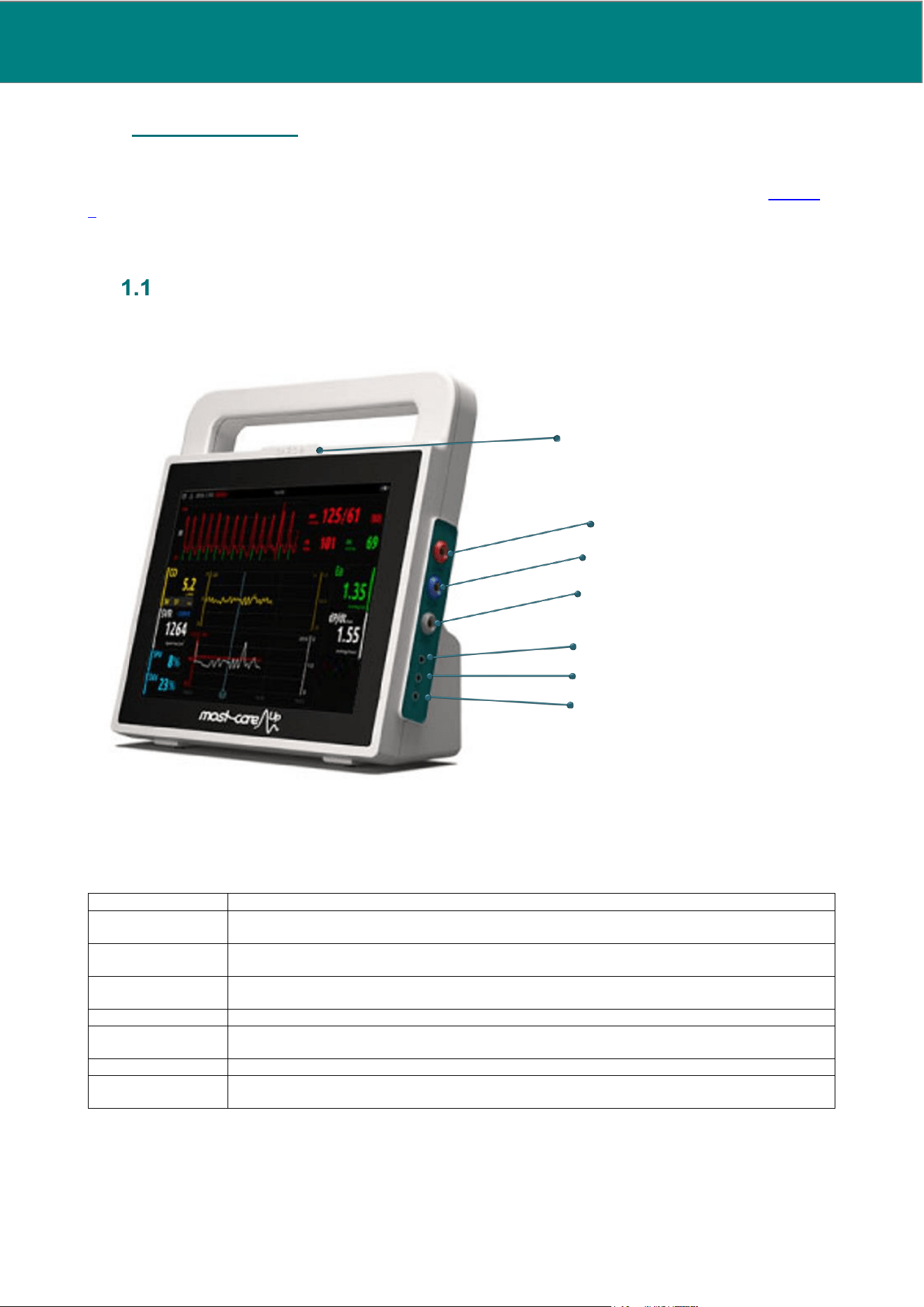
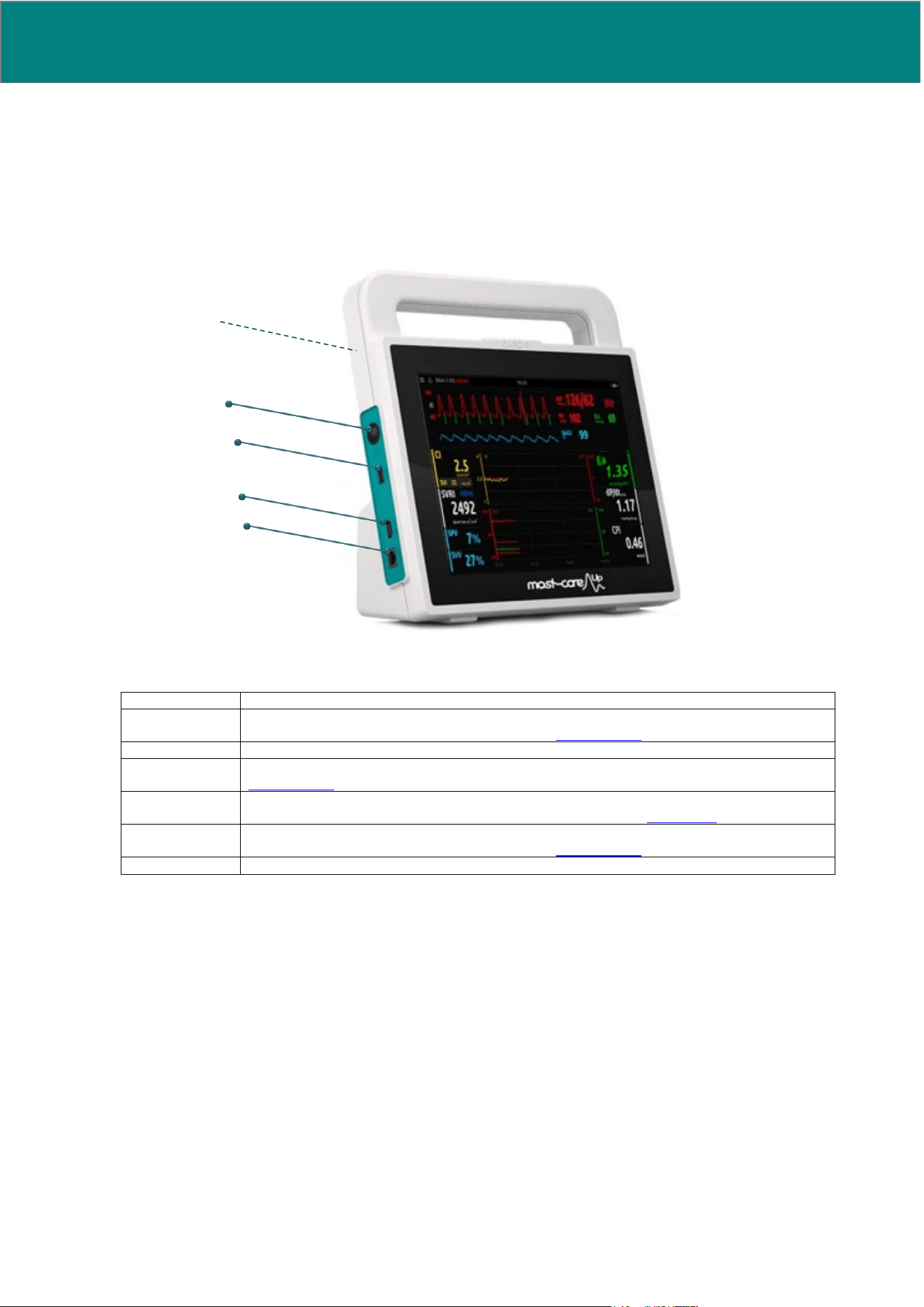
Connections and interfaces
Connector
Description
RFID reader
Allows the reading of RFID supports (e.g. RFID card) for credits and advanced mode activation
in MostCare
Up
model On Demand and for service operations.
ABP
Allows MostCare
Up
to acquire a continuous arterial blood pressure signal from a pressure
transducer connected to an arterial catheter (e.g. radial or femoral)
CVP
Allows MostCare
Up
to acquire a continuous central venous pressure signal from a pressure
transducer connected to a central venous catheter
EXP
Allows MostCare
Up
to connect to an external expansion module
IN1
Allows MostCare
Up
to receive and process an analog arterial blood pressure signal (e.g. from
the analog output of an arterial pressure monitor)
IN2
Allows MostCare
Up
to receive and display an analog signal (e.g. from another medical device)
OUT
Allows MostCare
Up
to transmit the analog arterial pressure signal to an external device (e.g.
another patient monitor)
Arterial blood pressure (ABP)
Central venous pressure (CVP)
External module connector (EXP)
IN1
IN2
OUT
RFID reader
Fig.1 Device right side
6 UM0009 rev 0 of 30.07.2026
Connector
Description
WiFi
Allows to enable a wireless connection between MostCareUp and the hospital information
network and transmit monitored patient data (see Section 10.13).
ON/OFF button
Power ON, stand-by or shutdown switch
USB
Allows the connection of a USB flash drive that can be used for storing patient data (see
Section 10.14) or service operations
HDMI
Allows to connect an external monitor to MostCare
Up
by means of a HDMI cable and to
duplicate the screen of MostCare
Up
on the external monitor (see Section 6.2).
LAN
Allows to enable a wired connection between MostCare
Up
and the hospital information
network and transmit monitored patient data (see Section 10.12).
Handle
Handle for an easy and comfortable product transportation
USB
HDMI
LAN
ON/OFF button
Fig.2 Device left side
WiFi
UM0009 rev 0 of 30.07.2026 7
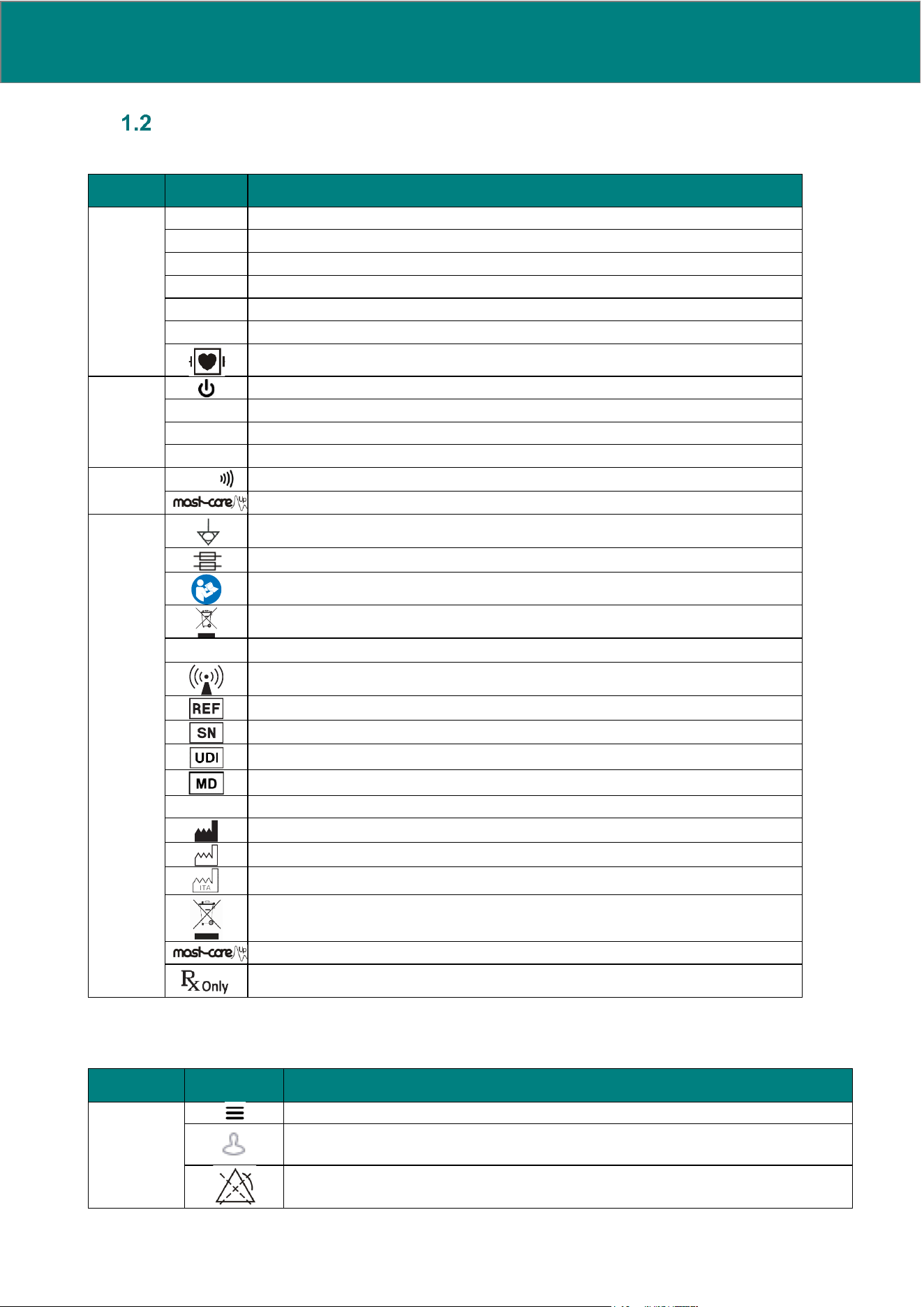
Connector
Description
Handle
Handle for an easy and comfortable product transportation
Power inlet
Connection to mains. When connected to mains and “O/I” switch is set to “I”, MostCare
Up
runs on
mains power and battery is in charging mode
O/I Switch
Power switch (see Section 8.1.1)
Clamp plate
Allows the connection of a specific clamp for mounting MostCare
Up
on a patient bed vertical support
(e.g. IV pole or cart)
Clamp plate
Product labels
Power inlet
Handle
O/I Switch
Fig.3 Device backside
8 UM0009 rev 0 of 30.07.2026
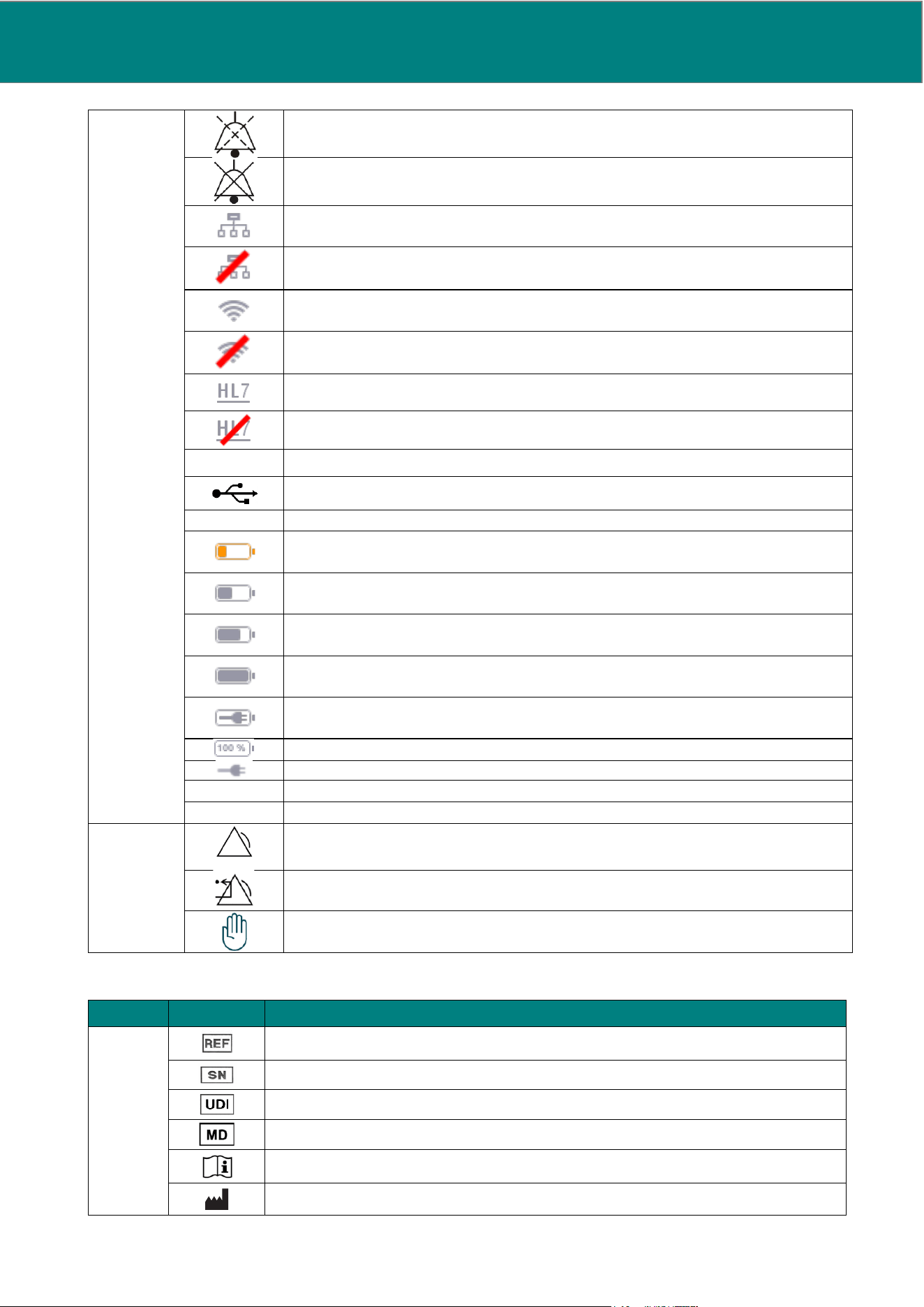
List of symbols
Symbols featured on MostCare
Up
*Future implementations
Symbols featured in the software
Position
Symbol
Description
MostCare
Up
right side
lateral
panel
ABP
Arterial Blood Pressure
CVP
Central Venous Pressure
EXP
External module connector (Expansion)*
IN1
Input1
IN2
Input2*
OUT
Output
Applied CF-type part (protected from defibrillator discharge)
MostCare
Up
left side
lateral
panel
On/stand-by button
USB
USB input
HDMI
HDMI connector
LAN
LAN connector
MostCare
Up
front
CARD
Contactless area
MostCare
Up
model
Labels
Equipotential pin
Fuses: T1250mAH250V Model: 02151.25MXEP Littlefuse
Follow the operating instructions
Separate waste collection of this device will be necessary at the end of its operational life
IP protection rate
Indicates the presence of radio emissions connected with RFID contactless card use
Catalogue number (08MC02XXY for MostCare
Up
)
Serial number (e.g. yy/Axx-n)
Unique Device Identification
Medical Device
FR:
Hardware functional revision
Manufacturer
Manufacturing date
Manufactured in Italy
At the end of its useful life the product must be collected separately from other waste
MostCare
Up
model
Medical prescription required
Position
Symbol
Description
Horizontal bar
Opens the lateral pop-up menu
Patient icon
ALARM DISABLED: At least one alarm (both visual and audible warnings) disabled until the end of
monitoring, or until the user removes the pause
I
UM0009 rev 0 of 30.07.2026 9
Symbols featured on the packaging
Position
Symbol
Description
MostCare
Up
packaging
Catalogue number
Serial number
Unique Device Identification
Medical Device
Operating instructions included
Manufacturer
AUDIO PAUSE: at least one alarm paused (only audio) for 2 minutes or until the user removes the
pause
(audible warning paused with active visual warning until the alarm status ceases)
ALARM SILENCED (symbol): at least one alarm silenced
(audible warning silenced with active visual warning until the alarm status ceases)
Ethernet network enabled and in communication
Ethernet network enabled but not in communication
WiFi network enabled and in communication
WiFi network enabled but not in communication
Ethernet or WiFi network enabled and HL7 is active
Ethernet or WiFi network enabled but HL7 is not active
DEMO
A demo profile is now being displayed
USB flash drive inserted
REC ●
Recording under way
Battery charge 25% The LOW BATTERY alarm switches on when this icon appears
Battery charge 50%
Battery charge 75%
Battery charge >75%
MostCare
Up
powered (from mains voltage) + Charging battery
Charging battery with charge complete (100%)
MostCare
Up
powered (from mains voltage)
xx:xx
Current time
BSA
Body Surface Area
Other
Active alarm condition
Command for resetting an active alarm whose triggering is no longer occurring
Alert icon in warning popup
10 UM0009 rev 0 of 30.07.2026
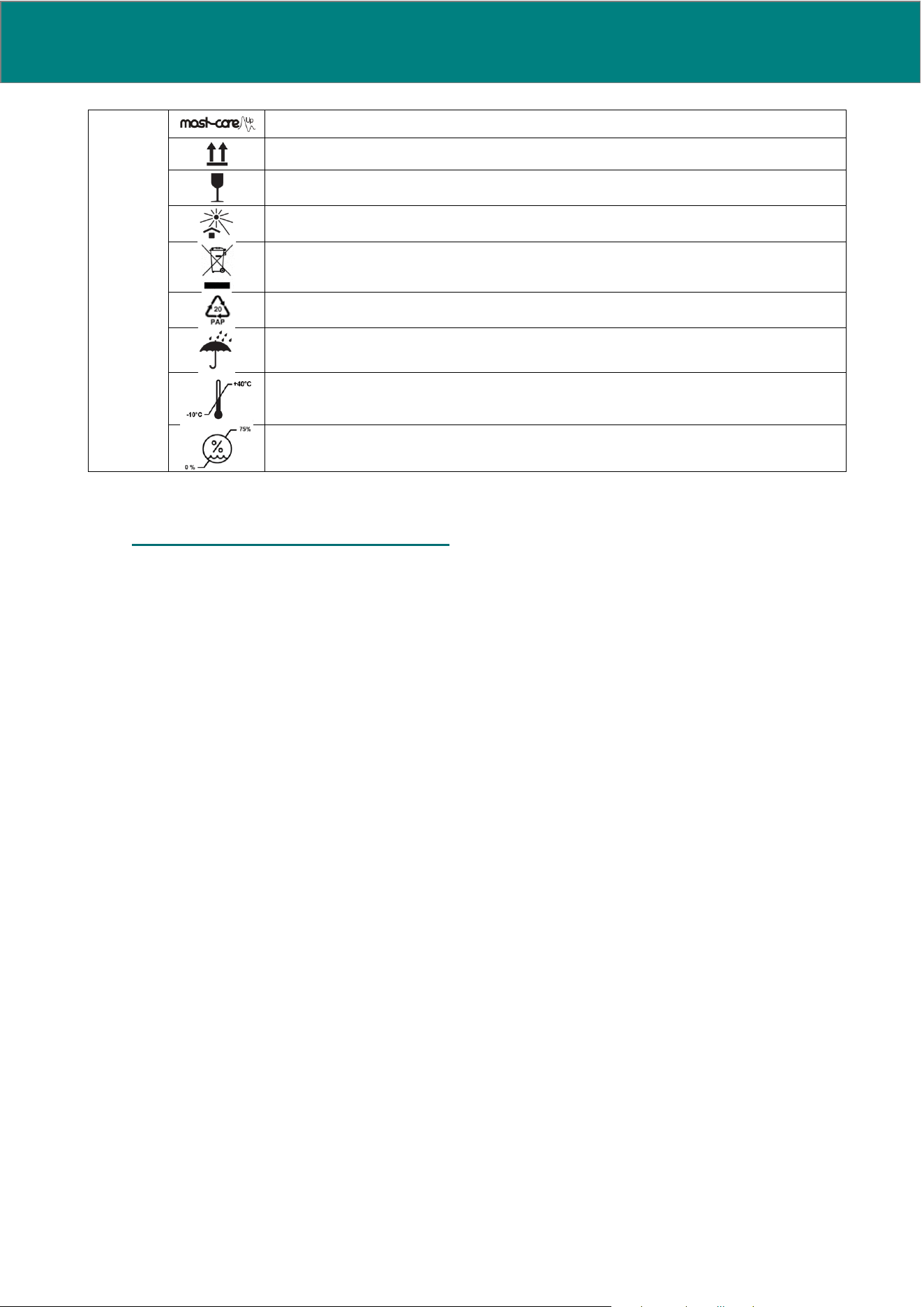
MostCare
Up
model
Indicates the top side of the packaging
Fragile, handle with care
Protect from sunlight
Separate waste collection of this device will be necessary at the end of its operational life
Symbol and material coding for the disposal of the packaging (PAP 20 Symbol)
Protect from rain
Storage and transportation temperature
Storage and transportation humidity
2. MONITOR AND ACCESSORIES
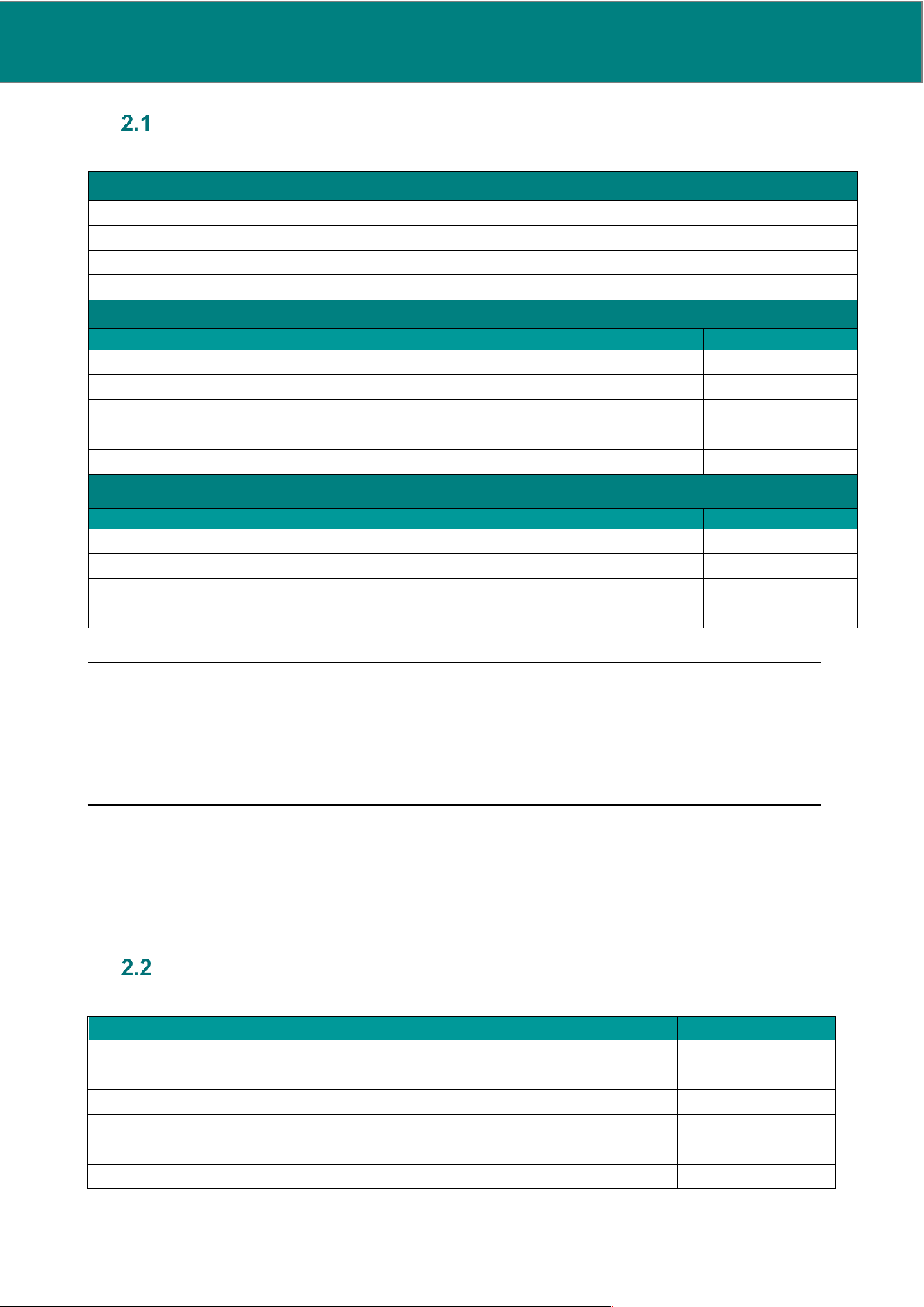
MostCare
Up
includes:
• MostCare
Up
monitor
• Power cable
• Accessory for floor-stand installation
• Statement of compliance
• MostCare
Up
user manual
• 2 fuses
UM0009 rev 0 of 30.07.2026 11
MostCare
Up
transducers and transducers cables
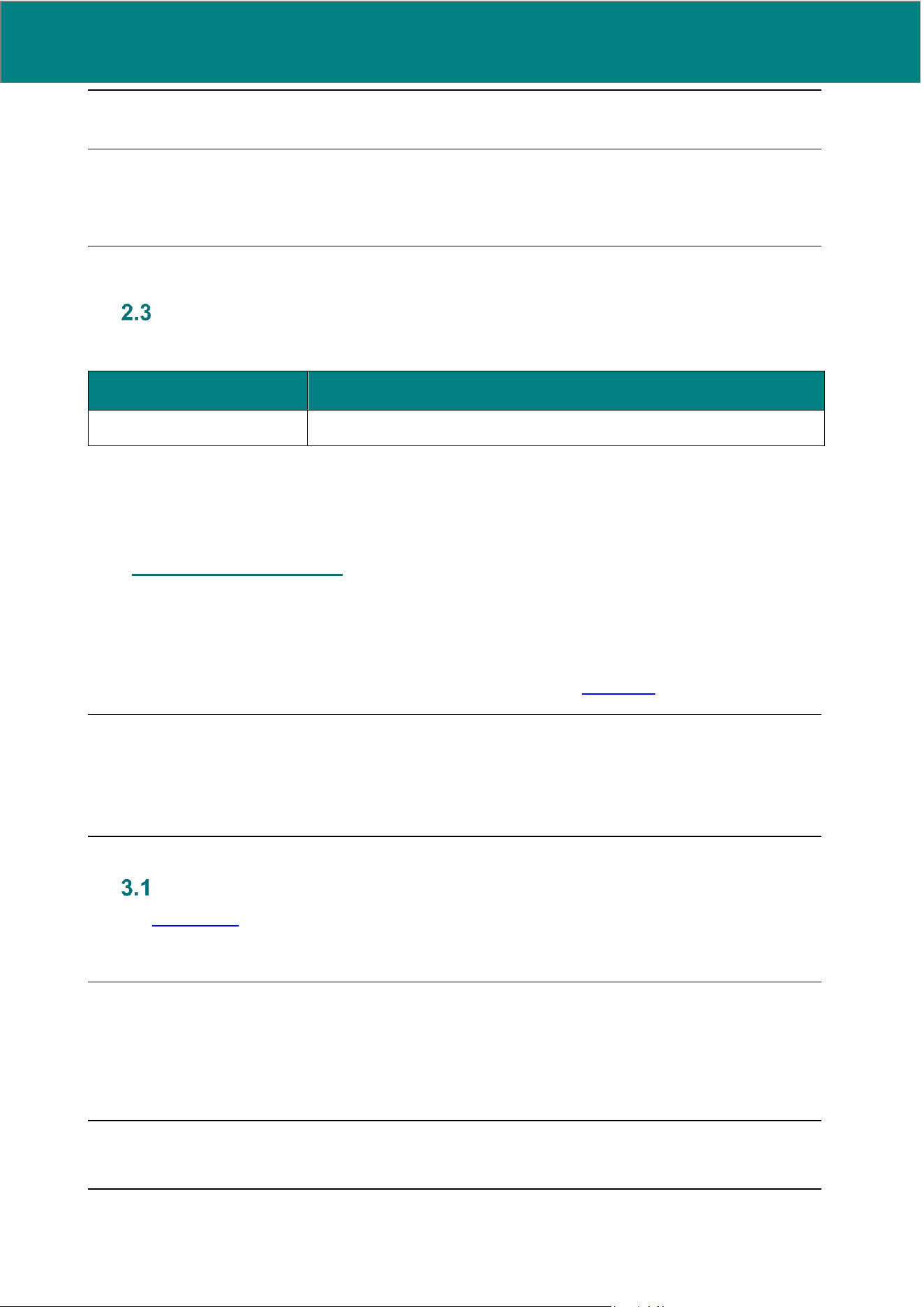
The following transducer cables can be used with MostCare
Up
, for the ABP and CVP applied parts:
TRANSDUCERS (Family)
BRAUN Combitrans
BIOSENSORS Biotrans
EDWARDS TruWave
ABBOTT
DIRECT CABLES
Cable model
Cable code
Compatible with BBRAUN (Combitrans) transducer
03MU-BBR
Compatible with BIOSENSORS (Biotrans)
03MU-BIO
Compatible with EDWARDS (TruWave) transducer
03MU-EDW
Compatible with ABBOTT transducer
03MU-MED
Compatible with ABBOTT transducer
03MU-MED2
Y-CABLES
Cable model
Cable code
Y Cable Compatible with BBRAUN transducer
03MUY-BBR
Y Cable Compatible with BBRAUN transducer
03MUY-BBR1
Y Cable Compatible with BIOSENSORS (Biotrans)
03MUY-BIO
Y Cable Compatible with EDWARDS transducer
03MUY-EDW
NOTE: Transducer cables and transducers are all produced by external manufacturers. For more information
about compatible models, please refer to your local MostCare
Up
distributor.
NOTE: For the reusable models, please refer to the relative instructions for use in order to find information
on the appropriate processes for cleaning, disinfection, packaging, the method of sterilization (if applicable),
any restriction on the number of reuses and precautions to be taken in the event of changes in performance.
WARNING: DO NOT reuse single-use transducers and cables.
Reuse of single-use transducers or cables may result in cross-contamination, infection, and
serious patient injury or death.
MostCare
Up
MonitorIN cables
The following transducer cables can be used with MostCare
Up
, for the monitorIN applied part:
Cable description
Cable code
INPUT/OUTPUT ANALOGIC CABLE JACK 3.5MM
MUHEMO018
INPUT/OUTPUT ANALOGIC CABLE D-S
MUHEMO024
INPUT/OUTPUT ANALOGIC CABLE 7PIN
MUHEMO031
INPUT/OUTPUT ANALOGIC CABLE GEC
MUHEMO033
INPUT/OUTPUT ANALOG CABLE NK
MUHEMO034
INPUT/OUTPUT ANALOGIC CABLE JACK 6MM
MUHEMO035
12 UM0009 rev 0 of 30.07.2026
NOTE: All cables are produced by external manufacturers.
WARNING: DO NOT reuse single-use cables.
Reuse of single-use cables may result in cross-contamination, infection, and serious patient injury
or death.
Optional accessories
It is possible to use the following components with MostCare
Up
:
Product code
Component description
10MC02-CLAMP
Pole support for MostCare
Up
For the updated catalogue of optional accessories that can be used with MostCare
Up
, please refer to your
local distributor.
3. SAFETY WARNINGS
MostCare
Up
has been manufactured according to current international safety standards. The manufacturer is
referred to IEC 60601-1 standard for the requirements applicable to Medical Equipment systems.
Please read the following warnings, instructions and safety information carefully before using the devices.
Carry out inspections and maintenance as specified in this manual (see Section 11).
WARNING: The user must check the device safety and condition before use, making sure it is
undamaged. The use of a damaged device during monitoring can lead to unreliable variables and
therefore to an incorrect clinical decision.
Electrical safety
See also Section 12.3.
MostCare
Up
must be powered by connecting it to a 100-240 VAC 50-60 Hz power source.
Use the device only if the power network corresponds to the requirements printed on device labels.
WARNING: DO NOT connect the power cable using extension cables or multi-socket devices.
DO NOT use detachable power cables other than the supplied power cable. DO NOT use 2-pole
cables or a 3-pole to 2-pole adapters to power the device.
An unappropriated use of cables may cause fire or explosion that can result in serious injury or death
to the patient/operator or in device damaging.
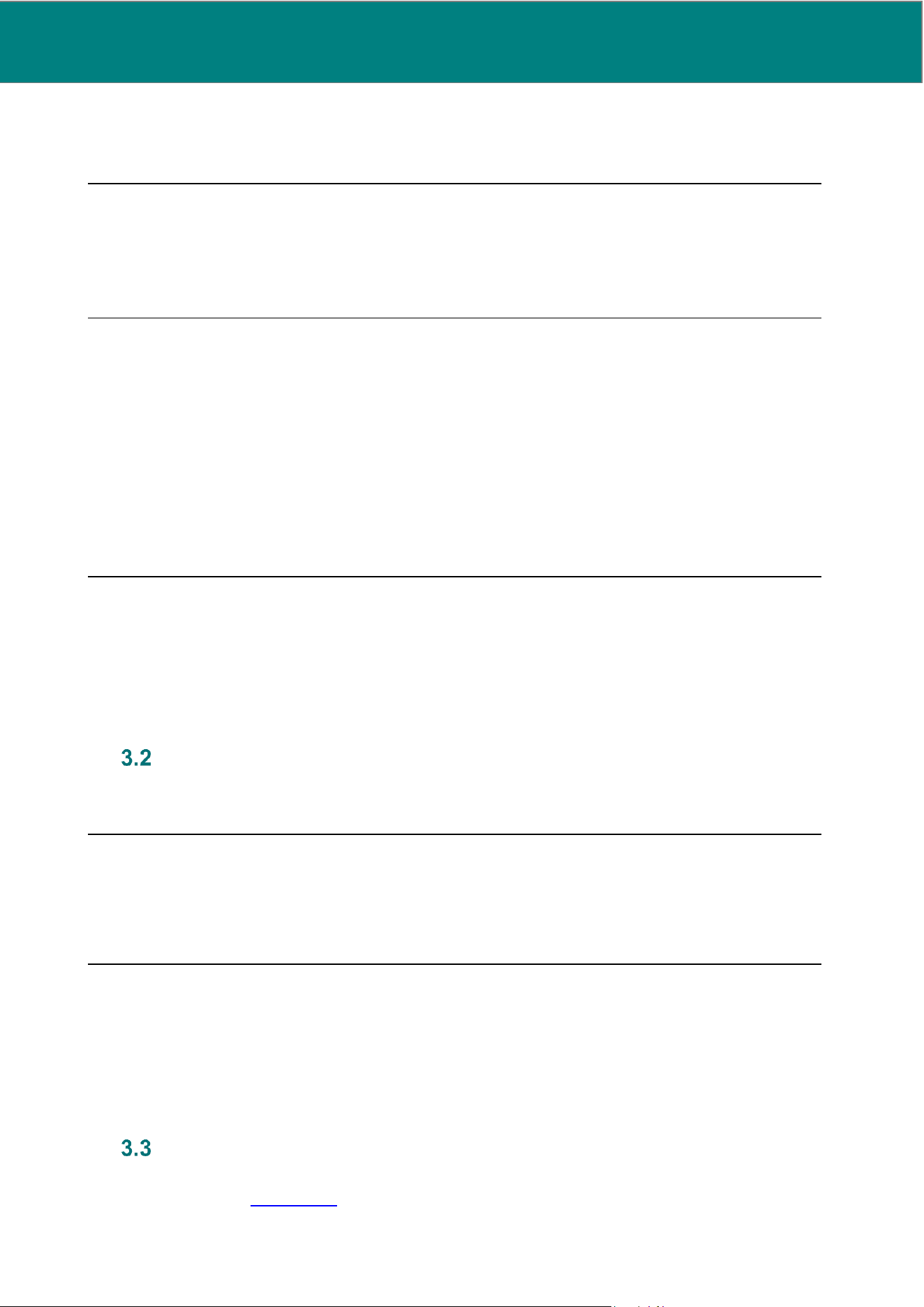
Before every use of the devices, perform a visual inspection, checking the condition of each cable.
UM0009 rev 0 of 30.07.2026 13
WARNING: DO NOT step on, bend or twist the cables.
Using damaged cables can result in electrical or mechanical damage, which may prevent monitoring
and cause damage to the device.
The mains socket must be near the monitor and easy to reach in the event of emergency disconnections.
Disconnect the devices from the mains before performing any maintenance operation or installation.
Do not overload the mains sockets, any extension cables or the adapter, since this may cause fire or electric
shock. Disconnect the devices if they are not expected to be used for long periods of time.
Disconnect the cables by pulling the plugs from their sockets. Do not pull the cables.
WARNING: DO NOT pull the cables.
Unplug the cables from the device by pulling on the connector, not the cable, as this could cause the
device to fall and become damaged.
WARNING: DO NOT connect MostCare
Up
to external devices that do not comply with IEC 60601-
1 requirements for medical electrical systems.
When MostCare
Up
is connected to an external device, the system must meet the requirements of
Standard 60601-1 clause 16 “General requirements for the medical electrical system”.
Connection of MostCare
Up
to non-compliant external electrical devices may result in excessive
leakage currents and electrical shock, which may cause serious patient injury or death
The USB connection must be exclusively used to connect with a USB flash drive not connected to an external
power supply unit.
The means to electrically isolate the power supply circuits are:
• Cable disconnection
• Switch in the OFF position
Contact with liquid or gaseous substances
MostCare
Up
have been designed with an IP22 protection rating (protecting against foreign objects of 2,5 mm
Ø and greater and vertically falling water drops when enclosure is tilted up to 15°).
CAUTION: DO NOT place containers or equipment containing liquids on top of MostCare
Up
.
If liquids are spilled onto the MostCare
Up
, this may cause electrical damage and short circuits,
resulting in the device being unable to start monitoring.
Pay attention when using MostCare
Up
in the presence of flammable materials. As it is an electronic device, it
might trigger electric discharges that may lead to explosion in rooms saturated with inflammable gas or other
flammable substances).
MostCare
Up
have been designed to minimize the risk of liquid penetration. In any case take care that no liquid
penetrates the devices. Should this happen, do not connect MostCare
Up
to the mains and stop using the device.
Cleaning
Clean the device with a wet cloth and Liquinox and disinfect with isopropanol 70% disinfectant, following the
instructions provided in Section 12.1.
14 UM0009 rev 0 of 30.07.2026
WARNING: DO NOT use substances other than those specified in Section 12.1.
The use of substances other than those specified may result in incomplete cleaning and
disinfection or damage to the exterior of the device.
Positioning, transport and operational conditions
Handle the devices carefully and do not expose them to temperatures higher than +40°C [+104° F] or lower
than +10°C [+50° F] during operation.
WARNING: DO NOT place the devices near a radiator or other heat sources.
Using the device in an environment where the temperature is out of the established range may cause
mechanical instability that may result in incorrect measurement during monitoring, leading to an
incorrect diagnosis.
MostCare
Up
is designed to be used:
• On a horizontal plane;
• With its specific clamp accessory for connection to vertical pole or floor-stand;
• With its specific accessory for horizontal coupling to a bed headboard.
WARNING: DO NOT use clamp accessories for connection to vertical pole or floor-stand coupling
during transport.
The clamp accessories for connection to vertical pole or floor-stand coupling cannot be used as
support during transport, using them during transport may result in the device falling and becoming
damaged.
WARNING: Any accidental fall may cause serious injuries to people and damage to property and
the device itself.
WARNING: DO NOT use the device in presence of devices that generate radiofrequency and
microwave emissions.
The system cannot be used in rooms where magnetic resonance equipment is operating and, in
general, it may give incorrect readings in the presence of other devices that generate radiofrequency
and microwave emissions.
WARNING: DO NOT use the device during transport.
When transporting MostCare
Up
artefacts may be produced, so any variable measured during
transport cannot be regarded as reliable.
Disposal
Carefully and scrupulously follow the instructions given for the disposal of the device (Section 12.2).
UM0009 rev 0 of 30.07.2026 15
Other warnings
WARNING: DO NOT open the device in case of failure but have it serviced.
Make sure that any repairs or replacements, including battery replacement, are performed by
qualified and authorized personnel only. Any repairs carried out by unauthorized personnel will
immediately invalidate any warranty claims and could result in a hazardous situation (such as
excessive temperatures, fire or explosion).
WARNING: DO NOT replace the battery.
The replacement of lithium batteries or fuel cells by inadequately trained personnel could result in a
hazardous situation. If other accessories are used, make sure they comply with the safety and
compatibility regulations in force.
WARNING: Position the device so that it or any other equipment connected to it will not fall onto
the patient or the operator, causing injury to them.
WARNING: Check that transducers are at the same level as the patient's phlebostatic axis before
zeroing transducers on the monitor and begin monitoring. Failure to calibrate the transducer correctly
can lead to unreliable variables or their misinterpretation, resulting in an incorrect clinical decision.
WARNING: The operator must be in a position from which he can see the monitor with a certain
clarity (front position, suggested distance: 50 cm).
Viewing the device from an incorrect position can lead to unreliable variables or their
misinterpretation, resulting in an incorrect clinical decision.
WARNING: For the correct use of pressure transducers please refer to the manufacturer’s
specific instructions for use. The incorrect use of pressure transducers can lead to unreliable
variables or their misinterpretation, resulting in an incorrect clinical decision.
4. INTENDED PURPOSE
Intended use
MostCare
Up
is an active portable medical hemodynamic monitoring device used to continuously survey vital
parameters related to the adult patient’s hemodynamic profile in real time.
Intended users
MostCare
Up
is intended for use by specialized and qualified healthcare personnel.
Intended patient population
MostCare
Up
is intended to be used on adult patients (weighing less than 661lb) who require continuous or
occasional hemodynamic monitoring.
MostCare
Up
is intended to be used when there is an indication for mini-invasive hemodynamic monitoring. This
applies to patients submitted to surgical interventions or recovered in intensive care unit, where an arterial
catheter for invasive pressure monitoring is indicated.
16 UM0009 rev 0 of 30.07.2026
Intended environment of use
MostCare
Up
is intended for use in professional healthcare facility environments.
Suitable clinical settings include, but are not limited to:
• Medical and Surgical adults Intensive Care Units
• Operative rooms
• Step Down/High Dependency Units
• Trauma / Accident & Emergency Departments
• Cardiac Catheter Laboratories
Home care and other locations not listed above are excluded from the environmental reference conditions.
Indications for use
MostCare
Up
hemodynamic monitor provides the clinician with supplementary information on the status and
the variations of the cardiovascular function including measurements of blood pressure, cardiac output and
associated hemodynamic parameter.
The device is indicated for use by specialized and qualified healthcare personnel in professional healthcare
facility environments whenever an adequate invasive arterial pressure signal can be achieved and when
there is an indication for mini-invasive hemodynamic monitoring. This applies to adult patients (weighing less
than 661 lb) submitted to surgical interventions or recovered in intensive care unit, where an arterial catheter
for invasive pressure monitoring is indicated.
Contra-indication
MostCare
Up
have no specific contraindications.
Limitation of use
WARNING: Inaccurate CO measurements, which may lead to an incorrect clinical decision, can
be caused by factors such as:
• Improperly zeroed and/or leveled sensor/transducer
• Any clinical situation where the arterial pressure is deemed inaccurate or not representative
of aortic pressure, including but not limited to:
• Extreme peripheral vasoconstriction which results in a compromised radial arterial
pressure waveform
• Hyperdynamic conditions as seen in post liver transplant
• Excessive patient movement
• Electrocautery or electrosurgical unit interference
Aortic valve regurgitation may cause an over estimation of Stroke Volume / Cardiac
Output, which may lead to an incorrect clinical decision, calculated depending on the amount of
valvular disease and the volume lost back into the left ventricle.
WARNING: DO NOT use MostCare
Up
in adult patients weighing more than 661 lb.
Using MostCare
Up
in patients weighing more than 661 lb could lead to incorrect calculations of
derived variables and inappropriate clinical decision.
WARNING: DO NOT make diagnoses or decide therapy based solely on these measurements
and derived parameters.
The measurements detected by MostCare
Up
and the derived parameters should be considered as
additional assessment information, otherwise, clinical decisions may be made based on data that
has not been compared with other tools, leading to an incorrect clinical decision.

UM0009 rev 0 of 30.07.2026 17
WARNING: DO NOT use MostCare
Up
to assess haemodynamic variables when the catheter tip
is placed into a vein, pulmonary artery or one of the cardiac chambers. This may result in
inaccurate measurements and lead to an incorrect diagnosis.
Usage warnings
MostCare
Up
might provide incorrect values in the event that the pressure signal is affected by detection errors
such as, but not limited to, the following:
• Contact between the catheter tip and the artery wall;
• Wrong positioning, folding or excessive angle of the catheter or the line;
• Blood clots in the catheter or line;
• Poor quality of the pressure signal obtained through the transducer line (underdamping; overdamping).
The cardiac output indications provided by MostCare
Up
must be checked by the operator. The better the
detection of the pressure wave morphology, the more accurate the values provided by MostCare
Up
will be.
The operator must make sure that the dicrotic point is identified correctly: it is necessary to check that,
on the pressure curve graph, the dicrotic indicator (vertical green bar) is positioned on the actual dicrotic
incisure, and that there are no artefacts due to poor signal quality. If the dicrotic indicator is not positioned
correctly (or is not displayed), both before and after manually optimizing the dicrotic incisure detection point
(Section 9.3.6), the values displayed will not be reliable.
Zero the pressure transducers connected to the monitor before every use and whenever the catheter, the
pressure transducer line or the transducer positioning are changed as the patient's chest height changes. If
this operation is not performed, the readings for pressure and its derived variables will not be reliable.
Errors may occur if MostCare
Up
is used in a manner not described in this manual.
The device must be connected to an electrical system that complies with the IEC 60601-1 standard and the
national standards applicable in a medical environment.
WARNING: DO NOT connect the device to power networks without grounding protection.
Connection MostCare
Up
to a power network without grounding protection could result in electrical
shock.
Avoid conductive connections with the applied part. In the event of a connection to an external device, the
grounding connection for MostCare
Up
and the device connected to it must be made at the same potential
equalization busbar.
To perform this connection, the pin on the back of the device can also be used in accordance with the IEC
60601-1 Standard.
For fixed installations, a fixed grounding connection can be created by using the pin on the rear of the device
(equipotential grounding symbol).
The device is protected from damage caused by a defibrillator. Defibrillation has no effect on the device safety
and operation. Hemodynamic monitoring might however suffer a brief interference during this procedure.
WARNING: DO NOT touch the device during defibrillation.
Touching the device during defibrillation could cause the operator to receive an electric shock.
WARNING: DO NOT use accessories, cables and transducers different from the ones specified
in this user manual.
If accessories, cables and transducers other than those specified in this user manual are used during
defibrillation, safety cannot be guaranteed.

18 UM0009 rev 0 of 30.07.2026
WARNING: When used in conjunction with high-frequency surgical equipment (electrosurgery),
hemodynamic monitoring may become interfered and the shown values may not be reliable.
Please note that the applied part is isolated, so that the risk of burns during with high-frequency
surgical equipment is minimized; however, always verify the good state of the cable weather an
electrosurgery is due.
WARNING: DO NOT use accessories, cables and transducers different from the ones specified
in this user manual.
If accessories, cables and transducers other than those specified in this user manual are used during
defibrillation, safety cannot be guaranteed, which can lead to an incorrect diagnosis or to an injury
to the patient/operator.
The user must check the safety and condition of the device. Before using the device, make sure it is intact and
perform a visual inspection, checking the condition of the power cable and of the cables connecting the device
to the transducer or monitor.
The pressure transducer used must comply with the specifications indicated in Section 13.3.4.
It is important to check that the information entered into the initial PATIENT SETTINGS menu is correct,
otherwise hemodynamic values may be subject to error.
If the CVP option from the transducer is selected and the pressure transducer is not connected to the CVP
input on the right side of MostCare
Up
, the system will estimate vascular resistance values (absolute and
indexed) through a fixed, pre-set pressure value and, therefore, the results obtained might be incorrect.
If there is no heartbeat, or if a valid ABP signal is not recognized, the transducer-generated CVP value
displayed must not be considered reliable.
Normal use
In normal use, the operator shall stand in front of the monitor.
Position the monitor in a location where the operator can easily see the screen, access the operating controls
and can easily access the disconnection of the device.
The use of MostCare
Up
is limited to one patient at a time.
WARNING: In order to correctly detect the values and alarms provided by the device, and in
order to correctly read MostCare
Up
labels and indicators, the operator must be in a position from
which he can see the monitor with a certain clarity (front position, suggested distance: 50 cm). Having
difficulty seeing the monitor clearly can lead to an incorrect clinical decision.
Frequently used functions
MostCare
Up
is most frequently used to perform the following functionalities:
• Patient ABP monitoring
• CO/SV evaluating, for diagnostic purposes
• Recording of the patient data
UM0009 rev 0 of 30.07.2026 19
Essential performances
Essential performance
Description or standard subclause
Invasive blood pressure monitoring equipment (60601-2-34)
1
Defibrillator protection
201.8.5.5.1
2
Accuracy of pressure measurements
201.12.1.101
3
Electro surgery interference
202.6.2.101
4
Physiological alarm conditions, alarm limits and
delay time of physiological alarm signals
208.6.6.2.101
5
Detection of transducer and transducer cable fault
208.6.6.2.102
6
Detection of disconnected catheter
208.6.6.2.103
Residual risks
The risk analysis related to MostCare
Up
was carried out in accordance with ISO 14971 by calculating the risk
as the product of probability and severity. Any risk relating to the use of the product has been reduced as far
as possible.
The usage indications, contra-indications, safety warnings and usage warnings are listed in Sections 3, 4.5,
4.6 and 4.8 of this user manual.
5. OPERATING PRINCIPLE AND CALCULATION METHOD
P.R.A.M. and MostCare
Up
The 'Pressure Recording Analytical Method' (PRAM)
1
is the method that allows for the calculation of
hemodynamic variables by analyzing the shape and area of the arterial pressure wave or a specifically pre-
processed plethysmographic curve (CNBP curve). The PRAM represents the application within the
physiological sector of the 'Perturbation Theory', which is well known and largely applied in physics. MostCare
(Monitor Stoke volume and Cardiac Efficiency) is the only device which integrates the full PRAM system.
As the PRAM deduces all variables (both systemic and hemodynamic) from the analysis of the arterial pressure
curve only, the first MostCare
Up
feature is to accurately acquire the analog signal and scan it at a 1000 Hz
frequency.
MostCare
Up
works in real time, beat by beat. Each individual arterial pulse is detected and analyzed by the
RAM; each variation in the patient’s condition and each reaction to a stimulus created by the operator are
immediately detected, analyzed and displayed by the device.
The RAM’s uniqueness consists in its ability to calculate the specific, typical cardiovascular system
impedance of the subject under observation in real time. By impedance (usually indicated in formulae as
Z(t)), the resultant of different forces that mutually interact and simultaneously operate in the cardiovascular
system is meant. Elements, such as cardiac contractility, vascular and arterial resistances and arterial
compliance exert characteristic forces that determine different, constantly changing physio pathological
profiles; the shape and area of the arterial pressure curve are affected by these elements and, therefore, they
describe the instantaneous interaction of all of these elements.
Since impedance is constantly changing, MostCare
Up
does not use constant or pre-assessed values for its
calculation so as to reliably follow the physio pathological variations of the impedance. Therefore, the PRAM
system does not need any direct or indirect calibration.
PRAM analytical expression
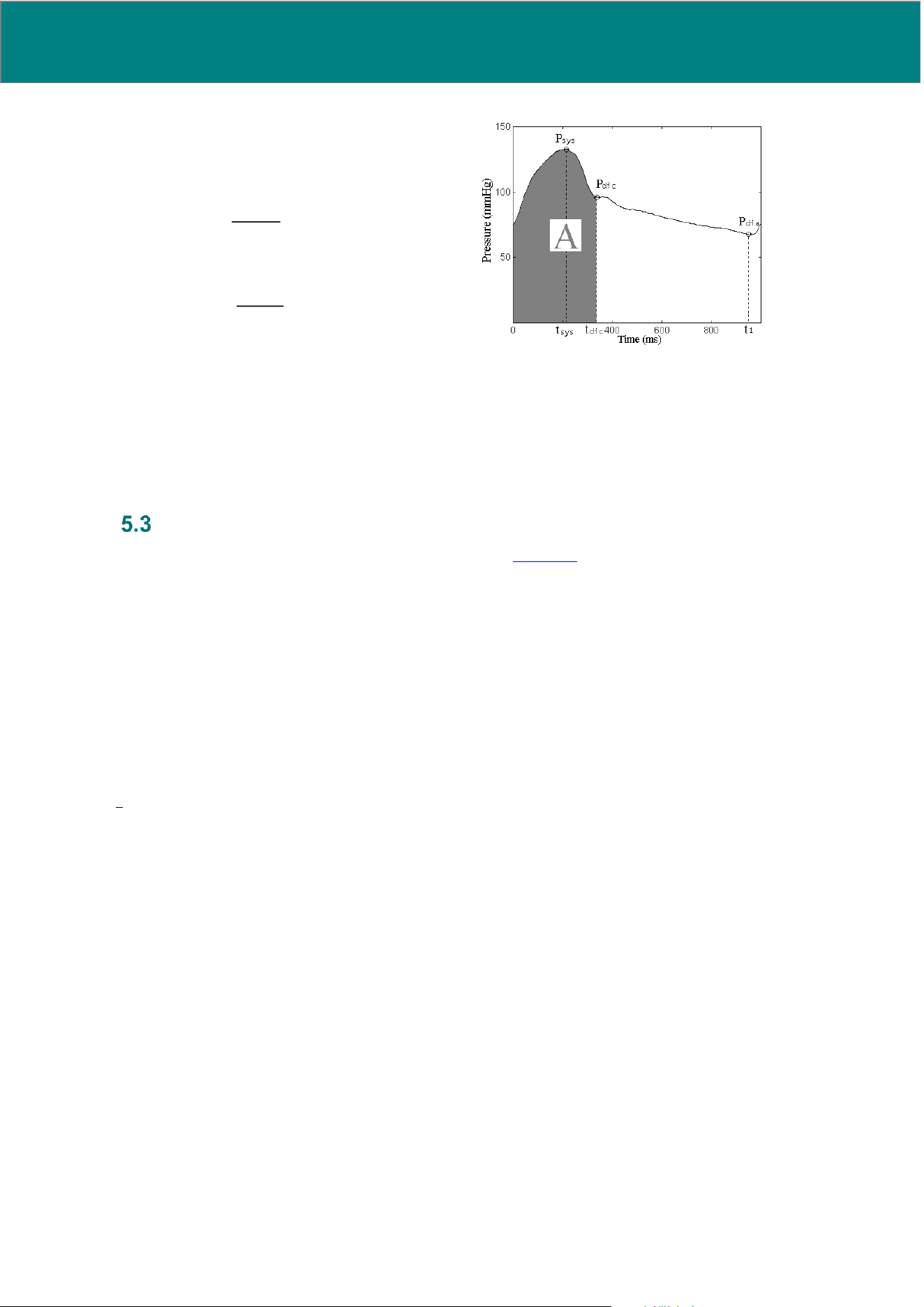
The SV volume is calculated by the ratio between the surface below the systolic component of the pressure
curve (A) and the characteristic impedance Z(t). So we can write:
1
Romano SM, Pistolesi M. Assessment of cardiac output from systemic arterial pressure in humans. Crit Care Med.
2002 Aug;30(8):1834-41
20 UM0009 rev 0 of 30.07.2026
Figure 1
Where A is the total area below the systolic pressure curve visible in Figure 1.
The denominator P(t)/t x K(t) is the impedance Z(t) with development stopped at the first term, as described in
the work by Romano SM, et al.
1
K(t) is a factor inversely correlated with the instantaneous acceleration of the
section area, while P(t)/t is the instantaneous power per surface unit, analytically described by the changes to
the pressure profile during the cardiac cycle.
PRAM typical hemodynamic variables
All systemic and hemodynamic variables are listed in detail in Section 8. The following paragraphs describe
instead only two of the system typical variables.
5.3.1 dP/dt
max
The dP/dt
max
variable (pressure variation compared to time interval) corresponds to the maximum velocity of
pressure increase during the isovolumetric contraction phase. When dP/dt
max
is detected with a catheter
directly inside the ventricle, it indicates cardiac contractility.
The PRAM measures dP/dt
max
as the maximal ascending slope of the peripheral arterial pressure curve systolic
component. Therefore, it has three different components:
• Cardiac contractility
• Vascular tonus
• Pressure signal quality: an inadequate and resonant pressure signal can overestimate dP/dt
max
4
.
Since the pressure increase velocity is determined by the ventricle-arterial relationship, the dP/dt
max
value
measured by MostCare
Up
may be correlated both to left ventricle contractility and to the rigidity of the aorta
and the main blood vessels. Vascular tonus being equal, the dP/dt
max
measured by MostCare
Up
can be
correlated with ventricular contractility. It can otherwise change as vascular tonus changes.
The dP/dt
max
measured through the PRAM is expressed in mmHg/msec with a normal range between 0.9-1.2
mmHg/msec. Thanks to the sampling of the pressure curve at 1000 Hz, the dP/dt
max
measurement is
particularly accurate. The point-to-point analysis of the arterial pressure wave gives such a large amount of
information that even minimal 'relative' differences of each wave-shape point are important; the propagation
)(tZ
A
SV =
)(
)(
)( tK
t
tP
tZ =

UM0009 rev 0 of 30.07.2026 21
velocity and reflected waves, which depend on the features of the arterial vessels (rigidity, tonus, stenosis,
etc.), can affect the shape of the fundamental wave differently
2
--
3
-
4
-
5
-
6
.
WARNING: Be careful when dP/dt
max
> 1.7 mmHg/msec because there might be an inadequate
detection of the arterial pressure signal (underdamping)
4
. In the event of bad detection quality of the
arterial pressure signal, the data processed by MostCare
Up
could be wrong, leading to an incorrect
clinical decision. If dP/dt
max
is higher than 1.7, the value is highlighted and displayed in RED.
6. OPERATING MODES AND CONFIGURATIONS
MostCare
Up
operation is based on the analysis of the waveform of an analog arterial blood pressure signal.
MostCare
Up
can acquire the input signal in the following configurations. The data of the main monitoring
variables can be transmitted to a centralized medical record system through the HL7 protocol.
PRAM mini-invasive monitoring mode
6.1.1 Use of MostCare
Up
in Stand-alone mode
MostCare
Up
acquires the analog arterial blood pressure signal from a pressure transducer connected to a
catheter inserted into patient’s peripheral artery (femoral or radial).
Step by step connection:
1. Select a TRANSDUCER CABLE compatible with the pressure transducer being used.
2. Connect the transducer cable to the ABP connector, on the right side of the MostCare
Up
.
3. Connect the other end of the cable to the pressure transducer.
4. Zero the transducer from MostCare
Up
user interface (See Section 10.3.1 for detailed instructions).
6.1.2 Combined use with another patient monitor
MostCare
Up
acquires an analog arterial pressure signal from the analog output of an external patient monitor.
Step by step connection:
1. Select a MONITOR IN CABLE compatible with the patient monitor to be connected to MostCare
Up
.
2. Connect MostCare
Up
analog input socket (IN 1) to the analog output socket of the other patient
monitor with the selected MONITOR IN CABLE.
WARNING: When MostCare
Up
is connected to an external device, the system must meet the
requirements of the Standard 60601-1 clause 16 “General requirements for the medical electrical
system”, otherwise, the device could be damaged, resulting in unreliable variables that may lead to
an incorrect diagnosis
2
Scolletta S et al. Assessment of left ventricular function by pulse wave analysis in critically ill patients. Intensive Care Med 2013;39:
1025-33.
3
Giglioli C et al. Levosimendan produces an additional clinical and hemodynamic benefit in patients with decompensated heart failure
successfully submitted to a fluid removal treatment. Congest Heart Fail 2012;18: 47-53.
4
Romagnoli S et al. Dynamic response of liquid-filled catheter systems for measurement of blood pressure: precision of measurement
and reliability of the Pressure Recording Analytical Method with different disposable systems. J Crit Care 2011 Aug;26(4): 415-22.
5
Romano SM et al. Blood flow assessment by arterial pressure wave without external calibration. Computers in Cardiology 2006; 33:
293-6.
6
Romano SM et al. “Monitoraggio emodinamico minimamente invasivo in corso di resezione epatica maggiore in pazienti cardiopatici.
Minerva Anestesiologica 2006, Vol 72 (supp.2) 10; 36-37.

22 UM0009 rev 0 of 30.07.2026
NOTE: If Monitor IN cable is used to acquire patient signal from an external monitor, please note that the
accuracy and quality of the represented signal relies directly on the signal coming from the external monitor.
6.1.3 Combined use with another patient monitor and Y cable
MostCare
Up
and another patient monitor acquire the same analog arterial pressure signal from a pressure
transducer connected to a catheter inserted into patient’s radial or femoral artery.
Step by step connection:
1. Select a TRANSDUCER Y CABLE compatible with the pressure transducer being used.
Y cable features are reported in Section 13.
2. Connect one end of the Y cable to the MostCare
Up
ABP connector, on the right side of the device.
3. Connect the second end of the cable to the pressure transducer.
4. Connect the third end of the Y cable to the appropriate connector of the other patient monitor.
5. Zero the transducer from both MostCare
Up
and other patient monitor user interfaces (See Section 9.3.1
for detailed instructions).
WARNING: Incorrect use of the Y-cable may result in mechanical or electrical damage to the
device or in unreliable readings, which could lead to an incorrect clinical decision, please note the
following:
• It is not possible to use a Y CABLE once monitoring has started: the cable will need to be
configured during initial setting and connected to the device before monitoring starts. On the
other hand, once monitoring using a Y CABLE has started, it will not be possible to exchange
it with a standard cable during monitoring. Should such an operation be undertaken, the
device will issue an error message and inhibit further use. The Y CABLE is used to detect
arterial pressure only, not venous pressure, so it cannot be used with the CVP input.
• If a TRANSDUCER Y CABLE is used without connecting the patient monitor transducer cable
to the Y connection, MostCare
Up
will not be able to read any pressure value.
• To accurately read pressure values, the transducer power voltage, as supplied by the
external monitor, must be stable. Otherwise, the instability condition is signalled with a
technical alarm.
• When MostCare
Up
is connected to an external device, the system must meet the
requirements of Standard 60601-1, clause 16, “General requirements for the medical
electrical system”.
• The compatibility between MostCare
Up
and the majority of pressure transducers and
anaesthesia monitors on the market has been verified. Ask your area consultant for the
TRANSDUCER CABLES, Y CABLES, MONITOR IN CABLES and monitors compatible with
the devices in use (see Section 13 for details).
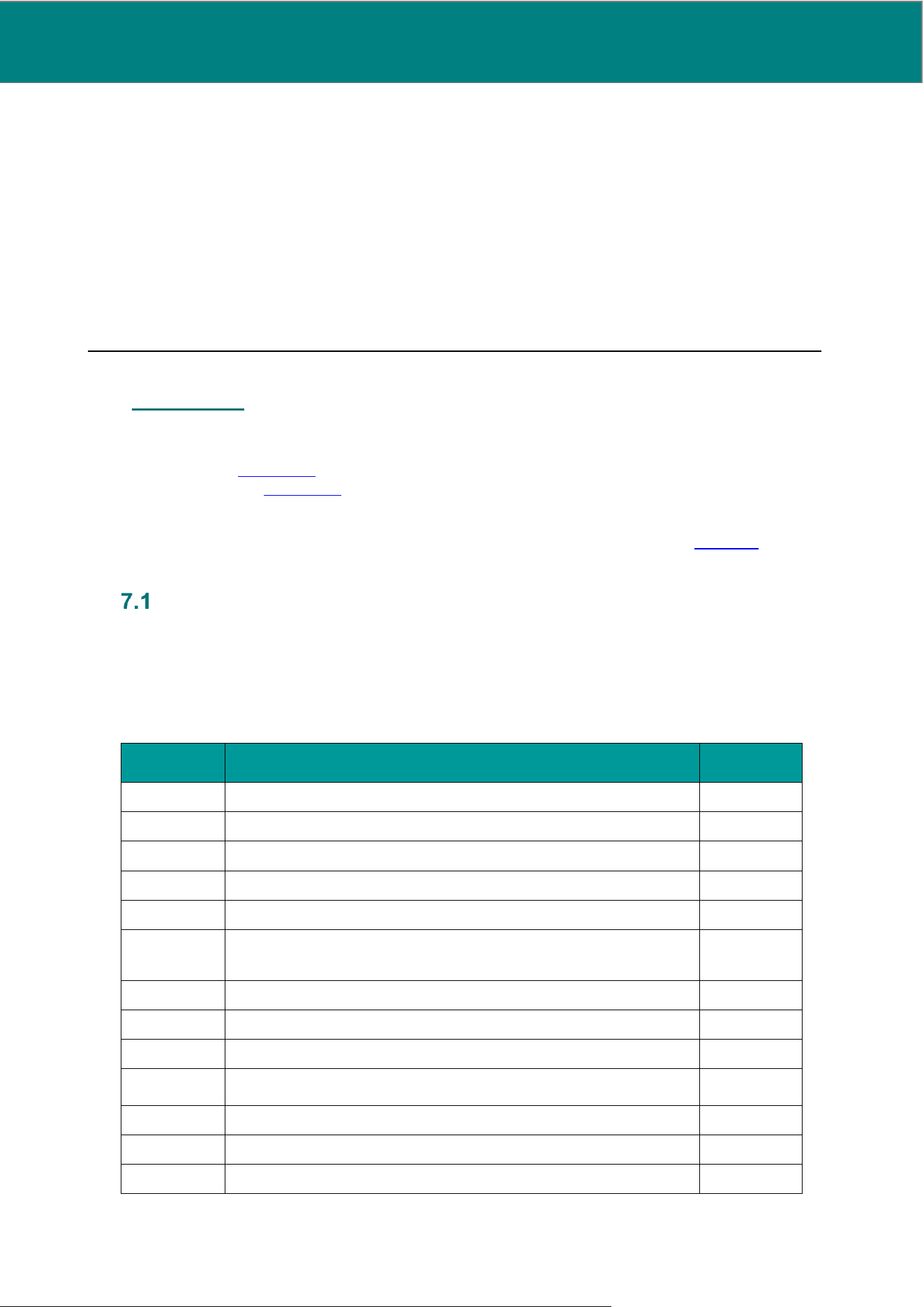
Combined use with an output monitor, HDMI connection
MostCare
Up
can be used in combination with an external monitor, linked through an HDMI connection.
MostCare
Up
display will be duplicated on the screen of the external monitor.
NOTE: External monitor display is updated with a frequency of 25 Hz, hence image update may result
'staggered'.
UM0009 rev 0 of 30.07.2026 23
CAUTION: A delay or an incorrect connection of the HDMI cable may result in a delay or inability
to perform monitoring, please note the following:
• If you wish to use MostCare
Up
via an HDMI connection with an external monitor, it will be
necessary for the HDMI cable to be already connected when MostCare
Up
is switched on. The
cable must be inserted when the device is in OFF mode; stand-by mode will not be sufficient.
It will not be necessary for the external monitor to be switched on.
• When MostCare
Up
is connected to an external device, the system must meet the
requirements of Standard 60601-1 clause 16 “General requirements for the medical electrical
system”.
7. VERSIONS
MostCare
Up
is available in two versions:
• Endless (see Section 7.1)
• On demand (see Section 7.2)
In both cases, MostCare
Up
can be used in all its operating mode and configurations (see Section 6).
MostCare
Up
ENDLESS version
MostCare
Up
ENDLESS is enabled for monitoring in ADVANCED mode (all the variables are calculated and
displayed) forever, with no need for a CARD.
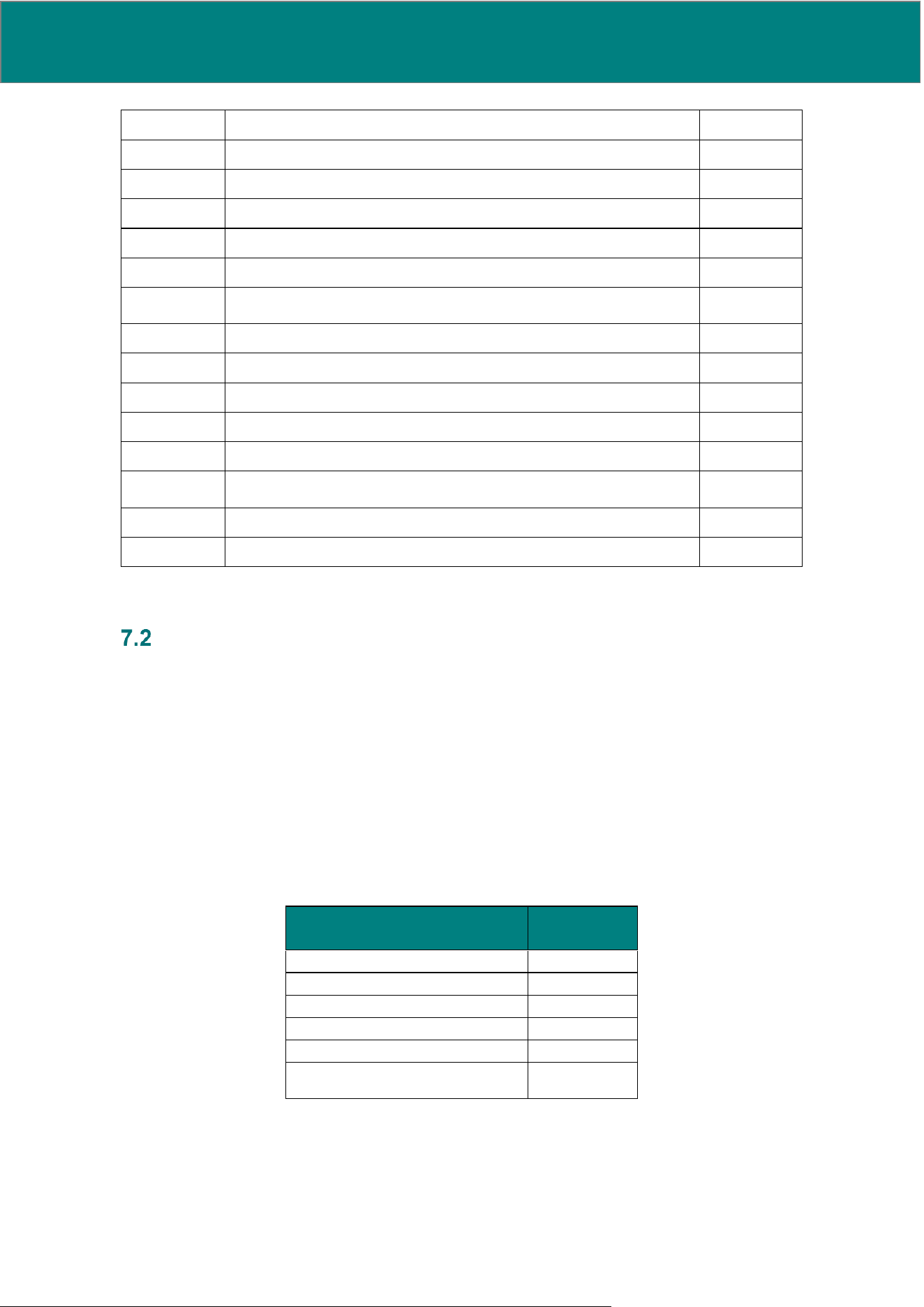
MostCare
Up
displays the following variables.
7.1.1 Mini-invasive monitoring mode
Name
Description
Unit of
measure
Dia
Diastolic pressure
mmHg
Sys
Systolic pressure
mmHg
Dic
Dicrotic pressure
mmHg
MAP
Mean Arterial Pressure
mmHg
PR
Pulse Rate
1/min
CVP
(if transducer
available)
Central Venous Pressure
mmHg
CO
Cardiac Output
l/min
CI
Cardiac Index
l/min/m
2
SVR
Systemic Vascular Resistances
dyn·sec/cm
5
SVRI
Indexed Resistances
dyn·sec·m
2
/c
m
5
SV
Stroke Volume
ml
SVI
Stroke Volume Index
ml/m
2
SVV
Stroke Volume Variation
%
24 UM0009 rev 0 of 30.07.2026
SPV
Systolic Pressure Variation
%
DPV
Dicrotic Pressure Variation
%
PPV
Pulse Pressure Variation
%
dP/dt
max
Maximal slope of the systolic upstroke (Pressure variation velocity)
mmHg/msec
Ea
Arterial Elastance
mmHg/ml
PPV/SVV
Dinamic Elastance
[units]
SV/kg
Weighted Stroke Volume
ml/kg
Dia
PK
Diastolic peak
mmHg
DO
2
Oxygen Delivery derived value
ml/min
DO
2
I
Oxygen Delivery Index derived value
ml/min/m
2
PP
Pulse Pressure
mmHg
MAP-Dic
Mean and Dicrotic pressure difference
mmHg
Z
TOT
Cardiovascular system impedance
mmHg·sec/
ml
CPO
Cardiac Power Output
W
CPI
Cardiac Power Index
W/m
2
MostCare
Up
ON DEMAND version
MostCare
Up
On Demand works through the activation of credits which enable monitoring in ADVANCED mode
for a limited time period/number of 'uses' (according to the card type). When used in this mode, all the variables
indicated for the Endless mode are also available.
Different types of CARD are available to activate credits for ADVANCED monitoring mode:
• Mini-invasive TIME-BASED activation card
• Mini-invasive USE-BASED activation card
The CARDS may be damaged in the presence of permanent magnets or high-power electromagnetic sources.
When MostCare
Up
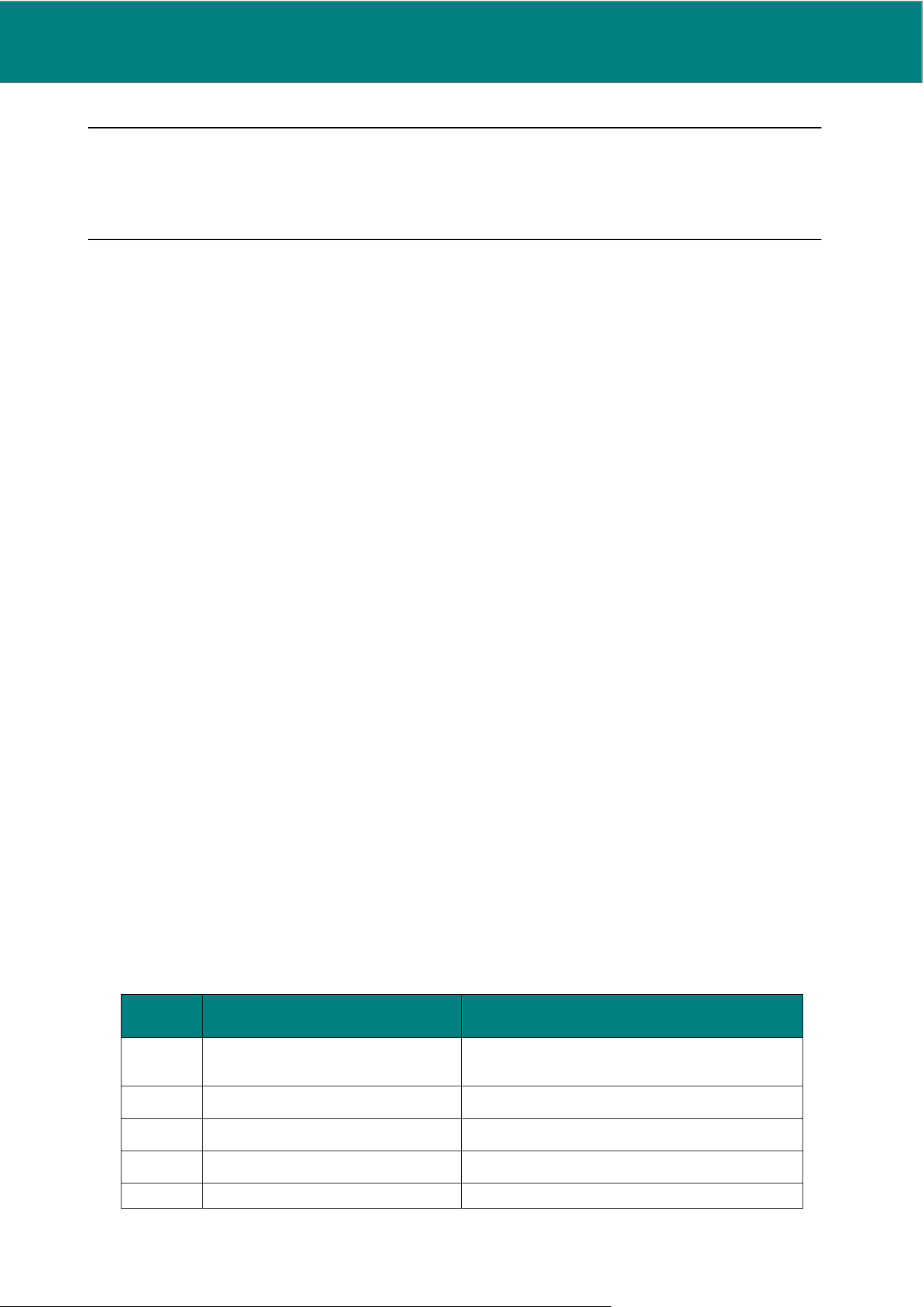
On Demand is not enabled, it operates in a basic mode, supplying systemic values only,
such as:
Values for variables that are not supplied are hidden by the '- -' symbol.
Once the time period/use of a card has expired, MostCare
Up
reverts to the basic monitoring of systemic
variables only.
Data for the ADVANCED monitoring that has been completed before the expiry will however be always
available and downloadable.
Value type
Unit of
measure
Diastolic pressure (Dia)
mmHg
Systolic pressure (Sys)
mmHg
Dicrotic pressure (Dic)
mmHg
Mean Arterial Pressure (MAP)
mmHg
Pulse Rate (PR)
min
-1
Central Venous Pressure, if the
transducer (CVP) is present
mmHg
UM0009 rev 0 of 30.07.2026 25
NOTE:
1. For time-based cards, a month corresponds to 30 days and a year to 365 days, calculated in terms of
hours from the time of activation. For example, if a monthly card is activated on July 10
th
at 12.30 pm,
activation will expire at 12.30 pm after 30 days (hence on August 9
th
).
7.2.1 Mini-invasive/Non-Invasive 'Time-based' activation card
With the TIME-BASED CARD, MostCare
Up
is able to carry out an ADVANCED monitoring for the length of time
indicated on the CARD (e.g.: 1 day, 30 days, 365 days)
The validity time for the ADVANCED mode is used up irrespective of whether MostCare
Up
is in use or switched
off. The residual time countdown starts from when you access the main menu after confirming the ADVANCED
mode activation. Once monitoring starts, it will not be possible to modify the date and time anymore.
A time-based ACTIVATION CARD has no limits in terms of the number of patients who can be monitored
during the time in which the ADVANCED mode is valid.
To verify the residual time for which MostCare
Up
is enabled in ADVANCED mode, enter the 'Credit
management' section of the main MENU, where the remaining validity time is indicated.
7.2.2 Mini-invasive 'Use-based' activation card
With the USE-BASED CARD, MostCare
Up
is able to carry out an ADVANCED mini-invasive monitoring for the
number of uses indicated on the CARD (e.g.: 1 use, 30 uses...).
One USE allows ADVANCED monitoring of one single patient for a maximum period of time of 72 hours. More
than one use may be utilized for one patient, should it be necessary to continue monitoring for more than 72
hours. Once the residual time expires, it is otherwise possible to continue in ADVANCED mode without
interruption via a new enabling (confirmation is requested to the user via a video message). At the end of the
72 hours monitoring period, precisely 30,10 and 5 minutes before time runs out, the following message will be
displayed: “Warning: residual time is less than 30 (then 10, then 5) minutes! Get to the "Credit Management"
menu to reload.” If a new 'use' is not activated, once the set time has expired MostCare
Up
will automatically
switch to basic mode.
7.2.3 Error messages connected with card usage
While the card is being read/overwritten, errors may occur; they are signaled on screen with the following
messages:
Number
Error message displayed on
MostCare
Up
Detailed manual description
ERR100
The device code stored on the card
doesn't match that of the device being
used
The device code stored on the card does not match
that of the device being used
ERR101
It was not possible to use the credit on
the card
It was not possible to use the credit on the card
ERR 102
Unrecognized card: the card used is
not of the MostCare
Up
type
Unrecognized card: the card used is not of the
MostCare
Up
type
ERR 103
Card not present
The reader could not detect a card
ERR 104
Card credit has run out
The credit on the card has run out
26 UM0009 rev 0 of 30.07.2026
ERR 105
No connection with the card reader
Connection error with the application that reads the
card
ERR 106
Credit type incompatible with existing
credit
You are attempting to upload a type of credit that is
not consistent with the residual credit available on
MostCare
Up
, i.e.:
• The card is of the 'use' type while the credit
available on the device is time-based, or vice versa
• 'Uses' on the card are of a different duration
compared to those on the device
ERR 107
Access denied: this card doesn't allow
access
Access is denied because the access card does not
allow it (a higher-level card is required)
ERR 108
Unsuitable card
The card offered is not suitable for the operation
required, i.e.:
• You are using a credit card to check access
• You are using an access card to add credit
8. DIRECTIONS FOR USE
Switching on and initial settings
8.1.1 Switching on
WARNING: The use of damaged cables or a device with mechanical damage may result in the
inability to monitor or in unreliable variables, leading to an incorrect diagnosis.
Perform a visual check of the condition of the power connector, the cable, the connection sockets,
the accessories and check for any mechanical damage.
WARNING: Using a power cable other than the one authorized and supplied by the
manufacturer may cause the machine to catch fire or explode, which could result in serious injury
to the patient or operator.
Use only the power cables authorized by the manufacturer. Only the power cables authorized by
the manufacturer ensure basic safety of the system.
1. Insert the power cable into the power inlet on the back panel.
2. Power up MostCare
Up
by flipping the switch at the rear. MostCare
Up
is now off but powered and the
battery is charging.
NOTE: The rear button is used to feed the internal battery through mains power:
• Set the rear button to the I position to charge up the internal battery (this will take place also
if MostCare
Up
is switched off). Verify that the LED on the ON/OFF button turns on.
• Set the rear button to the O position to stop internal battery charging. Verify that the LED on
the ON/OFF button turns off.
3. Press the ON/OFF button on the left lateral side to turn on the system and switch on the device.
NOTE: MostCare
Up
has 3 main operational modes:
a. ON: the device is electrically powered in all its parts and the application is active. The battery
may be charging or not, depending on the rear button status, I or O.
b. OFF: the application is switched off and electrical power is absent. The battery may be
charging or not, depending on the rear button status, I or O. If the battery is charging, the
device will be electrically powered only partially, in terms of the battery's internal circuit.
c. STAND-BY: in this mode, the device is electrically powered in all its parts, and the application
is active but the screen is switched off. It is possible to set MostCare
Up
in stand-by mode only
UM0009 rev 0 of 30.07.2026 27
if mains electrical power is available. This mode allows a quick restart of the device, with no
need for an operating system reboot.
To switch the device off or set it in stand-by mode, see Section 8.1.7.
4. Verify the LED on the ON/OFF is turned on.
CAUTION: A delay or an incorrect connection of the HDMI cable may result in a delay or inability
to perform monitoring. If you wish to use MostCare
Up
via an HDMI connection with an external
monitor, it will be necessary for the HDMI cable to be already connected when MostCare
Up
is
switched on. It will not be necessary for the external monitor to be switched on.
NOTE: The graphic display switches on showing a standard logo and a boot-up bar, and the device emits a
sequence of five beeps.
Once booting is complete, the initial screen will be displayed.
8.1.2 Auto test and error messages
When the device is switched on, auto test is executed, including a check on the main functions (connection
with SD card, battery status, internal clock) to ensure the device is operating faultlessly. In case of faults in
any of the components being checked, an error message will appear, of the locking (hence the device will
need to be sent in for technical assistance) or non-locking type.
Auto test is however automatically run by the device also during normal operation, and any errors can then
also be displayed during normal operation.
If some part is faulty, the following error messages can appear on screen:
Code
Message on screen
Description
Type of error
Locked features
Internal
error #1
Internal alarm 1.
The device must be shut down.
Internal memory error
Locking alarm
All
Internal
error #2
Internal alarm 2.
The device must be shut down.
Internal memory error
Locking alarm
All
Internal
error #3
Internal alarm 3.
The device must be shut down.
Internal battery error
Locking alarm
All
Internal
error #4
Internal alarm 4.
The device must be shut down.
Internal serial line error
Locking alarm
All
Internal
error #5
Internal alarm 5.
The device must be shut down.
Internal serial line error
Locking alarm
All
Internal
error #6
Internal alarm 6.
The device must be shut down.
Incompatibility of sw/hw
versions
Locking alarm
All
NOTE: If one of the above error messages appear on screen a few seconds after the device has been booted
up, we suggest switching MostCare
Up
off and on again. If the error appears again after a new switch-on, please
contact technical assistance for further information on how to proceed.
8.1.3 Initial screen
1. Select 'New Monitoring' to start a new monitoring session:
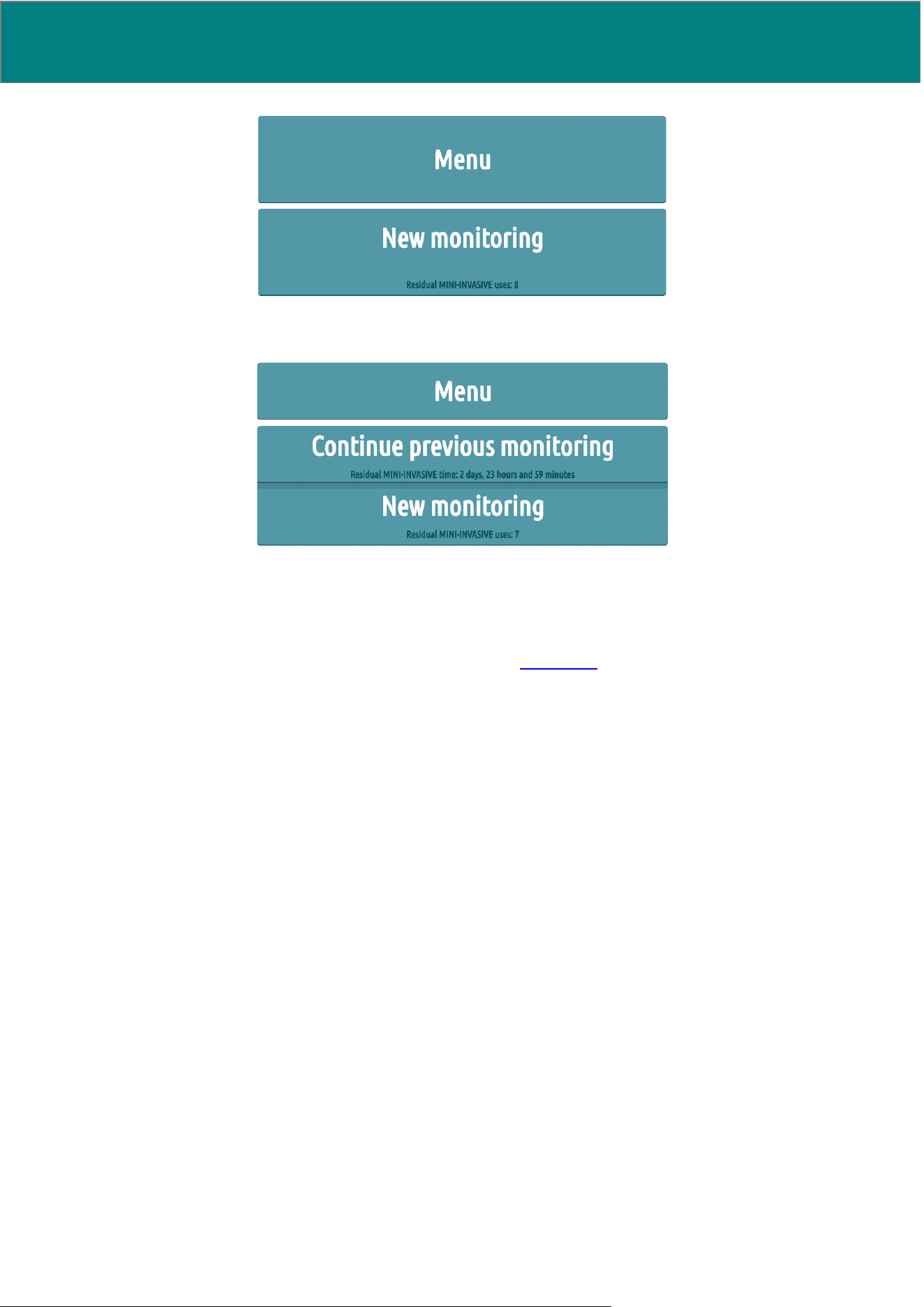
28 UM0009 rev 0 of 30.07.2026
2. Select “Continue previous monitoring” if the previous monitoring was not completed and wish to
continue it. The displayed screen is the following:
Confirmation is always asked for when using a new credit.
Below the buttons, as per the figure, residual time is shown, expressed in days/hours/minutes or uses,
depending on the credit type.
If no residual credit is available, it will be necessary to upload new credit to start ADVANCED monitoring,
otherwise MostCare
Up
will display systemic variables only (see Section 7.2).
In the case of New Monitoring, the MONITORING SETTINGS page will be displayed.
8.1.4 Monitoring settings
The monitoring settings screen appears as follows:
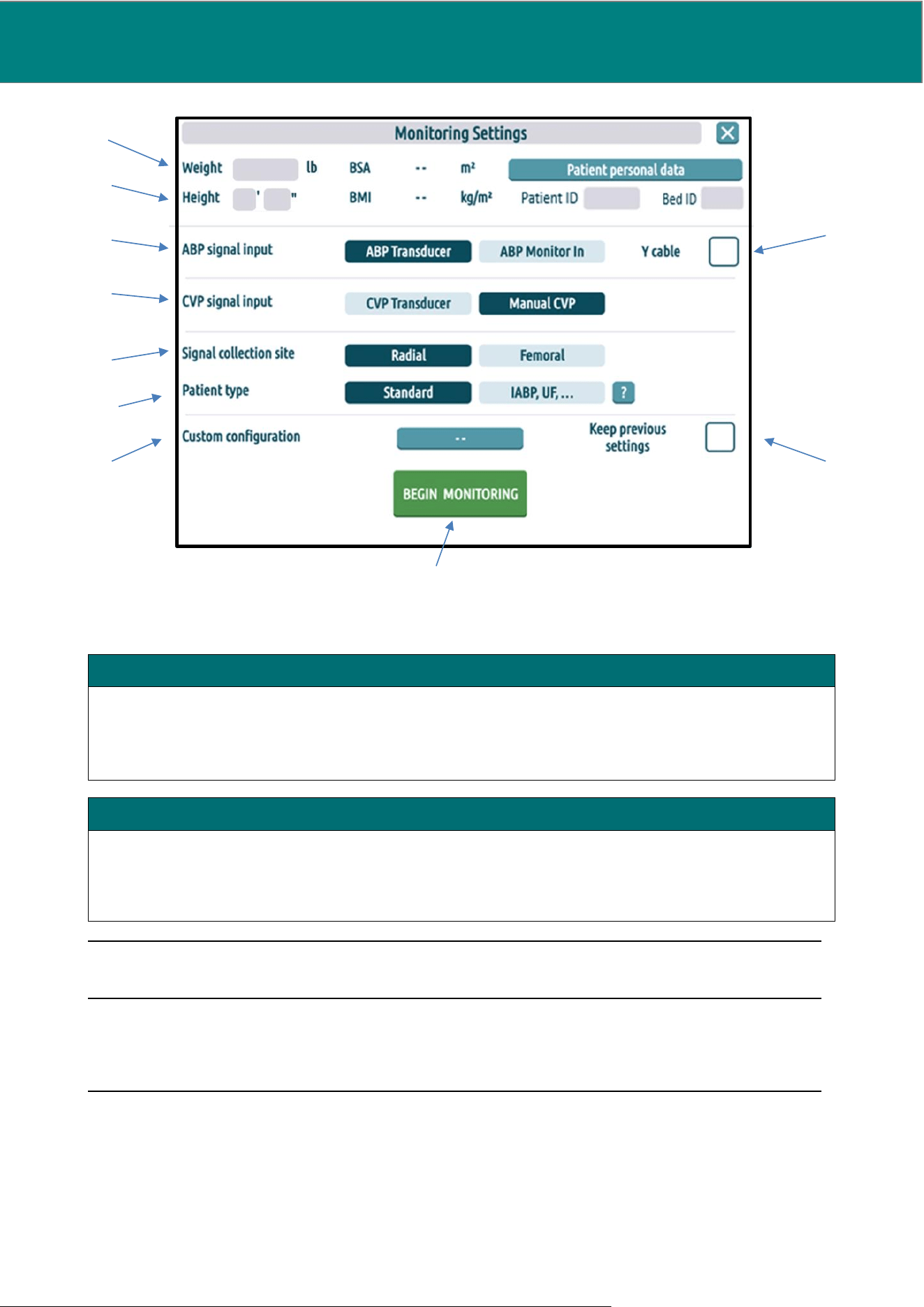
UM0009 rev 0 of 30.07.2026 29
The MONITORING SETTINGS screen allows the user to enter and select the following settings:
NOTE: Once monitoring has started, it will be possible to modify weight only, not height.
Anthropometric weight and height data will be used by MostCare
Up
to calculate the Body Surface
Area (BSA). This variable is used to convert the absolute hemodynamic values for Stroke Volume (SV),
Cardiac Output (CO) and Systemic Vascular Resistances (SVR) into indexed values.
WARNING: If monitoring is carried out using incorrect weight and height measurements, this may
result in the incorrect calculation of derived parameters and lead to an incorrect diagnosis.
• To begin monitoring, it is essential to enter the WEIGHT and HEIGHT information requested
in the menu item.
1. WEIGHT
Expressed in pounds (lb) or kilograms (kg) / grams (g). If the kg/g scale is set, the system automatically
detects whether the value entered is to be regarded as kg or g based on the following criterion:
• Input < 700, kg is used
• Input ≥ 700, g is used
• NB: To enter a weight below 700 g, use decimal notation (e.g. type 0.650 kg to indicate 650 g)
2. HEIGHT
Expressed in feet (‘) / inches (“) or metres (m) / centimetres (cm). If the m/cm scale is set, the system
automatically detects whether the value entered is to be regarded as m or cm based on the following
criterion:
• Input < 10, m is used
Input ≥ 10, cm is used
1.
2.
3.
4.
5.
6.
7.
8.
9.
10.
30 UM0009 rev 0 of 30.07.2026
• If the weight and height data entered is not correct, BSA and all the indexed variables
processed by MostCare
Up
may be wrong.
• It is not possible to insert a weight exceeding 699 kg. If a value greater than or equal to 700
is entered, it will automatically be converted to g.
4. Y CABLE box
Select this box if a Y CABLE configuration is used.
Do not select this box if a standard cable configuration is used.
WARNING: Incorrect use of the Y-cable may result in mechanical or electrical damage to the
device or in unreliable readings, which could lead to an incorrect clinical decision, please note the
following:
• If a Y CABLE configuration is used, it will be necessary to insert the cable into the ABP input
in MostCare
Up
, and also for the other ends of the cable to be correctly connected to the other
elements (the transducer and the other device); it will also be necessary for the other device
used to be switched on. Otherwise, once the “BEGIN MONITORING” button is pressed, an
error notification will appear.
• This box must be selected if a Y CABLE for the ABP signal is used. If the user forgets to
select this box and a Y CABLE in the ABP input is detected, an error notification will appear
once the “BEGIN MONITORING” button is pressed.
• Do not select this box if a standard cable is being used. If the user selects this box and a
standard cable is detected, an error notification will appear once the “BEGIN MONITORING”
button is pressed.
• If the user has inserted a Y CABLE, has selected the appropriate box and once the “BEGIN
MONITORING” button is pressed an error notification appears, this means that the Y CABLE
in use is either damaged or faulty. It will then be necessary to change the cable.
5. CVP signal INPUT
MANUAL INPUT
A constant value for CVP is chosen for the SVR/SVRI calculation. On the monitoring
screen, in the SVR/SVRI button, the wording 'CVP=', followed by the selected value
for constant CVP (expressed in mmHg) will then appear on the upper right side. If
not modified, the default value for CVP is 9 mmHg.
The mean Central Venous Pressure is used to calculate Systemic Vascular
Resistances (both absolute and indexed).
3. ABP signal INPUT
TRANSDUCER
MostCare
Up
reads the ABP signal directly from the pressure transducer (right side
ABP connector).
MONITOR IN
MostCare
Up
reads the ABP signal from another patient monitor (right side IN 1
connector)
UM0009 rev 0 of 30.07.2026 31
TRANSDUCER
Allows actual monitoring of central venous pressure using a Central Venous
Catheter (CVC).
Requires a CVC connected to a pressure transducer by means of a Transducer
Cable in the CVP input on the right side of MostCare
Up
.
The monitoring screenshot shows the temporal trend of the pressure curve and its
related mean pressure value in mmHg in dark blue.
The mean Central Venous Pressure is used to calculate Systemic Vascular
Resistances (both absolute and indexed).
WARNING: If the CVP is incorrect, the resistances may not be calculated correctly, which could
have a negative impact on the diagnosis.
• Peripheral vascular resistances (absolute and indexed) are actually calculated only when
CVP is selected from TRANSDUCER. Only in this case does MostCare
Up
directly measure
the central venous pressure (CVP). The CVP mean value derived from the measured values
is used by the software to calculate resistances (SVR/SVRI).
• If you select CVP from TRANSDUCER without connecting the transducer cable to the CVP
pressure channel, MostCare
Up
might provide incorrect SVR and SVRI data. If the detected
CVP value is lower than 0 mmHg, the system will consider 9 mmHg as the constant CVP
value.
• If an incorrect value of CONSTANT CVP is entered, the resistance calculation will be wrong.
Observe and correct the CVP value set in MostCare
Up
should the patient CVP change.
NOTE: The signal collection site has no effect on the calculation of variables; it only affects the patient data
saved in the .csv file, where a signal collection site will be recorded that does not correspond to the one
actually used.
WARNING: Select the “PATIENT TYPE” correctly, otherwise all hemodynamic values may be
wrong and lead to an incorrect diagnosis.
8. ‘CUSTOM CONFIGURATION' button
6. SIGNAL COLLECTION SITE
RADIAL
By means of a catheter positioned inside the Radial Artery
FEMORAL
By means of a catheter positioned inside the Femoral Artery
7. PATIENT TYPE
STANDARD
This is the setting for patients without mechanical support
MECHANICAL
SUPPORT
When the patient being monitored is supported by an Intra-Aortic Balloon Pump,
another mechanical cardiac assistance system, or any other type of mechanical
support.
32 UM0009 rev 0 of 30.07.2026
Select this box if you want to start a monitoring that allows you to customize the monitoring screen by
choosing which variables and trends to be visualized and which one to be hidden.
Do not select this box if you want to begin monitoring using default settings or those from a previous
monitoring.
See Section 8.1.6 for further details.
NOTE: “MAINTAIN PREVIOUS SETTINGS” and “CUSTOM MONITORING” boxes are mutually exclusive
and cannot be selected simultaneously.
NOTE: If none of the “MAINTAIN PREVIOUS SETTINGS” and “CUSTOM MONITORING” boxes is selected,
the default monitoring screen will be displayed.
The following data is always maintained until a factory reset is executed:
• Custom marker
• Language
• Monitoring archive.
9. 'KEEP PREVIOUS SETTINGS' box
Select this box if you want to keep the settings of the previous monitoring.
Do not select this box if you want to begin monitoring using default or new customized settings.
If the box is selected, the settings that will be kept as per the previous monitoring are listed in the table that
follows. Default values are also listed.
All other settings that are not featured on the table are set to default for every new monitoring.
Variable
Default
ABP SIGNAL INPUT
ABP Transducer
TREND VARIABLES
1) Pressures group
2) CO + PR
3) Ea + dP/dt
max
4) PPV + SVV
TREND LAY-OUT
2 graphs (A+B)
DO&CHECK VARIABLES
Mini-invasive
PR
CO
PPV
These variables can change
according to Custom monitoring
configuration choice (see
Section 8.1.6).
4 CUSTOMISABLE VARIABLES
Mini-invasive
PPV
Ea
---
---
These variables can change
according to Custom monitoring
configuration choice (see
Section 8.1.6).
BRIGHTNESS
Maximum if powered via mains,
minimum if via battery
PULSE VOLUME
Inactive
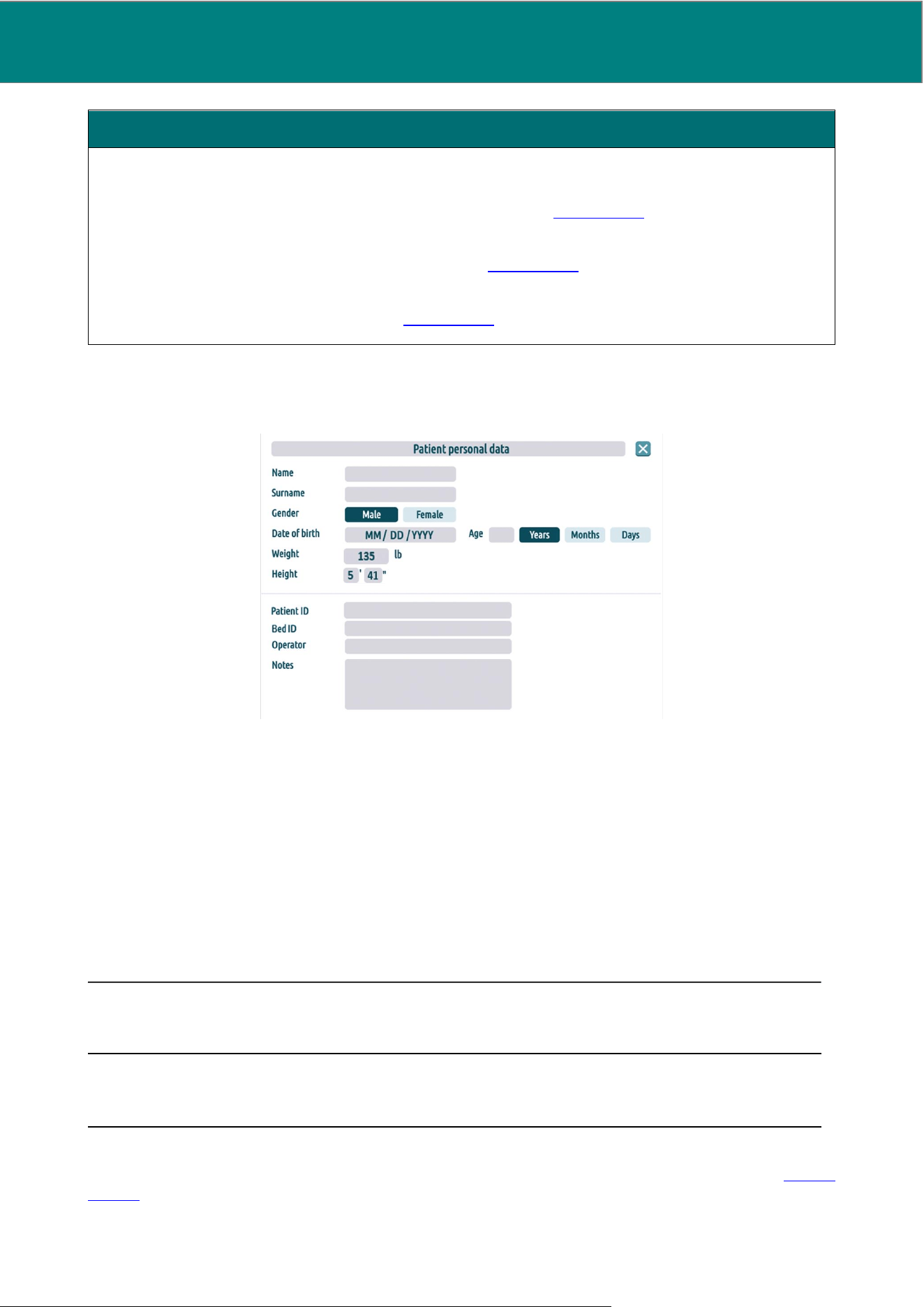
UM0009 rev 0 of 30.07.2026 33
10. 'BEGIN MONITORING' button
By confirming and pressing the “BEGIN MONITORING” button, based on the settings chosen above, the
following screen will appear:
“KEEP PREVIOUS SETTINGS” box checked: Monitoring screen (Section 8.1.5), configured with the
settings of the last monitoring.
“CUSTOM MONITORING” selected: Monitoring screen (Section 8.1.5), configured with the settings of the
selected custom monitoring configuration.
Both options unselected: Monitoring screen (Section 8.1.5), configured with default settings.
8.1.4.1 Patient personal data
Through the “PATIENT PERSONAL DATA” button it is possible to enter the following information regarding
both patient and monitoring:
• First name
• Surname
• Gender
• Date of birth/age (they are mutually exclusive)
• Weight
• Height
• Patient ID
• Bed ID
• Operator
• Notes
NOTE: Patient data are protected against unauthorized access. In order to view or edit patient data, user
authentication is required.
All fields can be filled manually. Patient ID can also be filled by means of a barcode reader, by automatically
reading the barcode from a patient identification wristband.
NOTE: None of these fields are mandatory for general purposes but could be required to activate special
features. Patient ID is a mandatory field for sending HL7 messages to the medical records (see Section
10.12.1). Before activating HL7 communication, it is required to fill the Patient ID field.
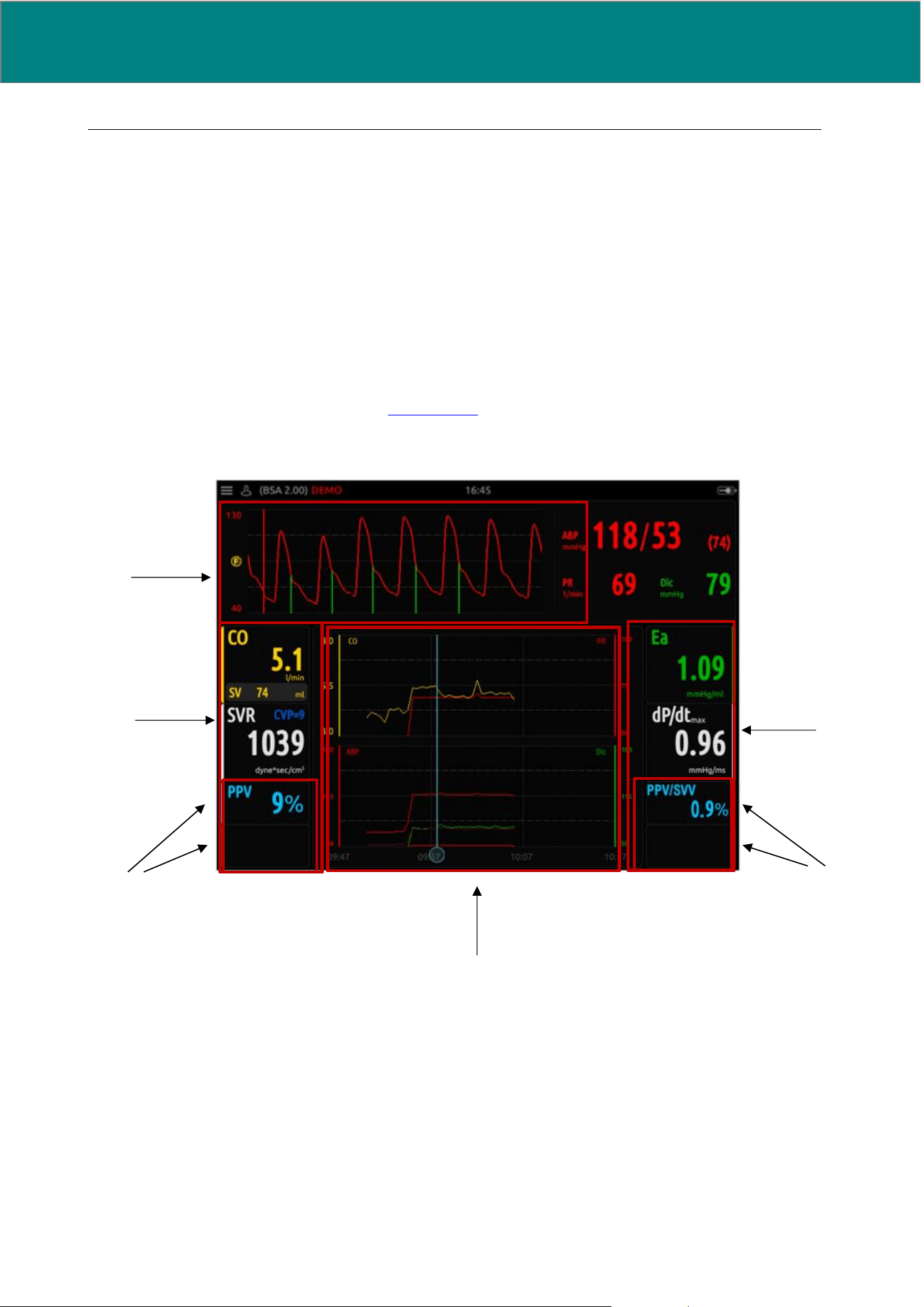
34 UM0009 rev 0 of 30.07.2026
If the user enters a date of birth, the age in years is then displayed and is not editable.
If the user enters an age, the date of birth field remains empty and is not editable.
If the user deletes age, it is once again possible to enter the date of birth (and vice versa).
If information about weight and height has already been entered in the MONITORING SETTINGS screenshot,
these fields appear here as already filled-in and are editable.
To confirm the information entered, close the PATIENT PERSONAL DATA menu; each detail is accepted as
soon as it is entered into the text box.
8.1.5 Monitoring screen
During monitoring, the values of all variables displayed in the monitoring screen are averaged out on 'n'
heartbeats, according to user’s choice (see Section 9.3.4).
The screen of mini-invasive monitoring appears as follow:
Monitoring screen includes three zones:
Curves zone
This zone includes:
• Curves
o ABP and CVP
• Variables punctual values
o Systolic, diastolic and mean arterial blood pressure
o Dicrotic notch (Dic)
o Pulse rate (PR)
Curves
Zone
Variables
Zone
Zone
Variables
Zone
Zone
Trend
Zone
Configurable
Variables
Configurable
Variables

UM0009 rev 0 of 30.07.2026 35
o CVP
The scrolling time for the ABP and CVP curves is set by default at 6-second time windows. The time
windows can be modified by the user (see Section 9.3.7).
An automatic rescaling is carried out upon every first signal acquisition. The user will however be able to
rescale the signal at will (see Section 9.3.2).
Should dicrotic pressure not be properly identified, the user will be able to make adjustments via the 'dicrotic
adjustment' function in the side menu (see Section 9.3.6).
Variables zone
This zone displays the chief hemodynamic variables deriving from pressure values:
• The following variables are fixed: CO, SV, SVR, and dP/dt
max
• The first three can be exchanged with the related indexed values depending on user choice
• The 4 variables at the bottom are configurable
The CVP value can be set from the Variables menu (see Section 9.5).
Dynamic variables (PPV% SVV%, SPV%, DPV%) are calculated over a temporal range of 15 seconds. This
value can be set by the user (see Section 9.5.5).
The values of all the other variables are calculated as a mean value over a settable number of heartbeats
(default setting: 10 beats). This value can be set by the user (see Section 9.3.4).
WARNING: If the signal is resonant, it may cause incorrect calculations of derived variables,
which could lead to an inappropriate clinical decision
• The dP/dt
max
value will be displayed in red when above 1.7, to indicate the risk of inadequate
arterial signal.
• When dP/dt
max
> 1.7 there might be an inaccurate detection of the arterial pressure signal
(underdamping). In the event of bad detection quality of the arterial pressure signal, the data
processed by MostCare
Up
could be wrong.
Trend zone
This zone displays the temporal trend of 4 or more variables, according to user choice. When starting
monitoring, the time fraction displayed is always 30 minutes, and can be configured via the Trend menu.
The number of trends and their configuration can be customized via the Trend menu (see Section 9.4).
Markers entered by the user are displayed in blue on the graphs.
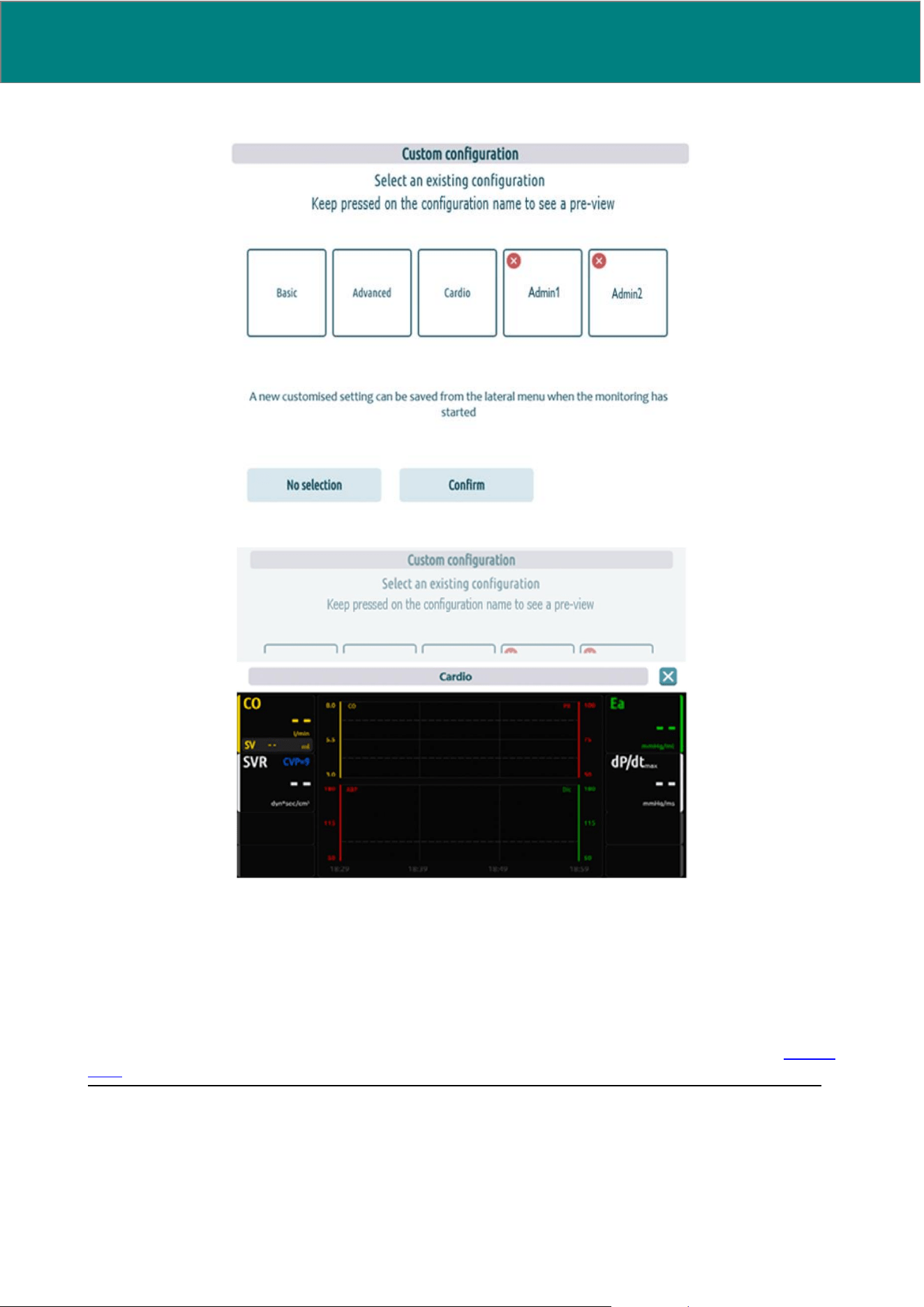
36 UM0009 rev 0 of 30.07.2026
8.1.6 Custom monitoring configuration selection screen
If the cardio setting is selected, for example, the pre-view will look like this:
The custom monitoring configuration selection screen allows user to create a new custom monitoring
configuration (if an empty slot is available) or to select or delete an existing one. MostCare
Up
allows to create
up to 10 custom monitoring configurations.
Monitoring configuration customization consists in selecting which variables and trends to be displayed in the
variables and trends zones of the monitoring screen and which ones to be hidden.
After completing the customization of the screen according to your preferences, you can save your custom
configuration by pressing the “SAVE CONFIGURATION” button from the lateral pop-up menu (see Section
9.1.8).
NOTE: When saving a new configuration or editing or deleting an existing one, user authentication is required.
NOTE: A user can access all the available custom configurations but only the user who created the custom
configuration can edit it. System admin can delete a custom configuration but cannot edit it unless it was the
one who created it.
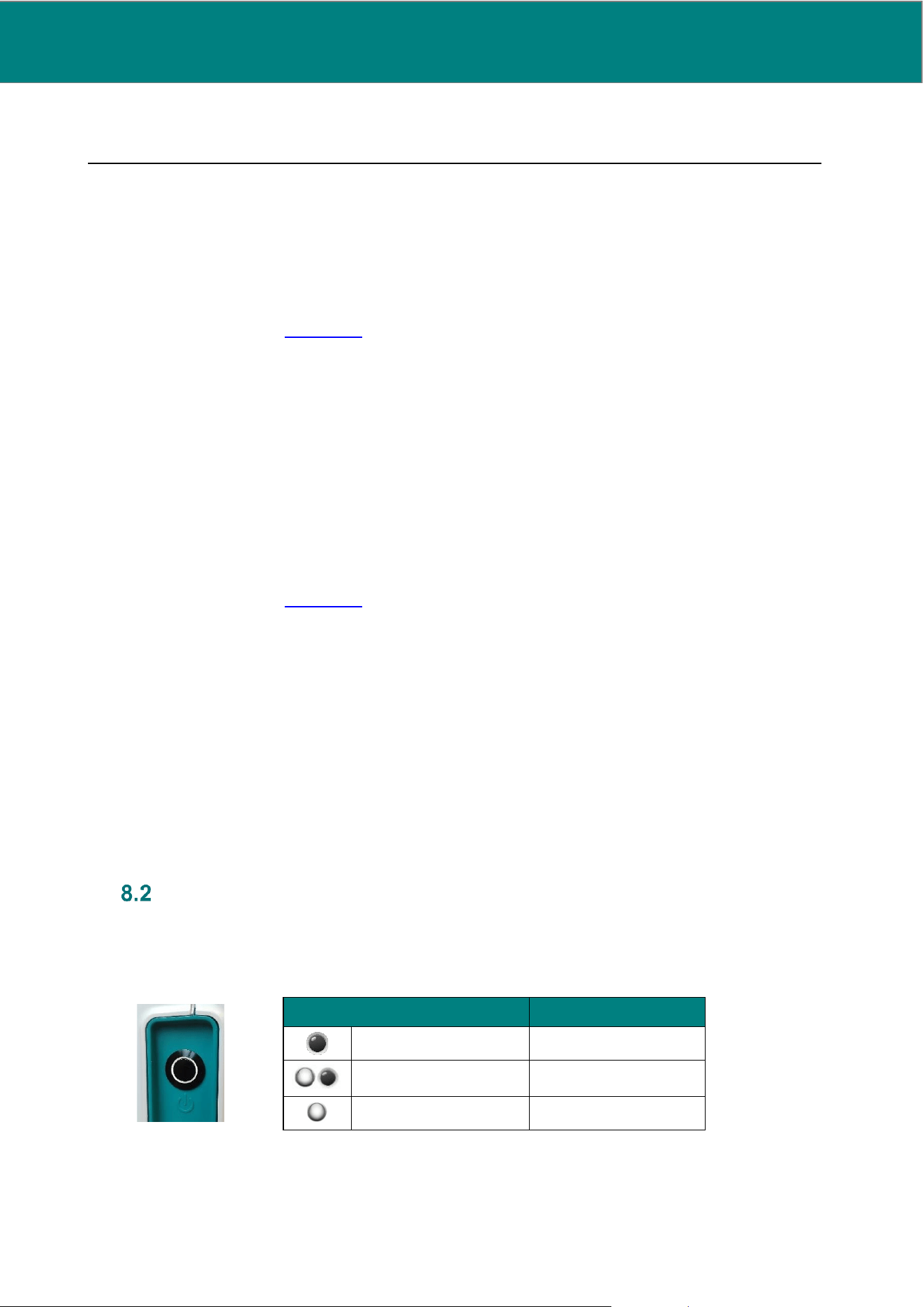
UM0009 rev 0 of 30.07.2026 37
NOTE: When saving a new configuration, you will be also asked assign a name to the new configuration. It is
recommended to assign a name that will allow you to easily remember its custom settings.
8.1.7 Stand-by/Switch-off
To set MostCare
Up
in stand-by mode, either of these methods can be followed:
1. Stand-by in mains mode
- Make sure that the power cable is inserted in the system and the battery is charging (the I/O
button is in the I position)
- Open the lateral pop-up menu from the three-line button located on the upper left side of the
screen (see Section 9.1)
- Press the red “STAND-BY” button at the bottom
- When asked for confirmation, accept
- MostCare
Up
is now in stand-by mode
2. Stand-by in battery mode
- Make sure that the battery is powered by the electrical mains (the rear button is in the ON
position)
- Briefly press the ON/OFF button on the lateral side panel in MostCare
Up
- When asked for confirmation, accept
- MostCare
Up
is now in stand-by mode
To switch MostCare
Up
off, follow one of these three methods:
1. Switch off in battery mode
- Switch the mains power off (rear button in the OFF position)
- Open the lateral pop-up menu from the three-line button located on the upper left side of the
screen (see Section 9.1)
- Press the red OFF button at the bottom
- When asked for confirmation, accept
- MostCare
Up
is now switched off.
2. Switch off in mains mode
- Follow method no. 1 for setting in Stand-by mode
- Switch the mains power off (rear button in the OFF position)
- MostCare
Up
is now switched off
3. Switch off in battery/mains mode
- Press MostCare
Up
side button for at least 5 seconds
- Verify that the device is starting the switch-off procedure
- MostCare
Up
is now switched off
LED Button and battery status
MostCare
Up
battery has 3 operational modes.
To understand in which state the battery is, it is necessary to observe the LED on the ON/OFF left lateral
side button:
LED status
Battery status
LED is OFF
battery not charging
LED is continuously
flashing at 1 Hz
battery charging
LED is steady ON
battery fully charged
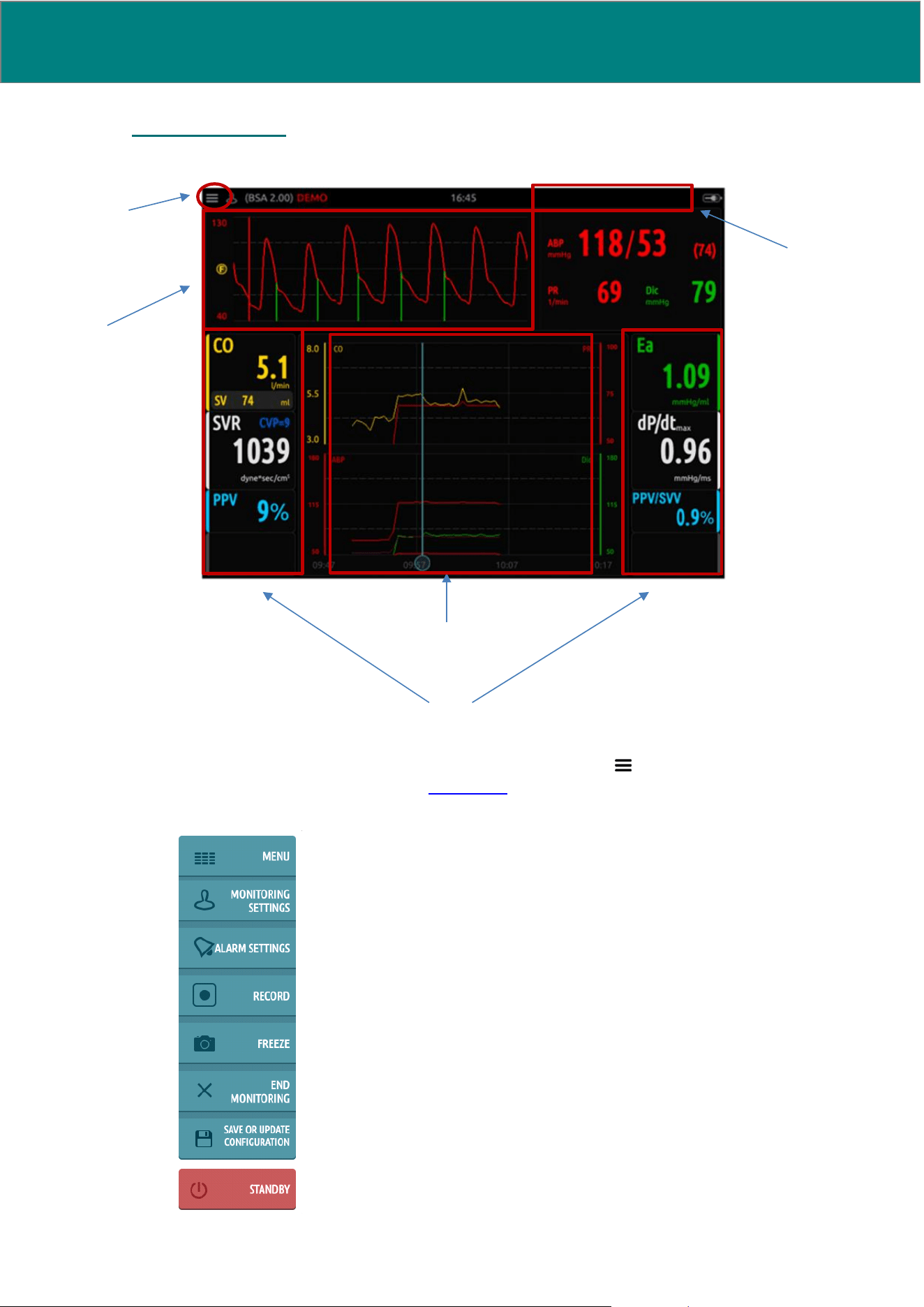
38 UM0009 rev 0 of 30.07.2026
9. QUICK MENUS
These menus allow easy, quick access to settings and functionalities.
a. Lateral pop-up menu, which can be activated by clicking on the icon located on the upper left
side on the fixed horizontal bar (see Section 9.1). If the menu is selected, the following window
opens:
a.
b.
c.
d.
e.
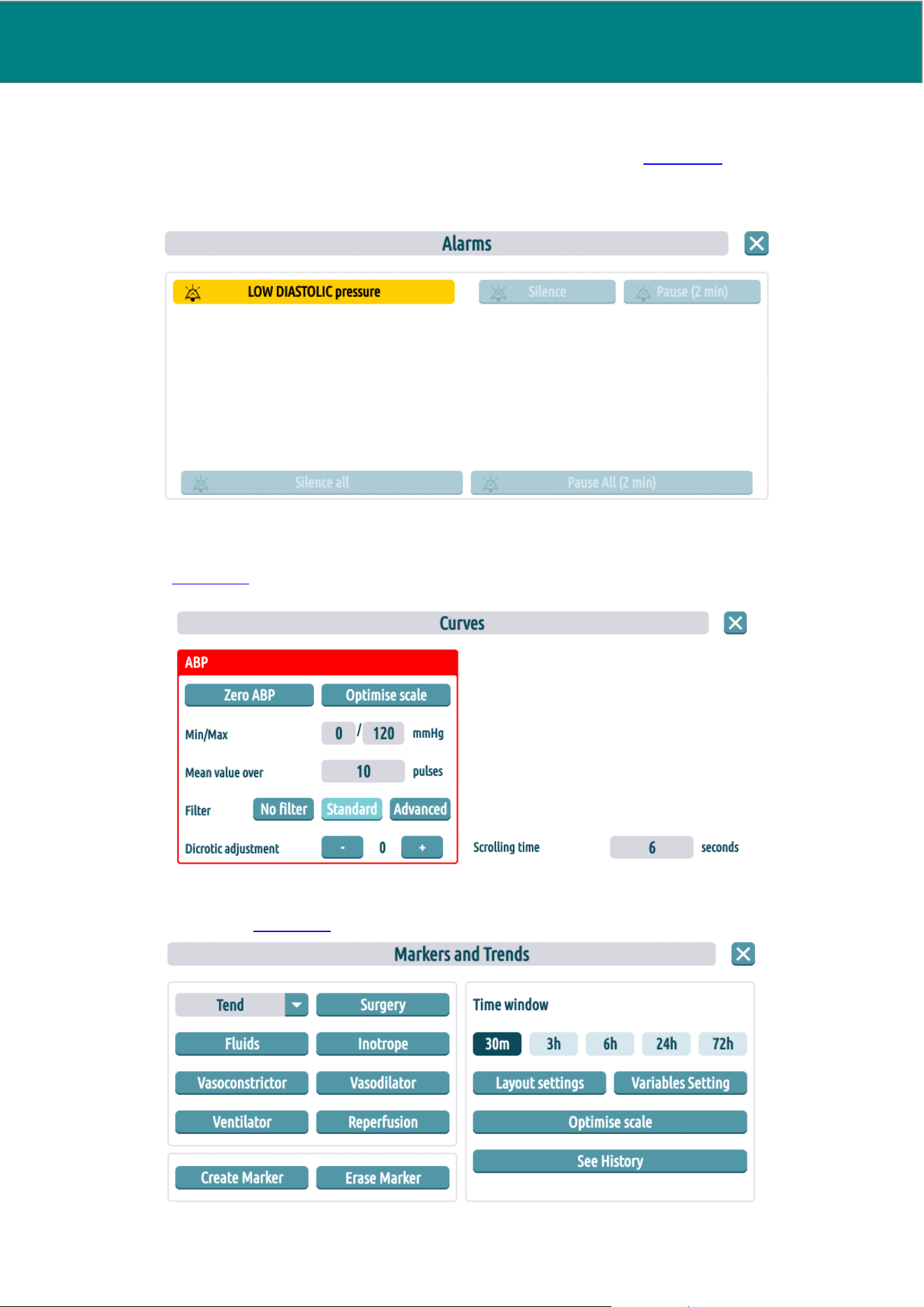
UM0009 rev 0 of 30.07.2026 39
b. Active alarms menu, which can be activated by clicking on an alarm related string (displayed in
the upper horizontal bar when an alarm condition is ongoing) (see Section 9.2). If the menu is
selected, the following window opens:
c. Curves, which can be activated by clicking on the display area featuring the pressure curves (see
Section 9.3). If the menu is selected, the following window opens:
d. Markers and trends, which can be activated by clicking on the central display area featuring the
trends (see Section 9.4). If the menu is selected, the following window opens:
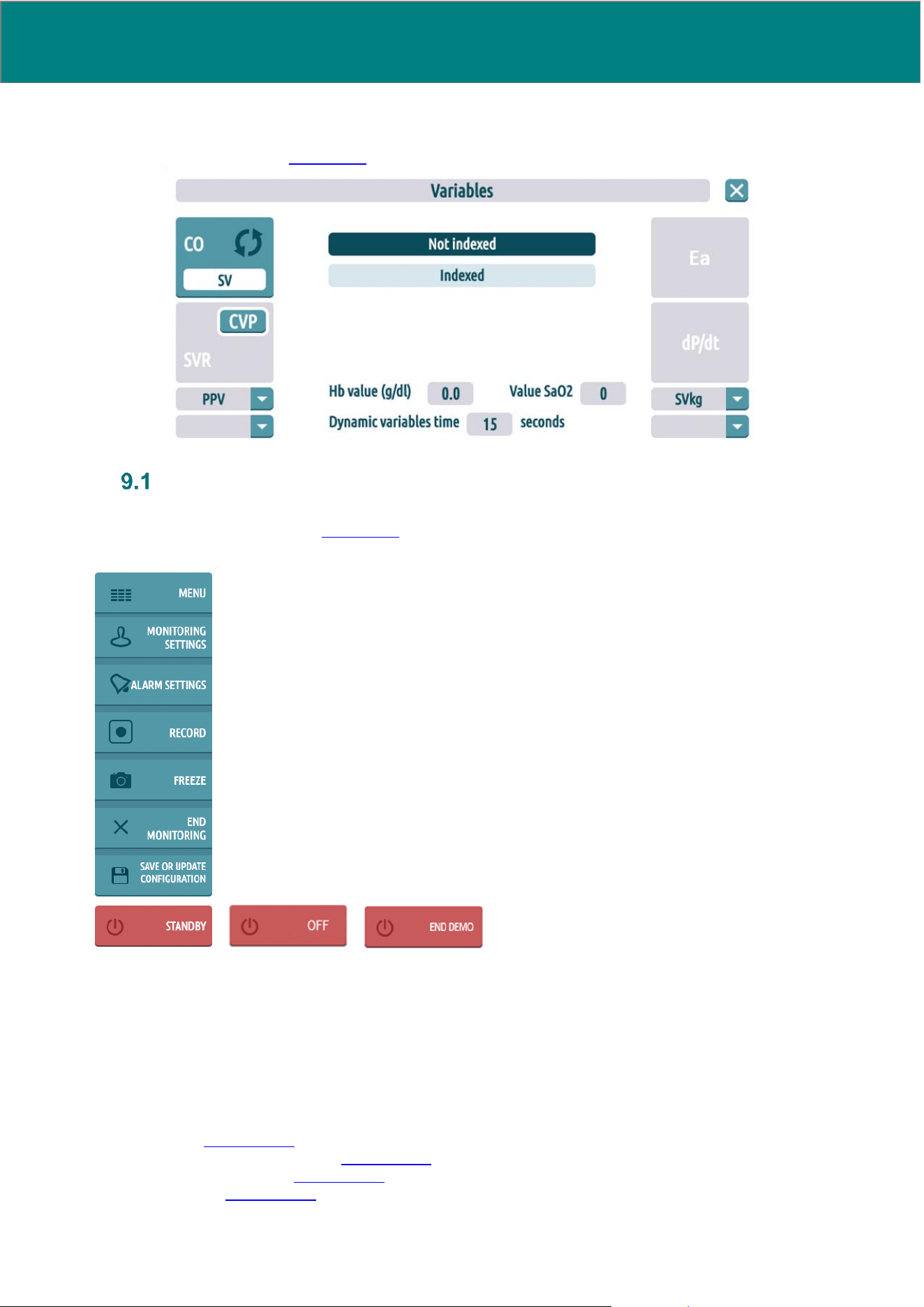
40 UM0009 rev 0 of 30.07.2026
e. Variables, which can be activated by clicking on the two side columns of the display, featuring the
parameters (see Section 9.5). If the menu is selected, the following window opens:
Lateral pop-up menu
The vertical bar is not always visible. It appears when you click on the three-line button located on the upper
left side of the horizontal bar (see Section 1.2 for the three-line symbol).
If the device is in mains-powered mode, the word “STANDBY” will appear on the red button in the lateral
pop-up menu
If the device is in battery mode, the word “OFF” will appear on the red button in the lateral pop-up menu
If the device is running a demo, the words “END DEMO” will appear on the red button in the lateral pop-up
menu
All the functions of the lateral pop-up menu are specified in the following sections:
- “MENU” Section 9.1.1
- “MONITORING SETTINGS” Section 9.1.2
- “ALARM SETTINGS” Section 9.1.3
- “RECORD” Section 9.1.4
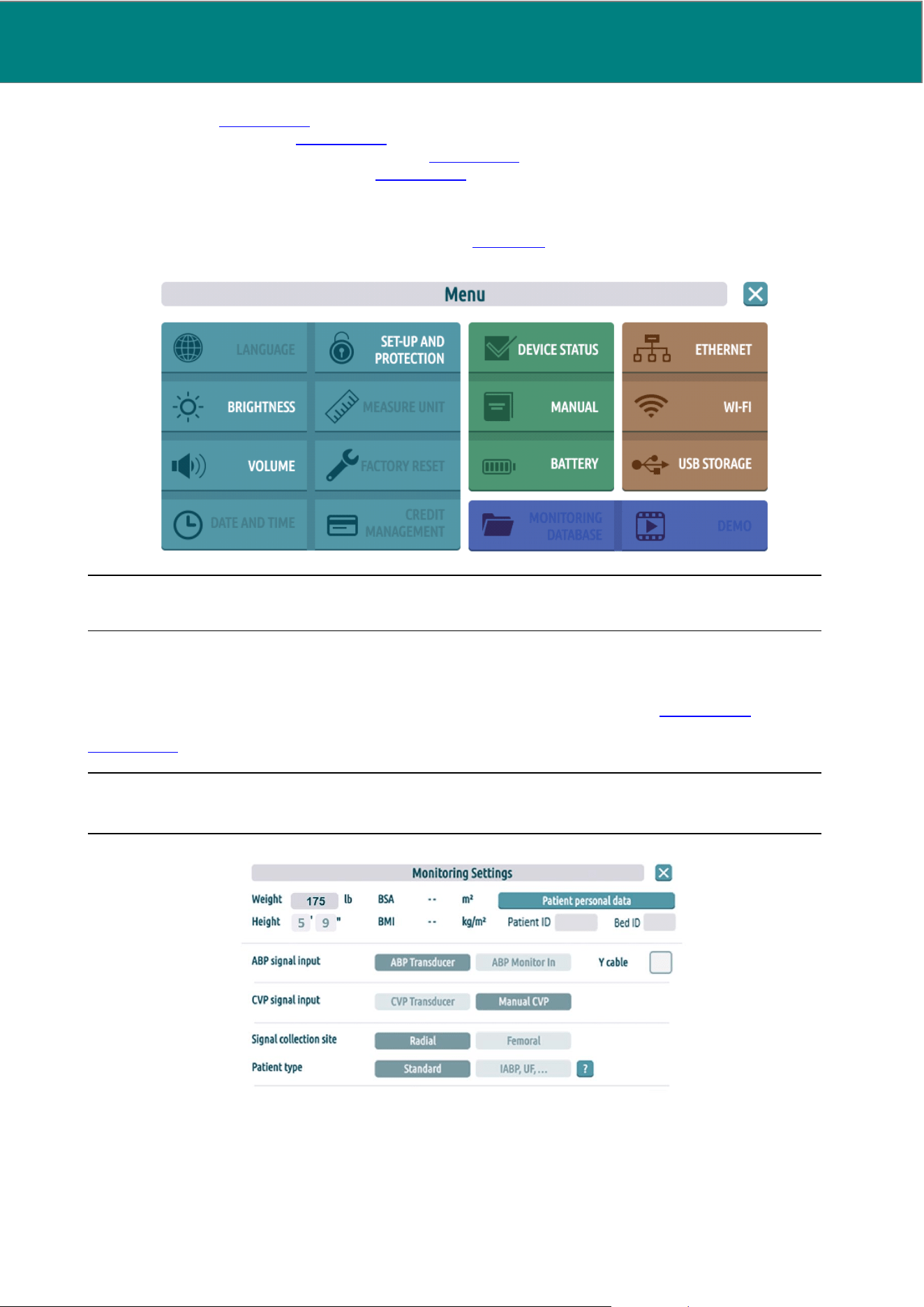
UM0009 rev 0 of 30.07.2026 41
- “FREEZE” Section 9.1.5
- “END MONITORING” Section 9.1.6
- “SAVE OR U DATE CONFIGURATION” Section 9.1.8
- “STANDBY”/”OFF”/”END DEMO” Section 9.1.7
9.1.1 Menu
The “Menu” function refers back to the Main menu (see Section 10) and displays as follow:
NOTE: All the buttons of functions not available during monitoring session are disabled.
9.1.2 Monitoring Settings
The “Monitoring Settings” function refers to the initial patient settings screen (see Section 8.1.4). This page
can also be recalled while monitoring, and data on the patient being monitored can be changed from here (see
Section 9.1.2).
NOTE: During monitoring, only the weight can be changed; the height will appear as uneditable.
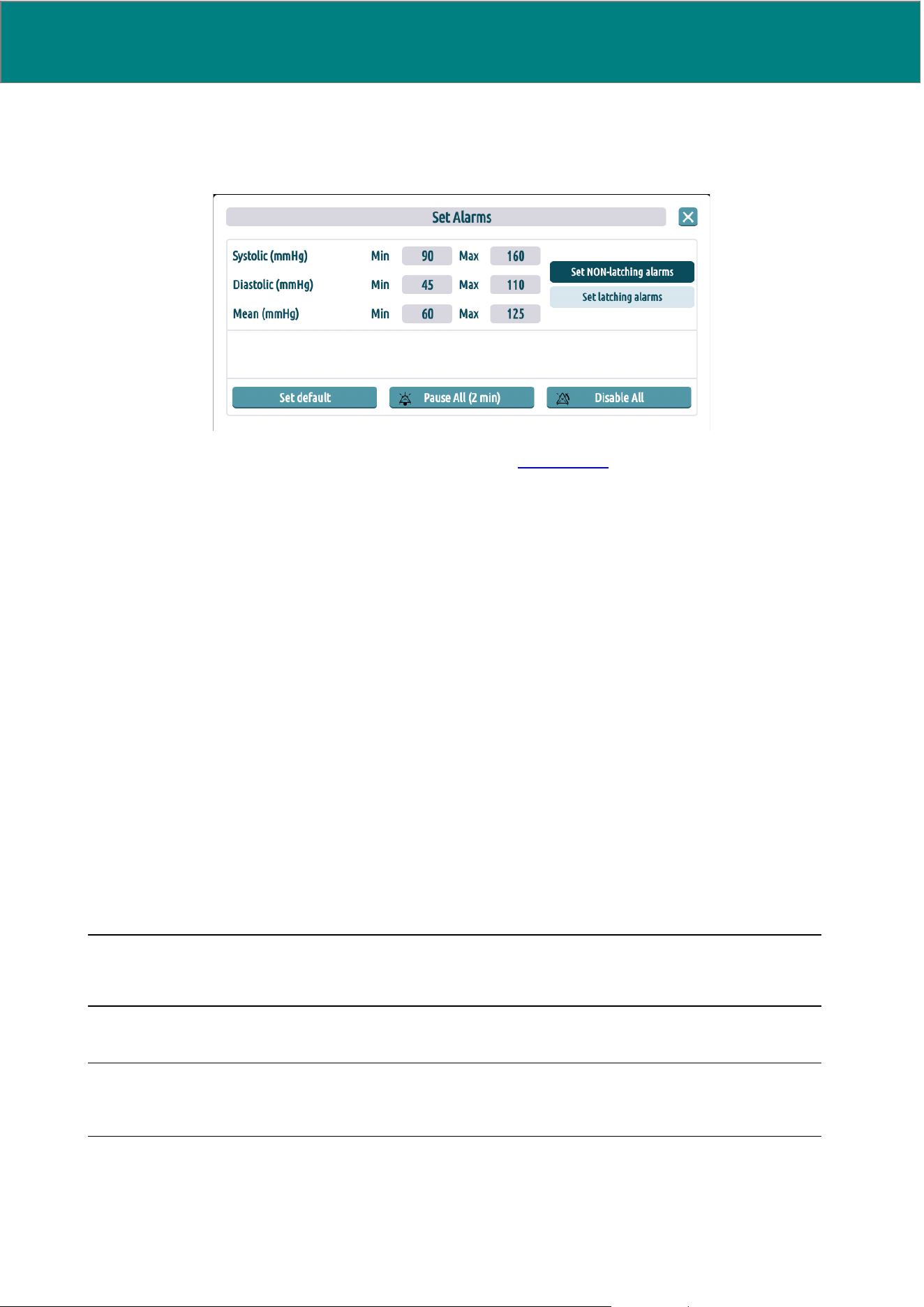
42 UM0009 rev 0 of 30.07.2026
9.1.3 Alarms settings
The “Alarms settings” function allows the user to enable or disable the alarms, and to manage their activation
thresholds.
For every new monitoring, alarm values are set to default (see Section 9.2.2).
This set of default values ranges is used in case of unattended monitoring, as it is pre-configured by the
manufacturer.
The following actions are possible:
Edit alarm limits: The user can set the maximum and minimum limits by entering the desired values in the
corresponding boxes, which are editable.
‘DISABLE ALL’ button: Recalls the “Alarm paused” function for all physiological alarms. This function allows
the user to disable audible and visual alarms throughout the monitoring period. The user can re-enable the
function at any time, thus re-enabling all alarms.
‘PAUSE ALL FOR 2 MINUTES’ button: Recalls the “audio paused” function for all physiological alarms and
for the technical alarms ‘DISCONNECTED CATHETER’, “Y CABLE UNSTABLE”
“Y CABLE OUT OF RANGE”. This function allows the user to disable the visual alarm for 2 minutes; a
countdown is displayed from the time when it is activated. The user can disable this function at any time.
The alarm ‘DISCONNECTED CATHETER’ can be silenced for 2 minutes, so that the operator can make
blood samples and so on.
‘SET LATCHING/NON-LATCHING ALARMS’: Set the physiological alarms as latching or non-latching:
1) A latching alarm continues to be generated after its triggering event no longer exists until stopped
by a deliberate operator action.
2) A non-latching alarm automatically stops being generated when its associated triggering event no
longer exists.
NOTE: All the technical alarms are managed as non-latching alarms and cannot be switched to latching
mode.
Only system admin can set physiological alarms as latching or non-latching.
NOTE: If patient is not continuously attended by a clinical operator, all alarms should be enabled with audio
ON and set as latching.
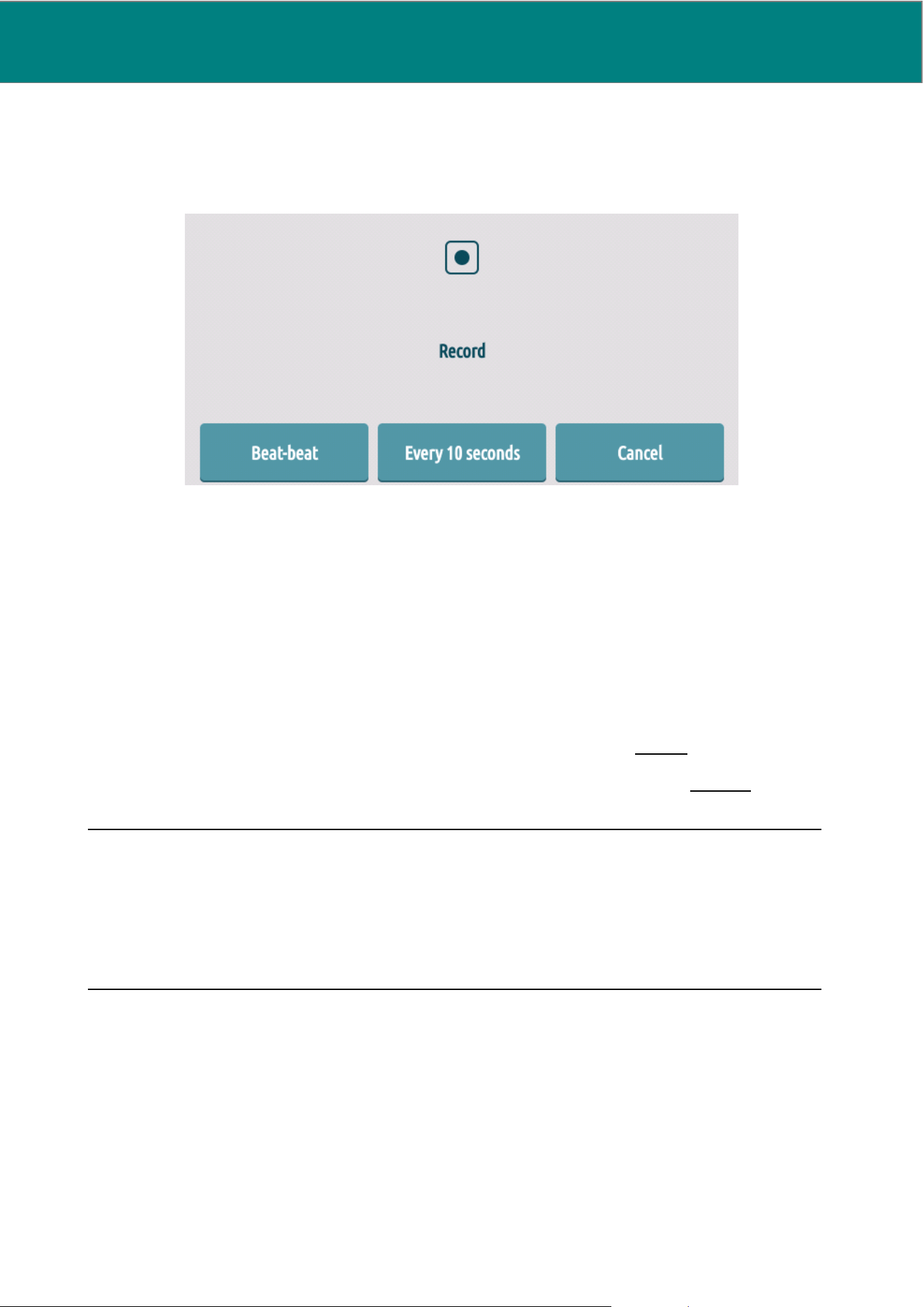
UM0009 rev 0 of 30.07.2026 43
9.1.4 Record
The “RECORD” function allows the user to save monitoring data, with features that are different from standard
recording (which MostCare
Up
executes automatically for every monitoring).
By pressing the “RECORD” button, the following screen appears:
The following types of recording are available:
“Beat-beat” button: A sample is recorded with every heartbeat
“Every 10 Seconds” button: A sample is recorded every 10 seconds
To start recording, select the type of recording required. The recording activity is displayed on screen by a
flashing indicator on the upper right side: REC ●.
To cease recording, open the lateral menu again and press “STOP” (this button is displayed when recording,
in place of the “RECORD” button).
Both types of recording have a time limit:
• For “Beat-Beat” recording, if the user does not cease recording within 3 hours, the system issues a
warning and stops.
• For “Every 10 Seconds” recording, if the user does not cease recording within 24 hours, the system
issues a warning and stops.
CAUTION: If there are issues with the internal memory and the user is unaware of them, this
could lead to data loss. Please note the following:
1. You can not start the two consecutive records within the same minute. In this case, the first
recording will be lost.
2. If the MEM.ERR warning is on, records will not be saved in the internal memory. A USB flash
drive is needed, on which to save the recordings.
Once finished, the recording is stored into MostCare
Up
internal memory, in the current monitoring folder, with
the following format: MostCareUp-date-time.csv.
If the user wishes to save the recording also on a USB flash drive, the latter must be inserted into the
appropriate slot before the end of the recording, so that storage can be executed automatically at the end of
the recording.
If for any reason storage on the USB flash drive fails (no USB flash drive, insufficient USB memory), the
following message is displayed on screen: 'USB STORAGE FAILED', with a choice between “Retry” and
“Cancel”.

44 UM0009 rev 0 of 30.07.2026
To access the internal memory monitoring archive on MostCare
Up
, go to the Main menu and open the
“MONITORING DATABASE” submenu.
9.1.5 Freeze
This function makes a screen snapshot, which is saved in the monitoring folder at the end of the monitoring
and may be reviewed by PC once saved the monitoring on USB flash drive.
The function is only active during monitoring (not in demo mode). The snapshot is made when the “FREEZE”
button is pressed. The side menu closes automatically so you can make a screenshot of the screen.
The file is saved in the monitoring folder and is named Date_time.jpg.
If you want to save the freeze in real time, just plug the USB flash drive and press the “FREEZE” button: in
that case, the image will be saved on USB flash drive not in folders (the same as beat-beat recording and
every 10 seconds recording).
The maximum number of freezes for monitoring is 20.
NOTE: To perform this action, it is necessary to log in using username and password.
CAUTION: If the operator does not save the screenshot, or if windows remain open while taking
it, blocking the view of information, this will result in data loss.
• The function automatically closes only the lateral pop-up menu, but not any other windows
that can be opened at the time of shooting. In that case the freeze includes also the possible
screens.
• If the MEM.ERR warning is on, freezes will not be saved in the internal memory. A USB flash
drive is needed, on which to save the freezes.
9.1.6 End of monitoring
This function stops active monitoring following the user's confirmation and zeroes the active monitoring residual
time counter (if the device is functioning on a use-based and not time-based basis). The user should utilize
this function every time monitoring needs be interrupted.
Should the user fail to utilize this function before switching off the device, when switching on again, the device
will ask whether to continue with the ongoing monitoring (if there are still some minutes left) or to start a new
monitoring.
CAUTION: If the MEM.ERR warning is on, monitorings will not be saved in the internal memory
causing a loss of data. A USB flash drive is needed, on which to save the monitorings.
9.1.7 Standby / off / end demo
This function is needed to switch the software off (when functioning with battery), for software stand-by (when
operating under electrical mains power) or to end a demo if you're running one. Switching off the device or
putting it in stand-by mode automatically saves all data.
Before switching off the device or putting it in stand-by mode, user confirmation is required.
See images at Section 9.1.
Alternatively, it is possible to switch off/set in stand-by mode the system by pressing the ON/OFF left lateral
side button and releasing it after a few seconds. In this instance too, user confirmation is required via a specific
menu.
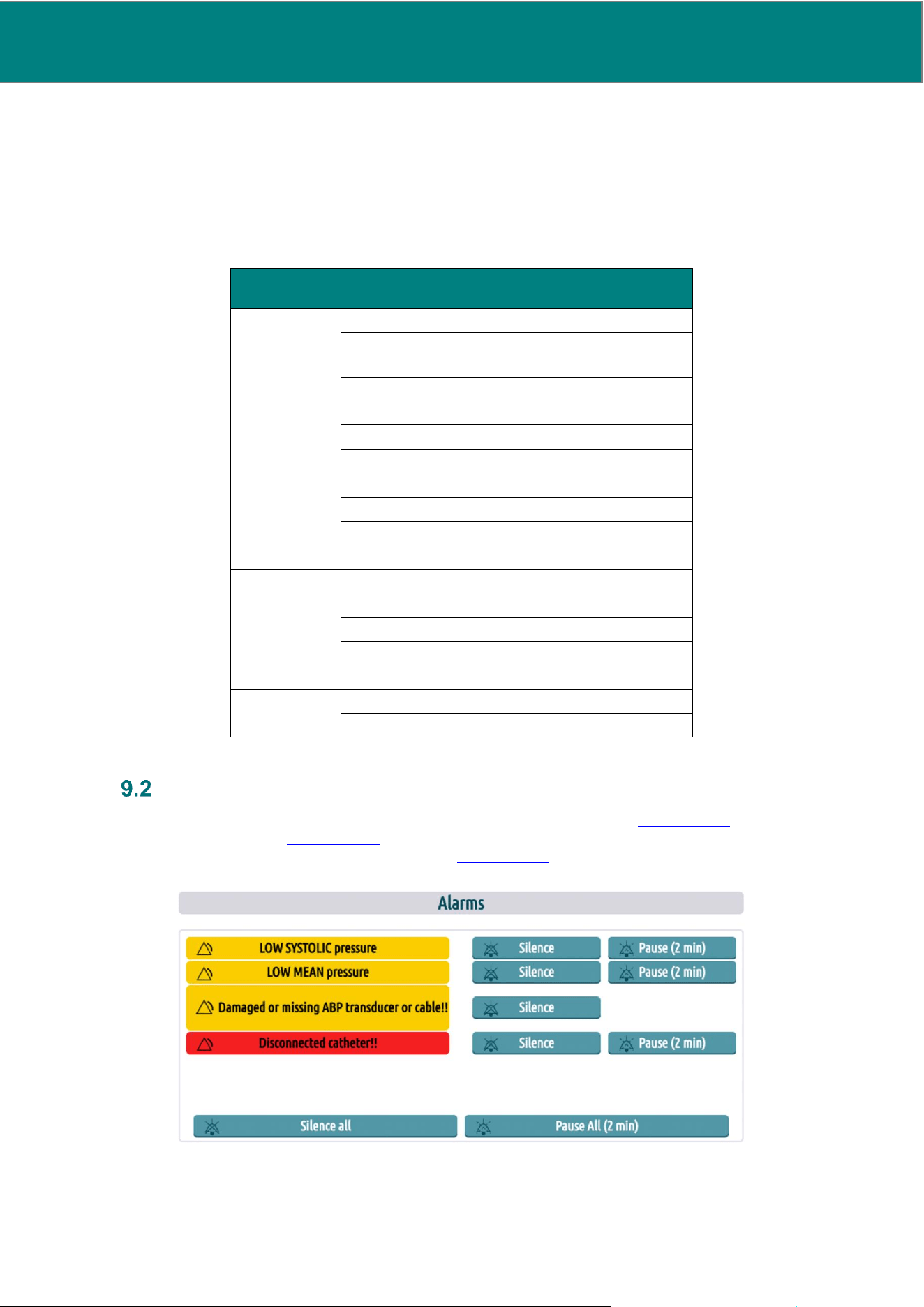
UM0009 rev 0 of 30.07.2026 45
In case of a functional system block, it is possible to force a shut-down by keeping the button pressed for 20
seconds.
9.1.8 Save configuration
This function allows to save the actual configuration. The settings that are going to be saved inside each
custom configuration are reported in the table below:
Menu item
Parameter
CURVES
SETTINGS
TIME SCROLLING CURVES
NUMBER OF BEATS ON WHICH TO
AVERAGE
CALIBRATION INTERVAL (NIV)
SETTING
MARKER
and TREND
TREND VARIABLES
CHOOSE LAYOUT
ENABLE OPTIMIZE SCALE
TIME WINDOW
TREND HISTORY: TEMP. WINDOW
DO&CHECK: VARIABLES
DO&CHECK: WINDOW TEMP.
VARIABLE
SETTING
INDICATION
VALUE CVP
4 CUSTOMIZABLE LOWER VARIABLES
TIME OF DYNAMIC VARIABLES
CO → SV
MENU
VOLUME ON/OFF
MAP CALCULATION
Alarms menu
When the physiological variable value falls outside the pre-defined range (see Section 9.2.2) or a technical
alarm condition exists (see Section 9.2.3), a visual and audible alarm is triggered and the ‘’ALARMS’ is
automatically displayed. An alarm related string (see Section 9.2.4) is also displayed in the upper horizontal
bar. User can manually open ‘ALARMS’ by pressing on the alarm related string.
The activities connected with an ongoing alarm are the following:
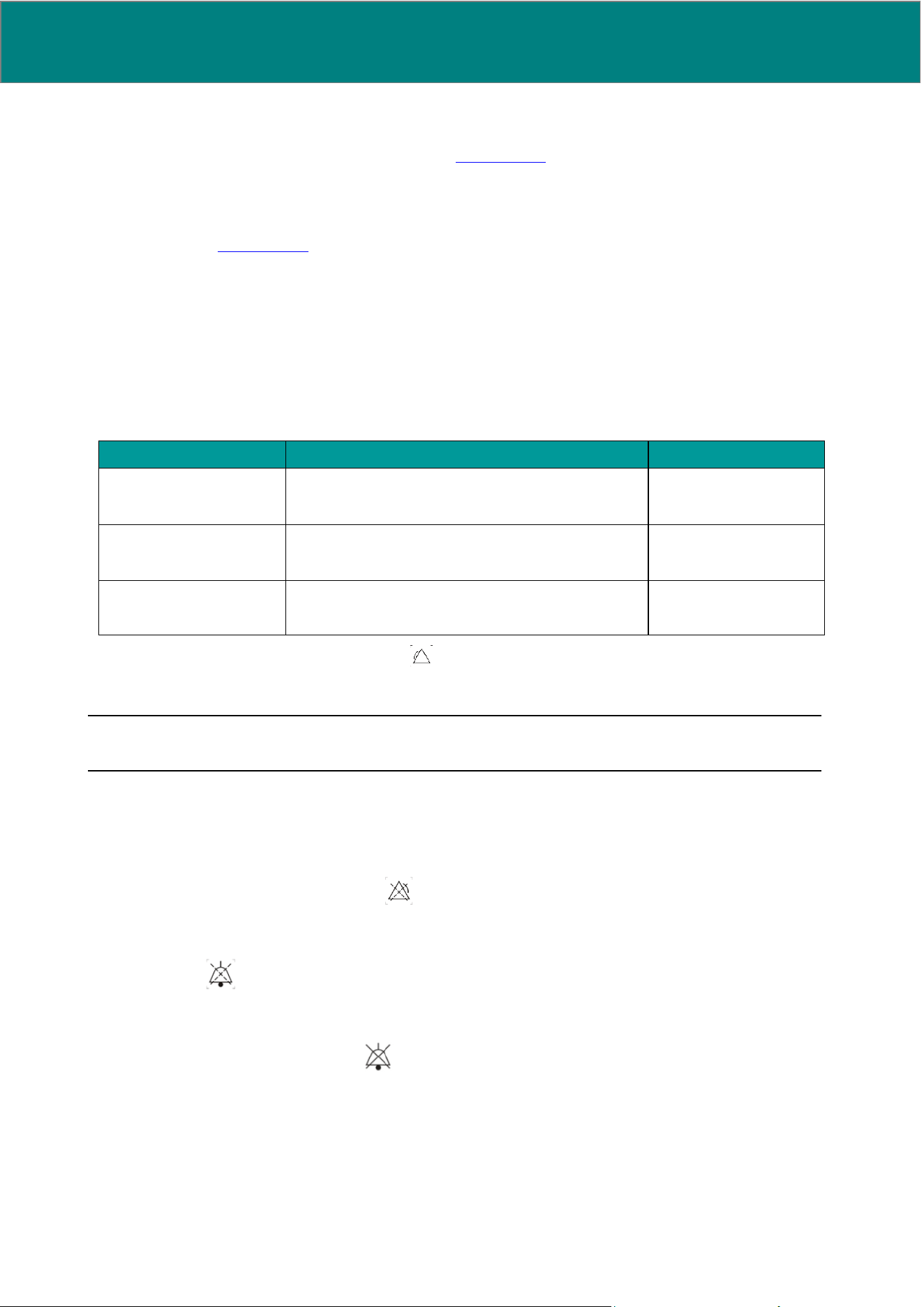
46 UM0009 rev 0 of 30.07.2026
“Silence/Silence All” button: This function allows the user to disable the sound of an active alarm. The sound
disabling will not persist if the same alarm condition will be triggered again at a later time. The related visual
string is permanently displayed (on the upper bar, see Section 9.2.4) as long as the alarm condition is ongoing.
“Pause/Pause All” button: This function allows the user to disable the sound of an active alarm for a set length
of time (2 minutes). The sound disabling will persist for 2 minutes. For 2 minutes, no sound will be produced
even if the alarm condition will be triggered again within. The related visual string is permanently displayed (on
the upper bar, see Section 9.2.4) as long as the alarm condition is ongoing.
“Reset/Reset All” button: This function allows the user to reset an active alarm whose triggering is no longer
occurring (Latching alarm).
“Electrosurgery” (Visible only when “Y CABLE UNSTABLE” alarm is present): Press this button if you are
using an electric scalpel along with MostCare
Up
. The ‘ALARM PAUSE’ symbol will be shown to indicate that
the unstable voltage alarm is deactivated until the end of monitoring.
Alarms priority and visual/auditory features:
Depending on the different priorities, the alarms have the following characteristics:
Alarm priority
Audio Signal
Color on screen
LOW PRIORITY
1 single pulse repeated over time at regular
intervals (10 s)
Cyan
Constant
MEDIUM PRIORITY
Medium priority audio signal: audible alarm
consisting of 3 impulses repeated over time at
regular intervals
Yellow
Slow flashing
HIGH PRIORITY
High priority audio signal: 3 impulses followed by 2
additional impulses after a slightly longer time
interval.
Red
Fast flashing
The alarm condition is indicated by the symbol accompanied by an explanation of the alarm.
The volume emitted by the auditory alarm signal is about 55 dB.
NOTE: Alarm volume is not adjustable.
WARNING: If the operator is unaware that an alarm is active, this may lead to the user not being
alerted to a patient’s health condition that requires attention, resulting in an incorrect clinical decision.
Please note:
• By selecting “Disable All”, both acoustic and optical alarms are disabled for the duration of
the monitoring, and the symbol appears on the upper horizontal bar. User can re-enable
alarms at any time.
• By selecting “Pause” or “Pause All”, alarm sound is disabled for two minutes, and the
symbol appears on the upper horizontal bar. User can re-enable alarm sound at any
time.
• By selecting “Silence” or “Silence All”, alarm sound is disabled for the remaining duration of
the alarm condition, and the symbol appears on the upper horizontal bar.
1. MostCare
Up
automatically detects pulse presence. During zeroing and when the transducer
is connected to the patient, the alarms are disabled until the first pulse is detected.
2. Do not disable acoustic alarms if this could compromise patient safety.
A potential danger may arise in case that different alarm presets are used for the same device, or
similar devices placed in the same area (e.g. in an intensive care unit or in a cardiac surgery room).
Setting alarm limits to extreme values can render the alarm system useless.
UM0009 rev 0 of 30.07.2026 47
9.2.1 Verification of the correct functionality of the alarm system
To verify that the alarm system is working properly:
• Start a standard demo from MENU > DEMO
• From lateral pop-up menu, enter ‘ALARMS SETTINGS’
• Change the value of a limit so that the parameter (e.g. systolic pressure) is beyond the limits
• Check that the alarm is properly triggered
• Check that the alarms menu is correctly displayed
• Check that the alarm sound is heard
• Check that the alarm symbol is correctly displayed.
This operation shall be performed periodically by the clinical engineering (see Section 12 for periodicity).
9.2.2 Physiological alarms
Physiological alarms are connected to the following variables:
• High/low diastolic pressure
• High/low systolic pressure
• High/low mean arterial pressure
NOTE: MostCare
Up
doesn’t feature pulse rate related physiological alarms.
The default alarm values are the following:
Values
Minimum
Maximum
Unit of measure
Diastolic
45
110
mmHg
Systolic
90
160
mmHg
Mean
60
125
mmHg
Physiological alarms have medium priority.
Alarm delay:
All the alarm conditions are detected within a maximum time of 20 s. The alarm delay is directly proportional
to the number of heartbeats on which the pressure/saturation average is done: the average can be set from 1
to 30 heartbeats, with default 10 heartbeats, and a change in value and therefore the alarm can occur for
example after 10 beats.
9.2.3 Technical alarms
MostCare
Up
alarm system includes the following technical alarms:
• Damaged/absent transducer/cable
• ABP Disconnected Catheter
• Memory error
• Battery error
• Low Battery
• Unstable Y cable voltage
48 UM0009 rev 0 of 30.07.2026
• Out of range Y cable voltage
Alarm delay:
All the alarm conditions are detected within a maximum time of 10 s.
NOTE: The technical alarms are managed only during patient monitoring and are not enabled during
configuration operations (from menu).
9.2.4 Alarm strings and description
The table below summarizes the alarm strings for each physiological and technical alarm condition:
String
Meaning
Description
Priority
Physiological alarms
HIGH.DIA
High diastolic
pressure
This alarm is triggered if diastolic pressure is higher
that the set range limit.
Medium
LOW.DIA
Low diastolic
pressure
This alarm is triggered if diastolic pressure is lower
that the set range limit.
Medium
HIGH.SYS
High systolic
pressure
This alarm is triggered if systolic pressure is higher
that the set range limit.
Medium
LOW.SYS
Low systolic
pressure
This alarm is triggered if systolic pressure is lower
that the set range limit.
Medium
HIGH.MAP
High mean
pressure
This alarm is triggered if mean pressure is higher that
the set range limit.
Medium
LOW.MAP
Low mean
pressure
This alarm is triggered if mean pressure is lower that
the set range limit.
Medium
Technical alarms
FALLING.ABP
Sudden drop in
ABP pressure
Alarm is triggered in case of sudden voltage drops,
from any stable pressure value to less than 10
mmHg.
High
ABP.ERR
Transducer error/
ABP cable
damaged or
absent
Alarm is triggered if the ABP pressure transducer or
the related cable results damaged or absent
Medium
CVP.ERR
Transducer error/
CVP cable
damaged or
absent
Alarm is triggered if the CVP pressure transducer or
the related cable results damaged or absent
Medium
MEM.ERR
Internal memory
error
Alarm is triggered is the internal memory is corrupted
or not reachable.
Medium
BATT.ERR
Internal battery
error
Alarm is triggered if internal battery has voltage
issues or is detached.
Low
INSUFF.BATT
Insufficient battery
charge (last few
minutes of
autonomy
remaining)
Alarm is triggered if battery charge is insufficient to
safely continue monitoring and correct data storage is
not guaranteed. The icon will be displayed on
the upper bar of the screen. If the user does not
connect the device to the mains following this alarm,
the system will switch off, after issuing a warning,
once the battery is fully exhausted.
Medium
Y.UNST
Unstable Y cable
voltage
If Y cable is connected, the voltage reference is not
internal but is detected from another device. This
alarm signals an external voltage reference anomaly.
The alarm is triggered when voltage oscillates by
more than ±0.5 V within a 3 seconds interval. The
maximum and minimum voltage values recorded in
the last 3 seconds are shown in the alarm popup.
Medium
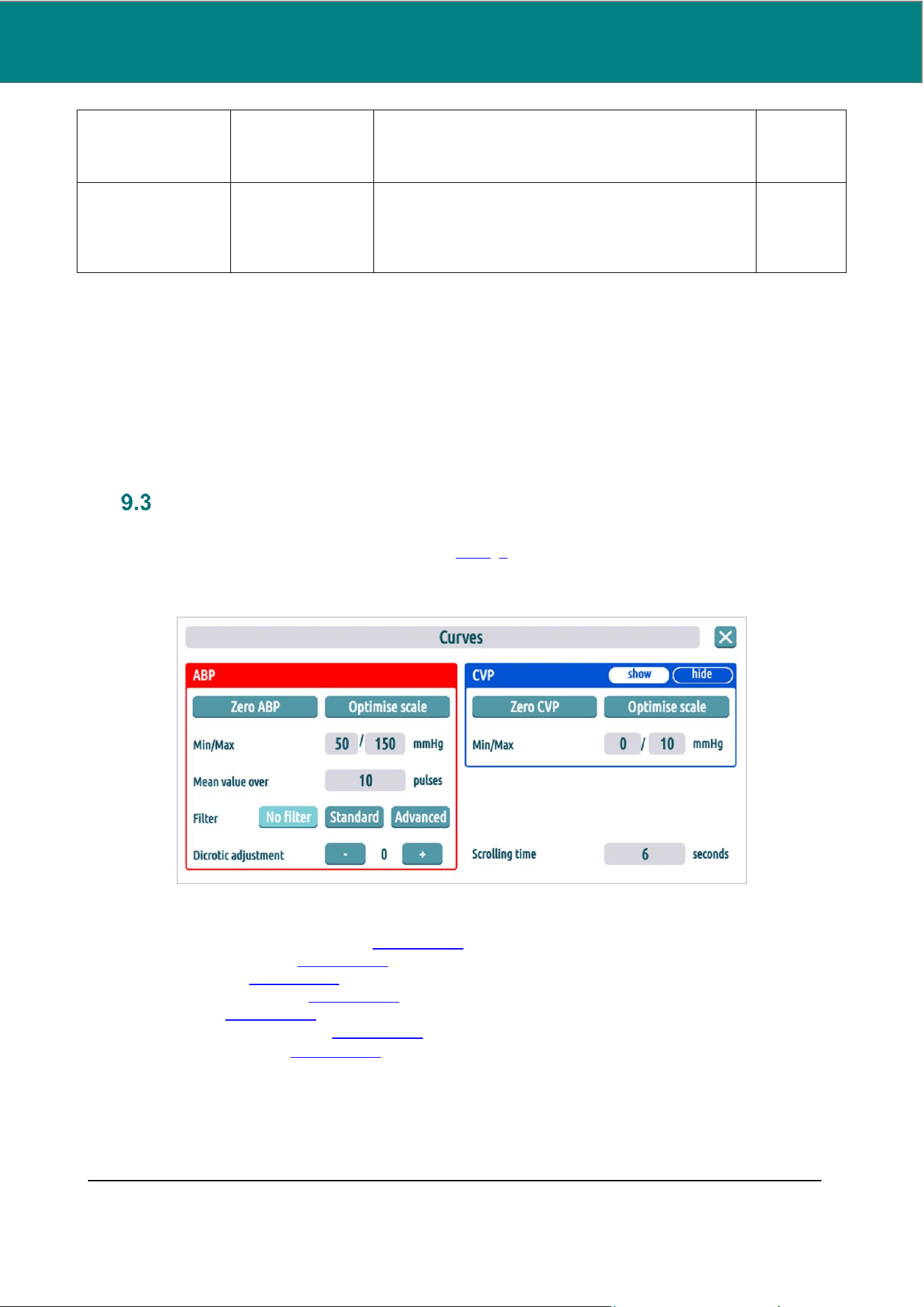
UM0009 rev 0 of 30.07.2026 49
Note: If MostCare
Up
is used in combination with
electrosurgical units, user can silence this alarm for
all the duration of the monitoring using the
“ELECTROSURGERY” button in the alarm popup.
Y.RANGE
Y cable voltage out
of range
If Y cable is connected, the voltage reference is not
internal but is detected from another device. This
alarm signals an external voltage reference anomaly.
The alarm is triggered when voltage is above 7 V or
below 2 V
Medium
9.2.5 Validity of measured values during alarm condition
During a technical alarm condition, the displayed physiological variables and measured values could be
affected. In this case, one of the following measures are taken, to permit the operator to assess the validity
of the displayed value:
• The values are blanked by “---” and not visible
• The values are still shown, but in the alarm popup the indication “Values not reliable” is readable
along with the alarm indication (for example in case of alarm Y.UNST and Y.RANGE).
Curves
The Curves menu features the following functions related to the ABP and CVP (if present).
To opern the curve menu see instructions at sections 8.1.5, 9.
The screen appears as follow:
Each function is explained in the following sections:
- “Zero ABP” and “Zero CVP” see Section 9.3.1
- “Optimise scale” see Section 9.3.2
- “Min/Max” see Section 9.3.3
- “Mean value over” see Section 9.3.4
- “Filter” see Section 9.3.5
- “Dicrotic adjustment” see Section 9.3.6
- “Scrolling time” see Section 9.3.7
9.3.1 Zero ABP and Zero CVP
The 'ZERO ABP' and 'ZERO CVP' functions allow the setting to zero of the respective detection channels for
ABP and CVP pressure signals if in use. MostCare
Up
requires zero pressure at the start of every new
monitoring.
50 UM0009 rev 0 of 30.07.2026
NOTE: When a patient is connected without zeroing, only pressure values will appear, together with a warning
to execute zeroing.
If an ABP input from Monitor In is featured, zeroing at the start of the monitoring is not compulsory, though it
will however be possible to execute it.
If MostCare
Up
detects a sensor connected to a patient, it will not be possible to set values to zero. The user
will be warned via a video message when trying to recall this function.
ZERO pressure
ABP
Open the ABP transducer circuit putting it on 'air'. Zero by means of the specific “ZERO
PRESSURE” button on the Curves menu. It is essential to zero this channel when it is
used.
CVP
Open the transducer circuit putting it on 'air'. Zero by means of the specific “ZERO
PRESSURE” button on the Curves menu. It is essential to zero this channel when it is
being used.
WARNING: If the zero of the transducer is not performed, this may result in an inability to perform
the monitoring. If zero calibration is performed incorrectly, this may lead to unreliable variable
readings and, consequently, to an incorrect clinical decision. MostCare
Up
will issue a warning and
not zero the transducer (both ABP and CVP) if the offset relative to the 'theoretical' zero value
(calculated with no voltage, i.e. the zero value for which the device has been calibrated) is higher
than an absolute value of 50mmHg (lower than -50 or higher than +50).
9.3.2 Optimise scale
“Optimise scale” button allows the user to optimize the scale of the ABP, CVP and CNBP pressure curves.
The optimize scale function allows automatically adapting the maximum and minimum limits of a curve
according to the signal level.
9.3.3 Min/Max
Besides the automatic Optimise Scale function, MostCare
Up
allows manually changing the maximum and
minimum limits of the ABP, CVP and NIBP pressure curves.
The minimum settable value is 0 mmHg. The maximum settable value is 300 mmHg. The user will not be
allowed to select values outside this range.
The default ranges are shown in the tables below.
Site
Minimum
Maximum
Unit of measure
ABP/CNBP
40
160
mmHg
CVP
5
25
mmHg
9.3.4 Mean value over
Mean value over allows the user to choose and manually enter the number of heartbeats used to average the
values displayed.
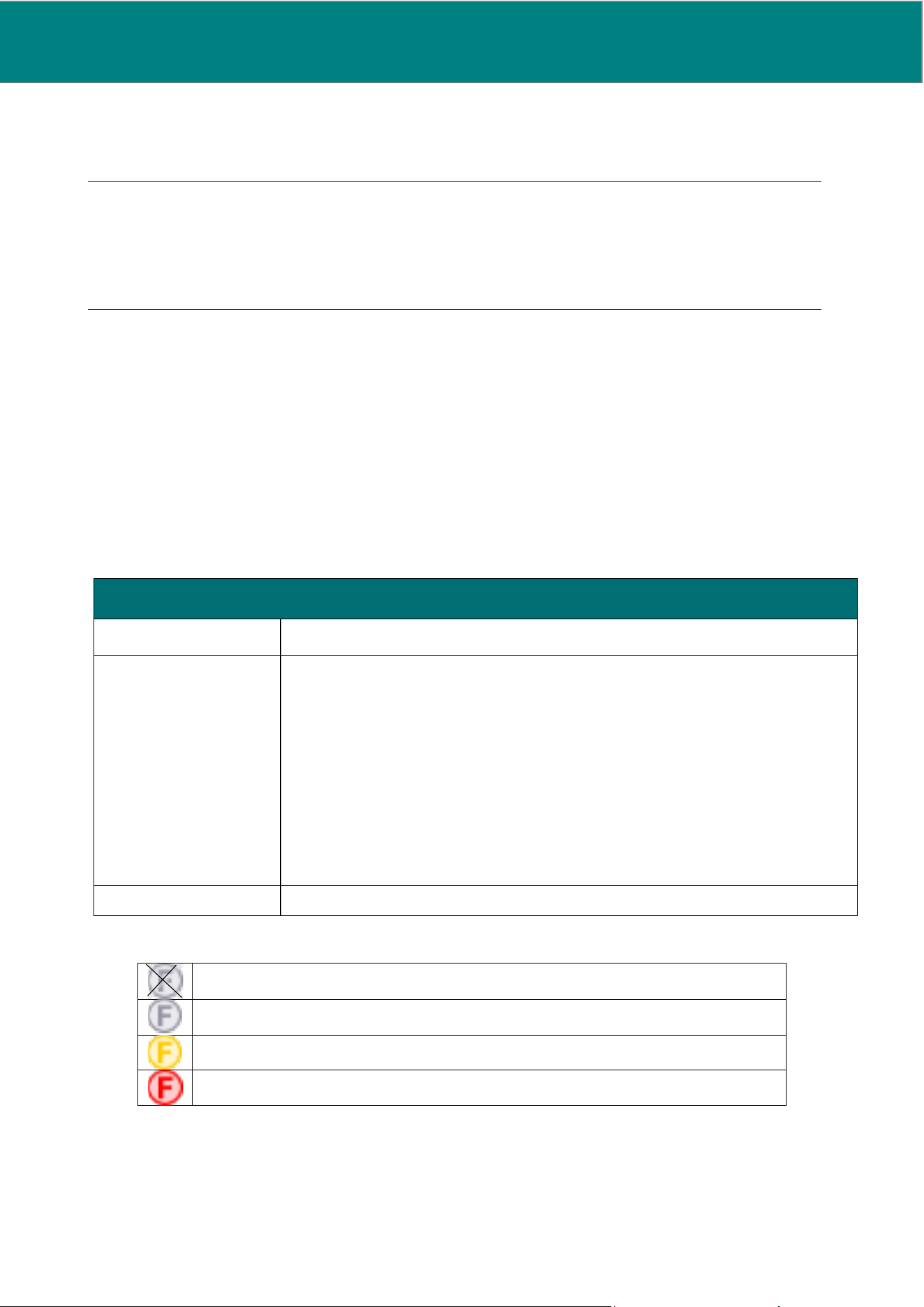
UM0009 rev 0 of 30.07.2026 51
MostCare
Up
can in fact display beat-beat values or values averaged on a chosen number of heartbeats (up to
a maximum of 30). MostCare
Up
displays default values that are the average of 10 beats: this setting is
automatically set for every new monitoring.
NOTE: This choice only relates to viewing values on the display, and has no effect on storing trends, which is
controlled by other settings.
NOTE: If a number of heartbeats greater than 10 is set, it is possible that the physiological alarms will not be
triggered within the times set by EN 60601-1-8.
9.3.5 Filter
This section allows the user to set the dynamic optimization of arterial pressure signal quality, when the latter
is affected by resonance artefacts due to the arterial pressure transducer line (or to incorrect underdamping).
MostCare
Up
is set up for the monitoring of standard pressure signals and is usually capable of carrying out
quality measurements and calculations. In some situations, patient characteristics or treatment type may
require different adjustments of the filter with which MostCare
Up
detects the pressure signal.
It is possible to select three filtering options:
• STANDARD
• ADVANCED
• NO FILTER
FILTER TYPE
STANDARD
Default setting: a moderate filtering of the pressure signal is applied in the event of
the system recognizing a case of underdamping.
ADVANCED
Utilize this setting when the pressure signal is disturbed by agents which cannot
be attenuated operating on the external lines, and when the standard mode is not
adequate.
MostCare
Up
re-elaborates the pressure signal, applying a more restrictive signal
than in the standard case, so as to isolate and minimize the impact of the
disturbing element on the pressure curve and all the variables derived from it.
This selection is recommended when the patient being monitored is supported by
external mechanical support devices, such as hemofiltration equipment or artificial
ventricles.
NO FILTER
No filter is applied to the signal.
When a filter is active, the corresponding F symbol, to make it visible to the user, appears on the curve
CROSSED-OUT WHITE when NO FILTER is selected
WHITE if standard or advanced filters are selected but not active because the
signal is of a good quality
YELLOW if STANDARD filter is active
RED if ADVANCED filter is active
9.3.6 Dicrotic adjustment
This section of the curves menu allows the user to optimize the correct detection of the dicrotic incisure,
displayed as a green vertical bar.
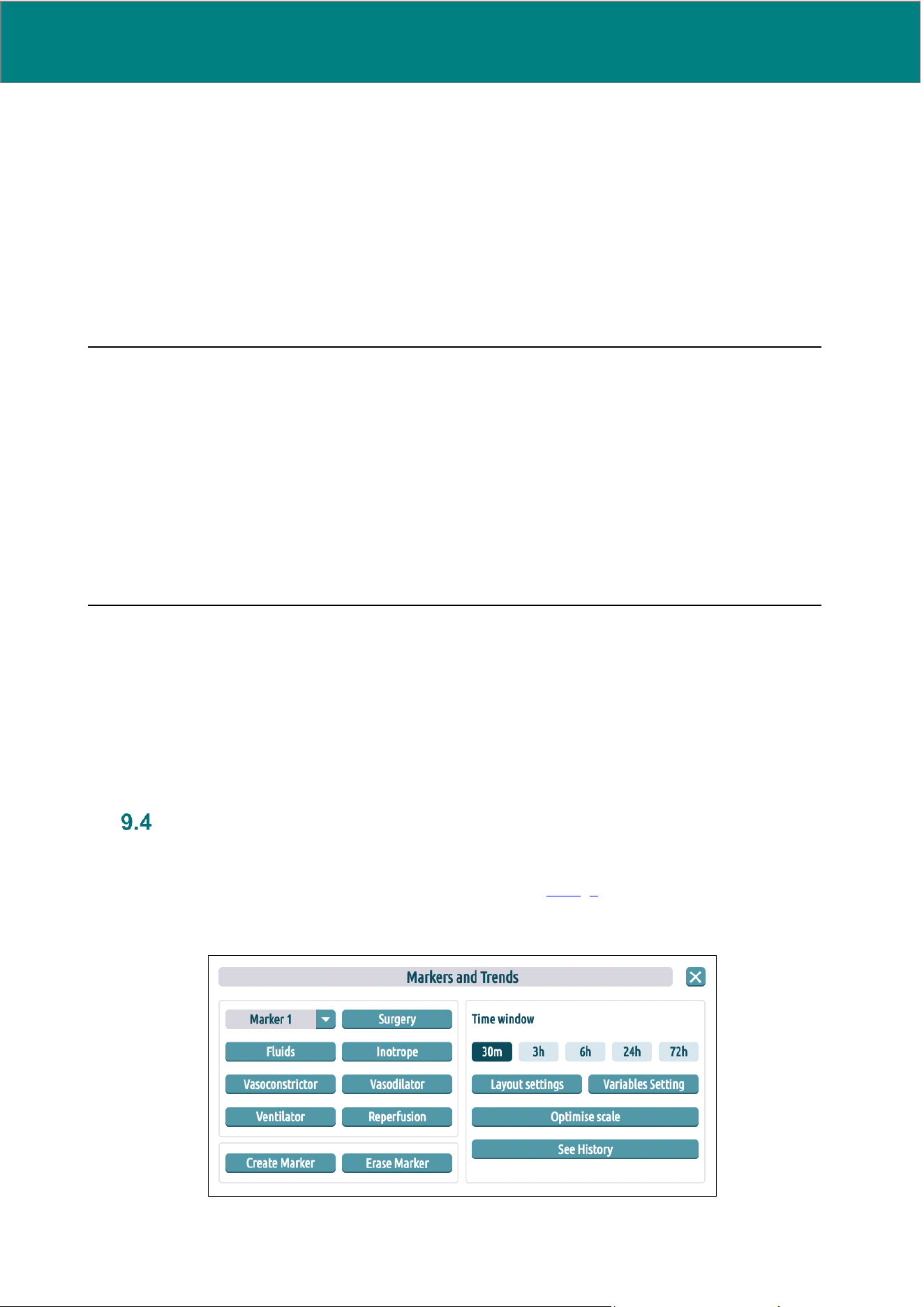
52 UM0009 rev 0 of 30.07.2026
In the majority of cases, MostCare
Up
detects and correctly identifies the heartbeat within the ABP signal.
However, under specific pathological conditions, or when the signal isn't optimally detected by the pressure
sensor, it may happen that MostCare
Up
cannot detect the dicrotic incisure point correctly for all consecutive
heartbeats; for example, the green bar may tend to appear before or after the patient's actual dicrotic incisure.
In such cases it is possible for the user to carry out a manual correction by means of this menu, dedicated to
dicrotic optimization.
For correct dicrotic setting you need to know that:
• Zero corresponds to standard heart beats and covers the majority of cases
• If the dicrotic incisure detected ranges between systolic and 'true dicrotic', a positive adjustment
of 1, 2, 3, 4 or 5 will need to be set (depending on the amount of dicrotic shift)
• If the dicrotic incisure detected lies beyond 'true dicrotic', or some pulses cannot be detected, a
negative adjustment (-1, -2, -3, -4 or -5) will need to be applied.
WARNING: If the dicrotic notch is not positioned correctly, the derived parameters are calculated
incorrectly, which can lead to an incorrect diagnosis.
Please note the following:
• Verify that MostCare
Up
identifies the arterial pulse components correctly, by checking that,
on the graphic rendering of the pressure curve, the green vertical bar coincides with the
dicrotic incisure point. If this does not happen, hemodynamic data will not be reliable.
• If the green vertical bar appears before or after the dicrotic incisure, apply a more appropriate
setting on MostCare
Up
.
• The ‘DICROTIC DETECTION’ settings will be reset to ‘NORMAL’ values in the case of a new
monitoring.
9.3.7 Scrolling time
This menu setting allows the user to select how many seconds of the pressure curve will be displayed. By
decreasing display time, the visibility of details in the morphology of the curve is improved, while increasing
the time window generates a better overview.
The minimum settable value is 2 seconds. The maximum settable value is 12 seconds. The user will not be
allowed to select values outside this range. The default value is 6 seconds.
Markers and trends
The Markers and trends menu features the following functions divided in two areas, markers on the left and
trends on the right.
To open the markers and trends menu see instructions at sections 8.1.5, 9.
The screen appears as follow:
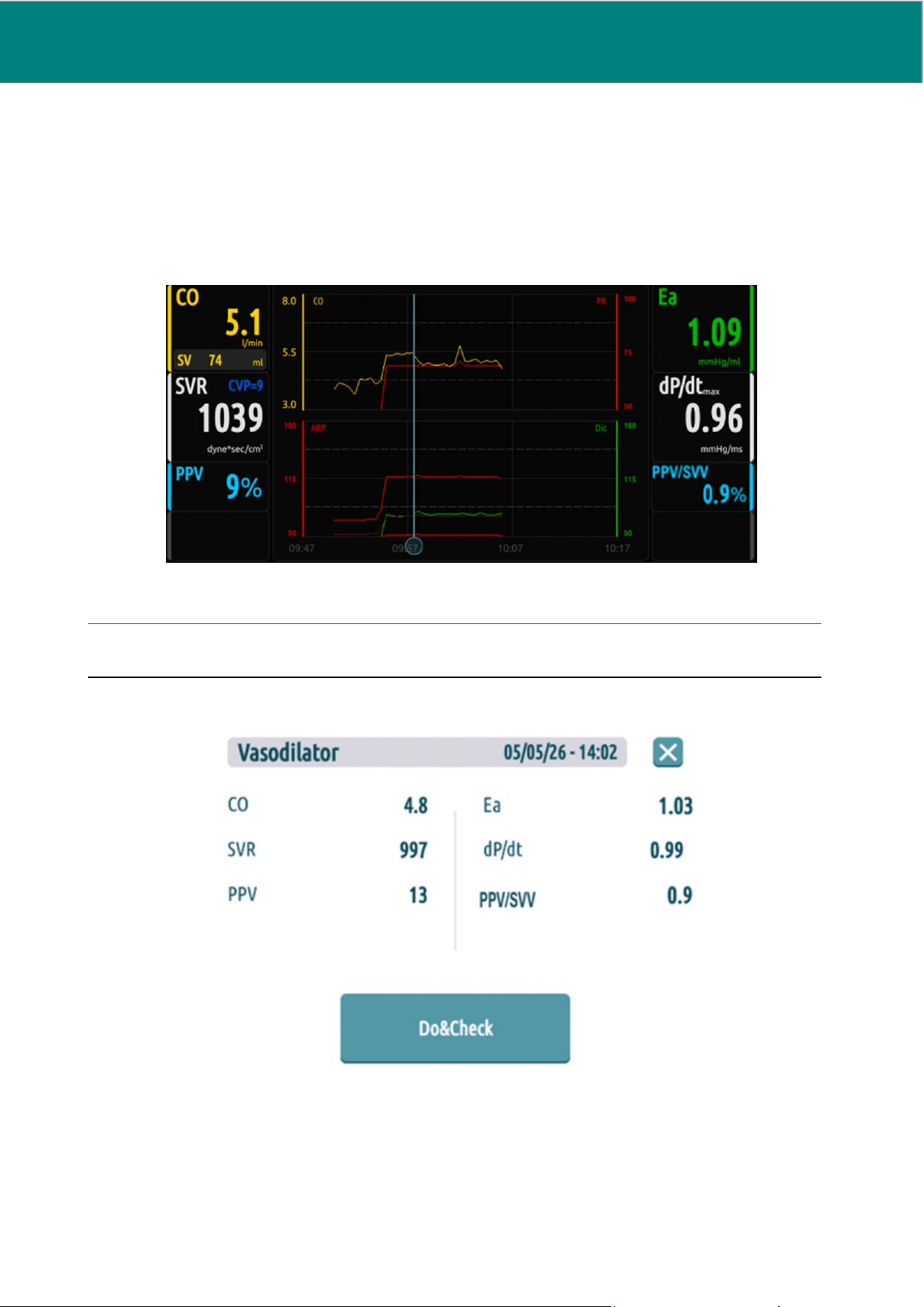
UM0009 rev 0 of 30.07.2026 53
9.4.1 Marker area
This area allows the use of several marker-related functionalities.
Markers are used to show certain events which have taken place during the course of the treatment. The
operator can associate a marker, identified by a sequential number, every time there is the need to highlight
and remember an action or instance.
The sequential number is set back to zero every time a new monitoring is activated.
Markers are displayed on the trend graph as follow:
NOTE: The presence of a marker is stored also when saving data on a USB flash drive.
By clicking anywhere on the marker bar, a window opens displaying information about that marker, as shown
below:
9.4.2 Marker choice
This function allows the user to choose which type of marker to enter.
Up to 13 different types of markers can be stored (7 are fixed by default and 6 can be entered using the
“Create Marker” button, see below).
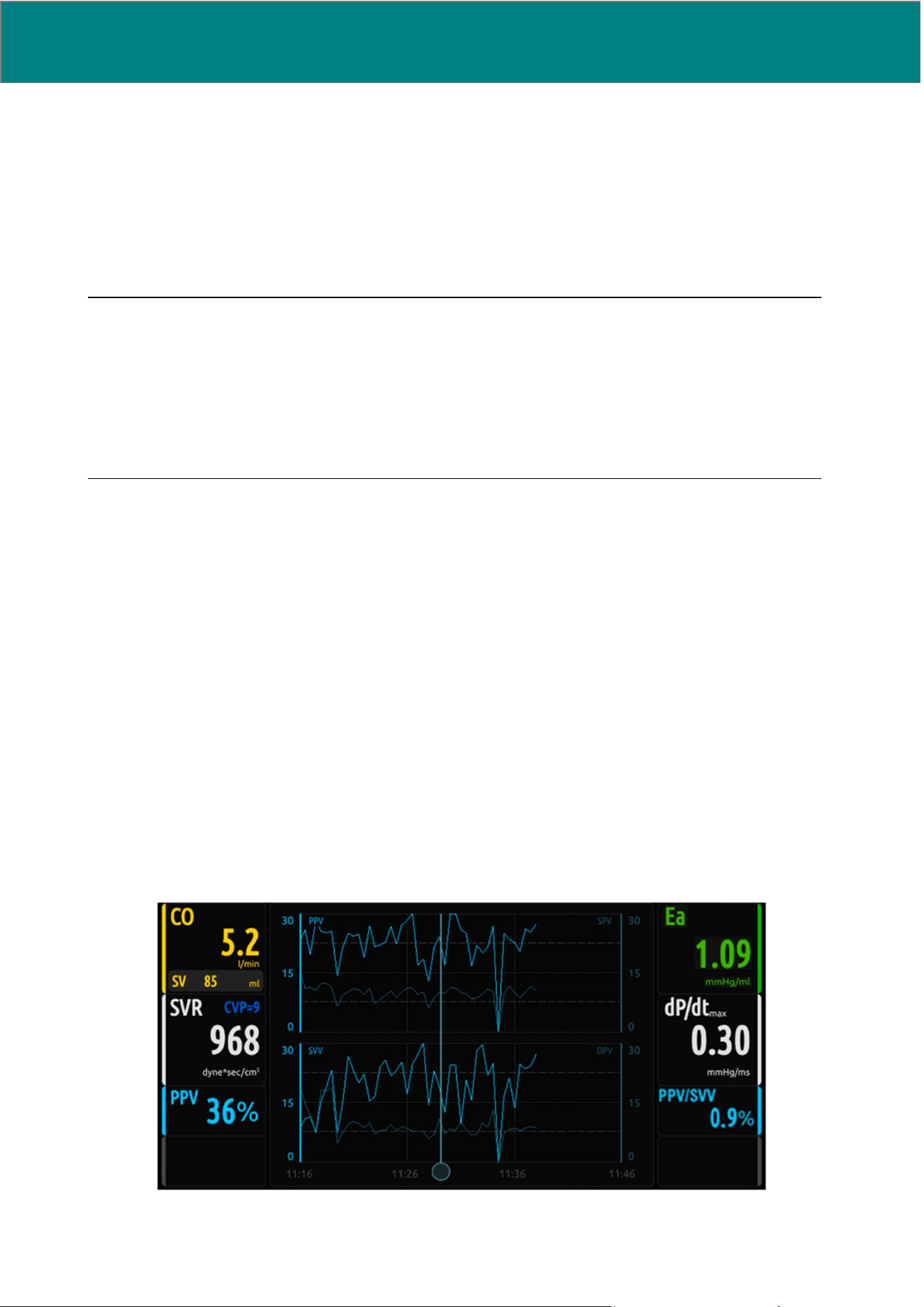
54 UM0009 rev 0 of 30.07.2026
The default markers are:
• “SURGERY”
• “FLUIDS”
• “INOTROPE”
• “VASOCONSTRICTOR”
• “VASODILATOR”
• “VENTILATOR”
• “REPERFUSION”
NOTE:
• It is not possible to enter a marker in the first 30 seconds of the monitoring, and it is not possible to
insert two markers less than 30 seconds apart from each other: should the user attempt such an
operation, MostCare
Up
will issue an error response, preventing the second marker from being entered.
• The MARKER is saved immediately at the time in which it is entered. The blue bar that graphically
displays the event on the trend window may instead appear after a brief delay due to screen refresh.
The indicator will however be positioned at the correct location.
9.4.3 Create customized marker
This function allows the user to create a new marker and add it to the list of default markers.
It is possible to create up to 6 markers. If the user attempts to create more than 6 markers, MostCare
Up
issues an error response and asks for the deletion of one of those already stored.
Once a new marker has been created, it will be possible to select it from the drop-down menu and enter it
into the trend.
The buttons involved are:
“Create Marker”: Allows the creation of a customized marker
“Delete Marker”: Allows the deletion of one or more customized markers from the memory
9.4.4 Trend area
In this area users can view and access several trend-related functionalities.
Trends show simultaneously the evolution over time of two variables (with the exception of the pressure group).
The variables keep their own colours. If however, two variables with the same colour are selected both on the
right and on the left, the right-hand side one, as well as its axis, will be darker and thicker.
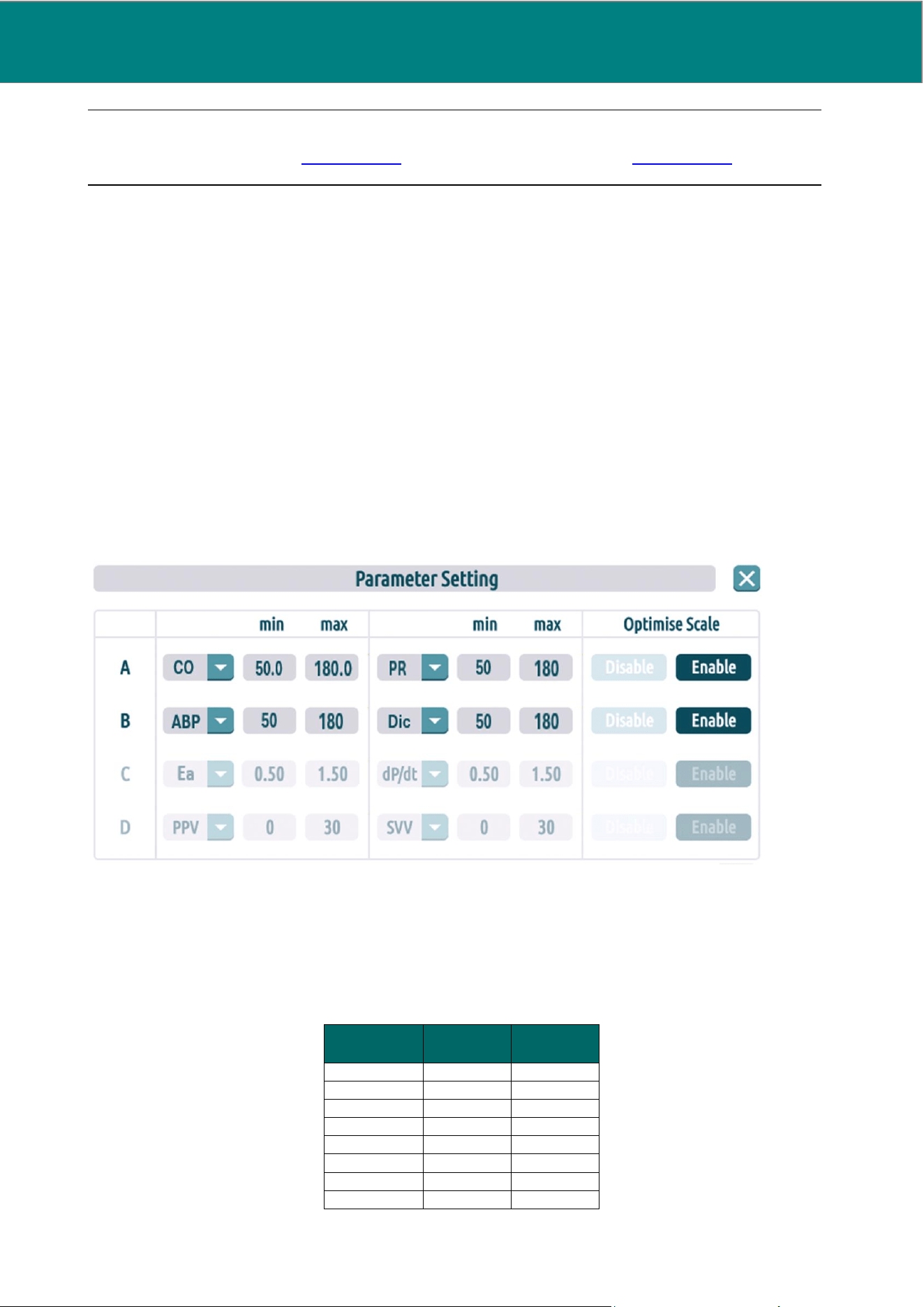
UM0009 rev 0 of 30.07.2026 55
NOTE: The variables displayed in the trend and the layout of the trend area depend on the options selected
via the “Layout settings” (see Section 9.4.7) and “Variables Selection” (see Section 9.4.6) buttons.
Each trend is subdivided in three areas so that four timings will appear on the time line: left axis, right axis and
two central ones. Therefore, if the time window is 30 minutes, each area will cover 10 minutes; in the case of
6 hours, each area will cover two hours, and so on.
9.4.5 Time window
This function allows the user to adjust the real-time trend time window.
The following time windows can be selected:
• 30 minutes
• 3 hours
• 6 hours
• 24 hours
• 72 hours
9.4.6 Variable selection
By clicking on “Variables Settings” the following screen is displayed:
This function allows the user to:
• Choose the variables to be assigned to each trend
• Manually set the maximum and minimum values of the graph
• Execute an automatic rescale by pressing the “Optimise Curve” button
The maximum and minimum default values for each variable are indicated in the table below:
Trend
Min
Max
PR
50
100
ABP
50
180
Dic
50
180
CVP
0
10
CO
3
8
CI
2
4
SV
40
100
SVI
25
50
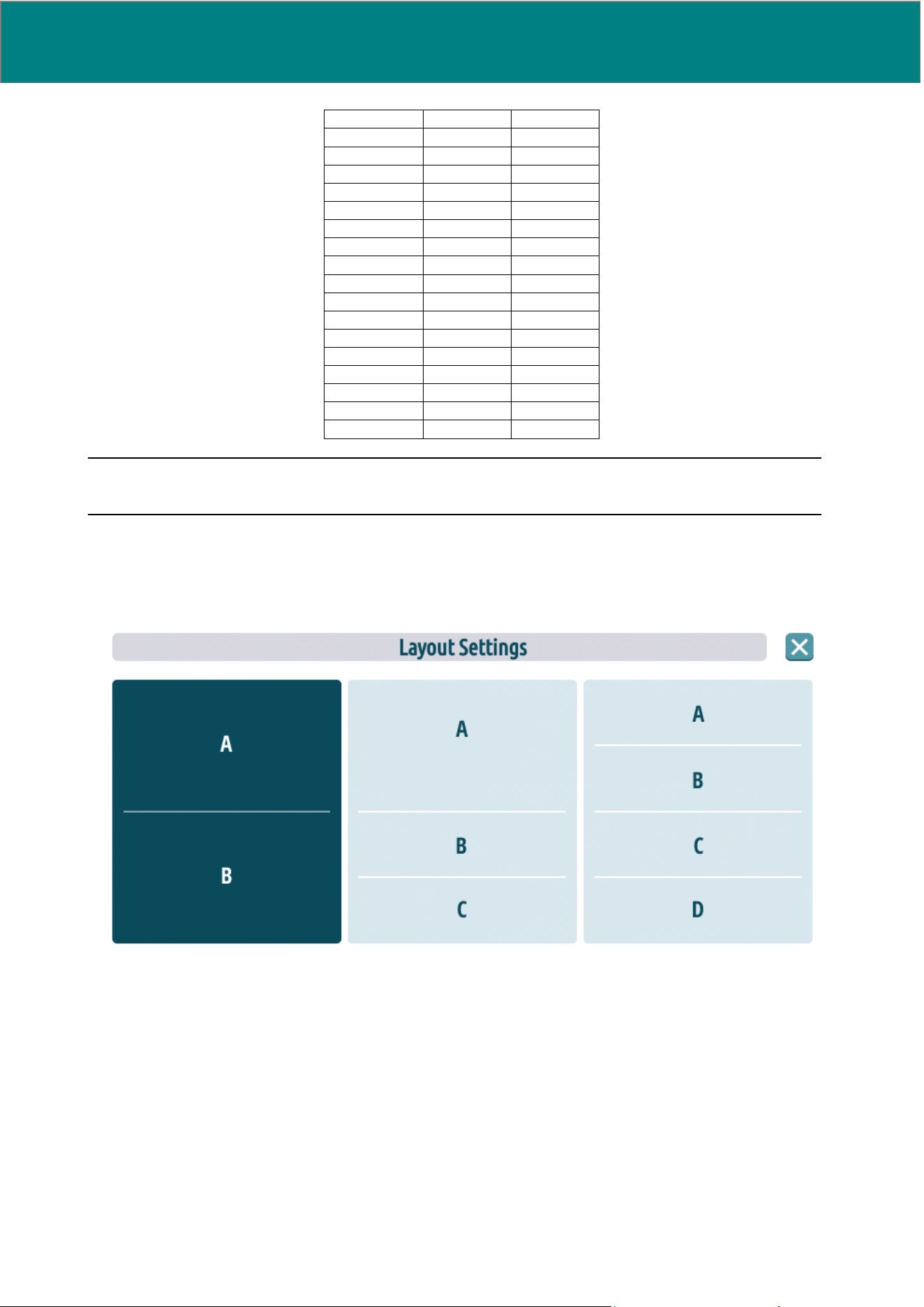
56 UM0009 rev 0 of 30.07.2026
SVR
600
1400
SVRI
1500
2500
dP/dt
max
0.5
1.5
SVV
0
30
PPV
0
30
SPV
0
30
DPV
0
30
Ea
0.5
1.5
PPV/SVV
0.5
1.5
SV
kg
0.5
3
Dia
pk
0
30
DO
2
500
1200
DO
2
I
250
600
PP
20
80
MAP-Dic
-20
20
Ztot
0.3
1.3
CPO
0.4
1
CPI
0.2
0.5
NOTE: If the pressure group is selected as trend variable, Dicrotic pressure will be automatically set as the
other variable.
9.4.7 Layout settings
By clicking on “Layout settings” the following screen is displayed:
This function allows the user to change the trend layout on the display. It is possible to choose among the
following configurations:
• 2 large trends
• 3 trends, of which one large and two small
• 4 small trends
9.4.8 Optimize scale
This function allows the user to optimize the scale for each variable simultaneously in each trend.
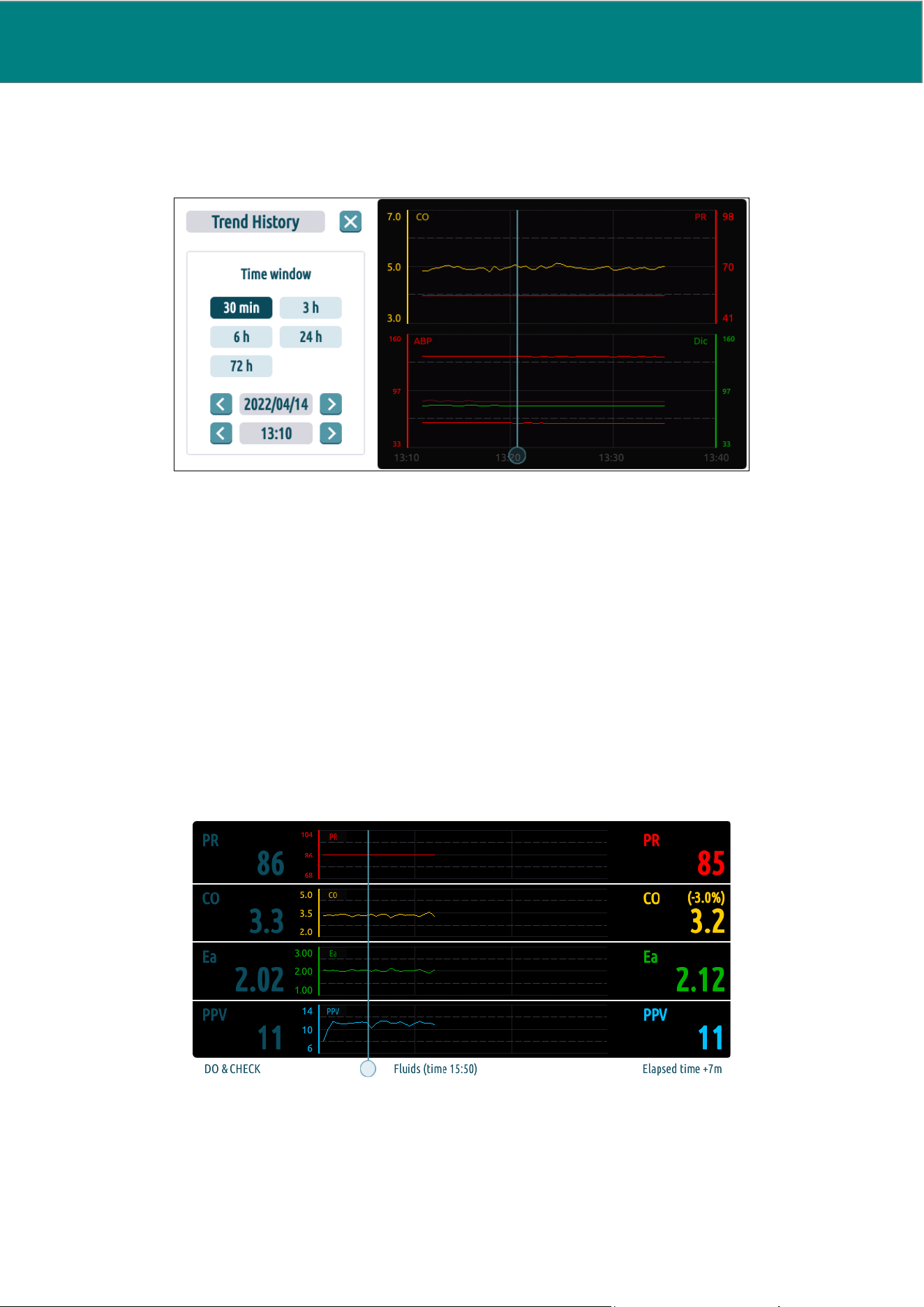
UM0009 rev 0 of 30.07.2026 57
9.4.9 See history
This function allows the user to view a chosen part of the trend graphs (only in relation to ongoing
monitoring).
To start with, the trend history window is set for the same time period chosen for the current trend display: for
example, if it is 12 noon and a 3 h period has been set, trend history will show the portion of graphs from 9 am
to 12 noon.
The user can view a time interval selected from 30 minutes to 3/6/24/72 hours and choose the time and date
for the start of the graph portion to be displayed.
It is possible to navigate in time using the arrows to reach the time required. Each pressure on an arrow
corresponds to a 1/3 graph shift. Once the required time has been reached, the time window can be modified
accordingly.
To close down the history page and return to real-time display, press on X or on the upper screen area (Curves
zone).
9.4.10 Do&Check
The Do&Check function allows the user to verify the status of and view the variation in certain
variables following the administration of specific treatments.
To enable the Do&Check function, please follow the procedure below:
1. Enter a marker
2. Press on the marker
3. Press the “DO&CHECK” button: the “DO&CHECK” screenshot relating to the marker is displayed
4. Touch the screen anywhere in the “DO&CHECK” area to execute set-up:
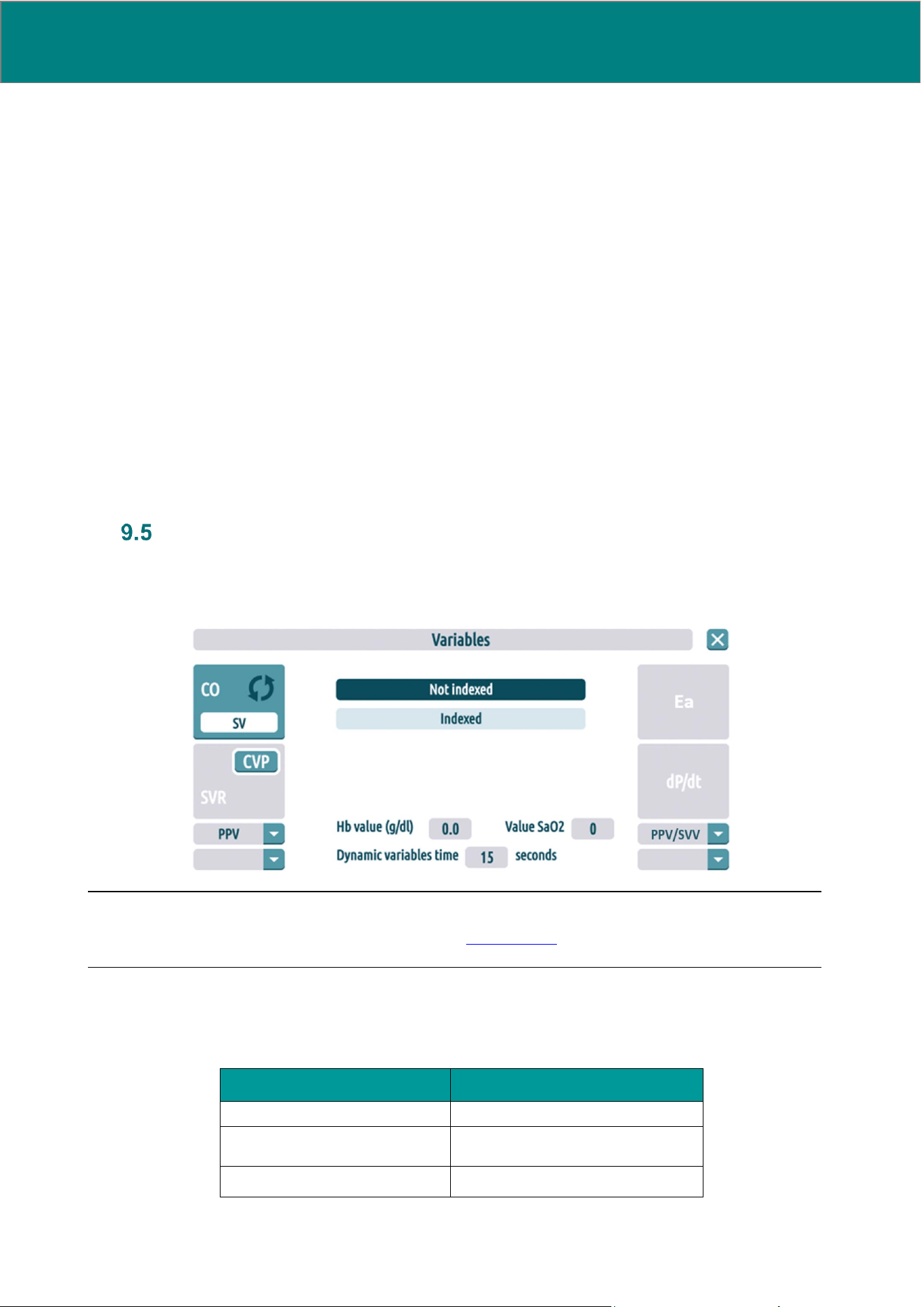
58 UM0009 rev 0 of 30.07.2026
4.1 Choose the 4 variables to be displayed in the “DO&CHECK” screenshot through the 4 drop-
down menus
4.2 Set the trend display time window, choosing between 30 minutes, one and 3 hours
4.3 Optimize the scale for all trends at the same time.
4.4 Close the “DO&CHECK” screenshot and return to graph display (using the “END
DO&CHECK” button)
The 'DO&CHECK' screenshot features are the following:
• The left-hand values are those of 4 variables at the time the marker is set: these parameters, unlike
the other on-screen values, are static and cannot be modified
• The right-hand values are the current values of those same 4 parameters, updated in real time. For
these variables, the screenshot also shows the percentage variation between the initial value (the
marker's value, on the left) and the current value (on the right). ABP shows the 3 values of Psis, Pdia
and Pmed. At the bottom, the time elapsed from the moment the marker is set (in + hh:mm format) is
updated in real time.
• The start time for the graphs is that of the marker minus 5 minutes
• The graphs are set by default on a 30 minutes time scale; after 30 minutes have elapsed, they widen
to one hour and after one hour they widen to 3 hours. After three hours, they leave the fixed position
on the left and begin to scroll backwards by 1/6 every time they reach the end of the scale.
The 'DO&CHECK' function can be enabled for any marker.
Variables
Variables is the menu that allows the user to customize some of the variables. It is accessed by clicking on
the variables' columns.
NOTE: If the manual CVP is selected as the CVP signal input from the Monitoring Settings menu, the CVP
value can be modified by pressing on CVP button (see Section 9.5.4)
9.5.1 Indexing
The “Indexed/Not indexed” buttons allow the user to choose whether to display absolute variables or
corresponding ones, indexed by body surface area (BSA).
Absolute variables
Indexed variables
Cardiac Output (CO)
Cardiac Index (CI)
Resistances (SVR)
Indexed Resistances (SVRI)
Stroke volume (SV)
Stroke volume Index (SVI)

UM0009 rev 0 of 30.07.2026 59
9.5.2 Setting of customizable variables
This section of the menu allows the user to customize the 4 areas at the bottom of the two variable columns.
It is possible to choose among the following variables:
• PPV
• SVV
• SPV
• DPV
• DO
2
or DO
2
I
• PP
• MAP-Dic
• Ea
• PPV/SVV
• SV/kg
• DIApk
• Ztot
• CPI or CPO
• empty (no variable displayed in the cell)
9.5.3 Modify variable position
This function allows the user to modify the position of the two variables featured in the first block on the left
side column. They are CO/SV or CI/SVI.
The change can be made by pressing the specific inversion button.
9.5.4 CVP manual entry
The CVP button is present on the screen only if the manual CVP has been selected as CVP signal input
from the Monitoring Settings menu.
This function allows the user to modify the constant CVP value used during monitoring.
By pressing on the area where CVP is displayed, it is in fact possible to set it to the desired value.
If not modified, the default value for CVP is 9 mmHg.
NOTE: The mean Central Venous Pressure is used to calculate Systemic Vascular Resistances (both
absolute and indexed).
9.5.5 Time window for dynamic variables
MostCare
Up
displays the influence that intrathoracic pressure exercises on certain variables; the percentage
variations recorded during the respiratory cycle are commonly used as an element to assess the patient's
propensity to respond to a fluid load.
MostCare
Up
therefore calculates the dynamic variables for this purpose, i.e.:
• PPV
• DPV
• SPV
• SVV
• PPV/SVV
MostCare
Up
allows the user to set the number of seconds for which the percentage variation of the dynamic
variable selected needs to be assessed.
The minimum settable value is 5 seconds.
The maximum settable value is 30 seconds.
The default value is 15 seconds.
For every new monitoring, this value is reset to default.
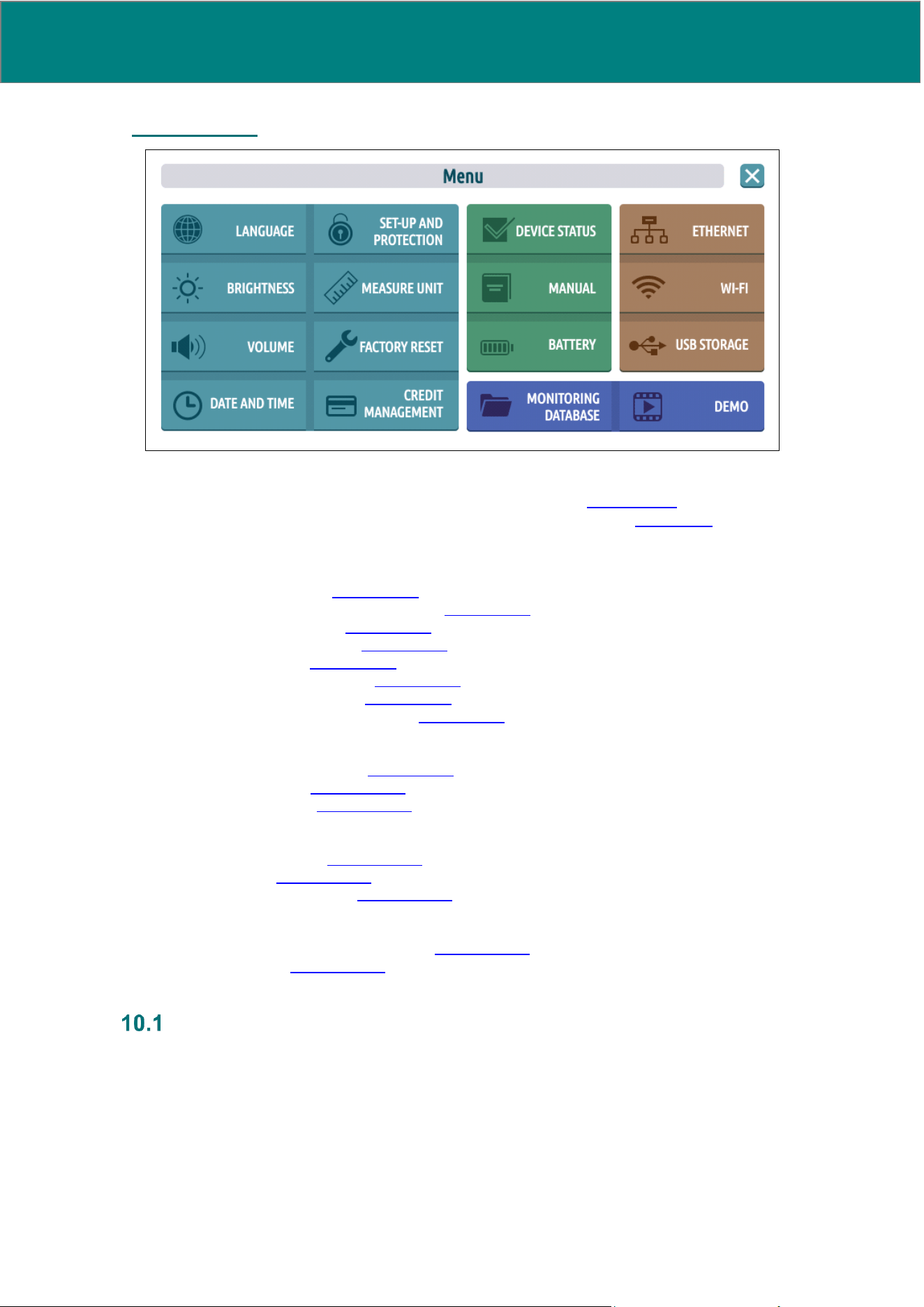
60 UM0009 rev 0 of 30.07.2026
10. MAIN MENU
The main menu can be accessed in two ways:
• From the home screen, by pressing on the “MENU” button (see Section 8.1.3)
• From the lateral pop-up menu, by pressing on the “MENU” button (see Section 9.1)
The main menu is subdivided into 4 color-coded areas and includes the following items:
1. Settings:
a. “LANGUAGE” see Section 10.1
b. “SET-UP AND PROTECTION” see Section 10.2
c. “BRIGHTNESS” see Section 10.3
d. “MEASURE UNIT” see Section 10.4
e. “VOLUME” see Section 10.5
f. “FACTORY RESET” see Section 10.6
g. “DATE AND TIME” see Section 10.7
h. “CREDIT MANAGEMENT” see Section 10.8
2. Info
a. “DEVICE STATUS” see Section 10.9
b. “MANUAL” see Section 10.10
c. “BATTERY” see Section 10.11
3. Connectivity
a. “ETHERNET” see Section 10.12
b. “WIFI” see Section 10.13
c. “USB STORAGE” see Section 10.14
4. Monitoring
a. “MONITORING DATABASE” see Section 10.15
b. “DEMO” see Section 10.16
Language
The language available is English.
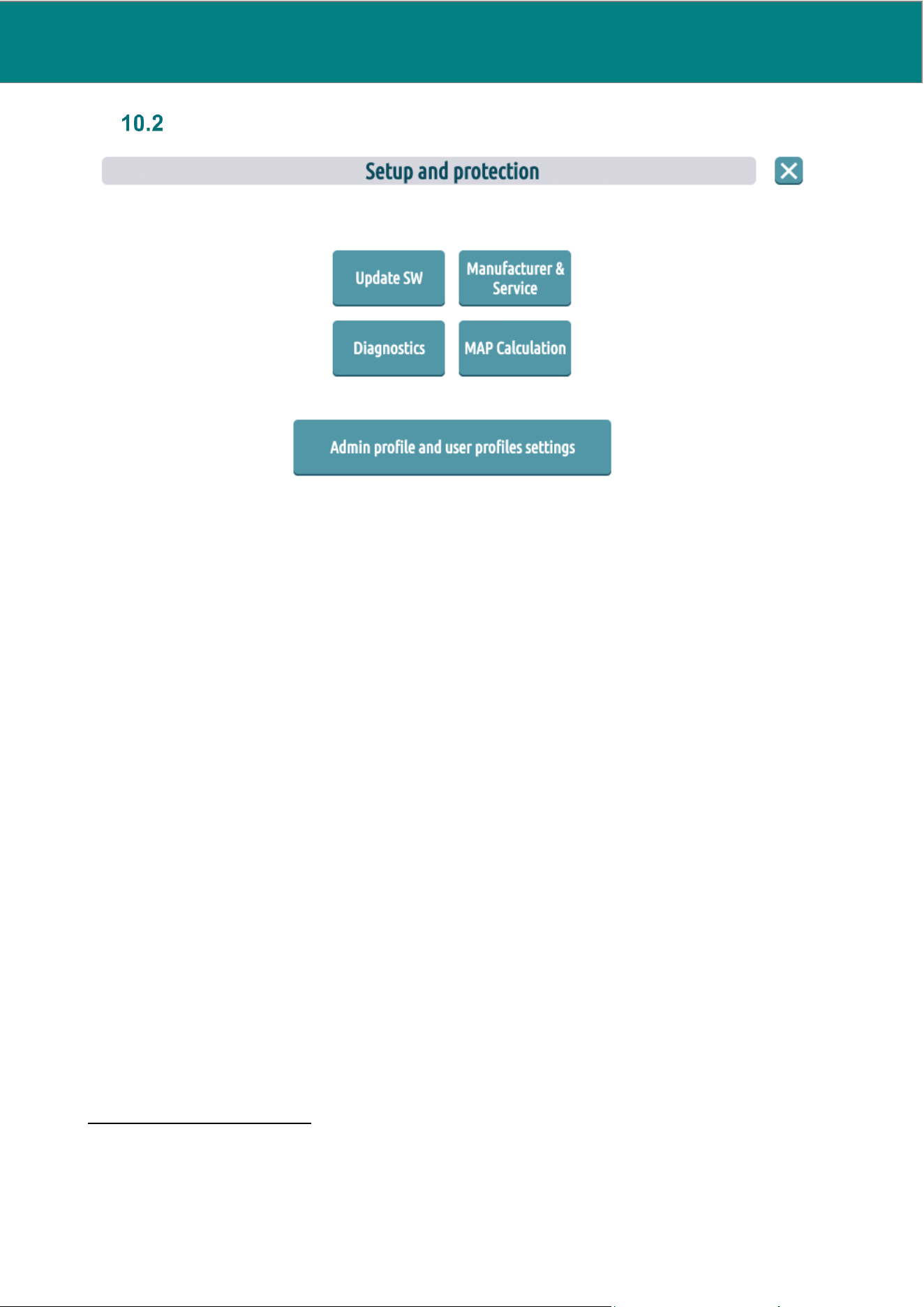
UM0009 rev 0 of 30.07.2026 61
Set-up and protection
This menu features:
10.2.1 Update SW and Mnaufacturer & service
Access to reserved areas (submenus “Update SW” and “Manufacturer & Service”), with functions that are
not available for the end user.
10.2.2 Diagnostics
Submenu ‘DIAGNOSTICS’: it is possible to read the actual voltage of the Y-cable and the last alarm
occurred. It is also possible to download the LogFile, which can be helpful for diagnostics from the
manufacturer.
10.2.3 MAP calculation
Submenu “MAP Calculation”: it is possible to choose the type of calculation of the Mean Arterial Pressure:
• By formula
7
-
8
• By integral – Evaluation of the average of all the points contained within a single heartbeat.
10.2.4 System admin and user profiles management
Submenu “Admin profile and user profiles settings”: User can set the system admin profile (unique) and
create or delete user profiles (up to 10 different user profiles).
System admin can be set only by authorized service personnel. User profiles can be created or deleted only
by the system admin.
7
Guyton AC. Textbook of medical physiology, 7th ed. Philadelphia: W.B. Saunders; 1986.
8
Meaney E, Alva F, Moguel R, Meaney A, Alva J, Webel R. Formula and nomogram for the sphygmomanometric
calculation of the mean arterial pressure. Heart 2000; 84:64.
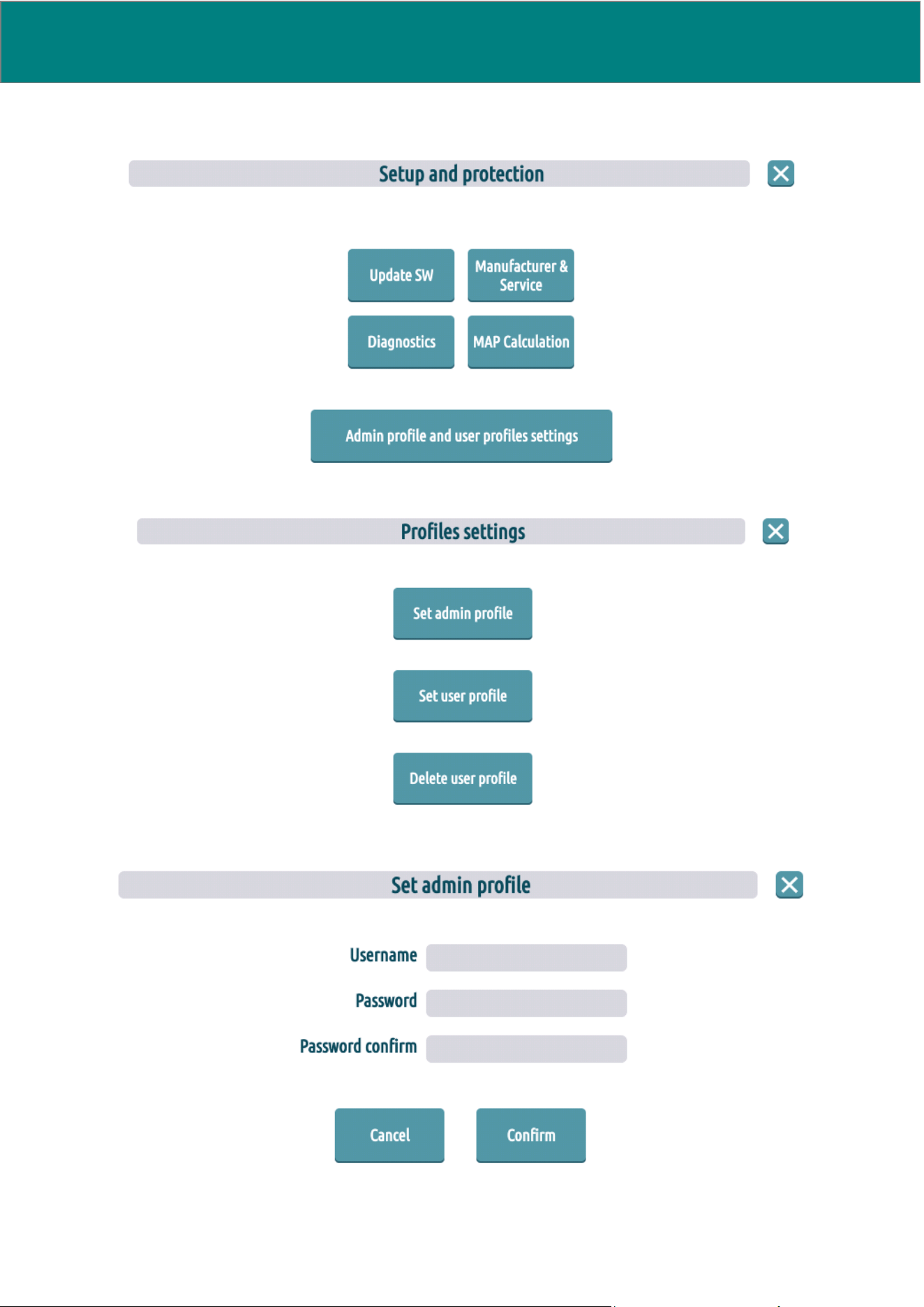
62 UM0009 rev 0 of 30.07.2026
To create an admin or user profile, please follow the steps below:
1. Open the Set Up and protection menu
2. Tap on “Admin profile and user profile settings”
3. Tap on “Set admin profile” and insert a new username and a new password
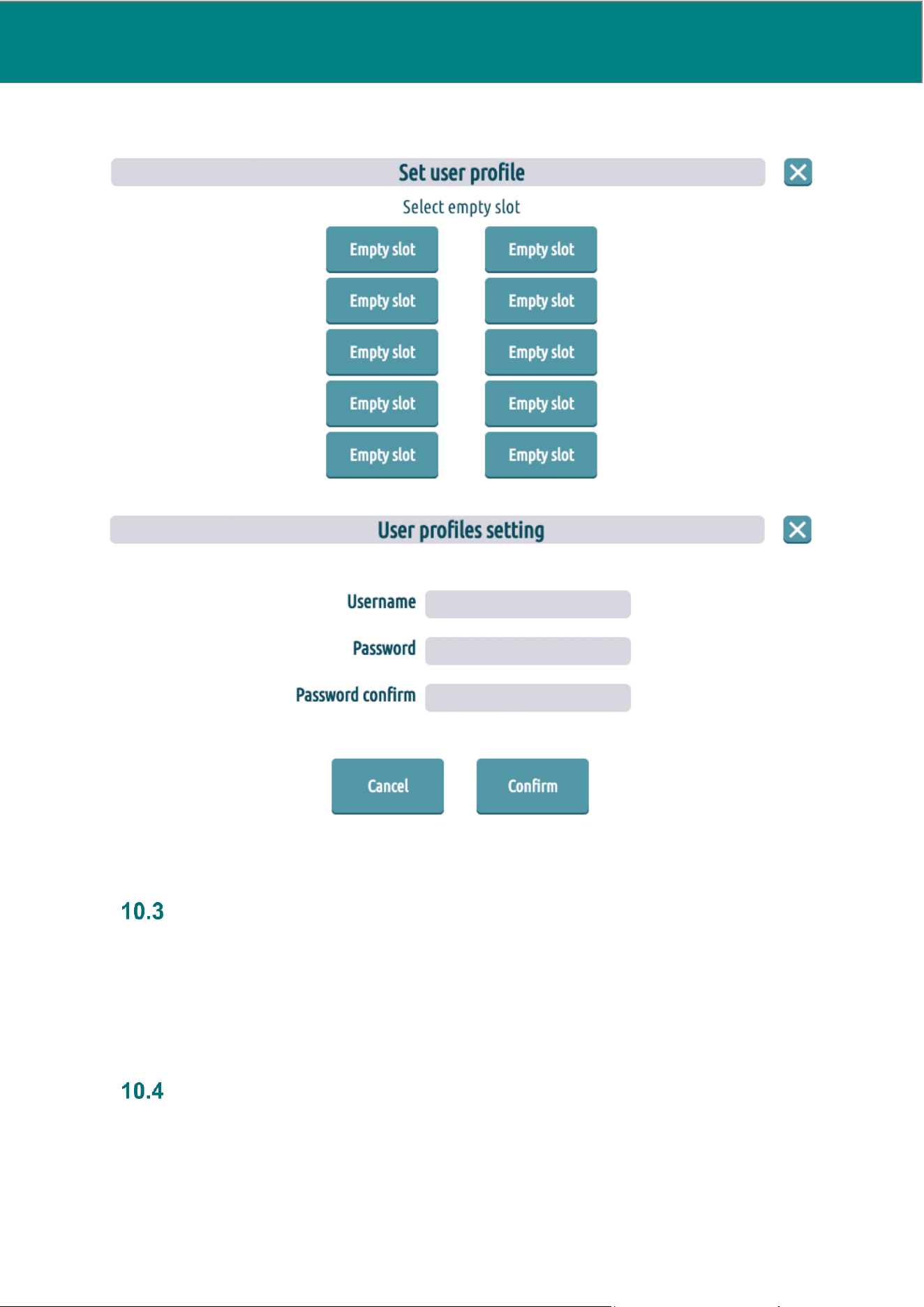
UM0009 rev 0 of 30.07.2026 63
4. Tap on “Set user profile” and, after logging in with admin credentials, select an empty slot and enter
a new username and password for the user profile.
Brightness
The “BRIGHTNESS” setting allows the user to choose the display brightness at any time during monitoring.
There are two brightness levels:
1. High (the default level when powered from the mains): 100% brightness
2. Low (the default level when battery-powered): 50% brightness
If brightness is reduced, the new setting will be maintained when the device is switched off. Brightness is
automatically reduced during battery-powered use and automatically increased to 100% when mains-powered.
Unit of measure
The “UNITS OF MEASURE” setting allows the user to choose the unit of measurement to be used for patient
data of height and weight:
• kilograms / grams (weight) and meters / centimetres (height)
• pounds (weight) and feet / inches (height)
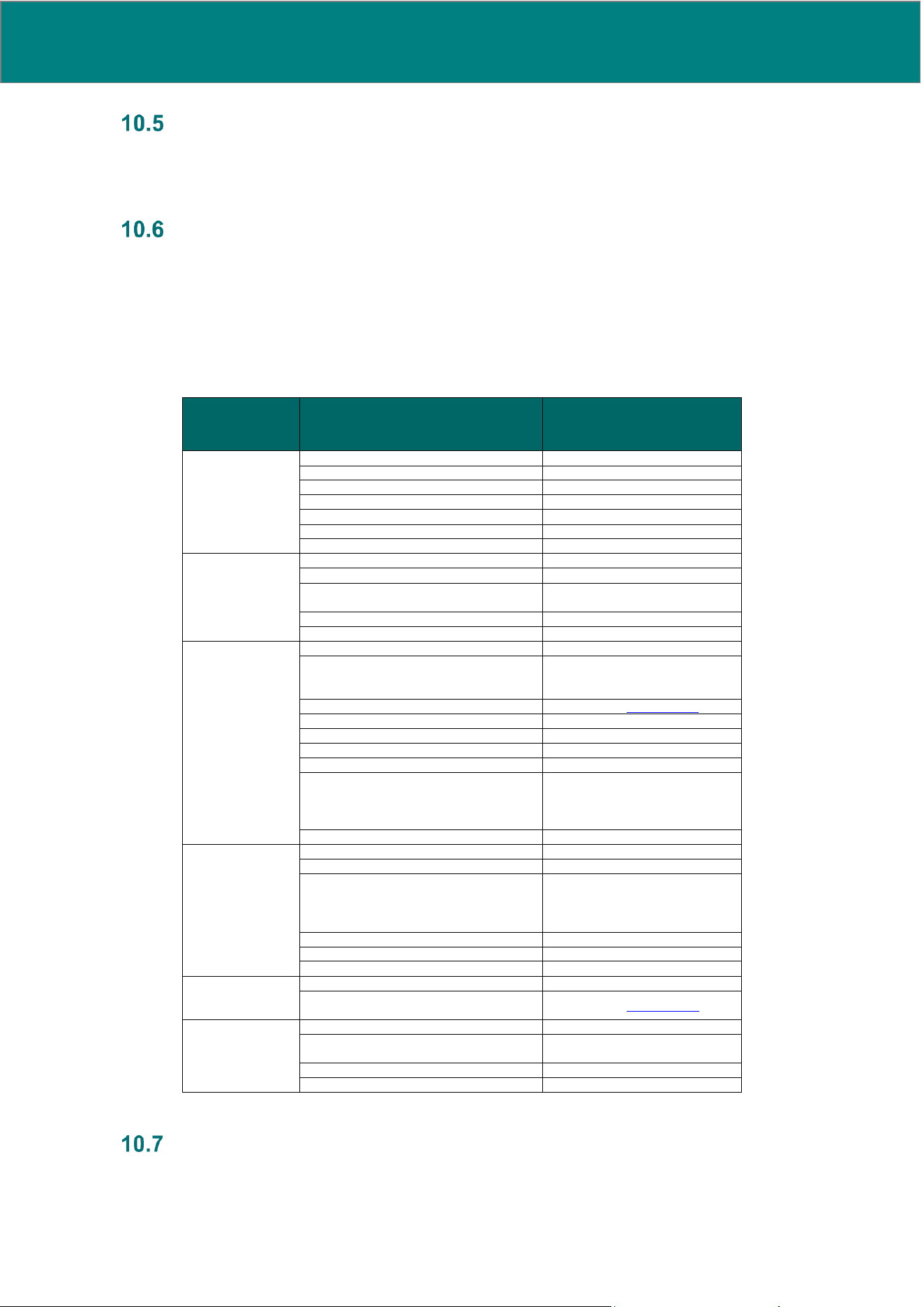
64 UM0009 rev 0 of 30.07.2026
Volume
The “VOLUME” setting allows the user to activate or deactivate the sound emitted for every pulse detected
(when dicrotic pressure is detected). The default value is 'Disable'. The choice is between 'Enable' or 'Disable'
sound.
Factory reset
The “FACTORY RESET” item allows the user to reset MostCare
Up
to its default values as though it was brand
new from the factory. All changes and customisations applied, and all monitoring data/folders stored in the
archive will be deleted.
Through the factory reset the user can:
• Set MostCare
Up
to its default values (see table below)
• Delete all customisations and all data stored in the archive.
This function can be used only if no monitoring is ongoing.
Menu item
Parameter
Factory default
MONITORING
SETTINGS
WEIGHT
Empty
HEIGHT
Empty
ABP SIGNAL INPUT
ABP Transducer
CVP SIGNAL INPUT
Manual
SIGNAL COLLECTION
Radial
PATIENT TYPE
Standard
PATIENT DETAILS
All fields are empty
CURVE
SETTING
GRAPH MIN/MAX (APB, CVP)
Auto scale
CURVE SCROLLING TIME
6 sec
NUMBER OF BEATS FOR MEAN
CALCULATION
15
FILTER
Standard
DICROTIC ADJUSTMENT
0
MARKER and
TREND SETTING
CUSTOM MARKER
Data deletion
PARAMETER SELECTION
1) Pressures group
2) CI + PR
4) PPV/SVV
TREND MIN/MAX
See tables in Section 9.4.6
LAY-OUT SELECTION
2 graphs (A+B)
OPTIMISE SCALE
Enable (for all trends)
TIME WINDOW
30 min
TREND HISTORY: TIME WINDOW
30 min
DO&CHECK: VARIABLES
PR
CO
PPV
DO&CHECK: TIME WINDOW
30 min
VARIABLE
SETTING
INDEXING
Indexed
CVP VALUE
9 mmHg
4 CUSTOMISABLE VARIABLES
On the left:
PPV and DPV
On the right:
Ea and MAP-Dic
DYNAMIC VARIABLES TIME
15 sec
CO → SV
CO above and SV below
HB and SaO
2
0 and 0
ALARMS
DISABLE ALARMS
Alarms enabled
ALL ALARM LIMITS (DIA, SYS,
MEAN)
See tables in Section 9.2.2
MENU
LANGUAGE
English
BRIGHTNESS
Maximum if powered via mains,
minimum if via battery
PULSE VOLUME
0
MONITORING ARCHIVE
Data deletion
Date and time
The “DATE AND TIME” item allows the user to modify the set date and time. Set time is the basis for all data
representations.
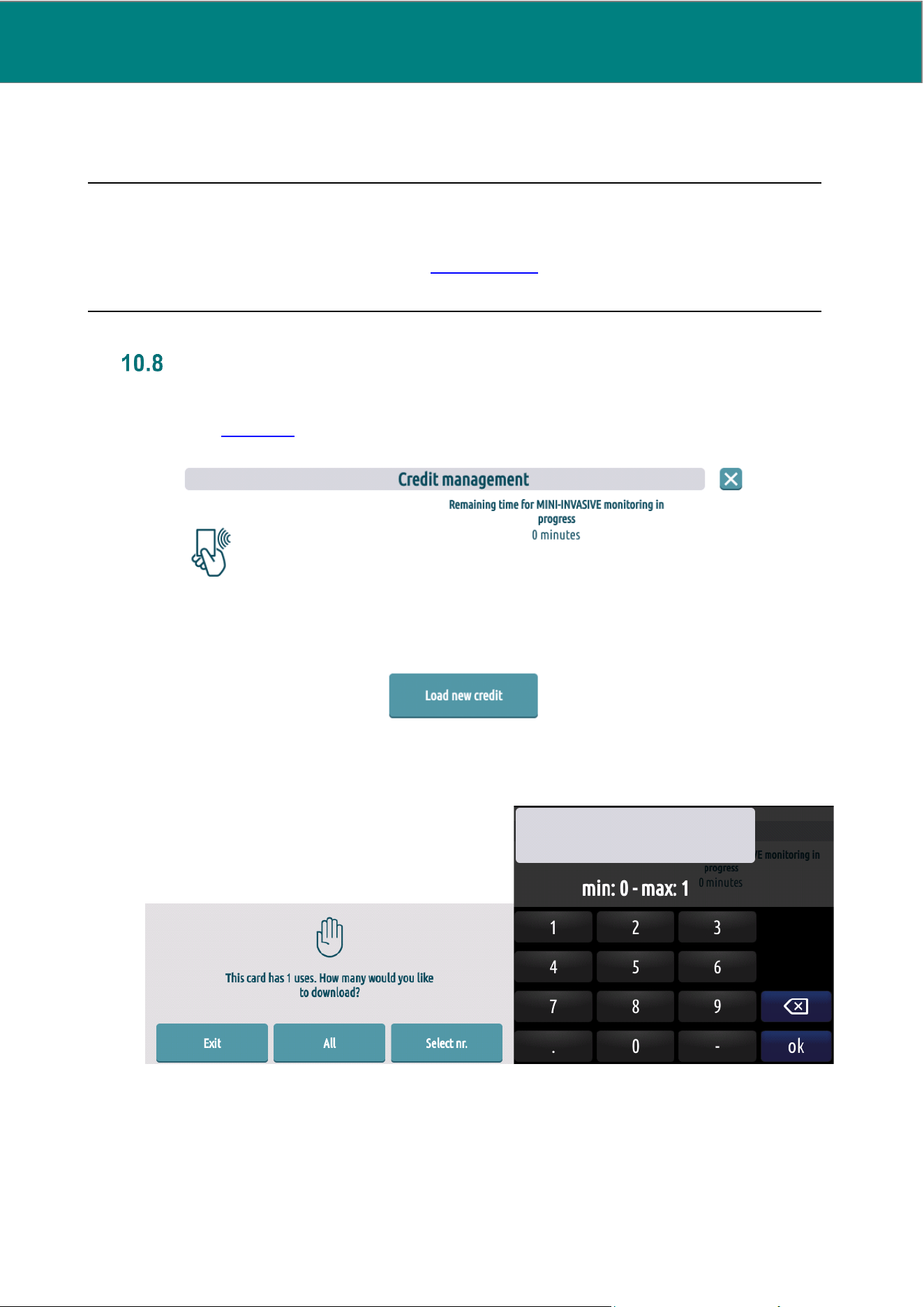
UM0009 rev 0 of 30.07.2026 65
The credit counter (for time-based cards) is linked to the date/time change, so that if the clock is set
back/forward, residual duration does not change.
It will not be possible to adjust time during monitoring.
NOTE: Pay attention to correctly set the UTC according to your geographical position and taking into account
Daylight-saving time (DST)
NOTE: When HL7 communication is enabled (see Section 10.12.1) and MostCare
Up
correctly connects to NTP
server, manual date and time setting is disabled but user is still required to set UTC.
Credit management
To manage credit updates, please proceed as follows:
1) Open the Credit management menu by clicking on “CREDIT MANAGEMENT” button from the main
menu (see Section 10)
2) Tap on “Load new credit” and place the card in the designated slot on the top of the device.
3) In the case of use-based cards, select the number of credits to download; in the case of time-based
cards, it is only possible to download all the time present on the card.
In case of use-based credits the screens appear as follow:
The screen on the left shows the number of credits remaining on the card; clicking on “Select nr.”
brings up the keypad (screen on the right), which allows you to enter the number of credits you wish
to top up.
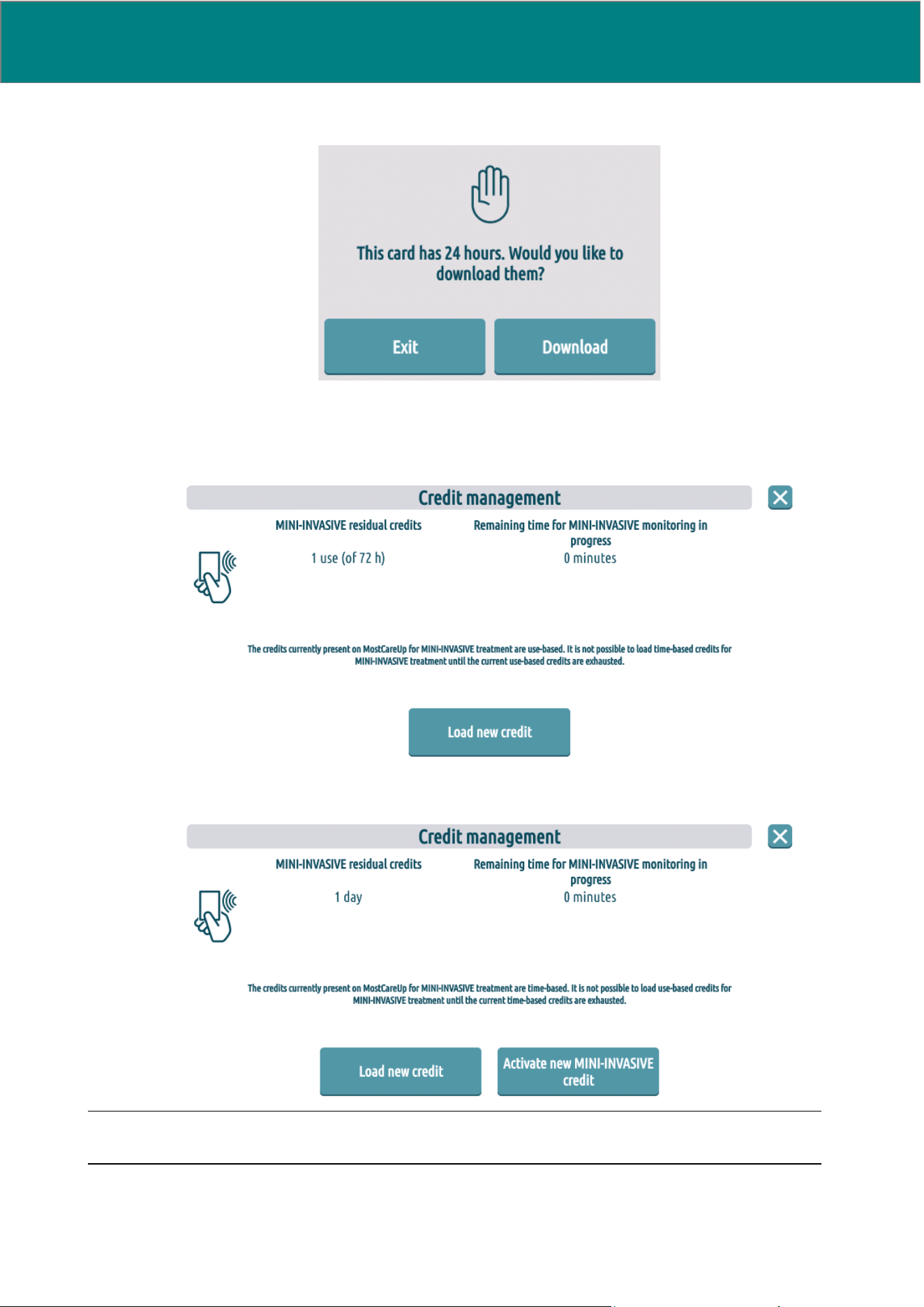
66 UM0009 rev 0 of 30.07.2026
In case of time-based credits the screens appear as follow:
After clicking on “Download”, a confirmation pop-up will appear.
4) Once the use-based credits have been added, the screen appears as follow:
Once the time-based credit has been added, the screen appears as follow:
NOTE: In the case of time-based credit, the time must be activated to be able to use it.
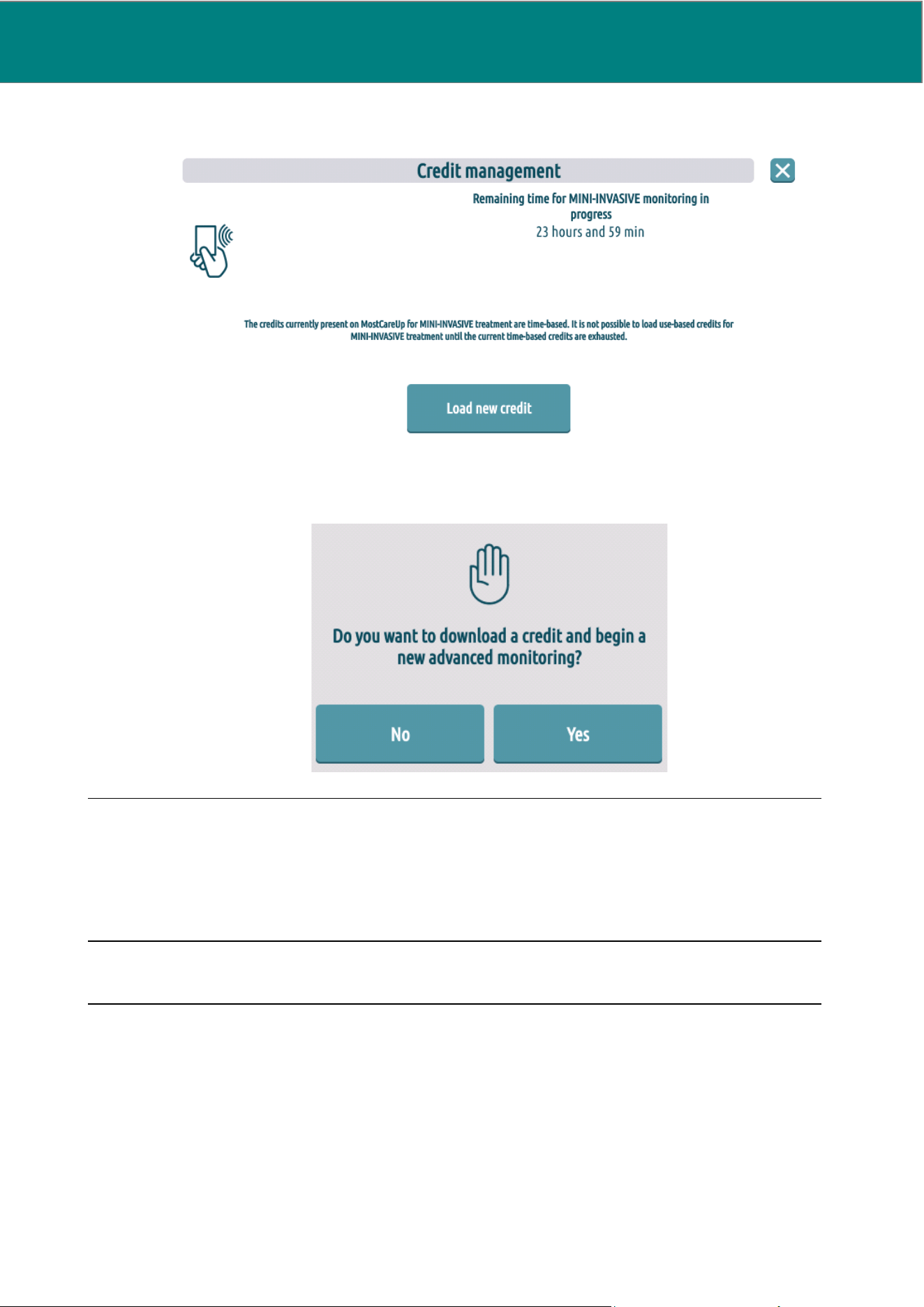
UM0009 rev 0 of 30.07.2026 67
5a) Only in the case of time-based use, activate the time downloaded by pressing on “Activate new
MINI-INVASIVE credit”, then the remaining time will be displayed on the screen.
5b) Start a new monitoring session. Only in the case of use-based credits, confirm the use of a credit for
advanced monitoring.
NOTE:
The “CREDIT MANAGEMENT” item allows the user to:
• Check the residual available credits (number of uses, or time in hours and minutes). If the device works
on a credit basis the residual time in the credit being used is also shown.
• Activate the procedure to download new credits from the card (even if the residual device credits have
not been exhausted).
NOTE: It is not possible to upload different types of credits (i.e. time- and use-based) simultaneously.
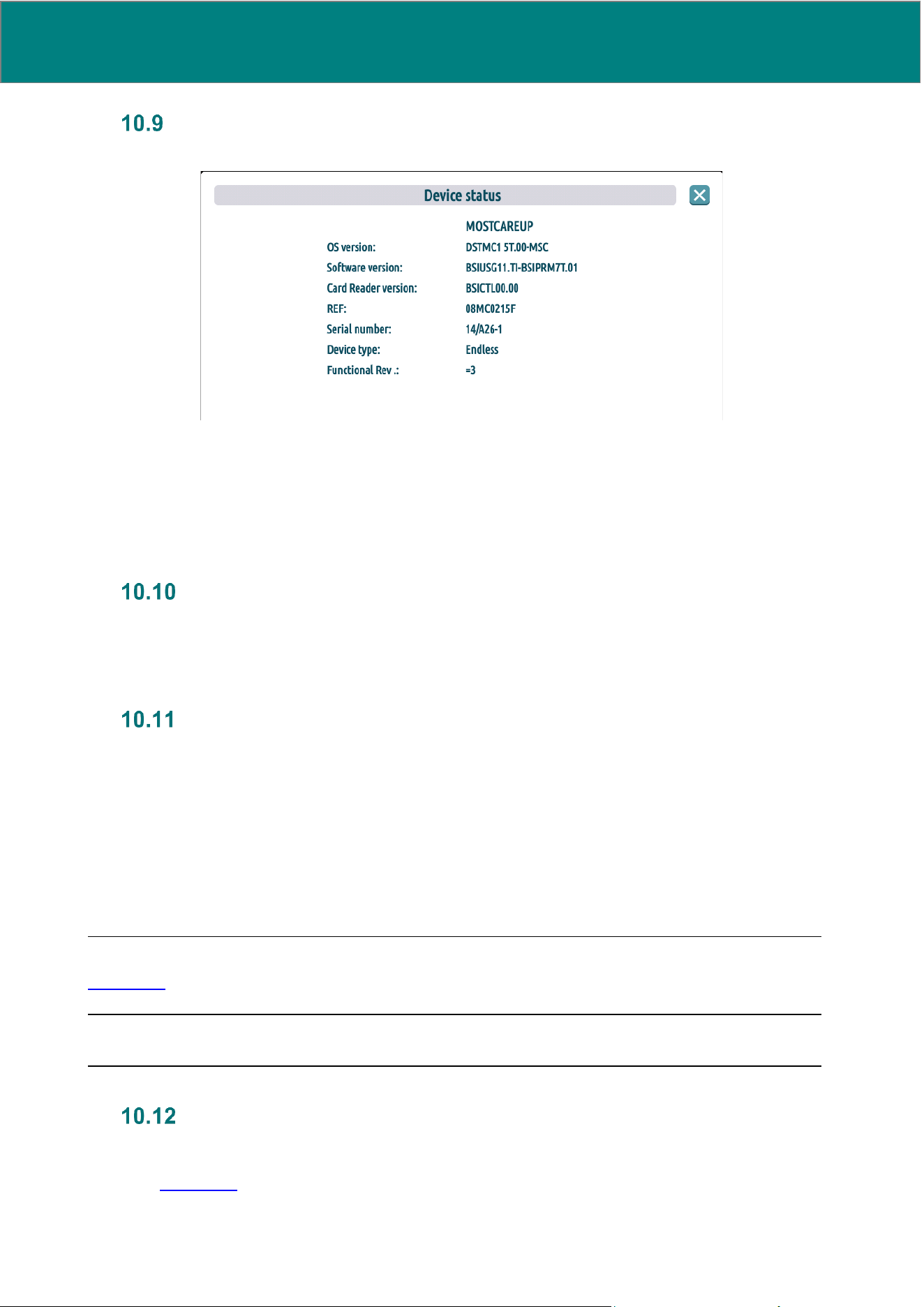
68 UM0009 rev 0 of 30.07.2026
Device status
The “Device status” screen appears as follow:
The “DEVICE STATUS” item allows the user to display device-related information:
• MostCare
Up
display software version
• Device release number (functional revision)
• Device serial number
• Type of MostCare
Up
device (endless/on demand)
• MostCare
Up
internal software versions (operative system, firmware, card reader software)
Manual
The “MANUAL” item displays the following information:
'The MostCare
Up
user manual is available in .pdf format on the website www.bio-si.it'
Battery
The “BATTERY” item allows the user to access information on the battery charge level in terms of % of battery
life remaining. The percentage indication changes in 25% steps; when the battery is charging, no information
on remaining capacity is available.
This screen can display the battery voltage expressed in V (with two decimal points) and the number of charge
cycles executed.
The charge cycle counter is increased whenever the device detects a transition from any battery-powered to
any mains-powered state, the latter remaining operational for at least 2 minutes. The charge cycles executed
when the device is switched off are therefore excluded from this count.
When the device is battery-powered, the low-consumption mode is automatically activated, and brightness is
minimized.
NOTE: The battery status is always visible from the right side of the top bar through the battery icon (see
Section 1.2)
NOTE: Until the full battery icon appears, the battery is charging.
Ethernet
The “ETHERNET” menu allows the user to access the following features:
• Enable/disable the Ethernet connection. If activated, its symbol appears in the upper right (see table
in Section 1.2)
• Setting network parameters:
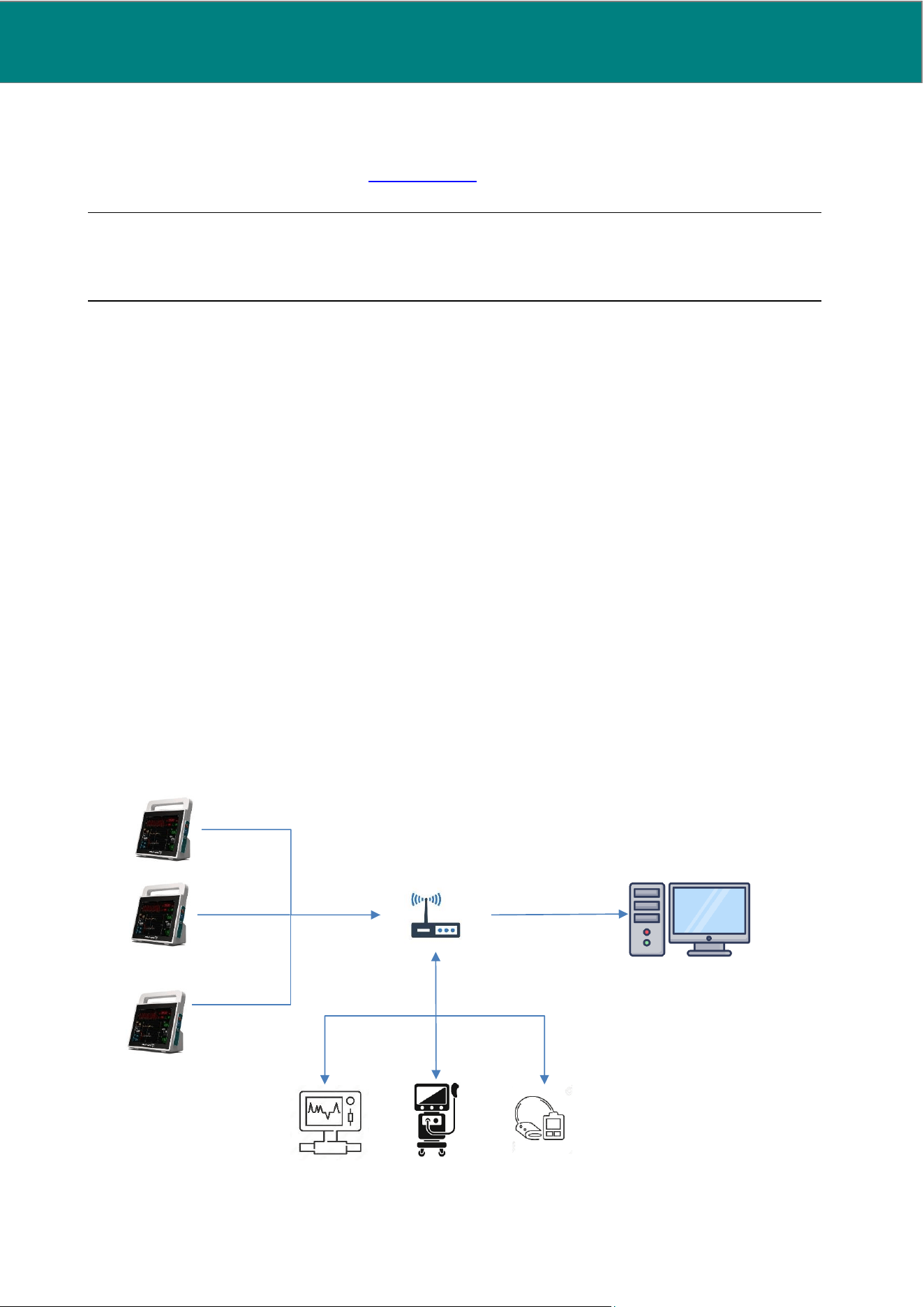
UM0009 rev 0 of 30.07.2026 69
o IP address (static)
o Netmask
o Gateway
• HL7 Configuration Protocol (see Section 10.12.1)
The settings are maintained even if power is turned off.
CAUTION: Data transmitted to the hospital network via Ethernet could be intercepted by
unauthorized persons, which could result in the loss and/or corruption of sensitive data.
The hospital Ethernet network must be adequately protected from possible intrusions.
10.12.1 Network settings for sending data in medical records
MostCare
Up
can communicate with the hospital information system (HIS) through Ethernet or WiFi using the
HL7 protocol. The purpose of the connection to the IT hospital network is to send patient data in real time to
the central informative system.
To enable HL7 communication, access the HL7 settings menu from the Ethernet or WiFi menu, depending on
which technology you want to use.
Data that can be sent using the HL7 protocol include patient data and technical or physiological alarm status.
The required network characteristics and configuration are as following:
• Network should have Ethernet/WiFi access points, such as Ethernet ports supporting RJ45
connectors, routers, WiFi repeaters…
• HL7 ports should be opened in order to be accessed from MostCare
Up
• MostCareUp supports obtaining IP address through DHCP
• Ethernet speed should be 10/100 Mps
• Ethernet duplex mode supports half/full auto-negotiation
• WiFi wireless interface should support 802.11 B/G/N standard
• WiFi bandwidth is 2.4 GHz; 5 GHz is not supported
Other network security specifications include:
• WiFi password should be WPA2 PSK type
• Informative system should foresee an anti-virus protection
A possible intended flow between MostCare
Up
and the network is as following:
HL7 server
WiFi/ETH router
WiFi/ETH
connection
MostCare
Up
1
MostCare
Up
2
MostCare
Up
n
Other medical devices

70 UM0009 rev 0 of 30.07.2026
The following possible hazardous situations could result from a failure of the network:
• Hospital server is unreachable / WiFi or Ethernet connection failure / Hospital server IP address or
communication port is not set correctly / IP address is the same of another device in the network,
causing the impossibility to send patient data/alarms to hospital server
• Access to Ethernet open doors from inside or outside the hospital / Virus infection / External intrusions,
causing abnormal or unstable operation of the device with consequent potential harm to patient
• Unauthorized access to patient sensitive data / Data transmitted to the Hospital Network via Ethernet
or WiFi is intercepted by unauthorized person, causing sensitive data loss and/or corruption
CAUTION: Data transmitted to the hospital network could be intercepted by unauthorized
persons, which could result in the loss and/or corruption of sensitive data.
Please note as follow:
• Any MostCare
Up
connection to the network that includes other equipment could result in
previously unidentified risks to patients, operators or third parties. The responsible
organization should identify, analyze, evaluate and control these risks.
• Any subsequent changes to the hospital network could introduce new risks, and therefore
require additional analysis. Changes may include:
o changes in the network configuration
o connection/disconnection of items to/from the network
o update/upgrade of equipment connected to the network
10.12.2 HL7 protocol settings on MostCare
Up
Before activating HL7 communication the following settings must be configured:
● TCP connection. This setting depends on the hospital information system architecture. Two options
are available: TCP Client or TCP Server.
o If TCP Client is selected, the address of the HIS server, including IP (e.g. 192.168.1.1) and
port (e.g. 8080) must be set.
o If TCP Server is selected, only the communication port must be set (e.g. 8080).
● NTP server address. This setting is required to synchronize MostCare
Up
and HIS time. This setting is
mandatory to ensure data time consistency. The IP and port of the hospital time server must be set.
● Sampling interval. This setting defines data transmission frequency. User can set the time interval
between two consecutive data transmissions from 5 to 60 seconds. Default is 15 seconds. For
example, by default, MostCare
Up
will transmit data to HIS every 15 seconds.
● Application name. This field can be set as you like. Choose a name that will help you easily identify
the data source once they are stored in the HIS database. By default, application name is MostCare
Up
.
● Facility name. As for the application name, this field can be set as you like. Choose a name that will
help you easily identify the data source once they are stored in the HIS database. By default, facility
name is empty.
NOTE: Patient ID is a mandatory field for HL7 messages. Before activating HL7 communication, it is required
to set patient ID from patient personal data menu (see Section 8.1.4.1).
NOTE: For security reasons, all SSH ports have been shut down on MostCare
Up
, therefore it is not possible to
access MostCare
Up
through SSH communication.
As regards the start/end message markers and the various separator characters, you have:
• Start/end message marker (in hex)
• Field separator
UM0009 rev 0 of 30.07.2026 71
• Component separator
• Repetition separator
• Escape Character
• Subcomponent separator
After configuring HL7 settings, you can save them and activate HL7 communication by pressing the “Enable
HL7” button. HL7 settings cannot be edited while HL7 communication is enabled. To edit HL7 settings you
must disable HL7 communication first. Settings are maintained even when device is turned off.
When HL7 is enabled, during patient monitoring, MostCare
Up
automatically sends HL7 packets including
patient data and/or alarm status to HIS with the specified frequency.
WARNING: Alarm status and patient data transmissions are synchronous and are performed with
the frequency set by the user (sampling interval). Therefore, an alarm status can reach remote server
up to 60 seconds after its activation. Pay attention to the selected sampling interval, as a delay in
identifying an alarm can lead to an incorrect diagnosis due to a lack of awareness of an alarming
condition in the patient.
WiFi
The WiFi menu allows the user to access the following features:
• Enable / disable the WiFi network. If activated, its symbol appears in the upper right (see table in
Section 1.2)
• List of the WiFi networks available and addition of a non-visible WiFi
• Password entry
• Setting network parameters:
o IP address (static)
o Netmask
o Gateway
• HL7 Configuration Protocol (see Section 11.12.1)
The settings are maintained even if power is turned off.
CAUTION: Data transmitted to the hospital network via WiFi could be intercepted by
unauthorized persons, which could result in the loss and/or corruption of sensitive data.
The hospital WiFi network must be adequately protected from possible intrusions.
USB storage
The USB STORAGE item allows the user to save the current monitoring on a USB flash drive.
When a USB flash drive is inserted/removed, the related icon shows up on/disappears from the top bar.
In order to save data, insert a USB flash drive into its dedicated lateral slot and press the “Download Data”
button.
A folder will then be copied into the USB flash drive, its name in the MostCareUp-mmddyyyyThhmmAM or
MostCareUp-mmddyyyyThhmmPM format, containing the following:
• A .csv file containing all the data acquired with a 30 seconds sampling, from the start of the monitoring
period to the present time
• A .txt file with the patient details
• Any recording (e.g. beat-beat).
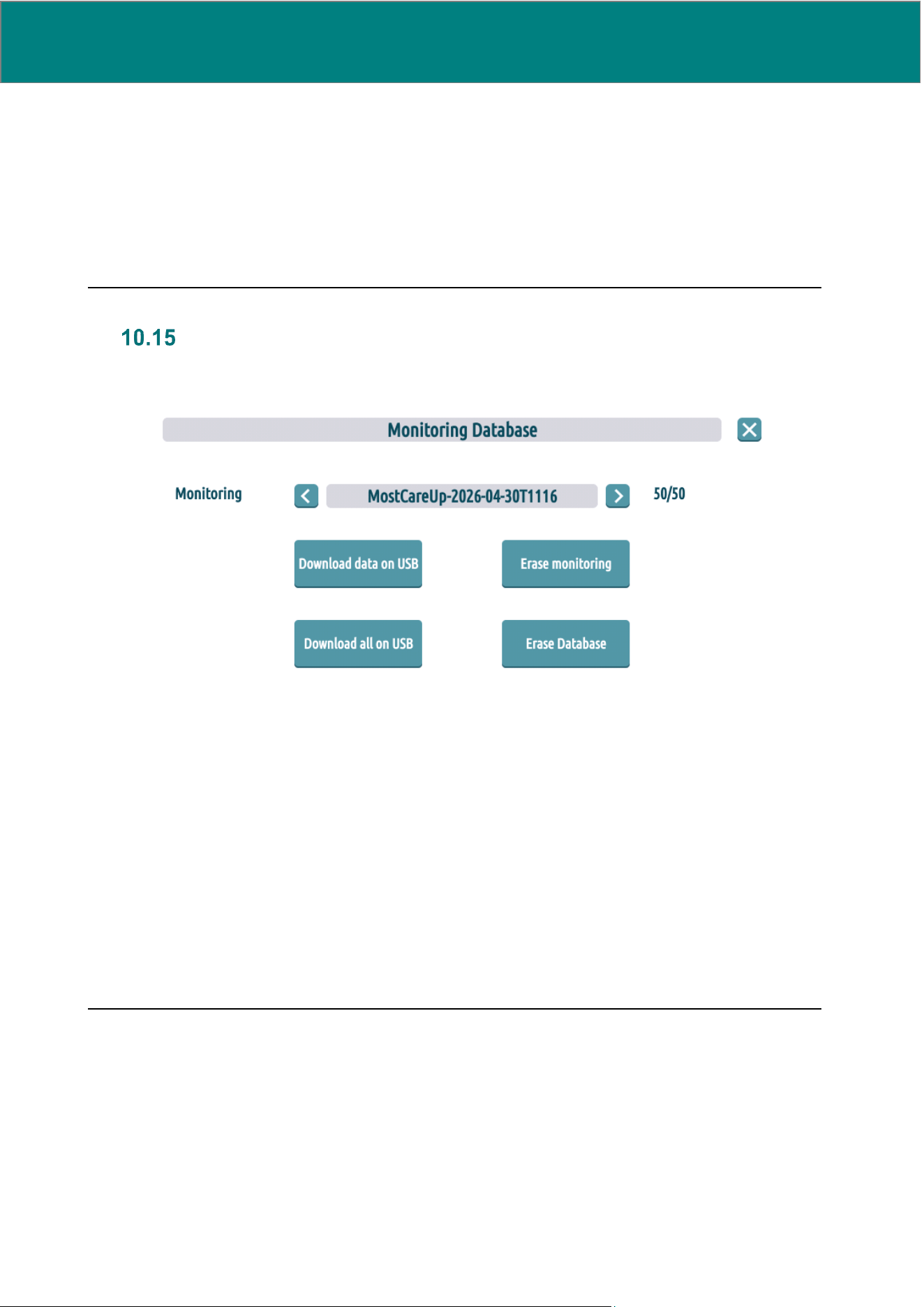
72 UM0009 rev 0 of 30.07.2026
CAUTION: If the USB storage device is not performed properly, this could result in data loss.
Please note the following:
1. If the USB flash drive is removed at any time before the end of the transfer, this will be
cancelled and the data lost.
2. For a correct reading of the data contained in the recording files, it is necessary for the dot
to be set as system decimal separator in the operating system that will be reading the file.
3. Monitoring data is protected against unauthorized access. To access USB storage menu
user must authenticate with username and password.
Monitoring Database
The “Monitoring Database” screen appears as follow:
From this menu, the user can access the monitoring archive available in the internal memory.
Monitoring data is collected in chronological order.
The user may carry out the following operations:
• Download a selected folder to a USB flash drive
• Delete the monitoring folder selected, after confirmation; this operation deletes all the information
contained within the folder
• Download to a USB flash drive all the folders available in the archive
• Delete the entire monitoring archive, after confirmation.
Folders downloaded to a USB flash drive will be named using the MostCareUp-mmddyyyyThhmmAM or
MostCareUp-mmddyyyyThhmmPM format, and will contain:
• A .csv file containing all the data acquired with a 30 seconds sampling, from the start to the end of the
monitoring period
• A .txt file with the patient details
• Any recording (e.g. beat-beat).
CAUTION: The device will only save a maximum number of 50 monitorings. Thereafter, previous
monitorings will be overwritten and this may cause data loss.
CAUTION: If there are undetected issues with the internal memory, this could result in data loss.
Please note as follow:
• If the MEM.ERR warning is on, the monitoring archive will not be accessible.
• Monitoring data is protected against unauthorized access. To access monitoring archive
menu user must authenticate with username and password.

UM0009 rev 0 of 30.07.2026 73
Demo
The DEMO item allows the user to display the real pressure curves stored on MostCare
Up
, simulating a
pressure signal reception. The arterial curve undergoes regular analysis by the software; the data displayed
are the result of the actual application of the PRAM to the curve that was sampled and analyzed.
This demo is a simulation of what usually happens during the monitoring of a patient. Its purposes are testing
and training; it is used to check that the software is functioning correctly and for user training.
Four demos are available.
To exit “DEMO” mode open the lateral pop-up menu and select “END DEMO”.
WARNING: When a DEMO is running an indication is displayed on the top bar indicating that the
system is in “DEMO” mode. The monitoring data displayed in demo mode may be interpreted by the
user as data from a real-time monitoring session. This can lead to misinterpretation of the parameters
and an incorrect diagnosis.
74 UM0009 rev 0 of 30.07.2026
11. MAINTENANCE, REPAIRS AND TECHNICAL ASSISTANCE
This paragraph describes the inspections and maintenance operations which must be carried out routinely.
Only explicitly specified actions can be executed by the operator, while all other actions must be executed by
technical assistance personnel or exclusively by the manufacturer or by technical personnel authorized by the
manufacturer.
Each unauthorized operation may cause damage to the functioning of the system and engender hazardous
situations.
Manufacturer will provide circuit diagrams, component part lists, descriptions and calibration instructions to
assist trained service personnel in parts repair.
The minimum qualifications for the service personnel concern training by the manufacturer or by specially
designated technical personnel.
NOTE: The manufacturer is responsible for the safety, reliability and performance of the appliance only if the
installation, maintenance and assistance of the machine is carried out by authorized personnel, the electrical
system complies with all applicable regulations and the appliance is used according to the instructions given
in this user manual.
NOTE: Software maintenance is not allowed to the user.
Execute the following checks before using MostCare
Up
:
Check Description
1
Visual check of the condition of the power connector, the cable and the connection sockets
2
Visual check for any mechanical damages
3
Visual check of the accessories
4
Visual check of the alarm system (see Section 9.2.1 for details).
The visual checks reported above are suggested on a daily basis. However, clinical engineering should follow
the internal hospital guidelines for the periodicity of the operations.
We recommend
periodic maintenance every 2 years to perform functional tests performed by clinical
engineering, and electrical safety tests, performed by clinical engineering or a designated service center.
For MostCare
Up
, we recommend
maintenance every 8 years to replace internal batteries.
Replacing the internal rechargeable battery may be necessary after shorter periods depending on the way the
device is used (number of charge/drainage cycles, or usage and storage temperatures).
WARNING: No modification, repair, or alteration of the MostCare
Up
monitor is permitted. Any
change may cause a loss of the essential safety performance of the device and result in injury to the
patient/operator.
WARNING: Battery replacement involves opening the device and should only be performed by
the manufacturer's technical assistance personnel. Any change may cause a loss of the essential
safety performance of the device and result in injury to the patient/operator.
WARNING: Fuses must be replaced only by qualified personnel.
Fuses must be replaced in any case with fuses of the same type and the same capacity (2
T1250mAH250V fuses, model 02151.25MXEP Littlefuse). Any change may cause a loss of the
essential safety performance of the device and result in injury to the patient/operator.

UM0009 rev 0 of 30.07.2026 75
If MostCare
Up
does not operate according to these operating instructions, please have the device serviced and
stop using it.
Cleaning and disinfection procedure for the device
WARNING: Incorrect cleaning and disinfection may result in cross-contamination, infection, and
serious patient injury or death.
● Carefully read the instructions before processing the device.
● To clean and disinfect the device use only the manual processes described below. Device
cannot withstand any automatic cleaning and disinfecting process.
● Do not spray or apply the cleaning or disinfecting agent directly on the touch screen surface
as the liquid may permeate into the front bezel of the display and damage it.
● Do not immerge the device or the cables into the cleaning or disinfecting agent.
● Do not use sharp objects or objects with a cutting edge
● Do not use a cloth that could scratch the display monitor, and wipe delicately
● Do not use the brush on the touch screen surface.
● Even if the caps are inserted, take care that no liquid substance penetrates the device
through the connectors. If this should happen, do not connect the device to the mains.
● The instructions are not applicable to device accessories not provided together with the
device (e.g. pressure transducers and catheters). For these accessories please follow the
separate instructions provided by their respective manufacturers.
● Device and cables are not sterilizable. Do not sterilize device and cables by means of any
sterilization process. Do not use steam, heat or radiations.
To clean and disinfect MostCare
Up
, proceed as follows:
1. Wear protective gloves.
2. Turn off the device and unplug it from the power supply.
3. Disconnect all connected accessories.
4. Apply protective caps to all device connectors (e.g. USB, HDMI, LAN).
5. Use only non-abrasive cloths for the touch screen.
11.1.1 Cleaning procedure
To clean MostCare
Up
, proceed as follows:
1. Clean all surfaces of the device, including the rear support if present, and the cables along their
entire length with a lint-free cloth slightly moistened with Liquinox until no visible residual soil (if
present).
2. Use a soft brush for hard-to-reach areas (not on the touch screen).
3. Rinse all the surface with a lint-free cloth sightly moistened with tap water, avoiding water dripping.
4. Dry all surfaces and cables thoroughly with a soft, dry cloth, removing any detergent or liquid
residue.
11.1.2 Disinfection procedure
To disinfect MostCare
Up
, proceed as follows:
1. Disinfect all surfaces of the device, including the rear support if present, and the cables along their
entire length with a lint-free cloth lightly moistened with isopropanol 70% disinfectant.
2. Wait no less than 60 seconds.
3. To remove any eventual disinfectant residue, dry all surfaces and cables thoroughly with a soft and
dry cloth.
76 UM0009 rev 0 of 30.07.2026
CAUTION: Detergent and disinfectant mentioned in the procedures below are the only ones
approved for cleaning and disinfecting the monitor. If your safety procedures foresee the use of
different substances, we inform you that the following substances have been tested as safe for not
damaging the monitor’s surfaces:
• Hydrogen Peroxide 5%
• Ethyl Alcohol 96%
• Clinell Universal Spray
• Clorexinal 2%
DO NOT use any further different substances as they may cause device damaging.
Waste disposal
Follow local regulations for the disposal of medical and electronic equipment, including batteries.
Troubleshooting
The table that follows lists the symptoms and the possible solutions for the most common problems the user
may encounter while using the device.
PROBLEM
CAUSE
SOLUTION
The device does not switch on
The battery is flat
Verify if side LED is on/blinking.
If not, connect MostCare
Up
to the mains and
flip the switch at the rear
The power cable is inserted
incorrectly
Disconnect and connect the power cable again
The main electrical system is
not functioning
Check that electrical power is available
The fuse has blown
Verify if left side LED is on/blinking.
If not, substitute the fuse at the rear of the
device with T1250mAH250V fuses, model
02151.25MXEP Littlefuse
The battery doesn't charge up
The switch at the rear is in the
OFF position
Verify if side LED is on/blinking.
If not, flip the switch in the ON position
The fuse has blown
Verify if side LED is on/blinking.
If not, substitute the fuse at the rear of the
device with T1250mAH250V fuses, model
02151.25MXEP Littlefuse
The battery is faulty
Despatch the device for technical assistance.
The battery life is too short
Battery substitution needed
Despatch the device for technical assistance.
Dicrotic pressure isn't detected
where expected
Error in dicrotic detection
setting
See Section 9.3.6.
An alarm is triggered
Physiological/Technical alarm
See Section 9.2.4.
An error popup is triggered
Internal error
See Section 8.1.2.
Card reading gives error
Error in reading/writing card
See Section 7.2.3.
WARNING: The device must not be opened or modified, as this would compromise its safety
and could result in damage to the device or injury to the patient or operator.
For any other kind of device malfunction, other than those listed above, please contact technical
assistance.
UM0009 rev 0 of 30.07.2026 77
12. TECHNICAL FEATURES
The following paragraphs show the technical features of MostCare
Up
.
General features
Device name
MostCare
Up
Protection class
I
Device class
II
Technical specifications
12.2.1 Environmental specifications
The environmental specifications for the use of MostCare
Up
, its accessories (CARDS included) are the
following:
Operational conditions
Temperature
(+50° F) – (+104° F)
[(+10 °C) - (+ 40 °C)]
Relative humidity
≤ 75 % (non-condensing)
Atmospheric pressure
700 – 1060 hPa
Liquid penetration protection
IP22
Storage and transportation
Temperature
(+14° F) – (+104° F)
[(-10 °C) - (+40 °C)]
Relative humidity
≤ 75 % (non-condensing)
CAUTION: Damage to or malfunction of the cards may cause the inability to perform monitoring
in advanced mode.
Data stored on the CARDS may be damaged in the presence of permanent magnets or high-power
electromagnetic sources. Store CARDS in suitable locations.
12.2.2 Variable specifications - Blood pressure monitoring
Variable
Lower
Limit
Upper Limit
Accuracy
(including the
transducer)
Unit of
measure
ABP (with and without Y cable)
0
250
Error <4% or 4 mmHg*
mmHg
CVP
0
250
Error <4% or 4 mmHg*
mmHg
PR
30
240
1 min
-1
min
-1
(*) the higher of the two values
78 UM0009 rev 0 of 30.07.2026
Variable
Lower
Limit
Upper Limit
Accuracy
Unit of
measure
IN1
0
2.50
Error < 0.03V
V
OUT (ABP signal repetition)
0
2.50
Error < 0.02V
V
Electrical specifications
12.3.1 Electrical safety
MostCare
Up
Degree of protection for ABP and CVP applied
parts
CF (protected from defibrillator discharge)
LAN port insulation
1,500 Vrms 1min
USB, HDMI, EXP, IN1, IN2, OUT ports
Not insulated with grounded GND
WARNING: If the device, when used in conjunction with an external monitor, is not used in
accordance with its safety specifications, it may cause injury to the patient or operator.
When MostCare
Up
is connected to an external device, the system must meet the requirements of
Standard 60601-1 clause 16, “General requirements for the medical electrical system”.
12.3.2 Power supply
MostCare
Up
Voltage
100-240 Vac
Frequency
50/60 Hz
Absorbed power
60 VA
Fuses
2 x T1250mAH250V fuses, model 2151.25MXEP Littlefuse
Fuses nominal melting I
2
t
>2.9 A
2
Sec
Inrush current
120 Vac: 30 A max.
230 Vac: 60 A max
NOTE: If mains supply is interrupted, device automatically switches to battery power without any functionality
interruption.
WARNING: Using a power cable other than the one authorized and supplied by the
manufacturer may cause the machine to catch fire or explode, which could result in serious injury
to the patient or operator.
Use only the power cables authorized by the manufacturer. Only the power cables authorized by
the manufacturer ensure basic safety of the system.
UM0009 rev 0 of 30.07.2026 79
12.3.3 Batteries
There are two internal batteries. Batteries can only be substituted by technical assistance personnel.
MostCare
Up
POWER BATTERY
Type
Rechargeable NiMH battery
Battery life
> 1h *
Maximum storage time
If the device is unused/stored away, the battery
must be fully charged at least every 6 months in
order to ensure nominal performance continuity. It
is suggested to maintain a 50% charge in storage
devices.
* performance when device is new. The battery life is likely to decrease over time due to several factors such
as the utilisation mode, the number of charge/drainage cycles and the operational use and storage
temperature.
The duration of a complete charge cycle is approximately 13 hours. In any case the battery is considered fully
charged only when the charge icon 100% appears on screen (see Section 1.2).
CLOCK POWER BATTERY
Type
Lithium
Compliance
IEC 60086-4
12.3.4 ABP and CVP transducer specifications
WARNING: The use of non-biocompatible transducers can lead to inflammation and intoxication
in the patient.
The transducer biocompatibility must be tested in compliance with UNI EN ISO 10993-1.
Transducers must be compatible with the electrical specifications listed below:
Minimum measuring range
From 0 to 250 mmHg
Zero offset
Between ±50 mmHg
Transducer sensitivity
5 V/V/mmHg
Excitation voltage
5 Vdc
Maximum allowable error
<3% or 3 mmHg (the greater of the two)
12.3.5 External monitor specifications for Y cable (ABP) connection
WARNING: Incorrect pressure values reading can lead to an incorrect diagnosis.
For an accurate reading of pressure values, the transducer power voltage, as supplied by the
external monitor, must be stable. Otherwise, the instability condition is signaled by issuing a
technical alarm.
Range of excitation voltage supplied by an external
monitor in case of Y cable connection
3-7 Vdc
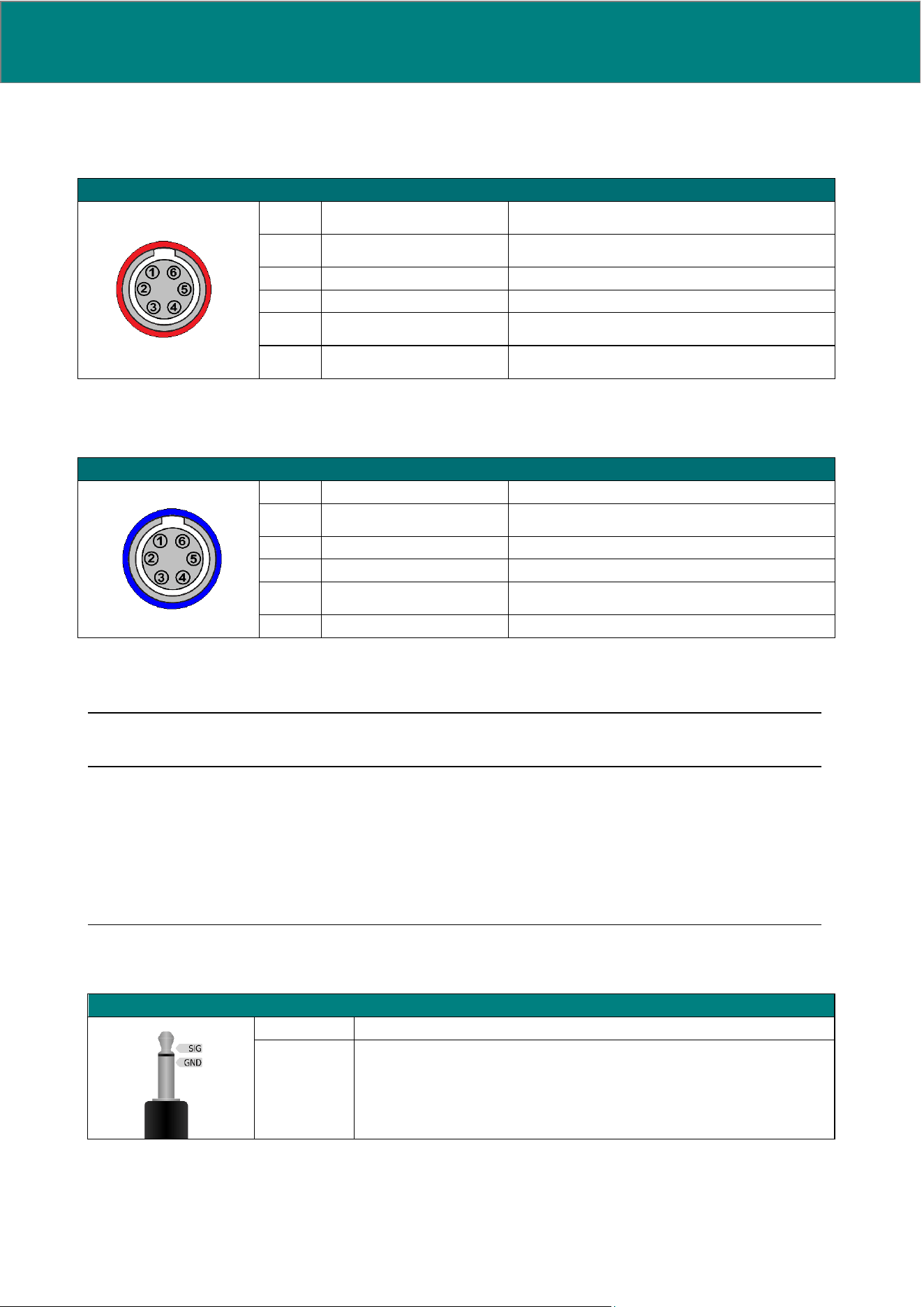
80 UM0009 rev 0 of 30.07.2026
12.3.6 ABP and CVP connectors specifications
Connection cables: the device has been tested with cable length in excess of 9.8 ft. [3 m].
ABP Connector
1
+V exc ext
+V exc excitation voltage supplied by an external
monitor in the case of a Y cable connection
2
+V exc
+V exc transducer excitation voltage provided by
MostCare
Up
(+5 Vdc)
3
IN+
Transducer (positive) signal input
4
IN-
Transducer (negative) signal input
5
-V exc
-V exc transducer excitation voltage provided by
MostCare
Up
(0 Vdc)
6
-V exc ext
-V exc excitation voltage supplied by an external
monitor in the case of a Y cable connection
CVP Connector
1
2
+V exc
+V exc transducer excitation voltage provided by
MostCare
Up
(+5 Vdc)
3
IN+
Transducer (positive) signal input
4
IN-
Transducer (negative) signal input
5
-V exc
-V exc transducer excitation voltage provided by
MostCare
Up
(0 Vdc)
6
ABP and CVP connectors are clearly distinguishable by colors: RED for ABP and BLUE for CVP, as reported
in the above images.
NOTE: Always make sure to check the color of the connector before inserting the cable.
WARNING: The use of an unvalidated transducer may lead to the calculation of incorrect
variables and, consequently, to an incorrect diagnosis.
The compatibility between MostCare
Up
and the majority of pressure transducers and anaesthesia
monitors available on the market has been validated. Ask your area consultant for the
TRANSDUCER CABLE, the MONITOR IN CABLE and the monitor that are best suited for the
devices in use.
12.3.7 IN 1, IN2, OUT connectors specifications (left side panel connector)
3.5 mm mono male connector jack (for external cable)
SIG
Signal
GND
Ground
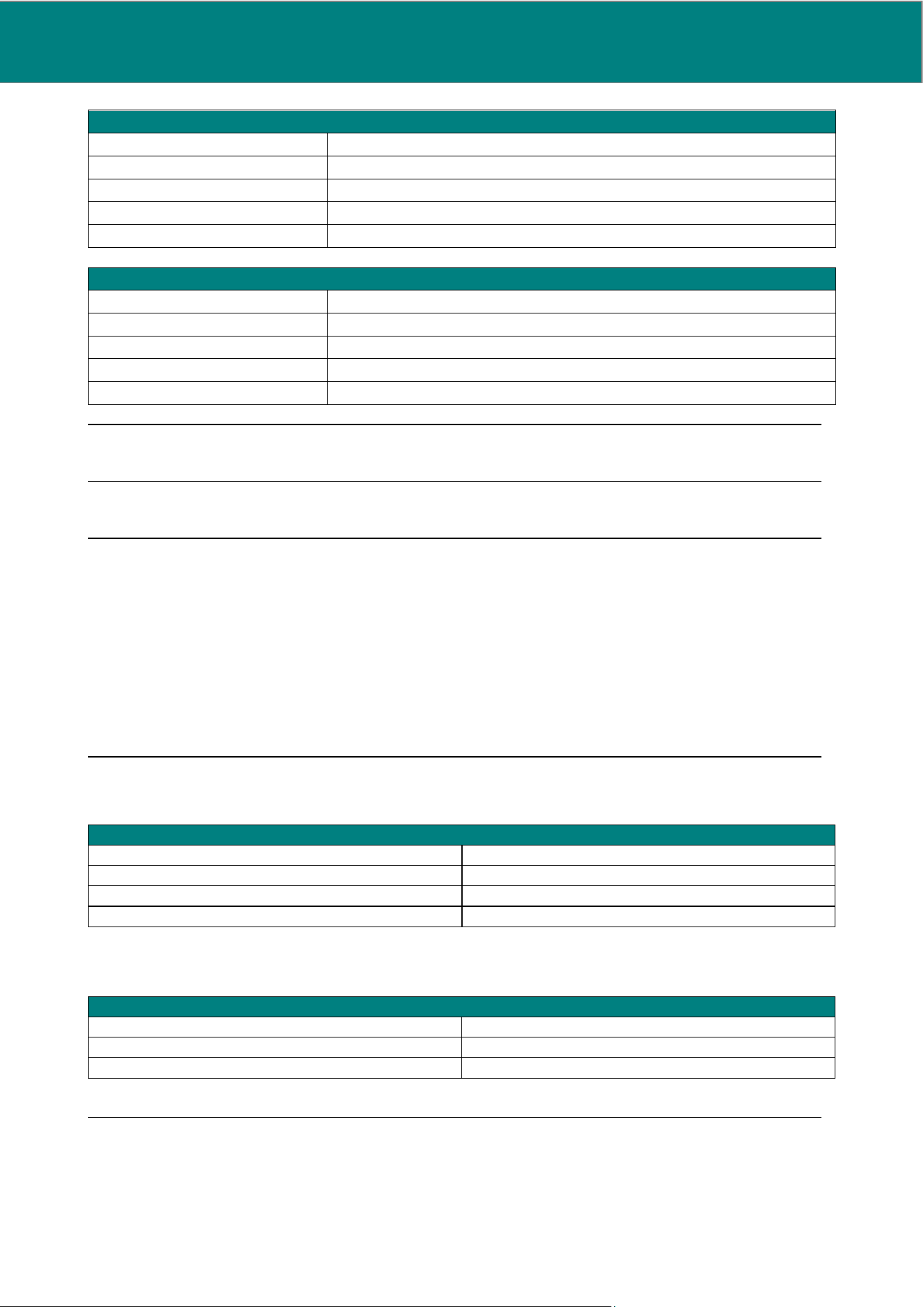
UM0009 rev 0 of 30.07.2026 81
IN1
Connector
3.5 mm mono female jack
Signal
DC voltage
Range
0-2.50 V (or 0-250 mmHg range, e.g. 100mmHg = 1.00 V )
Input impedance
High impedance
GND reference
GND referred to ground
OUT (external monitor output)
Connector
3.5 mm mono female jack
Signal
DC voltage
Range
0-2.50 V (or 0-250 mmHg range, e.g. 100mmHg = 1.00 V)
Output impedance
To be connected to a high-impedance input (>10 kOhm)
GND reference
GND referred to ground
NOTE: this output does not reproduce the pressure signal if it is detected via the IN1 input
Connection cables: The device has been tested with cable length in excess of 3 m [9.8 ft.].
WARNING: If the device, when used in conjunction with an external monitor, is not used in
accordance with its safety specifications, it may cause injury to the patient or operator.
External devices interfacing with MostCare
Up
(analog inputs and outputs) must meet the
requirements of Standard 60601-1, clause 16, “General requirements for the medical electrical
system”.
WARNING: If MostCare
Up
is connected to a device that is not grounded at the same point, it may
catch fire or explode, causing serious injury to the patient or operator. MostCare
Up
and any device
connected to it must be grounded at the same point.
12.3.8 USB
USB connector (MostCare
Up
)
Connector
Female A-type
Protocol
USB 2.0
Type
Host (for USB flash drives or slave devices)
Maximum deliverable voltage
500mA
12.3.9 LAN
MostCare
Up
LAN connector
Connector
Female RJ45 with integrated LEDs
Protocol
10/100 Base-TX LAN
Electrical insulation
1.500Vrms 1min
Connection cables: The device has been tested with cable length in excess of 3 m [9.8 ft.].
CAUTION: Data transmitted to the hospital network via WiFi could be intercepted by
unauthorized persons, which could result in the loss and/or corruption of sensitive data.
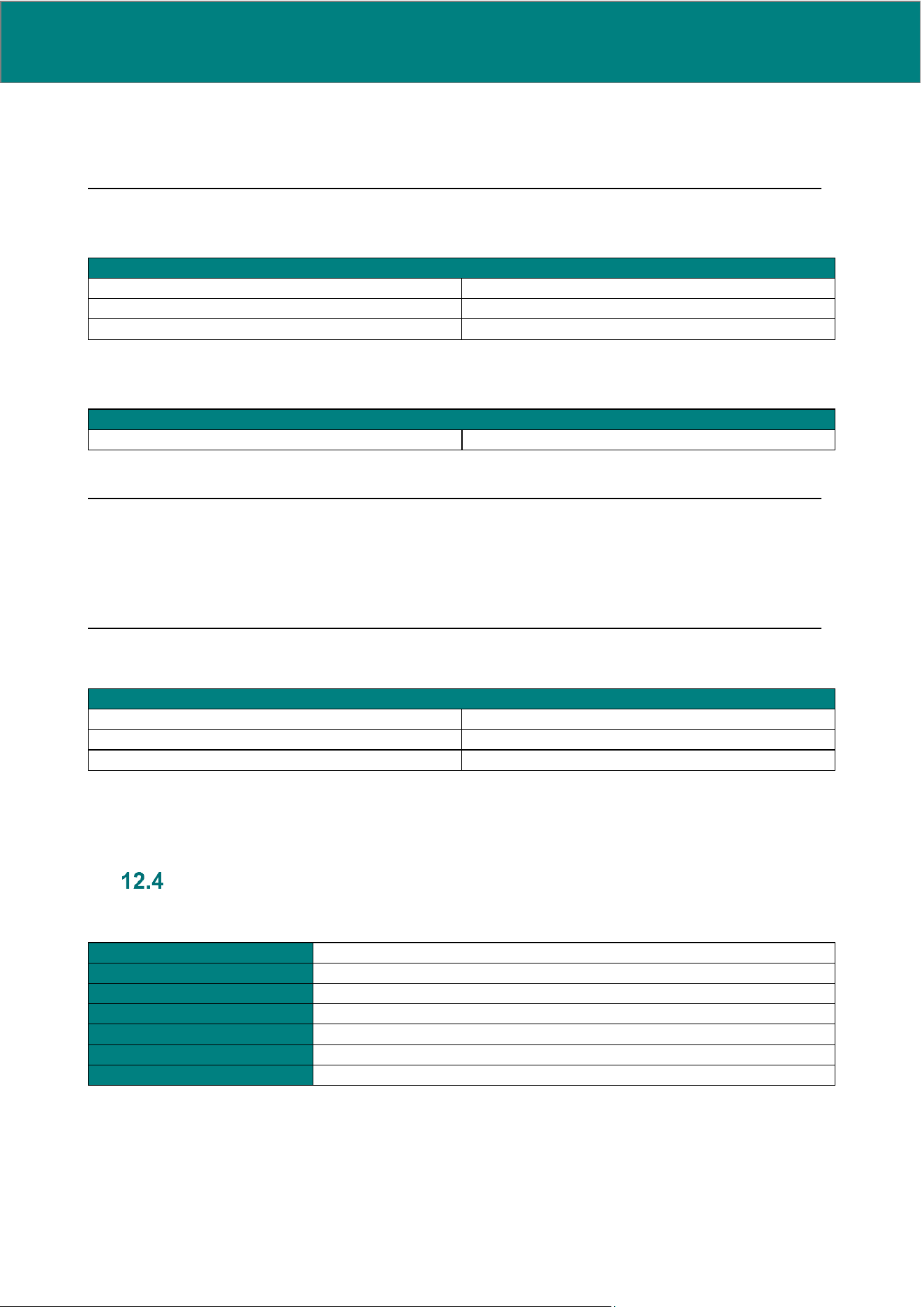
82 UM0009 rev 0 of 30.07.2026
For security reasons, we recommend connecting to the Ethernet only if planning to use the Ethernet
communication functionality. When connecting, ensure that the connection takes place with a
network that is adequately protected from external intrusion.
12.3.10 WiFi
MostCare
Up
Standard
WiFi IEEE 802.11
Operating frequency
2400 MHz
Bandwidth of receiving section
2412 – 2472 MHz
12.3.11 HDMI
MostCare
Up
HDMI connector
Connector
Female A-type
Connection cables: The device has been tested with cable length in excess of 3 m [9.8 ft.].
WARNING: If the device does not meet the safety requirements, this may cause electrical
damage and injury to the patient or operator.
The HDMI port is not isolated. Any external device interfacing with MostCare
Up
must meet the
requirements of Standard 60601-1, clause 16, “General requirements for the medical electrical
system”.
12.3.12 Contactless RFID interface
MostCare
Up
Standard
RFID
Card type
Cards to be specifically used with MostCare
Up
Operating frequency and modulation type
13.56MHz, ISO14443A (ASK modulation)
Mechanical specifications
12.4.1 MostCare
Up
Display
12'' colour LCD
Resolution
800x600 (SVGA)
Touch
Resistive
Weight
3.6 kg
Width
319 mm [12.5 in]
Height
322.7 mm [12.7 in]
Depth
141.2 mm [5.56 in]
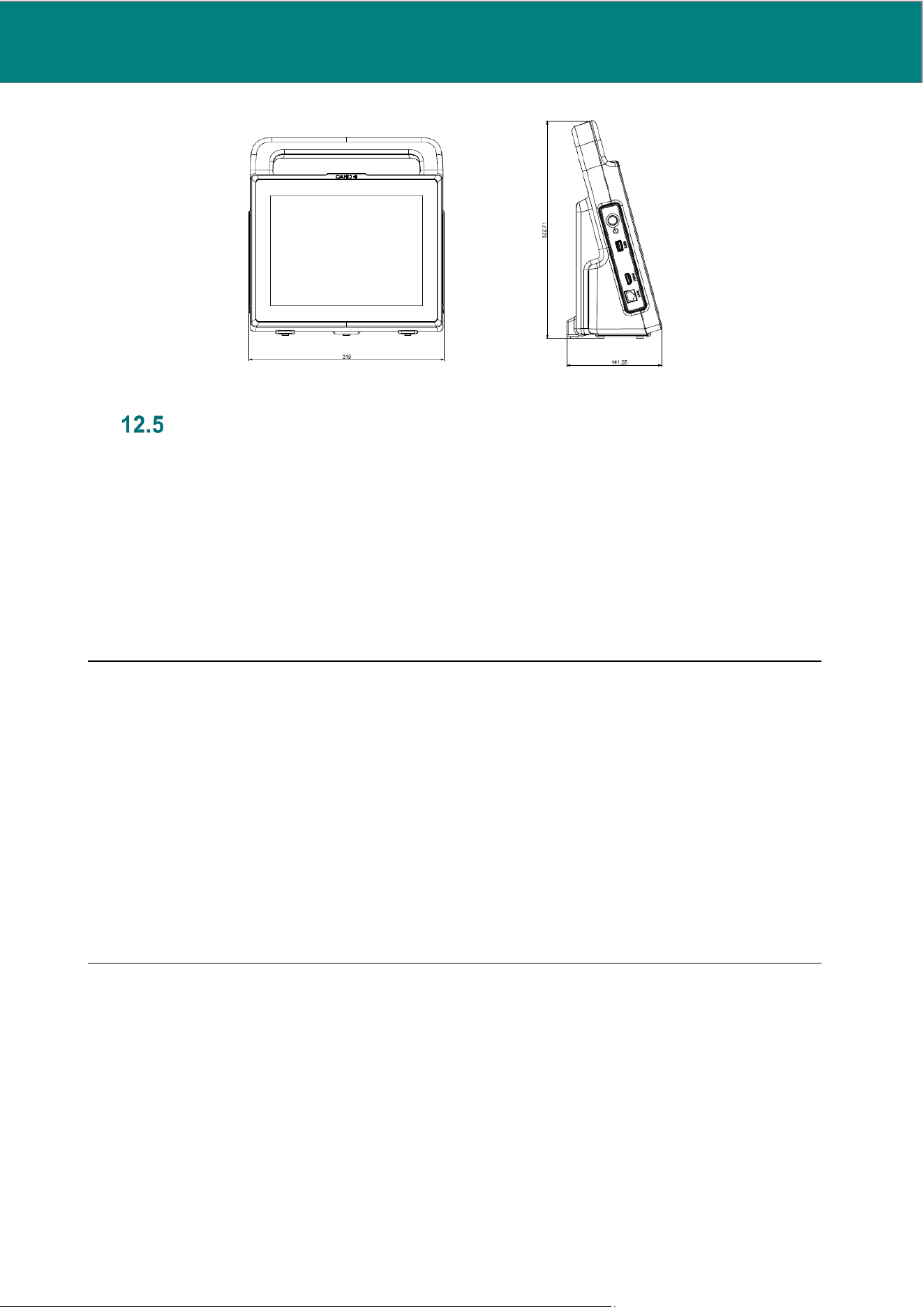
UM0009 rev 0 of 30.07.2026 83
Electromagnetic compatibility (EMC)
The MostCare
Up
device requires special precautions in terms of EMC and must be installed and operated in
accordance with the following information.
The device is designed to operate within an electromagnetic environment where radiofrequency-irradiated
disturbances are under control. If strong electromagnetic disturbances occur, the signal received by the device
may be affected by such disturbances; this, however, does not create hazardous circumstances since the
device software contains specific features capable of recognising (and discarding as invalid) any data affected
by artefacts. The operator using the device can contribute to preventing electromagnetic interferences by
ensuring a minimum distance between any mobile and hand-held RF (transmitter) communication equipment
and the device, as recommended below, in relation to the maximum output power of the radio-communication
equipment.
WARNING: Use of this equipment adjacent to or stacked with other equipment should be avoided
because it could result in improper operation, leading to an incorrect diagnosis. If such use is
necessary, this equipment and the other equipment should be observed to verify that they are
operating normally.
WARNING: Use of accessories, transducers and cables other than those specified or provided
by the manufacturer of this equipment could result in increased electromagnetic emissions or
decreased electromagnetic immunity of this equipment and result in improper operation.
WARNING: Portable RF communications equipment (including peripherals such as antenna
cables and external antennas) should be used no closer than 30 cm (12 inches) to any part of the
MostCare
Up
, including cables specified by the manufacturer. Otherwise, degradation of the
performance of this equipment could result, leading to a potentially incorrect diagnosis.
84 UM0009 rev 0 of 30.07.2026
Manufacturer guide and statement - electromagnetic emissions (Table 1)
MostCare
Up
is designed for operation in the electromagnetic environment specified below. MostCare
Up
clients
or users should guarantee that the device is used in such environment.
Emission test
Compliance
Electromagnetic environment
RF emissions
CISPR 11
Group 1
The MostCare
Up
medical device uses RF energy for
its internal operation only. Its RF emissions are
therefore extremely low and not likely to cause any
interference in the electronic equipment located
nearby.
RF emissions
CISPR 11
Class A
This medical device is suitable for use in any
environment, other than domestic environments and
those directly connected to public, low-voltage mains
power, supplying buildings used for domestic
purposes.
Harmonic emission
Class A
Voltage fluctuation/flicker emissions
Compliant
WARNING: Using the device outside industrial areas and hospitals could compromise radio-
frequency protection, resulting in injury to patients or operators. The emissions characteristics of this
equipment make it suitable for use in industrial areas and hospitals (CISPR 11 class A). If it is used
in a residential environment (for which CISPR 11 class B is normally required) this equipment might
not offer adequate protection to radio-frequency communication services. The user might need to
take mitigation measures, such as relocating or re-orienting the equipment.
Manufacturer guide and statement - electromagnetic immunity (Table 2)
MostCare
Up
is designed for operation in the electromagnetic environment specified below. MostCare
Up
clients
or users should guarantee that the device is used in such environment.
Immunity test
IEC 60601 test level
Compliance level
Electromagnetic environment
Electrostatic
discharge
± 8 kV contact discharge
± 15 kv air discharge
± 8 kV contact discharge
± 15 kv air discharge
Floors must be made of wood,
concrete or ceramic tiles. If floors
are covered with synthetic
material, the related humidity must
be at least 30%.
Transistors/electrical
impulse sequence
± 2 kV for power lines
± 1 kv for input/output lines
± 2 kV common mode
± 1 kv differential mode
The mains voltage quality ought to
be that of a typical retail or
hospital environment.
Over-voltage
± 2 kV phase (i)-grounded
± 1 kv phase (i)-phase(i)
± 2 kV common mode
± 1 kv differential mode
The mains voltage quality ought to
be that of a typical retail or
hospital environment.
Proximity magnetic
fields
30 kHz (CW), 8 A/m
134.2 kHz (2.1 kHz PM
50%), 65 A/m
13.56 MHz (50 kHz PM
50%), 7.5 A/m
30 kHz (CW), 8 A/m
134.2 kHz (2.1 kHz PM
50%), 65 A/m
13.56 MHz (50 kHz PM
50%), 7.5 A/m
The mains voltage quality ought to
be that of a typical retail or
hospital environment.
Voltage dips, brief
interruptions and
voltage variations in
the power supply
input lines
0 % UT; 0,5 cycle
At 0°, 45°, 90°, 135°, 180°,
225°, 270° and 315°
0 % UT; 0,5 cycle
At 0°, 45°, 90°, 135°, 180°,
225°, 270° and 315°
The mains voltage quality ought to
be that of a typical retail or
hospital environment.
If the device user requires
continued operations also during
mains voltage interruptions, we
recommend powering the device
with uninterruptible power supply
or batteries.
0 % UT; 1 cycle
and
70 % UT; 25/30 cycles
Single phase: at 0°
0 % UT; 1 cycle
and
70 % UT; 25/30 cycles
Single phase: at 0°
Voltage Interruptions
0 % UT; 250/300 cycle
0 % UT; 250/300 cycle
UM0009 rev 0 of 30.07.2026 85
Network frequency
magnetic field (50/60
Hz)
30 A/m
30 A/m
Network frequency magnetic fields
must be at a level typical of a
retail or hospital environment.
NB: Ut is the a.c. mains voltage before the test level application.
MANUFACTURER guide and statement - electromagnetic IMMUNITY (Table 3)
MostCare
Up
is devided to function within the electromagnetic environment specified below. MostCare
Up
clients
or users should guarantee that the device is used within such an environment.
Immunity test
IEC 60601 test
level
Compliance
level
Electromagnetic environment
(Distance between a transmitter and the device)
Conducted RF
Irradiated RF
3 Veff
(150kHz÷80MHz)
3 V/m
(80MHz÷2,7GHz)
3 Veff
3 V/m
(80MHz÷2,7GHz)
Hand-held and mobile RF communication equipment
should not be used any closer to any part of
MostCare
Up
, cables included, than the recommended
separation distance, calculated via the equation
applicable to the transmitter frequency.
Recommended separation distance
Pd = 17,1
Pd = 17,1
from 80 MHz to 800 MHz
Pd = 33,2
from 800 MHz to 2.7 GHz
Where P is the transmitter maximum nominal output
power rating, expressed in W, according to the
transmitter manufacturer, and d is the separation
distance expressed in metres (m).
Field strengths from fixed RF transmitters, as
determined by an electromagnetic survey on site
a
should be lower than the compliance level in each
frequency interval
b
.
Interference may occur close to equipment bearing the
following label:
NB1: At 80 MHz and 800 MHz the separation distance for the higher frequency range applies.
NB2: These guidelines may not apply in all situations. Electromagnetic propagation is influenced by absorption and
reflection from structures, objects and people.
a
Field strengths from fixed transmitters, such as base stations for radio telephones (mobile/cordless) and mobile land
radios, amateur radios, AM and FM radio transmitters and TV transmitters cannot be predicted theoretically with any
accuracy. To assess the electromagnetic environment caused by fixed RF transmitters, an on-site electromagnetic
survey should be considered. If the field strength detected on the location where MostCare
Up
is used exceeds the
applicable compliance level indicated above, the operations of MostCare
Up
should be monitored. If abnormal
performance is detected, extra measures may be necessary, such as a different orientation or positioning of
MostCare
Up
.
b
Field strength in the frequency range between 150 kHz and 80 MHz should be lower than 3 V/m.
Recommended separation distances between hand-held and mobile radio-communication equipment and
MostCare
Up
(Table 4)
MostCare
Up
is designed for operation in an electromagnetic environment where RF-irradiated disturbances are
under control. Clients or users of MostCare
Up
can contribute to preventing electromagnetic interferences by
ensuring a minimum distance between any mobile and hand-held RF (transmitter) communication equipment
and MostCare
Up
, as recommended below, in relation to the maximum output power rating of the radio-
communication equipment.
Maximum rated output
power of the
Transmitter (W)
Separation distance for the transmitter frequency (m)
from 150 kHz to 80 MHz
from 80 MHz to 800
MHz
from 800 MHz to 2.7 GHz
0.01
0.12
0.12
0.23
0.1
0.37
0.37
0.74
1
1.17
1.17
2.33
10
3.69
3.69
7.38
100
11.67
11.67
23.33
86 UM0009 rev 0 of 30.07.2026
For transmitters rated at a maximum output power not listed above, the recommended separation distance d in metres (m) can
be estimated using the equation applicable to the transmitter frequency, where P is the maximum output power rating of the
transmitter in watts (W) according to the transmitter manufacturer.
NB1: At 80 MHz and 800 MHz the separation distance for the higher frequency range applies.
NB2: These guidelines may not apply in all situations. Electromagnetic propagation is influenced by absorption and reflection
from structures, objects and people.
Federal Communications Commission (FCC) Compliance
Information
RADIO FREQUENCY (RF) RADIATION EXPOSURE STATEMENT: This equipment complies with FCC
radiation exposure limits set forth for an uncontrolled environment. End users must follow the specific
operating instructions for satisfying RF exposure compliance. This transmitter must not be co-located or
operating in conjunction with any other antenna or transmitter. This transmitter is considered as mobile
device and should not be used closer than 20 cm from a human body. To allow portable use in a known host
class 2 permissive change is required.
CAUTION: changes or modifications not expressly approved by the party responsible for
compliance could avoid the user's authority to operate the equipment.
NOTE: This equipment has been tested and found to comply with the limits for a Class A digital device,
pursuant to part 15 of the FCC Rules. These limits are designed to provide reasonable protection against
harmful interference when the equipment is operated in a commercial environment. This equipment
generates, uses, and can radiate radio frequency energy and, if not installed and used in accordance with
the instruction manual, may cause harmful interference to radio communications. Operation of this
equipment in a residential area is likely to cause harmful interference in which case the user will be required
to correct the interference at his own expense.
Useful life
The regulations define "useful life" as the maximum service life period defined by the manufacturer. In order
to define service life, the most critical items of the device have been taken into consideration. The useful life
of MostCare
Up
corresponds to a maximum period of 8 years.
13. TRADEMARKS
PRAM and MostCare are trademarks of Bio-Si International s.r.l. All other trademarks are the property of
their respective owners.
14. WARRANTY
MostCare
Up
is guaranteed against any material and manufacturing defect for a period of two years starting
from its installation. This warranty is the only valid warranty and replaces any other expressed or implicit
warranty, including any device operation warranty under usage conditions different from those specified in this
manual. The suitability of MostCare
Up
for the use with a specific patient depends on the assessment of the
physician in charge only.
In the event of a defect, the distributor will repair the device free of charge or replace it, at their own discretion,
keeping the replaced parts, if any. In no case will the distributor be responsible for damage of property,
personal damage or any other derived damage except for whatever is strictly foreseen by the applicable law.

UM0009 rev 0 of 30.07.2026 87
Batteries and parts subject to wear and tear are not covered by this warranty, and neither is damage due to
natural disasters, accidents, electrical system defects, negligence, improper use or abuse by the operator and
damage caused by any repairs performed by unauthorized personnel.
In no case may the customer claim reimbursements for damages due to the machine not being used.
The manufacturer is responsible for the device safety, reliability and performance, provided that:
• Assistance interventions, including battery substitution, are carried out by the manufacturer or personnel
authorized by the manufacturer only;
• The electrical system to which the machine is connected complies with IEC regulations;
The device is used in accordance with the instructions provided in this manual.
15. APPLICABILITY OF THIS MANUAL
This manual is applicable for MostCare
Up
, and is valid for the following software versions:
• MostCare
Up
software version: BSIUSG12.xx
The manual is based on the information available at the moment of its publication.
The distributor and the manufacturer do not undertake any obligation to inform the manual owners of any
change made after delivering the device. Revisions of this document are available on request in digital
format.
16. MANUFACTURER INFORMATION
Manufacturer
Bio-Si International S.r.l.
Via di Barbacane, 19
50133 Firenze (FI) – Italy
Users and/or patients should report any serious incidents to the manufacturer and the Competent Authority
of the Member State in which the user and/or patient is established.