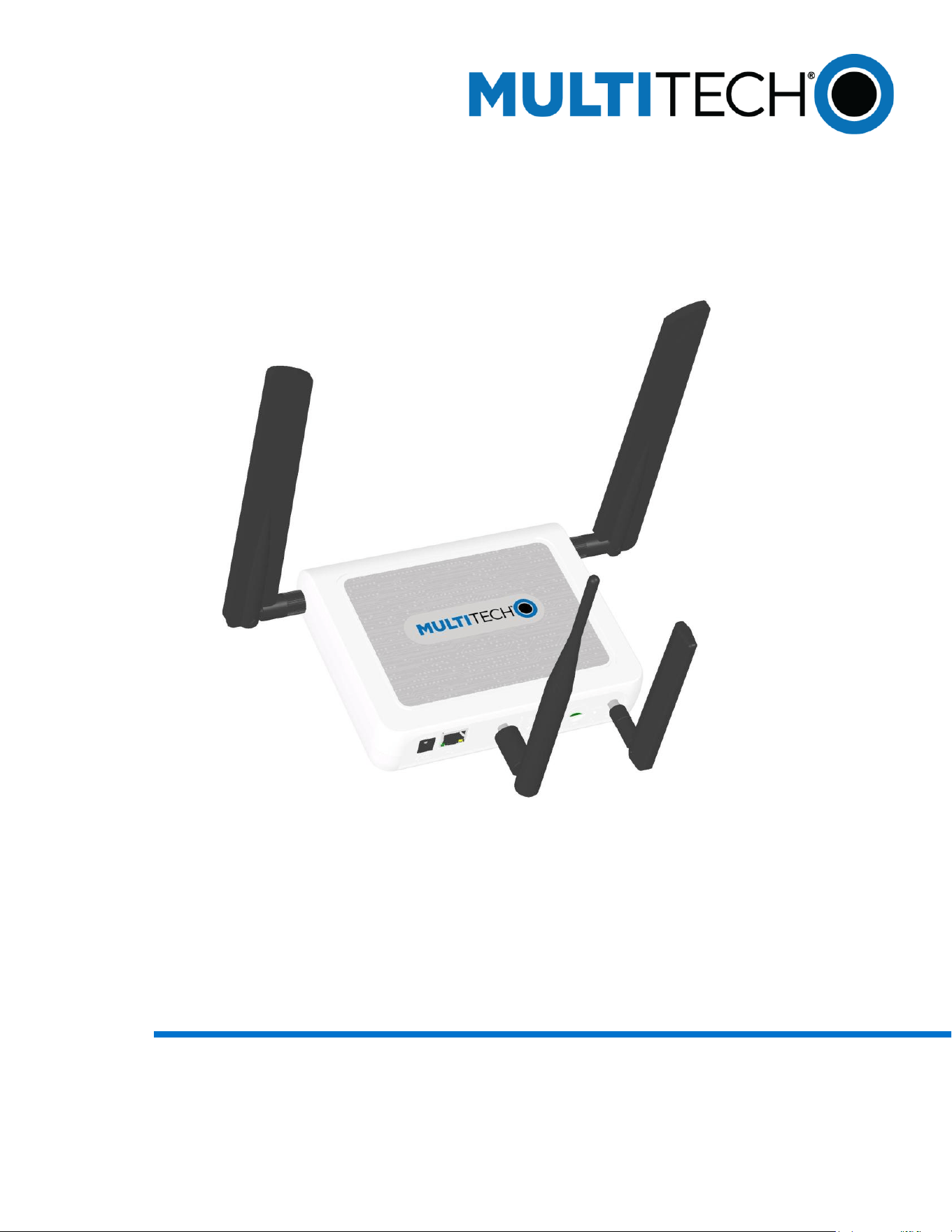

Conduit AP MTCAP3 WiFi Hardware Guide
2
Conduit® AP 300 Series MTCAP3-WiFi Hardware Guide
S000833
Conduit AP MTCAP3 WiFi Hardware Guide
This document applies to all models and regions on the device overview page. Go to https://multitech.com/all-products/cellular/cellular-
gateways/conduit-ap-300-series/#models.
Document Part Number: S000833 -v3
Copyright
This publication may not be reproduced, in whole or in part, without the specific and express prior written permission signed by an executive
officer of Multi-Tech Systems, Inc. All rights reserved. Copyright © 2026 by Multi-Tech Systems, Inc.
Multi-Tech Systems, Inc. makes no representations or warranties, whether express, implied or by estoppels, with respect to the content,
information, material and recommendations herein and specifically disclaims any implied warranties of merchantability, fitness for any
particular purpose, and non-infringement.
Multi-Tech Systems, Inc. reserves the right to revise this publication and to make changes from time to time in the content hereof without
obligation of Multi-Tech Systems, Inc. to notify any person or organization of such revisions or changes.
Trademarks
Multi-Tech and the Multi-Tech logo, DeviceHQ, SocketModem, and Conduit are registered trademarks of Multi-Tech Systems, Inc.
mPower, mCard, and mDot are trademarks of Multi-Tech Systems, Inc.
All other brand and product names are trademarks or registered trademarks of their respective companies.
Legal Notices
The MultiTech products are not designed, manufactured, or intended for use, and should not be used, or sold or re-sold for use, in connection
with applications requiring fail-safe performance or in applications where the failure of the products would reasonably be expected to result in
personal injury or death, significant property damage, or serious physical or environmental damage. Examples of such use include life support
machines or other life preserving medical devices or systems, air traffic control or aircraft navigation or communications systems, control
equipment for nuclear facilities, or missile, nuclear, biological, or chemical weapons or other military applications (“Restricted Applications”).
Use of the products in such Restricted Applications is at the user’s sole risk and liability.
MULTITECH DOES NOT WARRANT THAT THE TRANSMISSION OF DATA BY A PRODUCT OVER A WIRELESS COMMUNICATIONS NETWORK
WILL BE UNINTERRUPTED, TIMELY, SECURE, OR ERROR FREE, NOR DOES MULTITECH WARRANT ANY CONNECTION OR ACCESSIBILITY
TO ANY WIRELESS COMMUNICATIONS NETWORK. MULTITECH WILL HAVE NO LIABILITY FOR ANY LOSSES, DAMAGES, OBLIGATIONS,
PENALTIES, DEFICIENCIES, LIABILITIES, COSTS, OR EXPENSES (INCLUDING WITHOUT LIMITATION REASONABLE ATTORNEYS FEES)
RELATED TO TEMPORARY INABILITY TO ACCESS A WIRELESS COMMUNICATIONS NETWORK USING THE PRODUCTS.
The MultiTech products and the final application of the MultiTech products should be thoroughly tested to ensure the functionality of the
MultiTech products as used in the final application. The designer, manufacturer, and reseller has the sole responsibility of ensuring that any
end-user product into which the MultiTech product is integrated operates as intended and meets its requirements or the requirements of its
direct or indirect customers. MultiTech has no responsibility whatsoever for the integration, configuration, testing, validation, verification,
installation, upgrade, support, or maintenance of such end-user product, or for any liabilities, damages, costs, or expenses associated
therewith, except to the extent agreed upon in a signed written document. To the extent MultiTech provides any comments or suggested
changes related to the application of its products, such comments or suggested changes is performed only as a courtesy and without any
representation or warranty whatsoever.
Disclaimers
Information in this document is subject to change without notice and does not represent a commitment on the part of Multi-Tech Systems,
Inc. Multi-Tech Systems, Inc. provides this document “as is,” without warranty of any kind, expressed or implied, including, but not limited to,
the implied warranties of fitness or merchantability for a particular purpose. Multi-Tech Systems, Inc. may make improvements and/or changes
in this manual or in the product(s) and/or the software described in this manual at any time.

Contents
Conduit® AP 300 Series MTCAP3-WiFi Hardware Guide
S000833
3
Contents
1
About the Conduit AP 300 WiFi .................................................................................... 6
Intended Use ............................................................................................................. 6
In the Box ................................................................................................................. 6
Required Tools ....................................................................................................... 7
MTCAP3-WiFi Ordering Options ................................................................................... 7
2
Safety Instructions ................................................................................................... 8
Operation Safety ......................................................................................................... 8
Ethernet Ports ........................................................................................................ 8
Power Supply Caution ............................................................................................... 8
UL Notice .............................................................................................................. 9
Spécifications UL ............................................................................................... 9
General Safety ........................................................................................................ 9
Radio Frequency (RF) Safety ........................................................................................... 9
Sécurité relative aux appareils à radiofréquence (RF) .......................................................... 10
Interference with Pacemakers and Other Medical Devices ........................................................ 10
Precautions for Pacemaker Wearers .............................................................................. 10
3
Specifications ....................................................................................................... 12
Specifications for 915/868 MHz Models ............................................................................. 12
Device Dimensions ...................................................................................................... 14
MTCAP3 Labels ......................................................................................................... 15
Wi-Fi Models ............................................................................................................. 15
Antenna .................................................................................................................. 18
Antenna Compliance ................................................................................................ 18
LoRa Antenna ........................................................................................................ 18
MultiTech Ordering Part Numbers ............................................................................ 18
Specifications ................................................................................................... 18
Cellular and LTE Antenna ........................................................................................... 18
Antenna Specifications ........................................................................................ 19
Wi-Fi Antenna ....................................................................................................... 19
Requirements for FCC/IC Compliance ...................................................................... 19
Antenna Specifications ........................................................................................ 19
4
Before Installation ................................................................................................. 21
Installing a SIM Card .................................................................................................... 21
Removing a SIM Card ............................................................................................... 21
Attaching the Antenna ................................................................................................. 21

Conduit AP MTCAP3 WiFi Hardware Guide
4
Conduit® AP 300 Series MTCAP3-WiFi Hardware Guide
S000833
Cabling the Device ...................................................................................................... 21
Mounting the Device ................................................................................................... 22
You will need ......................................................................................................... 22
Determining Location ............................................................................................... 23
Mounting the Device ............................................................................................... 23
5
Installation .......................................................................................................... 25
Getting Started ......................................................................................................... 25
Setting Up Your Credentials (Commissioning) for mPower ................................................... 25
mPower Models First-Time Setup ................................................................................. 25
Connecting with LoRaWAN End Devices ........................................................................ 25
Commissioning an Ethernet-Only MTCAP3 .......................................................................... 25
Network Configuration ............................................................................................. 25
Locating the Device's IP Address .................................................................................. 26
Connecting to the Device .......................................................................................... 26
6
Operation ............................................................................................................ 27
Reset the Device ........................................................................................................ 27
7
Maintenance ........................................................................................................ 28
Firmware Over the Air (FOTA) Script ................................................................................. 28
Verizon Requirement: Firmware Upgrade Over The Air (FUOTA) ............................................. 28
8
Troubleshooting .................................................................................................... 29
9
Disposal .............................................................................................................. 30
Instructions for Disposal of WEEE by Users in the European Union.............................................. 30
10
Regulatory Information .......................................................................................... 31
FCC Notices ............................................................................................................. 31
FCC 47 CFR Part 15 Regulation Class B Devices ................................................................ 31
FCC Interference Notice ........................................................................................... 31
Industry Canada Class B Notice ....................................................................................... 31
EU EMC, Safety, and Radio Equipment Directive (RED) Compliance ............................................ 32
Australia Regulatory Compliance Mark (RCM) ....................................................................... 32
EU EMC, Safety, and Radio Equipment Regulations (UKCA) ...................................................... 32
Environmental Notices ................................................................................................. 33
EU WEEE Directive ................................................................................................. 33
EU RoHS 3 Directive ................................................................................................ 33
EU REACH-SVHC Statement ..................................................................................... 33
Accessories ............................................................................................................. 34
Related Documents ................................................................................................... 34
Warranty ............................................................................................................... 34

About the Conduit AP 300 WiFi
6
Conduit® AP 300 Series MTCAP3-WiFi Hardware Guide
S000833
1
About the Conduit AP 300 WiFi
Conduit AP 300 Series WiFi (MTCAP3-WiFi) securely connects thousands of LoRaWAN
®
wireless IoT
sensors to the cloud using the LoRaWAN
®
protocol. The Conduit AP Access Point packet forwarding
gateway offers Ethernet , WiFi, and Cellular Wide Area Networks seamless connectivity options to
connect to Cloud based applications in centrally located data centers.
Intended Use
The Conduit AP 300 Series WiFi is designed for indoor use and industrial applications, such as smart
buildings, retail spaces, agricultural environments, and other deployments where reliability and secure
long-range data communication is essential.
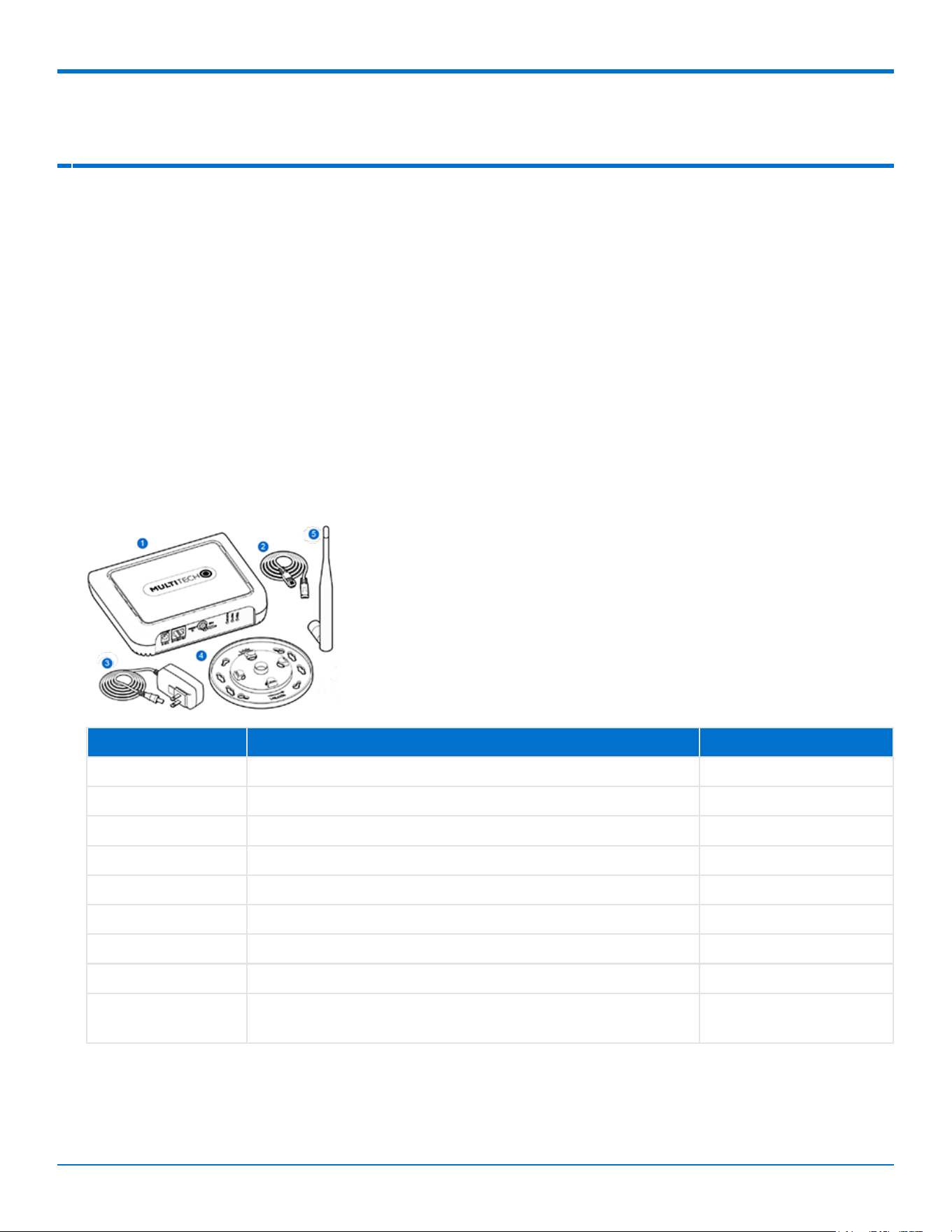
In the Box
Some options don't include all of the items shown below. Go to https://multitech.com/all-
products/cellular/cellular-gateways/conduit-ap-300-series/#models.
Item
Description
Quantity
1
Conduit AP 300 Wifi
1
2
RJ45 Ethernet cable
1
3
5 Volt, 2.5 Amp power supply
1
4
Mounting bracket
1
5
LoRa antenna (models with external antenna only)
1
6
Wi-Fi antenna (not shown)
1
7
Cellular (LTE) antenna (not shown)
2
8
Mounting feet set (not shown)
1
9
Onboarding card with QR code (directs to online quick-
start guide (not shown)
1
Important: Contact MultiTech Systems if a replacement power supply is needed. Using a different power
supply may damage the device and voids the warranty.

About the Conduit AP 300 WiFi
Conduit® AP 300 Series MTCAP3-WiFi Hardware Guide
S000833
7
Required Tools
The following tools are only required if mounting the device:
Four #6 (3.5mm) screws with anchors (not provided)
Screwdriver
Drill
MTCAP3-WiFi Ordering Options
To find information about ordering options, go to https://multitech.com/all-products/cellular/cellular-
gateways/conduit-ap-300-series/#models.

Safety Instructions
8
Conduit® AP 300 Series MTCAP3-WiFi Hardware Guide
S000833
2
Safety Instructions
Operation Safety
CAUTION: Read all instructions and safety information before installing or using this device.
ATTENTION: Lisez toutes les instructions et consignes de sécurité avant d'installer ou d'utiliser cet
appareil.
Follow all local laws, regulations, and rules for operating a wireless device.
Use the device security features to block unauthorized use and theft.
Unless otherwise noted, antennas are not approved for outdoor use. Do not extend any antenna
outside of any building, dwelling, or campus.
Do not attempt to disassemble the device. There are no user-serviceable parts inside.
Do not misuse the device. Follow instructions on proper operation and only use as intended. Misuse
could make the device inoperable, damage the device or other equipment, or harm users.
Do not apply excessive pressure or place unnecessary weight on the device. This could result in
damage to the device or harm to users.
Do not use this device in explosive or hazardous environments unless the model is specifically
approved for such use. The device may cause sparks. Sparks in explosive areas could cause an
explosion or fire that may result in property damage, severe injury, or death.
Do not expose the device to any extreme environment where the temperature or humidity is high.
Such exposure could result in damage to the device or cause a fire. See the device specifications
for recommended operating temperature and humidity.
Do not expose the device to water, rain, or other liquids. It is not waterproof. Exposure to liquids
could result in damage to the device.
Using accessories, such as antennas, that MultiTech has not authorized or that are not compliant
with the device accessory specifications may invalidate the warranty.
If the device is not working properly, contact MultiTech technical support.
Ethernet Ports
CAUTION: Ethernet ports and command ports are not designed to be connected to a public
telecommunication network or used outside the building.
ATTENTION: Les ports Ethernet et de commande ne sont pas conçus pour être raccordés à un réseau de
télécommunications public ou utilisé à l'extérieur du bâtiment.
Power Supply Caution
CAUTION: Do not replace the power supply with one designed for another product; doing so can
damage the modem and void your warranty. Adapter shall be installed near the equipment and shall be
easily accessible.

Safety Instructions
Conduit® AP 300 Series MTCAP3-WiFi Hardware Guide
S000833
9
ATTENTION: Pour garantir une protection continue contre les risques d'incendie, remplacez les fusibles
uniquement par des fusibles du même type et du même calibre. L'adaptateur doit être installé à proximité
de l'appareil et doit être facilement accessible.
VORSICHT: Ersetzen Sie das Netzteil nicht durch ein Netzteil, das für ein anderes Produkt vorgesehen
ist. Andernfalls kann das Modem beschädigt werden und Ihre Garantie erlischt. Der Adapter muss in der
Nähe des Geräts installiert und leicht zugänglich sein.
UL Notice
UL Listed at 40° C, limited by power supply. UL Certification does not apply or extend to an ambient
above 40° C and has not been evaluated by UL for ambient greater than 40° C. “UL has evaluated this
device for use in ordinary locations only. Installation in a vehicle or other outdoor locations has not been
evaluated by UL. UL Certification does not apply or extend to use in vehicles or outdoor applications or in
ambient above 40° C.”
Spécifications UL
Listé UL à 40° C, limité par l'alimentation. La certification UL ne s'applique pas ou ne s'étend pas à des
températures dépassant 40° C, et le produit n'a pas été évalué par UL pour une température ambiante
dépassant 40° C. « UL a évalué cet appareil pour une utilisation en zone ordinaire uniquement. Le produit
n'a pas été évalué par UL pour une installation dans un véhicule ou en extérieur. La certification UL ne
s'applique pas ou ne s'étend pas aux applications dans un véhicule, en extérieur ou en présence d'une
température ambiante supérieure à 40° C ».
General Safety
The device is designed for and intended to be used in fixed and mobile applications. Fixed means the
device is physically secured at one location and cannot be easily moved to another location. Mobile
means the device is used in other than fixed locations.
CAUTION: Maintain a separation distance of at least 23 cm (9 inches) between the transmitter’s antenna
and the body of the user or nearby persons. The device is not designed for or intended to be used in
portable applications within 23 cm (9 inches) of the user’s body.
ATTENTION: Maintenir une distance d'au moins 23 cm (9 po) entre l'antenne du récepteur et le corps de
l'utilisateur ou à proximité de personnes. Le modem n'est pas conçu pour, ou destinés à être utilisés dans
les applications portables, moins de 23 cm (9 po) du corps de l'utilisateur.
Radio Frequency (RF) Safety
Due to the possibility of radio frequency (RF) interference, it is important that you follow any special
regulations regarding the use of radio equipment. Follow the safety advice given below.
Operating your device close to other electronic equipment may cause interference if the
equipment is inadequately protected. Observe any warning signs and manufacturers’
recommendations.
Different industries and businesses restrict the use of cellular devices. Respect restrictions on the
use of radio equipment in fuel depots, chemical plants, or where blasting operations are in process.
Follow restrictions for any environment where you operate the device.
Do not place the antenna outdoors.

Safety Instructions
10
Conduit® AP 300 Series MTCAP3-WiFi Hardware Guide
S000833
Turn off your wireless device when in an aircraft. Using portable electronic devices in an aircraft
may endanger aircraft operation, disrupt the cellular network, and may be illegal. Failing to observe
this restriction may lead to suspension or denial of cellular services to the offender, legal action, or
both.
Turn off your wireless device when around gasoline or diesel-fuel pumps and before filling your
vehicle with fuel.
Turn off your wireless device in hospitals and any other place where medical equipment may be in
use.
Sécurité relative aux appareils à radiofréquence (RF)
À cause du risque d'interférences de radiofréquence (RF), il est important de respecter toutes les
réglementations spéciales relatives aux équipements radio. Suivez les conseils de sécurité ci-dessous.
Utiliser l'appareil à proximité d'autres équipements électroniques peut causer des interférences si
les équipements ne sont pas bien protégés. Respectez tous les panneaux d'avertissement et les
recommandations du fabricant.
Certains secteurs industriels et certaines entreprises limitent l'utilisation des appareils cellulaires.
Respectez ces restrictions relatives aux équipements radio dans les dépôts de carburant, dans les
usines de produits chimiques, ou dans les zones où des dynamitages sont en cours. Suivez les
restrictions relatives à chaque type d'environnement où vous utiliserez l'appareil.
Ne placez pas l'antenne en extérieur.
Éteignez votre appareil sans fil dans les avions. L'utilisation d'appareils électroniques portables en
avion est illégale: elle peut fortement perturber le fonctionnement de l'appareil et désactiver le
réseau cellulaires. S'il ne respecte pas cette consigne, le responsable peut voir son accès aux
services cellulaires suspendu ou interdit, peut être poursuivi en justice, ou les deux.
Éteignez votre appareil sans fil à proximité des pompes à essence ou de diesel avant de remplir le
réservoir de votre véhicule de carburant.
Éteignez votre appareil sans fil dans les hôpitaux ou dans toutes les zones où des appareils
médicaux sont susceptibles d'être utilisés.
Interference with Pacemakers and Other Medical
Devices
Radio frequency energy (RF) from cellular devices can interact with some electronic devices. This is
electromagnetic interference (EMI). The FDA helped develop a detailed test method to measure EMI of
implanted cardiac pacemakers and defibrillators from cellular devices. This test method is part of the
Association for the Advancement of Medical Instrumentation (AAMI) standard. This standard allows
manufacturers to ensure that cardiac pacemakers and defibrillators are safe from cellular device EMI.
The FDA continues to monitor cellular devices for interactions with other medical devices. If harmful
interference occurs, the FDA will assess the interference and work to resolve the problem.
Precautions for Pacemaker Wearers
If EMI occurs, it could affect a pacemaker in one of three ways:
Stop the pacemaker from delivering the stimulating pulses that regulate the heart's rhythm.

Safety Instructions
Conduit® AP 300 Series MTCAP3-WiFi Hardware Guide
S000833
11
Cause the pacemaker to deliver pulses irregularly.
Cause the pacemaker to ignore the heart’s own rhythm and deliver pulses at a fixed rate.
Based on current research, cellular devices do not pose a significant health problem for most pacemaker
wearers. However, people with pacemakers may want to take simple precautions to be sure that their
device doesn't cause a problem.
Keep the device on the opposite side of the body from the pacemaker to add extra distance
between the pacemaker and the device.
Avoid placing a turned-on device next to the pacemaker (for example, don’t carry the device in a
shirt or jacket pocket directly over the pacemaker).
Specifications
12
Conduit® AP 300 Series MTCAP3-WiFi Hardware Guide
S000833
3
Specifications
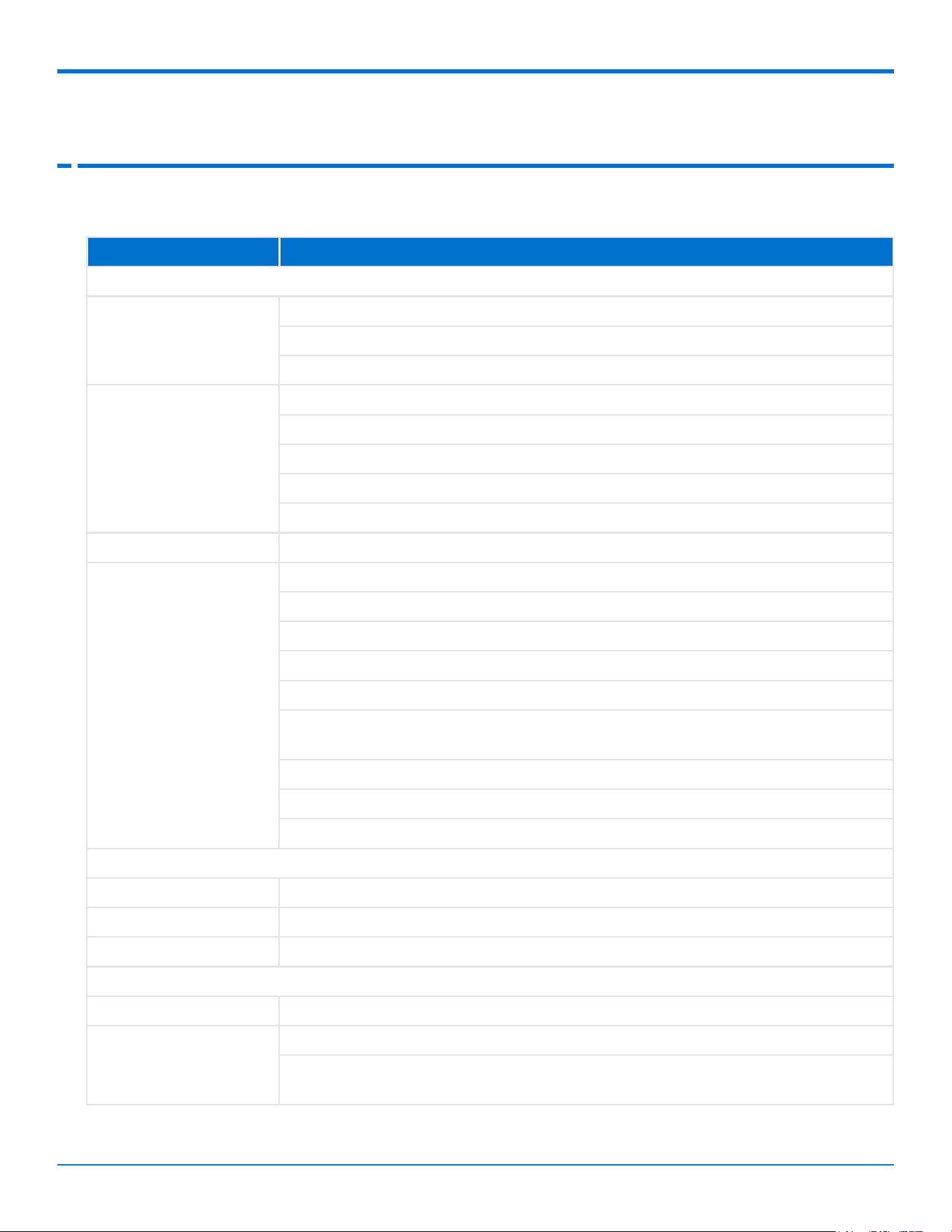
Specifications for 915/868 MHz Models
Category
Description
General
Standards
LoRaWAN 1.0.4 specifications
LTE FDD Cat 4, 3GPP release 11 compliant
WCDMA/GSM fallback
Wi-Fi
Standards: Wi-Fi 6 IEEE 802.11a/b/g/n/ac/ax
Frequency bands: 2.4 GHz - channels 1-14, 5 GHz - channels 36-193
Wi-Fi output: Tx-power 18 dBm (Wi-Fi 6, 5 GHz, 20 MHz channel)
RX sensitivity: Wi-Fi 6 2.4 GHz: -91 dBm, Wi-Fi 6 5 GHz: -92.5 dBm
Security: 128-bit AES hardware encryption Secure boot
LoRa radio frequency
915 MHz ISM band, 868 MHz ISM
Cell radio frequency
bands (MHz) for L4G2D
4G LTE FDD (Europe): B3 (1800), B7 (2600), B8 (900), B20 (800)
2G (Europe fallback): B2 (1900), B3 (1800), B5 (850), B8 (900)
4G LTE FDD (AT&T): B2 (1900), B4 (AWS1700), B12 (700), B14 (700)
4G LTE FDD (Verizon): B2 (1900), B4 (AWS1700), B13 (700)
4G LTE FDD (Anterix): B8-US (900)
4G LTE FDD (APAC): B1 (2100), B9 (1800), B18 (800), B19 (850), B26 (850),
B28 (700)
3G: B1 (2100), B2 (1900), B4 (AWS1700), B5 (850), B6, B8 (900), B19 (850)
2G: B2 (1900), B3 (1800), B5 (850), B8 (900)
4G LTE FDD bands: B25 (1900)
Physical Description
Dimensions
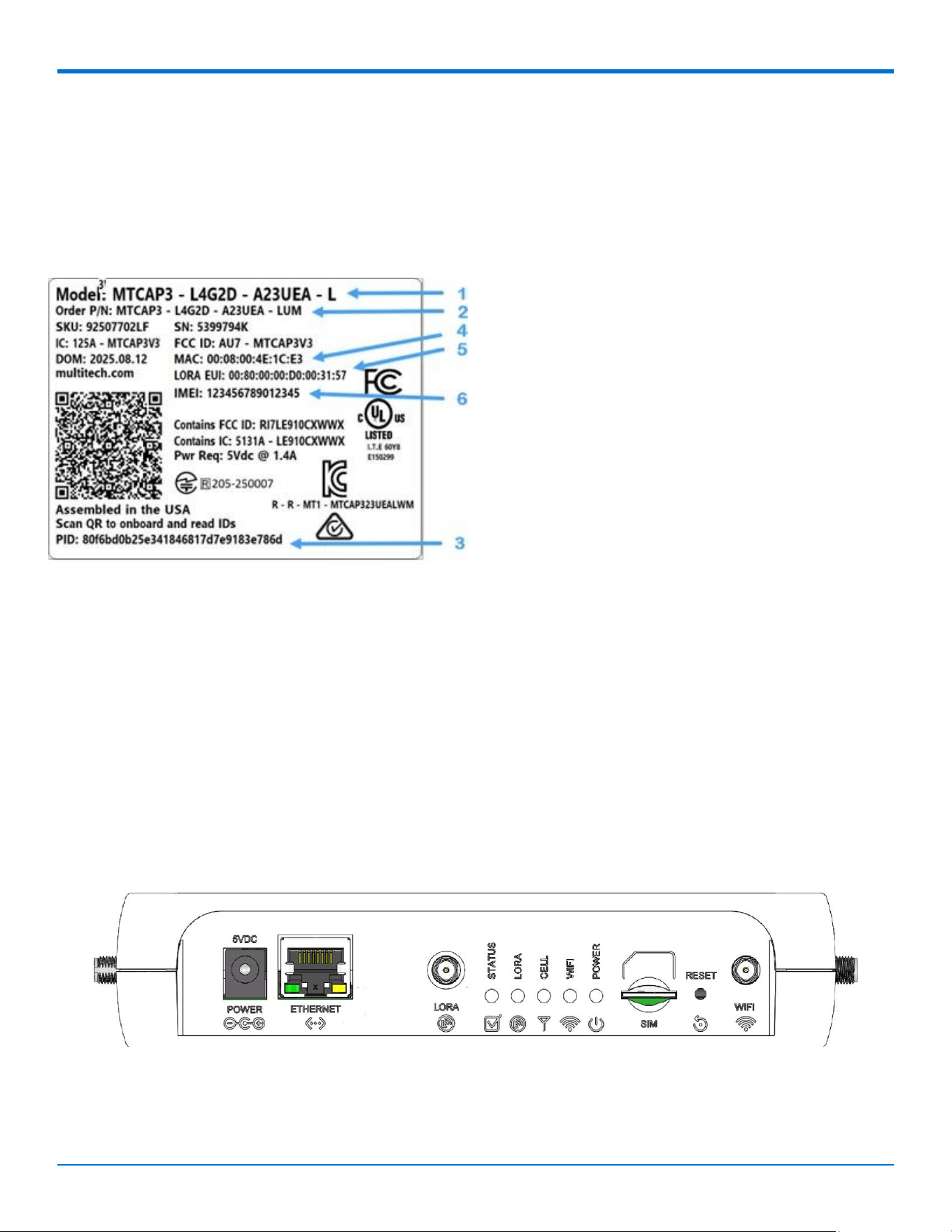
165 (6.5) × 135 (5.3) × 36 (1.4) mm (in)
Weight
0.11 kg (0.24 lb) without antenna
Chassis
PC-ABS
Power Requirements
Operating voltage
5 VDC @ 2.5A
AC power requirement
Ethernet active, cellular connection established, LoRa RX: 2W
Ethernet active, cellular connection at maximum transmit power, LoRa RX+TX:
5W

Specifications
Conduit® AP 300 Series MTCAP3-WiFi Hardware Guide
S000833
13
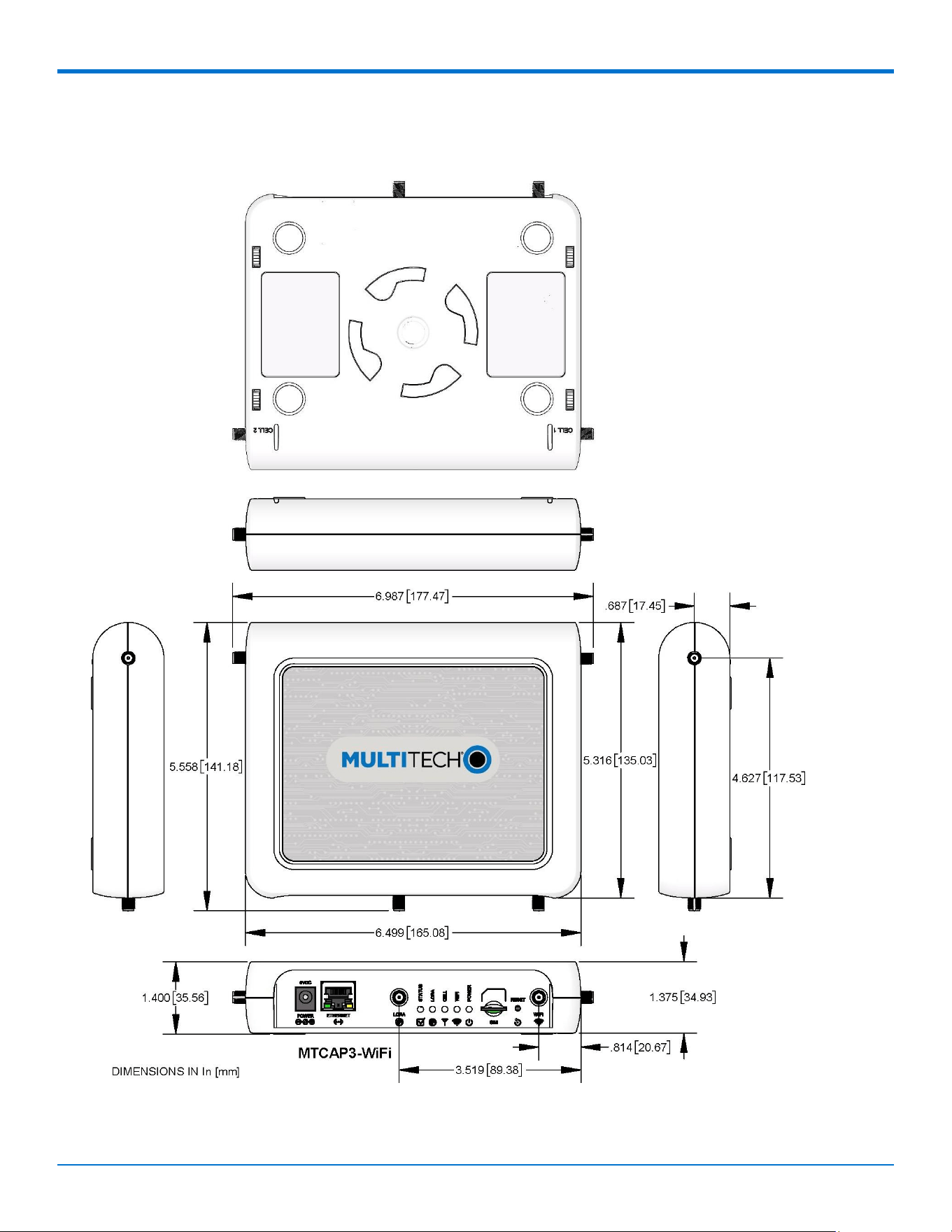
Category
Description
LoRa tx power (915)
Australia and North America: 29.1 dBm maximum EIRP (includes external LoRa
antenna)
Japan: 14 dBm maximum EIRP (includes external LoRa antenna)
New Zealand: 29.9 dBm maximum EIRP (includes external LoRa antenna)
LoRa tx power (868)
1
Internal antenna models: 12.3–24.8 dBm maximum ERP; maximum ERP is 12.3
dBm for whole band, except 24.8 dBm at 869.525 MHz
External antenna models: 13.0–25.5 dBm maximum ERP; maximum ERP is 13.0
dBm for whole band, except 25.5 dBm at 869.525 MHz
Environment
Operating temperature
2
0 °C to 70 °C (32 °F to 158 °F)
Storage temperature
-40 °C to 85 °C (−40 °F to 185 °F)
Humidity
20%-90%, RH non-condensing
Certifications
EMC and radio
compliance
FCC Part 15 Class B
FCC Part 15.247 (LoRa)
FCC 22H, 24E, 27, 90
RSS130,RSS133, RSS139
RSS210 (LoRa)
ASNZ 4268
CE Mark, RED (EU)
EN 300 220-1 / EN 301 489-1 / EN 301 908-1 (see Declaration of Conformity
for details)
Safety compliance
UL 62368-1 2nd Edition
UL / IEC 62368-1
1
ERP = EIRP − 2.15 dB
2
UL listed at 40 °C, limited by AC power supply. Product has been tested to 70 °C excluding power supply.
Specifications
14
Conduit® AP 300 Series MTCAP3-WiFi Hardware Guide
S000833
Device Dimensions
Specifications
Conduit® AP 300 Series MTCAP3-WiFi Hardware Guide
S000833
15
MTCAP3 Labels
These are example labels. Actual labels vary depending on the regulatory approval markings and device
model.
Note: This device complies with part 15 of the FCC Rules. Operation is subject to the following two
conditions: (1) This device may not cause harmful interference, and (2) this device must accept any
interference received, including interference that may cause undesired operation.
1.
MultiTech model identification
2.
MultiTech ordering part number
3.
PID (provisioning ID)
4.
Ethernet MAC address
5.
Device node number
6.
IMEI (international mobile equipment identity) (cellular models only)
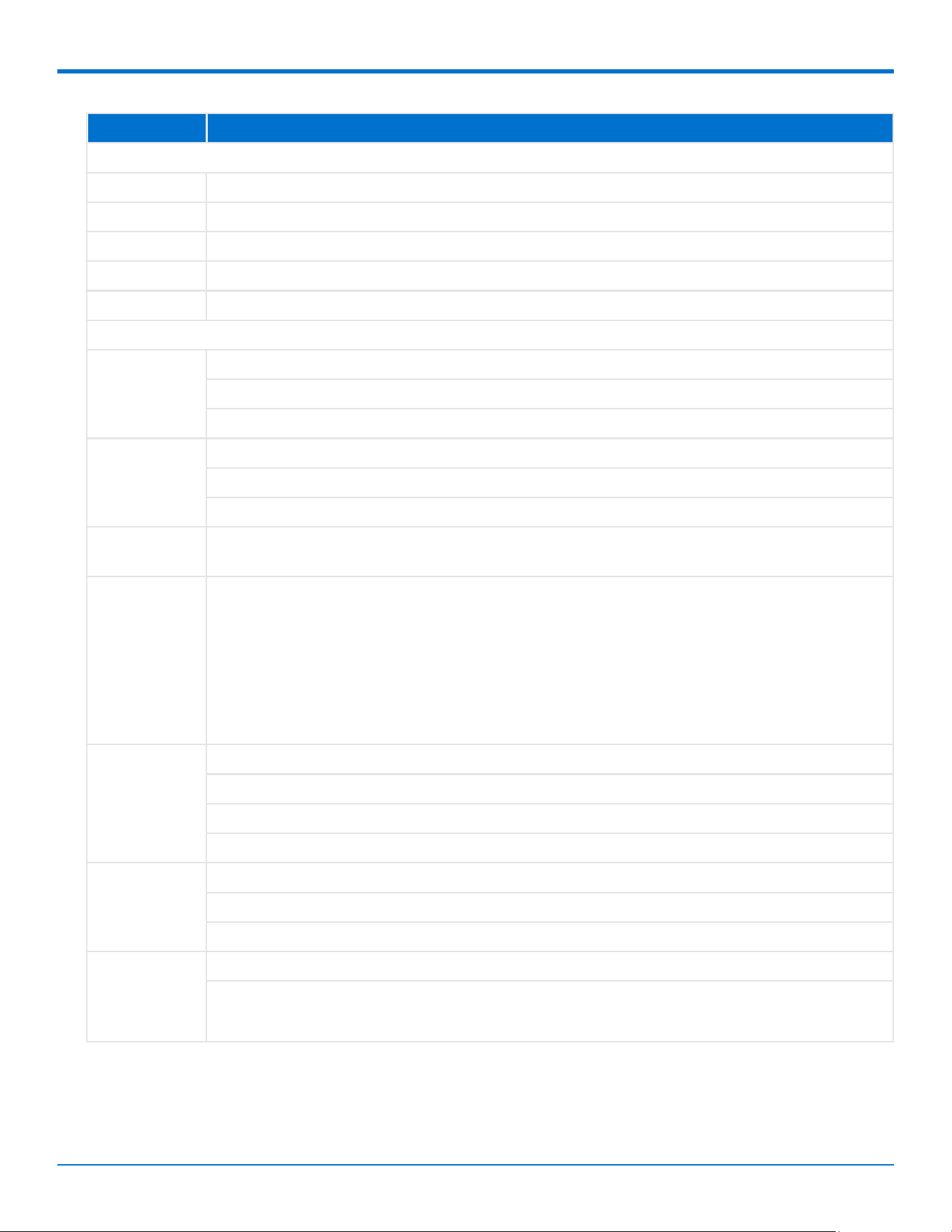
Wi-Fi Models
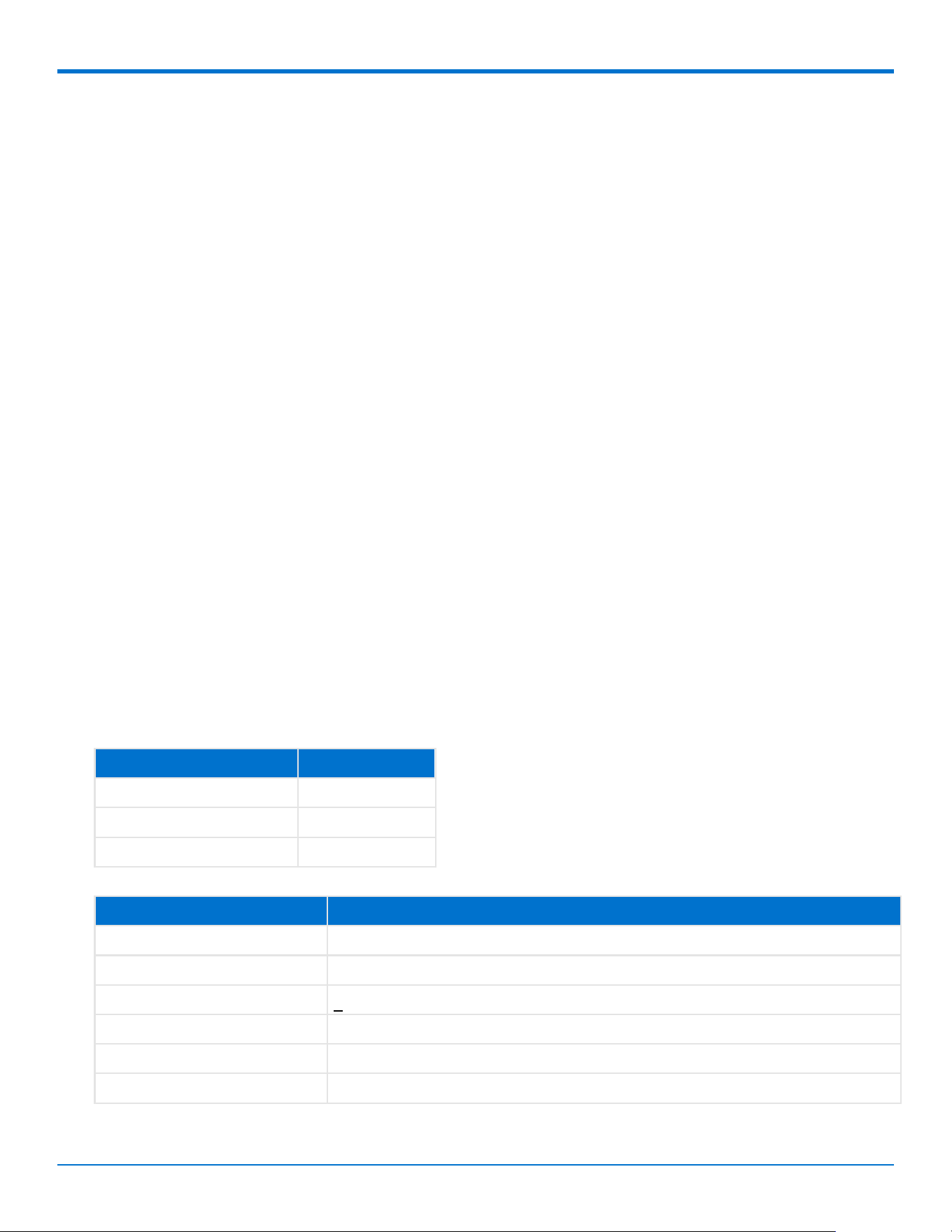
These connectors and LEDs are specific to MTCAP3 models with wi-fi.
Specifications
16
Conduit® AP 300 Series MTCAP3-WiFi Hardware Guide
S000833
Item
Description
Connectors
Power
5 Volt power jack.
Ethernet
RJ45 Ethernet jack.
Reset
Reset button. Reboots device or restores factory defaults.
LORA
RP-SMA connector for external LoRa antenna. (Select models)
SIM
Cellular models only. Micro (3FF) SIM slot.
LEDs
STATUS
On (Solid): Firmware is booting.
Flashing: Blinks when operating system is fully loaded.
Off: If this LED remains off one minute after power is applied, troubleshoot the device.
LORA
On: Lights when LoRa software is active.
Flashing: Firmware upgrade mode.
Off: LoRa services stopped.
CELL (LoRa
only)
Cellular
models
only.
CELL (cellular)
Cellular
models
only.
On: Firmware is booting.
Fast flashing: Data transfer is ongoing.
Slow flashing: Idle or network searching. If Power and LoRA LED are also flashing,
firmware upgrade mode.
Off: No cellular signal. Stays off if device does not have a radio.
WIFI
On: Wi-Fi radio is enabled.
Slow Flashing: Verifying firmware signature.
Fast Flashing: Loading the kernel.
Off: Wi-Fi radio is disabled.
POWER
On: Powered up, normal operation.
Slowly Cycles On and Off: Loading initial Linux kernel.
Off: No power, either device disconnected from power or powered off.
Ethernet Link
(left LED on
the Ethernet
connector)
On: There is a valid Ethernet connection.
Flashing: Data is being sent or received on the Ethernet link.

Specifications
Conduit® AP 300 Series MTCAP3-WiFi Hardware Guide
S000833
17
Item
Description
Ethernet
On: The Ethernet is linked at 100 Mbps.
Speed (right
LED on the
Off: The Ethernet is linked at 10 Mbps.
Ethernet
connector)
Specifications
18
Conduit® AP 300 Series MTCAP3-WiFi Hardware Guide
S000833
Antenna
Your device ships with the following antenna. Contact MultiTech if you need a replacement antenna.
Antenna Compliance - Canada
This radio transmitter [IC: 125A-MTCAP3V3] has been approved by Innovation, Science and
Economic Development Canada to operate with the antenna types listed below, with the
maximum permissible gain indicated. Antenna types not included in this list that have a gain
greater than the maximum gain indicated for any type listed are strictly prohibited for use with
this device.
Le présent émetteur radio [IC: 125A-MTCAP3V3] a été approuvé par Innovation, Sciences et
Développement économique Canada pour fonctionner avec les types d'antenne énumérés ci-
dessous et ayant un gain admissible maximal. Les types d'antenne non inclus dans cette liste,
et dont le gain est supérieur au gain maximal indiqué pour tout type figurant sur la liste, sont
strictement interdits pour l'exploitation de l'émetteur.
Antenna Compliance – US – FCC
This radio transmitter [FCC : AU7-MTCAP3V3] has been approved by the FCC, to operate with the
antenna types listed below, with the maximum permissible gain indicated.
Antenna types not included in this list that have a gain greater than the maximum gain indicated or may
have a different radiation pattern, for any type listed, are strictly prohibited for use with this device.
failure to comply with the specific antenna requirements can result in operations that exceed FCC RF
exposure limits.
LoRa Antenna
Manufacturer: Quectel
Description:
868-928 MHz RP-SMA Antenna, 8"
Model Number:
YEIN002AA
MultiTech Ordering Part Numbers
Ordering Part Number
Quantity
AN868-915A-1HRA
1
AN868-915A-10HRA
10
AN868-915A-50HRA
50
Specifications
Category
Description
Frequency Range
868-928 MHz
Impedance
50 Ohms
VSWR
< 2.0
Gain
2.5 dBi
Radiation
Omni
Polarization
Vertical
Specifications
Conduit® AP 300 Series MTCAP3-WiFi Hardware Guide
S000833
19
Cellular and LTE Antenna
Manufacturer: 2J
Manufacturer's Model Number:
2JW1024 Multi-Tech Systems:
45
009891L
Antenna Specifications
Category
Description
Frequency Range
698 - 960 MHz
1710 - 2170 MHz
2500 - 2700 MHz
Impedance
50 Ohms
VSWR
VSWR should not exceed 2.0:1 at any point across the bands of operation
Peak Radiated Gain
~0.1
dBi
~2.9 dBi
~4.6 dBi
Radiation
Omni-directional
Polarization
Linear
Connector
SMA(M)
Wi-Fi Antenna
Requirements for FCC/IC Compliance
Important: Customers intending to use an alternate antenna—that is, a different type or with different
gains—must contact MultiTech Support for guidance.
The following Wi-Fi antenna is approved for use with the Conduit AP 300 WiFi:
Manufacturer
2J Antennas USA
Manufacturer Model
Number
2JW1102-C943B
Antenna Type
2.4 GHz/5.0 GHz dipole antenna
For the MultiTech ordering part number, see Accessories.
For more information on FCC compliance, see Regulatory Information.
Antenna Specifications
Category
Description
Frequency Range
2.4/5.0/6.0
GHz
3
3
Although the Wi-Fi antenna included in the ordering option covers up to 6.0 GHz, the Conduit AP 300 WiFi operates on the

Specifications
20
Conduit® AP 300 Series MTCAP3-WiFi Hardware Guide
S000833
2.4 GHz and 5 GHz bands.
Specifications
Conduit® AP 300 Series MTCAP3-WiFi Hardware Guide
S000833
21
Category
Description
Impedance
50 Ohms
VSWR
VSWR should not exceed 2.0:1 at
any point across the bands of
operation
Peak radiated gain
4.1 dBi for 2.4 GHz
3.9 dBi for 5.0 GHz
Radiation
Omnidirectional
Polarization
Linear
Connector
RP-
SMA(M)


Before Installation
Conduit® AP 300 Series MTCAP3-WiFi Hardware Guide
S000833
21
4
Before Installation
Installing a SIM Card
Models with cellular capability have a micro SIM slot, you'll need a micro (3FF) SIM card from your
network provider.
Note: -L4G2D models work on both Verizon and AT&T networks. The device detects the carrier based on
your SIM card.
To install the SIM card:
With the contact side facing down, align the notched edge as shown and slide the SIM card
completely into the SIM holder.
Removing a SIM Card
To remove the SIM card, push the SIM card in. The device ejects the SIM card.
Attaching the Antenna
(Models with external antenna only)
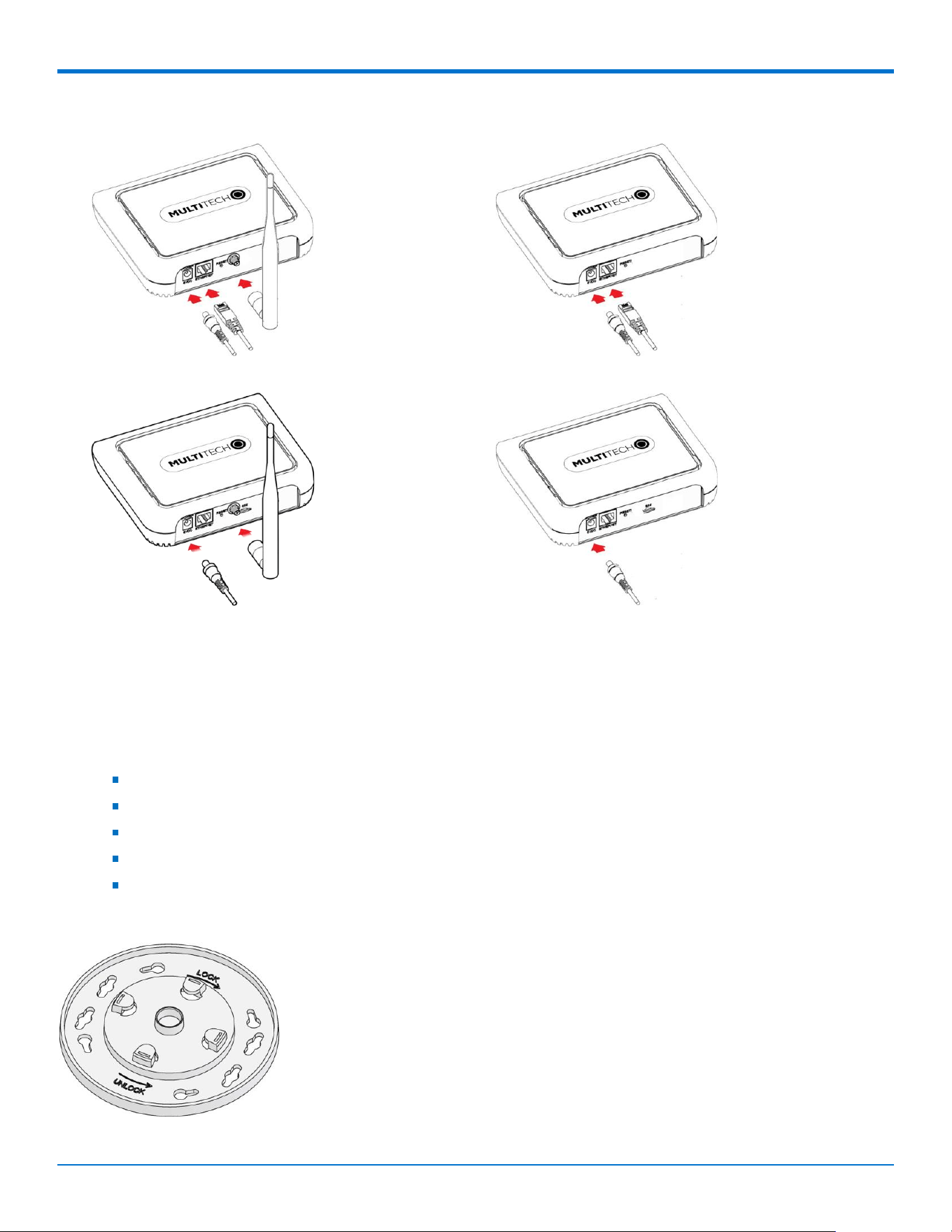
To connect the antenna:
Finger-tighten the antenna to the antenna connector on your device.
Cabling the Device
To cable the device:
1.
For Ethernet only models, connect the Ethernet cable to the Ethernet port on the device and to
your computer.
2.
Attach the plug for your country to the power supply.
3.
Connect the power supply to the device's power jack and plug it into an electrical outlet. When
the operating system is fully loaded, the STATUS LED blinks.
Important: The power supply is 5V at the connector. Verify you are connecting the power
supply that shipped with the device. Using a power supply with higher voltage damages the
device.
Before Installation
22
Conduit® AP 300 Series MTCAP3-WiFi Hardware Guide
S000833
Ethernet only models with external LoRa antenna Ethernet only models, all internal antennas
Cellular models with external LoRa antenna Cellular models, all internal antennas
Mounting the Device
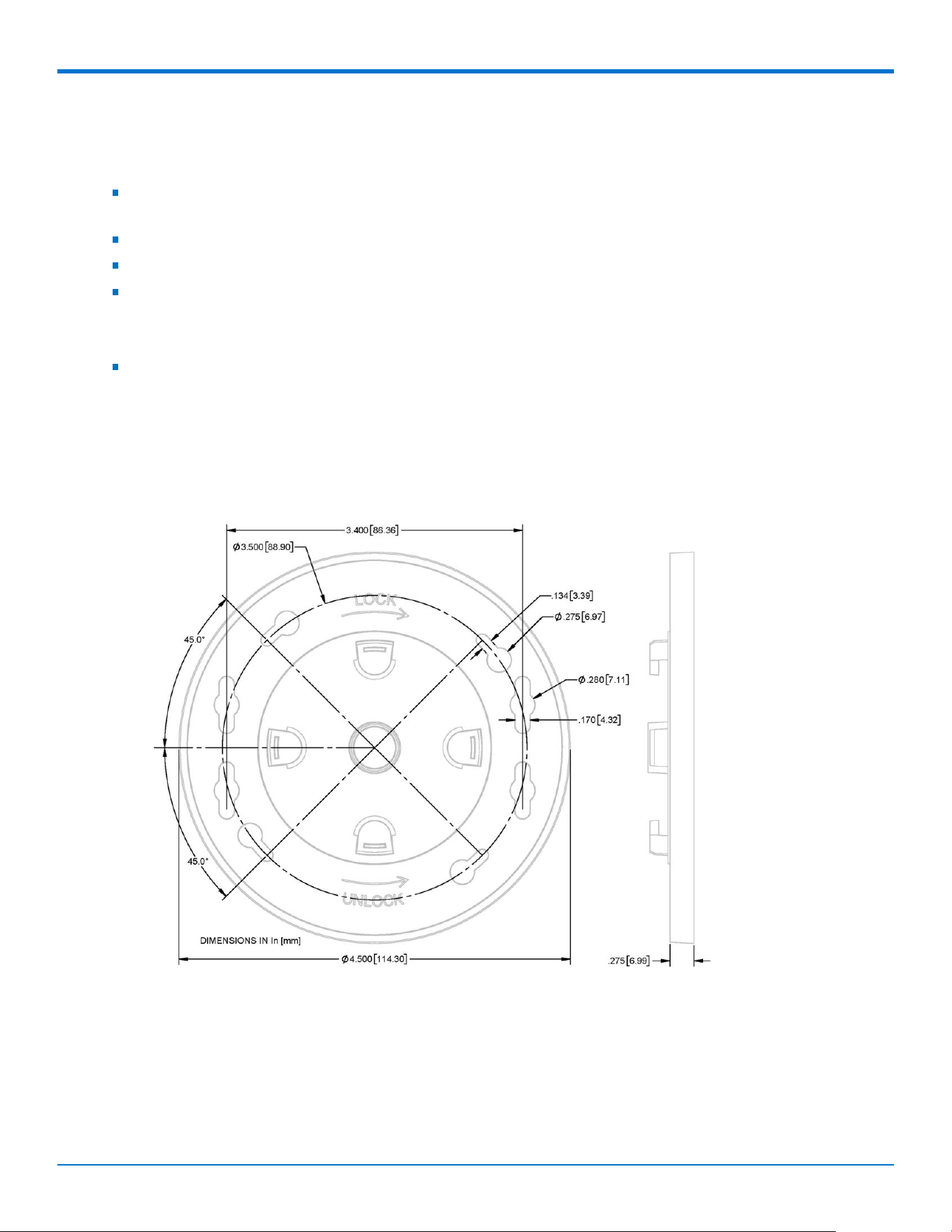
The device ships with a mounting bracket.
You will need
Device
Mounting bracket
Four #6 (3.5mm) screws with anchors (not provided)
Screwdriver
Drill
Mounting Bracket
Before Installation
Conduit® AP 300 Series MTCAP3-WiFi Hardware Guide
S000833
23
Determining Location
Follow these guidelines for best performance:
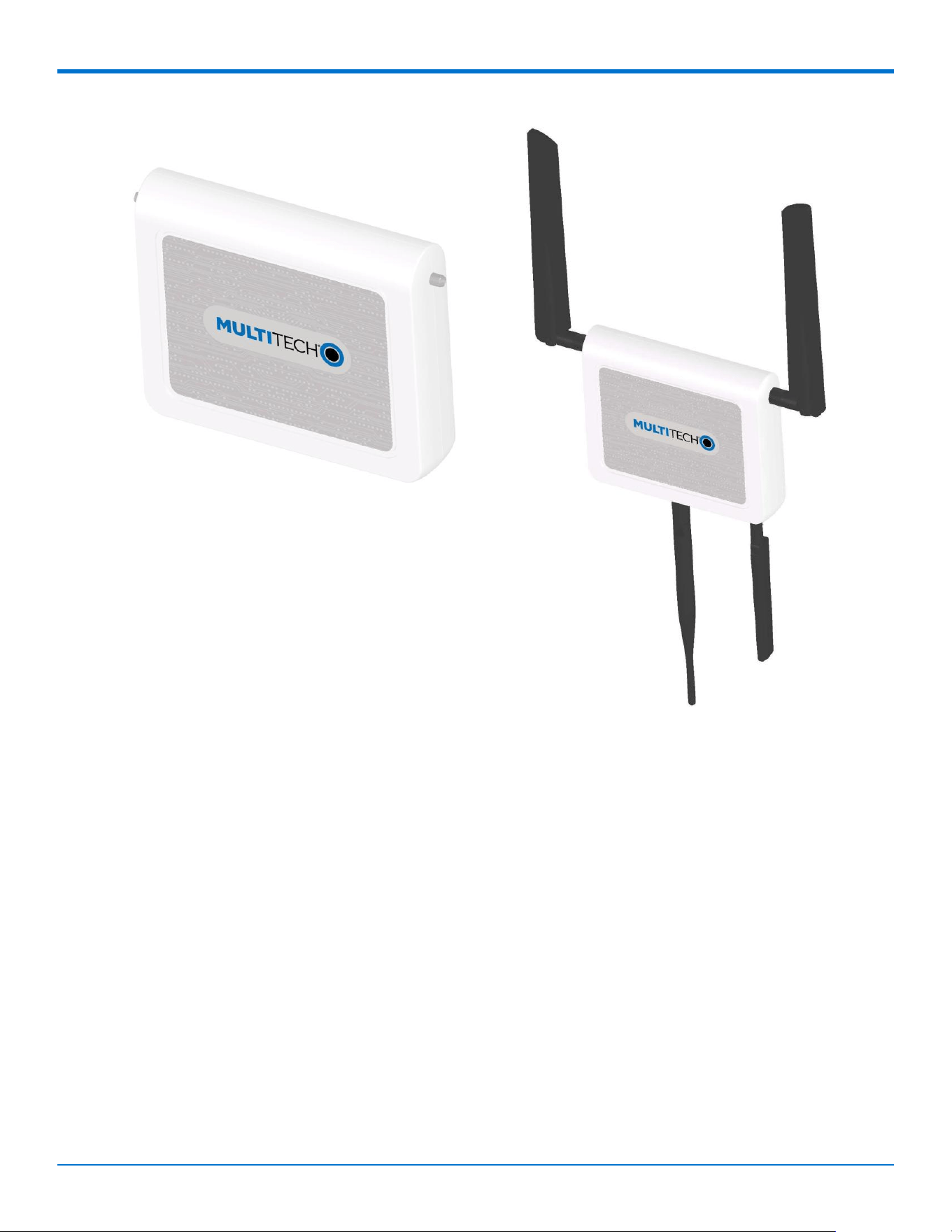
The LoRa antenna is omnidirectional, but for best results, mount the device so the LoRa antenna is
in a vertical position as shown in this section.
For optimal performance, place the device at a level higher than the end devices.
Select a location central to all devices to be connected to this device.
Avoid obstructions.
Important: Thick walls and reflective surfaces, such as metal, weaken the signal between the
device and other devices.
We recommend conducting a site survey to test the signal strength in different locations before
you mount the device.
Mounting the Device
1.
Determine where you want to mount the device.
2.
Mark where you want the screws to go.
3.
Drill holes for the screws and insert anchors.
4.
Place the mounting bracket and secure it with screws.
5.
Attach the device to the bracket and rotate until it locks into place.
Before Installation
24
Conduit® AP 300 Series MTCAP3-WiFi Hardware Guide
S000833

Installation
Conduit® AP 300 Series MTCAP3-WiFi Hardware Guide
S000833
25
5
Installation
Getting Started
Setting Up Your Credentials (Commissioning) for mPower
The first time the device powers up, it goes into commissioning mode. The system requires you to set up
an administrative user. To do this:
Note: MultiTech recommends using Firefox.
1.
Open a browser on your computer and enter the default IP address in the URL field, 192.168.2.1.
Most browsers display a warning about HTTP addresses being unsafe because of a self-signed
certificate:
For Edge, click Advanced and then Continue to 192.168.2.1.
For Firefox, click Advanced and then click Accept the Risk and Continue.
For Chrome, click Advanced and then Continue to 192.168.2.1 (unsafe).
2.
Enter a username for the administrative user. Click OK. Follow on screen instructions for
usernames.
3.
Enter a password and click OK. Follow on screen instructions for a secure password.
4.
Enter the password again to confirm. Click OK.
5.
Log into the device using the new username and password.
The First-Time Setup Wizard appears.
mPower Models First-Time Setup
If your device uses the mPower platform, refer to First-Time Setup in mPower Software Guide (S000727)
for details. It is available through your model's page at https://multitech.com/all-
products/cellular/cellular-gateways/conduit-ap-300-series/.
Connecting with LoRaWAN End Devices
For help connecting your device with LoRaWAN end devices, refer to Application Notes at
https://multitech.com/all-products/cellular/cellular-gateways/conduit-ap-300-series/.
Commissioning an Ethernet-Only MTCAP3
Network Configuration
The Ethernet interface on MTCAP3 (without cellular) operates as a DHCP client, meaning it does not use
a predictable static IP (such as 192.168.2.1). Upon connection to a network, the device will request an IP
from a DHCP server.

Installation
26
Conduit® AP 300 Series MTCAP3-WiFi Hardware Guide
S000833
Locating the Device's IP Address
The assigned IP can typically be found using one of the following methods:
DHCP Server Logs - most IT departments can retrieve the IP via MAC address or hostname
(mtcap3-<serial_number>).
Network Scanning Tools - utilities such as ARP, nmap, or similar tools may help identify the device’s
IP.
Connecting to the Device
Once you’ve identified the assigned IP, you can access the device API or Web UI through that IP address
in a browser.

Operation
Conduit® AP 300 Series MTCAP3-WiFi Hardware Guide
S000833
27
6
Operation
Reset the Device
Prerequisite: A pin, paperclip, or similar thin object that can fit into the reset hole.
The following is the default condition for the RESET button on the device. You can program a change to
the behavior of the button if needed.
To reset the device:
1.
Find the hole labeled RESET. The Reset button is recessed into the case.
2.
Use the pin to press and release the Reset button as follows:
To reboot, press Reset for less than 3 seconds.
To reset to factory settings, press Reset for 35 seconds or longer:
a.
The device restarts in commissioning mode. The system automatically removes all user
accounts.
b.
Enter a new username and password to create your new administrative account. See
User Accounts in the appropriate software guide for details on username and password
requirements.

Maintenance
28
Conduit® AP 300 Series MTCAP3-WiFi Hardware Guide
S000833
7
Maintenance
Firmware Over the Air (FOTA) Script
Verizon Requirement: Firmware Upgrade Over The Air (FUOTA)
At times, your device may require a critical update to radio firmware for devices connecting to the
network. To stay compliant to Verizon’s requirements you must implement FOTA. Failure to perform a
critical update could result in losing access to the Verizon network. Refer to Cellular Radio Firmware
Upgrade in the mPower Conduit AEP Software Guide.
If using DeviceHQ to manage your device, refer to Upgrading Cellular Firmware Using DeviceHQ
(Remote Management) in the software guide.

Disposal
30
Conduit® AP 300 Series MTCAP3-WiFi Hardware Guide
S000833
9
Disposal
Instructions for Disposal of WEEE by Users in the
European Union
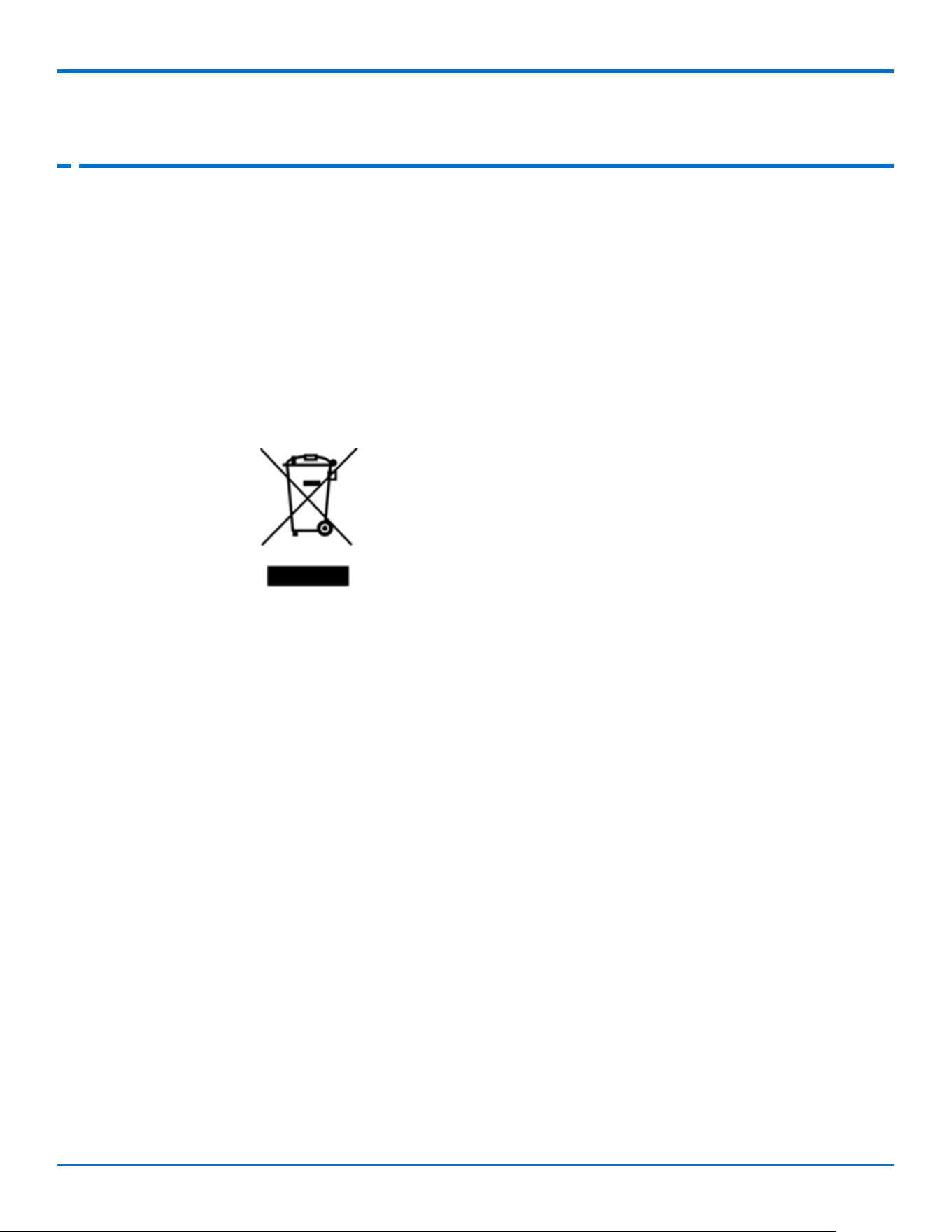
The symbol shown below is on the product or on its packaging, which indicates that this product must
not be disposed of with other waste. Instead, it is the user's responsibility to dispose of their waste
equipment by handing it over to a designated collection point for the recycling of waste electrical and
electronic equipment. The separate collection and recycling of your waste equipment at the time of
disposal will help to conserve natural resources and ensure that it is recycled in a manner that protects
human health and the environment. For more information about where you can drop off your waste
equipment for recycling, contact your local city office, your household waste disposal service or where
you purchased the product.
July,
2005

Regulatory Information
Conduit® AP 300 Series MTCAP3-WiFi Hardware Guide
S000833
31
10
Regulatory Information
FCC Notices
FCC 47 CFR Part 15 Regulation Class B Devices
This equipment has been tested and found to comply with the limits for a Class B digital device, pursuant
to part 15 of the FCC Rules. These limits are designed to provide reasonable protection against harmful
interference in a residential installation. This equipment generates, uses, and can radiate radio frequency
energy and, if not installed and used in accordance with the instructions, may cause harmful interference
to radio communications. However, there is no guarantee that interference will not occur in a particular
installation.
If this equipment does cause harmful interference to radio or television reception, which can be
determined by turning the equipment off and on, the user is encouraged to try to correct the interference
by one or more of the following measures:
Reorient or relocate the receiving antenna.
Increase the separation between the equipment and receiver.
Connect the equipment into an outlet on a circuit different from that to which the receiver is
connected.
Consult the dealer or an experienced radio/TV technician for help.
Warning: Changes or modifications to this unit not expressly approved by the party responsible for
compliance could void the user’s authority to operate the equipment.
FCC Interference Notice
This device complies with part 15 of the FCC Rules. Operation is subject to the following two conditions:
1.
This device may not cause harmful interference, and
2.
This device must accept any interference received, including interference that may cause
undesired operation.
Industry Canada Class B Notice
This Class B digital apparatus meets all requirements of the Canadian Interference-Causing Equipment
Regulations.
This device complies with Industry Canada license-exempt RSS standard(s). The operation is permitted
for the following two conditions:
1.
The device may not cause interference, and
2.
This device must accept any interference, including interference that may cause undesired
operation of the device.
Regulatory Information
32
Conduit® AP 300 Series MTCAP3-WiFi Hardware Guide
S000833
Cet appareil numérique de la classe B respecte toutes les exigences du Reglement Canadien sur le
matériel brouilleur.
Le présent appareil est conforme aux CNR d'Industrie Canada applicables aux appareils radio exempts de
licence. L'exploitation est autorisée aux deux conditions suivantes:
1.
L'appareil ne doit pas produire de brouillage, et
2.
L'appareil doit accepter tout brouillage radioélectrique subi, même si le brouillage est susceptible
d’en compromettre le fonctionnement.
EU EMC, Safety, and Radio Equipment Directive (RED)
Compliance
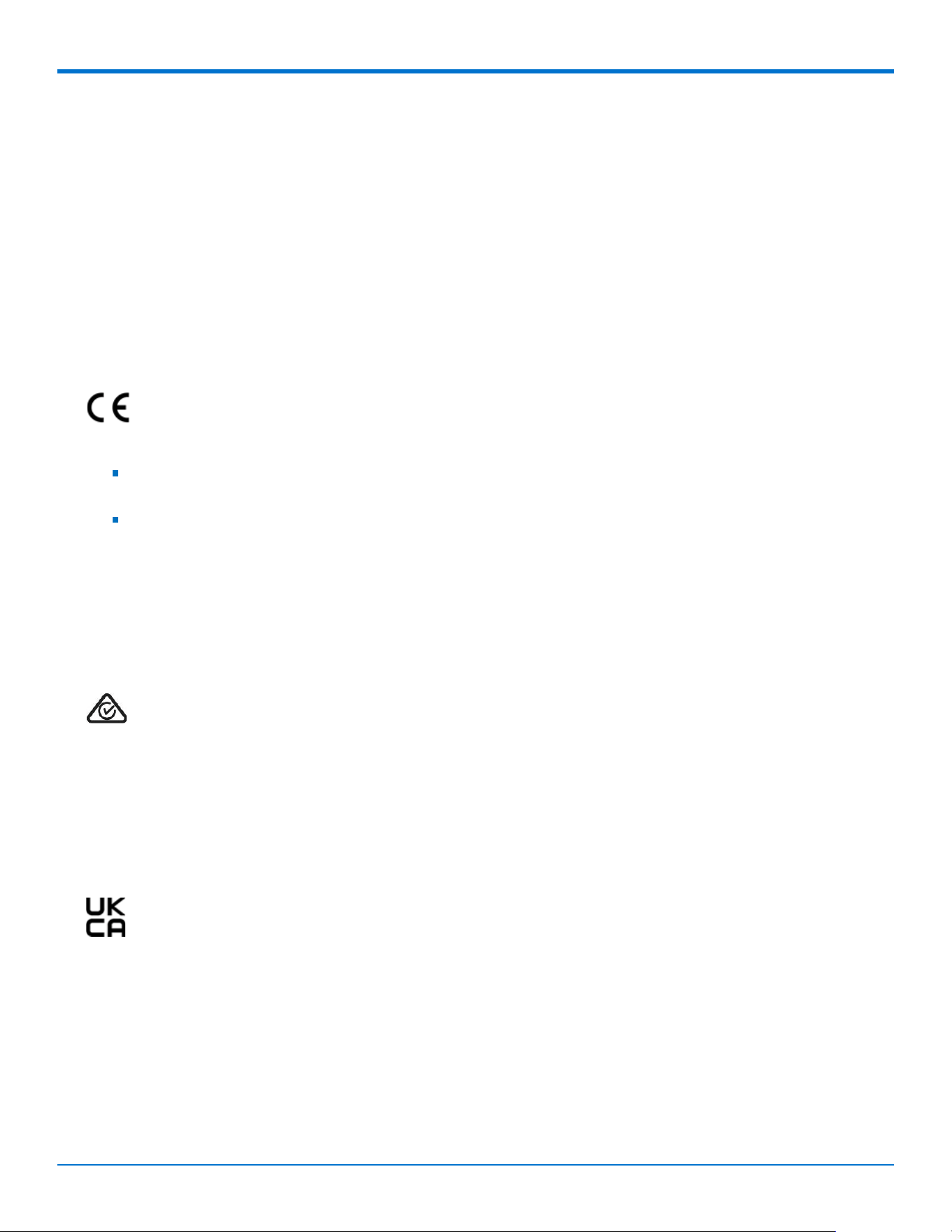
The CE mark is affixed to this product to confirm compliance with the following European
Community Directives:
Council Directive 2011/65/EU on the restriction of the use of certain hazardous substances in
electrical and electronic equipment; and
Council Directive 2014/53/EU on radio equipment and telecommunications terminal equipment
and the mutual recognition of their conformity.
MultiTech declares that this device is in compliance with the essential requirements and other relevant
provisions of Directive 2014/53/EU. The declaration of conformity may be downloaded at
https://multitech.com/product-support/.
Australia Regulatory Compliance Mark (RCM)
This product complies with the requirements of the Regulatory Compliance Mark (RCM) for
Electrical Regulatory Authorities Council (ERAC), Electrical Equipment Safety System (EESS), and the
Australian Communications and Media Authority (ACMA) for Electromagnetic Compatibility (EMC).
EU EMC, Safety, and Radio Equipment Regulations
(UKCA)
For models designated for use in the UK, the following applies:
The UKCA mark is to confirm conformity with the relevant UKCA harmonization legislation:
2017 No 1206 The Radio Equipment Regulations 2017
2016 No 1101 The Electrical Equipment Safety Regulations 2016
2016 No 1091 The Electromagnetic Compatibility Regulations 2016
2012 No 3032 The Restriction of the Use of Hazardous Substances in Electrical and
Electronic Equipment Regulations 2012

Regulatory Information
Conduit® AP 300 Series MTCAP3-WiFi Hardware Guide
S000833
33
MultiTech declares that this device is in compliance with the essential requirements and other relevant
provisions of the above regulations. The UKCA Declaration of Conformity may be requested at
https://multitech.com/product-support/.
Environmental Notices
EU WEEE Directive
Note: This statement may be used in documentation for your final product applications.
The Waste from Electrical and Electronic Equipment (WEEE) Directive places an obligation on EU-based
manufacturers, distributors, retailers, and importers to take back electronics products at the end of their
useful life. A sister directive, ROHS (Restriction of Hazardous Substances) complements the WEEE
Directive by banning the presence of specific hazardous substances in the products at the design phase.
The WEEE Directive covers all MultiTech products imported into the EU as of August 13, 2005. EU-based
manufacturers, distributors, retailers and importers are obliged to finance the costs of recovery from
municipal collection points, reuse, and recycling of specified percentages per the WEEE requirements.
EU RoHS 3 Directive
MultiTech confirms that all products comply with the chemical concentration limitations set forth in the
Restriction of Hazardous Substances in Electrical and Electronic Equipment (RoHS 3) regulations for CE
and UKCA, following the standard EN IEC 63000:2018.
For the current Certificate of Compliance for Hazardous Substances and additional regulatory
documents, go to https://multitech.com/approvals-and-certifications/.
EU REACH-SVHC Statement
Multi-Tech Systems, Inc. confirms that none of its products or packaging contain any of the Substances
of Very High Concern (SVHC) on the REACH Candidate List, in a concentration above the 0.1% by
weight allowable limit.
For the current REACH-SVHC statement and additional regulatory documents, go to
https://multitech.com/approvals-and-certifications/.
34
Conduit® AP 300 Series MTCAP3-WiFi Hardware Guide
S000833
Accessories
To find information on accessories for your product, go to https://multitech.com/all-
products/accessories/.
Related Documents
Additional documentation is available at www.multitech.com. Search for the document part number in
the website search.
Document
Description
Part Number
mPower Software
Configuration Guide
For mPower models only. Includes steps for
configuring and using devices using the mPower
platform. Go to https://multitech.com/s000831-
conduit-ap-configuration-guide/
S000831
Conduit AP 300 WiFi
(MTCAP3-WiFi) Quick Start
guide
Steps for getting started with hardware is available
online. Go to https://multitech.com/conduit-ap-
300-quickstart-guide/.
L4G2D models
Application Notes
Steps for connecting end points to the device.
N/A
mPower Developer
Information
Go to
http://www.multitech.net/developer/software/aep/.
N/A
LoRa Developer Information
Go to
http://www.multitech.net/developer/software/lora/.
N/A
Warranty
To read the warranty statement for your product, go to https://www.multitech.com/warranty.
Contact Information
General Information
info@multitech.com
https://multitech.com/contact-us/
Sales
+1 (763) 785-3500
sales@multitech.com
Technical Support Portal
+1 (763) 717-5863
https://support.multitech.com
Website
www.multitech.com

Conduit® AP 300 Series MTCAP3-WiFi Hardware Guide
S000833
35
World Headquarters
Multi-Tech Systems, Inc.
2205 Woodale Drive
Mounds View, MN 55112
USA