
Apple TV 4K User Guide
for tvOS 27

What’s new in tvOS 27 for Apple TV 4K
Here are some of the new features and enhancements in the latest version of tvOS. Not all features and
content are available in all countries or regions or on all Apple TV hardware models.
Catch up on your favorite shows in the Apple TV app. If available, you can watch catch-up summaries of
TV shows you follow. See Browse in the Apple TV app.
Redesigned Podcasts app. Completely redesigned, the new Podcasts app adds support for video podcasts
and now includes the familiar sidebar you already use to navigate the Apple TV app. See Podcasts app at a
glance.
Design upgrades, song transitions, and high-res lossless audio come to the Music app. Play music
like a DJ with seamless song transitions and use the new sidebar to navigate the Music app. Listen to high-
res lossless audio up to 24-bit/192 kHz. See Music app at a glance.
Adjust text to make it easier to read. You can now adjust the text size across all apps that support
Dynamic Text on Apple TV 4K. See Display bold text or change the text size on Apple TV 4K.
Not all features and content are available in all countries or regions or on all Apple TV hardware models.

Set up and get started
Set up Apple TV 4K
After you connect Apple TV 4K to your HD or 4K TV and turn both on, you’re guided through a simple setup
process. If you have an iPhone with iOS 9.1 or later or an iPad with iPadOS 13 or later, you can set up your
Apple TV 4K even faster.
Before you begin
To use Apple TV 4K, you need:
A high-definition or 4K TV with an HDMI port: To take full advantage of Apple TV 4K’s audio and visual
capabilities, you need a TV that supports 4K, HDR, or Dolby Vision, and a sound system that’s
Dolby Atmos–compatible. See the Apple Support articles About 4K, HDR, HDR10+, and Dolby Vision on
your Apple TV 4K and Play audio in Dolby Atmos or surround sound on your Apple TV .
Note: Apple TV 4K (3rd generation) supports TVs with HDR10+.
An HDMI cable: To connect Apple TV 4K to your TV, you need an HDMI cable. If you have a 4K TV that
supports HDR, you need a compatible Ultra High Speed HDMI cable (sold separately).
Access to broadband internet: You can use a Wi-Fi network or an Ethernet network. Wireless streaming
requires an 802.11-compatible Wi-Fi network. Ethernet requires an Ethernet cable.
Note: Ethernet is not available on Apple TV 4K (3rd generation) Wi-Fi.
An Apple Account: You need an Apple Account to set up your profile, purchase and rent movies and TV
shows, use services like Apple Music and Apple Fitness+, and download apps from the App Store. If you
don’t already have an Apple Account, you can create one on the Apple Account page.
Set up Apple TV 4K
Before you start, make sure you know your Wi-Fi network name and password, and keep your iPhone or
iPad nearby for expedited setup.
1. Connect one end of an HDMI cable to the HDMI port on your Apple TV 4K, then connect the other end to
the HDMI port on your TV.
2. Connect one end of the power cord to the power port on your Apple TV 4K and the other end to a power
outlet.
To locate the ports on your Apple TV, see Which Apple TV 4K model do I have?
3. Turn on your TV, then select the HDMI input that’s connected to your Apple TV 4K if it’s not already
selected.

4. Use the remote to follow onscreen instructions for setting up your internet connection, single sign-on
through your cable or satellite TV provider, and more.
Tip: You can use your iPhone or iPad to automatically set up Apple TV 4K. When prompted, select
Set Up with iPhone or iPad and follow the onscreen instructions.
To use VoiceOver during setup, press or on your remote three times. For more information, see
Use VoiceOver on Apple TV 4K.
Once your Apple TV 4K is set up, you can:
Add profiles so you can share Apple TV 4K with multiple people in your household
Find things to watch on the Apple TV app
Download other streaming apps like Netflix, Hulu, and HBO Max from the App Store
Use your Apple TV 4K to play music, listen to podcasts, do workouts, and more
Not all features and content are available in all countries or regions or on all Apple TV hardware models.
Get to know your device
Which Apple TV 4K model do I have?
Apple TV 4K (2nd generation) and Apple TV 4K (3rd generation) are supported by tvOS 27.
Apple TV 4K front view, all models:
Rear view:

Previous models of Apple TV are no longer software-supported. For a full list of Apple TV models, see the
Apple Support article Identify your Apple TV model.
Not all features and content are available in all countries or regions or on all Apple TV hardware models.
About the Apple TV 4K status light
The status light on the front of Apple TV 4K indicates the following:
If Apple TV 4K is The status light
On Glows
Off or in standby Is off
Starting up Flashes slowly
Accepting a command from the remote Flashes once
Updating software Flashes quickly
Not all features and content are available in all countries or regions or on all Apple TV hardware models.

Basics
Use the remote
Overview of buttons on the Apple TV 4K remote
You can use the following remotes with Apple TV 4K (2nd generation or later). Find your remote below to
learn about its buttons.
Siri Remote or Apple TV Remote (2nd and 3rd
generation)
Button description
Press to turn on Apple TV 4K. Press and hold to turn
off Apple TV 4K.
Swipe on the clickpad, or press up, down, left, or right
on the clickpad ring to navigate Apple TV 4K.
Press and hold to activate Siri (if available), open
Search, or dictate text.
Press to go back to the previous screen. Press and
hold to go to the Home Screen.
Press to open the Apple TV app. Press and hold to
open Control Center.
Press to play or pause.
Press or to increase or decrease volume. Press
and hold to increase or decrease volume rapidly.
Press to mute or unmute audio.

Siri Remote or Apple TV Remote (2nd and 3rd
generation)
Button description
Siri Remote or Apple TV Remote (1st generation) Button description
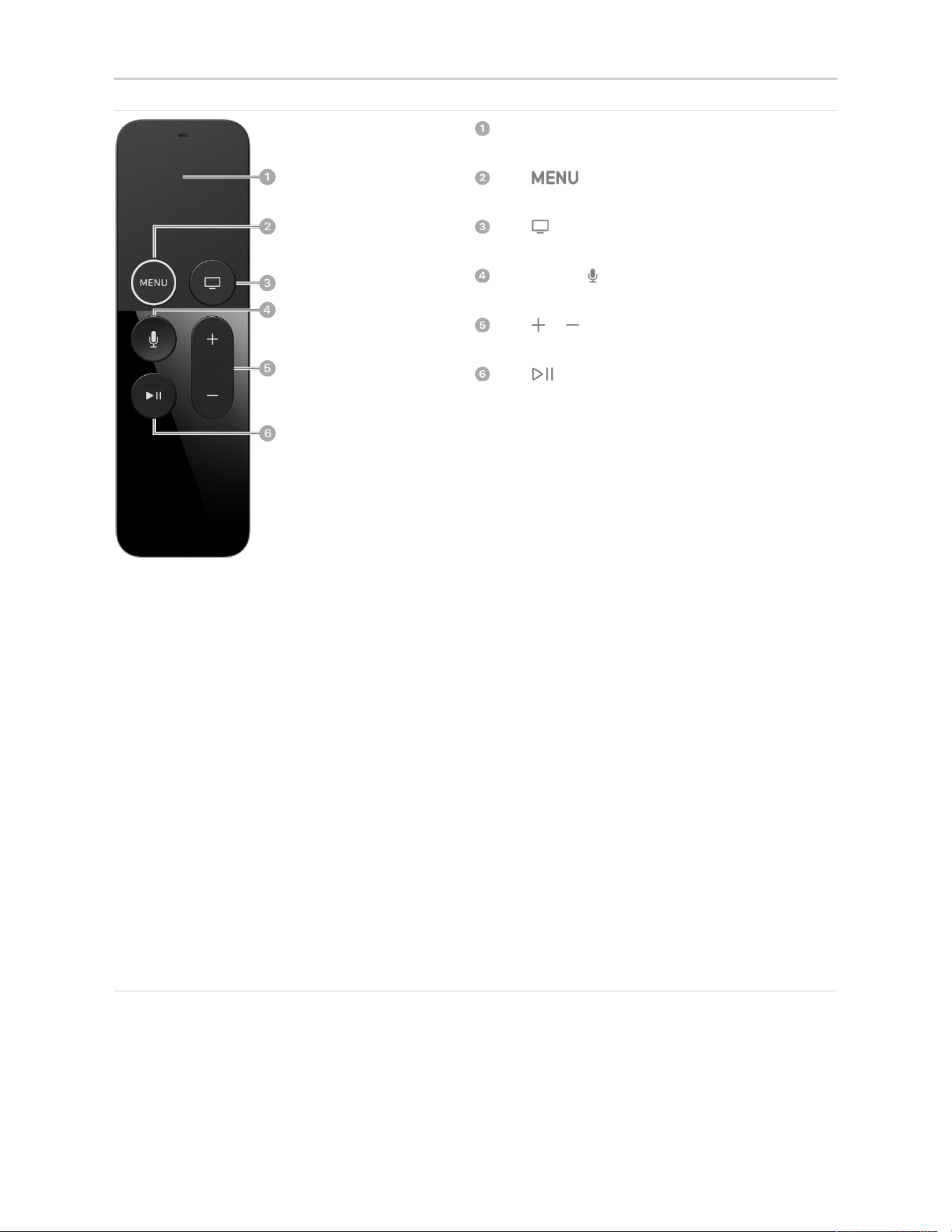
Swipe or tap up, down, left, or right on the touch surface
to navigate Apple TV 4K.
Press to go back to the previous screen. Press
and hold to go to the Home Screen.
Press to open the Apple TV app. Press and hold to
open Control Center.
Press and hold to activate Siri (if available), open
Search, or dictate text.
Press or to increase or decrease volume. Press
and hold to increase or decrease volume rapidly.
Press to play or pause.
Siri Remote or Apple TV Remote (1st generation) Button description
Not all features and content are available in all countries or regions or on all Apple TV hardware models.
Turn Apple TV 4K on or off

There are several ways to turn Apple TV 4K on and off.
Turn on Apple TV 4K
On your remote, do any of the following:
Press .
Press or .
Press (silver remote only).
Turn off Apple TV 4K
On your remote, do any of the following:
Press and hold to open Control Center, then select Power Off in Control Center.
Press and hold (silver remote only).
You can also turn off Apple TV 4K by opening Settings and selecting Power Off.
Set the delay before Apple TV 4K automatically turns off
Apple TV 4K automatically turns off after a preset period of inactivity. You can set how long Apple TV 4K
waits before turning off.
1. Go to Settings on Apple TV 4K.
2. Go to General > Sleep After and choose an option.
You can also set a one-time sleep timer.
Important: Delaying or preventing sleep may increase power consumption.
If your TV or audio/visual receiver supports HDMI-CEC, Apple TV 4K automatically turns on when you turn
on your TV or receiver or select its HDMI input, and automatically turns off when you turn off your TV or
receiver. You can also program the remote you use for Apple TV 4K to turn your TV or receiver on or off.
Not all features and content are available in all countries or regions or on all Apple TV hardware models.
Navigate Apple TV 4K
Use the remote to navigate to and select items on your TV screen, see more options, scroll through lists, and
more.
Navigate to apps and items
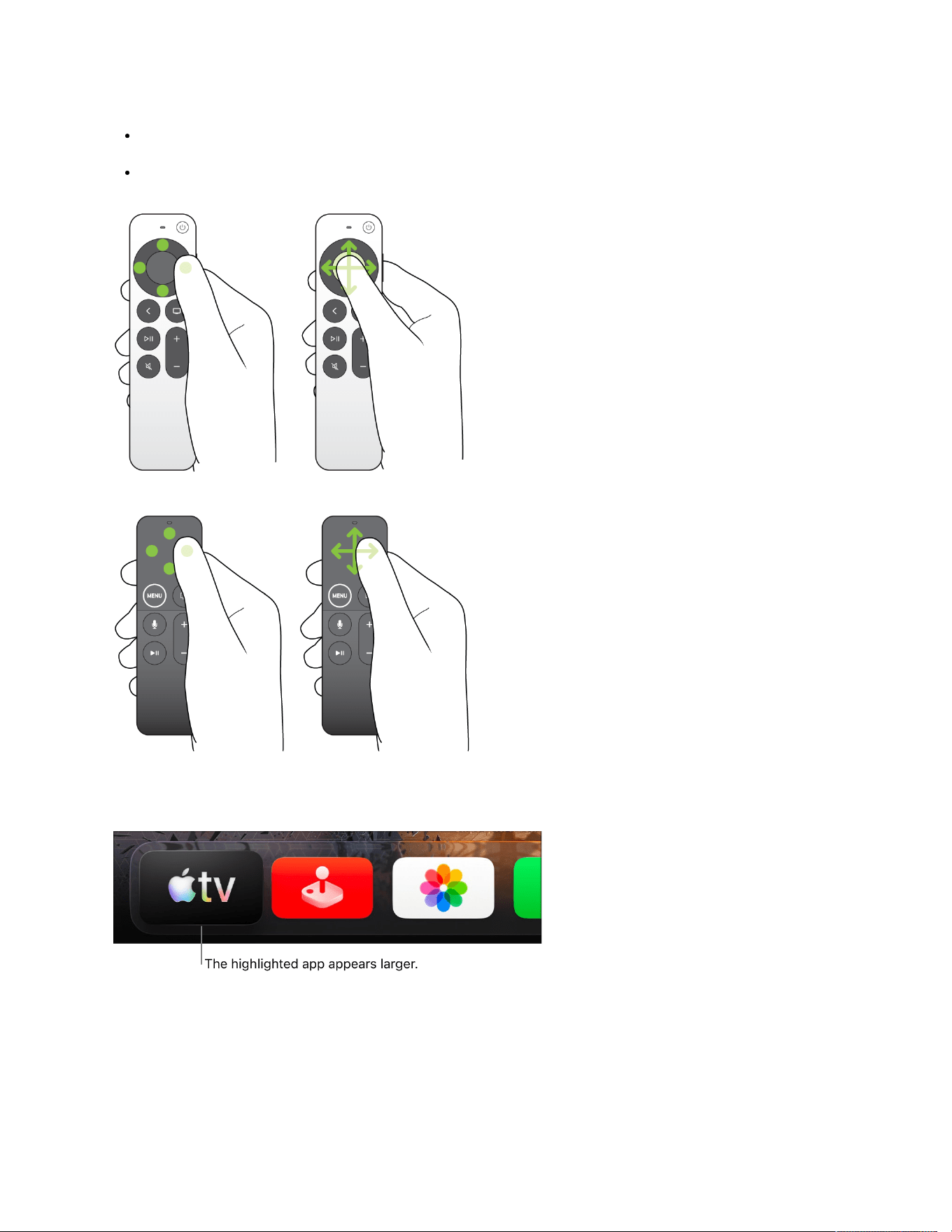
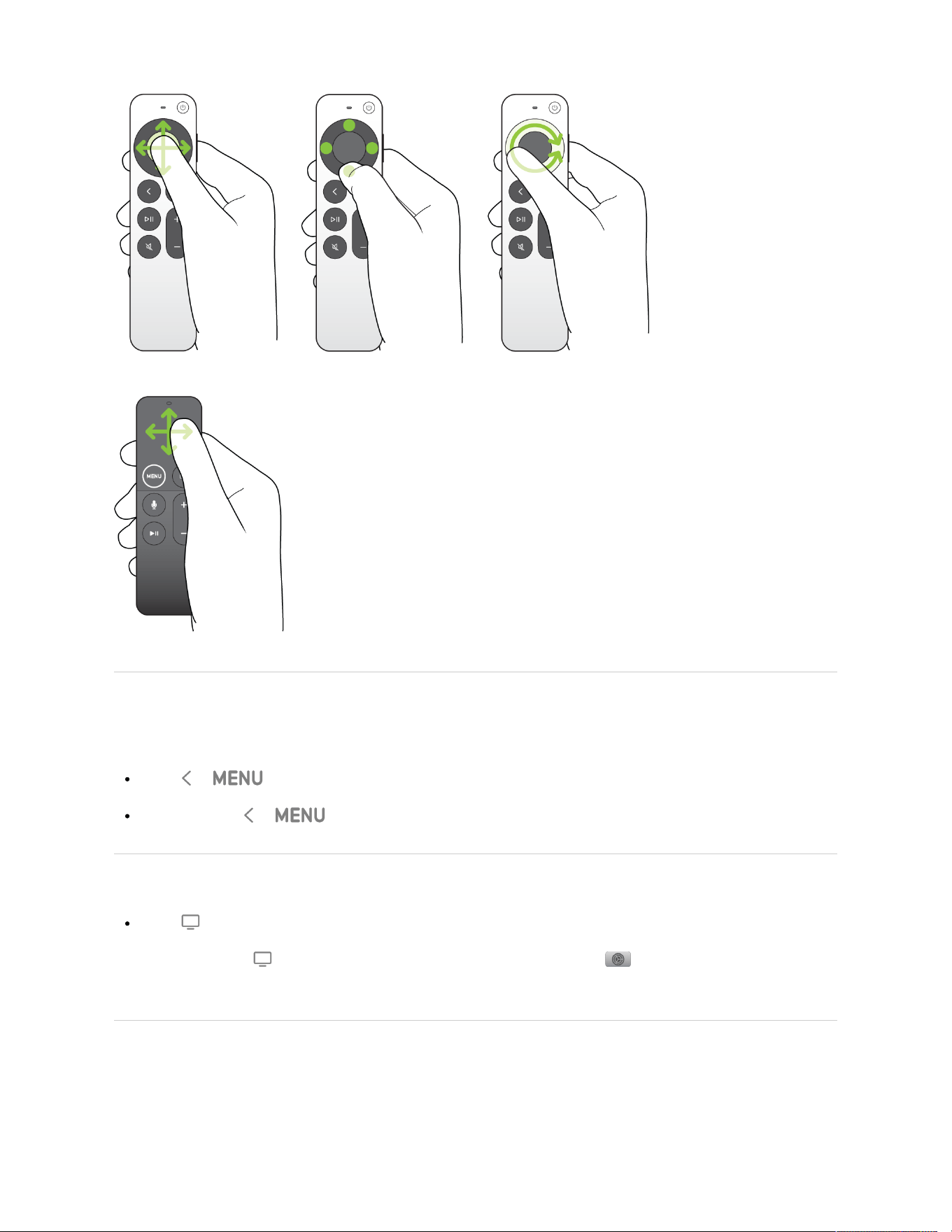
To move around on Apple TV 4K and highlight apps or items, do either of the following on your remote:
Press up, down, left, or right on the clickpad ring, or tap up, down, left, or right on the touch surface.
Swipe vertically or horizontally on the clickpad or touch surface.
A highlighted app or item expands slightly.
Tip: When you highlight certain apps in the top row of the Home Screen, a preview of their content plays
in the background. Swipe up to see the preview in full screen and view more options; press or to
return to the Home Screen.
To customize the top row of your Home Screen, see Rearrange apps on the Apple TV 4K Home Screen.
Select an app or item
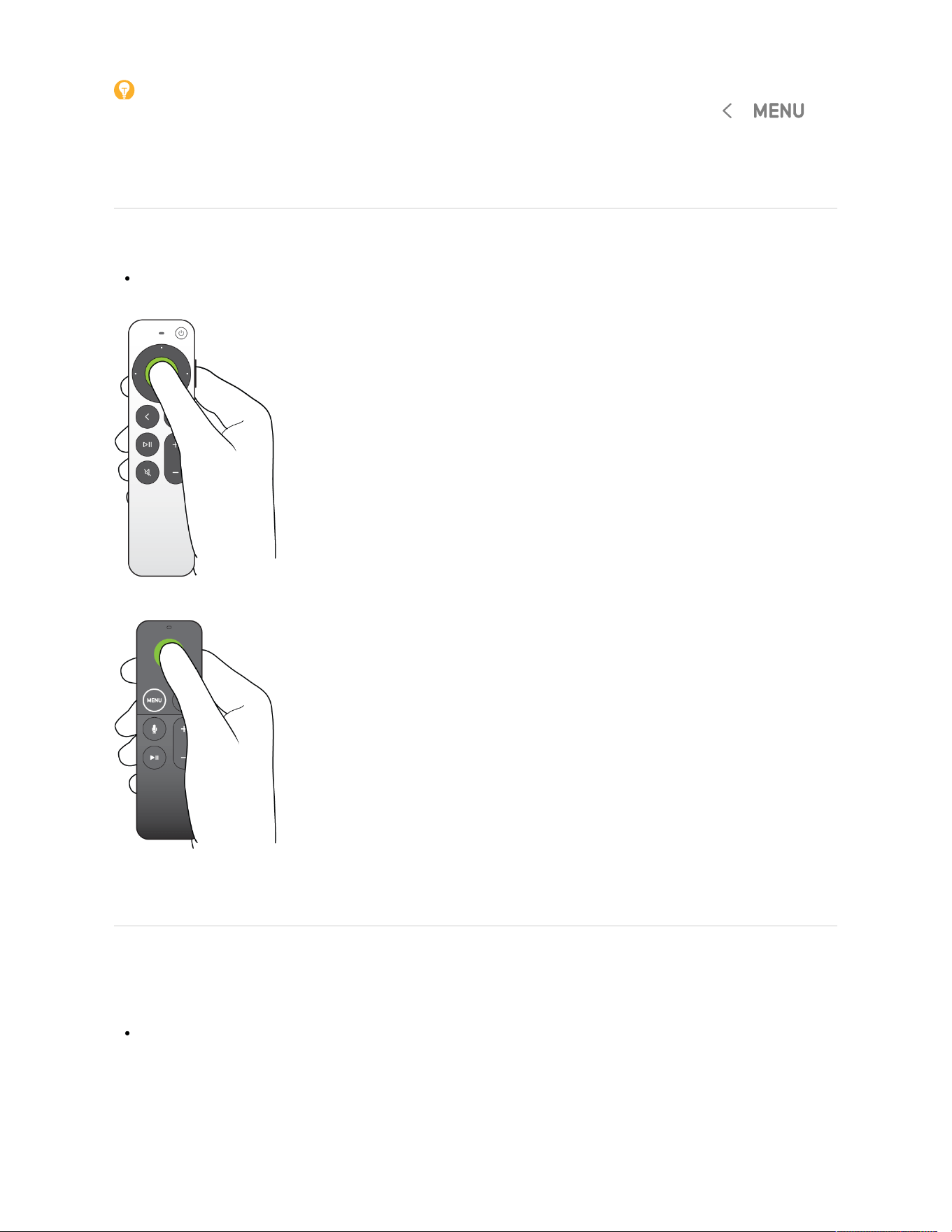
Use the remote to navigate to an app or item, then press the clickpad center or touch surface.
Select an app to open it. Select a movie, TV show, song, or podcast to begin playing it.
View more options
When certain apps or onscreen items are highlighted, you can open a pop-up menu with more options.
Use your remote to navigate to an item, then press and hold the clickpad center or touch surface.
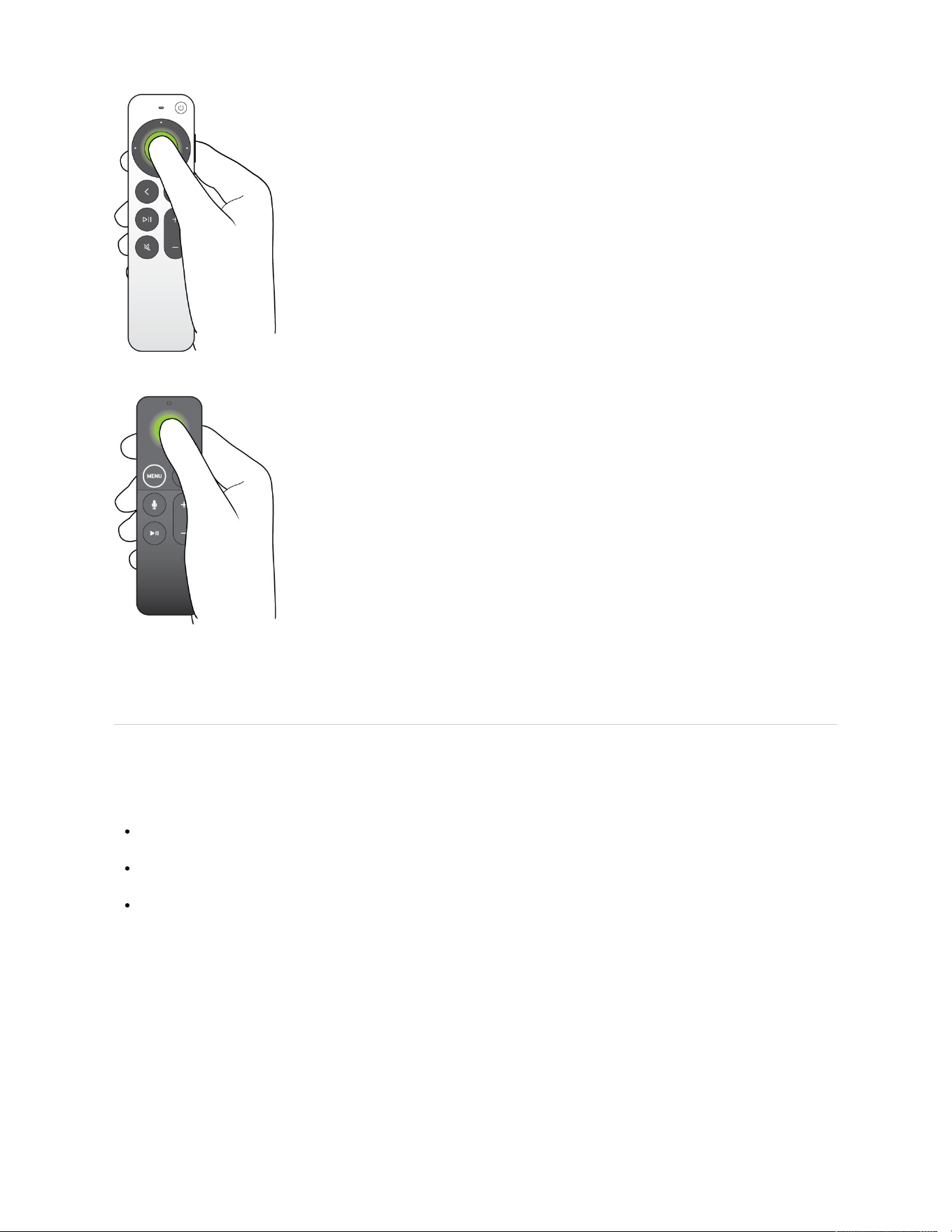
Press and hold an app to change the order of apps on the Home Screen. Press and hold a movie, TV show,
song, or podcast to see a pop-up menu of additional options.
Scroll lists
To scroll through lists, do any of the following on your remote:
Swipe vertically or horizontally on the clickpad or touch surface.
Press and hold up, down, left, or right on the clickpad ring to scroll quickly (silver remote only).
Circle your finger around the clickpad ring for more precise control (silver remote only).
Go to the previous screen or Home Screen
Do either of the following on your remote:
Press or to go to the previous screen.
Press and hold or to go to the Home Screen.
Go to the TV app
Press on your remote.
To set the TV button to go to the Home Screen instead, go to Settings on Apple TV 4K, go to
Remotes and Devices, then select TV Button to set it to Home Screen.
Not all features and content are available in all countries or regions or on all Apple TV hardware models.

Control playback on Apple TV 4K
You can use the remote to control various aspects of playback while using Apple TV 4K. The options
available change based on whether you’re watching TV or listening to music.
Show or hide playback controls
When a movie, TV show, song, or podcast is playing, you can display onscreen controls that show elapsed
time, remaining time, and other options.
Use your remote to do either of the following:
Show playback controls: Rest your finger on the clickpad or touch surface, or press up on the clickpad
ring.
Hide playback controls: Press or .
Play or pause
During playback, do either of the following on your remote:
Press .
Press the center of the clickpad or touch surface.
Rewind or fast-forward
During playback, use your remote to do any of the following:
Skip backward or forward 10 seconds: Press left or right on the clickpad ring or touch surface. Press
again to skip another 10 seconds.
Continuously rewind or fast-forward: Press and hold left or right on the clickpad ring or touch surface.
Press repeatedly to cycle through rewind or fast-forward speed options (2x, 3x, 4x).
To resume playback, press .
Scrub backward or forward on the timeline
1. During playback, press on your remote to pause.
2. Swipe left or right on the clickpad or touch surface to scrub backward or forward through the video or
song.

3. Do either of the following:
Start playback at the new position: Press .
Cancel and return to the original position: Press or .
Not all features and content are available in all countries or regions or on all Apple TV hardware models.
Adjust Apple TV 4K audio
Adjust or mute the volume
Use your remote to do any of the following:
Adjust the volume: Press the or button.
Mute the volume: Press and hold , or press (silver remote only).
For more information on setting up your remote to control the volume of your TV or audio/video receiver, see
Use the Apple TV 4K remote to control your TV and receiver.
Change audio options during playback
1. During playback, show playback controls, then select .
2. Choose an audio option from the pop-up menu.
Available audio options depend on what you’re watching or listening to. See Adjust audio settings during
playback.
3. To close the pop-up menu, press or on your remote.
Not all features and content are available in all countries or regions or on all Apple TV hardware models.
Activate Siri, the Search app, or dictation on Apple TV 4K
The Siri/Search button on the remote lets you control Apple TV 4K with your voice, search using dictation
in supported apps, and dictate text.
Activate Siri to control Apple TV 4K, search, or make a query
Press and hold on your remote, speak a command, search term, or query, then release the button.

Activate the Search app
In countries or regions where Siri isn’t supported, press and hold on your remote to open the Search
app .
Use dictation to search in supported apps
On the Home Screen and in supported apps such as Music and the Apple TV app, you can quickly dictate
searches without having to navigate to the app’s search screen.
1. Press and release on your remote.
2. When the search field appears, press and hold , dictate a search term, then release the button.
Use dictation to enter passwords and other text
With a text entry field highlighted onscreen, press and hold on your remote, speak what you want to
enter in the text field, then release the button.
To spell out characters instead of words, speak the letters, numbers, and symbols you want to enter.
Follow these guidelines for better dictation:
Say “uppercase” to enter an uppercase letter.
You don’t need to spell out common domain names such as icloud.com.
You can use phonetic or military alphabet pronunciations, such as alpha, bravo, charlie, delta for A, B,
C, D, and so on.
You can say “Clear” to delete the characters you just entered.
Clear applies only to characters spoken during the current dictation entry. For example, if you say “A,
B, C,” then press the Siri button again and say “1, 2, 3, clear,” the numbers are deleted but the letters
remain.
Note: Dictation sends information such as voice input and location to Apple to process requests. Voice
input from spelling dictation of profile names and passwords isn’t sent.
To disable dictation, go to Settings on Apple TV 4K, go to General, then select Dictation to turn it off.
Not all features and content are available in all countries or regions or on all Apple TV hardware models.
Enter text on Apple TV 4K
When a keyboard appears onscreen on Apple TV 4K, use your remote to do any of the following:
Enter a character: Navigate in the onscreen keyboard to a character, then select it.

Change keyboards: Press one or more times to switch between lowercase, uppercase, and special
symbol keyboards (or select the uppercase, lowercase, or special symbol icon).
Change the keyboard language: Select until the keyboard language you want appears.
This option appears only if you’ve added additional languages in Settings.
Enter an alternate character (such as a letter with an accent mark): Navigate to the character, press and
hold the clickpad center or touch surface to view character options, then select an alternate character.
Not all features and content are available in all countries or regions or on all Apple TV hardware models.
Charge the Apple TV 4K remote
The remote that comes with your Apple TV 4K has a rechargeable battery inside. With typical usage, you’ll
need to charge it a few times a year. An alert appears on the TV screen when the remote battery is running
low. You can also check the battery level in Settings.
Note: You can continue to use the remote while it’s charging.
Check the battery level of the remote
1. Go to Settings on Apple TV 4K.
2. Go to Remotes and Devices, then select Remote.
Information about your remote appears, including Battery Level.
Charge the remote
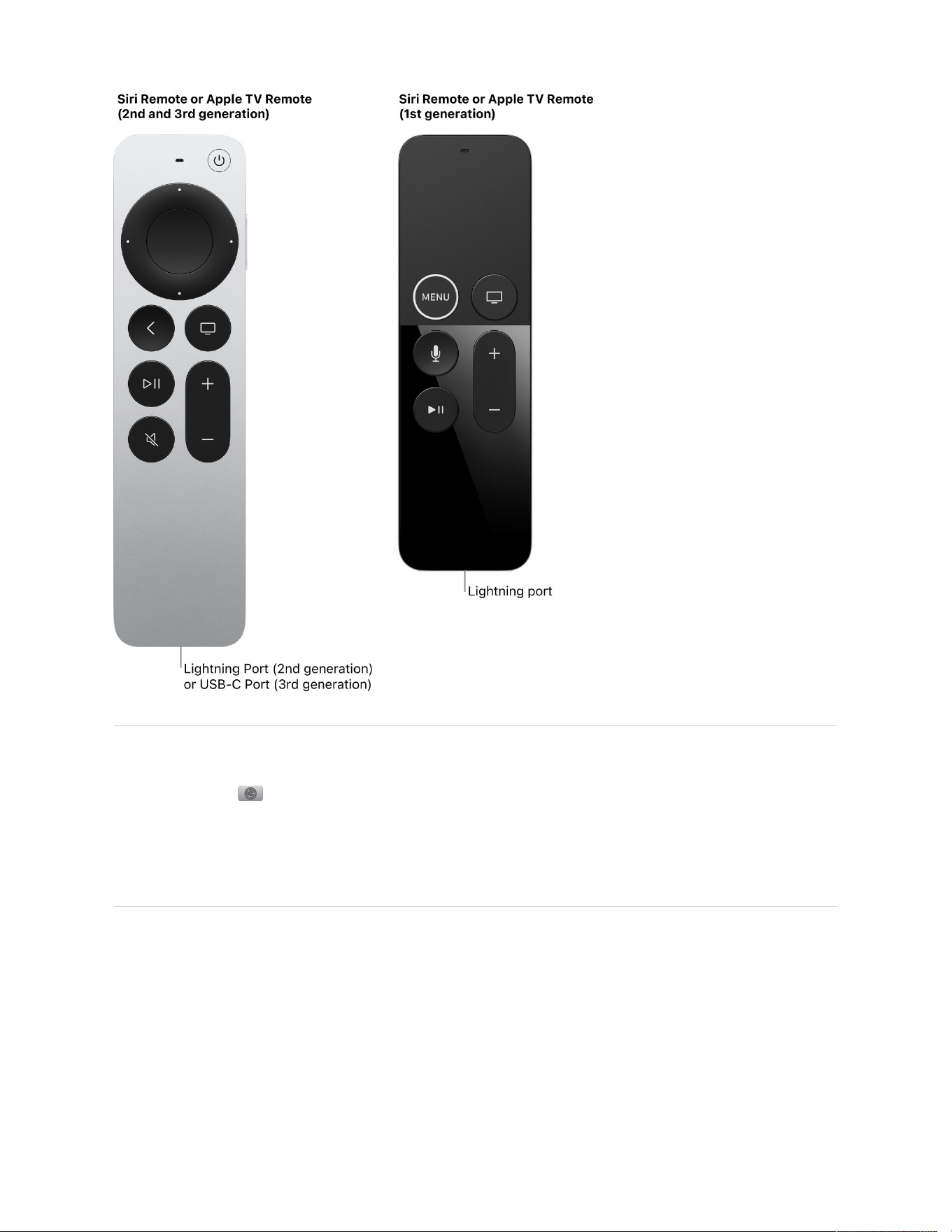
Depending on the model of your remote, you’ll need to charge it with either a USB-C cable or a Lightning
cable (sold separately).
1. Connect one end of a USB-C or Lightning cable to the port on the bottom of your remote.
2. Connect the other end of the cable to a computer USB-C or USB port or to an Apple USB-C or USB
power adapter (sold separately).

The remote takes about three hours to fully charge.
Not all features and content are available in all countries or regions or on all Apple TV hardware models.
Pair the Apple TV 4K remote
Your remote comes automatically paired with your Apple TV 4K. If it disconnects or you get a replacement
remote, you’ll need to manually pair it to Apple TV 4K.
If your remote isn’t responding, you can reset it, then pair it again.
Reset the remote
Press and hold and on your remote for at least 5 seconds.
Resetting a remote unpairs it with Apple TV 4K. Follow the instructions below to pair it again.
Pair a remote with Apple TV 4K
1. Turn on Apple TV 4K.
2. Position the remote so it’s within 3 to 4 inches (8 to 10 cm) of and pointing at the front of your
Apple TV 4K.
3. Press and hold and or on your remote for 2 seconds.
When the remote is successfully paired, an onscreen message appears.
Note: An Apple TV 4K can have only one Apple TV 4K remote paired with it at a time. When you pair a
remote, any other paired remote is automatically unpaired.
Not all features and content are available in all countries or regions or on all Apple TV hardware models.
Use your iPhone to help locate the Apple TV 4K remote
If you misplace your remote (2nd generation or later), you can use your iPhone to help find it. (The iPhone
must have iOS 17 or later installed.)
1. On your iPhone, swipe to open Control Center, then tap .

2. Tap the name of the Apple TV 4K at the top of your screen, then tap the Find button for that device’s
remote and wait for the notification that it has been located.
Note: You may need to move around to establish a connection with the remote.
When the remote has been located, a white dot appears and gets larger as you get closer to the remote.
Onscreen text also lets you know if you’re near, far, or here (next to the remote).
3. Tap when you’re finished.
Not all features and content are available in all countries or regions or on all Apple TV hardware models.
Use Control Center
Navigate Control Center on Apple TV 4K
Control Center gives you quick access to settings and controls for switching profiles, playing music, putting
Apple TV 4K to sleep, and more.
1. Press and hold on your remote to open Control Center.
The general settings tab opens. See Adjust general settings in Control Center on Apple TV 4K.
2. Navigate left and right to access additional tabs.
The tabs available depend on which features are currently active. See Tab icons in Apple TV 4K Control
Center.
3. Press or on your remote to close Control Center.

Not all features and content are available in all countries or regions or on all Apple TV hardware models.
Adjust general settings in Control Center on Apple TV 4K
In the general settings tab in Control Center on Apple TV 4K, you can quickly adjust settings for power,
audio, Wi-Fi, and game controllers. You can also turn on Do Not Disturb, set a sleep timer, and access
accessibility settings, parental controls, and Search.
Turn Apple TV 4K off
1. Press and hold on your remote to open Control Center.
2. Select Power Off .
For more ways to turn off Apple TV 4K, see Turn Apple TV 4K on or off.
Change network settings
You can quickly make changes to your Wi-Fi or Ethernet settings.
1. Press and hold on your remote to open Control Center.
2. Select Wi-Fi (or Ethernet if you’re using a wired network).
See Change network settings on Apple TV 4K.
Turn Do Not Disturb on or off
You can turn on Do Not Disturb to disable all notifications while watching Apple TV 4K.
1. Press and hold on your remote to open Control Center.
2. Select Do Not Disturb .
See Set notification preferences on Apple TV 4K.
Open audio controls
You can choose which speakers or headphones to use with Apple TV 4K.
1. Press and hold on your remote to open Control Center.
2. Select Audio .
3. Choose the speakers or headphones you want to use.
Note: If headphones are connected to Apple TV 4K, you’ll see a headphones icon instead of .

See Use AirPods or Beats with Apple TV 4K, Use HomePod or AirPlay-enabled speakers with Apple TV 4K,
and Use Apple TV 4K to play audio throughout your home.
Set a sleep timer
You can set a timer to have Apple TV 4K turn off after a designated period of time.
1. Press and hold on your remote to open Control Center.
2. Select Sleep Timer .
3. Select a time range.
The timer begins its countdown. To cancel the timer, select the Sleep Timer button again, then select Cancel
Timer.
Important: Delaying or preventing sleep may increase power consumption.
Open game controller settings
You can quickly connect a game controller to Apple TV 4K and access additional settings.
Note: If you haven’t yet paired a game controller to Apple TV 4K, see Connect Bluetooth devices to
Apple TV 4K.
1. Press and hold on your remote to open Control Center.
2. Select , then do either of the following:
Connect a game controller or switch to a different game controller: Select a game controller from the
list.
Adjust game controller settings: Select Controller Settings, then adjust the onscreen settings to your
preference.
3. When you’re finished, press or on your remote.
See Use a game controller on Apple TV 4K.
Open Accessibility shortcuts and settings
Accessibility shortcuts let you quickly turn on accessibility features without opening the Settings app. After
you add an accessibility shortcut, you can activate it in Control Center.
1. Press and hold on your remote to open Control Center.

2. Select , then do either of the following:
If you have one or more accessibility shortcuts enabled: Select a shortcut to turn it on or off.
If you want to access settings or add an accessibility shortcut: Select Go to Settings, then select an
accessibility feature from the list to add it as a shortcut. See Add an accessibility shortcut to
Apple TV 4K.
For more information, see Accessibility features on Apple TV 4K.
Open parental controls
1. Press and hold on your remote to open Control Center.
2. Select , then do either of the following:
Turn off restrictions: Select Turn Off, then enter your passcode.
Add or modify restrictions: Select Settings, then select Restrictions and adjust the settings.
See Set up parental controls on Apple TV 4K.
Open the Search app
1. Press and hold on your remote to open Control Center.
2. Select , then type or dictate your query.
Not all features and content are available in all countries or regions or on all Apple TV hardware models.
Switch profiles in Control Center on Apple TV 4K
You can quickly switch between profiles in the profiles tab in Control Center.
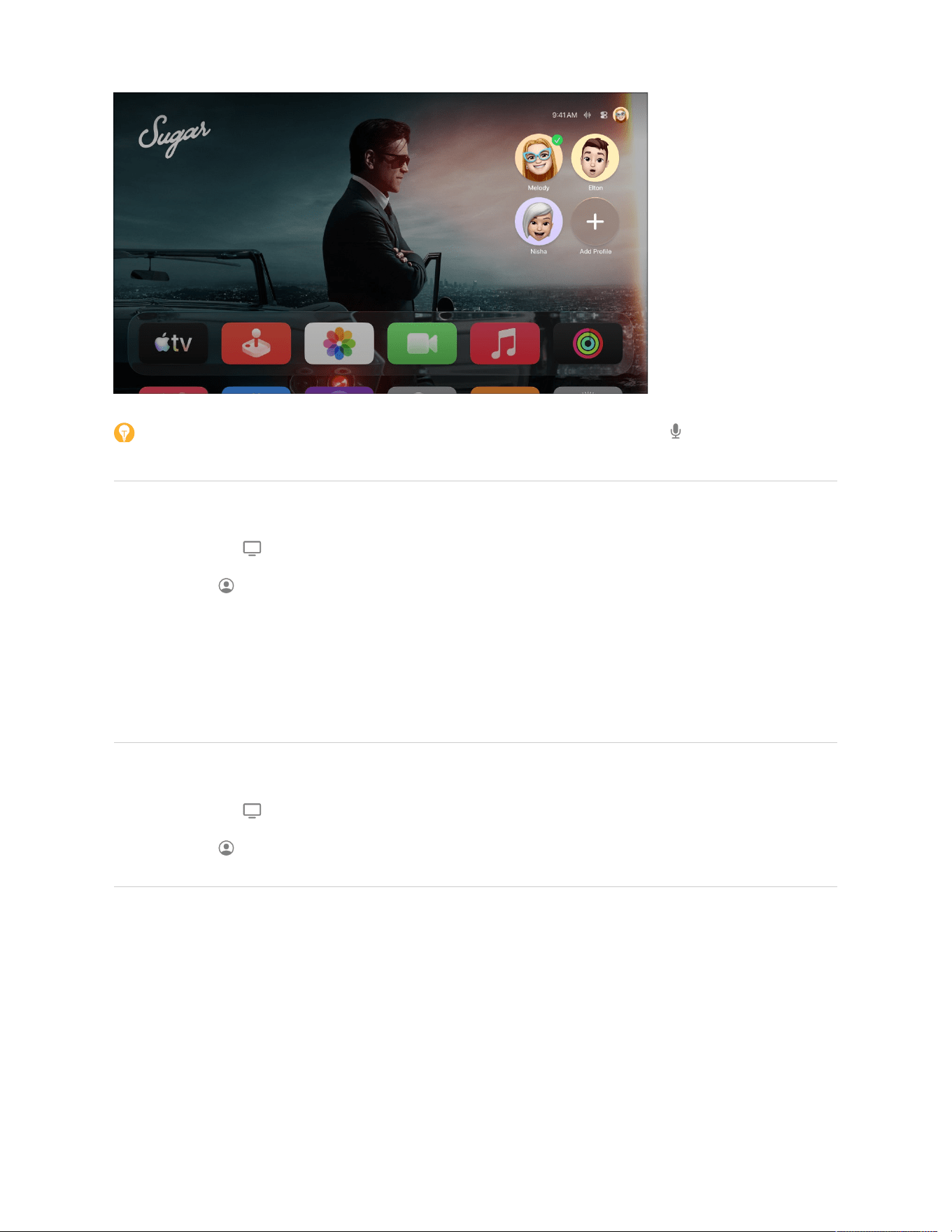
Tip: If your profile on Apple TV 4K has voice recognition set up, press and hold on your remote and
say, “Switch to my profile.”
Switch profiles
1. Press and hold on your remote to open Control Center.
2. Navigate to , then select the profile you want to switch to.
When you switch to another profile, the previous profile is signed out, and the TV and Music apps refresh
with the new profile’s unique watchlist, video or music collections, and recommendations.
Note: Switching profiles does not change Photos app or other settings associated with the default
profile’s Apple Account. See Change the default profile on Apple TV 4K.
Add a profile
1. Press and hold on your remote to open Control Center.
2. Navigate to , then select Add Profile and follow the onscreen instructions.
Note: If a member of your Home or family group signs in to an Apple device such as Apple TV 4K, the device
may suggest adding other Home or family members by displaying their Apple Account name and profile
photo. To remove suggested profiles from the list in the profiles tab, select a person, then choose “Don’t
suggest [name of person].”
Not all features and content are available in all countries or regions or on all Apple TV hardware models.
Tab icons in Apple TV 4K Control Center

Additional tabs appear in Control Center depending on which features are currently active. For example, if
music is playing, you can access controls by navigating to in Control Center.
Tab icon Description
Switch the profile or add a new profile.
Open the general settings tab.
Open Apple Home cameras and scenes previously set up in the Home app on another
device. See Monitor cameras and run scenes in the Apple Home tab on Apple TV 4K.
Open Continuity Camera controls.
Open FaceTime controls.
Answer an incoming FaceTime video call.
Answer an incoming FaceTime audio call.
Open SharePlay controls.
Open Now Playing controls.
Open controls for connected headphones.
Open VPN settings.
Not all features and content are available in all countries or regions or on all Apple TV hardware models.
Status icons in Apple TV 4K Control Center
Status indicators appear in the upper-right corner of the Home Screen when Control Center isn’t active.
Status icon Description
Shows the current profile. If you have a custom profile image, the profile icon is replaced
by it.
A connected camera or microphone is active.
A connected camera or microphone is not active.

Do Not Disturb is active.
Content restrictions are active.
The sleep timer is active.
The battery in the remote needs to be recharged.
A Continuity Camera is connected.
A FaceTime video call is active.
A FaceTime audio call is active.
SharePlay is active.
Audio is currently playing.
Bluetooth® earbuds, headphones, or AirPods are connected.
A game controller is connected.
A keyboard is connected.
Apple TV 4K is connected to a virtual private network.
Apple TV 4K has no internet connection.
Status icon Description
Not all features and content are available in all countries or regions or on all Apple TV hardware models.
Use Siri with Apple TV 4K
Use Siri to search on Apple TV 4K
Siri on Apple TV 4K helps you quickly find movies and TV shows to watch, music and podcasts to listen to,
and apps to download.
Tip: Siri understands a wide variety of phrases and search terms beyond what’s listed below. Try different
queries and see what you can find.

Get recommendations based on your voice
When you set up voice recognition, you can use Siri to receive personalized recommendations or switch
profiles if you have multiple profiles on Apple TV 4K.
Siri: Press and hold on your remote, then say something like:
“What should I watch?”
“Play my music”
“Switch to my profile”
Search for movies, TV shows, and apps
Siri can find movies and TV shows based on a wide range of criteria—including title, topic, genre, actors,
director, age appropriateness, and more.
Siri: Press and hold on your remote, then say something like:
“Find [movie title]”
“Play Episode 3 of Season 1 of [TV show]”
“Show me popular comedies”
“Find movies starring [actor/actress]”
“Find documentaries about cars”
“Find me movies in 4K”
“Watch great dramas”
“Find me some TV shows that are good for kids”
“Search for funny horror movies”
Tip: You can combine search terms like “funny” and “horror” to narrow down your results.
Search for podcasts
You can search specifically for podcasts by including “podcast” in your query.

Siri: Press and hold on your remote, then say something like:
“Get some funny podcasts”
“Find podcasts about surfing”
“Play ‘Radiolab’ podcast”
Apple TV 4K begins playing the current episode right away if it’s available.
Search for apps to download
You can search for apps by app name or category.
Siri: Press and hold on your remote, then say something like:
“Find Crossy Road”
“Find weather apps”
“Show me some sports apps”
Search within a specific app
You can search directly within many apps. For example, you can search for items on YouTube by including
“YouTube” in your Siri request. Siri automatically opens the YouTube app (or prompts you to install it) and
adds your request to its search screen.
Siri: Press and hold on your remote, then say something like:
“Search for Coldplay on YouTube”
“Show me crafts for kids on YouTube”
“Search YouTube for Minecraft”
For a list of Siri-compatible apps, see the Apple Support article About Search on your Apple TV .
Not all features and content are available in all countries or regions or on all Apple TV hardware models.
Control Apple TV 4K playback with Siri
When you’re playing a movie, TV show, podcast episode, or music, there are a number of queries you can
use to control playback.
Tip: Siri understands a wide variety of phrases and search terms beyond what’s listed below. Try different
queries and see what you can find.

Control video playback
Siri: Press and hold on your remote, then say something like:
“What did she just say?”
In this case, Apple TV 4K skips back 10 seconds and temporarily turns on subtitles.
“Pause this”
“Play from the beginning”
“Skip forward 90 seconds”
“Jump back 10 minutes”
“Turn on closed captioning”
“Turn on French subtitles”
Control audio playback
Siri: Press and hold on your remote, then say something like:
“Play from the beginning”
“Skip to the next song”
“Create a radio station based on this song”
“Pause music”
Not all features and content are available in all countries or regions or on all Apple TV hardware models.
More ways to use Siri on Apple TV 4K
Siri can do much more than find a great show for you to watch. You can also use Siri to open apps on your
Apple TV 4K, find a nearby device, check the weather, and more.
Tip: Siri understands a wide variety of phrases and search terms beyond what’s listed below. Try different
queries and see what you can find.
Navigate Apple TV 4K
You can use Siri to open an app or switch to another app.

Siri: Press and hold on your remote, then say something like:
“Open App Store”
“Launch HBO Max”
“Play PBS KIDS Video”
“Go to Photos”
Get more information about a show
You can ask questions to get more information about a program you’re watching.
Siri: Press and hold on your remote, then say something like:
“Who’s in this show?”
“Who directed this?”
“What’s this rated?”
“When did this come out?”
Play music
If you’re an Apple Music subscriber, you can use Siri to play songs from the Music app.
Siri: Press and hold on your remote, then say something like:
“Play ‘Sleek White Baby’ by Punch Brothers”
“Play music I like”
“Play the first Alabama Shakes album”
“Add ‘Uptown Funk’ by Bruno Mars to my library”
“Add Kacey Musgraves to my queue”
“Play more like this”
Play live channels and sports
Speak the name of the channel you want to watch, and the live video stream immediately begins to play.

Siri: Press and hold on your remote, then say something like:
“Watch ESPN”
“Turn on CBS News”
When you ask Siri about a specific sports team, score, or schedule, if the game is available on a supported
app, Siri takes you straight to the action.
Siri: Press and hold on your remote, then say something like:
“Next Eagles game”
“What hockey games are on?”
Select the onscreen Watch Live button to open the app and watch the game.
You can also ask about sports schedules in general.
Siri: Press and hold on your remote, then say something like:
“Who’s playing baseball tonight?”
Siri shows you a list of all the relevant games, their start times and scores (if game has already started), and
a Go to Game button if a supported app is currently airing the game.
Find an iOS, iPadOS, watchOS, or macOS device
If your other Apple devices have the Find My feature enabled and are signed in using the same Apple
Account that your Apple TV 4K uses, you can ask Siri to trigger an audible alert on any of these devices.
Your Apple TV 4K and your device must be on the same network and nearby.
Siri: Press and hold on your remote, then say something like:
“Where is my iPhone?”
“Ping my iPad”
“Find Lisa’s watch”
Note: For more information about setting up the Find My feature, see the user guide for your device and
operating system.
Control Apple Home products
If you’re signed in on Apple TV 4K with your Apple Account, you can ask Siri to control many Apple Home
products, including lights, thermostats, shades, and more. When you’re outside your home, you can use your
iPhone or iPad with Siri and the Home app. You can change a setting, set a scene, get the status of a device,
run automations, or get a list of devices.

Siri: Press and hold on your remote, then say something like:
“Show me the front yard camera”
“Dim the dining room lights to 50 percent”
“Turn on the coffee maker”
“How many outlets are in my apartment?”
“Set the temperature to 72 degrees”
“Are the upstairs lights on?”
“Is the front door locked?”
“Play this in the kitchen”
“Goodnight”
“I’m heading out”
Note: Secure Apple Home-compatible products such as door locks, motorized doors or windows, security
systems, and garage doors are not controllable by Apple TV 4K. You must use an iPhone, iPad, or Mac to
control those devices.
To learn more about Apple Home, see Intro to Home on iPhone.
Get general information
You can ask Siri about other topics, like sports, weather, and stocks, or ask specific questions that you might
search for on the internet.

Siri: Press and hold on your remote, then say something like:
“Who are the Mavericks playing tomorrow?”
“How’s the weather?”
“What’s the weather in Vancouver?”
“When is sunset in Paris?”
“Where’s the NASDAQ today?”
“How’s Apple’s stock?”
“Is corn a fruit?”
“How old is Mozart?”
“Explain photosynthesis.”
The results appear at the bottom of the screen.
In some cases, you can swipe up on your remote to see more information.
Not all features and content are available in all countries or regions or on all Apple TV hardware models.
Use other devices with Apple TV 4K
Use AirPlay to stream audio and video to Apple TV 4K
You can use AirPlay to play video or audio from your iPhone or iPad on Apple TV 4K, or to view the screen of
your Mac, iPhone, or iPad on Apple TV 4K.
Note: To stream content from a Mac, iPhone, or iPad to Apple TV 4K, both Apple TV 4K and the shared
device may need to be connected to the same network.
Stream from an iPhone or iPad to Apple TV 4K
Do one of the following:
Mirror the screen of an iPhone or iPad: On the iPhone or iPad, swipe to open Control Center, tap
, then select Apple TV 4K in the list of AirPlay devices. To end mirroring, make sure Control Center is
open on your device, tap , then tap Stop Mirroring.

Stream video from an iPhone or iPad: Start playing video on the iPhone or iPad, tap in the video
window, then select your Apple TV 4K in the list of AirPlay devices. To stop streaming, tap at the top of
the screen, then select Play on [iPhone or iPad].
Note: If you have an Apple TV 4K and an iPhone or iPad that supports 4K HDR video, your videos from
the Photos app will stream in full 4K HDR resolution.
Stream audio from an iPhone or iPad: On the iPhone or iPad, swipe to open Control Center, tap
, select your Apple TV 4K in the list of devices, then tap (if the audio isn’t already playing).
Tip: You can also start streaming directly from the Music app on iPhone or iPad by tapping , then
selecting your Apple TV 4K in the list of devices.
To see which devices can use AirPlay to stream to your Apple TV 4K, go to Settings on Apple TV 4K,
then go to Remotes and Devices > Remote App and Devices. To remove a device from the list, select the
device, then select Forget This Device.
Mirror a Mac screen on Apple TV 4K
On the Mac, do either of the following:
On a Mac with macOS Big Sur or later, click in the menu bar to open Control Center, click , then
choose the Apple TV 4K you want to use. To end screen mirroring, click to open Control Center, click
, then click the name of the Apple TV 4K.
On a Mac with macOS Catalina or earlier, click in the menu bar, then choose the Apple TV 4K you
want to use. To end screen mirroring, click in the menu bar, then choose Turn AirPlay Off.
Stream audio from a Mac to Apple TV 4K
On the Mac, click the Sound icon in the Mac menu bar, then choose the name of the Apple TV 4K.
If the streamed image appears cropped on Apple TV 4K, go to Settings on Apple TV 4K, go to Airplay
and Apple Home, and select AirPlay Display Underscan to turn it on. If you see black bars around the image,
turn this setting off.
Not all features and content are available in all countries or regions or on all Apple TV hardware models.
Use HomePod or AirPlay-enabled speakers with Apple TV 4K
You can stream audio from Apple TV 4K to HomePod speakers or stream audio (except system alerts and
game sounds) to AirPlay-enabled speakers if they’re connected to the same network.
On Apple TV 4K, do either of the following:

Set HomePod or AirPlay-enabled speakers as your temporary audio output: Press and hold on your
remote to open Control Center, then select and choose the speakers you want to use.
When you select AirPlay-enabled speakers (other than HomePod speakers) as your temporary audio
output, Apple TV 4K plays audio through your AirPlay speakers except system alerts and game sounds,
which play through your default audio output. Your speaker selection resets to the default audio output
after Apple TV 4K is put to sleep.
Set HomePod or AirPlay-enabled speakers as your default audio output: Go to Settings on
Apple TV 4K, then go to Video and Audio > Audio Output and choose the speakers you want to use.
When you select AirPlay-enabled speakers (other than HomePod speakers) as your default audio output,
Apple TV 4K plays audio through your AirPlay speakers except system alerts and game sounds, which
play through your TV speakers.
You can see a full list of Airplay-enabled speakers on the Home accessories website.
Not all features and content are available in all countries or regions or on all Apple TV hardware models.
Use AirPods or Beats with Apple TV 4K
You can send audio from your Apple TV 4K to compatible AirPods or Beats headphones when you’re signed
in on Apple TV 4K with the same Apple Account associated with the headphones.
Connect AirPods or Beats to Apple TV 4K
1. On your remote, press and hold to open Control Center, then select .
2. Select the headphones you want to use.
When you connect headphones to Apple TV 4K, any other device speakers are turned off.
Tip: If you put on your headphones while Apple TV 4K is on and your profile is active, an alert appears
onscreen prompting you to connect your headphones by pressing . You can disable this prompt in
Settings by going to Remotes and Devices > Bluetooth and turning off Suggest Nearby AirPods.
You can also connect Bluetooth® headphones to Apple TV 4K. See Connect Bluetooth devices to
Apple TV 4K.
Adjust AirPods or Beats controls from Control Center
Once your AirPods or Beats headphones are connected, you can open audio controls from Control Center.
1. On your remote, press and hold the TV button to open Control Center, then navigate to the
headphones icon (such as or ) at the top.

2. Select one or more of the available options, then choose a suboption from the menu.
Noise Control: Choose Noise Cancellation to tune outside noises out, Transparency to hear sounds
around you, Adaptive to automatically adjust noise levels in your environment, or Off to turn off noise
control.
Conversation Awareness: Choose Loud Sound Reduction to automatically reduce loud sounds
around you, or Conversation Awareness to automatically lower the volume during a conversation and
enhance voices in front of you, all while reducing background noise.
Spatial Audio: Turn on spatial audio features. See Experience Spatial Audio on Apple TV 4K.
Share Audio: Share audio with a second pair of headphones. See Listen together with two pairs of
headphones on Apple TV 4K.
Note: Not all options are available for all AirPods and Beats models.
Not all features and content are available in all countries or regions or on all Apple TV hardware models.
Connect Bluetooth devices to Apple TV 4K
You may want to connect a Bluetooth® device to your Apple TV 4K such as a game controller, headphones,
a wireless keyboard, or another accessory.
Before you start, refer to the device’s instructions to set the device to discoverable.
To connect a game controller: Press and hold on the remote to open Control Center, select , then
select a game controller from the list.
To connect other Bluetooth devices: Go to Settings on Apple TV 4K, go to Remotes and Devices >
Bluetooth, then select the device in the Other Devices list.
See the Apple Support article Use Bluetooth accessories with your Apple TV .
Note: If you previously connected your AirPods and Beats headphones to Apple TV 4K, the next time you put
them on they’ll connect automatically. See Use AirPods or Beats with Apple TV 4K.
Not all features and content are available in all countries or regions or on all Apple TV hardware models.
Use your iPhone, iPad, or Apple Watch as a remote for Apple TV 4K
With the Apple TV Remote app, you can use your iPhone, iPad, or Apple Watch as a remote control for
Apple TV 4K.
Tip: Apple TV 4K automatically switches to your profile when you wake up Apple TV 4K using Remote
controls on a device that’s connected to your Apple Account.
Use your iPhone or iPad as a remote for Apple TV 4K
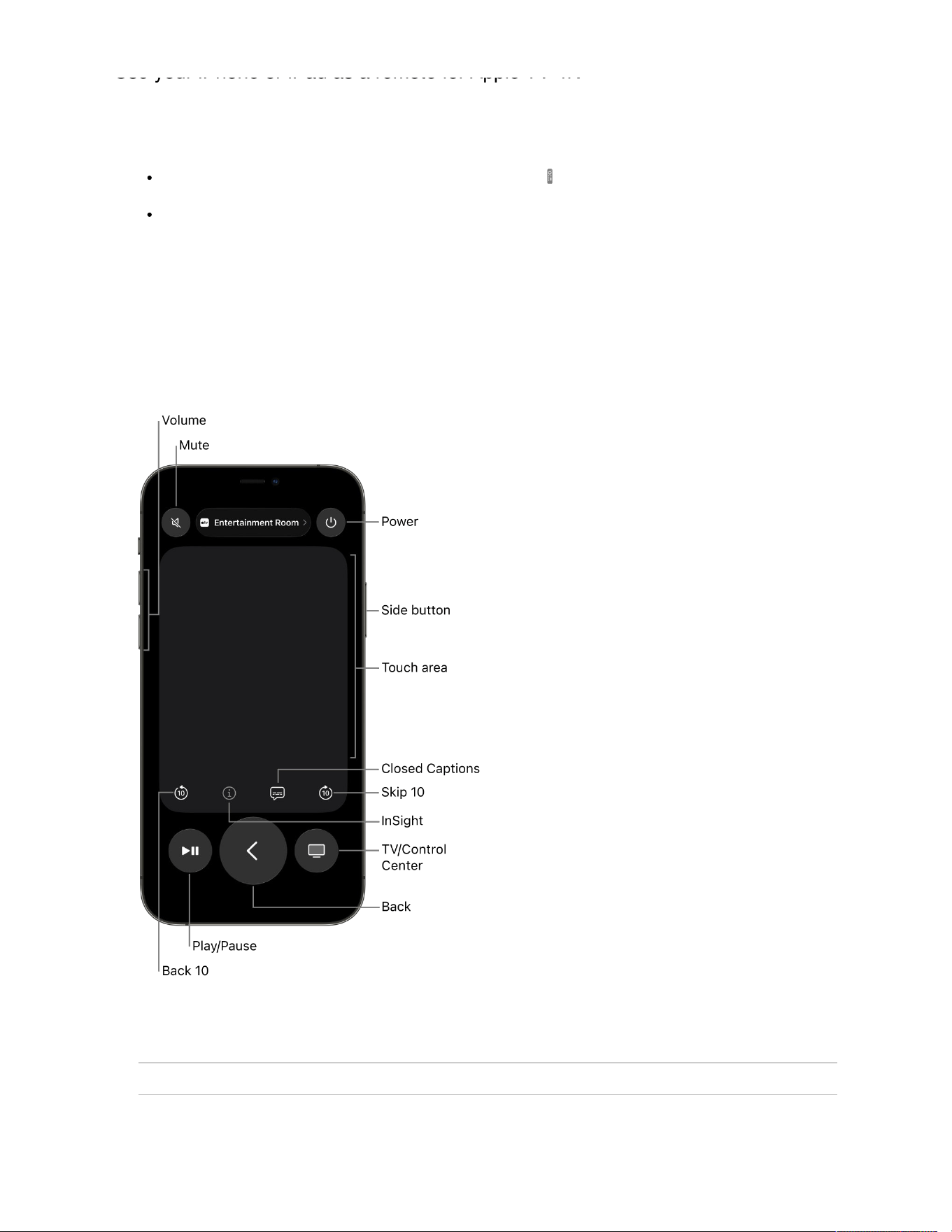
Use your iPhone or iPad as a remote for Apple TV 4K
If the Apple TV Remote app isn’t on your device, download it from the App Store.
1. On your iPhone or iPad, do either of the following:
Open Control Center, then tap the Apple TV Remote icon
Open the Apple TV Remote from your App Library or Home Screen.
The Remote app opens on your device.
For information on using Control Center on your iPhone or iPad, see Use and customize Control Center
on iPhone or Use and customize Control Center on iPad.
Note: If you have an iPhone with iOS 12 or later or an iPad with iPadOS 13 or later, remote controls are
automatically activated when the device connects with Apple TV 4K.
2. On your iPhone or iPad, use the touch area and buttons to do any of the following:
Apple TV 4K action iPhone or iPad gesture

Navigate to and highlight items. Swipe left, right, up, or down in the touch area.
Scroll lists. Swipe up or down a few times in the touch area.
Select the highlighted item. Tap in the touch area.
View additional menu options for the
highlighted item.
Touch and hold the touch area.
Return to the previous screen. Tap .
Return to the Home Screen. Touch and hold .
Go to the TV app. Tap to go to the Home screen in the Apple TV app. Tap again to go to
the Home Screen on Apple TV 4K.
Adjust the volume. Press the volume buttons on your iPhone or iPad.
Note: This works only with supported audio/video receivers. For information
about setting up Apple TV 4K to control your TV or receiver, see Use the
Apple TV 4K remote to control your TV and receiver .
View open apps. Tap twice.
Open Apple TV 4K Control Center. Touch and hold .
Use Siri to control Apple TV 4K,
search, or make a query.
Press and hold the side button, speak a command, search term, or query,
then release the button.
Note: In countries or regions where Siri is not supported, pressing and
holding the side button opens the Search app.
Use dictation to search in supported
apps.
Press and release the side button. When the search field appears, press
and hold the button, dictate a search term, then release the button.
Use dictation to enter passwords or
other text.
When you see a text field, press and hold the side button to dictate text,
then release the button.
Play or pause during playback. Tap .
Skip forward or back during
playback.
Tap to skip backward 10 seconds. Tap to skip forward 10 seconds.
Turn subtitles on or off during
playback.
Tap .
Apple TV 4K action iPhone or iPad gesture

Go to Info, InSight, and Continue
Watching during playback.
Tap to access InSight and other information directly on your iPhone or
iPad without interrupting the viewing experience on your TV. For more
information, see Get information about shows, characters, actors, and
music.
Access the TV guide in supported
live TV apps.
Tap the Guide button.
Change the channel or page up or
down in guides or menus in
supported live TV apps.
Tap the Up or Down button.
Apple TV 4K action iPhone or iPad gesture
Use your Apple Watch as a remote for Apple TV 4K
If the Apple TV Remote app isn’t on your Apple Watch, download it from the App Store.
1. Go to the Remote app on your Apple Watch.
For more information on pairing your Apple Watch with your Apple TV, see Control Apple TV with Apple
Watch in the Apple Watch user guide.
2. Choose your Apple TV, then do any of the following:
Apple TV 4K action Apple Watch gesture
Navigate to and highlight items. Swipe up, down, left, or right.
Scroll lists. Swipe up or down a few times.
Select an item. Swipe to highlight the item, then tap the screen.
Return to the previous screen. Tap .
Return to the Home Screen. Touch and hold .
Go to the TV app. Tap to go to the Home screen in the Apple TV app. Tap again to go to
the Home Screen on Apple TV 4K.
Pause or resume playback. Tap .
Adjust the volume. Turn the Digital Crown.
Mute or unmute audio. Tap , then tap Mute & Unmute.
Turn on captions. Tap , then tap Captions.
Turn Apple TV on or off. Tap , then tap Power.

To see which Apple devices can control your Apple TV 4K, go to Settings on Apple TV 4K, then go to
Remotes and Devices > Remote App and Devices. To remove a device from the list, select the device, then
select Forget This Device.
Not all features and content are available in all countries or regions or on all Apple TV hardware models.
Manage incoming iPhone calls on Apple TV 4K
You can receive incoming phone or FaceTime audio call notifications for your iPhone on Apple TV 4K and put
the call on hold until you answer it on iPhone. If you have one or more HomePod speakers connected to
Apple TV 4K, you can answer the call directly from Apple TV 4K.
This feature requires iOS 26 or later for iPhone and tvOS 26 or later for Apple TV 4K.
Set up incoming calls on iPhone and Apple TV 4K
An automatic setup notification appears on Apple TV 4K when your iPhone and Apple TV 4K are updated to
iOS 26 and tvOS 26. You can also set up incoming calls later in Apple TV 4K Settings.
1. Go to Settings on Apple TV 4K.
2. Go to Profiles and Accounts, then select the profile of the user whose iPhone you want to use.
3. Turn on Show Incoming Calls.
4. On the user’s iPhone, go to Settings > Apps > Phone > Calls on Other Devices, and make sure Allow
Calls and Call Notifications are turned on for your Apple TV 4K.
Get incoming iPhone call notifications on Apple TV 4K
1. When an incoming iPhone call notification appears on Apple TV 4K, press on the remote to place the
call on hold on your iPhone.
2. Answer the call on your iPhone to dismiss the notification.
Answer an incoming iPhone call on a HomePod connected to Apple TV 4K
When an incoming iPhone call notification appears on Apple TV 4K, press on the remote to answer
the call on your connected HomePod speaker or speakers.

Use your iPhone or iPad as a keyboard on Apple TV 4K
If you prefer not to enter text using the Apple TV 4K remote, you can set up a nearby iPhone or iPad to share
its keyboard whenever a text field appears on Apple TV 4K. Make sure the iPhone or iPad and Apple TV 4K
are both signed in with the same Apple Account, and that Bluetooth® and Wi-Fi are enabled on the iPhone or
iPad.
Note: The iPhone or iPad must meet certain requirements. See the Apple Support article System
requirements for Continuity features on Apple devices.
Use an iPhone or iPad to type on Apple TV 4K
Whenever a text field appears on Apple TV 4K, a notification appears on your iPhone or iPad.
Tap the notification and enter text in the iOS or iPadOS keyboard that appears.
Text you enter on the device automatically appears in the text field on Apple TV 4K.
Turn off the Apple TV 4K keyboard on iOS or iPadOS
If you don’t want your iPhone or iPad to be used as a keyboard for Apple TV 4K, you can turn off keyboard
notifications on your iPhone or iPad.
On your iPhone or iPad, go to Settings > Notifications > Apple TV Keyboard and turn off
Allow Notifications.
Not all features and content are available in all countries or regions or on all Apple TV hardware models.
Use your iPhone or iPad as a camera with Apple TV 4K
You can use the camera and microphone on an iPhone or iPad as a camera for FaceTime calls and video
conferencing on Apple TV 4K.
Set up a Continuity Camera in FaceTime or a conferencing app
You can set up a Continuity Camera from the FaceTime app or compatible video conferencing apps on
Apple TV 4K.
1. Open the FaceTime app or a compatible video conferencing app on Apple TV 4K.
Tip: Before you begin using FaceTime, make sure your iPhone or iPad is set up to use FaceTime. Go
to Settings on your iPhone or iPad, tap FaceTime, then turn on FaceTime. Sign in to FaceTime with your
Apple Account, if you haven’t already.

2. On the Continuity Camera screen, do either of the following:
If you appear in the list of profiles: Select your profile, then confirm on your iPhone or iPad.
If you don’t appear in the list of profiles: Select Other to reveal a QR code, then open the Camera app
on your iPhone or iPad. Scan the QR code, then tap Connect to Apple TV and confirm on your iPhone
or iPad.
Note: If you’re signed in to Apple TV 4K, your profile automatically appears in the list of profiles. To
add a profile, follow the instructions in Add, remove, or delete profiles on Apple TV 4K.
3. Position your iPhone or iPad near the TV in landscape orientation so that the rear camera (iPhone) or
front camera (iPad) faces you and you’re satisfied with the way you appear in the preview on your TV
screen.
You can also press on your remote to skip this step.
After a short countdown, your iPhone or iPad camera is ready to use on Apple TV 4K.
4. To pause or disconnect your iPhone or iPad’s camera, tap Pause or Disconnect on the iPhone or iPad’s
Lock Screen.
Set up iPhone as a dedicated Continuity Camera
You can set up an iPhone as a dedicated Apple TV 4K Continuity Camera, always ready for FaceTime or
compatible video conferencing apps. When you make an iPhone a dedicated camera, Apple TV 4K has
access to the iPhone’s camera, microphone, and FaceTime favorites.
After you set up an iPhone to be a dedicated camera, you can only make FaceTime calls from Apple TV 4K
to contacts marked as Favorites in the Phone app on the iPhone.
Note: FaceTime calls made to a dedicated camera can be answered by any user who is signed in as the
current profile on Apple TV 4K.
1. Go to Settings on Apple TV 4K.
2. Navigate to Remotes and Devices > Dedicated Camera, select your profile, then follow the onscreen
prompts to confirm on your iPhone.
Note: If you’re signed in as the current profile on Apple TV 4K, your profile automatically appears in the
list of profiles. To add a profile, follow the instructions in Add, remove, or delete profiles on Apple TV 4K.
3. Make sure your iPhone is connected to a power source, then position your iPhone near the TV in
landscape orientation so that the rear camera faces you and you’re satisfied with the way you appear in
the preview on your TV screen.
You can also press on your remote to skip this step.
After a short countdown, your iPhone camera is ready to use on Apple TV 4K.

4. If you want to use FaceTime and haven’t set up your Favorites list, open the Phone app on the iPhone,
tap Favorites, tap , choose a contact, tap Video, tap FaceTime, then tap a contact method.
If you want to edit your Favorites later on iPhone, tap Edit Favorites on the Lock Screen, or Edit in the
Favorites tab of the Phone app.
5. To pause or disconnect your iPhone camera, do either of the following:
On Apple TV 4K, go to Settings , then go to Remotes and Devices > Dedicated Camera, and
select Disconnect.
On iPhone, Tap Disconnect on the Lock Screen.
Modify Continuity Camera controls in Control Center
Continuity Camera controls appear in Control Center on Apple TV 4K when you connect an iPhone or iPad to
Apple TV 4K to make calls with FaceTime or compatible video conferencing apps.
1. Press and hold on your remote to open Control Center.
2. Navigate to , then adjust any of the following controls that appear onscreen:
Center Stage: Select to keep everyone in the room perfectly framed, even as they move around.
Portrait: Select to focus on the subject and blur the background image.
Reactions: Select to recognize hand gestures you make that generate onscreen effects, such as
hearts or fireworks. See Add reactions with hand gestures during a FaceTime call on Apple TV 4K.
Tip: With a Continuity Camera connected to Apple TV 4K (3rd generation), you can also see yourself
onscreen and add fun filters when singing along to your favorite tracks in the Music app with Apple Music
Sing. See Use Apple Music Sing on Apple TV 4K.
Not all features and content are available in all countries or regions or on all Apple TV hardware models.
Use Siri on other devices to control Apple TV 4K
You can use Siri on a HomePod, iPhone, or iPad to play items or open apps on Apple TV 4K. For example,
you can ask Siri on your dining room HomePod to get a movie or TV show started on Apple TV 4K in the
living room.
When making your request, make sure to reference “TV” or, if you’re in a different room, the room name that
you assigned Apple TV 4K in the Home app on your iPhone or iPad.

Siri: On your HomePod, iPhone, or iPad, say something like:
“Play ‘Ted Lasso’ on the TV”
“Play ‘Uptown Funk’ on the living room TV”
“Watch Season 1, Episode 5 of ‘The Mosquito Coast’ in the living room”
“Open HBO Max on the TV”
For more information, see the HomePod User Guide.
Not all features and content are available in all countries or regions or on all Apple TV hardware models.
Manage profiles
Add, remove, or delete profiles on Apple TV 4K
You can easily create profiles on Apple TV 4K so that each family or household member gets their own
watchlist, watch history, and personalized recommendations in the Apple TV app. There are two types of
profiles on Apple TV 4K: profiles for users with an Apple Account, and managed profiles for users in your
household who don’t have an Apple Account. Managed profiles are created by Apple Account profiles and
assigned to family or household members.
When you have an Apple Account profile, you can also do the following on Apple TV 4K:
Keep everything in sync when you’re signed in as the current profile on Apple TV 4K, including custom
system language preferences; paired AirPods settings; Game Center, Music, and Podcasts app data and
recommendations; and recommendations for apps you connect to the Apple TV app.
Create up to five managed profiles. Each managed profile has a unique name, image, and optional child
setting. As the managing profile, you can set recommended or custom content restrictions for any of
these profiles. Additionally, Child profiles present only age-appropriate content and search results based
on the content restrictions set up by you.
See your managed profiles when you sign into the Apple TV app on another Apple TV 4K or a smart TV,
gaming console, streaming device, or cable or satellite service.
After you add profiles, it’s easy to switch between them.
Create a profile using your Apple Account

1. If you have an Apple Account, do any of the following on Apple TV 4K:
Go to Settings , then go to Profiles and Accounts > Add New Profile.
Press and hold on the remote to open Control Center, navigate to , then select Add Profile.
Note: If a member of your family group in the Home app signs in to an Apple device such as
Apple TV 4K, the device may suggest adding other profiles by displaying their Apple Account name
and profile photo. To remove suggested profiles from this list, select a person, then choose “Don’t
suggest [name of person].”
Go to the Apple TV app on Apple TV 4K, open the sidebar, select the profile at the top of the
sidebar, then select Add Profile.
2. Select Sign in with Apple Account, then follow the onscreen instructions to sign in.
Add a managed profile
If you already created your own profile using an Apple Account, you can create up to five additional profiles to
manage with your account. As the managing profile, you have access to each managed profile’s data, such
as playback and searches, and can modify, delete, or upgrade any profile to a full Apple Account.
1. On Apple TV 4K, do any of the following:
Go to Settings , go to Profiles and Accounts > Add New Profile.
Press and hold on the remote to open Control Center, navigate to , then select Add Profile.
Go to the Apple TV app on Apple TV 4K, open the sidebar, select the profile at the top of the
sidebar, then select Add Profile.
2. Select Create Profile, then enter a name and choose an image for the profile.
3. On the Finish Profile screen, do any of the following:
Change the profile name or image: Select Name or Image, then make your changes.
Set up a Child profile: Select Child, then choose to accept selected restrictions that appear, or select
Customize to choose age-appropriate categories for TV shows and movies.
Choose the managing profile: Select Managed By, then choose which Apple Account will manage this
profile.
4. When you’re finished, select Done.
To change content restrictions for a managed profile or to set up a 4-digit passcode for profile access, see
Adjust Apple TV app settings on Apple TV 4K.
To change settings for a managed profile, see Adjust settings for profiles and accounts on Apple TV 4K.

Upgrade a managed profile to an Apple Account
If you have an Apple Account profile, you can upgrade a managed profile for an adult to an Apple Account.
1. Go to Settings on Apple TV 4K.
2. Go to Profiles and Accounts.
3. Select a managed profile, then select Upgrade to Apple Account.
4. Follow the onscreen instructions to sign in to your Apple Account and upgrade the profile to an Apple
Account.
Remove a profile connected to an Apple Account
The default profile is the profile connected to an Apple Account that was used to set up Apple TV 4K. Some
features, including iCloud Photos and One Home Screen, are available only for the default profile on
Apple TV 4K. To change the default profile, see Change the default profile on Apple TV 4K.
1. Go to Settings on Apple TV 4K.
2. Navigate to Profiles and Accounts, then do either of the following:
Sign out of the default profile: Select [default profile name], then select Remove Profile.
Sign out of other profiles: Select [profile name], then select Remove Profile.
Delete a managed profile
To delete a managed profile, the managing profile needs to confirm the deletion using their Apple Account
password on a mobile device signed in to their Apple Account.
The deleted profile will also no longer appear in the Apple TV app on a smart TV, streaming device, or
gaming console where the managing profile is signed in. Their watch history and other profile data will also
be deleted.
1. Go to Settings on Apple TV 4K.
2. Navigate to Profiles and Accounts, select [profile name], then select Delete Profile.
3. Follow the onscreen instructions to sign in to your Apple Account or confirm on another device.
Note: Managed Apple Accounts, such as those set up by IT departments in schools or other organizations,
are not supported on Apple TV 4K.
Not all features and content are available in all countries or regions or on all Apple TV hardware models.

Change the default profile on Apple TV 4K
The default profile is the profile connected to an Apple Account that was used to set up Apple TV 4K. Some
features of Apple TV 4K are available only for the default profile, including syncing iCloud photos in the
Photos app, using One Home Screen to keep your Home Screen consistent across multiple Apple TV 4K
devices, and seeing Shared with You recommendations in the Apple TV app.
You can change the default profile at any time.
1. Go to Settings on Apple TV 4K.
2. Navigate to Profiles and Accounts, then select the name listed as Default.
3. Select Remove Profile.
4. Select Add Profile and enter a new Apple Account and password.
Not all features and content are available in all countries or regions or on all Apple TV hardware models.
Switch the current profile on Apple TV 4K
The current profile is the profile selected in Control Center. Only one profile at a time can be active on
Apple TV 4K.
To change the current profile on Apple TV 4K, do any of the following:
When you turn Apple TV on and the profile screen appears, select a different profile.
Tip: To turn off the profile screen, see Adjust settings for profiles and accounts on Apple TV 4K.
Press and hold on the remote to open Control Center, navigate to , then select a different profile.
Go to Settings , go to Profiles and Accounts > Switch Current Profile, then select a name from the list
and sign in if prompted.
Not all features and content are available in all countries or regions or on all Apple TV hardware models.
Set up parental controls on Apple TV 4K
You can set device restrictions, often also referred to as parental controls, so only authorized profiles can
watch, download, or play items from search results, or make purchases on Apple TV 4K.
Tip: To manage content restrictions for profiles in the Apple TV app, see Set up or modify content
restrictions for profiles.
Turn on restrictions

1. Do either of the following:
Press and hold on the remote to open Control Center, then select .
Go to Settings on Apple TV 4K, then go to General > Restrictions.
2. Turn on restrictions, and enter a 4-digit passcode.
Once you enter and verify the passcode, options in the Restrictions menu are enabled. To set or override
restrictions, you must enter the passcode.
Tip: To allow certain profiles to use their device to bypass restrictions instead of entering the
passcode, select Allow or Block for any profile listed in the Restrictions menu.
Configure what types of content are restricted
1. Do either of the following:
Press and hold on the remote to open Control Center, then select .
Go to Settings on Apple TV 4K, then go to General > Restrictions.
2. Enter the passcode if required.
3. Select the activity you want to restrict, such as:
Purchasing or renting TV shows, movies, and apps (including in-app purchases)
Accessing apps, TV shows, movies, music, or podcasts based on ratings or explicit language
Playing multiplayer games, adding friends, or changing privacy settings in Game Center
Changing AirPlay, TV Provider, or Location settings
Once restrictions are set, you must enter the passcode to access any restricted content.
Change the passcode
1. Do either of the following:
Press and hold on the remote to open Control Center, then select .
Go to Settings on Apple TV 4K, then go to General > Restrictions.
2. Select Change Passcode, enter the current passcode, then enter the new passcode.
Remove all restrictions
You can temporarily remove all restrictions, then turn them back on again later.

1. Do either of the following:
Press and hold on the remote to open Control Center, then select .
Go to Settings on Apple TV 4K, then go to General > Restrictions.
2. Enter the passcode, then set Restrictions to Off.
When you set Restrictions back to On, the original restrictions you set are intact.
If you use Family Sharing, you can also use your iPhone or iPad to limit the content your family members can
buy—including enabling Ask to Buy, which lets your kids purchase items only with parental approval. For
more information, see Set up parental controls with Family Sharing in the iPhone User Guide.
Note: Restrictions may not apply to apps you download from the App Store. To restrict content outside of the
Apple TV app, adjust the settings for the individual apps either inside the app itself, or in the Apps section of
Settings . See Adjust settings for specific apps on Apple TV 4K.
Not all features and content are available in all countries or regions or on all Apple TV hardware models.
Set up voice recognition on Apple TV 4K
Siri on Apple TV 4K can recognize the voice associated with the Apple Account you use on your iPhone or
iPad.
You can set up Recognize My Voice for up to six profiles on Apple TV 4K.
Set up Recognize My Voice
1. On an iPhone or iPad, do either of the following:
Set up voice recognition in the Home app on an iPhone or iPad. For more information, see Set up
voice recognition and Personal Requests in the HomePod User Guide.
Open Settings > Siri (or Apple Intelligence & Siri) > Talk to Siri (or Talk & Type to Siri), then turn on
“Siri” or “Hey Siri.”
2. Go to Settings on Apple TV 4K.
3. Go to Profiles and Accounts, then select a profile.
4. Make sure Recognize My Voice is turned on.
Set up Siri requests through AirPods
If you’re wearing AirPods connected to Apple TV 4K, you can access Siri by saying “Hey Siri,” followed by
your request.
If you’re using AirPods Pro (2nd generation or later), you can say “Hey Siri,” “Siri,” or both.

1. Go to Settings on Apple TV 4K.
2. Go to General, navigate down to the Siri section, then do either of the following:
AirPods Pro (2nd generation or later) only: Select Listen on AirPods, then select “Siri” or “Hey Siri” for
both options, or “Hey Siri.”
All other AirPods models: Select Listen for “Hey Siri” on AirPods.
Not all features and content are available in all countries or regions or on all Apple TV hardware models.
Manage subscriptions on Apple TV 4K
When you have a profile signed in to an Apple Account, you can modify or cancel subscriptions on
Apple TV 4K, including Apple Music, Apple TV 4K channels, Apple Arcade, or individual apps.
1. Go to Settings on Apple TV 4K.
2. Go to Profiles and Accounts > [profile] > Subscriptions and select a subscription.
3. Follow the onscreen instructions to change or cancel your subscription.
Not all features and content are available in all countries or regions or on all Apple TV hardware models.
Use Family Sharing on Apple TV 4K
Family Sharing lets you share apps and viewing privileges with up to six family members. One adult in your
household—the family organizer—invites family members to join the family group and agrees to pay for
purchases made by family members.
Family Sharing, which works across all your Apple devices, is different than having multiple profiles on
Apple TV 4K.
Important: You can’t initiate or configure Family Sharing directly on Apple TV 4K. It must be done on a Mac,
an iPhone, or an iPad. To learn more about setting up Family Sharing, see the Apple Support article Set up
Family Sharing.
Not all features and content are available in all countries or regions or on all Apple TV hardware models.
Manage apps
Open an app on Apple TV 4K
Use your remote to do the following:
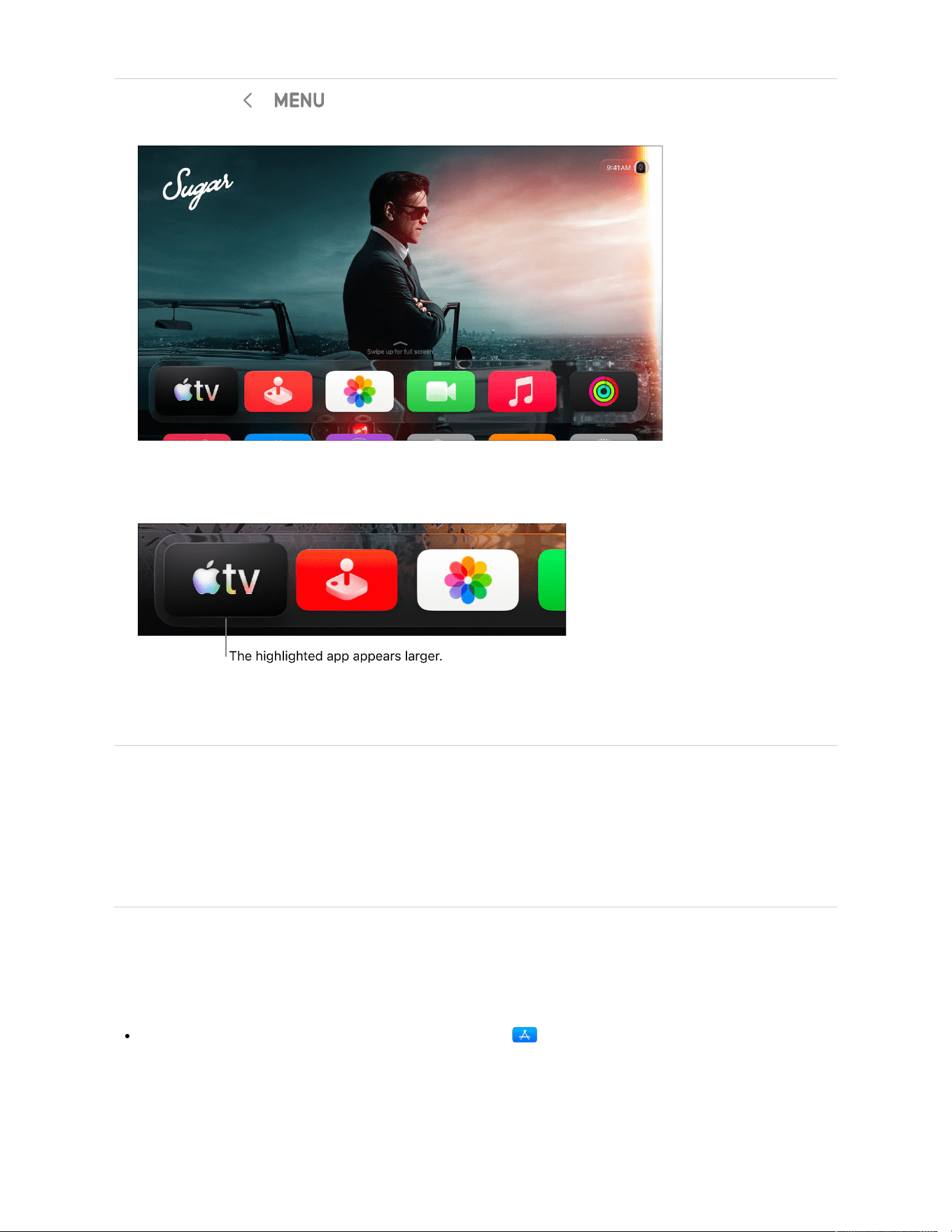
1. Press and hold or to go to the Apple TV 4K Home Screen.
2. Swipe on the clickpad or touch surface to navigate to and highlight an app icon.
3. Press the clickpad center or touch surface to open the app.
Not all features and content are available in all countries or regions or on all Apple TV hardware models.
Install or delete apps on Apple TV 4K
You can find a wide variety of apps to install in the App Store on Apple TV 4K. If you no longer need an app
you’ve installed, you can delete or offload it.
Install an app
When you find an app you want by browsing the App Store or searching with Siri, you can download it in the
App Store.
On the Apple TV 4K Home Screen, go to the App Store , navigate to an app, then select Buy or Get
(for a free app).

Note: If you see Install, you’ve already purchased the app and you can download it again for free. If you see
Open, the app is already installed; select Open to launch the app.
Delete or offload an app
1. On the Apple TV 4K Home Screen, navigate to the app you want to delete, then press and hold the
clickpad or touch surface on your remote.
2. Select Delete App, then select Delete or Offload.
Offloading an app removes it from the Home Screen to free up storage, but retains its data in case you
install it again.
Deleting an app also deletes its data. You can download any app again that you’ve purchased on the App
Store, free of charge, but the data may not be restored.
Note: Some apps and content providers require that you sign in before using them. When you open the app
to sign in or to set up an account, follow the onscreen instructions.
Not all features and content are available in all countries or regions or on all Apple TV hardware models.
Rearrange apps on the Apple TV 4K Home Screen
The Home Screen on Apple TV 4K provides easy access to your apps. You can change the order of apps,
place your favorite apps in the top row, and create folders for groups of apps.
Rearrange apps
1. On the Apple TV 4K Home Screen, navigate to an app, then press and hold the clickpad or touch surface
on your remote.
2. Select Edit Home Screen.
3. Use the clickpad or touch surface to drag the app to a new location on the Home Screen.
Tip: Place your favorite apps on the top row of the Home Screen so that when they’re highlighted,
you see a preview of what’s in the app. Swipe up to see the preview in full screen.

4. To save the new arrangement, press the center of the clickpad or touch surface.
Create a folder for apps
You can organize apps into folders. For instance, you can store all of your streaming apps in an
Entertainment folder.
1. On the Apple TV 4K Home Screen, navigate to an app, then press and hold the clickpad or touch surface
on your remote.
2. Select Move to > New Folder.
3. To change the name of the new folder, select the folder name at the top of the screen, enter a custom
name, then select Done.
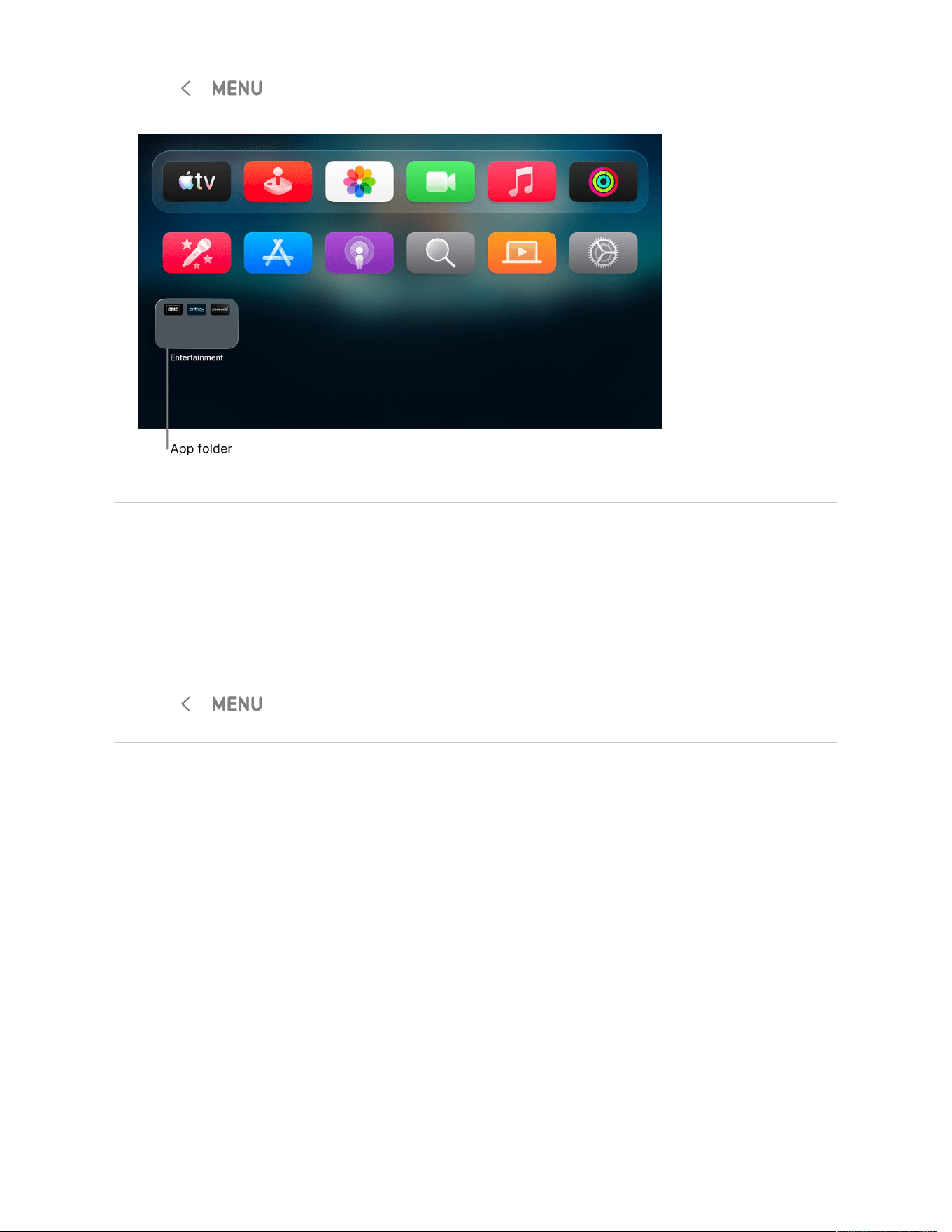
4. Press or on your remote to return to the Home Screen.
Rename a folder
1. On the Apple TV 4K Home Screen, navigate to a folder, then press and hold the clickpad or touch
surface on your remote.
2. Select Rename Folder.
3. Enter a new name for the folder, then select Done.
4. Press or on your remote to return to the Home Screen.
Move an app into a folder
1. On the Apple TV 4K Home Screen, navigate to an app, then press and hold the clickpad or touch surface
on your remote.
2. Select Move to > [name of folder].
Delete a folder
To delete a folder, simply move its apps back to the Home Screen.
1. On the Apple TV 4K Home Screen, navigate to an app in a folder, then press and hold the clickpad or
touch surface on your remote.
2. Select Move to > Home Screen.

3. Repeat the above steps for each app in the folder.
The folder is deleted when you remove the last app from it.
4. To save the new arrangement, press the clickpad center or touch surface.
Keep the Home Screen up to date across multiple Apple TV 4K devices
If you have more than one Apple TV 4K associated with the same Apple Account, you can use One Home
Screen to keep the same appearance and apps for each device. This makes it seamless to switch between
an Apple TV 4K in the bedroom and one in the living room, for example.
1. On the Apple TV 4K Home Screen, go to Settings .
2. Go to Profiles and Accounts > [default profile] and select One Home Screen to turn it on.
Note: Only the default profile can use One Home Screen. See Change the default profile on Apple TV 4K.
Not all features and content are available in all countries or regions or on all Apple TV hardware models.
Switch between apps on Apple TV 4K
You can quickly switch between apps on Apple TV 4K without having to return to the Home Screen. App-
switching on Apple TV 4K is very similar to app-switching on iPhone or iPad.
1. On the remote, press twice quickly.
Windows representing each of the open apps appear in a row on the screen.
Stream For All Mankind on the Apple TV app with a subscription

2. Navigate to a different app, then select the one you want to switch to.
3. To leave app-switching view without changing apps, press or on your remote.
Not all features and content are available in all countries or regions or on all Apple TV hardware models.
Force quit an app on Apple TV 4K
If an app isn’t working right, you can force it to quit and then open it again from the Home Screen.
1. On the remote, press twice quickly.
Windows representing each of the open apps appear in a row on the screen.
Stream For All Mankind on the Apple TV app with a subscription
2. Navigate to the app you want to quit, then swipe up on the clickpad or touch surface.
3. To leave app-switching view without quitting an app, press or on your remote.
Not all features and content are available in all countries or regions or on all Apple TV hardware models.
Set up and activate screen savers
Set up Apple TV 4K screen savers
You can set up screen savers to display whenever Apple TV 4K is idle. Some screen saver options can be
personalized to include memories and slideshows or portraits from your photo library.

Set up an Aerial screen saver
The Aerial screen saver shows beautiful slow-motion videos of places around the world and rotates through
a collection by default. You can hide any Aerials you don’t want included.
1. Go to Settings on Apple TV 4K.
2. Go to Screen Saver > Aerials, then do either of the following:
Choose which Aerials you want shown: Select Choose Aerials, then follow steps 3–4 below.
Choose how often you want to download new Aerials: Select Download Frequency, then choose an
option.
3. On the Choose Aerials screen, select a category (Cityscape, Earth, Landscape, or Underwater) from the
sidebar on the left.
4. Navigate right, then scroll up and down to view thumbnails of Aerials for the category you’ve selected;
select a thumbnail to hide it, or select Hide All to hide all the Aerials for that category.
Create a screen saver with your photos
1. Go to Settings on Apple TV 4K.
2. Go to Screen Saver > Memories & Slideshows, then do either of the following:
Create a screen saver from your Memories: Select Memories, then choose whether to include all
photo memories, or only ones you mark as Favorites. See Add or remove favorite memories.
Create a screen saver from a photo album: Select Albums, then choose Favorites to show your
favorite photos, choose Activity to show photos from recently shared albums, or scroll down to choose
a specific shared or personal album.
When you use a photo album as your screen saver, an additional option for transition style appears in
the Memories & Slideshows menu. Select Style to choose the transition you want to see between
photos.
Tip: You can also use media from a Home Sharing device as your screen saver by selecting the Home
Sharing option. See Send your Mac library media to Apple TV 4K with Home Sharing.
Create a screen saver with album art from Apple Music
1. Go to Settings on Apple TV 4K.
2. Go to Screen Saver > Memories & Slideshows, then select Music Albums.
The screen saver shows a collection of album art from your Apple Music library. For information on
adding albums to your Apple Music library, see Browse your Music library on Apple TV 4K.

3. Select Style, then choose a transition style (or choose Preview to see a preview of the currently selected
style).
Create a Portraits screen saver
Portraits screen savers show the best photos of people, pets, nature, or cities from your photo library with a
stylized clock overlay.
1. Go to Settings on Apple TV 4K.
2. Go to Screen Saver > Portraits, then choose whether to show or hide photos of people, pets, nature, and
cities.
When you select People, you can choose to show all people, or only people you mark as Favorites in the
Photos app.
3. Under Update Frequency, select Change Every, then select a time interval to determine how often the
portrait changes.
Note: Portraits screen savers are only available on Apple TV 4K (2nd generation or later). See Which
Apple TV 4K model do I have?
Not all features and content are available in all countries or regions or on all Apple TV hardware models.
Activate or change the screen saver on Apple TV 4K
Whenever Apple TV 4K is idle, you can view stunning aerial videos, see your favorite people, places, pets,
and memories, or watch Snoopy and Woodstock.
You can set the current screen saver selection in Settings or switch between screen savers any time the
screen saver is active.
Change the current screen saver when it’s not active
1. Go to Settings on Apple TV 4K.

2. Go to Screen Saver > Current Selection, then choose from the following:
Aerials: Breathtaking videos of locations shot from all over the world, underwater, and even space.
See Set up an Aerial screen saver.
Memories & Slideshows: View memories and slideshows from your iCloud Photo Library. See Create
a screen saver with your photos.
Portraits (Apple TV 4K 2nd generation or later): View clocks featuring your best photography. See
Create a Portraits screen saver.
Snoopy (Apple TV 4K 2nd generation or later): Watch Snoopy and Woodstock frolic across your
screen.
Activate and control your screen saver
You can activate the screen saver manually. While your screen saver is active, there are a few ways you can
change what you’re viewing.
1. Do either of the following:
On the Apple TV 4K Home Screen: Navigate to the left-most app icon in the top row, then press or
.
In an app: Press or repeatedly until the screen saver activates.
2. While the screen saver is active, do any of the following:
Switch to another screen saver category (Apple TV 4K 2nd generation or later): Swipe up or press up
on the clickpad or touch surface, then select the category you want to switch to.
View more information about what you’re seeing: Tap the clickpad or touch surface to view more
information, like the name of an Aerial location or which Memory you’re viewing.
Skip to the next visual: Swipe right on the clickpad or touch surface, or press right on the clickpad ring
(silver remote only).
3. Press the clickpad center or touch surface to deactivate the screen saver.
To adjust how long Apple TV 4K is idle before the screen saver automatically turns on, see Adjust screen
saver settings on Apple TV 4K.
Not all features and content are available in all countries or regions or on all Apple TV hardware models.

TV
Apple TV app at a glance
The Apple TV app is the first place you go to watch movies, TV shows, and sports on your Apple TV 4K.
Stream Silo on the Apple TV app with a subscription
In the Apple TV app, you can:
Continue playing TV shows and movies from all your apps, all in one place
Subscribe to and watch Apple TV, featuring original TV shows and movies from Apple, Major League
Soccer (MLS), and Formula 1® in the U.S.
Subscribe directly to just the channels you want with Apple TV channels
Get recommendations for just you, or for everyone in your household
Watch movies and TV shows shared with you from the Messages app on another Apple device
Buy, rent, or preorder items from the Apple TV Store.
Follow your favorite teams with My Sports in the Apple TV app on Apple TV 4K
Access your entire movie and TV show collection in the Library
If you use the Apple TV app on multiple devices, you can watch on one device, then pick up where you left off
on another. For all the ways you can watch, see How to watch Apple TV.
Subscription required for Apple TV, which in some countries and regions may include some or all of the following: Friday Night Baseball, Major League Soccer (MLS), and
Formula 1®. Not all features and content are available in all countries or regions, or on all Apple TV hardware models. Apple TV subscription does not include third-party
branded subscription services or content available for rental or purchase in the Apple TV app.

Subscribe to and buy content
In the Apple TV app, you can subscribe to Apple TV and Apple TV channels. A subscription gives you access
to content on demand on Apple TV 4K. You can also buy, rent, or preorder tv shows and movies.
You can choose to bundle your Apple TV subscription with other Apple services by subscribing to Apple One.
See the Apple Support article Bundle Apple subscriptions with Apple One .
Subscribe to Apple TV
Apple TV is a subscription streaming service featuring acclaimed original series, films, documentaries, Major
League Soccer (MLS), Friday Night Baseball doubleheaders, Formula 1® in the U.S., and more.
Tip: Apple TV and Peacock are also available as a bundled subscription in the United States.
1. Go to the Apple TV app on Apple TV 4K.
2. Open the sidebar, then select Apple TV, MLS, or Formula 1.
3. Select the subscription button, then follow the onscreen instructions.
Subscribe to Apple TV channels and apps
Subscribe to Apple TV channels to get the shows you want, without downloading any apps.
1. Go to the Apple TV app on Apple TV 4K.
2. Open the sidebar, then select Store.
3. Navigate down to Add Channels & Apps, then navigate left and right to browse available options.
4. Select a channel or app to view content previews and subscription options.
5. Select the subscription button, then follow the onscreen instructions.
Cancel or change a subscription
1. Go to Settings on Apple TV 4K.
2. Go to Profiles and Accounts > [profile] > Subscriptions and select a subscription.
3. Follow the onscreen instructions to change or cancel your subscription.
Buy, rent, or preorder items
The Apple TV Store in the Apple TV app is your all-in-one destination to browse, buy, and rent a wide variety
of movies and TV shows.

Tip: To require a profile to enter a password before making purchases, go to Settings on
Apple TV 4K, then go to Profiles and Accounts > [profile] > Purchases.
1. Go to the Apple TV app on Apple TV 4K.
2. Open the sidebar, then select Store.
3. Select a movie or TV show, then do any of the following:
Play the movie or TV show: Select Play to start watching immediately if the movie or TV show is
already available through one of your channels.
Buy: Purchased items are added to your library.
Rent: When you rent a movie, you have 30 days to start watching it. After you start watching the
movie, you can play it as many times as you want for 48 hours, after which the rental period ends.
When the rental period ends, the movie is deleted.
Preorder: When the preordered item becomes available, your payment method is billed, and you
receive an email notification.
Open the item in another app: Select Open In or Try [app name]. If an app isn’t immediately available,
follow the onscreen instructions to install it and connect to it. Some apps may require a subscription.
If this is your first time using an app that requires a cable or satellite subscription, you may need to
enter your TV provider credentials (see Set up single sign-on with your TV provider on Apple TV 4K).
Add an item to your watchlist: If you want to watch the item later, select Add to Watchlist. To remove
the item from your watchlist, select Added to Watchlist. Items added to your watchlist appear in the
Continue Watching and Watchlist rows.
When you buy or rent a movie from the Apple TV Store, it automatically plays in the highest-quality format
available for your Apple TV 4K, including high-definition (HD) and 4K resolution formats. These videos might
also feature high dynamic range (HDR) in HDR10, HDR10+, or Dolby Vision 8.1, and Dolby Atmos. For more
information, see the Apple Support article Find movies with 4K, HDR, Dolby Vision, or Dolby Atmos in the
Apple TV app.
Share Apple TV or Apple TV channels with Family Sharing
When you subscribe to Apple TV, Apple TV channels, or Apple One, you can use Family Sharing to share
your subscription with up to five other family members. Your family group members don’t need to do anything
—Apple TV and Apple TV channels are available to them the first time they open the Apple TV app after your
subscription begins.
If you join a family group that subscribes to Apple TV or Apple One, and you already subscribe, your
subscription isn’t renewed on your next billing date; instead, you use the group’s subscription. If you join a
family group that doesn’t subscribe, the group uses your subscription.
See the Apple Support article Set up Family Sharing.

To stop sharing your subscription with a family group, you can cancel the subscription, leave the family
group, or (if you’re the family group organizer) stop using Family Sharing. See the Apple Support article
Leave Family Sharing.
Note: The Apple TV app, Apple TV channels, Apple One, Apple TV subscription, and store availability might
vary by country or region. See what’s available in your country or region.
Subscription required for Apple TV, which in some countries and regions may include some or all of the following: Friday Night Baseball, Major League Soccer (MLS), and
Formula 1®. Not all features and content are available in all countries or regions, or on all Apple TV hardware models. Apple TV subscription does not include third-party
branded subscription services or content available for rental or purchase in the Apple TV app. When you purchase access to movies, TV shows, music, music videos,
ebooks, audiobooks, or ringtones from Apple, you also have the option to permanently download these items to a compatible iPhone, iPad, Mac, or PC. Apple cannot
revoke your downloaded content, and you can always access your downloaded content without an internet connection.
Use the sidebar to navigate the Apple TV app
The sidebar in the Apple TV app gives you easy access to everything you want to watch in the Home, Apple
TV, MLS, Formula 1®, Sports, Store, and Library categories, as well as channels and apps you’ve
subscribed to or have installed on Apple TV 4K.
Stream For All Mankind on the Apple TV app with a subscription
Open the sidebar
1. Go to the Apple TV app on Apple TV 4K.

2. To open the sidebar, use your remote to do either of the following:
Press or .
Swipe up on the clickpad or touch surface.
Note: You may have to press or swipe multiple times.
3. To close the sidebar, swipe right on the clickpad or touch surface, or select a category.
With the sidebar open, you can navigate to Search, Home, Apple TV, MLS, Formula 1, Store, Library, or any
other channels or apps you’ve added to Apple TV 4K.
Switch profiles
You can quickly switch between profiles in the sidebar so that each person in the household gets their own
unique watchlist and personalized recommendations.
1. Go to the Apple TV app on Apple TV 4K.
2. Open the sidebar, then select the profile at the top of the sidebar.
3. Select the profile you want to switch to, or select Add Profile and follow the onscreen instructions.
When you switch to another profile, the previous profile is signed out on Apple TV 4K, and the
Apple TV app refreshes with the new profile’s unique watchlist, video collections, and recommendations.
Tip: You can also switch profiles when Apple TV 4K turns on (see Adjust settings for profiles and
accounts on Apple TV 4K) or in Control Center (see Switch profiles in Control Center on Apple TV 4K).
Reorder channels and apps in the sidebar
You can pin your favorite channels or apps to the top of the Channels & Apps list in the sidebar.
1. Go to the Apple TV app on Apple TV 4K.
2. Open the sidebar, then navigate to a channel or app in the Channels & Apps list.
3. Press and hold the clickpad or touch surface to view more options, then do either of the following:
Move the item to the top of the Channels & Apps list: Select Pin.
If you’ve previously pinned items, the latest one appears at the bottom of the list of pinned items.
Unpin an item from the top of the Channels & Apps list: If the item is already pinned, select Unpin.
Temporarily hide a channel or app in the sidebar
You can hide a channel or app so it doesn’t appear in the sidebar until it’s used again.

1. Go to the Apple TV app on Apple TV 4K.
2. Open the sidebar, then navigate to a channel or app in the Channels & Apps list.
3. Press and hold the clickpad or touch surface to view more options, then select Hide.
The next time you play something from this app or channel, it reappears in the sidebar.
Set which apps appear in the sidebar
In Settings, you can choose which apps you want to be connected to the Apple TV app. Apps that are
connected to the Apple TV app appear in the Apple TV app sidebar.
1. Go to Settings on Apple TV 4K.
2. Go to Apps > TV, then navigate down to the Connect to TV list and choose options for each app in the
list.
Subscription required for Apple TV, which in some countries and regions may include some or all of the following: Friday Night Baseball, Major League Soccer (MLS), and
Formula 1®. Not all features and content are available in all countries or regions, or on all Apple TV hardware models. Apple TV subscription does not include third-party
branded subscription services or content available for rental or purchase in the Apple TV app.
Control video playback on Apple TV 4K
When you start watching in the Apple TV app, you can use your remote to control playback, get more
information, turn on subtitles, and more.
Play, pause, rewind, or fast-forward
Use your remote to do any of the following:
Play or pause: Press , or press the center of the clickpad or touch surface.
Skip backward or forward 10 seconds: Press left or right on the clickpad ring or touch surface. Press
again to skip another 10 seconds.
Tip: When you skip backward 10 seconds, subtitles are turned on automatically so that you can
rewatch that section with subtitles.
Continuously rewind or fast-forward: Press and hold left or right on the clickpad ring or touch surface.
Press repeatedly to cycle through rewind or fast-forward speed options (2x, 3x, 4x).
To resume playback, press .
When you pause playback, playback controls appear onscreen, showing elapsed and remaining time and
other playback options.

Show onscreen playback controls
When a movie or TV show is playing, you can display onscreen controls that show elapsed time, remaining
time, and other options.
Use your remote to do either of the following:
Show playback controls: Rest your finger on the clickpad or touch surface, or press up on the clickpad
ring (silver remote only).
Hide playback controls: Press or .
For more information on playback options, see Turn on subtitles and closed captioning, Change audio
options during playback, and Turn on Picture in Picture viewing.
Scrub video backward or forward on the playback timeline
You can scrub through video thumbnails backward or forward on the playback timeline to find a scene.
1. During playback, press on your remote to pause.

2. Swipe left or right on the clickpad or touch surface to scrub backward or forward.
A preview thumbnail appears above the timeline showing your progress.
Tip: For more precise control, circle your finger around the clickpad ring (silver remote only).
3. Do either of the following:
Start playback at the new position: Press .
Cancel and return to the original position: Press or .
Get information about shows, characters, actors, and music
During playback, the Info and Insight buttons become available. Info gives you information about the movie
or TV show you’re watching.
InSight gives you details in real time about actors, characters, and music currently onscreen while you’re
watching an Apple TV movie or TV show (Apple TV subscription required). You can select an actor to view
their background and filmography page, or quickly view a song that’s playing in the background and add it to
an Apple Music playlist (Apple Music subscription required).
1. On your remote, do either of the following:
Show playback controls, then swipe down on the clickpad center or touch surface.
Press down on the clickpad ring to go directly to the InSight tab (silver remote only).

2. Select any of the following options:
Info: See more information about what you’re watching, start watching from the beginning, or get
more details.
InSight: Select an actor or character to see more info. If music information appears, select the song to
add it to a playlist in Apple Music.
Tip: InSight information also appears on iPhone or iPad when you’re using it to control
Apple TV 4K. See Use your iPhone, iPad, or Apple Watch as a remote for Apple TV 4K.
Chapters (available with some movies): Browse chapters, then select a chapter to skip to it.
Continue Watching: Select a different item from your Continue Watching row to start watching it
instead.
Turn on subtitles and closed captioning
You can enable subtitles or closed captioning (if available), customize their appearance, or turn them on
temporarily if you happen to miss a moment of dialogue.
During playback in the Apple TV app, do any of the following:
Turn on subtitles or closed captioning: Show playback controls, swipe up on the clickpad or touch
surface, select , then choose the option you prefer.
Change subtitle or caption styles: Show playback controls, swipe up on the clickpad or touch surface,
select , select Style, then choose the style you prefer, or choose Manage Styles to customize your
subtitles and captions.
Turn subtitles on for the previous 10–30 seconds: Press left on the clickpad ring or touch surface on your
remote for each 10-second increment, up to three times for 30 seconds.
Turn subtitles on while audio is muted: Press (silver remote only).
Change audio options during playback
1. During playback, show playback controls, then select .

2. Choose an audio option from the pop-up menu:
Enhance Dialogue: Choose Enhance More to make the dialogue much more prominent (this may alter
the original audio mix), Enhance to make the dialogue more prominent with minimal impact to the
original audio mix, or Off.
Tip: For maximum clarity, you can add Isolate as a menu option by turning it on in Accessibility
Settings. See Add Voice Isolation as an Enhance Dialogue option on Apple TV 4K.
Reduce Loud Sounds: Lower the overall sound level by reducing the dynamic range so that loud
music and sound effects aren’t as loud as other sounds.
Audio Track: Turn on audio descriptions (AD), or choose a language you want to switch to.
Note: Available options depend on what’s playing, what speakers or headphones you’re using, and what
model of Apple TV you have.
3. To close the pop-up menu, press or on your remote.
Turn on Picture in Picture viewing
You can play movies or TV shows from the Apple TV app in a small viewer that runs in the foreground while
you play or browse other content on Apple TV 4K.
1. During playback, show playback controls.
2. Swipe up on the clickpad or touch surface, then select .
The video you’re watching immediately gets smaller and moves to the lower-right corner of your screen.

3. In the main area of the screen, browse content, open other apps, or select another item to play
simultaneously.
The new video plays in full screen, behind the smaller picture.
Stream Silo and Stick on the Apple TV app with a subscription
4. Do any of the following to control Picture in Picture from the smaller picture:
Swap audio from the larger to the smaller picture: Press on your remote. To swap audio back to
the larger picture, press or .
Move the viewer to any corner of the screen: Press on your remote, then select onscreen to
relocate the viewer to a new corner. Select again to move it to the next corner, and so on. Press or
on your remote to confirm the placement and go back to Picture in Picture viewing.
Restore the smaller picture to full screen: Press on your remote, then select onscreen.
Stop playback and close the smaller picture: Press on your remote, then select onscreen.
5. To control Picture in Picture from the larger picture, show playback controls, then select and do any of
the following:
Swap the larger picture with the smaller picture: Select Swap from the pop-up menu.
Move the smaller picture to any corner of the screen: Select Move from the pop-up menu to
relocate the smaller picture to a new corner. Select again to move it to the next corner, and so on.
Press or on your remote to confirm the placement and go back to Picture in Picture viewing.
Close the smaller picture: Select Close from the pop-up menu.
Note: Picture in Picture viewing may not be available in all apps.

Use Multiview to watch multiple live sports streams
With Multiview, you can play up to four live sports streams at the same time.
Multiview is available only for sports events that come with your Apple TV subscription, including Major
League Soccer (MLS), Formula 1® in the U.S., and Friday Night Baseball doubleheaders during the Major
League Baseball (MLB) season.
For Formula 1 (F1), you can choose a preset team Multiview during live events, or build your own from
multiple F1 feeds, including driver-view cameras, course maps, and more.
1. While you’re watching a sports event available with an Apple TV subscription (an MLS match, a Formula
1 event, or Friday Night Baseball), show playback controls, then do any of the following:
Select .
When watching MLS or Friday Night Baseball, select Live Sports in the lower-left corner of the screen,
then choose Watch in Multiview.
When watching Formula 1, select Multiview in the lower-left corner of the screen, then select a preset
Multiview option.
Formula 1 Multiview includes preset streams that can be changed to your preference. For all others, the
current stream appears in a grid view next to an empty inset for the stream to be added.
The current stream appears in a grid view next to an empty inset for the stream to be added.

2. To add another stream, navigate to an item at the bottom of the screen, then select it.
You can select up to four streams from the bottom of the screen.
3. To change the layout of the streams in the grid, do any of the following:
When two streams are selected: Select to view the streams in a 70/30 ratio. Select to view the
streams at the same size.
When four streams are selected: Select to view the streams in a 70/30 ratio (one stream at 70%,
three streams at 30%). Select to view all the streams at the same size.
Note: By default, three streams are presented in a 70/30 ratio with no option to view them all at the
same size.
4. When you’re finished adding streams and viewing options, swipe up to watch.
By default, the audio stream matches the currently highlighted stream.
5. While watching, do any of the following:
Change the audio to a different stream: Navigate to a different stream in the grid.
Move streams: Navigate to a stream, press on your remote, then select onscreen and move the
stream to a new position. When you’re finished, press or on your remote to go back to
watching.
Remove a stream: Navigate to a stream, press on your remote, then select onscreen.
6. To exit Multiview, press or on your remote.
Note: Multiview requires Apple TV 4K with tvOS 16.5 or later, plus a subscription to Apple TV. Multiple game
viewing options are subject to scheduling.

Subscription required for Apple TV, which in some countries and regions may include some or all of the following: Friday Night Baseball, Major League Soccer (MLS), and
Formula 1®. Not all features and content are available in all countries or regions, or on all Apple TV hardware models. Apple TV subscription does not include third-party
branded subscription services or content available for rental or purchase in the Apple TV app.
Find things to watch
You can search or browse the Apple TV app by selecting items that appear in the sidebar.
Search
Find TV shows and movies by title,
cast, or crew.
Home
Start watching movies, TV shows, and
sports in one place.
Apple TV
Watch Apple TV, a subscription
streaming service featuring Apple
Originals—award-winning films,
series, kids’ entertainment, and more.
Formula 1® (U.S. only)
With an Apple TV subscription, watch
Formula 1 in multiple live feeds,
including all practice, qualifying,
Sprint, and Grand Prix™ races.
MLS
With an Apple TV subscription, watch
every match of the Major League
Soccer season, Audi MLS Cup
Playoffs, and Leagues Cup all in one
place.
Store
Use this all-in-one destination to
browse, buy, and rent the world’s best
movies and TV shows.
Library
Find your purchases and rentals,
organized by category.
See View your library in the
Apple TV app.
Channels
Select a channel you’ve recently
subscribed to.
See Subscribe to Apple TV channels
and apps.
Search in the Apple TV app
Use the Search screen in the Apple TV app to find TV shows and movies by title, cast, genre, and more.
1. Go to the Apple TV app on Apple TV 4K.
2. Open the sidebar, then select Search.

3. Do any of the following:
Navigate down to browse items that appear in featured categories.
Enter a search term in the field.
Tip: When you want to search, simply describe what you're looking for using natural language,
such as “popular dramas with a twist” or “animated movies good for the whole family.”
4. Select an item to see ratings, descriptions, and purchase or rental information.
Browse in the Apple TV app
1. Go to the Apple TV app on Apple TV 4K.
2. Open the sidebar, then select a tab.
3. Do any of the following:
Browse featured items at the top of the screen by pressing to progress through items. Press left on
the remote to go back.
Select an item in the Continue Watching row to immediately pick up where you left off.
Note: The Continue Watching row on the Home screen displays movies, TV shows, and live sports
events from any channel you’ve subscribed to in the Apple TV app.
Scroll down to see top charts, new releases, curated collections, and personalized recommendations.
Highlight and select a row title to see all of the items in that category or view more information about a
collection.
4. Once you find an item you’re interested in, select it.
When the page for a TV show, movie, or sports event opens, you can play the item (if available), Buy,
rent, or preorder the item, add it to your watchlist, or scroll down to view specific episodes, trailers,
related items, and additional details.
Tip: Select to view more information.
Catch up with key moments from your favorite shows
If available, you can watch a Catch Up of what you’ve seen so far for the TV show that you’re following.
1. Go to the Apple TV app on Apple TV 4K.
2. Open the sidebar, then select Home or Apple TV.

3. Do any of the following:
Scroll down to Catch Up on Your Shows, then select a show to watch the summary.
Navigate to a TV show, select it, then select Catch Up.
Select an item in your Continue Watching row, then select Catch Up.
Note: The Catch Up button only appears if it’s available for that TV show.
Add or remove an item from the Continue Watching or Watchlist rows
When you add movies and TV shows to your watchlist for later viewing, they appear in the
Continue Watching and Watchlist rows.
Note: When you add sports events, they appear in the Continue Watching and Watchlist rows when they are
live.
1. Go to the Apple TV app on Apple TV 4K.
2. To add an item to your watchlist, navigate to an item anywhere in the Apple TV app, press and hold the
center button of the remote, then select Add to Watchlist.
3. To remove an item from your watchlist, navigate to an item in your Continue Watching or Watchlist row,
press and hold the center button of the remote, then select Remove from Watchlist.
Tip: If you’re viewing a page for a movie or TV show, you can add it to your watchlist by selecting
or Add to Watchlist. If the item is already in your watchlist, select the checkmark to remove it.
Note: Availability of Apple TV may vary by country or region. See the Apple Support article Availability of
Apple Media Services.
Subscription required for Apple TV, which in some countries and regions may include some or all of the following: Friday Night Baseball, Major League Soccer (MLS), and
Formula 1®. Not all features and content are available in all countries or regions, or on all streaming devices. Apple TV subscription does not include third-party branded
subscription services or content available for rental or purchase in the Apple TV app.
Watch MLS in the Apple TV app
The MLS screen in the Apple TV app gives you access to Major League Soccer events when you subscribe
to Apple TV.
You can see matches in progress with up-to-the-minute scores, browse upcoming matches, watch multiple
matches at the same time, watch replays of previous matches, and access pregame and postgame shows
and a whip-around show featuring live look-ins, analysis, and discussion.

Note: Some MLS games may be available to watch on a promotional basis, but full access to all games,
shows, and features requires a subscription to Apple TV.
Watch Major League Soccer
1. Go to the Apple TV app on Apple TV 4K.
2. Open the sidebar, then select MLS.
3. Do any of the following:
Explore featured matches: View featured matches at the top of the MLS screen by selecting to
progress through items. Swipe left on the clickpad or touch surface to go back.
Select to get more information about a match or select to add it to your watchlist.
Browse available matches, league standings, and more: Navigate down to a category row, then
navigate left or right to view available options.
Tip: When browsing a row, you can scroll up to highlight the row title, then select it to view all
items in that category or view more information about the collection.
Watch replays of past matches: Navigate down to Past Matches, then choose a replay option.
Follow your favorite clubs using My Sports: Navigate down to the All Clubs row, navigate left or right
to a club, press and hold the clickpad or touch surface on your remote, then choose Follow Team. For
more information, see Follow your favorite teams with My Sports.
Browse a club’s matches, profiles, player profiles, and more: Navigate down to the All Clubs row,
navigate left or right to a club, select the club, then browse the available category rows.

4. To start watching, select an event or match; or, if you haven’t subscribed to Apple TV, follow the onscreen
instructions to subscribe.
If a match is in progress, it plays automatically as a preview on the MLS screen. Press and hold the
clickpad or touch surface, then choose options to Watch Live, Start Over, or listen to a different broadcast
language.
For past matches, you can select Full Replay immediately after the match concludes, or Recap to watch
a condensed version when it becomes available (usually within hours after after the match is finished).
Note: Sports events added to your watchlist appear in the Continue Watching row when they are live.
Note: To turn off live scores, see Adjust Apple TV app settings on Apple TV 4K.
Catch up with Key Plays
When you start watching a live match in progress, you can catch up to the action by watching all the key
plays you missed. You can also browse and watch key plays at any time during the match.
1. Go to the Apple TV app on Apple TV 4K.
2. Open the sidebar, then select MLS.
3. Do either of the following:
Catch up to a match in progress: Select a match, then choose Catch Up from the menu.
Go to key plays during a match: While watching a match, show playback controls, select Key Plays,
then select a key play from the Key Plays tab.
Key plays start playing in order from the beginning of the match if you’re catching up, or from the key play
you select from the Key Plays tab.
4. While watching key plays, you can do either of the following:
Browse the collection: Navigate left or right.
Return to the match: Select Jump to Live in the lower-left corner of the screen, or to resume playback
from the last spot you were watching, press or on your remote.
Watch multiple MLS streams at the same time
With Multiview, you can play up to four live MLS streams at the same time. See Use Multiview to watch
multiple live sports streams.
Listen to live local radio (if available) during MLS matches
1. While you’re watching a match, show playback controls.

2. Swipe up on the clickpad or touch surface, then select .
3. Choose an audio track option from the pop-up menu:
TV: Play the audio commentary from the TV broadcast.
Local Radio, [home team, language]: Listen to the home team’s radio broadcast while watching the
match or game.
4. To close the pop-up menu, press or on your remote.
Subscription required for Apple TV, which in some countries and regions may include some or all of the following: Friday Night Baseball, Major League Soccer (MLS), and
Formula 1®. Not all features and content are available in all countries or regions, or on all Apple TV hardware models. Apple TV subscription does not include third-party
branded subscription services or content available for rental or purchase in the Apple TV app.
Watch Formula 1 in the Apple TV app
The Formula 1 (F1) screen in the Apple TV app gives you access to Formula 1® events when you subscribe
to Apple TV (U.S. only).
You can add upcoming events to your watchlist and watch full or condensed replays of past events on
demand. Watch pre-event and post-event shows any time, and during live and past events* choose from
multiple video feeds, including 22 onboard driver cameras, live data, a driver tracker, and more. You can
watch Formula 1 feeds on their own or in Multiview to get a truly immersive watching experience.
Note: Some Formula 1 events may be available to watch on a promotional basis, but full access to all events,
shows, and features requires a subscription to Apple TV.
Watch Formula 1
1. Go to the Apple TV app on Apple TV 4K.

2. Open the sidebar, then select Formula 1.
3. Do any of the following:
Explore featured events: View featured events at the top of the F1 screen by selecting to progress
through items. Swipe left on the clickpad or touch surface to go back.
Select to get more information about an event, or select to add it to your watchlist.
Browse available events, programming, and more: Navigate down to a category row, then navigate
left or right to view available options.
Tip: When browsing a row, you can scroll up to highlight the row title, then select it to view all
items in that category or view more information about the collection.
Choose live streams to watch: When an event is live, navigate down, then choose a stream or preset
Multiview option.
Watch replays of past events: Navigate down to F1 Past Races, then choose a replay option.
Follow Formula 1 with My Sports: Select Follow F1 to add it to My Sports. See Follow your favorite
teams with My Sports.
Note: When you follow Formula 1, live events automatically appear in the Continue Watching row.
4. To start watching, select an event (or, if you haven’t subscribed to Apple TV, follow the onscreen
instructions to subscribe).
If an event is in progress, it plays automatically as a preview on the F1 screen. Select Watch Live or
press and hold the clickpad or touch surface, then choose options to Watch Live, Start Over, Watch in
Multiview, or select a different commentary language. All events are available with both English and
Spanish commentary.
For past events, you can select Full Replay immediately after the live race concludes, or Race in 30 to
watch a condensed version when it becomes available (usually within hours after after the race is
finished).
5. While watching an event, show playback controls to do any of the following:
Get more information about the event: Select Info.
Choose an F1 stream: Select Feeds, then select an option.*
Choose a preset Multiview option: Select Multiview, then select an option.*
Browse other live sports: Select Live Sports.
Go back to the event: Select Continue Watching.
6. To close the playback controls, press or on your remote.
Note: To turn off live scores, see Adjust Apple TV app settings on Apple TV 4K.

Watch multiple F1 streams at the same time
With Multiview, you can play up to four live Formula 1 streams at the same time. See Use Multiview to watch
multiple live sports streams.
Change audio options during F1 events
1. While you’re watching an event, show playback controls.
2. Swipe up on the clickpad or touch surface, then select .
3. Choose an option from the pop-up menu:
Reduce Loud Sounds: Lower the overall sound level by reducing the dynamic range so that loud
music and sound effects aren’t as loud as other sounds.
Audio Track: Choose a broadcast language you want to switch to.
4. To close the pop-up menu, press or on your remote.
Subscription required for Apple TV, which in some countries and regions may include some or all of the following: Friday Night Baseball, Major League Soccer (MLS), and
Formula 1®. Not all features and content are available in all countries or regions, or on all Apple TV hardware models. Apple TV subscription does not include third-party
branded subscription services or content available for rental or purchase in the Apple TV app.
*Multiple video feeds and Multiview for past events become available about two weeks after the live event has ended.
View your library in the Apple TV app
The Library screen in the Apple TV app includes your purchases and rentals, organized by category.

Browse your library
1. Go to the Apple TV app on Apple TV 4K.
2. Open the sidebar, then select Library.
3. Browse movies and TV shows you’ve purchased or rented, or select a category or genre in the Library
sidebar to filter items.
4. Select a movie to play it, or select a TV show to see available episodes.
Access another family member’s collection
If you’ve set up Family Sharing with your Apple Account, your other family members’ purchases appear in
your library. You can easily switch to another person’s collection.
1. Go to the Apple TV app on Apple TV 4K.
2. Open the sidebar, then select Library.
3. Navigate to Family Sharing, then select a family member.
That family member’s library appears. You can browse their collection and select an item to play it.
4. To go back to your library, press or on your remote.
See Use Family Sharing on Apple TV 4K.
Not all features and content are available in all countries or regions or on all Apple TV hardware models.
Manage your favorite teams and sports scores notifications
Follow your favorite teams with My Sports
Turn on My Sports to follow your favorite teams on Apple TV 4K, see their games in the
Continue Watching row, and receive notifications when they’re about to play.
If you’ve already set up My Sports in the News or Apple Sports app on an iPhone or iPad, your teams
automatically appear in the Apple TV app on Apple TV 4K. For more information, see Follow your favorite
teams with My Sports in the iPhone User Guide or Set up your favorite teams and leagues in the Apple
Sports User Guide.
1. Go to the Apple TV app on Apple TV 4K.
2. Open the sidebar, select Home, then navigate down and select Sports.

3. Navigate down to the last row, then select Follow Your Teams.
If you already follow teams, this item is called Manage My Sports.
4. Select Turn On (if this is your first time setting up My Sports).
5. Scroll to a sports category in the list (MLS, Formula 1, MLB or NBA, for example), navigate to your team
on the right, then select it.
Your team now displays a star. You can add as many teams to My Sports as you want.
6. To remove a team, select it in My Sports, then select Remove.
When you’re signed in with same Apple Account on your iPhone, iPad, and Mac, the teams you follow are
shown in the News app and Apple TV app on all your devices. You won’t miss a second of action, even when
you’re away from your Apple TV 4K.
Note: You can’t pick teams to follow on a Mac; to pick your teams, follow them in the News app or
Apple TV app on your iPhone or iPad, or on your Apple TV 4K.
Listen to live local radio (if available) during Friday Night Baseball games or Sunday
Night Soccer matches
1. While you’re watching a game, show playback controls.
2. Swipe up on the clickpad or touch surface, then select .
3. Choose an audio track option from the pop-up menu:
TV: Play the audio commentary from the TV broadcast.
Local Radio, [away team, language]: Listen to the away team’s local radio broadcast while watching
the game.
Local Radio, [home team, language]: Listen to the home team’s radio broadcast while watching the
match or game.
4. To close the pop-up menu, press or on your remote.
Turn off sports scores notifications
See Adjust other Apple TV app settings.
Subscription required for Apple TV, which in some countries and regions may include some or all of the following: Friday Night Baseball, Major League Soccer (MLS), and
Formula 1®. Not all features and content are available in all countries or regions, or on all streaming devices. Apple TV subscription does not include third-party branded
subscription services or content available for rental or purchase in the Apple TV app.

Manage recommendations that appear in the Apple TV app
In the Apple TV app, you can get multiple kinds of recommendations for you or for several members of your
household if they have profiles on Apple TV 4K:
Genius Browse provides personalized content recommendations that you can customize for yourself or
together with other profiles in your household.
For All of You recommendations use each profile’s individual taste and viewing history to find something
that works for everyone.
Shared with You recommendations appear when anyone sends you movie or show recommendations in
the Messages app (available for the default profile only).
Explore Genius Browse
1. Go to the Apple TV app on Apple TV 4K.
2. Open the sidebar, then select either Search or Home.
3. On the Search screen, enter a search term in the field, then navigate to the TV Shows or Movies tab to
browse related content.
4. On the Home screen, do either of the following:
Navigate down to the Genius Browse row, then select a collection.
Navigate to a movie or TV show, press and hold the clickpad on the remote, then select Genius
Browse from the pop-up menu.
Suggested titles appear onscreen.
5. Optional: To customize results, swipe up to Customize, then do any of the following:
Select For You to add or remove additional profiles (if available) to your suggestions.
Select TV Shows & Movies to filter by TV Shows or Movies.
Select All Genres to filter by genre.
6. Browse suggested titles, or navigate down to generate additional results.
Set up For All of You recommendations
1. Go to the Apple TV app on Apple TV 4K.
2. Open the sidebar, then select Home.

3. Navigate down to the For You row, then navigate the profile icon in the top-right corner of the row.
When highlighted, the button is labeled Set Up.
4. Select Set Up, then select one or more profiles to add or remove.
If a profile doesn’t appear, select Add Profiles to Apple TV, then follow the onscreen instructions.
5. When you’re finished, select OK.
Note: If you have only two profiles selected, the row is called For Both of You.
After you set up For All of You recommendations, select Edit in the top-right corner of the For All of You row
to determine which profiles are included in the recommendations.
Turn Shared with You on or off
When anyone sends you movie and show recommendations in the Messages app, their recommendations
appear on the Home screen in the Apple TV app.
You can turn the Shared with You row off in Settings.
1. Go to Settings on Apple TV 4K.
2. Go to Profiles and Accounts, then select the profile listed as Default.
3. Navigate to Shared with You, then do either of the following:
To turn Shared with You on: Select Shared with You, then select Allow on this Device and confirm with
the notification that appears on your iPhone, iPad, or Apple Watch.
To turn Shared with You off: Select Shared with You so that it’s set to Off.
Note: Shared with You is only available for the default profile. See Change the default profile on Apple TV 4K.
See Adjust Apple TV app settings on Apple TV 4K for additional recommendations settings.
Not all features and content are available in all countries or regions or on all Apple TV hardware models.
Adjust Apple TV app settings on Apple TV 4K
You can choose what appears in the Apple TV app , including Apple TV channels and apps, live scores,
notifications, play history, and items in your watchlist.
You can also set up profile content restrictions or set up a 4-digit passcode to access a profile.
Set up or modify content restrictions for profiles
You can set up or modify content restrictions for any profiles that appear in Apple TV app settings. To set up
a profile, see Add, remove, or delete profiles on Apple TV 4K.

1. Go to Settings on Apple TV 4K.
2. Go to Apps > TV, select [profile name], then select Restrictions.
3. If prompted, follow the onscreen instructions to confirm your account information by scanning a QR code
with the camera on your phone or tablet, or opening a link in a web browser.
4. Do any of the following:
Filter content for movies: Select Movies, then choose a ratings option.
Filter content for TV shows: Select TV Shows, then choose a ratings option.
Set up profile access
You can set up profile access that requires a 4-digit passcode whenever you switch profiles in the
Apple TV app. This keeps others from accessing your watch history, recommendations, and watchlist.
1. Go to Settings on Apple TV 4K.
2. Go to Apps > TV, select [profile name], then select Restrictions.
3. Select Require 4-Digit Code.
4. If prompted, follow the onscreen instructions to confirm your account information by scanning a QR code
with the camera on your phone or tablet, or opening a link in a web browser.
5. Enter a 4-digit passcode, then reenter it to confirm.
To change the passcode after it has been created, select Change 4-Digit Code. To disable profile access,
click Require 4-Digit Code.
Adjust other Apple TV app settings
1. Go to Settings on Apple TV 4K.
2. Go to Apps > TV, then adjust any of the settings listed below.
Option Description
Use Play History Turn on to allow the Apple TV app to use your play history for personalized
recommendations and Continue Watching.
Show Sports Scores Turn off to hide live sports scores in the Apple TV app.
Sync My Sports Turn on to follow sports leagues and teams across Apple News, Apple TV, and other
Apple apps when you’re signed in with the same Apple Account.
Play Next Episode Turn on to start the next episode automatically when watching in the Apple TV app.

Play a Recommendation Turn on to play recommended content automatically after watching a series, movie, or
sporting event in the Apple TV app.
Top Shelf Determines what appears on the Home Screen when the Apple TV app is highlighted
in the top row.
Choose What to Watch to see previews of featured TV shows and movies, or choose
Continue Watching to see what’s next in your personal queue.
Games in Continue
Watching
Turn on to get Game Start and Close Game notifications for games you’ve added to
your watchlist.
Exciting Games Turn on to get notifications about recommended sports and events.
Streaming Video Quality Determines streaming video quality in the Apple TV app.
Choose Best for the best quality available based on your TV and connection, Better to
watch videos in HD and use more of your data, or Good to watch videos in SD and
use less of your data.
Autoplay Video Sound Turn on to hear sound for background videos that automatically play in the Apple TV
app.
Video Definition Determines the video quality for purchases and rentals in the Apple TV app.
Choose High Definition or Standard Definition. If you choose Standard Definition, only
videos in standard definition will be shown as an option when you purchase or rent
videos.
Connect to TV Select Apple TV 4K channels and apps that you want to share content with the Apple
TV app.
Clear Search History Select to remove information about what the current profile has searched in the Apple
TV app on Apple TV 4K.
Clear Play History Select to remove information about what the current profile has watched in the Apple
TV app across all devices. This also removes TV shows and movies from the profile’s
Continue Watching row.
Option Description
Not all features and content are available in all countries or regions or on all Apple TV hardware models.
FaceTime
FaceTime app at a glance

Use the FaceTime app on Apple TV 4K to connect face to face with anyone while taking advantage of
your TV’s larger screen.
In the FaceTime app, you can:
Connect your iPhone or iPad to use its camera, or set a dedicated device to use as your FaceTime
camera with Apple TV 4K. See Use your iPhone or iPad as a camera with Apple TV 4K.
Make FaceTime calls directly from Apple TV 4K, answer incoming video or audio calls, or hand off calls in
progress from an iPhone or iPad.
Adjust FaceTime controls during a call, turn on Split View, and add reactions with hand gestures.
Watch movies, shows, and supported live sports events together and work out together with SharePlay.
Note: FaceTime requires an Apple TV 4K (2nd generation or later) with tvOS 17.2 or later and one of the
following: iPhone XR or later (including iPhone SE 2nd generation) with iOS 17; iPad (8th generation and
later), iPad mini (5th generation and later), iPad Air (3rd generation and later), iPad Pro 11-inch
(1st generation and later), or iPad Pro 12.9-inch (3rd generation and later) with iPadOS 17.2.
Not all features and content are available in all countries or regions or on all Apple TV hardware models.
Start or join a FaceTime call from your Apple TV 4K
You can make FaceTime calls directly from Apple TV 4K or answer incoming audio or video calls.
Before you begin
Make sure your iPhone or iPad is set up to use FaceTime.
1. Go to Settings on your iPhone or iPad, tap FaceTime, then turn on FaceTime.
2. Sign in to FaceTime with your Apple Account, if you haven’t already.

Make a FaceTime call from Apple TV 4K
1. Go to the FaceTime app on Apple TV 4K and connect an iPhone or iPad as a Continuity Camera if
you haven’t already.
Recent calls and contacts from the connected iPhone or iPad appear in the FaceTime app on
Apple TV 4K.
Note: If you’ve set up iPhone as a dedicated Continuity Camera, only Favorites are available in the
FaceTime app.
2. To start a call, do either of the following:
Select a recipient from the list of recent FaceTime calls.
Select New, select a contact (or more than one contact for a group call), then select FaceTime Video
or FaceTime Audio.
Answer an incoming FaceTime call on Apple TV 4K
When an incoming FaceTime video or audio call notification appears on Apple TV 4K, press on the
remote, then select Accept or Decline.
Tip: To prevent unwanted FaceTime calls associated with your mobile phone number, open Settings >
FaceTime on your iPhone, then deselect your phone number in the You Can Be Reached By FaceTime At
section. You can still receive FaceTime calls associated with your Apple Account.
Use FaceTime controls during a call on Apple TV 4K
Before and during the call, adjust any of the following controls that appear onscreen:
Center Stage: Select to turn on Center Stage, which keeps everyone in the room perfectly framed,
even as they move around.
Portrait: Select to turn on Portrait mode, which focuses on the subject and blurs the background
image.
Reactions: Select to recognize hand gestures that generate onscreen effects, such as hearts or
fireworks.
During the call, you can show controls to do any of the following:
Add additional people to the call: Select , select Add People, select one or more contacts from your
contacts list, then select “Add people.”

Turn on Live Captions: Select , then select Live Captions.
To keep Live Captions on by default, see Turn on Live Captions in FaceTime on Apple TV 4K.
Note: Live Captions are available in the following languages: Chinese/Mandarin, Cantonese, English
(Australian), English (British), English (Indian), English (Singapore), French (France), French (Canadian),
German, Japanese, Korean, Spanish (Mexican) & Spanish (US). Accuracy of Live Captions may vary
and should not be relied upon in high-risk or emergency situations.
By default, Live Captions appear in the lower center of the screen. To expand the caption view to its own
space on the left side of the screen, highlight a caption, then select . To reduce the caption view, select
.
Start SharePlay: Select , then select SharePlay and choose the app you want to use for SharePlay.
See Watch together using SharePlay on Apple TV 4K.
Mute the microphone: Select .
Turn the camera on or off: Select .
End the call: Select .
Tip: While you’re on a FaceTime call, a FaceTime indicator appears in Control Center. You can access
FaceTime controls by pressing and holding to open Control Center, then navigating to .
Use Apple TV 4K while on a FaceTime call
You can continue to use Apple TV 4K while on a FaceTime call. For example, you can go back to the Home
Screen, then start watching sports, a movie, or a TV show and adjust the layout to see both the FaceTime
call and what you’re watching.
1. Start a FaceTime call or answer an incoming FaceTime call on Apple TV 4K.
2. During the call, press or on your remote to go to the Home Screen.
The FaceTime call appears in a smaller window while you navigate the Home Screen or other apps on
Apple TV 4K.
3. To see more viewing options, press on the remote, then do any of the following:
Change the layout: Select , then choose Picture in Picture, Split View, Full Screen, or Move.
Hide the FaceTime call: Select . To show the FaceTime call again, press on the remote.
End the call: Select .
Not all features and content are available in all countries or regions or on all Apple TV hardware models.
Transfer a FaceTime call between Apple TV 4K and another device

You can start a FaceTime call on your iPhone or iPad, then hand it off to the larger screen on Apple TV 4K
when you’re signed in with the same Apple Account. You can also switch the call back to your iPhone or iPad
from Apple TV 4K.
1. Start a FaceTime call on an iPhone or iPad.
Apple TV 4K detects when a FaceTime call is in progress and a notification may appear with the
suggestion “Use [device name] to move to TV.”
2. Do any of the following:
On iPhone or iPad, tap Move (next to the Move to TV notification that appears).
On iPhone or iPad, tap , then choose your Apple TV 4K from the list.
Press and hold on the remote to open Control Center, select , then select your iPhone or iPad.
Open the FaceTime app on Apple TV 4K, then select your profile on the Continuity Camera
screen.
3. Position your iPhone or iPad near the TV in landscape orientation so that the rear camera (iPhone) or
front camera (iPad) faces you and you’re satisfied with the way you appear in the preview on your TV
screen.
A short countdown begins automatically when the iPhone or iPad is in landscape orientation and still.
When the countdown ends, the call moves to the Apple TV 4K.
You can also press on the remote to skip this step.
On the iPhone or iPad, a banner appears confirming that the Apple TV 4K is using the device as a
Continuity Camera.
4. On the iPhone or iPad, do any of the following:
Pause the call: Tap Pause.
Switch the call back to iPhone or iPad: Tap Switch to iPhone or Switch to iPad.
End the call: Tap End Call and Disconnect.
Not all features and content are available in all countries or regions or on all Apple TV hardware models.
Add reactions with hand gestures during a FaceTime call on
Apple TV 4K
During a FaceTime call, you can add Reactions—visual effects you use during a video call to express how
you feel.
Use any of the following Reactions:

Reaction Gesture Icon
Hearts
Thumbs-up
Thumbs-down
Balloons
Rain
Confetti
Laser burst
Fireworks
Not all features and content are available in all countries or regions or on all Apple TV hardware models.
Watch together using SharePlay on Apple TV 4K
With SharePlay, you can watch movies, shows, music videos, and supported live sports events with friends
and family while on a FaceTime call together.

How you access SharePlay depends on which model of Apple TV 4K you have:
Apple TV 4K (2nd generation or later): Start a FaceTime call in the FaceTime app on Apple TV 4K with
an iPhone or iPad as a Continuity Camera, then begin watching a movie, show, music video, or
supported live sports event.
Apple TV 4K HD or 4K (1st generation): Start a FaceTime call on your iPhone, iPad, or Mac (requires
iOS 15.1, iPadOS 15.1, and macOS Ventura 13.0, or later), then begin watching a movie, show, music
video, or supported live sports event.
Playback starts in sync for everyone on the call, and everyone can control playback from their devices—so
you and your friends can laugh, cry, scream, or sigh at the same time.
Note: Apple TV (includes Friday Night Baseball, Major League Soccer, or both in some countries and
regions, and Formula 1 in the U.S.), Apple TV channels, and some apps that support SharePlay require a
subscription. To watch a movie, TV show, or live sports event together, every participant needs to have
access to the content on their own device, through either a subscription or purchase. Each device must meet
the minimum system requirements. SharePlay may not support the sharing of some movies, TV shows, or
live sports events across different countries or regions. FaceTime, some FaceTime features, and other Apple
services may not be available in all countries or regions.
Start SharePlay from FaceTime on Apple TV 4K
You can start SharePlay when you’re on a FaceTime call on Apple TV 4K (2nd generation or later).
1. Do one of the following:
Start a FaceTime call on Apple TV 4K.
Transfer a FaceTime call to Apple TV 4K.

2. Do one of the following:
Press or on your remote to go to the Home Screen.
The FaceTime call appears in Picture in Picture mode.
In the FaceTime app on Apple TV 4K, show playback controls, select , select SharePlay
, then choose a suggested app that supports FaceTime.
3. Navigate to a movie, show, or supported live sports event you want to watch together, select Play, then
select SharePlay (if it appears) to confirm.
The video plays in sync on Apple TV 4K and on all the devices on the FaceTime call. Everyone can use
playback controls on their respective devices to play, pause, rewind, or fast-forward in real time.
4. During SharePlay, press on the remote, then do any of the following:
Change the layout: Select , then choose Picture in Picture, Split View, Full Screen, or Move.
Hide the FaceTime call: Select . To show the FaceTime call again, press on the remote.
End the call: Select .
5. To end the TV show or movie you’re watching while continuing the FaceTime call, press or on
your remote, then select End for Everyone or End Only for Me.
Send what you’re watching during SharePlay on another device to Apple TV 4K
If you’ve already started watching a movie, show, music video, or supported live sports event on an iPhone,
iPad, or Mac during SharePlay, you can send it to an Apple TV 4K that’s connected to the same network to
enjoy what you’re watching on the big screen.
Tip: Use this option to send items to Apple TV 4K during SharePlay if you’re not signed in as the current
profile on Apple TV 4K.
1. Start a FaceTime call on an iPhone, iPad, or Mac.
2. On the iPhone, iPad, or Mac, open a video streaming app that supports SharePlay (such as the Apple TV
or Music app), select a video, then tap or click the Play button.
3. Do any of the following:
On an iPhone or iPad: In the streaming app, tap (or open Control Center and tap ), then select
the Apple TV 4K you want to use for watching. Enter the verification code if prompted.
4. On a Mac: Move the pointer to show playback controls in the streaming app, click , then select the
Apple TV 4K that you want to use for watching. Enter the verification code if prompted.
The video plays in sync on Apple TV 4K and on all the devices on the FaceTime call. Everyone can use
playback controls on their respective devices to play, pause, rewind, or fast-forward in real time.

Note: SharePlay notifications and access to controls from Control Center on Apple TV 4K aren’t available
when streaming from a Mac and from some iOS or iPadOS apps.
Move video during SharePlay on Apple TV 4K to another device
During SharePlay with an active FaceTime call on another device, you can move the video you’re watching
on Apple TV 4K to the device.
1. Press and hold on the remote to open Control Center, then select .
2. Select the Move button, then select Move to [device name] to continue watching on the device with the
active FaceTime call.
Note: If SharePlay doesn’t appear in Control Center on Apple TV 4K, use the SharePlay controls on your
iPhone, iPad, or Mac to stop SharePlay.
Subscription required for Apple TV, which in some countries and regions may include some or all of the following: Friday Night Baseball, Major League Soccer (MLS), and
Formula 1®. Not all features and content are available in all countries or regions, or on all Apple TV hardware models. Apple TV subscription does not include third-party
branded subscription services or content available for rental or purchase in the Apple TV app.
Music
Music app at a glance
The Music app on Apple TV 4K delivers the hottest new albums, music videos, curated playlists, and
next-level sound quality.
In the Music app, you can:

Access millions of songs on Apple Music, get recommendations based on your taste, discover new music
in all genres, and find collections handpicked by experts.
Listen in Spatial Audio when Apple TV 4K is connected to compatible AirPods or Beats headphones, or
speakers and receivers that support Dolby Atmos.
Enjoy music with lossless audio (on Apple TV 4K), which preserves every detail of the original audio.
Support depends on song availability, network conditions, and speaker capability.
Sing along with Apple Music using real-time, beat-by-beat lyrics. Use your iPhone as a mic to hear your
voice through your TV speaker, or sing onscreen with video effects when you have a Continuity Camera
set up on Apple TV 4K (3rd generation).
DJ the playlist with friends “spinning” tunes on Apple TV 4K using SharePlay from other devices.
Browse and play music videos or Apple Music TV, all ad-free, including Apple Music TV, a free 24-hour
video music livestream.
Listen to dozens of curated radio stations, thousands of broadcast radio stations, and Apple Music radio.
Groove to your music library, which collects all your Apple Music, iTunes Store purchases, and songs
synced from other Apple devices (requires an Apple Music or iTunes Match subscription), and pin your
favorite music to access it quickly.
Follow friends to see what they’re listening to on Apple Music, or share new finds and old favorites with
your followers.
Note: Full access to songs and features on the Apple Music app requires an Apple Music subscription. You
can play Apple Music and Apple Music radio tracks on only one device at a time unless you have an Apple
Music Family subscription, which lets you play music on multiple devices. If you end your Apple Music
subscription, you can no longer stream Apple Music tracks or play Apple Music tracks saved for offline play.
You can also use Apple TV 4K to stream music that’s in the Apple Music app on your Mac, iPhone, or iPad
(or in the iTunes library on a Mac with macOS Mojave or earlier installed). See Send your Mac library media
to Apple TV 4K with Home Sharing.
Not all features and content are available in all countries or regions or on all Apple TV hardware models.
Subscribe to Apple Music on Apple TV 4K
You can subscribe to Apple Music on your Apple TV 4K.
Apple Music offers a variety of plans including Student, Individual, and Family. For more information on each
plan, see the Apple Music website. You can also choose to bundle your Music subscription with other Apple
services by subscribing to Apple One. See the Apple Support article Bundle Apple subscriptions with Apple
One.
Subscribe to Apple Music
1. Open the Music app on Apple TV 4K.

2. Navigate to Home at the top of the screen.
3. Select the subscription button for the plan you want, then follow the onscreen instructions.
Cancel your subscription
1. Go to Settings on Apple TV 4K.
2. Go to Profiles and Accounts > [profile] > Subscriptions and select a subscription.
3. Follow the onscreen instructions to change or cancel your subscription.
Share Apple Music with Family Sharing
When you subscribe to Apple Music or Apple One, you can use Family Sharing to share your subscription
with up to five other family members. Your family group members don’t need to do anything—Apple Music is
available to them the first time they open the Music app after your subscription begins.
Note: Apple Music and Apple One aren’t available in all countries or regions. See the Apple Support article
Availability of Apple Media Services.
If you join a family group that subscribes to Apple Music or Apple One, and you already subscribe, your
subscription isn’t renewed on your next billing date; instead, you use the group’s subscription. If you join a
family group that doesn’t subscribe, the group uses your subscription.
See the Apple Support article Set up Family Sharing.
Note: To stop sharing your subscription with a family group, you can cancel the subscription, leave the family
group, or (if you’re the family group organizer) stop using Family Sharing. See the Apple Support article
Leave Family Sharing.
Not all features and content are available in all countries or regions or on all Apple TV hardware models.
Find music to listen to or watch
You can search or browse the Music app on Apple TV 4K by selecting items that appear in the sidebar.
Note: Full access to songs and features on the Apple Music app requires an Apple Music subscription.

Search
Find music by entering search terms
or by browsing curated categories.
Home
Get quick access to your favorite
music, plus personalized
recommendations and custom mixes
all in one place.
New
Browse the best music and music
video recommendations from music
experts.
Sing*
Sing along to millions of songs with
real-time, beat-by-beat lyrics.
See Use Apple Music Sing on
Apple TV 4K.
*Available on Apple TV 4K (3rd
generation).
Music Videos
Watch the hottest new music videos,
curated video playlists, and Apple
Music TV, a 24-hour livestream of
popular music videos.
Radio
Listen to Apple Music radio stations,
as well as a collection of broadcast
and other stations based on different
genres.
Library
Access Apple Music content and
playlists you added, your iTunes Store
purchases and playlists, and music
synced from your iPhone, iPad, or
other devices if you have an Apple
Music subscription.
See Browse your Music library on
Apple TV 4K.
Now Playing
Go to the currently playing song to
access playback controls and more.
See Control music playback on
Apple TV 4K.
Search in the Music app
On the Search screen in the Apple Music app, you can find a specific song, artist, or album in Apple Music or
your library, or you can find something new by browsing search categories.
1. Go to the Music app on Apple TV 4K.
2. Open the sidebar, then select Search.

3. Do any of the following:
Navigate down to browse items that appear in featured categories.
Enter a search term in the field.
Tip: When you want to search, simply describe what you're looking for using natural language,
such as “hit songs from movies” or “nostalgic songs from the ‘90s.”
4. Select an item to see ratings, descriptions, and other information.
Siri: Press and hold on your remote, then ask Siri to play a specific song, album, artist, or genre.
Browse in the Music app
1. Go to the Music app on Apple TV 4K.
2. Open the sidebar, then select Home or New.
3. Do either of the following:
On the Home screen, scroll down to see personalized rows of music, such as Top Picks, Recently
Played, Made for You (personalized mixes based on your listening history), Stations for You, and
Replay (custom mixes of your top music by all time or yearly period).
On the New screen, scroll down to see featured items and playlists, trending songs, new releases,
recently updated Apple Music playlists, global and local charts, and more.
Tip: To filter the types of recommendations you see, scroll down to More to Explore at the bottom
of the screen, then select a category like Music Videos or Moods and Activities.
4. Navigate left and right in a row to view available options, then do any of the following:
Start playing a station or radio episode: Select the station or episode to begin playing it immediately.
Listen to a mix, playlist, or album: Select a mix, playlist, or album to see the song list.
Choose Play to play from the top, Shuffle to play the songs in a mixed order, or a specific song to play
it. You can also select to add the mix or album to your library, or select to view more options.
Add an item to your library, a playlist, or the queue: Navigate to an item, press and hold the clickpad
or touch surface to view more options, then choose an option from the pop-up menu.
Go to an artist’s profile: Navigate to an album, press and hold the clickpad or touch surface to view
more options, then choose Go to Artist.
When you start playing music, the Now Playing screen opens, where you can control playback, get more
information, and view lyrics (if available). See Control music playback on Apple TV 4K.

Create a custom station based on a song or artist
You can find new music that’s similar to a specific song or artist by creating a custom station.
1. Go to the Music app on Apple TV 4K.
2. Do any of the following:
Create a station based on a song: Navigate to a song anywhere in the Music app, press and hold the
clickpad or touch surface, then choose Create Station.
Create a station based on an artist: Go to the artist’s profile, select , then choose Create Station.
Create a station based on the song that’s currently playing: Navigate to Now Playing at the top of the
screen, show playback controls, select , then choose Create Station.
Siri: Press and hold on your remote, then ask Siri to create a radio station based on the
currently playing song.
Note: Newly created stations appear in the Recently Played category of the Radio screen.
Listen to Apple Music radio
The Radio screen in the Apple Music app offers always-on Apple Music radio stations, including Apple Music
1, Apple Music Hits, and Apple Music Country, as well as a collection of broadcast and other stations based
on different genres. You can play thousands of local and international broadcast radio stations on
Apple TV 4K.
Note: Full access to songs and features on the Music app requires an Apple Music subscription.
1. Go to the Music app on Apple TV 4K.
2. Open the sidebar, then select Radio.
3. Scroll down to see category rows, including:
Apple Music Radio, which includes Apple Music 1, plus stations for various genres such as Hits,
Country, Club, and Chill
Tip: To see schedules for Apple Music Radio, navigate to its thumbnail, press and hold the
clickpad or touch surface, then choose View Schedule.
Local broadcasters based on your location and international broadcasters around the world
Episodes, shows, playlists, interviews, and more

4. Navigate left and right in a category row to view available shows, episodes, and interviews, then do any
of the following:
Start playing a station, radio episode, or live broadcast: Select the station or episode to begin playing
it immediately.
View more information about a radio show: Select a show to see episodes, show playlists, similar
shows, and more.
Browse and play music videos or Apple Music TV
Note: Videos are available for browsing, but you must be an Apple Music subscriber to play them.
1. Go to the Music app on Apple TV 4K.
2. Open the sidebar, then select Music Videos.
3. Scroll down to see category rows, including:
Featured music videos, newly released music videos, live performances, music videos by genre, and
curated music video playlists by theme, artist, genre, or era
Apple Music TV, a free 24-hour, curated livestream of popular music videos with exclusive new music
videos and premieres, curated music video blocks, live shows and events, chart countdowns, and
more
4. Navigate left and right in a row to view available videos, then do any of the following:
Start playing a music video: Select a music video to begin playing it immediately.
Watch a music video playlist: Select a music video playlist to see the video list.
Choose Play to play it from the top, choose Shuffle to play the videos in a mixed order, or select a
specific video to play. You can also select to add a music video playlist to your library, or select to
view more options.
Add an item to your library or a playlist: Navigate to an item, press and hold the clickpad or touch
surface to view more options, then choose an option from the pop-up menu.
Not all features and content are available in all countries or regions or on all Apple TV hardware models.
Control music playback on Apple TV 4K
When you start playing a song, radio station, or music video in the Apple Music app, it appears in the Now
Playing screen, where you can control playback, get more information about what you’re listening to, and
view lyrics if they’re available.

Tip: To access Now Playing controls from anywhere in Apple TV 4K, press and hold on the remote to
open Control Center, then navigate to .
Control music playback in Now Playing
1. Go to the Music app on Apple TV 4K.
2. Start playing a song, or open the sidebar, then select Now Playing.
3. Do any of the following:
Pause or play: Press on your remote, or press the clickpad center or touch surface.
Siri: Press and hold on your remote, then tell Siri to play or pause the music.
Start the song from the beginning: Press left on the clickpad ring or touch surface.
Skip to the next song: Press right on the clickpad ring or touch surface.
Move to a specific point in the song: Show playback controls, then navigate left or right to move
backward or forward in the timeline.
For more precise control, circle your finger counterclockwise or clockwise around the clickpad ring
(silver remote only).
Get more information about what’s playing: Show playback controls, swipe down on the clickpad or
touch surface, then select Info.
Favorite the song: Show playback controls, swipe up on the clickpad or touch surface, then select .
Favoriting a song adds the song and artist to your library and influences the recommendations you get
in the Home screen.
View more options: Show playback controls, swipe up on the clickpad or touch surface, then select
and choose an option.
You can add the song to your library or a playlist, create a station from the song, tell Apple Music to
suggest less like this song, and more.
Show or hide the Now Playing queue and controls: Show playback controls, swipe down on the
clickpad or touch surface, then select . See Use the Now Playing queue.
Show or hide lyrics and Apple Music Sing controls: Show playback controls, swipe down on the
clickpad or touch surface, then select . See View a song’s lyrics.
Activate SharePlay: Show playback controls, swipe down on the clickpad or touch surface, then
select . See Play music together using SharePlay on Apple TV 4K.

Use the Now Playing queue
The Now Playing queue shows all the songs in an album, songs and videos in a playlist, or what’s next in a
station. Items in the queue appear in a row with the currently playing song in the center.
1. Go to the Music app on Apple TV 4K.
2. Start playing a song, or open the sidebar, then select Now Playing.
3. Show playback controls, swipe down on the clickpad or touch surface, then select .
Note: Queue controls are not available when listening to a station, live radio, or radio episodes.

4. Do any of the following:
Browse the queue: Navigate up to the current song, then navigate left or right on the clickpad or touch
surface.
Play a different song in the queue: Navigate to a song in the queue, then select it.
Shuffle all songs in the queue: Show playback controls, swipe up on the clickpad or touch surface,
then select . Select it again to turn off Shuffle.
Repeat the entire queue or the current song: Show playback controls, swipe up on the clickpad or
touch surface, then select to repeat the entire queue. Select it again to repeat just the current
song. Select it a third time to turn off Repeat.
Turn AutoMix off: Show playback controls, swipe up on the clickpad or touch surface, then select
. Select it again to turn AutoMix back on.
AutoMix (indicated with a dot beneath the ) automatically selects the best transition, based on
analysis of the key and tempo of the music. For example, AutoMix might remove silence at the
beginning and end of a track, or perform a simple crossfade, rather than a more complex transition,
when appropriate.
To turn on song transitions and choose which music transition you prefer (AutoMix or Crossfade), go
to Adjust Music app settings on Apple TV 4K.
Note: AutoMix isn’t available when Hi-Res Lossless is turned on.
Turn Crossfade off: Show playback controls, swipe up on the clickpad or touch surface, then select
. Select it again to turn Crossfade back on.
Crossfade (indicated with a dot beneath the ) creates simple song transitions from one to the next
for the duration you set.
To turn on song transitions and choose which music transition you prefer (AutoMix or Crossfade), go
to Adjust Music app settings on Apple TV 4K.
Note: Crossfade isn’t available when Hi-Res Lossless is turned on.
Turn AutoPlay off: Show playback controls, swipe up on the clickpad or touch surface, then select
. Select it again to turn AutoPlay back on.
AutoPlay (indicated with a dot beneath the ) continues to extend the queue with similar songs until
you stop playing music. When AutoPlay is on, the queue shows up to ten songs after the end of the
playlist or mix you’re listening to.
Tip: You can add a song, album, or playlist to the queue from anywhere in the Music app by navigating to
it, pressing and holding the clickpad or touch surface, then choosing Play Next (to add it after the current
song) or Play Last (to add it to the end of the queue).

View a song’s lyrics
Certain songs have lyrics that you can see while the song is playing. When lyrics are shown, you can also
access Apple Music Sing controls (if available).
1. Go to the Music app on Apple TV 4K.
2. Start playing a song, or open the sidebar, then select Now Playing.
3. Show playback controls, swipe down on the clickpad or touch surface, then select .
Note: If lyrics aren’t available for the song, lyrics do not appear when you select .
As the song plays, lyrics appear onscreen, scrolling in time with the song.
4. To get help pronouncing or translating the lyrics (if available), show playback controls, select , then
choose either or both of the following:
Show Pronunciation: A live pronunciation line appears beneath each lyric.
Show Translation: A translation line appears beneath each lyric.
Note: Pronunciation and translation options only appear when a song is available that matches the
language settings you’ve chosen for Apple TV 4K. See Change the language or region on
Apple TV 4K.

5. To find a lyric you want to hear, press or on the remote to hide playback controls, then navigate
up and down in the lyrics.
As you navigate up and down, an indicator appears onscreen to mark the specific time where each lyric
can be heard in the song’s timeline. Use your remote to do either of the following:
Start the song from the new point: Press the clickpad center or touch surface.
Go back to the current point in the lyrics: Press or .
6. To view full lyrics including credits, show playback controls, select , and choose View Full Lyrics.
7. To activate Apple Music Sing controls, show playback controls, then select or . See Use Apple Music
Sing on Apple TV 4K.
Control music playback and audio output from Control Center
When music is playing or paused on Apple TV 4K, you can open playback and audio controls from Control
Center.
Press and hold on the remote to open Control Center, then do either of the following:
Control music playback: Select , then select the song to open the Now Playing screen, or select a
playback control.
Change the audio output: Select , then select a playback destination or destinations.
You can listen to audio from Apple TV 4K on compatible AirPods or Beats headphones, AirPlay-
enabled speakers, Bluetooth headphones or speakers, HomePod, or speakers you connect through
the Home app.
Music continues to play when you leave the Music app, but stops if you begin playing video or audio in
another app.
Not all features and content are available in all countries or regions or on all Apple TV hardware models. “Cruel World” written by Benjamin Francis Leftwich, Holly
Humberstone, Rob Milton.
Browse your Music library on Apple TV 4K
The Library screen in the Music app on Apple TV 4K includes any Apple Music content and playlists you
added, your iTunes Store purchases and playlists, and music synced from your computer, iPhone, or iPad if
you have an Apple Music or iTunes Match subscription.
To learn more about syncing your library, see the Apple Support article Use Sync Library with your Apple
Music subscription.
Browse and play music from your library

1. Go to the Music app on Apple TV 4K.
2. Open the sidebar, then select Library.
3. Navigate to one of the following categories in the sidebar:
Pins: Shows all the playlists, artists, albums, songs, and music videos that you’ve pinned to your
library. Select an item to see more information or to start playing it.
Recently Added: Shows all the songs, albums, playlists, and mixes that you’ve added to your library,
with the most recent at the top. Select an item to see more information or to start playing it.
Playlists: Shows all the playlists in your library, including playlists you added to your library and
playlists you created. Select to filter or to sort your playlists. Select a playlist to see more
information or to start playing it.
Artists: Shows all the artists in your library. Select an artist to see all the songs and albums by that
artist in your library, select or to play music by your artists, or select to filter which artists you
see.
Albums: Shows all the albums in your library. Select an album to listen to songs from that album that
are in your library, select or to play or shuffle music in your albums, or select or to filter or
sort the albums you see.
Tip: You can create a custom screen saver that uses album art from your Apple Music library. See
Set up Apple TV 4K screen savers.
Songs: Shows all the songs in your library. Select a song to begin playing it, select or to play or
shuffle songs in your library, or select or to filter or sort the songs you see.
Music Videos: Shows all the music videos in your library. Select a video to begin playing it, select
or to play or shuffle videos in your library, or select or to filter or sort the videos you see.
Made For You: Shows all Made for You mixes you’ve added to your library. Select a mix to see more
information or to start playing it, or select or to sort or filter your mixes.
Composers: Shows all of the composers of music in your library. Select a composer to see their
music.
Genre rows: Shows music in your library in various genres. Select an item in a genre to see more
information or to start playing it, select or to play or shuffle songs of this genre, or select to
sort the music you see.
Add or remove items from your library
1. Go to the Music app on Apple TV 4K.

2. Do any of the following:
Navigate to an item anywhere in the Music app, press and hold the clickpad or touch surface, then
select Add to Library or Delete from Library.
Open the sidebar, select Now Playing, select , then select Add to Library or Delete from Library.
Open an album, playlist, or mix, then select .
This method only adds to your library. To delete an item you added to your library by accident,
navigate to the item in the Recently Added section of your library, press and hold the clickpad or touch
surface, and select Delete from Library.
To set whether items that you add to a playlist are automatically added to or deleted from your library, go to
Settings > Apps > Music, then turn on Add & Delete Playlist Songs.
To set whether items that you favorite are automatically added to or deleted from your library, go to Settings
> Apps > Music, then turn on Add & Delete Favorite Songs.
Pin items in your library
You can pin up to six items in your library for quick access from the sidebar. Pinning is an easy way to get to
your favorite songs, artists, albums, or videos.
1. Go to the Music app on Apple TV 4K.
2. Open the sidebar, then select Library.
3. Navigate to an item anywhere in the library, press and hold the clickpad or touch surface, then select Pin
[Artist, Album, Song, Video ].
Pinned items appear in the Pins category in the sidebar.
4. To unpin an item, navigate to a pinned item anywhere in the library, press and hold the clickpad or touch
surface, then select Unpin [Artist, Album, Song, Video].
Rearrange pinned items
1. Go to the Music app on Apple TV 4K.
2. Open the sidebar, select Library, then select Pins in the sidebar.
3. Navigate to an item on the right, then press and hold the clickpad or touch surface on your remote.
4. Select Edit Pins.
5. Use the clickpad or touch surface to drag the item to a new location on the screen.
6. To save the new arrangement, press the center of the clickpad or touch surface.

Create playlists on Apple TV 4K
1. Go to the Music app on Apple TV 4K.
2. Do either of the following:
Navigate to a song, album, playlist, or music video anywhere in the Music app, press and hold the
clickpad or touch surface, then select Add to a Playlist.
Open the sidebar, select Now Playing, show playback controls, select , then select
Add to a Playlist.
3. Select the playlist you want to add the item to, or select New Playlist and enter a name for your new
playlist, then select Done.
A notification appears to confirm the addition to your playlist.
Note: Only playlists you create on Apple TV 4K appear as options when you add items to a playlist on
Apple TV 4K.
4. Open the sidebar, select Library, then navigate to Playlists to view all of your playlists, including playlists
you created in Apple Music on other devices.
If you have an Apple Music subscription, playlists you create on Apple TV 4K appear on all your iOS,
iPadOS, and macOS devices when Sync Library is turned on. For more information, see the Apple
Support article Use Sync Library with your Apple Music subscription .
Not all features and content are available in all countries or regions or on all Apple TV hardware models.
Play music together using SharePlay on Apple TV 4K
If you subscribe to Apple Music, you can host a SharePlay session on your Apple TV 4K so that anyone in
your home can control music playback. Anyone can join using the Music app on their device even if they
don’t have an Apple Music subscription.
1. Go to the Music app on Apple TV 4K.
2. Start playing a song, or open the sidebar, then select Now Playing.
3. Show playback controls, swipe down on the clickpad or touch surface, then select .
4. If you haven’t used SharePlay on Apple TV 4K before, use the onscreen keyboard and profile icon picker
to choose how you’ll appear in playlists in shared sessions. When you’re finished, select Done.
5. On your iPhone or iPad, open the camera app, scan the QR code that appears on your TV screen, then
tap Connect on the device.

6. On Apple TV 4K, select the SharePlay request notification, then select next to a participant.
SharePlay participants can now see what’s playing on Apple TV 4K, control playback, and add songs
from their devices.
7. While listening together, do any of the following:
Control the playback (pause the music, go to the next song, and more): Use the playback controls on
Apple TV 4K or on a participating device. See Control music playback in Now Playing.
Manage the shared Playing Next queue: Add songs, albums, and playlists to the queue, remove
music, and more. See Use the Now Playing queue.
View lyrics: Make sure at the bottom of the screen is selected. See View a song’s lyrics.
Note: If lyrics aren’t available for the song, lyrics do not appear when you select .
Invite another person to the session: Select , then share the QR code with another person.
Note: The number in the SharePlay button indicates how many people are listening together.
8. To leave the SharePlay session, do either of the following:
In the Music app, select , then select Remove Guests, or select next to a single guest to
remove just that person.
Tap Pause or Disconnect on a participating device.
Not all features and content are available in all countries or regions or on all Apple TV hardware models.
See what music your friends are listening to on Apple TV 4K
If you’ve subscribed to Apple Music and created an Apple Music profile on another device, you can view your
profile and play music that you or your friends have shared with each other in the Apple Music app on
Apple TV 4K. See the Apple Support article See what friends are listening to in Apple Music on your iPhone,
iPad, or Android device.
View your profile and shared music
1. Go to the Music app on Apple TV 4K.
2. Open the sidebar, then select Home.
3. Select your profile picture or monogram in the upper-left corner of the screen.

4. Do any of the following:
Browse your shared music: Navigate down to see the playlists and items you’re listening to that
you’re sharing with others. Select an item to view and play it.
See what others are listening to: Navigate down to your followers, then select a person’s profile
picture or monogram to see shared playlists and music they’re listening to. You can also see their
followers and the people they follow.
Stop following: Navigate down to your followers, select a person’s profile picture or monogram, then
select Following. Select Follow to send another request to follow that person.
5. Press or on your remote to return to the Home screen.
To do additional tasks, such as choosing friends to follow, responding to follow requests, blocking followers,
sharing your profile, or reporting a concern, open the Music app on another device.
Find music that your friends are listening to in the Home screen
1. Go to the Music app on Apple TV 4K.
2. Open the sidebar, then select Home.
3. Scroll down to the Friends Are Listening To row, then navigate left and right to view all items.
The profile picture or monogram of the person listening to that item is shown in the lower-right corner.
4. Select an item to view or play it, or press and hold the clickpad or touch surface to view more options.
Not all features and content are available in all countries or regions or on all Apple TV hardware models.
Manage music recommendations on Apple TV 4K
Recommendations in the Music app are informed by your listening history (which you can turn off in
Settings). You can also influence recommendations with the Favorite and Suggest Less buttons.
Note: This feature requires an Apple Music subscription.
Favorite an item to get more music like this
When you mark an item as a favorite, similar music gets recommended more often.
1. Go to the Music app on Apple TV 4K.

2. Do any of the following:
Navigate to a song, album, playlist, or music video, press and hold the clickpad or touch surface, then
select Favorite.
Go to an artist profile, then select in the upper-right corner.
Select an album or playlist, select , then select Favorite.
Open the sidebar, select Now Playing, show playback controls, then select .
An item that you’ve marked as a Favorite appears in the Music app with a star next to it. You can also filter
items in your library categories to show only your Favorites.
Suggest Less to get less music like this
You can tell Apple Music that you want to hear less of a certain artist or style.
1. Go to the Music app on Apple TV 4K.
2. Navigate to a song, album, or playlist.
3. Press and hold the clickpad or touch surface on your remote to view more options.
4. Select Suggest Less to hear less music like this.
You can also choose Suggest Less from the Now Playing screen. See Control music playback in Now
Playing.
Not all features and content are available in all countries or regions or on all Apple TV hardware models.
Adjust Music app settings on Apple TV 4K
There are a few settings you can use to control how music and video is played back in the Apple Music app
on Apple TV 4K.
Tip: To show your screen saver while listening to music, go to Settings on Apple TV 4K, go to Screen
Saver, then select Show During Music and Podcasts to set it to Yes.
1. Go to Settings on Apple TV 4K.
2. Go to Apps > Music, then adjust any of the settings listed below.
Option Description
Add & Delete Playlist
Songs
Turn on to automatically add any songs you add to playlists to your Apple Music
library. Deleting songs from your library will also remove them from those playlists.

Add & Delete Favorite
Songs
Turn on to automatically add items you mark as favorite to your Apple Music library.
Deleting songs from your library will also remove them from your favorites.
Top Shelf Sets what appears on the Home Screen when the Apple Music app is highlighted in
the top row.
Choose Video Playlists to see music videos, or Library + Top Albums to see your
favorite music.
Apple Music Sing Choose whether to show or hide Apple Music Sing on the Home Screen.
Dolby Atmos Set to Automatic to listen to supported songs in Dolby Atmos and other Dolby audio
formats when connected to HomePod or other compatible audio receivers or
speakers.
Audio Quality Select to see options for audio quality. Support for lossless files depends on song
availability, network conditions, and speaker capability.
Choose any of the following:
High Quality (AAC): Audio is virtually indistinguishable from the original sources.
Lossless (ALAC up to 24-bit/48 kHz): Preserves every detail of the original audio.
Hi-Res Lossless (ALAC up to 24-bit/192 kHz): Preserves every detail of hi-res
original audio.
Note: AutoMix and Crossfade are not available when Hi-Res Lossless is turned on.
While listening, Continuous Audio Connection will also be disabled.
Sound Check Turn on to automatically adjust volume so that all songs are played at roughly the
same volume.
Song Transitions Turn on Song Transitions, then choose your preferred song transition style:
AutoMix: Seamlessly transitions between songs like a DJ, based on analysis of
the key and tempo of the music.
Crossfade: Simple song transitions from one to the next for the duration you set.
Select Crossfade Duration, then adjust the slider to set the duration you prefer.
Larger Text Choose whether lyrics or pronunciation appears larger when both are displayed.
Use Listening History Turn on to have music you listen to on your Apple TV 4K appear in Recently Played,
influence your recommendations, and be seen by your followers if you set up an Apple
Music profile.
Option Description
For more information on changing the default audio output, changing the audio format, or calibrating your
audio, see Change audio settings on Apple TV 4K.
Not all features and content are available in all countries or regions or on all Apple TV hardware models.

Apps
Use Apple Music Sing on Apple TV 4K
Apple Music Sing lets you sing along to millions of songs with real-time, beat-by-beat lyrics. You can sing
along by simply adjusting the volume of a song’s vocals, or for more fun, use your iPhone as a mic that
amplifies your voice through your TV. You can also use your iPhone as a Continuity Camera to see yourself
singing onscreen along with lyrics and visual effects.
Note: Apple Music Sing requires a subscription to Apple Music and an Apple TV 4K (3rd generation) with
tvOS 26 or later. Anyone on Wi-Fi and iOS 26 or later can connect their iPhone SE (2nd generation or later)
or iPhone 11 or later to use as a mic, no subscription required. See Which Apple TV 4K model do I have?
Browse Apple Music Sing
1. Do either of the following:
Select the Apple Music Sing icon on the Apple TV 4K Home Screen.
Go to the Music app on Apple TV 4K, open the sidebar, then select Sing.
2. Scroll down to see curated rows of music especially picked for Apple Music Sing, including songs by
genre, artist, or decade.
3. Navigate left and right in a row to view available options, then select a mix or playlist to see the song list.

4. Do any of the following:
Start playing a mix or playlist: Select Play or select , then choose Play to begin playing from the top.
Connect an iPhone to use as a mic: Select Connect iPhone Mic. See Use an iPhone as a
microphone.
Play songs in a mixed order: Select , then choose Shuffle.
Add items to a playlist: Select , choose Add to a Playlist, then select a playlist or choose New
Playlist.
Get additional options for a song: Navigate to a song in the list, press and hold the clickpad or touch
surface to view more options, then choose Go to Artist, Go to Album, Add to a Playlist, View Lyrics, or
Create Station.
When you start playing music, the Now Playing screen opens, where you can control playback, get more
information, and view lyrics (if available). See Control music playback on Apple TV 4K.
Sing along with lyrics
1. Do either of the following:
Select the Apple Music Sing icon on the Apple TV 4K Home Screen.
Go to the Music app on Apple TV 4K, then navigate to Sing at the top of the screen.
2. Start playing a song, or navigate to Now Playing at the top of the screen.
3. Show playback controls, swipe down on the clickpad or touch surface, then select .
Tip: To get help pronouncing or translating the lyrics (if available), show playback controls, select
, then choose Show Pronunciation, Show Translation, or both.
4. Swipe up on the clickpad or touch surface, then select .
Note: If Apple Music Sing isn’t available for the current song, the button is dimmed.

5. Use your remote to do either of the following:
Adjust the vocal volume only: Swipe up or down on the clickpad or touch surface.
Adjust the overall song volume: Press or .
Press or to close vocal volume control.
If you’re listening to a song playing with Dolby Atmos and you turn on Apple Music Sing, Dolby Atmos turns
off and the song plays without surround sound. If you turn off Apple Music Sing, the song plays with Dolby
Atmos again.
Use an iPhone as a microphone
You can connect your iPhone to use as a mic with Apple Music Sing so that you can hear your voice
amplified through your TV speakers. When you’re connected, you can access controls on your iPhone to add
reverb, lower the vocals, or turn your volume up. Anyone on the same Wi-Fi network using an iPhone with
iOS 26 or later can join the party—only the host needs an Apple Music subscription.
Note: All participants must have an iPhone SE (2nd generation or later), or iPhone 11 or later.
1. Do either of the following:
Select the Apple Music Sing icon on the Apple TV 4K Home Screen.
Go to the Music app on Apple TV 4K, then navigate to Sing at the top of the screen.

2. Do either of the following:
If you’re browsing the Apple Music Sing screen: Select a mix or playlist to see the song list, then
select Connect iPhone Mic.
If you’re viewing any song with lyrics playing in sync on the Now Playing screen:
Show playback controls, then select .
3. Use your iPhone’s camera to scan the QR code on your TV screen.
Microphone controls appear on your iPhone. You can now view lyrics and hear your voice on your TV
speakers while you sing along to a song.
When an iPhone mic is connected, the QR code remains visible on Apple TV 4K. Up to 30 additional
people can scan the QR code to join the party, but only one person can use the microphone at any time.
Note: Apple Music Sing does not support wireless speakers such as HomePod. To use the iPhone as a
mic, follow the onscreen instructions when you scan the QR code to change your speaker output to your
TV or wired receiver speakers. After your Sing session has ended, Apple TV 4K automatically switches
your speakers back to wireless. To change speaker settings manually, see Change audio settings on
Apple TV 4K.
4. When you finish adding yourself or additional people to the party, select Start Singing on Apple TV 4K, or
press or on the remote.
5. Start playing a song.
If lyrics don’t appear on Apple TV 4K, show playback controls, swipe down on the clickpad or touch
surface, then select .
Tip: To get help pronouncing or translating the lyrics (if available), show playback controls, select
, then choose Show Pronunciation, Show Translation, or both.
6. While you’re playing a song and singing along, use the controls on your iPhone to do any of the following:
Turn the microphone on or off: Tap .
Adjust the microphone volume: Press the volume up and down buttons on your iPhone.
Adjust the song vocals (optional): Tap Song Vocals up to three times to cycle through preset vocal
levels.
Adjust the mic reverb: Tap Mic Reverb up to three times to cycle through preset reverb levels.
Add a song: Select Add Song, browse or search for songs, then tap next to a song to add it to the
Sing Queue. When you’re finished adding songs, tap Done.
React to the singer’s live performance with animated emojis: While someone else is singing, tap any
of the featured emojis or tap to browse or search your emoji collection (if your mic is on, tap to
turn it off first).

7. To add visual effects to the background on the Now Playing screen on Apple TV 4K,
show playback controls on Apple TV 4K, select , choose Visual Effects, then select an effect from the
Filters list.
When you’re finished, press or on the remote.
8. To end the Sing session, do either of the following:
On the Now Playing screen on Apple TV 4K: Show playback controls, select , then select
Disconnect Mic.
On your iPhone: Tap , then tap Disconnect Mic.
Sing onscreen with visual effects
When you have a Continuity Camera set up, you can see yourself singing onscreen along with lyrics. For
more fun, you can add visual effects to your image and lyrics to enhance the sing-along experience.
Note: An iPhone can be connected as either a Continuity Camera or a microphone but not as both at the
same time. Visual effects are available during both Continuity Camera and microphone sessions.
1. Do either of the following:
Select the Apple Music Sing icon on the Apple TV 4K Home Screen.
Go to the Music app on Apple TV 4K, then navigate to Sing at the top of the screen.
2. Start playing a song, or navigate to Now Playing at the top of the screen.
3. Show playback controls, swipe down on the clickpad or touch surface, then select .
Tip: To get help pronouncing or translating the lyrics (if available), select , then choose Show
Pronunciation, Show Translation, or both.
4. Swipe up on the clickpad or touch surface, select , choose Sing with Camera, then select Connect
iPhone or iPad.
Note: If onscreen effects aren’t available for the current song, or if you haven’t set up Continuity Camera,
the Sing with Camera option is dimmed.
5. On the Continuity Camera screen, do either of the following:
If you already appear in the list of profiles: Select your profile, then confirm on your iPhone or iPad.
If you don’t appear in the list of profiles: Select Other to reveal a QR code, then open the Camera app
on your iPhone or iPad, scan the QR code, tap Connect to Apple TV, and confirm on your iPhone or
iPad.

6. Position your iPhone or iPad near the TV in landscape orientation so that the rear camera (iPhone) or
front camera (iPad) faces you and you’re satisfied with the way you appear in the preview on your TV
screen.
You can also press on the remote to skip this step.
After a short countdown, your iPhone or iPad camera is ready to use with Apple Music Sing on
Apple TV 4K, and the live image from your camera appears onscreen along with lyrics.
7. On the Now Playing screen, show playback controls, then select to adjust any of the following controls:
Turn Center Stage on or off: Choose Sing with Camera, then select Center Stage, which keeps
everyone in the room perfectly framed, even as they move around.
Add visual effects to the background: Choose Visual Effects, then select an effect from the Filters list.
Disconnect the camera: Choose Sing with Camera, then select Disconnect Camera.
When you’re finished, press or on the remote. To access controls again, show playback
controls, then select .
8. To stop seeing yourself on screen, do either of the following:
In the Music app, select , choose Sing with Camera, then select Disconnect Camera.
Tap Pause or Disconnect on your iPhone or iPad Lock Screen.
Note: This feature requires Apple TV 4K (3rd generation) with tvOS 17 or later, and any of the following:
iPhone XR or later (including iPhone SE 2nd generation) with iOS 17; iPad (8th generation and later), iPad
mini (5th generation and later), iPad Air (3rd generation and later), iPad Pro 11-inch (1st generation and
later), or iPad Pro 12.9-inch (3rd generation and later) with iPadOS 17.
Not all features and content are available in all countries or regions or on all Apple TV hardware models. “Drive” written by Blake Slatkin, Ed Sheeran, John Mayer.
"2SIDED” written by Arlo Parks, Baird, Rob Bisel.
Fitness
Fitness app at a glance
Use the Fitness app on Apple TV 4K to do your favorite Fitness+ workouts on the big screen.

In the Fitness app, you can:
Subscribe to Apple Fitness+ to get access to world-class workouts and guided meditations by the world’s
top trainers, with new workouts every week so you can work out how and where you want.
Go to the For You screen to get recommended workouts and meditations based on your workout history,
and make progress on your streaks and awards.
Find new workouts by browsing categories, collections, and goal-oriented programs in the Explore
screen, or search for workouts by activity, trainer, music, and more.
Combine your favorite workouts with Stacks, which are a series of workouts or meditations you can play
in sequence.
View and manage your Custom or Made-For-You Plans on Apple TV , or save your favorite workouts to
your library.
View real-time onscreen metrics during your workout that sync with Fitness+ across all your devices.
When you finish a workout, your daily activity data is synced to the Fitness apps on other devices
associated with your Apple Account.
Work out together with up to 32 of your favorite people using Group Workouts, powered by SharePlay.
For more detailed instructions on using Fitness with iPhone, iPad, and Apple Watch, see the Apple Fitness+
User Guide.
Note: Apple Fitness+ requires iOS 14.3 or later, iPadOS 14.3 or later, watchOS 7.2 or later, and tvOS 14.3 or
later. iPhone owners using iPhone 8 or later with iOS 16.1 or later can subscribe to Apple Fitness+ without a
paired Apple Watch. Group Workouts require watchOS 8.1 or later, iOS 15.1 or later, iPadOS 15.1 or later,
and tvOS 15.1 or later.
Not all features and content are available in all countries or regions or on all Apple TV hardware models.

Connect your Apple Watch or iPhone to the Fitness app on Apple TV 4K
Every time you open the Fitness app on Apple TV 4K, you need to connect your Apple Watch or iPhone to
start working out.
Tip: Your Apple Watch or iPhone with iOS 16.1 or later syncs with the Fitness app on any Apple TV 4K
with tvOS 16.1 or later, so you can work out using your Apple Fitness+ subscription with your Apple TV 4K at
home, with an Apple TV 4K in the office workout room, or with an Apple TV 4K in a hotel room while you’re
traveling.
Connect your Apple Watch or iPhone to Apple TV 4K
To connect to the Fitness app on Apple TV 4K, your Apple Watch or iPhone must be unlocked and have
Bluetooth turned on.
1. Open Fitness on Apple TV 4K.
2. Do any of the following:
Sign in as a known profile: Select your name, then confirm on your Apple Watch, or press on your
remote to choose an iPhone to connect, then confirm on your iPhone.
Sign in with a known device: Select a device from the Other Devices list, then confirm on that device.
Sign in with a new device: Select Other, then open the Workout app on Apple Watch or open the
Fitness app on iPhone and confirm (requires watchOS 7.2 or iOS 16.1 or later).
The Fitness app opens with your workout history, Custom Plans, and library, or options to subscribe if you
haven’t already.
Switch profiles in the Fitness app
While the Fitness app is open, you can switch which profile is working out.
1. Go to the Fitness app on Apple TV 4K.
2. Open the sidebar, then select the profile icon to sign out.
3. Select the profile you want to sign in as, or connect a new device.
Note: If you switch Apple TV 4K profiles in Control Center while using the Fitness app, any current profiles
are logged out of the Fitness app.
For more detailed instructions on using Fitness with iPhone, iPad, and Apple Watch, see the Apple Fitness+
User Guide.
Not all features and content are available in all countries or regions or on all Apple TV hardware models.

Subscribe to Apple Fitness+ on Apple TV 4K
You can subscribe to Apple Fitness+ on Apple TV 4K if Apple Fitness+ is available in your country or region.
You can also choose to bundle your Apple Fitness+ subscription with other Apple services by subscribing to
Apple One Premier if it’s available in your country or region. See the Apple Support article Bundle Apple
subscriptions with Apple One.
Subscribe to Apple Fitness+
1. Open the Apple Fitness app on Apple TV 4K and connect your Apple Watch or iPhone.
2. Select the subscription button, then follow the onscreen instructions to sign in to your Apple Account and
confirm your subscription.
Cancel your subscription
1. Go to Settings on Apple TV 4K.
2. Go to Profiles and Accounts > [profile] > Subscriptions and select a subscription.
3. Follow the onscreen instructions to change or cancel your subscription.
Share Apple Fitness+
When you subscribe to Apple Fitness+ or Apple One Premier, you can use Family Sharing to share your
subscription with up to five other family members. Your family group members don’t need to do anything—
Apple Fitness+ is available to them the first time they open the Fitness app after your subscription begins.
If you join a family group that subscribes to Apple Fitness+ or Apple One Premier, and you already subscribe,
your subscription isn’t renewed on your next billing date; instead, you use the group’s subscription. If you join
a family group that doesn’t subscribe, the group uses your subscription.
See the Apple Support article Set up Family Sharing.
To stop sharing your subscription with a family group, you can cancel the subscription, leave the family
group, or (if you’re the family group organizer) stop using Family Sharing. See the Apple Support article
Leave Family Sharing.
Note: Apple Fitness+ and Apple One Premier aren’t available in all countries or regions. See the Apple
Support article Availability of Apple Media Services.
Not all features and content are available in all countries or regions or on all Apple TV hardware models.

Start working out on Apple TV 4K
The For You screen on the Fitness app brings your favorite workouts and meditations to the forefront. You
can also quickly access workouts and meditations that help you keep your streaks going and progress
towards fitness awards.
Note: Apple Fitness+ workouts require a subscription and an Apple Watch or iPhone connected to the
Fitness app on Apple TV 4K.
Find your favorite workouts and meditations
On the For You screen, you can quickly find workouts of the type and duration you like, with your favorite
trainers and music.
1. Go to the Fitness app on Apple TV 4K.
2. Open the sidebar, then select For You.
3. Do either of the following:
Navigate left and right in the top row to view your top-recommended workouts.
Scroll down to navigate workouts categorized by your favorite activity types, or other workouts you
might like based on trainer, music, duration, and more.
4. Select a workout to view more information, watch a preview, see what music is used, or save the workout
for later.
5. Select Let’s Go or Let’s Begin to start the workout or meditation.
Browse your favorite activities and trainers
The For You screen has shortcuts to your favorite activity types and trainers.
1. Go to the Fitness app on Apple TV 4K.
2. Open the sidebar, then select For You.
3. Navigate down to Activity Types to view your favorite activities, or Fitness+ Trainers to view your favorite
trainers.
4. Select an activity type or a trainer, then find a workout by filtering results based on the categories on the
left side of the screen.
Make progress on streaks or fitness awards
The For You screen gives you a quick look at the streaks and fitness awards you’re making progress
towards.

1. Go to the Fitness app on Apple TV 4K.
2. Open the sidebar, then select For You.
3. Navigate down to view the streaks and fitness awards relevant to you.
4. Select a streak or award to view workouts that help you make progress on that streak or award.
Apple TV 4K may also show you notifications with suggested workouts to help you stay on track with a streak
or fitness award. To adjust notification settings, see Set notification preferences on Apple TV 4K.
Not all features and content are available in all countries or regions or on all Apple TV hardware models.
View workout details and control playback on Apple TV 4K
When you select a workout or meditation on the Fitness app on Apple TV 4K, you can see all the information
you need to prepare for your workout.
Once you start the workout, you can view real-time metrics onscreen and control playback in several ways.
Note: Apple Fitness+ workouts require a subscription and an Apple Watch or iPhone connected to the
Fitness app on Apple TV 4K.
View details and start a workout or meditation
1. Go to the Fitness app on Apple TV 4K.
2. Select a workout or meditation anywhere in the Fitness app.
A new screen opens with information about the workout or meditation, including duration, the equipment
needed, the type of music played, and a description of the exercises or meditation theme.
3. Before you start the workout or meditation, you can do any of the following:
Watch a 30-second preview: Select Preview.
Add the session to your library or a stack: Select Add to, then select Add to Library or Add to Stack.
See what music is played in the workout or meditation: Navigate down to Music.
Tip: If you like the music from a particular workout or meditation (and you subscribe to Apple
Music), you can select a song or select Listen in Music to open the playlist in Apple Music. Press or
on your remote twice to get back to the workout.
Browse related workouts: Navigate down to the Related row, then navigate left or right to view related
workouts.
Learn more about the trainers: Navigate down to Trainers to see who leads the meditation or workout.
Select a trainer to find all workouts they lead, or select their bio in the About row to read more about
them.

4. Select Let’s Go to start the workout, or Let’s Begin to start the meditation.
5. When you’re ready, select the Play button that appears onscreen, or tap the Play button on your
connected device.
After a short countdown, the workout or meditation begins.
Change onscreen metrics during workouts
During your workout, you can track your progress onscreen for each of your rings, as well as calories burned,
all shown in real time on your Apple TV 4K. If you’re working out with an Apple Watch, your heart rate also
appears.
You can change the onscreen metrics during a Fitness+ workout. Metrics settings sync to the Fitness apps
on all your devices signed in with your Apple Account, such as iPhone and iPad.
1. Start a workout or meditation in the Fitness app on Apple TV 4K.
2. Show playback controls, then select .
3. Do any of the following:
Turn metrics off or on: Under Metrics, choose Off or On.
When off, your metrics are still collected, but they aren’t displayed on the screen.
Change how time is displayed: Under Time, choose Off, Show Time Elapsed, or Show Time
Remaining.
Turning off time still shows the timer for intervals in your workout.
Turn off the Burn Bar: Under Burn Bar, choose Off.
The Burn Bar shows how your metrics compare to others who have done the workout before. The
more calories you burn, the higher you land on the Burn Bar. Your position on the Burn Bar is saved in
your workout summary along with your other metrics.
If you turn off the Burn Bar, your workouts don’t contribute to the community Burn Bar and you won’t
see your position at the end of your workout.
Control workout playback
You can turn on subtitles, change audio options, or turn on Picture in Picture viewing during your workout.
1. Start a workout or meditation in the Fitness app on Apple TV 4K.

2. Show playback controls, then do any of the following:
Select to turn on subtitles or closed captions.
Select to adjust audio options:
Audio Focus: Select Trainer to hear the trainer more than the music, or select Music to hear the
music more than the trainer.
Audio Hints: Select a speed to turn on audio hints, which give descriptions of some of the
onscreen activity.
Select to turn on Picture in Picture viewing.
The currently playing workout or meditation moves to a small viewer in the lower-right corner of the
screen. In the main area of the screen, navigate to and select another TV show or movie to play
simultaneously.
To exit Picture in Picture mode, press on the remote, then select onscreen. For more
information on Picture in Picture controls, see Turn on Picture in Picture viewing.
Note: If you close a workout in Picture in Picture mode, the workout ends.
Pause a workout
During a workout or meditation in the Fitness app on Apple TV 4K, do either of the following on your
remote:
Press .
Press the clickpad center or touch surface.
Press the button again to resume the workout.
Note: You can’t rewind or fast-forward a Fitness+ workout or meditation.
End a workout
When you finish a workout or meditation in the Fitness app on Apple TV 4K, you see a summary screen
with your stats from the workouts and progress on your rings.
Tip: If you need to end a workout or meditation early, press or on your remote, then choose
End Workout or End Meditation. If you’re far enough in the workout or meditation, you still see the summary
screen.
Select Done to return to the workout or meditation page, or if it’s a workout, select Mindful Cooldown to view
a selection of guided cooldowns.

Note: Workouts and meditations that you’ve completed show up with a checkmark throughout the Fitness
app.
Not all features and content are available in all countries or regions or on all Apple TV hardware models.
Browse or search for workouts on Apple TV 4K
You can find new workouts in the Fitness app on Apple TV 4K by browsing the Explore screen, or searching
for specific activity types, trainers, or music.
Note: Apple Fitness+ workouts require a subscription and an Apple Watch or iPhone connected to the
Fitness app on Apple TV 4K.
Browse new or popular workouts
1. Go to the Fitness app on Apple TV 4K.
2. Open the sidebar, then select Explore.
3. Do any of the following:
Navigate left and right in the top row to view featured workouts and collections.
Scroll down to Workouts or Meditations, then navigate right and left to see what’s been recently added
on Fitness+.
Scroll down to Popular, then navigate right and left to see a list of trending workouts.
4. Select a workout or meditation to view details, add it to your library, or start it now.
Find workouts with music you like
1. Go to the Fitness app on Apple TV 4K.
2. Open the sidebar, then do either of the following:
Select Search, then enter an artist or song.
If the artist or song is featured in any workouts, those workouts appear in Top Results.
Select Explore, then navigate down to the Artist Spotlight or Music Spotlight row.
Select an Artist Spotlight to view workouts featuring music by that artist. Select a Music Spotlight to
see workouts with specific music themes.

3. Select a workout to view details, see the music playlist, or start it now.
Tip: If you like the music from a particular workout or meditation, you can select a song or select
Listen in Music to open the playlist in Apple Music (requires a subscription to Apple Music). Press or
on your remote twice to return to the workout.
View curated Collections and Fitness+ Programs
1. Go to the Fitness app on Apple TV 4K.
2. Open the sidebar, then select Explore.
3. Do either of the following:
Navigate down to the Collections row to see curated collections of workouts based on themes like
travel-friendly workouts, ‘90s dance music, and gratitude.
Navigate down to the Programs rows to see Fitness+ Programs—custom workout lists created around
specific goals.
4. Select a collection or program to view more information, see all of the included workouts or meditations,
or add the program or collection to your library.
Browse workouts by activity type or trainer
1. Go to the Fitness app on Apple TV 4K.
2. Open the sidebar, then select Explore.
3. Do either of the following:
View all workouts of a certain activity type: Navigate down to the Activity Types row, then navigate left
and right to select an activity type.
View all workouts from a specific trainer: Navigate down to the Fitness+ Trainers row, then navigate
left and right to select a trainer.
4. In the screen that opens, do any of the following:
View more information about the activity type or trainer: Select Read More next to the description.
Filter workouts and meditations: Select a category on the left of the screen to filter by duration, type,
music, trainer, and more.
Sort workouts and meditations: Select Recent in the upper-right corner of the screen, then choose
what you want to sort by.
Search for workouts

1. Go to the Fitness app on Apple TV 4K.
2. Open the sidebar, then select Search.
3. Do either of the following:
Enter a search term to find workouts by type, trainer, music, and more.
Navigate down to an activity type or a search category, then select an item to see relevant workouts.
For more detailed instructions on using Fitness with iPhone, iPad, and Apple Watch, see the Apple Fitness+
User Guide.
Not all features and content are available in all countries or regions or on all Apple TV hardware models.
Save workouts for later on Apple TV 4K
If you want to save a workout or meditation for later, you can add it to your library in the Fitness app on
Apple TV 4K. The library is also where you can find workout stacks, programs, and collections you saved,
plus custom plans you create using the Fitness app on iPhone.
Note: Apple Fitness+ workouts require a subscription and an Apple Watch or iPhone connected to the
Fitness app on Apple TV 4K.
Add a workout or meditation to your library
1. Go to the Fitness app on Apple TV 4K.
2. Navigate to a workout or meditation anywhere in the app, then do either of the following:
Select the item to view it, select Add to, then choose Add to Library.
Press and hold the clickpad or touch surface on your remote, then select Add to Library.
Add a program or collection to your library
1. Go to the Fitness app on Apple TV 4K.
2. Open the sidebar, then select Explore.
3. Navigate down to the Collections row or the Programs rows.
4. Select a program or collection to open it, then select Add to Library.

Add the current stack to your library
A Stack is a series of workouts or meditations that play in sequence, like a music playlist. See Combine
workouts with Stacks on Apple TV 4K.
You can save your favorite stacks in your library so you can access them at any time.
1. Go to the Fitness app on Apple TV 4K.
2. Open the sidebar, then select Stack.
3. Select , then select Add Stack to Library.
4. Enter a name for your stack, then select Save.
The stack shows up in the Stacks section of your library. To rename a stack, select it in your library, select
, then select Rename Stack.
View items in your library
1. Go to the Fitness app on Apple TV 4K.
2. Open the sidebar, then select Library.
3. Select a category on the left to view all the items of that category you’ve added to your library.
Remove an item from your library
1. Go to the Fitness app on Apple TV 4K.
2. Open the sidebar, then select Library.
3. Do any of the following:
Remove a workout or meditation: Navigate to a workout or meditation, press and hold the clickpad or
touch surface, then select Delete from Library.
Remove a program: Select Programs, select the program you want to remove, then select
Remove from Library.
Remove a stack: Select Stacks, select the stack you want to remove, then select Delete Stack.
Not all features and content are available in all countries or regions or on all Apple TV hardware models.

Combine workouts with Stacks on Apple TV 4K
In the Fitness app on Apple TV 4K, you can create Stacks, which are a series of workouts or meditations that
play in sequence, like a music playlist. Stacks let you combine your favorite workouts into one session. For
example, you can create a stack with a few intense workouts followed by a cool-down meditation.
Note: Apple Fitness+ workouts require a subscription and an Apple Watch or iPhone connected to the
Fitness app on Apple TV 4K.
Create a stack
1. Go to the Fitness app on Apple TV 4K.
2. To add an item to your stack, navigate to a workout or meditation, then do either of the following:
Press and hold the clickpad or touch surface on your remote, then select Add to Stack.
Select the workout or meditation, select Add to, then select Add to Stack.
3. Continue to browse and add additional workouts to your stack, as desired.
4. To view your stack, do either of the following:
Open the sidebar, then select Stack.
Navigate to a workout or meditation, press and hold the clickpad or touch surface, then select View
Current Stack.
5. Select Let’s Go to start the workouts in your stack.
Edit the current stack
1. Go to the Fitness app on Apple TV 4K.
2. Open the sidebar, then select Stack.
Note: You can only edit the current stack—you can’t edit stacks that you’ve saved to your library.
3. Select , then select Edit Stack.
4. Do any of the following:
Reorder items in the stack: Select next to an item in the list, use the clickpad or touch surface on
your remote to move the item up or down, then press the clickpad center or touch surface to confirm
the new order.
Delete an item in the stack: Select next to an item in the list.
Clear all items in the current stack: Select Clear Stack.

Play a stack from your library
Stacks that you’ve added to your library show up in the Stacks section of your library.
1. Go to the Fitness app on Apple TV 4K.
2. Open the sidebar, then select Library.
3. Select Stacks, then select the stack you want to play.
4. Select Let’s Go.
Not all features and content are available in all countries or regions or on all Apple TV hardware models.
View and manage Fitness+ plans on Apple TV 4K
To help you reach your fitness goals and stay on track, you can choose a plan you create in Apple Fitness+
on iPhone, then view it on Apple TV 4K in the Fitness app.
In the Fitness app on your iPhone, you can create the following types of plans:
Stay Consistent: Preselected workouts and meditations based on your recent Fitness+ activity and
preferences such as duration, activities, favorite trainers, music genres, and days of the week you like to
be active.
Push Further: For those who want to challenge themselves, these preselected workouts increase the
time of each day’s workout sessions.
Custom Plan: Build your own plan with activities, workout length, and days of the week.
For more information on how to create plans, see Use Custom Plans in Apple Fitness+ .
Note: Apple Fitness+ workouts require a subscription and an Apple Watch or iPhone connected to the
Fitness app on Apple TV 4K.
1. Go to the Fitness app on Apple TV 4K.
2. Open the sidebar, then select Plans.
3. Select a plan.
You can see your current Plan, plus any previous plans you completed or canceled.
If you don’t have an active Custom Plan, select Build Your Own to be prompted to create one on your
iPhone. You can also select a recent plan to repeat it.

4. Do any of the following:
Start a workout from your plan: Select View Plan, then select the workout you want to do.
Workouts in the plan appear in chronological order, with this week’s plan at the top so you can see
what’s scheduled next or scroll down to see what’s scheduled in subsequent weeks. As you complete
each week of your plan, the completed workouts move to the bottom of the page.
You can go back to previous days or weeks to complete workouts at any time during your plan. If you
start a plan on Apple TV 4K, your progress is saved and you can continue it on an iPhone or iPad or
vice-versa.
Rename your plan: Select View Plan, select , then select Rename Plan. Enter a new name, then
select Done.
End your plan: Select View Plan, select , then select End Plan.
Repeat a previous plan: Navigate down to the Recent Plans row, select a plan, then select Exact
Repeat to repeat with the exact same workouts as the last time, or Refreshed Repeat to refresh the
plan with newer workouts.
Not all features and content are available in all countries or regions or on all Apple TV hardware models.
Work out together using SharePlay on Apple TV 4K
Group Workouts, powered by SharePlay, let you and up to 32 of your favorite people work out together. You
can start a FaceTime call on your iPhone or iPad, then start a Group Workout in the Fitness app on
Apple TV 4K.
The workout plays in sync with everyone on the call, and everyone can control playback from their devices.
You and your friends can cheer each other on, see when someone closes an Activity ring, and get
notifications when someone moves ahead of the pack on the Burn Bar during HIIT, Treadmill, Cycling, and
Rowing workouts.
Group Workouts function slightly differently depending on which model of Apple TV you have.
Note: Apple Fitness+ workouts require a subscription and an Apple Watch or iPhone connected to the
Fitness app on Apple TV 4K.
Join a Group Workout on Apple TV 4K (2nd generation or later)
1. Start a FaceTime call, or hand off a FaceTime call from an iPhone or iPad to Apple TV 4K.
2. Open the Fitness app on Apple TV 4K and connect your Apple Watch or iPhone.

3. Select a workout, then select Let’s Go.
The workout plays in sync on Apple TV 4K and on all the devices on the FaceTime call.
Tip: To activate additional SharePlay controls, press and hold on the remote to open
Control Center, then navigate to .
4. To end the workout while continuing the FaceTime call, press or on your remote, then select
End for Everyone or End Only for Me.
Send your workout from another device to Apple TV 4K
If you start a Fitness+ workout on an iPhone or iPad during SharePlay, you can send the workout to
Apple TV 4K to enjoy it on the big screen.
Tip: Use this option to send a Group Workout to Apple TV 4K if you’re not signed in as the current profile
on Apple TV 4K.
1. Start a FaceTime call on an iPhone or iPad.
2. During the call, go to the Home Screen of your device, then open the Fitness app (if you’re on iPhone,
also tap Fitness+).
3. In the Fitness app on iPhone or iPad, browse to a workout, then start it.
4. On the iPhone or iPad, do either of the following:
Tap , then tap the Apple TV 4K you want to watch the workout on.
Open Control Center, tap , then choose the Apple TV 4K in the list of AirPlay devices.
Stop a Group Workout on Apple TV 4K
1. Press and hold on the remote to open Control Center, then navigate to .
2. Select Stop SharePlay to stop, or Move to [device name] to continue watching on the device with the
active FaceTime call.
Note: Group Workouts with Apple Fitness+ require Apple Watch Series 3 or later with watchOS 8.1 or later
and one of the following Apple devices: iPhone 6s or later with iOS 15.1 or later, or iPad with iPadOS 15.1 or
later. Playback on Apple TV 4K requires tvOS 15.1 or later. Group Workouts using FaceTime on an
Apple TV 4K (2nd generation or later) requires tvOS 17 or later and one of the following: iPhone XR or later
(including iPhone SE 2nd generation) with iOS 17; iPad (8th generation or later), iPad mini (5th generation or
later), iPad Air (3rd generation or later), iPad Pro 11-inch (1st generation or later), or iPad Pro 12.9-inch (3rd
generation or later) with iPadOS 17. FaceTime, some FaceTime features, and other Apple services may not
be available in all countries or regions, and features may vary by area.
Not all features and content are available in all countries or regions or on all Apple TV hardware models.

Photos
Photos app at a glance
Use the Photos app on Apple TV 4K to view your iCloud photos and videos, watch photo memories,
create slideshows, and more.
In the Photos app, you can:
Sync your iCloud photos so you can view all your photos and videos in full-resolution quality. (Only the
default profile on Apple TV 4K can sync their iCloud photos. See Change the default profile on
Apple TV 4K.)
Watch photo memories that highlight collections of photos based on people, places, or moments in time.
Browse shared albums that you’ve created, or other people’s shared albums that you subscribe to.
Create a slideshow of your photos with custom transitions and sounds, or use your photos as a screen
saver on Apple TV 4K.
Note: Photos shared using Home Sharing on your computer appear only in the Computers app , not in
the Photos app. See View your Mac photo library on Apple TV 4K with Home Sharing.
Not all features and content are available in all countries or regions or on all Apple TV hardware models.
Sync your iCloud photos on Apple TV 4K
The first time you open the Photos app on Apple TV 4K, you’re prompted to sync all of your iCloud
photos, or only your Shared Albums. You can change which photos are shared at any time in Settings.
1. Go to Settings on Apple TV 4K.
2. Go to Profiles and Accounts > [default profile], then select Photos.

3. Select iCloud Photos to turn it on or off.
When you turn it on, you’re prompted to confirm on another Apple device.
Note: Only the default profile on Apple TV 4K can sync their photos and view content in the Photos app.
See Change the default profile on Apple TV 4K.
iCloud Photos automatically stores your full-resolution photos and videos in iCloud. iCloud Shared Photo
Library lets you share photos and videos seamlessly with up to five other people (separate setup is required
on an iPhone, iPad, or Mac). You can access iCloud Photos and Shared Photo Library from any device using
the same Apple Account.
You can’t edit photos and videos on Apple TV 4K, but you can use the Photos app on iPhone, iPad, or Mac
to edit them and have those changes automatically update on Apple TV 4K and all of your other devices.
Not all features and content are available in all countries or regions or on all Apple TV hardware models.
Watch photo memories on Apple TV 4K
The Memories screen in the Photos app arranges photos and videos from trips, events, and other favorite
moments into a short movie that you can watch on the big screen. You can’t create or edit memories on
Apple TV 4K, but you can see all the photos and videos in a timeline and skip to your favorite photos or
videos during playback.
You can also set memories to appear as a screen saver on Apple TV 4K. See Set up Apple TV 4K screen
savers.
Browse and play your photo memories
1. Go to the Photos app on Apple TV 4K.
2. Navigate to Memories at the top of the screen.
3. Browse any of the memories in the Watch Now row, or navigate down to browse Favorites.
Note: If you haven’t added any memories to Favorites, you won’t see a Favorites row. See Add or remove
favorite memories.
4. Select a memory to play it.

5. During playback, do any of the following:
Pause or play: On your remote, press , or press the clickpad center or touch surface.
Go back to the previous or skip to the next photo or video: Press left or right on the clickpad ring, or
swipe left or right on the touch surface.
Skip to a specific photo or video: Pause the memory, then navigate to the timeline of photos and
select a photo or video.
Start playback from the beginning: Show playback controls, then select .
Add a memory to Favorites: Show playback controls, then select .
See more info: Show playback controls, then navigate down to see more information such as the
music used and total number of items in the memory.
When playback is finished, the next memory in the queue automatically begins playing. You can navigate to
another memory in the Watch Next row and select it to begin playing that memory instead.
Note: To change playback settings such as music and duration, see more information about people or
locations, or edit the memory, open the memory in Photos on an iPhone, iPad, or Mac signed in to the same
Apple Account. Any changes you make are automatically updated on Apple TV 4K.
Add or remove favorite memories
1. Go to the Photos app on Apple TV 4K.
2. Navigate to Memories at the top of the screen.
3. Navigate to a memory, press and hold the clickpad or touch surface on your remote, then select one of
the following:
Add to Favorite Memories: Add the memory to your favorite memories across all of your devices. You
can also set up a screen saver that plays only your favorite memories.
Remove from Favorite Memories: Remove a memory from your favorite memories across all of your
devices.
Delete a memory
1. Go to the Photos app on Apple TV 4K.
2. Navigate to Memories at the top of the screen.
3. Navigate to a memory, press and hold the clickpad or touch surface on your remote, then select Delete
Memory.
The memory is permanently deleted on Apple TV 4K and on all devices connected to your Apple Account.

Turn memories on or off
1. Go to Settings on Apple TV 4K.
2. Go to Profiles and Accounts > [default profile] > Photos.
3. Select Show Memories to turn memories on or off in the Photos app.
When memories are turned off, Memories does not appear in the menu bar of the Photos app. Instead,
Library is the first screen you see when you open the app.
Not all features and content are available in all countries or regions or on all Apple TV hardware models.
View shared albums on Apple TV 4K
In the Photos app, photos and videos you shared with others (or that others shared with you) appear in the
Shared Albums screen.
Browse and view shared photos
1. Go to the Photos app on Apple TV 4K.
2. Navigate to Shared Albums at the top of the screen.
3. Do any of the following:
Browse your most recent shared photos: Select the Activity row, then navigate left or right through the
photos.
View one of your shared albums: Select an album in My Albums to view all photos in the album.
Select People to view a list of people who are subscribed to this shared album.
View other people’s shared albums: Select an album in the From Family and Friends row to view all
photos in the album. Select People to view a list of people who are subscribed to this shared album.
4. In the Activity screen or in a shared album, do any of the following:
Select Play Slideshow to play a slideshow of all photos in the activity or shared album.
Select Set as Screensaver to set the photos in the activity or shared album as your screen saver.
Select a photo to view it in full screen, then navigate left or right to scroll through more full-screen
photos.
View comments and liked photos in a shared album
1. Go to the Photos app on Apple TV 4K.

2. Navigate to Shared Albums at the top of the screen.
3. Select a photo in a shared album so that it’s displayed full screen, then swipe up to view when the photo
was posted, along with comments from others.
4. To mark a photo as one you like, press the clickpad center or touch surface on your remote.
Delete a shared album
1. Go to the Photos app on Apple TV 4K.
2. Navigate to Shared Albums at the top of the screen.
3. Select an album from My Albums or From Family and Friends, then select People.
4. Select Delete Shared Album (if it’s your album) or Unsubscribe (if it’s someone else’s album).
The album is removed from Apple TV 4K, but not from iCloud.
Turn Shared Albums on or off
1. Go to Settings on Apple TV 4K.
2. Go to Profiles and Accounts > [default profile] > Photos.
3. Select Shared Albums to turn shared albums on or off in the Photos app.
Not all features and content are available in all countries or regions or on all Apple TV hardware models.
View your photos and videos on Apple TV 4K
1. Go to the Photos app on Apple TV 4K.
2. To view your photos and videos, do either of the following:
Navigate to Albums at the top of the screen to view your albums, select an album, then scroll down to
view all photos and videos.
Navigate to Library at the top of the screen, then scroll down to view all of your iCloud photos and
videos organized by date.
Tip: If you have a large library with years of photos, use your remote to press and hold up or down on
the clickpad ring or swipe up or down a few times quickly on the touch surface to activate a scrolling
timeline, then scroll to the year you want to view.
3. To view full-screen photos, select a photo, then navigate left or right.

Not all features and content are available in all countries or regions or on all Apple TV hardware models.
Create a slideshow on Apple TV 4K
You can view your shared photos and albums as a slideshow on Apple TV 4K.
1. Go to the Photos app on Apple TV 4K.
2. Navigate to Shared Albums or Albums at the top of the screen.
3. Select an album, then select Play Slideshow.
4. Adjust any of the following settings:
Shuffle Photos: Turn on to show your photos in random order.
Repeat Photos: Turn on to play the slideshow continuously.
Theme: Select a slideshow theme to apply a different style to your slideshow.
Time Per Slide: Select how long to display each photo on the screen.
Transition: Select the transition effect used between photos.
5. Select Start Slideshow.
Not all features and content are available in all countries or regions or on all Apple TV hardware models.
Use your photos as a screen saver on Apple TV 4K
You can set the screen saver on Apple TV 4K to show curated memories, shared or personal albums, or
photos from favorites or recent activity in the Photos app.
Set up a screen saver from the Photos app
1. Go to the Photos app on Apple TV 4K.
2. Navigate to Shared Albums or Albums at the top of the screen.
3. Select a shared album from the Shared Albums category or an album from the Albums category, then
select Set as Screen Saver and confirm.
Choose which memories or albums appear in the screen saver
1. Go to Settings on Apple TV 4K.

2. Go to Screen Saver > Memories & Slideshows, then do any of the following:
Choose which memories to include: Select Memories, then choose All Memories or Favorites.
Choose which albums to show: Select Albums, then select Favorites, Activity, or one of the shared
albums from the list.
To adjust other screen saver settings, see Adjust screen saver settings on Apple TV 4K.
Not all features and content are available in all countries or regions or on all Apple TV hardware models.
Arcade
Arcade app at a glance
Use the Arcade app on Apple TV 4K to browse and download games on Apple TV 4K.
In the Arcade app, you can:
Subscribe to Apple Arcade for unlimited access to a curated collection of hundreds of games
Browse games by category and popularity, or search for a specific game
Play games on Apple TV 4K using your remote or a game controller
If a game is available on multiple devices, start playing a game on one device, then pick up where you
left off on another
Arcade lets you switch between multiple profiles in your household, so each player can keep track of their
individual game levels, leaderboards, and invitations when signed in to Game Center with an Apple Account.

Note: The availability of Apple Arcade games across devices varies based on hardware and software
compatibility. See the Apple Support article Apple Arcade game availability across devices.
Not all features and content are available in all countries or regions or on all Apple TV hardware models.
Subscribe to Apple Arcade on Apple TV 4K
You can subscribe to Apple Arcade on Apple TV 4K. You can also choose to bundle your Apple Arcade
subscription with other Apple services by subscribing to Apple One. See the Apple Support article Bundle
Apple subscriptions with Apple One.
Subscribe to Apple Arcade
1. Open the Arcade app on Apple TV 4K.
2. Sign in to your Apple Account and follow the onscreen instructions.
For more information, see the Apple Support article Join Apple Arcade .
Cancel your subscription
1. Go to Settings on Apple TV 4K.
2. Go to Profiles and Accounts > [profile] > Subscriptions and select a subscription.
3. Follow the onscreen instructions to change or cancel your subscription.
Share Apple Arcade with Family Sharing
When you subscribe to Apple Arcade or Apple One, you can use Family Sharing to share your subscription
with up to five other family members. Your family group members don’t need to do anything—Apple Arcade is
available to them the first time they open the Apple Arcade after your subscription begins.
If you join a family group that subscribes to Apple Arcade or Apple One, and you already subscribe, your
subscription isn’t renewed on your next billing date; instead, you use the group’s subscription. If you join a
family group that doesn’t subscribe, the group uses your subscription.
See the Apple Support article Set up Family Sharing.
To stop sharing your subscription with a family group, you can cancel the subscription, leave the family
group, or (if you’re the family group organizer) stop using Family Sharing. See the Apple Support article
Leave Family Sharing.
Note: Apple Arcade and Apple One aren’t available in all countries or regions. See the Apple Support article
Availability of Apple Media Services.
Not all features and content are available in all countries or regions or on all Apple TV hardware models.

Find and download games on Apple TV 4K
In the Arcade app on Apple TV 4K, you can browse popular games, search for specific games, and download
games you want to play.
Note: Apple Arcade requires a subscription.
Browse games by category
1. Go to the Arcade app on Apple TV 4K.
2. Do any of the following:
Navigate left and right in the top row to view featured games.
Scroll down to view category rows, then navigate left and right to view available options.
Tip: If you play Apple Arcade games on another device, you can find those games in the Continue
Playing row in Apple Arcade as long as you’re signed in to Game Center.
Scroll to the bottom of the screen and select See All Games, then sort or filter the results.
3. Select a game to see its description, previews, ratings, related games, and download options.
Search for games
1. Go to the Arcade app on Apple TV 4K.
2. Select in the upper-right corner.
3. Do either of the following:
Navigate down to browse trending games.
Enter a search term in the field.
4. Select a game to see its description, previews, ratings, related games, and download options.
Download a game
1. Go to the Arcade app on Apple TV 4K.

2. Select the game you want to download, then select Get.
The game begins downloading and its icon appears on the Home Screen with a progress indicator.
Note: Most games in Apple Arcade require a third-party Bluetooth® game controller or other accessory
(sold separately). On a game’s page, you can see whether a controller is optional or required. See Use a
game controller on Apple TV 4K.
Tip: If you use Family Sharing, you can use your iPhone or iPad to limit the games your family members
can buy—including enabling Ask to Buy, which lets your kids purchase items only with parental approval. See
Set up parental controls with Family Sharing in the iPhone User Guide.
Not all features and content are available in all countries or regions or on all Apple TV hardware models.
Play games on Apple TV 4K
Once you’ve downloaded a game from Apple Arcade, you can start playing on your Apple TV 4K.
Note: Apple Arcade requires a subscription.
Start playing a game
Connect a game controller if needed, then do either of the following:
Select the game on the Apple TV 4K Home Screen to start playing it immediately.
Select the game in the Arcade app , then select Play.
On a game’s page, you can see whether a controller is optional or required. See Use a game controller
on Apple TV 4K.
Tip: To switch players during gameplay, press and hold on your remote to open Control Center,
navigate to , then select a new profile. After switching, the game restarts, and the new player can start
where they left off.
Sign in to Game Center
If you’re signed in to Game Center on Apple TV 4K, you can connect with your friends and track your scores
across Apple devices. Scores and leaderboards appear within each game in Arcade so if you start a game on
Apple TV 4K and play it later on your iPhone, your scores are kept up to date.
1. Go to Settings on Apple TV 4K.
2. Go to Profiles and Accounts > [profile] > Game Center, then sign in to your Apple Account.
You can send friend requests and manage your public profile on Game Center from an iPhone or iPad. See
the Apple Support article Use Game Center to play with friends.

Set content restrictions
If you’ve set up parental controls, you can restrict activity in Apple Arcade for certain profiles.
1. Go to Settings on Apple TV 4K.
2. Go to General > Restrictions, then enter your four-digit passcode, if prompted.
3. Scroll down to the Game Center options, then select options in the list to set restrictions around
multiplayer games, private messaging, screen recording, and connecting with friends.
Not all features and content are available in all countries or regions or on all Apple TV hardware models.
Use a game controller on Apple TV 4K
You can use the Sony PlayStation DualShock 4, PlayStation DualSense, Microsoft Xbox Wireless Controller
with Bluetooth, Xbox Elite Wireless Controller Series 2, Xbox Adaptive Controllers, and MFi-compatible game
controllers to play games. See Connect Bluetooth devices to Apple TV 4K and the Apple Support article
Connect a wireless game controller to your Apple device.
Once a supported game controller is connected, you can set up custom profiles and assign specific controls
to buttons. You can also customize controls for specific apps and set up a Buddy Controller so that two game
controllers act as one.
Set up a custom profile for a game controller
1. Do either of the following:
Press and hold on your remote to open Control Center, then select .
Navigate to Settings on Apple TV 4K, then go to Remotes and Devices > Bluetooth.
2. Select a connected game controller.
To confirm the controller by playing a vibration pattern, select Identify Controller.
3. To add a custom profile, select Add Profile, then enter a profile name and select Done.
4. Select the custom profile to see a list of customizable controls and a diagram of the game controller.
5. Navigate up or down to highlight controls in the list.
As you highlight a control, its corresponding button is also highlighted on the diagram for reference.
6. Select the control you want, then select any of the available options for the control.
To restore default settings, scroll to the bottom of the list, then select Reset to Defaults. To delete the profile,
select Delete This Profile.

Add a custom game controller profile to a specific game
To use a custom profile with a specific game, first set up a profile as described in the task above.
1. Do either of the following:
Press and hold on your remote to open Control Center, then select .
Go to Settings on Apple TV 4K, then go to Remotes and Devices > Bluetooth.
2. Select a connected game controller.
3. Select a game that appears under Customized Apps, then select the profile you want to use with that
game.
Set up Buddy Controller
With Buddy Controller, you can combine two game controllers to play games on Apple TV 4K as a single
player. This makes it easier for people to learn how to play or get to the next level with some assistance from
a friend. Only one controller at a time can be set as the primary controller.
1. Do either of the following:
Press and hold on your remote to open Control Center, then select .
Go to Settings on Apple TV 4K, then go to Remotes and Devices > Bluetooth.
2. Connect two compatible game controllers to Apple TV 4K.
If you need help, select How to Pair Game Controllers and follow the onscreen instructions.
3. Select the connected game controller you want to use as the primary controller.
4. Select Buddy Controller, then select the controller you want to be the secondary controller.
To turn off Buddy Controller, select Buddy Controller, then select Unset.
Adjust other game controller settings
1. Do either of the following:
Press and hold on your remote to open Control Center, then select .
Go to Settings on Apple TV 4K, then go to Remotes and Devices > Bluetooth.
2. Select a connected game controller.

3. Do any of the following:
Disconnect the game controller: Select Disconnect Device. The controller is still paired with
Apple TV 4K and reconnects the next time you use it.
Unpair the game controller from Apple TV: Select Forget This Device.
Select a custom button-assignment profile: Select Default Controls, then select the profile you want to
use. See Set up a custom profile for a game controller above.
Not all features and content are available in all countries or regions or on all Apple TV hardware models.
Podcasts
Podcasts app at a glance
The Podcasts app on Apple TV 4K has all of your favorite audio and video podcasts, plus collections and
recommendations tailored to you.
In the Podcasts app, you can:
Discover new podcasts by browsing recommendations tailored to your interests and collections curated
by Apple Podcasts editors.
Listen to or watch podcasts you already follow, and find new shows to follow.
Save episodes for later and access them in your library.
Pick up where you left off with listening that syncs across all of your devices.
Some podcasts may require a subscription. Prices may vary and are set by podcast creators. Not all features and content are available in all countries or regions or on all

Apple TV hardware models.
Find podcasts to listen to or watch
You can search or browse the Podcasts app on Apple TV 4K by selecting items that appear in the sidebar.
Search
Find podcasts by entering search
terms or by browsing curated
categories.
Home
Browse popular shows, categories,
channels, and personalized
recommendations based on your
listening or viewing history.
New
Browse new and top podcasts and
episodes, as well as curated
categories.
Library
Find podcasts and podcast channels
you follow, latest episodes, and saved
episodes.
See Manage podcasts in your library
on Apple TV 4K.
Now Playing
Go to the currently playing podcast to
access playback controls and more.
Channels
Find episodes for podcast channels
you’ve subscribed to.
Search in the Podcasts app
If there’s a specific podcast you’re looking for, you can search for it directly in the Podcasts app.
1. Go to the Podcasts app on Apple TV 4K.
2. Open the sidebar, then select Search.
3. Do any of the following:
Navigate down to browse items that appear in featured categories.
Enter a search term in the field.
4. Select a podcast to see ratings, descriptions, and other information.
Siri: Press and hold on your remote, then ask Siri to search for podcasts by title, topic, or genre.
Browse in the Podcasts app
1. Go to the Podcasts app on Apple TV 4K.
2. Open the sidebar, then select Home or New.

3. Do any of the following:
Browse featured items at the top of the screen by pressing right on the remote or selecting to
progress through items. Press left on the remote to go back.
Scroll down to see top charts, new releases, curated collections, and personalized recommendations.
Highlight and select a row title to see all of the items in that category or view more information about a
collection.
4. For more options, select the podcast, then do any of the following:
Select to follow the podcast and get new episodes as they become available. Select to unfollow
it.
Tip: You can also highlight a show anywhere in the Podcasts app, press and hold the clickpad or
touch surface, then select Follow or Unfollow.
Select an episode to begin playing it.
Siri: Press and hold on your remote, then tell Siri to start playing a podcast.
Select to read the description of the latest episode.
Scroll down to view specific episodes, trailers, related items, and additional details.
Save a podcast episode
1. Go to the Podcasts app on Apple TV 4K.
2. Do any of the following:
Save an episode anywhere in the Podcasts app: Navigate to the episode you want to save, then
press and hold the clickpad center or touch surface on your remote and select Save Episode.
Save the episode you’re currently listening to or another episode in your queue: Go to the Now
Playing screen, show playback controls, then select Playing Next. Highlight the episode you want to
save, press and hold the clickpad or touch surface on your remote, then select Save Episode.
After an episode is saved, the option switches to Unsave Episode.
Not all features and content are available in all countries or regions or on all Apple TV hardware models.
Control podcast playback on Apple TV 4K
When you start playing a podcast, it appears in the Now Playing screen, where you can control playback,
change audio settings, and get more information about an episode.

Control podcast playback in Now Playing
1. Go to the Podcasts app on Apple TV 4K.
2. Open the sidebar, then select Now Playing.
Tip: You can also access the Now Playing screen from Control Center. See Control podcast playback
and audio output from Control Center.
3. Use your remote to do any of the following:
Play or pause the podcast: Press , or press the center of the clickpad or touch surface.
When an episode is paused, a timeline appears with elapsed and remaining time. Swipe left or right
on the clickpad center or touch surface to scrub to a different point in the timeline, then press the
clickpad center or touch surface to play from that point.
Continuously rewind or fast forward: During playback, press and hold left or right on the clickpad ring
or touch surface. Press the clickpad center or touch surface to pause, then press again to resume
playback.
Skip backward or forward 10 seconds: Press left or right on the clickpad ring or touch surface. Press
again to skip another 10 seconds.
Tip: When you skip backward 10 seconds, subtitles are turned on automatically so that you can
rewatch that section with subtitles.
Control podcast playback and audio output from Control Center
When a podcast is playing or paused on Apple TV 4K, you can open playback and audio controls from
Control Center.
Press and hold on the remote to open Control Center, then do either of the following:
To control music playback: Select , then select the song to open the Now Playing screen, or select a
playback control.
To change the audio output: Select , then select a playback destination or destinations.
You can listen to audio from Apple TV 4K on compatible AirPods or Beats headphones, AirPlay-
enabled speakers, Bluetooth headphones or speakers, HomePod, or speakers you connect through
the Home app.
Get information about podcasts
During playback, the Info button becomes available. Info gives you information about the podcast you’re
watching.

1. On your remote, do either of the following:
Show playback controls, then swipe down on the clickpad center or touch surface.
Press down on the clickpad ring to go directly to the Info tab (silver remote only).
2. Select any of the following options:
Info: See more information and episode details.
From This Episode: Select a host or guest to see more info. If music information appears, select the
song to add it to a playlist in Apple Music.
Turn on subtitles and closed captioning
You can enable subtitles or closed captioning (if available), customize their appearance, or turn them on
temporarily if you happen to miss a moment of dialogue.
During playback in the Podcasts app, do any of the following:
Turn on subtitles or closed captioning: Show playback controls, swipe up on the clickpad or touch
surface, select , then choose the option you prefer.
Change subtitle or caption styles: Show playback controls, swipe up on the clickpad or touch surface,
select , select Style, then choose the style you prefer, or choose Manage Styles to customize your
subtitles and captions.
Turn subtitles on for the previous 10–30 seconds: Press left on the clickpad ring or touch surface on your
remote for each 10-second increment, up to three times for 30 seconds.
Turn subtitles on while audio is muted: Press (silver remote only).
Change playback speed
1. During playback, show playback controls, then select .
2. Choose a playback speed from the pop-up menu.
Change audio options during playback
1. During playback, show playback controls, then select .

2. Choose an audio option from the pop-up menu:
Reduce Loud Sounds: Lower the overall sound level by reducing the dynamic range so that loud
music and sound effects aren’t as loud as other sounds.
Audio Track: Turn on audio descriptions (AD), or choose a language you want to switch to.
Note: Available options depend on what’s playing, what speakers or headphones you’re using, and what
model of Apple TV you have.
3. To close the pop-up menu, press or on your remote.
Podcasts continue to play when you leave the Podcasts app, but stop if you begin playing video or audio in
another app.
Not all features and content are available in all countries or regions or on all Apple TV hardware models.
Manage podcasts in your library on Apple TV 4K
Find shows and episodes in your library
In the Library screen of the Podcasts app, you can find all of the shows you follow, podcast episodes you’ve
saved for later, and podcast stations you’ve created.
1. Go to the Podcasts app on Apple TV 4K.
2. Open the sidebar, then select Library.
3. Do any of the following:
View all podcasts you follow: Select Shows in the sidebar. Select a podcast to go to its page.
Browse recent episodes from podcasts you follow: Select Latest Episodes in the sidebar. Select an
episode to begin playing it.
Listen to your saved episodes: Select Saved in the sidebar. Select an episode to begin playing it.
Go to a channel: Select Channels in the sidebar. Select a show or episode or browse and subscribe
to premium options.
Begin playing one of your podcast stations: Select Stations, choose the station you want to listen to,
then select an episode to start playing it.
Note: You can’t create stations on Apple TV 4K, but they appear if you’ve created them on an iPhone
or iPad signed in to the same iCloud account. See the iPhone User Guide.
Not all features and content are available in all countries or regions or on all Apple TV hardware models.

Adjust Podcast app settings on Apple TV 4K
There are a few settings you can use to control how podcasts are managed in the Podcasts app on
Apple TV 4K.
Tip: To show your screen saver while listening to podcasts, go to Settings on Apple TV 4K, go to
Screen Saver, then select Show During Music and Podcasts to set it to Yes.
1. Go to Settings on Apple TV 4K.
2. Go to Apps > Podcasts, then adjust any of the settings listed below.
Option Description
Continuous Playback Turn on to automatically start playing the next episode after the current one ends.
Reset Identifier Turn on to reset the identifier the next time you use Podcasts.
Not all features and content are available in all countries or regions or on all Apple TV hardware models.
Computers
Send your Mac library media to Apple TV 4K with Home Sharing
You can stream music, movies, TV shows, photos, and other content from a Mac, an iPhone, or an iPad to
your Apple TV 4K. Both the device and Apple TV 4K must be signed in to the same Apple Account, and both
must have Home Sharing turned on.
1. Go to Settings on Apple TV 4K.
2. Go to Profiles and Accounts > Home Sharing.
3. Turn on Home Sharing, confirm your email address or phone number, then enter your password.

4. To configure your devices, do any of the following:
Configure a Mac with macOS Ventura or later: On your Mac, choose Apple menu > System
Settings, click General in the sidebar, then click Sharing. Turn on Media Sharing, click in the
Media Sharing row, then select the Home Sharing checkbox, enter your email address or phone
number and your password, then click Done.
Configure a Mac with macOS Catalina, Big Sur, or Monterey: On your Mac, choose Apple menu >
System Preferences, then click Sharing. Select the Media Sharing checkbox, then select the Home
Sharing checkbox and enter your email address or phone number and your password.
Configure a Mac with macOS Mojave and earlier, or a Windows PC: In iTunes, go to File > Home
Sharing and choose Turn on Home Sharing. Enter your email address or phone number and your
password, then click Turn on Home Sharing.
Note: In Windows 7 and Windows 8, iTunes menus are hidden by default. To show them temporarily,
press and hold the Alt key.
Configure an iPhone or iPad: In Settings on the device, go to Music or TV > iTunes Videos. Turn on
Home Sharing, then enter your email address or phone number and your password.
5. Once you’ve configured all of your devices with the same Apple Account, open the Computers app
on the Apple TV 4K Home Screen.
Libraries from your shared devices appear, and you can view or play content from any library.
Not all features and content are available in all countries or regions or on all Apple TV hardware models.
View your Mac photo library on Apple TV 4K with Home Sharing
With Home Sharing enabled, you can share photos from your computer on Apple TV 4K. Select which photos
you want to share based on albums in Photos on a Mac, or just choose a folder on your Mac.
Share photos to Apple TV 4K (macOS Ventura or later)
1. On your Mac, choose Apple menu > System Settings, click General in the sidebar, then click
Sharing.
2. Turn on Media Sharing, then click in the Media Sharing row.
3. Select Home Sharing, enter your email address or phone number and your password, then click Turn On
Home Sharing.
4. Select “Share photos with Apple TV,” then click Choose.
5. Click the “Share Photos from” pop-up menu and make sure your preferred photos app has a checkmark,
then choose a folder to share.

6. Choose whether you want to share all your photos and albums or just selected albums, then click OK.
The photo albums or folders you share appear in the Computers app on Apple TV 4K.
Share photos to Apple TV 4K (macOS Catalina, Big Sur, or Monterey)
1. On your Mac, choose Apple menu > System Preferences, then click Sharing.
2. Make sure Home Sharing and Media Sharing are selected, then enter the email address or phone
number and password used to create your Home Share.
3. Select “Share photos with Apple TV,” then click Choose.
4. Click the “Share Photos from” pop-up menu and make sure your preferred photos app has a checkmark,
then choose a folder to share.
5. Choose whether you want to share all your photos and albums or just selected albums, then click OK.
The photo albums or folders you share appear in the Computers app on Apple TV 4K.
Share photos to Apple TV 4K (macOS Mojave or earlier)
1. In iTunes on your Mac, go to File > Home Sharing > Choose Photos to Share with Apple TV 4K.
The Photo Sharing Preferences window opens.
2. Select “Share Photos from,” then select Photos or iPhoto, or choose a folder to share.
3. Choose whether you want to share photos and albums or just selected albums, then click Apply.
The photo albums or folders you share appear in the Computers app on Apple TV 4K.
Not all features and content are available in all countries or regions or on all Apple TV hardware models.
Use the Apple TV 4K App Store
Apple TV 4K comes preloaded with a collection of apps on the Home Screen. Use the App Store on
Apple TV 4K to browse, purchase, and download additional apps.

Find apps in the App Store
1. Go to the App Store on Apple TV 4K.
2. Do any of the following:
Browse featured apps: Navigate to Discover, then scroll down to view a great selection of apps
chosen by the App Store.
Browse apps by category: Navigate to Apps, then scroll down to view themed rows, or select a
category in the Categories row to see only apps in that category.
Find games: Navigate to Games to see all games available in the App Store, or navigate to Arcade to
view games available to Apple Arcade subscribers. See Arcade app at a glance.
View apps from all of your devices: Navigate to Purchased, then select to a category in the sidebar.
Tip: The Not on This TV section shows all apps you’ve purchased or installed on other devices
that you haven’t installed on this Apple TV 4K. Select an app in this section to view the app’s page
and download the app on this Apple TV 4K.
Search for a specific app: Navigate to Search , then enter a search term. You can also scroll down
to view trending apps.
3. Select an app to view details such screenshots, ratings and reviews, developer, age rating, supported
accessibility features, and privacy information.
Siri: Press and hold on your remote, then ask Siri to find or download an app.
Download an app
Once you’ve found an app you want, you can install it on your Apple TV 4K directly from the App Store.

1. Go to the App Store on Apple TV 4K, then find and select the app you want to download.
2. Select Buy or Get (for a free app).
Note: If you see Install, you’ve already purchased the app and you can download it again for free. If you
see Open, the app is already installed; select Open to launch the app.
While an app is downloading or updating, its icon appears on the Home Screen with a progress indicator.
See Install or delete apps on Apple TV 4K.
Restrict in-app purchases
Many apps provide extra content or enhancements for a fee. If you’ve set up parental controls, you can limit
purchases that can be made within an app.
Tip: If you use Family Sharing, you can use your iPhone or iPad to limit the content your family members
can buy—including enabling Ask to Buy, which lets your kids purchase items only with parental approval. See
Set up parental controls with Family Sharing in the iPhone User Guide.
1. Go to Settings on Apple TV 4K.
2. Go to General > Restrictions then enter your four-digit passcode, if prompted.
3. Select In-App Purchases to set it to Block.
You can also help children get age-appropriate experiences in apps by sharing their age range. For more
information, see Share your child's age range for apps on iPhone.
Access family members’ apps with Family Sharing
With Family Sharing enabled, you can view and download apps purchased by other family members.

1. Go to the App Store on Apple TV 4K.
2. Navigate to Purchased at the top of the screen, then scroll down to Family Sharing in the sidebar.
3. Select the name of a family member to view and download their apps.
For more information, see Use Family Sharing on Apple TV 4K.
To change an app’s settings, including whether or not apps are automatically updated when new versions are
released, see Adjust settings for specific apps on Apple TV 4K.
Not all features and content are available in all countries or regions or on all Apple TV hardware models.
Use the Search app on Apple TV 4K
Apple TV 4K includes a Search app that can help you find movies, TV shows, apps in the App Store, and
music if you’re an Apple Music subscriber.
Note: In countries or regions where Siri is not supported, pressing on your remote opens the Search app.
Search for specific items
1. Go to the Search app on Apple TV 4K.
Tip: If you know which app you want to search in, you can select Music, TV, or App Store from the list
next to Search In to go directly to the Search screen in that app.
2. Enter a search query.
Categorized search results appear below.
3. Select a search result to see additional details, viewing or listening options, and more.
For a list of apps included in searches, see the Apple Support article About Search on your Apple TV.
Explore search categories
1. Go to the Search app on Apple TV 4K.
2. Navigate down to view search categories you may be interested in.
3. Select a category to view more information.
Not all features and content are available in all countries or regions or on all Apple TV hardware models.

Set up your home theater
Use HomePod or AirPlay-enabled speakers for stereo and home theater
sound on Apple TV 4K
You can use one or more HomePod or AirPlay-enabled speakers to create room-filling sound.
If you have two HomePod speakers, you can use them as a stereo pair for true stereo separation or home
theater surround sound if you have Apple TV 4K (see Which Apple TV do I have? ).
Set HomePod or AirPlay-enabled speakers as your default audio output
Before you start, make sure your Apple TV 4K and HomePod or AirPlay-enabled speakers are assigned to
the same room and connected to the same network.
1. Go to Settings on Apple TV 4K.
2. Go to Video and Audio > Audio Output, then select the HomePod (or HomePod stereo pair) or AirPlay-
enabled speaker as your Default Audio Output.
On HomePod, this routes all sound, including system and game audio, from Apple TV 4K to your
HomePod speaker.
When you select AirPlay-enabled speakers other than HomePod speakers as your default audio output,
Apple TV 4K plays audio through your AirPlay speakers except system alerts and game sounds, which
play through your TV speakers.
Tip: You can use HomePod to control Apple TV 4K with Siri commands. See Use Siri on other devices to
control Apple TV 4K.
Place HomePod speakers for optimal sound
Do one of the following:
If you’re using one HomePod speaker: Place the speaker within 10 inches (25 centimeters) of a wall and
as close to the center of your TV as possible.
If you’re using a HomePod stereo pair: Place the speakers on either side of your TV. For optimal
surround sound, the HomePod speakers should be about 4 feet apart from each other.
Note: A HomePod stereo pair supports Dolby Atmos, Dolby Digital 7.1, or Dolby Digital 5.1 surround formats.
Although HomePod mini doesn’t support Dolby surround formats, you can enjoy an elevated sound
experience, rendering these sound formats in mono or stereo.
For more information, see Set up a HomePod stereo pair in the HomePod User Guide.

Set up HDMI enhanced audio return channel on Apple TV 4K (2nd generation or
later)
Apple TV 4K (2nd generation or later) includes eARC, which passes full-resolution audio—including 3D
surround sound formats such as Dolby Atmos—from an eARC-supported TV (or any HDMI device connected
to it) to your Apple TV 4K.
When you set up HomePod or HomePod mini speakers as the default audio output with Apple TV 4K, you
can use them to play audio from a game console or DVD player that’s connected to your TV with an HDMI
cable.
1. Connect one end of an eARC-compatible HDMI cable (sold separately) to the HDMI port on your
Apple TV 4K, then connect the other end to the HDMI port labelled eARC on your TV.
2. Turn on your TV, then make sure its HDMI-CEC setting is enabled.
See the Apple Support article Make sure that HDMI-CEC is on.
3. Set the HomePod (or HomePod stereo pair) as your default audio output for Apple TV 4K.
4. In Settings on Apple TV 4K, go to Video and Audio > Audio Output > Audio Return Channel, then
select Play Television Audio to turn eARC on.
5. On your TV, select the HDMI input for the device you want to route audio from (such as a game console
or DVD player).
The audio for the selected device is routed through Apple TV 4K to your HomePod speakers.
Note: You may need to check with your TV manufacturer to see if additional settings are required to
enable eARC for audio output.
For more information, see the Apple Support article Use HDMI ARC or eARC with your Apple TV 4K (2nd
generation or later).
Not all features and content are available in all countries or regions or on all Apple TV hardware models.
Use the Apple TV 4K remote to control your TV and receiver
You can configure your Apple TV 4K remote to control your whole entertainment system so that you never
have to switch remotes.
Use the Apple TV remote to turn your TV or receiver on or off
1. Go to Settings on Apple TV 4K.

2. Go to Remotes and Devices, navigate down to the Home Theater Control section, then do either of the
following:
If you have a receiver: Select Control TVs and Receivers.
If you don’t have a receiver: Select Turn On Your TV with Your Remote .
From now on, when you use the Apple TV remote to turn Apple TV on or off, your TV or receiver (or both) are
also turned on or off.
Use the Apple TV remote to control the volume of your TV, sound bar, or receiver
1. Go to Settings on Apple TV 4K.
2. Go to Remotes and Devices, navigate down to the Home Theater Control section, select Volume Control,
then choose from the following options:
Auto: Choose this option to automatically pick the most compatible volume-control method based on
your devices. (In most cases, it’s best to choose this option.)
HDMI: Choose this option if your TV or receiver supports both HDMI-CEC and volume control over
CEC.
Receiver via IR: Choose this option if your receiver uses an infrared (IR) remote, but doesn’t support
HDMI-CEC.
TV via IR: Choose this option if your TV uses an IR remote, but doesn’t support HDMI-CEC.
Off: Disable volume control for devices other than Apple TV 4K.
Learn New Device: Choose this option if the above options aren’t working. Follow the onscreen
instructions to teach your Apple TV remote how to control the volume on your TV, sound bar, or
receiver.
Not all features and content are available in all countries or regions or on all Apple TV hardware models.
Use other remotes to control Apple TV 4K
You can use a supported TV or receiver remote, a network-based remote for home-control systems, or an
infrared remote (commonly known as a universal remote) to control Apple TV 4K.
If your TV or receiver supports HDMI-CEC, Apple TV 4K uses the HDMI connection to allow it to be
controlled by your TV or receiver remote. For more information, see the Apple Support article If you can't
control your Apple TV with your home theater or universal remote.

Use a network-based remote to control Apple TV 4K
A network-based remote sends signals to Apple TV 4K through a network so the remote doesn’t have to be
pointed directly at Apple TV 4K.
Before you can use a network-based remote for home-control systems with Apple TV 4K, you first need to
add the remote to the Home app on an iPhone or iPad. Make sure the remote is turned on and connected to
your network.
1. Go to the Home app on your iPhone or iPad.
2. Tap , tap Add Accessory, then follow the onscreen instructions.
You may need to scan or enter an 8-digit Apple Home setup code found on the remote itself (or on its box
or in its documentation). You can assign the remote to a room, as well as give it a name. The name
defines how it’s shown in the Home app and on Apple TV 4K, and also how you control it using Siri.
Use a universal infrared remote to control Apple TV 4K
To use a universal infrared (IR) remote, you need to let Apple TV 4K learn the signals that the remote
generates.
1. Go to Settings on Apple TV 4K.
2. Go to Remotes and Devices, then choose Learn Remote, and follow the onscreen instructions.
Note: Another option for programming some universal remotes is to enter a configuration code for
Apple TV 4K. Check the documentation that comes with your device.
Not all features and content are available in all countries or regions or on all Apple TV hardware models.
Do more with Apple TV 4K
Experience Spatial Audio on Apple TV 4K
When you use AirPods or Beats headphones with Apple TV 4K, you can turn on Spatial Audio to listen in an
immersive theater-like environment with sound that surrounds you.
Note: Spatial audio requires AirPods 3, AirPods 4, AirPods Pro, AirPods Max, Beats Fit Pro, Beats Studio
Pro, or Beats Solo 4, and Apple TV 4K (see Which Apple TV 4K model do I have?).
1. Connect your AirPods or Beats headphones to Apple TV 4K.
2. While watching a movie or TV show or listening to music, press and hold to open Control Center, then
navigate to .

3. Do either of the following:
Select Spatial Audio, then select Head Tracked, Fixed, or Off.
Fixed spatial audio creates a consistent immersive sound in your AirPods or Beats. Head-tracked
spatial audio changes what you hear based on the movement of your head, so that the audio always
sounds like it’s coming from one point in space.
Select Spatialize Stereo to turn personalized spatial audio on or off.
Personalized spatial audio uses a customized scan of your ear geometry for even better sound. To
experience this feature, you need to set up a Spatial Audio profile on iPhone using the same Apple
Account as your profile on Apple TV 4K. For more information, see Control Spatial Audio and head
tracking in the AirPods User Guide.
4. When you’re done making changes, press or on your remote.
Not all features and content are available in all countries or regions or on all Apple TV hardware models.
Listen together with two pairs of headphones on
Apple TV 4K
You can send audio from your Apple TV 4K to up to two pairs of compatible AirPods or Beats headphones.
1. Connect your AirPods or Beats headphones to Apple TV 4K.
2. While watching a movie or TV show or listening to music, press and hold to open Control Center, then
navigate to .
3. Select Share Audio, then follow the onscreen instructions to pair the second set of headphones.
Personalized spatial audio is not available when two pairs of headphones are connected.
Note: Audio sharing requires Apple TV 4K (see Which Apple TV 4K model do I have?).
Not all features and content are available in all countries or regions or on all Apple TV hardware models.
Use Apple TV 4K as a conference room display
You can use Apple TV 4K as a conference room display so that anyone can easily share their screen from a
Mac, iPhone, or iPad using AirPlay. When Conference Room Display is turned on, a message appears on
the display with AirPlay connection instructions and wireless network details.
Turn on Conference Room Display

1. Go to Settings on Apple TV 4K.
2. Go to AirPlay and Apple Home, then select Conference Room Display to turn it on.
Customize and preview Conference Room Display
Once Conference Room Display is turned on, you can customize the way it looks.
1. Go to Settings on Apple TV 4K.
2. Go to AirPlay and Apple Home > Conference Room Display, then do any of the following:
Display a custom message: Select Custom Message, then enter the message you want to display.
(Your message appears only when Apple TV 4K is in Conference Room Display mode.)
Set a photo background: Choose Select Photo, then choose Albums to pick a photo from your iCloud
photo library.
Require a PIN for AirPlay: Select Require PIN Every Time to turn it on.
Anyone who wants to stream to your Apple TV 4K while it’s in conference display mode is prompted
to enter a 4-digit PIN shown on Apple TV 4K.
See a preview of Conference Room Display: Select Preview. To exit preview mode, press or
on your remote.
Lock Conference Room Display mode
You can set Apple TV 4K so that Conference Room Display mode is locked until a 4-digit passcode is
entered.
1. Go to Settings on Apple TV 4K.
2. Go to General > Restrictions, then enter the passcode if required.
3. Make sure Conference Room Display is set to Restrict in the list of restricted items. For more information,
see Set up parental controls on Apple TV 4K.
Note: You use the same 4-digit passcode you set in Restrictions to unlock Conference Room Display mode.
If you forget the passcode, disconnect Apple TV 4K from the power outlet, reconnect it, then press and hold
or on your remote as Apple TV 4K restarts. This temporarily unlocks Conference Room Display
mode. For more information, see the Apple Support article If you're asked to enter an AirPlay password on
Apple TV.
Not all features and content are available in all countries or regions or on all Apple TV hardware models.

Use Apple TV 4K with the Home app
Set up your Apple TV 4K on the Home app
You can add your Apple TV 4K to a room in your home on the Home app so that you can use it to control
speakers, run automated scenes, and monitor security cameras.
For more information about setting up the Home app, see the iPhone User Guide.
Note: Updates to the Home app in iOS 16.2, iPadOS 16.2, and macOS 13.1 offer more reliable and efficient
control of connected devices in your home when you use Apple TV 4K as a home hub. For more information,
see the Apple Support article Upgrade to the new Home architecture.
1. Go to Settings on Apple TV 4K.
2. Go to AirPlay and Apple Home, then do either of the following:
If the room you’re in isn’t already set up in the Home app: Select Room, then select a room from the
list of suggested rooms, or select Add New Room and enter the name of this room.
The room you choose is automatically added to the Home app of the default profile of this
Apple TV 4K.
If the room you’re in is already set up in the Home app: Select Room, then select the room that this
Apple TV 4K is in.
To remove Apple TV 4K from Home, go to Settings > AirPlay and Apple Home > Room, then select Remove
From Home.
Note: When you remove an Apple TV 4K(with tvOS 26.5 or later) from Home, the Thread networking radio on
Apple TV 4K is turned off to conserve energy.
Not all features and content are available in all countries or regions or on all Apple TV hardware models.
Set up Apple TV 4K profiles in the Home app
Using the Home app on an iPhone, iPad, or Mac (with macOS Catalina or later), you can add profiles to your
Apple TV 4K for family or other household members who have Apple Accounts.
The Home app lets you add multiple profiles at the same time and customize each person’s access by
device. For example, you can set up an Apple TV 4K in a bedroom with one account, and set up another
Apple TV 4K in the living room with multiple accounts.
Tip: Alternatively, you can set up and manage profiles that don’t require an Apple Account (such as a
child’s profile) directly on Apple TV 4K. See Add, remove, or delete profiles on Apple TV 4K.

1. Make sure your Apple TV 4K is assigned to a room on the same network controlled by the Home app.
2. Open the Home app on your iPhone, iPad, or Mac.
3. Tap or click in the upper-right corner, then choose Home Settings .
4. Tap or click Invite People, enter the Apple Account email address for the profile you want to add, then tap
or click Send Invite.
5. Tell the invitee to open the Home app on their iPhone, iPad, or Mac and do the following:
a. Tap Accept.
b. Tap , select Home Settings , then tap their name.
c. Tap Show Me on Apple TV 4K, then turn on one or more Apple TV 4K devices.
The family member will now appear as a profile for those Apple TV 4K devices.
Note: Updates to the Home app in iOS 16.2, iPadOS 16.2, and macOS 13.1 offer more reliable and efficient
control of connected devices in your home when you use Apple TV 4K as a home hub. For more information,
see the Apple Support article Upgrade to the new Home architecture.
Not all features and content are available in all countries or regions or on all Apple TV hardware models.
Use Apple TV 4K to play audio throughout your home
You can send audio from Apple TV 4K to one or more AirPlay-enabled devices (such as HomePod and other
smart speakers and TVs) connected to the same network in your home. You can also send audio from
AirPlay speakers like HomePod to Apple TV 4K.
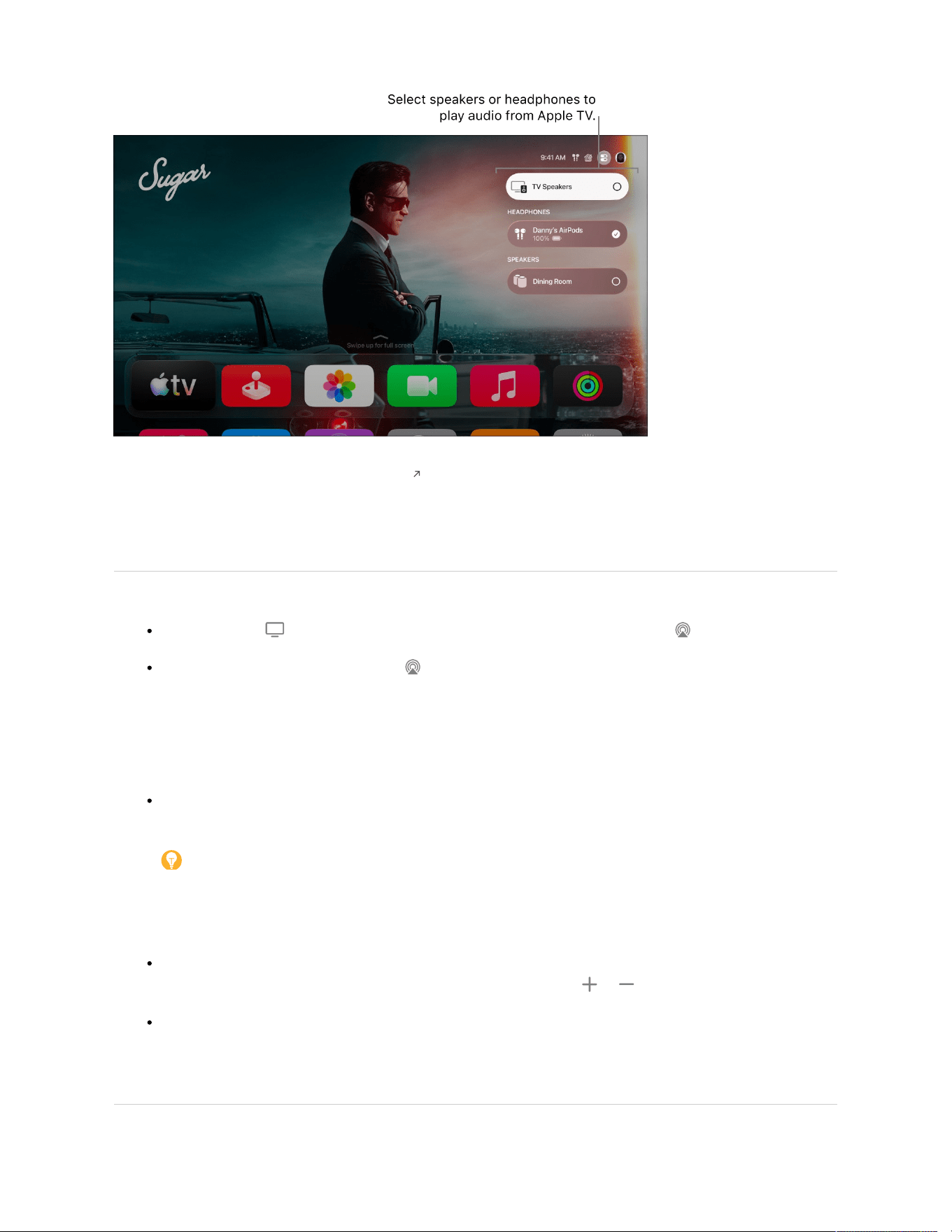
Stream The Buccaneers on the Apple TV app with a subscription
Before you start, make sure you’ve set up your devices in the Home app on an iPhone, iPad, or Mac (with
macOS Catalina or later). See Set up accessories with Home in the iPhone User Guide.
1. On Apple TV 4K, do either of the following:
Press and hold on your remote to open Control Center, then select Audio .
If you see the Audio Controls button in an app, select it.
A list of available audio speaker devices appears, organized by room (as assigned in the Home app on
your iPhone, iPad, or Mac).
2. Do any of the following:
Send audio from Apple TV 4K to a speaker in another room: Navigate down, then select a speaker or
speakers. Select the speaker again to stop playing audio on it.
Tip: Some home theater receivers and smart TVs that also support AirPlay may appear twice in
the list—as Receiver Speakers (connected via HDMI) and as AirPlay speakers. For the best audio
quality, choose Receiver Speakers. If you hear an echo or delay in the audio, see Calibrate audio
between your wired and wireless speakers.
Adjust the volume of devices in another room: Highlight the volume control for the speaker, then
navigate left or right on the remote to adjust the slider, or press or .
Send audio from a speaker in another room to Apple TV 4K: Open AirPlay controls on the device
that’s controlling the speaker (such as an iPhone), then select the Apple TV 4K. The song that was
playing in the other room appears grouped with Apple TV 4K.
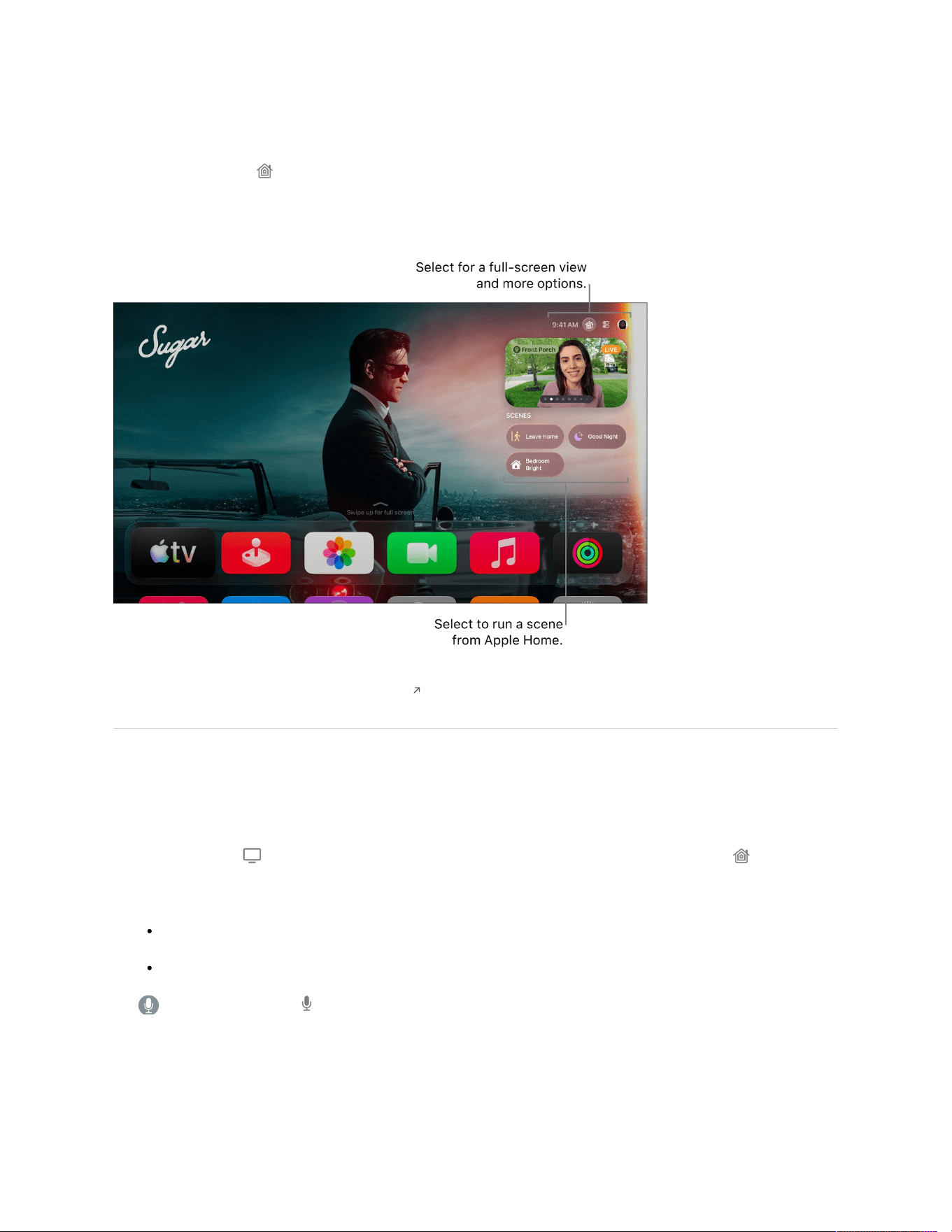
Not all features and content are available in all countries or regions or on all Apple TV hardware models.
Monitor cameras and run scenes in the Apple Home tab on Apple TV 4K
The Apple Home tab appears if you’ve set up Apple Home- or Matter-compatible security cameras or
created a scene in the Home app on an iPhone, iPad, or Mac (with macOS Catalina or later) where you’re
signed in with the same Apple Account.
Stream The Buccaneers on the Apple TV app with a subscription
Monitor and control Apple Home cameras
You can view multiple cameras at the same time, control an accessory attached to the room you’re viewing,
or monitor your live video while watching something else in Picture in Picture mode.
1. Press and hold on your Apple TV 4K remote to open Control Center, then navigate to .
2. Swipe down to highlight your cameras, then do one of the following:
Select All Cameras to see a full-screen grid view of all your cameras, then select one.
Navigate left or right to a camera, then select it.
Siri: Press and hold on your remote, then say “Show me” followed by the name of the camera in
the Home app. For example, say “Show me the front yard camera.”

3. Do any of the following:
Control an accessory attached to the room you’re currently viewing: Select , then select an
accessory to turn it on or off.
View live video from multiple cameras at the same time: Select . Select a camera for a full-screen
view.
View live video from a camera in Picture in Picture mode: Select . See Turn on Picture in Picture
viewing.
Tip: You can view video from supported security cameras and receive a notification when a supported
doorbell camera detects someone at your door. You get a personal notification if Apple Home recognizes the
person from your Photos library.
To learn more about setting up cameras in the Home app, see the iPhone User Guide.
Run an Apple Home scene from Apple TV 4K
Scenes let you control multiple accessories in your home. For example, you can create a Watching TV scene
that dims the lights and sets the temperature.
1. Press and hold on your Apple TV 4K remote to open Control Center, then navigate to .
2. Swipe down, then select the scene for a secure HomeKit-compatible product such as a door lock, light,
motorized door or window, security system, or garage door.
To learn more about creating scenes in the Home app, see the iPhone User Guide.
Not all features and content are available in all countries or regions or on all Apple TV hardware models.

Customize the look and feel of Apple TV 4K
Adjust screen saver settings on Apple TV 4K
Apple TV 4K displays a screen saver after the screen is idle for a preset number of minutes.
For more information on personalizing and using Apple TV 4K screen savers, see Set up Apple TV 4K
screen savers.
1. Go to Settings on Apple TV 4K.
2. Go to Screen Saver, then adjust any of the settings listed below.
Option Description
Current Selection Choose the type of screen saver you want to use: Aerials, Memories & Slideshows,
Portraits, or Snoopy.
Start After Choose how long Apple TV 4K is idle before the screen saver starts.
Show During Music and
Podcasts
Turn off to disable the screen saver while listening to music or podcasts.
Aerials Set how often Apple TV 4K downloads new aerial screen savers and which aerial
themes are included in your screen saver.
Memories & Slideshows Set which photo albums or music album art to use as screen savers and set the
transition style between photos.
Portraits Set which types of portraits (People, Pets, Nature, Cities) to use as screen savers and
how often to change the portrait.
Not all features and content are available in all countries or regions or on all Apple TV hardware models.
Change appearance settings on Apple TV 4K
1. Go to Settings on Apple TV 4K.

2. Go to General > Appearance, then do any of the following:
Change the appearance of backgrounds and menus: Select Light, Dark, or Automatic.
When set to Automatic, the appearance shifts from Light during daytime hours to Dark during
nighttime hours.
Increase the size of onscreen items: Select Default or Large.
When Large is selected, the top row of the Home Screen shows five icons instead of six.
Not all features and content are available in all countries or regions or on all Apple TV hardware models.
Set notification preferences on Apple TV 4K
Some apps can send you notifications on Apple TV 4K. You can turn these notifications on or off for each app
individually.
1. Go to Settings on Apple TV 4K.
2. Go to Notifications, then select an app to turn notifications on or off.
When notifications are enabled, new notifications appear with an app icon badge in the top-right corner of the
Home Screen.
Some apps have specific notifications preferences that you can adjust in the app’s settings menu. See Adjust
settings for specific apps on Apple TV 4K.
Not all features and content are available in all countries or regions or on all Apple TV hardware models.

Update language, region, and time settings
Change the language or region on Apple TV 4K
The first time you set up Apple TV 4K, you choose which display language and region format to use. You can
change this later in Settings.
Add and edit preferred languages
You can add multiple languages so that you can switch between languages when a keyboard appears
onscreen. Keyboards appear in your preferred language order.
1. Go to Settings on Apple TV 4K.
2. Go to General > Apple TV Languages, then do any of the following:
Add a preferred language: Select Add Language, then choose a language from the list. Select Keep
[current language] to add the language to your preferred languages list without changing the primary
language, or select Use [new language] to make it your primary language.
Change the preferred language order: Select Edit, then select next to a language in the list and
swipe up or down on the clickpad or touch surface on your remote to move the language to a new
position. Press the clickpad center or touch surface to confirm the new position, then select Done.
Remove a language: Select Edit, then select next to the language you want to remove, then select
Done.
When you use the onscreen keyboard, select to switch to the next language in your list of languages.
Change your primary language
Your primary language determines the language used throughout Apple TV 4K and all apps that support the
language.
1. Go to Settings on Apple TV 4K.
2. Go to General > Apple TV Languages, then do either of the following:
Set one of your preferred languages as the primary language: Select Edit, select next to a
language in the list, swipe up on the clickpad or touch surface on your remote to move the language
to the top of the list, then select Done.
Add a new language and set it as the primary language: Select Add Language, choose a language
from the list, then select Use [new language].

Note: Siri and dictation may or may not be available, depending on the language you select. See the Apple
Support article Use Siri on your Apple TV .
Change your region
1. Go to Settings on Apple TV 4K.
2. Go to General > Region.
3. Select a region, then follow the onscreen instructions to set language and display format preferences.
Change your keyboard layout
1. Go to Settings on Apple TV 4K.
2. Go to General > Keyboard Layout and select one of the following:
Auto: Displays the Linear keyboard for touch-enabled remotes and displays the Grid keyboard for
other remotes.
Linear: Displays keys in a line.
Grid: Displays keys in a grid.
Turn dictation on or off
1. Go to Settings on Apple TV 4K.
2. Go to General, then select Dictation to turn it on or off.
Not all features and content are available in all countries or regions or on all Apple TV hardware models.
Set the time zone and time format on Apple TV 4K
Change the time zone
By default, Apple TV 4K sets your time zone automatically based on your location. You can manually adjust
the time zone in Settings.
1. Go to Settings on Apple TV 4K.
2. Go to General, navigate down to the Date & Time section, then select Set Automatically to turn off
automatic time zone detection.
3. Select Time Zone, then enter a location in the text field that appears.

4. Select a location to use it as your time zone.
To switch back to the time zone of your current location, select Set Automatically to turn it back on.
Use 12-hour or 24-hour time
1. Go to Settings on Apple TV 4K.
2. Go to General, navigate down to the Date & Time section, then select Time Format to switch between 12-
Hour and 24-Hour time.
Not all features and content are available in all countries or regions or on all Apple TV hardware models.
Adjust video and audio settings
Calibrate video and audio on Apple TV 4K
You can fine-tune the video or audio calibration on your TV, home theater, or wireless speakers, using any of
the calibration tools provided in Settings.
Calibrate video playback
The video calibration tools in Settings can help you resolve issues with color balance, cropping, or display
stretching.
1. Go to Settings on Apple TV 4K.
2. Go to Video and Audio, then navigate down to Calibration.
3. Select any of the following video calibration tools to make adjustments:
Color Balance: Follow the onscreen instructions to measure and adjust the color of your picture using
an iPhone with Face ID and iOS 14.5 or later.
Zoom and Overscan: Use the reference image while adjusting your TV’s zoom or overscan settings.
Color Bars: Use the reference color bar image while adjusting your TV’s color, tint, and other picture
settings.
4. When you finish making adjustments, press or on your remote to return to the previous screen.

Calibrate audio between your wired and wireless speakers
If your Apple TV 4K is connected to a home theater receiver or TV using an HDMI cable, you may
experience audio latency, a delay that sounds like an echo when playing audio on both receiver speakers
and a wireless speaker.
You can use an iPhone to calibrate the audio signal on your Apple TV 4K so that all speakers play in sync.
1. Go to Settings on Apple TV 4K.
2. Go to Video and Audio, then navigate down to Calibration.
3. Select Wireless Audio Sync, then follow the onscreen instructions for using your iPhone to sync your
speakers.
Note: During calibration, make sure you hold your iPhone close to your TV or receiver speakers.
Apple TV 4K plays tones through your wired speakers in order to measure the TV’s audio/visual latency,
then it matches the output for the wireless speakers.
4. When you finish making adjustments, press or on your remote to return to the previous screen.
Not all features and content are available in all countries or regions or on all Apple TV hardware models.
Change video settings on Apple TV 4K
Apple TV 4K automatically plays video in the best available format supported by your TV, including
resolution, dynamic range, and frame rate. You can manually adjust these and other video playback settings.
1. Go to Settings on Apple TV 4K.

2. Go to Video and Audio, then adjust any of the settings listed below.
Note: Available options vary based on which Apple TV you have, your connected display, and the
selected Aspect Ratio and Format settings.
Option Description
Aspect Ratio (supported for
video playback only on
Apple TV 4K 3rd
generation)
Apple TV 4K automatically chooses an aspect ratio based on the connected display,
but you can choose a different aspect ratio if needed.
Format Choose the resolution, frame rate, and dynamic range settings for video playback.
HDMI Output Choose YCbCr, RGB High, or RGB Low.
YCbCr is preferred for most TVs. RGB formats should be matched to your TV’s
settings, and require a high-speed HDMI cable.
Chroma Choose 4:2:0 for a high-quality picture that’s compatible with most TVs and HDMI
cables, or 4:4:4 for improved clarity (requires a high-speed HDMI cable).
Match Content Choose Match Dynamic Range to watch content in its original dynamic range, Match
Frame Rate to watch content in its original frame rate, or, if your TV supports it, Quick
Media Switching (QMS) to reduce delays when switching between frame rates.
QMS works best when switching between formats that use the same chroma. To
make sure your TV uses the same chroma for all frame rates, select Optimize QMS,
then select OK.
Check HDMI Connection Make sure your HDMI connection supports your current settings.
Tap-to-Zoom Video When this setting is turned on, you can tap twice on the clickpad center or touch
surface on your remote during playback to zoom video to fill the screen.
Reset Video Settings Select to reset your Apple TV 4K video settings to make them compatible with your
TV.
Not all features and content are available in all countries or regions or on all Apple TV hardware models.
Change audio settings on Apple TV 4K
On Apple TV 4K, you can temporarily adjust audio settings during playback, or you can make adjustments in
Settings to set your default preferences.

Adjust audio settings during playback
You can adjust certain Apple TV 4K audio settings while video or audio is playing.
1. During playback, show playback controls, then select .
2. Choose an audio option from the pop-up menu:
Enhance Dialogue: Choose Enhance More to make the dialogue much more prominent (this may alter
the original audio mix), Enhance to make the dialogue more prominent with minimal impact to the
original audio mix, or Off.
Tip: For maximum clarity, you can add Isolate as a menu option by turning it on in Accessibility
Settings. See Add Voice Isolation as an Enhance Dialogue option on Apple TV 4K.
Reduce Loud Sounds: Lower the overall sound level by reducing the dynamic range so that loud
music and sound effects aren’t as loud as other sounds.
Audio Track: Turn on audio descriptions (AD), or choose a language you want to switch to.
Note: Available options depend on what’s playing, what speakers or headphones you’re using, and what
model of Apple TV you have.
3. To close the pop-up menu, press or on your remote.
Set default audio settings preferences
By default, Apple TV 4K uses the best audio format available, including Dolby Atmos if your audio equipment
supports it. You can manually adjust your audio format, as well as other audio settings related to language,
sound effects, and more.
1. Go to Settings on Apple TV 4K.
2. Go to Video and Audio, then adjust any of the settings listed below.
Note: Some options appear only if they’re supported by your TV or receiver.
Option Description
Audio Output Choose to play audio through your TV speakers or other headphones or speakers.
Apple TV 4K: If you connect one or two HomePod speakers to Apple TV 4K for home
theater surround sound, all audio, including navigation clicks, is routed to the
HomePod speaker(s). See Use HomePod or AirPlay-enabled speakers for stereo and
home theater sound on Apple TV 4K.

Audio Format Choose from the following Audio Format options if your equipment supports them:
Auto (recommended): Apple TV 4K decodes the best audio format for your
equipment and sends uncompressed audio to your speakers.
Convert to Dolby Digital 5.1: Apple TV 4K re-encodes audio to send compressed
Dolby Digital 5.1 to your speakers. Select this option only if your equipment
doesn’t support Dolby Atmos or multichannel PCM.
Stereo Only: Apple TV 4K plays stereo audio tracks and sends uncompressed
two-channel PCM to your speakers. Select this setting only if you have a stereo
setup.
Dolby Atmos: Select to turn Dolby Atmos on or off.
Continuous Audio Connection: When turned on, Apple TV 4K uses a Dolby MAT
connection for seamless transitions across audio formats without glitches or
dropped signals. Older receivers might indicate an Atmos signal, but audio plays in
its original format (i.e., stereo, multichannel, or Atmos). Turn this setting off to
allow receivers to apply format-specific adjustments, like upmixing stereo to
surround.
Enhance Dialogue Choose a default setting for movie and TV show playback. Enhance More makes
dialogue very prominent, but may alter the original audio mix, Enhance makes
dialogue more prominent with minimal impact to the original audio mix, and Off turns
off dialogue enhancement.
Note: For maximum clarity, you can add Isolate as a menu option by turning it on in
Accessibility Settings. See Add Voice Isolation as an Enhance Dialogue option on
Apple TV 4K.
Reduce Loud Sounds Turn on to lower the overall sound level for all audio by reducing the dynamic range.
Navigation Clicks Turn on to hear clicks when navigating to different items in Apple TV 4K.
Sound Effects and Music Turn on to hear sound effects while performing actions on Apple TV 4K such as
opening or closing apps.
Audio Mode Choose Auto to let Apple TV 4K automatically switch the audio mode for the best
audio output. Choose 16-bit if your TV requires 16-bit audio.
Audio Language Choose Auto to let videos automatically play in their default or original language.
Choose a different language to hear dubbed audio in that language when available.
Option Description
Not all features and content are available in all countries or regions or on all Apple TV hardware models.
Change subtitle settings on Apple TV 4K
By default, Apple TV 4K automatically chooses the language for subtitles and turns subtitles on when you
mute or skip back. You can adjust these preferences in Settings.

1. Go to Settings on Apple TV 4K.
2. Go to Video and Audio, navigate down to the Automatic Subtitles section, then adjust any of the settings
listed below.
Option Description
Show for Different
Languages
Turn on to automatically show subtitles when the language of the video you’re
watching doesn’t match your preferred Apple TV 4K language.
Subtitle Language Choose the language you want to use for subtitles, or choose Auto to let Apple TV 4K
pick the subtitle language automatically.
Show When Muted Turn on to automatically activate subtitles when volume is muted or turned all the way
down. (This feature is not supported when TV volume is controlled by an infrared
remote.)
Show on Skip Back Turn on to temporarily show subtitles when you skip back up to 30 seconds.
Not all features and content are available in all countries or regions or on all Apple TV hardware models.
Adjust settings
Adjust remote settings on Apple TV 4K
You can customize various aspects of the remote that comes with Apple TV 4K, including touch surface
sensitivity and the destination of the TV button .
1. Go to Settings on Apple TV 4K.

2. Go to Remotes and Devices, then adjust any of the settings listed below.
Option Description
Clickpad (silver remote
only)
Select Click and Touch to allow both clicking and touch surface tracking (swiping), or
Click Only to turn off touch surface tracking.
Touch Surface Tracking Choose a Fast, Medium, or Slow touch surface tracking speed.
With faster touch surface tracking, smaller thumb swipes move farther on the Apple
TV 4K screen.
TV Button Changes the function of the TV button .
Select Apple TV app if you want to press to open the Apple TV app. Select Home
Screen if you want to press to go back to the Home Screen.
Remote Select to view information about your remote, including its battery level.
Not all features and content are available in all countries or regions or on all Apple TV hardware models.
Free up storage on Apple TV 4K
Your Apple TV 4K streams video and music, but it stores apps locally. The more apps you download to
Apple TV 4K, the more storage is used up. At some point you may get a warning that you’re running out of
disk space. If so, you can remove apps to free up space.
Remove unused apps on the Home Screen
You can set Apple TV 4K to remove unused apps to save space. Removing apps preserves your documents
and data in case you download an app again later.
1. Go to Settings on Apple TV 4K.
2. Go to Apps, then select Offload Unused Apps to turn it on.
Unused apps appear on the Home Screen with a download icon . You can select the app to download it
again. Reinstalling the app restores your data if the app is still available in the App Store.
Manually delete apps to recover space
1. Go to Settings on Apple TV 4K.
2. Go to General, navigate down to the Usage section, then select Manage Storage.
A list of the apps on your Apple TV 4K shows how much space each item is using.

3. Select next to an app you want to delete.
4. Do either of the following:
Select Delete to delete the app and all its data from your Apple TV 4K.
Select Offload to remove the app but keep its data.
If you delete an app, you can download it again from the App Store without repurchasing it.
Not all features and content are available in all countries or regions or on all Apple TV hardware models.
Change network settings on Apple TV 4K
You can change the Wi-Fi network your Apple TV 4K is connected to, or use network settings on
Apple TV 4K and an iPhone or iPad to join a captive Wi-Fi network (such as a hotel Wi-Fi network) that
requires sign-in from a browser.
You can also use network settings to switch from a wired network to a wireless network without having to set
up Apple TV 4K again.
Change your Wi-Fi network on Apple TV 4K
1. Go to Settings on Apple TV 4K.
2. Go to Network, then select Wi-Fi.
Tip: You can also press and hold to open Control Center, then select .
3. Choose a new Wi-Fi network from the list and follow the onscreen instructions to connect.
You can also select the current Wi-Fi network for additional configuration options.
Join a Wi-Fi network that requires a web browser to sign in
Many hotels and other institutions have captive Wi-Fi networks that require sign in from a web browser.
Follow the instructions below to join a captive network on your Apple TV 4K using an iPhone or iPad.
1. Go to Settings on Apple TV 4K.
2. Select Network.
If Apple TV 4K detects a captive network, a screen appears with options.
3. Select Continue on iPhone or iPad.
4. On your iPhone or iPad, follow the onscreen instructions to enter the required information, such as
username and password.

Some captive networks have time limits for staying connected. If your connection expires, follow the steps
above again to reconnect.
Switch from a wired to a wireless network
If you initially set up Apple TV 4K using a wired network, you can change to a wireless network without
having to set up Apple TV 4K again.
1. Disconnect the Ethernet cable from Apple TV 4K.
2. Go to Settings on Apple TV 4K.
3. Select Network, then choose an available network.
Put Wi-Fi in low-power mode on Apple TV 4K
When Apple TV 4K is connected to the Internet with an Ethernet cable, you can put Wi-Fi in low-power mode
to save energy.
Note: Ethernet is not available on Apple TV 4K (3rd generation) Wi-Fi.
1. Connect an Ethernet cable to Apple TV 4K to switch from a wireless to wired network.
2. Go to Settings on Apple TV 4K.
3. Go to AirPlay & Apple Home, then turn off Peer-to-Peer Wireless.
Note: When peer-to-peer wireless is turned off, Wi-Fi remains in low-power mode until it is activated
again by an AirPlay request from another device.
Not all features and content are available in all countries or regions or on all Apple TV hardware models.
Set up single sign-on with your TV provider on
Apple TV 4K
Single sign-on simplifies access to entertainment apps like Peacock and AMC. With it, you sign in only once
on your Apple TV 4K to get immediate access to all the supported apps that require your cable or satellite
pay TV credentials. Once you’ve signed in, any other supported app you have access to will automatically
authenticate you so that you don’t need to sign in again.
If you didn’t activate single sign-on during Apple TV 4K setup, you can activate it in Settings.
1. Go to Settings on Apple TV 4K.
2. Go to Profiles and Accounts > TV Provider and select Sign In.

3. Enter your TV provider in the search field, or navigate down and select a provider from the list.
4. Sign in with your profile name and password for that provider.
To deactivate single sign-on after you’ve signed in, select Remove TV Provider.
Note: If you have more than one Apple TV 4K, you must sign in once for each Apple TV 4K.
Not all features and content are available in all countries or regions or on all Apple TV hardware models.
Adjust settings for profiles and accounts on
Apple TV 4K
1. Go to Settings on Apple TV 4K.
2. Go to Profiles and Accounts.
3. To switch profiles, select Switch Current Profile, then select a profile.
4. To set whether the profile screen appears when you turn on Apple TV 4K, turn Choose Profile on Wake
on or off.
5. To set whether to show or hide suggested profiles from Control Center, and when Apple TV 4K wakes
from sleep, select Suggested Profiles, then choose Show or Hide.

6. To adjust settings for a profile associated with an Apple Account, select a profile, then adjust any of the
settings listed below.
Note: Some settings appear only for the default profile. See Change the default profile on Apple TV 4K.
Option Description
Store Select to sign in or out of the Apple Account used to make purchases for this profile.
Game Center Select to do either of the following:
Sign in or out of the Apple Account associated with Game Center for this profile.
Select Nearby Players to allow or block other nearby Game Center players from
inviting this profile to multiplayer games.
Photos (default profile only) Select to set preferences for the Photos app, including syncing iCloud photos,
showing or hiding Memories, and showing or hiding Shared Albums.
One Home Screen (default
profile only)
Turn on to keep your apps and Home Screens up to date across every Apple TV 4K
using this Apple Account.
Shared with You (default
profile only)
Turn on to allow media shared with you in Messages on your iPhone or iPad to
appear on this Apple TV 4K.
Purchases Select to set password preferences for this profile’s purchases: always require a
password, require a password after 15 minutes, or never require a password.
Free Downloads Choose whether or not your password is required for free downloads.
Recognize My Voice Turn Siri voice recognition on or off. See Set up voice recognition on Apple TV 4K.
Edit Name Select to enter a new name for this profile.
For All of You Choose whether or not this profile is included in For All of You recommendations in
the Apple TV app. See Manage recommendations that appear in the Apple TV app.
Show Incoming Calls Select to turn on Show Incoming Calls so that your Apple TV 4K shows you who’s
calling on your iPhone. See Manage incoming iPhone calls on Apple TV 4K.
Subscriptions Select to change or cancel this profile’s subscriptions.
Remove Profile Select to sign the profile out of Apple TV 4K, and remove their media, app data in
iCloud, and Game Center account.

7. To adjust settings for a managed profile (such as a profile for a child or someone without an Apple
Account), select a profile, then adjust any of the settings listed below.
Option Description
Name Select to enter a new name for this profile.
Image Select to change the profile image.
Child Shows whether the account is for a child or not. To set up content restrictions for the
account, see Adjust Apple TV app settings on Apple TV 4K.
For All of You Choose whether or not this profile is included in For All of You recommendations in
the Apple TV app. See Manage recommendations that appear in the Apple TV app.
Upgrade to Apple Account Select to upgrade a profile for an adult to a full Apple Account, so its owner can sign in
individually, make purchases, and more.
Note: The managing profile needs to initiate the upgrade by opening the camera on a
phone or tablet device and scanning the QR code that appears onscreen.
Delete Profile Select to delete the profile from all devices associated with the managing account.
The managing account holder needs to confirm by signing in to their Apple Account.
Not all features and content are available in all countries or regions or on all Apple TV hardware models.
Adjust settings for specific apps on Apple TV 4K
Change app settings
Some apps have a Settings menu within the app. For other apps, do the following:
1. Go to Settings on Apple TV 4K.
2. Select Apps, select the app you want, then make changes.
Set up automatic updates or installation
By default, apps are automatically updated when new versions are released. You can turn this feature on or
off.
You can also set Apple TV 4K to automatically add apps that have an Apple TV 4K version whenever you
download apps on an iPhone or iPad signed in to the same Apple Account.

1. Go to Settings on Apple TV 4K.
2. Go to Apps, then do either of the following:
Turn automatic updates on or off: Select Automatically Update Apps.
If Automatically Update Apps is turned off, you can select any app in the App Store to check if an
update is available and manually update there.
Turn automatic app installation on or off: Select Automatically Install Apps.
Not all features and content are available in all countries or regions or on all Apple TV hardware models.
Adjust settings for AirPlay and Apple Home on
Apple TV 4K
Adjust AirPlay settings
Go to Settings on Apple TV 4K.
1.
2. Go to AirPlay and Apple Home, then adjust any of the settings listed below.
Option Description
AirPlay Turn AirPlay on or off to allow devices to stream content to this Apple TV 4K.
Allow Access Set who can use AirPlay with this Apple TV 4K. See Set who can use AirPlay to
stream content to Apple TV 4K.
Conference Room Display Choose whether to use this Apple TV 4K as a conference room display. See Use
Apple TV 4K as a conference room display.
AirPlay Display Underscan If your AirPlay display appears cropped on Apple TV 4K, turn on AirPlay Display
Underscan to show the entire image. If you see black bars around the image, turn this
setting off.
Peer-to-Peer Wireless Turning off Peer-to-Peer Wireless can save energy.
Adjust Apple Home settings
1. Go to Settings on Apple TV 4K.

2. Go to AirPlay and Apple Home, then adjust any of the settings listed below.
Option Description
Room Select to choose which room this Apple TV 4K is in. Choose a room already listed in
your Home app, or choose a room from the Suggested Rooms list.
Name Select to enter a new name for this Apple TV 4K.
Notifications Doorbell cameras you’ve connected with Apple Home appear in a list under
Notifications. Select a camera to turn it off; select it again to turn it on. See Monitor
cameras and run scenes in the Apple Home tab on Apple TV 4K.
Set who can use AirPlay to stream content to Apple TV 4K
1. Go to Settings on Apple TV 4K.
2. Go to AirPlay and Apple Home, select Allow Access, then choose any of the following options:
Everyone: Everyone can stream content to your Apple TV 4K.
Anyone on the Same Network: Anyone connected to the same network as you can stream content to
your Apple TV 4K.
Only People Sharing This Home: Only people you’ve added to your home in the Home app can
stream content to your Apple TV 4K.
Require Password: Require a password to stream content to your Apple TV 4K. When this is turned
on, you can select Password to enter your preferred password.
Not all features and content are available in all countries or regions or on all Apple TV hardware models.
Adjust settings for Siri on Apple TV 4K
You can set a language for Siri, delete your Siri and dictation history, show a transcription of your voice
onscreen, and more.
1. Go to Settings on Apple TV 4K.

2. Go to General, navigate down to the Siri section, select Siri, then adjust any of the settings below.
Option Description
Siri Turn Siri on or off on this Apple TV 4K.
Siri Language Select to choose what language you want Siri to use.
Listen for “Hey Siri” on
AirPods
Turn on to allow AirPods to listen for “Hey Siri” when supported headphones are
connected.
On AirPods Pro 2 only, select Listen on AirPods, then select “Siri” or “Hey Siri” for both
options, or “Hey Siri.”
Siri & Dictation History Select to delete all Siri and dictation history associated with this Apple TV 4K from
Apple servers.
Always Show Speech Select to show a transcription of your speech on screen when using Siri.
On-Screen Actions Select to use your voice to select items on screen. When this is enabled, you can
press on your remote and say the name of an onscreen control to select it.
Use with Ask Siri Select to choose which apps to use with Siri. You may need to adjust an app’s
settings to allow them to access Siri first.
Not all features and content are available in all countries or regions or on all Apple TV hardware models.
Adjust privacy settings on Apple TV 4K
Control app tracking permissions on Apple TV 4K
All apps are required to ask your permission before tracking your activity across apps owned by other
companies for advertising or to share your information with data brokers. After you grant or deny permission
to an app, you can change permission later. You can also stop all apps from requesting permission.
1. Go to Settings on Apple TV 4K.
2. Go to General > Privacy & Security > Tracking.
You can see a list of apps that requested permission to track you.
3. Do any of the following:
Select an app on the list to turn permission on or off.
To stop all apps from asking permission to track you, set Allow Apps to Ask to Track to Off.

For more information about app tracking, select Learn More About Tracking.
Adjust privacy settings
You can configure Apple TV 4K to restrict access to data such as location and tracking, and you can set
which apps get access to your photos, Bluetooth devices, or Apple Home devices.
1. Go to Settings on Apple TV 4K.
2. Go to General > Privacy & Security, then adjust any of the settings listed below.
Option Description
Location Services Select to turn location services on or off for this Apple TV 4K. You can also set specific
settings for Siri and Dictation, Time Zone, home accessories, and specific apps.
Tracking Select to set preferences around app tracking. See Control app tracking permissions
on Apple TV 4K.
Photos Select to set which apps have access to your photos.
Bluetooth Select to set which apps have the ability to use Bluetooth on your Apple TV 4K.
Microphone Select to set which apps have access to your microphone.
Camera Select to set which apps have access to your camera.
Apple Home Select to set which apps have access to your home data.
Media & Apple Music Select to set which apps have access to your activity and media library in Apple
Music.
Set analytics data options
You can share analytics data with Apple or app developers to improve their software. Sharing this data is
completely optional and treated in accordance with Apple’s Privacy Policy, which can be found at
apple.com/privacy.
1. Go to Settings on Apple TV 4K.

2. Go to General, select Privacy & Security, navigate down to the Analytics and Improvements section, then
adjust any of the settings listed below.
Option Description
Share Apple TV Analytics Turn on to share Apple TV 4K analytics with Apple.
Share with App Developers Turn on to share analytics with app developers.
Improve Siri & Dictation Turn on to help improve Siri and dictation by allowing Apple to store and review audio
of your Siri and dictation interactions from this Apple TV 4K.
Analytics Data Select to see analytics data. Select a data file to view, share, or delete it.
Not all features and content are available in all countries or regions or on all Apple TV hardware models.

Restart, reset, update
Restart Apple TV 4K
If Apple TV 4K isn’t responding, try restarting it.
To restart Apple TV 4K, do any of the following:
Press and hold both and or on your remote until the Apple TV 4K status light blinks rapidly.
Disconnect Apple TV from the power outlet, wait five seconds, then reconnect it.
Go to Settings on Apple TV 4K, go to System, then select Restart.
If Apple TV 4K still doesn’t respond after restarting, see Reset Apple TV 4K.
Not all features and content are available in all countries or regions or on all Apple TV hardware models.
Reset Apple TV 4K
If you’re having problems and Apple TV 4K still doesn’t respond after restarting, try resetting Apple TV 4K to
its factory settings. When you reset Apple TV 4K, all data is erased, including your accounts and
configuration.
You can also reset your Apple TV 4K and update its software at the same time.
Reset Apple TV 4K
1. Go to Settings on Apple TV 4K.
2. Go to System > Reset, then select Reset.
Resetting Apple TV 4K and restoring it to factory settings can take some time. If Apple TV 4K still doesn’t
respond, contact Apple TV Support.
Reset Apple TV 4K and update software
1. Go to Settings on Apple TV 4K.
2. Go to System > Reset, then select Reset and Update.
Selecting this option restores your Apple TV 4K to factory settings, erases all settings and information,
and updates to the latest tvOS version.

You can use your iPhone or iPad to set up your Apple TV 4K for faster recovery. See the Apple Support
article If your TV shows an iPhone next to an Apple TV .
Not all features and content are available in all countries or regions or on all Apple TV hardware models.
Update Apple TV 4K software
You’ll see a message on Apple TV 4K when a software update is available. You can also check for updates,
or set Apple TV 4K to update automatically.
Check for updates
1. Go to Settings on Apple TV 4K.
2. Go to System > Software Updates and select Update Software.
If an update is available, a message appears.
3. Select Download and Install to start downloading.
During the update process, don’t disconnect your Apple TV 4K. The status light may flash slowly during
the update process.
Set automatic updates
1. Go to Settings on Apple TV 4K.
2. Go to System > Software Updates and select Automatically Update to turn it on.
Not all features and content are available in all countries or regions or on all Apple TV hardware models.

Accessibility
Accessibility features on Apple TV 4K
Apple TV 4K includes built-in accessibility features to support your vision, mobility, hearing, and speech
needs.
Vision
VoiceOver: VoiceOver is Apple’s screen reader, available in all the languages supported by Apple TV 4K,
and with support for Braille displays. Use VoiceOver to hear exactly what’s on your TV screen and
choose commands.
Zoom: Turn on Zoom to access a built-in magnifier that works anywhere on the Apple TV 4K screen. With
magnification adjustable up to 15 times the normal size, Zoom can help with a range of vision challenges.
Text display settings: Use Hover Text to display a selection box that enlarges any text you select
onscreen, or adjust the text to make all text easier to read.
Light, color, and contrast: Adjust light and color settings to help with color differentiation or light sensitivity,
or increase screen contrast to make items easier to see. You can also set controls to dim flashing or
strobing lights during video playback.
Reduce Motion: Set screen motion preferences to stop the movement of app icons, movie posters, and
other onscreen elements.
Audio Descriptions: Use audio descriptions to hear narration describing what’s happening onscreen in
movies and TV shows.
Mobility
Switch Control: Control Apple TV using a connected Bluetooth® device or other supported device as a
switch.
AirPods mobility controls: Set AirPods controls for press responsiveness, noise, and Spatial Audio when
you use AirPods with Apple TV 4K.
Tap to Navigate: Turn on Tap to Navigate so you can tap buttons on the remote instead of pressing them.
Hearing
Audio balance: Set hearing controls to adjust the overall audio balance on your Apple TV 4K or turn on
mono audio.
Closed captions and SDH: Set preferences for closed captioning or subtitles for the deaf and hard of
hearing (SDH), for new TV episodes and thousands of movies.

Live Captions for FaceTime: Turn on Live Captions in FaceTime to see a real-time transcription of your
conversation on screen.
Isolate dialogue: Isolate the dialog to deliver absolute vocal clarity over music, action, and background
noise on Apple TV 4K. See Add Voice Isolation as an Enhance Dialogue option on Apple TV 4K.
Speech
Type to Siri: Instead of speaking to Siri, you have the option to type Siri queries using the onscreen
keyboard on Apple TV 4K, a connected wireless Bluetooth keyboard, or an iPhone or iPad.
Not all features and content are available in all countries or regions or on all Apple TV hardware models.
Add an accessibility shortcut to Apple TV 4K
You can use accessibility shortcuts to quickly turn accessibility features on or off without having to open
Settings. After you add an accessibility shortcut, you can turn it on or off with the remote.
Add accessibility shortcuts
1. Go to Settings on Apple TV 4K.
2. Go to Accessibility > Accessibility Shortcut, then select a shortcut to include it in or remove it from your
accessibility shortcut list.
Use your accessibility shortcut
To launch an accessibility shortcut on Apple TV 4K, do either of the following:
Press or on your remote three times.
If you only have one shortcut enabled, it turns on or off immediately.
If you have more than one shortcut enabled, a list of your shortcuts appears; select a shortcut to turn it on
or off.
Press and hold on your remote to open Control Center, select , then select a shortcut to turn it on or
off.
You can also select Go to Settings to access the Accessibility Shortcut menu.
Edit the order of accessibility shortcuts
1. Go to Settings on Apple TV 4K.
2. Go to Accessibility > Accessibility Shortcut, then select Edit.

3. Select next to the shortcut you want to move.
4. Use the clickpad center or touch surface on your remote to drag the shortcut to a new location in the list,
then press the clickpad center or touch surface to place it.
5. Select Done to save your changes.
The order of your accessibility shortcuts determines how they show up when you launch a shortcut or select
in Control Center.
Not all features and content are available in all countries or regions or on all Apple TV hardware models.
VoiceOver
Use VoiceOver on Apple TV 4K
VoiceOver lets you control Apple TV 4K without seeing the screen. You use simple gestures on the clickpad
or touch surface of the remote to move around the screen, and listen as VoiceOver speaks each item you
highlight.
Turn VoiceOver on or off
1. Go to Settings on Apple TV 4K.
2. Go to Accessibility > VoiceOver, then select VoiceOver to turn it on or off.
Tip: You can also set up an accessibility shortcut to activate VoiceOver.
Switch between navigation and exploration modes
VoiceOver has two modes. Navigation speaks selected items on the screen as you navigate them using the
remote. Exploration holds the currently selected item so you can browse the screen with the remote to hear
items and text elsewhere on the screen before selecting the item.
To switch between navigation and exploration modes while using Apple TV 4K, use two fingers to tap
three times on the clickpad center or touch surface of your remote.
Use VoiceOver in navigation mode
As you drag your finger over the clickpad center or touch surface of your remote while using Apple TV 4K,
VoiceOver speaks each menu or text item you highlight.
1. To move to another item, navigate up, down, left, or right.
2. To select an item, press the clickpad center or touch surface.
If an item has a pop-up menu available, press and hold the clickpad center or touch surface to open it.

Use VoiceOver in exploration mode
By default, items selected in exploration mode remain selected while you browse adjacent or other items on
the screen. This allows you to get a closer look at what’s available on the screen.
As you drag your finger over the clickpad or touch surface of your remote while using Apple TV 4K,
VoiceOver highlights and speaks each menu or text item you browse.
Do any of the following:
Hear the name of an item: Swipe left or right. The item also appears highlighted on the screen.
Select a highlighted item: Press the clickpad center or the touch surface.
The newly selected item remains selected until you browse and select another item.
Adjust the currently selected VoiceOver rotor control: Swipe up or down. See Activate VoiceOver rotor
controls.
Speak all items starting from the current text item to the bottom of the screen: Swipe down with two
fingers. Tap the clickpad center or touch surface when you hear the item you want to stop on.
Speak the items on screen, starting at the top: Swipe up with two fingers. Tap the clickpad center or
touch surface when you hear the item you want to stop on.
Pause or resume speaking: Tap once with two fingers to pause. Tap again with two fingers to resume.
Activate VoiceOver rotor controls
The VoiceOver rotor lets you use gestures on the clickpad center or touch surface of your remote to adjust
VoiceOver controls while using Apple TV 4K.
1. Rotate two fingers around a point on the clickpad center or touch surface to open the VoiceOver rotor,
which contains additional controls.
The available rotor controls vary depending on what you’re doing. When you open the rotor, VoiceOver
speaks the currently selected control if you’re in exploration mode. In navigation mode, you hear a sound
before VoiceOver speaks the currently selected control.
2. Do either of the following:
Switch to another control: Rotate two fingers left or right again.
Adjust a control: Swipe up or down. As you swipe, VoiceOver speaks the currently selected value.
For example, to adjust speech rate, rotate two fingers until the VoiceOver speech rate rotor control is
selected. Then swipe up or down to increase or decrease the speech rate.
3. To exit the rotor, swipe left or right, or wait approximately three seconds.
In navigation mode, an exit sound plays when the rotor closes.

Not all features and content are available in all countries or regions or on all Apple TV hardware models.
Use a Bluetooth keyboard with VoiceOver on Apple TV 4K
You can control VoiceOver with a connected Bluetooth® keyboard.
Use VoiceOver keyboard commands
Enter VoiceOver commands by pressing and holding the Control and Option keys together, then pressing
one or more other keys. The Control-Option key combination is known as the VoiceOver key, VO for short.
Note: By default, VoiceOver keyboard commands function as if you are in exploration mode. See Use
VoiceOver in exploration mode.
Type any of the following keyboard commands:
Turn on VoiceOver Help: VO-K
Turn off VoiceOver Help: Escape
Switch between exploration and navigation mode: VO-E
Turn VoiceOver and native focus syncing on or off in exploration mode: VO-Shift-F3
Select the next or previous item: VO-Right Arrow or VO-Left Arrow
Double-tap to activate the selected item: VO-Space bar
Press the TV button: VO-H
Touch and hold the selected item: VO-Shift-M
Move to the status bar: VO-M
Read from the current position: VO-A
Read from the top: VO-B
Pause or resume reading: Control
Copy the last spoken text to the clipboard: VO-Shift-C
Search for text: VO-F
Mute or unmute VoiceOver: VO-S
Open the notifications screen: Fn-VO-Up Arrow
Open Control Center: Fn-VO-Down Arrow
Open the Item Chooser: VO-I

Change the label of the selected item: VO-/
Double-tap with two fingers: VO-“-”
Swipe up or down: VO-Up Arrow or VO-Down Arrow
Adjust the rotor: VO-Command-Left Arrow or VO-Command-Right Arrow
Adjust the setting specified by the rotor: VO-Command-Up Arrow or VO-Command-Down Arrow
Turn the screen curtain on or off: VO-Shift-S
Return to the previous screen: ESC (Escape)
Switch apps: Command-Tab or Command-Shift-Tab
Edit text using VoiceOver
Type the following commands to work with text (VoiceOver reads the text as you move the insertion point):
Go forward or back one character: Right Arrow or Left Arrow
Go forward or back one word: Option-Right Arrow or Option-Left Arrow
Go up or down one line: Up Arrow or Down Arrow
Go to the beginning or end of the line: Command-Left Arrow or Command-Down Arrow
Go to the beginning or end of the paragraph: Option-Up Arrow or Option-Down Arrow
Go to the previous or next paragraph: Option-Up Arrow or Option-Down Arrow
Go to the top or bottom of the text field: Command-Up Arrow or Command-Down Arrow
Select text as you move: Shift + any of the insertion point movement commands above
Select all text: Command-A
Copy, cut, or paste the selected text: Command-C, Command-X, or Command-V
Undo or redo last change: Command-Z or Shift-Command-Z
Not all features and content are available in all countries or regions or on all Apple TV hardware models.
Use a braille display with Apple TV 4K
You can use a Bluetooth® braille display to read VoiceOver output, and a braille display with input keys and
other controls to control Apple TV 4K when VoiceOver is turned on. For a list of supported braille displays,
see the Apple Support article Braille displays supported by iPhone, iPad, and iPod touch.

Connect a braille display
1. Go to Settings on Apple TV 4K.
2. Go to Accessibility > VoiceOver > Braille.
3. Select Braille Display, then choose your braille display to pair it with Apple TV 4K.
When VoiceOver is used with a braille display, the display prints onscreen text for the item you focus on.
As you move focus, VoiceOver speaks and the braille display prints the text. The braille display may
include additional buttons that support basic Apple TV 4K navigation.
Adjust braille settings
1. Go to Settings on Apple TV 4K.
2. Go to Accessibility > VoiceOver > Braille, then do any of the following:
Select Match Input and Output Tables to turn it on or off. If this setting is off, you can choose different
language tables for Output and Input.
Select Output, then choose how you want to show braille output.
Note: The number of options available depends on the language and tables you choose from the
Select Braille Tables setting below.
Select Input, then choose how you want to type braille input.
Select Automatic Translation to turn it on or off. When this setting is off, you need to indicate on your
braille display when you want Apple TV 4K to translate the characters you type.
Select Braille Tables, then select a table or choose Add Braille Table to select a language and its
available tables.
Select Alert Display Duration, then swipe to set the duration that an alert will be visible on your Braille
display.
Output closed captions in Braille during media playback
1. Go to Settings on Apple TV 4K.
2. Go to Accessibility > Verbosity > Media Descriptions, then choose Braille or Speech and Braille.
See an expanded description of the status cell
On your braille display, press the status cell’s router button.

Not all features and content are available in all countries or regions or on all Apple TV hardware models.
Adjust VoiceOver settings
You can adjust VoiceOver settings to change the sound of the VoiceOver voice, set navigation preferences,
or customize your VoiceOver rotor.
1. Go to Settings on Apple TV 4K.
2. Go to Accessibility > VoiceOver, then adjust any of the settings listed below.
Option Description
Navigation Style Choose Follow Focus to ensure that VoiceOver only moves by one item when you
swipe. Choose Direct Touch if you want to swipe to scroll several items at a time.
Note: This setting only applies if you’re using VoiceOver in navigation mode.
Verbosity Determines how much text is read aloud by VoiceOver.
Turn on Speak Detected Text to allow VoiceOver to read automatically detected text in
the focused item.
Select Media Descriptions to choose how closed captions and SDH are output during
media playback.
Voice Select to choose a different voice for VoiceOver.
Select a voice category from the list, then navigate to a voice and press on your
remote to hear a preview. Select a voice to use it (or download it if needed).
Pronunciations Select to view, edit, and add custom VoiceOver pronunciations.
Speech Rate Select to change the VoiceOver speed. Swipe on the clickpad or touch surface to set
a new value, then press or on your remote to confirm.
Use Pitch Turn on to allow VoiceOver to change pitch while speaking to help distinguish context.
Rotor Select to choose which VoiceOver settings to include in the VoiceOver rotor. See
Activate VoiceOver rotor controls.
Braille Select to adjust braille display settings. See Adjust braille settings.
Double-click Timeout Select to determine the speed required to double-click on your remote while
VoiceOver is active.
Audio Channels Select to choose which audio channels to send VoiceOver audio through.
Note: VoiceOver automatically uses the language you set as your primary language on Apple TV 4K. If you
change the language for Apple TV 4K, you may need to reset the language for VoiceOver and your braille
display. See Change the language or region on Apple TV 4K.

Not all features and content are available in all countries or regions or on all Apple TV hardware models.
Make text easier to read
Use Zoom to magnify the image on Apple TV 4K
With Zoom turned on, you can zoom in to the image shown onscreen pan around the zoomed image.
Turn Zoom on
1. Go to Settings on Apple TV 4K.
2. Go to Accessibility > Zoom and select Zoom to turn it on.
Tip: You can also set up an accessibility shortcut to activate Zoom.
Use Zoom on Apple TV 4K
With Zoom turned on, do any of the following:
Zoom in or out: Press the clickpad center or touch surface on your remote three times.
Switch between Follow Focus and Panning: Tap the clickpad center or touch surface with two fingers.
Use Zoom in Follow Focus mode: Navigate to the item you want to zoom in on to center the currently
highlighted item.
Use Zoom in Panning mode: Drag your finger on the clickpad or touch surface in the direction you want
to pan.
Adjust the magnification: Double-tap the clickpad center or touch surface, then quickly drag up or down
with two fingers.
To limit the maximum magnification, in Settings on Apple TV 4K go to
Accessibility > Zoom > Maximum Zoom Level.
Speak the currently selected screen item: Press on your remote twice.
Not all features and content are available in all countries or regions or on all Apple TV hardware models.
Use Hover Text to see enlarged text for items you select on Apple TV 4K
Turn on Hover Text to see magnified text for any item you select onscreen. You can adjust where the
magnified text box appears on the screen, as well as the text font and color.
Turn on Hover Text

1. Go to Settings on Apple TV 4K.
2. Go to Accessibility > Hover Text, then select Hover Text to turn it on.
Tip: You can also set up an accessibility shortcut to activate Hover Text.
Change the onscreen location and appearance of Hover Text
1. Go to Settings on Apple TV 4K.
2. Go to Accessibility > Hover Text, then do any of the following:
Set where Hover Text appears onscreen: Select Display Mode, then choose Top, Bottom, or Inline.
Set the scrolling speed for Hover Text: Select Scrolling Speed, then choose a speed option.
Set the font: Select Font, then choose a font from the list.
Set the text size: Select Text Size, then adjust the Text Size slider up or down by swiping left or right
on the clickpad or touch surface.
Set the text color: Select Text Color, then choose a color from the list.
Set the background color: Select Background Color, then choose a color from the list.
Set the background opacity: Select Background Opacity, then drag the Background Opacity slider up
or down by swiping left or right on the clickpad or touch surface.
Set the border color: Select Border Color, then choose a color from the list.
Not all features and content are available in all countries or regions or on all Apple TV hardware models.
Display bold text or change the text size on Apple TV 4K
You can make text on Apple TV 4K easier to read by displaying onscreen text with boldface type, changing
the text size, or both.
1. Go to Settings on Apple TV 4K.
2. Go to Accessibility > Display, then adjust either or both of the following:
Bold Text: Turn on to display onscreen text with boldface type.
Text Size: Select to adjust the slider for your preferred text reading size.
Apps that support Dynamic Type automatically adjust to the Text Size setting.
Not all features and content are available in all countries or regions or on all Apple TV hardware models.

Vision
Increase Apple TV 4K screen contrast
There are three ways you can increase the screen contrast to make items easier to see on Apple TV 4K.
1. Go to Settings on Apple TV 4K.
2. Go to Accessibility > Display, then do any of the following:
Turn on Reduce Transparency to increase legibility by reducing transparency and blur on some
backgrounds.
Turn on Increase Contrast to increase color contrast between app foreground and background colors.
To increase the contrast of highlighted items, select Focus Style, then choose High Contrast.
Not all features and content are available in all countries or regions or on all Apple TV hardware models.
Change light and color settings on Apple TV 4K
You can change parameters on Apple TV 4K for color differentiation, light sensitivity, and brightness.
Tip: To invert light and dark colors on Apple TV 4K, see Change appearance settings on Apple TV 4K.
Differentiate without color
This setting replaces items that rely solely on color to convey information.
1. Go to Settings on Apple TV 4K.
2. Go to Accessibility > Display, then select Differentiate Without Color to turn it on.
Dim Flashing Lights
You can have Apple TV 4K automatically dim video content that depicts repeated flashing or strobing lights.
1. Go to Settings on Apple TV 4K.

2. Go to Accessibility > Display, then select Dim Flashing Lights.
When this feature is enabled, the playback timeline indicates when flashing lights occur for supported
media.
Important: Your Apple TV 4K uses an on-device algorithm to detect flashing or strobing lights included in
supported video content and automatically dims them on your TV in real time. Motion settings should not
be relied upon in circumstances where you could be harmed or injured, in high-risk situations, or for the
treatment of any medical condition.
Turn on Color Filters
This setting is for users who are color blind or have difficulty reading text on the display.
1. Go to Settings on Apple TV 4K.
2. Go to Accessibility > Display > Color Filters, then select Color Filters to turn it on.
You can select from a variety of filters used to differentiate colors.
Turn on Light Sensitivity
This setting adjusts the level of dimness or brightness on your display.
1. Go to Settings on Apple TV 4K.
2. Go to Accessibility > Display > Light Sensitivity, then select Light Sensitivity to turn it on.
3. Select Intensity, then swipe on the clickpad or touch surface to adjust the percentage of display intensity.
Turn on Reduce White Point
This setting adjusts the brightness level of colors on your display.
1. Go to Settings on Apple TV 4K.
2. Go to Accessibility > Display > Reduce White Point, then select Reduce White Point to turn it on.
3. Select Intensity, then swipe on the clickpad or touch surface to adjust the percentage of white point
intensity.
Not all features and content are available in all countries or regions or on all Apple TV hardware models.
Reduce screen motion on Apple TV 4K
You can stop the movement of app icons, movie posters, and some other screen elements on Apple TV 4K.

1. Go to Settings on Apple TV 4K.
2. Go to Accessibility > Motion, then do any of the following:
Turn on Reduce Motion to limit the amount of motion displayed by Apple TV 4K during navigation.
Turn off Auto-Play Video Previews to prevent video previews from playing automatically in supported
apps.
Not all features and content are available in all countries or regions or on all Apple TV hardware models.
Use audio descriptions on Apple TV 4K
Audio descriptions provide an audible narration of important onscreen action and content in movies and TV
shows on Apple TV 4K.
To turn on audio descriptions, do any of the following:
In Settings on Apple TV 4K, go to Accessibility, then select Audio Descriptions to turn it on.
During video playback, show playback controls, swipe up on the clickpad or touch surface, select
, then select an Audio Descriptions (AD) option if available.
When VoiceOver is turned on, press the clickpad center or touch surface on your remote three times.
Note: When VoiceOver is turned off, this action instead turns closed captions on or off.
Tip: You can also add an accessibility shortcut that turns on audio descriptions.
Not all features and content are available in all countries or regions or on all Apple TV hardware models.
Switch Control
About Switch Control on Apple TV 4K
Switch Control is an assistive technology that lets you control Apple TV 4K by clicking a keyboard key,
mouse button, or other control on a Bluetooth®-connected device as a switch. Use any of several methods to
perform actions such as selecting, dragging, and typing. You use a switch to select an item on the screen,
and then use the same (or different) switch to choose an action to perform on that item or location. The basic
methods are:
Item scanning (default), which highlights different items on the screen until you select one
Manual selection, which lets you move from item to item on demand (requires multiple switches)
Whichever method you use, when you select an individual item (rather than a group), a menu appears so
you can choose how to act on the selected item (press or drag).

If you use multiple switches, you can set up each switch to perform a specific action and customize your item
selection method. For example, instead of automatically scanning screen items, you can set up switches to
move to the next or previous item on demand.
You can adjust the behavior of Switch Control in a variety of ways, to suit your specific needs and style.
Not all features and content are available in all countries or regions or on all Apple TV hardware models.
Turn on Switch Control on Apple TV 4K
To connect a switch to Apple TV 4K, you can connect an external Bluetooth® device such as a keyboard, or
you can use the platform-switching feature that forwards switch actions from another device such as an
iPhone or a Mac. On an iPhone or iPad, tap the screen to trigger the switch. (On iPhone 6s and iPhone 6s
Plus or later, force-click the screen.)
Add a switch and choose its action
1. Go to Settings on Apple TV 4K.
2. Go to Accessibility > Switch Control > Switches.
3. Select Add New Switch, then follow the onscreen instructions.
If you add only one switch, it functions as the Select Item switch by default.
If you’re adding an external switch, you need to connect it to Apple TV 4K before it will appear in the list
of available switches. Follow the instructions that came with the switch. If the switch connects using
Bluetooth, you need to pair the device with Apple TV 4K. For more information, see Connect Bluetooth
devices to Apple TV 4K.
Turn Switch Control on or off
1. Go to Settings on Apple TV 4K.
2. Go to Accessibility > Switch Control, then select Switch Control to turn it on or off.
Tip: You can also set up an accessibility shortcut to activate Switch Control.
Not all features and content are available in all countries or regions or on all Apple TV hardware models.
Use Switch Control on Apple TV 4K
Here are some basic techniques for using Switch Control.
Select an item

While the item is highlighted on Apple TV 4K, trigger the switch you’ve set up as your Select Item switch.
If you’re using a single switch, it functions as the Select Item switch by default.
Perform an action on the selected item
Choose a command from the control menu that appears when you select the item. The layout of the menu
depends on how you configure press behavior.
In Settings on Apple TV 4K, go to Accessibility > Switch Control > Press Behavior and choose an option:
With Default on: The control menu usually includes only the Press button and the More button (two dots
at the bottom). If you’re in a scrollable area of the screen, a scroll bar also appears. To press the
highlighted item, trigger your Select Item button when Press is highlighted. To see additional action
buttons, choose More at the bottom of the menu. If you have multiple switches, you can set one up
specifically for pressing.
With Auto Press on: To press the item, do nothing—the item is automatically tapped when the Auto Press
interval expires (0.75 seconds if you haven’t changed it). To see the control menu, trigger your Select
Item button before the Auto Press interval expires. The control menu skips the Press button and goes
right to the full set of action buttons.
With Always Press on: Press to select the highlighted item rather than display the control menu. Wait until
the end of the scan cycle, then press a button to display the control menu.
Scroll the screen
Select an item in a scrollable part of the screen on Apple TV 4K:
With Auto Press off: Choose the Scroll Down button (next to the Press button) in the control menu. Or, for
more scrolling options, choose More, then choose Scroll.
With Auto Press on: Choose Scroll from the control menu. If many actions are available, you might have
to choose More first.
Press the TV button: Choose Home from the control menu.
Control media playback
On Apple TV 4K, choose Media Controls from the Scanner menu to play, pause, or go backward or
forward.
Dismiss the control menu without choosing an action
On Apple TV 4K, do one of the following:
Press while the original item is highlighted and all the icons in the control menu are dimmed.

Choose Escape from the control menu.
The menu goes away after cycling the number of times you specify in Settings, at Accessibility >
Switch Control > Loops.
Perform other hardware actions
On Apple TV 4K, select any item, choose Device from the menu that appears, then use the menu to mimic
these actions:
Click the multitasking menu button for multitasking.
Press the volume buttons.
Triple-click or on your remote.
Not all features and content are available in all countries or regions or on all Apple TV hardware models.
Use Switch Control item scanning on Apple TV 4K
Item scanning alternately highlights each item or group of items on the entire screen until you trigger your
Select Item switch. If there are many items, Switch Control highlights them in groups. When you select a
group, highlighting continues with the items in the group. When you select a unique item, scanning stops and
the control menu appears. Item scanning is the default when you first turn on Switch Control.
You can choose from three scanning styles:
Auto scanning automatically highlights items, one after the other.
Manual scanning uses one switch to highlight an item and another to activate it.
Single-switch step scanning uses a switch to move the highlight from item to item. If you take no action
after a period of time, the highlighted item activates.
You can pick a scanning style on Apple TV 4K in Settings , at
Accessibility > Switch Control > Scanning Style.
Select an item or enter a group
1. Watch (or listen) as items are highlighted.
2. When the item you want to control (or the group containing the item) is highlighted, trigger your Select
Item switch.
3. Work your way down the hierarchy of items until you select the individual item you want to control.
Back out of a group

Trigger your Select Item switch when the dashed highlight around the group or item appears.
Dismiss the control menu without performing an action
Do one of the following:
Trigger your Select Item switch when the item itself is highlighted.
Choose Escape from the control menu.
Hear the names of items as they’re highlighted
Do one of the following:
In Settings on Apple TV 4K, go to Accessibility > Switch Control, then turn on Speech.
Choose Settings from the control menu, then choose Speech On.
Slow down or speed up the scanning
1. Go to Settings on Apple TV 4K.
2. Go to Accessibility > Switch Control > Auto Scanning Time, then slide to adjust scanning speed.
Not all features and content are available in all countries or regions or on all Apple TV hardware models.
Adjust Switch Control settings on Apple TV 4K
Adjust basic Switch Control settings
In Settings on Apple TV 4K, go to Accessibility > Switch Control, where you can:
Add switches and specify their function
Adjust how rapidly items are scanned
Turn off auto scanning (only if you’ve added a Move to Next Item switch)
Set scanning to pause on the first item in a group
Choose how many times to cycle through the screen before hiding Switch Control
Set whether a movement action is repeated when you hold down a switch, and how long to wait before
repeating
Add another action to a switch by holding down the switch for a long duration

Choose a Press behavior and set the interval for performing a second switch action to show the control
menu
Set whether and how long you need to hold a switch down before it’s accepted as a switch action
Have Switch Control ignore accidental repeated switch triggers
Turn on sound effects or have items read aloud as they’re scanned
Choose which items appear in menus and the order in which they appear
Choose what to include in the Switch Control menu
Set whether items should be grouped while item scanning
Make the selection cursor larger or a different color
Fine-tune Switch Control settings
In Settings on Apple TV 4K, go to Accessibility > Switch Control, then Choose Settings from the control
menu to:
Adjust scanning speed
Change the location of the control menu
Turn sound or speech accompaniment on or off
Turn off groups to scan items one at a time
Change the cursor color
Not all features and content are available in all countries or regions or on all Apple TV hardware models.
Mobility
Set AirPods controls on Apple TV 4K
After you connect AirPods 3, AirPods 4, AirPods Pro, or AirPods Max to Apple TV 4K, you can set controls for
press speed, press-and-hold duration, or Spatial Audio.
Set AirPods press controls
1. Go to Settings on Apple TV 4K.

2. Go to Accessibility > AirPods, then do any of the following:
Adjust the speed required to press two or three times on your AirPods: Select Press Speed, then
choose Default, Slower, or Slowest.
Adjust the duration required to press and hold on your AirPods: Select Press and Hold Duration, then
choose Default, Shorter, or Shortest.
Set noise controls (AirPods Pro only)
You can have AirPods Pro turn on noise cancellation mode when only one of your AirPods is in your ear.
1. Go to Settings on Apple TV 4K.
2. Go to Accessibility > AirPods, then turn Noise Cancellation with One AirPod on or off.
Set Spatial Audio controls
You can set whether audio is centered on the TV even when your head moves when listening to Spatial
Audio. If you turn off centering, Spatial Audio is still an immersive sound experience, but does not track with
your head movement.
1. Go to Settings on Apple TV 4K.
2. Go to Accessibility > AirPods, then turn Center Audio on TV on or off.
Note: Spatial Audio is available on Apple TV 4K only.
Set AirPods Tone Volume
You can adjust the volume of sound effects played by AirPods.
1. Go to Settings on Apple TV 4K.
2. Go to Accessibility > AirPods, then select Tone Volume.
3. Swipe on the clickpad or touch surface of your remote to drag the slider to a new value.
4. Press or on your remote to save the new volume.
Not all features and content are available in all countries or regions or on all Apple TV hardware models.
Turn on Tap to Navigate on Apple TV 4K
Tap to Navigate lets you tap rather than press the up, down, left, or right buttons on the remote (silver remote
only).

1. Go to Settings on Apple TV 4K.
2. Go to Accessibility, then select Tap to Navigate to turn it on.
Note: To select onscreen items, you still need to press the clickpad center.
Not all features and content are available in all countries or regions or on all Apple TV hardware models.
Hearing
Set hearing controls on Apple TV 4K
You can set hearing controls so that Apple TV 4K outputs only mono audio. You can also adjust the balance
of audio between left and right speakers.
Turn on mono audio
1. Go to Settings on Apple TV 4K.
2. Go to Accessibility, then select Mono Audio to turn it on.
Adjust audio balance
1. Go to Settings on Apple TV 4K.
2. Go to Accessibility > Balance and swipe on the clickpad or touch surface to adjust the slide control.
Not all features and content are available in all countries or regions or on all Apple TV hardware models.
Turn on closed captions and SDH on Apple TV 4K
You can set Apple TV 4K to show special accessible captions so those who are deaf or hard of hearing can
fully enjoy new TV episodes and thousands of movies. Just look for the CC or SDH icon when you’re
browsing in the Apple TV app.
Note: Not all videos include closed captions.
Turn on closed captions and SDH
1. Go to Settings on Apple TV 4K.
2. Go to Accessibility > Subtitles and Captioning.

3. Select Closed Captions and SDH to turn it on.
Tip: You can also add an accessibility shortcut that turns on closed captions and SDH.
Customize your subtitles and captions
1. Go to Settings on Apple TV 4K.
2. Go to Accessibility > Subtitles and Captioning > Style.
3. Choose an existing caption style, or select Edit Styles to create a new style based on your choice of:
Font, size, and color
Background color and opacity
Text opacity, edge style, and highlight
Note: If you connect a Braille display to Apple TV 4K, it will continuously print captions and subtitles of a TV
show or movie when captions or subtitles are turned on.
Not all features and content are available in all countries or regions or on all Apple TV hardware models.
Turn on Live Captions in FaceTime on Apple TV 4K
Apple TV 4K can use on-device intelligence to display your FaceTime conversation onscreen.
1. Go to Settings on Apple TV 4K.
2. Go to Accessibility, then select Live Captions in FaceTime to turn it on.
You can also turn captions on during a FaceTime call using FaceTime controls. See Use FaceTime
controls during a call on Apple TV 4K.
Note: Live Captions are available in the following languages: Chinese/Mandarin, Cantonese, English
(Australian), English (British), English (Indian), English (Singapore), French (France), French (Canadian),
German, Japanese, Korean, Spanish (Mexican) & Spanish (US). Accuracy of Live Captions may vary and
should not be relied upon in high-risk or emergency situations.
Not all features and content are available in all countries or regions or on all Apple TV hardware models.
Add Voice Isolation as an Enhance Dialogue option on Apple TV 4K
You can turn on Add Voice Isolation as an option to the Enhance Dialogue feature on Apple TV 4K. When
Isolate is activated from audio playback controls, dialogue is completely isolated and other elements of the
audio mix are substantially reduced for people who need maximum clarity.

1. Go to Settings on Apple TV 4K.
2. Go to Accessibility, then select Add Voice Isolation to turn it on.
Not all features and content are available in all countries or regions or on all Apple TV hardware models.
Type instead of speaking to Siri on Apple TV 4K
You can type Siri queries using the onscreen keyboard on Apple TV 4K, a connected wireless Bluetooth
keyboard, or an iPhone or iPad. When Type to Siri is turned on, you can also dictate text instead of entering
it.
Siri understands a wide range of queries, and intuitively applies them to the current context whenever
possible.
Turn on Type to Siri
1. Go to Settings on Apple TV 4K.
2. Go to Accessibility, then select Type to Siri to turn it on.
Type instead of speaking to Siri
1. While using Apple TV 4K, press on your remote, then do any of the following:
Enter text using the onscreen keyboard: Navigate to an onscreen character, then select it.
To switch keyboards, press , or select letters, numbers, or special symbols onscreen.
Enter text using a wireless Bluetooth keyboard: Make sure the keyboard is connected to Apple TV 4K,
then use it to enter text. See Connect Bluetooth devices to Apple TV 4K.
Enter text using an iPhone or iPad: Make sure the device is set up to enter text on Apple TV 4K, then
use it to enter text. See Use your iPhone or iPad as a keyboard on Apple TV 4K.
Dictate instead of type: Press and hold on the remote, say the text you want to enter, then release
the Siri button.
2. Select Done.
Not all features and content are available in all countries or regions or on all Apple TV hardware models.

Safety, handling, and support
Important safety and handling information for
Apple TV 4K
WARNING: To avoid injury, read the following safety information and the operating instructions before
using Apple TV 4K. Failure to follow these safety instructions could result in fire, electric shock, or other injury
or damage to Apple TV 4K or other property.
Important safety instructions
Read and follow these instructions to use Apple TV 4K safely.
Read these instructions.
Keep these instructions.
Heed all warnings.
Follow all instructions.
Do not use Apple TV 4K near water.
Clean only with a dry cloth.
Do not block any ventilation openings. Install in accordance with these instructions.
Do not install near any heat sources such as radiators, heat registers, stoves, or other devices (including
amplifiers) that produce heat.
Protect the power cord from being walked on or pinched, particularly at the plugs and at the point where it
exits from Apple TV 4K.
Only use attachments/accessories specified by Apple.
Unplug Apple TV 4K during lightning storms or when unused for long periods of time.
Refer all servicing to qualified service personnel. Servicing is required when Apple TV 4K has been
damaged in any way, such as when the power cord or plug is damaged, liquid has been spilled or objects
have fallen into Apple TV 4K, or Apple TV 4K has been exposed to rain or moisture, does not operate
normally, or has been dropped.
Power. Apple TV 4K has no on/off switch. The Power button on the Siri Remote or Apple TV Remote (2nd
generation or later) puts Apple TV 4K to sleep, and wakes Apple TV 4K from sleep. To disconnect
Apple TV 4K from power, unplug the power cord. Make sure the power cord is always easily accessible.
When connecting or disconnecting Apple TV 4K, always hold the plug by its sides. Keep fingers away from
the metal part of the plug.

Location. Do not use Apple TV 4K outdoors. Apple TV 4K is an indoor product. Do not place naked flame
sources, such as lighted candles, on or near Apple TV 4K. Do not expose Apple TV to dripping or splashing,
and do not place any object filled with liquid, such as a vase, on Apple TV 4K. Do not move Apple TV 4K if it
is connected to a TV, computer, or other electronic device.
WARNING: To reduce the risk of fire or electric shock, do not expose Apple TV 4K to rain, liquid, moisture,
excessive heat, or naked flame.
Charging the Siri Remote or Apple TV Remote. Charge the third-generation Siri Remote or Apple TV
Remote with a USB-C cable. Charge the first- or second-generation Siri Remote or Apple TV Remote with
the included Lightning cable, or with other third-party “Made for iPhone” Lightning cables. Using counterfeit or
damaged cables or chargers, or charging when moisture is present, can cause fire, electric shock, injury, or
damage to the remote or other property. When you use a power adapter to charge the Siri Remote or Apple
TV Remote, make sure the cable is fully inserted into the power adapter before you plug the adapter into a
power outlet.
Lightning cable and connector (First- or Second-Generation Siri Remote or Apple TV Remote). Avoid
prolonged skin contact with the connector when the Lightning cable is plugged into a power source, because
it may cause discomfort or injury. Avoid situations where your skin is in contact with the Lightning connector
for a long period of time when it’s plugged in. For example, while the Siri Remote or Apple TV Remote is
charging or while the Lightning cable is plugged into a power source, don’t sit or sleep on it or place it under
a blanket, pillow, or your body. Take special care if you have a physical condition that affects your ability to
detect heat against the body.
Discoloration of the Lightning connector after regular use is normal. Dirt, debris, and exposure to liquids may
cause discoloration. To remove the discoloration or if the cable becomes warm during use or won’t charge
the Siri Remote or Apple TV Remote, disconnect the Lightning cable from your computer or power adapter
and clean it with a soft, dry, lint-free cloth. Do not use liquids or cleaning products when cleaning the
Lightning connector.
Remote safety information. Handle the Siri Remote or Apple TV Remote with care. It has sensitive
electronic components inside. The remote can be damaged if dropped, burned, punctured, or crushed, or if it
comes in contact with liquid. Don't use a damaged remote, as it may cause injury.
If your remote is damaged, malfunctions, or comes in contact with liquid, contact Apple or an Apple
Authorized Service Provider.
Battery. Don’t attempt to replace the Siri Remote or Apple TV Remote battery yourself—you may damage
the battery, which could cause overheating, fire, and injury. The lithium-ion battery in the Siri Remote or Apple
TV Remote should be serviced by Apple or an authorized service provider. Batteries should be recycled or
disposed of separately from household waste and according to local environmental laws and guidelines. For
information about Apple lithium-ion batteries, go to apple.com/batteries.
Repairing. Do not make repairs to Apple TV 4K yourself. You can find more information about getting service
at support.apple.com/apple-tv/repair/service.
WARNING: Do not attempt to open Apple TV 4K or disassemble it. You run the risk of electric shock, and
damage caused by disassembly is not covered by the limited warranty. No user-serviceable parts are inside.

Cleaning and care. To clean Apple TV 4K, unplug the power cord and all cables. Then use a soft, dry, lint-
free cloth. Avoid getting moisture in openings. Don’t use window cleaners, household cleaners, aerosol
sprays, solvents, alcohol, ammonia, or abrasives to clean Apple TV 4K.
Handling. Your Apple TV 4K may be damaged by improper storage or handling. Be careful not to drop
Apple TV 4K when transporting it.
Operating environment. Apple TV 4K works best in ambient temperatures between 32° and 95° F (0° and
35° C) and can be stored at temperatures between –4° and 113° F (–20° and 45° C). While you’re using
Apple TV 4K, it’s normal for the case to get warm. The Apple TV 4K case is designed to transfer heat from
inside the unit to the cooler air outside.
Do not operate Apple TV 4K in areas with significant amounts of airborne dust or particulate matter that might
clog the ventilation openings.
Explosive and other atmospheric conditions. Using Apple TV 4K and Siri Remote or Apple TV Remote in
any area with a potentially explosive atmosphere, such as areas where the air contains high levels of
flammable chemicals, vapors, or particles (such as grain, dust, or metal powders), may be hazardous.
Exposing Apple TV 4K and the Siri Remote or Apple TV Remote to environments having high concentrations
of industrial chemicals, including near evaporating liquified gasses such as helium, may damage or impair
Apple TV 4K and Siri Remote or Apple TV Remote functionality. Obey all signs, and instructions.
Medical conditions. If you have a medical condition that you believe could be affected by using
Apple TV 4K (for example, seizures, blackouts, eyestrain, or headaches), consult with your physician prior to
using Apple TV 4K.
Medical devices. The Siri Remote or Apple TV Remote contains radios that emit electromagnetic fields.
These electromagnetic fields may interfere with pacemakers, defibrillators, and other medical devices. Keep
at least 6 inches (approximately 15 cm) of separation between your pacemaker or defibrillator and the
remote. If you suspect the remote is interfering with your pacemaker or any other medical device, stop using
it and consult your physician for information specific to your medical device.
Repetitive motion. When you perform repetitive activities such as playing games on Apple TV 4K, you may
experience occasional discomfort in your hands, arms, wrists, shoulders, neck, or other parts of your body. If
you experience discomfort, stop those activities and consult a physician.
Gaming. Avoid excessive motion when playing games on Apple TV 4K. Maintain a secure grip on remotes or
game controllers to prevent injury or accidental damage.
Device information. Information such as the model number, serial number, and electrical rating is located
on the bottom of Apple TV 4K. To find the serial number onscreen, in Settings , go to General > About.
For Australian customers, see the Online Safety resources website.
Apple TV 4K Support site
Comprehensive support information is available online at Apple TV Support. To contact Apple for
personalized support (not available in all countries or regions), go to Contact Support.

Regulatory information
On Apple TV 4K, go to Settings > General > Regulatory for regulatory certification information.
FCC compliance statement for Apple TV 4K
This device complies with part 15 of the FCC Rules. Operation is subject to the following two conditions: (1)
This device may not cause harmful interference, and (2) this device must accept any interference received,
including interference that may cause undesired operation.
Note: This equipment has been tested and found to comply with the limits for a Class B digital device,
pursuant to part 15 of the FCC Rules. These limits are designed to provide reasonable protection against
harmful interference in a residential installation.
This equipment generates, uses, and can radiate radio frequency energy and, if not installed and used in
accordance with the instructions, may cause harmful interference to radio communications. However, there is
no guarantee that interference will not occur in a particular installation.
If this equipment does cause harmful interference to radio or television reception, which can be determined
by turning the equipment off and on, the user is encouraged to try to correct the interference by one or more
of the following measures:
Reorient or relocate the receiving antenna.
Increase the separation between the equipment and receiver.
Connect the equipment to an outlet on a circuit different from that to which the receiver is connected.
Consult the dealer or an experienced radio/TV technician for help.
Changes or modifications to this product not authorized by Apple could void the electromagnetic compatibility
(EMC) and wireless compliance and negate your authority to operate the product.
This product has demonstrated EMC compliance under conditions that included the use of compliant
peripheral devices and shielded cables between system components. It is important that you use compliant
peripheral devices and shielded cables between system components to reduce the possibility of causing
interference to radios, television sets, and other electronic devices.
Exposure to radio frequency energy
The radiated output power of this device meets the limits of FCC/ISED Canada radio frequency exposure
limits. This device should be operated with a minimum separation distance of 20 cm (8 inches) between the
equipment and a person’s body.
Responsible party (contact for FCC matters only):
Apple Inc.
One Apple Park Way, MS 911-AHW
Cupertino, CA 95014

USA
apple.com/contact
ISED Canada compliance statement for Apple TV 4K
This device complies with ISED Canada licence-exempt RSS standard(s). Operation is subject to the
following two conditions: (1) this device may not cause interference, and (2) this device must accept any
interference, including interference that may cause undesired operation of the device.
Operation in the 5150–5350 MHz band is limited to indoor use to reduce the potential for harmful interference
to co-channel mobile-satellite systems and shall not be used on airplanes.
Exposure to radio frequency energy
The radiated output power of this device meets the limits of FCC/ISED Canada radio frequency exposure
limits. This device should be operated with a minimum separation distance of 20 cm (8 inches) between the
equipment and a person’s body.
Le présent appareil est conforme aux CNR d’ISDE Canada applicables aux appareils radio exempts de
licence. L’exploitation est autorisée aux deux conditions suivantes : (1) l’appareil ne doit pas produire de
brouillage, et (2) l’appareil doit accepter tout brouillage radioélectrique subi, même si le brouillage est
susceptible d’en compromettre le fonctionnement.
L’utilisation de la bande 5150–5350 MHz est limitée aux environnements intérieurs afin de réduire le risque
de brouillage préjudiciable aux systèmes mobiles par satellite co-canal et ne doit pas être utilisée à bord des
avions.
L’exposition à l’énergie radiofréquence
La puissance de sortie rayonné de cet appareil est conforme aux limites de la FCC/ISDE Canada limites
d'exposition aux fréquences radio. Cet appareil doit être utilisé avec une distance minimale de séparation de
20 cm entre l’appareil et le corps d’une personne.
Apple TV 4K disposal and recycling information
Disposal and recycling information
The symbol above means that according to local laws and regulations your product and/or its battery shall be
disposed of separately from household waste. When this product reaches its end of life, take it to a collection
point designated by local authorities. The separate collection and recycling of your product and/or its battery
at the time of disposal will help conserve natural resources and ensure that it is recycled in a manner that
protects human health and the environment. For information about Apple’s recycling program, recycling
collection points, restricted substances, and other environmental initiatives, go to apple.com/environment.

Brasil – Informações sobre descarte e reciclagem
O símbolo acima indica que este produto e/ou sua bateria não devem ser descartados no lixo doméstico.
Quando decidir descartar este produto e/ou sua bateria, faça-o de acordo com as leis e diretrizes ambientais
locais. Para informações sobre substâncias de uso restrito, o programa de reciclagem da Apple, pontos de
coleta e telefone de informações, visite apple.com/br/environment.
Información sobre eliminación de residuos y reciclaje
El símbolo de arriba indica que este producto y/o su batería no debe desecharse con los residuos
domésticos. Cuando decida desechar este producto y/o su batería, hágalo de conformidad con las leyes y
directrices ambientales locales. Para obtener información sobre el programa de reciclaje de Apple, puntos de
recolección para reciclaje, sustancias restringidas y otras iniciativas ambientales, visite
apple.com/mx/environment o apple.com/la/environment.
Battery service
Don’t attempt to replace the Siri Remote or Apple TV Remote battery yourself—you may damage the battery,
which could cause overheating, fire, and injury. The lithium-ion battery in the Siri Remote or Apple TV
Remote should be serviced by Apple or an authorized service provider.
Batteries should be recycled or disposed of separately from household waste and according to local
environmental laws and guidelines. For information about Apple lithium-ion batteries, go to
apple.com/batteries.
Turkey environmental information
Türkiye Cumhuriyeti: AEEE Yönetmeliğine Uygundur.
Apple and the environment
At Apple, we recognize our responsibility to minimize the environmental impacts of our operations and
products. For more information, go to apple.com/environment and regulatoryinfo.apple.com/regulatorydata.

Apple TV 4K User Guide Copyright © 2026 Apple Inc. All rights reserved.
Use of the “keyboard” Apple logo (Option-Shift-K) for commercial purposes without the prior written consent of Apple may
constitute trademark infringement and unfair competition in violation of federal and state laws.
Apple, the Apple logo, AirPlay, AirPods, AirPods Max, AirPods Pro, Apple Books, Apple Music, Apple TV, Apple Vision Pro, Apple
Watch, Center Stage, Digital Crown, Face ID, FaceTime, Finder, Find My, HomeKit, HomePod, HomePod mini, iPad, iPad Air, iPad
mini, iPad Pro, iPadOS, iPhone, iPod, iPod touch, iTunes, Lightning, Live Photos, Mac, macOS, OS X, SharePlay, Siri, Siri
Remote, tvOS, and watchOS are trademarks of Apple Inc., registered in the U.S. and other countries and regions.
Apple Intelligence is a trademark of Apple Inc.
Apple Arcade, Apple Fitness+, Apple News, Apple One, Apple Podcasts, App Store, Burn Bar, Genius, iCloud, iTunes Extras,
iTunes Match, and iTunes Store are service marks of Apple Inc., registered in the U.S. and other countries and regions.
Apple Originals and Apple Sports are service marks of Apple Inc.
Apple
One Apple Park Way
Cupertino, CA 95014
apple.com
IOS is a trademark or registered trademark of Cisco in the U.S. and other countries and is used under license.
The Bluetooth® word mark and logos are registered trademarks owned by Bluetooth SIG, Inc. and any use of such marks by Apple
is under license.
Beats, the b logo, Beats Solo, Beats Solo Pro, Beats Studio, BeatsX, Powerbeats, Powerbeats Pro, and Solo Pro are trademarks
of Beats Electronics, LLC., registered in the U.S. and other countries and regions.
Beats Fit Pro, Beats Flex, and Beats Studio Buds are trademarks of Beats Electronics, LLC.
Dolby, Dolby Atmos, Dolby Vision, and the double-D symbol are registered trademarks of Dolby Laboratories Licensing
Corporation. Manufactured under license from Dolby Laboratories. Confidential unpublished works, © 1992–1997 Dolby
Laboratories. All rights reserved.
The F1 logo and related marks are trademarks of FOL BV.
Other company and product names and logos mentioned herein may be trademarks of their respective companies.
Every effort has been made to ensure that the information in this manual is accurate. Apple is not responsible for printing or clerical
errors.
Some apps or features are not available in all areas. App availability is subject to change.