
1
BLACK S4
User Guide

2
Contents
I. CAUTIONS ON MOBILE PHONE USE ............................................................................................................... 4
1.1 INTERFERENCE ......................................................................................................................................... 4
1.2 REASONABLE USE .................................................................................................................................... 4
1.3 QUALIFIED MAINTENANCE SERVICE .......................................................................................................... 4
1.4 WATER-RESISTANCE ................................................................................................................................. 4
1.5 EMERGENCY CALLS .................................................................................................................................. 4
2 PRECAUTIONS FOR USE OF BATTERY ........................................................................................................... 4
3 CAUTIONS FOR CHILDREN ............................................................................................................................ 5
II. KEYS AND PARTS ........................................................................................................................................ 6
III. START TO USE ........................................................................................................................................... 7
3.1 TO INSERT SIM CARD(S): ......................................................................................................................... 7
3.2 CHARGE THE BATTERY ............................................................................................................................. 9
IV. BASIC FUNCTIONS ................................................................................................................................... 10
1. LOCK AND UNLOCK THE SCREEN .............................................................................................................. 10
2. MAKE IT YOURS ........................................................................................................................................ 11
3. SWITCH TO RECENTLY USED APPLICATION .............................................................................................. 17
4. MAKE A CALL ........................................................................................................................................... 18
5. CALL LOG ................................................................................................................................................. 19

3
6. ANSWERING PHONE CALLS AND REJECTION ............................................................................................. 20
7. ADD A CONTACT ....................................................................................................................................... 21
8. SEND AND RECEIVE MESSAGE(S) ............................................................................................................. 22
9. BROWSER THE WEB ................................................................................................................................. 24
10. ENJOY MUSIC ......................................................................................................................................... 24
11. DOWNLOAD APPLICATIONS ON GOOGLE PLAY ........................................................................................ 25
12. MANAGE APPLICATIONS ......................................................................................................................... 26
13. APPLICATIONS & UTILITIES ............................................................................................................ 27
14. SETTINGS ............................................................................................................................................... 27
V. TECHNICAL INFORMATION......................................................................................................................... 32
VI. FCC WARNING ....................................................................................................................................... 33

4
I. Cautions on mobile phone use
1.1 Interference
All phones may be interfered, which affect phone calls.
1.2 Reasonable use
Use only in the normal position. Do not touch the antenna area unnecessarily.
1.3 Qualified maintenance service
Only qualified personnel may install or repair this product.
1.4 Water-resistance
Your device is non water-resistant. Keep it dry.
1.5 Emergency calls
Ensure the phone is switched on and in service. Enter the emergency number and press the
Dialer icon.
2 Precautions for use of battery
2.1 Do not dispose of batteries near or in a fire to avoid dangers.
2.2 Do not dispose of batteries in the garbage. Dispose of batteries to assigned battery recycling
center.

5
3 Cautions for children
Keep your device out the reach of children in case of accidental injury caused by incorrect use of
the device as toys.
6
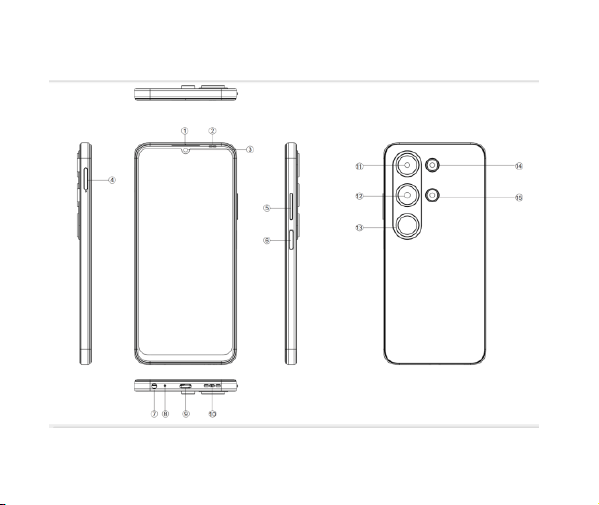
II. Keys and parts

7
1. Receiver
2. Light Sensor
3. Front Camera
4. SIM card tray
5. Volume keypad
6. Power keypad
7. earphone Jack
8. Mic
9. USB
10. Speaker hole
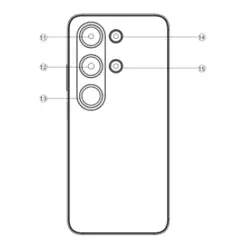
11. Sub_rear camera-1
12. Main Camera
13. Decoration Lense
14. Flash light
15. Sub rear camera-2
III. Start to use
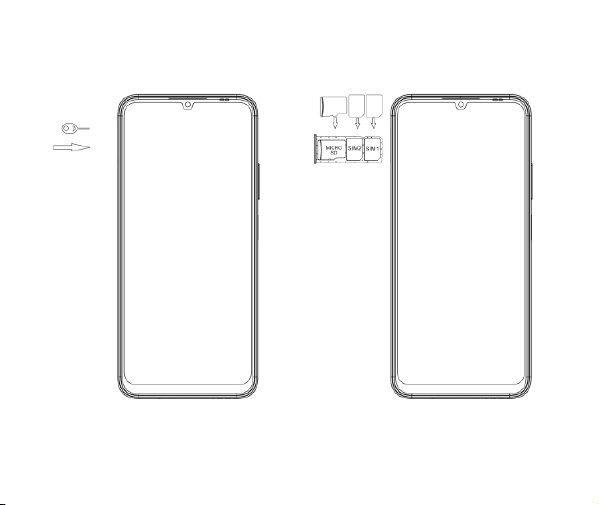
3.1 To insert SIM card(S):
Insert the SIM card correctly in the card slot(s) (See figure below), suggest switch off the phone
when you insert SIM card.
Insert the Micro SD card into the slot with the correct direction (See figure below), suggest switch
off the phone when you insert Micro SD.
Note: Use only compatible memory cards with this device. Incompatible memory cards may
damage the card or the device and corrupt the data stored in the card.
8

9
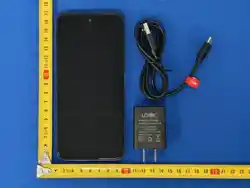
3.2 Charge the battery
During charging, the battery indicator on the phone is a thunder icon. If the device is switched off
during charging, there will still be a charging indication on the screen that shows the phone is
being charged. If the device is overused when the battery is low, the charging icon might take
some time to appear.
When the battery indicator on the screen display 'Battery is full', thunder icon will disappear,
which means the completion of charging. If the phone is switched off during charging, the screen
will display ' Battery is full '. During charging, the battery, the device and the charger will get hot.
This is normal.
Unplug the charger from the AC electrical outlet and disconnect the wiring between the phone and
the charger after charging. .
Cautions: Charge the phone in a well ventilated place in which the temperature is between -10℃
to +55℃. Use the charger provided by the manufacturer only. The use of unconfirmed charger
may lead to dangers and violate the manufacturer's warranty clause. If the temperature is too
high or too low during charging, the device will automatically send a warning and stop charging to
avoid damage to the battery or any danger.
10
IV. Basic functions
1. Lock and unlock the screen
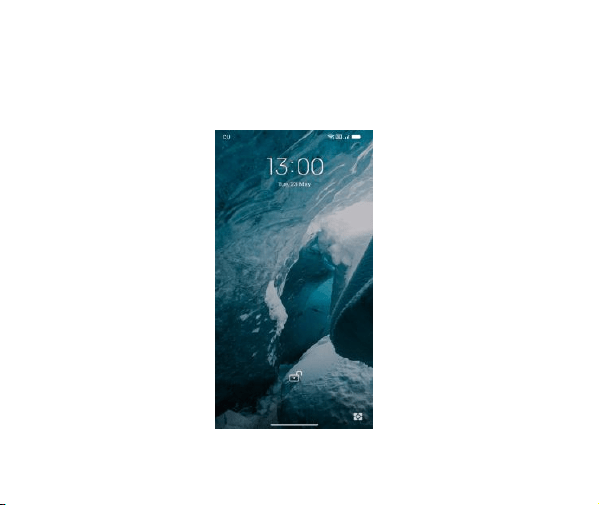
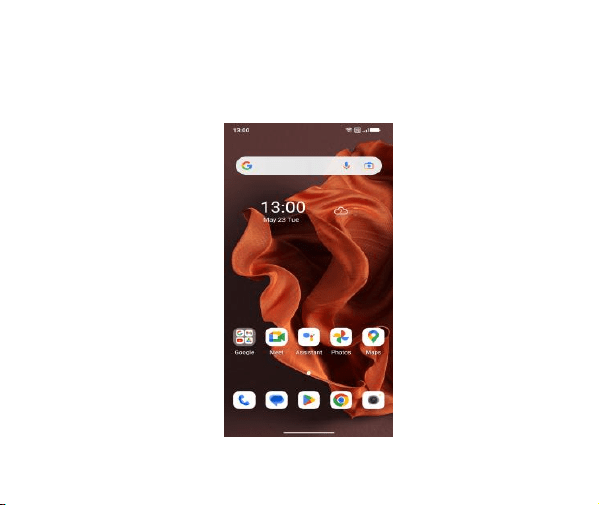
Press power button to enter Sleep mode and meanwhile the screen will be locked; press power
button again to wake up and then swipe up for unlock.
11
2. Make it yours
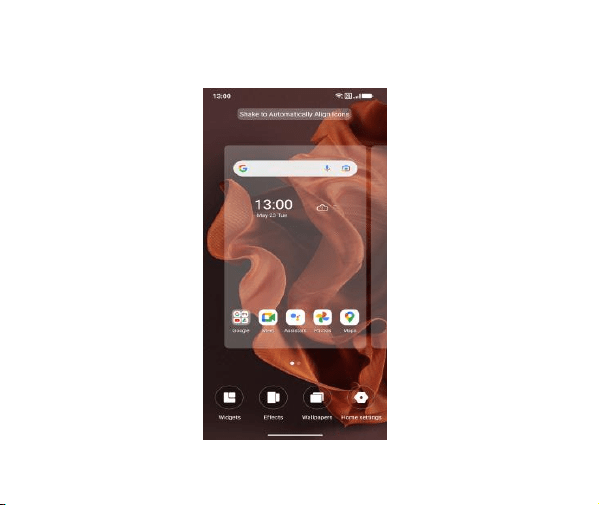
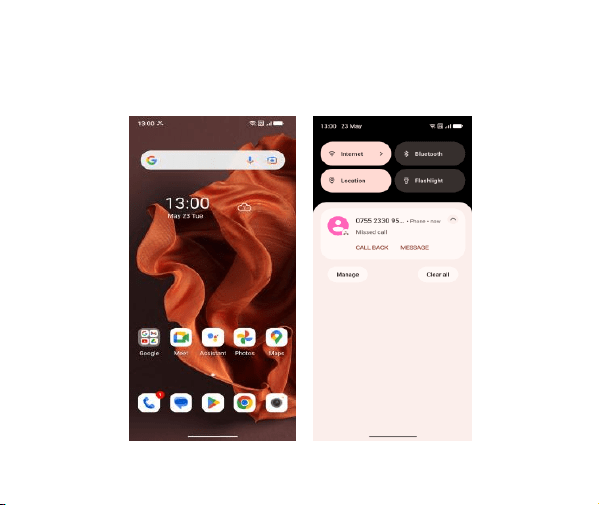
2.1 Home screen: It is your starting point to access all the features on your phone. It displays
application icons, widgets, shortcuts, and other features. Long press home screen and Modify
Wallpaper.
12
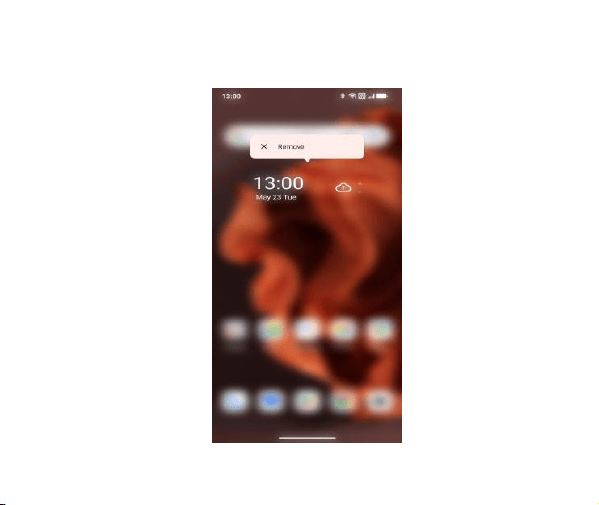
2.2 Long press Home screen, and then you can Modify Wallpaper; or enter Launcher and long
press and hold an application till the screen vibrates, and then loosen your hold finger.
13
Long press the widget or icon, after the phone vibrates, select delete or uninstall (select delete for
widget, select uninstall for APP)
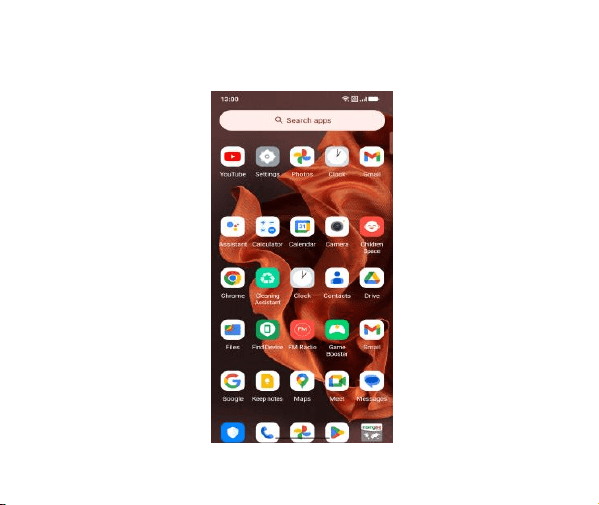
14
Swipe up and enter to application list.
15
2.3 Notification Bar: At the top of the screen, the Status Bar displays the time, status, and
notifications. If there is a new message, missed call or something in the notification bar, you can
drag it down to open notification panel and click the desired one to have a view. When you
finished, you can close it by dragging the panel up or pressing “Back”.
16
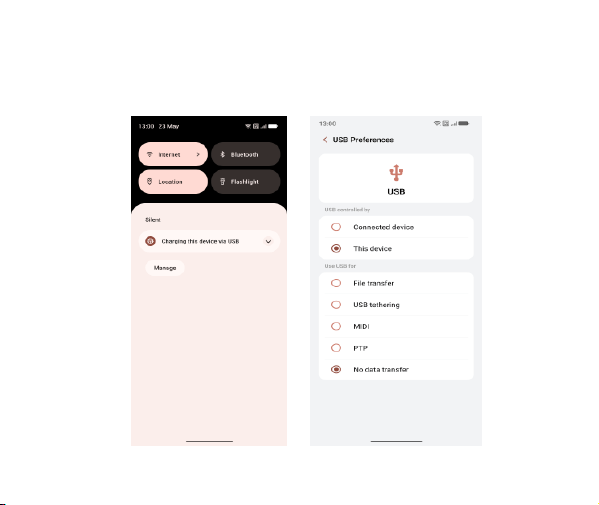
2.4 Android™ and computer connection
If you connect your phone to PC via USB, you can find the USB options, choose This Device -
file Transfer option, you can see your phone memory in PC, this is same function like USB
storage.
17
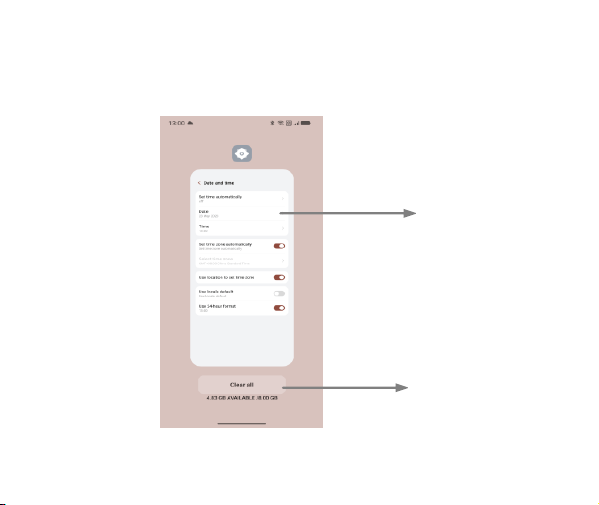
3. Switch to Recently Used Application
Press menu key.
Touch and slide
this place can
choose to open
the history
application
Touch this icon
to close all
history
application
18
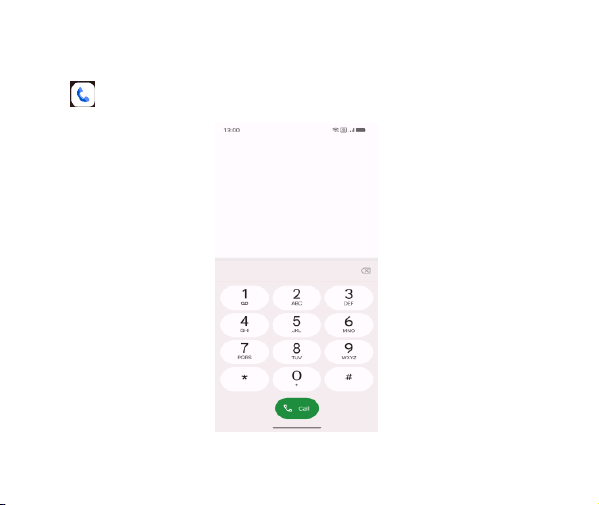
4. Make a call
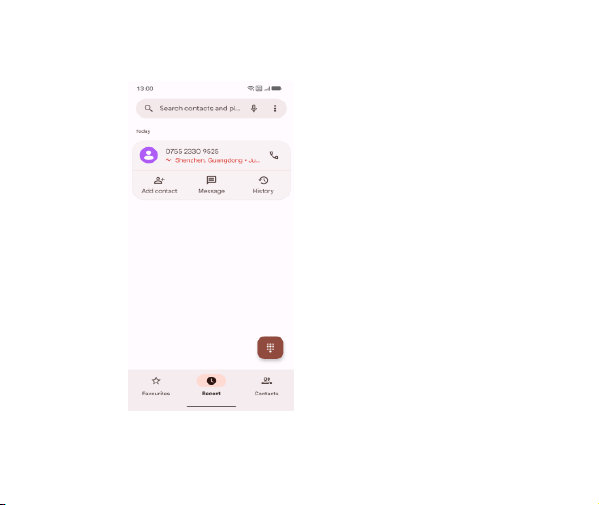
Click and enter a complete phone number to make a call. Your phone supports smart
search.
Swipe to right to view Call history and Contacts.
19
5. Call log
Press the number, you can view the contact details, send a message or call back.
Press the number if
you want to see the
details , send
message or call back,
there are three
options for you.
20
6. Answering phone calls and rejection
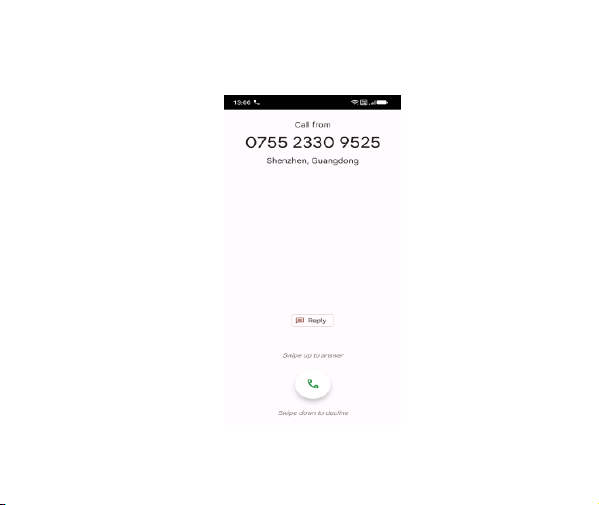
When there is an incoming call, you can drag the icon up or down to answer or hang up it directly.
21
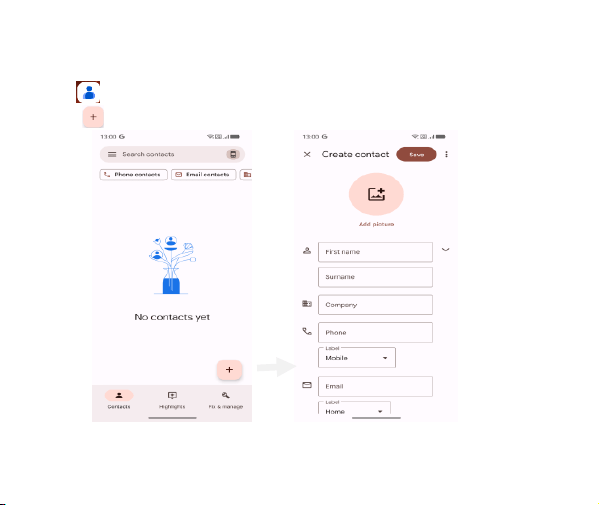
7. Add a contact
Touch to enter contact
Touch to add a new contact
Click here to add new contact and in this page press menu key to enter menu view, setting, etc.
22
8. Send and Receive message(s)
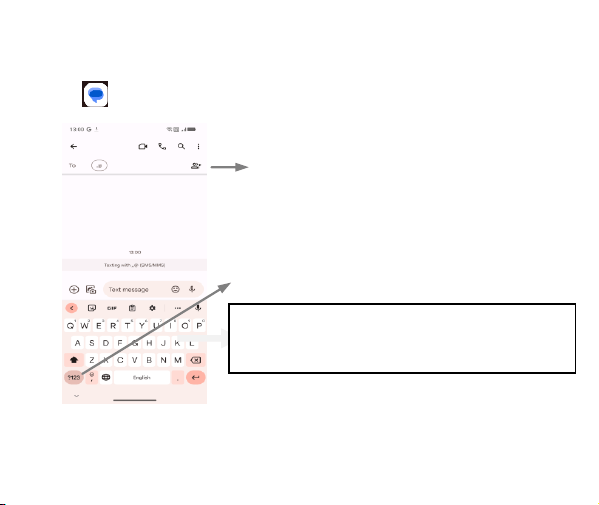
Touch enter to messaging, touch “Start chat”.
When you are composing a new text message, you can select text for cutting or copying. The
selected text is highlighted in blue
Tap this icon to select desired
contact from phone book.
Touch to switch the digital input and
symbols
Press space or a punctuation mark to enter the highlighted
suggestion
23
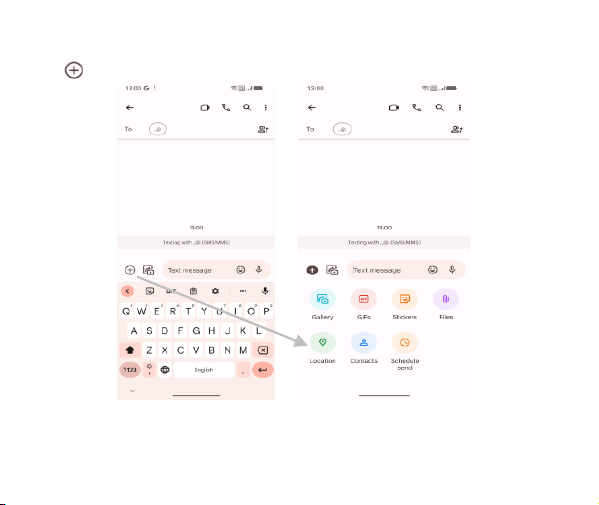
Tap to add “Attach” including Pictures, Videos, Audios, etc to send MMS.SMS
When a new message comes, you can read by dragging notification panel and click the message,
or entering Message to read it directly.
Long press one of the all message threads, you can delete it”.
24
9. Browser the Web
9.1 Set up Internet/Data connection
Enter Settings > More…, scroll down to find out Mobile network, and then enter “Access Points
Names, choose the desired WAP account.
9.2 Switch on Data connection or Wi-Fi
To browse the web, you need to switch on Data connection. If there is Wi-Fi around, you can
switch on Wi-Fi to use it browse the web.
10. Enjoy music
When you copy music to your SD card, the Music player searches the card for music files and
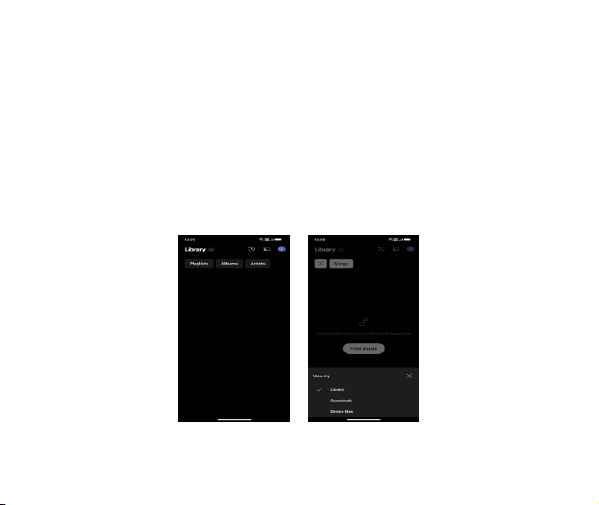
builds a catalog of your music, based on information about each file that is stored in the file itself.
25
11. Download applications on Google Play
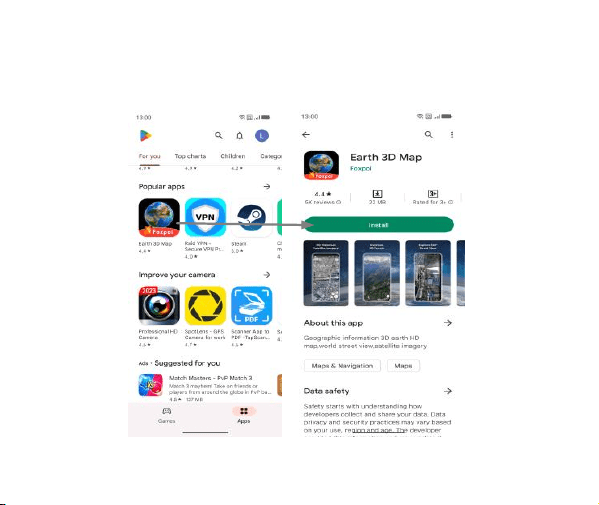
11.1 Add Google Account
11.2 Enter Google Play and download apps
26
12. Manage Applications
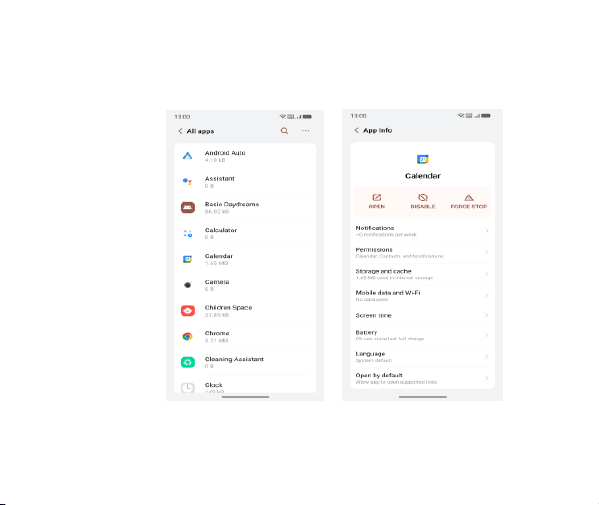
Enter Settings > Apps.
You can see app info.
27
13. APPLICATIONS & UTILITIES
For your entertainment purpose, your device is provided with several interesting games,
applications and utilities, such as Gmail, Email, Google Play.Before accessing the applications,
please turn on the data connection or connect to wifi
14. Settings
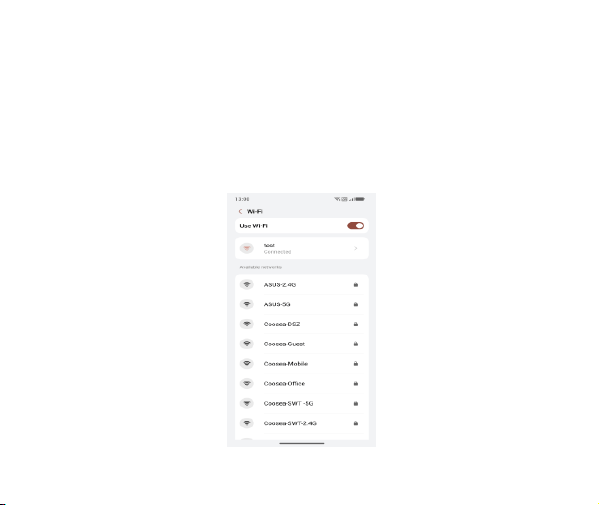
14.1 Wi-Fi
Open Wi-Fi, search nearly Wi-Fi and connect it, then you can use Internet or download apps for
free.
28
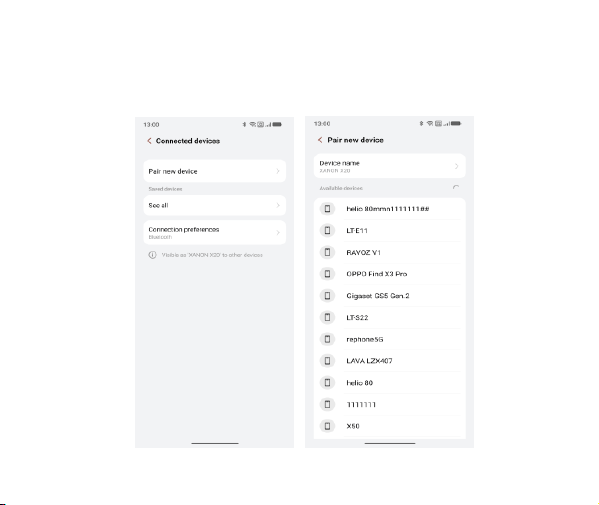
14.2 Bluetooth
Settings> Connected> Pair new device> Bluetooth
Open Bluetooth, connect to other phone, you can share something like music, photos, movies etc
to other people.
29
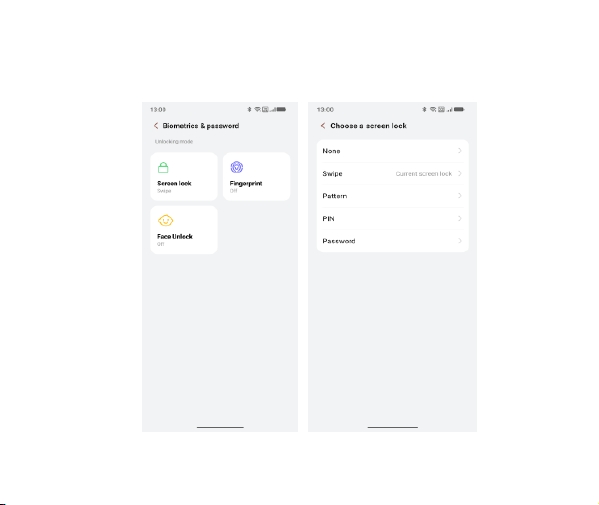
14.3 Security
Click Settings –Security –Biometrics&passworld -Screen lock.
There are four screen lock ways for you to choose :Swipe, Pattern, PIN, Password.
30
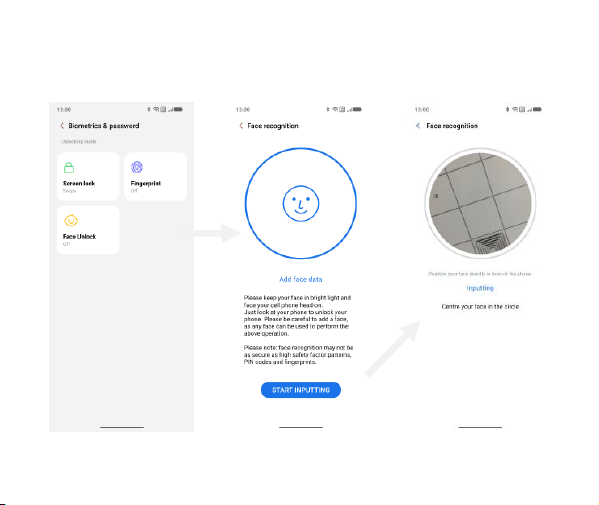
14.4 Face ID
Click Settings –Security –Biometrics&passworld - Face ID, follow the prompts ,after completing
the face recording, you can use the face unlock function.
31
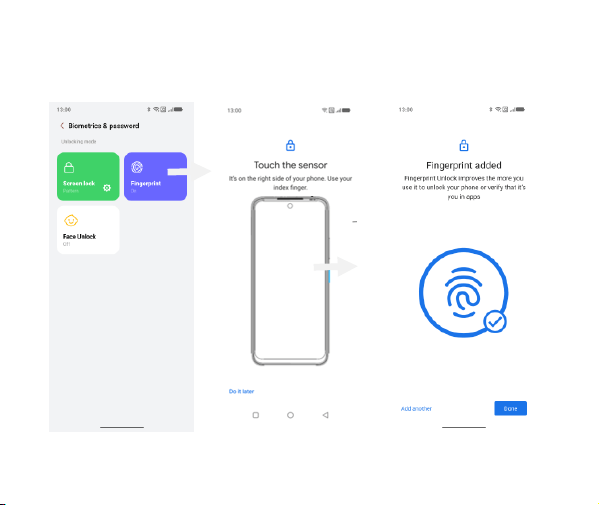
14.5 Fingerprint
Click Settings –Security –Biometrics&passworld - fingerprint, follow the prompts ,after
completing the fingerprint recording, you can use the fingerprint unlock function.

32
V. Technical Information
Google,Android,Google Play,YouTube and other marks are trademarks of Google LLC.

33
VI. FCC Warning
Emergency call
If any emergency arises, dial 112/911 (or other emergency call number) for emergency help.
Due to the nature of cellular networking, the success of emergency call is not guaranteed.
This device complies with part 15 of the FCC Rules. Operation is subject to the following two
conditions: (1) This device may not cause harmful interference, and (2) this device must accept
any interference received, including interference that may cause undesired operation.
Any Changes or modifications not expressly approved by the party responsible for compliance
could void the user's authority to operate the equipment.
This equipment has been tested and found to comply with the limits for a Class B digital device,
pursuant to part 15 of the FCC Rules. These limits are designed to provide reasonable protection
against harmful interference in a residential installation. This equipment generates uses and can
radiate radio frequency energy and, if not installed and used in accordance with the instructions,
may cause harmful interference to radio communications. However, there is no guarantee that
interference will not occur in a particular installation. If this equipment does cause harmful
interference to radio or television reception, which can be determined by turning the equipment
off and on, the user is encouraged to try to correct the interference by one or more of the following
measures:

34
-Reorient or relocate the receiving antenna.
-Increase the separation between the equipment and receiver.
-Connect the equipment into an outlet on a circuit different from that to which the receiver is
connected.
-Consult the dealer or an experienced radio/TV technician for help.
The SAR limit of USA (FCC) is 1.6 W/kg averaged over one gram of tissue.
Device types Smart Phone (FCC ID: 2AEPIBLACKS4) has also been tested against this SAR
limit. This device was tested simulation typical 10mm to body. To maintain compliance with FCC
RF exposure requirements, the use accessories that maintain a 10mm separation distance
between the user's body and the device. The use of accessories should not contain metallic
components in its assembly. The use of accessories that do not satisfy these requirements may
not comply with FCC RF exposure requirements, and should be avoided.