
-1-
Logic_L67_PRO_MAX
Powered by Android™

-2-
INTRODUCTION
Thanks for choosing Logic_L67_PRO_MAX, double SIM, powered by Android 16 smart phone
based on 1.6GHz Quad Core Processor. If you’d like your phone to live a long and fruitful life,
please read this guide carefully and keep it for future reference. You never know when you might
need it.
And don’t worry if the pictures we use to demonstrate your phone’s functions look a little
different from what you see on its screen. It’s the functions that matter.

-3-
Table of Contents
1 Safety ...................................................................................................... 4
1.1 Safety Precautions ........................................................................ 4
1.2 Using your phone safely ................................................................ 4
2 Understanding your Phone ..................................................................... 7
2.1 Your Phone ................................................................................... 7
2.2 Description Icons .......................................................................... 8
2.3 Charging the battery ..................................................................... 8
2.4 Power ON/OFF .............................................................................. 9
2.5 Enter Main Menu .......................................................................... 9
2.6 Enter Sub Menu ............................................................................ 9
2.7 Use Notification Panel................................................................... 9
2.8 Move icons on the main interface ............................................... 10
2.9 Delete icons on the main interface ................................................ 10
2.10 Change wallpapers .................................................................... 10
2.11 Recent tasks .............................................................................. 10
2.12 Install APK through File Manager .............................................. 10
3 Using your Phone .................................................................................. 11
3.1 Main Menu & Its Functions ......................................................... 11
3.2 Wi-Fi ........................................................................................... 14
4 Inputting Text ........................................................................................ 15
5 Maintenance ......................................................................................... 16
6 Taking Care of your Device .................................................................... 16
-4-
1 Safety
1.1 Safety Precautions
Please read through the following briefings carefully and act in accordance with
these rules, so as to prevent causing any danger or violating any law.
SAR Value
0.313W/kg@1g(Head) 0.864W/kg@1g(Body)
Use cell phone when the signal strength is good. Keep your calls short or instead use headset or
send a text message. This advice applies especially to children, adolescents and pregnant
women.
If you are using a Bluetooth headset device, please make sure it has a low power emitter.
1.2 Using your phone safely
On The Road
Using a phone while driving is illegal in many countries. Please follow local laws and drive safely at
all times.
Near Sensitive Electronics
Don’t use your phone near sensitive electronic equipment – particularly medical devices such as
pacemakers – as it could cause them to malfunction. It can also interfere with the operation of
fire detectors and other automatic-control equipment.
For more information about how your phone affects pacemakers or other electronic equipment,
please contact the manufacturer or your local distributor.
Your phone may cause interference when used near TVs, radios or automated office equipment.
While Flying
Your phone can cause interference with aircraft equipment. So it’s essential you follow airline
regulations. And if airline personnel ask you to switch off your phone, or disable its wireless
functions, please do as they say.
-5-
In Hospital
Your phone may interfere with the normal operation of medical equipment. Follow all hospital
regulations and turn it off when you’re asked to by posted warnings or medical staff.
At a Petrol Station
Don’t use your phone at petrol stations. In fact, it’s always best to switch off whenever you’re
near fuels, chemicals or explosives.
Around Water
Keep your phone away from water (or any other liquid). It’s not a waterproof model.
Making Repairs
Never take your phone apart. Please leave that to the professionals. Unauthorized repairs could
break the terms of your warranty.
Broken Antenna
Don’t use your phone if the antenna is damaged, as it could cause injury.
Around Children
Keep your mobile out of children’s reach. It should never be used as a toy and it might not be
good for their health.
Original Accessories
Only use the original accessories supplied with your phone or those approved by the
manufacturer. Using unapproved accessories may affect performance, make the warranty void,
break national regulations on the use of mobile phones, or even cause injury.
Near Explosives
Turn off your phone in or near areas where explosive materials are used. Always obey local laws
-6-
and turn off your phone when requested.
Emergency Calls
To make an emergency call your phone must be turned on and in an area where there’s network
coverage. Dial the national emergency number and press ‘send’. Explain exactly where you are
and don’t hang up until help has arrived.
Working Temperature
The working temperature for the phone is between 0 Degree and 40 Degree Celsius. Please don’t
use the phone outside the range. Using the phone under too high or too low temperature might
cause problems.
At very high volume, prolonged listening to a mobile phone can damage your
hearing.
-7-
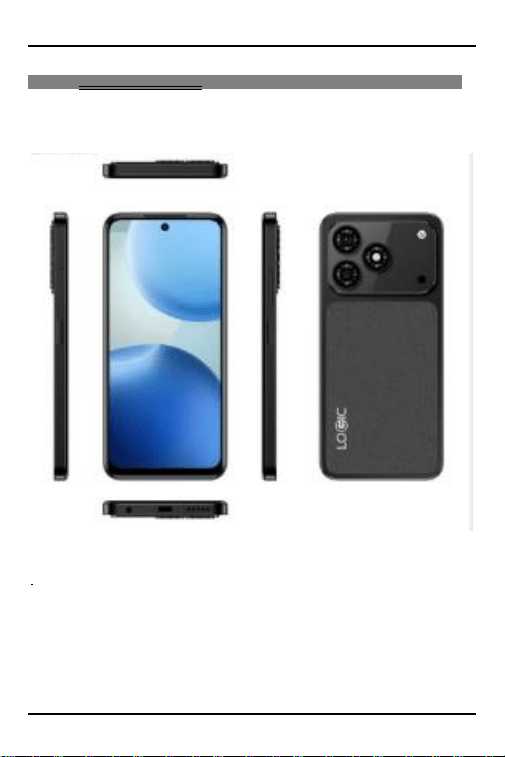
2 Understanding your Phone
2.1 Your Phone
-8-
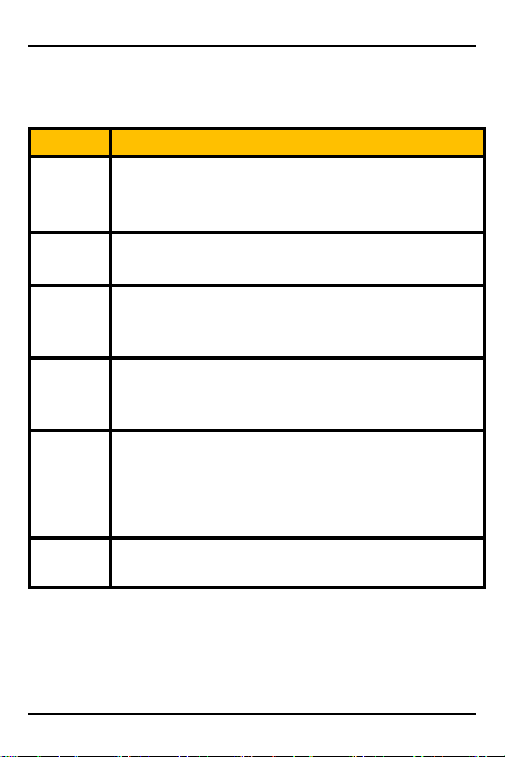
2.2 Description Icons
Keys
Functions
Home
Press this button to return home from any application or interface.
Menu
Press it to open recently opened application window
Back
Press it to return to the previous interface,or to close dialog box ,options,
menu notification panel or the keypad.
Power
Press it to open the phone’s menu,then you could choose to restartphone
or turn off the phone
Up
Press it to increase the volume
Down
Press it to decrease the volume.
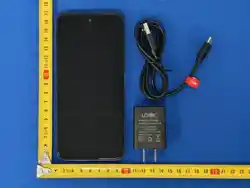
2.3 Charging the battery
The rechargeable Li-ion battery that comes with your phone is ready to be used, but is not
charged full. It is easy to do & can be done in 3 simple steps below:
1. Connect the charger to your phone, and plug it into a socket.
-9-
2. The battery indicator in the corner of the screen will scroll to show you it’s charging.
3. When fully charged, the battery indicator will stop scrolling.
4. Disconnect the charger from your mobile, and unplug.
2.4 Power ON/OFF
Press the power key to power-ON/OFF the phone.
When you turn your phone on, it’ll automatically check the SIM and show the following
information on screen:
Input SIM PIN: If you’ve set a PIN for your SIM.
Note:
The PIN is supplied with your SIM. Please replace it with your own PIN code as soon as possible.
Enter the wrong PIN three times, and your SIM will be locked. Then you’ll need to contact your
network service provider to ask for a PUK code to unlock it.
2.5 Enter Main Menu
In Idle mode, press the Menu key to enter the main menu on the desktop and click the Home key
/Back key to return.
2.6 Enter Sub Menu
Once at the main menu, click the icon to select the sub menu, press Back Key to return to the
previous menu, and press the Home Screen to return to the home screen.
2.7 Use Notification Panel
As a new notification appears in the notification area, slide down in the area to view the contents
of the notification. And slide down again,there is shortcut of some functions,about brightness
level、Bluetooth、Airplane mode、Auto-rotate、Flashlight、Location、Do not disturb、Wi-Fi and
many more

-10-
2.8 Move icons on the main interface
1. Long press the icon on the main interface until it’s enlarged and the mobile.
2. Drag the icon to the desired position and then release it.
2.9 Delete icons on the main interface
1. Long press the icon on the main interface until it’s enlarged and the mobile .
2. Drag the icon to “Remove” to delete it.
2.10 Change wallpapers
1. Long press the desktop pop-up menu.
2. Choose WALLPAPERS to change wallpapers
2.11 Recent tasks
On any interface, press [menu]to access to the recent tasks interface, view all the recent tasks
&touch one of them to enter this App.
2.12 Install APK through File Manager
APK is a supported file format for the Android mobile operating system.
a)Please copy the downloaded APK file into the SD card, and then insert the SD card into the
phone.
b)In Idle mode, click Main Menu to enter the main menu.
Click “File Manager” to enter the directory of SD card.
c)Click the APK file you wish to install, and follow the installation wizard.

-11-
3 Using your Phone
3.1 Main Menu & Its Functions
Scroll up the screen to enter the main menu.
Allows you to view a list of features available in your phone.
1.Chrome browse
Browse the internet. Search engine default set as Google.
2.Calculator
This function can turn your phone into calculator, it can do some simple calculations.
3.Calendar
View the calendar & add events.
4.Camera
Allows you to click pictures& video anytime you want.Camera opens in capture mode. Frame your
picture within the screen and hold the phone steady. Touch Camera button to capture. Continue
to hold the camera steady for a second after you hear the shutter sound.
Click the preview box to browse the picture, share (via a compatible application), edit a picture,
or delete a picture
5.clock
After entering Clock, move right to set Alarm.
6.Contacts
To see your list of Contacts.Access Contacts through this function.
7.Email
Set up a common email, manage your email
8.File Manager
You could install the files in APK format & also view your files.
-12-
9.FM Radio
In main menu, touch to enter FM Radio interface,Through this program, you may
listen to FM radio on the device, FM radio use the wired headset as an antenna to
receive signals, before opening this program ,you can install the original
equipment-headphones, when listening, you can switch it manually to speakers or the
mode with wired headphones.
10.Photos
Allows you to view photos & videos in folders.
11.Gmail
Gmail is an easy to use email app that saves you time and keeps your messages safe. Get
your messages instantly via push notifications, read and respond online & offline, find
any message quickly and lots more.
12.Messages
Allow you to view messages sent & received as a thread.
13.Music
View the list of songs available in your phone. Your music files are classified according to the
following four categories:Artists, albums, songs and play lists. Touch one of these categories; you
can view the list inside.
14.Phone
Allow you to make quick outgoing calls.
15.Google Play
Google Play is your entertainment unbound. It bri ngs together all of the
entertainment you love and helps you explore it in new ways, anytime, anywhere.
16.Google
In main menu, touch to access Google
Search, Enter key words, you can search a target in All or Web or Apps or Contacts, the matched
result will display below. You also can do voice search here.

-13-
17.Settings
Modify settings under the following:
Screen lock
Add another email account
Wi-Fi
Bluetooth
SIM cards
Data Usage
More
Display
Notifications
Sound
Apps
Storage
Battery
Memory
Users
Location
Security
Accounts
Google
Language & input
Backup&reset
Date &time
Accessibilty
Printing
Schedule power on/off
About phone
18.SIM Toolkit
This service is provided by the operator. It provides many types of personalized message services.

-14-
19.Sound Recorder
Allows you to record sounds.
3.2 Wi-Fi
Logic_L67_PRO_MAX supports Wi-Fi which allows you to connect with a Wireless connection.This
is useful for surfing internet on phone.
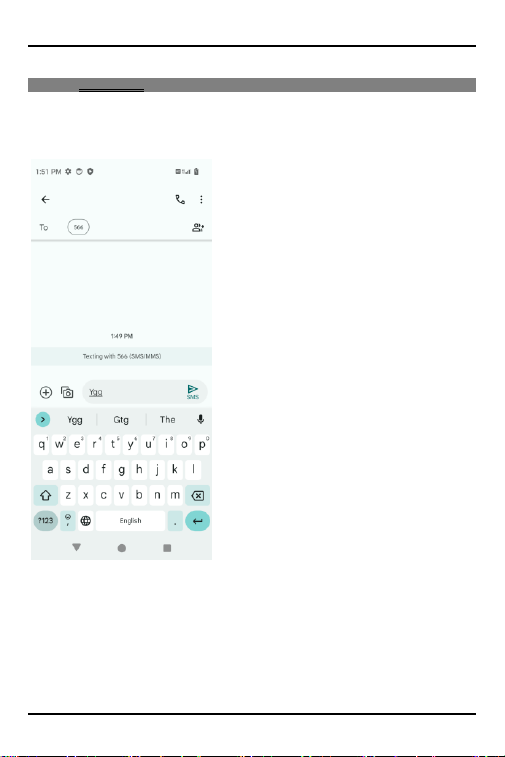
Enter "Settings" interface & search WIRELESS & NETWORKS. Select the network you
want to connect.
-15-
4 Inputting Text
Google Keyboard
Logic_L67_PRO_MAX use Google Keyboard by default.
Cut, Copy and Paste
Touch and hold text content to bring up the magnifying glass, and then slide your finger to move
the insertion points. Then choose to cut, copy, or paste. It is very easy to copy text from web
pages, email, or text messages.
-16-
5 Maintenance
Use a dry soft cloth to wipe general dirt.
Do not use a hard cloth, benzene or thinner to wipe the phone, otherwise, the surface of the
phone will be scratched or could even result in the fading of colour.
6 Taking Care of your Device
Your device is a product of superior design and craftsmanship and should be handled with care:
The following suggestions will help you protect your phone:
Always keep the small parts of the phone away from children.
Keep the device dry. Precipitation, humidity, and all types of liquids or moisture can
contain minerals that will rust electronic circuits. If your device does get wet, remove
the battery, and allow the device to dry completely before replacing it.
Do not use or store the device in dusty, dirty areas. Its moving parts and electronic
components can be damaged.
Do not store the device in high or cold temperature. High temperatures can shorten the
life of electronic devices and damage batteries.
Do not attempt to open the device other than as instructed in this guide.
Do not drop, knock, or shake the device. Rough handling can break internal circuit
boards and fine mechanics.
Do not use harsh chemicals, cleaning solvents, or strong detergents to clean the device.
Only use a soft, clean, dry cloth to clean the surface of the device.
Do not paint the device. Paint can clog the moving parts and prevent proper operation.
Use indoor chargers.
Google, Android, Google Play and other marks are trademarks of Google LLC.

-17-
FCC Statement
1. This device complies with Part 15 of the FCC Rules. Operation is subject to the following
two conditions:
(1) This device may not cause harmful interference.
(2) This device must accept any interference received, including interference that may cause
undesired operation.
2. Changes or modifications not expressly approved by the party responsible for compliance
could void the user's authority to operate the equipment.
NOTE:
This equipment has been tested and found to comply with the limits for a Class B digital
device, pursuant to Part 15 of the FCC Rules. These limits are designed to provide reasonable
protection against harmful interference in a residential installation.
This equipment generates uses and can radiate radio frequency energy and, if not installed
and used in accordance with the instructions, may cause harmful interference to radio
communications. However, there is no guarantee that interference will not occur in a
particular installation. If this equipment does cause harmful interference to radio or
television reception, which can be determined by turning the equipment off and on, the user
is encouraged to try to correct the interference by one or more of the following measures:
Reorient or relocate the receiving antenna.
Increase the separation between the equipment and receiver.
Connect the equipment into an outlet on a circuit different from that to which the receiver is
connected.
Consult the dealer or an experienced radio/TV technician for help.
SAR Information Statement
Your wireless phone is a radio transmitter and receiver. It is designed and manufactured not
to exceed the emission limits for exposure to radiofrequency (RF) energy set by the Federal
Communications Commission of the U.S. Government. These limits are part of
comprehensive guidelines and establish permitted levels of RF energy for the general
population. The guidelines are based on standards that were developed by independent
scientific organizations through periodic and thorough evaluation of scientific studies. The
standards include a substantial safety margin designed to assure the safety of all persons,
regardless of age and health. The exposure standard for wireless mobile phones employs a
unit of measurement known as the Specific Absorption Rate, or SAR. The SAR limit set by the
FCC is 1.6 W/kg. * Tests for SAR are conducted with the phone transmitting at its highest
certified power level in all tested frequency bands. Although the SAR is determined at the
highest certified power level, the actual SAR level of the phone while operating can be well
below the maximum value. This is because the phone is designed to operate at multiple
power levels so as to use only the power required to reach the network. In general, the

-18-
closer you are to a wireless base station antenna, the lower the power output. Before a
phone model is available for sale to the public, it must be tested and certified to the FCC that
it does not exceed the limit established by the government adopted requirement for safe
exposure. The tests are performed in positions and locations (e.g., at the ear and worn on
the body) as required by the FCC for each model. The highest SAR value for this model phone
when tested for use at the ear is 1.077W/Kg and when worn on the body, as described in this
user guide, is 1.171W/Kg(Body-worn measurements differ among phone models, depending
upon available accessories and FCC requirements). The maximum scaled SAR in hotspot
mode is 1.171W/Kg. While there may be differences between the SAR levels of various
phones and at various positions, they all meet the government requirement for safe
exposure. The FCC has granted an Equipment Authorization for this model phone with all
reported SAR levels evaluated as in compliance with the FCC RFexposure guidelines. SAR
information on this model phone is on file with the FCC and can be found under the Display
Grant section of http://www.fcc.gov/ oet/fccid after searching on
FCC ID: O55671526 Additional information on Specific Absorption Rates (SAR) can be found
on the Cellular Telecommunications Industry Asso-ciation (CTIA) web-site at
http://www.wow-com.com. * In the United States and Canada, the SAR limit for mobile
phones used by the public is 1.6 watts/kg (W/kg) averaged over one gram of tissue. The
standard incorporates a sub-stantial margin of safety to give additional protection for the
public and to account for any variations in measurements.
Body-worn Operation
This device was tested for typical body-worn operations. To comply with RF exposure
requirements, a minimum separation distance
of 10mm must be maintained between the user’s body and the handset, including the
antenna. Third-party belt-clips, holsters,
and similar accessories used by this device should not contain any metallic components.
Body-worn accessories that do not meet these requirements may not comply with RF
exposure requirements and should be avoided. Use only the supplied or an approved
antenna.