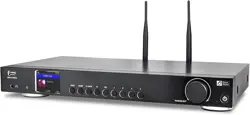
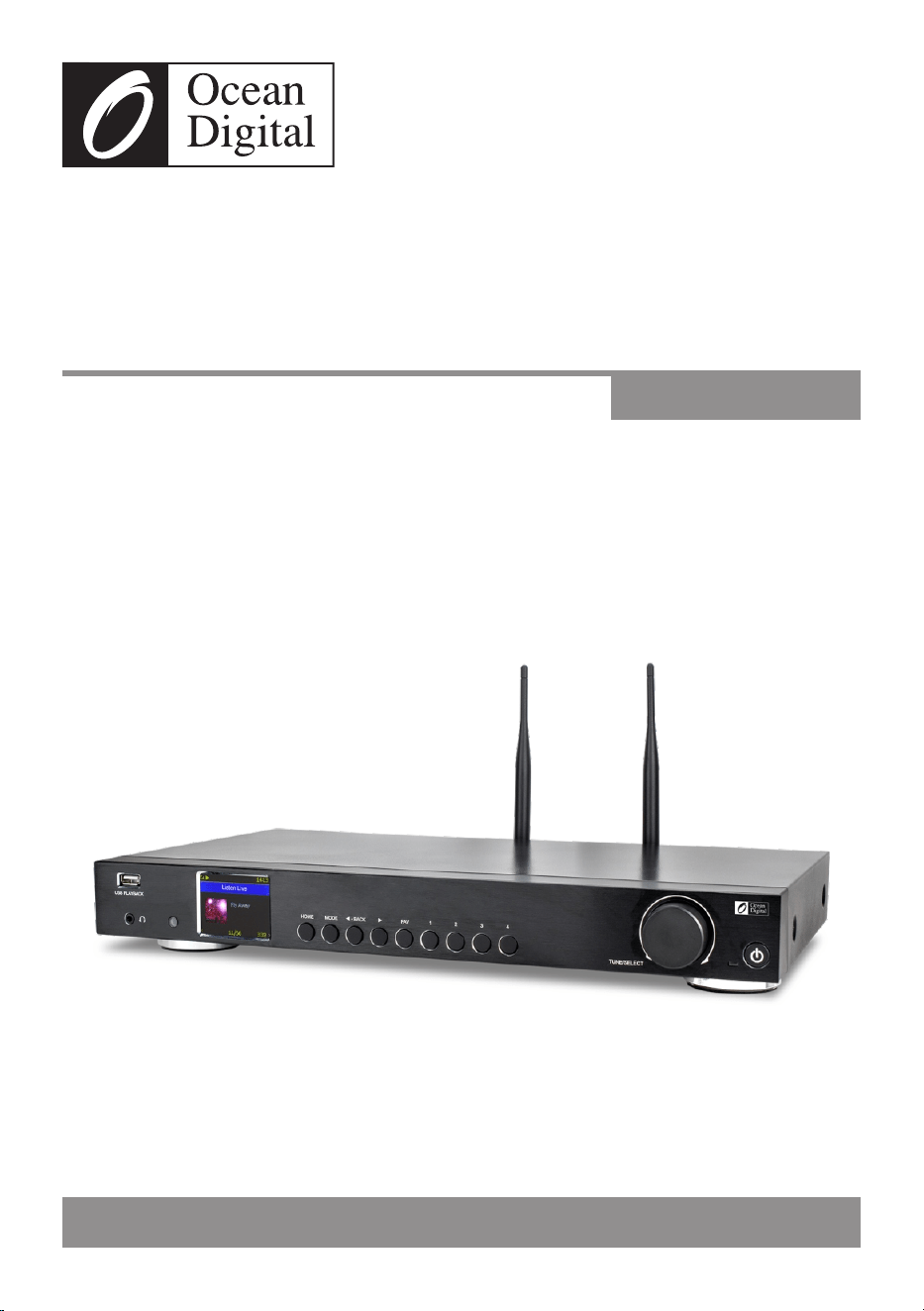
Please read this user manual carefully before using the receiver.
WR-50
Internet Radio Tuner
User Manual
Please read this user manual carefully before using the receiver


- 3 -
Contents
1. Introduction to the WR-50 Internet Radio Tuner ............................4
2. Internet Radio Tuner Connections ................................................5
3. Location of Controls .....................................................................6
4. Remote control ............................................................................8
5. Choosing options and functions ...................................................9
6. Entering security code for your wireless network .........................10
7. Network Setup ...........................................................................11
8. Overview of features and functions .............................................13
9. Internet Radio ............................................................................14
10. Media Center .............................................................................18
11. USB Playback ............................................................................19
12. DAB+/DAB Radio (Digital Audio Broadcasting) ...........................20
13. FM Radio ...................................................................................21
14. BT playback ..............................................................................22
15. Alarm setting .............................................................................23
16. Timer setting ..............................................................................24
17. Sleep Timer setting ....................................................................24
18. Podcasts operation ....................................................................25
19. Configuration .............................................................................26
20. Web browser control via PC / Smart phone
—Tuning internet radio & manage favourite .............................33
21. Trouble shooting ........................................................................36
22. Helpful Tips ...............................................................................39
23. Technical Specification ..............................................................40

- 4 -
Introduction to the WR-50 Internet Radio Tuner
The WR-50 Internet Radio Tuner is an audio component for
integration into your home HiFi System as an added source of audio
entertainment.
The radio provides a comprehensive set of enhancements to audio
entertainment and a gateway into the world of digital audio.
Precautions
• The radio should not be used in a high temperature or high humidity
environment over prolonged periods of time as this may damage
the unit.
• Keep the radio away from liquids as it may get damaged. Please
switch off the radio immediately if water or liquids is spilled into the
radio. Consult with the shop you bought this radio for any question.
• Avoid using or storing the unit in dusty or sandy environment.
• Do not open and repair the radio by yourself.
• Use only the DC adaptor supplied with the radio. Connecting a
power supply with a different rating will cause permanent damage
to the radio and may be hazardous.
• Clean only with dry cloth.
- 5 -
Internet Radio Tuner Connections
Radio
FM
DAB
DAB+
Wi-Fi Streaming
Internet Radio
Local Radio
Media Center
Alarm Clock
Sleep Timer
Podcasts
BT Streaming
BT Speaker
Audio Pre-Amp Outputs - connect to Power Amp
RCA
Optical
Co-Axial
HiFi System
Audio Power Amplifer
Modem/Router
Wired
LAN
ISP
(Internet Service
Provider)
WR-50
Wi-Fi Wireless Network
(Need Network Name and
Passcode or Password to
Connect to Network)
USB
playback
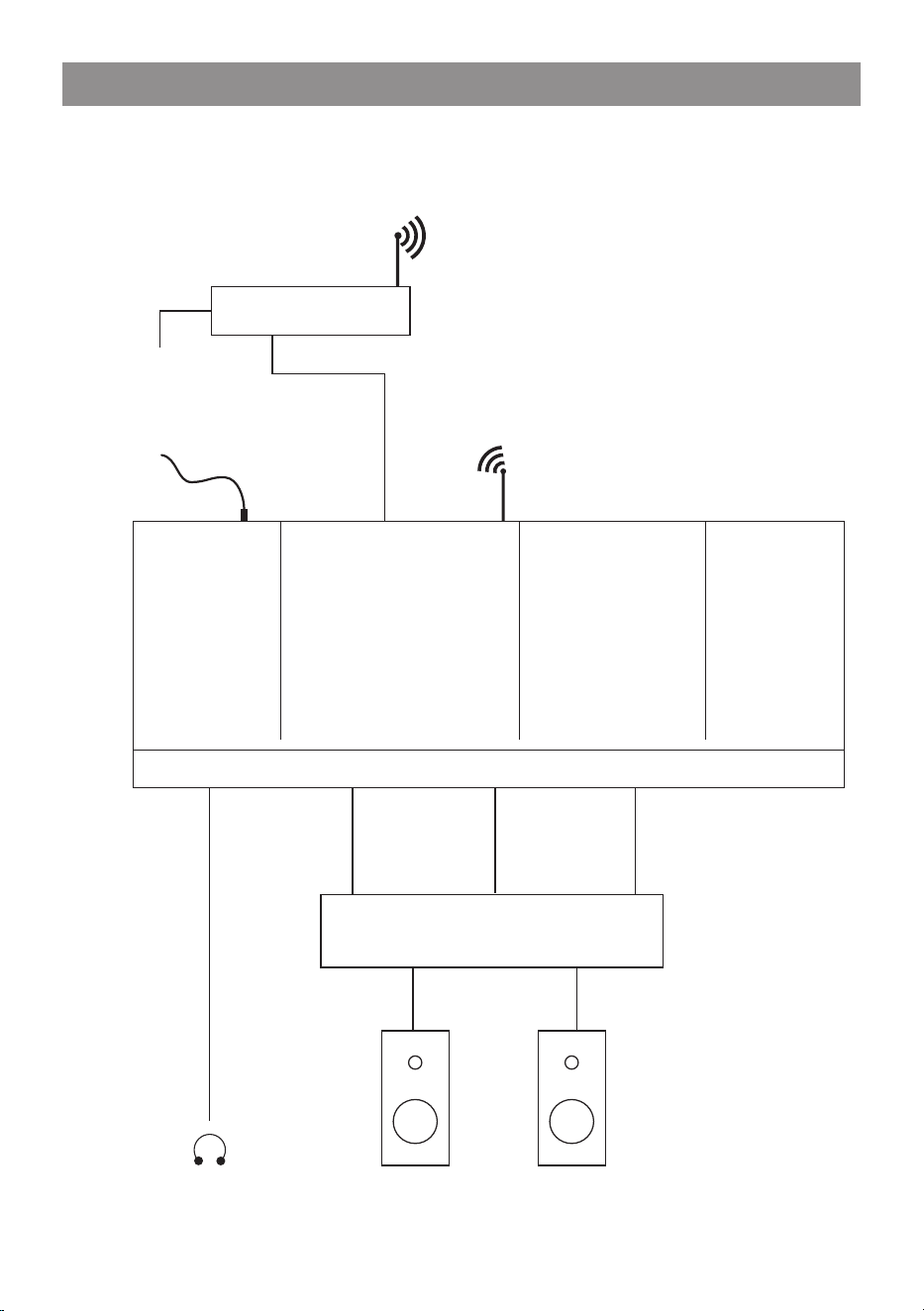
The illustration shows the WR-50 integrated into a HiFi system
ready to play in all modes.
- 6 -
Location of Controls
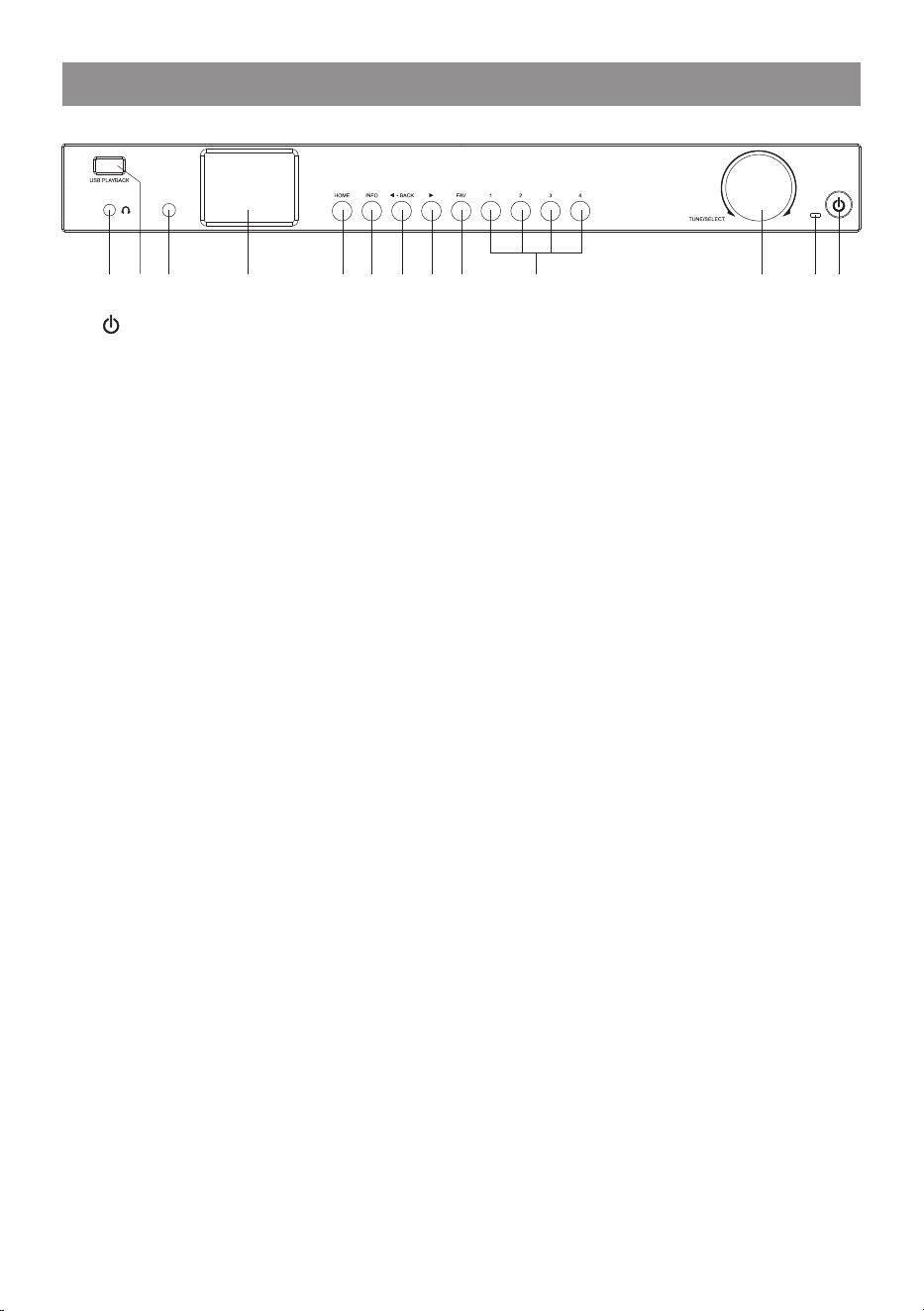
12345678910111213
1.
Press to enter/exit from Standby mode
2. Power LED
Lit when DC-in has valid power
3. TUNE/SELECT
Rotate to navigate menu
Rotate to adjust volume of headphone
Press to select an item
4. Dedicated Preset button No.1-4
Press and hold to preset 4 dedicated stations. Press briefly to recall to
play. These are independent presets and will not appear on the "My
Favorite" list.
5. FAV
Press and hold to preset the favorite stations up to 150. Press it briefly
to recall the list.
6. ►(FORWARD)
Press to cycle through the display option in radio playing mode / Enter
edit menu in Favourite list / cursor right
7.◄• BACK
Press to exit to previous menu / delete entry of character's input/ cursor
left
8. INFO
Toggle to cycle through the station's info, the big clock display or return
to now playing screen
9. HOME
Press to display Home screen to view different radio modes / setting
options
10. 2.4”TFT color display
11. IR sensor
Receives Infra red signal from remote control
12. USB Playback
Play audios from USB thumb drive
13. Headphone jack
3.5 mm Headphone output
- 7 -
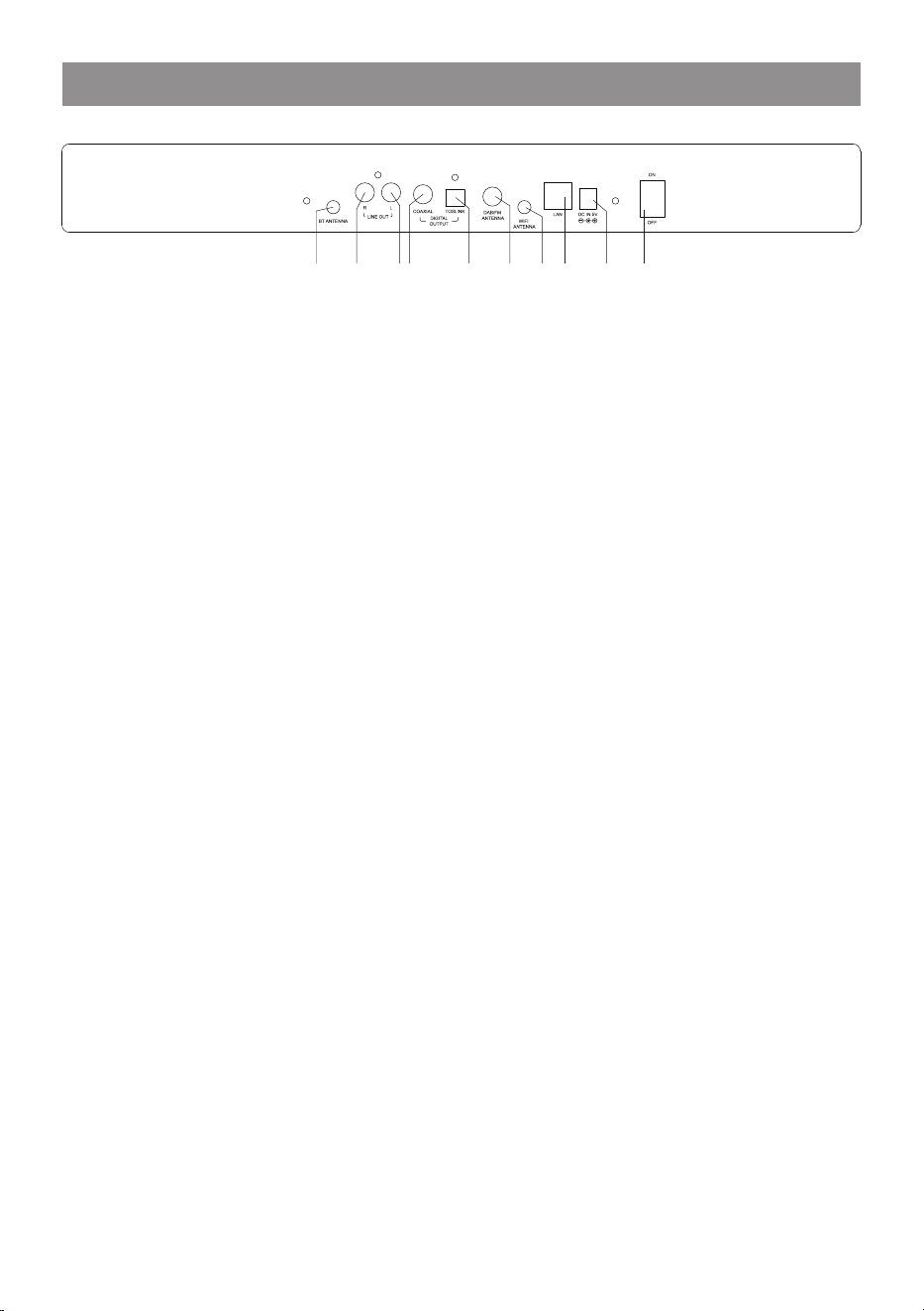
141516171819202122
14. Power On/Off switch
15. DC-IN Jack
16. Ethernet (LAN) connector
17. WiFi antenna connector
Connect the WiFi antenna before setting up the Tuner
18. DAB/FM antenna
19. Digital out – Optical
20. Digital out - Co-axial
21. Line out - L
22. Line out - R
The volume of the Line/Digital out is controlled by the external
amplifier/powered speaker. To control the volume through our device,
change the setting in Configuration > Line/Digital out > choose "Follow
headphone".
23. BT Antenna connector
Connect the BT antenna before pairing with your BT device
23
Location of Controls
- 8 -
Remote control
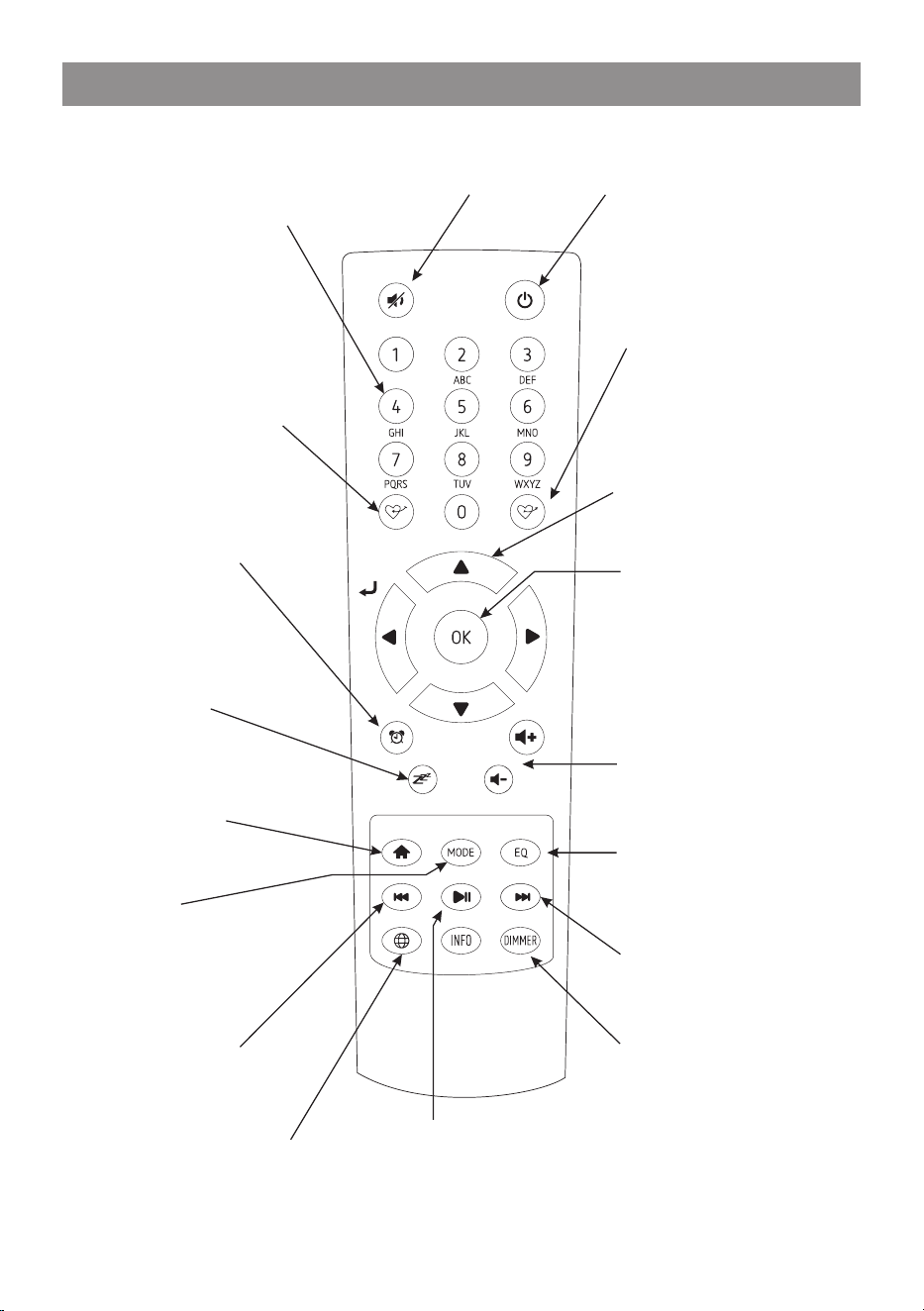
Mute
ON/Standby
Alpha Numeric
(Press keys to
cycle through
characters)
Preset
(Save in
My Favorite)
Alarm
(Control & Setup)
Sleep Timer
(Control & Setup)
Menu
(Go to Mode
selection)
Mode
(Cycle through
Modes)
Play Last
Access network
info of the radio unit
Dimmer
(Display brightness)
Play Next
Navigation
(Forward, Back,
Up, Down)
Select
(Confirm & Go)
Equalizer
(Playback sound)
Volume Control
Play/Pause
(BT / USB / Media Centre)
Play/Stop
(Internet radio)
Go to
My Favorite

- 9 -
Choosing options and functions
All user input is information that the Radio Tuner uses to provide the
desired audio entertainment with select (enter) a confirmation and
go command.
The [ TUNE/SELECT ] control knob is used for navigating LCD
displays and lists by rotating clockwise (CW) or counter clockwise
(CCW) to change or highlight information displayed on the LCD
screen and confirms a selection when it is pressed and released.
The Forward [ ► ] and Back [ ◄ ] buttons can also be used to move
to the next or back to the last display or position in lists but all inputs
must be confirmed by pressing and releasing the [ TUNE/SELECT ]
knob.
Throughout this manual “Select” will mean navigating through option
lists or display screens to highlight desired selection and confirming
it by pressing and releasing the [TUNE/SELECT] knob.
The remote controller can also be used to control the Radio Tuner
with the center navigation buttons [ ◄ ▼ ► ▲ ] and OK button to
confirm selections.
Many other controls are available on the remote controller with
discrete buttons for many functions e.g. volume up or down.

- 10 -
Entering security code for your wireless network
Using remote control
On the alpha-numerical keypad, press buttons repeatedly to cycle
through the letters, numbers and symbols as listed below.
To input a character, scroll to the correct one and when it is
highlighted, press the [►] button to input the next character. When it
comes to the last character of the password and it is highlighted,
press [OK] to confirm.
Button 1: 1 and different kind of symbols
!@#$%^&*()_+[]{};:'"\|,./<>?
Button 2: 2ABCabc
Button 3: 3DEFdef
Button 4: 4GHIghi
Button 5: 5JKLjkl
Button 6: 6MNOmno
Button 7: 7PQRSpqrs
Button 8: 8TUVtuv
Button 9: 9WXYZwxyz
Button 0: 0
Using control button on the Tuner
Use the [TUNE/SELECT] knob to scroll through the characters,
when the correct one is highlighted, press [►] button to input the
next character. When it comes to the last character of the password
and it is highlighted, press [TUNE/SELECT] to confirm.
Note: The security code is case sensitive.
- 11 -
Network Setup
Internet connection can be setup via Wireless LAN (WiFi).
Your Tuner requires a broadband Internet connection through wired
Ethernet or WiFi. The easiest way is use a CAT 5 or CAT 6 cable to
connect through wired Ethernet to a Wifi router, which connects to
an Adsl modem or a cable modem provided by your ISP.
Wired LAN (Ethernet)
For Wired Ethernet connection to a router with DHCP enabled, the
network configuration for Internet connection is automatically done
and the radio can be used for Internet radio and UPnP sharing
without user interaction. When the network is connected, the
Ethernet icon will appear on the top left corner.
Wireless LAN (Wi-Fi)
Connect the Wi-Fi antenna to the connector at the back side of the
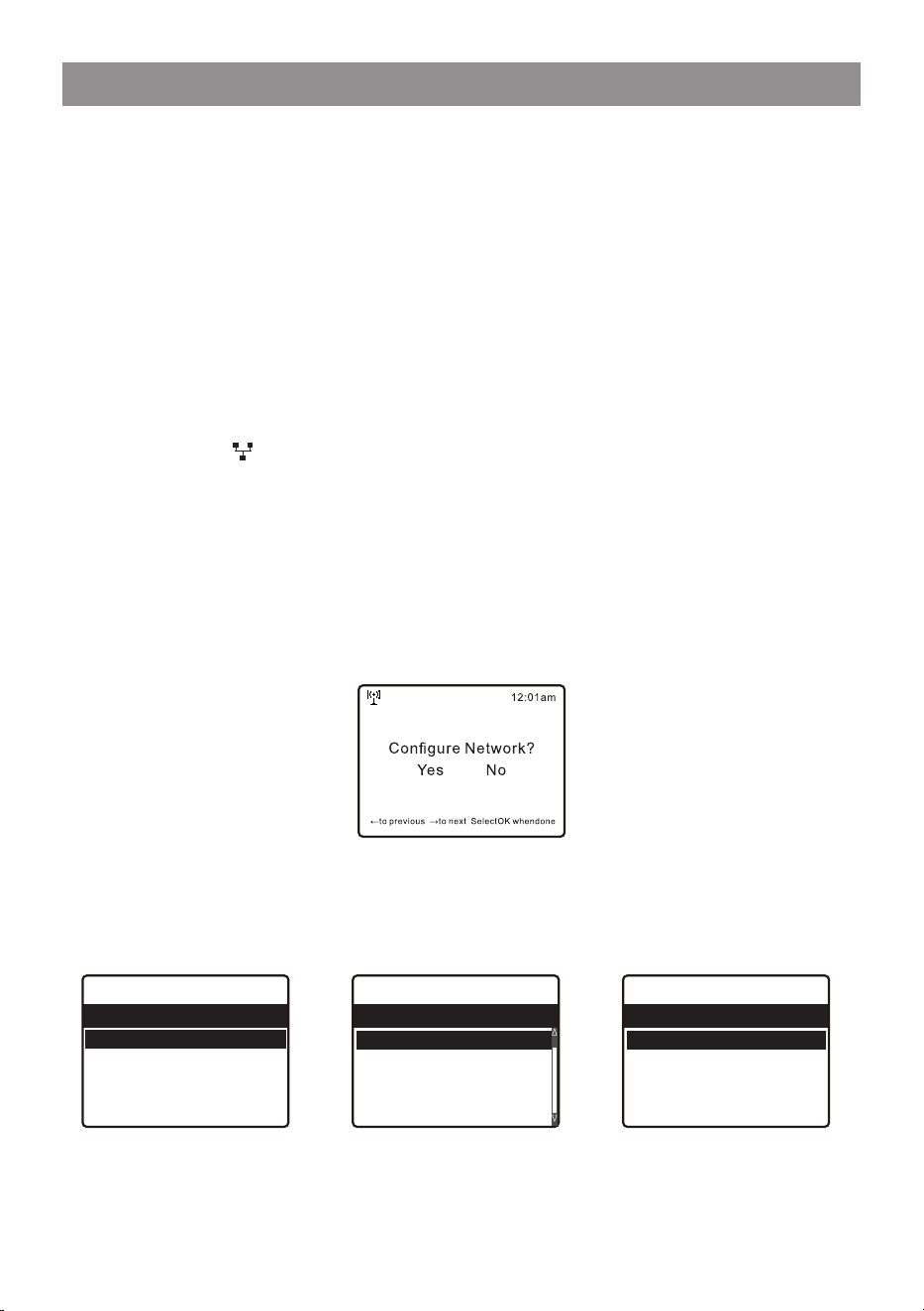
tuner. If this is first time use, the Configure Network wizard will be
displayed. Choose Yes to start configuring network. Rotate the
[TUNE/SELECT] knob to highlight Yes and press [TUNE/SELECT]
to confirm.
Select Network and choose Add wireless network from the list, use
the [TUNE/SELECT] knob to scroll and press it to confirm, then
choose Scan & select:
• It will start scanning the available wireless networks around. Scroll
to your network and confirm the selection. If your wireless network
has a security code protected, it will ask you to enter the
11:23am
Wireless network 1/6
< Add Wireless network >
Remove Wireless network
AP:[DE_AX55]
Signal:-49 dBm
IP: [Dynamic] >
11:23am
Add Wireless network 1/2
< Scan & select >
WPS button
11:23am
Network 1/5
< Wireless network >
LAN network >
Network options >
Wireless channels >
Network connection test >
- 12 -
passphrase/password. Please refer to the above section ‘Entering
security code for your wireless network' on P.10.
Note: The password is case sensitive. Please consult with the one
who setup your network if you don't know the password.
Alternatively, WPS connection is available if your router has a WPS
button (Configuration > Network > Wireless Network > Add wireless
network > WPS button).
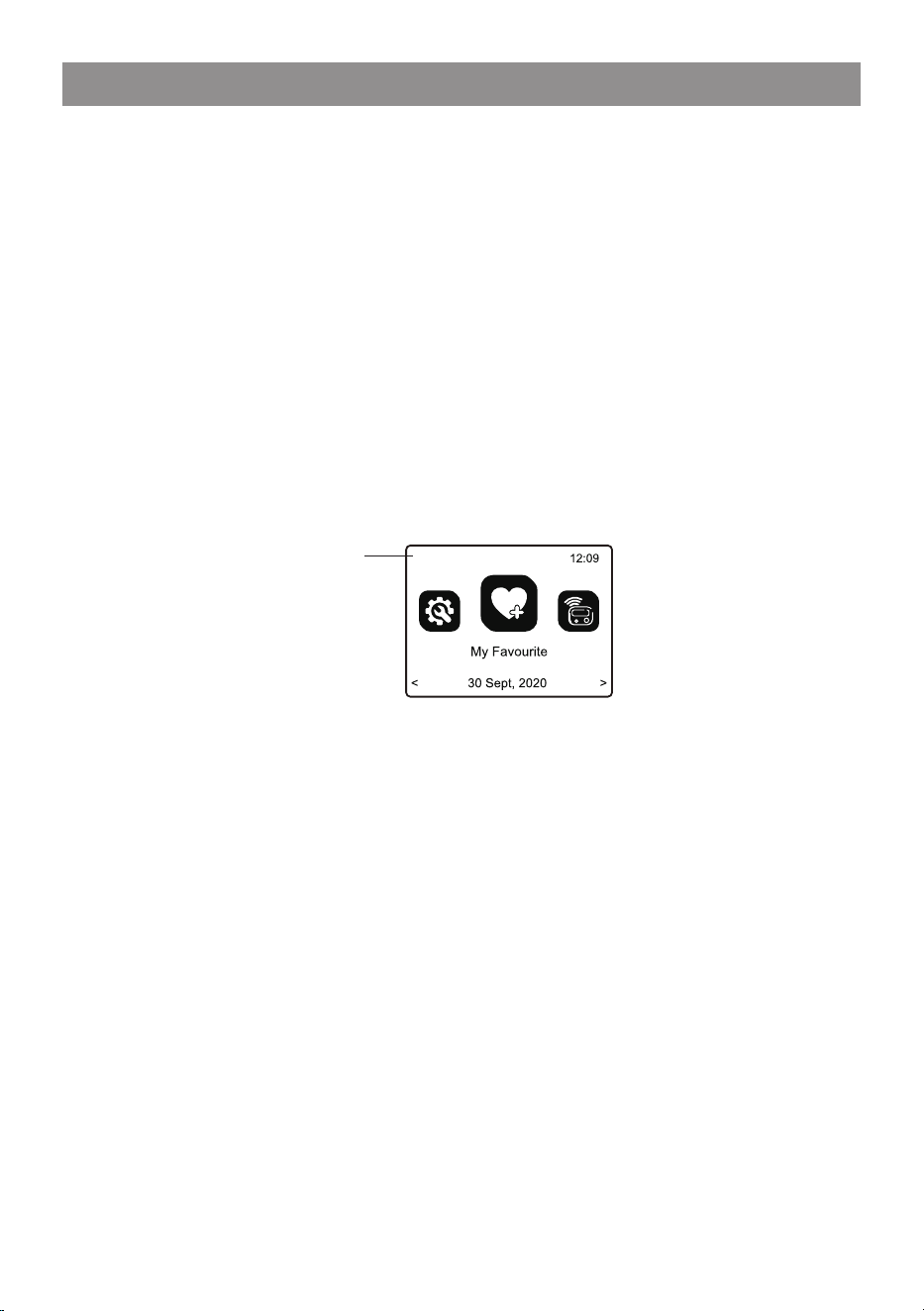
• When the Wi-Fi connection is successful, the Association
Complete will be shown briefly. The wifi signal bar will appear on the
top left corner of the display:
Network Setup
Wi-Fi signal bar
- 13 -
Overview of features and functions
Press [HOME ] to enter the Home screen or the on the remote
control. Scroll by rotating the [TUNE/SELECT] knob or the [ ◄ / ► ]
button on remote:
My Favorite ─ To show the list of favorite stations which have been
assigned to the presets. There are up to 150 presets
available.
Internet Radio ─ Start exploring the worldwide radio stations and
music here.
Media Centre ─ You can browse and stream music from your
network via UPnP or DLNA compatible devices.
USB ─ USB playback, to play audio from USB thumb drive.
DAB+/DAB Radio ─ Pick up DAB+ and DAB radio signal if available
in your local area (no internet connection
required).
FM Radio ─ Receive ordinary FM radio stations in your local area
(no internet connection required).
BT streaming ─ BT playback, to play audio stream (receive) from
another BT enabled device after pairing/connected
each other.
Alarm ─ Alarm clock. Two alarm settings available.
Timer ─ To count down from a specified time with alarm.
Sleep Timer ─ Enable the timer to turn the radio in standby after the
selected time elapsed.
Configuration ─ More options/settings available to personalize as
you desire.
Podcasts ─ A wide range of digital audio programs consisted of a
series of audio episodes.
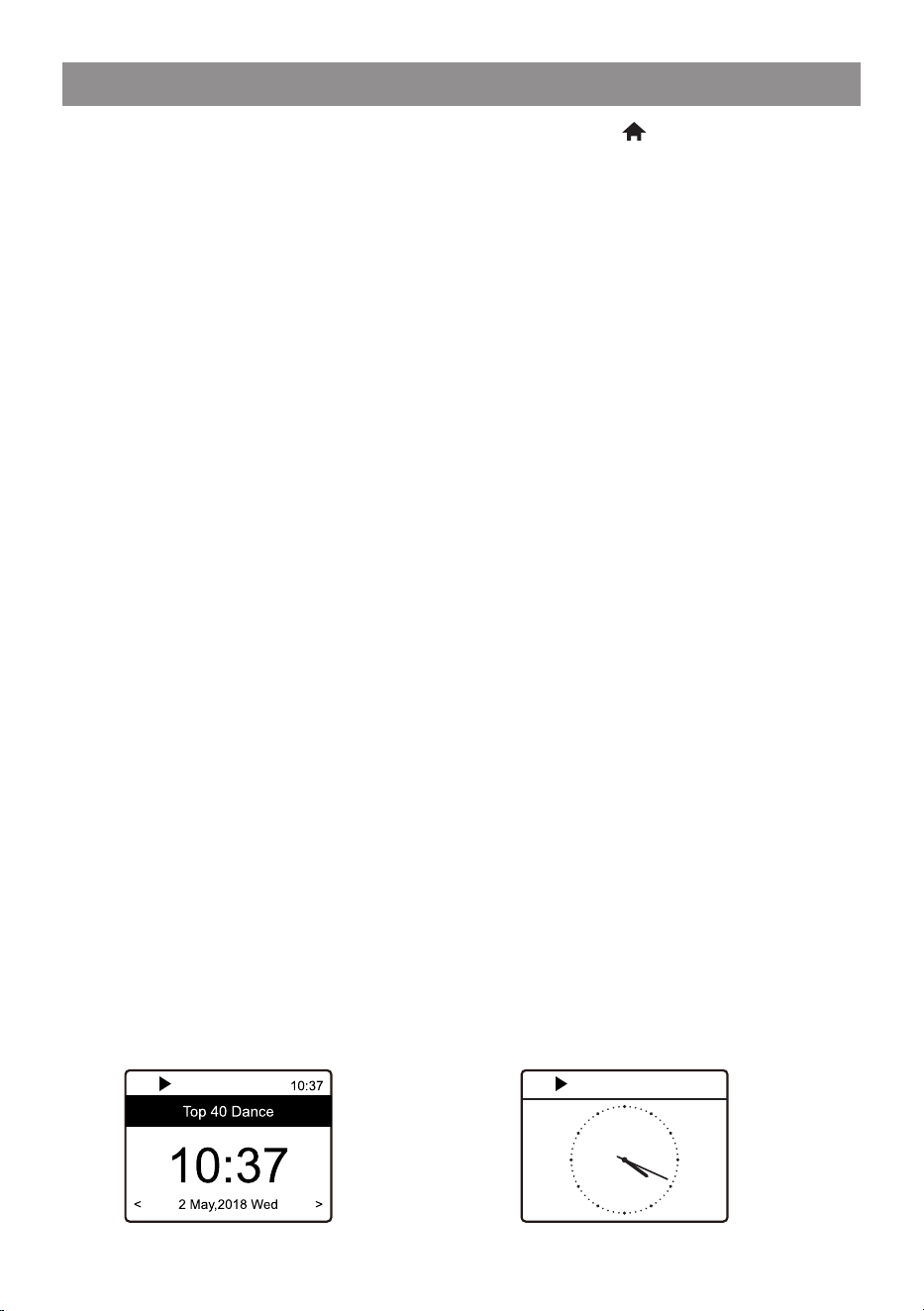
Clock style
Set the clock display in Digital or Analog as you like. Under
Configuration> Date & Time > Set clock style.
Digital style Analog style
History
16 Mon
4:19 pm
- 14 -
Internet Radio
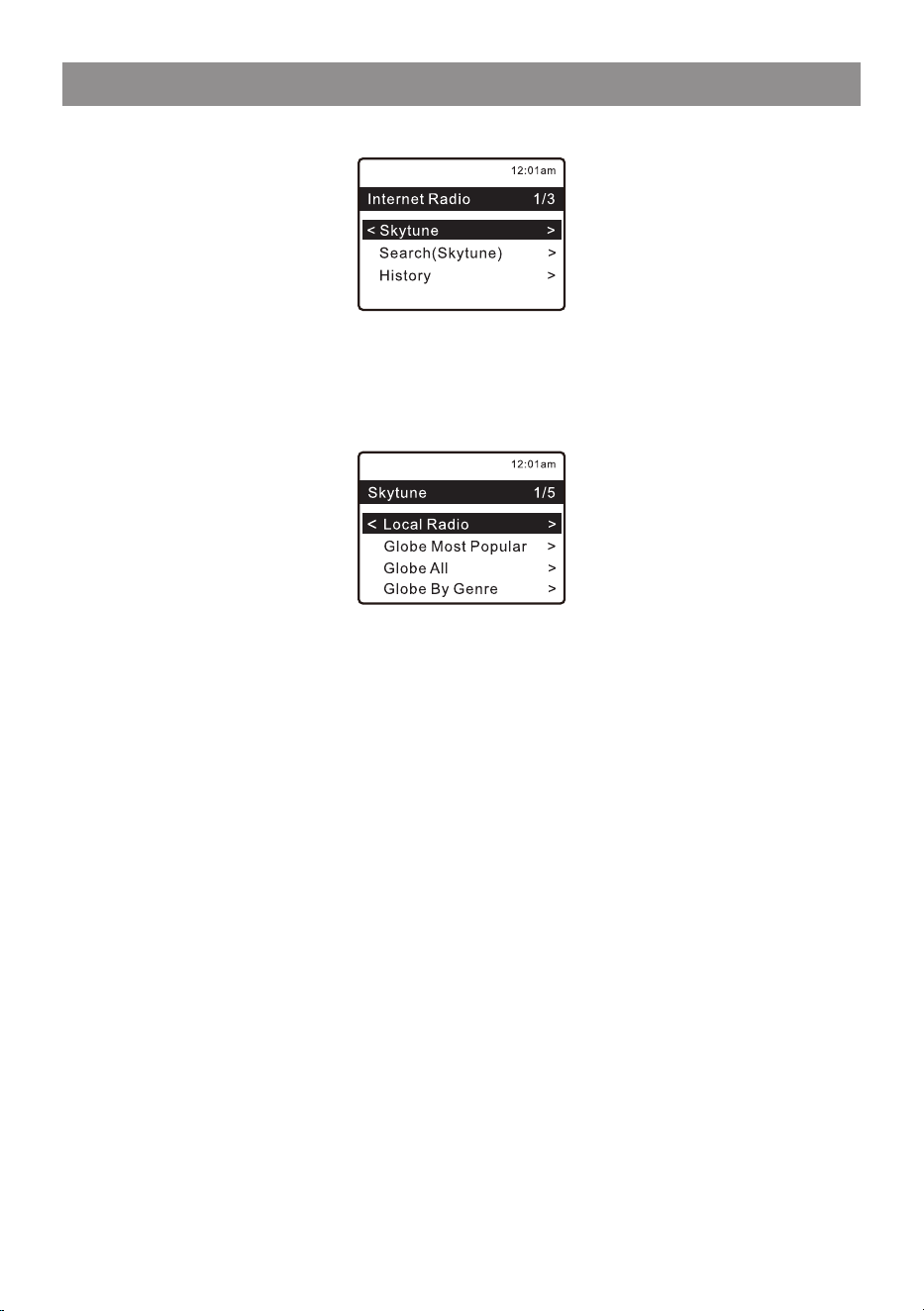
On the Home screen, choose Internet Radio and you will find the
options below:
Skytune
Select Skytune to start enjoying thousands of radio stations over the
world. You can filter your search by Region, Music genre and talks.
The Local Radio let you access quickly the stations available in
your local area through internet connection.
Note ─ You can change the Local Radio area under Configuration>
Local radio setup. Please refer to section for the details.19
Note ─ When you scroll along the list of Globe All and want to
quickly reach to a certain point of the long list, input the index
number on the remote control to quickly jump to that point. For
example, on the remote control, input 2 8 and press OK, it will
highlight the station no. 28.
Search
Instead of browsing the radio station list, you can input a few
characters of the desired station to filter out / short list the stations.
History
The radio memorizes the stations you have listened up to 99
stations.
If you have listened more than 99 stations, it will supersede the first
station that you have listened.
Start playing internet radio
When a radio station starts playing, more station information can be
displayed. Press the [INFO] button in the state of the playback
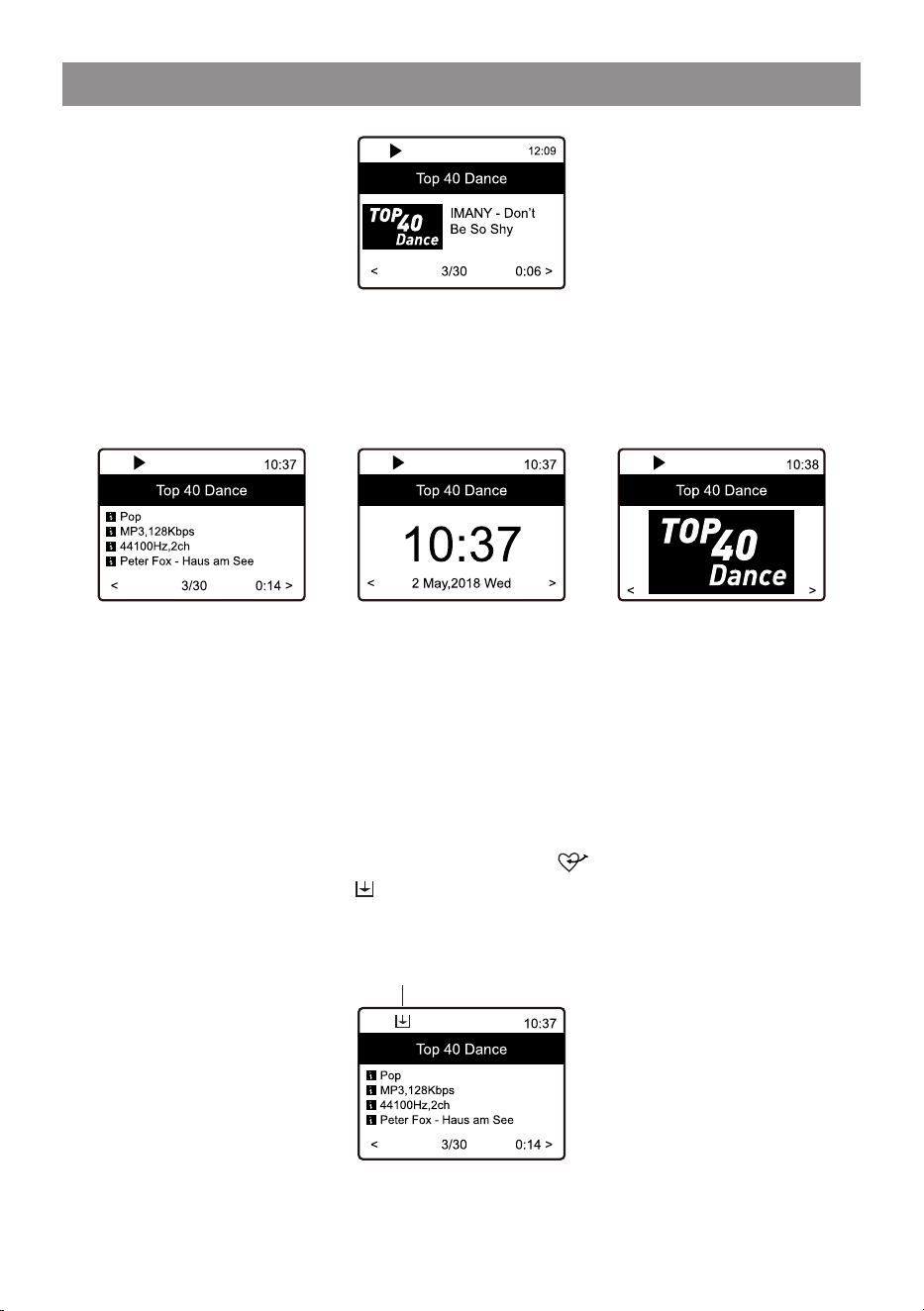
- 15 -
Internet Radio
screen below:
Every time you press the [INFO] button, it will cycle through
information at a time such as the streaming bit rate, name of the
song, artist name (if available), the big time clock and the radio's
station logo (if available) or return to now playing screen:
Press [ HOME ] to return home screen. To go back to the playback
screen, press the [ HOME ] button again.
My Favorite
This is to show the list of your Favorite stations which have been
assigned to the presets.
Preset a station
When a radio station is playing, press the button on the remote
control, you will see the icon appears as below. It means the
station is added to the Favorite list. Alternatively, you can press and
hold the [FAV] button on the Tuner to save to Favorite.
The new added station will always show in the last item on the
Favorite list.
Preset icon
- 16 -
Internet Radio
You can store up to 150 presets.
Recall a station
Press the button on the remote control to recall the list of My
favorite, or navigate to My Favourite on the Home screen and select
it to confirm. On the Tuner, press the [FAV] button to recall the
favorite list.
Dedicated Preset button #1-4
Program the 4 preset button to access the stations you play it most
of time. Press and hold the 1-4 button on the Tuner to preset, press it
briefly to recall.
Note: The 4 dedicated preset stations do not appear on the "My
Favorite" list. To replace it with another station, play the station you
want to replace with, then press and hold the preset number button
on the Tuner.
Create new categories - make your own favorite list
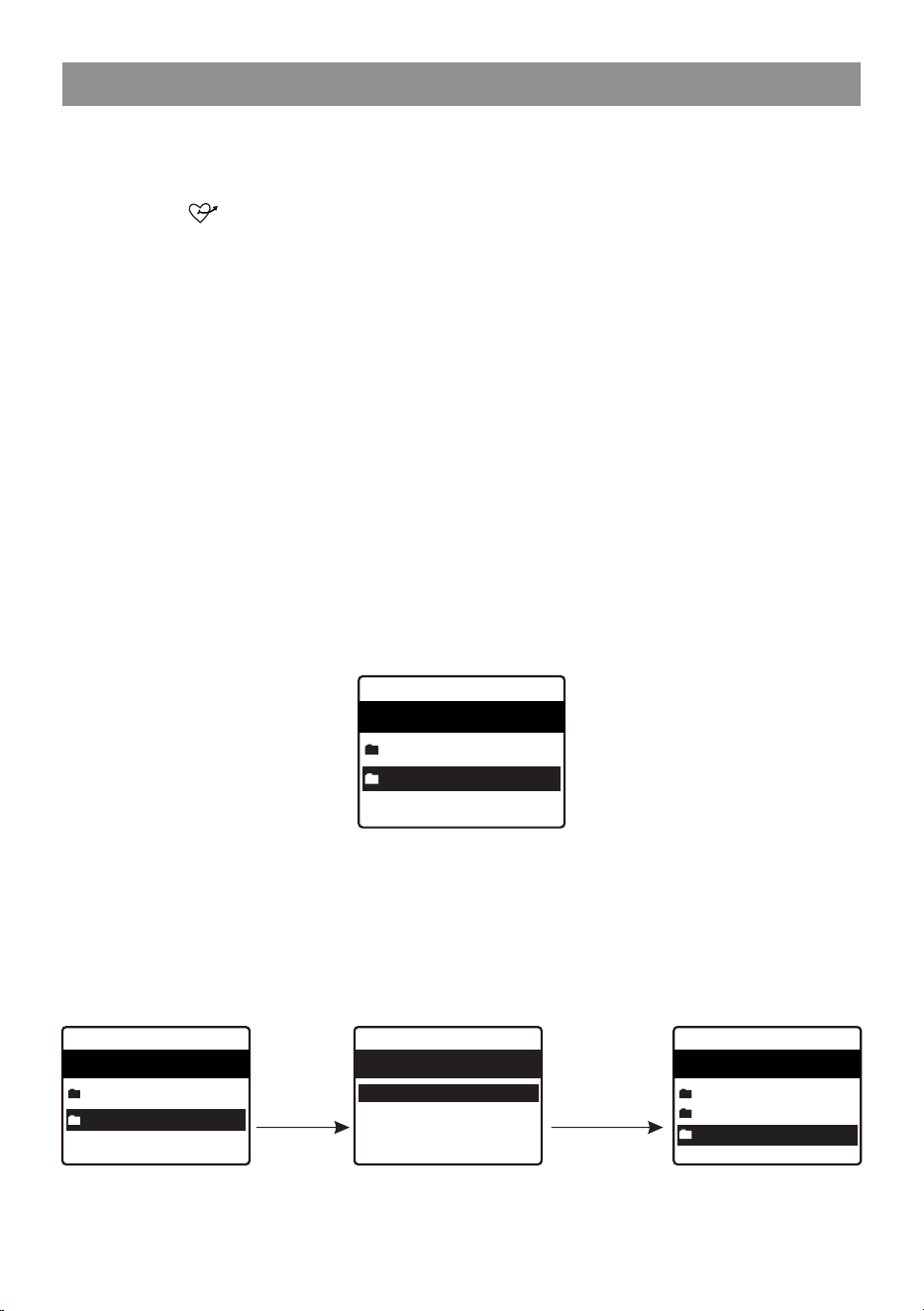
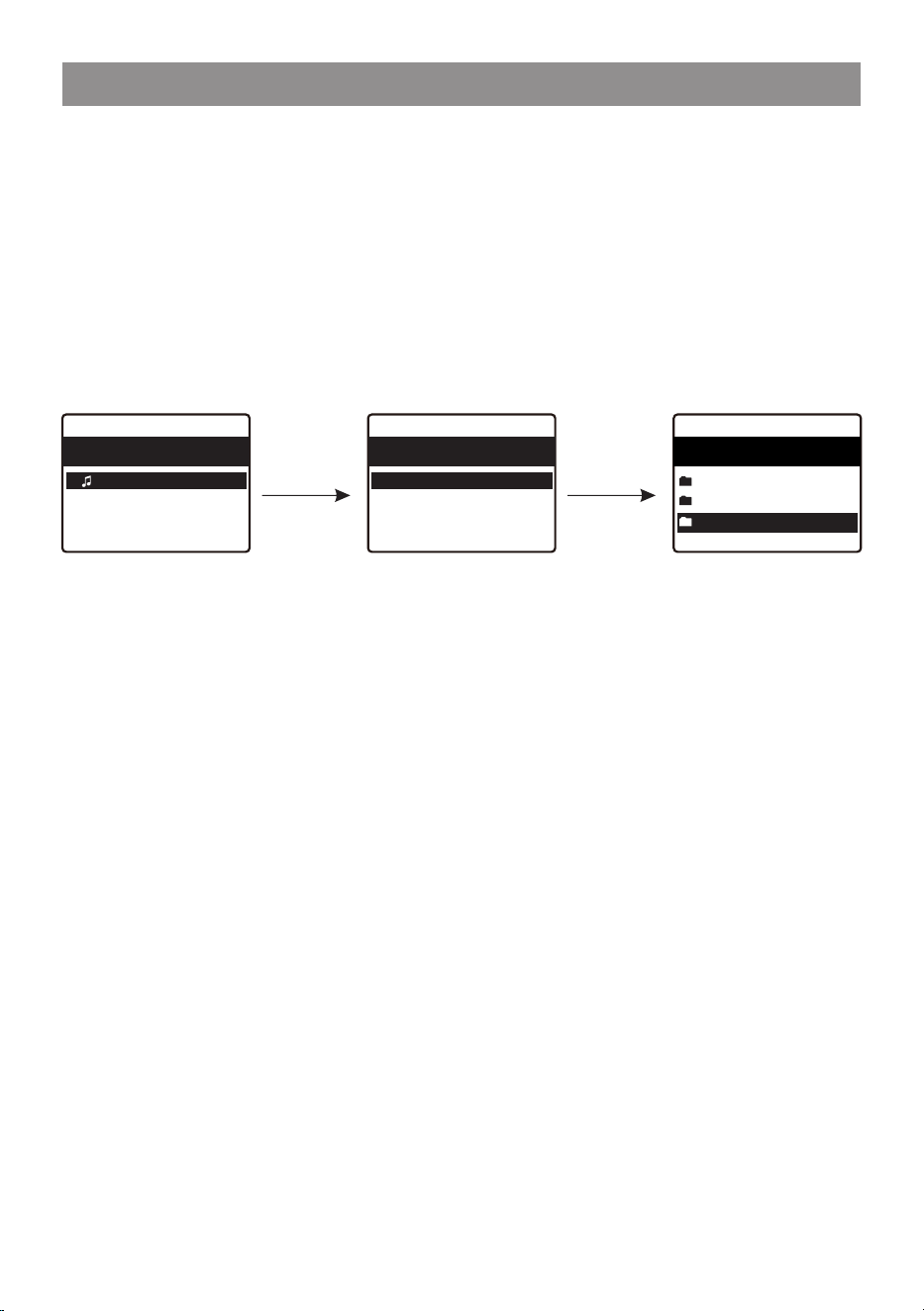
There are two items in the My Favorite list as below, "All Favorites"
and "Uncategorized":
You can create new categories of your favorites and name it as you
like, e.g., "Morning mix", "My Jazz", "After work"...etc to manage
your favorites.
In the page of "My Favorite", press the [ ► ] button, it will enter the
edit menu with "Create Category" as below:
When a category is created (can create more categories as you
like), you can now assign the stations to the category as desired.
My favourite 2/2
11:30am
All favourites 3
Uncategorized 3
Press the
[ ► ] button
Press OK,
enter the name
of category,
e.g. My Jazz
My favourite 2/2
11:30am
All favourites 3
Uncategorized 3
Edit 1/1
12:48am
Create catogory
My favourite 3/3
11:30am
All favourites 3
Uncategorized 3
My Jazz
- 17 -
The "Uncategorized" means the stations which are not assigned to
any categories yet.
To move the stations to the respective category, enter either the "All
Favorites" or "Uncategorized" folder, choose the station from the list
and select "move to category", then highlight the category to move it
to and press OK to confirm.
You can always move the station from one category to the other.
Highlight the station
to move category
press OK to confrim
Choose "Move to category",
it will display the list and
select the one you want to
move it to. e.g., "My Jazz",
then press OK.
The station is now
moved to
"My Jazz" folder.
My favourite 1/3
12:48am
< 101 SMOOTH JAZZ
FM 106.30 MHZ
FM 98.90 MHz
Edit 1/2
12:48am
Move to category
Delete
My favourite 3/3
11:30am
All favourites 3
Uncategorized 2
My Jazz 1
Internet Radio

- 18 -
Media Centre
The device supports UPnP and is DLNA-compatible.
This provides the opportunity to stream music from your network.
However, this requires you to have a compatible device in your
network that can function as a server. This can be e.g., a network
hard drive or a conventional PC with e.g., Windows 8 via which
access to the shared folder or media sharing is permitted. The
folders can then be browsed and played on the Tuner.
Note ─ Please make sure your computer laptop is on the same Wi-Fi
network as the Radio before you start using this function.
Music streaming
• Once the UPnP/DLNA compatible server is configure to share
media files with your radio, you can start music streaming.
• On the main menu, select Media Centre and choose UPnP.
• It may take a few seconds for the radio to complete the scan for
available UPnP servers. If no UPnP servers are found, it will show
Empty List.
• After a successful scan is done, select your UPnP server.
• The radio will show the media categories available from the UPnP
server, e.g. 'Music', 'Playlists' etc.
• Choose the media files that you wish to play.
You can set the mode of playback under Configuration > Playback
setup.
My Playlist
You can make your own playlist for the UPnP music files. Choose
and highlight the song you want to add to playlist, press and hold the
[ FAV ] button or press the button on remote, until the sign
appears. The song will be added to My playlist.
Clear My Playlist
Remove all songs in "My Playlist" to allow a new playlist to be
prepared.
Note ─ If you have DLNA compatible servers available, follow the
steps described above to browse the audio files from DLNA
compatible device on the Tuner to play.

- 19 -
USB Playback
Another option to listen to your favorite music is via the USB thumb
drive. Insert the USB drive to the USB port on the Tuner. Press the
Home button and navigate to "USB" and confirm the selection. It will
take a moment to read the USB drive before it starts playing the
music. To skip the next or previous track by remote control, press the
[ ◄/► ] buttons. On the Tuner, press the [ HOME ] button will pop up
the Hotkey menu to choose more control options.
To pause/play the music, press in the [ TUNE/SELECT ] knob on the
Tuner or on the remote control.
Note:
If a USB thumb drive is not recognized, the list of files on the drive is
corrupted or a file in the list is not played, please connect the USB
drive to a PC, format the device and try again. The supported file
system is FAT16 and FAT32.
A USB drive requires high power (more than 500mA or 5V) is not
supported.
Compatible audio format: MP3, AAC, AAC+
Note:
NTFS and logical drive partitioning are NOT supported.
USB hard drive, HDD or similar are NOT supported.
- 20 -
DAB+/DAB Radio(Digital Audio Broadcasting)
If there is Digital Audio Broadcasting (DAB) in your area, the Tuner
can pick up the DAB stations as well (no internet connection is
required). The Tuner supports both DAB and DAB+.
Connect the wire antenna (supplied in the box) to the antenna jack
on the rear cabinet. Place the Tuner close to the window and extend
the antenna as far as it can go to get the best reception.
On the Home screen (main menu), scroll to DAB Radio or use the
[MODE] button on the remote to switch to DAB Radio and confirm
the selection.
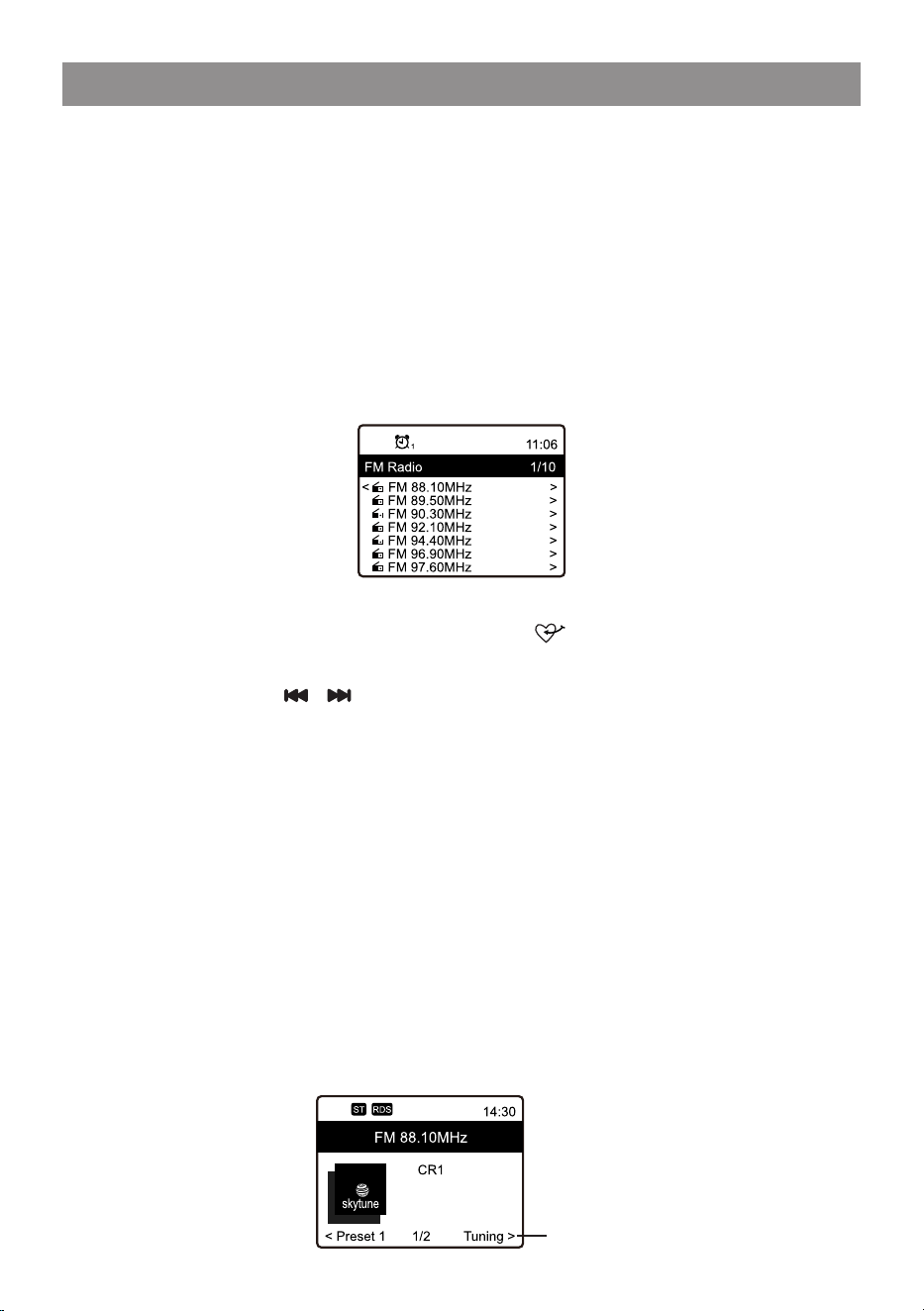
Choose DAB full scan to confirm scanning if this is the first time
using the DAB radio. Confirm to start scanning and it will show the
progress on the number of channels received. When it is done, a
preset page will be displayed for your action.
You can select the channel and start listening to it. Whenever you
want to add to My Favourite, press the button on the remote or
press and hold the [FAV] button on the Tuner, it will add to the
favourite list.
Always press the [ / ] button on the remote to skip to previous
or next preset. Press the [ ◄ ] button (or use the [ TUNE/SELECT ]
knob on the Tuner ) to return to the Preset list.
Note ─ When a DAB radio is playing, press the [ INFO ] button to
view more radio information, each time you press the [ INFO ]
button, it will display various information at a time such as radio
frequency, rolling texts (if available) and big time clock.
New digital radio stations should be picked up automatically by the
Tuner if they are part of a multiplex you already received. Otherwise
you need to do the DAB full scan again.
- 21 -
FM Radio
To receive the ordinary FM stations (no internet connection is
required), connect the wire antenna (supplied in the box) to the
antenna jack on the rear cabinet first.
Place the Tuner close to the window and extend the antenna as far
as it can go to get the best reception.
On the Home screen (main menu), scroll to FM Radio or use the
[MODE] button on remote to switch to FM Radio. Press [OK] to start.
Choose FM full scan to confirm scanning if this is the first time using
the FM radio. When it is done, it will automatically save the found
channels on presets and display the list for your action.
You can select the channel and start listening to it. Whenever you
want to add to My Favourite, press the button and it will add to
the favourite list (or press and hold the FAV button on device).
Always press the [ / ] button on the remote to skip to previous or
next preset. Press the [ ◄ ] button (or the [ TUNE/SELECT ] knob
on the Tuner unit) to return to preset list.
Note ─ When it is playing FM radio, press the [ INFO] button to view
more radio information, each time you press the [ INFO ] button, it
will display various information at a time such as radio frequency
and big clock display.
Manual Tune
To manual tune the frequency, long press the [ OK ] on remote or
long press [ TUNE/SELECT ] on the unit, until you see the "Tuning"
appeared on the display at the bottom right corner. Use the [ ◄/► ]
button on remote to tune the frequency. When done, long press the
[ OK ] button to exit manual tune.
Tuning

- 22 -
BT playback
Before transmission between your BT device and the radio is
possible, both devices must be coupled. This process is called
"pairing". The Tuner is served as a receiver, to receive music stream
to play on the Tuner. Check the BT antenna already installed.
If you have already coupled to a BT device before, this connection
will be restored automatically when both devices are in range and
BT operation has been selected on the radio. "Pairing" does not
have to be repeated. This function may need to be activated in your
BT device, however.
• Push the [ HOME ] button to display the selection menu for the
different operating modes.
• Use the up / down button to select the operating mode BT and push
the dial switch.
• Switch your BT device to which you want to connect the radio on
and activate the pairing mode here. The device scans for BT
devices in the reception range.
• When the radio is found, your BT device shows its name WR-50-
XXXX (the XXXX is an identification code for your radio unit).
• Select the radio at your BT device.
• Start playback on your BT device.
• Playback now takes place using the radio.

- 23 -
Alarm Setting
• Choose Alarm from the main menu or press the button on the
remote control.
• Select either Alarm 1 or Alarm 2, choose Turn on to activate the
Alarm.
• Follow the alarm wizard instructions to set the alarm.
• The wizard will guide you through the settings below:
Time ─ Set the time for the alarm
Sound ─ You can choose Wake to Tone, My Favourite, Wake to
FM Radio or Wake to DAB Radio as the alarm source.
Note ─ Wake to FM or Wake to DAB Radio - only the preset
stations can be used for the radio alarm (if the preset
scan has been completed).
Wake to My Favourite ─ Please preset your favorite station
before setting this as the alarm source.
The Presets in Preset button 1-4 cannot be selected direct
as the alarm source. If you want those 4 presets to become
one of the alarm sounds, add these stations to the "My
Favorite" list by press and hold the [ FAV ] button or the [ ]
button on remote.
Repeat ─ You can schedule the alarm as you desire -Everyday,
Once or multiple days.
Alarm Volume ─ Adjust the volume of the alarm as you like by
rotating the [TUNE/SELECT] knob or [▲/▼]
button on remote.
Alarm duration ─ Set the duration of the alarm from the preset
options ranging from 30 to 180 minutes. The
radio will be turned to standby when the selected
duration of time is due.
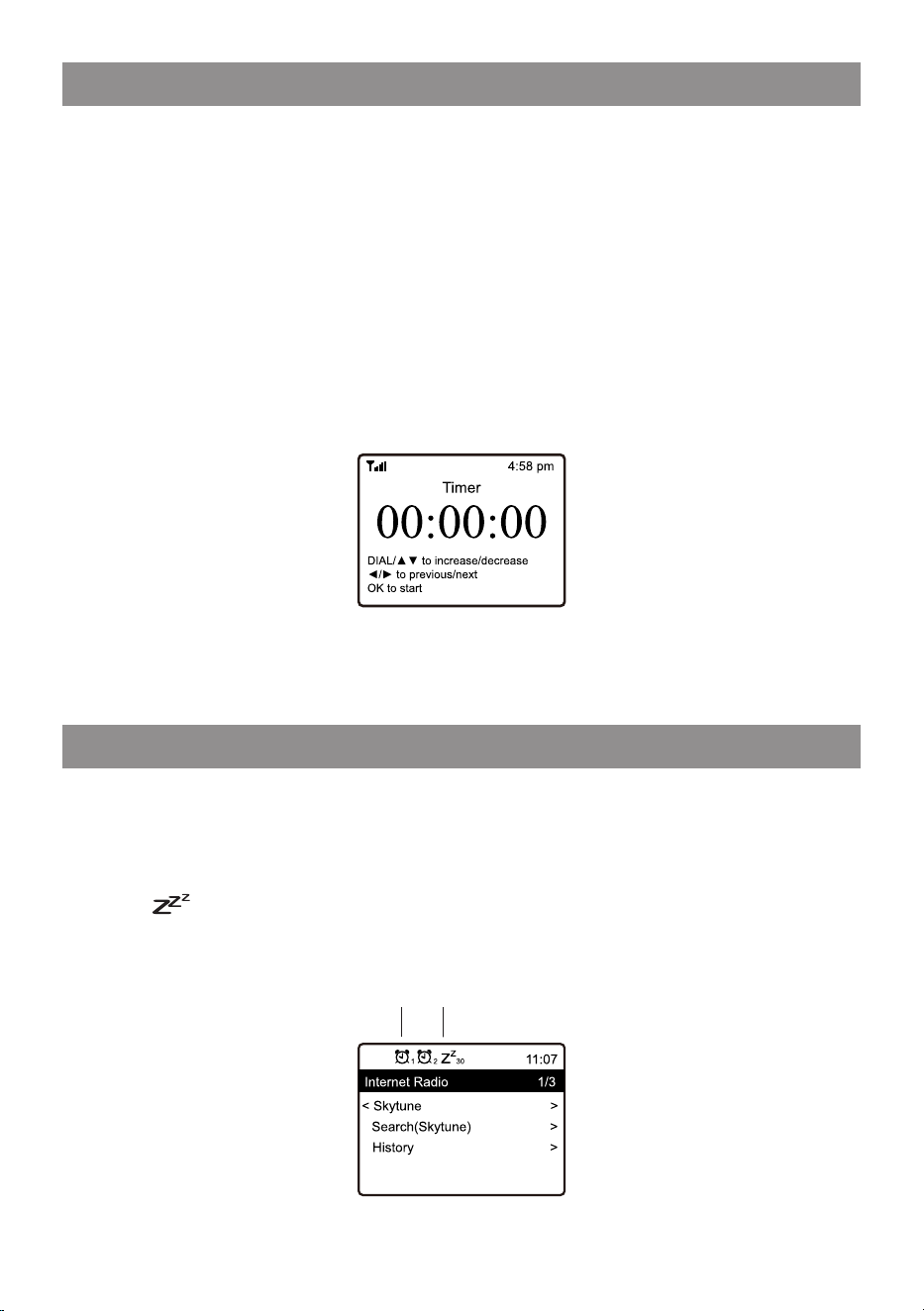
• After the above settings are completed, press the [◄] button to exit
and make sure the Alarm is turned on. You will see the Alarm icon
appeared on the display if it is activated.
- 24 -
Timer Setting
Setting the Timer
The device offers the Timer function as a kitchen timer. The time will
count down from a specified time and ends with a beeping sound.
Timer settings is up to 99 hours, 59 minutes, 59 seconds.
The beeping sound volume and sound duration is adjustable from
the Timer settings in Configuration menu.
Switching off the timer
When the alarm sounds, you can turn it off by pressing the
[TUNE/SELECT] knob on the radio device or [OK] button on the
remote control.
Sleep Timer Setting
You can set the timer to let the radio goes to sleep after the selected
timer elapsed. There are number of preset timer options from 15
minutes to 180 minutes.
Press [ ] button on the remote control to set the timer.
You will see the icon appeared on the display if the timer is set.
Alarm Sleep Timer

- 25 -
Podcasts operation
On the Home screen, select "Podcasts" and press OK to confirm.
You will find the following options:
Listen again ─ You can always add a particular episode to "Listen
again" to repeat on listening or continue the unfinished part.
To save the episode to "Listen again", press the Preset button
on the remote when it's playing. It will be added to the list. To remove
it from Listen again, highlight the episode and press the right arrow
button ► to edit.
Note: The episode will resume to play from where it left off.
Subscribed ─ Subscribe your favourite Podcast for easy access to
listen to the latest episode.
To subscribe a Podcast, highlight the Podcast and press the right
arrow button ► , then select Subscribe.
To remove the subscription, highlight the podcast and press the right
arrow button ► to edit.
History ─ the previous listened episode of the podcasts.
Browse ─ To browse the list of Podcasts available
Search ─ Search the Podcast by keywords
Search history ─ the list of previous search records.
When an episode is playing, you can always skip forward / backward
by "press and hold" the buttons, press these buttons briefly
will skip to next / previous episode.
Press the to pause the playback.

- 26 -
Configuration
Here you will find the complete settings / options available to
configure your own tuner. On the main menu, navigate to
Configuration setting. Press OK and you will see a list of options
available.
Network
• Wireless Network
» Add wireless network
Scan & select ─ It will scan out a list of wireless networks
around.
WPS button─ Choose this option to connect your Wi-Fi router
via WPS if the router has a WPS button.
» Remove wireless network
If you have already set up a network and want to remove it,
choose this option.
Note ─ Always bring the Tuner within 2 meters of the Wi-Fi
router for setup.
» AP: [ ]
If you have added more than one network on the radio and want
to switch to another one, select this option to change.
» Signal
This is to show the strength of the wifi Signal of the wifi router as
received by the radio. Usually signal levels lower than -70dBm
is at weaker level and if it affects the reception of your radio, you
may need to optimize the router location or check any problem
of the router itself.
» IP
The IP is set Dynamic by default. Select to change Fixed IP
according to your network condition.
» DNS
The DNS is set Dynamic by default. Select to change <Fixed>
DNS according to your network condition.

- 27 -
• LAN network
WiFi router using CAT 5 or CAT 6 cable. If your Router or Wi-Fi
router is DHCP-enabled (recommended), you don't have
anything to setup and the radio will connect to Internet with the
parameters automatically assigned by the Router/Wi-Fi router.
Use the remote control for configuration if you want to use a fixed
IP, scroll to IP:[Dynamic] and press OK. Choose Fixed. Press the
▲ button, you can then enter the IP, press ▲, ▼ to tune to the
required numbers: xxx.xxx.xxx.xxx. Switch among the 4 groups
by pressing ◄/► . When done, press OK. Scroll to GW and NM to
do the same.
You can also choose to use a DNS server other than the one from
the DHCP server. Scroll to DNS and do the same.
Note ‒ Use DHCP to get the network parameters unless you are
familiar with network setup.
• Network Options
Always on: The WLAN function remains switched on (faster
access when switching from DAB or FM mode to Internet radio).
Auto off in 15s/30s: The WLAN function shuts down after 15s/30
seconds when not in use (to save energy).
• Wireless Channels
Not all of the Wireless channels are available in every country.
There may be variation between different countries. Therefore it
is necessary to choose the Wireless channels to ensure the Wi-Fi
performs satisfactory.
We have already set the channels according to the requirement in
different countries. Choose the country you are staying from the
list to get the correct channel.
• Network connection test
In case there are any issues in connecting Skytune, select this
option to check out any failed items of the network parameters for
further diagnosis.
Date and Time
The radio will set your local time automatically after the internet
Configuration

- 28 -
connection is completed. If you want to do manual setting, change it
by the following options:
• Time zone
Auto-set Time Zone: This option is set by default.
Manual-set Time Zone: Choose this option if you want to set the
time in another region.
Choose and highlight the region/city you prefer and press OK to
confirm. Coupled with NTP (use network time) and DST (Daylight
time saving) will be adjusted automatically if you choose to use
network time (NTP).
• Set Time Format
Choose either 12-hour or 24-hour notation you prefer.
• Set clock style
You can choose the clock display in digital form or Analog style.
The selected style will apply in Standby as well as the big clock
display in radio playback.
• Set Date Format
• DST (Day Light Saving)
Enable on/off
• NTP (Use network time)
NTP is designed to synchronize a device's clock with a time
server. Your Tuner will synchronize the time server by default
every time it powers up and connects to Internet. This ensures a
very high degree of accuracy in the Tuner's clock. You can
change to use other time server by inputting the URL address
(see below NTP server). You can choose "Do not use network
time" if you don't want it to.
If you choose not to use NTP for clock synchronization, highlight
the NTP (Network time protocal) and press OK to make the
change. You will see the Set Date & Time appeared on the menu.
Select it and adjust the date and time as you desire.
Configuration

- 29 -
Configuration
• NTP Server
NTP is designed to synchronize a device's clock with a time
server. Here it shows the server being used for the tuner.
Language
You can choose other languages as preferred. Scroll with the ▲▼
buttons on remote or [TUNE/SELECT] knob to the item with and
press OK. Scroll to highlight and select your choice of language by a
press of OK button. Multipe languages are available.
DAB set up
• DAB full scan
You can always carry out a new scanning of DAB channels by
selecting this option. All current presets and channels will be
erased.
• DAB station status
This is to show the number of stations and signal received of each
DAB frequency.
• DAB station list
The scanned DAB stations will be listed here for management. You
can move the position or even delete any station. Scroll to the
station and press [ ► ] button. A pop up window will be presented:
Move up, Move down and Delete.
FM Setup
• Scan setting
Either "All stations" or "strong stations" (with stronger signal) can be
selected for the scan.
• Audio setting
If the signal is weak and stable stereo reception is not possible,
select "Forced Mono" to get better reception.
• FM full scan
You can always carry out a new scanning of FM channels by
selecting this option. All current presets and channels will be

- 30 -
erased. The radio at the lowest frequency of the scanned values will
be highlighted. The preset list will be saved unless a new preset
scan is carried out.
• FM station list
You can adjust the preset ranking by Move down, Move up or Delete
it. Highlight one of the preset and press the [ ► ] button (or [ ► ] on
the unit), it will enter into the Edit menu.
Always press the [ ◄ ] button (or [◄•BACK ] on the unit) to return to
the Preset list.
Local Radio
The radio is set by default to detect the radio stations in your local
area automatically through internet connection and these stations
can be accessed in the "Local Radio" under Skytune menu. You can
also set Local in another region if you want. Highlight the Local
Radio and press OK. Choose Manual-set Local radio to change the
region setting.
Playback Setup
This is to set the mode of playback under UPnP/DLNA compatible
streaming: Repeat All, Repeat Once or Shuffle.
Power-On Options
This is to select the state of the radio after a power reset / power cut,
or the next power up from Standby. There are 3 options available:
─ Go to Standby
─ Resume once ready: the radio will resume playing the last
listened station.
─ Ready to use: the radio will stay in Home screen without action.
Auto Power Save
If the radio is not playing, it will turn off automatically after 30
minutes to save power. You can also choose to turn off after 15
minutes (if the radio is powered by battery, it will automatically
power off, if it is powered by mains adapter, it will automatically
stand by).
Configuration

- 31 -
Configuration
Dimmer
You can set the backlight level for the display as you prefer.
There are two settings: Mode and Level
• Mode ─ Normal or Power Saving
Normal ─ the display will stay with the same level of brightness all
the time without dim down.
Dim ─ the display will dim down after 20 seconds if no operation is
made on the radio.
• Level ─ Bright and Dim
Bright ─ This is to adjust the level of brightness in Normal mode.
Dim ─ This is to adjust the level of brightness in Dim mode.
• Dimmer in Standby
The highest backlight level in standby is set by system default. To
further reduce the backlight or turn it completely off, adjust it by
turning [TUNE/SELECT ] knob anti-clockwise on the tuner or press
the ▼ button on remote. Increasing the backlight beyond the
system level will illuminate for 20 seconds and then dim to default
setting automatically.
EQ(Equaliser)
Various music genres can be set.
Buffer Time
Sometimes you may experience uneven playback of the internet
radio. This can happen if the internet connection is slow or network
congestion occurs. To help improving the situation, you can choose
longer buffer time to get a few seconds of radio stream before
beginning to play.
The default value is 2 seconds. You can choose 5 seconds if you
prefer to have a longer buffering time.
Line/Digital out
The volume control on the Tuner can only adjust the volume from the
headphone. If you would like to control the volume over the external
speakers as well, choose this option and select "Follow headphone".
The volume adjustment will apply on both the headphone and the

- 32 -
Configuration
external speakers the same time.
Timer
This is to set the alarm sound volume and the duration for the Timer
function.
Network information
View the network signal and other parameters.To access quickly to
this information, press the [ ] button on the remote control.
When you use your PC to manage the My favorite stations, you have
to use the IP address and you can view this info from here. Then type
in the IP address ( Configuration > Network Information > IP ) to your
PC's browser input window.
System information
The model number, system MID and software version (App version)
can be found here.
Software Update
There may be software release to upgrade features of the radio from
time to time. Check the update regularly to keep your radio up to
date with the latest software.
Reset to Default
You can do the reset to clear all the settings and return to default
settings.
**Please note all the Station presets, Settings and configuration will
be erased after you have performed the Reset.
- 33 -
Web browser control via PC / Smart phone
─ Tuning internet radio & manage favourite
Experience an easy way to control tuning internet radio channels
and manage your favourite list via PC or Smart phone's web
browser.
The supported browsers are Internet Explorer and Chrome. Have
the radio stayed on Internet radio mode when using this feature.
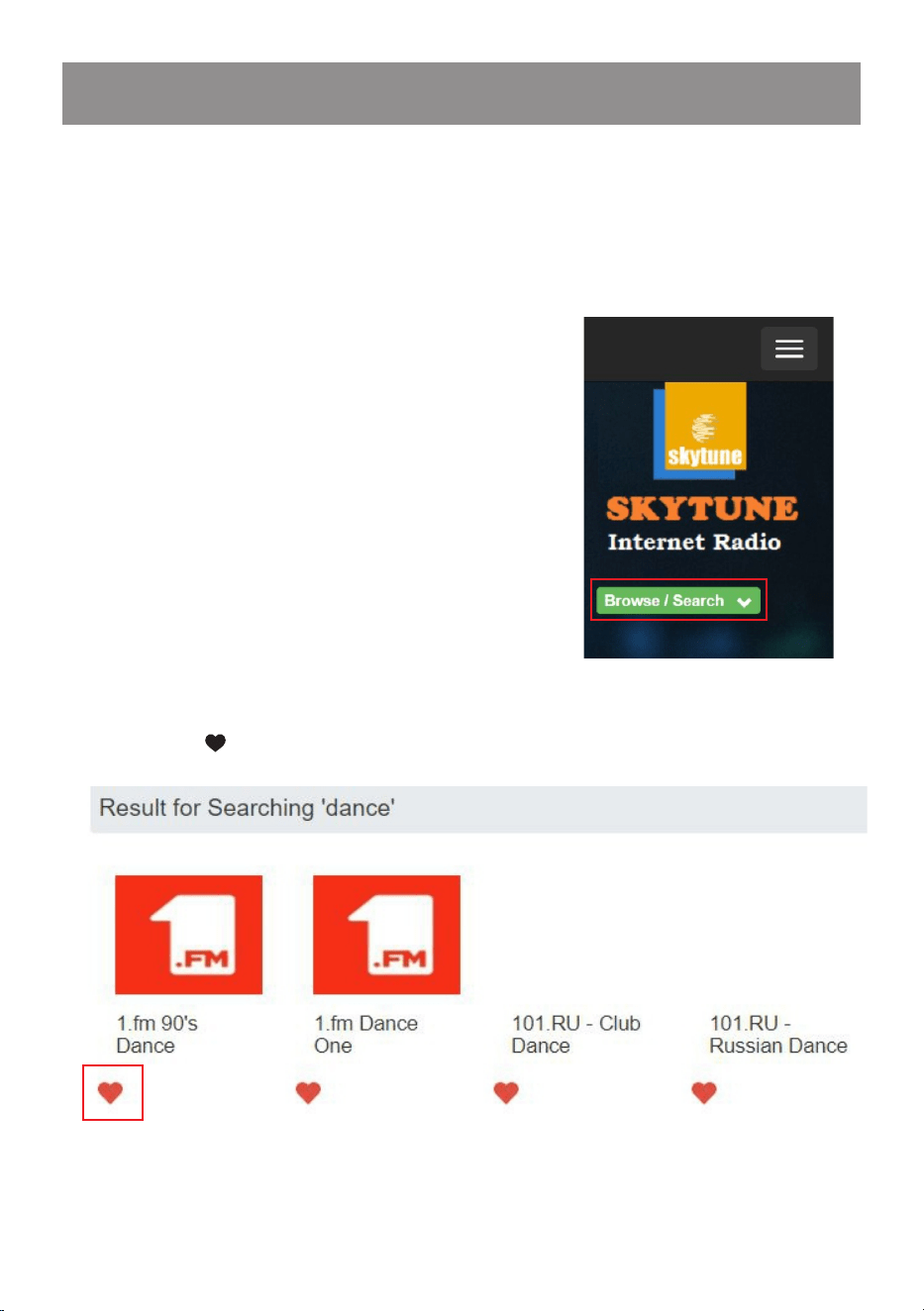
- Connect your PC or Smart phone to the same Wi-Fi network as
your radio.
- Visit www.skytune.net
- On the home page, click “Browse/Search”
- Browse or enter the name to search the radio channel, a list of
internet radio channels will be displayed.
- Click the “ ”symbol
- 34 -
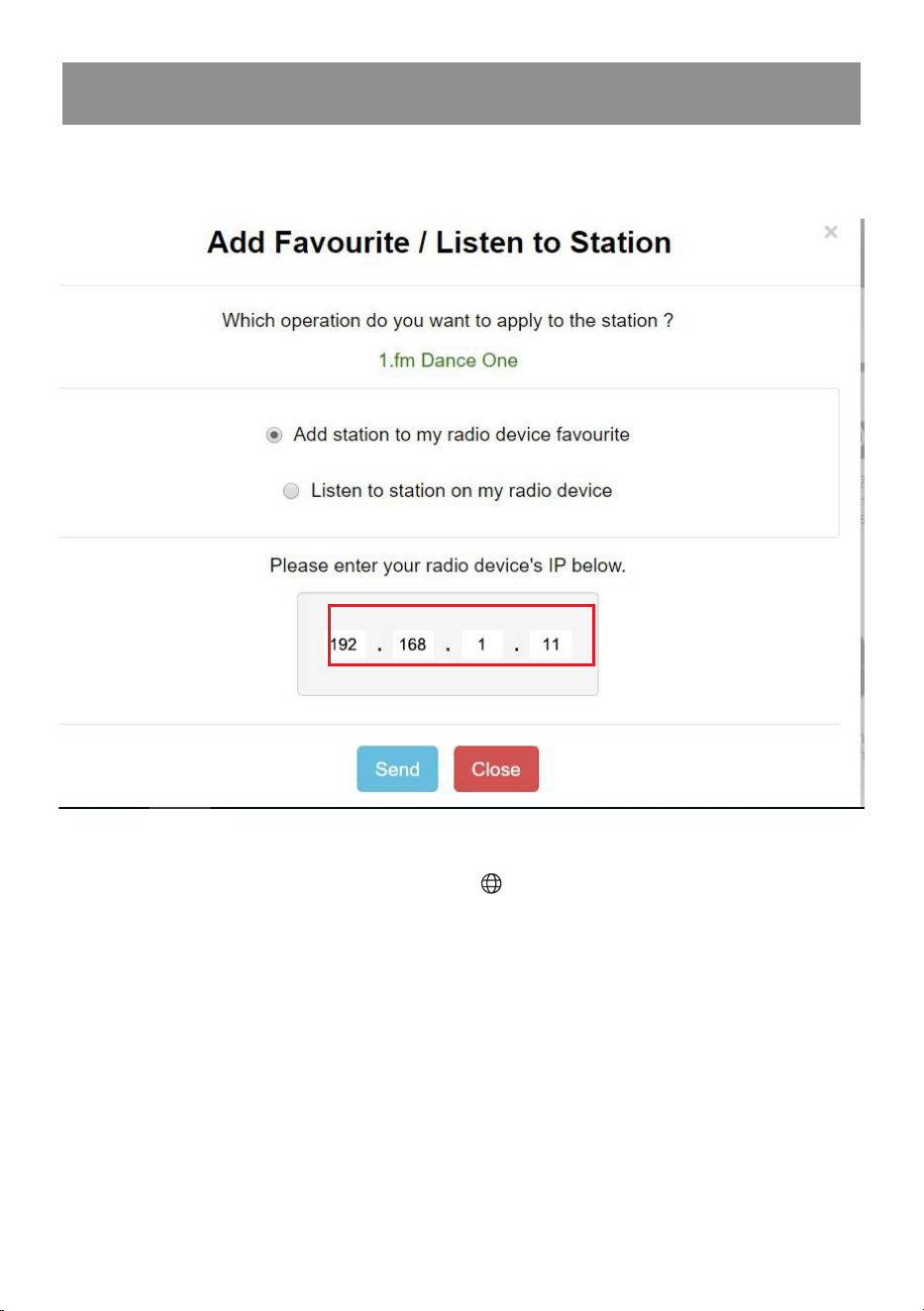
- It will prompt you whether to "Add Favourite" or "Listen to Station".
Enter the IP address of your radio (e.g. 192.168.1.11):
The IP address can be located on the radio unit as follow:
* On the remote control, press the [ ] button, scroll to IP to view
the IP address
* On the radio, return to the Home menu. Navigate to Configuration
> Network Information > IP
- Select "Listen to Station", click "Send" and the radio unit will switch
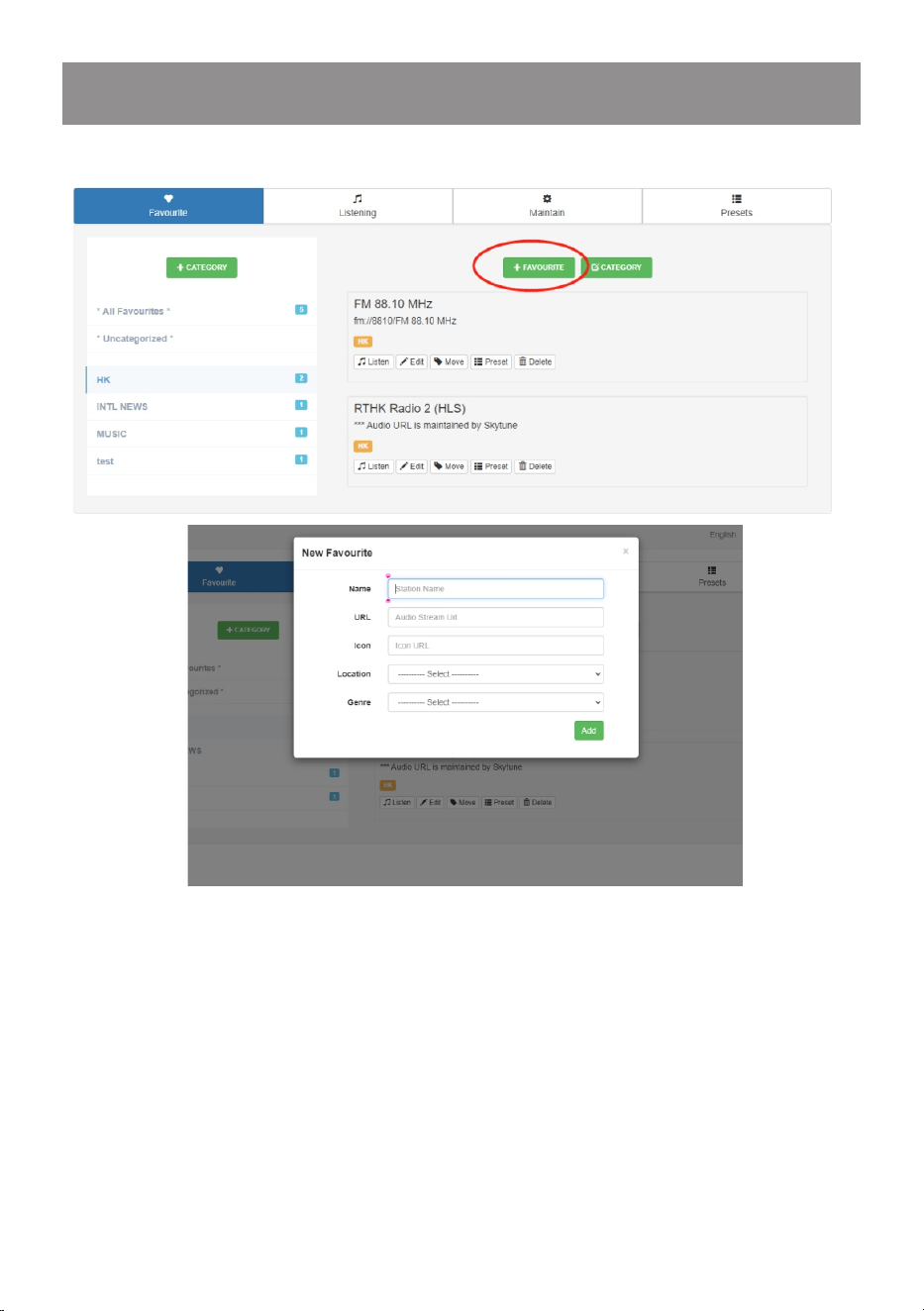
playing the channel and the "My Favourite" page will pop up on the
web browser.
You can then choose to add the playing station to favourite or
manage your list by other edit options. Any changes will synchronize
to the radio unit immediately.
Web browser control via PC / Smart phone
─ Tuning internet radio & manage favourite
- 35 -
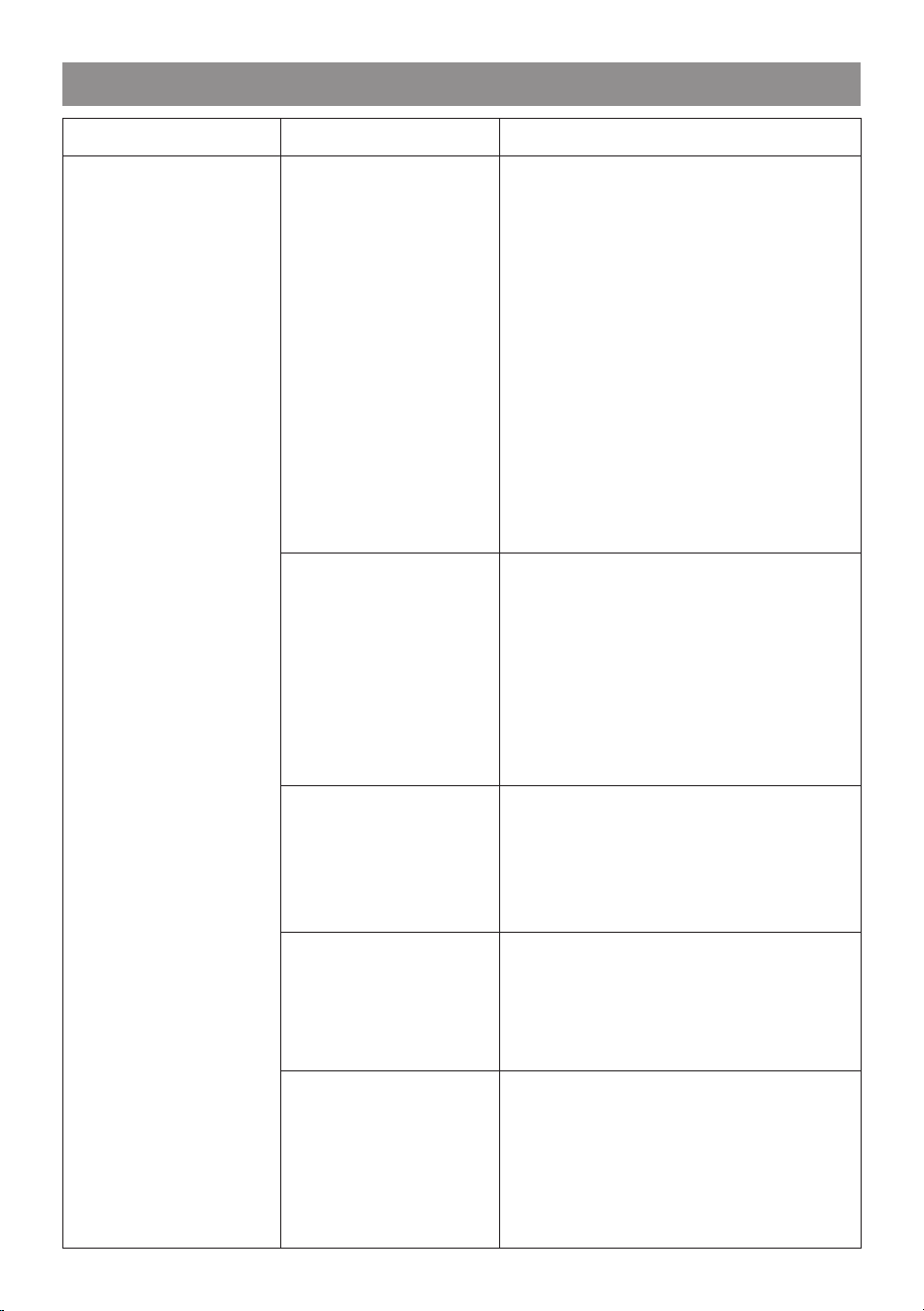
You can also add the radio channel if you know the published audio
stream URL with the streaming format as follow:
1. Audio formats: MP3, AAC, AAC+
2. Stream formats: Shoutcast, Icecast (HTTP, HTTPS) and HLS
3. Playlist formats: PLS, M3U
4. Sampling frequency: 44.1 KHz and 48 KHz
Web browser control via PC / Smart phone
─ Tuning internet radio & manage favourite
- 36 -
Trouble Shooting
Problem
Cause Solutions
Cannot connect
to Wi-Fi network
Network down
• Confirm that a Wi-Fi or
Ethernet Wired connected PC
can access the internet (i.e.
can browse the web) using the
same network.
• Check that a DHCP server is
available, or that you have
configured a static IP address
on the radio.
• Check that you firewall is not
blocking any outgoing ports.
As a minimum the radio needs
access to UDP and TCP ports
80,443 and 8008, DNS port
53.
Router restricts
access to listed
MAC addresses
Obtain the MAC address from
Configuration > Information >
Network > Wi-Fi MAC and add
to the allowed equipment list on
your access point.
Note: The radio has separate
MAC addresses for wired and
wireless networks
Insufficient Wi-Fi
signal strength
• Check distance to router; see
if a computer can connect to
the network in this location
• Optimize the distance of the
router’s location
Unknown
encryption method
Change encryption method on
router.
The radio supports WEP, WPA,
WPA2
Firewall
preventing access
• Disable the fire wall to see if
radio can connect to the
network.
• Windows Media Player: varies
non Microsoft firewalls may
require configuration for UPnP.
- 37 -
Problem
Cause Solutions
Trouble Shooting
If your radio can
connect to the
network
successfully,
but is unable to
play particular
stations
• The station is not broadcasting
at this time of the day (remember
it may be located in a different
time zone).
• The station has too many people
trying to attach to the radio
station server and the server
capacity is not large enough.
• The station has reached the
maximum allowed number of
simultaneous listeners.
• The update of the link is done
regularly. To get the updated list
of stations, please access from
Internet radio > Skytune. If case
a particular stream is still not
working, please contact us or
Skytune to report the case.
If your radio can
connect to the
network
successfully,
but is unable to
play particular
stations
• The station is not broadcasting
at this time of the day (remember
it may be located in a different
time zone).
• The station has too many people
trying to attach to the radio
station server and the server
capacity is not large enough.
• The station has reached the
maximum allowed number of
simultaneous listeners.
• The update of the link is done
regularly. To get the updated list
of stations, please access from
Internet radio > Skytune. If case
a particular stream is still not
working, please contact us or
Skytune to report the case.
No DAB/FM
reception
• Please carry out “Factory Reset”
on the radio and extend the
antenna.
• Move the radio close to the
window.
- 38 -
Problem
Cause Solutions
Trouble Shooting
DAB/FM Radio
reception is poor
• Please check that the aerial is
extended for the maximum
signal strength and improved
reception.
• Check that you do not have
other electrical equipment too
close to your radio, causing
interference.
No sound
• Please check if the playback is
stopped. Press the OK button
on the remote to resume
playback.
• Adjust the volume
• Check if other radio stations
have the same problem or just
happened on a particular
station.
If external speaker is connected
to the line out jack:
• Adjust the volume level of the
external powered speaker.
• Please check if the power of
the external powered speaker
is switched on.

- 39 -
Helpful Tips
1. If the Internet Radio keeps re-buffering radio station:
The Internet Radio is streaming the data from the radio station via
your broadband connection, if there is a high error rate on your
broadband connection, or the connection is intermittent, then it will
cause the Internet Radio to pause until the connection is re-
established and it has received enough data to start playing again. If
your Internet Radio keeps stopping, please check the DSL modem to
ensure that the Broadband line is not suffering a high error rate or
disconnections. If you are experiencing these problems, you will
need to contact your broadband supplier.
2. What is Buffering?
When playing a stream, the Internet Radio/Media player, downloads
a small amount of the stream before it starts playing. This is used to
fill in any gaps in the stream that may occur if the internet or the
wireless network is busy. The Internet Radio streams music data
from the PC while you are listening. If a stream gets blocked or
experiences Internet congestion while transferring it may
stop/interfere with the quality of play. If this happens, check your
internet connection speed- it must be faster than the speed of the
streams.
3. My Tuner is working but some stations cannot be played.
The problem may be due to one or more of the followings:
a. The radio station is no longer broadcasting.
b. The radio station has reached the maximum allowed number of
simultaneous listeners.
c. The radio station has changed the stream arrangement and the
link is no longer valid.
d. The radio station is not broadcasting at the time of the day (not all
stations are broadcasting 24 hours throughout the day).
e. The Internet connection between your Tuner and the radio station
server is too slow or unstable to support the data rate of the
broadcast.
- 40 -
Technical Specification
Model
Power input
Power voltage
Wireless Network
Wireless network
frequency
Security Protocol
WR-50
5V 1A
100-240V~50/60Hz
IEEE802.11b/g/n
2.4 GHz
WEP/WPA/WPA2
BT version
BT frequency
BT range
DAB frequency
range
V5.0
2.4 GHz
10 meters (line of sight)
174.928MHz (5A) - 239.200MHz (13F)
Support DAB and DAB+
FM frequency range
87.5-108MHz
Audio output
Stereo earphone jack 3.5 mm
Stereo line out
Optical (Toslink) and co-axial digital out
(SPDIF)
Audio input
USB thumb drive
Wire antenna jack
External antenna x 2
5dBi
Unit Dimension
430 x 48 x 243mm(L x H x D)
Remark: Specification may vary without notice
Ethernet connection
(LAN)
10 Mbps RJ45
- 41 -
In the box
• Internet Radio Tuner
• Power adaptor
• Wire antenna
• External antenna x 2 pcs
• RCA cable
• Remote control (without batteries)
• User manual
WEEE and Recycling
The European laws do not allow any more the disposal of old or
defective electric or electronic devices with the household waste.
Return your product to a municipal collection point for recycling to
dispose of it. This system is financed by the industry and ensures
environmentally responsible disposal and the recycling of
valuable raw materials.
Ocean Digital Technology Ltd.
Flat B, 12/F., Yeung Yiu Chung (No.8) Ind. Bldg.,
20 Wang Hoi Road, Kowloon Bay, Hong Kong
Email: support@oceandigital.com.hk

- 42 -
This equipment has been tested and found to comply with the limits
for a Class B digital device, pursuant to part 15 of the FCC Rules.
These limits are designed to provide reasonable protection against
harmful interference in a residential installation. This equipment
generates, uses and can radiate radio frequency energy and, if not
installed and used in accordance with the instructions, may cause
harmful interference to radio communications. However, there is no
guarantee that interference will not occur in a particular installation.
If this equipment does cause harmful interference to radio or
television reception, which can be determined by turning the
equipment off and on, the user is encouraged to try to correct the
interference by one or more of the following measures:
• Reorient or relocate the receiving antenna.
• Increase the separation between the equipment and receiver.
• Connect the equipment into an outlet on a circuit different from that
to which the receiver is connected.
• Consult the dealer or an experienced radio/TV technician for help.
Caution: Any changes or modifications to this device not explicitly
approved by manufacturer could void your authority to operate this
equipment.
This device complies with part 15 of the FCC Rules. Operation is
subject to the following two conditions: (1) This device may not
cause harmful interference, and (2) this device must accept any
interference received, including interference that may cause
undesired operation.
RF Exposure Information
The device has been evaluated to meet general RF exposure
requirement. The device can be used in portable exposure
condition without restriction.
FCC