Quick Start
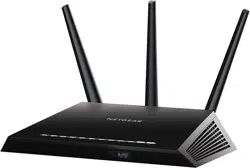
Nighthawk X10
AD7200 Smart WiFi Router
Model R9000
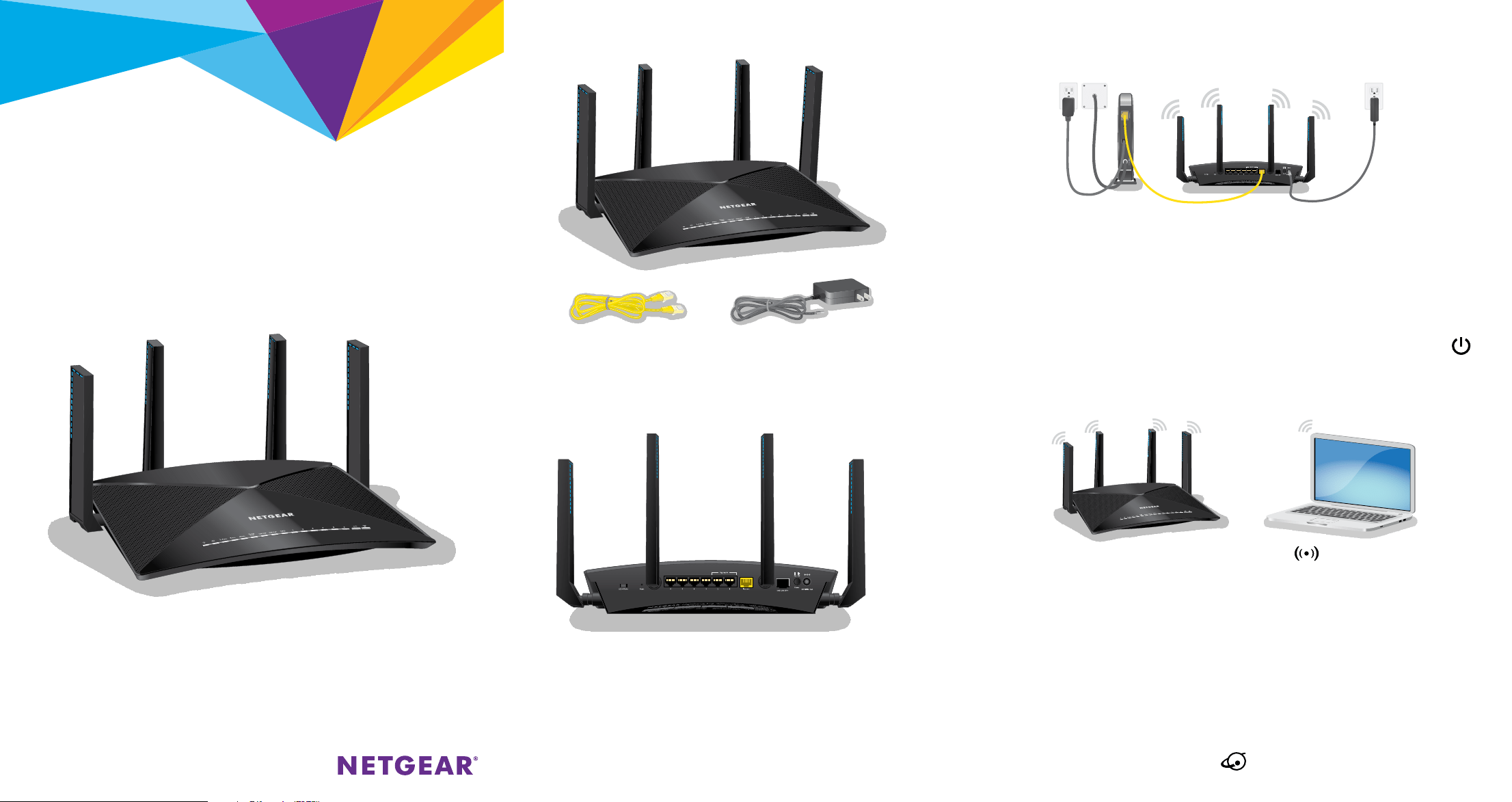
Unplug your modem, remove and replace the backup battery if it
uses one, and then plug the modem back in. Use the Ethernet cable
to connect the modem to the yellow Internet port on the router.
Note: If your Internet connection does not require a modem,
connect your main Ethernet cable to the yellow Internet port on the
router.
Connect the router to a power source. The router’s Power LED
lights solid white when the router is ready.
Make sure that the router’s WiFi LED
is lit. Look on the router
label for the preassigned WiFi network name (SSID) and network
key (password).
Open the WiFi connection manager on your WiFi‑enabled computer
or mobile device, find the router’s SSID, and use the router’s
password to connect to the router’s WiFi network.
Launch a web browser. If the installation assistant does not display,
visit www.routerlogin.net. If a login window displays, enter admin
for the admin user name and password for the admin password.
Follow the onscreen instructions to connect to the Internet.
The router’s Internet LED
lights white when the router is
connected to the Internet.
For the best WiFi performance, position the antennas as shown.
Package Contents
Router
Power adapter
(varies by region)
Ethernet cable
2. Restart Your Modem and
Plug In Your Router
3. Connect to the Internet1. Position the Antennas
Get Free Apps
Start enjoying your new router right away with free apps that make
management simple.
Visit netgear.com/support/product/R9000 to download the apps.
NETGEAR genie®. Personal dashboard to monitor, control,
and repair your home network. Includes remote access to
manage your network away from home.
ReadySHARE® Vault. Free software for automatic backup of
a Windows computer to a USB hard drive connected to the
router.
ReadyCLOUD®. Enjoy personal and secure cloud access to
USB storage anytime, anywhere.
Support
Thank you for purchasing this NETGEAR product. You can visit
www.netgear.com/support to register your product, get help, access
the latest downloads and user manuals, and join our community. We
recommend that you use only official NETGEAR support resources.
For the current EU Declaration of Conformity, visit
http://support.netgear.com/app/answers/detail/a_id/11621/.
For regulatory compliance information, visit
http://www.netgear.com/about/regulatory/.
See the regulatory compliance document before connecting the power
supply.
All Set Up!
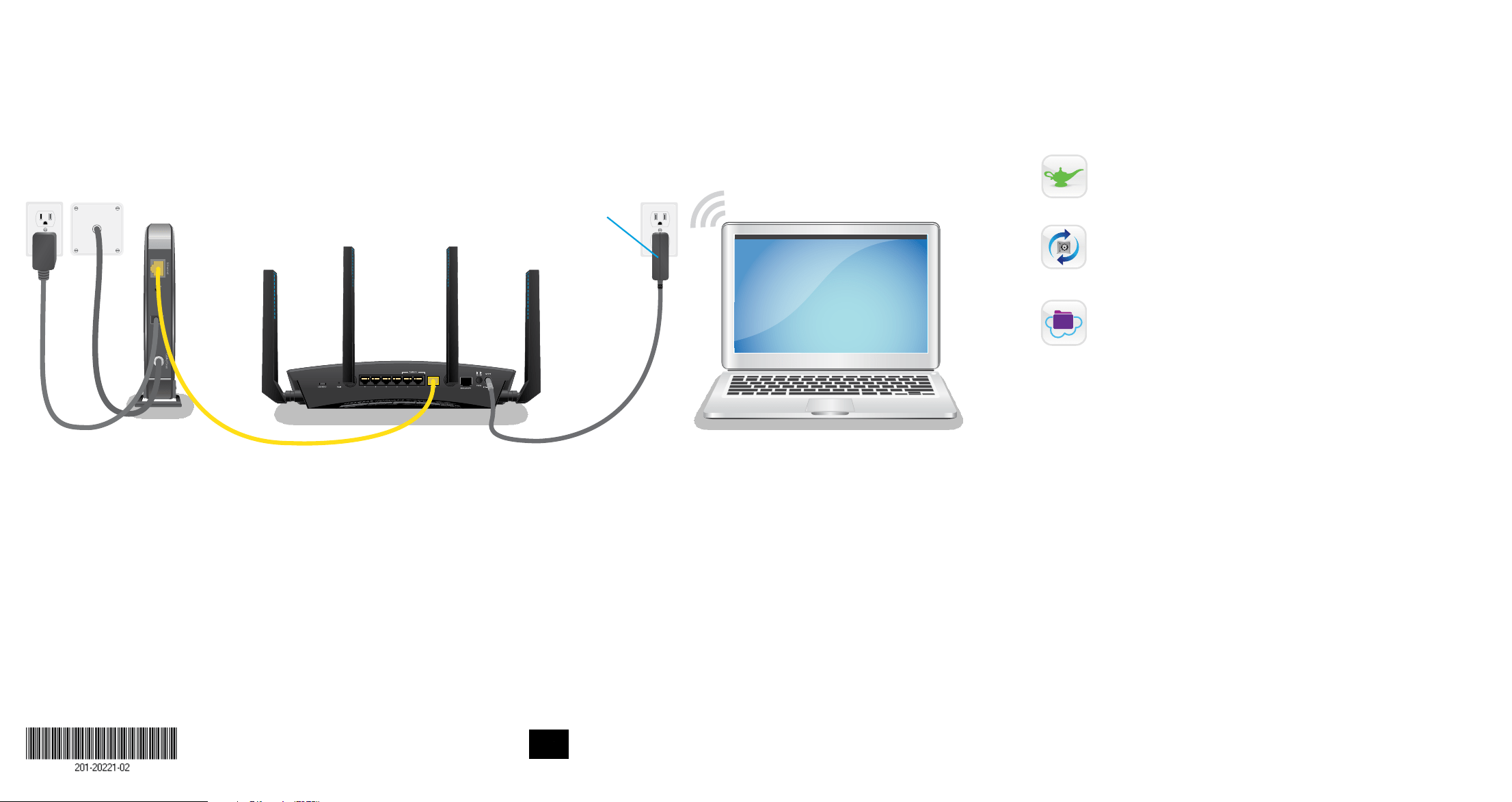
Router
Modem
Computer
Power
adapter
Ethernet cable
Internet
For more information about your router, see the Do More booklet.
February 2017
NETGEAR, Inc.
350 East Plumeria Drive
San Jose, CA 95134, USA
© NETGEAR, Inc., NETGEAR and the NETGEAR Logo are trademarks of NETGEAR, Inc.
Any non‑NETGEAR trademarks are used for reference purposes only.
NETGEAR INTL LTD
Building 3, University Technology Centre
Curraheen Road, Cork, Ireland