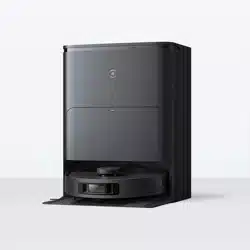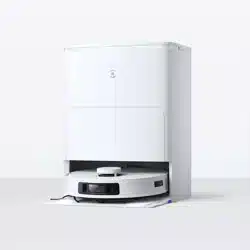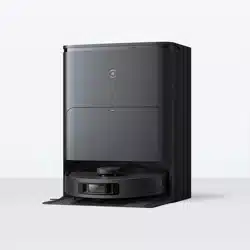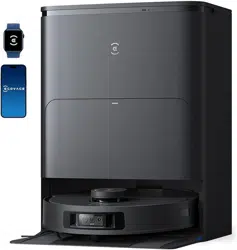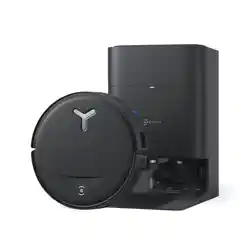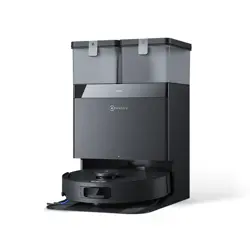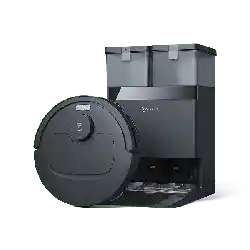

Instruction Manual

For the Instruction Manual in further languages, visit: https://www.ecovacs.com
.
Instruction Manual ............................................................................................EN I P03

3 EN
1. The Appliance is not intended for use by
persons(including children)with reduced
physical, sensory or mental capabilities, or
lack of experience and knowledge, unless
they have been given supervision or
instruction concerning use of the Appliance
by a person responsible for their safety.
Clear the area to be cleaned. Remove power
cords and small objects from the floor that
could entangle the Appliance. Tuck rug
fringe under the rug base, and lift items such
as curtains and tablecloths off the floor.
2. Clear the area to be cleaned. Remove power
cords and small objects from the floor that
could entangle the Appliance.
3. Tuck rug fringe under the rug base, and lift
items such as curtains and tablecloths off
the floor.
4. If there is a drop off in the cleaning area due
to a step or stairs, you should operate the
Appliance to ensure that it can detect the step
without falling over the edge. It may become
necessary to place a physical barrier at the
edge to keep the unit from falling. Make sure
the physical barrier is not a trip hazard.
5. Only use as described in this manual. Only
use attachments recommended or sold by
the manufacturer.
6. For INDOOR household use ONLY. Do not
use the Appliance in outdoor, commercial or
industrial environments.
7. Do not use without dust bin and/or filters in
place.
8. Turn OFF the Power Switch before removing
the Dust Bin.
9. Do not operate the Appliance in an area
where there are lit candles or fragile objects.
10. Keep hair, loose clothing, fingers, and all
parts of body away from any openings and
moving parts.
11. Do not operate the Appliance in a room
where an infant or child is sleeping.
12. Do not use Appliance on wet surfaces or
IMPORTANT SAFETY INSTRUCTIONS
IMPORTANT SAFETY INSTRUCTIONS
When using an electrical Appliance, basic
precautions should always be followed, including
the following:
READ ALL INSTRUCTIONS BEFORE
USING THIS APPLIANCE
SAVE THESE INSTRUCTIONS

4EN
Appliance.
20. Please dispose of used batteries according
to local laws and regulations.
21. Do not incinerate the Appliance even if it
is severely damaged. The batteries can
explode in a fire.
22. The Appliance must be used in accordance
with the directions in this Instruction Manual.
Ecovacs Home Service Robotics cannot be
held liable or responsible for any damages
or injuries caused by improper use.
23. The robot contains batteries that are only
replaceable by skilled persons. To replace the
robot’s battery, please contact Customer Service.
24. Please make sure your power supply source
voltage matches the power voltage marked
on the OMNI Station.
25. Use only the original rechargeable battery
and OMNI Station provided with the
Appliance from the manufacturer. Non-
rechargeable batteries are prohibited.
26. Take care not to damage the power cord. Do
not pull on or carry the Appliance or OMNI
Station by the power cord, use the power
cord as a handle, close a door on the power
cord, or pull power cord around sharp edges
surfaces with standing water.
13. Do not allow the Appliance to pick up large
objects like stones, large pieces of paper or
any item that may clog the Appliance.
14. Do not use Appliance to pick up flammable
or combustible materials such as gasoline,
printer or copier toner, or use in areas where
they may be present.
15. Do not use Appliance to pick up anything
that is burning or smoking, such as
cigarettes, matches, hot ashes, or anything
that could cause a fire.
16. Do not put objects into the suction intake.
Do not use if the suction intake is blocked.
Keep the intake clear of dust, lint, hair, or
anything that may reduce air flow.
17. If the power cord is damaged, it must be
replaced by the manufacturer or its service
agent in order to avoid a hazard.
18. Turn OFF the power switch before cleaning
or maintaining the Appliance.
19. The lithium battery type suitable for CH2471B
is Max. 8 cells, max. nominal voltage DC 14.4V,
rated capacity 4,800mAh.The battery must
be removed and discarded according to local
laws and regulations before disposal of the

5 EN
or corners. Do not run Appliance over the
power cord. Keep power cord away from hot
surfaces.
27. Do not use the OMNI Station if it is damaged.
The power supply is not to be repaired and
not to be used any longer if it is damaged or
defective.
28. Do not use with a damaged power cord or
receptacle. Do not use the Appliance or
OMNI Station if it is not working properly,
has been dropped, damaged, left outdoors,
or come in contact with water. It must be
repaired by the manufacturer or its service
agent in order to avoid a hazard.
29. The plug must be removed from the
receptacle before cleaning or maintaining
the OMNI Station.
30. Remove the Appliance from the OMNI
Station, and turn OFF the power switch to
the Appliance before removing the battery
for disposal of the Appliance.
31. When not using the OMNI Station for a long
period of time, please unplug it.
32. If the robot will not be used for a long time,
power OFF the robot for storage and unplug
the OMNI Station.
33. WARNING-Add clean water into the clean
tank only.
34. WARNING: For the purposes of recharging
the battery, only use the detachable supply
unit CH2471B provided with the Appliance.
To satisfy RF exposure requirements, a
separation distance of 20 cm or more should
be maintained between this device and persons
during device operation.
To ensure compliance, operations at closer than
this distance is not recommended. The antenna
used for this transmitter must not be co-located
in conjunction with any other antenna or
transmitter.
Device Update
Typically, some devices are updated bi-monthly,
but not always so specific.
Some devices, especially those that went on
sale more than three years ago, will only be
updated if a critical vulnerability is found and
fixed.
6EN
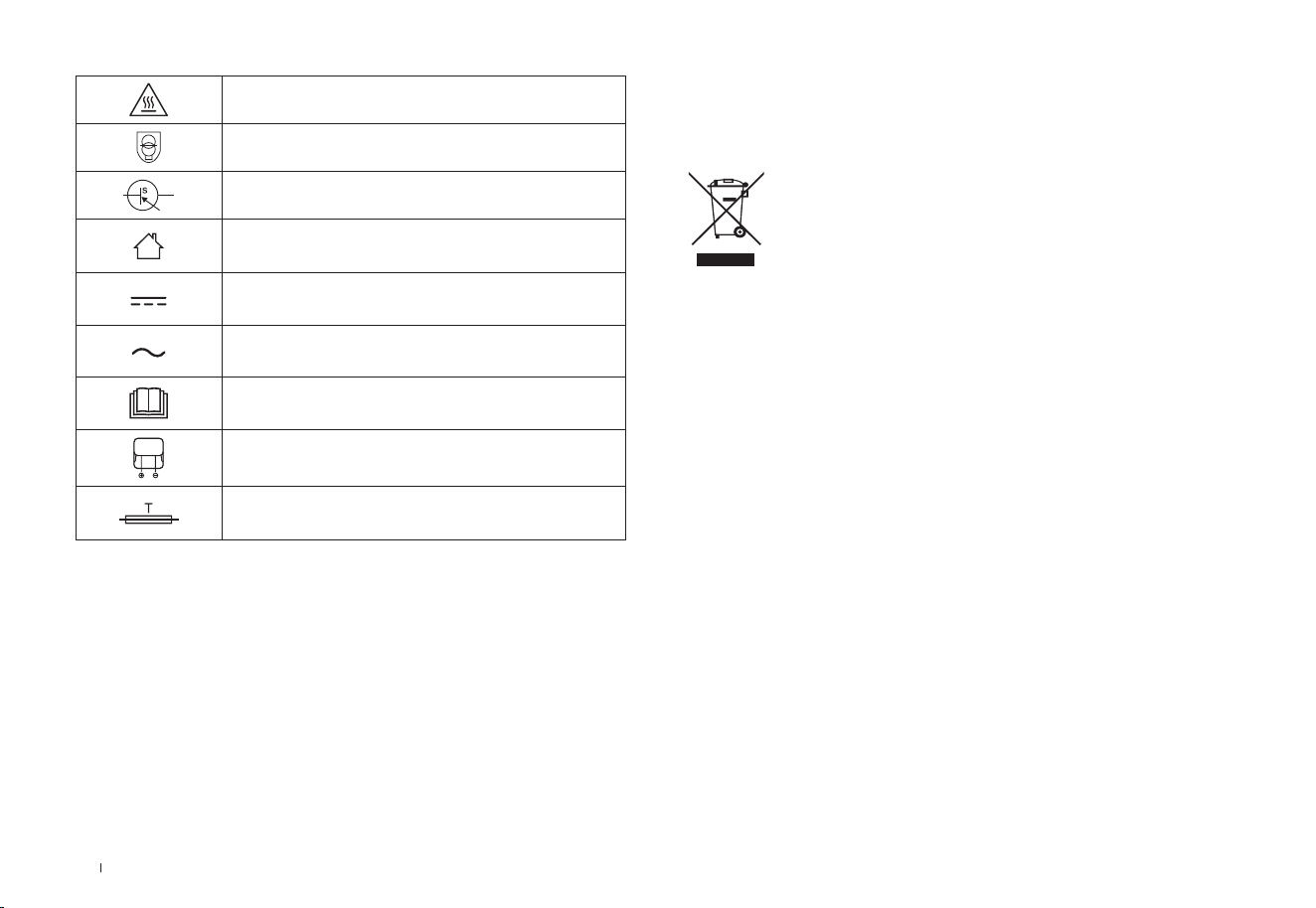
Caution: hot surface
Short-circuit-proof safety isolating transformer
Switch mode power supply
For indoor use only
Direct current
Alternating current
Before charging, read the instructions.
Polarity of the charging port
Time-lag miniature fuse-link
The remote surveillance is for the absolute
private use of non-public, private owned places
for the pure self-protection and single control
intended only. Please be aware of the local data
protection based legal obligations in case of
use. No surveillance of public places, especially
with clandestine intent and/or on the part of the
employer without justified reasons. Such not
justified use is in the risk and responsibility of the
user only.
European Union Compliance Statement
Information on Disposal for Users of Waste
Electrical & Electronic Equipment
This symbol on the product or on its packaging
indicates that used electrical and electronic products
should not be mixed with unsorted municipal waste.
For proper treatment, it is your responsibility to
dispose of your waste equipment by arranging to
return it to designated collection points.
Disposing of this product correctly will help save
valuable resources and prevent any potential
negative effects on human health and the
environment, which could otherwise arise from
inappropriate waste handling.
To return your used device, please use the return
and collection systems or contact the retailer
where the product was purchased, which is free
of charge, please contact your local authority
for further details of your nearest designated
collection point.
Penalties may be applicable for incorrect disposal
of this waste, in accordance with your national
legislation.
7 EN
Information on Disposal for Users of used
batteries
This symbol means that batteries and
accumulators, at their end-of-life, should not
be mixed with unsorted municipal waste. Your
participation is an important part of the effort to
minimize the impact of batteries and accumulators
on the environment and on human health. For
proper recycling you can return this product or
the batteries or accumulators it contains to your
supplier or to a designated collection point, which
is free of charge.
Disposing of this product correctly will help save
valuable resources and prevent any potential
negative effects on human health and the
environment, which could otherwise arise from
inappropriate waste handling.
Penalties may be applicable for incorrect disposal
of this waste, in accordance with your national
.legislation.
there are separate collection systems for used
batteries and accumulators.
Please, dispose of batteries and accumulators
correctly at your local community waste collection/
recycling center.
Restriction of the use of certain hazardous
substances (RoHS) Directive
Radio Equipment Directive
Europe Authorised Representative:
Ecovacs Home Service Robotics Co., Ltd. hereby
declares the whole product including parts (cables,
cords, and so on) meets the requirements of
RoHS Directive 2011/65/EU and amendment
Commission Delegated Directive (EU) 2015/863
on the restriction of the use of certain hazardous
substances in electrical and electronic equipment
("RoHS recast" or "RoHS 2.0").
Ecovacs Home Service Robotics Co., Ltd. hereby
declares that the product listed in this section
comply with the essential requirements and
other relevant provisions of the Radio Equipment
Directive 2014/53/EU.
Ecovacs Home Service Robotics Co., Ltd. hereby
declares that the product comply with the essential
requirements and other relevant provisions of
the RoHS Directive 2011/65/EU and amendment
Commission Delegated Directive (EU) 2015/863,
the Radio Equipment Directive 2014/53/EU.
The declaration of conformity can be viewed at
the following address: https://www.ecovacs.com/
global/compliance.
ECOVACS Europe GmbH
Holzstrasse 2, 40221 Düsseldorf, Germany
8EN
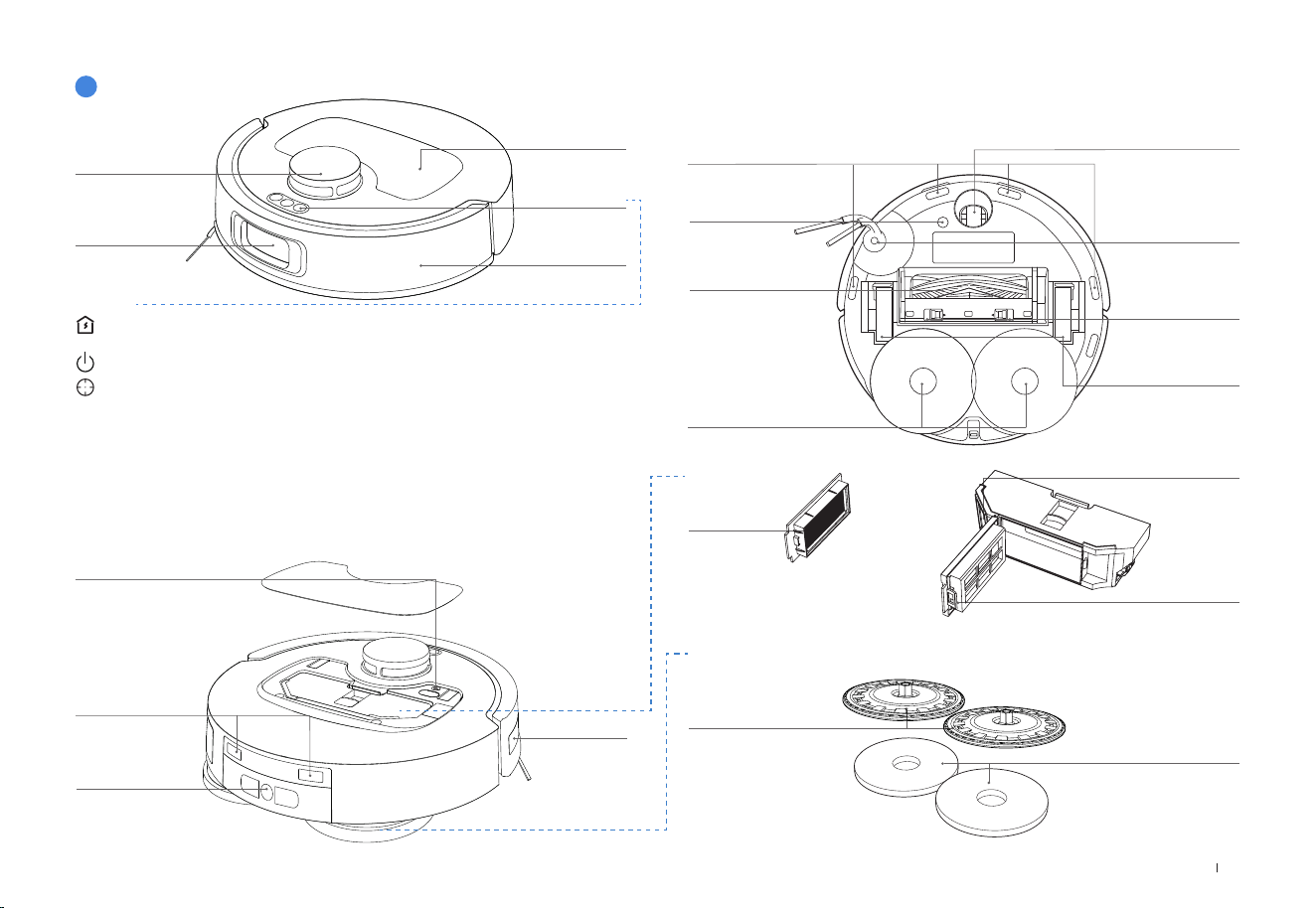
PACKAGE COMPONENTS
1
PACKAGE CONTENTS
* Figures in this manual are for reference only and may differ from the appliance. Product design and specications are subject to changes without notice.
Robot OMNI Station
Instruction ManualSide Brush
Instruction Manual
Please read all instructions before using the Appliance
and keep this manual properly.
Base Power Cord
9 EN
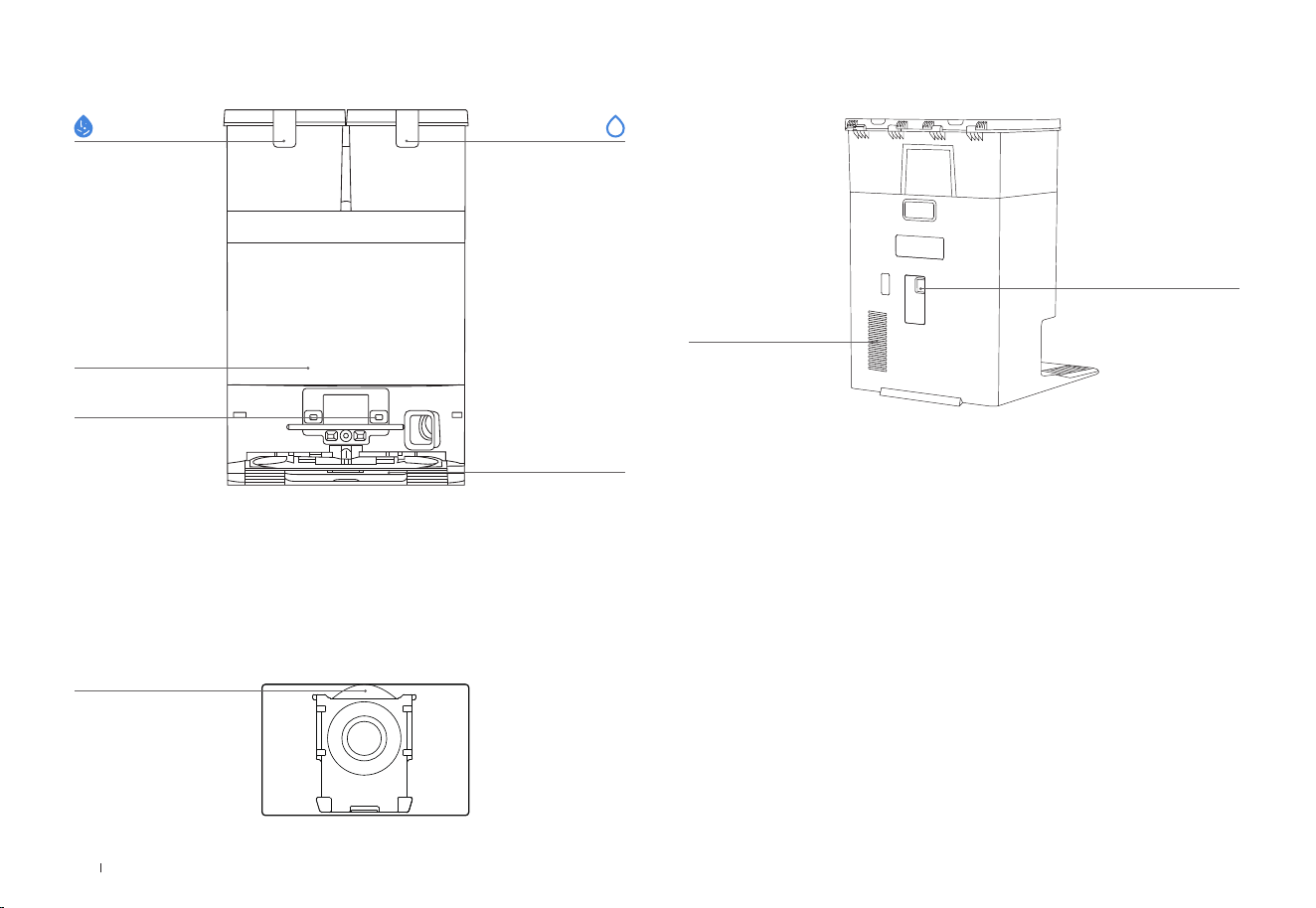
Obstacle Avoid-
ance Module
2
PRODUCT DIAGRAM
Robot
Inside the Robot (Under the Top Cover)
Buttons
Press: Return to the station Press and hold: Self-Cleaning
(
Robot not in the station
)
Press: Toggle Start/Pause/Continue Press and hold: Power on/Power off
Press: Start/End spot cleaning Press and hold: Activate/Deactivate the
child lock
Bottom Back View
Driving Wheels
Universal Wheel
Side Brush
Roller Brush
Carpet Detection
Sensor
Anti-drop Sensors
Brush Release
Button
Mounting Slots
for Mopping Pad
Assembly
Mopping Pad Assembly
Navigation
Module
Mopping Pad Plates
Washable Mopping Pads
Dust Bin
Filter
Dust Disposal Port
Release Button
RESET Button
Network Setup: Press the RESET button, and you will hear a voice prompt to connect
the robot with the APP.
Restore Default Settings: Press the RESET button and hold for 5 s. After you hear the
voice pormpt, the startup music will play, and the robot will be restored to the default
settings.
Wi-Fi Status Indicator/
RESET Button
Water Filling Port
Charging Contacts
Edge Sensor
Bumper
Top Cover
Buttons on
the robot
10EN
OMNI Station OMNI Station (Back)
Dust Bag
Dust Bag Handle
Dirty Water Tank
Dust Collection
Cabin
Mop Washing Tray
Clean Water Tank
Charging Contacts
Air Vent
Power Socket
Note:
• If the robot fails to charge, please wipe charging contacts with a clean and dry cloth.
11 EN
3
Indicator Light
Light Effect State
Robot
Breathing White Charging
Solid White Fully Charged/Running
Solid Red Low Battery
Flashing Red Robot Alarm
Breathing Red Station Alarm

12EN
4
Sensors Overview
Name Functional Description
Navigation Module
Laser Ranging is applied to measure the distance between the robot and surrounding objects
based on the time dierence of reection, allowing the module to map against the objects
around while the robot is moving. The detection range is 8 m.
Obstacle Avoidance Module
Laser Ranging and triangulation are used to measure the distance between the robot and
surrounding obstacles. The sensor emits laser beams and receives the reected light from
obstacles ahead. When an obstacle is detected within close range, the robot automatically
turns to avoid it. The detection range is 0.3 meters.
Anti-drop Sensors
With Infrared Ranging, the distance between the robot's bottom and the ground is detected by
the infrared sensors at the bottom. The robot will not move forward when there are stairs in
front (such as when the height of the white surface is 55 mm or more, or the height of the black
surface is 30 mm or more) and the identied exceeds the preset one, enabling the Anti-drop
function.
Carpet Detection Sensor
The sensor emits 300 kHz ultrasound, which energy will be absorbed by the carpet, causing the
echoed energy to be lower than the threshold. The robot thereby detects the carpet's presence. In
the ECOVACS laboratory, more than 50 types of carpets available on the market are identified.
Anti-collision Sensor
With the principle of the Optocoupler Switch, the robot will avoid obstacles when they are about to
collide.
Edge Sensor
With Infrared Ranging, the edge sensor detects the distance between the robot and objects on
the side. When there is a wall or obstacles on the right, the robot performs edge cleaning to avoid
missing any spots and prevent collisions.
13 EN
INITIAL SETUP AND USE
1
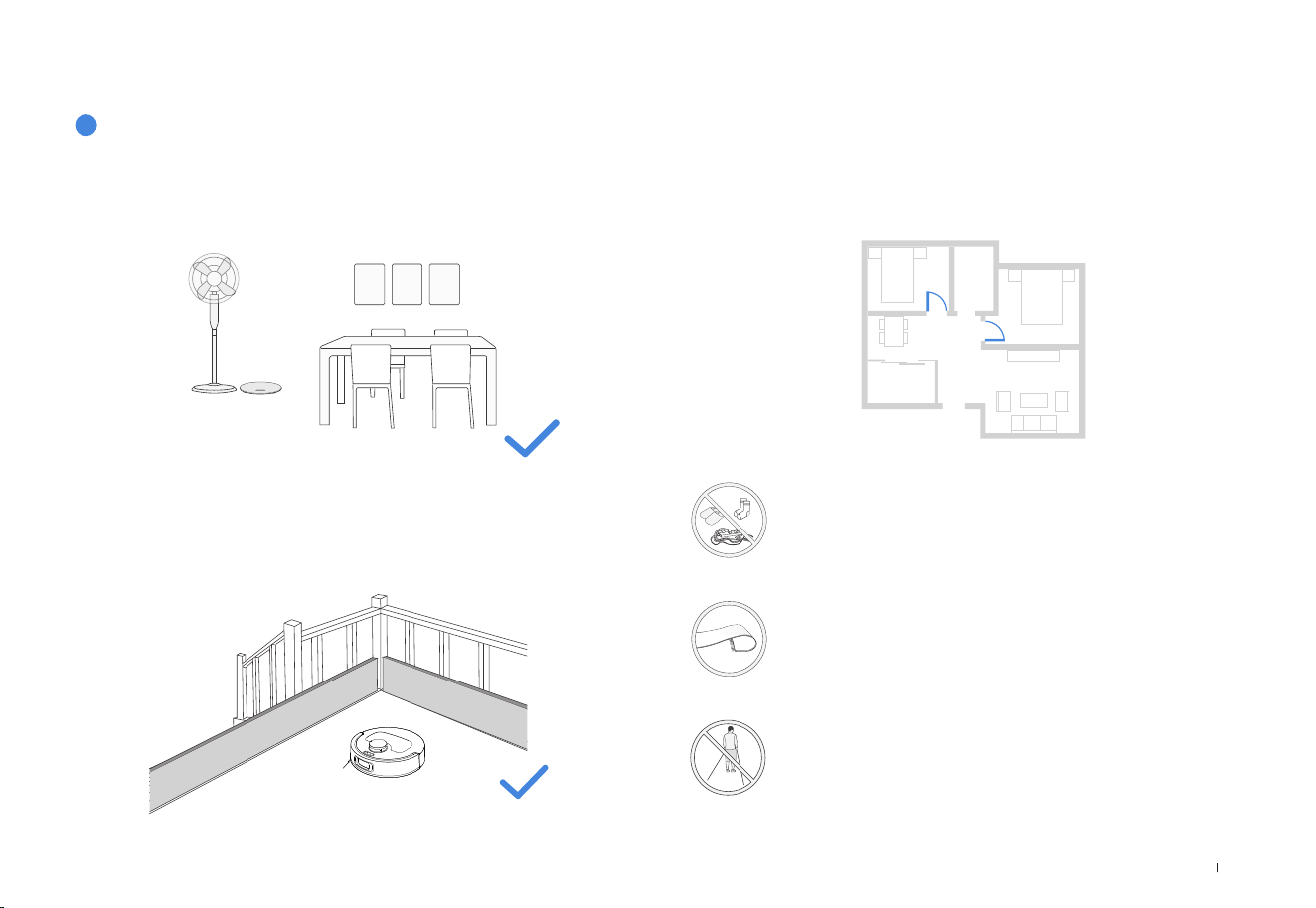
Notes Before Cleaning
To improve cleaning efciency, please remove objects,
including cables, clothes, and slippers, from the oor.
Tidy up the Area to be Cleaned
For the maximum cleaning area possible, before using the robot,
please put furniture, such as tables, chairs, and pedestal fans, in their
proper place and put away low-lying items, such as weight scales.
Open Doors and Help robot Explore
Open all room doors to help the robot fully explore your house during
the rst cleaning.
Before using the product on a carpet with tasseled edg-
es, please fold the tassels under the carpet.
Prevent robot from Falling
Place a physical barrier at the edge of a drop, such as staircases and
steps, to stop the robot from falling over the edge.
Please do not stand in narrow spaces, such as hallways,
to avoid blocking TrueMapping.
14EN
Note: Follow the instructions on the App to complete the registration, login, and
connection.
3
Download the ECOVACS HOME APP
1. Scan the QR Code under the Top Cover to download the App.
To enjoy all available features, it is recommended that you control
your robot via the ECOVACS HOME App.
Under the Top Cover
2. Search “ECOVACS HOME” on the App Store or Google Play to download the
App.
ECOVACS HOME
2
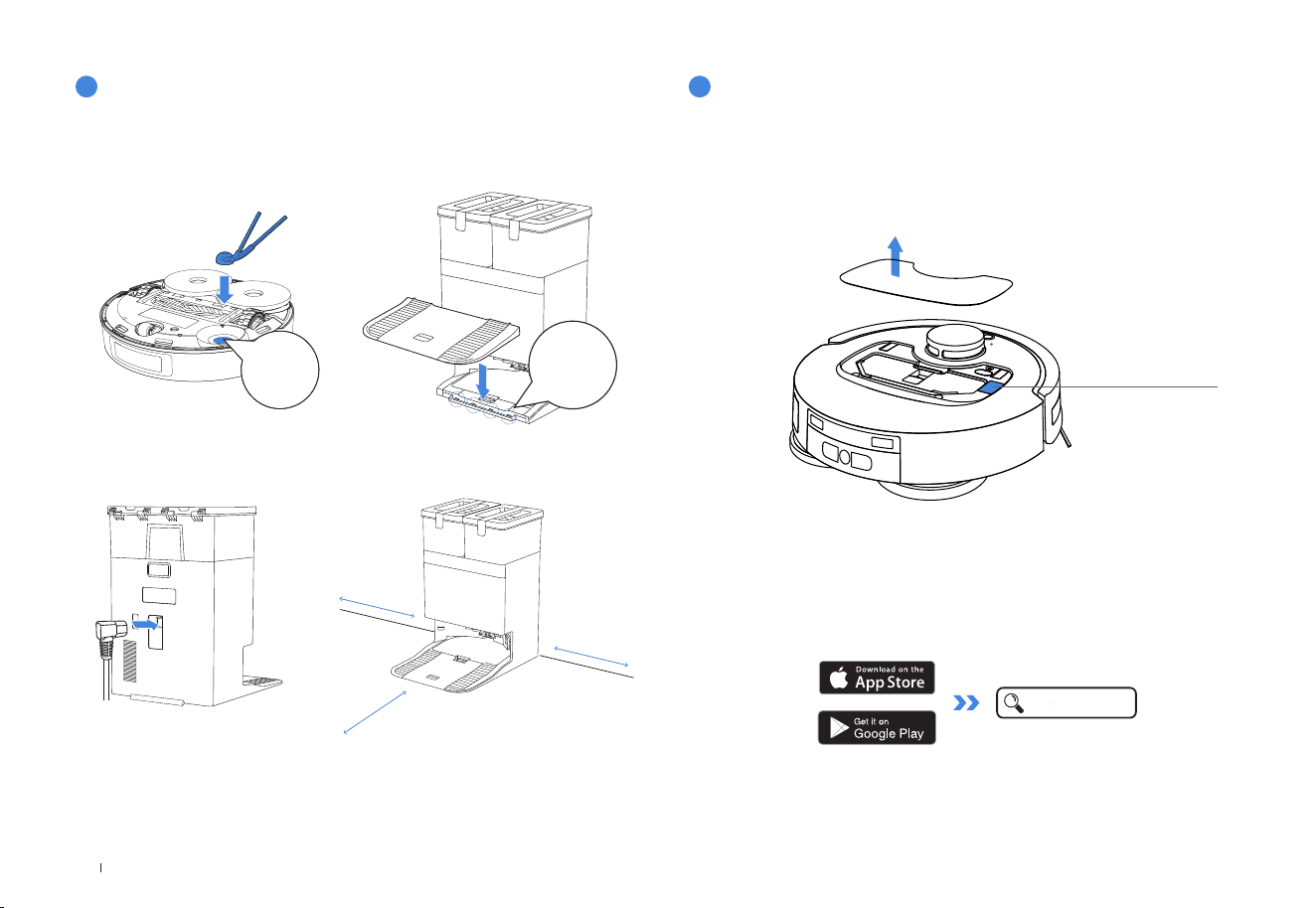
Quick Start
Remove all protective materials before using.
1. Installation
The sound of “click” indicates proper installation.
Click
2. Assemble and Place the Station
Place the OMNI Station against the wall on a at, hard surface. Do not place
items within 0.05 meters on either side and 0.8 meters in front.
• If there are reective objects such as mirrors and reective skirting lines near the Station,
the bottom 14 cm of such objects should be covered.
• Do not place the Station under direct sunlight.
• Place the station in a location with a strong Wi-Fi signal for better user experience.
• Do not use the appliance on wet surfaces or surfaces with standing water.
• Do not wipe the robot and the station with a damp cloth or use any liquid.
≥
0.05m (0.16’)
≥
0.05m (0.16’)
≥
0.8m (2.62’)
Click
15 EN
• The robot series robotic vacuums are designed for domestic cleaning
scenarios. A home Wi-Fi network is required for operation, and anti-DDoS
protection can be congured by users through route settings.
4
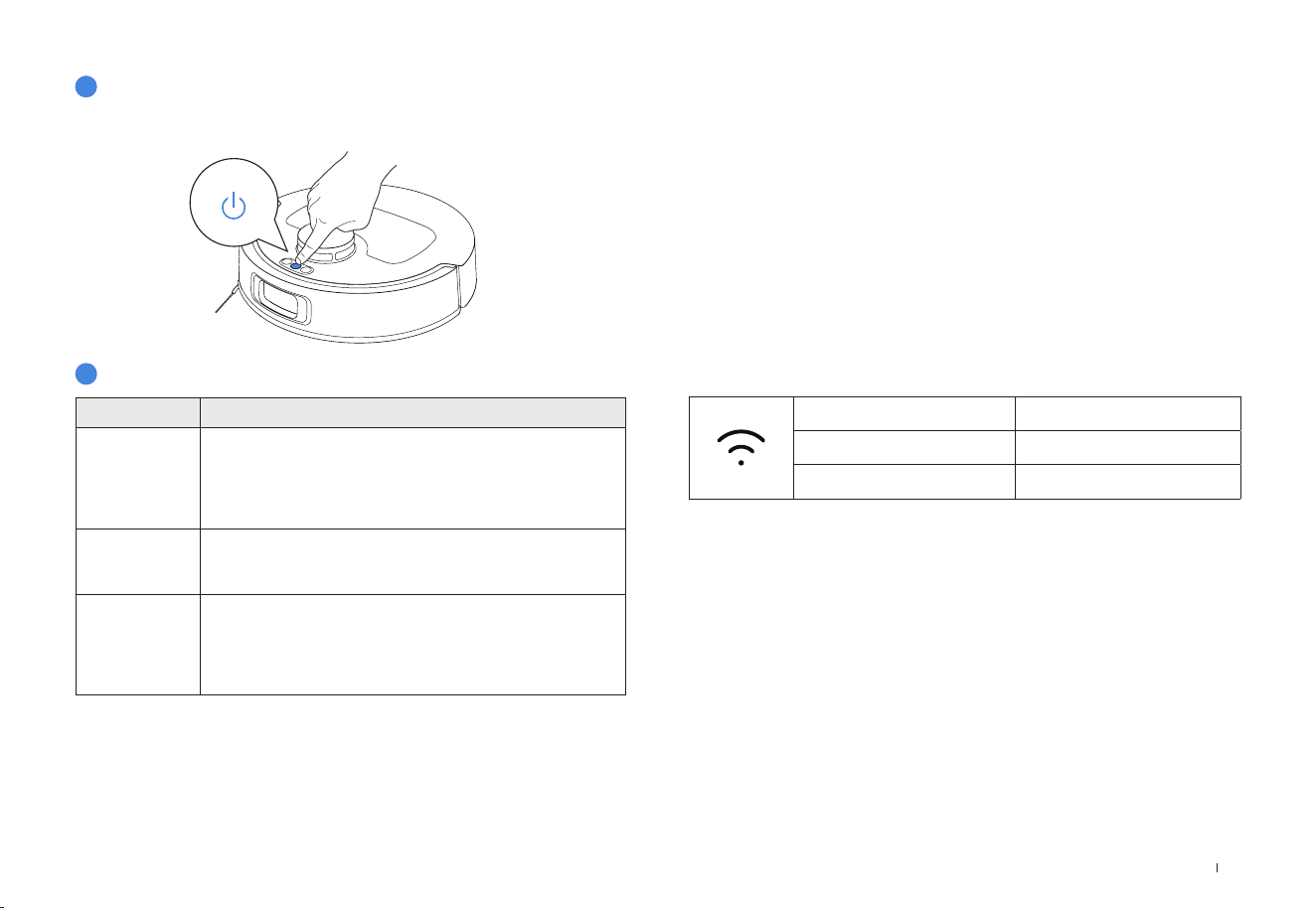
Power on Robot
5
Connect robot with APP
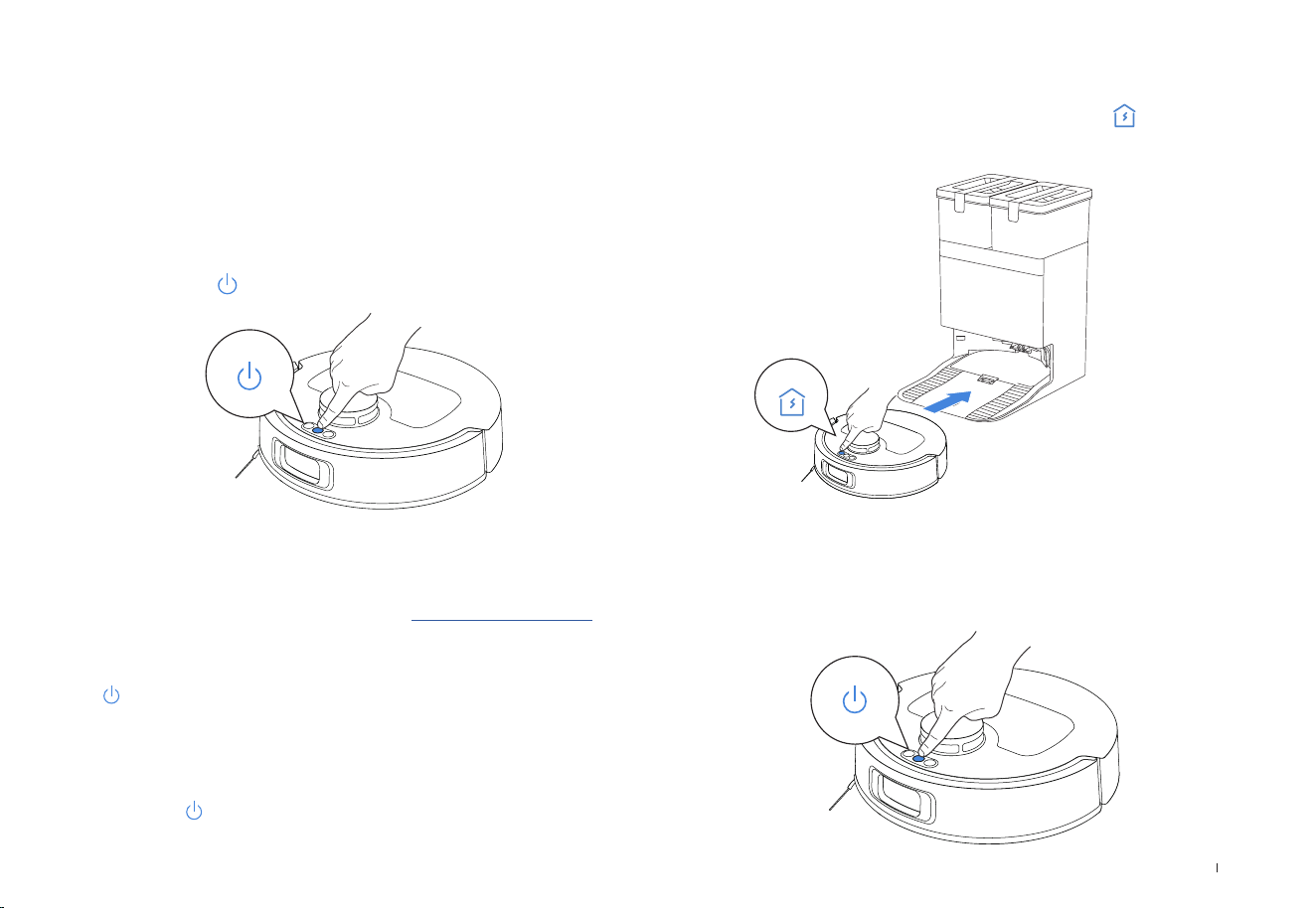
1. Turn on the power switch and place the robot in front of the station that is
connected to power supply.
Wi-Fi Network Requirements:
• You are using a 2.4 GHz or 2.4/5 GHz mixed network.
• Your router supports 802.11b/g/n and IPv4 protocol.
• Do not use a VPN (Virtual Private Network) or Proxy Server.
• Do not use a hidden network.
• WPA and WPA2 use TKIP, PSK, and AES/CCMP encryption.
• WEP EAP (Enterprise Authentication Protocol) is not supported.
• Use Wi-Fi channels 1-11 in North America and 1-13 outside North
America (refer to local regulatory agency).
• If you use a network extender/repeater, the network name (SSID)
and password are the same as your primary network.
• Please enable WPA2 on your router.
Wi-Fi Indicator Light
Slow ashing white light Disconnected from Wi-Fi
Fast ashing white light Connecting
Steady white light Connected to Wi-Fi
Please be aware that intelligent features such as remote startup, voice
interaction, 2D/3D map display and control settings, and personal-
ized cleaning (depending on the Appliance) require the ECOVACS
HOME App, which is constantly updated. You need to agree to our
Privacy Policy and User Agreement so that we can process some of
your essential and necessary information before you can use certain
features of the ECOVACS HOME App to control the Appliance. If you
disagree with our Privacy Policy and User Agreement, such features
will be unavailable. However, you can still use the basic features of
this Appliance for manual operation.
Name Description
Infrared
interface
The infrared interface is turned off by default, and
it is activated when the robot is in the charging
station. When the DEEBOT is in the charging
station, it will communicate with the charging
station through the infrared interface.
WI-FI*
Facilitate data transfer between the app and the
robot, enabling control of the robot through the
app.
ECOVACS
HOME App
ECOVACS products offer smart functions such
as network setup, mapping, and cleaning mode
selection (specific to each product). To utilize these
features, users need to download and use the
official ECOVACS Home App.
16EN
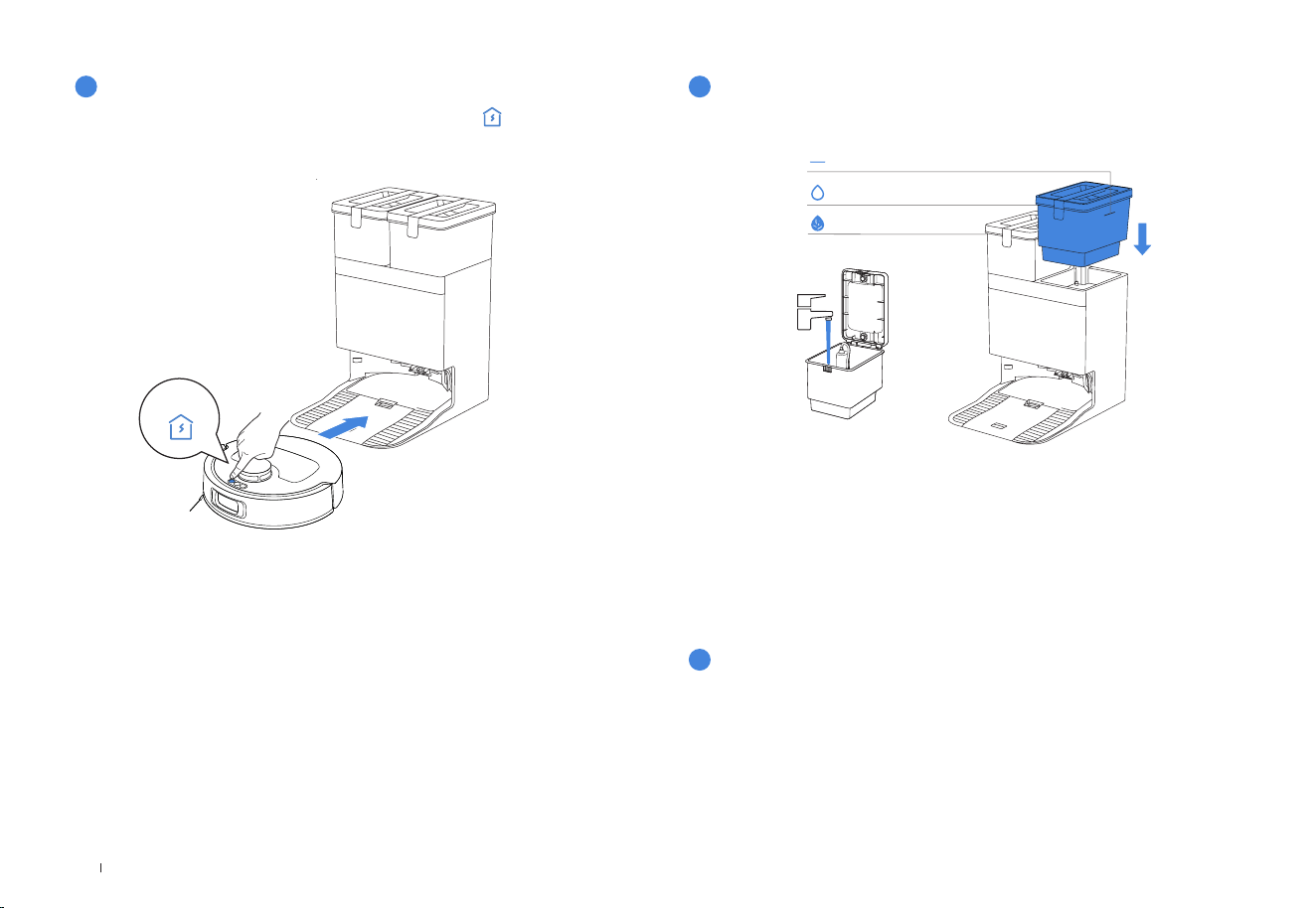
Use the ECOVACS HOME App to recall the robot, or press on the robot to
allow it to dock for charging.
Press
Note:
• When the robot is not in use, keep it powered on and charging.
• It is recommended to start cleaning from the station. Do not move the station
while cleaning.
6
Power on and Charge the robot
7
Fill the Clean Water Tank
Note:
• Use a clean, dry cloth to wipe off any water on the surface of the tank before placing it in
position.
• Make sure to lock the top covers of both water tanks securely before use.
• Any water marks in the water tanks are from function testing. Please use it with condence.
Take out the clean water tank, open the tank cover, and ll the tank with water up to
the maximum water level. Close the tank cover and re-install the clean water tank.
Dirty Water Tank
Clean Water Tank
Max Water Level
1. Start Mapping
When creating a map for the first time, please follow the robot to help resolve
some minor issues.
For example, the robot may get stuck under furniture. Please refer to the following
solutions:
①
Raise the low-sitting furniture if possible;
②
Cover the bottom of the furniture;
③
Set up a virtual boundary via the App.
8
Operate the robot
17 EN
Please ensure that the robot is in the station and is fully charged before cleaning
for the first time. Tap on the robot to start. You can also use the ECOVACS
HOME App to start.
2. Start Cleaning
• The robot's water tank is automatically refilled through the station. Manual
refilling is not needed.
• When mopping, the robot will recognize floor types and is able to lift mops
automatically when encountering carpets. Please do not use the robot on
shaggy rugs or carpets with fibres longer than 9 mm. It is recommended to fold
up the shaggy rugs with fibres longer than 9 mm during the cleaning process,
or set the shaggy carpeted area as a no-entry zone by setting virtual boundary
in the ECOVACS HOME App.
Note:
•
Do not frequently remove washable mopping pads.
•
Do not scratch the mopping pad plates with a rag or other objects.
•
Replace the mopping pads in time as prompted by the App. Explore more
accessories in the ECOVACS HOME App or at https://www.ecovacs.com.
3. Pause
Tap on the robot to pause it while it is working. You can also use the ECOVACS
HOME App to pause the robot.
After pausing for a while, all indicator lights on the robot will go out. To wake up
the robot, press .
4. Wake up
Use the ECOVACS HOME App to recall the robot, or press the button on the
robot to allow the robot to dock for charging.
5. Back to Station
6. Deep Sleep Mode
The robot will enter deep sleep mode if it stays outside the station for about 10 h
to protect the battery. Please switch OFF and ON to wake the robot up.

18EN
REGULAR
MAINTENANCE
To keep robot running at peak performance, perform maintenance and replace parts at the following frequencies:
Robot Part Maintenance Frequency Replacement Frequency
Washable Mopping Pads / Every 1-2 months
Dust Bag / When App prompts
Side Brush Every 2 weeks Every 3-6 months
Main Brush Every week Every 6-12 months
Filter Every week Every 3-6 months
Edge Sensor
Universal Wheel
Anti-drop Sensors
Bumper
Charging Contacts on robot
Charging Contacts on OMNI Station
Navigation Module
Obstacle Avoidance Module
Approx. every month /
Clean Water Tank Every 3 months /
Dirty Water Tank Every month /
Dust Collection Cabin Every month /
Body and Bottom of the Station Every month /
Note: Explore more accessories in the ECOVACS HOME App or at https://www.ecovacs.com.
1
Maintenance Frequency
19 EN
2
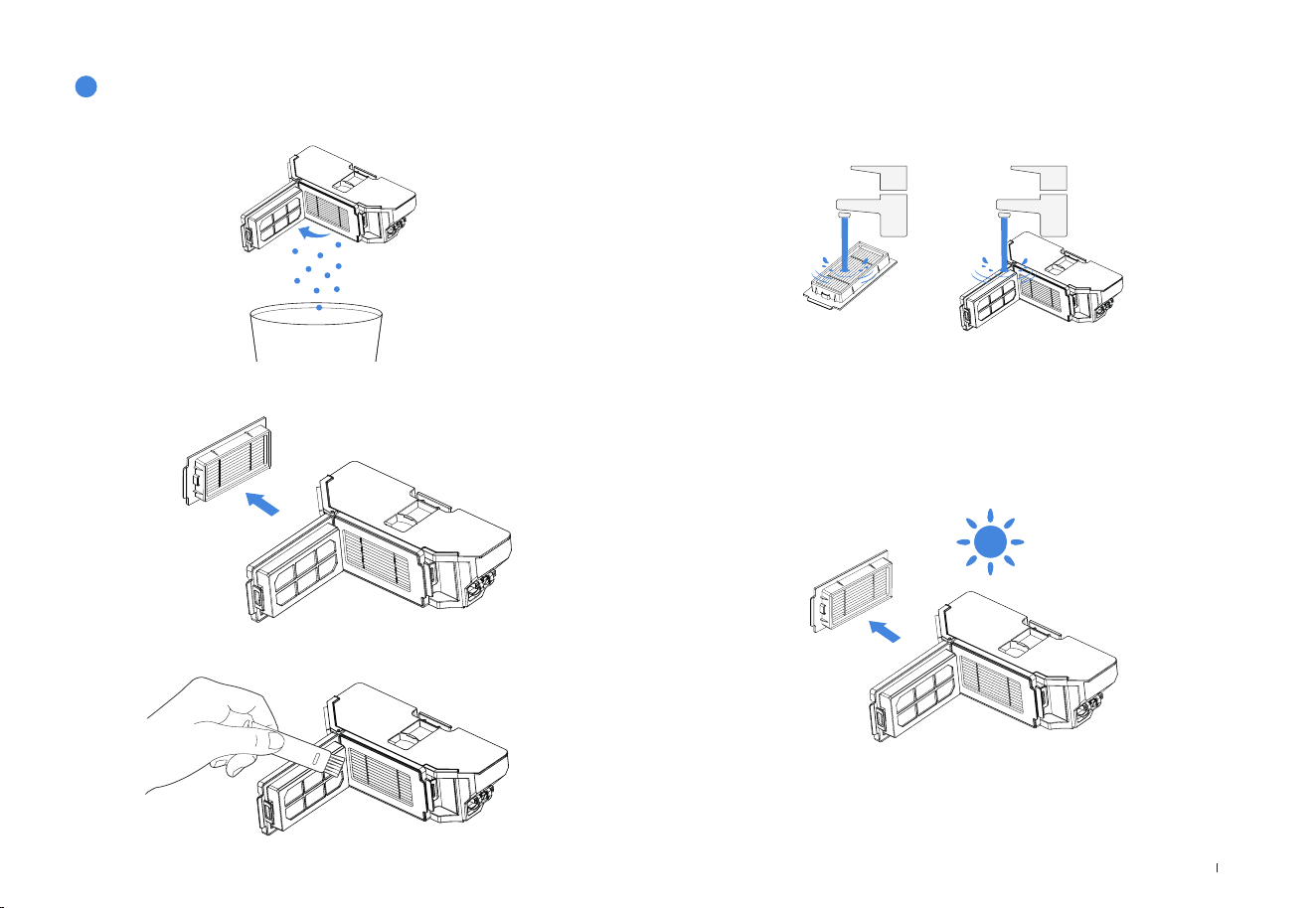
Maintain Dust Bin and Filter
2. Open the filter net and remove the filter.
1. Open the cover and empty the bin.
3. Clean the dust from both sides of the filter net.
Note:
• Please rinse the filter with water as shown.
• Do not use fingers or a brush to clean the filter.
Note:
• Completely dry the filter before use.
5. Air dry.
4. Rinse the dust bin and filter with water and shake off the water
droplets.
20EN
3
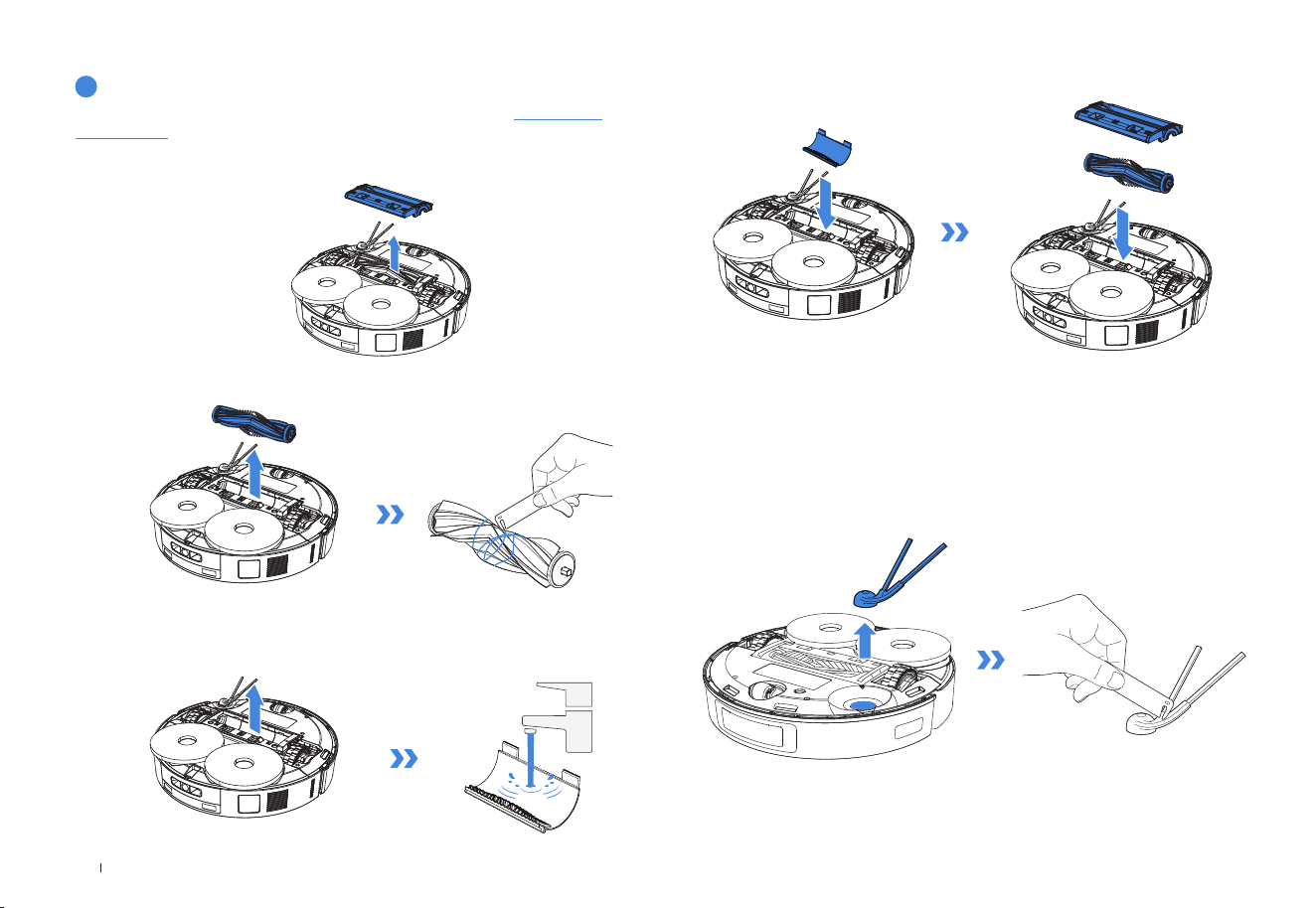
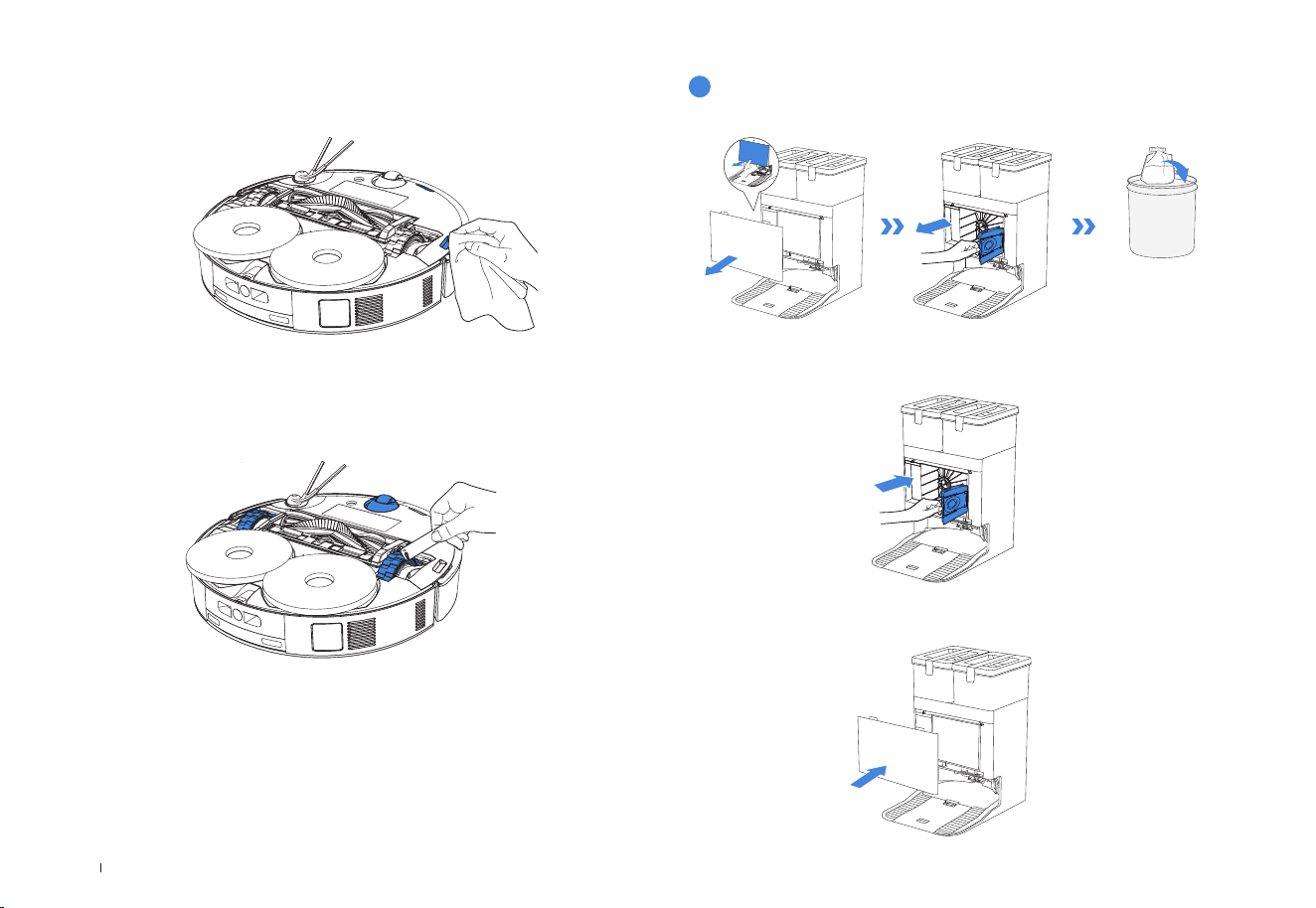
Maintain Main Brush and Side Brush
Clean the Roller Brush
1. Open the cover.
2. Remove and clean the main brush.
3. Remove the brush comb, clean it, then wipe it dry.
4. Install the brush comb, the main brush and the main brush cover.
Clean the Side Brush
1. Remove and clean the side brush.
Note: Explore more accessories at ECOVACS HOME App or at https://www.
ecovacs.com
21 EN
4
Maintain Other Components
Clean the obstacle avoidance module
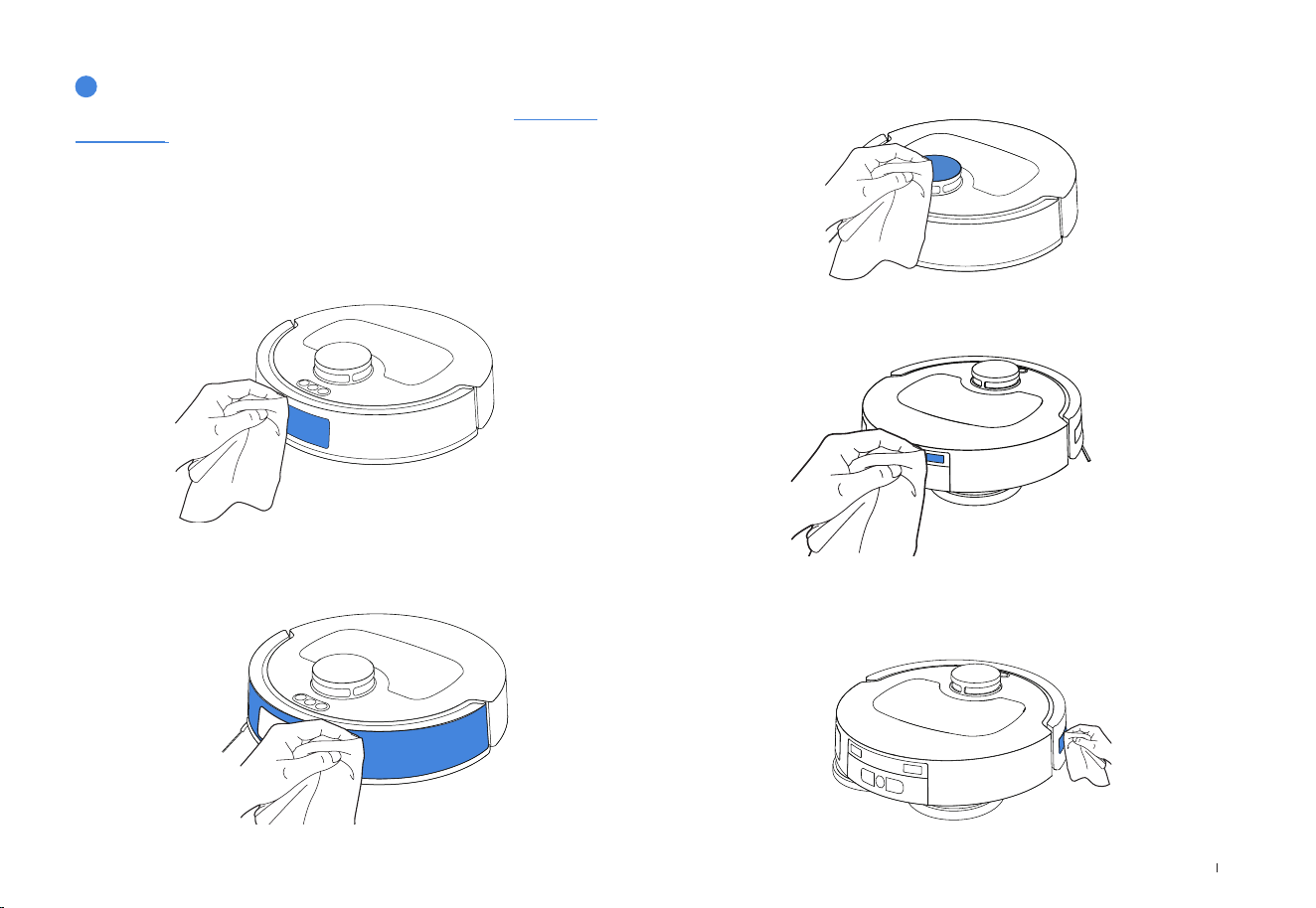
Clean the bumper
Clean the navigation module
Clean the charging contacts
Clean the edge sensor
Note: Explore more accessories at ECOVACS HOME App or at https://www.
ecovacs.com.
• Wipe the components with a clean, dry cloth. Never use a wet cloth. Do not
use cleaning sprays or detergents.
• Charging contacts contain sensitive electronic components. Clean them with
a dry cloth. Do not use a wet cloth to prevent water damage.
22EN
5
Maintain Dust Bin
Clean the Anti-drop sensor
Clean the universal wheel and driving wheels
Take out the dust bag
by lifting the handle
to prevent dust
leakage.
1. Discard the dust bag.
2. Clean the dust collection cabin with a dry cloth and put a new dust
bag in.
3. Insert the top of the dust collection cabin cover into the groove, and
press it down to ensure it is closed.
23 EN
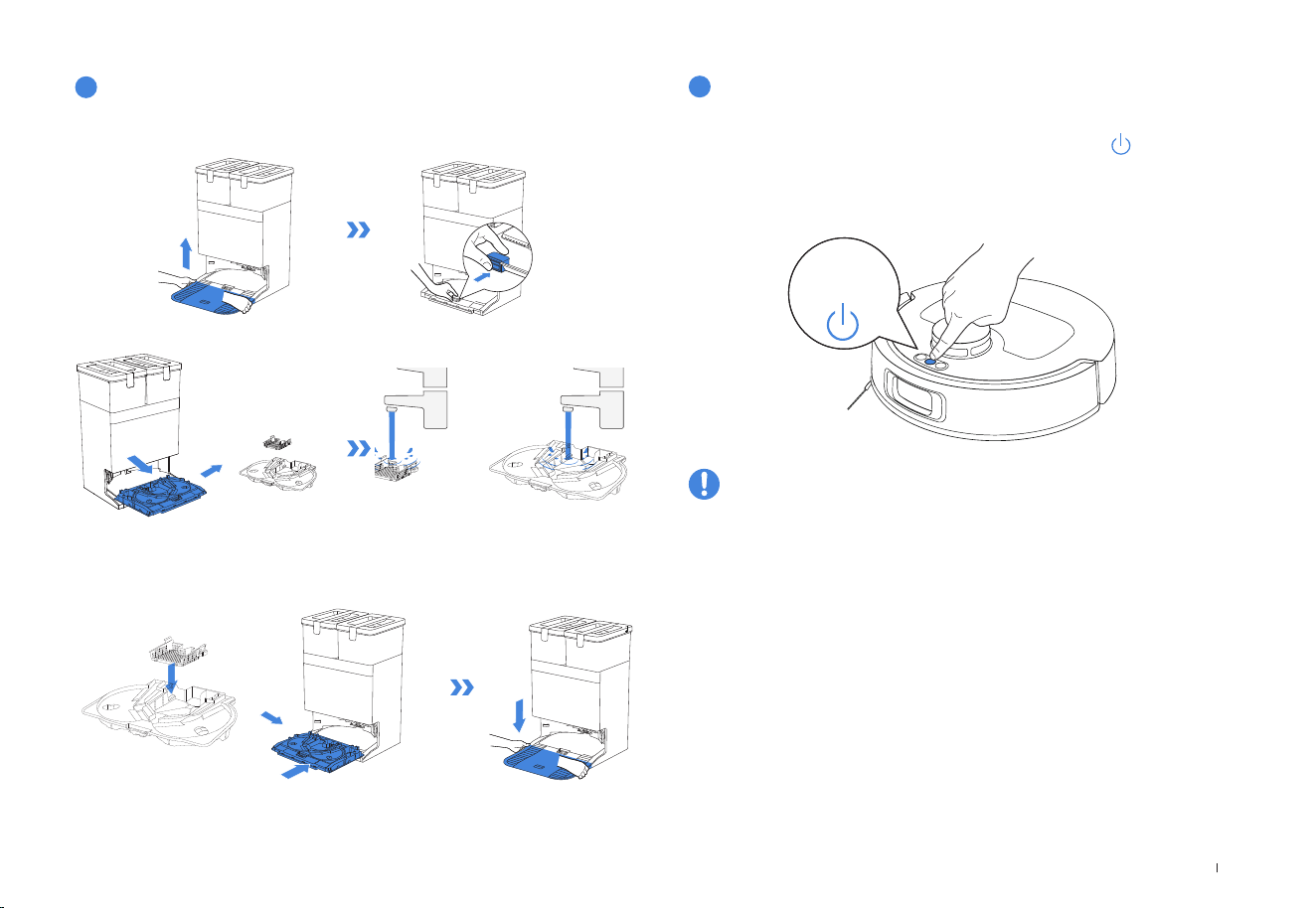
2. Install the cleaned base and mop washing tray.
6
Maintain Mop Washing Tray
1. Take off the base and the mop washing tray and clean them.
Note: Please install the mop washing tray properly for smooth operation.
7
Storage
The robot cannot be charged when it is powered off.
Please fully charge and power off the robot before storage. Place the
robot back at the station before pressing and holding
for 3 s to
power off the robot. Please recharge it every 1.5 months to prevent
the battery from over-discharging.
*
When the robot is not working, it is recommended to keep it powered on and
charging.
*
If the battery is over-discharged or not used for a long time, the robot may not
be able to be charged. Please contact Customer Care for help. Do not disas-
semble it by yourself.
Press and
hold
If you encounter the following during Appliance use, please refer
to the table below for solutions.
TROUBLESHOOTING

24EN
No. Malfunction Possible Cause Solution
1
The robot cannot connect
with the ECOVACS HOME
App.
Incorrect Wi-Fi name or password entered. Enter the correct Wi-Fi username and password.
The robot is not within Wi-Fi signal coverage.
Make sure the robot is within range of your home Wi-Fi signal. Try to
stay as close to the router as possible.
The robot is not in the configuration state.
Press the RESET button, the robot will enter the configuration state
when you hear a voice prompt. If the network configuration fails,
reconfigure the network according to the prompts of the App.
There is no home Wi-Fi on the Wi-Fi list.
1. Check if the Wi-Fi name contains special characters. Please do not
use special characters like ! @#& ¥%/\.
2. Do not use a 5 Ghz network.
Incorrect App installed. Please download and install the ECOVACS HOME App.
Not using a 2.4 GHz or 2.4/5 GHz mixed network.
The robot does not support 5 GHz networks. Please use a 2.4GHz or
2.4/5 GHz mixed network.
2 Map lost.
The map may be lost if you move the robot when it is
cleaning.
Move the robot to the front of the station to restore the map.
Find the stored map in Map Management and tap "Use This Map" to
restore it.
If this problem persists, please restart mapping.
Moving the robot when it is cleaning might cause the
map to be lost.
During cleaning, try not to move the robot.
Auto cleaning is not complete. Make sure the robot automatically returns to the station after cleaning.
3
Unable to create a map in
the App.
Moving the robot when cleaning might cause the map to
be lost.
During cleaning, do not move the robot.
Auto cleaning is not finished.
Make sure that the robot automatically returns to the station after
cleaning.
4 The side brush fell off. The side brush is not properly installed.
For proper installation, make sure you hear a "click" when installing
the side brush.
5
No signal was found. The
robot cannot return to the
station.
The station is not properly placed.
Place the station properly according to the instructions in the [Power
on and Charge robot] section.
The station is out of power or moved.
Check whether the station is connected to a power supply. Do not
move the station.
The robot did not start cleaning from the station. It is recommended that the robot start cleaning from the station.
The charging route is blocked. For example, the door of
the room in which the station is located is closed.
Keep the charging route clear of obstructions.
25 EN
No. Malfunction Possible Cause Solution
6
The robot returns to the
station before finishing
cleaning.
The room is too large and the robot needs to return to the station
for recharge.
Please enable Auto Resume. For more details, please follow the
instructions on the app.
The robot is unable to reach certain areas blocked by furniture or
barriers.
Tidy up the area to be cleaned by putting furniture and small
objects in proper places.
7 The robot cannot charge.
Charging contacts on the robot are not connected to those on
the station.
Make sure that the robot's charging contacts are connected
to the station's, and the button on robot is flashing. Check
whether the charging contacts on the robot and the station are
dirty. Please clean them according to the [Maintenance] sections.
The station is not connected to a power supply. Make sure the station is connected to a power supply.
The base is not properly installed. Please refer to the [Quick Start] section to install it properly.
The battery will be over-discharged if the robot is not used for a
long time.
It is recommended to regularly use the robot. If the battery
cannot be charged because it has not been used for a long time,
please contact Customer Care for help.
8 Loud noises during cleaning.
The main brush/side brush is entangled, or the dust bin/filter is
blocked.
It is recommended to clean the main brush, side brush, dust bin,
filter, etc. regularly.
The robot is in max mode. Switch to standard mode.
9
The robot gets stuck while
working and stops.
The robot is tangled with objects on the floor (electrical wires,
curtains, carpet fringing, etc.).
The robot will try various ways to free itself. If it is unsuccessful,
manually remove the obstacles and restart.
The robot might be stuck under furniture with an entrance of
similar height.
Please set a physical barrier, or set a virtual boundary via the
ECOVACS HOME App.
The robot is stuck in a narrow area.
Tidy up your home, set a physical barrier, or set a virtual
boundary via the ECOVACS HOME App.
10
The robot encounters issues
like a disorderly route,
biased movement, repeated
passes over the same
spots, and missing small
areas. (However, if the robot
temporarily misses a large
area, it automatically returns
to make sure it is thoroughly
cleaned.)
Objects such as wires and slippers on the ground affect the
robot's normal operation.
Before cleaning, please tidy up scattered wires, slippers, and
other objects on the ground as much as possible. If there are
any missing areas during cleaning, the robot will return to ensure
they are thoroughly cleaned. Please do not intervene (such as
moving the robot or blocking its route).
The driving wheels may slip on the ground when the robot climbs
steps, thresholds, and door bars, affecting its ability to navigate
the entire house environment.
It is recommended to close the door of the affected area and
clean the area separately. After cleaning, the robot will return to
its starting location. Please feel assured to use this method.
On freshly waxed or polished floors, as well as smooth tiles, there
may be less friction between the driving wheels and the floor.
Please wait for the wax to dry before cleaning.
Due to variations in home environments, some areas cannot be
cleaned.
Tidy up your home environment to ensure that the robot can
enter for cleaning.

26EN
No. Malfunction Possible Cause Solution
11
The robot does not empty the dust
bin after returning to the station.
Dust collection cabin is not closed. Please close the dust collection cabin.
The Auto-Empty function has not been turned on in the
ECOVACS HOME App.
Turn on the Auto-Empty function in the ECOVACS HOME App.
Dust bag is not installed in the station. Install the dust bag, and close the dust collection cabin.
Manually moving the robot back to the station might
not trigger the auto-empty feature.
It is recommended to let the robot return to the station on its
own. Please do not move it manually.
In Do Not Disturb mode, the robot will not empty the
dust bin after returning to the station.
Cancel Do Not Disturb mode in the ECOVACS HOME App or
manually start dust emptying.
If the above causes have been ruled out, it may be due
to an abnormality in station components.
Please contact customer care for help.
12
The robot fails to empty the dust
bin
The OMNI station detects a decrease in empty
efficiency.
Replace the dust bag according to the [REGULAR
MAINTENANCE] section and close the dust collection cabin. If
the dust bag is not full, you can take it out and put it back in.
The dust disposal port is blocked by foreign objects.
Take out the dust bin and remove foreign objects from the dust
disposal port.
13
The inner side of the dust
collection cabin is dirty.
Fine particles are absorbed in the inner side of the dust
collection cabin through the dust bag.
Clean the inner side of the dust collection cabin.
The dust bag is broken. Check and replace the dust bag.
14
Dust leaks when the robot is
working.
The dust disposal port is blocked by foreign objects.
Take out the dust bin and remove foreign objects from the dust
disposal port.
15 Mopping pad plates cannot rotate.
The Mopping Pad Plates are not correctly installed.
Install the mopping pad plates properly. Press the mopping pad
assembly into the mounting slots for mopping pad assembly
until you hear a "click."
The Mopping Pad Plates are blocked by foreign
objects.
Please remove foreign objects.
16
The robot does not respond to the
Station's instructions.
The robot is too far away from the station.
If the robot is not within the available distance, you can also use
the ECOVACS HOME App to control the robot.
The robot and the station are not paired.
Unplug the station and wait for 10 s before plugging it back in.
Power off the robot and then turn it back on. Manually push
it back to the station and ensure the charging contacts are
properly connected. The robot will start charging, and a voice
prompt will indicate successful pairing.

27 EN
No. Malfunction Possible Cause Solution
17
The driving wheels are
jammed.
The driving wheels are entangled or jammed by foreign
objects.
Please rotate and press the driving wheels to check for and
remove any foreign objects that are entangled or jammed. If this
problem persists, please contact customer care for help.
18
The water in the mop
washing tray is full and
cannot be drained.
The Dirty Water Tank is not properly installed.
Gently press the dirty water tank down to ensure it is properly
installed.
The sealing plugs in the Dirty Water Tank are not installed
properly.
Make sure that both sealing plugs are properly installed.
The Station cannot drain water normally.
Press and hold to see if the station drains water normally.
If the problem occurs during the cleaning process for mopping
pads, end the task via the App, and then press and hold
to see whether the station drains water properly. If water is
successfully drained, wipe the water overflow sensor of the
mop washing tray dry. If the Station fails to drain water, check
between the dirty water tank and the station for foreign objects
and remove them.
The suction port of the Mop Washing Tray is blocked by
foreign objects.
Ensure that there is no foreign object in the suction port of the
Mop Washing Tray.
Mop Washing Tray is dirty. Take out the mop washing tray and rinse it with clean water.
If there is no water in the mop washing tray, check if the
float is stuck and fails to lower to its correct position.
Take out the mop washing tray and place the float in its correct
position.
The problem still exists after trying the above solutions.
Unplug the station and plug it in again. If this problem persists,
please contact Customer Care for help.
19
Mopping pad plates cannot
lift automatically.
Mopping pad plates are entangled or jammed by foreign
objects.
Please remove foreign objects.
Mopping pad plates fell off.
Reinstall the mopping pad plates and make sure you hear a
"click" indicating the mopping pad plates are properly installed.
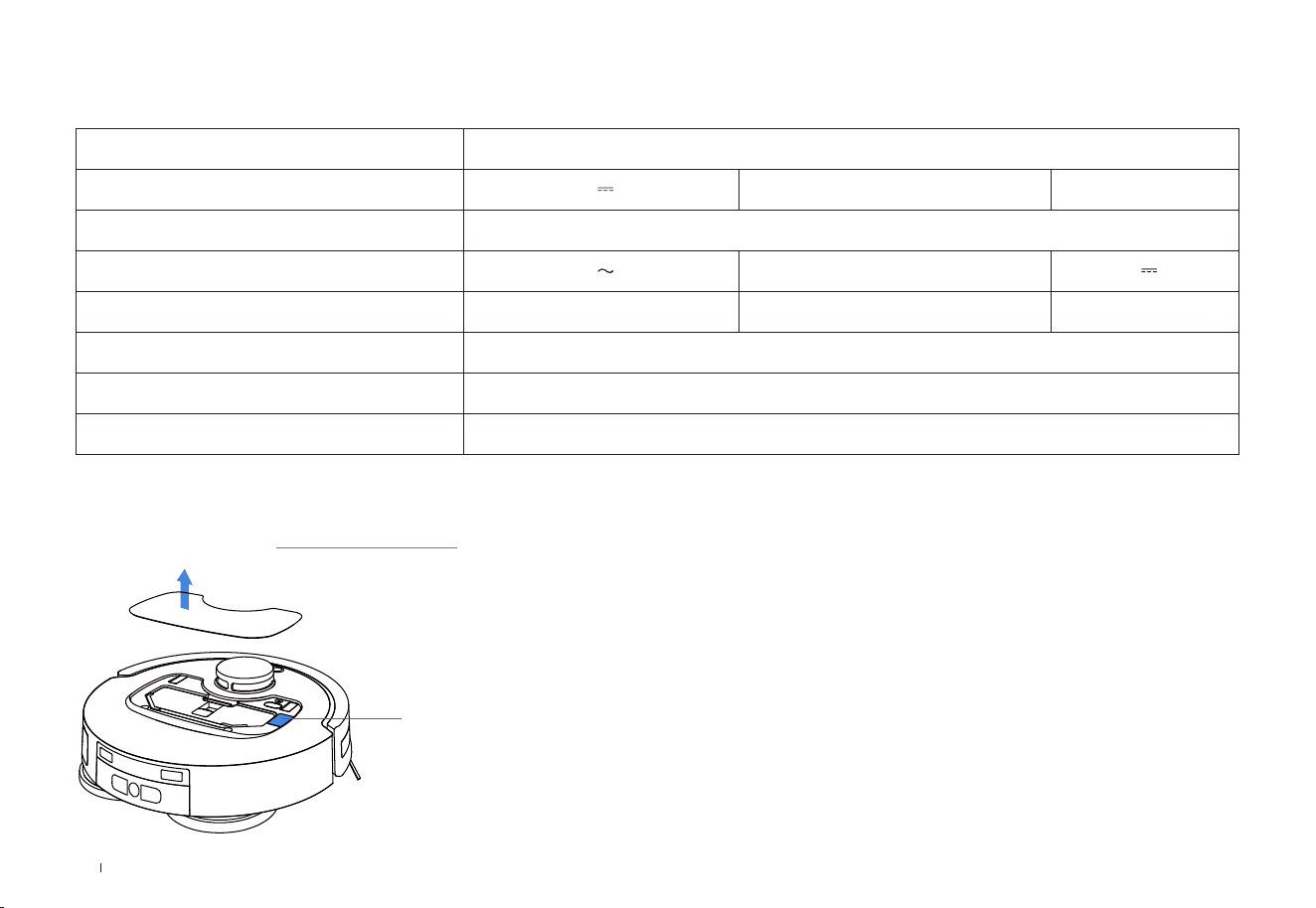
28EN
Model DLX88
Rated Input 20V 2A Charging Time about 4.5h
Station Model CH2471B
Rated Input 220-240V 50-60Hz Rated Output 20V 2A
Rated Input Current(Charging) 0.5A Power(Emptying) 650W
Power(Water Washing Mop) 35W
Frequency Bands 2400-2483.5MHz
Networked Standby Power Less than 2.00W
Please use the mobile camera to scan the QR code and obtain the user guide.
TECHNICAL SPECIFICATIONS
Output power of the wireless module is less than 100mW.
Note: Technical and design specifications may be changed for continuous
product improvement.
Explore more accessories at https://www.ecovacs.com.

Ecovacs Home Service Robotics Co., Ltd.
No.518 Songwei Road, Wusongjiang Industry Park, Guoxiang Street,
Wuzhong District, Suzhou, Jiangsu, China.
451-2575-1400