THR30IIA Wireless Reference Manual 1
EN
Guitar Amplifier
Contents
Reference Manual
Introduction ...........................................................................2
Main Features ............................................................................. 2
Names and Functions ..........................................................3
Control Panel .............................................................................. 3
Rear Panel .................................................................................. 6
Connection ............................................................................7
Connection Example .................................................................. 7
Power ......................................................................................... 8
Auto Power Off Function .......................................................... 10
Connecting to guitar by wirelessly ............................................ 10
Connecting to a smart device ................................................... 11
Connecting to a computer ........................................................ 13
Troubleshooting .................................................................15
Specifications .....................................................................17
Technical Specifications ........................................................... 17
Power Button LED status list .................................................... 18
Signal Flow Diagrams ............................................................... 19

THR30IIA Wireless Reference Manual 2
Thank you for purchasing the Yamaha THR30IIA Wireless.
This product is an exceptionally versatile and compact guitar amplifier designed for acoustic guitar players.
You can use this product in your home, rehearsal spaces, and other places—virtually anywhere you want it!
We recommend that you read this manual carefully so that you can fully take advantage of the advanced and
convenient functions of the product. We also recommend that you keep this manual for future reference.
Main Features
• Sophisticated guitar amplifier utilizing advanced amp modeling, made possible by Yamaha’s original
VCM technology.
• Built-in wireless receiver works with a compatible Wireless Transmitter for wireless use.
• Bluetooth® capability enables playing of music sources and editing of the amp’s sound settings from
a smart device or computer.
• Built‐in rechargeable battery enables use without a power adaptor.
• Yamaha’s original Extended Stereo technology enables an exceptionally wide stereo image, much
wider than the unit’s compact size.
• Stereo Imager enables an even more expansive guitar sound and is also good for accentuating
vocals.
• The audio interface capability enables you to record your guitar with the amp processing to a com-
puter via USB.
• Features a built-in chromatic tuner.
* What is VCM Technology?
An original physical modeling technology developed by Yamaha, VCM Technology reproduces the characteristics of analog
circuitry at the component level to accurately reproduce the sound of the modeled equipment.
* The guitar wireless transmitter described in this Reference Manual refers to the Yamaha YW10T, the Line 6
Relay G10T, and the Line 6 Relay G10TII (hereinafter abbreviated as the Wireless Transmitter.)
Introduction
THR30IIA Wireless Reference Manual 3
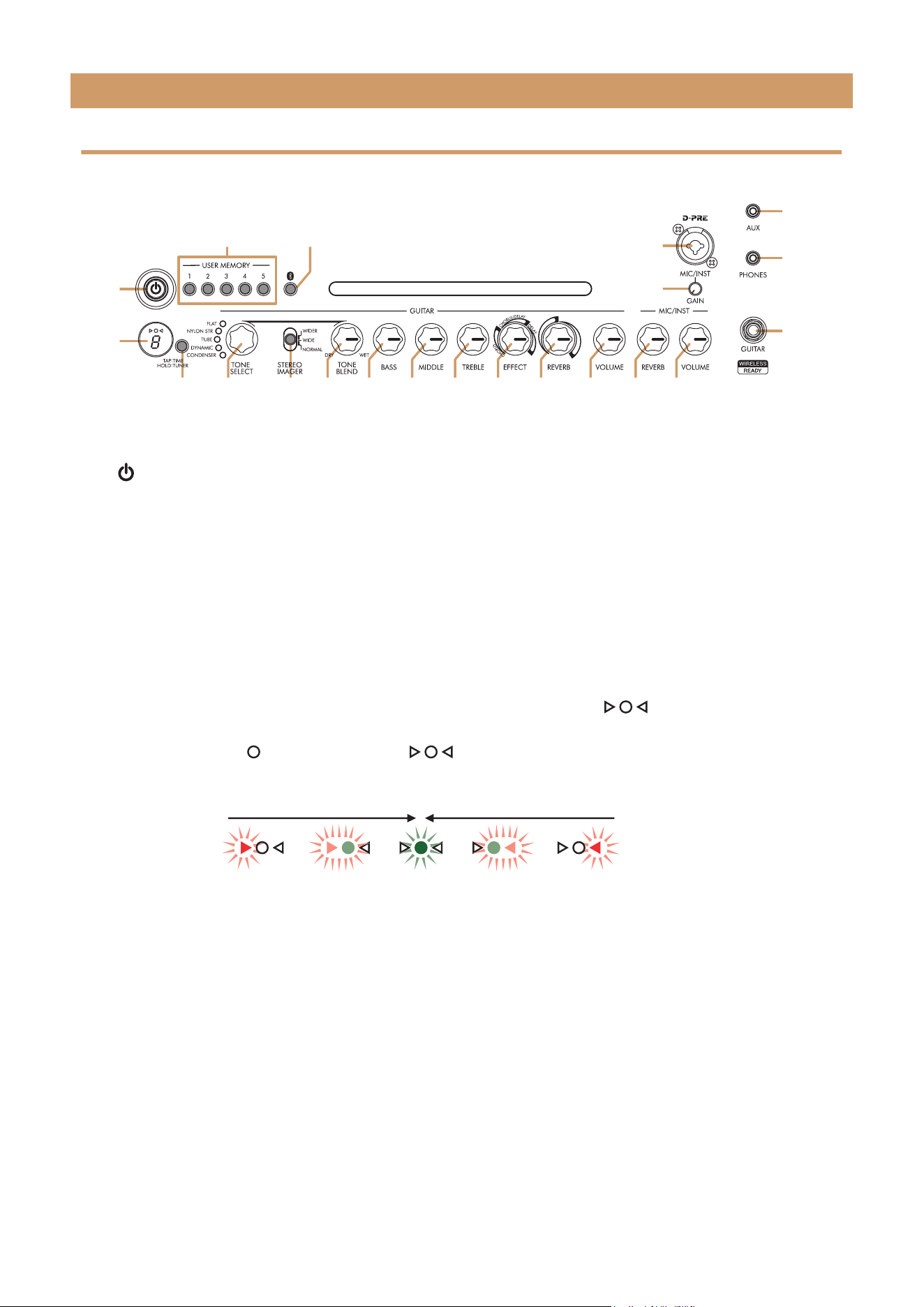
Control Panel
q [ ] (Power Button) / Power Button LED
This is the unit’s power button.
When the power is ON, the Power Button LED, the lamp corresponding to the selected tone and the Power
Lamp in the speaker cabinet light up.
w LED Display
Indicates individual settings and conditions of the THR30IIA Wireless.
e [TAP/TUNER] button
Tuner Function
Holding the switch for 1 second engages the tuner function and lights the indicators.
The tuner is calibrated to A4=440Hz. Tune the guitar until the desired pitch appears in the LED display.
When only the circle ( ) in the center of the display is visible, tuning is accurate.
Press the [TAP/TUNER] button again to turn OFF the tuner function*.
* When the tuner function is set to ON, the guitar is muted. The sounds from the [AUX] jack, [USB] jack and Bluetooth are out-
put to the main speaker and [PHONES] jack.
Tap Tempo Function
When a CHORUS/DELAY or DELAY effect is selected with the [EFFECT] knob !0 control, the tempo of the
delay can be set by tapping (more than twice) on the switch.
Extended Stereo Setting
Hold the [TAP/TUNER] button for more than five seconds to switch the Extended Stereo* function ON/OFF.
The Extended Stereo function produces a much wider stereo field. This affects the sounds from the [AUX]
jack, [USB] jack and Bluetooth as well as the guitar reverb effect. The Extended Stereo setting (ON/OFF) is
saved when the power is turned OFF.
ON: “#” on LED Display w is off (default setting).
OFF: “#” on LED Display w is lit.
Names and Functions
q
w
!5
!6
!7
e t y u i o !0 !1 !2 !3 !4r
@0
!8
!9
@1
S
H
O
R
T
L
O
N
G
THR30IIA Wireless
Pitch is low Pitch is highIn tune
THR30IIA Wireless Reference Manual 4
Names and Functions
r [TONE SELECT] knob
Selects the tone. The lamp for the corresponding tone lights. When the power is turned ON, the most recent
tone is selected.
Tone List
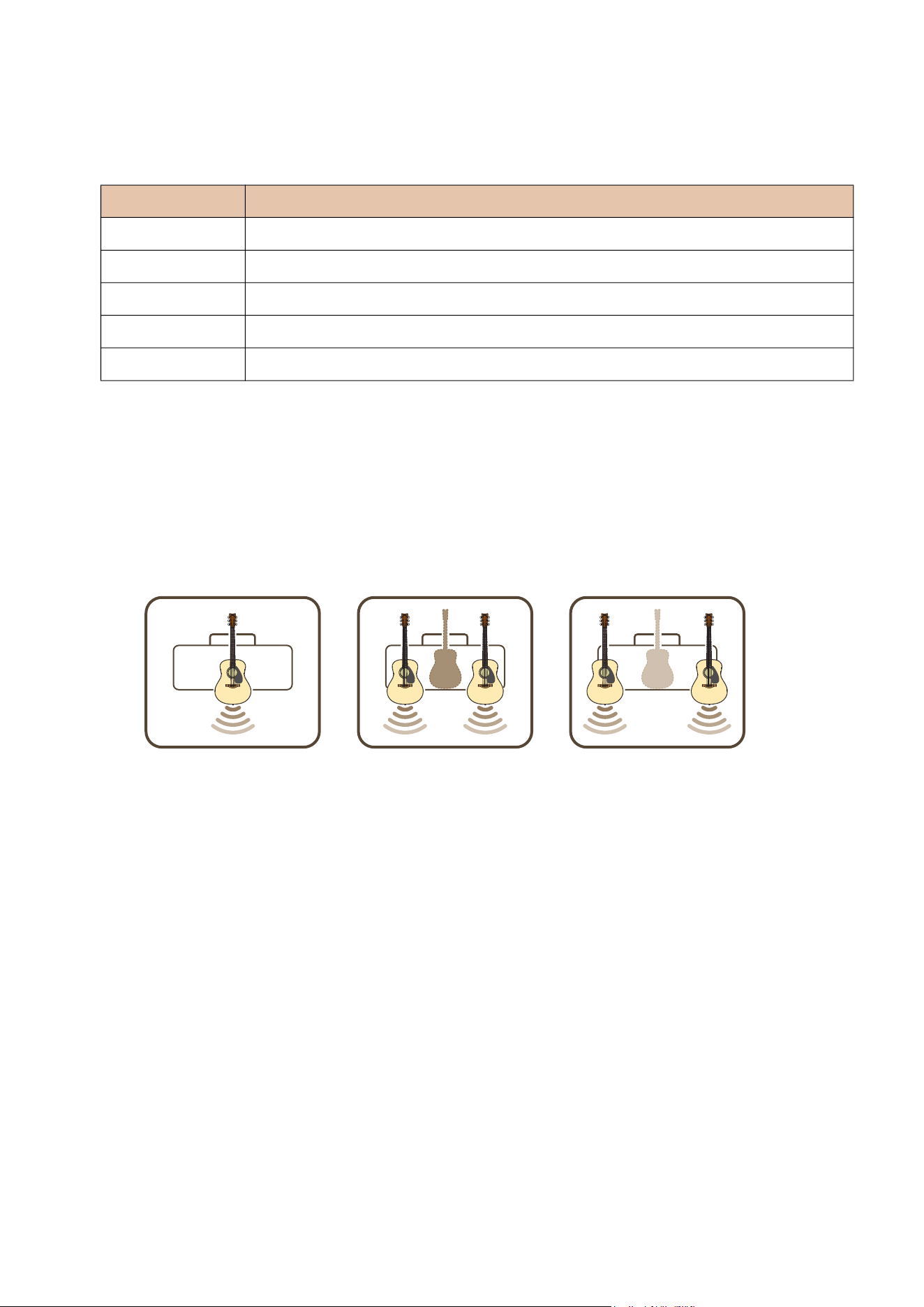
t [STEREO IMAGER] switch
Selects the Stereo Imager effect, which spreads the guitar sound left and right. Stereo Imager also accentu-
ates the vocal sound in the center with the guitar sound expanding to the left and right. Stereo Imager affects
only the guitar sound from [GUITAR] !5 jack.
[NORMAL]: Sets the guitar sound and vocal sound at the center.
[WIDE]: Spreads the guitar sound to the right and left.
[WIDER]: Spreads the guitar sound further to the right and left.
y [TONE BLEND] knob
Blends the modeled front mic sound of an acoustic electric guitar with the actual pickup sound of the guitar.
(Maximum setting produces the mic sound only. Minimum setting produces the direct pickup sound only.)
u [BASS] knob
Tone adjustment for the guitar’s sound. Turn the knob clockwise to boost the low-range frequencies.
i [MIDDLE] knob
Tone adjustment for the guitar’s sound. Turn the knob clockwise to boost the mid-range frequencies.
o [TREBLE] knob
Tone adjustment for the guitar’s sound. Turn the knob clockwise to boost the high-range frequencies.
Tone Description
FLAT The Flat setting outputs the input sound directly. [TONE BLEND] knob works as a gain function.
NYLON STR Perfect for use with an acoustic-electric classical or nylon string guitar.
TUBE The tube microphone setting gives the acoustic guitar sound a rich, midrange tone.
DYNAMIC The dynamic microphone setting gives the acoustic guitar a tight tone.
CONDENSER The condenser microphone setting gives the acoustic guitar sound a natural, clear tone.
[NORMAL] [WIDE] [WIDER]

THR30IIA Wireless Reference Manual 5
Names and Functions
!0 [EFFECT] knob
Selects the effect type and amount applied to the guitar sound from [GUITAR] !5 jack. Selects one of three dif-
ferent effects: CHORUS, CHORUS/DELAY*
1
, or DELAY*
1
. Turn the knob clockwise*
2
to increase the amount
of each effect.
*
1
When CHORUS/DELAY or DELAY is selected, the [TAP/TUNER] button e can be used to set the delay time.
*
2
Turn the knob fully counterclockwise to set the effect OFF.
!1 [REVERB] knob
Selects one of two different reverbs: SHORT and LONG.
Turn the knob clockwise to increase the amount of each reverb. Turn the knob fully counterclockwise to set the
effect OFF.
!2 [VOLUME] knob
Adjusts the overall volume of the guitar sound. This knob’s setting has no effect on the signal sent to the [USB]
jack !3. The volume output to the [LINE OUT] [L] [R] jack is constant regardless of the setting of the [VOL-
UME] knob.
!3 [MIC/INST REVERB] knob
Adjusts the reverb amount for audio from the mic or electronic instrument connected to the [MIC/INST] jack !8.
Turn the knob clockwise to increase the amount of reverb.
!4 [MIC/INST VOLUME] knob
Adjusts the volume from the mic or electronic instrument connected to the [MIC/INST] jack !8.
!5 [GUITAR] jack
This is a standard phone jack used to connect* a guitar to the THR30IIA Wireless.
* Connecting the Wireless Transmitter to the [GUITAR] jack starts charging that device automatically.
* The optimal transmission channel is set automatically when the Wireless Transmitter to the [GUITAR] jack has been con-
nected for at least 10 seconds.
!6 [PHONES] jack
This is a stereo mini phone jack used to connect* stereo headphones to the THR30IIA Wireless.
* Speaker sound is muted when a plug is inserted into the [PHONES] jack.
!7 [AUX] jack
This is a stereo mini phone jack used to connect* an external audio device to the THR30IIA Wireless.
* The signal received at the [AUX] jack is not sent to the [USB] jack @5.
!8 [MIC/INST] jack
For connection* to a microphone or electronic instrument. This jack can be connected to both XLR-type and
phone-type (balanced/unbalanced) plugs.
!9 [GAIN] knob
Adjusts the input signal level of the [MIC/INST] jack.
@0 [USER MEMORY] [1] [2] [3] [4] [5] button
Saves up to five sets of guitar section controller settings (TONE BLEND, BASS, MIDDLE, TREBLE, EFFECT,
REVERB), STEREO IMAGER setting , and a mic/inst section controller setting (MIC/INST REVERB).
Press and hold the [USER MEMORY] button of the corresponding number for saving your settings (for about 2 sec-
onds). The save operation is complete when the memory number for the button being pressed appears in the LED
Display w. Press the desired numbered button (for less than 2 seconds) to recall the saved settings.
THR30IIA Wireless Reference Manual 6
Names and Functions
@1 [Bluetooth] button
Sets the Bluetooth function. Press and hold for three seconds to activate Bluetooth pairing. The LED display
w will flash in green. For further details, refer to the section “Connecting to a smart device” on page 11.
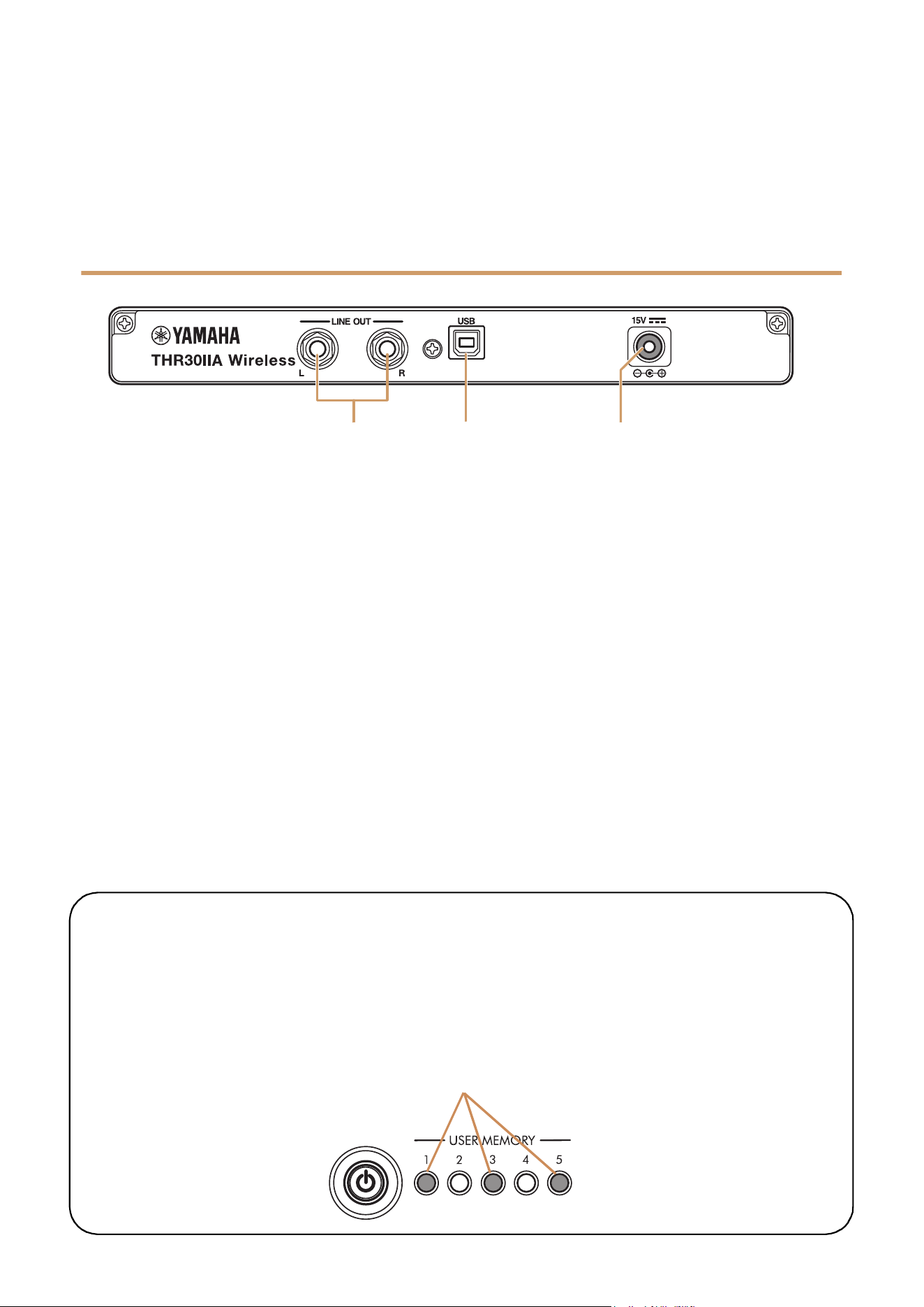
Rear Panel
@2 [LINE OUT] [L] [R] jack
The line outputs are impedance-balanced phone jacks for connection to external devices. These jacks can be
connected to TRS phone or mono-type phone plugs.
@3 [USB] jack
This jack is used to connect the THR30IIA Wireless to a computer via a USB cable.
@4 [15V] DC IN connector
For connection to the supplied power adaptor.
@2
@3
@4
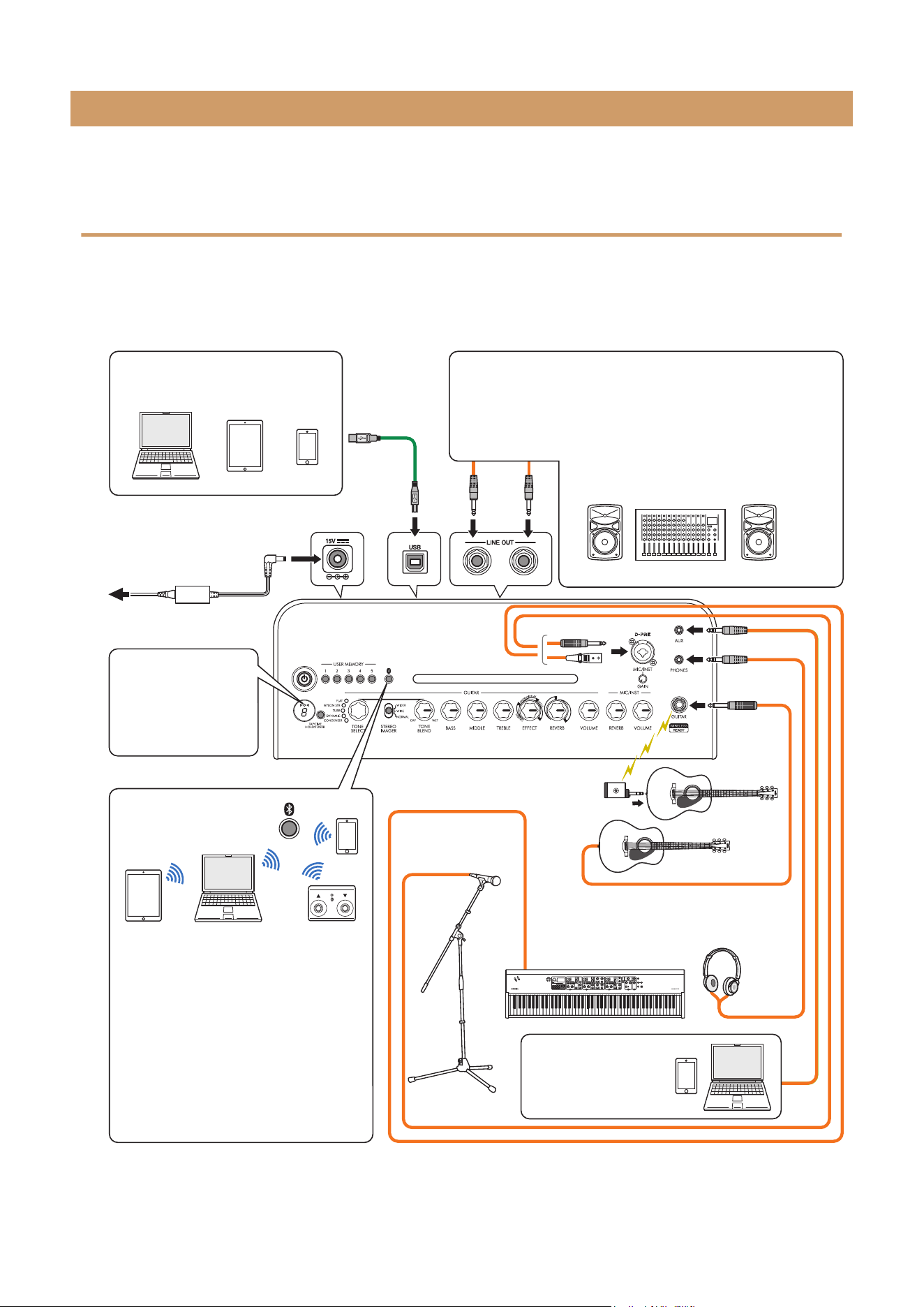
About the Default Settings
To reset all contents stored in the user memory, switch on the power while holding down [USER MEM-
ORY] buttons [1], [3], and [5].
NOTICE
All contents stored in the user memory will return to factory defaults when the unit is initialized.
Hold down buttons [1], [3], and [5].
Switch on the power.
THR30IIA Wireless Reference Manual 7
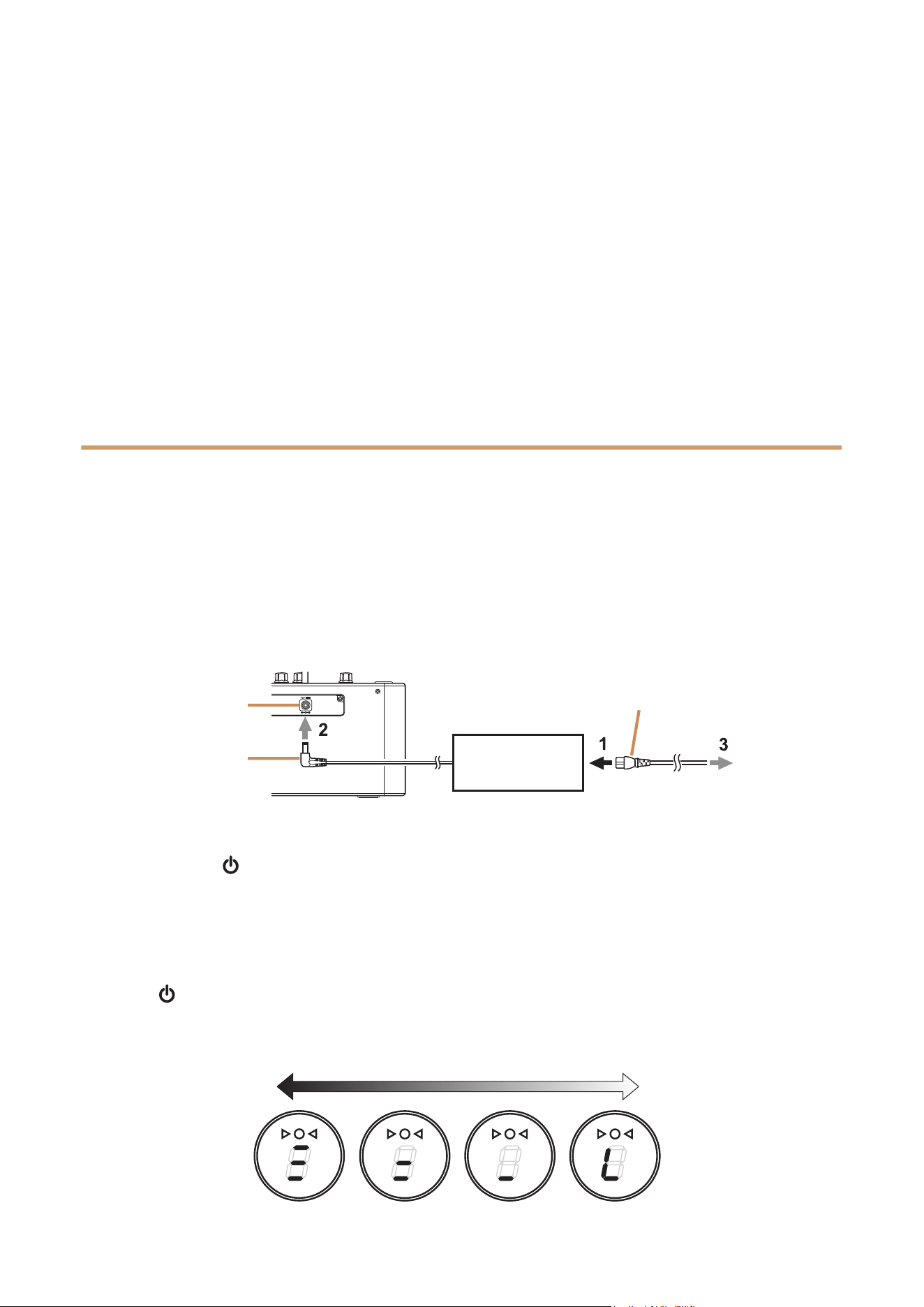
The THR30IIA Wireless can be used either with a conventional wired connection with an appropriate cable, or
with a wireless connection.
Connection Example
• Make sure that all devices to be connected to the unit by cable are turned off.
• When connecting the unit to an external device, always use an appropriate cable that matches the
jack’s specifications and connect it securely.
Connection
S
H
O
R
T
L
O
N
G
LR
* The illustrations and LCD screens as shown in this manual are for instructional purposes only,
and may appear somewhat different from those on your instrument.
NOTE
If a cable is connected to the INPUT
jack, the wireless guitar receiver can-
not be used.
• Playing music/audio
NOTE
Make sure to adjust the device’s level
appropriately to avoid distortion.
• Wireless tone editing with the iOS/
Android app (THR Remote).
• Wireless control with a third-party
Bluetooth footswitch (via THR
Remote).
Wireless
connection
Audio output from
an audio player or
computer
Computer, tablets and smartphones
USB cable
Power Adaptor
LED display
When connecting a
Bluetooth device,
check LED lighting in
this area.
• Order for turning the power on
THR30IIA Wireless → Mixer → Amp (or powered speaker)
• Order for turning the power off
Amp (or powered speaker) → Mixer → THR30IIA Wireless
External audio devices
Power
outlet
Bluetooth
Dynamic
microphone
THR30IIA Wireless Reference Manual 8
Connection
Precautions for using the USB jack
Make sure to follow the points on the next page when connecting a computer to the THR30IIA Wireless USB
jack, to avoid loss of data by the computer and prevent the THR30IIA Wireless from freezing or shutting down.
NOTICE
• Use an AB type USB cable of less than 3 meters. USB 3.0 cables cannot be used.
• Be sure to wake the computer from suspended/sleep/standby mode before connecting a computer
to the USB jack.
• Always quit all applications that are running on the computer before connecting or disconnecting
the USB cable and set the volume output on the computer to its minimum level.
• When connecting or disconnecting the USB cable, be sure to set the OUTPUT controls ([VOLUME]
knob and [MIC/INST VOLUME] knob) on the THR30IIA Wireless to their minimum levels.
• Wait at least 6 seconds between connecting or disconnecting the USB cable.
Power
The THR30IIA Wireless can operate on either DC power (via the power adaptor) or with the built‐in rechargeable
battery*.
* When you use the THR30IIA Wireless with the built-in rechargeable battery, the maximum output volume is reduced (
page 17
).
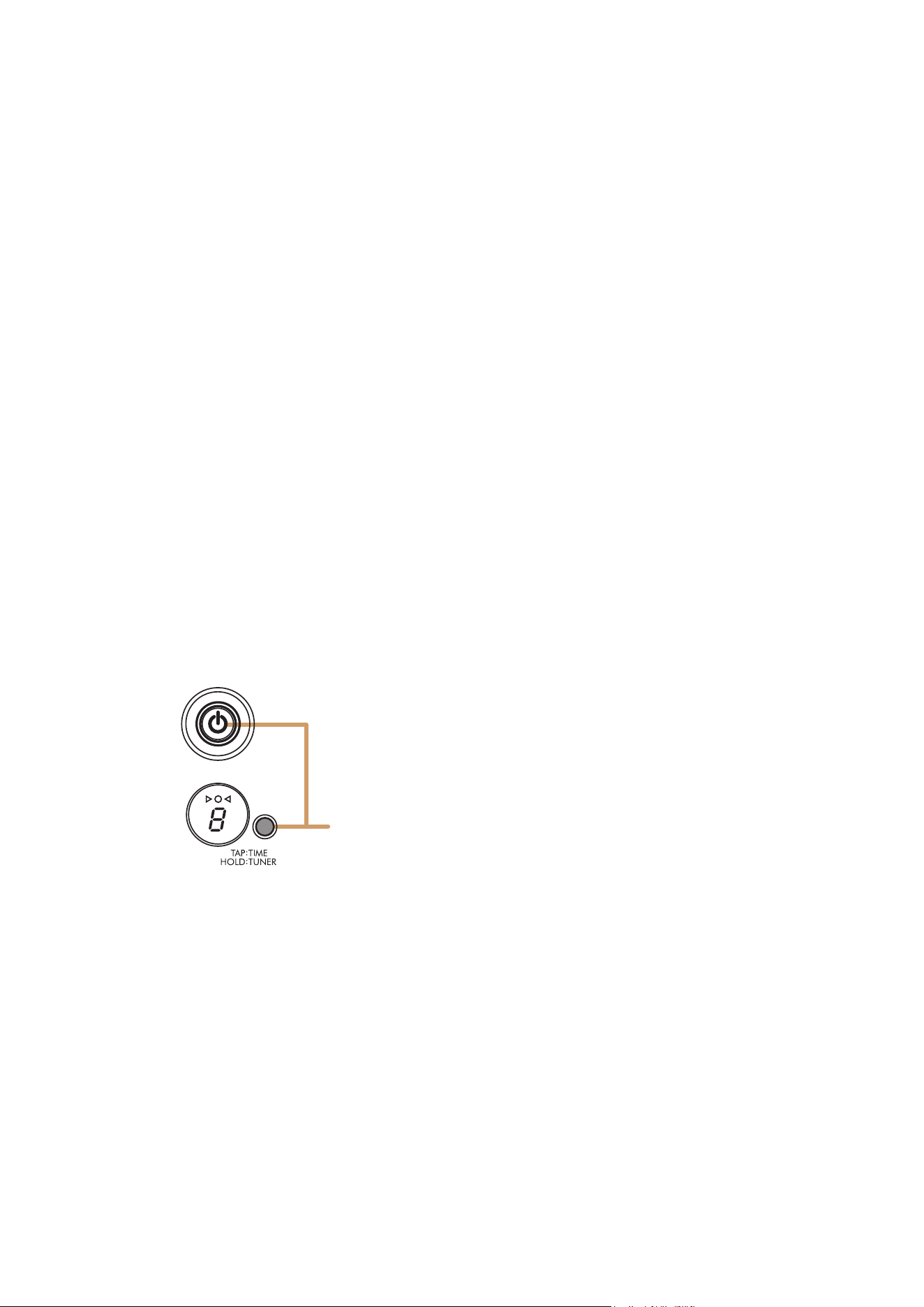
When using the power adaptor
Connect* the supplied power cord to the power adapter, and then connect the supplied power adaptor to the
[15V] DC IN jack located on the rear panel of the THR30IIA Wireless. Finally, connect the AC plug to a power
outlet.
* Follow the included Safety Instruction Sheet before making connections.
Turning the power on and off
Press and hold the [ ] power button on the top of THR30IIA Wireless for one second to turn the power on or
off*. The LED of the power button lights when turning the power button on. The LED of the THR30IIA Wireless
lights in green while charging. Otherwise, it lights in red.
* Follow the included Safety Instruction Sheet before making connections.
Checking the battery level
Press the [ ] button on top of the THR30IIA Wireless briefly to check the battery level. The remaining battery
capacity is displayed in four levels of 3, 2, 1 and L (Low).
Power adaptor
(supplied)
Power outlet
DC IN jack
DC plug
Supplied power cord
Battery full No battery remaining
THR30IIA Wireless Reference Manual 9
Connection
Charging the built-in battery
Connect the supplied power adaptor to the DC IN jack located on the rear side of the THR30IIA Wireless. The
LED of the power button lights in green while charging.
* For further details of the Power Button LED status, refer to the Power Button LED status list (page 18).
NOTICE
• When you use the THR30IIA Wireless in an environment of extreme temperatures, charging may
not be possible.
• Charge the built-in rechargeable battery once every six months to maintain functionality.
Charging the Wireless Transmitter
Connect a compatible Wireless Transmitter *
1
to the [GUITAR] jack located on the top of the THR30IIA Wireless.
The Wireless Transmitter starts *
2
charging automatically. If you have disconnected the Wireless Transmitter from
the [GUITAR] jack of the THR30IIA Wireless and want to resume charging the transmitter, wait for at least two (2)
seconds before reconnecting it to the [GUITAR] jack.
*
1
Refer to the manual for each Wireless Transmitter for explanations of LED display indications on the Wireless Transmitter.
*
2
If the supplied power adapter is not connected to the THR30IIA Wireless, the Wireless Transmitter will not start charging.
NOTICE
• After charging, unplug the Wireless Transmitter from the THR30IIA Wireless.
• If the THR30IIA Wireless is turned off and the power adapter is connected, the Wireless Transmitter
will be charged simply by connecting. However, the THR30IIA Wireless is set by default to stop
supplying power to the Wireless Transmitter when charging is finished. In this state, leaving the
Wireless Transmitter connected to the THR30IIA Wireless may result in depletion of the Wireless
Transmitter’s battery power. To avoid this situation, turn off the THR30IIA Wireless’s ECO setting.
Changing the Wireless Transmitter’s ECO setting *
1
*
2
1. Switch on the power of THR30IIA Wireless
2. Switch off the power of THR30IIA Wireless while holding the [TAP/TUNER] button
*
3
*
1
You can change the ECO setting from the THR Remote.
*
2
ECO on and ECO off are toggle. When you change the ECO setting, perform the steps 1 to 2 again.
*
3
After you switch the ECO setting from on to off, the letter “C” will appear on the LED display when you start charging
the Wireless Transmitter.
Switch off the power while
holding the [TAP/TUNER]
button.
THR30IIA Wireless Reference Manual 10
Connection
Auto Power Off Function
To prevent unnecessary power consumption, the THR30IIA Wireless features an Auto Power Off function that
automatically turns the power off if the THR30IIA Wireless or the THR30IIA Wireless via the THR Remote app is
not operated for approximately 20 minutes; however, you can change the setting.
NOTICE
• If you do not want the power to turn off automatically when a computer is connected, disable the
Auto Power Off function.
Enabling or disabling the Auto Power Off Function
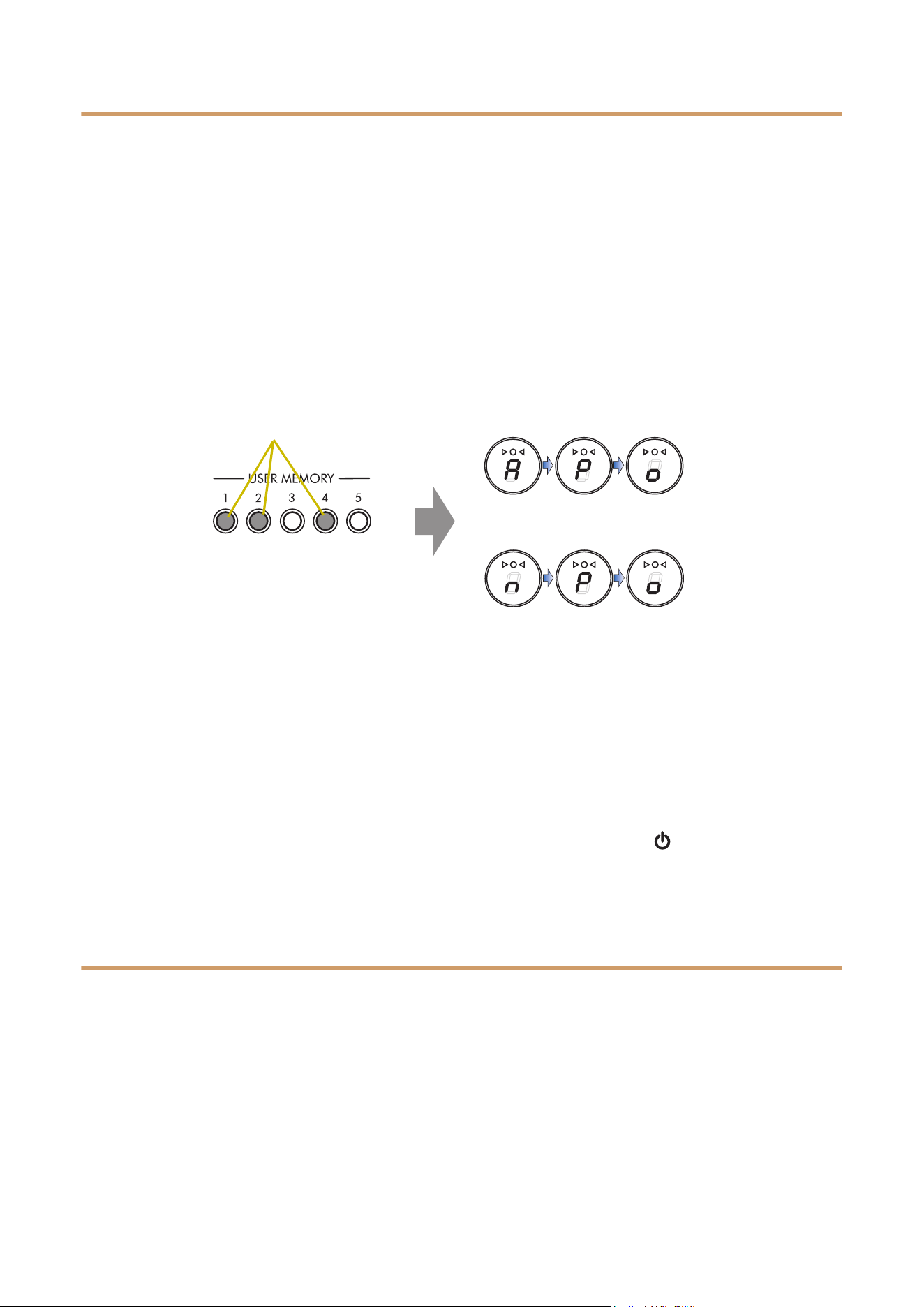
To enable or disable the Auto Power Off Function, hold down the [USER MEMORY] [1], [2], and [4] buttons
simultaneously. If you want to confirm the current setting, press the [USER MEMORY] [1], [2], and [4] buttons
simultaneously.
NOTICE
• Depending on the THR30IIA Wireless status, the power may not turn off automatically, even after
the elapse of 20 minutes. Always turn off the power manually when the THR30IIA Wireless is not in
use.
NOTE
• When the Auto Power Off function has switched on or off successfully, the setting result will be dis-
played, and the tuner LED will light at the same time.
• The setting time is approximate.
• To turn the power on after Auto Power Off has been executed, press the [ ] power button.
Connecting to guitar wirelessly
The THR30IIA Wireless can connect to a compatible Wireless Transmitter wirelessly. In addition, the optimal
channel is set automatically by connecting the Wireless Transmitter to the [GUITAR] jack located on the top of
the THR30IIA Wireless for at least 10 seconds. For more information on wireless connections, refer to the man-
ual for the corresponding Wireless Transmitter.
Hold down buttons [1], [2], and [4].
Auto Power Off function is enabled
Auto Power Off function is disabled
THR30IIA Wireless Reference Manual 11
Connection
Connecting to a smart device
By connecting a smart device to the THR30IIA Wireless, you can:
• Play audio files from a smart device via Bluetooth.
• Edit effect and tone controls from a smart device.
Playing audio files on a smart device via Bluetooth
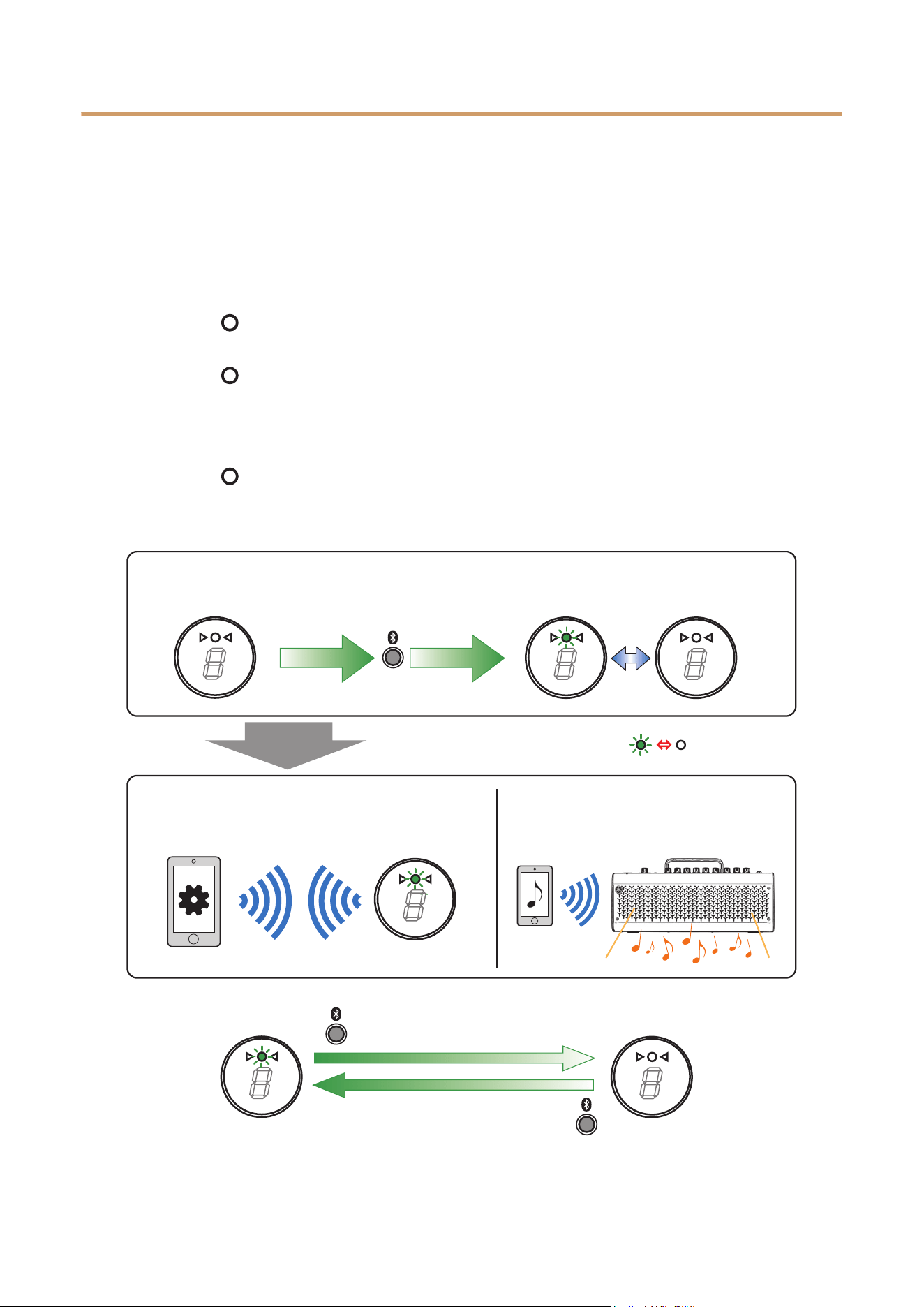
To play audio from a smart device via Bluetooth, configure Bluetooth on the smart device while in the pairing
mode.
Setting the THR30IIA Wireless to pairing mode
1. Check that the at the top of the LED DISPLAY is unlit (disconnected).
2. Press and hold the [Bluetooth] button located on the top of the THR30IIA Wireless for three seconds.
3. Check that the at the top of the LED DISPLAY flashes in green (pairing mode).
Configuring Bluetooth on the smart device
4. Complete the Bluetooth configuration* of the smart device within 3 minutes after entering pairing mode.
* For details on Bluetooth configuration, refer to the manual of your smart device or follow the onscreen instructions.
5. Check that the at the top of the LED DISPLAY lights in green (connected).
Confirm sound output from the THR30IIA Wireless by playing music from the smart device.
NOTE
• When the Bluetooth connection registration remains on both the THR30IIA Wireless and smart
device, they will reconnect automatically when the THR30IIA Wireless power is turned on.
Press the [Bluetooth]
button (disconnect).
5. Check that the
LED is lit in green
(connected).
4. Complete the
Bluetooth
configuration.
3. Check that the LED flashes
in green (pairing mode).
1. Unlit
(disconnected)
2. Press and hold the
[Bluetooth] button for
three seconds (pairing).
Within 3 minutes (while flashing).
Play audio from the smart device.
Lit in green
(connected)
Unlit
(disconnected)
Press the [Bluetooth] button
once when disconnected
(to reconnect).

THR30IIA Wireless Reference Manual 12
Connection
Editing effects and tone controls on a smart device
Install the THR Remote app to the smart device to allow editing of effects and tone controls on that device.
Installing THR Remote (Android, iOS)
1. Access the app distribution service on the smart device.
Android devices: Google Play*
iOS devices: App Store
2. Search for the THR Remote app.
3. Download and install the THR Remote app following the onscreen instructions.
Configuring Bluetooth MIDI
1. Start the THR Remote.
2. Touch the Bluetooth icon on the display.
3. Connect to LE_THRII following the onscreen instructions.
Starting the THR Remote app
Start the THR Remote app on the smart device.
Press the desired [USER MEMORY] button for 2 seconds to save the settings made on the THR Remote to the
THR30IIA Wireless’s built-in user memory (page 5).
* Google Play and the Google Play logo are trademarks of Google LLC.
THR30IIA Wireless Reference Manual 13
Connection
Connecting to a computer
Connecting a computer to the THR30IIA Wireless makes the following possible:
• Playing back audio files from a computer through the THR30IIA Wireless.
• Recording with Cubase AI.
• Editing amp and effect settings using the THR Remote desktop editor.
Playing back audio files from a computer through the THR30IIA Wireless
Configuring and Operating
Select the THR30IIA Wireless as the computer’s audio output setting.
Windows
Control Panel → Sound → “Sound” tab
Mac
System Preferences → Sound → “Output” tab
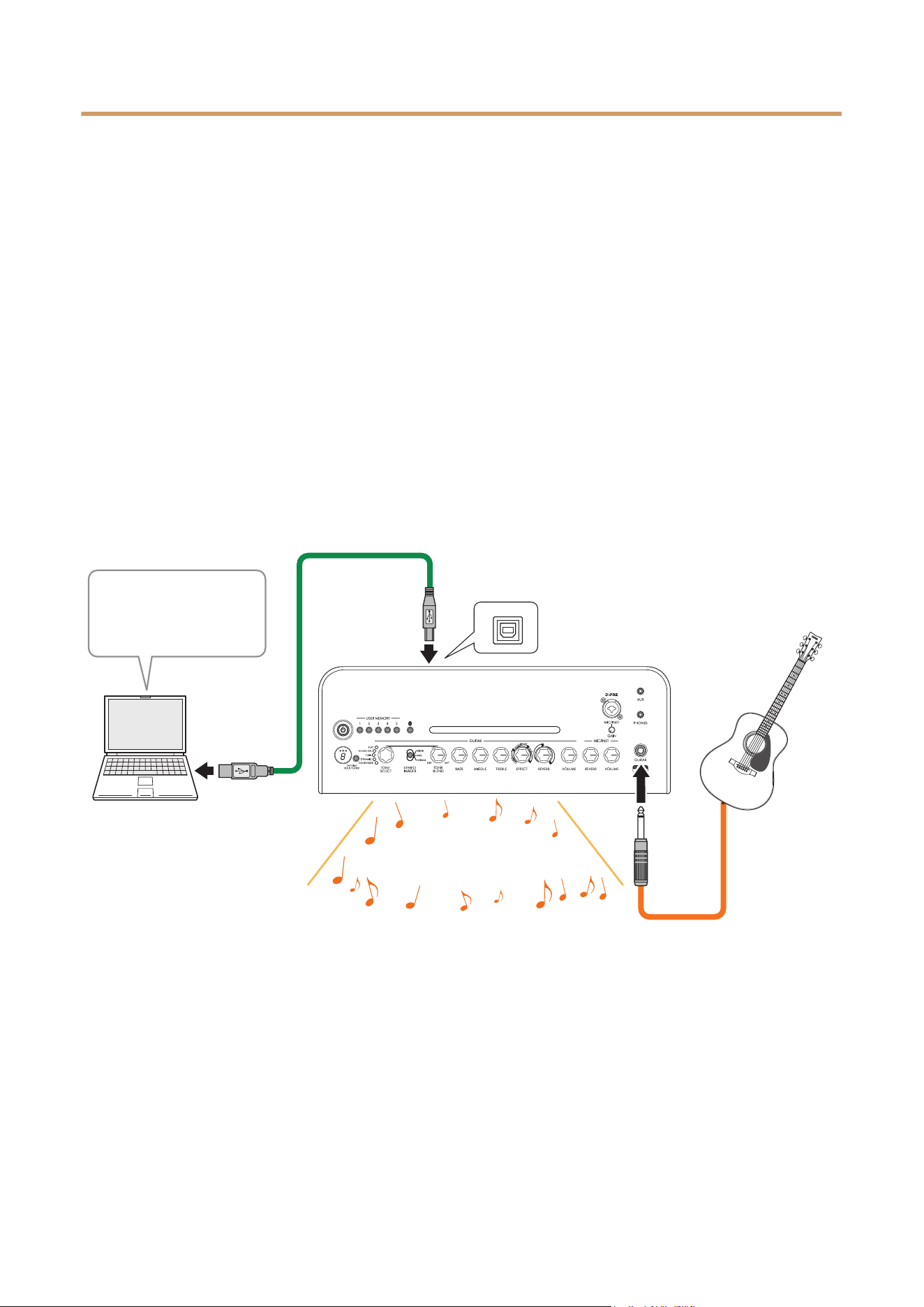
Connect the computer’s USB connector to the USB connector on the THR30IIA Wireless as shown in the dia-
gram below.
You can play your guitar along with the audio played on the computer.
S
H
O
R
T
L
O
N
G
USB Connection diagram
Play back an
audio file on the
computer.
Guitar sound
+
audio playback
[USB] jack
THR30IIA Wireless Reference Manual 14
Connection
Recording with Cubase AI
Installing Cubase AI
A download access code for Cubase AI music production software is included with the THR30IIA Wireless.
Cubase AI enables you to record, edit, mix and play back audio through your THR30IIA Wireless.
Cubase AI System Requirements
For the latest information, refer to the Steinberg website below.
https://www.steinberg.net/
Installing Cubase AI
Follow the instructions provided in the “Cubase AI Download Information” sheet to download*, install*, and
activate* the software.
* To download, install, and activate Cubase AI, an active Internet connection is required.
Connecting to the THR30IIA Wireless
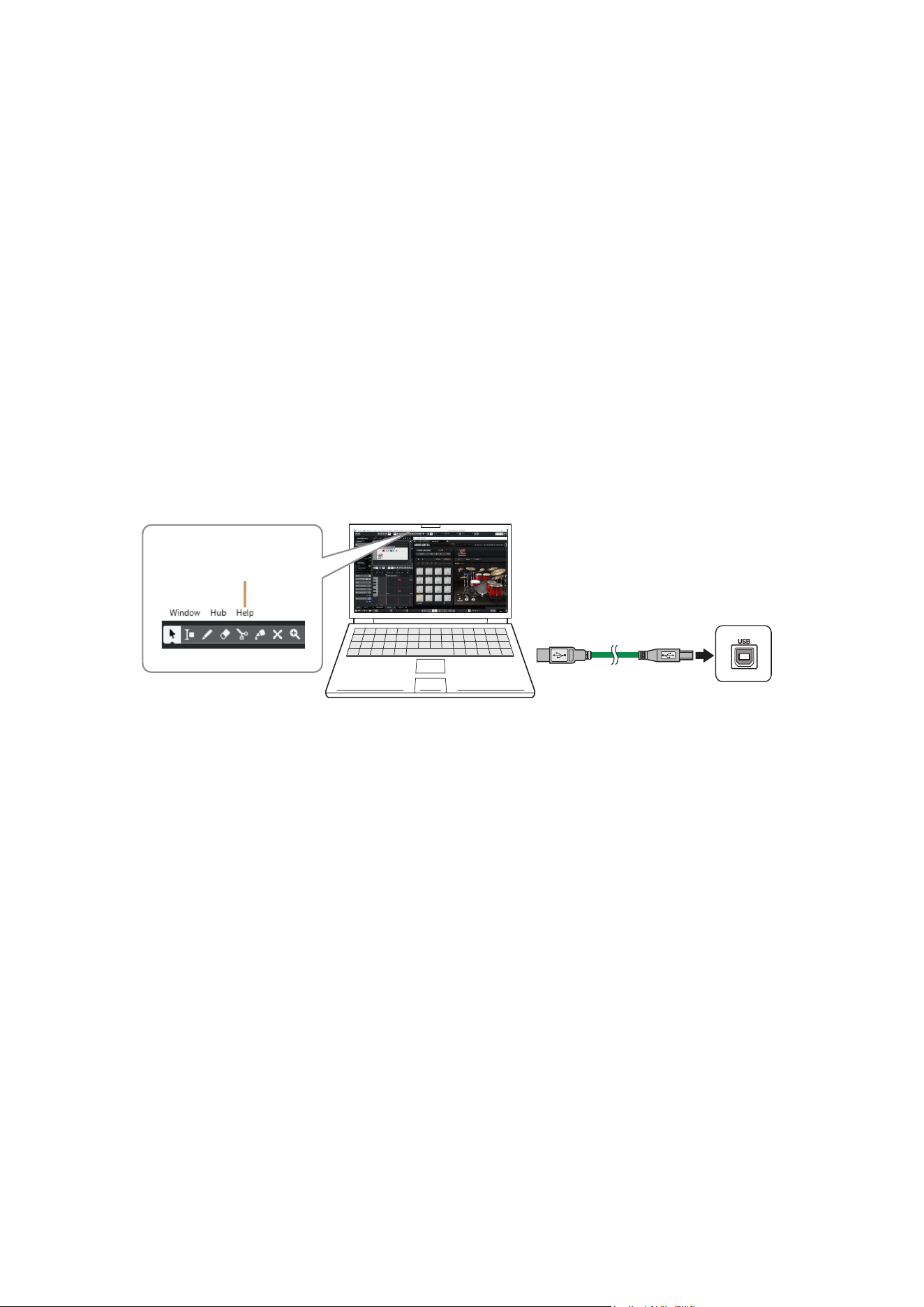
Connect the computer’s USB connector to the USB connector on the THR30IIA Wireless as shown in the dia-
gram below. (See the USB Connection diagram on page 13.)
NOTE
• For more information on operating, refer to the Help Menu within Cubase AI (see illustration below).
Editing effects and tone controls on a computer
Installing the THR Remote app (Windows, Mac)
1. Access the following website and extract the THR Remote file after downloading.
https://download.yamaha.com/
NOTE
• Check the above website for information on system requirements.
• The THR Remote may be updated without notice. Check the above website for the latest details and updates.
2. Install the THR Remote app to your computer.
Configuring and Operating after Installing
Connect the computer’s USB connector to the [USB] connector on the THR30IIA Wireless as shown in the
diagram below. (See the USB Connection diagram on page 13.)
Press the desired [USER MEMORY] button for 2 seconds to save the settings made on the THR Remote to
the THR30IIA Wireless’s built-in user memory (page 5).
To [USB] jack on
THR30IIA Wireless
Help

THR30IIA Wireless Reference Manual 15
No power
• Connect the power adaptor properly (see page 8).
• Make sure that the THR30IIA Wireless been
properly charged, when the power adapter is
disconnected (see page 8).
No sound
No guitar sound is output (wired connection)
• Properly connect the guitar to the [GUITAR] jack
(see page 7).
• Make sure that the volume control on the guitar
is turned up properly.
• Make sure that the [VOLUME] knob is not set to
the minimum (see pages 4, 5).
• When the [TONE SELECT] knob is set to FLAT,
make sure that the [TONE BLEND] knob is not
set to the minimum (see page 4).
• Make sure a set of headphones is not con-
nected to the [PHONES] jack; otherwise, sound
will not be output from the speaker on the
THR30IIA Wireless (see page 5).
• Make sure that the COMPRESSOR Level is not
set to 0 on the THR Remote app (see pages 12,
14).
• Set the Tuner function OFF (see page 3).
• Make sure that the cable connecting the guitar
is not damaged.
No guitar sound is output (wireless con-
nection)
• Use a compatible Wireless Transmitter.
The THR30IIA Wireless cannot connect to any
guitar wireless transmitter other than a
compatible Wireless Transmitter.
• Connect the Wireless Transmitter to the
[GUITAR] jack located on the top of the
THR30IIA Wireless for at least 10 seconds. The
appropriate channel will be set automatically.
• Make sure that the volume control on the guitar
is turned up.
• Set the Tuner function OFF (see page 3).
No sound is output from mic or electronic
musical instrument
• Properly connect the mic or electronic musical
instrument to the [MIC/INST] jack (see page 7).
• Make sure that the volume control on the elec-
tronic musical instrument is turned up properly.
• Use only a dynamic microphone; the THR30IIA
Wireless cannot supply phantom power if a con-
denser microphone is connected.
No audio from Bluetooth source
• Confirm the status of the LED display. When the
LED is unlit or flashing in green, the devices are
not connected via Bluetooth (see page 18).
• When the Bluetooth configuration on the smart
device is ON, turn it OFF once and configure
“Playing audio files on a smart device via Blue-
tooth” (see page 11).
• Delete the Bluetooth registration once on the
Bluetooth configuration screen on the smart
device and configure “Playing audio files on a
smart device via Bluetooth” (see page 11).
• Move the smart device and the THR30IIA Wire-
less closer together.
• Turn off the power of the THR30IIA Wireless
and turn on again (see page 8).
• Restart the smart device.
* For details on Bluetooth configuration, refer to the
manual of the smart device.
• Disconnect any other Wi-Fi and Bluetooth
devices. The connection may be disrupted due
to the influence of other nearby Wi-Fi or Blue-
tooth devices.
No audio sound is output from a computer
by USB connection
• Properly connect the USB cable (see page 13).
• Confirm the configuration of the audio output
port on the computer (see page 13).
• Confirm the configuration of the computer on
the computer or that audio is not muted on the
application.
• Make sure the USB cable connecting the
devices is not damaged.
Troubleshooting

THR30IIA Wireless Reference Manual 16
Troubleshooting
No audio sound is output from an external
device by AUX connection
• Properly connect the cable to the external
device (see page 7).
• Make sure that the volume control on the exter-
nal device is turned up.
• Make sure the cable connecting the devices is
not damaged.
Others
Audio feedback occurs
• If you are using a microphone for vocal input,
make sure to position the microphone away from
and at a sufficient distance from the THR30IIA
Wireless.
Tap Tempo cannot be set
• Select CHORUS/DELAY or DELAY.
An “#” indication appears in the LED dis-
play
• When Extended Stereo is set to OFF, a “#”
appears in the LED display (see page 3).
The THR30IIA Wireless cannot be charged
• Keep the THR30IIA Wireless at room tempera-
ture and do not use it until the built-in recharge-
able battery reaches a suitable temperature. If
charging cannot be performed after a sufficient
time, there may be a problem with the built-in
rechargeable battery. If the problem persists,
consult your Yamaha dealer.
Wireless Transmitter cannot be charged
• Disconnect the Wireless Transmitter from the
[GUITAR] jack, wait for at least two (2) seconds,
then connect to the [GUITAR] jack on the
THR30IIA Wireless again.
Volume is low
• Keep the THR30IIA Wireless at room tempera-
ture and do not use it until the built-in recharge-
able battery reaches a suitable temperature.
For safety reasons, the built-in rechargeable
battery is designed to limit the volume when the
built-in rechargeable battery's temperature
rises.
The built-in rechargeable battery charge
does not last
• THR30IIA Wireless’s built-in rechargeable bat-
tery may have reached the end of its life. If the
problem persists, consult your Yamaha dealer.
• Charge the battery every six months to maintain
the battery power function.
• The built-in rechargeable battery has a limited life-
time. The capacity decreases gradually with the
number of times of use and the passage of time.
• The lifetime of the built-in rechargeable battery
depends on the storage method, usage and envi-
ronment.

THR30IIA Wireless Reference Manual 17
Technical Specifications
Digital Section
Built-in Tones
CONDENSER*, DYNAMIC*, TUBE*, NYLON STR,
FLAT
* Mic simulation
Built-in Effects
• CHORUS, CHORUS/DELAY, DELAY
• SHORT REVERB, LONG REVERB
• COMPRESSOR
*
*
Only available on THR Remote.
Built-in Chromatic Auto Tuner
Knob/Switch
TONE SELECT, TONE BLEND, BASS, MIDDLE,
TREBLE, EFFECT, REVERB, VOLUME, MIC/INST
REVERB, MIC/INST VOLUME, USER MEMORY but-
ton x 5, TAP/TUNER button, STEREO IMAGER
switch, Bluetooth button
Display
LED × 1
Connections
GUITAR (standard mono-type phone jack, unbalanced),
MIC/INST (combo jack, XLR-type and phone-type,
balanced/unbalanced),
LINE OUT (standard phone jack, impedance-balanced),
PHONES (stereo mini jack),
AUX (stereo mini jack),
USB TYPE B,
DC IN (15V)
A/D Converter
24-bit
D/A Converter
24-bit
Sampling Frequency
48 kHz
Memory Allocations
User Memory: 5
Input Level
GUITAR IN: -10 dBu
AUX IN: -10 dBu
MIC IN: -50 dBu
INST IN: -10 dBu
PHONES Output Level
10 mW
Rated Output
30 W (15 W + 15 W)
Maximum output during built-in recharge-
able battery operation
15 W (7.5W + 7.5W)
Power Source
Power Adaptor or built-in rechargeable battery
Power Adaptor (YNT345-1530)
Built-in rechargeable battery
Power Consumption
22 W
Standby Power Consumption
0.3 W
Dimensions (W x H x D)
420 x 195 x 155 mm (16.5” × 7.7” × 6.1”)
Weight
4.4 kg (9 lbs. 11 oz.)
Accessories
• Power Adaptor (YNT345-1530)
• Quick Guide
• Safety Instructions Sheet
• Service Offices list
• Cubase AI Download Information
Bluetooth
Bluetooth Version: Bluetooth Ver. 4.2
Supported Profile: A2DP
Compatible Codec: SBC
RF Output Power: Bluetooth class 2
Maximum Communication Range: 10m (33ft) (without
obstacles)
* The contents of this manual apply to the latest
specifications as of the publishing date. To
obtain the latest manual, access the Yamaha
website then download the manual file. Since
specifications, equipment or separately sold
accessories may not be the same in every locale,
please check with your Yamaha dealer.
Specifications
THR30IIA Wireless Reference Manual 18
Specifications
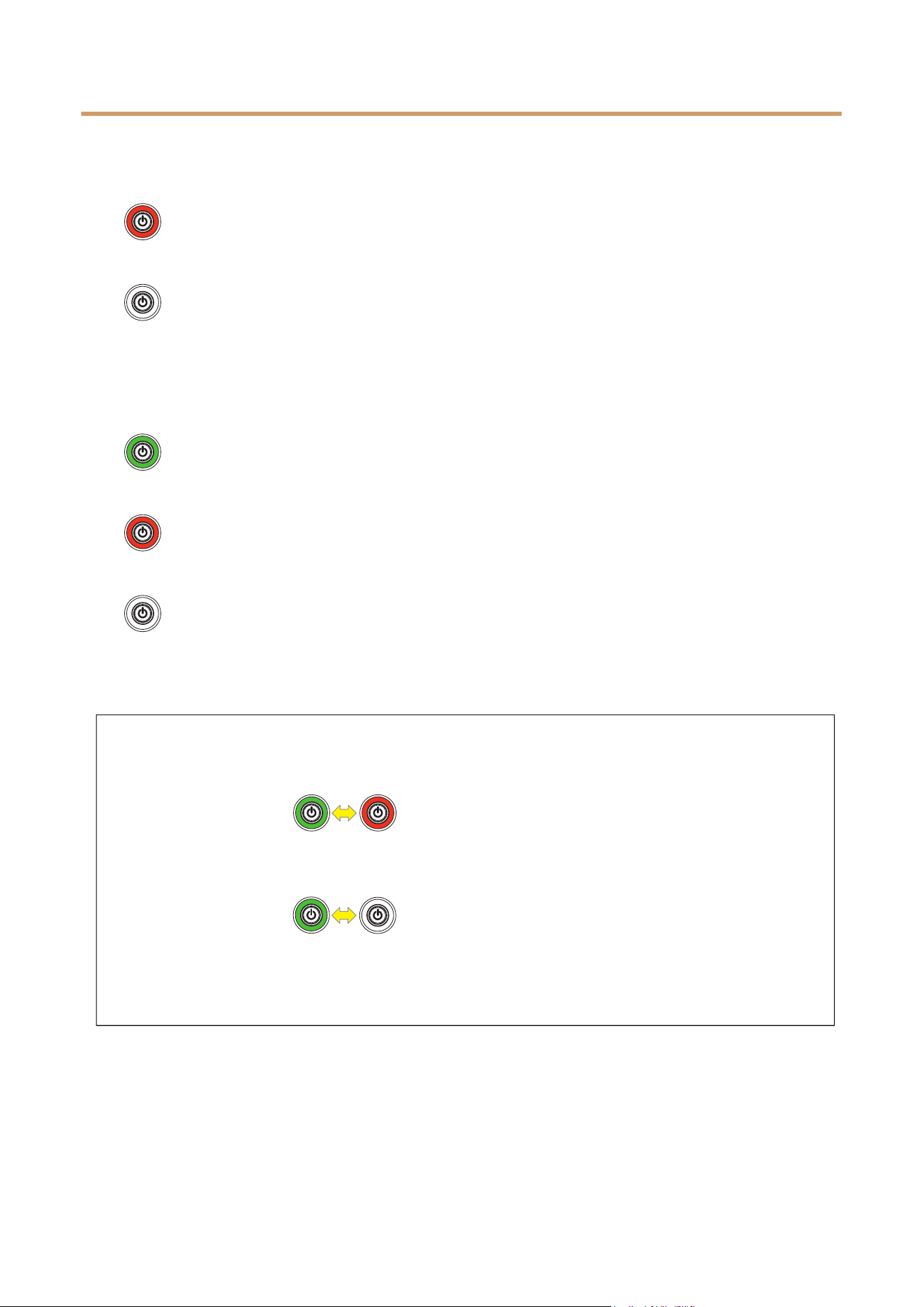
Power Button LED status list
When not using the power adaptor
The power is ON
The power is OFF
When using the power adaptor
Charging
The battery is full and the power is ON
The battery is full and the power is OFF
Red
Unlit
Green
Red
Unlit
Charging error indication
When the power is on Indicates charging error
When the power is off Indicates charging error
If the built-in rechargeable battery has a charging error, immediately turn off the THR30IIA Wireless
power, unplug the power adapter, and consult your Yamaha dealer.
Flashes
(green red)
Flashes
(green unlit)
THR30IIA Wireless Reference Manual 19
Specifications
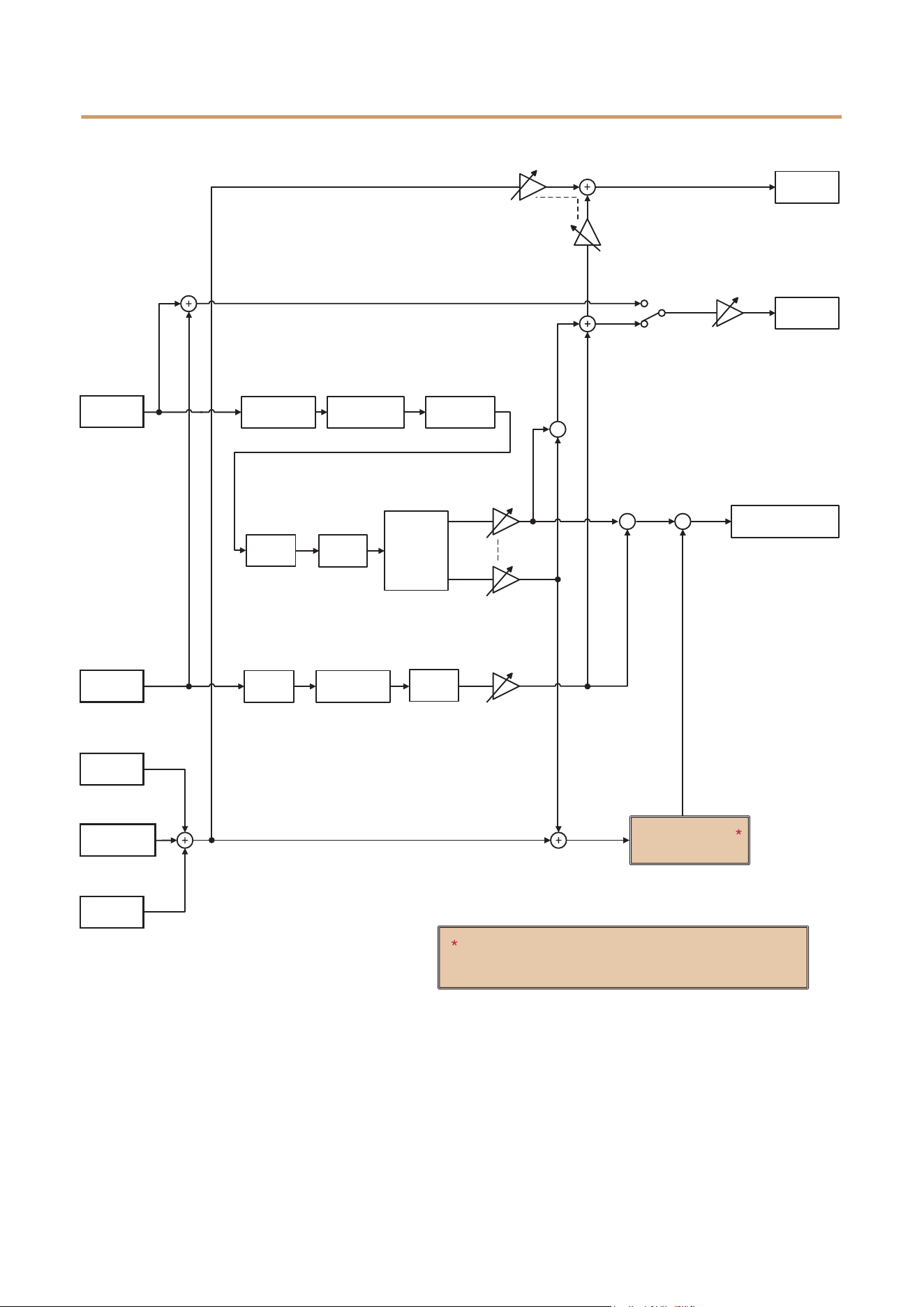
Signal Flow Diagrams
++
Extended Stereo
Bluetooth In
USB In
Speakers &
Headphones Out
USB Out
Line Out
Wet
GUITAR
VOLUME
Sync
Compressor
Stereo
Imager
TONE
Simulator
AUX In
Guitar
Reverb
Dry
Output gain
App. control
Chorus
Delay
Mix gain
App. control
Sync
Direct
Switch
+
Mic In
Guitar In
MIC/INST
VOLUME
Mic
HPF
Mic
3 Band EQ
Mic
Reverb
Extended Stereo is turned off when head-
phones are connected.
© 2020 Yamaha Corporation
Published 3/2025 IP-F0