Front
Back
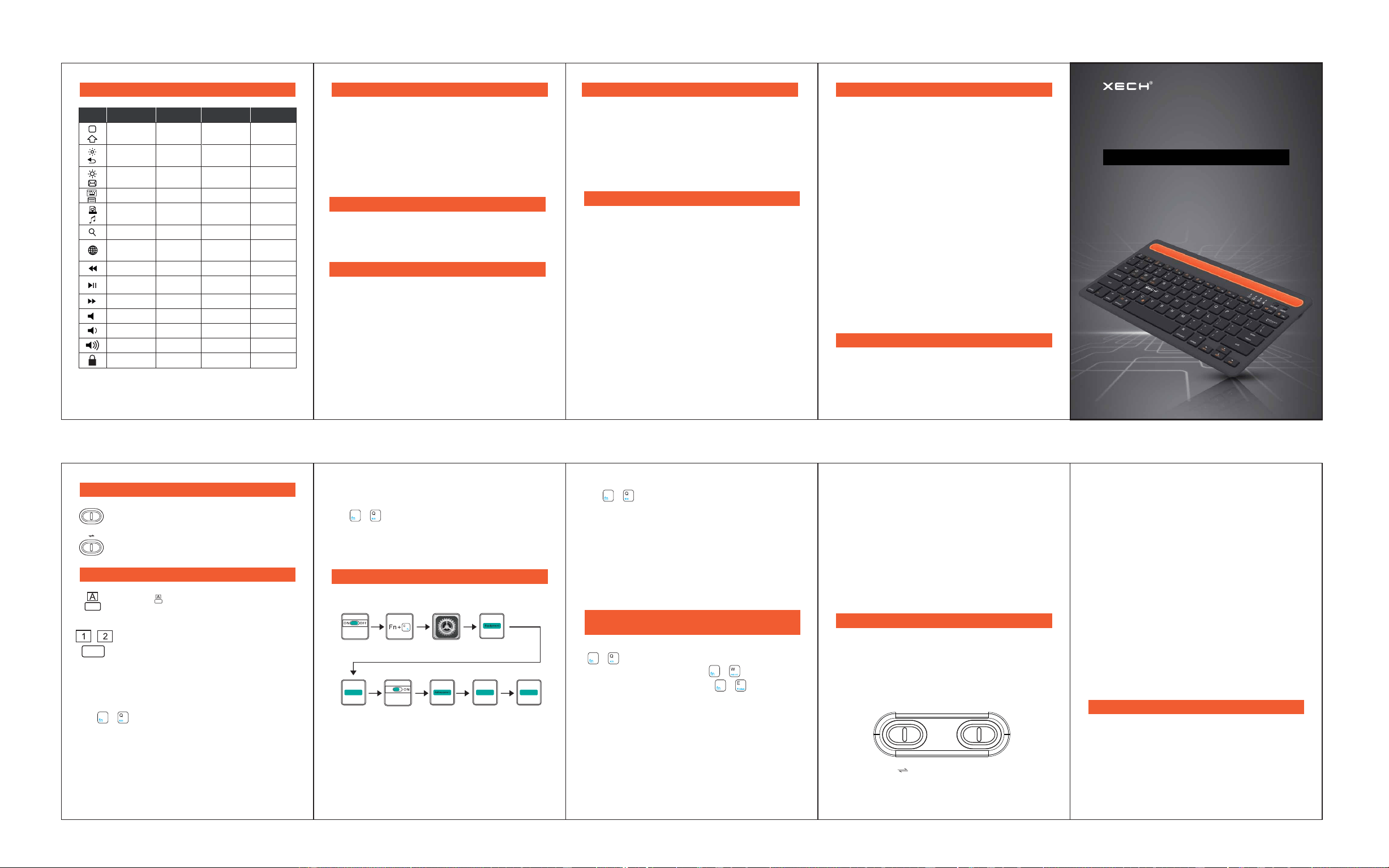
SLEEP MODE
If not used for 10 minutes, the device will automati-
cally go into sleep mode. To reconnect the keyboard,
press any key and wait for 3 seconds, the keyboard
will work again.
CHARGING
When the indicator light turns red and is twinkling, the
keyboard needs to be charged.
1. Plug in the charging cable in the Micro USB slot of
keyboard.
2. Plug USB cable into the slot of adapter or the USB
port of the computer.
3. While charging, LED light will be red. When the
device is fully charged, the LED light will turn off .
SAFETY INSTRUCTIONS
WARNING: If Safety Instructions are not followed,
it may cause fire, damage the device or electric shock
• Keep far from edge tools
• Keep far from microwave machines
• Do not Squeeze
• Do not bend
• Keep far from oil, chemical material or organic solvent
MAINTAINING INSTRUCTIONS
1. If you are not using the keyboard, please turn it off
to save the battery.
2 To protect battery life, please charge keyboard
when power is low.
3. If using keyboard during charging, please use
original cable provided in the packaging.
PRODUCT WARRANTY
XECH warrants that the product will be free from any
manufacturing defects & takes responsibility in case
the device fails to function for a period of one year
from the date of the original invoice. The warranty
period validity is also subject to the following
conditions:
• The product must be registered on
www.xech.com within 15 days from the date
purchase.
• The product is not given to some external repair
personnel.
• It is only valid in the Indian Subcontinent.
• If the device is not immersed in water. It also does
not cover natural wear & tear or rough usage.
• If the instruction manual is not followed & the
device is not used in an improper manner.
• If the device is not used for its stated functionality.
• If the device is not used by children below 3 years
or someone incapable or using the device.
In case of any product related query or support, please
reach out to our customer support team at
[email protected] and we will gladly assist you.
WARRANTY
Purchasing Date:
Invoice No:
Dealer Information:
1. Working Distance: 10 meters
2. Bluetooth Version: 5.0
3. Working Time: More than 40 hours
4. Standby Time: More than 4380 hours
5. Charging Time: 2 to 3 hours
6. Weight: 680 grams
7. Dimensions: 288 X 160 X 15 mm
SPECIFICATIONSSHORTCUT FUNCTIONS
USER MANUAL
BLUETOOTH KEYBOARD
Double
Channel
Fn Windows
w/o Fn
Fn + on
Windows
Fn + on AndroidFn + on IOSKey
HomeHome
Return
Email
Menu
Media Player
Screen lock
F1
F2
F3
F4
ESC
Delete
F1
F2
F3
F4
F5
F6
F7
F8
F9
F10
F11
F12
ESC
Brightness
Down
Brightness
Up
Virtual
keyboard
Screen
Capture
Search
Previous track
Play / pause
Volume down
Volume up
Language
exchange
Mute
Next track
Screen lock
Search
Previous trackPrevious track
Play / pause
Volume down
Volume up
Language
exchange
Mute
Next track
Screen lock
Search
Play / Pause
Volume down
Volume up
Language
Exchange
Mute
Next Track
Slide the switch to turn on or off the
keyboard.
Slide the button to change the channels.
LED light on indicates Caps Lock is on for
capital letters.
LED Indication for connection: When the
device powers on, LED light blinks
continuously. Press fn+C keys together for 2-3
seconds, LED light will blink slowly and device
will be paired.
1. Turn on the keyboard, a Blue light will flicker. Press
together for 2-3 seconds and then the
keyboard will be ready to pair
2. In Bluetooth Menu of the device, you can see
‘Xech DC Keyboard’. You can click on this to pair.
3. During pairing, no password will be required. You
will see a set of keys on the screen of the device
once the device is ready to pair. You just need to
press those keys on the keyboard. If paired
successfully, the blue light will twinkle once in
every 5 seconds.
BUTTON DESCRIPTION
LED INDICATION
1. To connect the first device, the switch should be
on CH1 position. Connect with 1st device using the
steps explained earlier, then slide channel switch
to the CH2 position to connect with 2nd device
using the same steps again.
2. While using device 1, you keep the switch on CH1
and for using device 2, you can slide switch to
CH2.
PLEASE NOTE
Every time the Keyboard restarts, Android and
Windows devices will be automatically reconnected
within 3-5 seconds. iOS devices may need a little
longer to connect, it is common.
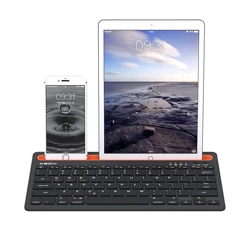
The Xech DC Keyboard is a unique keyboard where
three devices are interconnected at the same time.
There are two channels for connecting two different
devices like tablets, smartphones and computers via
Bluetooth. The automatic connection and reconnec-
tion time of different devices varies from brand to
brand, it is a common phenomenon.
1. Android 3.0 or updated
2. IOS 4.0 or updated.
3. Windows XP, Windows 7 or updated
VERSIONS SUPPORTED
On/OFF
CH1 CH2
2. When the Channel Switch button is on CH2,
please slide the On/Off Switch button to On. Blue
Indicator light will turn off. After 1 second, press
keys together for 2-3 seconds. The blue
Indicator light indicates that the device is in
pairing status by blinking once. When the
keyboard is connected successfully, the blue
indicator light will blink once in every 5 seconds.
1. When the Channel Switch button is on CH1,
please slide the On/Off Switch button to On. Blue
Indicator light will turn off. After 1 second, press
keys together for 2-3 seconds. The blue
Indicator light indicates that the device is in
pairing status by blinking once. When the
keyboard is connected successfully, the blue
indicator light will blink once in every 5 seconds.
To pair the keyboard to your device, follow the steps
given below:
PAIR THE DEVICE
Turn on the
keyboard
Turn on the
bluetooth
Add
equipment
Enter the
pairing state
Select
settings
Select
equipment
Select
Bluetooth
Bluetooth
Select the Bluetooth
device entry pair
Pairing
Connection
successfully
Pairing
PLEASE NOTE
1. As long as your devices have Bluetooth function,
you can connect and use keyboard.
2. You can connect a smartphone, tablet, laptop and
computer using the same steps as explained
previously.
3. Automatic pairing will be done if keyboard is
switched off and switched on again.
4. To use function keys, you can use the fn key with
all the keys that have same colour marking to use
the particular function.
CHANNEL SWITCH FUNCTION
Xech DC Keyboard is a dual channel keyboard, it can
work with two devices at the same time. Just switch
the channel by sliding the button from CH1 to CH2 and
vice versa. This will not result in any misfunctioning or
disconnection of paired devices.
After pairing, if your device is IOS system, please press
if Android system, please press
if Windows system, please press
COMPATIBLE WITH ANDROID AND
WINDOWS SYSTEMS
+
+
+
On/OFFCH1 CH2
+
+
+