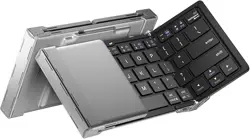

iClever Bluetooth Wireless Keyboard FAQ
CATALOG
Bluetooth Connection Issues
Connection failure, unable to connect
Frequent disconnections
Unable to wake up, cannot reconnect
Bluetooth adapter issues
Key Input Issues
Key sticking
Delayed key input
Mismatch between input and output
Numlock not working
Charging Issues
Charging failure, unable to charge
Abnormal battery detection by device
Compatibility Issues
Product Compatibility Statement
Contact us
iClever support

Connection failure, unable to connect
Please follow the troubleshooting steps below:
1. Please make sure the keyboard is in pairing mode.
2. Please the keyboard as close to your device as possible to ensure a stable
connection.
3. Try turning Bluetooth off and then back on again on your device, and attempt to
reconnect the keyboard.
4. If possible, try connection the keyboard to another device to see if it works
properly.
Frequent disconnections
Please follow the troubleshooting steps below:
1. Ensure the keyboard is fully charged; if not, please charge it before use.
2. Check if any background updates are running, as they may cause delays or
interruptions.
3. Make sure your operating system and Bluetooth drivers are up to date.
4. Avoid placing the keyboard near metal objects or other wireless signal sources,
such as Bluetooth speakers, headphones, or metal desks, as they may interfere
with the connection.
Unable to wake up, cannot reconnect
Please follow the troubleshooting steps below:
1. Ensure the keyboard is fully charged; if not, please charge it before use.
2. Make sure your operating system and Bluetooth drivers are up to date.
3. Please try to reset the keyboard via the key combination “Fn+Left Shift+Back”.
4. Delete the Bluetooth connection record of iClever on your device and then
reconnect.
Bluetooth adapter issues
If your device does not have built-in Bluetooth, you may need to use a Bluetooth
adapter to enable wireless connectivity. However, we do not recommend using
Bluetooth adapters, as they are third-party devices and may lead to compatibility
issues.

Key sticking
Please follow the troubleshooting steps below:
1. Gently press the key a few times to see if it returns to normal.
2. Carefully remove the key caps and clean the area around the key switches. It is
recommended to use compressed air for cleaning. Do not use any liquid or wet
cleaning products as the keyboard is not waterproof. If you have trouble
reinstalling the keycaps, refer to the instructional video.
3. Try connecting the keyboard to another device to check if the issue persists.
Delay key input
Please follow the troubleshooting steps below:
1. Ensure the keyboard is fully charged; if not, please charge it before use.
2. Check if any background updates are running, as they may cause delays or
interruptions.
3. Make sure your operating system and Bluetooth drivers are up to date.
4. Avoid placing the keyboard near metal objects or other wireless signal sources,
such as Bluetooth speakers, headphones, or metal desks, as they may interfere
with the connection.
Mismatch between input and output
For Windows and iOS users:
Please ensure your input method corresponds to the keyboard layout. For example, if
you are using a German keyboard, please choose the German input method.
For Mac users:
Please change your Mac keyboard type to ISO(Europe)/JIS(Japan)/ANSI.
1. On your Mac, click “System Preferences” and click “Keyboard”.
2. Click “Change keyboard type” and follow the on-screen instructions.
3. Select the Type that corresponds to the keyboard.
4. Press ctrl and space keys to switch to the input method corresponding to your
language.
Note:
ISO(Europe) -- German、French AZERTY、Spanish、Italian、UK English.
JIS(Japan) -- Japanese
ANSI -- US English

For Android users:
Please ensure your input method corresponds to the keyboard layout by setting the
Virtual Keyboard and the Physical Keyboard on your device.
Virtual Keyboard:
1. Find the language-switching button which is usually represented by a globe icon
on the virtual keyboard.
2. Choose your language from the virtual keyboard. This will change the virtual
keyboard layout to match your language.
Physical Keyboard:
1. Go to the Setting menu on your device.
2. Find and choose “Language and Input” on your device. You may need to follow a
slightly different path depending on the brand of your device.
3. Find the option related to the physical keyboard settings and choose your
language layout for your physical keyboard.
Numlock not working
For Mac OS users:
The Numlock key is handled differently in Mac OS than in Windows. Normally, the
Numlock key is treated as a “clear” key in Mac OS, instead of switching between the
numeric keypad and function keys. This is result of Mac OS limitation.
For Windows users:
1. Make sure that the Numlock key is enable.
2. Please ensure your input method in Windows corresponds to the keyboard
layout.
3. Try enabling and disabling other toggle keys such as Caps Lock, Scroll Lock, and
Insert see if those keys perform normally.
4. Test the keyboard with another computer to see if it still has the same issue.
Charging failure, unable to charge
Please follow the step below to ensure correct charging:
1. Please try a different USB charging cable and connect it to a different power
source, such as a USB port on a computer or a different charging adapter, to
charge for 2 hours.
2. Make sure that the voltage of the charge you are using is not greater than 5V.
Higher voltage can potentially cause the keyboard to shut down.
Abnormal battery detection by device
Our keyboard dose not support BAS (Bluetooth Battery Service) for the time being
due to Bluetooth protocol limitations, the system or battery monitoring apps will not
be able to read its battery level correctly, and will only display a fixed value (e.g. 39%,
100%, 0%).
Product Compatibility Statement
Incompatible range at this stage:
Devices:
Steam deck, PlayStation (PS4, PS5), XBOX, Smart TV, Fire TV
System:
Linux all, Ubuntu all, Fire OS all
Other:
3rd party Bluetooth adapters 4.0 and below, remote desktop software
Contact us
iClever support
Your feedback is important to us.
If you have any question or idea want to share, please contact our team by:
support@iclever.com