
CONTENTS
Charging Your Devices
Screen Display Guide
Startup Screen
Temperature Protection
Settings
Interactions
Bluetooth Connection
Anker App Settings
Clock Display
Charging Mode
Screen Brightness
Device Language
Important Notes
FAQ
Questions About the App
Questions About Charging
Other Questions
Specifications
Charging Your Devices
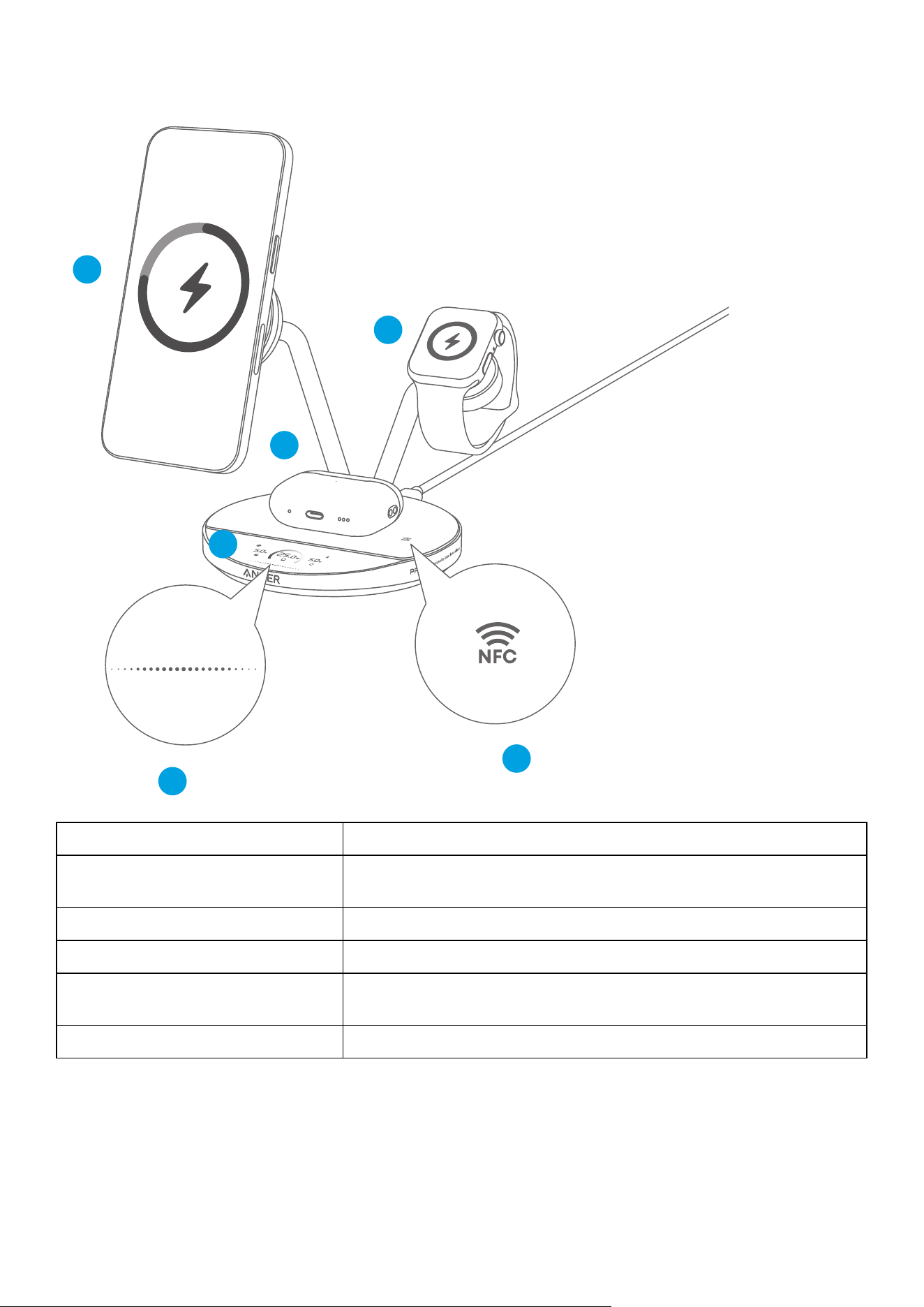
Wirelessly charge your iPhone, Apple Watch, and AirPods simultaneously.
2
3
4
5
6
1
①
Phone Charging Module Delivers 25W max for phones that support the Qi2.2 standard.
②
Apple Watch Charging Module
Delivers 5W max and is certified under Apple’s Made for Watch
(MFW) standard.
③
Earbuds Charging Module Delivers 5W max.
④
Screen Displays charging status, phone temperature, and settings.
⑤
Touch Area
Swipe or tap the line or nearby suace to switch between
screens and adjust settings.
⑥
NFC Area* Tap with your phone to quickly download or open the Anker app.
*NFC (Near-Fireld Communication): a short-range technology that allows devices within a few
centimeters of each other to exchange information wirelessly.
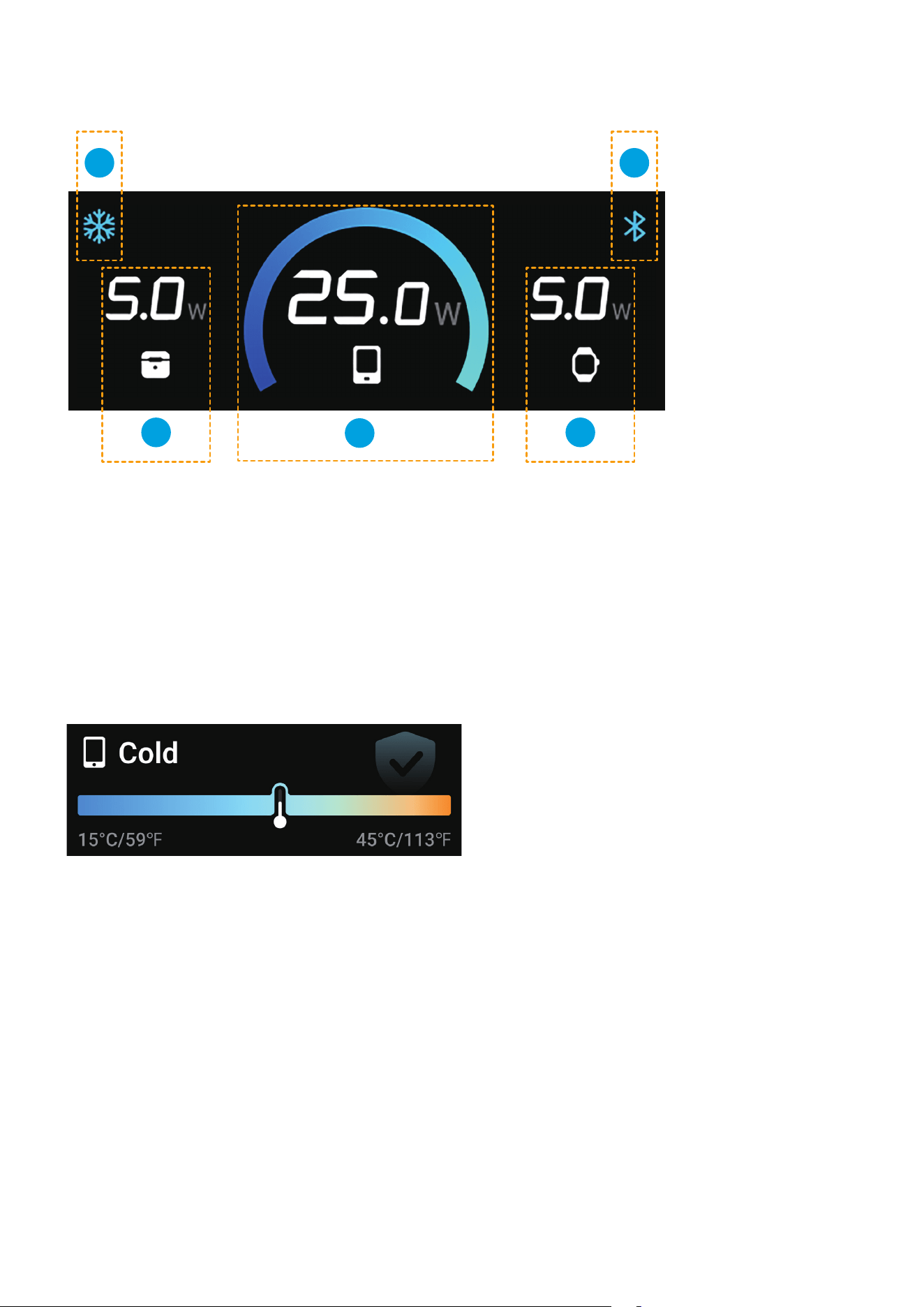
Screen Display Guide
Startup Screen
3 4 5
1 2
①
Charging Mode
②
Bluetooth (Icon Appears Gray If Bluetooth Is Not Connected)
③
Earbuds Charging Status
④
Phone Charging Status
⑤
Apple Watch Charging Status
Temperature Protection
To help prevent overheating, protect battery health, and support safe charging, the wireless charger
actively monitors the temperature of the phone charging module. The screen shows the current
temperature level from low to high as “Ultra-Cool”, “Cold”, and “Moderate”.
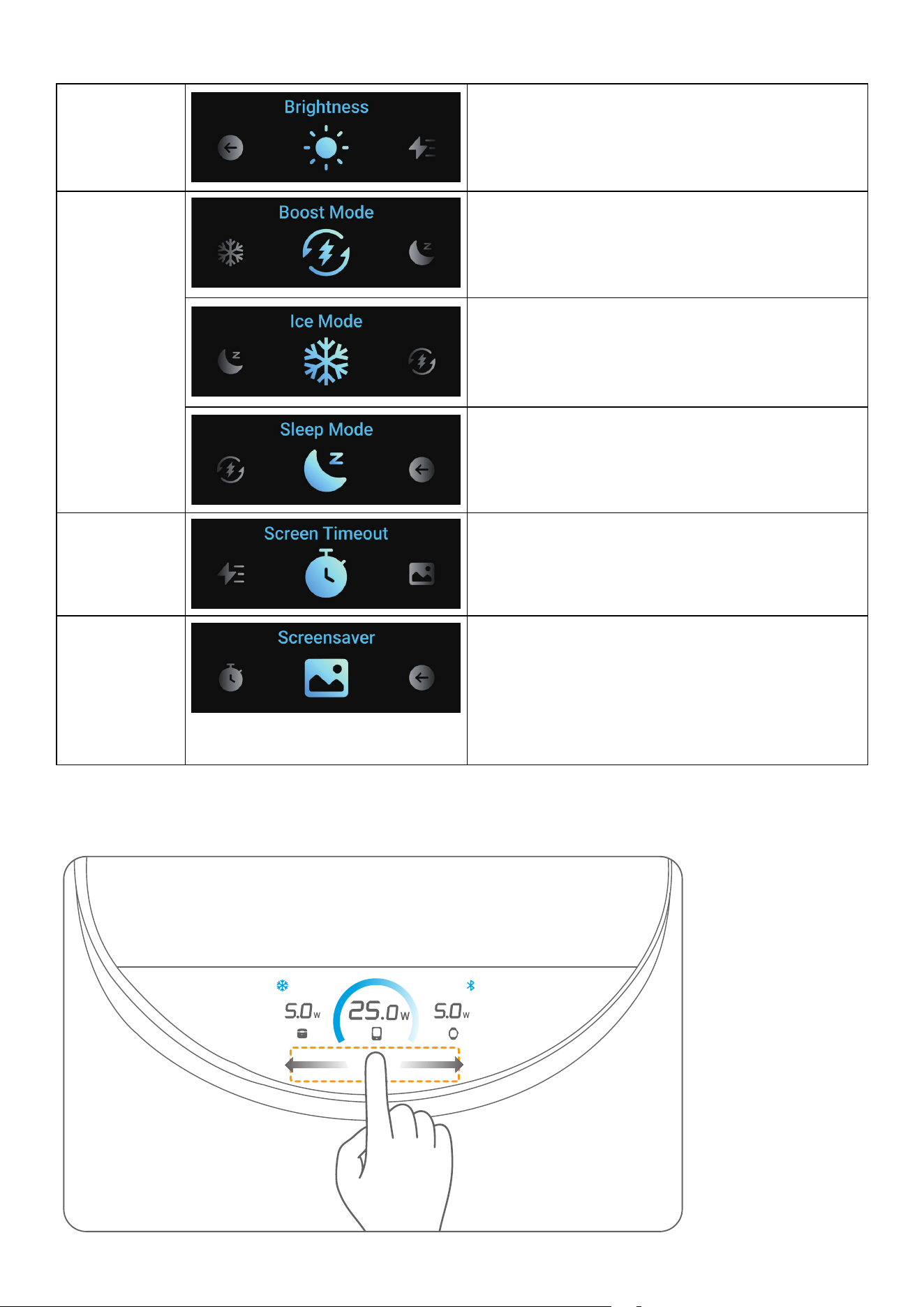
Settings
Screen
Brightness
Adjustable from 20% to 100%.
Charging
Modes
Boost Mode: Provides full-speed wireless
charging while maintaining safe temperatures
with the help of the built-in thermoelectric
cooling fan.
Ice Mode: Delivers enhanced cooling to keep
temperatures low, helping to prevent overheating
or peormance slowdowns (recommended
when using your phone while it's charging).
Sleep Mode: Disables cooling and turns o the
display for a quieter environment and lower
power consumption.
Screen
Timeout
Set how long the screen stays on with no
interaction.
30 s / 1 Min / 5 Min / 30 Min
Screensaver
Once the screen timeout period ends, the screen
switches to the screensaver.
Note: If the device is powered o or restarted,
the screensaver time may become inaccurate.
For the correct time display, connect to the Anker
app via Bluetooth. The app will synchronize with
standard time to update the display.
Interactions
Swipe in the touch area to switch between screens and options.
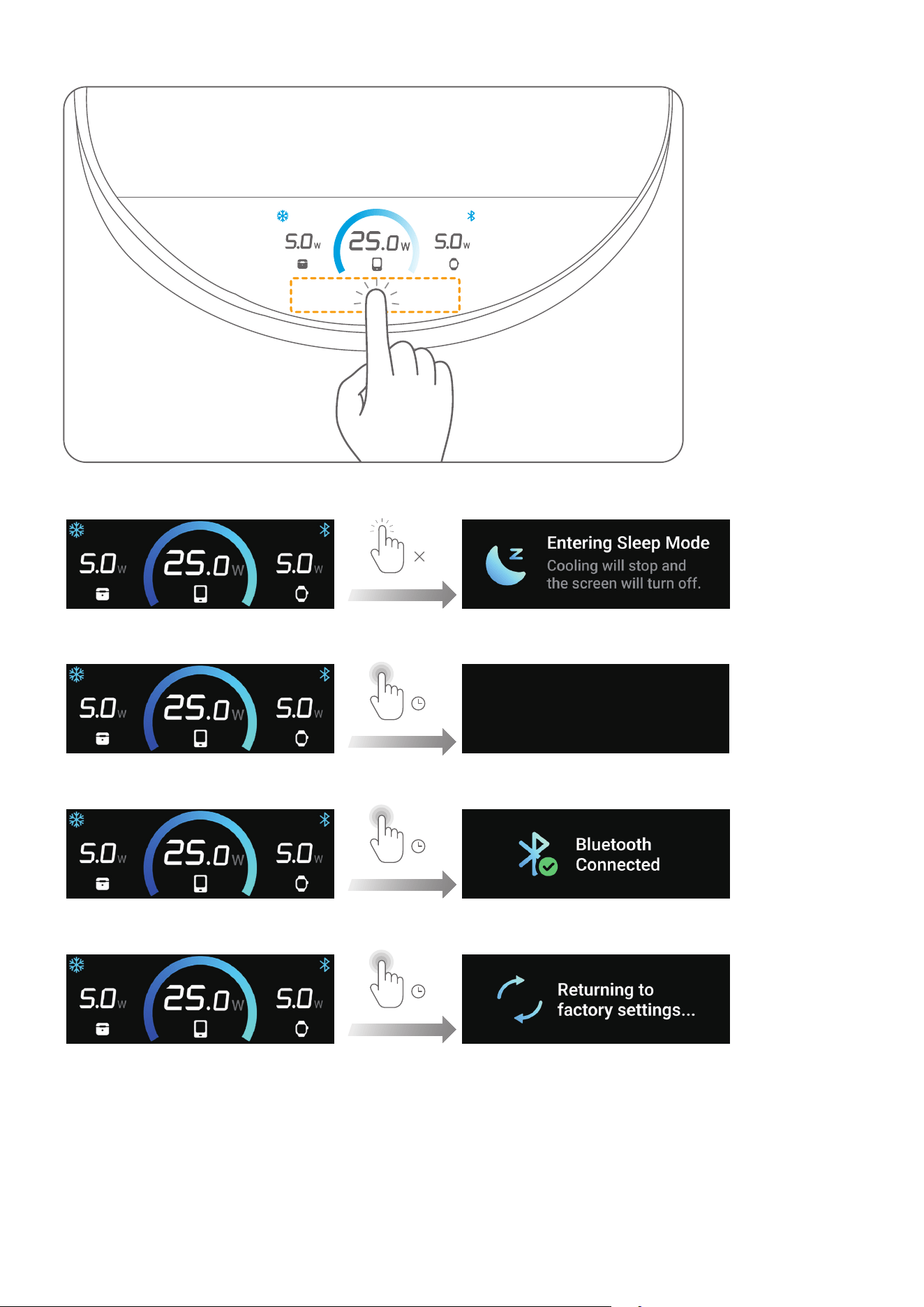
Tap in the touch area to confirm or go to the next menu.
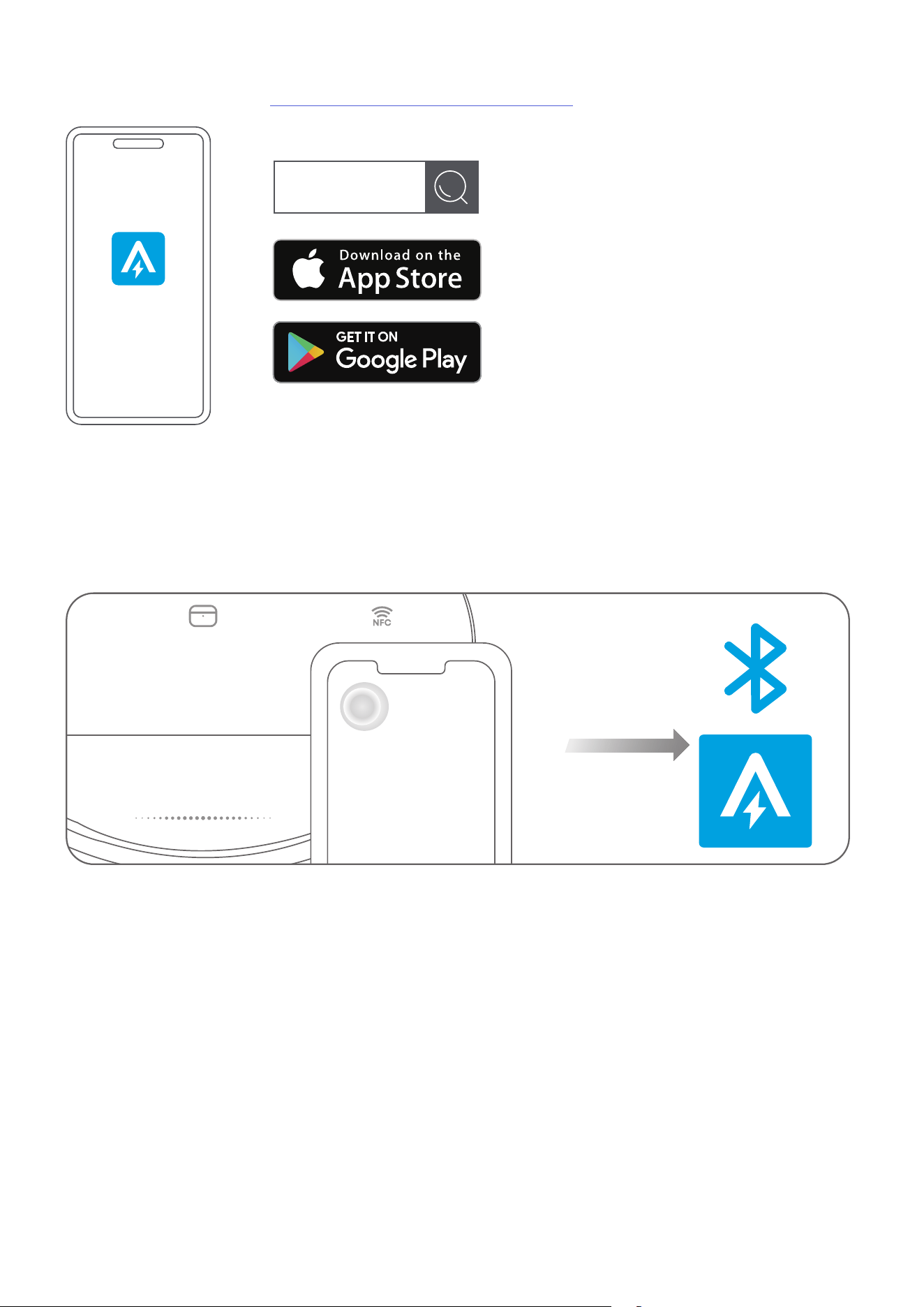
Double-tap to instantly activate Sleep Mode.
2
Press for 2 seconds to turn o the display.
2S
Press for 7 seconds to reset the Bluetooth.
7S
Press for 15 seconds to reset the device to factory settings. Do not release until the reset is complete.
15S
Bluetooth Connection
1. Download the Anker app: https://www.anker.com/app-download
Anker
You can also bring your phone close to the charging base, and tap the area below the NFC icon with
the top of your phone (make sure your phone’s NFC feature is turned on). An app download notice will
then appear.
Note: If the app is already installed and you’ve previously completed pairing, an NFC prompt will appear
instead. Tap to open the app, and Bluetooth paring will restart automatically.
2. Make sure your phone’s Bluetooth is enabled and keep the charger within 33 (10 m).
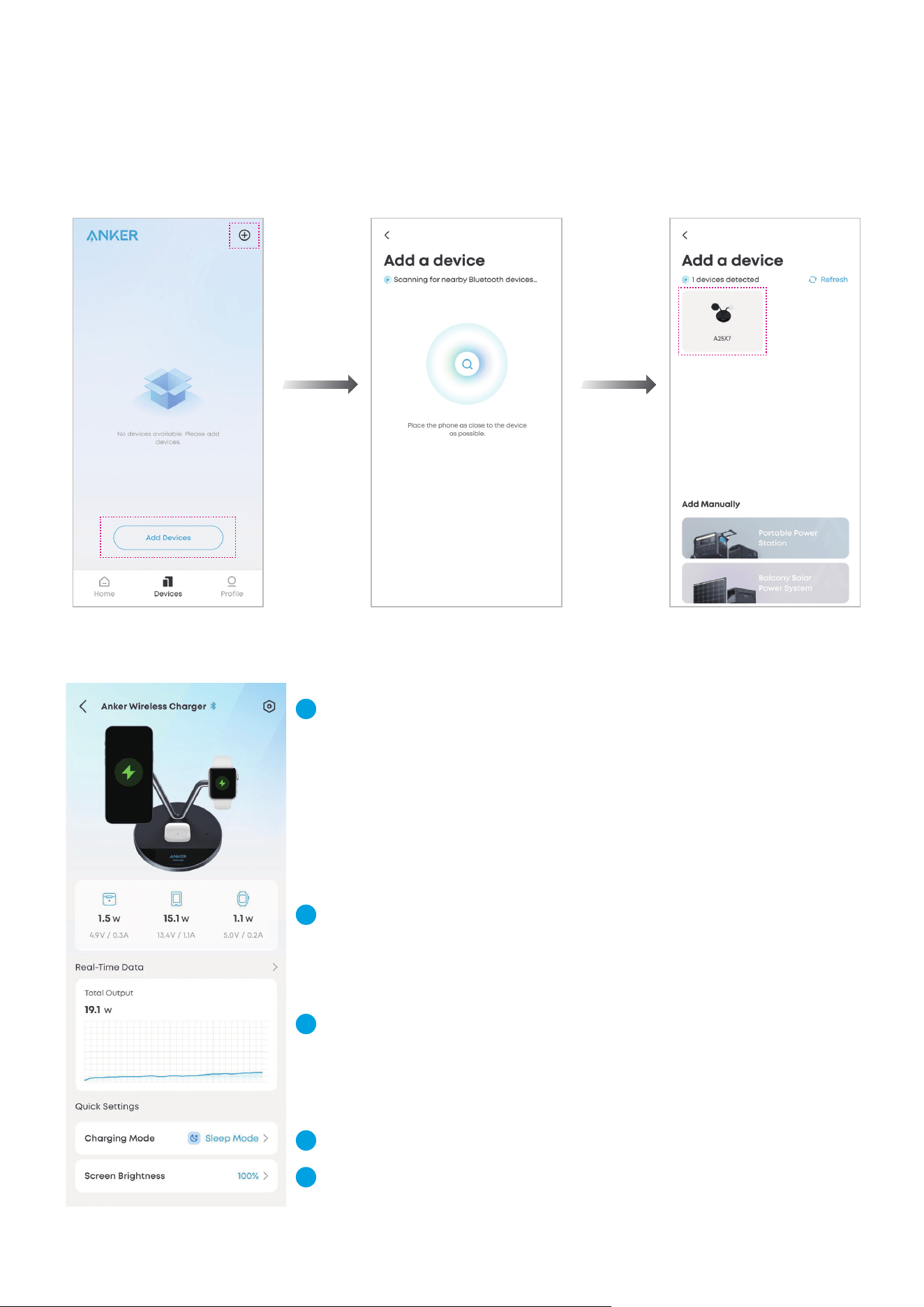
3. Open the app, and tap the “+” icon in the top-right corner or select “Add Devices” at the bottom of the
Devices page. The app will begin scanning for nearby Anker devices. Then select the product image and
set a name to complete pairing.
If pairing fails, check:
• The charger is powered on.
• Bluetooth is enabled on your phone.
• The charger is near your phone.
4. Aer successful pairing, you can check the real-time data and modify detailed settings.
1
2
3
4
5
①
Settings
②
Real-Time Charging Data
③
Total Output and Power Curve (Tap to See
Per-Port Graphs)
④
Charging Modes
⑤
Screen Brightness
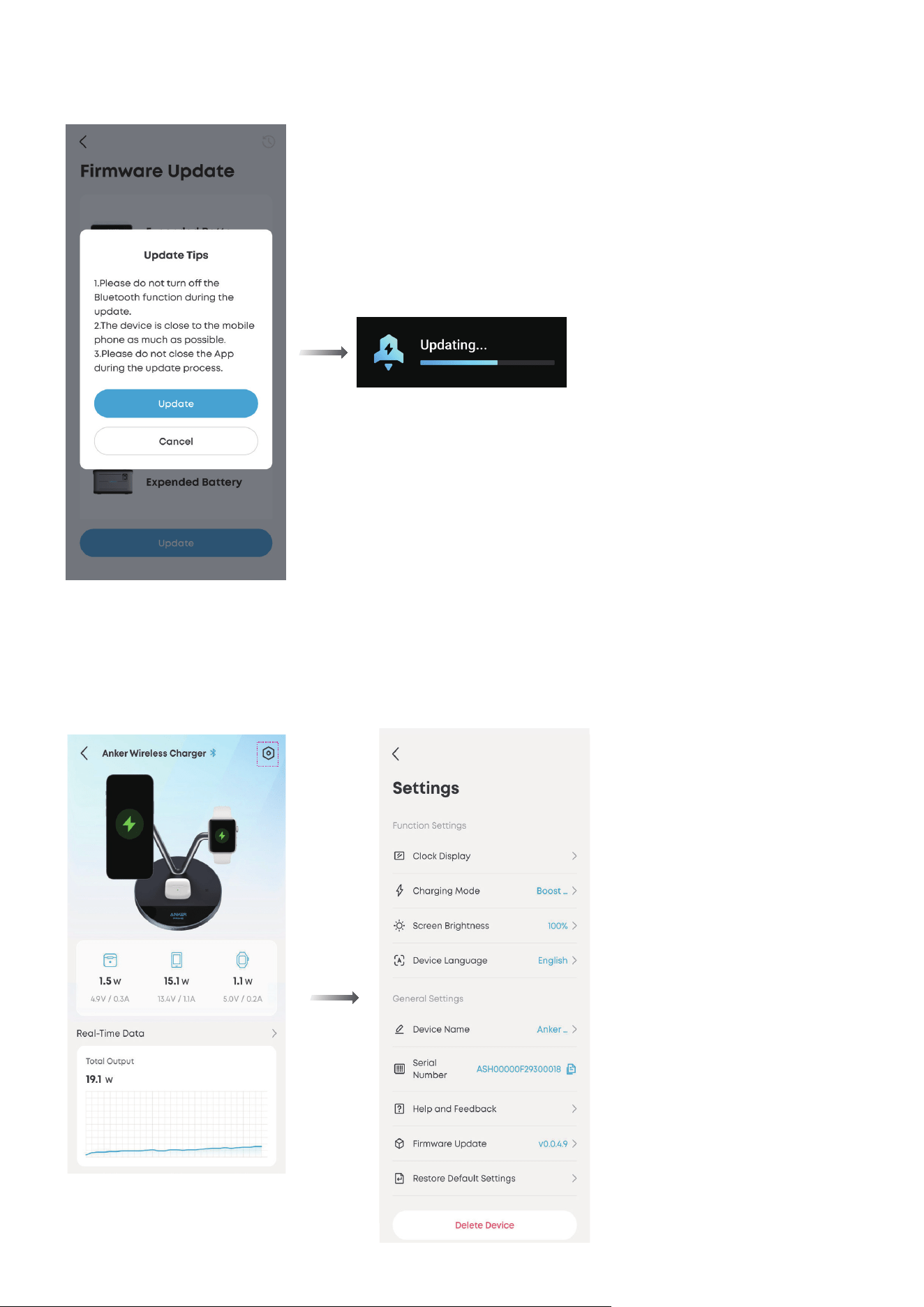
5. If a soware or firmware update is available, update it through the app. Do not unplug the charger or
turn o Bluetooth during the update. Make sure your network connection is stable and keep the Anker
app open until the update is complete.
Anker App Settings
Tap the “Settings” icon in the top-right corner of the device page to view and modify detailed settings.
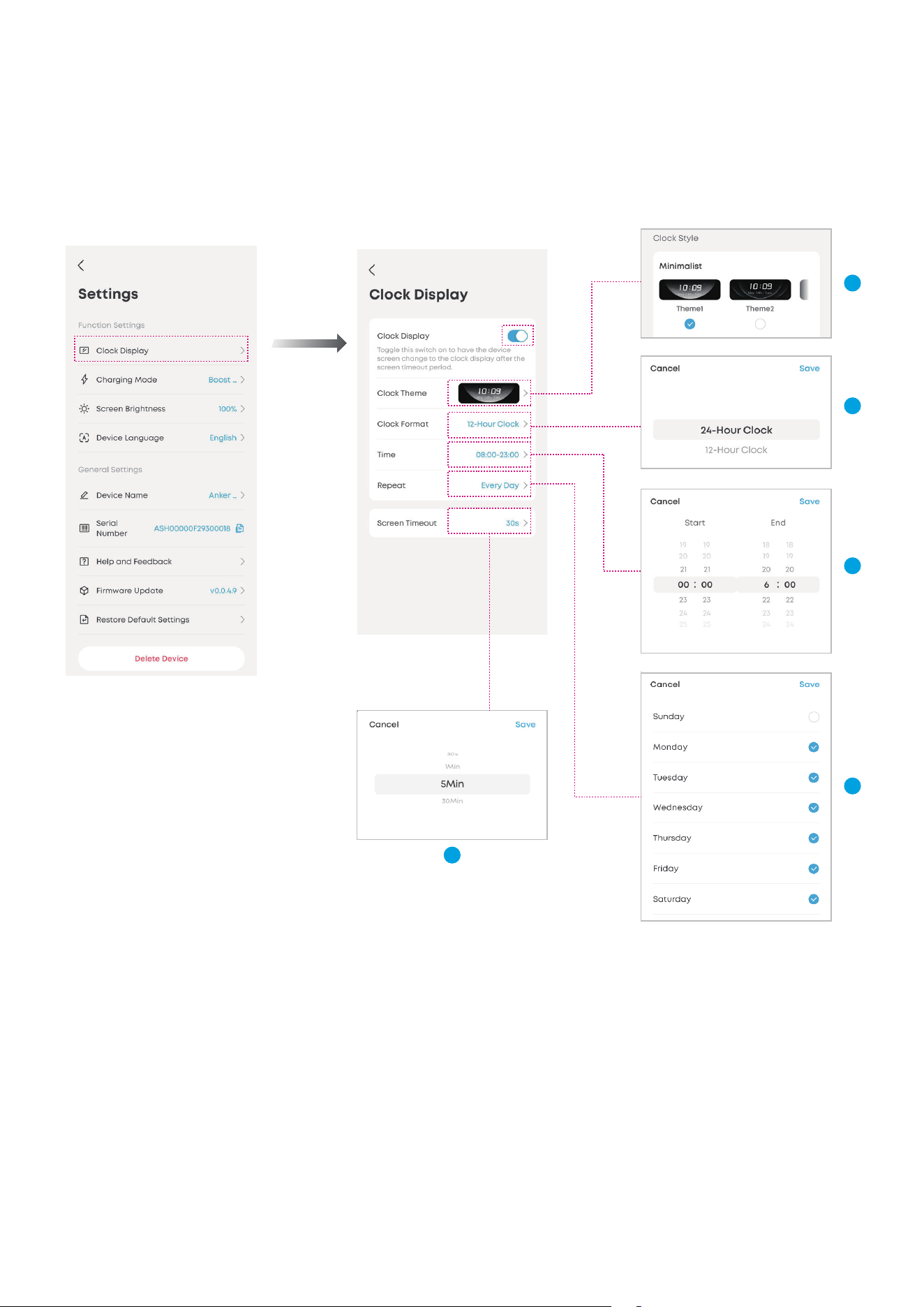
Clock Display
Tap “Clock Display” and toggle on the first button. You can then configure the following settings:
①
Clock Theme: Select your preferred clock appearance.
②
Clock Format: Select 12-hour or 24-hour format.
③
Time: Set the time of day when the screensaver activates.
④
Repeat: Select the days of the week the screensaver should appear.
⑤
Screen Timeout: Once the screen timeout period ends, the display switches to the screensaver.
1
2
3
5
4
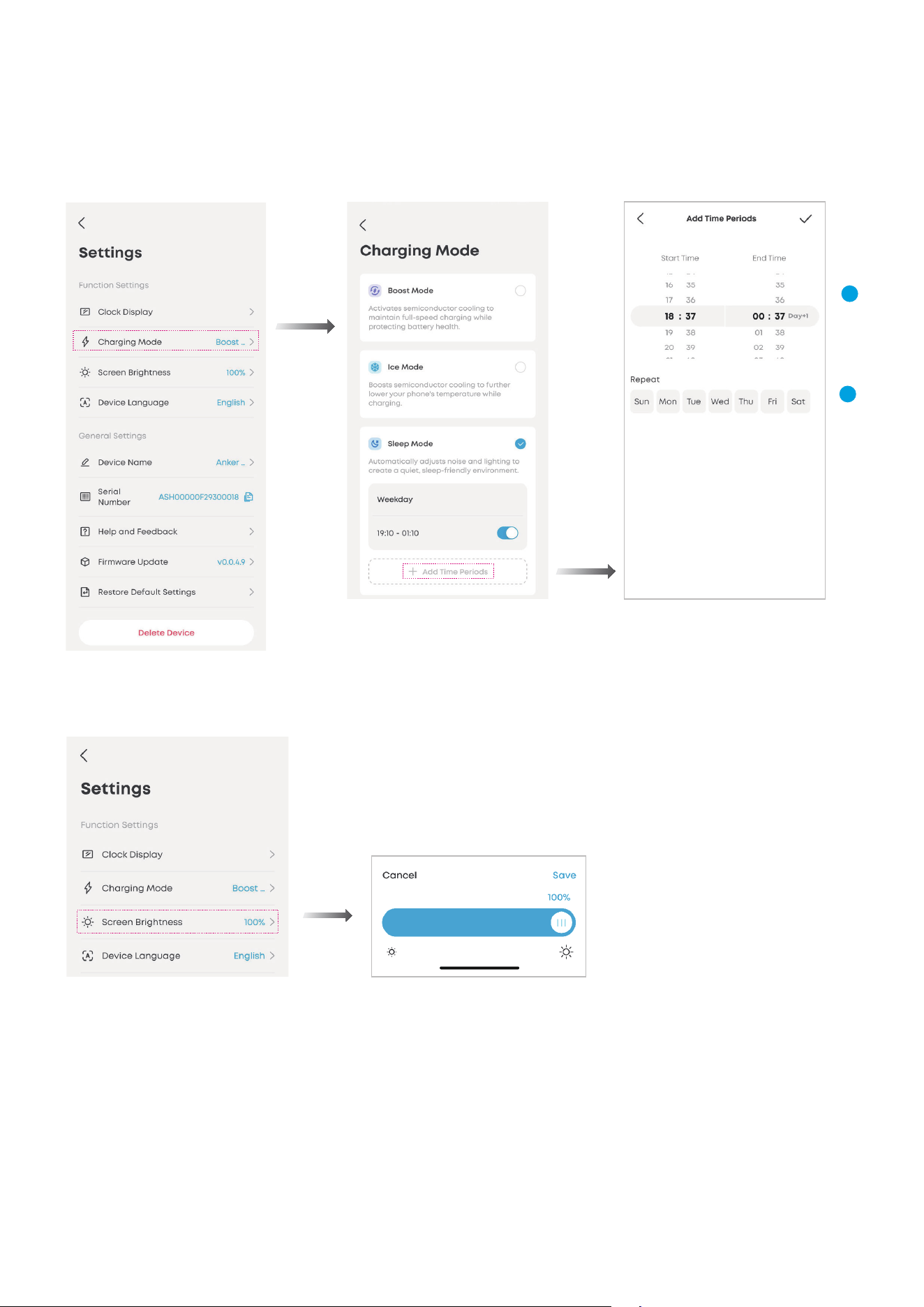
Charging Mode
Tap “Charging Mode” and select your preferred mode.
You can also schedule up to three tasks to automatically activate Sleep Mode. Tap “Add Time Periods”
and configure the following settings:
①
Time: Set the time of day when Sleep Mode activates.
②
Repeat: Select the days of the week to repeat the task.
1
2
Screen Brightness
Tap “Screen Brightness” and slide the bar to adjust the display brightness of the charger screen.
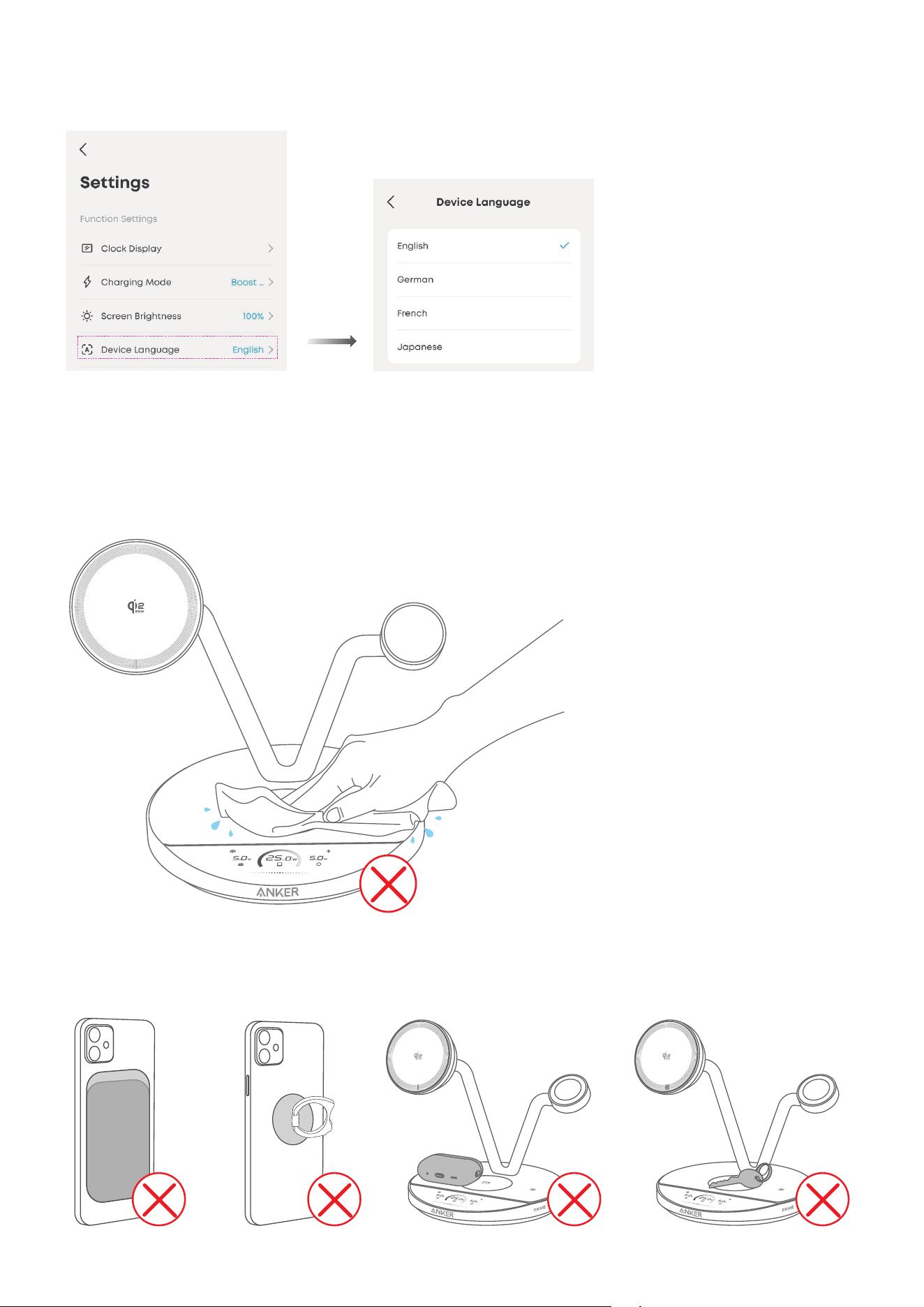
Device Language
Tap “Device Language” and choose your preferred language. The screen of the wireless charger
supports four languages: English, German, French, and Japanese.
Important Notes
If the product is used in a dusty or smoky environment, regularly clean the fan located behind the
phone charging module using a dry cloth, so brush, or hair dryer. Do not use a wet cloth or expose the
product to water.
Adjust the position of your devices to align them properly with the charging suace. Remove any metal
objects between your device and the charger to maintain proper charging peormance.
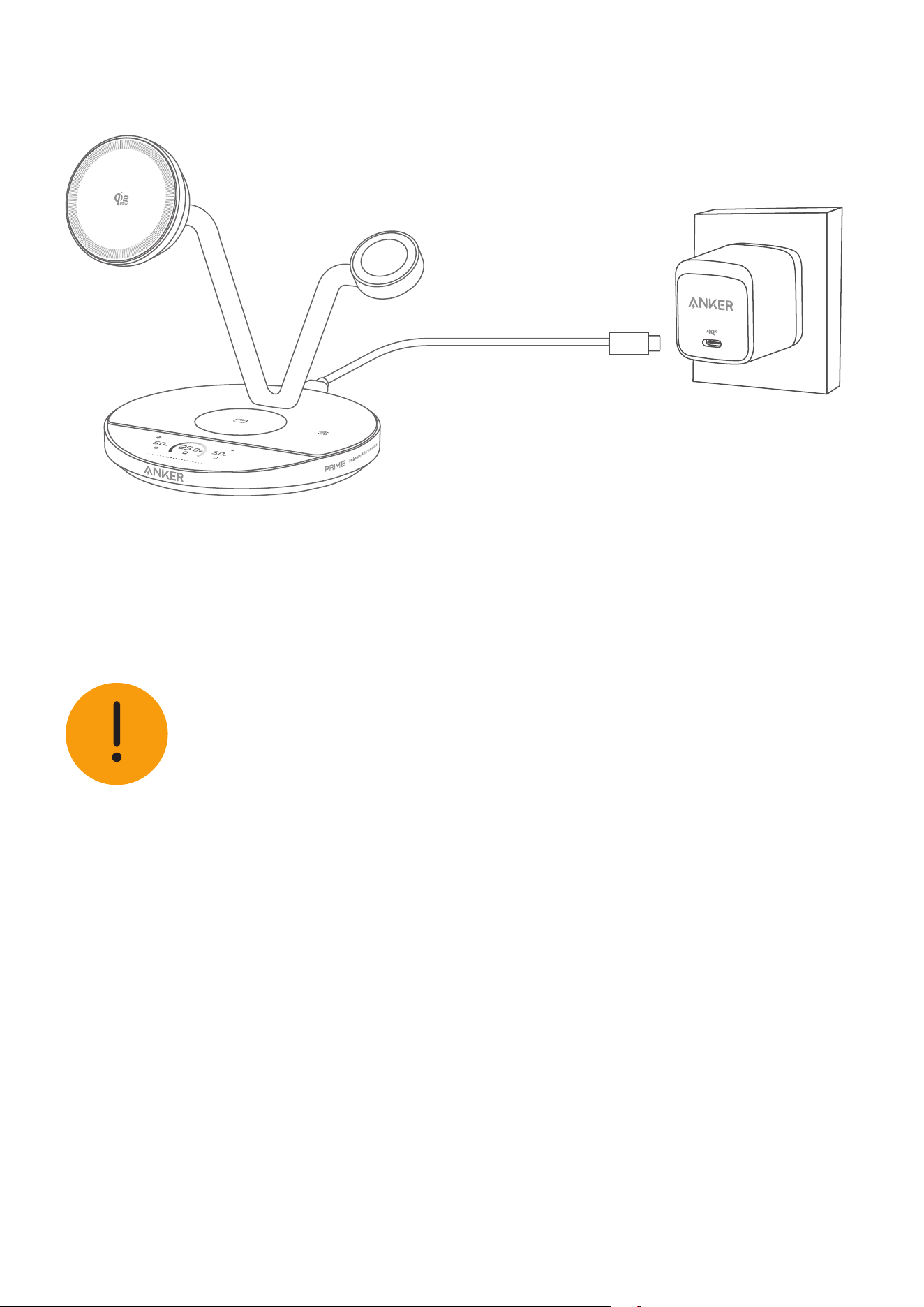
If the adapter doesn’t provide enough power or isn’t compatible, wireless charging may slow down or
stop. For optimal peormance, use the included adapter or one with an input of at least 65W.
≥65W
An abnormality notice may appear when:
• Devices are not properly placed.
• Metal objects are detected.
• The connected adapter is incompatible or provides insuicient power.
• The internal fan is not functioning properly.
Please follow the above notes while using the product. For further help, check the contents below or
contact our support team.
FAQ
Questions About the App
Do I need to log in to the Anker app account to use this product?
All product features can be used without logging in (guest account). However, if you need to upload
logs for troubleshooting, you must log in first.
What should I do if Bluetooth pairing fails?
When multiple Bluetooth devices are nearby, pairing may fail.
• Make sure Bluetooth is enabled on your phone, and place your phone close to the charger.
• Move to an area with fewer Bluetooth devices and try again.
• Press and hold the button for 7 seconds to reset Bluetooth, then try again.

What should I do if the firmware update fails?
• Make sure the network connection is stable. Keep the product close to your phone and leave the
Anker app open until the update finishes. The update process usually takes 7 to 10 minutes.
• Do not turn o Bluetooth, charge other devices, or touch the charger screen during the update.
• If the update still fails, contact Anker customer support. You can also upload logs in the app’s Settings
menu to help the development team troubleshoot.
What should I do if the NFC connection fails?
• Make sure your phone’s NFC feature is enabled.
• The NFC sensing area varies by phone model, but is usually located near the top of the phone, slightly
to the le of the camera. Adjust your phone’s position and try tapping the NFC area again.
• Check your phone’s system settings, and make sure that notifications for the Anker app are turned on.
• Restart your phone and try again.
• Update both the Anker app and the charger firmware to the latest versions for improved NFC stability.
• If issues persist, refer to the user guide or contact Anker customer support for model-specific
compatibility help.
Questions About Charging
Is the wireless charger compatible with Android phones?
This product is designed exclusively for iPhones that support magnetic wireless charging, starting with
iPhone 12 and later models.
The wireless charging function is compatible with:
• iPhone Series 17 / 16 / 15 / 14 / 13 / 12 (Except iPhone 16e)
• Apple Watch Series 11
/
10 / 9 / 8 / 7 / Ultra (Fast Charging Supported)
• Apple Watch Series 1 - 6
• TWS Earbuds with a Wireless Charging Case
For more details on compatibility with specific models, visit our oicial website or contact our customer
support team.
Why is wireless charging not working or slower than expected?
• Charging speed may be reduced appropriately when your device becomes too hot, especially during
long use like gaming or video streaming. Try using the product in a cooler environment (32 - 77°F / 0 -
25°C), or activating Ice Mode for enhanced cooling.
• Incompatible phone cases may cause the product to heat up and aect wireless charging. For the
best peormance, use Apple’s oicial magnetic cases. Avoid cases thicker than 2.5 mm or cases that
are not MagSafe-compatible.
• Make sure that the adapter is firmly plugged into a working outlet.
• Use the included adapter or one with at least 65W input for a better charging experience.
• Confirm that your earbud charging case supports wireless charging. If possible, use oicial Apple’s
oicial charging cases, and avoid adding third-party case covers that may block wireless charging.
Why can’t I charge my phone at 25W?
• Device Compatibility: Check that your phone supports the Qi2.2 25W charging standard. iPhone
Series 16 and later (excluding iPhone 16e) will support Qi2.2 aer updating to iOS 26.
• Battery Level: 25W charging is available only when the phone’s battery is below 80%. Once above this
level, charging speed is automatically reduced to protect battery health.
• Temperature: Charging speed may be reduced appropriately when your device becomes too hot,
especially during long use. Try charging in a cool environment or activate Ice Mode.
• Power Fluctuation: 25W is the maximum output, but real-time charging power changes dynamically
based on temperature, battery level, and the phone’s internal charging strategy. Maximum power is
not sustained at all times.
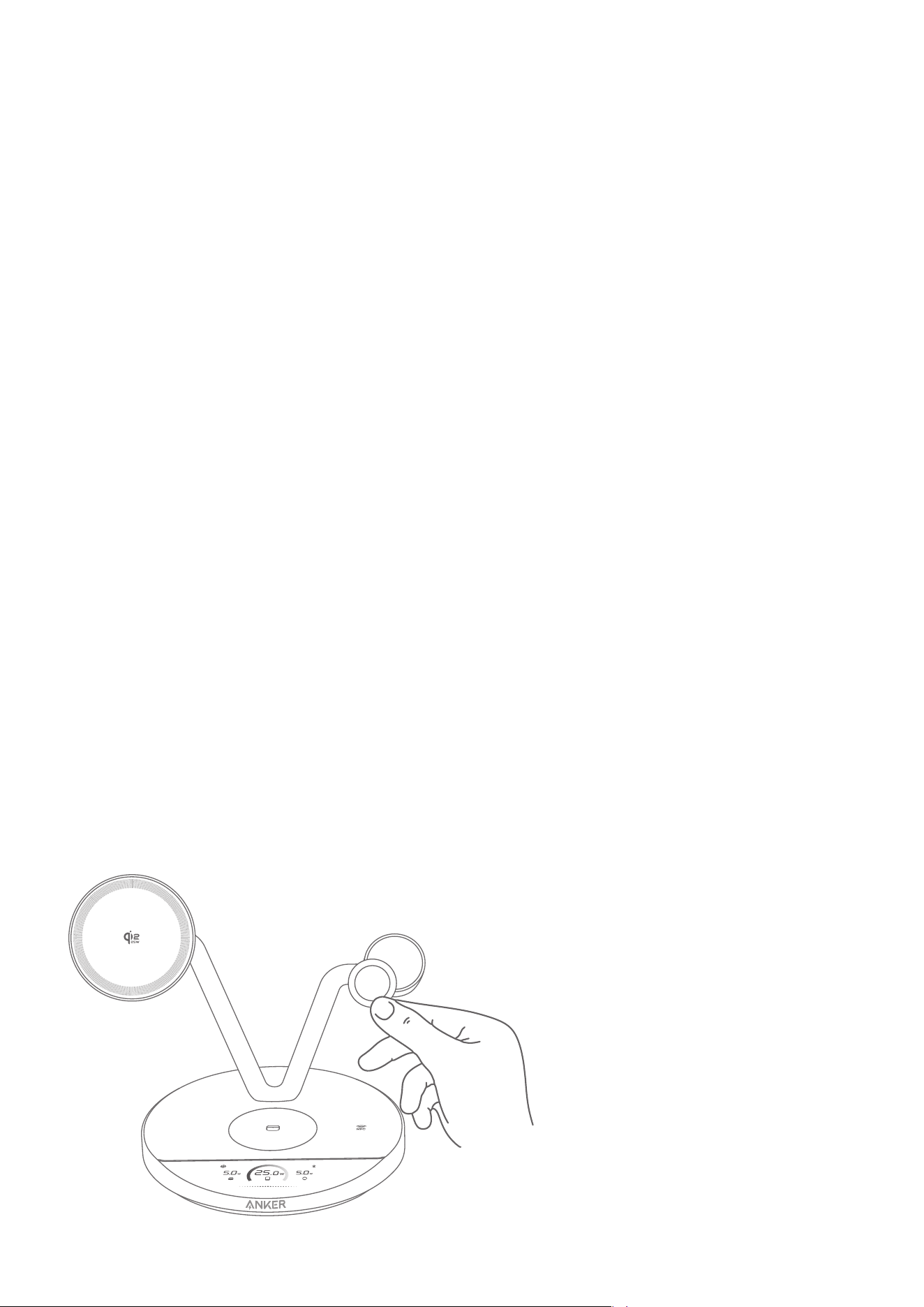
• Charging Power Mesurement: To view accurate power output, use professional tools like Power-Z to
measure the adapter’s input to the wireless charger. With about 80% conversion eiciency, an input
of 28 - 31W reflects a 25W output to your phone. Avoid relying on third-party apps, as iOS 10 and later
restrict their access to real battery data. These apps only display approximate values and cannot
accurately reflect charging peormance.
Why does my Apple Watch show 0W during charging?
The watch charging module is certified with Apple’s Made for Watch (MFW) standard, delivering the
same peormance as Apple’s original charger. It is normal if your Apple Watch displays 0W during
charging. This is part of Apple’s system strategy to protect the battery and extend its lifespan. Real-time
power output is not always shown, but charging remains safe, stable, and eective, with no negative
impact on your device.
Why is the charging power for Apple Watch and earbuds so low?
The wireless charger distributes optimal power to Apple Watch and TWS earbuds. These devices are
designed with internal limits, typically capping input at 5W or less. Even when using a higher-wattage
charger, the devices will regulate power input to protect battery health. This is normal and does not
aect safety or peormance.
Other Questions
Why is the screensaver time inaccurate?
If the product has not been paired with your phone for a long while, the screensaver clock may become
inaccurate. The time display may also be delayed aer the product is powered o or restarted.
To restore accurate time, connect the product to the Anker app via Bluetooth. The system will
automatically synchronize with standard time without needing manual input.
Are the phone and watch charging modules adjustable?
The phone charging module is designed to charge the phone in both portrait and landscape
orientations and can be tilted up to about 70 degrees. The watch charging module is fixed at a
40-degree angle to provide stability and a clear viewing angle.
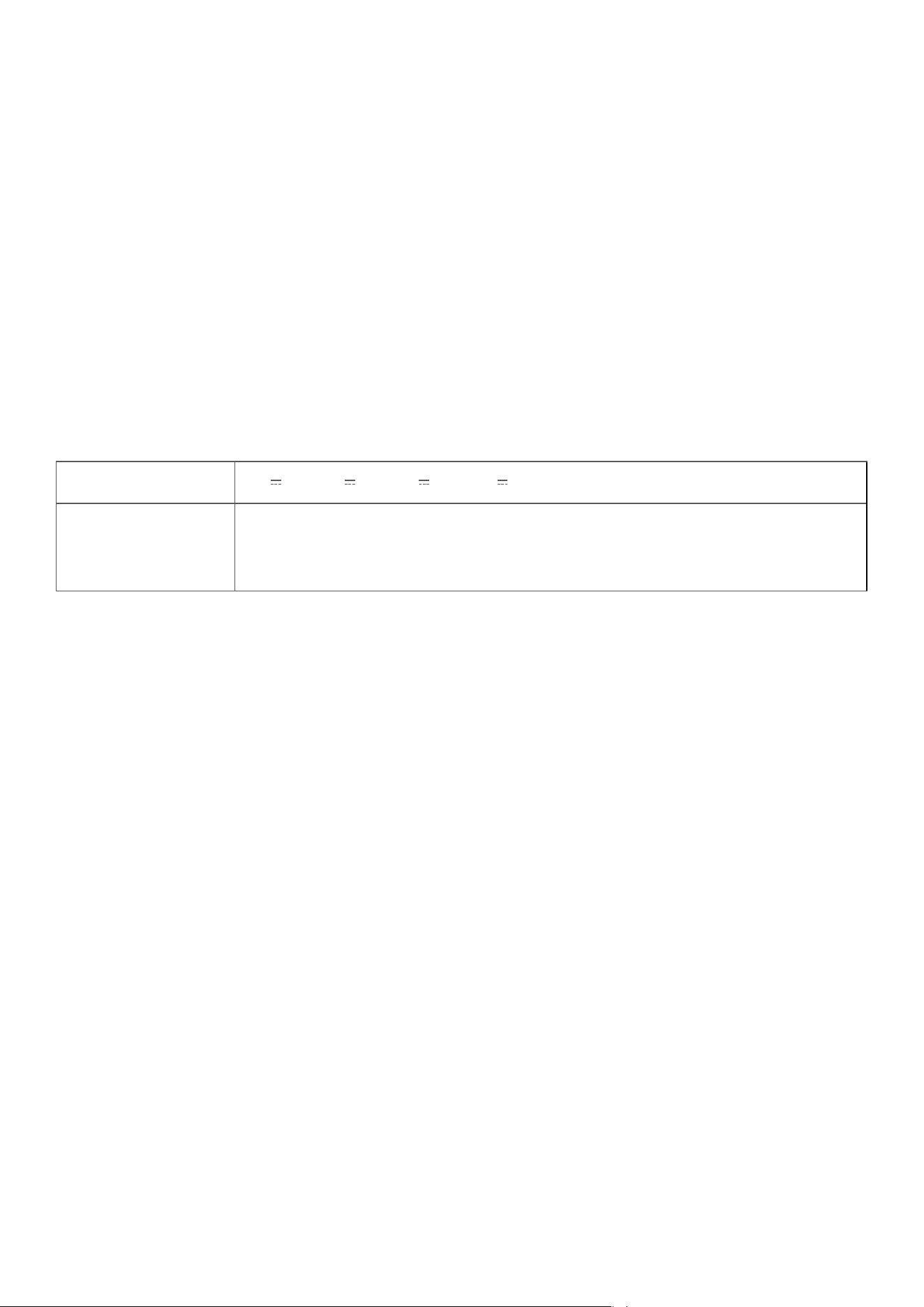
My watch doesn’t stay stable while charging. What can I do?
Use the included anti-slip sticker to keep your watch steady while charging. It will not inteere with
charging peormance.
Why does the product produce noise?
The internal thermoelectric cooling fan may produce some noise when it is activated to help
dissipate heat. When the product is in Boost Mode, the noise level remains below 29 decibels, which
is quiet enough for most everyday use. When using the charger at night, especially in a bedroom, we
recommend switching to Sleep Mode, which turns o the fan and screen to provide a silent and dark
charging environment.
Is it normal for the product to feel warm or hot?
It is normal for the charger to feel warm, especially during long charging sessions or when using your
phone for gaming or video streaming. The metal body is designed to dissipate heat more eiciently,
which can make it feel warm to the touch.
If the product feels too warm, try moving it to a cooler room (32 - 77°F / 0 - 25°C). Activating Ice Mode or
Boost Mode also helps to cool down.
Specifications
Input 9V
3A / 12V
3A / 15V
3A / 20V
3.25A
Output
Phone: 25W Max
Apple Watch: 5W Max
TWS: 5W Max
Default exposed network inteaces and services
BLE (Bluetooth Low Energy) Configuration
Status Description: When the device is not yet connected to a network, it will automatically enable BLE
broadcasting and activate BLE services to provide Bluetooth network configuration capabilities.
Notes
During BLE configuration processes, please ensure your network environment is stable and follow the
device’s instructions to complete the setup.