
i
© Hangzhou Accumems Technology Co., Ltd. All rights reserved.
Manual Usage Guidelines
This manual contains functional descriptions and product
usage/management guidelines for various imager models. Due to
functional differences among models within the same series, the
manual may include explanations that are not applicable to your
specific model. All pictures, charts, and other information provided
herein are for descriptive and explanatory purposes only and are
subject to change without notice due to firmware updates or other
reasons. Please note that information regarding new features in the
latest firmware may not be included in a timely manner. Use this
manual under the guidance and assistance of professionals trained in
supporting the product.
For more information or technical support, please visit our official
website www.accumems.com or send an email to
support@accumems.com.
Trademarks Acknowledgement
and other AccuMEMS’s trademarks and logos are the
properties of Hangzhou Accumems Technology Co., Ltd. in various
jurisdictions. Other trademarks and logos mentioned are the
properties of their respective owners.

ii
CONTENTS
1. Safety Instruction .........................................................................................1
1.1 Power Supply ..................................................................................................... 1
1.2 Battery ..................................................................................................................... 1
1.3 Using Environment ....................................................................................... 2
1.4 Transportation ................................................................................................. 3
1.5 Maintenance ...................................................................................................... 3
1.6 Emergency .......................................................................................................... 3
1.7 Flashlight ...............................................................................................................4
1.8 Laws and Regulations ...............................................................................4
1.9 Recycling ..............................................................................................................4
2. Product Appearance.............................................................................. 5
2.1 Imager Appearance .................................................................................... 5
2.2 Ports and Buttons....................................................................................... 9
3. Getting Started ........................................................................................... 11
3.1 Charging for the Imager ........................................................................ 11
3.2 Power On/Off the Imager ................................................................... 11
3.3 Operation Method .................................................................................... 12
3.4 Menus and Controls ................................................................................ 13

iii
4. Usage Scene Configuration ...........................................................17
4.1 Choose a Usage Scene ......................................................................... 17
4.2 (Optional) Configure Usage Scene Parameters ............. 22
5. Temperature Measurement.......................................................... 24
5.1 Temperature Accuracy Parameters Configuration .......24
5.2 Set Image Measurement Tool ........................................................ 25
5.3 Measurement Tools Configuration ............................................ 26
5.3.1 Spot Tool ....................................................................................................... 27
5.3.2 Rectangle Tool ........................................................................................28
5.3.3 Circle Tool .................................................................................................. 29
5.3.4 ΔT and ΔT Alarm .................................................................................. 30
5.3.5 Reset Measurement Tools .............................................................. 31
5.4 Alarm Configuration ................................................................................ 31
6. Display Configuration ........................................................................ 33
6.1 UIRA-IR Configuration ............................................................................. 33
6.2 Image Mode Configuration .............................................................. 33
6.3 Switch and Manage Palettes ...........................................................34
6.4 Color Display ................................................................................................ 37
6.5 Level & Span Configuration ............................................................38
6.6 Digital Zoom Configuration ..............................................................39

iv
6.7 Screen Brightness Configuration ................................................39
6.8 Unit Configuration ................................................................................... 40
6.9 On-Screen Info Configuration....................................................... 40
7. Pictures and Videos ............................................................................. 41
7.1 Capture Pictures .......................................................................................... 41
7.2 Record Videos .............................................................................................43
7.3 View Pictures and Videos .................................................................43
7.4 Manage Files ................................................................................................ 44
7.5 Manage Albums ......................................................................................... 46
7.6 Export Pictures and Videos ............................................................ 47
8. Device Connection ................................................................................ 48
8.1 Connect via Hotspot (If Applicable) ......................................... 48
8.2 Connect to Cast Screen .................................................................... 49
9. Maintenance ................................................................................................. 50
9.1 Time and Date Configuration ......................................................... 50
9.2 Flashlight ......................................................................................................... 50
9.3 Fn Key Configuration ........................................................................... 50
9.4 Storage Configuration ......................................................................... 50
9.5 View Imager Information ..................................................................... 51
9.6 Logs Configuration .................................................................................. 51

v
9.7 Upgrade ............................................................................................................. 51
9.8 Format Memory .......................................................................................... 52
9.9 Restore Imager Configuration ....................................................... 52
10. Guidance for Common Thermal Imaging
Operations ........................................................................................................... 53
10.1 Can the UIRA-Scene Algorithm Detect Water Leaks,
Insulation Issues or Heat Irregularities with 100%
Accuracy? ................................................................................................................. 53
10.2 Factors may Interfere with the Detection Results of
UIRA-Scene .............................................................................................................. 53
10.3 Improve Water Leak Detection Success Rates ............ 54
10.4 Higher-Quality Image .......................................................................... 54
10.5 Guidance on Using Thermal Imaging for Common
Water Leak Detection.................................................................................... 55
10.6 Detect Water Pipe Leaks ................................................................56
10.7 Can the Thermal Imager Penetrate Walls or Floors?
...........................................................................................................................................59
10.8 Check a Thermal Imager’s Temperature Accuracy ..59
10.9 Frozen Images ...........................................................................................59
10.10 Prolong Battery Life .......................................................................... 60


1
1. Safety Instruction
Read all the safety notes and instructions in the AccuMEMS User
Manual for use of the AccuMEMS products. Failure to heed the
following instructions can lead to electric shock, fire and/or severe
injuries.
1.1 Power Supply
If a power adapter is provided in the imager package, use the
provided adapter only. If no power adapter is provided, ensure the
power adapter or other power supply complies with Limited Power
Source or Limited-Energy Circuit. Please refer to technical
specifications or product label for detailed information.
Connection Requirements: Securely insert plug into power socket
until fully engaged.
DO NOT connect multiple imagers to one power adapter, to avoid
over-heating or fire hazards caused by overload.
1.2 Battery
Warning: Explosion Hazard
Confirm there is no flammable material within 2 m of the charger
during charging.
Prohibited Disposal Methods
-
DO NOT dispose in fire or high-temperature ovens.
-
DO NOT mechanically crush or cut the battery.
-
DO NOT expose the battery in an extremely high temperature
environment, which may result in an explosion or the leakage of
flammable liquid or gas.
-
DO NOT subject the battery to extremely low air pressure, which
may result in an explosion or the leakage of flammable liquid or gas.

2
-
DO NOT place the battery near heating or fire source. Avoid direct
sunlight.
-
DO NOT swallow the battery to avoid chemical burns.
-
Do NOT use the imager in environments where children are likely
to be present.
Mandatory Disposal: Follow battery manufacturer's recycling
instructions precisely.
Integrated Battery Maintenance
-
For long-term storage: Maintain full charge every 90 days.
Otherwise, damage may occur.
-
Before using the imager after storage, turn off the imager and
charge it for at least 30 minutes.
-
When the imager is off and the RTC battery is at full charge, time
settings can be maintained for 6 months.
-
The lithium battery has a rated voltage of 3.7 V and a capacity of
4950 mAh (18.315 Wh).
1.3 Using Environment
Running Environment Requirement of the Imager:
-
The operating temperature shall be 14 °F to 122 °F, and the
operating humidity shall be 95% or less.
-
Place the imager in a dry and well-ventilated environment.
Prohibitions:
-
DO NOT expose the imager to high electromagnetic radiation or
dusty environments.
-
DO NOT aim the lens at the sun or any other bright light.
-
The imager is suitable for indoor use only.

3
1.4 Transportation
Packaging Requirements: Transport the imager exclusively in its
original packaging or equivalent protective materials. Retain all
packaging components after unboxing for potential reuse
Return & Liability Conditions: In the event of imager failure requiring
factory return: utilize original packaging or equivalent packaging for
transportation. Transportation without original packaging may cause
damage, and the manufacturer assumes no liability for damages
occurring under such circumstances.
Operational Prohibitions: DO NOT drop the product or subject it to
physical shock. Keep the imager away from magnetic interference.
1.5 Maintenance
DO NOT maintain the imager when it is powered on, or it may cause
electric shock!
If the product does not work properly, please contact your dealer or
the nearest service center. We shall not assume any responsibility for
problems caused by unauthorized repair or maintenance.
Wipe the imager gently with a clean cloth and a small quantity of
ethanol, if necessary.
If the equipment is used in a manner not specified by the
manufacturer, the protection provided by the device may be
impaired.
Be aware that the current limit of the USB 3.0 PowerShare port may
vary by PC brand, potentially causing incompatibility. If the USB
device fails to be recognized through the USB 3.0 PowerShare port,
it is advisable to use a standard USB 3.0 or USB 2.0 port instead.
1.6 Emergency
Upon detecting smoke, abnormal odors, or noise originating from the
imager:

4
immediately cut all power sources
unplug the power cable
notify authorized service center
1.7 Flashlight
The light beam at 200 mm distance is classified as Risk Group 1
(RG1).
Wear appropriate eye protection or DO NOT turn on the white light
when you assemble, install or maintain the camera.
If appropriate shielding or eye protection is not available, turn on the
light only at a safe distance or in the area that is not directly exposed
to the light when installing or maintaining the imager.
1.8 Laws and Regulations
Use of the product must be in strict compliance with the local electrical
safety regulations.
1.9 Recycling
Please follow local recycling requirements for proper disposal.
5
2. Product Appearance
Imager models may differ in appearance and componentry. Always
refer to your imager.
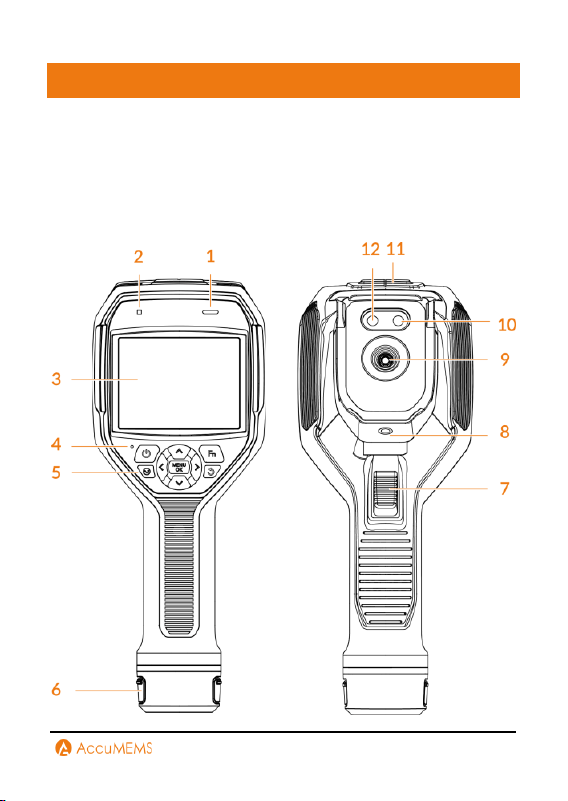
2.1 Imager Appearance
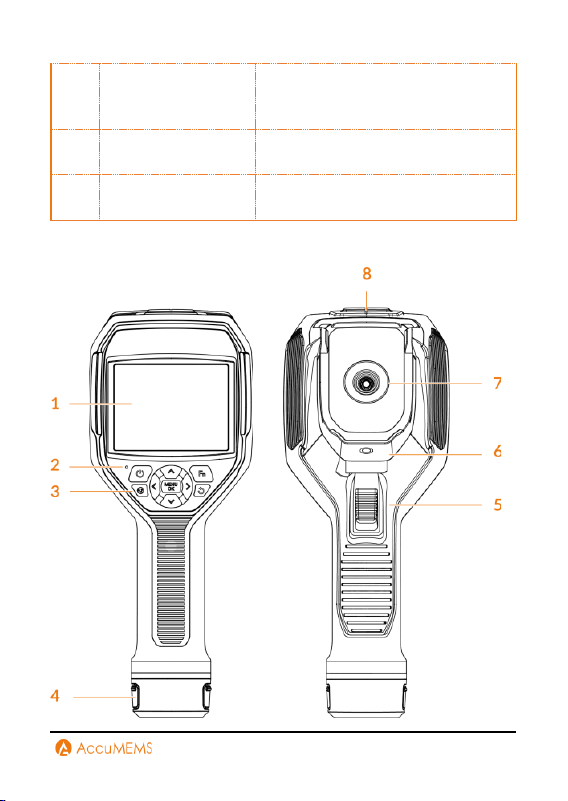
Touch Screen Control & Button Control:
6
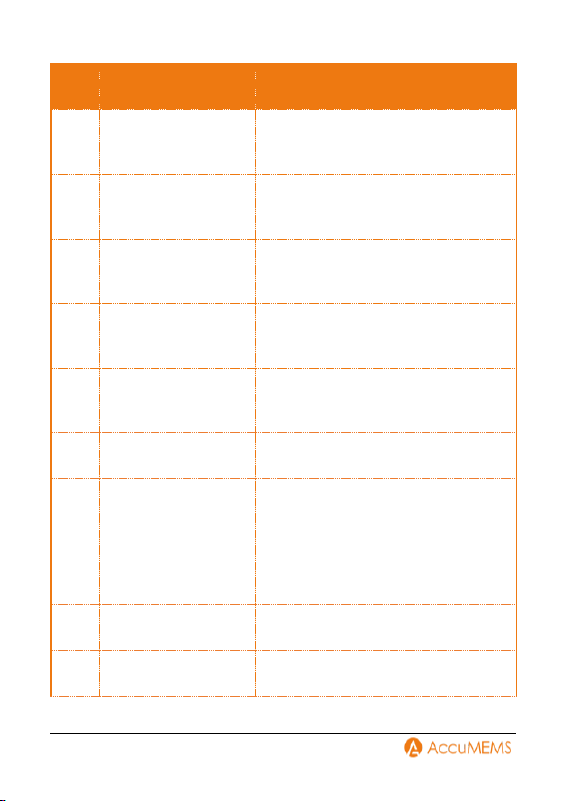
No.
Component
Function
1
Buzzer
Play audio of recorded video and
emit sound alarm.
2
Humidity
Set the relative humidity of current
environment.
3
Touch Screen
View real-time image and operate
the imager via touch control.
4
Indicator of the
Charger
Solid Red: Charging in progress.
Solid Green: Fully charged.
5
Buttons
Operate the imager. Refer to 2.2
Ports and Buttons.
6
Removable Battery
Power the imager.
7
Trigger
Press to take a picture in real-
time interface.
Press to go back to real-time
interface in menu mode.
Hold to start recording a video.
Press again to stop.
8
Tripod Mount
Mount the imager on a tripod.
9
Thermal Lens
View the thermal image.
7
10
Flashlight
Provide additional light for
objects.
Emit a flashing alarm signal.
11
Port Cover
Protect the port interface.
12
Visual Lens
View the visual image.
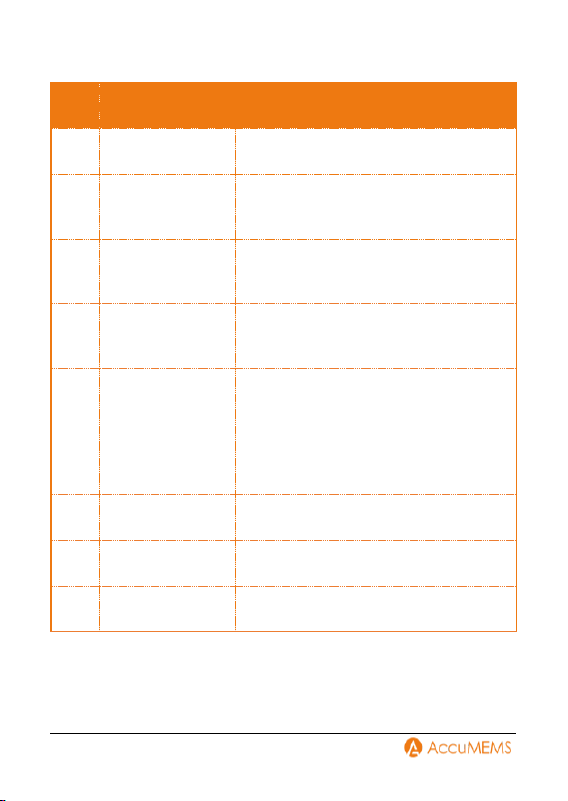
Button Control ONLY:
8
No.
Component
Function
1
Screen
View the real-time interface.
2
Indicator of the
Charger
Solid Red: Charging in progress.
Solid Green: Fully charged.
3
Buttons
Operate the imager. Refer to 2.2 Ports
and Buttons.
4
Removable
Battery
Power the imager.
5
Trigger
Press to take a picture in real-time
interface.
Press to go back to real-time
interface in menu mode.
Hold to start recording a video.
Press again to stop.
6
Tripod Mount
Mount the imager on a tripod.
7
Thermal Lens
View the thermal image.
8
Port Cover
Protect the port interface.
9
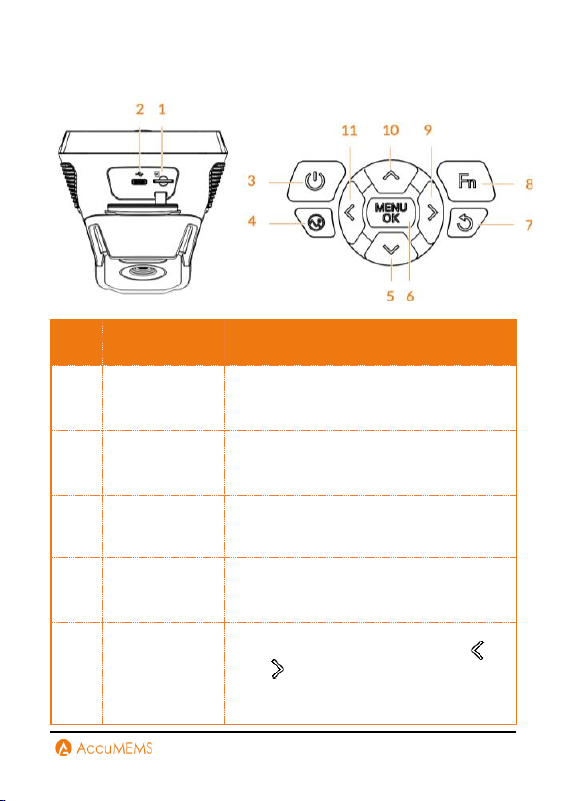
2.2 Ports and Buttons
No.
Component
Function
1
Memory Card
Slot
Memory card slot. With a 64GB memory
card pre-installed.
2
Type-C Port
Type-C Interface. Battery charging, and
data export.
3
Power Button
Holding Button: Power On/Off
4
Pictures
Pictures. Press to enter picture and video
albums.
5
Arrow Down
Press: In real-time interface, press to
enter image zooming. Press/hold
or to change the ratio.
Navigate down during menu operation
and configuration.
10
6
MENU/OK
Call tool bar in real-time interface.
Confirm action during menu operation
and configuration.
7
Return
Go back to the previous menu or exit the
current one.
8
Funtion
Button
Press to calibrate the device (default),
switch image mode, palettes, and usage
scene. Function configurable.
NOTE
Only some models support configuring
the usage scene and image mode.
Always refer to your imager.
10
Arrow Right
Navigate right during menu operation
and configuration.
11
Arrow Up
Turn on/off flashlight in real-time
interface
Navigate up during configuration.
12
Arrow Left
Navigate left during menu operation and
configuration.
11
3. Getting Started
3.1 Charging for the Imager
NOTE
Please make sure the battery is installed before charging.
User should prepare a power adapter to charge the imager. The
adapter (not included) should meet the following requirements:
Output Voltage/Current: 4.2 VDC/3 A
Minimum Power Output: 12.4 W
1.
Make sure the battery is securely installed.
2.
Open the port cover.
3.
Insert the included USB cable into the port, and connect the imager
to a power source via the power adapter for charging.
NOTE
It is advised to charge the imager for at least half an hour before
turning it on if it has been over-discharged from prolonged inactivity.
3.2 Power On/Off the Imager
Power On
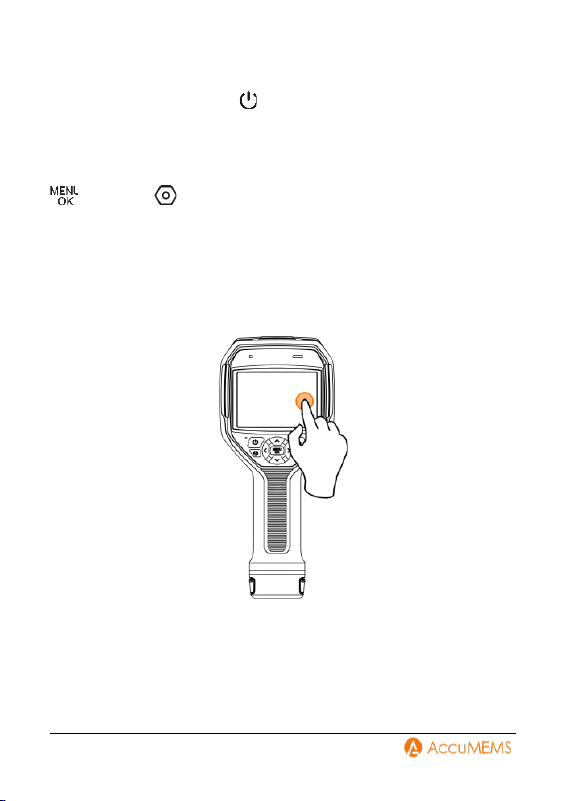
To activate the imager, hold for 3 second. When the imager's
interface is steady, you can see the target.
NOTE
After turning the imager on, it can take at least 30 seconds before it
is ready for use.
12
Power Off
When powered on, hold the button for 2 seconds to turn off the
imager.
Auto Power-Off Configuration
To configure the imager’s automatic shutdown time as needed, press
and go to
More Config
Auto Power-off.
3.3 Operation Method
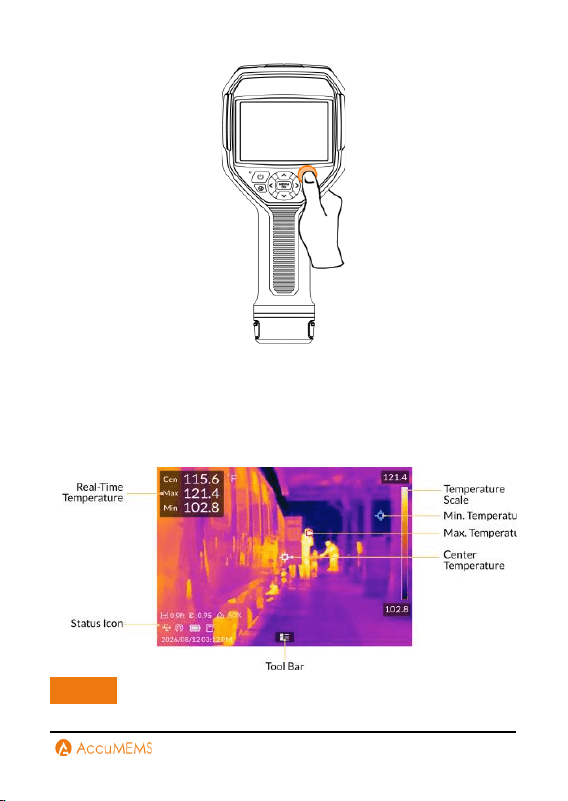
The device supports both touch-screen control and button control.
Touch-screen Control
Tap on the screen to set parameters and configurations.
Button Control
Press the buttons to set parameters and configurations.
13
3.4 Menus and Controls
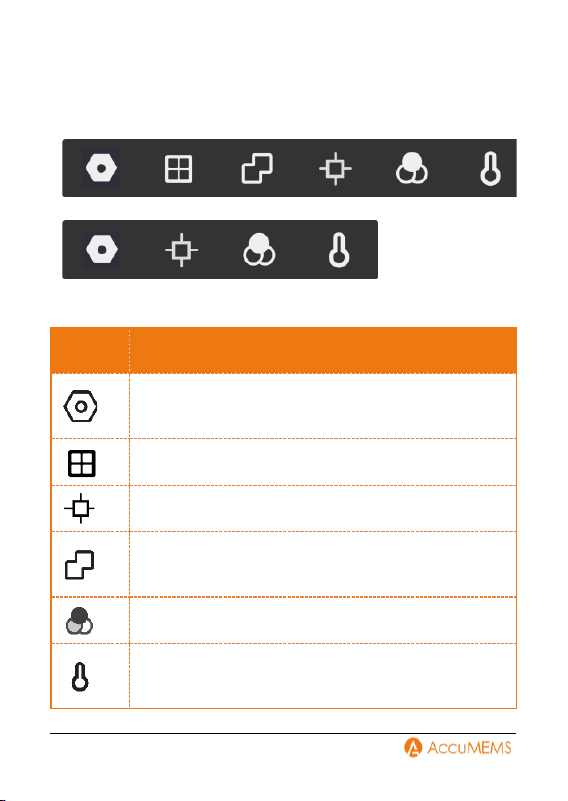
The imager features a touch-control screen, allowing for all controls via
simple screen taps.
Real-Time Interface
NOTE
14
Imager models may differ in real-time interface. Always refer to your
imager.
Tool Bar
Touch Screen Control & Button Control
Button Control ONLY
Icon
Description
Configure local imager preferences and basic
operations.
Choose a scene according to the faults or irregularities
to locate in a specific detection scene.
Enable or disable measurement functions.
Switch between thermal, visual, fusion, and other image
modes.
Change the thermal image palettes.
Adjust level & span for thermal image display. Refer to
6.5 Level & Span Configuration.
15
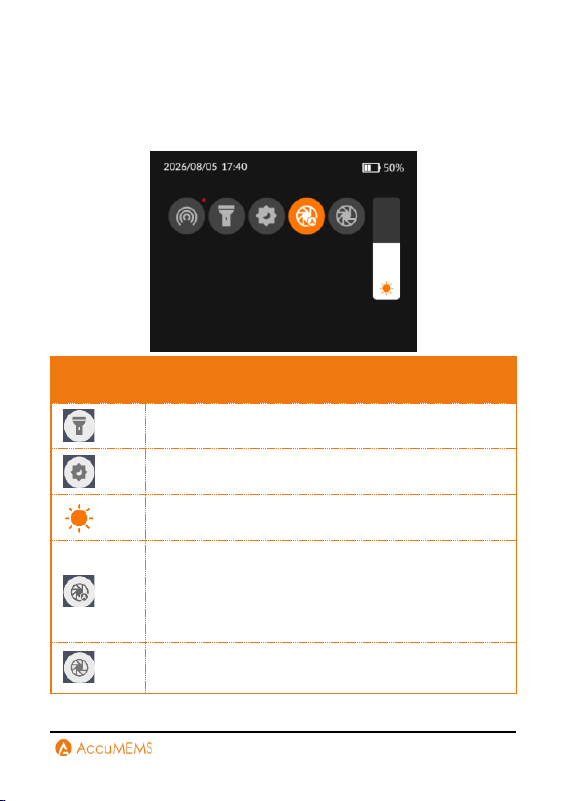
Swipe-down Menu (Touch Screen ONLY)
On the real-time interface, swipe down from the top to open the swipe-
down menu. You can turn imager functions on or off, switch display
themes, and adjust screen brightness etc.
Icon
Description
Turn the flashlight on or off.
Switch between day and night themes.
Adjust the screen brightness.
After enabling auto calibration, the imager will
automatically perform Flat Field Correction (FFC).
During the process, a brief "click" sound is emitted
and the real-time interface temporarily freezes.
Tapping the manual calibration icon initiate an FFC.
This function is ideal for complex conditions, as it
16
prevents frequent automatic adjustments from
disrupting operations.
*
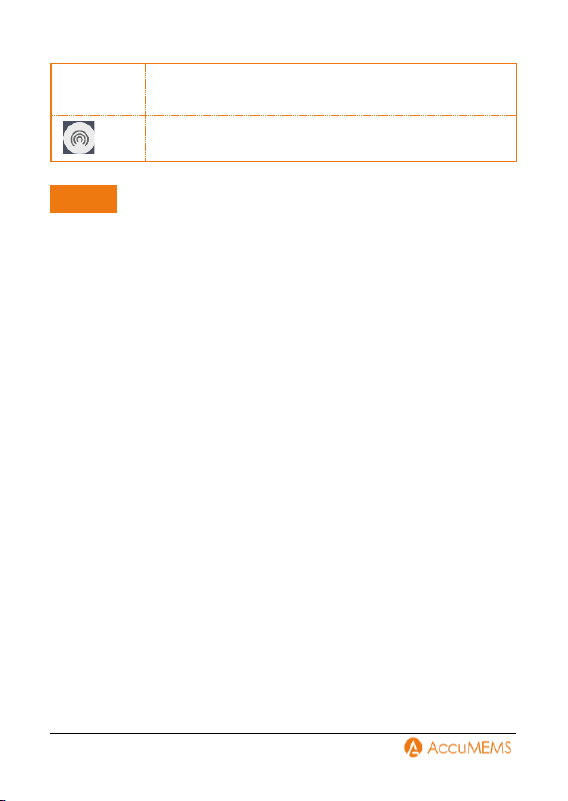
Turn on/off hotspot.
NOTE
*
Hotspot are only available on certain models. Always refer to
your imager.
When the imager is connected to the App over a hotspot (if
applicable), users can view the real-time interface, capture
pictures, record videos, and transfer files.
As this manual is updated regularly, the interfaces may differ
slightly from your specific model. Always refer to your imager.
17
4. Usage Scene Configuration
To facilitate rapid anomaly detection, Usage Scene offers a range of
preset templates designed for different situations.
NOTE
Usage Scene is only supported by certain models. Always refer to
your imager.
1.
Choose a suitable scene or create a customized one according to
detection targets. Refer to 4.1 Choose a Usage Scene for detailed
instructions.
2.
(Optional) Adjust scene parameters. Refer to 4.2 (Optional)
Configure Usage Scene Parameters for detailed instructions.
3.
(Optional) Configure alarms as needed. Refer to 5.4 Alarm
Configuration for detailed instructions.
4.
See detection results in the real-time interface.
4.1 Choose a Usage Scene
Choose a scene according to the faults or irregularities you want to
locate in a specific detection scene.
1.
In real-time interface, press and go to to select Usage
Scene.
2.
Choose a desired scene.
Moisture Detect
This scene is used to detect water leaks on indoor building ceilings,
walls, and floors.
UIRA-Scene technology enables rapid identification of irregularities
during leak inspections. Upon enabling this function, if moisture
irregularities are detected, the system will mark them with “Suspect”
indicators and red frames in the real-time interface.
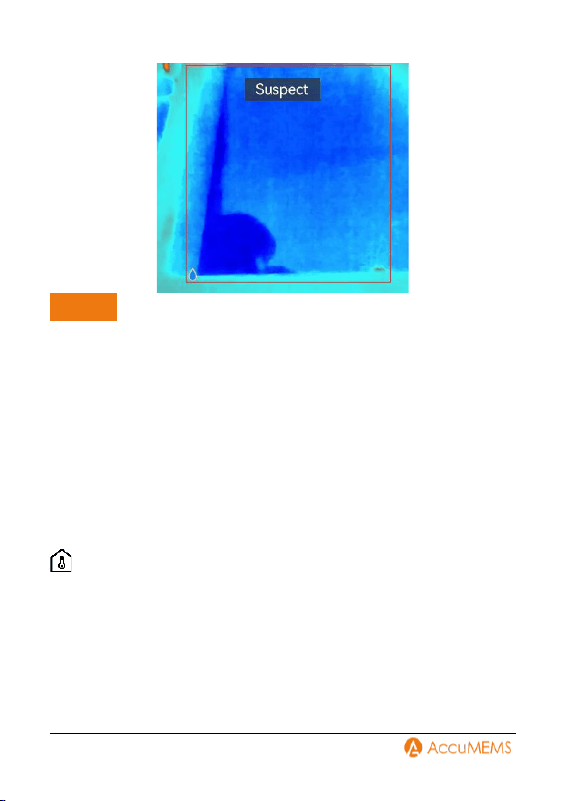
18
NOTE
If the temperature difference in areas with moisture irregularities
is too subtle to be detected, missed or incorrect reporting may
occur.
A secondary diagnosis using the UIRA-Scene function is
recommended. The algorithm for this function is currently being
updated.
Simultaneously enabling UIRA-IR and UIRA-Scene reduces the
frame rate.
T
o use the alarm function of this scene, go to Settings
Alarm
Trigger. For details, refer to 5.4 Alarm Configuration.
The picture is for reference only. Always refer to your imager.
Home Insulation
This scene is used to detect home insulation irregularities of indoor
building structures such as walls and ceilings, common users can apply
this scene.
UIRA-Scene technology enables rapid identification of irregularities
during insulation inspections. Upon enabling this function, if insulation
irregularities are detected, the system will mark them with “Suspect”
indicators and red frames in the real-time interface. If air leak points
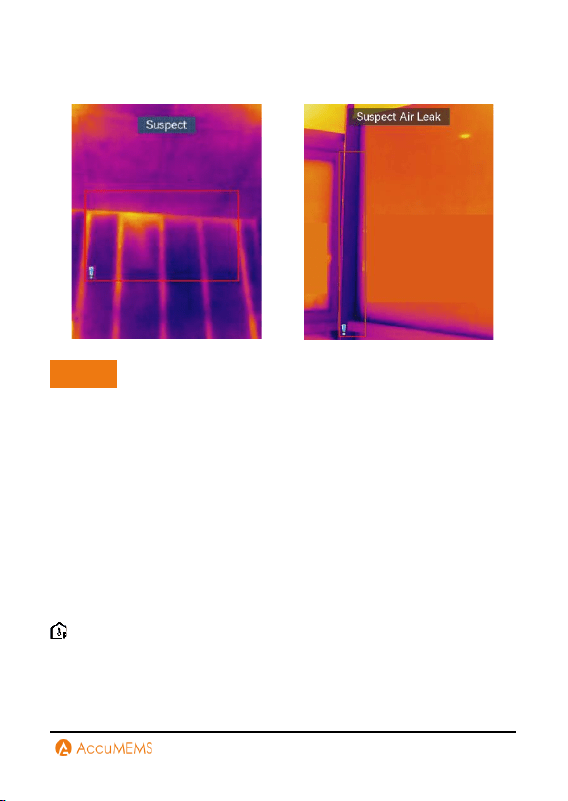
19
are detected, the system will mark them with “Suspect Air Leak”
indicators and red frames in the real-time interface.
NOTE
If the temperature difference in areas with insulation irregularities
is too subtle to be detected, missed or incorrect reporting may
occur.
A secondary diagnosis using the UIRA-Scene function is
recommended. The algorithm for this function is currently being
updated.
Simultaneously enabling UIRA-IR and UIRA-Scene reduces the
frame rate.
T
o use the alarm function of this scene, go to Settings
Alarm
Trigger. For details, refer to 5.4 Alarm Configuration.
The picture is for reference only. Always refer to your imager.
Pro Insulation
This scene is used to detect indoor insulation anomalies of building
walls and ceilings. The required parameters include Indoor Temp.,
Outdoor Temp., and Insulation Level.
When indoor temperature is less than or equal to outdoor
20
temperature, regions with insulation levels surpassing the preset
threshold will be highlighted in cyan. Conversely, if indoor temperature
exceeds outdoor temperature, areas with insulation levels lower than
the preset threshold will be marked in cyan.
NOTE
Indoor Temp. represents the current indoor temperature.
Outdoor Temp. represents the current outdoor temperature.
Insulation Level represents an integer ranging from 0 to 100.
Typical values for new buildings fall within 60–80%. A high value
indicates higher insulation requirements for the building.
Pro Moisture
To detect potential indoor moisture issues, it is necessary to configure
Relative Humidity, Ambient Temp., and RH Threshold.
Regions with condensation issues will be highlighted in green when the
measured relative humidity surpasses the specified RH Threshold.
NOTE
Relative Humidity represents the current humidity level.
Ambient Temperature represents to the current atmospheric
temperature.
RH Threshold represents the humidity upper limit of the target
surface. A relative humidity of 100% signifies that water vapor
condenses into liquid water (dew point), while levels around 70%
or higher may promote mold growth.
Values of Relative Humidity and Ambient Temp. can be acquired
using hygrometers and thermometers respectively.
Floor Heating
This scene is used to detect and monitoring faults in underfloor heating
systems.
UIRA-Scene technology enables rapid identification of irregularities
during floor heating inspections. Upon enabling this function, if heat
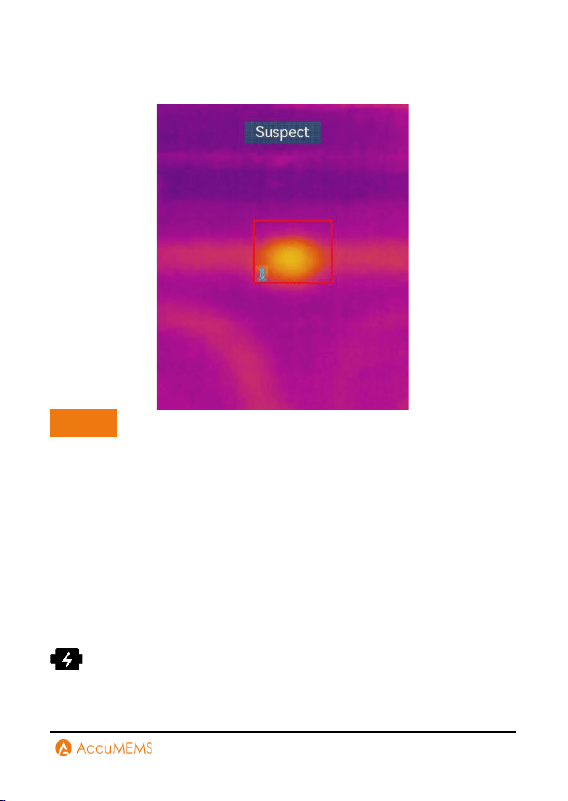
21
irregularities are detected, the system will mark them with “Suspect”
indicators and red frames in the real-time interface.
NOTE
If the temperature difference in areas with heat irregularities is
too subtle to be detected, missed or incorrect reporting may occur.
A secondary diagnosis using the UIRA-Scene function is
recommended. The algorithm for this function is currently being
updated.
Simultaneously enabling UIRA-IR and UIRA-Scene reduces the
frame rate.
T
o use the Alarm function of this scene, go to Settings
Alarm
Trigger. For details, refer to5.4 Alarm Configuration.
The picture is for reference only. Always refer to your imager.
Electrical Failure
Used for detecting and monitoring faults in wires, circuits, electrical
components, terminators, and similar items.
22
Solar Panel
Used for detecting and monitoring faults in solar panels.
Custom
Allows users to create a personalized mode by saving preferred
temperature measurement parameters for later use. Refer to 4.2
(Optional) Configure Usage Scene Parameters for detailed
instructions.
4.2 (Optional) Configure Usage Scene
Parameters
1.
Users can adjust related parameters to achieve more precise
detection results. In Usage Scene, choose a desired scene and then
set parameters.
NOTE
Parameters vary depending on the selected scene.
Parameters
Description
Distance
Configure the distance between the
imager and the target object.
Emissivity
Configure the emissivity value
according to the target object.
Palettes
Palettes represent temperature using
different colors. Users can select a
preferred color palette.
Level & Span
The temperature scale on the right
helps visualize the color-temperature
23
relationship in the image. Refer to 6.5
Level & Span Configuration for
detailed instructions.
Temperature Range
Select the temperature measurement
range. In Auto Switch mode, the
imager automatically detects
temperature and switches ranges
accordingly.
Alarm Config
When the target temperature triggers
a configured alarm rule, users can be
notified through configured rules.
Refer to 5.4 Alarm Configuration for
detailed instructions.
Color Display
Choose between Linear and
Histogram modes for different
scenarios to enhance detail visibility:
Linear: Optimized for detecting small
high-temperature targets against a
low-temperature background.
Histogram: Enhanced visibility of
small low-temperature targets in
high-temperature areas.
24
5. Temperature Measurement
To get more precise and real-time temperature of the target, user can
set measurement tools and alarms as needed.
5.1 Temperature Accuracy Parameters
Configuration
To increase temperature measurement accuracy, you can go to
Temp. Settings to adjust the measurement parameters.
NOTE
After adjusting the emissivity and distance parameters in the Temp.
Settings, the emissivity and distance values in the Usage Scene will
also be modified accordingly.
Emissivity
Configure the target's emissivity. Emissivity is a parameter that
measures the thermal radiation capability of an object's surface,
indicating the efficiency with which the object emits energy outward.
1.
Choose a preset value or customize it.
2.
Tap to save and exit.
Distance
Configure the distance between the target and the imager.
For templates based on approximate imager-to-target distance, use
Near/Middle/Far modes.
For precise customization, choose Custom mode.
1.
Choose a distance mode.
2.
Tap to save and exit.
25
Other Parameters:
Parameters
Description
Refl. Temp.
When measuring low-emissivity
targets, set the reflected temperature
to that of any interfering high.
Ambient Temp.
Configure the ambient temperature.
Humidity Mode*
Configure the auto or manual mode.
Humidity
Configure the ambient humidity.
NOTE
When temperature values display "~", measurements have not yet
stabilized. This symbol typically appears during startup and
disappears when stable readings are achieved.
5.2 Set Image Measurement Tool
The imager measures the entire scene temperature and can be
configured to display center, hot, and cold points.
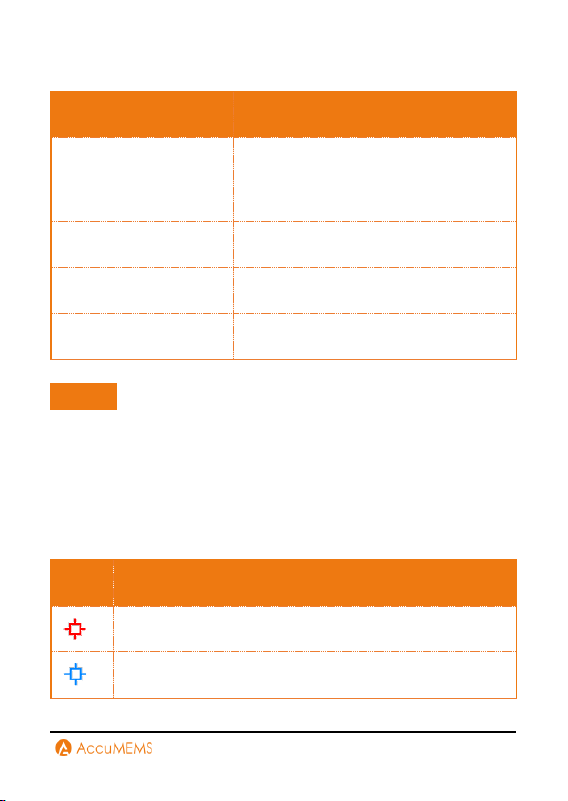
Icons
Description
Display the scene's hot point and its max. temperature.
Display the scene's cold point and the min. temperature.
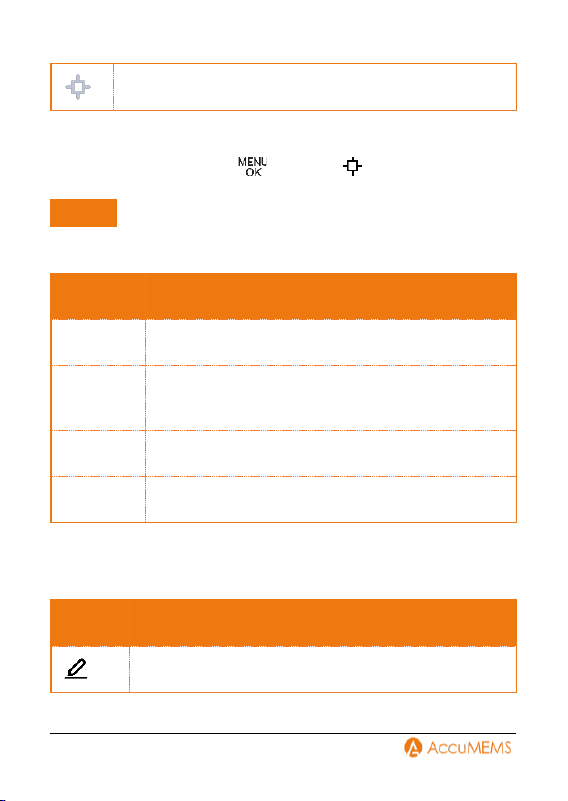
26
Display the scene's center point and its temperature.
5.3 Measurement Tools Configuration
In real-time interface, press and go to to select a type of
temperature measurement tool.
NOTE
Only some models support configuring Rectangle, Circle, and
Δ
T.
Always refer to your imager.
Tools
Description
Spot
Configuring spot tools, refer to 5.3.1 Spot Tool.
Rectangle
Configuring rectangle tools, refer to 5.3.2 Rectangle
Tool.
Circle
Configuring circle tools, refer to 5.3.3 Circle Tool.
Δ
T
Configuring
Δ
T tools, refer to5.3.4
Δ
T and
Δ
T Alarm.
Configure Tools
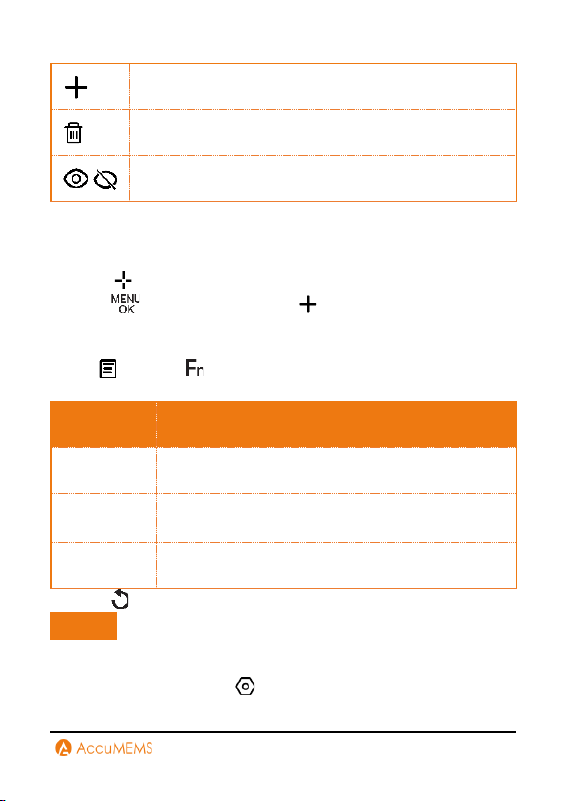
Add a tool, modify the set tools, hide or display the tools and
measurement results, etc.
Icons
Description
Modify the tools
27
Add a tool.
Delete the tools.
\
Hide or display the tools and measurement results.
5.3.1 Spot Tool
The device can detect the temperature of a custom spot.
1.
Select .
2.
Press to add a spot or select to generate a default spot.
3.
Move the spot with the navigation buttons, or tap on the touch-
screen to select a spot and move it.
4.
Tap or Press to modify temperature measurement
parameters.
Parameters
Description
Emissivity
Set the emissivity of your target.
Distance
Set the distance between the target and the device.
Temp.
To display or hide the temperature measurement
result.
5.
Press to save and exit. The temperature of spot displays P1: XX.
NOTE
If the tool-specific emissivity and distance are set, the
measurement is conducted based on the parameters. Otherwise,
the parameters set from
Temp. Settings are used for
measurements.
28
At most 3 custom spots are supported.
6.
Optional: Modify the set tools, hide or display the tools and
measurement results, etc.
5.3.2 Rectangle Tool
1.
Select .
2.
Press to add a rectangle or tap to generate a default
rectangle.
3.
Move the rectangle to the required position.
-
Tap the rectangle, and press navigation buttons to move the
rectangle up/down/left/right.
-
Tap and drag the rectangle on touch-screen to move it to the
required position.
4.
Adjust the size of the rectangle.
-
Tap one corner of the rectangle, and drag the corner to enlarge or
contract the rectangle.
-
Tap and drag the corner of the rectangle on touch-screen to
enlarge or contract it.
5.
Tap to modify temperature measurement parameters.
Parameters
Description
Emissivity
Set the emissivity of your target.
Distance
Set the distance between the target and the
device.
Max./Min./Average
Temperature
Tap to enable the temperature types to
display. The max. temperature, min.
temperature, and average temperature of
the rectangle area can be displayed on the
left of the screen.
29
6.
Press to save and exit. The temperature of rectangle displays
R1: XX.
NOTE
If the tool-specific emissivity and distance are set, the
measurement is conducted based on the parameters. Otherwise,
the parameters set from
Temp. Settings are used for
measurements.
At most 3 rectangle tools are supported.
7.
Optional: Modify the rectangle tools, hide or display the tools and
measurement results, etc.
5.3.3 Circle Tool
1.
Select .
2.
Press to add a circle or tap to generate a default circle.
3.
Move the circle to the required position.
-
Tap the circle, and press navigation buttons to move the circle
up/down/left/right.
-
Tap and drag the circle on touch-screen to move it to the required
position.
4.
Adjust the size of the circle.
-
Tap one point on the circle, and press navigation buttons to enlarge
or contract the circle.
-
Tap and drag one point of the circle on touch-screen to enlarge or
contract it.
5.
Tap to modify temperature measurement parameters.
Parameters
Description
Emissivity
Set the emissivity of your target.
30
Distance
Set the distance between the target and the
device.
Max./Min./Average
Temperature
Tap to enable the temperature types to
display. The max. temperature, min.
temperature, and average temperature of
the rectangle area can be displayed on the
left of the screen.
6.
Press to save and exit. The temperature of circle displays Cr1:
XX.
NOTE
If the tool-specific emissivity and distance are set, the
measurement is conducted based on the parameters. Otherwise,
the parameters set from
Temp. Settings are used for
measurements.
At most 3 circle tools are supported.
7.
Optional: Modify the circle tools, hide or display the tools and
measurement results, etc.
5.3.4 ΔT and ΔT Alarm
The imager identifies temperature anomalies more accurately and
rapidly by comparing the temperature difference (
Δ
T) between
measurement tools.
1.
Configure at least one temperature measurement tool.
2.
Select .
3.
Add a
Δ
T tool.
-
Input a name for the
Δ
T tool.
-
Select Compared Object.
-
Set Alarming
Δ
T. When the detected
Δ
T is greater than the set
alarming
Δ
T, device triggers alarms.
-
Tap OK to save the settings.
31
NOTE
You can compare the temperature difference between different or
the same measurement tools, between a measurement tool and a
number, etc. If you select Number as a compared object, input the
value manually.
At most 4 Delta T are supported.
4. Optional: Modify the
Δ
T tools, hide or display the tools and
measurement results, etc.
5. Press to save and exit.
6. Enable
Δ
T Alarm
。
-
Go to
Temp. Settings
Δ
T Alarm.
-
Tap to enable
Δ
T Alarm.
NOTE
If you do not enable
Δ
T Alarm, the alarm linkages also take effect, but
the
Δ
T alarm information will not be uploaded to the center.
5.3.5 Reset Measurement Tools
1.
To clear all measurement tools, go to
More Config
Device
Initialization
Remove All Measurement Tools.
2.
A pop-up message "Setting Succeeded" will appear.
5.4 Alarm Configuration
Configure the alarm rule and the imager will alarm when the detected
temperature triggers the rule.
NOTE
Before using alarm trigger, please first turn on Alarm in Usage
Scene. Otherwise, alarm trigger will not be visible in the settings
interface.
Only some scenes support the alarm function.
32
Imager with Usage Scene
1.
In real-time interface, go to
Usage Scene to select a scene.
2.
In Usage Scene setting interface, tap Alarm Config.
3.
Enable Temperature Alarm button.
4.
Tap Measurement to configure an alarm rule. Set your desired
temperature threshold under Alarm Threshold. The imager triggers
an alarm when the target's temperature exceeds or falls below this
preset value.
5.
Tap to save and exit.
The temperature value displayed in the top-left corner of the real-time
interface changes color based on threshold alerts: red when exceeding
the upper limit, blue when falling below the lower limit.
6.
(Optional)Go back to Settings
Alarm Trigger and enable different
alarm types.
Flashing Alarm: The flash light flashes when the target temperature
exceeds the alarm threshold (only supported by certain models).
Audible Warning: The imager beeps when target temperature
exceeds the alarm threshold.
Imager without Usage Scene
1.
In real-time interface, press to reveal the menu.
2.
Go to
Temp. Settings
Alarm Config.
3.
Turn on alarm button.
4.
Navigate to Measurement to configure an alarm rule. Set your
desired temperature threshold under Alarm Threshold. The imager
triggers an alarm when the target's temperature exceeds or falls
below this preset value.
5.
Press to save and exit.
The temperature value displayed in the top-left corner of the real-time
interface changes color based on threshold alerts: red when exceeding
the upper limit, blue when falling below the lower limit.
33
6. Display Configuration
6.1 UIRA-IR Configuration
UIRA-IR is a more advanced technology than Edge Enhance, improving
object edges for clearer image quality in both real-time viewing (for
some models) and captured snapshots. Actual performance may vary
by model.
Real-time View: When UIRA-IR is enabled, supported models
enhance object contours during real-time viewing.
Pictures: UIRA-IR sharpens object outlines in captured pictures after
enabling the function.
UIRA-IR is enabled by default. To disable it, go to
UIRA-IR to
turn it off.
NOTE
UIRA-IR is only supported by certain models. Always refer to your
imager.
6.2 Image Mode Configuration
You can configure the imager's thermal/visual display mode. The
selectable options include Thermal, Fusion, PIP, Blending, and Visual
modes.
NOTE
*Fusion, PIP, Visual, and Blending Mode are only supported by
certain models. Always refer to your imager.
1.
In real-time interface, go to to select an image mode.
Icon
Mode
Description
34
Thermal
The imager presents the thermal
imaging view.
*
Fusion
The imager shows thermal images with
visual outlines. This function is only
supported by models equipped with a
visual lens.
*
PIP
The imager shows the thermal image
within the visual image.
*
Blending
The imager merges thermal and visual
image. The balance between thermal and
visual elements can be adjusted.
*
Visual
The imager shows visual images only.
2.
Press to save and exit.
6.3 Switch and Manage Palettes
Palettes are color combination standing for different temperatures.
Device offers several kinds of palettes serving different purposes. You
can switch and manage frequently used palettes.
Steps
1.
In real-time interface, go to to select a palette.
2.
Optional: Select to show all supported palette types.
3.
Optional: Select to set frequently used palettes.
4.
Select a palette type and press to switch.
Common Palettes
When you select a common palette type, the whole live image switch to
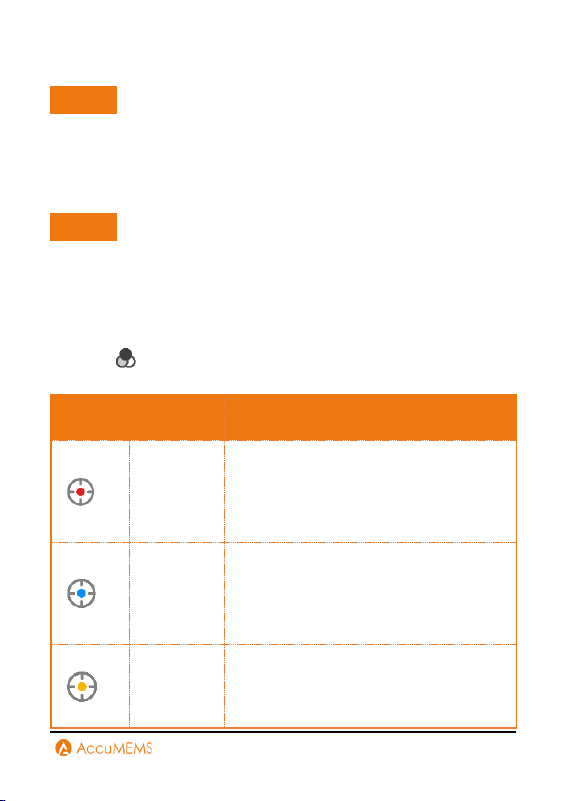
35
the selected color combination.
NOTE
Common Palettes are allowed to be reversed through Settings >
Capture Config > Reversed Palette. Colors representing high and low
temperature display in reverse order.
Focus Mode Palettes
NOTE
Focus Mode Palettes are only supported on some models. Always
refer to your imager.
Focus Mode Palettes enable the user to highlight targets within a
specified temperature range using flame palettes, while all other
targets are displayed in bright palettes.
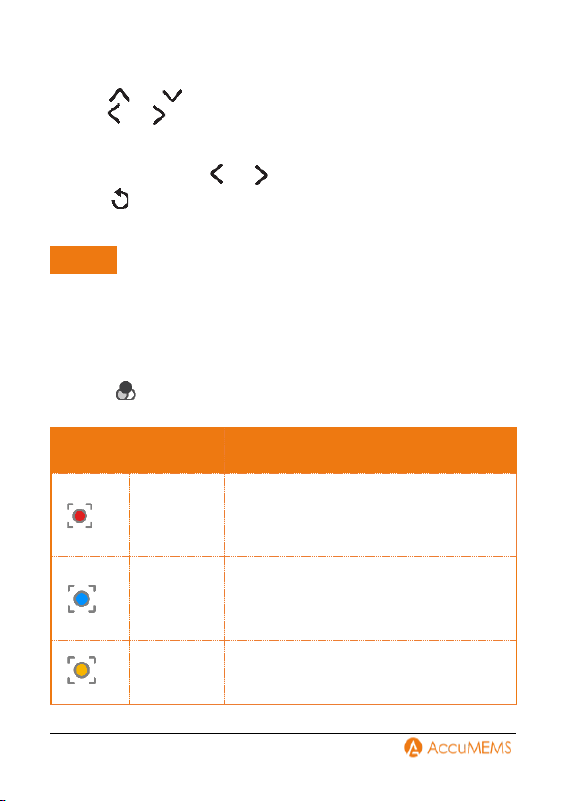
1.
Select from the main menu.
2.
Tap the icons to select an alarm rule type.
Icon
Mode
Description
Above
Focus
Set the temperature threshold, and the
targets with the temperature higher than
the set value are displayed with fusion
palettes.
Below
Focus
Set the temperature threshold, and
targets with the temperature lower than
the set value are displayed with fusion
palettes.
Interval
Focus
Set the temperature range (e.g., 90 °C to
150 °C), and targets in the range are
displayed with fusion palettes.
36
3.
Set a temperature range.
-
Tap or to switch between upper limit and lower limit.
Tap or to adjust the temperature.
-
Tap on the screen to select an interest area. The device
automatically adjusts the upper and lower temperature limit of the
selected scene. Tap or to fine-tune the temperature.
4.
Press to save and exit.
Alarm Mode Palettes
NOTE
Alarm Mode Palettes are only supported on some models. Always
refer to your imager.
Alarm Mode Palettes allow the user to mark targets within a certain
temperature range with a designated color, while the remaining targets
are shown in bright palettes. Refer to for instructions.
1.
Select from the main menu.
2.
Tap the icons to select an alarm mode palette type.
Icon
Mode
Description
Above
Alarm
Set the alarm temperature, and the
targets with the temperature higher than
the set value are displayed in red.
Below
Alarm
Set the alarm temperature, and targets
with the temperature lower than the set
value are displayed in blue.
Interval
Alarm
Set the alarm temperature section (e.g.,
90 °C to 150 °C), and targets with the
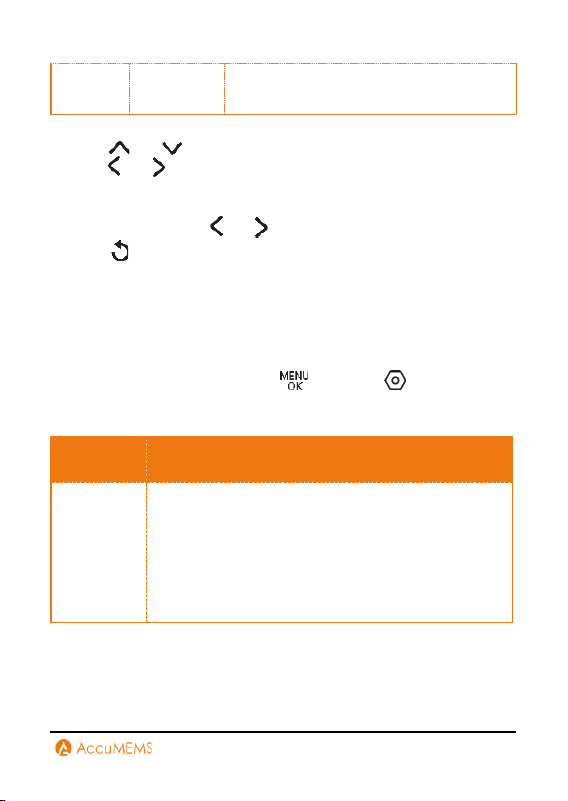
37
temperature in the range are displayed in
yellow.
3.
Set a temperature range.
-
Tap or to switch between upper limit and lower limit.
Tap or to adjust the temperature.
-
Tap on the screen to select an interest area. The device
automatically adjusts the upper and lower temperature limit of the
selected scene. Tap or to fine-tune the temperature.
4.
Press to save and exit.
6.4 Color Display
The Color Display function delivers varied imaging effects. Both linear
and histogram color display modes are selectable, tailored to specific
application requirements.
1.
In the real-time interface, press and go to
Usage
Scene
Color Display.
2.
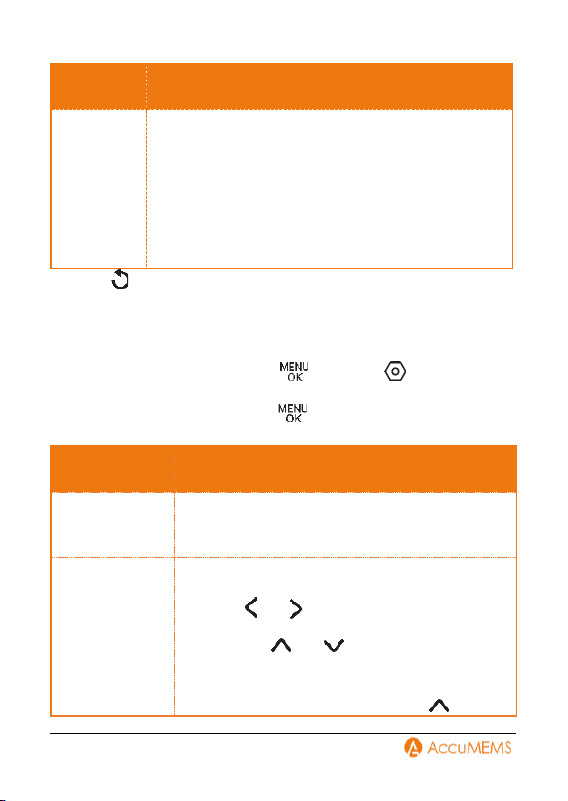
Select a color distribution mode.
Mode
Description
Linear
Linear mode is employed to identify minor high-
temperature targets within a low-temperature
background. Its linear color display amplifies and
highlights additional details of these high-
temperature objects, making it well-suited for
inspecting small defective hot spots.
38
Mode
Description
Histogram
Histogram mode is utilized for analyzing
temperature distribution across broad areas. The
histogram color display enhances high-temperature
targets while retaining some details of low-
temperature objects in the region, which proves
effective for detecting small low-temperature
anomalies.
3.
Press to save and exit.
6.5 Level & Span Configuration
Adjust the level & span parameters to get better image contrast.
1.
In the real-time interface, press and go to
Usage
Scene
Level & Span.
2.
Select Setting Mode, and press to switch auto and manual
adjustment.
Mode
Description
Auto
Enabling Auto mode can automatically adjust
the display temperature range.
Manual
In Manual mode, choose Parameters to access
the settings interface.
Press or to lock or unlock the
maximum and minimum temperature settings,
and press or to adjust any unlocked
values.
Alternatively, unlock both the maximum and
minimum temperatures and press or
39
to increase or decrease either value
individually while preserving the same
temperature range.
You also have the option to enable Persist
Saved.
Persist Saved: The current manual mode
settings will be saved and restored after the
imager restarts.
Temp Saved: The settings will not be saved
upon restart, and the imager will revert to
automatic mode.
3.
Press to save and exit.
NOTE
Persist Saved is only supported by certain models. Always refer to
your imager.
6.6 Digital Zoom Configuration
NOTE
Digital Zoom is only available on certain models. Always refer to your
imager.
1.
In real-time interface, press button to enter zooming mode.
2.
Press or hold or button to zoom out/in.
3.
Press to save and exit.
6.7 Screen Brightness Configuration
Use buttons: Go to
Display Config
Screen Brightness, and
press/hold or to change the level.
Touch control: In real-time interface, swipe from screen top to call
the menu. Tap on and swipe up and down to change the
brightness.

40
6.8 Unit Configuration
Go to
Display Config
Unit to set the Temp. unit and
Distance unit.
6.9 On-Screen Info Configuration
Go to
Display Config to turn on/off the information on-screen
display.
Status Icon: The device status icons, for example, battery status,
memory card, hotspot, etc.
Parameters: Temperature measurement parameters.
Temperature Scale: Display the palettes bar and temperature range
on the right side of the screen.
Time and Date: Device time and date.
Humidity*: Display the relative humidity of current environment.
41
7. Pictures and Videos
NOTE
Image capture and video recording are unavailable when the menu is
displayed or the imager is connected to a PC.
7.1 Capture Pictures
You can capture pictures in real-time interface and a thumbnail of the
picture will be displayed. The pictures will be automatically saved in the
album.
In the real-time interface, you can press and release the trigger
to capture pictures.
You can also set the following parameters in
Capture Config
before capturing pictures.
NOTE
If the environment is dark when capturing a visual picture, you can
turn on the flashlight for illumination. Flashlight is only available on
certain models. Always refer to your imager.
You cannot capture pictures when the imager is connected with
PC.
Button Control imager only supports configure File Naming.
Parameters
Description
Capture Mode
One Picture: Press the trigger once to
capture one picture.
Capture Plan: Configure Interval (the
time gap between each picture to be
taken) and Number (the number of
pictures to be captured in sequence, from
1 to 10,000) for scheduled capture. Press
the trigger in real-time interface, and the

42
imager captures the specified number of
pictures according to the configured
interval. Press the trigger again to stop
capturing.
Save Visual
Image
To save a visual image independently, you
can enable Save Visual Image (this function
is only supported by models equipped with a
visual lens).
File Naming*
Files can be named using Time Stamp or
Numbering.
Filename Header
Define file naming conventions. Default
naming uses Filename Header + Time
Stamp.
Filename header is customizable.
Time stamp reflects the imager’s system
time at capture.
Flashlight
Turn on/off the light while capturing or
recording.
Edit before
Saving
In capture One Picture mode, enable Edit
before Saving to modify the captured
picture immediately.
Text Note:
1.
Choose Text Note to enter the editing
interface.
2.
Tap the screen to add content.
3.
Tap to save.
43
QR Code Note:
1.
Select QR Code Note to switch the
imager to scanning mode.
2.
Align the scanning frame with a QR code.
The imager will automatically read and
save the code's information.
3.
(Optional) If scanning fails, manually enter
the Asset ID using the on-screen
keyboard.
Reversed
Palettes
Common palettes are allowed to be
reversed. Colors representing high and low
temperature display in reverse order.
7.2 Record Videos
NOTE
If the environment is dark when capturing a visual picture, you can
turn on the flashlight for illumination. Flashlight is only available on
certain models. Always refer to your imager.
1.
Hold the trigger in real-time interface. When the recording icon and
time display in the interface, recording begins, and you can release
the trigger.
2.
Press the trigger completes the recording. The imager will display a
pop-up notification saying "Recording Succeeded”. The recording
video will be saved.
7.3 View Pictures and Videos
1.
Press to enter Pictures.
2.
Tap an album, and choose the picture or video.
3.
View the selected file and associated information.
44
NOTE
Files are organized chronologically, with the newest appearing at
the top. If you cannot find recently captured pictures or videos,
check your camera’s time and date settings. Refer to 9.1 Time and
Date Configuration for detailed instructions.
Some models cannot playback the video, please export the video
to PC for playback.
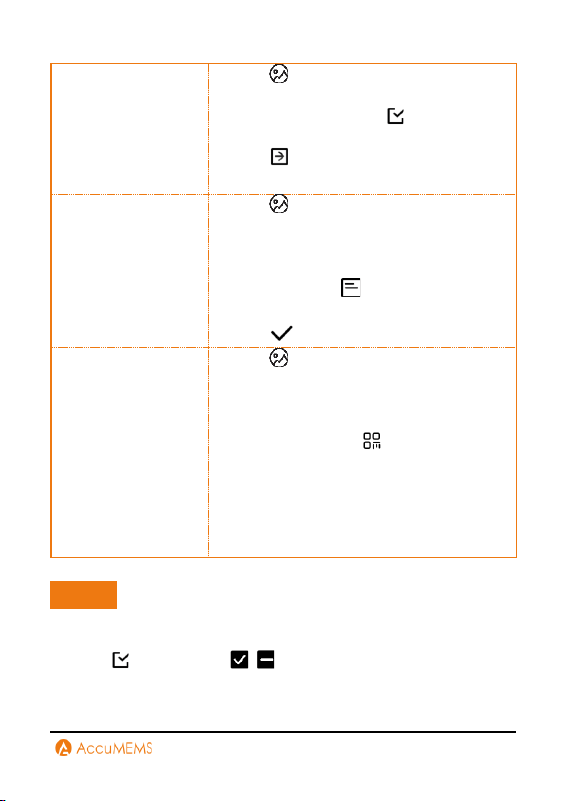
7.4 Manage Files
Task
Operations
Delete a File
1.
Tap to enter Pictures, and open the
target album.
2.
Select the file to be deleted.
3.
Tap the screen to show the menu bar
below, then tap .
4.
Tap OK in the confirmation dialog.
Delete Multiple
Files
*
1.
Tap to enter Pictures, and open the
target album.
2.
Within the album, tap , then select
the files to be deleted.
3.
Tap .
4.
Tap OK in the confirmation dialog.
Move a File
*
1.
Tap to enter Pictures, and open the
target album.
2.
Select the file to be moved.
3.
Tap the screen to show the menu bar
below, then tap .
4.
Select the target album from the list.
45
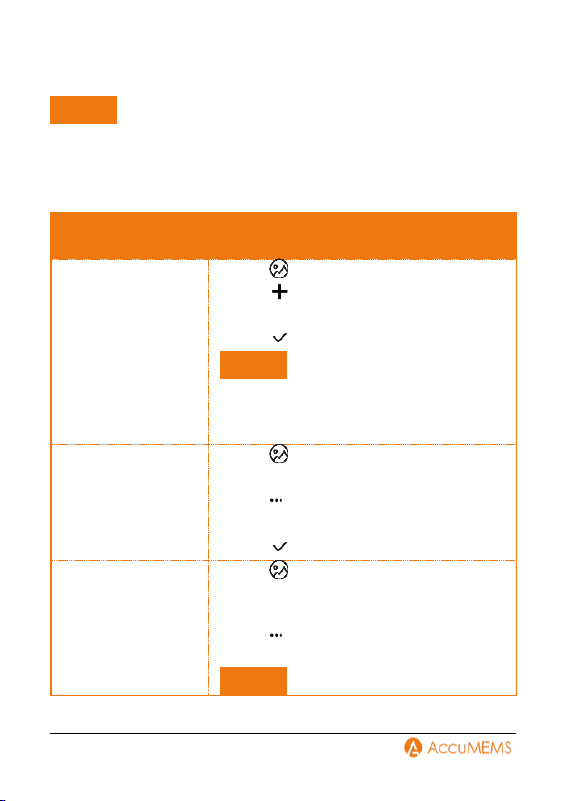
Move Multiple
Files
*
1.
Tap to enter Pictures, and open the
target album.
2.
Within the album, tap , then select
the files to be moved.
3.
Tap .
4.
Select the target album from the list.
Attach Text Note
*
1.
Tap to enter Pictures, and open the
target album.
2.
Select the file to be edited.
3.
Tap the screen to show the menu bar
below, then tap .
4.
Input the text note.
5.
Tap to complete.
Attach QR Code
Note
*
1.
Tap to enter Pictures, and open the
target album.
2.
Select the file to be edited.
3.
Tap the screen to show the menu bar
below, then select .
4.
Scan the QR Code, and the imager will
record the code information.
5.
(Optional) If the scanning fails, input the
code (Asset ID) manually with soft
keyboard.
NOTE
*
functions are only available on certain models. Always refer to
your imager.
After , you can tap / to select or deselect all files within
an album.
46
7.5 Manage Albums
NOTE
Manage albums is only available on certain models. Always refer to
your imager.
Recorded image and video files are stored in Pictures. You can manage
albums by creating, renaming, setting as default, or deleting them.
Task
Operations
Create a New
Album
1.
Tap to enter Pictures.
2.
Tap to create a new album.
3.
Input the album name.
4.
Tap to complete.
NOTE
The newly created album becomes the
default saving album and is displayed at
the top of the Pictures.
Rename an Album
1.
Tap to enter Pictures.
2.
Choose the album to rename.
3.
Tap , then choose Rename.
4.
Input the new album name.
5.
Tap to complete.
Set Default Saving
Album
1.
Tap to enter Pictures.
2.
Choose the album to set as default
saving location.
3.
Tap , then choose Set as Default
Album.
NOTE
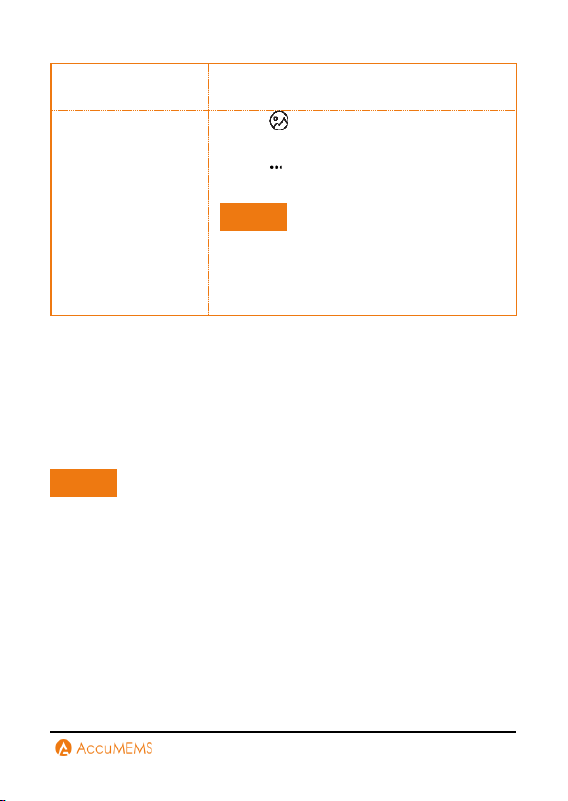
47
The default saving album is displayed at
the top of the Pictures.
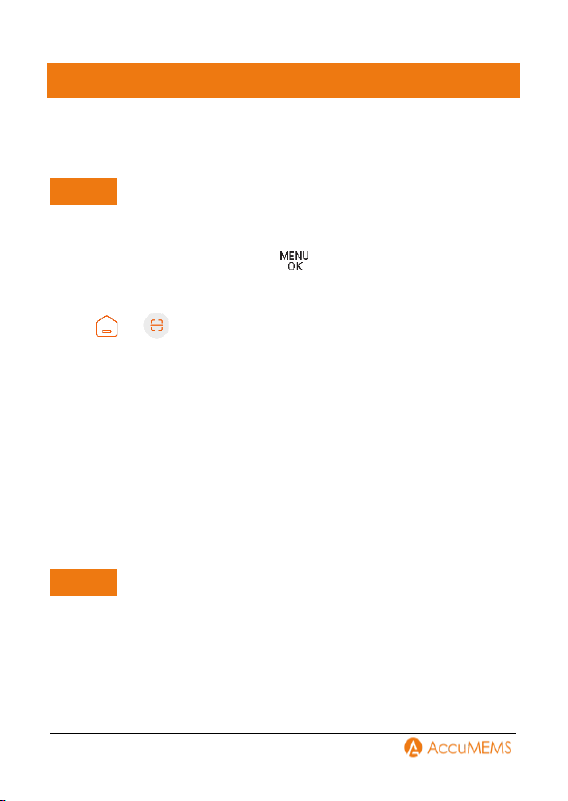
Delete an Album
1.
Tap to enter Pictures.
2.
Choose the album to delete.
3.
Tap , then choose Delete.
4.
Tap OK in the confirmation dialog.
NOTE
Deleting an album also removes all files
within it. Transfer files to other albums if
needed. Refer to 7.4 Manage Files for
detailed instructions.
7.6 Export Pictures and Videos
1.
Connect the imager to your PC with the included USB cable, and
select USB Drive mode in the prompt on imager.
2.
Open the detected disk, copy and paste the files to PC to view the
files.
3.
Disconnect the imager from your PC.
NOTE
For the first connection, the driver will be installed automatically.
48
8. Device Connection
8.1 Connect via Hotspot (If Applicable)
NOTE
Remember download and install the APP on your phone before using
the function.
1.
In the real-time interface, press and go to Settings
More
Config to enable Hotspot.
2.
On the APP, tap Add in the middle of the screen to add imager. Or
tap > to Scan QR Code.
3.
Scan the hotspot QR code of the imager.
4.
Add imager following the steps:
Initial Connection
1.
Tap Join to join the imager hotspot.
2.
Press OK on the imager to confirm the connection authentication.
Reconnection
1.
Tap Connect in device interface on the home page.
2.
Tap Join to join the imager hotspot and automatically connect to the
device.
NOTE
The path of your imager may vary according to different products.
Always refer to the actual product interface.
If you have changed the hotspot password, rescan the hotspot QR
code.
If the APP fails to connect to your imager, please disconnect your
mobile device's Wi-Fi and try it again.

49
After adding the imager to the APP, you can view the connected imager
information on the home page.
8.2 Connect to Cast Screen
You can connect the device to your PC via a supplied USB cable to start
live view, taking snapshots, recording, etc.
NOTE
Download and install the latest version of Accu Studio on your PC.
You can get the installation package through the official website
www.accumems.com.
1.
Launch Accu Studio.
2.
Use the supplied USB cable to connect the imager (powered on) to a
PC USB port.
3.
On the imager’s pop-up menu, select USB Cast Screen.
NOTE
Connection failure or imager not displaying a pop-up window. Please
check the USB connection or restart the imager.
4.
Select Imager (top-left) to view detected devices.
5.
Select a device and click Connect to begin live view.
NOTE
During live view, if you switch to other tabs, choose Background to
keep streaming.
6.
Click Disconnect to stop streaming.
NOTE
The client detects multiple USB devices but streams from one
device at a time.
Avoid plugging in or unplugging other USB devices during
streaming.
50
9. Maintenance
9.1 Time and Date Configuration
In the real-time interface, press and go to
More Config
Time and Date to configure the information.
9.2 Flashlight
Use buttons: In real-time interface, press to turn on/off the light
Touch control: In real-time interface, swipe from screen top to call
the menu. Tap to turn on/off the light.
9.3 Fn Key Configuration
In the real-time interface, press and go to
More Config
Fn Key Config to configure the function. In real-time interface, press
to switch image mode, palettes, calibration, and usage scene.
NOTE
Only some models support configuring the usage scene and image
mode. Always refer to your imager.
9.4 Storage Configuration
In the real-time interface, press and go to
More Config
Storage to configure the storage path.
Button Control Only: files can be saved to the device's local storage
or to the memory card.
Touch Screen: files can be saved to the memory card Only.
NOTE
51
Local storage is only supported on some models. Always refer to your
imager.
9.5 View Imager Information
In the real-time interface, press and go to
More Config
About to view the detailed information of the imager.
9.6 Logs Configuration
The imager can retain its operational logs for troubleshooting
purposes. Press and go to
More Config
Save Logs to
enable or disable this function.
To export logs:
1.
Connect the imager to a PC using the included USB cable.
2.
Set the imager's USB mode to USB Drive.
3.
Access operation logs in the imager's root directory.
9.7 Upgrade
Before upgrade, download the upgrade file first. You can get the
upgrade file through technical support.
1.
Connect the imager to your PC via the included cable, and select
USB Drive as the USB mode in the prompt on the imager.
2.
Copy the upgrade file and replace it to the root directory of the
imager.
3.
Disconnect the imager from your PC.
4.
Reboot the imager and then it will upgrade automatically. The
upgrading process will be displayed in the main interface.
NOTE
After the upgrading, the imager automatically reboot. You can view
the current version in More Config
About.
52
9.8 Format Memory
1.
In the real-time interface, press and go to
More
Config
Device Initialization
Format Memory Card.
2.
Press to start formatting storage.
9.9 Restore Imager Configuration
In the real-time interface, press and go to
More Config
Device Initialization
Restore Device to initialize the imager and
restore default settings.

53
10. Guidance for Common
Thermal Imaging Operations
The manual provides guidance on common issues for first-time users of
imagers. For other questions or updated guidance, please contact
technical support.
10.1 Can the UIRA-Scene Algorithm Detect
Water Leaks, Insulation Issues or Heat
Irregularities with 100% Accuracy?
No, it does not achieve 100% accuracy. The UIRA-Scene algorithm is
designed for preliminary screening by analyzing thermal image
characteristics in various scenarios, based on clear images captured by
users. If an area is marked as "Suspect," we recommend manual
verification by professionals. Additionally, keeping your imager’s
firmware updated ensures access to the latest algorithm
enhancements.
10.2 Factors may Interfere with the
Detection Results of UIRA-Scene
Different wall materials and surrounding heat sources
Heat diffusion properties of different wall materials:
Some wall materials exhibit heat diffusion patterns that resemble
common wall defects, making it necessary for experienced
professionals to conduct further verification.
Interference from ambient heat sources (e.g., heaters or air
conditioning vents):
External heat sources may cause localized temperature increases on
wall surfaces, affecting detection accuracy.
54
10.3 Improve Water Leak Detection
Success Rates
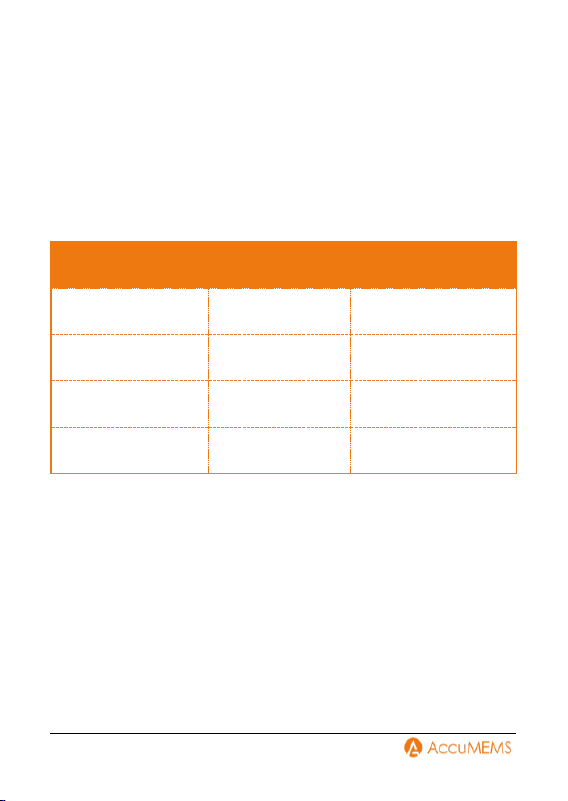
Method
1.
Adhere to recommended leak area and detection distance
guidelines. Ensure the leak area and detection distance match your
imager’s IR resolution.
For example:
IR Resolution
Distance
Leak Area
96×96
≤ 1m
≥ 10cm×15cm
96×96
≤ 2m
≥ 20cm×30cm
256×192
≤ 2m
≥ 10cm×15cm
256×192
≤ 4m
≥ 20cm×30cm
Check your imager’s IR resolution under Specification.
2.
Perform multiple inspections and dynamic comparisons:
Relying on a single thermal image may lead to errors. Compare images
taken at different times (e.g., day vs. night), under varying temperature
conditions, or from different angles. You can also observe the same
area dynamically.
10.4 Higher-Quality Image
How to Take Clear Thermal Imaging Pictures?
Principle
Thermal image use colors to show temperature distribution. The

55
temperature range of the target affects the image effect.
Method
1.
When the actual temperature difference of the target in the image is
higher than 10 °C (50 °F ) or 20 °C (68 °F ), the thermal image effect is
most obvious, which helps to highlight the subtle temperature
difference.
2.
When the temperature difference of the target in the image is small,
you can manually adjust the temperature range (if applicable) of the
whole image to increase the contrast of the target.
3.
It is recommended that the distance between the imager and the
target should be within 2 meters (about 6.56 feet). Adjust the
distance to ensure clear focus, especially for small targets.
4.
Select an appropriate palette for the scene to get an image with high
contrast.
10.5 Guidance on Using Thermal Imaging
for Common Water Leak Detection
Principle
Water has a higher specific heat capacity than building materials, so the
temperature change rate of the leaking area is different from that of
the surrounding materials. The thermal imager captures this
temperature difference to locate the leak point contactlessly.
Tips
1.
Best Testing Time Period: Choose sunrise or sunset for testing. At
this time, the temperature difference between indoors and outdoors
is usually over 10 °C (50 °F), and the solar radiation heat gradient
makes the thermal imaging of leak points inside the wall more
obvious.

56
2.
Environmental Condition Control: The surface temperature should
be tested in dry and sunny weather. Rain and snow will lower the
surface temperature and interfere with the infrared signal, which will
seriously affect the accuracy of detection.
3.
Priority Detection Area: Scan the weak links of building structures
such as wall corners, window and door edges, existing cracks, pipe-
through wall holes, and connections, which are high-risk areas for
structural water leakage and pipe water leakage.
4.
Dynamic Verification: Avoiding false alarms caused by single-time
capture results. In the periods with significant day and night
temperature differences, or after adjusting different angles to
capture the same area multiple times. Dynamic verification can be
used to exclude false alarms.
NOTE
Structural Leakage Test: Spraying water on the wall to simulate
wetting, or testing the residual water-stained area immediately
after rain, can enhance the temperature difference contrast.
Pipe Leakage Detection: For persistent water leakage, you need to
take pictures during periods of water pressure changes (such as
before and after peak water usage) and refer to the specific
suggestions for pipe leakage detection.
Micro Leakage: if the water leakage is very small and the
temperature difference is not obvious, it is recommended to use
imagers with higher sensitivity and resolution (such as ≤40 mK
thermosensitivity and ≥256 × 192 resolution) to improve detection
rate.
10.6 Detect Water Pipe Leaks
How to Use Thermal Imaging for Hot Water Pipe Leaks?
Principle
When hot water pipes leak, heat energy will conduct to the surface of
buildings, and the leaked area will show as a high-temperature region

57
(usually in red or highlighted color) on the thermal image, which can
help you locate the leakage point.
Tips
1.
Time Selection: Select sunrise or sunset time when the environment
temperature changes significantly and helps to enhance the
temperature difference effect.
2.
Pressure Verification: Use the pipe pressure tester to monitor the
pressure change. If the pressure continues to decrease after
pressurization, it can be preliminarily confirmed that there is a leak.
3.
Temperature Difference Enhancement: Ensure the hot water
temperature is at least 10°C higher than the room temperature and
maintain the flow for 15-30 minutes. Under this condition, a
detectable temperature difference can be formed in concrete, wood
boards, or gypsum boards with a penetration depth of 3-5cm.
4.
Pathway Tracking: System scans along the hot water pipe route,
focusing on high-risk parts such as interfaces, valves, and wall-
penetrating holes, as well as historical maintenance records.
NOTE
The detection effect is influenced by water temperature (must be
10 °C higher than the indoor temperature), pipe burial depth
(concrete or dense materials over 5 cm deep may affect imaging), and
contact material (wooden boards or gypsum boards can be detected).
This method is applicable to contact heat transfer scenes. When
pipes have no physical contact with building structures or when
leakage water cannot penetrate to the surface, it will not be possible
to detect due to lack of temperature difference contrast.
How to Use Thermal Imaging for Detecting Leaks in Cold Water
Pipes?
Principle
Cold water leakage causes heat conduction to the wall, which results in

58
a lower temperature than that of the surroundings. The thermal imager
captures the temperature difference and displays it as a low-
temperature area (usually in blue).
Tips
1.
Time Selection: The temperature difference between cold water and
indoor temperature is usually small, and it is difficult for the
temperature to conduct to the surface. You can select sunrise or
sunset for testing, as the natural temperature difference can help
enhance the contrast.
2.
Pressure Verification: Use a pressurizing imager to monitor the
pressure of the pipe. If the pressure continues to drop, it can help
confirm that a leak exists.
3.
Operation in Winter: After preheating the wall and floor in the
heating environment, continuously supply cold water to the cold
water pipe to create a significant temperature difference.
4.
Operation in Summer: Inject cold water into the cold water pipe
during the low-temperature sunrise hours to enhance the test effects
by leveraging the temperature difference between the environment
and the water.
5.
Temperature Difference Strengthening Method: Pour hot water
into the cold water pipe and keep it for 15 minutes (refer to the hot
water pipe testing tips), which can quickly generate a recognizable
temperature difference.
NOTE
The detection effect is influenced by water temperature (must be
10 °C higher than the indoor temperature), pipe burial depth
(concrete or dense materials over 5 cm deep may affect imaging), and
contact material (wooden boards or gypsum boards can be detected).
This method is applicable to contact heat transfer scenes. When
pipes have no physical contact with building structures or when
leakage water cannot penetrate to the surface, it will not be possible
to detect due to lack of temperature difference contrast.

59
10.7 Can the Thermal Imager Penetrate
Walls or Floors?
No. Thermal imagers cannot penetrate walls or floors like X-ray
machines. They can only detect heat emitted from the surface of an
object. However, in certain cases, the thermal imager can detect
anomalies inside walls or floors, such as water pipe leakage or heat loss
due to poor insulation. This is because the thermal imager can capture
the heat conducted to the surface of the wall or floor. If the pipe has no
contact with the wall or ground, the temperature cannot be conducted,
and the thermal imager cannot detect it.
10.8 Check a Thermal Imager’s
Temperature Accuracy
How to test the accuracy of the imagers?
Tips
1.
Pour crushed ice and water into the cup, and turn on the imager.
2.
Mix the solution and let it stand for a few minutes.
3.
Set the imager's emissivity to 0.95 and adjust the distance.
4.
Point the imager at the solution to measure its temperature. To get
the best effect, please measure the temperature of water surface and
avoid measuring cup wall. The reading should be close to the freezing
point (0 °C / 32 °F) and within the precision range.
10.9 Frozen Images
What are the clicking sound and frozen image after imager startup?
This is a normal phenomenon of the thermal imaging imager. To keep
the measurement accuracy, the imager will automatically calibrate the
environment temperature change. During this process, the screen may
stutter and show "Image Calibrating…", and you can also hear a "click"
sound from the imager. This phenomenon usually occurs when the

60
imager is moved quickly or when it is turned on for the first time.
10.10 Prolong Battery Life
How to extend the life of lithium batteries?
Tips
1.
Initial Charging: Charge the imager for 3 hours in the off state
before first use.
2.
Charging Cable: Use the included charging cable or an authenticated
one.
3.
Power Adapter: For best results, use a standard 5 V/2 A charger.
4.
Storage and Reuse: When storing the imager for a long time, charge
it to full capacity every 3 months. Before using the imager after
storage, turn off the imager and charge it for at least 30 minutes.

61
REGULATORY INFORMATION
FCC Compliance Statement
Please take attention that changes or modification not expressly
approved by the party responsible for compliance could void the user's
authority to operate the equipment.
This device complies with Part 15 of the FCC Rules. Operation is
subject to the following two conditions:
(1) This device may not cause harmful interference, and
(2) This device must accept any interference received, including
interference that may cause undesired operation.
Caution: Any changes or modifications not expressly approved by the
party responsible for compliance could void the user’s authority to
operate this equipment.
This equipment complies with FCC radiation exposure limits set forth
for an uncontrolled environment.
Note: This product has been tested and found to comply with the limits
for a Class B digital device, pursuant to Part 15 of the FCC Rules.
These limits are designed to provide reasonable protection against
harmful interference in a residential installation. This product
generates, uses, and can radiate radio frequency energy and, if not
installed and used in accordance with the instructions, may cause
harmful interference to radio communications. However, there is no
guarantee that interference will not occur in a particular installation. If
this product does cause harmful interference to radio or television
reception, which can be determined by turning the equipment off and
on, the user is encouraged to try to correct the interference by one or
more of the following measures:

62
—
Reorient or relocate the receiving antenna.
—
Increase the separation between the equipment and receiver.
—
Connect the equipment into an outlet on a circuit different from that
to which the receiver is connected.
—
Consult the dealer or an experienced radio/TV technician for help.
AccuMEMS
OFFICE
Hangzhou Accumems Technology Co., Ltd.
www.accumems.com
Office Address
Room 418-1, Building 2, JinxiuLinglongfu,
Xixing Street, Binjiang District,
Hangzhou City, Zhejiang Province
GuidePost
Firmware Upgrade