
This section describes how to bind
smart speakers
Set your Echo speaker by Alexa APP
1. If you have finished to install “Smart Life” then open
Amazon Alexa App: sign in your Alexa account and enter
password.
2. Click the menu on the left corner-click “Settings: choose
“Set up a new device”(choose a device ,like
Echo)Note:When the below page appears, long press the
small dot on your Echo device until the light turns to yellow.
Then Click Continue on App
Note: at this moment, the mobile phone cannot open a
variety of VPN software.
Choose your own WiFi and wait for a few minutes. After an
introduction video, click next step, it will enter Home page
automatically. Now the Echo had connected to Wi-Fi
successfully.
Enable Smart Life Skill in Alexa
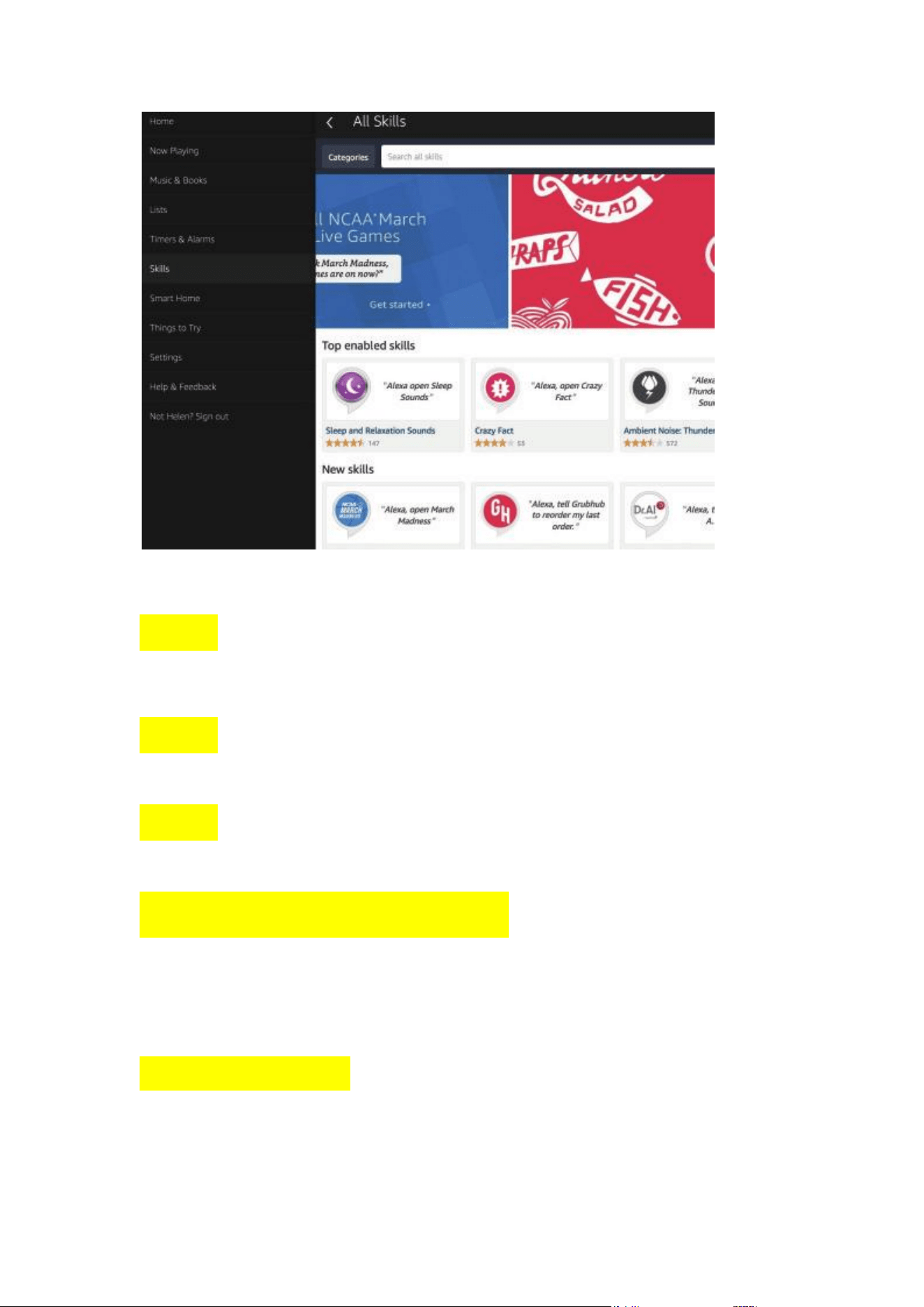
Step 1: Choose “Skill” in the option bar, and then search
“SMART Life” in the input box.
Step 2: Select Smart Life in the search results, and then
click“Enable Skill”.
Step 3: Then input the user name and password of Smart
Life APP that you had previously registered.
Control the device by voice
After the above operation is successful, you can control the
device via Echo.
1:Discover Device
Firstly , you need to say to the Echo:
Echo (or Alexa), discover my devices.
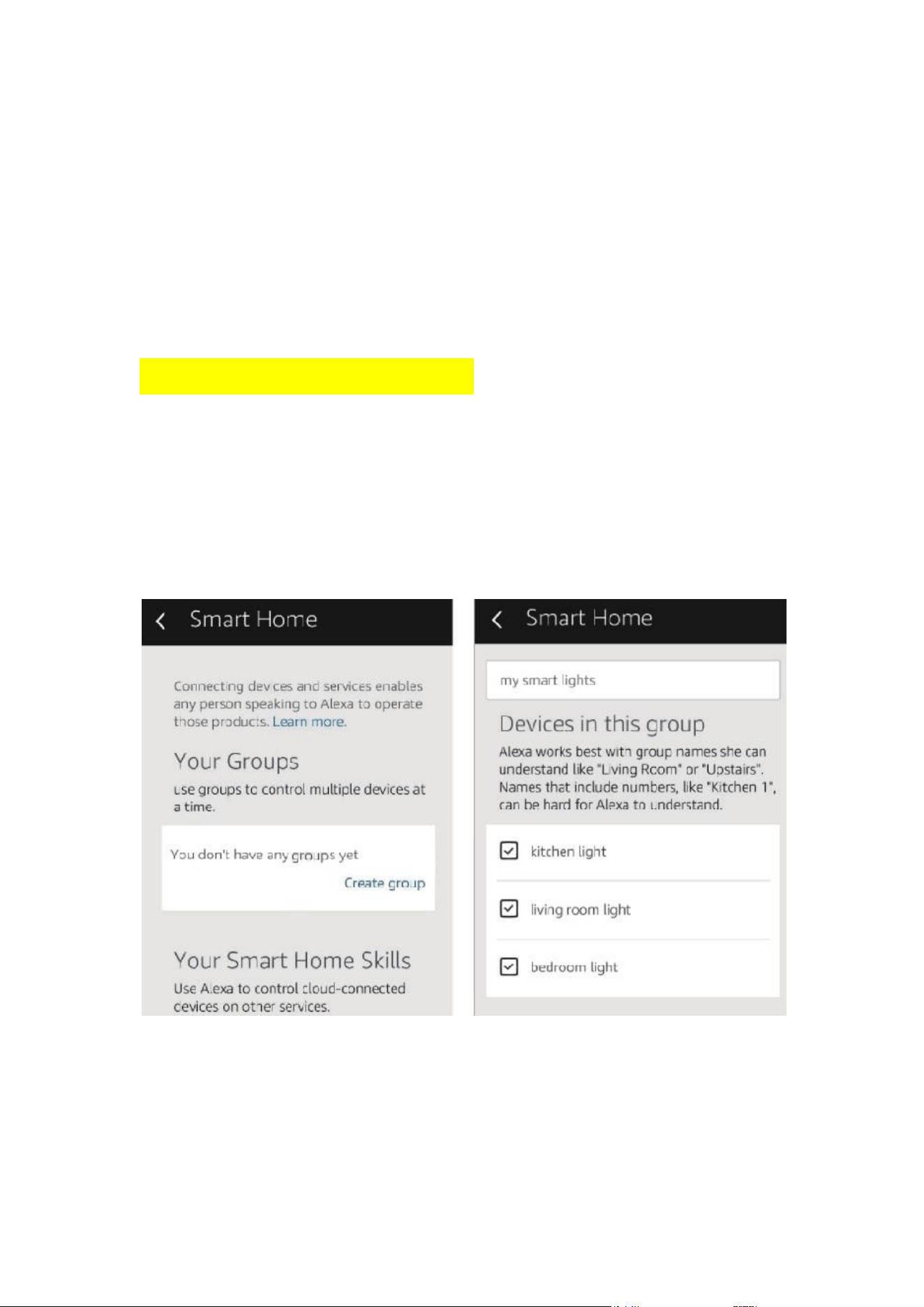
Echo will start to find the device which is added in the
Smart Life APP.
It will take about 20 seconds, then Echo will tell you the
result. You can also click “Discover devices” in Alexa APP ,
then it will show the devices that have been found
successfully .
2:Control Device by Voice
Note: The name of the device must be
consistent with the addition of Smart Life APP.
You can also group the device and give instructions to
control them together.
Note: Echo is one of the wake –up names,
which can be any of the three names (Settings) Alexa, Echo,
Amazon.

3: Support Skill List
You can control the devices by instructions like these:
Alexa(or Echo, turn on the Devices
Alexa(or Echo),turn off the Devices.
Google Assistant –Activate Smart Life in Google
Preparation
● Have downloaded the Google Home App-compatible With
Android(4.2 or higher) or ISO(8.0 or higher)smartphones or
tablet.
● Have registered your google Account.
● Have paired Device with Smart Life App and named it
with a recognizable name.
● Have finished setting up Google Home.
Step 1: Open Google Home App ;tap( )on the upper left
corner; select “More Settings :to enter the next interface.
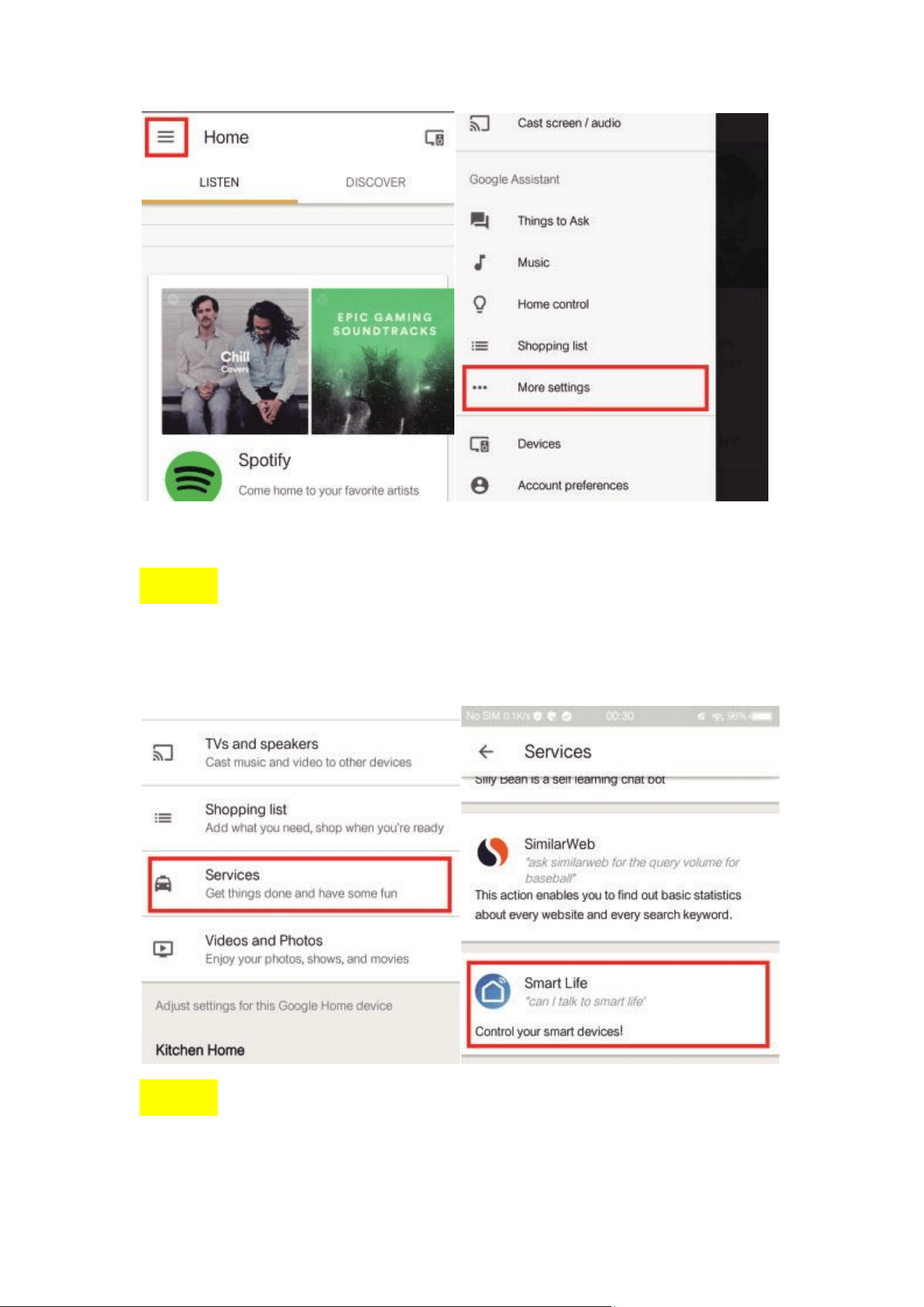
Step 2: Choose “Services” in the options bar and select
“Smart Life” to enter the next interface.
Step 3: Tap “ Link Account “,then sign in your smart Life
Account.
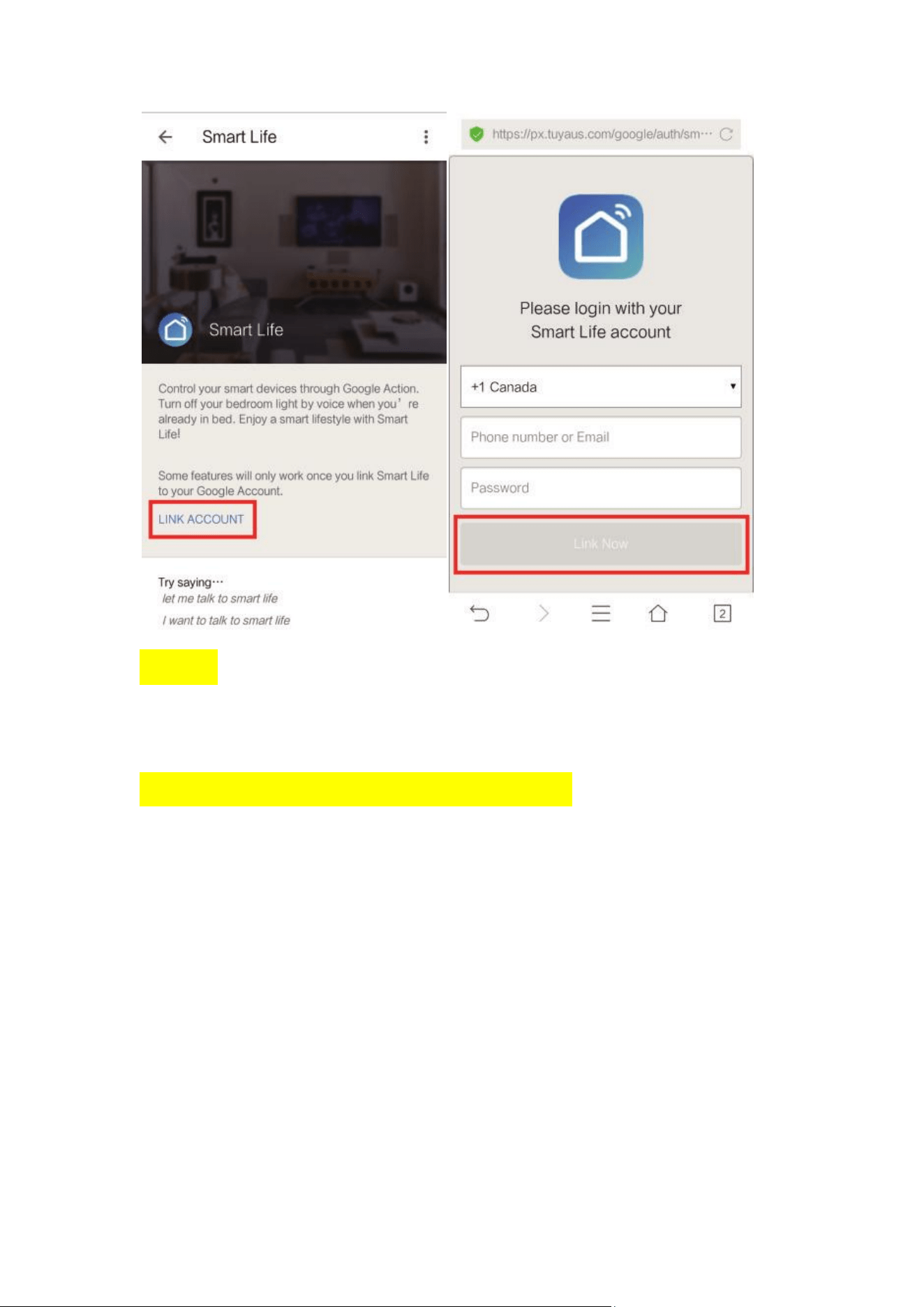
Step 4: Tap “Link Now”, after your Smart Life account had
linked to Google Assistant, the smart devices will
automatically appear.
Command the Device through Your
Firstly ,you need to say “OK Google ,talk to Smart Life” to
wake up the Smart Life. Then you can control the device by
instructions like these:
Turn on the/Turn off the
Note: After Smart Life has been wakened up ,you may say
“Cancel “or “Stop” to exit Smart
Life or say “Nothing” when you hear “what can I do for you
“ .Then you can say “OK Google, talk to Smart Life” to start
voice control.

IFTTT-Setup and Usage
Get Started: How to connect the product to IFTTT?
Step 1: Visit the IFTTT official website on your PC and sign
in with your IFTTT account.
Note: You can also use IFTTT app and follow similar steps
to connect your device to the IFTTT.
In the FAQ we take the website setting method for example.
Step 2: Search for “Smart Life”, and then click “Smart Life”
service
Step 1: Click “Connect”, then log in your Smart Life ID and
tap“Link Now”.
(The Smart Life ID is the same with that of Smart Life
APP)
Step 4: After successfully connecting your IFTTT account to
your Smart Life ID.