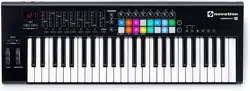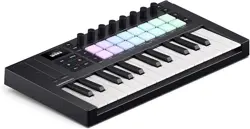
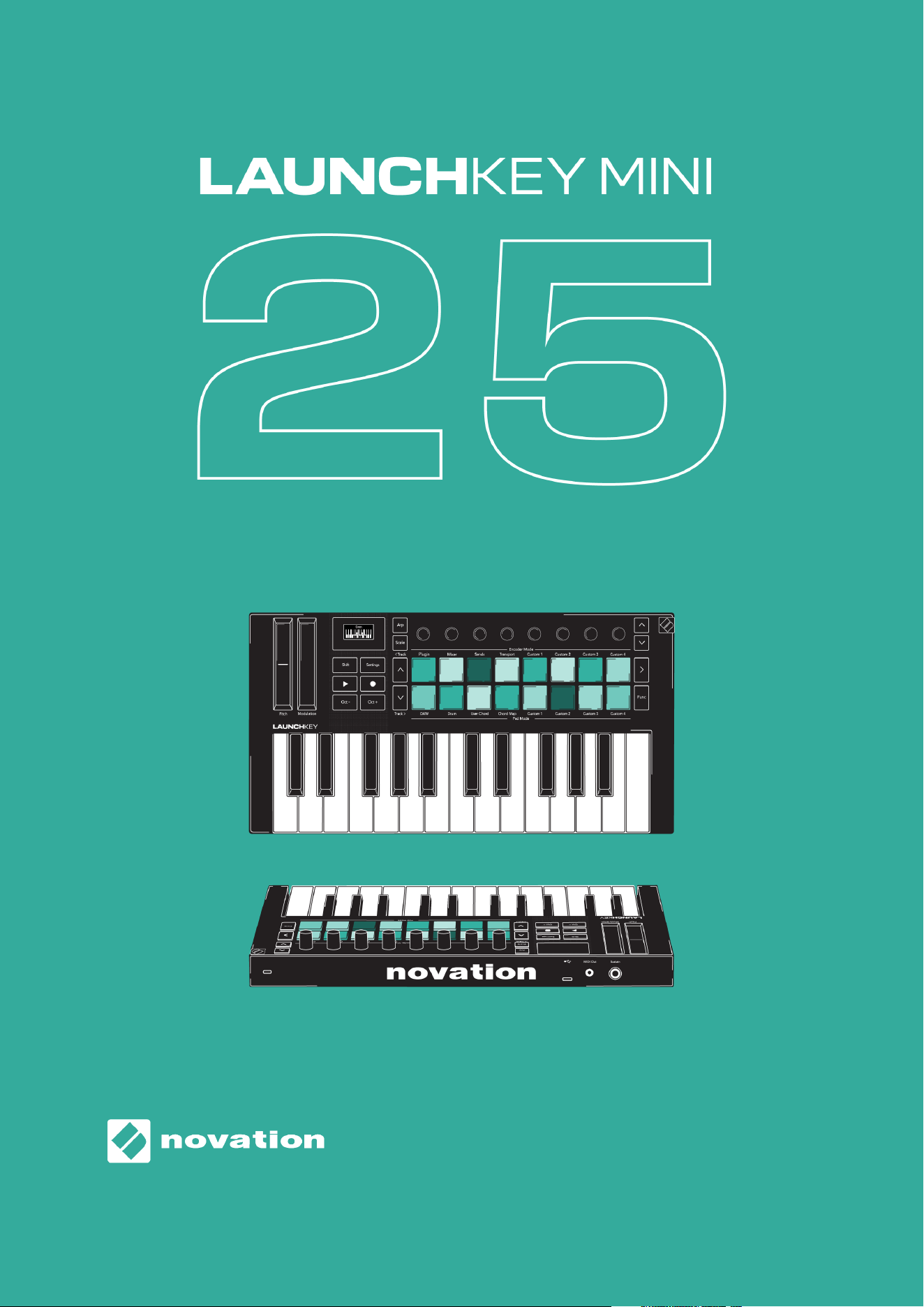
Launchkey Mini 25 MK4 user guide
Version 3.0
ENGLISH

Table of Contents
Introduction to the Launchkey Mini 25 MK4 ........................................................................ 4
What's in the box? ........................................................................................................ 4
Getting started with your Launchkey Mini 25 ...................................................................... 5
Connecting and Powering ........................................................................................... 5
Easy Start .................................................................................................................... 6
What is Novation Components? .................................................................................. 7
Troubleshooting .......................................................................................................... 8
Launchkey Mini 25 hardware overview ................................................................................ 9
Shift button ............................................................................................................... 12
Latching Modifier Buttons ......................................................................................... 14
Playing the Launchkey Mini 25's keyboard ........................................................................ 15
Changing Octave ....................................................................................................... 15
Transposing the keys ................................................................................................. 16
Control areas of the Launchkey Mini 25 ............................................................................. 17
Encoder Modes ......................................................................................................... 18
Pad Modes ................................................................................................................. 20
Using the Launchkey's built-in features ............................................................................ 33
Using the Launchkey Mini 25's Scale Mode ............................................................... 33
Using the Launchkey Mini 25's Chord Modes ............................................................ 35
Using the Launchkey's Arpeggiator (Arp) ................................................................. 39
Launchkey Mini 25 MK4 Settings ....................................................................................... 47
DAW control with the Launchkey Mini 25 .......................................................................... 49
Common DAW Control .............................................................................................. 49
DAW Encoder Modes ................................................................................................. 51
Using the DAW and Drum Pad modes ....................................................................... 54
Transport Buttons ..................................................................................................... 55
Controlling Ableton Live with the Launchkey Mini 25 ................................................ 56
Controlling Logic Pro with the Launchkey Mini 25 .................................................... 68
Controlling Cubase with the Launchkey .................................................................... 75
Controlling FL Studio with the Launchkey Mini 25 .................................................... 79
Controlling Bitwig Studio with the Launchkey Mini 25 MK4 ...................................... 82
Using the Launchkey Mini 25 MK4 with other DAWs .................................................. 88
Launchkey Mini 25's Specifications ................................................................................... 92
Weight and Dimensions ............................................................................................. 92
Technical Specifications ............................................................................................ 93
Novation Notices ............................................................................................................... 94
2

Troubleshooting ........................................................................................................ 94
Trade Marks ............................................................................................................... 94
Disclaimer .................................................................................................................. 94
Copyright and Legal Notices ..................................................................................... 94
Credits ............................................................................................................................... 96
3

Introduction to the Launchkey Mini 25 MK4
Get hands-on control of your music software with Launchkey Mini 25 MK4. It works instantly
with major DAWs and features a crisp OLED display, synth-action mini keybed, 16 velocity-
sensitive pads, and powerful on-board creative tools.
• Get in-depth DAW control
Powerful control of Ableton Live, Logic Pro, FL Studio, Cubase, Reaper, Reason, Ardour,
and more, with no set-up required.
• Tweak your software
Eight encoders give you instant control over your DAW mixer, virtual instruments and
effects.
• Perform with a high-quality keybed
25 note synth-action mini keyboard delivers exceptional playability and musical feel.
• Play drums and instruments
16 velocity-sensitive pads with polyphonic aftertouch for playing drums and instruments
(patented pad technology).
• Powerful tools for creating chords and patterns
Powerful built-in Arpeggiator and three Chord Modes to easily create musical
progressions: Fixed Chord, User Chord and Chord Maps.
• Always stay in key
Scale Mode keeps you in the right key; Chord Detector tells you what chord you’re
currently playing.
• Connect to other instruments
A 3.5mm TRS type-A MIDI out port means you can connect Launchkey Mini 25 MK4 to
synths and other MIDI hardware.
• Additional Software
Comes with Ableton Live Lite and a collection of pro-grade virtual instruments: Visit
novationmusic.com/launchkey for a full list of included software.
This is Version 3.0 of the Launchkey Mini 25 MK4 user guide.
What's in the box?
• Novation Launchkey Mini 25 MK4
• USB-C to A cable (1.5 metres)
4

Getting started with your Launchkey Mini 25
Connecting and Powering
Your Launchkey is USB bus-powered, it’s powered when you connect it to your computer with a
USB-C to A cable (1).
Your Launchkey also has a 6.35mm (1/4") jack Sustain input. This input supports sustain pedals
and momentary foot switches (2).
5
Easy Start
Easy Start gives you a step-by-step guide to setting up your Launchkey and creates
personalised tutorials based on how you plan to use your Launchkey. This online tool also
guides you through your Launchkey’s registration process and accessing the software bundle.
On both Windows and Mac computers, when you connect your Launchkey to your computer, it
first appears as a Mass Storage Device, like a USB drive. Open the drive and double click ‘Click
Here To Get Started.url’. Click ‘Get Started’ to open Easy Start in your web browser.
After you’ve opened Easy Start, follow the step-by-step guide, to install and use your
Launchkey.
Alternatively, if you don’t want to use the Easy Start tool, visit our website to register your
Launchkey manually and access the software bundle.
id.focusritegroup.com/register
IMPORTANT
It's crucial you update your Launchkey's firmware when you first plug it in,
whether you go through Easy Start or not.
If you don't update the firmware of your Launchkey, it's likely many features
won't work.
To update your Launchkey's firmware, you need to use Novation Components.
Go to components.novationmusic.com to update your firmware.
To find out more about Novation Components, see What is Novation
Components? [7].
6
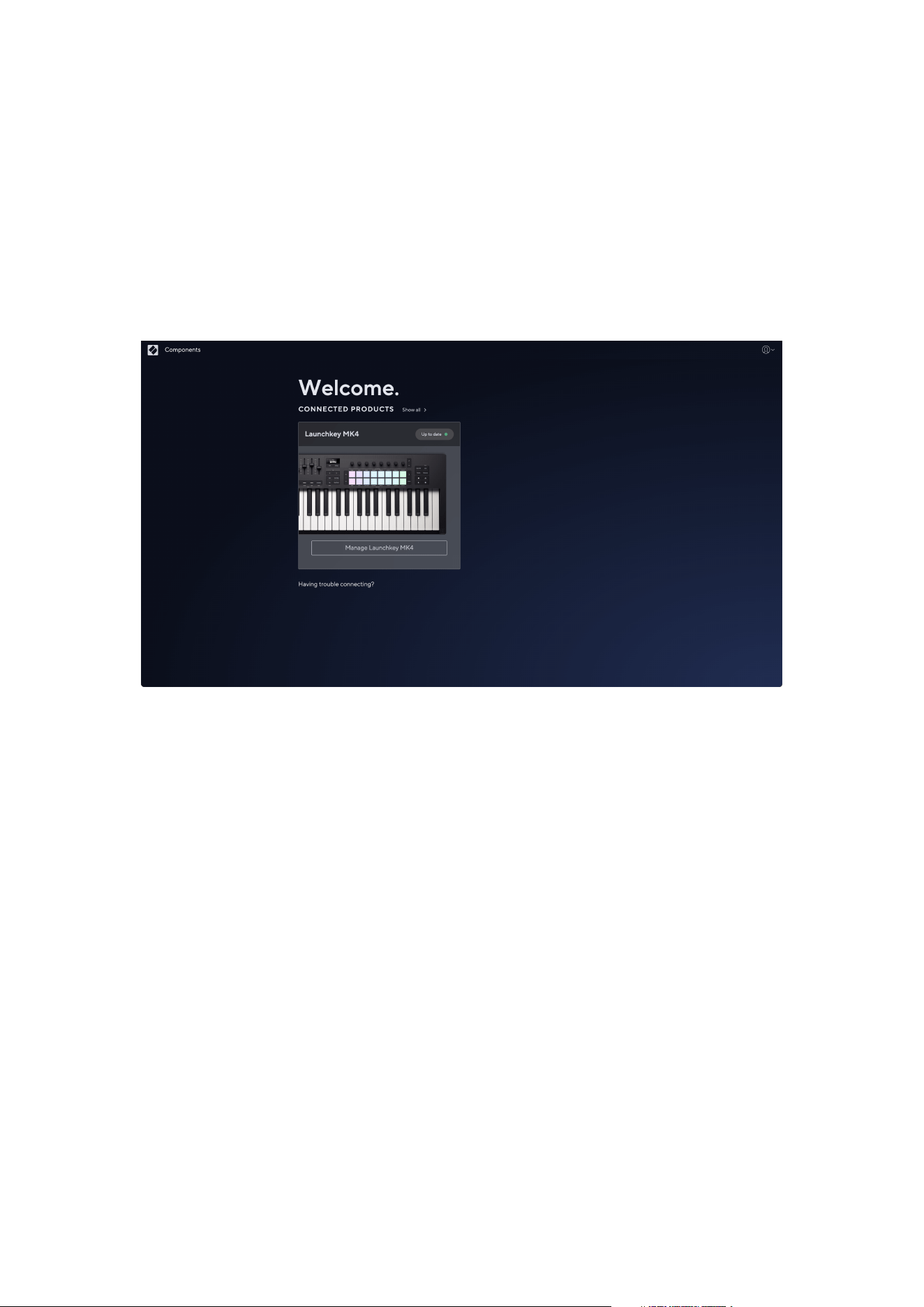
What is Novation Components?
Novation Components allows you to customise your to suit your workflow and preferences.
There are two versions of Components, a desktop app (Components Standalone) and a web
version. To use the web version, you must use a Web MIDI-enabled browser (such as Google
Chrome or Opera). You can find both versions of Components here:
components.novationmusic.com
The key features and functions of Novation Components for your are:
1. Firmware Updates: Novation Components is the place to update the firmware of your .
This ensures you always have the latest features, improvements, and bug fixes. You'll
also need to do a firmware update when you first receive your , otherwise some
features may not work properly.
2. Custom Modes: With Novation Components, you can create custom MIDI mappings
for your . This allows you to assign specific functions to different controls on
the keyboard, giving you a personalised and efficient workflow tailored to your
preferences.
3. Backup and Restore: Safeguard your custom settings and configurations by creating
backups with Novation Components. If you need to restore your to a previous state or
transfer settings between devices, this feature makes the process simple and efficient.
7

Troubleshooting
For help getting started with your Launchkey Mini 25 MK4, visit:
novationmusic.com/get-started
If you have any questions or need any help at any time with your Launchkey Mini 25 MK4, visit
our Help Centre. Here you can also contact our support team:
support.novationmusic.com
We recommend you check for updates to your Launchkey Mini 25 MK4 so you have the latest
features and bug fixes. To update your Launchkey Mini 25 MK4's firmware, you need to use
Components:
components.novationmusic.com
8
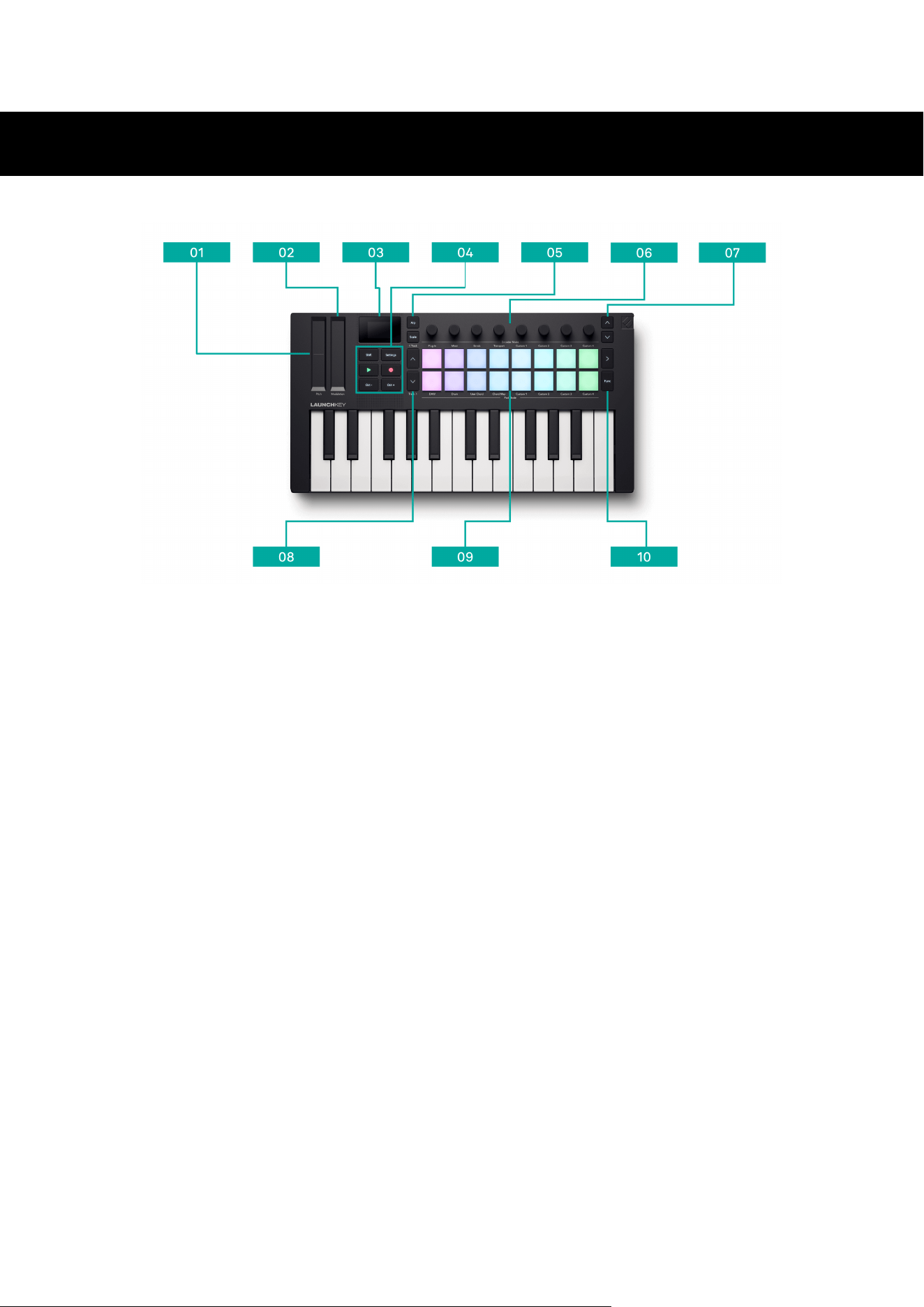
Launchkey Mini 25 hardware overview
1. Pitch touch strip - bend the pitch of the note(s) you're playing and send pitch bend
messages.
2. Modulation touch strip - a touch-activated strip to control any hardware or software
parameter.
3. Screen - displays important information.
4. The six buttons below the screen left to right, top to bottom are the:
• Shift button [12] - access secondary controls assigned to buttons, visible in
text on the front panel.
• Settings button [47] - access the settings menu.
• Transport buttons [55] - Play and Record buttons for controlling DAWs and
sequencers.
• Octave + and Octave - buttons [15] - transpose the keyboard in octaves. Press
both buttons to reset to the default octave.
5. The two buttons to the left of the encoders are the:
• Arp button [39] - enable and control Launchkey's built in Arp (arpeggiator).
• Scale button [33] - enable and control Scale mode.
6. Encoders [18] - assignable encoder controls.
7. Encoder bank ˄ up and ˅ down buttons - the two buttons to the right of the encoders
move up and down through banks of encoder controls.
9
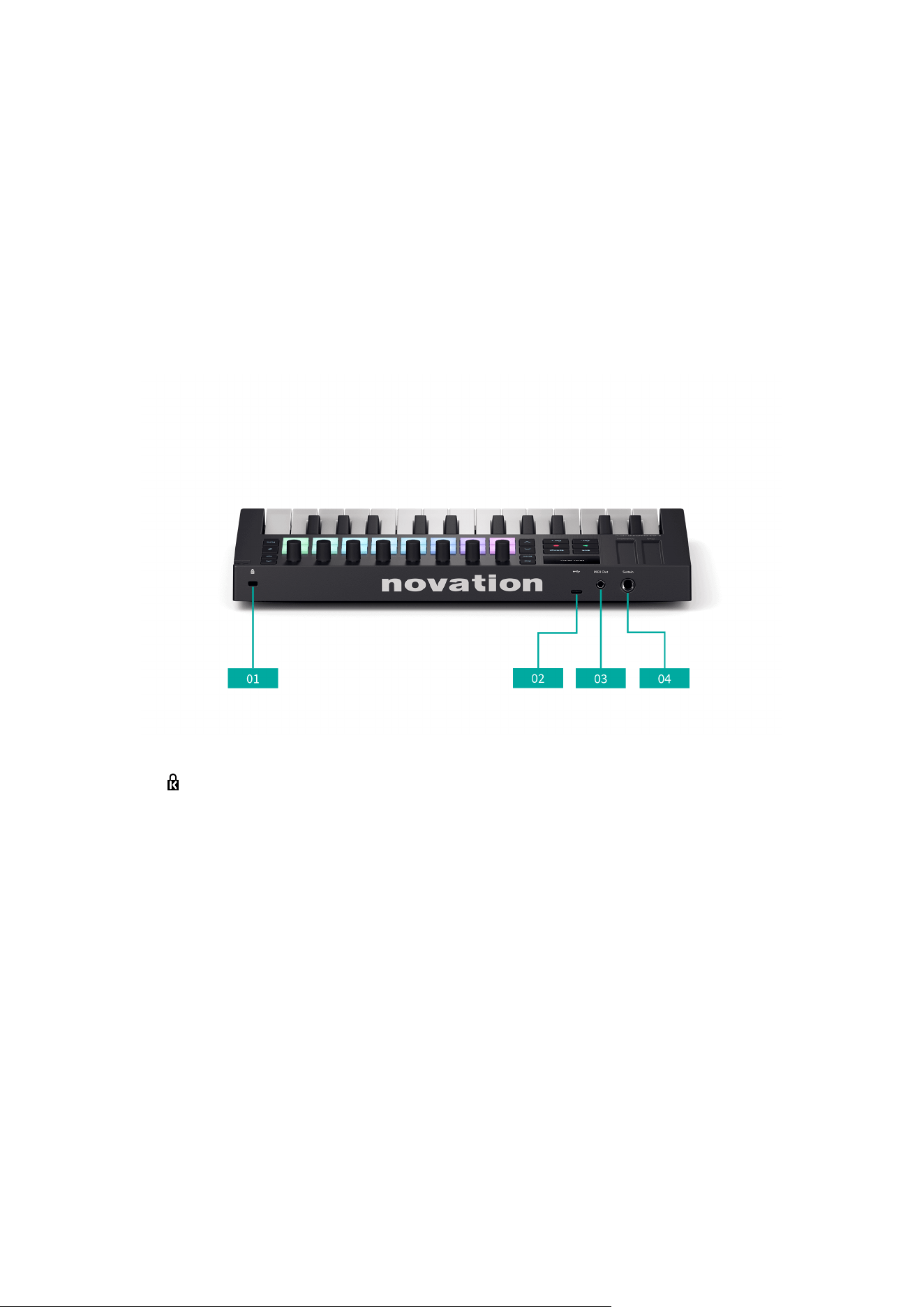
8. Pad bank ˄ up and ˅ down buttons - the buttons to the left of the pads move up and
down the pads, e.g. moving clips in Live, accessing different chords etc.
Hold Shift and press Up/Down to move Track.
9. Pads [20] - 16 pads that change functionality depending on the mode you select.
10. The two buttons to the right of the pads are the:
• > Button - to the right of the top pad row is the scene launch button.
• Func. button - to the right of the second pad row, enables various secondary
functions based on the pad mode.
1. - Kensington Lock, use a lock to secure your Launchkey and deter theft.
2. USB Port - a type-C USB port. Sends and receives data, and powers your Launchkey.
3. MIDI Out port (TRS type-A) - sends MIDI from your Launchkey to external MIDI
hardware.
4. Sustain input - connect a sustain pedal (expression, soft, and sostenuto pedals are not
supported).
10
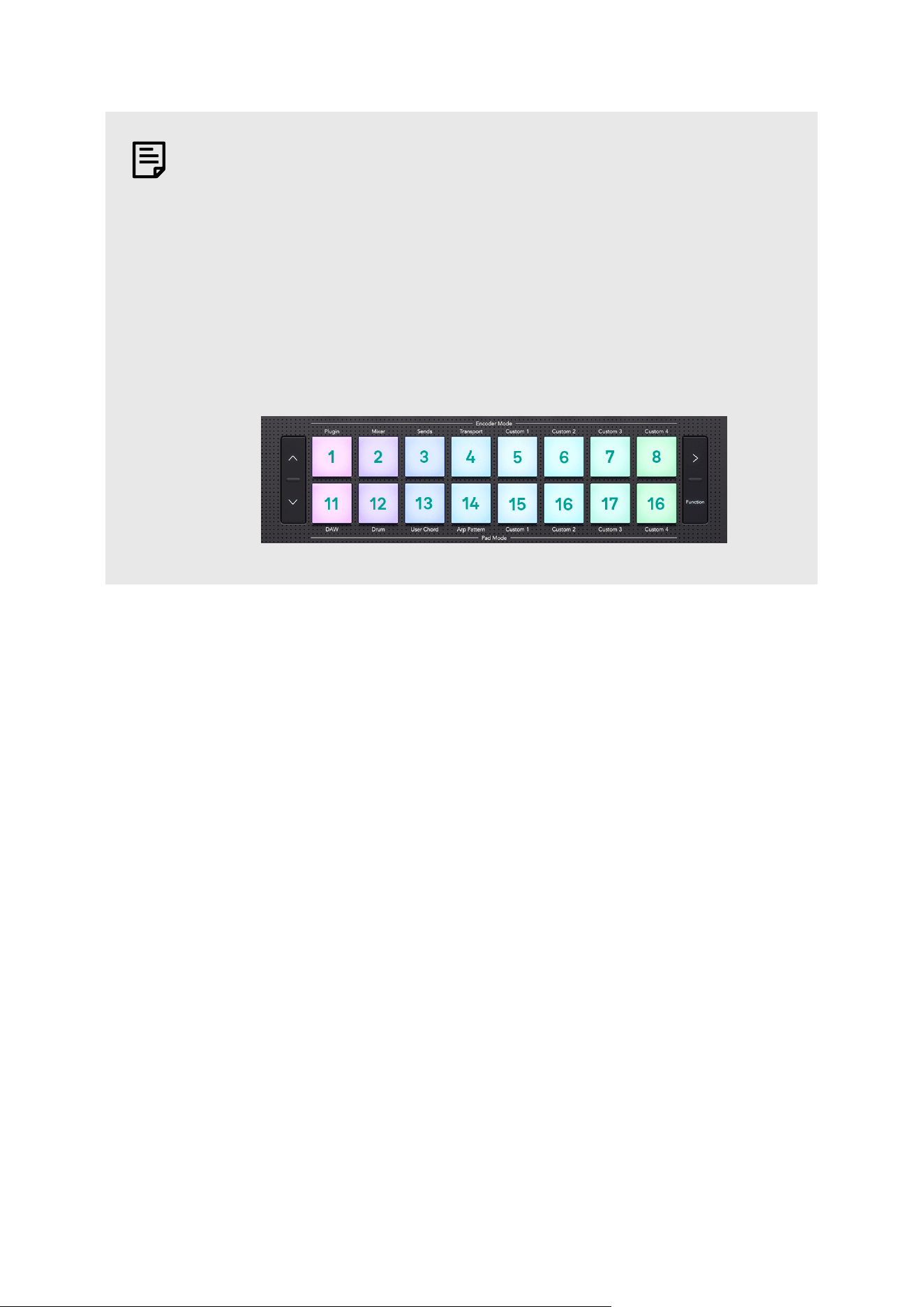
DRUM PAD TERMINOLOGY
Throughout this user guide, we'll refer to the drum pads in the following way:
• The two buttons to the left of the pads are the Pad Bank up and down
buttons.
• The pads are numbered left to right: the top row 1 to 8 and the bottom
row 9 to 16.
• The two buttons to the right of the pads are the > Scene launch and
function buttons.
11
Shift button
The Launchkey's Shift button allows access to secondary functions on many buttons. To access
the secondary functions, hold Shift and press any of the buttons with a secondary shift
function. This is a list of buttons with secondary, shift functions. Some functions vary by DAW.
Shift lets you preview controls. Hold Shift and move a control; the screen shows you the value
without changing it.
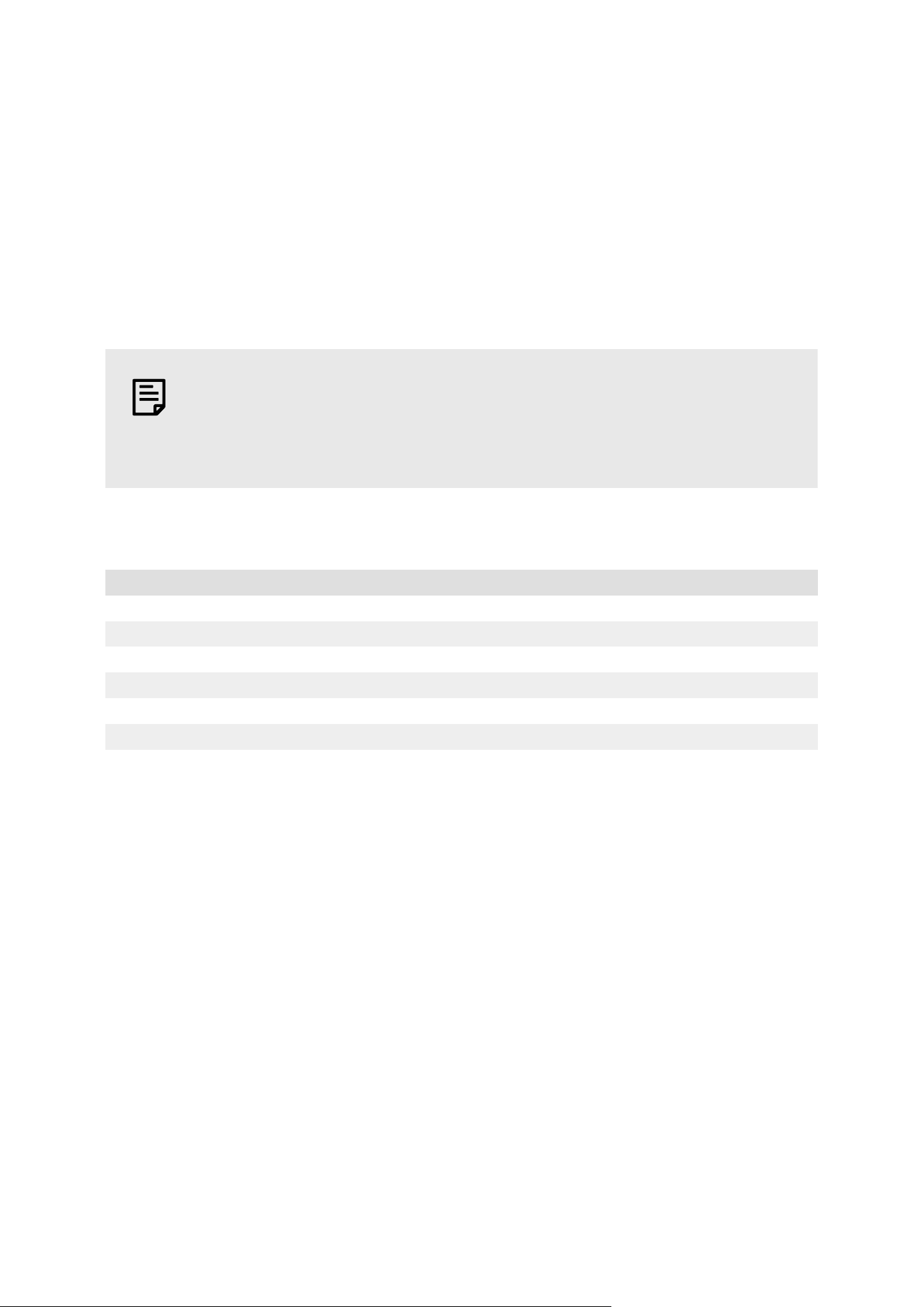
NOTE
When you hold the Shift button, any other buttons with an available shift
function light up.
Table 1. Buttons Shift Functions
Combination Function
Shift + Octave + Transpose + [16]
Shift + Octave - Transpose - [16]
Shift + < Track button < Track left [50]
Shift + > Track button Track > right [50]
Shift + Arp Latch [39]
Shift + Scale Fixed Chord mode [38]
12
Table 2. Pad Shift Functions
Combination Function
Shift + Pad 1 Encoder Mode: Plugin [51]
Shift + Pad 2 Encoder Mode: Mixer
Shift + Pad 3 Encoder Mode: Sends
Shift + Pad 4 Encoder Mode: Transport [52]
Shift + Pad 5 Encoder Mode: Custom 1 [19]
Shift + Pad 6 Encoder Mode: Custom 2 [19]
Shift + Pad 7 Encoder Mode: Custom 3 [19]
Shift + Pad 8 Encoder Mode: Custom 4 [19]
Shift + Pad 9 Pad Mode: DAW [49]
Shift + Pad 10 Pad Mode: Drum [54]
Shift + Pad 11 Pad Mode: User Chord [30]
Shift + Pad 12 Pad Mode: Chord Map [22]
Shift + Pad 13 Pad Mode: Custom 1 [32]
Shift + Pad 14 Pad Mode: Custom 2 [32]
Shift + Pad 15 Pad Mode: Custom 3 [32]
Shift + Pad 16 Pad Mode: Custom 4 [32]
Standby mode
Your Launchkey's Shift button also allows you to put your Launchkey into Standby mode. In
Standby mode, you can leave your Launchkey connected to power or your computer, but turn
off all the lights.
To get in, and out, of Standby mode:
1. Hold the Shift button.
2. Hold the Settings button for two seconds.
All the lights on your Launchkey switch off, and you're now in Standby mode.
3. Press either the Shift or Settings button again to exit Standby mode.
The Launchkey switches back on.
TIP
Standby mode just turns off the lights, so your Launchkey's controls still send
MIDI data.
13

Latching Modifier Buttons
Some Launchkey functions need you to press a button combination starting with a 'modifier'
button, for example, Shift + a button. You can 'latch' modifier buttons to make these functions
easier. To latch a modifier button, double press the modifier button.
This applies to the following buttons:
• Shift
14
Playing the Launchkey Mini 25's keyboard
Your Launchkey keyboard gives you both Octave and Transposition options.
Changing Octave
When you power on your Launchkey Mini 25 its keyboard defaults to the note range C2 - C4
where C3 is middle C.
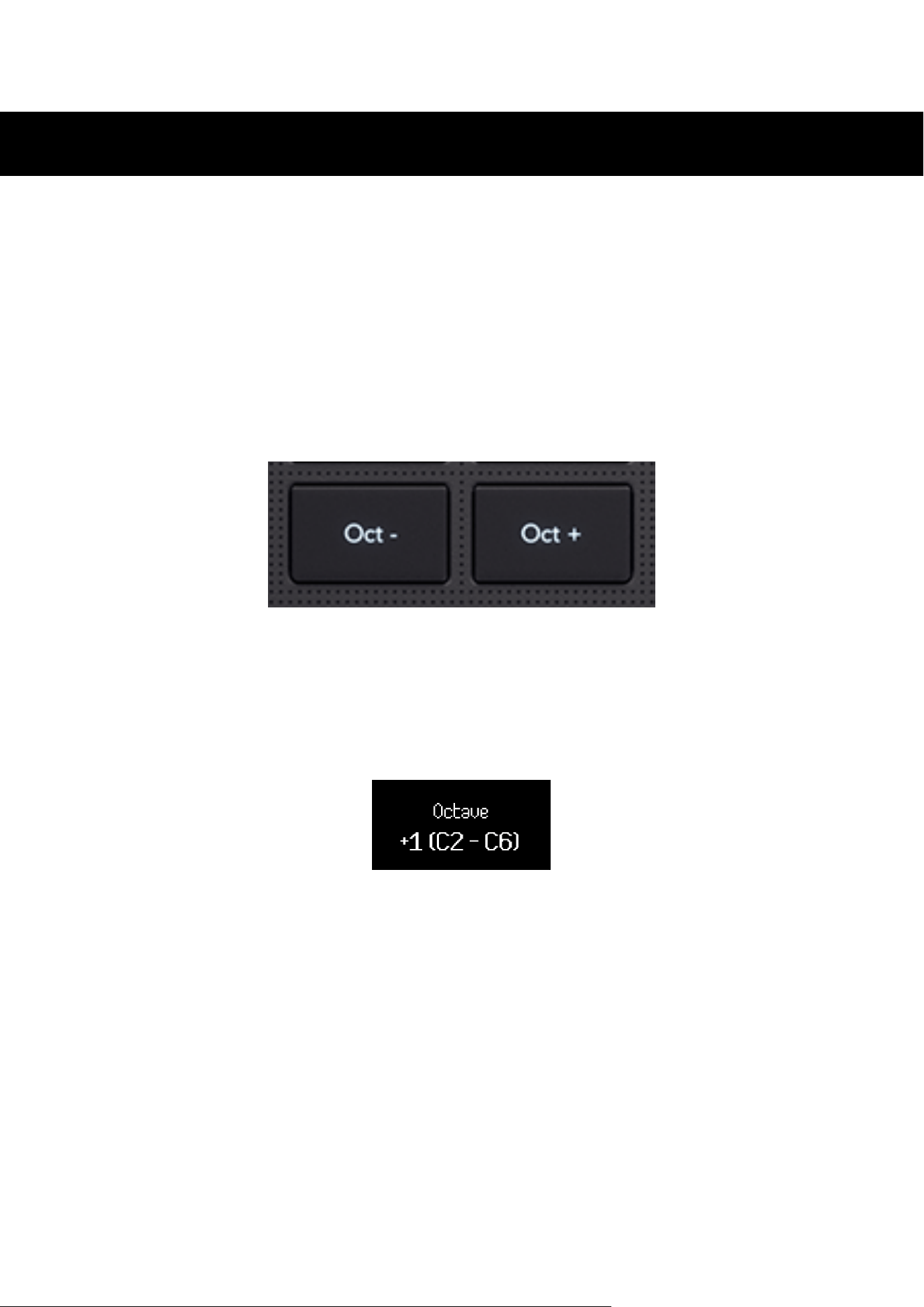
You can change the octave range using the Octave - and Octave + buttons. The octave shift
range for the Launchkey Mini 25 is -4 to +5 octaves.
To reset to the default octave, press both Octave - and Octave + buttons together.
When you change the Octave range, the screen temporarily shows the octave shift in a number
(e.g +1) and the range the current keyboard is at, e.g. C1 – C5.
In addition to the temporary screen display, the Octave buttons light to show the octave
position.
With no octave shift, the Octave buttons are off. When you shift up an octave the Octave
+ buttons lights, when you shift down an octave the Octave - button lights. The button
brightness shows the shift amount, the brighter the button, the more the shift.
In total, there are 128 MIDI notes. 128 is not divisible by 12 so you can shift the octave and
transposition, so some keys are out of the MIDI note range. When you shift to the extreme ends
of the MIDI note range, out of range keys won't play any notes.
15
Transposing the keys
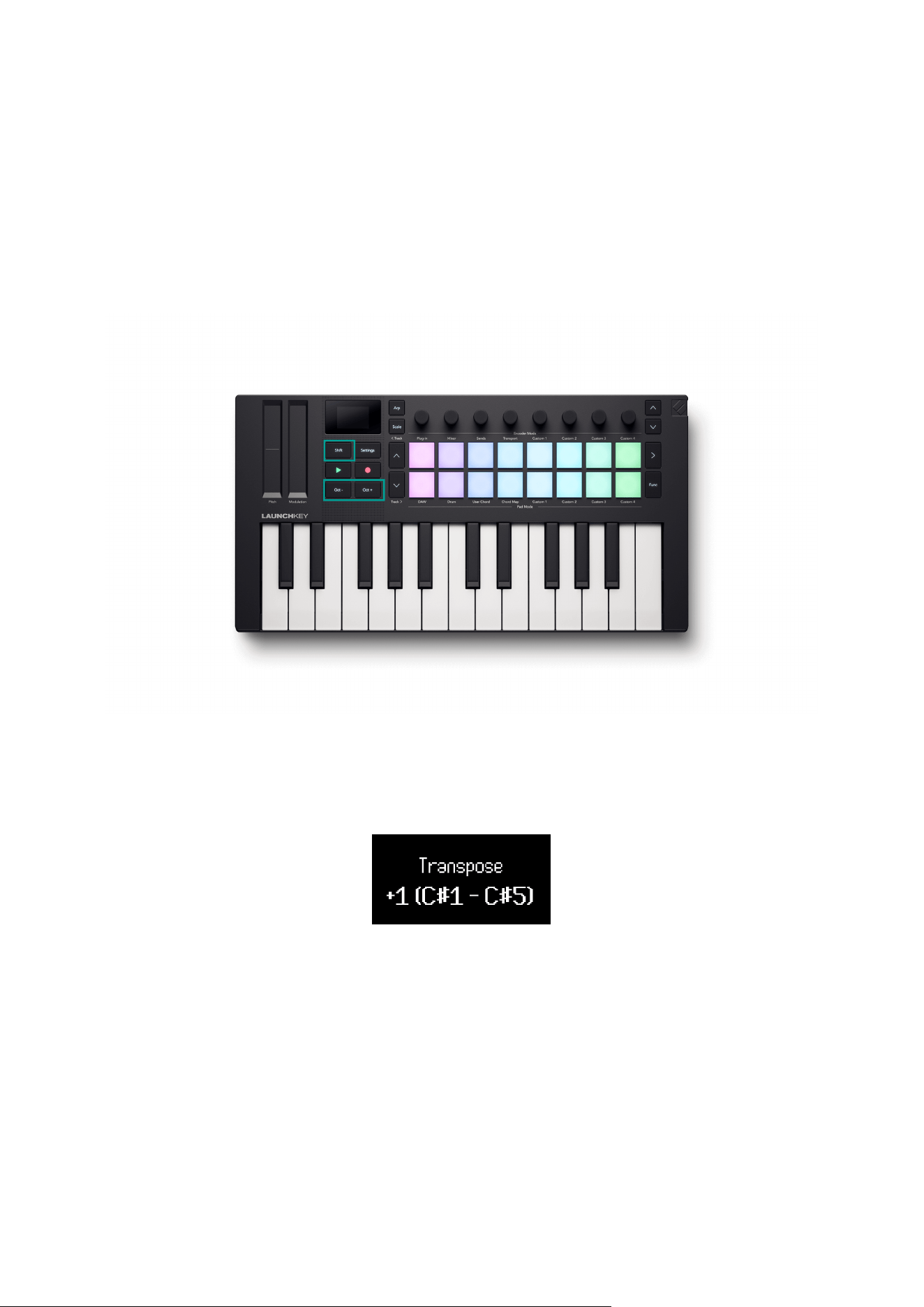
You can transpose your Launchkey Mini 25 MK4's keys up or down in semitone increments. The
transposition range is ±12 semitones.
To transpose the keys, hold the Shift button and press Octave - or Octave +. Octave -
transposes the keys down one semitone, Octave + transposes the keys up one semitone.
When you change transposition, the screen temporarily shows the semitone shift as a number
and the current keyboard range.
16
Control areas of the Launchkey Mini 25
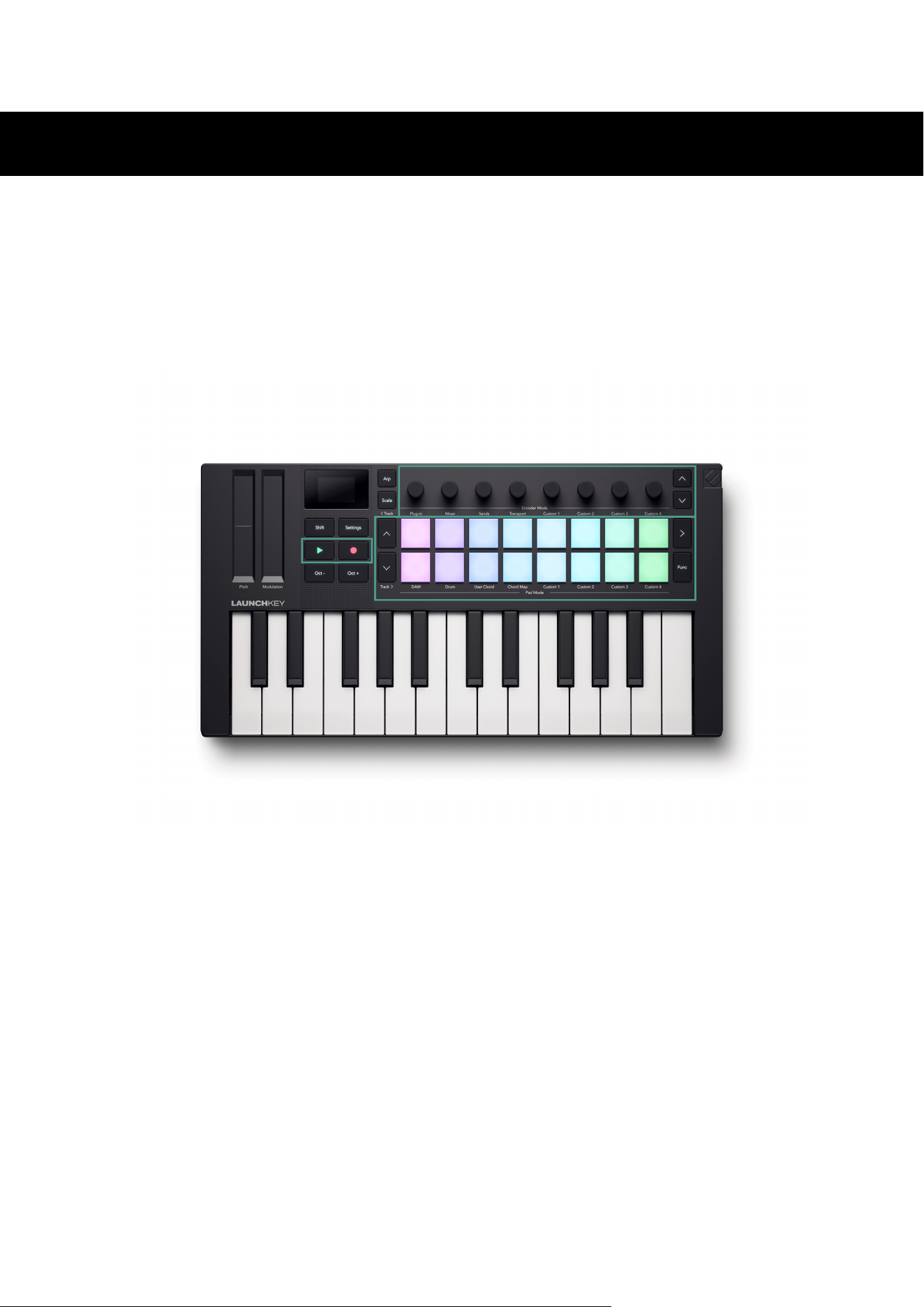
Your Launchkey has a few areas of control we'll cover in the next few sections:
• Encoders
• Pads
• Transport and workflow buttons.
17
Encoder Modes
Your Launchkey's encoders have eight modes. To change modes, hold the Shift button and
press a pad from 1-8.
Some modes are only available while you're using a DAW. For more information, see the section
relating to your DAW.
The encoder modes available are:
Drum Pad Number Mode Availability
1 Plugin DAW Mode Only
2 Mixer DAW Mode Only
3 Sends DAW Mode Only
4 Transport DAW Mode Only
5 Custom 1 Always
6 Custom 2 Always
7 Custom 3 Always
8 Custom 4 Always
The pad for the current encoder mode lights bright pink. The other available modes light dim
pink. Unavailable modes, for example, if you don't have a DAW open, are unlit.
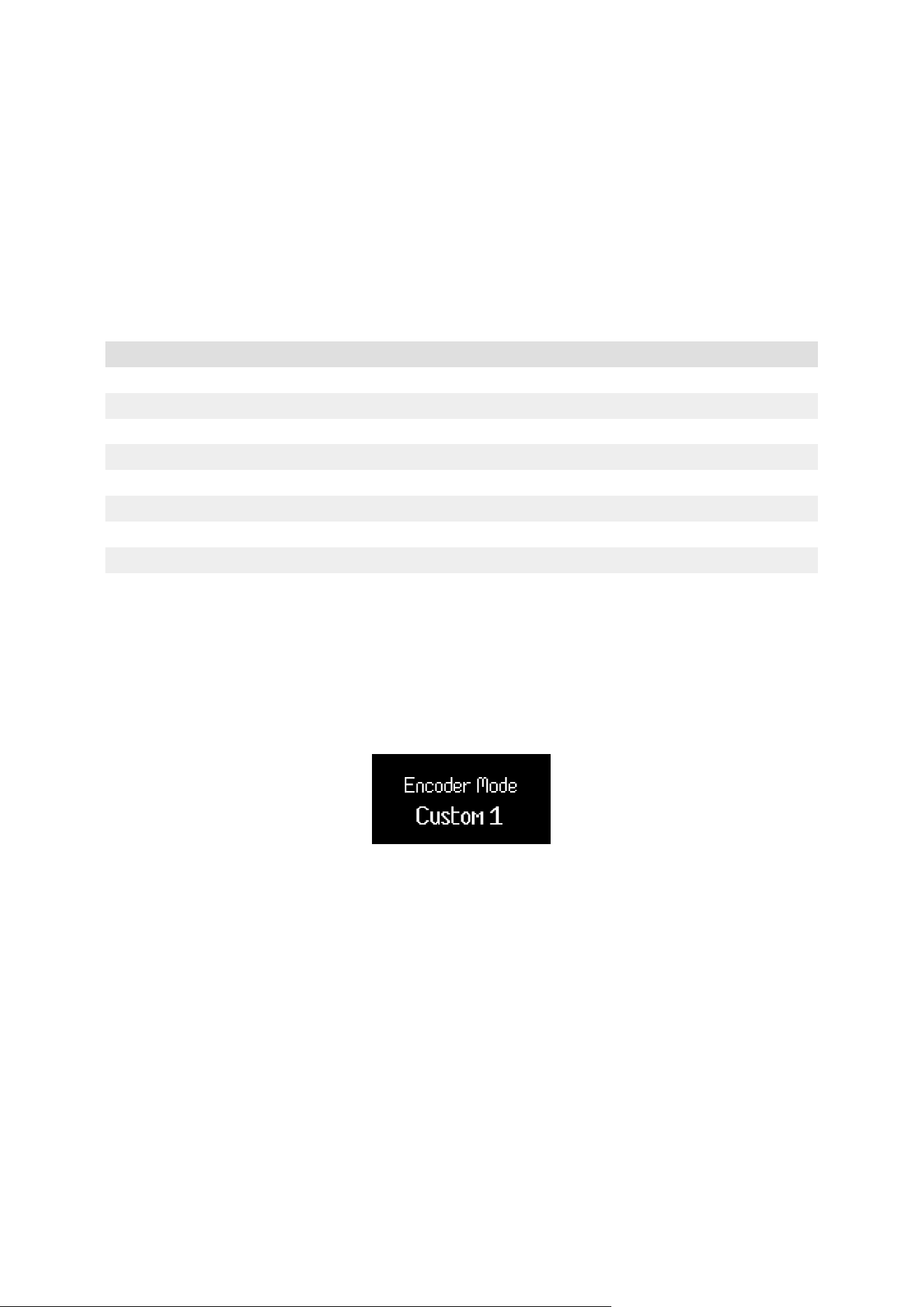
When you enter an Encoder mode, the screen temporarily shows the control name and the
mode you selected.
When you select a Custom Mode, the mode title is the name you give the Custom Mode
when you create it in Novation Components. For more information, visit What is Novation
Components? [7].
18
Using the Encoder Custom Modes
Your Launchkey has four Custom Modes. Custom Modes allow you to send customised MIDI
messages from the controls. You can set up the messages each control sends in Novation
Components.
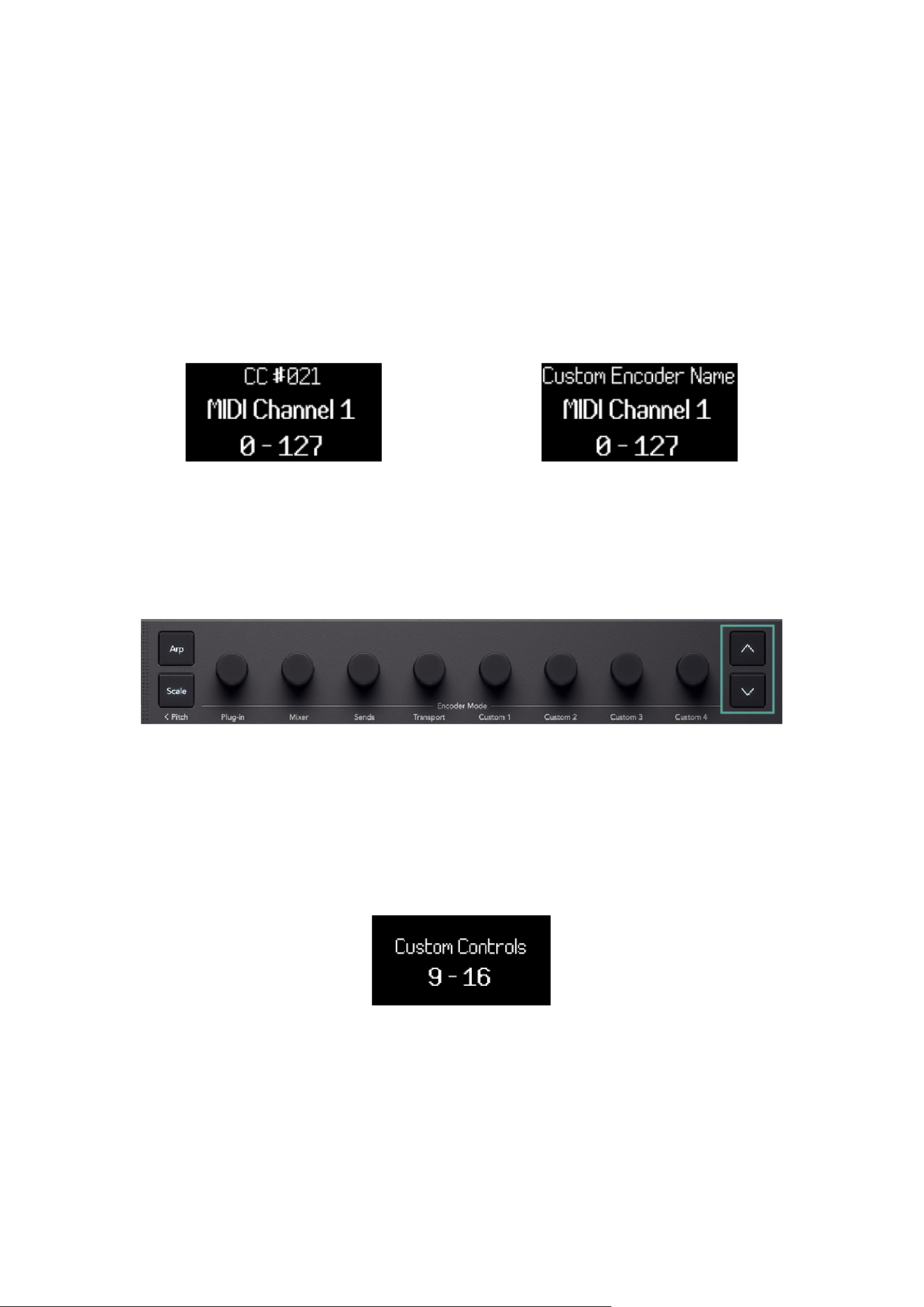
When you move an encoder in a Custom Mode, the screen displays the parameter name and
the value. You can set the parameter name in Components but if you've not set this the screen
displays the destination of the MIDI message.
Default Encoder Custom Mode name. Encoder with a custom name.
In each Custom Mode, there are two pages of encoder controls. To access the other page,
press the Bank Next or Bank Previous buttons to the right of the encoders.
The default page is page one. On page one, only the Bank Next button lights to show you can
access the second page. On page two, the Bank Previous button lights to show you can access
the first page.
When you change the encoder page, the screen temporarily displays which page you're on.
19
Pad Modes
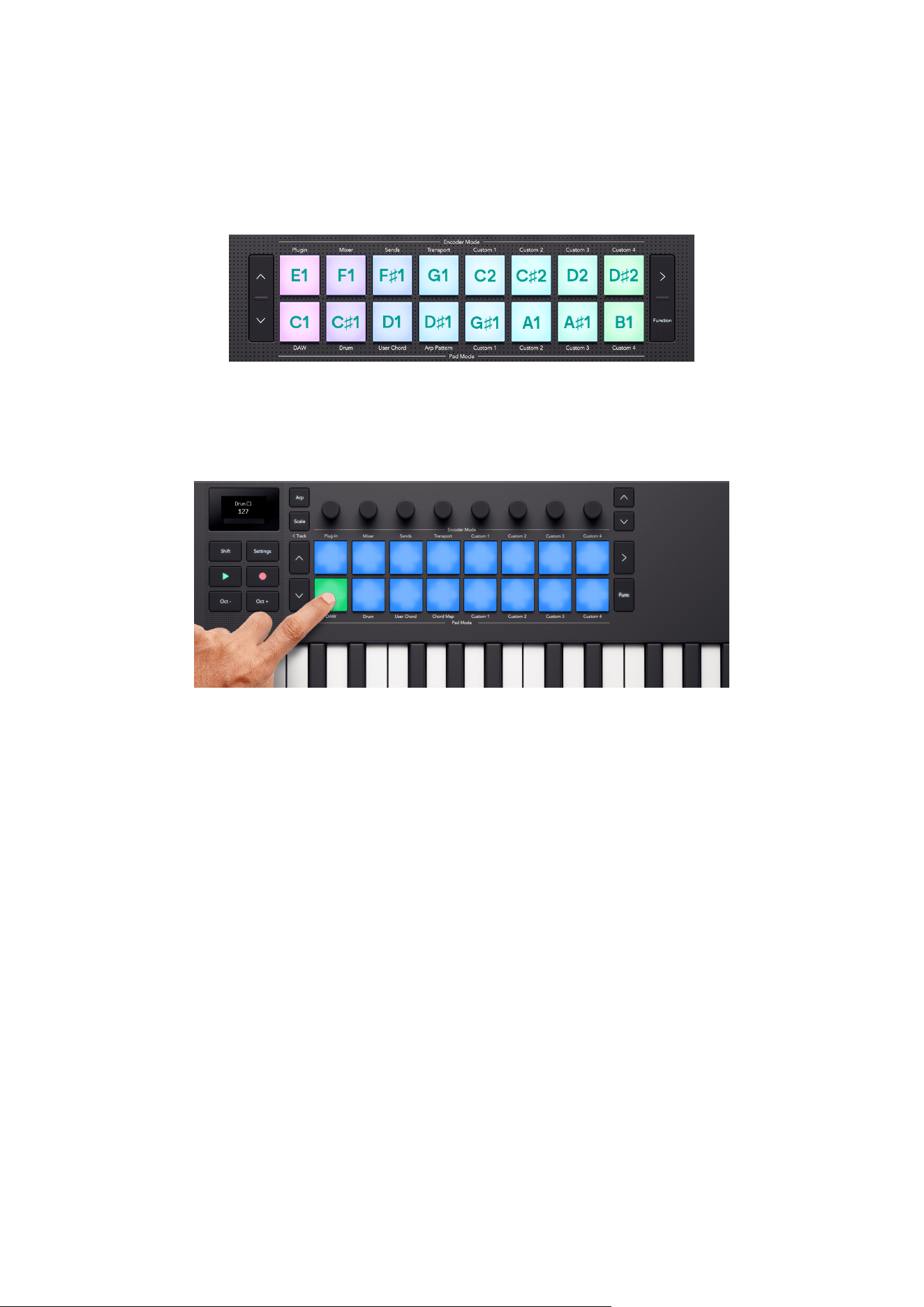
Your Launchkey's pads have eight modes. To change the mode, hold the Shift button and press
a pad from 9-16.
Some modes are only available while you're using a DAW. For more information, see the section
relating to your DAW.
Drum mode is the default selected mode, the pad modes available are:
Drum Pad Number Mode Availability
9 DAW (see Common DAW Control [49]) DAW Mode Only
10 Drum [55] Always
11 User Chord [30] Always
12 Chord Map Always
13 Custom 1 [32] Always
14 Custom 2 [32] Always
15 Custom 3 [32] Always
16 Custom 4 [32] Always
The last pad mode you select lights bright blue. The other available modes light dim blue,
unavailable modes are unlit.
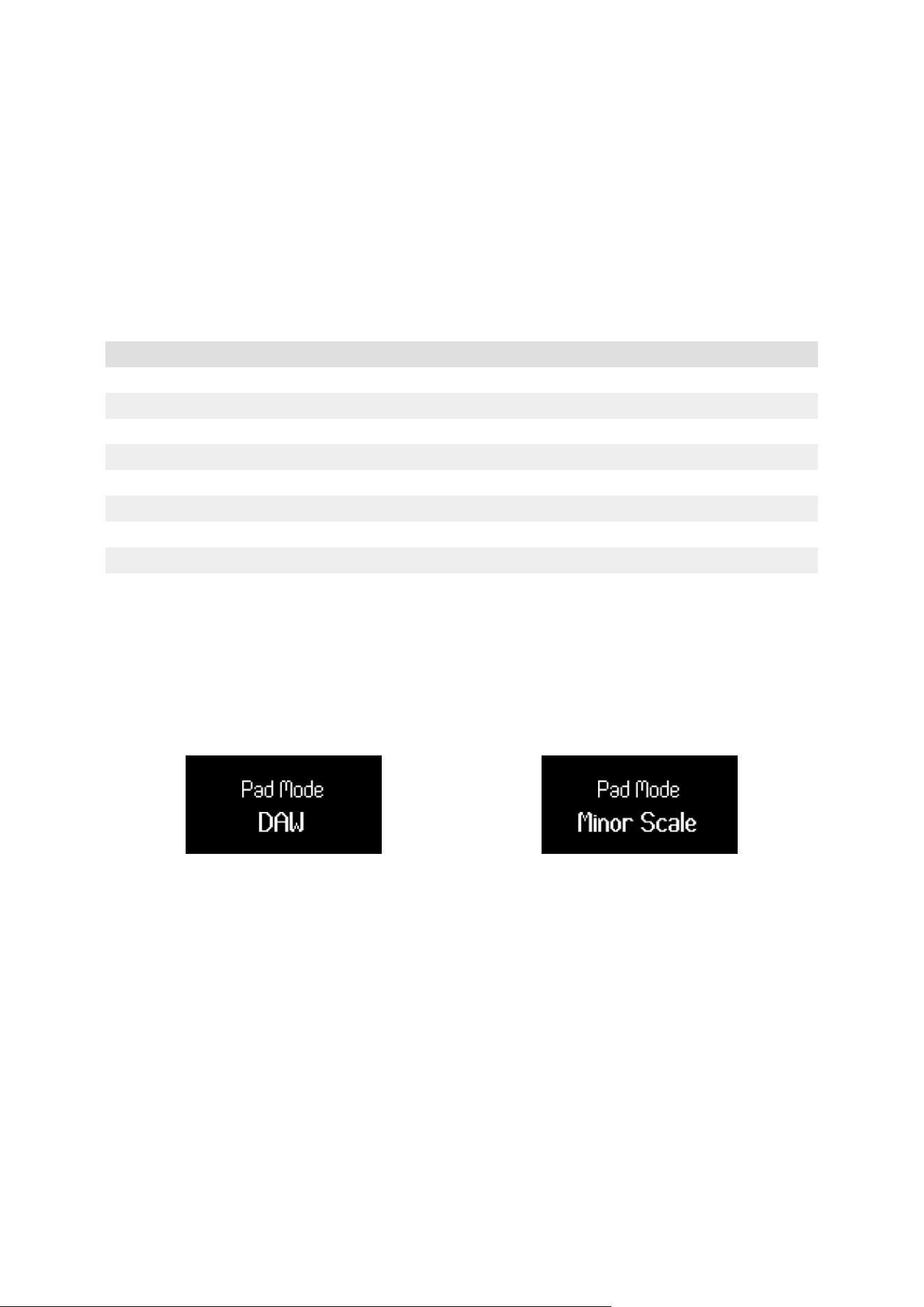
When you enter a new Pad mode, the screen temporarily shows the control name and the mode
you select.
DAW Pad mode. Custom Pad mode with custom name.
When you select a Custom Mode, the mode title is the name you give the Custom Mode when
you create it in Novation Components. For more information, visit Components [7].
20
Drum Pad mode
When you select the Drum pad mode, the pads trigger MIDI notes. By default, the notes are
arranged from C1 to D♯2 (bottom left to top right) and on MIDI channel 10.
In Drum mode, the pads light blue outside your DAW and the track colour in your DAW. The
pads light when you play the pads.
21
Chord Map Pad Mode
In Chord Map mode, your Launchkey's pads and encoders enable you to perform chords that fit
with the Scale you select. Chord map is based on a few key functions:
To access Chord Map, hold Shift and press pad 12, Chord Map.
NOTE
If your encoders are in a different mode you can hold the Chord Map button to
quickly access the Chord Map parameters on the encoders. When you release
the button, the encoders go back to the previous encoder mode.
• The leftmost eight pads, the Chord pads, allow you to play chords that fit the selected
scale. Press the eight pads to trigger the chords. Although there are eight chords
accessible, each chord map gives you access to 40 chord banks that fit the scale.
• The rightmost six pads, or Performance pads, let you perform the chords in different
ways (e.g. arps or inversions). To use the performance pads, hold the performance pad
and press the blue chord pads to play the chords with the performance effect (you
might need to press the chord pad multiple times to hear the full performance effect).
• The encoders give you access to parameters to change the chords, Adventure, Explore,
Spread, and Roll. Changing the Adventure and Explore parameters gives you access to
the 40 banks of eight chords. The Spread and Roll parameters change the way the chords
sound.
NOTE
Chord modes on your Launchkey Mini 25 may not be on the same MIDI channel
as your keys. By Default, Chord modes send their notes out on MIDI Channel 3.
To change this, go to: Settings → Press the Pad ˄ up and ˅ down buttons until
you see Chords Channel → Set the channel using the pads or Encoder 1.
22

Chord Map Sets
Chord map gives you a chord set to match the key and scale you've selected using scale mode.
When you play a chord, the screen shows the name of the chord and visual representation of
the keyboard notes it's triggering.
The chord sets and the matching scales are shown in the table below:
Chord Set Scales
Major Major
Major Pentatonic
Whole Tone
Minor Minor
Minor Pentatonic
Blues
Melodic Minor
Hirajoshi
Kumoi
Hungarian Minor
Dorian Dorian
Dorian #4
Mixolydian Mixolydian
Lydian Lydian
Lydian Augmented
Lydian Dominant
Phrygian Phrygian
In Sen
Iwato
Pelog-Selisir
Half Whole Diminished
Locrian Locrian
Super Locrian
Harmonic Minor Harmonic Minor
Bhairav
Whole Half Diminished
Harmonic Major Harmonic Major
Phrygian Dominant Phrygian Dominant
Pelog-Tembung
8 tone spanish
23
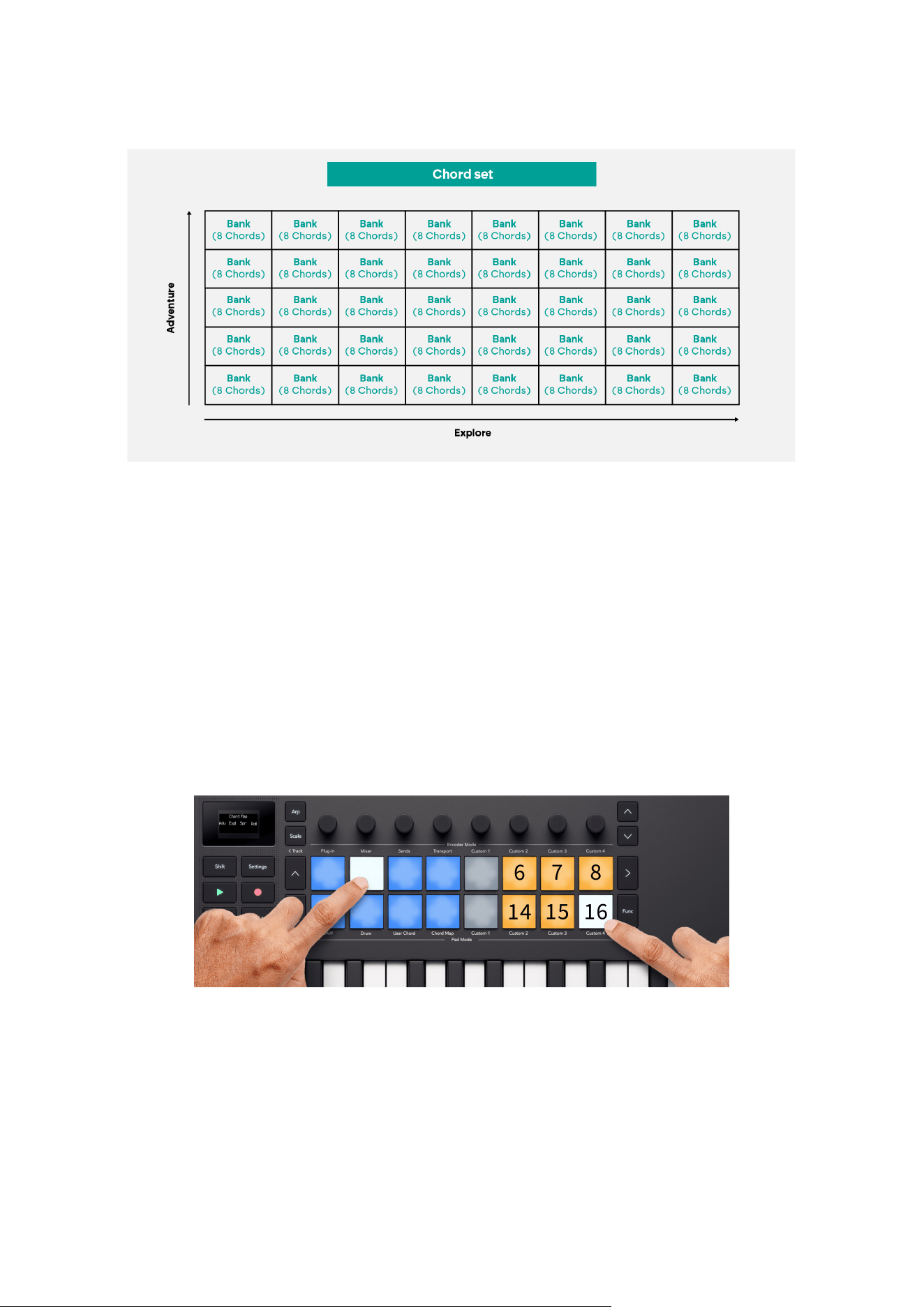
Each Chord Set is made up of 40 chord banks. If you imagine there's a table of the chord banks
with a scale of Explore and Adventure, as you increase each parameter you progress across the
chord banks. The higher the Adventure and Explore parameters, the more gnarly the resulting
chords get.
Chord Map performance pads
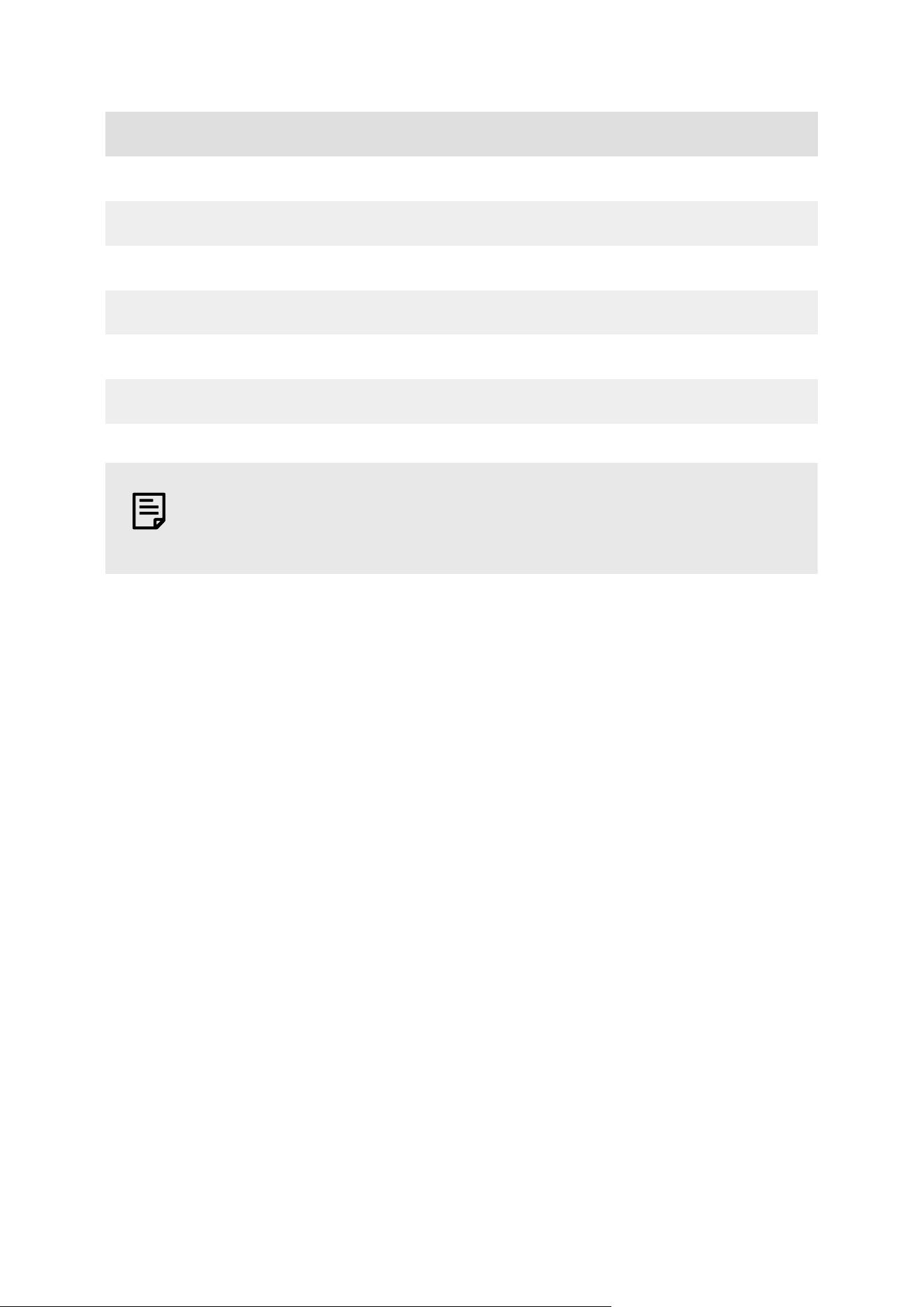
The right-most six pads (Pads 6-8 and 14-16) enable the Chord map performance functions.
To use them, you hold the performance pads then press the chord pads. When you hold the
performance pad, it changes how you play the chord.
To use the performance pads, hold, or latch, a performance pad on the right, in this case Split:
Left and right, and press a chord pad to play that chord with the performance element.
The performance pads change the chords in the following way. For detailed descriptions, see
the relevant section.
24
Pad Behaviour
6 Manual Arp Up [26] - each press on the chord pads cycles through the chord's notes.
7 Inversion Up [28] - Plays through the chord's different inversions with each press.
8 Split: Bass + Chord [29] - Two presses of the chord pad play the bass note, followed by the rest of the
chord's notes.
14 Manual Arp Down [26] - each press on the chord pads cycles through the chord's notes.
15 Inversion Down [28] - Plays the chord's first inversion down.
16 Split: Left and Right [29] - Two presses of the chord pad play what would be the left and right handed
versions of the chord.
NOTE
You can only use one performance pad at a time.
To latch a performance pad, so you don't have to hold it:
1. Press the Scene launch button > to enable latching.
2. Press the performance pad you'd like to latch.
When Latch is on, the Scene Launch button > lights white and the performance pads toggle
between on and off.
Turning latch off, turns off any active performance/modifier pads.
25
Chord Map Manual Arp
The manual arp performance modes (there are two modes, Manual Arp Up and Manual Arp
Down) change the chord pads from playing a chord to playing each note of the chord, with
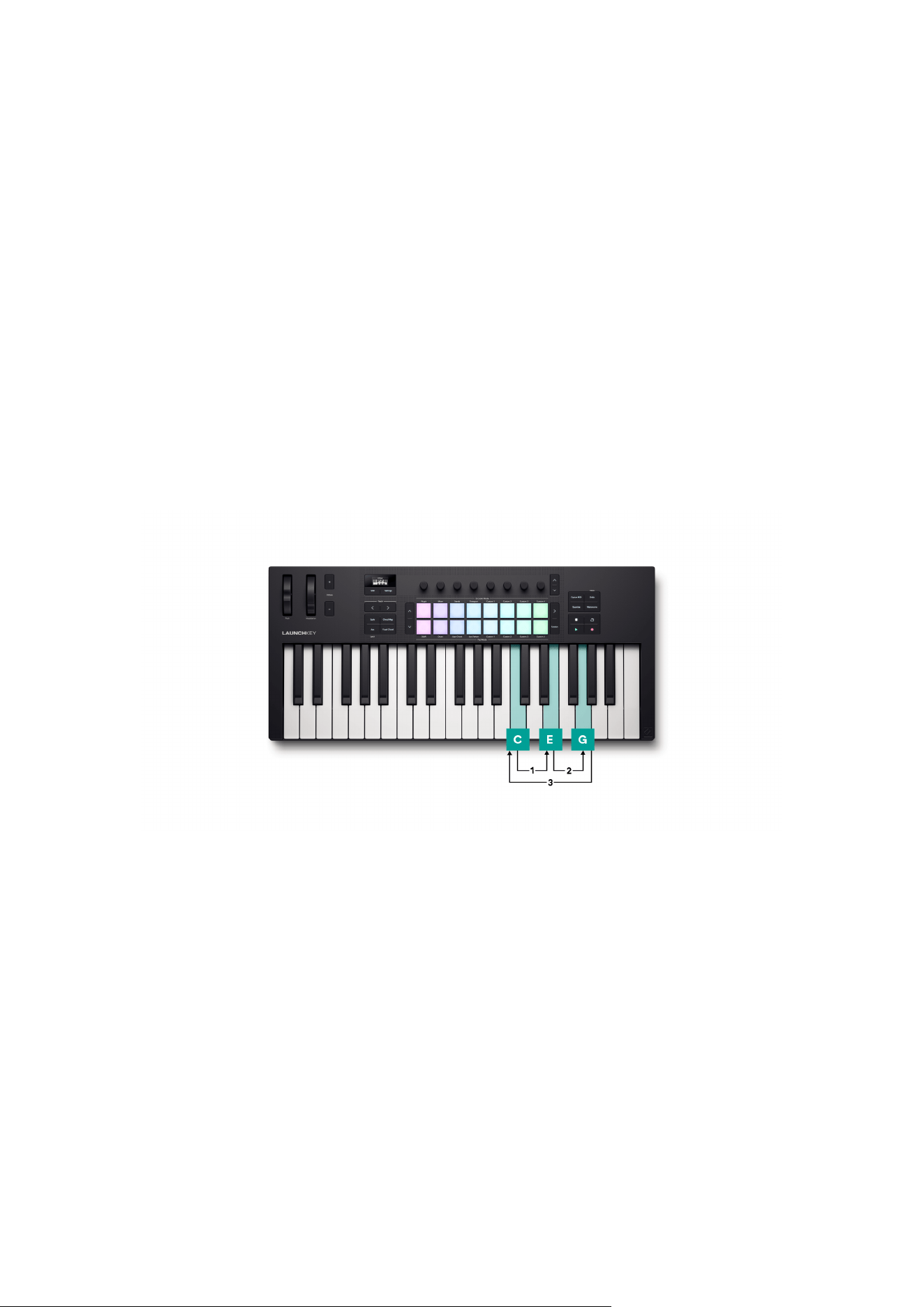
each press of the pad. For example, to play a three note chord (a triad) you need to press the
chord pad three times to play all three notes of the chord.
Changing chord or releasing the performance pad resets the arp cycle.
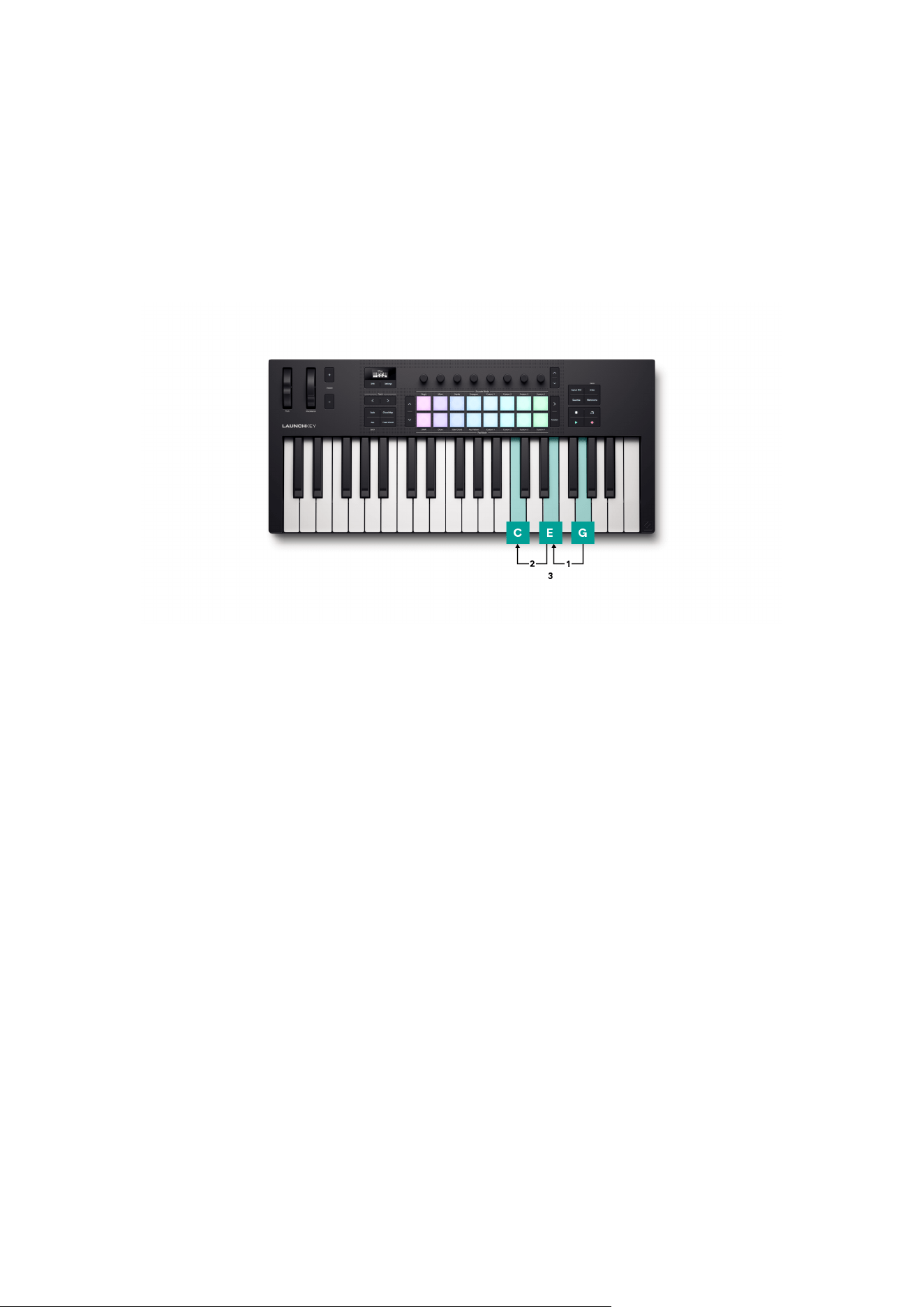
Manual Arp Up
In Manual Arp Up mode, the chord notes cycle from the lowest note of the chord to the highest
note of the chord, then reset.
In the case of a C Major chord the notes are C, E and G; Manual Arp Up plays the notes in the
order C, E, G, C, E, G, C etc.
26
Manual Arp Down
In Manual Arp Down mode, the chord notes cycle from the highest note of the chord to the
lowest note of the chord, then reset.
Again, in the case of a C Major chord where the notes are C, E and G; Manual Arp Down, plays
the notes in descending order G, E, C, G, E, C, G etc.
27

Chord Map Inversion
The Inversion performance pad allows you to play through different chord inversions each time
the chord pad is played. In music, a chord inversion is a different way of playing a chord where
the root note (the chord's name, e.g. C) is no longer the bass, or lowest, note in the chord.
To do this, hold the inversion performance pad and each time you press the chord pad it
pitches the notes in the chord up (Inversion Up) or down (Inversion Down) by an octave,
starting with the lowest note. After all notes have been pitched up (four presses) the chord
resets to the original chord.
The cycle resets whenever you play a new chord or release the performance pad.
Inversion Up
With Inversion-Up held, a C major triad (C, E and G) looks like this:
Action Chord output
Chord pad played without the performance pad C3, E3, G3
Inversion pad held, chord pad 1st press C4, E3, G3 (1st inversion)
Inversion pad held, chord pad 2nd press C4, E4, G3 (2nd inversion)
Inversion pad held, chord pad 3rd press C4, E4, G4, (Octave up)
Inversion pad held, chord pad 4th press C3, E3, G3, (Original Chord, Cycle resets)
Inversion Down
With Inversion Down held, a C major triad (C, E and G) looks like this:
Action Chord output
Chord pad played without the performance pad C3, E3, G3
Inversion pad held, chord pad 1st press C3, E3, G2 (2nd inversion)
Inversion pad held, chord pad 2nd press C3, E2, G2 (1st inversion)
Inversion pad held, chord pad 3rd press C2, E2, G2, (Octave down)
Inversion pad held, chord pad 4th press C3, E3, G3, (Original Chord, Cycle resets)
28

Chord Map Split Mode
The Split modes emulate playing the keyboard with two hands.
• In Split: Bass + chord, the first press plays the bass note. The second press plays the rest
of the chord's notes.
• In Split: Left and right, the first press plays the two lowest notes. The second press plays
the rest of the chord's notes.
Like the other modes, these cycles are reset when the chord changes or if you release the
performance pad.
In both modes, the first press plays straight, the 2nd press follows the roll function.
29
User Chord
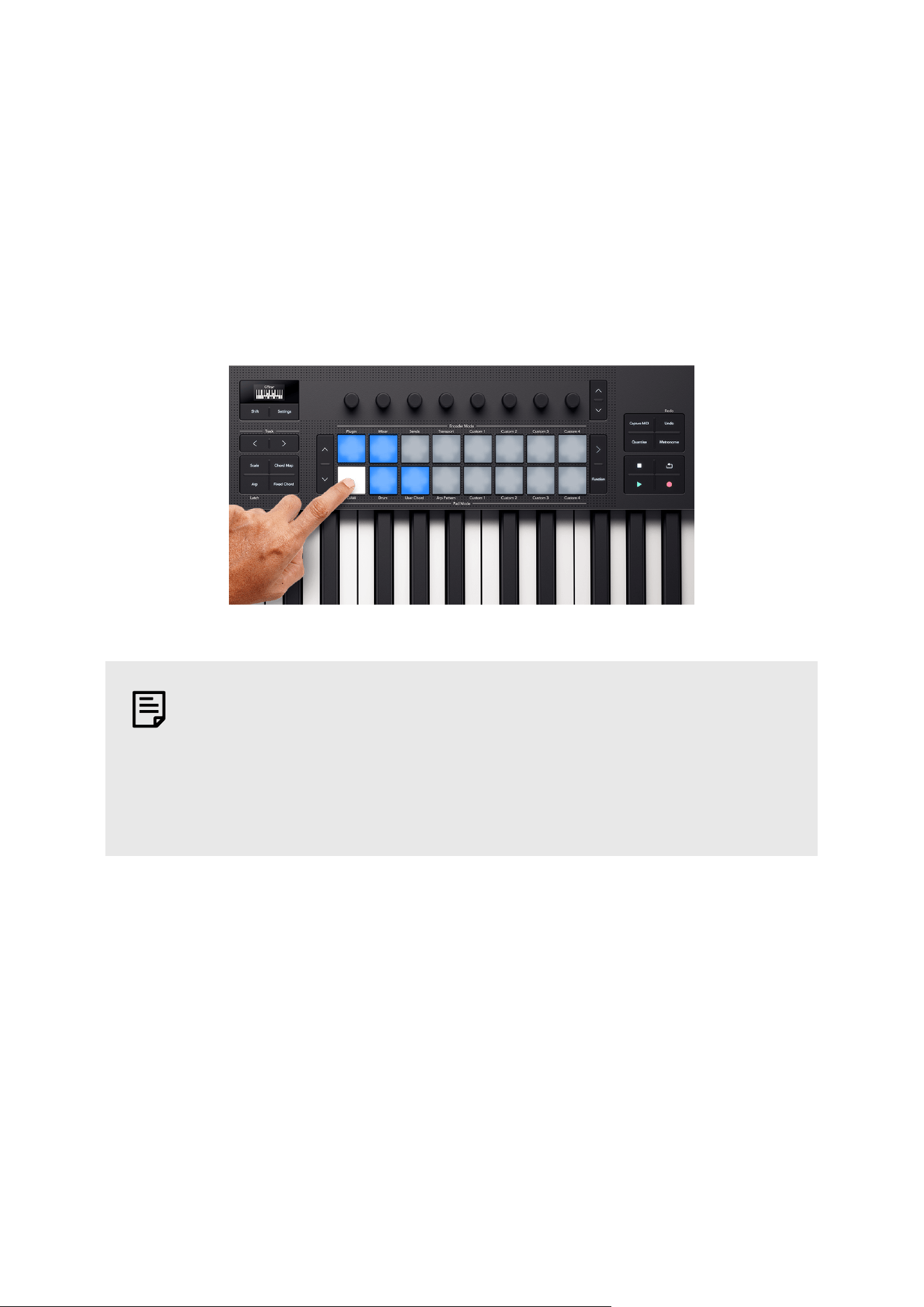
User Chord mode allows you to input your own chords.
To access User Chord hold Shift and press Drum Pad 11.
When you're in User Chord mode, if you've not added any chords yet the pads are blank. In the
following example we've added chords to five pads:
To play a chord, press a blue pad. The pad lights white when you're playing a chord.
NOTE
Chord modes on your Launchkey Mini 25 may not be on the same MIDI channel
as your keys. By Default, Chord modes send their notes out on MIDI Channel 3.
To change this, go to: Settings → Press the Pad ˄ up and ˅ down buttons until
you see Chords Channel → Set the channel using the pads or Encoder 1.
30
Assigning User Chords
To assign a user chord to the pads:
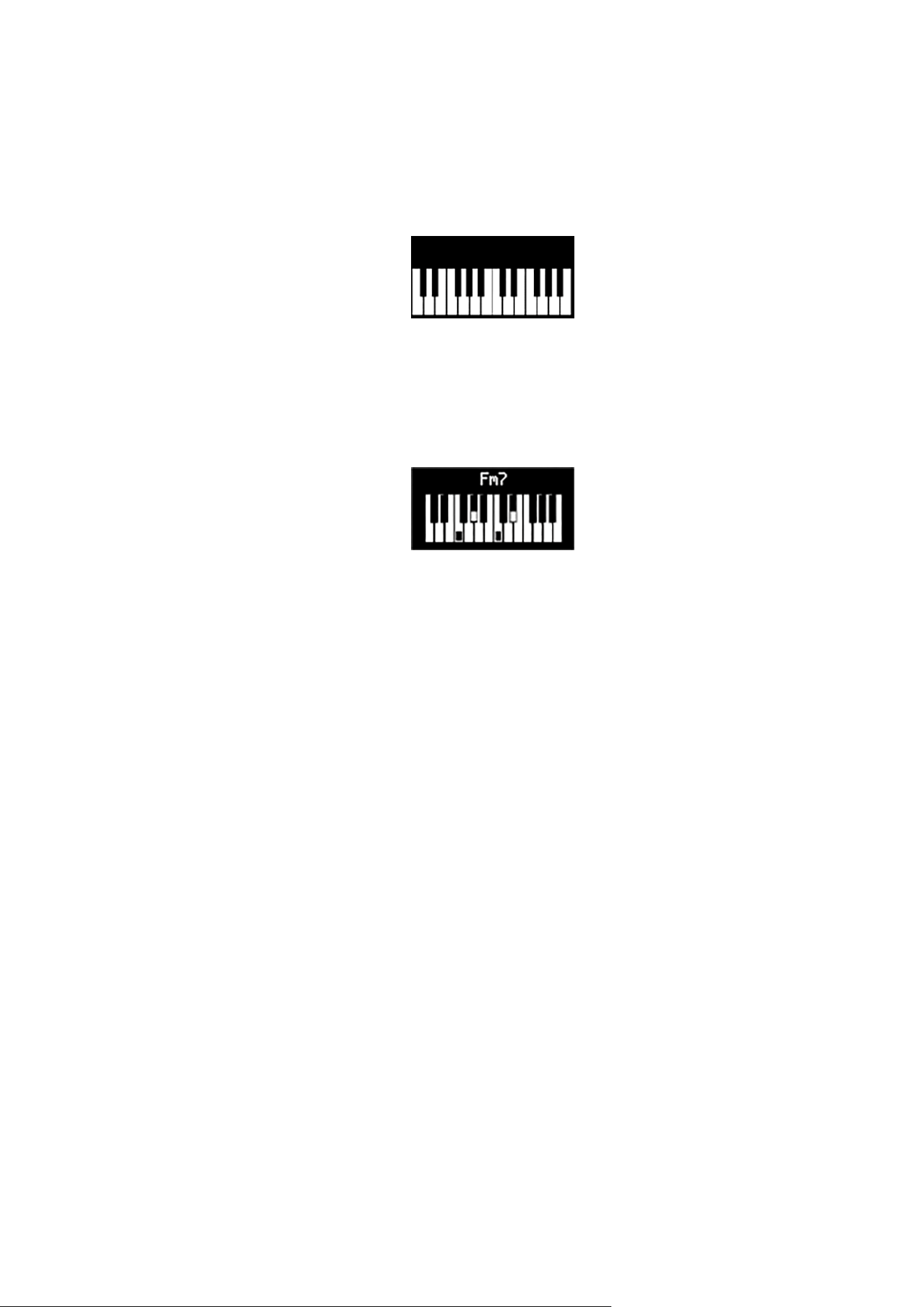
1. Press and hold a blank pad. The screen shows a representation of the keyboard.
2. Press the notes on the keyboard you want to assign to the chord. You can either play
the entire chord, or play each note independently (e.g. for chords you can't play with
one hand). You can assign up to six notes– the Launchkey ignores any extra notes.
The screen shows the notes you've added to the chord and the chord name:
3. Release the pad.
Transposing User Chords
In User Chord mode you can use the pad ˄ up and ˅ down buttons, to the left of the pads to
transpose the entire User Chord bank.
To transpose by a single semitone, press either the pad up or pad down button. You can
transpose up to 12 semitones (one octave) up or down.
To transpose by an octave (12 semitones) hold shift and press the pad up or pad down buttons.
You can transpose up to three octaves, up or down.
31
Removing User Chords
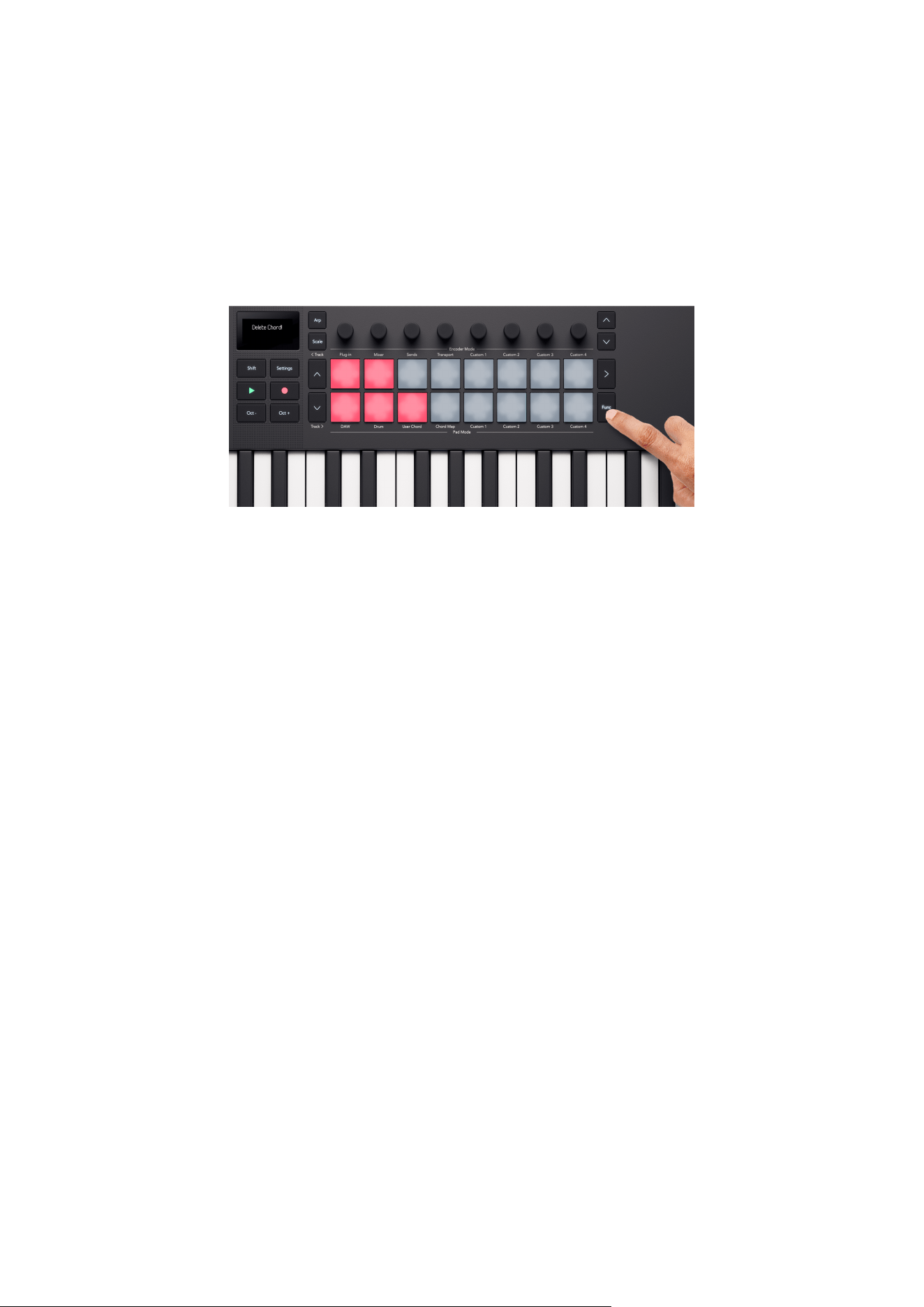
To remove your User Chords, hold the Function button and press the chord's pad you want to
remove.
When you hold the function button, any pads with a chord light red and the screen shows
“Delete Chord!”:
Pad Custom Modes
Your Launchkey has four Custom Modes. Custom Modes allow you to send customised MIDI
messages from the controls. You can set up the messages each control sends in Novation
Components.
When you enable a Custom Mode, the pads output custom messages you can set up in
Components.
When you press a pad in a Custom Mode, the screen displays the parameter name and the
value. You can set the parameter names in Components but if you've not set this the screen
displays the destination of the MIDI message, e.g. CC 21.
32
Using the Launchkey's built-in features
The Launchkey Mini 25 MK4 has a set of built-in creative tools to make it easier to create
musical progressions, and give you another source of inspiration.
The features covered in the next few sections include:
• Using the Launchkey Mini 25's Scale Mode [33]
• Using the Launchkey Mini 25's Chord Modes [35]
• Using the Launchkey's Arpeggiator (Arp) [39]
Using the Launchkey Mini 25's Scale Mode
Scale mode allows you to pick a scale and your Launchkey helps you play in that scale more
easily.
To enable scale mode, press the Scale button. When you turn on scale mode, the screen shows
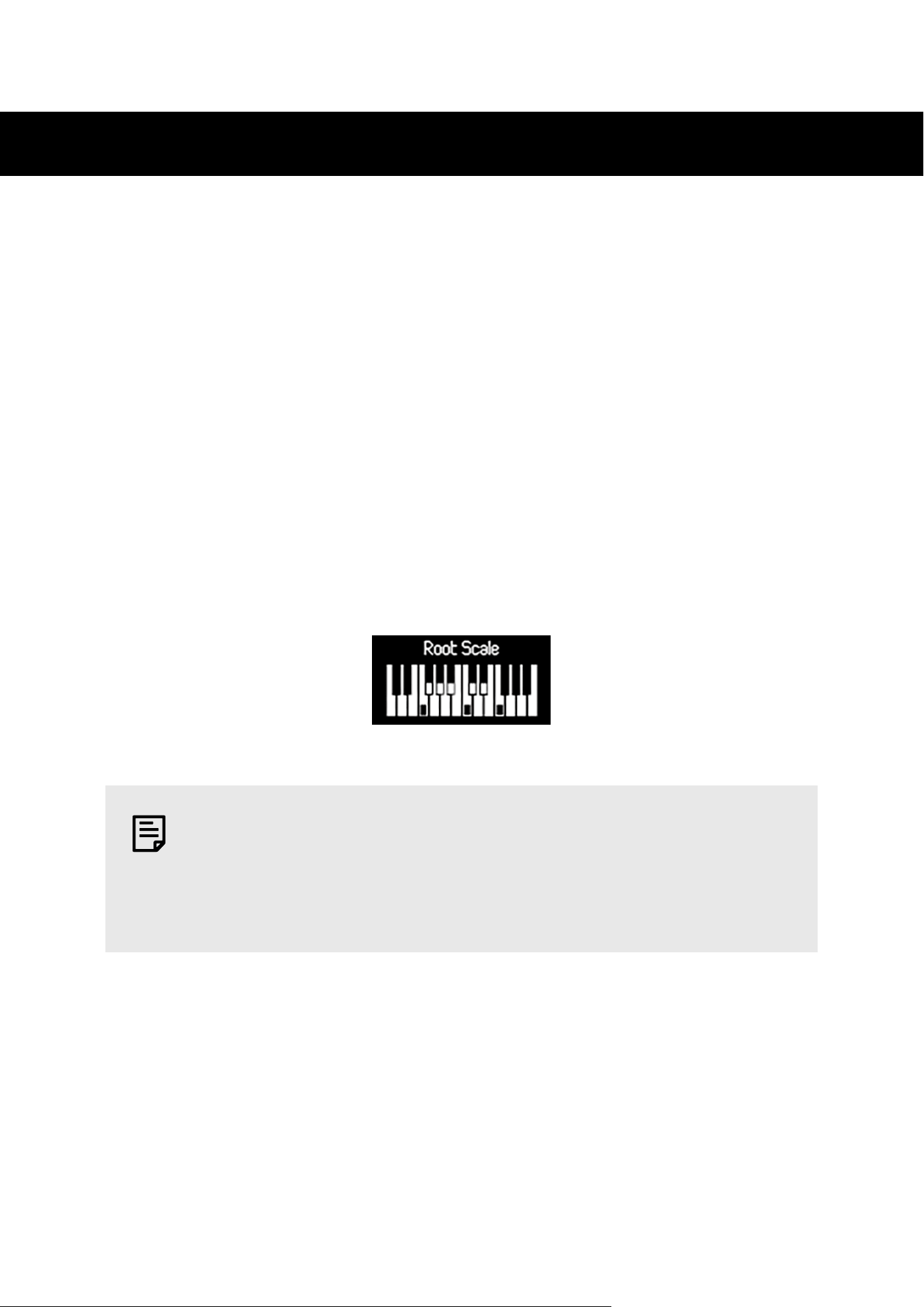
the currently selected scale:
NOTE
If your encoders are in a different mode you can hold the Scale button to
quickly access the Scale mode parameters on the encoders. When you release
the button, the encoders go back to the previous encoder mode.
Changing the scale
You can change the scale using the first three encoders.
1. Encoder 1 changes the scale's root note. The default root note is C.
2. Encoder 2 changes the scale. The default scale is Major.
3. Encoder 3 changes the scale mode. There are three modes:
• Snap to scale [34]
33
• Filter out of scale [34]
• Easy scale. [35]
The Default mode is Snap to Scale.
TIP
Hold Shift and move an encoder to show the parameter on the screen without
changing it.
Scales
The table shows the Scales available by moving encoder 2.
Scales
Major Dorian #4
Minor Phrygian Dominant
Dorian Melodic Minor
Mixolydian Lydian Augmented
Lydian Lydian Dominant
Phrygian Super Locrian
Locrian 8-tone Spanish
Whole Tone Bhairav
Half Whole Dim Hungarian Minor
Whole Half Diminished Hirajoshi
Blues In-Sen
Minor Pentatonic Iwato
Major Pentatonic Kumoi
Harmonic Minor Pelog-Selisir
Harmonic Major Pelog-Tembung
Snap to Scale
In Snap to Scale mode, your Launchkey rounds any note outside the Scale to the nearest note
in the chosen scale.
Filter out of Scale
In Filter out of Scale mode, your Launchkey filters out any notes not in the chosen scale. Any
time you press the key of a note not in the scale, that note won't play.
34
Easy Scale
In Easy Scale mode, your Launchkey maps all the notes in your chosen scale to your
Launchkey's white keys.
TIP
If your chosen scale has less than seven notes, the scale won't match the
octaves on the keyboard. This allows you to do harp-like runs by dragging your
fingers up and down the keyboard.
Using the Launchkey Mini 25's Chord Modes
Your Launchkey has three different built in chord modes to help you create ideas or push your
music to the next level. The chord modes available are:
• Chord Map - set the scale and use the encoders and performance controls to discover
new chord banks and play them via the drum pads.
• User Chord - define the key chords in your workflow by assigning your favourites to the
drum pads.
• Fixed Chord - set up a chord using the keys and play it in new places using a single key
press.
NOTE
Chord modes on your Launchkey Mini 25 may not be on the same MIDI channel
as your keys. By Default, Chord modes send their notes out on MIDI Channel 3.
To change this, go to: Settings → Press the Pad ˄ up and ˅ down buttons until
you see Chords Channel → Set the channel using the pads or Encoder 1.
35
User Chord Mode
User Chord mode allows you to input your own chords.
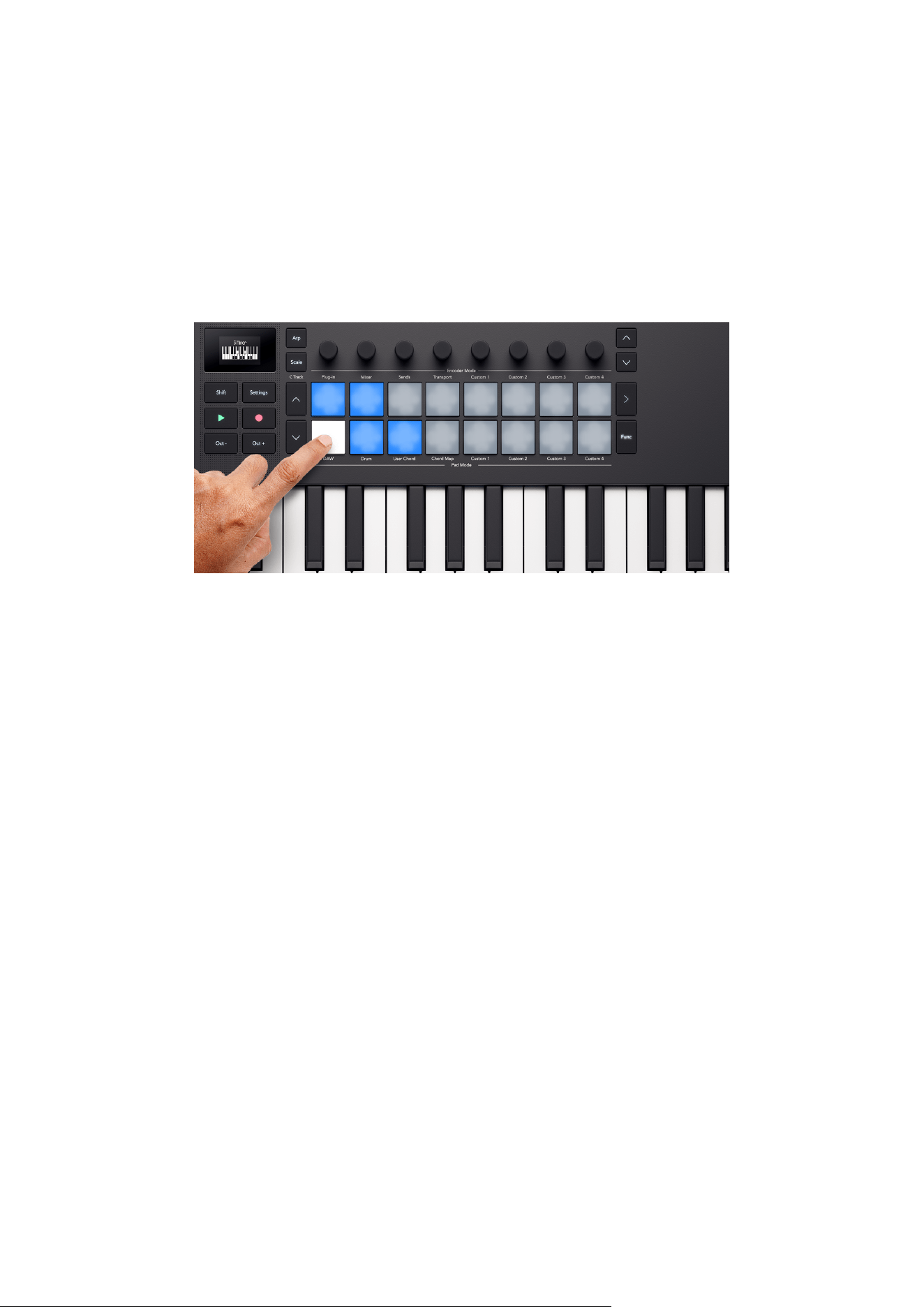
To access User Chord hold Shift and press Drum Pad 11.
When you're in User Chord mode, if you've not added any chords yet the pads are blank. In the
following example we've added chords to five pads:
To play a chord, press a blue pad. The pad lights white when you're playing a chord.
36
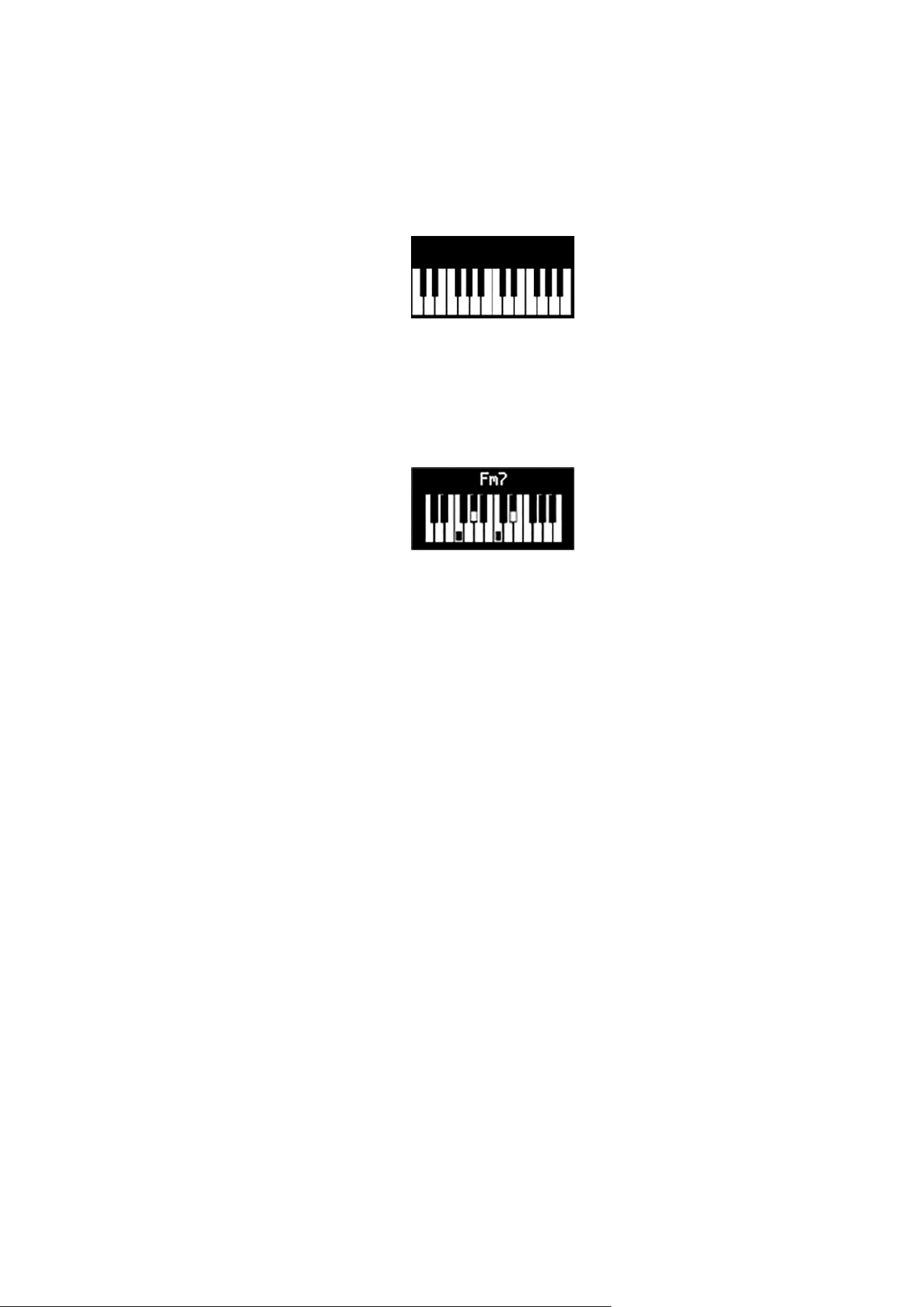
Assigning User Chords
To assign a user chord to the pads:
1. Press and hold a blank pad. The screen shows a representation of the keyboard.
2. Press the notes on the keyboard you want to assign to the chord. You can either play
the entire chord, or play each note independently (e.g. for chords you can't play with
one hand). You can assign up to six notes– the Launchkey ignores any extra notes.
The screen shows the notes you've added to the chord and the chord name:
3. Release the pad.
Transposing User Chords
In User Chord mode you can use the pad ˄ up and ˅ down buttons, to the left of the pads to
transpose the entire User Chord bank.
To transpose by a single semitone, press either the pad up or pad down button. You can
transpose up to 12 semitones (one octave) up or down.
To transpose by an octave (12 semitones) hold shift and press the pad up or pad down buttons.
You can transpose up to three octaves, up or down.
37
Removing User Chords
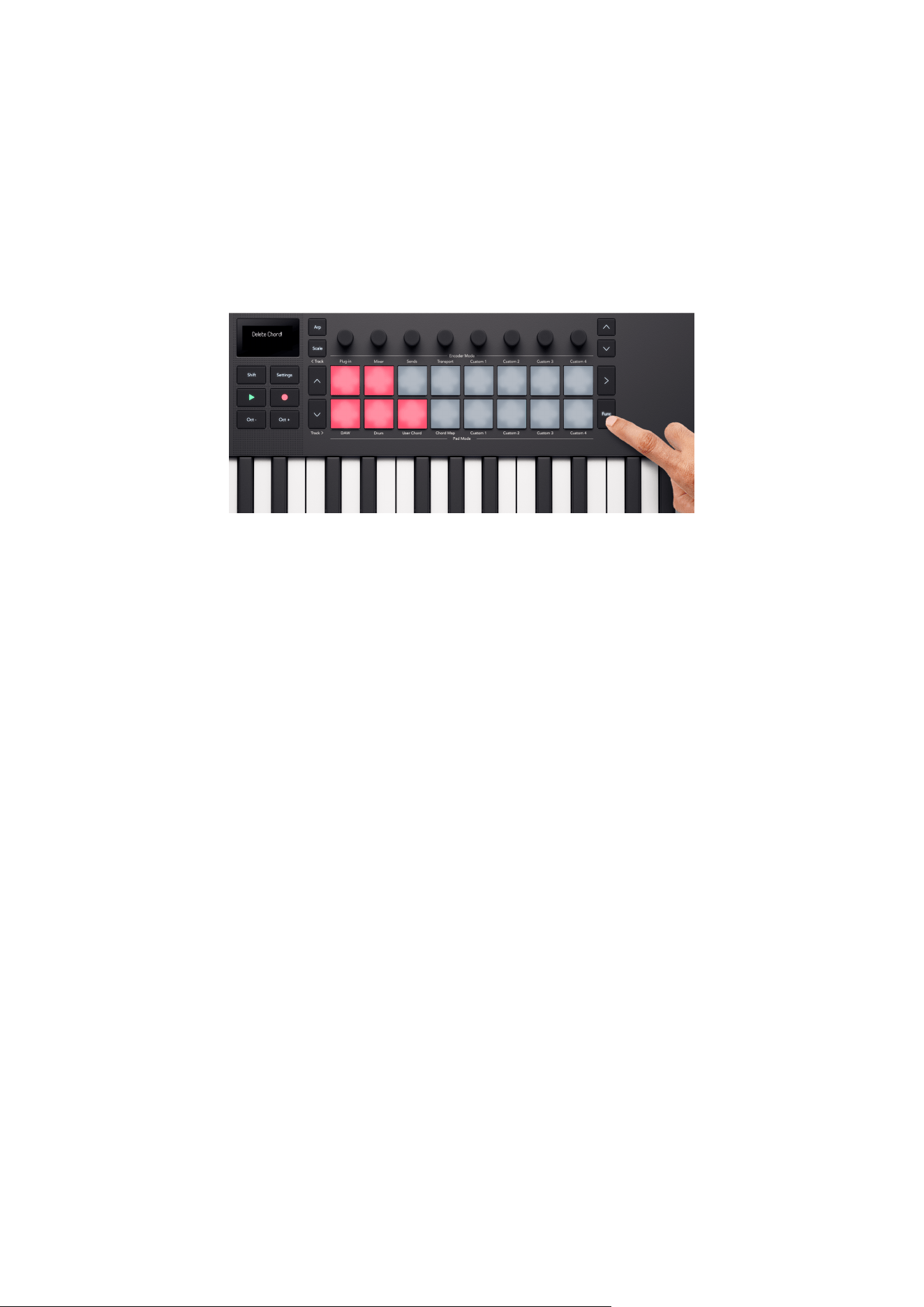
To remove your User Chords, hold the Function button and press the chord's pad you want to
remove.
When you hold the function button, any pads with a chord light red and the screen shows
“Delete Chord!”:
Fixed Chord Mode
Fixed Chord mode allows you to assign a chord to the keys. You can make chords up to six
notes using the keyboard, then play and transpose the same chord harmony playing the keys
up and down the keyboard.
Assigning a Fixed Chord
1. Hold the Shift and Scale buttons.
2. Press the notes on the keyboard you want to assign to the chord. You can either play
the entire chord, or play each note independently (e.g. for chords you can't play with
one hand). The screen shows a visual representation of the chord's notes and name.
3. Release the Shift and Scale buttons.
Fixed Chord remembers the notes and intervals, and Fixed Chord mode is now on. To see if
Fixed Chord is on, hold Shift, the Scale (Fixed Chord) button lights to shows this.
To turn Fixed Chord mode on/off, press Shift + Scale (Fixed Chord). The last saved chord is
available. To reassign the Fixed Chord, repeat the steps above. This clears the previous chord.
Removing a Fixed Chord
1. Hold the Shift and Scale buttons.
2. Press any single key on the keyboard.
3. Release the Shift and Scale buttons.
38
Using the Launchkey's Arpeggiator (Arp)
An arpeggiator (arp for short) allows you to hold a number of notes, e.g. a chord, and your
Launchkey plays each note individually in a sequence.
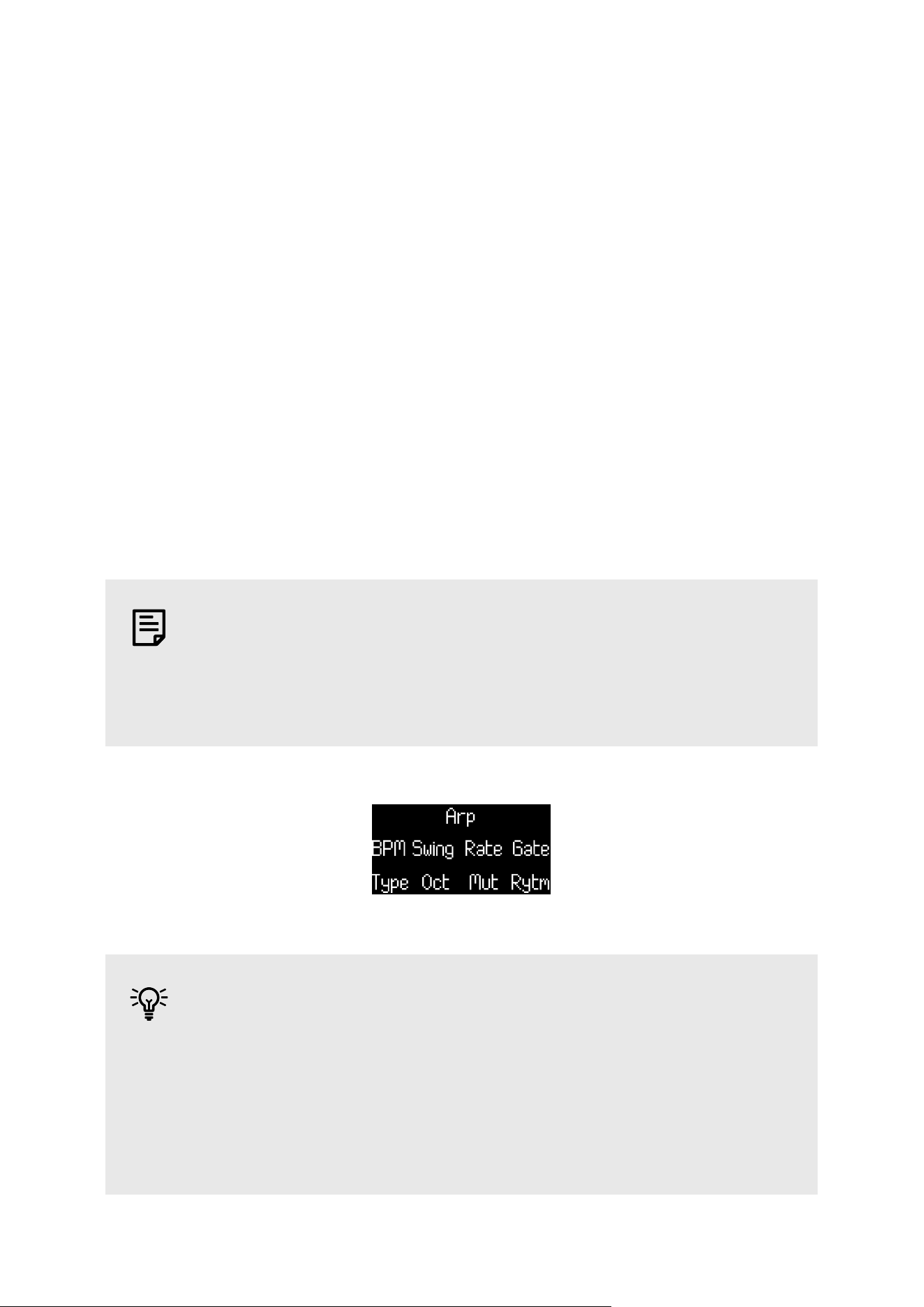
To enable your Launchkey's arp press the Arp button. When the Arp is on, the Arp button lights
and the screen shows the arpeggiator controls in the order they are assigned to the encoders:
1. BPM (Tempo) [40]
2. Swing [41]
3. Rate [41]
4. Gate [42]
5. Type [42]
6. Oct (Octaves) [42]
7. Mut (Mutate) [42]
8. Rytm (Rhythm) [43]
NOTE
If your encoders are in a different mode you can hold the Arp button to quickly
access the Arp parameters on the encoders. When you release the button, the
encoders go back to the previous encoder mode.
TIP
Holding Shift and pressing Arp latches the arpeggiator. Any notes you press last
indefinitely while the arp continues to play them. You can trigger a new set of
notes to overwrite the arp notes.
Arp latch is really useful for experimenting with arp settings without keeping
your fingers on the keys.
39
Arp Controls
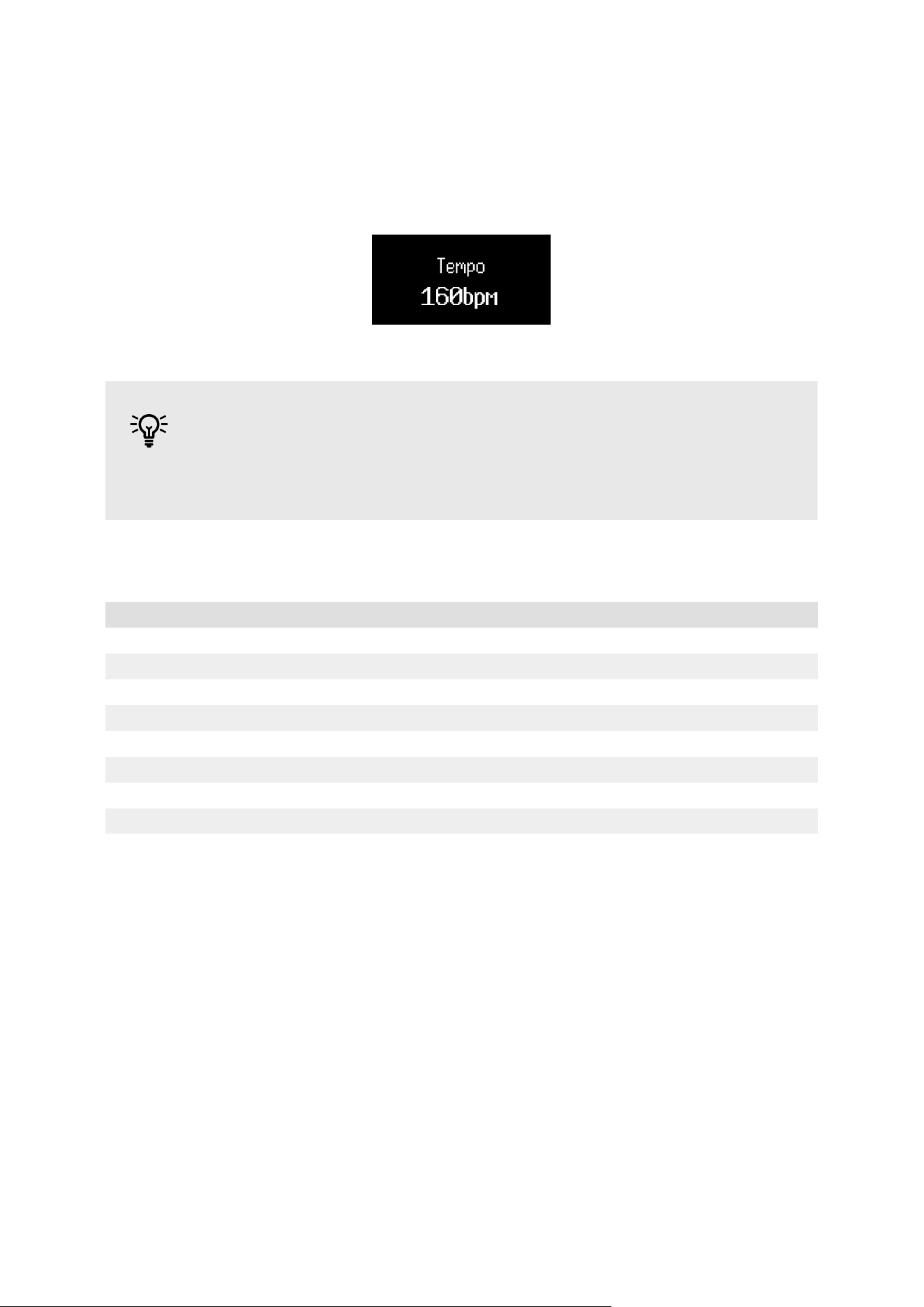
With Arp on, the Launchkey's encoders map to the arp's controls. Moving an encoder
temporarily displays the parameter and the value on the Launchkey's screen.
TIP
Hold Shift and move an encoder to show the parameter on the screen without
changing it.
The following arp controls are available on the encoders:
Encoder Parameter Default value
1 Tempo (BPM) 120
2 Swing 0
3 Rate 1/16
4 Gate 50%
5 Type Up
6 Octaves (Oct) 1
7 Mutate (Mut) 0%
8 Rhythm (Rytm) 0
Arp Tempo
Tempo controls the arp's speed in beats per minute (BPM) when your Launchkey isn't receiving
a MIDI clock.
You can set the internal tempo of the Launchkey from 40 to 240 BPM using encoder 1. The
default tempo is 120 BPM.
When your Launchkey is receiving MIDI clock, and you move encoder 1, the screen displays the
tempo it's synchronising to instead of the internal BPM.
40
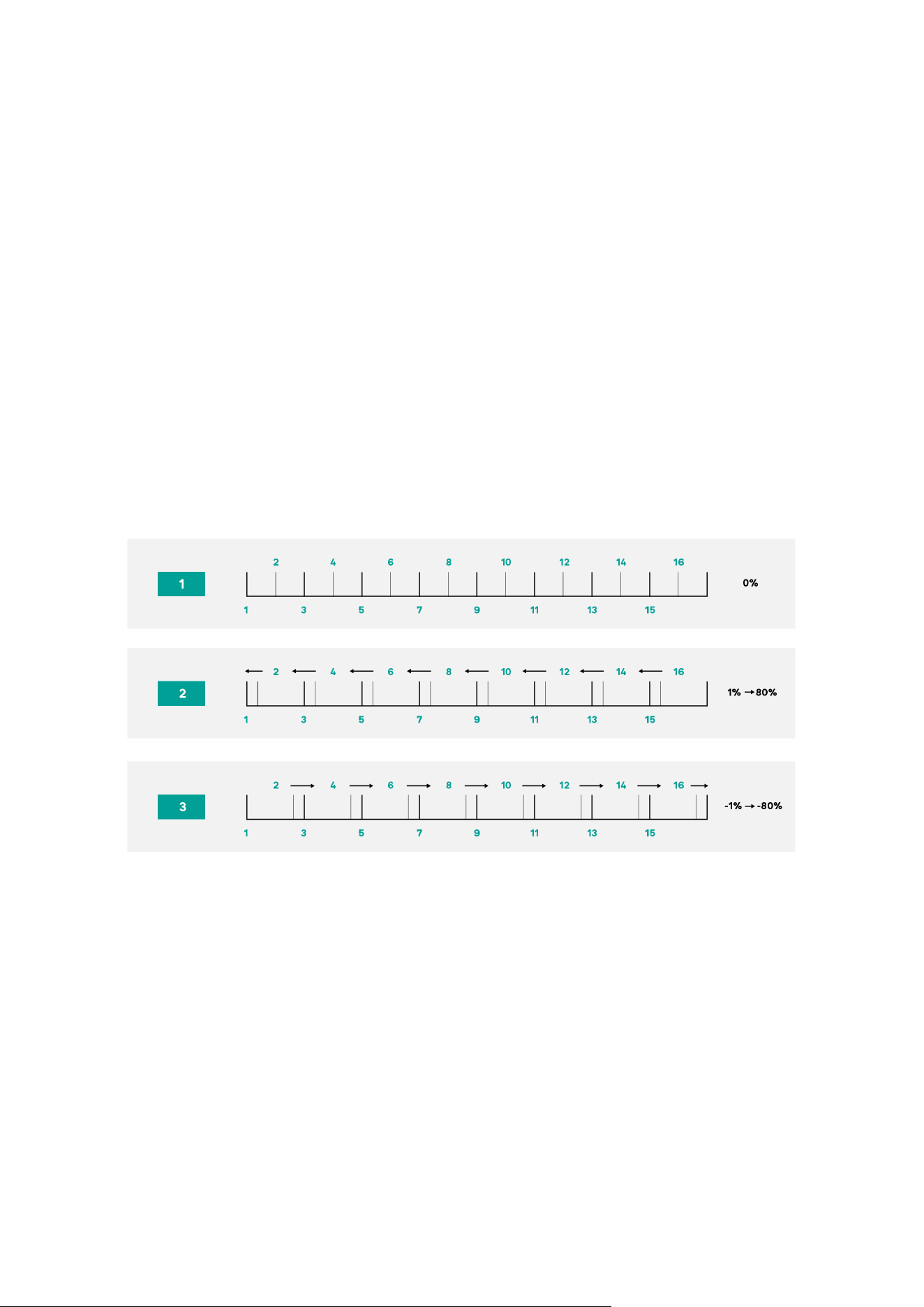
Arp Swing
By default, each note in an arpeggiator pattern is equally spaced in time. At the default tempo
and rate of 120 BPM, 16th notes the pattern repeats every two seconds, making the steps
one-eighth of a second apart.
Changing the Arp Swing parameter from its default value of 0% changes the timing of even-
numbered steps (the offbeats).
You can adjust swing using encoder 2 in the range of -79%, negative swing, to +79%, positive
swing.
A negative swing value shortens the time between an even step and the previous odd step, a
positive Swing value has the opposite effect.
This diagram gives a rough visual representation of what happens in each swing setting:
Arp Rate
You can control the Arp rate, or the musical division of the arp notes, using encoder 3. Arp rate
defines how often the notes play per bar.
The Rates available are:
• 1/4
• 1/4 triplet
• 1/8
• 1/8 triplet
• 1/16
• 1/16 triplet
• 1/32
• 1/32 triplet
41
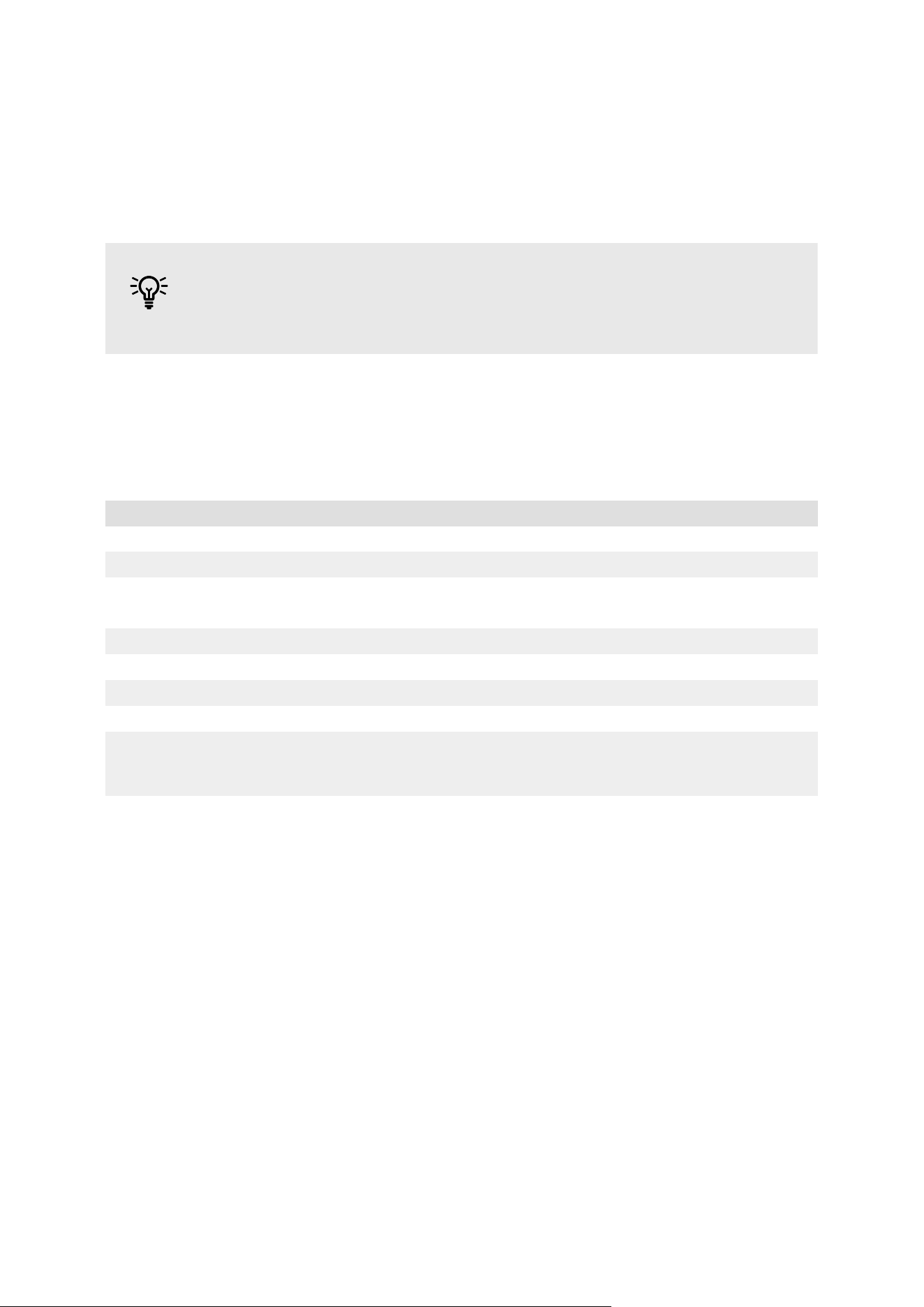
Arp Gate
Encoder 4 controls how much of the time between the arp notes each note fills. The range is
0% to 95%.
TIP
It is possible to have longer gates, see Arp Tie [44] for more information.
Arp Type
Encoder 5 changes the Arp Type. Arp Type refers to how the notes, or chord, you are holding
are played by the arpeggiator.
Arp Type Behaviour
Up Plays each note from the lowest note to the highest note.
Down Plays each note from the highest note to the lowest note.
Up/Down Plays each note from low to high, then back again.
The highest and lowest notes are not repeated.
Up/Down 2 The highest and lowest notes are repeated.
As Played Plays the notes you're holding in the order you played them.
Random Plays the notes you're holding in a random order.
Chord Plays all notes as a chord on each arpeggiator step.
Strum Notes play when you move the modulation control. Hold some keys and as you move up or down
with the modulation control the notes (or Latched or Chord mode notes) play. This emulates the way
chords are strummed on a guitar.
Arp Octave
Encoder 6 adjusts the number of octaves the arpeggiator plays the notes over. You can select
from one to four octaves.
Arp Mutate
Encoder 7 adjusts how much the mutate control affects the arpeggiator. Arp mutate affects all
arp types.
Turning encoder 7 adds variation to every note in your arpeggio. A new ‘mutation’ happens
each time you move the encoder or retrigger from the keys. When you stop turning the
encoder, the notes are set and repeat indefinitely.
42
Encoder position Possible mutation applied (semitones)
0 No additional notes
1 - 19 +12
20 - 63 +12, -12, -7
64 - 100 +12, -12, -7, +7
101 - 115 +12, -12, -7, +7, +3, +4, +10
116 - 127 Any note from -12 to +12
Arp Rhythm
Encoder 8 changes the arp's rhythm and shows a representation of the steps on the screen.
Turning the Rhythm encoder makes rhythmic variations. Every time you move the encoder,
you’ll create a different pattern of rests.
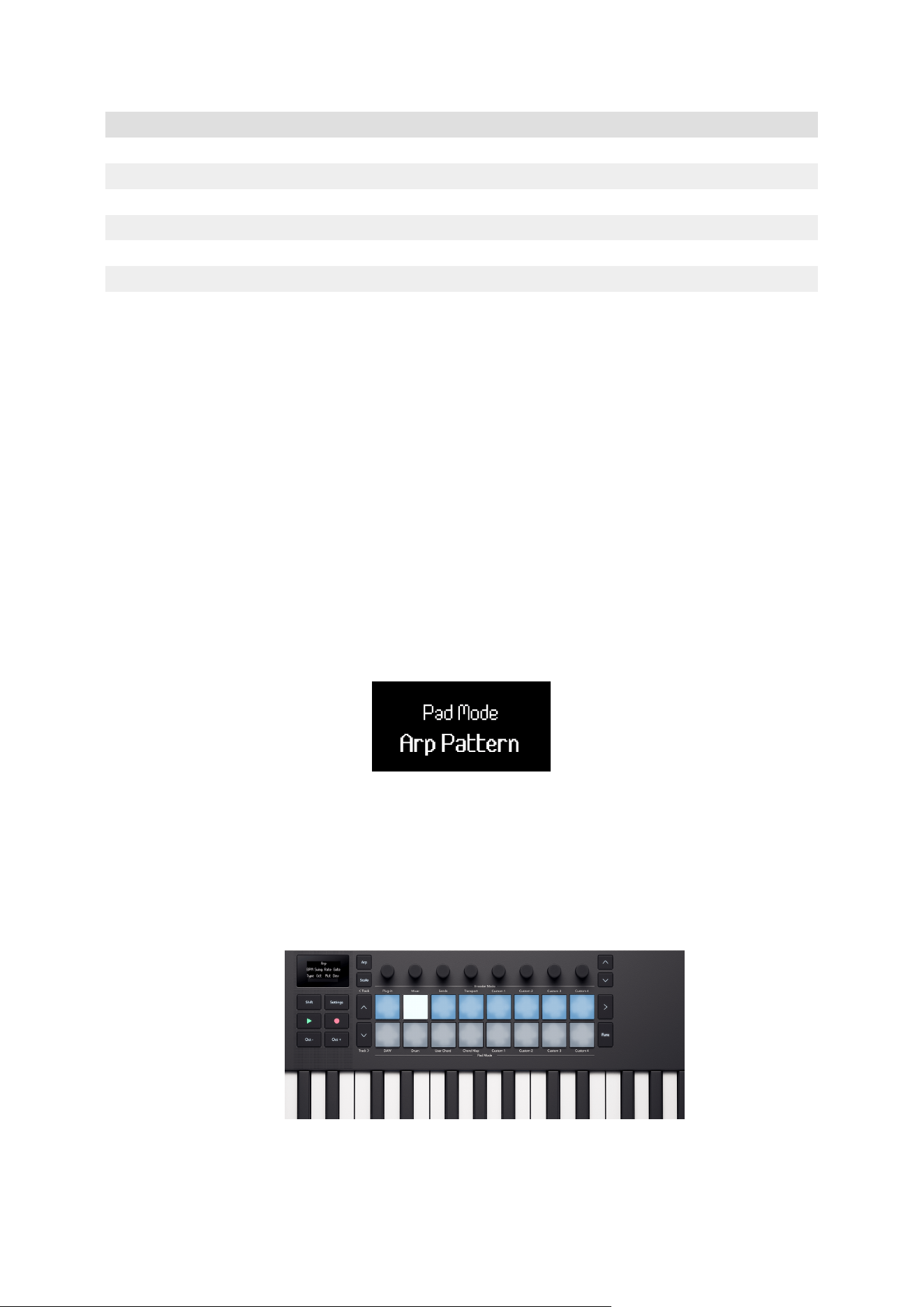
Arp Pattern Mode
Arp Pattern is a pad mode that brings your arpeggiator steps onto the pads and gives you
extra arp functionality for more interactive arp editing.
To access Arp Pattern Mode, hold the Arp button.
When you select Arp pattern mode, the screen temporarily shows Pad Mode Arp Pattern.
In Arp Pattern Mode:
• Active steps are lit blue and inactive steps are unlit. The arp plays active steps and mutes
for inactive steps. When the arp is playing, the current step position lights on the top row
of pads.
• You turn off arp steps using the top row of drum pads. Press a pad to remove the step
from the arp sequence.
43
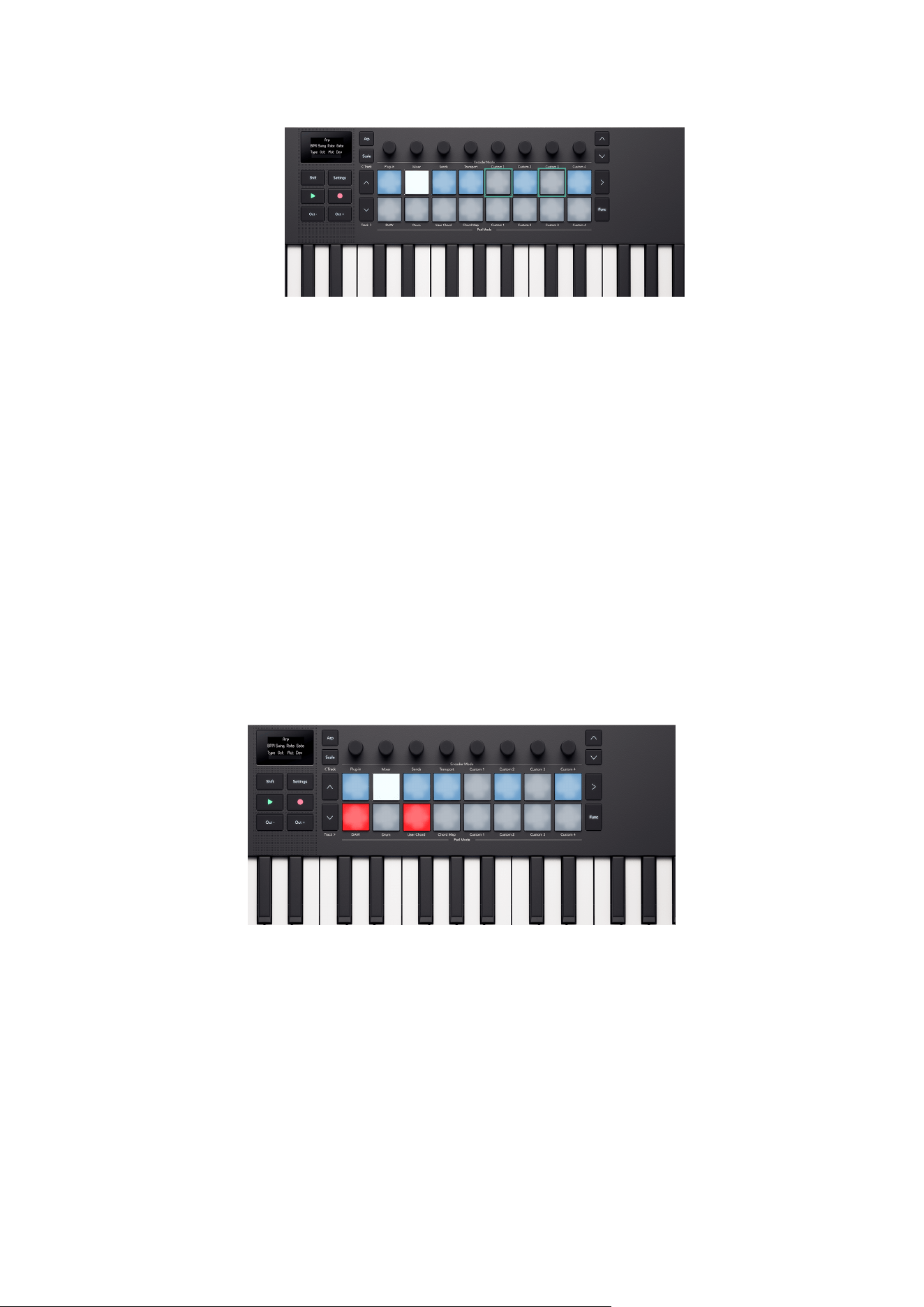
• The bottom row of pads gives you more arp functions you can control per step. Press the
Func. button to cycle between the three functions available: Accent [45], Ratchet [46]
and Tie [44].
These steps are the same as the arp rhythm pattern. Arp rhythm mode affects the grid,
changing the arp rhythm value changes the pattern shown in the grid and overwrites any
changes you make.
Arp Tie
When Arp Tie is on, the Function button lights red and any steps with Arp Tie light red.
Arp tie, links two notes in an arp pattern together. In Arp Tie mode, press a pad on the bottom
row to tie that arp step to the next step. The pad turns red to show the step above it is tied.
When a step has a tie on it, the Arp gate increases to 110%.
44
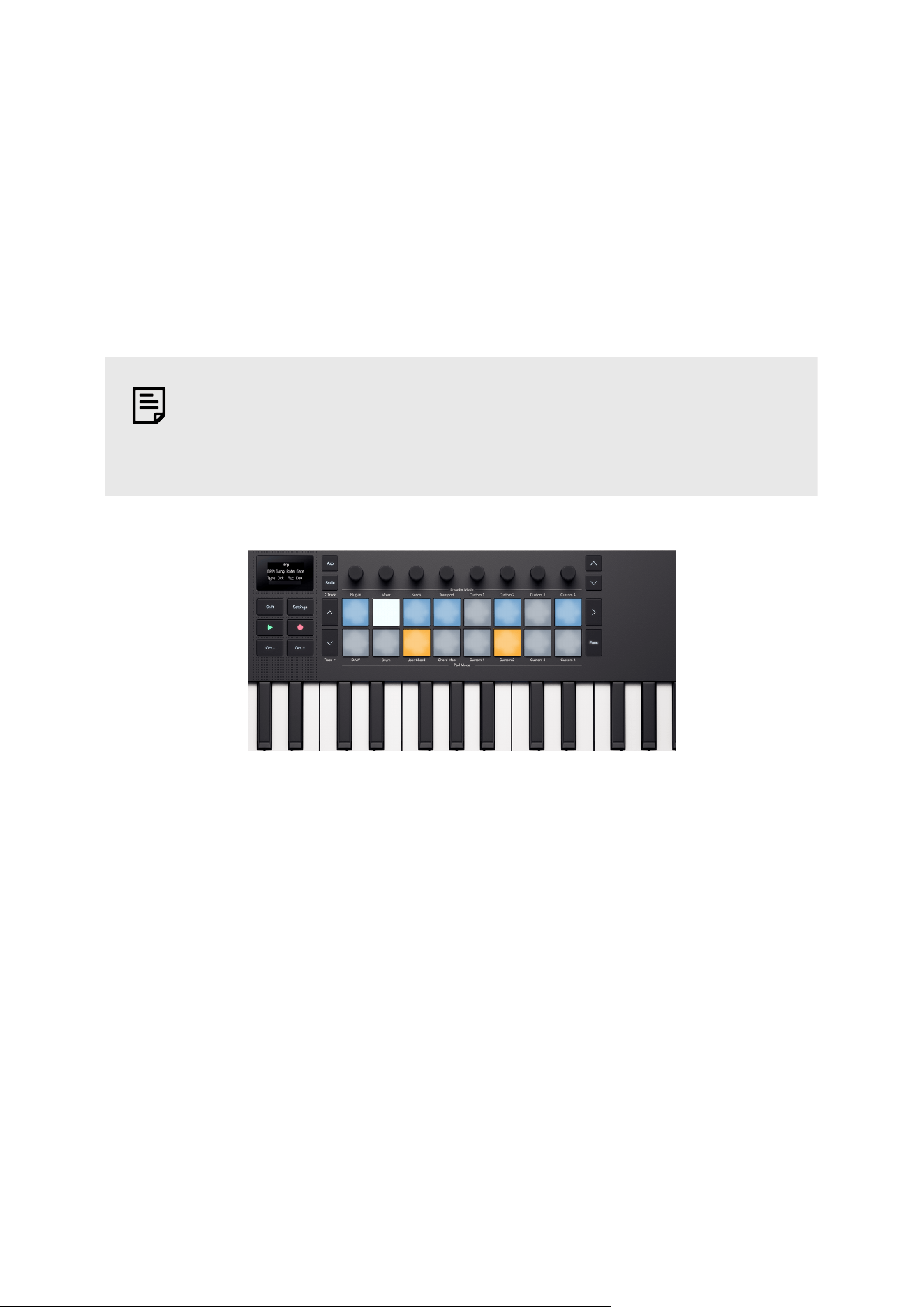
Arp Accent
When Arp Accent is on, the Function button lights orange and any steps with Arp Accent light
orange.
When you add an accent to a step, the Arp step's velocity jumps by +30 velocity compared to
the step without an accent.
The Accent velocity value is capped at 127.
NOTE
Accent affects both notes when Accent and Ratchet [46] are both active for a
step.
45
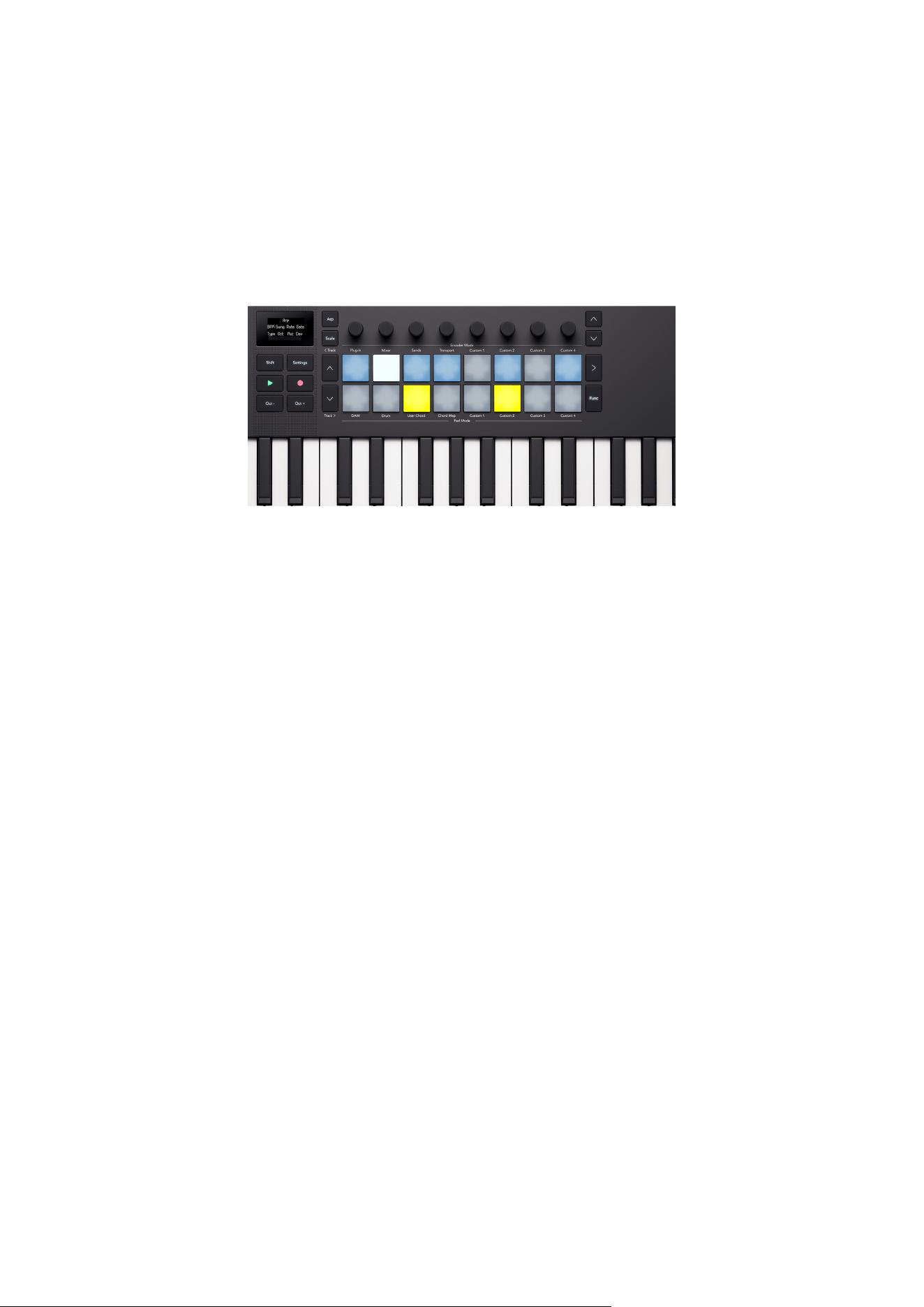
Arp Ratchet
When Arp Ratchet is on, the Function button lights yellow and any steps with Arp Ratchet on
light yellow.
When you add arp ratchet to a step, the arp plays two triggers for that step. For example, if the
arp is at 1/16 a step with ratchet on plays two 1/32 notes. The pitch of the notes stays the same.
46
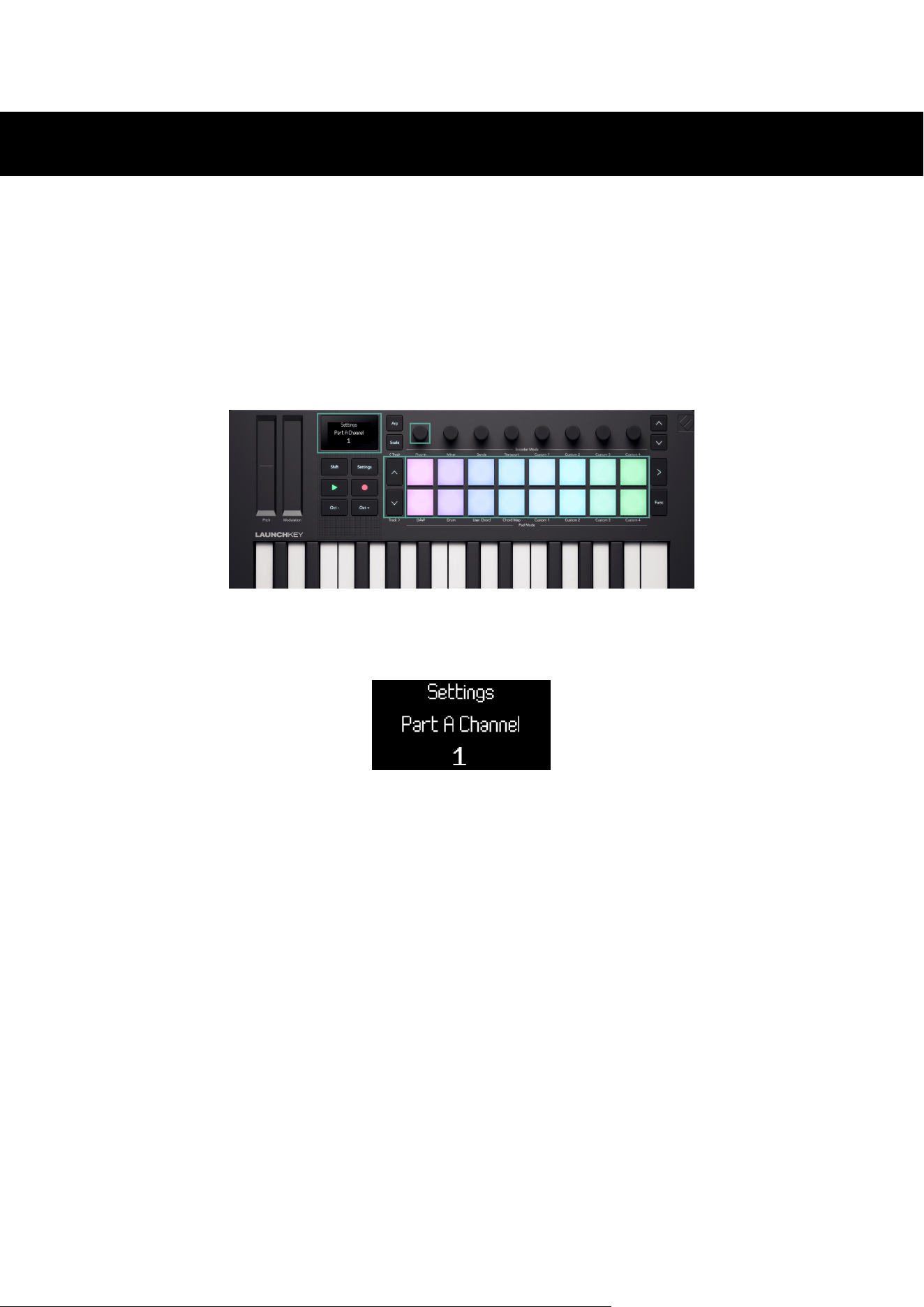
Launchkey Mini 25 MK4 Settings
To access the Settings menu, press the Settings button. When settings is active, the Settings
button is fully lit.
The Settings menu takes over the screen, pads, and encoders. To navigate settings, use the:
• ˄ Up and ˅ down buttons to move through the settings screens.
• Encoder 1 or the pads to change the value of the current setting.
Each screen shows you the Setting and the current value:
To exit Settings, press Settings again. This returns the keyboard to its previous pad and
encoder modes.
47

The settings are:
Setting Value range Description Default value
Keys Channel 1-16 Sets the MIDI Channel the keys transmit on. 1
Chords Channel 1-16 Sets the MIDI channel the chord modes transmit
on.
3
Drums Channel 1-16 Sets the MIDI channel the drum mode transmit
on.
10
Vel Curve (Keys) Soft
Normal
Hard
Fixed
Sets the key's velocity curve. Normal
Vel Curve (Pads) Soft
Normal
Hard
Fixed
Sets the pad's velocity curve. Normal
Fixed Velocity 1-127 Changes the value of the fixed velocity and the
accent value in the arp gates.
120
Arp Velocity On/Off When on, the Arp takes the velocity values from
the keys. When off, Arp velocity defaults to 100.
On
Pad Aftertouch Off
Channel
Poly
Defines if the pads transmit aftertouch and if so,
which type.
Polyphonic
Pad AT Threshold Low
Normal
High
Sets the point when aftertouch starts on the
pads.
Normal
MIDI Clock Out On/Off Enables or disables if the Launchkey transmits
MIDI clock.
On
LED Brightness 1-10 Controls the LED brightness. 8
Screen Brightness 1-10 Controls the screen brightness. 8
Display Timeout 1-10 Changes the length of temporary screen
messages in 1 second intervals.
5
External Feedback On/Off Changes incoming MIDI to light corresponding
drum or Custom Mode pads.
On
Vegas Mode On/Off Enable or disable Vegas mode. Off
Power On Modes Encoder Mode:
Custom 1–4
Pad Mode: Drum –
Custom 4
Sets the default , Encoder and Pad modes. Encoder: Custom 1
Pad: Drum
48

DAW control with the Launchkey Mini 25
The Launchkey can control a range of DAWs (Digital Audio Workstations) using various Encoder
and Pad modes.
You can use the Encoder modes on your Launchkey to control Plugins, your DAW's Mixer,
Sends, and DAW Transport modes using the Encoders.
You can also use your Launchkey's pads in DAW and Pad modes.
Many of the DAW controls on your Launchkey are DAW specific, whereas others are shared
features. We've split the DAW features into two sections:
• Features common to all DAWs.
• Features specific to certain DAWs.
Read through both the Common DAW Controls [49] section and the section about your DAW
to fully understand how you can integrate Launchkey in your workflow.
Common DAW Control
Common DAW control relates to your Launchkey's features that work in all supported DAWs.
Once you've read this section, you can read the section relating to your DAW.
Default DAW Control Modes
When you first connect your Launchkey to a DAW, the sections of your Launchkey default to
the following modes:
Control Area Default Mode
Encoders Plugin
Drum Pads DAW
Fader Buttons Arm
49
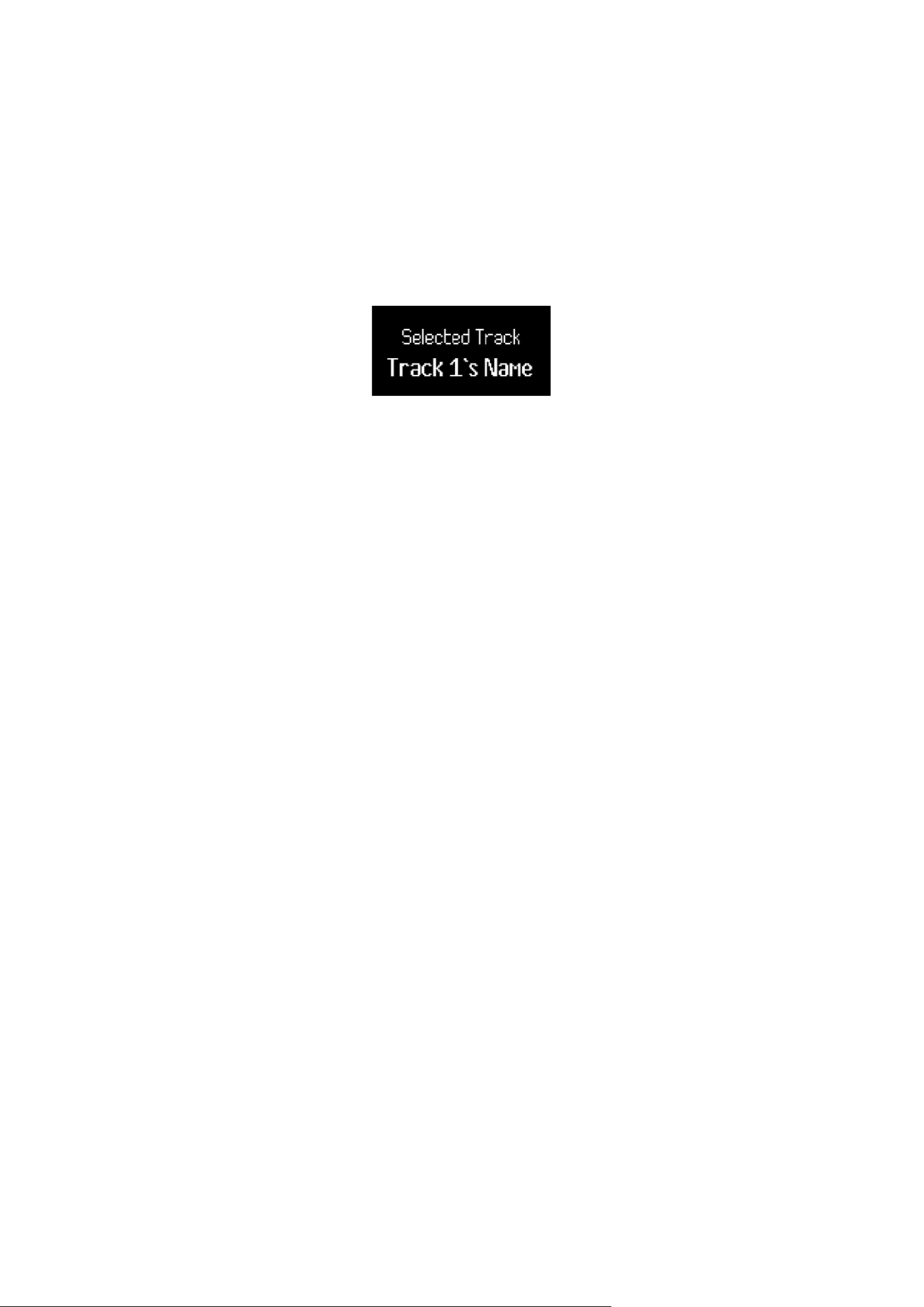
Track Buttons and Navigation
The track buttons do the same thing in all DAWs: Press Track > to move to the next track, and <
Track to move to the previous track.
When you move tracks, your Launchkey Mini 25 MK4 's screen temporarily shows the new
track's name.
When you hold Shift, the Track buttons light to show you when you're able to move track. For
example, if you're on Track 1, the < Track button wouldn't light as you can only move to the next
track.
50
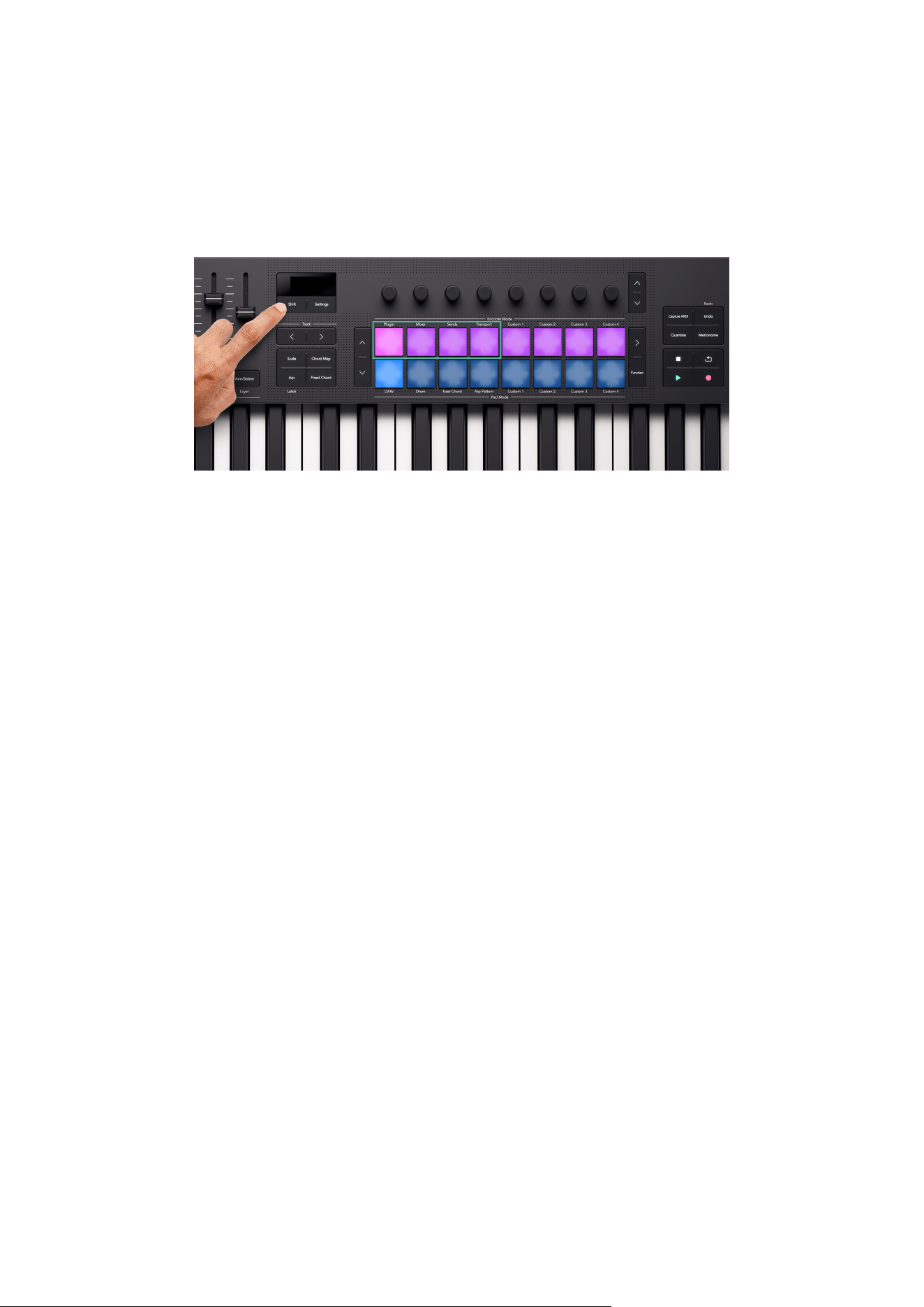
DAW Encoder Modes
Encoder modes assign your Launchkey Mini 25's encoders to different sets of controls.
To change Encoder mode, hold the Shift button and press one of the top row's pads.
The Encoder modes that relate to DAW control are:
• Plugin - controls the currently focused plugin.
• Mixer - controls Tracks' Level and Pan.
• Sends - controls the DAW Mixers Send controls
• Transport - controls elements of the DAWs transport beyond the Play/Pause buttons
For more information on each DAW Encoder mode, read the next few sections.
Plugin Encoder Mode
Plugin mode assigns your encoders to control the currently focused plugin in your DAW. You
can control your DAW's stock plugin effects and instruments and third-party plugins.
Each DAW has its own way of assigning plugin controls to the encoders, so please see the
section relating to your DAW.
51
Transport Encoder Mode
Transport mode brings controls of your DAW's arrangement view onto your encoders, giving
you hands-on control of your project's navigation.
The screen shows short names for the following controls, explained in the table below and
following sections:
Encoder Function Short name
1 Transport Position (Scrub) Scrb
2 Zoom Zoom
3 Loop Start point LPS
4 Loop End point LPE
5 Marker selection Mark
6 N/A
7 N/A
8 Tempo (BPM) BPM
NOTE
This mode is slightly different in Ableton Live. For more information, see Live's
Transport Encoder Mode [58].
Playback Position
Encoder 1 controls Scrub, or Playback Position. The encoder moves the playhead left and right
through your arrangement in beats.
The screen shows the current playhead position.
Zoom
In Transport Encoder mode, Encoder 2 increases and decreases the Zoom level.
Moving the Zoom encoder clockwise Zooms in, anti-clockwise Zooms out.
The screen temporarily shows the last Zoom change:
52
Loop Start and End
Encoders 4 and 5 control the Loop Start and Loop End points in your DAW.
When you change the Loop points, the screen temporarily shows the Loop point you've
changed, and its position in Bars and Beats.
Marker Select
The Marker select encoder moves your DAW's playhead between markers you've set up in your
DAW.
Moving the encoder clockwise or anti-clockwise moves your playhead to the next or previous
marker.
When you move markers, the screen temporarily shows the name of the marker you've moved
to.
If you've not set up any markers in your project yet, the Marker Select encoder doesn't do
anything and when you move it the screen shows 'No Markers':
The way you add markers varies by DAW. To find out how to add markers in your DAW, read the
user guide for your specific DAW.
53

Using the DAW and Drum Pad modes
In terms of DAW control, the pads have two modes: DAW and Drum. You can change these
using Shift + Drum pad mode buttons.
In DAW mode, the pads change function depending on the DAW you're using. Checkout the
DAW specific sections of this user guide to find out more.
Drum mode
In Drum mode, the pads follow the same behaviour as the regular Drum Pad mode [55].
However, when you're using Drum mode in a DAW, the pads light in the colour of the currently
selected track to clarify which track you're controlling.
54
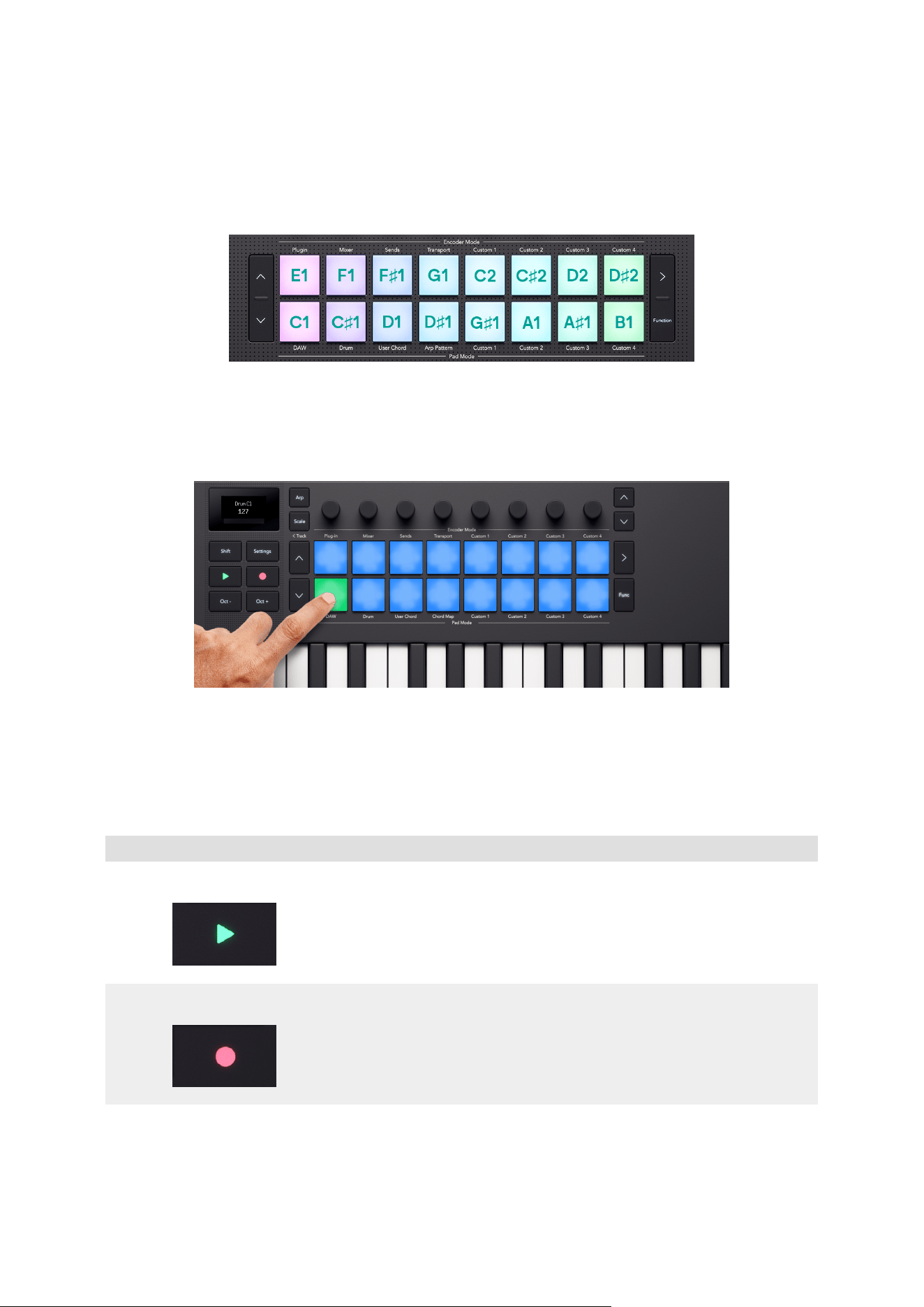
Drum Pad mode
When you select the Drum pad mode, the pads trigger MIDI notes. By default, the notes are
arranged from C1 to D♯2 (bottom left to top right) and on MIDI channel 10.
In Drum mode, the pads light blue outside your DAW and the track colour in your DAW. The
pads light when you play the pads.
Transport Buttons
The transport buttons match the transport functions of your DAW. However, you can use the
Shift button to access extra functions.
Button Function Shift Function
Play Starts/Stops playback. If playback is active, it pauses
playback.
Record Toggles your DAW's main record
function.
Triggers Capture MIDI (retrospective
MIDI record if available in your DAW).
55
Controlling Ableton Live with the Launchkey Mini 25
In addition to the Launchkey's Common DAW Control [49], you have the following integration
specifically designed for you to get the most out of Ableton Live.
Navigating in Ableton Live
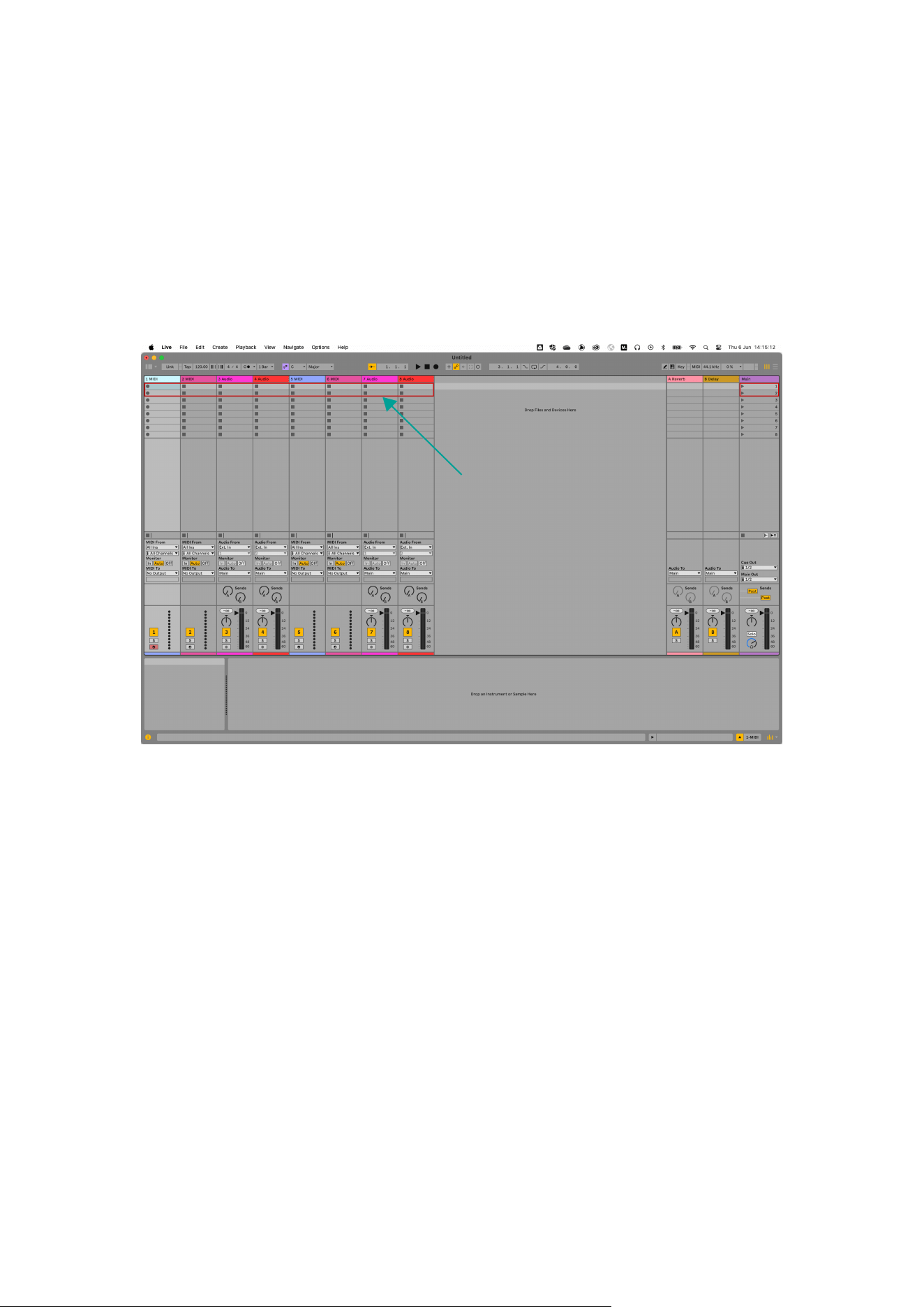
When you connect your Launchkey and open Ableton Live, you'll see a 2×8 focus ring around
the clips. This ring represents the two rows of eight pads on your Launchkey.
Changing Track
The highlighted track in Live is the currently selected track. Any Track related controls, e.g. your
Launchkey's encoders, affect the selected track. To change the selected track, press shift and
one of the Track <> buttons. When you move track:
• Your Launchkey's screen shows you the name of the newly selected track.
• The track is 'soft-armed' so you can play it straight away.
• Any Track related controls, e.g. your Launchkey's encoders, affect the newly selected
track.
The focus ring only moves when you move the track past the eighth track in the current
selection.
Moving between Clips
To move the focus ring up and down to select new clips in the same tracks, use the Pad ˄ up
and ˅ down buttons.
56

Ableton Live Encoder modes
For the most part, the Encoder modes on your Launchkey follow the common DAW Encoder
modes [51]. However, the plugin control gives you access to more of Ableton's Devices.
Ableton Live Plugin Encoder Mode
The Plugin encoder mode gives you control over eight parameters at a time in the currently
selected device or instrument.
The encoders initially control the top eight parameters, but you can use the encoder bank
buttons to access more pages of controls for each device. As you move through screen shows
the device name and the title for the bank of controls.
Changing device
You can change devices within the same track by holding Shift and pressing the encoder bank
up/down buttons.
When you move the device, the screen shows the track name and the new device name.
57

Live's Transport Encoder Mode
Transport mode brings controls of your DAW's arrangement view onto your encoders, giving
you hands-on control of your project's navigation.
The screen shows short names for the following controls, explained in the table below and
following sections:
Encoder Function Screen name
1 Arrangement view playback position Playback Position
2 Zoom horizontal (to playback position) Zoom Horizontal
3 Zoom vertical (Track Height) Zoom Vertical
4 Loop Start point Loop Start
5 Loop End Point Loop End
6 Marker Selection Marker Select
7 N/A
8 Tempo (BPM) Tempo
Playback Position
Encoder 1 controls Scrub, or Playback Position. The encoder moves the playhead left and right
through your arrangement in beats.
The screen shows the current playhead position.
Ableton's Zoom Control
There are two encoders assigned to zoom in Live: Zoom Horizontal and Zoom Vertical.
Zoom Horizontal
In Arrangement view, Zoom Horizontal keeps the track heights the same but zooms in and out
keeping the playback position central to the zoom.
In Session view, the Zoom Horizontal encoder moves between tracks.
Zoom Vertical
In Arrangement view, Zoom Vertical changes the track heights.
In Session view, the Zoom Vertical encoder adjusts the selected clips.
Loop Start and End
Encoders 4 and 5 control the Loop Start and Loop End points in your DAW.
When you change the Loop points, the screen temporarily shows the Loop point you've
changed, and its position in Bars and Beats.
58
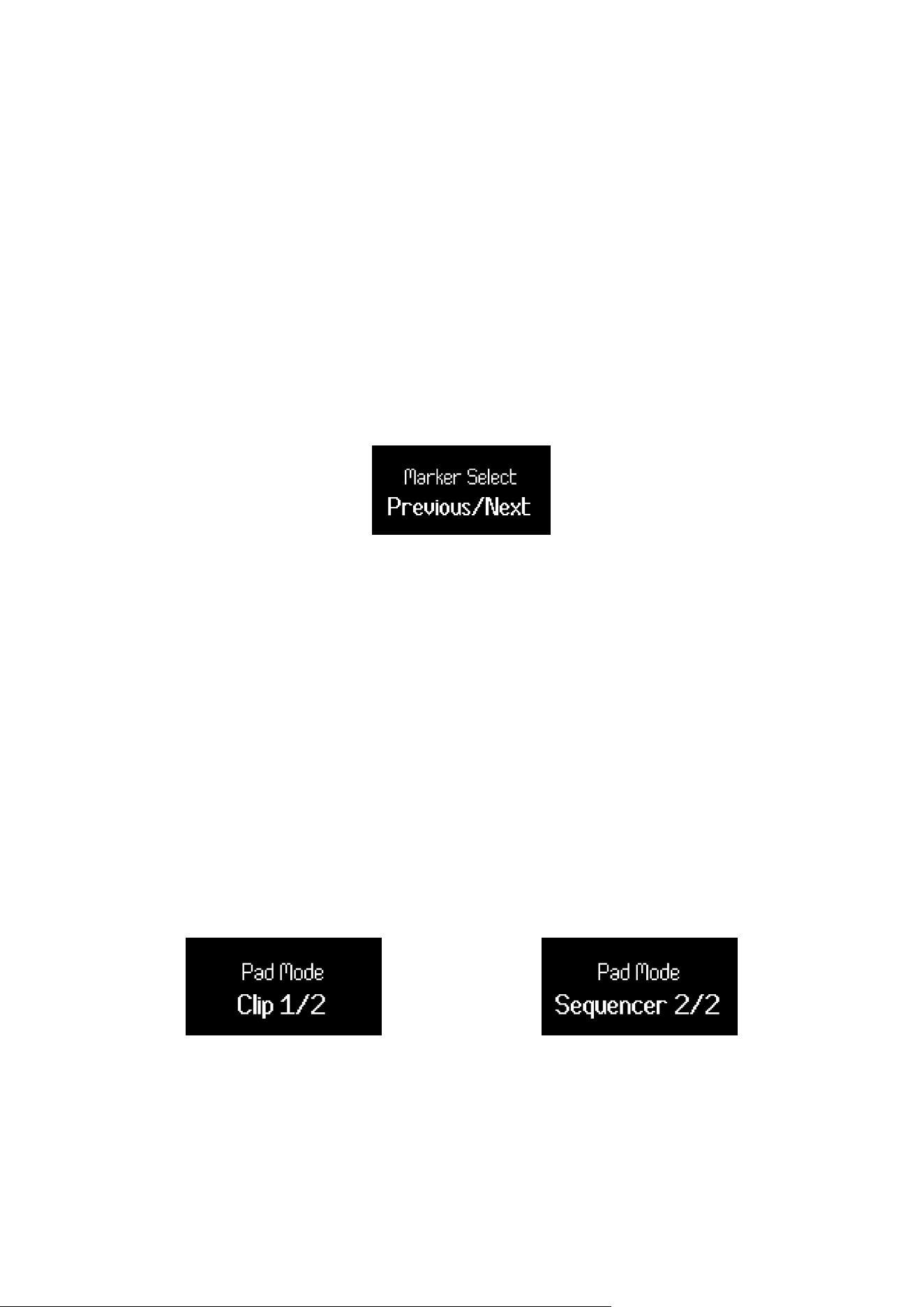
Marker Select
The Marker select encoder moves your DAW's playhead between markers you've set up in your
DAW.
Moving the encoder clockwise or anti-clockwise moves your playhead to the next or previous
marker.
When you move markers, the screen temporarily shows the name of the marker you've moved
to.
If you've not set up any markers in your project yet, the Marker Select encoder doesn't do
anything and when you move it the screen shows 'No Markers':
The way you add markers varies by DAW. To find out how to add markers in your DAW, read the
user guide for your specific DAW.
Ableton Live Pad Modes
In Ableton Live, your Launchkey has three pad modes.
• Clip - for clip launching.
• Sequencer - for editing and sequencing MIDI clips from the Launchkey 's pads.
• Drum - for controlling Ableton's Drum Rack device.
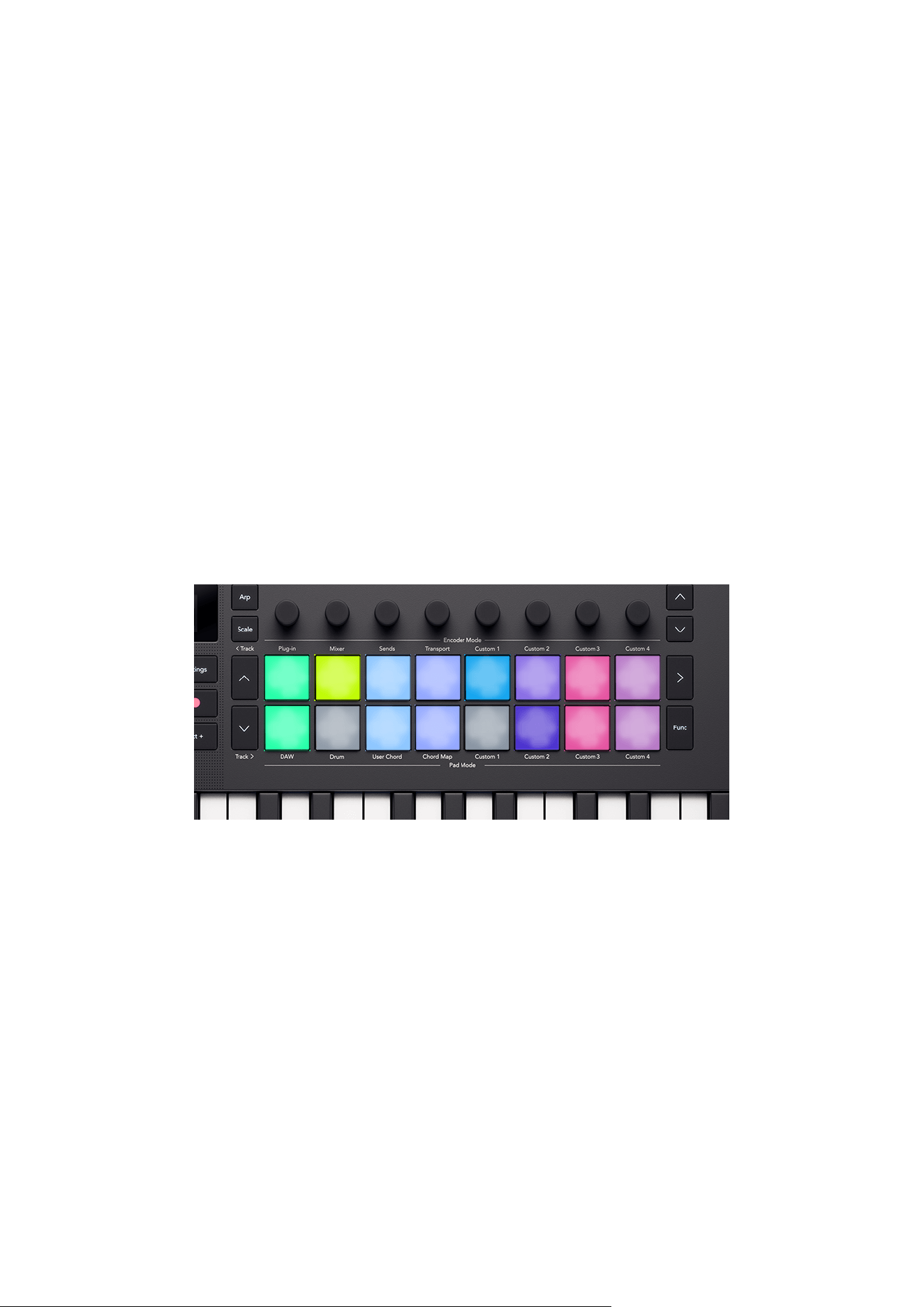
To access the Clip or Sequencer pad modes, hold Shift and press Pad 9 (DAW) once for Clip
and twice for Sequencer. The screen shows you which Pad mode you're in when you press the
DAW pad.
To access the Drum pad mode, hold Shift and press pad 10 (Drum).
59
Ableton Live Clip Launcher Pad Modes
In the Clip pad mode your Launchkey gives you controls for live performing your set, bringing
Ableton's session mode to life. You have access to clip launching, stopping, and track Mutes
and Solos.
Ableton Live Clip Pad Mode
In Clip launching mode, the pads represent the 2×8 focus ring in Live's Session view. Each pad
controls a clip in Session view.
Pads light a few ways depending on their state:
• Unlit pads show the clip slot is empty.
• Available clips light the same colour as their clip in Live.
• Pads flash green to show you've cued that clip, and pulse green when a clip is playing.
• Pads flash red to show you've cued that clip for recording, and pulse red while you're
recording.
To launch an entire Scene (a row of clips), press the Scene launch > button to the right of the
top row. The Scene launch button lights the same colour as the scene in Live, if you have set up
Scene colours.
Changing the bottom pad row
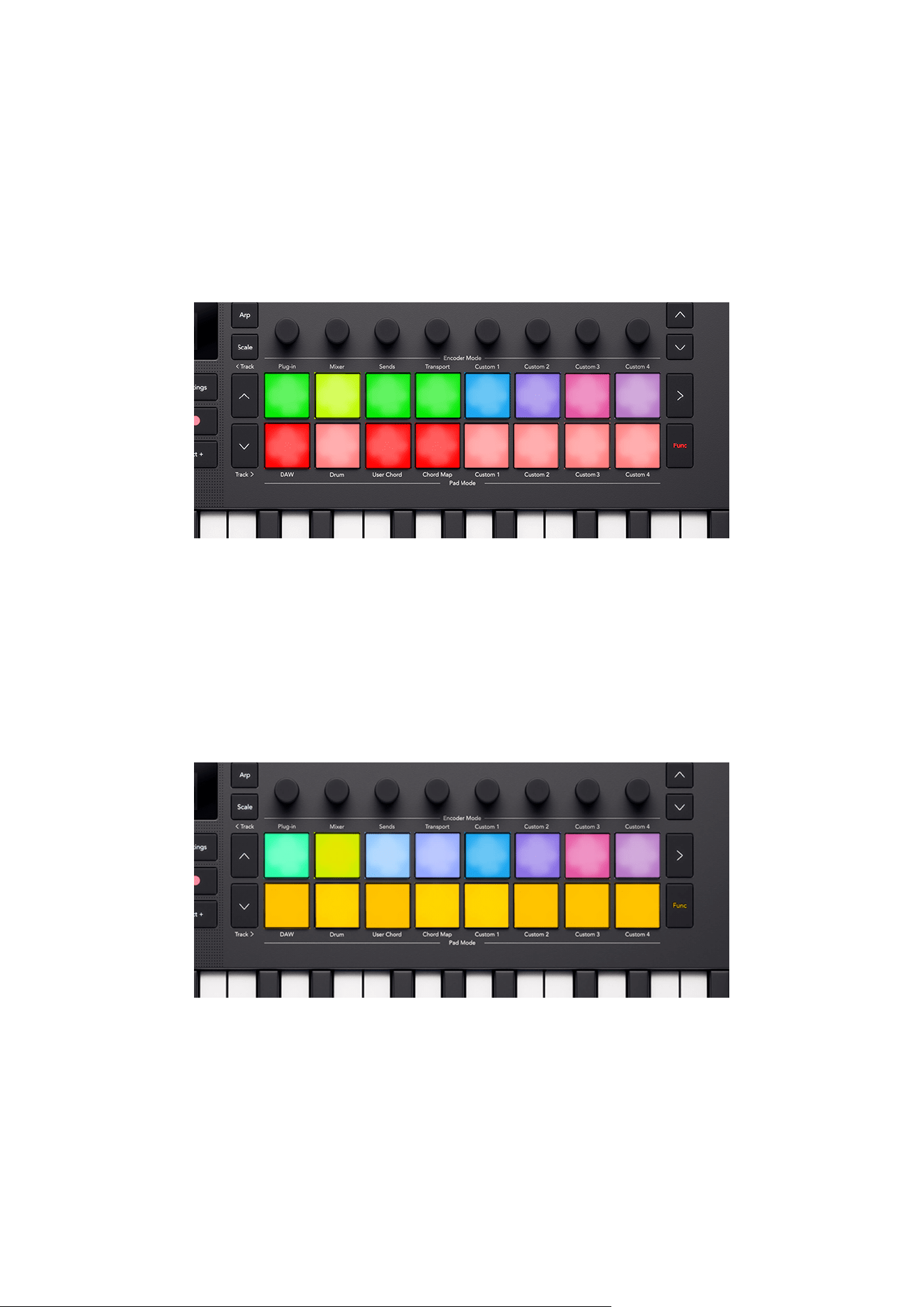
You can change what the bottom row of pads controls using the function button. Each press of
the function button cycles through the following controls:
• Clip Launcher (the default mode as described above).
• Stop mode. [61]
• Mute mode. [61]
• Solo mode. [62]
60
Ableton Live Pad Mode: Stop
Stop mode changes the function of the bottom row, so pressing a pad stops the currently
playing clip on that track.
In Stop mode, the pads light red; they light bright red when the track has a clip playing and dim
red for tracks that don't have a playing clip. In Stop mode, the Function button lights red.
Ableton Live Pad Mode: Mute
Mute mode changes the function of the bottom row so they show the Mute status of each
track. Pressing a pad Mutes, or unmutes, a track.
In Mute mode, the pads light orange; they light bright yellow when the track is active and dim
yellow for muted tracks. In Mute mode, the Function button lights yellow.
61
Ableton Live Pad Mode: Solo
Solo mode changes the function of the bottom row, so pressing a pad changes the Solo state
of that track.
In Solo mode, the pads light blue; they light bright blue when the track is Soloed and dim blue
that aren't Soloed. In Solo mode, the Function button lights blue.
Using the Launchkey Mini 25's Ableton Sequencer
Your Launchkey Mini 25 gives you hardware control of Ableton Live's clip sequencers. You can
create drum patterns and sequence notes inside clips using the Launchkey's pads and modify
your sequences using the encoders.
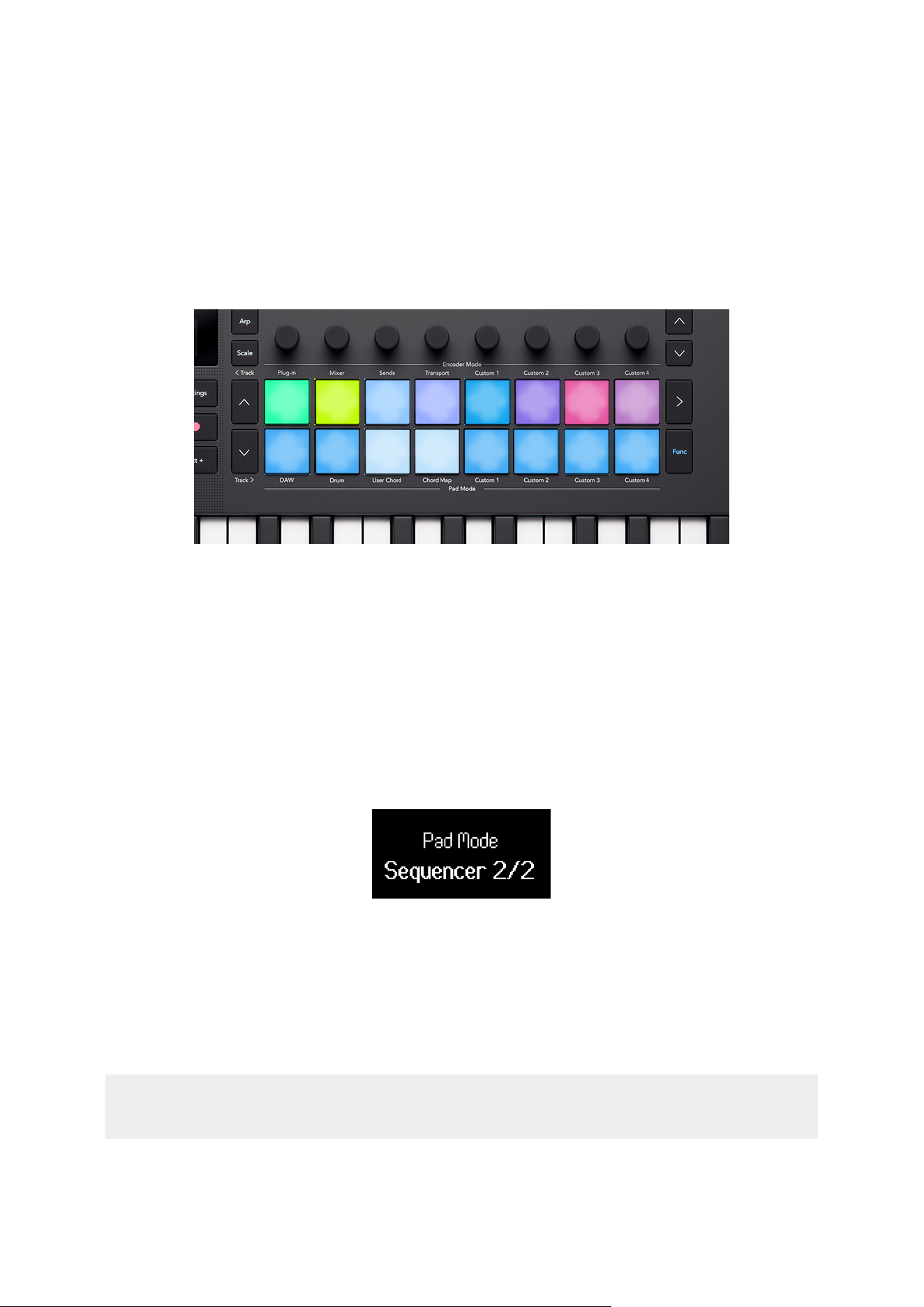
To access the Sequencer mode, hold Shift and press drum pad 9, DAW, so the screen shows
Pad Mode Sequencer 2/2.
When you enter Sequencer mode, what the pads show changes depending on what you have
selected in Live:
You have a MIDI track selected but no clip selected. The pads don't show anything, when you add steps to the
sequence Live creates a new clip in the selected clip slot for
that MIDI track.
You have a MIDI track selected and a clip selected. The currently selected MIDI Clip's sequence is shown on the
pads, and you can edit the sequence (the pads could also be
blank if there are no notes in the clip).
You have an audio track selected. Nothing is shown on the pads, you can only create sequences
using MIDI tracks.
62
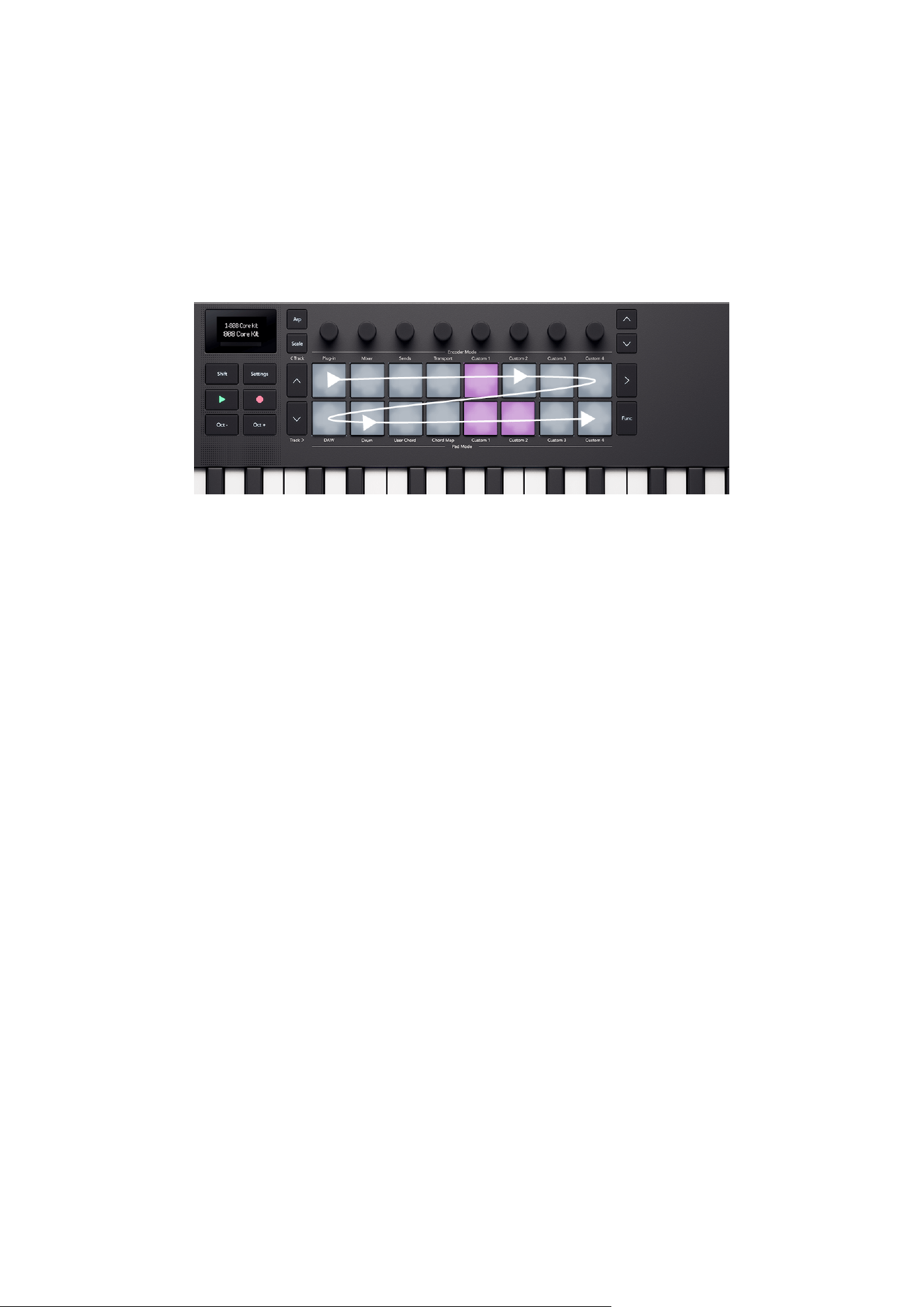
Launchkey's Ableton Sequencer layout and navigation
The Launchkey's 16 Pads each represent a 16th step sequencer, allowing you to see a bar of a
clip at any point.
Steps with active notes light in the track colour for the clip. Empty steps remain unlit. When the
clip is playing the play position is represented by a white pad.
Pad layout with arrows showing the direction of the sequencer
You can create and edit more than a bar of a clip using the Down buttons to the left of the pads
to create the extra steps. You can move between steps 1-16, 17-32, and more, using the Up and
Down buttons.
You can also hold Function and press the Down button to duplicate the current clip and create
a clip double the length with identical bars. After you've done this you can tweak each bar for
variation.
Launchkey's Melody and Drum Sequencers
The Launchkey has two styles of sequencer, melody, and drum, depending on the instrument
assigned to the MIDI track selected. The instrument varies how you enter notes slightly.
If you select a MIDI track with a Drum Rack, you'll see the drum sequencer. The drum sequencer
shows the note sequence for a single drum, the currently selected Drum Rack Pad, e.g. the
snare drum. Changing the currently selected Drum Rack Pad changes what the pads show.
For all other tracks types, the pads use the melody sequencer. The melody sequencer shows
you all steps that have notes and allows you to sequence polyphonic material.
Entering notes to the Launchkey's Ableton Sequencer
As there are two different styles of sequencer, drum and melody, there are two methods of
inputting notes.
63
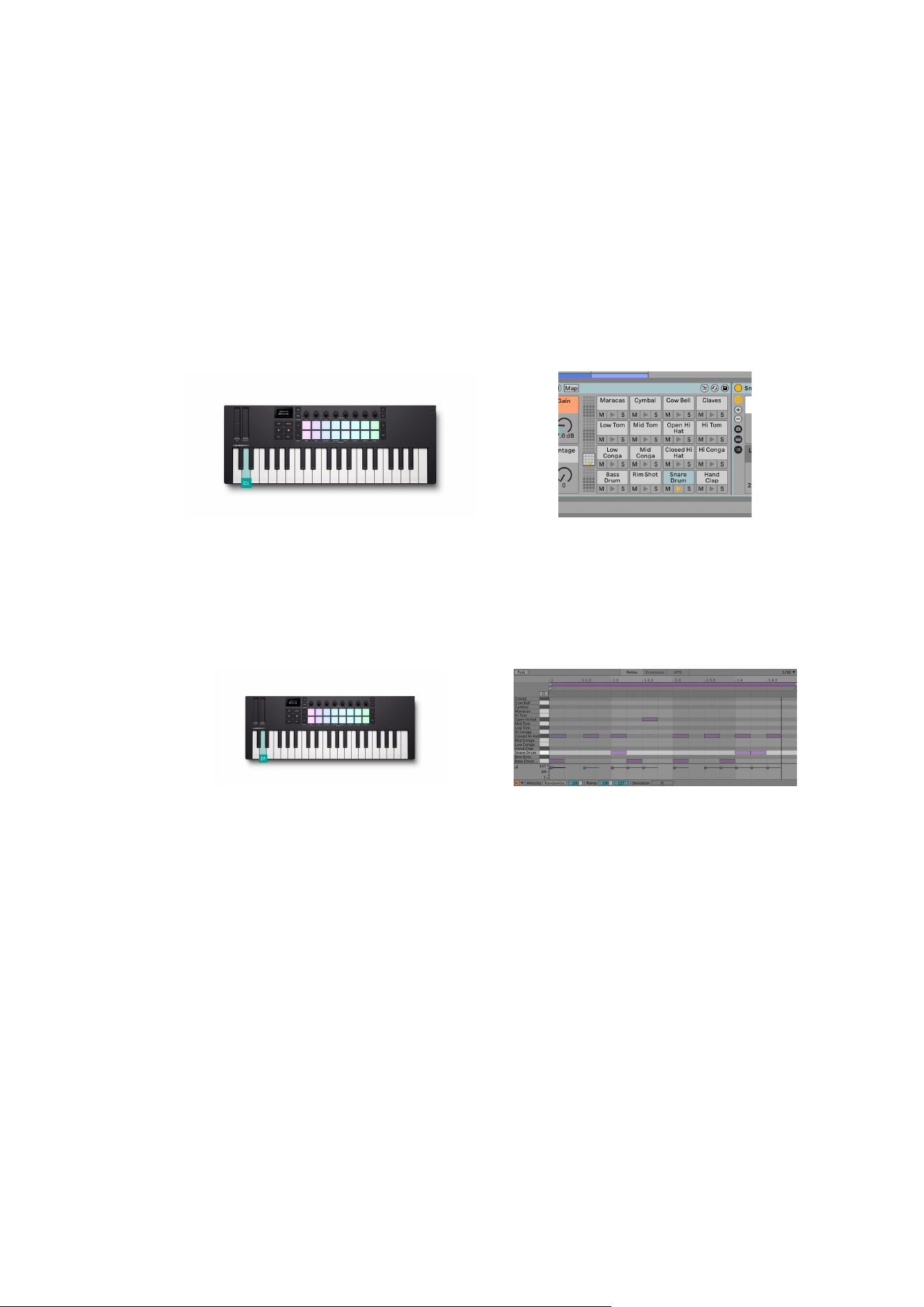
Drum Sequencer
This method works when you have a MIDI track selected that's using Ableton's Drum Rack
device.
1. Select a clip [67]. If the clip is empty the pads are blank, if the clip has notes you'll see
lit pads for each active step of the selected drum.
2. Select a drum rack pad, to do this, press a key on the keyboard that corresponds to the
drum you want to use, e.g. D1 selects the Snare drum here.
Pressing the Launchkey's D1 key to select the Snare
Drum track.
Ableton's Drum Rack with while selecting the Snare
Drum track.
3. Press a pad for each step of the sequence you want to assign your selected drum to. In
the example below we've added a snare to steps 5, 13, and 14.
The Launchkey's pads when the Snare drum is selected. Ableton's MIDI Note Editor for the selected Clip,
highlighting the Snare drum track.
To remove notes from the sequence, press a key to select the drum rack pad you'd like to
remove and press the pads for the steps you'd like to remove.
64
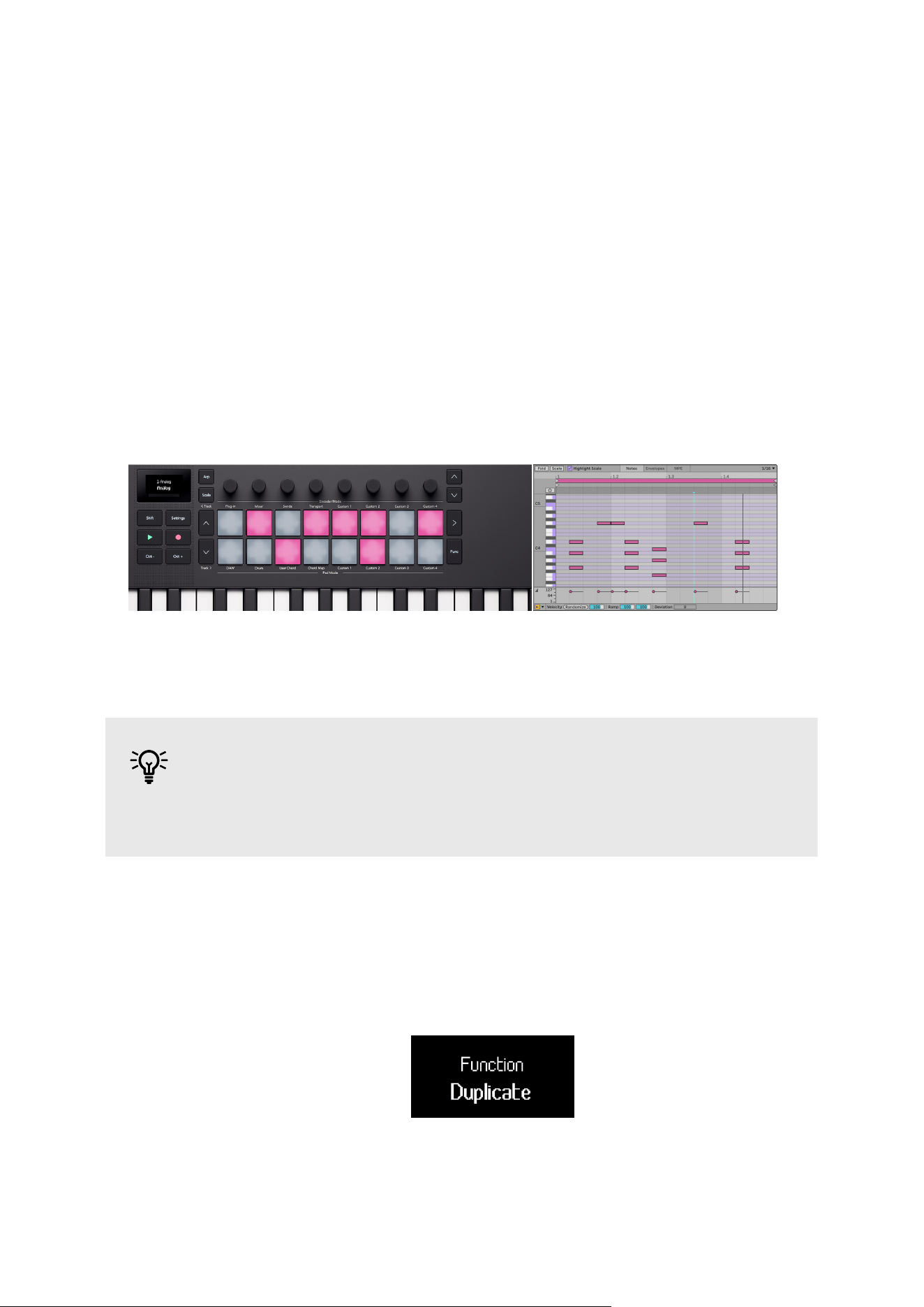
Melody Sequencer
This method works for all instruments, except Drum Racks, on MIDI tracks.
1. Select a clip [67]. If the clip is empty, the pads are blank. If the clip has notes, you'll
see lit pads for each active step.
2. You can enter notes in two ways:
1. Press the note or chord you want to enter on the keys, then press a pad to add
it to that step. You don't have to hold the keys, your Launchkey remembers
the last key(s) you played and add these to a step when you press the
corresponding pad.
2. Hold a pad and play the note(s) you want to enter on the keys.
The Launchkey's pads representing the notes in the
sequencer.
Ableton's MIDI Note Editor for the selected Clip.
TIP
You can add notes and chords to multiple steps simultaneously by pressing
multiple pads simultaneously.
Duplicating Notes
You can duplicate notes to different steps in the clip. To do this:
1. Hold the Func button. The screen shows Duplicate:
2. Press and hold the step you want to copy.
3. Press the empty step you want to copy the notes to.
65

Adjusting Note Sequencer note settings
You can use the Launchkey's sequencer to adjust each step's settings.
To do this, press and hold a note in the Sequence, the screen shows the Note Edit settings you
can access from encoders 1-4.
Encoder Note Setting Explanation
1 Velocity Changes the velocity of the note. You can hold
multiple pads to adjust the velocity for multiple
notes simultaneously.
2 Length Changes the length of the note in steps up until
the next instance of that note.
3 Fine (Length) Changes the length of the note in tenths of a
step (0.1 steps) up until the next instance of that
note.
4 Nudge Moves the note backward up to -20% or forward
up to +70% (as long as the note is not at the
start/end of the clip).
66
Selecting Clips in Launchkey's Ableton Sequencer
Clicking any MIDI Clip in Ableton using your mouse selects that Clip and allows you to edit
the sequence using your Launchkey's pads. However, you can also change the Clip from the
Launchkey. To do this in Sequencer pad mode:
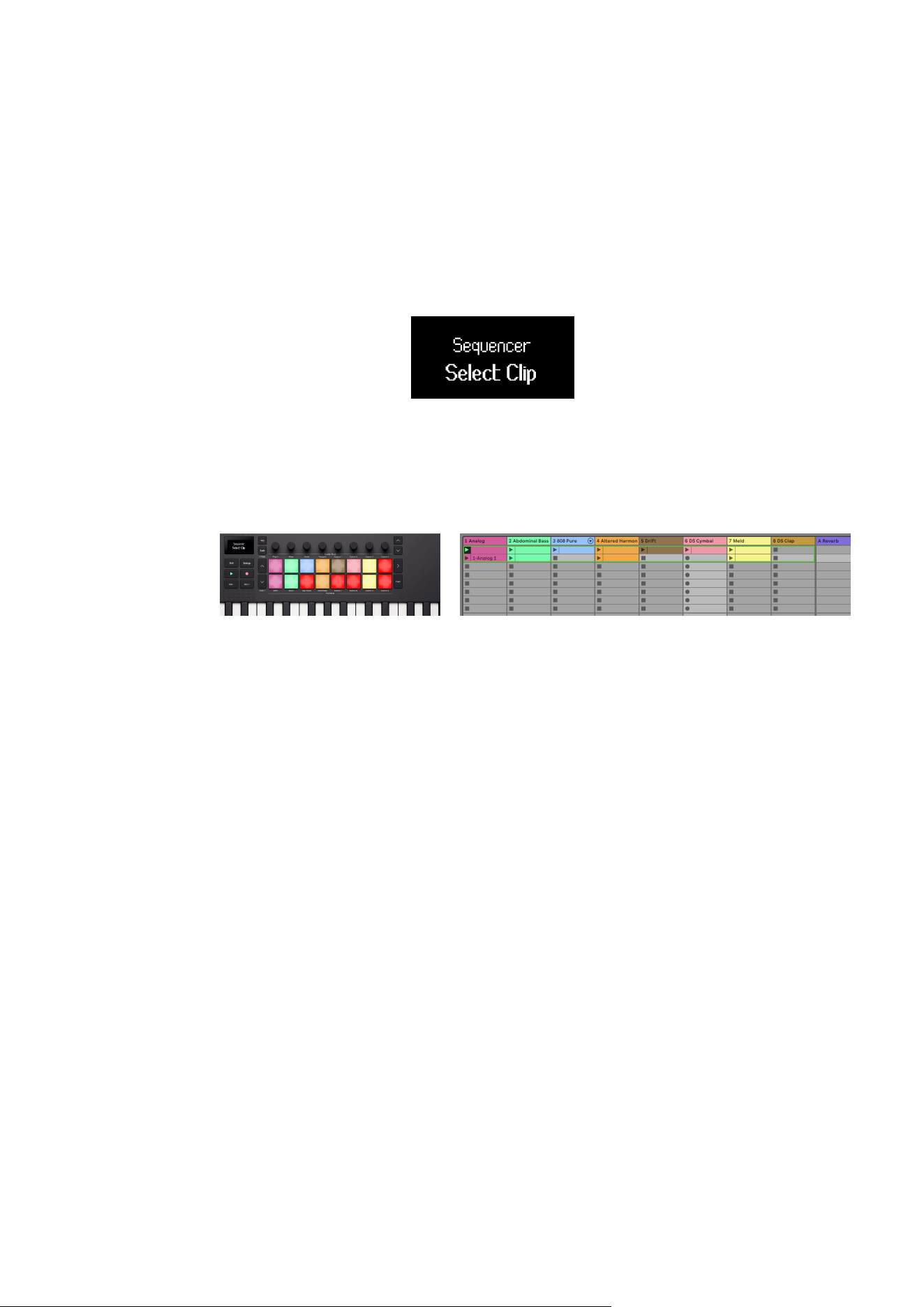
1. Press the Scene Launch button to the right of the top pad row. The screen shows
Sequencer Select Clip.
The pads show the clips available in the current focus ring using the clip colour. Red
clips show empty clip slots. You can use the ˄ up and ˅ down and Track <> buttons to
move the focus ring.
The Launchkey's pads showing the clips you can select.
Empty clip slots light red.
Ableton's Session view showing the focus ring for the
current eight tracks.
2. Press a pad to enter that clip and start sequencing it. Depending on the clip you
choose:
• Pressing a MIDI clip takes you to step entry view to edit the sequence.
• Pressing an empty MIDI clip creates a new sequence in the slot and takes to the
step entry view to edit the sequence.
• Pressing a clip on an audio track does nothing.
Pressing the scene launch button again takes you to the current sequence.
Controlling Ableton Live's transport
The Transport section of your Launchkey works according to the explanation in common DAW
controls: Transport [55], except for the record button.
Ableton's record button
What your Launchkey's record button does varies depending on the view you have open in Live.
• In Session view, record button triggers the Session Record Button in Live.
• In Arrangement view, the record button triggers the Arrangement Record Button in Live.
67
Ableton Live Global Scale
In Ableton Live, your Launchkey synchronises with Ableton Live's Scale Mode.
When you change the Scale, or open a Live set, the Scale is sent to the Launchkey, this allows
the Launchkey's Chord modes to sync with your Live set.
Controlling Logic Pro with the Launchkey Mini 25
In addition to the Launchkey's Common DAW Control [49], you have the following integration
specifically designed for you to get the most from Logic Pro.
Logic Pro: Encoder Modes
Plugin Mode
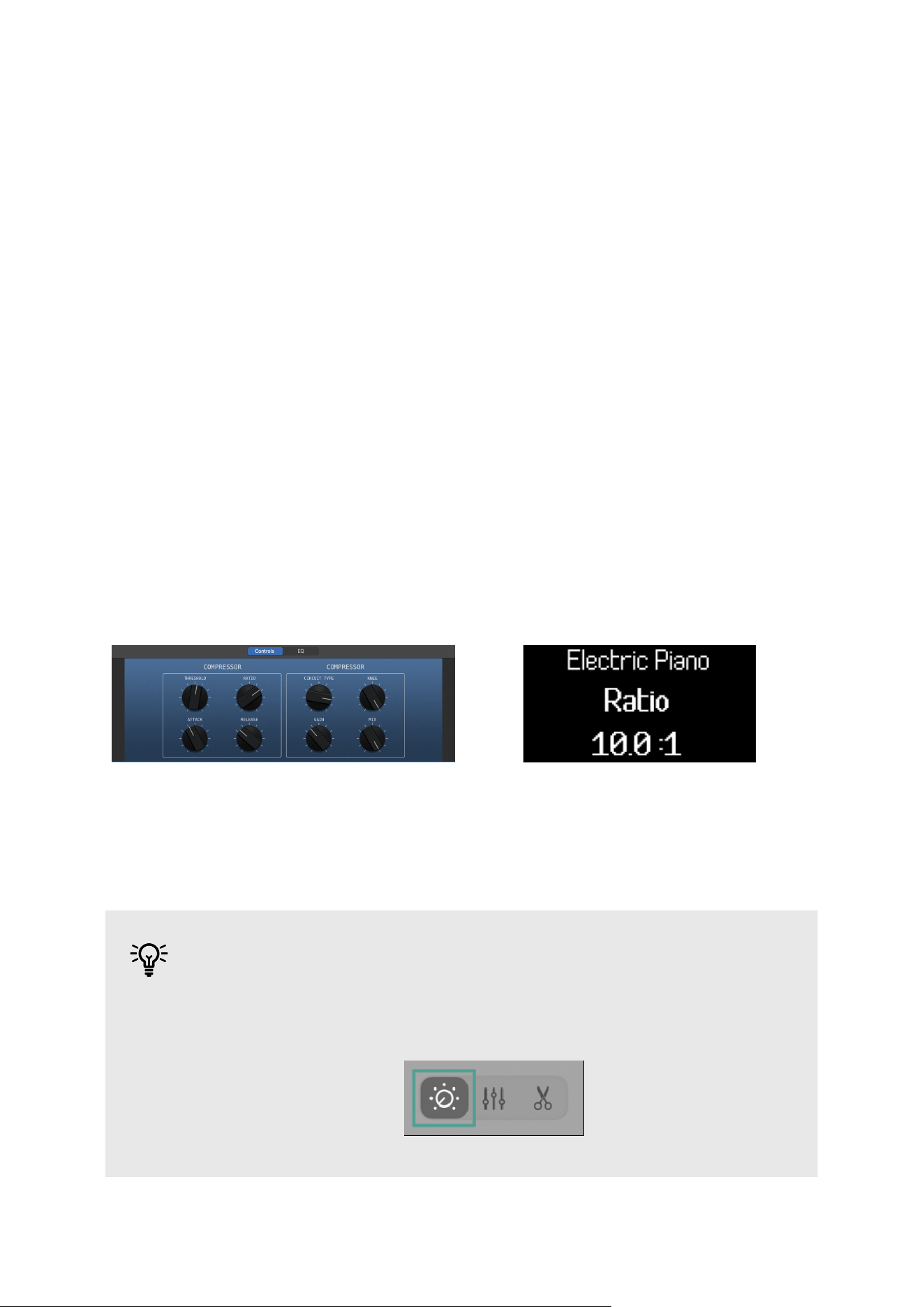
In Plugin DAW mode, your Launchkey's encoders control Logic Pro's Smart controls for the
currently selected plugin or instrument.
When you move an encoder, your screen shows you the name of the track, the parameter, and
the value.
If the plugin/instrument has more Smart Controls, you can use the Page buttons to move
pages.
TIP
You can access Logic Pro's Smart Controls in the top left corner of Logic or
using the shortcut 'B' on your Mac's keyboard.
68
Logic Pro Mixer Mode - EQ
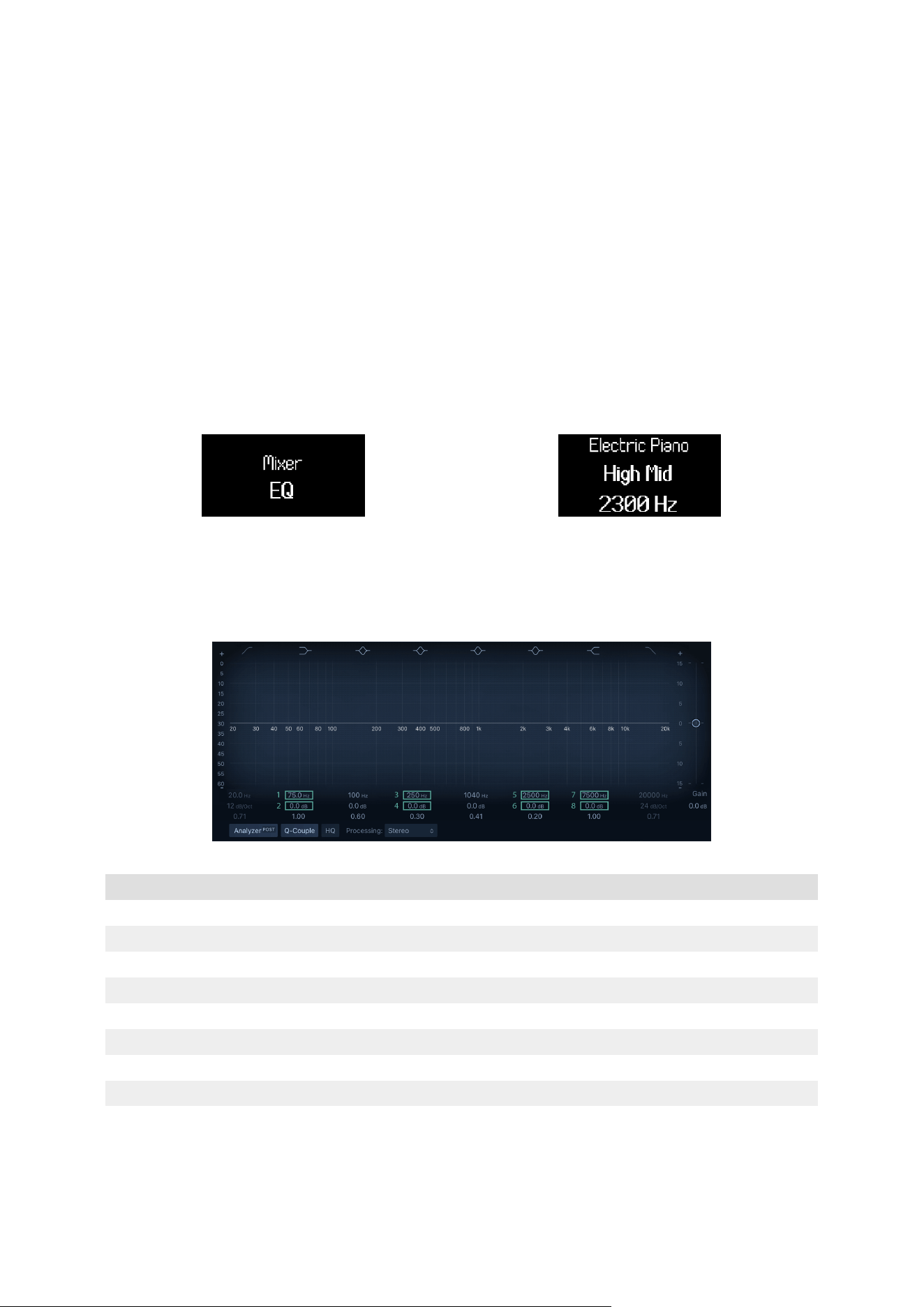
Logic Pro's Mixer encoder mode has three pages, the first two are the common DAW Mixer
modes, Volume and Pan (see Mixer Encoder Mode). Logic has an extra page for Logic's EQ
plugin.
To access the EQ mixer mode, use the encoder bank down button. If you don't have an EQ
plugin on that track, moving to Mixer EQ mode adds one to the track you're on.
When you enter Mixer EQ mode the screen temporarily shows Mixer EQ, when you move the
encoders in Mixer EQ mode, the screen shows the track name, EQ parameter and the value
(either frequency in Hz or gain in dB).
Entering Logic's Mixer EQ encoder mode. Controlling the High Mid-EQ band's frequency with encoder 5.
When you're in EQ Mixer mode, the encoders map to the following EQ controls:
Encoder Parameter Screen Name
1 Band 2 Frequency Low Shelf
2 Band 2 Gain Low Shelf
3 Band 4 Frequency Low Mid
4 Band 4 Gain Low Mid
5 Band 6 Frequency High Mid
6 Band 6 Gain High Mid
7 Band 7 Frequency High Shelf
8 Band 7 Gain High Shelf
69
TIP
A tip to remember EQ mode is: the odd Encoders control the Bands' Frequency
and the even encoders control the Bands' Gain.
70
Logic Pro Pad Modes
DAW Mode
In Logic Pro, DAW pad mode is split into two sub-modes:
• Mixer (Select/Arm/Solo/Mute)
• Live Loops
To change the sub-mode, press the function button.
When you change sub-mode, the screen temporarily shows the Pad Function:
71
Logic Pro Mixer Pad Mode
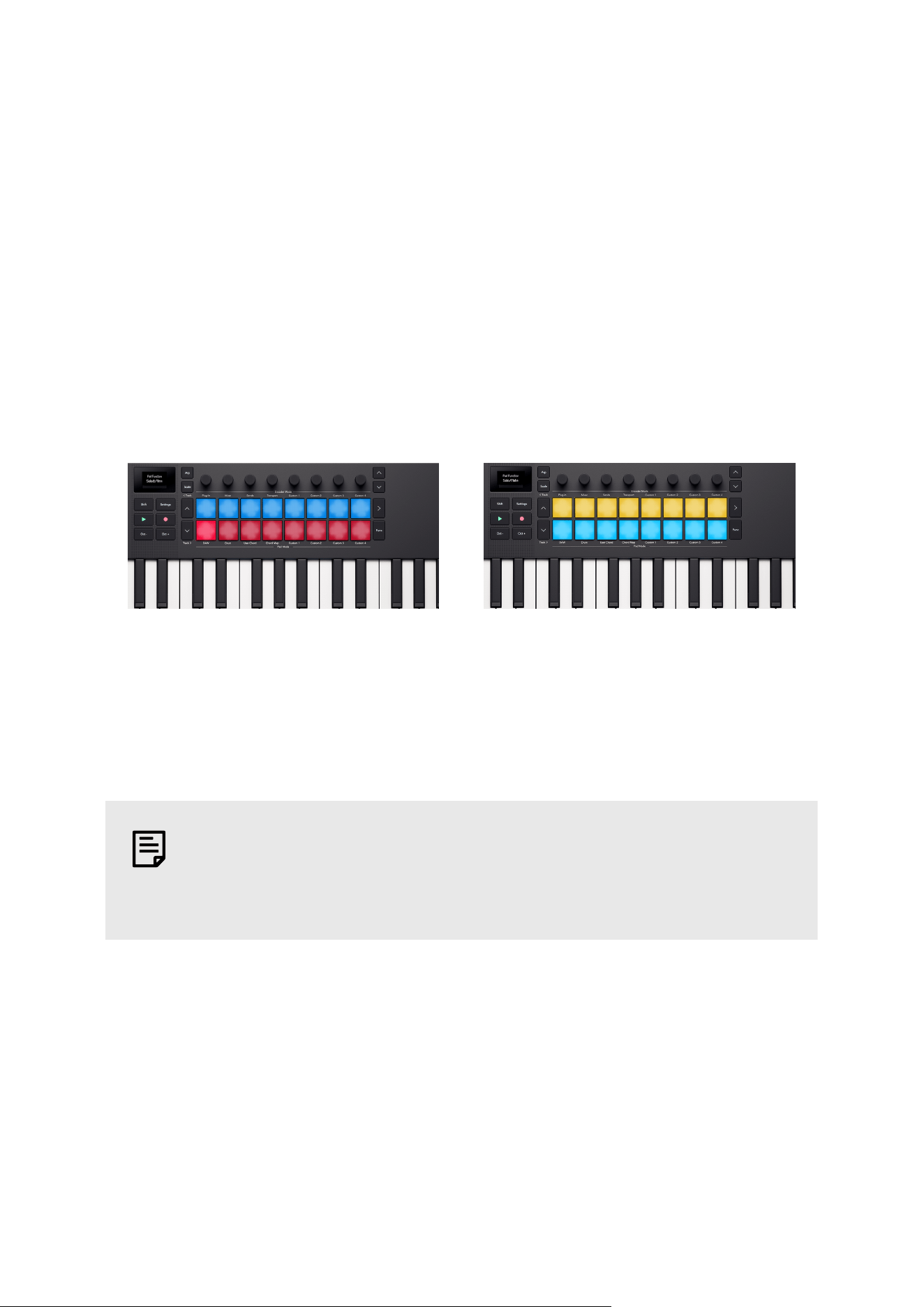
Mixer Mode gives you control of Select, Record Arm, Solo, and Mute using the pads.
On page one the top pad row controls which track is selected and the pads light the track
colour. The bottom row controls the record arm state, bright red shows the track is record
armed, and dim red shows a track is not record armed.
On page two, the top pad row controls track Solos and the bottom pad row controls track
Mutes.
To change between Select/Arm and Solo/Mute, press the Pad ˄ up and ˅ down Navigation
buttons.
The Launchkey's pads in Logic's Select/Arm mode. The Launchkey's pads in Logic's Solo/Mute mode.
Select/Arm is the default pad mode.
You can use < Track and Track > to move by a single track.
NOTE
Any Send or “Master” [sic] tracks also show up in Mixer mode. You can change
the Mute/Solo states in the same way as other tracks.
Live Loops Mode
Live Loops mode gives your Launchkey control over individual Loops and the scene buttons to
trigger a column of loops.
The top row of pads controls your Loops.
The bottom row of pads controls the Scenes.
72
Loop Pads
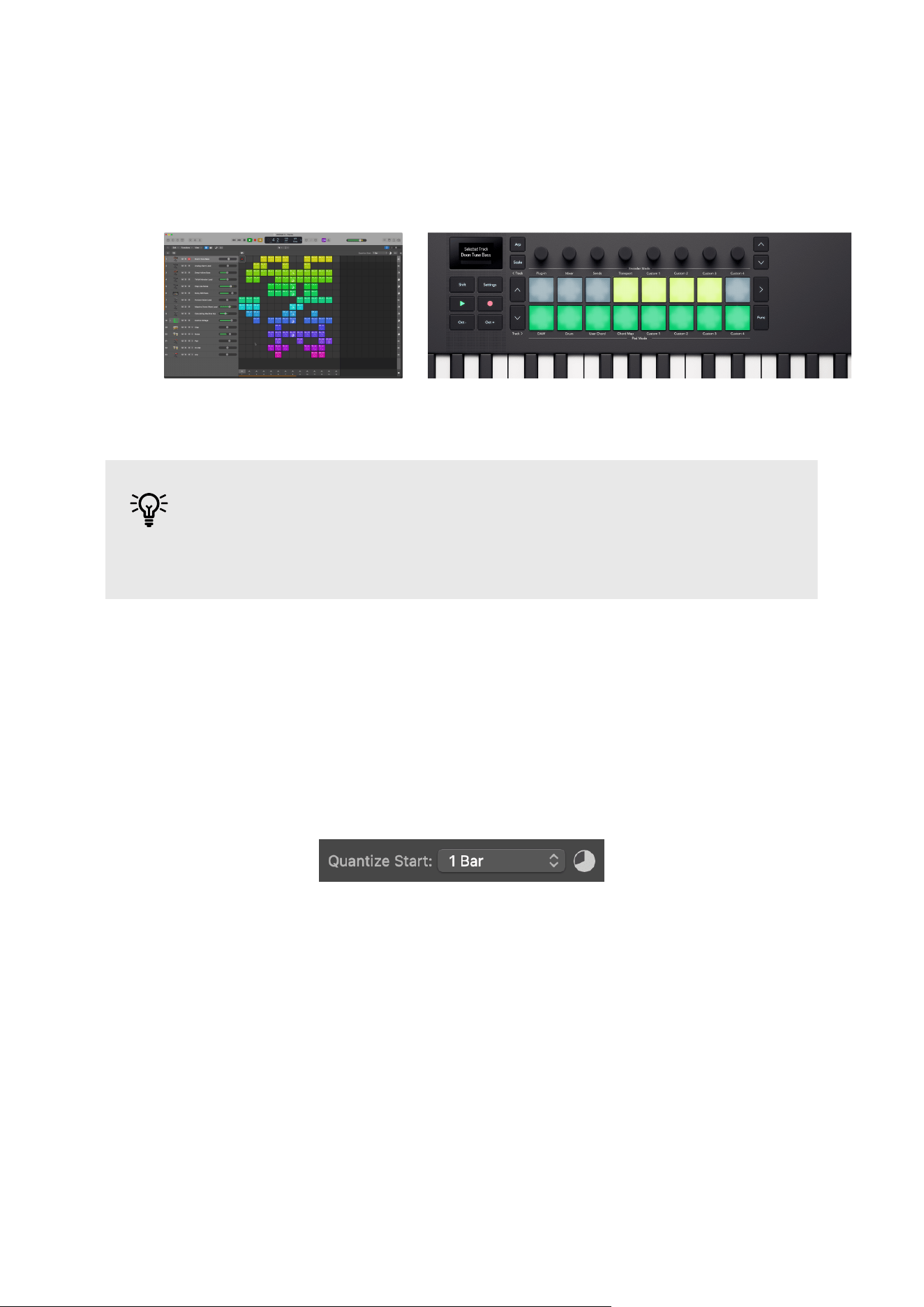
The top row of pads represent the Loops of the selected track. The colours on the pads match
the Loop colours.
The Logic Live Loops session with Track 1 selected. The pads showing the Loop colours.
TIP
To change colours in Logic Pro, go to View > Show Colors > Select a Loop > Click
a colour to change the Loop colour.
To play a Loop, press a pad. While a loop is playing, the pad pulses green.
To stop a Loop, press the playing Loop's pad.
If you press another pad on the same row, this cues the next Loop. The next loop starts
according to how you've set your “Quantize Start” option in the top right of the Live Loops
window.
To record a Loop, press an empty Loop slot (a non-lit pad). While the Loop is recording, the pad
flashes red, press it again to stop the Loop recording and start the Loop playing.
73
Scene Pads
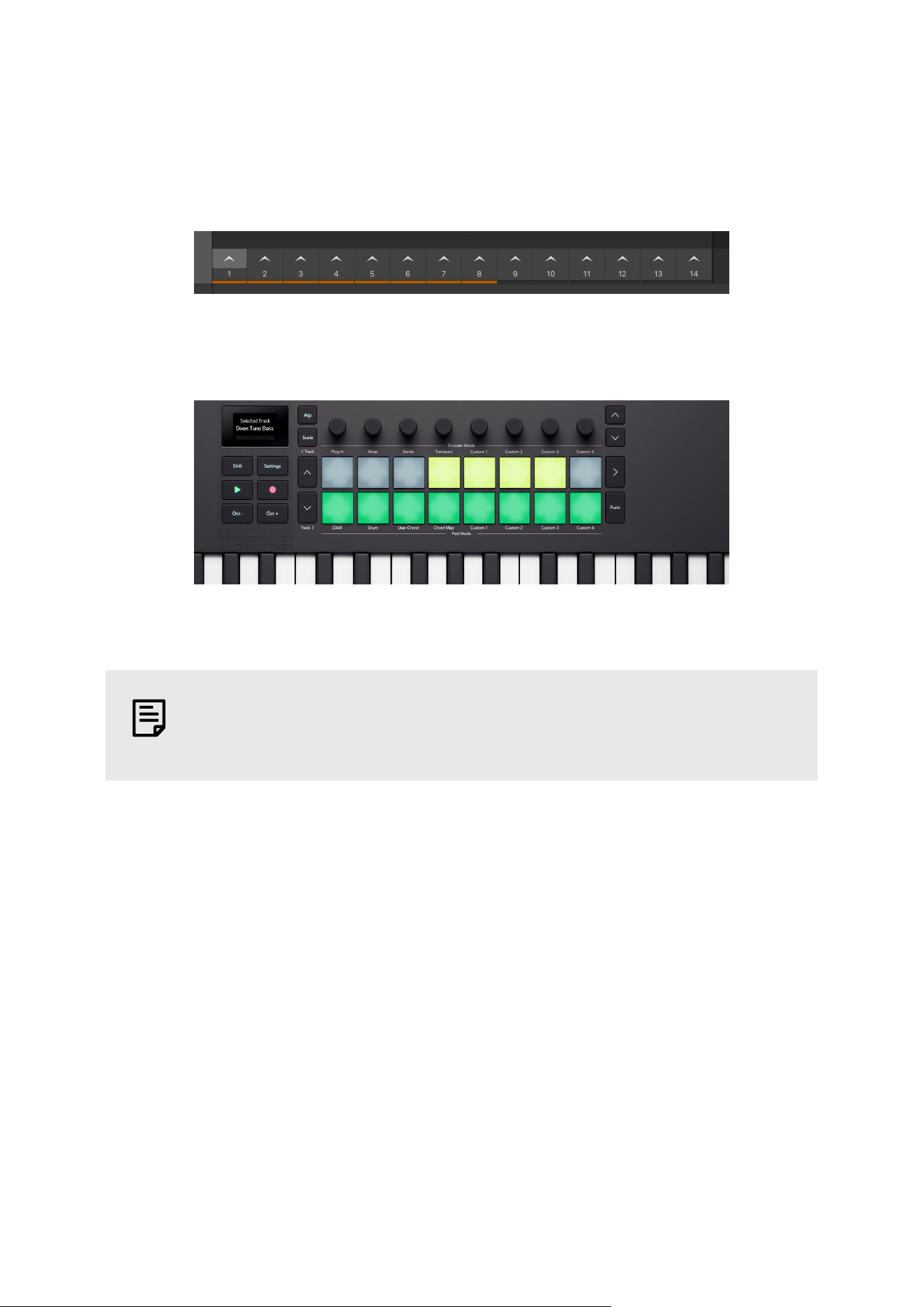
Pressing a bottom row Pad triggers a Scene. In Logic Pro Live Loops, a Scene is a column of
Loops, i.e. a Loop from each track.
Logic Pro Live Loops Scene buttons at the bottom of the page. The orange bar shows which
scenes correspond to the eight pads.
The Launchkey Mini 25's bottom pad row trigger Logic Live Loops scenes.
NOTE
Triggering a Scene doesn't trigger recording in empty Loop slots.
Any playing Loop's pad pulses green to show it's active. As you navigate (see Navigating in
Logic Pro Live Loops Mode [74]) through tracks, you'll see which Loops are playing as part of
the playing Scene.
Navigating in Logic Pro Live Loops Mode
In Live Loops mode, the ˄ Up and ˅ Down buttons to the left of the pads move between the
tracks.
The Track <> buttons scroll left and right through your Loops/Scenes.
As you move around your Tracks and Scenes, the Pad colours update in real-time to match the
Live Loops cells
74
Controlling Cubase with the Launchkey
In addition to the Launchkey's Common DAW Control [49], you have the following integration
designed for you to get the most from Cubase.
The Launchkey defaults to the following modes:
• Encoder Mode - Plugin
• Pad mode - DAW
For information on what each control on your Launchkey is controlling, go to MIDI Remote at
the bottom of your Cubase window, and you'll see the following:
TIP
It's also possible to control Nuendo, Steinberg's “advanced audio production”
DAW. The control behaviour is the same as Cubase.
Encoder Modes
Using Cubase's Plugin Encoder Mode
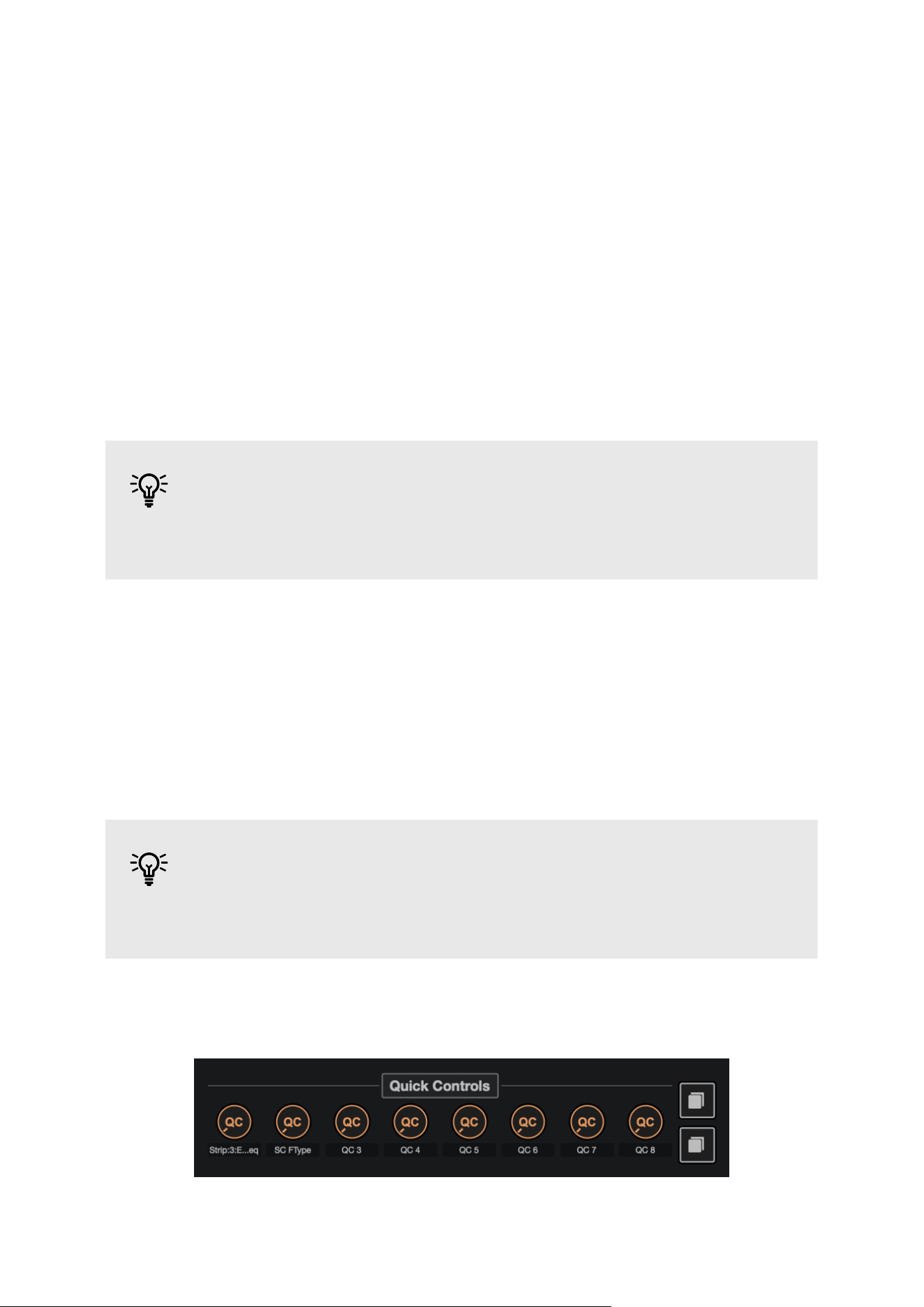
In Plugin mode, your Launchkey encoders map to Cubase's eight Quick Controls.
Cubase Quick Controls are per-track. The encoders map to the selected track's Quick Controls.
TIP
To set up Quick Control assignments for each track in Cubase see the Track
Quick Controls section in the Cubase User Guide.
You can see the Quick Controls assignments in the MIDI Remote section of Cubase.
75
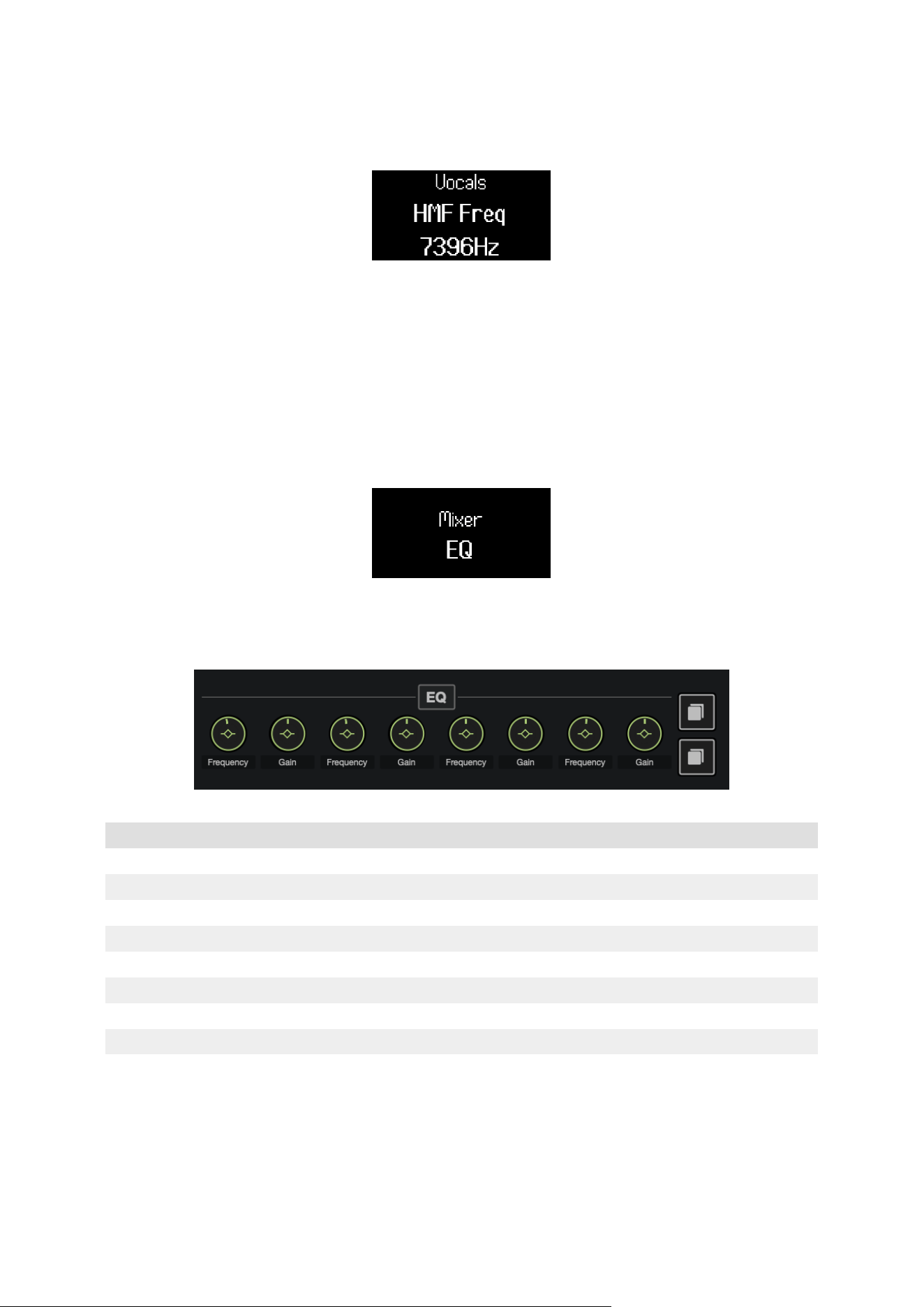
When you move an encoder, the screen shows the Quick Control's name and value.
Using Cubase Encoder Mode: Mixer EQ
Cubase's Mixer encoder mode has three pages, the first two are the common DAW Mixer
modes, Volume and Pan. (see Mixer Encoder Mode). Cubase has an extra page for controlling
the EQ section of Cubase's channel strip.
To control Cubase's EQ, use the encoder Bank buttons to go to the Mixer EQ page.
When your encoders are in Mixer EQ Mode, the encoders map to the following:
Encoder Parameter Screen Name
1 Band 1 Frequency Lo Freq
2 Band 1 Gain Lo Gain
3 Band 2 Frquency LMF Freq
4 Band 2 Gain LMF Gain
5 Band 3 Frequency HMF Freq
6 Band 3 Gain HMF Gain
7 Band 4 Frequency Hi Freq
8 Band 4 Gain Hi Gain
76
TIP
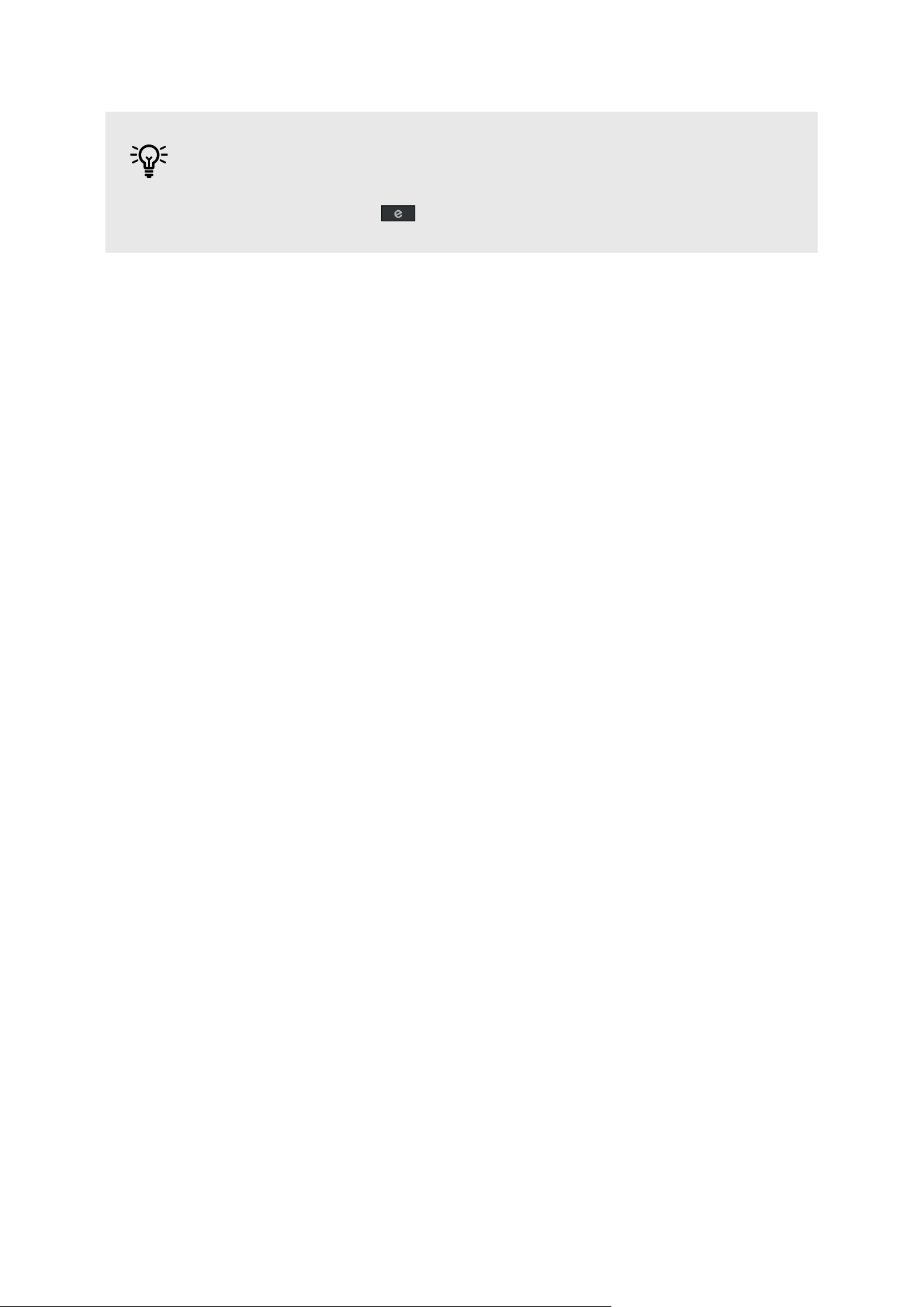
To open the Cubase channel strip, go to the MixConsole and click the Edit
Channel Settings button for the track you want to adjust.
77
Cubase Pad Modes
Using DAW pad mode in Cubase
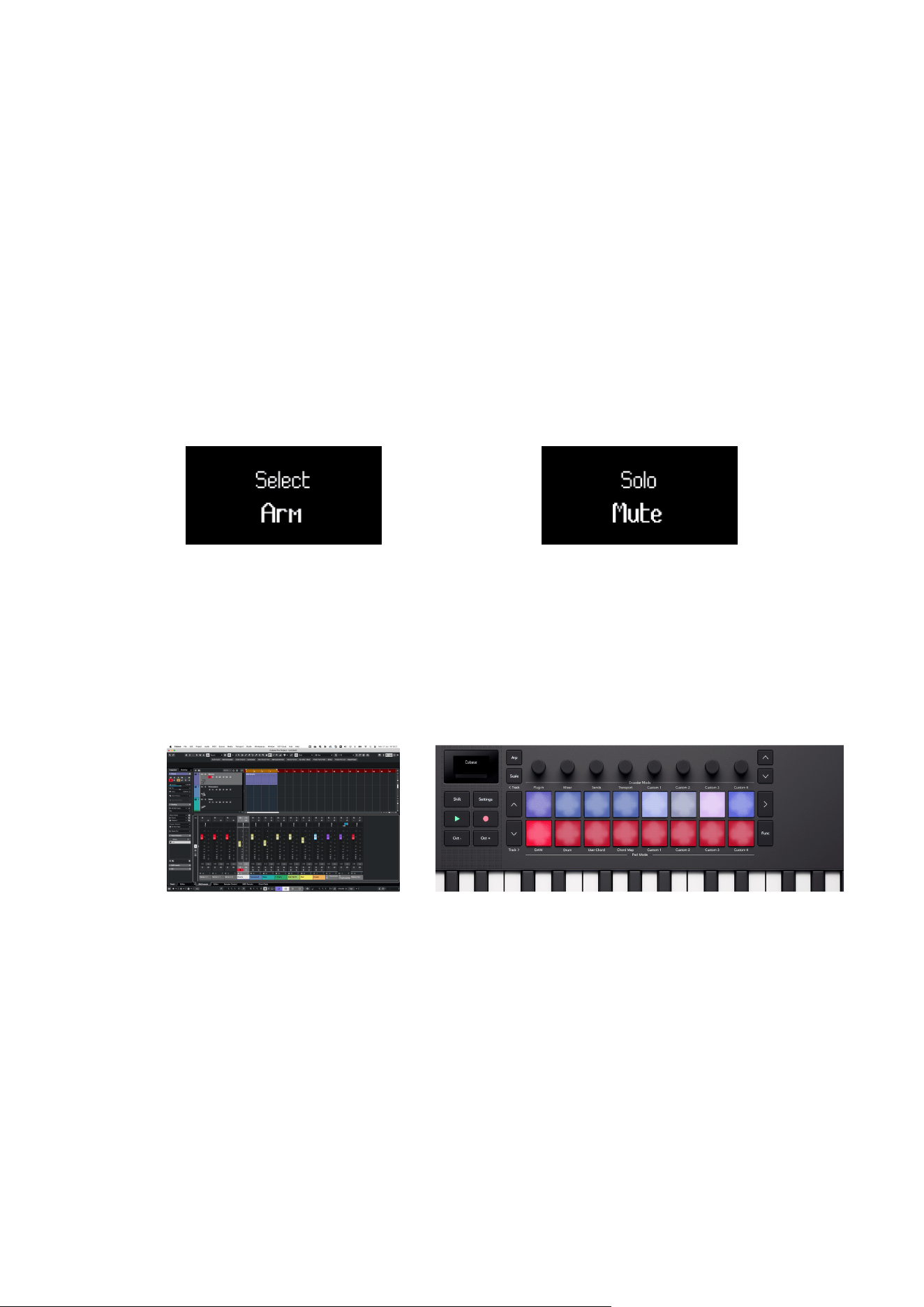
In DAW pad mode, there are two pages of pads.
• Page 1 - Controls Select and Arm
• Page 2 - Controls Mute and Solo
To move between pages use the ˄ up and ˅ down buttons to the left of the pads.
When you change page, the screen temporarily shows you which settings the pads are
controlling:
On the Select Arm page, the top row controls track select and the pads light in the track
colours.
The bottom row controls the Recording Arm setting for the track. Pads light bright red to show
a track is armed, and dim red to show it's unarmed.
Cubase with track 1 selected and the record arm states
visible.
The Launchkey Mini 25 pads reflecting the track select and
record arm states on the pads.
78
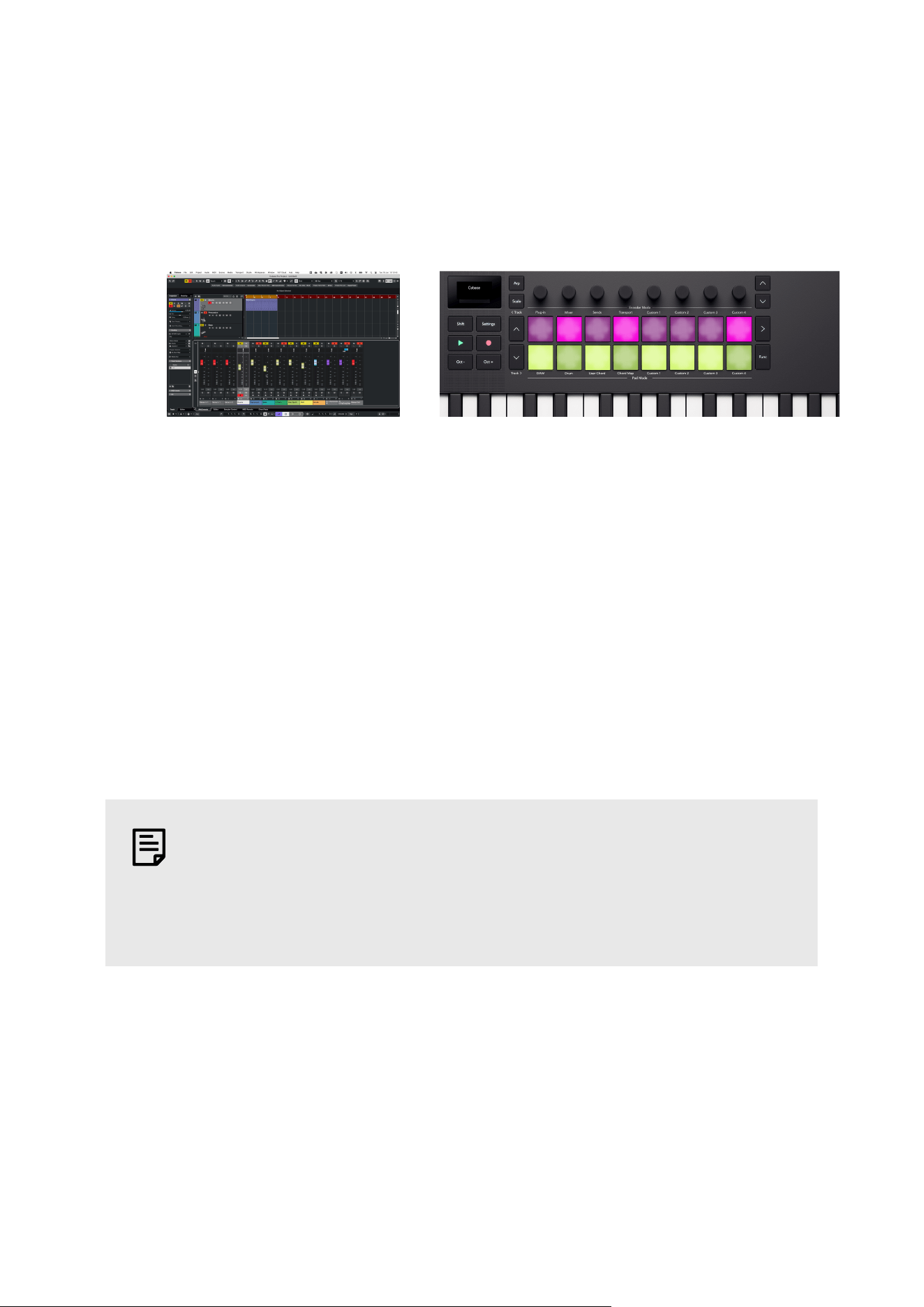
On page 2 the top row controls Mixer Solo. The pads light bright pink to show a track is soloed
and dim pink to show an un-soloed track.
The bottom pad row controls Mute. The pads light yellow, bright yellow to show muted tracks
and dim yellow to show unmuted tracks.
Cubase with the Mixer Mute and Solo states visible at the top
of the MixConsole tracks.
The Launchkey Mini 25 pads reflecting the mixer Mute and
Solo states on the pads.
Controlling FL Studio with the Launchkey Mini 25
In addition to the Launchkey's Common DAW Control [49], you have the following integration
specifically designed for you to get the most out of FL Studio.
FL Studio Encoder Modes
FL Studio Plugin Encoder Mode
In Plugin Mode, you can use the Launchkey’s encoders to control eight parameters in the plugin
you have in focus. Most native FL Studio plugins support Launchkey’s encoder mode.
NOTE
The parameters the Launchkey maps to in FL Studio’s plugins are fixed preset
mappings. For third-party plugins, you can use the Custom encoder mode to
create your own mappings.
FL Studio Mixer Encoder Mode
In Mixer encoder mode, your Launchkey has the control over the FL Studio Channel Rack,
Mixer, and EQ. There are five pages of control, you can use the encoder bank buttons to move
between the controls:
79
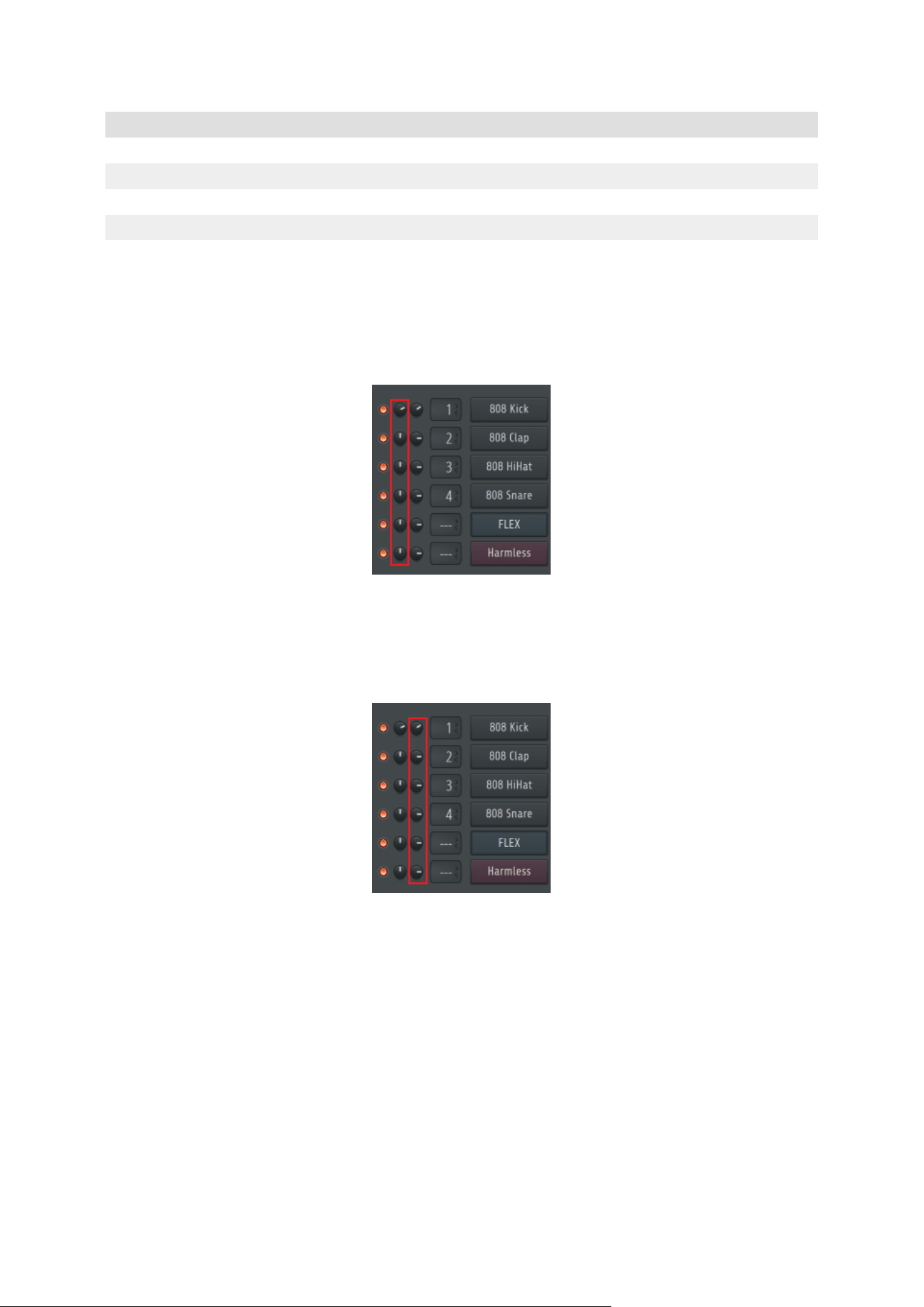
Page Mixer Mode
1 Channel Rack Volume
2 Channel Rack Pan
3 Mixer Volume
4 Mixer Pan
5 EQ
FL Studio Channel Rack Volume
The encoders control the Mixer Volume in the Channel Rack.
FL Studio Channel Rack Pan
The encoders control the mixer pan in the Channel Rack.
FL Studio Mixer Volume
The encoders control the volume in the mixer section.
80
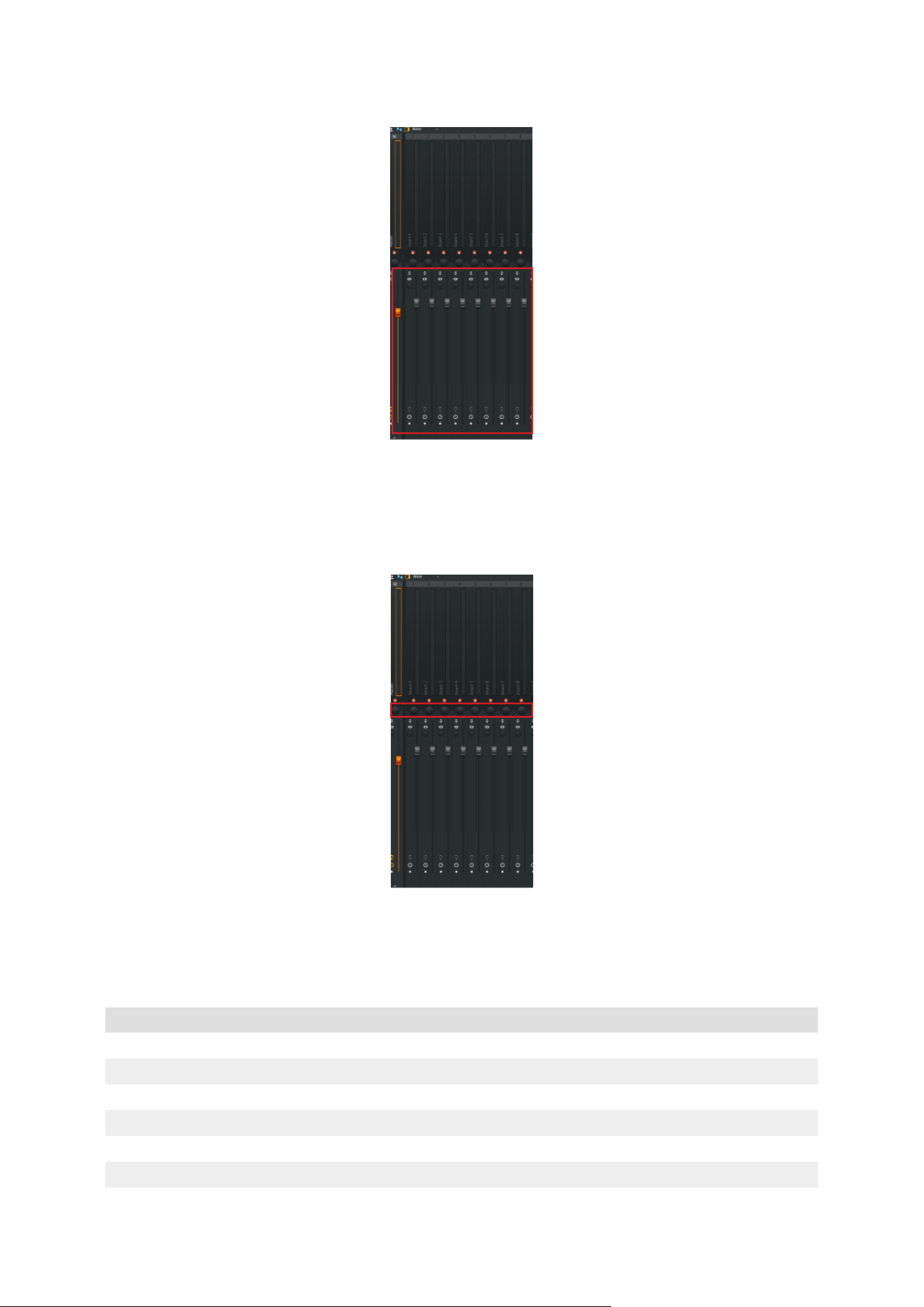
FL Studio Mixer Pan
The encoders control the mixer pan in the mixer section.
FL Studio Mixer EQ Control
When you're controlling FL Studio's EQ the encoders map to the following Equalizer controls:
Encoder Parameter Screen name
1 Band 1 Frequency Low Shelf
2 Band 1Level Low Shelf
3 Band 2 Frequency Peaking
4 Band 2 Level Peaking
5 Band 3 Frequency High Shelf
6 Band 3 Level High Shelf
81
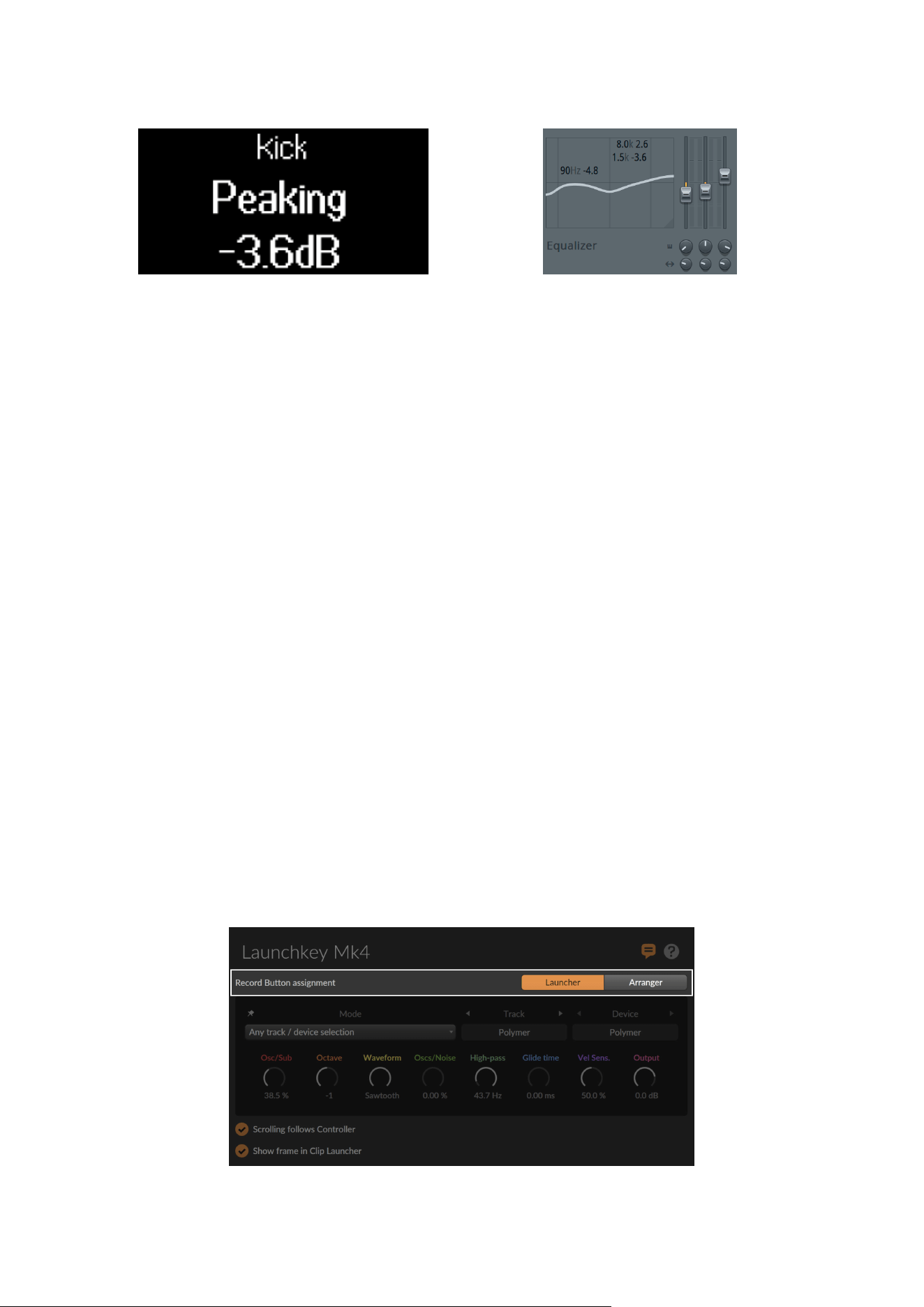
FL Studio DAW Pad mode
The DAW pad mode acts as a Channel Rack selector with up to 16 Channel Rack channels at
once. Each pad represents a single channel you can trigger using a C5 note. The pads light the
channel colour for the channel you assign the pad to.
When you press a pad, FL Studio selects the channel and triggers audio. The pad then lights
white to show the selected channel, and the channel’s name shows momentarily on the screen.
You can select one channel from the hardware at a time. The Launchkey shows when you have
no channel selected in FL Studio.
The pad layout is left to right, bottom to top, in two rows of eight. The channels in the lower row
align with the Channel Rack Pan/Volume pot layout.
Controlling Bitwig Studio with the Launchkey Mini 25 MK4
In addition to the Launchkey's Common DAW Control [49], you have the following integration
specifically designed for you to get the most out of Bitwig Studio.
Using the Record button in Bitwig Studio
Record either toggles Arranger recording on/off or Clip Launcher Overdub on/off.
You can change the Record Button assignment in the Controller Status Window.
82

Navigating Bitwig Studio's Launcher and Arranger windows
When you're in Bitwig Studio's Launcher view, press the up or down buttons to the left of the
pads to select the previous or next scene in the Launcher.
To select the previous or next track, hold Shift and press the up or down buttons to the left of
the pads.
Bitwig Studio's encoder modes
For the most part, the encoder modes on your Launchkey follow the common DAW Encoder
modes [51]. Remotes.In addition, the plugin controls can access Bitwig's Plugins/Devices, Track
Remotes, or Project Remotes.
To change encoder mode, hold Shift and press on of the pads on the top row labelled Encoder
Mode.
Using Bitwig Studio's Remote Controls encoder mode
Hold Shift and press the Plugin pad to select Remote Controls Mode.
You can control three different types of remote controls in Bitwig Studio:
• Plugins/Devices
• Track Remotes
• Project Remotes.
Holding Shift and pressing the Plugin pad cycles between them.
If there is more than one page, press the up or down buttons to the right of encoders to switch
between pages.
Using Bitwig Studio's Mixer encoder mode
Hold Shift and press the Mixer pad to select Mixer Mode.
The encoders control either Volume or Panning of the currently selected track bank.
Press the up or down buttons to the right of the encoders to switch between Volume and
Panning. Alternatively, hold Shift and press the Mixer pad to toggle between the two options.
Using Bitwig Studio's Sends encoder mode
Hold Shift and press Sends to select Sends Mode.
The encoders control the effect sends of the currently selected bank of eight tracks.
If there is more than one page, press the up or down buttons to the right of encoders to switch
between pages.
83
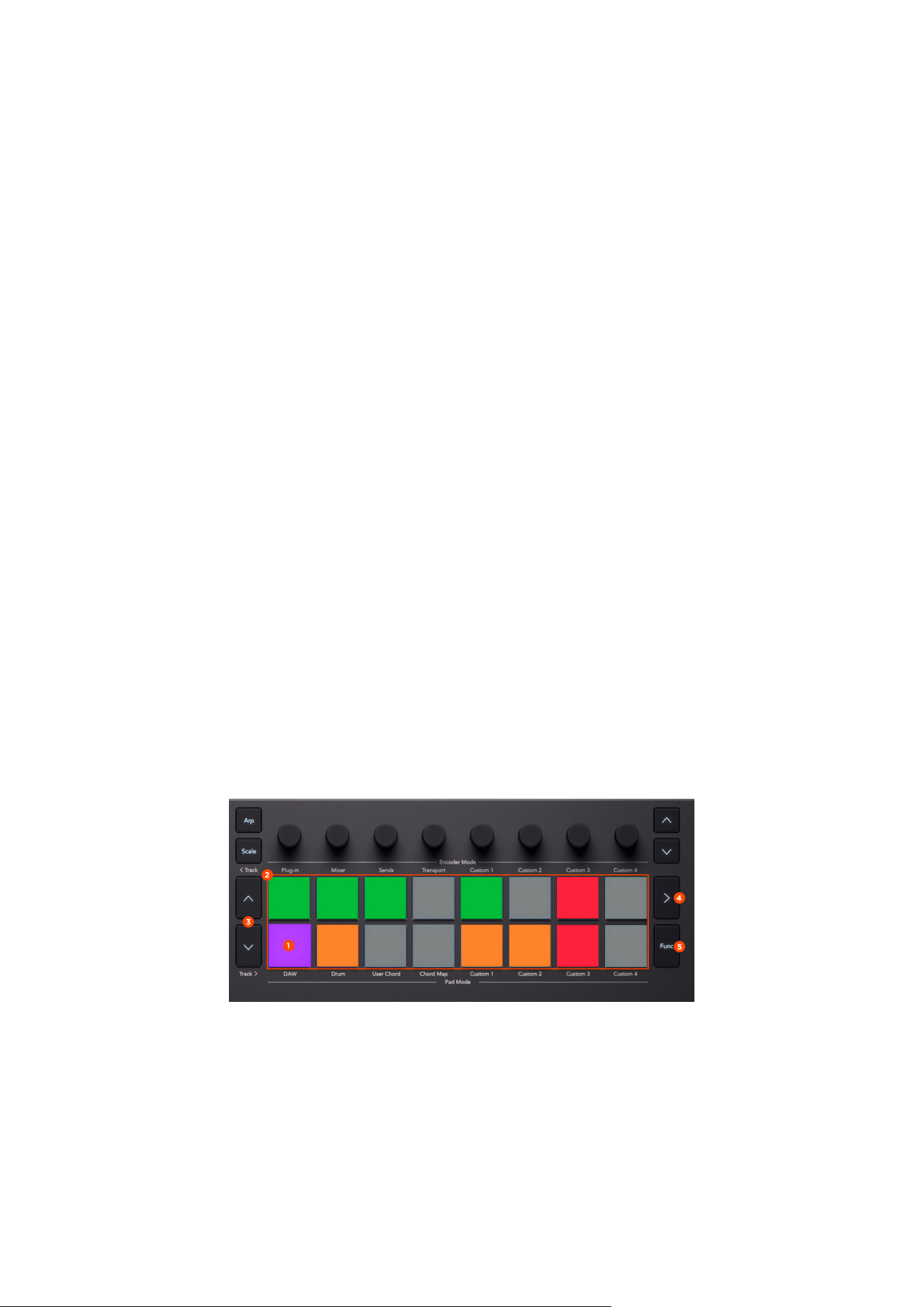
Using Bitwig Studio's Transport encoder mode
Hold Shift and press the Transport pad to select Transport Mode.
The encoders control various transport functions:
1. Move the playback marker.
2. Zoom in and out the timeline horizontally (Arranger) or Select the previous/next track
(Clip Launcher).
3. Zoom the track height of the currently selected track (Arranger) or Select previous/
next scene (Clip Launcher).
4. Move the loop start.
5. Adjust the loop length.
6. Select previous/next cue marker.
7. N/A.
8. Adjust the project tempo.
Using Launchkey MK4's Bitwig Studio pad modes
To change Pad mode, hold Shift and press one of the pads on the bottom row labelled Pad
Mode.
The pad modes available are:
• DAW pad - Clip Launcher/Sequencer mode
• Drum pad - Drums mode
Using Bitwig Studio's Clip Launcher pad mode
1 - Select Clip Launcher
Hold Shift and press the DAW pad to select Clip Launcher Pad Mode - 1. The screen shows Pad
Mode: Launcher 1/2.
2 - Clip control
Use the pads to trigger or record clips in the Launcher.
84
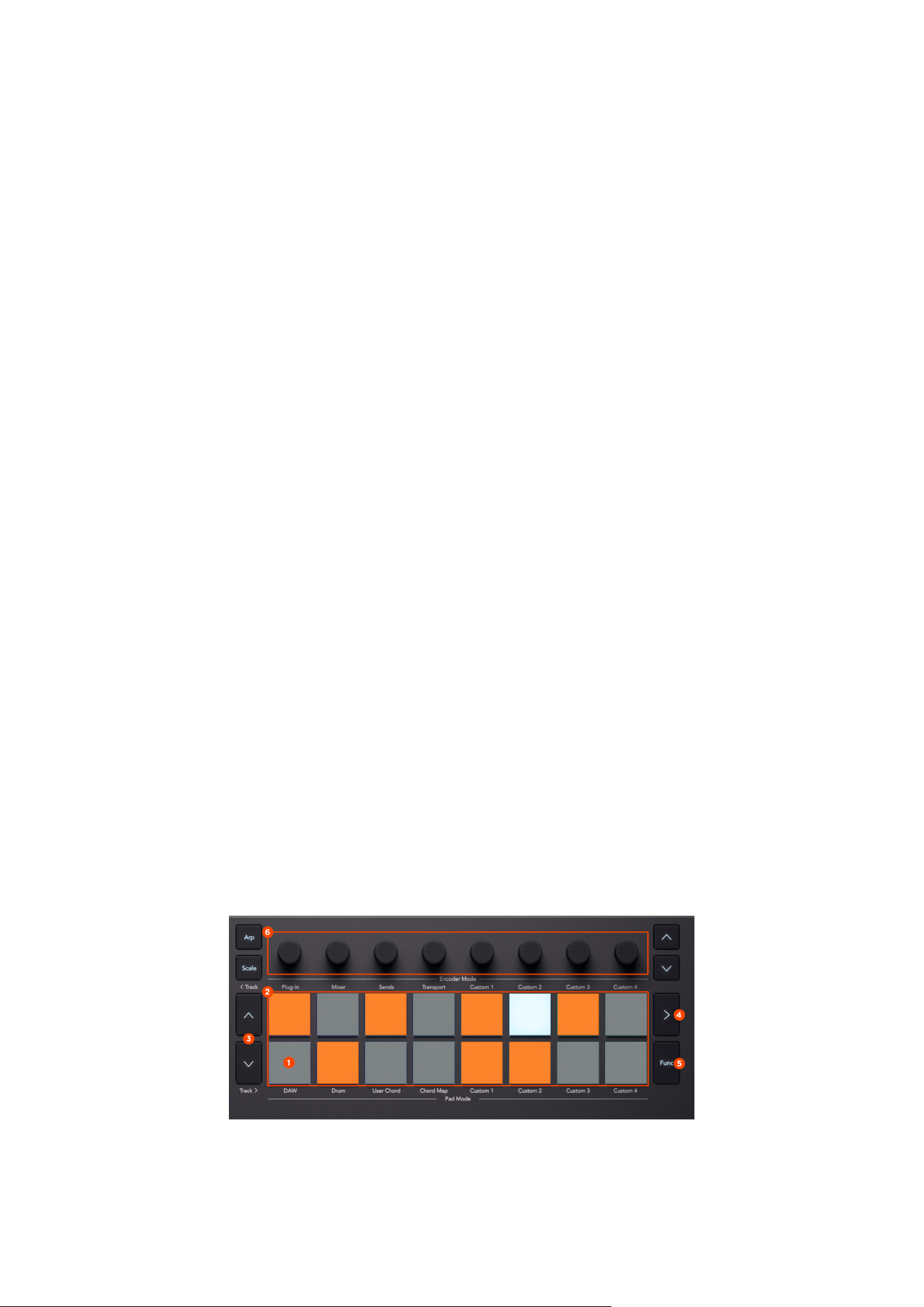
The pad colours correspond to the status of the clips:
• Unlit - Empty slot
• Clip colour - Clip not playing
• Green (blinking) - Clip about to start playing
• Green (pulsating) - Clip currently playing
• Red - Clip slot is record ready
• Red (blinking) - Clip about to start recording
• Red - (pulsating) Clip, currently recording
3 - Navigate Launcher
Press the up or down buttons to the left of the pads to select the previous or next scene.
4 - Launch Scene
Press the arrow button to the right of the top pad row, >, to launch the currently selected
scene.
5 - Stop/Solo/Mute
Toggle through different modes of the bottom pad row:
• White - Clip control (default)
• Red - Stop clips
• Yellow - Solo tracks
• Orange - Mute tracks
Using Bitwig Studio's Sequencer pad mode
Sequencer Mode lets you create and edit clips that live in the Clip Launcher of Bitwig Studio.
We recommended you activate the option Select tracks when… Selecting clips in the Clip
Launcher, in Dashboard > Settings > Behaviour.
85

1 - Select Sequencer Mode
Hold Shift and press the DAW pad to select Clip Launcher Pad Mode. The screen shows Pad
Mode: Sequencer 2/2.
2 - Step Edit
Use the pads to enter and edit notes for the currently selected clip.
On instrument tracks with a Drum Machine device, first select a drum note you want to edit
on the keyboard, then press the pads to enter notes to the clip. Repeat that process for other
drum instruments.
On all other instrument tracks, notes can be entered polyphonically. Hold a single note or a
chord on the keyboard and press one or several pads to assign the notes to these steps. The
last played note or chord is remembered, so you can enter notes by only pressing a pad after
playing a note or chord. Alternatively, you can hold a pad first and then play notes on the
keyboard, whilst still holding down the pad.
3 - Clip Length/Scene Select
Press the up or down buttons to the left of the pads to navigate through clip pages if the
currently selected clip contains more than 16 steps.
To extend the length of a clip, select a clip page you want to edit. When you start entering
notes, the clip will be extended automatically.
In Clip Select Mode, press up or down buttons to the left of the pads to select the previous or
next scene.
4 - Clip Select
Press > to enter Clip Select Mode. The pads will show the clips present in the currently
focussed area.
Press a pad to select a clip you want to edit. The clip will start automatically.
If there is no clip present, a new clip will be created.
5 - Duplicate Functions/Grid Resolution
Hold Function and press one or several pads to copy the notes. The screen shows 'Copied'.
While still holding Function, press another pad to paste the notes. The screen shows 'Pasted'.
Hold Function and press the up button to double the clip's content.
Hold Function and press the down button to toggle through different grid resolutions of the
clip.
86
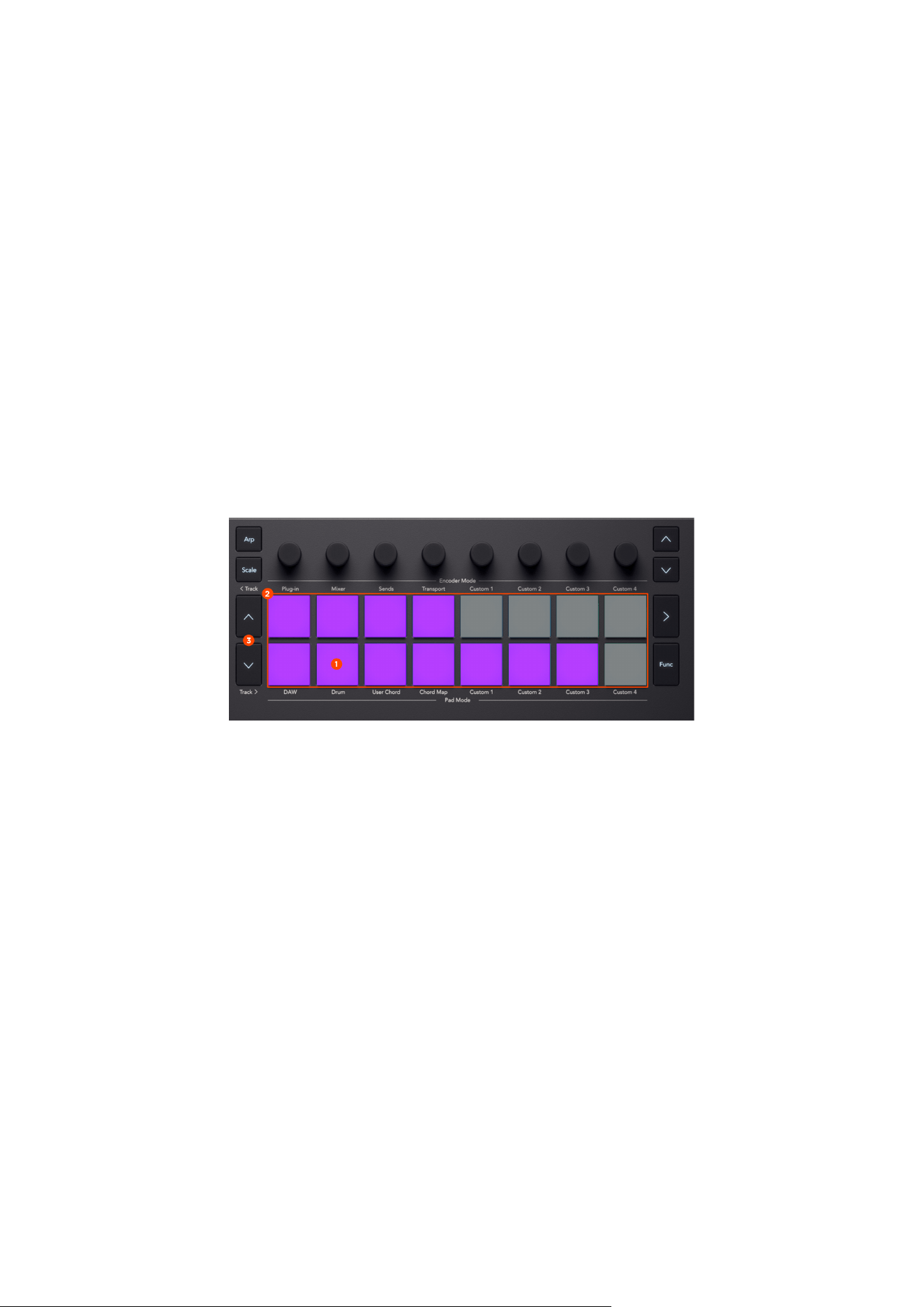
6 - Note Parameters
Press and hold one or several pads and turn an encoder to alter one of the following note
parameters of the selected note(s):
1. Velocity
2. Note Length (coarse)
3. Note Length (fine)
4. Chance
5. Repeat
6. Repeat Curve
7. Timbre
8. Aftertouch
Using Bitwig Studio's Drum pad mode
1 - Select Drum Mode
Hold Shift and press the Drum pad to select Drum Pad Mode. The screen shows Pad Mode:
Drum.
2 - Drum Notes
Press the pads to play notes on a Drum Machine device. The bottom left pad of the Launchkey
corresponds to the bottom left drum cell of the Drum Machine. By default, the pad will send C1
on MIDI channel 10.
The pads will be dimly lit in the track colour (default) or the colour assigned to a drum cell. If a
drum cell is empty, the pad will not be lit.
If a drum cell is triggered, the pad will light up in a brighter colour. A currently selected cell will
light up in bright white.
87
3 - Transpose
Press the up or down buttons, to the left of the pads, to transpose the drum pads by four
semitones.
The currently selected drum cells are shown in the Drum Machine device as a coloured 4×4 grid.
Using the Launchkey Mini 25 MK4 with other DAWs
You can use your Launchkey Mini 25 MK4 in a range of other DAWs. The integration is less deep
but using HUI you can still use some main features.
NOTE
The features in HUI mode are different from the common DAW control section.
What is HUI?
HUI (Human User Interface) is a MIDI protocol allowing MIDI controllers to communicate with
DAWs without custom controller scripts. If there's no dedicated script, your DAW may support
HUI.
This lets your controller handle basic functions like:
• Mixer control (volume, pan, mute/solo)
• Transport control (play, stop, record)
• Track selection
Which DAWs support HUI?
You can use your Launchkey Mini 25 MK4, via HUI, in many DAWs. We've outlined the setup in
the following DAWs, but the steps are similar in most DAWs:
• Reaper (partial HUI)
• Studio One
• Pro Tools
88

Setting up Launchkey Mini 25 MK4 HUI in your DAW
Pro Tools
1. Go to Pro Tools > Setup > Peripherals…
2. Click the 'MIDI Controllers' tab:
3. Under ‘Type’, select HUI:
4. Under 'Receive From', select:
• Windows: Predefined > MIDIIN2(Launchkey Mini 25 MK4 MIDI) [Emulated].
• macOS: Predefined > Launchkey Mini 25 MK4 DAW Out
5. Under 'Send To', select
• Windows: Predefined > MIDIOUT2 (Launchkey Mini 25 MK4 MIDI) [Emulated].
• macOS: Predefined > Predefined > Launchkey Mini 25 MK4 DAW In.
6. If set up correctly, the settings should match the following, with '# Ch's' set to 8:
7. Click 'OK'.
Reaper
Windows
1. Go to Options > Preferences…
2. Click ‘Control/OSC/web’.
3. Click 'Add' and select HUI (partial).
4. Select MIDI IN 2 under MIDI input Launchkey Mini 25 MK4.
5. Select MIDI OUT 2 under MIDI output Launchkey Mini 25 MK4 MIDI.
6. Click 'OK'.
7. Click 'OK' to close the window.
macOS
1. Go to Reaper > Settings… > Control/OSC/web
2. Click ‘Control/OSC/web’.
3. Click 'Add' and select HUI (partial).
4. Select Focusrite - Novation - Launchkey Mini 25 MK4 - DAW Out under ‘MIDI input’:
5. Select Focusrite - Novation - Launchkey Mini 25 MK4 - DAW In under ‘MIDI output’:
6. Click 'OK'.
7. Click 'OK' to close the window.
89

Studio One
Keyboard control
1. Click 'Studio One' at the top of the screen.
2. Click 'Options'.
3. Go to 'External Devices'.
4. Click 'Add'.
5. Click 'New Keyboard'.
6. Set 'Receive From' and 'Send To' to the Launchkey Mini 25 MK4's MIDI ports (first
entries):
7. Enable 'Send MIDI Clock' and 'Use MIDI Clock Start'.
8. Click 'OK' at the bottom of the window.
Now you can use Launchkey Mini 25 MK4 a standard MIDI keyboard to record MIDI/instrument
tracks.
DAW Control
1. Click 'Studio One' at the top of the screen.
2. Click 'Options'.
3. Go to 'External Devices'.
4. Click 'Add'.
5. Select the 'Mackie > HUI' option on the left-hand side menu.
6. Set 'Receive From' and 'Send To' to the Launchkey Mini 25 MK4's DAW ports (second
entries):
• MIDIIN2 and MIDIOUT2 on Windows.
• DAW on Mac.
7. Click 'OK' at the bottom of the window.
You should now be able to record MIDI/instrument tracks with the keyboard, and control the
mixer.
In External Devices, you should see two Launchkey Mini 25 MK4 devices.
What functions work via HUI?
When HUI implementation varies by DAW, but generally you can control the following:
• DAW Mode – the pads control Mute/Solo and Arm/Select for the tracks in focus. The
Function button toggles between the two modes.
90

• Mixer Mode – the encoders control Volume/Pan. The Encoder Bank buttons toggle
between the two modes.
• Sends Mode – the encoders control Sends A-E. The Encoder Bank buttons toggle
between the different sends.
• Navigation– Up and Down move between tracks. Holding Shift and pressing Up/Down
move between banks of eight tracks for all models.
• The transport controls map to the corresponding transport functions in your DAW.
• Holding Shift and moving an encoder previews the encoder parameter on the screen,
without affecting the value.
91
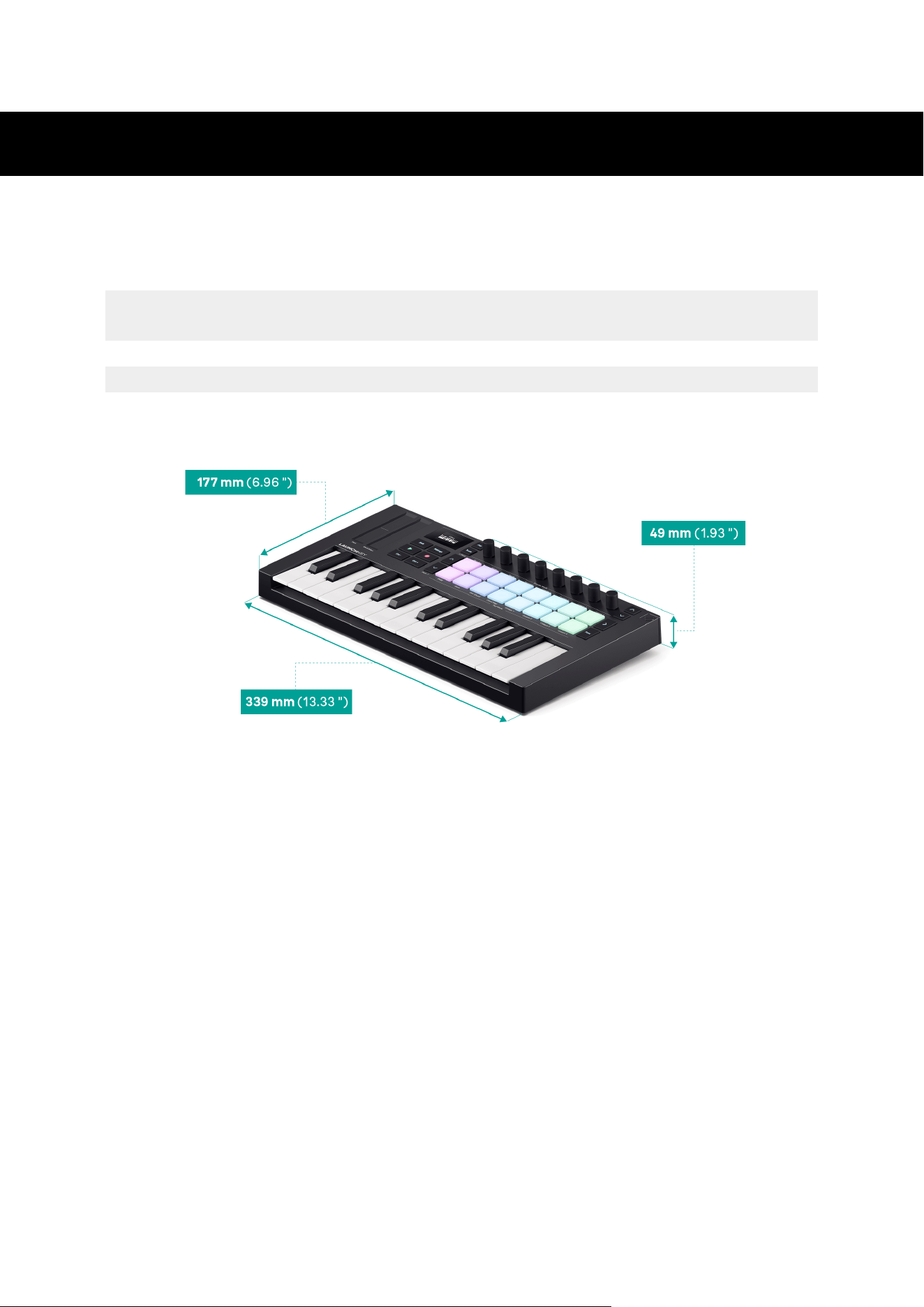
Launchkey Mini 25's Specifications
Weight and Dimensions
Weight 0.82 kg (1.81 lbs)
Height
(including encoders)
49 mm (1.93 ")
Width 339 mm (13.33 ")
Depth 177 mm (6.96 ")
92

Technical Specifications
This table gives you an idea of how the Launchkey Mini 25 differs to the other models in the
range.
Controls Launchkey Mini 25 and
Launchkey Mini 37
Launchkey 25 and Launchkey
37
Launchkey 49 and Launchkey
61
Pitch and Modulation Two touch-strip controls Two wheels Two wheels
Keys 25/37 mini synth-action keys 25/37 synth-action keys 49/61 semi-weighted keys
Velocity sensitive
keys
Yes Yes Yes
Drum Pads 16 16 16
Velocity sensitive
pads with
polyphonic
aftertouch
Yes Yes Yes
Encoders 8 8 8
Faders - - 9
buttons -- - 9
Transport buttons Play
Record
Stop
Loop
Play
Record
Stop
Loop
Play
Record
Workflow buttons - Capture MIDI
Undo (Redo)
Quantise
Metronome
Capture MIDI
Undo (Redo)
Quantise
Metronome
93

Novation Notices
Troubleshooting
For help getting started with your Launchkey Mini 25 MK4, visit:
novationmusic.com/get-started
If you have any questions or need any help at any time with your Launchkey Mini 25 MK4, visit
our Help Centre. Here you can also contact our support team:
support.novationmusic.com
We recommend you check for updates to your Launchkey Mini 25 MK4 so you have the latest
features and bug fixes. To update your Launchkey Mini 25 MK4's firmware, you need to use
Components:
components.novationmusic.com
Trade Marks
The Novation trademark is owned by Focusrite Audio Engineering Ltd. All other brands,
products, company names, and any other registered names or trade marks mentioned in this
manual belong to their respective owners.
Disclaimer
Novation has taken all steps to ensure the information given here is correct and complete.
In no event can Novation accept any liability or responsibility for any loss or damage to the
owner of the equipment, any third party, or any equipment which may result from this manual
or the equipment it describes. The information provided in this document may be changed
at any time without warning. Specifications and appearance may differ from those listed and
illustrated.
Copyright and Legal Notices
Novation is a registered trademark and Launchkey is a trademark of Focusrite Group PLC.
All other trademarks and trade names are the property of their respective owners.
2025 © Focusrite Audio Engineering Limited. All rights reserved.
94
ELECTROSTATIC DISCHARGE (ESD)
A strong electrostatic discharge (ESD) may affect the normal operation of this
product. If this happens, reset the unit by removing and replugging the USB
cable. Normal operation should return.
95

Credits
Novation would like to thank the following Launchkey Mini 25 MK4 team members for their hard
work in bringing you this product:
Aarron Beveridge, Adam Able, Adam Briffa, Adrien Fauconnet, Alex Wu, Andre Cerqueira, Arnav
Luthra, Ben Bates, Conor Boyd, Dan Mitchell, Dan Stephens, Daniel Clarke, Daniel Johnson,
Daniel Kay, Danny Nugent, Dave Curtis, Davide Cuoghi, Ed Fry, Eddie Judd, Ellen Dawes,
Emma Davies, Emma Fitzmaurice, Gagan Mudhar, Greg Zielinski, Hannah Budworth-Mead,
Hannah Williams, Jake Helps, Jan Krutisch, Jason Cheung, Joe Deller, Julian Mountford, Kai
Van Dongen, Lewis Williams, Lola Muresan, Loz Jackson, Mario Buoninfante, Martin Haynes,
Mobashir Ahmed, Mukesh Lavingia, Nicholas Howlett, Nick Bookman, Nick Van Peteghem, Ollie
Russell-Pearcey, Paul Mansell, Pierre Ruiz, Richard Collard, Robert Briggs, Rudy McIntyre, Ryan
Gray, Sam Counihan, Samuel Price, Sandor Zsuga, Si Halstead, Skye Stephenson, Stefan Archer,
Taavi Bonny, Taren Gopinathan, Tom Carter, Tom Harrington, Vidur Dahiya, Vini Moreira, Wade
Dawson, Will Charlton, Will Cunningham-Booth.
Authored by Ed Fry.
96