
2
English
Novation
A division of Focusrite Audio Engineering Ltd.
Windsor House,
Turnpike Road,
Cressex Business Park,
High Wycombe,
Bucks,
HP12 3FX.
United Kingdom
Tel: +44 1494 462246
Fax: +44 1494 459920
e-mail: sales@novationmusic.com
Web: http://www.novationmusic.com
Trademarks
The Novation trademark is owned by Focusrite Audio Engineering Ltd. All other brand, product
and company names and any other registered names or trade marks mentioned in this manual
belong to their respective owners.
Disclaimer
Novation has taken all possible steps to ensure that the information given here is both correct
and complete. In no event can Novation accept any liability or responsibility for any loss or
damage to the owner of the equipment, any third party, or any equipment which may result
from use of this manual or the equipment which it describes. The information provided in this
documentmaybemodi�edatanytimewithoutpriorwarning.Speci�cationsandappearance
may differ from those listed and illustrated.
COPYRIGHT AND LEGAL NOTICES
Novation, Launchkey and InControl are registered trade marks of Focusrite Audio Engineering
Limited.
2015 © Focusrite Audio Engineering Limited. All rights reserved.

3
English
CONTENTS
INTRODUCTION . . . . . . . . . . . . . . . . . . . . . . . . . . . . . . . . . . . . . . . . . . . . . . . . . . . . . . . . . . 4
Key Features . . . . . . . . . . . . . . . . . . . . . . . . . . . . . . . . . . . . . . . . . . . . . . . . . . . . . . . . . . . 4
About This Manual . . . . . . . . . . . . . . . . . . . . . . . . . . . . . . . . . . . . . . . . . . . . . . . . . . . . . . 4
What’s In The Box . . . . . . . . . . . . . . . . . . . . . . . . . . . . . . . . . . . . . . . . . . . . . . . . . . . . . . . 5
Registering Your Launchkey . . . . . . . . . . . . . . . . . . . . . . . . . . . . . . . . . . . . . . . . . . . . . . . 6
Power Requirements. . . . . . . . . . . . . . . . . . . . . . . . . . . . . . . . . . . . . . . . . . . . . . . . . . . . . 6
Hardware Overview. . . . . . . . . . . . . . . . . . . . . . . . . . . . . . . . . . . . . . . . . . . . . . . . . . . . . . 7
Top View – controls . . . . . . . . . . . . . . . . . . . . . . . . . . . . . . . . . . . . . . . . . . . . . . . . . . 7
Rear view – connections . . . . . . . . . . . . . . . . . . . . . . . . . . . . . . . . . . . . . . . . . . . . . . 9
LAUNCHKEYSETUPEXAMPLES . . . . . . . . . . . . . . . . . . . . . . . . . . . . . . . . . . . . . . . . . . . .10
Interfacing Launchkey to a computer . . . . . . . . . . . . . . . . . . . . . . . . . . . . . . . . . . . . . . . .10
InControl mode . . . . . . . . . . . . . . . . . . . . . . . . . . . . . . . . . . . . . . . . . . . . . . . . . . . . .10
Basic mapping mode . . . . . . . . . . . . . . . . . . . . . . . . . . . . . . . . . . . . . . . . . . . . . . . . .11
Interfacing Launchkey to an iPad . . . . . . . . . . . . . . . . . . . . . . . . . . . . . . . . . . . . . . . . . . .11
EXPLORING LAUNCHKEY . . . . . . . . . . . . . . . . . . . . . . . . . . . . . . . . . . . . . . . . . . . . . . . . . .12
MIDI Channel . . . . . . . . . . . . . . . . . . . . . . . . . . . . . . . . . . . . . . . . . . . . . . . . . . . . . . . . . .12
Transport controls . . . . . . . . . . . . . . . . . . . . . . . . . . . . . . . . . . . . . . . . . . . . . . . . . . . . . . .12
Octave up/down . . . . . . . . . . . . . . . . . . . . . . . . . . . . . . . . . . . . . . . . . . . . . . . . . . . . . . . .13
Transpose . . . . . . . . . . . . . . . . . . . . . . . . . . . . . . . . . . . . . . . . . . . . . . . . . . . . . . . . . . . . .13
Pitch Wheel . . . . . . . . . . . . . . . . . . . . . . . . . . . . . . . . . . . . . . . . . . . . . . . . . . . . . . . . . . . .13
Modulation Wheel . . . . . . . . . . . . . . . . . . . . . . . . . . . . . . . . . . . . . . . . . . . . . . . . . . . . . . .13
Slider(s) . . . . . . . . . . . . . . . . . . . . . . . . . . . . . . . . . . . . . . . . . . . . . . . . . . . . . . . . . . . . . . .14
Buttons . . . . . . . . . . . . . . . . . . . . . . . . . . . . . . . . . . . . . . . . . . . . . . . . . . . . . . . . . . . . . . .14
Rotary controls . . . . . . . . . . . . . . . . . . . . . . . . . . . . . . . . . . . . . . . . . . . . . . . . . . . . . . . . .14
Launch Pads . . . . . . . . . . . . . . . . . . . . . . . . . . . . . . . . . . . . . . . . . . . . . . . . . . . . . . . . . . .14
Round buttons. . . . . . . . . . . . . . . . . . . . . . . . . . . . . . . . . . . . . . . . . . . . . . . . . . . . . . . . . .15
Track
I
/
H
. . . . . . . . . . . . . . . . . . . . . . . . . . . . . . . . . . . . . . . . . . . . . . . . . . . . . . . . . . . . . .15
Velocity Curves . . . . . . . . . . . . . . . . . . . . . . . . . . . . . . . . . . . . . . . . . . . . . . . . . . . . . . . . .15
Using Launchkey with InControl . . . . . . . . . . . . . . . . . . . . . . . . . . . . . . . . . . . . . . . . . . . .16
Using Launchkey with Ableton Live Lite . . . . . . . . . . . . . . . . . . . . . . . . . . . . . . . . . . . . . .16
TECHNICAL INFORMATION . . . . . . . . . . . . . . . . . . . . . . . . . . . . . . . . . . . . . . . . . . . . . . . . .18
Basic Troubleshooting Examples . . . . . . . . . . . . . . . . . . . . . . . . . . . . . . . . . . . . . . . . . . .18
MIDI messages table . . . . . . . . . . . . . . . . . . . . . . . . . . . . . . . . . . . . . . . . . . . . . . . . . . . .19

4
English
INTRODUCTION
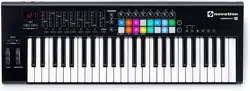
Thank you for purchasing this Novation Launchkey MIDI controller keyboard. As well as the
music keyboard itself, Launchkey is equipped with a range of controllers to allow the modern
musician to create great music in the studio, in live performance or on the move. The keyboard
allowsyoutocontrolyourexistingDigitalAudioWorkstation(DAW)software,andalsothe
includedV-StationandBassStationsoftwareplug-ins.Together,thisuniquesoftware-hardware
combination allows instant, real-time tweaking of synth parameters, loops and audio effects.
This guide will introduce you to Launchkey and explain the various ways you can use it with
your music software in your recording set-up.
Launchkey includes Novation’s InControl mode, which gives you a simple yet powerful way of
controlling all your favourite music software applications.
With Launchkey you have two ways of working:
• InControl – automatically maps Launchkey’s sliders, rotary controls and buttons onto
your essential DAW parameters, such as channel faders, pan, mute and solo.
• Basic Mapping mode – use Launchkey as a conventional MIDI controller, where
each controller - sliders, rotary controls and buttons - transmits a dedicated MIDI CC
(ContinuousController)message.
For additional information, up to date support articles and a form to contact our Technical
SupportTeampleasevisittheNovationAnswerbaseat:www.novationmusic.com/answerbase
Key Features
• Available with 25, 49 or 61-note synth-action keyboard
• 8 rotary controls
• 9sliders(49and61-noteversions)
• 16 performance launch pads with multi-colour backlighting
• Numeric LED display showing parameter values
• Standardtransportcontrolset
• Standardsynthmodulationandpitchbendwheels,plusoctavetransposebuttons
• Direct integration with Ableton Live recording software
• Track control buttons – change DAW tracks remotely
• Integrated with InControl for seamless control of your DAW
• Very simple installation procedure – class compliant, no driver required
About This Manual
We’ve tried to make this manual as helpful as possible for all types of user, both newcomers to
computer music and those more experienced, and this inevitably means some users will want
to skip over certain parts of it, while relative novices will want to avoid certain parts of it until
they’recon�dentthey’vemasteredthebasics.
However, there are a few general points that are useful to know about before you continue
reading this manual. We’ve adopted some graphical conventions within the text, which we hope
alltypesofuserwill�ndhelpfulinnavigatingthroughtheinformationto�ndwhattheyneedto
know quickly:

5
English
Abbreviations, conventions, etc.
Where top panel controls or rear panel connectors are referred to, we’ve used a number thus:
6
to cross-reference to the top panel diagram, and thus:
1
to cross-reference to the rear
paneldiagram.(Seepagespage 7 and page 9).
We’veusedCAPStonamephysicalthingsliketoppanelcontrolsandrearpanelconnectors,
and also on-screen buttons which you need to click, and bold Courier font to denote text
which you see on the computer screen.
Tips
These do what it says on the tin: we include bits of advice, relevant to the
topic being discussed that should simplify setting up Launchkey to do what
you want. It’s not mandatory that you follow them, but generally they should
make life easier.
What’s In The Box
Launchkey has been carefully packed in the factory and the packaging was designed to
withstandroughhandling.Shouldtheunitappeartohavebeendamagedintransit,donot
discard any of the packing material and notify your music dealer.
Saveallthepackingmaterialsforfutureuseifyoueverneedtoshiptheunitagain.
Please check the list below against the contents of the packaging. If any items are missing or
damaged, contact the Novation dealer or distributor where you purchased the unit.
• Launchkey MIDI controller keyboard
• USBTypeAtoTypeBcable(1.5m)
• GettingStartedGuide,includingProduct/softwareRegistrationdetails,allowing
download of:
• SetupinstructionsforpopularDAWs
• NovationV-Stationsynthplug-in
• NovationBassStationplug-in
• Loopmaster samples
• Live Lite registration card, with download instructions for Ableton Live Lite music making
software
6
English
Registering Your Launchkey
It is important to register your Launchkey on-line using the Product/software Registration
detailsonthebackoftheGettingStartedGuide.Apartfromvalidatingyourmanufacturer’s
warranty, you will also then be able to download the additional software that you are entitled to
as a Launchkey purchaser. The registration details also contain codes you will need to enter in
the on-line forms on our website to download the software, but before you attempt to do this,
warranty registration is required.
Power Requirements
LaunchkeywillnormallybepoweredfromyourcomputerviaitsrearpanelUSBconnector.DC
powerwillbesuppliedbythecomputerthroughthestandardUSBcable.Werecommendthat
youconnectLaunchkeydirectlytoacomputer’snativeUSBport,andnotviaaUSBhub.
Launchkey cannot be powered from an iPad. When using Launchkey with an iPad, it must be
separatelypoweredbyanexternal,9Vmainsadaptor(AC-to-DCadaptor).Whenusingthis
method, please ensure that your local AC supply is within the range of voltages required by the
adaptor BEFORE you plug it into the mains. Please contact your Novation dealer for advice on
suitable mains adaptors if you are in any doubt.
A word about laptops:
When powering Launchkey from a computer you should be aware that although
theUSBspeci�cationagreedbytheITindustrystatesthataUSBportshould
be able to supply 0.5 A at 5 V, some computers - particularly laptops – are unable to
supply this current. Unreliable operation may result in such a case. When powering
Launchkeyfromalaptop’sUSBport,itisrecommendedthatthelaptopispoweredfrom
AC mains rather than its internal battery.
If this is a problem, Launchkey can be powered via an optional AC-to-DC 9 V mains adaptor,
which you should connect to the Power Insocketattherear(seepage 9).Please
contact your Novatin dealer for advice on suitable mains adaptors if you are in any doubt.
7
English
Hardware Overview
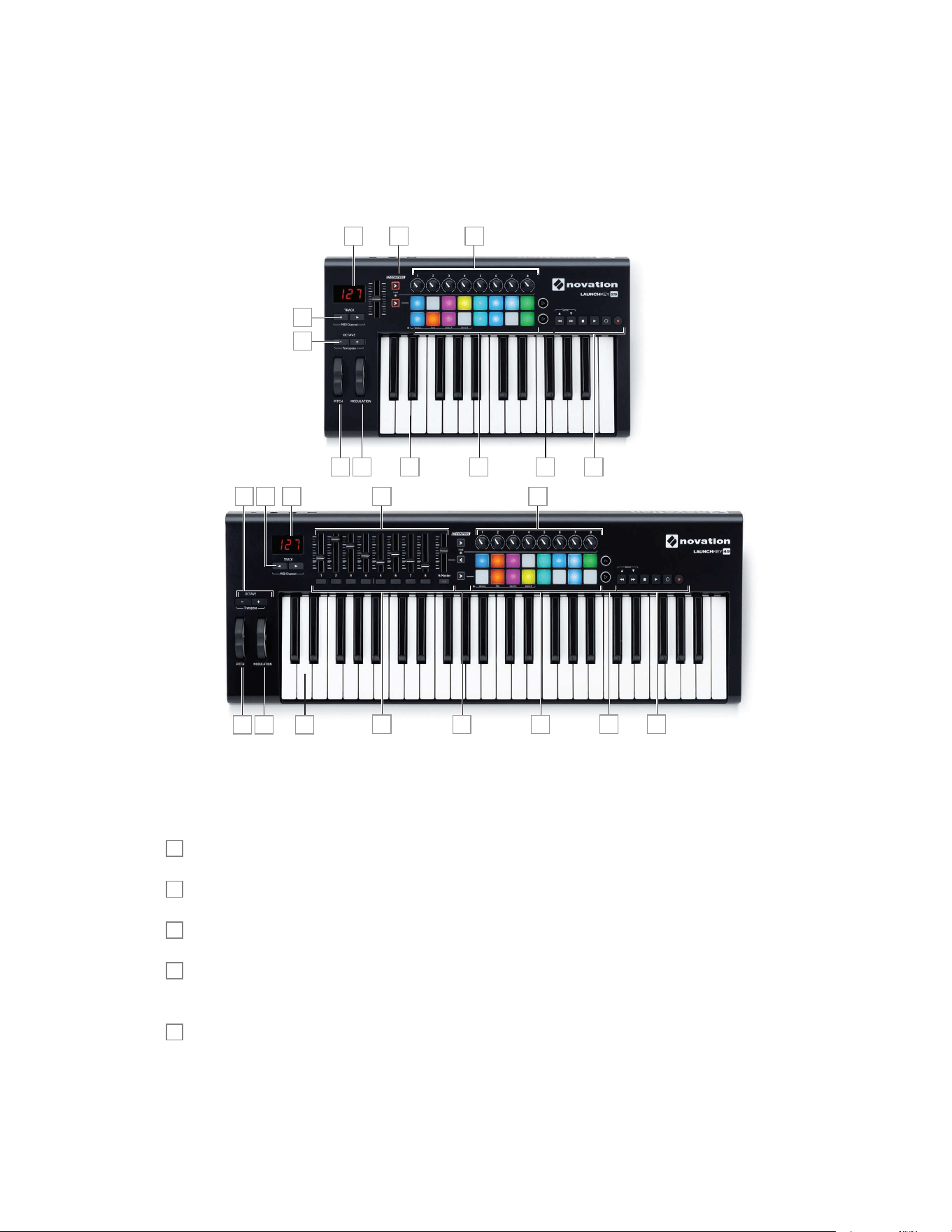
Top View – controls
12 3
5
12 3
4111312 6
8 9 7
611 10
12
13
79
810
Launchkey’s controls are non-assignable.ThismakesLaunchkeyverysimpletocon�gureanduse.
1
Keyboard – Launchkey is available in 25-, 49- or 61-note versions.
2
Pitch wheel – standard pitchbend wheel, spring-loaded to return to centre position.
3
Modulation wheel.
4
9
1
x 45 mm sliders, used to control levels and other parameters in your DAW and virtual
MIDI devices.
5
9
2
x press-buttons, providing additional DAW/MIDI control functions.
25-note version
Applicable to 49 and 61-note versions
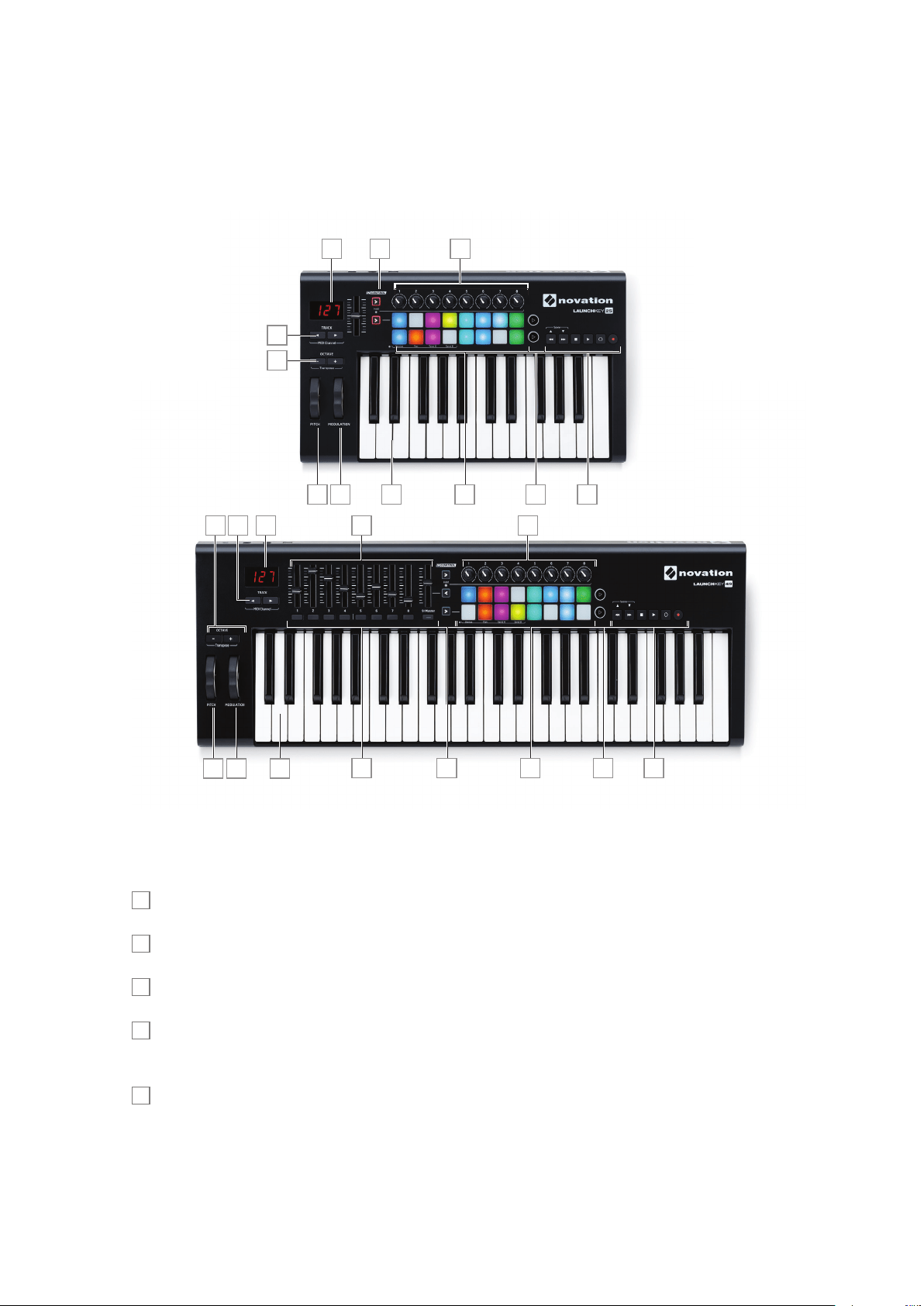
8
English
6
8 x rotary controls, providing further DAW/MIDI control.
7
Transport controls - these provide remote control facilities for your DAW, but also have
speci�cfunctionswhenLaunchkeyisusedwithAbletonLiveLitesoftware.
8
16xvelocity-sensitivelaunchpads.Thesecanbeusedtotriggersounds(e.g.,drums)in
your music software and provide other functions in some DAWs and iPad apps.
9
2xroundbuttons.ThesecanbeusedforcustomfunctionsintheiOSsoftware,orinyour
DAW.
10
3
3
x InControl buttons; these switch the operating mode of the sliders, rotary controls and
launch pads to be either DAW controllers or standard MIDI CC controllers.
11
LEDdisplay.ShowsthevalueoftheMIDIparameterbeingtransmittedbythecontrolyou’re
currently using.
12
Octave + / – buttons – shift the keyboard ‘up’ or ‘down’ in octave steps. Pressing the two
buttons together lets you transpose the keyboard in semitone increments. The number of
octaves over which the keyboard can be shifted varies with Launchkey model; the smaller
models have a greater shift range.
13
Track
I
/
H
buttons – use these to change tracks in your music software. Pressing both
buttons together lets you change the MIDI channel on which Launchkey will transmit MIDI
data.
1 Launchkey 49 and 61 only. Launchkey 25 has one assignable slider.
2 Launchkey 49 and 61 only. There are no buttons on Launchkey 25.
3 Launchkey 49 and 61 only. Launchkey 25 has two InControl buttons.

9
English
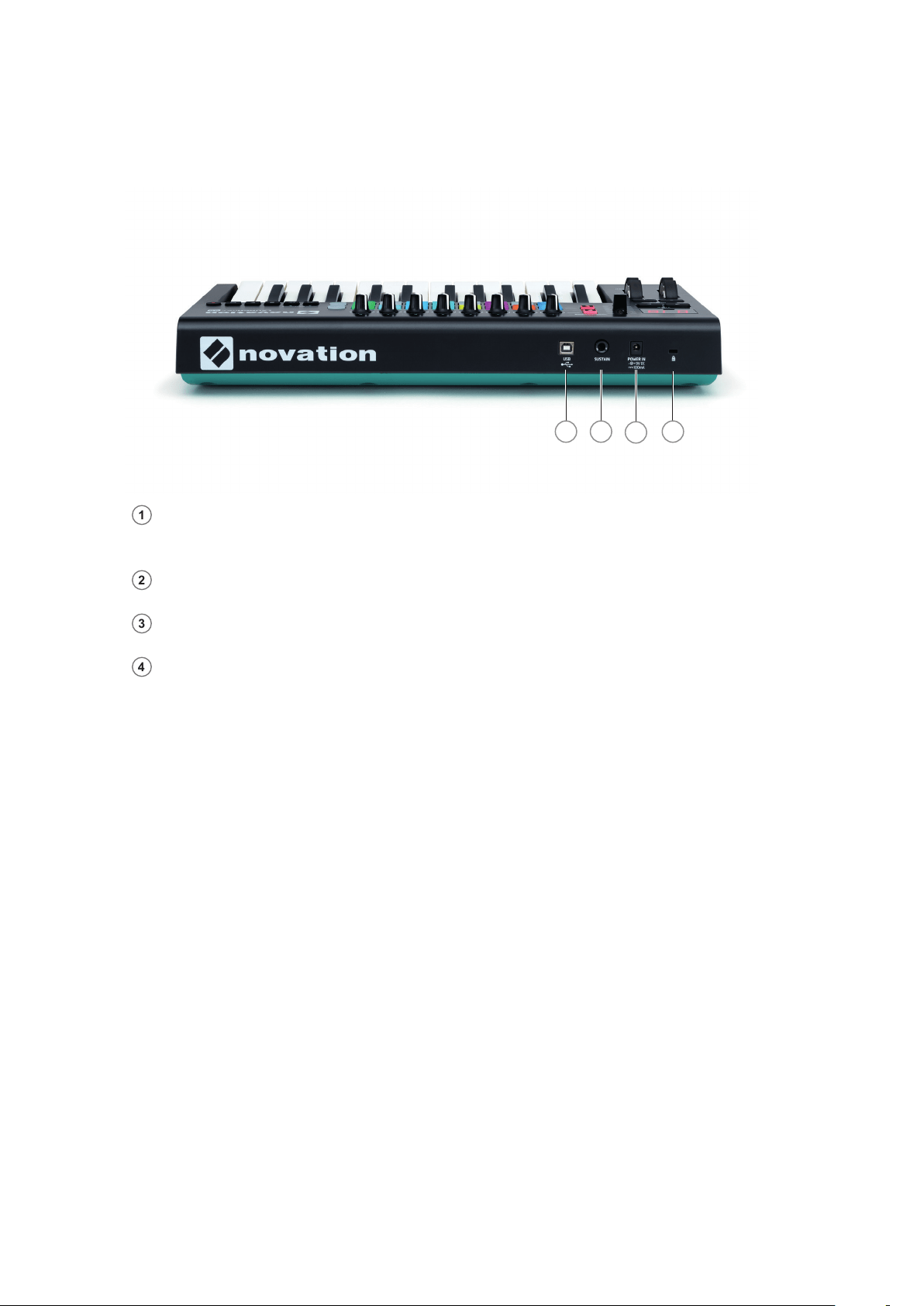
Rear view – connections
1 3
2
4
1
USB port –USBTypeBconnectorcompatiblewithUSB1.1,2.0or3.0.ConnectLaunchkey
toaUSBportonyourcomputeroriPadusingtheUSBcablesupplied.
2
Power In - you can also connect an AC-to-DC adaptor here to externally power Launchkey.
3
Sustain– a ¼” jack socket for the connection of a standard sustain pedal.
4
Kensington security lock – secure your Launchkey to a convenient structural point if desired.
10
English
LAUNCHKEY SETUP EXAMPLES
Launchkey is designed to integrate automatically and seamlessly with your computer music
software. Launchkey can be used with either a computer/laptop, or with an iPad; however
the features and operational possibilities do differ with the two platforms, so they have been
covered separately in the User Guide sections that follow.
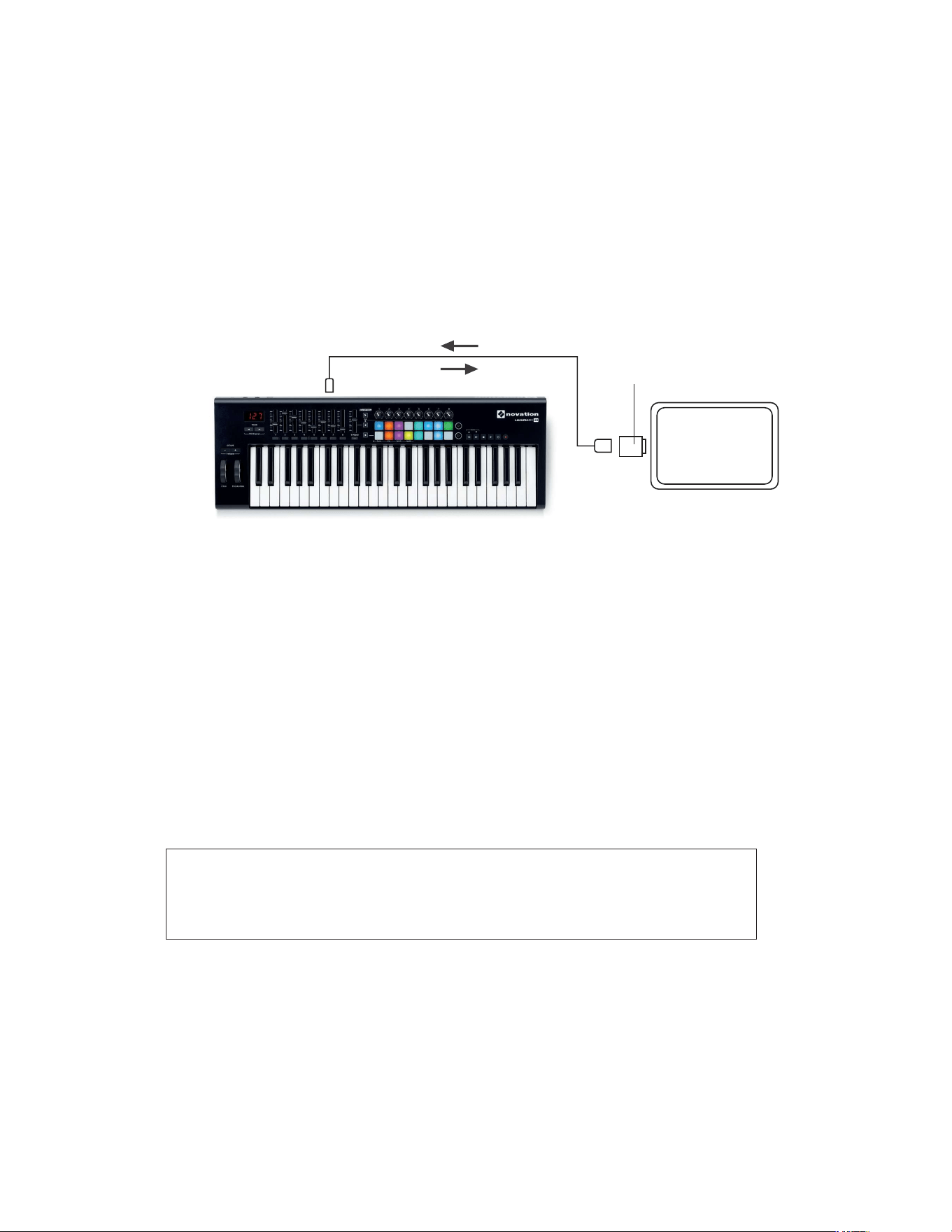
Interfacing Launchkey to a computer
ConnectLaunchkeytoyourcomputerusingthesuppliedUSBcablebetweenLaunchkey’srear
panelUSBsocketandaUSBportonthecomputer.
Control information
Power
USB
IfLaunchkeycannotestablishcommunicationswiththecomputer,allthepadswillashrapidly
inamulticolouredsequence.(We’vecalledthisLightshowmode.)OncetheUSBdatalinkis
working, Lightshow mode will stop and Launchkey will be ready for use.
If you want to impress your friends with a dynamic and impressive lightshow,
you can initiate this mode by pressing the Record button while Launchkey
boots up. Press the Track
I
and Track
H
buttons together to cancel it and return
to normal operation.
InControl mode
InControl has been integrated into your Launchkey to allow instant operability with certain
DAWs.ConsulttheSetupGuideforyourDAWwhichyoudownloadedwhenyouregisteredyour
Launchkey*. This will explain how the various controls on Launchkey map onto each DAW’s key
functions.
If your favourite DAW is not in this list, you can still use Launchkey with it effectively, but you will
needtouseBasicMappingMode(seefollowingpage).
*This can be downloaded at any time from www.novationmusic.com/downloads.
11
English
Basic mapping mode
Launchkey will act as a general-purpose MIDI controller for use with a wide range of music
software applications. In addition to the keyboard’s Note On/Note Off messages, each of the
variouscontrols(sliders,buttonsandrotarycontrols)willalwaystransmittheirownuniqueMIDI
controlmessage,allowingyoutocon�gureyoursoftwaretorespondtothemessagesasyou
wish.
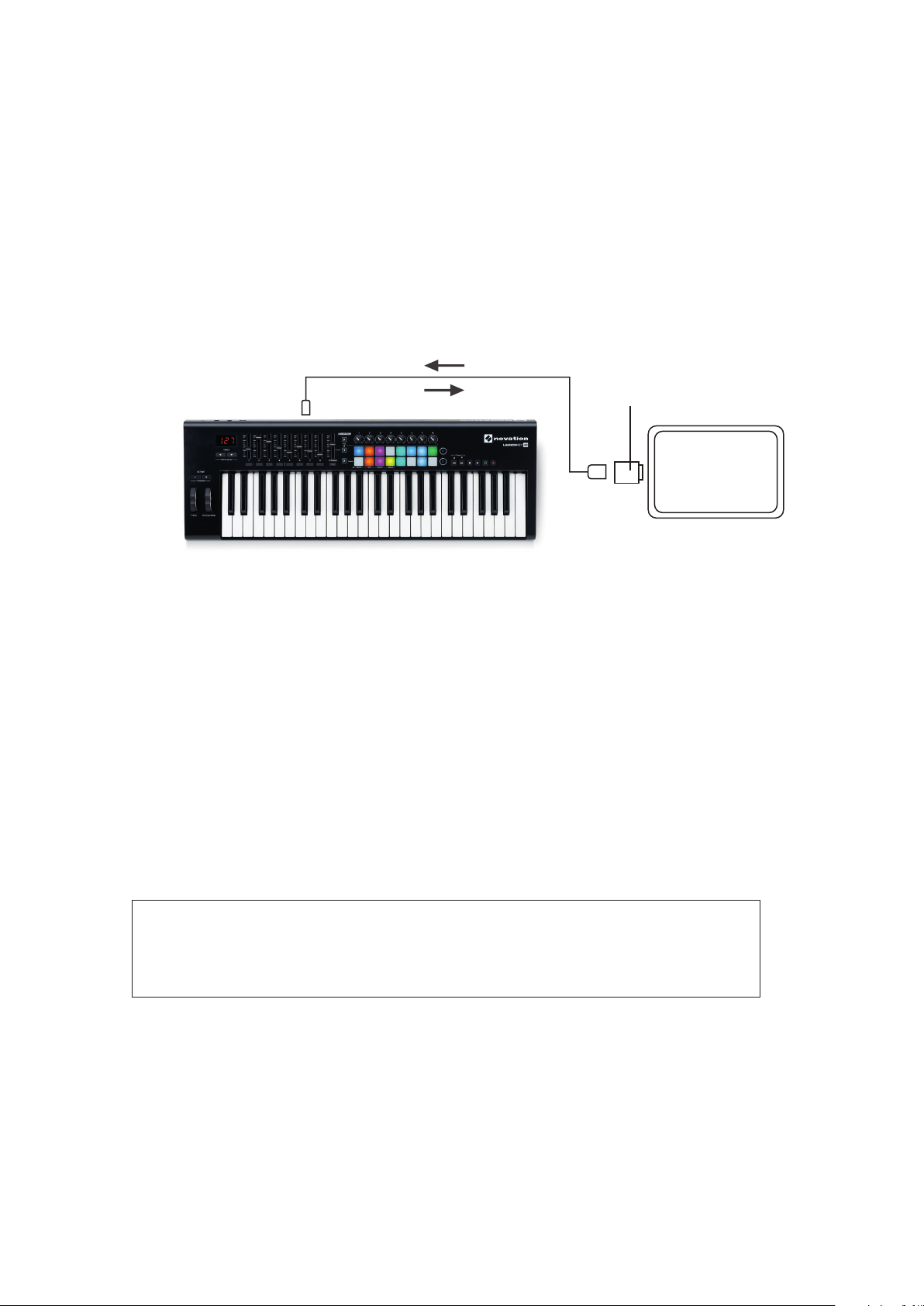
Interfacing Launchkey to an iPad
Control information
Power
Apple iPad Camera
Connection Kit, or
Apple Lightning to
USB Camera Adaptor
USB
If you have an iPad or iPad mini*, you can control many different music making apps with your
Launchkey. Depending on the connector on your iPad, you will need either an Apple iPad
CameraConnectionKit(earlieriPads),oranAppleLightningtoUSBCameraAdapter(more
recentiPads)tointerfaceLaunchkeytoaniPad,asshownabove:
1. plugtheUSBcable(inthebox)intotheUSBportonLaunchkey,
2. plugtheotherendoftheUSBcableintototheUSBportontheCameraConnectionKitor
LightningtoUSBCameraAdapter,
3. nowconnecttheCameraConnectionKitorLightningtoUSBCameraAdaptertotheiPad.
NOTE: Please note that neither an Apple iPad Camera Connection Kit nor an Apple Lightning
toUSBCameraAdapterisincludedwithLaunchkey,andmustbesourcedseparately.
IMPORTANT
Launchkey cannot be powered from an iPad. An external 9 V DC mains adaptor must
be used.
*OSversion-dependant
12
English
EXPLORING LAUNCHKEY
MIDI Channel
MIDI data can be sent on any one of 16 channels, and will only be received and interpreted
correctly if the receiving device is set to the same channel. In InControI mode, you don’t
need to worry too much about MIDI channels, as InControl will ensure that all messages are
transmitted on the correct channels in any case.
To select a different channel:
• Press the two TRACK buttons
13
simultaneously; the LED display
11
willash,indicatingthecurrentMIDIchannel
• Use the TRACK
I
/
H
buttons, select the desired channel number.
Theexceptiontotheabovearethelaunchpads;theseALWAYStransmiton
MIDI Channel 10, as this is the standard GM MIDI channel for percussion
instruments.
Whenpowering-on,LaunchkeyALWAYSdefaultstoMIDIChannel01;ifyou
have re-powered since changing the MIDI channel number, you will need to
reset it.
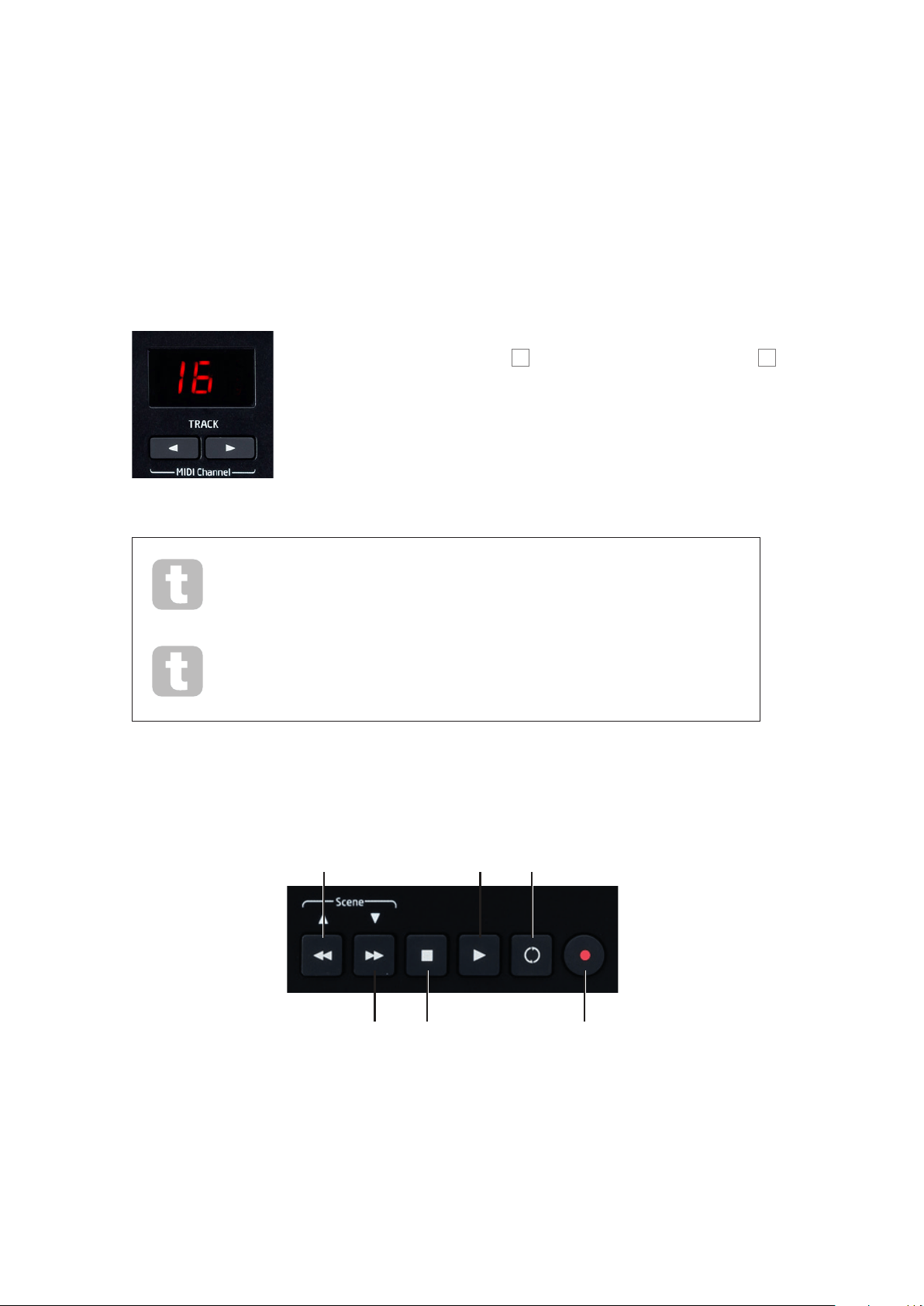
Transport controls
Launchkey is provided with a standard set of six ‘transport’ controls, which can be used to start,
stop, relocate, etc., within your DAW’s timeline. They act as a convenient remote control for the
software and duplicate the on-screen buttons.
Start
Fast Forward Stop Record
Rewind Loop
In InControl mode, these will control the DAW’s standard transport functions. In Basic Mapping
mode, each button will transmit its own unique MIDI CC message, and you may need to
con�gureyourDAWtorespondcorrectly.SeetheMIDItablesfrompage 19 onwards.
When Launchkey is used with Ableton Live, the
D
and
C
buttonsactasPreviousSceneand
NextScenerespectively.
13
English
Octave up/down
The Octave + / Octave - buttons
12
shift the keyboard ‘up’ or ‘down’ in octave steps. The
number of octaves over which the keyboard can be shifted varies with Launchkey model:
• Launchkey 25: -4 to +5 octaves
• Launchkey 49: -3 to +4 octaves
• Launchkey 61: -3 to +3 octaves
NotethattheLEDdisplaywillcon�rmthenumberofoctavesshifted(asapositiveornegative
value).
Transpose
Pressing the Octave + / Octave - buttons
12
together lets you transpose the keyboard in
semitoneincrements,uptoamaximumof+/-12semitones.TheLEDdisplayashes,and
con�rmsthetransposition.
Pitch Wheel
Launchkey’s Pitch Wheel
2
transmits standard MIDI Pitch bend
messages; use it with synth software to vary the pitch of the played note.
Modulation Wheel
The Modulation Wheel
3
transmits standard MIDI Modulation messages
(CC=1);whateffectthesehaveonyoursynthsoundwillbedetermined
byhowthesynthhasbeencon�gured.
Typically, a Modulation Wheel is used to vary a synth parameter such as
�ltercut-offfrequencyorvibrato
.
14
English
Slider(s)
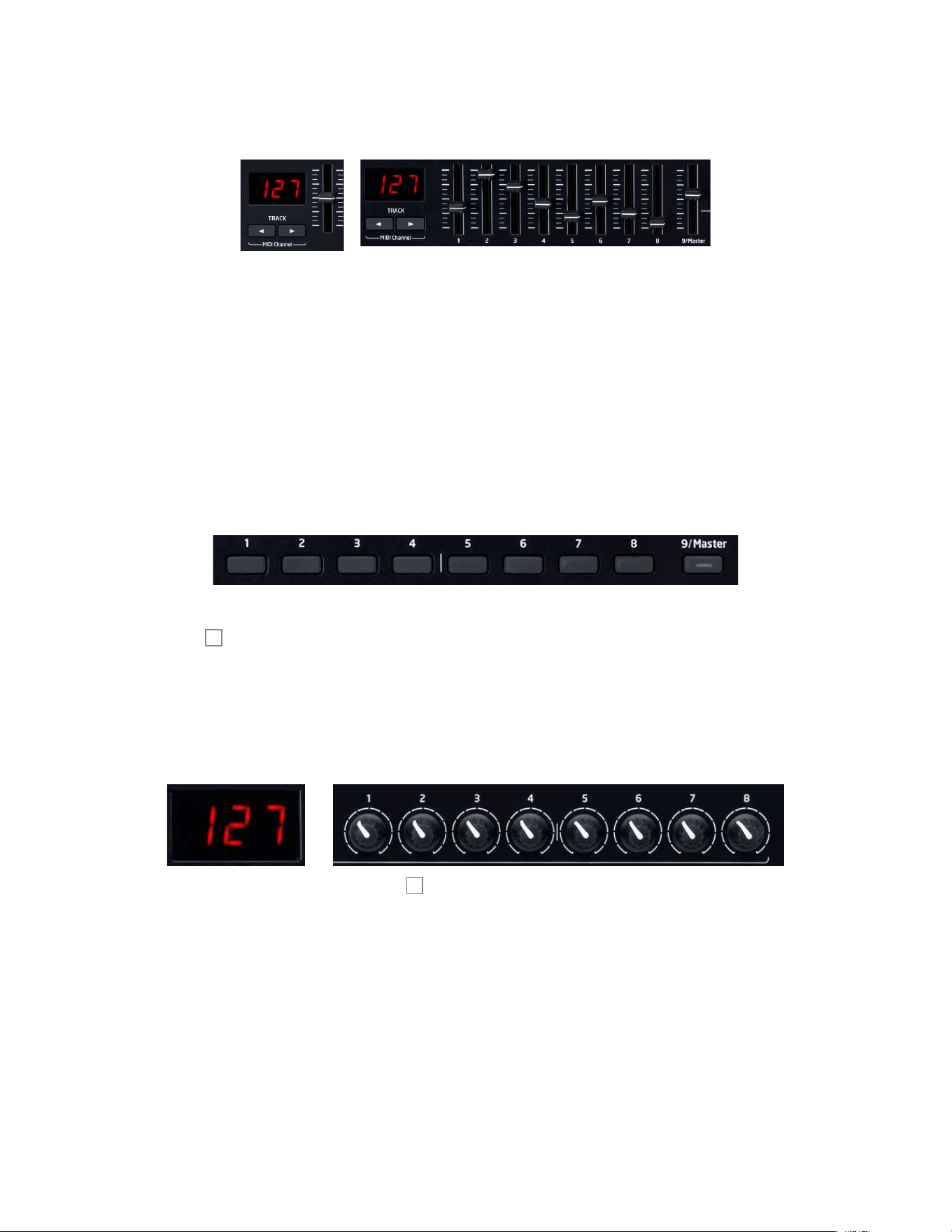
Launchkey 25 has one slider control, and Launchkeys 49 and 61 have nine.
ThesinglesliderontheLaunchkey25transmitsaMasterVolumemessage(CC=7).Thisslider
cannot be used in InControl mode.
On Launchkeys 49 and 61, the functions of sliders 1 to 8 will differ depending on whether
InControl mode is in use. In InControl mode, the sliders will act as faders in the DAW’s mixer
section, controlling the track levels in a set of eight consecutively-numbered channels. In Basic
Mappingmode,eachslidertransmitsa�xedMIDICCmessage.SeetheMIDItablesfrom
page 19 onwards.
Buttons
Only Launchkeys 49 and 61 have control buttons. There are a total of nine, one under each
slider
5
. In InControl mode, buttons 1 to 8 will typically act as mute or solo buttons for the
selected set of eight channels in the DAW’s mixer. In this case, the ninth button switches the
functionofbuttons1to8betweenMuteandSolo.NotethatSolomodeisindicatedbythe
internalLED.InBasicMappingmode,eachbuttontransmitsa�xedMIDICCmessage.
SeetheMIDItablesfrompage 19 onwards.
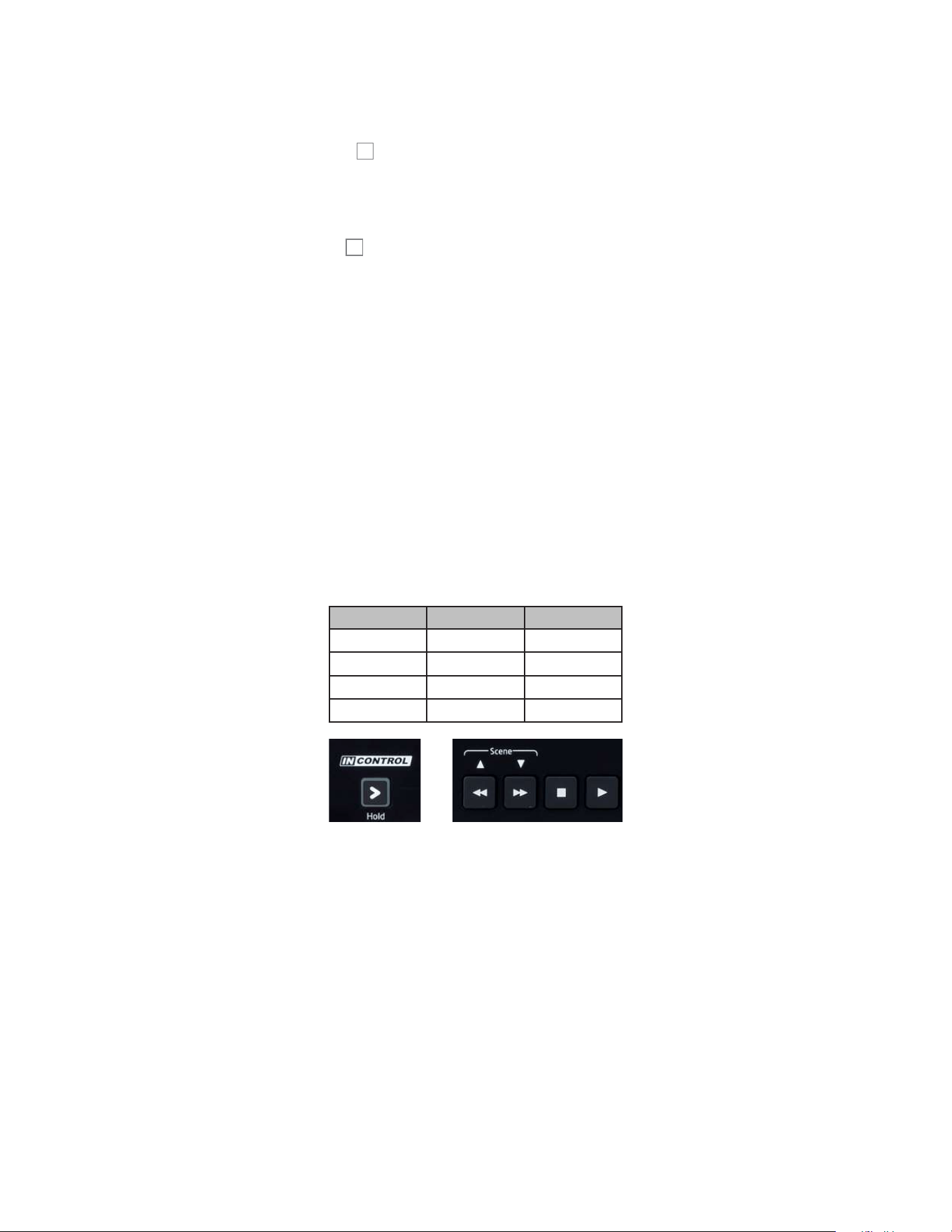
Rotary controls
All models have eight rotary controls
6
, which like the other Launchkey controllers, may be
placed in InControl mode, or used in Basic Mapping Mode. In InControl mode they would
typically act as pan controls for a set of eight channels in the DAW’s mixer section. In Basic
Mappingmode,eachrotarycontroltransmitsa�xedMIDICCmessage.SeetheMIDItables
from page 19 onwards.
Launch Pads
All models of Launchkey are equipped with a set of sixteen velocity-sensitive pads. Their
primary purpose is to trigger percussive sounds, and to do so, the pads need to be set to Basic
Mapping mode. In this case, all data is transmitted on MIDI Channel 10. In this mode, the pads
illuminate red when struck. If the pads are set to InControl mode, they can be used to trigger
clipsorloopswithcertainsoftware(suchasAbletonLive),buthavenofunctionwithnon-clip-
basedapplicationssuchasLogicProorCubase(hencecannotbeswitchedintoInControl
mode).
15
English
Round buttons
The two large, round buttons
9
transmit�xedMIDICCmessages(upper=104,lower=
105)whenLaunchkeyisinBasicMappingmode.WhenInControlisactivetheyhavespeci�c
functions within the software being used.
Track
I
/
H
The two Track
I
/
H
buttons
13
are only operative in InControl mode. They allow you to ‘step’
theslider(s)betweentracksorinstrumentsinyourDAW,whichwillbeassignedtoconsecutive
DAW tracks by successive presses of Track
I
/
H
.
Note that the action of the Track buttons can differ slightly between DAWs; for example, Logic
Pro automatically selects the next bank of eight tracks when you step from the “last” track in a
bank of eight; e.g., stepping from track 8 to track 9 switches the controlled tracks from 1-8 to
9-16.
Velocity Curves
To suit different keyboard playing styles, Launchkey lets you select the relationship between
keyvelocity(i.e.,howhardyouhitthekeys)andvolume.Therelationshipiscalledthevelocity
curve, and the default curve is NORMAL, which will be satisfactory for a great number of
players. Three alternative velocity curves are available – Low, High and Fixed.
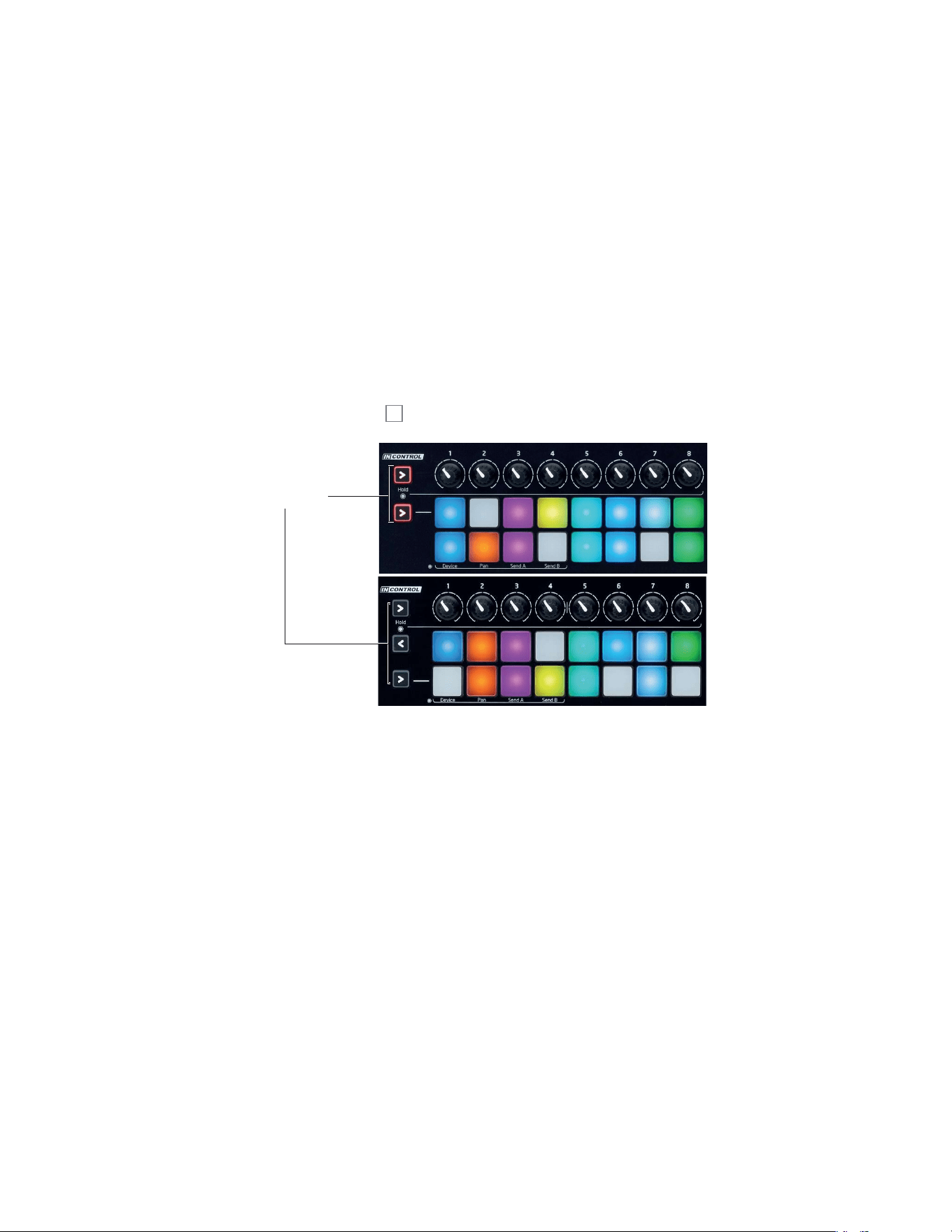
To select an alternative curve, press and hold the top InControl button and press one of the
transport buttons as follows:
BUTTON CURVE DISPLAY
d
Low
Lo
c
High
Hi
a
Fixed
off
h
Normal
NOR
With the Fixed curve selected, velocity sensing is disabled, and all notes will be at maximum
volume regardless of how hard the key is struck. With the Low curve selected, the volume of
the notes will be lower compared to the Normal curve for the same style of playing. The High
curve has the opposite effect.
Note: Velocity curves only affect the response of the keys, not the drum pads.
16
English
Using Launchkey with InControl
IfyouhaveoneoftheDAWsforwhichaDAWSetupGuideisavailable,youwill�rstneedto
follow the instructions on how to set it up to operate correctly with Launchkey. Once this has
been done, InControl will automatically assign each hardware controller to a key DAW function
in an intelligent manner. You should be able to discover very easily how each controller is
mapped onto which DAW function by experimenting, but a full list of mappings is contained in
theDAWSetupGuide.
InControlassignmentsare�xedandinvisibletoyou,soitsoperationisseamlessand
transparent.
InControl mode may be selected independently for the various blocks of controllers –
sliders/buttons, rotary controls and launch pads, using the three (Launchkey 49/61) or two
(Launchkey 25) InControl buttons
10
. When enabled, the InControl buttons are illuminated.
InControl Buttons
Note that the launch pads have no InControl functionality with some DAWs – these will be
DAWs which are not clip-based, such as Logic Pro and Cubase. Ableton Live is clip-based, and
you will be able to trigger clips and loops directly with these DAWs, using the pads. When used
with Reason, the pads can be used for many other purposes, such as to select and edit drum
loops or modify sequencer steps.
Using Launchkey with Ableton Live Lite
Ableton Live Lite is available for download to Launchkey owners, and is an excellent Digital
Audio Workstation (DAW) if you don’t already have one that you’ve been working with for some
time. Using Ableton Live Lite gives you the advantage of a deeper level of integration between
the controls on your Launchkey and various DAW functions than is possible with other DAWs.
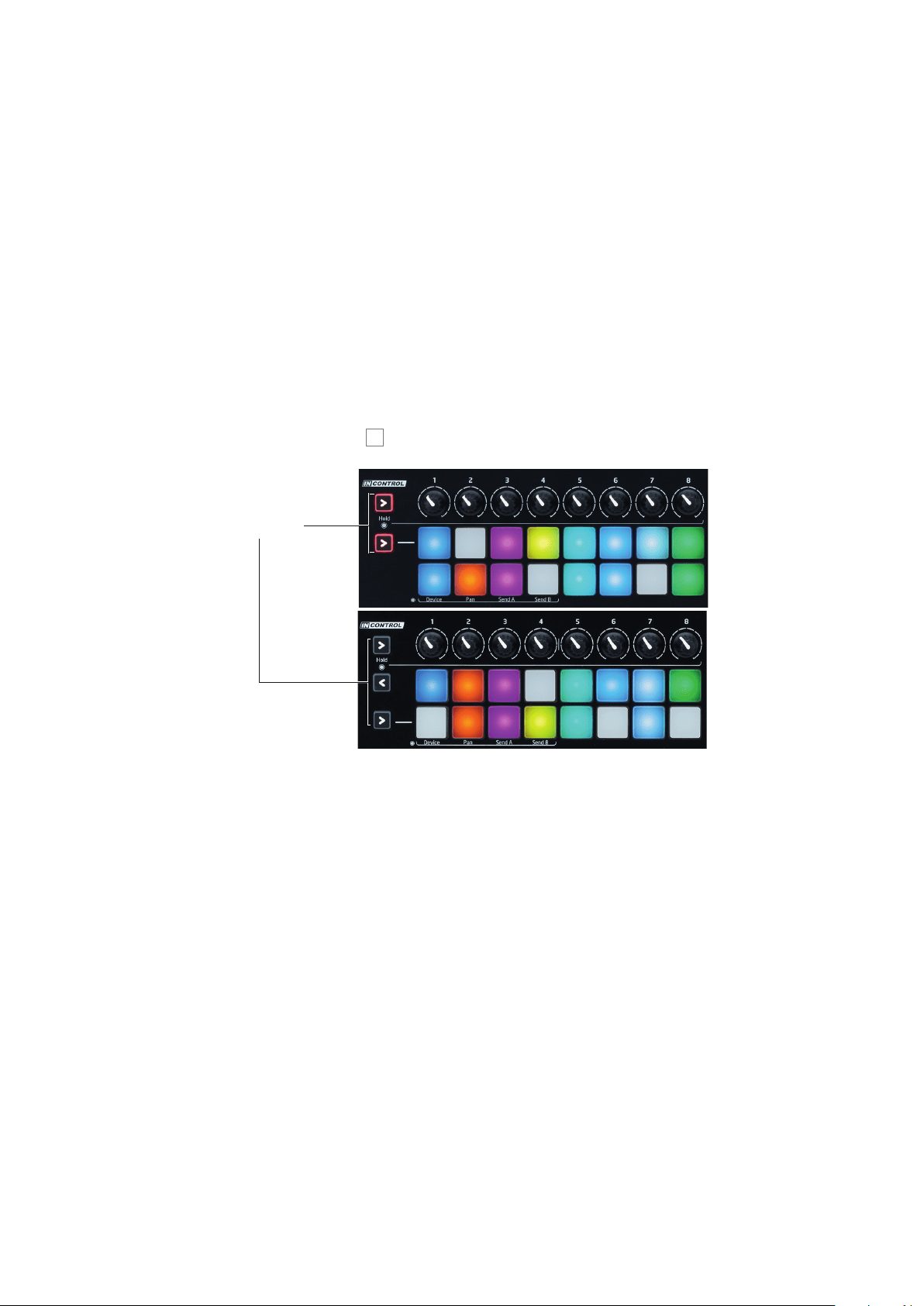
It is possible to reassign the rotary controls as Device controls, panpots or Send level controls.
17
English
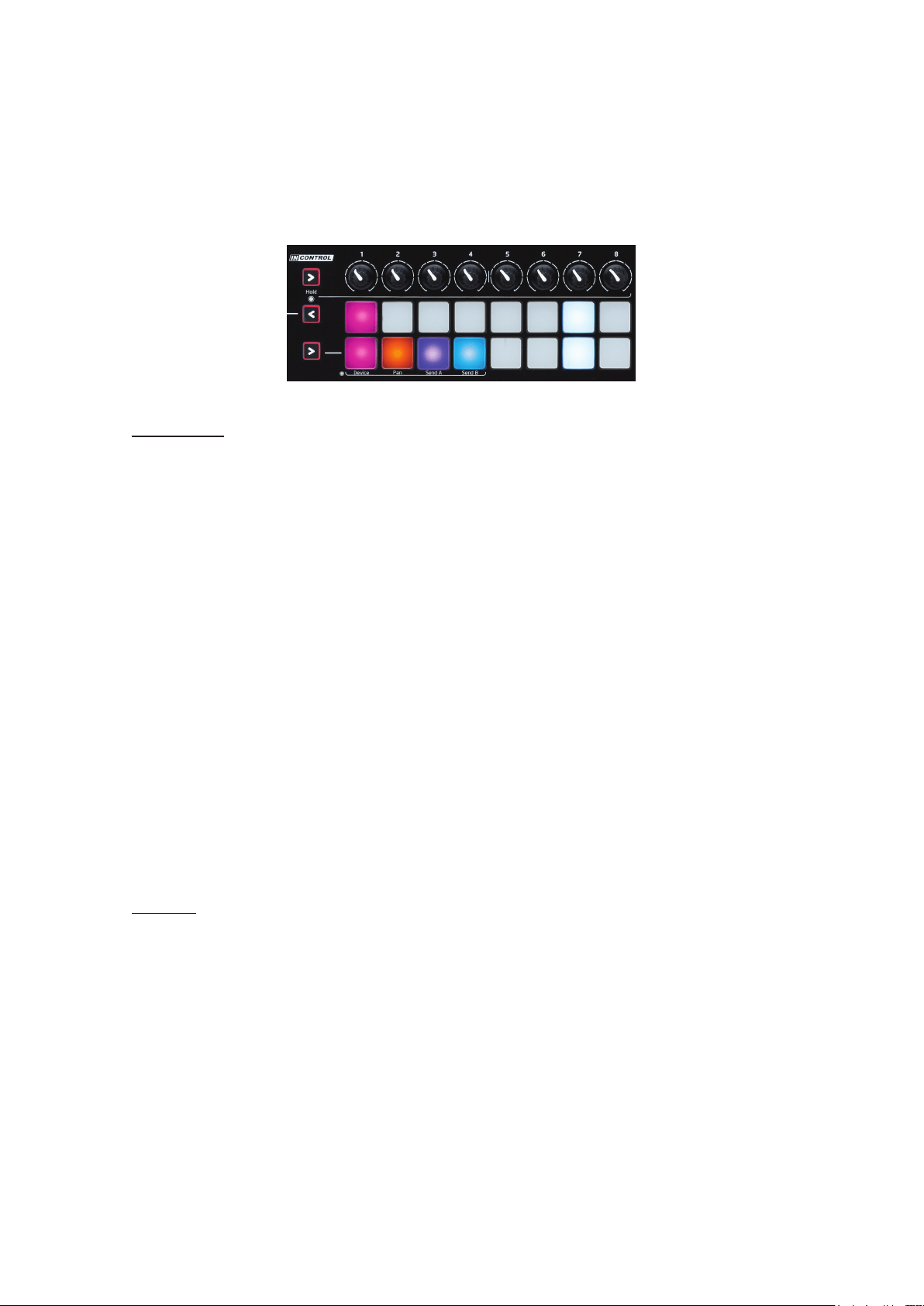
A long press of the top InControl button for the rotary controls places Launchkey in Pot
Selection mode. The drum pads will now illuminate in various colours to indicate the current
function within Ableton Live Lite of the rotary controls (the bottom row of pads), and the
currently selected Ableton Device Bank (the top row).
Bottom row:
Onepadwillbesigni�cantlybrighterthantheothers;thisindicatesthefunctionthattherotary
controlswillnowperform.The�rstfourpads’functionsareindicatedbylegendsontheLaunchkey
panel – Device, Pan, Send A or Send B respectively. If you want to control a different Ableton
function from that currently selected, hold down the top InControl button while pressing a different
pad.
The colour coding used is as follows:
• Pink: DeviceSelect
• Orange: Pan
• Purple: SendA
• Blue: SendB
Note that the remaining pads on the bottom row operate in a similar manner, and assign the
rotary controls to Sends C to F respectively, although this is not indicated on the Launchkey
panel. If these Sends have been enabled in Ableton Live Lite, the relevant pad(s) will illuminate in
further distinguishing colours. Only Sends A and B are enabled by default.
Additionally, you can scroll through the Devices on a track by holding the top InControl button
down while using the Track
I
and Track
H
buttons.
Top row:
If you touch any of the top row of drum pads while holding down the top InControl button down,
you can select alternative Device Banks within Ableton Live Lite. The active Device Bank is
indicatedbyonepadilluminatingbrightpink(theotherswillglowadimmerpink).
The�rstpad,whichisalwaysactivatedbydefaultwhenyouenterPotSelectionmode-selects
theDefaultBank(Ableton’s“bestof”pageofpre-selectedcontrols),whiletheremainingseven
padsselectDeviceBanks1to7(dependingonthenumberofBanksavailableatthetime–it
willoftenbeonlyBanks1and2).
For many users, the Default Bank – Ableton’s “best of” set – will prove adequate most of the
time, so the top row of pads need not be altered.
18
English
TECHNICAL INFORMATION
TROUBLESHOOTING
For the latest information and assistance with your Launchkey please visit:
www.novationmusic.com/answerbase
Basic Troubleshooting Examples
Q. WherecanI�ndmysoftware?
A. The software for Launchkey is available from our web site.
Go to www.novationmusic.com/register and follow the instructions.
Q. DoIneedtoinstallaUSBdriverwhenusingLaunchkeywithaMacorPC?
A. No, Launchkey is a class-compliant device. This means your computer will detect the
keyboard when you connect it and, if necessary, install the correct drivers automatically.
Q. WhatistheDCpowersocketfor?
A. You can power Launchkey with an external DC power supply of the recommended type.
This way it won’t draw power from the your laptop battery. If you’re using Launchkey with
an iPad, you must use an external power supply connected here – an iPad cannot power
LaunchkeyviatheUSBcable.
Q. CanIconnectLaunchkeytobothacomputerandaniPadatthesametime?
A. LaunchkeyisdesignedtoconnectviaUSB,andthuscanonlyconnecttoonedevice
at a time.
Q. WhatisInControl?
A. A Novation innovation that provides control of all major music software straight
out of the box.
Q. Whatdothearrowbuttonsdo?
A. These turn InControl mode on or off for Launchkey’s faders, knobs and pads individually.
InControl mode is available when a control surface connection to your music software is
established.

19
English
MIDI messages table
25-note Launchkey:
Control Msg Type Msg No. Range
Rotary control 1 cc 21 0 - 127
Rotary control 2 cc 22 0 - 127
Rotary control 3 cc 23 0 - 127
Rotary control 4 cc 24 0 - 127
Rotary control 5 cc 25 0 - 127
Rotary control 6 cc 26 0 - 127
Rotary control 7 cc 27 0 - 127
Rotary control 8 cc 28 0 - 127
Slider9(Master) cc 7 0 - 127
Pad 1 Note 40(E1) 0 - 127
Pad 2 Note 41(F1) 0 - 127
Pad 3 Note 42(F#1) 0 - 127
Pad 4 Note 43(G1) 0 - 127
Pad 5 Note 48(C2) 0 - 127
Pad 6 Note 49(C#2) 0 - 127
Pad 7 Note 50(D2) 0 - 127
Pad 8 Note 51(Eb2) 0 - 127
Pad 9 Note 36(C1) 0 - 127
Pad 10 Note 37(C#1) 0 - 127
Pad 11 Note 38(D1) 0 - 127
Pad 12 Note 39(Eb1) 0 - 127
Pad 13 Note 44(G#1) 0 - 127
Pad 14 Note 45(A1) 0 - 127
Pad 15 Note 46(Bb1) 0 - 127
Pad 16 Note 47(B1) 0 - 127
Round button top row cc 104 0 / 127
Round button bottom row cc 105 0 / 127
Arrow up button cc 112 0 / 127
Arrow down button cc 113 0 / 127
Trackleft(HUITrackDown) cc 103 0 / 127
Trackright(HUITrackUp) cc 102 0 / 127
Octaveleft(down) None
Octaveright(up) None
InControl(Basicmode) None
InControl(InControlmode) Note 10(A#2) 0 / 127
Keys Note

20
English
49 and 61-note Launchkeys:
Control Msg Type Msg No. Range
Rotary control 1 cc 21 0 - 127
Rotary control 2 cc 22 0 - 127
Rotary control 3 cc 23 0 - 127
Rotary control 4 cc 24 0 - 127
Rotary control 5 cc 25 0 - 127
Rotary control 6 cc 26 0 - 127
Rotary control 7 cc 27 0 - 127
Rotary control 8 cc 28 0 - 127
Slider1 cc 41 0 - 127
Slider2 cc 42 0 - 127
Slider3 cc 43 0 - 127
Slider4 cc 44 0 - 127
Slider5 cc 45 0 - 127
Slider6 cc 46 0 - 127
Slider7 cc 47 0 - 127
Slider8 cc 48 0 - 127
Slider9(Master) cc 7 0 - 127
Pad 1 Note 40(E1) 0 - 127
Pad 2 Note 41(F1) 0 - 127
Pad 3 Note 42(F#1) 0 - 127
Pad 4 Note 43(G1) 0 - 127
Pad 5 Note 48(C2) 0 - 127
Pad 6 Note 49(C#2) 0 - 127
Pad 7 Note 50(D2) 0 - 127
Pad 8 Note 51(Eb2) 0 - 127
Pad 9 Note 36(C1) 0 - 127
Pad 10 Note 37(C#1) 0 - 127
Pad 11 Note 38(D1) 0 - 127
Pad 12 Note 39(Eb1) 0 - 127
Pad 13 Note 44(G#1) 0 - 127
Pad 14 Note 45(A1) 0 - 127
Pad 15 Note 46(Bb1) 0 - 127
Pad 16 Note 47(B1) 0 - 127
Round button top row cc 104 0 / 127
Round button bottom row cc 105 0 / 127
Arrow up button cc 112 0 / 127
Arrow down button cc 113 0 / 127
Trackleft(HUITrackDown) cc 103 0 / 127
Trackright(HUITrackUp) cc 102 0 / 127
Octaveleft(down) None
Octaveright(up) None
InControl(Basicmode) None
InControl(InControlmode) Note 10(A#2) 0 / 127
Keys Note