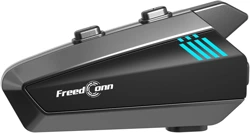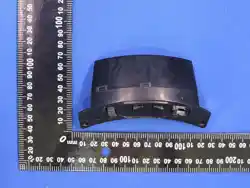

Telink Bluetooth Headset User Manual
Bluetooth Headset User Manual
1. Button Description
2. Basic Operation
2.1 Power On
2.2 Power Off
2.3 Bluetooth Pairing
2.4 Clear Pairing List
3. Music Playback
3.1 Play / Pause Music
3.2 Switch Tracks
3.3 Adjust Music Volume
3.4 Enable Intercom During Music
4. Call Function
4.1 Two-Party Call
5. Intercom Function
5.1 Start Intercom Mode
5.2 Answer Call During Intercom
5.3 Intercom Mic Toggle
5.4 Exit Intercom Mode
5.5 Intercom Mode Switch
5.6 Network Invitation
5.6 Join Network
5.6 Exit Network
6. Bridge Intercom Function
6.1 Enable Bridge Mode
6.2 Bridge Intercom Toggle
Bluetooth Headset User Manual
1. Button Description
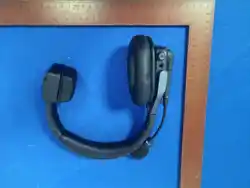
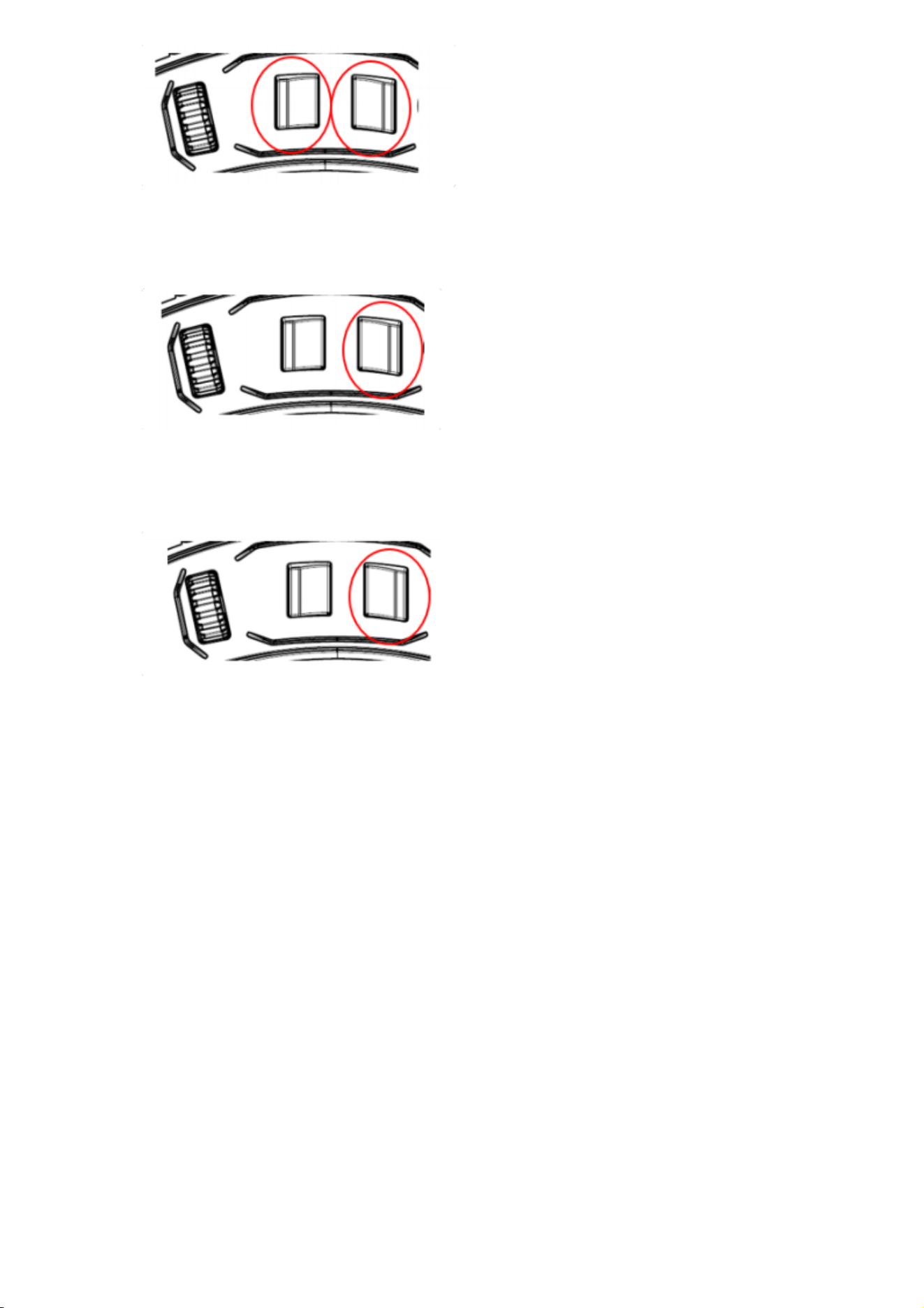
(Key buttons are labeled based on the product image. Three main buttons are involved.)
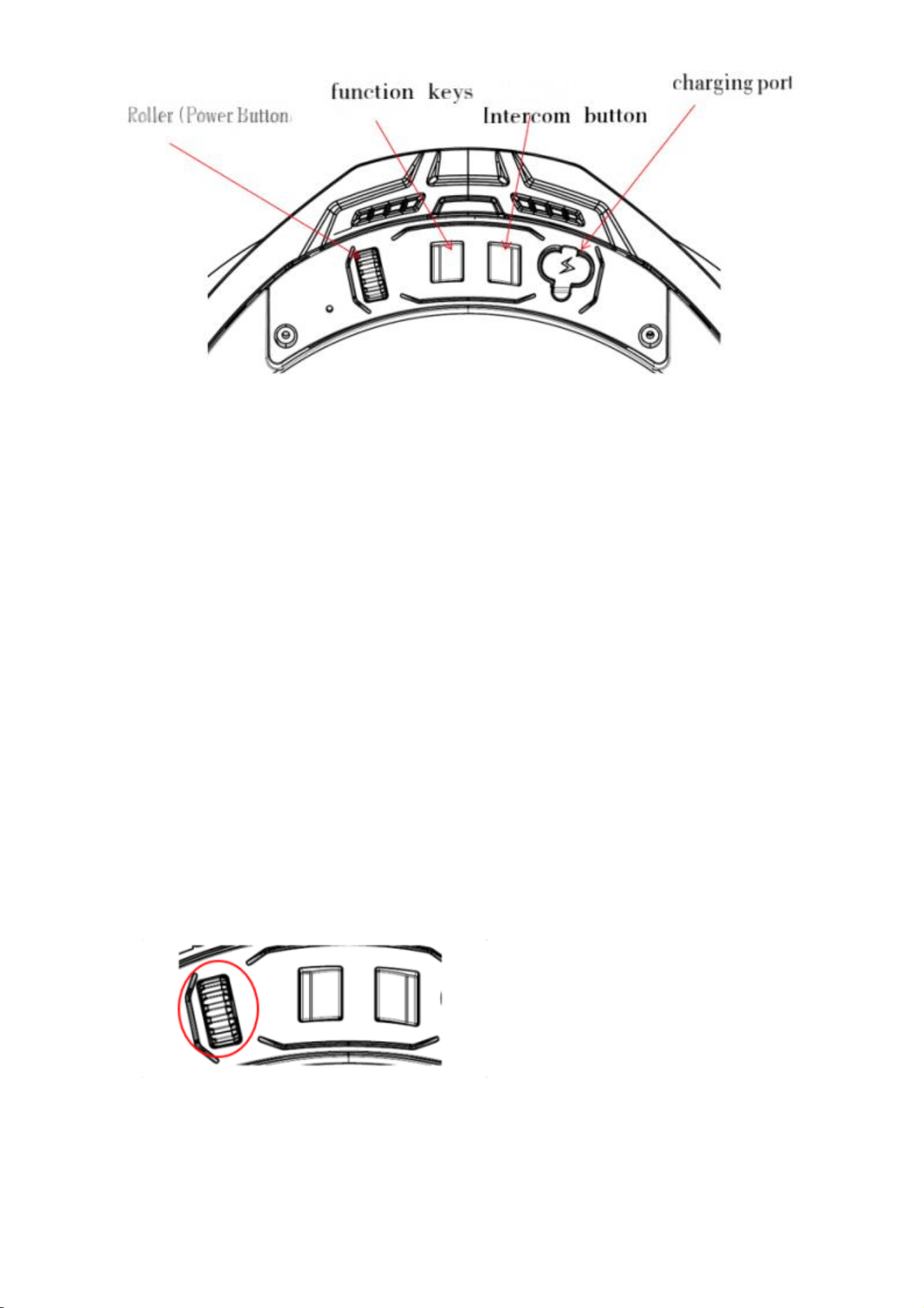
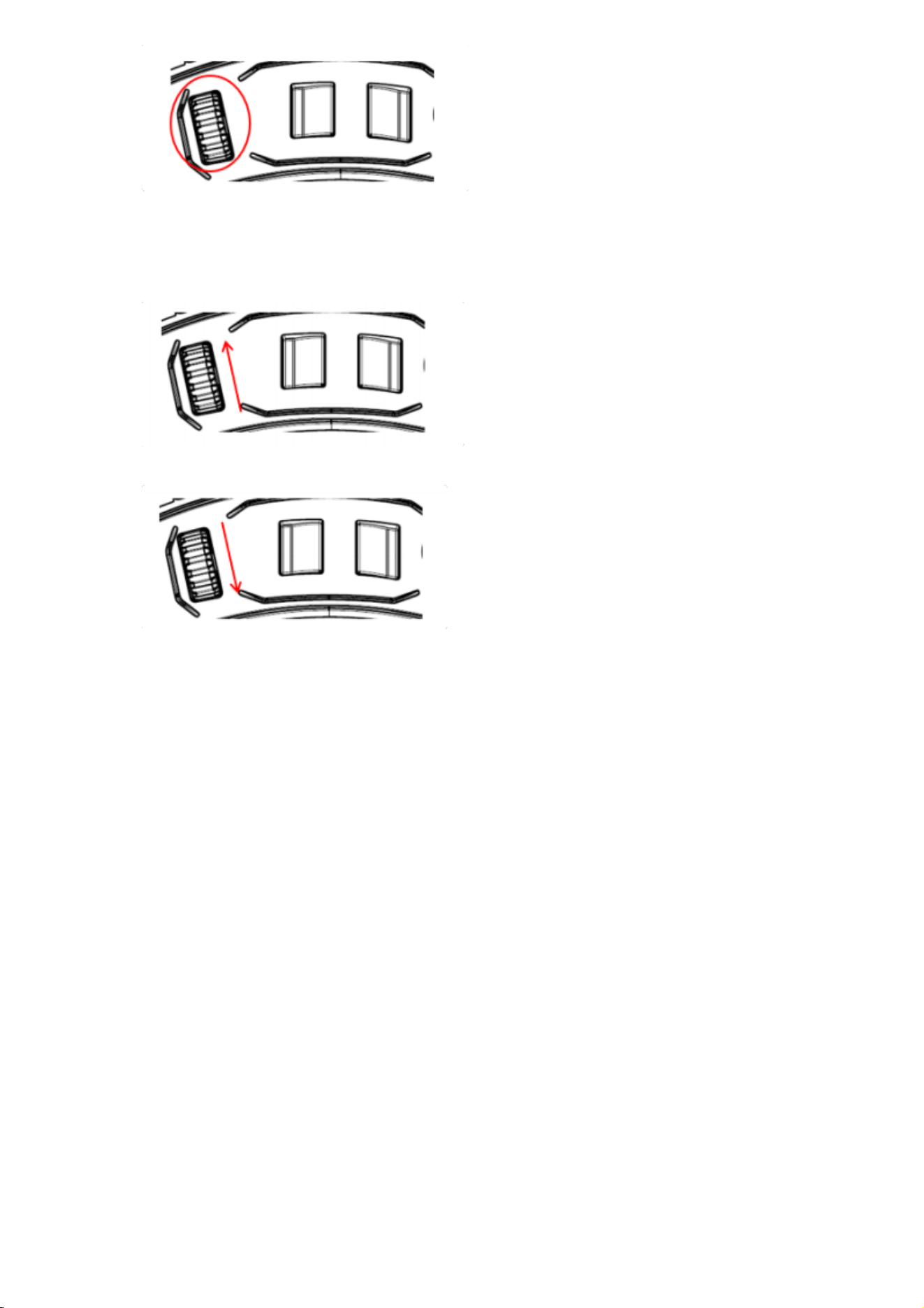
● Wheel/Power Button: Core operations incl. power on/off, play/pause, volume, call answer/end.
● Function Button: Enable bridge intercom, clear pairing, enter pairing mode, etc.
● Intercom Button: Toggle intercom, enable bridge function, switch intercom mode, etc.
2. Basic Operation
2.1 Power On
● First Power-On (Intercom OFF): Long-press wheel for 3 s. After "Power On", device announces battery level, then says "Start Pairing" and enters pairing mode
automatically.
● Subsequent Power-On (Intercom was ON): Long-press wheel for 3 s. After "Power On",
device announces battery, then says "Intercom Mode, X People" and enters intercom mode
automatically.
●
2.2 Power Off
● Operation: While powered on, long-press wheel for 3 s. Headset powers off after "Power Off" prompt.
●
2.3 Bluetooth Pairing
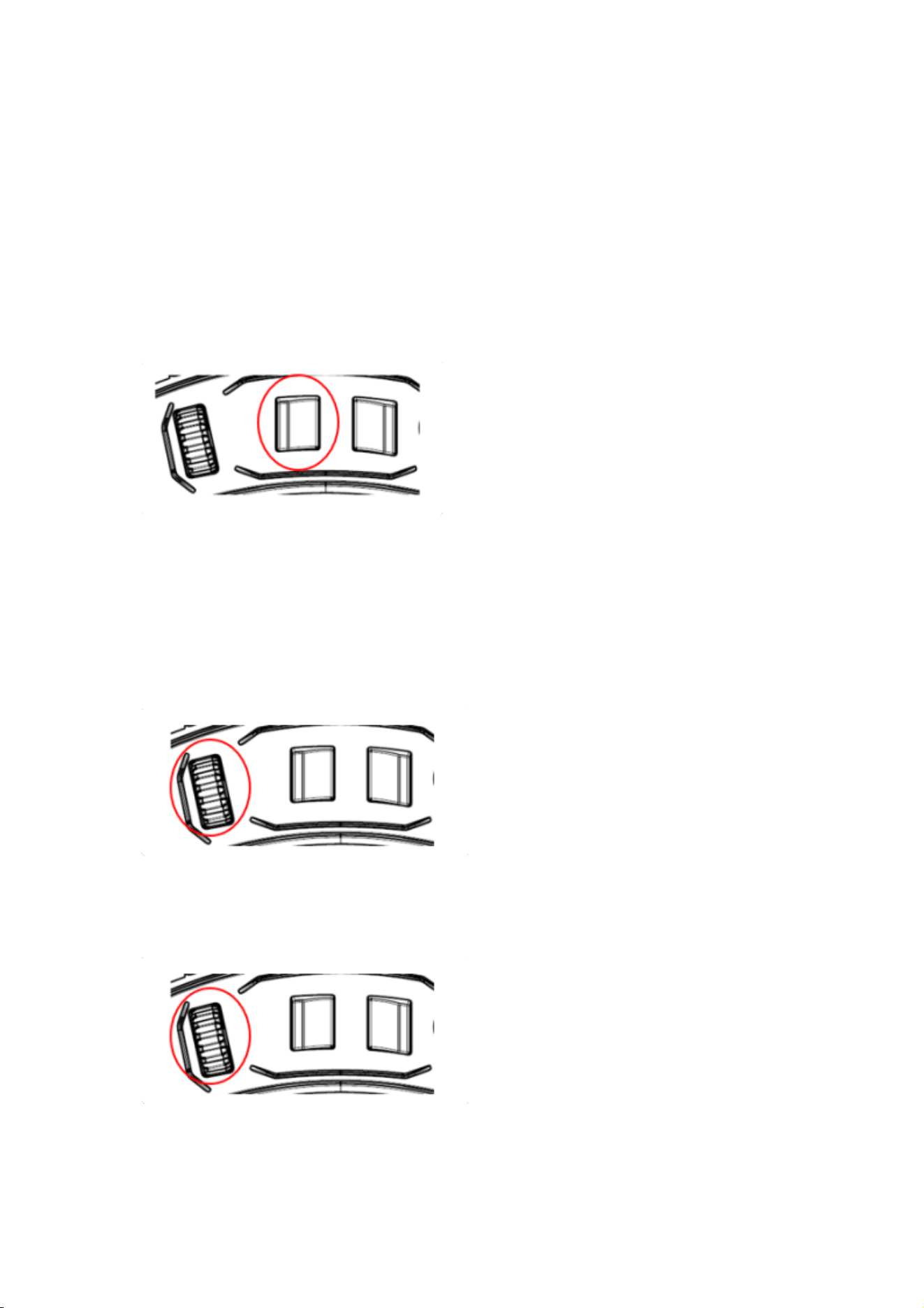
● First Pairing: Auto-enters pairing mode after power-on (prompt: "Start Pairing"). Search and select the headset in phone Bluetooth list to complete pairing.
● Re-enter Pairing Mode: With power on and not on a call, long-press function button for 3 s.
After "Start Pairing" prompt, enters pairing mode.
●
2.4 Clear Pairing List
● Operation: In any mode, triple-click function button to clear paired device list (re-pairing required on next power-on).
●
3. Music Playback
3.1 Play / Pause Music
● Play: When not on a call and no music playing, single-click wheel to start music from connected device.
● Pause: While music is playing, single-click wheel to pause playback.
●
3.2 Switch Tracks
● Previous Track: While music playing, triple-click wheel to go to previous track.
●
● Next Track: While music playing, double-click wheel to go to next track.
●
3.3 Adjust Music Volume
Increase Volume: While music playing, slide wheel button upward to increase volume.
●
Decrease Volume: While music playing, slide wheel button downward to decrease volume.
●
3.4 Enable Intercom During Music
● Operation: While music playing, single-click intercom button to enter intercom mode without interrupting music (prompt: "Intercom Mode, X People").
4. Call Function
4.1 Two-Party Call
● Answer Call: When call incoming, single-click wheel to answer.
● Reject Call: When call incoming, double-click wheel to reject.
● End Call: During a call, single-click wheel to end the call.
● Redial Last Number: When not on a call, double-click function button to dial the most recent number.
● Adjust Call Volume: During a call, slide wheel up to increase or down to decrease volume.
5. Intercom Function
5.1 Start Intercom Mode

● Operation: With power on and not on a call, single-click intercom button. After "Intercom Mode,
X People" prompt, enters intercom mode.
●
5.2 Answer Call During Intercom
● Operation: When call comes in during intercom, single-click wheel to suspend intercom and answer call. Intercom resumes after call ends.
5.3 Intercom Mic Toggle
● Operation: In intercom mode, single-click function button. After "Mic On/Off" prompt, toggles
intercom mic (when off, others cannot hear your voice).
●
5.4 Exit Intercom Mode
● Operation: In intercom mode, single-click wheel. After "Intercom Off" prompt, exits intercom mode.
5.5 Intercom Mode Switch
● Operation: In intercom mode, double-click intercom button to cycle: Public Mode → Private Mode
→ Exit Private. Voice prompts: "Public Intercom Mode", "Private Intercom Mode", "Exit Private
Intercom".
●
5.6 Network Invitation
● Operation: In intercom mode, press intercom + function buttons simultaneously. Voice prompt "Start Network Invitation" plays; wait for other devices to join.
●
5.6 Join Network
● Operation: In intercom mode, triple-click intercom button. Voice prompt "Start Network" plays and device joins the invited network.
●
5.6 Exit Network
● Operation: In intercom mode, long-press intercom button for 3 s. Voice prompt "Exit Network" plays.
●
6. Bridge Intercom Function
6.1 Enable Bridge Mode
● Operation: While not in intercom, put any Bluetooth headset into classic pairing mode, then long-
press intercom button on this device for 3 s. Voice prompt "Start Bridge Mode" plays. Device
searches and connects; on success, "Connection Successful" plays.
●
6.2 Bridge Intercom Toggle
● Operation: After bridge connection is established, single-click function button. Voice prompt "Bridge Intercom On/Off" plays. When on, the two devices can
intercommunicate. Turning off requires re-bridging.

●
NOTE: This equipment has been tested and found to comply with the limits for a Class B digital device,
pursuant to part 15 of the FCC Rules. These limits are designed to provide reasonable protection against
harmful interference in a residential installation. This equipment generates, uses and can radiate radio
frequency energy and, if not installed and used in accordance with the instructions, may cause harmful
interference to radio communications. However, there is no guarantee that interference will not occur in a
particular installation. If this equipment does cause harmful interference to radio or television reception,
which can be determined by turning the equipment off and on, the user is encouraged to try to correct the
interference by one or more of the following measures:
- Reorient or relocate the receiving antenna.
- Increase the separation between the equipment and receiver.
-Connect the equipment into an outlet on a circuit different from that to which the receiver is connected.
-Consult the dealer or an experienced radio/TV technician for help.
Changes or modifications not expressly approved by the party responsible for compliance could void the
user's authority to operate the equipment.
This device complies with Part 15 of the FCC Rules. Operation is subject to the following two conditions:
(1) this device may not cause harmful interference, and (2) this device must accept any interference
received, including interference that may cause undesired operation.
FCC RF Exposure Warning Statement:
This equipment complies with FCC radiation exposure limits set forth for an uncontrolled environment.
This equipment can be used in portable exposure conditions.
This device contains licence-exempt transmitter(s)/receiver(s) that comply with Innovation, Science and
Economic Development Canada’s licence-exempt RSS(s). Operation is subject to the following two
conditions:
(1) This device may not cause interference.
(2) This device must accept any interference, including interference that may cause undesired operation of
the device.
L’émetteur/récepteur exempt de licence contenu dans le présent appareil est conforme aux CNR
d’Innovation, Sciences et Développement économique Canada applicables aux appareils radio exempts
de licence. L’exploitation est autorisée aux deux conditions suivantes :
(1) L' appareil ne doit pas produire de brouillage;
(2) L' appareil doit accepter tout brouillage radioélectrique subi, même si le brouillage est susceptible d' en
compromettre le fonctionnement.

ISED Radio Frequency Exposure Statement:
This equipment complies with ISED exposure limits set forth for an uncontrolled environment. This equipm
ent can be used in portable exposure conditions.
Déclaration d'ISDE sur l'exposition aux radiofréquences :
Cet équipement est conforme aux limites d'exposition d'ISDE établies pour un environnement non contrôlé.
Cet équipement peut être utilisé dans des conditions d'exposition portables.