
915M Outdoor Full-Duplex Two-Way
Intercom User Manual
Preface
Thank you for purchasing this 915M outdoor professional full-duplex intercom device! Designed for outdoor
activities such as hiking, mountaineering, camping, cycling, outdoor exploration and team expansion, this
product overcomes the limitations of traditional walkie-talkies featuring simplex one-way communication
and one-person speaking mode. Adopting the exclusive 915M communication band, it supports networking
of up to 15 devices and full-duplex real-time two-way intercom, allowing multiple users to speak and listen
simultaneously with instant interaction just like face-to-face conversation. It effectively solves the problems
of delayed communication and limited interaction of traditional intercoms, providing efficient, smooth and
stable communication support for outdoor team cooperation and travel communication.
This manual details the device functions, operation methods, parameter specifications, safety instructions
and maintenance guidelines. Please read it carefully before use and keep it properly for future reference.
1. Product Overview
1.1 Core Features
•
Full-Duplex Real-Time Two-Way Intercom: Subverts the traditional simplex intercom mode,
supporting simultaneous speaking and listening for multiple users. No button operation or turn-taking is
required, delivering zero-latency and ultra-smooth communication and restoring natural face-to-face
dialogue experience.
•
Exclusive 915M Communication Band: Adopting the license-free 915M outdoor dedicated band with
strong penetration and excellent anti-interference performance, it adapts to complex outdoor environments
including mountains, valleys, grasslands and suburbs. It ensures stable signals and long transmission
distance while avoiding interference from conventional civilian frequency bands.
•
15-Device Networking Support: A single group allows synchronous pairing and networking of up to
15 devices, meeting multi-person communication demands for small and medium-sized outdoor team
activities, field operations and outdoor rescue scenarios.
• Professional Outdoor Adaptability: Lightweight, portable, drop-resistant and dustproof body
designed for high and low temperature outdoor environments. It features low power consumption and long
battery life with no network traffic or call charges required. No base station is needed, enabling instant
networking and communication after power-on without network restrictions.
• High-Definition Noise Reduction Calling: Equipped with a professional outdoor noise-reducing
microphone and high-definition speaker, it effectively filters wind noise and environmental background
noise to ensure clear and transparent voice quality even in noisy outdoor conditions.
1.2 Application Scenarios
Suitable for outdoor mountaineering, hiking, wild camping, mountain cycling, outdoor team expansion, field

operation inspection, small-scale outdoor rescue, self-driving fleet follow-up communication and other
outdoor team scenarios with weak or no network coverage.
2. Product Specifications
Parameter Item
Technical Specification
Communication Band
915MHz outdoor dedicated license-free band
Working Mode
Full-duplex real-time two-way intercom (multi-person synchronous
interaction)
Maximum Networking
Capacity
Supports up to 15 devices for synchronous pairing and networking
per group
Communication Distance
Open barrier-free environment (tested at Shenzhen Dameisha
Beach): effective communication distance ≥ 2100 meters (2.1 km);
complex outdoor environment with trees and terrain obstacles:
effective communication distance ≥ 600 meters. The actual distance
and effect may vary slightly due to on-site shelters and
electromagnetic interference.
Noise Reduction Function
Built-in intelligent high-definition noise reduction, fully enabled by
default. Automatically filters wind noise and background noise
without manual switching.
Power Supply
Built-in rechargeable lithium battery, Type-C fast charging
Battery Endurance
Standby time ≥ 72 hours; continuous intercom time ≥ 8 hours
Operating Temperature
-20℃ ~ +55℃, adaptable to outdoor high and low temperature
environments
Body Features
Lightweight, drop-resistant and dustproof
Intercom Mode
Button-free real-time intercom, full-time two-way smooth
communication
3. Component Description
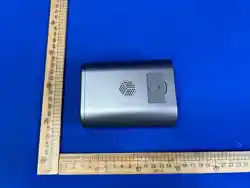
•
Power Key: Long press to power on/off; short press to check remaining battery level. Long press for 3
seconds to power on with voice prompt; long press for 3 seconds to power off with voice prompt.
• Volume +/- Keys: Adjust speaker volume to adapt to different environmental noise levels. In pairing
mode, short press the Volume+ key to invite new team members to join the network with corresponding
voice prompt.
• Network Matching Key: Used for device pairing, group creation and network exit. Long press for 3

seconds under power-on state to enter pairing mode with voice prompt. Short press in pairing mode to exit
and restore normal working state.
• Mute Key: Independent mute switch for intercom audio. Short press to toggle mute status under
normal working state. Press in pairing mode to initiate group pairing invitation.
• Microphone: High-definition sound pickup microphone with built-in dust and windproof structure
• Speaker: High-fidelity loudspeaker with clear and loud sound, supporting full system voice prompts
• Type-C Charging Port: Universal fast charging interface, compatible with mainstream chargers and
power banks
4. Operation Guide
4.1 Power On / Power Off
Long press the power key for 3 seconds, the device vibrates and powers on with voice promptpower on,
indicator lights up and enters standby networking state. Long press the power key for 3 seconds again, the
device plays power off and shuts down with indicators off. The device automatically enters power-saving
standby mode after 30 minutes of inactivity. Equipped with a built-in low-voltage protection mechanism, the
device periodically plays the low-battery voice prompt low battery when power is insufficient, and
automatically powers off before battery exhaustion to prevent battery damage and extend service life.
4.2 Group Network Matching (Mode 1: Create New Blank Group)
Application Scenario: Build a new exclusive team group with multiple unnetworked devices for the first time
without existing groups.
1. Step 1: Device Preparation: Power on all new devices to be networked, ensure sufficient power and
keep them in unnetworked standby state.
2. Step 2: Enter Pairing Mode Uniformly: Long press the [Network Matching Key] for 3 seconds on
each device. The device plays voice prompt Entering pairing mode and the ring indicator displays a
running light flow effect, officially entering pairing standby state.
3.
Step 3: Initiate New Group Invitation: When all devices are in pairing mode, short press the [Mute
Key] on any device. The device plays Inviting device to join and actively initiates a new group networking
invitation.
4. Step 4: Complete Networking: All other devices in pairing mode automatically respond and join the
group. After successful networking, the initiator short presses the [Network Matching Key] to exit pairing
mode. The device plays Connected, and all devices enter full-duplex real-time intercom state.
4.3 Group Network Matching (Mode 2: Add New Devices to Existing
Group)
Application Scenario: Add new devices to an established network group with less than 15 online devices.
1. Step 1: Device Preparation: Confirm the existing group is not full, then power on and standby all new
unnetworked devices to be added.
2. Step 2: Enter Pairing Mode: Onlyone arbitrary online device in the group and all new
unnetworked devices need to long press the [Network Matching Key] for 3 seconds respectively. The
device plays Entering pairing mode and the ring light shows a running effect to enter pairing state.

3. Step 3: Invite New Members: Short press the [Volume+ Key] on the paired online device in the group.
The device plays Adding new teammate and actively sends an invitation for new devices to join.
4. Step 4: Complete Member Addition: All new devices in pairing mode automatically access the
existing group. After successful addition, the initiator short presses the [Network Matching Key] to exit
pairing mode. The device plays Connected, and all devices restore normal full-duplex intercom state.
General Networking Rules: A single group supports a maximum of 15 synchronous networked devices.
No new devices can be added when the group is full; partial devices must be removed before re-pairing.
Multiple independent groups can be created in the same environment without mutual signal interference. All
devices enter real-time two-way intercom automatically after successful networking with no extra operation
required.
4.4 Two-Way Intercom Usage
Full-duplex intercom is enabled by default after successful networking. No button operation is required.
All team members can speak and listen simultaneously with conflict-free and delay-free multi-person
interaction. It completely changes the turn-taking limitation of traditional walkie-talkies and realizes natural
face-to-face style communication.
Usage Suggestion: Keep your mouth 3–30 cm away from the microphone and face the microphone
toward your mouth during sound pickup to obtain optimal call quality and effectively avoid noise, sound
distortion and weak pickup issues.
4.5 Function Adjustment
• Volume Adjustment: Short press Volume +/- keys to adjust the speaker volume level by level. There
are 10 adjustable volume levels (factory default: Level 7), adapting to different scenarios such as quiet
camping and noisy mountain areas.
• Mute Switch Toggle: In normal power-on state, short press the [Mute Key] to cycle the intercom mute
state. Voice prompt unmuted for mute off and muted for mute on. The microphone stops sound pickup in
mute mode while the listening function remains available.
4.6 Charging Operation
Use the original Type-C data cable for charging, compatible with chargers, power banks, and computer
USB interfaces. The red indicator light stays solid on during charging; once fully charged, the white
indicator light stays solid on. Disconnect the power supply promptly after full charge to avoid overcharging.
For first-time use, it is recommended to fully charge the device to ensure optimal battery service life.
5. Indicator Light Status Description
• Remaining Battery Ring Indicator: The ring indicator intuitively displays the current remaining
battery level. After the device is powered on, short press the power key to enter the battery checking mode.
The ring light consists of 10 segments, with each segment representing approximately 10% battery level.
The more segments lit, the higher the remaining power, allowing users to quickly check the battery status in
any environment.
• Volume Level Ring Light Display: The middle ring indicator visually shows the current volume level.
The device defaults to Level 7 volume out of 10 adjustable levels; the number of lit segments corresponds
to the current volume level.

• Device Connection Status Light (White Light)
•
Disconnected State: The white light flashes continuously, indicating no network connection.
• Connected State: The white light stays solid on, indicating normal networking and intercom working
status.
• Pairing Mode Ring Light Effect
• Enter Pairing Mode: The full ring light displays a running flow effect to identify pairing status.
• Ordinary Device Pairing Completed: All ring lights stay solid for 3 seconds, then automatically exit the
pairing light mode and restore to normal connection light status.
• Host Device Pairing: The ring light keeps flashing during pairing. Manually short press the network
matching key to exit pairing mode and restore normal status.
• Mute Mode Light Prompt (Red Light)
•
Mute Enabled: Red indicator light stays solid on; microphone is muted while listening function remains
active.
•
Mute Disabled: Red indicator light turns off, restoring normal two-way intercom pickup function.
• Charging Status Light Prompt
• Charging: Red indicator light stays solid on.
• Fully Charged: Red light turns off, and the white status light stays solid on to indicate full charge and
standby state.
• Device Abnormality Prompt: Flashing red light indicates low battery.
• Disconnection Voice Prompt: When the device is unpaired, detached from the group, or out of
communication range, it broadcasts the voice prompt disconnected every 15 seconds.
•
Network Connection Voice Prompt: When the device successfully completes network pairing and
connection, it broadcasts the voice prompt Connected.
•
Low Battery Voice Prompt: The device periodically broadcasts low battery when power is
insufficient and automatically powers off before battery exhaustion.
6. Safety Instructions
•
This device adopts the compliant 915M license-free frequency band. Do not modify the device
frequency band, transmit power, or hardware structure without authorization.
•
Do not store the device in high-temperature, humid, rainy, or long-term sun-exposed environments.
Avoid water ingress, dropping, impact, and extrusion to prevent damage to the device body and internal
components.
• Use standard compliant power adapters for charging. Inferior chargers are prohibited to avoid safety
hazards such as battery overheating and short circuits.
• Do not operate the device in flammable and explosive environments such as gas stations and
chemical plants.
• Children must use the device under adult supervision to avoid accidental injury or device damage.
•
For long-term storage, fully charge and power off the device. Recharge it every 3 months to prevent
battery damage caused by over-discharge.

7. Daily Maintenance & Care
• Clean the device body with a dry soft cloth. Do not rinse directly with water or wipe the ports and
surface with corrosive liquids such as alcohol and disinfectant.
• Regularly clean dust and debris from the charging port, microphone hole, and speaker hole to avoid
affecting charging, sound pickup, and sound output performance.
• If signal instability, stuttering sound, or network failure occurs, check the battery level and network
status first; restart the device to resolve most common faults.
• Avoid frequent dropping and severe vibration. Use a matching lanyard or storage bag during outdoor
use to extend the device service life.
8. Common Troubleshooting
Fault Phenomenon
Troubleshooting & Solutions
Failed to power on
Check the remaining battery level and charge the device; confirm
correct long-press operation of the power key.
Network pairing failure
Confirm all devices are powered on and the group is not full; restart
devices and re-pair; keep away from strong electromagnetic interference
sources.
Stuttering or noisy call
sound
Check and remove obstructions on the microphone and speaker, clean
debris from sound pickup holes; stay away from strong interference
devices and shorten the networking distance between devices for better
call quality.
Short communication
distance
Ensure sufficient battery power; avoid heavily sheltered areas such as
dense forests and buildings, and use the device in open environments.
No charging response
Replace the data cable or charger; clean dust from the charging port
and reconnect for charging.
9. After-Sales Warranty
This product provides official after-sales warranty service. The whole device enjoys a 12-month warranty
under non-human damage conditions. Free maintenance and parts replacement are available for quality-
related failures within the warranty period. Failures caused by artificial damage, water ingress, and
unauthorized modification are not covered by the warranty, and paid maintenance services will be provided.
For after-sales consultation, fault repair, and technical support, please contact our official customer service
team.
Warm Tip: Designed exclusively for outdoor team communication, this device requires no SIM card,
network signal, or call fees. It is ready for use after power-on. The full-duplex two-way intercom greatly
improves outdoor team communication efficiency and safeguards your outdoor travel.

FCC WARNING
This device complies with part 15 of the FCC Rules. Operation is subject to the following two conditions: (1)
this device may not cause harmful interference, and (2) this device must accept any interference received,
including interference that may cause undesired operation.
Any changes or modifications not expressly approved by the party responsible for compliance
could void the user's authority to operate the equipment.
NOTE: This equipment has been tested and found to comply with the limits for a Class B digital device,
pursuant to Part 15 of the FCC Rules. These limits are designed to provide reasonable protection against
harmful interference in a residential installation. This equipment generates, uses and can radiate radio
frequency energy and, if not installed and used in accordance with the instructions, may cause harmful
interference to radio communications. However, there is no guarantee that interference will not occur in a
particular installation.
If this equipment does cause harmful interference to radio or television reception,
which can be determined by turning the equipment off and on, the user is encouraged to try to correct the
interference by one or more of the following measures:
-- Reorient or relocate the receiving antenna.
-- Increase the separation between the equipment and receiver.
-- Connect the equipment into an outlet on a circuit different
from that to which the receiver is connected.
-- Consult the dealer or an experienced radio/TV technician for help.
Warning: Changes or modifications to this unit not expressly approved by the part responsible for
compliance could void the user’s authority to operate the equipment