7
Download the LotusLamp X App
Scan the QR code to download the app,
or search for “LotusLamp X”
on the App Store or Google Play.
Compatible with Android 4.3+ and iOS 8.0+
Please enable Bluetooth and allow the
required permissions
for normal app functionality.
1. My Devices
① Device List
Displays available devices. Connected devices
will be highlighted.
② Connection Status
Tap to connect or disconnect the device.
③ Power Button
Turn the lights ON or OFF.
④ Settings
Open the device settings page.
⑤ Display Mode
Switch the device list display mode.
⑥ Add Device
Add a device, group, or virtual device.
2. Device Details
2.1 Color Control
Customize your lighting with the color wheel
or choose from preset color options.
① Connection Status
View the current connection status.
② Color Wheel
Adjust the light color.
③ Preset Colors
Quickly switch between preset colors.
④ Brightness
Adjust the light brightness.
⑤ Power
Turn the lights ON or OFF.
2.2 Music Mode
Sync your lights with music effects.
① Device Microphone
Use the built-in device microphone.
② Phone Microphone
Sync lights with music captured by your phone.
③ Uploaded Music
Play lighting effects with uploaded music files.
④ Individual LED Control
Customize the color of individual LED bulbs.
⑤ Brightness
Adjust the light brightness.
⑥ Mode Selection
Choose different music lighting modes.
2.3 Scene Modes
Customize your lighting atmosphere
with adjustable dynamic effects.
① Mode List
Swipe to switch between lighting modes.
② Speed Control
Adjust the effect transition speed.
③ Brightness
Adjust the brightness of the lights.
2.4 Schedule
Set automatic ON/OFF timers for your lights.
Note: Timer settings are stored on the device.
After reconnecting, the app will automatically
sync the saved schedule settings.
2.5 Device Settings
① Icon
Customize the device icon.
② Name
Rename your device.
③ Create Group
Group multiple devices together.
④ Custom Functions
Set personalized lighting functions.
⑤ Remove Device
Remove the device from the app.
3. Settings
① Auto Add Devices
Automatically search for nearby devices
and add them to the device list.
② Connection Options
Automatic Connection
Automatically reconnect to saved devices.
Memory Connection
Reconnect to the most recently connected
device.
Manual Connection
Manually select and connect to a device.
4. Other
Change Background
Customize the app background image.
Multi-Language
Switch the app language or follow the system
language.
Share the App
Share the app download QR code.
Feedback
Contact us by email for support or feedback.
About
View app version information.
5. FAQ
Q1: The app cannot find the device.
A: Make sure the device is in pairing mode and Bluetooth is enabled on
your phone.
Q2: The remote control is not working.
A: Check the battery installation and ensure there are no obstructions
bet
ween the remote and the controller.
Q3: The lights flicker or behave abnormally.
A: Ensure the power supply is stable and verify the correct input voltage
is being used.
6. Safety Instructions
• Use only compatible LED bulbs with the recommended wattage.
• Ensure bulbs are fully installed before use.
• Avoid damaging the wires or exposing them to sharp edges, heat,
or excessive tension.
• Use the product only within its specified waterproof rating.
• Keep away from fire and flammable materials.
• Do not disassemble or modify the product.
• Disconnect the power before installation, maintenance, or when not in use.
• Regularly inspect the wires, plugs, and sockets for damage.
• Keep out of reach of children during installation.
• Stop using the product immediately if any damage is detected.
Failure to follow these instructions may result in electric shock, fire, or injury.
7. Customer Support
Thank you for choosing Zentirva.
If you have any questions regarding installation,
app connection, or product usage,
our support team is here to assist you.
We aim to respond within 24 hours.
Email: zentirva@outlook.com
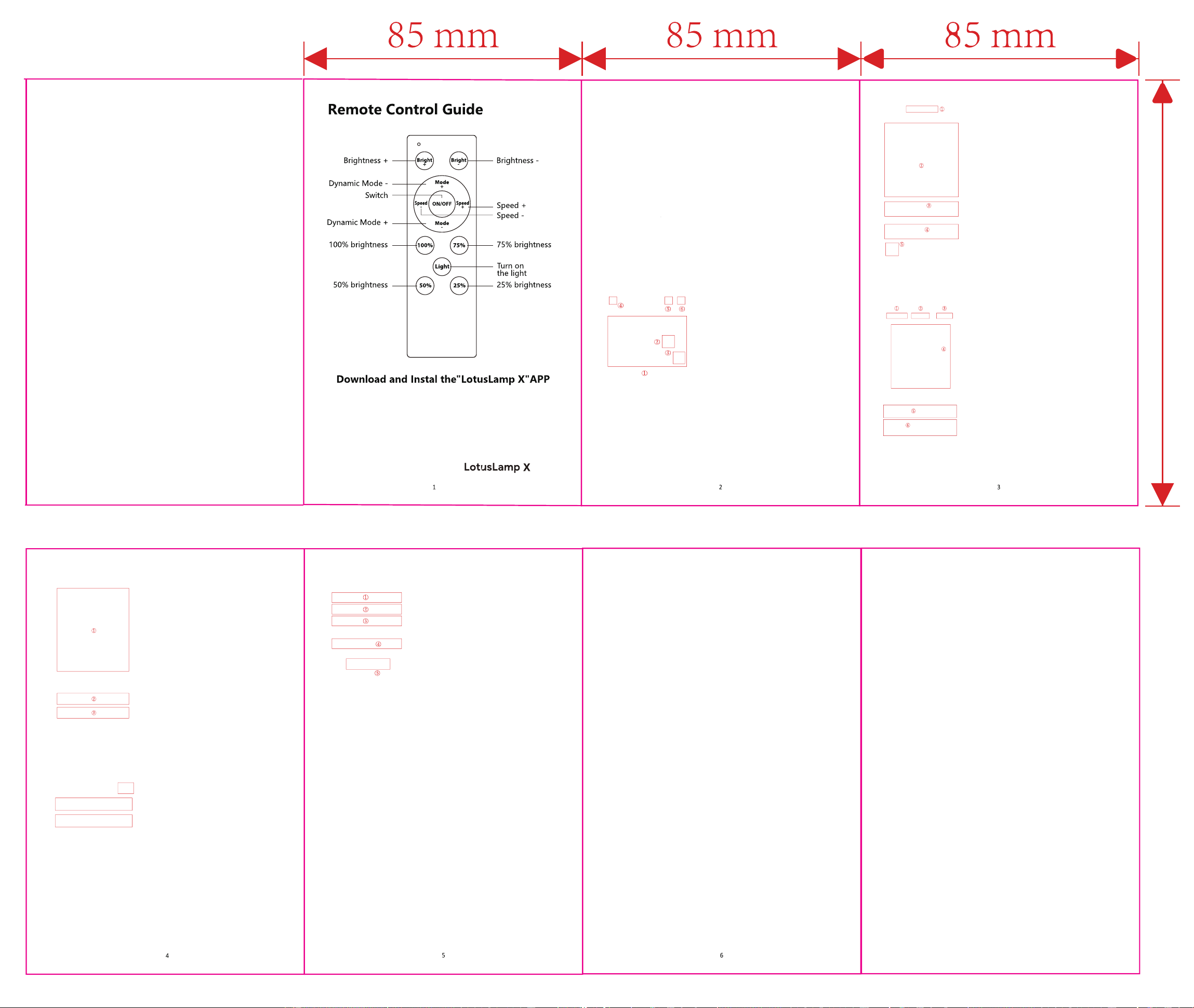
风琴3折尺寸85x130mm
130mm
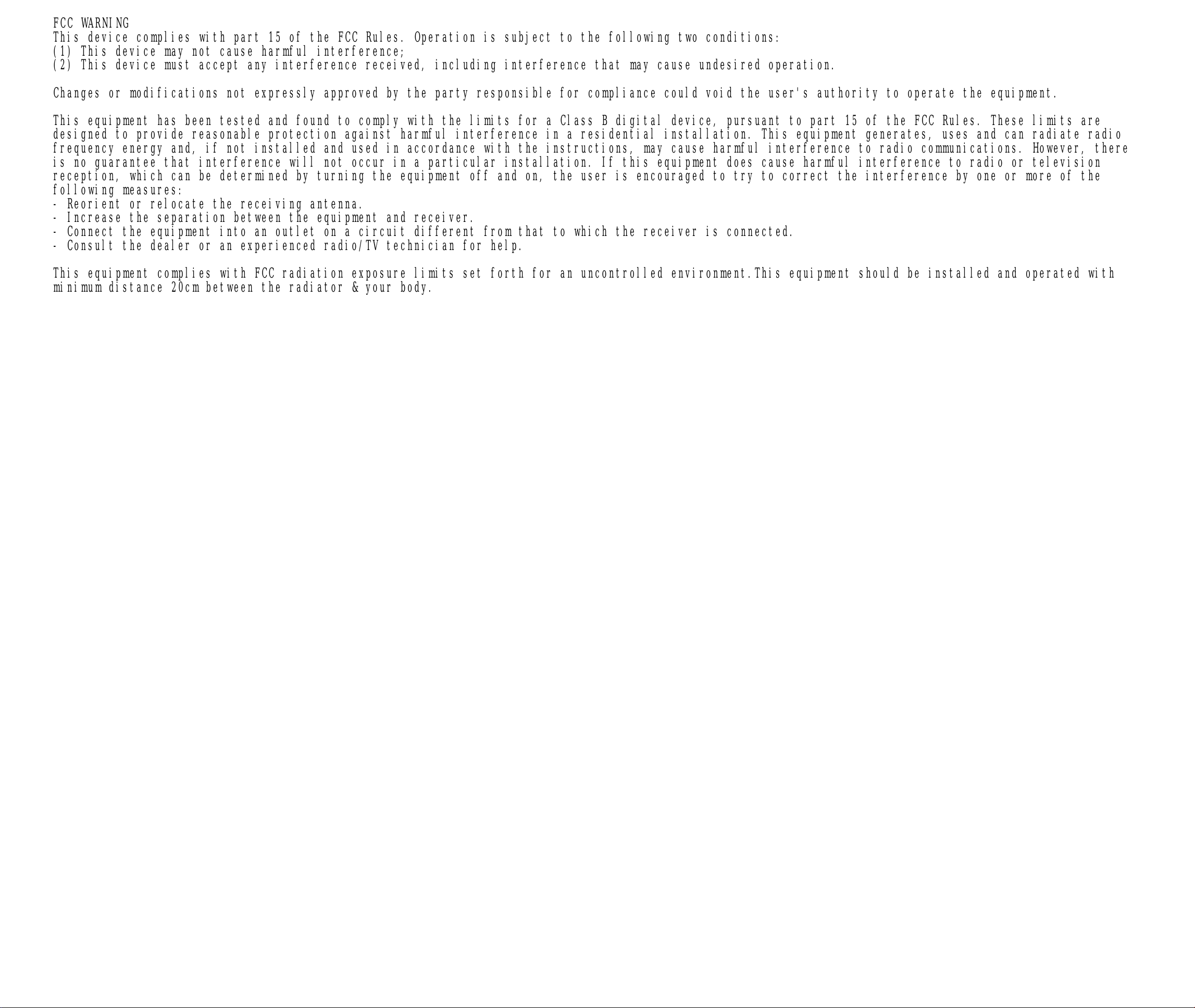
FCC WARNING
This device complies with part 15 of the FCC Rules. Operation is subject to the following two conditions:
(1) This device may not cause harmful interference;
(2) This device must accept any interference received, including interference that may cause undesired operation.
Changes or modifications not expressly approved by the party responsible for compliance could void the user's authority to operate the equipment.
This equipment has been tested and found to comply with the limits for a Class B digital device, pursuant to part 15 of the FCC Rules. These limits are
designed to provide reasonable protection against harmful interference in a residential installation. This equipment generates, uses and can radiate radio
frequency energy and, if not installed and used in accordance with the instructions, may cause harmful interference to radio communications. However, there
is no guarantee that interference will not occur in a particular installation. If this equipment does cause harmful interference to radio or television
reception, which can be determined by turning the equipment off and on, the user is encouraged to try to correct the interference by one or more of the
following measures:
- Reorient or relocate the receiving antenna.
- Increase the separation between the equipment and receiver.
- Connect the equipment into an outlet on a circuit different from that to which the receiver is connected.
- Consult the dealer or an experienced radio/TV technician for help.
This equipment complies with FCC radiation exposure limits set forth for an uncontrolled environment.This equipment should be installed and operated with
minimum distance 20cm between the radiator & your body.