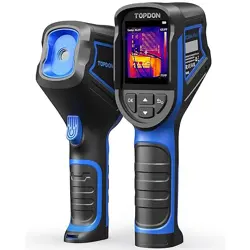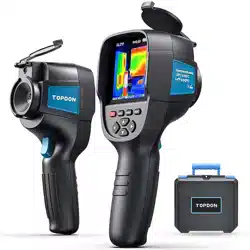
836-TC05-20001 说明书包装
_TC005_ 说明书 _ 新硬件平台版本
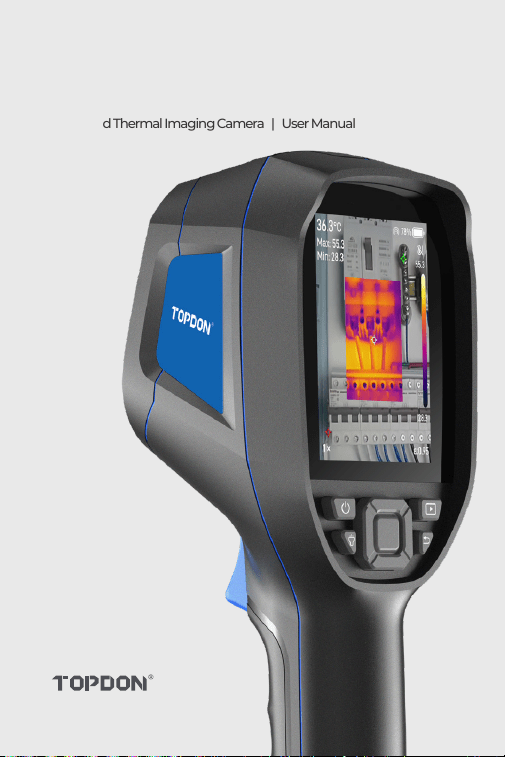
TC005
Handheld Thermal Imaging Camera | User Manual


Cautions
Section 3 Using
TC005 in Standalone
Mode
Section 1
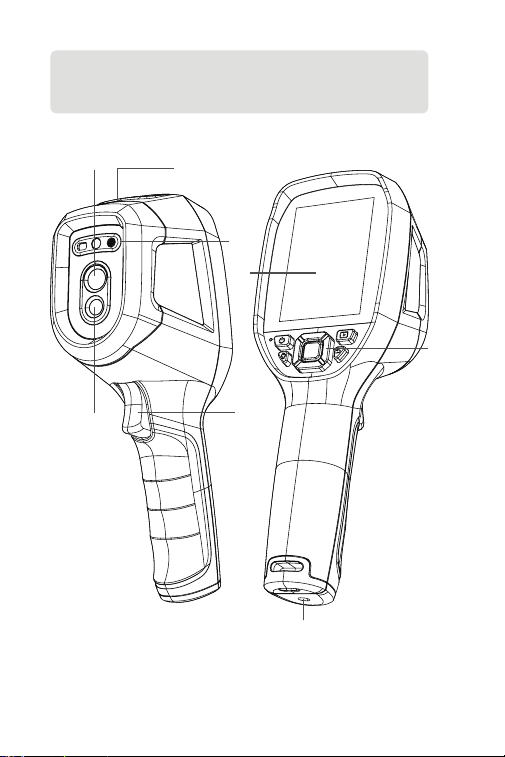
What's in the Box?
Section 5 Using
TC005 with a Mobile
Device
Section 6
Specications
Section 7 FAQ
Section 8 Warranty
Compliance
Information
DE
21
20
20
25
29
30
32
22
28
31
EN
6
5
5
10
14
15
17
124
7
13
16
FR
36
35
35
40
44
45
47
37
43
46
ES
51
50
50
55
59
60
62
52
58
61
IT PT JP
66
65
65
70
74
75
77
67
73
76
97 112
96 111
96 111
101 116
105
106
120
121
108 123
98 113
104 119
107 122
81
80
80
85
90
91
93
82
89
92
RU
About TC005
Section 4 Using TC005
with a Windows-based
Computer
Section 2
Product Overview
Contents

EN I 4
English

EN I 5
Cautions
About TC005
Read all instructions before use.
Do not point the thermal imaging camera at the sun or other strong
energy sources for long periods of time, otherwise there might be
damage to the detector in the thermal imaging camera.
Keep the thermal imaging camera away from water to avoid
electricity leakage or short circuits.
Do not touch the lens with your hands. Do not knock, pry, puncture,
or scratch the lens.
Do not disassemble the thermal imaging camera.
TOPDON's TC005 is a 256*192 handheld thermal imaging camera
used for equipment inspection and maintenance.
The thermal camera supports applications such as HVAC inspection,
water leak detection, and pest control. It can operate independently
or be connected to a Windows-based computer or a mobile device.
EN I 6
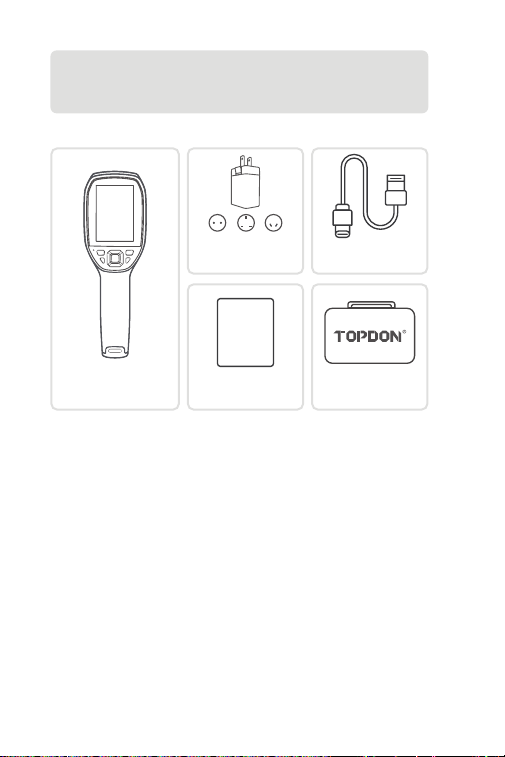
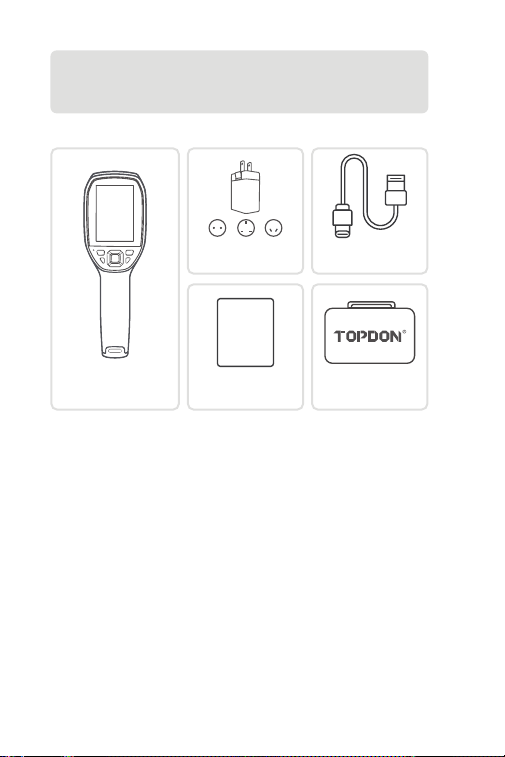
Section 1
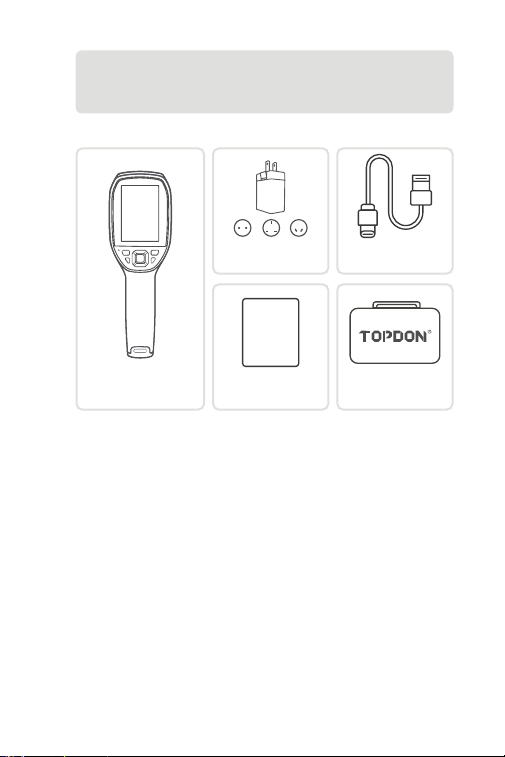
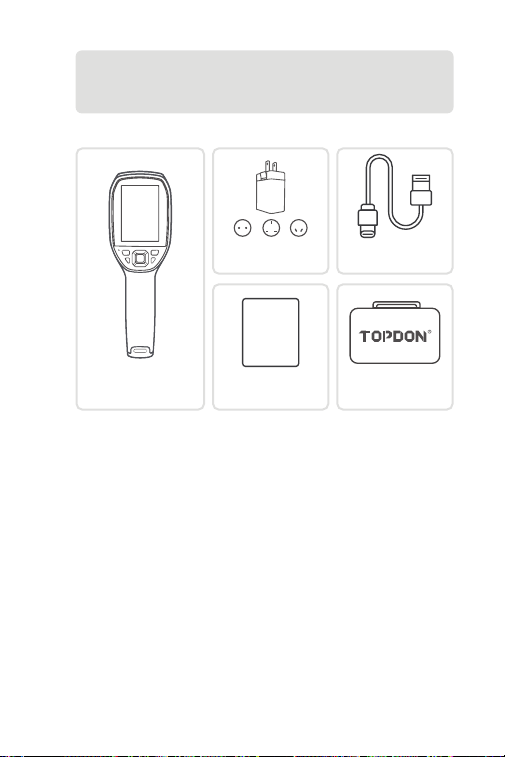
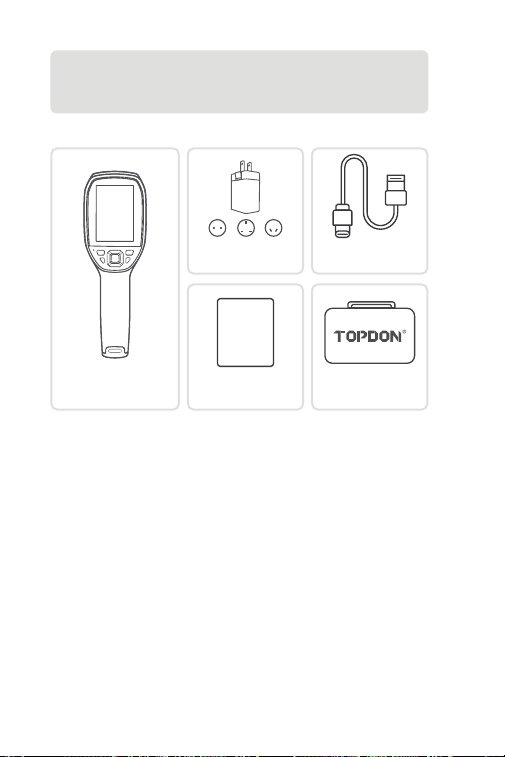
What's in the Box?
TC005 Thermal
Imaging Camera
User Manual
USER
MANUAL
Power Adapter
Carrying Case
USB Cable
(USB-A to USB-C)
EN I 7
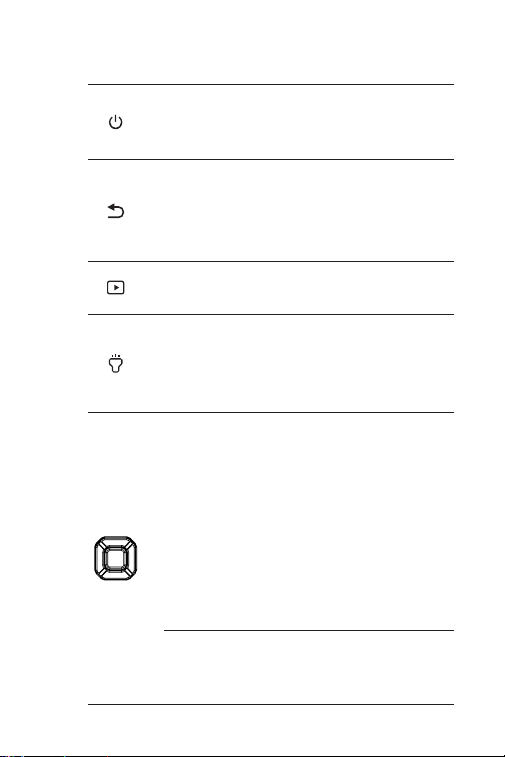
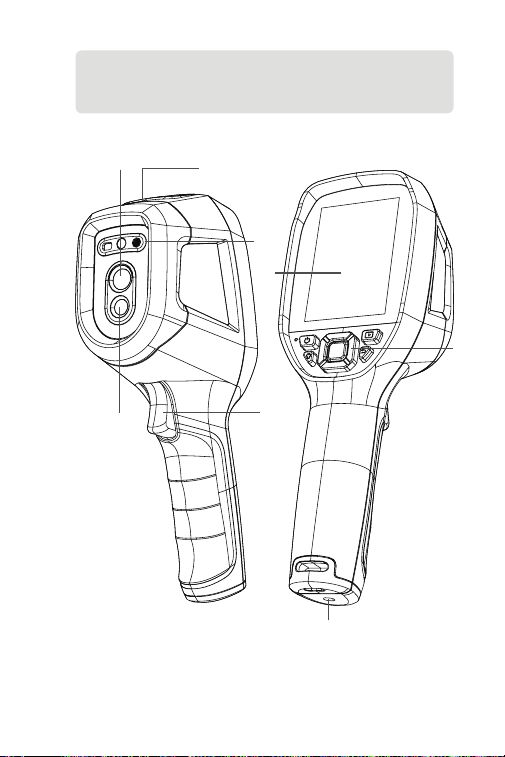
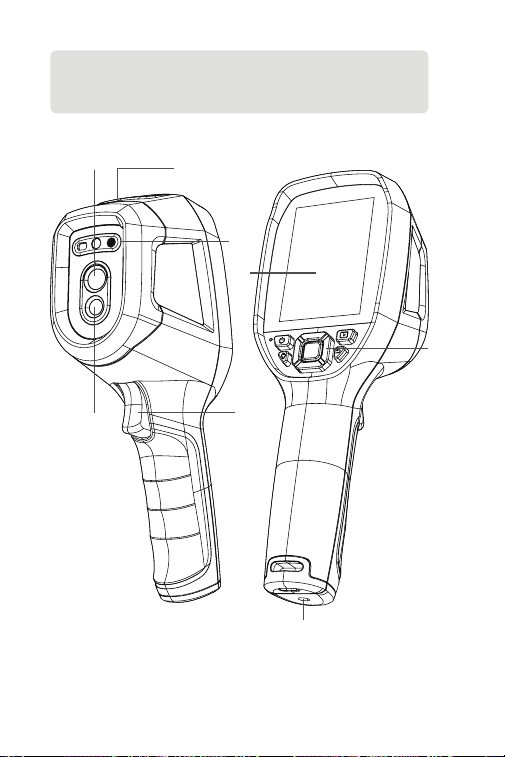
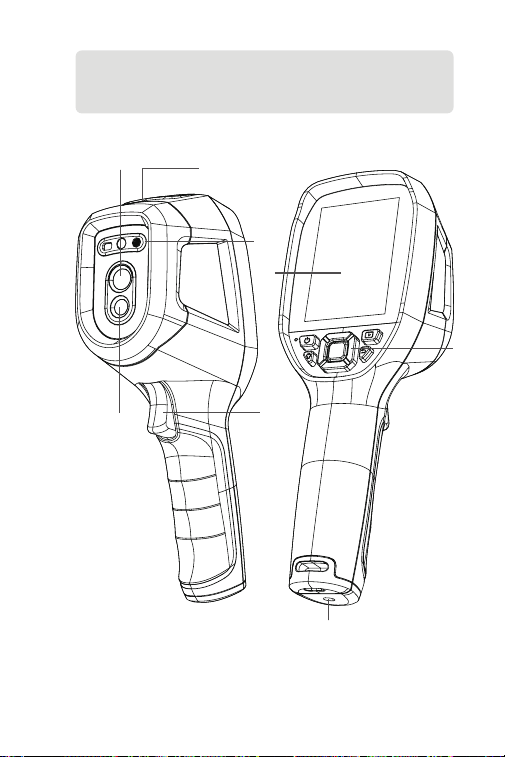
Figure 2.1.1
Section 2
Product Overview
3
1
8
2
7
4
5
6
EN I 8
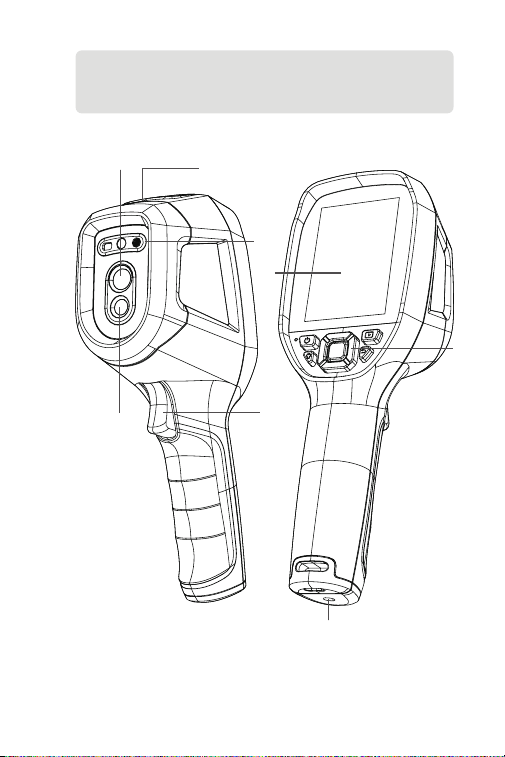
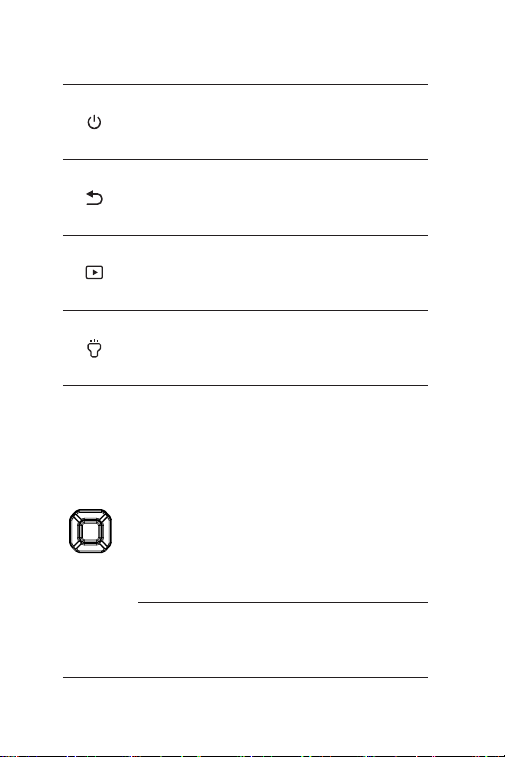
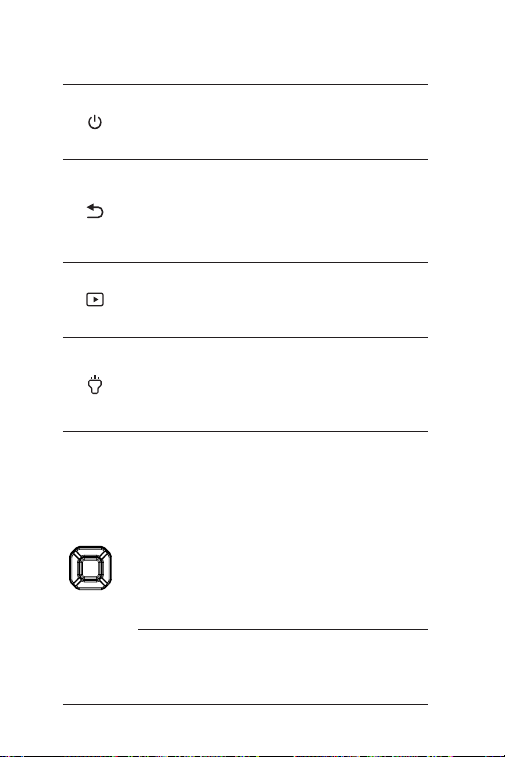
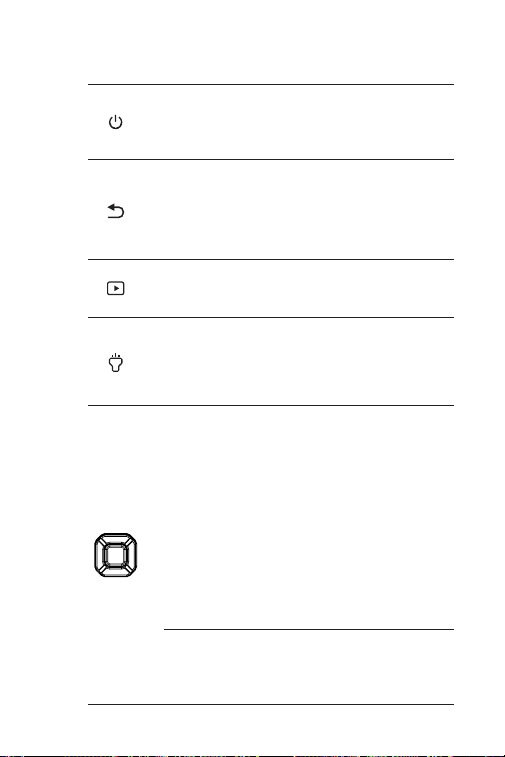
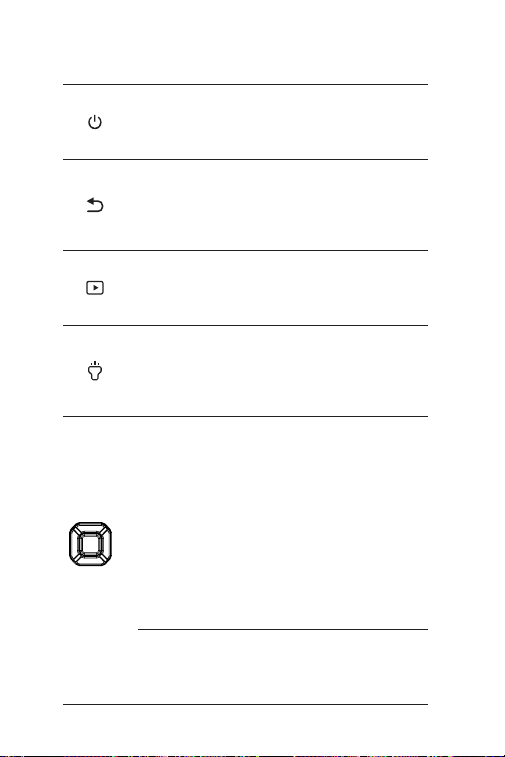
1. Keyboard
Power Button
Albums Button
Return Button
Flashlight Button
Move Up / Down
/ Left / Right
Buttons
OK Button
Short press to wake the screen or
put it into sleep mode; long press to
turn the device on or off.
Short press to enter the album or
enable vehicle detection.
On the idle home screen, short
press once to trigger the shutter.
On any other screen, short press
once to return to the previous page.
Short press to turn on/off the
ashlight.
Long press to enable or disable
the laser distance measurement
and red laser pointer.
Short press the four buttons
to move the cursor in the
corresponding direction. Other
functions on the home screen
include:
· Press the Move Up/Down button
to switch imaging modes.
· In Thermal Imaging or Visible Light
mode, press the Move Left/Right
button to adjust the zoom level.
· In the Dual-spectrum Fusion
mode, press the Move Left/Right
button to adjust the transparency
of the selected palette.
Short press to show the pop-out
navigation menu; short press
again to conrm an action or
message.

EN I 9
2. 3.5-Inch Screen
3. USB-C Port
USB-C port is used for charging, screen projecting to PC, and le
transfer.
Since data is stored and transferred in MTP format, direct data
reading is supported on Windows systems, but not on Mac
computers. To transfer data between TC005 and a Mac computer,
le format conversion software is required (e.g., OpenMTP,
MTPdrive).
4. Camera Button
Short press to take a photo, then short press the OK Button to
save the photo; long press to start recording a video, short press to
stop recording, then short press the OK Button to save the video.
5. Visible Light Camera
6. Infrared Camera
7. Red laser pointer, LED ashlight and laser distance measurement
window
8. Screw Hole (1 / 4-20 unc)
Mounts the TC005 onto a tripod
Note: You can also choose to automatically save all the
photos taken on your TC005 device. To enable the function,
go to Setting > Photo Setting, and turn on Photo Auto Save.

EN I 10
Section 3
Using TC005 in Standalone Mode
In standalone mode, the TC005 thermal imaging camera operates
independently. To learn more about the operation of each button
and port on the TC005 device, you can refer to Section 2 Product
Overview.
Instructions for Use
Power-on
Press and hold the Power Button for 3 seconds to power on TC005.
After TC005 is powered on, check the battery charge. If it is not
enough for the activity that you’re going to do, charge TC005 rst.
Charging
TC005 should be fully charged prior to use.
Charge TC005 via the USB-A to USB-C cable. Plug one end into the
USB-C port of TC005 and the other end into a power adapter.
Take Photos and Videos
In the process of using TC005 for detection, you can take photos and
record videos when needed.
To take a photo, press the Camera Button.
To record a video, press and hold the Camera Button.
The photos and videos will be saved on TC005. You can view or
transfer them when you connect TC005 to a Windows-based PC via
the USB cable.
Main Screen Functions
After the TC005 is powered on and enters the home screen, you can
press the OK Button to reveal the navigation bar and the functions
are introduced as follows:
Measurement
After the Measurement function is selected, nine options are
displayed: Center Spot, Max., Min., Custom spot 1, Custom spot 2,
Custom spot 3, Isotherms Hot Spot, Isotherms Cold Spot and Layout.
Isotherms
A toast will be displayed when it is enabled.
You can set a temperature range using the Move Up/Down button.
Area detected between this range will be displayed in the selected
pseudo-color palette.

EN I 11
Layout
With this feature enabled, the device will automatically clear all
OSD and retain only the live captured image.
Imaging Modes
Six imaging modes are available: IR, Fuse, PIP, iMIX, Visible, and Dual-
spectrum Fusion Registration.
· IR: infrared mode.
· Fuse: dual-spectrum fusion mode that combines infrared and
visible-light images into a single, blended view, providing both
thermal information and visual scene detail.
· PIP: picture-in-picture mode.
· iMIX: overlays infrared images with visible-light contours to enhance
image clarity.
· Visible: visible-light mode.
· Dual-spectrum Fusion Registration: allows geometric alignment of
infrared and visible-light images, then fuses them into a synchronized
view. After selecting this mode, use the directional buttons to adjust
the alignment, and press the OK button to complete the registration.
Pseudo-color Palettes
When you use TC005 for observation and detection, you can choose
a desired pseudo-color palette according to actual situations. Seven
palettes are available: White Hot, Black Hot, Lava, Iron, Rainbow,
Rainbow HC and RdGy (Red Gray).
Access the System Menu
After powering on the TC005, you can press the OK Button to reveal
the navigation bar. Then, use the Move Left/Right Button to select
and access the Settings menu where you can congure the following
features:
Measurement Parameters
This menu allows you to manually congure the Emissivity,
Ambient Temperature, Distance Auto Set Distance.
Temp. Measurement Gear
This menu allows you to select a temperature range: -20°C~150°C,
100°C~550°C, or Auto Mode.
Alarm Settings
This feature enables you to set temperature thresholds for the
Alarm, and to enable or disable the LED Alarm and Alarm Photo
functions, with adjustable interval and capture count settings.
Photo Settings
This menu allows you to enable or disable the Auto-Save Images
and Timer Photo (with congurable interval and numbers).

EN I 12
Thermal Image Super Resolution (TISR)
This option allows you to enable or disable the thermal image
super resolution (TISR) feature.
Note: When TISR is enabled, the Isotherms feature will be turned
off.
Video Auto-Save
This option allows you to enable or disable the automatic saving of
the recording videos.
Power Saving Mode
This option allows you to enable or disable the power saving mode.
Unit Settings
This menu allows you to select the desired temperature unit from
Celsius (°C), Kelvin (K), and Fahrenheit (°F), and distance unit from
Meter (m) and Feet (ft).
Hotspot Settings
This menu allows you to enable or disable the Hotspot.
WLAN Settings
This menu allows you to enable or disable the Wi-Fi.
Screen Display
This menu allows you to show or hide the on-screen elements
individually: All, Palette Bar, Hotspot, Time, Emissivity, Digital Zoom,
Battery, and Temperature Unit.
Auto Power Off
This menu allows you to disable the auto power-off or set the
interval to: 5 minutes, 10 minutes, 20 minutes, or 120 minutes.
System Settings
This menu allows you to view device information, perform image
calibration, restore factory settings, format data storage, adjust
display brightness, set the date and time, switch languages, and
check for updates.
EN I 13
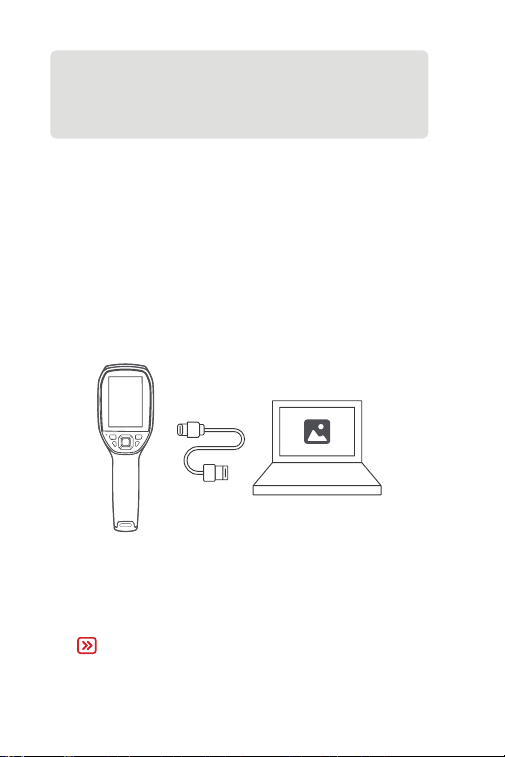
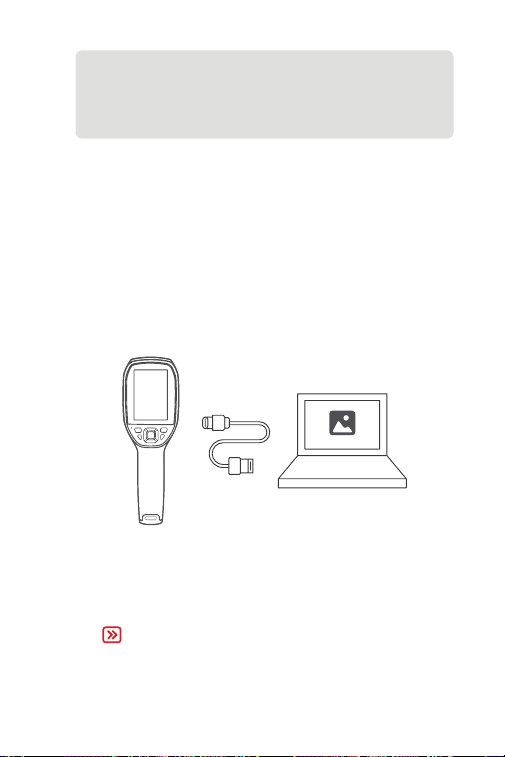
Apart from standalone use, your TC005 can also work with a
Windows-based computer. This section illustrates how to congure
your TC005 to work with a Windows-based computer for screen
projecting and imagery analysis.
Download and install the thermal analysis software for
Windows
Download the software from the ofcial TOPDON website (www.
topdon.com). Then download and install the thermal analysis
software to your computer.
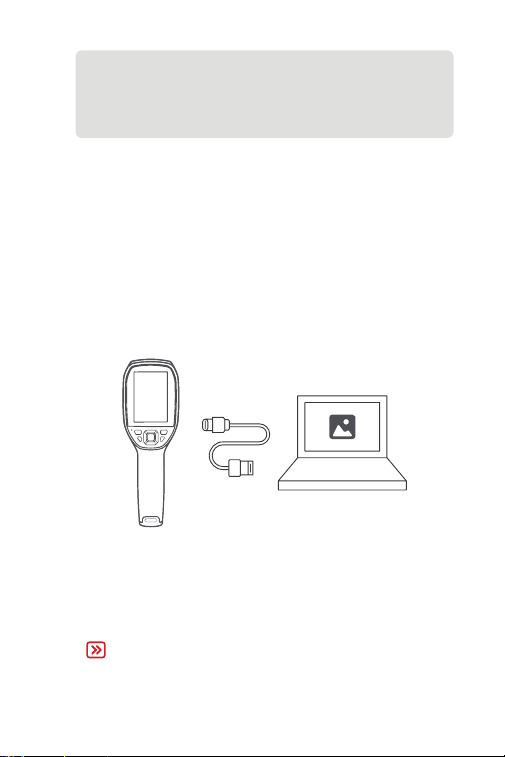
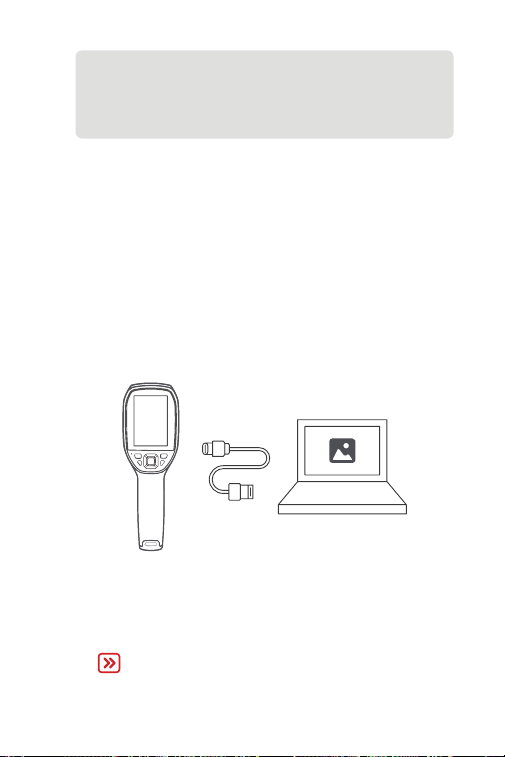
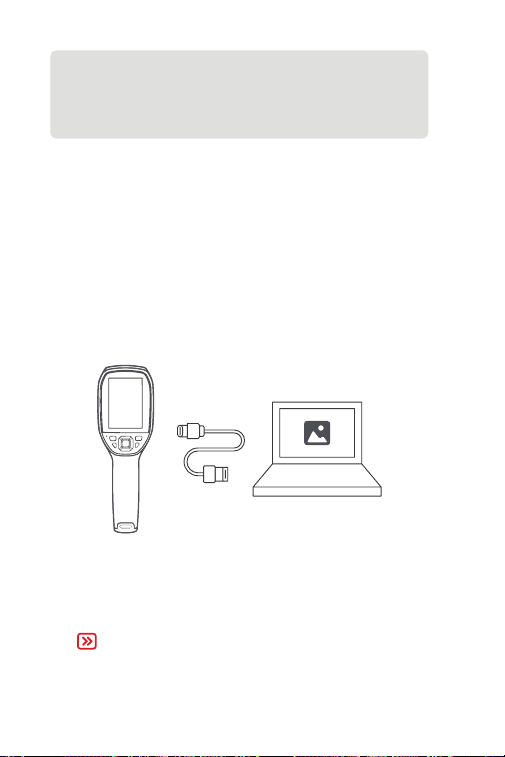
Connect TC005 to your computer with the supplied USB cable
(see Figure 3.1.1).
Launch the software, and then you can project the real-time
screen from the thermal imaging camera to your computer.
Figure 3.1.1
Getting Started
1.
2.
3.
Section 4
Using TC005 with a Windows-
based Computer
Note:
For detailed instructions on operating TC005 with a Windows-
based computer, please refer to the TopView user manual.
For detailed instructions on built-in system settings, please refer
to Section 3 Using TC005 in Standalone Mode.

EN I 14
Section 5
Using TC005 with a Mobile Device
Download the App
Download and install Topinfrared on your mobile device, and launch
it.
Establish a Connection
Topinfrared
Power on TC005.
Enable the device’s hotspot: OK Button > Settings > Hotspot
Settings.
Connect ThermalCamera05_xxxx via your phone’s Wi-Fi.
Open the app, tap TC005 to connect. press TC005. After the
device screen is projected to your phone, the connection is
established successfully.
1.
2.
3.
4.
Note:
"xxxx" refers to the last 4 digits of the TC005 serial number.
Note:
After connecting TC005 to a mobile device, you can only preview
images and videos stored on TC005. For further thermal
analysis, download the images and videos to your mobile device
before conducting analysis using Topinfrared.
For detailed instructions on thermal analysis using Topinfrared,
please refer to the Topinfrared user manual via Me > e-Manual.

EN I 15
Section 6
Specications
Resolution of infrared camera
Resolution of visible light lens
Spectral range
Pixel size
NETD
FOV
IFOV
Measurement range
Measurement accuracy
Measurement resolution
Storage capacity
Battery capacity
Software
256 * 192, 25 Hz
2 MP
8 to 14 μm
12 μm
≤ 40 mK
40° * 30°
2.79 mrad
-4° to 1022°F (-20° to 550°C)
0.1°C
64 GB internal storage
5,000 mAh
Supported (Topinfrared & TopView)
±2ºC or ±2% of reading, the larger
value shall prevail

EN I 16
Section 7
FAQ
Can the TC005 detect objects underwater, through glass or a
wall?
No. Infrared detectors mainly detects 8 to 14 μm long-wave
infrared areas, and can only be used to measure surface
temperature.
Why is there a lower temperature reading when the device
gets far from the object and a higher reading when the
device gets closer to the object?
Infrared radiation attenuates when passing through the
atmosphere. The longer the distance, the greater the
attenuation. Thus, the accuracy of temperature measurement at
a distance will decrease.
To ensure accuracy of measurement, go to Setting > Measure
Parameter > Distance, and input the actual distance (max: 4
meters) to get the corrected temperature.
Why is the measured temperature not very precise?
The temperature detection accuracy of this device is ±2%, with a
normal temperature range of -4°F to 302°F (-20°C to 150°C), and
a high temperature range of 212°F to 1022°F (100°C to 550°C).
Please select the corresponding range in the Settings before
measuring.
What external factors will affect the infrared temperature
measurement?
The following factors will have an impact on the measurement
results:
a) Emissivity of the object surface.
b) Ambient temperature: The object will reect the infrared
rays emitted by surrounding objects, which affects the
temperature measurement of the object itself.
c) Atmospheric temperature: The atmosphere itself also emits
infrared rays.
d) Atmospheric transmittance: the infrared rays emitted by the
object are attenuated in the atmosphere.
e) Distance: the longer the distance, the greater the attenuation
of the infrared rays emitted by the object in the atmosphere.
A
A
A
A
Q
Q
Q
Q

EN I 17
TOPDON's One Year Limited Warranty
TOPDON warrants to its original purchaser that the company's
products will be free from defects in material and workmanship for
12 months from the date of purchase (Warranty Period).
For the defects reported during the Warranty Period, TOPDON will
either repair or replace the defective part or product according to its
technical support analysis and conrmation.
TOPDON shall not be liable for any incidental or consequential
damages arising from the device's use, misuse, or mounting.
If there is any conict between the TOPDON warranty policy and
local laws, the local laws shall prevail.
This limited warranty is void under the following conditions:
• Misused, disassembled, altered or repaired by unauthorized stores
or technicians.
• Careless handling and / or improper operation.
Section 8
Warranty
Notice: All information in this manual is based on the latest
information available at the time of publication and no
warranty can be made for its accuracy or completeness.
TOPDON reserves the right to make changes at any time
without notice.

EN I 18

DE I 19
Deutsch

DE I 20
Achtung
Über TC005
LESEN SIE ALLE ANWEISUNGEN VOR DEM
GEBRAUCH.
Richten Sie die Infrarotkamera nicht für längere Zeit auf die Sonne
oder andere starke Energiequellen. Dies kann der Detektor in der
Kamera beschädigt werden.
Bitte halten Sie das Gerät von Wasser fern, um Lecks oder
Kurzschlüsse zu vermeiden.
Berühren Sie die Linse nicht mit Ihren Händen.Klopfen, hebeln,
durchstechen oder zerkratzen Sie das Objektiv nicht.
Zerlegen Sie das Gerät nicht.
TOPDON's TC005 ist eine 256*192 große, tragbare Wärmebildkamera,
die für die Inspektion und Wartung von Anlagen verwendet wird.
Die Wärmebildkamera unterstützt Anwendungen wie die Inspektion
von Heizungs-, Lüftungs- und Klimaanlagen, die Lecksuche und
die Schädlingsbekämpfung. Sie kann eigenständig betrieben oder
an einen Windows-Computer oder ein Mobilgerät angeschlossen
werden.
DE I 21
Abschnitt 1
Was ist in der Box?
TC005
Wärmebildkamera
Bedienungsa-
nleitung
USER
MANUAL
Netzadapter
Tragetasche
USB-Kabel
(USB-A auf USB-C)
DE I 22
Abschnitt 2
Produktübersicht
Abbildung 2.1.1
3
1
8
2
7
4
5
6
DE I 23
1. Tastatur
Stromtaste
Alben-Taste
Zurück-Taste
Blitzlicht-Taste
Aufwärts / Abwärts
/ Links / Rechts-
Tasten
OK-Taste
Kurzes Drücken aktiviert den
Bildschirm oder versetzt ihn in
den Schlafmodus; langes Drücken
schaltet das Gerät ein oder aus.
Im Ruhezustand des
Startbildschirms löst ein kurzer
Druck den Auslöser aus.
Auf allen anderen Bildschirmen
kehrt ein kurzer Druck zur
vorherigen Seite zurück.
Kurzes Drücken zum Anzeigen
des Pop-Out-Navigationsmenüs;
Kurzes Drücken zum Bestätigen
einer Aktion oder Nachricht.
Kurz drücken, um das
Album aufzurufen oder die
Fahrzeugerkennung zu aktivieren.
Kurz drücken zum Ein-/
Ausschalten der Taschenlampe.
Langes Drücken zum
Aktivieren/Deaktivieren der
Laserentfernungsmessung und
des roten Laserpointers.
Drücken Sie die vier Tasten
kurz, um den Cursor in die
entsprechende Richtung zu
bewegen. Weitere Funktionen auf
dem Startbildschirm:
• Drücken Sie die Auf-/Ab-
Taste, um zwischen den
Bildgebungsmodi zu wechseln.
• Im Modus „Wärmebild“ oder
„Sichtbares Licht“ können Sie
mit der Links-/Rechts-Taste den
Zoomfaktor anpassen.
• Im Modus „Dualspektrum-
Fusion“ können Sie mit der Links-/
Rechts-Taste die Transparenz der
ausgewählten Palette anpassen.

DE I 24
5. Kamera mit sichtbarem Licht
6. Infrarotkamera
7. Roter Laserpointer, LED-Taschenlampe und Sichtfenster für die
Laserentfernungsmessung
8. Schraubenloch (1 / 4-20 unc)
Montieren Sie das TC005 auf einem Stativ
Notiz: Sie können auch wählen, dass alle mit Ihrem TC005-
Gerät aufgenommenen Fotos automatisch gespeichert
werden. Zum Aktivieren der Funktion gehen Sie zu
Einstellungen > Fotoeinstellungen, und aktivieren Sie Foto
automatisch speichern.
2. 3,5-Zoll-Bildschirm
3. USB-C Anschluss
Der USB-C-Anschluss dient zum Laden, zur
Bildschirmübertragung auf einen PC und zur Dateiübertragung.
Da Daten im MTP-Format gespeichert und übertragen werden, ist
das direkte Lesen von Daten unter Windows möglich, nicht jedoch
unter Mac-Computern. Für die Datenübertragung zwischen dem
TC005 und einem Mac-Computer ist eine Konvertierungssoftware
erforderlich (z. B. OpenMTP, MTPdrive).
4. Kamera-Taste
Drücken Sie kurz zur Aufnahme eines Foto und drücken Sie dann
kurz die OK-Taste , um das Foto zu speichern; drücken Sie lange,
um die Aufnahme eines Videos zu starten, drücken Sie kurz zum
Beenden der Aufnahme und drücken Sie dann kurz die OK-Taste,
um das Video zu speichern.

DE I 25
Abschnitt 3
Verwendung von TC005 im
Standalone-Modus
Im Standalone-Modus arbeitet die Wärmebildkamera TC005
unabhängig. Weitere Informationen zur Bedienung der einzelnen
Tasten und Anschlüsse des TC005 nden Sie in Abschnitt 2
Produktübersicht.
Gebrauchsanweisung
Einschalten
Halten Sie den Ein-/Ausschalter 3 Sekunden lang gedrückt, um das
TC005 einzuschalten.
Überprüfen Sie nach dem Einschalten des TC005 den Akkuladestand.
Reicht dieser für Ihre geplante Anwendung nicht aus, laden Sie das
TC005 bitte zuerst auf.
Auaden
Das TC005 muss vor der ersten Verwendung vollständig aufgeladen
sein.
Laden Sie das TC005 mit dem USB-A-auf-USB-C-Kabel. Stecken Sie
ein Ende in den USB-C-Anschluss des TC005 und das andere Ende in
ein Netzteil.
Fotos und Videos aufnehmen
Während der Objekterkennung mit dem TC005 können Sie bei
Bedarf Fotos und Videos aufnehmen.
Zum Aufnehmen eines Fotos drücken Sie die Kamerataste.
Zum Aufnehmen eines Videos halten Sie die Kamerataste gedrückt.
Die Fotos und Videos werden auf dem TC005 gespeichert. Sie
können die Daten anzeigen oder übertragen, wenn Sie den TC005
über das USB-Kabel mit einem Windows-PC verbinden.
Funktionen des Hauptbildschirms
Nach dem Einschalten des TC005 und dem Erscheinen des
Startbildschirms können Sie durch Drücken der OK-Taste die
Navigationsleiste öffnen. Die Funktionen werden wie folgt angezeigt:
Messung
Nach Auswahl der Messfunktion werden neun Optionen
angezeigt: Mittelpunkt, Max., Min., Benutzerdenierter Punkt
1, Benutzerdenierter Punkt 2, Benutzerdenierter Punkt 3,
Isothermen Hot Spot, Isothermen Cold Spot, Layout.
Isothermen
Bei Aktivierung wird eine Benachrichtigung angezeigt.

DE I 26
Mit den Auf-/Ab-Tasten können Sie einen Temperaturbereich
einstellen. Der innerhalb dieses Bereichs erfasste Bereich wird in
der ausgewählten Pseudofarbpalette angezeigt.
Layout
Wenn diese Funktion aktiviert ist, löscht das Gerät automatisch
alle OSD-Anzeigen und speichert nur das aufgenommene Live-
Bild.
Bildgebungsmodi
Sechs Bildgebungsmodi stehen zur Verfügung: IR, Fusion, PIP, iMIX,
Sichtbar und Zwei-Spektrum-Fusionsregistrierung.
• IR: Infrarotmodus.
• Fusion: Dualspektrum-Fusionsmodus, der Infrarot- und Bilder im
sichtbaren Licht zu einer einzigen, überlagerten Ansicht kombiniert
und so sowohl Wärmeinformationen als auch visuelle Details der
Szene liefert.
• PIP: Bild-in-Bild-Modus.
• iMIX: Überlagert Infrarotbilder mit Konturen im sichtbaren Licht,
um die Bildschärfe zu verbessern.
• Sichtbar: Modus für sichtbares Licht.
• Zwei-Spektrum-Fusionsregistrierung: Ermöglicht die geometrische
Ausrichtung von Infrarot- und Bildern im sichtbaren Licht und deren
anschließende Verschmelzung zu einer synchronisierten Ansicht.
Nach Auswahl dieses Modus können Sie die Ausrichtung mit den
Richtungstasten anpassen und die Registrierung mit der OK-Taste
abschließen.
Pseudofarbpaletten
Bei der Objekterkennung mit dem TC005 können Sie je nach
Situation die passende Pseudofarbpalette auswählen. Sieben
Paletten stehen zur Verfügung: Weiß heiß, Schwarz heiß, Lava,
Eisenrot, Regenbogen, Regenbogen HC, und Schwarz Rot.
Zugriff auf das Systemmenü
Nach dem Einschalten des TC005 können Sie die Navigationsleiste
durch Drücken der OK-Taste öffnen. Verwenden Sie anschließend die
Pfeiltasten links/rechts, um das Menü „Einstellen“ auszuwählen und
aufzurufen. Hier können Sie folgende Funktionen kongurieren:
Messparameter
In diesem Menü können Sie die Einstellungen für Emissionsgrad,
Umgebungstemperatur, Entfernung und automatische
Entfernung manuell kongurieren.
Temperaturmessskala
In diesem Menü können Sie einen Temperaturbereich auswählen:
-20 °C bis 150 °C, 100 °C bis 550 °C oder den Automatikmodus.
Alarm-Einstellungen
Mit dieser Funktion können Sie Temperaturschwellenwerte

DE I 27
für den Alarm festlegen und die LED-Alarm- und Alarm-Auto-
Aufnahmefunktionen aktivieren oder deaktivieren. Intervall und
Aufnahmeanzahl sind einstellbar.
Fotoeinstellungen
Über dieses Menü können Sie das Bilder Automatisch Speichern
und die Timer-Fotograe (mit kongurierbarem intervall und
anzahl der bilder) aktivieren oder deaktivieren.
Wärmebild-Superauösung (TISR)
Mit dieser Option können Sie die Wärmebild-Superauösung (TISR)
aktivieren oder deaktivieren.
Hinweis: Wenn TISR aktiviert ist, wird die Isothermen-Funktion
deaktiviert.
Video Automatisch Speichern
Mit dieser Option können Sie die automatische Speicherung der
aufgenommenen Videos aktivieren oder deaktivieren.
Energiesparmodus
Mit dieser Option können Sie den Energiesparmodus aktivieren
oder deaktivieren.
Einheiteneinstellungen
In diesem Menü können Sie die gewünschte Temperatureinheit
(Celsius (°C), Kelvin (K) oder Fahrenheit (°F)) und die
Entfernungseinheit (Meter (m) oder Fuß (ft)) auswählen.
Hotspot-Einstellungen
In diesem Menü können Sie den Hotspot aktivieren oder
deaktivieren.
WLAN-Einstellungen
In diesem Menü können Sie WLAN aktivieren oder deaktivieren.
Bildschirmanzeige
Über dieses Menü können Sie die folgenden Elemente einzeln
ein- oder ausblenden: Alle, Farbpalette, Hotspot, Uhrzeit,
Emissionsgrad, Digitalzoom, Akku und Temperatureinheit.
Automatische Abschaltung
Über dieses Menü können Sie die automatische Abschaltung
deaktivieren oder das Intervall auf 5, 10, 20 oder 120 Minuten
einstellen.
Systemeinstellungen
In diesem Menü können Sie Geräteinformationen anzeigen,
eine Bildkalibrierung durchführen, die Werkseinstellungen
wiederherstellen, den Datenspeicher formatieren, die
Displayhelligkeit anpassen, Datum und Uhrzeit einstellen, die
Sprache wechseln und nach Updates suchen.
DE I 28
Ihr TC005 kann außer der eigenständigen Nutzung auch mit einem
Windows-basierten Computer zusammenarbeiten. Dieser Abschnitt
zeigt, wie Sie Ihr TC005 für die Arbeit mit einem Windows-basierten
Computer zur Bildschirmprojektion und Bildanalyse kongurieren.
Laden Sie die Thermoanalyse-Software für Windows herunter
und installieren Sie sie
Laden Sie die Software von der ofziellen TOPDON-Website
(www.topdon.com) herunter. Laden Sie dann die Wärmeanalyse-
Software herunter und installieren Sie sie auf Ihrem Computer.
Erste Schritte
1.
Abschnitt 4
Verwendung von TC005 mit einem
Windows-basierten Computer
Starten Sie die Software und projizieren Sie anschließend den
Echtzeitbildschirm der Wärmebildkamera auf Ihren Computer.
3.
Verbinden Sie TC005 mit dem mitgelieferten USB-Kabel an Ihren
Computer (siehe Abbildung 3.1.1).
Abbildung 3.1.1
2.
Hinweis:
Detaillierte Anweisungen zur Bedienung des TC005
mit einem Windows-Computer nden Sie im TopView-
Benutzerhandbuch.
Detaillierte Anweisungen zu den Systemeinstellungen nden
Sie in Abschnitt 3 Verwendung von TC005 im Standalone-
Modus.

DE I 29
Abschnitt 5
Verwendung des TC005 mit einem
Mobilgerät
App herunterladen
Laden Sie Topinfrared auf Ihr Mobilgerät herunter und installieren Sie
es, installieren Sie es und starten Sie die App.
Eine Verbindung herstellen
Topinfrared
Schalten Sie den TC005 ein.
Aktivieren Sie den Hotspot des Geräts: OK-Taste > Einstellungen
> Hotspot-Einstellungen.
Verbinden Sie ThermalCamera05_xxxx über das WLAN Ihres
Smartphones.
Öffnen Sie die App und tippen Sie auf TC005, um die
Verbindung herzustellen. Sobald der Bildschirm des Geräts auf
Ihr Smartphone übertragen wird, ist die Verbindung erfolgreich
hergestellt.
1.
2.
3.
4.
Hinweis: „xxxx“ bezieht sich auf die letzten vier Ziffern der
Seriennummer des TC005.
Hinweis:
Nach der Verbindung des TC005 mit einem Mobilgerät können
Sie nur die auf dem TC005 gespeicherten Bilder und Videos in
der Vorschau ansehen. Für eine detailliertere Wärmebildanalyse
laden Sie die Bilder und Videos bitte auf Ihr Mobilgerät herunter,
bevor Sie die Analyse mit Topinfrared durchführen.
Eine detaillierte Anleitung zur Wärmebildanalyse mit
Topinfrared nden Sie im Topinfrared-Benutzerhandbuch unter
Ich > E-Handbuch.

DE I 30
256 * 192, 25 Hz
2 MP
8 to 14 μm
12 μm
≤ 40 mK
40° * 30°
2,79 mrad
-4 bis 1022ºF (-20 bis 550ºC)
±2 ºC oder ±2 % des Messwerts,
der größere Wert hat Vorrang
0,1°C
64 GB interner speicher
5.000 mAh
Unterstützt (Topinfrared &
TopView)
Abschnitt 6
Spezikation
Auösung der Infrarotkamera
Auösung des Objektivs für
sichtbares Licht
Spektralbereich
Pixelgröße
NETD
FOV
IFOV
Messbereich
Messgenauigkeit
Auösung der Messung
Speicherkapazität
Batteriekapazität
Software

DE I 31
Abschnitt 7
FAQ
Kann der TC005 Objekte unter Wasser, durch Glas oder eine
Wand erkennen?
Nein. Infrarotdetektoren erfassen hauptsächlich den
langwelligen Infrarotbereich von 8~14 μm und können nur zur
Messung der Oberächentemperatur benutzt werden.
Warum zeigt das Gerät eine niedrigere Temperatur, wenn es
weit vom Objekt entfernt ist, und eine höhere Temperatur,
wenn es näher am Objekt ist?
Infrarotstrahlung dämpft beim Durchqueren der
Atmosphäre. Je größer die Entfernung ist, desto größer ist
die Dämpfung. Deswegen verringert sich die Genauigkeit der
Temperaturmessung in der Ferne.
Zum Gewährleisten der Messung-Genauigkeit gehen Sie zu
Einstellung > Messung > Entfernung, und geben Sie den
tatsächlichen Abstand (max: 4 Meter), um die korrigierte
Temperatur zu bekommen.
Warum ist die gemessene Temperatur nicht genau?
Die Temperaturerfassungsgenauigkeit dieses Geräts beträgt ±2
%, mit einem normalen Temperaturbereich von -20 °C bis 150 °C
(-4 °F bis 302 °F) und einem hohen Temperaturbereich von 100
°C bis 550 °C (212°F biss 1022°F). Bitte wählen Sie vor der Messung
den entsprechenden Bereich in den Einstellungen aus.
Welche externen Faktoren beeinussen die Infrarot-
Temperaturmessung?
Die Faktoren sind wie folgt:
a) Emissionsgrad der Zielobjektoberäche.
b) Umgebungstemperatur: Das Objekt reektiert die von
umgebenden Objekten emittierten Infrarotstrahlen, was die
Temperaturmessung des Objekts selbst beeinusst.
c) Atmosphärentemperatur: Die Atmosphäre sendet auch
Infrarotstrahlen aus.
d) Atmosphärische Transmission: Die vom Objekt ausgesandten
Infrarotstrahlen werden in der Atmosphäre gedämpft.
e) Entfernung: Je größer die Entfernung, desto größer ist
A
A
A
A
F
F
F
F

DE I 32
TOPDONs Einjährige Eingeschränkte Garantie
TOPDON garantiert seinem ursprünglichen Käufer, dass die
Produkte des Unternehmens für 12 Monate ab Kaufdatum frei von
Material- und Verarbeitungsfehlern sind (Garantiezeitraum).
Für die während der Garantiezeit gemeldeten Mängel wird TOPDON
das defekte Teil oder Gerät gemäß seiner Analyse und Bestätigung
des technischen Supports entweder reparieren oder ersetzen.
TOPDON haftet nicht für Neben- oder Folgeschäden, die durch den
Gebrauch, den Missbrauch oder die Montage des Geräts entstehen.
Bei Widersprüchen zwischen der TOPDON-Gewährleistungsrichtlinie
und den örtlichen Regelungen haben die örtlichen Regelungen
bevorzugte Stellung.
Diese eingeschränkte Garantie erlischt unter den folgenden
Bedingungen:
• Missbrauch, Demontage, Änderung oder Reparatur durch nicht
autorisierte Geschäfte oder Techniker.
• Unachtsame Handhabung und Verletzung des Betriebs.
Abschnitt 8
Garantie
die Dämpfung der vom Objekt in der Atmosphäre emittierten
Infrarotstrahlen.
Notiz: Alle Informationen in dieser Anleitung basieren
auf den neuesten Informationen, die zum Zeitpunkt der
Veröffentlichung verfügbar waren, und es kann keine Garantie
für ihre Genauigkeit oder Vollständigkeit übernommen
werden. TOPDON behält sich das Recht vor, jederzeit ohne
Vorankündigung Änderungen vorzunehmen.

DE I 33

FR I 34
Français

FR I 35
Attention
À propos de TC005
LISEZ TOUTES LES INSTRUCTIONS AVANT
UTILISATION.
Ne dirigez pas la caméra infrarouge vers le soleil ou toute autre
source d'énergie puissante pendant de longues périodes. Cela
pourrait endommager le détecteur de la caméra.
Veuillez garder l'appareil à l'écart de l'eau pour éviter les fuites ou les
courtscircuits.
Ne touchez pas la lentille avec vos mains. Veuillez ne pas frapper,
forcer, percer ou rayer la lentille.
Ne démontez pas l'appareil.
La TC005 de TOPDON est une caméra thermique portable 256*192
utilisée pour l'inspection et la maintenance des équipements.
La caméra thermique est compatible avec des applications telles
que l'inspection des systèmes de chauffage, de ventilation et de
climatisation, la détection des fuites d'eau et la lutte antiparasitaire.
Elle peut fonctionner de manière autonome ou être connectée à un
ordinateur Windows ou à un appareil mobile.
FR I 36
Section 1
Que contient la Boîte ?
Caméra à Image
Thermique TC005
Manuel d'Utilisation
USER
MANUAL
Adaptateur Secteur
Étui de transport
Câble USB
(USB-A à USB-C)
FR I 37
Section 2
Aperçu du Produit
Figure 2.1.1
3
1
8
2
7
4
5
6
FR I 38
1. Clavier
Bouton
d'Alimentation
Bouton d'Albums
Bouton de Retour
Bouton de la
Lampe de Poche
Boutons de
Déplacement
vers le Haut / Bas /
Gauche / Droite
Bouton OK
Appuyez brièvement pour
réactiver l'écran ou le mettre
en veille ; appuyez longuement
pour allumer ou éteindre
l'appareil.
Sur l'écran d'accueil, appuyez
brièvement pour déclencher
l'obturateur.
Sur tout autre écran, appuyez
brièvement pour revenir à la
page précédente.
Appuyez brièvement pour
afcher le menu de navigation
contextuel ; appuyez brièvement
pour conrmer une action ou un
message.
Appuyez brièvement pour
accéder à l'album ou activer la
détection de véhicule.
Appuyez brièvement pour
allumer/éteindre la lampe torche.
Appuyez longuement pour
activer/désactiver la mesure de
distance laser et le pointeur laser
rouge.
Appuyez brièvement sur les
quatre boutons pour déplacer
le curseur dans la direction
correspondante. Autres fonctions
disponibles sur l'écran d'accueil :
· Appuyez sur le bouton Haut/
Bas pour changer de mode
d'imagerie.
· En mode Imagerie thermique
ou Lumière visible, appuyez sur le
bouton Gauche/Droite pour régler
le niveau de zoom.
· En mode Fusion double spectre,
appuyez sur le bouton Gauche/
Droite pour régler la transparence
de la palette sélectionnée.

FR I 39
5. Caméra à Lumière Visible
6. Caméra infrarouge
7. Pointeur laser rouge, lampe torche LED et fenêtre de mesure de
distance laser
8. Trou de Vis (1 / 4-20 non compris)
Montage du TC005 sur un trépied
Remarque : Vous pouvez également choisir d'enregistrer
automatiquement toutes les photos prises sur votre appareil
TC005. Pour activer la fonction, allez dans Paramètres >
Paramètres Photo, et activez Sauvegarde Automatique des
Photos.
2. Écran de 3,5 pouces
3. Port USB-C
Le port USB-C sert à la charge, à la projection d'écran sur un PC et
au transfert de chiers.
Les données étant stockées et transférées au format MTP, la
lecture directe des données est prise en charge sur les systèmes
Windows, mais pas sur les ordinateurs Mac. Pour transférer des
données entre le TC005 et un Mac, un logiciel de conversion
de format de chier est nécessaire (par exemple, OpenMTP ou
MTPdrive).
4. Bouton de Caméra
Appuyez brièvement pour prendre une photo, puis appuyez
brièvement sur le Bouton OK pour enregistrer la photo ; appuyez
longuement pour démarrer l'enregistrement d'une vidéo,
appuyez brièvement pour arrêter l'enregistrement, puis appuyez
brièvement sur le Bouton OK pour enregistrer la vidéo.

FR I 40
Section 3
Utilisation du TC005 en Mode
Autonome
En mode autonome, la caméra thermique TC005 fonctionne
indépendamment. Pour en savoir plus sur le fonctionnement de
chaque bouton et port de l'appareil TC005, veuillez consulter la
Section 2 Aperçu du Produit.
Mode d'emploi
Mise sous tension
Pour allumer le TC005, maintenez le bouton d'alimentation enfoncé
pendant 3 secondes.
Une fois le TC005 allumé, vériez le niveau de la batterie. Si celui-ci
est insufsant pour l'activité prévue, rechargez le TC005 au préalable.
Chargement
Le TC005 doit être complètement chargé avant utilisation.
Chargez le TC005 à l'aide du câble USB-A vers USB-C. Branchez une
extrémité du câble au port USB-C du TC005 et l'autre extrémité à un
adaptateur secteur.
Prise de photos et de vidéos
Pendant l'utilisation du TC005 pour la détection, vous pouvez
prendre des photos et enregistrer des vidéos si nécessaire.
Pour prendre une photo, appuyez sur le bouton Appareil photo.
Pour enregistrer une vidéo, maintenez le bouton Appareil photo
enfoncé.
Les photos et vidéos seront enregistrées sur le TC005. Vous pourrez
les visionner ou les transférer en connectant le TC005 à un ordinateur
Windows via le câble USB.
Fonctions de l'écran principal
Une fois le TC005 allumé et l'écran d'accueil afché, appuyez sur le
bouton OK pour afcher la barre de navigation. Les fonctions sont
présentées ci-dessous :
Mesure
Lorsque la fonction Mesure est sélectionnée, neuf options
s'afchent : Point central, Max., Min., Point personnalisé 1, Point
personnalisé 2, Point personnalisé 3, Isothermes Point chaud,
Isothermes Point froid et Disposition.
Isothermes

FR I 41
Un message s'afche lorsque cette fonction est activée.
Vous pouvez dénir une plage de température à l'aide des boutons
Haut/Bas. La zone détectée dans cette plage s'afche dans la
palette de pseudo-couleurs sélectionnée.
Disposition
Lorsque cette fonction est activée, l'appareil efface
automatiquement tous les éléments de l'OSD et ne conserve que
l'image capturée en direct.
Modes d'imagerie
Six modes d'imagerie sont disponibles : IR, Fusion, PIP, iMIX, Visible et
Recalage de fusion à double spectre.
• IR : mode infrarouge.
• Fusion : mode de fusion double spectre qui combine les images
infrarouges et visibles en une seule vue, fournissant à la fois des
informations thermiques et des détails visuels de la scène.
• PIP : mode image dans l'image.
• iMIX : superpose les images infrarouges aux contours en lumière
visible pour améliorer la netteté de l'image.
• Visible : mode lumière visible.
• Recalage de fusion à double spectre : permet l'alignement
géométrique des images infrarouges et visibles, puis les fusionne en
une vue synchronisée. Après avoir sélectionné ce mode, utilisez les
boutons directionnels pour ajuster l'alignement, puis appuyez sur le
bouton OK pour terminer l'enregistrement.
Palettes de pseudo-couleurs
Lors de la détection d'objets sur le terrain avec le TC005, vous pouvez
choisir une palette de pseudo-couleurs adaptée à la situation. Sept
palettes sont disponibles : Incandescence, Noir chaud, Lava, Fer, Arc-
en-ciel, Arc-en-ciel élevé et Noir/rouge.
Accéder au menu Système
Après avoir allumé le TC005, appuyez sur le bouton OK pour afcher
la barre de navigation. Utilisez ensuite les boutons Gauche/Droite
pour sélectionner le menu Paramètres et y accéder. Vous pourrez
alors congurer les fonctions suivantes :
Paramètres de mesure
Ce menu vous permet de congurer manuellement l’émissivité, la
température ambiante, la distance et le réglage automatique de la
distance.
Calibre de mesure de température
Ce menu vous permet de sélectionner une plage de température :
-20 °C à 150 °C, 100 °C à 550 °C ou le mode automatique.
Réglages de l'alarme
Cette fonction permet de dénir les seuils de température de
l'alarme et d'activer ou de désactiver l'alarme LED et la capture

FR I 42
automatique de l'alarme, avec des paramètres d'intervalle et de
nombre de captures réglables.
Réglages de prise photo
Ce menu permet d'activer ou de désactiver l'enregistrement
automatique et la capture programmée (avec intervalle et nombre
de captures congurables).
Super résolution d'image thermique (TISR)
Cette option permet d'activer ou de désactiver la fonction de super
résolution d'image thermique (TISR).
Remarque : Lorsque la TISR est activée, la fonction Isothermes est
désactivée.
Sauvegarde automatique vidéo
Cette option permet d'activer ou de désactiver l'enregistrement
automatique des vidéos.
Mode économie d'énergie
Cette option vous permet d'activer ou de désactiver le mode
économie d'énergie.
Paramètres des unités
Ce menu permet de sélectionner l'unité de température souhaitée
parmi Celsius (°C), Kelvin (K) et Fahrenheit (°F), et l'unité de
distance parmi Mètres (m) et Pieds (ft).
Paramètres du point d'accès
Ce menu permet d'activer ou de désactiver le point d'accès Wi-Fi.
Paramètres WLAN
Ce menu vous permet d'activer ou de désactiver le Wi-Fi.
Afchage de l'écran
Ce menu vous permet d'afcher ou de masquer individuellement
les éléments à l'écran : Tout, Barre de couleurs, Point d'accès,
Heure, Émissivité, Zoom numérique, Batterie et Unité de
température.
Arrêt automatique
Ce menu vous permet de désactiver la mise hors tension
automatique ou de dénir l'intervalle : 5 minutes, 10 minutes, 20
minutes ou 120 minutes.
Général
Ce menu vous permet de consulter les informations de l'appareil,
d'effectuer un étalonnage d'image, de restaurer les paramètres
d'usine, de formater le stockage des données, de régler la
luminosité de l'écran, de régler la date et l'heure, de changer de
langue et de rechercher des mises à jour.
FR I 43
Lancez le logiciel, puis vous pouvez projeter l’écran en temps réel
de la caméra thermique sur votre ordinateur.
3.
Connectez le TC005 à votre ordinateur avec le câble USB fourni
(voir Figure 3.1.1).
Figure 3.1.1
2.
En dehors d'une utilisation autonome, votre TC005 peut également
fonctionner avec un ordinateur sous Windows. Cette section illustre
comment congurer votre TC005 pour qu'il fonctionne avec un
ordinateur sous Windows pour la projection d'écran et l'analyse
d'images.
Téléchargez et installez le logiciel d'analyse thermique pour
Windows
Téléchargez le logiciel depuis le site web ofciel de TOPDON
(www.topdon.com). Téléchargez ensuite et installez le logiciel
d’analyse thermique sur votre ordinateur.
Pour Commencer
1.
Section 4
Utilisation de TC005 avec un
Ordinateur Windows
Remarque :
Pour des instructions détaillées sur l’utilisation du TC005
avec un ordinateur Windows, veuillez consulter le manuel
d’utilisation de TopView.
Pour des instructions détaillées sur les paramètres système
intégrés, veuillez consulter la Section 3 Utilisation du TC005
en Mode Autonome.
FR I 44
Section 5
Utilisation du TC005 avec un
appareil mobile
Télécharger l'application
Téléchargez et installez Topinfrared sur votre appareil mobile, puis
lancez-la.
Établir une connexion
Topinfrared
Allumez le TC005.
Activez le point d'accès Wi-Fi de l'appareil : Bouton OK >
Paramètres > Paramètres du point d'accès.
Connectez-vous à ThermalCamera05_xxxx via le Wi-Fi de votre
téléphone.
Ouvrez l'application et appuyez sur TC005 pour vous connecter.
Une fois l'écran de l'appareil projeté sur votre téléphone, la
connexion est établie.
1.
2.
3.
4.
Remarque : « xxxx » correspond aux 4 derniers chiffres du
numéro de série du TC005.
Remarque : Après avoir connecté le TC005 à un appareil mobile,
vous pouvez uniquement prévisualiser les images et vidéos
enregistrées sur le TC005. Pour une analyse thermique plus
poussée, téléchargez les images et vidéos sur votre appareil
mobile avant de les analyser avec Topinfrared.
Pour des instructions détaillées sur l'analyse thermique avec
Topinfrared, veuillez consulter le manuel d'utilisation de
Topinfrared via Moi > Manuel électronique.

FR I 45
Section 6
Spécications
Résolution de la caméra infrarouge
Résolution de l'objectif pour la
lumière visible
Gamme spectrale
Taille du pixel
NETD
FOV
IFOV
Plage de mesure
Précision de la mesure
Résolution de la mesure
Capacité de stockage
Capacité de la batterie
Logiciels
256 * 192, 25 Hz
2 MP
8 à 14 μm
12 μm
≤ 40 mK
40° * 30°
2,79 mrad
-4 à 1022°F (-20 à 550°C)
±2ºC ou ±2% de la lecture, la plus
grande valeur prévaudra
0,1°C
64 Go de stockage interne
5.000 mAh
Compatibles (Topinfrared et
TopView)

FR I 46
Section 7
FAQ
Le TC005 peut-il détecter des objets sous l'eau, à travers une
vitre ou un mur ?
Non. Les détecteurs infrarouges détectent principalement la
région infrarouge à ondes longues de 8~14μm, et ne peuvent
être utilisés que pour mesurer la température de surface.
Pourquoi la température relevée est-elle plus basse lorsque
l'appareil s'éloigne de l'objet et plus élevée lorsqu'il s'en
rapproche ?
Le rayonnement infrarouge s'atténue lorsqu'il traverse
l'atmosphère. Plus la distance est grande, plus l'atténuation est
importante. Ainsi, la précision de la mesure de la température à
distance diminuera.
Pour garantir la précision de la mesure, rendez-vous sur Réglage
> Mesure > Dist, et saisissez la distance réelle (max. : 4 mètres)
pour obtenir la température corrigée.
Pourquoi la température mesurée n'est-elle pas précise ?
La précision de détection de température de cet appareil est
de ±2 %, avec une plage de température normale de -20 °C à
150 °C (-4 °F à 302 °F) et une plage de température élevée de
100 °C à 550 °C (212 °F à 1022 °F). Veuillez sélectionner la plage
correspondante dans les paramètres avant de procéder à la
mesure.
Quels sont les facteurs externes qui affectent la mesure de la
température infrarouge ?
Les facteurs sont les suivants :
a) Emissivité de la surface de l'objet cible.
b) Température ambiante : l'objet reète les rayons infrarouges
émis par les objets environnants, ce qui affecte la mesure de la
température de l'objet
lui-même.
c) Température atmosphérique : l'atmosphère émet également
des rayons infrarouges.
d) Transmittance atmosphérique : les rayons infrarouges émis
par l'objet sont atténués dans l'atmosphère.
R
R
R
R
Q
Q
Q
Q

FR I 47
Garantie limitée d'un an de TOPDON
TOPDON garantit à l'acheteur initial que les produits de la société
sont exempts de tout défaut matériel et de fabrication pendant 12
mois à compter de la date d'achat (période de garantie).
Pour les défauts signalés pendant la période de garantie, TOPDON
réparera ou remplacera la pièce ou le produit défectueux selon
l'analyse et la conrmation de son support technique.
TOPDON ne sera pas responsable des dommages accessoires ou
indirects résultant de l'utilisation, de la mauvaise utilisation ou du
montage de l'appareil.
S'il y a un conit entre la politique de garantie de TOPDON et les lois
locales, les lois locales prévaudront.
Cette garantie limitée est nulle dans les conditions suivantes :
• Mauvaise utilisation, démontage, modication ou réparation par
des magasins ou des techniciens non autorisés.
• Manipulation négligente et violation des règles de fonctionnement.
Section 8
Garantie
e) Distance : plus la distance est grande, plus les rayons infrarouges
émis par l'objet sont atténués dans l'atmosphère.
Avis : Toutes les informations contenues dans ce manuel sont
basées sur les dernières informations disponibles au moment
de la publication et aucune garantie ne peut être donnée
quant à leur exactitude ou leur exhaustivité. TOPDON se
réserve le droit d'apporter des modications à tout moment
sans préavis.

FR I 48

ES I 49
Español

ES I 50
Precaución
Sobre el TC005
LEE LAS INSTRUCCIONES ANTES DE USAR.
No apuntes la cámara infrarroja hacia el sol u otras fuentes de
energía intensa durante largos períodos de tiempo. Esto puede
dañar el detector de la cámara.
Mantén la unidad alejada del agua para evitar fugas o cortocircuitos.
No toques la lente con las manos. No golpees, haz palanca, perfores
ni rayes la lente.
No desmontes la unidad.
El TOPDON TC005 es una cámara de imagen térmica portátil de
256*192 usada para inspección de equipos y mantenimiento.
La cámara térmica es compatible con aplicaciones como la
inspección de sistemas de climatización, la detección de fugas de
agua y el control de plagas. Puede funcionar de forma independiente
o conectarse a un ordenador con sistema operativo Windows o a un
dispositivo móvil.
ES I 51
Sección 1
¿Qué hay en la caja?
Cámara de Imagen
Térmica TC005
Manual de Usuario
USER
MANUAL
Adaptador de Fuerza
Estuche de
transporte
Cable USB (USB- A o
USB-C)
ES I 52
Sección 2
Visión General del Producto
Figura 2.1.1
3
1
8
2
7
4
5
6
ES I 53
1. Teclado
Botón de Prender
Botón de Álbumes
Botón de Volver
Botón de Linterna
Botones Arriba /
Abajo / Izquierda /
Derecha
Botón OK
Pulsa brevemente para activar
la pantalla o ponerla en modo
de suspensión; mantén pulsado
para encender o apagar el
dispositivo.
En la pantalla de inicio, pulsa
brevemente una vez para
disparar.
En cualquier otra pantalla, pulsa
brevemente una vez para volver
a la página anterior.
Presione una vez para exhibir el
menú de navegación; presione
una vez para conrmar una
acción o mensaje.
Pulsación corta para entrar al
álbum o habilitar la detección de
vehículos.
Pulsa brevemente para
encender o apagar la linterna.
Mantén pulsado para activar
o desactivar la medición de
distancia láser y el puntero láser
rojo.
Pulsa brevemente los cuatro
botones para mover el cursor
en la dirección correspondiente.
Otras funciones en la pantalla de
inicio incluyen:
· Pulsa el botón de subir/bajar
para cambiar los modos de
imagen.
· En el modo de imagen térmica
o luz visible, pulsa el botón de
izquierda/derecha para ajustar el
nivel de zoom.
· En el modo de fusión de doble
espectro, pulsa el botón de
izquierda/derecha para ajustar
la transparencia de la paleta
seleccionada.

ES I 54
5. Cámara de Luz Visible
6. Cámara Infrarroja
7. Dos Linternas LED
8. Oricio para Tornillo (1 / 4-20 unc)
Monta el TC005 en un trípode
Nota: También es posible elegir guardar automáticamente
todas las fotos tomadas en su dispositivo TC005. Para activar
la función, vaya a Conguración > Conguración de Foto, y
prenda Guardar Fotos Automáticamente.
2. Pantalla de 3.5 Pulgadas
3. Puerto USB Tipo C & Ranura de Tarjeta TF
El puerto Tipo C es usado para recargar, proyectar pantalla en la
computadora, y transferencia de archivos.
4. Botón de Cámara
Presione una vez para tomar una foto, luego presione una vez
el Botón OK para guardar la foto; manténgalo presionado para
comenzar a grabar un video, presione una vez para detener la
grabación, luego presione una vez el Botón OK para guardar el
video.

ES I 55
Sección 3
Usando el TC005 en Modo
Autónomo
En modo autónomo, la cámara termográca TC005 funciona de
forma independiente. Para obtener más información sobre el
funcionamiento de cada botón y puerto del dispositivo TC005,
consulte la Sección 2 Visión General del Producto.
Instrucciones de uso
Encendido
Mantenga pulsado el botón de encendido durante 3 segundos para
encender el TC005.
Una vez encendido el TC005, compruebe la carga de la batería. Si no
es suciente para la actividad que va a realizar, cárguelo primero.
Carga
El TC005 debe estar completamente cargado antes de su uso.
Cargue el TC005 mediante el cable USB-A a USB-C. Conecte un
extremo al puerto USB-C del TC005 y el otro a un adaptador de
corriente.
Fotografía y vídeo
Durante el uso del TC005 para la detección, puede tomar fotos y
grabar vídeos cuando sea necesario.
Para tomar una foto, pulse el botón de la cámara.
Para grabar un vídeo, mantenga pulsado el botón de la cámara.
Las fotos y los vídeos se guardarán en el TC005. Puede verlos o
transferirlos conectando el TC005 a un ordenador con Windows
mediante el cable USB.
Funciones de la pantalla principal
Tras encender el TC005 y acceder a la pantalla de inicio, pulse el
botón OK para mostrar la barra de navegación. Las funciones se
describen a continuación:
Medición
Al seleccionar la función Medición, se muestran nueve opciones:
Punto central, Máx., Mín., Pto personal. 1, Pto personal. 2, Pto personal.
3, Isotermas de punto caliente, Isotermas de punto frío y Diseño.
Isotermas
Aparecerá una noticación cuando esté activada.

ES I 56
Puede establecer un rango de temperatura con los botones Arriba/
Abajo. El área detectada dentro de este rango se mostrará en la
paleta de pseudocolores seleccionada.
Diseño
Con esta función activada, el dispositivo borrará automáticamente
toda la información en pantalla y conservará únicamente la
imagen capturada en tiempo real.
Modos de imagen
Seis modos de imagen disponibles: IR, Fusión, PIP, iMIX, y Registro
de fusión de dual-espectro.
· IR: modo infrarrojo.
· Fusión: modo de fusión de doble espectro que combina imágenes
infrarrojas y de luz visible en una sola vista fusionada, proporcionando
información térmica y detalles visuales de la escena.
· PIP: modo de imagen en imagen.
· iMIX: superpone imágenes infrarrojas con contornos de luz visible
para mejorar la nitidez de la imagen.
· Luz visible: modo de luz visible.
· Registro de fusión de dual-espectro: permite la alineación
geométrica de las imágenes infrarrojas y de luz visible, y luego las
fusiona en una vista sincronizada. Después de seleccionar este modo,
utilice los botones direccionales para ajustar la alineación y pulse el
botón OK para completar el registro.
Paletas de pseudocolores
Al usar el TC005 para detectar objetos en entornos naturales, puede
elegir la paleta de pseudocolores que mejor se adapte a la situación.
Dispone de siete paletas: B caliente, N caliente, Lava, Hierro, Arco iris,
Arco iris HC, Negro rojo.
Acceso al menú del sistema
Tras encender el TC005, pulse el botón OK para mostrar la barra de
navegación. A continuación, utilice los botones de desplazamiento
izquierda/derecha para seleccionar y acceder al menú de Ajustes,
donde podrá congurar las siguientes funciones:
Parámetros de medición
Este menú permite congurar manualmente la emisividad, la
temperatura ambiente, la distancia y los ajustes de distancia
automática.
Escala de medición de temperatura
Este menú permite seleccionar un rango de temperatura: -20 °C a
150 °C, 100 °C a 550 °C o modo automático.
Conguración de alarma
Esta función permite congurar los umbrales de temperatura

ES I 57
para la alarma y activar o desactivar la alarma LED y la captura
automática de alarma, con ajustes de intervalo y número de
capturas.
Conguración de foto
Este menú permite activar o desactivar el guardado automático
de capturas y la captura programada (con intervalo y número de
capturas congurables).
Superresolución de imagen térmica (TISR)
Esta opción permite activar o desactivar la función de
superresolución de imagen térmica (TISR).
Nota: Cuando TISR está activado, la función de isotermas se
desactiva.
Guardado automático de video
Esta opción permite activar o desactivar el guardado automático
de los vídeos grabados.
Modo de ahorro de energía
Esta opción permite activar o desactivar el modo de ahorro de
energía.
Ajustes de unidad
Este menú le permite seleccionar la unidad de temperatura
deseada entre Celsius (°C), Kelvin (K) y Fahrenheit (°F), y la unidad
de distancia entre Metros (m) y Pies (ft).
Conguración del Punto de Acceso
Este menú le permite activar o desactivar el punto de acceso.
Conguración de WLAN
Este menú le permite activar o desactivar la conexión Wi-Fi.
Visualización de pantalla
Este menú le permite mostrar u ocultar los elementos en pantalla
individualmente: Todos, Barra de paleta, Punto de acceso, Hora,
Emisividad, Zoom digital, Batería y Unidad de temperatura.
Auto apagar
Este menú le permite desactivar el apagado automático o
congurar el intervalo en: 5 minutos, 10 minutos, 20 minutos o 120
minutos.
Conguración de sistema
Este menú permite ver la información del dispositivo, calibrar
la imagen, restaurar la conguración de fábrica, formatear el
almacenamiento de datos, ajustar el brillo de la pantalla, congurar
la fecha y la hora, cambiar el idioma y buscar actualizaciones.
ES I 58
Inicie el software y luego podrá proyectar la pantalla en tiempo
real de la cámara termográca a su computadora.
3.
Conecte el TC005 a su computadora con el cable USB
suministrado (ver Figura 3.1.1).
Figura 3.1.1
2.
Además del modo autónomo, su TC005 también puede trabajar con
una computadora Windows. Esta sección ilustra como congurar su
TC005 para trabajar con una computadora Windows para proyección
de pantalla e análisis de imagen.
Descargue e instale el software de análisis térmico para
Windows
Descargue el software del sitio web ocial de TOPDON (www.
topdon.com). Luego descargue e instale el software de análisis
térmico en su computadora.
Empezando
1.
Sección 4
Uso del TC005 en un Ordenador
con Windows
Nota:
Para obtener instrucciones detalladas sobre el
funcionamiento del TC005 con un ordenador con sistema
operativo Windows, consulte el manual de usuario de
TopView.
Para obtener instrucciones detalladas sobre la conguración
del sistema integrado, consulte la Sección 3 Usando el TC005
en Modo Autónomo.

ES I 59
Sección 5
Uso de TC005 con un Dispositivo
Móvil
Descargue la aplicación
Descargue e instale Topinfrared en su dispositivo móvil.
Establecer una conexión
Topinfrared
Encienda TC005.
Activez le point d'accès Wi-Fi de l'appareil : Bouton OK >
Paramètres > Paramètres du point d'accès.
Conecte ThermalCamera05_xxxx a través de la red Wi-Fi de su
teléfono.
Abra la aplicación y pulse TC005 para conectarse. Una vez que la
pantalla del dispositivo se proyecte en su teléfono, la conexión se
habrá establecido correctamente.
1.
2.
3.
4.
Nota: «xxxx» se reere a los últimos 4 dígitos del número de serie
de TC005.
Nota: Tras conectar TC005 a un dispositivo móvil, solo podrá
previsualizar las imágenes y los vídeos almacenados en TC005.
Para realizar un análisis térmico más detallado, descargue las
imágenes y los vídeos a su dispositivo móvil antes de analizarlos
con Topinfrared.
Para obtener instrucciones detalladas sobre el análisis térmico
con Topinfrared, consulte el manual de usuario de Topinfrared
en Yo > Manual electrónico.

ES I 60
Sección 6
Especicación
Resolución de la cámara infrarroja
Resolución de la lente de luz visible
Rango espectral
Tamaño de pixel
NETD
FOV
IFOV
Rango de medición
Precisión de medición
Resolución de medición
Capacidad de almacenamiento
Capacidad de batería
Software
256 * 192, 25 Hz
2 MP
8 to 14 μm
12 μm
≤ 40 mK
40° * 30°
2.79 mrad
-4 a 1022ºF (-20 a 550ºC)
±2ºC o ±2% de la lectura,
prevalecerá el valor mayor
0.1°C
64 GB de almacenamiento
interno
5,000 mAh
Compatible (Topinfrared y
TopView)

ES I 61
Sección 7
FAQ
¿Puede el TC005 detectar objetos bajo el agua, a través de un
vidrio o una pared?
No. Los detectores infrarrojos detectan principalmente la región
infrarroja de onda larga de 8~14 μm y solo se pueden usar para
medir la temperatura de la supercie.
¿Por qué hay una lectura de temperatura más baja cuando el
dispositivo está lejos del objeto y una lectura más alta cuando
el dispositivo está más cerca al objeto?
La radiación infrarroja disminuye al atravesar la atmosfera.
Lo más larga la distancia, lo mayor será la disminución. Por lo
tanto, la precisión de la medición de temperatura disminuye a la
distancia.
Para asegurar precisión de medición, vaya a Denir >
Parámetros > Distân, e ingrese la distancia real (max: 4 metros)
para obtener la temperatura corregida.
¿Por qué la temperatura medida no es precisa?
La precisión de detección de temperatura de este dispositivo
es de ±2 %, con un rango de temperatura normal de -4 °F a 302
°F (-20 °C a 150 °C) y un rango de temperatura alta de 212 °F a
1022 °F (100 °C a 550 °C). Seleccione el rango correspondiente en
Conguración antes de realizar la medición.
¿Qué factores externos afectarán la medición de temperatura
infrarroja?
Los factores son los siguientes:
a) Emisividad de la supercie del objeto objetivo.
b) Temperatura ambiente: el objeto reejará los rayos infrarrojos
emitidos por los objetos circundantes, lo que afecta la
medición de la temperatura del propio objeto.
c) Temperatura atmosférica: la atmósfera también emite rayos
infrarrojos.
d) Transmitancia atmosférica: los rayos infrarrojos emitidos por el
objeto son atenuados en la atmósfera.
e) Distancia: a mayor distancia, mayor atenuación de los rayos
infrarrojos emitidos por el objeto en la atmósfera.
R
R
R
R
P
P
P
P

ES I 62
Garantía limitada de un a ño para TOPDON
TOPDON asegura a sus compradores originales que los productos
de la empresa estarán libres de defectos de materiales y mano de
obra durante un período de 12 meses a partir de la fecha de compra
(Período de Garantía).
Para los defectos reportados durante el período de garantía,
TOPDON analizará y conrmará, reparará o reemplazará las piezas o
productos defectuosos de acuerdo con su soporte técnico.
TOPDON no será responsable de ningún daño accidental o
consecuente causado por el uso, mal uso o instalación del dispositivo.
Si hay conictos entre la política de garantía de TOPDON y las leyes
locales, prevalecerán las leyes locales.
Esta garantía limitada no es válida en los siguientes casos:
• Uso indebido, desmontaje, modicación o reparación de tiendas o
técnicos no autorizados.
• Manejo de errores e irregularidades operativas.
Section 7
Garantía
Nota: Toda la información contenida en este manual se basa
en la información más reciente disponible en el momento de
su publicación y no garantiza su exactitud o exhaustividad.
TOPDON se reserva el derecho de cambiarla en cualquier
momento sin previo aviso.

ES I 63

IT I 64
Italiano

IT I 65
Attenzione
Riguardo a TC005
LEGGERE TUTTE LE ISTRUZIONI PRIMA DELL'USO.
Non puntare la telecamera a infrarossi verso il sole o altre forti fonti
di energia per lunghi periodi di tempo. Ciò potrebbe causare danni al
rilevatore nella telecamera.
Tenere l'unità lontana dall'acqua per evitare perdite o cortocircuiti.
Non toccare l'obiettivo con le mani. Non battere, fare leva, forare o
grafare l'obiettivo.
Non smontare l'unità.
La TC005 di TOPDON è una termocamera portatile 256*192 utilizzata
per l'ispezione e la manutenzione delle apparecchiature.
La termocamera supporta applicazioni come l'ispezione di impianti
di riscaldamento, ventilazione e condizionamento (HVAC), il
rilevamento di perdite d'acqua e la disinfestazione. Può funzionare in
modo indipendente o essere collegata a un computer Windows o a
un dispositivo mobile.
IT I 66
Sezione 1
Cosa c'è nella confezione?
Termocamera TC005 Manuale d'istruzioni
USER
MANUAL
Adattatore di
alimentazione
Custodia
Cavo USB (USB-A a
USB-C)
IT I 67
Sezione 2
Panoramica del prodotto
Figura 2.1.1
3
1
8
2
7
4
5
6
IT I 68
1. Tastiera del computer
Tasto di
accensione
Pulsante Album
Pulsante Ritorno
Pulsante Torcia
Sposta i pulsanti
su / giù / sinistra /
destra
Pulsante OK
Premere brevemente per riattivare
lo schermo o metterlo in modalità
sospensione; premere a lungo
per accendere o spegnere il
dispositivo.
Nella schermata iniziale inattiva,
premere brevemente una volta per
attivare l'otturatore.
In qualsiasi altra schermata,
premere brevemente una volta per
tornare alla pagina precedente.
Pressione breve per visualizzare
il menu di navigazione a
comparsa; premere brevemente
per confermare un'azione o un
messaggio
.
Premere brevemente per entrare
nell'album o abilitare il rilevamento
del veicolo.
Premere brevemente per
accendere/spegnere la torcia.
Premere a lungo per abilitare o
disabilitare la misurazione della
distanza laser e il puntatore laser
rosso.
Premere brevemente i quattro
pulsanti per spostare il cursore
nella direzione corrispondente.
Altre funzioni nella schermata
iniziale includono:
· Premere il pulsante Sposta su/giù
per cambiare modalità di imaging.
· In modalità Imaging termico o
Luce visibile, premere il pulsante
Sposta a sinistra/destra per
regolare il livello di zoom.
· In modalità Fusione a doppio
spettro, premere il pulsante Sposta
a sinistra/destra per regolare
la trasparenza della tavolozza
selezionata.

IT I 69
2. Schermo da 3,5 pollici
3. Porta USB-C
La porta USB-C viene utilizzata per la ricarica, la proiezione su PC e
il trasferimento di le.
Poiché i dati vengono archiviati e trasferiti in formato MTP, la
lettura diretta dei dati è supportata sui sistemi Windows, ma non
sui computer Mac. Per trasferire dati tra TC005 e un computer
Mac, è necessario un software di conversione del formato le (ad
esempio, OpenMTP, MTPdrive).
4. Pulsante fotocamera
Premere brevemente per scattare una foto, quindi premere
brevemente il Pulsante OK per salvare la foto; premere a lungo
per avviare la registrazione di un video, premere brevemente
per interrompere la registrazione, quindi premere brevemente il
Pulsante OK per salvare il video.
5. Fotocamera a luce visibile
6. Fotocamera a infrarossi
7. Puntatore laser rosso, torcia a LED e nestra di misurazione della
distanza laser
8. Foro per vite (1 / 4-20 unc)
Monta il TC005 su un treppiede
Nota: Puoi anche scegliere di salvare automaticamente tutte
le foto scattate sul tuo dispositivo TC005. Per abilitare la
funzione, vai su Impostazioni > Impostazioni Foto e attiva
Salvataggio Automatico Foto.

IT I 70
Sezione 3
Utilizzo del TC005 in modalità
standalone
In modalità standalone, la termocamera TC005 funziona in modo
indipendente. Per ulteriori informazioni sul funzionamento di ciascun
pulsante e porta del dispositivo TC005, consultare la Sezione 2
Panoramica del prodotto.
Istruzioni per l'uso
Accensione
Premere e tenere premuto il pulsante di accensione per 3 secondi
per accendere TC005.
Dopo l'accensione di TC005, controllare la carica della batteria. Se
non è sufciente per l'attività che si intende svolgere, caricare prima
TC005.
Ricarica
TC005 deve essere completamente carico prima dell'uso.
Caricare TC005 tramite il cavo da USB-A a USB-C. Collegare
un'estremità alla porta USB-C di TC005 e l'altra estremità a un
adattatore di alimentazione.
Scatta foto e video
Durante l'utilizzo di TC005 per il rilevamento, è possibile scattare foto
e registrare video quando necessario.
Per scattare una foto, premere il pulsante Fotocamera.
Per registrare un video, tenere premuto il pulsante Fotocamera.
Foto e video verranno salvati su TC005. È possibile visualizzarli o
trasferirli collegando TC005 a un PC Windows tramite il cavo USB.
Funzioni della schermata principale
Dopo aver acceso il TC005 e aver visualizzato la schermata principale,
è possibile premere il pulsante OK per visualizzare la barra di
navigazione e le funzioni vengono presentate come segue:
Misurazione
Dopo aver selezionato la funzione Misurazione, vengono visualizzate
nove opzioni: Punto centro Max., Min., Punto personalizzato 1, Punto
personalizzato 2, Punto personalizzato 3, Isoterme Punto Caldo,
Isoterme Punto Freddo e Layout.
Isoterme
Quando questa funzione è abilitata, verrà visualizzato un

IT I 71
messaggio di avviso.
È possibile impostare un intervallo di temperatura utilizzando i
pulsanti Su/Giù. L'area rilevata all'interno di questo intervallo verrà
visualizzata nella tavolozza pseudo-colori selezionata.
Layout
Con questa funzione abilitata, il dispositivo cancellerà
automaticamente tutto l'OSD e conserverà solo l'immagine
acquisita in tempo reale.
Modalità di imaging
Sono disponibili sei modalità di imaging: Infrarosso, Fusione, PIP,
iMIX, Luce Visibile e Registrazione fusione a doppio spettro.
· Infrarosso: modalità infrarossa.
· Fusione: modalità di fusione a doppio spettro che combina
immagini infrarosse e a luce visibile in un'unica visualizzazione mista,
fornendo sia informazioni termiche che dettagli visivi della scena.
· PIP: modalità picture-in-picture.
· iMIX: sovrappone le immagini infrarosse con i contorni a luce visibile
per migliorarne la nitidezza.
· Luce Visibile: modalità luce visibile.
· Registrazione fusione a doppio spettro: consente l'allineamento
geometrico delle immagini infrarosse e a luce visibile, quindi le fonde
in una visualizzazione sincronizzata. Dopo aver selezionato questa
modalità, utilizzare i tasti direzionali per regolare l'allineamento e
premere il pulsante OK per completare la registrazione.
Tavolozze di pseudo-colori
Quando si utilizza il TC005 per rilevare oggetti in natura, è possibile
scegliere la tavolozza di pseudo-colori desiderata in base alle
situazioni reali. Sono disponibili sette tavolozze: Bianco caldo, Nero
caldo, Lava, Ferro rosso, Arcobaleno, Arcobaleno HC e Nero rosso.
Accesso al Menu di Sistema
Dopo aver acceso il TC005, è possibile premere il pulsante OK per
visualizzare la barra di navigazione. Quindi, utilizzare il pulsante
Sposta a Sinistra/Destra per selezionare e accedere al menu
Impostazioni, dove è possibile congurare le seguenti funzioni:
Parametri di Misurazione
Questo menu consente di congurare manualmente le
impostazioni di Emissività, Temperatura Ambiente, Distanza e
Impostazione automatica della distanza.
Scala della Temperatura
Questo menu consente di selezionare un intervallo di temperatura:
-20°C~150°C, 100°C~550°C o Modalità Automatica.
Impostazioni dell'allarme
Questa funzione consente di impostare le soglie di temperatura

IT I 72
per l'Allarme e di abilitare o disabilitare le funzioni di Allarme LED
e Auto Scatto in caso Allarme, con impostazioni di intervallo e
numero di acquisizioni regolabili.
Impostazione Fotocamera
Questo menu consente di abilitare o disabilitare l'Acquisizione
con Salvataggio Automatico e l'Acquisizione Temporizzata (con
intervallo e numero di acquisizioni congurabili).
Super Risoluzione Immagine Termica (TISR)
Questa opzione consente di abilitare o disabilitare la funzione di
super risoluzione immagine termica (TISR).
Nota: quando la funzione TISR è abilitata, la funzione Isoterme
verrà disattivata.
Salvataggio Automatico dei Video
Questa opzione consente di abilitare o disabilitare il salvataggio
automatico dei video registrati.
Modalità Risparmio Energetico
Questa opzione consente di abilitare o disabilitare la modalità di
risparmio energetico.
Impostazioni unità
Questo menu consente di selezionare l'unità di misura della
temperatura desiderata tra Celsius (°C), Kelvin (K) e Fahrenheit (°F)
e l'unità di misura della distanza tra Metri (m) e Piedi (ft).
Impostazioni dell'hotspot
Questo menu consente di abilitare o disabilitare l'Hotspot.
Impostazioni WLAN
Questo menu consente di abilitare o disabilitare il Wi-Fi.
Visualizzazione dello Schermo
Questo menu consente di mostrare o nascondere singolarmente
gli elementi sullo schermo: Tutti, Barra della tavolozza, Hotspot,
Ora, Emissività, Zoom digitale, Batteria e Unità di misura della
temperatura.
Auto Spegnimento
Questo menu consente di disabilitare lo spegnimento automatico
o di impostare l'intervallo su: 5 minuti, 10 minuti, 20 minuti o 120
minuti.
Impostazione Sistema
Questo menu consente di visualizzare le informazioni sul
dispositivo, eseguire la calibrazione delle immagini, ripristinare
le impostazioni di fabbrica, formattare l'archiviazione dei dati,
regolare la luminosità del display, impostare data e ora, cambiare
lingua e vericare la presenza di aggiornamenti.
IT I 73
Oltre all'uso autonomo, il TC005 può funzionare anche con un
computer basato su Windows. Questa sezione illustra come
congurare il TC005 in modo che funzioni con un computer
basato su Windows per la proiezione dello schermo e l'analisi delle
immagini.
Scarica e installa il software di analisi termica per Windows
Scarica il software dal sito web ufciale di TOPDON (www.topdon.
com). Quindi scarica e installa il software di analisi termica sul tuo
computer.
Iniziare
1.
Sezione 4
Utilizzo di TC005 con un Computer
Basato su Windows
Avvia il software e potrai proiettare in tempo reale lo schermo
della termocamera sul tuo computer.
3.
Collega il TC005 al tuo computer con il cavo USB in dotazione
(vedi Figura 3.1.1).
Figura 3.1.1
2.
Nota:
Per istruzioni dettagliate sull'utilizzo di TC005 con un
computer Windows, consultare il manuale utente di TopView.
Per istruzioni dettagliate sulle impostazioni di sistema
integrate, consultare la Sezione 3 Utilizzo del TC005 in
modalità standalone.
IT I 74
Sezione 5
Utilizzo di TC005 con un
Dispositivo Mobile
Scarica l'app
Scarica e installa Topinfrared sul tuo dispositivo mobile.
Stabilire una connessione
Topinfrared
Accendi TC005.
Abilita l'hotspot del dispositivo: Pulsante OK > Impostazioni >
Impostazioni Hotspot.
Connetti ThermalCamera05_xxxx tramite la rete Wi-Fi del tuo
telefono.
Apri l'app, tocca TC005 per connetterti. Una volta che lo schermo
del dispositivo viene proiettato sul telefono, la connessione è
stabilita correttamente.
1.
2.
3.
4.
Nota: "xxxx" si riferisce alle ultime 4 cifre del numero di serie di
TC005.
Nota:
dopo aver collegato TC005 a un dispositivo mobile, è possibile
visualizzare in anteprima solo le immagini e i video memorizzati
su TC005. Per ulteriori analisi termiche, scarica le immagini e i
video sul tuo dispositivo mobile prima di eseguire l'analisi con
Topinfrared.
Per istruzioni dettagliate sull'analisi termica tramite Topinfrared,
fare riferimento al manuale utente di Topinfrared tramite Me >
e-Manual.

IT I 75
Sezione 6
Speciche
Risoluzione della telecamera a
infrarossi
Risoluzione della lente per la
luce visibile
Gamma spettrale
Dimensione pixel
NETD
FOV
IFOV
Campo di misurazione
Accuratezza di misurazione
Risoluzione di misura
Capacità di memoria
Capacità della batteria
Software
256 * 192, 25 Hz
2 MP
Da 8 a 14 μm
12 μm
≤ 40 mK
40° * 30°
3,85 mrad
Da -4 a 1022ºF (da -20 a 550ºC)
±2ºC o ±2% della lettura, prevale il
valore maggiore
0,1°C
64 GB di memoria interna
5.000 mAh
Supportati (Topinfrared e
TopView)

IT I 76
Sezione 7
FAQ
Il TC005 può rilevare oggetti sott'acqua, attraverso il vetro o
un muro
No. I rilevatori a infrarossi rilevano principalmente la regione
dell'infrarosso a onde lunghe di 8~14μm e possono essere
utilizzati solo per misurare la temperatura superciale."
Perché c'è una lettura della temperatura più bassa quando
il dispositivo si allontana dall'oggetto e una lettura più alta
quando il dispositivo si avvicina all'oggetto?
La radiazione infrarossa si attenua quando passa attraverso
l'atmosfera. Maggiore è la distanza, maggiore è l'attenuazione.
Quindi, l'accuratezza della misurazione a distanza diminuirà.
Per garantire la precisione della misurazione, vai a
Impostazione > Misurazione > Distanza dal Punto Spot e
inserisci la distanza effettiva (max: 4 metri) per ottenere la
temperatura corretta.
Perché la temperatura misurata non è precisa?
La precisione di rilevamento della temperatura di questo
dispositivo è ±2%, con un intervallo di temperatura normale da
-4°F a 302°F (da -20°C a 150°C) e un intervallo di temperatura
elevata da 212°F a 1022°F (da 100°C a 550°C). Selezionare
l'intervallo corrispondente nelle Impostazioni prima di effettuare
la misurazione.
Quali fattori esterni inuenzeranno la misurazione della
temperatura a infrarossi?
I fattori sono i seguenti:
a) Emissività della supercie dell'oggetto bersaglio.
b) Temperatura ambiente: l'oggetto rietterà i raggi infrarossi
emessi dagli oggetti circostanti, che inuiscono sulla
misurazione della temperatura dell'oggetto stesso.
c) Temperatura atmosferica: l'atmosfera emette anche raggi
infrarossi.
d) Trasmittanza atmosferica: i raggi infrarossi emessi dall'oggetto
sono attenuati nell'atmosfera.
e) Distanza: maggiore è la distanza, maggiore è l'attenuazione
dei raggi infrarossi emessi dall'oggetto nell'atmosfera.
R
R
R
R
D
D
D
D

IT I 77
Garanzia limitata di un anno di TOPDON
TOPDON garantisce al suo acquirente originale che i prodotti
dell'azienda saranno esenti da difetti di materiale e lavorazione per 12
mesi dalla data di acquisto (Periodo di garanzia).
Per i difetti segnalati durante il periodo di garanzia, TOPDON riparerà
o sostituirà la parte o il prodotto difettoso in base all'analisi e alla
conferma del supporto tecnico.
TOPDON non sarà responsabile per eventuali danni incidentali o
consequenziali derivanti dall'uso, uso improprio o montaggio del
dispositivo.
In caso di conitto tra la politica di garanzia TOPDON e le leggi locali,
prevarranno le leggi locali.
Questa garanzia limitata è nulla nelle seguenti condizioni:
• Usato in modo improprio, smontato, alterato o riparato da negozi o
tecnici non autorizzati.
• Manipolazione negligente e violazione dell'operazione.
Sezione 8
Garanzia
Avviso: tutte le informazioni contenute in questo manuale si
basano sulle ultime informazioni disponibili al momento della
pubblicazione e non può essere fornita alcuna garanzia per la
sua accuratezza o completezza. TOPDON si riserva il diritto di
apportare modiche in qualsiasi momento senza preavviso.

IT I 78

RU I 79
Русский

RU I 80
Внимание
О TC005
ПРОЧИТАЙТЕ ВСЕ ИНСТРУКЦИИ ПЕРЕД
ИСПОЛЬЗОВАНИЕМ.
Не направляйте инфракрасную камеру на солнце или другие
сильные источники энергии в течение длительного времени. Это
может привести к повреждению детектора в камере.
Держите устройство подальше от воды во избежание утечки или
короткого замыкания.
Не прикасайтесь к объективу руками. Не стучите, не протыкайте,
не прокалывайте и не царапайте объектив.
Не разбирайте устройство.
TOPDON TC005 — это переносная тепловизионная камера
256*192, используемая для осмотра и обслуживания
оборудования.
Тепловизионная камера подходит для таких задач, как проверка
систем отопления, вентиляции и кондиционирования воздуха,
обнаружение утечек воды и борьба с вредителями. Она может
работать автономно или подключаться к компьютеру на базе
Windows или мобильному устройству.
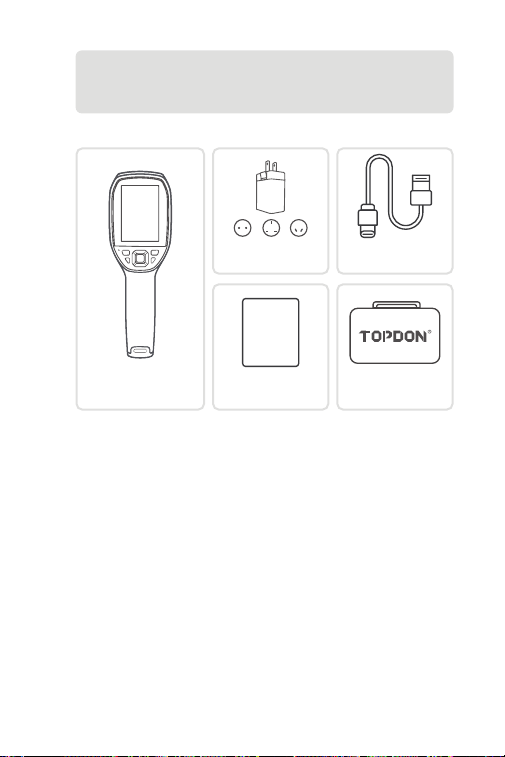
RU I 81
Раздел 1
Что в коробке?
Тепловизионная
камера TC005
Руководство
пользователя
USER
MANUAL
Адаптер питания
Чехол для
переноски
USB Кабель (USB-A к
USB-C)
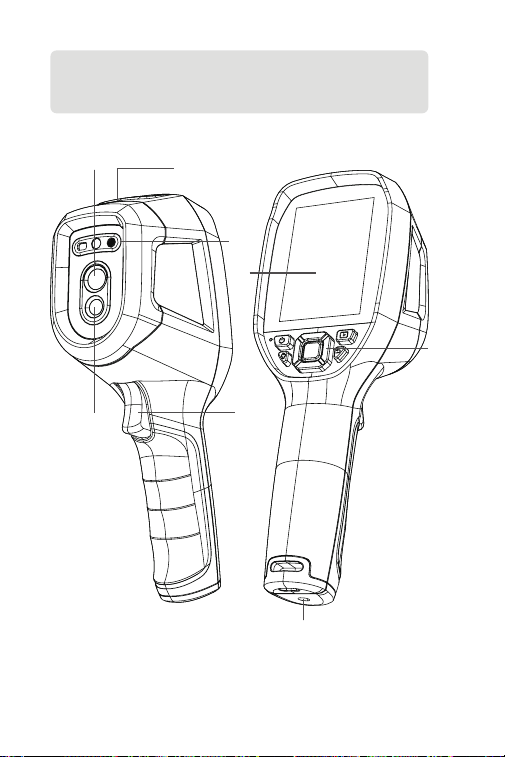
RU I 82
Раздел 2
Обзор продукта
Рисунок 2.1.1
3
1
8
2
7
4
5
6
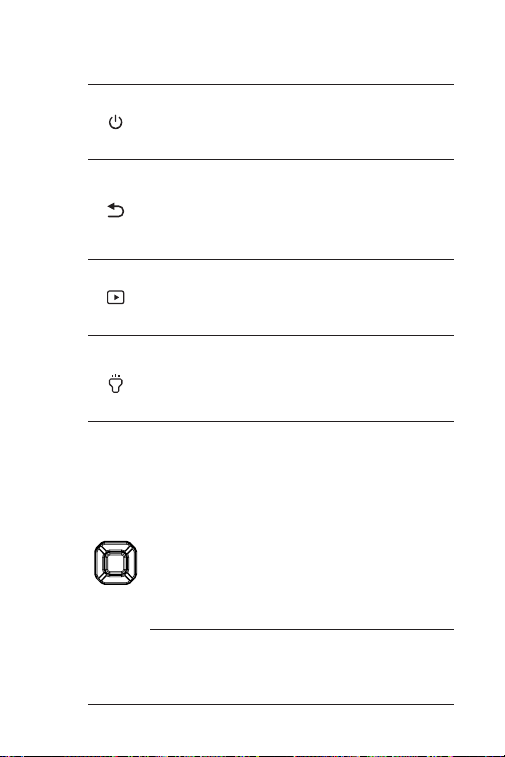
RU I 83
1. Клавиатура
Кнопка
питания
Кнопка
Альбом
Кнопка
возврата
Кнопка
Фонарик
Кнопки
перемещения
вверх / вниз /
влево / вправо
Кнопка ОК
Короткое нажатие активирует экран
или переводит его в спящий режим;
длительное нажатие включает/
выключает устройство.
На главном экране в режиме
ожидания короткое нажатие один раз
спускает затвор.
На любом другом экране короткое
нажатие один раз возвращает на
предыдущую страницу.
Короткое нажатие для отображения
всплывающего меню навигации;
короткое нажатие для подтверждения
действия или сообщения.
Короткое нажатие для входа в
альбом или включения функции
обнаружения транспортных средств.
Короткое нажатие включает/
выключает фонарик.
Длительное нажатие включает/
выключает лазерный дальномер и
красный лазерный указатель.
Краткое нажатие четырёх кнопок
перемещает курсор в соответствующем
направлении. Другие функции на
главном экране:
· Кнопки «Вверх/Вниз» переключают
режимы визуализации.
· В режимах тепловизионной съёмки
или видимого света нажмите кнопки
«Влево/Вправо» для регулировки
уровня масштабирования.
· В режиме слияния двух спектров
нажмите кнопки «Влево/Вправо» для
регулировки прозрачности выбранной
палитры.

RU I 84
5. Камера видимого света
6. Инфракрасная камера
7. Красный лазерный указатель, светодиодный фонарик и окно
лазерного дальномера
8. Резьбовое отверстие (1 / 4-20 unc)
Устанавливает TC005 на штатив
Примечание: Вы также можете выбрать автоматическое
сохранение всех фотографий, сделанных на вашем
устройстве TC005. Чтобы включить эту функцию, войдите
в «Настройки» > «Настройки фото» и включите параметр
Автосохранение фото.
2. 3,5-дюймовый экран
3. Порт USB-C
Порт USB-C используется для зарядки, проецирования
изображения на ПК и передачи файлов.
Поскольку данные хранятся и передаются в формате MTP,
прямое чтение данных поддерживается в системах Windows,
но не на компьютерах Mac. Для передачи данных между TC005
и компьютером Mac требуется программное обеспечение
для преобразования форматов файлов (например, OpenMTP,
MTPdrive).
4. Кнопка Камеры
Быстро нажмите, чтобы сделать снимок, затем нажмите
кнопку OK , чтобы сохранить снимок; нажмите и удерживайте,
чтобы начать запись видео, нажмите и удерживайте, чтобы
остановить запись, затем нажмите и удерживайте кнопку OK,
чтобы сохранить видео.

RU I 85
Раздел 3
Использование TC005 в
автономном режиме
В автономном режиме тепловизионная камера TC005 работает
автономно. Подробнее о работе каждой кнопки и порта на
устройстве TC005 см. в Раздел 2 Обзор продукта.
Инструкция по применению
Включение
Нажмите и удерживайте кнопку питания в течение 3 секунд,
чтобы включить TC005.
После включения TC005 проверьте уровень заряда аккумулятора.
Если заряда недостаточно для выполнения ваших задач, сначала
зарядите TC005.
Зарядка
Перед использованием TC005 необходимо полностью зарядить.
Зарядите TC005 с помощью кабеля USB-A — USB-C. Подключите
один конец кабеля к порту USB-C TC005, а другой — к адаптеру
питания.
Фото- и видеосъёмка
В процессе использования TC005 для обнаружения объектов
вы можете делать фотографии и записывать видео при
необходимости.
Чтобы сделать снимок, нажмите кнопку камеры.
Чтобы записать видео, нажмите и удерживайте кнопку камеры.
Фотографии и видео будут сохранены на TC005. Вы можете
просматривать или переносить их, подключив TC005 к
компьютеру на базе Windows с помощью USB-кабеля.
Функции главного экрана
После включения TC005 и перехода на главный экран нажмите
кнопку OK, чтобы открыть панель навигации. Функции
представлены следующим образом:
Измерение
После выбора функции измерения отображаются девять
параметров: Центральная точка, Макс., Мин., Tочка измерения 1,
Tочка измерения 2, Tочка измерения 3, Изотермы Горячая точка,
Изотермы Xолодная точка, Макет.

RU I 86
Изотермы
При включении функции отображается уведомление.
Вы можете задать диапазон температур с помощью кнопок
«Вверх/Вниз». Область, обнаруженная в этом диапазоне, будет
отображаться в выбранной псевдоцветовой палитре.
Макет
При включении этой функции устройство автоматически
очищает экранное меню и сохраняет только изображение в
реальном времени.
Режимы визуализации
Доступны шесть режимов визуализации: ИК, Слияние, PIP, iMIX,
Видимый и Регистрация слияния двух спектров.
· ИК: инфракрасный режим.
· Слияние: режим слияния двух спектров, объединяющий
инфракрасные и видимые изображения в единое изображение,
предоставляя как тепловую информацию, так и визуальные
детали сцены.
· PIP: режим «картинка в картинке».
· iMIX: наложение инфракрасных изображений на контуры
видимого света для повышения четкости изображения.
· Видимый: режим видимого света.
· Регистрация слияния двух спектров: позволяет геометрически
совместить инфракрасные и видимые изображения, а затем
объединить их в синхронизированное изображение. После
выбора этого режима используйте кнопки со стрелками для
настройки выравнивания и нажмите кнопку OK для завершения
регистрации.
Псевдоцветовые палитры
При использовании TC005 для обнаружения объектов в дикой
природе вы можете выбрать желаемую псевдоцветовую палитру
в соответствии с реальной ситуацией. Доступно семь палитр:
Горячее белым, Горячее черным, Лава, Железо, Радуга, Радуга HC
и RdGy.
Доступ к системному меню
После включения TC005 нажмите кнопку «ОК», чтобы открыть
панель навигации. Затем с помощью кнопок «Влево/Вправо»
выберите и откройте меню настроек, где можно настроить
следующие функции:
Параметры измерения
Это меню позволяет вручную настроить коэффициент
излучения, температуру окружающей среды, расстояние и
параметры автоматического определения расстояния.
Положение передачи для измерения температуры

RU I 87
Это меню позволяет выбрать диапазон температур: от -20°C до
150°C, от 100°C до 550°C или автоматический режим.
Настройки сигнализации
Эта функция позволяет устанавливать пороговые значения
температуры для срабатывания сигнала тревоги, а также
включать/отключать функции светодиодной сигнализации
и автоматического захвата изображения с настраиваемыми
интервалом и количеством кадров.
Настройки фотографий
Это меню позволяет включить или отключить функции
автоматического сохранения изображения и захвата по
времени (с настраиваемыми интервалом и количеством
кадров).
Сверхвысокое разрешение тепловизионного изображения
(TISR)
Эта опция позволяет включить или отключить функцию
сверхвысокого разрешения тепловизионного изображения
(TISR).
Примечание: При включении TISR функция изотерм будет
отключена.
Автосохранение видео
Эта опция позволяет включить или отключить автоматическое
сохранение записанных видео.
Режим энергосбережения
Этот параметр позволяет включить или отключить режим
энергосбережения.
Настройки единиц измерения
Это меню позволяет выбрать желаемые единицы измерения
температуры: градусы Цельсия (°C), Кельвина (K) и Фаренгейта
(°F), а также единицы измерения расстояния: метры (м) и футы
(ft).
Настройки точки доступа
Это меню позволяет включить или отключить точку доступа.
Настройки WLAN
Это меню позволяет включить или отключить Wi-Fi.
Экранный дисплея
Это меню позволяет по отдельности отображать или скрывать
элементы на экране: «Все», «Палитра», «Точка доступа», «Время»,
«Коэффициент излучения», «Цифровой зум», «Аккумулятор» и
«Единицы измерения температуры».

RU I 88
Автоматическое отключение
Это меню позволяет отключить автоматическое отключение
питания или установить интервал: 5 минут, 10 минут, 20 минут
или 120 минут.
Настройки системы
Это меню позволяет просматривать информацию об устройстве,
выполнять калибровку изображений, восстанавливать заводские
настройки, форматировать хранилище данных, настраивать
яркость экрана, устанавливать дату и время, переключать языки
и проверять наличие обновлений.
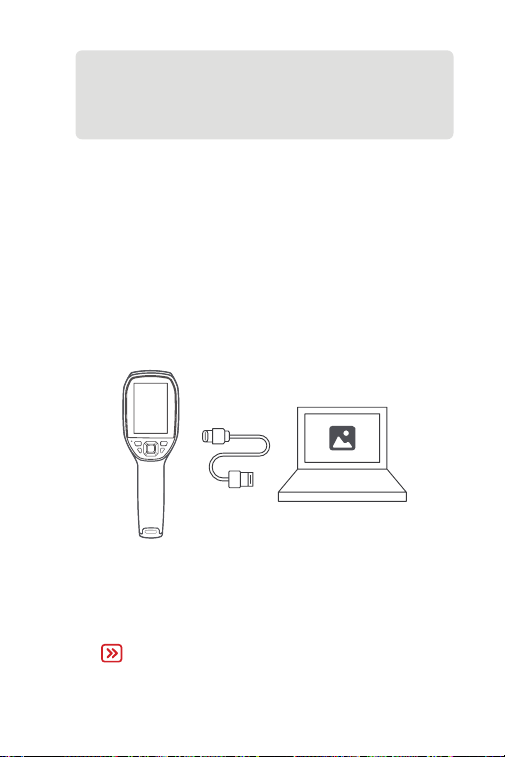
RU I 89
Запустите программное обеспечение, и вы сможете
проецировать изображение с тепловизионной камеры в
реальном времени на свой компьютер.
3.
Подключите TC005 к компьютеру с помощью прилагаемого
USB-кабеля (см. рис. 3.1.1).
Рисунок 3.1.1
2.
Помимо автономного использования, ваш TC005 также может
работать с компьютером Windows. В этом разделе показано,
как настроить TC005 для работы с компьютером Windows для
проецирования экрана и анализа изображений.
Загрузите и установите программное обеспечение для
термического анализа для Windows
Загрузите программное обеспечение с официального сайта
TOPDON (www.topdon.com). Затем загрузите и установите
на свой компьютер программное обеспечение для
термического анализа.
Начать
1.
Раздел 4
Использование TC005 с
Kомпьютером на базе Windows
Примечание:
Подробные инструкции по работе с TC005 на компьютере
под управлением Windows см. в руководстве пользователя
TopView.
Подробные инструкции по настройкам встроенной
системы см. в Раздел 3 Использование TC005 в
автономном режиме.
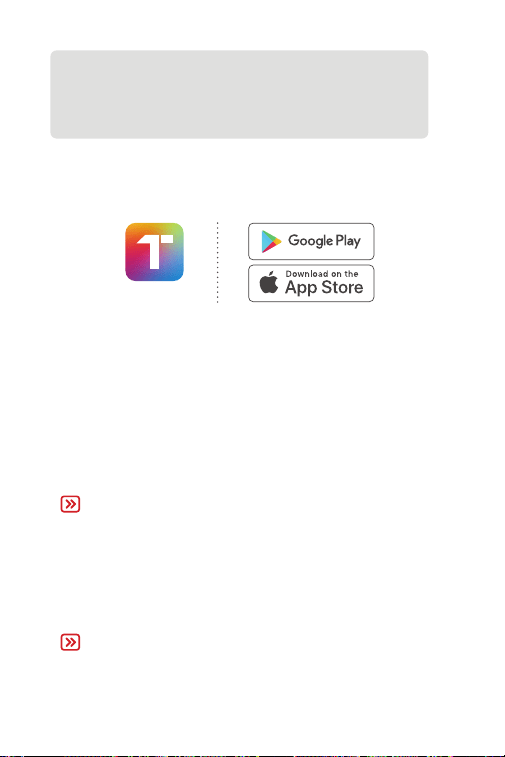
RU I 90
Раздел 5
Использование TC005 с
мобильным устройством
Скачать приложение
Загрузите и установите Topinfrared на мобильное устройство, а
затем запустите его.
Установить соединение
Topinfrared
Включите TC005.
Включите точку доступа устройства: кнопка «ОК» >
«Настройки» > «Настройки точки доступа».
Подключите ThermalCamera05_xxxx через Wi-Fi вашего
телефона.
Откройте приложение и нажмите TC005 для подключения.
После того, как экран устройства будет проецироваться на
ваш телефон, соединение будет установлено.
1.
2.
3.
4.
Примечание: «xxxx» — это последние 4 цифры серийного
номера TC005.
Примечание: После подключения TC005 к мобильному
устройству вы можете просматривать только изображения
и видео, хранящиеся на TC005. Для дальнейшего
термического анализа загрузите изображения и видео на
мобильное устройство, прежде чем проводить анализ с
помощью Topinfrared.
Подробные инструкции по термическому анализу с
помощью Topinfrared см. в руководстве пользователя
Topinfrared в разделе «Я» > «Электронное руководство».

RU I 91
Раздел 6
Спецификация
Разрешение инфракрасной
камеры
Разрешение объектива
видимого света
Спектральный диапазон
Размер пикселя
NETD
FOV
IFOV
Диапазон измерений
Точность измерения
Разрешение измерения
Объем памяти
Объем батареи
Программное обеспечение
256 * 192, 25 Hz
2 Мп
от 8 до 14 μm
12 μm
≤ 40 мК
40° * 30°
2.79 мрад
-4 to 1022°F (-20 to 550°C)
±2ºC или ±2% от показаний,
преобладает большее значение
0.1°C
64 ГБ встроенной памяти
5,000 mAh
Поддерживается (Topinfrared и
TopView)

RU I 92
Раздел 7
FAQ
Может ли TC005 обнаруживать объекты под водой, через
стекло или стену?
Нет. Инфракрасные детекторы в основном обнаруживают
длинноволновую инфракрасную область 8~14 мкм, и
могут использоваться только для измерения температуры
поверхности.
Почему показания температуры ниже, когда устройство
находится далеко от объекта, и выше, когда устройство
приближается к объекту?
Инфракрасное излучение затухает при прохождении через
атмосферу. Чем больше расстояние, тем больше затухание.
Таким образом, точность измерения температуры на
расстоянии снизится.
Чтобы обеспечить точность измерений, перейдите в
раздел Настройки > измерение > Рассt и введите
фактическое расстояние (макс: 4метров), чтобы получить
скорректированную температуру.
Почему измеряемая температура не точна?
Точность определения температуры этим устройством
составляет ±2%, при этом нормальный диапазон температур
составляет от -4°F до 302°F (от -20°C до 150°C), а высокий
диапазон температур составляет от 212°F до 1022°F (100°C
до 550°C). Перед измерением выберите соответствующий
диапазон в настройках.
Какие внешние факторы будут влиять на инфракрасное
измерение температуры?
Следующие факторы:
a) Излучательная способность поверхности целевого
объекта.
b) Температура окружающей среды: объект будет отражать
инфракрасные лучи, испускаемые окружающими
объектами, что влияет на измерение температуры самого
объекта.
c) Температура атмосферы: атмосфера также испускает
инфракрасные лучи.
O
O
O
O
B
B
B
B

RU I 93
Гарантия TOPDON на один год
TOPDON гарантирует покупателю, что не будет никаких дефектов
материалов и изготовления продукции TOPDON в течение 12
месяцев (гарантийный срок) с даты покупки. При обнаружении
дефектов в течение гарантийного периода TOPDON проведёт
ремонт или замену дефектных деталей или продуктов после
анализа и подтверждения проблемы своей технической
поддержкой.
TOPDON не несет ответственности за любые случайные или
косвенные убытки, вызванные использованием, неправильным
использованием или установкой прибора.
В случае возникновения противоречий между гарантийной
политикой TOPDON и местным законодательством
преимущественную силу имеют местные законы.
Данная гарантия недействительна в следующих случаях:
Неправильное использование, разборка, модификация или
ремонт специалистами по техническому обслуживанию, не
уполномоченными Topdon.
Небрежное обращение и неправильная эксплуатация.
Раздел 8
гарантия
Примечание. Вся информация в этом руководстве,
показанная на момент публикации, имеет
преимущественную силу, компания не отвечает за ее
точность и полноту.
Topdon оставляет за собой право вносить изменения в
данное руководство в любое время без предварительного
уведомления.
d) Пропускание атмосферы: инфракрасные лучи, испускаемые
объектом, ослабляются в атмосфере.
д) Расстояние: чем больше расстояние, тем больше ослабление
инфракрасных лучей, испускаемых объектом в атмосфере.

RU I 94

PT I 95
Português

PT I 96
Atenção
Sobre o TC005
LEIA TODAS AS INSTRUÇÕES ANTES DE USAR.
Não aponte a câmera infravermelha para o sol ou outras fontes de
energia forte por longos períodos de tempo. Isto pode causar danos
ao detector na câmera.
Por favor, mantenha a unidade longe da água para evitar
vazamentos ou curto-circuito.
Não toque a lente com suas mãos. Não bater, bisbilhotar, perfurar ou
arranhar a lente.
Não desmonte a unidade
O TOPDON TC005 é uma câmera de imagem térmica portátil de
256*192 usada para inspeção de equipamentos e manutenção.
A câmera térmica suporta aplicações como inspeção de sistemas
HVAC, detecção de vazamentos de água e controle de pragas.
Ela pode operar de forma independente ou ser conectada a um
computador com sistema operacional Windows ou a um dispositivo
móvel.
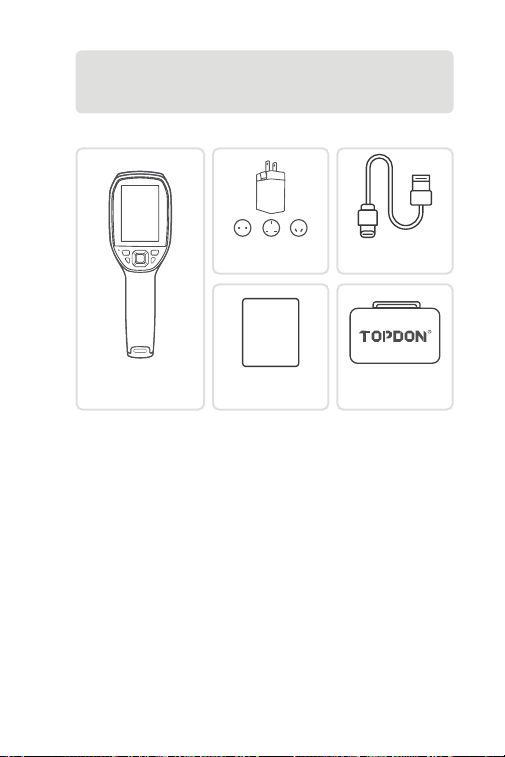
PT I 97
Seção 1
O que tem na Caixa?
TC005 Câmera de
Imagem Térmica
Manual do Usuário
USER
MANUAL
Adaptador de
Energia
Maleta
Cabo USB (USB-A ou
USB-C)
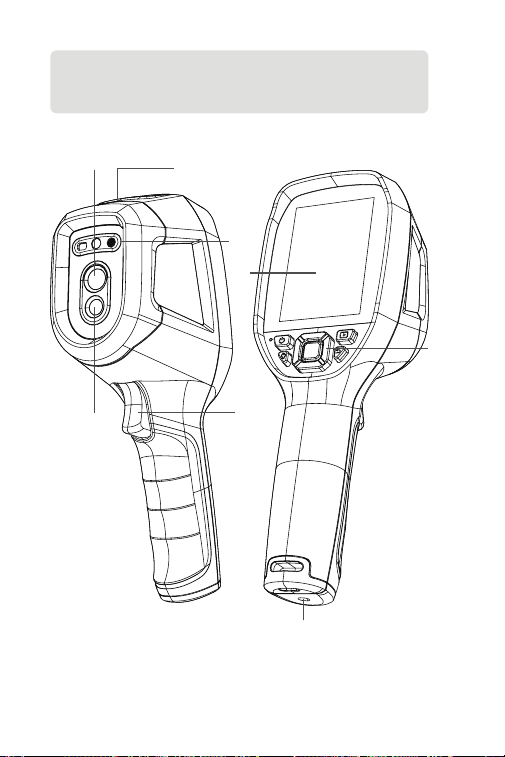
PT I 98
Seção 2
Visão Geral do Produto
Figura 2.1.1
3
1
8
2
7
4
5
6
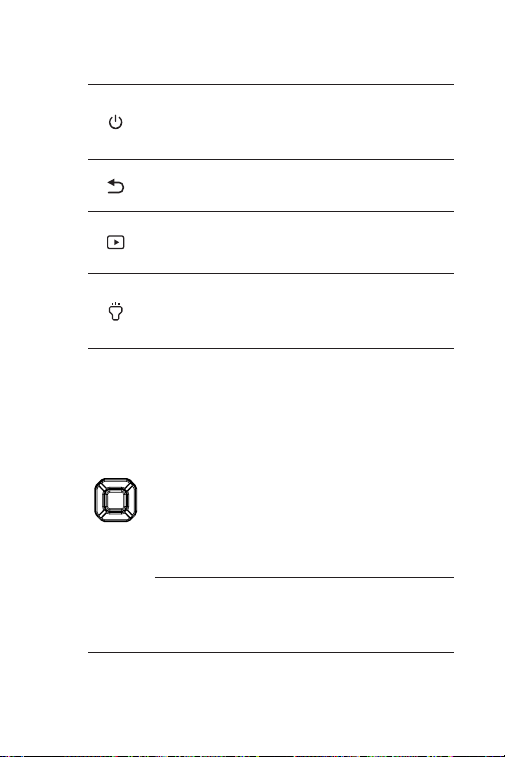
PT I 99
1. Teclado
Botão
Iniciar
Botão
Álbuns
Botão Voltar
Botão
Lanterna
Botões
Cima / Baixo
/ Esquerda /
Direita
Botão OK
Pressione rapidamente para ativar a
tela ou colocá-la em modo de repouso;
pressione e segure para ligar ou desligar
o dispositivo.
Pressione uma vez para voltar à página
anterior.
Pressione uma vez para mostrar o
menu de navegação; pressione uma
vez para conrmar uma ação ou
mensagem.
Pressione rapidamente para entrar
no álbum ou habilitar a detecção do
veículo.
Pressione rapidamente para ligar/
desligar a lanterna.
Pressione e segure para ativar ou
desativar a medição de distância a laser
e o ponteiro laser vermelho.
Pressione rapidamente os quatro
botões para mover o cursor na direção
correspondente. Outras funções na tela
inicial incluem:
· Pressione o botão Mover para Cima/
Baixo para alternar entre os modos de
imagem.
· No modo Imagem Térmica ou Luz
Visível, pressione o botão Mover para a
Esquerda/Direita para ajustar o nível de
zoom.
· No modo Fusão de Espectro Duplo,
pressione o botão Mover para a
Esquerda/Direita para ajustar a
transparência da paleta selecionada.

PT I 100
5. Câmera de Luz Visível
6. Câmera Infravermelho
7. Ponteiro laser vermelho, lanterna LED e janela de medição de
distância a laser
8. Buraco de Parafuso (1 / 4-20 unc)
Monta o TC005 em um tripé
Nota: Você também poderá escolher salvar automaticamente
todas as fotos tiradas em seu dispositivo TC005. Para ativar a
função, vá para Congurações > Congurações de Foto, e
ligue Salvamento Automático de Fotos.
2. Tela de 3.5-Polegadas
3. Porta USB-C
A porta USB-C é usada para carregamento, projeção da tela no PC
e transferência de arquivos.
Como os dados são armazenados e transferidos no formato MTP, a
leitura direta de dados é compatível com sistemas Windows, mas
não com computadores Mac. Para transferir dados entre o TC005
e um computador Mac, é necessário um software de conversão de
formato de arquivo (por exemplo, OpenMTP, MTPdrive).
4. Botão Câmera
Pressione para tirar uma foto, então pressione o Botão OK para
salvar a foto; mantenha pressionado para gravar um vídeo,
pressione para parar de gravar, então pressione o Botão OK para
salvar o vídeo.

PT I 101
Seção 3
Usando o TC005 em Modo
Autônomo
No modo autônomo, a câmera termográca TC005 opera de forma
independente. Para saber mais sobre o funcionamento de cada
botão e porta do dispositivo TC005, consulte a Seção 2 Visão Geral do
Produto.
Instruções de Uso
Ligar
Pressione e segure o botão Liga/Desliga por 3 segundos para ligar o
TC005.
Após ligar o TC005, verique a carga da bateria. Se não for suciente
para a atividade que você vai realizar, carregue o TC005 primeiro.
Carregamento
O TC005 deve estar totalmente carregado antes do uso.
Carregue o TC005 usando o cabo USB-A para USB-C. Conecte uma
extremidade à porta USB-C do TC005 e a outra extremidade a um
adaptador de energia.
Tirar Fotos e Gravar Vídeos
Durante o uso do TC005 para detecção, você pode tirar fotos e gravar
vídeos quando necessário.
Para tirar uma foto, pressione o botão da câmera.
Para gravar um vídeo, pressione e segure o botão da câmera.
As fotos e os vídeos serão salvos no TC005. Você pode visualizá-los ou
transferi-los ao conectar o TC005 a um computador com Windows
através do cabo USB.
Funções da Tela Principal
Após ligar o TC005 e entrar na tela inicial, pressione o botão OK para
exibir a barra de navegação. As funções são apresentadas a seguir:
Medição
Após selecionar a função Medição, nove opções são exibidas:
Central, Máx., Mín., Spot personalizado 1, Spot personalizado 2, Spot
personalizado 3, Isotermas Ponto Quente, Isotermas Ponto Frio,
Disposição.
Isotermas
Uma noticação será exibida quando a função estiver ativada.

PT I 102
Você pode denir um intervalo de temperatura usando os botões
para cima/para baixo. A área detectada dentro desse intervalo será
exibida na paleta de cores selecionada.
Disposição
Com esse recurso ativado, o dispositivo limpará automaticamente
todo o OSD e manterá apenas a imagem capturada em tempo
real.
Modos de Imagem
Seis modos de imagem estão disponíveis: IR, Fusão, PIP, iMIX, Visível
e Registro de fusão de espectro duplo.
· IR: modo infravermelho.
· Fusão: modo de fusão de espectro duplo que combina imagens
infravermelhas e de luz visível em uma única visualização mesclada,
fornecendo informações térmicas e detalhes visuais da cena.
· PIP: modo de imagem sobreposta (picture-in-picture).
· iMIX: sobrepõe imagens infravermelhas com contornos de luz visível
para melhorar a nitidez da imagem.
· Visível: modo de luz visível.
· Registro de fusão de espectro duplo: permite o alinhamento
geométrico de imagens infravermelhas e de luz visível e, em seguida,
as funde em uma visualização sincronizada. Após selecionar este
modo, use os botões direcionais para ajustar o alinhamento e
pressione o botão OK para concluir o registro.
Paletas de pseudocores
Ao usar o TC005 para detectar objetos em ambientes externos, você
pode escolher a paleta de pseudocores desejada de acordo com a
situação. Sete paletas estão disponíveis: Bran quen, Preto quen, Lava,
Ferro, Arco-íris, Arcoíris HC e Pre verm.
Acessar o Menu do Sistema
Após ligar o TC005, pressione o botão OK para exibir a barra de
navegação. Em seguida, use os botões Mover para a Esquerda/Direita
para selecionar e acessar o menu Congurações, onde você pode
congurar os seguintes recursos:
Parâmetros de Medição
Este menu permite congurar manualmente a Emissividade,
a Temperatura Ambiente, a Distância e as Congurações de
Distância Automática.
Marcha de medição de temp
Este menu permite selecionar uma faixa de temperatura: -20 °C a
150 °C, 100 °C a 550 °C ou Modo Automático.
Congurações de Alarme
Este recurso permite denir limites de temperatura para o alarme
e ativar ou desativar as funções de alarme por LED e captura

PT I 103
automática de alarme, com congurações ajustáveis de intervalo e
número de capturas.
Congurações de Foto
Este menu permite ativar ou desativar a captura com salvamento
automático e a captura temporizada (com intervalo e número de
capturas conguráveis).
Super-resolução de Imagem Térmica (TISR)
Esta opção permite ativar ou desativar o recurso de super-
resolução de imagem térmica (TISR).
Observação: quando o TISR está ativado, o recurso de isotermas
será desativado.
Auto-salvar Vídeo
Esta opção permite ativar ou desativar o salvamento automático
dos vídeos gravados.
Modo de Economia de Energia
Esta opção permite ativar ou desativar o modo de economia de
energia.
Cong. de Unidade
Este menu permite selecionar a unidade de temperatura desejada
entre Celsius (°C), Kelvin (K) e Fahrenheit (°F), e a unidade de
distância entre metros (m) e pés (ft).
Congurações de Ponto de Acesso
Este menu permite ativar ou desativar o Hotspot.
Congurações WLAN
Este menu permite ativar ou desativar o Wi-Fi.
Exibição na Tela
Este menu permite mostrar ou ocultar individualmente os
elementos na tela: Todos, Barra de Paleta, Hotspot, Hora,
Emissividade, Zoom Digital, Bateria e Unidade de Temperatura.
Desligar Auto
Este menu permite desativar o desligamento automático ou
denir o intervalo para: 5 minutos, 10 minutos, 20 minutos ou 120
minutos.
Denir Sistema
Este menu permite visualizar informações do dispositivo,
realizar a calibração de imagem, restaurar as congurações de
fábrica, formatar o armazenamento de dados, ajustar o brilho
da tela, denir a data e a hora, alternar o idioma e vericar se há
atualizações.
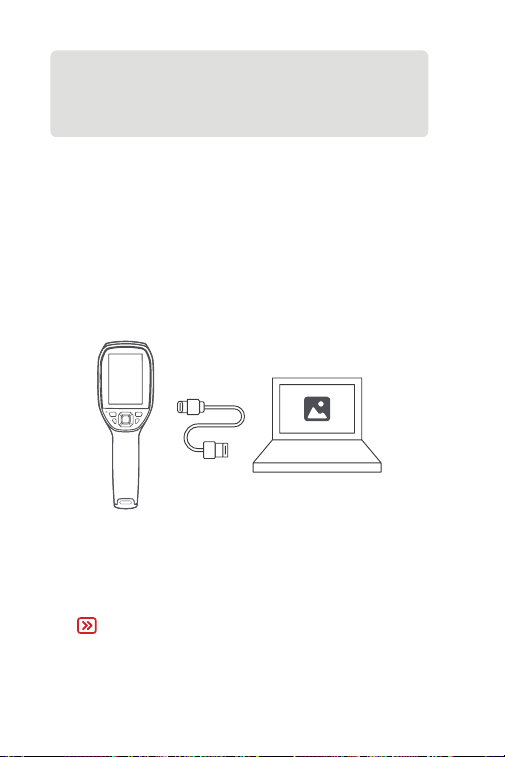
PT I 104
Inicie o software e então você poderá projetar a tela em tempo
real da câmera termográca para o seu computador.
3.
Conecte o TC005 a seu computador com o cabo USB fornecido
(veja a Figura 3.1.1).
Figura 3.1.1
2.
Nota:
Para obter instruções detalhadas sobre como operar o TC005
com um computador baseado no Windows, consulte o
manual do usuário do TopView.
Para obter instruções detalhadas sobre as congurações de
sistema integradas, consulte a Seção 3 Usando o TC005 em
Modo Autônomo.
Além do modo autônomo, seu TC005 pode trabalhar também com
um computador Windows. Esta seção ilustra como congurar seu
TC005 para trabalhar com um computador Windows para projeção
de tela e análise de imagem.
Baixe e instale o software de análise térmica para Windows
Baixe o software no site ocial da TOPDON (www.topdon.com).
Em seguida, baixe e instale o software de análise térmica no seu
computador.
Começando
1.
Seção 4
Usando TC005 com um
Computador Baseado em Windows

PT I 105
Seção 5
Usando o TC005 com um
Dispositivo Móvel
Baixe o Aplicativo
Baixe e instale o Topinfrared em seu dispositivo móvel.
Estabelecer uma conexão
Topinfrared
Ligue o TC005.
Ative o ponto de acesso do dispositivo: Botão OK >
Congurações > Congurações de Ponto de Acesso.
Conecte-se à ThermalCamera05_xxxx via Wi-Fi do seu celular.
Abra o aplicativo e toque em TC005 para conectar. Após a tela
do dispositivo ser projetada no seu celular, a conexão estará
estabelecida com sucesso.
1.
2.
3.
4.
Observação: "xxxx" refere-se aos últimos 4 dígitos do número de
série do TC005.
Observação: Após conectar o TC005 a um dispositivo móvel, você
poderá visualizar apenas as imagens e vídeos armazenados
no TC005. Para análises térmicas mais detalhadas, baixe as
imagens e os vídeos para o seu dispositivo móvel antes de
realizar a análise usando o Topinfrared.
Para obter instruções detalhadas sobre a análise térmica
usando o Topinfrared, consulte o manual do usuário do
Topinfrared em Eu > e-Manual.

PT I 106
Seção 6
Especicación
Resolução da câmera infravermelha
Resolução da lente de luz visível
Faixa espectral
Tamanho do pixel
NETD
FOV
IFOV
Alcance de medição
Precisão da medição
Resolução da medição
Capacidade de armazenamento
Capacidade de bateria
Software
256 * 192, 25 Hz
2 MP
8 a 14 μm
12 μm
≤ 40 mK
40° * 30°
2.79 mrad
-4 a 1022ºF (-20 a 550ºC)
±2ºC ou ±2% da leitura, deve
prevalecer o valor maior
0.1°C
64 GB de armazenamento
interno
5,000 mAh
Compatível com
(Topinfrared e TopView)

PT I 107
Seção 7
FAQ
O TC005 pode detectar objetos debaixo d'água, através de
vidro, ou através de uma parede?
Não. Os detectores infravermelhos detectam principalmente a
região infravermelha de onda longa de 8~14μm, e só podem ser
usados para medir a temperatura da superfície.
Por que há uma leitura de temperatura mais baixa quando o
dispositivo se afasta do objeto e uma leitura mais alta quando
o dispositivo se aproxima do objeto?
A radiação infravermelha se enfraquece quando atravessa a
atmosfera. Quanto maior a distância, maior é o enfraquecimento.
Portanto, a precisão da medição de temperatura é menor à
distância.
Para garantir precisão na medição, vá para Denir > Medição
> Distân, e digite a distância real (max: 4 metros)para obter a
temperatura correta.
Por que a temperatura medida não é precisa?
A precisão de detecção de temperatura deste dispositivo é de
±2%, com uma faixa de temperatura normal de -4°F a 302°F
(-20°C a 150°C) e uma faixa de temperatura alta de 212°F a
1022°F (100°C a 550°C). Selecione a faixa correspondente nas
Congurações antes de medir.
Que fatores externos afetarão a medição da temperatura
infravermelha?
Os fatores são os seguintes:
a) Emissividade da superfície do objeto alvo.
b) Temperatura ambiente: o objeto reetirá os raios
infravermelhos emitidos pelos objetos vizinhos, o que afetará
a medição da temperatura do próprio objeto.
c) Temperatura atmosférica: a atmosfera também emite raios
infravermelhos.
d) Transmitância atmosférica: os raios infravermelhos emitidos
pelo objeto são atenuados na atmosfera.
e) Distância: quanto maior a distância, maior é a atenuação dos
raios infravermelhos emitidos pelo objeto na atmosfera.
R
R
R
R
P
P
P
P

PT I 108
Garantia Limitada de Um Ano TOPDON
A TOPDON garante a seu comprador original que os produtos da
empresa serão livres de defeitos materiais e de confecção por 12
meses a partir da data de compra (Período de Garantia).
Para defeitos reportados durante o Período de Garantia, a TOPDON
irá ou consertar ou substituir o componente ou produto defeituoso
de acordo com a análise e conrmação de seu suporte técnico.
A TOPDON não se responsabiliza por quaisquer danos incidentais ou
consequentes decorrentes do uso, uso indevido ou montagem do
dispositivo.
Se houver qualquer conito entre a política de garantia TOPDON e as
leis locais, as leis locais devem prevalecer.
Esta garantia limitada é anulada sob as seguintes condições:
• Uso indevido, desmontagem, alteração ou consertos por lojas ou
técnicos não autorizados.
• Manejo descuidado e / ou operação indevida.
Seção 8
Garantia
Aviso: Todas as informações neste manual são baseadas nas
informações disponíveis mais recentes durante o momento
de sua publicação e nenhuma garantia pode ser feita sobre
sua exatidão ou integridade. A TOPDON se reserva o direito de
fazer alterações a qualquer momento sem aviso.

PT I 109

JP I 110
日本語

JP I 111
注意
TC005 について
使用する前に、すべての指示をお読んでおいてください。
赤外線カメラを太陽や他の強力なエネルギー源に長時間向けないでくださ
い。 そうすれば、カメラの検出器が損傷する可能性があります。
漏電や短絡を防ぐため、水から遠ざけてください。
手でレンズに触れないでください。 レンズをノックしたり、こじたり、突き
破ったり、ひっかき傷をしないでください。
組立部品を分解しないでください
TOPDON の TC005 は、機器の点検と修理に使う 256*192 手持ち型サーモグ
ラフィカメラです。
サーマルカメラは、空調設備の点検、水漏れ検知、害虫駆除などの用途に対
応しています。単独で動作させることも、Windows ベースのコンピューター
やモバイルデバイスに接続して動作させることも可能です。
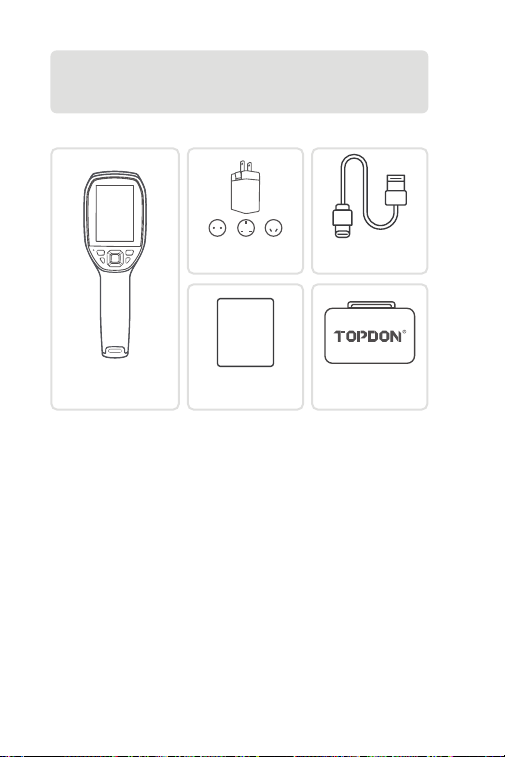
JP I 112
セクション 1
箱には何がありますか。
TC005 サーモイメージ
ングカメラ
ユーザーマニュアル
USER
MANUAL
電源アダプタ
ハンドキャリー・ケース
USB ケーブル(USB-
A ~ USB-C)
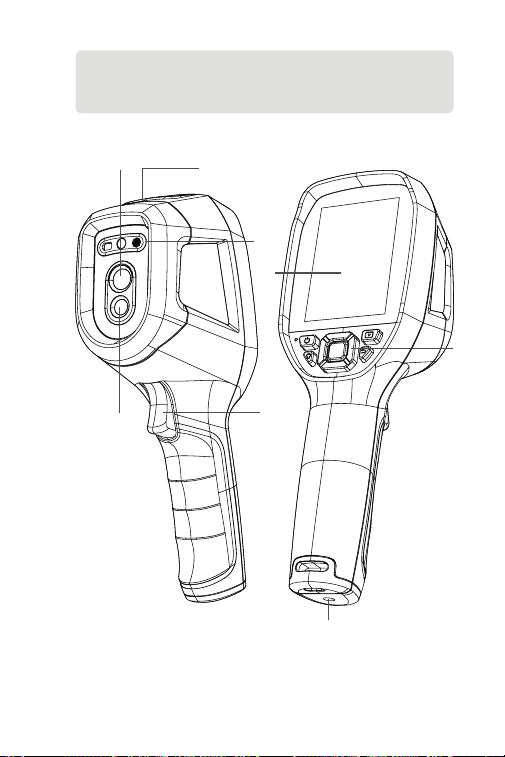
JP I 113
セクション 2
製品概要
図 2.1.1
3
1
8
2
7
4
5
6
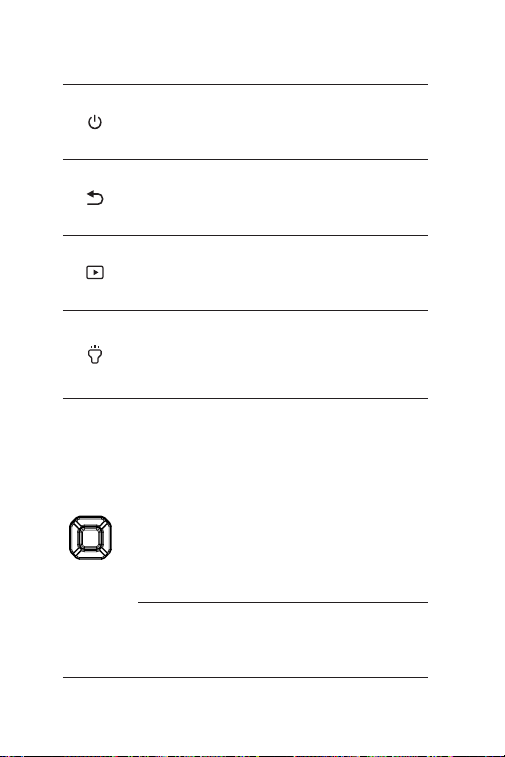
JP I 114
1. キーボード
電源ボタン
アルバムボタン
戻るボタン
懐中電灯ボタン
ボタンを上 / 下 / 左 /
右に移動します
「OK」ボタン
短く押すと画面が起動するかスリー
プ モードになり、長く押すとデバイ
スの電源がオンまたはオフになりま
す。
待機状態のホーム画面で、1 回短押
しするとシャッターが切れます。
その他の画面で 1 回短押しすると、
前のページに戻ります。
短く押してポップアップナビゲーシ
ョンメニューが見られます。短く押
して動作またはメッセージを確認し
ます。
短く押すとアルバムに入るか、車両
検出が有効になります。
短く押すと懐中電灯のオン / オフを
切り替えます。
長押しするとレーザー距離測定と赤
色レーザーポインターの有効 / 無効
を切り替えます。
4 つのボタンを短押しすると、カー
ソルが対応する方向に移動します。
ホーム画面には、他にも以下の機能
があります。
・「上 / 下に移動」ボタンを押すと、
画像モードを切り替えます。
・「熱画像」または「可視光」モー
ドでは、「左 / 右に移動」ボタンを
押すと、ズームレベルを調整します。
・「デュアルスペクトル融合」モー
ドでは、「左 / 右に移動」ボタンを
押すと、選択したパレットの透明度
を調整します。

JP I 115
2. 3.5- インチ画面
3.USB-C ポート
USB-C ポートは、充電、PC への画面投影、ファイル転送に使用します。
データは MTP 形式で保存・転送されるため、Windows システムでは直接
データの読み取りが可能ですが、Mac コンピュータではサポートされませ
ん。TC005 と Mac コンピュータ間でデータを転送するには、ファイル形
式変換ソフトウェア(OpenMTP、MTPdrive など)が必要です。
4. カメラボタン
写真を短く押して撮影して、OK ボタン を短く押して写真を保存し、長押
ししてビデオの録画を開始し、短く押して録画を停止し、次に OK ボタン
を短く押してを保存します。
5. 可視カメラ
6. 赤外線カメラ
7. 赤色レーザーポインター、LED 懐中電灯、レーザー距離測定ウィンドウ
8. ネジ穴(1 / 4-20 unc)
TC005 を三脚に取り付けます
注意:デバイスの TC005 で撮影された写真を全て自動的に保存する
こともできます。この機能を音にしたい場合、設定 > 写真設定に来て、
写真自動保存を開きます。

JP I 116
セクション 3
独立モードで TC005 を使用する
スタンドアロンモードでは、TC005 サーマルイメージングカメラは独立して
動作します。TC005 デバイスの各ボタンとポートの操作の詳細については、
セクション 2 製品概要を参照してください。
新增:
使用方法
電源オン
TC005 の電源を入れるには、電源ボタンを 3 秒間長押しします。
TC005 の電源が入ったら、バッテリー残量を確認してください。使用したい
アクティビティに必要なバッテリー残量がない場合は、まず TC005 を充電し
てください。
充電
TC005 は、使用前にフル充電してください。
USB-A - USB-C ケーブルで TC005 を充電します。一方の端を TC005 の
USB-C ポートに接続し、もう一方の端を電源アダプターに接続します。
写真と動画の撮影
TC005 を検知に使用している間、必要に応じて写真を撮影したり、動画を録
画したりできます。
写真を撮るには、カメラボタンを押します。
動画を録画するには、カメラボタンを長押しします。
写真と動画は TC005 に保存されます。USB ケーブルで TC005 を Windows
PC に接続すると、写真や動画を表示したり転送したりできます。
メイン画面の機能
TC005 の電源を入れ、ホーム画面に入ったら、OK ボタンを押すとナビゲー
ションバーが表示され、以下の機能が表示されます。
測定設定
測定機能を選択すると、中心点、最高、最低、カスタムスポット 1、カスタ
ムスポット 2、カスタムスポット 3、等温線ホットスポット、等温線コール
ドスポット、レイアウトの 9 つのオプションが表示されます。
等温線
有効になると、トーストメッセージが表示されます。
上下ボタンを使用して温度範囲を設定できます。この範囲内で検出された
領域は、選択した疑似カラーパレットに表示されます。
OSD(オンスクリーンディスプレイ)

JP I 117
この機能を有効にすると、デバイスはすべての OSD を自動的に消去し、
ライブキャプチャ画像のみを保持します。
画像モード
6 つの撮影モード(IR、融合、PIP、iMIX、可視光、二光子融合レジストレー
ション设置)が用意されています。
・IR:赤外線モード。
・融合:赤外線画像と可視光線画像を 1 つの画像に合成するデュアルスペク
トルフュージョンモードで、熱情報とシーンの細部を視覚的に確認できます。
・PIP:ピクチャーインピクチャーモード。
・iMIX:赤外線画像に可視光線の輪郭線を重ね合わせ、画像の鮮明度を高め
ます。
・可視光:可視光線モード。
・二光子融合レジストレーション设置:赤外線画像と可視光線画像を幾何学
的に位置合わせし、それらを同期した画像に合成します。このモードを選択
後、方向ボタンを使用して位置合わせを調整し、「OK」ボタンを押してレジ
ストレーションを完了します。
擬似カラーパレット
TC005 を使用して野外物体を検知する際、実際の状況に応じて希望する擬似
カラーパレットを選択できます。7 種類のパレット(ホワイトホット、ブラ
ックホット、ラバ、アイアンレッド、レインボー、レインボー HC、ブラッ
クレッド)が用意されています。
システムメニューへのアクセス
TC005 の電源を入れた後、OK ボタンを押すとナビゲーションバーが表示さ
れます。次に、左右に移動ボタンを使用して設定メニューを選択し、以下の
機能を設定できます。
測定パラメータ
このメニューでは、放射率、周囲温度、距離、自動距離設定を手動で設定
できます。
温度設定レベル
このメニューでは、温度範囲(-20℃~ 150℃、100℃~ 550℃、または自
動モード)を選択できます。
アラーム設定
この機能では、アラームの温度しきい値を設定できるほか、LED アラーム
とアラーム自動キャプチャ機能を有効 / 無効にできます。また、間隔とキ
ャプチャ回数を設定できます。
撮影設定
このメニューでは、自動保存キャプチャとタイムドキャプチャ(間隔とキ
ャプチャ回数を設定可能)を有効 / 無効にできます。
熱画像超解像(TISR)
このオプションでは、熱画像超解像(TISR)機能を有効 / 無効にできます。
注:TISR を有効にすると、アイソサーモ機能はオフになります。

JP I 118
録画の自動保存
このオプションでは、録画ビデオの自動保存を有効 / 無効にできます。
省電力モード
このオプションでは、省電力モードの有効 / 無効を切り替えることができ
ます。
ユニット設定
このメニューでは、温度単位を摂氏(° C)、ケルビン(K)、華氏(° F)、
距離単位をメートル(m)とフィート(ft)から選択できます。
ホットスポット設定
このメニューでは、ホットスポットの有効 / 無効を切り替えることができ
ます。
WLAN 設定
このメニューでは、Wi-Fi の有効 / 無効を切り替えることができます。
画面表示
このメニューでは、画面上の要素(すべて、パレットバー、ホットスポッ
ト、時間、放射率、デジタルズーム、バッテリー、温度単位)を個別に表
示 / 非表示を切り替えることができます。
自動シャットダウン
このメニューでは、自動電源オフを無効にしたり、電源オフまでの時間を
5 分、10 分、20 分、120 分に設定したりできます。
システム設定
このメニューでは、デバイス情報の表示、画像キャリブレーションの実行、
工場出荷時設定への復元、データストレージのフォーマット、ディスプレ
イの明るさ調整、日時の設定、言語の切り替え、アップデートの確認を行
うことができます。
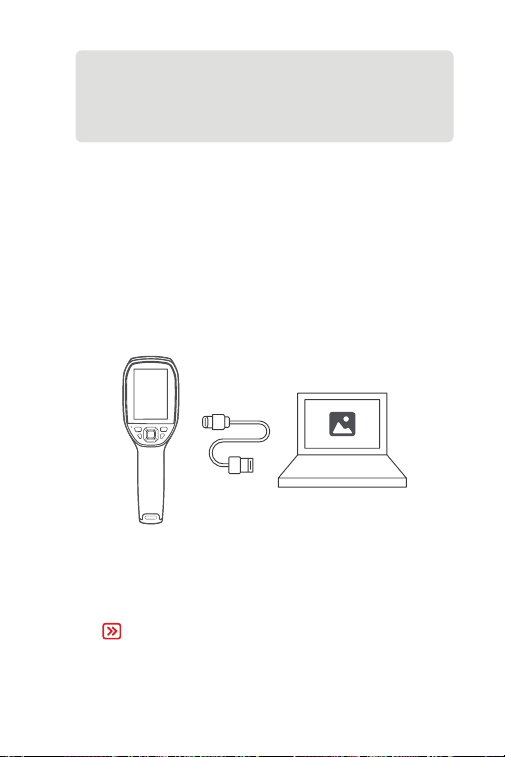
JP I 119
TC005 は、独立して使用できるほかに、Windows のコンピュータと一緒に
使用することもできます。この部分では、画面投影と画像解析のために、
TC005 を割り当てて Windows のコンピュータと動作できるという方法を探
すと説明します。
Windows 用の熱解析ソフトウェアをダウンロードしてインストールし
ます
ソフトウェアは、TOPDON の公式ウェブサイト(www.topdon.com)
からダウンロードしてください。次に、熱解析ソフトウェアをコンピュ
ーターにダウンロードしてインストールします。
初めに
1.
セクション 4
Windows ベースのコンピュータで
TC005 を使用する
ソフトウェアを起動すると、サーマルイメージングカメラからのリアル
タイム画面をコンピューターに投影できます。
3.
提供した USB ケーブルで TC005 をコンピュータに接続します(図 3.1.1
を参照)。
図 3.1.1
2.
注:
Windows ベースのコンピュータで TC005 を操作する詳細な手順に
ついては、TopView のユーザーマニュアルを参照してください。
内蔵システム設定の詳細な手順については、セクション 3 独立モー
ドで TC005 を使用するを参照してください。
JP I 120
セクション 5
モバイルデバイスでの TC005 の使用
アプリのダウンロード
モバイルデバイスに Topinfrared をダウンロードしてインストールし、起動
してください。
接続を確立する
Topinfrared
TC005 の電源を入れます。
デバイスのホットスポットを有効にします。「OK ボタン」>「設定」>「ホ
ットスポット設定」を選択します。
スマートフォンの Wi-Fi 経由で ThermalCamera05_xxxx に接続します。
アプリを開き、TC005 をタップして接続してください。デバイスの画面
がスマートフォンに投影されたら、接続が正常に確立されています。
1.
2.
3.
4.
注:
「xxxx」は TC005 のシリアル番号の下 4 桁です。
注:
TC005 をモバイルデバイスに接続した後は、TC005 に保存されてい
る画像と動画のプレビューのみ可能です。詳細な熱分析を行うには、
Topinfrared を使用して分析を行う前に、画像と動画をモバイルデバ
イスにダウンロードしてください。
Topinfrared を使用した熱分析の詳細な手順については、[Me] >
[e-Manual] から Topinfrared ユーザー マニュアルを参照してくださ
い。

JP I 121
セクション 6
仕様
赤外線カメラの解像度
可視光レンズの解像度
スペクトル範囲
ピクセルサイズ
NETD
FOV
IFOV
測定範囲
測定精度
測定の解像度
ストレージ容量
バッテリ容量
ソフトウェア
256 * 192, 25 Hz
2MP
8 to 14 μm
12 μm
≤ 40 mK
40° * 30°
2.79 ミリラッド
-4 ~ 1022ºF (-20 ~ 550ºC)
読み取り値の ±2ºC または ±2%、より
大きな値を取る
0.1° C
64 GB の内部ストレージ
5000 ミリアンペアアワー
対応機種 (Topinfrared および TopView)

JP I 122
セクション 7
FAQ
TC005 は、水中、ガラス越し、または壁を通して物体を検出できますか?
いいえ。赤外線検出器は主に 8 ~ 14μm の長波赤外線領域を検出し、表
面温度の測定しかに使用できません。
なぜデバイスが物体から離れると温度の読み取りが低くなり、デバイス
が物体に近づくと読み取りが高くなりますか。
赤外線放射は大気圏を通過すると減衰します。距離が長いほど減衰がひ
どくなります。これで、長距離温度測定の精度が低下になっています。
測定精度を確保するために、 設定 > パラメータ > 距離に来て、実際の距
離(最大値)を入力する:(4 メートル)補正温度を得ます
測定された温度が正しくないのはなぜですか?
本機の温度検出精度は ±2% で、常温範囲は -4° F ~ 302° F
(-20° C ~ 150° C)、高温範囲は 212° F ~ 1022° F(100° C ~ 550° C)
です。測定前に設定で対応する範囲を選択してください。
赤外線温度測定に影響を与える外部要因は何ですか?
要因は以下です。
a)ターゲット物体表面の放射率。
b)周囲温度:物体は周囲の物体から放射される赤外線を反射し、物体
自体の温度測定に影響を与えます。
c)気温:大気も赤外線を放射します。
d)大気透過率:物体から放出される赤外線は大気中で減衰します。
e)距離:距離が長いほど、大気中の物体から放出される赤外線の減衰
が大きくなります。
A
A
A
A
Q
Q
Q
Q

JP I 123
TOPDON の 1 年間の限定保証
TOPDON は、購入日から 12 ヶ月以内(保証期間)に材料とプロセスが欠陥
がないことを元の購入者に保証します。
保証期間内に報告された欠陥について、TOPDON は技術サポートに基づいて
欠陥部品や製品の修理または交換を分析および確認します。
TOPDON は、デバイスの使用、誤用、や取り付けによる付随的または結果的
な損害に対して責任を持っていません。
TOPDON 保証ポリシーと現地の法律は何かの競合がある場合は、現地の法
律に準拠してください。
次の場合は、この限定保証は無効です。
• 無許可店舗や技術者による誤用、取り外し、変更、修理
• 不注意な処理や不適切な操作
セクション 8
保証
知らせこのマニュアルのすべての情報は、出版時に利用可能な最新の
情報に基づいて、正確性や完全性は保証されていません。TOPDON は
予告ないで変更する権利を保持しています。

FCC ID: 2AVYW-TC005N
FCC Statement
This device complies with Part 15 of the FCC Rules. Operation is
subject to the following two conditions:
(1)This device may not cause harmful interference, and
(2)This device must accept any interference received, including
interference that may cause undesired operation of the device.
Changes or modications not expressly approved by the party
responsible for compliance could void your authority to operate the
equipment.
FCC VOC
This equipment has been tested and found to comply with the limits
for a Class B digital device, pursuant to Part 15 of the FCC Rules.
These limits are designed to provide reasonable protection against
harmful interference in a residential installation. This equipment
generates, uses and can radiate radio frequency energy and, if not
installed and used in accordance with the instructions, may cause
harmful interference to radio communications. However, there is no
guarantee that interference will not occur in a particular installation.
If this equipment does cause harmful interference to radio or
television reception, which can be determined by turning the
equipment off and on, the user is encouraged to try to correct the
interference by one or more of the following measures:
-- Reorient or relocate the receiving antenna.
-- Increase the separation between the equipment and receiver.
-- Connect the equipment into an outlet on a circuit different from
that to which the receiver is connected.
-- Consult the dealer or an experienced radio/TV technician for help.
FCC Caution
The device for operation in the band 5150-5250 MHz is only for indoor
use to reduce the potential for harmful interference to co-channel
mobile satellite systems.
Compliance Information
Regulatory Compliance
+86-755-21612590 (China) I +1-833-629-4832 (North America) I +34 930 038 094 (Europe)
WWW.TOPDON.COM
@TOPDONOFFICIAL
@TOPDON_OFFICIAL