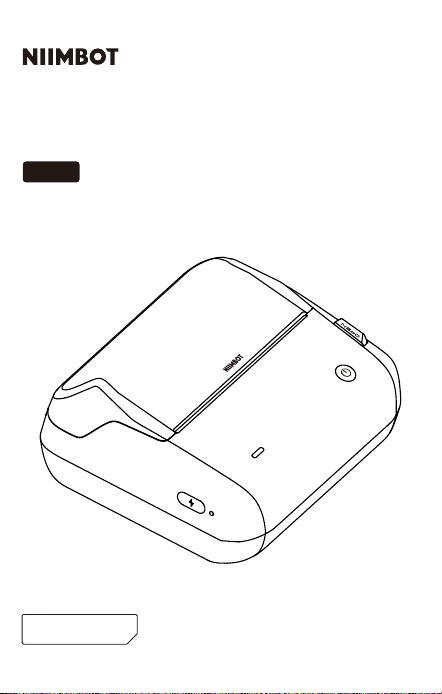
Product Manual
Label Printer
Sma
NIIMBOT B4
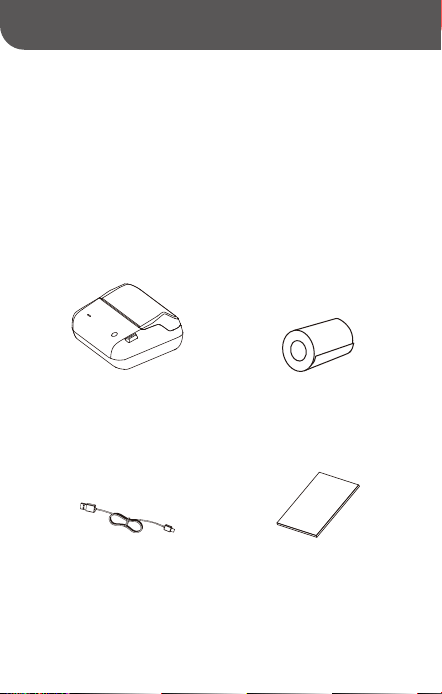
Package contents
01
Sma Label Printer *1
Usb Type-C Data Cable *1 Product Manual *1
Label Paper Roll *1
Installation
02
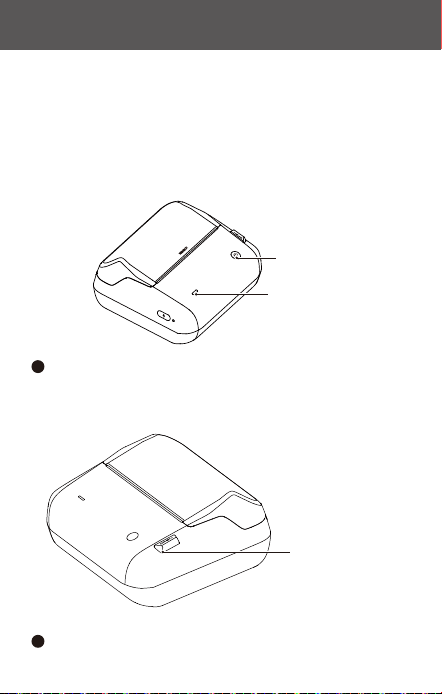
Press and hold the "Power" Button for 2–3 seconds to power
the printer on.
1
Press the "Open" button to open the paper compament.
2
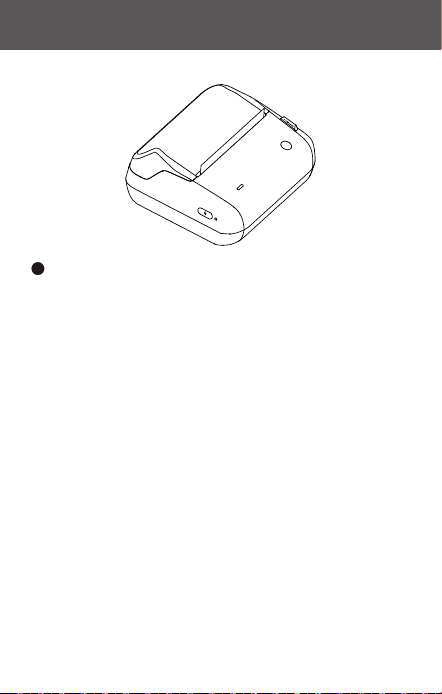
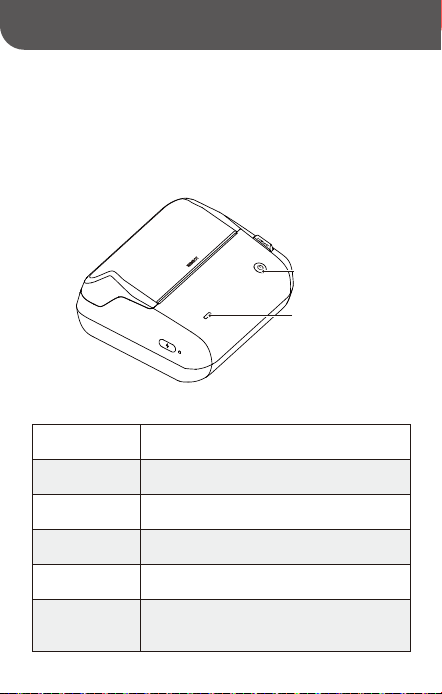
Power Button
Indicator Light
Paper Compament
Release Button
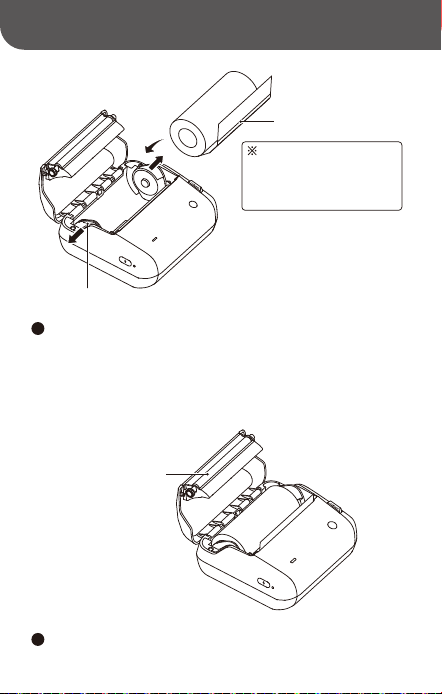
Slide the guides apa, then place the paper roll between the
guides, with the printing side facing down.
3
Release the guides to secure the paper roll in place.
4
Printing Side
The printing suace of the
label paper should be
inseed face-down in the
paper compament.
Roll Holders
Rubber Printing
Roller
Adjust the label paper to expose 2–3 cm of the rst label,
then close the paper compament.
5
01.Download the app
Software Downloads
03
To use this product, download and install the "NIIMBOT"
app from the Google Play or Apple App Store.
1
Design & Print APP
easy to download and use
NIIMBOT
Visit the ocial NIIMBOT website (www.niimbot.com), then go
to the software download page to download and install the
desktop version of the "NIIMBOT" app.
02.Download the desktop version
Visit the ocial NIIMBOT website (www.niimbot.com), then go to
the software download page to download the universal printer
driver.
03.Download drivers
Note: In case you need to connect to a computer to use the
device, please use an ocial NIIMBOT data cable or any data
cable that suppos data transfer.
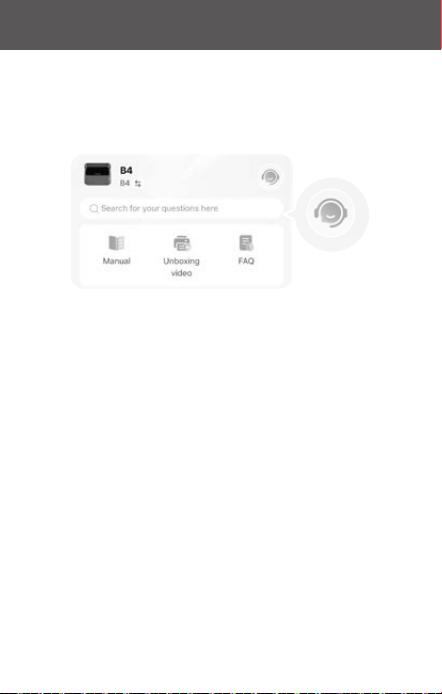
For more video tutorials and frequently asked questions, visit the
"My - Help Center" section in the app.
If you encounter any issues or have any questions while using the
product, you can also log in to the app, go to "My - Help Center,"
and select "Customer Seice" for assistance.
04.Help Center
Once a connection is established, the app will automatically
recognize the label template installed in the printer. You can
go directly to the editing page to edit the label.
3
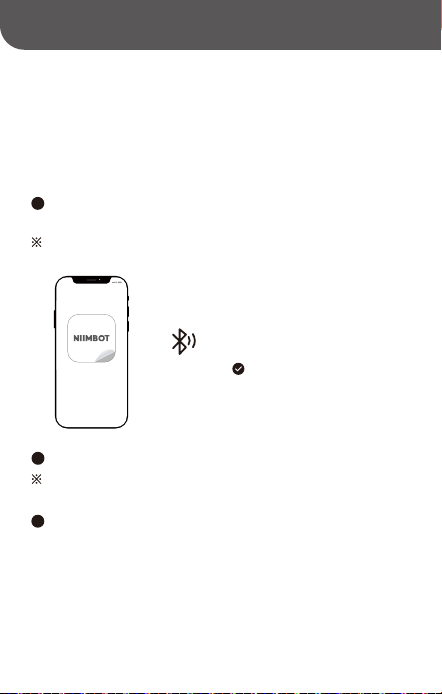
Open the app and search for the paired device via Bluetooth.
2
Note: Enter 0000 or 1234 if a PIN code is required.
Connection and Printing
04
8:30
NIIMBOT
Turn on Bluetooth
Make sure Bluetooth is enabled on your phone after the
download is complete.
1
Note: Enable location permissions on Android phones.

All images of products, accessories, and software inteaces in
this manual are for illustrative purposes only and shall be used
for reference only. Products may dier slightly from the images
due to product upgrades, so please refer to the actual product
itself. Technical improvements are made without issuing separate
notices.
To make the best possible use of this printer and the app features,
users are recommended to use the designated NIIMBOT label paper,
ribbon and other consumables. Using third-pay consumables
may cause the printer to malfunction, recognition failure or poor
printing results.
Notes
Product Description
05
Indicator light
Power button
Button functions
Operations Operating Instructions
Power on
Power o
Press and hold the "Power" button for 2–3 seconds.
Press and hold the "Power" button for 2–3 seconds
when the printer in powered on.
Press the "Power" button once when the printer is
powered on.
Print self-test
page
Press the "Power" button twice when the printer is
powered on.
Switch between
Label/Receipt mode
Press the "Power" button four times when the printer
is powered on. A self-test page will be printed
following the switch.
Feed paper
Notes:
1. In Receipt mode, the printer can only be connected to the
corresponding third-pay software and cannot be connected
to the NIIMBOT app.
2. To check the current printing mode, refer to the self-test
page.
Color Status Status Description
Blue
Green
Powered on but not connected
Red
Solid
Firmware upgrade in progressQuick ashing
Bluetooth connectedSolid
PrintingQuick ashing
Paper compament not closed, no paper,
paper output error, print head overheated, etc.
Solid
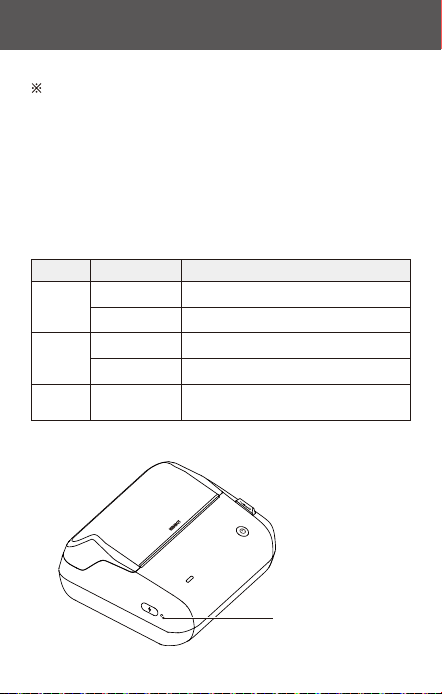
Indicator light
Power Indicator Light

Color Status Status Description
White
Red
Charging
Quick ashing
Fully charged and connectedSolid
Low batteSolid
Power Indicator light
Product Parameters
06
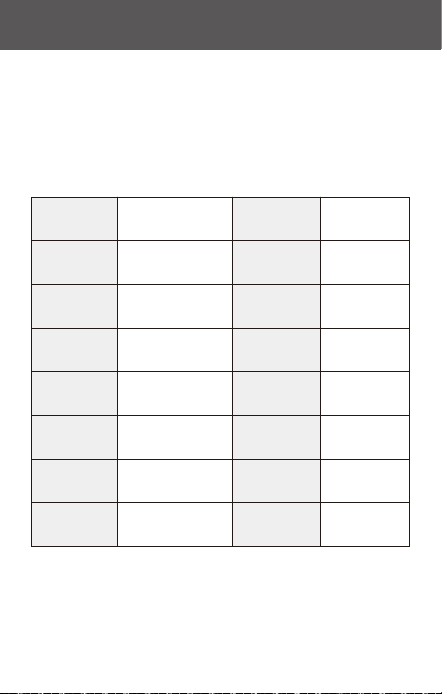
Product Name Sma Label Printer Model NIIMBOT B4
Dimensions 135*157*69mm Weight 757g
Charging Time 3 - 4 hours Rated Input
Rated Capacity 2000mAh Thermal printing
5V DC, 2A
Printing Method
Printing
Resolution
Eective
Printing Width
Connection
Method
Charging Po
Transmitting
Power
Operating
Temperature
203dpi 104mm
Bluetooth or
USB Type-C
Type-C
Bluetooth 2402-2480MHz
4 dBm (maximum)
RFID 13.56MHz
0℃ - 45℃
07
To use this product safely and avoid personal inju or propey
damage, carefully read all instructions and warning notices in
this manual before use.
Keep the product and accessories in a safe place that is inaccessible to
children, or only allow use under the supeision of a guardian.
Immediately disconnect the product from the power source if the
product enters water.
Immediately disconnect the product if the device malfunctions.
If you use a power adapter to charge the product, make sure the adapter
is safe, compliant, and meets the necessa standards.
Do not attempt to replace the batte yourself. Improper batte replacement
may cause an explosion.
1.
2.
3.
4.
5.
*Warning
Safety Precautions
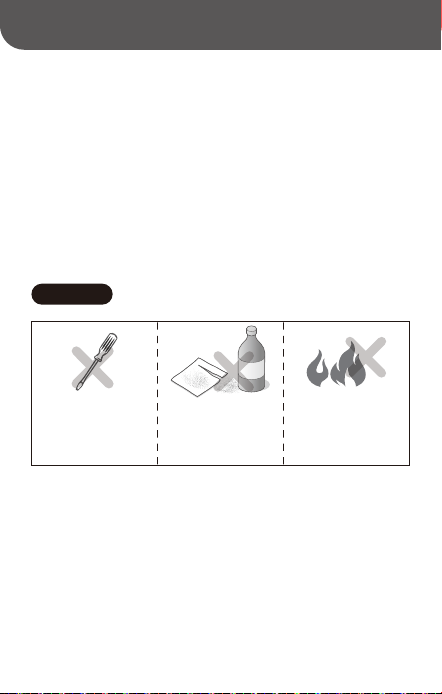
Do not disassemble the
product. Products that have
been disassembled cannot be
returned or replaced.
Do not use corrosive chemicals
or cleaners to clean the product.
Do not use the product near
gas stations, fuel storage
containers or other areas
with ammable substances.

The batte contains special protective circuit and devices. Do not
disassemble the batte as this may cause sho circuits or electrolyte
leakage. If electrolytes accidentally enter your eye, rinse immediately
with clean water and seek medical attention.
Do not expose the appliance or power adapter to high-temperature or
high-humidity environments, or submerge it in water, to prevent sho
circuits that can cause the batte to overheat, smoke, deform, get
damaged or even explode.
Disconnect the power adapter immediately if you notice smoke or an
unusual odor coming from the product or the power adapter, taking
care to avoid burns.
6.
7.
8.
Please purchase the version of the product that matches your region or
count of use through the NIIMBOT ocial store or a NIIMBOT authorized
sales agent. Purchasing the product from unauthorized channels may result
in receiving a counteeit product or a product not adapted to your region
or count of use which may lead to usage issues. In such cases, NIIMBOT
may have limited ability to assist.
*Impoant

Notice:
If the device cannot be turned on, please charge for one hour.
NIIMBOT is a brand under Wuhan Jingchen Intelligent ldentication Technology Ltd.
© 2025 NIIMBOT. All Rights Reseed.
Suppo Email : se[email protected]
Ocial Website : www.niimbot.com
Wuhan Jingchen Intelligent ldenticationTechnology Co., Ltd.
Manufacturer's Address : No. 5, Creative Workshop, Creative World,Yezhihu
West Road,Hongshan District,Wuhan, China