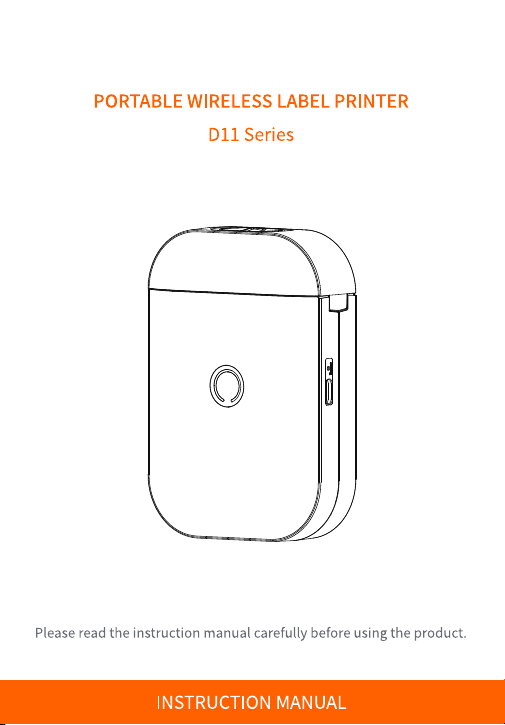
Version: 2.0
01.Item Checklist
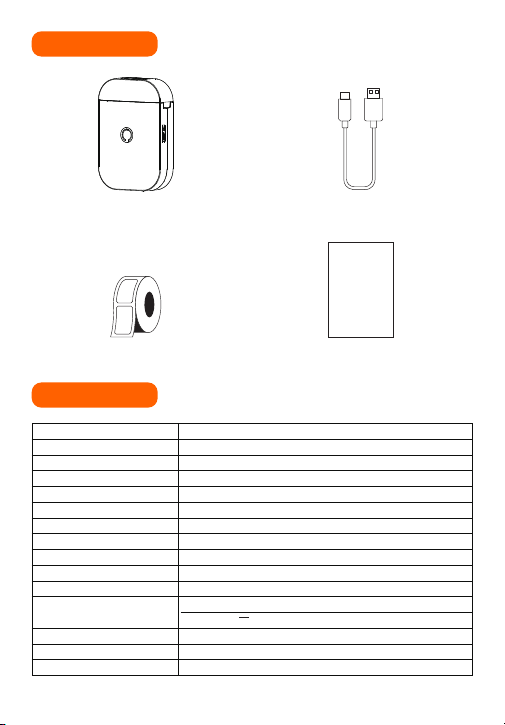
Printer*1 Type-C Cable*1
Instruction
Manual
Instruction Manual*1Gap Label*1(In printer)
02.Specifications
Name
Model
Technology
Consumable Max Width
Paper Bin Dimensions
Supported Consumable
Consumable Identification
Darkness
Resolution
Printhead Lifespan
Communication Port
Standby Time
Product Dimensions
OS Supported(Bluetooth)
Power Supply
Portable Wireless Label Printer
D11/D11 Pro
Thermal printing
15mm(0.59inch)
17*42*42mm(0.67*1.65*1.65inch)
Gap label
D11 not supported/D11 Pro supported
Light, Medium, High
203dpi
50KM
Bluetooth
1500mAh Lithium Battery
Type-C 5V --- 2A
96h
120*83*33mm(4.7*3.3*1.3inch)
Smartphones with Android 7.0 and iOS 11.0 and above
1
03.Product Introduction
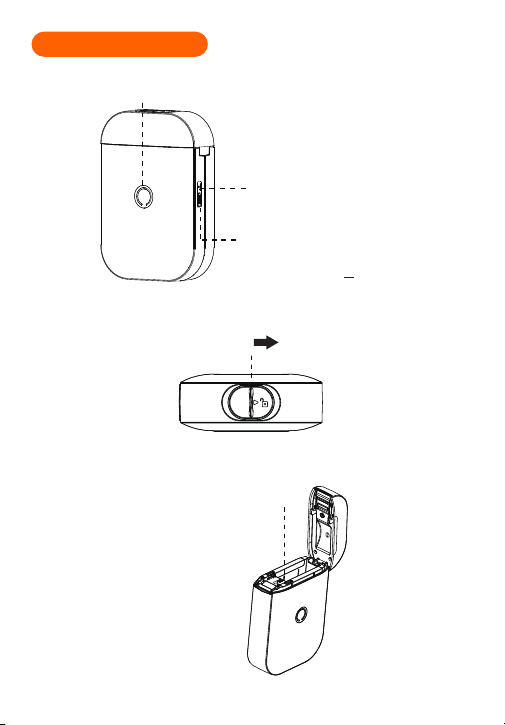
❶ Power button and indicator light
Press and hold 2 seconds to turn on/off.
❸ Type-C Port
• Charged with mobile phone
charger or power bank.
(Input Power:5V --- 2A)
❷ Reset key
• When the printer is not responding, try
inserting the needle/toothpick into the
reset hole for 3 seconds until the power
indicator light goes off and the device
shuts down. If needed, press and hold
for 2 seconds to turn on the device.
❹ Paper change button
Slide Right Open
❺ Paper bin
Dimensions:17*42*42mm.
(0.67*1.65*1.65inch)
2
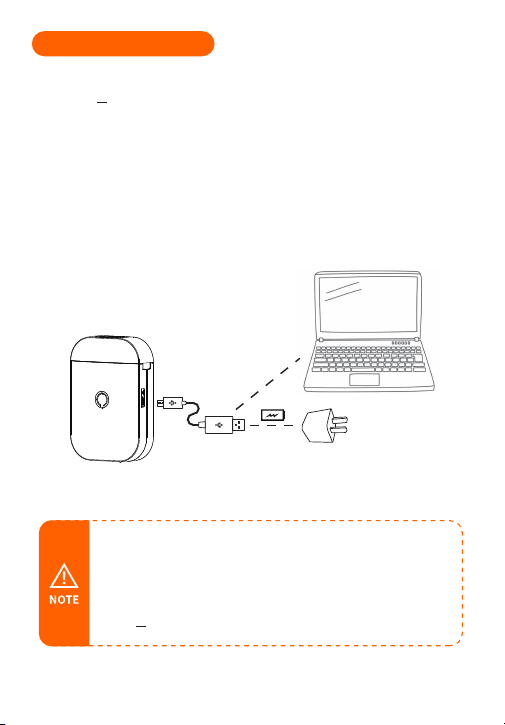
04.Charging Introduction
• Working environment: Use at the ambient temperature of 5℃~40℃;
• Caution!This product doesn’t contain power adapter. If consumers
use a power adapter for power supply, please buy a power adapter
that has obtained CE and FCC certification and meets the standard
requirements.The output specifications of the adapter shall comply
with 5V --- 2A.
• Please connect one end of the included USB cable to the device and the other
end to a 5V --- 2A adapter or computer USB port for charging;
• Charge time: about 3 hours;
• We recommend you to use Mobile phone chargers for charging;
• If not used for a long time, please charge once every 3 months to avoid long-term
natural loss of lithium battery can not be charged.
3
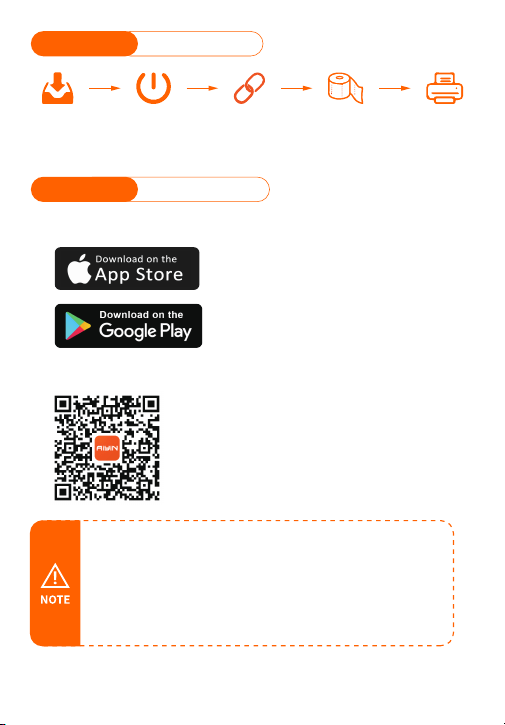
• This product needs to be connected to the printer in the App;
• Due to the requirements of mobile phone system,the Android
mobile phone will use the user's geographic location when
connecting,so that the user needs to turn on the GPS and
confirm the authorization;
• This app only supports phones with Android 7.0 or iOS 11.0 or above
systems.
Usage Overview
05.How to Use
Method 1: Search for [AiYin] on Google Play or App Store.
Method 2: Scan the following QR code to download App.
① APP Download
05.How to Use
❶ APP
Download
❷ Printer
Startup
❸ Connected
Printer
❹ Installation
Consumables
❺ Edit
Print
4
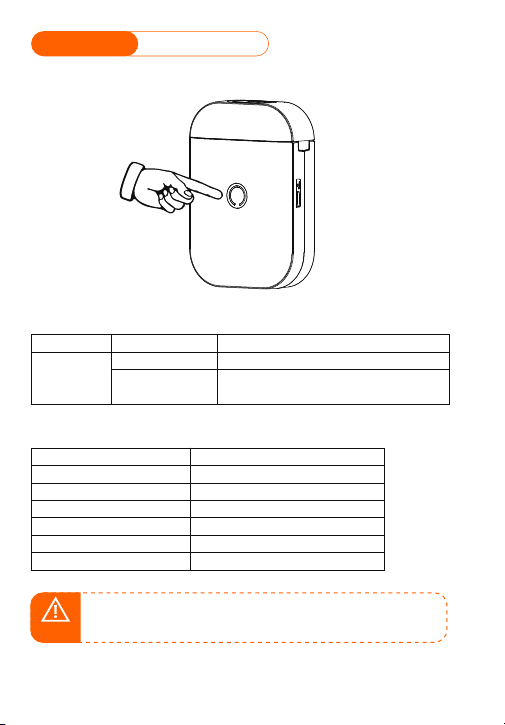
② Printer Startup
05.How to Use
Press and hold the power button of the printer for 2 seconds to turn on the printer.
Power Button Description
Button
Operation
Hold for 2 seconds
Functions
Power on/off
Print diagnostic page and the QR code to
connect the printer with smart phone App
Power button
Press twice
Indictor Light
Light
Light steady on
Light flashing slowly
Green light on
Red light on
Yellow light on
Yellow light flashing quickly
Functions
Bluetooth connected
Bluetooth disconnected
Normal use status /Full charged
Cover opened/Nopaper/Over-heat
Low battery,please charge in time.
Charging
NOTE
Auto power off: The printer will automatically power off after 20
minutes without operation.You can set the timer in the App.
5
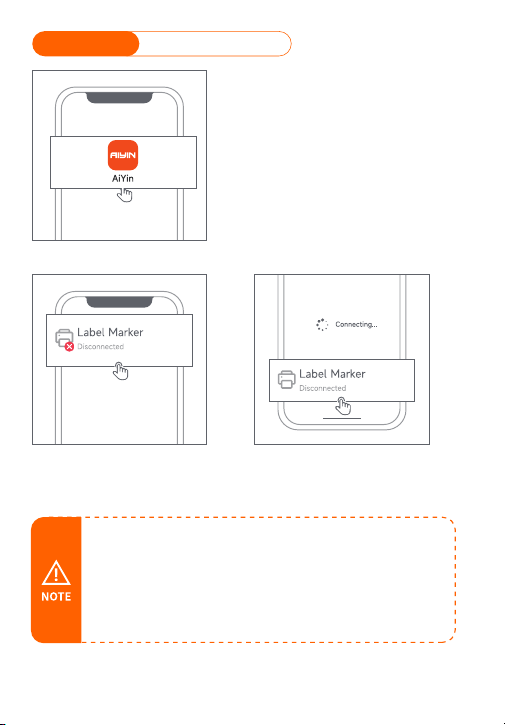
③ Connected Printer
05.How to Use
❶ Open AiYin App.
❷ Click to search for printer Bluetooth and connect.
or scan the device connection QR code by printing
from printer after double clicking the power button.
• When connecting device in the App,please make sure that your
printelis turned on and Bluetooth of your mobile phone is turned on;
• Due to the requirements of mobile phone system,the Android mobile
phone will use the user's geographic location when connecting,so
that the user needs to turn on the GPS and confirm the authorization;
• Please pair Bluetooth in the app, do not pair Bluetooth in the phone
settings;
• If you need a PIN code, please enter 0000.
6
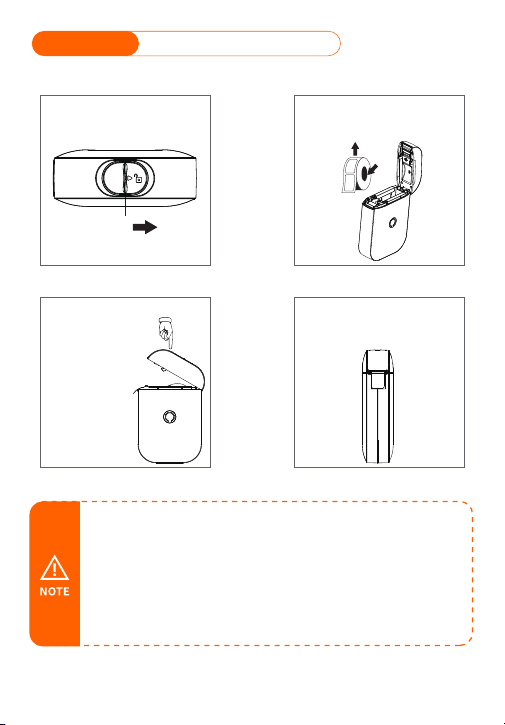
④ Installation Consumables
05.How to Use
Paper Installation Guide
Slide Right Open
❶ Open cover. ❷ Put paper in.
Load the paper with the
stickers facing up
Please make sure
to leave 0.1-0.2
inches of label
paper on the
outside
For gap label Press the power
button once, the label will
runout and stay in the gap.
Press the machine to
close the cover.
❸ Close the cover. ❹ Label calibration.
RFID
• In order to give you a better printing experience,please use the AiYin
version of label paper;
• The printer does notsupport continuous labels(labels without gaps);
• If the label is placed upside down, white paper will be printed;
• Not reserving label paper outside can cause abnormal paper feeding.
Without paper feeding, the device will not respond or will not respond
to paper feeding;
• If the paper bin cover is not properly closed, it will cause abnormal paper
feeding and prevent normal printing.
7
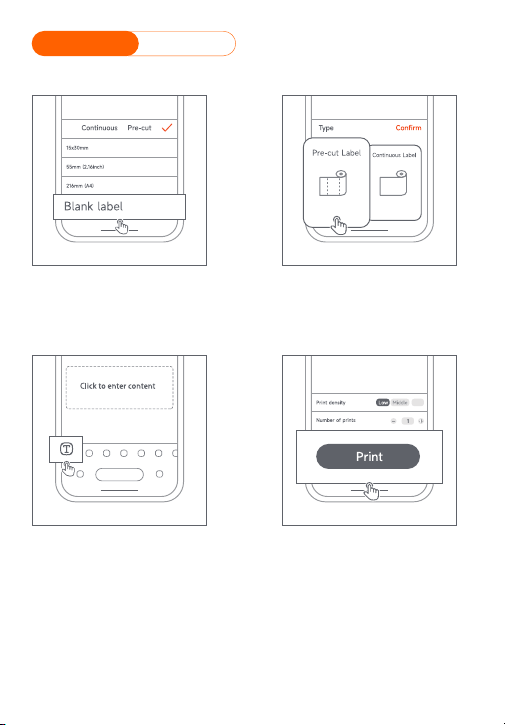
⑤ Edit Print
05.How to Use
❶ Open the App and select
the correct paper size.
❷ Select printing method
for editing.
❹ Click the print after editing.
High
❸ Edit printing content.
8
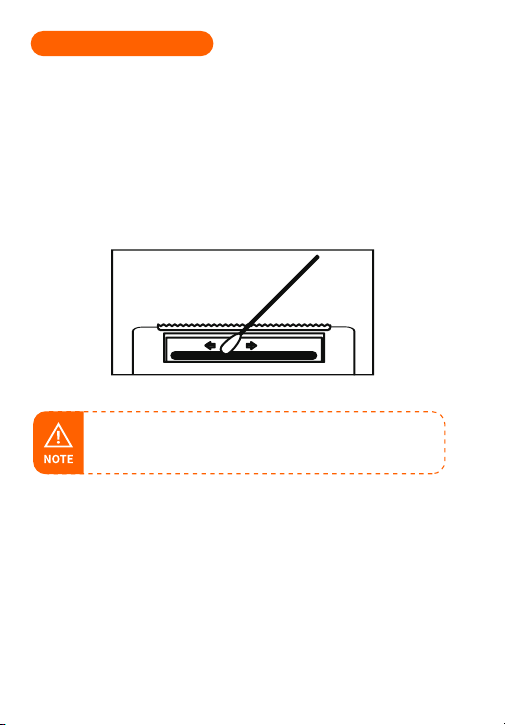
❶ Please turn off the printer and open the printer cover and take out
the paper.
❷ Dip a cotton cloth or cotton swab with medical alcohol, and wipe
gently along the center to the periphery of the printer head.
❸ After cleaning the printer head, do not use the printer imlmediately.
Please wait for 1 to 2 minutes, and then use the printer after the
alcohol has completely evaporated.
• Please do not directly touch the printing head to avoid damage.
Especially,do not directly touch the printing head immediately
after printing to avoid overheating and scalding.
9
06.Clean the Printer Head

10
This device complies with part 15 of the FCC Rules.Operation is subject
to the following two conditions:
(1)This device may not cause harmful interference,and
(2)this device must accept any interference received,including interference
that may cause undesired operation.Any Changes or modifications not
expressly approved by the party responsible for compliance could void
the user's authority to operate the equipment.
This equipment has been tested and found to comply with the limits for
a Class B digital device,pursuant to part 15 of the FCC Rules.These limits
are designed to provide reasonable protection against harmful interference
in aresidential installation.This equipment generates uses and can radiate
radio frequency energy and,if not installed and used in accordance with
the instructions,may cause harmful interference to radio communications.
However,there is no guarantee that interference will not occur in a
particular installation.If this equipment does cause harmful interference
to radio or television reception,which can be determined by turning the
equipment off and on,the user is encouraged to try to correct the
interference by one or more of the following measures:
-Reorient or relocate the receiving antenna.
-Increase the separation between the equipment and receiver.
-Connect the equipment into an outlet on a circuit different from that to
which the receiver is connected.
-Consult the dealer or an experienced radio/TV technician for help.
The device has been evaluated to meet general RF exposure requirement.
The device can be used in portable exposure condition without restriction.
07.FCC Warning

IC Caution:
Radio Standards Specification RSS-Gen,issue 5-English:
This device contains licence-exempt transmitter(s)/receiver(s)that
comply with Innovation,Science and Economic Development Canada's
licence-exempt RSS(s).
Operation issubject to the following two conditions:
This device may not cause interference.
This device must accept any interference,including interference that may
cause undesired operation of the device.
RF exposure statement:
The device has been evaluated to meet general RF exposure requirement.
The device can be used in portable exposure condition without restriction.
-French:
Cet appareil contientdes émetteurs /récepteurs exemptés de licence
conformes aux RSS (RSS)d'Innovation,Sciences et Développement
économique Canada.Le fonctionnement est soumisaux deux conditions
suivantes:
Cet appareil ne doit pas causer d'interférences.
Cet appareil doit accepter toutes les interférences,ycompris celles
susceptibles deprovoquer un fonctionnement
indésirable del'appareil.Déclaration d'exposition RF:
Lappareil a été évalué pour répondre aux exigencesgénéralesd'exposition
aux RF.
Lappareil peut être utilisé dans des conditions d'exposition portable sans
restriction.
08.IC Warning
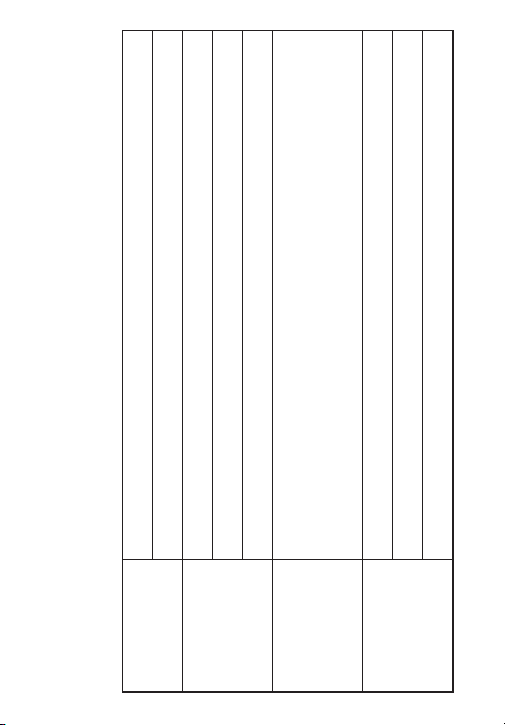
Warranty Card
□
Return
Name:
Address:
Purchase date:
Product order number:
Product Serial Number:
Reason description:
Failure condition:
Handling situation:
Maintenance ticket number:
Maintenance person:
Delivery date:
Delivery date:
Phone:Gender:
□ Exchange □ Repair
User Info
Product Info
Requirements
of return
/replacement
/repair
Maintenance
records

