56%
10.08
4
5
6
7
6
5
4
3
2
1
2
8
1. Before first use, please fully charge the device. Please charge for
about 6 hours for thefirst two times, and only need to charge
for 4 hours afterwards.
[Note]: This tablet uses a built-in polymer battery, and charging must
choose a standardadapter (input: AC110~240V 50/60Hz
Maximum: 180mA. Output: DC5.0~5.5V/1.5-2A)2. in order to extend
the service life of the machine, it is recommended that you consumethe
battery to about 15% before charging.
[Note]: a. lf you do not use this tablet for a long time, to avoid battery
damage, pleasecharge/discharge it once a month.b. Due to device and
screen power consumption, it may result in longer charging time.
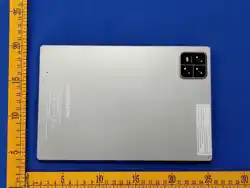
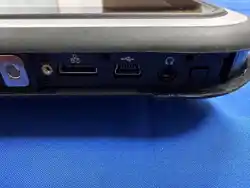
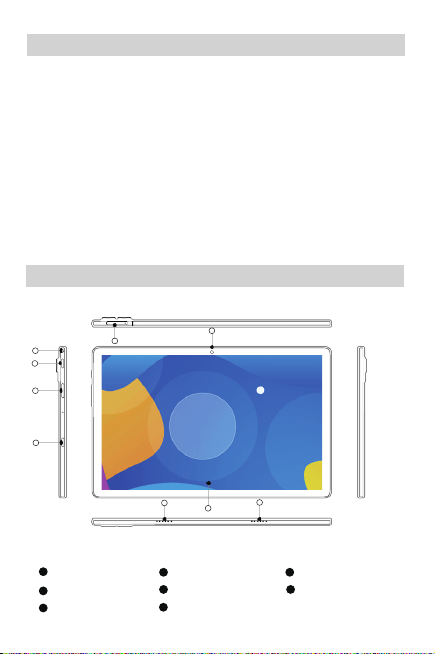
Touch screen Speaker Type-C
Volume Key Power button 3.5mm headphone jack
TF-Card Front Camera
1
2 3
6
5
8
4
7
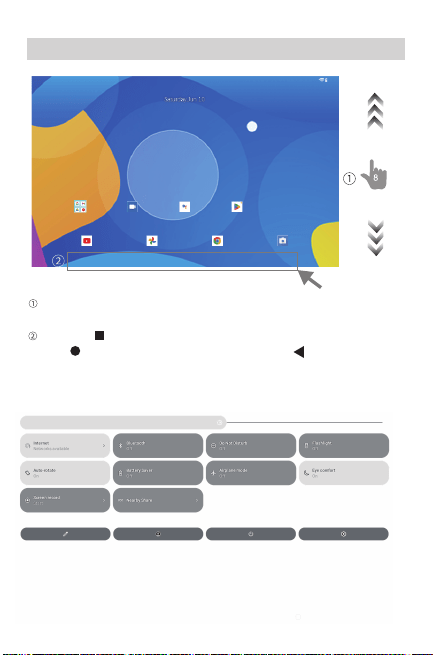
On the Home screen, slide up to the APP resource library, and
down to the shortcuttoolbar and message notification bar.
Tap the " " icon to enter the background program interface, tap
the " " icon to enterthe Home screen, tap" " icon to return to
the previous level of interface.
Product Overview
Basic Operating Guidelines
Maintenance And Upkeep Of Tablet
After entering the shortcut toolbar, tap the icon to turn on/off the
correspondingfunction. Long press the icon to enter the setting
interface for the correspondingfunction, which allows for more
detailed function settings.
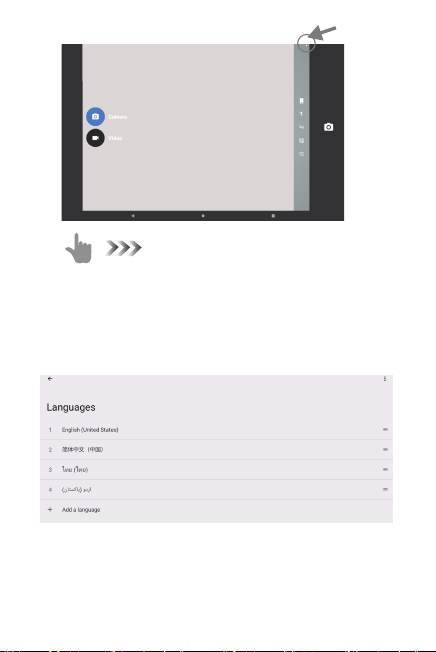
Enter the camera APP and swipe to the right to switch between
photo/video functions.After clicking "... ", you can choose to switch
between front and rear cameras, turn on/offlash, and turn on/off
HDR and other functions.
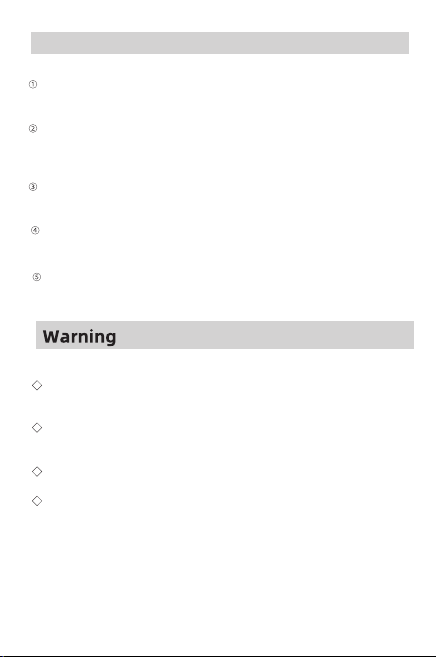
On the Home screen, slide up to enter the APp resource library,
select "Settings" - "System""Language and input method" _"
Language" - "Add language" to select the language you want -
press and hold the language you select and drag it to the first
position to changethe system language.
Maintenance And Upkeep Of Tablet
Software updates: Regularly update the operating system and software
of the tablet,which helps maintain device stability and security.
Cleanina the screen: Use a soft, lint-free cloth or specialized maintenance
product togently clean the surface of the screen, avoiding the use of
cleaning tools such as papertowels that can easily scratch the screen.
Avoid overcharging: When using a tablet, avoid overcharging and
discharging toextend battery life.
Protective casing: Use auxiliary tools such as protective sleeves and
protective films toprotect the equipment from falling and scratching.
Avoid overuse: Tablets should not be used for too long, and should be
properly restedand cooled to extend device life.
Warning
Do not expose the product to high temperatures, corrosive or
high-pressure environment.
Do not attempt to disassemble the product, or to replace any electronic
components in it.
If the internal devices have fluid leakage, please stop use.
Do not expose the battery (battery or combined battery) to excessive
heat such assunlight, fire or similar.
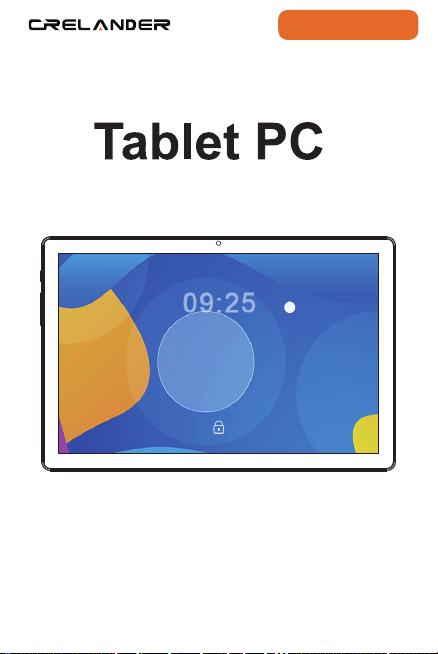
Thank you for purchasing CRELANDER product.Hope you will have fun using it!
Please read this user manual thoroughly before using,and keep it properly.
Tips
T30 PRO
56%
10.08
4
5
6
7
6
5
4
3
2
1
2
8
1. Before first use, please fully charge the device. Please charge for
about 6 hours for thefirst two times, and only need to charge
for 4 hours afterwards.
[Note]: This tablet uses a built-in polymer battery, and charging must
choose a standardadapter (input: AC110~240V 50/60Hz
Maximum: 180mA. Output: DC5.0~5.5V/1.5-2A)2. in order to extend
the service life of the machine, it is recommended that you consumethe
battery to about 15% before charging.
[Note]: a. lf you do not use this tablet for a long time, to avoid battery
damage, pleasecharge/discharge it once a month.b. Due to device and
screen power consumption, it may result in longer charging time.
Touch screen Speaker Type-C
Volume Key Power button 3.5mm headphone jack
TF-Card Front Camera
1
2 3
6
5
8
4
7
On the Home screen, slide up to the APP resource library, and
down to the shortcuttoolbar and message notification bar.
Tap the " " icon to enter the background program interface, tap
the " " icon to enterthe Home screen, tap" " icon to return to
the previous level of interface.
Product Overview
Basic Operating Guidelines
Maintenance And Upkeep Of Tablet
After entering the shortcut toolbar, tap the icon to turn on/off the
correspondingfunction. Long press the icon to enter the setting
interface for the correspondingfunction, which allows for more
detailed function settings.
Enter the camera APP and swipe to the right to switch between
photo/video functions.After clicking "... ", you can choose to switch
between front and rear cameras, turn on/offlash, and turn on/off
HDR and other functions.
On the Home screen, slide up to enter the APp resource library,
select "Settings" - "System""Language and input method" _"
Language" - "Add language" to select the language you want -
press and hold the language you select and drag it to the first
position to changethe system language.
Maintenance And Upkeep Of Tablet
Software updates: Regularly update the operating system and software
of the tablet,which helps maintain device stability and security.
Cleanina the screen: Use a soft, lint-free cloth or specialized maintenance
product togently clean the surface of the screen, avoiding the use of
cleaning tools such as papertowels that can easily scratch the screen.
Avoid overcharging: When using a tablet, avoid overcharging and
discharging toextend battery life.
Protective casing: Use auxiliary tools such as protective sleeves and
protective films toprotect the equipment from falling and scratching.
Avoid overuse: Tablets should not be used for too long, and should be
properly restedand cooled to extend device life.
Warning
Do not expose the product to high temperatures, corrosive or
high-pressure environment.
Do not attempt to disassemble the product, or to replace any electronic
components in it.
If the internal devices have fluid leakage, please stop use.
Do not expose the battery (battery or combined battery) to excessive
heat such assunlight, fire or similar.
Thank you for purchasing CRELANDER product.Hope you will have fun using it!
Please read this user manual thoroughly before using,and keep it properly.
Tips
T30 PRO
56%
10.08
4
5
6
7
6
5
4
3
2
1
2
8
1. Before first use, please fully charge the device. Please charge for
about 6 hours for thefirst two times, and only need to charge
for 4 hours afterwards.
[Note]: This tablet uses a built-in polymer battery, and charging must
choose a standardadapter (input: AC110~240V 50/60Hz
Maximum: 180mA. Output: DC5.0~5.5V/1.5-2A)2. in order to extend
the service life of the machine, it is recommended that you consumethe
battery to about 15% before charging.
[Note]: a. lf you do not use this tablet for a long time, to avoid battery
damage, pleasecharge/discharge it once a month.b. Due to device and
screen power consumption, it may result in longer charging time.
Touch screen Speaker Type-C
Volume Key Power button 3.5mm headphone jack
TF-Card Front Camera
1
2 3
6
5
8
4
7
On the Home screen, slide up to the APP resource library, and
down to the shortcuttoolbar and message notification bar.
Tap the " " icon to enter the background program interface, tap
the " " icon to enterthe Home screen, tap" " icon to return to
the previous level of interface.
Product Overview
Basic Operating Guidelines
Maintenance And Upkeep Of Tablet
After entering the shortcut toolbar, tap the icon to turn on/off the
correspondingfunction. Long press the icon to enter the setting
interface for the correspondingfunction, which allows for more
detailed function settings.
Enter the camera APP and swipe to the right to switch between
photo/video functions.After clicking "... ", you can choose to switch
between front and rear cameras, turn on/offlash, and turn on/off
HDR and other functions.
On the Home screen, slide up to enter the APp resource library,
select "Settings" - "System""Language and input method" _"
Language" - "Add language" to select the language you want -
press and hold the language you select and drag it to the first
position to changethe system language.
Maintenance And Upkeep Of Tablet
Software updates: Regularly update the operating system and software
of the tablet,which helps maintain device stability and security.
Cleanina the screen: Use a soft, lint-free cloth or specialized maintenance
product togently clean the surface of the screen, avoiding the use of
cleaning tools such as papertowels that can easily scratch the screen.
Avoid overcharging: When using a tablet, avoid overcharging and
discharging toextend battery life.
Protective casing: Use auxiliary tools such as protective sleeves and
protective films toprotect the equipment from falling and scratching.
Avoid overuse: Tablets should not be used for too long, and should be
properly restedand cooled to extend device life.
Warning
Do not expose the product to high temperatures, corrosive or
high-pressure environment.
Do not attempt to disassemble the product, or to replace any electronic
components in it.
If the internal devices have fluid leakage, please stop use.
Do not expose the battery (battery or combined battery) to excessive
heat such assunlight, fire or similar.
Thank you for purchasing CRELANDER product.Hope you will have fun using it!
Please read this user manual thoroughly before using,and keep it properly.
Tips
T30 PRO
56%
10.08
4
5
6
7
6
5
4
3
2
1
2
8
1. Before first use, please fully charge the device. Please charge for
about 6 hours for thefirst two times, and only need to charge
for 4 hours afterwards.
[Note]: This tablet uses a built-in polymer battery, and charging must
choose a standardadapter (input: AC110~240V 50/60Hz
Maximum: 180mA. Output: DC5.0~5.5V/1.5-2A)2. in order to extend
the service life of the machine, it is recommended that you consumethe
battery to about 15% before charging.
[Note]: a. lf you do not use this tablet for a long time, to avoid battery
damage, pleasecharge/discharge it once a month.b. Due to device and
screen power consumption, it may result in longer charging time.
Touch screen Speaker Type-C
Volume Key Power button 3.5mm headphone jack
TF-Card Front Camera
1
2 3
6
5
8
4
7
On the Home screen, slide up to the APP resource library, and
down to the shortcuttoolbar and message notification bar.
Tap the " " icon to enter the background program interface, tap
the " " icon to enterthe Home screen, tap" " icon to return to
the previous level of interface.
Product Overview
Basic Operating Guidelines
Maintenance And Upkeep Of Tablet
After entering the shortcut toolbar, tap the icon to turn on/off the
correspondingfunction. Long press the icon to enter the setting
interface for the correspondingfunction, which allows for more
detailed function settings.
Enter the camera APP and swipe to the right to switch between
photo/video functions.After clicking "... ", you can choose to switch
between front and rear cameras, turn on/offlash, and turn on/off
HDR and other functions.
On the Home screen, slide up to enter the APp resource library,
select "Settings" - "System""Language and input method" _"
Language" - "Add language" to select the language you want -
press and hold the language you select and drag it to the first
position to changethe system language.
Maintenance And Upkeep Of Tablet
Software updates: Regularly update the operating system and software
of the tablet,which helps maintain device stability and security.
Cleanina the screen: Use a soft, lint-free cloth or specialized maintenance
product togently clean the surface of the screen, avoiding the use of
cleaning tools such as papertowels that can easily scratch the screen.
Avoid overcharging: When using a tablet, avoid overcharging and
discharging toextend battery life.
Protective casing: Use auxiliary tools such as protective sleeves and
protective films toprotect the equipment from falling and scratching.
Avoid overuse: Tablets should not be used for too long, and should be
properly restedand cooled to extend device life.
Warning
Do not expose the product to high temperatures, corrosive or
high-pressure environment.
Do not attempt to disassemble the product, or to replace any electronic
components in it.
If the internal devices have fluid leakage, please stop use.
Do not expose the battery (battery or combined battery) to excessive
heat such assunlight, fire or similar.
Thank you for purchasing CRELANDER product.Hope you will have fun using it!
Please read this user manual thoroughly before using,and keep it properly.
Tips
T30 PRO
56%
10.08
4
5
6
7
6
5
4
3
2
1
2
8
1. Before first use, please fully charge the device. Please charge for
about 6 hours for thefirst two times, and only need to charge
for 4 hours afterwards.
[Note]: This tablet uses a built-in polymer battery, and charging must
choose a standardadapter (input: AC110~240V 50/60Hz
Maximum: 180mA. Output: DC5.0~5.5V/1.5-2A)2. in order to extend
the service life of the machine, it is recommended that you consumethe
battery to about 15% before charging.
[Note]: a. lf you do not use this tablet for a long time, to avoid battery
damage, pleasecharge/discharge it once a month.b. Due to device and
screen power consumption, it may result in longer charging time.
Touch screen Speaker Type-C
Volume Key Power button 3.5mm headphone jack
TF-Card Front Camera
1
2 3
6
5
8
4
7
On the Home screen, slide up to the APP resource library, and
down to the shortcuttoolbar and message notification bar.
Tap the " " icon to enter the background program interface, tap
the " " icon to enterthe Home screen, tap" " icon to return to
the previous level of interface.
Product Overview
Basic Operating Guidelines
Maintenance And Upkeep Of Tablet
After entering the shortcut toolbar, tap the icon to turn on/off the
correspondingfunction. Long press the icon to enter the setting
interface for the correspondingfunction, which allows for more
detailed function settings.
Enter the camera APP and swipe to the right to switch between
photo/video functions.After clicking "... ", you can choose to switch
between front and rear cameras, turn on/offlash, and turn on/off
HDR and other functions.
On the Home screen, slide up to enter the APp resource library,
select "Settings" - "System""Language and input method" _"
Language" - "Add language" to select the language you want -
press and hold the language you select and drag it to the first
position to changethe system language.
Maintenance And Upkeep Of Tablet
Software updates: Regularly update the operating system and software
of the tablet,which helps maintain device stability and security.
Cleanina the screen: Use a soft, lint-free cloth or specialized maintenance
product togently clean the surface of the screen, avoiding the use of
cleaning tools such as papertowels that can easily scratch the screen.
Avoid overcharging: When using a tablet, avoid overcharging and
discharging toextend battery life.
Protective casing: Use auxiliary tools such as protective sleeves and
protective films toprotect the equipment from falling and scratching.
Avoid overuse: Tablets should not be used for too long, and should be
properly restedand cooled to extend device life.
Warning
Do not expose the product to high temperatures, corrosive or
high-pressure environment.
Do not attempt to disassemble the product, or to replace any electronic
components in it.
If the internal devices have fluid leakage, please stop use.
Do not expose the battery (battery or combined battery) to excessive
heat such assunlight, fire or similar.
Thank you for purchasing CRELANDER product.Hope you will have fun using it!
Please read this user manual thoroughly before using,and keep it properly.
Tips
T30 PRO