

2
2. Cautions ............................................................................................................................................. 3
2.1. Installation Environment ........................................................................................................... 3
2.2. Avoid electric shock and fire ..................................................................................................... 3
2.3. Transport and operation ........................................................................................................... 3
3. Product introduction ........................................................................................................................... 3
4. Product Specification.......................................................................................................................... 3
5. Mainframe .......................................................................................................................................... 4
5.1. Front panel ............................................................................................................................... 5
5.2. Rear panel ............................................................................................................................... 5
5.3. Pin definition of Audio/Video input/output port .......................................................................... 5
5.4. Pin definition of IO&Serial port ................................................................................................. 6
5.5. Remote controller ..................................................................................................................... 7
6. Device and installation ....................................................................................................................... 8
7. System diagram ................................................................................................................................. 9
8. Menu structure ................................................................................................................................. 10
9. System operations ........................................................................................................................... 10
9.1. User login ............................................................................................................................... 10
9.2. Main menu .............................................................................................................................. 11
9.2.1. Search .......................................................................................................................... 11
9.2.1.1. Video Searching ................................................................................................. 12
9.2.1.2. Log search ......................................................................................................... 14
9.2.1.3. Picture search .................................................................................................... 14
9.2.2. System setting ............................................................................................................. 15
9.2.2.1. Register info ....................................................................................................... 15
9.2.2.2. User ................................................................................................................... 16
9.2.2.3. Time setup ......................................................................................................... 16
9.2.2.4. Startup ............................................................................................................... 18
9.2.2.5. Config ................................................................................................................ 18
9.2.2.6. Format ............................................................................................................... 19
9.2.3. Record ......................................................................................................................... 19
9.2.3.1. General .............................................................................................................. 20
9.2.3.2. Main stream ....................................................................................................... 21
9.2.3.3. Sub stream ........................................................................................................ 22
9.2.3.4. Timed recording ................................................................................................. 22
9.2.3.5. Storage setting ................................................................................................... 23
9.2.3.6. OSD Set ............................................................................................................. 24
9.2.4. Network Setting ............................................................................................................ 25
9.2.4.1. Center settings ................................................................................................... 25
9.2.4.2. Local Network Setup---Not available.................................................................. 26
9.2.4.3. Dial settings ....................................................................................................... 26
9.2.5. Alarm ............................................................................................................................ 27
9.2.5.1. IO Alarm ............................................................................................................. 27
9.2.5.2. Speed Alarm ...................................................................................................... 28
9.2.5.3. Acceleration ....................................................................................................... 29
9.2.5.4. Motion Detection ................................................................................................ 29
9.2.5.5. Voltage alarm ..................................................................................................... 30
9.2.5.6. Serial .................................................................................................................. 31
9.2.5.7. PTZ Control---Not Available ............................................................................... 31
9.2.6. System Info .................................................................................................................. 31

3
1. Overview
Please read the manual before you using the product.
The manual will be updated from time to time without prior notice.
2. Cautions
2.1. Installation Environment
1. To extend equipment life, please install the equipment in locations with little vibration.
2. To ensure normal heat dissipation, do not install the device in a poorly-ventilated area (such as
trunk), and also keep about 15 cm away from other objects on the same level.
3.The device shall be horizontally installed and protected against water, humidity and lightning; in
addition, keep the vehicle still during installation to prevent damage to the device due to falling off.
4. To ensure safe operation, keep the device, camera, cables and other accessories out of reach of
passengers and driver.
2.2. Avoid electric shock and fire
1. The machine uses 9V-36V DC power supply, notice the polarity when wiring to avoid short circuits.
2. Please power off the device when connecting accessories with device.
3. Do not touch the power and the device with wet hands.
4. Do not spray liquid on the device to prevent internal short circuit or fire.
5. Do not put any other equipment on top of camera.
6. Do not disassemble the housing without authorization to avoid damage or electric shock.
2.3. Transport and operation
1. Please use the original package in transport to avoid damage in transport.
2. Please keep power off in moving the device or replacing components.
3. Product introduction
The ME41-02 MDVR supports 2 channels analog audio and video recording and playback with network
function.
The product adopts ARM DSP fast dual-core processor running on the Linux embedded OS, and also
integrates the most advanced H.265 video encoding/decoding in IT industry, 3G/4G network and GPS,
as well as power-failure protection,wide voltage features.
It is extensively applied in public buses, logistics vehicles, school buses, police cars, financial convoy
cars and fuel tankers.
Main Features:
Supports 2 ch AHD 720P/ 1080P cameras
Industry leading CPU with powerful processing ability
Supports SD CARD(256GB max.) for recording.
Selected industrial power chip-sets, support 8-36V wide range power input, adapt to harsh
environment
Support UPS
Support low/high temperature environment
Support external Fireproof box, to backup data in extreme scenarios
Support backup recording
Dual streams for local recording and network transmission
Support 3G/4G, GPS modules.
Built-in G-sensor for harsh acceleration/deceleration detection
Data self-protection, save data when shut down abnormally
4. Product Specification
4
Power input
DC:
+9V ~ +36V
9V
~
36V, Check the supply voltage of the vehicle
battery before use; If it is supplied with more than
36V for a prolonged period, the device may be
damaged.
Power output
,
+5V@2A
ACC detection
≤4V
Power off
≥5V
Power on
Video input impedance
75Ω
Each video input impedance: 75Ω
Video output voltage
2Vp-p
2VP-P CVBS output analog signal which should
be adapted by 75Ω of input impedance from the
display unit.
I/O interface
<1V
Low level alarm
>5V
High level alarm
Operating temperature
-20℃
~
70℃
In a well-ventilated place
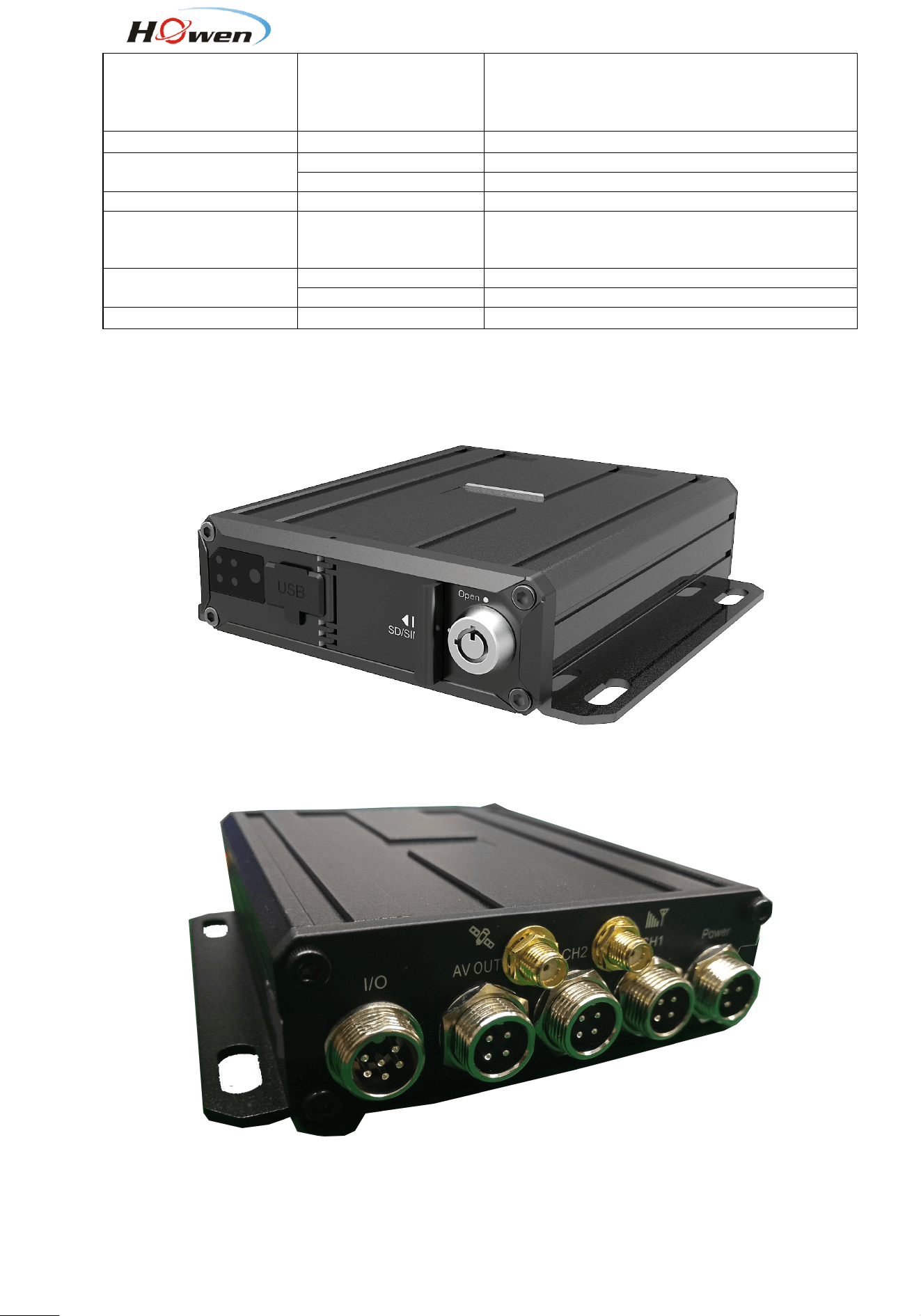
5. Mainframe
Hero-ME41-02
5
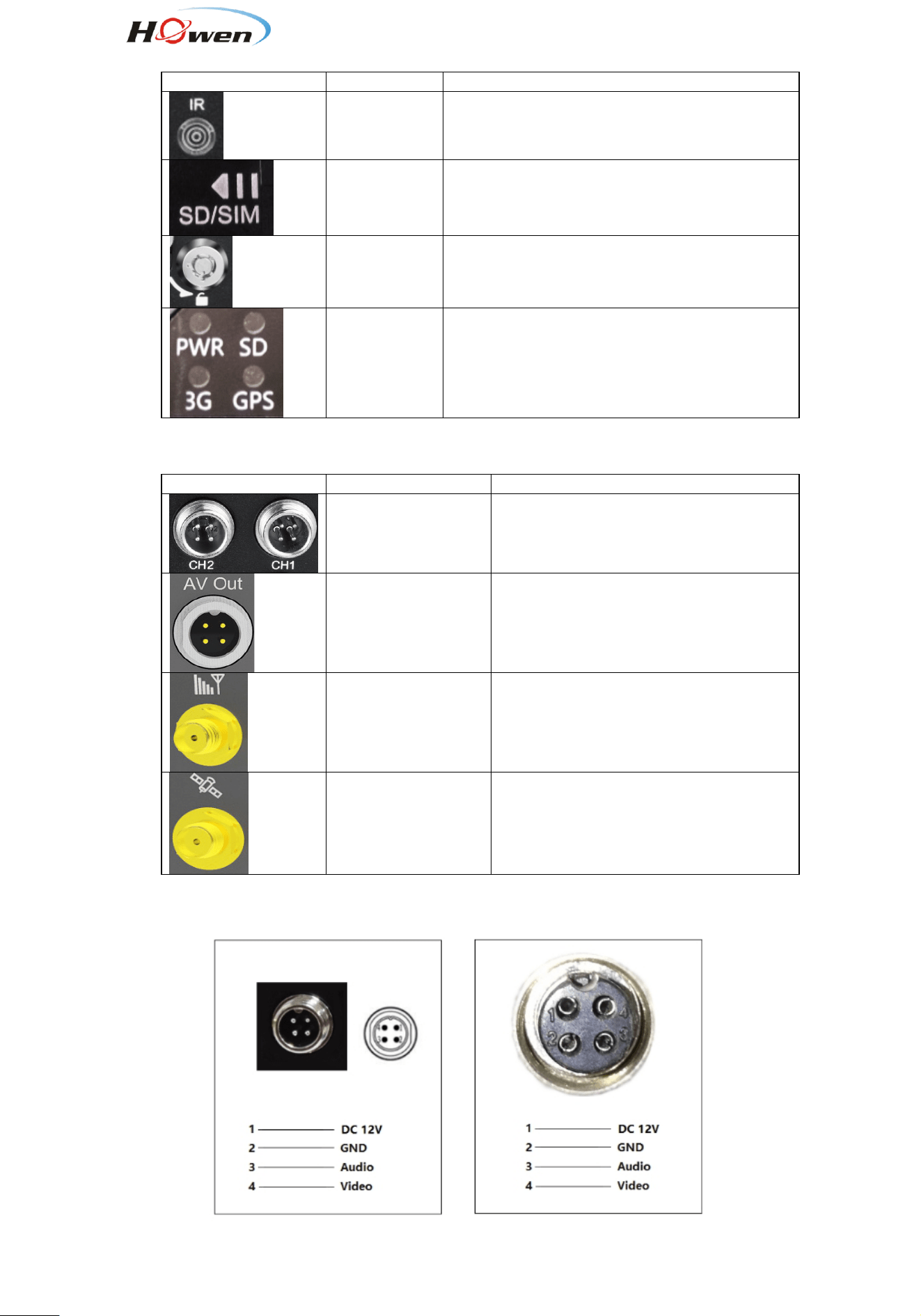
5.1. Front panel
Interface
Name
Description
IR Infrared Receiver
SD card/SIM
card slot
SIM card slot;
SD Card slot;
Lock&Open
Open and lock the door for SD card/SIM card
slot;
On/off switch for device power;
LED
LED Indicators. Green is on status. SDLED
blinking means it’
s recording.Alarm blinking
means there is an alarm.
5.2. Rear panel
Interface
Name
Description
CH1/CH2
Connect with cameras.
The port can provide DC12V
power to
cameras directly.
AV Out
4pin aviation connector;
Connect with monitor;
The port will output audio and video to
screen.
3G/4G LTE Connect with 3G/4G LTE antenna.
GPS Connect with GPS antenna.
5.3. Pin definition of Audio/Video input/output port
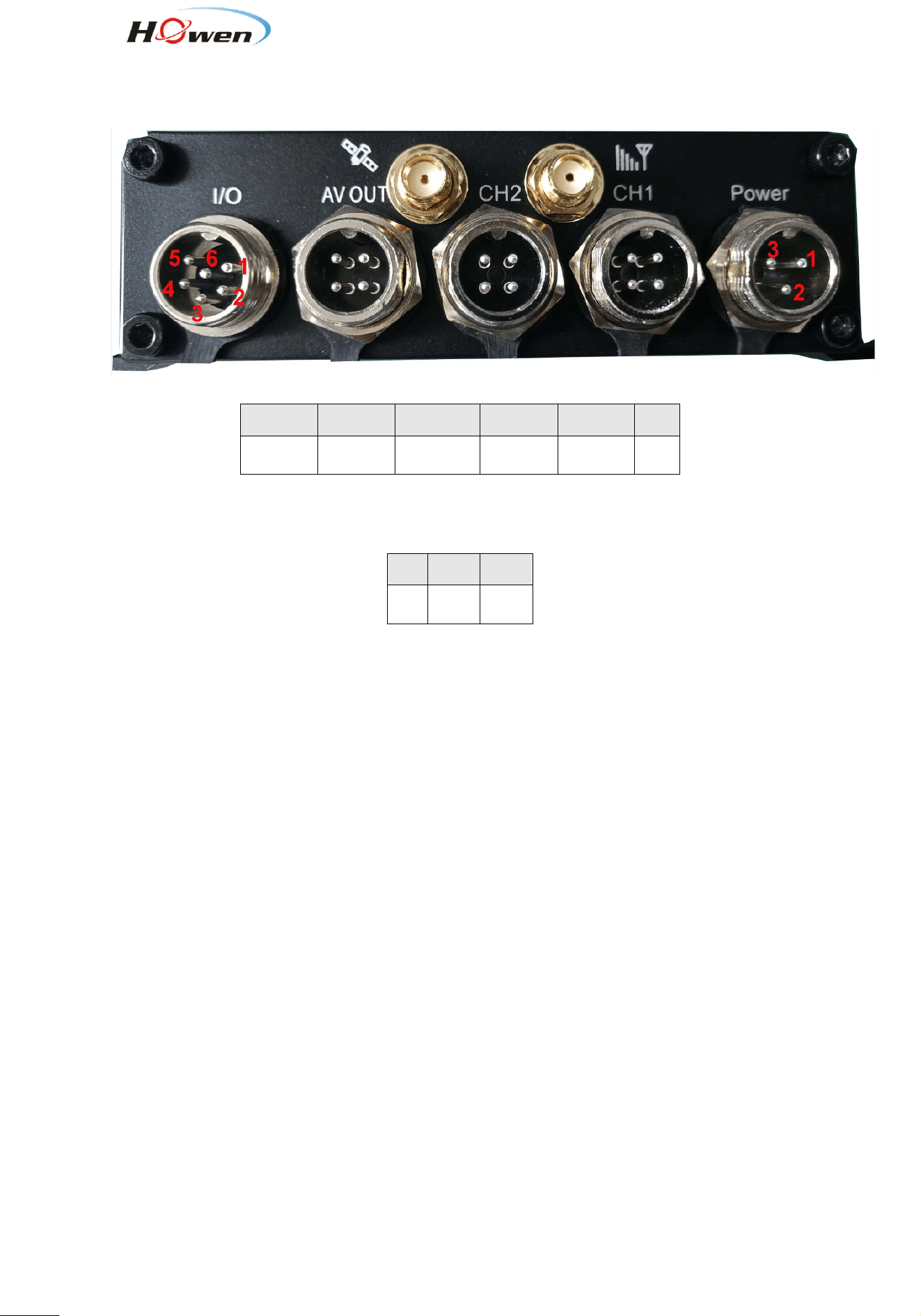
6
5.4. Pin definition of IO&Serial port
I/O serials
Power
1 2 3 4
5
6
SENSOR-IN-2
SENSOR-IN-1
SENSOR-OUT RX232-RX1
RX232
-TX1
GND
1 2
3
BAT- BAT+
ACC
7
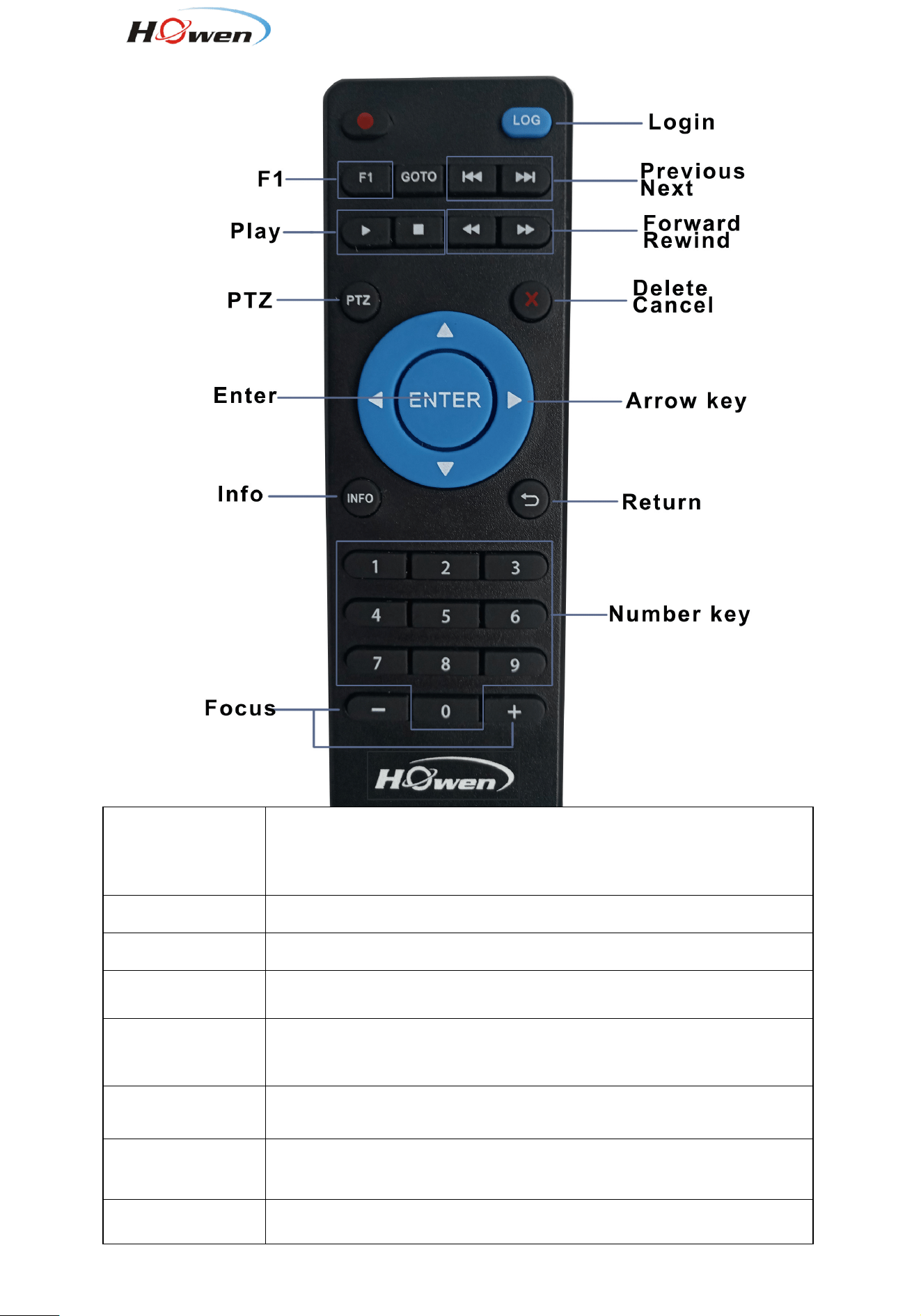
5.5. Remote controller
Login
When the recorder is set with a password, press the Login key to input
your password. As the system is not provided with recover and reset
features, always keep your password in mind.
INFO
key Short-cut for check the device’s information.
Enter
key
Confirm , enter into the input mode.
Number key 1, 2, 3,
4
You can press number 1/2/3/4 to display channel 1, channel 2, and
channel 3 and channel respectively.
Return
key
Return to the previous menu, and finally exit from the setup menu to the
monitoring interface.
DEL
key Delete when input the numbers by remote.
Play
key
Press this key to start playing (search the video file to be played and
select, then press the key to play it).
Forward
key Forward key in four grades: 2X,4X,8X,16X
8
Rewind
key Rewind key in four grades: 2X,4X,8X,16X
Next
key Page down or roll to the next file.
Previous
key Page up or roll to the previous file.
PTZ
key PTZ, Focus+ ,Focus-
F1
F1 is a key to start functional test
6. Device and installation
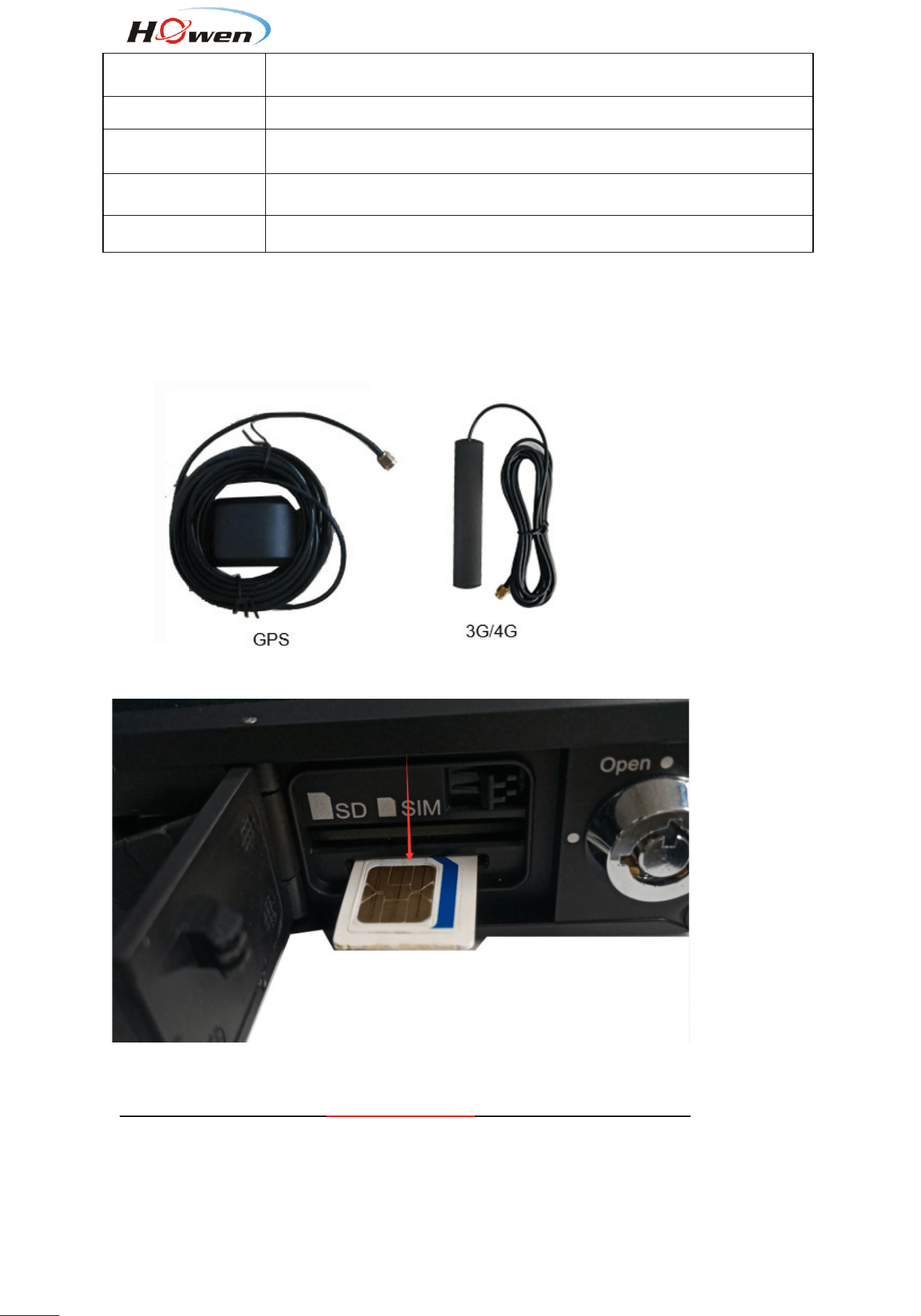
1. Connect 3G/GPS antennas
Connect 3G/GPS antennas according to labels on antennas and connectors.
2. Install the SD card and SIM card.
3. Connect power with MDVR
Use DC12V, 3A(at least) or higher(5A is better) power adapter in office test.
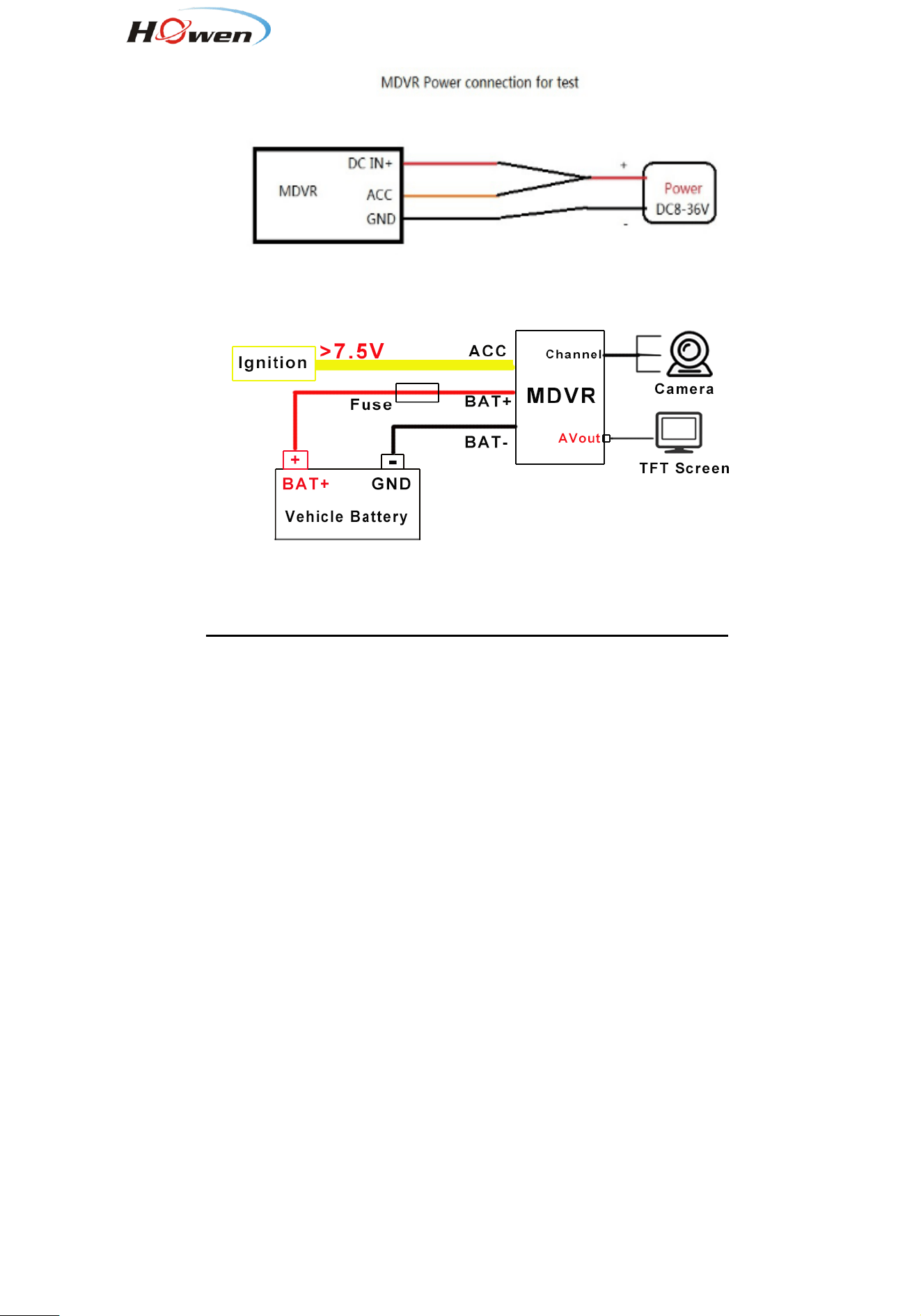
9
For the vehicle, must install like this.
4. Connect TFT monitor
Connect a TFT monitor with AVOUT port on the rear panel of MDVR.
Attention:
The MDVR will provide power and image to TFT screen by Avout port, so don’t connect
any external power for the TFT screen, or else, it will destroy the MDVR.
7. System diagram
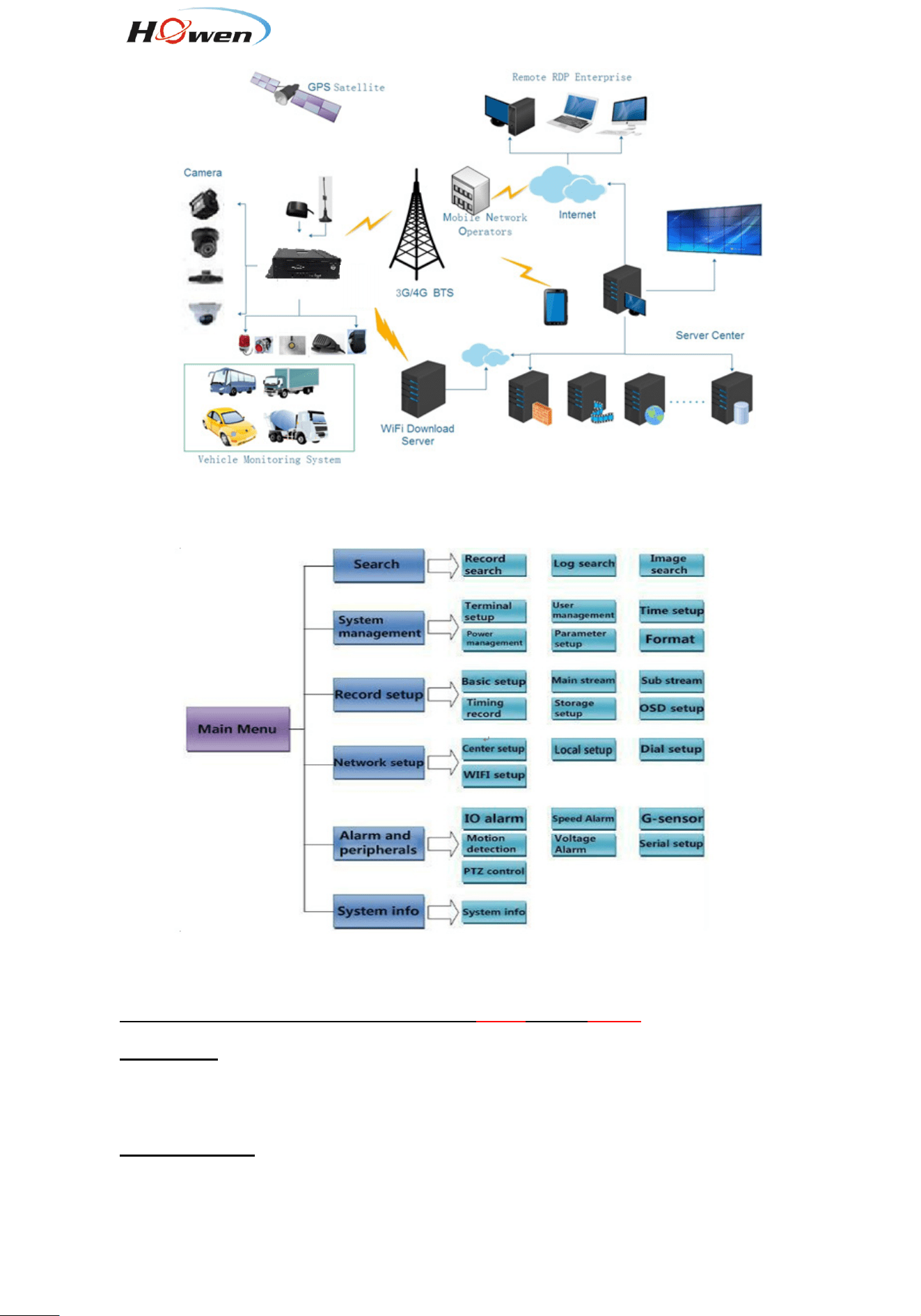
This product is suitable for video monitoring or remote monitoring and applicable for general or special
vehicles. It mainly uses the special designed vehicle camera to acquire the front video signal, then
transmits the signal via a special video cable to the MDVR mainframe for video compression and image
processing and finally stored in the SD card.
It can also locate where the vehicle is in real time via GPS module, and then upload the location
information to the remote server via 3G/4G module. You can download video files from the remote client
to realize real-time remote monitoring of the vehicle. The following shows the actual application model
of this product that may be different depending on vehicle type and peripherals.
10
8. Menu structure
9. System operations
9.1. User login
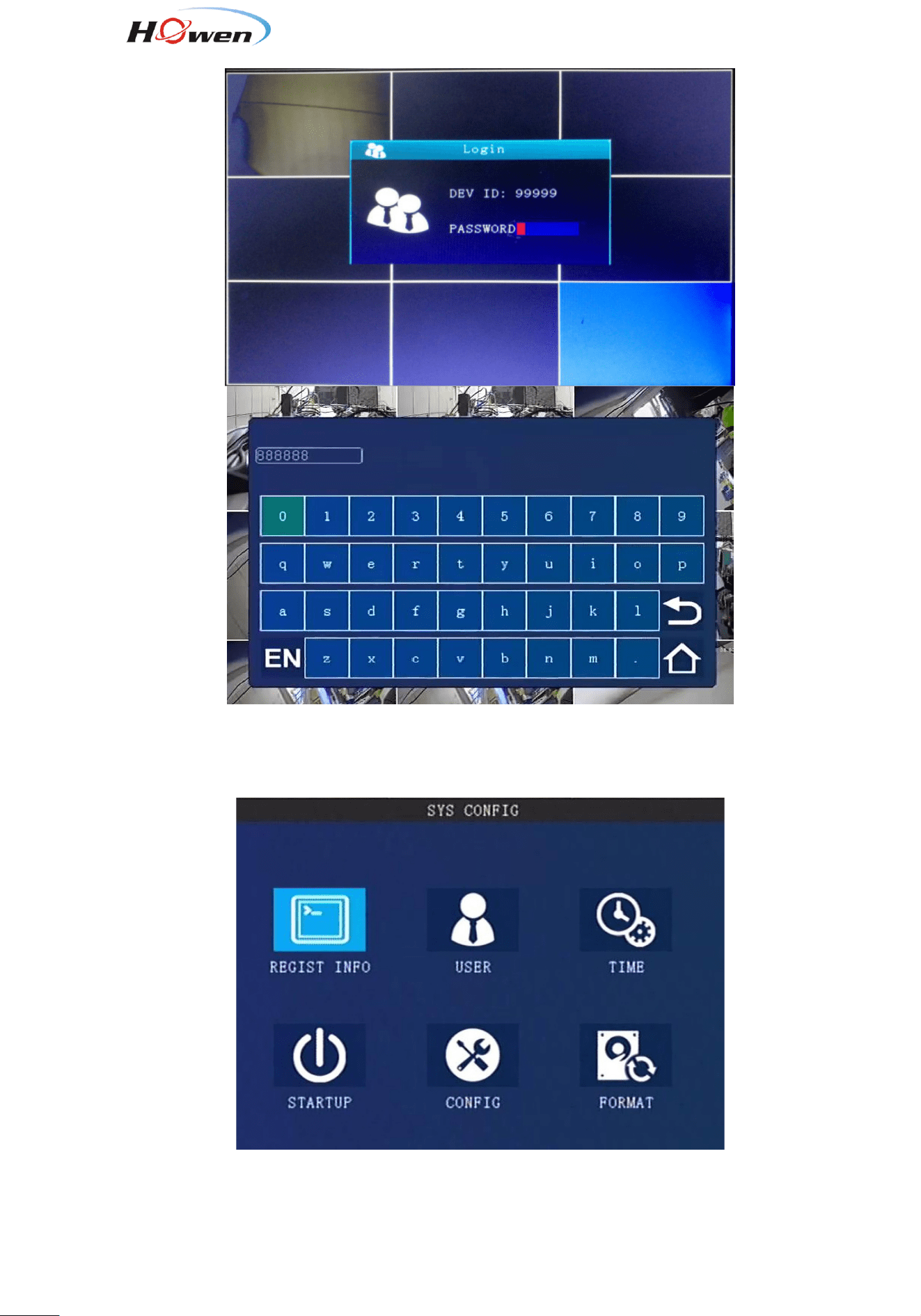
For all devices, the default password for admin is 111111; user is 666666
With remote:
Press 【LOGIN】button to login MDVR.
Press【Enter】button to call the keyboard page to input password.
If any err while inputting ,press【Delete】button to delete.
With USB mouse:
Please connect a USB mouse with MDVR to setup the menu.
Right click on the live video interface and you can see the login page.
Click on the password column to call the keyboard page to input password.
11
9.2. Main menu
9.2.1. Search
12
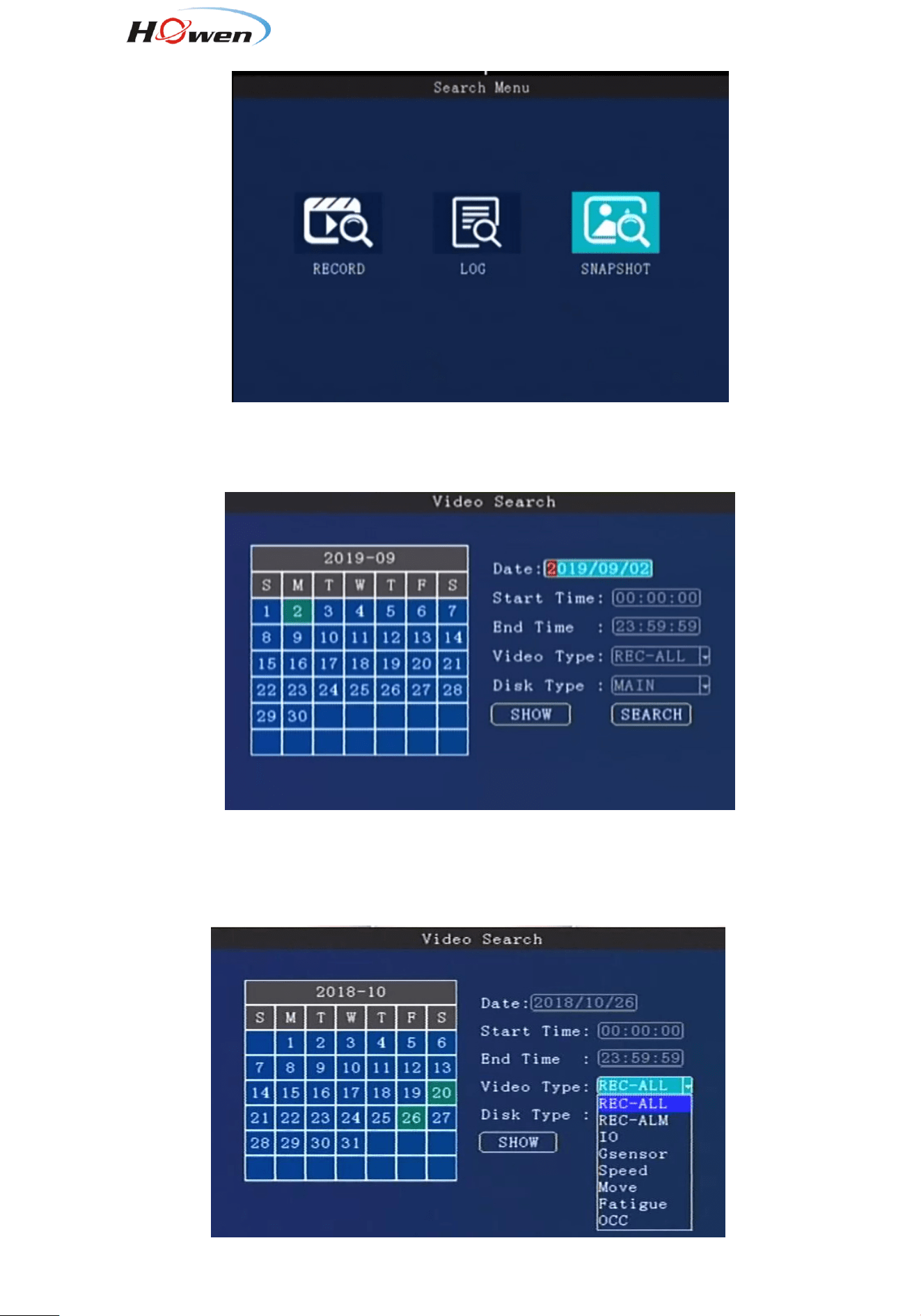
Searching menu includes: video search, log search and image search.
9.2.1.1. Video Searching
Date:Press number keys on remote to select the date, it defaults for the current day.
Start time:Press number keys to input the time, it defaults for 00:00.
End time:press number keys to input the time, it defaults for 23:59.
Video Type:press 【Enter】to select:
13
REC-ALL (all type of videos)
REC- ALM(alarm videos) contains
IO( I/O recording), G sensor, Speed ,Move, Fatigue,OCC type. Need set in the Alarm menu first.
Disk Type:press【Enter】to select: main disk / mirror disk / disk backup. it defaults for main disk.
Regarding the difference , please check [9.2.3.5 Storage setting].
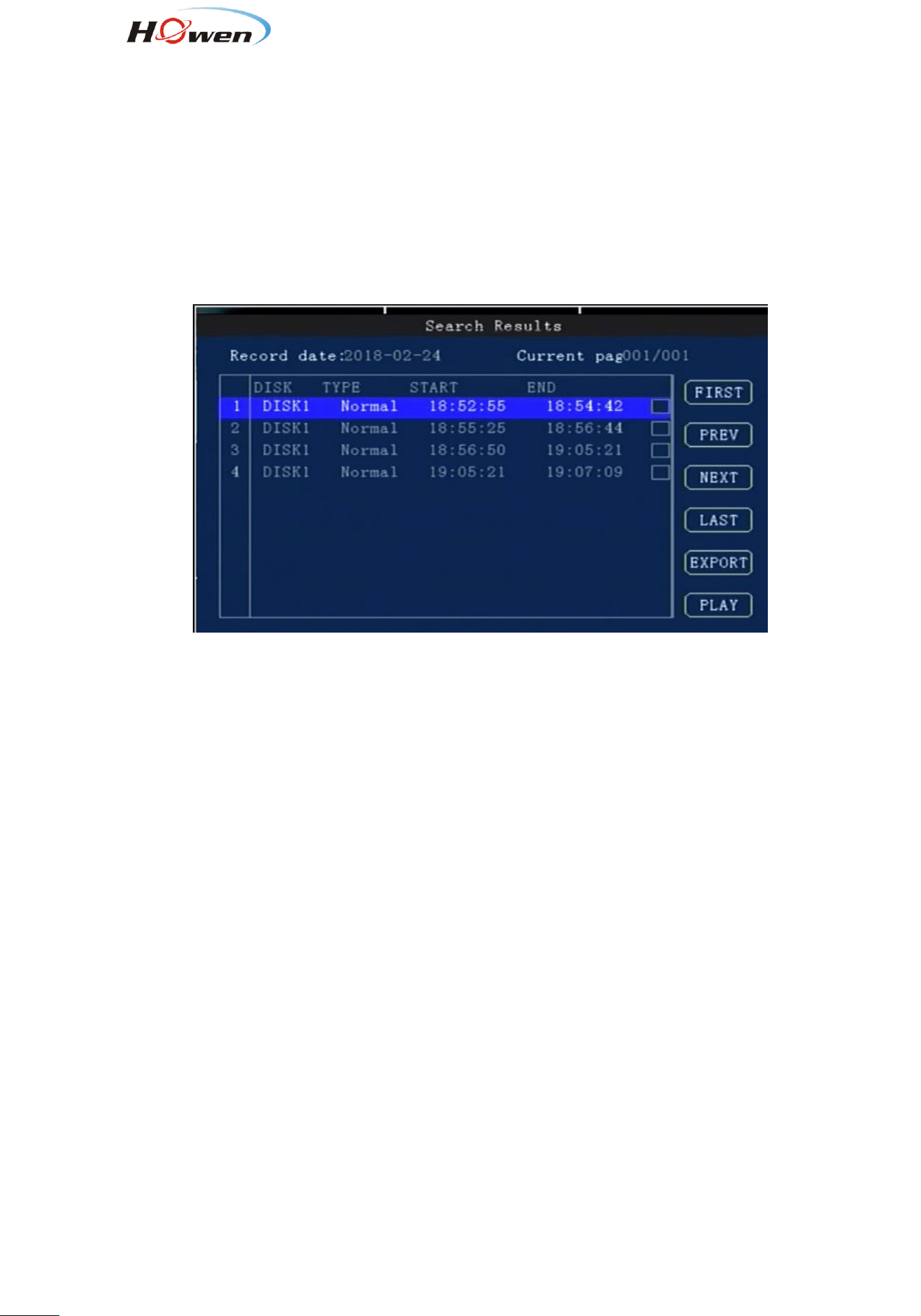
Search:Move to the "Search" button,press【Enter】, then enter the search results interface.
The interface contains record date, the current page number , menu for browsing, search
contents.
In the search contents, it contains : DISK(the file’s location), Type (which you have selected) ,start
and end time.
Press the Arrow keys to select the information you want to view, press【Play】on the remote or click
PLAY to start playing the video, press the【Return】key to return the previous level.
Select the video file you want to view and press【Enter】key to check the video to be backed up.
Press the Arrow keys to select "First", "Previous", "Next", "Last", "Play", press 【Enter】key to
display the information page.
Export: Press【Enter】, the selected videos will be exported to an external USB storage device .
Note: If the selected period there is no video file and interface prompt: "! This day has no video
file’’
14
9.2.1.2. Log search
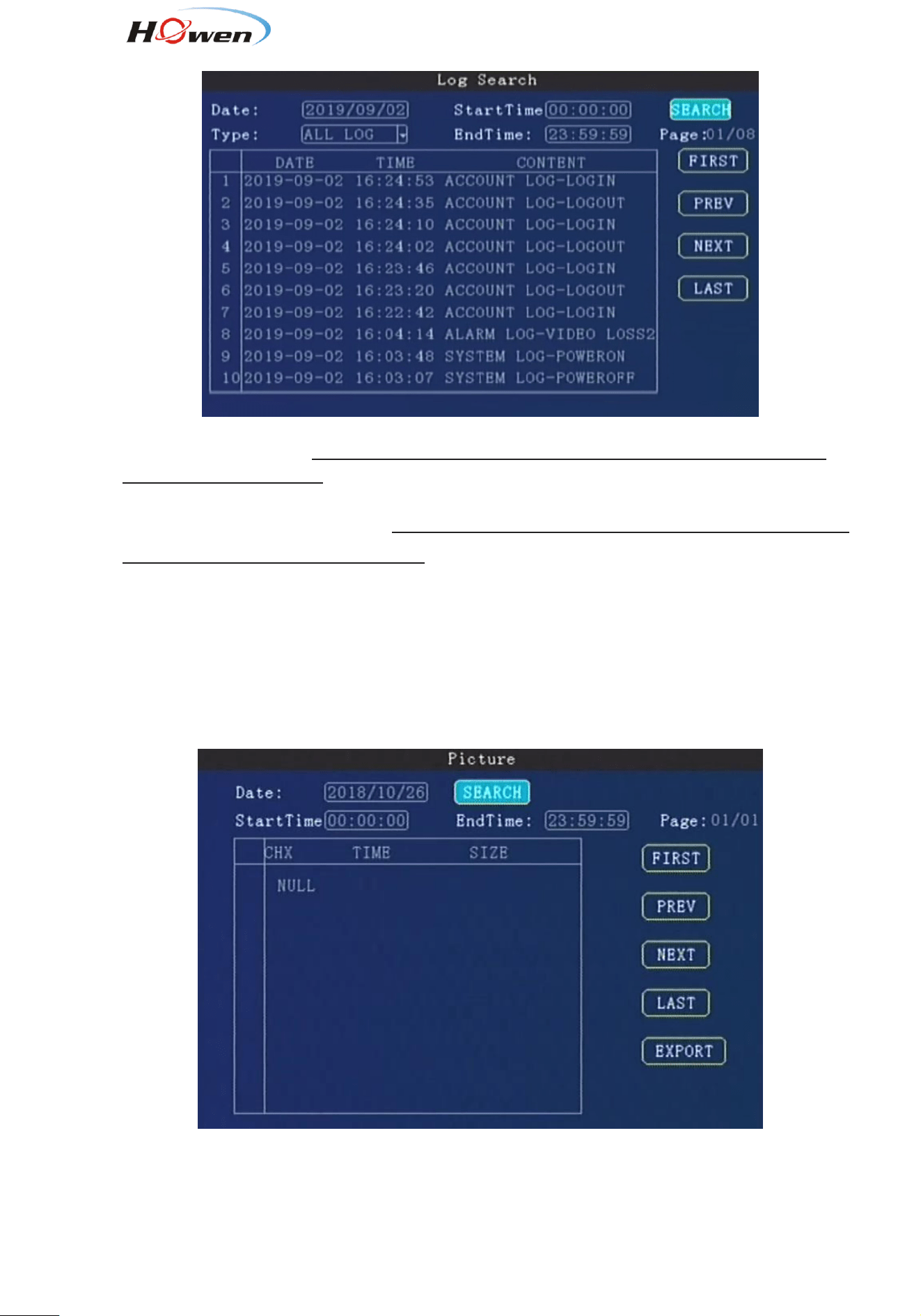
Log management record : power on/off, GPS timing, alarm event information, including event date,
event time, and event name.
Date Search: Press number keys on remote to enter the date, default setting is today.
Log Type: Press【Enter】
to select: All log/ System log /Configuration log/ Alarm log / Record
log/Clear log/Operation log/Manage log. Default is all log.
Start Time: Press the number keys to enter the time, default is 00:00.
End Time: Press the number keys to enter the time, default is 23:59.
Search: Press【Enter】to select, search the log information from the start time to the end time.
Press the arrow keys to select "First", "Previous", "Next", "Last", press【Enter】to display the
information page.
9.2.1.3. Picture search
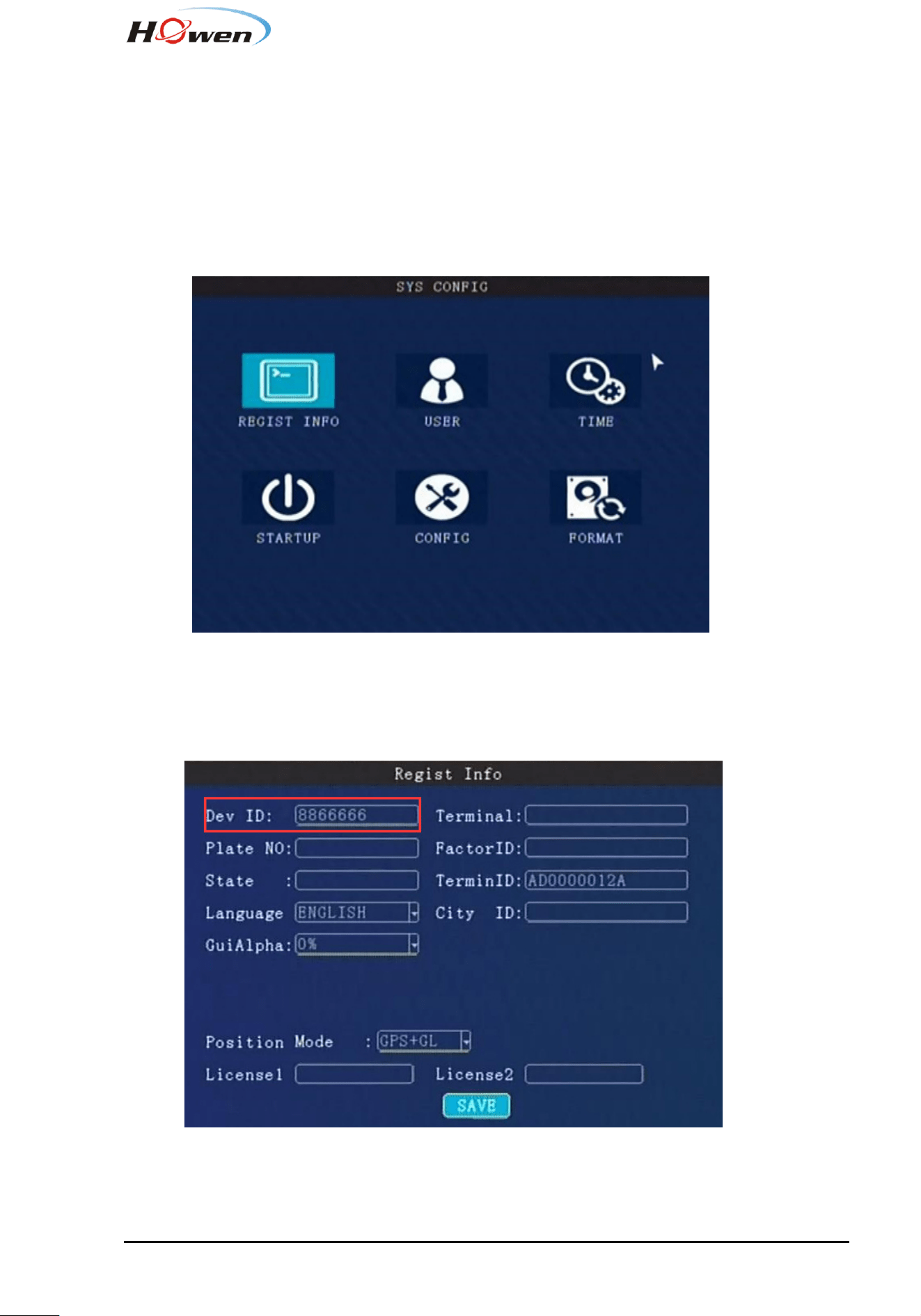
Pic search is used for checking the snapshot when alarm is triggering( I/O alarm and Video detect )
, should set in the alarm menu first.
Search Date: Press number keys to enter the date, default is today.
Start Time: Press the number keys to enter the time, default is 00:00.
15
End time: Press the number keys to enter the time, default is 23:59.
Search: Press【Enter】to select, search the log information from the start time to the end time.
Press the arrow keys to select "First", "Previous", "Next", "Last", press 【Enter】 key to display
the information page.
Export: Press【Enter】, the selected pictures will be exported to an external USB storage device .
9.2.2. System setting
System setup menu includes: Register info, User, Time, Startup, Config and Format.
9.2.2.1. Register info
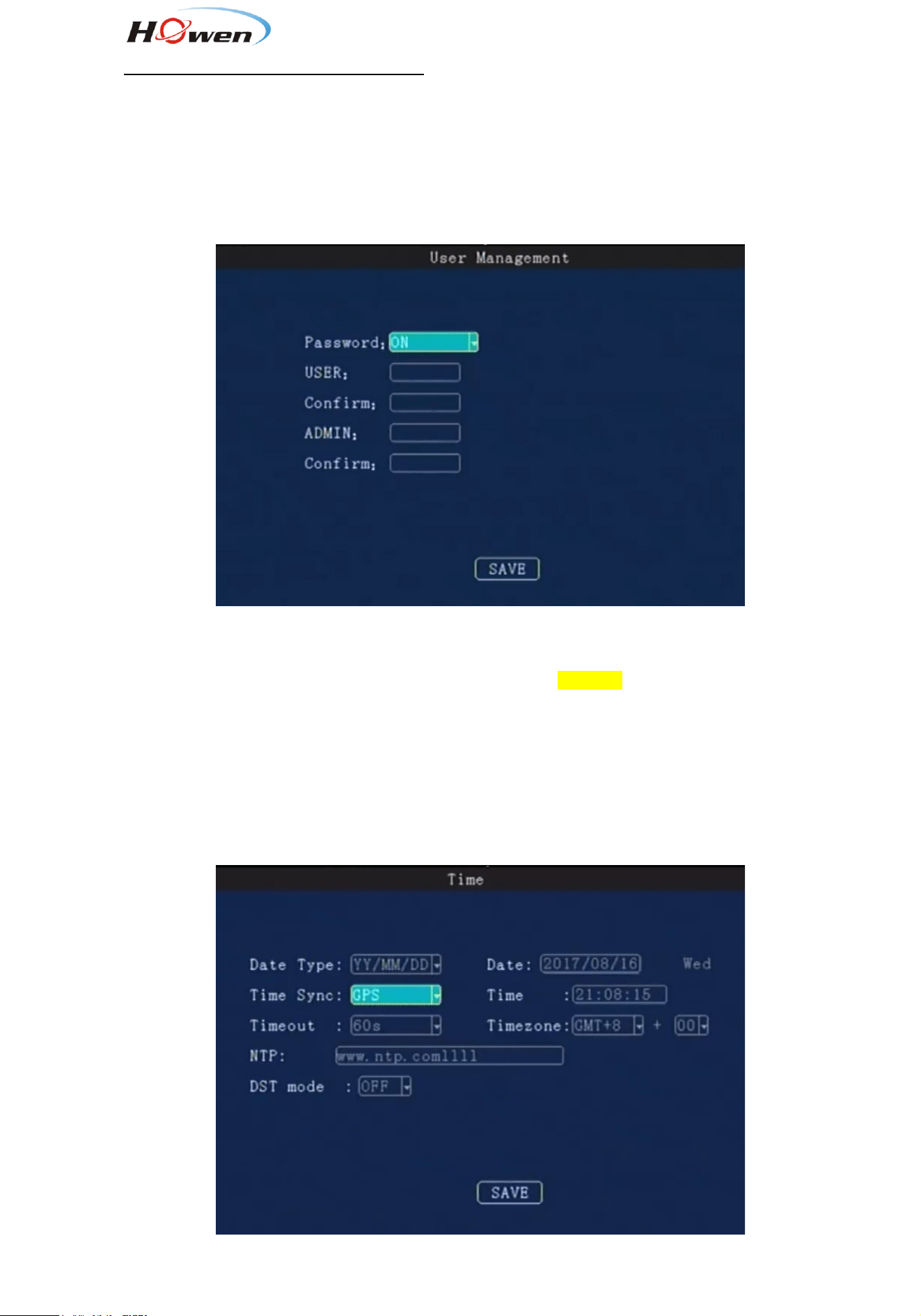
We add device via Device ID.
Device ID、Plate No., Province ID, Terminal Model, Factor ID, Terminal ID, City ID:Press number
keys to input.
Device ID
Set a number(12 digital at most) ,but must be unique, It’s very important , since we will add this
16
device to the server by these numbers.
Language: press【Enter】to select and system will reboot automatically.
Position Mode:GPS, GLONASS, BeiDou, and so on.
License1 &2: Custom function of RFID function for driver, should input the license number. It’s
support for the third party platform with H-protocol.
9.2.2.2. User
Password:press【Enter】:On/Off
ON: Login with Admin password can setting the User &Admin password; login by user password can
only set a user password, password must be the same with [confirm] below .
The administrator can set or change the parameters, so if you need to set some parameters, login
with this account.
The user can search and view the files only.
OFF: Without password. When entering the menu, get into the main menu directly .
9.2.2.3. Time setup
17
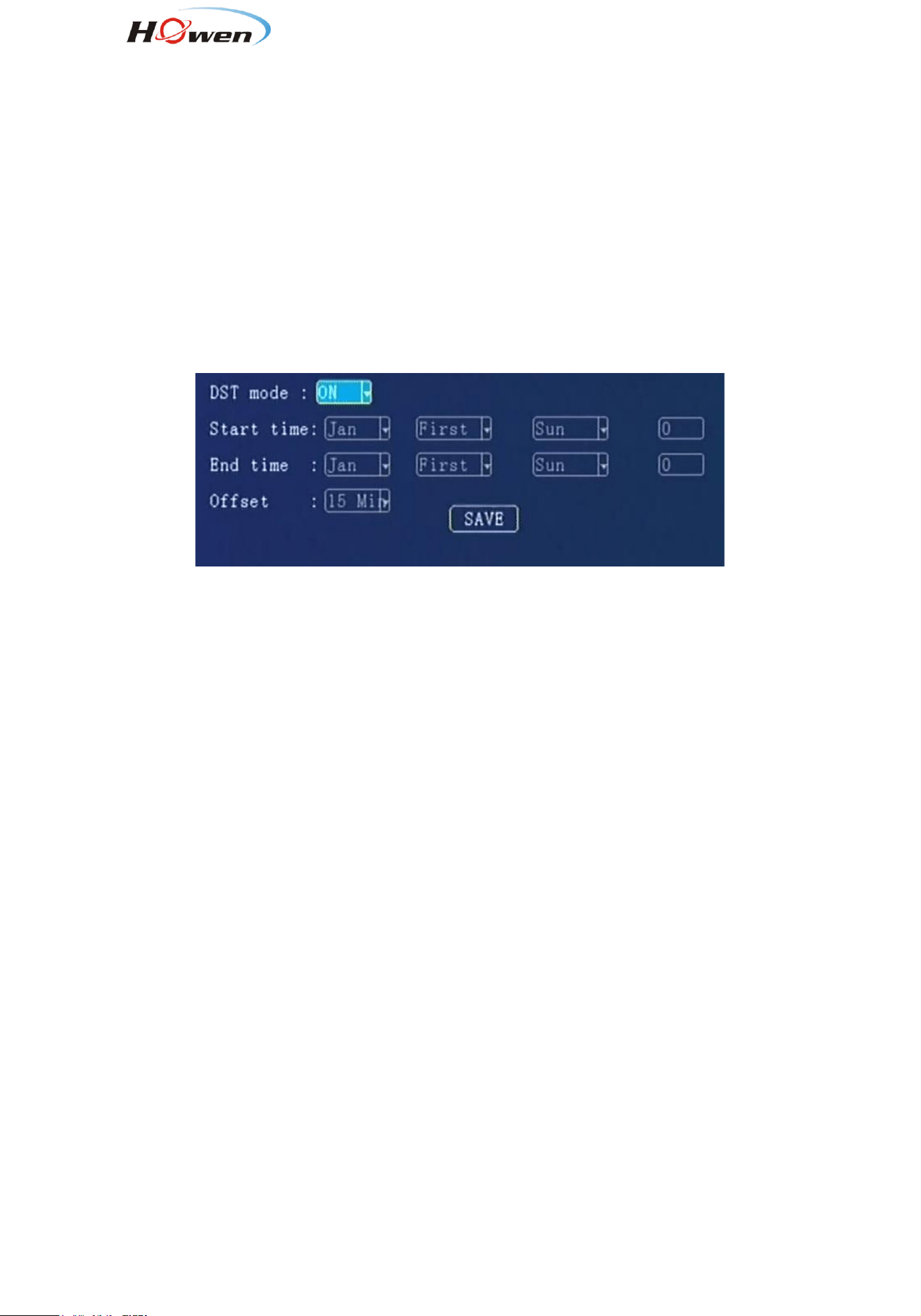
Date Type: Use for selecting the data type, year - month - day, day - month - year ,month - day -
years. Press【Enter】to select.
Time Sync: Press【Enter】to select: Off / GPS / NTP, default is GPS.
Time out: Setup Menu Waiting Time, once overtime, it will automatically log off the current user,back
to the monitoring mode. Press【Enter】 to select: 1 minute / 2 minutes / 5 minutes / 10 minutes,Default
is 1 minute.
Date: To modify current system date, press number keys to enter.
Time: To modify current system time, press number keys to enter.
Timezone: Press【Enter】to select a time zone, default is GMT + 08.
DST mode: Daylight Saving Time , set it according to your local area requirement.
Select the start and end time, by week and the specific hour , then set the offset time (according to
your local regulation, normally it’s 60 minutes)
18
9.2.2.4. Startup
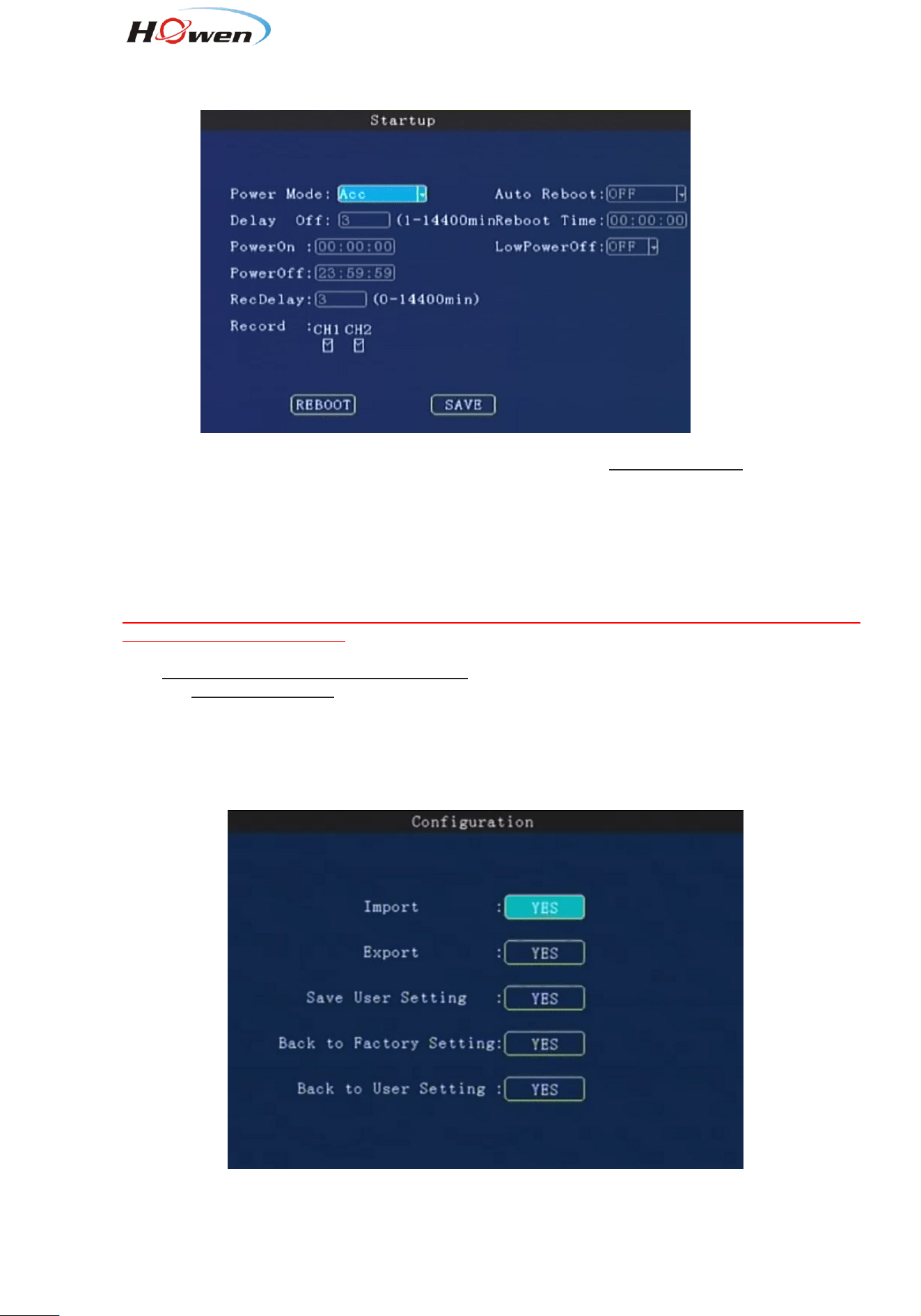
Power Mode:To set Power ON/Off mode, press【Enter】to select. Acc mode / timing mode.
Timing mode: on/off according to the user’s setting period.
Acc mode: On/off by the vehicle’s ACC ignition.
Auto Reboot: ON/OFF. The default is OFF. If it’s ON, it will reboot at the Reboot Time.
If the device is running all the 24 hours, please set it ON.
Delay off: Set the device delay off time.MDVR will still work after the vehicle is power off , then turn off
after Delay-off time, press 【DEL】 to clear the current number, press the number keys to change.
1440 minutes means the device will work all the time if the battery can support that long time. So please
set a available parameter for it.
RecDelay: When the vehicle is power off, set the record delay time, it will continue recording during this
time .This time can’t exceed the Delay off time .
Record : Check the channels for delay recording.
Power on: Setup power on time under timing mode.
Power off: Setup power off time under timing mode.
9.2.2.5. Config
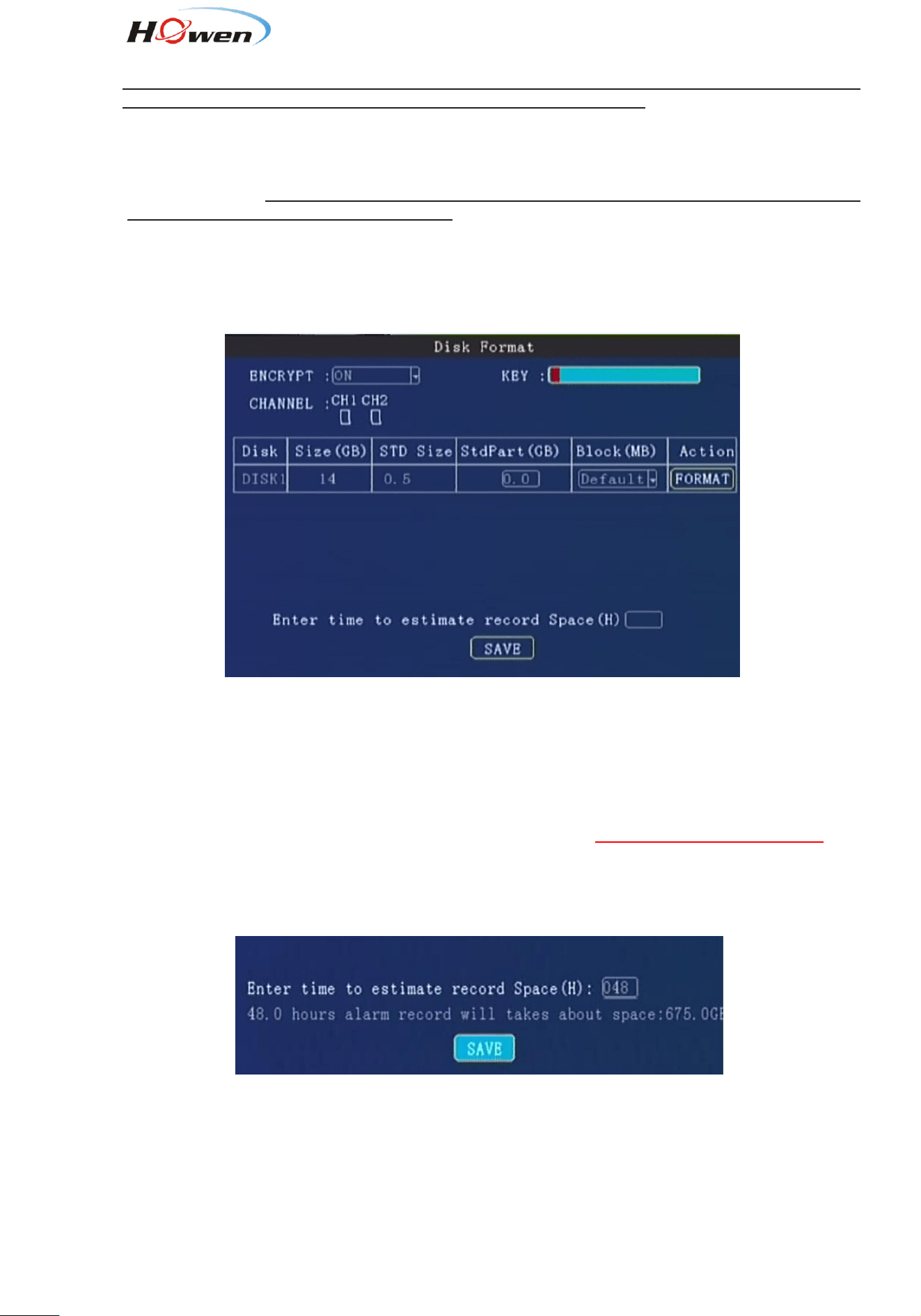
Parameters import: Import configuration information in the USB driver to the current device.
Parameters Export: Export all the configuration information of the current device to the USB flash
driver.If there is no USB flash driver, it will saved in the existed SD card.
19
Tips:
If you had set the whole parameters in one device already, you can export it first, and then import to
other devices by this function. After the import, it will reboot automatically.
Save User Setting: Save all configuration information for the current user, it will store this information
in the SD card.
Factory settings: Restore some device parameters to factory default, such as Alarm, Record. It will
not change the Register and Network setting.
Back to User settings: Restore all device parameter setting to saved user’s setting
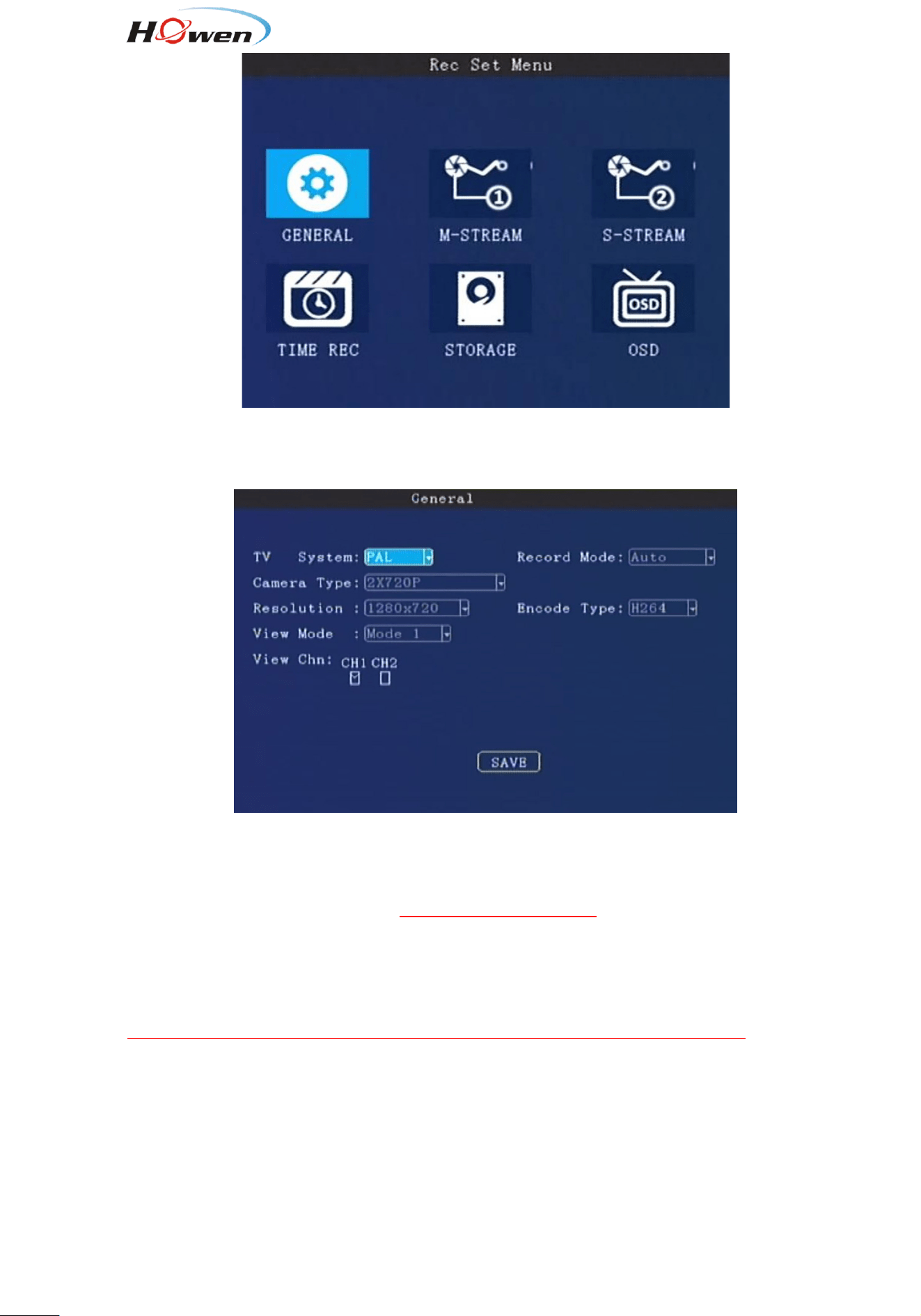
9.2.2.6. Format
Press the arrow keys to select DISK1 / DISK2 / USB(if you had plugged the USB driver).
It will display the whole available disks. Size/Std size/Block setting.
Encryption: For safe concern of videos,we can set a password(KEY) for the dedicated channels.
When play by our player, it will ask the user to input the password.
STD size: The area for saving Alarm pictures, debug Logs, system file, Alarm videos. This area is
which you can check on the PC. For example, if you need more space for saving alarm videos and
upload to FTP server, should change it . Just input a new value in StdPart(GB) and SAVE it.
Block(MB): All videos are saving by block read&write technology. It’s not recording by time length. So if
you need save a long time period video, change a bigger value for it.
Format: If there is some err with the disk, format it. It will take about some minutes.
Besides, you can also evaluate the disk space for recording.
9.2.3. Record
20
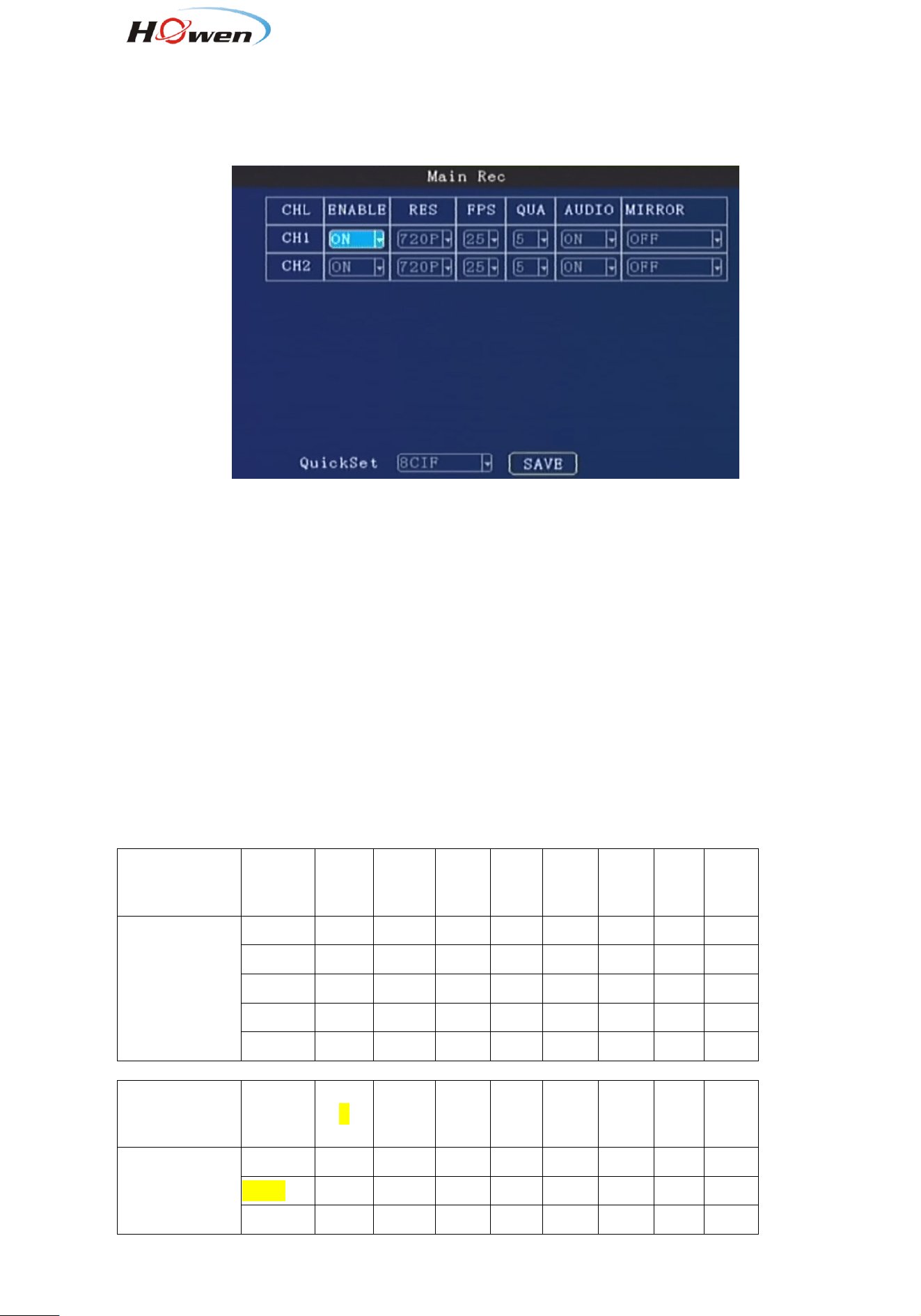
Recording setup including:General, M-stream, S-stream, Time recording, Storage, OSD set.
9.2.3.1. General
The General info contains the basic setting for camera. When you install the MDVR, please
double-check these sub-menu .
TV System: Press【Enter】
to select: PAL / NTSC, default is PAL. If it’s wrong ,the image will become
black-white color only. Select PAL/NTSC according to the camera’s video type. Device will
automatically restart after changing it.
Camera Type: Press【Enter】 to select: 2 *720P or 2*1080P
Resolution : 1080:1920*1080, 720P: 1280*720 . Set it according to the camera type.
Generally speaking, 2MP is 1080P, 1MP is 720P mode, D1 definition is less than 1MP.
Attention: this setting must be same with cameras, or else , it will not display video.
Record Mode: Press【Enter】 to select: Auto / time recording / alarm recording, default is Auto.
Auto: it will record all the time.
Time recording: Need set the time in [9.2.3.4 Timed Record].
Alarm: Only record when alarm is triggering, should set in the Alarm menu first.
Display Resolution: This is set the TFT screen display resolution.Press【Enter】to select: 720 ×
576/1024 × 768/1280 × 720/1920*1080.
View mode: Press【Enter】to select: Two / Four / Six / nine
21
View Chn: Select the channels you need ,default setting is all channels.
9.2.3.2. Main stream
Enable: Press【Enter】to select: On / Off.
Res: Resolution ,press【Enter】to select: D1 / HD1 / CIF / 720P.
CIF:352*288,HD1:352*576, D1:704*576, 720P:1280*720 .
FPS: Frames per second , More frames, every picture will be more clear. press【Enter】to select: 1-25 .
NTSC : 30FPS , PAL: 25FPS.
QUA: Quality of the video, press【Enter】to select: 1-8. 1 is best , but it will cost more storage space.
AUDIO: Press【Enter】to select: On / Off. ON means the audio will be saved with video together.
Mirror/Flip: Set the image to mirror or flip .Press【Enter】to select the types.
QuickSet: Setup all channels resolution simultaneously, press【Enter】to select: 720P/D1 / HD1 /
CIF / 720P.
Storage Calculation
MDVR support dual streams.
Main stream is mainly used for local recording; Sub-stream is mainly used for network transmit.
Main stream:
Resolution
Image
Quality
Level
1 2 3 4 5 6 7 8
Bitrate
[
Kbps
]
1080P
8192
7168
6144
5120
4096
3072
2048
1536
720P
4096
3584
3072
2560
2048
1536
1024
800
D1
2048
1536
1230
1024
900
800
720
640
HD1
1280
960
768
640
560
500
450
400
CIF
800
600
480
400
350
312
280
250
Resolution
Image
Quality
Level
1 2 3 4 5 6 7 8
Bitrate
[
MB/hour
]
1080P
3600
3150
2700
2250
1800
1350
900
675
720P
1800
1575
1350
1125
900
675
450
351
D1
900
675
540
450
395
351
316
281
22
HD1
562
422
337
281
246
219
198
176
CIF
351
264
211
176
153
137
123
110
Sub stream:
Resolution
Image
Quality
Level
1 2 3 4 5 6 7 8
Bitrate
[
Kbps
]
D1
1500
1300
1100
900
800
700
600
500
HD1
1300
1200
1000
800
700
600
500
400
CIF
512
450
400
350
320
280
250
220
Resolution
Image
Quality
Level
1 2 3 4 5 6 7 8
Bitrate
[
MB/hour
]
D1
659
571
483
395
351
307
264
219
HD1
571
527
439
351
307
264
219
176
CIF
225
198
176
153
140
123
109
96
Now take the Main-stream table for example.(Based on H.264)
It is an approximate data for one camera in one hour, eg. 720P, if the Quality is 1 (best), from the table,
we know it will take up 1800MB /hour.
For example, suppose it has 2 cameras, and work 10 hours everyday in one month (30 days).
Total= 1800MB*2(cameras)*10(hours)* 30(days)=540000MB ≈ 528GB.
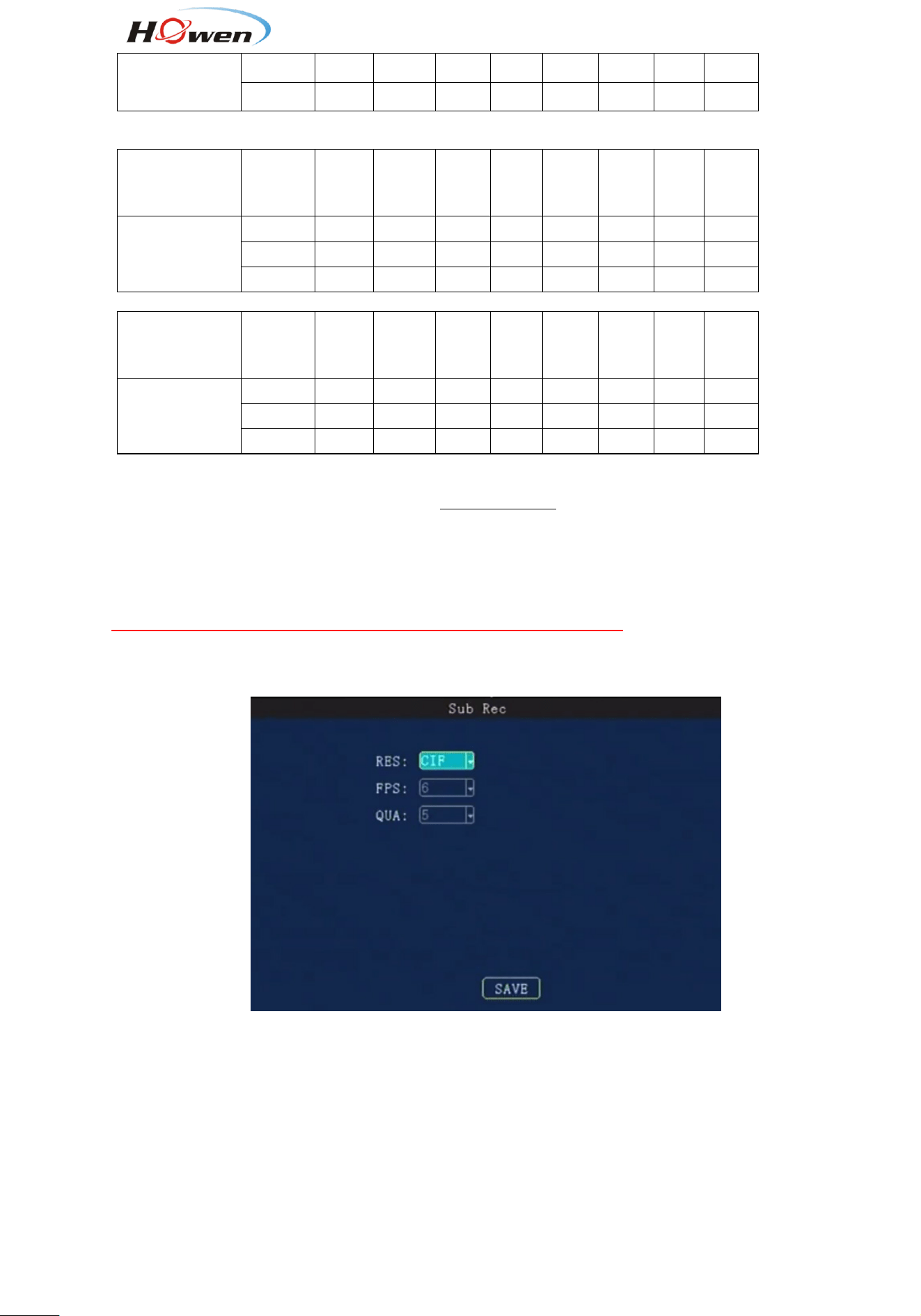
9.2.3.3. Sub stream
The sub-stream is used for live streaming. The higher Resolution, bit rate and frame rate, video will be
more clearer, but need more 3G/4G data.
Notice:
1. Currently 3G networks support CIF real-time network transmission, the default setting is CIF.
2. QUA, 1 is best, for saving the 3G/4G data. Please choose 7 or 8.
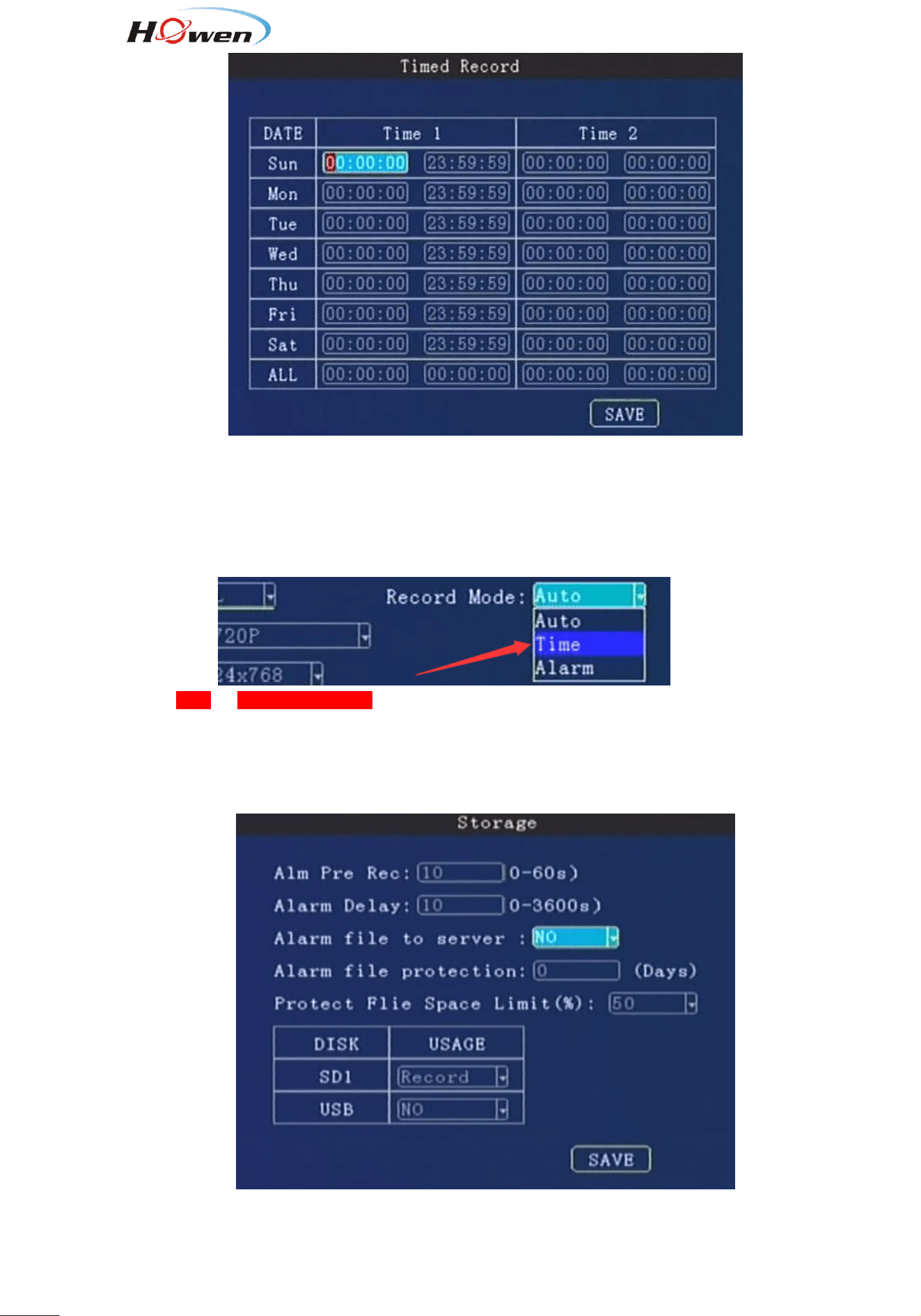
9.2.3.4. Timed recording
23
Setting the start time and end time of timing record, press number keys to enter.
During the setting time, it will start recording automatically.
Attention:
1. Need turn on the Time mode first, in the MENU--General--Record Mode
2.Set the ALL as 00:00:00-00:00:00, or else, the timed recording will not work!
3. Set the recording plan for every day.
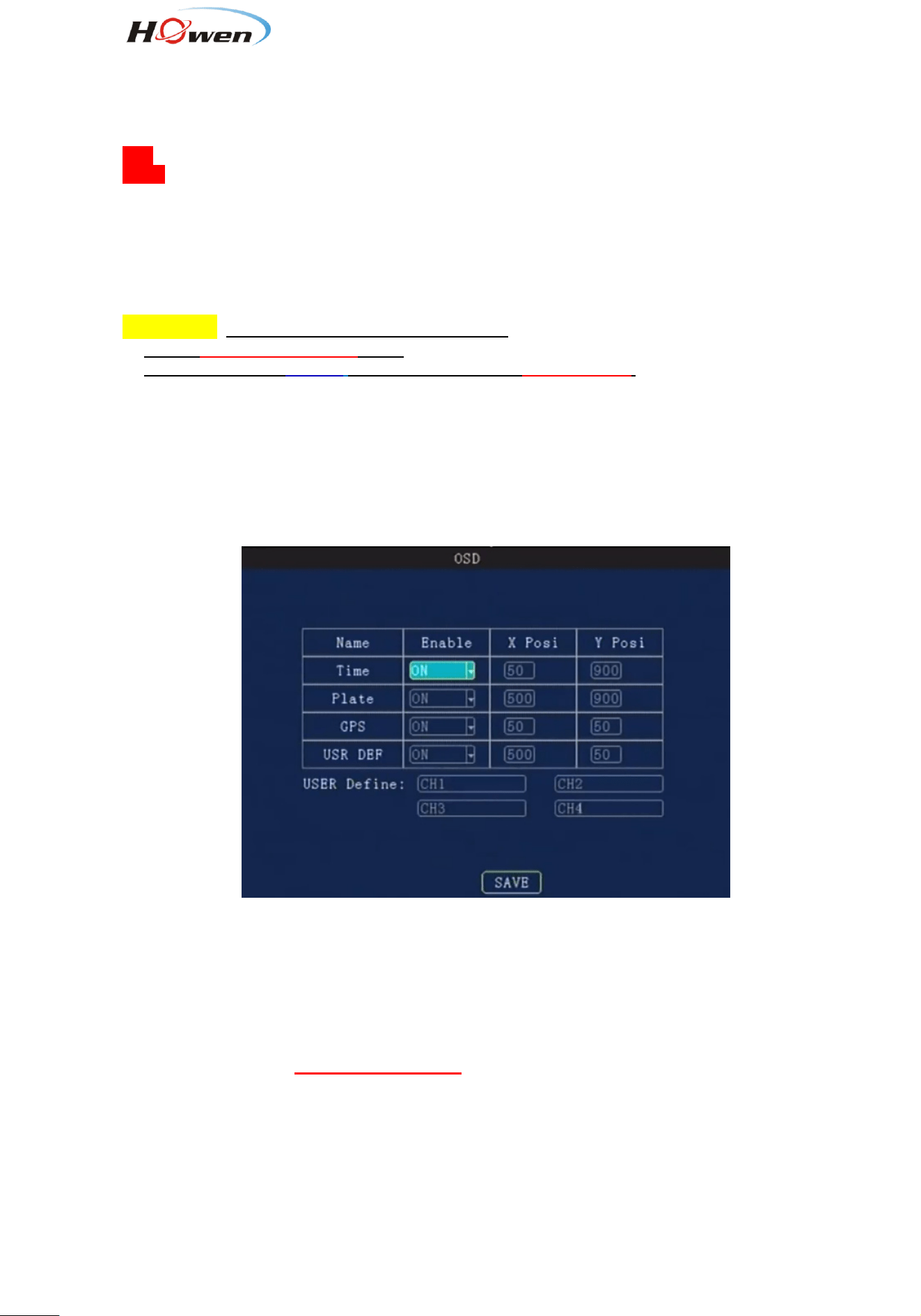
9.2.3.5. Storage setting
Alarm Previous Rec: Set the previous recording time before the alarm happens. Press number keys to
enter, 0 to 60 seconds for selection.
24
Alarm delay:Set the delay recording time after the alarm happened. Press number keys to enter, 0 to
3600 seconds for selection.
Alarm file to server: Alarm file save to HFP or FTP. All alarms file will be uploaded at real-time. So pay
attention if it’s linked by 3G/4G, since it will cost data of SIM card.
FTP: It will upload to the FTP server .
HFTP: It will upload to VSS evidence center.
Alarm file protection: Set the alarm file protection time, this files will be not deleted during the setting
days. Press number keys to enter, 0 to 45 days.
Protect File Space Limit: 50%~95% for option.
Attention: In order to upload files to FTP or HFTP.
1. Set the Alarm file protection days.
2. Set a Big space for StdPart (such as 2G/4G size) in 9.2.2.6 Format.
Disk and Usage: Press【Enter】to select: No / Record / mirror / Backup.
No: No recording;
Record: Recording the file by main-stream.
Mirror: Recording by the sub-stream.
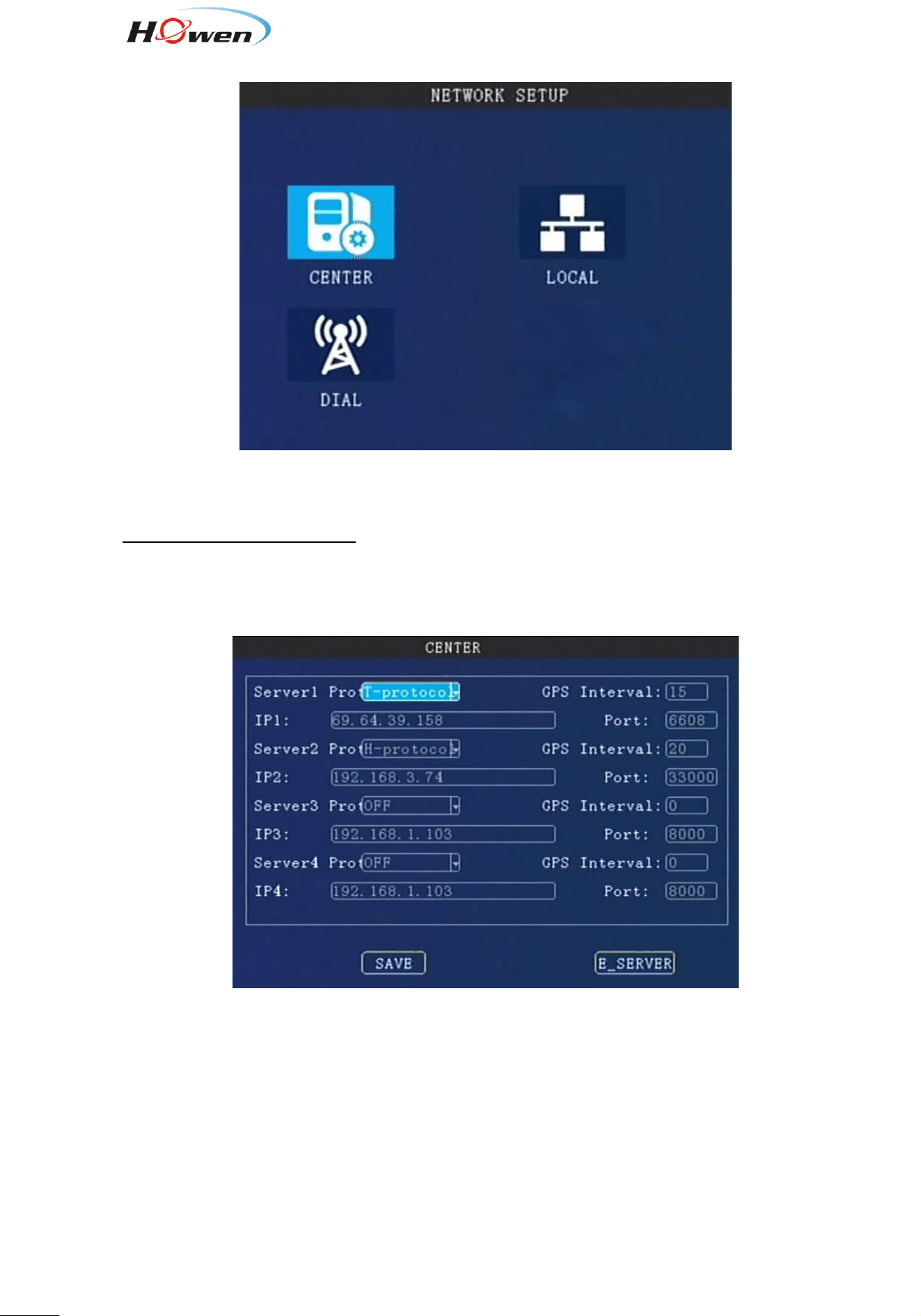
9.2.3.6. OSD Set
Set the stamp information on the image , and location to be displayed on the image.
Time: Press【Enter】 to select Enable: on / off, press number keys to enter the X and Y coordinates.
Plate: Press【Enter】 to select Enable: on / off, press number keys to enter the X and Y coordinates.
GPS: Press 【Enter】 to select Enable: on / off, press number keys to enter the X and Y coordinates.
USR DEF: Press【Enter】to select Enable: on / off, press number keys to enter the X and Y coordinates.
USER Define: You can define every channel a name by yourself, press【Enter】
to call out the keyboard,
and input the characters ,12 characters at most.
25
9.2.4. Network Setting
Network Setup menu includes: Center settings, Local settings, Dial settings.
The device access platform by these method .
Network priority is 3G/4G>LAN, it will switch automatically according to the network status.
9.2.4.1. Center settings
Our MDVR supports 2 system platform at the same time. You can choose one of them to test.
Server1&Server 2: VSS or the third party server address. Such as wialon.
Server3/4 : Transport server. For uploading the raw data of external devices via RS232 or RS485.
Server Protocol: .H-protocol is Howen protocol if you need to link VSS or the third party FMS
platform.
GPS Interval: The time interval for sending the GPS data package(contains GPS, speed,
alarm ,time&date and so on. The device will send the data package to platform.
If you need save the data of SIM card, set a long time.
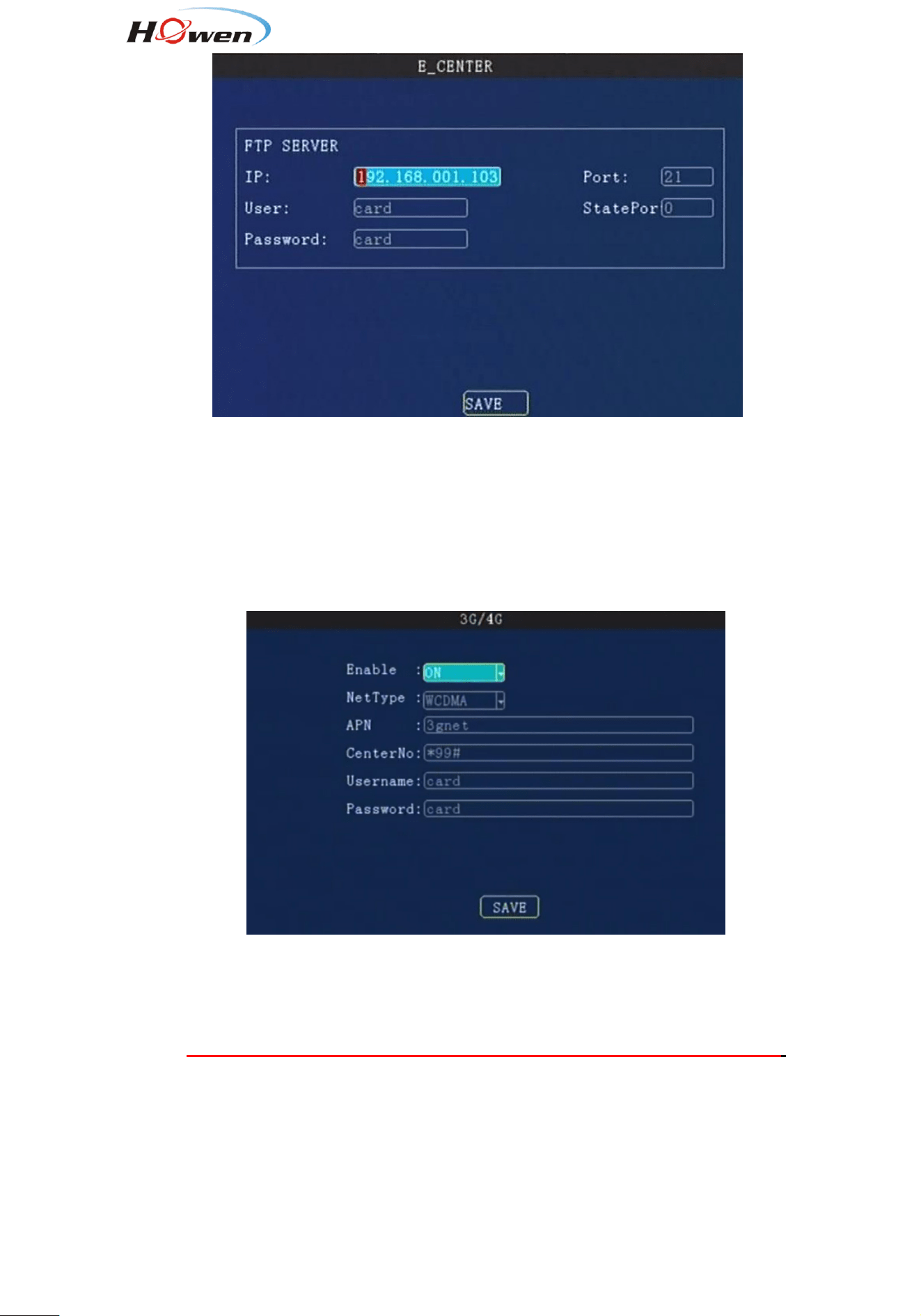
FTP server
26
Input the FTP server IP address, port .User and password. You can build your own FTP server.
StatePort is for maintenance(still under development).
If you have set in 9.2.3.5 Storage setting and choose the FTP, all alarms file will be uploaded to FTP
server.
9.2.4.2. Local Network Setup---Not available
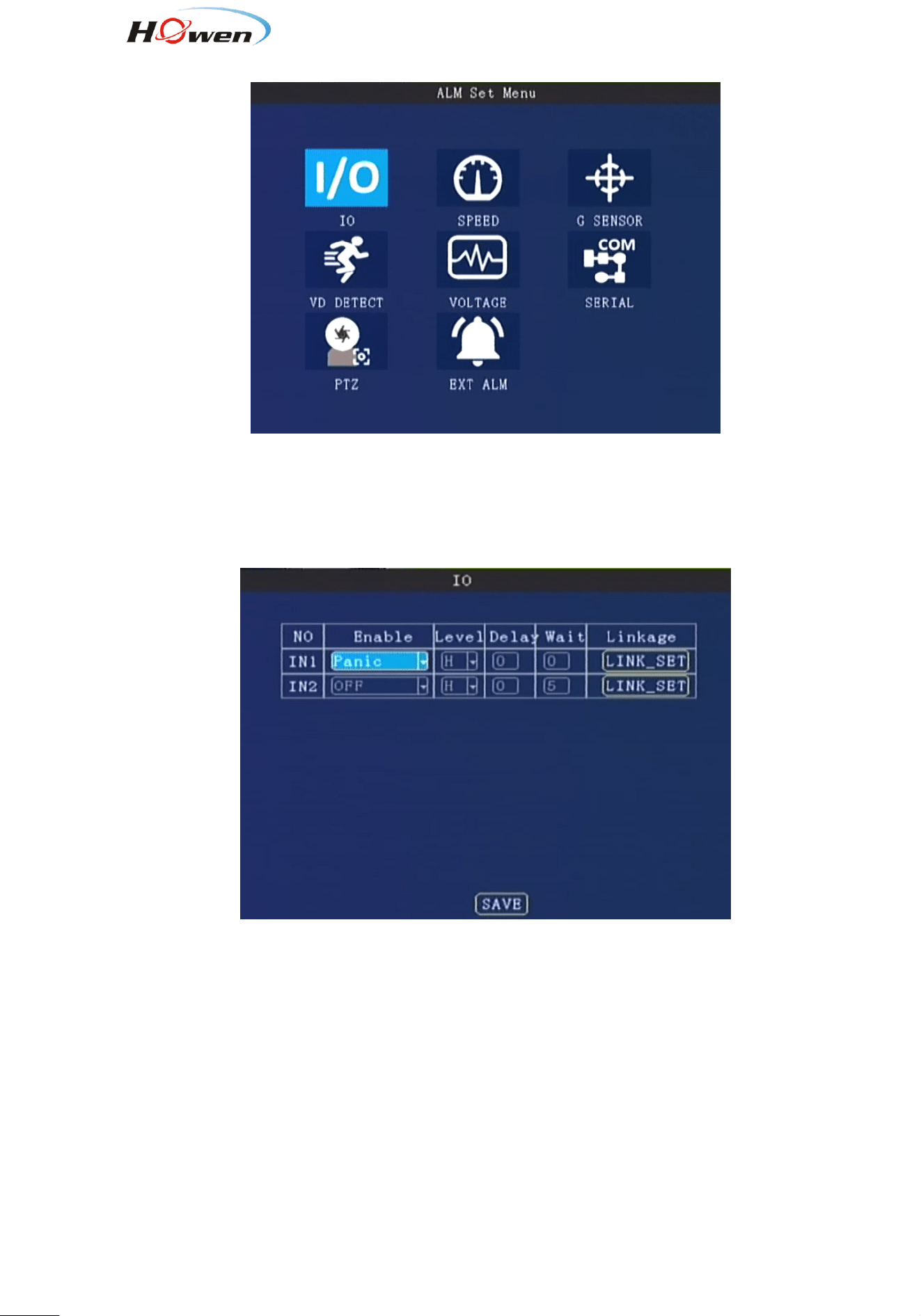
9.2.4.3. Dial settings
Enable: Press【Enter】to select: On / Off.
Net Type: Press【Enter】to select: WCDMA / EVDO / TD-SCDMA / TDDLTE / TDDLTE-1 / TDDLTE-2.
APN.: Set for access the internet, it will not transmit the video if set wrong .
Notice: Each telecom supplier has a different APN , please ask the local supplier first.
Center No. : Default setting is *99#. Please inquiry your supplier if any change.
User name, Password: set up a 3G/4G service user name and password. Also should inquiry your
SIM card supplier!
27
9.2.5. Alarm
Alarms include: I/O alarm, speed alarm, G-sensor, motion detection, alarm voltage, Fatigue,serial
port and PTZ control management.
9.2.5.1. IO Alarm
IO is for generally use (same with the I/O serials cable )
Enable: Press【Enter】 key to select: off / emergency / front door / middle door / back door / driver door
/ other doors / low beam light / high beam light / turn right light / turn left light / brake / back / Customer
definition(Press Info key to call out the keyboard for new firmware).
Level: Press 【Enter】to select: high / low.
High means it will trigger sensor alarm when the voltage of sensor input is changed from 0 to a high
voltage[DC 4V - 12V].
Low means it will trigger sensor alarm when the voltage of sensor input falls from a high voltage[DC
4-12V] to 0 .
Delay: The alarm duration time after trigger source is removed, it is used for setting linkage’s duration
time. During this period, it will not response the new alarm if there is a continuous triggering on the I/O
port.
Wait: The waiting time for trigger in case of mistaken touch.
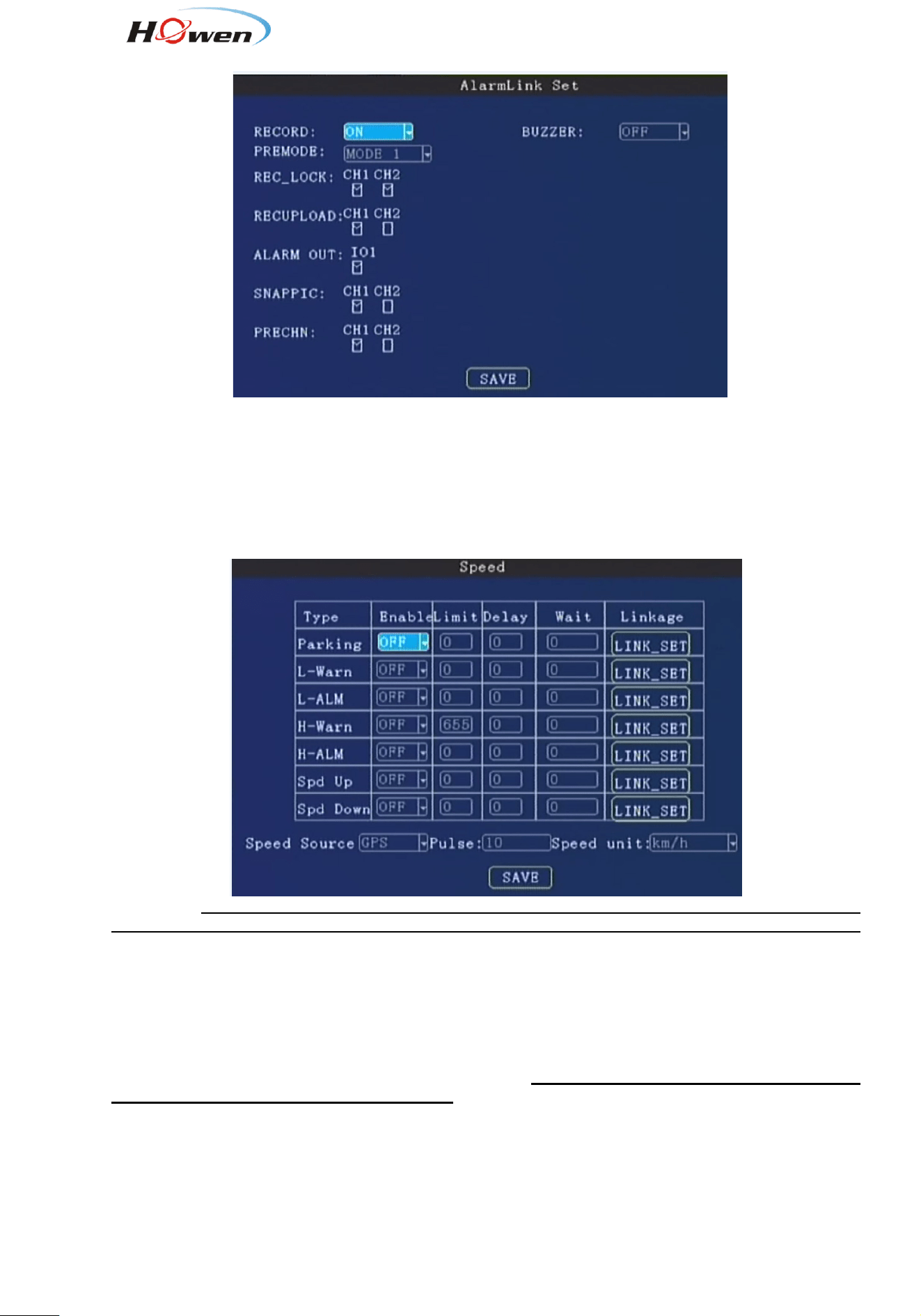
Linkage: Press【Enter】to select, you will see
28
RECORD: ON.
REC_LOCK: The alarm files will be locked in case of been deleted.
ALARM OUT: Choose output1, output2.
SNAPPIC: Take a snapshot. The picture will be saved in the device storage.
PRECHN: Preview channel when the alarm is triggered.
9.2.5.2. Speed Alarm
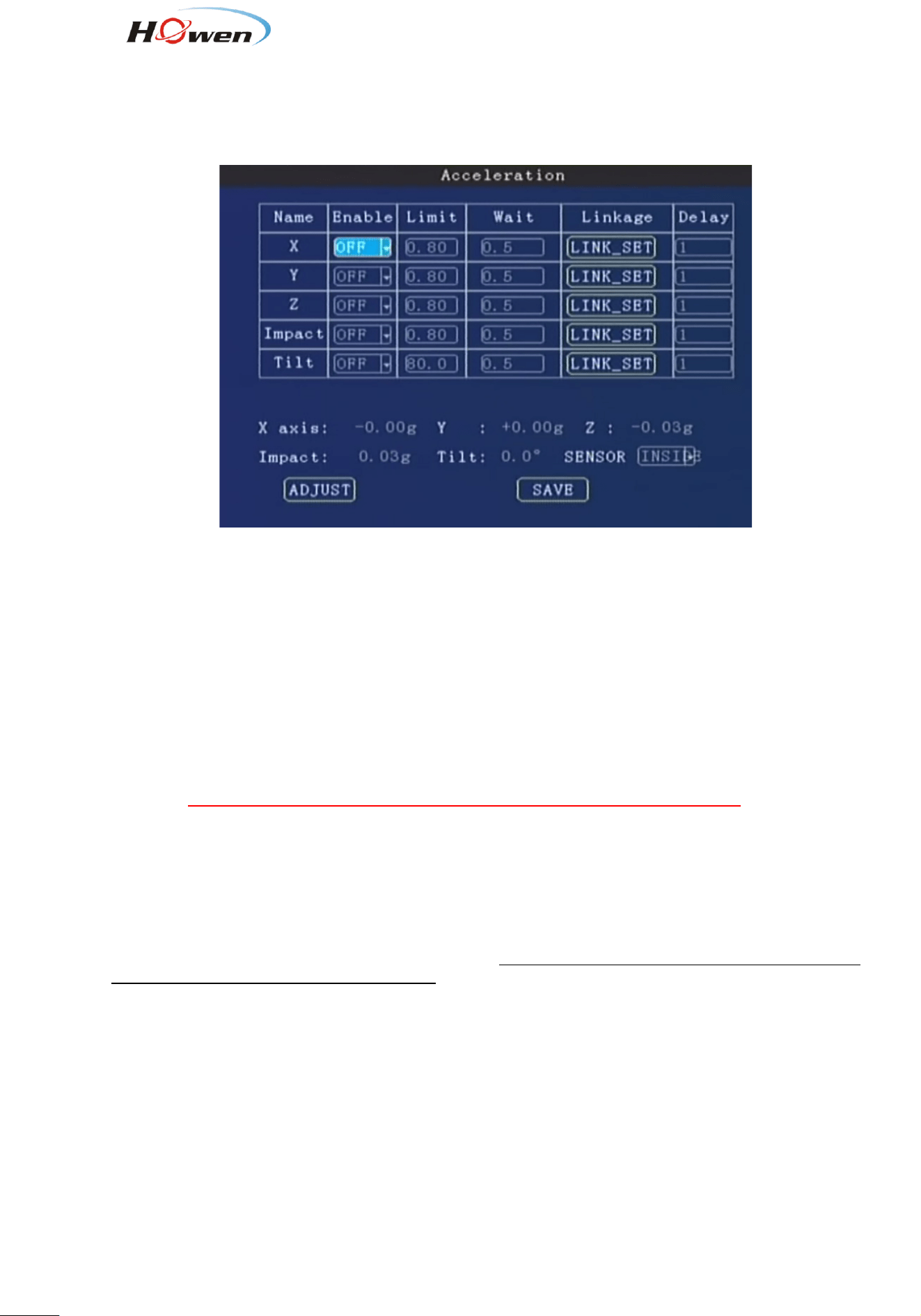
It contains Parking(parking time setting), L-Warn(low-speed warning), L-ALM(low-speed alarm),
H-Warn(high-speed warning), H-ALM(high-speed alarm), Spd Up(speed up) ,Spd Down(speed down)
these seven items.
Set the parameters refer to the following text. When it break the rule ,it will trigger an alarm.
For example , L-ALM(low-speed alarm), set it ON and the Limit value and other settings. If the vehicle
run a speed lower than the Limit value , it will trigger the alarm.
Enable: Press【Enter】to select: On / Off.
Limit: Set a speed value for system judgement.
Delay:Linkage’s duration time. Press number keys to set. During this period, it will not response the
new alarm if there is a continuous triggering.
Wait: The waiting time in case of mistaken judgement or just wait.Press number keys to set.
Record: Turn on/off recording function.Press【Enter】to select: On / Off.
Alarm link: Click it and set it.
Speed Source: Press【Enter】to select: GPS / Vehicle / Mix.
Pulse: Get speed from Pulse. Now this function is reserved.
Speed unit: km/h, MPH, nm/h for option.
For Parking, the Limit is also speed, you need set a speed first, if the vehicle under this speed, the
device will deem it’s parking.
29
For speed up/down, set a value for it. If the vehicle harsh-accelerate or harsh-brake, the system will
compare the current speed with the previous second’s speed all the time. If the change value more than
the setting parameter, It will trigger an alarm.
9.2.5.3. Acceleration
The acceleration alarm first need to get coordinate correction, the vehicle may be parked on level ground
to clear calibration.
Tilt: it refers to a device rollover angle, unit is degree.
Enable:Press【Enter】to select: ON/OFF.
Limit: Set a limited value for system judgement.Press the number keys to enter.
Wait : The waiting time in case of mistaken judgement . Press the number keys to enter.
Record: Turn on/off recording function.Press【Enter】to select: On / Off.
Alarm link: Click it and set it.
Delay:Linkage’s duration time. Press number keys to set.
Adjust: After you install the device, press this button to refresh all parameters to zero.
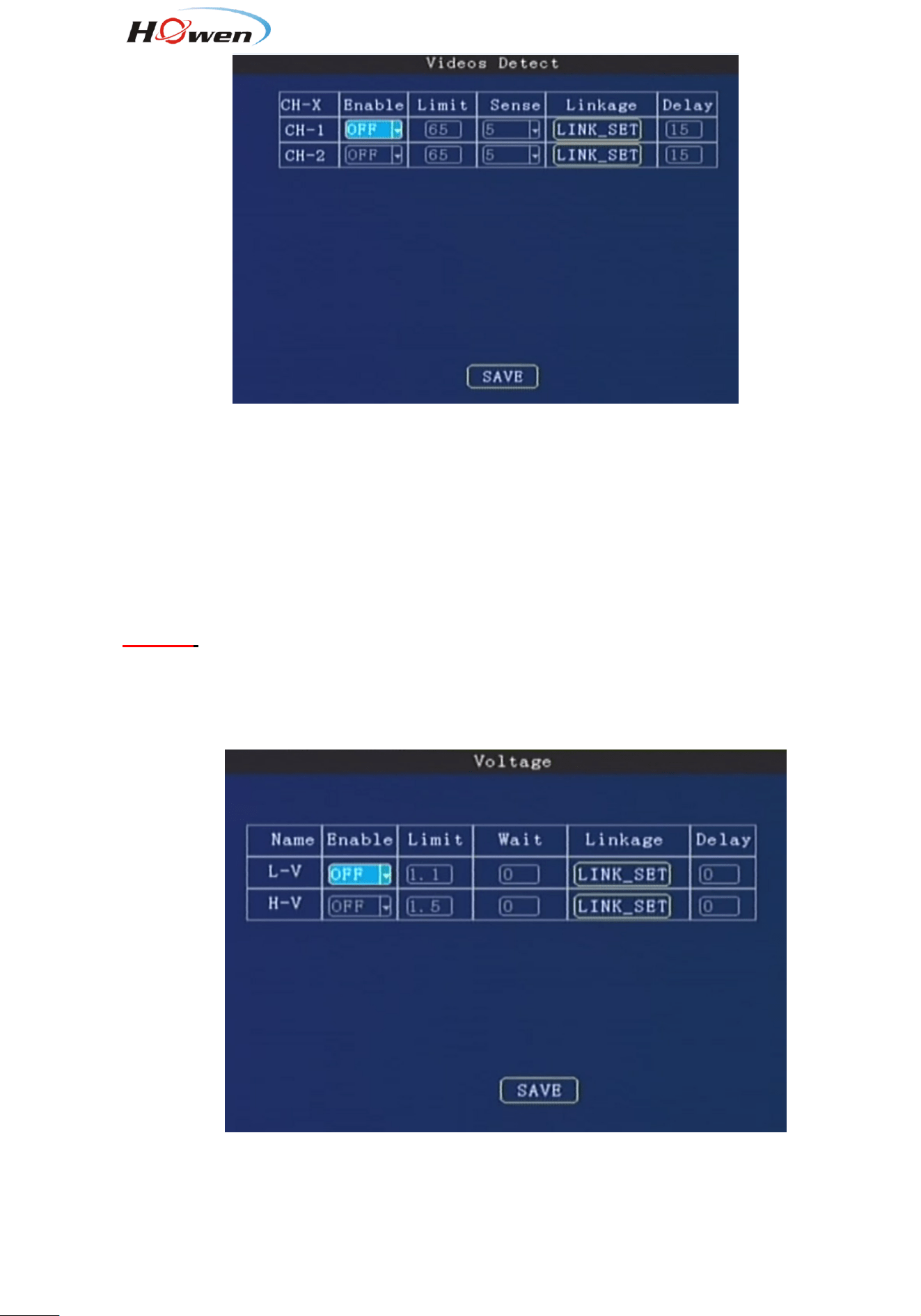
9.2.5.4. Motion Detection
For saving the space of the disk, you can turn on the motion-detect function. It will record only when
camera has detected the movement objects or actions.
Besides, it also supports Occlusion alarm function. You can only choose one of them between Motion
detect and video Occlusion at the same time.
30
Enable:Press【Enter】 select: ON/MOVE/OCC.
Limit: Set the threshold of video area/detection area percentage . Suggest 65.
Sense: Sensitivity , it decides the detection sensitivity level .Press【Enter】 to select: 1-8.
1 is the highest level. Suggest to use 3.
Record: Turn on/off recording function.Press【Enter】to select: On / Off.
Alarm linkage: Press【Enter】to set.
Delay:Linkage’s duration time. Press number keys to set.
Attention:
After you set the parameter, please restart the device.
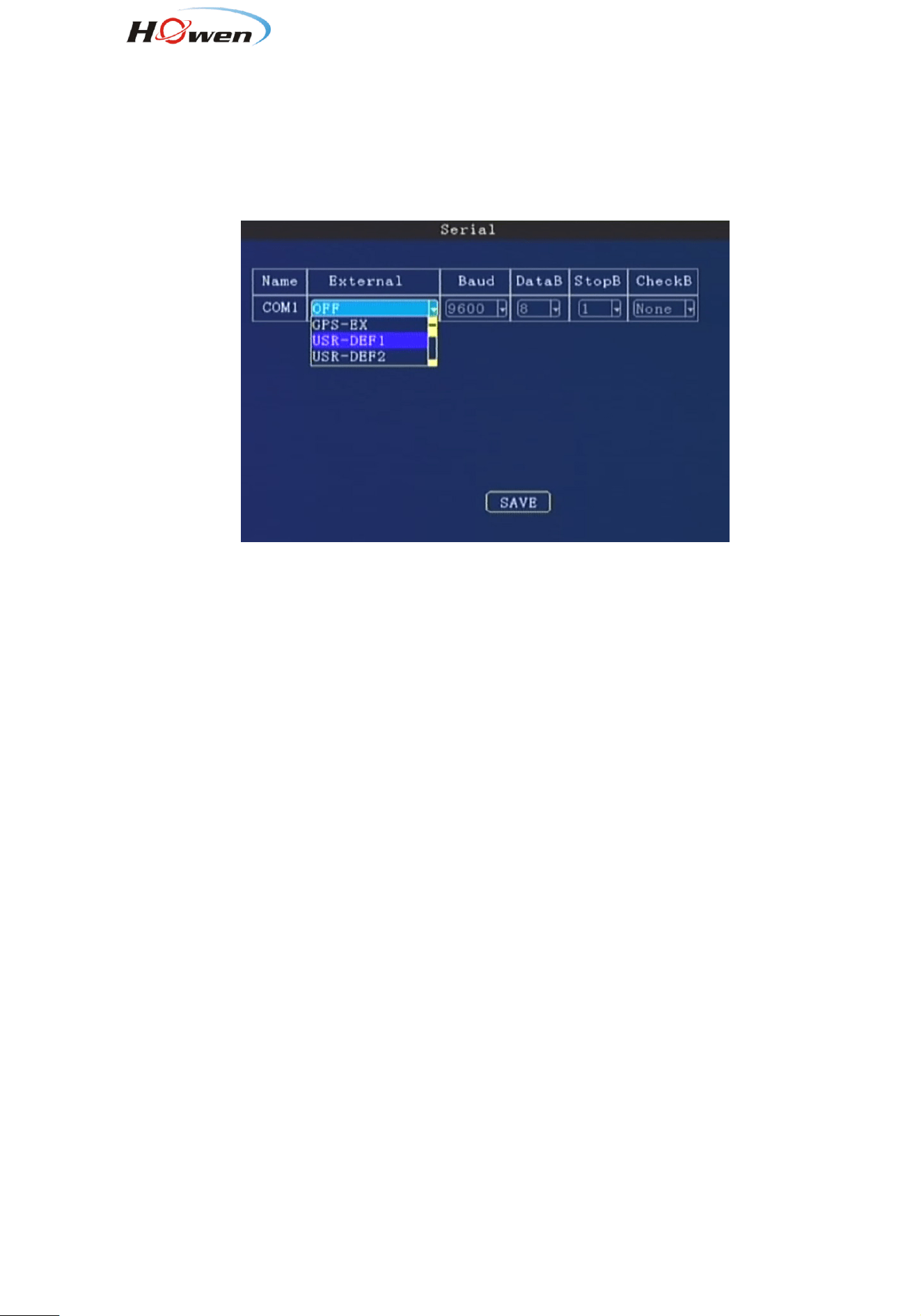
9.2.5.5. Voltage alarm
If the operation voltage is low, it will trigger the alarm. The system can work at 8-36V (The lower voltage,
the more current demanding), it’s better work at 12/24V. So you can set a Limit value first.
Enable:Press【Enter】to select: ON/OFF.
31
Limit: Set the threshold of voltage level .Press the number keys to enter.
Wait: The waiting time in case of system mistaken detection . Press the number keys to enter.
Alarm linkage: Click it and set it.
Delay:Linkage’s duration time. Press number keys to set.
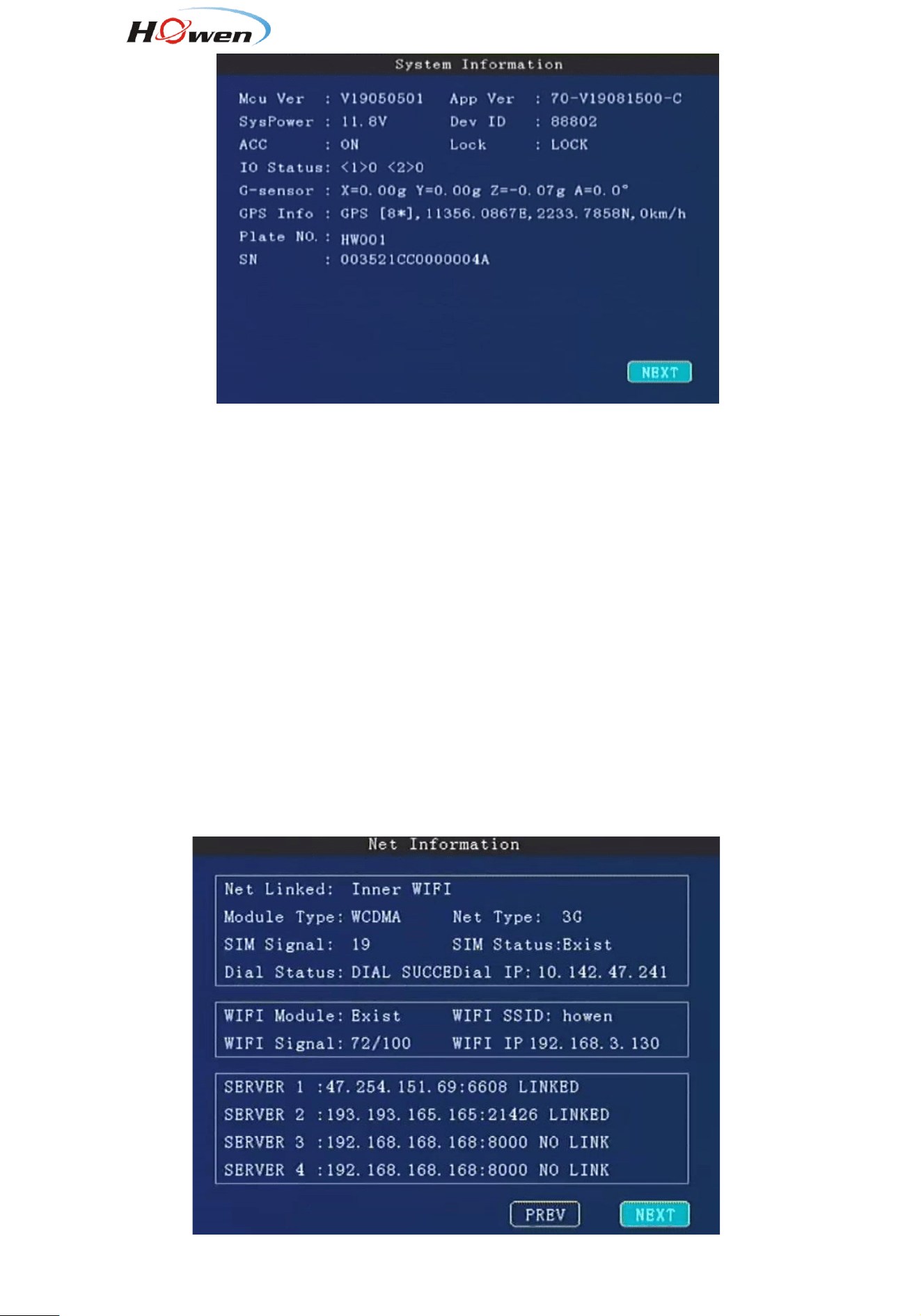
9.2.5.6. Serial
Com port means the RS232 communication ports, it’s used for connecting the accessory, such as fuel
level detection, IC card reader, fatigue driving camera, people counting etc.
For different external device, the setting is different. We will provide the corresponding installation
manual for reference.
External: Press【Enter】to select accessory type.
Baud Rate: Press【Enter】to select: 600/1200/1800/2400/4800/9600/19200/38400/57600/115200
Data Bit: Press【Enter】to select:6/7/8
Stop Bit:Press【Enter】to select: 1/1.5/2
Check Bit: Press【Enter】to select: Even/Odd/None/Mark/Space
9.2.5.7. PTZ Control---Not Available
9.2.6. System Info
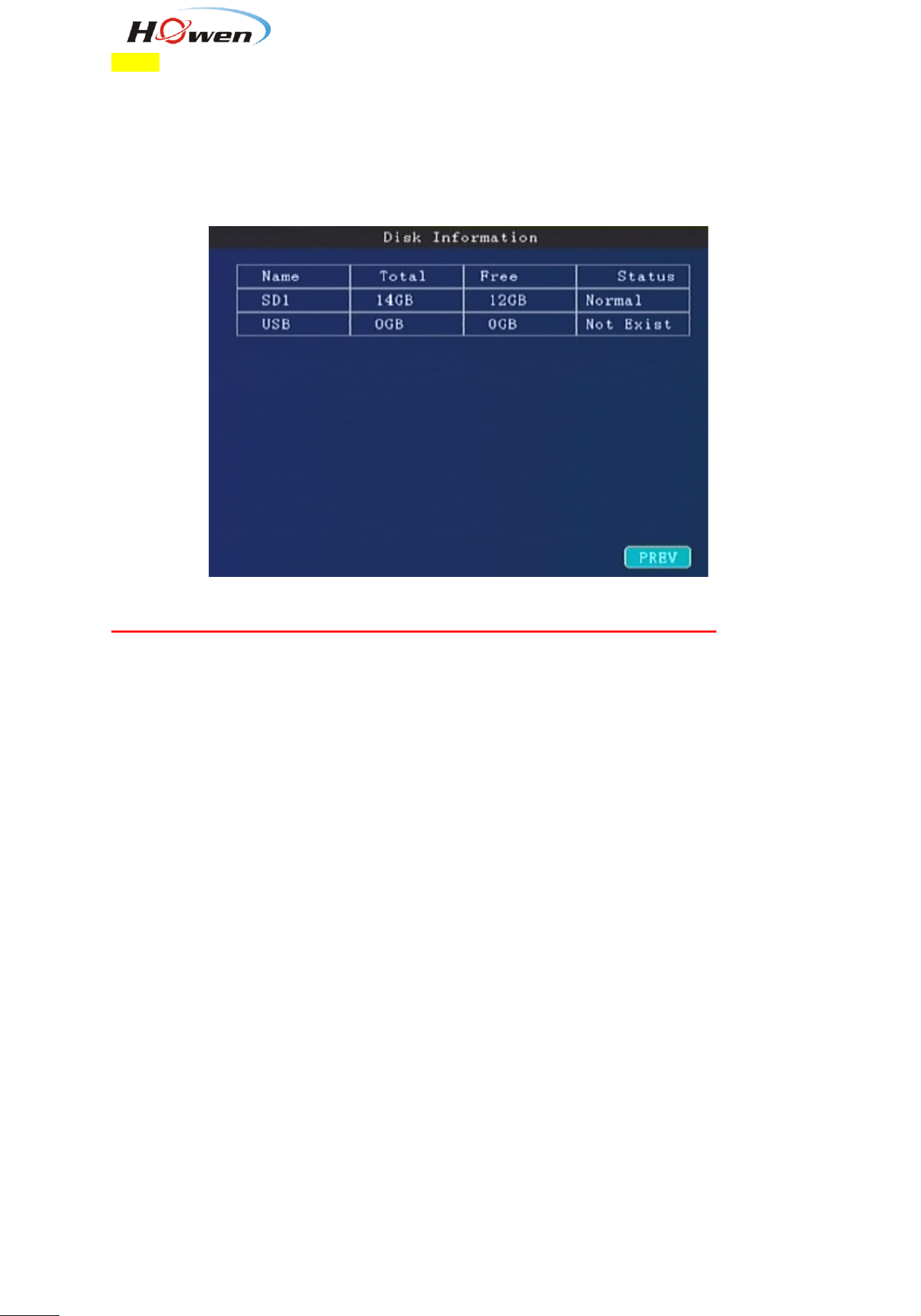
The shortcut key is info key on the remote, press UP or DOWN key to switch the information interface. It
will show the whole information about the device status.
32
The important information as following:
MCU version : CPU firmware version
APP Version: The current firmware version.
System power: The device current operation voltage.
Phone NO.: Device ID actually.
I/O status:Check the I/O electrical level status.1 is high, 0(lower than 3V) is low. You can check after
device had connected an I/O device, such as, a panic button.
G-sensor: It shows the G-sensor value. Move the MDVR check if this value is changing.
GPS info : It will show as GPS[*N] + Location data, N is satellite numbers, more than 3 is normal.
No work: there is no GPS signal.
None/Not exist:GPS module is not detected by device.Please restart device or update firmware to try.
Click NEXT, it will display the Net information
In the info2 interface :
Net linked : Show the current connection method :
3G( the device is linking with 3G).
Wired(the device is linking by net cable)
33
3G/4G:
Module Type :WCDMA/FDD-LTE/TD-LTE
SIM Signal:Signal intensity.
SIM status:If there is no SIM card or the system have not detected the SIM card, it will show Not exist.
Dial status: Dial Fail or success.
Dial IP: If dial success, it will show the dial IP address. If failed, you should check the 10.2.4.3 Dial
setting.
Click NEXT, it will display the disk information;
Disk storage : Check the status of disk or a USB storage driver .
If there is problem with device , please check these information interface first .

FCC Statement
This equipment has been tested and found to comply with the limits for a Class
B digital device, pursuant to part 15 of the FCC rules. These limits are
designed to provide reasonable protection against harmful interference in a
residential installation. This equipment generates, uses and can radiate radio
frequency energy and, if not installed and used in accordance with the
instructions, may cause harmful interference to radio communications.
However, there is no guarantee that interference will not occur in a particular
installation. If this equipment does cause harmful interference to radio or
television reception, which can be determined by turning the equipment off and
on, the user is encouraged to try to correct the interference by one or more of
the following measures:
-
Reorient or relocate the receiving antenna.
-Increase the separation between the equipment and receiver.
-Connect the equipment into an outlet on a circuit different from that to which
the receiver is connected.
-Consult the dealer or an experienced radio/TV technician for help.
To assure continued compliance, any changes or modifications not expressly
approved by the party.
Responsible for compliance could void the user’s authority to operate this
equipment. (Example- use only shielded interface cables when connecting to
computer or peripheral devices).
Any Changes or modifications not expressly approved by the party responsible
for compliance could void the user's authority to operate the equipment.
This equipment complies with Part 15 of the FCC Rules. Operation is subject
to the following two conditions:
(1) This device may not cause harmful interference, and
(2) This device must accept any interference received, including interference
that may cause undesired operation.
FCC Radiation Exposure Statement:
The equipment complies with FCC Radiation exposure limits set forth for
unc
ontrolled enviroment. This equipment should be installed and operated with
minimum distance 20cm between the radiator and your body.