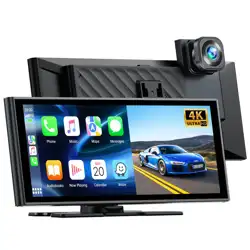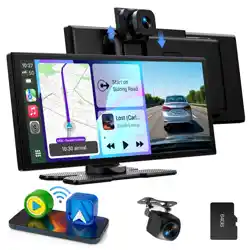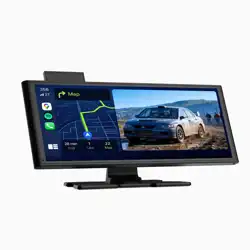

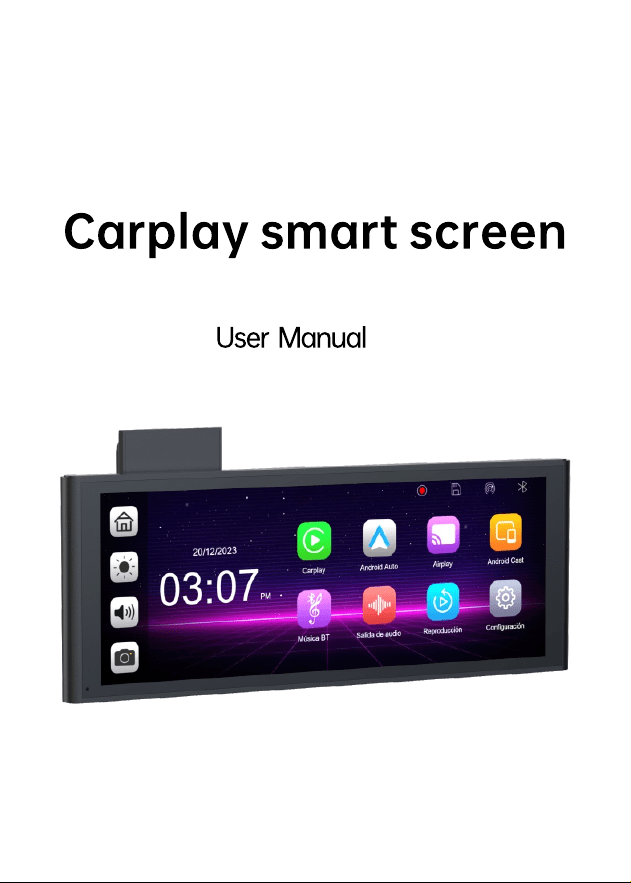
4K DVR

NO:20240704

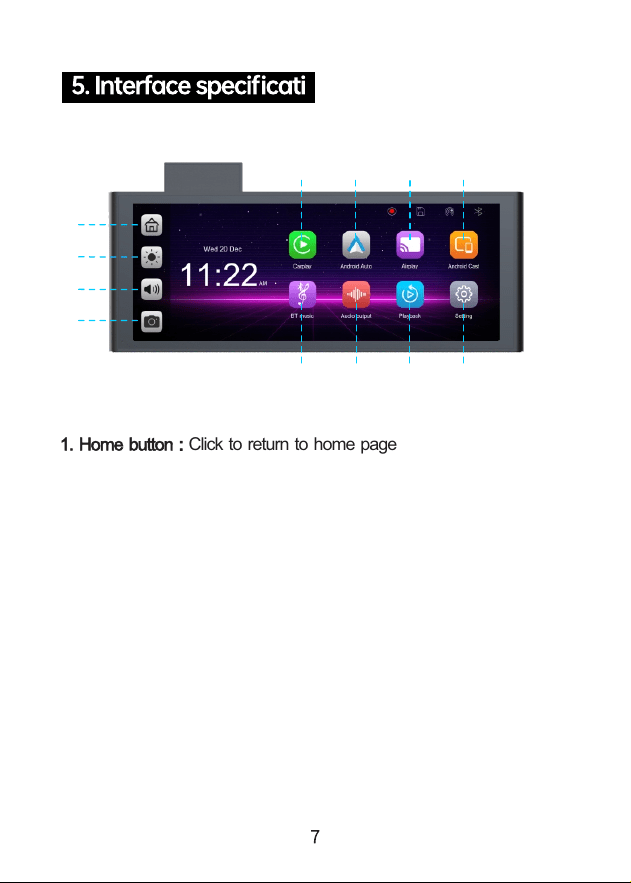
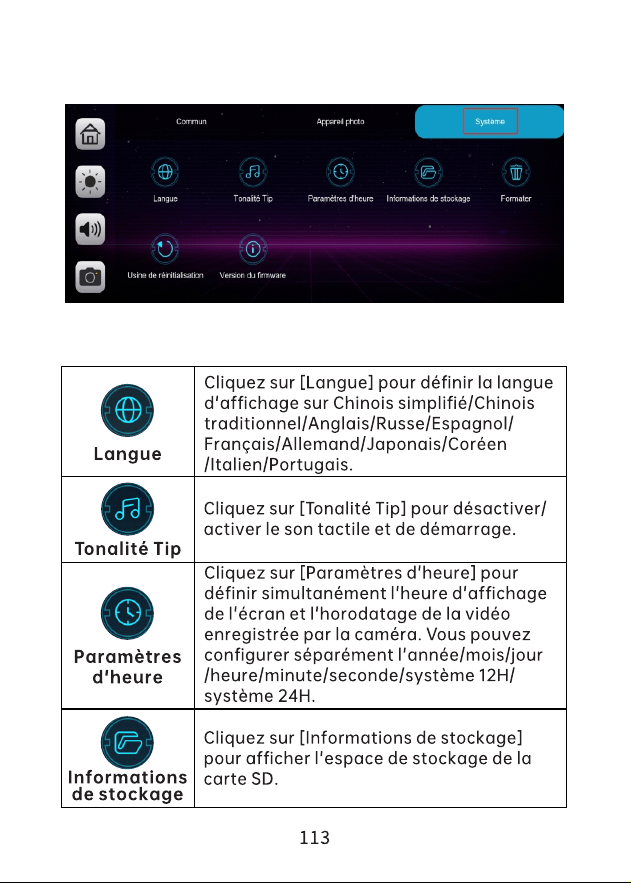
1. Home button : Click to return to home page
2. Brightness button : Click to adjust screen brightness
3. Volume button : Click to adjust the volume
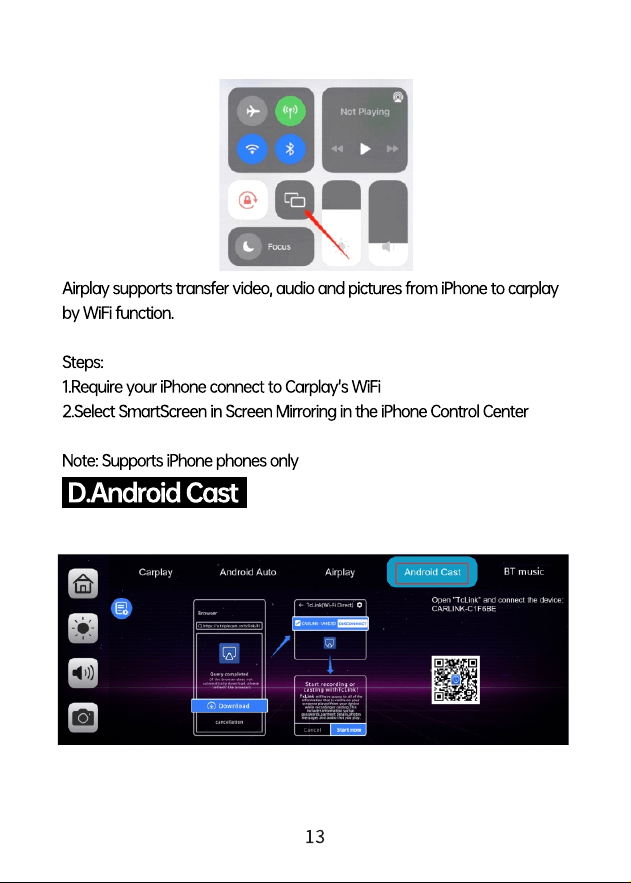
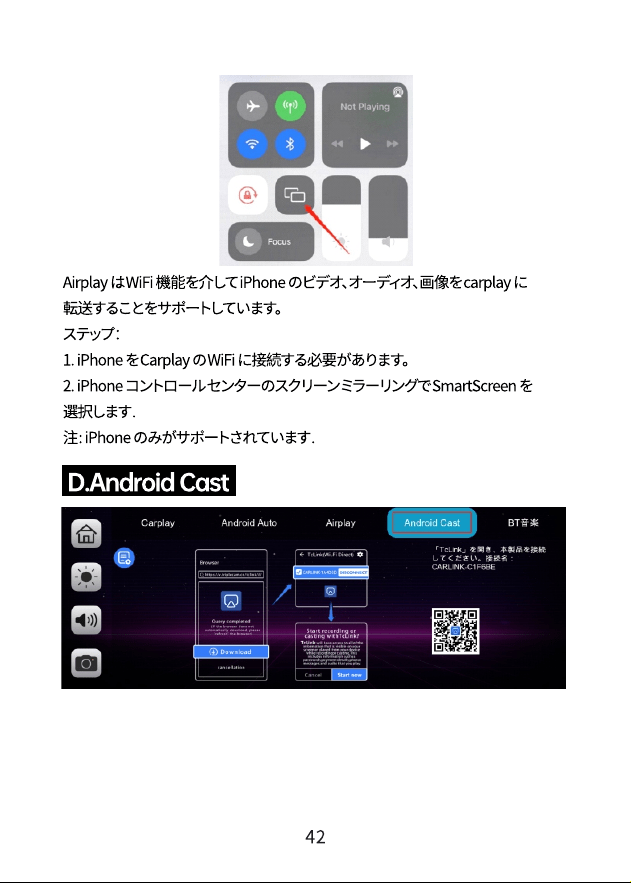
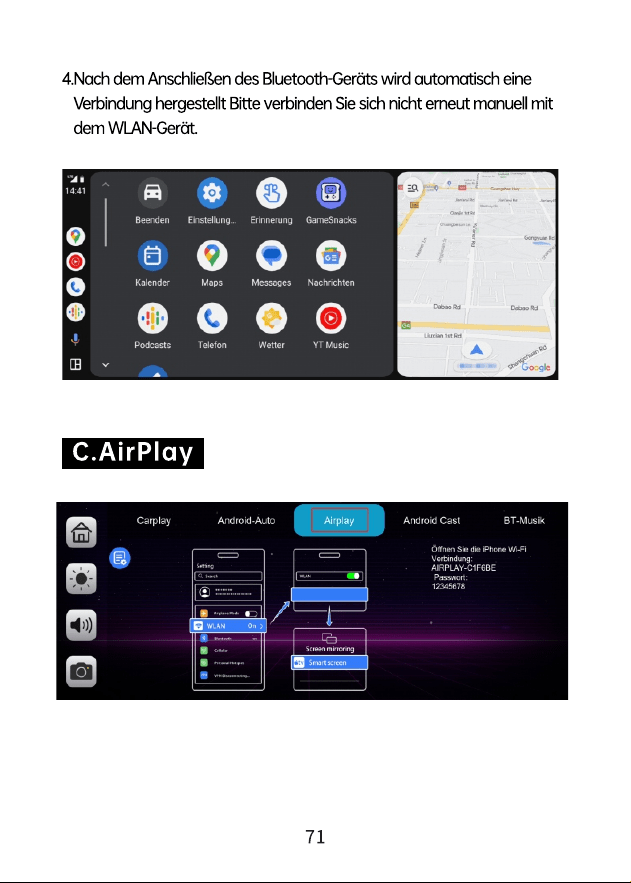
7. Apple AirPlay : Share videos, photos, music, and more from
iPhone to the Screen
5. Apple CarPlay : Click to connect to the Apple Carplay of
the iPhone
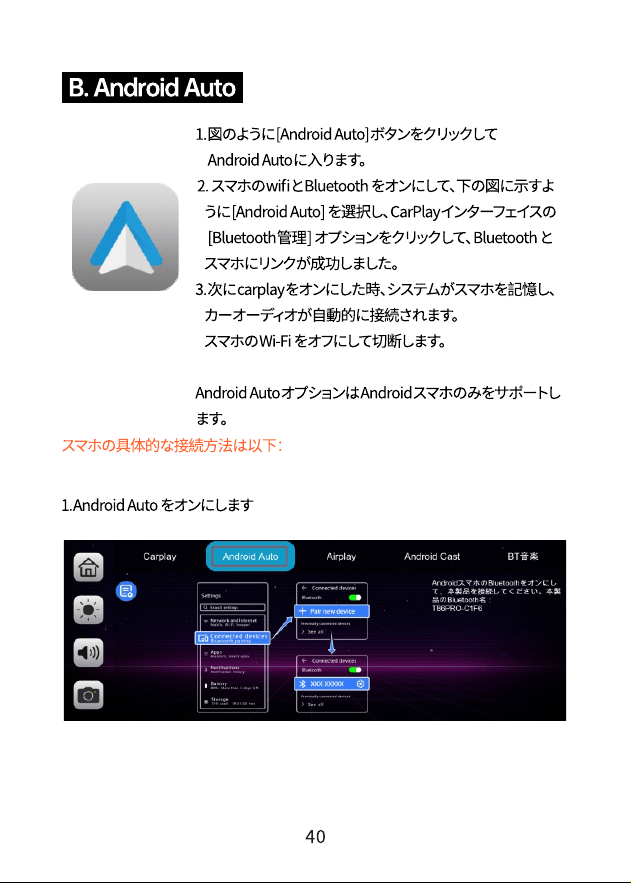
6. Android Auto : Click to connect to the Android Auto of
the Android mobile phone
4. DVR : Click to enter the video recording interface
9101112
5 6
7
8
1
2
3
4

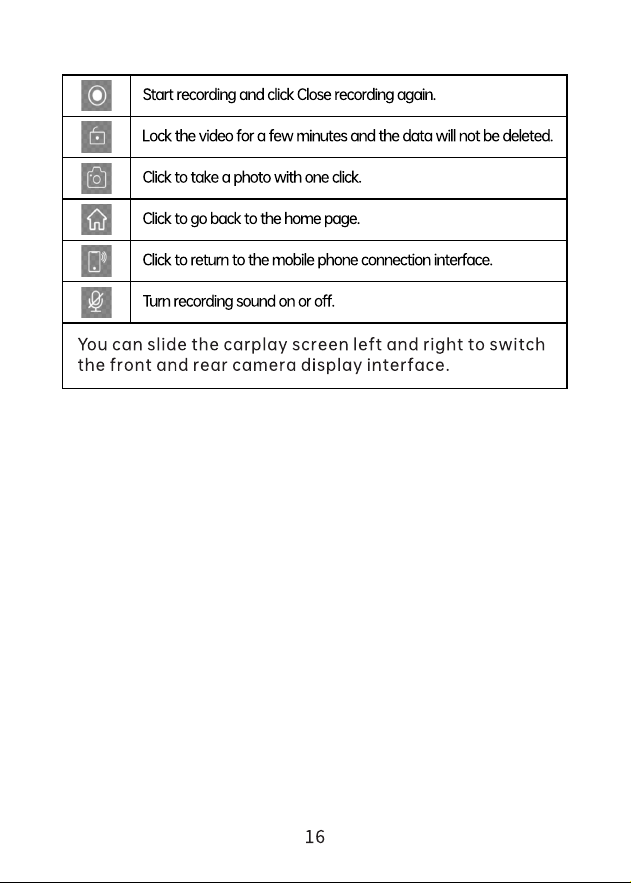
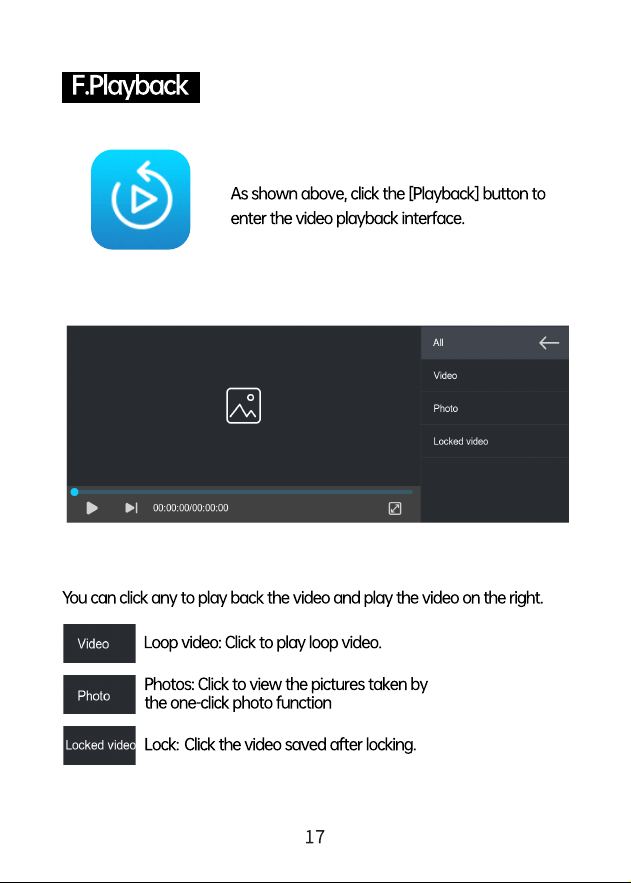
10. Playback : Click to view Recording videos on the screen
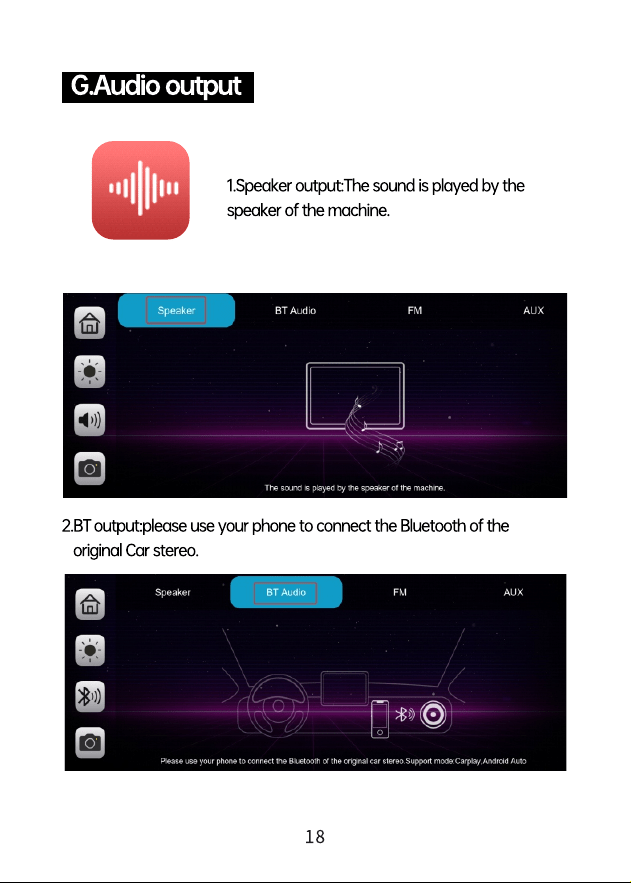
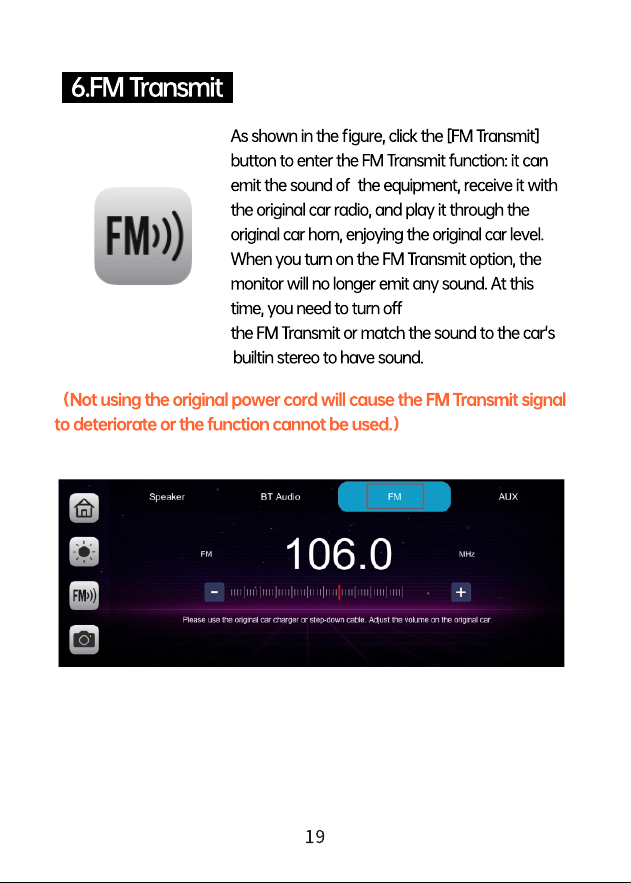
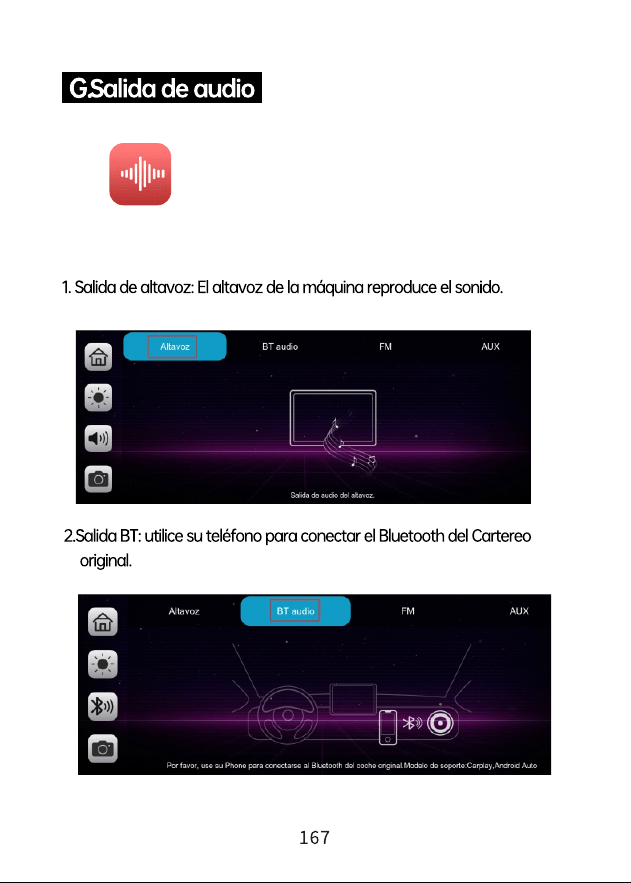
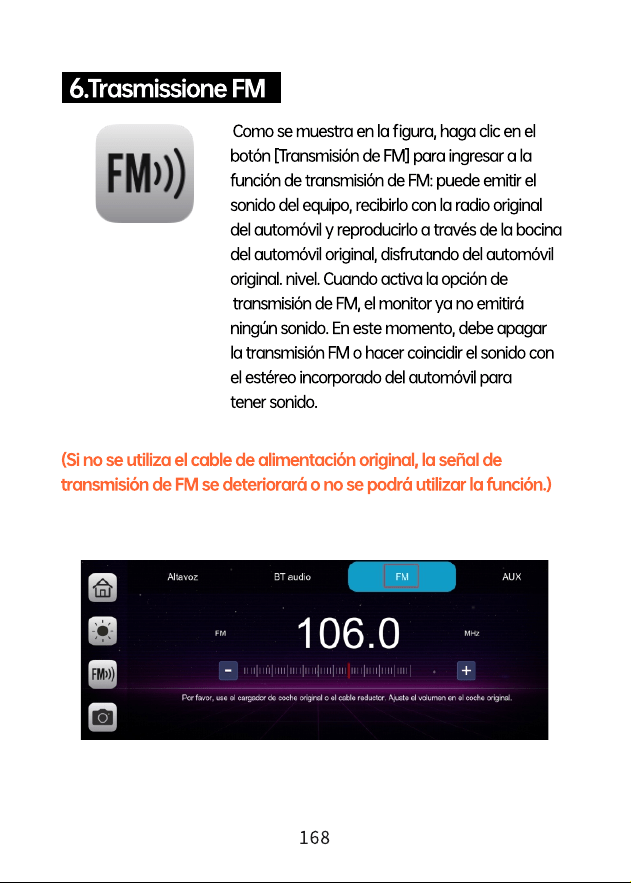
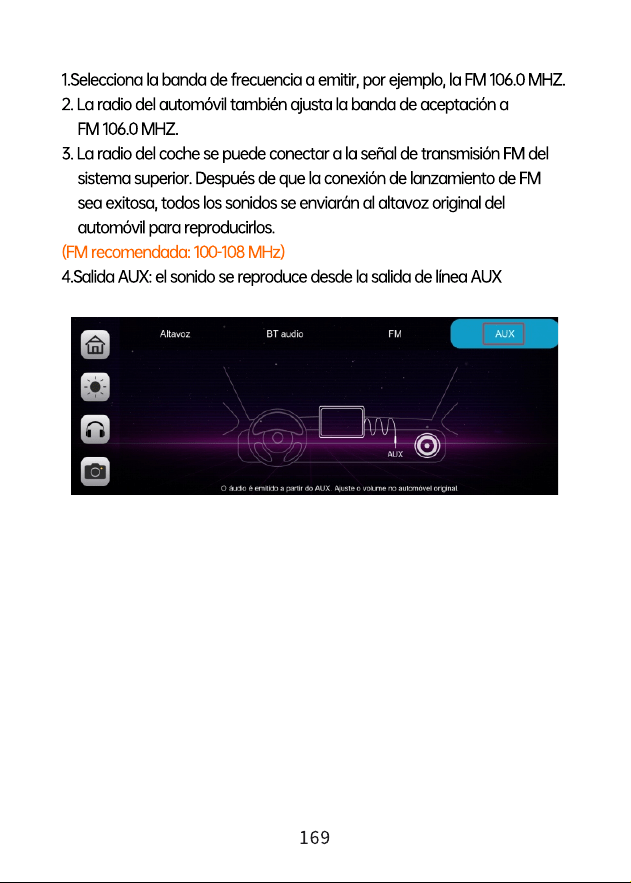
11. Audio output : Click to select the sound playing mode
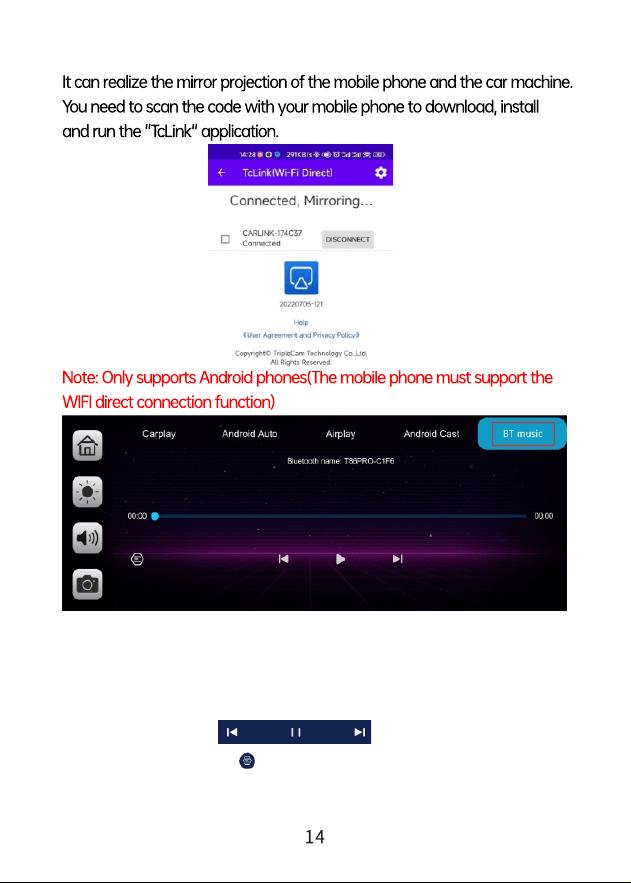
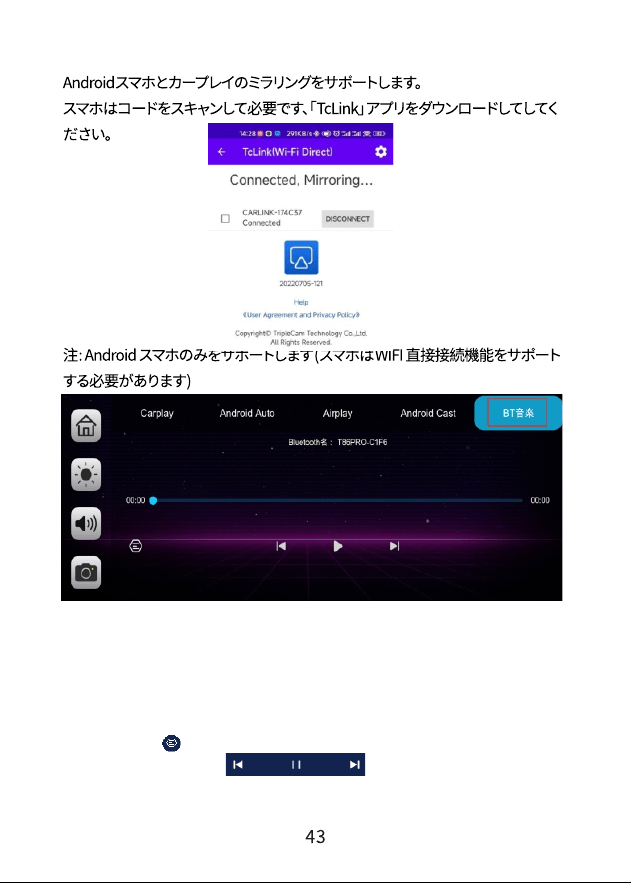
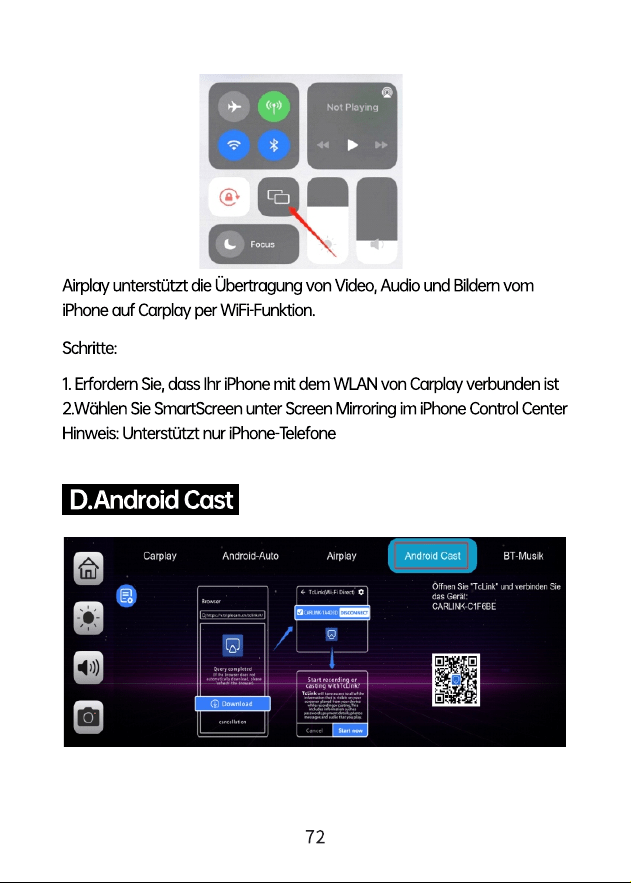
8. Android Cast : Share videos, photos, music, and more from
Android phones to the Screen
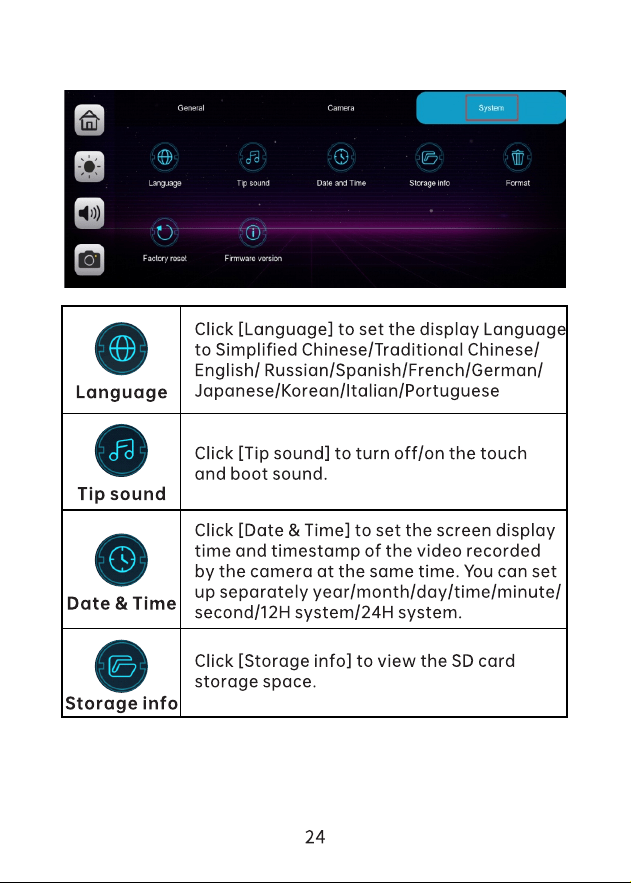
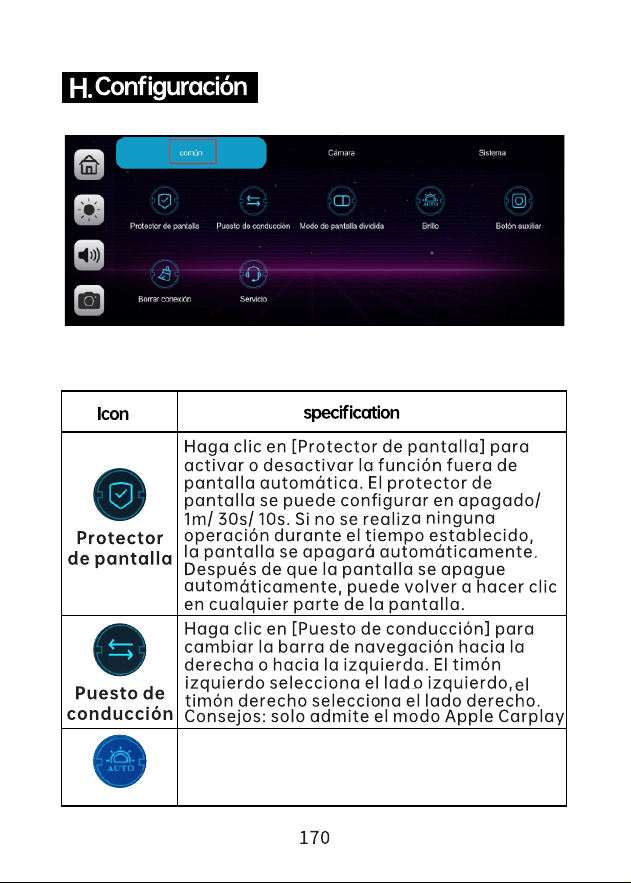
9. Setting : Click to enter the System setting interface to set the
screen
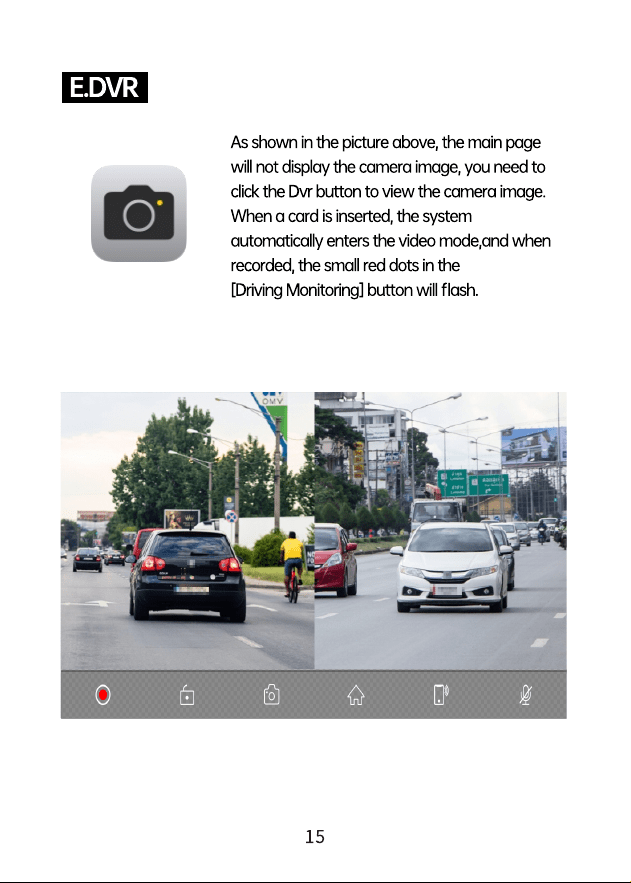
12. Bluetooth music : Use your mobile phone to connect to a
Bluetooth device and play music.
xxxx-xxxx
AIRPL AY-C1F6BE
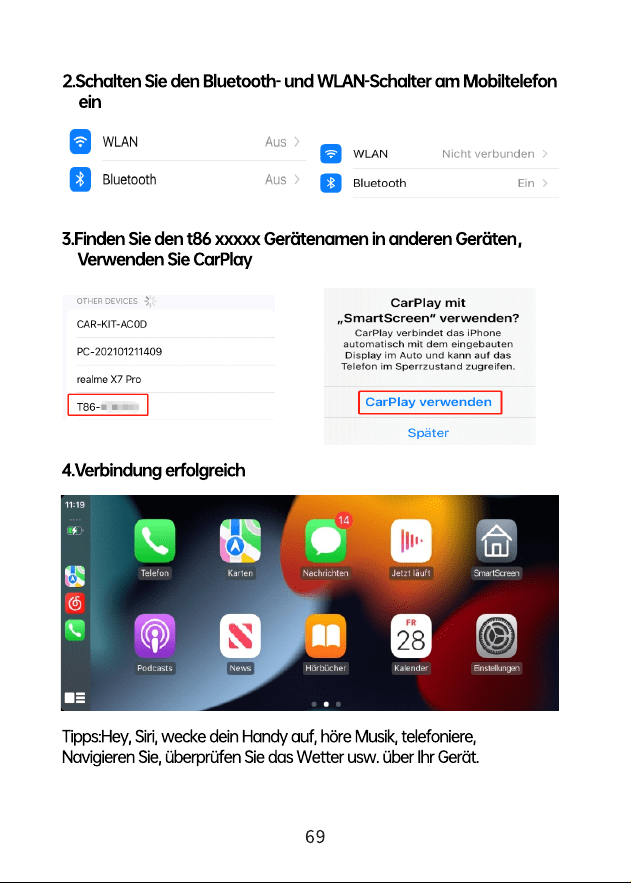
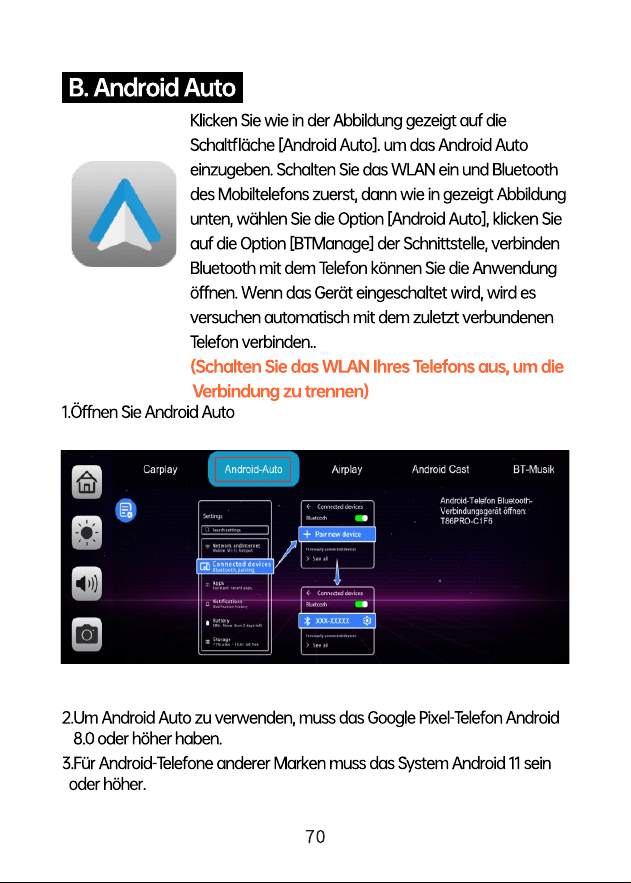
You can find Bluetooth Music by clicking the button Apple CarPlay or Android
Auto. Turn on Bluetooth of the mobile phone first, and select [Bluetooth Music]
option. Click the [BT Manage] option on the interface to connect Bluetooth to
the mobile phone and start playing music.
The buttons correspond to Last, Play / Pause and Next, respectively.
Click on the Lyrics button [ ] to display the lyrics.
(Some mobile music player apps do not support displaying lyrics)
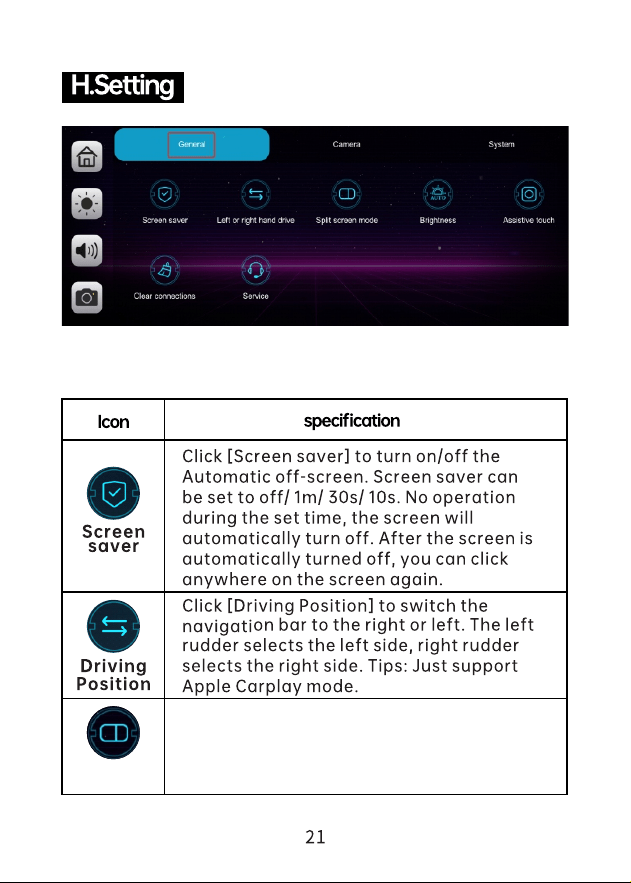
Split screen
mode
Click [Split screen mode] to enter the split
screen or full-screen mode after connecting
to the mobile phone.
Brightness
Click [Brightness] to turn on/off automatic
brightness adjustment
4. 4K
Collision
Sensitivity
Click [Collision Sensitivity] to set the
sensitivity Off/Low/Middle/High



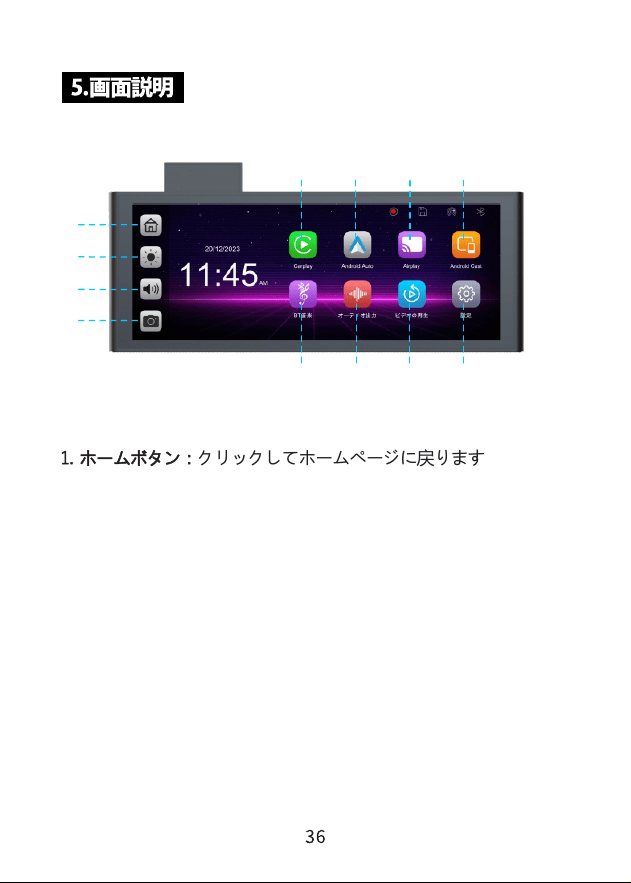
クリックしてホームページに戻ります1. : ホームボタン
2. 明るさボタン : クリックして画⾯の明るさを調整します
3. ⾳量 : クリックして⾳量を調整します
5. Apple CarPlay : iPhoneスマホと接続専⽤APP
6. Android Auto : Android スマホと接続専⽤APP
7. Apple AirPlay : iPhoneのみミラーリング
4. カメラ : カメラの画面を確認する
8. Android Cast : Android すまほん用スマホミラーリング
9101112
5 6
7
8
1
2
3
4

10. オーディオ出⼒ : クリックしてオーディオ出⼒モ
ードを選択できます
11. ビデオを再生 : クリックしてビデオ画面でビデオを表示します
9. 設定 : クリックして設定ページに⼊ります
12. Bluetooth ⾳楽: 携帯電話を使⽤して Bluetooth デバイスに接続
し、⾳楽を再⽣します
xxxx-xxxx
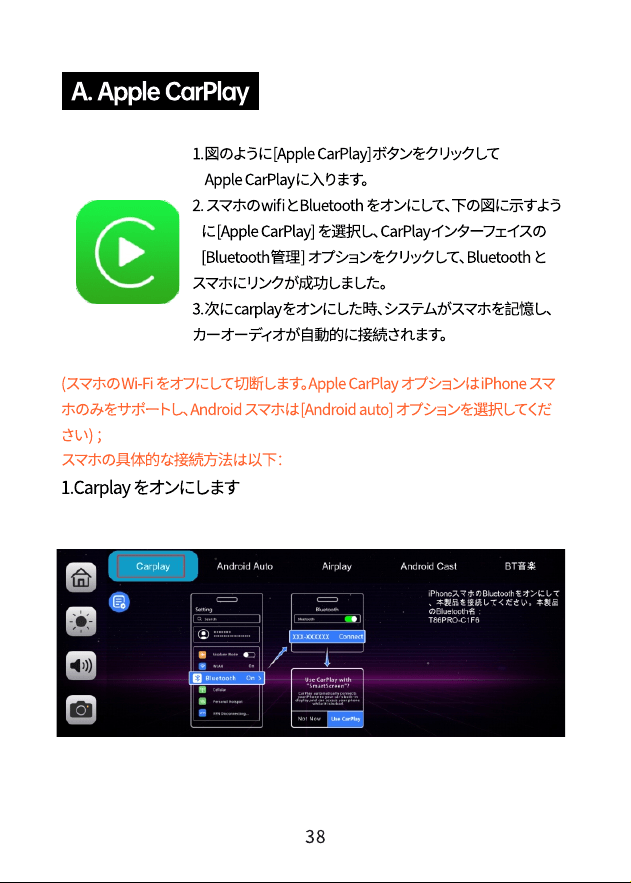
1. Apple CarPlayまたはAndroid Auto をクリックして、Bluetooth ⾳楽オプション
を⾒つけます、[Bluetooth管理] をクリックして、デバイス名前を確認してください。
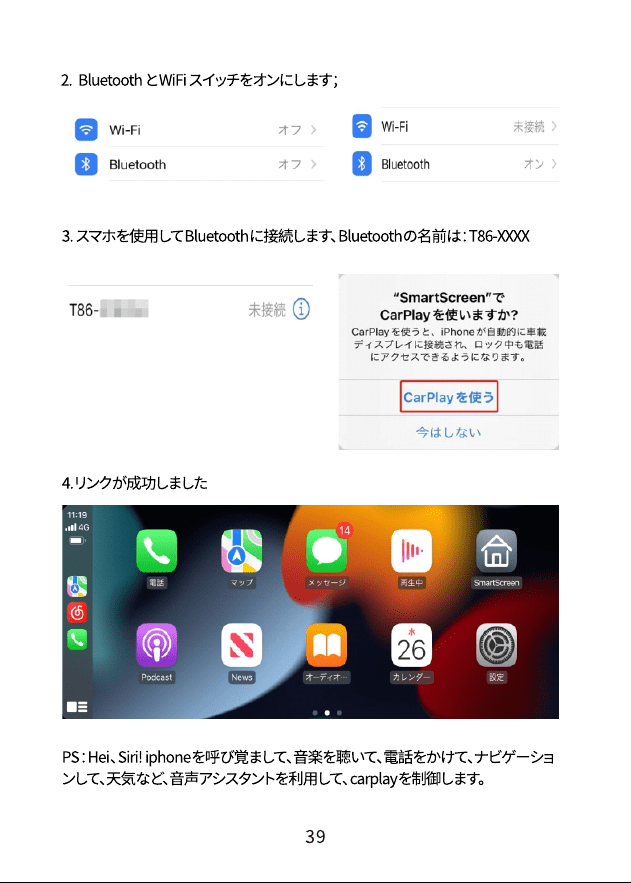
2. スマホのWIFI をオフにし、スマホのBluetooth をオンにして、[Bluetooth ⾳楽
のデバイス名前] を選択します。
3. Bluetooth を携帯電話に接続して、⾳楽の再⽣を開始します。
これらのボタンは、[前へ]、[再⽣/⼀時停⽌]、および[次へ] に対応していま
す歌詞ボタン[ ]をクリックすると、歌詞が表⽰されます。
(マホの⾳楽プレイヤーアプリは歌詞表⽰に対応していません)
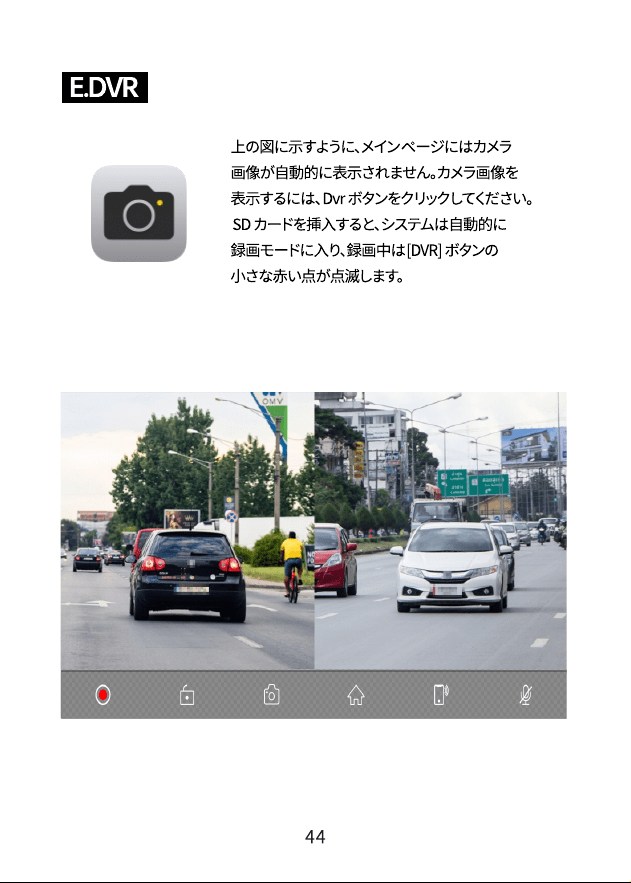
分割画面
モード
携帯電話に接続した後、[分割画面モード]をクリックし
て分割画面または全画面モードに入ります
輝度
をクリックして、自動調節をオン/オフす
ることができます。
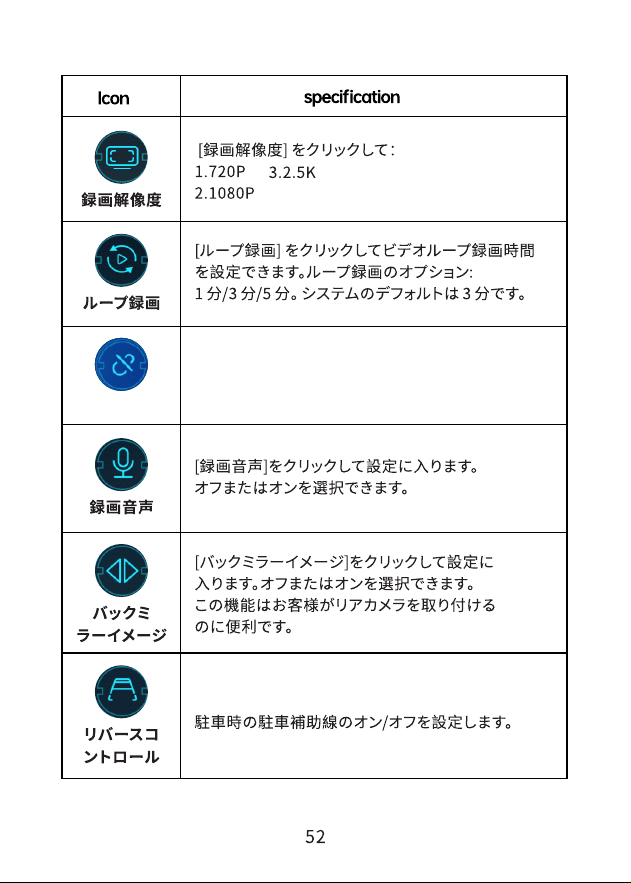
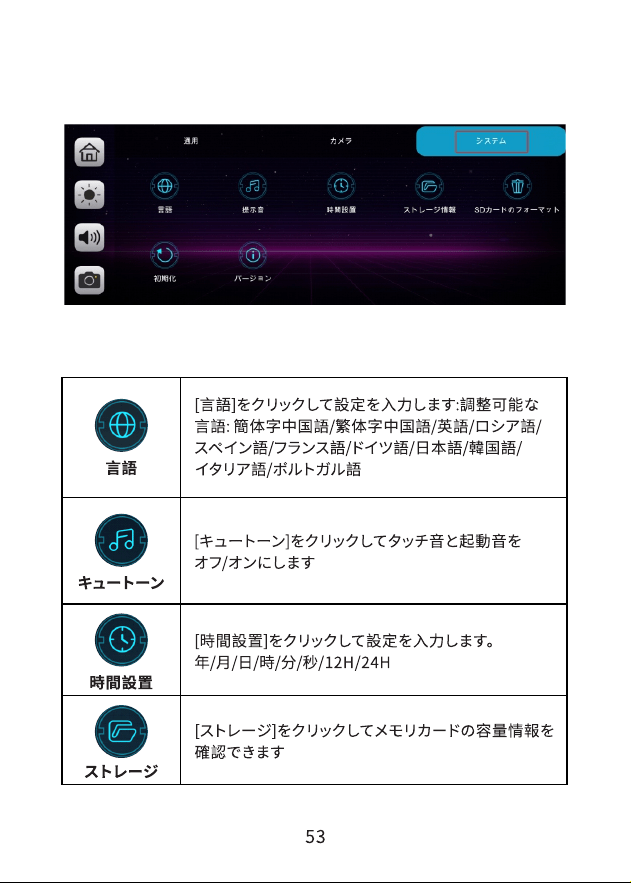
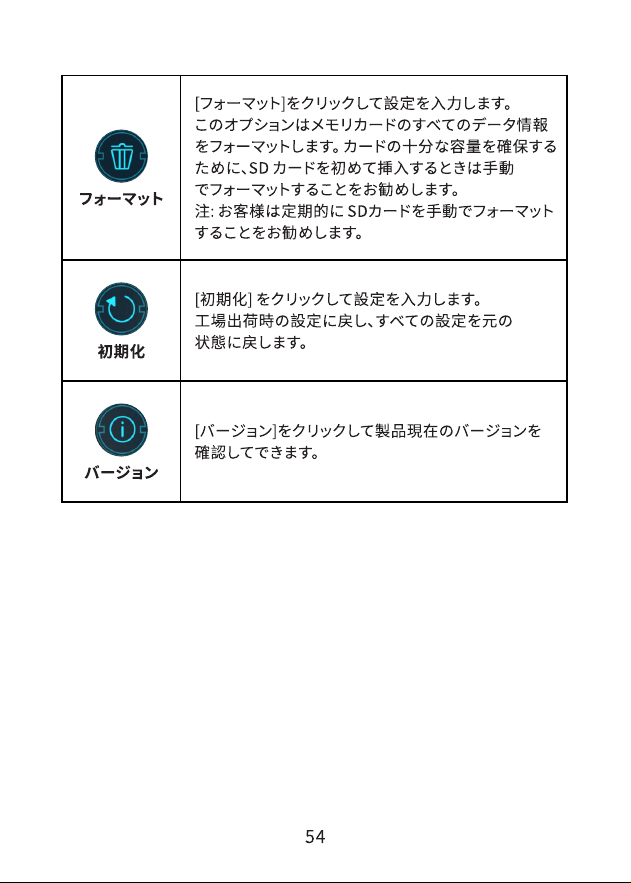
衝突感度
[衝突感度]をクリックして感度のオフ/中/高
を設定します。
4.4K




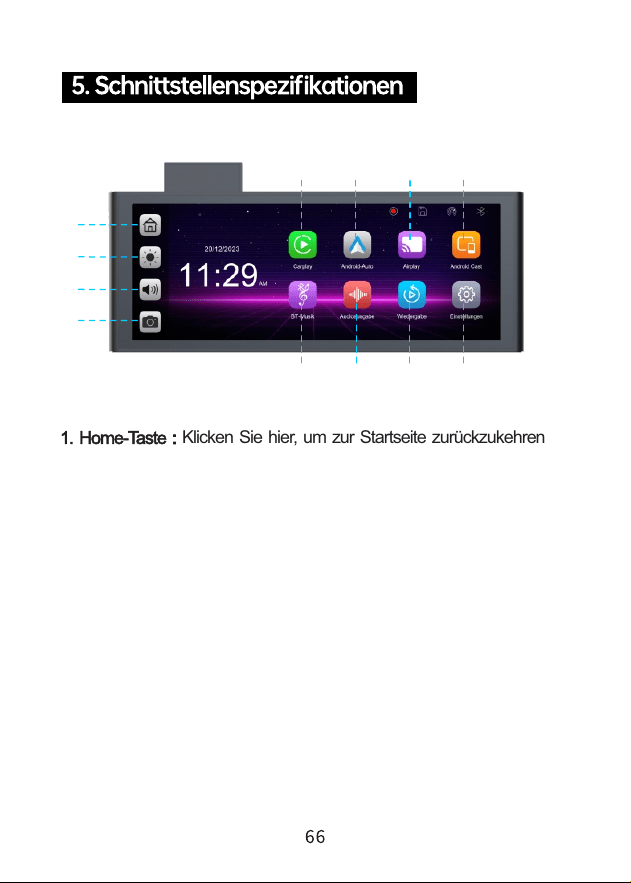
1. Home-Taste : Klicken Sie hier, um zur Startseite zurückzukehren
2. Helligkeitstaste : Klicken Sie hier, um die Bildschirmhelligkeit
anzupassen
4. DVR : Klicken Sie hier, um die
Videoaufzeichnungsoberflächeaufzurufen
5. Apple CarPlay : Klicken Sie hier, um eine Verbindung zum
Apple CarPlay des iPhone herzustellen
3. Lautstärketaste : Klicken Sie hier, um die Lautstärke
anzupassen
6. Android Auto : Klicken Sie hier, um eine Verbindung zu
Android Auto des Android-Mobiltelefons herzustellen
9101112
5 6
7
8
1
2
3
4

7. Apple AirPlay : Teilen Sie Videos, Fotos, Musik und mehr
vom iPhone auf dem Bildschirm
8. Android Cast : Teilen Sie Videos, Fotos, Musik und mehr
vom Android-Telefon auf dem Bildschirm
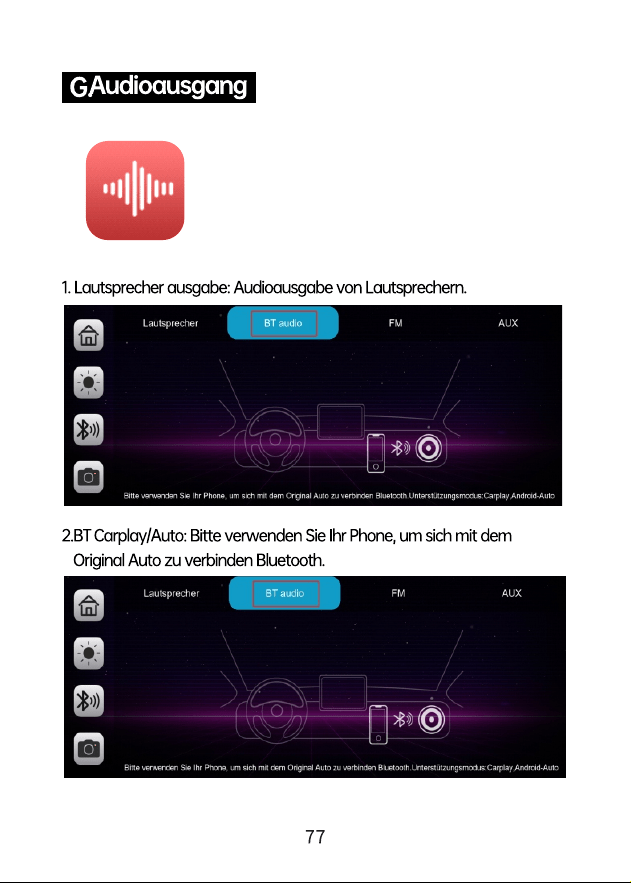
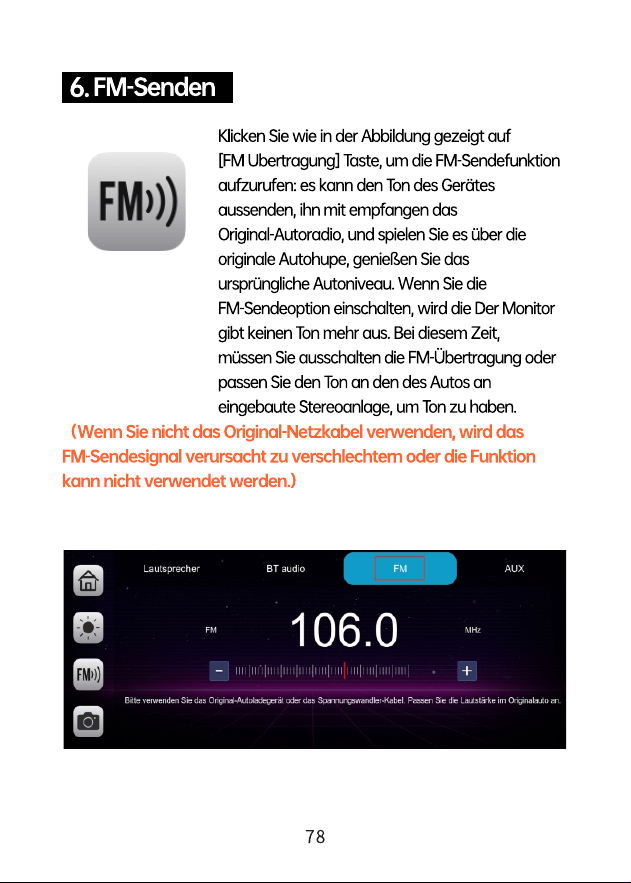
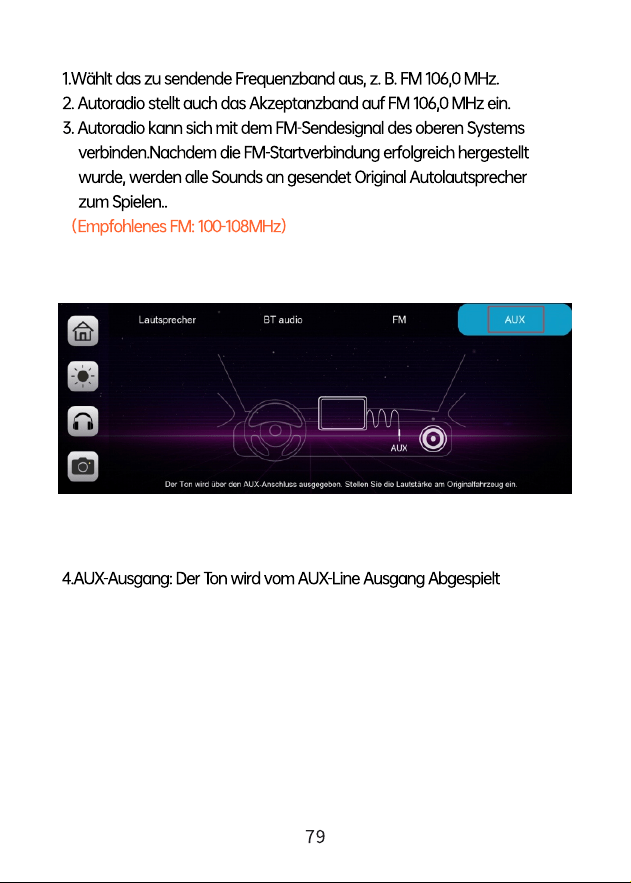
11. Audioausgabe : Klicken Sie, um den
Tonwiedergabemodus auszuwählen
10. Wiedergabe : Klicken Sie, um Aufnahmevideos auf dem
Bildschirm anzuzeigen
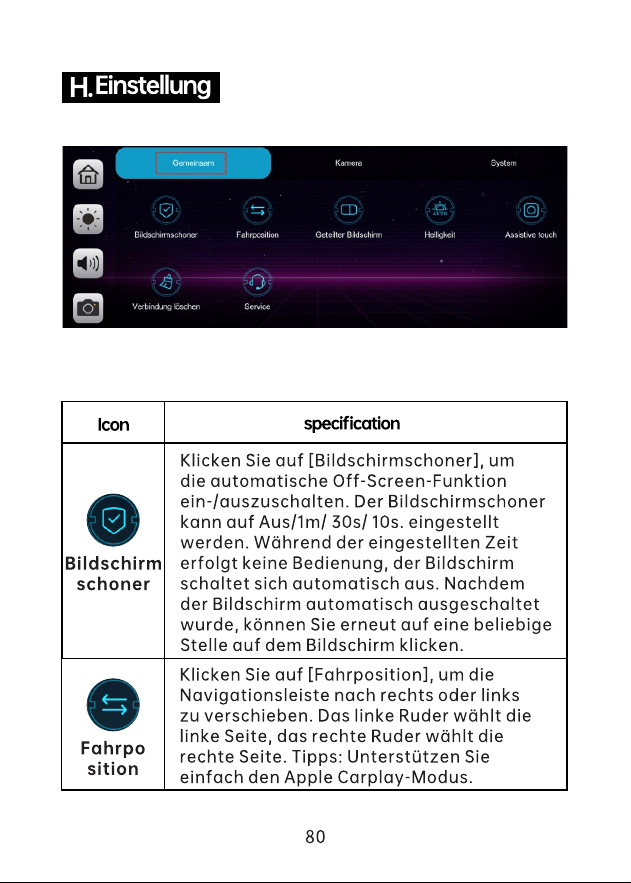
9. Einstellung : Klicken Sie hier, um die
Systemeinstellungsoberfläche aufzurufen und den Bildschirm
einzustellen
12. Bluetooth-Musik : Verwenden Sie Ihr Mobiltelefon, um eine
Verbindung zu einem Bluetooth-Gerät herzustellen und Musik
abzuspielen.
xxxx-xxxx
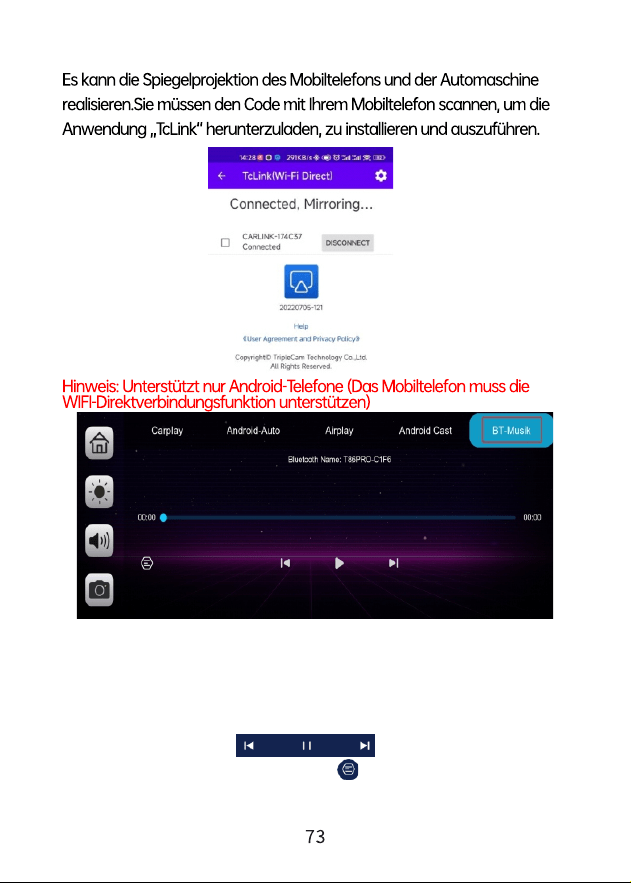
Sie finden Bluetooth Music, indem Sie auf die Schaltfläche Apple CarPlay
oder klicken Android Auto. Schalten Sie zuerst Bluetooth am Mobiltelefon ein
und wählen Sie aus Option [ Bluetooth - Musik ]. Klicken Sie in der Benutzerober
fläche auf die Option [ BTManage ]. Verbinden Sie Bluetooth mit dem
Mobiltelefon und starten Sie die Musikwiedergabe.
Die Schaltflächen entsprechen jeweils Last , Play / Pause und Next.
Klicken Sie auf die Liedtext-Schaltfläche [ ], um den Liedtext anzuzeigen.
(Einige mobile Musikplayer-Apps unterstützen die Anzeige von Liedtexten nicht.)
Helligkeit
Klicken Sie auf [Helligkeit], um die automatische
Helligkeitsanpassung ein- oder auszuschalten.
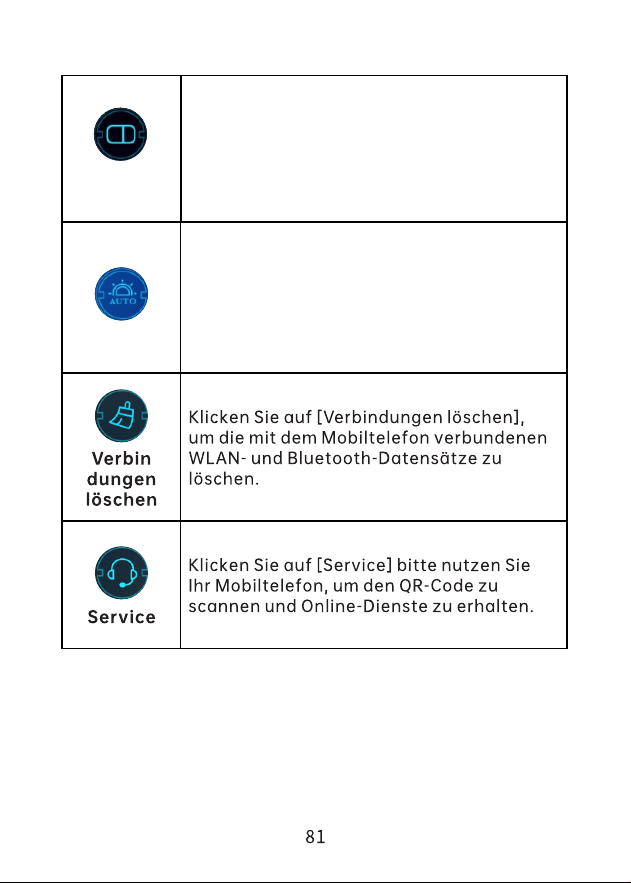
Geteilter
Bildschirm
Klicken Sie auf [Geteilter Bildschirm], um nach der
Verbindung mit dem Mobiltelefon in den geteilten
Bildschirm- oder Vollbildmodus zu wechseln.
Kollisionsemp
findlichkeit
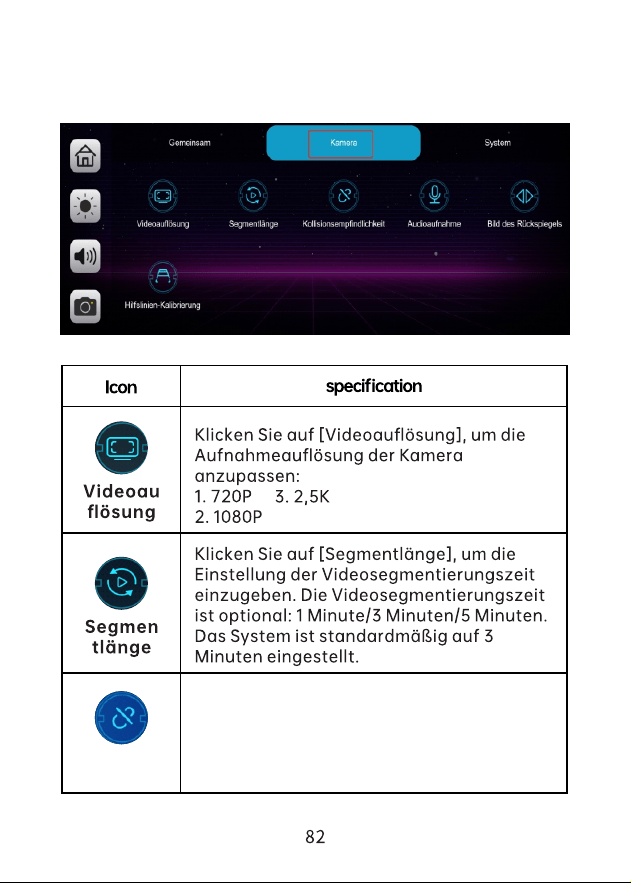
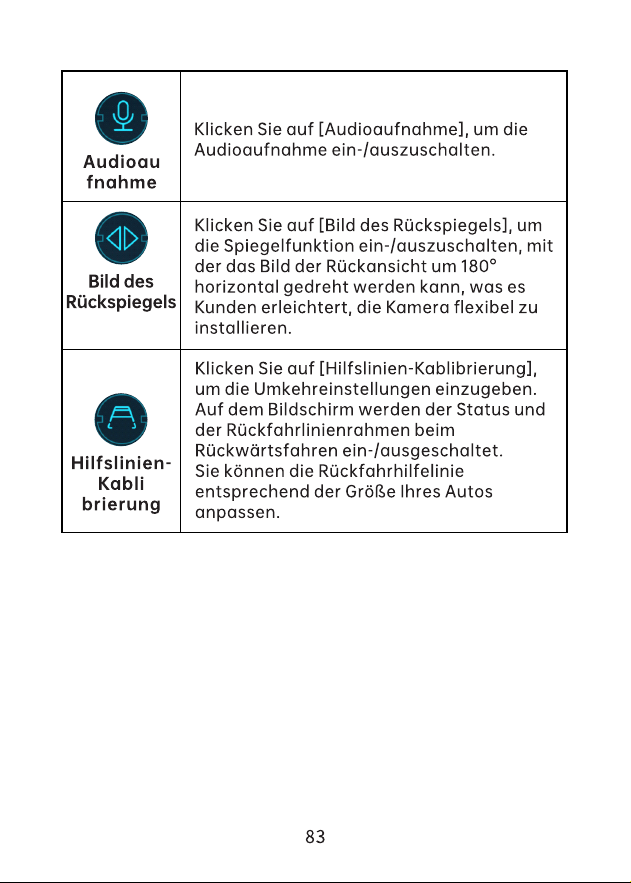
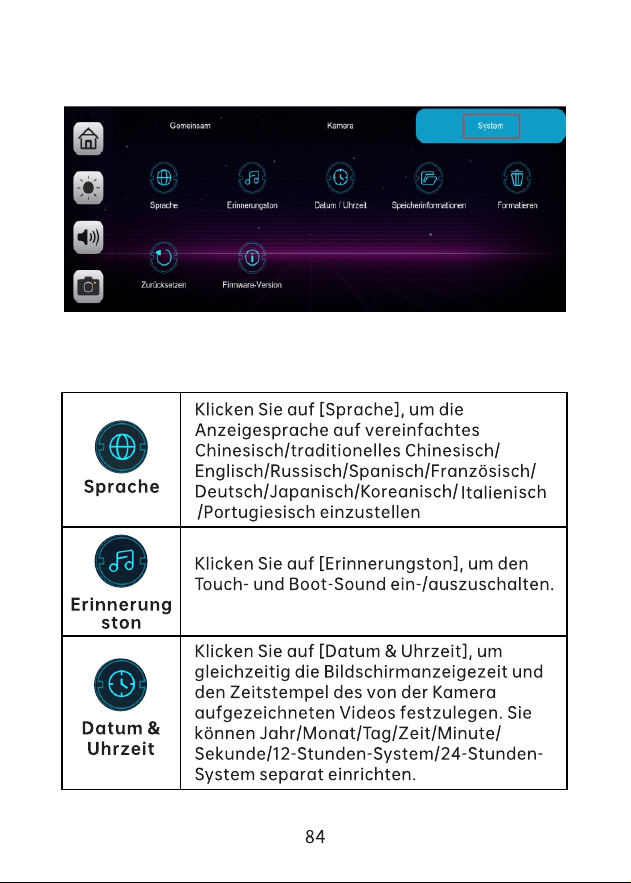
Klicken Sie auf [Kollisionsempfindlichkeit], um
die Empfindlichkeit Schließen/Niedrig/in/Hoch.
4.4K



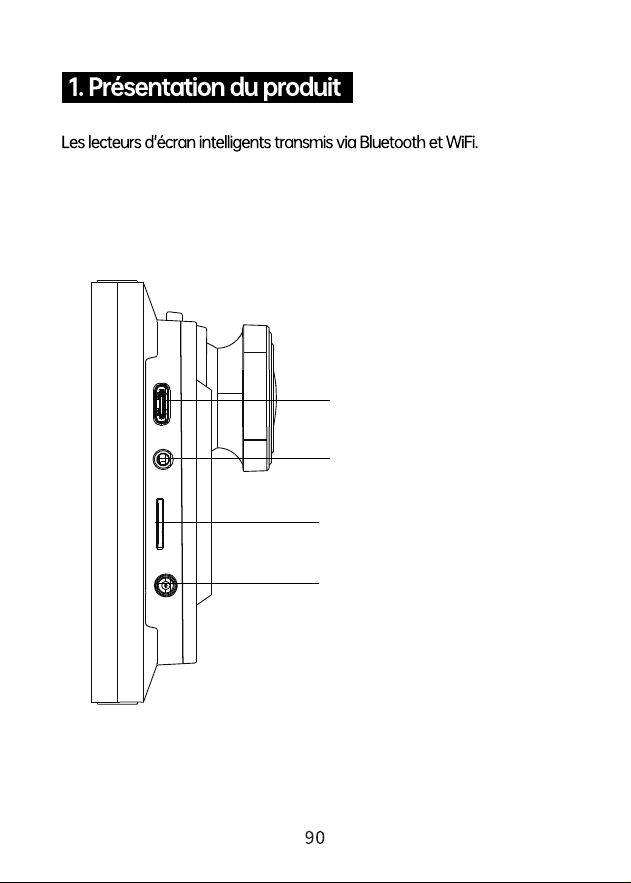
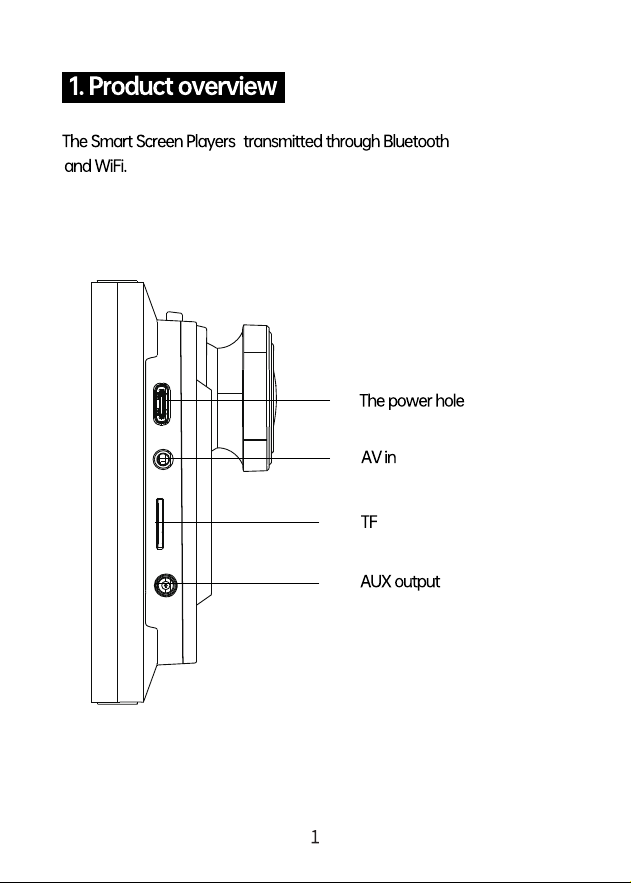
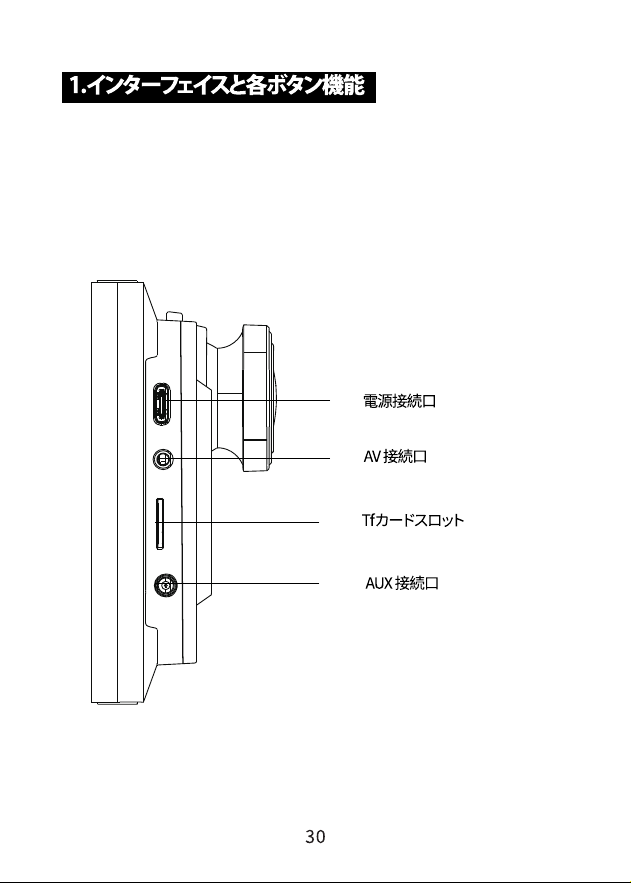
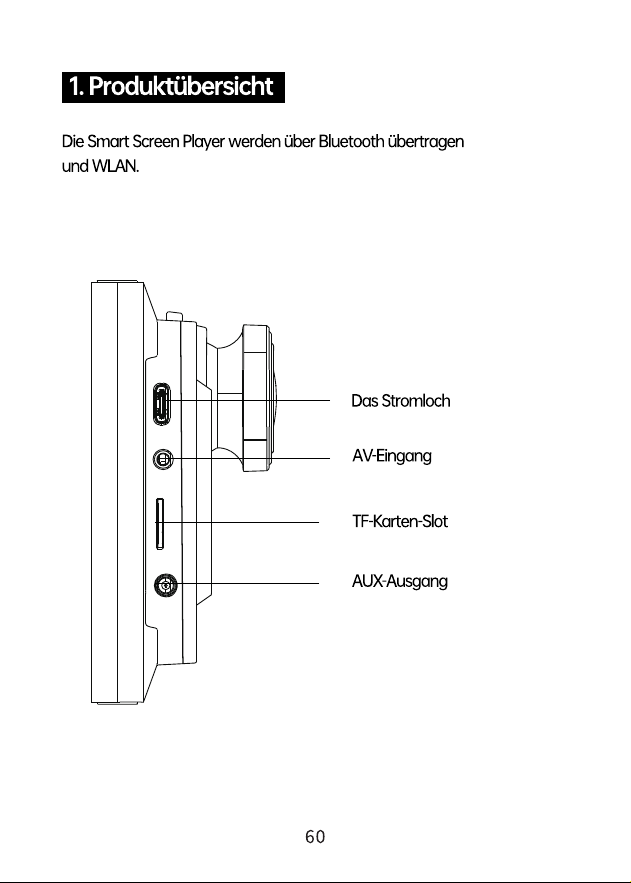
Sortie AUX
TF-Karten-Slot
AV dans
Le trou d'alimentation
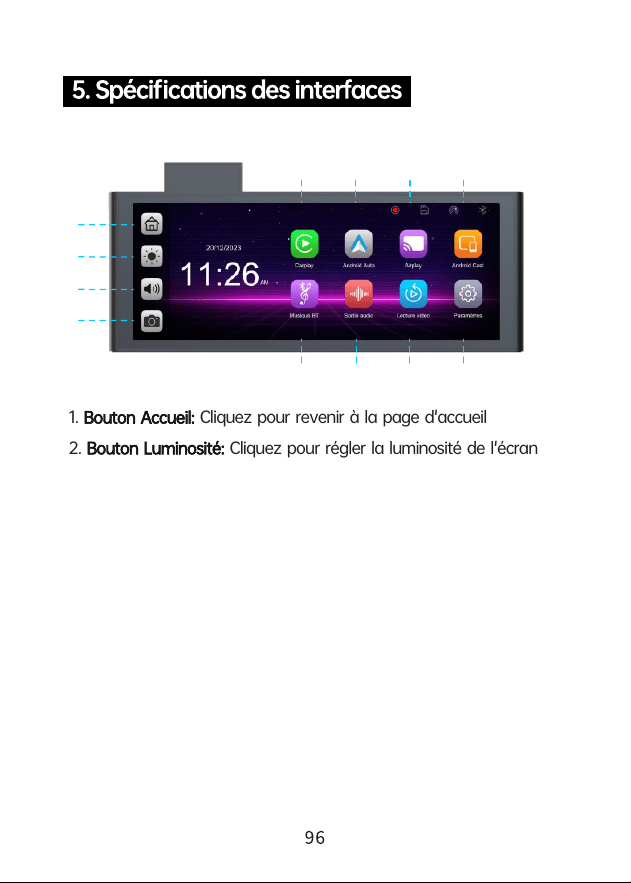
1. Cliquez pour revenir à la page d'accueilBouton Accueil:
2. Cliquez pour régler la luminosité de l'écranBouton Luminosité:
3. Cliquez pour régler le volumeBouton Volume:
4. Cliquez pour accéder à l'interface Enregistreur vidéo numérique:
d'enregistrement vidéo
5. cliquez pour vous connecter à Apple Carplay de Apple CarPlay:
l'iPhone
6. cliquez pour vous connecter à Android Auto du Android Auto:
téléphone mobile Android.
7. partagez des vidéos, des photos, de la musique et Apple AirPlay:
bien plus encore depuis l'iPhone vers l'écran
8. partagez des vidéos, des photos, de la musique et Android Cast:
bien plus encore depuis un téléphone Android vers l'écran
9101112
5 6
7
8
1
2
3
4

9. cliquez pour accéder à l'interface de configuration du Paramètres:
système pour définir l'écran.
10. cliquez pour voir l'enregistrement des vidéos sur Lecture vidéo:
l'écran
11. cliquez pour sélectionner le mode de lecture du sonSortie audio:
12. utilisez votre téléphone mobile pour vous Musique Bluetooth :
connecter à un appareil Bluetooth et écouter de la musique.
xxxx-xxxx
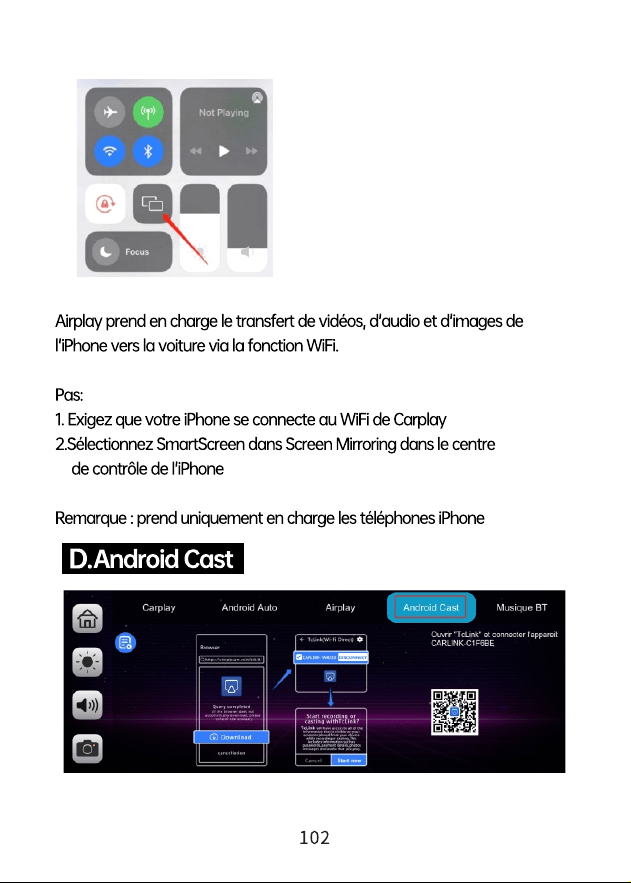
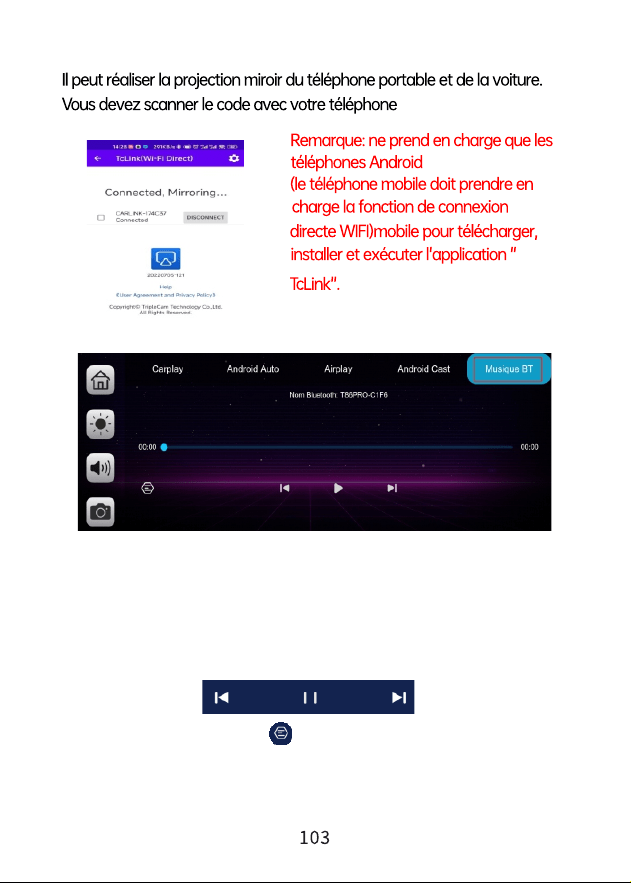
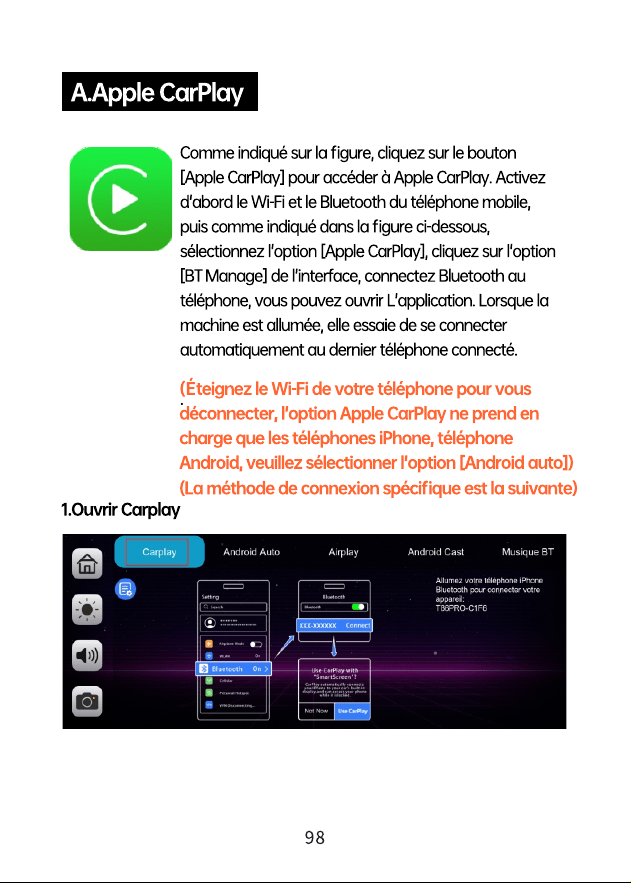
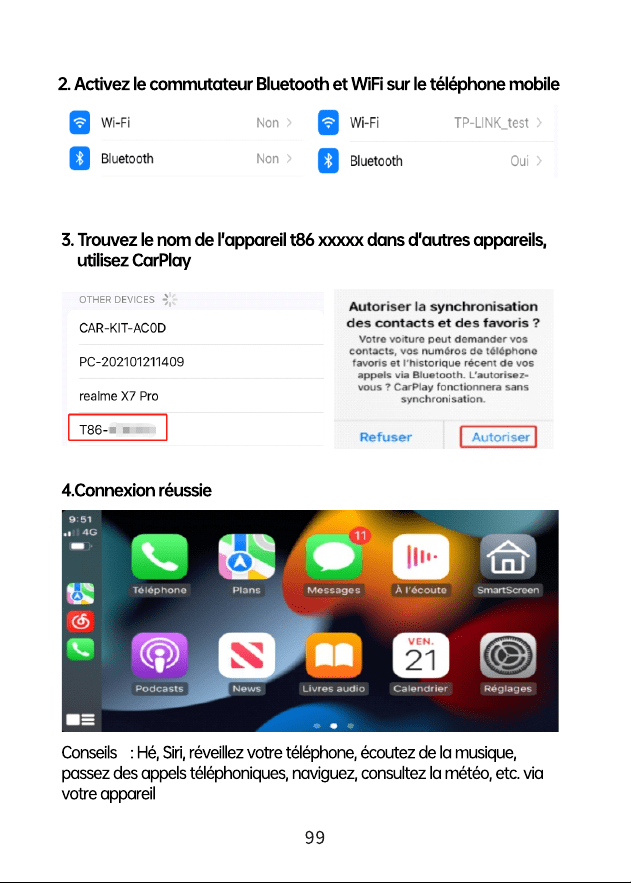
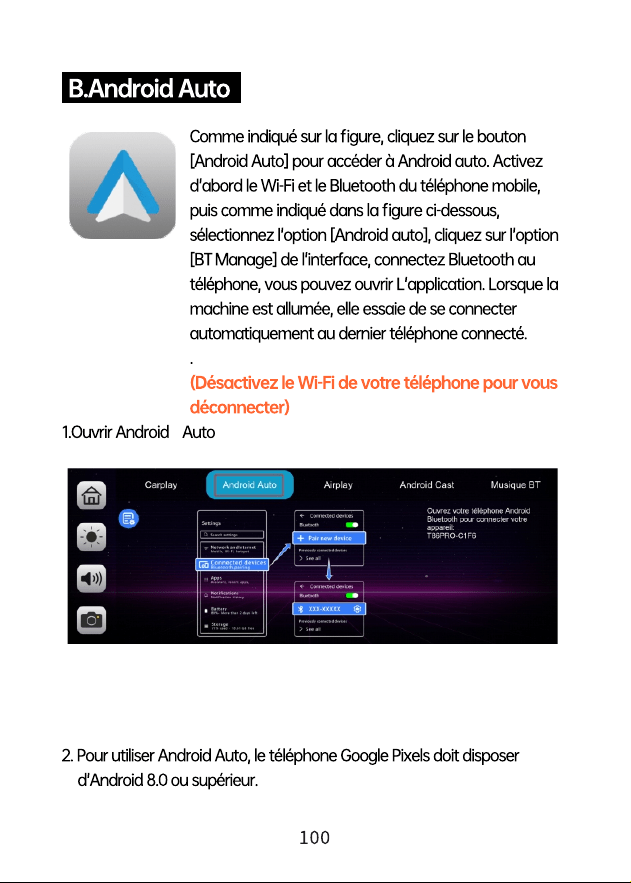
Vous pouvez trouver Bluetooth Music en cliquant sur le bouton Apple CarPlay
ou Android Auto. Activez d'abord le Bluetooth du téléphone mobile, puis
sélectionnez l'option [Musique Bluetooth]. Cliquez sur l'option [BT Manage]
sur l'interface pour connecter Bluetooth au téléphone mobile et commencer
à jouer de la musique.
Les boutons correspondent respectivement à Last, Play / Pause et Next.
Cliquez sur le bouton Paroles[ ] pour afficher les paroles.
(Certaines applications de lecteur de musique mobile ne prennent pas en
charge l'affichage des paroles)
Luminosité
Cliquez sur [Luminosité] pour activer ou
désactiver le réglage automatique de la
luminosité.
Mode écran
partagé
Cliquez sur [Mode écran partagé] pour
accéder au mode écran partagé ou plein
écran après la connexion au téléphone mobile.
4. 4K
Sensibilité
aux collisions
Cliquez sur [Sensibilité aux collisions]
pour régler la sensibilité Fermer/Faible
/dans/Élevé.




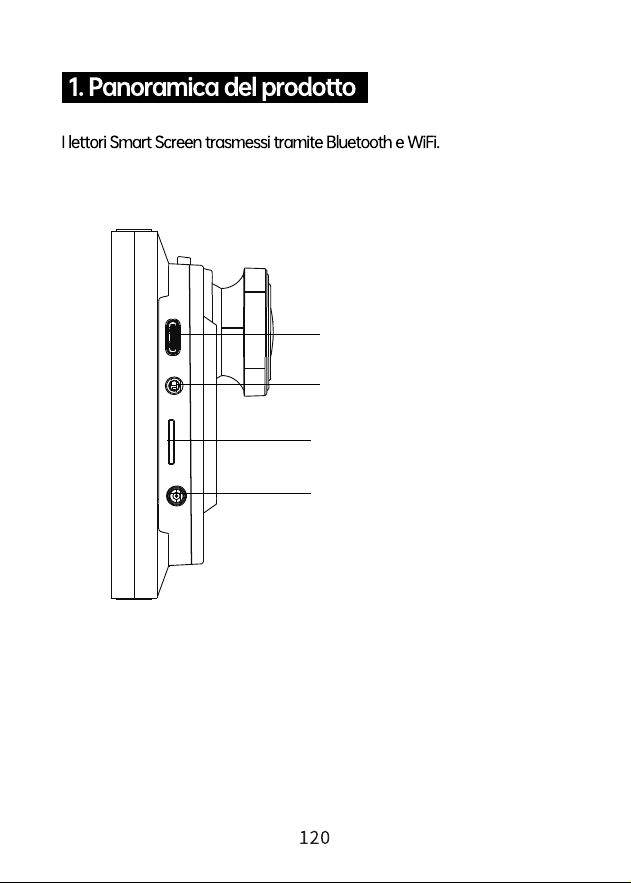
Il foro di alimentazione
Uscita ausiliaria
Slot per schede TF
Ingresso AV
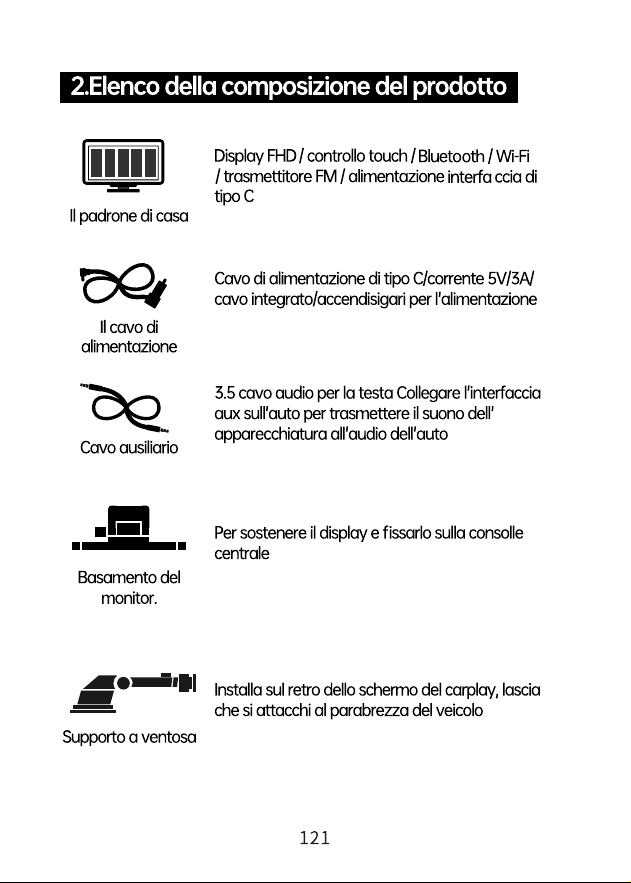
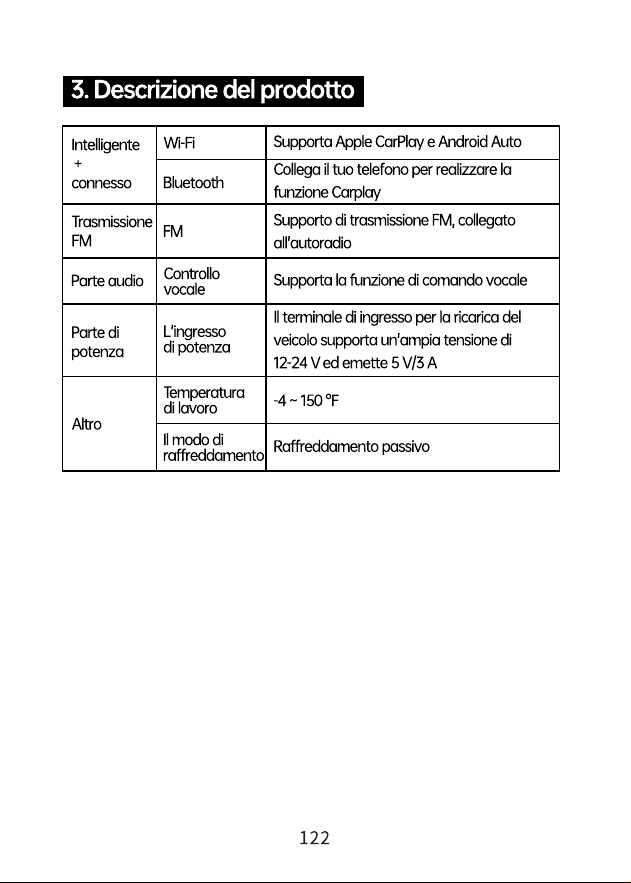
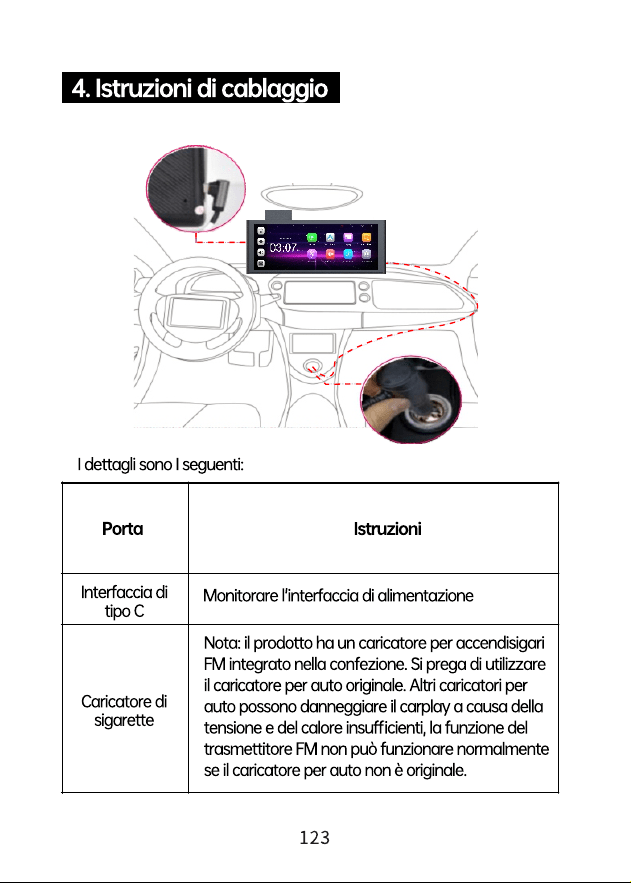
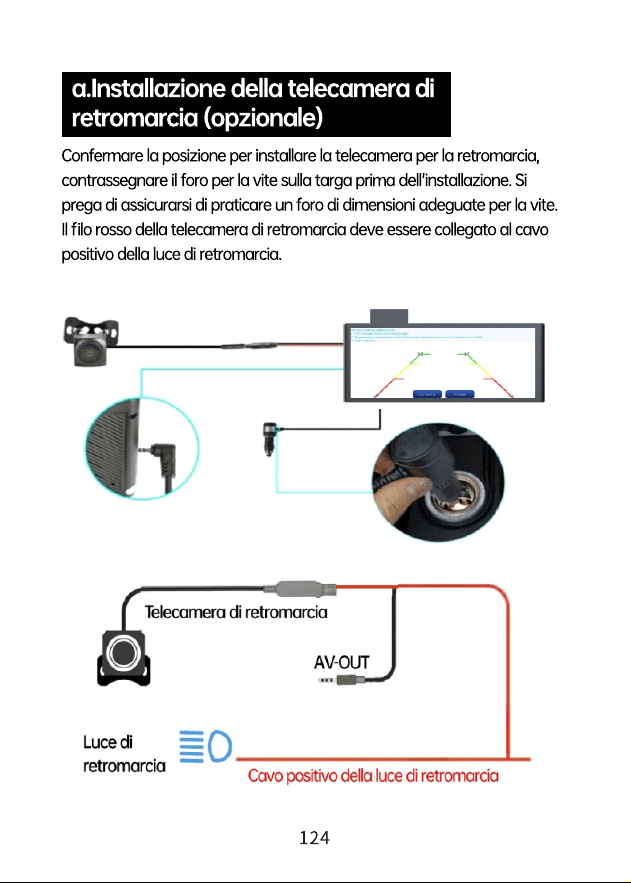
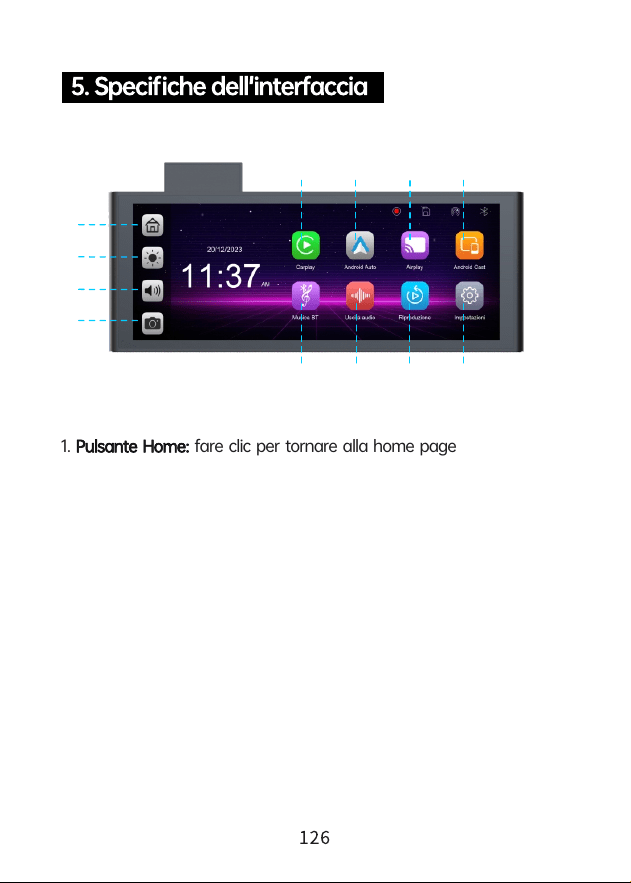
1. fare clic per tornare alla home pagePulsante Home:
2. fare clic per regolare la luminosità dello schermoPulsante Luminosità:
3. fare clic per regolare il volumePulsante volume:
4. fare clic per accedere all'interfaccia di registrazione videoDVR:
5. fare clic per connettersi all'Apple Carplay dell'iPhoneApple CarPlay:
6. fare clic per connettersi ad Android Auto del telefono Android Auto:
cellulare Android
7. condividi video, foto, musica e altro dall'iPhone allo Apple AirPlay:
schermo
8. condividi video, foto, musica e altro dai telefoni Android Android Cast:
sullo schermo
9101112
5 6
7
8
1
2
3
4

9. fare clic per accedere all'interfaccia di impostazione Impostazioni:
del sistema per impostare lo schermo
10. fare clic per visualizzare la registrazione dei video sullo Playback:
schermo
11. Uscita audio: fare clic per selezionare la modalità di riproduzione
del suono
12.Musica Bluetooth. Utilizza il tuo telefono cellulare per connetterti a
un dispositivo Bluetooth e riprodurre musica.
xxxx-xxxx
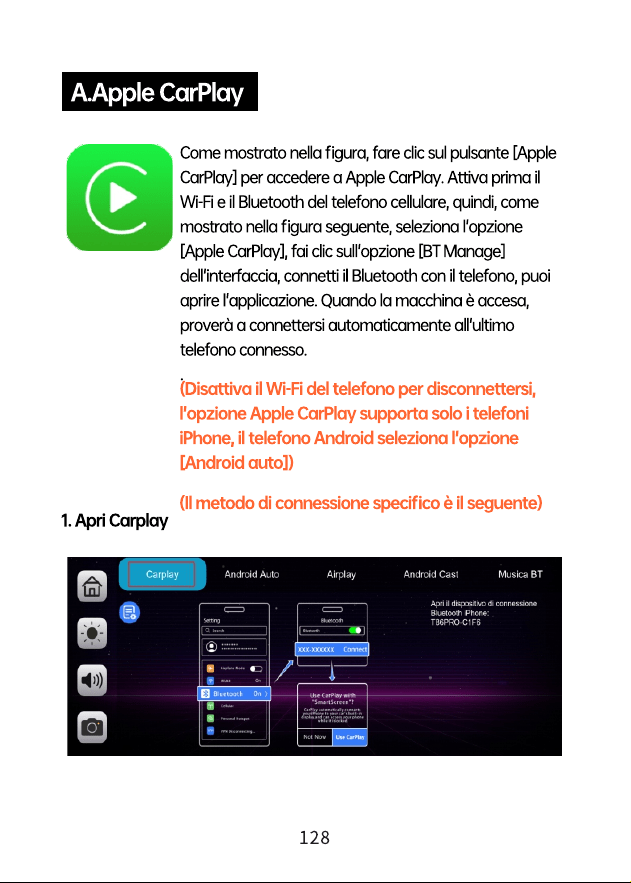
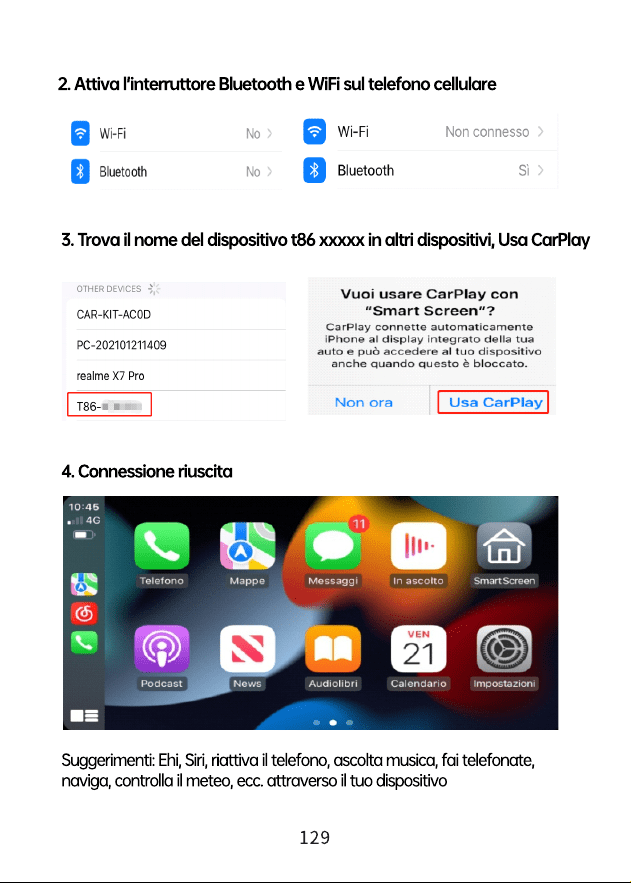
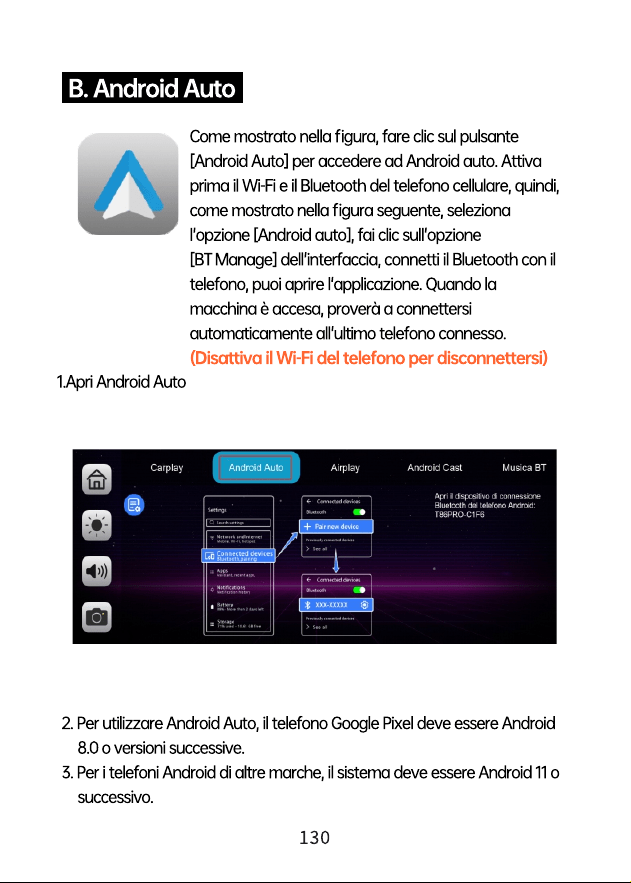
Puoi trovare Bluetooth Music facendo clic sul pulsante Apple CarPlay o
Android Auto. Attiva prima il Bluetooth del telefono cellulare e seleziona
l'opzione [Musica Bluetooth]. Fare clic sull'opzione [BT Manage]
sull'interfaccia per connettere il Bluetooth al telefono cellulare e avviare
la riproduzione della musica.
I pulsanti corrispondono rispettivamente a Ultimo, Riproduci/Pausa e
Avanti.
Fare clic sul pulsante Testi [ ] per visualizzare i testi.
(Alcune app per lettori musicali mobili non supportano la visualizzazione
dei testi)
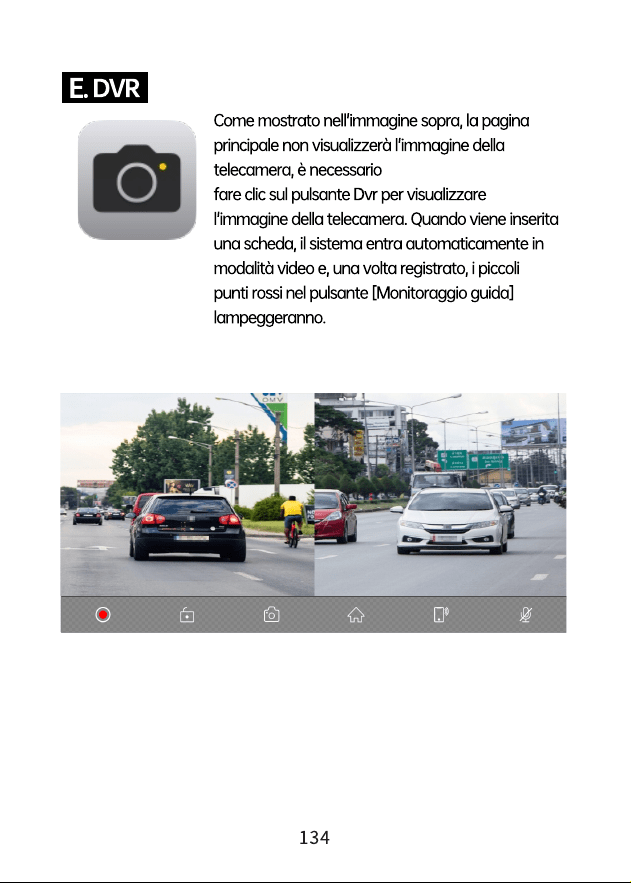
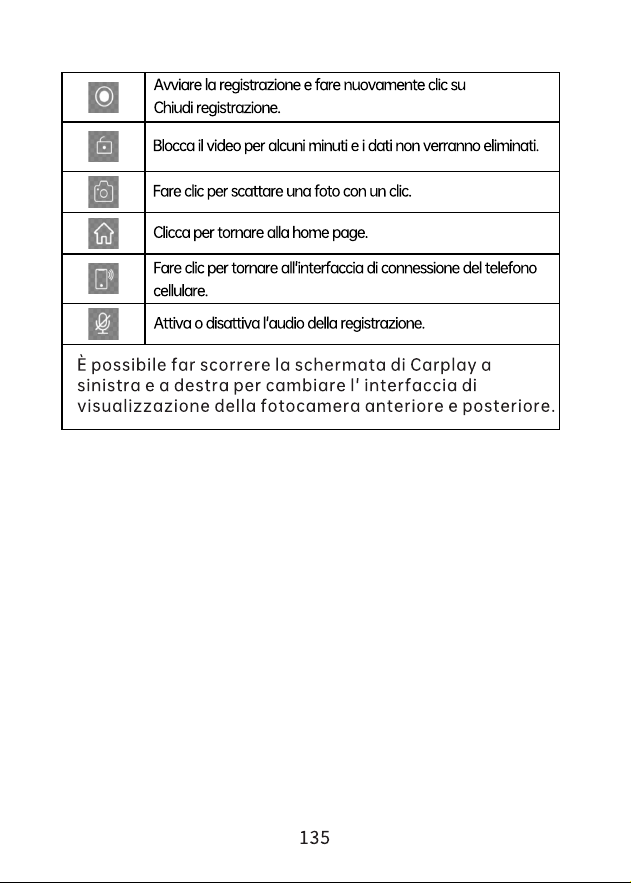
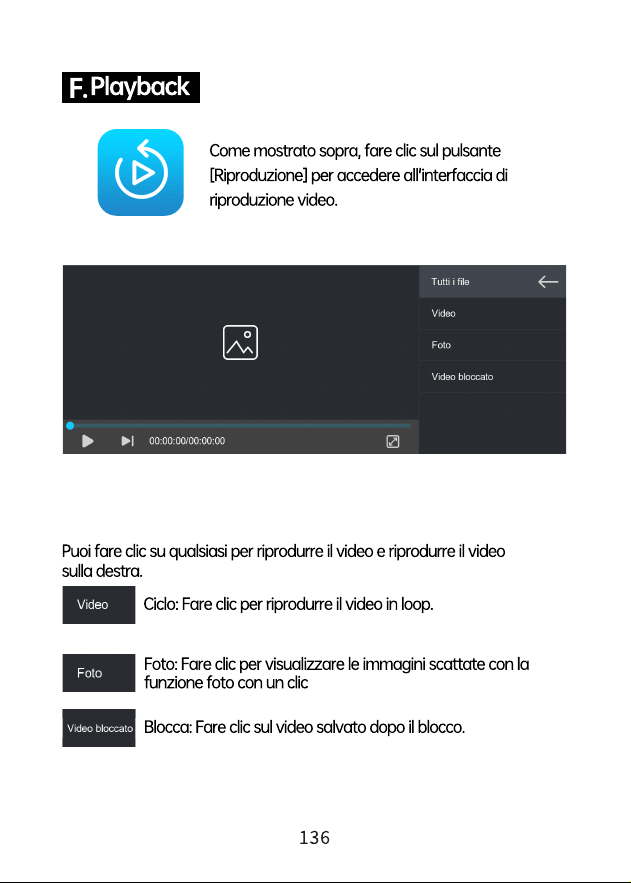
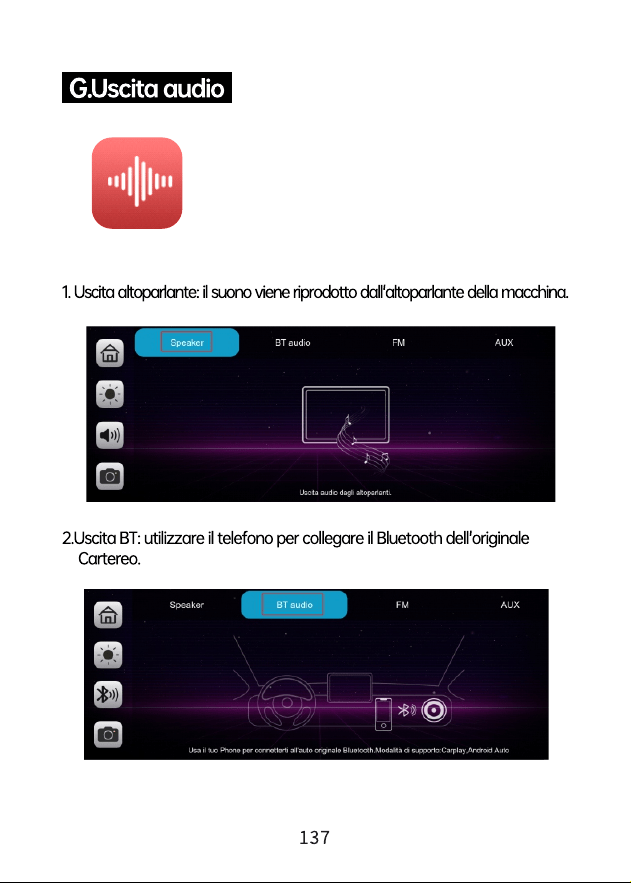
Luminosità
Fare clic su [Luminosità] per attivare/disattivare la
regolazione automatica della luminosità
Modalità schermo
diviso
Fare clic su [Modalità schermo diviso] per accedere
alla modalità schermo diviso o schermo intero dopo
la connessione al telefono cellulare.
4. 4K
Sensibilità
alla collisione
Fare clic su [Sensibilità alla collisione] per
impostare la sensibilità su Chiudi/Basso/Mezzo/
Alto.
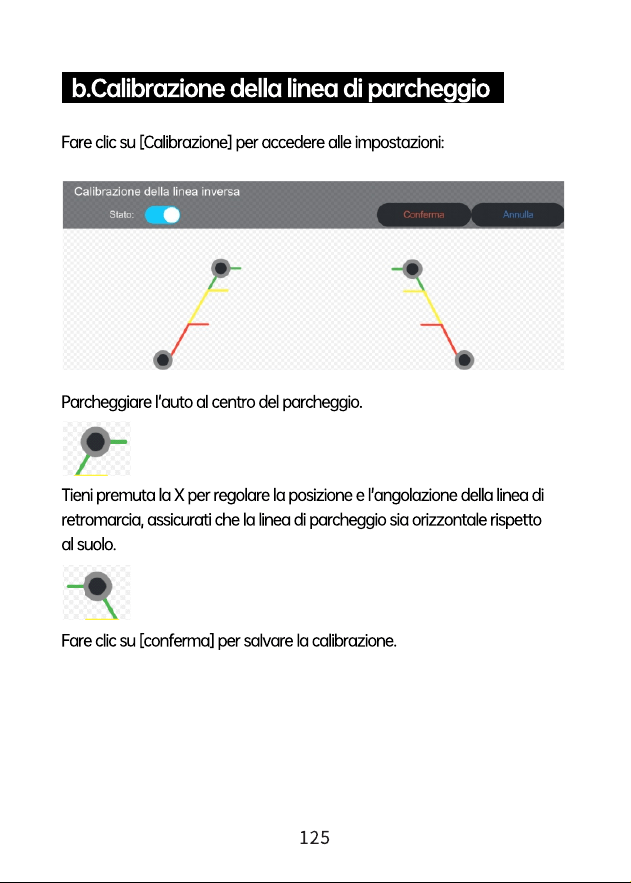
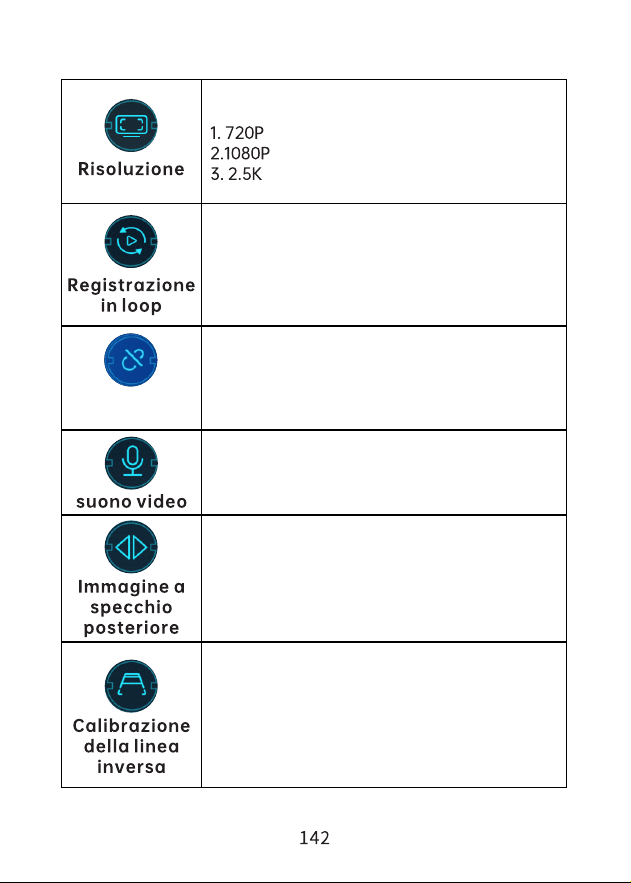
Fare clic su [Calibrazione della linea inversa] per
accedere alle impostazionidi inversione. Lo
schermo visualizzerà lostato e il riquadro della
linea diretromarcia attivato/disattivato durante
la retromarcia. Puoi regolare la linea di
assistenza alla retromarcia in base alle
dimensioni della tua auto.
Fare clic su [Immagine a specchio posteriore] per
attivare/disattivare lafunzione di mirroring, che
può regolareil capovolgimento di 180°
dell'immagine della vista posteriore in orizzontale,
rendendo più semplice per i clienti l'installazione
flessibile della telecamera.
Fare clic su [suono videol] per attivare/disattivare
la registrazione audio.
Fare clic su [Registrazione in loop] per accedere
all'impostazione del tempo di segmentazione del
video. Il tempo di segmentazione del video
è facoltativo: 1 minuto/3 minuti/5 minuti. Il
sistema ha come impostazione predefinita
3 minuti.
Fare clic su [Risoluzione] per regolare la
risoluzione di registrazione della telecamera:
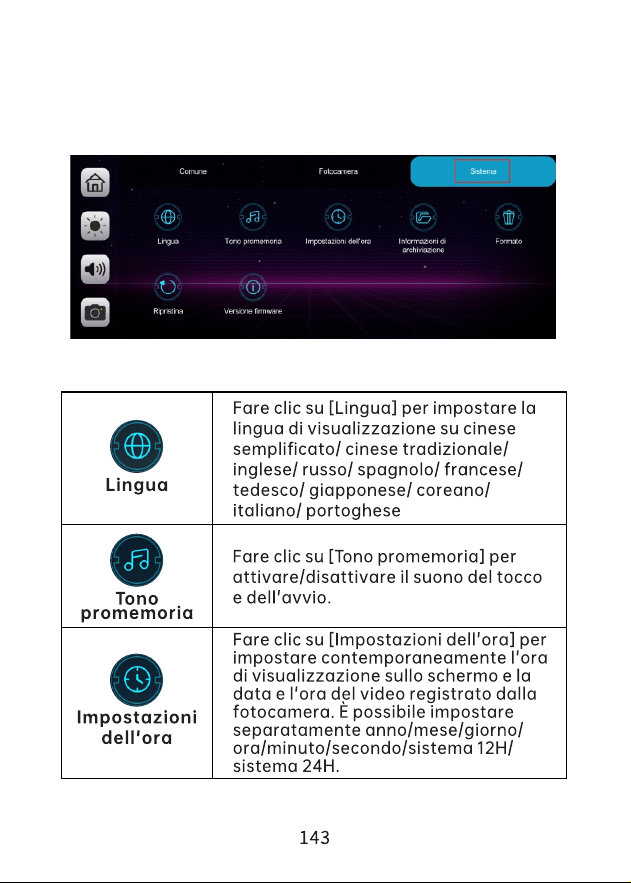
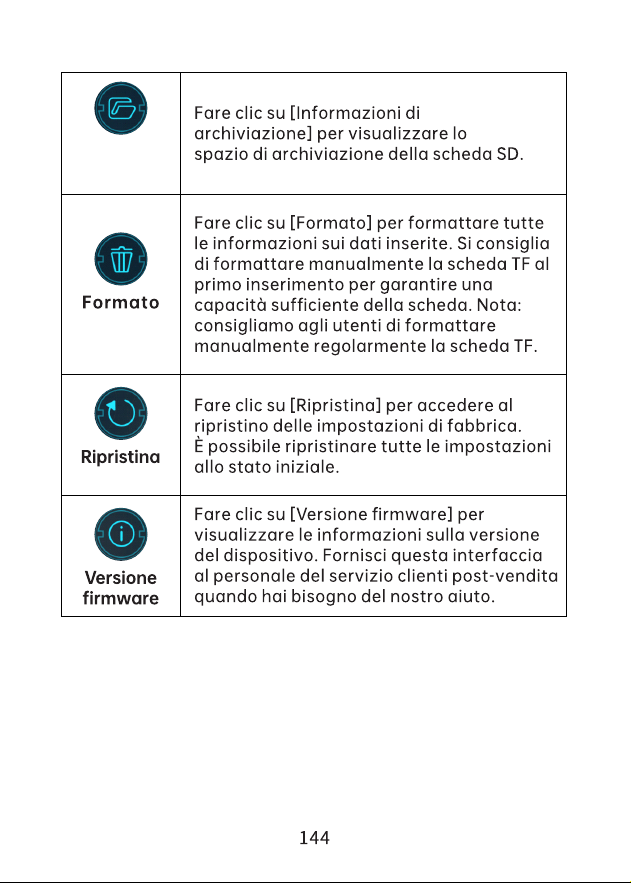
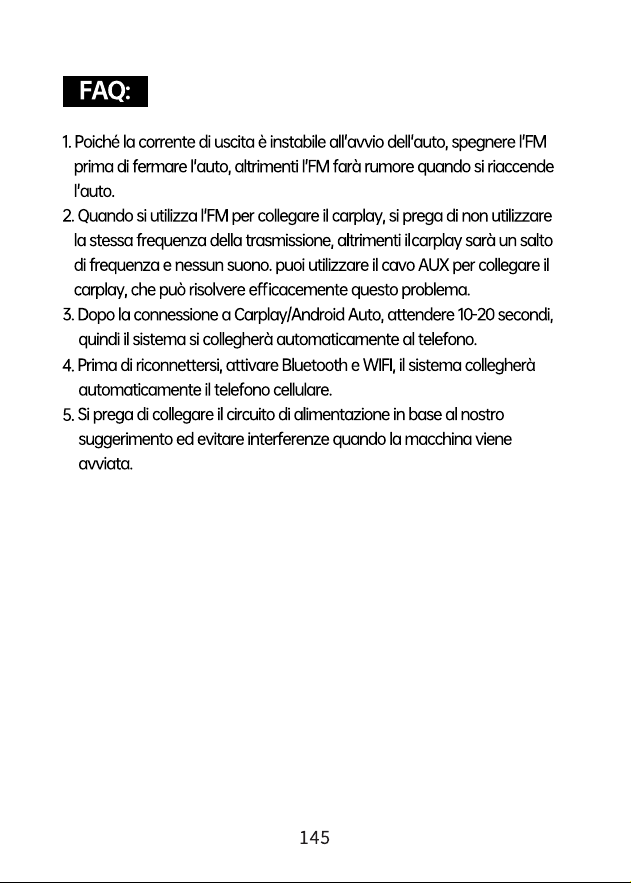
Informazioni
diarchiv
iazione




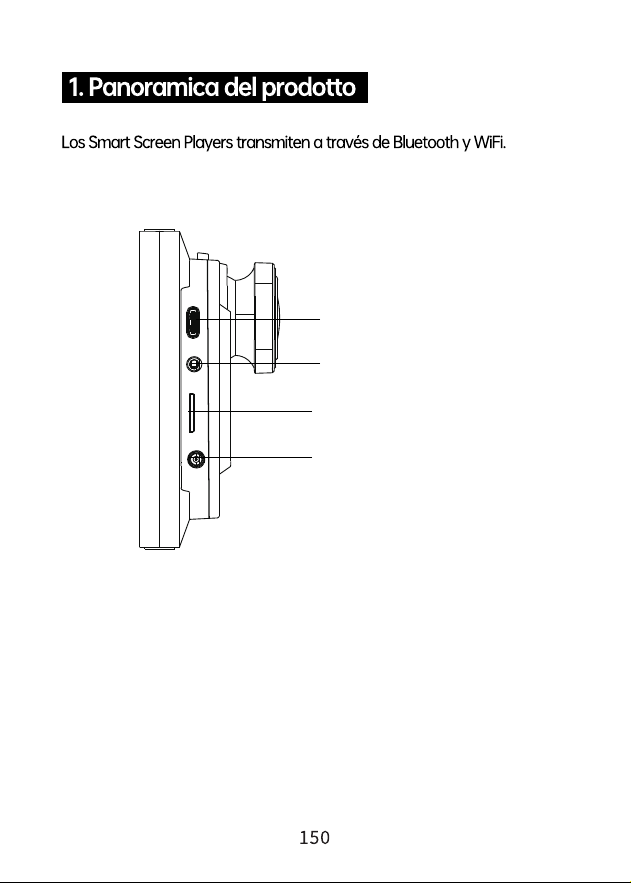
Salida auxiliar
Ranura para tarjetas TF
AV en
El agujero del poder
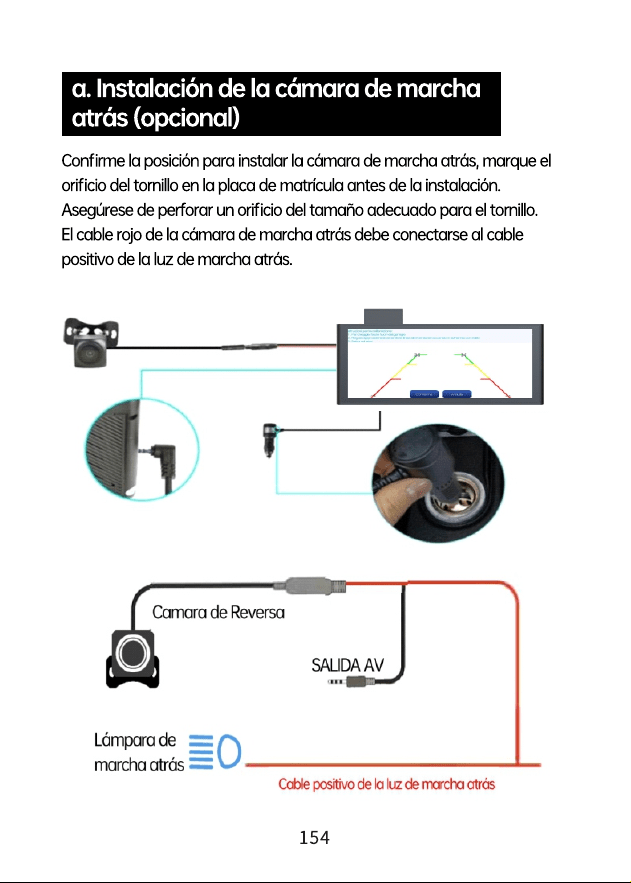
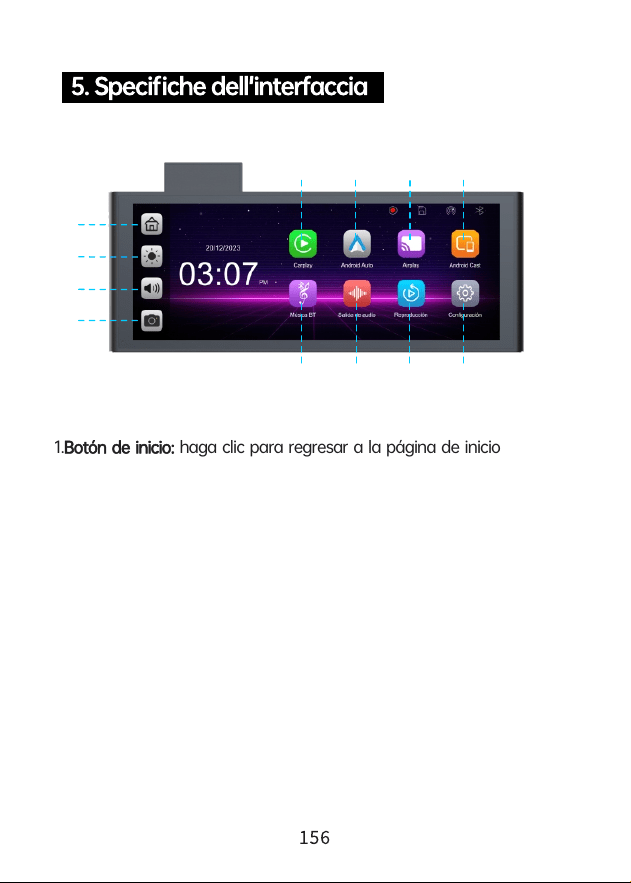
1. haga clic para regresar a la página de inicioBotón de inicio:
2. haga clic para ajustar el brillo de la pantalla.Botón Brillo:
3. haga clic para ajustar el volumen.Botón de volumen:
4. haga clic para ingresar a la interfaz de grabación de video.DVR:
5. haga clic para conectarse al Apple Carplay del iPhone.Apple CarPlay:
6. haga clic para conectarse al Android Auto del teléfono Android Auto:
móvil Android.
7. comparte vídeos, fotos, música y más desde el iPhone Apple AirPlay:
a la pantalla.
8. comparta videos, fotos, música y más desde teléfonos Android Cast:
Android a la pantalla.
9101112
5 6
7
8
1
2
3
4

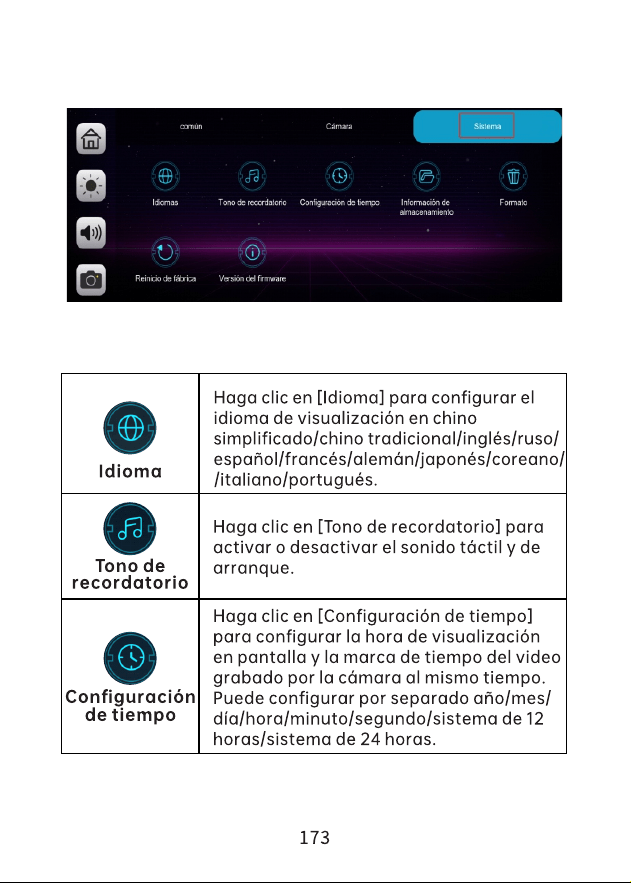
9. Haga clic para ingresar a la interfaz de configuración Configuración:
del sistema para configurar la pantalla.
10. haga clic para ver Grabación de videos en la pantalla.Reproducción:
11. haga clic para seleccionar el modo de reproducción Salida de audio:
de sonido.
12.Música Bluetooth Utilice su teléfono móvil para conectarse a un
dispositivo Bluetooth y reproducir música.
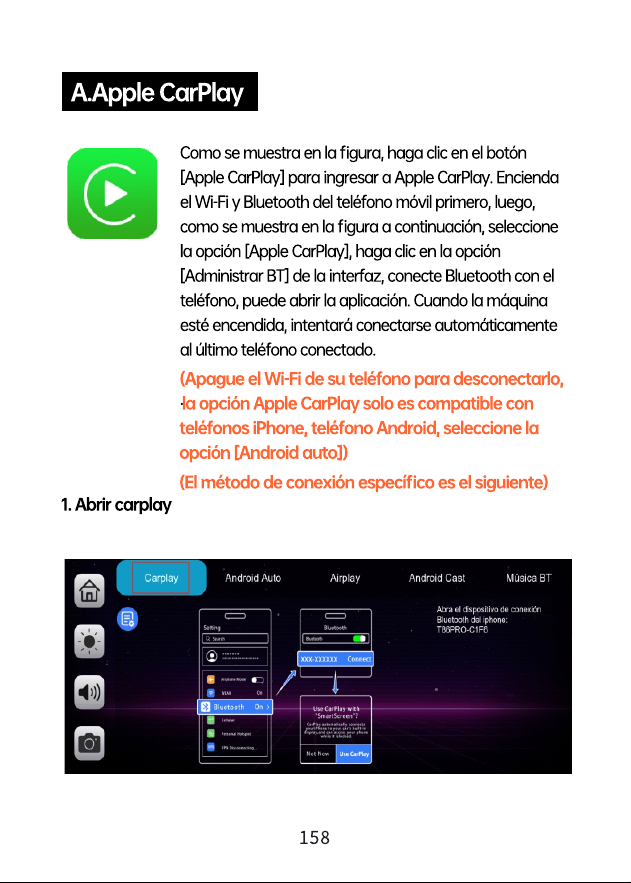
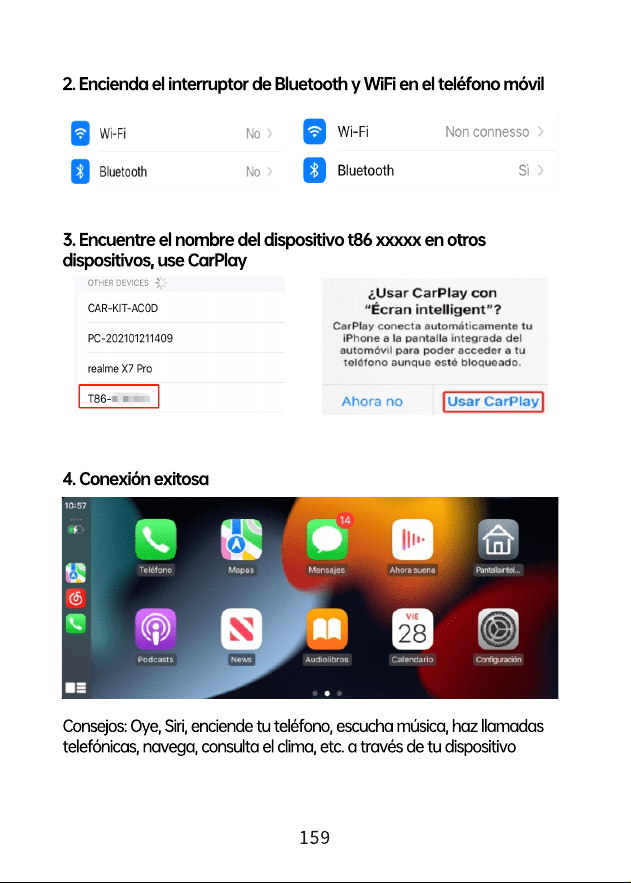
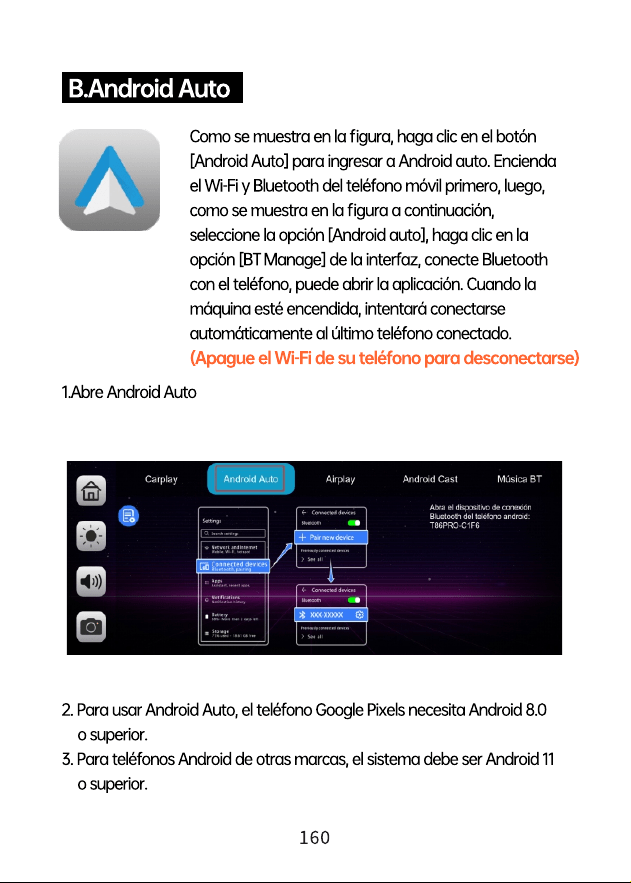
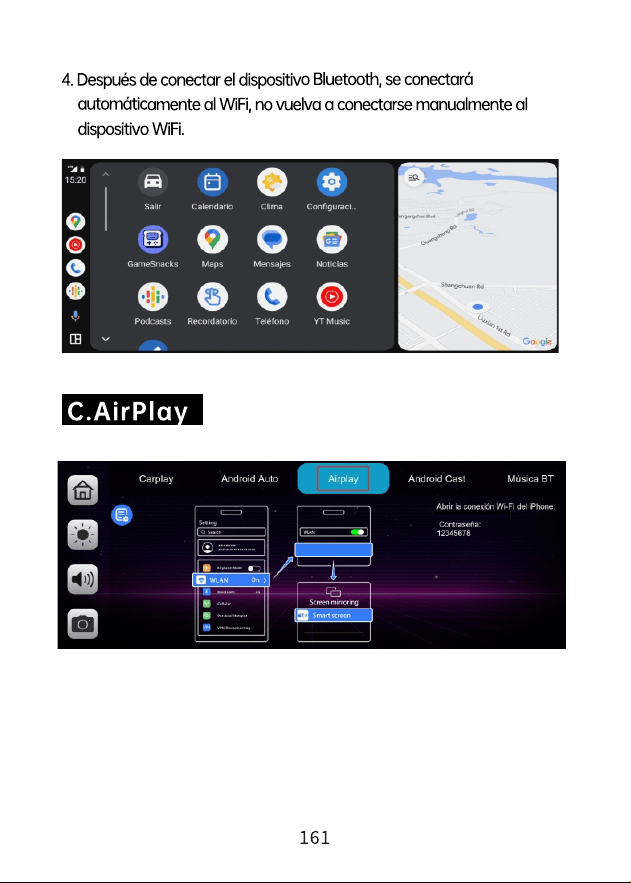
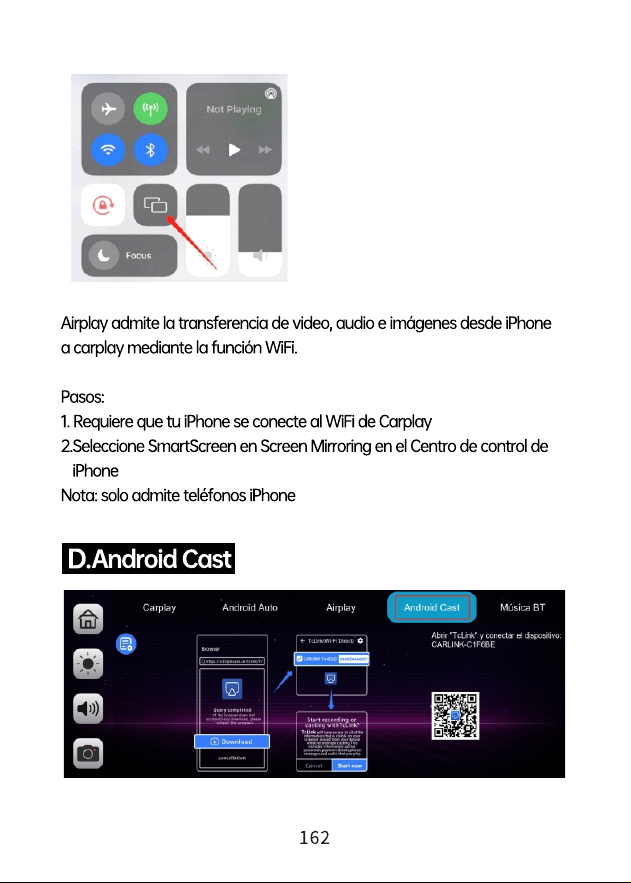
xxxx-xxxx
AIRPLAY-C1 F6BE
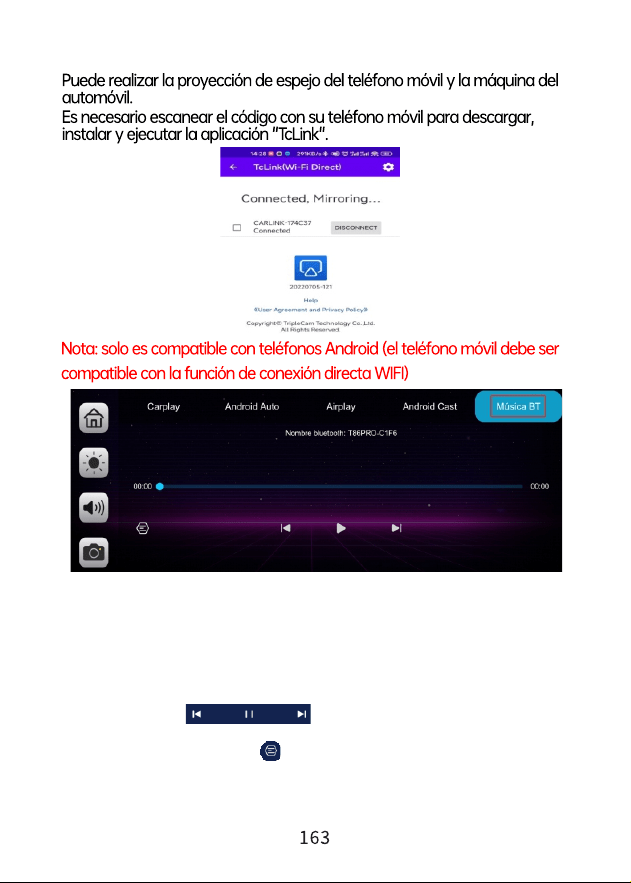
Puede encontrar Música Bluetooth haciendo clic en el botón Apple CarPlay o
Android Auto. Encienda primero el Bluetooth del teléfono móvily seleccione
la opción [Bluetooth Music]. Haga clic en la opción [Administrar BT] en la
interfaz para conectar Bluetooth al teléfono móvil y comenzar a reproducir
música.
Los botones corresponden a Último, Reproducir/Pausar y Siguiente,
respectivamente
Haga clic en el botón Letras[ ] para mostrar las letras.
(Algunas aplicaciones de reproductor de música móvil no admiten la
visualización de letras)
Brillo
Haga clic en [Brillo] para activar o desactivar el
ajuste automático de brillo.
Modo de
pantalla dividida
Haga clic en [Modo de pantalla dividida] para
ingresar al modo de pantalla dividida o de pantalla
completa después de conectarse al teléfono móvil.
4. 4K
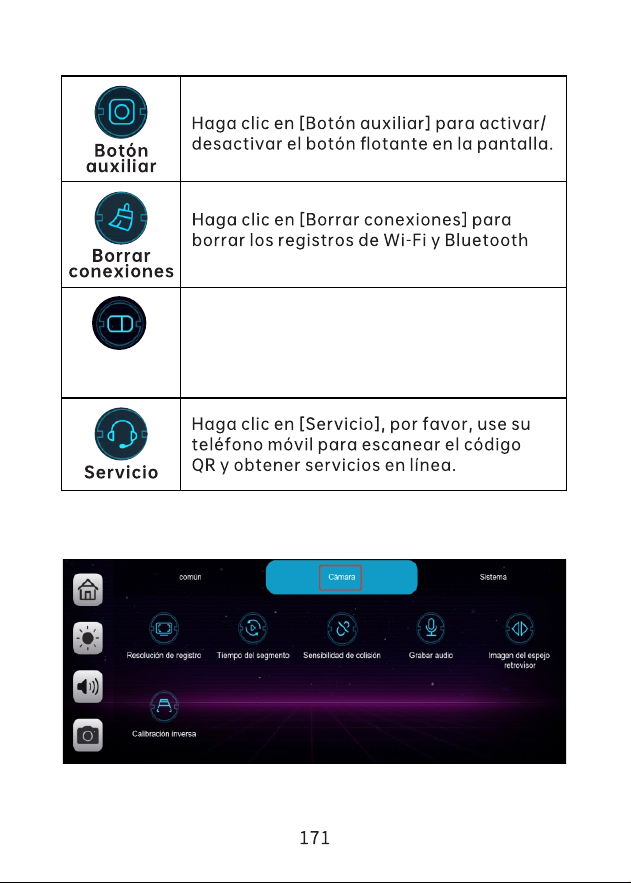
Sensibilidad
de colisión
Haga clic en [Sensibilidad de colisión] para
configurar la sensibilidad en Cerrar/Bajo/en/Alto
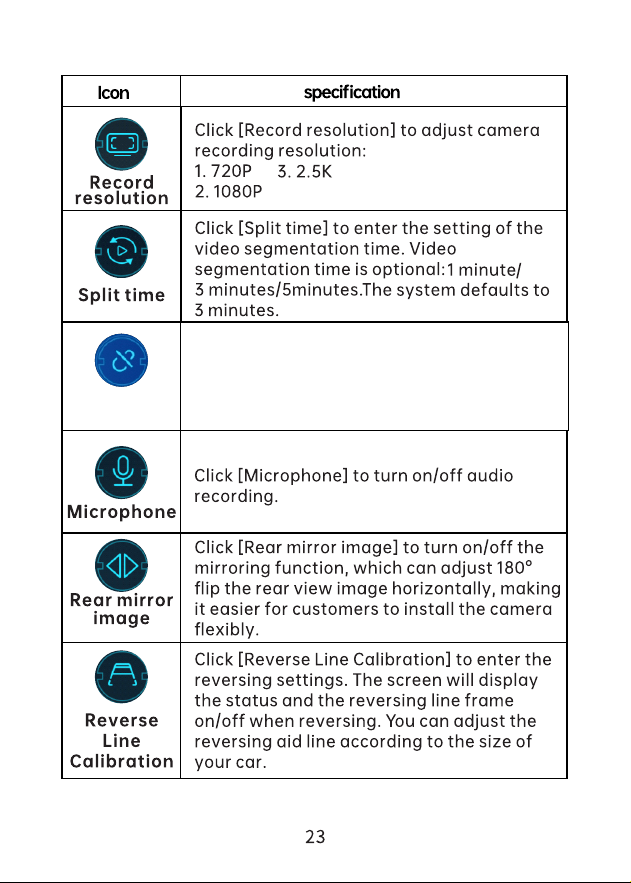
3. 2.5K
2. 1080P
1. 720P
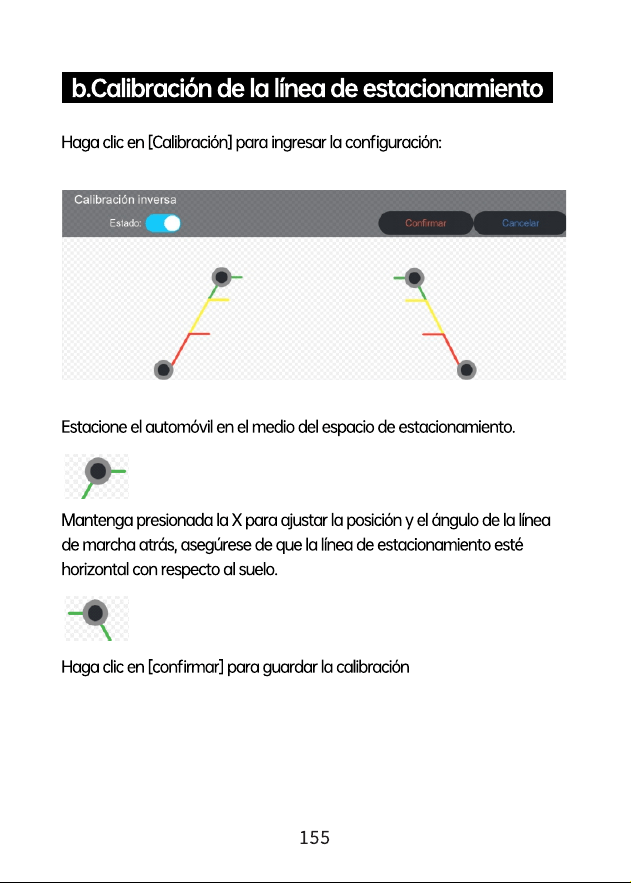
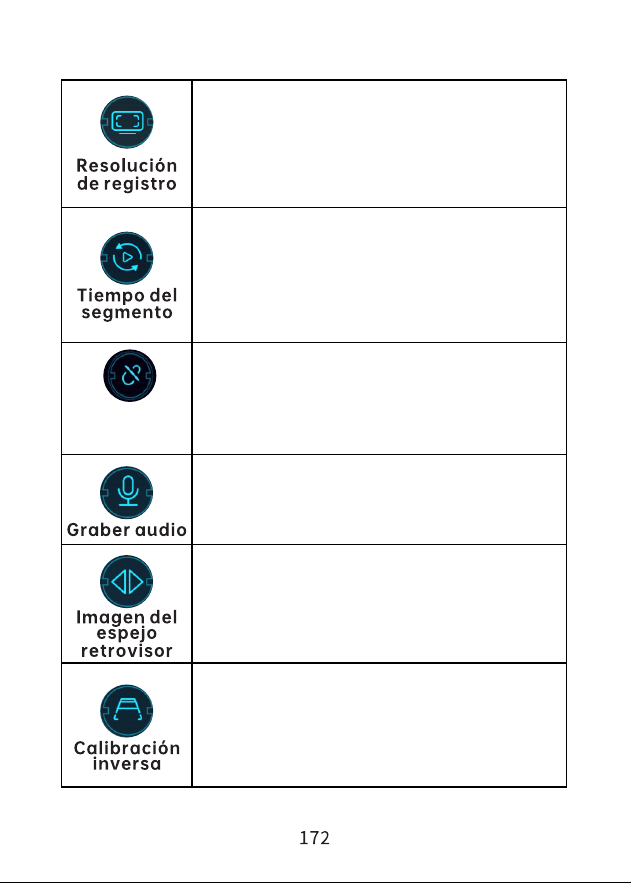
Haga clic en [Calibración inversa] para ingresar a
la configuración de inversión. La pantalla
mostrará el estado y el marco de línea de marcha
atrás activado/ desactivado al dar marcha atrás.
Puedes ajustar la línea de ayuda de marcha atrás
según el tamaño de tu coche
Haga clic en [Imagen del espejo retrovisor] para
activar/desactivar la función de espejo, que puede
ajustar 180° y girar la imagen de la vista trasera
horizontalmente, lo que facilita a los clientes
instalar la cámara de manera flexible.
Haga clic en [Graber audio] para activar
odesactivar la grabación de audio.
Haga clic en [Tiempo del segmento] para ingresar
la configuración del tiempo de segmentación del
video. El tiempo de segmentación del vídeo es
opcional: 1 minuto/3 minutos/5 minutos. El
sistema tiene por defecto 3 minutos.
Haga clic en [Resolución de registro] paraajustar la
resolución de grabación de la cámara: