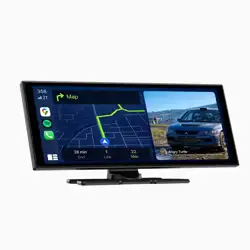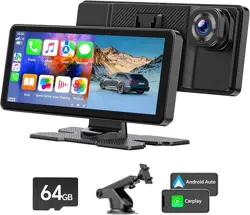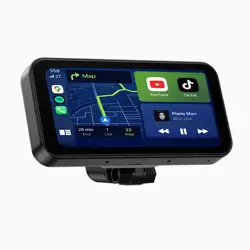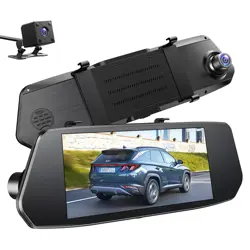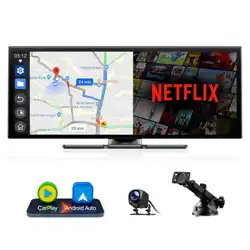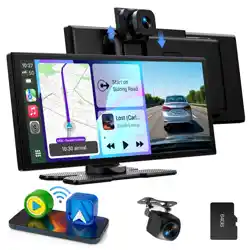

CarplayScreenPlayerDVR
UserManual
NO:250707-13B-14-28
Scan the QR code to get the online PDF document of
the multi-language instruction manual.
Ifyouhaveanyquestionofoursmartscreen,pleasecontactwithus
Wecantryourbesttoprovidesolutionsbasedonyourissues.
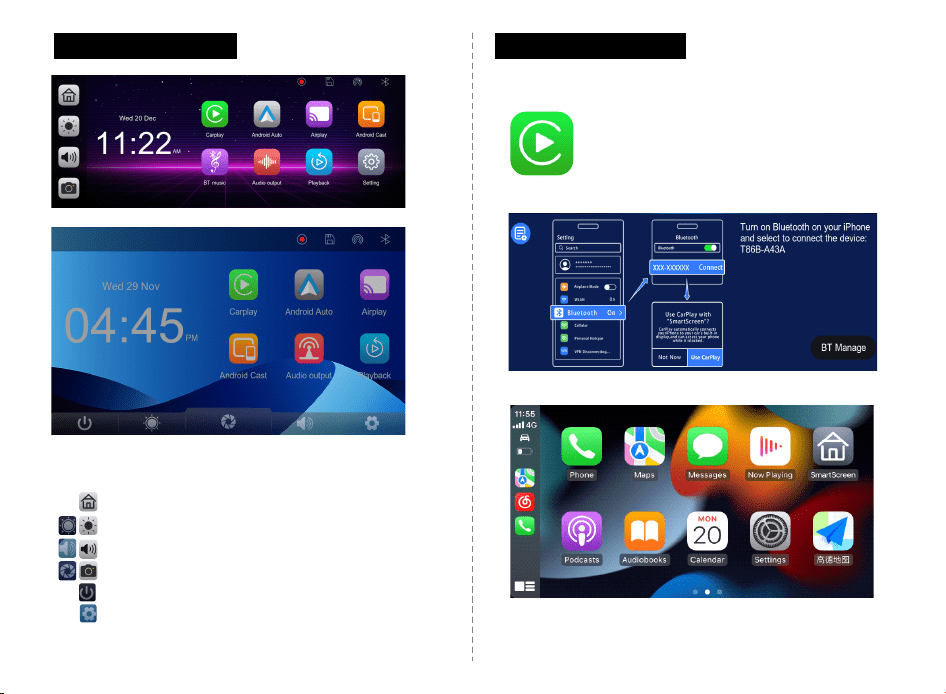
Sidebarbutton
Homebutton:Clicktoreturntothehomepage
Brightnessbutton:Clicktoadjustbrightnessofthescreen
Volumebutton:Clicktoadjustthevolume
DVR:Clicktoenterthevideorecordinginterface
ScreenON/OFF:Turnonandoffthescreen
Setting:Clicktoopenthesettingspage
A.AppleCarPlay
Howtoconnect
Step1.ClicktheCarplayonthe
maininterface.
Step2.Turnonthephone'sWIFIandBluetooth.
Step3.ConfirmtheCarplayScreenIDandusing
Bluetoothtopair.
Step4.Connectionissucceeded.
Connectionsuccessful
Tips:YouneedtoenableSirionyouriPhonetoutilisetheSiri
Assistantfornavigation,listeningtomusic,makingcalls,andmore
onthesmartscreen.
· 1 ·
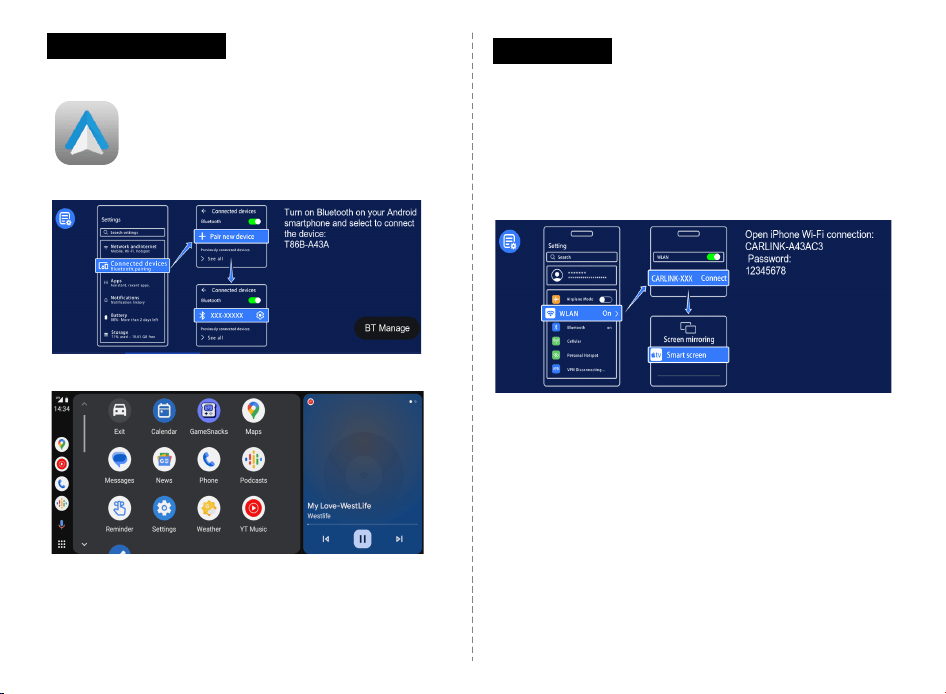
B.AndroidAuto
Howtoconnect
Step1.ClicktheAndroidAutoonthemaininterface.
Step2.Turnonthephone'sWIFIandBluetooth.
Step3.ConfirmtheCarplayScreenIDandusing
Bluetoothtopair.
Step4.Connectionissucceeded.
C.AirPlay
Howtoconnect.
Step1.ClicktheAirplayonthemaininterface.
Step2.ConfirmtheCarpalyScreen'sAirplayIDandWIFIpassword,use
thephoneWIFItoconnect.
Step3.Clickthe"screenmirroring"onthephonecontrolcentermenu
Step4.ClickonSmartScreentocompletescreenmirroring.
Step5.Connectionissucceeded.
Tips:OnlysupportsiPhone
Connectionsuccessful
Tips:1.TouseAndroidAuto,GooglePixelphonesneedtobe
Android8.0orabove,andotherphonesneedtobeAndroid11.0or
above.2.Onceyourphoneisconnectedtothesmartscreenvia
Bluetooth,itwillautomaticallyconnecttothesmartscreen'sWiFi.
Thereisnoneedtoconnecttothesmartscreen'sWiFiagainmanually.
· 2 ·
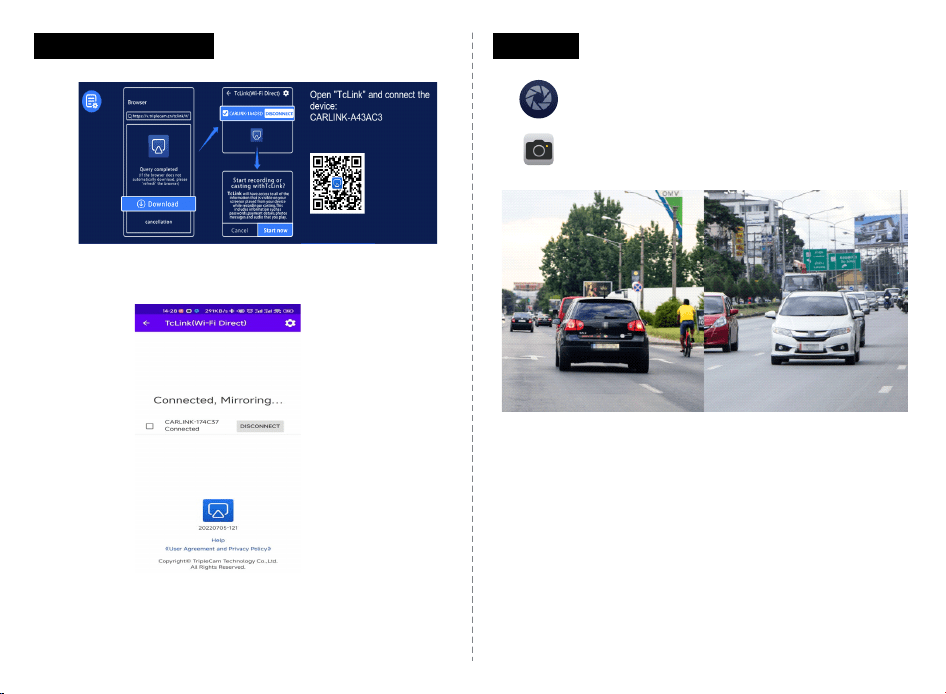
D.AndroidCast
ScantheQRcodetodownloadTclinkApptomirrorscreen.
Tips:OnlysupportsAndroidphones
E.DVR
ClicktheDVRbuttontostartdrivingrecording.
Iftheredlightonthebuttonlightsup,itmeans
recordingisinprogress.
Tips:NeedtoinstallTFcardtorecordvideosand
takephotos
Installingrearcamera:
Makesuretherearcameraisinstalledinthepositionoftherearlicense
plate.TheredwireoftherearcameramustbeconnectedtothePositive
poleofthecar'sBack-uplights.
· 3 ·
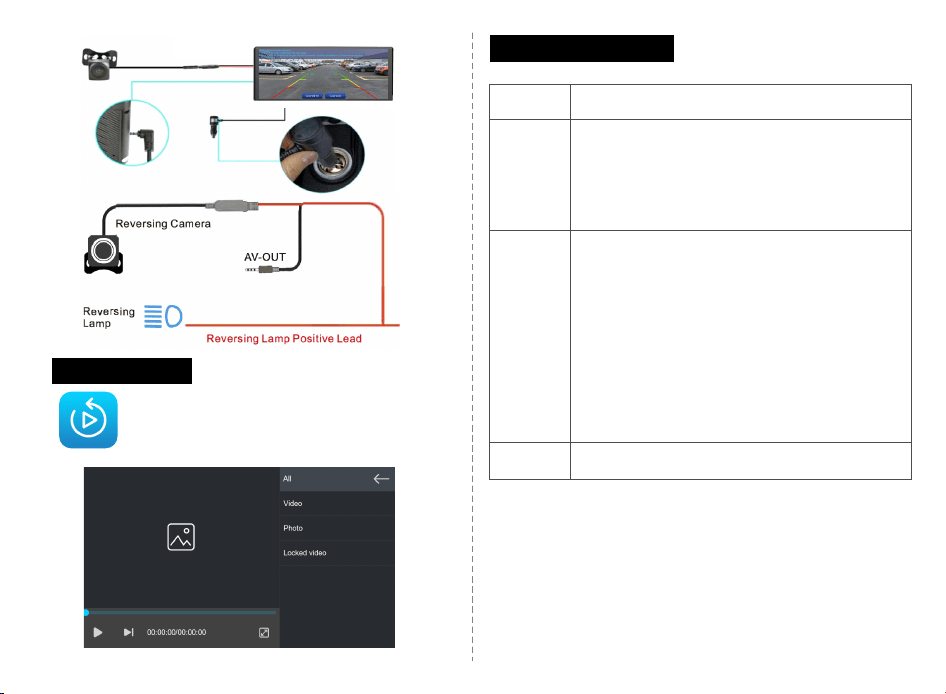
F.Playback
Ifyouwanttoviewyourdrivingvideosandphotos,
clickPlaybackbuttontoviewthem.
G.Audiooutput
Speaker
BTAudio
FM
AUX
TheAudioisplayedbythespeakerofthesmartscreen
1.Makesureyourphoneisconnectedtothesmart
screen
2.Useyourphonetoconnectyourcar'sBluetooth;
Supportmode:Carplay,AndroidAuto
UsingtheFMoutputconnectstheSmartScreentothe
car'soriginalaudio.
Tips:
Whenyougotoconnect,pleasemakesuretheFM
frequencyofyourcaristhesameasonthesmart
screen.
ToavoidnoisecausedbyFMsignals,wesuggest
connectingusingthenon-popularFMfrequencyor
blankFMfrequency,suchas100-108MHz.
UsetheAUXcabletoconnectthecaraudio.
· 4 ·
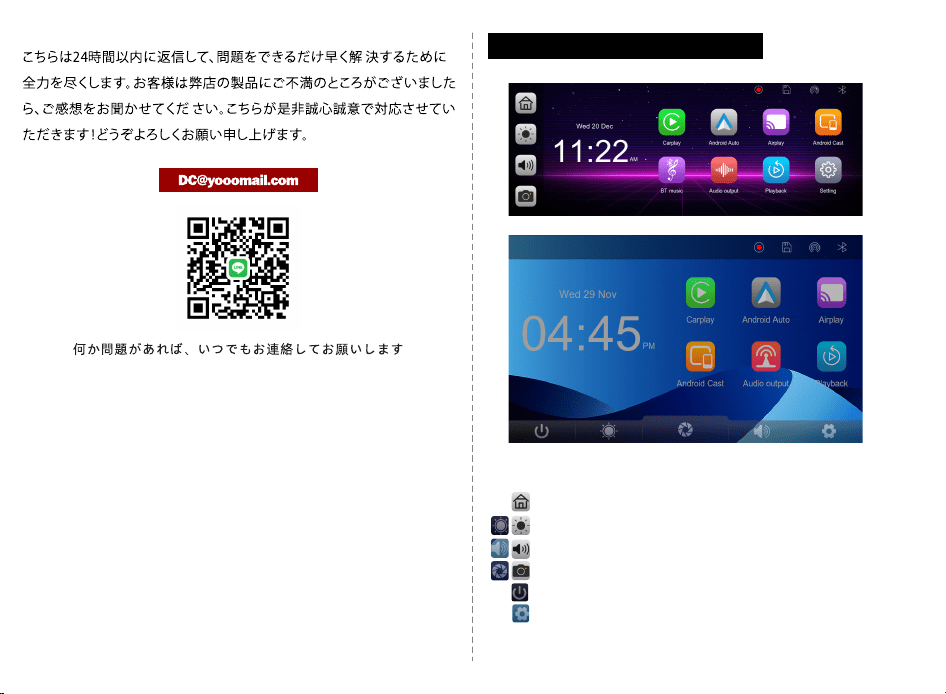
インターフェース仕様
ホームボタン:クリックしてホームページに戻ります
明るさボタン:クリックして画⾯の明るさを調整します
⾳量ボタン:クリックして⾳量を調整します
DVR:クリックして録画インターフェイスに⼊ります
画⾯のオン/オフ:画⾯をオンまたはオフにします
設定ボタン:クリックすると設定インターフェースに⼊ります
· 5 ·
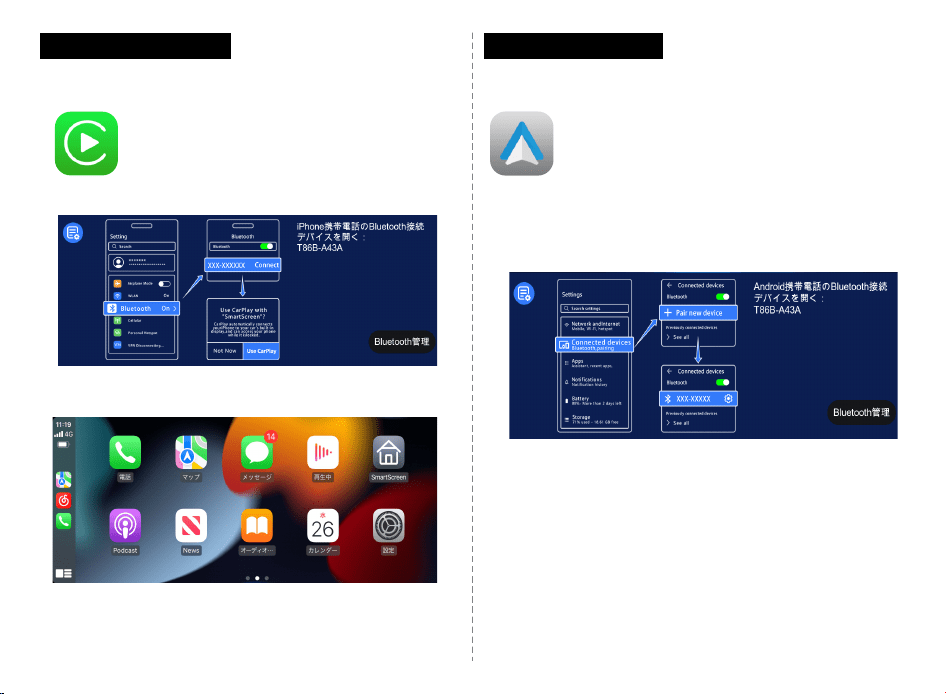
A.AppleCarPlay
接続⽅法:
Carplay接続
ステップ1「: Carplay」ボタンを選択して.
ステップ2:スマホのWi-FiとBluetoothをオンにします。
ステップ3:カープレイのBluetoothIDを確認し、ペアリン
グします。
ステップ4:接続が成功しました。
リンクが成功しました
PS:Hei、Siri!iphoneを呼び覚まして、⾳楽を聴いて、電話をかけて、ナビ
ゲーションして、天気など、⾳声アシスタントを利⽤して、carplayを制御
します。
B.AndroidAuto
ステップ1「: AndroidAuto」をクリックします;
ステップ2:スマホのWi-FiとBluetoothをオンにします;
ステップ3:カープレイのBluetooth IDを確認し、
ペアリングします;
ステップ4:接続が成功しました;
スマホの具体的な接続⽅法は以下:
1.AndroidAutoをオンにします
2.AndroidAutoを使⽤する場合、GooglePixelsphoneにはAndroid8.0
以上のバージョンが必要です。
3.他のブランドのAndroidスマホでは、システムはAndroid11以上の
バージョンが必要です。
4.Bluetoothデバイスを接続すると、WiFiは⾃動的に接続されます
WiFiデバイスを⼿動で再接続しないでください。
· 6 ·
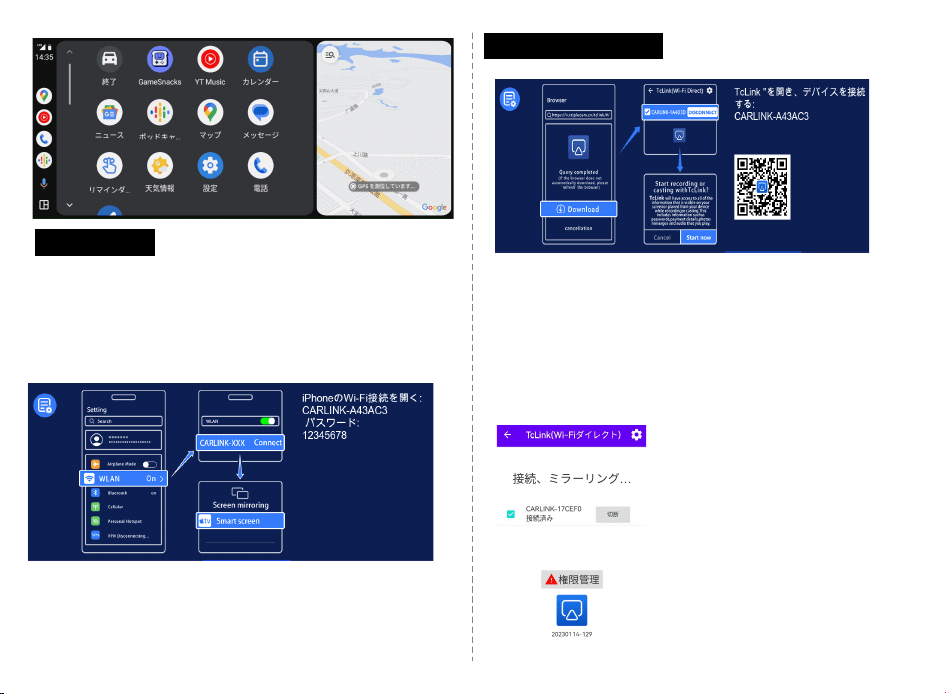
C.AirPlay
ステップ1:iPhoneをCarplayのWiFiに接続する
必要があります;
ステップ2:iPhoneコントロ-ルセンタ-の画⾯
ミラ-リングでSmartScreenを選択します;
注:iPhoneのみがサポ-トされています;
注:iPhoneのみがサポートされています.
D.AndroidCast
接続⽅法
1:メインインターフェースで「AndroidCast」をクリックします。
2:スマホでQRコードをスキャンし「、TcLink」アプリをダウンロードして
インストールします。
3:スマホで「TcLink」アプリをクリックします。
4「:CARLINK-XXXXXX」のWi-Fi名を⾃動的に検索し、クリックして接続
します。
5:接続成功。
注:Androidスマホのみをサポートします
(スマホはWIFI直接接続機能をサポート
する必要があります)
· 7 ·
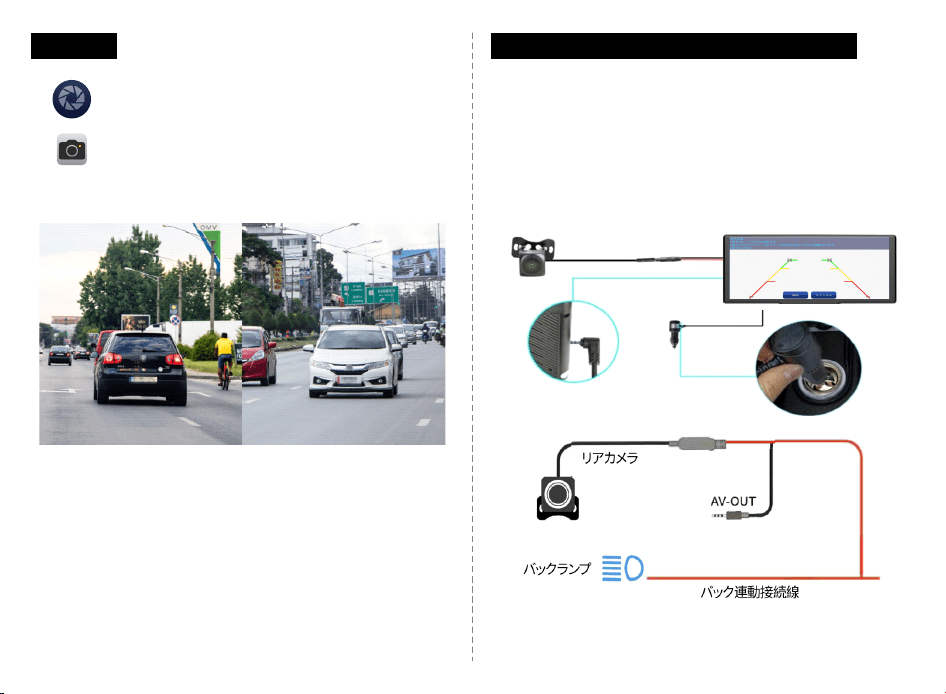
E.DVR
上の図に⽰すように、メインページにはカメラ画像が⾃動
的に表⽰されません。カメラ画像を表⽰するには、Dvrボタ
ンをクリックしてください。SDカードを挿⼊すると、システ
ムは⾃動的に録画モードに⼊り、録画中は[DVR]ボタンの
⼩さな⾚い点が点滅します。
a.リアカメラの取り付け(オプション)
ナンバープレートの近くに適切な取り付け位置を⾒つけ、⽳あけ位置
を決定し、ペンで印を付けてから、適切なサイズのネジ⽳を開けます。
ネジを使⽤してリアカメラを⾞の後部に固定します。リバースセンサー
のワイヤーをバックライトのプラス極(⾚⾊の細いワイヤー)に接続し、
最後にカープレイをリアカメラの延⻑線に接続します。
· 8 ·
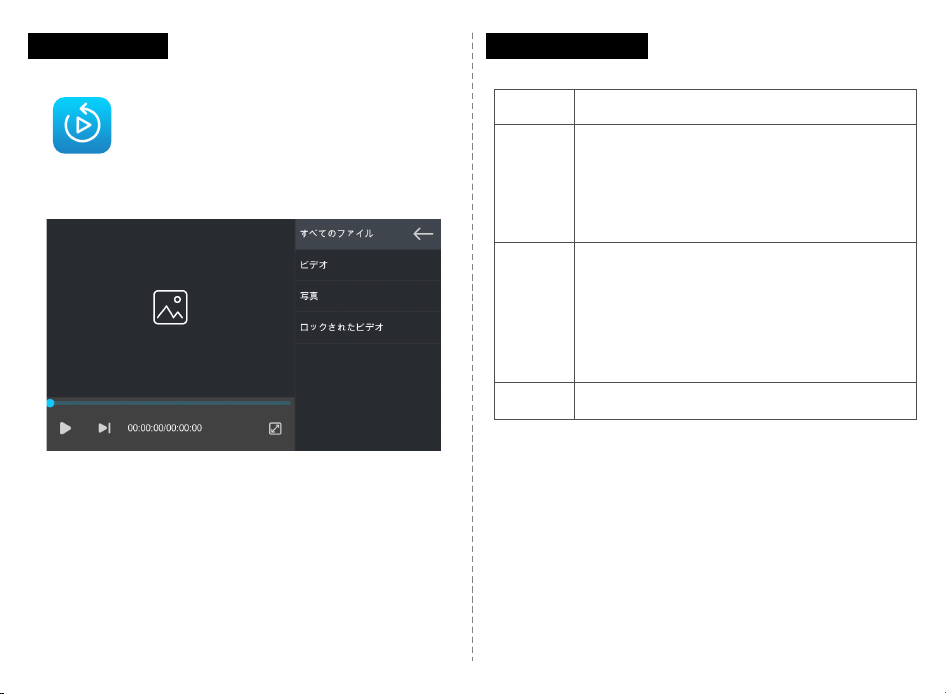
F.Playback
上に⽰すように、[再⽣]ボタンをクリックしてピデオ再⽣
インターフェイスに⼊ります。
スピーカー
BTAudio
FM
AUX
オーディオをスピーカーから出⼒;
1.まずスマホを使ってCarPlayを接続して;
2.次に、スマホのBluetoothを使って⾞のBluetooth
に接続して;
サポート:Carplay,AndroidAuto,
カーラジオを使⽤してカープレイを接続し、⾳声を
送信します。FM出⼒を使⽤する必要がある場合、カープ
レイのFM周波数と⾞のFM周波数が⼀致している必要
があります。⼈気のある周波数を避けるように注意して
ください。推奨されるFM周波数範囲は100〜108MHz
です;
AUXを使⽤して⾳声を送信します;
オーディオ出⼒
· 9 ·