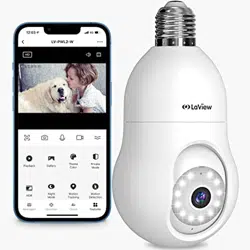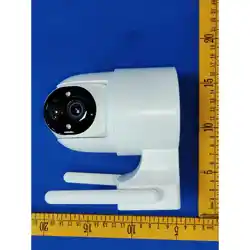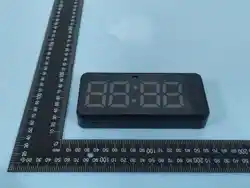

Tuya Smart
WiFi Camera
User Manual
Download App to Add
Camera Power and Reset
Note:
Search for Tuya Smart in APP store or Google Play or Scan the QR Code
below to download and install.
Scan QR Code to download
Power on the camera, turn on the device, it will hear a power-on prompt
ƐŽƵŶĚůĨƚŚĞĐĂŵĞƌĂĚŽĞƐŶŽƚŚĂǀĞĂƉƌŽŵƉƚƐŽƵŶĚĨŽƌĂůŽŶŐƟŵĞLJŽƵ
ĐĂŶƉƌĞƐƐĂŶĚŚŽůĚƚŚĞĐĂŵĞƌĂZĞƐĞƚďƵƩŽŶƵŶƟůLJŽƵŚĞĂƌƚŚĞƉƌŽŵƉƚ
ZĞƐƚŽƌĞĨĂĐƚŽƌLJƐĞƫŶŐƐƉůĞĂƐĞĚŽŶŽƚƉŽǁĞƌŽīΗĂŶĚƌĞůĞĂƐĞŝƚƚŽƌĞƐƚŽƌĞ
ƚŚĞĐĂŵĞƌĂƚŽĨĂĐƚŽƌLJƐĞƫŶŐƐĂŶĚƚŚĞŶĐŽŶĮŐƵƌĞƚŚĞŶĞƚǁŽƌŬ
ůĨLJŽƵŶĞĞĚůŽĐĂůƐƚŽƌĂŐĞƉůĞĂƐĞŝŶƐƚĂůůƚŚĞŵĞŵŽƌLJĐĂƌĚĮƌƐƚůLJĂŶĚ
then power on the device (the memory card does not support hot
swapping, please plug and unplug the memory card when the device
is powered oī). Cloud storage is recommended, which is safe and
convenient.
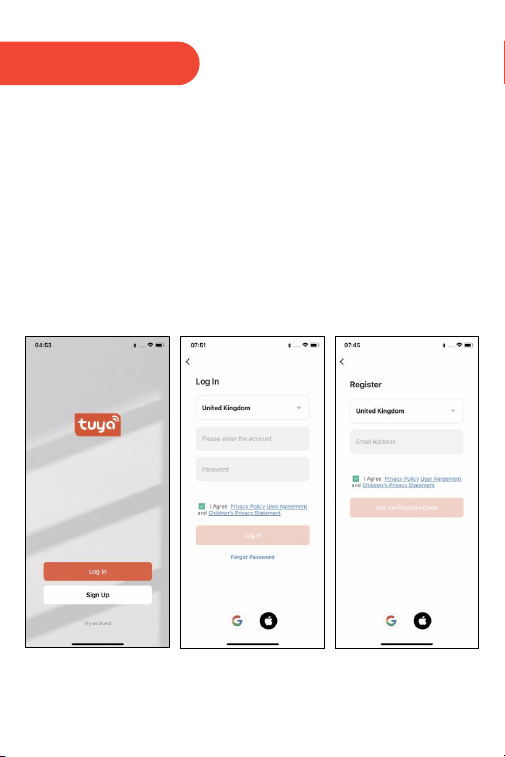
Register/Log
ϭ/ĨLJŽƵĂůƌĞĂĚLJŚĂǀĞĂŶĂĐĐŽƵŶƚƉůĞĂƐĞĐůŝĐŬΗ>ŽŐŝŶΗ;LJŽƵĐĂŶĂůƐŽĐŚŽŽƐĞ
to log in using a third-party account).
Ϯ/ĨLJŽƵĚŽŶΖƚŚĂǀĞĂŶĂĐĐŽƵŶƚLJĞƚLJŽƵĐĂŶƌĞŐŝƐƚĞƌŽŶĞůŝĐŬΗ^ŝŐŶhƉΗ
ƌĞĂĚƚŚĞƉƌŝǀĂĐLJƉŽůŝĐLJŽŶƚŚĞĂƉƉĐůŝĐŬΗŐƌĞĞΗƚŽĞŶƚĞƌƚŚĞƌĞŐŝƐƚƌĂƟŽŶ
ƉĂŐĞĞŶƚĞƌLJŽƵƌĞŵĂŝůĂĚĚƌĞƐƐƚŽƌĞĐĞŝǀĞƚŚĞǀĞƌŝĮĐĂƟŽŶĐŽĚĞĂŶĚ
ĐŽŵƉůĞƚĞƚŚĞƌĞŐŝƐƚƌĂƟŽŶ
Sign up account>ĂƵŶĐŚƚŚĞdƵLJĂ^ŵĂƌƚ >ŽŐŝŶĂĐĐŽƵŶƚ
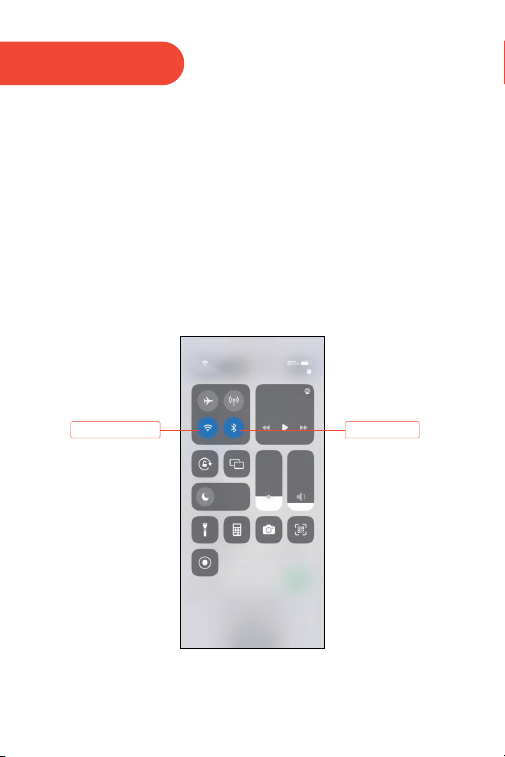
Add Device
Connect to 2.4G WiFi
and turn on Bluetooth
Connecting 2.4G WiFi Turn on Bluetooth
ŽŶŶĞĐƚLJŽƵƌƉŚŽŶĞƚŽtŝ&ŝĂŶĚƚƵƌŶŽŶůƵĞƚŽŽƚŚŬĞĞƉLJŽƵƌƉŚŽŶĞĂŶĚ
ĚĞǀŝĐĞĂƐĐůŽƐĞĂƐƉŽƐƐŝďůĞǁŚĞŶĐŽŶĮŐƵƌŝŶŐ
Note:
This device currently only supports 2.4GHz Wi-Fi and does not support
5GHz Wi-Fi. The Wi-Fi password should not contain any special characters,
such as !@#S%&*().
IPC
IPC
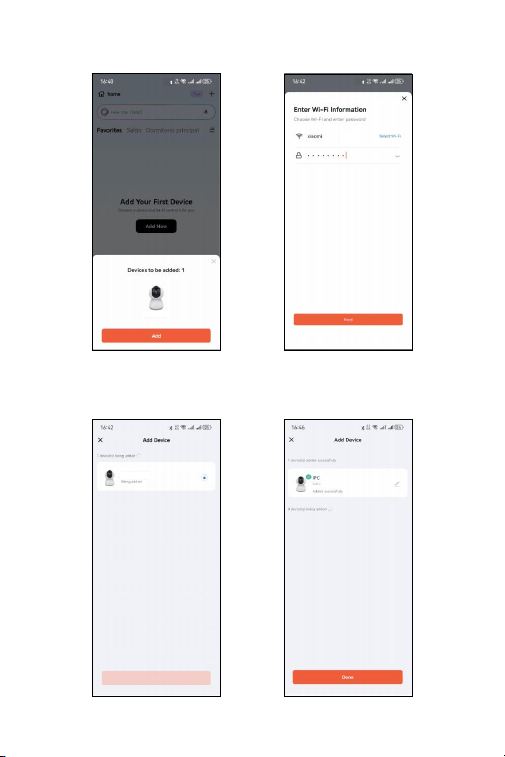
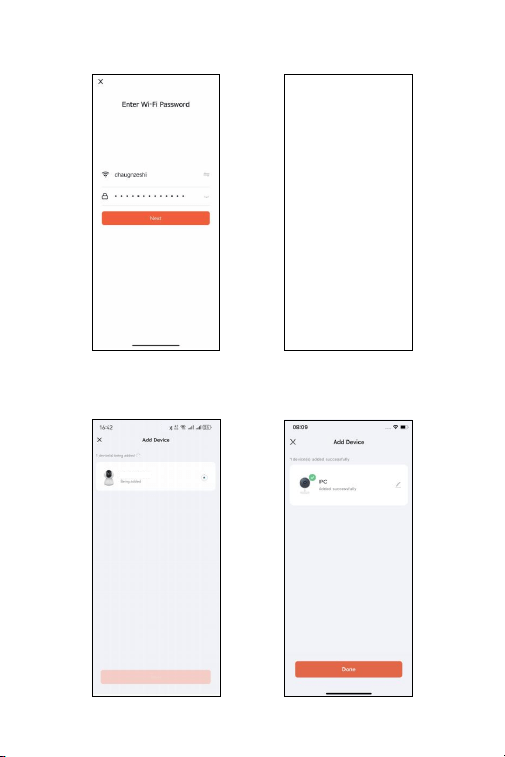
Method 1: Bluetooth Quick Connection (Recommended)
ǁĂŝƟŶŐ^ƵĐĐĞƐƐĨƵů
Device Provisioning
^ĞƫŶŐĂŶĂŵĞĨŽƌƚŚĞĚĞǀŝĐĞ
ĐŽŵƉůĞƚĞƐƚŚĞĂĚĚŝƟŽŶ
ůŝĐŬŽŶŝŶƚŚĞƉŽƉͲƵƉ
window on the home page
Enter WiFi password
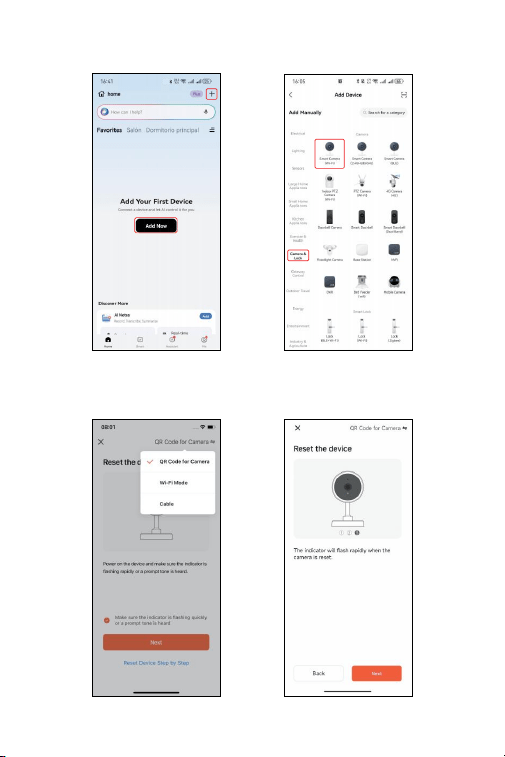
Method 2: QR Code Connection
dĂƉĂŵĞƌĂΘ>ŽĐŬͲ
Smart Camera (Fi-Wi)
dĂƉнŽƌĚĚĞǀŝĐĞ
to add device
Default is QR Code mode
and Tap next
Power on and reset the
ĚĞǀŝĐĞƚŚĞƐƚĂƚƵƐ>ǁŝůů
ŇĂƐŚƌĂƉŝĚůLJ
IPC
Enter WiFi password Scan the QR code on your
cell phone with the camera
ǁĂŝƟŶŐ^ƵĐĐĞƐƐĨƵů
Device Provisioning
^ĞƫŶŐĂŶĂŵĞĨŽƌƚŚĞĚĞǀŝĐĞ
ĐŽŵƉůĞƚĞƐƚŚĞĂĚĚŝƟŽŶ
APP Function
WůĂLJďĂĐŬƚŚĞ
recordings
Device Volume
^ĞƫŶŐƐ
^ŝƌĞŶĂůĂƌŵ;dŽŵĂŬĞ
alarm sound to scare
the suspicious person)
Photo album
Feature Editor
Enable Auto
ƚƌĂĐŬŝŶŐƚŽĨŽůůŽǁ
the movement
Theme color
;>ŝŐŚƚŵŽĚĞĂŶĚ
ĚĂƌŬŵŽĚĞͿ
DŽƟŽŶĚĞƚĞĐƟŽŶ
alarm (Send alarm
ŶŽƟĨĂĐƟŽŶŝĨĂŶLJ
movement
detected)
Private Mode
(Camera display
ƚƵƌŶŽīŽŶĂƉƉͿ
^ŽƵŶĚĞƚĞĐƟŽŶ
(Send alarm
ŶŽƟĨĂĐƟŽŶŝĨ
anysound detected)
EŽƚĞ&ƵŶĐƟŽŶĂůŝƚLJŵĂLJĚŝīĞƌĂĐƌŽƐƐŵŽĚĞůƐ^ƉĞĐŝĮĐĂƟŽŶƐƐƵďũĞĐƚƚŽĂĐƚƵĂůƉƌŽĚƵĐƚ
Google Assistant And Alexa
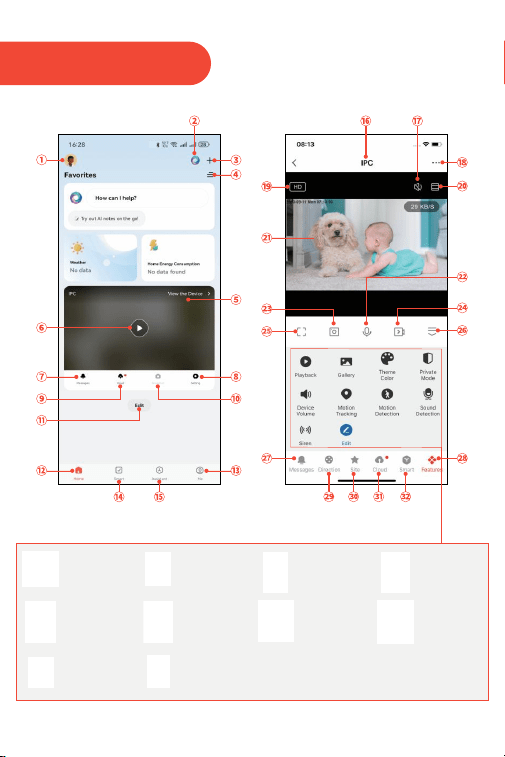
1.Family management
10.Capture the current live view
2.AI assistant
11.ĚŝƟŶŐĨƵŶĐƟŽŶ
3.Add a new device
12.Home device management
4.Room management
5.Enter the device live view page
ϲWƌĞǀŝĞǁďƵƩŽŶĨŽƌĂĚĚĞĚĚĞǀŝĐĞƐ
8.ŽŶĮŐƵƌĞƚŚĞĚĞǀŝĐĞ
9.ůŽƵĚƐƚŽƌĂŐĞƐĞƌǀŝĐĞ;ƐƵďƐĐƌŝƉƟŽŶƌĞƋƵŝƌĞĚͿ
7.View device alarm messages
13.My account center
14.^ŵĂƌƚ;ŝīĞƌĞŶƚĨƌŽŵŚŽŵĞƉĂŐĞƚŚŝƐ
ƐŵĂƌƚŝƐƚŽƐĞƚŽŶůLJĐĂŵĞƌĂƐŵĂƌƚĂĐƟŽŶƐͿ
15.More service assistants
ϭϳ>ŝǀĞsŝĞǁ^ŽƵŶĚ^ǁŝƚĐŚ
16.Device name
18.DŽƌĞĚĞǀŝĐĞƐĞƫŶŐƐ
19.ZĞƐŽůƵƟŽŶƐǁŝƚĐŚŝŶŐ
20.>ŝǀĞsŝĞǁůĞĐƚƌŽŶŝĐDĂŐŶŝĮĐĂƟŽŶ
21.Monitoring live stream view
22.WƌĞƐƐĂŶĚŚŽůĚƚŚĞŵŝĐƌŽƉŚŽŶĞƚŽƐƉĞĂŬ
23.dĂŬĞĂƐĐƌĞĞŶƐŚŽƚŽĨƚŚĞĐƵƌƌĞŶƚůŝǀĞƐƚƌĞĂŵ
24.Record a video of the current live stream view
25.Display the live stream view in full screen
Ϯϲ&ƵŶĐƟŽŶŵĞŶƵĐŽůůĂƉƐĞďƵƩŽŶ
ϮϳsŝĞǁĂůůŵĞƐƐĂŐĞƐĨƌŽŵƚŚĞĚĞǀŝĐĞĚĞƚĞĐƟŽŶ
Ϯϴ&ƵŶĐƟŽŶDĞŶƵ
ϮϵŽŶƚƌŽůƚŚĞWdƌŽƚĂƟŽŶĚŝƌĞĐƟŽŶŽĨƚŚĞĐĂŵĞƌĂ
30.Set preset points for area surveillance
ϯϭůŽƵĚƐƚŽƌĂŐĞƐĞƌǀŝĐĞ;ƐƵďƐĐƌŝƉƟŽŶƌĞƋƵŝƌĞĚͿ
ϯϮ^ŵĂƌƚ;ŝīĞƌĞŶƚĨƌŽŵŚŽŵĞƉĂŐĞƚŚŝƐ
ƐŵĂƌƚŝƐƚŽƐĞƚŽŶůLJĐĂŵĞƌĂƐŵĂƌƚĂĐƟŽŶƐͿ
Please make sure your device have enable this function
WƌĞĐŽŶĚŝƟŽŶ
Pariing Tuya Smart to Smart Speaker APP
(1) Download and install the Google Home or Amazon Alexa APP according to the Smart
ƐƉĞĂŬĞƌLJŽƵŚĂǀĞ
;ϭͿ>ŽŐŝŶŽŶ'ŽŽŐůĞ,ŽŵĞWWĐůŝĐŬƚŚĞƌŝŐŚƚĐŽƌŶŶĞƌŽĨŝŶĚŝǀŝĚƵĂůƐĞƫŶŐƐͲƐƐŝƐƚĂŶƚ^ĞƫŶŐƐ
ͲͲĐŚŽŽƐĞƐƐŝƐƚĂŶƚͲͲ,ŽŵĞΗŽŶƚƌŽůͲͲ^ĞĂƌĐŚƚŚĞdƵLJĂ^ŵĂƌƚWWƚŚĞƉĂŐĞǁŝůůĚŝƌĞĐƚƚŽƚŚĞ
ƚƵLJĂƐŵĂƌƚůŽŐŝŶƉĂŐĞƉůĞĂƐĞŝŶƉƵƚLJŽƵƌƚƵLJĂƐŵĂƌƚĂƉƉĂĐĐŽƵŶƚĂŶĚƉĂƐƐǁŽƌĚĂŶĚĐůŝĐŬ
ƵƚŚŽƌŝƐĞΗƚŽůŝŶŬƚƵLJĂƐŵĂƌƚĂƉƉǁŝƚŚLJŽƵƌ'ŽŽŐůĞ,ŽŵĞWWdŚĞŶLJŽƵǁŝůůďĞĂďůĞƚŽ
see the devices support Google Assistant in your home device list.
(2)Control your devices through Google Home APP .For the smart camera you could say as below:
KŬ'ŽŽŐůĞƐŚŽǁŵĞƚŚĞƐŵĂƌƚĐĂŵĞƌĂ
KŬ'ŽŽŐůĞƐŚŽǁŵĞƚŚĞ/W
KŬ'ŽŽŐůĞƐŚŽǁŵĞƚŚĞƐĞĐƵƌŝƚLJĐĂŵĞƌĂ
ŶĚLJŽƵĐŽƵůĚĂůƐŽŐŝǀĞƐŽŵĞĨĂŵŝůŝĂƌŶĂŵĞƚŽƚŚĞĚĞǀŝĐĞůŝŬĞĨƌŽŶƚĚŽŽƌďĞĚƌŽŽŵŚĂŚĂĞƚĐ
KŬŐŽŽŐůĞƐŚŽǁŵĞĨƌŽŶƚĚŽŽƌďĞĚƌŽŽŵŚĂŚĂ
>ŝŶŬǁŝƚŚ'ŽŽŐůĞ,ŽŵĞWW^ƵƉƉŽƌƚ'ŽŽŐůĞEĞƐƚ,ƵďŚƌŽŵĞĐĂƐƚŝƐƉůĂLJĞƚĐ
;ϮͿZĞŐŝƐƚĞƌƚŚĞĂĐĐŽƵŶƚĂŶĚƉĂŝƌLJŽƵƌƐŵĂƌƚƐƉĞĂŬĞƌǁŝƚŚWW
FQA
;ϭͿ>ŽŐŝŶŽŶŵĂnjŽŶůĞdžĂWWĂŶĚĐůŝĐŬŵĞŶƵŽŶƚŚĞůĞŌĐŽƌŶŶĞƌ^ĞůĞĐƚƐŬŝůůŵĞŶƵƚŽĞŶƚĞƌƐŬŝůů
ƐƚŽƌĞͲƐĞĂƌĐŚdƵLJĂƐŵĂƌƚͲͲůŝĐŬŶĂďůĞďƵƩŽŶͲͲŝƚǁŝůůĚŝƌĞĐƚƚŽƚƵLJĂƐŵĂƌƚůŽŐŝŶƉĂŐĞƉůĞĂƐĞ
ŝŶƉƵƚLJŽƵƌƚƵLJĂƐŵĂƌƚĂƉƉĂĐĐŽƵŶƚĂŶĚƉĂƐƐǁŽƌĚͲͲƚŚĞŶƐƉĞĂŬƚŽĐŚŽΗůĞdžĂŝƐĐŽǀĞƌƚŚĞ
ĚĞǀŝĐĞƐΗͲͲƚŚĞŶLJŽƵǁŝůůĂďůĞƚŽƐĞĞƚŚĞĚĞǀŝĐĞƐŝŶLJŽƵƌƚƵLJĂƐŵĂƌƚĂƉƉĂĐĐŽƵŶƚ
(2)Control your devices through Amazon Alexa APP .For the smart camera you could say as below:
ůĞdžĂƐŚŽǁŵĞƚŚĞƐŵĂƌƚĐĂŵĞƌĂ
ůĞdžĂƐŚŽǁŵĞƚŚĞ/W
ůĞdžĂƐŚŽǁŵĞƚŚĞƐĞĐƵƌŝƚLJĐĂŵĞƌĂ
>ŝŶŬǁŝƚŚŵĂnjŽŶůĞdžĂWW^ƵƉƉŽƌƚĐŚŽ^ƉŽƚĐŚŽ^ŚŽǁϱϴϭϬĞƚĐ
Yϭ,ŽǁĚŽ/ƌĞƐĞƚŵLJĐĂŵĞƌĂƚŽĨĂĐƚŽƌLJƐĞƫŶŐƐ
ϭĞůĞƚĞƚŚĞĐĂŵĞƌĂĨƌŽŵLJŽƵƌĂƉƉůŝƐƚĚŝƌĞĐƚůLJŽƌůŽŶŐƉƌĞƐƐƚŚĞƌĞƐĞƚďƵƩŽŶĨŽƌϴƐƵŶƟůLJŽƵ
ŚĞĂƌƚŚĞǀŽŝĐĞZĞƐĞƚĐĂŵĞƌĂƌĞƚ
YϮ/ŚĂǀĞƐĞůĞĐƚƚŚĞϮϰ'Θϱ',njt/Ͳ&ůĂŶĚŝŶƉƵƚƉĂƐƐǁŽƌĚĐŽƌƌĞĐƚůLJǁŚLJĚŽĞƐƚŚĞĐĂŵĞƌĂƐƟůů
ŶŽƚĐŽŶŶĞĐƚĞĚƚŽtŝͲ&ŝ
Ϯ;ϭͿWůĞĂƐĞŵĂŬĞƐƵƌĞƚŚĞŶĞƚǁŽƌŬLJŽƵƵƐĞĚŝƐƚŚĞƐĂŵĞŽŶĞĨŽƌLJŽƵƌƉŚŽŶĞĂŶĚƚŚĞĐĂŵĞƌĂ
;ϮͿWůĞĂƐĞŵĂŬĞƐƵƌĞLJŽƵƌZŽƵƚĞƌĞŶĂďůĞ,WLJŽƵĐŽƵůĚůŽŐŝŶƚŚĞƌŽƵƚĞƌƐĞƫŶŐƐƚŽĐŚĞĐŬ
lf it's disabled the camera will not get ip and fail.
;ϯͿWůĞĂƐĞƉƌĞƐƐƚŚĞƌĞƐĞƚďƵƩŽŶĨŽƌϴƐƚŽƌĞƐƚĂƌƚƚŚĞĐĂŵĞƌĂ
;ϰͿWůĞĂƐĞŵĂŬĞƐƵƌĞƚŚĞtŝĮƐŝŐŶĂůŝŶƚĞŶƐŝƚLJŝƐŽǀĞƌϴϬй
Yϯ,ŽǁĚŽůĐŚĂŶŐĞƚŚĞĐĂŵĞƌĂĨƌŽŵŽŶĞƌŽƵƚĞƌƚŽĂŶŽƚŚĞƌ
ϯ&ŝƌƐƚĚĞůĞƚĞƚŚĞĐĂŵĞƌĂĨƌŽŵLJŽƵƌĂƉƉůŝƐƚŽƌůŽŶŐƉƌĞƐƐƚŚĞƌĞƐĞƚďƵƩŽŶĨŽƌϴƐ
dŚĞŶĐŽŶĮŐƵƌĞƚŚĞĐĂŵĞƌĂĂŐĂŝŶ
Q4:tŚLJ^ĐĂƌĚĐĂŶΖƚďĞƌĞĐŽŐŶŝnjĞĚŌĞƌĂƉĞƌŝŽĚƚŚĞǀŝĚĞŽĂŶĚĐLJĐůĞǀŝĚĞŽƐĐĂŶŶŽƚďĞƌĞĐŽƌĚĞĚ
ϰWůĞĂƐĞĐŚĞĐŬƚŚĞĐĂŵĞƌĂƐĞƫŶŐƐĂŶĚŵĂŬĞƐƵƌĞLJŽƵƐĞƚƵƉƚŚĞĐĂŵĞƌĂƚŽƌĞĐŽƌĚŽŶ^ĐĂƌĚ
And currently support 4GB-128GB SD card do not exceed.
YϱtŚLJŝĐĂŶΖƚƌĞĐŝĞǀĞƚŚĞĂůĂƌŵŝŶĨŽƌŵĂƟŽŶǁŚĞŶŝƐĞĞĚĞǀŝĐĞŽŶůŝŶĞĂŶĚŚĂƐĂŶŵŽƟŽŶ
ĚĞƚĞĐƟŽŶĞǀĞŶƚ
ϱWůĞĂƐĞŵĂŬĞƐƵƌĞLJŽƵŚĂǀĞĞŶĂďůĞƚŚĞƉƵƐŚŶŽƟĮĐĂƟŽŶĨƌŽŵƚŚĞdƵLJĂ^ŵĂƌƚWW
ŶĚƉůĞĂƐĞĞŶĂďůĞĂůĂƌŵŶŽƟĮĐĂƟŽŶŽŶĂƉƉ
Yϲ,ŽǁĚŽŝĂĐĐĞƐƐƚŚĞĐĂŵĞƌĂŽŶt
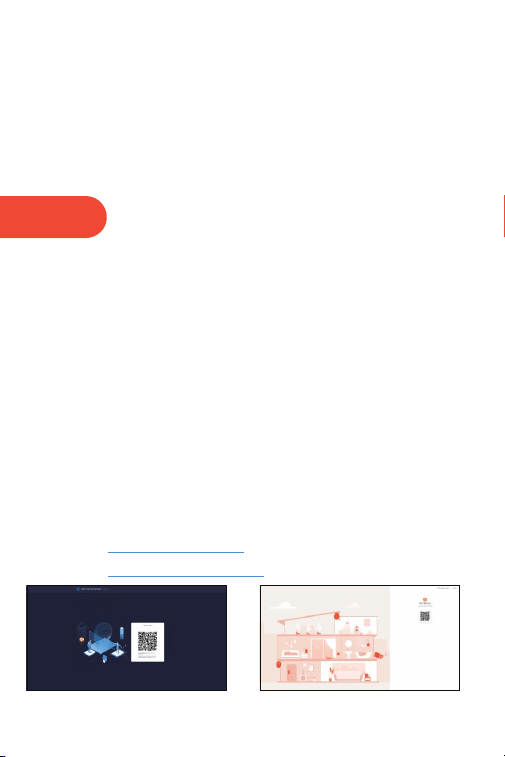
A6:Open the page ŚƩƉƐŝƉĐŝƐŵĂƌƚůŝĨĞŵĞůŽŐŝŶ and use your own Tuya app to scan the the QR
code then you will see the camera on IE, This method can view video recordings in H.264 format.
Similarly, open ŚƩƉƐƉƌŽƚĞĐƚŝƐŵĂƌƚůŝĨĞŵĞůŽŐŝŶ to view video recordings in H.265 format.

Warning
FCC Statement
This equipment has been tested and found to comply with the limits for a Class B
digital device, pursuant to part 15 of the FCC rules. These limits are designed to
provide reasonable protecon against harmful interference in a residenal installaon.
This equipment generates, uses and can radiate radio frequency energy and, if not
installed and used in accordance with the instrucons, may cause harmful interference
to radio communicaons. However, there is no guarantee that interference will not
occur in a parcular installaon. If this equipment does cause harmful interference to
radio or television recepon, which can be determined by turning the equipment off
and on, the user is encouraged to try to correct the interference by one or more of the
following measures:
-Reorient or relocate the receiving antenna.
-Increase the separaon between the equipment and receiver.
-Connect the equipment into an outlet on a circuit different from that to which the
receiver is connected.
-Consult the dealer or an experienced radio/TV technician for help.
To assure connued compliance, any changes or modificaons not expressly
approved by the party.
Responsible for compliance could void the user’s authority to operate this
equipment. (Example- use only shielded interface cables when connecng to
computer or peripheral devices).
This equipment complies with Part 15 of the FCC Rules. Operaon is subject to
the following two condions:
(1) This device may not cause harmful interference, and
(2) This device must accept any interference received, including interference that
may cause undesired operaon.
FCC Radiaon Exposure Statement:
The equipment complies with FCC Radiaon exposure limits set forth for
uncontrolled environment. This equipment should be installed and operated with
minimum distance 20cm between the radiator and your body.