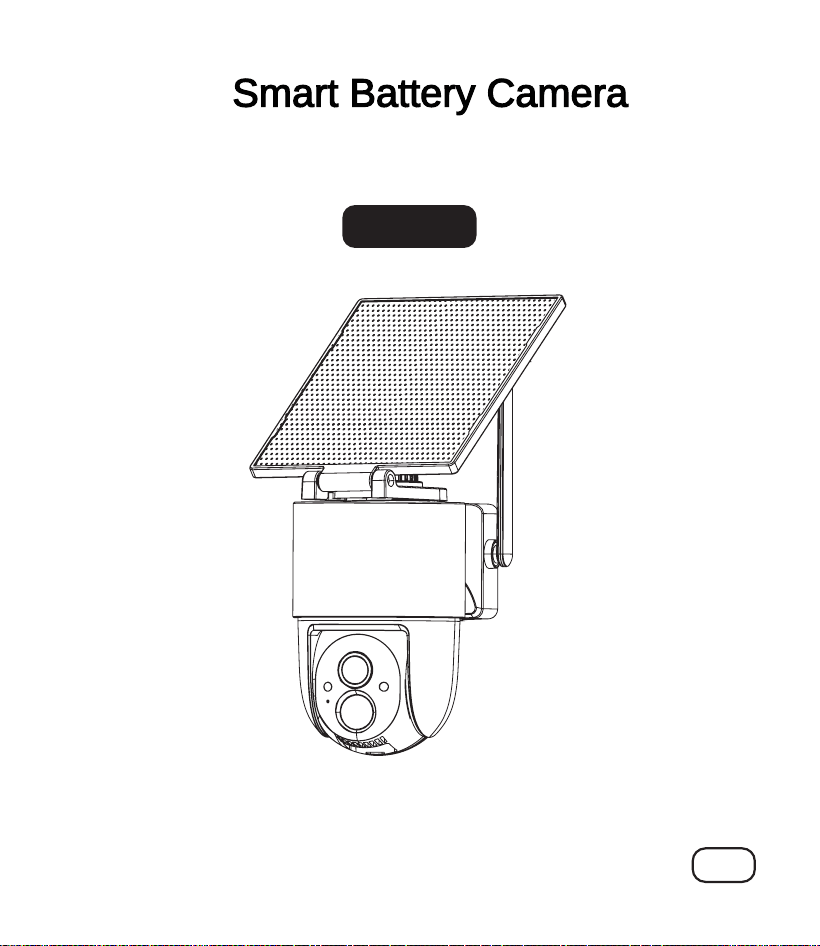
Smart Battery Camera
User Manual
Q41-S
Wi
📧📧
:support@arogal.ai
📞📞
: +1 218-292-2199

Catalog
I.Product Introduction ----------------------------------------1
II.Setup APP -----------------------------------------------------3
III. APP Introduction -------------------------------------------11
IV.Mounting the Camera --------------------------------------13
V.FAQS ------------------------------------------------------------17
Contact Us:
If you have any questions about our products or services, please feel free to
contact us
📧
: support@arogal.ai
📞
: +1 218-292-2199
1
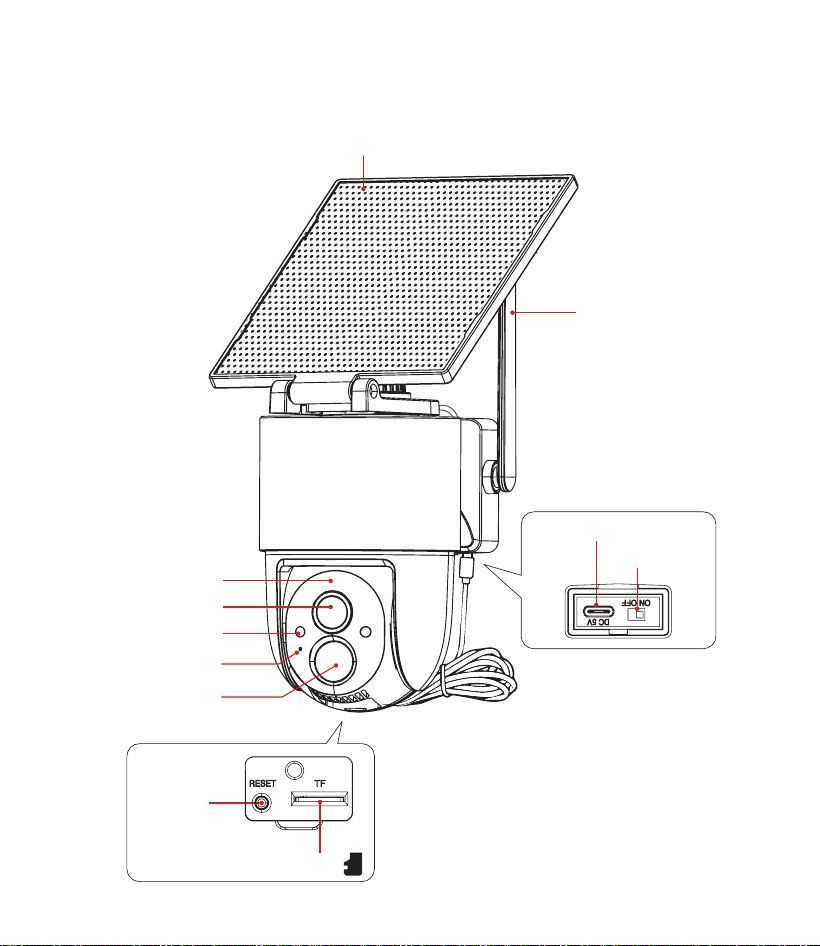
I.Product Introduction
Solar panel
Lens
LED Indicator
Microphone
PIR
White/IR LED
Reset
button
Power Button
Type-C Port
WiFi Antenna
TF card slot

2
Charge the camera
Please plug the camera into a power source to charge the camera for about 10-13
hours by using the provided USB cable. After adding the camera to the App, the App
will display the battery status.
Storage Options
You can store your event videos on a TF card (not included) or in cloud storage,
based on your preference.
Option 1: TF Card. Please install the TF card only when the camera is powered o,
and use a Class 10 or higher card with 8 GB-128 GB of storage.
Option 2: Cloud Storage. New users receive free lifetime cloud storage (8-second
clips with 24-hour rolling retention) .
II.Setup APP
1.Download and install APP
Option 1 : Scan the QR code below to download the "Arogal" App and set it up on
your mobile phone.
3
Option 2: Search"Arogal"App and download it from Google Play Store for Android
or App Store for iOS.
· Please conrm the Arogal App icon before downloading it. Otherwise, you can't
add the camera successfully.
· Allow "Arogal" to use mobile cellular data and wireless network. Otherwise, you
may fail to add 4G camera.
· Allow "Arogal" to access phone location and push messages to the phone.
Otherwise, the phone will not receive alerts from the Arogal when motion detection
is triggered.
4
2.Register Account
(1) Create an account using your email address, and complete email verication.
(2) Set a password for your account and keep it secure. Follow the app's on-screen
instructions to complete setup.
Important Notes:
· During download and account setup, tap "Allow" or "Agree" to grant the Arogal
App access to your device's Camera, Location, Storage, Microphone, Notications,
and Wireless Data. Without these permissions, the camera may have reduced
functionality or incomplete settings.
· Some email providers—such as att.net, msn.com, and hotmail.com—apply
strict ltering to messages from unsubscribed senders. If you do not receive the
verication email, consider using a dierent email address to ensure smooth
delivery.
5
3.Adding the camera to App
Important Note:
Before pairing with the camera, please ensure your phone is connected to 2.4Ghz
WiFi and has Bluetooth turned on, and conrm your router password before starting
the pairing process.
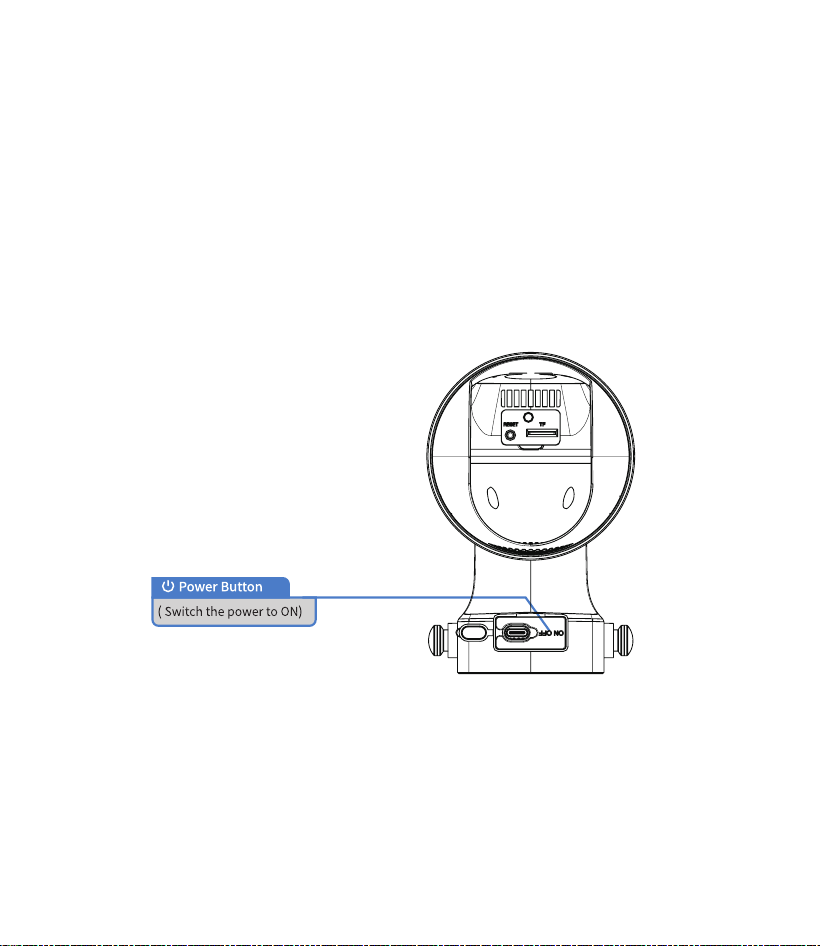
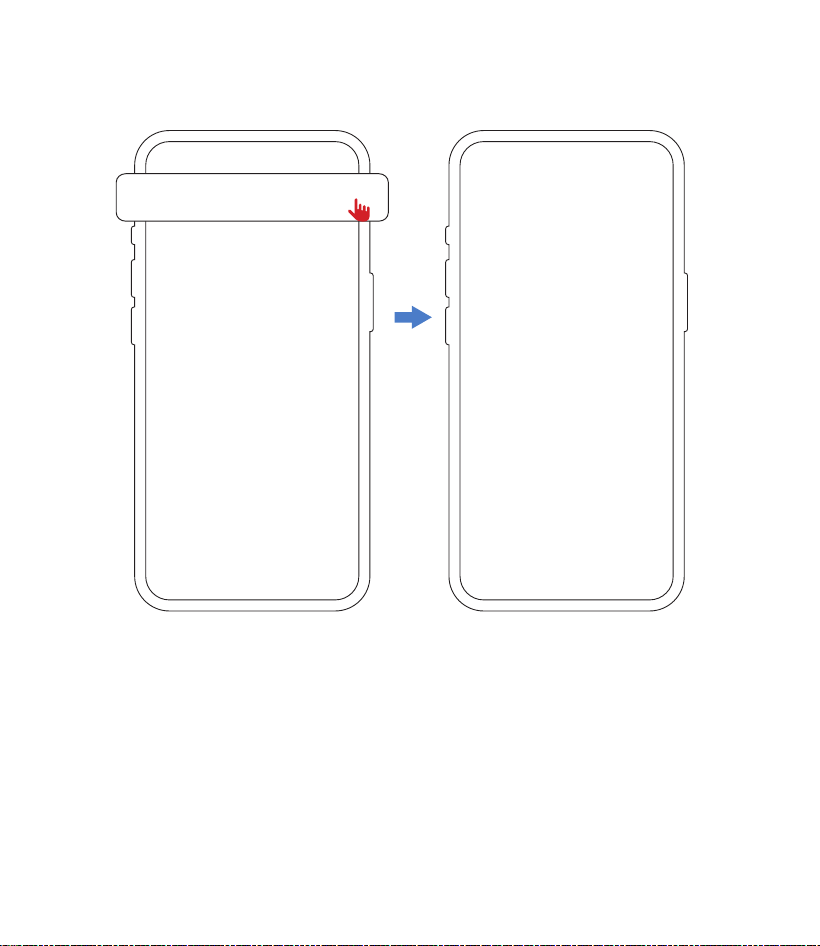
Step 1. Power on the camera and turn on Bluetooth on your phone.
(Note: If the app detects that Bluetooth is disabled on your phone, a window will
pop up. Please tap"Settings" to enable Bluetooth.)
6
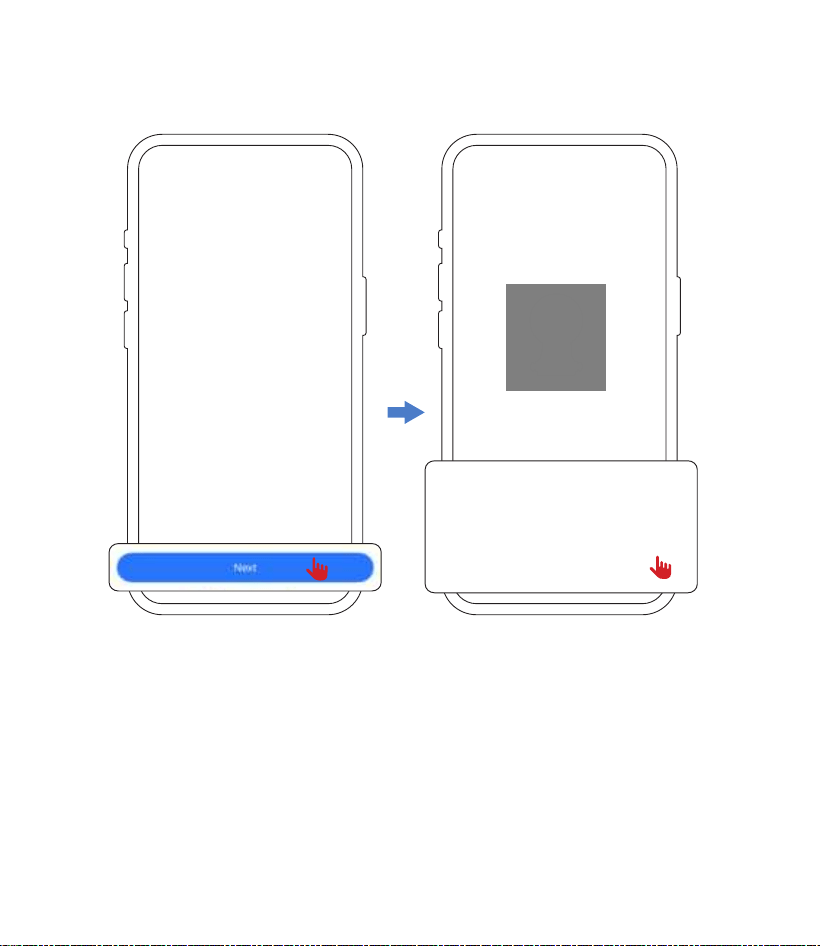
Step 2. Open the"Arogal" APP, click on "+", then use your phone to scan the QR
code on the camera.
7
Step 3. Please conrm the camera status, when its red indicator light is blinking,
then click 'Next', and nally click 'Conrm' to complete the operation.
8
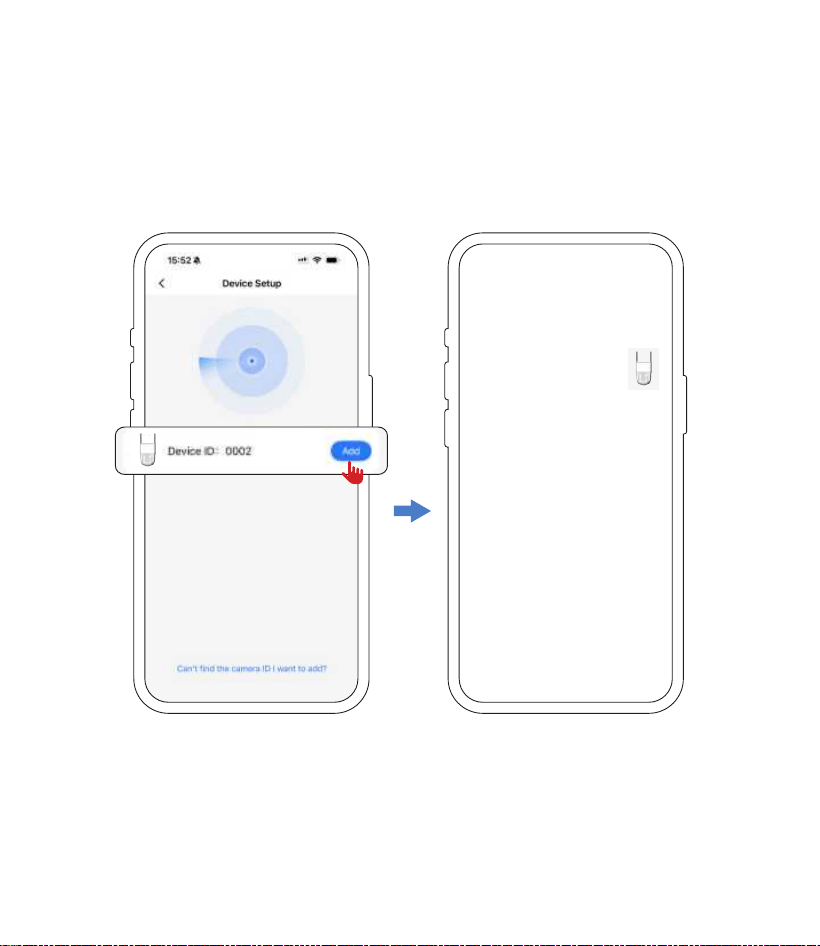
Step 4. Wait for your phone to detect your camera, select the correct camera's
Bluetooth name, and tap "Add ".Wait for the app to connect to your device. (If the
app doesn't display a window to detect your device, check if the camera is turned
on.)
9
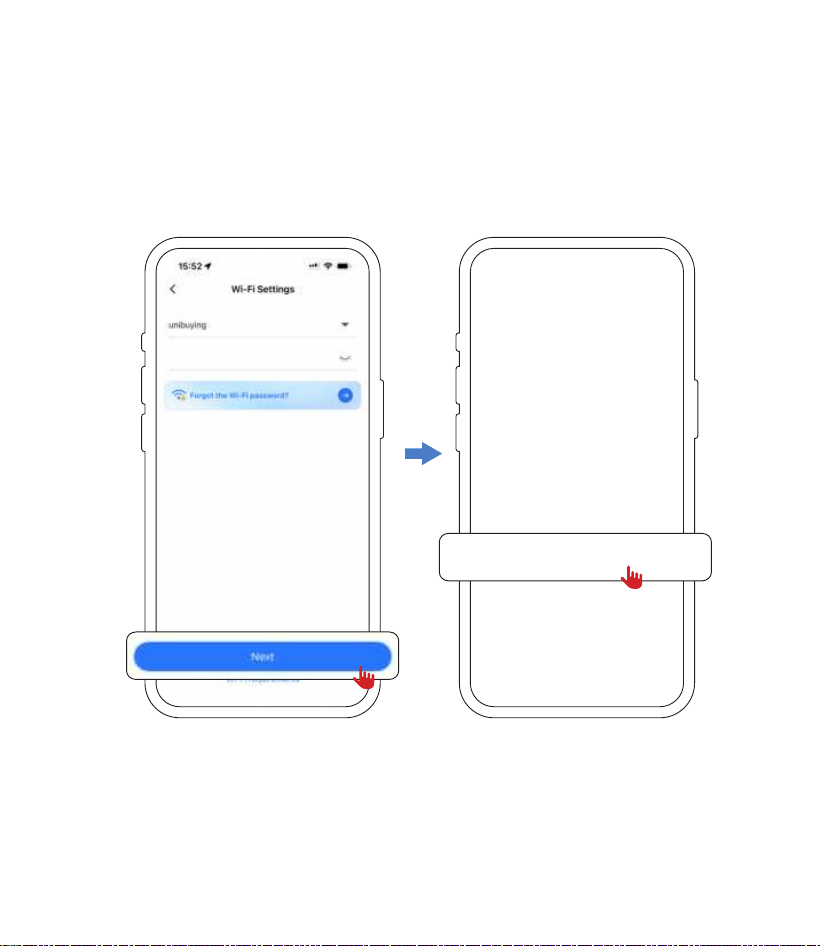
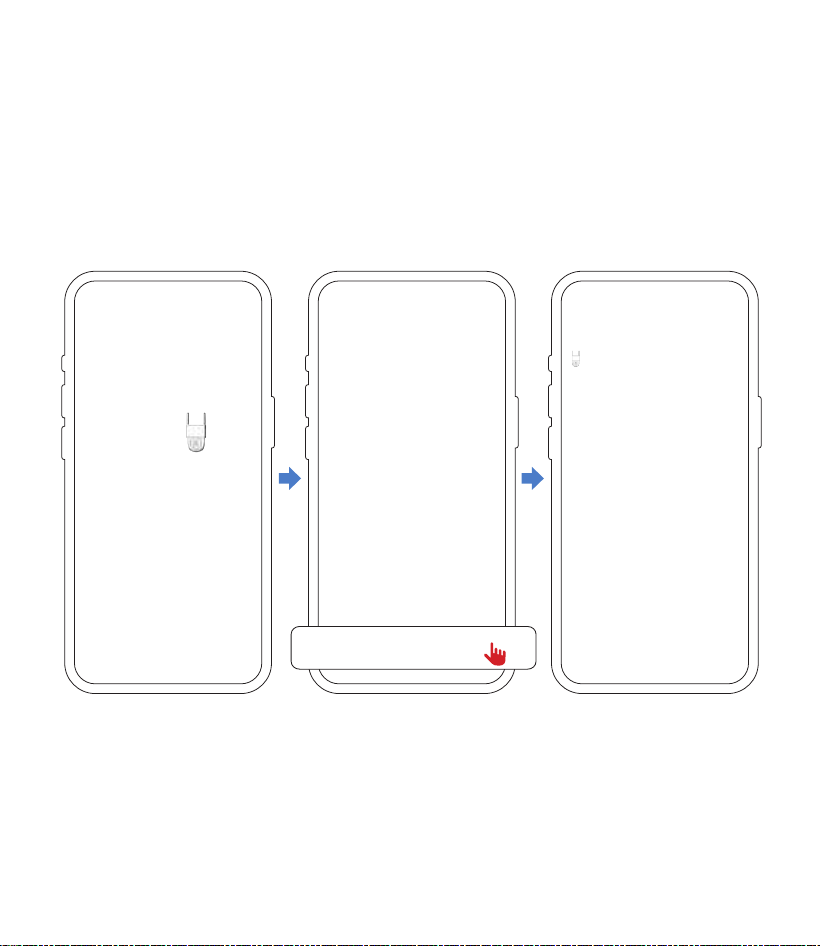
Step 5: Please ensure your phone is connected to a 2.4GHz Wi-Fi network (if
currently on a 5GHz network, manually switch to a 2.4GHz network), enter the
correct Wi-Fi password, and then tap "Next".
Step 6: On the pop-up interface, please reconrm the router's Wi-Fi password, and
after verifying it is correct, tap "Conrm".
10
Step 7. Bring your phone close to the camera and keep it still, waiting for the scan to
nish prompty tone. (The connection takes about 2 minutes. Please keep the device
powered on and Bluetooth enabled. If it takes too long, please check the device
status.)
Congratulations! The device is successfully connected. Next, you can set a name
for this camera.
11
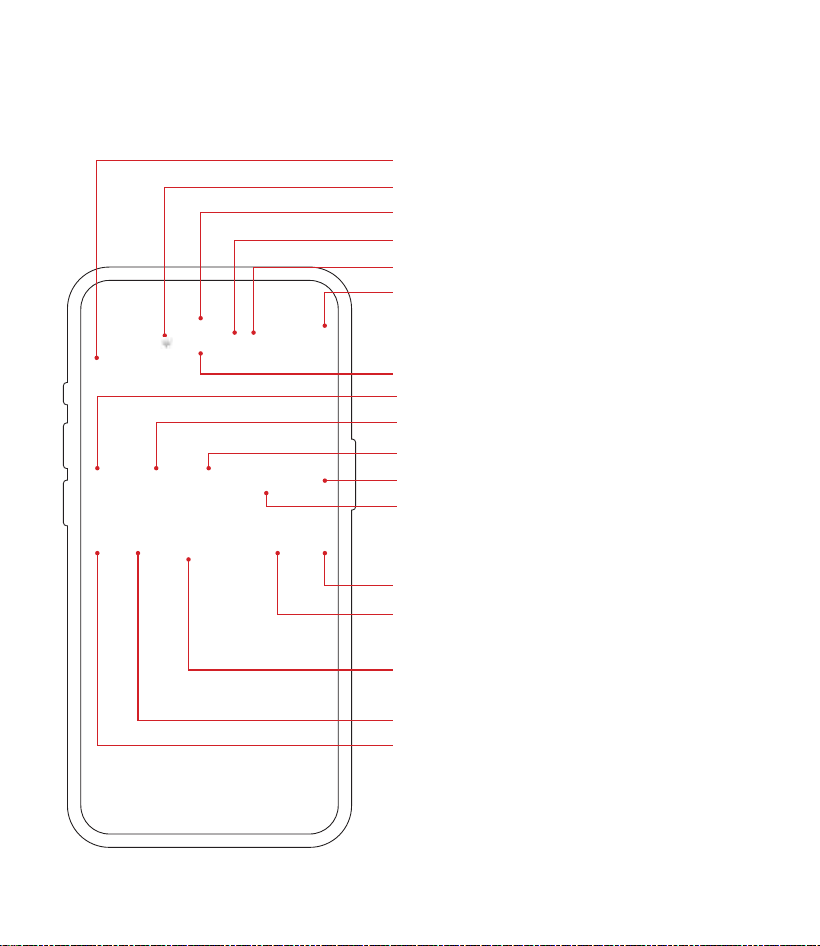
III. APP Introduction
Time of the camera
WIFI Signal Strength
Camera Name
Battery level
Working Mode
Device settings
Number of users
Denition of the video (FHD/HD)
Camera sound ON/OFF
Manual Recording
Full screen preview
Screenshot
Spotlight: Spotlight ON/OFF
Playback: TF Card storage
Cloud Service: Subscribe to a plan to
upgrade your cloud storage.
Intercom: Click to enable two-way audio
PTZ: PTZ control of the camera
12
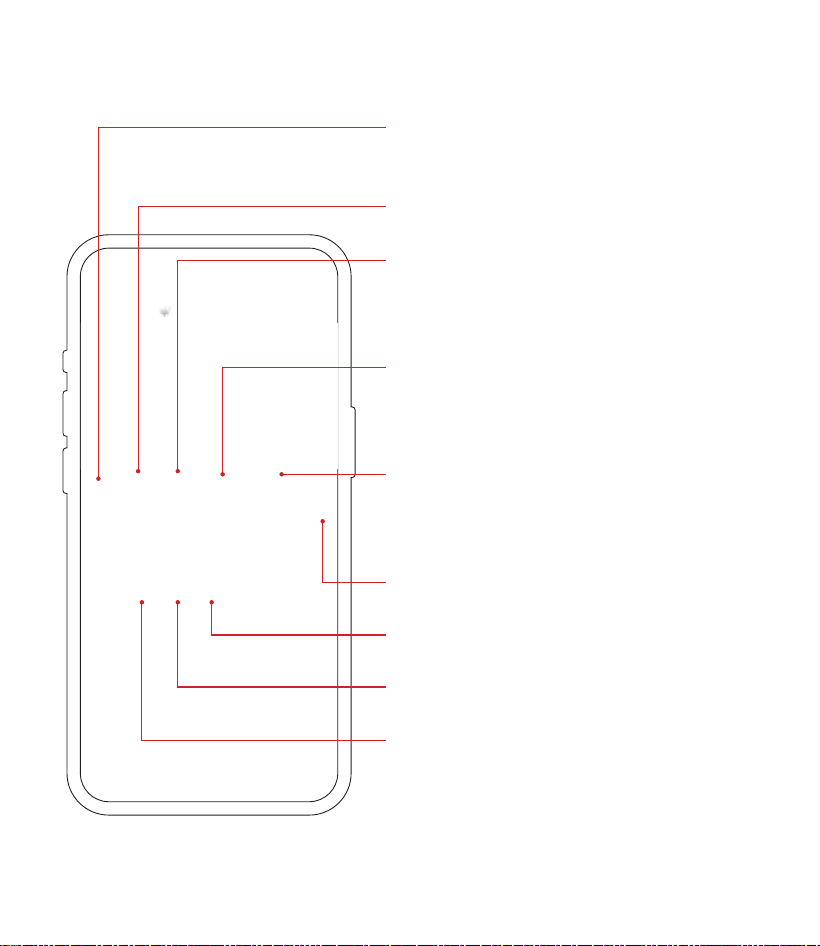
Siren: Click to enable the one-click alert
sound.
Night Vision Mode Settings
Motion Tagging: Enable this option to
show a person detection box in the live
view.
Push Notication: Enable/Disable
Alert Notications, when notication is
disabled, you will not receive any alerts.
Multi Screen: This function is available
only when two or more devices are
connected.
Share the device
Vehicle detected
Person detected
Motion detected
13
IV.Mounting the Camera
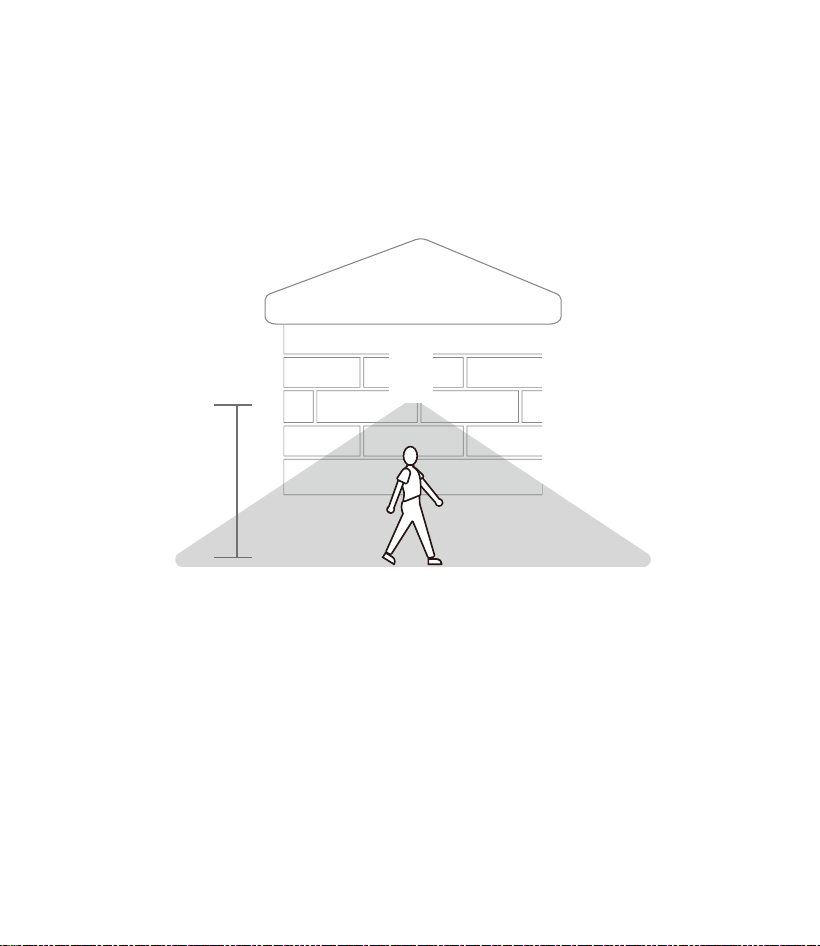
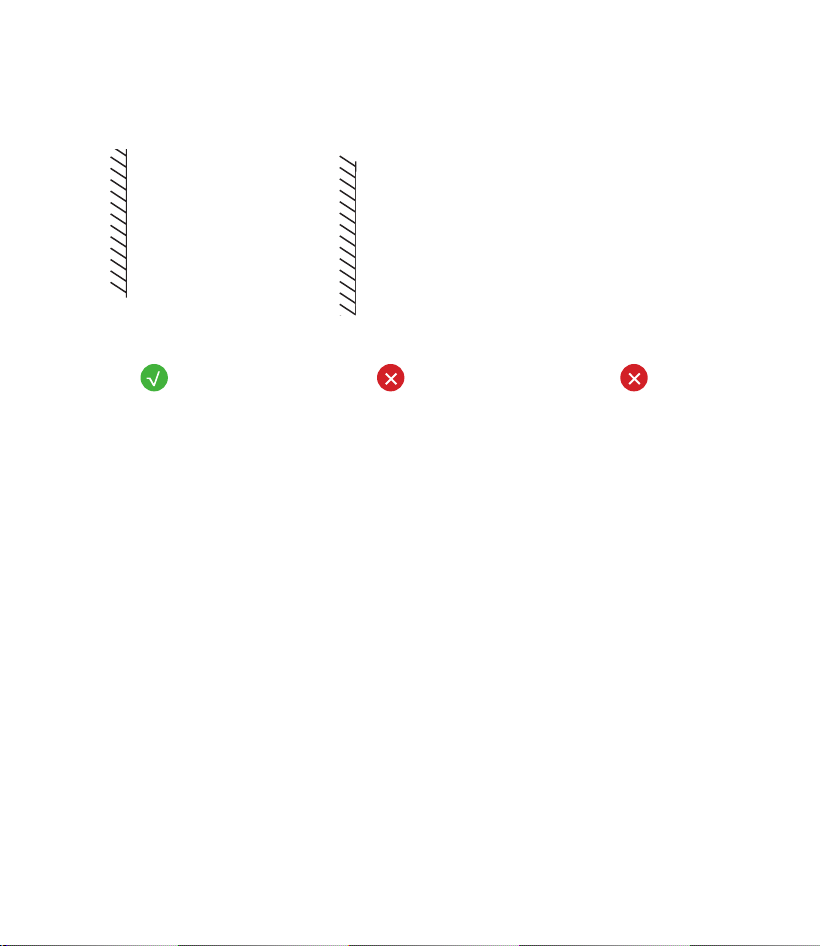
Choose the installation location for the camera.
We suggest installing the camera above 7 feet. You can adjust the camera angle
based on the real-time video on your phone so that the camera focuses on your
activity area, thereby obtaining more accurate motion detection alerts.
(1) Adjust PIR Sensitivity
You can adjust the sensitivity of the PIR sensor according to environmental needs in
"Device settings → Events → Motion Detection Sensitivity and select an appropriate
level".
(2) Optimize Alarm Zones
It is recommended to install the camera away from grass or foliage to reduce false
alarms. You can also select specic motion detection zones. In "Device settings →
Events → Detection Area," manually delineate the specic area that needs to be
monitored.
above
7 feet
14
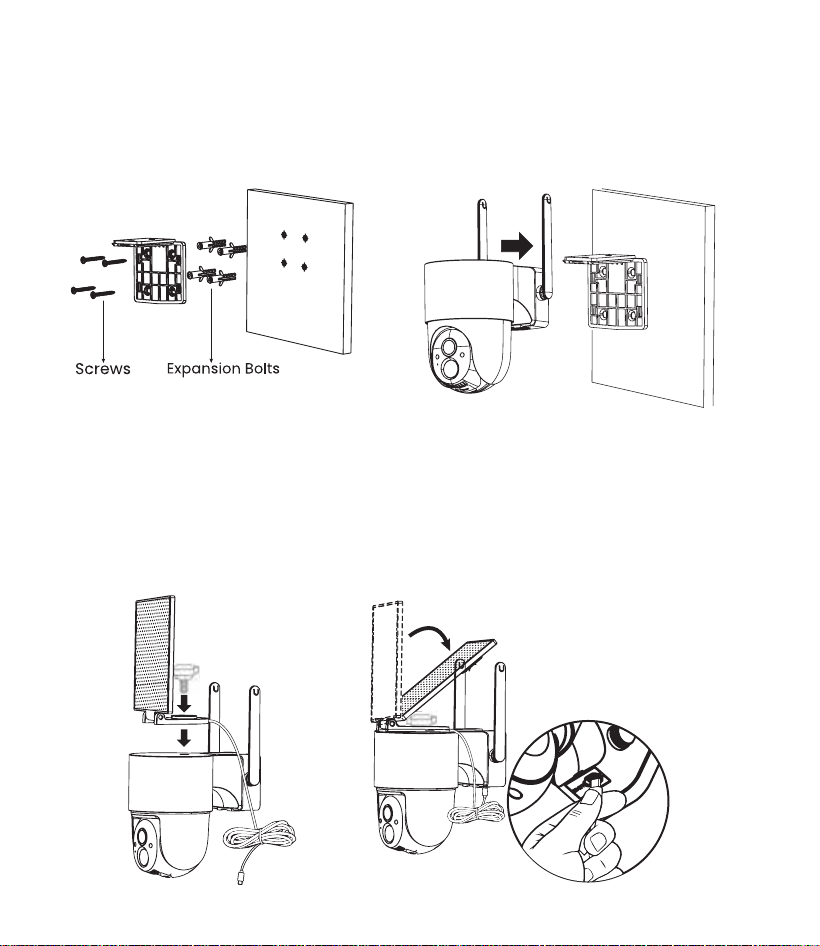
Camera Insrallation
Solar Panel Installation
All-in-One Installation
Step 1. Attach the mounting bracket
to the wall.
Step 1. Secure the solar panel to the
top of the camera using screws.
Step 2. Insert the camera into the
camera bracket.
Step 2. Adjust the angle of the solar
panel, and insert its wire into the
camera's power port
15
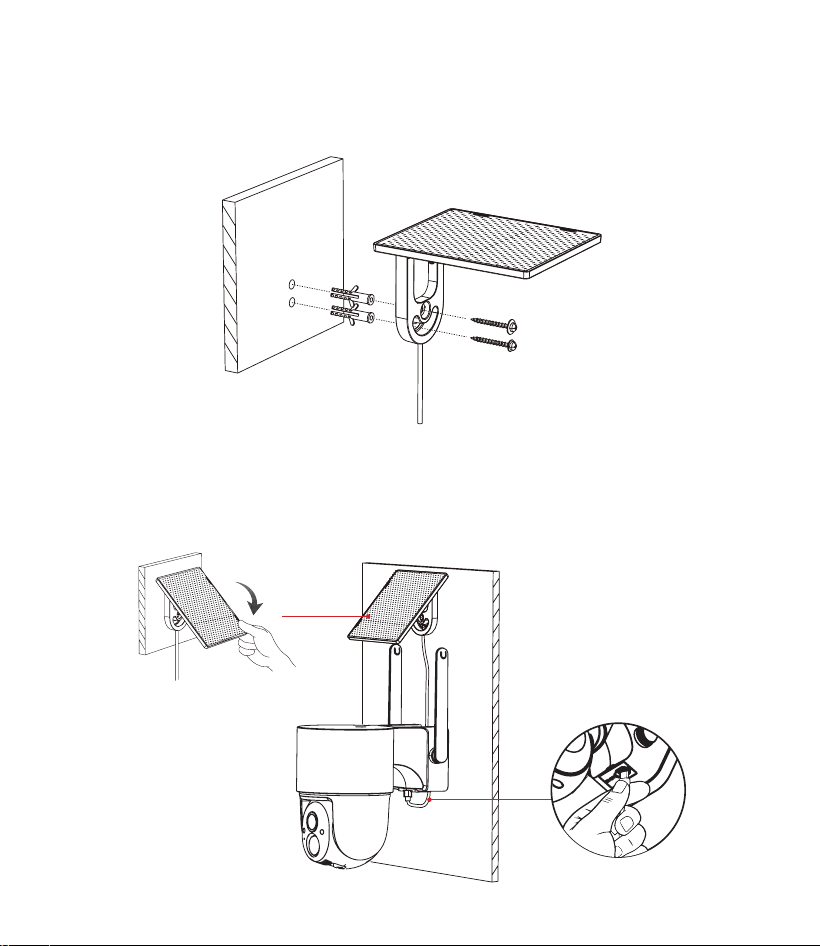
Step 1. Secure the bracket to the wall using screws.
Step 2. Adjust the angle of the solar panel, it is recommended to tilt it facing south.
Then insert its wire into the camera's power port (Note: The power plug should be
inserted through the rubber grommet hole to prevent water damage to the camera).
Split Installation
16
The following are the directions (picture 1) for the
camera installation.
17
V.FAQS
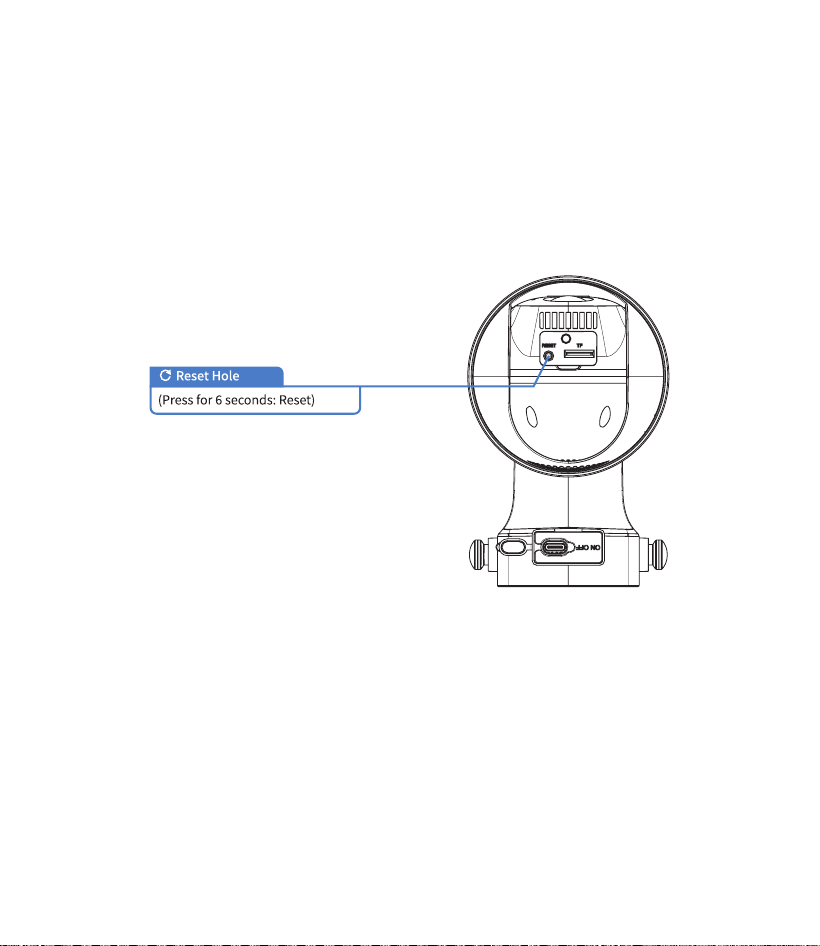
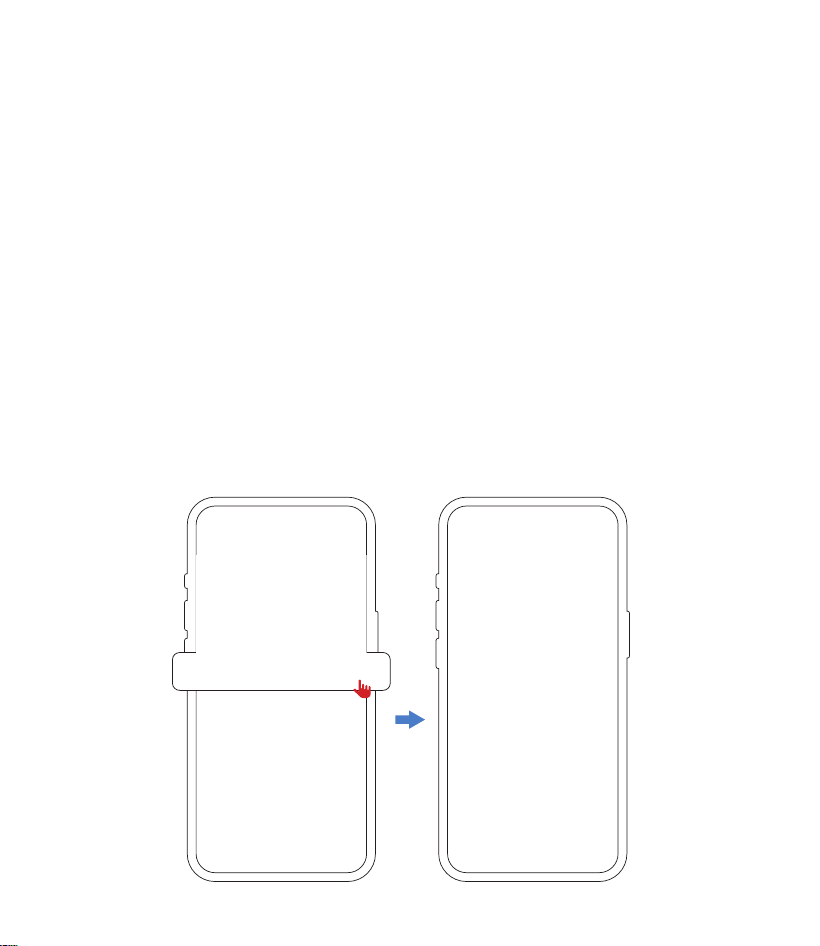
1.How to reset the camera ?
Press and hold the reset button for 6 seconds to reset the camera. You need to
release the button when you hear the prompt tone. After resetting the camera, you
must follow all steps to add the camera. (Refer to page 5 for the process of re-adding
the camera)
2.Why can't the camera connect to Wi-Fi?
(1) Press and hold the Reset button until you hear a voice prompt, then release it
and wait for the "beep-beep" sound. Repeat this process to complete the setup.
(2) Check that the Wi-Fi password you entered is correct. Reboot the router, then try
adding the camera again.(Refer to page 5 for the process of re-adding the camera)
(3) Make sure your router does not have AP isolation, MAC ltering, or other access
restrictions enabled. On some phones, you need to grant location permission and
turn on location services to scan for Wi-Fi networks and view the Wi-Fi list.
18
3.How do I reconnect the camera after changing my
router or Wi-Fi password?
First, delete the camera from the app. Then, press and hold the reset button for 6
seconds until you hear a sound. Finally, re-add the camera to the app and select
your new Wi-Fi SSID and password.
4.How to share your camera ?
Open the camera's Live page and tap"Share".
Option 1: Select Share via account Sharing, then enter the recipient's account ID.
Option 2: Select Share via QR Code Sharing, and have the recipient scan the code to
access the shared device.'
Note: The recipient must register and log in to an Arogal account before they can
accept the share. To accept an invitation, open the Arogal app, go to Settings →
Share List, and tap Accept on the invitation.

19
5.Why am I receiving too many activity alerts or
missing alerts?
(1) Adjust the motion detection sensitivity to suit your needs: Go to Device settings →
Events → Motion Detection Sensitivity and select an appropriate level.
(2)Check for objects that may accidentally trigger the PIR sensor, such as air conditioner
outdoor units, leaves, changing light, passing vehicles, or pedestrians. Adjust the
device’s mounting angle to minimize false alarms.
(3)Set the detection area to reduce false alerts: Go to Device settings → Events →
Detection Area, then select the specic area for alerts.
6.What to do if the image is blurry ?
(1) Switch the image mode to HD: Go to Live View → tap HD, then switch to FHD
resolution displayed in the upper-left corner.
(2) Conrm the lens protective lm has been removed.
(3) Check for dirt or smudges on the lens.
7.What to do if there are no video recordings after
subscribing to cloud storage?
(1) Conrm that the cloud storage subscription is active.
(2) Conrm that the cloud storage recording switch is turned on (Device settings →
More Options → Cloud video). If you have not subscribed to cloud storage, subscribe
rst.
8. What to do if the camera does not recognize the
TF Card ?
(1) The camera only supports TF cards with a capacity of 8–128 GB and Class 10 or

20
higher (U1 or above). It does not support TF cards of 128 GB or above.
(2) Ensure that you insert the TF card correctly (a click sound should be heard when fully
inserted), checking that the insertion direction and position are correct.
(3) Reinsert the TF card. Power of the camera, insert the TF card into the camera's
TF card slot in the correct orientation, and then power on the camera. If the camera
prompts you to format the TF card, click "Format TF Card". If the TF card still
cannot be recognized, use a card reader to format the TF card to FAT32 format on a
computer, then reinsert it into the camera.
(4) If the TF card cannot be recognized during use, power of the camera, remove and
reinsert the TF card to verify whether it can be recognized. If it still cannot be recognized,
reformat the TF card or replace it.
9.What to do if the camera's battery life is short ?
(1) Check if the solar panel is properly connected to the camera.
(2) Ensure the solar panel is exposed to sunlight and that its surface is free from debris
such as leaves.
(3) Lower the sensitivity to reduce the number of alarms: Go to Device settings- >Events
→ Motion detection sensitivity and select the appropriate detection
sensitivity.
10.What to do if the phone cannot display real-time
videos when out of the home ?
When at home,the phone can view real-time
videos by connecting to WiFi.But when out and
using 4G or 5G mobile data, if the phone cannot
view real-time videos from

21
11. What to do if the solar panel is not charging?
(1) Check if there are any foreign objects covering the surface of the solar panel.
(2) Ensure that the solar panel receives direct sunlight and is exposed to sunlight foras
longas possible.
(3) Check if the solar panel connection lines are properly inserted, and reinsert themif
necessary.
If you have any questions about our products or services, please feel free to contact
us
📧
: support@arogal.ai
📞
: +1 218-292-2199

22
Compliance Statement
FCC WARNING:
Any Changes or modications not expressly approved by the party responsible for
compliance could void the user's authority to operate the equipment. This device
complies with part 15 of the FCC Rules. Operation is subject to the following two
conditions:
(1)This device may not cause harmful interference.
(2)This device must accept any interference received, including interference that
may cause undesired operation.
Note: This equipment has been tested and found to comply with the limits for a
Class B digital device, pursuant to part 15 of the FCC Rules. These limits are designed
to provide reasonable protection against harmful interference in a residential
installation. This equipment generates uses and can radiate radio frequency energy
and, if not installed and used in accordance with the instructions, may cause
harmful interference to radio communications. However, there is no guarantee that
interference will not occur in a particular installation. If this equipment does cause
harmful interference to radio or television reception, which can be determined
by turning the equipment o and on, the user is encouraged to try to correct the
interference by one or more of the following measures:
• Reorient or relocate the receiving antenna.
• Increase the separation between the equipment and receiver.
• Connect the equipment into an outlet on a circuit dierent from that to which the
receiver is connected.
• Consult the dealer or an experienced radio/TV technician for help.
FCC RADIATION EXPOSURE STATEMENT:
This equipment complies with FCC radiation exposure limits set forth for an
uncontrolled environment. This equipment should be installed and operated with
the minimum distance of 20cm between the radiator & your body. This transmitter

23
must not be co-located or operated in conjunction with any other antenna or
transmitter. FCC ID: 2BU9W-Q41-S
CE Simplied EU Declaration of Conformity
This device is in compliance with the essential requirements and other relevant
provisions of Directive 2014/53/EU.
Correct Disposal of This Product
This symbol means the product must not be discarded as household waste and
should be delivered to an appropriate collection facility for recycling. Proper
disposal and recycling help protect natural resources, human health, and the
environment. For more information on the disposal and recycling of this product,
contact your local municipality, disposal service, or the shop where you bought this
product.